【FREE GIFT】America eSIM (1 eSIM per booking)

New York, United States
4.8 (61 sharhlar)
Tezkor tasdiqlash
Mobil vaucher

Mavjud variantlar

Data in total · 7 days · 1GB · Data only

eSIM
Narx so'rov bo'yicha

Additional Information

  • eSIM compatible devices

  • eSIM FAQ

  • You can purchase additional data for your eSIM in the Klook app after you start using the eSIM data, without needing to install and activate a new eSIM. Simply buy more data for your existing free eSIM!

  • The connection speed depends on your reception coverage and the local tele company. No refund will be issued for any speed drop

Pre-trip installation in Klook APP: Account > Bookings > Activate; When you arrive at your destination: Phone settings > Switch to eSIM & Enable Data Roaming; Time and billing will only start after you connect to the local network.

  • Your eSIM plan will begin upon connection to the destination mobile network, according to the time connected. For example, if you activate your 3-day plan at 10:00, it will end 3 days later at 10:00.

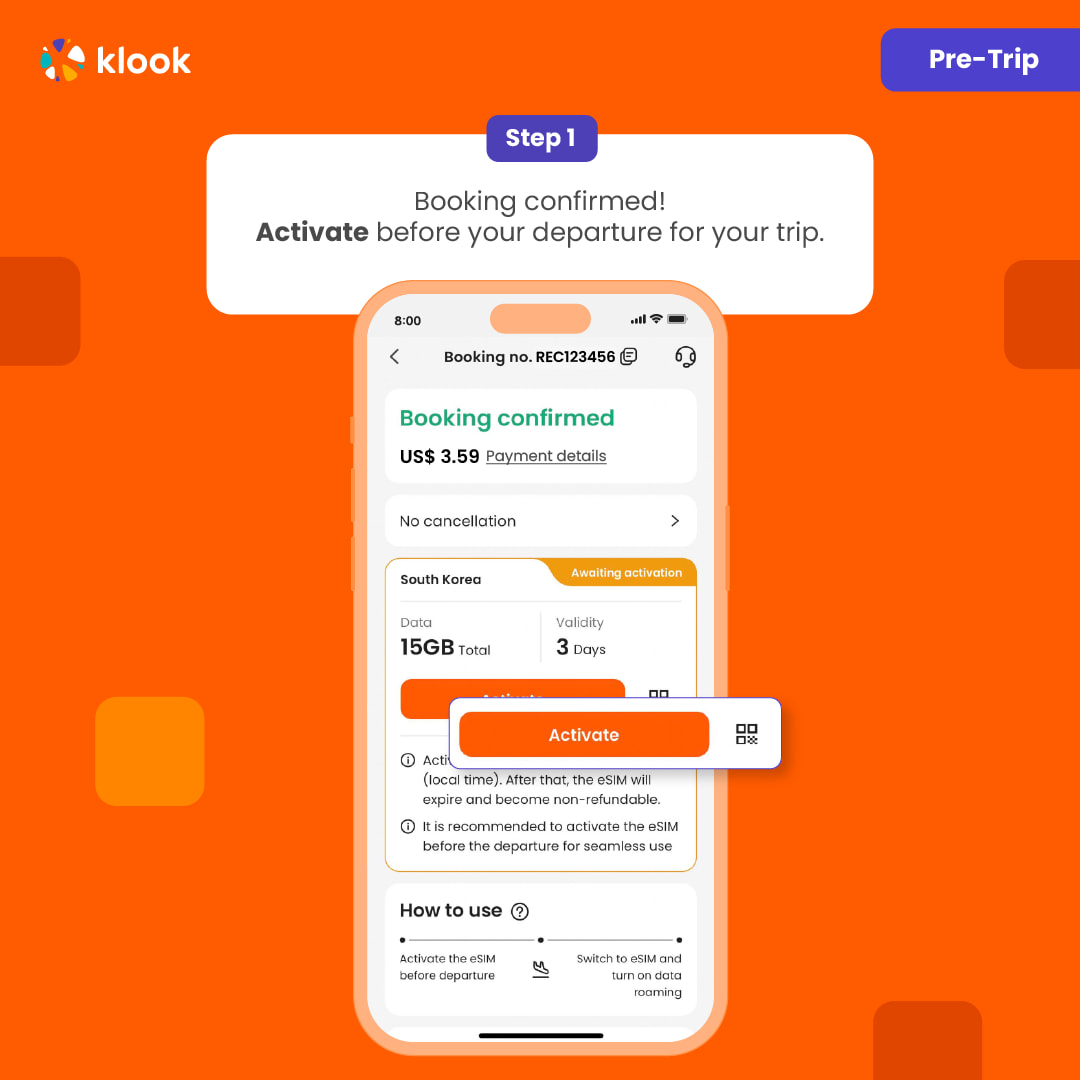
  • Activate in Klook App (Update Klook APP to the latest version)

Activate in Klook App (Update Klook APP to the latest version)

Activate in Klook App (Update Klook APP to the latest version)

  • Klook App: Account > Bookings > Click activate (You can also find the eSIM QR code in the voucher, Settings > Cellular > SIMs > Tap Add eSIM > scan QR code )

Klook App: Account > Bookings > Click activate (You can also find the eSIM QR code in the voucher, Settings > Cellular > SIMs > Tap Add eSIM > scan QR code )

Klook App: Account > Bookings > Click activate (You can also find the eSIM QR code in the voucher, Settings > Cellular > SIMs > Tap Add eSIM > scan QR code )

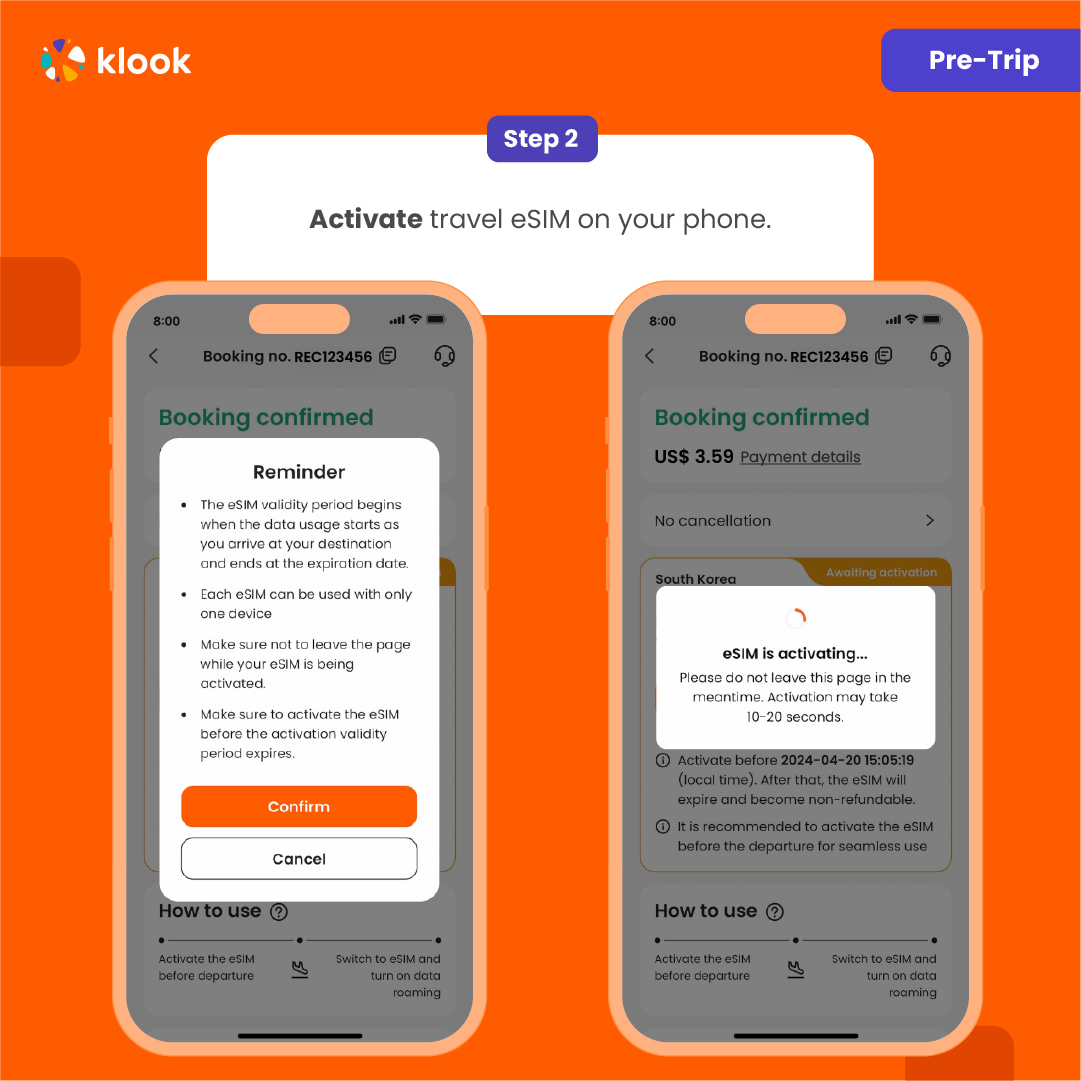
  • Read the reminder and start installing the eSIM (The time and data will not start counting.)

Read the reminder and start installing the eSIM (The time and data will not start counting.)

Read the reminder and start installing the eSIM (The time and data will not start counting.)

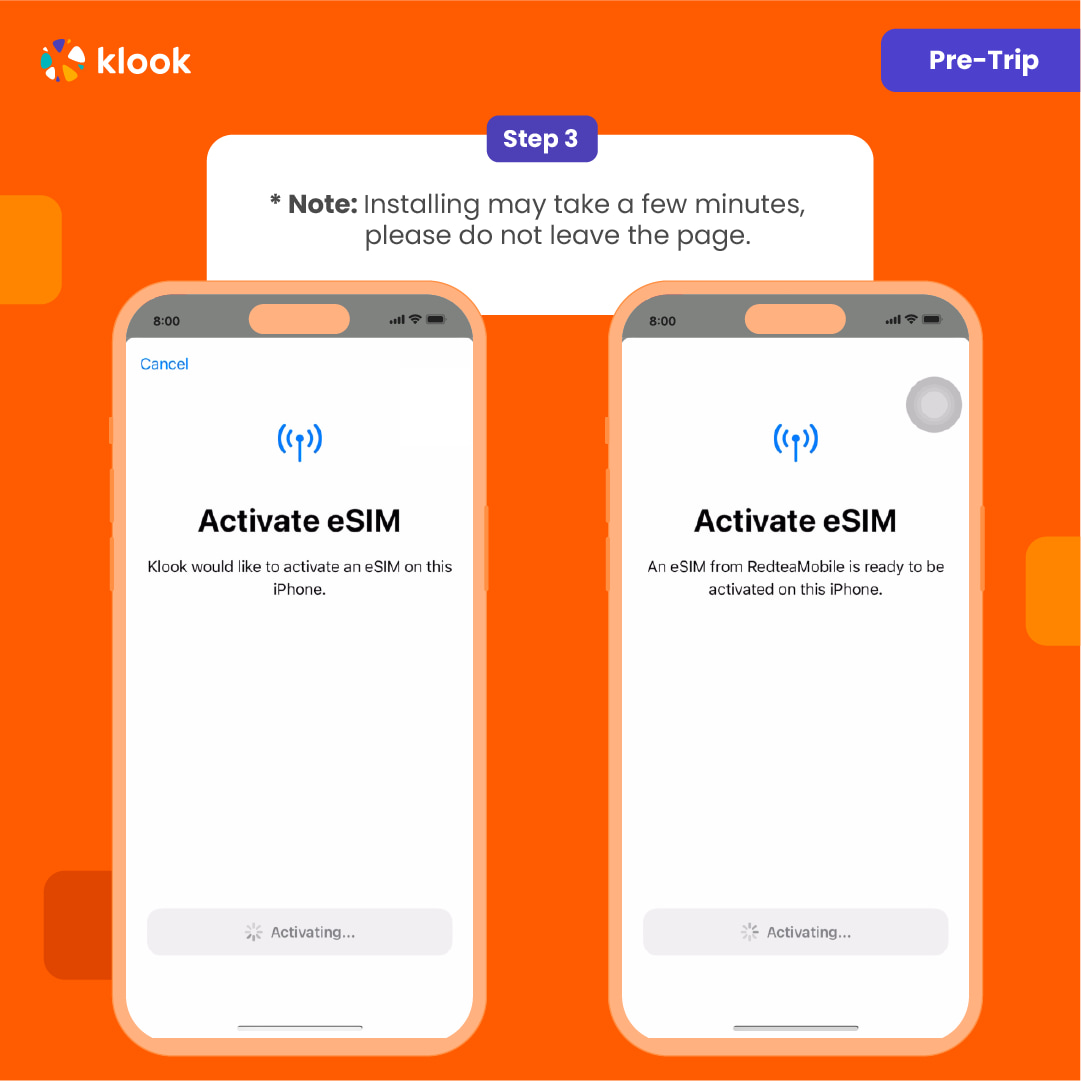
  • Suggest install under wifi connection and please do not leave the page (might take some time)

Suggest install under wifi connection and please do not leave the page (might take some time)

Suggest install under wifi connection and please do not leave the page (might take some time)

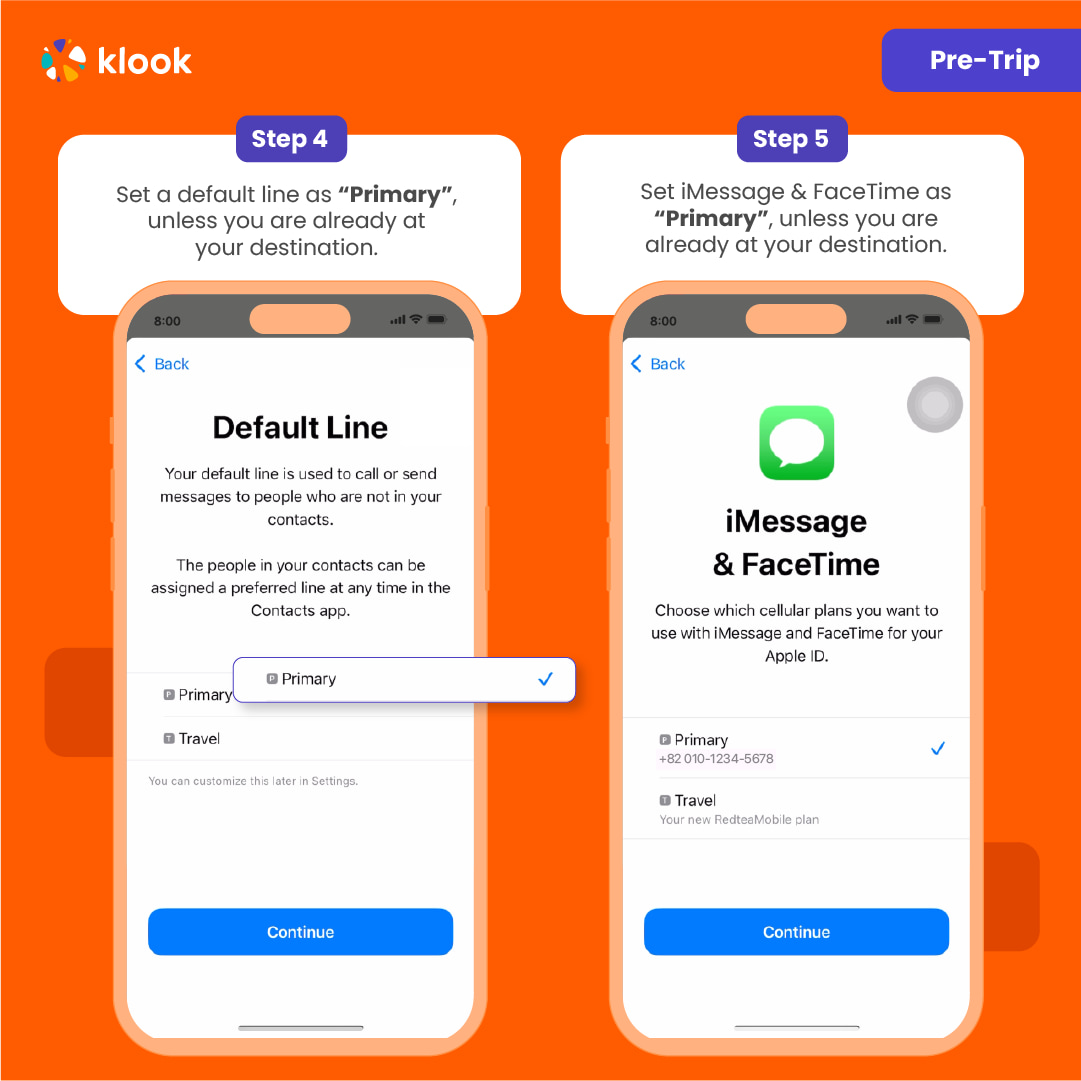
  • Please select "Primary" if you're not in your destination.

Please select "Primary" if you're not in your destination.

Please select "Primary" if you're not in your destination.

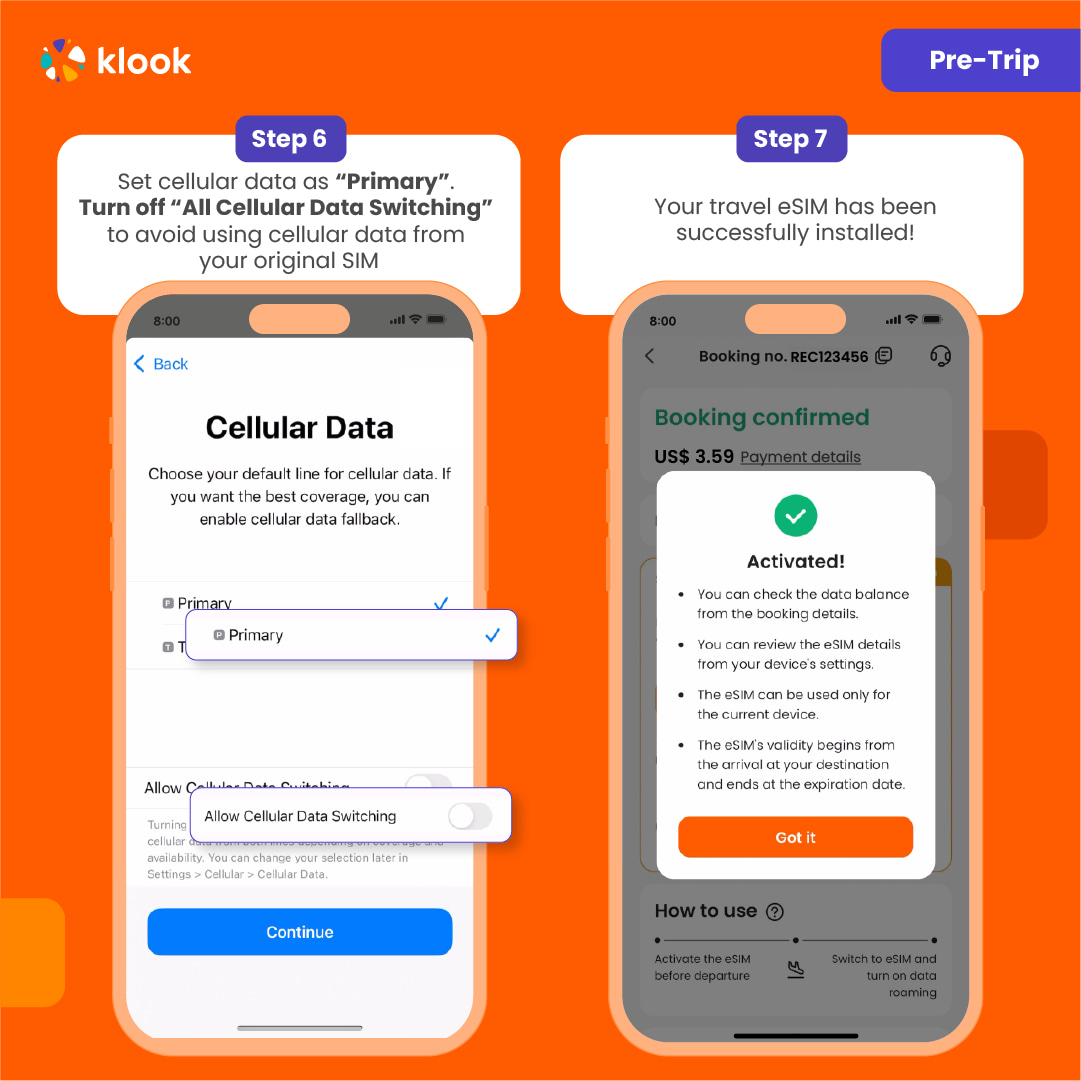
  • Turn off cellular switching and the eSIM is installed! (If you failed, can try again.)

Turn off cellular switching and the eSIM is installed! (If you failed, can try again.)

Turn off cellular switching and the eSIM is installed! (If you failed, can try again.)

  • Turn off cellular switching and the eSIM is installed! (If you failed, can try again.)

Turn off cellular switching and the eSIM is installed! (If you failed, can try again.)

Turn off cellular switching and the eSIM is installed! (If you failed, can try again.)

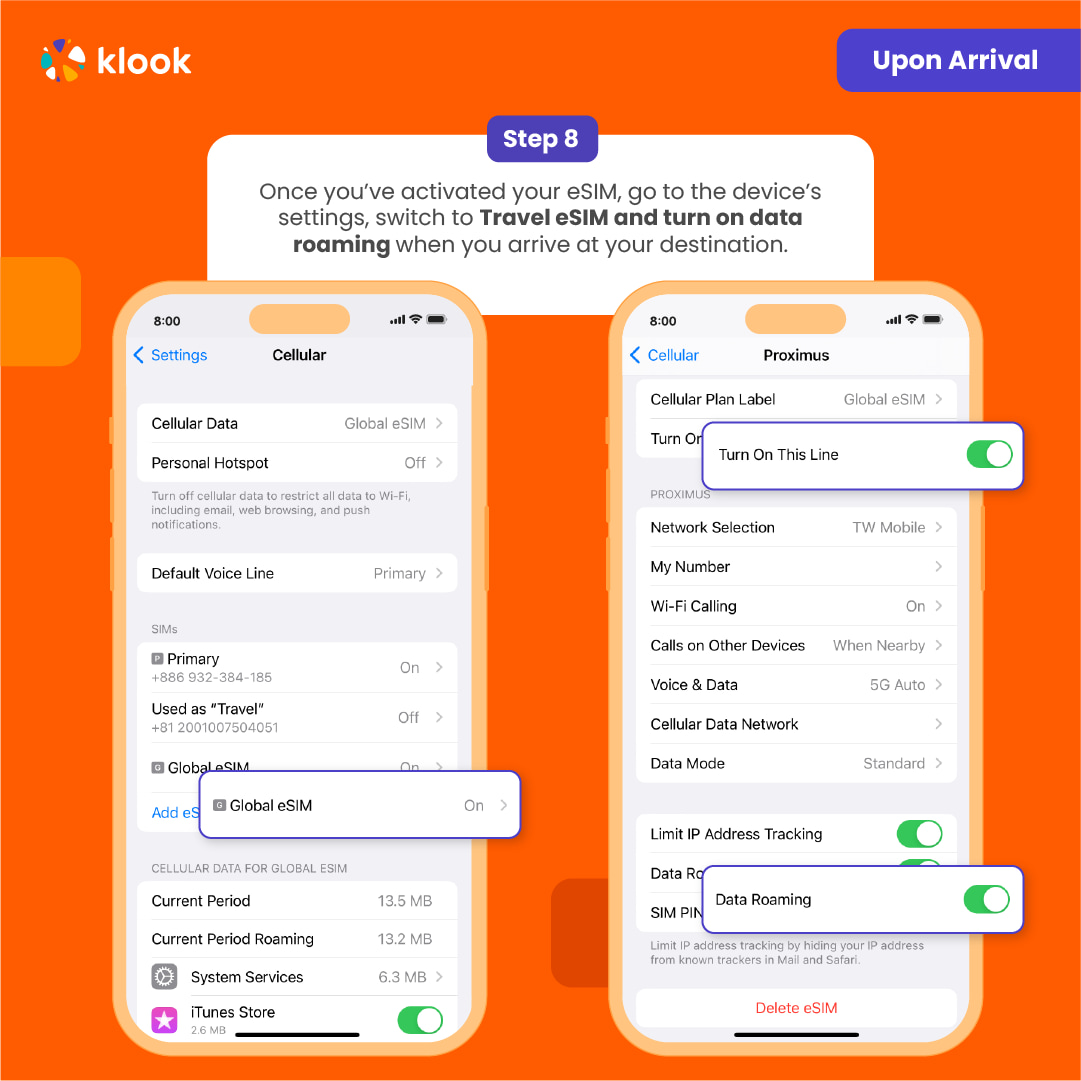
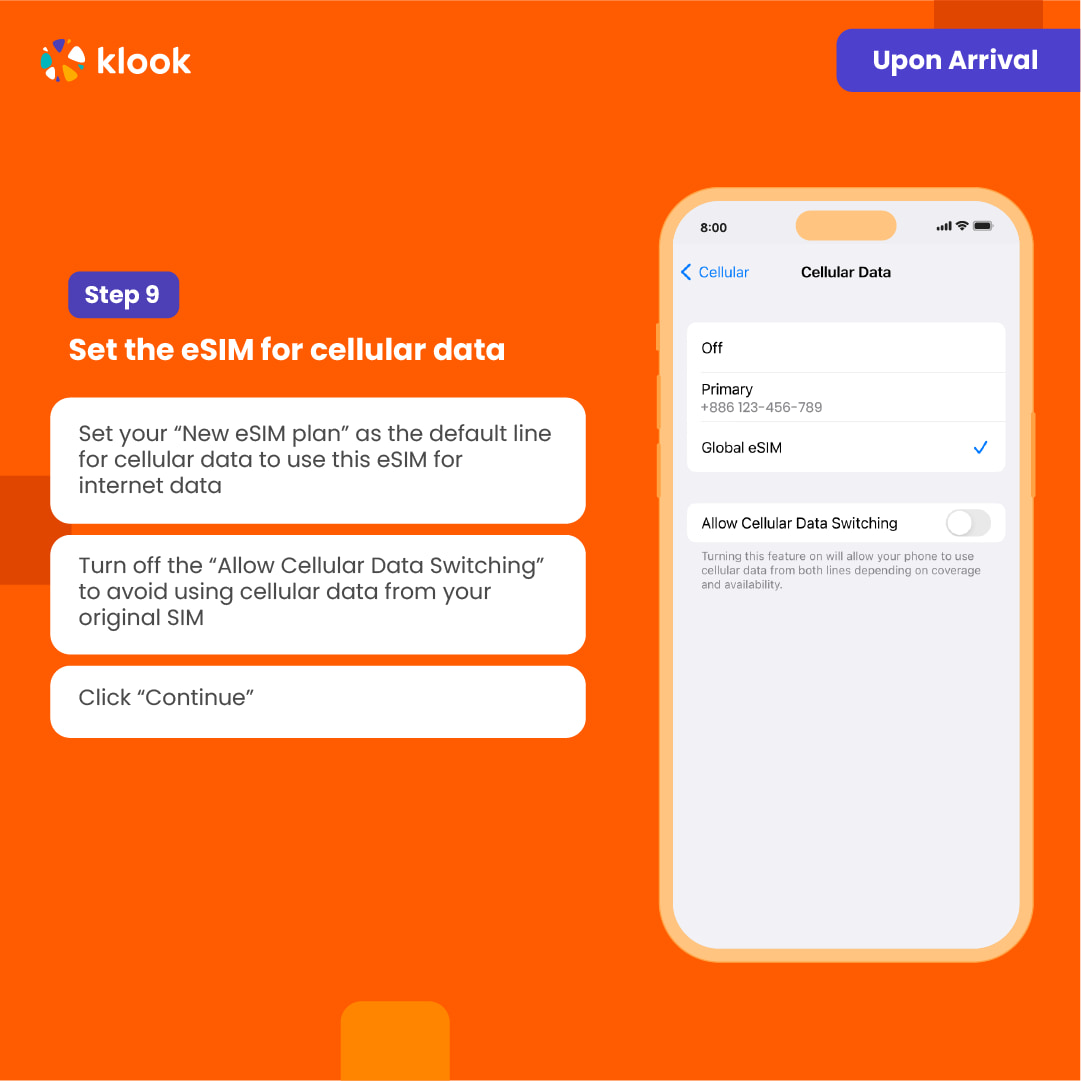
  • After you arrive the destination: Switch the cellular data to the eSIM card.

After you arrive the destination: Switch the cellular data to the eSIM card.

After you arrive the destination: Switch the cellular data to the eSIM card.

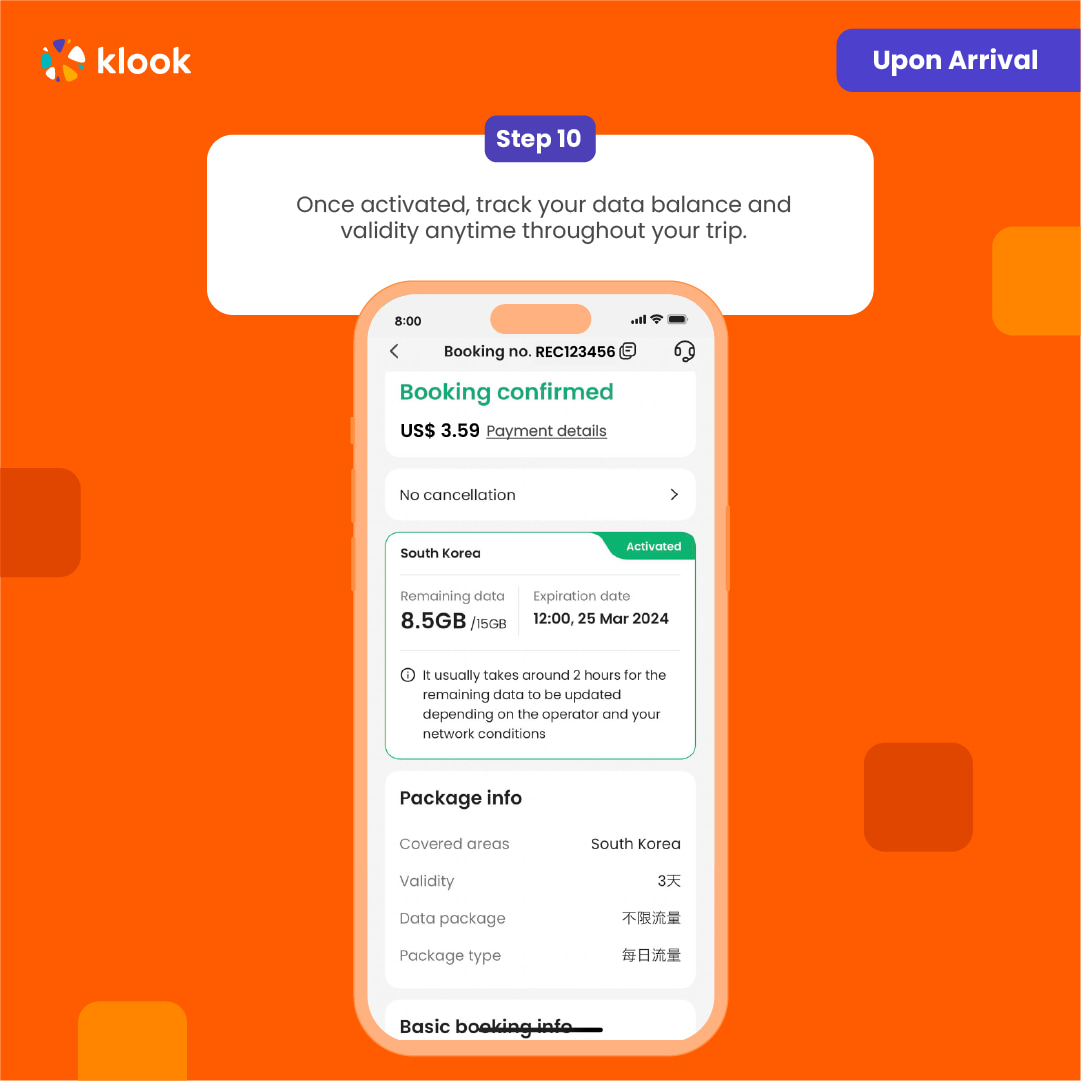
  • Check the eSIM status in your bookings in Klook APP (Reach out to us on the top right of the booking if you have any issues!)

Check the eSIM status in your bookings in Klook APP (Reach out to us on the top right of the booking if you have any issues!)

Check the eSIM status in your bookings in Klook APP (Reach out to us on the top right of the booking if you have any issues!)

Confirmation policy

  • You'll get confirmation within minutes. If you don't see any confirmation, reach out to our customer support.

Ushbu variantni tanlash

Data in total · 7 days · 3GB · Data only

eSIM
23 900 so'm
≈$2

Additional Information

  • eSIM compatible devices

  • eSIM FAQ

  • You can purchase additional data for your eSIM in the Klook app after you start using the eSIM data, without needing to install and activate a new eSIM. Simply buy more data for your existing free eSIM!

  • The connection speed depends on your reception coverage and the local tele company. No refund will be issued for any speed drop

Pre-trip installation in Klook APP: Account > Bookings > Activate; When you arrive at your destination: Phone settings > Switch to eSIM & Enable Data Roaming; Time and billing will only start after you connect to the local network.

  • Your eSIM plan will begin upon connection to the destination mobile network, according to the time connected. For example, if you activate your 3-day plan at 10:00, it will end 3 days later at 10:00.

  • Activate in Klook App (Update Klook APP to the latest version)

Activate in Klook App (Update Klook APP to the latest version)

Activate in Klook App (Update Klook APP to the latest version)

  • Klook App: Account > Bookings > Click activate (You can also find the eSIM QR code in the voucher, Settings > Cellular > SIMs > Tap Add eSIM > scan QR code )

Klook App: Account > Bookings > Click activate (You can also find the eSIM QR code in the voucher, Settings > Cellular > SIMs > Tap Add eSIM > scan QR code )

Klook App: Account > Bookings > Click activate (You can also find the eSIM QR code in the voucher, Settings > Cellular > SIMs > Tap Add eSIM > scan QR code )

  • Read the reminder and start installing the eSIM (The time and data will not start counting.)

Read the reminder and start installing the eSIM (The time and data will not start counting.)

Read the reminder and start installing the eSIM (The time and data will not start counting.)

  • Suggest install under wifi connection and please do not leave the page (might take some time)

Suggest install under wifi connection and please do not leave the page (might take some time)

Suggest install under wifi connection and please do not leave the page (might take some time)

  • Please select "Primary" if you're not in your destination.

Please select "Primary" if you're not in your destination.

Please select "Primary" if you're not in your destination.

  • Turn off cellular switching and the eSIM is installed! (If you failed, can try again.)

Turn off cellular switching and the eSIM is installed! (If you failed, can try again.)

Turn off cellular switching and the eSIM is installed! (If you failed, can try again.)

  • Turn off cellular switching and the eSIM is installed! (If you failed, can try again.)

Turn off cellular switching and the eSIM is installed! (If you failed, can try again.)

Turn off cellular switching and the eSIM is installed! (If you failed, can try again.)

  • After you arrive the destination: Switch the cellular data to the eSIM card.

After you arrive the destination: Switch the cellular data to the eSIM card.

After you arrive the destination: Switch the cellular data to the eSIM card.

  • Check the eSIM status in your bookings in Klook APP (Reach out to us on the top right of the booking if you have any issues!)

Check the eSIM status in your bookings in Klook APP (Reach out to us on the top right of the booking if you have any issues!)

Check the eSIM status in your bookings in Klook APP (Reach out to us on the top right of the booking if you have any issues!)

Confirmation policy

  • You'll get confirmation within minutes. If you don't see any confirmation, reach out to our customer support.

Ushbu variantni tanlash

Data in total · 30 days · 5GB · Data only

eSIM
35 850 so'm
≈$3

Additional Information

  • eSIM compatible devices

  • eSIM FAQ

  • You can purchase additional data for your eSIM in the Klook app after you start using the eSIM data, without needing to install and activate a new eSIM. Simply buy more data for your existing free eSIM!

  • The connection speed depends on your reception coverage and the local tele company. No refund will be issued for any speed drop

Pre-trip installation in Klook APP: Account > Bookings > Activate; When you arrive at your destination: Phone settings > Switch to eSIM & Enable Data Roaming; Time and billing will only start after you connect to the local network.

  • Your eSIM plan will begin upon connection to the destination mobile network, according to the time connected. For example, if you activate your 3-day plan at 10:00, it will end 3 days later at 10:00.

  • Activate in Klook App (Update Klook APP to the latest version)

Activate in Klook App (Update Klook APP to the latest version)

Activate in Klook App (Update Klook APP to the latest version)

  • Klook App: Account > Bookings > Click activate (You can also find the eSIM QR code in the voucher, Settings > Cellular > SIMs > Tap Add eSIM > scan QR code )

Klook App: Account > Bookings > Click activate (You can also find the eSIM QR code in the voucher, Settings > Cellular > SIMs > Tap Add eSIM > scan QR code )

Klook App: Account > Bookings > Click activate (You can also find the eSIM QR code in the voucher, Settings > Cellular > SIMs > Tap Add eSIM > scan QR code )

  • Read the reminder and start installing the eSIM (The time and data will not start counting.)

Read the reminder and start installing the eSIM (The time and data will not start counting.)

Read the reminder and start installing the eSIM (The time and data will not start counting.)

  • Suggest install under wifi connection and please do not leave the page (might take some time)

Suggest install under wifi connection and please do not leave the page (might take some time)

Suggest install under wifi connection and please do not leave the page (might take some time)

  • Please select "Primary" if you're not in your destination.

Please select "Primary" if you're not in your destination.

Please select "Primary" if you're not in your destination.

  • Turn off cellular switching and the eSIM is installed! (If you failed, can try again.)

Turn off cellular switching and the eSIM is installed! (If you failed, can try again.)

Turn off cellular switching and the eSIM is installed! (If you failed, can try again.)

  • Turn off cellular switching and the eSIM is installed! (If you failed, can try again.)

Turn off cellular switching and the eSIM is installed! (If you failed, can try again.)

Turn off cellular switching and the eSIM is installed! (If you failed, can try again.)

  • After you arrive the destination: Switch the cellular data to the eSIM card.

After you arrive the destination: Switch the cellular data to the eSIM card.

After you arrive the destination: Switch the cellular data to the eSIM card.

  • Check the eSIM status in your bookings in Klook APP (Reach out to us on the top right of the booking if you have any issues!)

Check the eSIM status in your bookings in Klook APP (Reach out to us on the top right of the booking if you have any issues!)

Check the eSIM status in your bookings in Klook APP (Reach out to us on the top right of the booking if you have any issues!)

Confirmation policy

  • You'll get confirmation within minutes. If you don't see any confirmation, reach out to our customer support.

Ushbu variantni tanlash
dan
23 900 so'm kishi uchun
≈$2
Keshbek 1 195 so'mgacha
Variantni tanlash va band qilish

Yuqoridagi mavjud variantlardan tanlang

Xavfsiz to'lov
Tezkor tasdiqlash

O'xshash ekskursiyalar