

 Cable Car & Gondola & Skywheels
Eurail Eron poezdi o‘tirovchisi
Tallinn, Estonia
Europe Railway Pass
Tezkor tasdiqlash
Mobil vaucher








Chex, Dan, Fin, Fransuz, Golland, Indonez, Ingliz, Ispan, Italyan, Koreys, Malay, Nemis, Polyak, Portugal, Rus, Shved, Tagalog, Tay, Turk, Vyetnam, Xitoy, Yapon
Mavjud variantlar
Promotion · First class · 6 days in 1 month
Adult
3 623 400 so'm
≈$297
Senior(60+)
(60-0 yosh)
3 257 400 so'm
≈$267
Youth(12-27)
(12-27 yosh)
2 708 400 so'm
≈$222
Child(0-11)
(0-11 yosh)
Narx so'rov bo'yicha
Включено
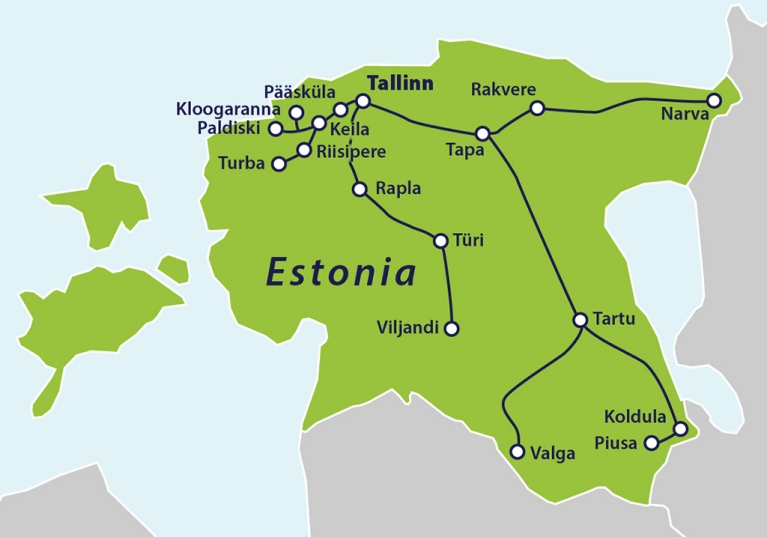
- Unlimited train rides in specified areas for the number of days and Pass Type you have selected (Route map)
Не включено
- Meals and beverages
- Other personal expenses
- Seat reservation fees (reserved separately via Eurail)
- If you cancel the booking by 7 day(s) after the booking confirmation, a 0% cancellation fee will be charged
- If you cancel the booking 7 day(s) after the booking confirmation or later, a 100% cancellation fee will be charged
Confirmation
- You'll get confirmation within minutes. If you don't see any confirmation, reach out to our customer support.
Usage validity
- The voucher is valid for 334 day(s) from the booking confirmation date. It expires at 23:59 on the last day
Voucher type
- You can use the Mobile Pass by downloading the Eurail/Interrail Rail Planner app
- By buying this Eurail pass, you are accepting the Eurail Terms and Conditions
Activation Process
- You can actively use the Mobile Pass up to 11 months from the date of purchase by downloading the Eurail/Interrail Rail Planner app
- Step 1: Add your Pass by entering your Last Name & Pass Number sent by Klook
- Step 2: Connect a trip to your Pass by either creating a new trip or choosing a trip you’ve already created in the App
- Step 3: Activate your Pass by entering your Passport / ID Number and choosing your first travel day. Note that you can't board your first train unless your Pass has been activated, and you need to be online to activate your Pass
- Do take note that it is not necessary to activate your pass to make seat reservations
- Phones must be set as Gregorian calendar in order to activate the pass in Rail Planner App
- For more details on how to activate your passes, please refer to the Ultimate Guide to Eurail Global Pass
How to Deactivate Eurail Mobile Pass
- You can deactivate your Pass any time before the start of your chosen start date (00:00 CET on that day). On the Rail Planner App, go to My Pass, tap the three dots on the top right, and tap ‘Deactivate Pass’. You can then activate your Pass again when you’re ready to travel
How to Travel with the Eurail Mobile Pass
- Once the Eurail Mobile Pass gets activated, you may start your travel with the following easy steps
- Step 1: Plan your journey by searching for train times in the Eurail/Interrail Rail Planner app
- Step 2: Tap to save the preferred journey to your trip
- Step 3: Once you are ready to travel, tap to add your journey to your Pass
- Step 4: For ticket inspection, simply present your Mobile Pass by going to My Pass and tapping ‘Show ticket’. Note that every travel day in your Pass has a different ticket, and each ticket shows all the journeys you add to your Pass for that travel day
- Flexi Passes only: If the date of your journey is not a travel day yet, you'll need to use one of your travel days. You can see how many travel days you have left in My Trip and in My Pass, along with an overview of all your travel days
Group Travel
- In case you are traveling in a group and loading more than one Pass on your device, please note the following:
- For each Pass, you need to create a separate trip in the App
- If you've already created a trip, you can duplicate an existing trip to connect a copy of that trip to another Pass. Please name each trip differently to keep track of all your journeys
- For ticket inspection, you'll need to show a ticket for everyone traveling with a Pass. Simply choose another Pass from the list in My Pass, then tap 'Show ticket'
- During the inspection, you'll receive a ticket valued at EUR 0 solely for Elron's administrative purposes
Seat Reservation Process
- Reservations are required to board domestic high speed trains, international ‘cross-border’ trains, scenic trains and night trains. Local and regional trains do not require reservations
- Reservations can be made at Eurail.com website or Eurail/Interrail Rail Planner app. To view final prices and seat availability, you must be logged in and have a Pass
- Alternatively, reservations can also be made at local train stations or respective railway carriers websites
- There’s no need to activate the pass to make seat reservations
Promotion · First class · 8 days in 1 month
Adult
4 465 200 so'm
≈$366
Senior(60+)
(60-0 yosh)
4 013 800 so'm
≈$329
Youth(12-27)
(12-27 yosh)
3 342 800 so'm
≈$274
Child(0-11)
(0-11 yosh)
Narx so'rov bo'yicha
Включено
- Unlimited train rides in specified areas for the number of days and Pass Type you have selected (Route map)
Не включено
- Meals and beverages
- Other personal expenses
- Seat reservation fees (reserved separately via Eurail)
- If you cancel the booking by 7 day(s) after the booking confirmation, a 0% cancellation fee will be charged
- If you cancel the booking 7 day(s) after the booking confirmation or later, a 100% cancellation fee will be charged
Confirmation
- You'll get confirmation within minutes. If you don't see any confirmation, reach out to our customer support.
Usage validity
- The voucher is valid for 334 day(s) from the booking confirmation date. It expires at 23:59 on the last day
Voucher type
- You can use the Mobile Pass by downloading the Eurail/Interrail Rail Planner app
- By buying this Eurail pass, you are accepting the Eurail Terms and Conditions
Activation Process
- You can actively use the Mobile Pass up to 11 months from the date of purchase by downloading the Eurail/Interrail Rail Planner app
- Step 1: Add your Pass by entering your Last Name & Pass Number sent by Klook
- Step 2: Connect a trip to your Pass by either creating a new trip or choosing a trip you’ve already created in the App
- Step 3: Activate your Pass by entering your Passport / ID Number and choosing your first travel day. Note that you can't board your first train unless your Pass has been activated, and you need to be online to activate your Pass
- Do take note that it is not necessary to activate your pass to make seat reservations
- Phones must be set as Gregorian calendar in order to activate the pass in Rail Planner App
- For more details on how to activate your passes, please refer to the Ultimate Guide to Eurail Global Pass
How to Deactivate Eurail Mobile Pass
- You can deactivate your Pass any time before the start of your chosen start date (00:00 CET on that day). On the Rail Planner App, go to My Pass, tap the three dots on the top right, and tap ‘Deactivate Pass’. You can then activate your Pass again when you’re ready to travel
How to Travel with the Eurail Mobile Pass
- Once the Eurail Mobile Pass gets activated, you may start your travel with the following easy steps
- Step 1: Plan your journey by searching for train times in the Eurail/Interrail Rail Planner app
- Step 2: Tap to save the preferred journey to your trip
- Step 3: Once you are ready to travel, tap to add your journey to your Pass
- Step 4: For ticket inspection, simply present your Mobile Pass by going to My Pass and tapping ‘Show ticket’. Note that every travel day in your Pass has a different ticket, and each ticket shows all the journeys you add to your Pass for that travel day
- Flexi Passes only: If the date of your journey is not a travel day yet, you'll need to use one of your travel days. You can see how many travel days you have left in My Trip and in My Pass, along with an overview of all your travel days
Group Travel
- In case you are traveling in a group and loading more than one Pass on your device, please note the following:
- For each Pass, you need to create a separate trip in the App
- If you've already created a trip, you can duplicate an existing trip to connect a copy of that trip to another Pass. Please name each trip differently to keep track of all your journeys
- For ticket inspection, you'll need to show a ticket for everyone traveling with a Pass. Simply choose another Pass from the list in My Pass, then tap 'Show ticket'
- During the inspection, you'll receive a ticket valued at EUR 0 solely for Elron's administrative purposes
Seat Reservation Process
- Reservations are required to board domestic high speed trains, international ‘cross-border’ trains, scenic trains and night trains. Local and regional trains do not require reservations
- Reservations can be made at Eurail.com website or Eurail/Interrail Rail Planner app. To view final prices and seat availability, you must be logged in and have a Pass
- Alternatively, reservations can also be made at local train stations or respective railway carriers websites
- There’s no need to activate the pass to make seat reservations
Promotion · Second Class · 3 days in 1 month
Adult
1 671 400 so'm
≈$137
Senior(60+)
(60-0 yosh)
1 500 600 so'm
≈$123
Youth(12-27)
(12-27 yosh)
1 366 400 so'm
≈$112
Child(0-11)
(0-11 yosh)
Narx so'rov bo'yicha
Включено
- Unlimited train rides in specified areas for the number of days and Pass Type you have selected (Route map)
Не включено
- Meals and beverages
- Other personal expenses
- Seat reservation fees (reserved separately via Eurail)
- If you cancel the booking by 7 day(s) after the booking confirmation, a 0% cancellation fee will be charged
- If you cancel the booking 7 day(s) after the booking confirmation or later, a 100% cancellation fee will be charged
Confirmation
- You'll get confirmation within minutes. If you don't see any confirmation, reach out to our customer support.
Usage validity
- The voucher is valid for 334 day(s) from the booking confirmation date. It expires at 23:59 on the last day
Voucher type
- You can use the Mobile Pass by downloading the Eurail/Interrail Rail Planner app
- By buying this Eurail pass, you are accepting the Eurail Terms and Conditions
Activation Process
- You can actively use the Mobile Pass up to 11 months from the date of purchase by downloading the Eurail/Interrail Rail Planner app
- Step 1: Add your Pass by entering your Last Name & Pass Number sent by Klook
- Step 2: Connect a trip to your Pass by either creating a new trip or choosing a trip you’ve already created in the App
- Step 3: Activate your Pass by entering your Passport / ID Number and choosing your first travel day. Note that you can't board your first train unless your Pass has been activated, and you need to be online to activate your Pass
- Do take note that it is not necessary to activate your pass to make seat reservations
- Phones must be set as Gregorian calendar in order to activate the pass in Rail Planner App
- For more details on how to activate your passes, please refer to the Ultimate Guide to Eurail Global Pass
How to Deactivate Eurail Mobile Pass
- You can deactivate your Pass any time before the start of your chosen start date (00:00 CET on that day). On the Rail Planner App, go to My Pass, tap the three dots on the top right, and tap ‘Deactivate Pass’. You can then activate your Pass again when you’re ready to travel
How to Travel with the Eurail Mobile Pass
- Once the Eurail Mobile Pass gets activated, you may start your travel with the following easy steps
- Step 1: Plan your journey by searching for train times in the Eurail/Interrail Rail Planner app
- Step 2: Tap to save the preferred journey to your trip
- Step 3: Once you are ready to travel, tap to add your journey to your Pass
- Step 4: For ticket inspection, simply present your Mobile Pass by going to My Pass and tapping ‘Show ticket’. Note that every travel day in your Pass has a different ticket, and each ticket shows all the journeys you add to your Pass for that travel day
- Flexi Passes only: If the date of your journey is not a travel day yet, you'll need to use one of your travel days. You can see how many travel days you have left in My Trip and in My Pass, along with an overview of all your travel days
Group Travel
- In case you are traveling in a group and loading more than one Pass on your device, please note the following:
- For each Pass, you need to create a separate trip in the App
- If you've already created a trip, you can duplicate an existing trip to connect a copy of that trip to another Pass. Please name each trip differently to keep track of all your journeys
- For ticket inspection, you'll need to show a ticket for everyone traveling with a Pass. Simply choose another Pass from the list in My Pass, then tap 'Show ticket'
- During the inspection, you'll receive a ticket valued at EUR 0 solely for Elron's administrative purposes
Seat Reservation Process
- Reservations are required to board domestic high speed trains, international ‘cross-border’ trains, scenic trains and night trains. Local and regional trains do not require reservations
- Reservations can be made at Eurail.com website or Eurail/Interrail Rail Planner app. To view final prices and seat availability, you must be logged in and have a Pass
- Alternatively, reservations can also be made at local train stations or respective railway carriers websites
- There’s no need to activate the pass to make seat reservations
Promotion · Second Class · 4 days in 1 month
Adult
2 061 800 so'm
≈$169
Senior(60+)
(60-0 yosh)
1 866 600 so'm
≈$153
Youth(12-27)
(12-27 yosh)
1 549 400 so'm
≈$127
Child(0-11)
(0-11 yosh)
Narx so'rov bo'yicha
Включено
- Unlimited train rides in specified areas for the number of days and Pass Type you have selected (Route map)
Не включено
- Meals and beverages
- Other personal expenses
- Seat reservation fees (reserved separately via Eurail)
- If you cancel the booking by 7 day(s) after the booking confirmation, a 0% cancellation fee will be charged
- If you cancel the booking 7 day(s) after the booking confirmation or later, a 100% cancellation fee will be charged
Confirmation
- You'll get confirmation within minutes. If you don't see any confirmation, reach out to our customer support.
Usage validity
- The voucher is valid for 334 day(s) from the booking confirmation date. It expires at 23:59 on the last day
Voucher type
- You can use the Mobile Pass by downloading the Eurail/Interrail Rail Planner app
- By buying this Eurail pass, you are accepting the Eurail Terms and Conditions
Activation Process
- You can actively use the Mobile Pass up to 11 months from the date of purchase by downloading the Eurail/Interrail Rail Planner app
- Step 1: Add your Pass by entering your Last Name & Pass Number sent by Klook
- Step 2: Connect a trip to your Pass by either creating a new trip or choosing a trip you’ve already created in the App
- Step 3: Activate your Pass by entering your Passport / ID Number and choosing your first travel day. Note that you can't board your first train unless your Pass has been activated, and you need to be online to activate your Pass
- Do take note that it is not necessary to activate your pass to make seat reservations
- Phones must be set as Gregorian calendar in order to activate the pass in Rail Planner App
- For more details on how to activate your passes, please refer to the Ultimate Guide to Eurail Global Pass
How to Deactivate Eurail Mobile Pass
- You can deactivate your Pass any time before the start of your chosen start date (00:00 CET on that day). On the Rail Planner App, go to My Pass, tap the three dots on the top right, and tap ‘Deactivate Pass’. You can then activate your Pass again when you’re ready to travel
How to Travel with the Eurail Mobile Pass
- Once the Eurail Mobile Pass gets activated, you may start your travel with the following easy steps
- Step 1: Plan your journey by searching for train times in the Eurail/Interrail Rail Planner app
- Step 2: Tap to save the preferred journey to your trip
- Step 3: Once you are ready to travel, tap to add your journey to your Pass
- Step 4: For ticket inspection, simply present your Mobile Pass by going to My Pass and tapping ‘Show ticket’. Note that every travel day in your Pass has a different ticket, and each ticket shows all the journeys you add to your Pass for that travel day
- Flexi Passes only: If the date of your journey is not a travel day yet, you'll need to use one of your travel days. You can see how many travel days you have left in My Trip and in My Pass, along with an overview of all your travel days
Group Travel
- In case you are traveling in a group and loading more than one Pass on your device, please note the following:
- For each Pass, you need to create a separate trip in the App
- If you've already created a trip, you can duplicate an existing trip to connect a copy of that trip to another Pass. Please name each trip differently to keep track of all your journeys
- For ticket inspection, you'll need to show a ticket for everyone traveling with a Pass. Simply choose another Pass from the list in My Pass, then tap 'Show ticket'
- During the inspection, you'll receive a ticket valued at EUR 0 solely for Elron's administrative purposes
Seat Reservation Process
- Reservations are required to board domestic high speed trains, international ‘cross-border’ trains, scenic trains and night trains. Local and regional trains do not require reservations
- Reservations can be made at Eurail.com website or Eurail/Interrail Rail Planner app. To view final prices and seat availability, you must be logged in and have a Pass
- Alternatively, reservations can also be made at local train stations or respective railway carriers websites
- There’s no need to activate the pass to make seat reservations
Promotion · Second Class · 5 days in 1 month
Adult
2 427 800 so'm
≈$199
Senior(60+)
(60-0 yosh)
2 183 800 so'm
≈$179
Youth(12-27)
(12-27 yosh)
1 817 800 so'm
≈$149
Child(0-11)
(0-11 yosh)
Narx so'rov bo'yicha
Включено
- Unlimited train rides in specified areas for the number of days and Pass Type you have selected (Route map)
Не включено
- Meals and beverages
- Other personal expenses
- Seat reservation fees (reserved separately via Eurail)
- If you cancel the booking by 7 day(s) after the booking confirmation, a 0% cancellation fee will be charged
- If you cancel the booking 7 day(s) after the booking confirmation or later, a 100% cancellation fee will be charged
Confirmation
- You'll get confirmation within minutes. If you don't see any confirmation, reach out to our customer support.
Usage validity
- The voucher is valid for 334 day(s) from the booking confirmation date. It expires at 23:59 on the last day
Voucher type
- You can use the Mobile Pass by downloading the Eurail/Interrail Rail Planner app
- By buying this Eurail pass, you are accepting the Eurail Terms and Conditions
Activation Process
- You can actively use the Mobile Pass up to 11 months from the date of purchase by downloading the Eurail/Interrail Rail Planner app
- Step 1: Add your Pass by entering your Last Name & Pass Number sent by Klook
- Step 2: Connect a trip to your Pass by either creating a new trip or choosing a trip you’ve already created in the App
- Step 3: Activate your Pass by entering your Passport / ID Number and choosing your first travel day. Note that you can't board your first train unless your Pass has been activated, and you need to be online to activate your Pass
- Do take note that it is not necessary to activate your pass to make seat reservations
- Phones must be set as Gregorian calendar in order to activate the pass in Rail Planner App
- For more details on how to activate your passes, please refer to the Ultimate Guide to Eurail Global Pass
How to Deactivate Eurail Mobile Pass
- You can deactivate your Pass any time before the start of your chosen start date (00:00 CET on that day). On the Rail Planner App, go to My Pass, tap the three dots on the top right, and tap ‘Deactivate Pass’. You can then activate your Pass again when you’re ready to travel
How to Travel with the Eurail Mobile Pass
- Once the Eurail Mobile Pass gets activated, you may start your travel with the following easy steps
- Step 1: Plan your journey by searching for train times in the Eurail/Interrail Rail Planner app
- Step 2: Tap to save the preferred journey to your trip
- Step 3: Once you are ready to travel, tap to add your journey to your Pass
- Step 4: For ticket inspection, simply present your Mobile Pass by going to My Pass and tapping ‘Show ticket’. Note that every travel day in your Pass has a different ticket, and each ticket shows all the journeys you add to your Pass for that travel day
- Flexi Passes only: If the date of your journey is not a travel day yet, you'll need to use one of your travel days. You can see how many travel days you have left in My Trip and in My Pass, along with an overview of all your travel days
Group Travel
- In case you are traveling in a group and loading more than one Pass on your device, please note the following:
- For each Pass, you need to create a separate trip in the App
- If you've already created a trip, you can duplicate an existing trip to connect a copy of that trip to another Pass. Please name each trip differently to keep track of all your journeys
- For ticket inspection, you'll need to show a ticket for everyone traveling with a Pass. Simply choose another Pass from the list in My Pass, then tap 'Show ticket'
- During the inspection, you'll receive a ticket valued at EUR 0 solely for Elron's administrative purposes
Seat Reservation Process
- Reservations are required to board domestic high speed trains, international ‘cross-border’ trains, scenic trains and night trains. Local and regional trains do not require reservations
- Reservations can be made at Eurail.com website or Eurail/Interrail Rail Planner app. To view final prices and seat availability, you must be logged in and have a Pass
- Alternatively, reservations can also be made at local train stations or respective railway carriers websites
- There’s no need to activate the pass to make seat reservations
Promotion · Second Class · 6 days in 1 month
Adult
2 793 800 so'm
≈$229
Senior(60+)
(60-0 yosh)
2 525 400 so'm
≈$207
Youth(12-27)
(12-27 yosh)
2 086 200 so'm
≈$171
Child(0-11)
(0-11 yosh)
Narx so'rov bo'yicha
Включено
- Unlimited train rides in specified areas for the number of days and Pass Type you have selected (Route map)
Не включено
- Meals and beverages
- Other personal expenses
- Seat reservation fees (reserved separately via Eurail)
- If you cancel the booking by 7 day(s) after the booking confirmation, a 0% cancellation fee will be charged
- If you cancel the booking 7 day(s) after the booking confirmation or later, a 100% cancellation fee will be charged
Confirmation
- You'll get confirmation within minutes. If you don't see any confirmation, reach out to our customer support.
Usage validity
- The voucher is valid for 334 day(s) from the booking confirmation date. It expires at 23:59 on the last day
Voucher type
- You can use the Mobile Pass by downloading the Eurail/Interrail Rail Planner app
- By buying this Eurail pass, you are accepting the Eurail Terms and Conditions
Activation Process
- You can actively use the Mobile Pass up to 11 months from the date of purchase by downloading the Eurail/Interrail Rail Planner app
- Step 1: Add your Pass by entering your Last Name & Pass Number sent by Klook
- Step 2: Connect a trip to your Pass by either creating a new trip or choosing a trip you’ve already created in the App
- Step 3: Activate your Pass by entering your Passport / ID Number and choosing your first travel day. Note that you can't board your first train unless your Pass has been activated, and you need to be online to activate your Pass
- Do take note that it is not necessary to activate your pass to make seat reservations
- Phones must be set as Gregorian calendar in order to activate the pass in Rail Planner App
- For more details on how to activate your passes, please refer to the Ultimate Guide to Eurail Global Pass
How to Deactivate Eurail Mobile Pass
- You can deactivate your Pass any time before the start of your chosen start date (00:00 CET on that day). On the Rail Planner App, go to My Pass, tap the three dots on the top right, and tap ‘Deactivate Pass’. You can then activate your Pass again when you’re ready to travel
How to Travel with the Eurail Mobile Pass
- Once the Eurail Mobile Pass gets activated, you may start your travel with the following easy steps
- Step 1: Plan your journey by searching for train times in the Eurail/Interrail Rail Planner app
- Step 2: Tap to save the preferred journey to your trip
- Step 3: Once you are ready to travel, tap to add your journey to your Pass
- Step 4: For ticket inspection, simply present your Mobile Pass by going to My Pass and tapping ‘Show ticket’. Note that every travel day in your Pass has a different ticket, and each ticket shows all the journeys you add to your Pass for that travel day
- Flexi Passes only: If the date of your journey is not a travel day yet, you'll need to use one of your travel days. You can see how many travel days you have left in My Trip and in My Pass, along with an overview of all your travel days
Group Travel
- In case you are traveling in a group and loading more than one Pass on your device, please note the following:
- For each Pass, you need to create a separate trip in the App
- If you've already created a trip, you can duplicate an existing trip to connect a copy of that trip to another Pass. Please name each trip differently to keep track of all your journeys
- For ticket inspection, you'll need to show a ticket for everyone traveling with a Pass. Simply choose another Pass from the list in My Pass, then tap 'Show ticket'
- During the inspection, you'll receive a ticket valued at EUR 0 solely for Elron's administrative purposes
Seat Reservation Process
- Reservations are required to board domestic high speed trains, international ‘cross-border’ trains, scenic trains and night trains. Local and regional trains do not require reservations
- Reservations can be made at Eurail.com website or Eurail/Interrail Rail Planner app. To view final prices and seat availability, you must be logged in and have a Pass
- Alternatively, reservations can also be made at local train stations or respective railway carriers websites
- There’s no need to activate the pass to make seat reservations
Promotion · Second Class · 8 days in 1 month
Adult
3 440 400 so'm
≈$282
Senior(60+)
(60-0 yosh)
3 098 800 so'm
≈$254
Youth(12-27)
(12-27 yosh)
2 586 400 so'm
≈$212
Child(0-11)
(0-11 yosh)
Narx so'rov bo'yicha
Включено
- Unlimited train rides in specified areas for the number of days and Pass Type you have selected (Route map)
Не включено
- Meals and beverages
- Other personal expenses
- Seat reservation fees (reserved separately via Eurail)
- If you cancel the booking by 7 day(s) after the booking confirmation, a 0% cancellation fee will be charged
- If you cancel the booking 7 day(s) after the booking confirmation or later, a 100% cancellation fee will be charged
Confirmation
- You'll get confirmation within minutes. If you don't see any confirmation, reach out to our customer support.
Usage validity
- The voucher is valid for 334 day(s) from the booking confirmation date. It expires at 23:59 on the last day
Voucher type
- You can use the Mobile Pass by downloading the Eurail/Interrail Rail Planner app
- By buying this Eurail pass, you are accepting the Eurail Terms and Conditions
Activation Process
- You can actively use the Mobile Pass up to 11 months from the date of purchase by downloading the Eurail/Interrail Rail Planner app
- Step 1: Add your Pass by entering your Last Name & Pass Number sent by Klook
- Step 2: Connect a trip to your Pass by either creating a new trip or choosing a trip you’ve already created in the App
- Step 3: Activate your Pass by entering your Passport / ID Number and choosing your first travel day. Note that you can't board your first train unless your Pass has been activated, and you need to be online to activate your Pass
- Do take note that it is not necessary to activate your pass to make seat reservations
- Phones must be set as Gregorian calendar in order to activate the pass in Rail Planner App
- For more details on how to activate your passes, please refer to the Ultimate Guide to Eurail Global Pass
How to Deactivate Eurail Mobile Pass
- You can deactivate your Pass any time before the start of your chosen start date (00:00 CET on that day). On the Rail Planner App, go to My Pass, tap the three dots on the top right, and tap ‘Deactivate Pass’. You can then activate your Pass again when you’re ready to travel
How to Travel with the Eurail Mobile Pass
- Once the Eurail Mobile Pass gets activated, you may start your travel with the following easy steps
- Step 1: Plan your journey by searching for train times in the Eurail/Interrail Rail Planner app
- Step 2: Tap to save the preferred journey to your trip
- Step 3: Once you are ready to travel, tap to add your journey to your Pass
- Step 4: For ticket inspection, simply present your Mobile Pass by going to My Pass and tapping ‘Show ticket’. Note that every travel day in your Pass has a different ticket, and each ticket shows all the journeys you add to your Pass for that travel day
- Flexi Passes only: If the date of your journey is not a travel day yet, you'll need to use one of your travel days. You can see how many travel days you have left in My Trip and in My Pass, along with an overview of all your travel days
Group Travel
- In case you are traveling in a group and loading more than one Pass on your device, please note the following:
- For each Pass, you need to create a separate trip in the App
- If you've already created a trip, you can duplicate an existing trip to connect a copy of that trip to another Pass. Please name each trip differently to keep track of all your journeys
- For ticket inspection, you'll need to show a ticket for everyone traveling with a Pass. Simply choose another Pass from the list in My Pass, then tap 'Show ticket'
- During the inspection, you'll receive a ticket valued at EUR 0 solely for Elron's administrative purposes
Seat Reservation Process
- Reservations are required to board domestic high speed trains, international ‘cross-border’ trains, scenic trains and night trains. Local and regional trains do not require reservations
- Reservations can be made at Eurail.com website or Eurail/Interrail Rail Planner app. To view final prices and seat availability, you must be logged in and have a Pass
- Alternatively, reservations can also be made at local train stations or respective railway carriers websites
- There’s no need to activate the pass to make seat reservations
Regular · Second Class · 8 days in 1 month
Adult
3 440 400 so'm
≈$282
Senior(60+)
(60-0 yosh)
3 098 800 so'm
≈$254
Youth(12-27)
(12-27 yosh)
2 586 400 so'm
≈$212
Child(0-11)
(0-11 yosh)
Narx so'rov bo'yicha
Включено
- Unlimited train rides in specified areas for the number of days and Pass Type you have selected (Route map)
Не включено
- Meals and beverages
- Other personal expenses
- Seat reservation fees (reserved separately via Eurail)
Confirmation
- You'll get confirmation within minutes. If you don't see any confirmation, reach out to our customer support.
Usage validity
- The voucher is valid for 334 day(s) from the booking confirmation date. It expires at 23:59 on the last day
Voucher type
- You can use the Mobile Pass by downloading the Eurail/Interrail Rail Planner app
- By buying this Eurail pass, you are accepting the Eurail Terms and Conditions
Activation Process
- You can actively use the Mobile Pass up to 11 months from the date of purchase by downloading the Eurail/Interrail Rail Planner app
- Step 1: Add your Pass by entering your Last Name & Pass Number sent by Klook
- Step 2: Connect a trip to your Pass by either creating a new trip or choosing a trip you’ve already created in the App
- Step 3: Activate your Pass by entering your Passport / ID Number and choosing your first travel day. Note that you can't board your first train unless your Pass has been activated, and you need to be online to activate your Pass
- Do take note that it is not necessary to activate your pass to make seat reservations
- Phones must be set as Gregorian calendar in order to activate the pass in Rail Planner App
- For more details on how to activate your passes, please refer to the Ultimate Guide to Eurail Global Pass
How to Deactivate Eurail Mobile Pass
- You can deactivate your Pass any time before the start of your chosen start date (00:00 CET on that day). On the Rail Planner App, go to My Pass, tap the three dots on the top right, and tap ‘Deactivate Pass’. You can then activate your Pass again when you’re ready to travel
How to Travel with the Eurail Mobile Pass
- Once the Eurail Mobile Pass gets activated, you may start your travel with the following easy steps
- Step 1: Plan your journey by searching for train times in the Eurail/Interrail Rail Planner app
- Step 2: Tap to save the preferred journey to your trip
- Step 3: Once you are ready to travel, tap to add your journey to your Pass
- Step 4: For ticket inspection, simply present your Mobile Pass by going to My Pass and tapping ‘Show ticket’. Note that every travel day in your Pass has a different ticket, and each ticket shows all the journeys you add to your Pass for that travel day
- Flexi Passes only: If the date of your journey is not a travel day yet, you'll need to use one of your travel days. You can see how many travel days you have left in My Trip and in My Pass, along with an overview of all your travel days
Group Travel
- In case you are traveling in a group and loading more than one Pass on your device, please note the following:
- For each Pass, you need to create a separate trip in the App
- If you've already created a trip, you can duplicate an existing trip to connect a copy of that trip to another Pass. Please name each trip differently to keep track of all your journeys
- For ticket inspection, you'll need to show a ticket for everyone traveling with a Pass. Simply choose another Pass from the list in My Pass, then tap 'Show ticket'
- During the inspection, you'll receive a ticket valued at EUR 0 solely for Elron's administrative purposes
Seat Reservation Process
- Reservations are required to board domestic high speed trains, international ‘cross-border’ trains, scenic trains and night trains. Local and regional trains do not require reservations
- Reservations can be made at Eurail.com website or Eurail/Interrail Rail Planner app. To view final prices and seat availability, you must be logged in and have a Pass
- Alternatively, reservations can also be made at local train stations or respective railway carriers websites
- There’s no need to activate the pass to make seat reservations
Promotion · First class · 3 days in 1 month
Adult
2 171 600 so'm
≈$178
Senior(60+)
(60-0 yosh)
1 952 000 so'm
≈$160
Youth(12-27)
(12-27 yosh)
1 634 800 so'm
≈$134
Child(0-11)
(0-11 yosh)
Narx so'rov bo'yicha
Включено
- Unlimited train rides in specified areas for the number of days and Pass Type you have selected (Route map)
Не включено
- Meals and beverages
- Other personal expenses
- Seat reservation fees (reserved separately via Eurail)
- If you cancel the booking by 7 day(s) after the booking confirmation, a 0% cancellation fee will be charged
- If you cancel the booking 7 day(s) after the booking confirmation or later, a 100% cancellation fee will be charged
Confirmation
- You'll get confirmation within minutes. If you don't see any confirmation, reach out to our customer support.
Usage validity
- The voucher is valid for 334 day(s) from the booking confirmation date. It expires at 23:59 on the last day
Voucher type
- You can use the Mobile Pass by downloading the Eurail/Interrail Rail Planner app
- By buying this Eurail pass, you are accepting the Eurail Terms and Conditions
Activation Process
- You can actively use the Mobile Pass up to 11 months from the date of purchase by downloading the Eurail/Interrail Rail Planner app
- Step 1: Add your Pass by entering your Last Name & Pass Number sent by Klook
- Step 2: Connect a trip to your Pass by either creating a new trip or choosing a trip you’ve already created in the App
- Step 3: Activate your Pass by entering your Passport / ID Number and choosing your first travel day. Note that you can't board your first train unless your Pass has been activated, and you need to be online to activate your Pass
- Do take note that it is not necessary to activate your pass to make seat reservations
- Phones must be set as Gregorian calendar in order to activate the pass in Rail Planner App
- For more details on how to activate your passes, please refer to the Ultimate Guide to Eurail Global Pass
How to Deactivate Eurail Mobile Pass
- You can deactivate your Pass any time before the start of your chosen start date (00:00 CET on that day). On the Rail Planner App, go to My Pass, tap the three dots on the top right, and tap ‘Deactivate Pass’. You can then activate your Pass again when you’re ready to travel
How to Travel with the Eurail Mobile Pass
- Once the Eurail Mobile Pass gets activated, you may start your travel with the following easy steps
- Step 1: Plan your journey by searching for train times in the Eurail/Interrail Rail Planner app
- Step 2: Tap to save the preferred journey to your trip
- Step 3: Once you are ready to travel, tap to add your journey to your Pass
- Step 4: For ticket inspection, simply present your Mobile Pass by going to My Pass and tapping ‘Show ticket’. Note that every travel day in your Pass has a different ticket, and each ticket shows all the journeys you add to your Pass for that travel day
- Flexi Passes only: If the date of your journey is not a travel day yet, you'll need to use one of your travel days. You can see how many travel days you have left in My Trip and in My Pass, along with an overview of all your travel days
Group Travel
- In case you are traveling in a group and loading more than one Pass on your device, please note the following:
- For each Pass, you need to create a separate trip in the App
- If you've already created a trip, you can duplicate an existing trip to connect a copy of that trip to another Pass. Please name each trip differently to keep track of all your journeys
- For ticket inspection, you'll need to show a ticket for everyone traveling with a Pass. Simply choose another Pass from the list in My Pass, then tap 'Show ticket'
- During the inspection, you'll receive a ticket valued at EUR 0 solely for Elron's administrative purposes
Seat Reservation Process
- Reservations are required to board domestic high speed trains, international ‘cross-border’ trains, scenic trains and night trains. Local and regional trains do not require reservations
- Reservations can be made at Eurail.com website or Eurail/Interrail Rail Planner app. To view final prices and seat availability, you must be logged in and have a Pass
- Alternatively, reservations can also be made at local train stations or respective railway carriers websites
- There’s no need to activate the pass to make seat reservations
Promotion · First class · 4 days in 1 month
Adult
2 659 600 so'm
≈$218
Senior(60+)
(60-0 yosh)
2 391 200 so'm
≈$196
Youth(12-27)
(12-27 yosh)
2 000 800 so'm
≈$164
Child(0-11)
(0-11 yosh)
Narx so'rov bo'yicha
Включено
- Unlimited train rides in specified areas for the number of days and Pass Type you have selected (Route map)
Не включено
- Meals and beverages
- Other personal expenses
- Seat reservation fees (reserved separately via Eurail)
- If you cancel the booking by 7 day(s) after the booking confirmation, a 0% cancellation fee will be charged
- If you cancel the booking 7 day(s) after the booking confirmation or later, a 100% cancellation fee will be charged
Confirmation
- You'll get confirmation within minutes. If you don't see any confirmation, reach out to our customer support.
Usage validity
- The voucher is valid for 334 day(s) from the booking confirmation date. It expires at 23:59 on the last day
Voucher type
- You can use the Mobile Pass by downloading the Eurail/Interrail Rail Planner app
- By buying this Eurail pass, you are accepting the Eurail Terms and Conditions
Activation Process
- You can actively use the Mobile Pass up to 11 months from the date of purchase by downloading the Eurail/Interrail Rail Planner app
- Step 1: Add your Pass by entering your Last Name & Pass Number sent by Klook
- Step 2: Connect a trip to your Pass by either creating a new trip or choosing a trip you’ve already created in the App
- Step 3: Activate your Pass by entering your Passport / ID Number and choosing your first travel day. Note that you can't board your first train unless your Pass has been activated, and you need to be online to activate your Pass
- Do take note that it is not necessary to activate your pass to make seat reservations
- Phones must be set as Gregorian calendar in order to activate the pass in Rail Planner App
- For more details on how to activate your passes, please refer to the Ultimate Guide to Eurail Global Pass
How to Deactivate Eurail Mobile Pass
- You can deactivate your Pass any time before the start of your chosen start date (00:00 CET on that day). On the Rail Planner App, go to My Pass, tap the three dots on the top right, and tap ‘Deactivate Pass’. You can then activate your Pass again when you’re ready to travel
How to Travel with the Eurail Mobile Pass
- Once the Eurail Mobile Pass gets activated, you may start your travel with the following easy steps
- Step 1: Plan your journey by searching for train times in the Eurail/Interrail Rail Planner app
- Step 2: Tap to save the preferred journey to your trip
- Step 3: Once you are ready to travel, tap to add your journey to your Pass
- Step 4: For ticket inspection, simply present your Mobile Pass by going to My Pass and tapping ‘Show ticket’. Note that every travel day in your Pass has a different ticket, and each ticket shows all the journeys you add to your Pass for that travel day
- Flexi Passes only: If the date of your journey is not a travel day yet, you'll need to use one of your travel days. You can see how many travel days you have left in My Trip and in My Pass, along with an overview of all your travel days
Group Travel
- In case you are traveling in a group and loading more than one Pass on your device, please note the following:
- For each Pass, you need to create a separate trip in the App
- If you've already created a trip, you can duplicate an existing trip to connect a copy of that trip to another Pass. Please name each trip differently to keep track of all your journeys
- For ticket inspection, you'll need to show a ticket for everyone traveling with a Pass. Simply choose another Pass from the list in My Pass, then tap 'Show ticket'
- During the inspection, you'll receive a ticket valued at EUR 0 solely for Elron's administrative purposes
Seat Reservation Process
- Reservations are required to board domestic high speed trains, international ‘cross-border’ trains, scenic trains and night trains. Local and regional trains do not require reservations
- Reservations can be made at Eurail.com website or Eurail/Interrail Rail Planner app. To view final prices and seat availability, you must be logged in and have a Pass
- Alternatively, reservations can also be made at local train stations or respective railway carriers websites
- There’s no need to activate the pass to make seat reservations
Promotion · First class · 5 days in 1 month
Senior(60+)
(60-0 yosh)
2 818 200 so'm
≈$231
Youth(12-27)
(12-27 yosh)
2 342 400 so'm
≈$192
Child(0-11)
(0-11 yosh)
Narx so'rov bo'yicha
Adult
3 135 400 so'm
≈$257
Включено
- Unlimited train rides in specified areas for the number of days and Pass Type you have selected (Route map)
Не включено
- Meals and beverages
- Other personal expenses
- Seat reservation fees (reserved separately via Eurail)
- If you cancel the booking by 7 day(s) after the booking confirmation, a 0% cancellation fee will be charged
- If you cancel the booking 7 day(s) after the booking confirmation or later, a 100% cancellation fee will be charged
Confirmation
- You'll get confirmation within minutes. If you don't see any confirmation, reach out to our customer support.
Usage validity
- The voucher is valid for 334 day(s) from the booking confirmation date. It expires at 23:59 on the last day
Voucher type
- You can use the Mobile Pass by downloading the Eurail/Interrail Rail Planner app
- By buying this Eurail pass, you are accepting the Eurail Terms and Conditions
Activation Process
- You can actively use the Mobile Pass up to 11 months from the date of purchase by downloading the Eurail/Interrail Rail Planner app
- Step 1: Add your Pass by entering your Last Name & Pass Number sent by Klook
- Step 2: Connect a trip to your Pass by either creating a new trip or choosing a trip you’ve already created in the App
- Step 3: Activate your Pass by entering your Passport / ID Number and choosing your first travel day. Note that you can't board your first train unless your Pass has been activated, and you need to be online to activate your Pass
- Do take note that it is not necessary to activate your pass to make seat reservations
- Phones must be set as Gregorian calendar in order to activate the pass in Rail Planner App
- For more details on how to activate your passes, please refer to the Ultimate Guide to Eurail Global Pass
How to Deactivate Eurail Mobile Pass
- You can deactivate your Pass any time before the start of your chosen start date (00:00 CET on that day). On the Rail Planner App, go to My Pass, tap the three dots on the top right, and tap ‘Deactivate Pass’. You can then activate your Pass again when you’re ready to travel
How to Travel with the Eurail Mobile Pass
- Once the Eurail Mobile Pass gets activated, you may start your travel with the following easy steps
- Step 1: Plan your journey by searching for train times in the Eurail/Interrail Rail Planner app
- Step 2: Tap to save the preferred journey to your trip
- Step 3: Once you are ready to travel, tap to add your journey to your Pass
- Step 4: For ticket inspection, simply present your Mobile Pass by going to My Pass and tapping ‘Show ticket’. Note that every travel day in your Pass has a different ticket, and each ticket shows all the journeys you add to your Pass for that travel day
- Flexi Passes only: If the date of your journey is not a travel day yet, you'll need to use one of your travel days. You can see how many travel days you have left in My Trip and in My Pass, along with an overview of all your travel days
Group Travel
- In case you are traveling in a group and loading more than one Pass on your device, please note the following:
- For each Pass, you need to create a separate trip in the App
- If you've already created a trip, you can duplicate an existing trip to connect a copy of that trip to another Pass. Please name each trip differently to keep track of all your journeys
- For ticket inspection, you'll need to show a ticket for everyone traveling with a Pass. Simply choose another Pass from the list in My Pass, then tap 'Show ticket'
- During the inspection, you'll receive a ticket valued at EUR 0 solely for Elron's administrative purposes
Seat Reservation Process
- Reservations are required to board domestic high speed trains, international ‘cross-border’ trains, scenic trains and night trains. Local and regional trains do not require reservations
- Reservations can be made at Eurail.com website or Eurail/Interrail Rail Planner app. To view final prices and seat availability, you must be logged in and have a Pass
- Alternatively, reservations can also be made at local train stations or respective railway carriers websites
- There’s no need to activate the pass to make seat reservations
Regular · First class · 3 days in 1 month
Adult
2 171 600 so'm
≈$178
Senior(60+)
(60-0 yosh)
1 952 000 so'm
≈$160
Youth(12-27)
(12-27 yosh)
1 634 800 so'm
≈$134
Child(0-11)
(0-11 yosh)
Narx so'rov bo'yicha
Включено
- Unlimited train rides in specified areas for the number of days and Pass Type you have selected (Route map)
Не включено
- Meals and beverages
- Other personal expenses
- Seat reservation fees (reserved separately via Eurail)
Confirmation
- You'll get confirmation within minutes. If you don't see any confirmation, reach out to our customer support.
Usage validity
- The voucher is valid for 334 day(s) from the booking confirmation date. It expires at 23:59 on the last day
Voucher type
- You can use the Mobile Pass by downloading the Eurail/Interrail Rail Planner app
- By buying this Eurail pass, you are accepting the Eurail Terms and Conditions
Activation Process
- You can actively use the Mobile Pass up to 11 months from the date of purchase by downloading the Eurail/Interrail Rail Planner app
- Step 1: Add your Pass by entering your Last Name & Pass Number sent by Klook
- Step 2: Connect a trip to your Pass by either creating a new trip or choosing a trip you’ve already created in the App
- Step 3: Activate your Pass by entering your Passport / ID Number and choosing your first travel day. Note that you can't board your first train unless your Pass has been activated, and you need to be online to activate your Pass
- Do take note that it is not necessary to activate your pass to make seat reservations
- Phones must be set as Gregorian calendar in order to activate the pass in Rail Planner App
- For more details on how to activate your passes, please refer to the Ultimate Guide to Eurail Global Pass
How to Deactivate Eurail Mobile Pass
- You can deactivate your Pass any time before the start of your chosen start date (00:00 CET on that day). On the Rail Planner App, go to My Pass, tap the three dots on the top right, and tap ‘Deactivate Pass’. You can then activate your Pass again when you’re ready to travel
How to Travel with the Eurail Mobile Pass
- Once the Eurail Mobile Pass gets activated, you may start your travel with the following easy steps
- Step 1: Plan your journey by searching for train times in the Eurail/Interrail Rail Planner app
- Step 2: Tap to save the preferred journey to your trip
- Step 3: Once you are ready to travel, tap to add your journey to your Pass
- Step 4: For ticket inspection, simply present your Mobile Pass by going to My Pass and tapping ‘Show ticket’. Note that every travel day in your Pass has a different ticket, and each ticket shows all the journeys you add to your Pass for that travel day
- Flexi Passes only: If the date of your journey is not a travel day yet, you'll need to use one of your travel days. You can see how many travel days you have left in My Trip and in My Pass, along with an overview of all your travel days
Group Travel
- In case you are traveling in a group and loading more than one Pass on your device, please note the following:
- For each Pass, you need to create a separate trip in the App
- If you've already created a trip, you can duplicate an existing trip to connect a copy of that trip to another Pass. Please name each trip differently to keep track of all your journeys
- For ticket inspection, you'll need to show a ticket for everyone traveling with a Pass. Simply choose another Pass from the list in My Pass, then tap 'Show ticket'
- During the inspection, you'll receive a ticket valued at EUR 0 solely for Elron's administrative purposes
Seat Reservation Process
- Reservations are required to board domestic high speed trains, international ‘cross-border’ trains, scenic trains and night trains. Local and regional trains do not require reservations
- Reservations can be made at Eurail.com website or Eurail/Interrail Rail Planner app. To view final prices and seat availability, you must be logged in and have a Pass
- Alternatively, reservations can also be made at local train stations or respective railway carriers websites
- There’s no need to activate the pass to make seat reservations
Regular · First class · 4 days in 1 month
Adult
2 659 600 so'm
≈$218
Senior(60+)
(60-0 yosh)
2 391 200 so'm
≈$196
Child(0-11)
(0-11 yosh)
Narx so'rov bo'yicha
Youth(12-27)
(12-27 yosh)
2 000 800 so'm
≈$164
Включено
- Unlimited train rides in specified areas for the number of days and Pass Type you have selected (Route map)
Не включено
- Meals and beverages
- Other personal expenses
- Seat reservation fees (reserved separately via Eurail)
Confirmation
- You'll get confirmation within minutes. If you don't see any confirmation, reach out to our customer support.
Usage validity
- The voucher is valid for 334 day(s) from the booking confirmation date. It expires at 23:59 on the last day
Voucher type
- You can use the Mobile Pass by downloading the Eurail/Interrail Rail Planner app
- By buying this Eurail pass, you are accepting the Eurail Terms and Conditions
Activation Process
- You can actively use the Mobile Pass up to 11 months from the date of purchase by downloading the Eurail/Interrail Rail Planner app
- Step 1: Add your Pass by entering your Last Name & Pass Number sent by Klook
- Step 2: Connect a trip to your Pass by either creating a new trip or choosing a trip you’ve already created in the App
- Step 3: Activate your Pass by entering your Passport / ID Number and choosing your first travel day. Note that you can't board your first train unless your Pass has been activated, and you need to be online to activate your Pass
- Do take note that it is not necessary to activate your pass to make seat reservations
- Phones must be set as Gregorian calendar in order to activate the pass in Rail Planner App
- For more details on how to activate your passes, please refer to the Ultimate Guide to Eurail Global Pass
How to Deactivate Eurail Mobile Pass
- You can deactivate your Pass any time before the start of your chosen start date (00:00 CET on that day). On the Rail Planner App, go to My Pass, tap the three dots on the top right, and tap ‘Deactivate Pass’. You can then activate your Pass again when you’re ready to travel
How to Travel with the Eurail Mobile Pass
- Once the Eurail Mobile Pass gets activated, you may start your travel with the following easy steps
- Step 1: Plan your journey by searching for train times in the Eurail/Interrail Rail Planner app
- Step 2: Tap to save the preferred journey to your trip
- Step 3: Once you are ready to travel, tap to add your journey to your Pass
- Step 4: For ticket inspection, simply present your Mobile Pass by going to My Pass and tapping ‘Show ticket’. Note that every travel day in your Pass has a different ticket, and each ticket shows all the journeys you add to your Pass for that travel day
- Flexi Passes only: If the date of your journey is not a travel day yet, you'll need to use one of your travel days. You can see how many travel days you have left in My Trip and in My Pass, along with an overview of all your travel days
Group Travel
- In case you are traveling in a group and loading more than one Pass on your device, please note the following:
- For each Pass, you need to create a separate trip in the App
- If you've already created a trip, you can duplicate an existing trip to connect a copy of that trip to another Pass. Please name each trip differently to keep track of all your journeys
- For ticket inspection, you'll need to show a ticket for everyone traveling with a Pass. Simply choose another Pass from the list in My Pass, then tap 'Show ticket'
- During the inspection, you'll receive a ticket valued at EUR 0 solely for Elron's administrative purposes
Seat Reservation Process
- Reservations are required to board domestic high speed trains, international ‘cross-border’ trains, scenic trains and night trains. Local and regional trains do not require reservations
- Reservations can be made at Eurail.com website or Eurail/Interrail Rail Planner app. To view final prices and seat availability, you must be logged in and have a Pass
- Alternatively, reservations can also be made at local train stations or respective railway carriers websites
- There’s no need to activate the pass to make seat reservations
Regular · First class · 5 days in 1 month
Adult
3 135 400 so'm
≈$257
Senior(60+)
(60-0 yosh)
2 818 200 so'm
≈$231
Youth(12-27)
(12-27 yosh)
2 342 400 so'm
≈$192
Child(0-11)
(0-11 yosh)
Narx so'rov bo'yicha
Включено
- Unlimited train rides in specified areas for the number of days and Pass Type you have selected (Route map)
Не включено
- Meals and beverages
- Other personal expenses
- Seat reservation fees (reserved separately via Eurail)
Confirmation
- You'll get confirmation within minutes. If you don't see any confirmation, reach out to our customer support.
Usage validity
- The voucher is valid for 334 day(s) from the booking confirmation date. It expires at 23:59 on the last day
Voucher type
- You can use the Mobile Pass by downloading the Eurail/Interrail Rail Planner app
- By buying this Eurail pass, you are accepting the Eurail Terms and Conditions
Activation Process
- You can actively use the Mobile Pass up to 11 months from the date of purchase by downloading the Eurail/Interrail Rail Planner app
- Step 1: Add your Pass by entering your Last Name & Pass Number sent by Klook
- Step 2: Connect a trip to your Pass by either creating a new trip or choosing a trip you’ve already created in the App
- Step 3: Activate your Pass by entering your Passport / ID Number and choosing your first travel day. Note that you can't board your first train unless your Pass has been activated, and you need to be online to activate your Pass
- Do take note that it is not necessary to activate your pass to make seat reservations
- Phones must be set as Gregorian calendar in order to activate the pass in Rail Planner App
- For more details on how to activate your passes, please refer to the Ultimate Guide to Eurail Global Pass
How to Deactivate Eurail Mobile Pass
- You can deactivate your Pass any time before the start of your chosen start date (00:00 CET on that day). On the Rail Planner App, go to My Pass, tap the three dots on the top right, and tap ‘Deactivate Pass’. You can then activate your Pass again when you’re ready to travel
How to Travel with the Eurail Mobile Pass
- Once the Eurail Mobile Pass gets activated, you may start your travel with the following easy steps
- Step 1: Plan your journey by searching for train times in the Eurail/Interrail Rail Planner app
- Step 2: Tap to save the preferred journey to your trip
- Step 3: Once you are ready to travel, tap to add your journey to your Pass
- Step 4: For ticket inspection, simply present your Mobile Pass by going to My Pass and tapping ‘Show ticket’. Note that every travel day in your Pass has a different ticket, and each ticket shows all the journeys you add to your Pass for that travel day
- Flexi Passes only: If the date of your journey is not a travel day yet, you'll need to use one of your travel days. You can see how many travel days you have left in My Trip and in My Pass, along with an overview of all your travel days
Group Travel
- In case you are traveling in a group and loading more than one Pass on your device, please note the following:
- For each Pass, you need to create a separate trip in the App
- If you've already created a trip, you can duplicate an existing trip to connect a copy of that trip to another Pass. Please name each trip differently to keep track of all your journeys
- For ticket inspection, you'll need to show a ticket for everyone traveling with a Pass. Simply choose another Pass from the list in My Pass, then tap 'Show ticket'
- During the inspection, you'll receive a ticket valued at EUR 0 solely for Elron's administrative purposes
Seat Reservation Process
- Reservations are required to board domestic high speed trains, international ‘cross-border’ trains, scenic trains and night trains. Local and regional trains do not require reservations
- Reservations can be made at Eurail.com website or Eurail/Interrail Rail Planner app. To view final prices and seat availability, you must be logged in and have a Pass
- Alternatively, reservations can also be made at local train stations or respective railway carriers websites
- There’s no need to activate the pass to make seat reservations
Regular · First class · 6 days in 1 month
Adult
3 623 400 so'm
≈$297
Senior(60+)
(60-0 yosh)
3 257 400 so'm
≈$267
Youth(12-27)
(12-27 yosh)
2 708 400 so'm
≈$222
Child(0-11)
(0-11 yosh)
Narx so'rov bo'yicha
Включено
- Unlimited train rides in specified areas for the number of days and Pass Type you have selected (Route map)
Не включено
- Meals and beverages
- Other personal expenses
- Seat reservation fees (reserved separately via Eurail)
Confirmation
- You'll get confirmation within minutes. If you don't see any confirmation, reach out to our customer support.
Usage validity
- The voucher is valid for 334 day(s) from the booking confirmation date. It expires at 23:59 on the last day
Voucher type
- You can use the Mobile Pass by downloading the Eurail/Interrail Rail Planner app
- By buying this Eurail pass, you are accepting the Eurail Terms and Conditions
Activation Process
- You can actively use the Mobile Pass up to 11 months from the date of purchase by downloading the Eurail/Interrail Rail Planner app
- Step 1: Add your Pass by entering your Last Name & Pass Number sent by Klook
- Step 2: Connect a trip to your Pass by either creating a new trip or choosing a trip you’ve already created in the App
- Step 3: Activate your Pass by entering your Passport / ID Number and choosing your first travel day. Note that you can't board your first train unless your Pass has been activated, and you need to be online to activate your Pass
- Do take note that it is not necessary to activate your pass to make seat reservations
- Phones must be set as Gregorian calendar in order to activate the pass in Rail Planner App
- For more details on how to activate your passes, please refer to the Ultimate Guide to Eurail Global Pass
How to Deactivate Eurail Mobile Pass
- You can deactivate your Pass any time before the start of your chosen start date (00:00 CET on that day). On the Rail Planner App, go to My Pass, tap the three dots on the top right, and tap ‘Deactivate Pass’. You can then activate your Pass again when you’re ready to travel
How to Travel with the Eurail Mobile Pass
- Once the Eurail Mobile Pass gets activated, you may start your travel with the following easy steps
- Step 1: Plan your journey by searching for train times in the Eurail/Interrail Rail Planner app
- Step 2: Tap to save the preferred journey to your trip
- Step 3: Once you are ready to travel, tap to add your journey to your Pass
- Step 4: For ticket inspection, simply present your Mobile Pass by going to My Pass and tapping ‘Show ticket’. Note that every travel day in your Pass has a different ticket, and each ticket shows all the journeys you add to your Pass for that travel day
- Flexi Passes only: If the date of your journey is not a travel day yet, you'll need to use one of your travel days. You can see how many travel days you have left in My Trip and in My Pass, along with an overview of all your travel days
Group Travel
- In case you are traveling in a group and loading more than one Pass on your device, please note the following:
- For each Pass, you need to create a separate trip in the App
- If you've already created a trip, you can duplicate an existing trip to connect a copy of that trip to another Pass. Please name each trip differently to keep track of all your journeys
- For ticket inspection, you'll need to show a ticket for everyone traveling with a Pass. Simply choose another Pass from the list in My Pass, then tap 'Show ticket'
- During the inspection, you'll receive a ticket valued at EUR 0 solely for Elron's administrative purposes
Seat Reservation Process
- Reservations are required to board domestic high speed trains, international ‘cross-border’ trains, scenic trains and night trains. Local and regional trains do not require reservations
- Reservations can be made at Eurail.com website or Eurail/Interrail Rail Planner app. To view final prices and seat availability, you must be logged in and have a Pass
- Alternatively, reservations can also be made at local train stations or respective railway carriers websites
- There’s no need to activate the pass to make seat reservations
Regular · First class · 8 days in 1 month
Adult
4 465 200 so'm
≈$366
Senior(60+)
(60-0 yosh)
4 013 800 so'm
≈$329
Youth(12-27)
(12-27 yosh)
3 342 800 so'm
≈$274
Child(0-11)
(0-11 yosh)
Narx so'rov bo'yicha
Включено
- Unlimited train rides in specified areas for the number of days and Pass Type you have selected (Route map)
Не включено
- Meals and beverages
- Other personal expenses
- Seat reservation fees (reserved separately via Eurail)
Confirmation
- You'll get confirmation within minutes. If you don't see any confirmation, reach out to our customer support.
Usage validity
- The voucher is valid for 334 day(s) from the booking confirmation date. It expires at 23:59 on the last day
Voucher type
- You can use the Mobile Pass by downloading the Eurail/Interrail Rail Planner app
- By buying this Eurail pass, you are accepting the Eurail Terms and Conditions
Activation Process
- You can actively use the Mobile Pass up to 11 months from the date of purchase by downloading the Eurail/Interrail Rail Planner app
- Step 1: Add your Pass by entering your Last Name & Pass Number sent by Klook
- Step 2: Connect a trip to your Pass by either creating a new trip or choosing a trip you’ve already created in the App
- Step 3: Activate your Pass by entering your Passport / ID Number and choosing your first travel day. Note that you can't board your first train unless your Pass has been activated, and you need to be online to activate your Pass
- Do take note that it is not necessary to activate your pass to make seat reservations
- Phones must be set as Gregorian calendar in order to activate the pass in Rail Planner App
- For more details on how to activate your passes, please refer to the Ultimate Guide to Eurail Global Pass
How to Deactivate Eurail Mobile Pass
- You can deactivate your Pass any time before the start of your chosen start date (00:00 CET on that day). On the Rail Planner App, go to My Pass, tap the three dots on the top right, and tap ‘Deactivate Pass’. You can then activate your Pass again when you’re ready to travel
How to Travel with the Eurail Mobile Pass
- Once the Eurail Mobile Pass gets activated, you may start your travel with the following easy steps
- Step 1: Plan your journey by searching for train times in the Eurail/Interrail Rail Planner app
- Step 2: Tap to save the preferred journey to your trip
- Step 3: Once you are ready to travel, tap to add your journey to your Pass
- Step 4: For ticket inspection, simply present your Mobile Pass by going to My Pass and tapping ‘Show ticket’. Note that every travel day in your Pass has a different ticket, and each ticket shows all the journeys you add to your Pass for that travel day
- Flexi Passes only: If the date of your journey is not a travel day yet, you'll need to use one of your travel days. You can see how many travel days you have left in My Trip and in My Pass, along with an overview of all your travel days
Group Travel
- In case you are traveling in a group and loading more than one Pass on your device, please note the following:
- For each Pass, you need to create a separate trip in the App
- If you've already created a trip, you can duplicate an existing trip to connect a copy of that trip to another Pass. Please name each trip differently to keep track of all your journeys
- For ticket inspection, you'll need to show a ticket for everyone traveling with a Pass. Simply choose another Pass from the list in My Pass, then tap 'Show ticket'
- During the inspection, you'll receive a ticket valued at EUR 0 solely for Elron's administrative purposes
Seat Reservation Process
- Reservations are required to board domestic high speed trains, international ‘cross-border’ trains, scenic trains and night trains. Local and regional trains do not require reservations
- Reservations can be made at Eurail.com website or Eurail/Interrail Rail Planner app. To view final prices and seat availability, you must be logged in and have a Pass
- Alternatively, reservations can also be made at local train stations or respective railway carriers websites
- There’s no need to activate the pass to make seat reservations
Regular · Second Class · 3 days in 1 month
Adult
1 671 400 so'm
≈$137
Senior(60+)
(60-0 yosh)
1 500 600 so'm
≈$123
Youth(12-27)
(12-27 yosh)
1 366 400 so'm
≈$112
Child(0-11)
(0-11 yosh)
Narx so'rov bo'yicha
Включено
- Unlimited train rides in specified areas for the number of days and Pass Type you have selected (Route map)
Не включено
- Meals and beverages
- Other personal expenses
- Seat reservation fees (reserved separately via Eurail)
Confirmation
- You'll get confirmation within minutes. If you don't see any confirmation, reach out to our customer support.
Usage validity
- The voucher is valid for 334 day(s) from the booking confirmation date. It expires at 23:59 on the last day
Voucher type
- You can use the Mobile Pass by downloading the Eurail/Interrail Rail Planner app
- By buying this Eurail pass, you are accepting the Eurail Terms and Conditions
Activation Process
- You can actively use the Mobile Pass up to 11 months from the date of purchase by downloading the Eurail/Interrail Rail Planner app
- Step 1: Add your Pass by entering your Last Name & Pass Number sent by Klook
- Step 2: Connect a trip to your Pass by either creating a new trip or choosing a trip you’ve already created in the App
- Step 3: Activate your Pass by entering your Passport / ID Number and choosing your first travel day. Note that you can't board your first train unless your Pass has been activated, and you need to be online to activate your Pass
- Do take note that it is not necessary to activate your pass to make seat reservations
- Phones must be set as Gregorian calendar in order to activate the pass in Rail Planner App
- For more details on how to activate your passes, please refer to the Ultimate Guide to Eurail Global Pass
How to Deactivate Eurail Mobile Pass
- You can deactivate your Pass any time before the start of your chosen start date (00:00 CET on that day). On the Rail Planner App, go to My Pass, tap the three dots on the top right, and tap ‘Deactivate Pass’. You can then activate your Pass again when you’re ready to travel
How to Travel with the Eurail Mobile Pass
- Once the Eurail Mobile Pass gets activated, you may start your travel with the following easy steps
- Step 1: Plan your journey by searching for train times in the Eurail/Interrail Rail Planner app
- Step 2: Tap to save the preferred journey to your trip
- Step 3: Once you are ready to travel, tap to add your journey to your Pass
- Step 4: For ticket inspection, simply present your Mobile Pass by going to My Pass and tapping ‘Show ticket’. Note that every travel day in your Pass has a different ticket, and each ticket shows all the journeys you add to your Pass for that travel day
- Flexi Passes only: If the date of your journey is not a travel day yet, you'll need to use one of your travel days. You can see how many travel days you have left in My Trip and in My Pass, along with an overview of all your travel days
Group Travel
- In case you are traveling in a group and loading more than one Pass on your device, please note the following:
- For each Pass, you need to create a separate trip in the App
- If you've already created a trip, you can duplicate an existing trip to connect a copy of that trip to another Pass. Please name each trip differently to keep track of all your journeys
- For ticket inspection, you'll need to show a ticket for everyone traveling with a Pass. Simply choose another Pass from the list in My Pass, then tap 'Show ticket'
- During the inspection, you'll receive a ticket valued at EUR 0 solely for Elron's administrative purposes
Seat Reservation Process
- Reservations are required to board domestic high speed trains, international ‘cross-border’ trains, scenic trains and night trains. Local and regional trains do not require reservations
- Reservations can be made at Eurail.com website or Eurail/Interrail Rail Planner app. To view final prices and seat availability, you must be logged in and have a Pass
- Alternatively, reservations can also be made at local train stations or respective railway carriers websites
- There’s no need to activate the pass to make seat reservations
Regular · Second Class · 4 days in 1 month
Adult
2 061 800 so'm
≈$169
Senior(60+)
(60-0 yosh)
1 866 600 so'm
≈$153
Youth(12-27)
(12-27 yosh)
1 549 400 so'm
≈$127
Child(0-11)
(0-11 yosh)
Narx so'rov bo'yicha
Включено
- Unlimited train rides in specified areas for the number of days and Pass Type you have selected (Route map)
Не включено
- Meals and beverages
- Other personal expenses
- Seat reservation fees (reserved separately via Eurail)
Confirmation
- You'll get confirmation within minutes. If you don't see any confirmation, reach out to our customer support.
Usage validity
- The voucher is valid for 334 day(s) from the booking confirmation date. It expires at 23:59 on the last day
Voucher type
- You can use the Mobile Pass by downloading the Eurail/Interrail Rail Planner app
- By buying this Eurail pass, you are accepting the Eurail Terms and Conditions
Activation Process
- You can actively use the Mobile Pass up to 11 months from the date of purchase by downloading the Eurail/Interrail Rail Planner app
- Step 1: Add your Pass by entering your Last Name & Pass Number sent by Klook
- Step 2: Connect a trip to your Pass by either creating a new trip or choosing a trip you’ve already created in the App
- Step 3: Activate your Pass by entering your Passport / ID Number and choosing your first travel day. Note that you can't board your first train unless your Pass has been activated, and you need to be online to activate your Pass
- Do take note that it is not necessary to activate your pass to make seat reservations
- Phones must be set as Gregorian calendar in order to activate the pass in Rail Planner App
- For more details on how to activate your passes, please refer to the Ultimate Guide to Eurail Global Pass
How to Deactivate Eurail Mobile Pass
- You can deactivate your Pass any time before the start of your chosen start date (00:00 CET on that day). On the Rail Planner App, go to My Pass, tap the three dots on the top right, and tap ‘Deactivate Pass’. You can then activate your Pass again when you’re ready to travel
How to Travel with the Eurail Mobile Pass
- Once the Eurail Mobile Pass gets activated, you may start your travel with the following easy steps
- Step 1: Plan your journey by searching for train times in the Eurail/Interrail Rail Planner app
- Step 2: Tap to save the preferred journey to your trip
- Step 3: Once you are ready to travel, tap to add your journey to your Pass
- Step 4: For ticket inspection, simply present your Mobile Pass by going to My Pass and tapping ‘Show ticket’. Note that every travel day in your Pass has a different ticket, and each ticket shows all the journeys you add to your Pass for that travel day
- Flexi Passes only: If the date of your journey is not a travel day yet, you'll need to use one of your travel days. You can see how many travel days you have left in My Trip and in My Pass, along with an overview of all your travel days
Group Travel
- In case you are traveling in a group and loading more than one Pass on your device, please note the following:
- For each Pass, you need to create a separate trip in the App
- If you've already created a trip, you can duplicate an existing trip to connect a copy of that trip to another Pass. Please name each trip differently to keep track of all your journeys
- For ticket inspection, you'll need to show a ticket for everyone traveling with a Pass. Simply choose another Pass from the list in My Pass, then tap 'Show ticket'
- During the inspection, you'll receive a ticket valued at EUR 0 solely for Elron's administrative purposes
Seat Reservation Process
- Reservations are required to board domestic high speed trains, international ‘cross-border’ trains, scenic trains and night trains. Local and regional trains do not require reservations
- Reservations can be made at Eurail.com website or Eurail/Interrail Rail Planner app. To view final prices and seat availability, you must be logged in and have a Pass
- Alternatively, reservations can also be made at local train stations or respective railway carriers websites
- There’s no need to activate the pass to make seat reservations
Regular · Second Class · 5 days in 1 month
Adult
2 427 800 so'm
≈$199
Senior(60+)
(60-0 yosh)
2 183 800 so'm
≈$179
Youth(12-27)
(12-27 yosh)
1 817 800 so'm
≈$149
Child(0-11)
(0-11 yosh)
Narx so'rov bo'yicha
Включено
- Unlimited train rides in specified areas for the number of days and Pass Type you have selected (Route map)
Не включено
- Meals and beverages
- Other personal expenses
- Seat reservation fees (reserved separately via Eurail)
Confirmation
- You'll get confirmation within minutes. If you don't see any confirmation, reach out to our customer support.
Usage validity
- The voucher is valid for 334 day(s) from the booking confirmation date. It expires at 23:59 on the last day
Voucher type
- You can use the Mobile Pass by downloading the Eurail/Interrail Rail Planner app
- By buying this Eurail pass, you are accepting the Eurail Terms and Conditions
Activation Process
- You can actively use the Mobile Pass up to 11 months from the date of purchase by downloading the Eurail/Interrail Rail Planner app
- Step 1: Add your Pass by entering your Last Name & Pass Number sent by Klook
- Step 2: Connect a trip to your Pass by either creating a new trip or choosing a trip you’ve already created in the App
- Step 3: Activate your Pass by entering your Passport / ID Number and choosing your first travel day. Note that you can't board your first train unless your Pass has been activated, and you need to be online to activate your Pass
- Do take note that it is not necessary to activate your pass to make seat reservations
- Phones must be set as Gregorian calendar in order to activate the pass in Rail Planner App
- For more details on how to activate your passes, please refer to the Ultimate Guide to Eurail Global Pass
How to Deactivate Eurail Mobile Pass
- You can deactivate your Pass any time before the start of your chosen start date (00:00 CET on that day). On the Rail Planner App, go to My Pass, tap the three dots on the top right, and tap ‘Deactivate Pass’. You can then activate your Pass again when you’re ready to travel
How to Travel with the Eurail Mobile Pass
- Once the Eurail Mobile Pass gets activated, you may start your travel with the following easy steps
- Step 1: Plan your journey by searching for train times in the Eurail/Interrail Rail Planner app
- Step 2: Tap to save the preferred journey to your trip
- Step 3: Once you are ready to travel, tap to add your journey to your Pass
- Step 4: For ticket inspection, simply present your Mobile Pass by going to My Pass and tapping ‘Show ticket’. Note that every travel day in your Pass has a different ticket, and each ticket shows all the journeys you add to your Pass for that travel day
- Flexi Passes only: If the date of your journey is not a travel day yet, you'll need to use one of your travel days. You can see how many travel days you have left in My Trip and in My Pass, along with an overview of all your travel days
Group Travel
- In case you are traveling in a group and loading more than one Pass on your device, please note the following:
- For each Pass, you need to create a separate trip in the App
- If you've already created a trip, you can duplicate an existing trip to connect a copy of that trip to another Pass. Please name each trip differently to keep track of all your journeys
- For ticket inspection, you'll need to show a ticket for everyone traveling with a Pass. Simply choose another Pass from the list in My Pass, then tap 'Show ticket'
- During the inspection, you'll receive a ticket valued at EUR 0 solely for Elron's administrative purposes
Seat Reservation Process
- Reservations are required to board domestic high speed trains, international ‘cross-border’ trains, scenic trains and night trains. Local and regional trains do not require reservations
- Reservations can be made at Eurail.com website or Eurail/Interrail Rail Planner app. To view final prices and seat availability, you must be logged in and have a Pass
- Alternatively, reservations can also be made at local train stations or respective railway carriers websites
- There’s no need to activate the pass to make seat reservations
Regular · Second Class · 6 days in 1 month
Senior(60+)
(60-0 yosh)
2 525 400 so'm
≈$207
Youth(12-27)
(12-27 yosh)
2 086 200 so'm
≈$171
Child(0-11)
(0-11 yosh)
Narx so'rov bo'yicha
Adult
2 793 800 so'm
≈$229
Включено
- Unlimited train rides in specified areas for the number of days and Pass Type you have selected (Route map)
Не включено
- Meals and beverages
- Other personal expenses
- Seat reservation fees (reserved separately via Eurail)
Confirmation
- You'll get confirmation within minutes. If you don't see any confirmation, reach out to our customer support.
Usage validity
- The voucher is valid for 334 day(s) from the booking confirmation date. It expires at 23:59 on the last day
Voucher type
- You can use the Mobile Pass by downloading the Eurail/Interrail Rail Planner app
- By buying this Eurail pass, you are accepting the Eurail Terms and Conditions
Activation Process
- You can actively use the Mobile Pass up to 11 months from the date of purchase by downloading the Eurail/Interrail Rail Planner app
- Step 1: Add your Pass by entering your Last Name & Pass Number sent by Klook
- Step 2: Connect a trip to your Pass by either creating a new trip or choosing a trip you’ve already created in the App
- Step 3: Activate your Pass by entering your Passport / ID Number and choosing your first travel day. Note that you can't board your first train unless your Pass has been activated, and you need to be online to activate your Pass
- Do take note that it is not necessary to activate your pass to make seat reservations
- Phones must be set as Gregorian calendar in order to activate the pass in Rail Planner App
- For more details on how to activate your passes, please refer to the Ultimate Guide to Eurail Global Pass
How to Deactivate Eurail Mobile Pass
- You can deactivate your Pass any time before the start of your chosen start date (00:00 CET on that day). On the Rail Planner App, go to My Pass, tap the three dots on the top right, and tap ‘Deactivate Pass’. You can then activate your Pass again when you’re ready to travel
How to Travel with the Eurail Mobile Pass
- Once the Eurail Mobile Pass gets activated, you may start your travel with the following easy steps
- Step 1: Plan your journey by searching for train times in the Eurail/Interrail Rail Planner app
- Step 2: Tap to save the preferred journey to your trip
- Step 3: Once you are ready to travel, tap to add your journey to your Pass
- Step 4: For ticket inspection, simply present your Mobile Pass by going to My Pass and tapping ‘Show ticket’. Note that every travel day in your Pass has a different ticket, and each ticket shows all the journeys you add to your Pass for that travel day
- Flexi Passes only: If the date of your journey is not a travel day yet, you'll need to use one of your travel days. You can see how many travel days you have left in My Trip and in My Pass, along with an overview of all your travel days
Group Travel
- In case you are traveling in a group and loading more than one Pass on your device, please note the following:
- For each Pass, you need to create a separate trip in the App
- If you've already created a trip, you can duplicate an existing trip to connect a copy of that trip to another Pass. Please name each trip differently to keep track of all your journeys
- For ticket inspection, you'll need to show a ticket for everyone traveling with a Pass. Simply choose another Pass from the list in My Pass, then tap 'Show ticket'
- During the inspection, you'll receive a ticket valued at EUR 0 solely for Elron's administrative purposes
Seat Reservation Process
- Reservations are required to board domestic high speed trains, international ‘cross-border’ trains, scenic trains and night trains. Local and regional trains do not require reservations
- Reservations can be made at Eurail.com website or Eurail/Interrail Rail Planner app. To view final prices and seat availability, you must be logged in and have a Pass
- Alternatively, reservations can also be made at local train stations or respective railway carriers websites
- There’s no need to activate the pass to make seat reservations
dan
Variantni tanlash va band qilish
1 671 400 so'm
kishi uchun
≈$137
Keshbek 83 570 so'mgacha
Yuqoridagi mavjud variantlardan tanlang
Xavfsiz to'lov
Tezkor tasdiqlash
Политика отмены
- Please note that there is no refund available on partially used, activated passes
- A 100% refund applies to non-activated regular passes within 1 year from the date of purchase
- Please deactivate the pass if you are requesting for a refund, you can deactivate your pass any time before the start of your chosen start date (00:00 CET on that day). On the Rail Planner App, go to My Pass, tap the three dots on the top right, and tap ‘Deactivate Pass’. You can then activate your Pass again when you’re ready to travel
- You'll get a full refund as long as you don't redeem your voucher
O'xshash ekskursiyalar
Cable Car & Gondola & Skywheels
 Museums & Galleries
Tallinn Maarjamäe Tarix markaziga navbatsiz kirish
Tallinn, Estonia
dan
280 600 so'm
Batafsil
≈$23
Keshbek 14 030 so'mgacha
 Walking Tour
Tallinnning Eski shahri piyoda safari
Tallinn, Estonia
2soat
dan
646 600 so'm
Batafsil
≈$53
Keshbek 32 330 so'mgacha
 Walking Tour
Tallinn Eski shahri va Muqaddas Maryam sobori yarim kunlik arxitektura va Eski shahr safari
Tallinn, Estonia
2soat
dan
573 400 so'm
Batafsil
≈$47
Keshbek 28 670 so'mgacha