Chex, Dan, Fin, Fransuz, Golland, Indonez, Ingliz, Ispan, Italyan, Koreys, Malay, Nemis, Polyak, Portugal, Rus, Shved, Tagalog, Tay, Turk, Vyetnam, Xitoy, Yapon
Mavjud variantlar
Oddiy · Birinchi klass · 1 oy ichida 5 kun
Kattalar
3 952 800 so'm
≈$324
Bola(0-11)
(0-11 yosh)
Narx so'rov bo'yicha
Keksalar(60+)
(60-0 yosh)
3 550 200 so'm
≈$291
Yoshlar(12-27)
(12-27 yosh)
2 964 600 so'm
≈$243
Включено
Moslashuvchan 5 kun(lar) 1 oy(lar) ichida
Birinchi va ikkinchi klasslarga kirish
Belgiya, Niderlandiya va Lyuksemburgdagi sayohat chegirmalari
Belgiya, Niderlandiya va Lyuksemburg ichidagi cheksiz poyezd sayohatlari (Marshrut xaritasi)
Не включено
O‘rin band qilish to‘lovlari
Ovqat va ichimliklar
Eurostar poyezdlari va mahalliy tramvay/metro xizmatlari
Almashtirish ma'lumotlari
Buyurtma tasdiqlangandan so‘ng elektron vaucher darhol emailingizga yuboriladi
O‘rin band qilish jarayoni
Ichki yuqori tezlikdagi poyezdlar, xalqaro poyezdlar, manzarali poyezdlar va tungi poyezdlarga chiqish uchun band qilish talab qilinadi
Band qilishlarni Eurail.com veb-saytida yoki Eurail/Interrail Rail Planner ilovasida amalga oshirish mumkin. Yakuniy narxlarni va o‘rinlar mavjudligini ko‘rish uchun tizimga kirgan bo‘lishingiz va Pass ga ega bo‘lishingiz kerak
Eurail/Interrail Rail Planner ilovasini yuklab olib, sotib olish sanasidan boshlab 11 oygacha Mobil Pass dan faol foydalanishingiz mumkin
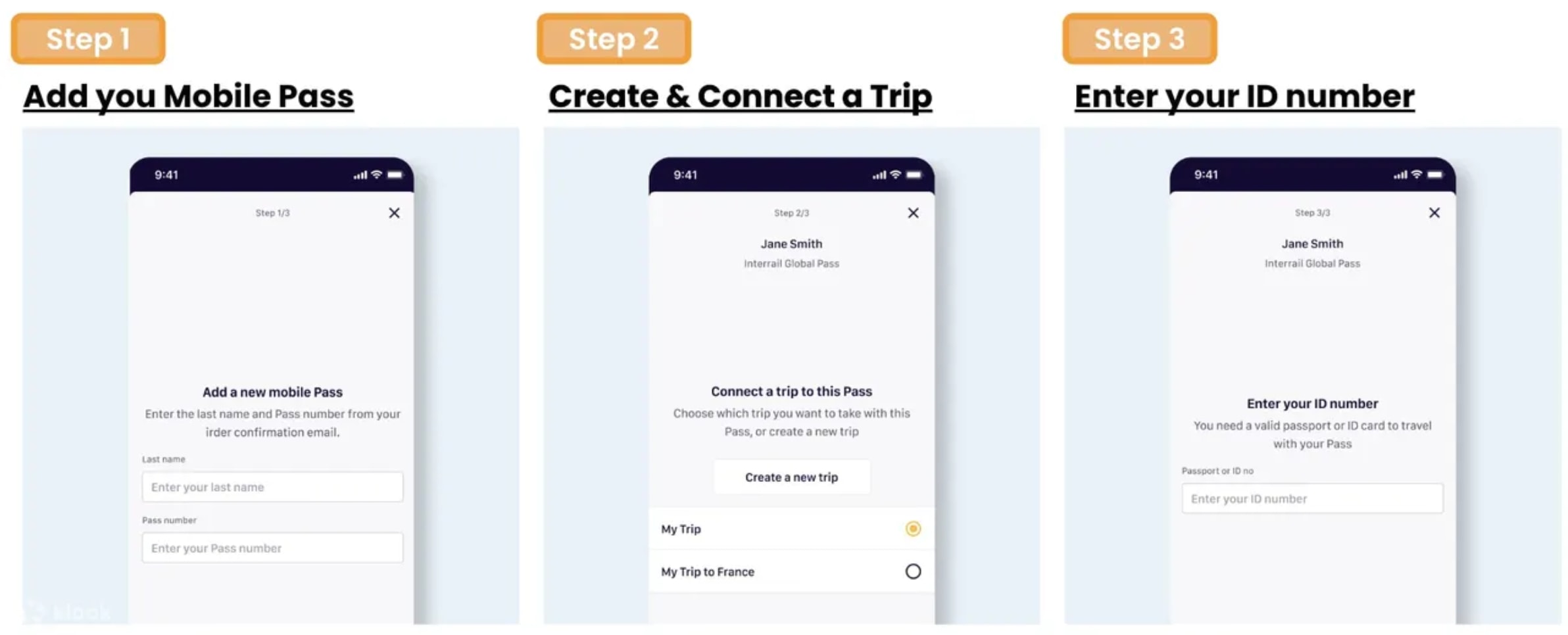
1-qadam: Klook tomonidan yuborilgan Familiyangiz va Pass raqamini kiritib, Pass ingizni qo‘shing
2-qadam: Ilovada yangi sayohat yaratib yoki allaqachon yaratgan sayohatingizni tanlab, sayohatni Pass ingizga bog‘lang
3-qadam: Pasport / Shaxsiy guvohnoma raqamingizni kiriting va birinchi sayohat kuningizni tanlang. Pass faollashtirilmaguncha birinchi poyezdga chiqa olmaysiz va Pass ni faollashtirish uchun onlayn bo‘lishingiz kerak. O‘rin band qilish uchun pass ni faollashtirish shart emasligiga e'tibor bering
Telefoningizda Rail Planner ilovasida pass ni faollashtirish uchun Grigorian taqvim sozlangan bo‘lishi shart
Tanlagan boshlanish sanangiz boshlanishidan (o‘sha kuni 00:00 CET) oldin istalgan vaqtda Pass ingizni bekor qilishingiz mumkin. Rail Planner ilovasida Mening Pass ga o‘ting, o‘ng yuqoridagi uch nuqtani bosing va ‘Pass ni bekor qilish’ ni bosing. Keyin sayohatga tayyor bo‘lganingizda Pass ingizni qayta faollashtirishingiz mumkin
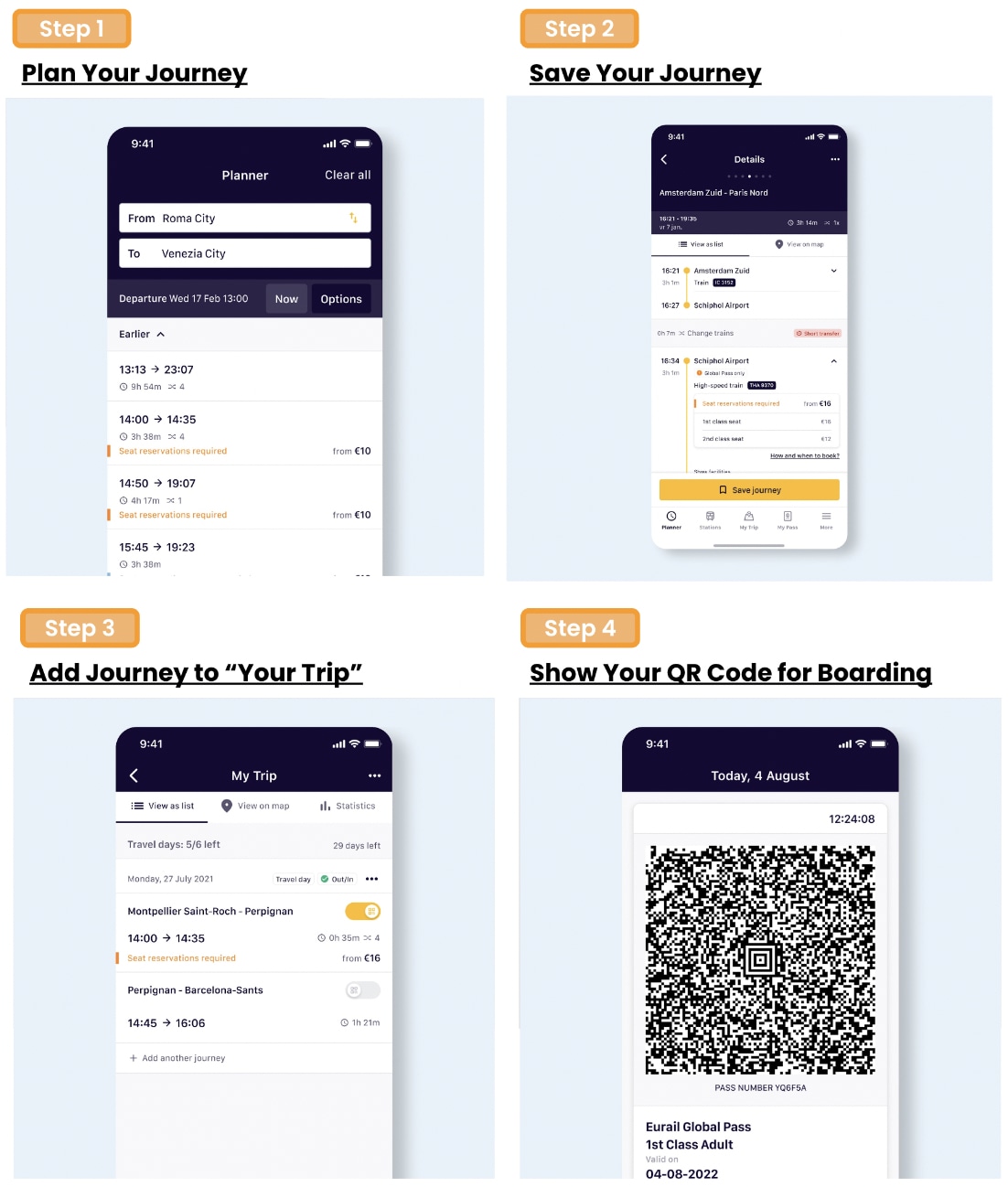
3-qadam: Sayohatga tayyor bo‘lganingizda, sayohatni Pass ingizga qo‘shish uchun bosing
4-qadam: Chipta tekshiruvi uchun, Mening Pass ga o‘ting va ‘Chipta ko‘rsatish’ ni bosing. Pass ingizdagi har bir sayohat kuni uchun alohida chipta mavjud va har bir chipta o‘sha sayohat kuni uchun Pass ingizga qo‘shgan barcha sayohatlarni ko‘rsatadi
Faqat Flexi Passlar uchun: Agar sayohat kuningiz hali sayohat kuni bo‘lmasa, sayohat kunlaringizdan birini ishlatishingiz kerak. Qolgan sayohat kunlaringiz sonini Mening Sayohatim va Mening Pass da, shuningdek, barcha sayohat kunlaringiz haqida umumiy ma'lumotni ko‘rishingiz mumkin
Guruh sayohati
Agar guruhda sayohat qilib, qurilmangizga bir nechta Pass yuklasangiz, quyidagilarga e'tibor bering:
Har bir Pass uchun ilovada alohida sayohat yaratishingiz kerak
Agar allaqachon sayohat yaratgan bo‘lsangiz, mavjud sayohatni nusxalab, uni boshqa Pass ga bog‘lashingiz mumkin. Barcha sayohatlaringizni kuzatish uchun har bir sayohatga turli nom bering
Chipta tekshiruvi uchun Pass bilan sayohat qilayotgan har bir kishi uchun chipta ko‘rsatishingiz kerak. Mening Pass dagi ro‘yxatdan boshqa Pass ni tanlang, keyin 'Chipta ko‘rsatish' ni bosing
Tasdiqlash
Bir necha daqiqa ichida tasdiqlash olasiz. Agar tasdiqlashni ko‘rmasangiz, mijozlar qo‘llab-quvvatlash xizmatimizga murojaat qiling.
Band qilish tasdiqlangandan keyin elektron vaucher darhol emailingizga yuboriladi
Faollashtirish jarayoni
Eurail/Interrail Rail Planner ilovasini yuklab olib, sotib olingan sanadan boshlab 11 oy davomida Mobil Passni faol ishlatishingiz mumkin
1-qadam: Klook tomonidan yuborilgan Familiyangiz va Pass raqamini kiritib Passni qo‘shing
2-qadam: Ilovada yangi sayohat yaratib yoki allaqachon yaratgan sayohatingizni tanlab, sayohatni Passingizga ulang
3-qadam: Pasport/shaxsiy guvohnoma raqamingizni kiriting va birinchi sayohat kuningizni tanlang. Pass faollashtirilmaguncha birinchi poyezdga chiqa olmaysiz va Passni faollashtirish uchun onlayn bo‘lishingiz kerak
O‘rin band qilish uchun passni faollashtirish shart emasligini unutmang
Rail Planner ilovasida passni faollashtirish uchun telefonlar Gregorian taqvim sifatida o‘rnatilishi kerak
Tanlangan boshlanish sanangiz boshlanishidan oldin (o‘sha kungi 00:00 CET) istalgan vaqtda Passni bekor qilishingiz mumkin. Rail Planner ilovasida Mening Passimga o‘ting, o‘ng yuqoridagi uch nuqtani bosing va ‘Passni bekor qilish’ni bosing. Keyin sayohatga tayyor bo‘lganingizda Passni qayta faollashtirishingiz mumkin
2-qadam: Afzal sayohatni sayohatingizga saqlash uchun bosing
3-qadam: Sayohatga tayyor bo‘lganingizda, sayohatni Passingizga qo‘shish uchun bosing
4-qadam: Chipta tekshiruvi uchun My Passga o‘ting va ‘Chiptya ko‘rsatish’ni bosing. Passdagi har bir sayohat kuni uchun alohida chipta mavjud va har bir chipta o‘sha sayohat kuni Passingizga qo‘shgan barcha sayohatlarni ko‘rsatadi
Faqat Flexi Passlar uchun: Agar sayohat kuningiz hali sayohat kuni bo‘lmasa, sayohat kunlaringizdan birini ishlating. Qolgan sayohat kunlaringiz sonini va barcha sayohat kunlaringiz haqida umumiy ma'lumotni Mening Sayohatim va Mening Passimda ko‘rishingiz mumkin
Guruh sayohati
Agar guruhda sayohat qilib, qurilmangizga bir nechta Pass yuklasangiz, quyidagilarni unutmang:
Har bir Pass uchun ilovada alohida sayohat yaratishingiz kerak
Agar allaqachon sayohat yaratgan bo‘lsangiz, mavjud sayohatni nusxalab, uni boshqa Passga ulashingiz mumkin. Barcha sayohatlaringizni kuzatish uchun har bir sayohatga turli nom bering
Chipta tekshiruvi uchun Pass bilan sayohat qilayotgan har bir kishi uchun chipta ko‘rsatishingiz kerak. My Passdagi ro‘yxatdan boshqa Passni tanlang, keyin 'Chiptya ko‘rsatish'ni bosing
O‘rin band qilish jarayoni
Ichki yuqori tezlikdagi poyezdlar, xalqaro poyezdlar, manzarali poyezdlar va tungi poyezdlarga chiqish uchun band qilish talab qilinadi
Band qilishlarni Eurail.com veb-saytida yoki Eurail/Interrail Rail Planner ilovasida amalga oshirish mumkin. Yakuniy narxlarni va o‘rin mavjudligini ko‘rish uchun tizimga kirgan bo‘lishingiz va Passga ega bo‘lishingiz kerak
Belgiya, Niderlandiya va Lyuksemburgdagi sayohat chegirmalari
Belgiya, Niderlandiya va Lyuksemburg ichidagi cheksiz poyezd sayohatlari (Marshrut xaritasi)
Не включено
O‘rindiq band qilish to‘lovlari
Ovqatlar va ichimliklar
Eurostar poyezdlari va mahalliy tramvay/metro xizmatlari
Tasdiqlash
Bir necha daqiqa ichida tasdiqlash olasiz. Agar tasdiqlashni ko‘rmasangiz, mijozlar qo‘llab-quvvatlash xizmatimizga murojaat qiling.
O‘zgartirish ma’lumotlari
Band qilish tasdiqlangandan keyin elektron vaucher darhol emailingizga yuboriladi
Faollashtirish jarayoni
Eurail/Interrail Rail Planner ilovasini yuklab olib, sotib olish sanasidan boshlab 11 oy davomida Mobil Pastan faol foydalanishingiz mumkin
1-qadam: Klook tomonidan yuborilgan Familiyangiz va Pas raqamini kiritib, Pasni qo‘shing
2-qadam: Ilovada yangi sayohat yaratib yoki allaqachon yaratilgan sayohatni tanlab, sayohatni Pasingizga ulang
3-qadam: Pasport / ID raqamingizni kiriting va birinchi sayohat kuningizni tanlang. Pas faollashtirilmaguncha birinchi poyezdga chiqa olmaysiz va pasni faollashtirish uchun onlayn bo‘lishingiz kerak
O‘rindiq band qilish uchun pasni faollashtirish shart emasligini unutmang
Rail Planner ilovasida pasni faollashtirish uchun telefonlar Grigorian taqvim sifatida o‘rnatilishi shart
Tanlagan boshlanish sanangiz boshlanishidan oldin (o‘sha kungi 00:00 CET) istalgan vaqtda pasni bekor qilishingiz mumkin. Rail Planner ilovasida Mening Pasimga o‘ting, o‘ng yuqoridagi uch nuqtani bosing va ‘Pasni bekor qilish’ni bosing. Keyin sayohatga tayyor bo‘lganingizda pasni qayta faollashtirishingiz mumkin
3-qadam: Sayohatga tayyor bo‘lganingizda, sayohatni Pasingizga qo‘shish uchun bosing
4-qadam: Chipta tekshiruvi uchun My Pass ga o‘ting va ‘Chiptya ko‘rsatish’ni bosing. Har bir sayohat kuni uchun alohida chipta mavjud va har bir chipta o‘sha sayohat kuni uchun Pasingizga qo‘shgan barcha sayohatlarni ko‘rsatadi
Faqat Flexi Paslar uchun: Agar sayohat sanangiz hali sayohat kuni bo‘lmasa, sayohat kunlaringizdan birini ishlatishingiz kerak. Qolgan sayohat kunlaringiz sonini va barcha sayohat kunlaringiz haqida umumiy ma’lumotni Mening Sayohatim va Mening Pasimda ko‘rishingiz mumkin
Guruh sayohati
Agar guruhda sayohat qilib, qurilmangizga bir nechta Pas yuklasangiz, quyidagilarni unutmang:
Har bir Pas uchun ilovada alohida sayohat yaratishingiz kerak
Agar allaqachon sayohat yaratgan bo‘lsangiz, mavjud sayohatni nusxalab, uni boshqa Pasga ulashingiz mumkin. Barcha sayohatlaringizni kuzatish uchun har bir sayohatga turli nom bering
Chipta tekshiruvi uchun Pas bilan sayohat qilayotgan har bir kishi uchun chipta ko‘rsatishingiz kerak. My Pass dagi ro‘yxatdan boshqa Pasni tanlang, keyin 'Chiptya ko‘rsatish'ni bosing
O‘rindiq band qilish jarayoni
Ichki yuqori tezlikdagi poyezdlar, xalqaro poyezdlar, manzarali poyezdlar va tungi poyezdlarga chiqish uchun band qilish talab etiladi
Band qilishlarni Eurail.com veb-saytida yoki Eurail/Interrail Rail Planner ilovasida amalga oshirish mumkin. Yakuniy narxlarni va o‘rindiq mavjudligini ko‘rish uchun tizimga kirgan bo‘lishingiz va Pasga ega bo‘lishingiz kerak
Belgiya, Niderlandiya va Lyuksemburgda sayohat chegirmalari
Belgiya, Niderlandiya va Lyuksemburg ichida cheksiz poyezd sayohatlari (Yo‘nalish xaritasi)
Не включено
Joy band qilish to‘lovlari
Ovqatlar va ichimliklar
Eurostar poyezdlari va mahalliy tramvay/metro xizmatlari
Ishlatish muddati
Vaucher band qilish tasdiqlangan sanadan boshlab 334 kun davomida amal qiladi. Oxirgi kuni 23:59 da muddati tugaydi
Ishlatish ma’lumotlari
Band qilish tasdiqlangandan so‘ng elektron vaucher darhol emailingizga yuboriladi
Joy band qilish jarayoni
Ichki yuqori tezlikdagi poyezdlar, xalqaro poyezdlar, manzarali poyezdlar va tungi poyezdlarga chiqish uchun joy band qilish talab etiladi
Joy band qilish Eurail.com veb-saytida yoki Eurail/Interrail Rail Planner ilovasida amalga oshiriladi. Yakuniy narxlar va joy mavjudligini ko‘rish uchun tizimga kirgan bo‘lishingiz va chiptangiz bo‘lishi kerak
Eurail/Interrail Rail Planner ilovasini yuklab olib sotib olingan sanadan boshlab 11 oy davomida Mobil chiptadan faol foydalanishingiz mumkin
1-qadam: Klook tomonidan yuborilgan Familiyangiz va Chipta raqamini kiritib chiptangizni qo‘shing
2-qadam: Ilovada yangi sayohat yarating yoki allaqachon yaratgan sayohatingizni tanlab chiptangizga sayohatni bog‘lang
3-qadam: Pasport/shaxsni tasdiqlovchi hujjat raqamingizni kiriting va birinchi sayohat kuningizni tanlab chiptangizni faollashtiring. Eslatib o‘tamiz, chiptangiz faollashtirilmaguncha birinchi poyezdga chiqa olmaysiz va faollashtirish uchun internetga ulangan bo‘lishingiz kerak
Joy band qilish uchun chiptani faollashtirish shart emas
Rail Planner ilovasida chiptani faollashtirish uchun telefoningizda Gregorian taqvimi sozlangan bo‘lishi kerak
Tanlagan boshlanish sanangizdan oldin (o‘sha kungi 00:00 CET) istalgan vaqtda chiptangizni bekor qilishingiz mumkin. Rail Planner ilovasida “Mening chiptam”ga o‘ting, o‘ng yuqoridagi uch nuqtani bosing va “Chiptani bekor qilish”ni tanlang. Keyin sayohatga tayyor bo‘lganingizda chiptangizni qayta faollashtirishingiz mumkin
3-qadam: Sayohatga tayyor bo‘lganingizda, sayohatingizni chiptangizga qo‘shish uchun bosing
4-qadam: Chipta tekshiruvi uchun “Mening chiptam”ga o‘ting va “Chiptya ko‘rsatish”ni bosing. Har bir sayohat kuni uchun alohida chipta mavjud bo‘lib, har bir chipta o‘sha sayohat kuni uchun qo‘shgan barcha sayohatlarni ko‘rsatadi
Faqat Flexi chiptalar uchun: Agar sayohat sanangiz hali sayohat kuni bo‘lmasa, sayohat kunlaringizdan birini ishlating. Qolgan sayohat kunlaringiz sonini “Mening sayohatim” va “Mening chiptam”da ko‘rishingiz mumkin, shuningdek barcha sayohat kunlaringiz haqida umumiy ma’lumot mavjud
Guruh sayohati
Agar guruhda sayohat qilib, qurilmangizga bir nechta chipta yuklasangiz, quyidagilarni yodda tuting:
Har bir chipta uchun ilovada alohida sayohat yarating
Agar sayohat yaratgan bo‘lsangiz, mavjud sayohatni nusxalab boshqa chiptaga bog‘lashingiz mumkin. Barcha sayohatlarni kuzatib borish uchun har bir sayohatga turli nom bering
Chipta tekshiruvi uchun har bir chipta uchun alohida chipta ko‘rsatishingiz kerak. “Mening chiptam”dagi ro‘yxatdan boshqa chiptani tanlang, keyin “Chiptya ko‘rsatish”ni bosing
Tasdiqlash
Siz bir necha daqiqa ichida tasdiqlashni olasiz. Agar tasdiqlashni ko‘rmasangiz, mijozlar xizmatimizga murojaat qiling.
Belgiya, Niderlandiya va Lyuksemburgda sayohat chegirmalari
Belgiya, Niderlandiya va Lyuksemburg ichida cheksiz poyezd sayohatlari (Yo‘nalish xaritasi)
Не включено
O‘rindiq band qilish to‘lovlari
Ovqatlar va ichimliklar
Eurostar poyezdlari va mahalliy tramvay/metro xizmatlari
Tasdiqlash
Siz tasdiqlashni bir necha daqiqa ichida olasiz. Agar tasdiqlashni ko‘rmasangiz, mijozlar qo‘llab-quvvatlash xizmatimizga murojaat qiling.
Ishlatish muddati
Vaucher band qilish tasdiqlangan sanadan boshlab 334 kun davomida amal qiladi. U oxirgi kuni 23:59 da tugaydi
Ishlatish ma'lumotlari
Band qilish tasdiqlangandan keyin elektron vaucher darhol emailingizga yuboriladi
Faollashtirish jarayoni
Eurail/Interrail Rail Planner ilovasini yuklab olib, sotib olingan sanadan boshlab 11 oygacha Mobil chiptadan faol foydalanishingiz mumkin
1-qadam: Klook tomonidan yuborilgan Familiyangiz va Chipta raqamini kiritib, chiptangizni qo‘shing
2-qadam: Ilovada yangi sayohat yaratib yoki allaqachon yaratgan sayohatingizni tanlab, sayohatni chiptangizga ulang
3-qadam: Pasport / ID raqamingizni kiriting va birinchi sayohat kuningizni tanlang. Eslatib o‘tamiz, chiptangiz faollashtirilmaguncha birinchi poyezdga chiqa olmaysiz va chiptangizni faollashtirish uchun onlayn bo‘lishingiz kerak
O‘rindiq band qilish uchun chiptangizni faollashtirish shart emasligini unutmang
Rail Planner ilovasida chiptani faollashtirish uchun telefoningiz Gregoriy taqvimiga o‘rnatilgan bo‘lishi kerak
Tanlagan boshlanish sanangizdan (o‘sha kungi 00:00 CET) oldin istalgan vaqtda chiptangizni bekor qilishingiz mumkin. Rail Planner ilovasida 'Mening chiptam'ga o‘ting, o‘ng yuqori burchakdagi uch nuqtani bosing va 'Chiptani bekor qilish'ni tanlang. Keyin sayohatga tayyor bo‘lganingizda chiptangizni qayta faollashtirishingiz mumkin
3-qadam: Sayohatga tayyor bo‘lganingizda, sayohatni chiptangizga qo‘shish uchun bosing
4-qadam: Chiplarni tekshirish uchun 'Mening chiptam'ga o‘ting va 'Chiplarni ko‘rsatish'ni bosing. Har bir sayohat kuni uchun alohida chipta mavjud va har bir chipta o‘sha sayohat kuni uchun qo‘shgan barcha sayohatlarni ko‘rsatadi
Faqat Flexi chiptalar uchun: Agar sayohat kuningiz hali sayohat kuni bo‘lmasa, sayohat kunlaringizdan birini ishlating. Qolgan sayohat kunlaringiz sonini 'Mening sayohatim' va 'Mening chiptam'da, shuningdek barcha sayohat kunlaringiz haqida umumiy ma'lumotni ko‘rishingiz mumkin
Guruh sayohati
Agar guruhda sayohat qilib, qurilmangizga bir nechta chipta yuklasangiz, quyidagilarni unutmang:
Har bir chipta uchun ilovada alohida sayohat yaratishingiz kerak
Agar sayohat yaratgan bo‘lsangiz, mavjud sayohatni nusxalab, uni boshqa chiptaga ulashingiz mumkin. Barcha sayohatlarni kuzatib borish uchun har bir sayohatga turli nom bering
Chiplarni tekshirish uchun har bir chipta uchun chipta ko‘rsatishingiz kerak. 'Mening chiptam'dagi ro‘yxatdan boshqa chiptani tanlang, keyin 'Chiplarni ko‘rsatish'ni bosing
Vaucher turi
Eurail Rail Planner ilovasini yuklab olib, Mobil chiptadan foydalanishingiz mumkin
Ichki yuqori tezlikdagi poyezdlar, xalqaro poyezdlar, manzarali poyezdlar va tungi poyezdlarga chiqish uchun band qilish talab etiladi
Band qilishlarni Eurail.com veb-saytida yoki Eurail/Interrail Rail Planner ilovasida amalga oshirish mumkin. Yakuniy narxlar va o‘rindiq mavjudligini ko‘rish uchun tizimga kirgan bo‘lishingiz va chiptangiz bo‘lishi kerak
Belgiya, Niderlandiya va Lyuksemburgda sayohat chegirmalari
Belgiya, Niderlandiya va Lyuksemburg ichida cheksiz poyezd sayohatlari (Yo‘nalish xaritasi)
Не включено
O‘rin band qilish to‘lovlari
Ovqatlar va ichimliklar
Eurostar poyezdlari va mahalliy tramvay/metro xizmatlari
Tasdiqlash
Siz tasdiqlashni bir necha daqiqa ichida olasiz. Agar tasdiqlashni ko‘rmasangiz, mijozlar qo‘llab-quvvatlash xizmatimizga murojaat qiling.
Ishlatish amal qilish muddati
Vaucher band qilish tasdiqlash sanasidan boshlab 334 kun amal qiladi. U oxirgi kuni 23:59 da tugaydi
Ishlatish ma’lumotlari
Band qilish tasdiqlangandan keyin elektron vaucher darhol emailingizga yuboriladi
O‘rin band qilish jarayoni
Ichki yuqori tezlikdagi poyezdlar, xalqaro poyezdlar, manzarali poyezdlar va tungi poyezdlarga chiqish uchun band qilish talab etiladi
Band qilishlarni Eurail.com veb-saytida yoki Eurail/Interrail Rail Planner ilovasida amalga oshirish mumkin. Yakuniy narxlarni va o‘rinlar mavjudligini ko‘rish uchun tizimga kirgan bo‘lishingiz va Passga ega bo‘lishingiz kerak
Eurail/Interrail Rail Planner ilovasini yuklab olib, sotib olish sanasidan boshlab 11 oygacha Mobil Passni faol ishlatishingiz mumkin
1-qadam: Klook tomonidan yuborilgan Familiyangiz va Pass raqamini kiritib, Passni qo‘shing
2-qadam: Ilovada yangi sayohat yaratib yoki allaqachon yaratilgan sayohatni tanlab, sayohatni Passingizga ulang
3-qadam: Pasport / ID raqamingizni kiriting va birinchi sayohat kuningizni tanlang. Pass faollashtirilmaguncha birinchi poyezdga chiqa olmaysiz va Passni faollashtirish uchun onlayn bo‘lishingiz kerak
O‘rin band qilish uchun passni faollashtirish shart emasligini unutmang
Rail Planner ilovasida passni faollashtirish uchun telefonlar Grigorian taqvim sifatida sozlanishi kerak
Tanlagan boshlanish sanangizdan (o‘sha kungi 00:00 CET) oldin istalgan vaqtda Passni bekor qilishingiz mumkin. Rail Planner ilovasida Mening Passimga o‘ting, o‘ng yuqoridagi uch nuqtani bosing va ‘Passni bekor qilish’ ni bosing. Keyin sayohatga tayyor bo‘lganingizda Passni qayta faollashtirishingiz mumkin
2-qadam: Tanlangan sayohatni sayohatingizga saqlash uchun bosing
3-qadam: Sayohatga tayyor bo‘lganingizda, sayohatni Passingizga qo‘shish uchun bosing
4-qadam: Chipta tekshiruvi uchun My Pass ga o‘ting va ‘Chiptya ko‘rsatish’ ni bosing. Har bir sayohat kuni uchun alohida chipta mavjud va har bir chipta o‘sha sayohat kuni uchun Passingizga qo‘shgan barcha sayohatlarni ko‘rsatadi
Faqat Flexi Passlar uchun: Agar sayohat sanangiz hali sayohat kuni bo‘lmasa, sayohat kunlaringizdan birini ishlating. Qolgan sayohat kunlaringiz sonini va barcha sayohat kunlaringiz haqida umumiy ma’lumotni Mening Sayohatim va Mening Passimda ko‘rishingiz mumkin
Guruh sayohati
Guruhda sayohat qilib, qurilmangizga bir nechta Pass yuklasangiz, quyidagilarni unutmang:
Har bir Pass uchun ilovada alohida sayohat yaratishingiz kerak
Agar allaqachon sayohat yaratgan bo‘lsangiz, mavjud sayohatni nusxalab, uni boshqa Passga ulashingiz mumkin. Barcha sayohatlaringizni kuzatish uchun har bir sayohatga turli nom bering
Chipta tekshiruvi uchun Pass bilan sayohat qilayotgan har bir kishi uchun chipta ko‘rsatishingiz kerak. Mening Passimdagi ro‘yxatdan boshqa Passni tanlang, keyin ‘Chiptya ko‘rsatish’ ni bosing
Belgiya, Niderlandiya va Lyuksemburgdagi sayohat chegirmalari
Belgiya, Niderlandiya va Lyuksemburg ichidagi cheksiz poyezd sayohatlari (Marshrut xaritasi)
Не включено
O‘rin band qilish to‘lovlari
Ovqatlar va ichimliklar
Eurostar poyezdlari va mahalliy tramvay/metro xizmatlari
Tasdiqlash
Bir necha daqiqa ichida tasdiqlash olasiz. Agar tasdiqlashni ko‘rmasangiz, mijozlar qo‘llab-quvvatlash xizmatimizga murojaat qiling.
Ishlatish muddati
Vaucher bron qilish tasdiqlangandan boshlab 334 kun davomida amal qiladi. U oxirgi kunning 23:59 da tugaydi
O‘rin band qilish jarayoni
Ichki yuqori tezlikdagi poyezdlar, xalqaro poyezdlar, manzarali poyezdlar va tungi poyezdlarga chiqish uchun band qilish talab etiladi
Band qilishlarni Eurail.com veb-saytida yoki Eurail/Interrail Rail Planner ilovasida amalga oshirish mumkin. Yakuniy narxlar va o‘rinlar mavjudligini ko‘rish uchun tizimga kirgan bo‘lishingiz va Pass-ga ega bo‘lishingiz kerak
O‘rin band qilish uchun pass-ni faollashtirish shart emas
Aylanma ma'lumotlari
Bron qilish tasdiqlangandan keyin elektron vaucher darhol emailingizga yuboriladi
Vaucher turi
Eurail Rail Planner ilovasini yuklab olib, Mobile Pass-dan foydalanishingiz mumkin
Ushbu Eurail pass-ni sotib olganingizda, siz Eurail Shartlar va qoidalari ni qabul qilasiz
Faollashtirish jarayoni
Eurail/Interrail Rail Planner ilovasini yuklab olib, sotib olingan sanadan boshlab 11 oygacha Mobile Pass-dan faol foydalanishingiz mumkin
1-qadam: Klook tomonidan yuborilgan Familiyangiz va Pass raqamini kiritib, Pass-ingizni qo‘shing
2-qadam: Ilovada yangi sayohat yaratish yoki allaqachon yaratgan sayohatingizni tanlash orqali Pass-ingizga sayohatni ulang
3-qadam: Pasport / ID raqamingizni kiriting va birinchi sayohat kuningizni tanlang. Pass faollashtirilmaguncha birinchi poyezdga chiqa olmaysiz va Pass-ni faollashtirish uchun internetga ulangan bo‘lishingiz kerak
O‘rin band qilish uchun pass-ni faollashtirish shart emasligiga e'tibor bering
Rail Planner ilovasida pass-ni faollashtirish uchun telefonlar Grigorian taqvim sifatida o‘rnatilishi shart
Tanlagan boshlanish sanangiz boshlanishidan (o‘sha kuni 00:00 CET) oldin Pass-ingizni istalgan vaqtda bekor qilishingiz mumkin. Rail Planner ilovasida Mening Passimga o‘ting, o‘ng yuqoridagi uch nuqtani bosing va ‘Pass-ni bekor qilish’ ni bosing. Keyin sayohatga tayyor bo‘lganingizda Pass-ingizni qayta faollashtirishingiz mumkin
3-qadam: Sayohatga tayyor bo‘lganingizda, sayohatingizni Pass-ingizga qo‘shing
4-qadam: Chipta tekshiruvi uchun My Pass ga o‘ting va ‘Chiptyani ko‘rsatish’ ni bosing. Pass-ingizdagi har bir sayohat kuni uchun alohida chipta mavjud va har bir chipta o‘sha sayohat kuni uchun Pass-ingizga qo‘shgan barcha sayohatlarni ko‘rsatadi
Faqat Flexi Pass-lar uchun: Agar sayohat sanangiz hali sayohat kuni bo‘lmasa, sayohat kunlaringizdan birini ishlatishingiz kerak. Qolgan sayohat kunlaringiz sonini va barcha sayohat kunlaringiz haqida umumiy ma'lumotni Mening Sayohatim va Mening Passimda ko‘rishingiz mumkin
Guruh sayohati
Agar guruhda sayohat qilib, qurilmangizga bir nechta Pass yuklasangiz, quyidagilarga e'tibor bering:
Har bir Pass uchun ilovada alohida sayohat yaratishingiz kerak
Agar allaqachon sayohat yaratgan bo‘lsangiz, mavjud sayohatni nusxalab, uni boshqa Pass-ga ulashingiz mumkin. Barcha sayohatlaringizni kuzatish uchun har bir sayohatga turli nom bering
Chipta tekshiruvi uchun Pass bilan sayohat qilayotgan har bir kishi uchun chipta ko‘rsatishingiz kerak. Mening Passimdagi ro‘yxatdan boshqa Pass-ni tanlang, keyin 'Chiptyani ko‘rsatish' ni bosing
Belgiya, Niderlandiya va Lyuksemburgdagi sayohat chegirmalari
Belgiya, Niderlandiya va Lyuksemburg ichidagi cheksiz poyezd sayohatlari (Marshrut xaritasi)
Не включено
O‘rindiqni bron qilish to‘lovlari
Ovqatlar va ichimliklar
Eurostar poyezdlari va mahalliy tramvay/metro xizmatlari
Tasdiqlash
Siz bir necha daqiqa ichida tasdiqlashni olasiz. Agar tasdiqlashni ko‘rmasangiz, mijozlar qo‘llab-quvvatlash xizmatimizga murojaat qiling.
Foydalanish amal qilish muddati
Vaucher bron tasdiqlangan sanadan boshlab 334 kun(lar) amal qiladi. U oxirgi kuni 23:59 da tugaydi
Almashtirish ma'lumotlari
Bron tasdiqlangandan keyin elektron vaucher darhol emailingizga yuboriladi
Faollashtirish jarayoni
Eurail/Interrail Rail Planner ilovasini yuklab olib, sotib olingan sanadan boshlab 11 oygacha Mobil Passdan faol foydalanishingiz mumkin
1-qadam: Klook tomonidan yuborilgan Familiyangiz va Pas raqamini kiritib Pasni qo‘shing
2-qadam: Ilovada yangi sayohat yaratib yoki allaqachon yaratgan sayohatingizni tanlab, sayohatni Pasga ulang
3-qadam: Pasport / ID raqamingizni kiriting va birinchi sayohat kuningizni tanlang. Pas faollashtirilmaguncha birinchi poyezdga chiqa olmaysiz va Pasni faollashtirish uchun onlayn bo‘lishingiz kerak. O‘rindiq bron qilish uchun pasni faollashtirish shart emas
Telefoningiz Rail Planner ilovasida pasni faollashtirish uchun Grigorian taqvim sifatida o‘rnatilgan bo‘lishi kerak
Tanlagan boshlanish sanangiz boshlanishidan oldin (o‘sha kungi 00:00 CET) istalgan vaqtda Pasni bekor qilishingiz mumkin. Rail Planner ilovasida Mening Pasimga o‘ting, o‘ng yuqoridagi uch nuqtani bosing va ‘Pasni bekor qilish’ni bosing. Keyin sayohatga tayyor bo‘lganingizda Pasni qayta faollashtirishingiz mumkin
3-qadam: Sayohatga tayyor bo‘lganingizda, sayohatni Pasga qo‘shish uchun bosing
4-qadam: Chipta tekshiruvi uchun My Pass ga o‘ting va ‘Chiptyani ko‘rsatish’ni bosing. Har bir sayohat kuni uchun alohida chipta mavjud va har bir chipta o‘sha sayohat kuni uchun Pasga qo‘shgan barcha sayohatlarni ko‘rsatadi
Faqat Flexi Paslar uchun: Agar sayohat sanangiz hali sayohat kuni bo‘lmasa, sayohat kunlaringizdan birini ishlatishingiz kerak. Qolgan sayohat kunlari sonini va barcha sayohat kunlari haqida umumiy ma'lumotni Mening Sayohatim va Mening Pasimda ko‘rishingiz mumkin
Guruh sayohati
Agar guruhda sayohat qilib, qurilmangizga bir nechta Pas yuklasangiz, quyidagilarni hisobga oling:
Har bir Pas uchun ilovada alohida sayohat yaratishingiz kerak
Agar allaqachon sayohat yaratgan bo‘lsangiz, mavjud sayohatni nusxalab, uni boshqa Pasga ulashingiz mumkin. Barcha sayohatlarni kuzatish uchun har bir sayohatga turli nom bering
Chipta tekshiruvi uchun Pas bilan sayohat qilayotgan har bir kishi uchun chipta ko‘rsatishingiz kerak. Mening Pasimdagi ro‘yxatdan boshqa Pasni tanlang, keyin 'Chiptyani ko‘rsatish'ni bosing
Vaucher turi
Eurail Rail Planner ilovasini yuklab olib Mobil Passdan foydalanishingiz mumkin
Ichki yuqori tezlikdagi poyezdlar, xalqaro poyezdlar, manzarali poyezdlar va tungi poyezdlarga chiqish uchun bron qilish talab etiladi
Bronlarni Eurail.com veb-saytida yoki Eurail/Interrail Rail Planner ilovasida amalga oshirish mumkin. Yakuniy narxlarni va o‘rindiq mavjudligini ko‘rish uchun tizimga kirgan bo‘lishingiz va Pasga ega bo‘lishingiz kerak
Bron qilish tasdiqlangandan keyin elektron vaucher darhol emailingizga yuboriladi
Faollashtirish jarayoni
Eurail/Interrail Rail Planner ilovasini yuklab olib, sotib olingan sanadan boshlab 11 oygacha Mobil chiptadan faol foydalanishingiz mumkin
1-qadam: Klook tomonidan yuborilgan Familiyangiz va Chipta raqamini kiritib chiptangizni qo‘shing
2-qadam: Ilovada yangi sayohat yaratib yoki allaqachon yaratgan sayohatingizni tanlab, sayohatni chiptangizga bog‘lang
3-qadam: Pasport / ID raqamingizni kiriting va birinchi sayohat kuningizni tanlang. Chiptangiz faollashtirilmaguncha birinchi poyezdga chiqa olmaysiz va chiptangizni faollashtirish uchun onlayn bo‘lishingiz kerak
O‘rindi joylashuv uchun chiptangizni faollashtirish shart emasligini unutmang
Rail Planner ilovasida chiptani faollashtirish uchun telefonlar Gregoriy taqvim sifatida o‘rnatilgan bo‘lishi kerak
Tanlangan boshlanish sanangiz boshlanishidan oldin (o‘sha kungi 00:00 CET) istalgan vaqtda chiptangizni bekor qilishingiz mumkin. Rail Planner ilovasida “Mening chiptam”ga o‘ting, o‘ng yuqoridagi uch nuqtani bosing va “Chiptani bekor qilish”ni bosing. Keyin sayohatga tayyor bo‘lganda chiptangizni qayta faollashtirishingiz mumkin
3-qadam: Sayohatga tayyor bo‘lganda, sayohatni chiptangizga qo‘shish uchun bosing
4-qadam: Chiplarni tekshirish uchun “Mening chiptam”ga o‘ting va “Chiplarni ko‘rsatish”ni bosing. Har bir sayohat kuni uchun alohida chipta mavjud va har bir chipta o‘sha sayohat kuni uchun qo‘shgan barcha sayohatlarni ko‘rsatadi
Faqat Flexi chiptalar uchun: Agar sayohat sanangiz hali sayohat kuni bo‘lmasa, sayohat kunlaringizdan birini ishlating. Qolgan sayohat kunlaringiz sonini “Mening sayohatim” va “Mening chiptam”da, shuningdek barcha sayohat kunlaringiz haqida umumiy ma’lumotni ko‘rishingiz mumkin
Guruh sayohati
Agar guruhda sayohat qilib, qurilmangizga bir nechta chipta yuklasangiz, quyidagilarni unutmang:
Har bir chipta uchun ilovada alohida sayohat yaratishingiz kerak
Agar sayohat yaratgan bo‘lsangiz, mavjud sayohatni nusxalab, uni boshqa chiptaga bog‘lashingiz mumkin. Barcha sayohatlarni kuzatish uchun har bir sayohatga turli nom bering
Chiplarni tekshirish uchun har bir chipta uchun chipta ko‘rsatishingiz kerak. “Mening chiptam”dagi ro‘yxatdan boshqa chiptani tanlang, keyin “Chiplarni ko‘rsatish”ni bosing
O‘rindi joylashuv jarayoni
Ichki yuqori tezlikdagi poyezdlar, xalqaro poyezdlar, manzarali poyezdlar va tungi poyezdlarga chiqish uchun joylashuv zarur
Joylashuvlarni Eurail.com veb-saytida yoki Eurail/Interrail Rail Planner ilovasida amalga oshirish mumkin. Yakuniy narxlarni va o‘rinlar mavjudligini ko‘rish uchun tizimga kirgan bo‘lishingiz va chiptangiz bo‘lishi kerak
Ichki yuqori tezlikdagi poyezdlar, xalqaro poyezdlar, manzarali poyezdlar va tungi poyezdlarga chiqish uchun joylash zarur
Joylashlarni Eurail.com veb-saytida yoki Eurail/Interrail Rail Planner ilovasi orqali amalga oshirish mumkin. Yakuniy narxlar va o‘rinlar mavjudligini ko‘rish uchun tizimga kirgan bo‘lishingiz va Passga ega bo‘lishingiz kerak
O‘rindi joylash uchun passni faollashtirish shart emas
Faollashtirish jarayoni
Eurail/Interrail Rail Planner ilovasini yuklab olib, sotib olingan sanadan boshlab 11 oygacha Mobil Passni faol ishlatishingiz mumkin
1-qadam: Klook tomonidan yuborilgan Familiyangiz va Pass raqamini kiritib Passni qo‘shing
2-qadam: Ilovada yangi sayohat yaratib yoki allaqachon yaratilgan sayohatni tanlab, sayohatni Passingizga ulang
3-qadam: Pasport / ID raqamingizni kiriting va birinchi sayohat kuningizni tanlang. Pass faollashtirilmaguncha birinchi poyezdga chiqa olmaysiz va Passni faollashtirish uchun onlayn bo‘lishingiz kerak
O‘rindi joylash uchun passni faollashtirish shart emasligiga e'tibor bering
Rail Planner ilovasida passni faollashtirish uchun telefonlar Gregoriy taqvimiga o‘rnatilgan bo‘lishi kerak
Tanlagan boshlanish sanangiz boshlanishidan (o‘sha kungi 00:00 CET) oldin istalgan vaqtda Passni bekor qilishingiz mumkin. Rail Planner ilovasida Mening Passimga o‘ting, o‘ng yuqoridagi uch nuqtani bosing va ‘Passni bekor qilish’ni bosing. Keyin sayohatga tayyor bo‘lganda Passni qayta faollashtirishingiz mumkin
3-qadam: Sayohatga tayyor bo‘lganda, sayohatni Passingizga qo‘shish uchun bosing
4-qadam: Chipta tekshiruvi uchun Mening Passimga o‘ting va ‘Chiptyani ko‘rsatish’ni bosing. Passdagi har bir sayohat kuni uchun alohida chipta mavjud va har bir chipta o‘sha sayohat kuni uchun Passingizga qo‘shgan barcha sayohatlarni ko‘rsatadi
Faqat Flexi Passlar uchun: Agar sayohat kuningiz hali sayohat kuni bo‘lmasa, sayohat kunlaringizdan birini ishlating. Qolgan sayohat kunlaringiz sonini Mening Sayohatim va Mening Passimda, shuningdek barcha sayohat kunlaringiz haqida umumiy ma'lumotni ko‘rishingiz mumkin
Guruh sayohati
Agar guruhda sayohat qilib, qurilmangizga bir nechta Pass yuklasangiz, quyidagilarga e'tibor bering:
Har bir Pass uchun ilovada alohida sayohat yaratishingiz kerak
Agar sayohat yaratgan bo‘lsangiz, mavjud sayohatni nusxalab, uni boshqa Passga ulashingiz mumkin. Barcha sayohatlaringizni kuzatish uchun har bir sayohatga turli nom bering
Chipta tekshiruvi uchun Pass bilan sayohat qilayotgan har bir kishi uchun chipta ko‘rsatishingiz kerak. Mening Passimdagi ro‘yxatdan boshqa Passni tanlang, keyin 'Chiptyani ko‘rsatish'ni bosing
Tasdiqlash
Siz bir necha daqiqa ichida tasdiqlashni olasiz. Agar tasdiqlashni ko‘rmasangiz, mijozlar xizmatiga murojaat qiling.
Qisman ishlatilgan, faollashtirilgan passlar uchun pul qaytarish mavjud emasligiga e'tibor bering
Sotib olingan sanadan boshlab 1 yil ichida faollashtirilmagan oddiy passlar uchun 100% pul qaytariladi
Pul qaytarish so‘rasangiz, pass ni bekor qiling, tanlagan boshlanish sanangiz boshlanishidan (o‘sha kuni 00:00 CET) oldin istalgan vaqtda bekor qilishingiz mumkin. Rail Planner ilovasida Mening Pass ga o‘ting, o‘ng yuqoridagi uch nuqtani bosing va ‘Pass ni bekor qilish’ ni bosing. Keyin sayohatga tayyor bo‘lganingizda Pass ingizni qayta faollashtirishingiz mumkin
Vaucheringizni almashtirmasangiz, to‘liq pul qaytariladi
Konsultatsiya olish
Ma'lumotlaringizni qoldiring va operatorimiz siz bilan Telegram orqali bog'lanadi





 Zoos & Animal Parks