eSIM rejangiz manzilga yetib, mahalliy mobil tarmoqqa ulanganingizdan so‘ng boshlanadi. Masalan, agar 3 kunlik rejangizni soat 10:00 da faollashtirsangiz, u 3 kundan so‘ng soat 10:00 da tugaydi.
Klook ilovasida faollashtiring
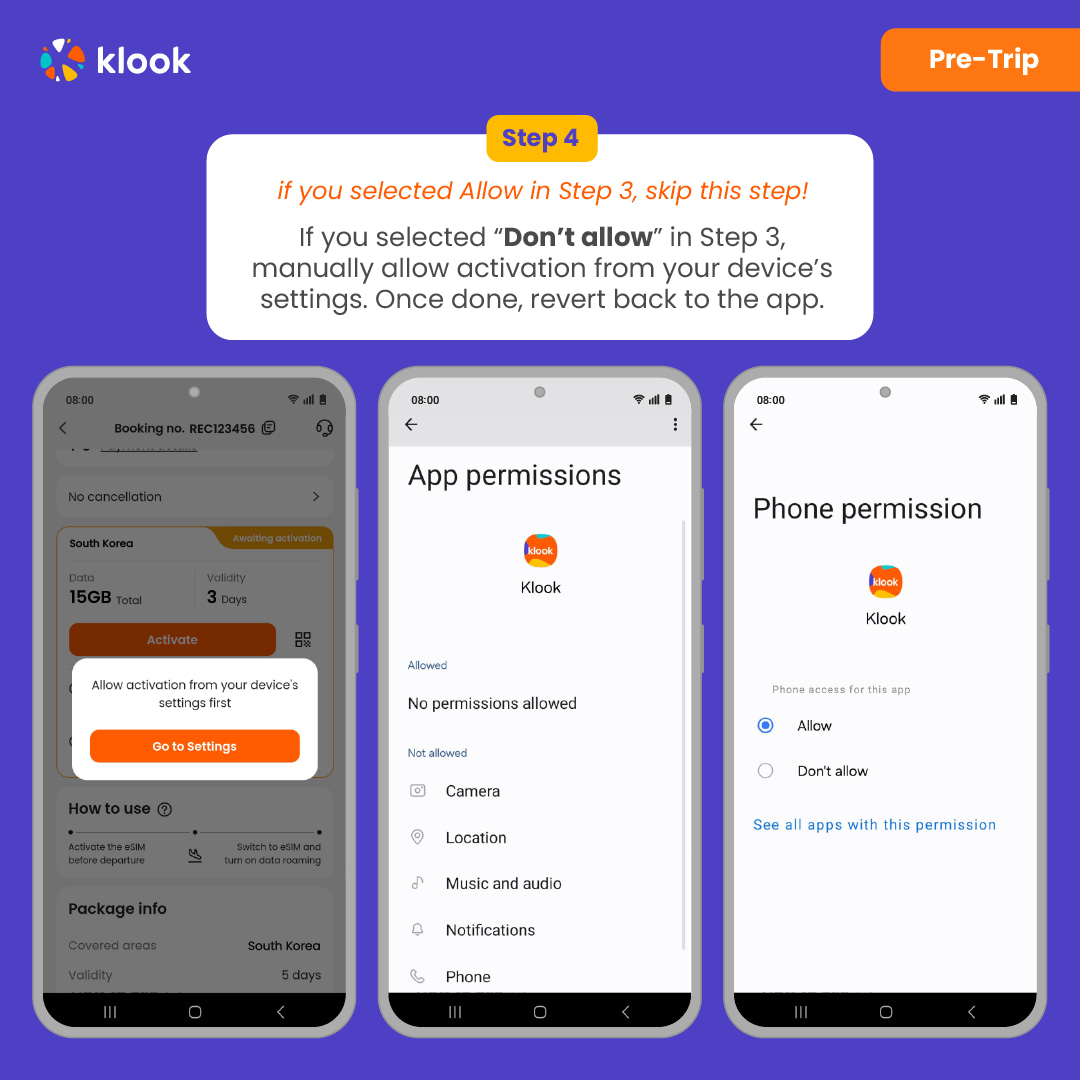
Klook ilovasida faollashtiring (Klook ilovasini eng so‘nggi versiyaga yangilang)
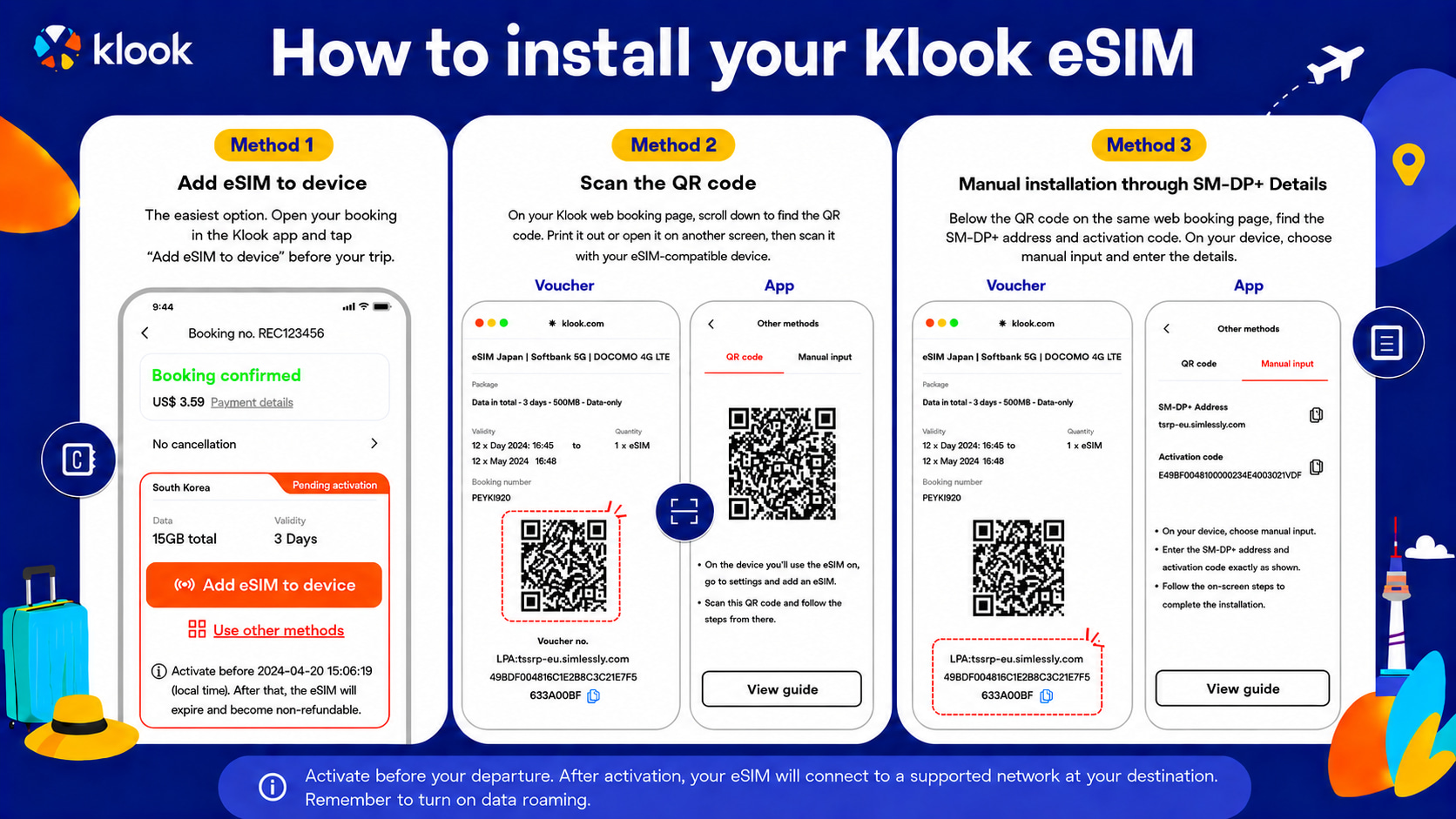
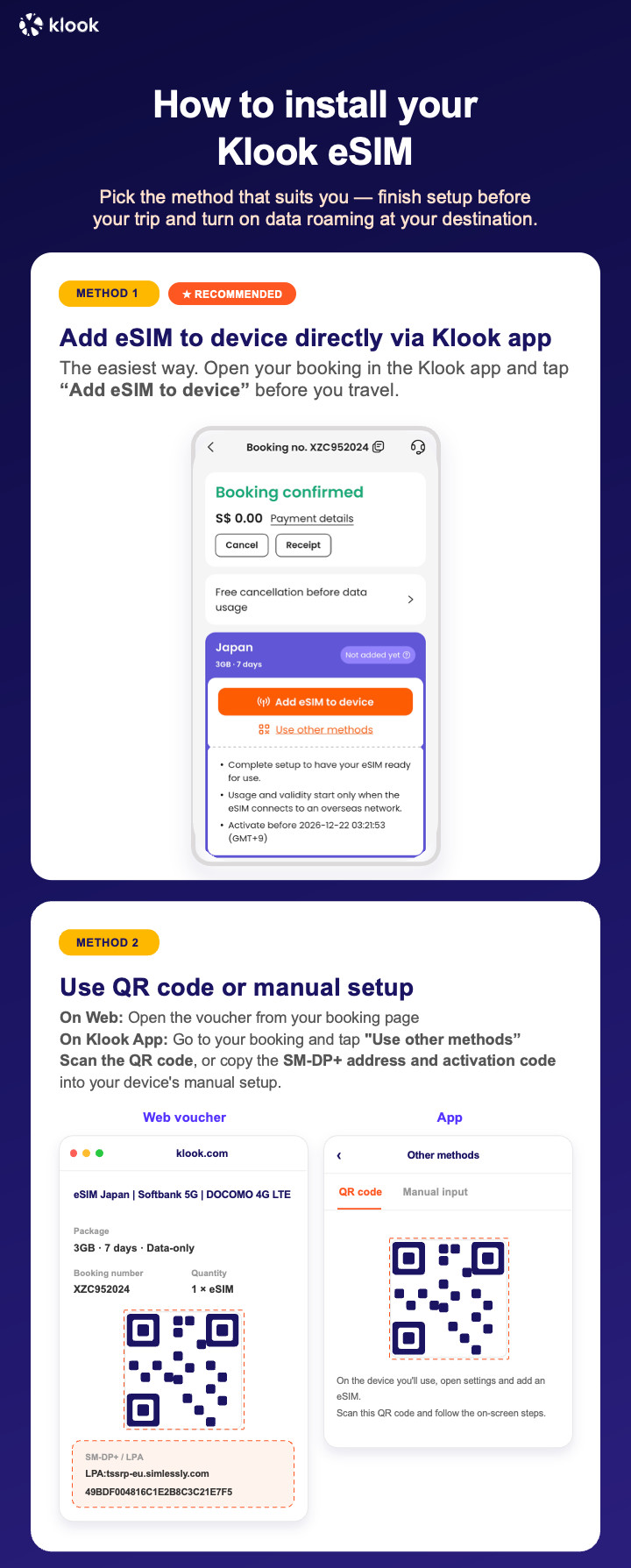
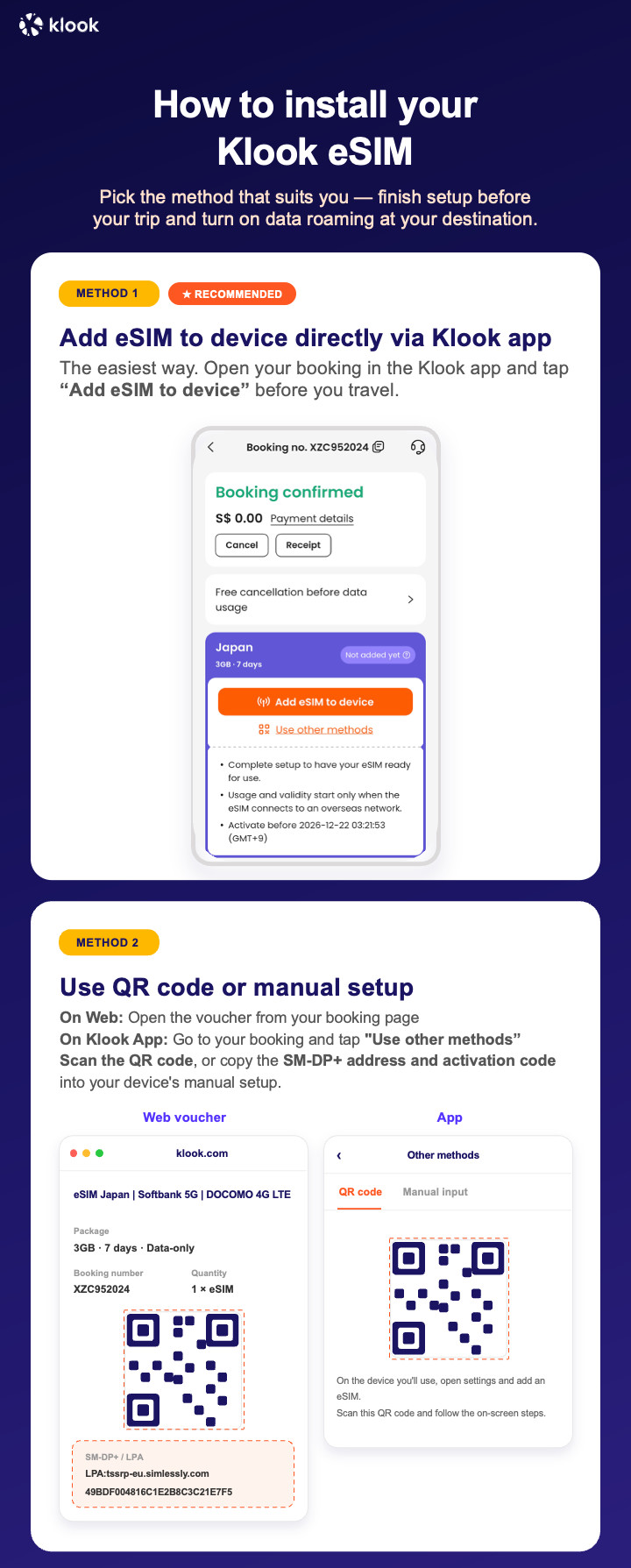
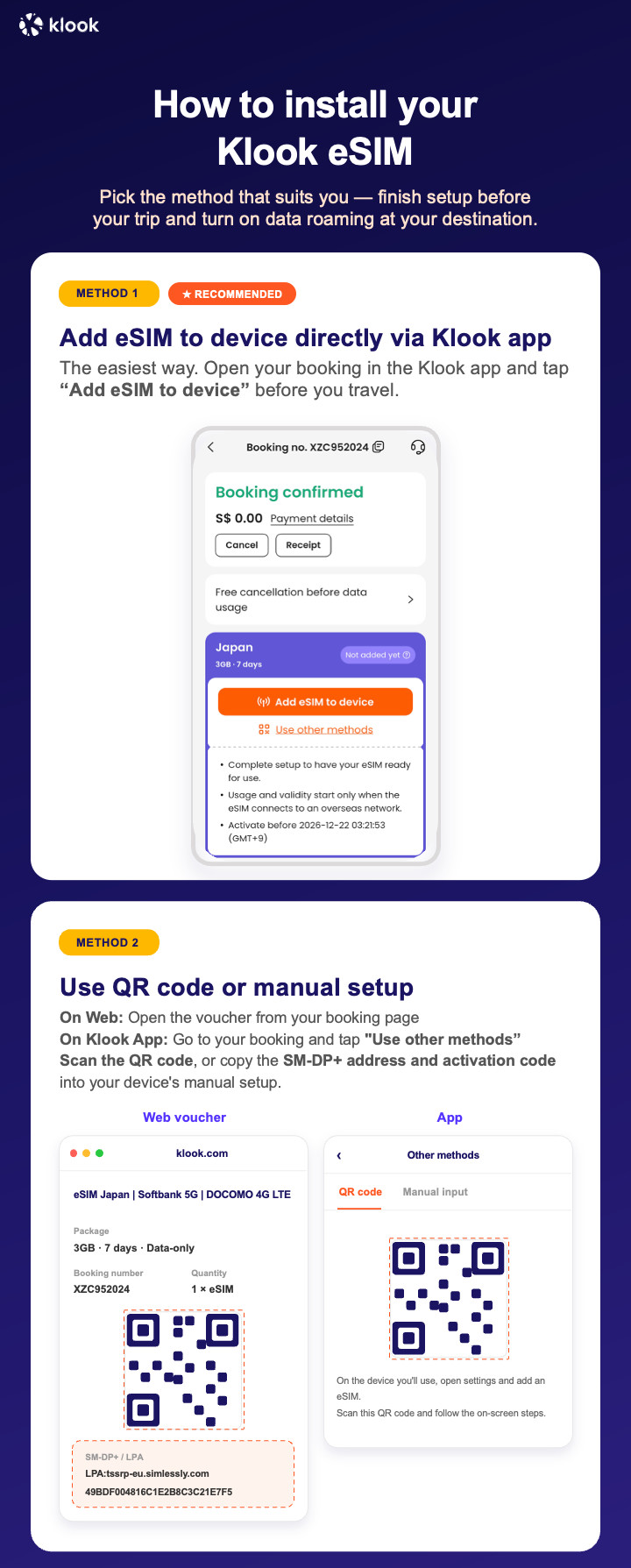
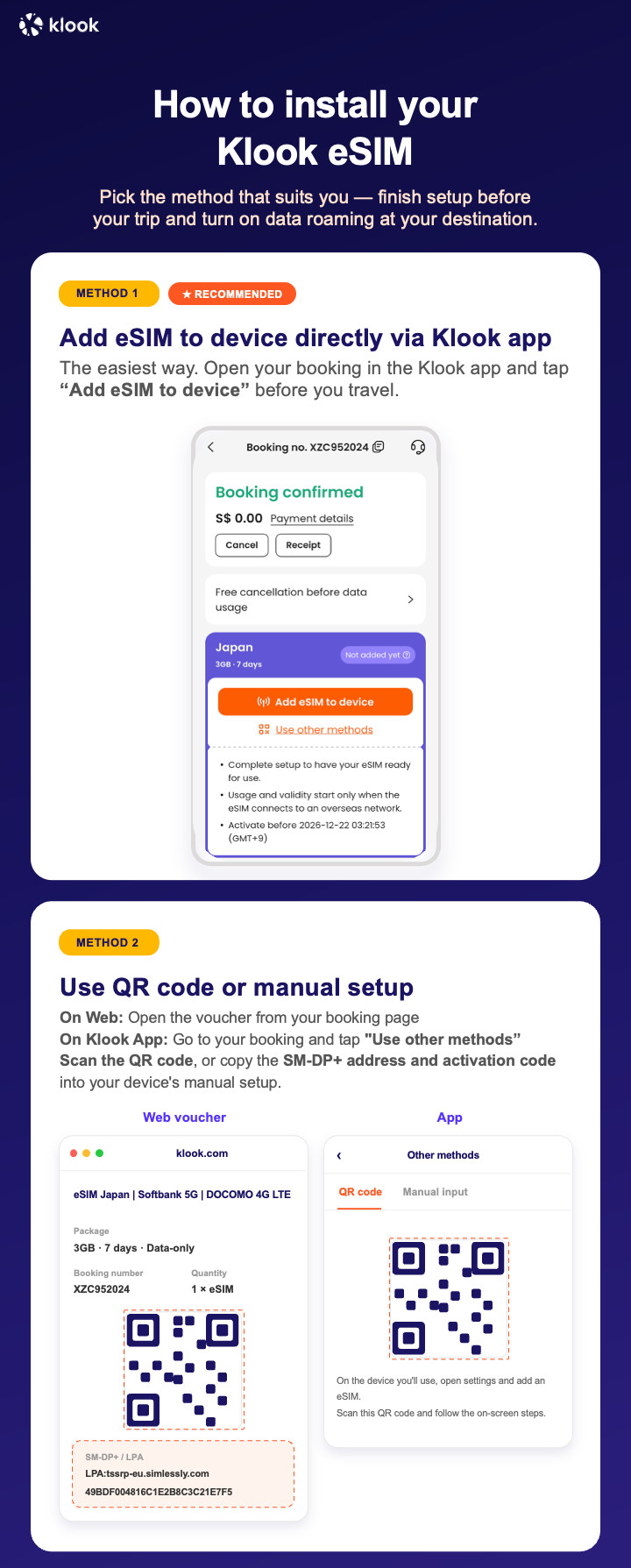
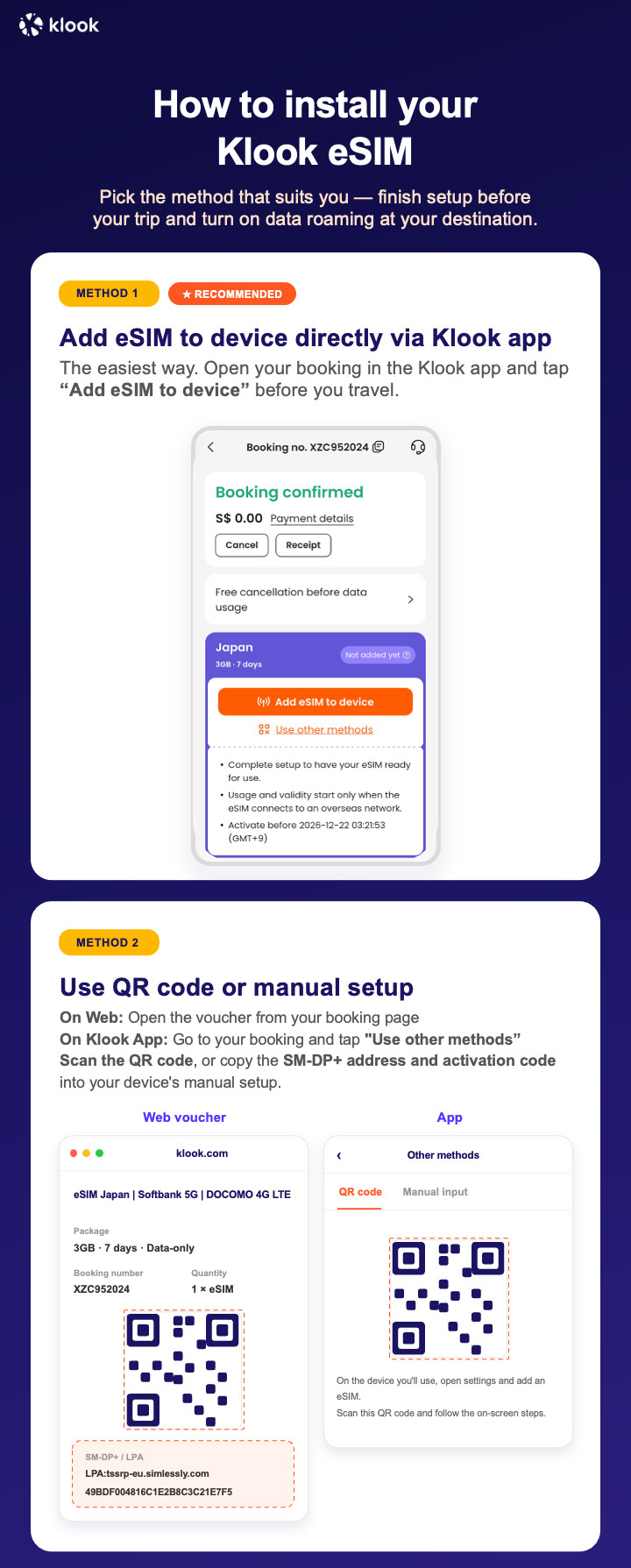
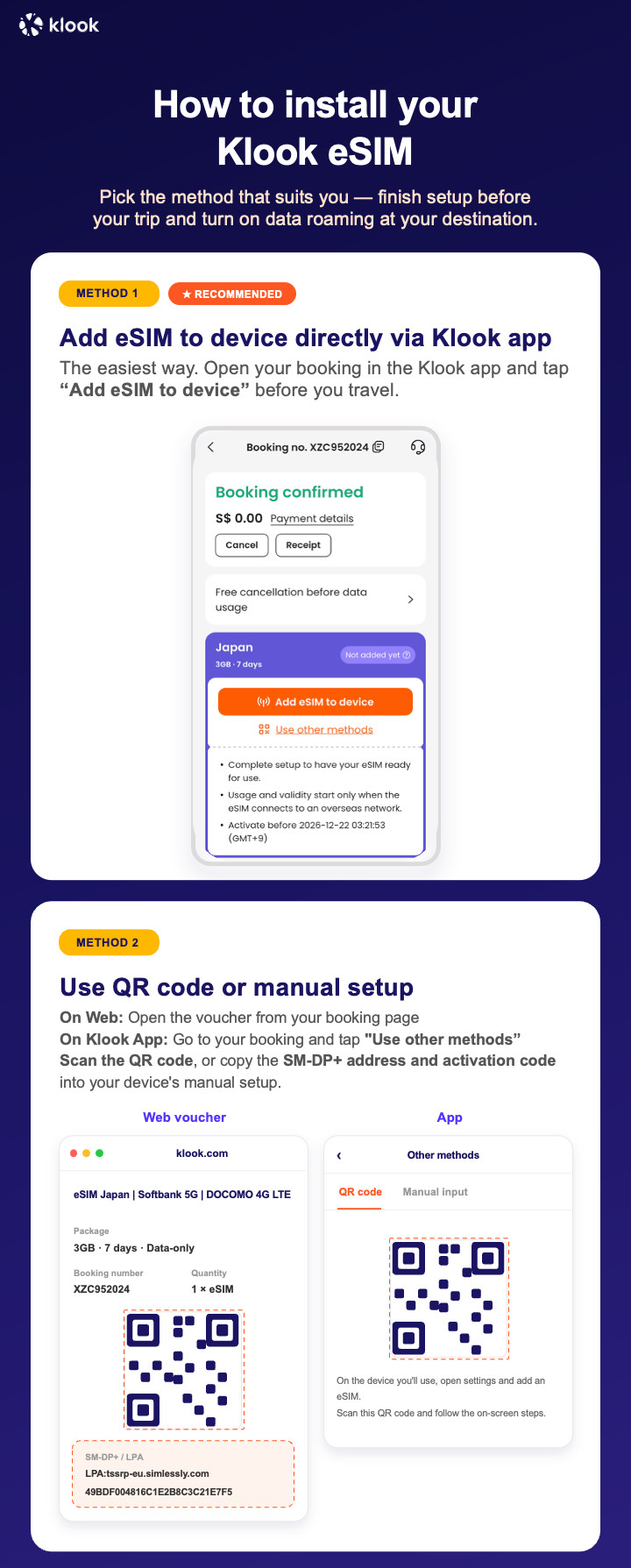
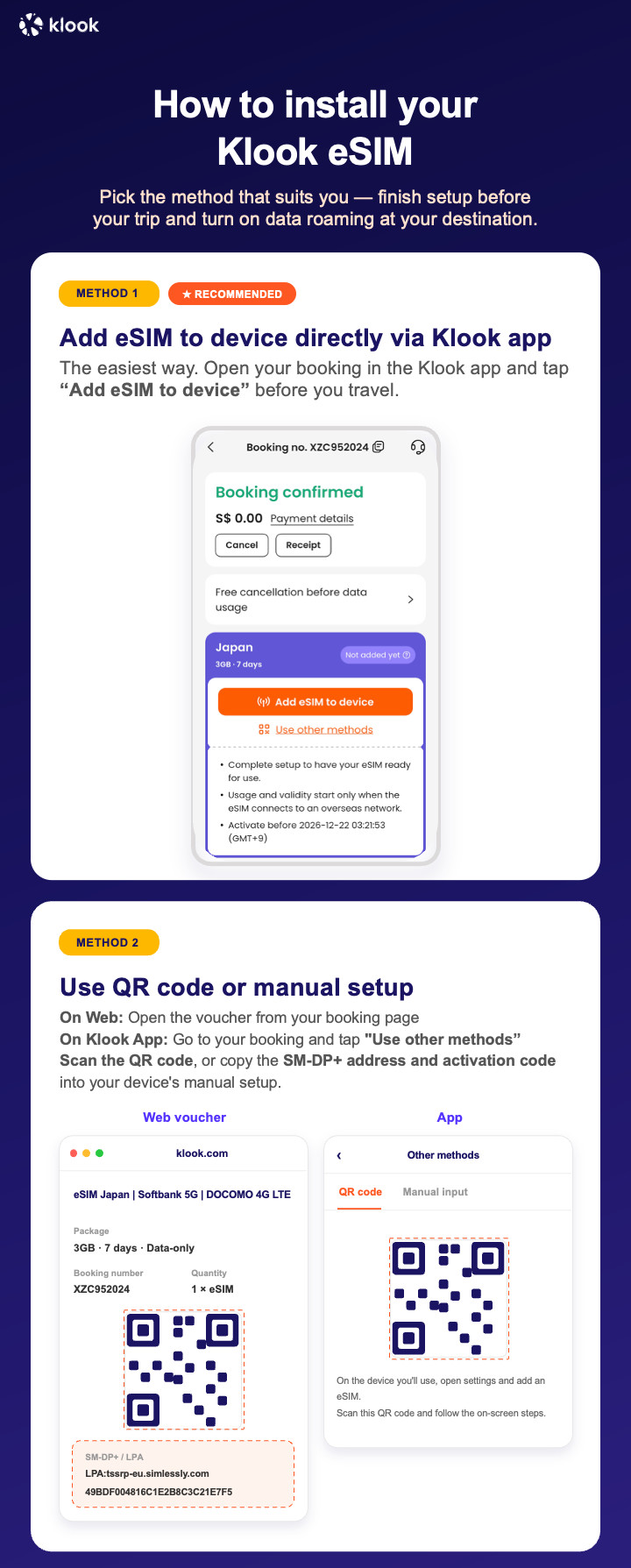
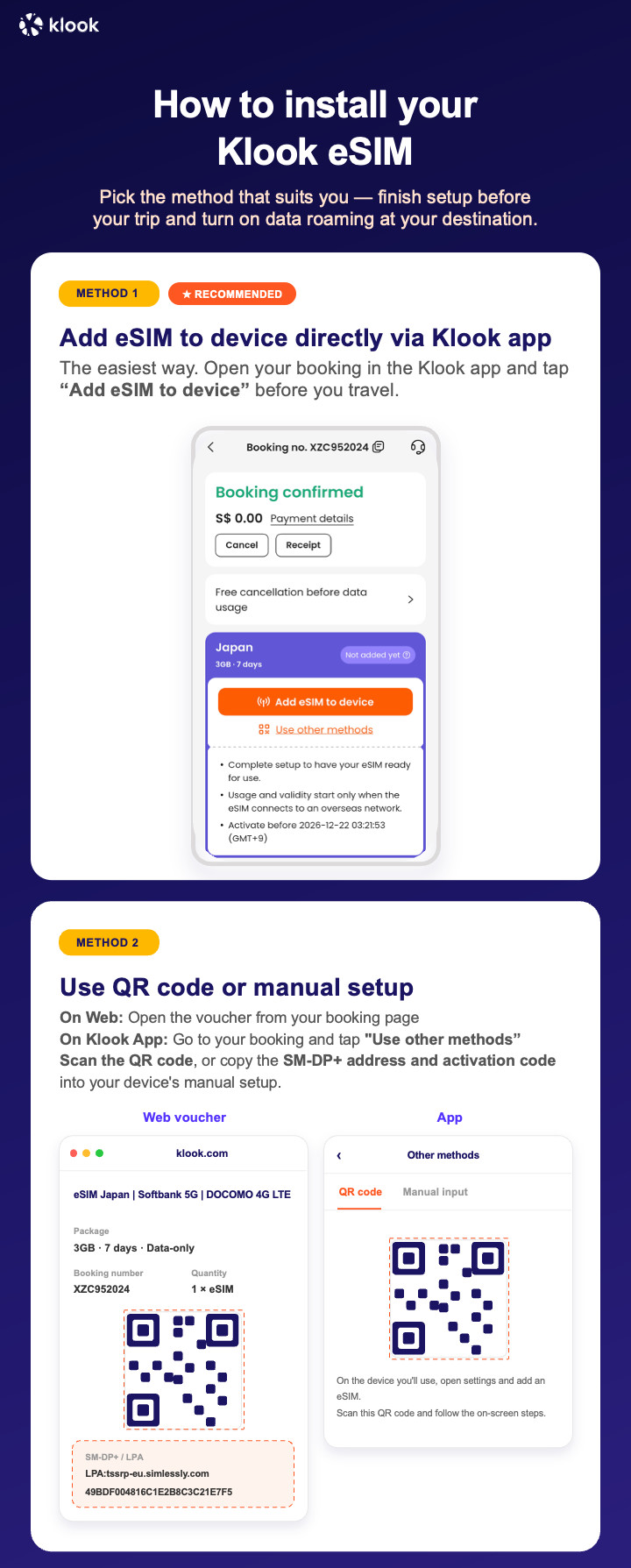
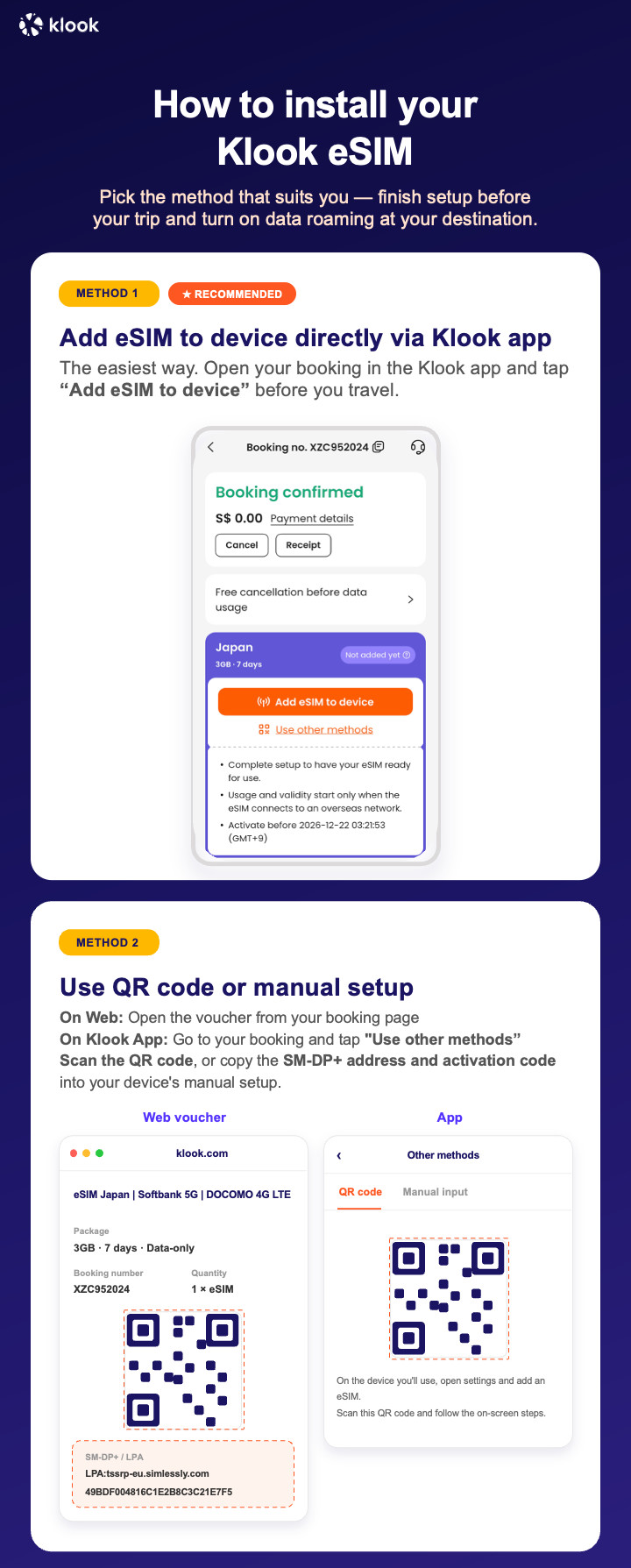
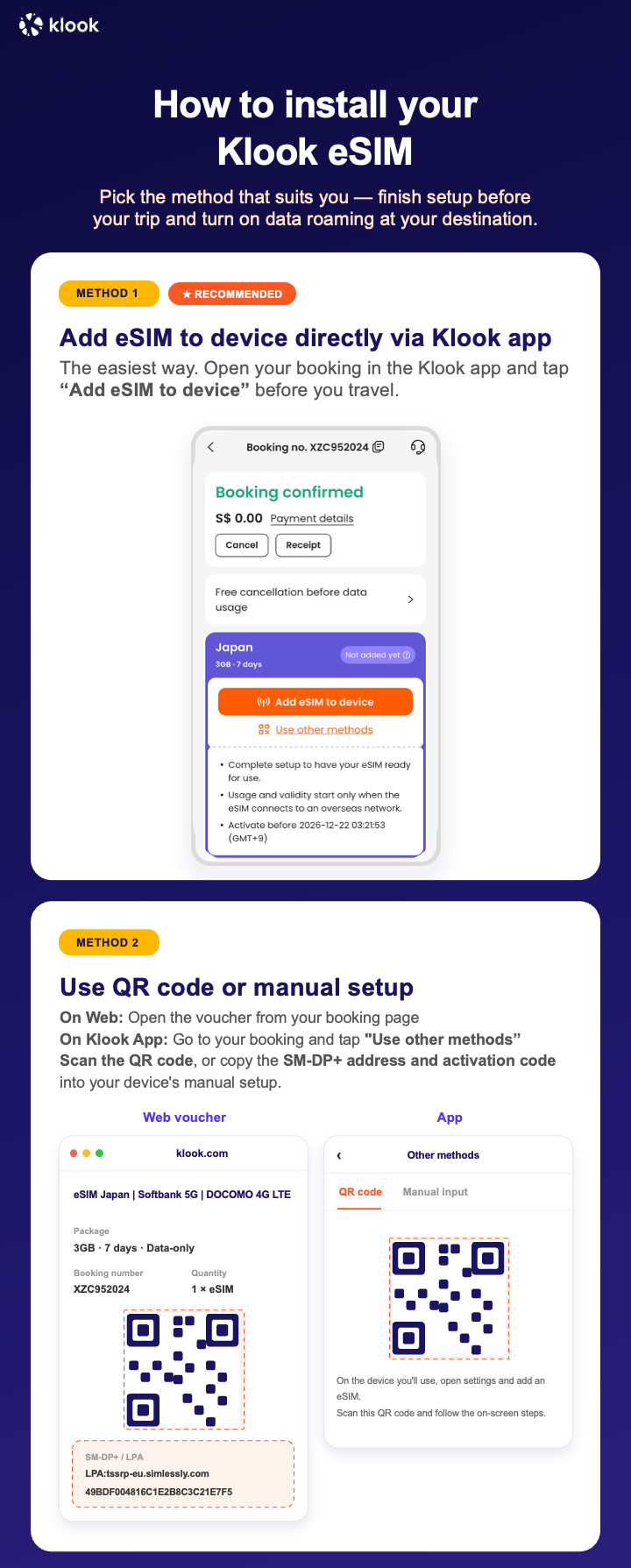
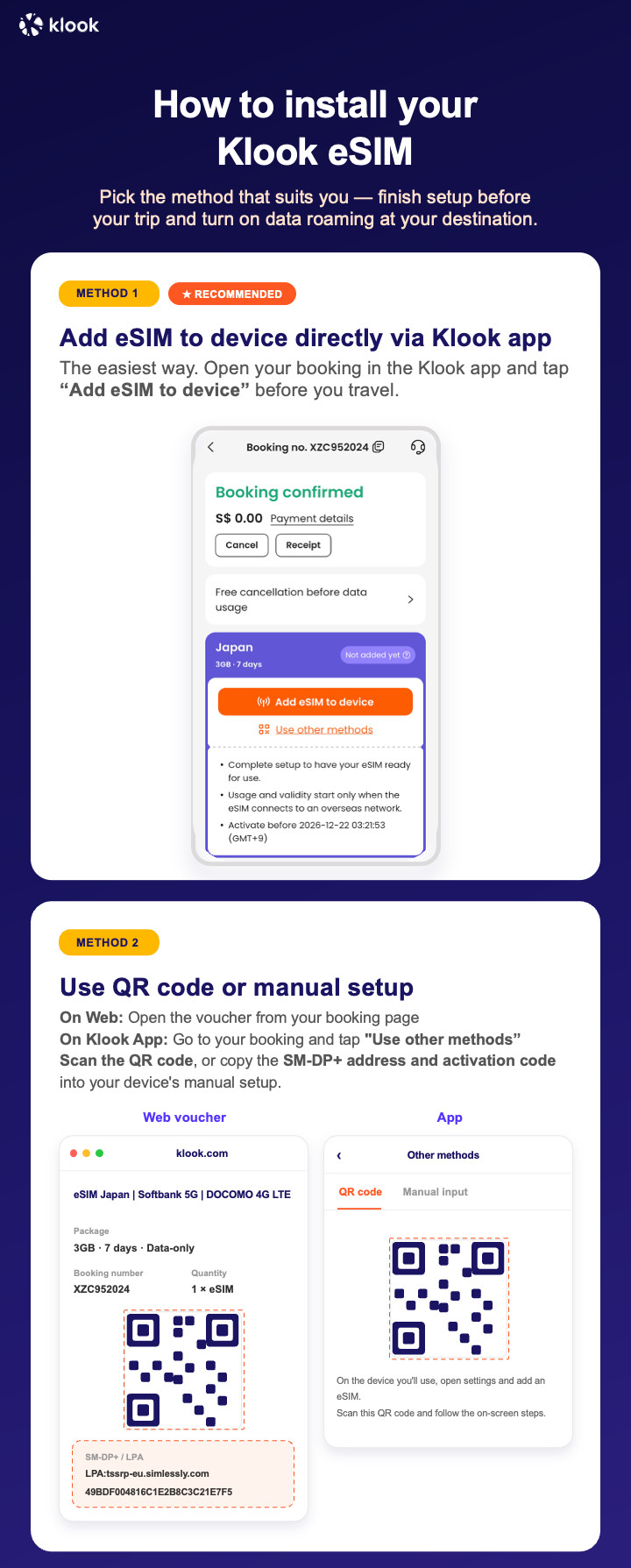
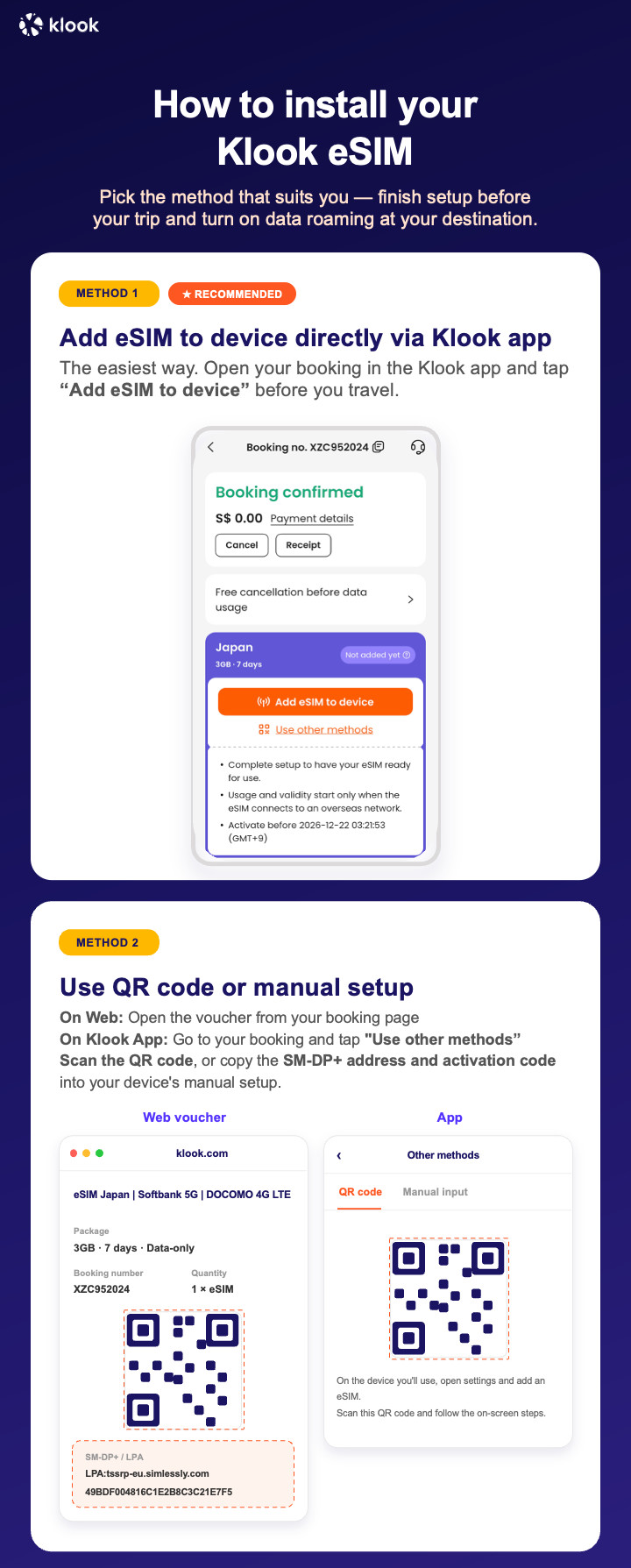
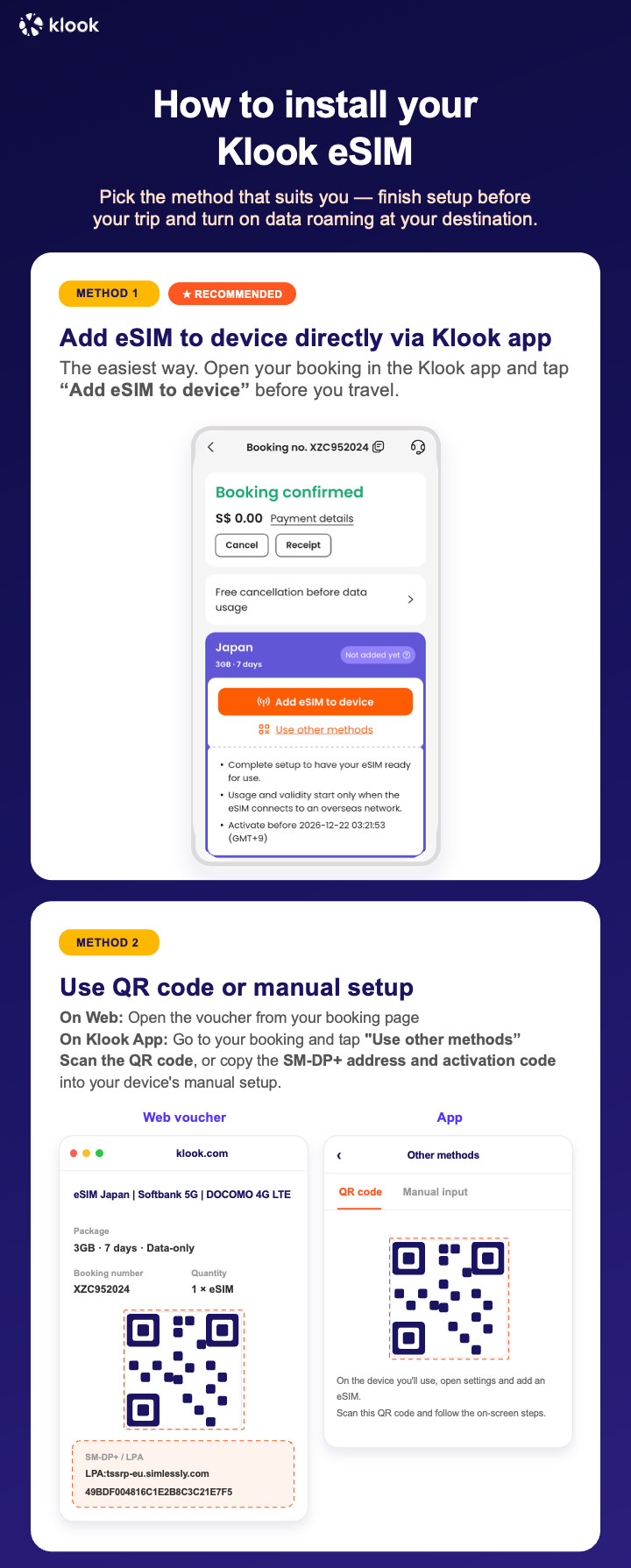
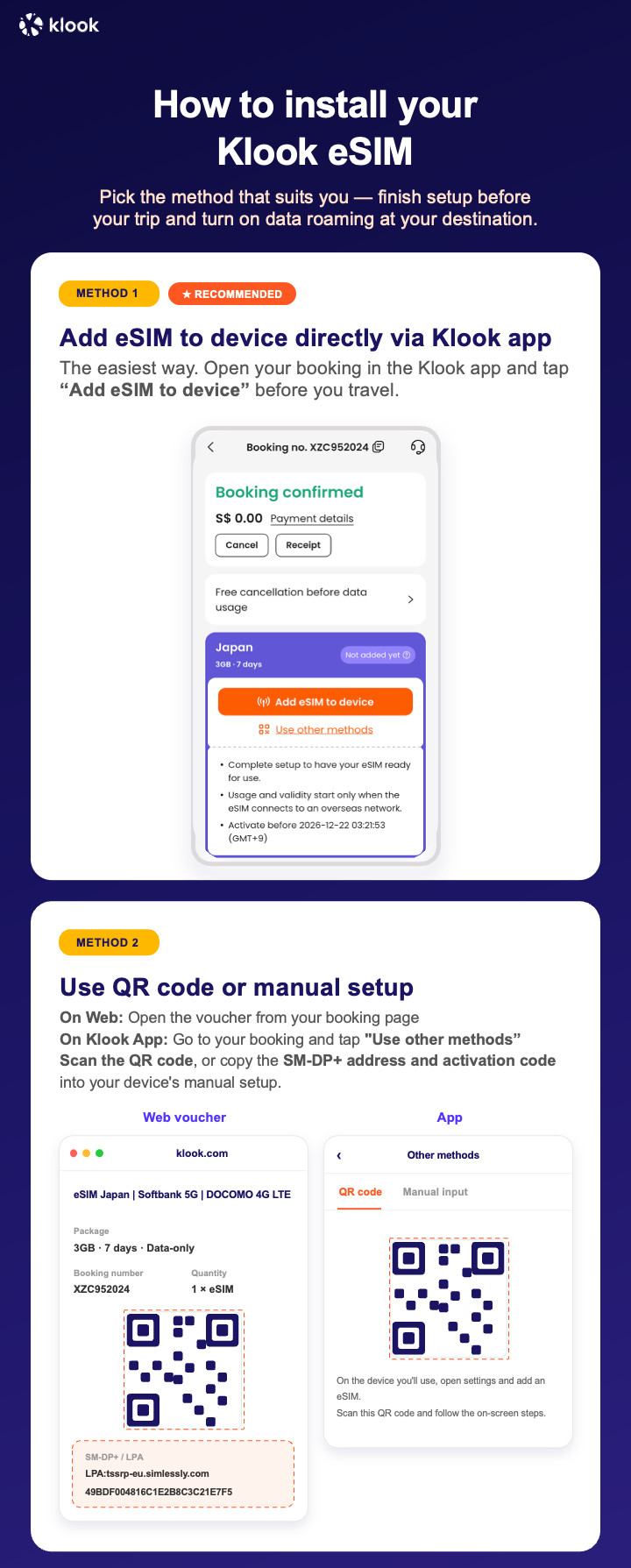
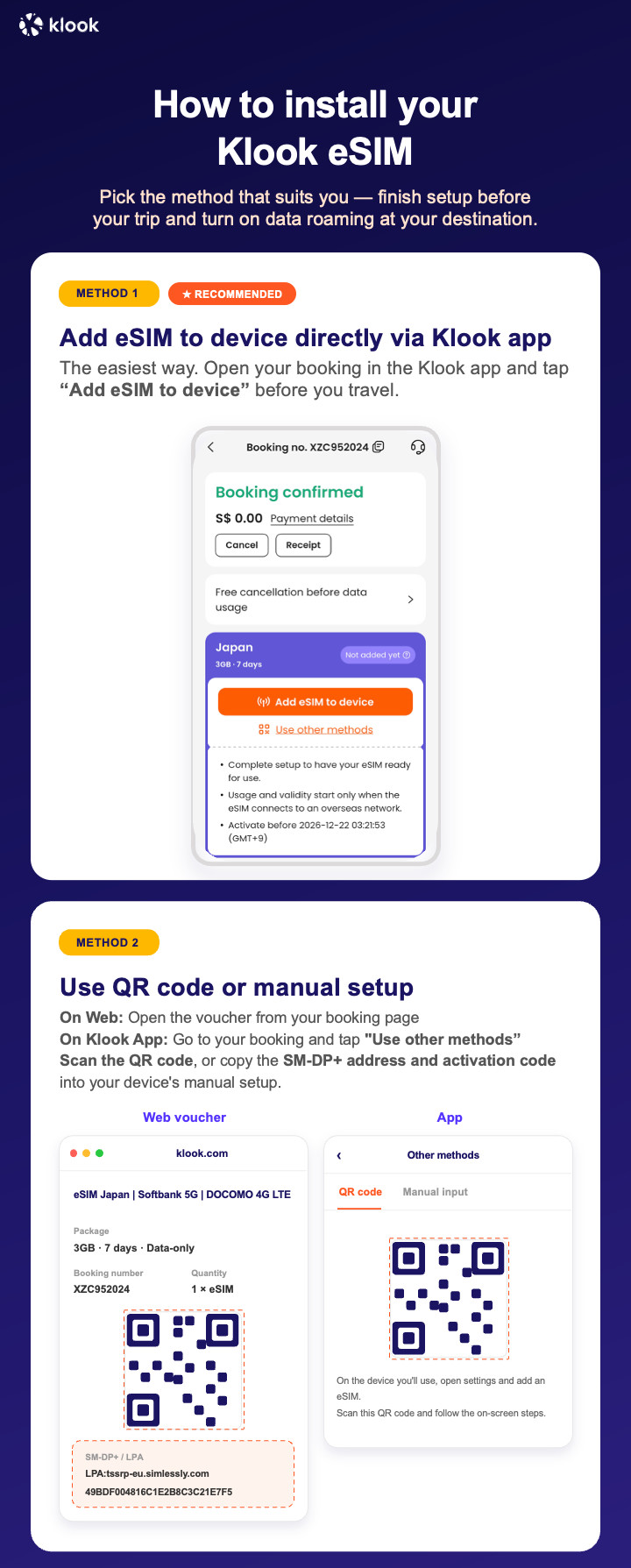
Klook eSIM o‘rnatish usullari
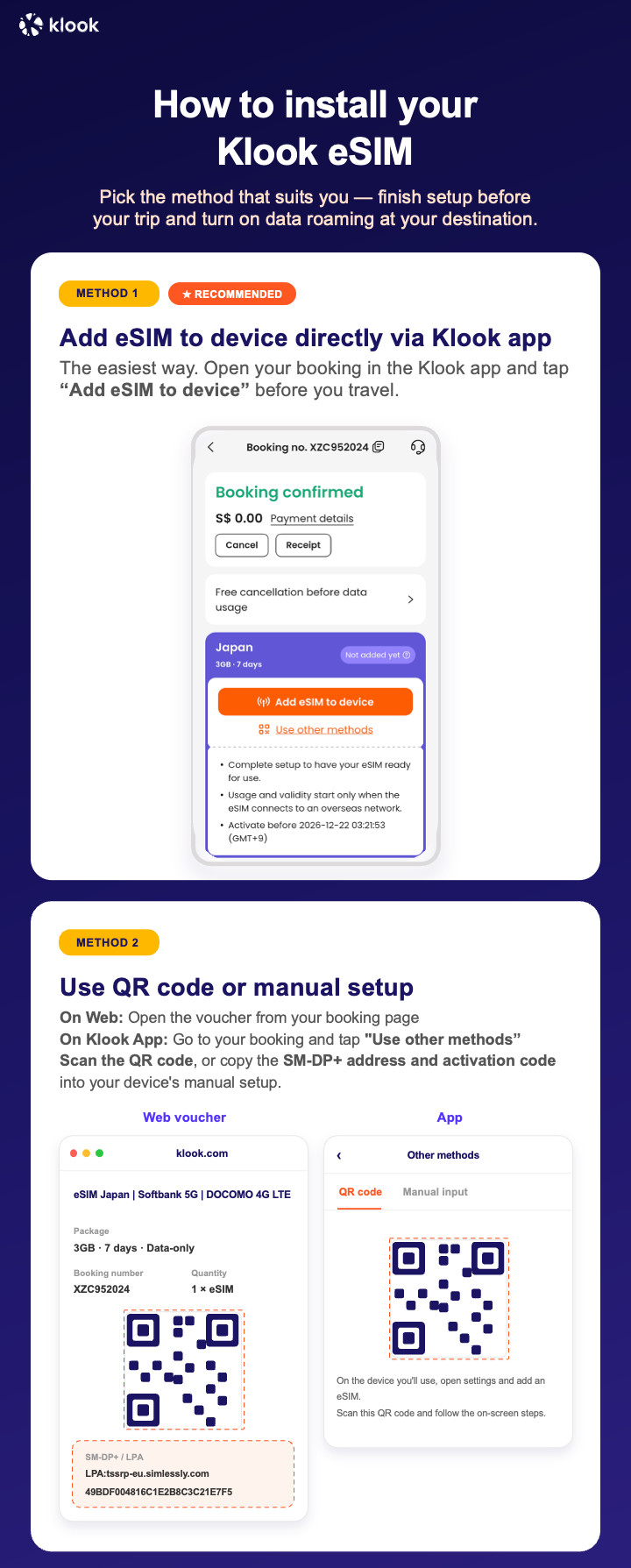
Klook ilovasida faollashtirish, QR kodni skanerlash yoki SMDP+ ma’lumotlarini qo‘lda kiritish orqali eSIM-ni faollashtiring
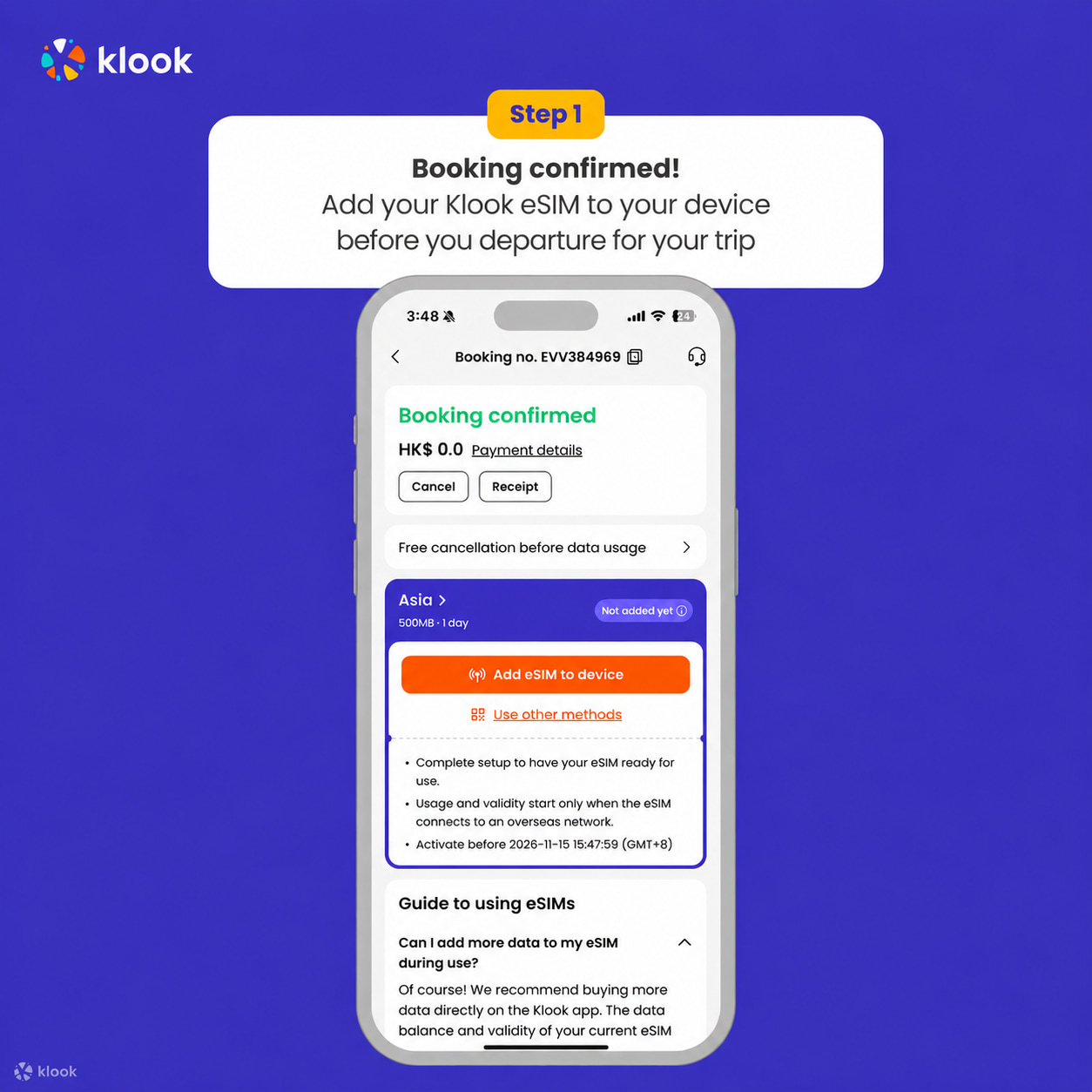
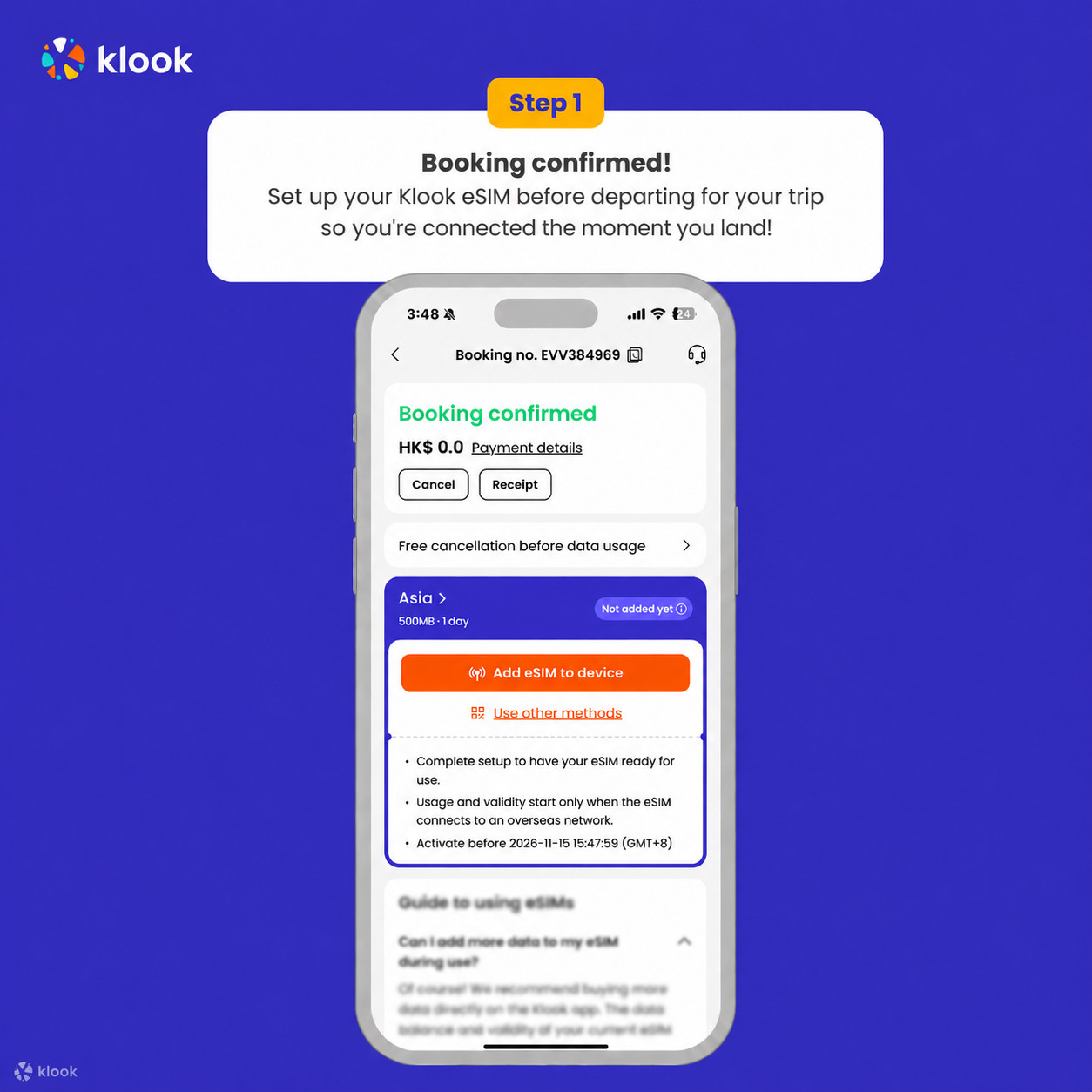
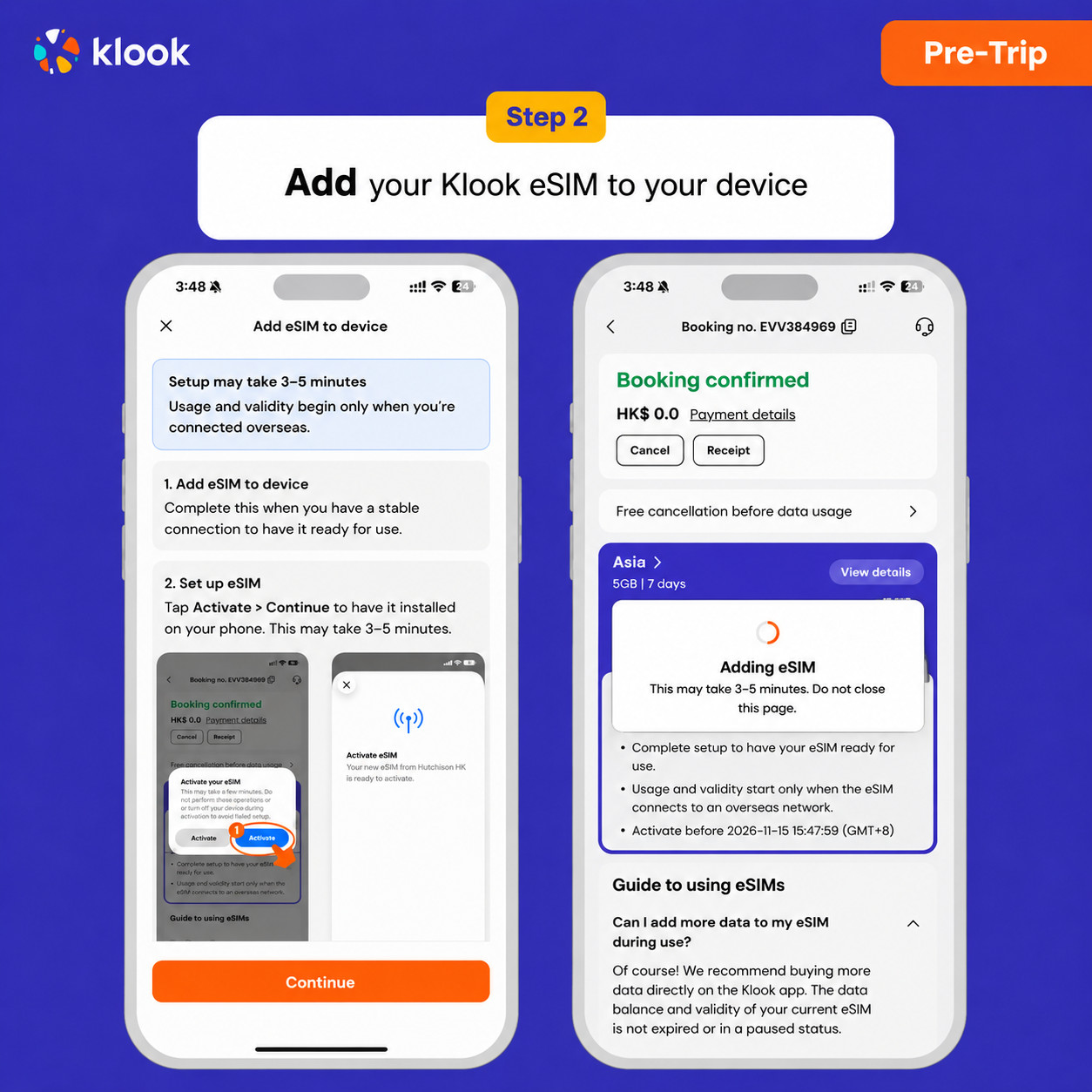
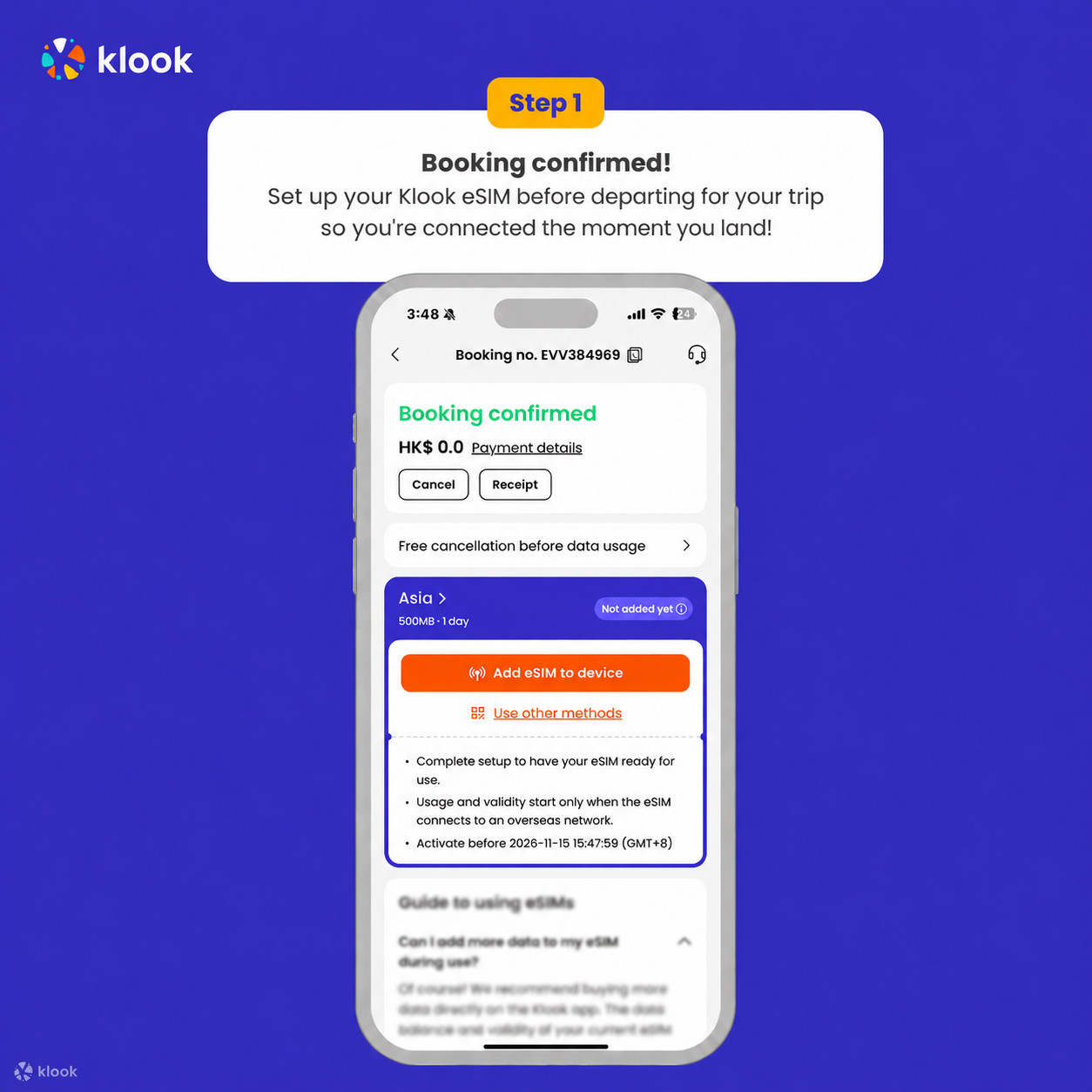
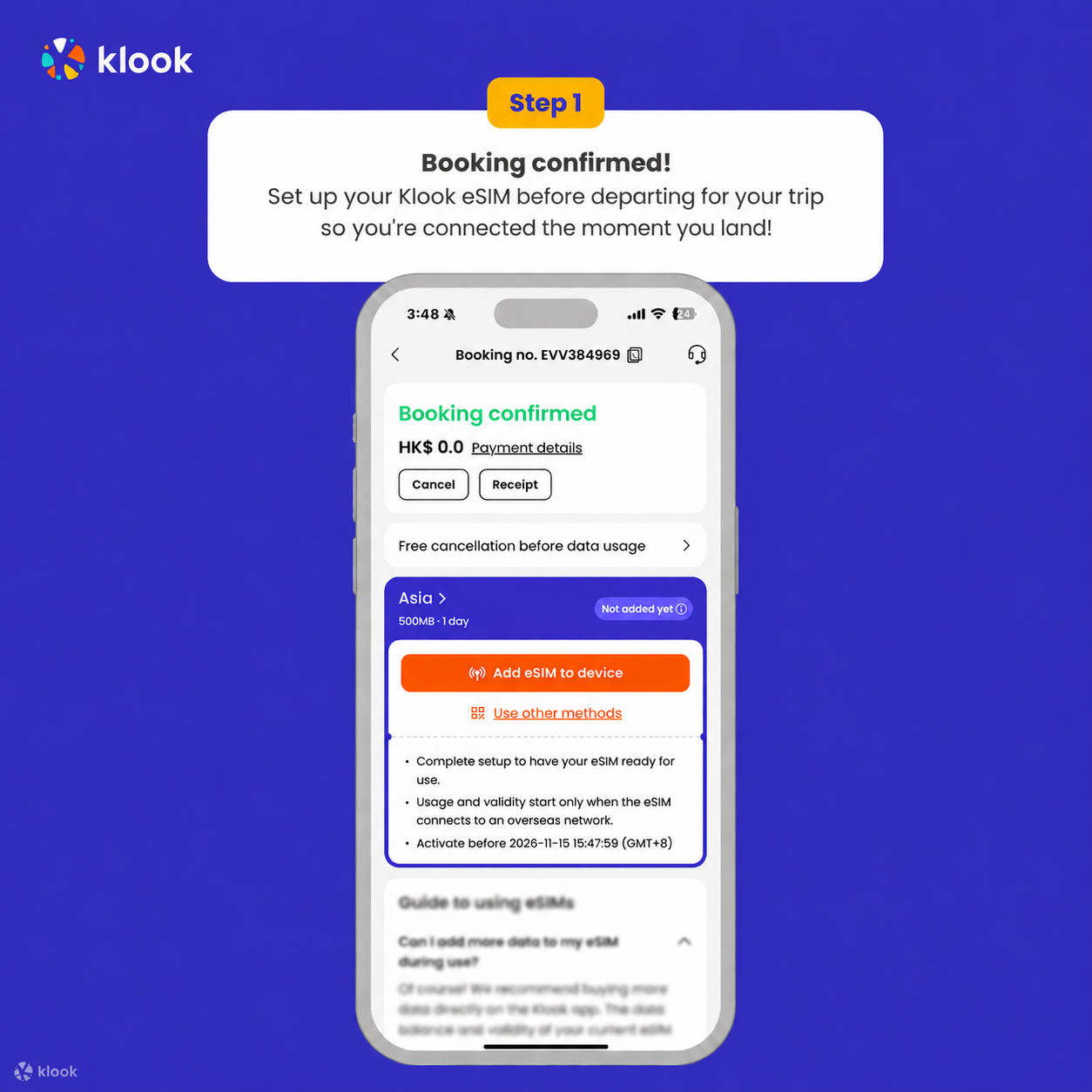
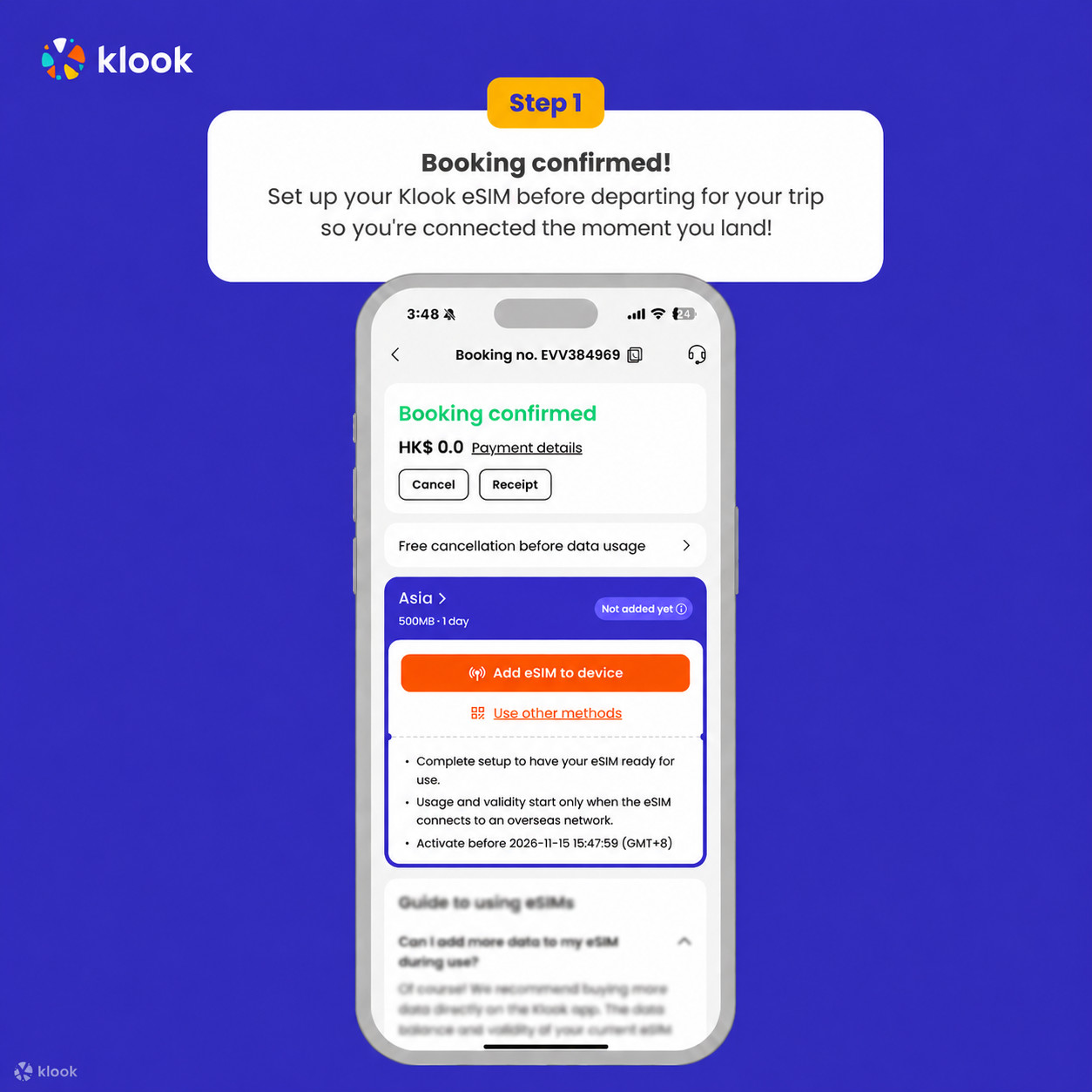
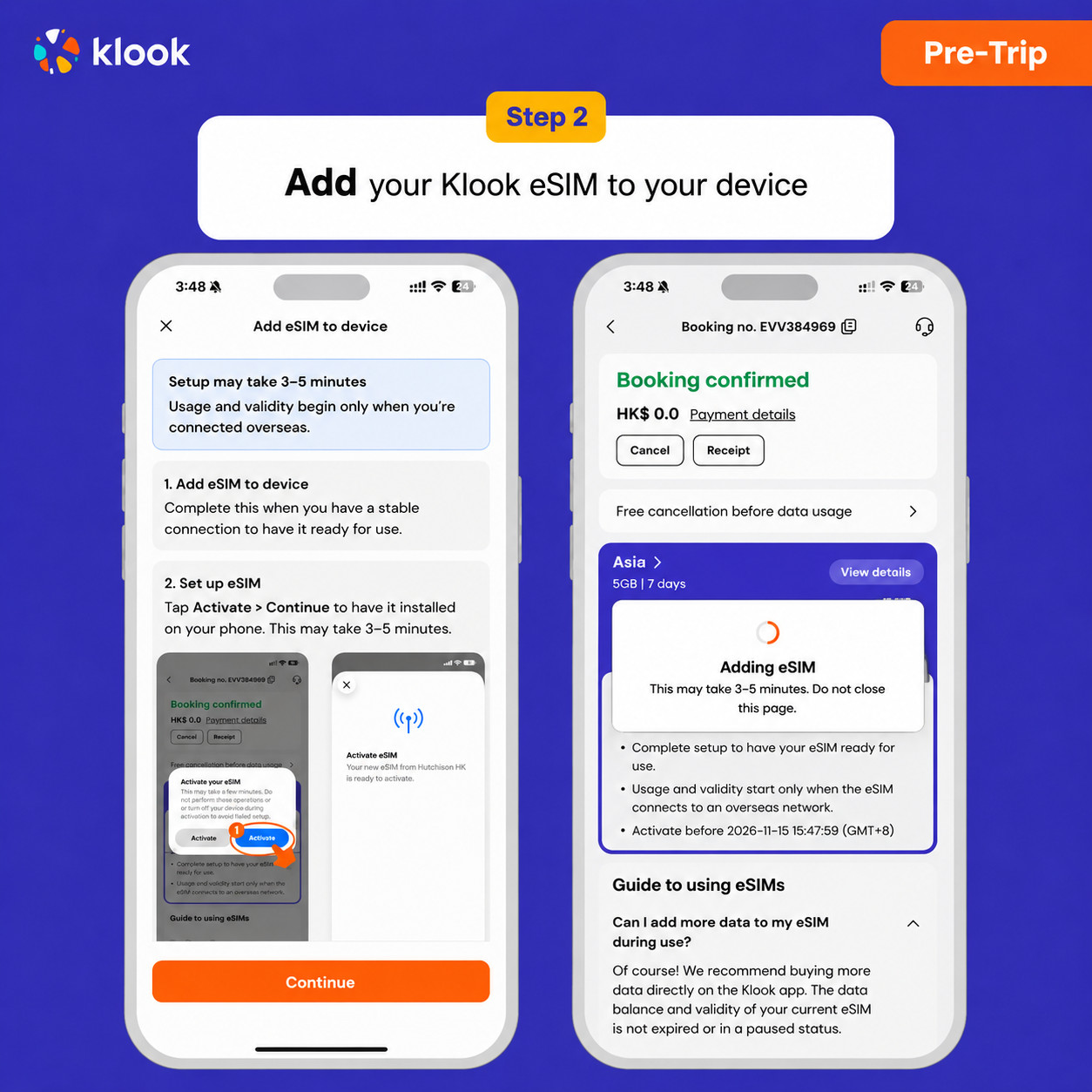
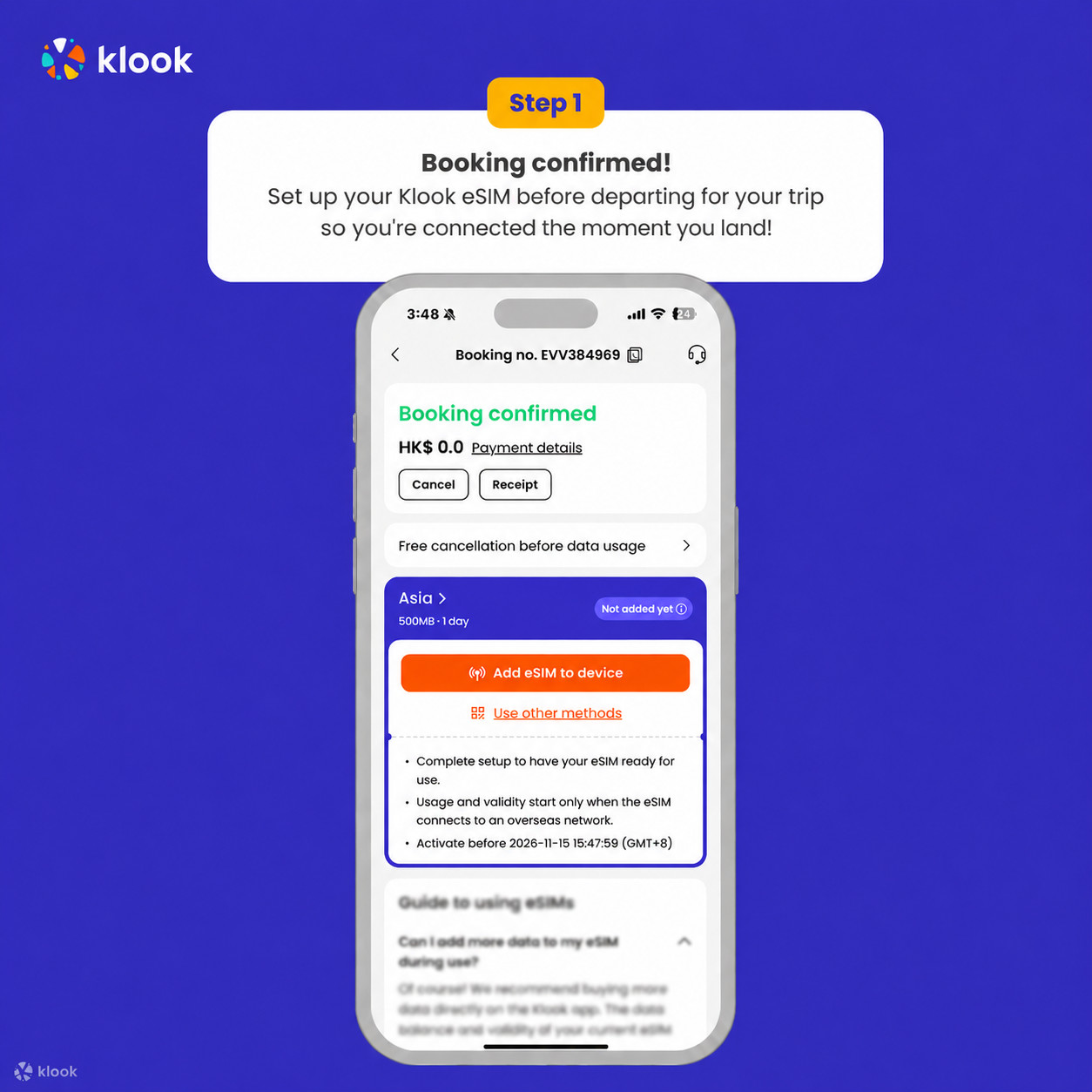
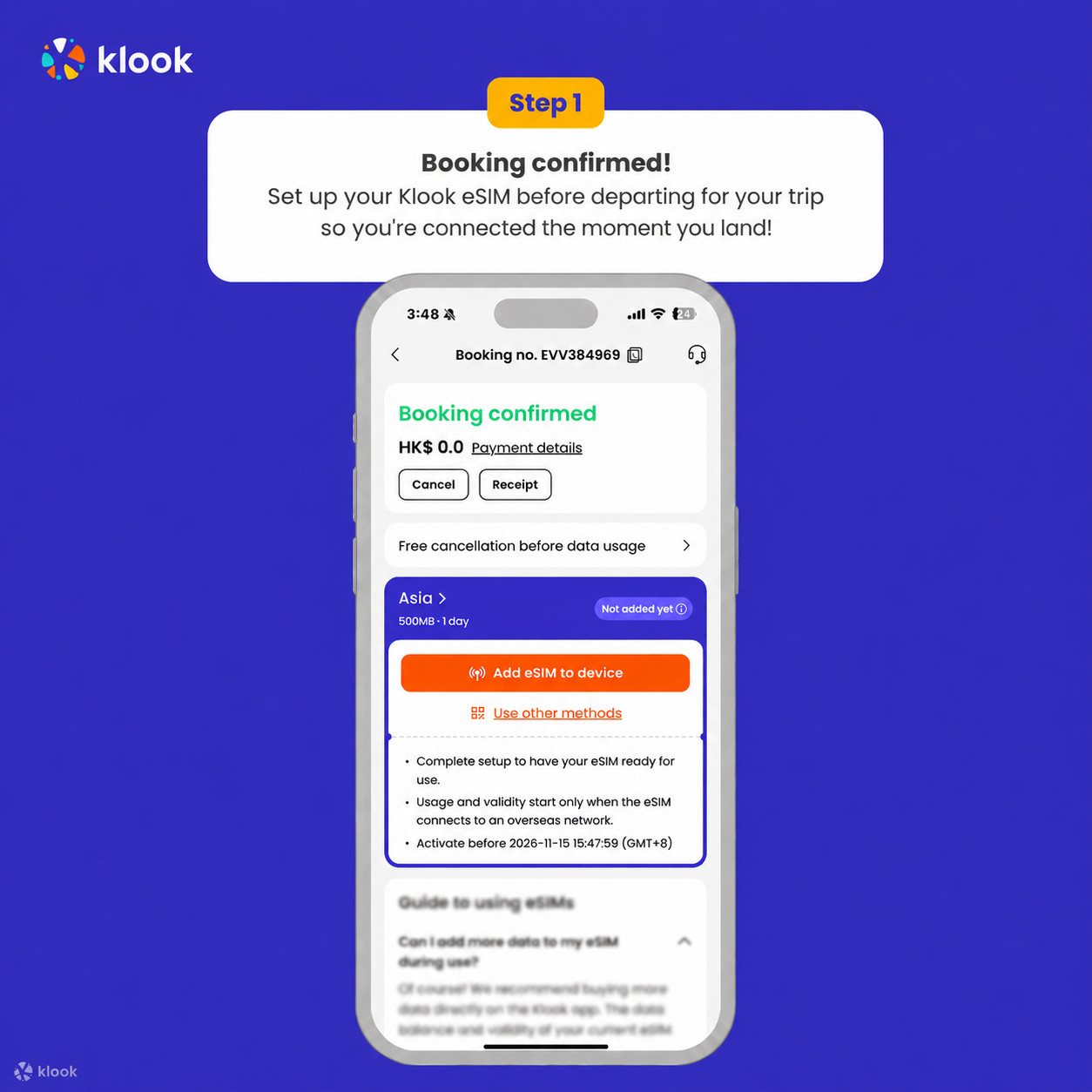
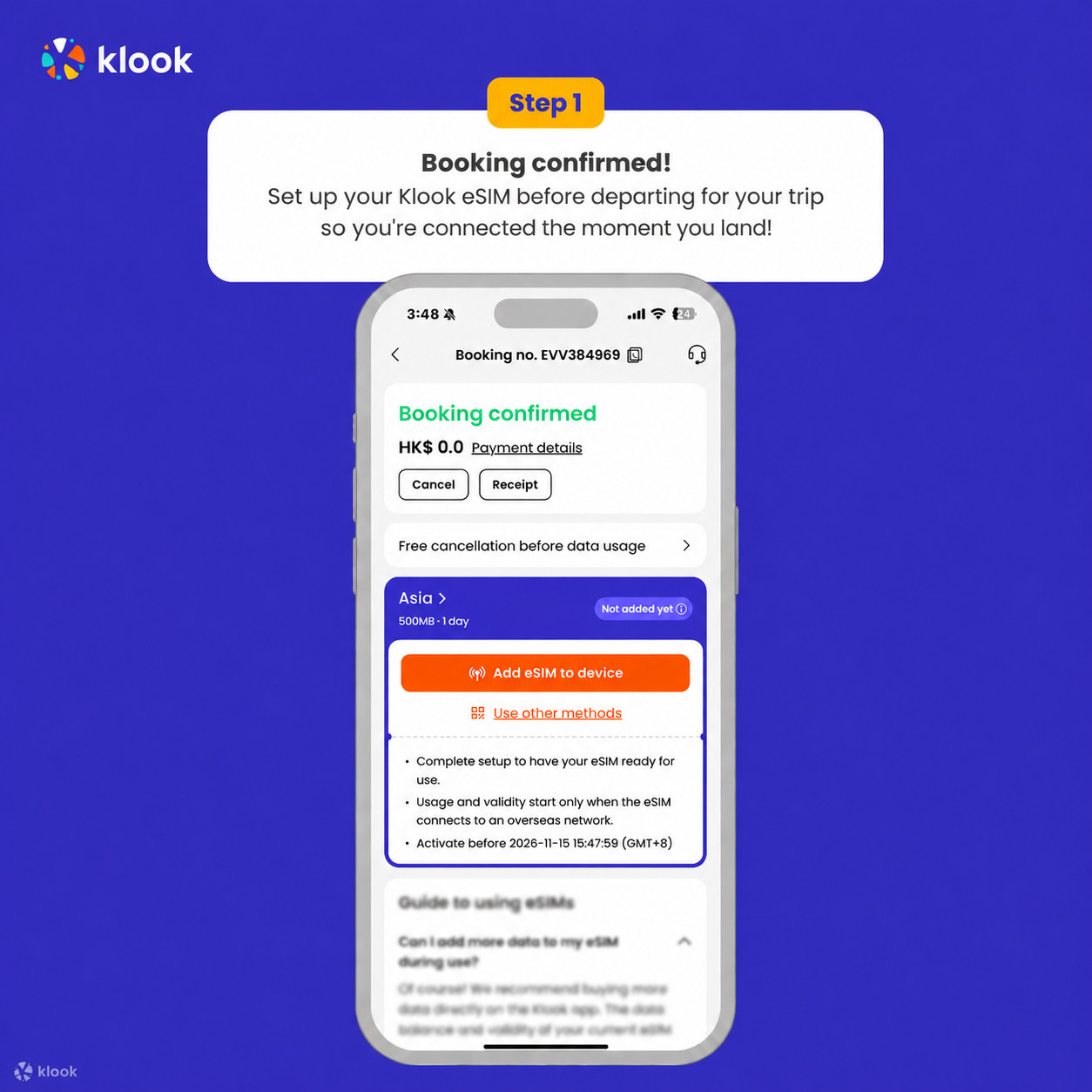
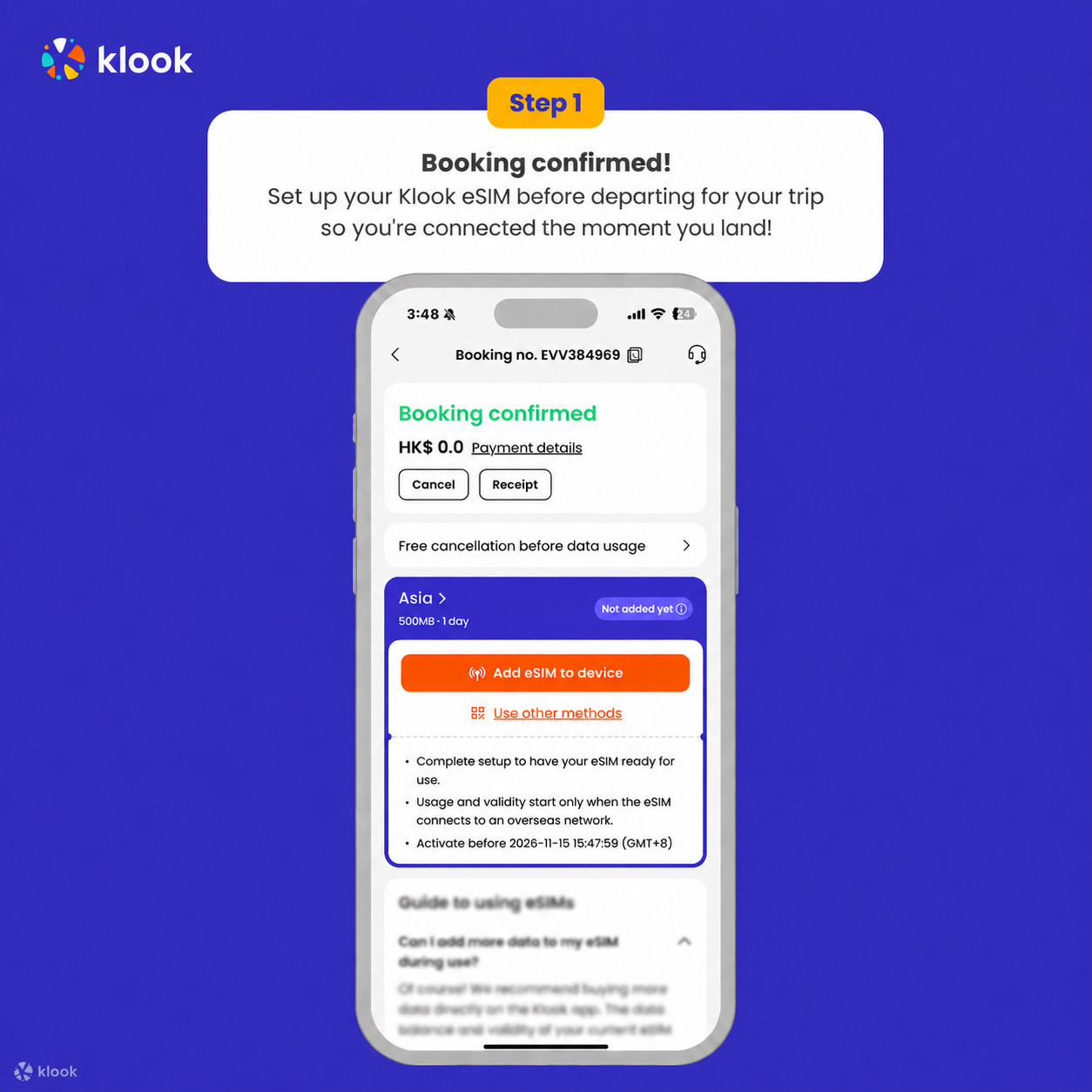
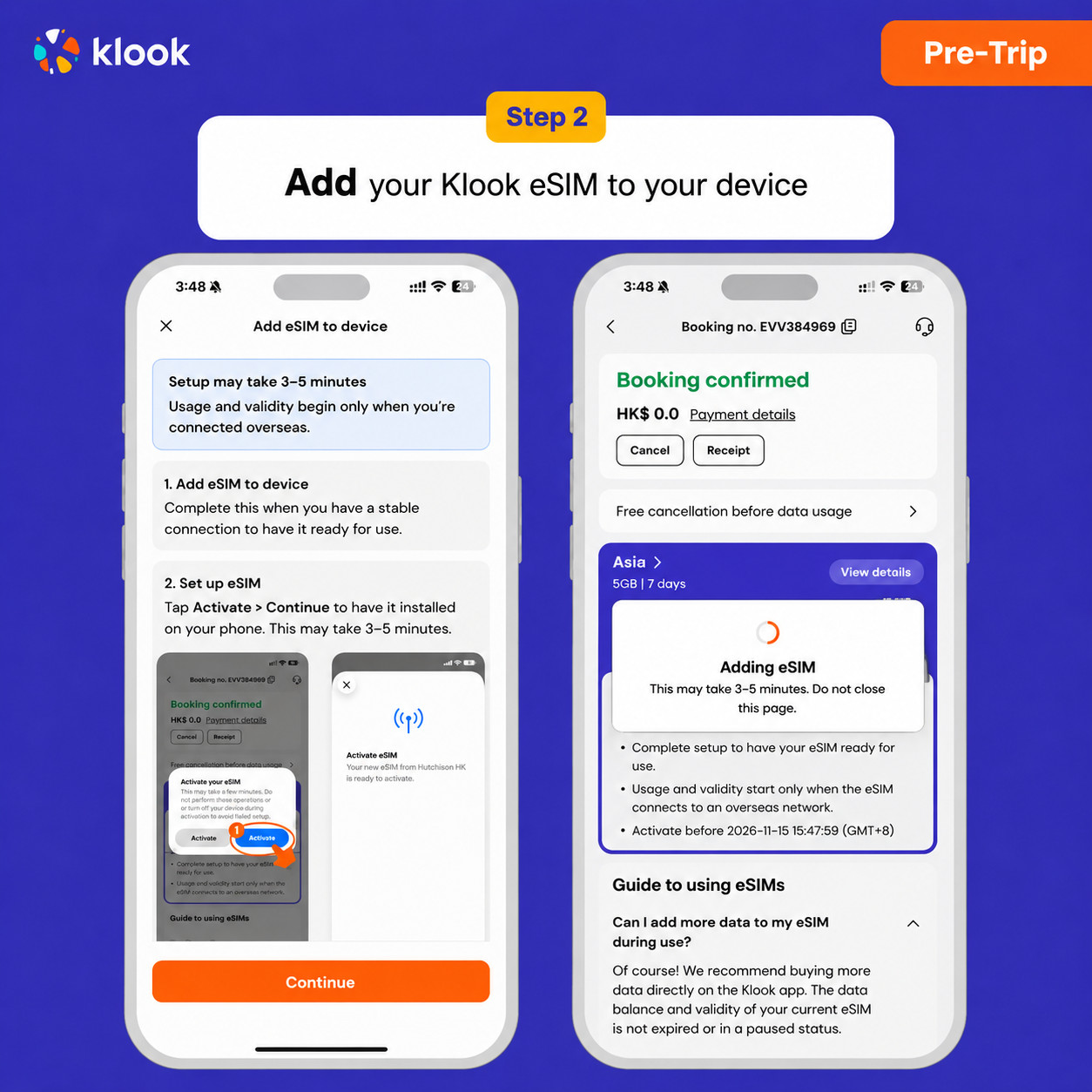
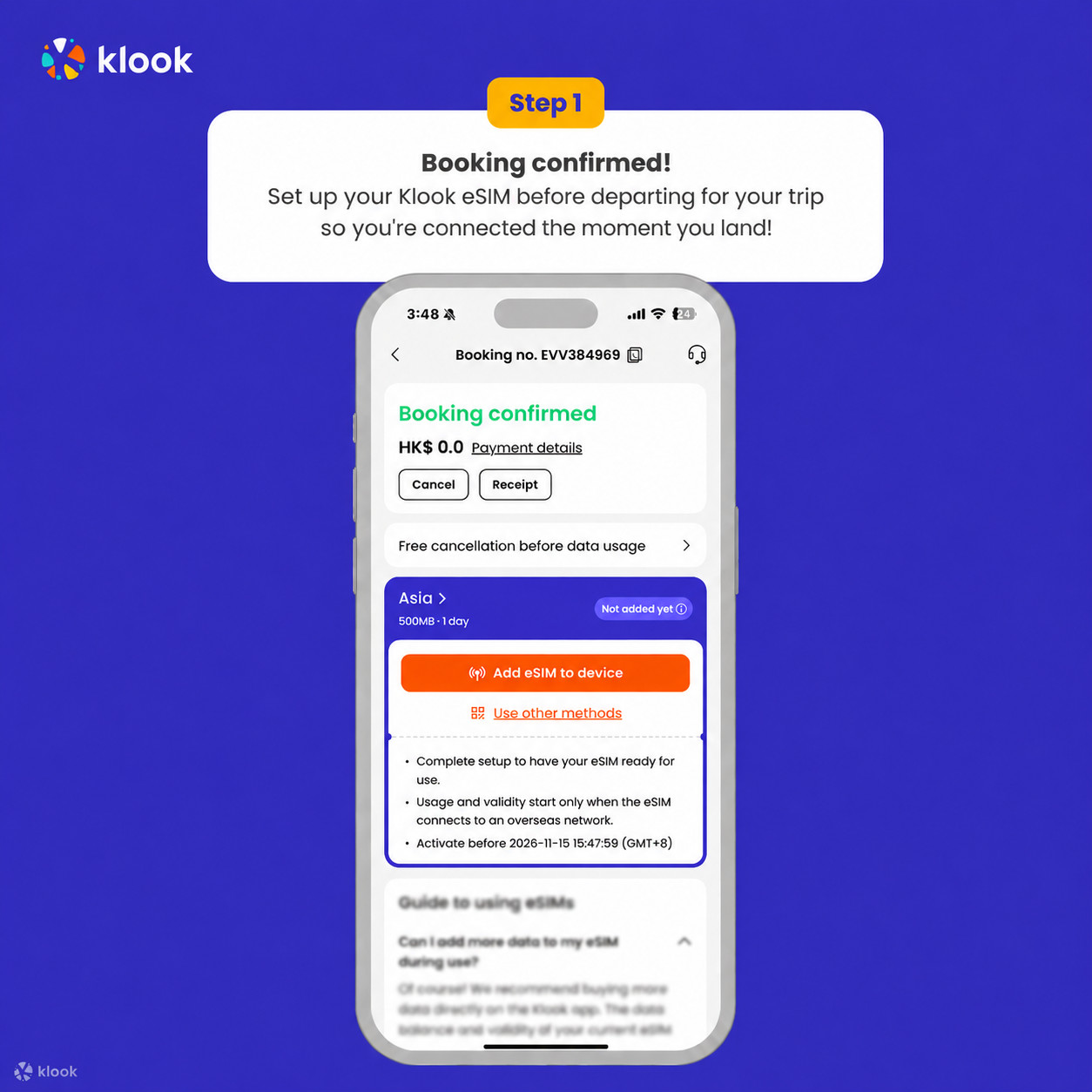
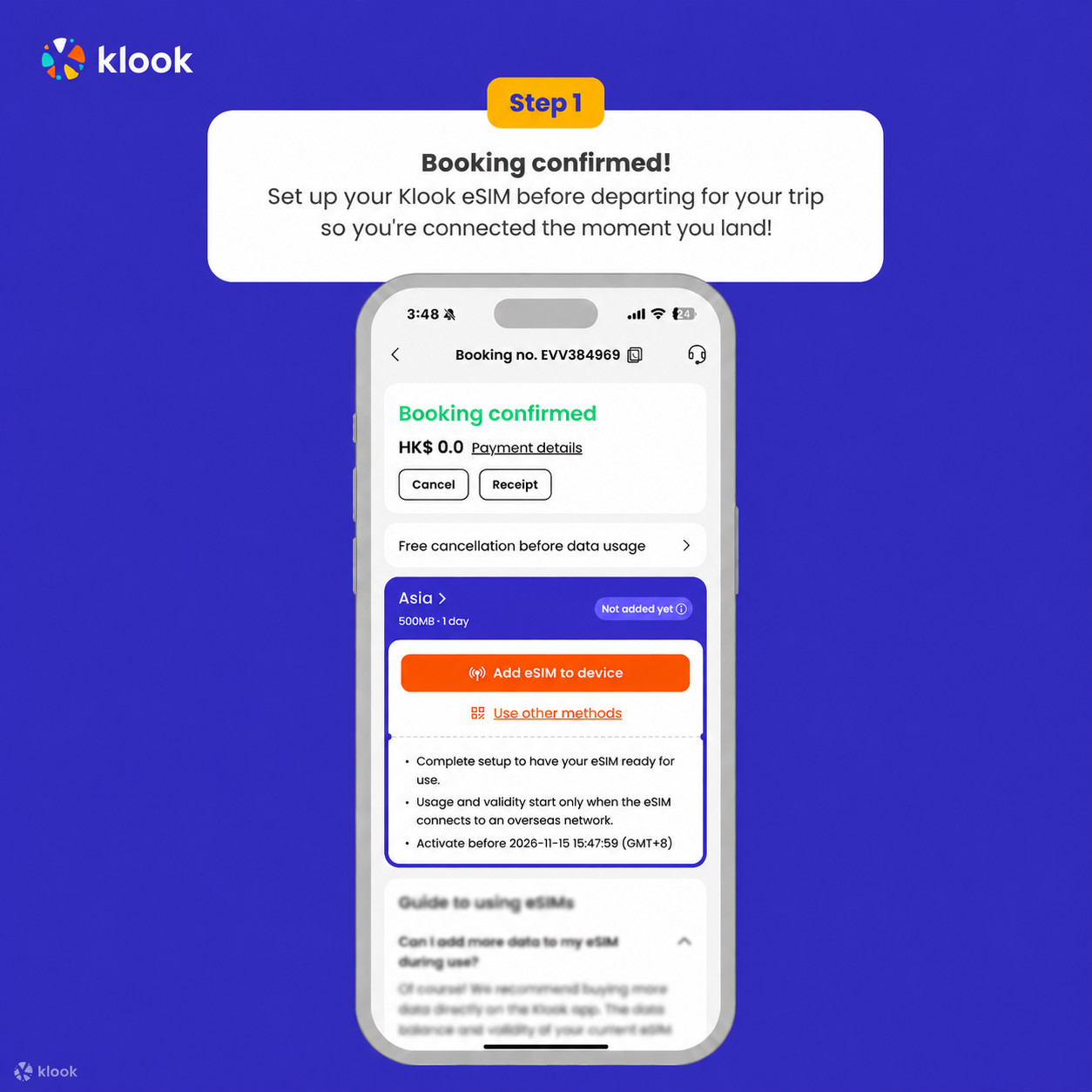
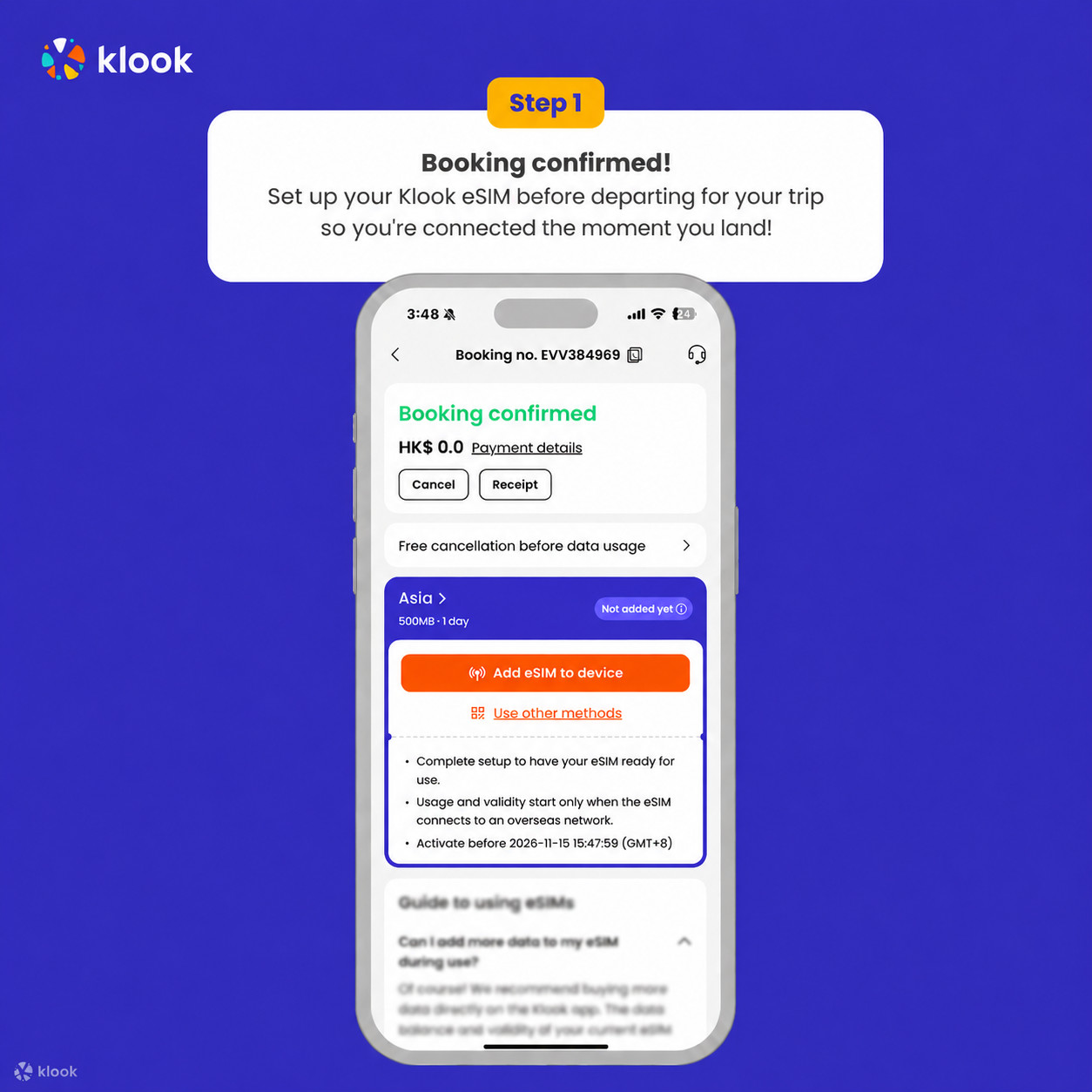
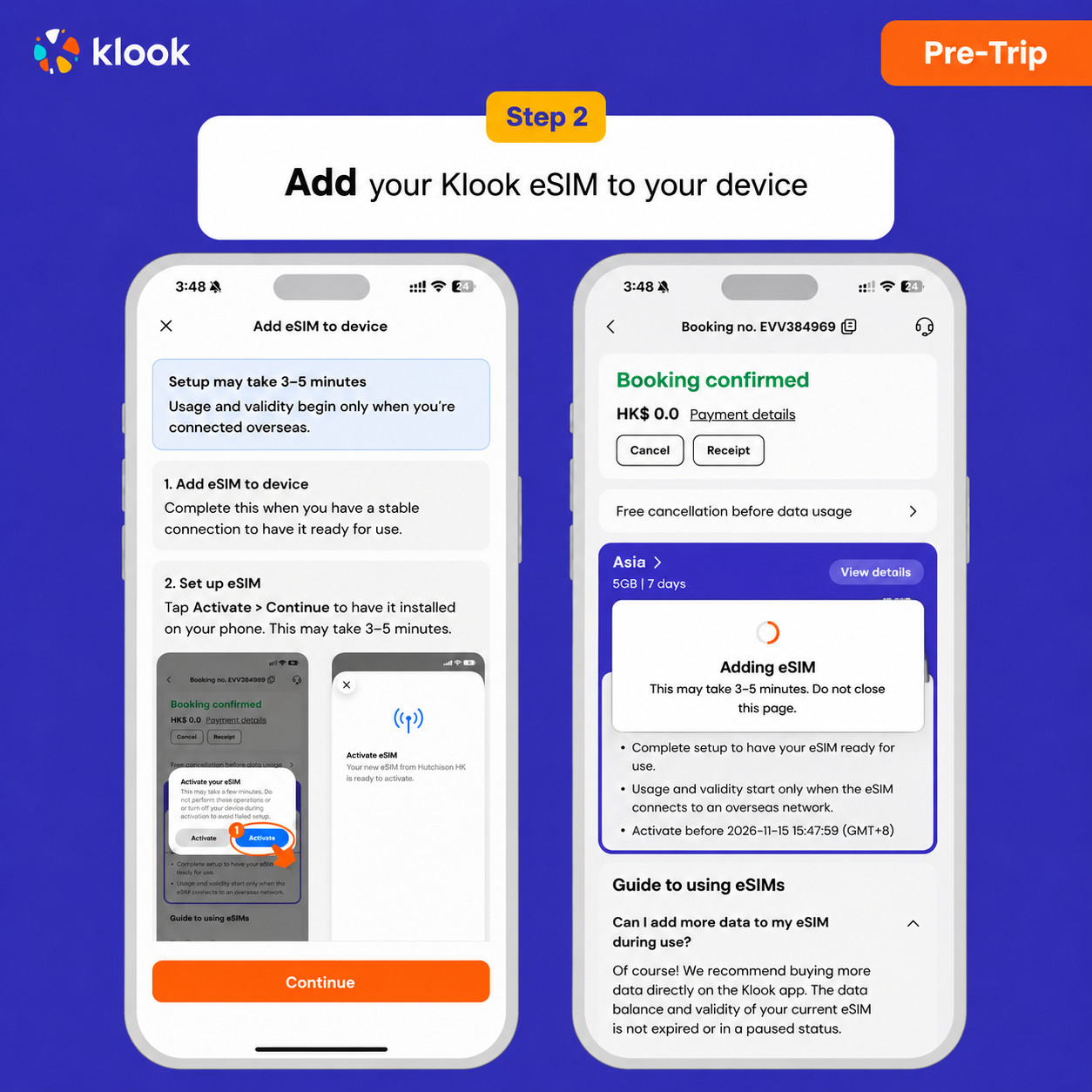
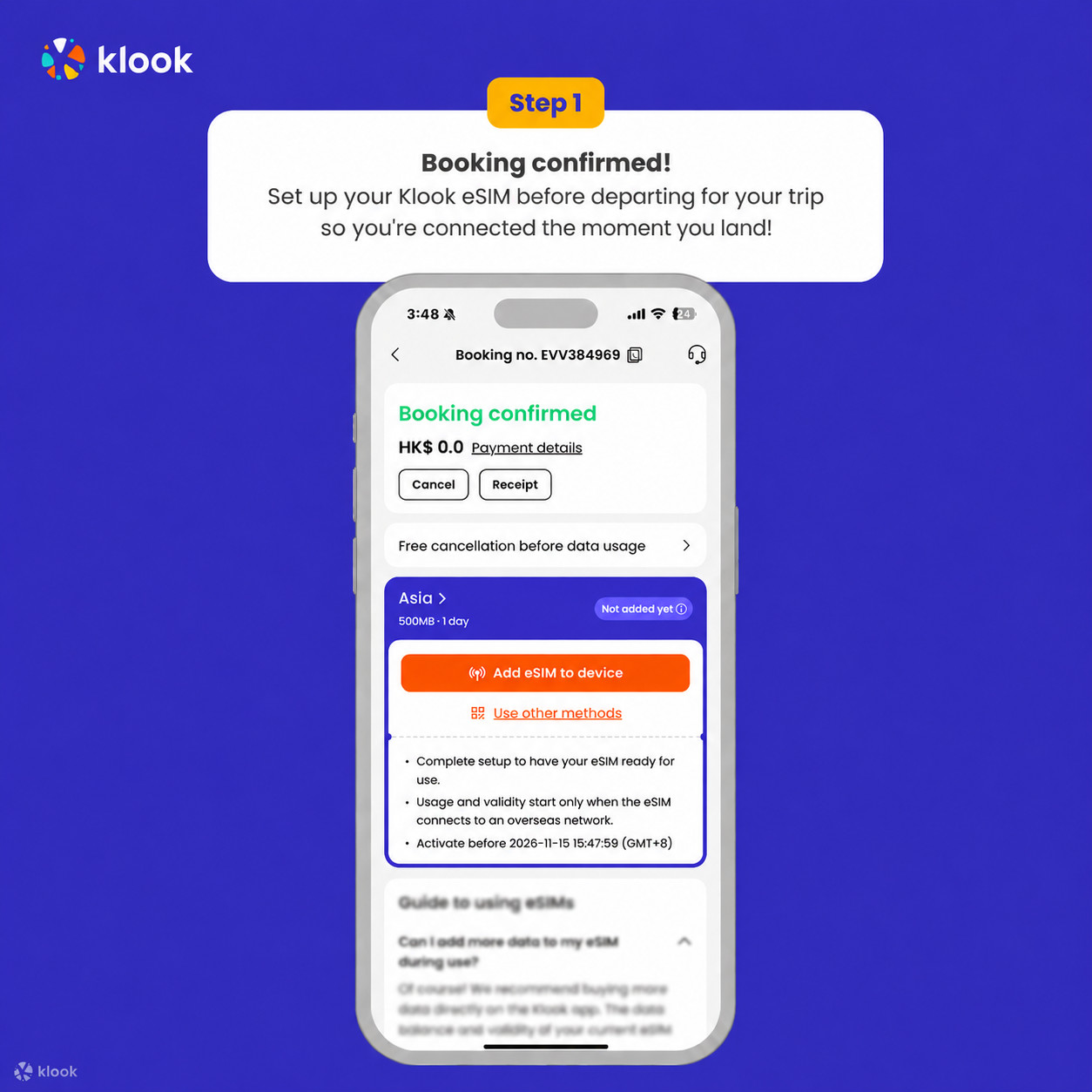
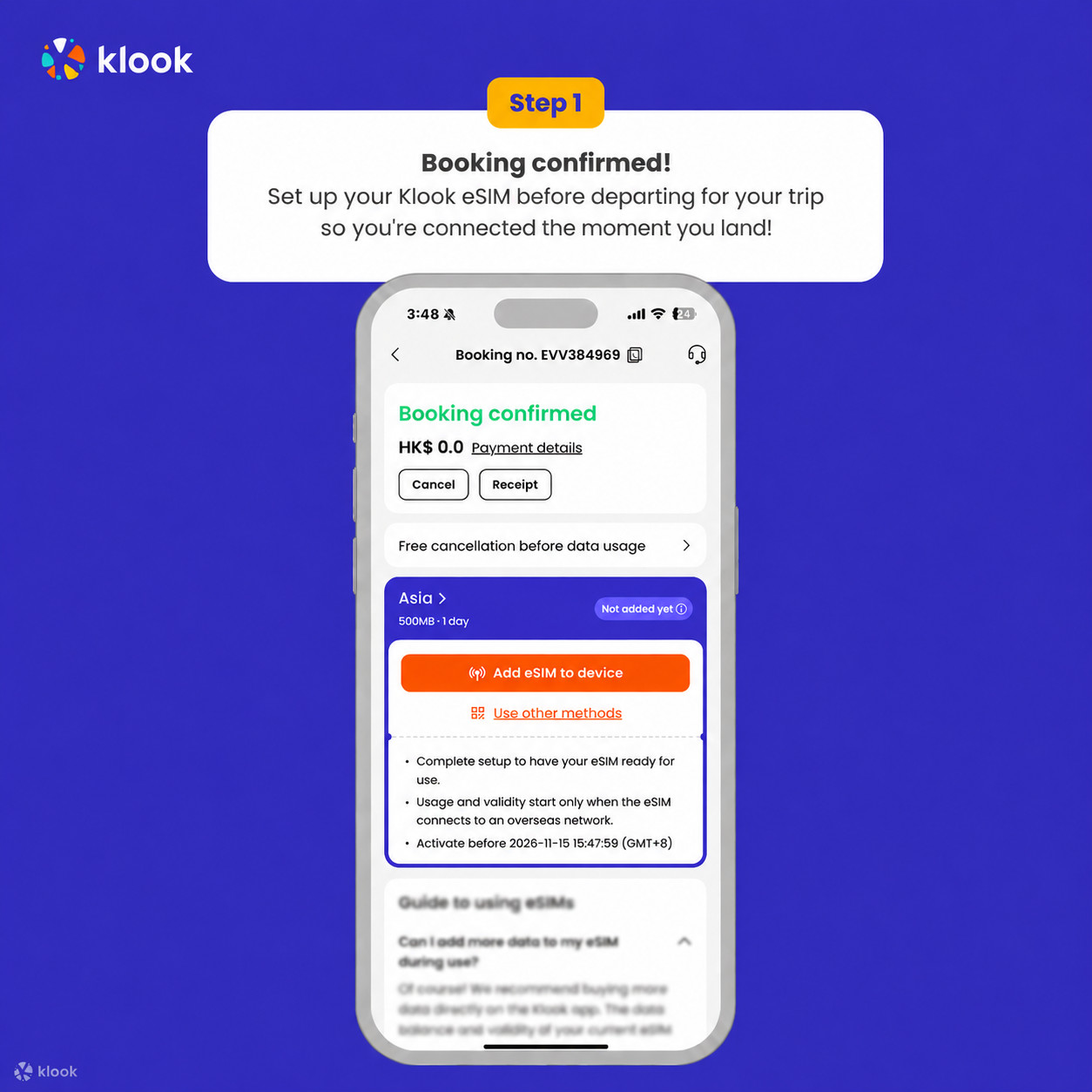
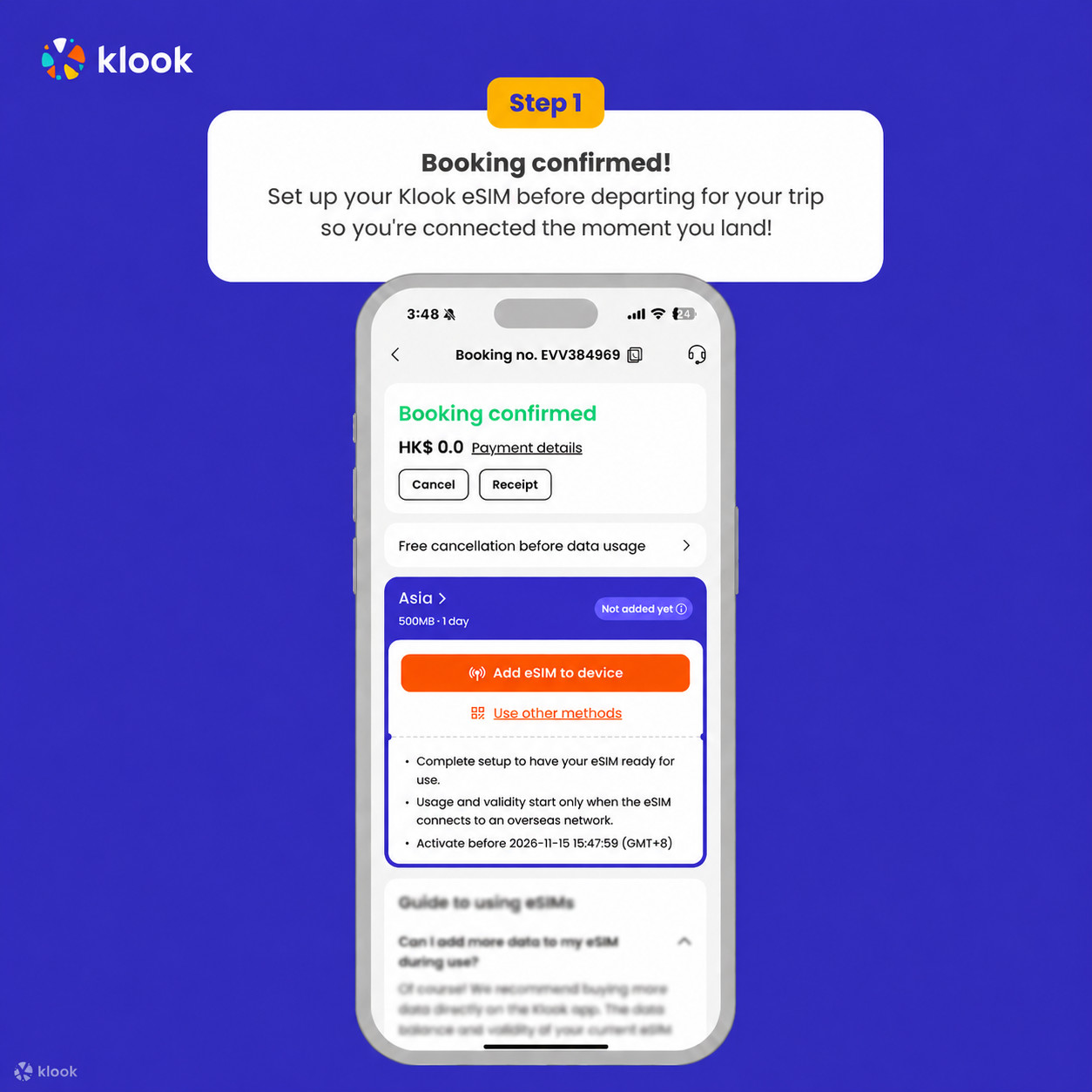
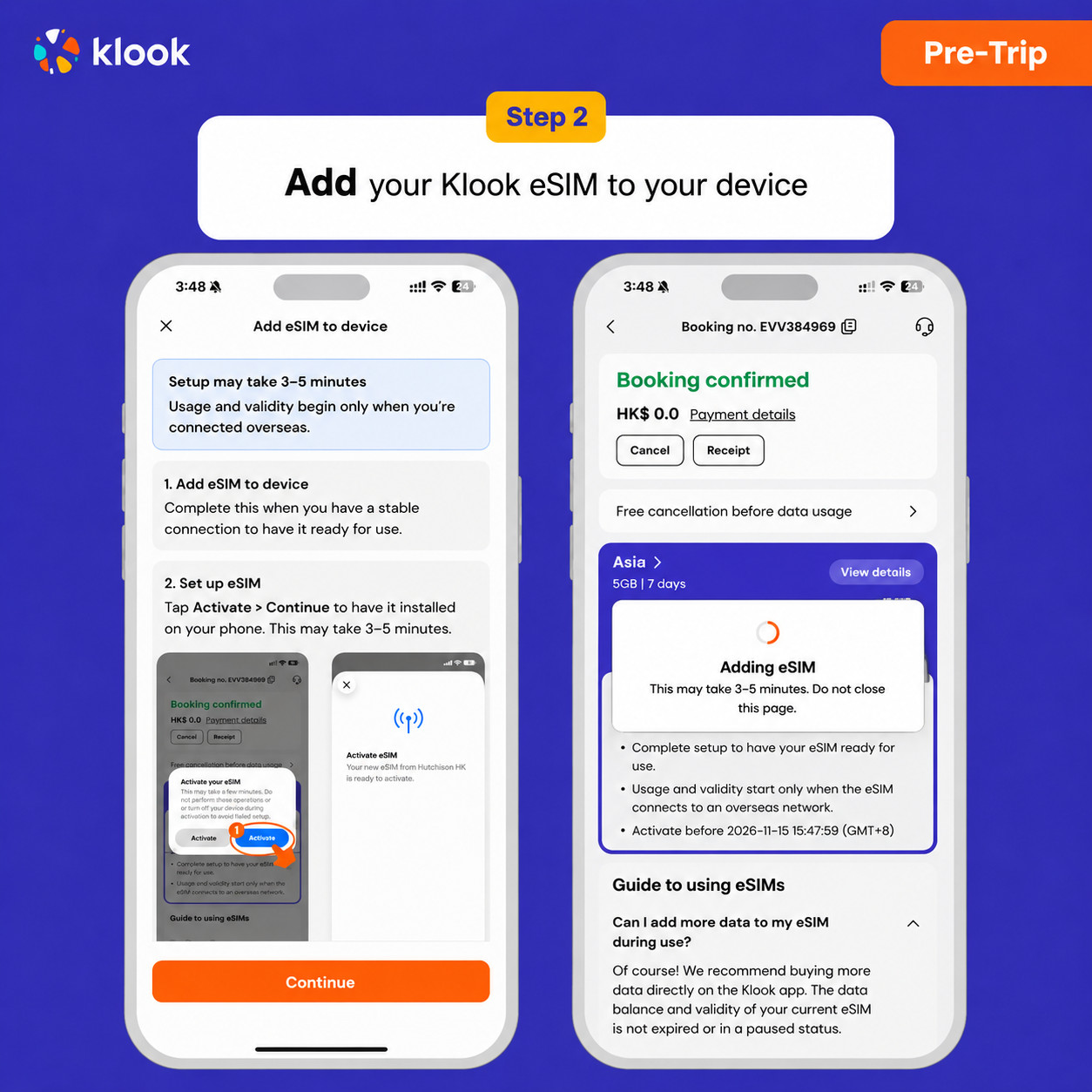
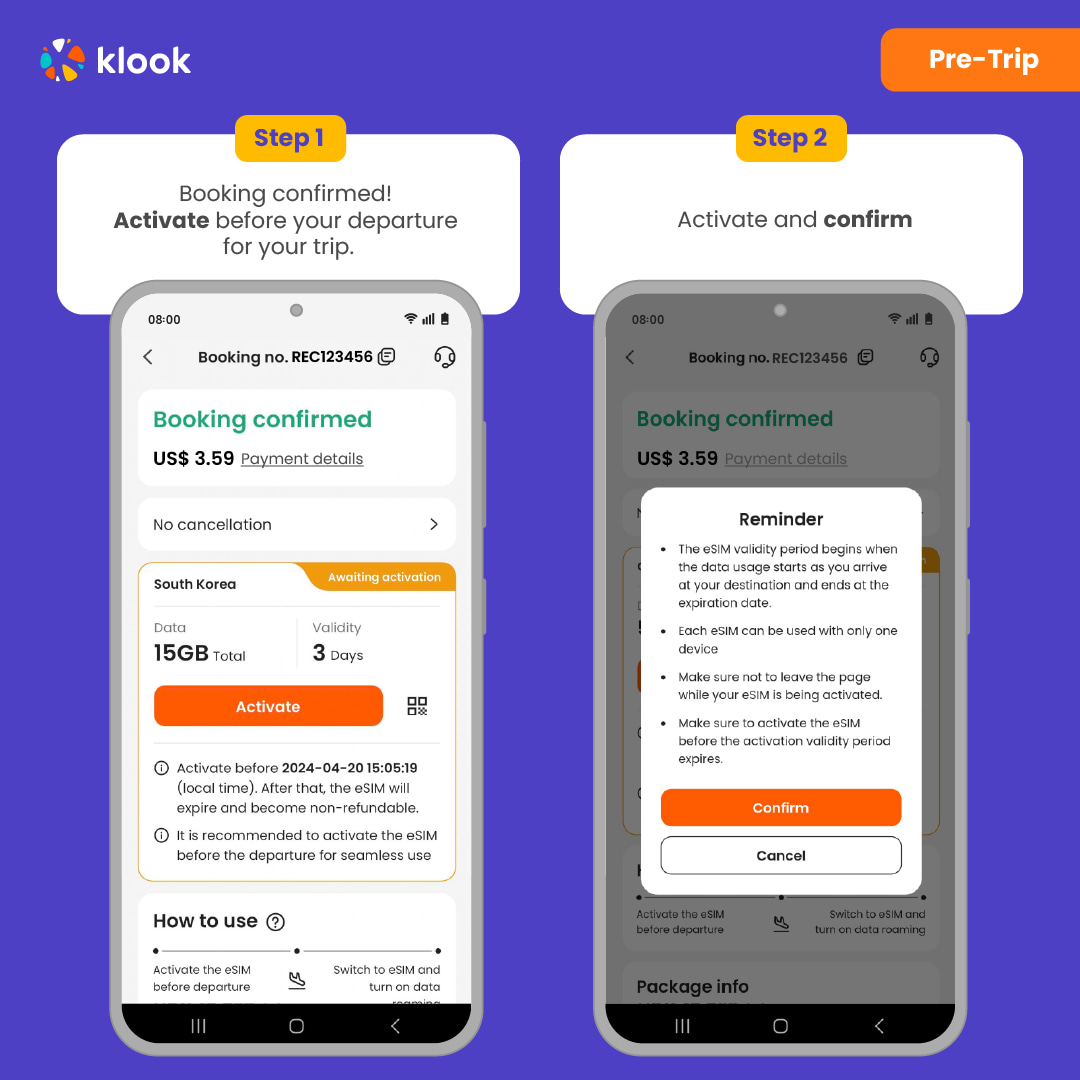
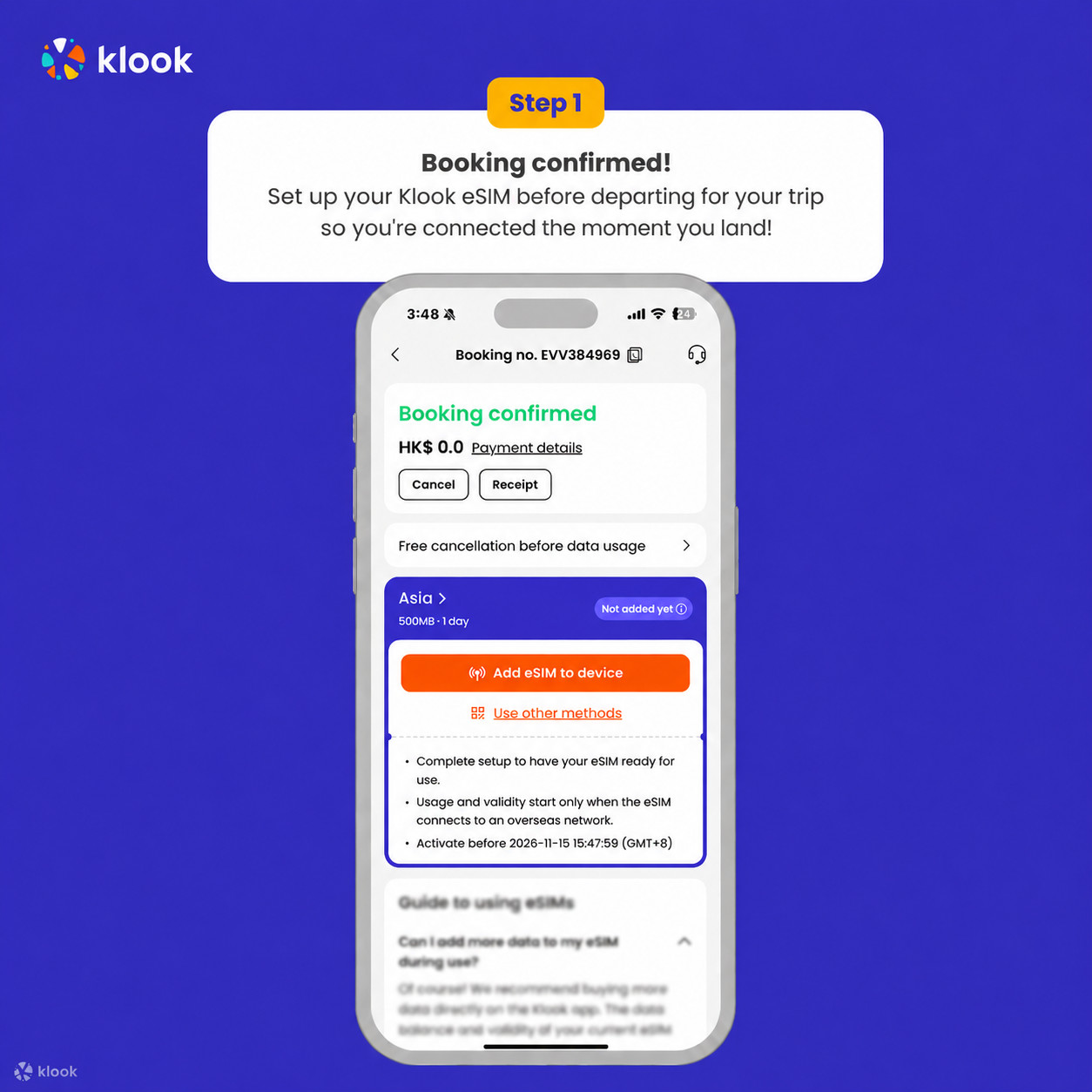
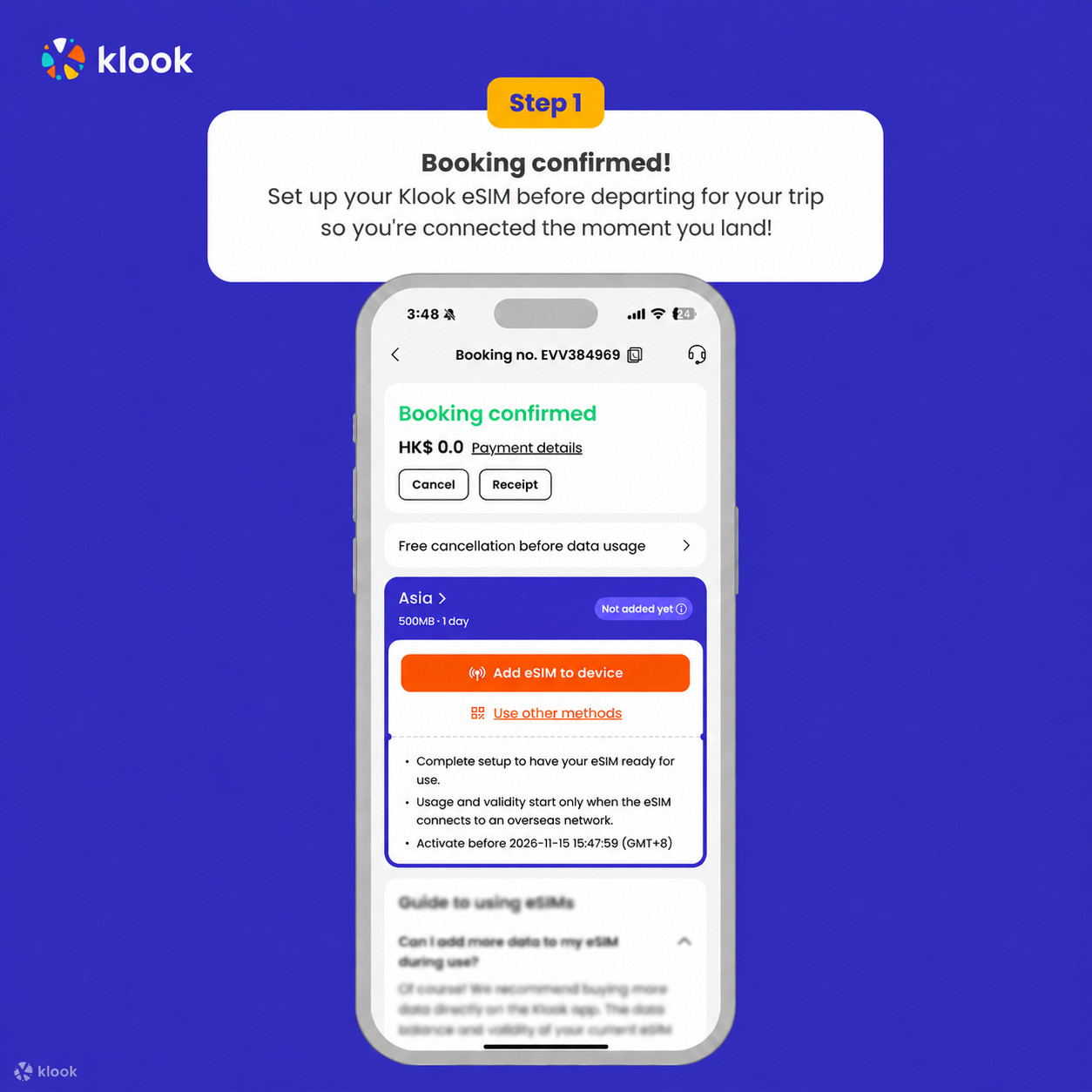
Klook eSIM ilovada faollashtirish
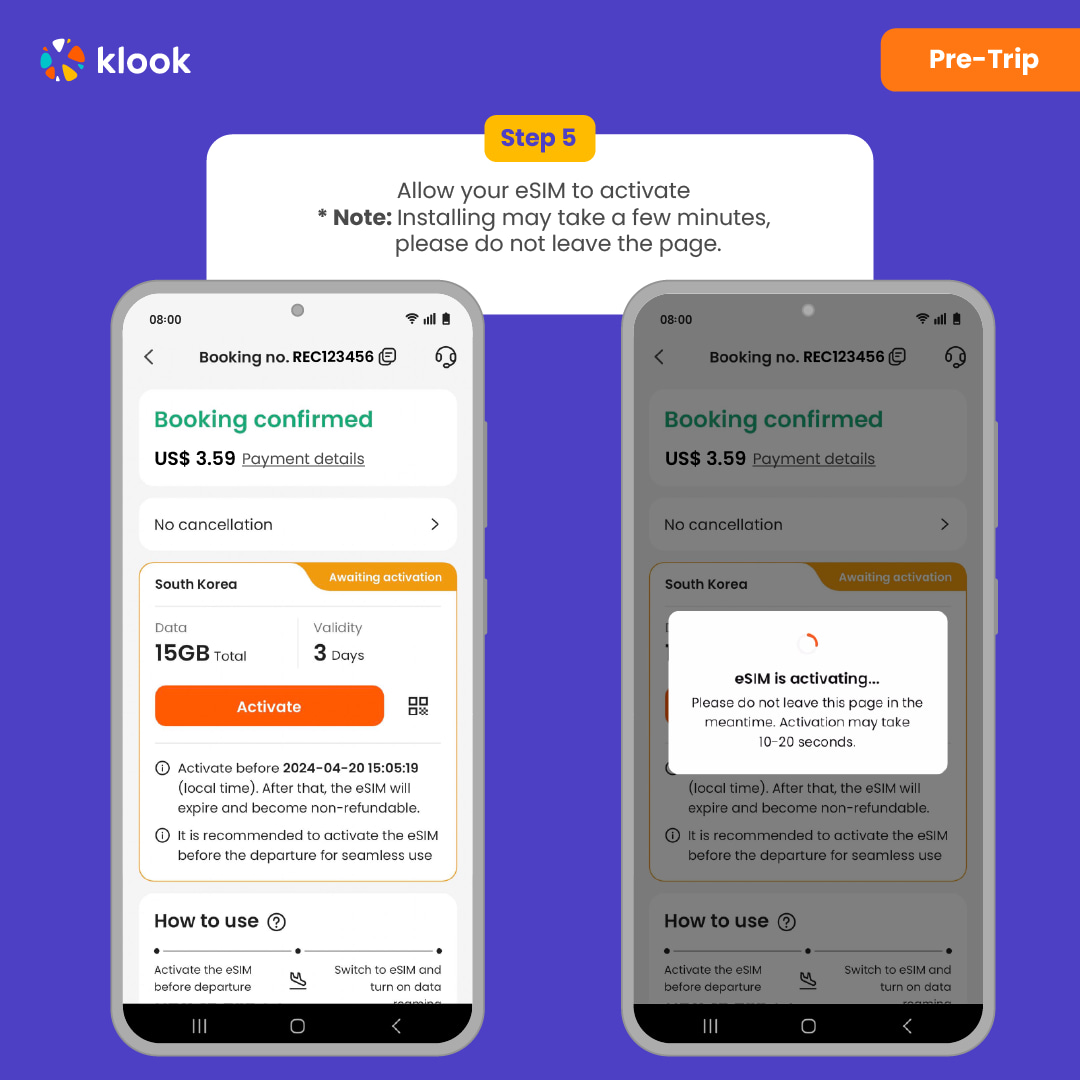
Broningizda "eSIM-ni qurilmaga qo‘shish" tugmasini bosib, eSIM-ni faollashtiring. Xavotir olmang, ma’lumot va amal qilish muddati faqat manzilingizga yetganingizdan so‘ng boshlanadi
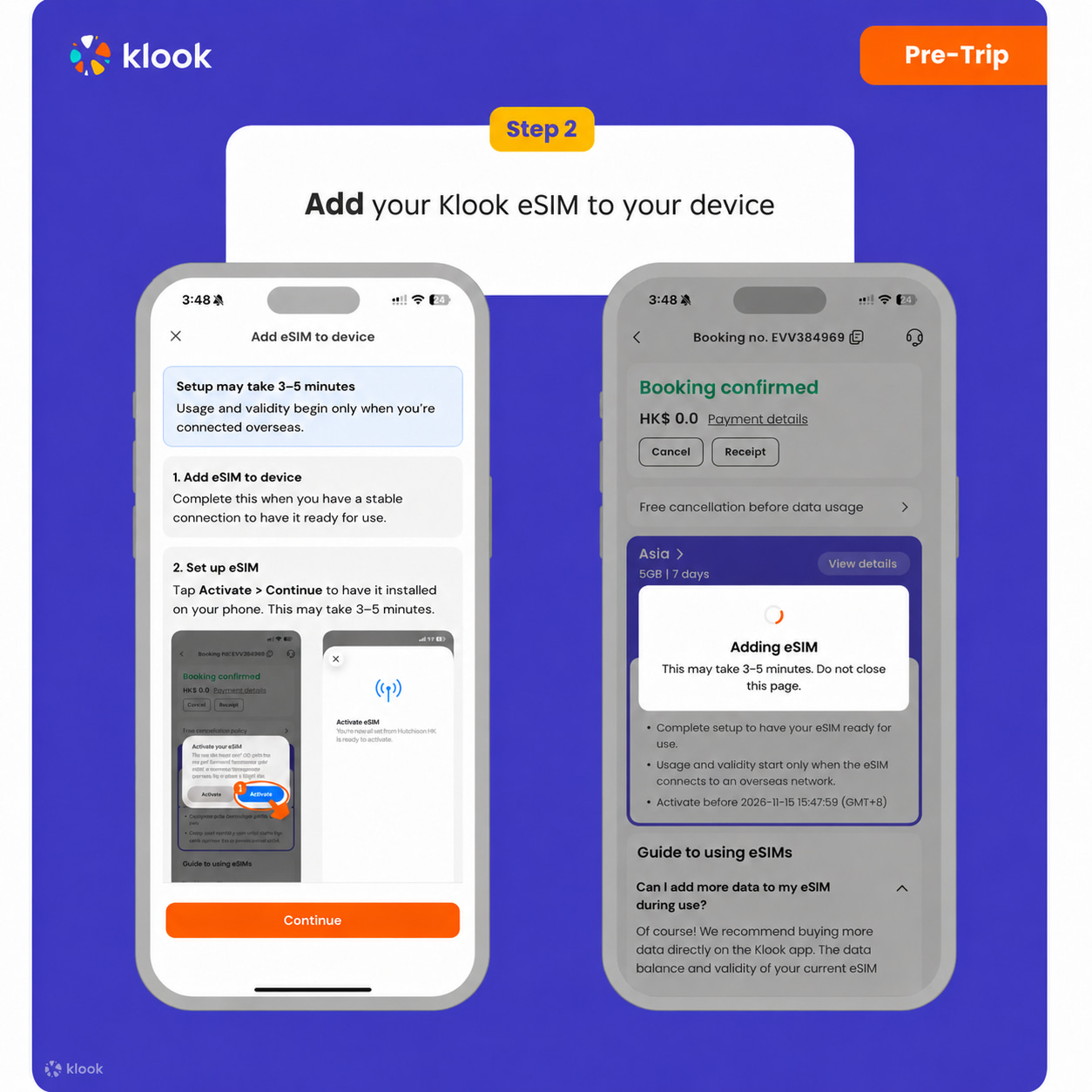
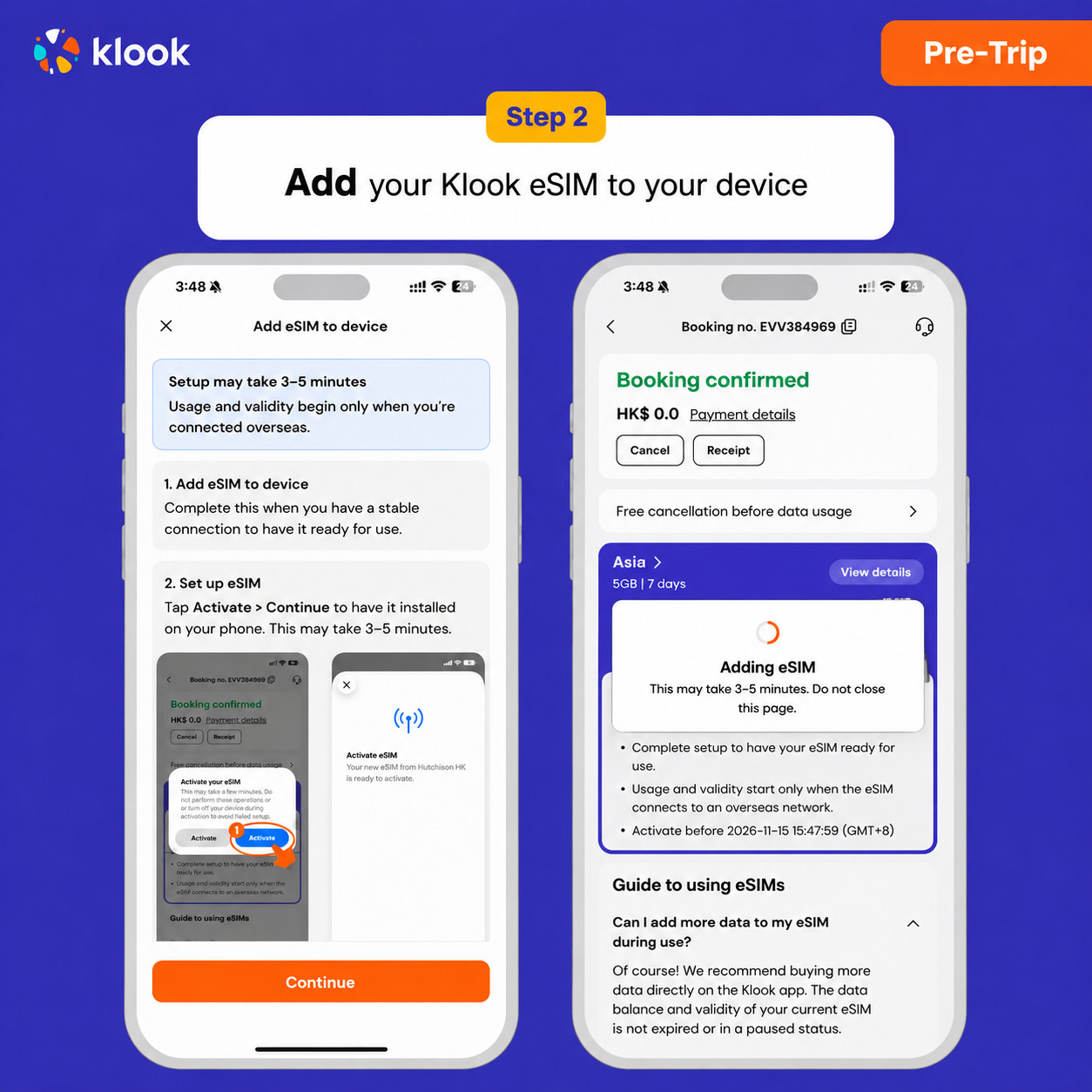
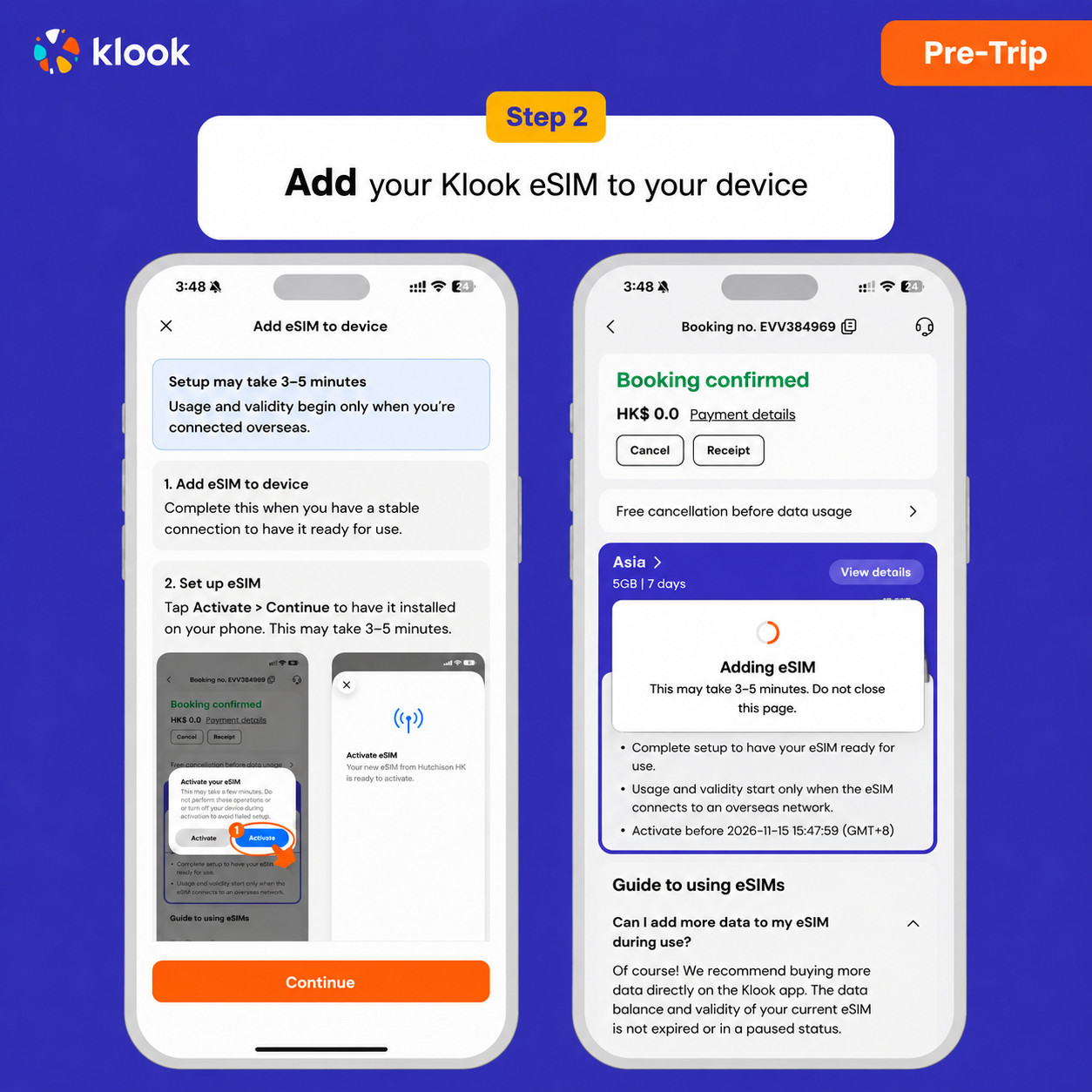
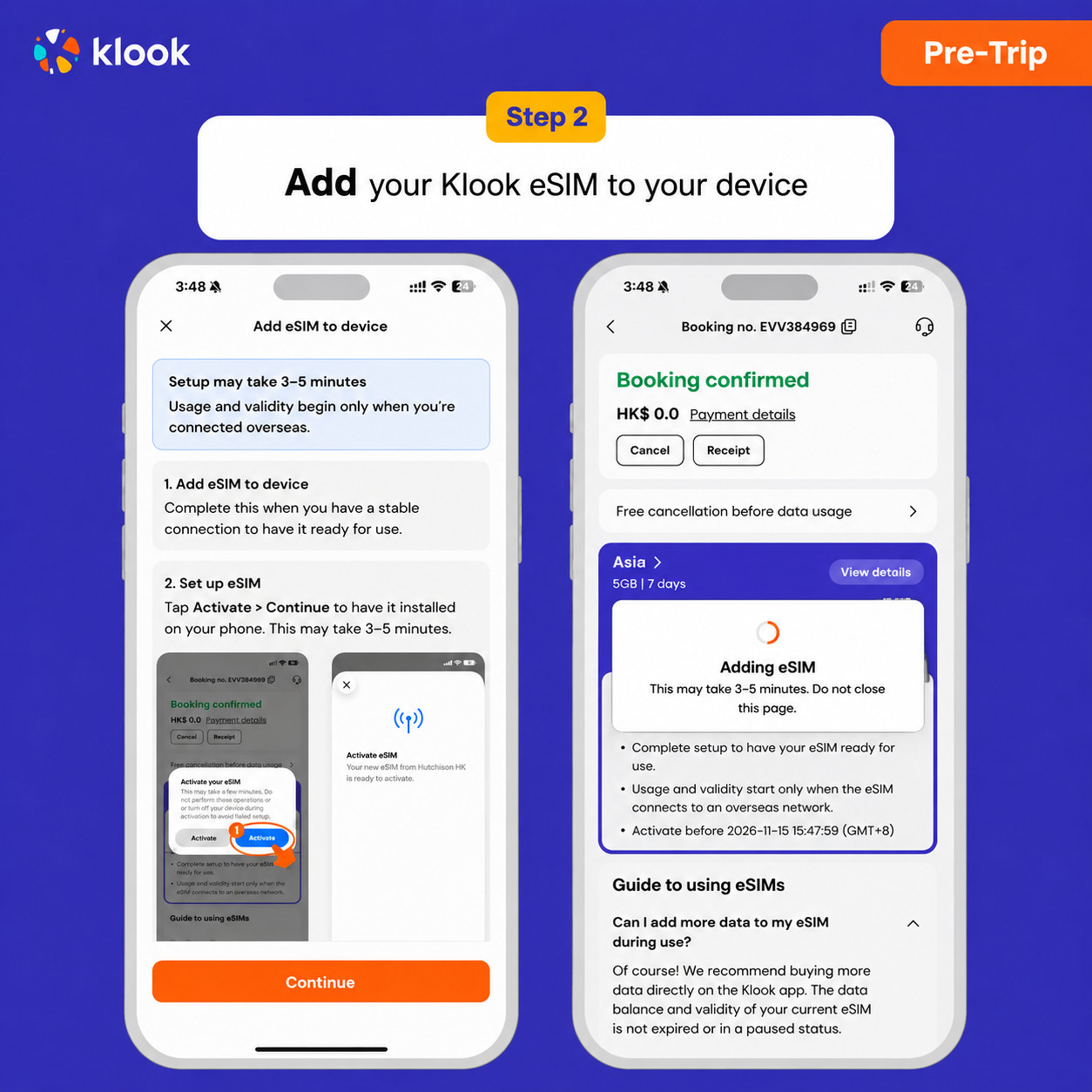
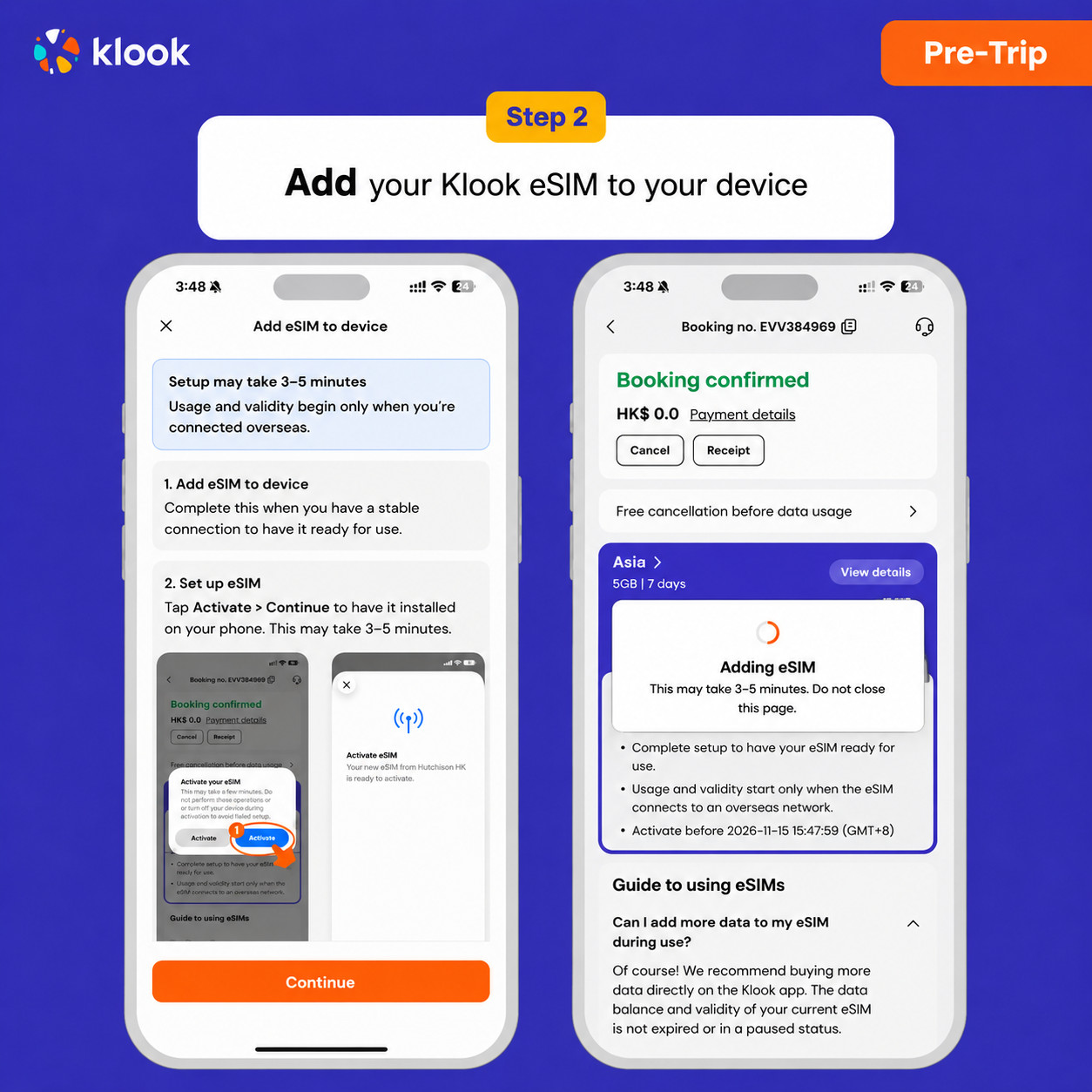
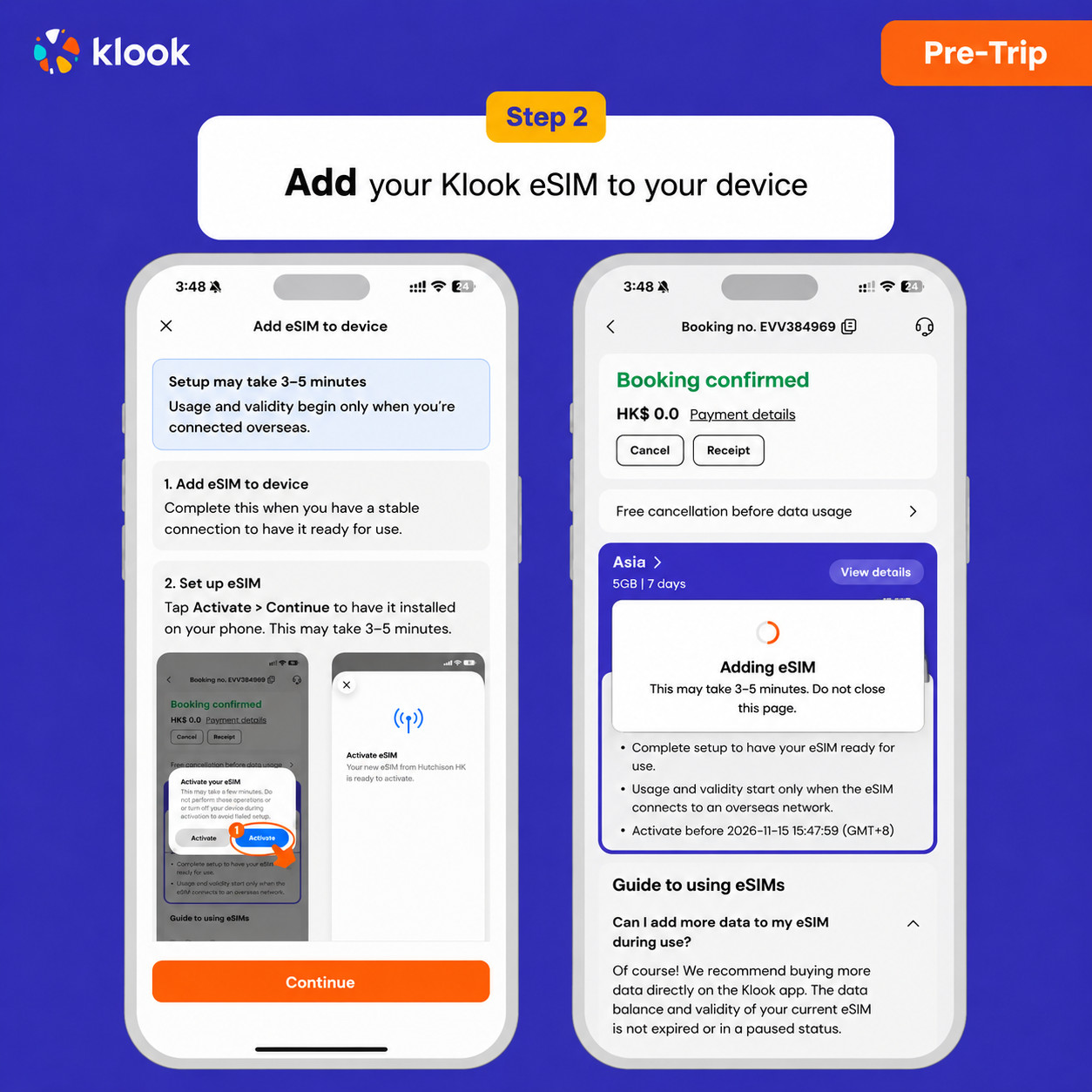
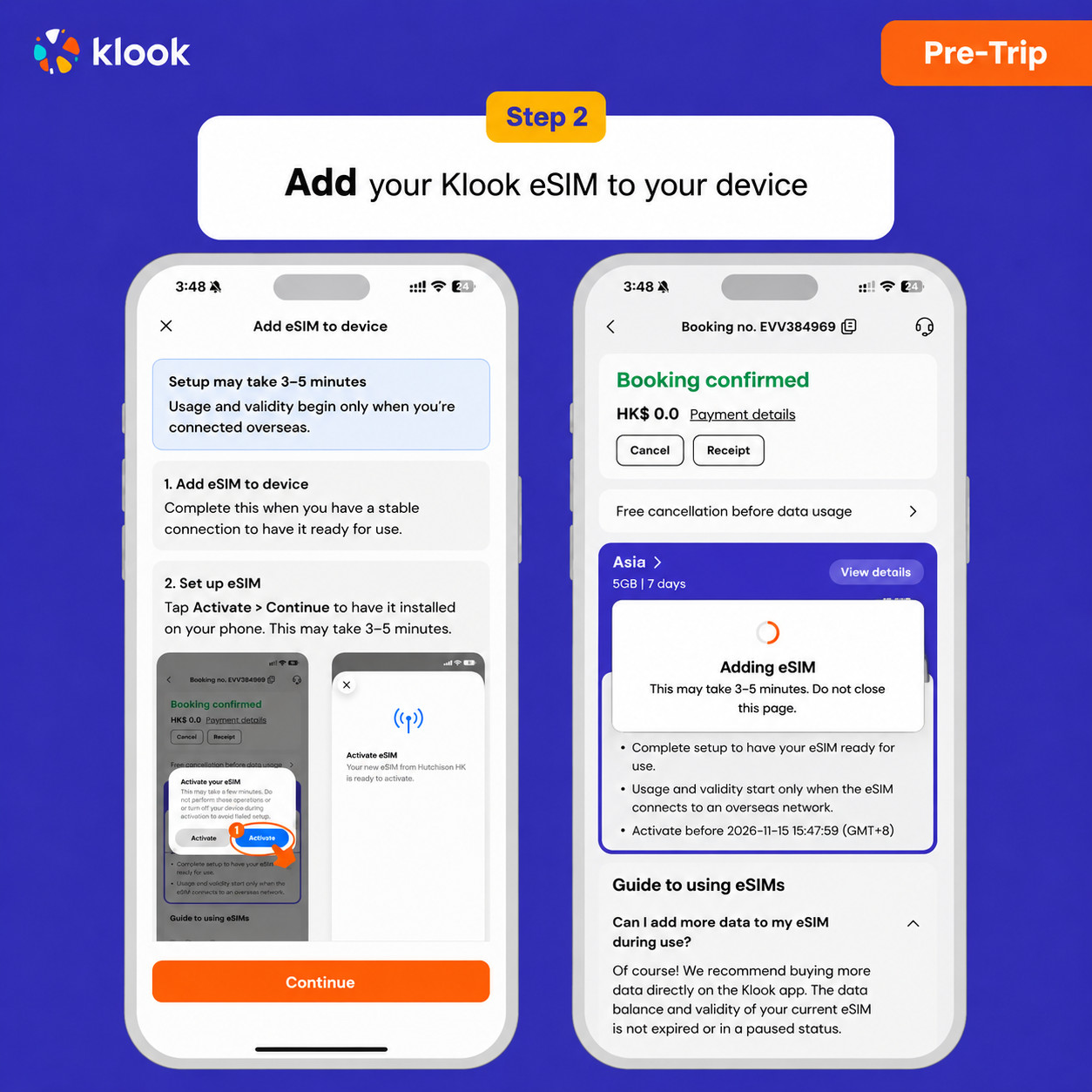
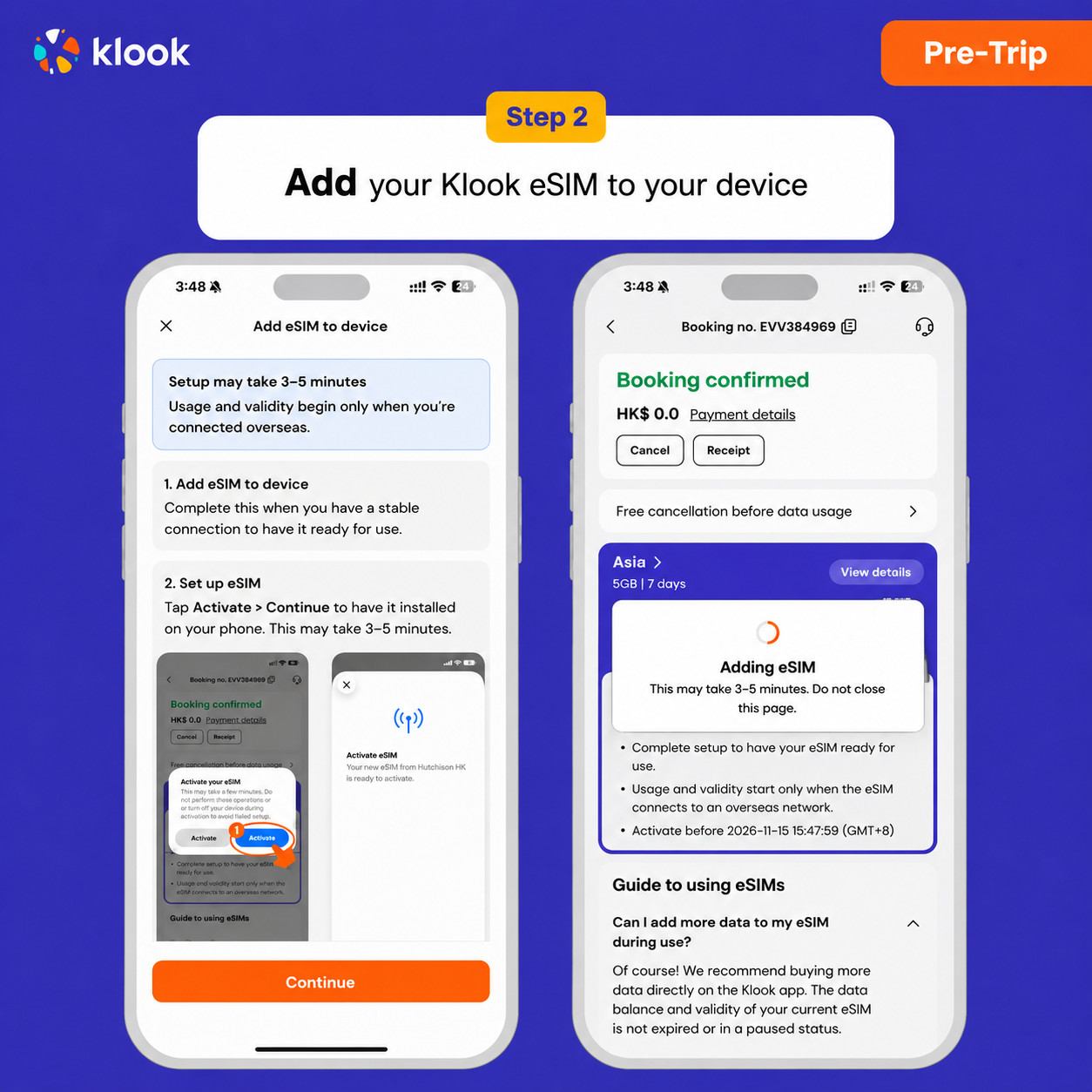
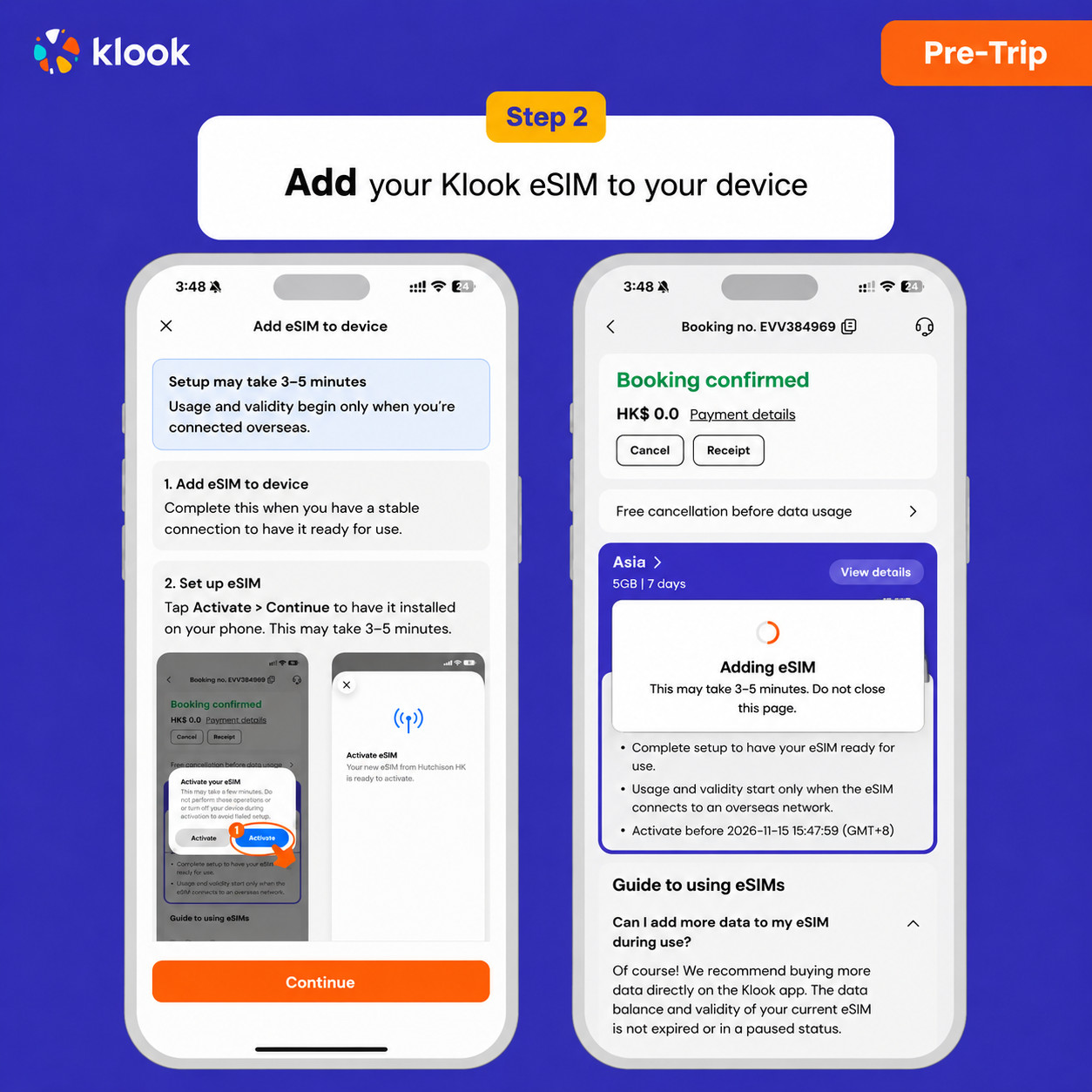
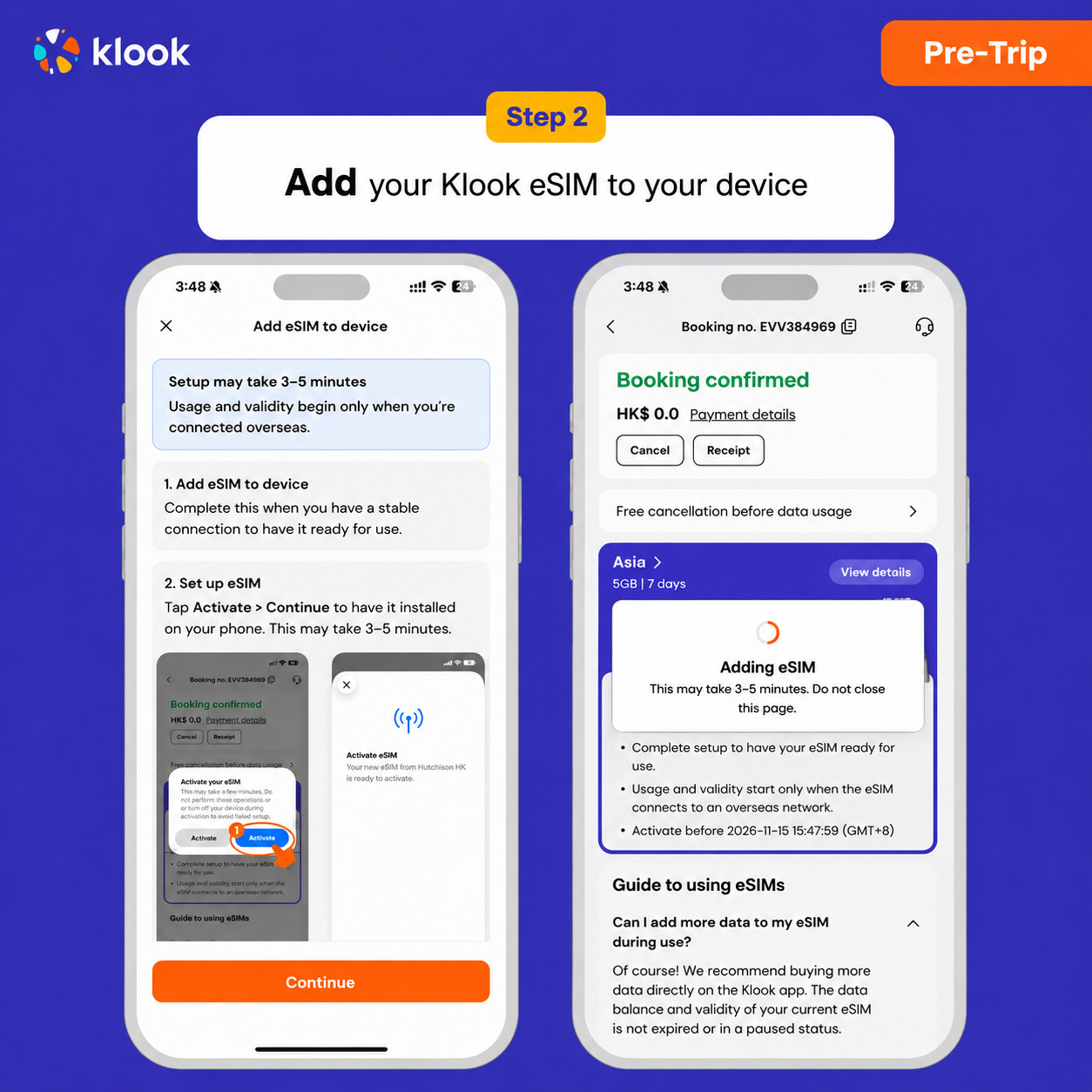
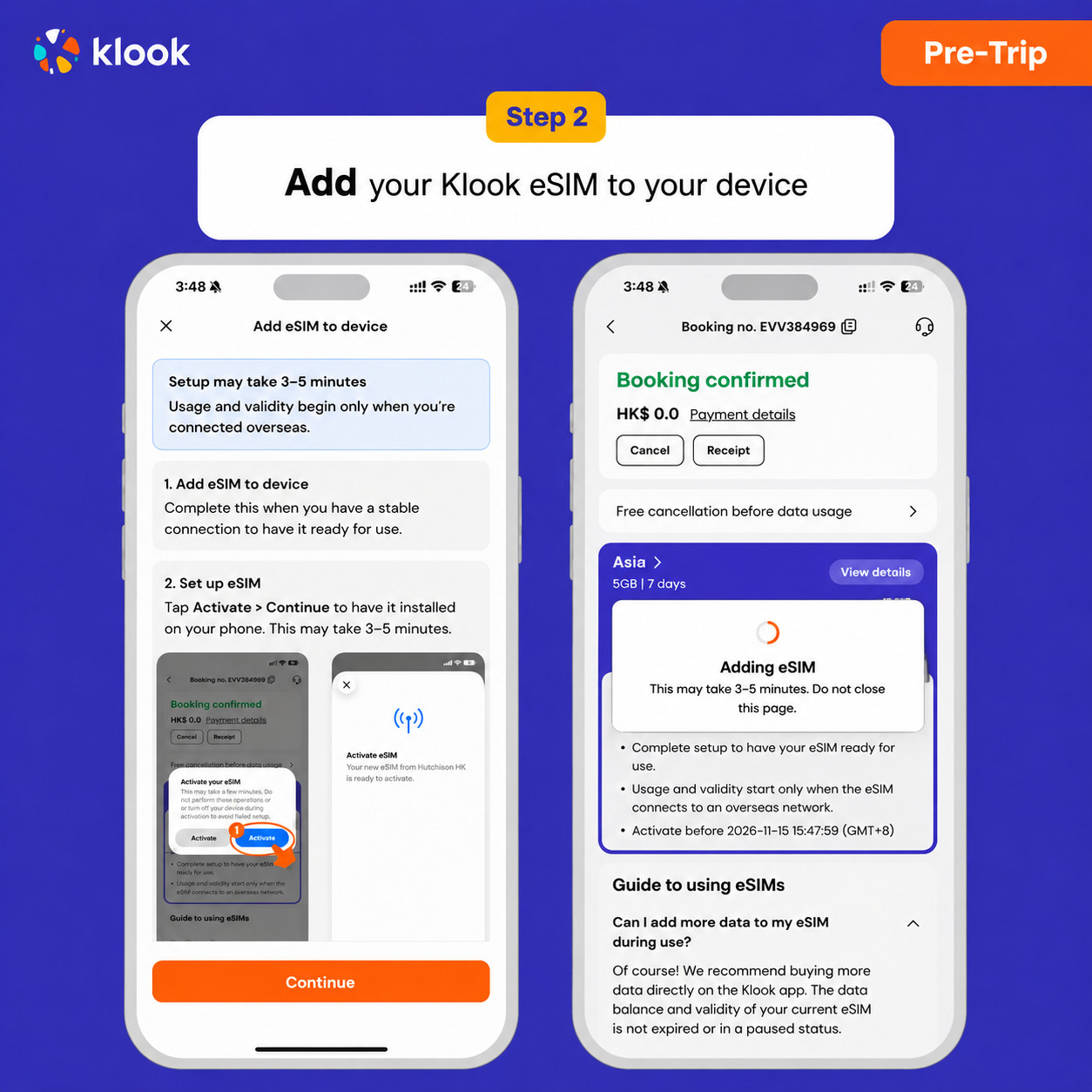
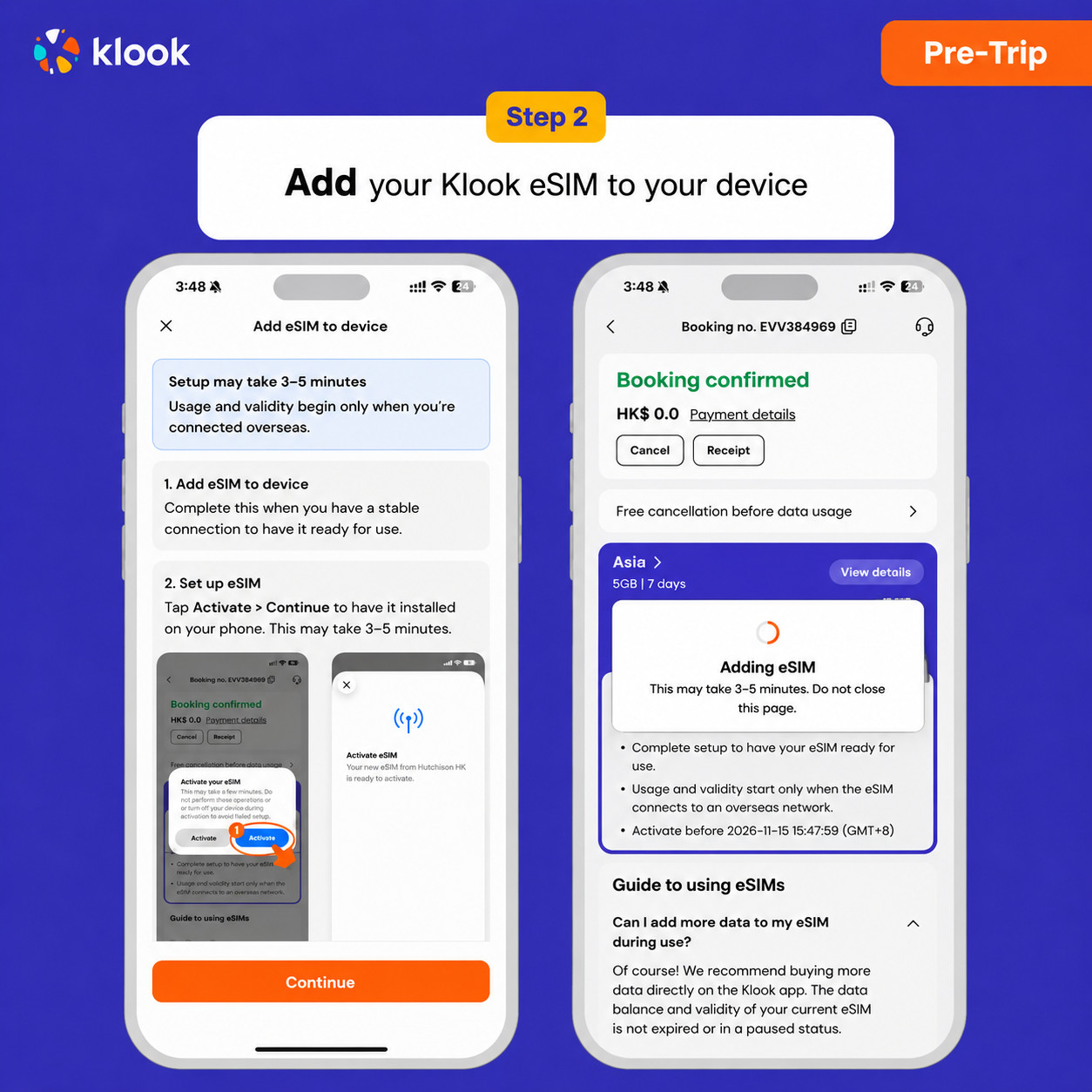
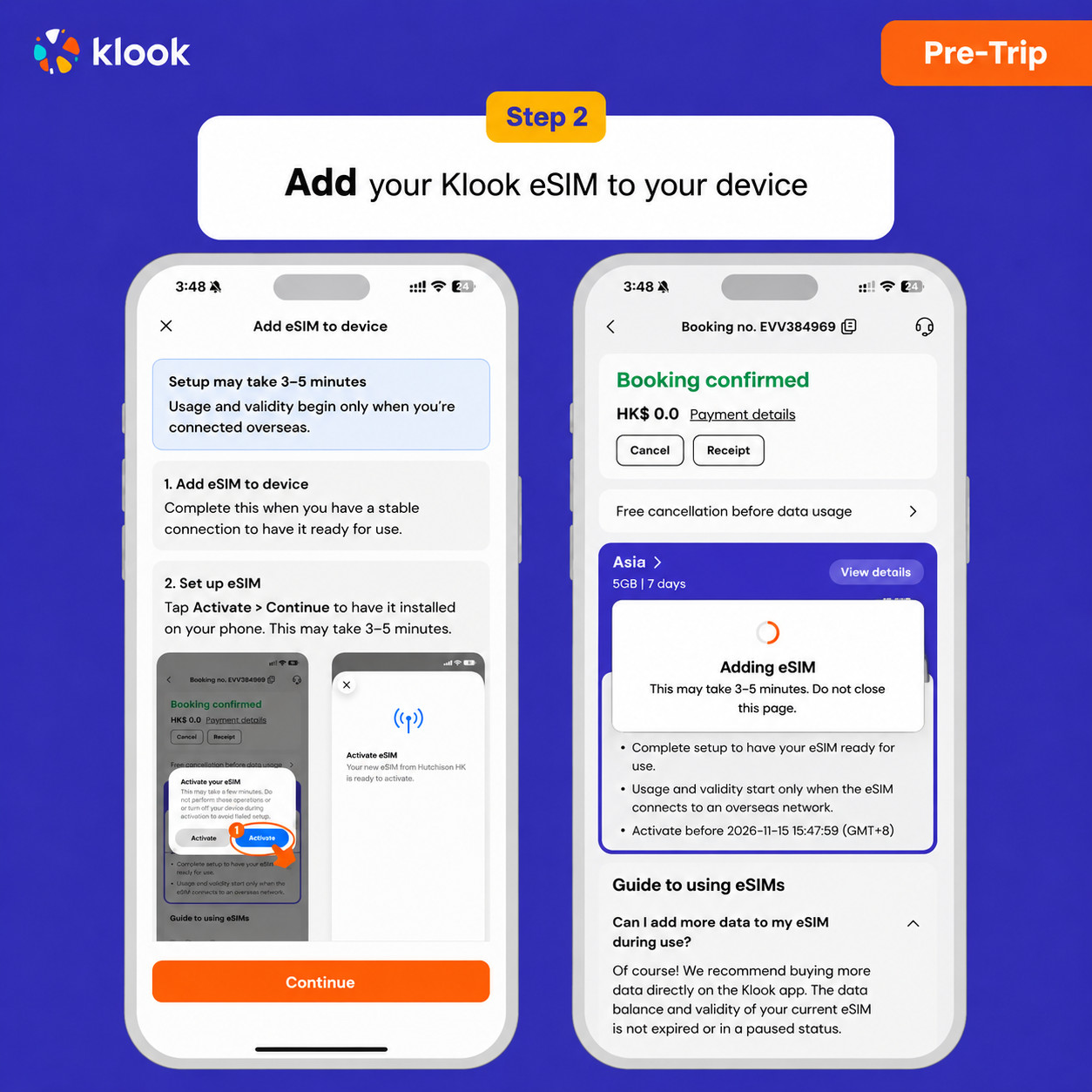
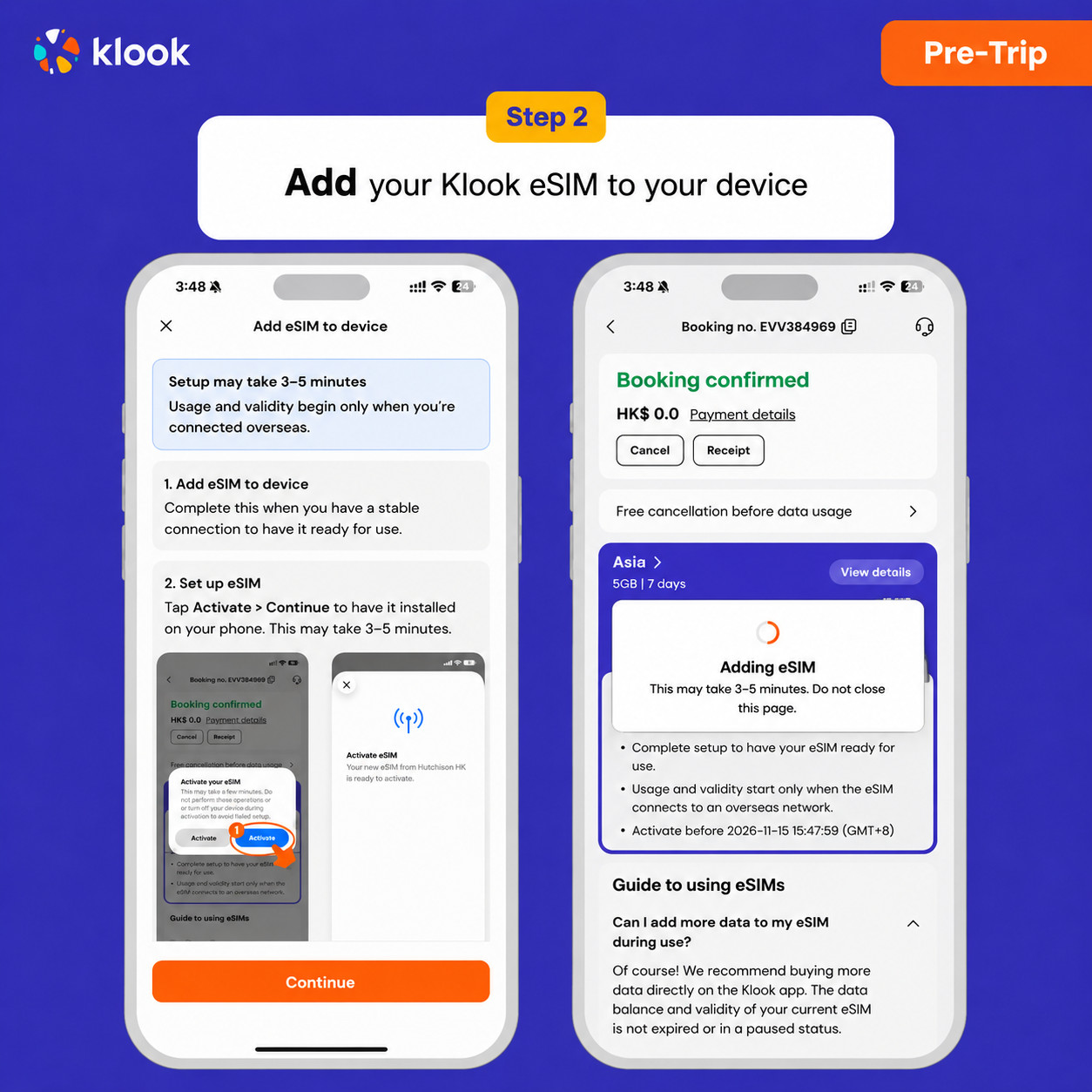
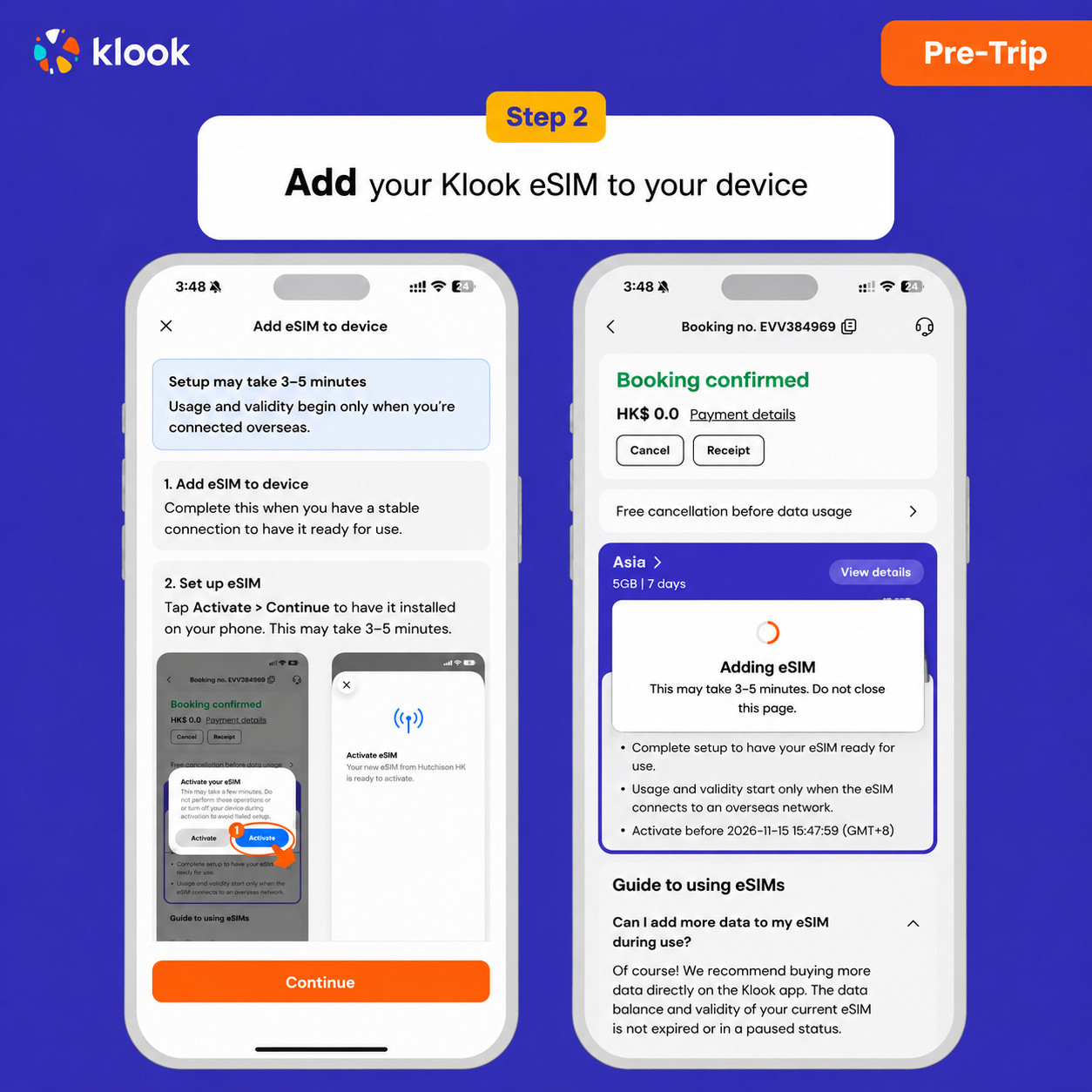
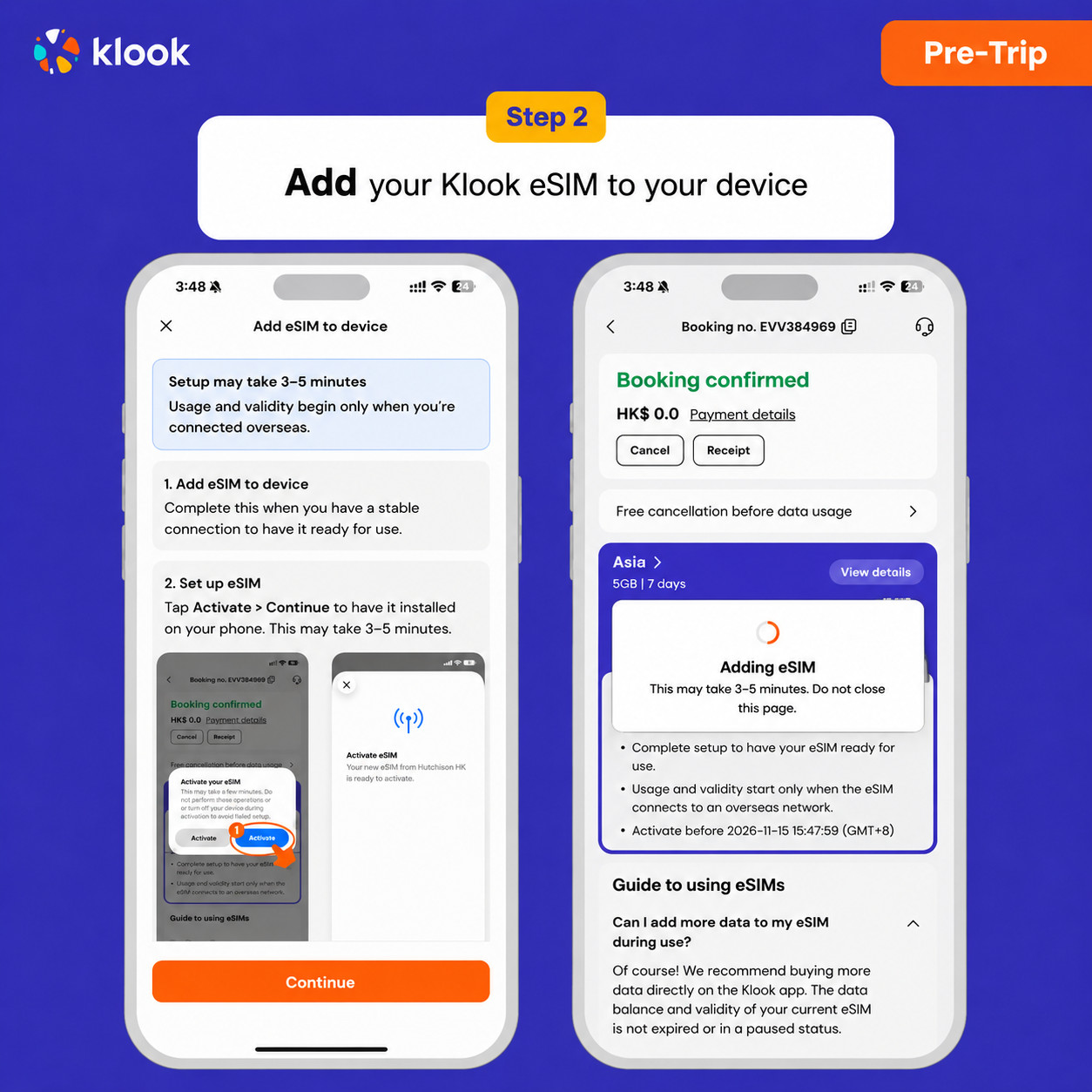
Klook eSIM ilovada faollashtirish
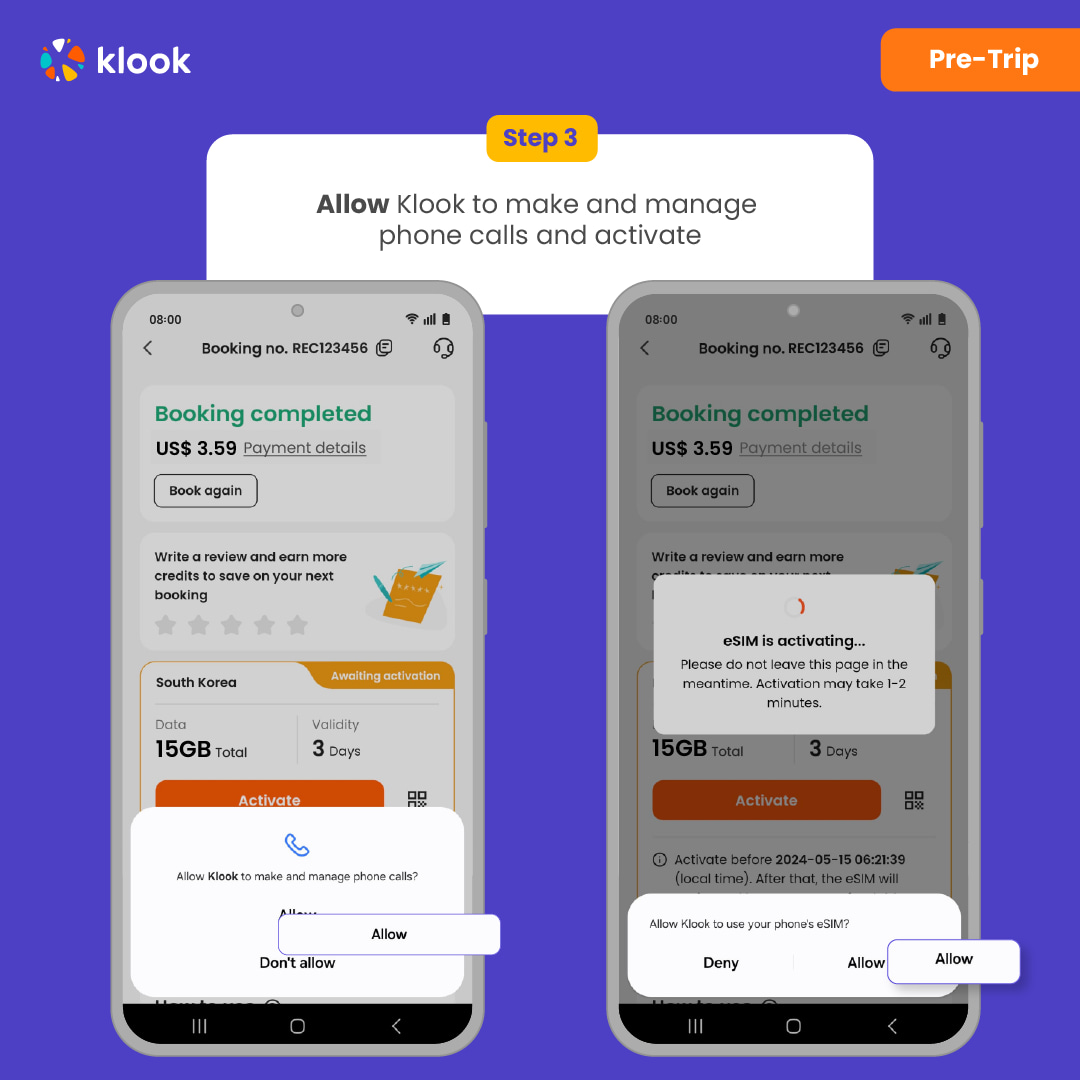
eSIM o‘rnatilishi avtomatik tarzda boshlanadi
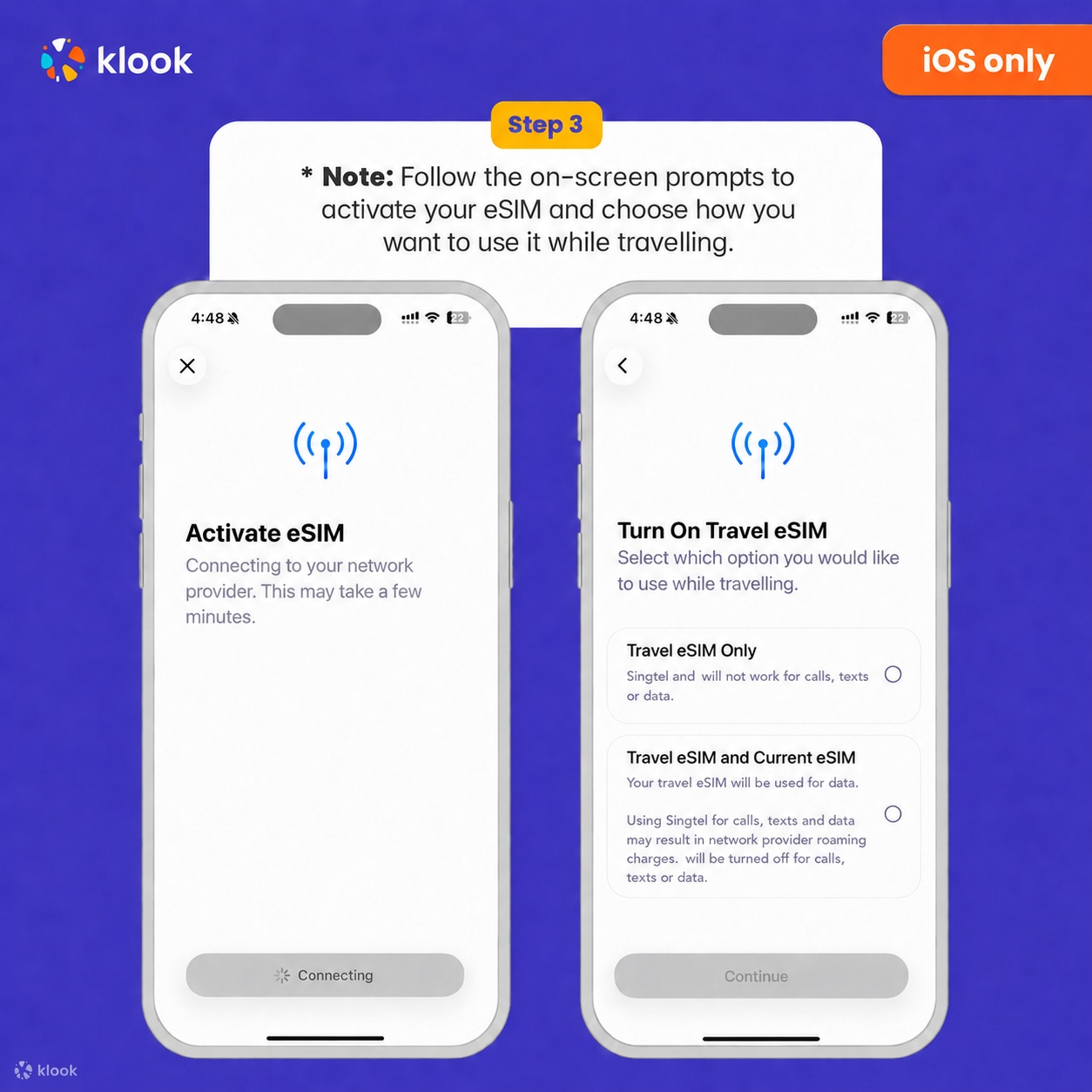
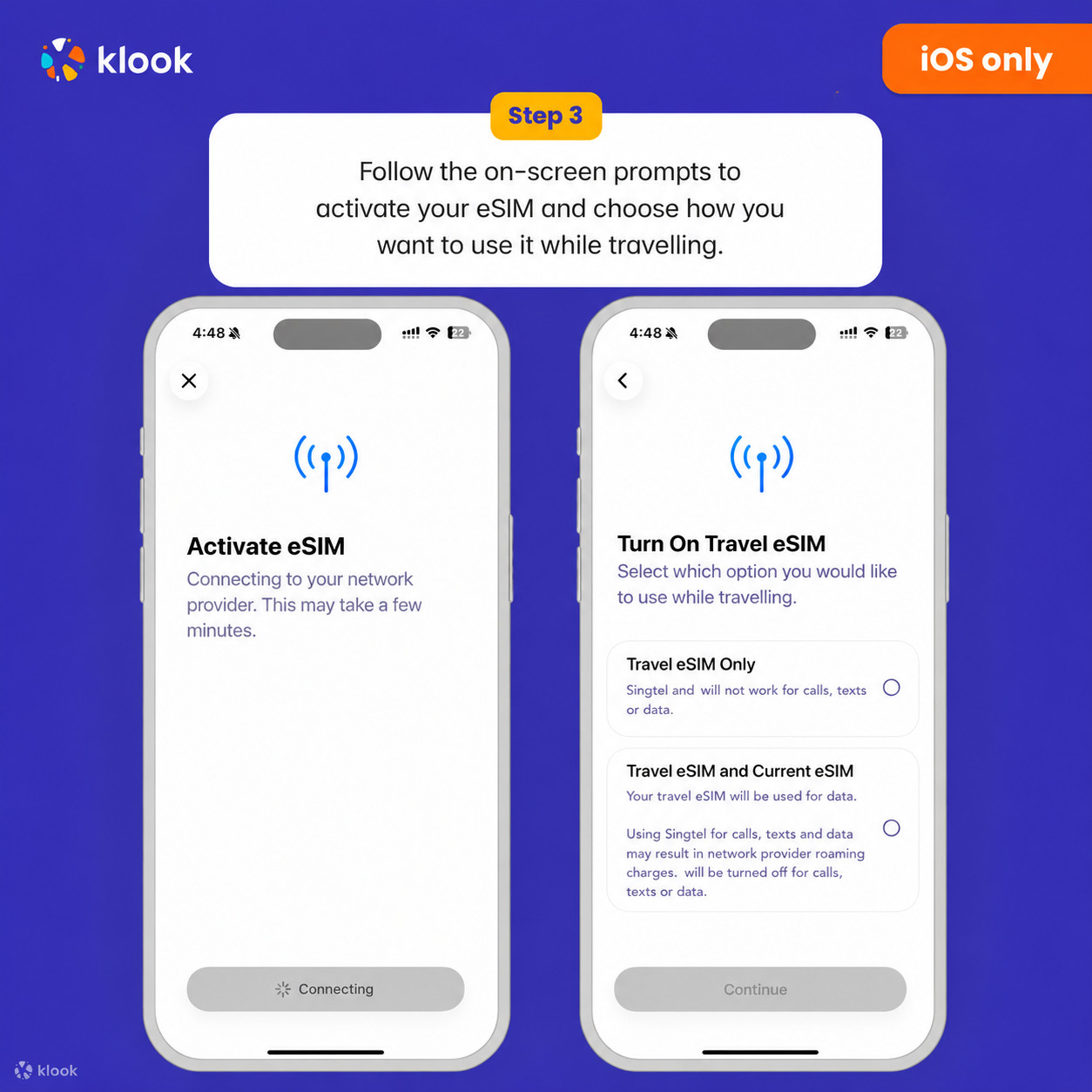
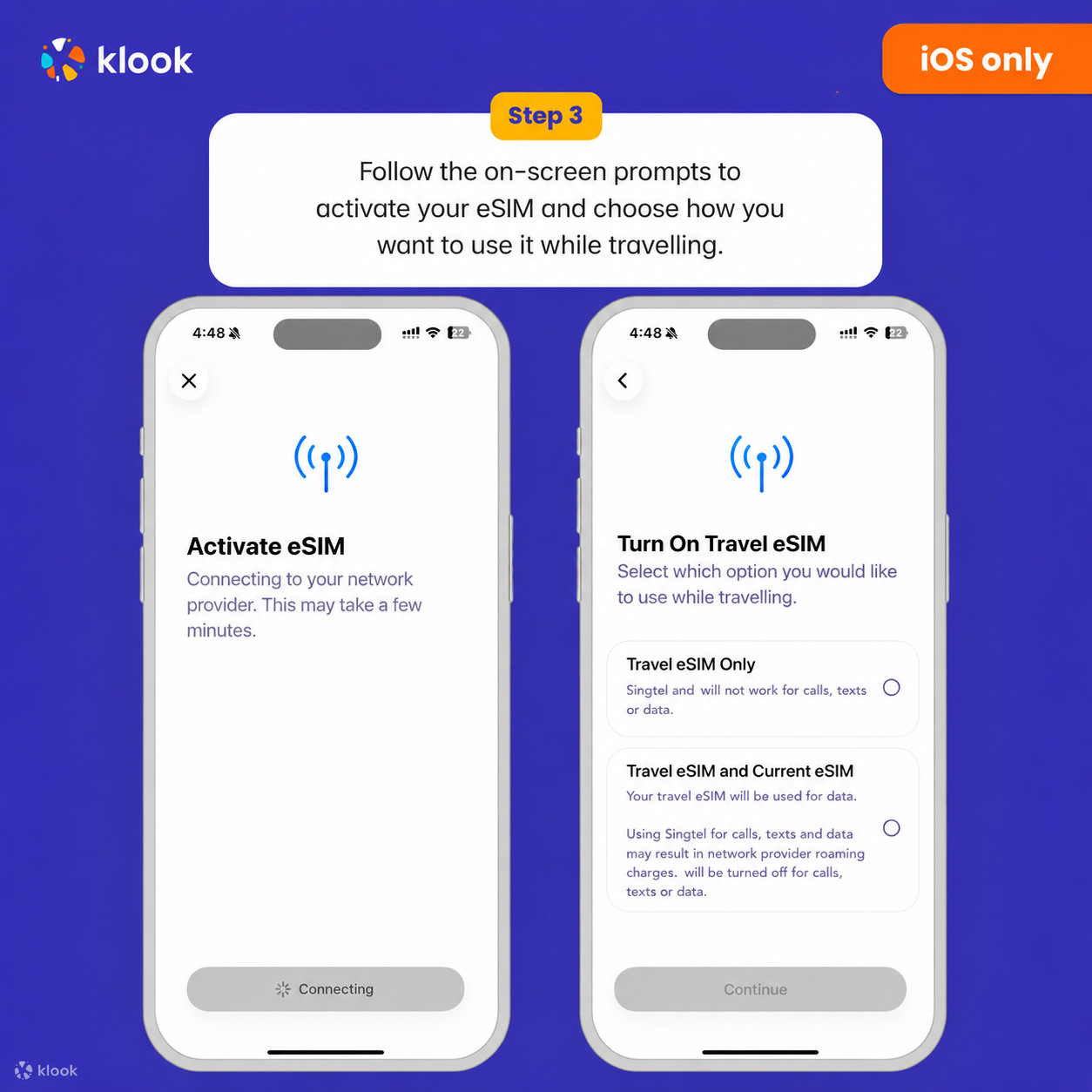
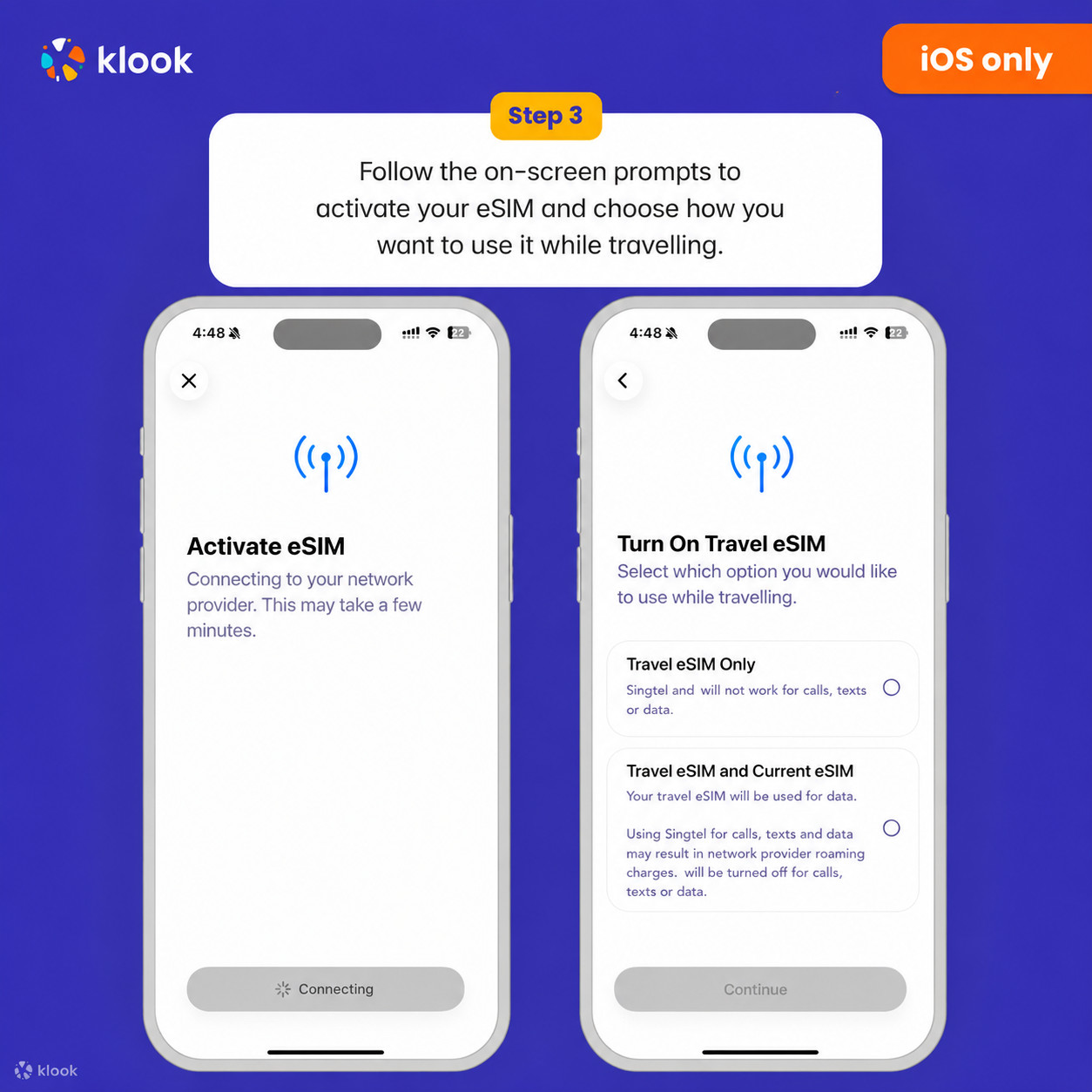
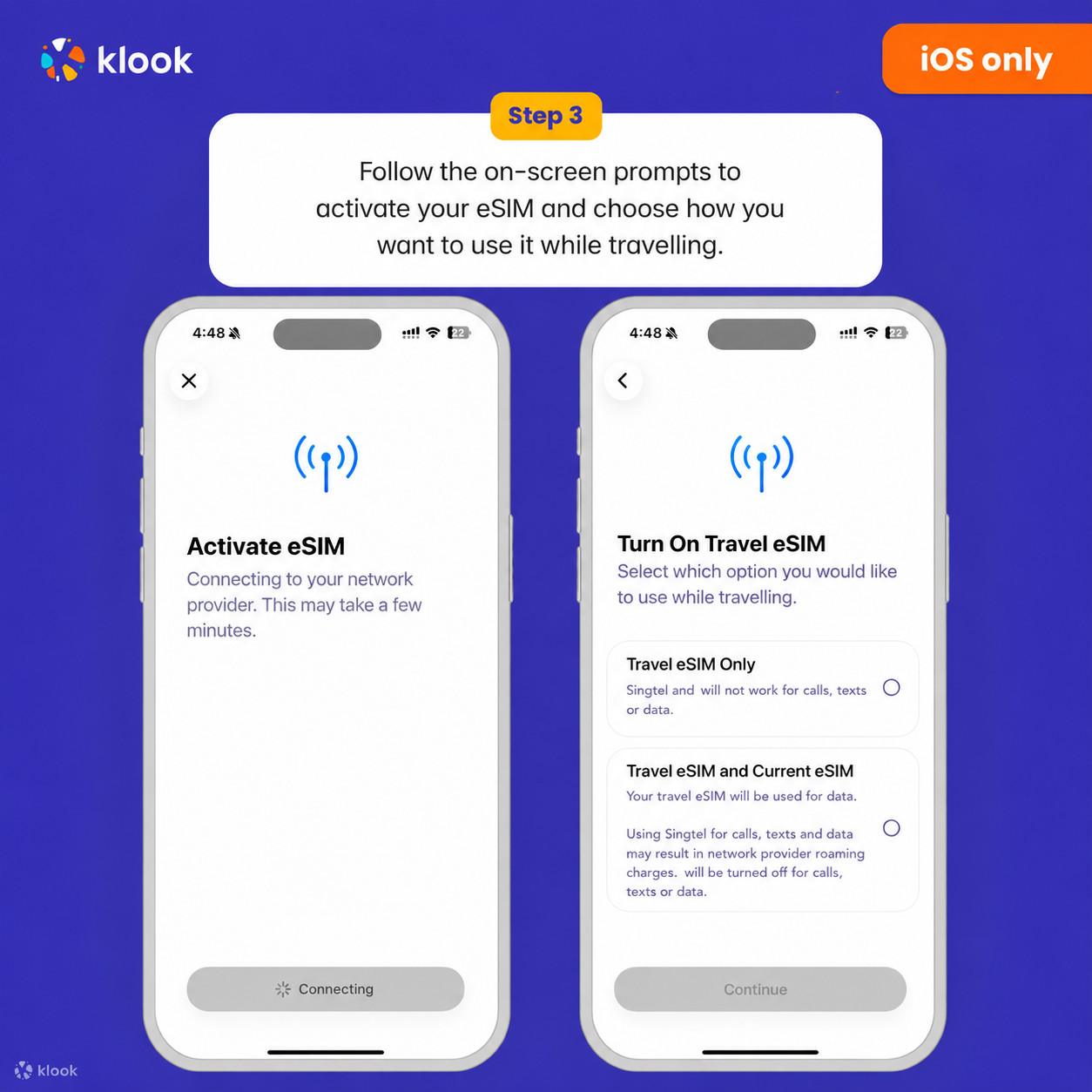
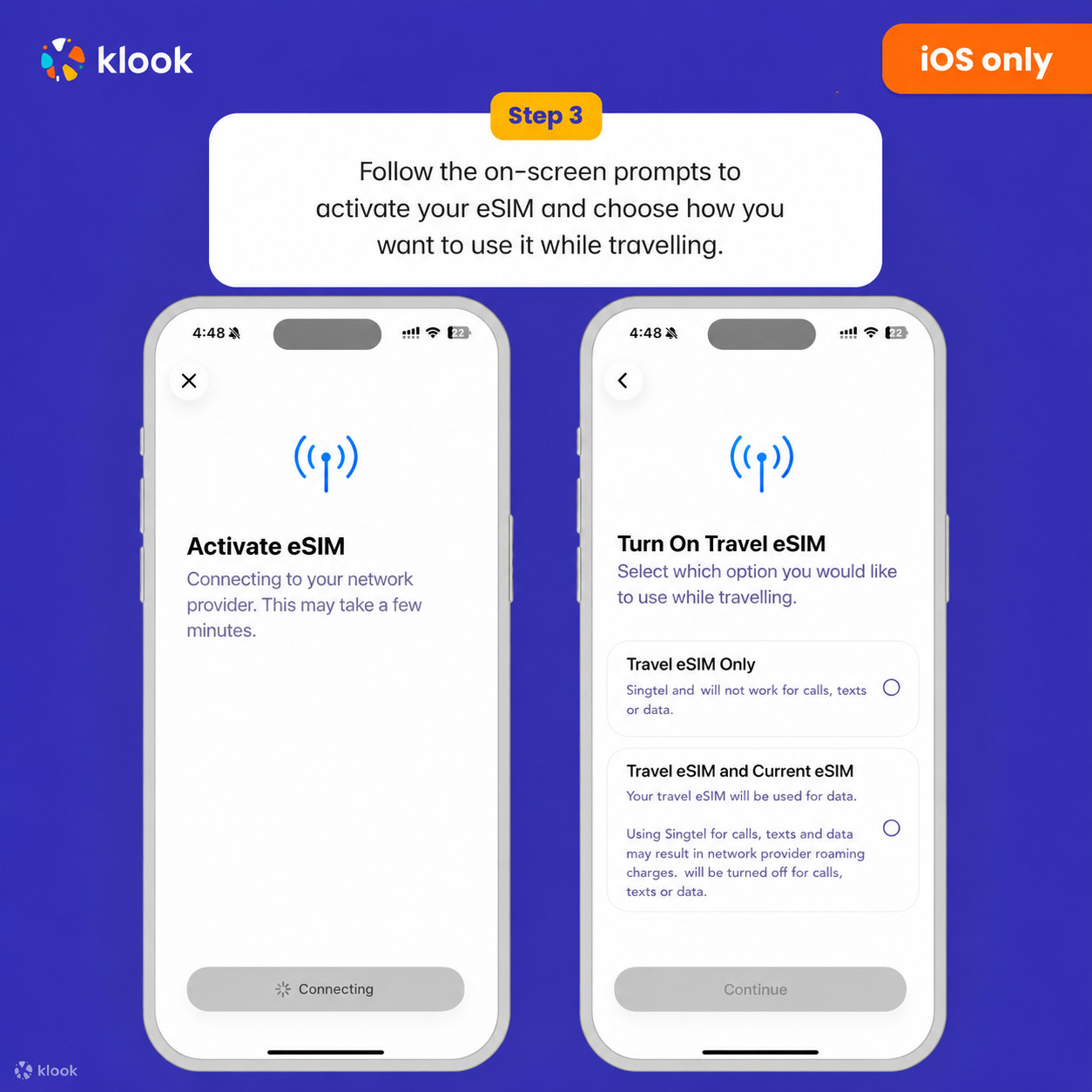
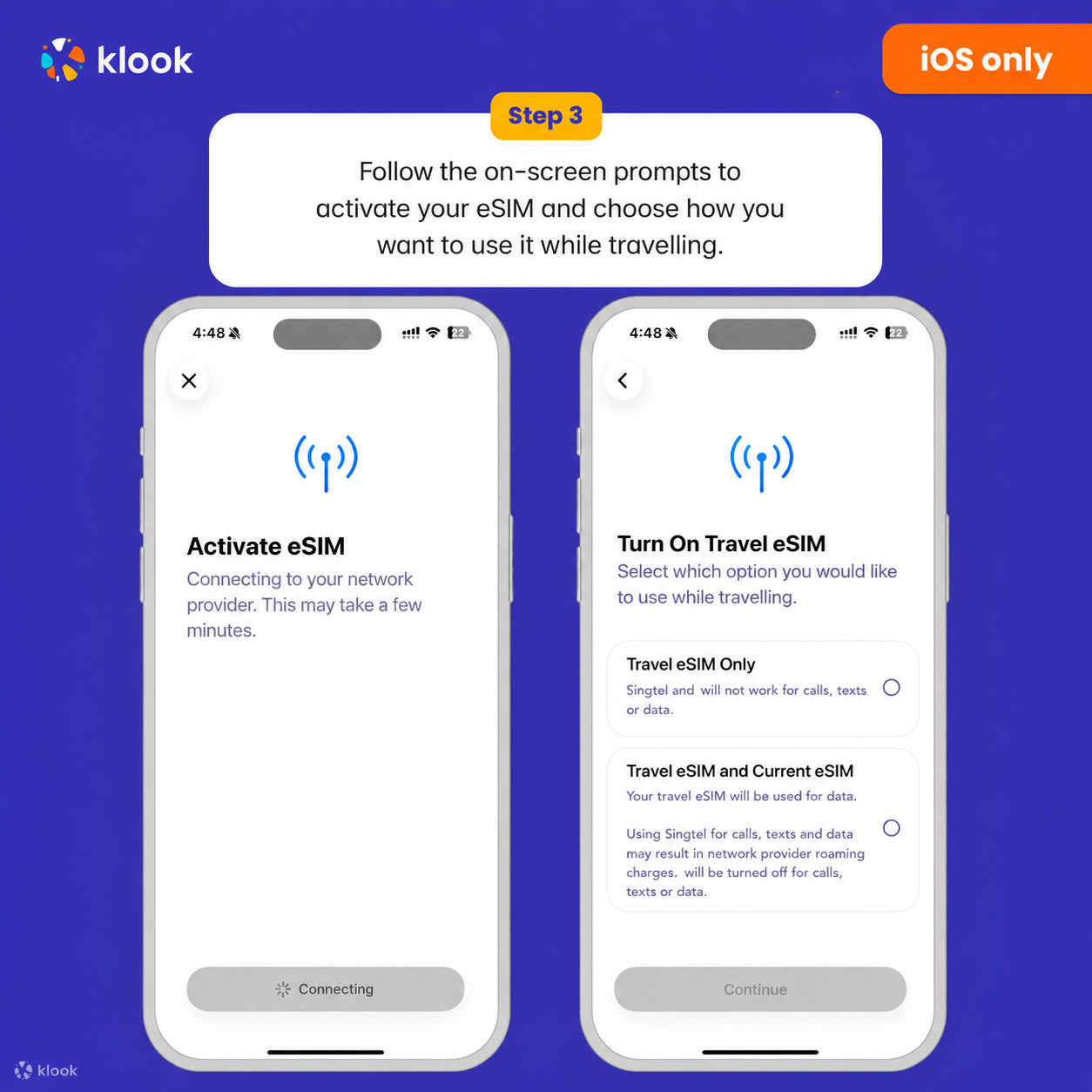
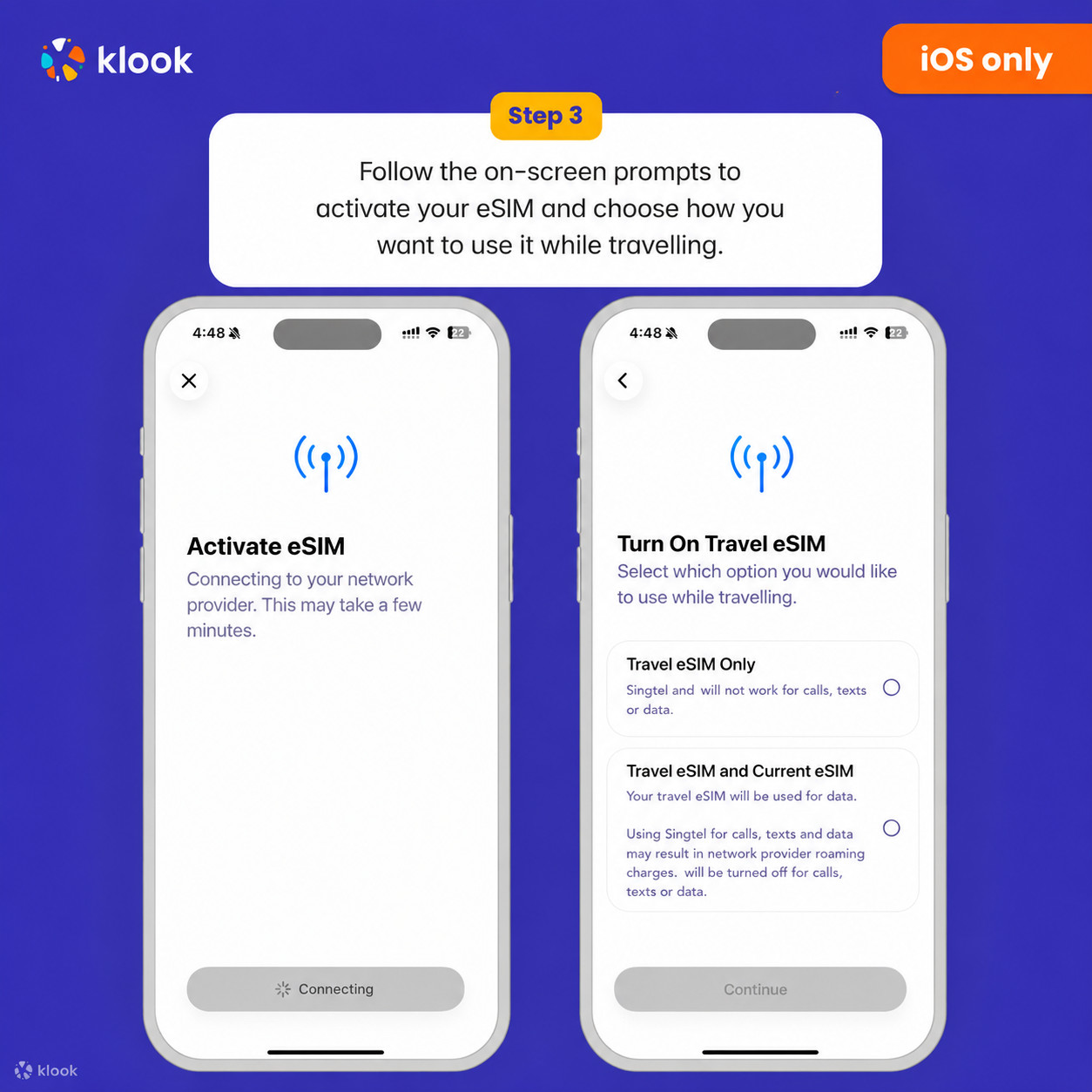
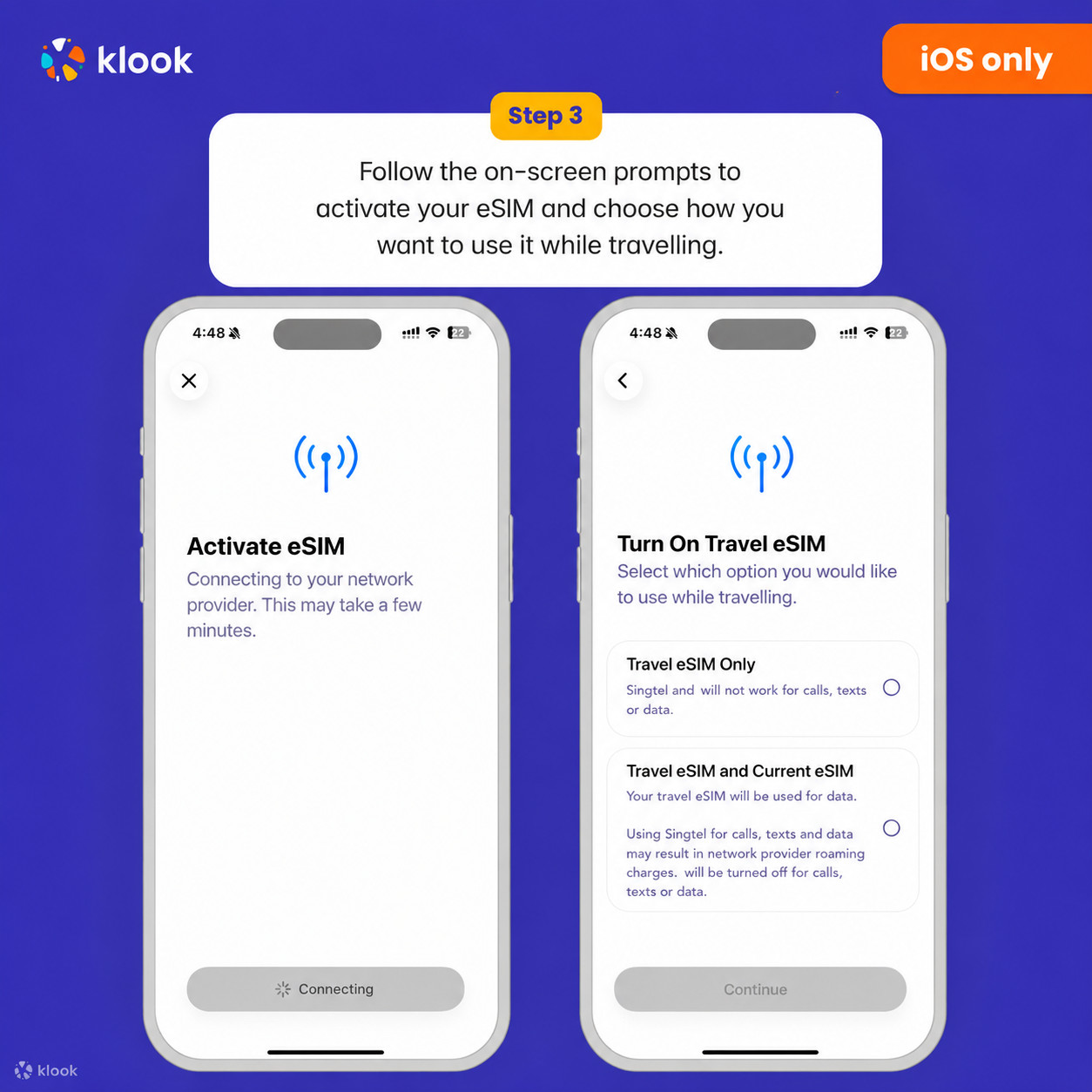
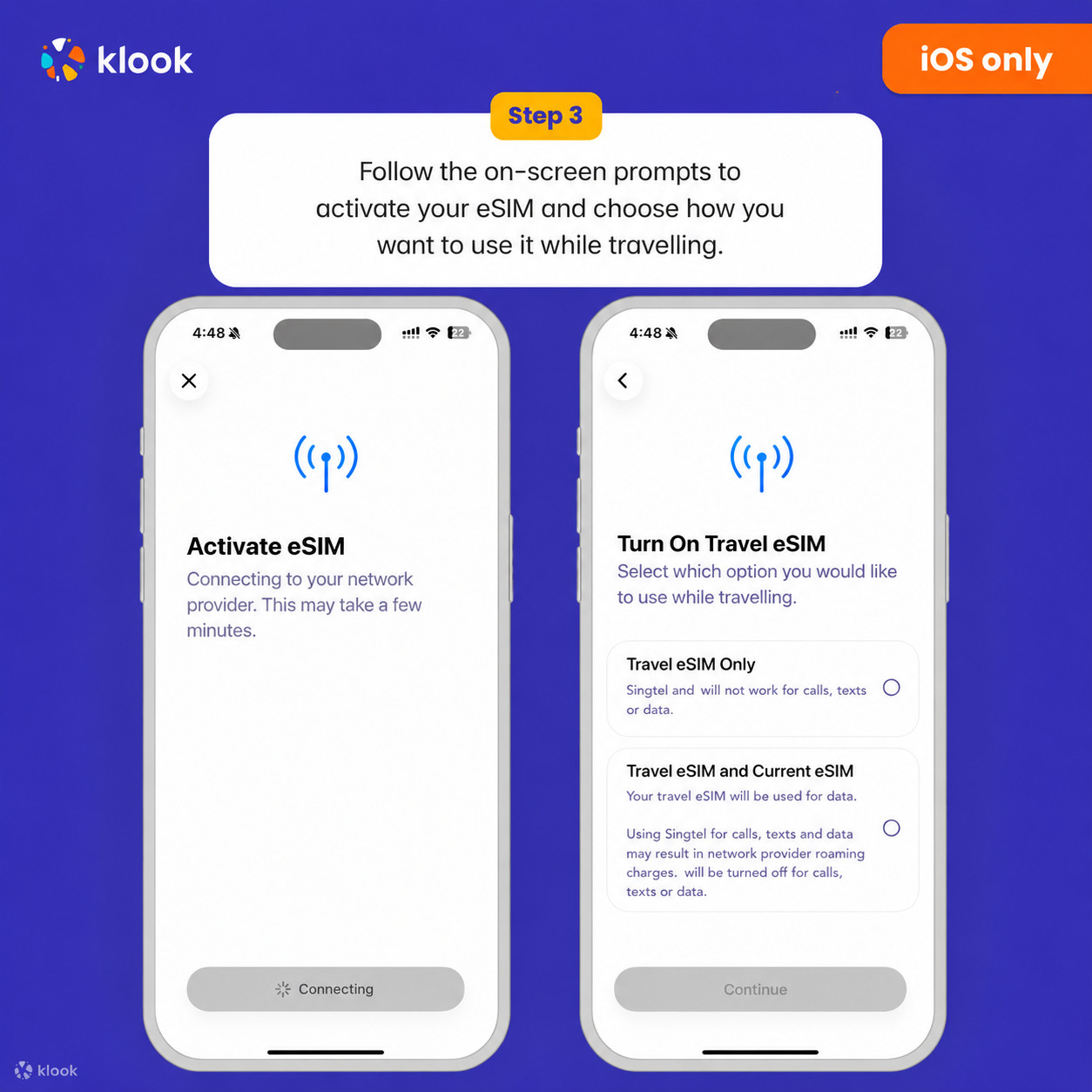
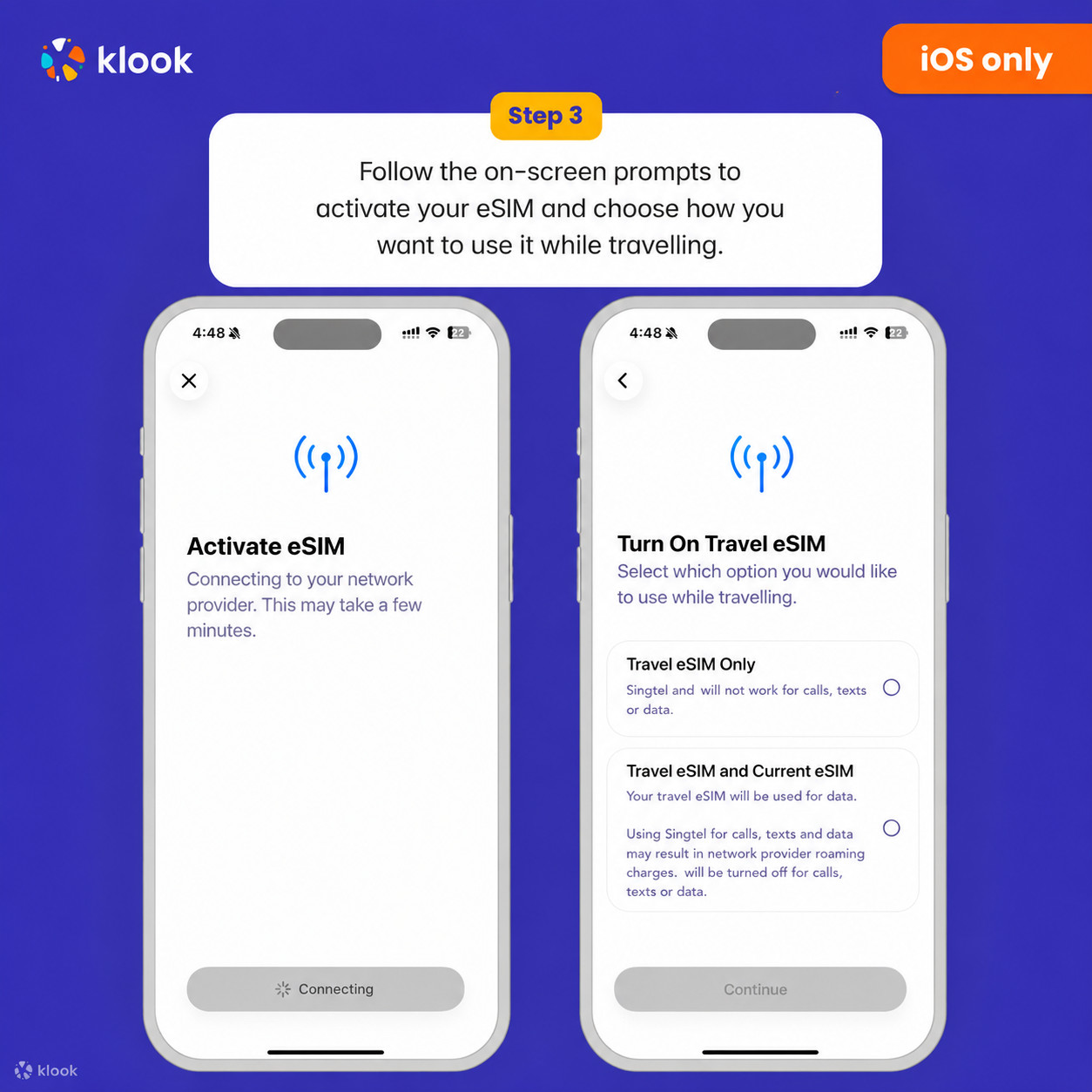
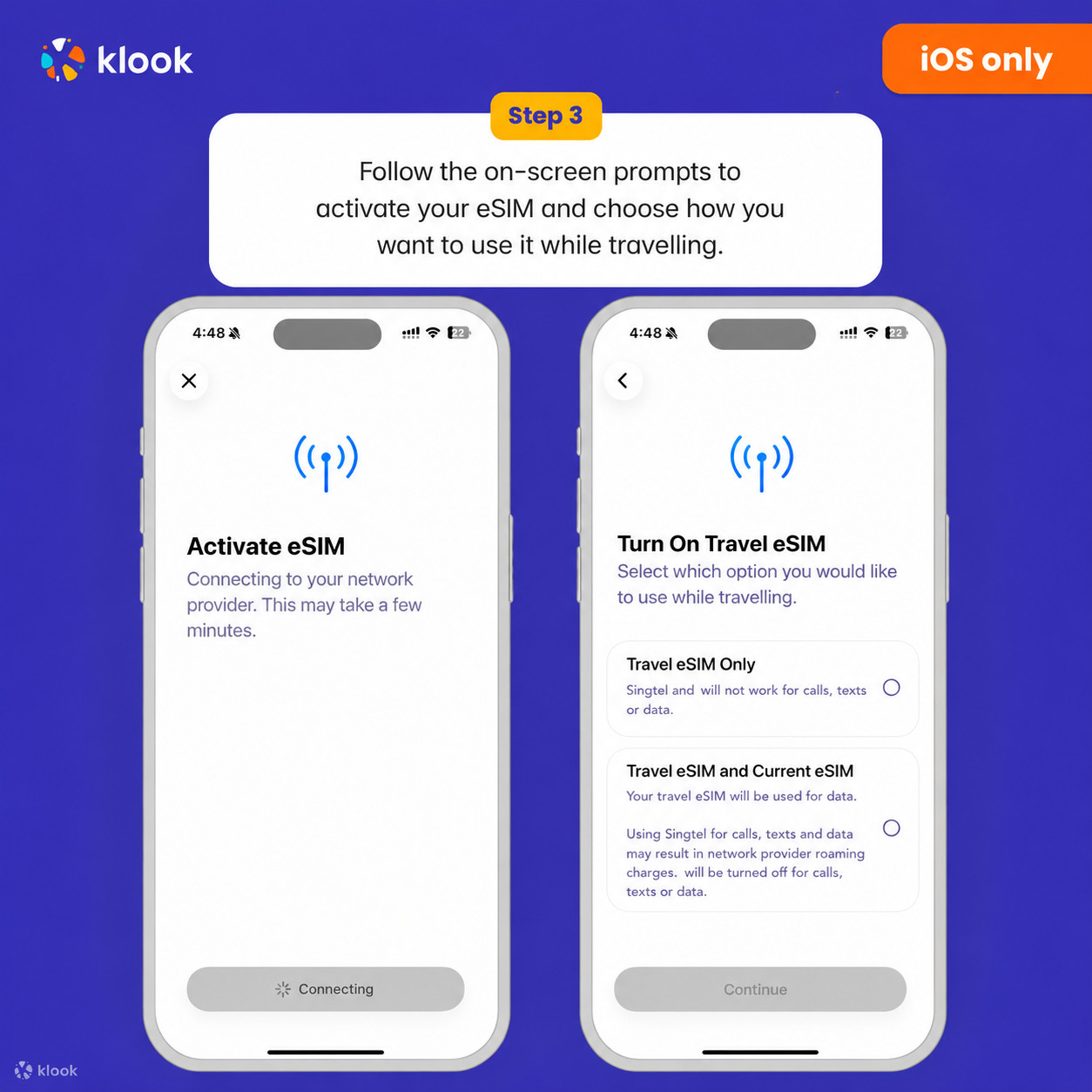
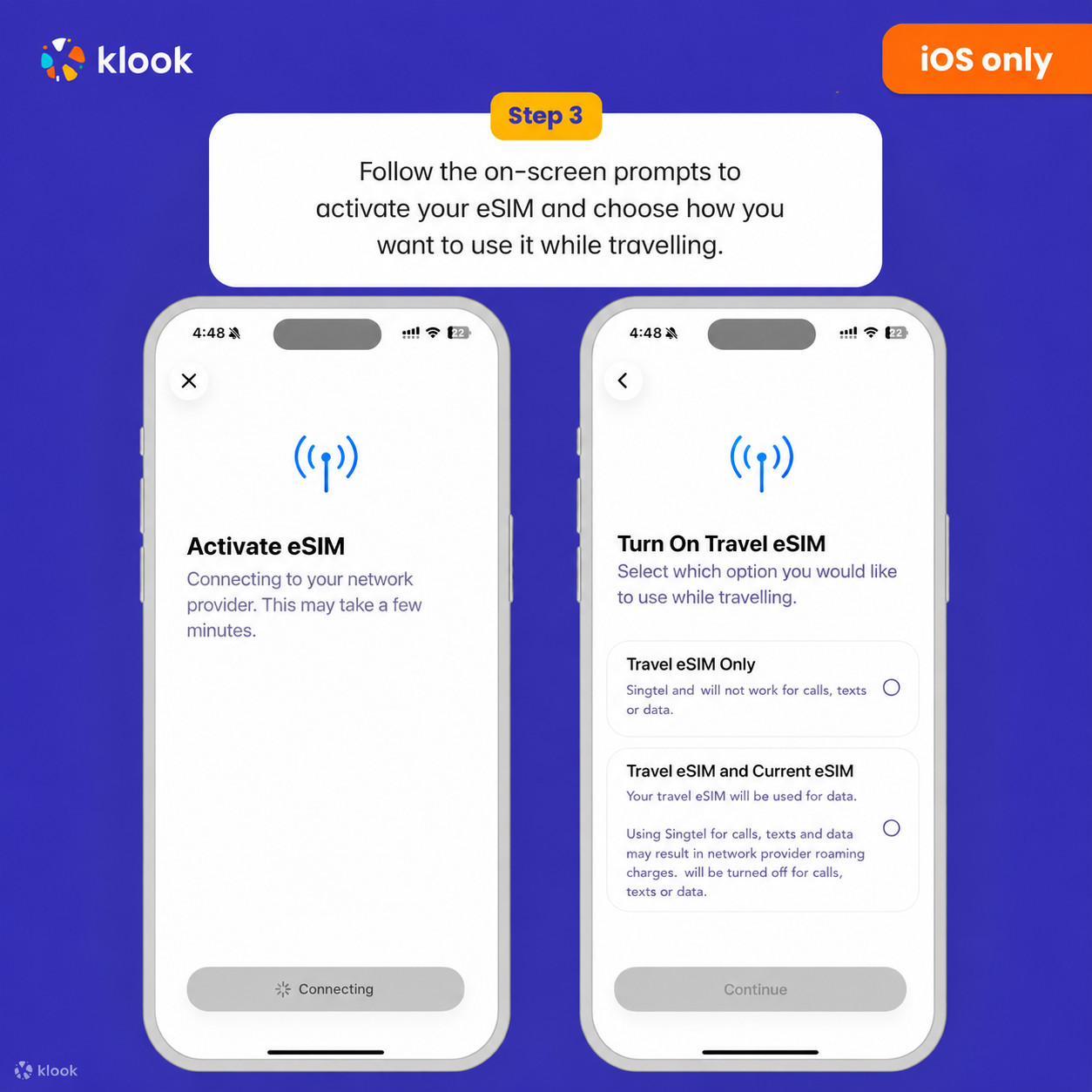
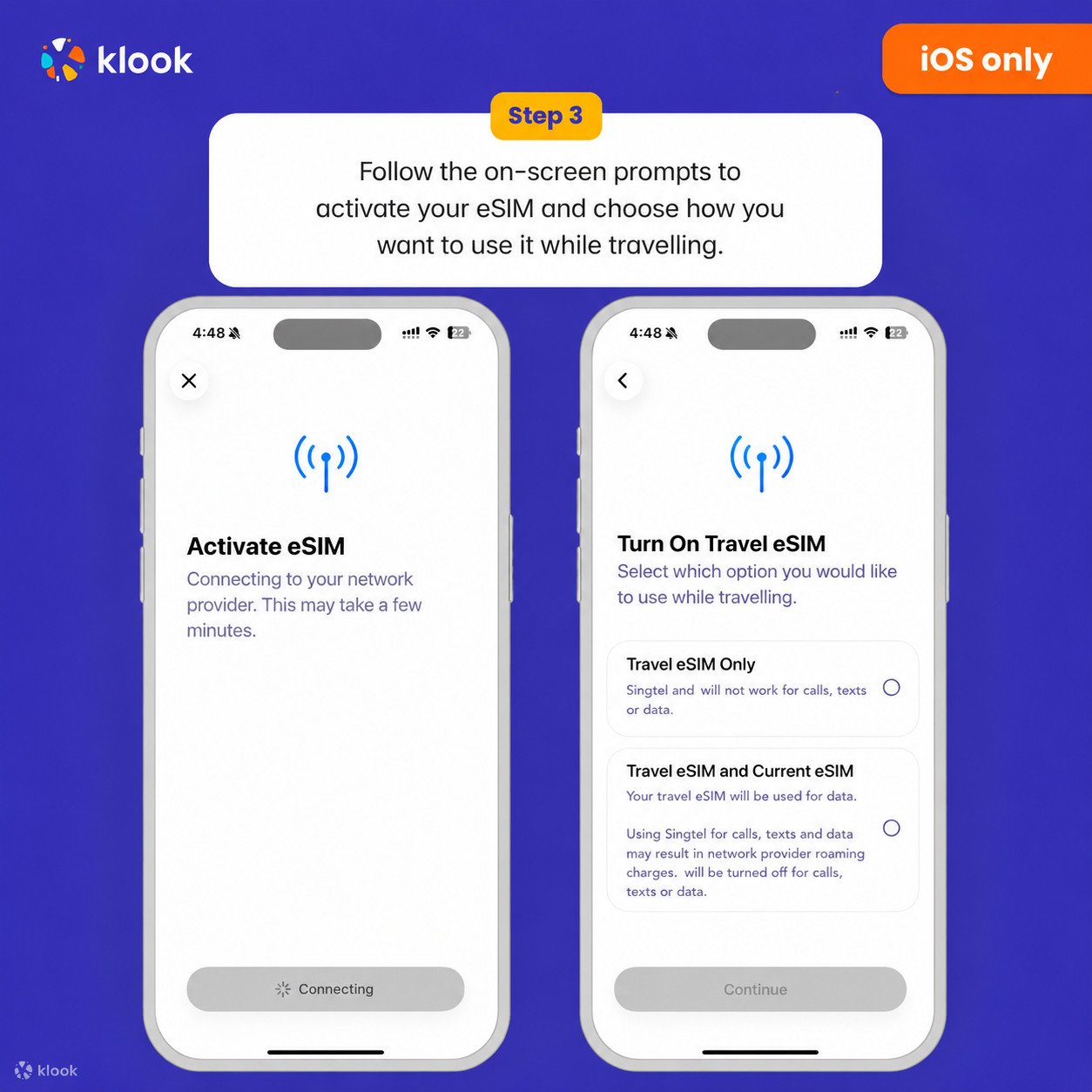
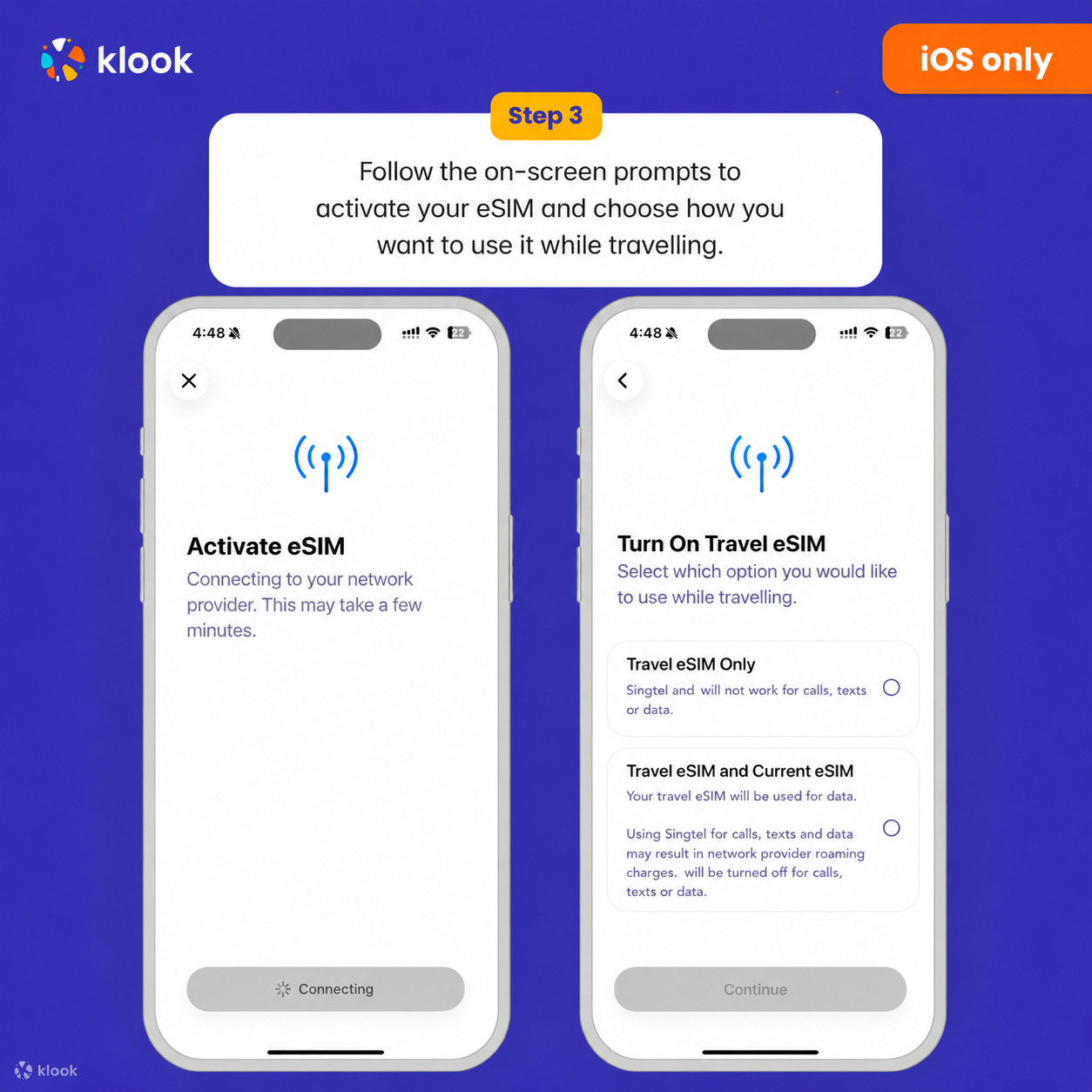
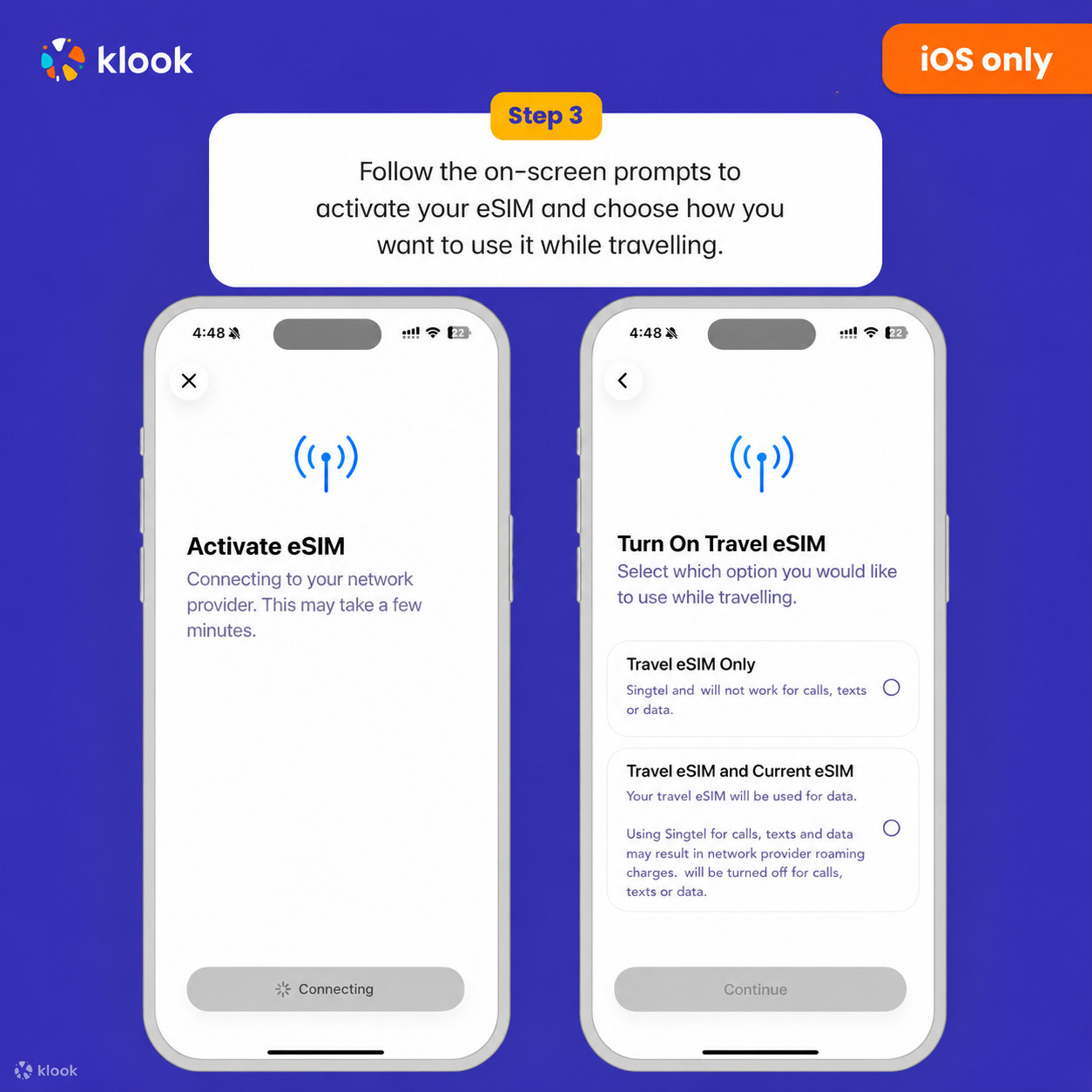
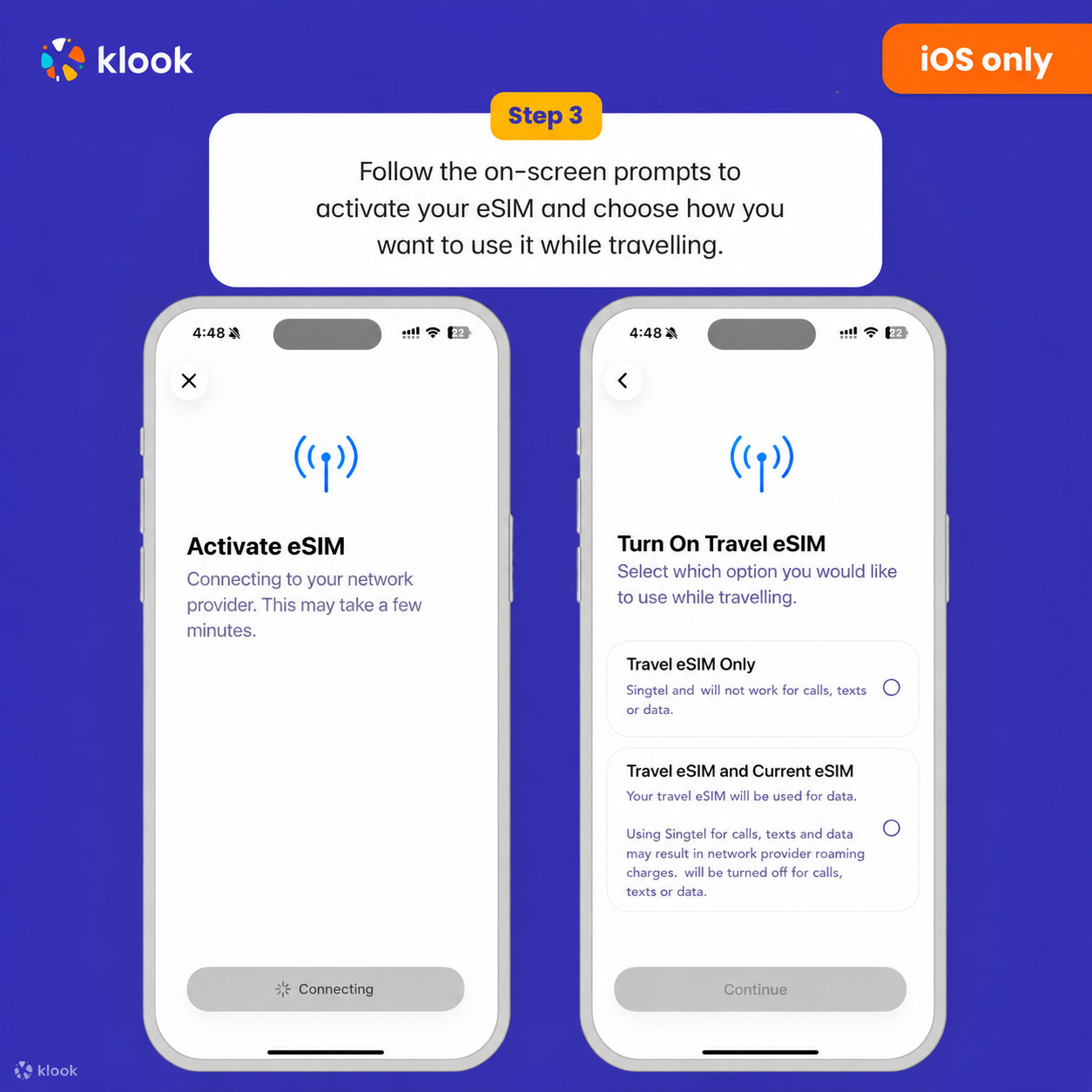
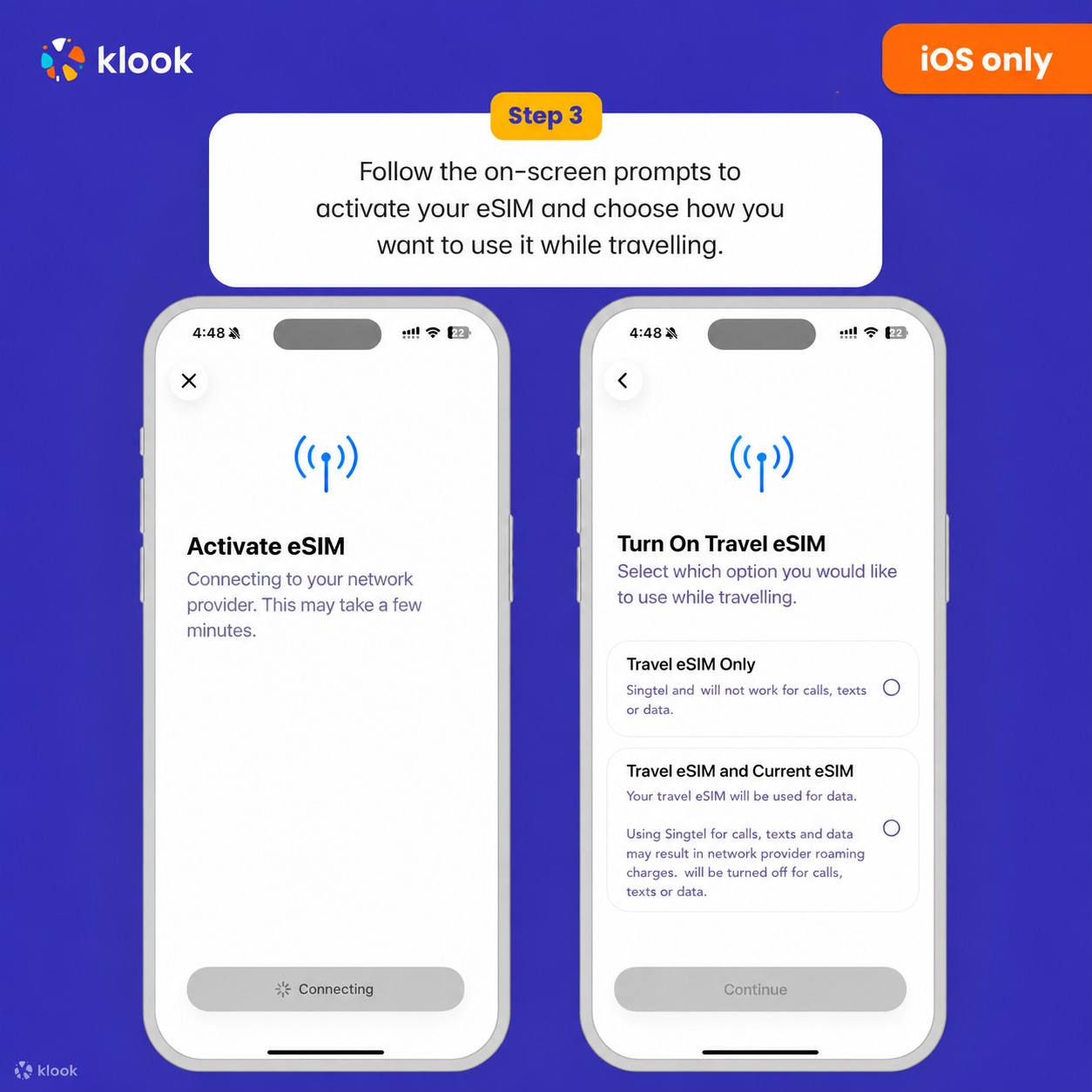
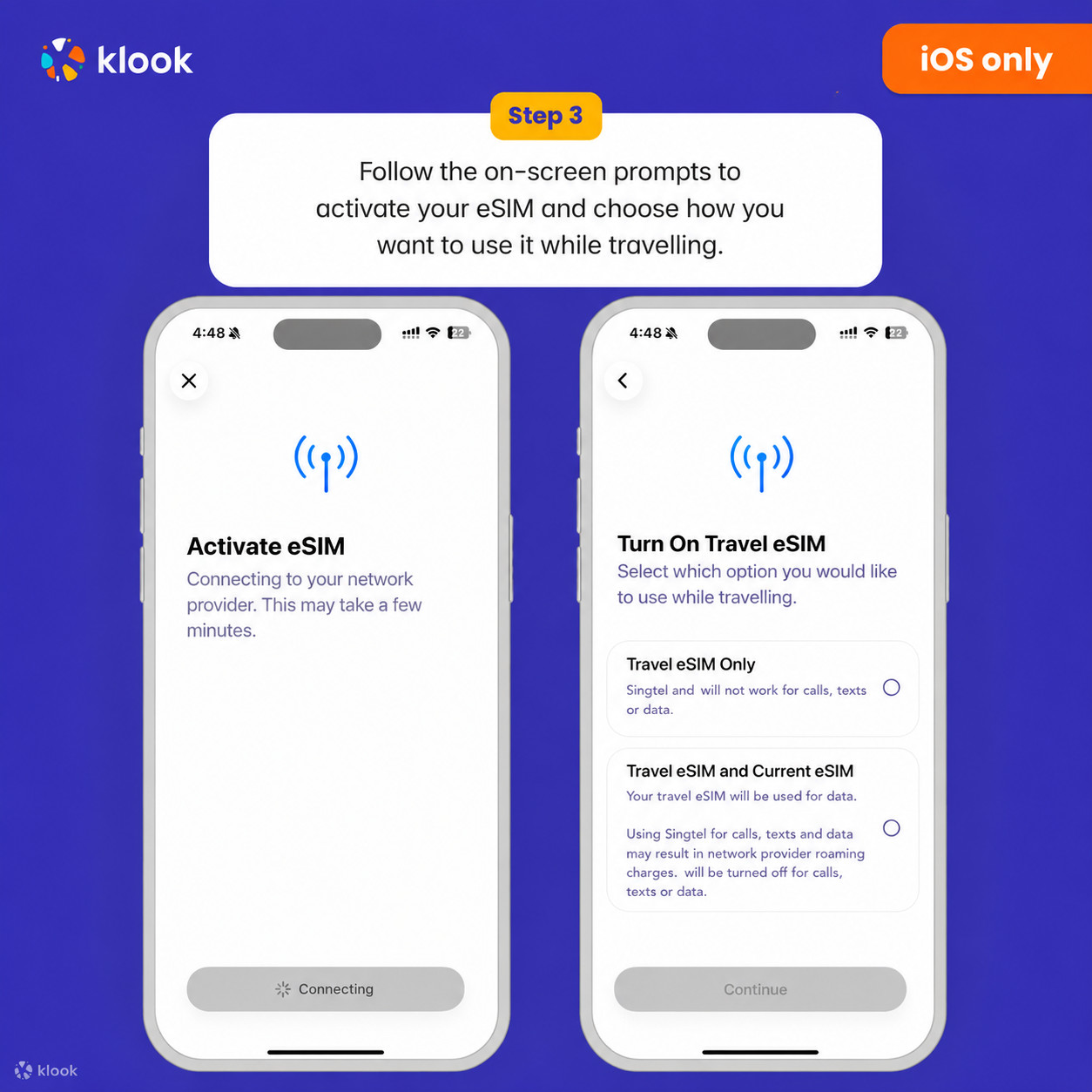
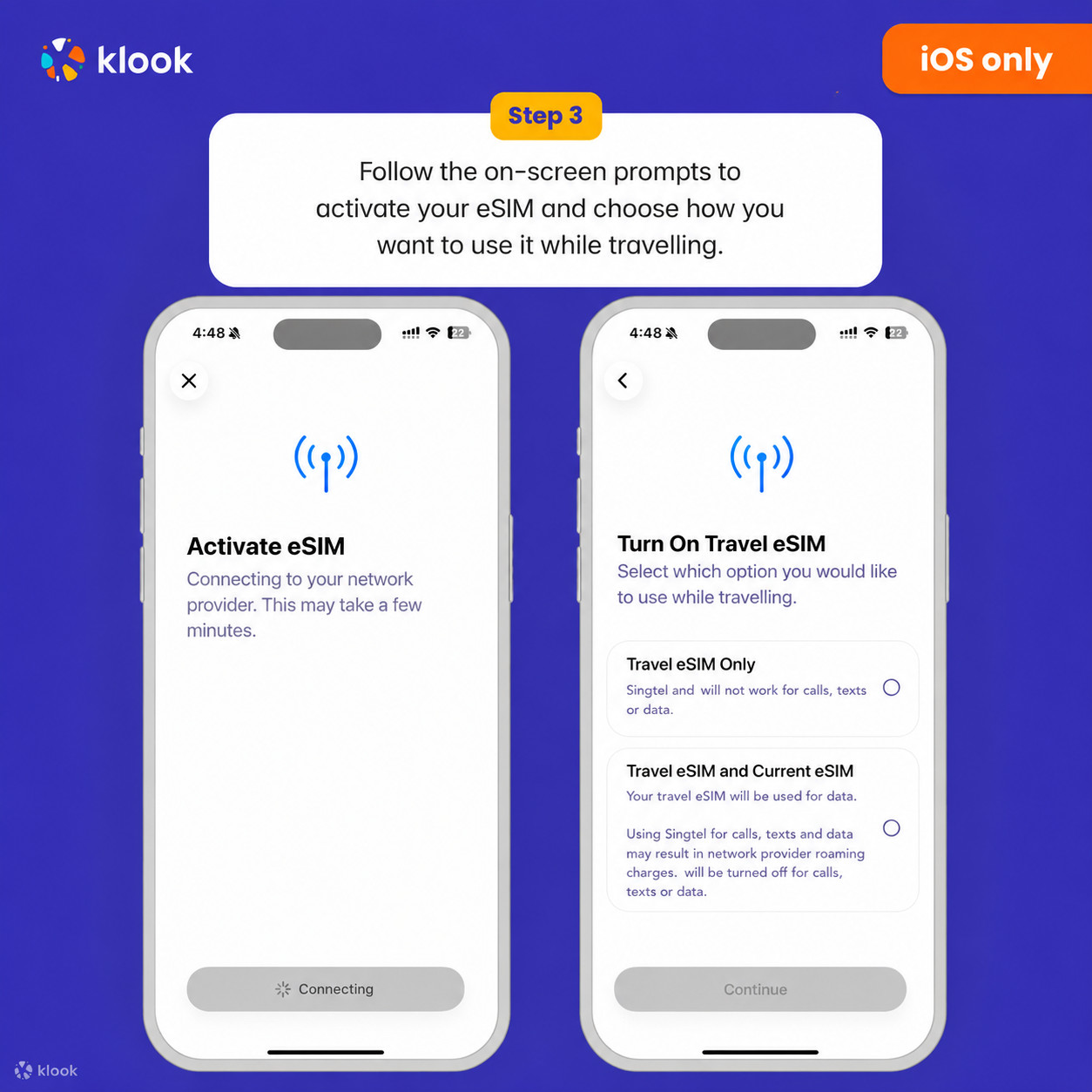
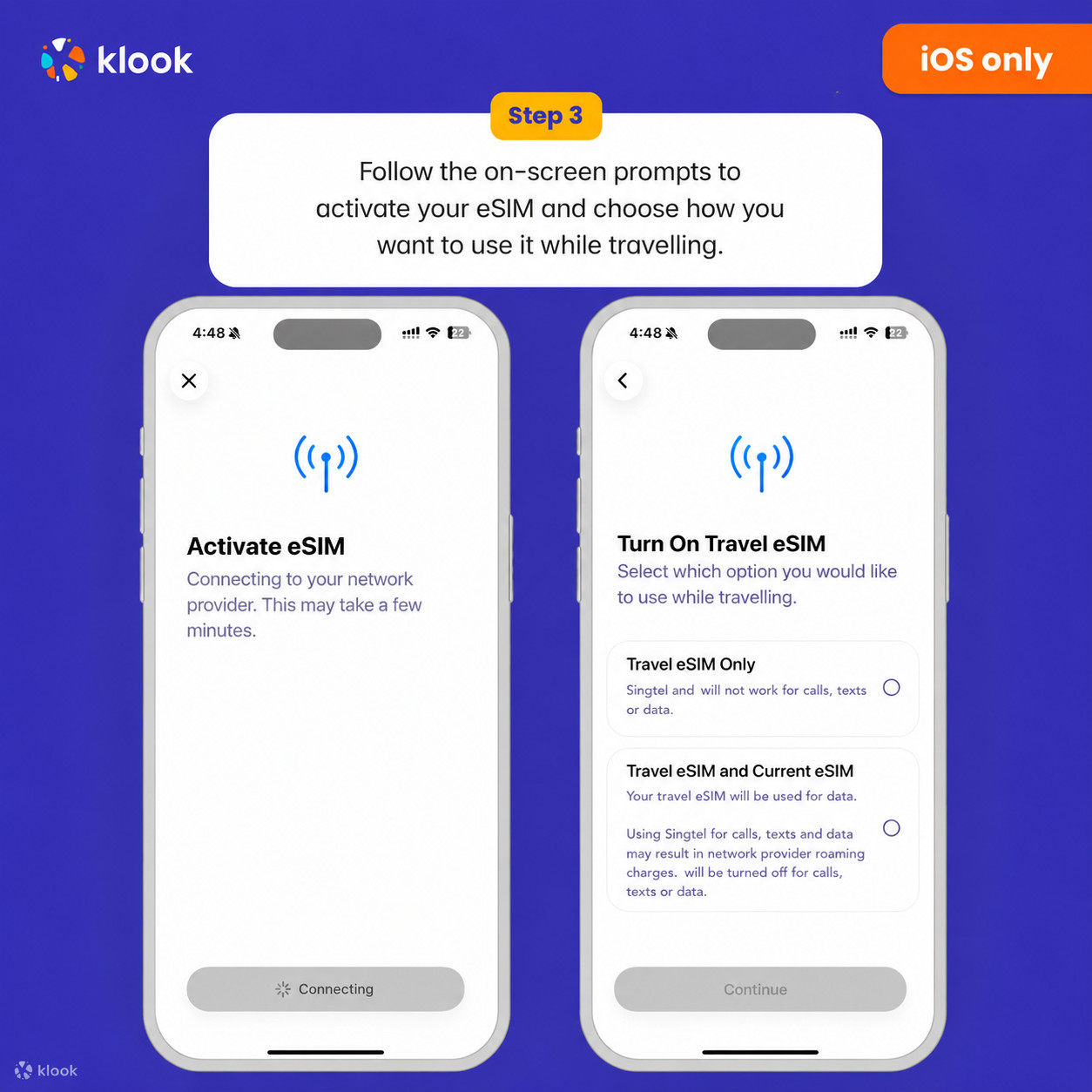
Klook eSIM iOS o‘rnatish
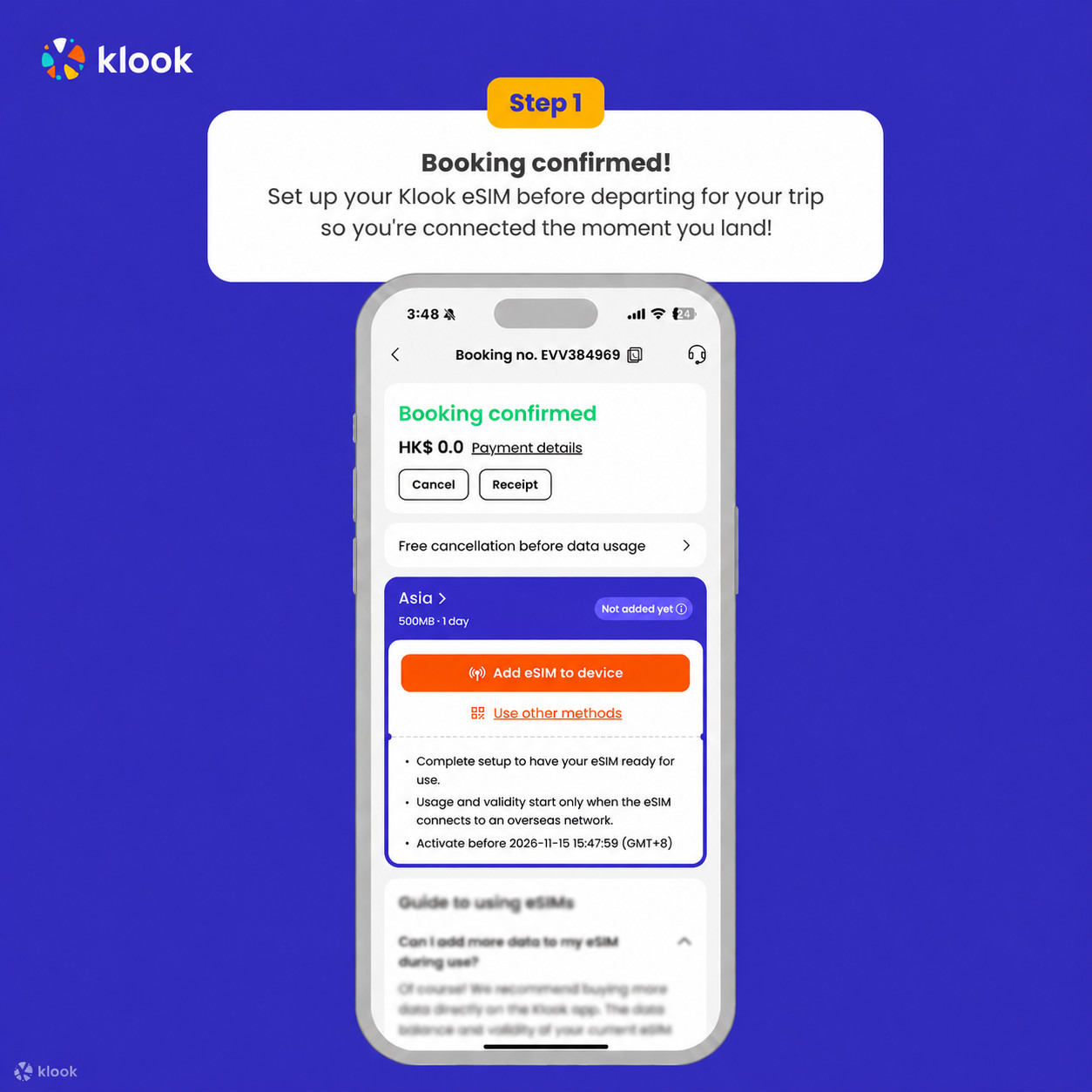
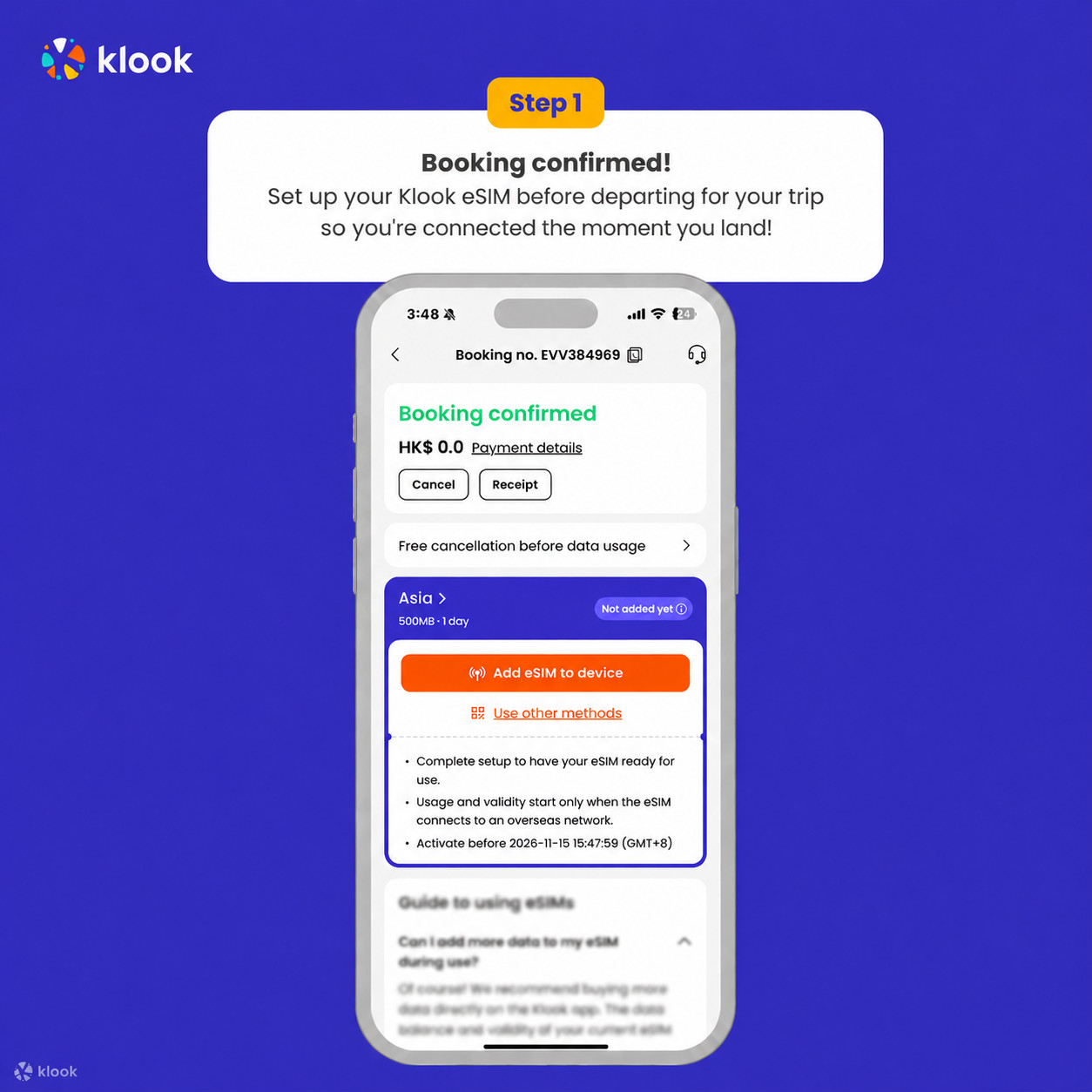
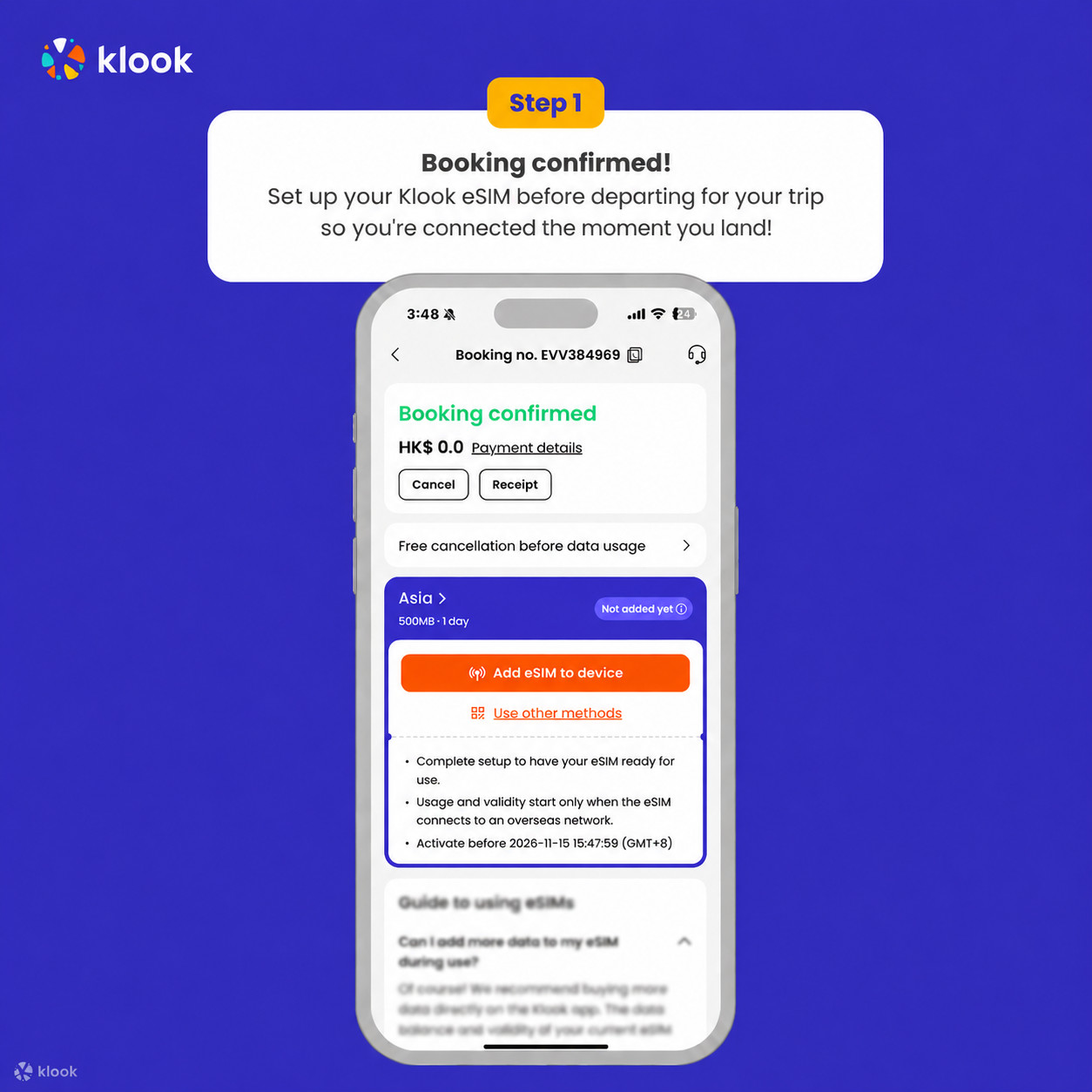
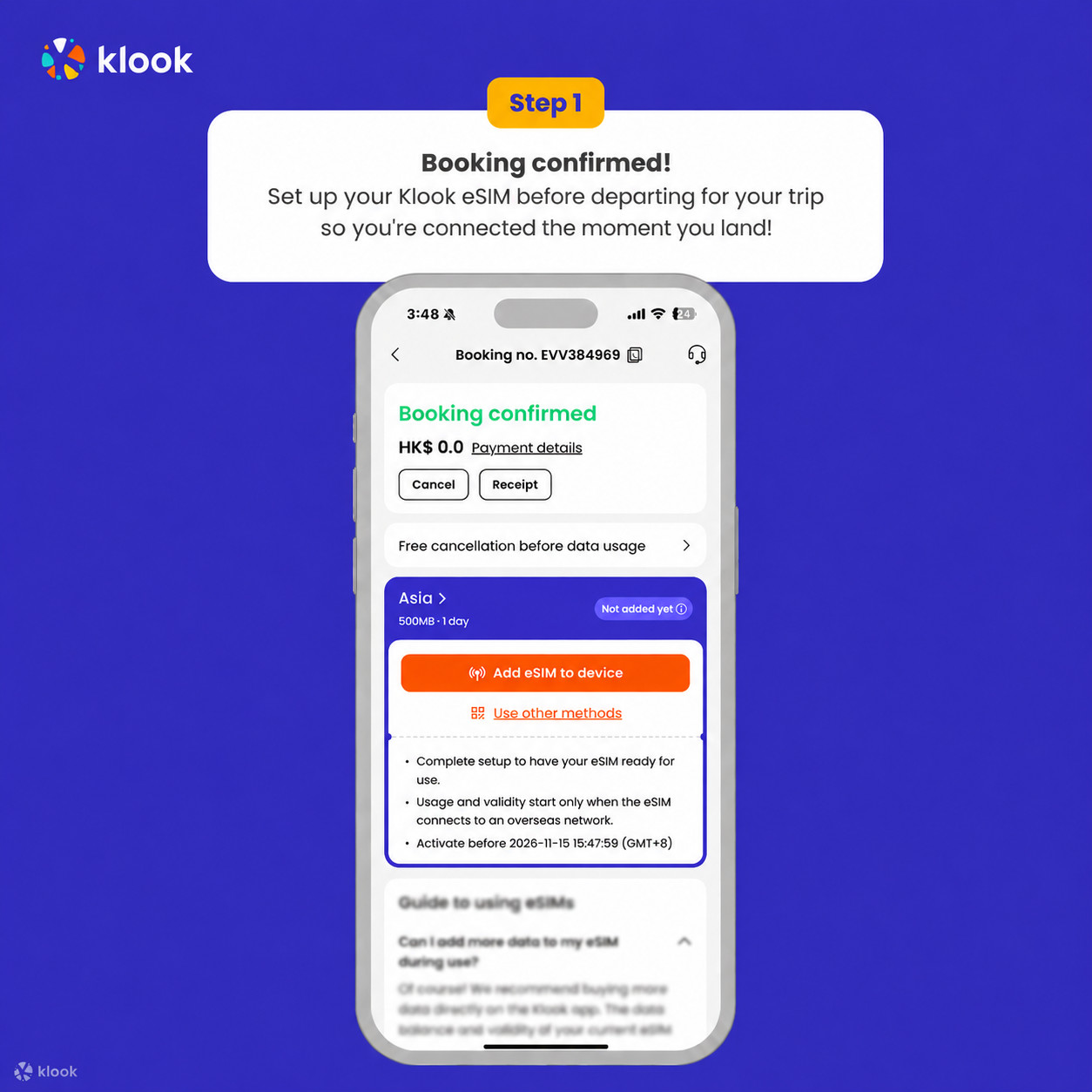
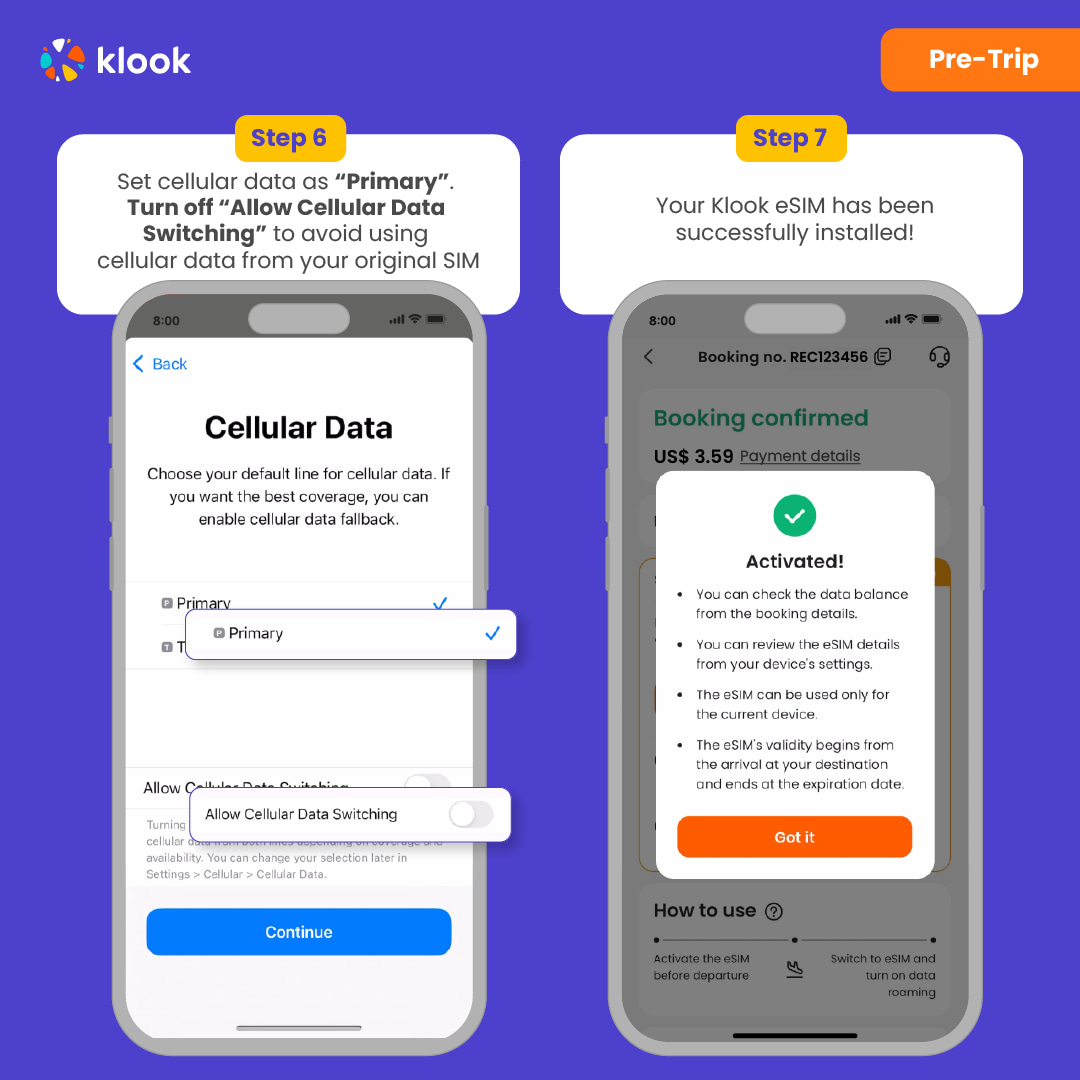
Klook eSIM-ni sayohat uchun sozlang
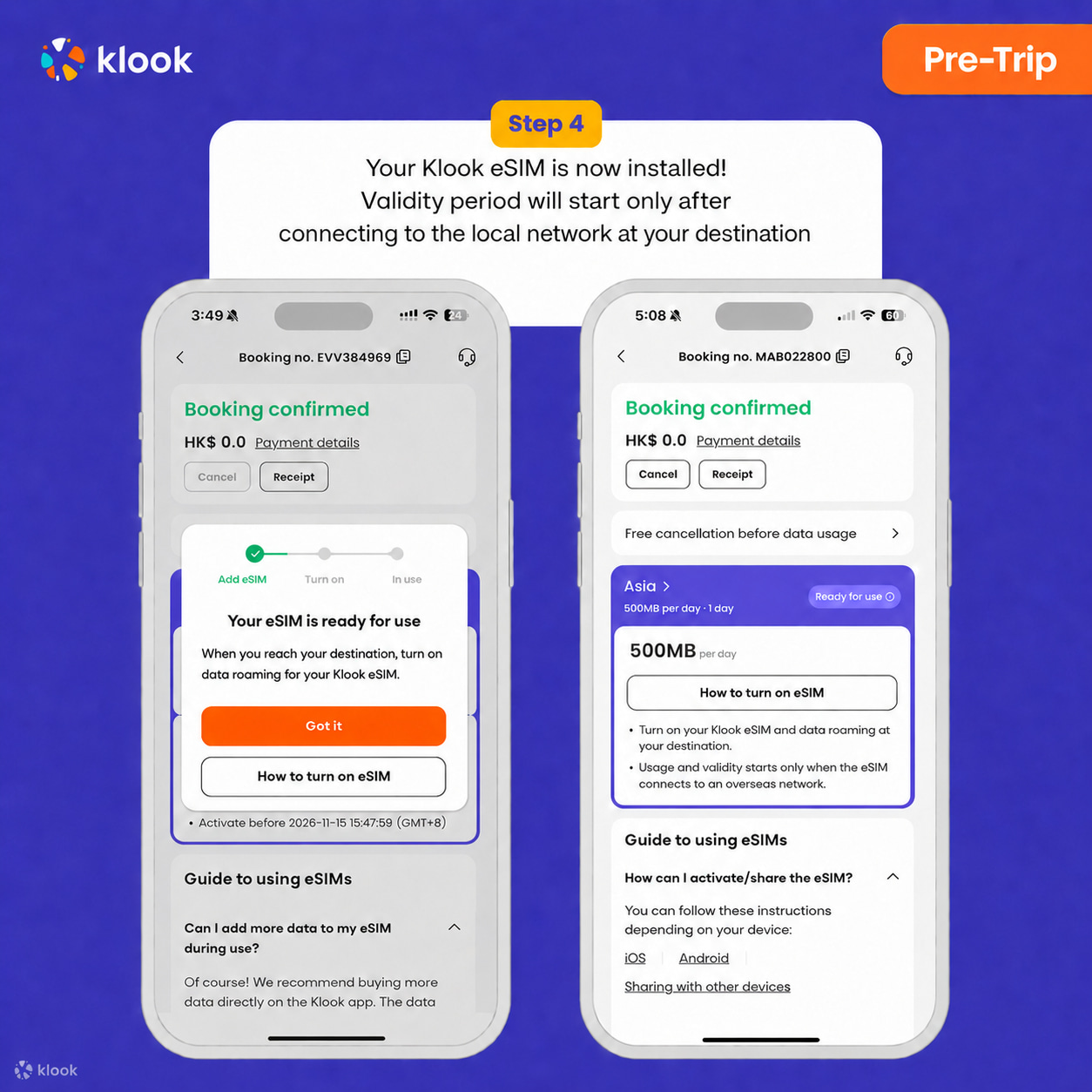
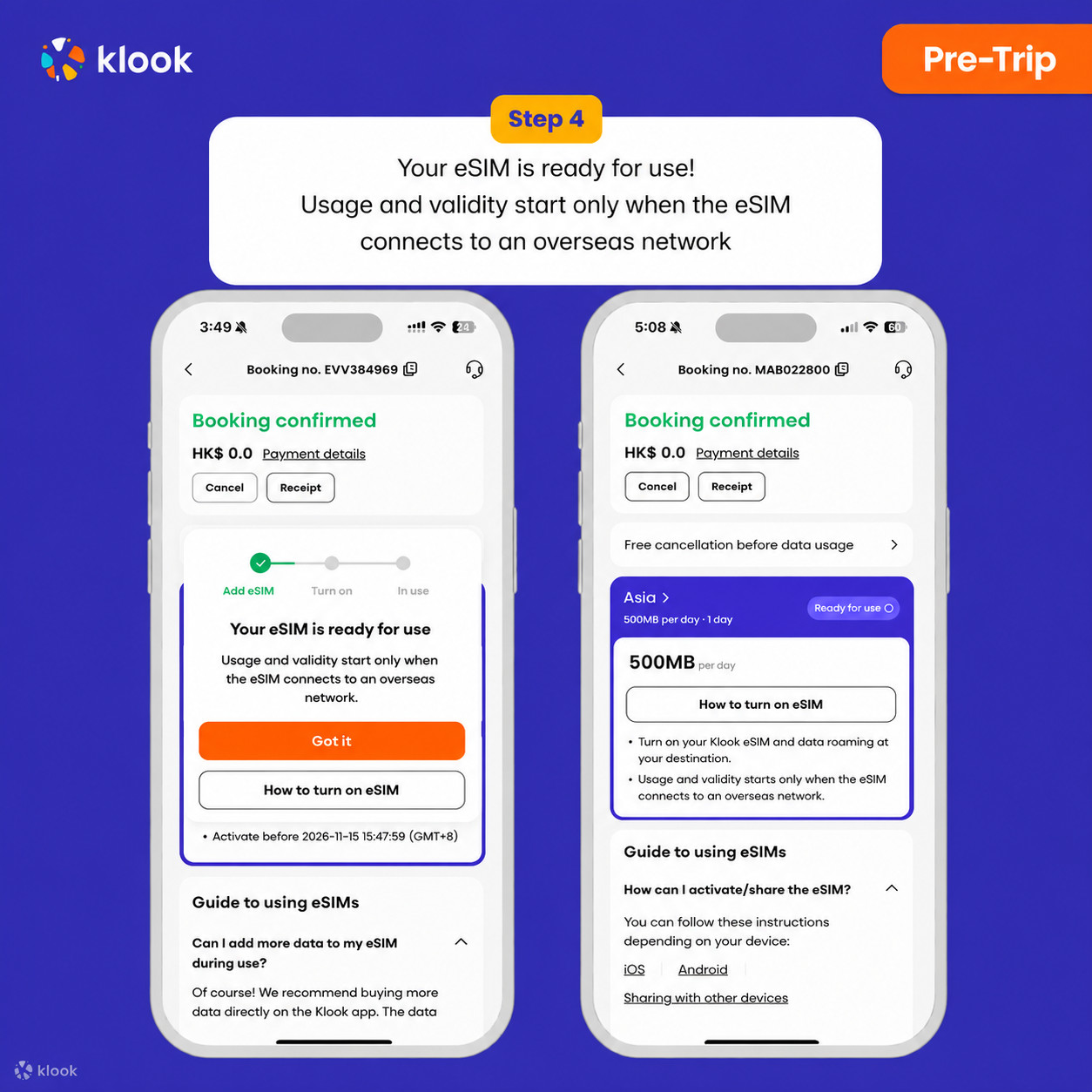
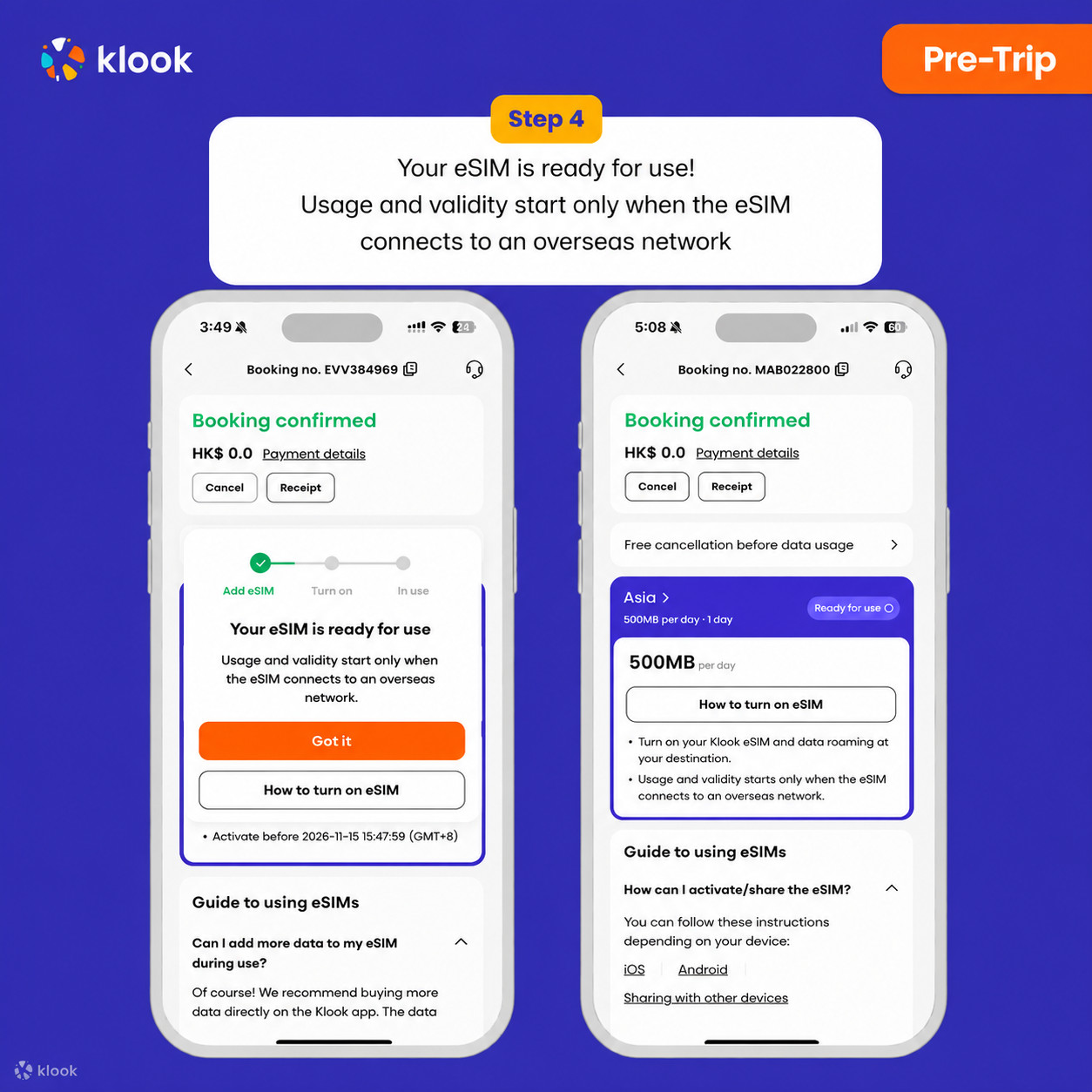
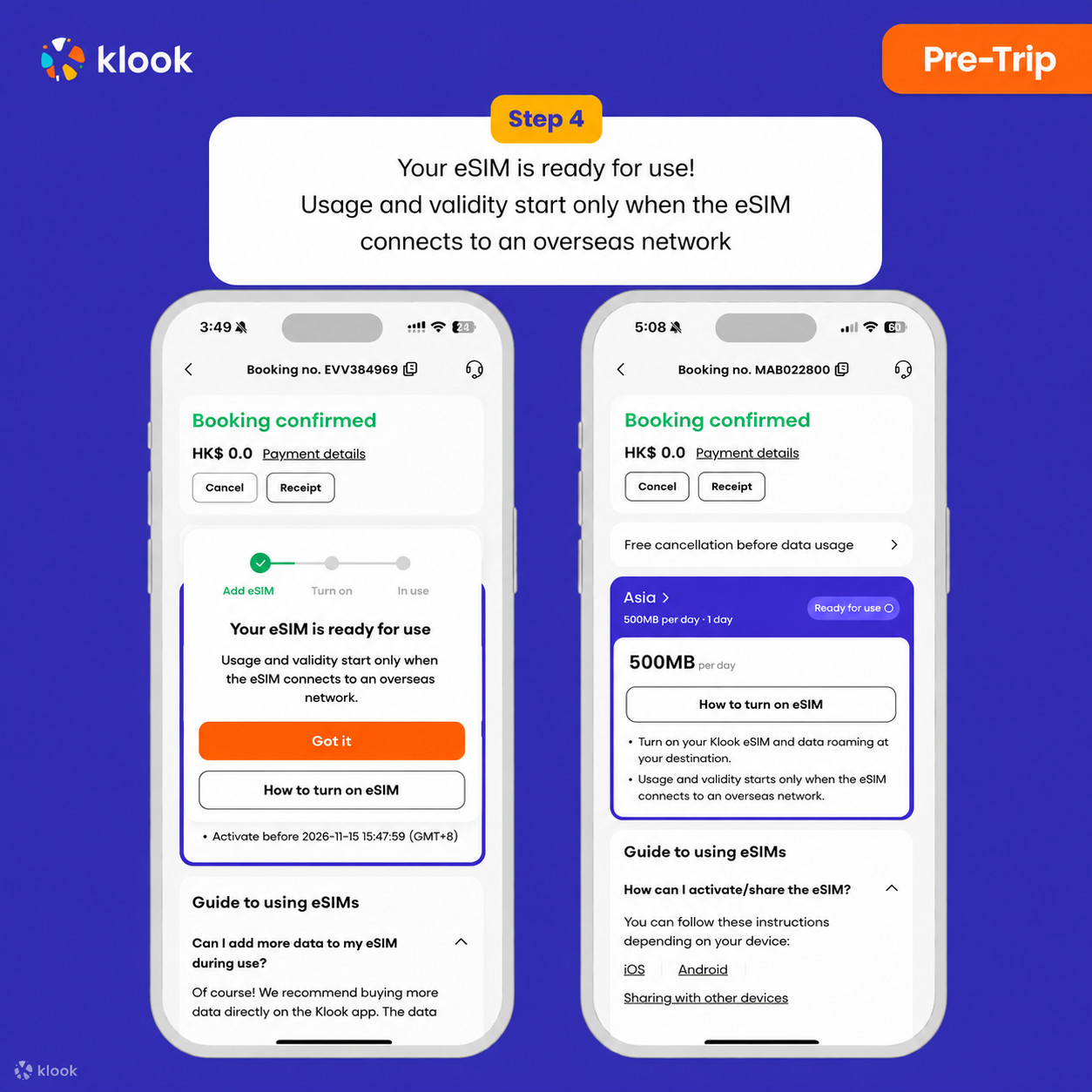
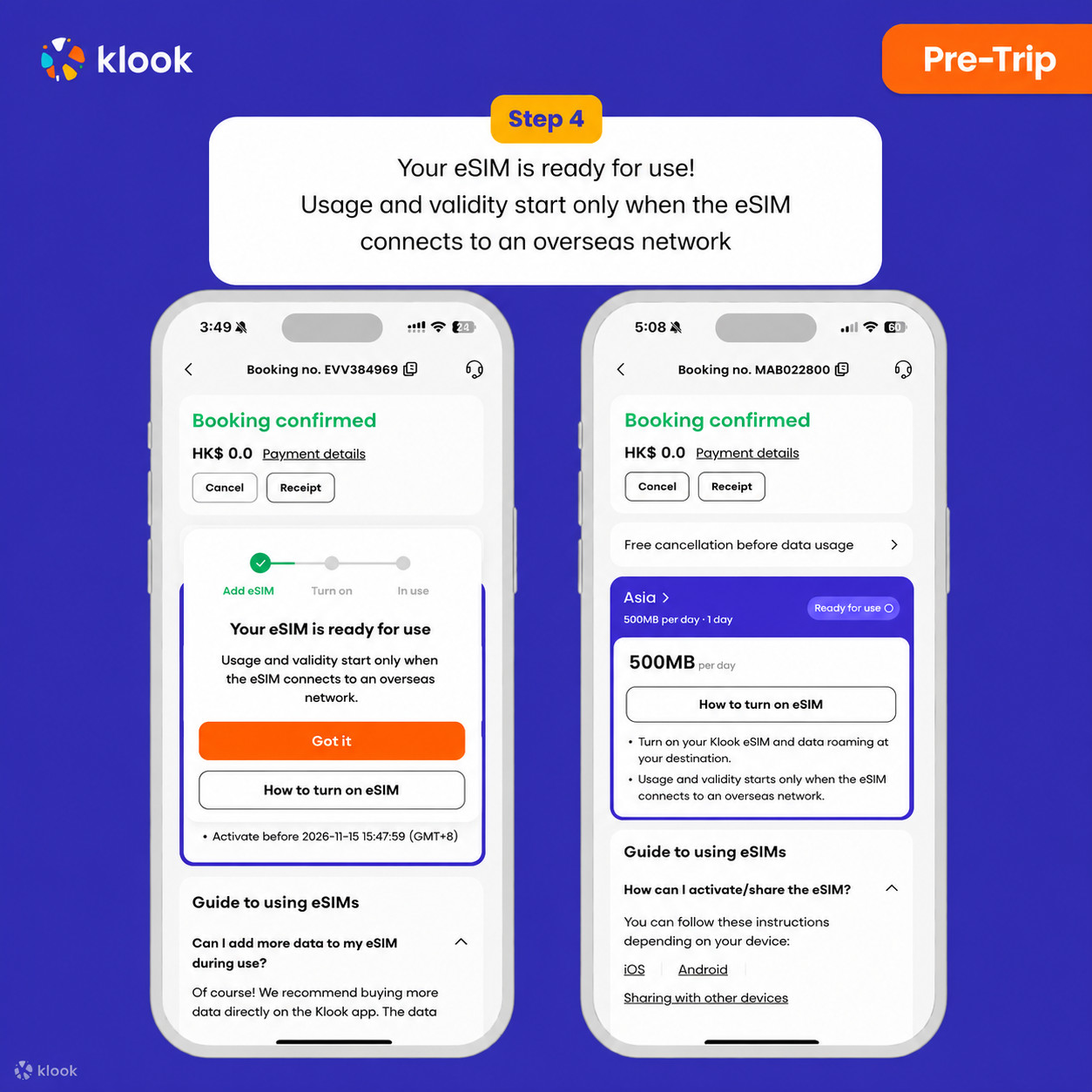
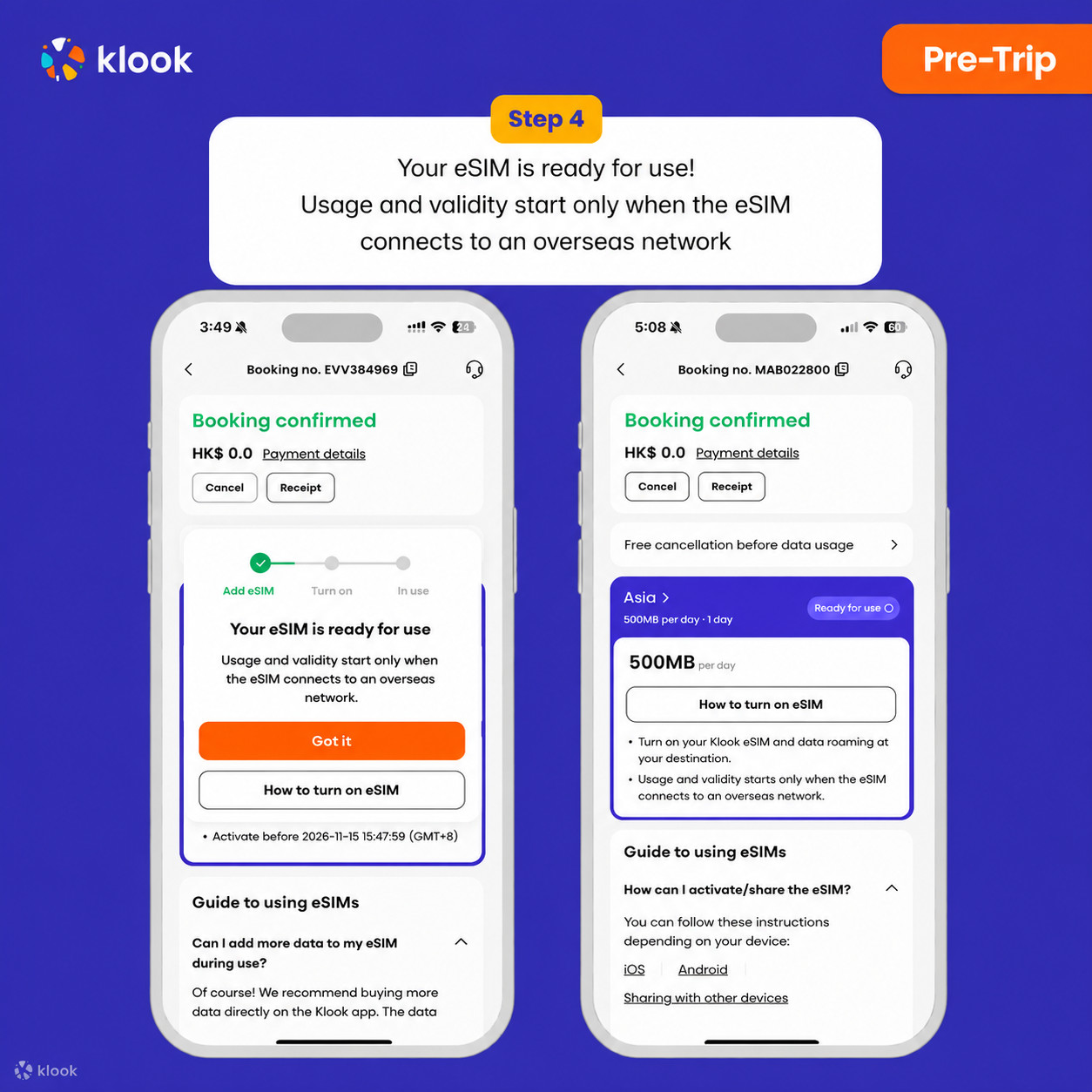
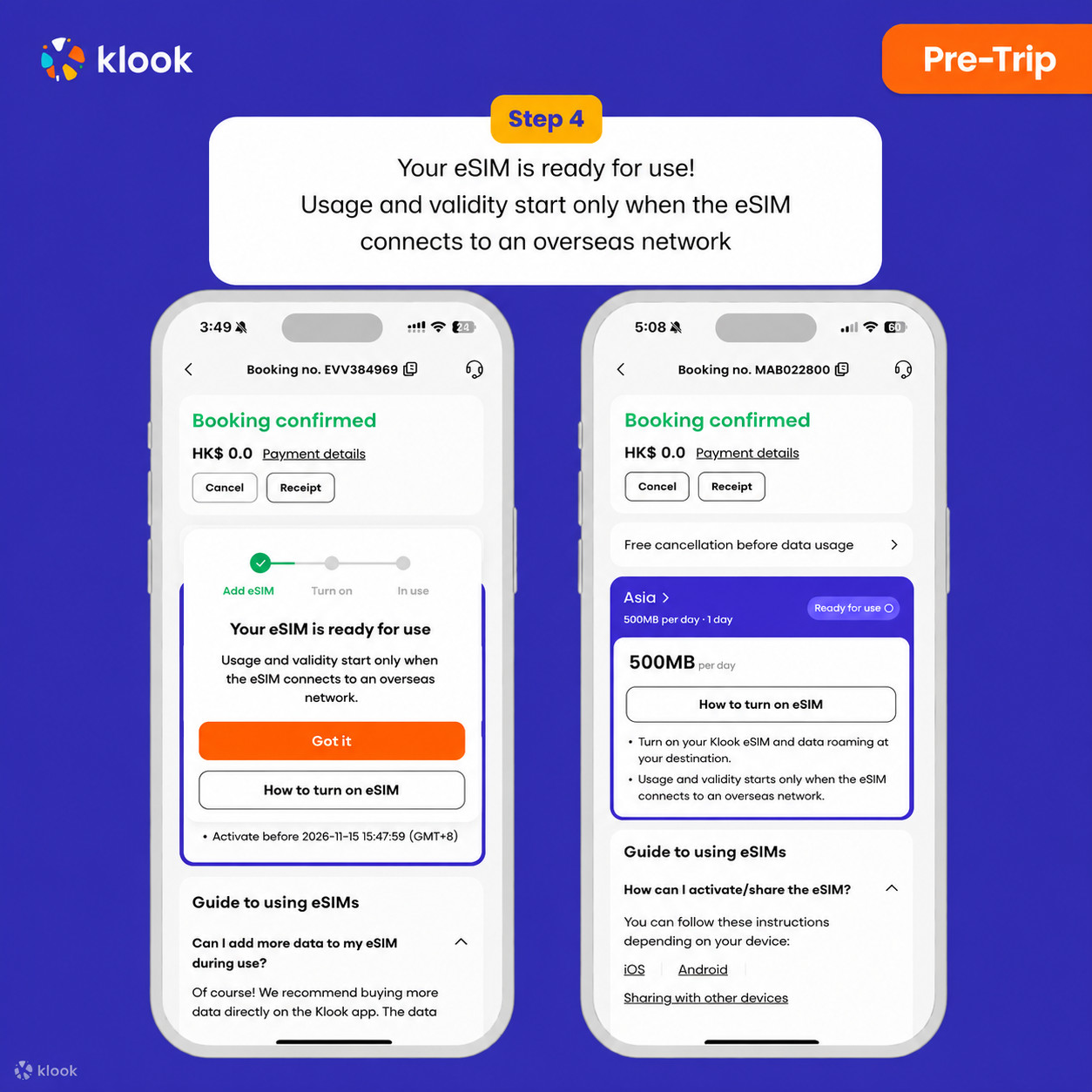
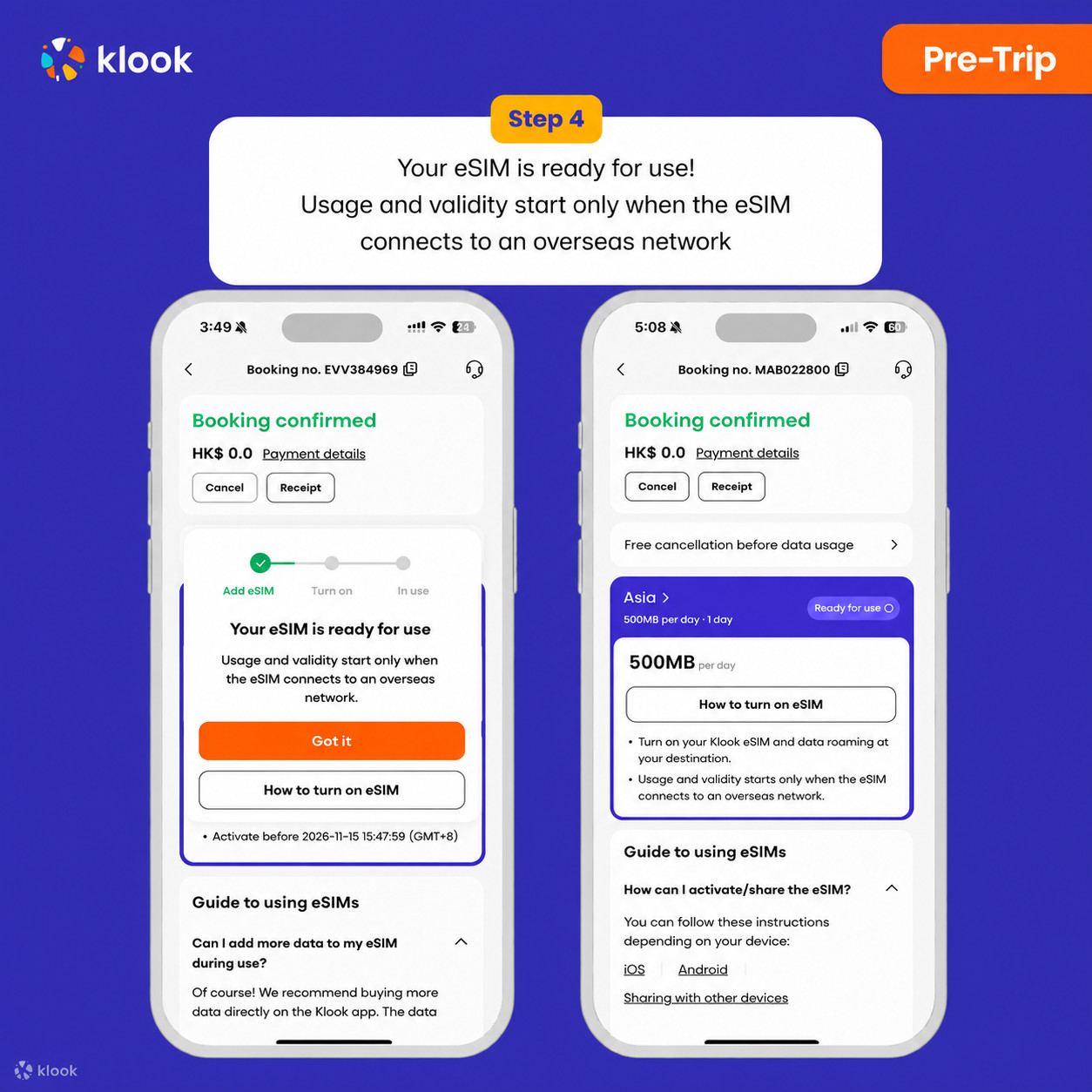
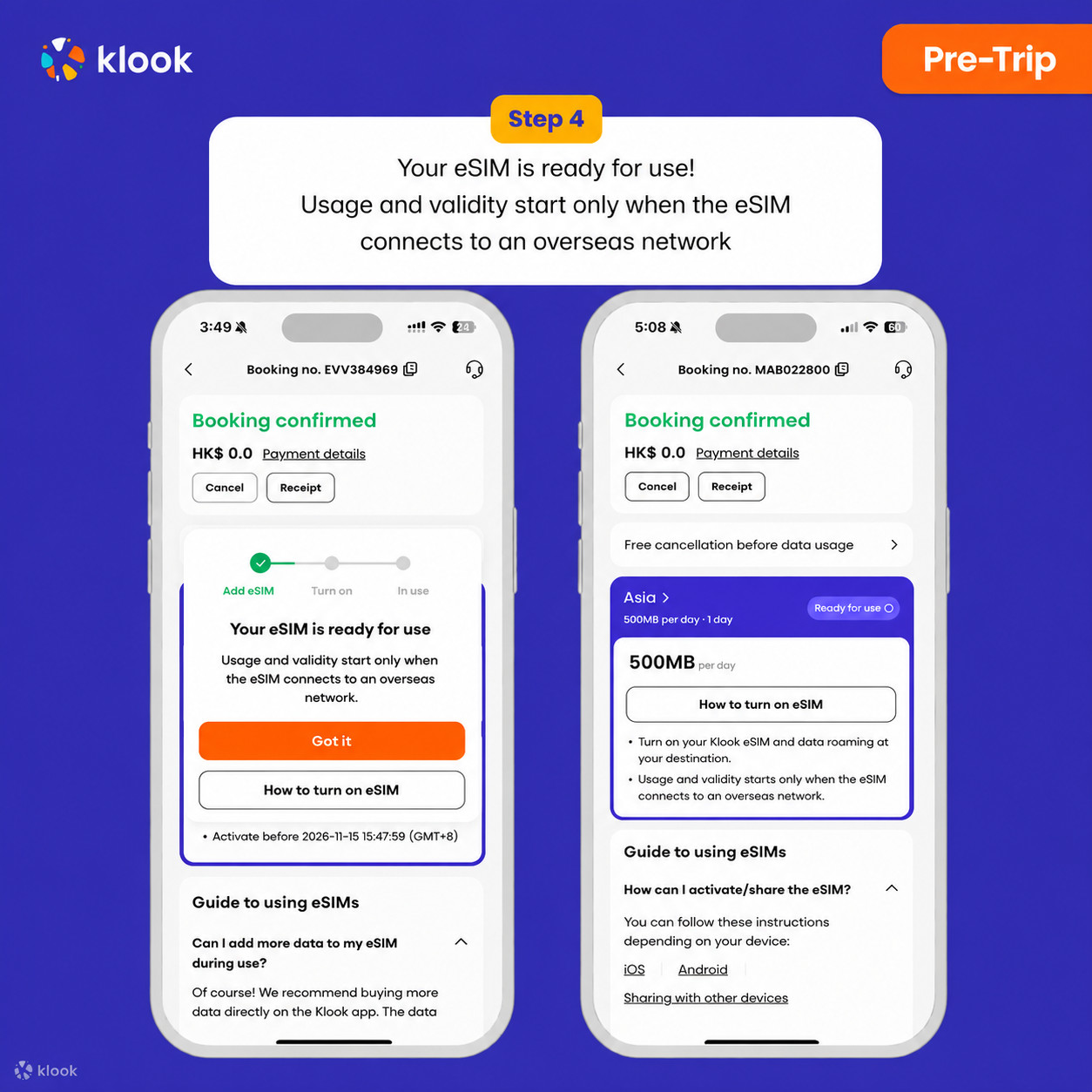
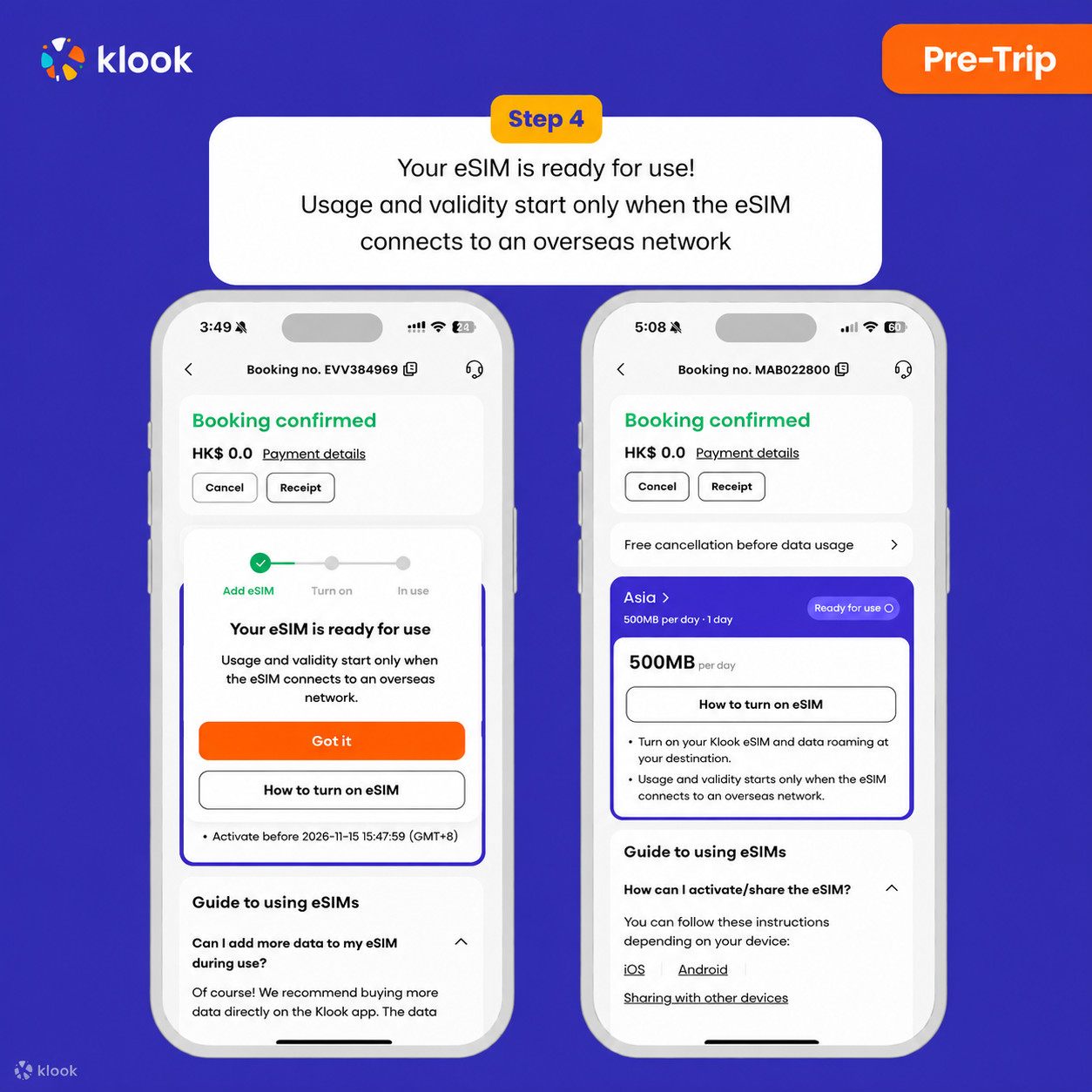
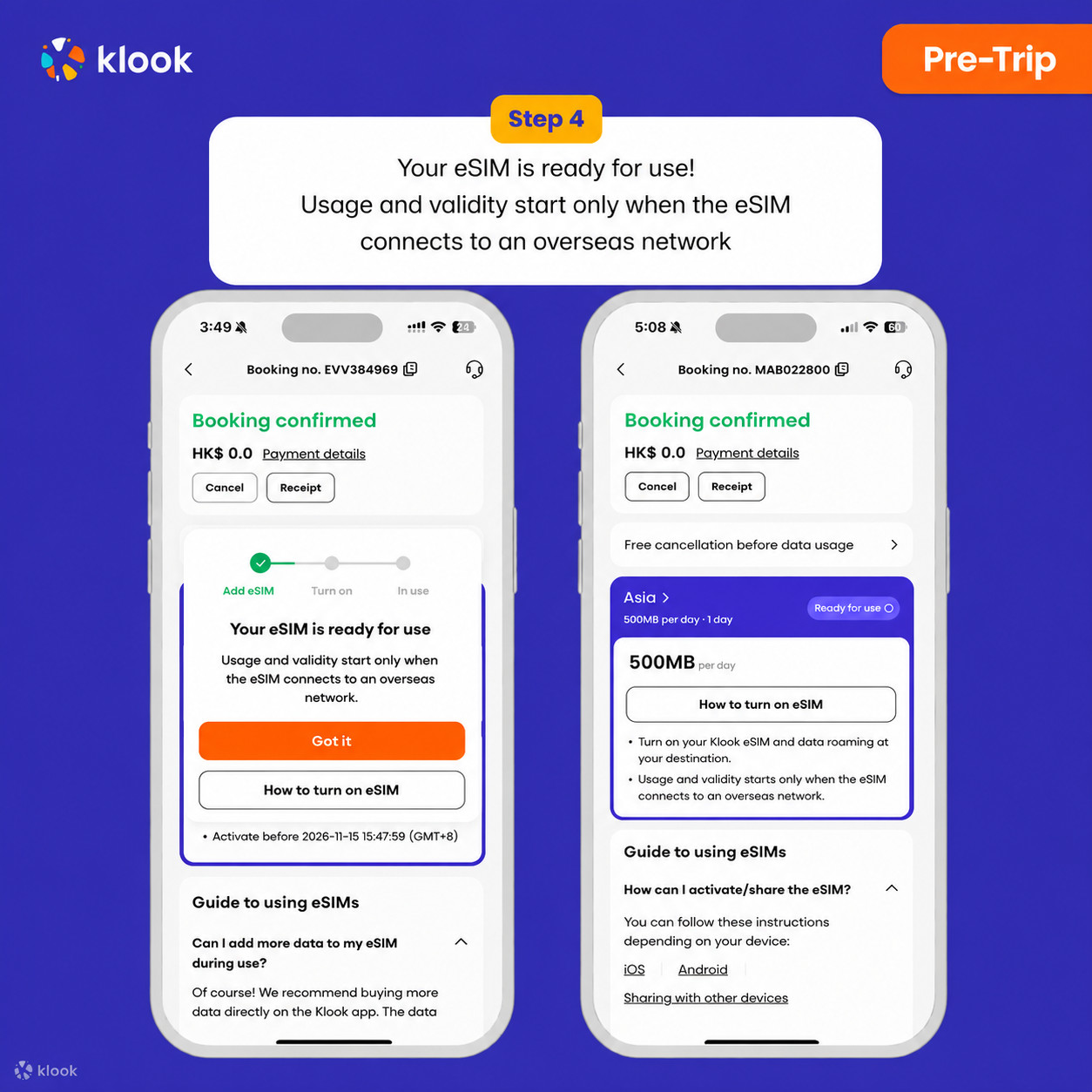
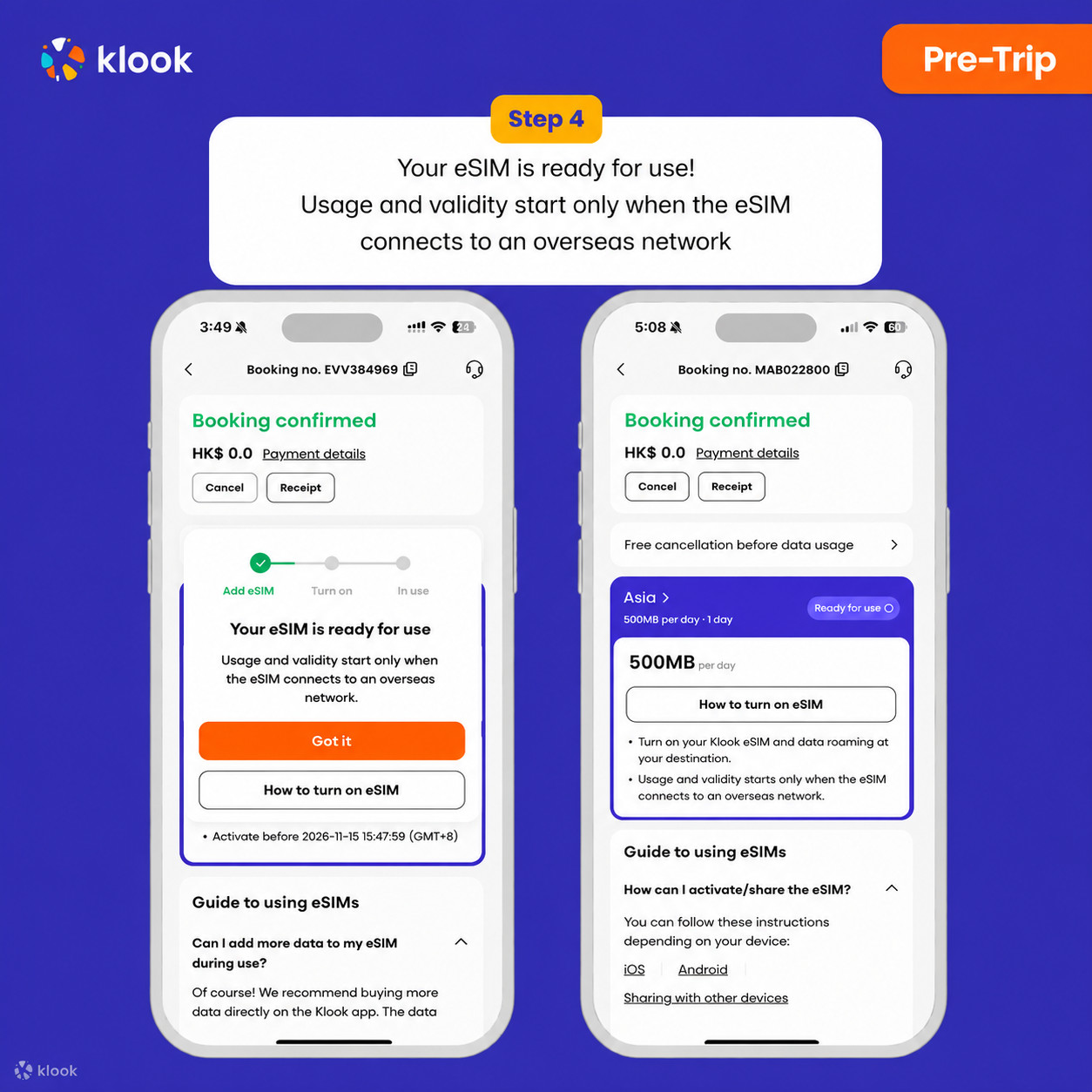
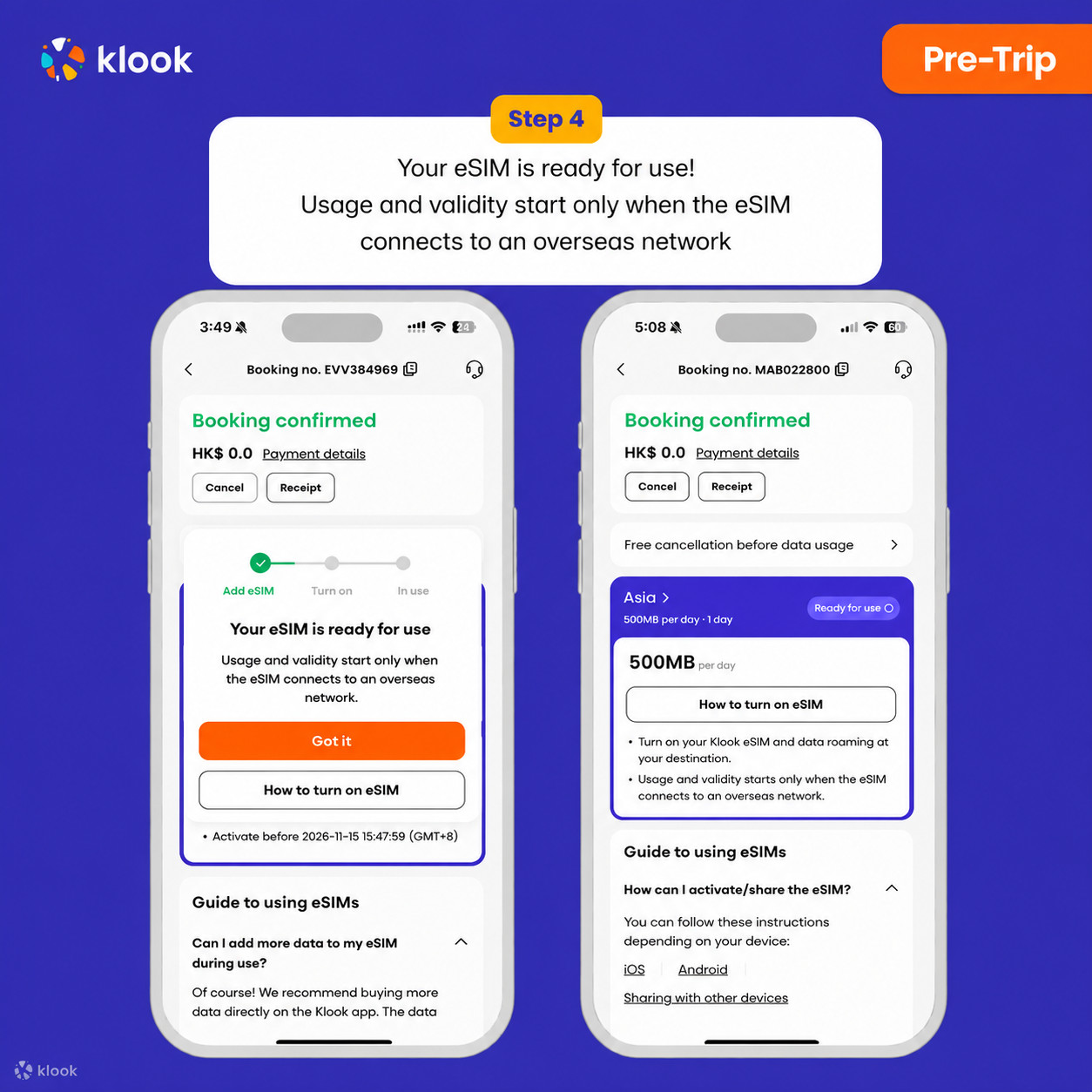
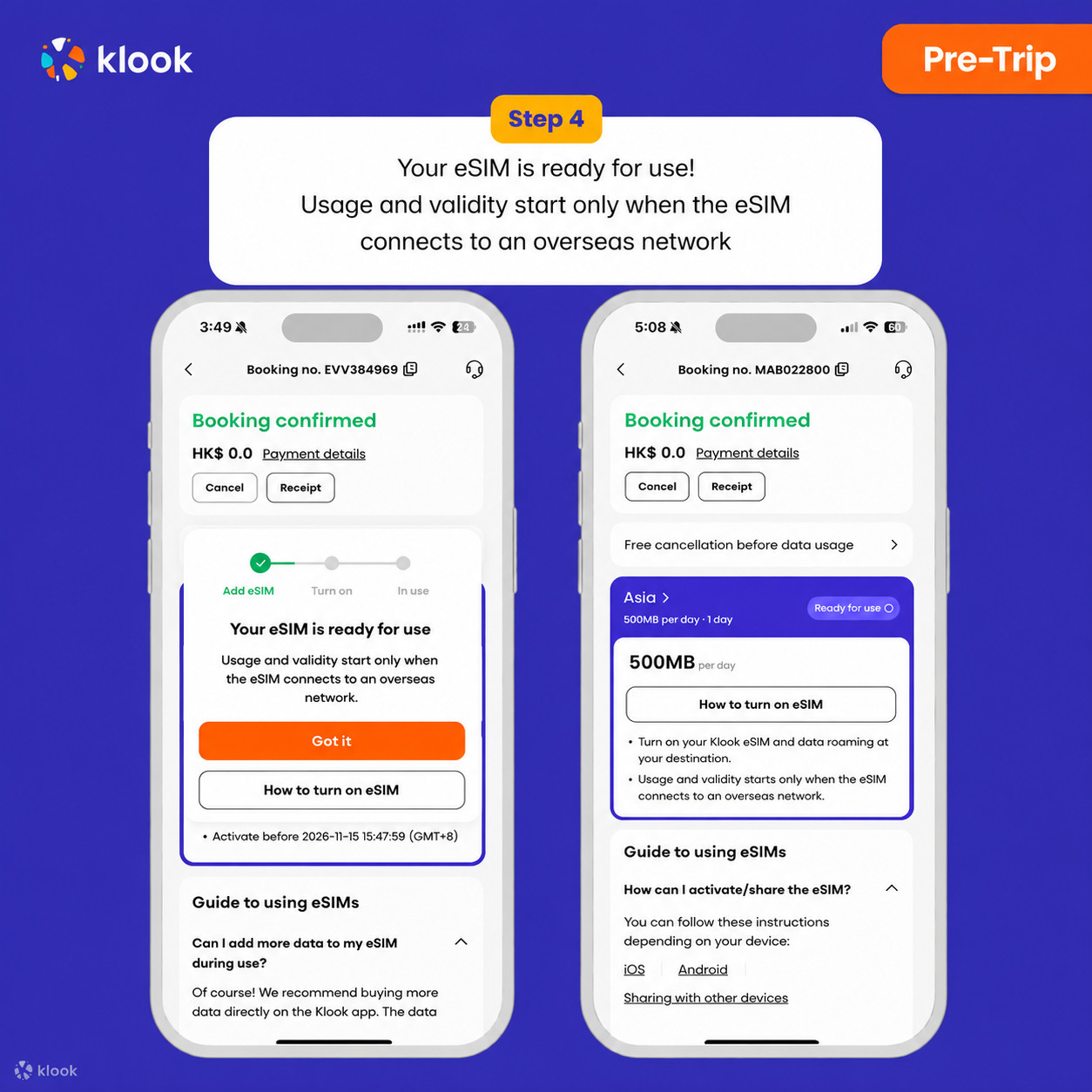
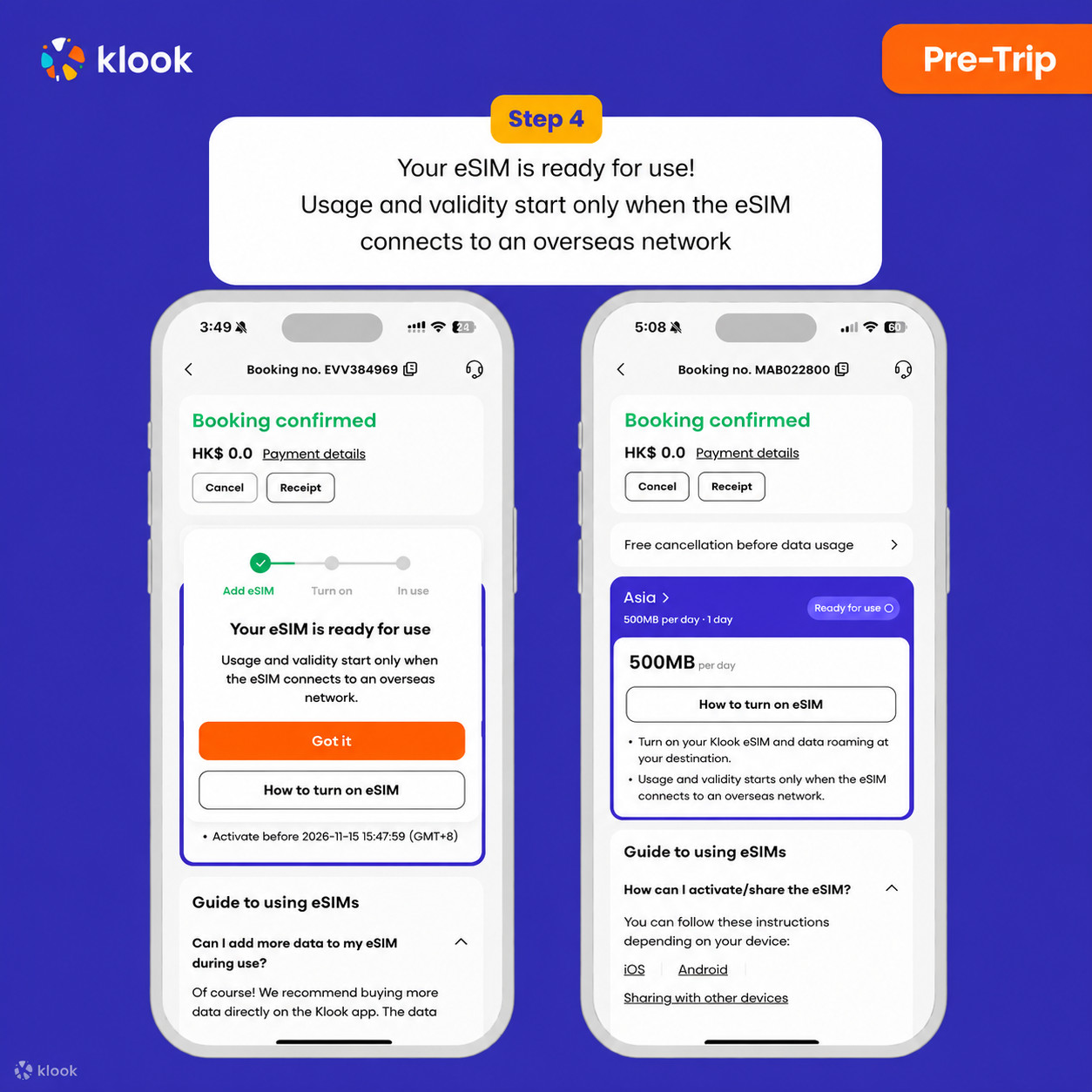
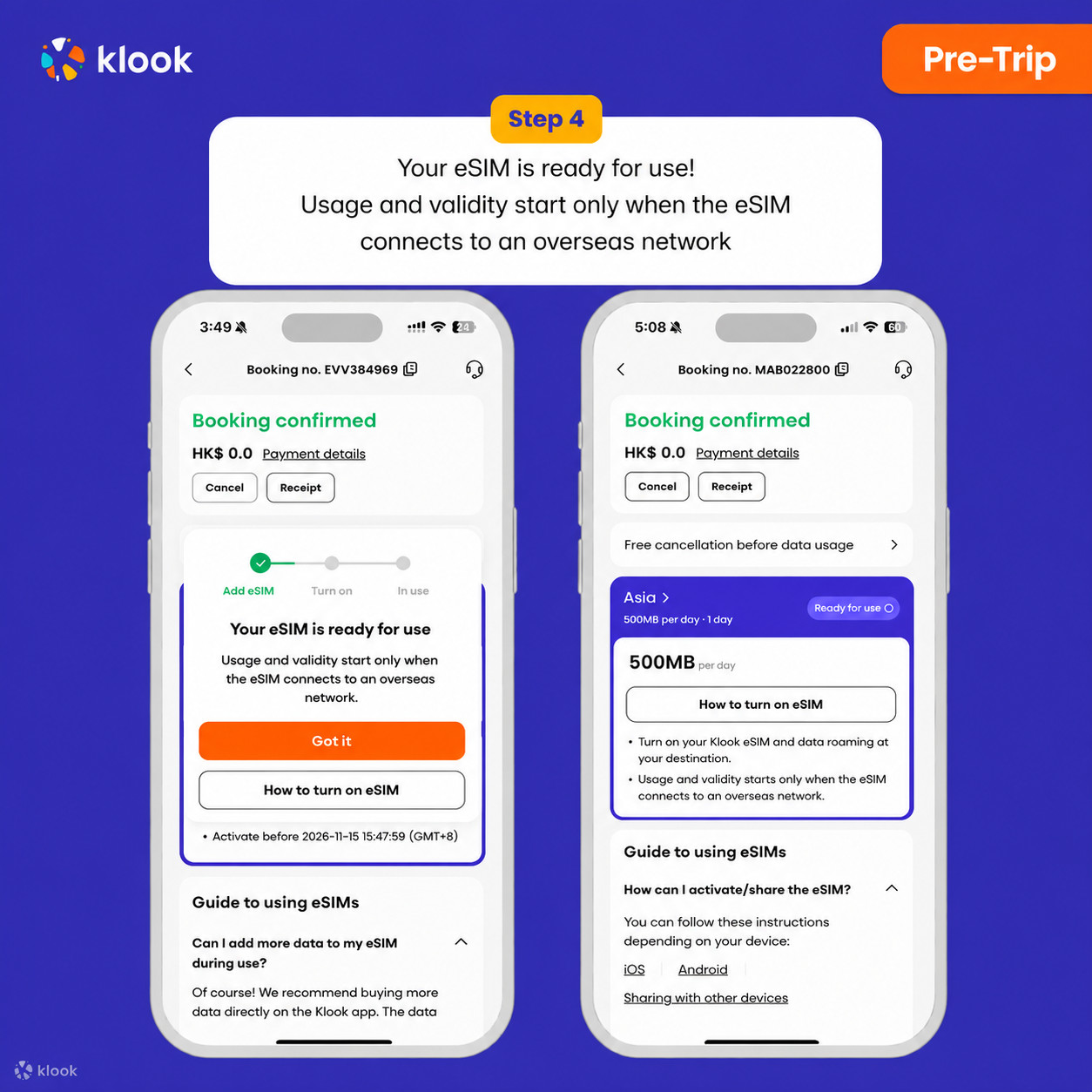
Klook eSIM o‘rnatildi
Klook eSIM endi o‘rnatildi! Amal qilish muddati faqat manzilingizda mahalliy tarmoqqa ulanganingizdan so‘ng boshlanadi
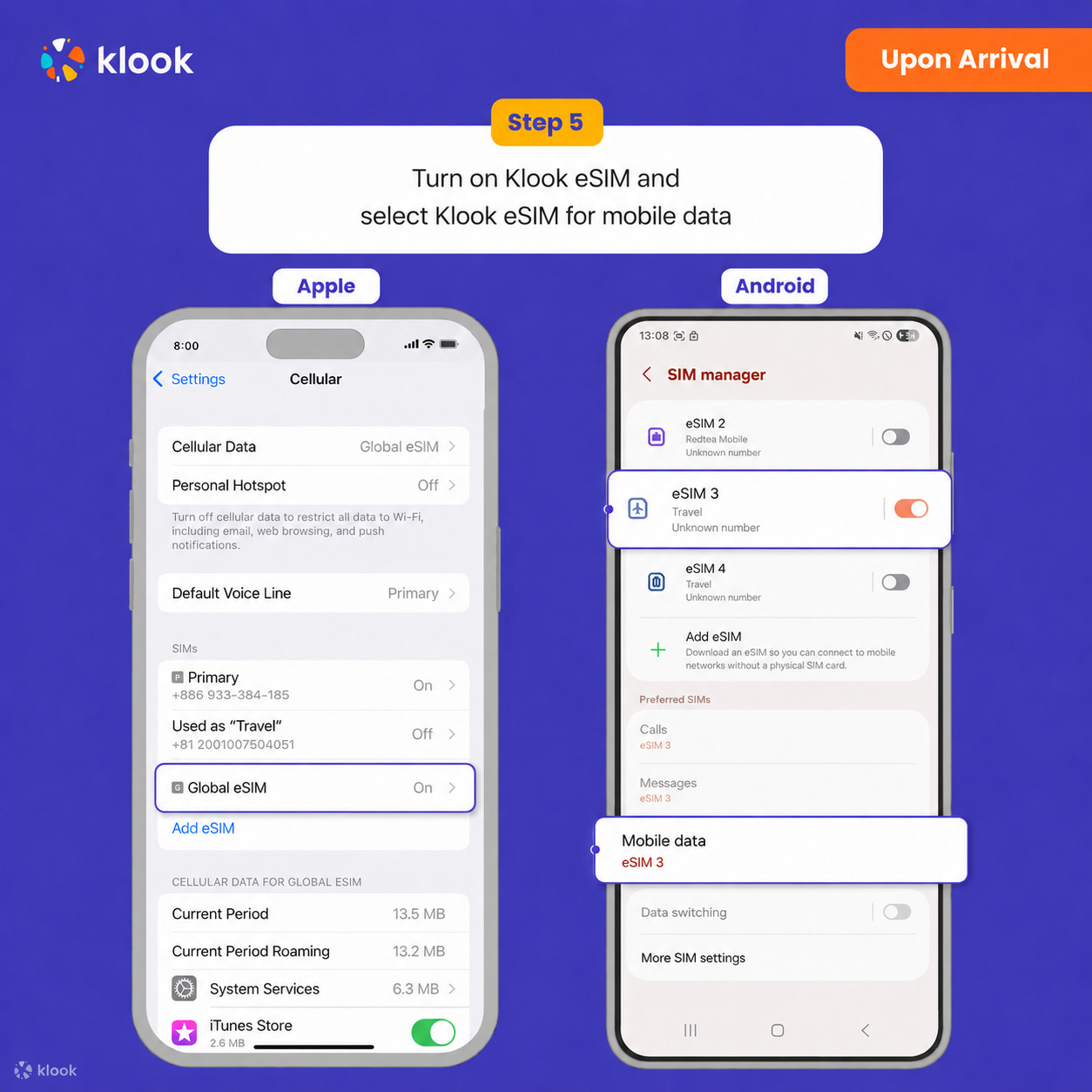
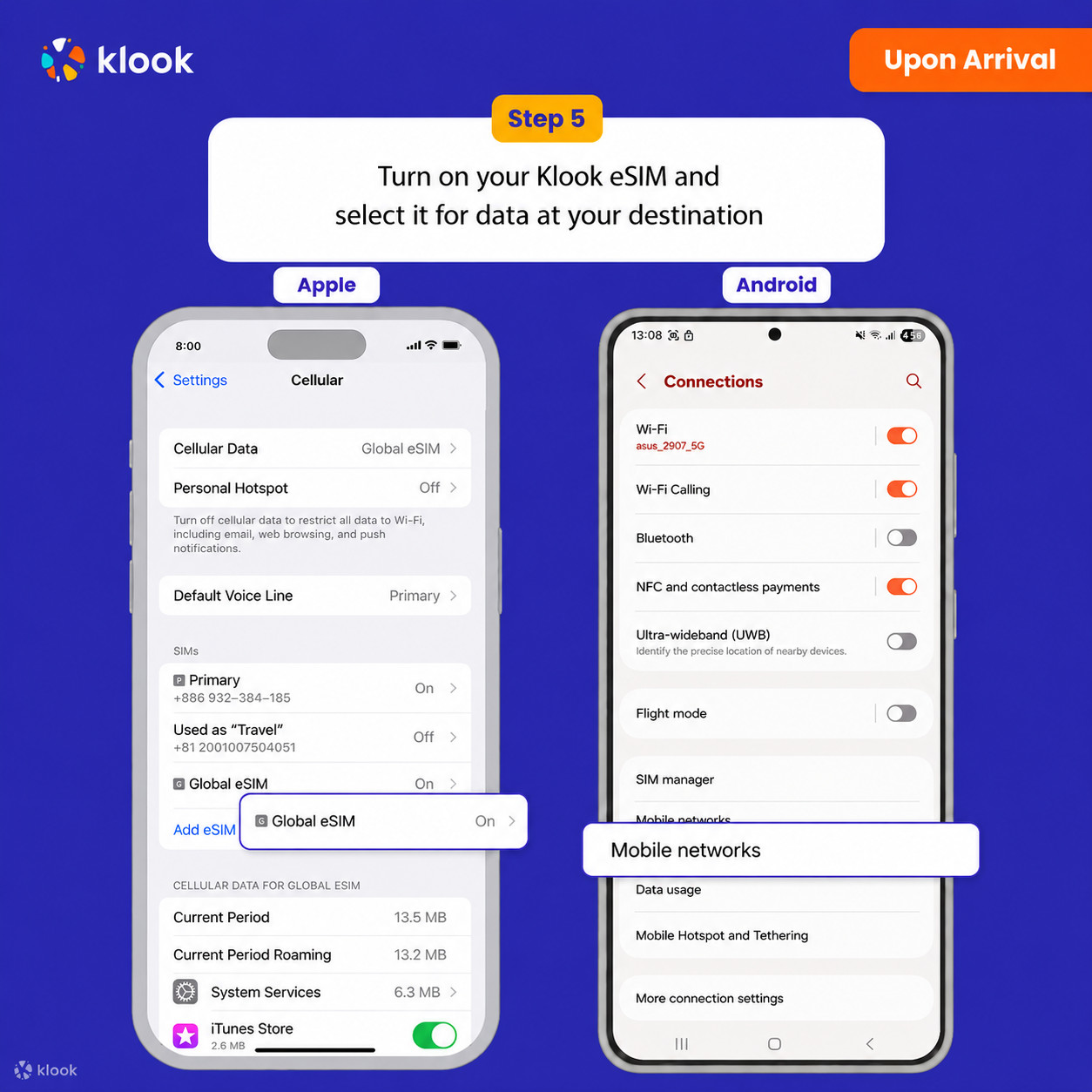
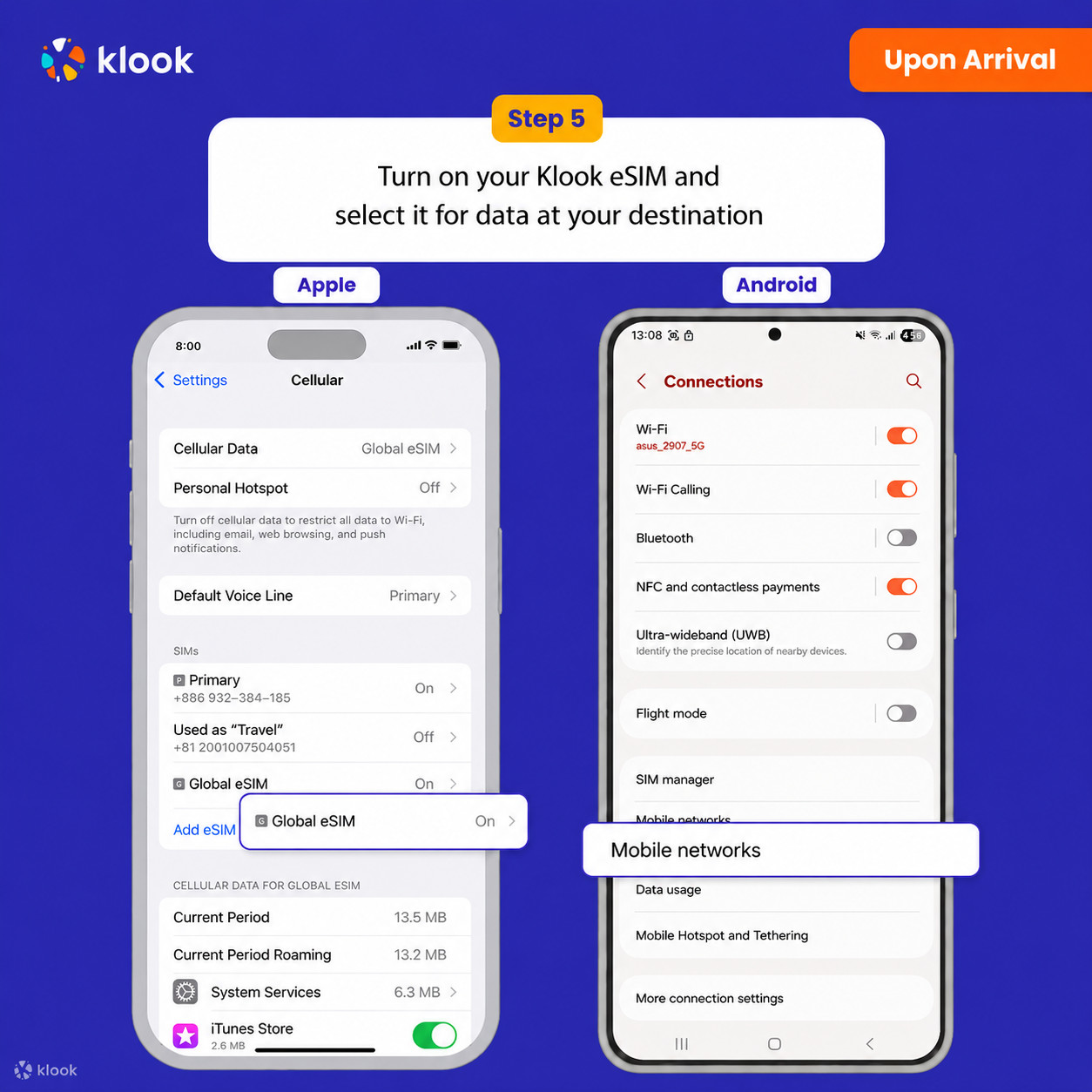
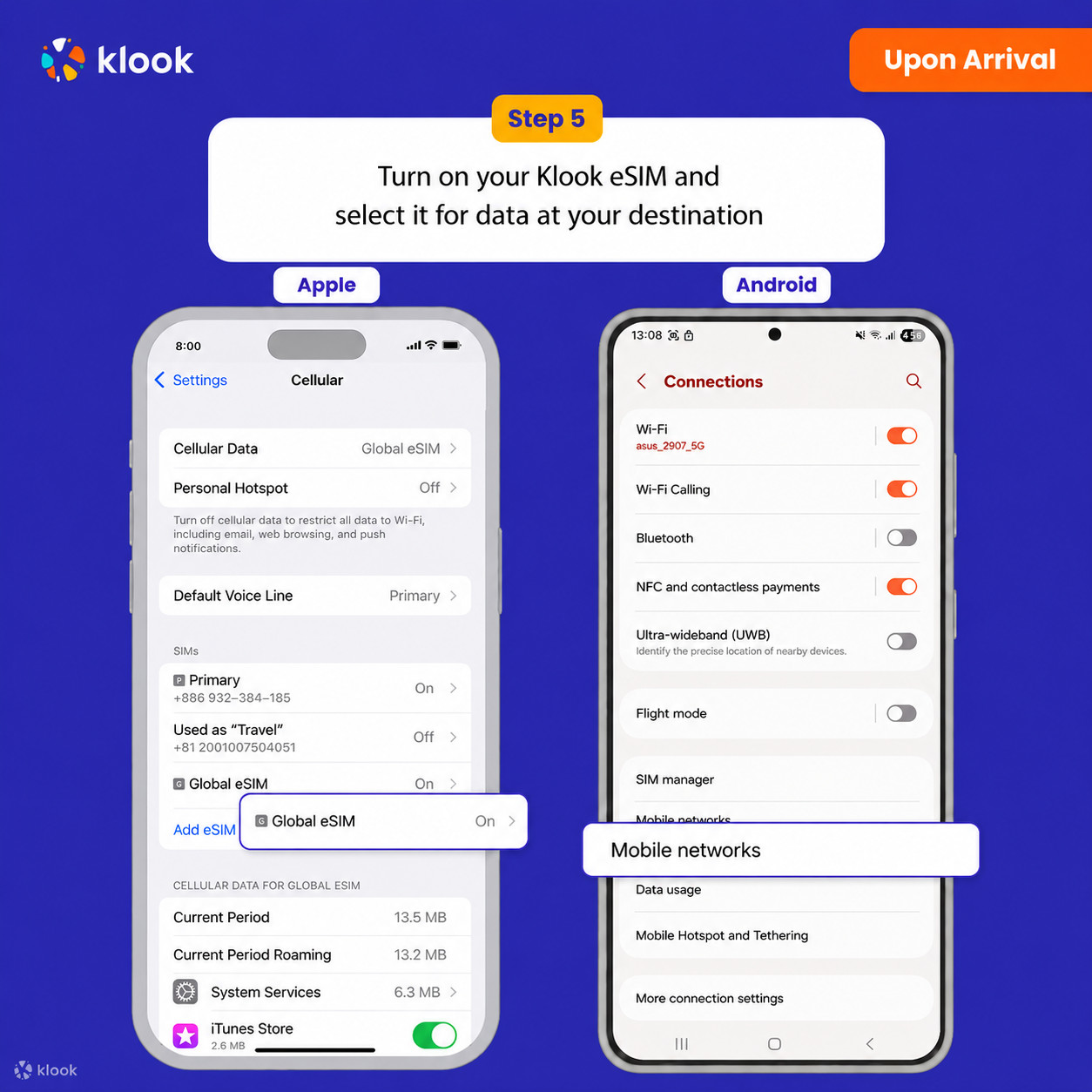
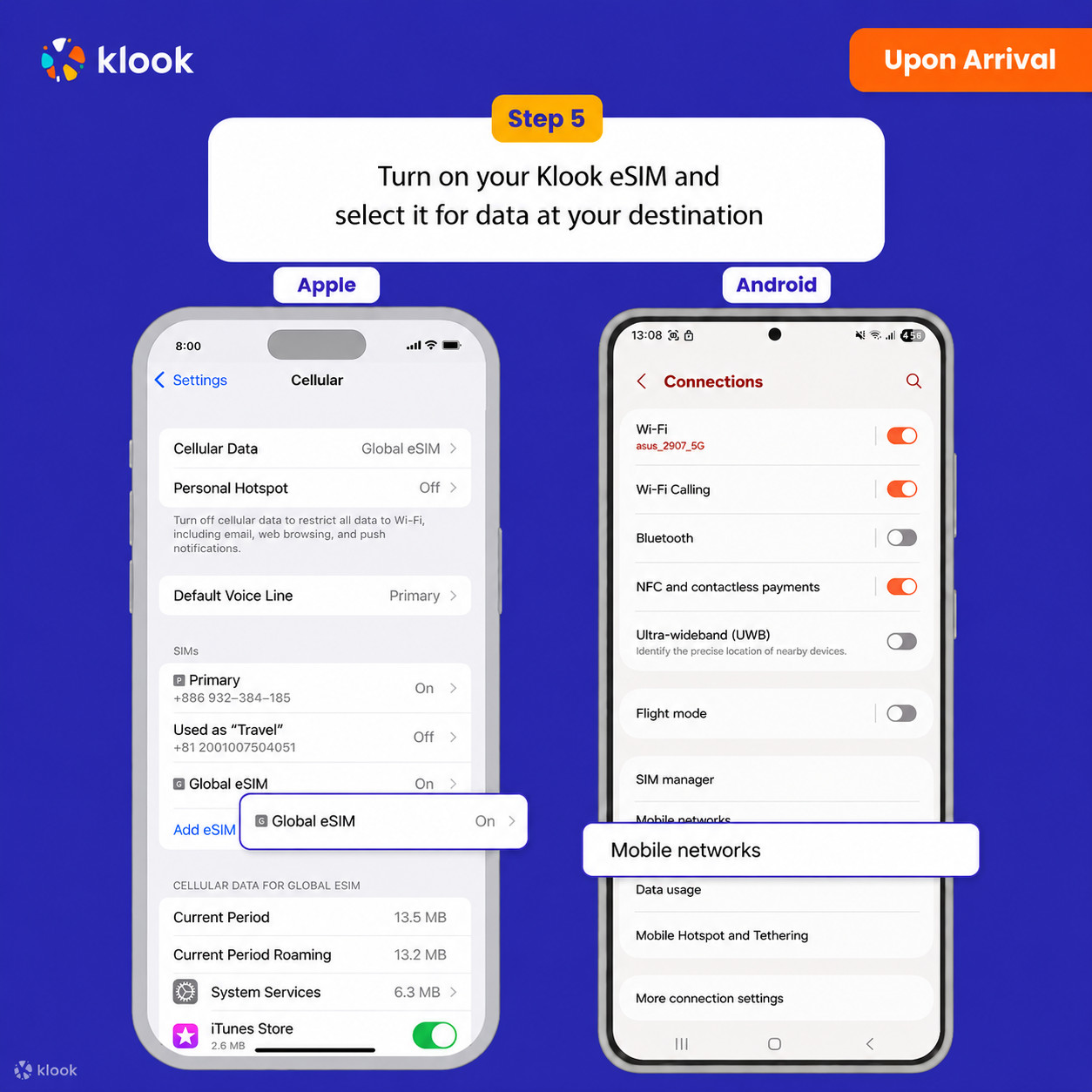
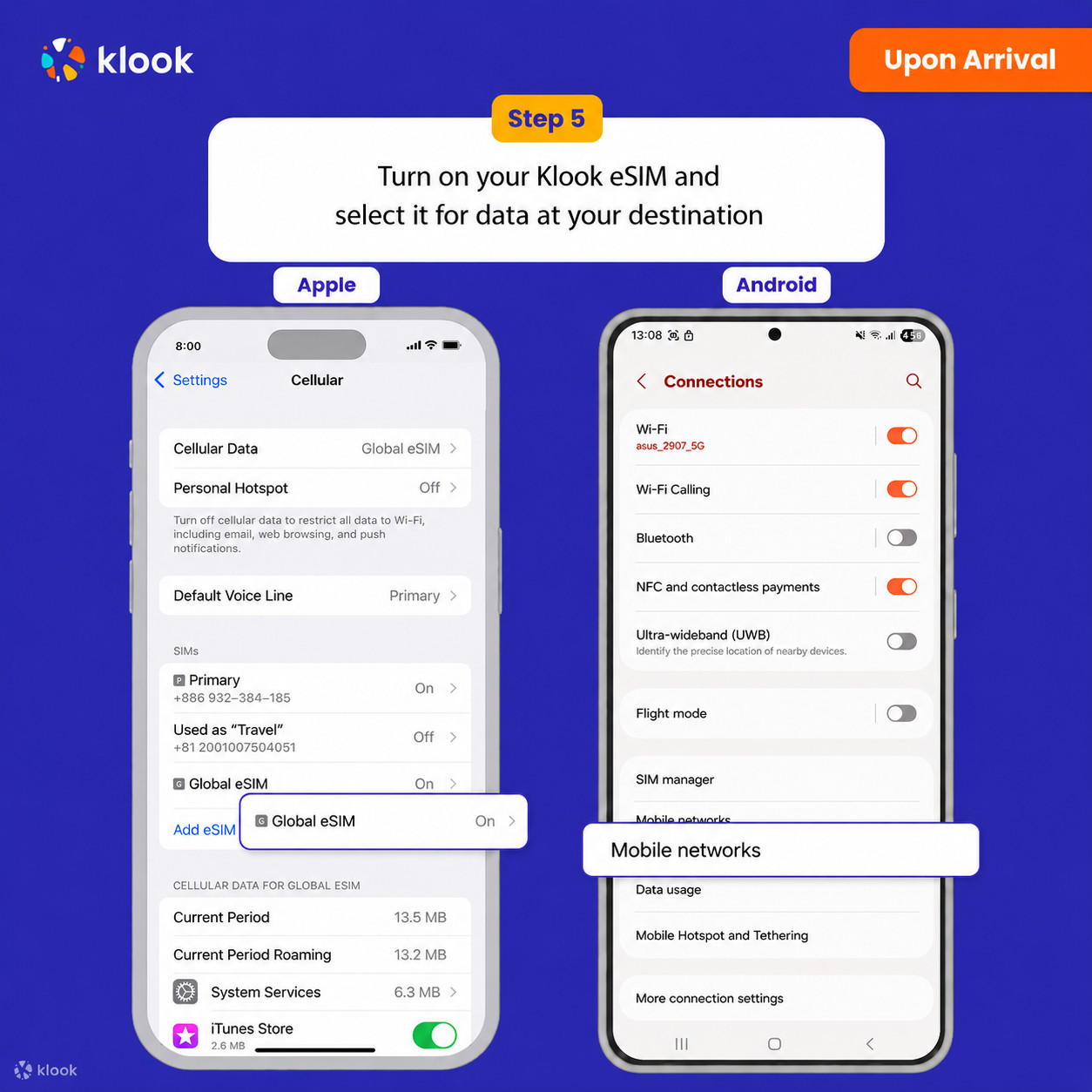
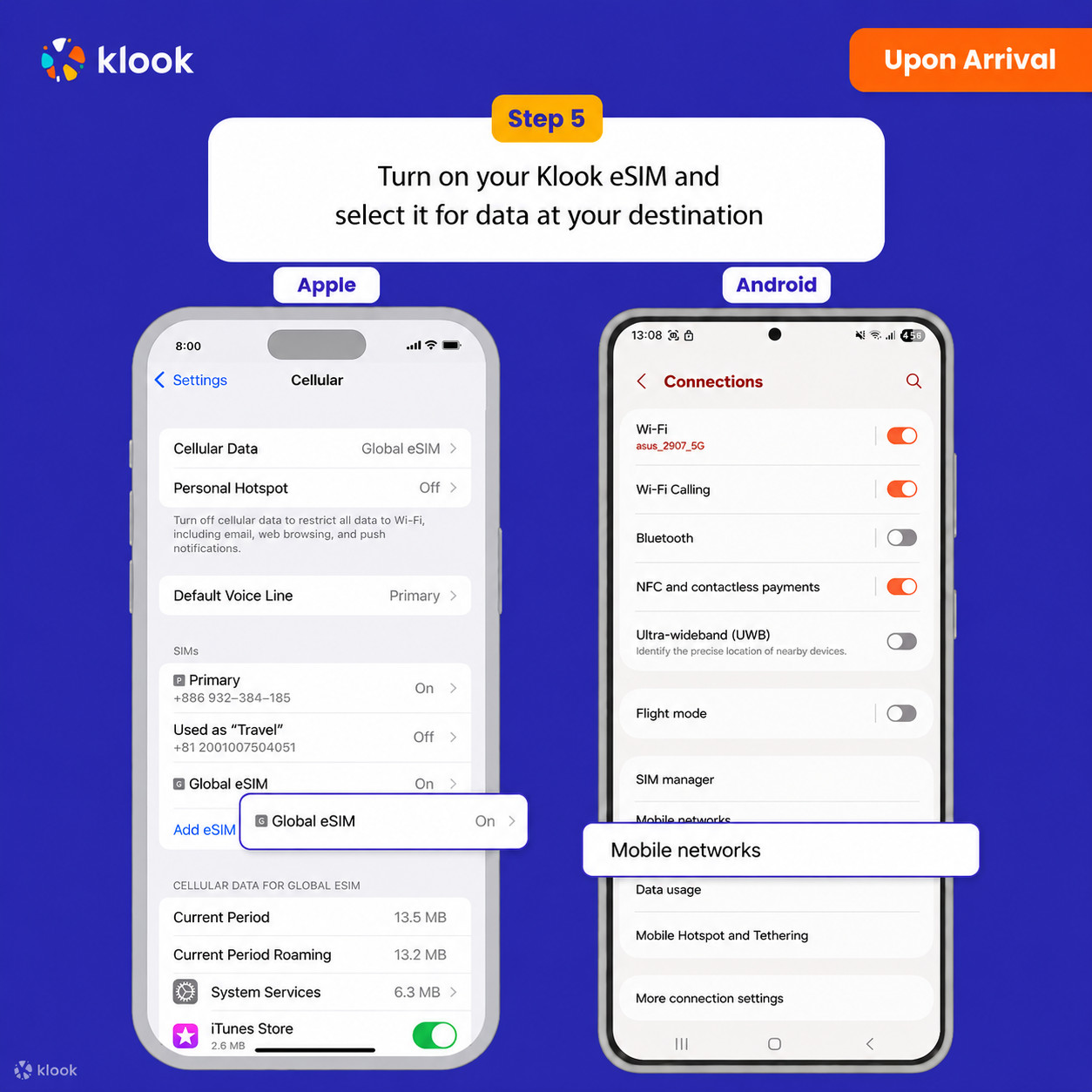
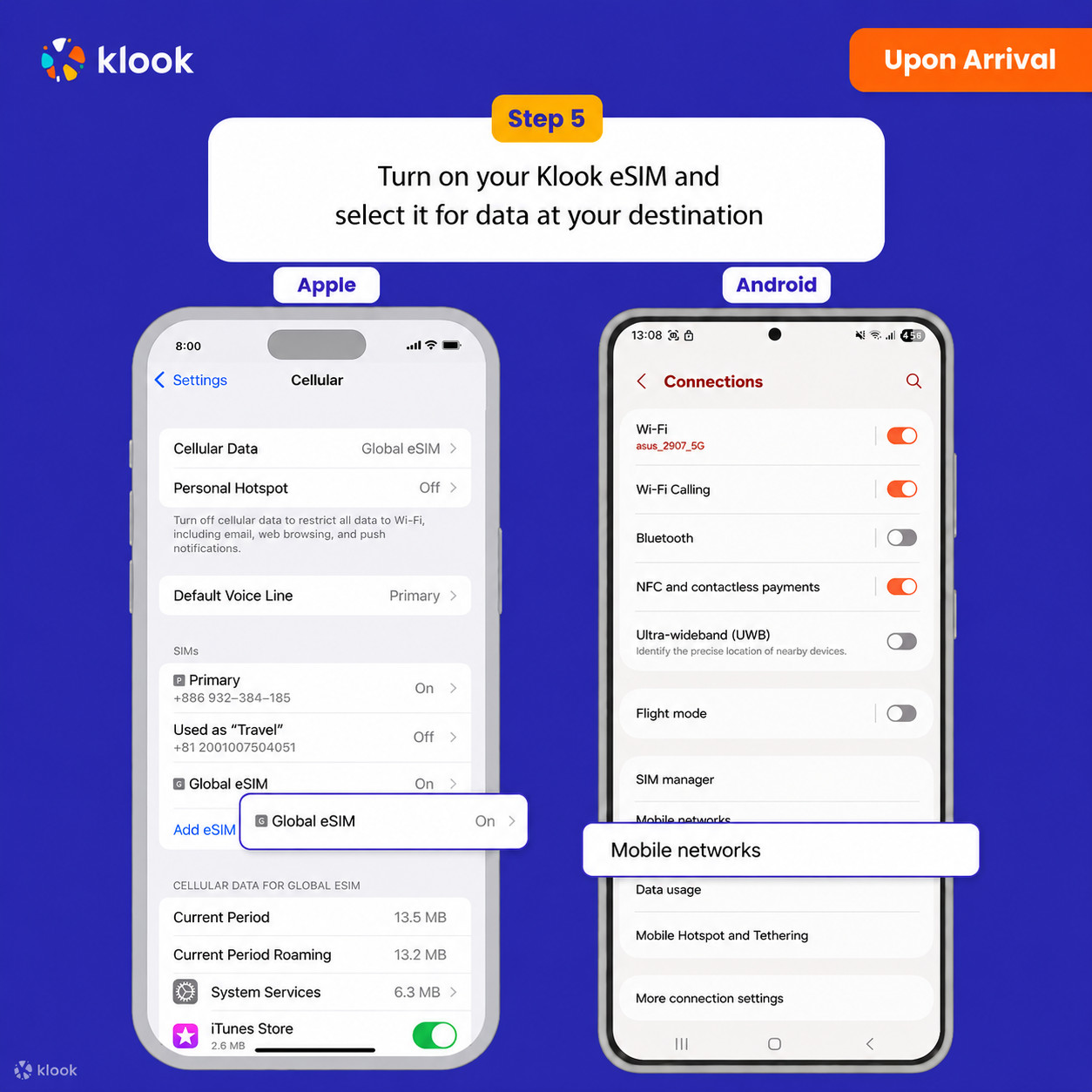
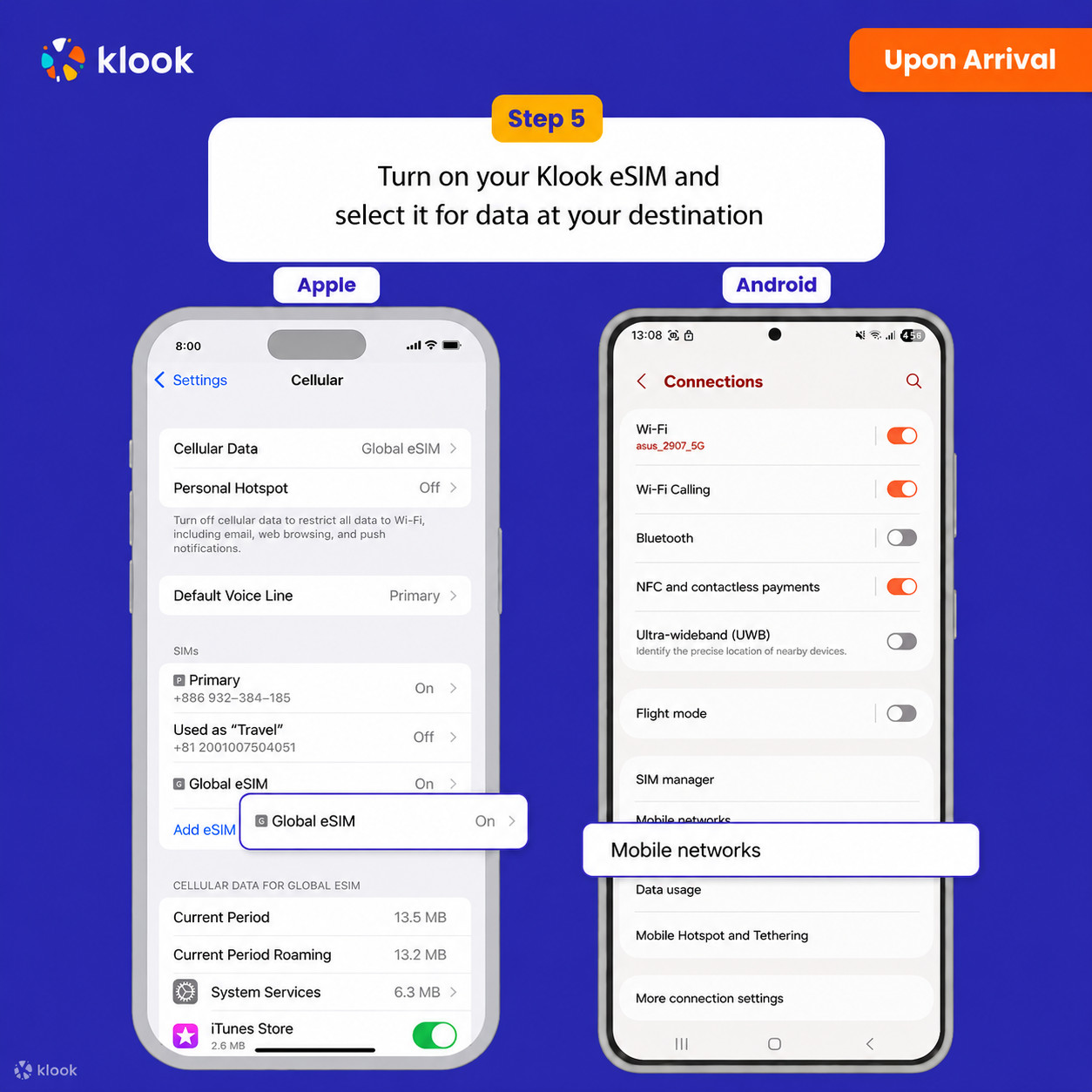
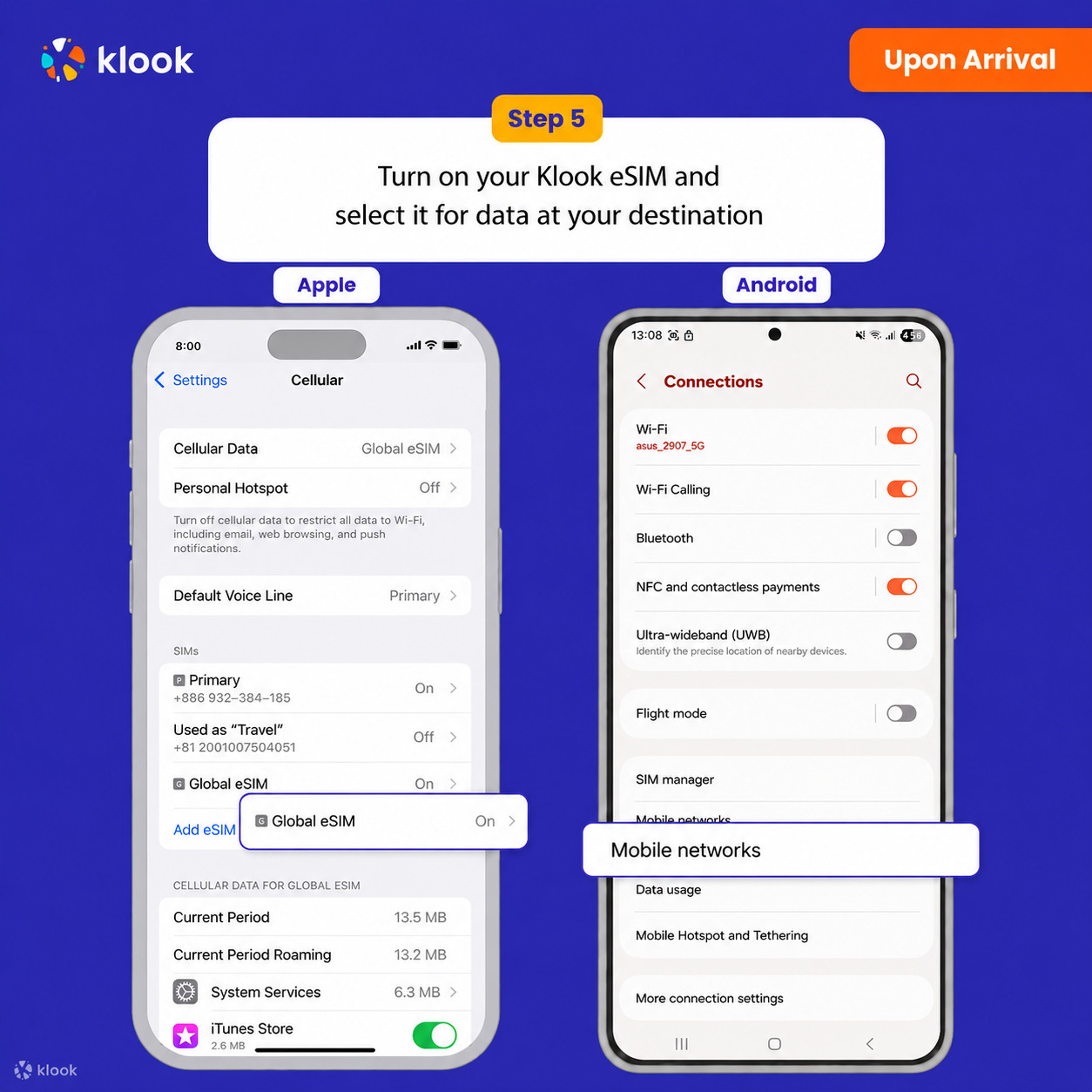
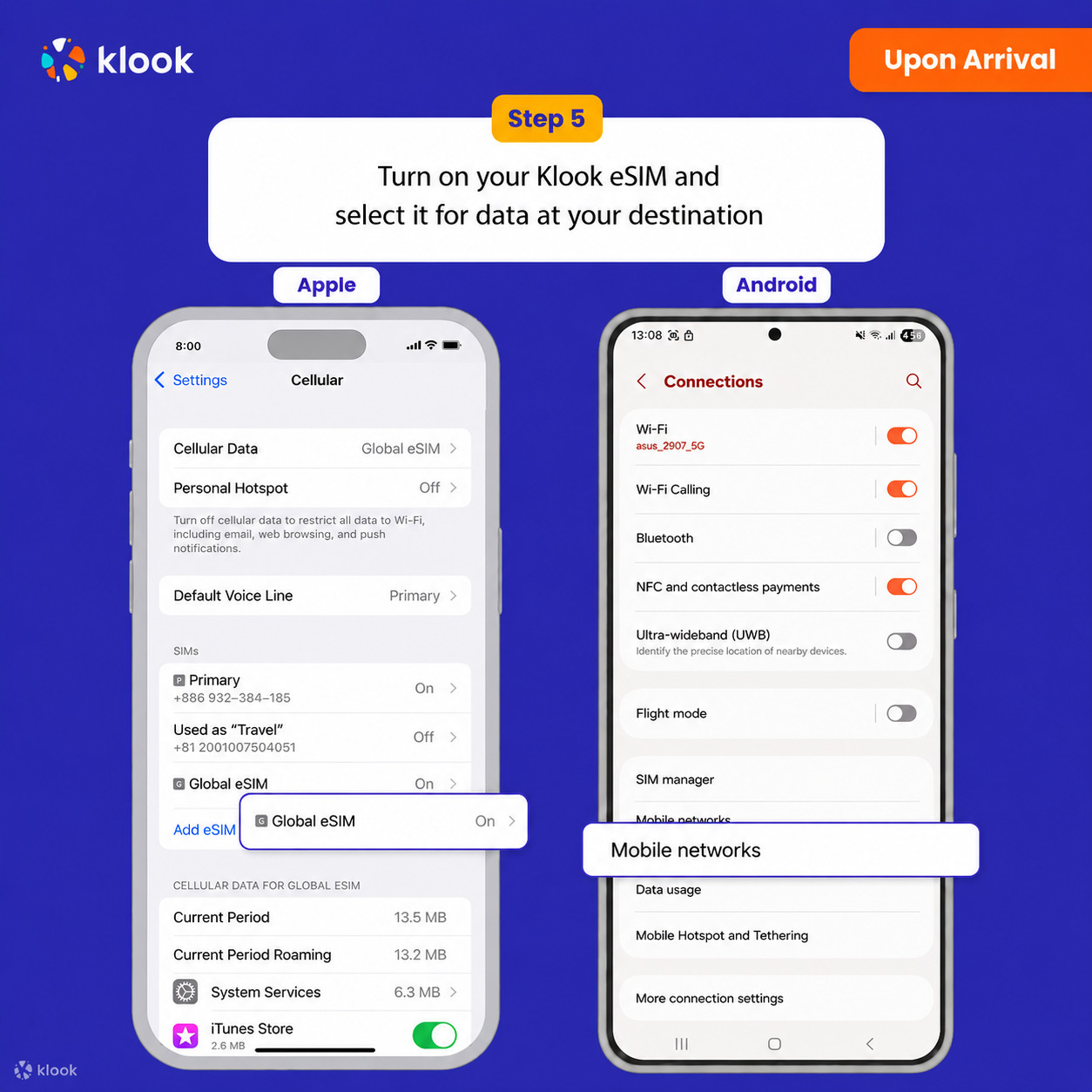
Klook eSIM-ni yoqing
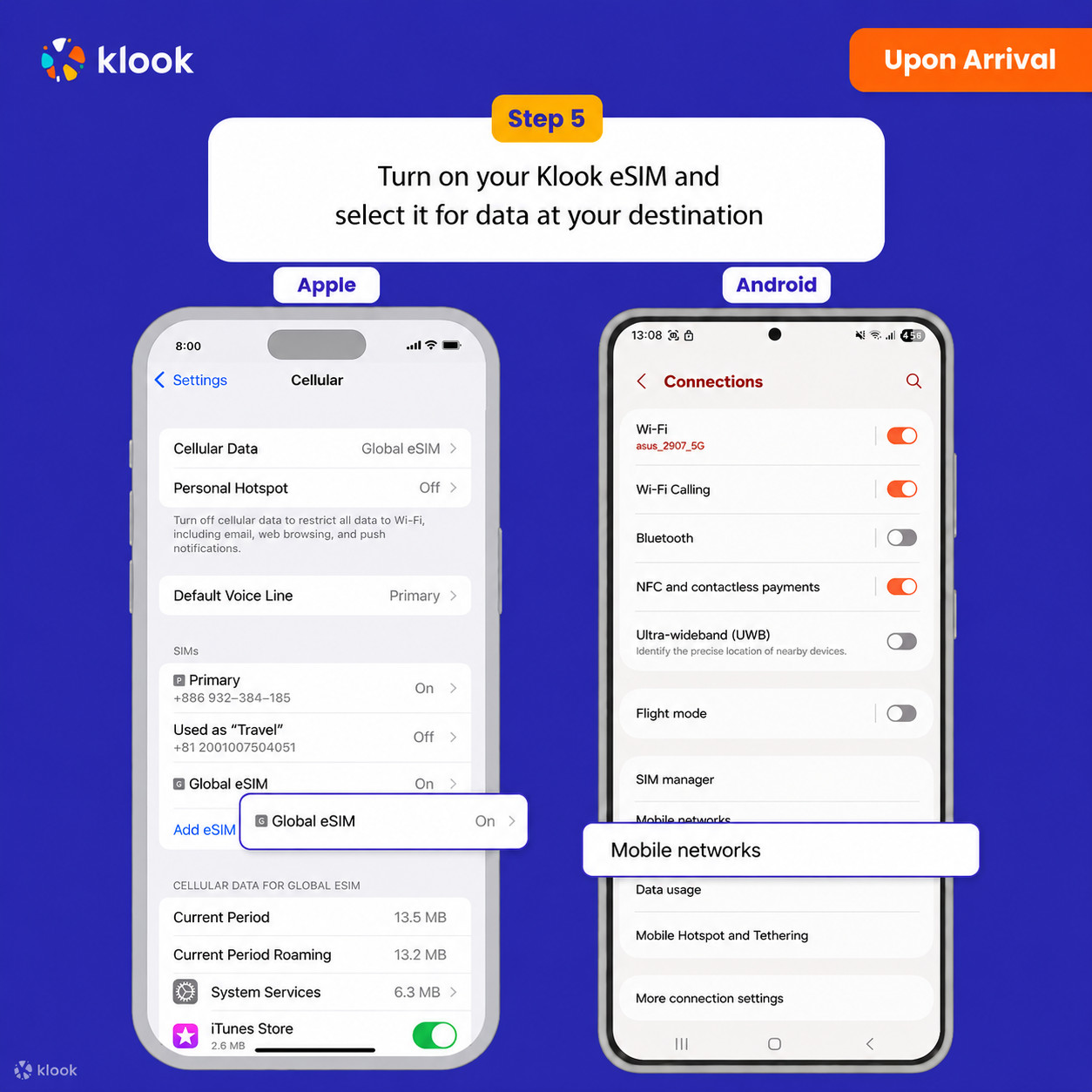
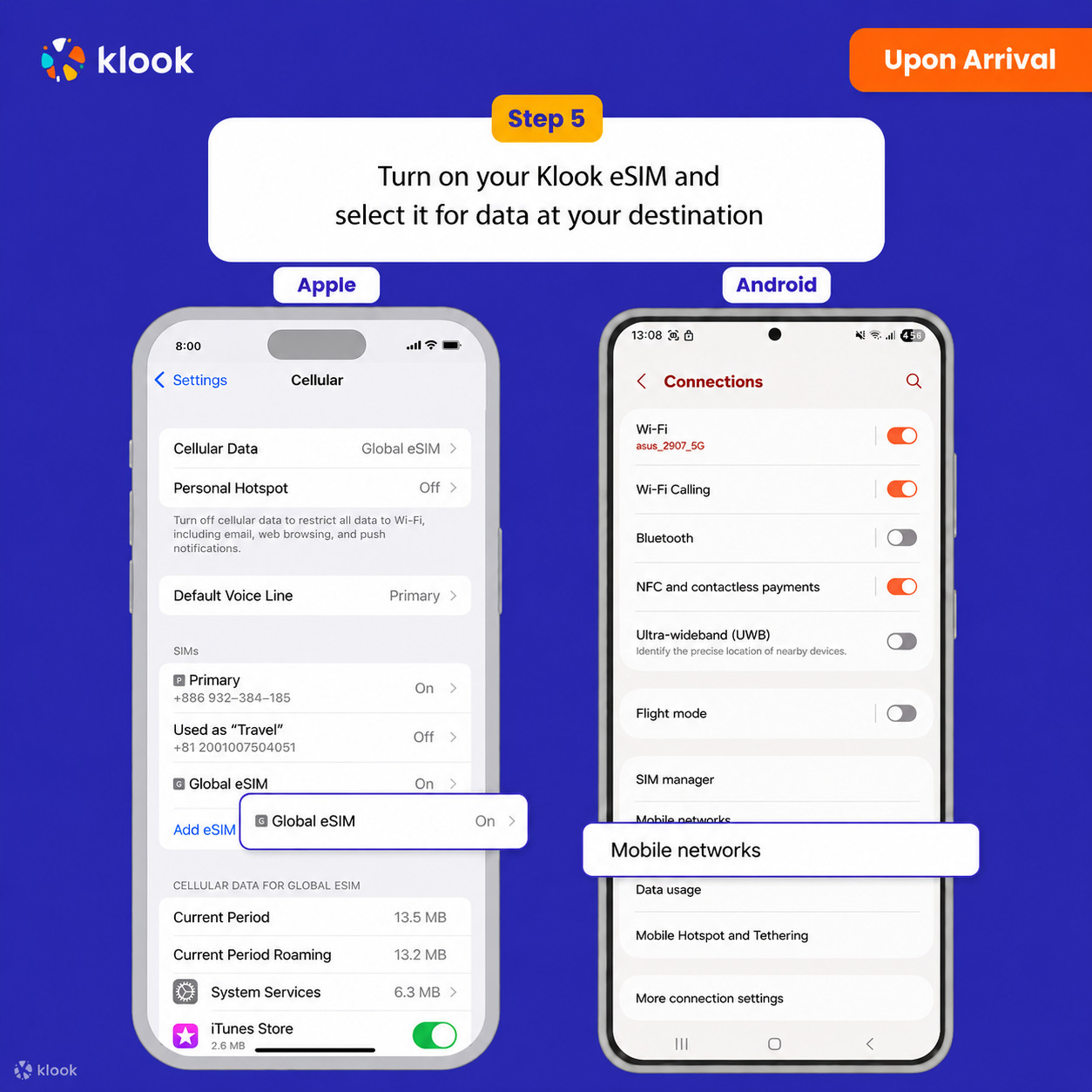
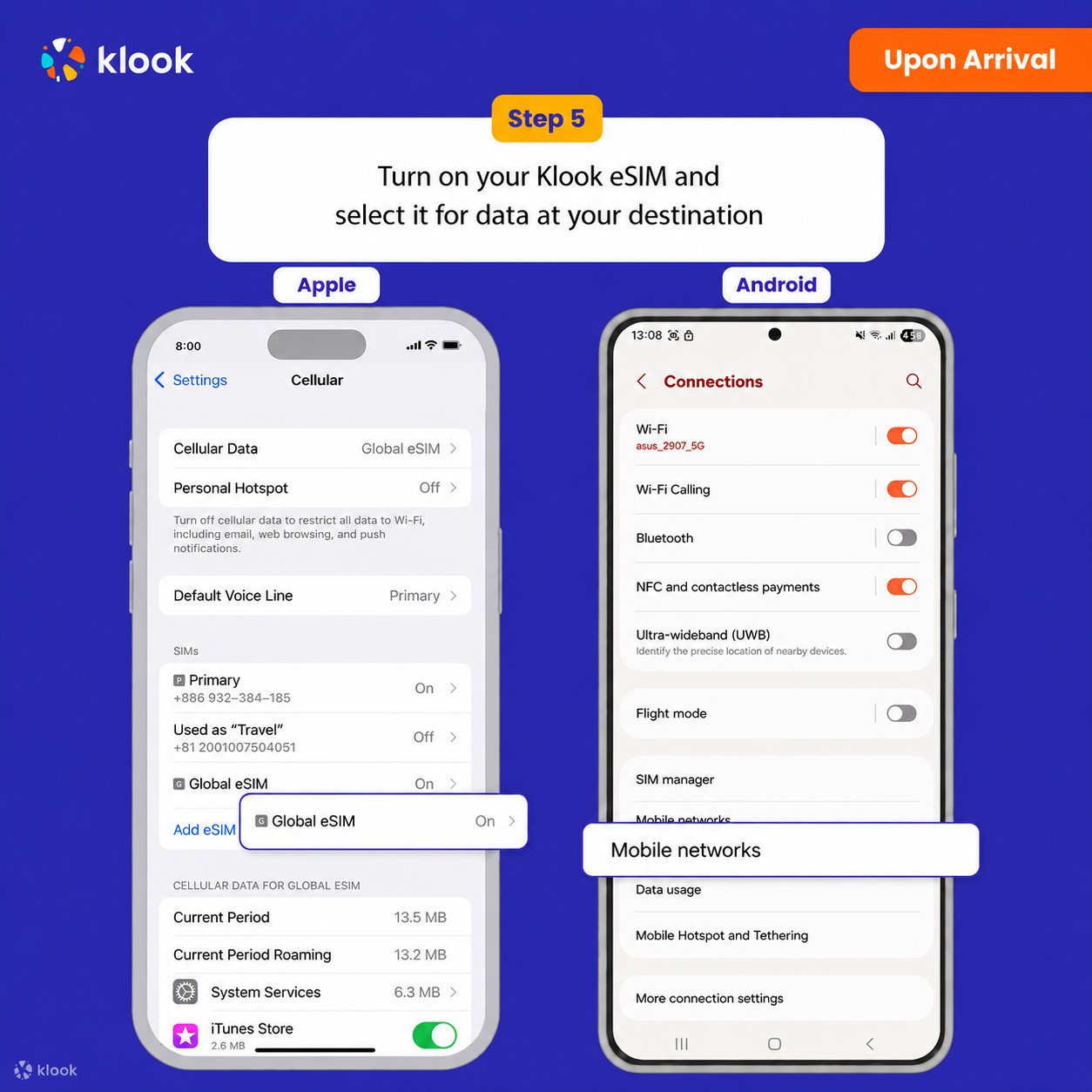
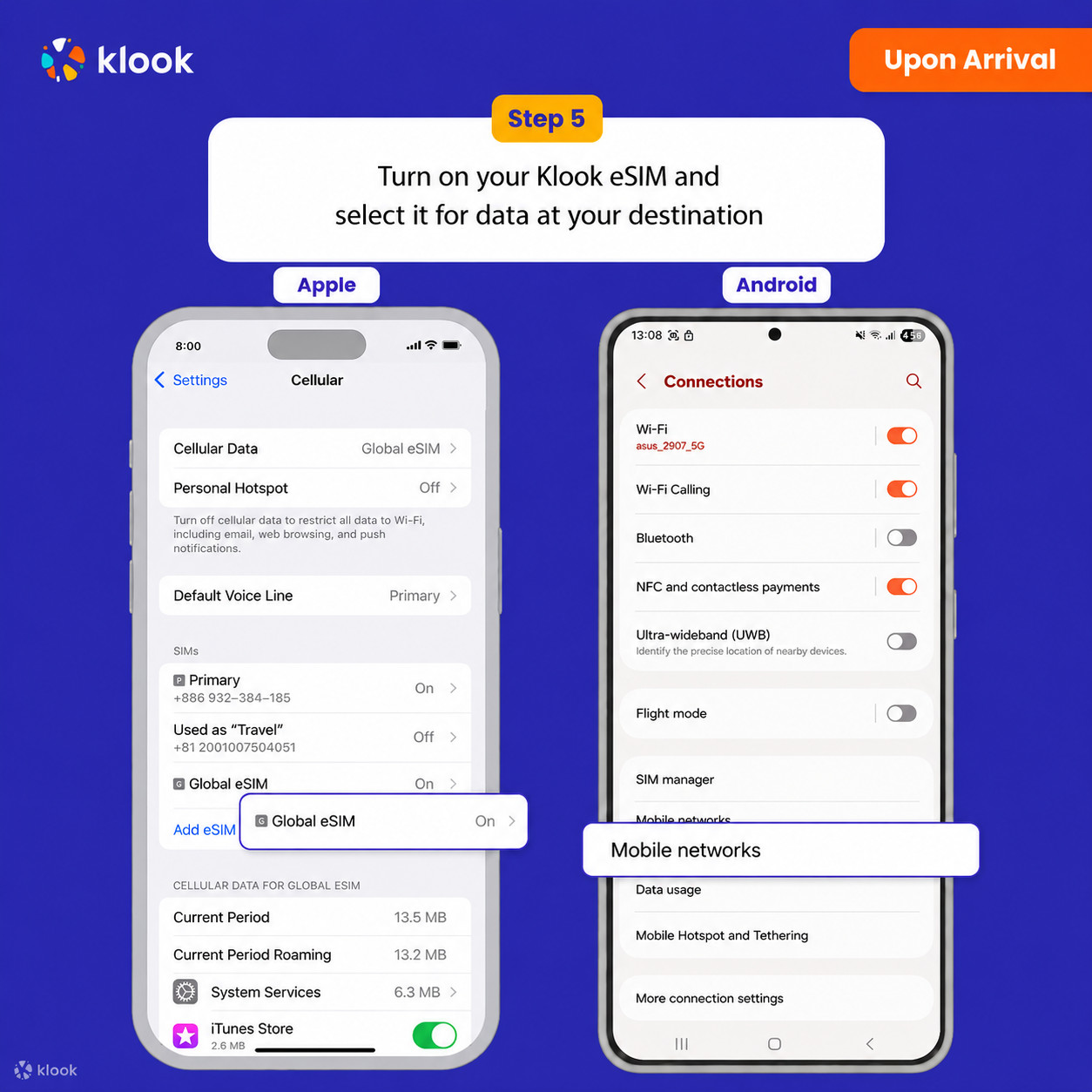
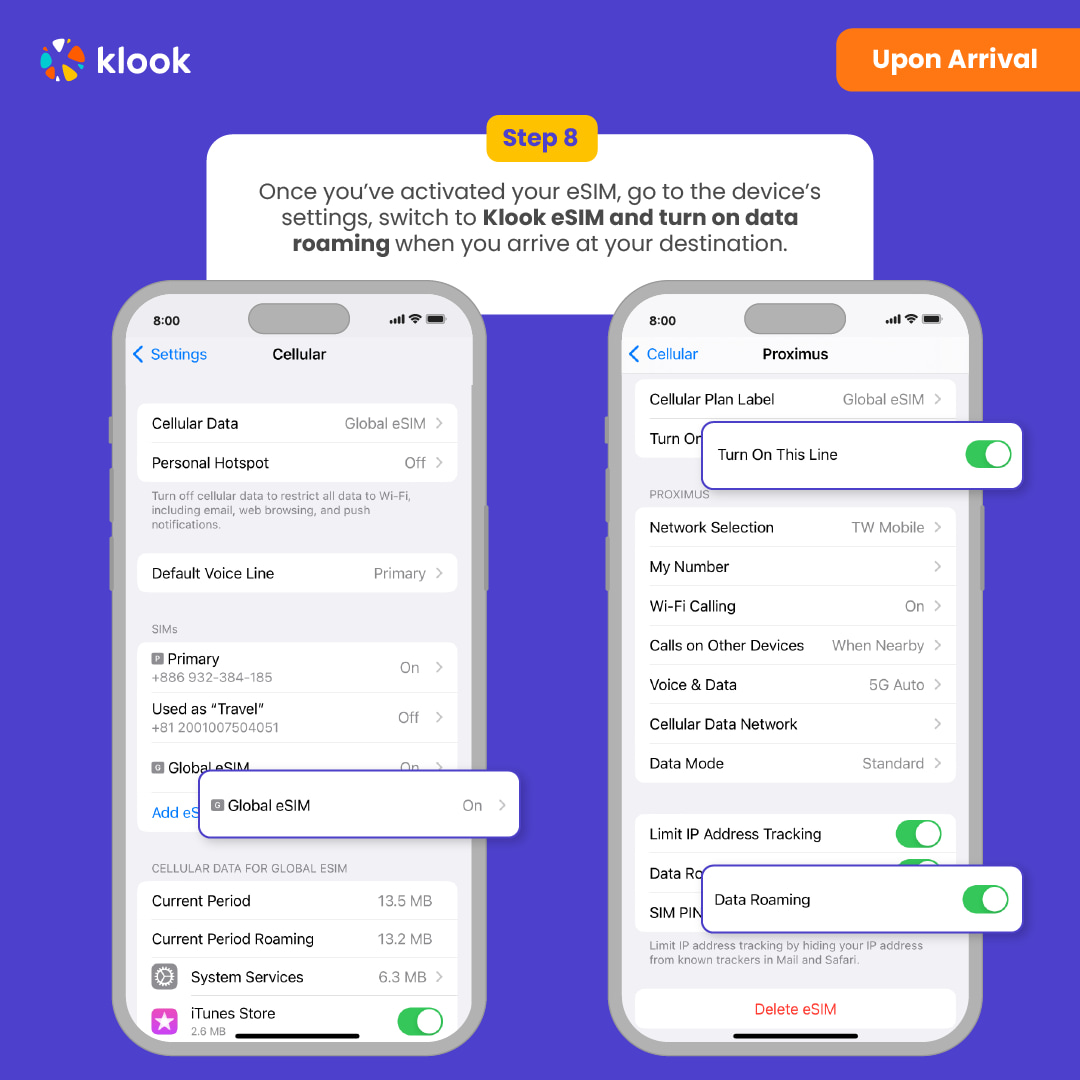
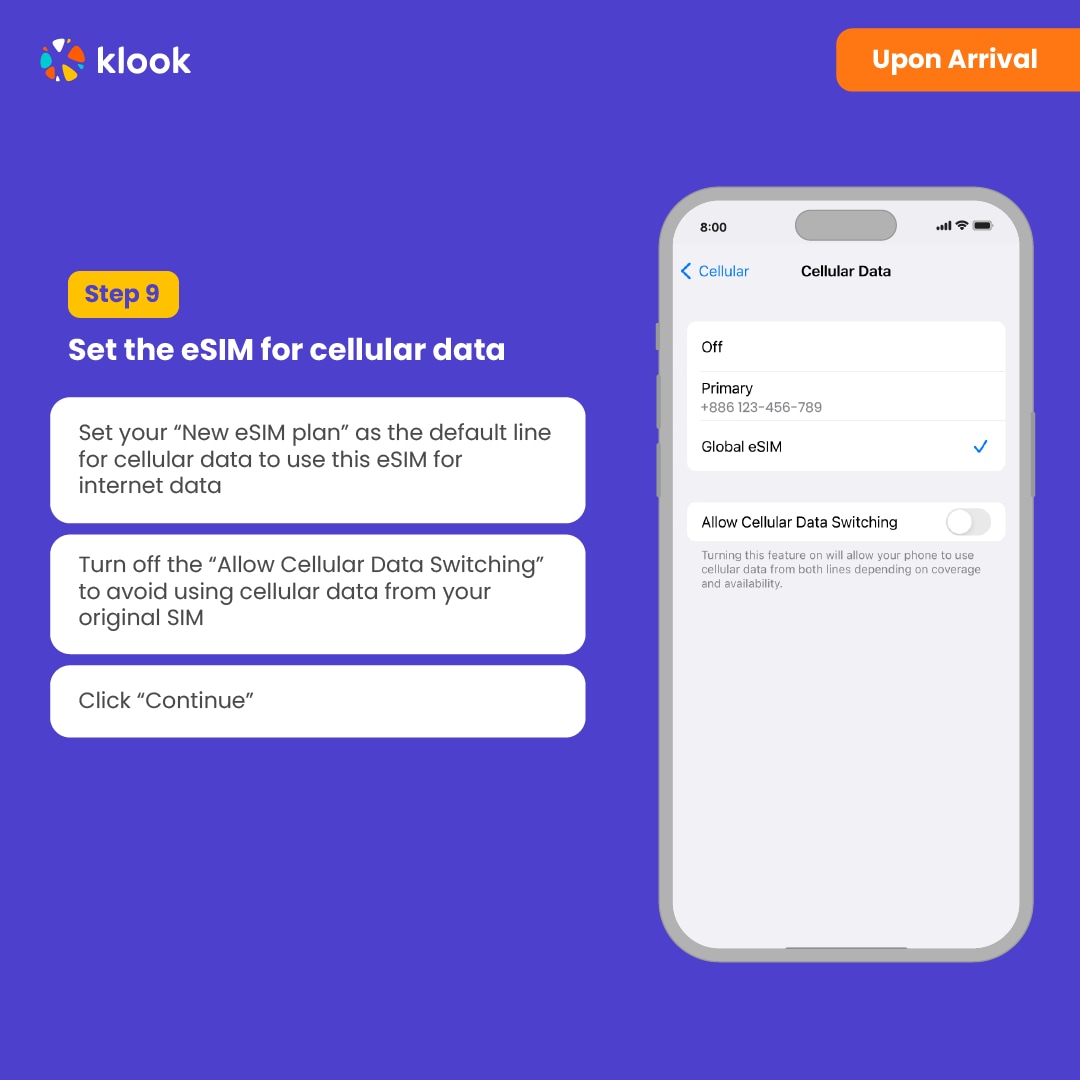
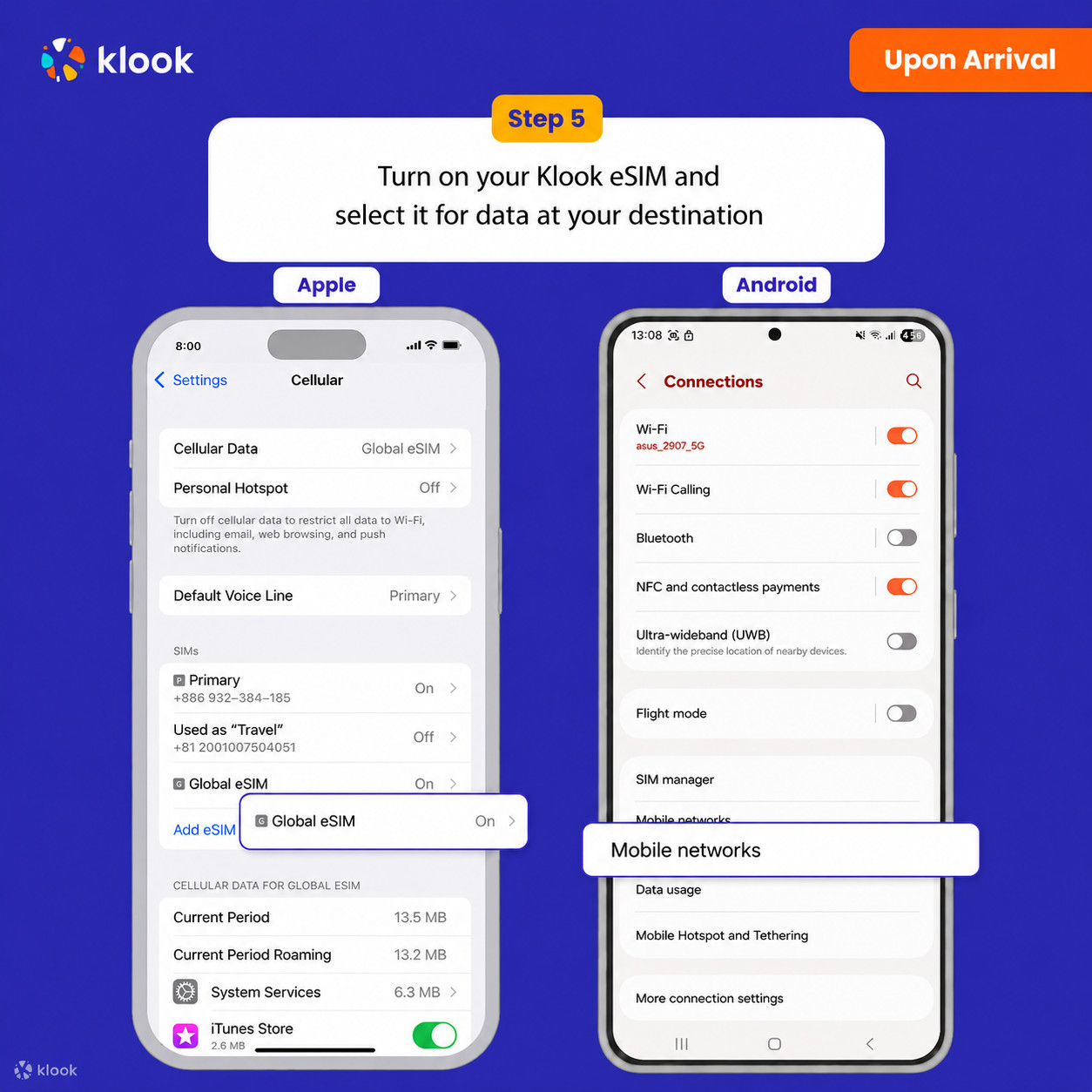
Klook eSIM-ni yoqing va mobil ma’lumot uchun Klook eSIM-ni tanlang
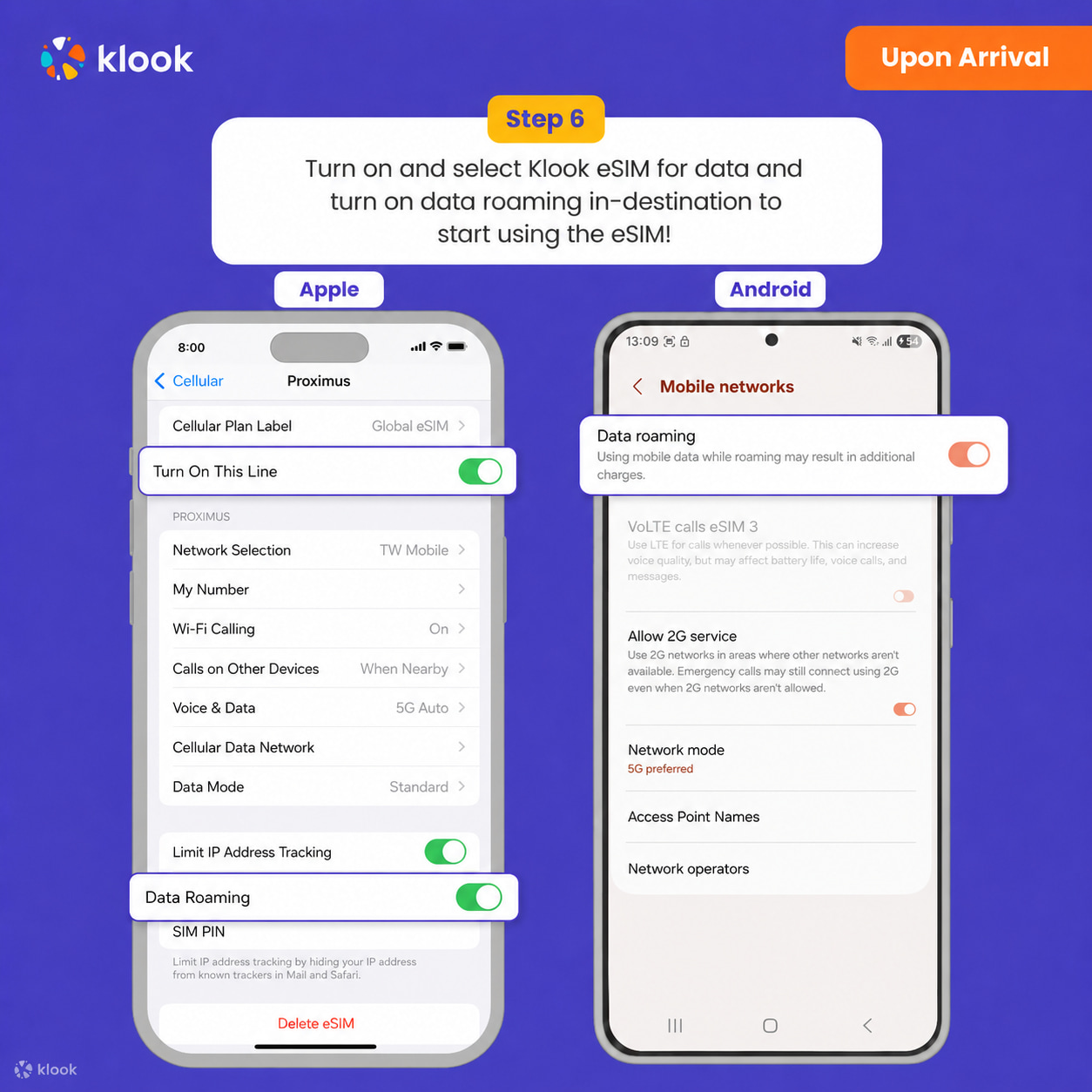
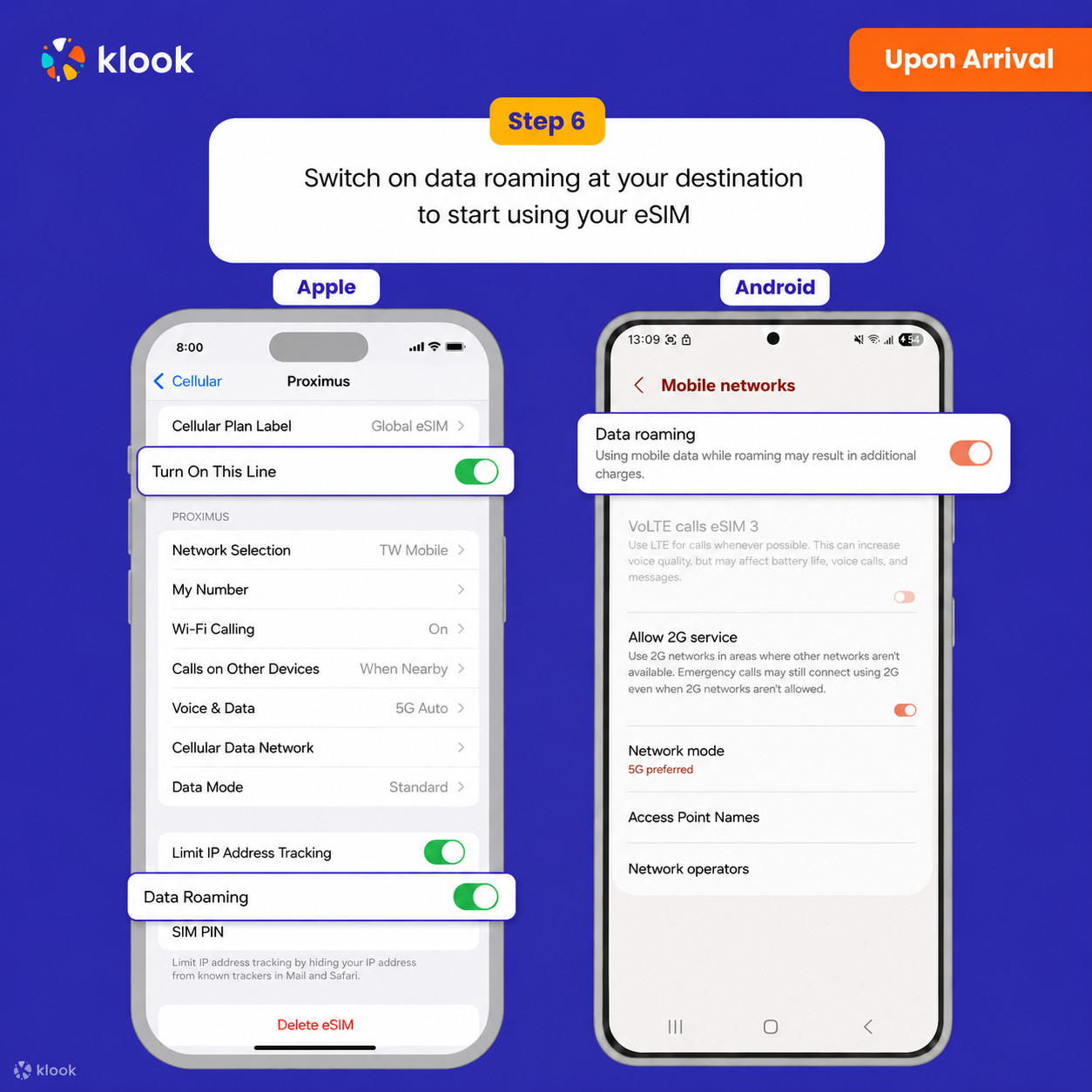
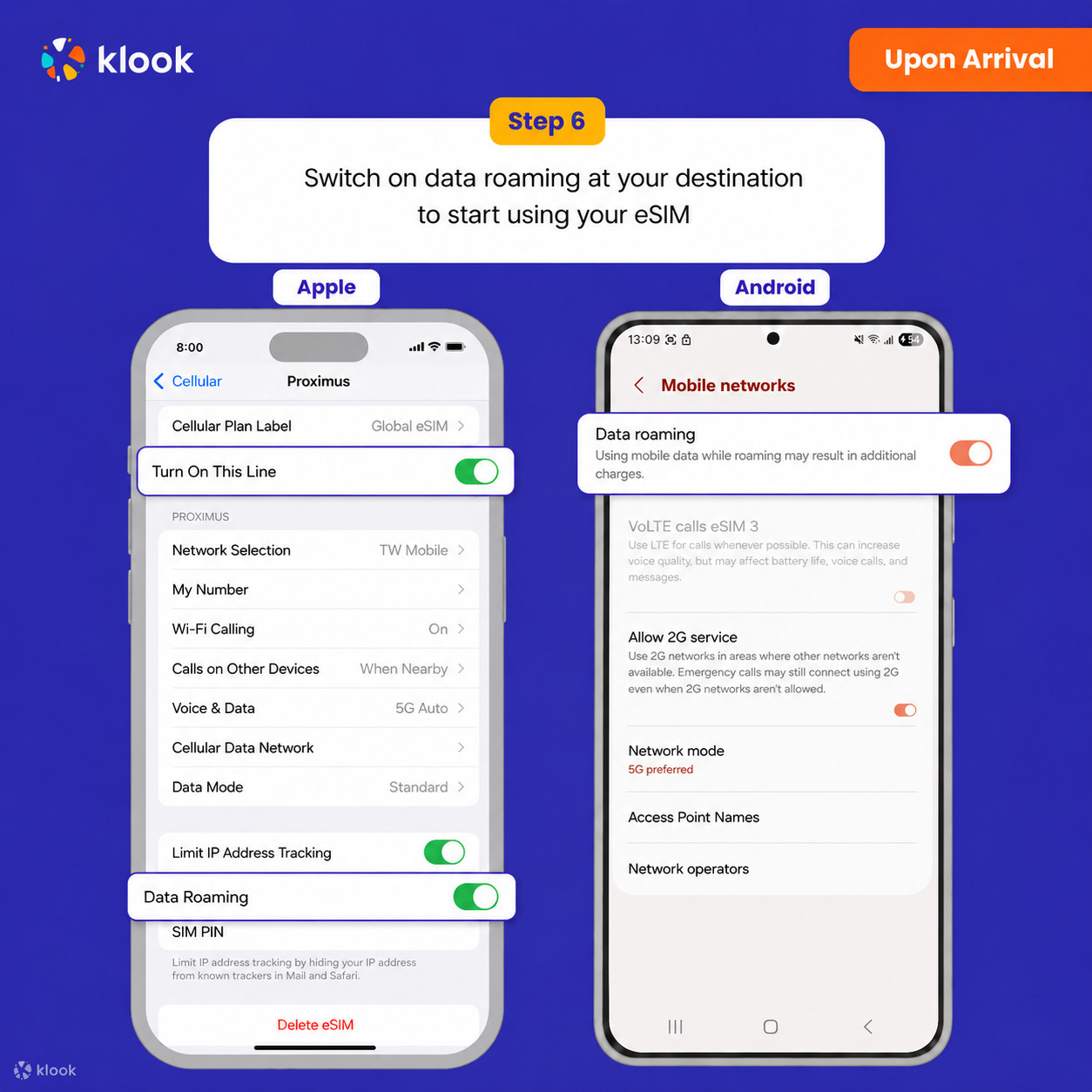
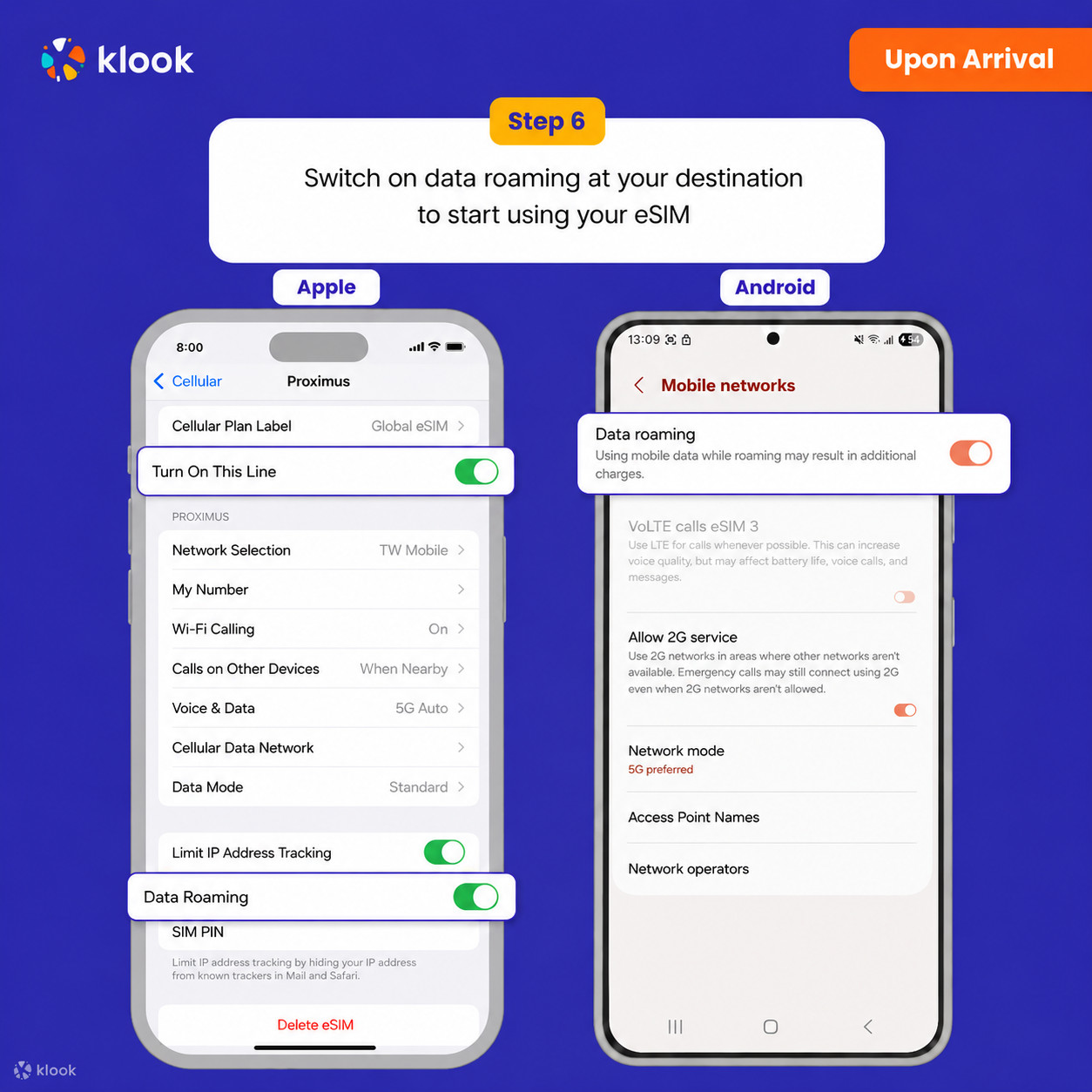
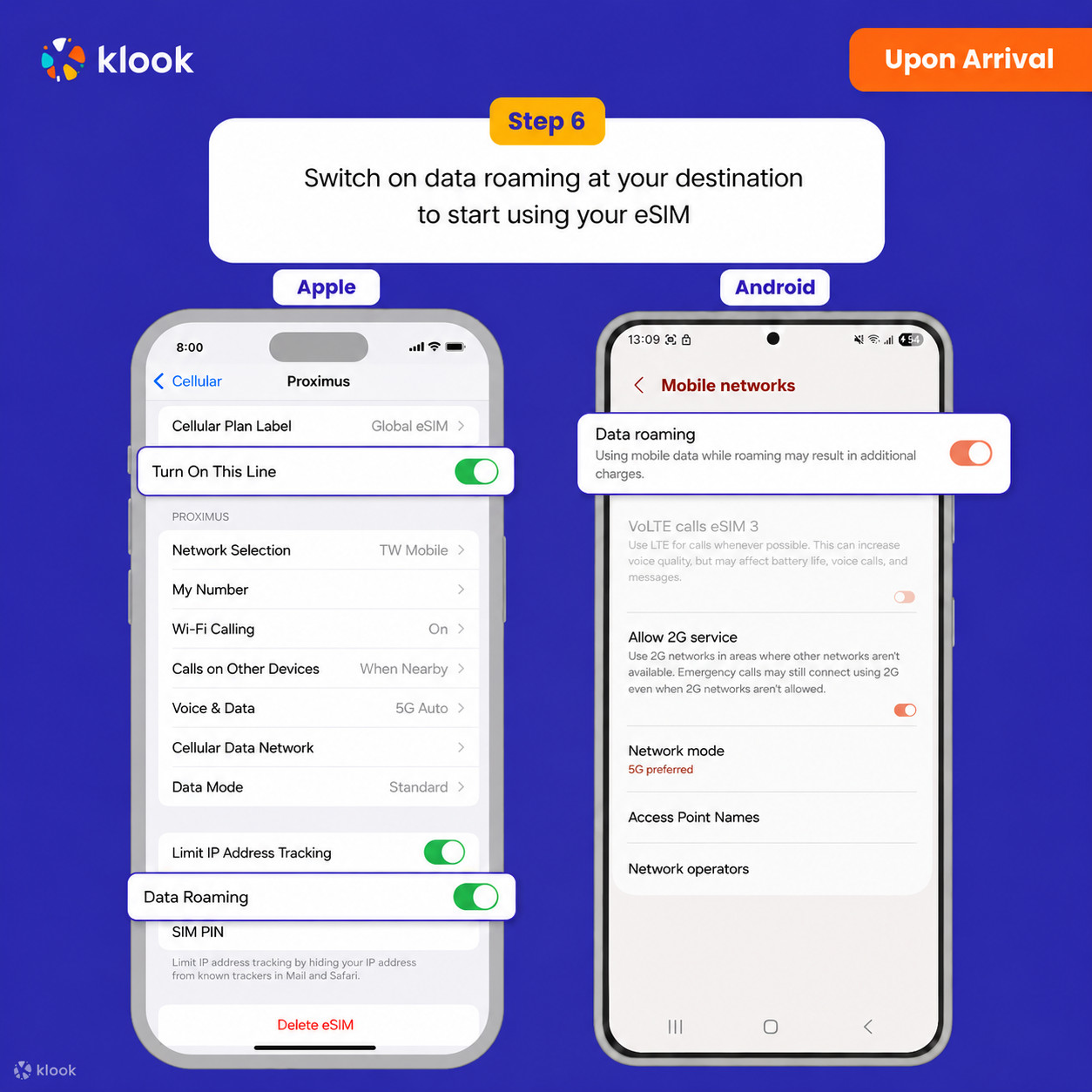
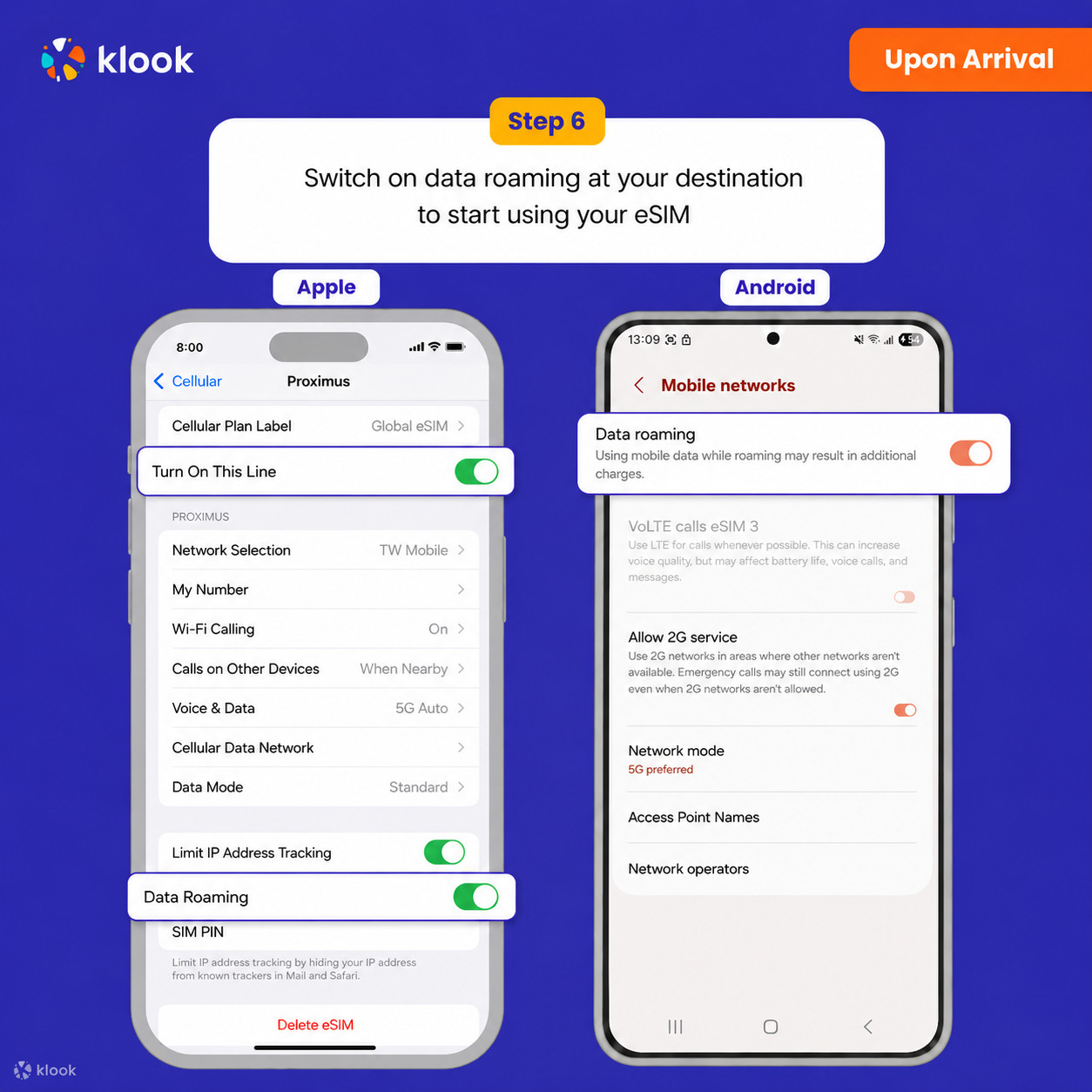
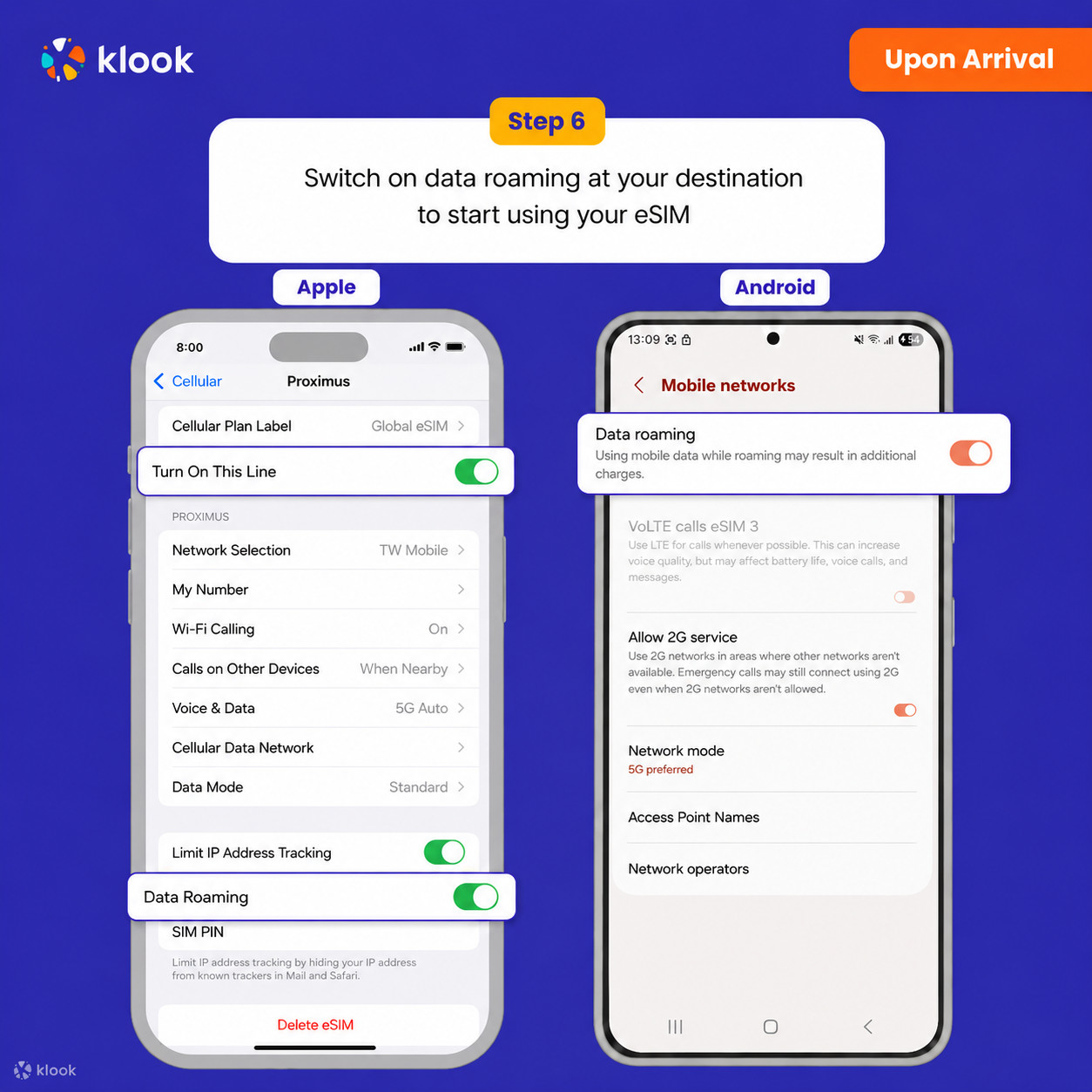
Data roumingni yoqing
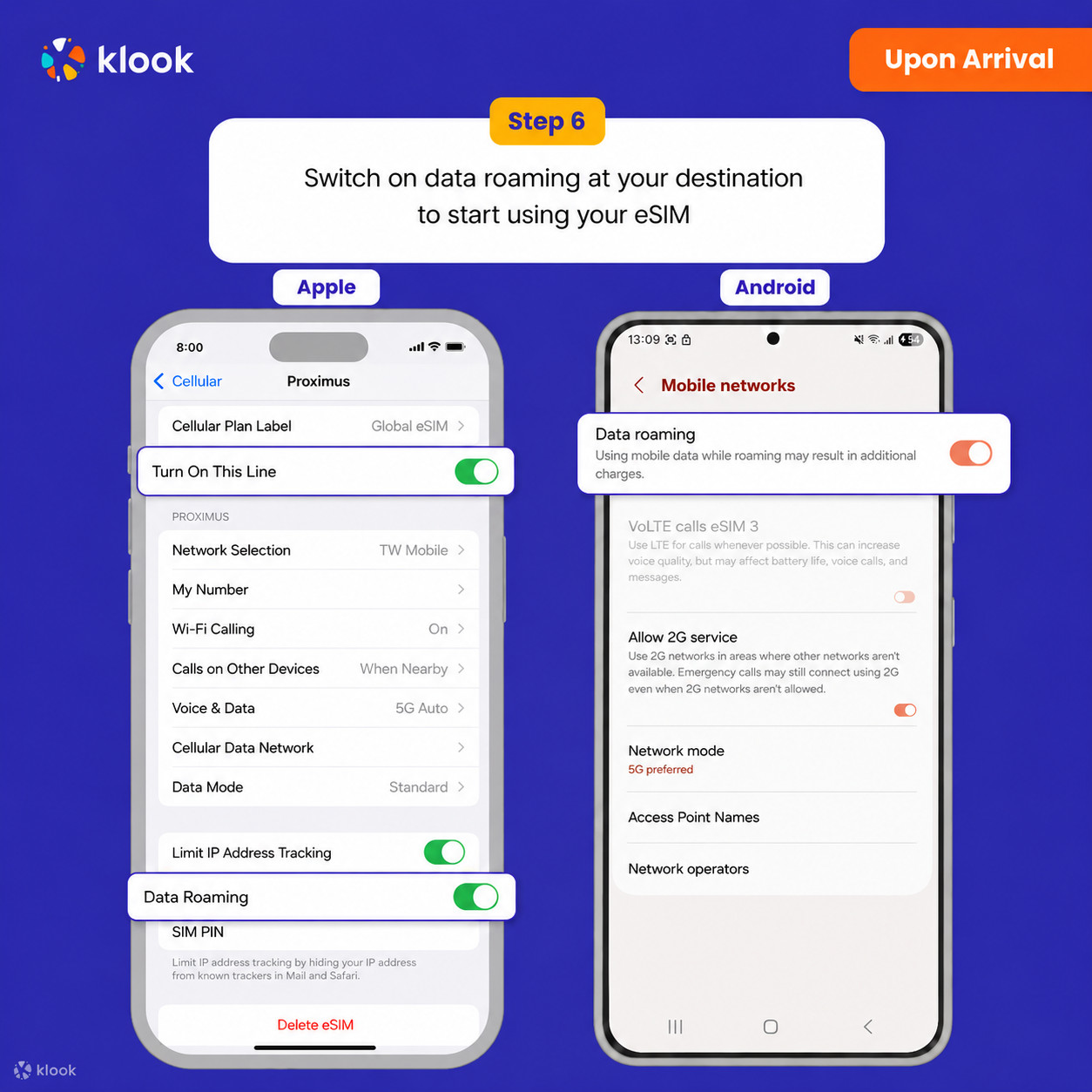
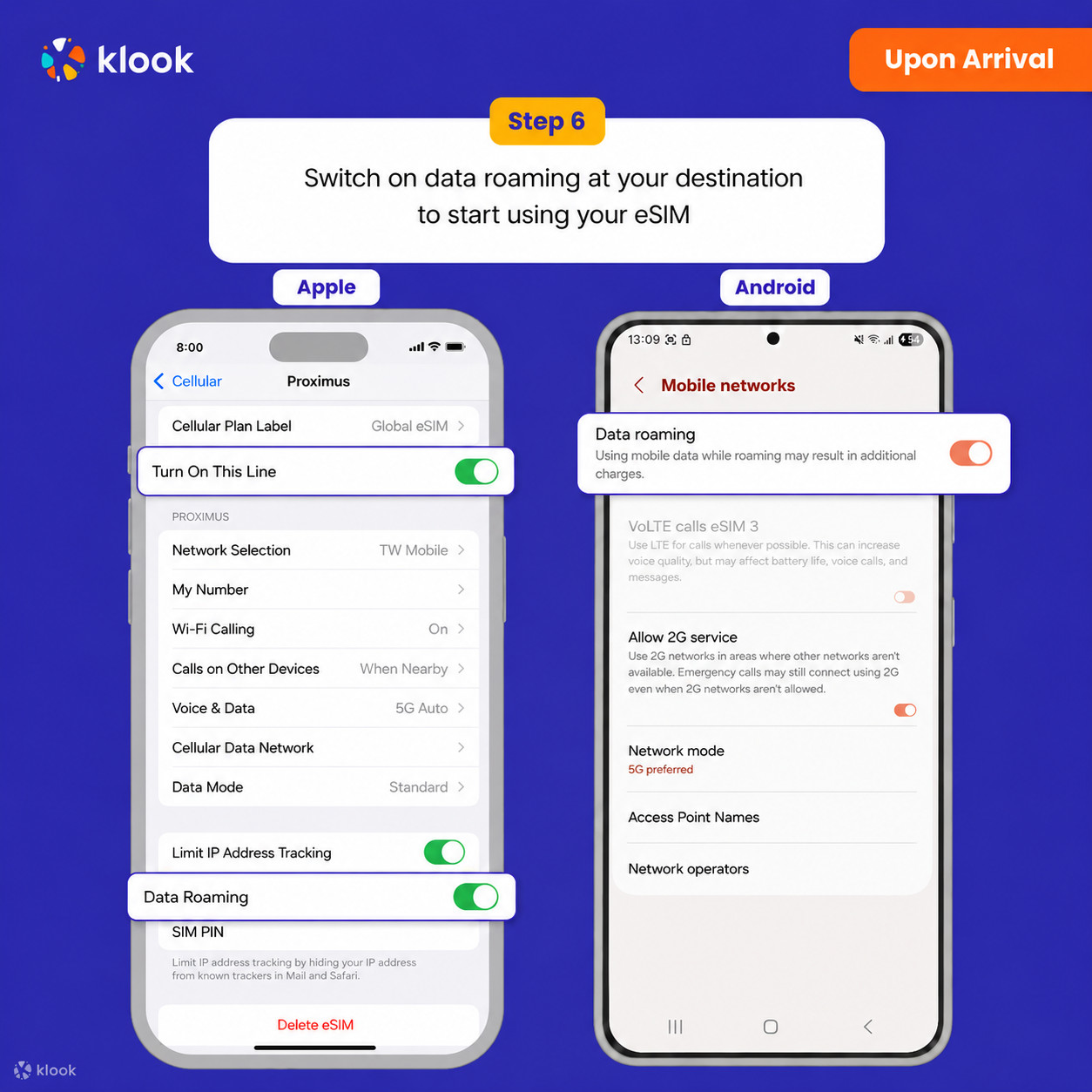
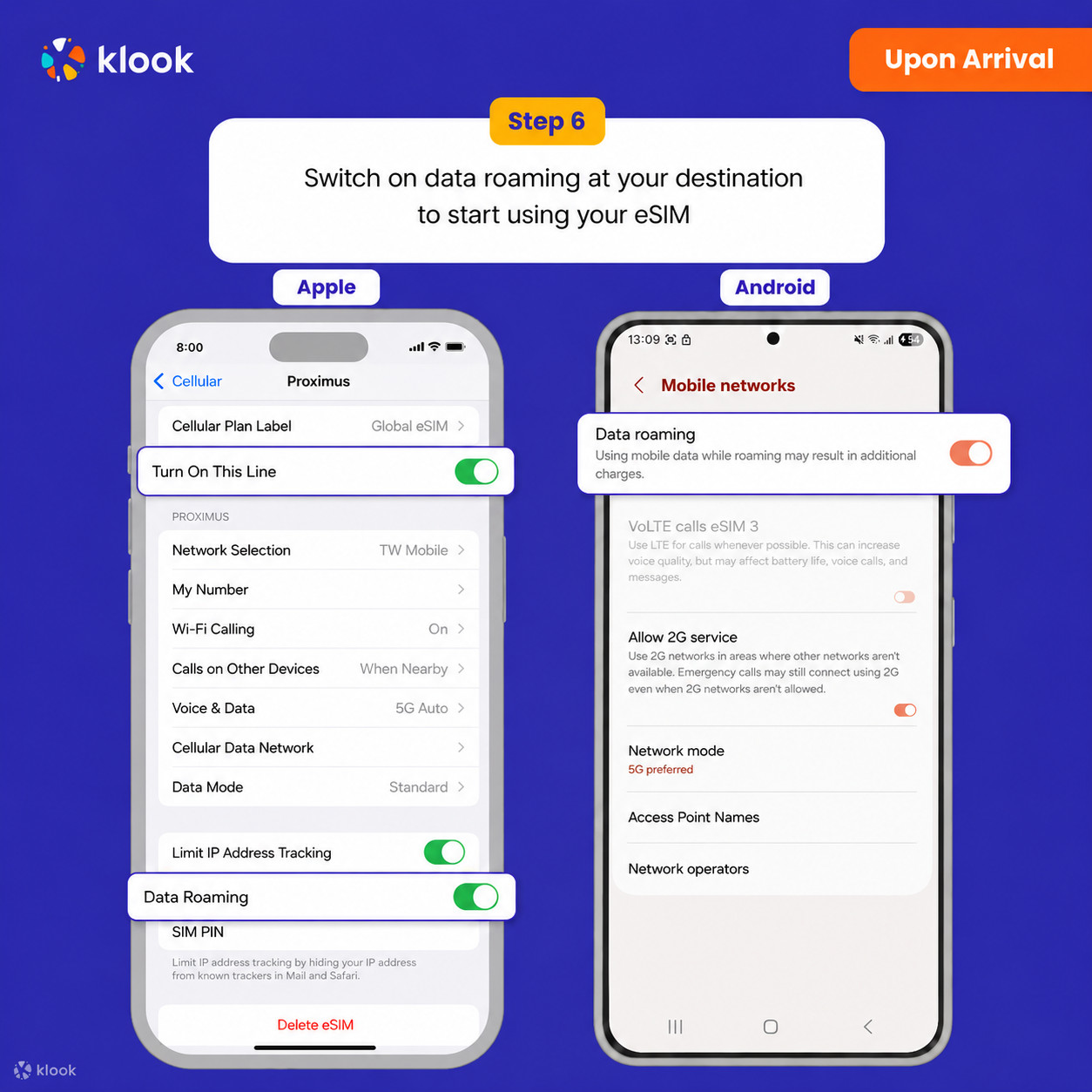
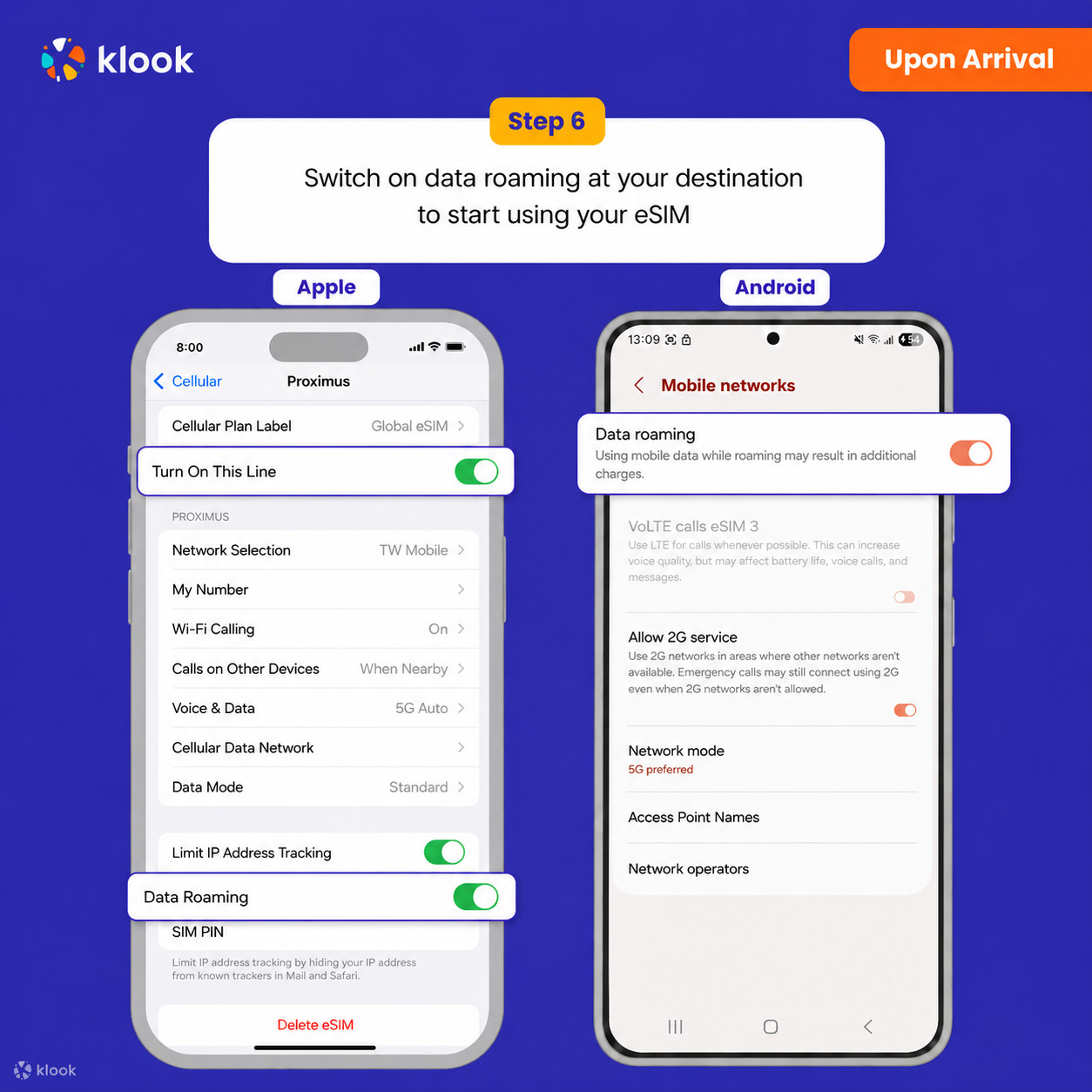
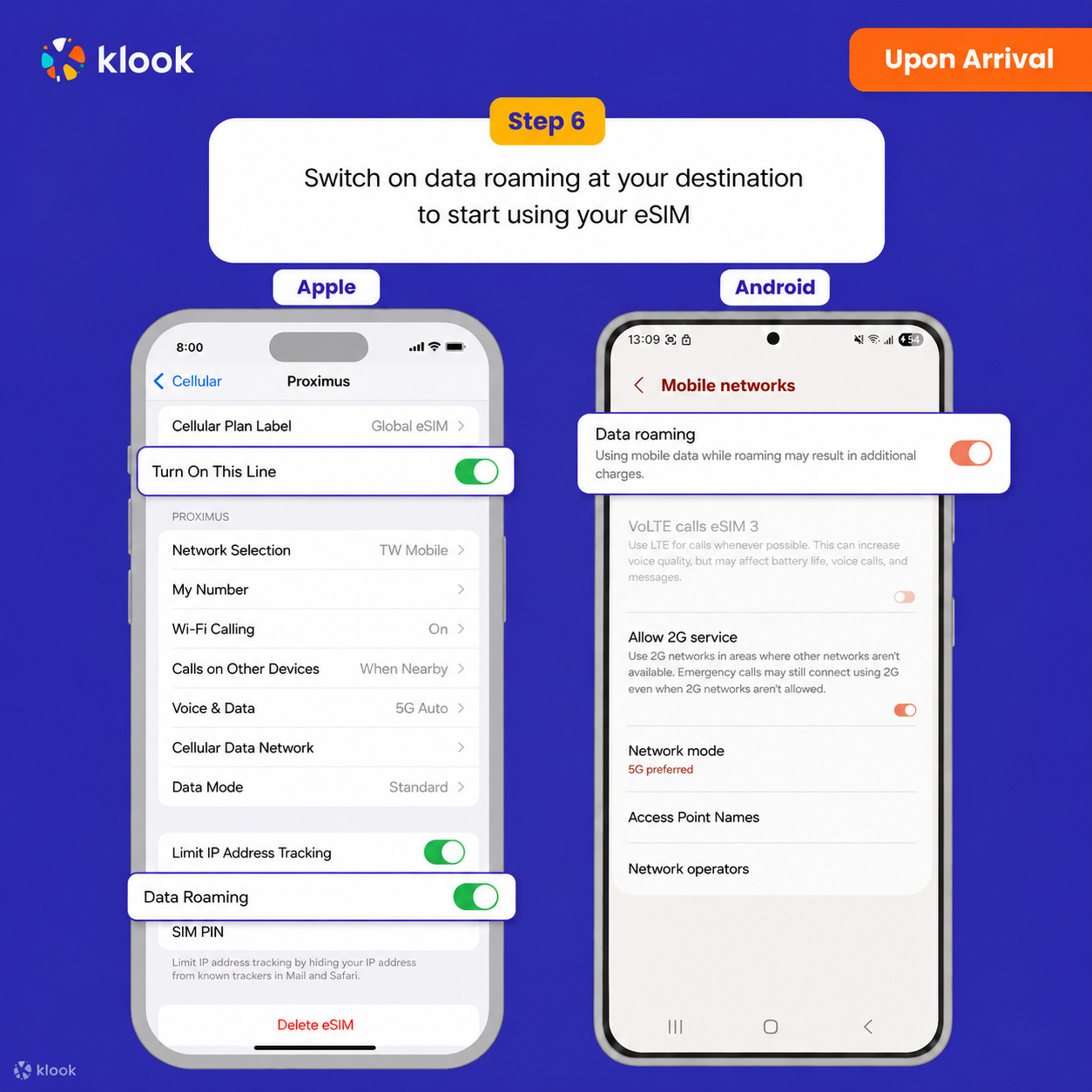
Klook eSIM uchun ma’lumotni tanlang va data roumingni yoqing, shunda eSIM ishlay boshlaydi!
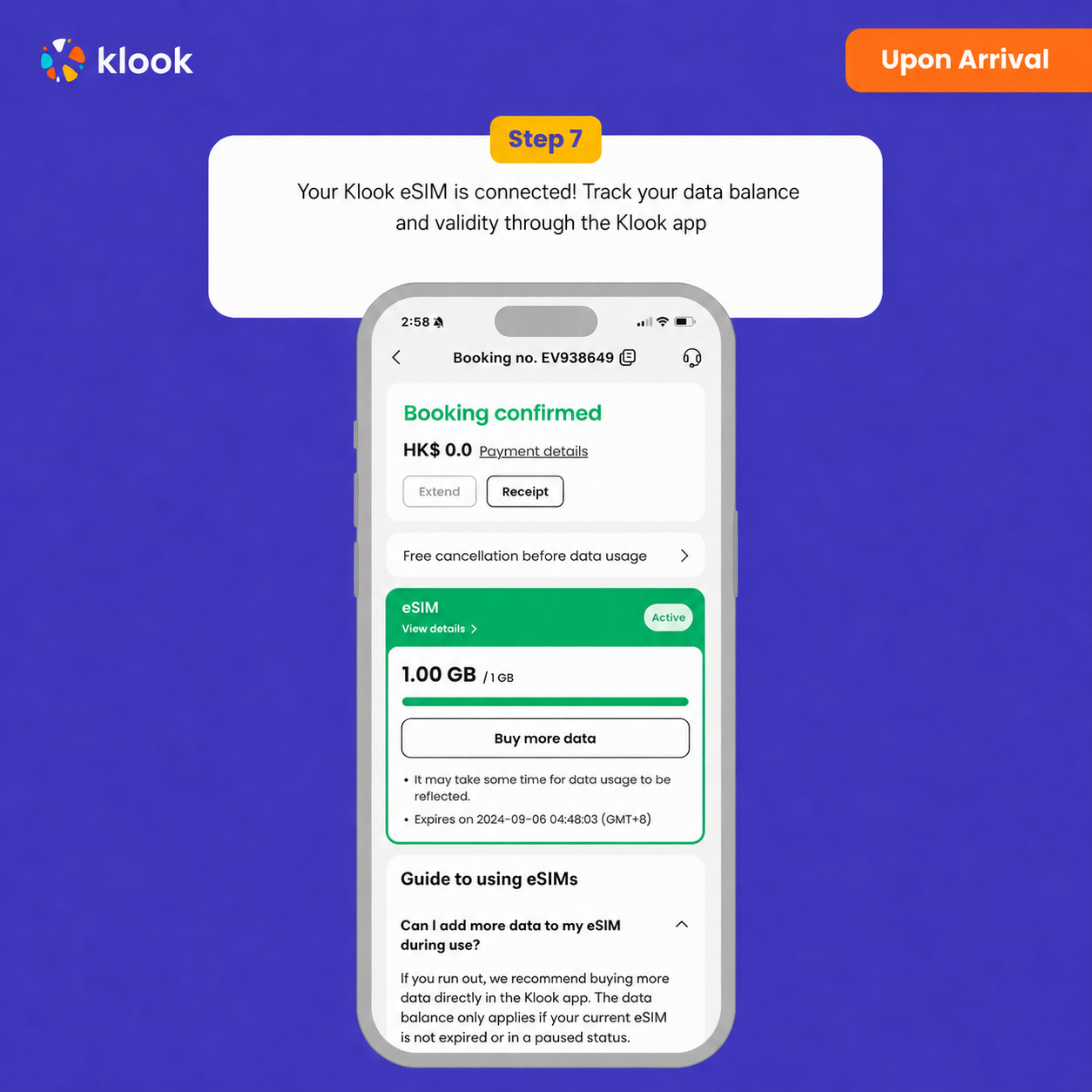
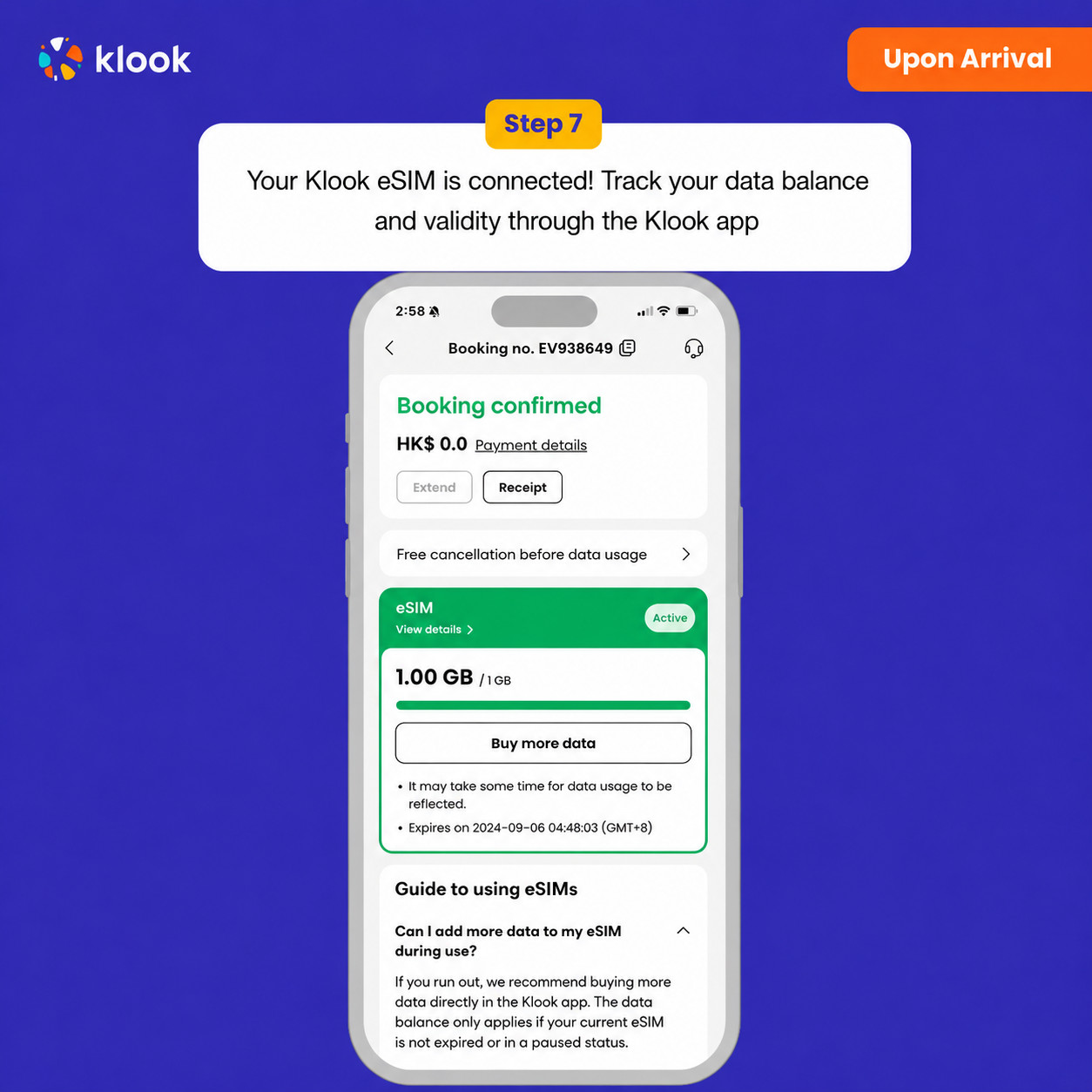
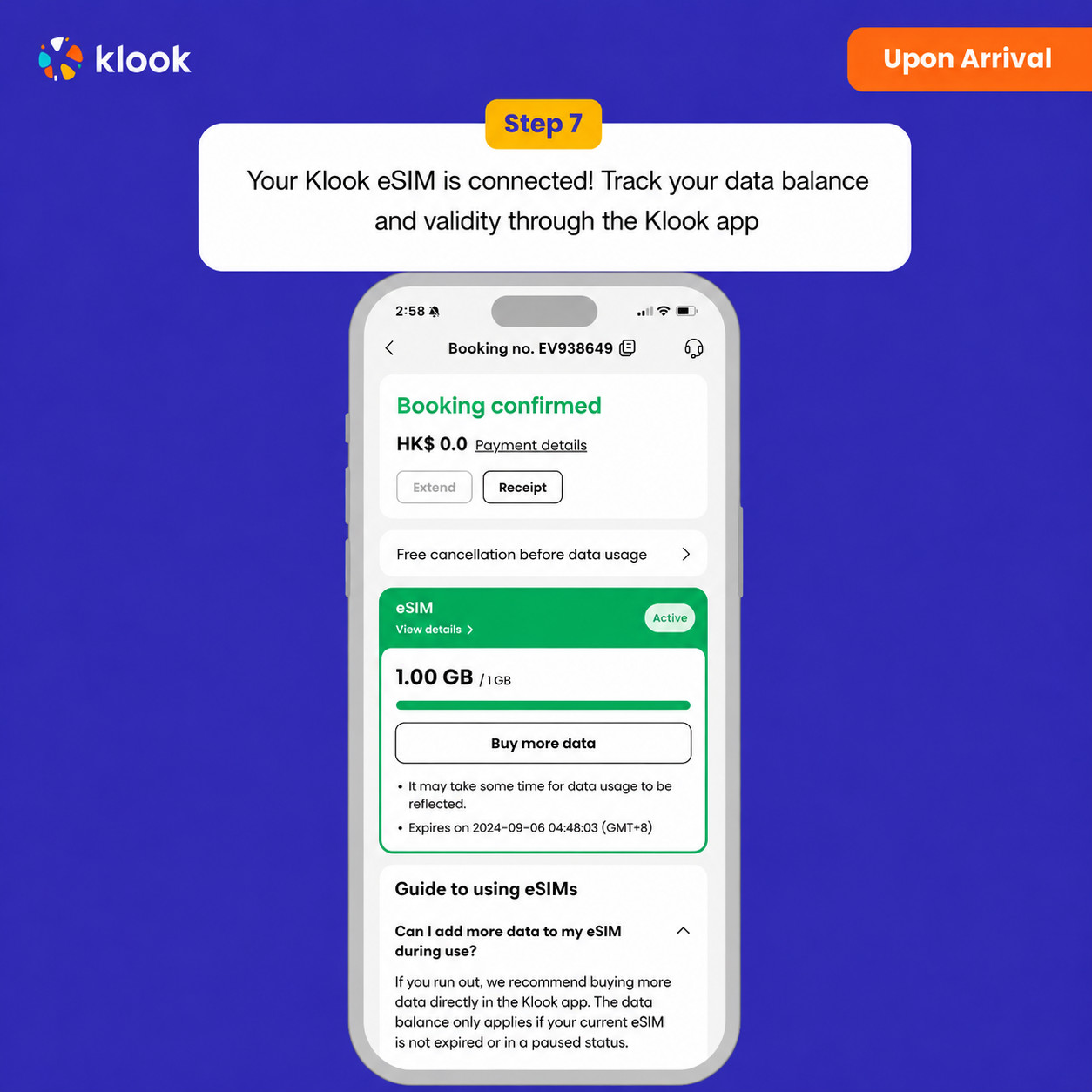
Klook eSIM ulandi
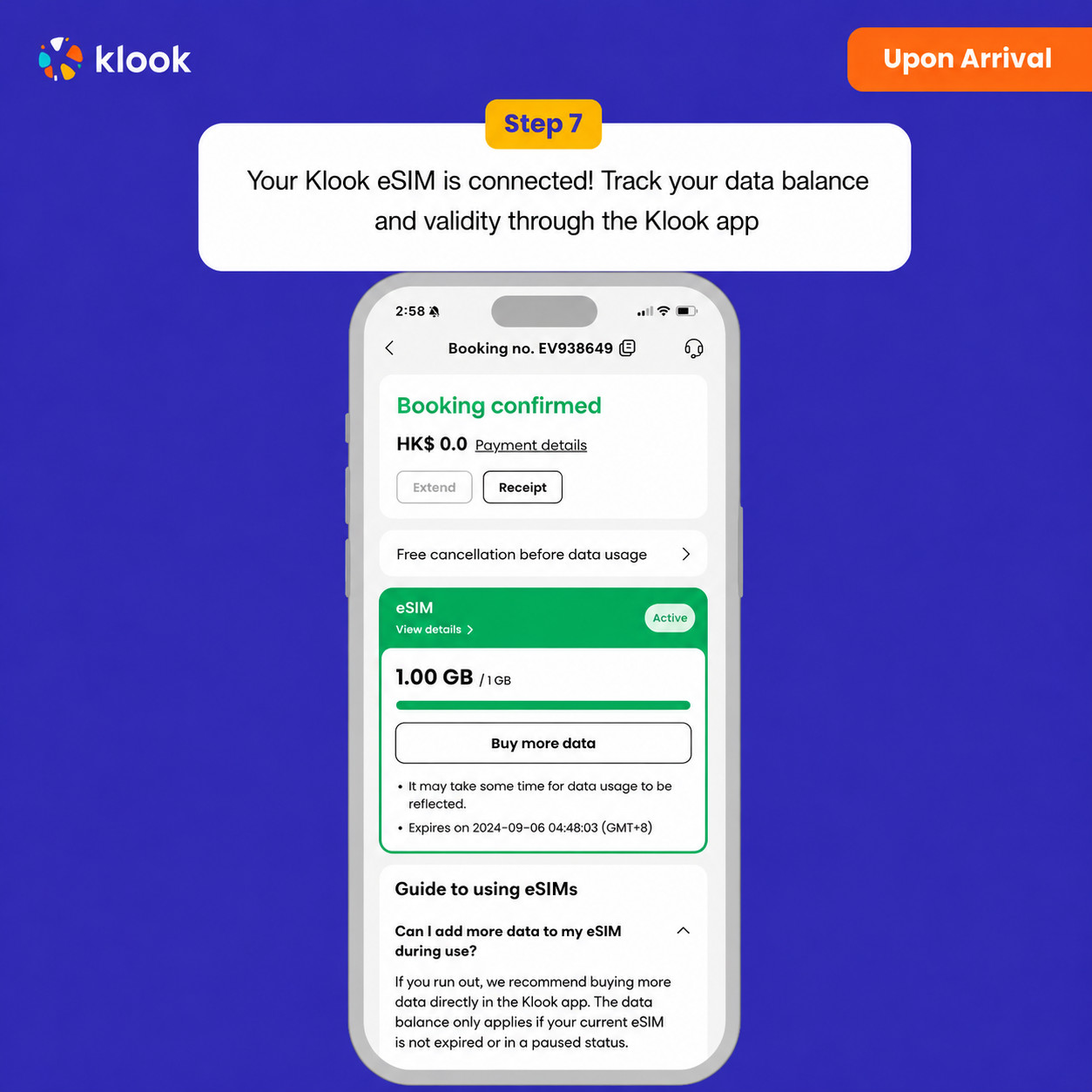
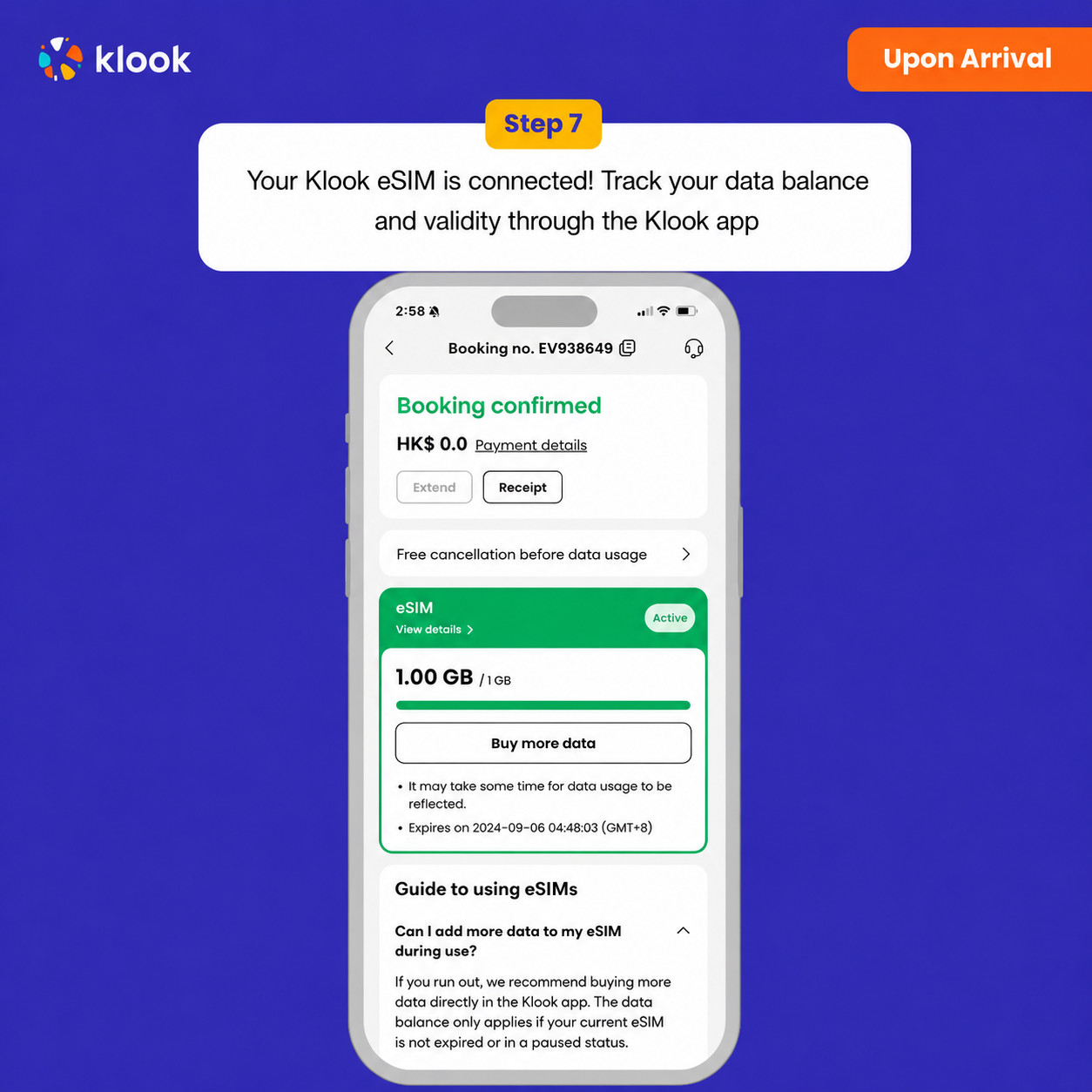
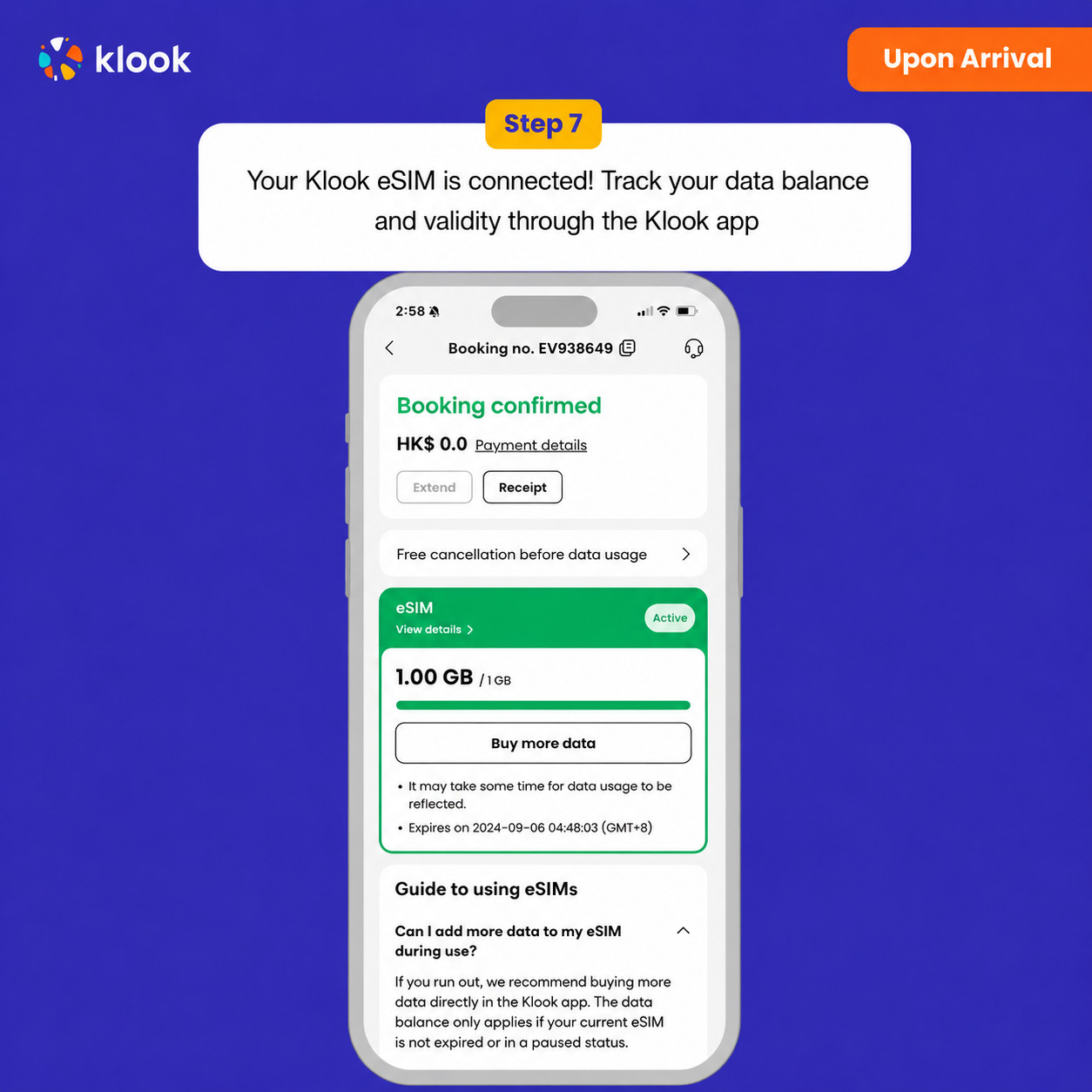
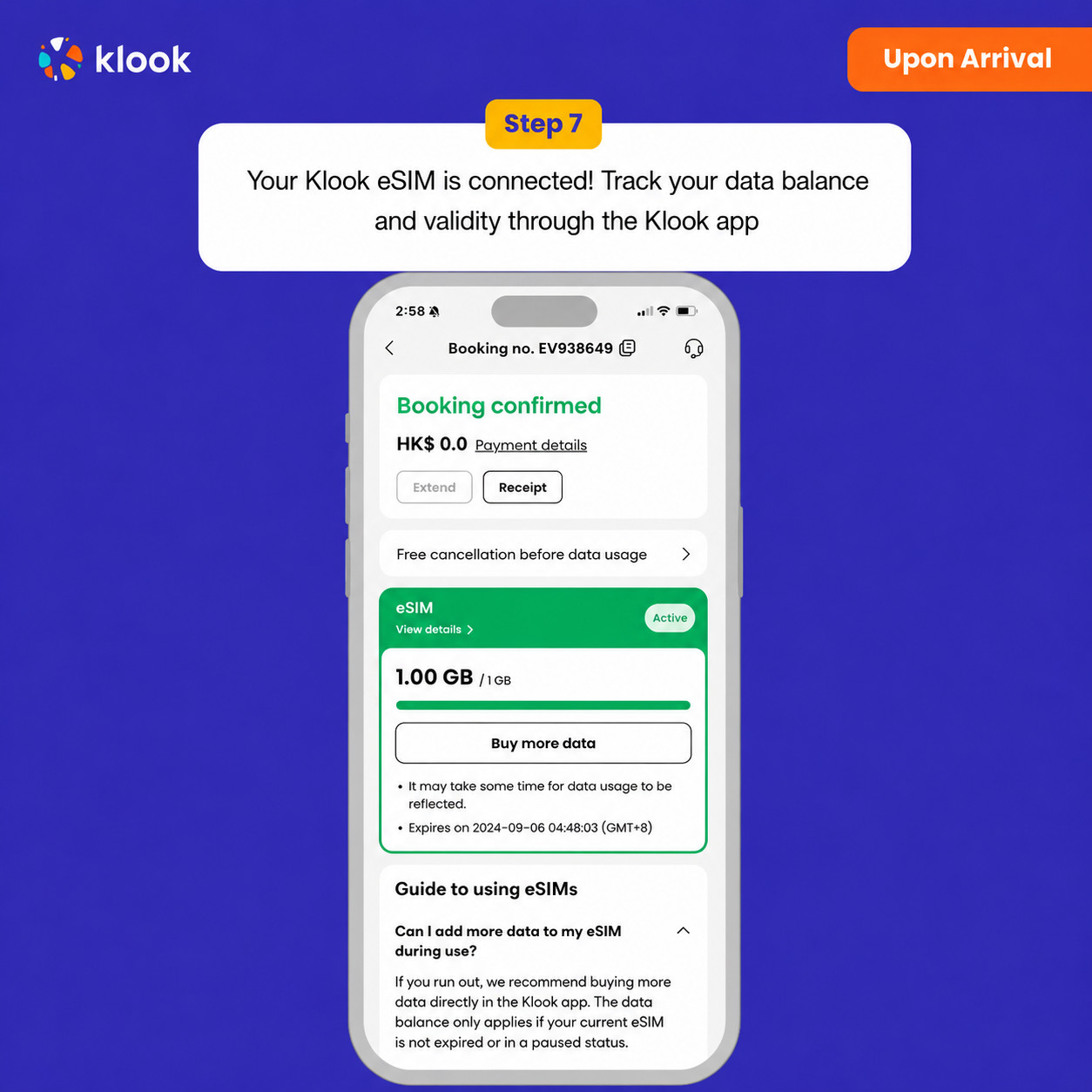
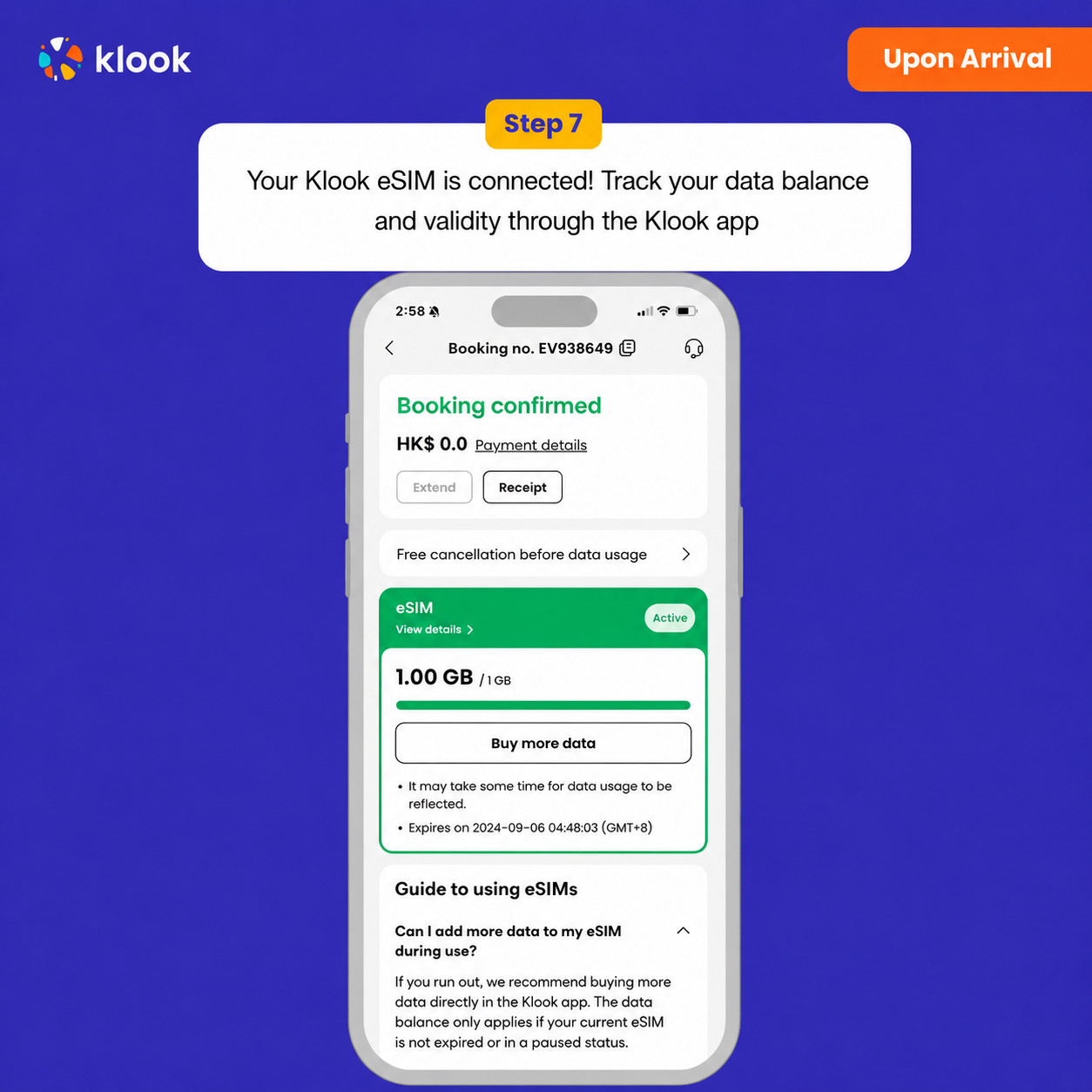
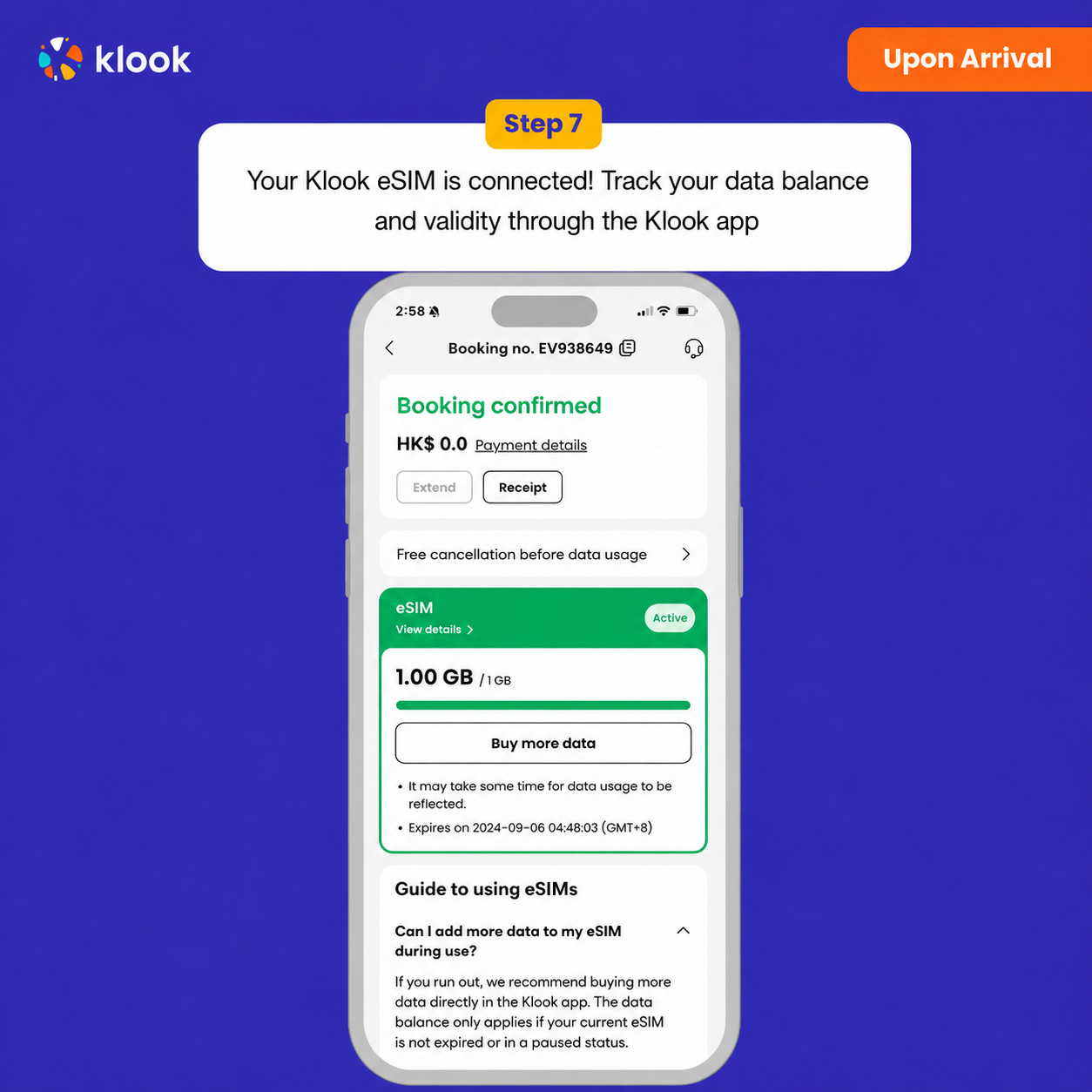
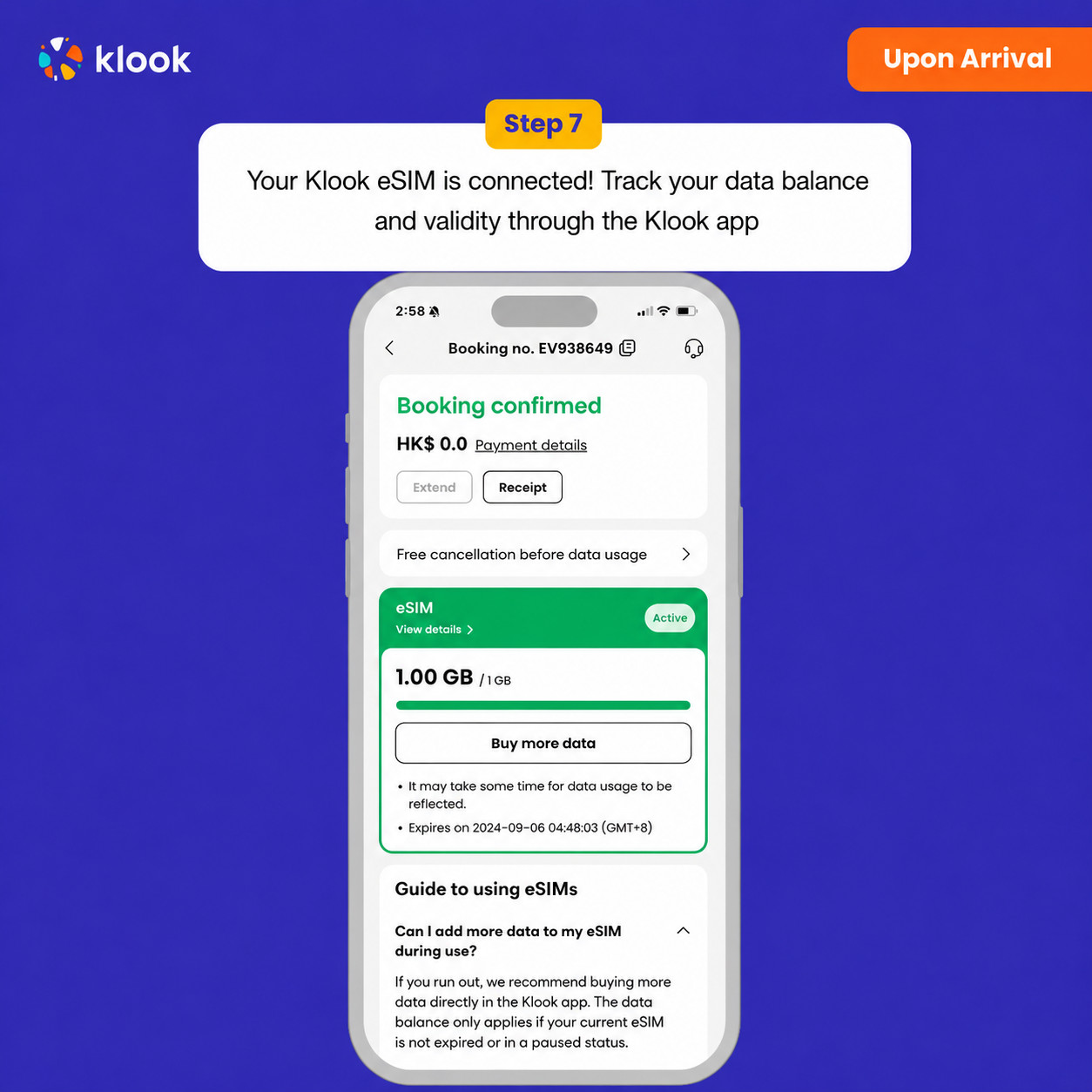
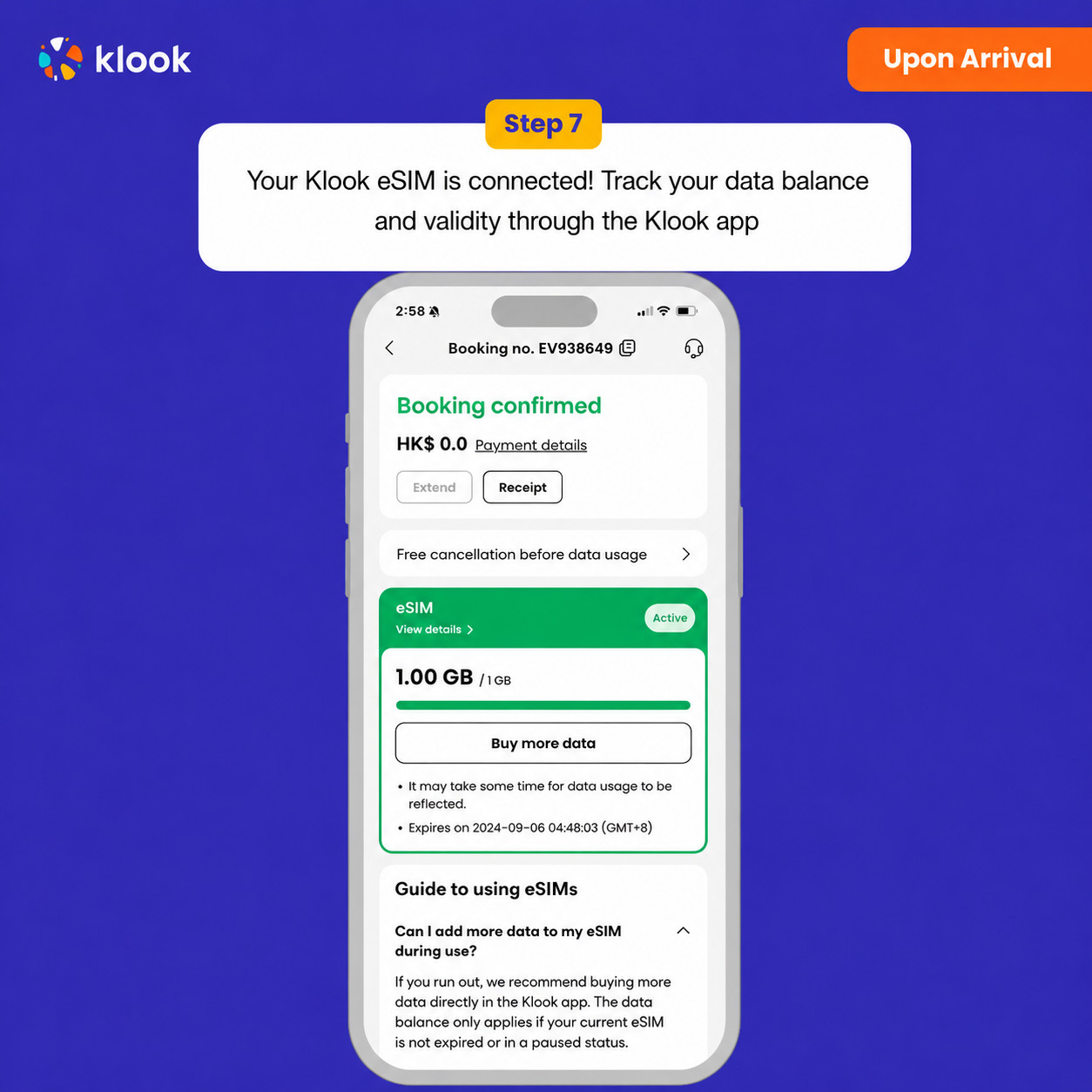
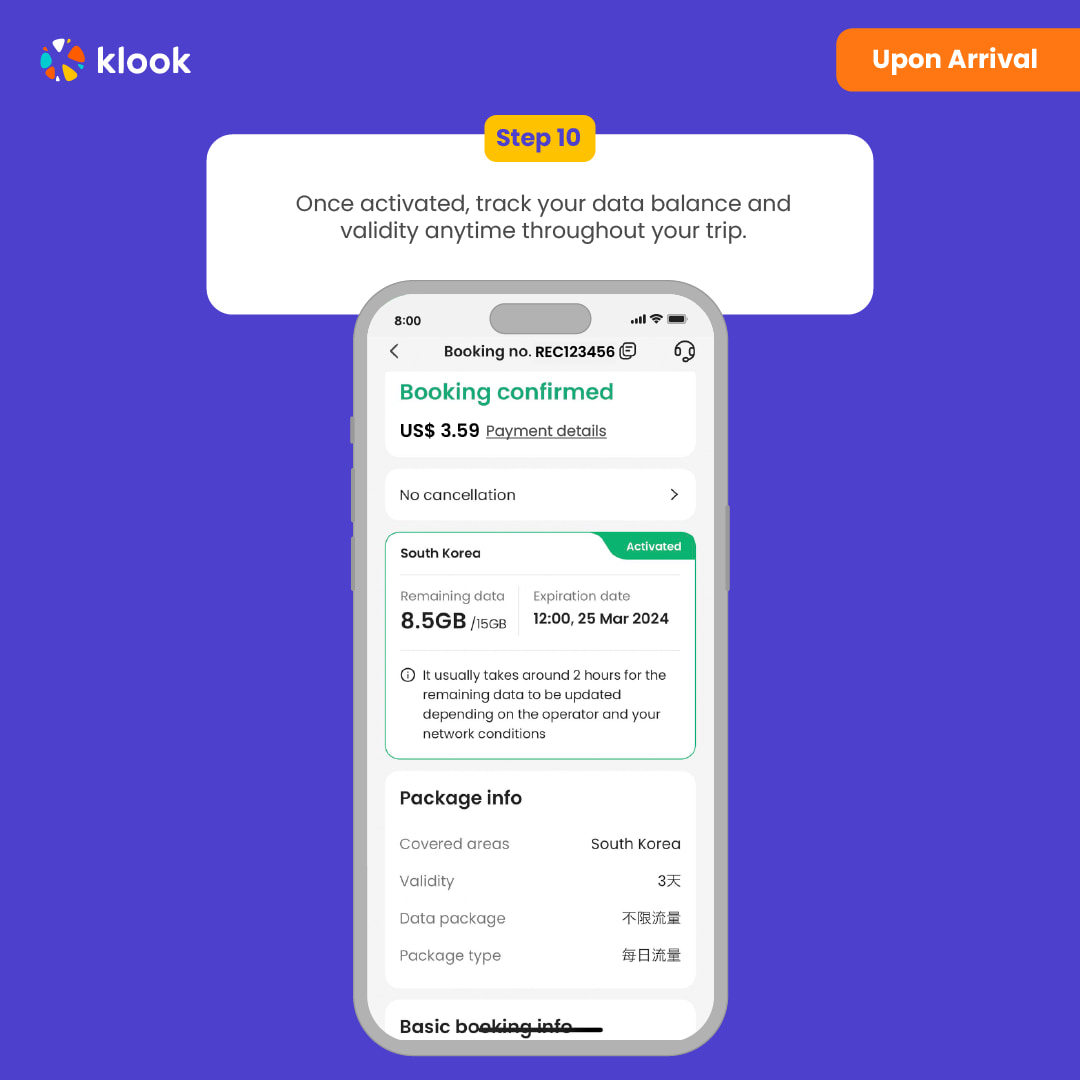
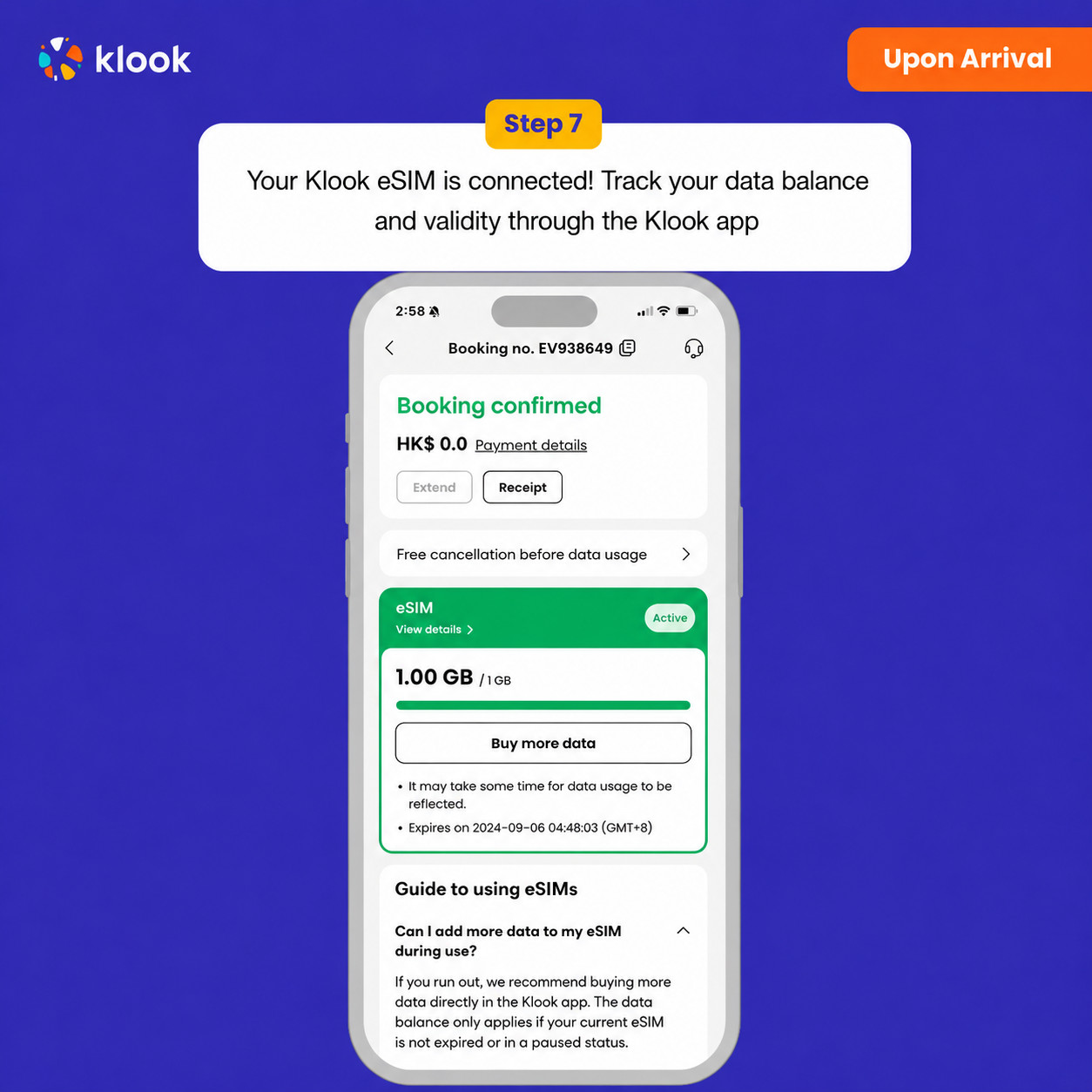
Klook eSIM ulandi! Ma’lumot qoldig‘i va amal qilish muddatini Klook ilovasi orqali kuzatib boring
Tasdiqlash siyosati
Bir necha daqiqa ichida tasdiq olasiz. Agar tasdiqni ko‘rmasangiz, mijozlarni qo‘llab-quvvatlash xizmatimizga murojaat qiling.
eSIM rejangiz manzilga yetib, mahalliy mobil tarmoqqa ulanganingizdan so‘ng boshlanadi. Masalan, agar 3 kunlik rejangizni soat 10:00 da faollashtirsangiz, u 3 kundan so‘ng soat 10:00 da tugaydi.
Klook ilovasida faollashtiring (Klook ilovasini eng so‘nggi versiyaga yangilang)
Klook eSIM o‘rnatish usullari
Klook ilovasida faollashtirish, QR kodni skanerlash yoki SMDP+ ma’lumotlarini qo‘lda kiritish orqali eSIM-ni faollashtiring
Klook eSIM ilovada faollashtirish
Broningizda "eSIM-ni qurilmaga qo‘shish" tugmasini bosib, eSIM-ni faollashtiring. Xavotir olmang, ma’lumot va amal qilish muddati faqat manzilingizga yetganingizdan so‘ng boshlanadi
Klook eSIM ilovada faollashtirish
eSIM o‘rnatilishi avtomatik tarzda boshlanadi
Klook eSIM iOS o‘rnatish
Klook eSIM-ni sayohat uchun sozlang
Klook eSIM o‘rnatildi
Klook eSIM endi o‘rnatildi! Amal qilish muddati faqat manzilingizda mahalliy tarmoqqa ulanganingizdan so‘ng boshlanadi
Klook eSIM-ni yoqing
Klook eSIM-ni yoqing va mobil ma’lumot uchun Klook eSIM-ni tanlang
Data roumingni yoqing
Klook eSIM uchun ma’lumotni tanlang va data roumingni yoqing, shunda eSIM ishlay boshlaydi!
Klook eSIM ulandi
Klook eSIM ulandi! Ma’lumot qoldig‘i va amal qilish muddatini Klook ilovasi orqali kuzatib boring
Tasdiqlash siyosati
Bir necha daqiqa ichida tasdiq olasiz. Agar tasdiqni ko‘rmasangiz, mijozlarni qo‘llab-quvvatlash xizmatimizga murojaat qiling.
eSIM rejangiz manzilga yetib, mahalliy mobil tarmoqqa ulanganingizdan so‘ng boshlanadi. Masalan, agar 3 kunlik rejangizni soat 10:00 da faollashtirsangiz, u 3 kundan so‘ng soat 10:00 da tugaydi.
Klook ilovasida faollashtiring
Klook ilovasida faollashtiring (Klook ilovasini eng so‘nggi versiyaga yangilang)
Klook eSIM o‘rnatish usullari
Klook ilovasida faollashtirish, QR kodni skanerlash yoki SMDP+ ma’lumotlarini qo‘lda kiritish orqali eSIM-ni faollashtiring
Klook eSIM ilovada faollashtirish
Broningizda "eSIM-ni qurilmaga qo‘shish" tugmasini bosib, eSIM-ni faollashtiring. Xavotir olmang, ma’lumot va amal qilish muddati faqat manzilingizga yetganingizdan so‘ng boshlanadi
Klook eSIM ilovada faollashtirish
eSIM o‘rnatilishi avtomatik tarzda boshlanadi
Klook eSIM iOS o‘rnatish
Klook eSIM-ni sayohat uchun sozlang
Klook eSIM o‘rnatildi
Klook eSIM endi o‘rnatildi! Amal qilish muddati faqat manzilingizda mahalliy tarmoqqa ulanganingizdan so‘ng boshlanadi
Klook eSIM-ni yoqing
Klook eSIM-ni yoqing va mobil ma’lumot uchun Klook eSIM-ni tanlang
Data roumingni yoqing
Klook eSIM uchun ma’lumotni tanlang va data roumingni yoqing, shunda eSIM ishlay boshlaydi!
Klook eSIM ulandi
Klook eSIM ulandi! Ma’lumot qoldig‘i va amal qilish muddatini Klook ilovasi orqali kuzatib boring
Tasdiqlash siyosati
Bir necha daqiqa ichida tasdiq olasiz. Agar tasdiqni ko‘rmasangiz, mijozlarni qo‘llab-quvvatlash xizmatimizga murojaat qiling.
Iltimos, ayrim qurilmalar (masalan, iPhone) Xitoy materigi, Gonkong va Makao hududlarida sotib olingan bo‘lsa, eSIM-ni qo‘llab-quvvatlamasligini inobatga oling. Qurilmangiz mosligini tekshirish uchun telefoningizda "*#06#" tering. Agar EID shtrix-kodi chiqsa, telefoningiz eSIM funksiyasini qo‘llab-quvvatlaydi. Yoki [ko‘rsatilgan bosqichlarga] amal qiling
Ulanish tezligi qamrov va mahalliy operatorga bog‘liq. Tezlik pasayishi uchun qaytarib berilmaydi
Klook ilovasida faollashtiring
Klook ilovasida faollashtiring (Klook ilovasini eng so‘nggi versiyaga yangilang)
Klook eSIM o‘rnatish usullari
Klook ilovasida faollashtirish, QR kodni skanerlash yoki SMDP+ ma’lumotlarini qo‘lda kiritish orqali eSIM-ni faollashtiring
Klook eSIM ilovada faollashtirish
Broningizda "eSIM-ni qurilmaga qo‘shish" tugmasini bosib, eSIM-ni faollashtiring. Xavotir olmang, ma’lumot va amal qilish muddati faqat manzilingizga yetganingizdan so‘ng boshlanadi
Klook eSIM ilovada faollashtirish
eSIM o‘rnatilishi avtomatik tarzda boshlanadi
Klook eSIM iOS o‘rnatish
Klook eSIM-ni sayohat uchun sozlang
Klook eSIM o‘rnatildi
Klook eSIM endi o‘rnatildi! Amal qilish muddati faqat manzilingizda mahalliy tarmoqqa ulanganingizdan so‘ng boshlanadi
Klook eSIM-ni yoqing
Klook eSIM-ni yoqing va mobil ma’lumot uchun Klook eSIM-ni tanlang
Data roumingni yoqing
Klook eSIM uchun ma’lumotni tanlang va data roumingni yoqing, shunda eSIM ishlay boshlaydi!
Klook eSIM ulandi
Klook eSIM ulandi! Ma’lumot qoldig‘i va amal qilish muddatini Klook ilovasi orqali kuzatib boring
IOS: Quyidagi rasmlarga qarang (Klook ilovasining eng so‘nggi versiyasidan foydalaning); Android: qo‘llanmaga qarang
SIM karta faollashtirilgandan so‘ng tanlangan muddat davomida 24 soatlik asosda amal qiladi. Agar 3 kunlik SIM kartani 1-oktabr soat 21:00 da faollashtirsangiz, u 4-oktabr 21:00 gacha amal qiladi
Iltimos, ayrim qurilmalar (masalan, iPhone) Xitoy materigi, Gonkong va Makao hududlarida sotib olingan bo‘lsa, eSIM-ni qo‘llab-quvvatlamasligini inobatga oling. Qurilmangiz mosligini tekshirish uchun telefoningizda "*#06#" tering. Agar EID shtrix-kodi chiqsa, telefoningiz eSIM funksiyasini qo‘llab-quvvatlaydi. Yoki [ko‘rsatilgan bosqichlarga] amal qiling
Ulanish tezligi qamrov va mahalliy operatorga bog‘liq. Tezlik pasayishi uchun qaytarib berilmaydi
IOS: Quyidagi rasmlarga qarang (Klook ilovasining eng so‘nggi versiyasidan foydalaning); Android: qo‘llanmaga qarang
SIM karta faollashtirilgandan so‘ng tanlangan muddat davomida 24 soatlik asosda amal qiladi. Agar 3 kunlik SIM kartani 1-oktabr soat 21:00 da faollashtirsangiz, u 4-oktabr 21:00 gacha amal qiladi
Klook ilovasida faollashtiring
Klook ilovasida faollashtiring (Klook ilovasini eng so‘nggi versiyaga yangilang)
Klook eSIM o‘rnatish usullari
Klook ilovasida faollashtirish, QR kodni skanerlash yoki SMDP+ ma’lumotlarini qo‘lda kiritish orqali eSIM-ni faollashtiring
Klook eSIM ilovada faollashtirish
Broningizda "eSIM-ni qurilmaga qo‘shish" tugmasini bosib, eSIM-ni faollashtiring. Xavotir olmang, ma’lumot va amal qilish muddati faqat manzilingizga yetganingizdan so‘ng boshlanadi
Klook eSIM ilovada faollashtirish
eSIM o‘rnatilishi avtomatik tarzda boshlanadi
Klook eSIM iOS o‘rnatish
Klook eSIM-ni sayohat uchun sozlang
Klook eSIM o‘rnatildi
Klook eSIM endi o‘rnatildi! Amal qilish muddati faqat manzilingizda mahalliy tarmoqqa ulanganingizdan so‘ng boshlanadi
Klook eSIM-ni yoqing
Klook eSIM-ni yoqing va mobil ma’lumot uchun Klook eSIM-ni tanlang
Data roumingni yoqing
Klook eSIM uchun ma’lumotni tanlang va data roumingni yoqing, shunda eSIM ishlay boshlaydi!
Klook eSIM ulandi
Klook eSIM ulandi! Ma’lumot qoldig‘i va amal qilish muddatini Klook ilovasi orqali kuzatib boring
Tasdiqlash siyosati
Bir necha daqiqa ichida tasdiq olasiz. Agar tasdiqni ko‘rmasangiz, mijozlarni qo‘llab-quvvatlash xizmatimizga murojaat qiling.
Iltimos, ayrim qurilmalar (masalan, iPhone) Xitoy materigi, Gonkong va Makao hududlarida sotib olingan bo‘lsa, eSIM-ni qo‘llab-quvvatlamasligini inobatga oling. Qurilmangiz mosligini tekshirish uchun telefoningizda "*#06#" tering. Agar EID shtrix-kodi chiqsa, telefoningiz eSIM funksiyasini qo‘llab-quvvatlaydi. Yoki [ko‘rsatilgan bosqichlarga] amal qiling
Ulanish tezligi qamrov va mahalliy operatorga bog‘liq. Tezlik pasayishi uchun qaytarib berilmaydi
Klook ilovasida faollashtiring
Klook ilovasida faollashtiring (Klook ilovasini eng so‘nggi versiyaga yangilang)
Klook eSIM o‘rnatish usullari
Klook ilovasida faollashtirish, QR kodni skanerlash yoki SMDP+ ma’lumotlarini qo‘lda kiritish orqali eSIM-ni faollashtiring
Klook eSIM ilovada faollashtirish
Broningizda "eSIM-ni qurilmaga qo‘shish" tugmasini bosib, eSIM-ni faollashtiring. Xavotir olmang, ma’lumot va amal qilish muddati faqat manzilingizga yetganingizdan so‘ng boshlanadi
Klook eSIM ilovada faollashtirish
eSIM o‘rnatilishi avtomatik tarzda boshlanadi
Klook eSIM iOS o‘rnatish
Klook eSIM-ni sayohat uchun sozlang
Klook eSIM o‘rnatildi
Klook eSIM endi o‘rnatildi! Amal qilish muddati faqat manzilingizda mahalliy tarmoqqa ulanganingizdan so‘ng boshlanadi
Klook eSIM-ni yoqing
Klook eSIM-ni yoqing va mobil ma’lumot uchun Klook eSIM-ni tanlang
Data roumingni yoqing
Klook eSIM uchun ma’lumotni tanlang va data roumingni yoqing, shunda eSIM ishlay boshlaydi!
Klook eSIM ulandi
Klook eSIM ulandi! Ma’lumot qoldig‘i va amal qilish muddatini Klook ilovasi orqali kuzatib boring
IOS: Quyidagi rasmlarga qarang (Klook ilovasining eng so‘nggi versiyasidan foydalaning); Android: qo‘llanmaga qarang
SIM karta faollashtirilgandan so‘ng tanlangan muddat davomida 24 soatlik asosda amal qiladi. Agar 3 kunlik SIM kartani 1-oktabr soat 21:00 da faollashtirsangiz, u 4-oktabr 21:00 gacha amal qiladi
Tasdiqlash siyosati
Bir necha daqiqa ichida tasdiq olasiz. Agar tasdiqni ko‘rmasangiz, mijozlarni qo‘llab-quvvatlash xizmatimizga murojaat qiling.
eSIM tarifingiz manzil mobil tarmog‘iga ulangan vaqtdan boshlab ishga tushadi. Masalan, 3 kunlik tarifni soat 10:00 da faollashtirsangiz, u 3 kundan so‘ng soat 10:00 da tugaydi.
Klook eSIM-ni sayohatdan oldin faollashtiring
eSIM-ni sayohatdan oldin faollashtiring
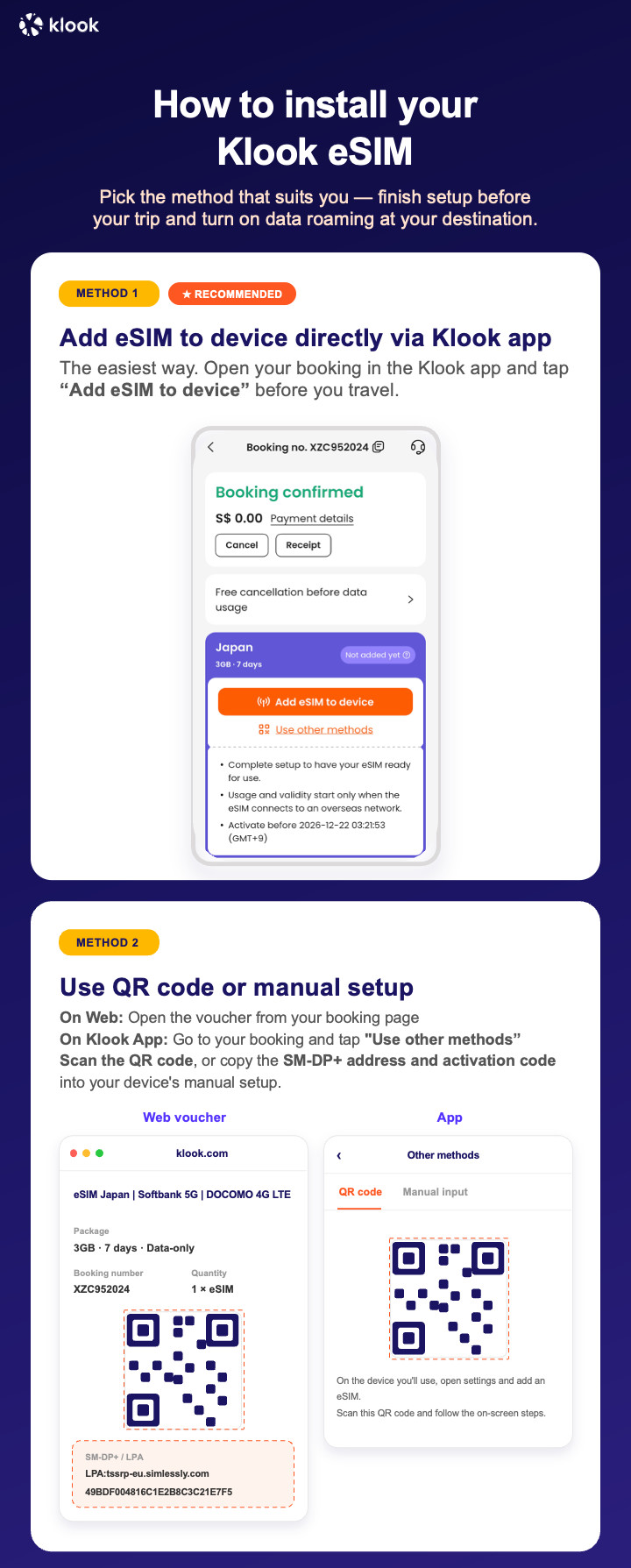
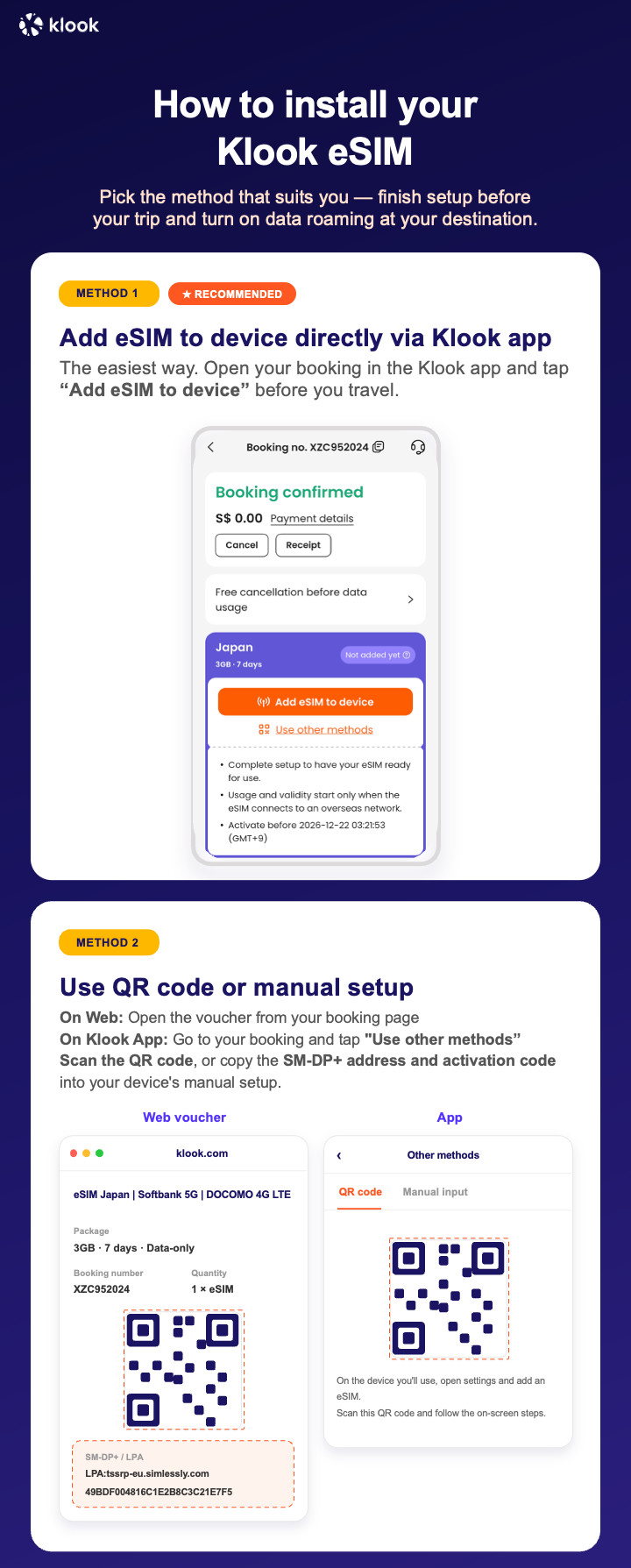
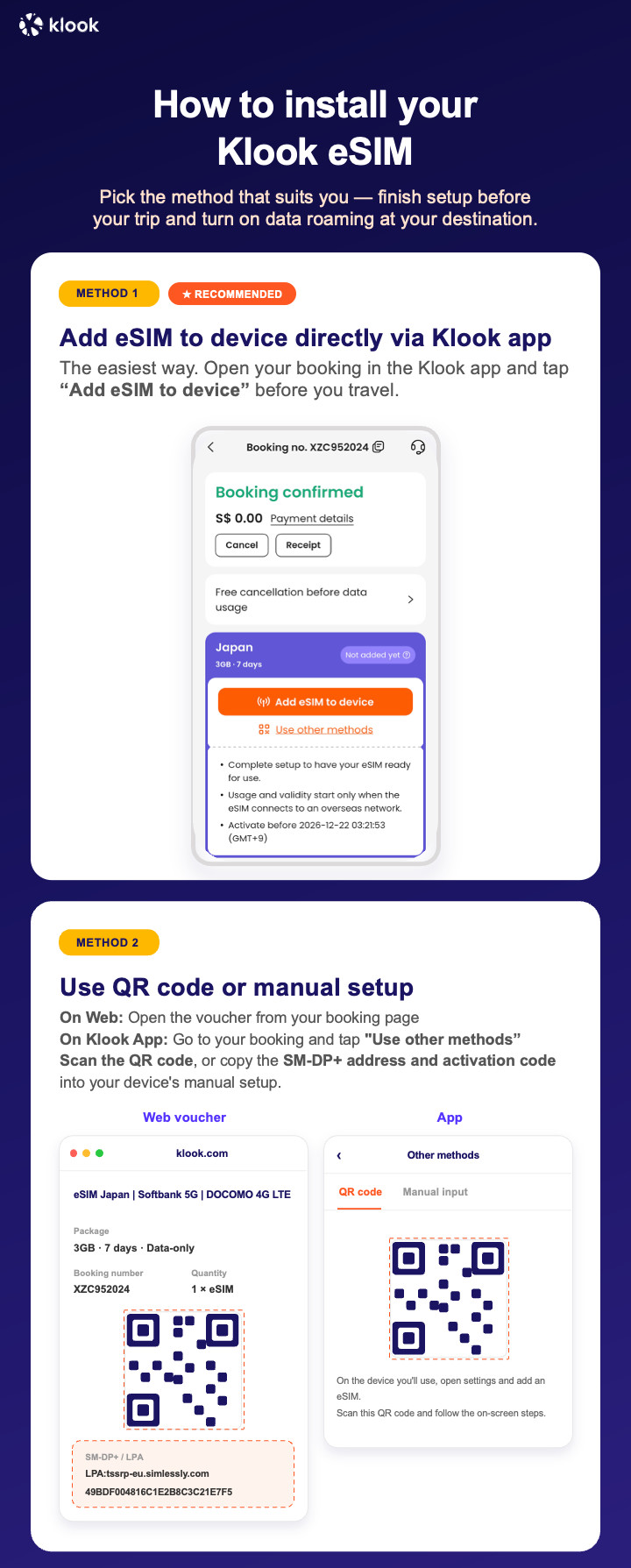
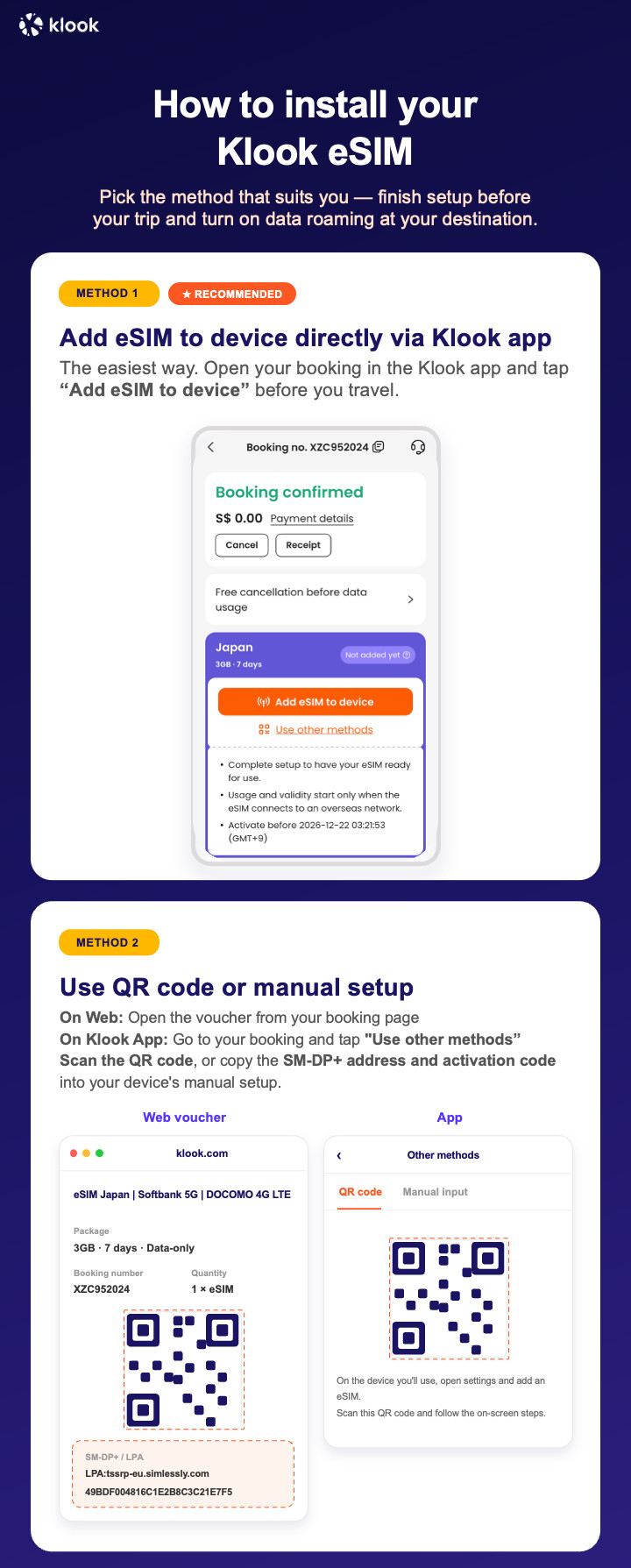
Klook eSIM o‘rnatish usullari
Klook ilovasida faollashtirish, QR kodni skanerlash yoki SMDP+ ma’lumotlarini qo‘lda kiritish orqali eSIM-ni faollashtiring
Klook eSIM ilovada faollashtirish
Broningizda "eSIM-ni qurilmaga qo‘shish" tugmasini bosib, o‘rnatishni boshlang. Xavotir olmang, ma’lumot va amal qilish muddati faqat manzilingizga yetganingizdan so‘ng boshlanadi
Klook eSIM ilovada faollashtirish
eSIM o‘rnatilishi avtomatik tarzda boshlanadi
Klook eSIM iOS o‘rnatish
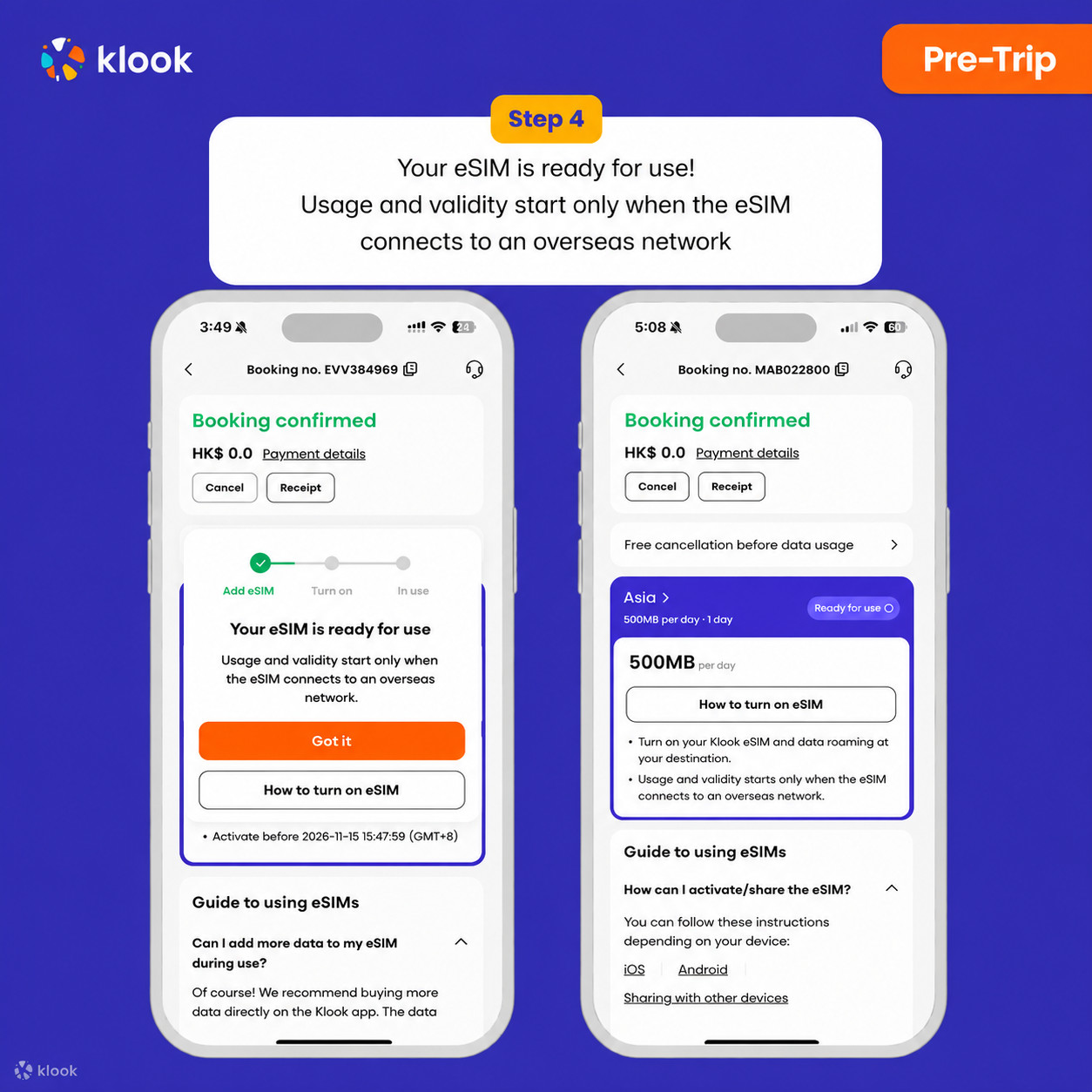
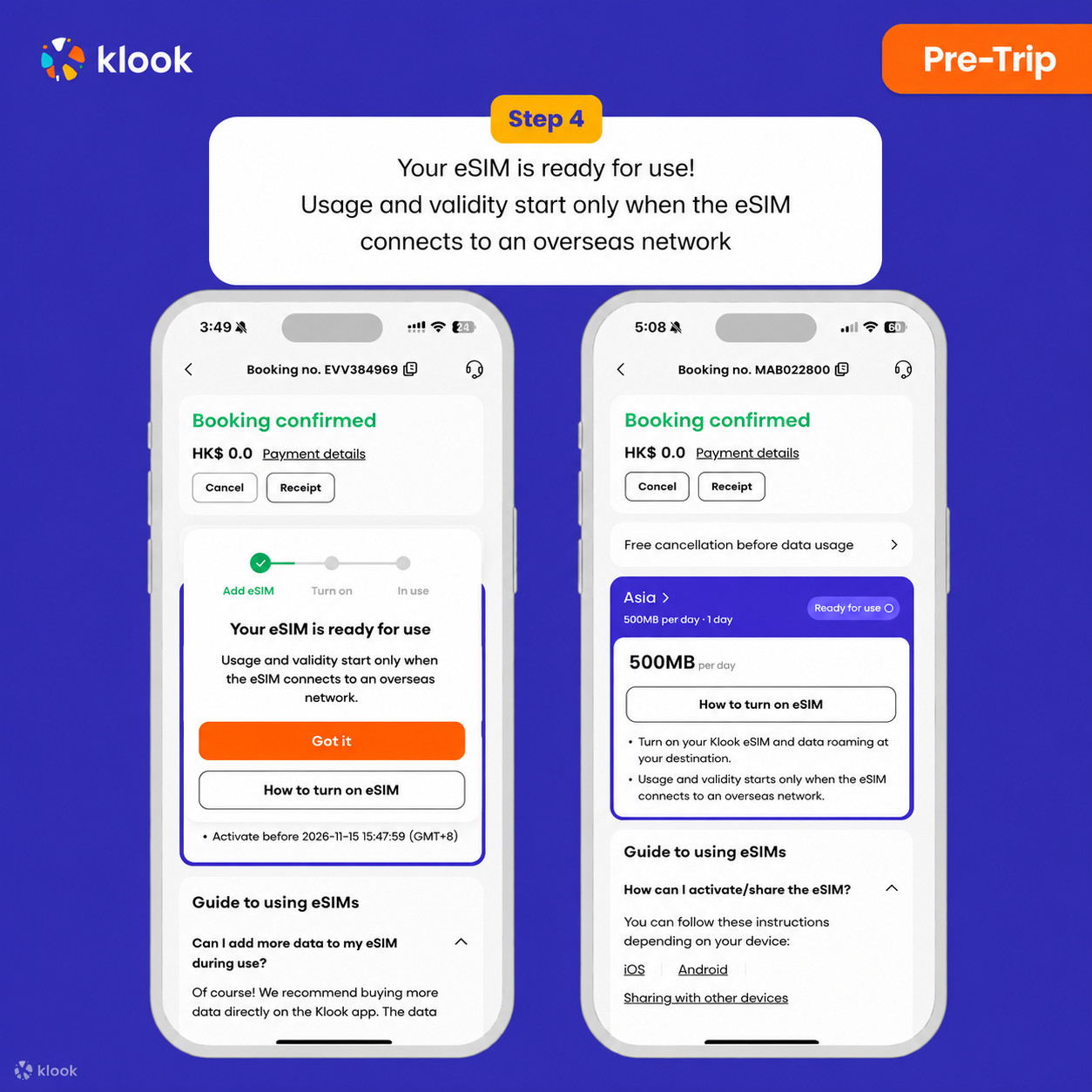
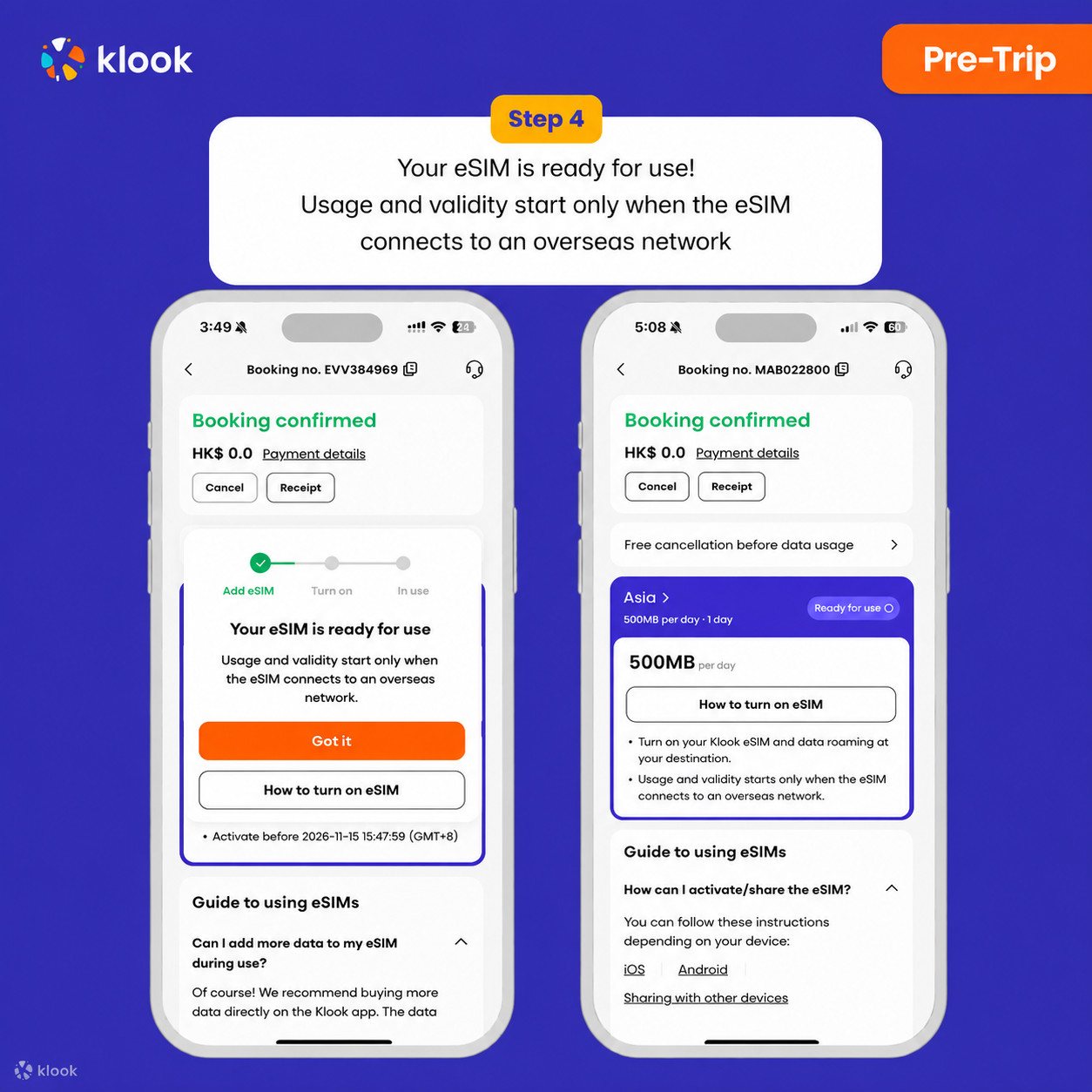
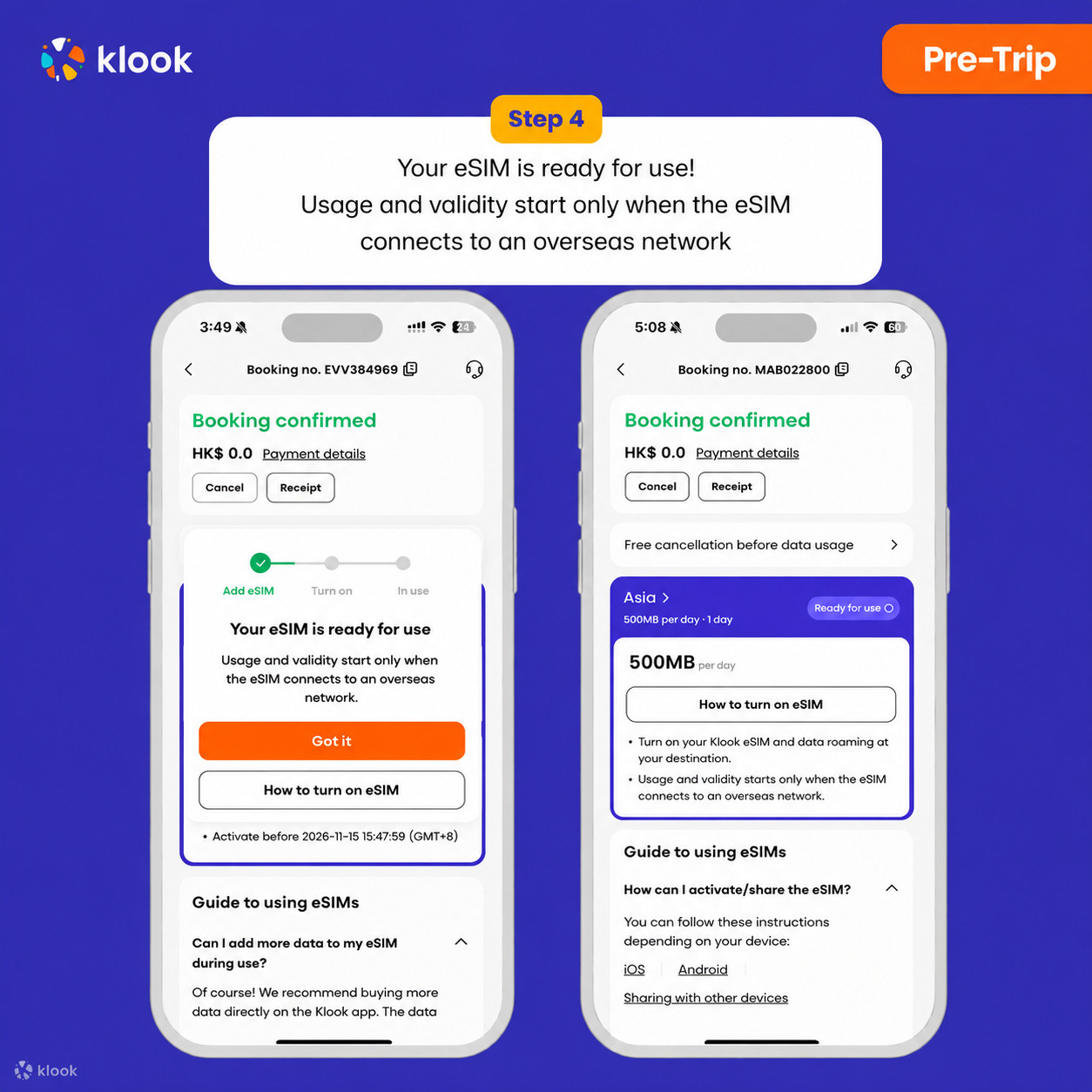
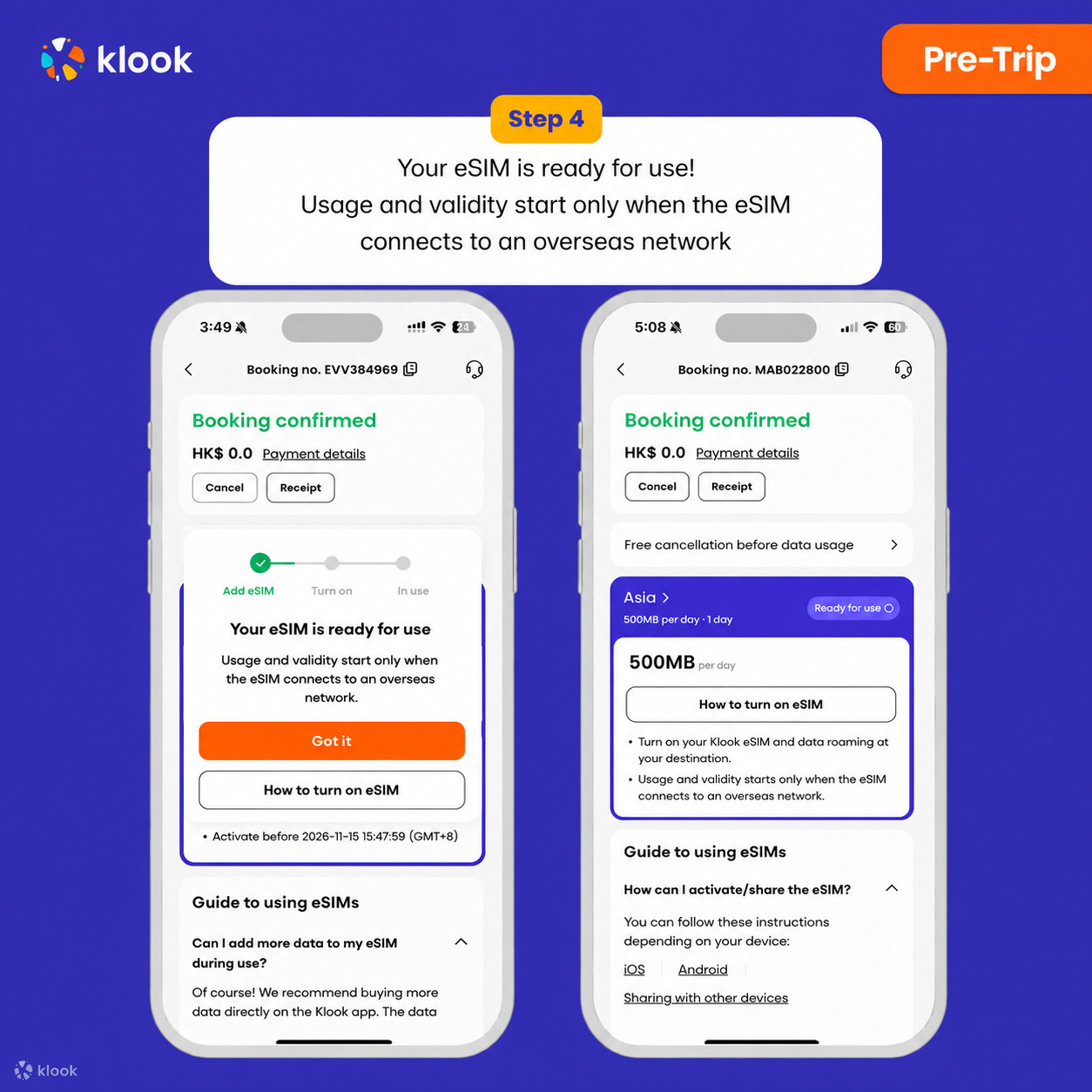
iOS uchun Klook eSIM-ni sayohatga sozlang
Klook eSIM o‘rnatildi
eSIM ishlashga tayyor! Foydalanish va amal qilish muddati faqat eSIM chet el tarmog‘iga ulanganidan so‘ng boshlanadi
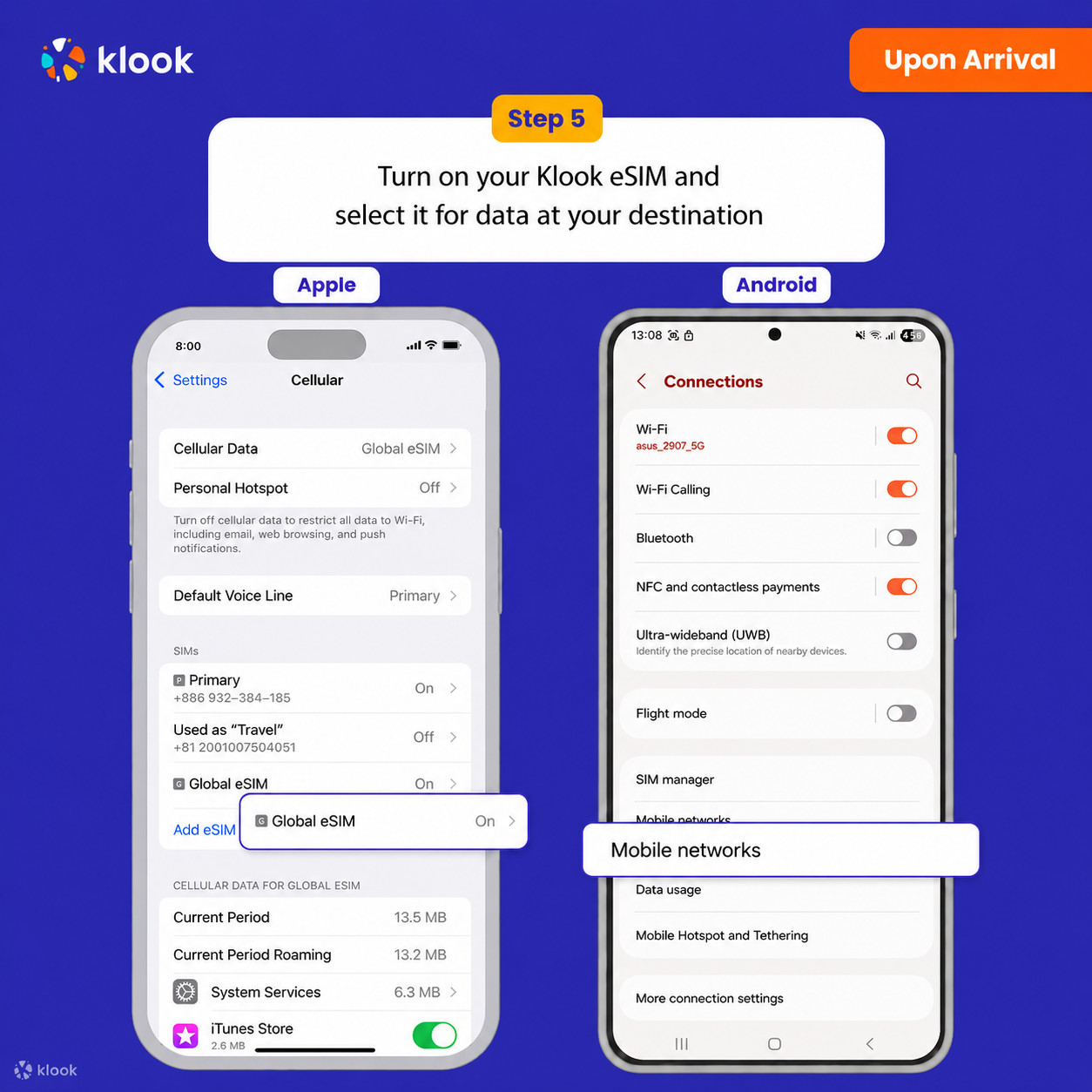
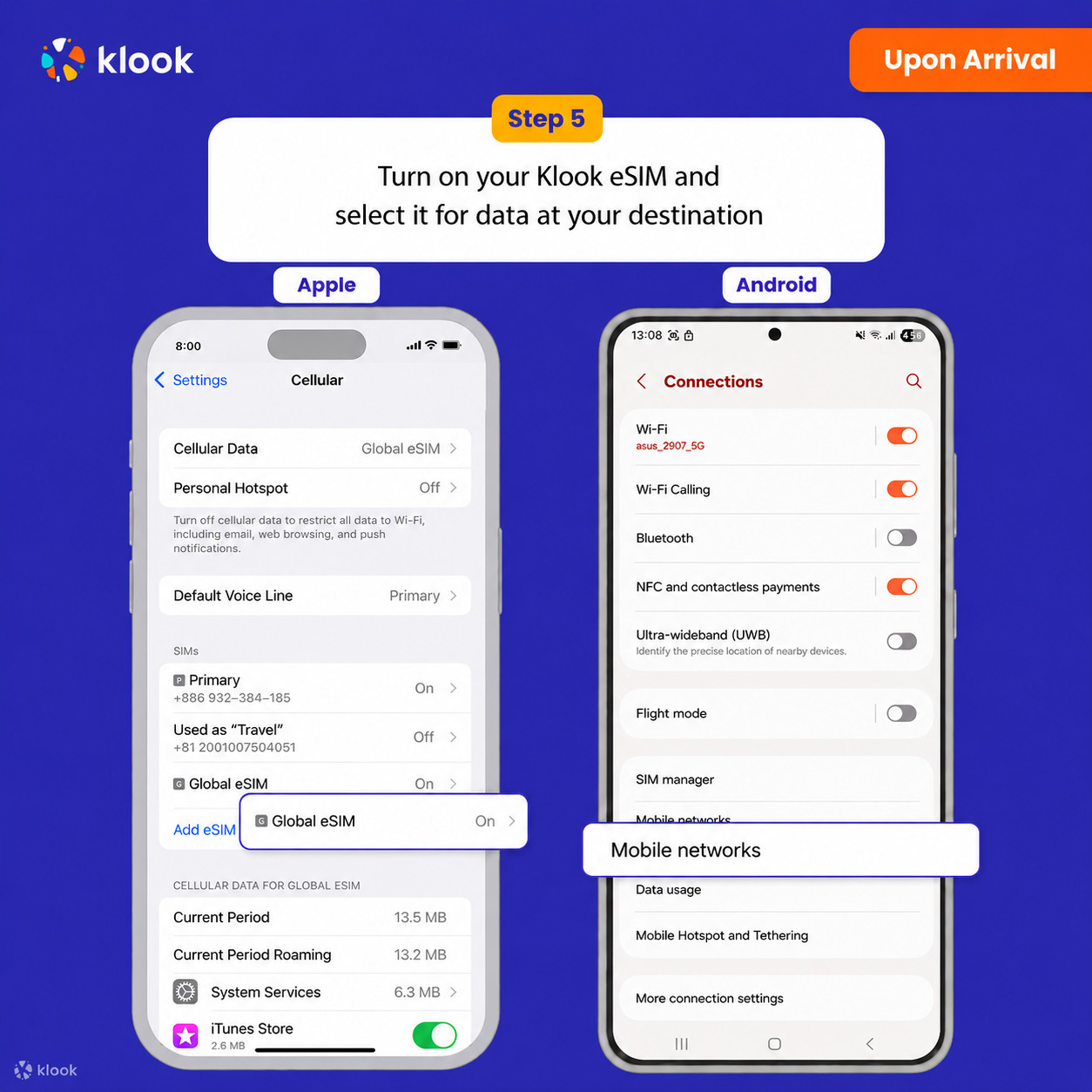
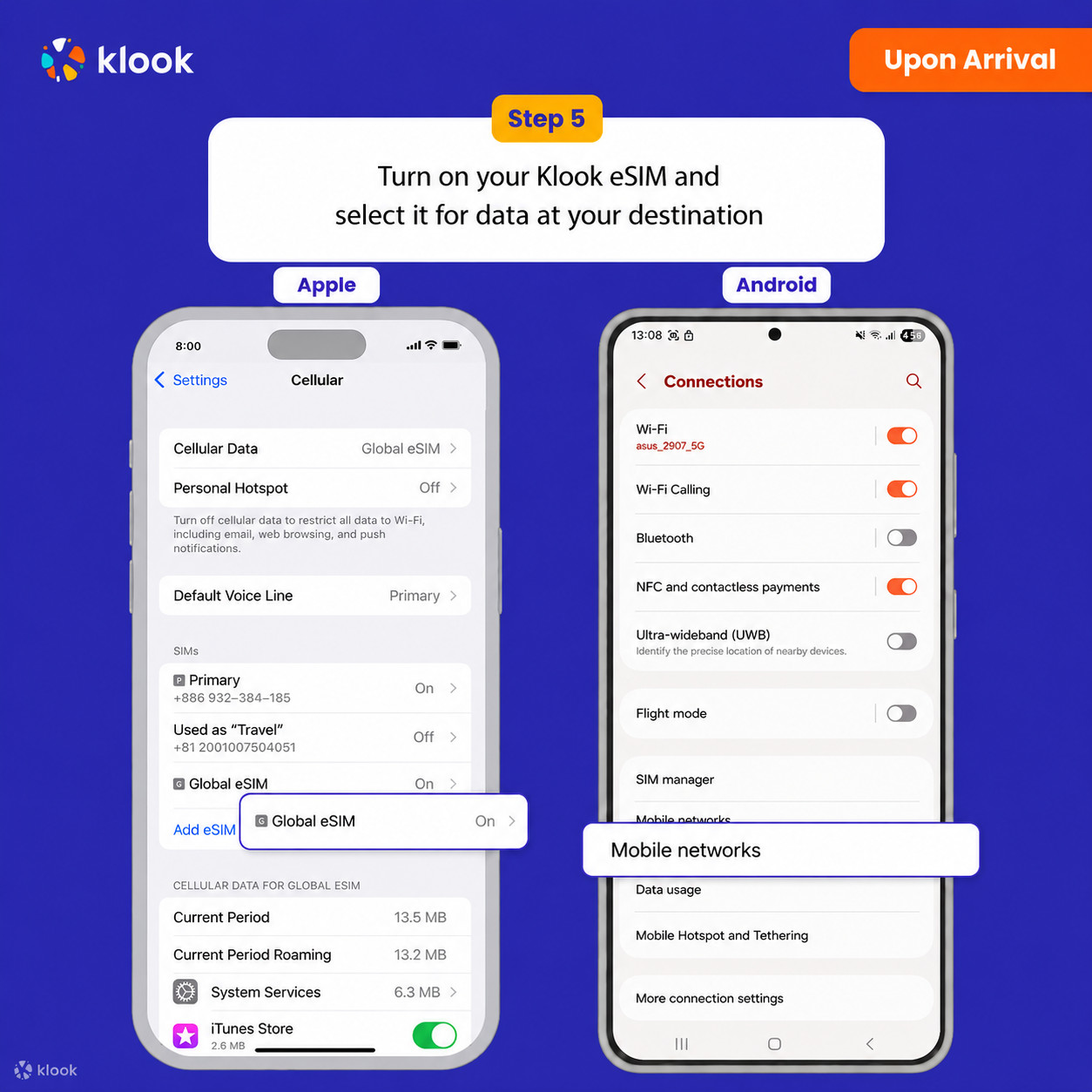
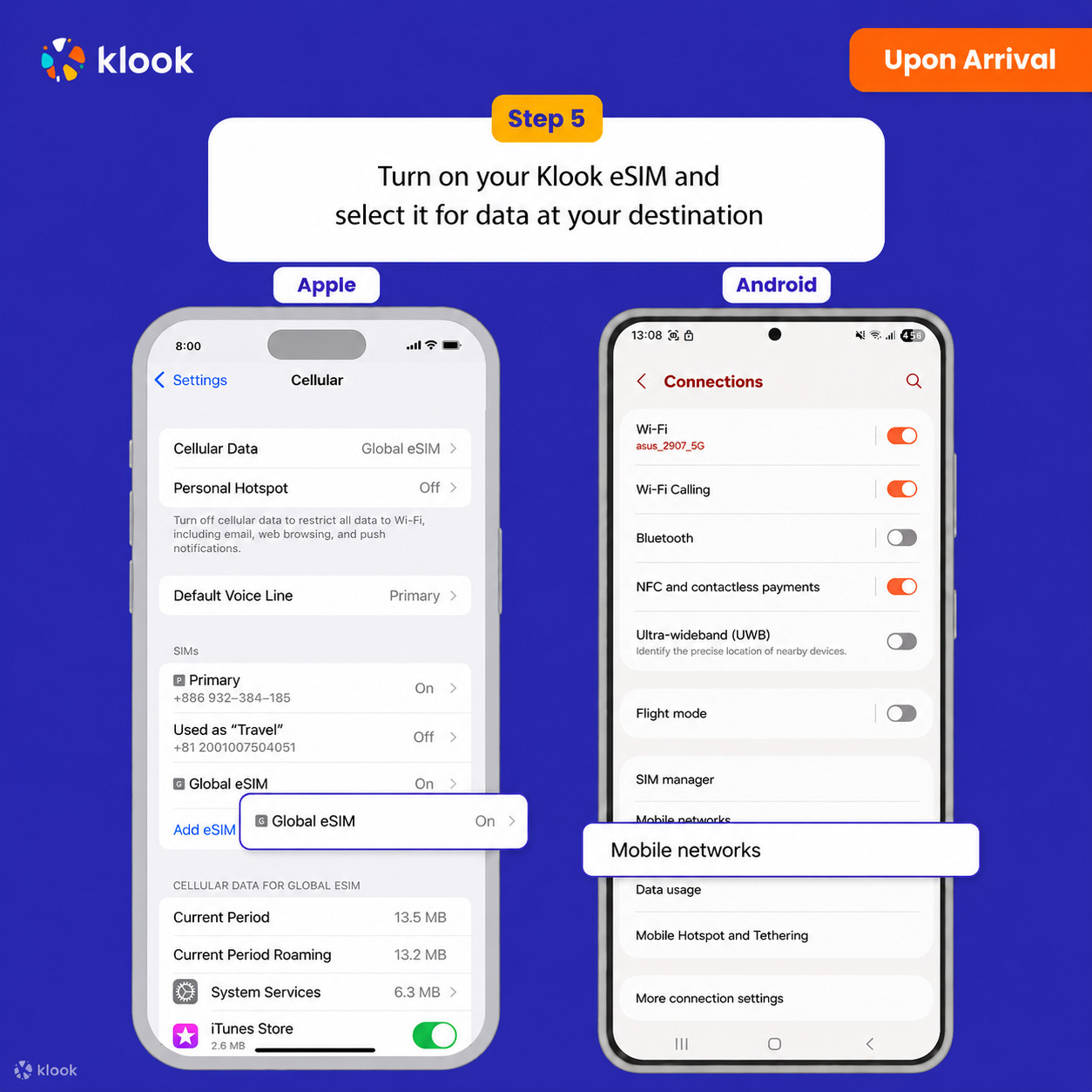
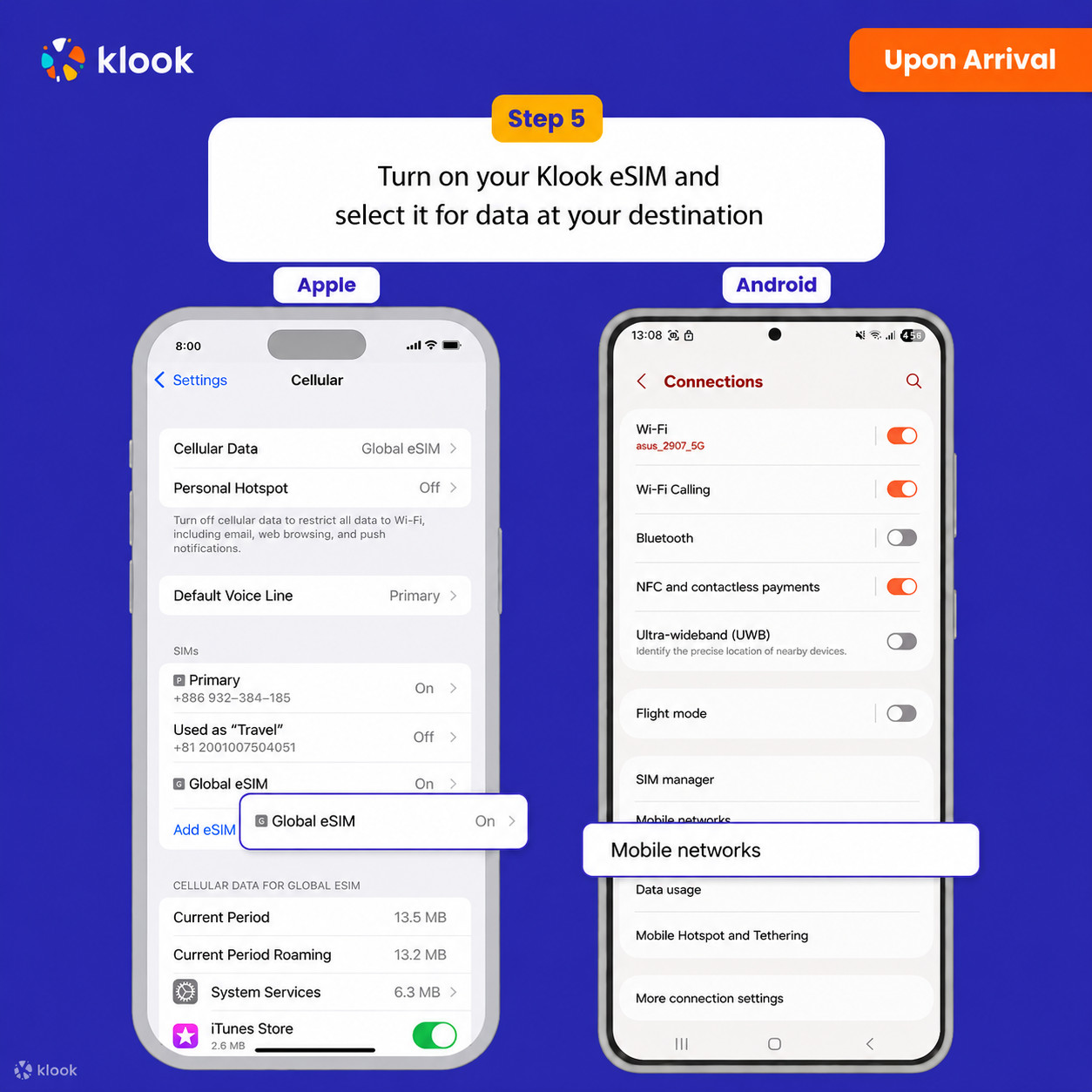
Klook eSIM-ni yoqing
Klook eSIM-ni yoqing va mobil ma’lumot uchun Klook eSIM-ni tanlang
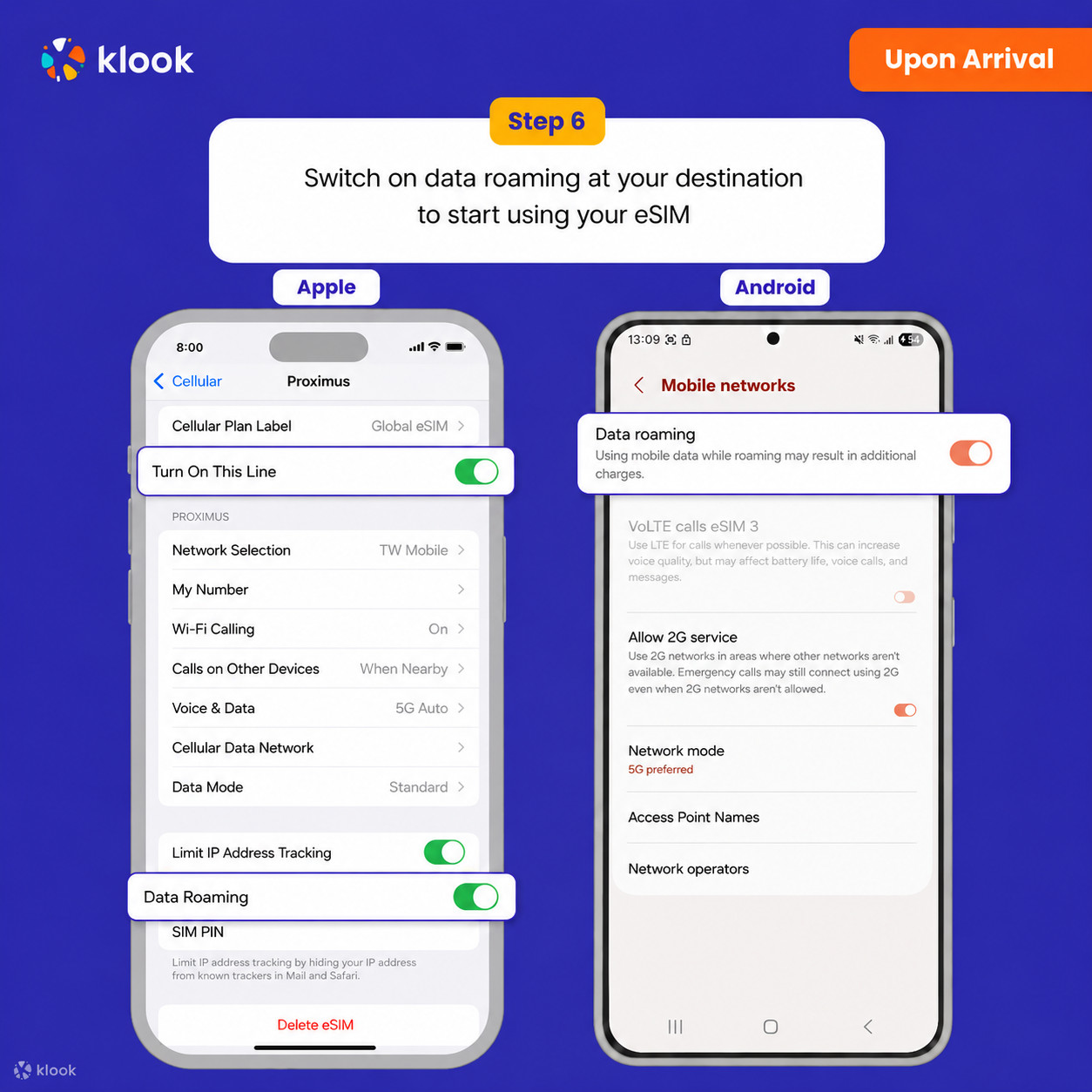
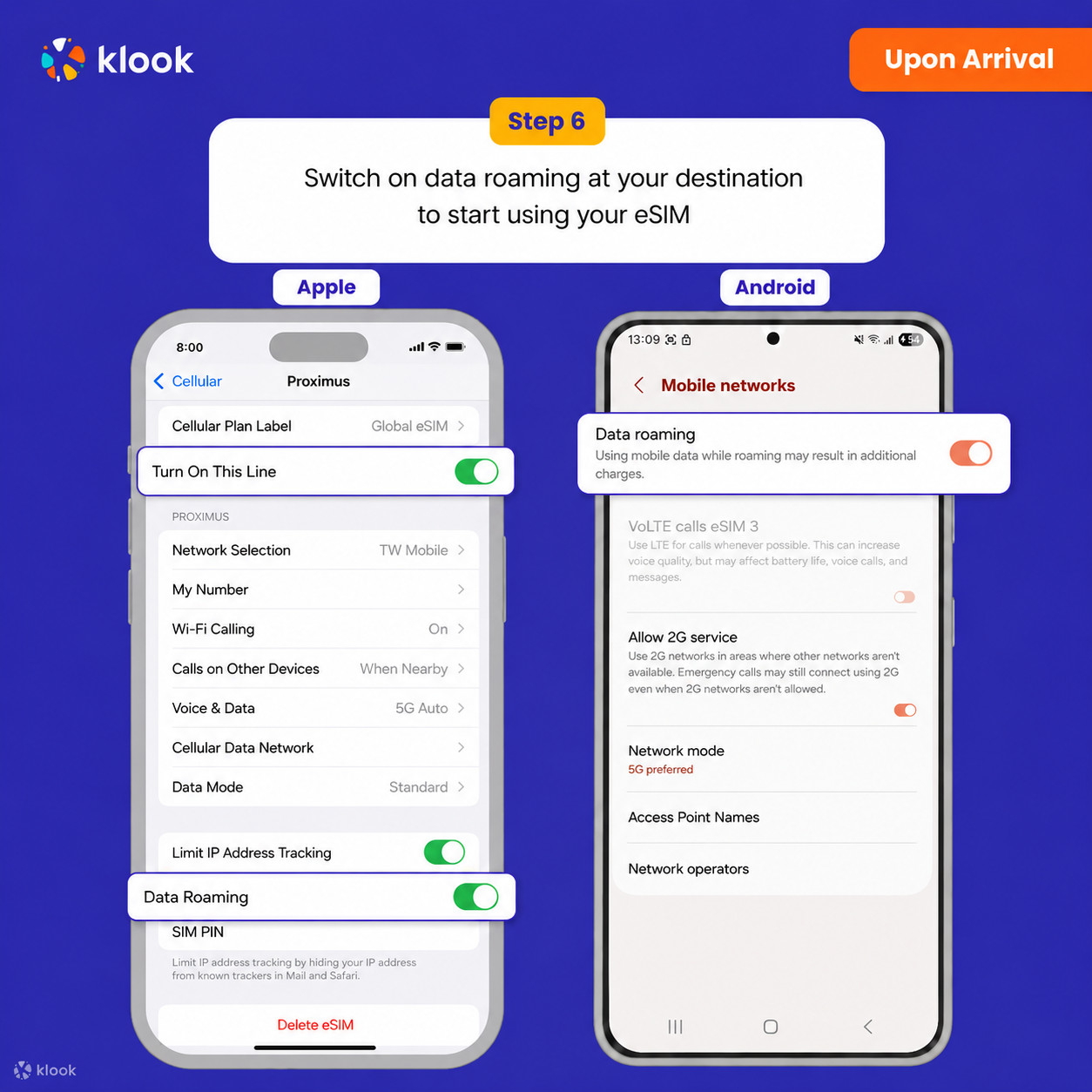
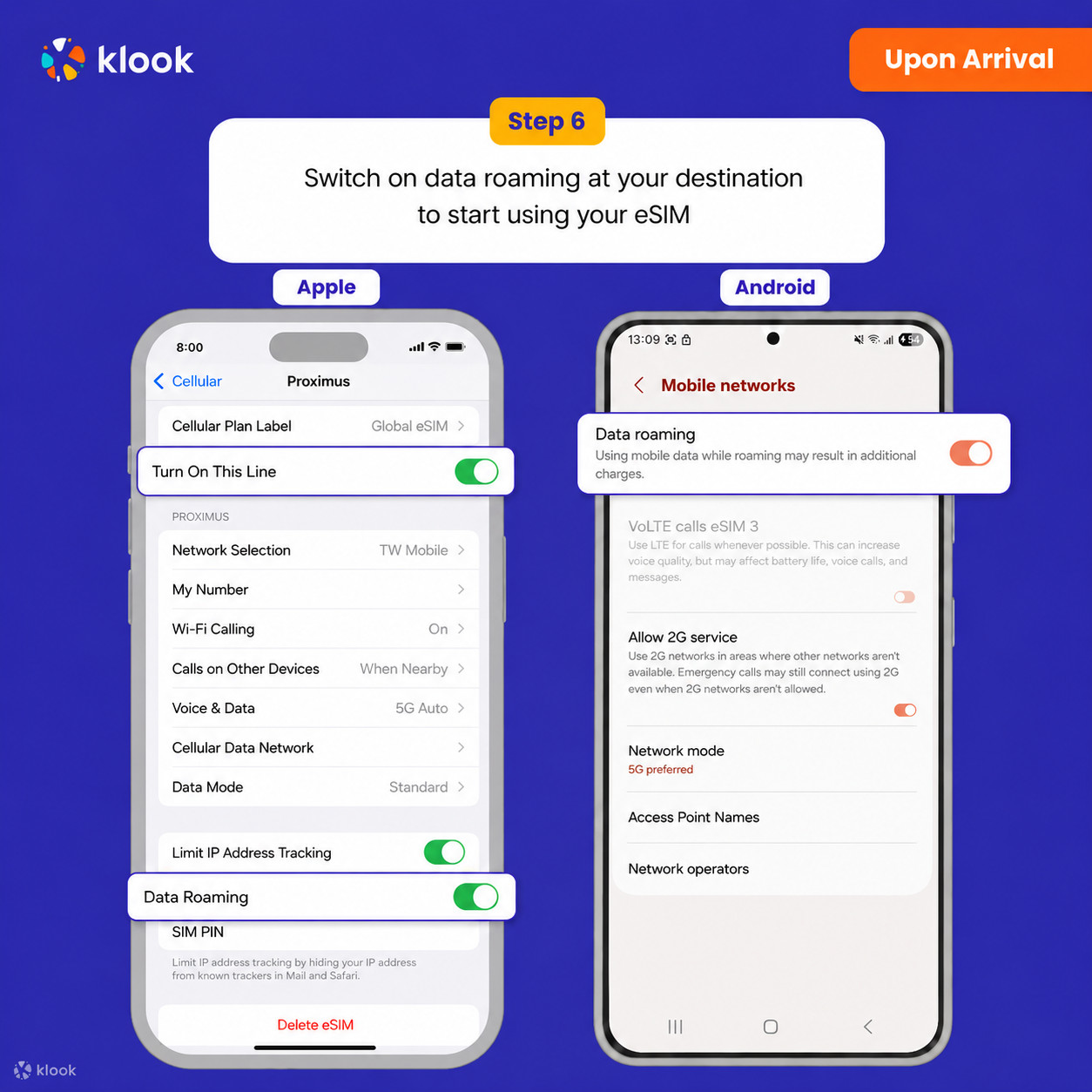
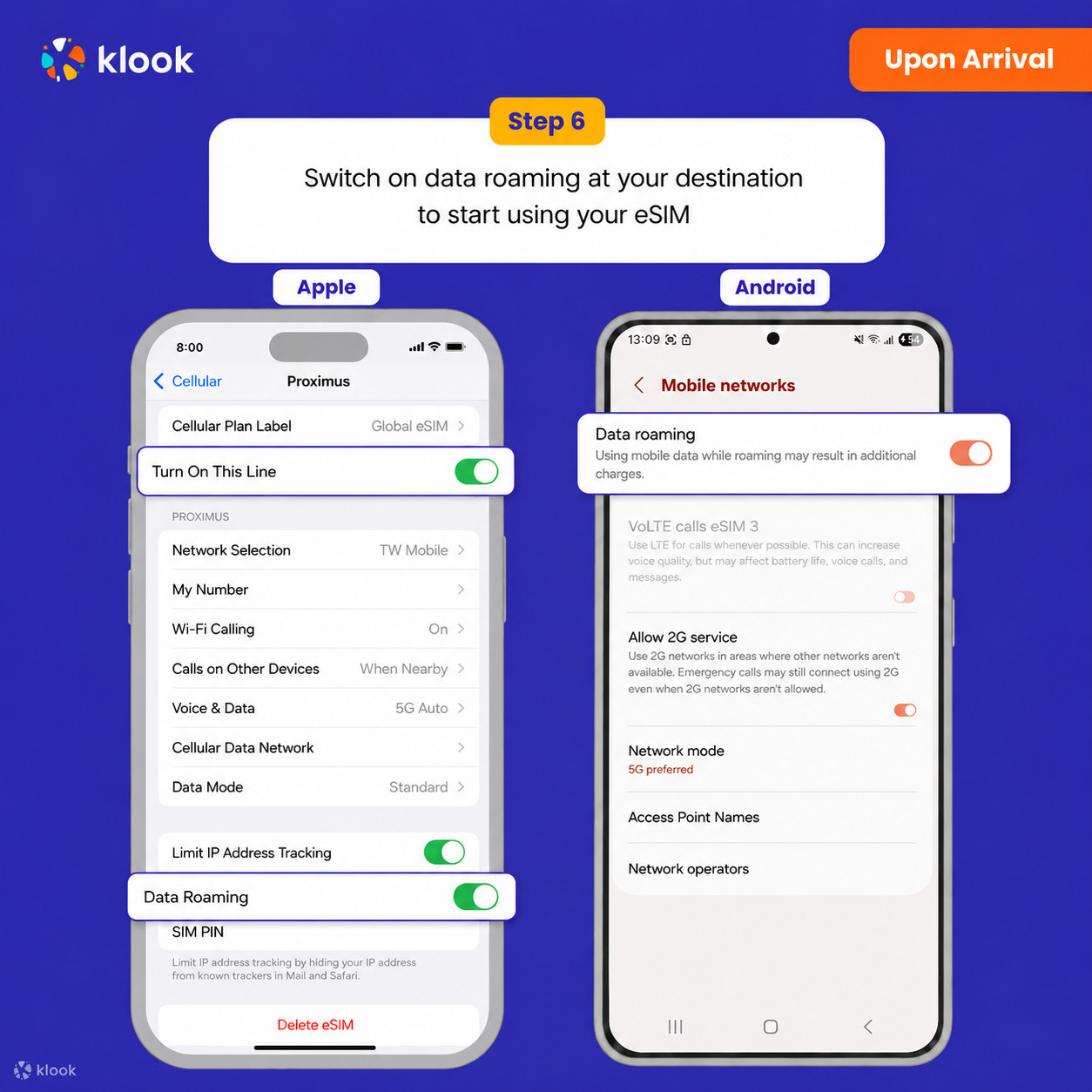
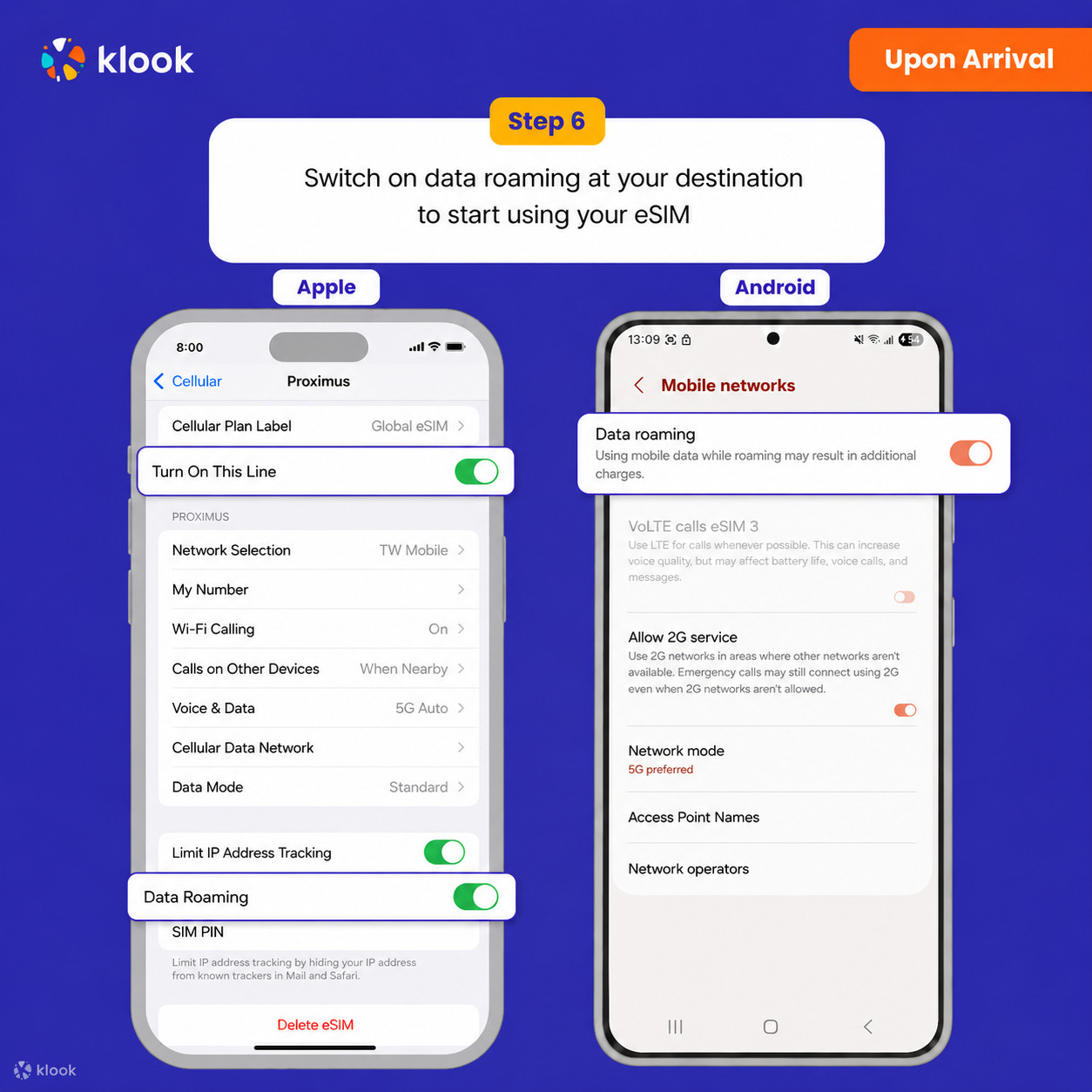
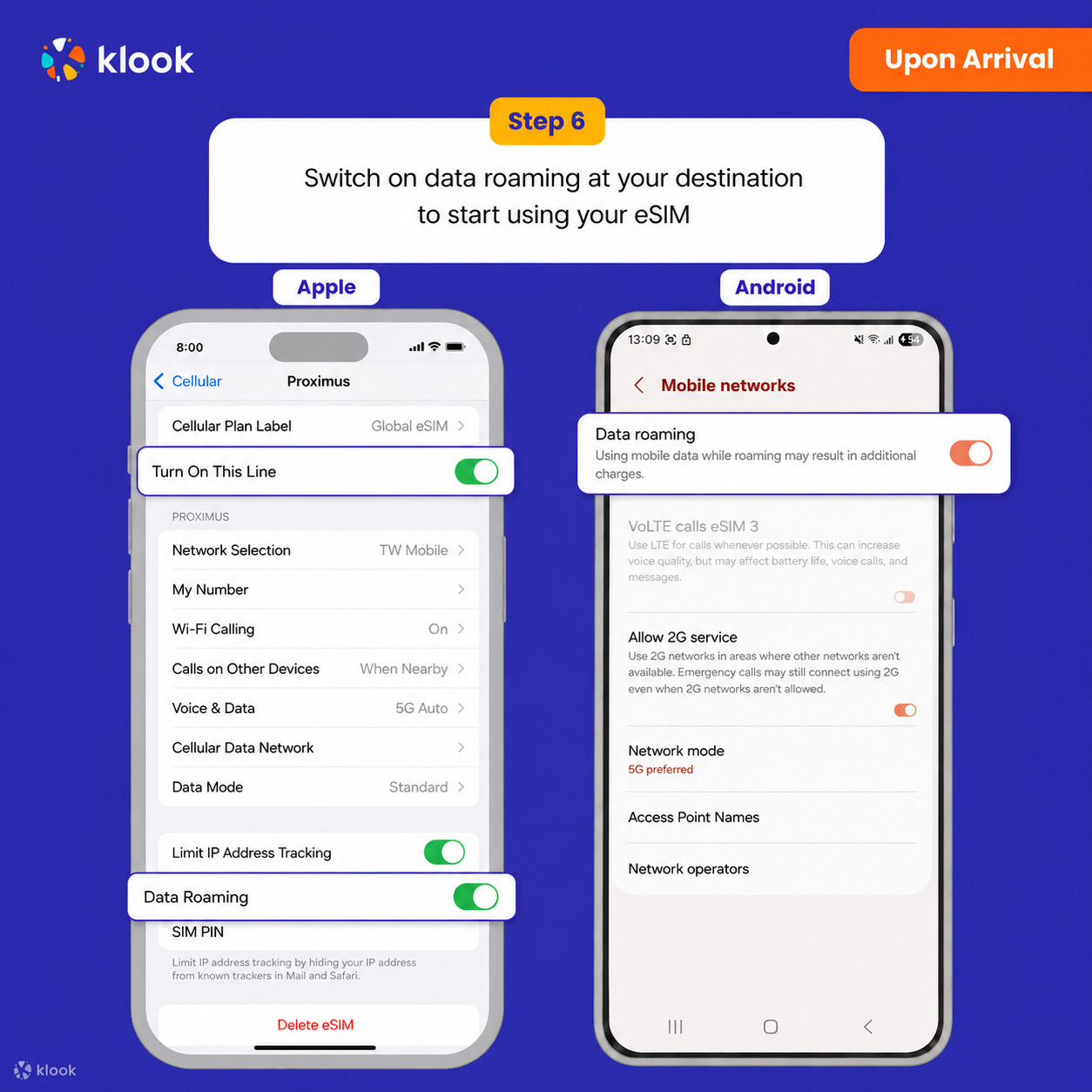
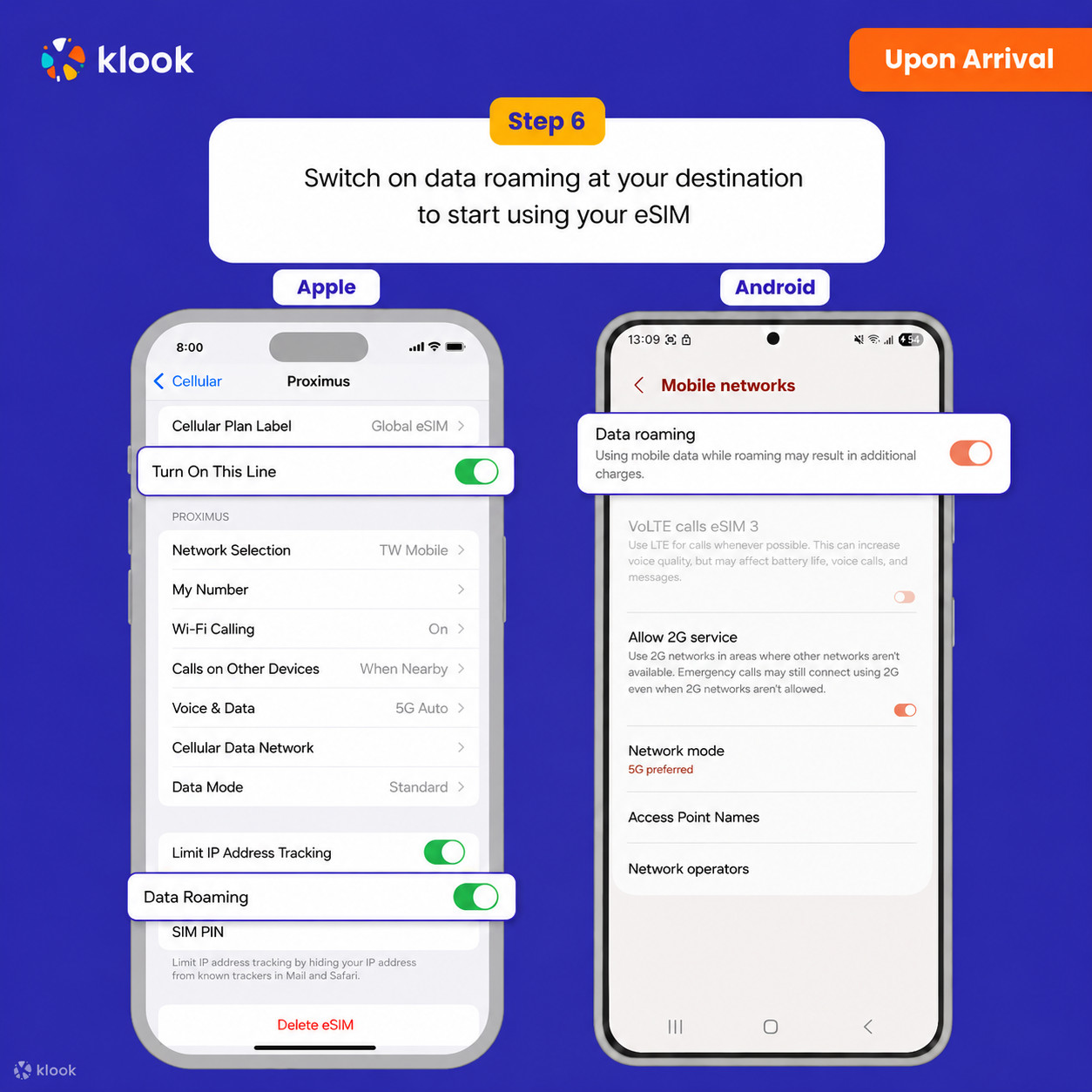
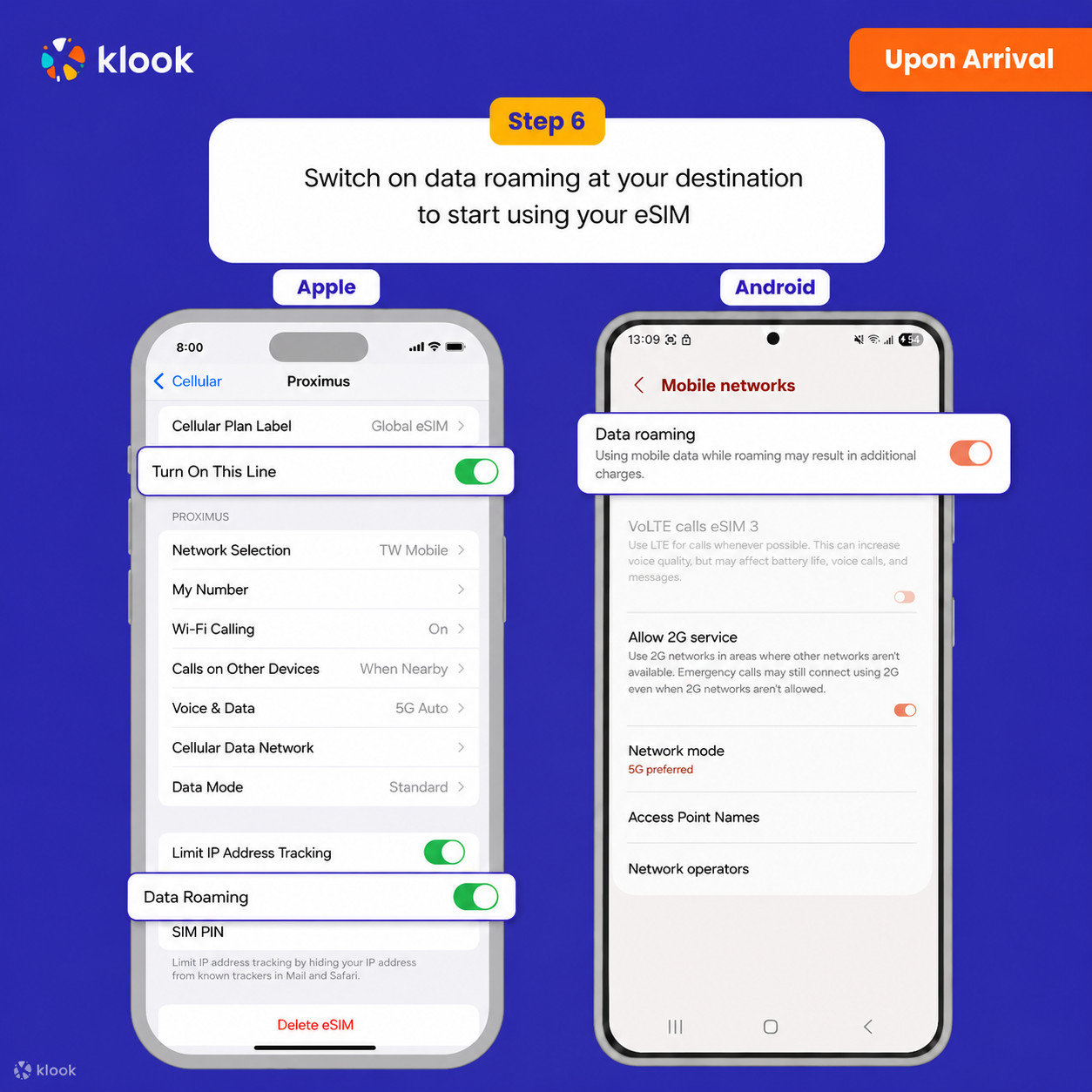
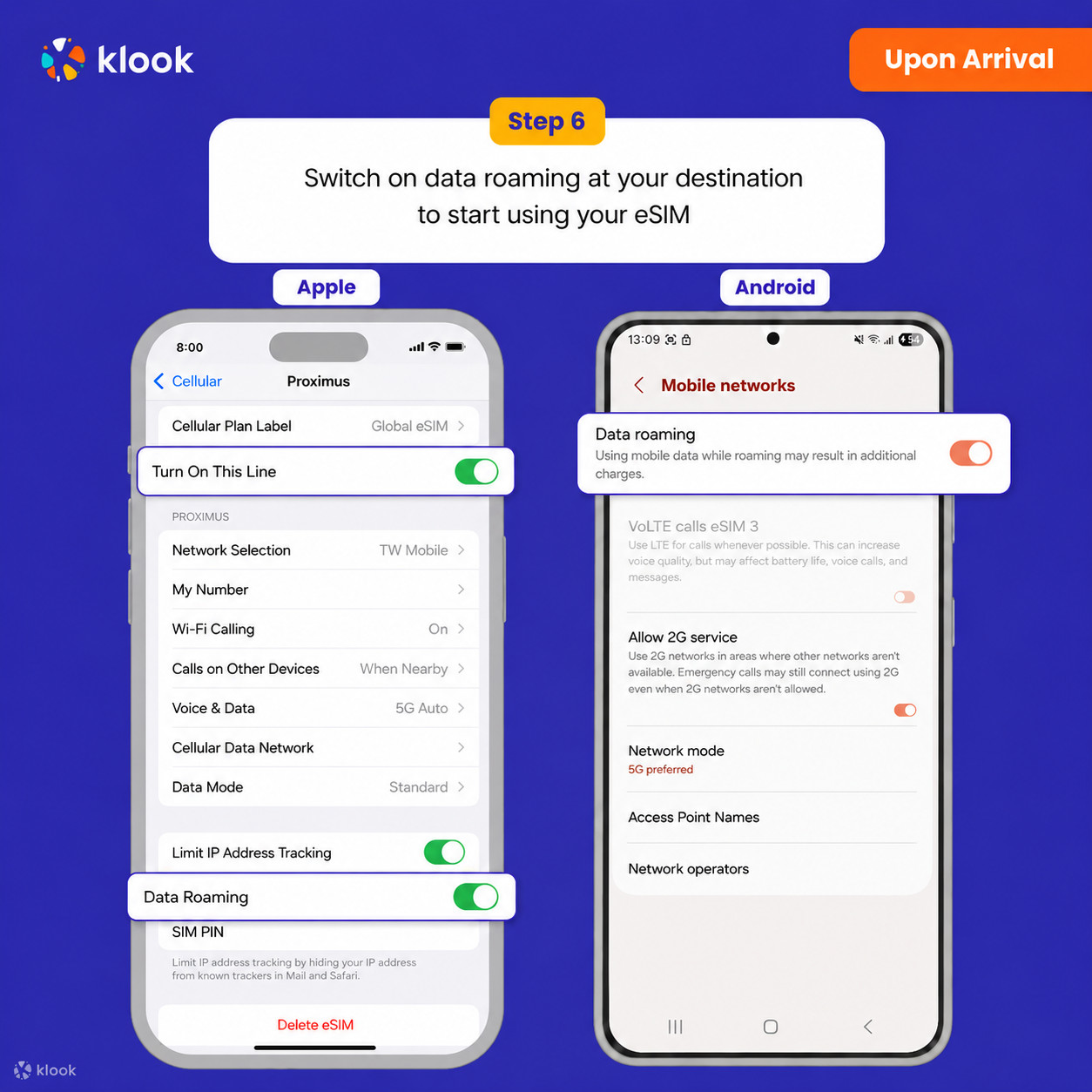
Data roumingni yoqing
Manzilingizda data roumingni yoqing va eSIM-dan foydalanishni boshlang
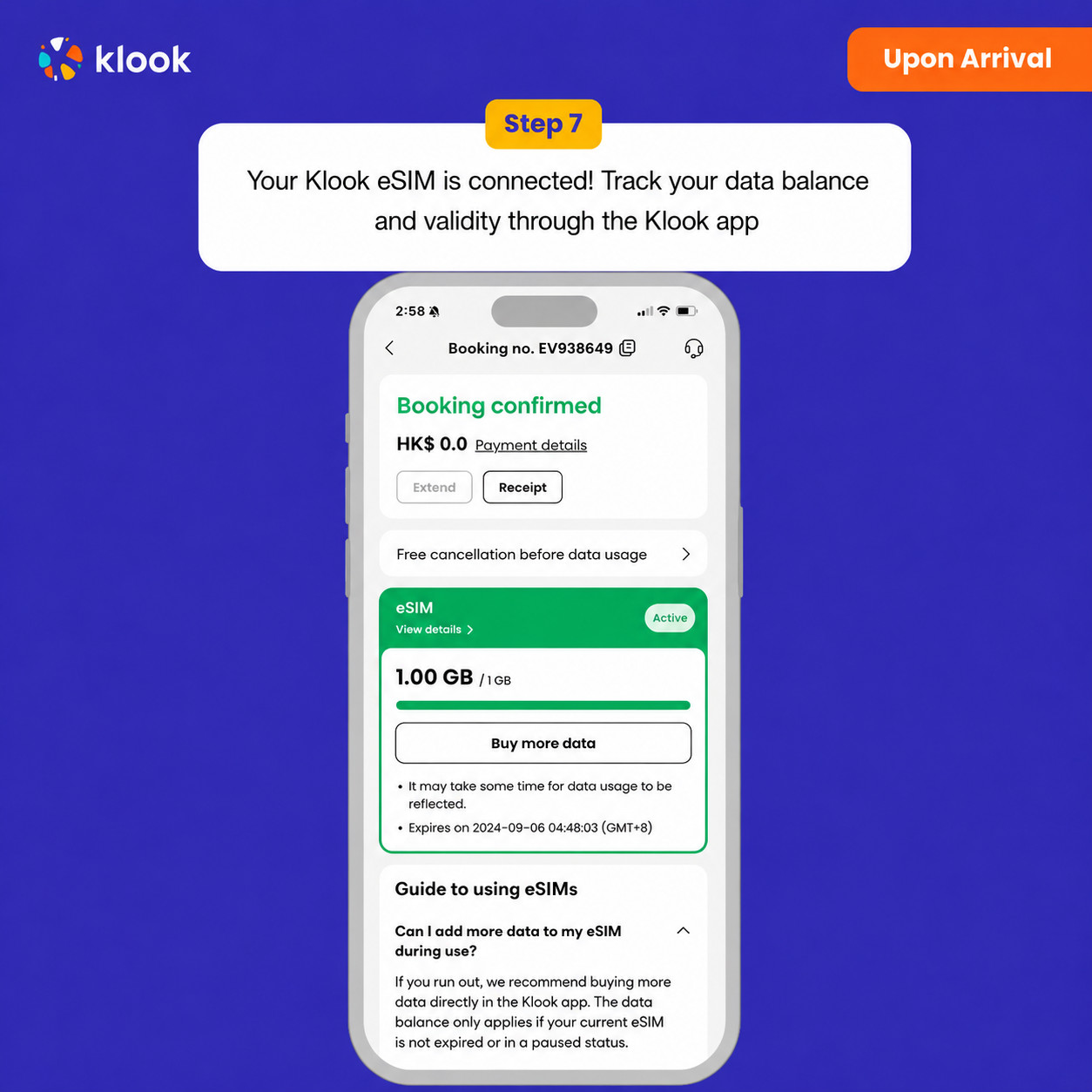
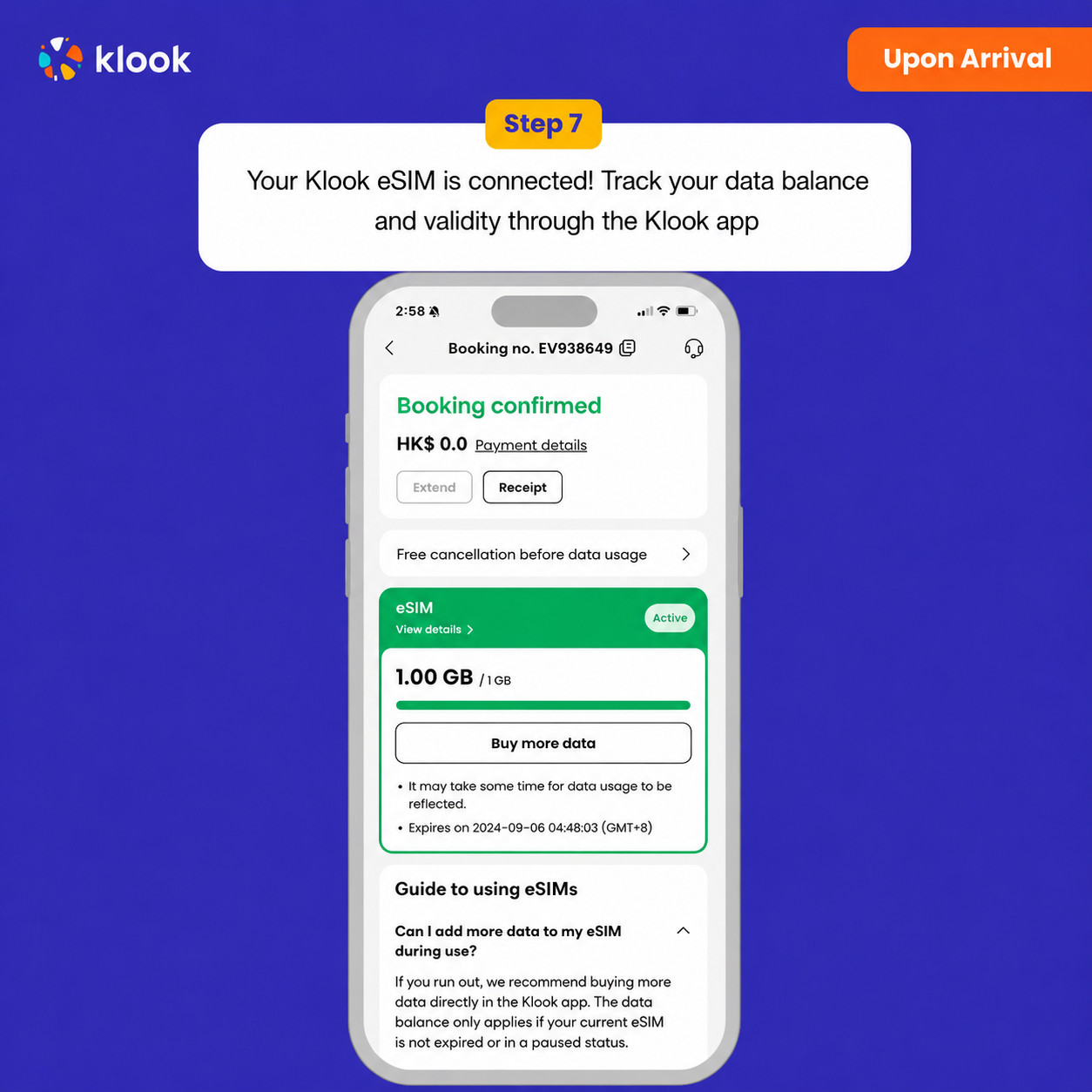
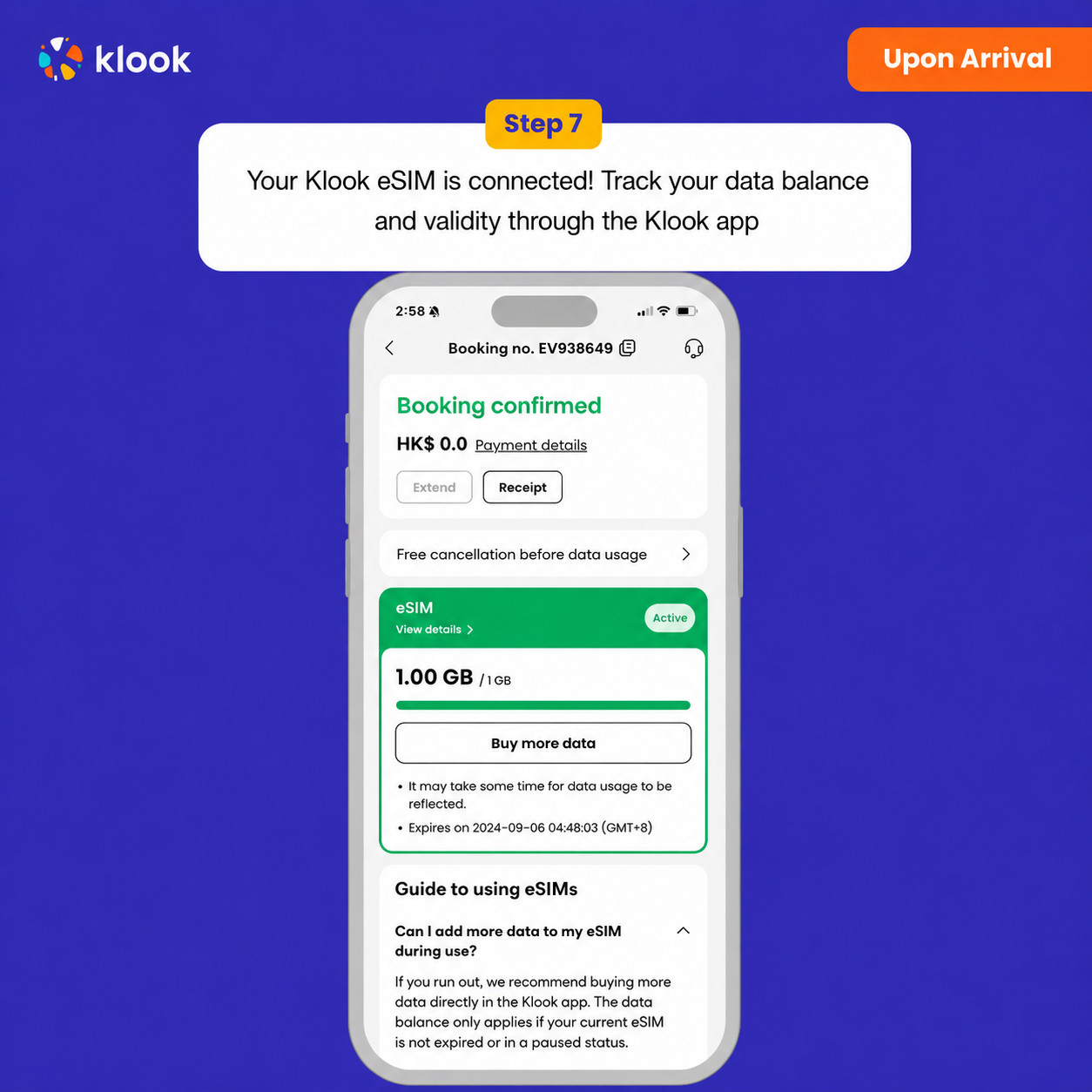
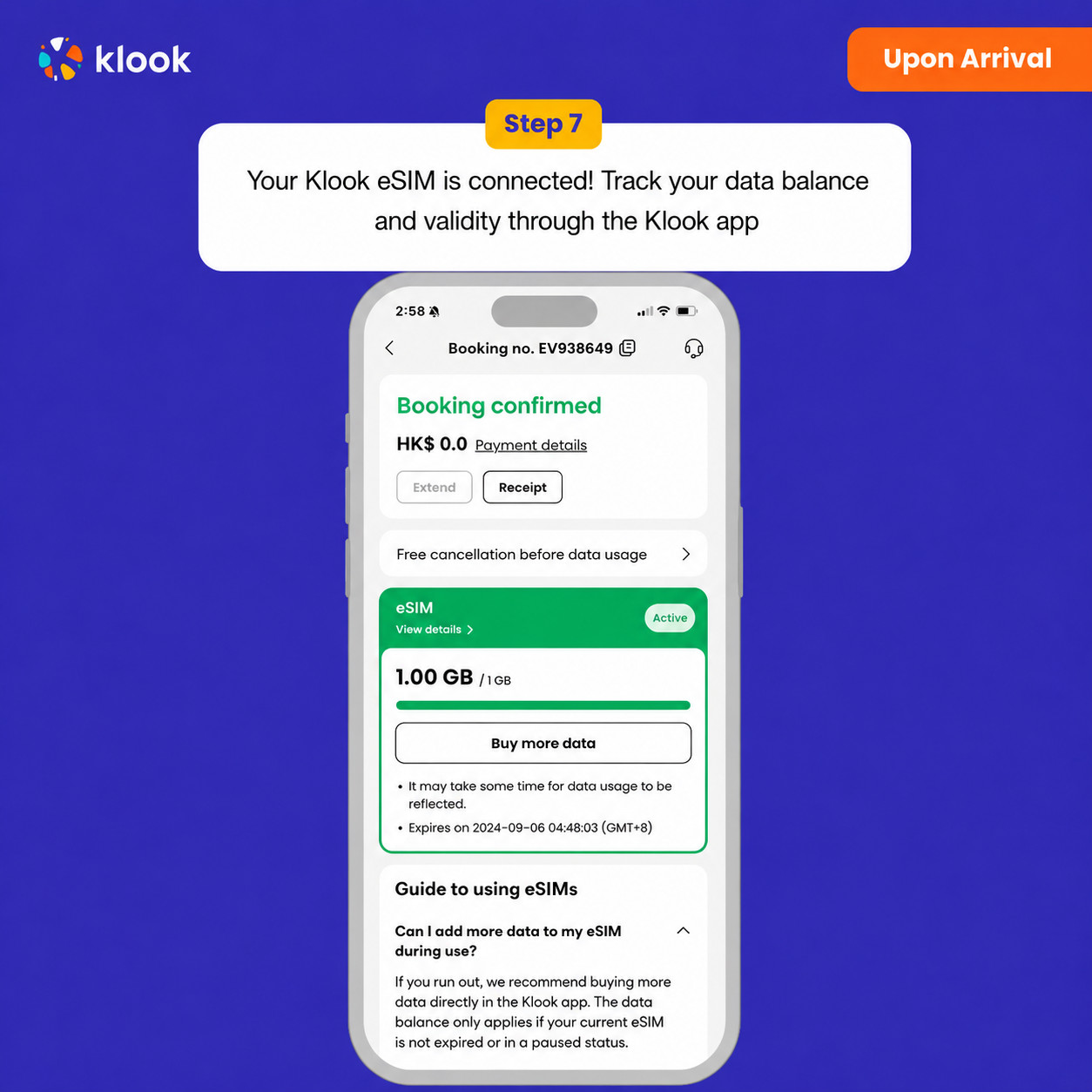
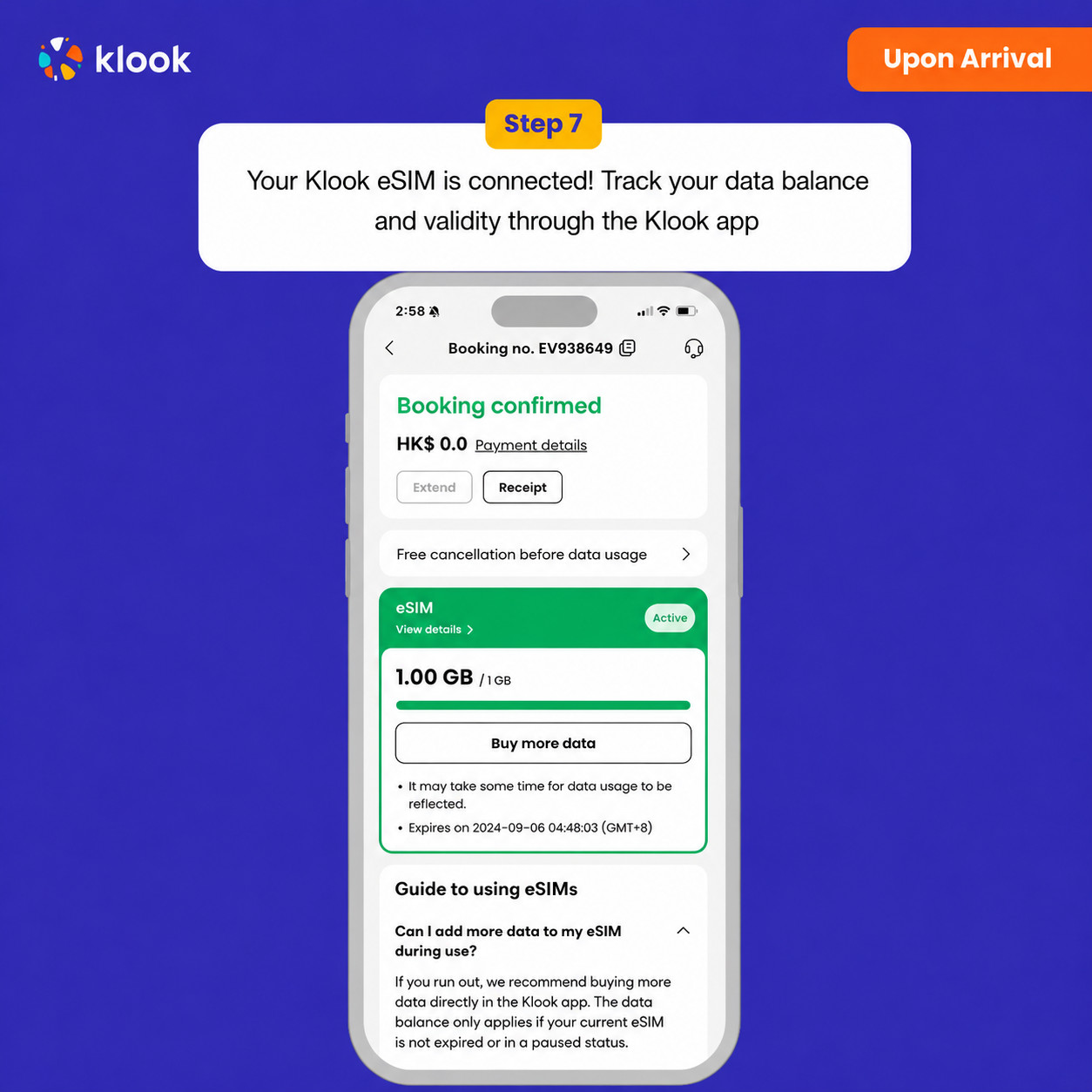
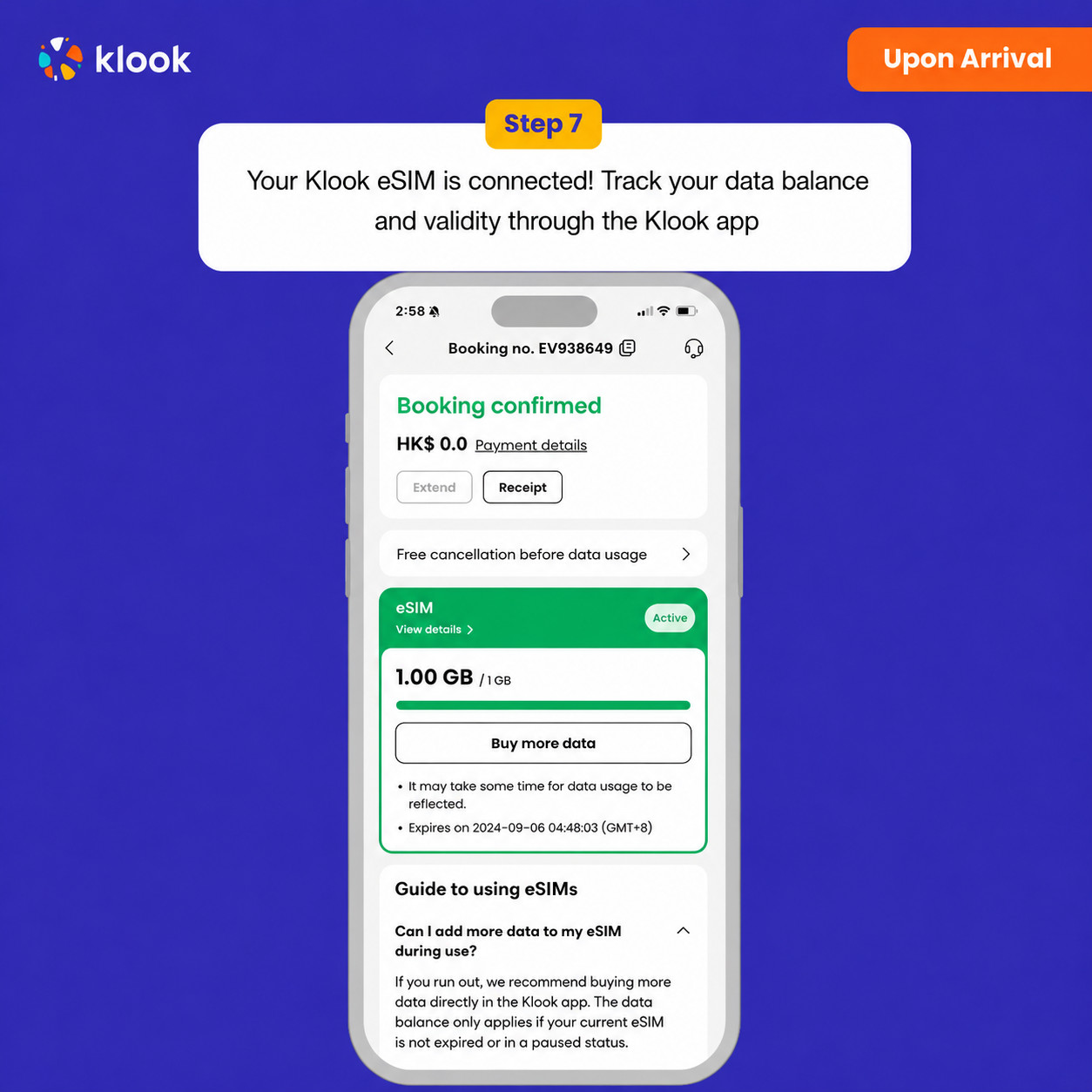
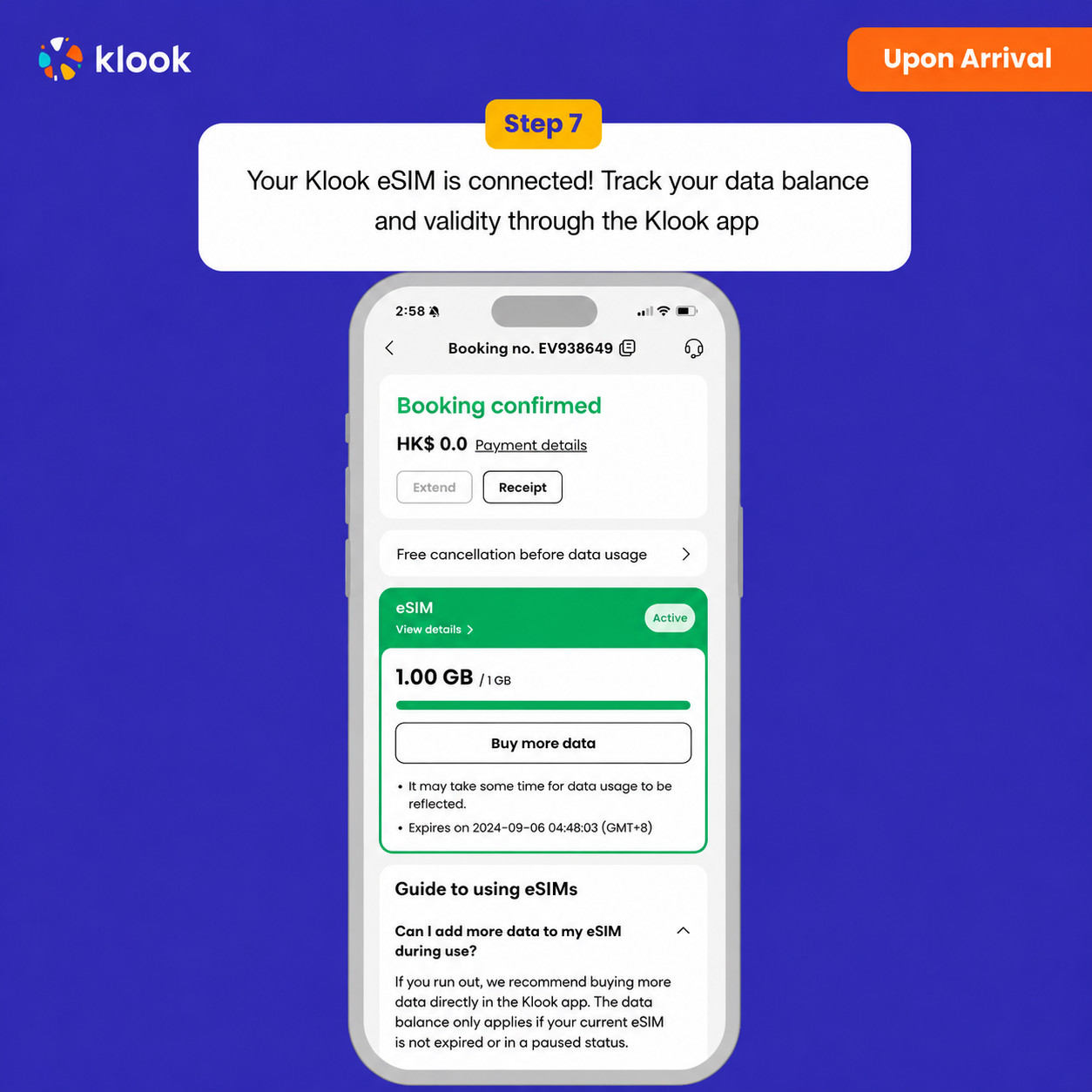
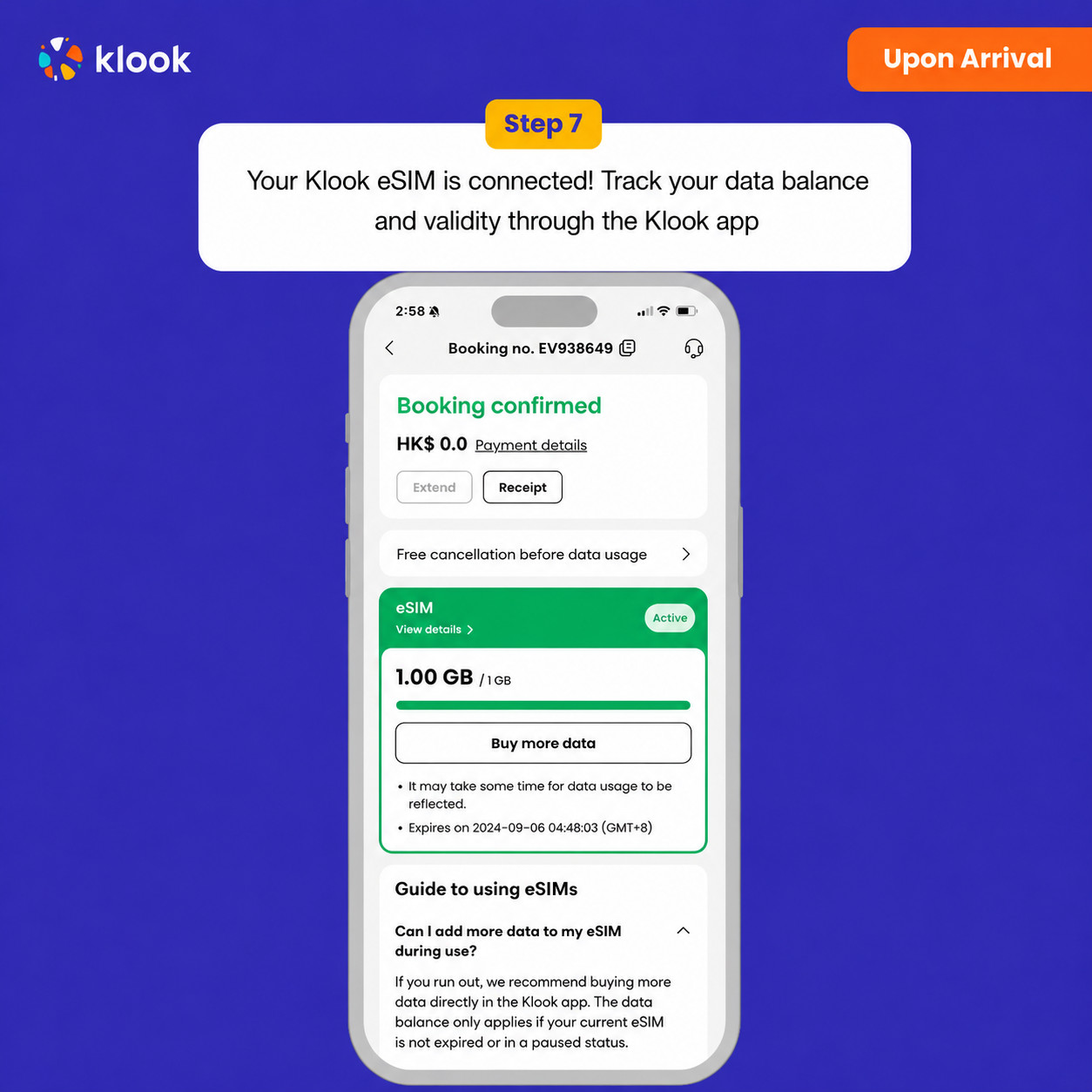
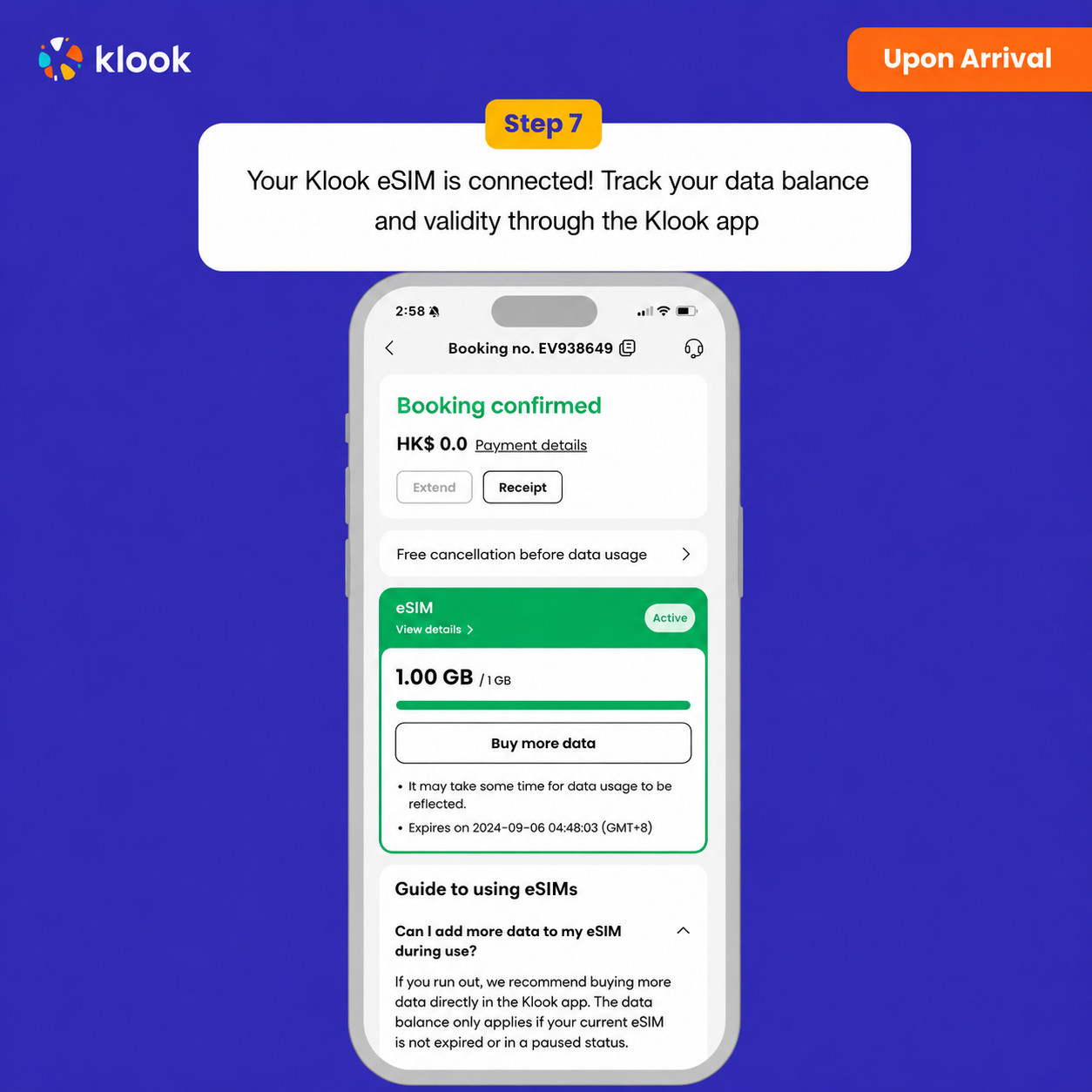
Klook eSIM ulandi
Klook eSIM ulandi! Ma’lumot qoldig‘i va amal qilish muddatini Klook ilovasi orqali kuzatib boring
eSIM tarifingiz manzil mobil tarmog‘iga ulangan vaqtdan boshlab ishga tushadi. Masalan, 3 kunlik tarifni soat 10:00 da faollashtirsangiz, u 3 kundan so‘ng soat 10:00 da tugaydi.
Klook eSIM-ni sayohatdan oldin faollashtiring
eSIM-ni sayohatdan oldin faollashtiring
Klook eSIM o‘rnatish usullari
Klook ilovasida faollashtirish, QR kodni skanerlash yoki SMDP+ ma’lumotlarini qo‘lda kiritish orqali eSIM-ni faollashtiring
Klook eSIM ilovada faollashtirish
Broningizda "eSIM-ni qurilmaga qo‘shish" tugmasini bosib, o‘rnatishni boshlang. Xavotir olmang, ma’lumot va amal qilish muddati faqat manzilingizga yetganingizdan so‘ng boshlanadi
Klook eSIM ilovada faollashtirish
eSIM o‘rnatilishi avtomatik tarzda boshlanadi
Klook eSIM iOS o‘rnatish
iOS uchun Klook eSIM-ni sayohatga sozlang
Klook eSIM o‘rnatildi
eSIM ishlashga tayyor! Foydalanish va amal qilish muddati faqat eSIM chet el tarmog‘iga ulanganidan so‘ng boshlanadi
Klook eSIM-ni yoqing
Klook eSIM-ni yoqing va mobil ma’lumot uchun Klook eSIM-ni tanlang
Data roumingni yoqing
Manzilingizda data roumingni yoqing va eSIM-dan foydalanishni boshlang
Klook eSIM ulandi
Klook eSIM ulandi! Ma’lumot qoldig‘i va amal qilish muddatini Klook ilovasi orqali kuzatib boring
eSIM tarifingiz manzil mobil tarmog‘iga ulangan vaqtdan boshlab ishga tushadi. Masalan, 3 kunlik tarifni soat 10:00 da faollashtirsangiz, u 3 kundan so‘ng soat 10:00 da tugaydi.
Klook eSIM-ni safarga chiqishdan oldin faollashtiring
eSIM-ni safarga chiqishdan oldin faollashtiring
Klook eSIM o‘rnatish usullari
Klook ilovasida faollashtirish, QR kodni skanerlash yoki SMDP+ ma’lumotlarini qo‘lda kiritish orqali eSIM-ni faollashtiring
Klook eSIM ilovada faollashtirish
Buyurtmangizda Qurilmaga eSIM qo‘shish tugmasini bosing va o‘rnatishni boshlang. Havotir olmang, ma’lumotlar va amal qilish muddati faqat manzilingizga yetganingizda boshlanadi
Klook eSIM ilovada faollashtirish
Sizning eSIM o‘rnatilishi avtomatik tarzda boshlanadi
Klook eSIM iOS uchun o‘rnatish
iOS uchun Klook eSIM-ni safar uchun sozlang
Klook eSIM o‘rnatildi
Sizning eSIM foydalanishga tayyor! Foydalanish va amal qilish muddati faqat eSIM xorijdagi tarmoqqa ulanganida boshlanadi
Klook eSIM-ni yoqing
Klook eSIM-ni yoqing va mobil ma’lumot uchun Klook eSIM-ni tanlang
Ma’lumot roumingini yoqing
Manzilingizda ma’lumot roumingini yoqing va eSIM-dan foydalanishni boshlang
Klook eSIM ulandi
Sizning Klook eSIM ulandi! Ma’lumot balansingiz va amal qilish muddatini Klook ilovasi orqali kuzatib boring
Tasdiqlash siyosati
Bir necha daqiqa ichida tasdiq olasiz. Agar tasdiqni ko‘rmasangiz, mijozlarni qo‘llab-quvvatlash xizmatimizga murojaat qiling.
Klook eSIM-ni safarga chiqishdan oldin faollashtiring
eSIM-ni safarga chiqishdan oldin faollashtiring
Klook eSIM o‘rnatish usullari
Klook ilovasida faollashtirish, QR kodni skanerlash yoki SMDP+ ma’lumotlarini qo‘lda kiritish orqali eSIM-ni faollashtiring
Klook eSIM ilovada faollashtirish
Buyurtmangizda Qurilmaga eSIM qo‘shish tugmasini bosing va o‘rnatishni boshlang. Havotir olmang, ma’lumotlar va amal qilish muddati faqat manzilingizga yetganingizda boshlanadi
Klook eSIM ilovada faollashtirish
Sizning eSIM o‘rnatilishi avtomatik tarzda boshlanadi
Klook eSIM iOS uchun o‘rnatish
iOS uchun Klook eSIM-ni safar uchun sozlang
Klook eSIM o‘rnatildi
Sizning eSIM foydalanishga tayyor! Foydalanish va amal qilish muddati faqat eSIM xorijdagi tarmoqqa ulanganida boshlanadi
Klook eSIM-ni yoqing
Klook eSIM-ni yoqing va mobil ma’lumot uchun Klook eSIM-ni tanlang
Ma’lumot roumingini yoqing
Manzilingizda ma’lumot roumingini yoqing va eSIM-dan foydalanishni boshlang
Klook eSIM ulandi
Sizning Klook eSIM ulandi! Ma’lumot balansingiz va amal qilish muddatini Klook ilovasi orqali kuzatib boring
eSIM tarifingiz manzil mobil tarmog‘iga ulangan vaqtdan boshlab ishga tushadi. Masalan, 3 kunlik tarifni soat 10:00 da faollashtirsangiz, u 3 kundan so‘ng soat 10:00 da tugaydi.
Tasdiqlash siyosati
Bir necha daqiqa ichida tasdiq olasiz. Agar tasdiqni ko‘rmasangiz, mijozlarni qo‘llab-quvvatlash xizmatimizga murojaat qiling.
eSIM tarifingiz manzil mobil tarmog‘iga ulangan vaqtdan boshlab ishga tushadi. Masalan, 3 kunlik tarifni soat 10:00 da faollashtirsangiz, u 3 kundan so‘ng soat 10:00 da tugaydi.
Klook eSIM-ni safarga chiqishdan oldin faollashtiring
eSIM-ni safarga chiqishdan oldin faollashtiring
Klook eSIM o‘rnatish usullari
Klook ilovasida faollashtirish, QR kodni skanerlash yoki SMDP+ ma’lumotlarini qo‘lda kiritish orqali eSIM-ni faollashtiring
Klook eSIM ilovada faollashtirish
Buyurtmangizda Qurilmaga eSIM qo‘shish tugmasini bosing va o‘rnatishni boshlang. Havotir olmang, ma’lumotlar va amal qilish muddati faqat manzilingizga yetganingizda boshlanadi
Klook eSIM ilovada faollashtirish
Sizning eSIM o‘rnatilishi avtomatik tarzda boshlanadi
Klook eSIM iOS uchun o‘rnatish
iOS uchun Klook eSIM-ni safar uchun sozlang
Klook eSIM o‘rnatildi
Sizning eSIM foydalanishga tayyor! Foydalanish va amal qilish muddati faqat eSIM xorijdagi tarmoqqa ulanganida boshlanadi
Klook eSIM-ni yoqing
Klook eSIM-ni yoqing va mobil ma’lumot uchun Klook eSIM-ni tanlang
Ma’lumot roumingini yoqing
Manzilingizda ma’lumot roumingini yoqing va eSIM-dan foydalanishni boshlang
Klook eSIM ulandi
Sizning Klook eSIM ulandi! Ma’lumot balansingiz va amal qilish muddatini Klook ilovasi orqali kuzatib boring
Tasdiqlash siyosati
Bir necha daqiqa ichida tasdiq olasiz. Agar tasdiqni ko‘rmasangiz, mijozlarni qo‘llab-quvvatlash xizmatimizga murojaat qiling.
Kunlik internet · 14 kun · Cheksiz · Faqat internet
eSIM
205 700 so'm
≈$17
Tasdiqlash siyosati
Bir necha daqiqa ichida tasdiq olasiz. Agar tasdiqni ko‘rmasangiz, mijozlarni qo‘llab-quvvatlash xizmatimizga murojaat qiling.
Klook eSIM-ni safarga chiqishdan oldin faollashtiring
eSIM-ni safarga chiqishdan oldin faollashtiring
Klook eSIM o‘rnatish usullari
Klook ilovasida faollashtirish, QR kodni skanerlash yoki SMDP+ ma’lumotlarini qo‘lda kiritish orqali eSIM-ni faollashtiring
Klook eSIM ilovada faollashtirish
Buyurtmangizda Qurilmaga eSIM qo‘shish tugmasini bosing va o‘rnatishni boshlang. Havotir olmang, ma’lumotlar va amal qilish muddati faqat manzilingizga yetganingizda boshlanadi
Klook eSIM ilovada faollashtirish
Sizning eSIM o‘rnatilishi avtomatik tarzda boshlanadi
Klook eSIM iOS uchun o‘rnatish
iOS uchun Klook eSIM-ni safar uchun sozlang
Klook eSIM o‘rnatildi
Sizning eSIM foydalanishga tayyor! Foydalanish va amal qilish muddati faqat eSIM xorijdagi tarmoqqa ulanganida boshlanadi
Klook eSIM-ni yoqing
Klook eSIM-ni yoqing va mobil ma’lumot uchun Klook eSIM-ni tanlang
Ma’lumot roumingini yoqing
Manzilingizda ma’lumot roumingini yoqing va eSIM-dan foydalanishni boshlang
Klook eSIM ulandi
Sizning Klook eSIM ulandi! Ma’lumot balansingiz va amal qilish muddatini Klook ilovasi orqali kuzatib boring
eSIM tarifingiz manzil mobil tarmog‘iga ulangan vaqtdan boshlab ishga tushadi. Masalan, 3 kunlik tarifni soat 10:00 da faollashtirsangiz, u 3 kundan so‘ng soat 10:00 da tugaydi.
eSIM tarifingiz manzil mobil tarmog‘iga ulangan vaqtdan boshlab ishga tushadi. Masalan, 3 kunlik tarifni soat 10:00 da faollashtirsangiz, u 3 kundan so‘ng soat 10:00 da tugaydi.
Klook eSIM-ni safarga chiqishdan oldin faollashtiring
eSIM-ni safarga chiqishdan oldin faollashtiring
Klook eSIM o‘rnatish usullari
Klook ilovasida faollashtirish, QR kodni skanerlash yoki SMDP+ ma’lumotlarini qo‘lda kiritish orqali eSIM-ni faollashtiring
Klook eSIM ilovada faollashtirish
Buyurtmangizda Qurilmaga eSIM qo‘shish tugmasini bosing va o‘rnatishni boshlang. Havotir olmang, ma’lumotlar va amal qilish muddati faqat manzilingizga yetganingizda boshlanadi
Klook eSIM ilovada faollashtirish
Sizning eSIM o‘rnatilishi avtomatik tarzda boshlanadi
Klook eSIM iOS uchun o‘rnatish
iOS uchun Klook eSIM-ni safar uchun sozlang
Klook eSIM o‘rnatildi
Sizning eSIM foydalanishga tayyor! Foydalanish va amal qilish muddati faqat eSIM xorijdagi tarmoqqa ulanganida boshlanadi
Klook eSIM-ni yoqing
Klook eSIM-ni yoqing va mobil ma’lumot uchun Klook eSIM-ni tanlang
Ma’lumot roumingini yoqing
Manzilingizda ma’lumot roumingini yoqing va eSIM-dan foydalanishni boshlang
Klook eSIM ulandi
Sizning Klook eSIM ulandi! Ma’lumot balansingiz va amal qilish muddatini Klook ilovasi orqali kuzatib boring
Tasdiqlash siyosati
Bir necha daqiqa ichida tasdiq olasiz. Agar tasdiqni ko‘rmasangiz, mijozlarni qo‘llab-quvvatlash xizmatimizga murojaat qiling.
Klook eSIM-ni safarga chiqishdan oldin faollashtiring
ESIM-ni safarga chiqishdan oldin faollashtiring
Klook eSIM o‘rnatish usullari
ESIM-ni Klook ilovasida faollashtirish, QR-kodni skanerlash yoki SMDP+ ma’lumotlarini qo‘lda kiritish orqali faollashtiring
Klook eSIM ilovada faollashtirish
Buyurtmangizda qurilmaga eSIM qo‘shish tugmasini bosing va o‘rnatishni boshlang. Havotir olmang, ma’lumot va amal qilish muddati faqat manzilingizga yetib borganingizda boshlanadi
Klook eSIM ilovada faollashtirish
ESIM o‘rnatilishi avtomatik tarzda boshlanadi
Klook eSIM iOS uchun o‘rnatish
iOS qurilmangizda Klook eSIM-ni safar uchun sozlang
Klook eSIM o‘rnatildi
ESIM foydalanishga tayyor! Foydalanish va amal qilish muddati faqat eSIM chet el tarmog‘iga ulanganidan keyin boshlanadi
Klook eSIM-ni yoqing
Klook eSIM-ni yoqing va mobil ma’lumot uchun Klook eSIM-ni tanlang
Ma’lumot roumingini yoqing
Manzilingizga yetib borganingizda ma’lumot roumingini yoqing va eSIM-dan foydalanishni boshlang
Klook eSIM ulandi
Klook eSIM ulandi! Ma’lumot qoldig‘i va amal qilish muddatini Klook ilovasi orqali kuzatib boring
eSIM tarifingiz manzil mobil tarmog‘iga ulangan vaqtdan boshlab ishga tushadi. Masalan, 3 kunlik tarifni soat 10:00 da faollashtirsangiz, u 3 kundan so‘ng soat 10:00 da tugaydi.
Tasdiqlash siyosati
Bir necha daqiqa ichida tasdiq olasiz. Agar tasdiqni ko‘rmasangiz, mijozlarni qo‘llab-quvvatlash xizmatimizga murojaat qiling.
eSIM tarifingiz manzil mobil tarmog‘iga ulangan vaqtdan boshlab ishga tushadi. Masalan, 3 kunlik tarifni soat 10:00 da faollashtirsangiz, u 3 kundan so‘ng soat 10:00 da tugaydi.
Klook eSIM-ni safarga chiqishdan oldin faollashtiring
ESIM-ni safarga chiqishdan oldin faollashtiring
Klook eSIM o‘rnatish usullari
ESIM-ni Klook ilovasida faollashtirish, QR-kodni skanerlash yoki SMDP+ ma’lumotlarini qo‘lda kiritish orqali faollashtiring
Klook eSIM ilovada faollashtirish
Buyurtmangizda qurilmaga eSIM qo‘shish tugmasini bosing va o‘rnatishni boshlang. Havotir olmang, ma’lumot va amal qilish muddati faqat manzilingizga yetib borganingizda boshlanadi
Klook eSIM ilovada faollashtirish
ESIM o‘rnatilishi avtomatik tarzda boshlanadi
Klook eSIM iOS uchun o‘rnatish
iOS qurilmangizda Klook eSIM-ni safar uchun sozlang
Klook eSIM o‘rnatildi
ESIM foydalanishga tayyor! Foydalanish va amal qilish muddati faqat eSIM chet el tarmog‘iga ulanganidan keyin boshlanadi
Klook eSIM-ni yoqing
Klook eSIM-ni yoqing va mobil ma’lumot uchun Klook eSIM-ni tanlang
Ma’lumot roumingini yoqing
Manzilingizga yetib borganingizda ma’lumot roumingini yoqing va eSIM-dan foydalanishni boshlang
Klook eSIM ulandi
Klook eSIM ulandi! Ma’lumot qoldig‘i va amal qilish muddatini Klook ilovasi orqali kuzatib boring
Klook eSIM-ni safarga chiqishdan oldin faollashtiring
ESIM-ni safarga chiqishdan oldin faollashtiring
Klook eSIM o‘rnatish usullari
ESIM-ni Klook ilovasida faollashtirish, QR-kodni skanerlash yoki SMDP+ ma’lumotlarini qo‘lda kiritish orqali faollashtiring
Klook eSIM ilovada faollashtirish
Buyurtmangizda qurilmaga eSIM qo‘shish tugmasini bosing va o‘rnatishni boshlang. Havotir olmang, ma’lumot va amal qilish muddati faqat manzilingizga yetib borganingizda boshlanadi
Klook eSIM ilovada faollashtirish
ESIM o‘rnatilishi avtomatik tarzda boshlanadi
Klook eSIM iOS uchun o‘rnatish
iOS qurilmangizda Klook eSIM-ni safar uchun sozlang
Klook eSIM o‘rnatildi
ESIM foydalanishga tayyor! Foydalanish va amal qilish muddati faqat eSIM chet el tarmog‘iga ulanganidan keyin boshlanadi
Klook eSIM-ni yoqing
Klook eSIM-ni yoqing va mobil ma’lumot uchun Klook eSIM-ni tanlang
Ma’lumot roumingini yoqing
Manzilingizga yetib borganingizda ma’lumot roumingini yoqing va eSIM-dan foydalanishni boshlang
Klook eSIM ulandi
Klook eSIM ulandi! Ma’lumot qoldig‘i va amal qilish muddatini Klook ilovasi orqali kuzatib boring
eSIM tarifingiz manzil mobil tarmog‘iga ulangan vaqtdan boshlab ishga tushadi. Masalan, 3 kunlik tarifni soat 10:00 da faollashtirsangiz, u 3 kundan so‘ng soat 10:00 da tugaydi.
Tasdiqlash siyosati
Bir necha daqiqa ichida tasdiq olasiz. Agar tasdiqni ko‘rmasangiz, mijozlarni qo‘llab-quvvatlash xizmatimizga murojaat qiling.
eSIM tarifingiz manzil mobil tarmog‘iga ulangan vaqtdan boshlab ishga tushadi. Masalan, 3 kunlik tarifni soat 10:00 da faollashtirsangiz, u 3 kundan so‘ng soat 10:00 da tugaydi.
Klook eSIM kartangizni safardan oldin faollashtiring
ESIM kartangizni safarga chiqishdan oldin faollashtiring
Klook eSIM o‘rnatish usullari
ESIM kartangizni Klook ilovasi orqali faollashtirish, QR kodni skanerlash yoki SMDP+ ma’lumotlarini qo‘lda kiritish orqali faollashtiring
Klook eSIM ilova orqali faollashtirish
Buyurtmangizda "eSIM qo‘shish" tugmasini bosib o‘rnatishni boshlang. Havotir olmang, ma’lumotlar va amal qilish muddati faqat manzilingizga yetganingizda boshlanadi
Klook eSIM ilova orqali faollashtirish
ESIM kartangiz o‘rnatilishi avtomatik tarzda boshlanadi
Klook eSIM iOS uchun o‘rnatish
iOS qurilmangizda Klook eSIM kartangizni safar uchun sozlang
Klook eSIM o‘rnatildi
ESIM kartangiz foydalanishga tayyor! Foydalanish va amal qilish muddati faqat xorijiy tarmoqqa ulanishingiz bilan boshlanadi
Klook eSIM ni yoqing
Klook eSIM ni yoqing va mobil ma’lumotlar uchun Klook eSIM ni tanlang
Data roaming funksiyasini yoqing
Manzilingizga yetganingizda data roaming funksiyasini yoqing va eSIM kartangizdan foydalanishni boshlang
Klook eSIM ulandi
Klook eSIM kartangiz ulandi! Ma’lumotlar balansingiz va amal qilish muddatini Klook ilovasi orqali kuzatib boring
eSIM tarifingiz manzil mobil tarmog‘iga ulangan vaqtdan boshlab ishga tushadi. Masalan, 3 kunlik tarifni soat 10:00 da faollashtirsangiz, u 3 kundan so‘ng soat 10:00 da tugaydi.
Klook eSIM kartangizni safardan oldin faollashtiring
ESIM kartangizni safarga chiqishdan oldin faollashtiring
Klook eSIM o‘rnatish usullari
ESIM kartangizni Klook ilovasi orqali faollashtirish, QR kodni skanerlash yoki SMDP+ ma’lumotlarini qo‘lda kiritish orqali faollashtiring
Klook eSIM ilova orqali faollashtirish
Buyurtmangizda "eSIM qo‘shish" tugmasini bosib o‘rnatishni boshlang. Havotir olmang, ma’lumotlar va amal qilish muddati faqat manzilingizga yetganingizda boshlanadi
Klook eSIM ilova orqali faollashtirish
ESIM kartangiz o‘rnatilishi avtomatik tarzda boshlanadi
Klook eSIM iOS uchun o‘rnatish
iOS qurilmangizda Klook eSIM kartangizni safar uchun sozlang
Klook eSIM o‘rnatildi
ESIM kartangiz foydalanishga tayyor! Foydalanish va amal qilish muddati faqat xorijiy tarmoqqa ulanishingiz bilan boshlanadi
Klook eSIM ni yoqing
Klook eSIM ni yoqing va mobil ma’lumotlar uchun Klook eSIM ni tanlang
Data roaming funksiyasini yoqing
Manzilingizga yetganingizda data roaming funksiyasini yoqing va eSIM kartangizdan foydalanishni boshlang
Klook eSIM ulandi
Klook eSIM kartangiz ulandi! Ma’lumotlar balansingiz va amal qilish muddatini Klook ilovasi orqali kuzatib boring
Tasdiqlash siyosati
Bir necha daqiqa ichida tasdiq olasiz. Agar tasdiqni ko‘rmasangiz, mijozlarni qo‘llab-quvvatlash xizmatimizga murojaat qiling.
Klook ilovasida faollashtiring (Klook ilovasini eng so‘nggi versiyaga yangilang)
Klook eSIM o‘rnatish usullari
Klook ilovasida faollashtirish, QR kodni skanerlash yoki SMDP+ ma’lumotlarini qo‘lda kiritish orqali eSIM-ni faollashtiring
Klook eSIM ilovada faollashtirish
Broningizda "eSIM-ni qurilmaga qo‘shish" tugmasini bosib, eSIM-ni faollashtiring. Xavotir olmang, ma’lumot va amal qilish muddati faqat manzilingizga yetganingizdan so‘ng boshlanadi
Klook eSIM ilovada faollashtirish
eSIM o‘rnatilishi avtomatik tarzda boshlanadi
Klook eSIM iOS o‘rnatish
Klook eSIM-ni sayohat uchun sozlang
Klook eSIM o‘rnatildi
Klook eSIM endi o‘rnatildi! Amal qilish muddati faqat manzilingizda mahalliy tarmoqqa ulanganingizdan so‘ng boshlanadi
Klook eSIM-ni yoqing
Klook eSIM-ni yoqing va mobil ma’lumot uchun Klook eSIM-ni tanlang
Data roumingni yoqing
Klook eSIM uchun ma’lumotni tanlang va data roumingni yoqing, shunda eSIM ishlay boshlaydi!
Klook eSIM ulandi
Klook eSIM ulandi! Ma’lumot qoldig‘i va amal qilish muddatini Klook ilovasi orqali kuzatib boring
eSIM rejangiz manzilga yetib, mahalliy mobil tarmoqqa ulanganingizdan so‘ng boshlanadi. Masalan, agar 3 kunlik rejangizni soat 10:00 da faollashtirsangiz, u 3 kundan so‘ng soat 10:00 da tugaydi.
eSIM rejangiz manzilga yetib, mahalliy mobil tarmoqqa ulanganingizdan so‘ng boshlanadi. Masalan, agar 3 kunlik rejangizni soat 10:00 da faollashtirsangiz, u 3 kundan so‘ng soat 10:00 da tugaydi.
Klook ilovasida faollashtiring
Klook ilovasida faollashtiring (Klook ilovasini eng so‘nggi versiyaga yangilang)
Klook eSIM o‘rnatish usullari
Klook ilovasida faollashtirish, QR kodni skanerlash yoki SMDP+ ma’lumotlarini qo‘lda kiritish orqali eSIM-ni faollashtiring
Klook eSIM ilovada faollashtirish
Broningizda "eSIM-ni qurilmaga qo‘shish" tugmasini bosib, eSIM-ni faollashtiring. Xavotir olmang, ma’lumot va amal qilish muddati faqat manzilingizga yetganingizdan so‘ng boshlanadi
Klook eSIM ilovada faollashtirish
eSIM o‘rnatilishi avtomatik tarzda boshlanadi
Klook eSIM iOS o‘rnatish
Klook eSIM-ni sayohat uchun sozlang
Klook eSIM o‘rnatildi
Klook eSIM endi o‘rnatildi! Amal qilish muddati faqat manzilingizda mahalliy tarmoqqa ulanganingizdan so‘ng boshlanadi
Klook eSIM-ni yoqing
Klook eSIM-ni yoqing va mobil ma’lumot uchun Klook eSIM-ni tanlang
Data roumingni yoqing
Klook eSIM uchun ma’lumotni tanlang va data roumingni yoqing, shunda eSIM ishlay boshlaydi!
Klook eSIM ulandi
Klook eSIM ulandi! Ma’lumot qoldig‘i va amal qilish muddatini Klook ilovasi orqali kuzatib boring
Tasdiqlash siyosati
Bir necha daqiqa ichida tasdiq olasiz. Agar tasdiqni ko‘rmasangiz, mijozlarni qo‘llab-quvvatlash xizmatimizga murojaat qiling.
eSIM rejangiz manzilga yetib, mahalliy mobil tarmoqqa ulanganingizdan so‘ng boshlanadi. Masalan, agar 3 kunlik rejangizni soat 10:00 da faollashtirsangiz, u 3 kundan so‘ng soat 10:00 da tugaydi.
Klook ilovasida faollashtiring
Klook ilovasida faollashtiring (Klook ilovasini eng so‘nggi versiyaga yangilang)
Klook eSIM o‘rnatish usullari
Klook ilovasida faollashtirish, QR kodni skanerlash yoki SMDP+ ma’lumotlarini qo‘lda kiritish orqali eSIM-ni faollashtiring
Klook eSIM ilovada faollashtirish
Broningizda "eSIM-ni qurilmaga qo‘shish" tugmasini bosib, eSIM-ni faollashtiring. Xavotir olmang, ma’lumot va amal qilish muddati faqat manzilingizga yetganingizdan so‘ng boshlanadi
Klook eSIM ilovada faollashtirish
eSIM o‘rnatilishi avtomatik tarzda boshlanadi
Klook eSIM iOS o‘rnatish
Klook eSIM-ni sayohat uchun sozlang
Klook eSIM o‘rnatildi
Klook eSIM endi o‘rnatildi! Amal qilish muddati faqat manzilingizda mahalliy tarmoqqa ulanganingizdan so‘ng boshlanadi
Klook eSIM-ni yoqing
Klook eSIM-ni yoqing va mobil ma’lumot uchun Klook eSIM-ni tanlang
Data roumingni yoqing
Klook eSIM uchun ma’lumotni tanlang va data roumingni yoqing, shunda eSIM ishlay boshlaydi!
Klook eSIM ulandi
Klook eSIM ulandi! Ma’lumot qoldig‘i va amal qilish muddatini Klook ilovasi orqali kuzatib boring
Tasdiqlash siyosati
Bir necha daqiqa ichida tasdiq olasiz. Agar tasdiqni ko‘rmasangiz, mijozlarni qo‘llab-quvvatlash xizmatimizga murojaat qiling.
eSIM rejangiz manzilga yetib, mahalliy mobil tarmoqqa ulanganingizdan so‘ng boshlanadi. Masalan, agar 3 kunlik rejangizni soat 10:00 da faollashtirsangiz, u 3 kundan so‘ng soat 10:00 da tugaydi.
Klook ilovasida faollashtiring
Klook ilovasida faollashtiring (Klook ilovasini eng so‘nggi versiyaga yangilang)
Klook eSIM o‘rnatish usullari
Klook ilovasida faollashtirish, QR kodni skanerlash yoki SMDP+ ma’lumotlarini qo‘lda kiritish orqali eSIM-ni faollashtiring
Klook eSIM ilovada faollashtirish
Broningizda "eSIM-ni qurilmaga qo‘shish" tugmasini bosib, eSIM-ni faollashtiring. Xavotir olmang, ma’lumot va amal qilish muddati faqat manzilingizga yetganingizdan so‘ng boshlanadi
Klook eSIM ilovada faollashtirish
eSIM o‘rnatilishi avtomatik tarzda boshlanadi
Klook eSIM iOS o‘rnatish
Klook eSIM-ni sayohat uchun sozlang
Klook eSIM o‘rnatildi
Klook eSIM endi o‘rnatildi! Amal qilish muddati faqat manzilingizda mahalliy tarmoqqa ulanganingizdan so‘ng boshlanadi
Klook eSIM-ni yoqing
Klook eSIM-ni yoqing va mobil ma’lumot uchun Klook eSIM-ni tanlang
Data roumingni yoqing
Klook eSIM uchun ma’lumotni tanlang va data roumingni yoqing, shunda eSIM ishlay boshlaydi!
Klook eSIM ulandi
Klook eSIM ulandi! Ma’lumot qoldig‘i va amal qilish muddatini Klook ilovasi orqali kuzatib boring
Klook ilovasida faollashtiring (Klook ilovasini eng so‘nggi versiyaga yangilang)
Klook eSIM o‘rnatish usullari
Klook ilovasida faollashtirish, QR kodni skanerlash yoki SMDP+ ma’lumotlarini qo‘lda kiritish orqali eSIM-ni faollashtiring
Klook eSIM ilovada faollashtirish
Broningizda "eSIM-ni qurilmaga qo‘shish" tugmasini bosib, eSIM-ni faollashtiring. Xavotir olmang, ma’lumot va amal qilish muddati faqat manzilingizga yetganingizdan so‘ng boshlanadi
Klook eSIM ilovada faollashtirish
eSIM o‘rnatilishi avtomatik tarzda boshlanadi
Klook eSIM iOS o‘rnatish
Klook eSIM-ni sayohat uchun sozlang
Klook eSIM o‘rnatildi
Klook eSIM endi o‘rnatildi! Amal qilish muddati faqat manzilingizda mahalliy tarmoqqa ulanganingizdan so‘ng boshlanadi
Klook eSIM-ni yoqing
Klook eSIM-ni yoqing va mobil ma’lumot uchun Klook eSIM-ni tanlang
Data roumingni yoqing
Klook eSIM uchun ma’lumotni tanlang va data roumingni yoqing, shunda eSIM ishlay boshlaydi!
Klook eSIM ulandi
Klook eSIM ulandi! Ma’lumot qoldig‘i va amal qilish muddatini Klook ilovasi orqali kuzatib boring
eSIM rejangiz manzilga yetib, mahalliy mobil tarmoqqa ulanganingizdan so‘ng boshlanadi. Masalan, agar 3 kunlik rejangizni soat 10:00 da faollashtirsangiz, u 3 kundan so‘ng soat 10:00 da tugaydi.
Tasdiqlash siyosati
Bir necha daqiqa ichida tasdiq olasiz. Agar tasdiqni ko‘rmasangiz, mijozlarni qo‘llab-quvvatlash xizmatimizga murojaat qiling.
eSIM tarifingiz manzil mobil tarmog‘iga ulangan vaqtdan boshlab ishga tushadi. Masalan, 3 kunlik tarifni soat 10:00 da faollashtirsangiz, u 3 kundan so‘ng soat 10:00 da tugaydi.
Klook eSIM-ni safarga chiqishdan oldin faollashtiring
eSIM-ni safarga chiqishdan oldin faollashtiring
Klook eSIM o‘rnatish usullari
Klook ilovasida faollashtirish, QR kodni skanerlash yoki SMDP+ ma’lumotlarini qo‘lda kiritish orqali eSIM-ni faollashtiring
Klook eSIM ilovada faollashtirish
Buyurtmangizda Qurilmaga eSIM qo‘shish tugmasini bosing va o‘rnatishni boshlang. Havotir olmang, ma’lumotlar va amal qilish muddati faqat manzilingizga yetganingizda boshlanadi
Klook eSIM ilovada faollashtirish
Sizning eSIM o‘rnatilishi avtomatik tarzda boshlanadi
Klook eSIM iOS uchun o‘rnatish
iOS uchun Klook eSIM-ni safar uchun sozlang
Klook eSIM o‘rnatildi
Sizning eSIM foydalanishga tayyor! Foydalanish va amal qilish muddati faqat eSIM xorijdagi tarmoqqa ulanganida boshlanadi
Klook eSIM-ni yoqing
Klook eSIM-ni yoqing va mobil ma’lumot uchun Klook eSIM-ni tanlang
Ma’lumot roumingini yoqing
Manzilingizda ma’lumot roumingini yoqing va eSIM-dan foydalanishni boshlang
Klook eSIM ulandi
Sizning Klook eSIM ulandi! Ma’lumot balansingiz va amal qilish muddatini Klook ilovasi orqali kuzatib boring
Tasdiqlash siyosati
Bir necha daqiqa ichida tasdiq olasiz. Agar tasdiqni ko‘rmasangiz, mijozlarni qo‘llab-quvvatlash xizmatimizga murojaat qiling.
Klook eSIM-ni safarga chiqishdan oldin faollashtiring
ESIM-ni safarga chiqishdan oldin faollashtiring
Klook eSIM o‘rnatish usullari
ESIM-ni Klook ilovasida faollashtirish, QR-kodni skanerlash yoki SMDP+ ma’lumotlarini qo‘lda kiritish orqali faollashtiring
Klook eSIM ilovada faollashtirish
Buyurtmangizda qurilmaga eSIM qo‘shish tugmasini bosing va o‘rnatishni boshlang. Havotir olmang, ma’lumot va amal qilish muddati faqat manzilingizga yetib borganingizda boshlanadi
Klook eSIM ilovada faollashtirish
ESIM o‘rnatilishi avtomatik tarzda boshlanadi
Klook eSIM iOS uchun o‘rnatish
iOS qurilmangizda Klook eSIM-ni safar uchun sozlang
Klook eSIM o‘rnatildi
ESIM foydalanishga tayyor! Foydalanish va amal qilish muddati faqat eSIM chet el tarmog‘iga ulanganidan keyin boshlanadi
Klook eSIM-ni yoqing
Klook eSIM-ni yoqing va mobil ma’lumot uchun Klook eSIM-ni tanlang
Ma’lumot roumingini yoqing
Manzilingizga yetib borganingizda ma’lumot roumingini yoqing va eSIM-dan foydalanishni boshlang
Klook eSIM ulandi
Klook eSIM ulandi! Ma’lumot qoldig‘i va amal qilish muddatini Klook ilovasi orqali kuzatib boring
eSIM tarifingiz manzil mobil tarmog‘iga ulangan vaqtdan boshlab ishga tushadi. Masalan, 3 kunlik tarifni soat 10:00 da faollashtirsangiz, u 3 kundan so‘ng soat 10:00 da tugaydi.
Klook eSIM kartangizni safardan oldin faollashtiring
ESIM kartangizni safarga chiqishdan oldin faollashtiring
Klook eSIM o‘rnatish usullari
ESIM kartangizni Klook ilovasi orqali faollashtirish, QR kodni skanerlash yoki SMDP+ ma’lumotlarini qo‘lda kiritish orqali faollashtiring
Klook eSIM ilova orqali faollashtirish
Buyurtmangizda "eSIM qo‘shish" tugmasini bosib o‘rnatishni boshlang. Havotir olmang, ma’lumotlar va amal qilish muddati faqat manzilingizga yetganingizda boshlanadi
Klook eSIM ilova orqali faollashtirish
ESIM kartangiz o‘rnatilishi avtomatik tarzda boshlanadi
Klook eSIM iOS uchun o‘rnatish
iOS qurilmangizda Klook eSIM kartangizni safar uchun sozlang
Klook eSIM o‘rnatildi
ESIM kartangiz foydalanishga tayyor! Foydalanish va amal qilish muddati faqat xorijiy tarmoqqa ulanishingiz bilan boshlanadi
Klook eSIM ni yoqing
Klook eSIM ni yoqing va mobil ma’lumotlar uchun Klook eSIM ni tanlang
Data roaming funksiyasini yoqing
Manzilingizga yetganingizda data roaming funksiyasini yoqing va eSIM kartangizdan foydalanishni boshlang
Klook eSIM ulandi
Klook eSIM kartangiz ulandi! Ma’lumotlar balansingiz va amal qilish muddatini Klook ilovasi orqali kuzatib boring
Tasdiqlash siyosati
Bir necha daqiqa ichida tasdiq olasiz. Agar tasdiqni ko‘rmasangiz, mijozlarni qo‘llab-quvvatlash xizmatimizga murojaat qiling.
eSIM tarifingiz manzil mobil tarmog‘iga ulangan vaqtdan boshlab ishga tushadi. Masalan, 3 kunlik tarifni soat 10:00 da faollashtirsangiz, u 3 kundan so‘ng soat 10:00 da tugaydi.
Klook eSIM kartangizni safardan oldin faollashtiring
ESIM kartangizni safarga chiqishdan oldin faollashtiring
Klook eSIM o‘rnatish usullari
ESIM kartangizni Klook ilovasi orqali faollashtirish, QR kodni skanerlash yoki SMDP+ ma’lumotlarini qo‘lda kiritish orqali faollashtiring
Klook eSIM ilova orqali faollashtirish
Buyurtmangizda "eSIM qo‘shish" tugmasini bosib o‘rnatishni boshlang. Havotir olmang, ma’lumotlar va amal qilish muddati faqat manzilingizga yetganingizda boshlanadi
Klook eSIM ilova orqali faollashtirish
ESIM kartangiz o‘rnatilishi avtomatik tarzda boshlanadi
Klook eSIM iOS uchun o‘rnatish
iOS qurilmangizda Klook eSIM kartangizni safar uchun sozlang
Klook eSIM o‘rnatildi
ESIM kartangiz foydalanishga tayyor! Foydalanish va amal qilish muddati faqat xorijiy tarmoqqa ulanishingiz bilan boshlanadi
Klook eSIM ni yoqing
Klook eSIM ni yoqing va mobil ma’lumotlar uchun Klook eSIM ni tanlang
Data roaming funksiyasini yoqing
Manzilingizga yetganingizda data roaming funksiyasini yoqing va eSIM kartangizdan foydalanishni boshlang
Klook eSIM ulandi
Klook eSIM kartangiz ulandi! Ma’lumotlar balansingiz va amal qilish muddatini Klook ilovasi orqali kuzatib boring
Tasdiqlash siyosati
Bir necha daqiqa ichida tasdiq olasiz. Agar tasdiqni ko‘rmasangiz, mijozlarni qo‘llab-quvvatlash xizmatimizga murojaat qiling.
eSIM rejangiz manzilga yetib, mahalliy mobil tarmoqqa ulanganingizdan so‘ng boshlanadi. Masalan, agar 3 kunlik rejangizni soat 10:00 da faollashtirsangiz, u 3 kundan so‘ng soat 10:00 da tugaydi.
Klook ilovasida faollashtiring
Klook ilovasida faollashtiring (Klook ilovasini eng so‘nggi versiyaga yangilang)
Klook eSIM o‘rnatish usullari
Klook ilovasida faollashtirish, QR kodni skanerlash yoki SMDP+ ma’lumotlarini qo‘lda kiritish orqali eSIM-ni faollashtiring
Klook eSIM ilovada faollashtirish
Broningizda "eSIM-ni qurilmaga qo‘shish" tugmasini bosib, eSIM-ni faollashtiring. Xavotir olmang, ma’lumot va amal qilish muddati faqat manzilingizga yetganingizdan so‘ng boshlanadi
Klook eSIM ilovada faollashtirish
eSIM o‘rnatilishi avtomatik tarzda boshlanadi
Klook eSIM iOS o‘rnatish
Klook eSIM-ni sayohat uchun sozlang
Klook eSIM o‘rnatildi
Klook eSIM endi o‘rnatildi! Amal qilish muddati faqat manzilingizda mahalliy tarmoqqa ulanganingizdan so‘ng boshlanadi
Klook eSIM-ni yoqing
Klook eSIM-ni yoqing va mobil ma’lumot uchun Klook eSIM-ni tanlang
Data roumingni yoqing
Klook eSIM uchun ma’lumotni tanlang va data roumingni yoqing, shunda eSIM ishlay boshlaydi!
Klook eSIM ulandi
Klook eSIM ulandi! Ma’lumot qoldig‘i va amal qilish muddatini Klook ilovasi orqali kuzatib boring
Klook ilovasida faollashtiring (Klook ilovasini eng so‘nggi versiyaga yangilang)
Klook eSIM o‘rnatish usullari
Klook ilovasida faollashtirish, QR kodni skanerlash yoki SMDP+ ma’lumotlarini qo‘lda kiritish orqali eSIM-ni faollashtiring
Klook eSIM ilovada faollashtirish
Broningizda "eSIM-ni qurilmaga qo‘shish" tugmasini bosib, eSIM-ni faollashtiring. Xavotir olmang, ma’lumot va amal qilish muddati faqat manzilingizga yetganingizdan so‘ng boshlanadi
Klook eSIM ilovada faollashtirish
eSIM o‘rnatilishi avtomatik tarzda boshlanadi
Klook eSIM iOS o‘rnatish
Klook eSIM-ni sayohat uchun sozlang
Klook eSIM o‘rnatildi
Klook eSIM endi o‘rnatildi! Amal qilish muddati faqat manzilingizda mahalliy tarmoqqa ulanganingizdan so‘ng boshlanadi
Klook eSIM-ni yoqing
Klook eSIM-ni yoqing va mobil ma’lumot uchun Klook eSIM-ni tanlang
Data roumingni yoqing
Klook eSIM uchun ma’lumotni tanlang va data roumingni yoqing, shunda eSIM ishlay boshlaydi!
Klook eSIM ulandi
Klook eSIM ulandi! Ma’lumot qoldig‘i va amal qilish muddatini Klook ilovasi orqali kuzatib boring
eSIM rejangiz manzilga yetib, mahalliy mobil tarmoqqa ulanganingizdan so‘ng boshlanadi. Masalan, agar 3 kunlik rejangizni soat 10:00 da faollashtirsangiz, u 3 kundan so‘ng soat 10:00 da tugaydi.
Tasdiqlash siyosati
Bir necha daqiqa ichida tasdiq olasiz. Agar tasdiqni ko‘rmasangiz, mijozlarni qo‘llab-quvvatlash xizmatimizga murojaat qiling.
eSIM rejangiz manzilga yetib, mahalliy mobil tarmoqqa ulanganingizdan so‘ng boshlanadi. Masalan, agar 3 kunlik rejangizni soat 10:00 da faollashtirsangiz, u 3 kundan so‘ng soat 10:00 da tugaydi.
Klook ilovasida faollashtiring
Klook ilovasida faollashtiring (Klook ilovasini eng so‘nggi versiyaga yangilang)
Klook eSIM o‘rnatish usullari
Klook ilovasida faollashtirish, QR kodni skanerlash yoki SMDP+ ma’lumotlarini qo‘lda kiritish orqali eSIM-ni faollashtiring
Klook eSIM ilovada faollashtirish
Broningizda "eSIM-ni qurilmaga qo‘shish" tugmasini bosib, eSIM-ni faollashtiring. Xavotir olmang, ma’lumot va amal qilish muddati faqat manzilingizga yetganingizdan so‘ng boshlanadi
Klook eSIM ilovada faollashtirish
eSIM o‘rnatilishi avtomatik tarzda boshlanadi
Klook eSIM iOS o‘rnatish
Klook eSIM-ni sayohat uchun sozlang
Klook eSIM o‘rnatildi
Klook eSIM endi o‘rnatildi! Amal qilish muddati faqat manzilingizda mahalliy tarmoqqa ulanganingizdan so‘ng boshlanadi
Klook eSIM-ni yoqing
Klook eSIM-ni yoqing va mobil ma’lumot uchun Klook eSIM-ni tanlang
Data roumingni yoqing
Klook eSIM uchun ma’lumotni tanlang va data roumingni yoqing, shunda eSIM ishlay boshlaydi!
Klook eSIM ulandi
Klook eSIM ulandi! Ma’lumot qoldig‘i va amal qilish muddatini Klook ilovasi orqali kuzatib boring
eSIM tarifingiz manzil mobil tarmog‘iga ulangan vaqtdan boshlab ishga tushadi. Masalan, 3 kunlik tarifni soat 10:00 da faollashtirsangiz, u 3 kundan so‘ng soat 10:00 da tugaydi.
Klook eSIM-ni sayohatdan oldin faollashtiring
eSIM-ni sayohatdan oldin faollashtiring
Klook eSIM o‘rnatish usullari
Klook ilovasida faollashtirish, QR kodni skanerlash yoki SMDP+ ma’lumotlarini qo‘lda kiritish orqali eSIM-ni faollashtiring
Klook eSIM ilovada faollashtirish
Broningizda "eSIM-ni qurilmaga qo‘shish" tugmasini bosib, o‘rnatishni boshlang. Xavotir olmang, ma’lumot va amal qilish muddati faqat manzilingizga yetganingizdan so‘ng boshlanadi
Klook eSIM ilovada faollashtirish
eSIM o‘rnatilishi avtomatik tarzda boshlanadi
Klook eSIM iOS o‘rnatish
iOS uchun Klook eSIM-ni sayohatga sozlang
Klook eSIM o‘rnatildi
eSIM ishlashga tayyor! Foydalanish va amal qilish muddati faqat eSIM chet el tarmog‘iga ulanganidan so‘ng boshlanadi
Klook eSIM-ni yoqing
Klook eSIM-ni yoqing va mobil ma’lumot uchun Klook eSIM-ni tanlang
Data roumingni yoqing
Manzilingizda data roumingni yoqing va eSIM-dan foydalanishni boshlang
Klook eSIM ulandi
Klook eSIM ulandi! Ma’lumot qoldig‘i va amal qilish muddatini Klook ilovasi orqali kuzatib boring
Tasdiqlash siyosati
Bir necha daqiqa ichida tasdiq olasiz. Agar tasdiqni ko‘rmasangiz, mijozlarni qo‘llab-quvvatlash xizmatimizga murojaat qiling.
Iltimos, ayrim qurilmalar (masalan, iPhone) Xitoy materigi, Gonkong va Makao hududlarida sotib olingan bo‘lsa, eSIM-ni qo‘llab-quvvatlamasligini inobatga oling. Qurilmangiz mosligini tekshirish uchun telefoningizda "*#06#" tering. Agar EID shtrix-kodi chiqsa, telefoningiz eSIM funksiyasini qo‘llab-quvvatlaydi. Yoki [ko‘rsatilgan bosqichlarga] amal qiling
Ulanish tezligi qamrov va mahalliy operatorga bog‘liq. Tezlik pasayishi uchun qaytarib berilmaydi
IOS: Quyidagi rasmlarga qarang (Klook ilovasining eng so‘nggi versiyasidan foydalaning); Android: qo‘llanmaga qarang
SIM karta faollashtirilgandan so‘ng tanlangan muddat davomida 24 soatlik asosda amal qiladi. Agar 3 kunlik SIM kartani 1-oktabr soat 21:00 da faollashtirsangiz, u 4-oktabr 21:00 gacha amal qiladi
Klook ilovasida faollashtiring
Klook ilovasida faollashtiring (Klook ilovasini eng so‘nggi versiyaga yangilang)
Klook eSIM o‘rnatish usullari
Klook ilovasida faollashtirish, QR kodni skanerlash yoki SMDP+ ma’lumotlarini qo‘lda kiritish orqali eSIM-ni faollashtiring
Klook eSIM ilovada faollashtirish
Broningizda "eSIM-ni qurilmaga qo‘shish" tugmasini bosib, eSIM-ni faollashtiring. Xavotir olmang, ma’lumot va amal qilish muddati faqat manzilingizga yetganingizdan so‘ng boshlanadi
Klook eSIM ilovada faollashtirish
eSIM o‘rnatilishi avtomatik tarzda boshlanadi
Klook eSIM iOS o‘rnatish
Klook eSIM-ni sayohat uchun sozlang
Klook eSIM o‘rnatildi
Klook eSIM endi o‘rnatildi! Amal qilish muddati faqat manzilingizda mahalliy tarmoqqa ulanganingizdan so‘ng boshlanadi
Klook eSIM-ni yoqing
Klook eSIM-ni yoqing va mobil ma’lumot uchun Klook eSIM-ni tanlang
Data roumingni yoqing
Klook eSIM uchun ma’lumotni tanlang va data roumingni yoqing, shunda eSIM ishlay boshlaydi!
Klook eSIM ulandi
Klook eSIM ulandi! Ma’lumot qoldig‘i va amal qilish muddatini Klook ilovasi orqali kuzatib boring
eSIM tarifingiz manzil mobil tarmog‘iga ulangan vaqtdan boshlab ishga tushadi. Masalan, 3 kunlik tarifni soat 10:00 da faollashtirsangiz, u 3 kundan so‘ng soat 10:00 da tugaydi.
Klook eSIM-ni safarga chiqishdan oldin faollashtiring
ESIM-ni safarga chiqishdan oldin faollashtiring
Klook eSIM o‘rnatish usullari
ESIM-ni Klook ilovasida faollashtirish, QR-kodni skanerlash yoki SMDP+ ma’lumotlarini qo‘lda kiritish orqali faollashtiring
Klook eSIM ilovada faollashtirish
Buyurtmangizda qurilmaga eSIM qo‘shish tugmasini bosing va o‘rnatishni boshlang. Havotir olmang, ma’lumot va amal qilish muddati faqat manzilingizga yetib borganingizda boshlanadi
Klook eSIM ilovada faollashtirish
ESIM o‘rnatilishi avtomatik tarzda boshlanadi
Klook eSIM iOS uchun o‘rnatish
iOS qurilmangizda Klook eSIM-ni safar uchun sozlang
Klook eSIM o‘rnatildi
ESIM foydalanishga tayyor! Foydalanish va amal qilish muddati faqat eSIM chet el tarmog‘iga ulanganidan keyin boshlanadi
Klook eSIM-ni yoqing
Klook eSIM-ni yoqing va mobil ma’lumot uchun Klook eSIM-ni tanlang
Ma’lumot roumingini yoqing
Manzilingizga yetib borganingizda ma’lumot roumingini yoqing va eSIM-dan foydalanishni boshlang
Klook eSIM ulandi
Klook eSIM ulandi! Ma’lumot qoldig‘i va amal qilish muddatini Klook ilovasi orqali kuzatib boring
eSIM rejangiz manzilga yetib, mahalliy mobil tarmoqqa ulanganingizdan so‘ng boshlanadi. Masalan, agar 3 kunlik rejangizni soat 10:00 da faollashtirsangiz, u 3 kundan so‘ng soat 10:00 da tugaydi.
Klook ilovasida faollashtiring
Klook ilovasida faollashtiring (Klook ilovasini eng so‘nggi versiyaga yangilang)
Klook ilovasida faollashtiring
Klook ilovasi: Hisob > Buyurtmalar > Faollashtirish tugmasini bosing (eSIM QR-kodini voucherda ham topishingiz mumkin, Sozlamalar > Cellular > SIMs > eSIM qo‘shish > QR-kodni skanerlash)
Eslatma
Eslatmani o‘qing va eSIM o‘rnatishni boshlang (vaqt va ma’lumot hisoblanishi boshlanmaydi)
O‘rnatish
Wi-Fi ulanishi orqali o‘rnatishni tavsiya qilamiz va iltimos, sahifani tark etmang (biroz vaqt olishi mumkin)
Standart sozlamalar
Agar manzilingizda bo‘lmasangiz, "Asosiy"ni tanlang.
O‘rnatish yakunlandi
Mobil tarmoq almashinishini o‘chirib qo‘ying va eSIM o‘rnatildi! (Agar muvaffaqiyatsiz bo‘lsa, yana urinib ko‘rishingiz mumkin.)
eSIM ma’lumot roumingini yoqing
Manzilingizga yetib borganingizdan so‘ng: eSIM liniyasini yoqing va ma’lumot roumingini yoqing.
Mobil ma’lumotni almashtiring
Manzilingizga yetib borganingizdan so‘ng: mobil ma’lumotni eSIM kartasiga o‘tkazing.
eSIM holatini tekshirish
Klook ilovasidagi buyurtmalaringizda eSIM holatini tekshiring (Agar muammo bo‘lsa, buyurtma sahifasining yuqori o‘ng burchagidan bizga murojaat qiling!)
eSIM tarifingiz manzil mobil tarmog‘iga ulangan vaqtdan boshlab ishga tushadi. Masalan, 3 kunlik tarifni soat 10:00 da faollashtirsangiz, u 3 kundan so‘ng soat 10:00 da tugaydi.
Klook eSIM kartangizni safardan oldin faollashtiring
ESIM kartangizni safarga chiqishdan oldin faollashtiring
Klook eSIM o‘rnatish usullari
ESIM kartangizni Klook ilovasi orqali faollashtirish, QR kodni skanerlash yoki SMDP+ ma’lumotlarini qo‘lda kiritish orqali faollashtiring
Klook eSIM ilova orqali faollashtirish
Buyurtmangizda "eSIM qo‘shish" tugmasini bosib o‘rnatishni boshlang. Havotir olmang, ma’lumotlar va amal qilish muddati faqat manzilingizga yetganingizda boshlanadi
Klook eSIM ilova orqali faollashtirish
ESIM kartangiz o‘rnatilishi avtomatik tarzda boshlanadi
Klook eSIM iOS uchun o‘rnatish
iOS qurilmangizda Klook eSIM kartangizni safar uchun sozlang
Klook eSIM o‘rnatildi
ESIM kartangiz foydalanishga tayyor! Foydalanish va amal qilish muddati faqat xorijiy tarmoqqa ulanishingiz bilan boshlanadi
Klook eSIM ni yoqing
Klook eSIM ni yoqing va mobil ma’lumotlar uchun Klook eSIM ni tanlang
Data roaming funksiyasini yoqing
Manzilingizga yetganingizda data roaming funksiyasini yoqing va eSIM kartangizdan foydalanishni boshlang
Klook eSIM ulandi
Klook eSIM kartangiz ulandi! Ma’lumotlar balansingiz va amal qilish muddatini Klook ilovasi orqali kuzatib boring
Tasdiqlash siyosati
Bir necha daqiqa ichida tasdiq olasiz. Agar tasdiqni ko‘rmasangiz, mijozlarni qo‘llab-quvvatlash xizmatimizga murojaat qiling.
eSIM tarifingiz manzil mobil tarmog‘iga ulangan vaqtdan boshlab ishga tushadi. Masalan, 3 kunlik tarifni soat 10:00 da faollashtirsangiz, u 3 kundan so‘ng soat 10:00 da tugaydi.
Klook eSIM kartangizni safardan oldin faollashtiring
ESIM kartangizni safarga chiqishdan oldin faollashtiring
Klook eSIM o‘rnatish usullari
ESIM kartangizni Klook ilovasi orqali faollashtirish, QR kodni skanerlash yoki SMDP+ ma’lumotlarini qo‘lda kiritish orqali faollashtiring
Klook eSIM ilova orqali faollashtirish
Buyurtmangizda "eSIM qo‘shish" tugmasini bosib o‘rnatishni boshlang. Havotir olmang, ma’lumotlar va amal qilish muddati faqat manzilingizga yetganingizda boshlanadi
Klook eSIM ilova orqali faollashtirish
ESIM kartangiz o‘rnatilishi avtomatik tarzda boshlanadi
Klook eSIM iOS uchun o‘rnatish
iOS qurilmangizda Klook eSIM kartangizni safar uchun sozlang
Klook eSIM o‘rnatildi
ESIM kartangiz foydalanishga tayyor! Foydalanish va amal qilish muddati faqat xorijiy tarmoqqa ulanishingiz bilan boshlanadi
Klook eSIM ni yoqing
Klook eSIM ni yoqing va mobil ma’lumotlar uchun Klook eSIM ni tanlang
Data roaming funksiyasini yoqing
Manzilingizga yetganingizda data roaming funksiyasini yoqing va eSIM kartangizdan foydalanishni boshlang
Klook eSIM ulandi
Klook eSIM kartangiz ulandi! Ma’lumotlar balansingiz va amal qilish muddatini Klook ilovasi orqali kuzatib boring
eSIM rejangiz manzilga yetib, mahalliy mobil tarmoqqa ulanganingizdan so‘ng boshlanadi. Masalan, agar 3 kunlik rejangizni soat 10:00 da faollashtirsangiz, u 3 kundan so‘ng soat 10:00 da tugaydi.
Klook ilovasida faollashtiring
Klook ilovasida faollashtiring (Klook ilovasini eng so‘nggi versiyaga yangilang)
Klook eSIM o‘rnatish usullari
Klook ilovasida faollashtirish, QR kodni skanerlash yoki SMDP+ ma’lumotlarini qo‘lda kiritish orqali eSIM-ni faollashtiring
Klook eSIM ilovada faollashtirish
Broningizda "eSIM-ni qurilmaga qo‘shish" tugmasini bosib, eSIM-ni faollashtiring. Xavotir olmang, ma’lumot va amal qilish muddati faqat manzilingizga yetganingizdan so‘ng boshlanadi
Klook eSIM ilovada faollashtirish
eSIM o‘rnatilishi avtomatik tarzda boshlanadi
Klook eSIM iOS o‘rnatish
Klook eSIM-ni sayohat uchun sozlang
Klook eSIM o‘rnatildi
Klook eSIM endi o‘rnatildi! Amal qilish muddati faqat manzilingizda mahalliy tarmoqqa ulanganingizdan so‘ng boshlanadi
Klook eSIM-ni yoqing
Klook eSIM-ni yoqing va mobil ma’lumot uchun Klook eSIM-ni tanlang
Data roumingni yoqing
Klook eSIM uchun ma’lumotni tanlang va data roumingni yoqing, shunda eSIM ishlay boshlaydi!
Klook eSIM ulandi
Klook eSIM ulandi! Ma’lumot qoldig‘i va amal qilish muddatini Klook ilovasi orqali kuzatib boring
eSIM rejangiz manzilga yetib, mahalliy mobil tarmoqqa ulanganingizdan so‘ng boshlanadi. Masalan, agar 3 kunlik rejangizni soat 10:00 da faollashtirsangiz, u 3 kundan so‘ng soat 10:00 da tugaydi.
Klook ilovasida faollashtiring
Klook ilovasida faollashtiring (Klook ilovasini eng so‘nggi versiyaga yangilang)
Klook eSIM o‘rnatish usullari
Klook ilovasida faollashtirish, QR kodni skanerlash yoki SMDP+ ma’lumotlarini qo‘lda kiritish orqali eSIM-ni faollashtiring
Klook eSIM ilovada faollashtirish
Broningizda "eSIM-ni qurilmaga qo‘shish" tugmasini bosib, eSIM-ni faollashtiring. Xavotir olmang, ma’lumot va amal qilish muddati faqat manzilingizga yetganingizdan so‘ng boshlanadi
Klook eSIM ilovada faollashtirish
eSIM o‘rnatilishi avtomatik tarzda boshlanadi
Klook eSIM iOS o‘rnatish
Klook eSIM-ni sayohat uchun sozlang
Klook eSIM o‘rnatildi
Klook eSIM endi o‘rnatildi! Amal qilish muddati faqat manzilingizda mahalliy tarmoqqa ulanganingizdan so‘ng boshlanadi
Klook eSIM-ni yoqing
Klook eSIM-ni yoqing va mobil ma’lumot uchun Klook eSIM-ni tanlang
Data roumingni yoqing
Klook eSIM uchun ma’lumotni tanlang va data roumingni yoqing, shunda eSIM ishlay boshlaydi!
Klook eSIM ulandi
Klook eSIM ulandi! Ma’lumot qoldig‘i va amal qilish muddatini Klook ilovasi orqali kuzatib boring
eSIM rejangiz manzilga yetib, mahalliy mobil tarmoqqa ulanganingizdan so‘ng boshlanadi. Masalan, agar 3 kunlik rejangizni soat 10:00 da faollashtirsangiz, u 3 kundan so‘ng soat 10:00 da tugaydi.
Klook ilovasida faollashtiring
Klook ilovasida faollashtiring (Klook ilovasini eng so‘nggi versiyaga yangilang)
Klook eSIM o‘rnatish usullari
Klook ilovasida faollashtirish, QR kodni skanerlash yoki SMDP+ ma’lumotlarini qo‘lda kiritish orqali eSIM-ni faollashtiring
Klook eSIM ilovada faollashtirish
Broningizda "eSIM-ni qurilmaga qo‘shish" tugmasini bosib, eSIM-ni faollashtiring. Xavotir olmang, ma’lumot va amal qilish muddati faqat manzilingizga yetganingizdan so‘ng boshlanadi
Klook eSIM ilovada faollashtirish
eSIM o‘rnatilishi avtomatik tarzda boshlanadi
Klook eSIM iOS o‘rnatish
Klook eSIM-ni sayohat uchun sozlang
Klook eSIM o‘rnatildi
Klook eSIM endi o‘rnatildi! Amal qilish muddati faqat manzilingizda mahalliy tarmoqqa ulanganingizdan so‘ng boshlanadi
Klook eSIM-ni yoqing
Klook eSIM-ni yoqing va mobil ma’lumot uchun Klook eSIM-ni tanlang
Data roumingni yoqing
Klook eSIM uchun ma’lumotni tanlang va data roumingni yoqing, shunda eSIM ishlay boshlaydi!
Klook eSIM ulandi
Klook eSIM ulandi! Ma’lumot qoldig‘i va amal qilish muddatini Klook ilovasi orqali kuzatib boring
Kunlik internet · 15 kun · Cheksiz · Faqat internet
eSIM
217 800 so'm
≈$18
Klook ilovasida faollashtiring
Klook ilovasida faollashtiring (Klook ilovasini eng so‘nggi versiyaga yangilang)
Klook eSIM o‘rnatish usullari
Klook ilovasida faollashtirish, QR kodni skanerlash yoki SMDP+ ma’lumotlarini qo‘lda kiritish orqali eSIM-ni faollashtiring
Klook eSIM ilovada faollashtirish
Broningizda "eSIM-ni qurilmaga qo‘shish" tugmasini bosib, eSIM-ni faollashtiring. Xavotir olmang, ma’lumot va amal qilish muddati faqat manzilingizga yetganingizdan so‘ng boshlanadi
Klook eSIM ilovada faollashtirish
eSIM o‘rnatilishi avtomatik tarzda boshlanadi
Klook eSIM iOS o‘rnatish
Klook eSIM-ni sayohat uchun sozlang
Klook eSIM o‘rnatildi
Klook eSIM endi o‘rnatildi! Amal qilish muddati faqat manzilingizda mahalliy tarmoqqa ulanganingizdan so‘ng boshlanadi
Klook eSIM-ni yoqing
Klook eSIM-ni yoqing va mobil ma’lumot uchun Klook eSIM-ni tanlang
Data roumingni yoqing
Klook eSIM uchun ma’lumotni tanlang va data roumingni yoqing, shunda eSIM ishlay boshlaydi!
Klook eSIM ulandi
Klook eSIM ulandi! Ma’lumot qoldig‘i va amal qilish muddatini Klook ilovasi orqali kuzatib boring
Iltimos, ayrim qurilmalar (masalan, iPhone) Xitoy materigi, Gonkong va Makao hududlarida sotib olingan bo‘lsa, eSIM-ni qo‘llab-quvvatlamasligini inobatga oling. Qurilmangiz mosligini tekshirish uchun telefoningizda "*#06#" tering. Agar EID shtrix-kodi chiqsa, telefoningiz eSIM funksiyasini qo‘llab-quvvatlaydi. Yoki [ko‘rsatilgan bosqichlarga] amal qiling
Ulanish tezligi qamrov va mahalliy operatorga bog‘liq. Tezlik pasayishi uchun qaytarib berilmaydi
IOS: Quyidagi rasmlarga qarang (Klook ilovasining eng so‘nggi versiyasidan foydalaning); Android: qo‘llanmaga qarang
SIM karta faollashtirilgandan so‘ng tanlangan muddat davomida 24 soatlik asosda amal qiladi. Agar 3 kunlik SIM kartani 1-oktabr soat 21:00 da faollashtirsangiz, u 4-oktabr 21:00 gacha amal qiladi
Tasdiqlash siyosati
Bir necha daqiqa ichida tasdiq olasiz. Agar tasdiqni ko‘rmasangiz, mijozlarni qo‘llab-quvvatlash xizmatimizga murojaat qiling.



 Piyoda sayohat