Your eSIM plan will begin upon connection to the destination mobile network, according to the time connected. For example, if you activate your 3-day plan at 10:00, it will end 3 days later at 10:00.
Activate in Klook App (Update Klook APP to the latest version)
Klook eSIM installation methods
Activate your eSIM via Klook in-app activation, scanning the QR code, or entering the SMDP+ details manually
Klook eSIM In-app activation
Activate your eSIM just by clicking Add eSIM to device on your booking. Don't worry, data and validity will only commence when you reach your destination
Klook eSIM In-app activation
Installation of your eSIM will start automatically
Klook eSIM iOS installation
Set up your Klook eSIM for travel
Klook eSIM installed
Your Klook eSIM is now installed! Validity period will start only after connecting to the local network at your destination
Turn on Klook eSIM
Turn on Klook eSIM and select Klook eSIM for mobile data
Turn on Data roaming
Turn on and select Klook eSIM for data and turn on data roaming in-destination to start using the eSIM!
Klook eSIM connected
Your klook esim is connected! Track your data balance and validity through the Klook app
Your eSIM plan will begin upon connection to the destination mobile network, according to the time connected. For example, if you activate your 3-day plan at 10:00, it will end 3 days later at 10:00.
Activate in Klook App (Update Klook APP to the latest version)
Klook eSIM installation methods
Activate your eSIM via Klook in-app activation, scanning the QR code, or entering the SMDP+ details manually
Klook eSIM In-app activation
Activate your eSIM just by clicking Add eSIM to device on your booking. Don't worry, data and validity will only commence when you reach your destination
Klook eSIM In-app activation
Installation of your eSIM will start automatically
Klook eSIM iOS installation
Set up your Klook eSIM for travel
Klook eSIM installed
Your Klook eSIM is now installed! Validity period will start only after connecting to the local network at your destination
Turn on Klook eSIM
Turn on Klook eSIM and select Klook eSIM for mobile data
Turn on Data roaming
Turn on and select Klook eSIM for data and turn on data roaming in-destination to start using the eSIM!
Klook eSIM connected
Your klook esim is connected! Track your data balance and validity through the Klook app
Your eSIM plan will begin upon connection to the destination mobile network, according to the time connected. For example, if you activate your 3-day plan at 10:00, it will end 3 days later at 10:00.
Activate in Klook App (Update Klook APP to the latest version)
Klook eSIM installation methods
Activate your eSIM via Klook in-app activation, scanning the QR code, or entering the SMDP+ details manually
Klook eSIM In-app activation
Activate your eSIM just by clicking Add eSIM to device on your booking. Don't worry, data and validity will only commence when you reach your destination
Klook eSIM In-app activation
Installation of your eSIM will start automatically
Klook eSIM iOS installation
Set up your Klook eSIM for travel
Klook eSIM installed
Your Klook eSIM is now installed! Validity period will start only after connecting to the local network at your destination
Turn on Klook eSIM
Turn on Klook eSIM and select Klook eSIM for mobile data
Turn on Data roaming
Turn on and select Klook eSIM for data and turn on data roaming in-destination to start using the eSIM!
Klook eSIM connected
Your klook esim is connected! Track your data balance and validity through the Klook app
Your eSIM plan will begin upon connection to the destination mobile network, according to the time connected. For example, if you activate your 3-day plan at 10:00, it will end 3 days later at 10:00.
Activate in Klook App (Update Klook APP to the latest version)
Klook eSIM installation methods
Activate your eSIM via Klook in-app activation, scanning the QR code, or entering the SMDP+ details manually
Klook eSIM In-app activation
Activate your eSIM just by clicking Add eSIM to device on your booking. Don't worry, data and validity will only commence when you reach your destination
Klook eSIM In-app activation
Installation of your eSIM will start automatically
Klook eSIM iOS installation
Set up your Klook eSIM for travel
Klook eSIM installed
Your Klook eSIM is now installed! Validity period will start only after connecting to the local network at your destination
Turn on Klook eSIM
Turn on Klook eSIM and select Klook eSIM for mobile data
Turn on Data roaming
Turn on and select Klook eSIM for data and turn on data roaming in-destination to start using the eSIM!
Klook eSIM connected
Your klook esim is connected! Track your data balance and validity through the Klook app
Your eSIM plan will begin upon connection to the destination mobile network, according to the time connected. For example, if you activate your 3-day plan at 10:00, it will end 3 days later at 10:00.
Activate in Klook App (Update Klook APP to the latest version)
Klook eSIM installation methods
Activate your eSIM via Klook in-app activation, scanning the QR code, or entering the SMDP+ details manually
Klook eSIM In-app activation
Activate your eSIM just by clicking Add eSIM to device on your booking. Don't worry, data and validity will only commence when you reach your destination
Klook eSIM In-app activation
Installation of your eSIM will start automatically
Klook eSIM iOS installation
Set up your Klook eSIM for travel
Klook eSIM installed
Your Klook eSIM is now installed! Validity period will start only after connecting to the local network at your destination
Turn on Klook eSIM
Turn on Klook eSIM and select Klook eSIM for mobile data
Turn on Data roaming
Turn on and select Klook eSIM for data and turn on data roaming in-destination to start using the eSIM!
Klook eSIM connected
Your klook esim is connected! Track your data balance and validity through the Klook app
Your eSIM plan will begin upon connection to the destination mobile network, according to the time connected. For example, if you activate your 3-day plan at 10:00, it will end 3 days later at 10:00.
Activate in Klook App (Update Klook APP to the latest version)
Klook eSIM installation methods
Activate your eSIM via Klook in-app activation, scanning the QR code, or entering the SMDP+ details manually
Klook eSIM In-app activation
Activate your eSIM just by clicking Add eSIM to device on your booking. Don't worry, data and validity will only commence when you reach your destination
Klook eSIM In-app activation
Installation of your eSIM will start automatically
Klook eSIM iOS installation
Set up your Klook eSIM for travel
Klook eSIM installed
Your Klook eSIM is now installed! Validity period will start only after connecting to the local network at your destination
Turn on Klook eSIM
Turn on Klook eSIM and select Klook eSIM for mobile data
Turn on Data roaming
Turn on and select Klook eSIM for data and turn on data roaming in-destination to start using the eSIM!
Klook eSIM connected
Your klook esim is connected! Track your data balance and validity through the Klook app
Your eSIM plan will begin upon connection to the destination mobile network, according to the time connected. For example, if you activate your 3-day plan at 10:00, it will end 3 days later at 10:00.
Activate in Klook App (Update Klook APP to the latest version)
Klook eSIM installation methods
Activate your eSIM via Klook in-app activation, scanning the QR code, or entering the SMDP+ details manually
Klook eSIM In-app activation
Activate your eSIM just by clicking Add eSIM to device on your booking. Don't worry, data and validity will only commence when you reach your destination
Klook eSIM In-app activation
Installation of your eSIM will start automatically
Klook eSIM iOS installation
Set up your Klook eSIM for travel
Klook eSIM installed
Your Klook eSIM is now installed! Validity period will start only after connecting to the local network at your destination
Turn on Klook eSIM
Turn on Klook eSIM and select Klook eSIM for mobile data
Turn on Data roaming
Turn on and select Klook eSIM for data and turn on data roaming in-destination to start using the eSIM!
Klook eSIM connected
Your klook esim is connected! Track your data balance and validity through the Klook app
Your eSIM plan will begin upon connection to the destination mobile network, according to the time connected. For example, if you activate your 3-day plan at 10:00, it will end 3 days later at 10:00.
Activate in Klook App (Update Klook APP to the latest version)
Klook eSIM installation methods
Activate your eSIM via Klook in-app activation, scanning the QR code, or entering the SMDP+ details manually
Klook eSIM In-app activation
Activate your eSIM just by clicking Add eSIM to device on your booking. Don't worry, data and validity will only commence when you reach your destination
Klook eSIM In-app activation
Installation of your eSIM will start automatically
Klook eSIM iOS installation
Set up your Klook eSIM for travel
Klook eSIM installed
Your Klook eSIM is now installed! Validity period will start only after connecting to the local network at your destination
Turn on Klook eSIM
Turn on Klook eSIM and select Klook eSIM for mobile data
Turn on Data roaming
Turn on and select Klook eSIM for data and turn on data roaming in-destination to start using the eSIM!
Klook eSIM connected
Your klook esim is connected! Track your data balance and validity through the Klook app
Your eSIM plan will begin upon connection to the destination mobile network, according to the time connected. For example, if you activate your 3-day plan at 10:00, it will end 3 days later at 10:00.
Activate in Klook App (Update Klook APP to the latest version)
Klook eSIM installation methods
Activate your eSIM via Klook in-app activation, scanning the QR code, or entering the SMDP+ details manually
Klook eSIM In-app activation
Activate your eSIM just by clicking Add eSIM to device on your booking. Don't worry, data and validity will only commence when you reach your destination
Klook eSIM In-app activation
Installation of your eSIM will start automatically
Klook eSIM iOS installation
Set up your Klook eSIM for travel
Klook eSIM installed
Your Klook eSIM is now installed! Validity period will start only after connecting to the local network at your destination
Turn on Klook eSIM
Turn on Klook eSIM and select Klook eSIM for mobile data
Turn on Data roaming
Turn on and select Klook eSIM for data and turn on data roaming in-destination to start using the eSIM!
Klook eSIM connected
Your klook esim is connected! Track your data balance and validity through the Klook app
Your eSIM plan will begin upon connection to the destination mobile network, according to the time connected. For example, if you activate your 3-day plan at 10:00, it will end 3 days later at 10:00.
Activate in Klook App (Update Klook APP to the latest version)
Klook eSIM installation methods
Activate your eSIM via Klook in-app activation, scanning the QR code, or entering the SMDP+ details manually
Klook eSIM In-app activation
Activate your eSIM just by clicking Add eSIM to device on your booking. Don't worry, data and validity will only commence when you reach your destination
Klook eSIM In-app activation
Installation of your eSIM will start automatically
Klook eSIM iOS installation
Set up your Klook eSIM for travel
Klook eSIM installed
Your Klook eSIM is now installed! Validity period will start only after connecting to the local network at your destination
Turn on Klook eSIM
Turn on Klook eSIM and select Klook eSIM for mobile data
Turn on Data roaming
Turn on and select Klook eSIM for data and turn on data roaming in-destination to start using the eSIM!
Klook eSIM connected
Your klook esim is connected! Track your data balance and validity through the Klook app
Your eSIM plan will begin upon connection to the destination mobile network, according to the time connected. For example, if you activate your 3-day plan at 10:00, it will end 3 days later at 10:00.
Activate in Klook App (Update Klook APP to the latest version)
Klook eSIM installation methods
Activate your eSIM via Klook in-app activation, scanning the QR code, or entering the SMDP+ details manually
Klook eSIM In-app activation
Activate your eSIM just by clicking Add eSIM to device on your booking. Don't worry, data and validity will only commence when you reach your destination
Klook eSIM In-app activation
Installation of your eSIM will start automatically
Klook eSIM iOS installation
Set up your Klook eSIM for travel
Klook eSIM installed
Your Klook eSIM is now installed! Validity period will start only after connecting to the local network at your destination
Turn on Klook eSIM
Turn on Klook eSIM and select Klook eSIM for mobile data
Turn on Data roaming
Turn on and select Klook eSIM for data and turn on data roaming in-destination to start using the eSIM!
Klook eSIM connected
Your klook esim is connected! Track your data balance and validity through the Klook app
Your eSIM plan will begin upon connection to the destination mobile network, according to the time connected. For example, if you activate your 3-day plan at 10:00, it will end 3 days later at 10:00.
Activate in Klook App (Update Klook APP to the latest version)
Klook eSIM installation methods
Activate your eSIM via Klook in-app activation, scanning the QR code, or entering the SMDP+ details manually
Klook eSIM In-app activation
Activate your eSIM just by clicking Add eSIM to device on your booking. Don't worry, data and validity will only commence when you reach your destination
Klook eSIM In-app activation
Installation of your eSIM will start automatically
Klook eSIM iOS installation
Set up your Klook eSIM for travel
Klook eSIM installed
Your Klook eSIM is now installed! Validity period will start only after connecting to the local network at your destination
Turn on Klook eSIM
Turn on Klook eSIM and select Klook eSIM for mobile data
Turn on Data roaming
Turn on and select Klook eSIM for data and turn on data roaming in-destination to start using the eSIM!
Klook eSIM connected
Your klook esim is connected! Track your data balance and validity through the Klook app
Your eSIM plan will begin upon connection to the destination mobile network, according to the time connected. For example, if you activate your 3-day plan at 10:00, it will end 3 days later at 10:00.
Activate in Klook App (Update Klook APP to the latest version)
Klook eSIM installation methods
Activate your eSIM via Klook in-app activation, scanning the QR code, or entering the SMDP+ details manually
Klook eSIM In-app activation
Activate your eSIM just by clicking Add eSIM to device on your booking. Don't worry, data and validity will only commence when you reach your destination
Klook eSIM In-app activation
Installation of your eSIM will start automatically
Klook eSIM iOS installation
Set up your Klook eSIM for travel
Klook eSIM installed
Your Klook eSIM is now installed! Validity period will start only after connecting to the local network at your destination
Turn on Klook eSIM
Turn on Klook eSIM and select Klook eSIM for mobile data
Turn on Data roaming
Turn on and select Klook eSIM for data and turn on data roaming in-destination to start using the eSIM!
Klook eSIM connected
Your klook esim is connected! Track your data balance and validity through the Klook app
Your eSIM plan will begin upon connection to the destination mobile network, according to the time connected. For example, if you activate your 3-day plan at 10:00, it will end 3 days later at 10:00.
Activate in Klook App (Update Klook APP to the latest version)
Klook eSIM installation methods
Activate your eSIM via Klook in-app activation, scanning the QR code, or entering the SMDP+ details manually
Klook eSIM In-app activation
Activate your eSIM just by clicking Add eSIM to device on your booking. Don't worry, data and validity will only commence when you reach your destination
Klook eSIM In-app activation
Installation of your eSIM will start automatically
Klook eSIM iOS installation
Set up your Klook eSIM for travel
Klook eSIM installed
Your Klook eSIM is now installed! Validity period will start only after connecting to the local network at your destination
Turn on Klook eSIM
Turn on Klook eSIM and select Klook eSIM for mobile data
Turn on Data roaming
Turn on and select Klook eSIM for data and turn on data roaming in-destination to start using the eSIM!
Klook eSIM connected
Your klook esim is connected! Track your data balance and validity through the Klook app
Your eSIM plan will begin upon connection to the destination mobile network, according to the time connected. For example, if you activate your 3-day plan at 10:00, it will end 3 days later at 10:00.
Activate in Klook App (Update Klook APP to the latest version)
Klook eSIM installation methods
Activate your eSIM via Klook in-app activation, scanning the QR code, or entering the SMDP+ details manually
Klook eSIM In-app activation
Activate your eSIM just by clicking Add eSIM to device on your booking. Don't worry, data and validity will only commence when you reach your destination
Klook eSIM In-app activation
Installation of your eSIM will start automatically
Klook eSIM iOS installation
Set up your Klook eSIM for travel
Klook eSIM installed
Your Klook eSIM is now installed! Validity period will start only after connecting to the local network at your destination
Turn on Klook eSIM
Turn on Klook eSIM and select Klook eSIM for mobile data
Turn on Data roaming
Turn on and select Klook eSIM for data and turn on data roaming in-destination to start using the eSIM!
Klook eSIM connected
Your klook esim is connected! Track your data balance and validity through the Klook app
Your eSIM plan will begin upon connection to the destination mobile network, according to the time connected. For example, if you activate your 3-day plan at 10:00, it will end 3 days later at 10:00.
Activate in Klook App (Update Klook APP to the latest version)
Klook eSIM installation methods
Activate your eSIM via Klook in-app activation, scanning the QR code, or entering the SMDP+ details manually
Klook eSIM In-app activation
Activate your eSIM just by clicking Add eSIM to device on your booking. Don't worry, data and validity will only commence when you reach your destination
Klook eSIM In-app activation
Installation of your eSIM will start automatically
Klook eSIM iOS installation
Set up your Klook eSIM for travel
Klook eSIM installed
Your Klook eSIM is now installed! Validity period will start only after connecting to the local network at your destination
Turn on Klook eSIM
Turn on Klook eSIM and select Klook eSIM for mobile data
Turn on Data roaming
Turn on and select Klook eSIM for data and turn on data roaming in-destination to start using the eSIM!
Klook eSIM connected
Your klook esim is connected! Track your data balance and validity through the Klook app
Your eSIM plan will begin upon connection to the destination mobile network, according to the time connected. For example, if you activate your 3-day plan at 10:00, it will end 3 days later at 10:00.
Activate in Klook App (Update Klook APP to the latest version)
Klook eSIM installation methods
Activate your eSIM via Klook in-app activation, scanning the QR code, or entering the SMDP+ details manually
Klook eSIM In-app activation
Activate your eSIM just by clicking Add eSIM to device on your booking. Don't worry, data and validity will only commence when you reach your destination
Klook eSIM In-app activation
Installation of your eSIM will start automatically
Klook eSIM iOS installation
Set up your Klook eSIM for travel
Klook eSIM installed
Your Klook eSIM is now installed! Validity period will start only after connecting to the local network at your destination
Turn on Klook eSIM
Turn on Klook eSIM and select Klook eSIM for mobile data
Turn on Data roaming
Turn on and select Klook eSIM for data and turn on data roaming in-destination to start using the eSIM!
Klook eSIM connected
Your klook esim is connected! Track your data balance and validity through the Klook app
Your eSIM plan will begin upon connection to the destination mobile network, according to the time connected. For example, if you activate your 3-day plan at 10:00, it will end 3 days later at 10:00.
Activate in Klook App (Update Klook APP to the latest version)
Klook eSIM installation methods
Activate your eSIM via Klook in-app activation, scanning the QR code, or entering the SMDP+ details manually
Klook eSIM In-app activation
Activate your eSIM just by clicking Add eSIM to device on your booking. Don't worry, data and validity will only commence when you reach your destination
Klook eSIM In-app activation
Installation of your eSIM will start automatically
Klook eSIM iOS installation
Set up your Klook eSIM for travel
Klook eSIM installed
Your Klook eSIM is now installed! Validity period will start only after connecting to the local network at your destination
Turn on Klook eSIM
Turn on Klook eSIM and select Klook eSIM for mobile data
Turn on Data roaming
Turn on and select Klook eSIM for data and turn on data roaming in-destination to start using the eSIM!
Klook eSIM connected
Your klook esim is connected! Track your data balance and validity through the Klook app
Your eSIM plan will begin upon connection to the destination mobile network, according to the time connected. For example, if you activate your 3-day plan at 10:00, it will end 3 days later at 10:00.
Activate in Klook App (Update Klook APP to the latest version)
Klook eSIM installation methods
Activate your eSIM via Klook in-app activation, scanning the QR code, or entering the SMDP+ details manually
Klook eSIM In-app activation
Activate your eSIM just by clicking Add eSIM to device on your booking. Don't worry, data and validity will only commence when you reach your destination
Klook eSIM In-app activation
Installation of your eSIM will start automatically
Klook eSIM iOS installation
Set up your Klook eSIM for travel
Klook eSIM installed
Your Klook eSIM is now installed! Validity period will start only after connecting to the local network at your destination
Turn on Klook eSIM
Turn on Klook eSIM and select Klook eSIM for mobile data
Turn on Data roaming
Turn on and select Klook eSIM for data and turn on data roaming in-destination to start using the eSIM!
Klook eSIM connected
Your klook esim is connected! Track your data balance and validity through the Klook app
Your eSIM plan will begin upon connection to the destination mobile network, according to the time connected. For example, if you activate your 3-day plan at 10:00, it will end 3 days later at 10:00.
Activate in Klook App (Update Klook APP to the latest version)
Klook eSIM installation methods
Activate your eSIM via Klook in-app activation, scanning the QR code, or entering the SMDP+ details manually
Klook eSIM In-app activation
Activate your eSIM just by clicking Add eSIM to device on your booking. Don't worry, data and validity will only commence when you reach your destination
Klook eSIM In-app activation
Installation of your eSIM will start automatically
Klook eSIM iOS installation
Set up your Klook eSIM for travel
Klook eSIM installed
Your Klook eSIM is now installed! Validity period will start only after connecting to the local network at your destination
Turn on Klook eSIM
Turn on Klook eSIM and select Klook eSIM for mobile data
Turn on Data roaming
Turn on and select Klook eSIM for data and turn on data roaming in-destination to start using the eSIM!
Klook eSIM connected
Your klook esim is connected! Track your data balance and validity through the Klook app
Your eSIM plan will begin upon connection to the destination mobile network, according to the time connected. For example, if you activate your 3-day plan at 10:00, it will end 3 days later at 10:00.
Activate in Klook App (Update Klook APP to the latest version)
Klook eSIM installation methods
Activate your eSIM via Klook in-app activation, scanning the QR code, or entering the SMDP+ details manually
Klook eSIM In-app activation
Activate your eSIM just by clicking Add eSIM to device on your booking. Don't worry, data and validity will only commence when you reach your destination
Klook eSIM In-app activation
Installation of your eSIM will start automatically
Klook eSIM iOS installation
Set up your Klook eSIM for travel
Klook eSIM installed
Your Klook eSIM is now installed! Validity period will start only after connecting to the local network at your destination
Turn on Klook eSIM
Turn on Klook eSIM and select Klook eSIM for mobile data
Turn on Data roaming
Turn on and select Klook eSIM for data and turn on data roaming in-destination to start using the eSIM!
Klook eSIM connected
Your klook esim is connected! Track your data balance and validity through the Klook app
Your eSIM plan will begin upon connection to the destination mobile network, according to the time connected. For example, if you activate your 3-day plan at 10:00, it will end 3 days later at 10:00.
Activate in Klook App (Update Klook APP to the latest version)
Klook eSIM installation methods
Activate your eSIM via Klook in-app activation, scanning the QR code, or entering the SMDP+ details manually
Klook eSIM In-app activation
Activate your eSIM just by clicking Add eSIM to device on your booking. Don't worry, data and validity will only commence when you reach your destination
Klook eSIM In-app activation
Installation of your eSIM will start automatically
Klook eSIM iOS installation
Set up your Klook eSIM for travel
Klook eSIM installed
Your Klook eSIM is now installed! Validity period will start only after connecting to the local network at your destination
Turn on Klook eSIM
Turn on Klook eSIM and select Klook eSIM for mobile data
Turn on Data roaming
Turn on and select Klook eSIM for data and turn on data roaming in-destination to start using the eSIM!
Klook eSIM connected
Your klook esim is connected! Track your data balance and validity through the Klook app
Your eSIM plan will begin upon connection to the destination mobile network, according to the time connected. For example, if you activate your 3-day plan at 10:00, it will end 3 days later at 10:00.
Activate in Klook App (Update Klook APP to the latest version)
Klook eSIM installation methods
Activate your eSIM via Klook in-app activation, scanning the QR code, or entering the SMDP+ details manually
Klook eSIM In-app activation
Activate your eSIM just by clicking Add eSIM to device on your booking. Don't worry, data and validity will only commence when you reach your destination
Klook eSIM In-app activation
Installation of your eSIM will start automatically
Klook eSIM iOS installation
Set up your Klook eSIM for travel
Klook eSIM installed
Your Klook eSIM is now installed! Validity period will start only after connecting to the local network at your destination
Turn on Klook eSIM
Turn on Klook eSIM and select Klook eSIM for mobile data
Turn on Data roaming
Turn on and select Klook eSIM for data and turn on data roaming in-destination to start using the eSIM!
Klook eSIM connected
Your klook esim is connected! Track your data balance and validity through the Klook app
Your eSIM plan will begin upon connection to the destination mobile network, according to the time connected. For example, if you activate your 3-day plan at 10:00, it will end 3 days later at 10:00.
Activate in Klook App (Update Klook APP to the latest version)
Klook eSIM installation methods
Activate your eSIM via Klook in-app activation, scanning the QR code, or entering the SMDP+ details manually
Klook eSIM In-app activation
Activate your eSIM just by clicking Add eSIM to device on your booking. Don't worry, data and validity will only commence when you reach your destination
Klook eSIM In-app activation
Installation of your eSIM will start automatically
Klook eSIM iOS installation
Set up your Klook eSIM for travel
Klook eSIM installed
Your Klook eSIM is now installed! Validity period will start only after connecting to the local network at your destination
Turn on Klook eSIM
Turn on Klook eSIM and select Klook eSIM for mobile data
Turn on Data roaming
Turn on and select Klook eSIM for data and turn on data roaming in-destination to start using the eSIM!
Klook eSIM connected
Your klook esim is connected! Track your data balance and validity through the Klook app
Your eSIM plan will begin upon connection to the destination mobile network, according to the time connected. For example, if you activate your 3-day plan at 10:00, it will end 3 days later at 10:00.
Activate in Klook App (Update Klook APP to the latest version)
Klook eSIM installation methods
Activate your eSIM via Klook in-app activation, scanning the QR code, or entering the SMDP+ details manually
Klook eSIM In-app activation
Activate your eSIM just by clicking Add eSIM to device on your booking. Don't worry, data and validity will only commence when you reach your destination
Klook eSIM In-app activation
Installation of your eSIM will start automatically
Klook eSIM iOS installation
Set up your Klook eSIM for travel
Klook eSIM installed
Your Klook eSIM is now installed! Validity period will start only after connecting to the local network at your destination
Turn on Klook eSIM
Turn on Klook eSIM and select Klook eSIM for mobile data
Turn on Data roaming
Turn on and select Klook eSIM for data and turn on data roaming in-destination to start using the eSIM!
Klook eSIM connected
Your klook esim is connected! Track your data balance and validity through the Klook app
Your eSIM plan will begin upon connection to the destination mobile network, according to the time connected. For example, if you activate your 3-day plan at 10:00, it will end 3 days later at 10:00.
Your eSIM plan will begin upon connection to the destination mobile network, according to the time connected. For example, if you activate your 3-day plan at 10:00, it will end 3 days later at 10:00.
Your eSIM plan will begin upon connection to the destination mobile network, according to the time connected. For example, if you activate your 3-day plan at 10:00, it will end 3 days later at 10:00.
Activate in Klook App (Update Klook APP to the latest version)
Klook eSIM installation methods
Activate your eSIM via Klook in-app activation, scanning the QR code, or entering the SMDP+ details manually
Klook eSIM In-app activation
Activate your eSIM just by clicking Add eSIM to device on your booking. Don't worry, data and validity will only commence when you reach your destination
Klook eSIM In-app activation
Installation of your eSIM will start automatically
Klook eSIM iOS installation
Set up your Klook eSIM for travel
Klook eSIM installed
Your Klook eSIM is now installed! Validity period will start only after connecting to the local network at your destination
Turn on Klook eSIM
Turn on Klook eSIM and select Klook eSIM for mobile data
Turn on Data roaming
Turn on and select Klook eSIM for data and turn on data roaming in-destination to start using the eSIM!
Klook eSIM connected
Your klook esim is connected! Track your data balance and validity through the Klook app
Your eSIM plan will begin upon connection to the destination mobile network, according to the time connected. For example, if you activate your 3-day plan at 10:00, it will end 3 days later at 10:00.
Activate in Klook App (Update Klook APP to the latest version)
Klook eSIM installation methods
Activate your eSIM via Klook in-app activation, scanning the QR code, or entering the SMDP+ details manually
Klook eSIM In-app activation
Activate your eSIM just by clicking Add eSIM to device on your booking. Don't worry, data and validity will only commence when you reach your destination
Klook eSIM In-app activation
Installation of your eSIM will start automatically
Klook eSIM iOS installation
Set up your Klook eSIM for travel
Klook eSIM installed
Your Klook eSIM is now installed! Validity period will start only after connecting to the local network at your destination
Turn on Klook eSIM
Turn on Klook eSIM and select Klook eSIM for mobile data
Turn on Data roaming
Turn on and select Klook eSIM for data and turn on data roaming in-destination to start using the eSIM!
Klook eSIM connected
Your klook esim is connected! Track your data balance and validity through the Klook app
Your eSIM plan will begin upon connection to the destination mobile network, according to the time connected. For example, if you activate your 3-day plan at 10:00, it will end 3 days later at 10:00.
Activate in Klook App (Update Klook APP to the latest version)
Klook eSIM installation methods
Activate your eSIM via Klook in-app activation, scanning the QR code, or entering the SMDP+ details manually
Klook eSIM In-app activation
Activate your eSIM just by clicking Add eSIM to device on your booking. Don't worry, data and validity will only commence when you reach your destination
Klook eSIM In-app activation
Installation of your eSIM will start automatically
Klook eSIM iOS installation
Set up your Klook eSIM for travel
Klook eSIM installed
Your Klook eSIM is now installed! Validity period will start only after connecting to the local network at your destination
Turn on Klook eSIM
Turn on Klook eSIM and select Klook eSIM for mobile data
Turn on Data roaming
Turn on and select Klook eSIM for data and turn on data roaming in-destination to start using the eSIM!
Klook eSIM connected
Your klook esim is connected! Track your data balance and validity through the Klook app
Your eSIM plan will begin upon connection to the destination mobile network, according to the time connected. For example, if you activate your 3-day plan at 10:00, it will end 3 days later at 10:00.
Activate in Klook App (Update Klook APP to the latest version)
Klook eSIM installation methods
Activate your eSIM via Klook in-app activation, scanning the QR code, or entering the SMDP+ details manually
Klook eSIM In-app activation
Activate your eSIM just by clicking Add eSIM to device on your booking. Don't worry, data and validity will only commence when you reach your destination
Klook eSIM In-app activation
Installation of your eSIM will start automatically
Klook eSIM iOS installation
Set up your Klook eSIM for travel
Klook eSIM installed
Your Klook eSIM is now installed! Validity period will start only after connecting to the local network at your destination
Turn on Klook eSIM
Turn on Klook eSIM and select Klook eSIM for mobile data
Turn on Data roaming
Turn on and select Klook eSIM for data and turn on data roaming in-destination to start using the eSIM!
Klook eSIM connected
Your klook esim is connected! Track your data balance and validity through the Klook app
Your eSIM plan will begin upon connection to the destination mobile network, according to the time connected. For example, if you activate your 3-day plan at 10:00, it will end 3 days later at 10:00.
Activate in Klook App (Update Klook APP to the latest version)
Klook eSIM installation methods
Activate your eSIM via Klook in-app activation, scanning the QR code, or entering the SMDP+ details manually
Klook eSIM In-app activation
Activate your eSIM just by clicking Add eSIM to device on your booking. Don't worry, data and validity will only commence when you reach your destination
Klook eSIM In-app activation
Installation of your eSIM will start automatically
Klook eSIM iOS installation
Set up your Klook eSIM for travel
Klook eSIM installed
Your Klook eSIM is now installed! Validity period will start only after connecting to the local network at your destination
Turn on Klook eSIM
Turn on Klook eSIM and select Klook eSIM for mobile data
Turn on Data roaming
Turn on and select Klook eSIM for data and turn on data roaming in-destination to start using the eSIM!
Klook eSIM connected
Your klook esim is connected! Track your data balance and validity through the Klook app
Your eSIM plan will begin upon connection to the destination mobile network, according to the time connected. For example, if you activate your 3-day plan at 10:00, it will end 3 days later at 10:00.
Activate in Klook App (Update Klook APP to the latest version)
Klook eSIM installation methods
Activate your eSIM via Klook in-app activation, scanning the QR code, or entering the SMDP+ details manually
Klook eSIM In-app activation
Activate your eSIM just by clicking Add eSIM to device on your booking. Don't worry, data and validity will only commence when you reach your destination
Klook eSIM In-app activation
Installation of your eSIM will start automatically
Klook eSIM iOS installation
Set up your Klook eSIM for travel
Klook eSIM installed
Your Klook eSIM is now installed! Validity period will start only after connecting to the local network at your destination
Turn on Klook eSIM
Turn on Klook eSIM and select Klook eSIM for mobile data
Turn on Data roaming
Turn on and select Klook eSIM for data and turn on data roaming in-destination to start using the eSIM!
Klook eSIM connected
Your klook esim is connected! Track your data balance and validity through the Klook app
Your eSIM plan will begin upon connection to the destination mobile network, according to the time connected. For example, if you activate your 3-day plan at 10:00, it will end 3 days later at 10:00.
Activate in Klook App (Update Klook APP to the latest version)
Klook eSIM installation methods
Activate your eSIM via Klook in-app activation, scanning the QR code, or entering the SMDP+ details manually
Klook eSIM In-app activation
Activate your eSIM just by clicking Add eSIM to device on your booking. Don't worry, data and validity will only commence when you reach your destination
Klook eSIM In-app activation
Installation of your eSIM will start automatically
Klook eSIM iOS installation
Set up your Klook eSIM for travel
Klook eSIM installed
Your Klook eSIM is now installed! Validity period will start only after connecting to the local network at your destination
Turn on Klook eSIM
Turn on Klook eSIM and select Klook eSIM for mobile data
Turn on Data roaming
Turn on and select Klook eSIM for data and turn on data roaming in-destination to start using the eSIM!
Klook eSIM connected
Your klook esim is connected! Track your data balance and validity through the Klook app
Your eSIM plan will begin upon connection to the destination mobile network, according to the time connected. For example, if you activate your 3-day plan at 10:00, it will end 3 days later at 10:00.
Activate in Klook App (Update Klook APP to the latest version)
Klook eSIM installation methods
Activate your eSIM via Klook in-app activation, scanning the QR code, or entering the SMDP+ details manually
Klook eSIM In-app activation
Activate your eSIM just by clicking Add eSIM to device on your booking. Don't worry, data and validity will only commence when you reach your destination
Klook eSIM In-app activation
Installation of your eSIM will start automatically
Klook eSIM iOS installation
Set up your Klook eSIM for travel
Klook eSIM installed
Your Klook eSIM is now installed! Validity period will start only after connecting to the local network at your destination
Turn on Klook eSIM
Turn on Klook eSIM and select Klook eSIM for mobile data
Turn on Data roaming
Turn on and select Klook eSIM for data and turn on data roaming in-destination to start using the eSIM!
Klook eSIM connected
Your klook esim is connected! Track your data balance and validity through the Klook app
Your eSIM plan will begin upon connection to the destination mobile network, according to the time connected. For example, if you activate your 3-day plan at 10:00, it will end 3 days later at 10:00.
Activate in Klook App (Update Klook APP to the latest version)
Klook eSIM installation methods
Activate your eSIM via Klook in-app activation, scanning the QR code, or entering the SMDP+ details manually
Klook eSIM In-app activation
Activate your eSIM just by clicking Add eSIM to device on your booking. Don't worry, data and validity will only commence when you reach your destination
Klook eSIM In-app activation
Installation of your eSIM will start automatically
Klook eSIM iOS installation
Set up your Klook eSIM for travel
Klook eSIM installed
Your Klook eSIM is now installed! Validity period will start only after connecting to the local network at your destination
Turn on Klook eSIM
Turn on Klook eSIM and select Klook eSIM for mobile data
Turn on Data roaming
Turn on and select Klook eSIM for data and turn on data roaming in-destination to start using the eSIM!
Klook eSIM connected
Your klook esim is connected! Track your data balance and validity through the Klook app
Your eSIM plan will begin upon connection to the destination mobile network, according to the time connected. For example, if you activate your 3-day plan at 10:00, it will end 3 days later at 10:00.
Activate in Klook App (Update Klook APP to the latest version)
Klook eSIM installation methods
Activate your eSIM via Klook in-app activation, scanning the QR code, or entering the SMDP+ details manually
Klook eSIM In-app activation
Activate your eSIM just by clicking Add eSIM to device on your booking. Don't worry, data and validity will only commence when you reach your destination
Klook eSIM In-app activation
Installation of your eSIM will start automatically
Klook eSIM iOS installation
Set up your Klook eSIM for travel
Klook eSIM installed
Your Klook eSIM is now installed! Validity period will start only after connecting to the local network at your destination
Turn on Klook eSIM
Turn on Klook eSIM and select Klook eSIM for mobile data
Turn on Data roaming
Turn on and select Klook eSIM for data and turn on data roaming in-destination to start using the eSIM!
Klook eSIM connected
Your klook esim is connected! Track your data balance and validity through the Klook app
Your eSIM plan will begin upon connection to the destination mobile network, according to the time connected. For example, if you activate your 3-day plan at 10:00, it will end 3 days later at 10:00.
Activate in Klook App (Update Klook APP to the latest version)
Klook eSIM installation methods
Activate your eSIM via Klook in-app activation, scanning the QR code, or entering the SMDP+ details manually
Klook eSIM In-app activation
Activate your eSIM just by clicking Add eSIM to device on your booking. Don't worry, data and validity will only commence when you reach your destination
Klook eSIM In-app activation
Installation of your eSIM will start automatically
Klook eSIM iOS installation
Set up your Klook eSIM for travel
Klook eSIM installed
Your Klook eSIM is now installed! Validity period will start only after connecting to the local network at your destination
Turn on Klook eSIM
Turn on Klook eSIM and select Klook eSIM for mobile data
Turn on Data roaming
Turn on and select Klook eSIM for data and turn on data roaming in-destination to start using the eSIM!
Klook eSIM connected
Your klook esim is connected! Track your data balance and validity through the Klook app
Your eSIM plan will begin upon connection to the destination mobile network, according to the time connected. For example, if you activate your 3-day plan at 10:00, it will end 3 days later at 10:00.
Activate in Klook App (Update Klook APP to the latest version)
Klook eSIM installation methods
Activate your eSIM via Klook in-app activation, scanning the QR code, or entering the SMDP+ details manually
Klook eSIM In-app activation
Activate your eSIM just by clicking Add eSIM to device on your booking. Don't worry, data and validity will only commence when you reach your destination
Klook eSIM In-app activation
Installation of your eSIM will start automatically
Klook eSIM iOS installation
Set up your Klook eSIM for travel
Klook eSIM installed
Your Klook eSIM is now installed! Validity period will start only after connecting to the local network at your destination
Turn on Klook eSIM
Turn on Klook eSIM and select Klook eSIM for mobile data
Turn on Data roaming
Turn on and select Klook eSIM for data and turn on data roaming in-destination to start using the eSIM!
Klook eSIM connected
Your klook esim is connected! Track your data balance and validity through the Klook app
Your eSIM plan will begin upon connection to the destination mobile network, according to the time connected. For example, if you activate your 3-day plan at 10:00, it will end 3 days later at 10:00.
Activate in Klook App (Update Klook APP to the latest version)
Klook eSIM installation methods
Activate your eSIM via Klook in-app activation, scanning the QR code, or entering the SMDP+ details manually
Klook eSIM In-app activation
Activate your eSIM just by clicking Add eSIM to device on your booking. Don't worry, data and validity will only commence when you reach your destination
Klook eSIM In-app activation
Installation of your eSIM will start automatically
Klook eSIM iOS installation
Set up your Klook eSIM for travel
Klook eSIM installed
Your Klook eSIM is now installed! Validity period will start only after connecting to the local network at your destination
Turn on Klook eSIM
Turn on Klook eSIM and select Klook eSIM for mobile data
Turn on Data roaming
Turn on and select Klook eSIM for data and turn on data roaming in-destination to start using the eSIM!
Klook eSIM connected
Your klook esim is connected! Track your data balance and validity through the Klook app
Your eSIM plan will begin upon connection to the destination mobile network, according to the time connected. For example, if you activate your 3-day plan at 10:00, it will end 3 days later at 10:00.
Activate in Klook App (Update Klook APP to the latest version)
Klook eSIM installation methods
Activate your eSIM via Klook in-app activation, scanning the QR code, or entering the SMDP+ details manually
Klook eSIM In-app activation
Activate your eSIM just by clicking Add eSIM to device on your booking. Don't worry, data and validity will only commence when you reach your destination
Klook eSIM In-app activation
Installation of your eSIM will start automatically
Klook eSIM iOS installation
Set up your Klook eSIM for travel
Klook eSIM installed
Your Klook eSIM is now installed! Validity period will start only after connecting to the local network at your destination
Turn on Klook eSIM
Turn on Klook eSIM and select Klook eSIM for mobile data
Turn on Data roaming
Turn on and select Klook eSIM for data and turn on data roaming in-destination to start using the eSIM!
Klook eSIM connected
Your klook esim is connected! Track your data balance and validity through the Klook app
Your eSIM plan will begin upon connection to the destination mobile network, according to the time connected. For example, if you activate your 3-day plan at 10:00, it will end 3 days later at 10:00.
Activate in Klook App (Update Klook APP to the latest version)
Klook eSIM installation methods
Activate your eSIM via Klook in-app activation, scanning the QR code, or entering the SMDP+ details manually
Klook eSIM In-app activation
Activate your eSIM just by clicking Add eSIM to device on your booking. Don't worry, data and validity will only commence when you reach your destination
Klook eSIM In-app activation
Installation of your eSIM will start automatically
Klook eSIM iOS installation
Set up your Klook eSIM for travel
Klook eSIM installed
Your Klook eSIM is now installed! Validity period will start only after connecting to the local network at your destination
Turn on Klook eSIM
Turn on Klook eSIM and select Klook eSIM for mobile data
Turn on Data roaming
Turn on and select Klook eSIM for data and turn on data roaming in-destination to start using the eSIM!
Klook eSIM connected
Your klook esim is connected! Track your data balance and validity through the Klook app
Your eSIM plan will begin upon connection to the destination mobile network, according to the time connected. For example, if you activate your 3-day plan at 10:00, it will end 3 days later at 10:00.
Activate in Klook App (Update Klook APP to the latest version)
Klook eSIM installation methods
Activate your eSIM via Klook in-app activation, scanning the QR code, or entering the SMDP+ details manually
Klook eSIM In-app activation
Activate your eSIM just by clicking Add eSIM to device on your booking. Don't worry, data and validity will only commence when you reach your destination
Klook eSIM In-app activation
Installation of your eSIM will start automatically
Klook eSIM iOS installation
Set up your Klook eSIM for travel
Klook eSIM installed
Your Klook eSIM is now installed! Validity period will start only after connecting to the local network at your destination
Turn on Klook eSIM
Turn on Klook eSIM and select Klook eSIM for mobile data
Turn on Data roaming
Turn on and select Klook eSIM for data and turn on data roaming in-destination to start using the eSIM!
Klook eSIM connected
Your klook esim is connected! Track your data balance and validity through the Klook app
Your eSIM plan will begin upon connection to the destination mobile network, according to the time connected. For example, if you activate your 3-day plan at 10:00, it will end 3 days later at 10:00.
Activate in Klook App (Update Klook APP to the latest version)
Klook eSIM installation methods
Activate your eSIM via Klook in-app activation, scanning the QR code, or entering the SMDP+ details manually
Klook eSIM In-app activation
Activate your eSIM just by clicking Add eSIM to device on your booking. Don't worry, data and validity will only commence when you reach your destination
Klook eSIM In-app activation
Installation of your eSIM will start automatically
Klook eSIM iOS installation
Set up your Klook eSIM for travel
Klook eSIM installed
Your Klook eSIM is now installed! Validity period will start only after connecting to the local network at your destination
Turn on Klook eSIM
Turn on Klook eSIM and select Klook eSIM for mobile data
Turn on Data roaming
Turn on and select Klook eSIM for data and turn on data roaming in-destination to start using the eSIM!
Klook eSIM connected
Your klook esim is connected! Track your data balance and validity through the Klook app
Your eSIM plan will begin upon connection to the destination mobile network, according to the time connected. For example, if you activate your 3-day plan at 10:00, it will end 3 days later at 10:00.
Activate your Klook eSIM before travel
Activate your eSIM before travel
Klook eSIM installation methods
Activate your eSIM via Klook in-app activation, scanning the QR code, or entering the SMDP+ details manually
Klook eSIM In-app activation
Click Add eSIM to device on your booking to start the installation. Don't worry, data and validity will only commence when you reach your destination
Klook eSIM In-app activation
Installation of your eSIM will start automatically
Klook eSIM iOS installation
Set up your Klook eSIM for travel on iOS
Klook eSIM installed
Your eSIM is ready for use! Usage and validity start only when the eSIM connects to an overseas network
Turn on Klook eSIM
Turn on Klook eSIM and select Klook eSIM for mobile data
Turn on Data roaming
Switch on data roaming at your destination to start using your eSIM
Klook eSIM connected
Your klook esim is connected! Track your data balance and validity through the Klook app
Confirmation policy
You'll get confirmation within minutes. If you don't see any confirmation, reach out to our customer support.
Your eSIM plan will begin upon connection to the destination mobile network, according to the time connected. For example, if you activate your 3-day plan at 10:00, it will end 3 days later at 10:00.
Activate your Klook eSIM before travel
Activate your eSIM before travel
Klook eSIM installation methods
Activate your eSIM via Klook in-app activation, scanning the QR code, or entering the SMDP+ details manually
Klook eSIM In-app activation
Click Add eSIM to device on your booking to start the installation. Don't worry, data and validity will only commence when you reach your destination
Klook eSIM In-app activation
Installation of your eSIM will start automatically
Klook eSIM iOS installation
Set up your Klook eSIM for travel on iOS
Klook eSIM installed
Your eSIM is ready for use! Usage and validity start only when the eSIM connects to an overseas network
Turn on Klook eSIM
Turn on Klook eSIM and select Klook eSIM for mobile data
Turn on Data roaming
Switch on data roaming at your destination to start using your eSIM
Klook eSIM connected
Your klook esim is connected! Track your data balance and validity through the Klook app
Confirmation policy
You'll get confirmation within minutes. If you don't see any confirmation, reach out to our customer support.
Your eSIM plan will begin upon connection to the destination mobile network, according to the time connected. For example, if you activate your 3-day plan at 10:00, it will end 3 days later at 10:00.
Activate your Klook eSIM before travel
Activate your eSIM before travel
Klook eSIM installation methods
Activate your eSIM via Klook in-app activation, scanning the QR code, or entering the SMDP+ details manually
Klook eSIM In-app activation
Click Add eSIM to device on your booking to start the installation. Don't worry, data and validity will only commence when you reach your destination
Klook eSIM In-app activation
Installation of your eSIM will start automatically
Klook eSIM iOS installation
Set up your Klook eSIM for travel on iOS
Klook eSIM installed
Your eSIM is ready for use! Usage and validity start only when the eSIM connects to an overseas network
Turn on Klook eSIM
Turn on Klook eSIM and select Klook eSIM for mobile data
Turn on Data roaming
Switch on data roaming at your destination to start using your eSIM
Klook eSIM connected
Your klook esim is connected! Track your data balance and validity through the Klook app
Confirmation policy
You'll get confirmation within minutes. If you don't see any confirmation, reach out to our customer support.
Your eSIM plan will begin upon connection to the destination mobile network, according to the time connected. For example, if you activate your 3-day plan at 10:00, it will end 3 days later at 10:00.
Activate your Klook eSIM before travel
Activate your eSIM before travel
Klook eSIM installation methods
Activate your eSIM via Klook in-app activation, scanning the QR code, or entering the SMDP+ details manually
Klook eSIM In-app activation
Click Add eSIM to device on your booking to start the installation. Don't worry, data and validity will only commence when you reach your destination
Klook eSIM In-app activation
Installation of your eSIM will start automatically
Klook eSIM iOS installation
Set up your Klook eSIM for travel on iOS
Klook eSIM installed
Your eSIM is ready for use! Usage and validity start only when the eSIM connects to an overseas network
Turn on Klook eSIM
Turn on Klook eSIM and select Klook eSIM for mobile data
Turn on Data roaming
Switch on data roaming at your destination to start using your eSIM
Klook eSIM connected
Your klook esim is connected! Track your data balance and validity through the Klook app
Confirmation policy
You'll get confirmation within minutes. If you don't see any confirmation, reach out to our customer support.
Your eSIM plan will begin upon connection to the destination mobile network, according to the time connected. For example, if you activate your 3-day plan at 10:00, it will end 3 days later at 10:00.
Activate your Klook eSIM before travel
Activate your eSIM before travel
Klook eSIM installation methods
Activate your eSIM via Klook in-app activation, scanning the QR code, or entering the SMDP+ details manually
Klook eSIM In-app activation
Click Add eSIM to device on your booking to start the installation. Don't worry, data and validity will only commence when you reach your destination
Klook eSIM In-app activation
Installation of your eSIM will start automatically
Klook eSIM iOS installation
Set up your Klook eSIM for travel on iOS
Klook eSIM installed
Your eSIM is ready for use! Usage and validity start only when the eSIM connects to an overseas network
Turn on Klook eSIM
Turn on Klook eSIM and select Klook eSIM for mobile data
Turn on Data roaming
Switch on data roaming at your destination to start using your eSIM
Klook eSIM connected
Your klook esim is connected! Track your data balance and validity through the Klook app
Confirmation policy
You'll get confirmation within minutes. If you don't see any confirmation, reach out to our customer support.
Your eSIM plan will begin upon connection to the destination mobile network, according to the time connected. For example, if you activate your 3-day plan at 10:00, it will end 3 days later at 10:00.
Activate your Klook eSIM before travel
Activate your eSIM before travel
Klook eSIM installation methods
Activate your eSIM via Klook in-app activation, scanning the QR code, or entering the SMDP+ details manually
Klook eSIM In-app activation
Click Add eSIM to device on your booking to start the installation. Don't worry, data and validity will only commence when you reach your destination
Klook eSIM In-app activation
Installation of your eSIM will start automatically
Klook eSIM iOS installation
Set up your Klook eSIM for travel on iOS
Klook eSIM installed
Your eSIM is ready for use! Usage and validity start only when the eSIM connects to an overseas network
Turn on Klook eSIM
Turn on Klook eSIM and select Klook eSIM for mobile data
Turn on Data roaming
Switch on data roaming at your destination to start using your eSIM
Klook eSIM connected
Your klook esim is connected! Track your data balance and validity through the Klook app
Confirmation policy
You'll get confirmation within minutes. If you don't see any confirmation, reach out to our customer support.
Your eSIM plan will begin upon connection to the destination mobile network, according to the time connected. For example, if you activate your 3-day plan at 10:00, it will end 3 days later at 10:00.
Activate your Klook eSIM before travel
Activate your eSIM before travel
Klook eSIM installation methods
Activate your eSIM via Klook in-app activation, scanning the QR code, or entering the SMDP+ details manually
Klook eSIM In-app activation
Click Add eSIM to device on your booking to start the installation. Don't worry, data and validity will only commence when you reach your destination
Klook eSIM In-app activation
Installation of your eSIM will start automatically
Klook eSIM iOS installation
Set up your Klook eSIM for travel on iOS
Klook eSIM installed
Your eSIM is ready for use! Usage and validity start only when the eSIM connects to an overseas network
Turn on Klook eSIM
Turn on Klook eSIM and select Klook eSIM for mobile data
Turn on Data roaming
Switch on data roaming at your destination to start using your eSIM
Klook eSIM connected
Your klook esim is connected! Track your data balance and validity through the Klook app
Confirmation policy
You'll get confirmation within minutes. If you don't see any confirmation, reach out to our customer support.
Your eSIM plan will begin upon connection to the destination mobile network, according to the time connected. For example, if you activate your 3-day plan at 10:00, it will end 3 days later at 10:00.
Activate your Klook eSIM before travel
Activate your eSIM before travel
Klook eSIM installation methods
Activate your eSIM via Klook in-app activation, scanning the QR code, or entering the SMDP+ details manually
Klook eSIM In-app activation
Click Add eSIM to device on your booking to start the installation. Don't worry, data and validity will only commence when you reach your destination
Klook eSIM In-app activation
Installation of your eSIM will start automatically
Klook eSIM iOS installation
Set up your Klook eSIM for travel on iOS
Klook eSIM installed
Your eSIM is ready for use! Usage and validity start only when the eSIM connects to an overseas network
Turn on Klook eSIM
Turn on Klook eSIM and select Klook eSIM for mobile data
Turn on Data roaming
Switch on data roaming at your destination to start using your eSIM
Klook eSIM connected
Your klook esim is connected! Track your data balance and validity through the Klook app
Confirmation policy
You'll get confirmation within minutes. If you don't see any confirmation, reach out to our customer support.
Your eSIM plan will begin upon connection to the destination mobile network, according to the time connected. For example, if you activate your 3-day plan at 10:00, it will end 3 days later at 10:00.
Activate your Klook eSIM before travel
Activate your eSIM before travel
Klook eSIM installation methods
Activate your eSIM via Klook in-app activation, scanning the QR code, or entering the SMDP+ details manually
Klook eSIM In-app activation
Click Add eSIM to device on your booking to start the installation. Don't worry, data and validity will only commence when you reach your destination
Klook eSIM In-app activation
Installation of your eSIM will start automatically
Klook eSIM iOS installation
Set up your Klook eSIM for travel on iOS
Klook eSIM installed
Your eSIM is ready for use! Usage and validity start only when the eSIM connects to an overseas network
Turn on Klook eSIM
Turn on Klook eSIM and select Klook eSIM for mobile data
Turn on Data roaming
Switch on data roaming at your destination to start using your eSIM
Klook eSIM connected
Your klook esim is connected! Track your data balance and validity through the Klook app
Confirmation policy
You'll get confirmation within minutes. If you don't see any confirmation, reach out to our customer support.
Your eSIM plan will begin upon connection to the destination mobile network, according to the time connected. For example, if you activate your 3-day plan at 10:00, it will end 3 days later at 10:00.
Activate your Klook eSIM before travel
Activate your eSIM before travel
Klook eSIM installation methods
Activate your eSIM via Klook in-app activation, scanning the QR code, or entering the SMDP+ details manually
Klook eSIM In-app activation
Click Add eSIM to device on your booking to start the installation. Don't worry, data and validity will only commence when you reach your destination
Klook eSIM In-app activation
Installation of your eSIM will start automatically
Klook eSIM iOS installation
Set up your Klook eSIM for travel on iOS
Klook eSIM installed
Your eSIM is ready for use! Usage and validity start only when the eSIM connects to an overseas network
Turn on Klook eSIM
Turn on Klook eSIM and select Klook eSIM for mobile data
Turn on Data roaming
Switch on data roaming at your destination to start using your eSIM
Klook eSIM connected
Your klook esim is connected! Track your data balance and validity through the Klook app
Confirmation policy
You'll get confirmation within minutes. If you don't see any confirmation, reach out to our customer support.
Your eSIM plan will begin upon connection to the destination mobile network, according to the time connected. For example, if you activate your 3-day plan at 10:00, it will end 3 days later at 10:00.
Activate your Klook eSIM before travel
Activate your eSIM before travel
Klook eSIM installation methods
Activate your eSIM via Klook in-app activation, scanning the QR code, or entering the SMDP+ details manually
Klook eSIM In-app activation
Click Add eSIM to device on your booking to start the installation. Don't worry, data and validity will only commence when you reach your destination
Klook eSIM In-app activation
Installation of your eSIM will start automatically
Klook eSIM iOS installation
Set up your Klook eSIM for travel on iOS
Klook eSIM installed
Your eSIM is ready for use! Usage and validity start only when the eSIM connects to an overseas network
Turn on Klook eSIM
Turn on Klook eSIM and select Klook eSIM for mobile data
Turn on Data roaming
Switch on data roaming at your destination to start using your eSIM
Klook eSIM connected
Your klook esim is connected! Track your data balance and validity through the Klook app
Confirmation policy
You'll get confirmation within minutes. If you don't see any confirmation, reach out to our customer support.
Your eSIM plan will begin upon connection to the destination mobile network, according to the time connected. For example, if you activate your 3-day plan at 10:00, it will end 3 days later at 10:00.
Activate your Klook eSIM before travel
Activate your eSIM before travel
Klook eSIM installation methods
Activate your eSIM via Klook in-app activation, scanning the QR code, or entering the SMDP+ details manually
Klook eSIM In-app activation
Click Add eSIM to device on your booking to start the installation. Don't worry, data and validity will only commence when you reach your destination
Klook eSIM In-app activation
Installation of your eSIM will start automatically
Klook eSIM iOS installation
Set up your Klook eSIM for travel on iOS
Klook eSIM installed
Your eSIM is ready for use! Usage and validity start only when the eSIM connects to an overseas network
Turn on Klook eSIM
Turn on Klook eSIM and select Klook eSIM for mobile data
Turn on Data roaming
Switch on data roaming at your destination to start using your eSIM
Klook eSIM connected
Your klook esim is connected! Track your data balance and validity through the Klook app
Confirmation policy
You'll get confirmation within minutes. If you don't see any confirmation, reach out to our customer support.
Your eSIM plan will begin upon connection to the destination mobile network, according to the time connected. For example, if you activate your 3-day plan at 10:00, it will end 3 days later at 10:00.
Activate your Klook eSIM before travel
Activate your eSIM before travel
Klook eSIM installation methods
Activate your eSIM via Klook in-app activation, scanning the QR code, or entering the SMDP+ details manually
Klook eSIM In-app activation
Click Add eSIM to device on your booking to start the installation. Don't worry, data and validity will only commence when you reach your destination
Klook eSIM In-app activation
Installation of your eSIM will start automatically
Klook eSIM iOS installation
Set up your Klook eSIM for travel on iOS
Klook eSIM installed
Your eSIM is ready for use! Usage and validity start only when the eSIM connects to an overseas network
Turn on Klook eSIM
Turn on Klook eSIM and select Klook eSIM for mobile data
Turn on Data roaming
Switch on data roaming at your destination to start using your eSIM
Klook eSIM connected
Your klook esim is connected! Track your data balance and validity through the Klook app
Confirmation policy
You'll get confirmation within minutes. If you don't see any confirmation, reach out to our customer support.
Your eSIM plan will begin upon connection to the destination mobile network, according to the time connected. For example, if you activate your 3-day plan at 10:00, it will end 3 days later at 10:00.
Activate your Klook eSIM before travel
Activate your eSIM before travel
Klook eSIM installation methods
Activate your eSIM via Klook in-app activation, scanning the QR code, or entering the SMDP+ details manually
Klook eSIM In-app activation
Click Add eSIM to device on your booking to start the installation. Don't worry, data and validity will only commence when you reach your destination
Klook eSIM In-app activation
Installation of your eSIM will start automatically
Klook eSIM iOS installation
Set up your Klook eSIM for travel on iOS
Klook eSIM installed
Your eSIM is ready for use! Usage and validity start only when the eSIM connects to an overseas network
Turn on Klook eSIM
Turn on Klook eSIM and select Klook eSIM for mobile data
Turn on Data roaming
Switch on data roaming at your destination to start using your eSIM
Klook eSIM connected
Your klook esim is connected! Track your data balance and validity through the Klook app
Confirmation policy
You'll get confirmation within minutes. If you don't see any confirmation, reach out to our customer support.
Your eSIM plan will begin upon connection to the destination mobile network, according to the time connected. For example, if you activate your 3-day plan at 10:00, it will end 3 days later at 10:00.
Activate your Klook eSIM before travel
Activate your eSIM before travel
Klook eSIM installation methods
Activate your eSIM via Klook in-app activation, scanning the QR code, or entering the SMDP+ details manually
Klook eSIM In-app activation
Click Add eSIM to device on your booking to start the installation. Don't worry, data and validity will only commence when you reach your destination
Klook eSIM In-app activation
Installation of your eSIM will start automatically
Klook eSIM iOS installation
Set up your Klook eSIM for travel on iOS
Klook eSIM installed
Your eSIM is ready for use! Usage and validity start only when the eSIM connects to an overseas network
Turn on Klook eSIM
Turn on Klook eSIM and select Klook eSIM for mobile data
Turn on Data roaming
Switch on data roaming at your destination to start using your eSIM
Klook eSIM connected
Your klook esim is connected! Track your data balance and validity through the Klook app
Confirmation policy
You'll get confirmation within minutes. If you don't see any confirmation, reach out to our customer support.
Your eSIM plan will begin upon connection to the destination mobile network, according to the time connected. For example, if you activate your 3-day plan at 10:00, it will end 3 days later at 10:00.
Activate your Klook eSIM before travel
Activate your eSIM before travel
Klook eSIM installation methods
Activate your eSIM via Klook in-app activation, scanning the QR code, or entering the SMDP+ details manually
Klook eSIM In-app activation
Click Add eSIM to device on your booking to start the installation. Don't worry, data and validity will only commence when you reach your destination
Klook eSIM In-app activation
Installation of your eSIM will start automatically
Klook eSIM iOS installation
Set up your Klook eSIM for travel on iOS
Klook eSIM installed
Your eSIM is ready for use! Usage and validity start only when the eSIM connects to an overseas network
Turn on Klook eSIM
Turn on Klook eSIM and select Klook eSIM for mobile data
Turn on Data roaming
Switch on data roaming at your destination to start using your eSIM
Klook eSIM connected
Your klook esim is connected! Track your data balance and validity through the Klook app
Confirmation policy
You'll get confirmation within minutes. If you don't see any confirmation, reach out to our customer support.
Your eSIM plan will begin upon connection to the destination mobile network, according to the time connected. For example, if you activate your 3-day plan at 10:00, it will end 3 days later at 10:00.
Activate your Klook eSIM before travel
Activate your eSIM before travel
Klook eSIM installation methods
Activate your eSIM via Klook in-app activation, scanning the QR code, or entering the SMDP+ details manually
Klook eSIM In-app activation
Click Add eSIM to device on your booking to start the installation. Don't worry, data and validity will only commence when you reach your destination
Klook eSIM In-app activation
Installation of your eSIM will start automatically
Klook eSIM iOS installation
Set up your Klook eSIM for travel on iOS
Klook eSIM installed
Your eSIM is ready for use! Usage and validity start only when the eSIM connects to an overseas network
Turn on Klook eSIM
Turn on Klook eSIM and select Klook eSIM for mobile data
Turn on Data roaming
Switch on data roaming at your destination to start using your eSIM
Klook eSIM connected
Your klook esim is connected! Track your data balance and validity through the Klook app
Confirmation policy
You'll get confirmation within minutes. If you don't see any confirmation, reach out to our customer support.
Your eSIM plan will begin upon connection to the destination mobile network, according to the time connected. For example, if you activate your 3-day plan at 10:00, it will end 3 days later at 10:00.
Activate your Klook eSIM before travel
Activate your eSIM before travel
Klook eSIM installation methods
Activate your eSIM via Klook in-app activation, scanning the QR code, or entering the SMDP+ details manually
Klook eSIM In-app activation
Click Add eSIM to device on your booking to start the installation. Don't worry, data and validity will only commence when you reach your destination
Klook eSIM In-app activation
Installation of your eSIM will start automatically
Klook eSIM iOS installation
Set up your Klook eSIM for travel on iOS
Klook eSIM installed
Your eSIM is ready for use! Usage and validity start only when the eSIM connects to an overseas network
Turn on Klook eSIM
Turn on Klook eSIM and select Klook eSIM for mobile data
Turn on Data roaming
Switch on data roaming at your destination to start using your eSIM
Klook eSIM connected
Your klook esim is connected! Track your data balance and validity through the Klook app
Confirmation policy
You'll get confirmation within minutes. If you don't see any confirmation, reach out to our customer support.
Your eSIM plan will begin upon connection to the destination mobile network, according to the time connected. For example, if you activate your 3-day plan at 10:00, it will end 3 days later at 10:00.
Activate your Klook eSIM before travel
Activate your eSIM before travel
Klook eSIM installation methods
Activate your eSIM via Klook in-app activation, scanning the QR code, or entering the SMDP+ details manually
Klook eSIM In-app activation
Click Add eSIM to device on your booking to start the installation. Don't worry, data and validity will only commence when you reach your destination
Klook eSIM In-app activation
Installation of your eSIM will start automatically
Klook eSIM iOS installation
Set up your Klook eSIM for travel on iOS
Klook eSIM installed
Your eSIM is ready for use! Usage and validity start only when the eSIM connects to an overseas network
Turn on Klook eSIM
Turn on Klook eSIM and select Klook eSIM for mobile data
Turn on Data roaming
Switch on data roaming at your destination to start using your eSIM
Klook eSIM connected
Your klook esim is connected! Track your data balance and validity through the Klook app
Confirmation policy
You'll get confirmation within minutes. If you don't see any confirmation, reach out to our customer support.
Your eSIM plan will begin upon connection to the destination mobile network, according to the time connected. For example, if you activate your 3-day plan at 10:00, it will end 3 days later at 10:00.
Activate your Klook eSIM before travel
Activate your eSIM before travel
Klook eSIM installation methods
Activate your eSIM via Klook in-app activation, scanning the QR code, or entering the SMDP+ details manually
Klook eSIM In-app activation
Click Add eSIM to device on your booking to start the installation. Don't worry, data and validity will only commence when you reach your destination
Klook eSIM In-app activation
Installation of your eSIM will start automatically
Klook eSIM iOS installation
Set up your Klook eSIM for travel on iOS
Klook eSIM installed
Your eSIM is ready for use! Usage and validity start only when the eSIM connects to an overseas network
Turn on Klook eSIM
Turn on Klook eSIM and select Klook eSIM for mobile data
Turn on Data roaming
Switch on data roaming at your destination to start using your eSIM
Klook eSIM connected
Your klook esim is connected! Track your data balance and validity through the Klook app
Confirmation policy
You'll get confirmation within minutes. If you don't see any confirmation, reach out to our customer support.
Your eSIM plan will begin upon connection to the destination mobile network, according to the time connected. For example, if you activate your 3-day plan at 10:00, it will end 3 days later at 10:00.
Activate your Klook eSIM before travel
Activate your eSIM before travel
Klook eSIM installation methods
Activate your eSIM via Klook in-app activation, scanning the QR code, or entering the SMDP+ details manually
Klook eSIM In-app activation
Click Add eSIM to device on your booking to start the installation. Don't worry, data and validity will only commence when you reach your destination
Klook eSIM In-app activation
Installation of your eSIM will start automatically
Klook eSIM iOS installation
Set up your Klook eSIM for travel on iOS
Klook eSIM installed
Your eSIM is ready for use! Usage and validity start only when the eSIM connects to an overseas network
Turn on Klook eSIM
Turn on Klook eSIM and select Klook eSIM for mobile data
Turn on Data roaming
Switch on data roaming at your destination to start using your eSIM
Klook eSIM connected
Your klook esim is connected! Track your data balance and validity through the Klook app
Confirmation policy
You'll get confirmation within minutes. If you don't see any confirmation, reach out to our customer support.
Your eSIM plan will begin upon connection to the destination mobile network, according to the time connected. For example, if you activate your 3-day plan at 10:00, it will end 3 days later at 10:00.
Activate your Klook eSIM before travel
Activate your eSIM before travel
Klook eSIM installation methods
Activate your eSIM via Klook in-app activation, scanning the QR code, or entering the SMDP+ details manually
Klook eSIM In-app activation
Click Add eSIM to device on your booking to start the installation. Don't worry, data and validity will only commence when you reach your destination
Klook eSIM In-app activation
Installation of your eSIM will start automatically
Klook eSIM iOS installation
Set up your Klook eSIM for travel on iOS
Klook eSIM installed
Your eSIM is ready for use! Usage and validity start only when the eSIM connects to an overseas network
Turn on Klook eSIM
Turn on Klook eSIM and select Klook eSIM for mobile data
Turn on Data roaming
Switch on data roaming at your destination to start using your eSIM
Klook eSIM connected
Your klook esim is connected! Track your data balance and validity through the Klook app
Confirmation policy
You'll get confirmation within minutes. If you don't see any confirmation, reach out to our customer support.
Your eSIM plan will begin upon connection to the destination mobile network, according to the time connected. For example, if you activate your 3-day plan at 10:00, it will end 3 days later at 10:00.
Activate your Klook eSIM before travel
Activate your eSIM before travel
Klook eSIM installation methods
Activate your eSIM via Klook in-app activation, scanning the QR code, or entering the SMDP+ details manually
Klook eSIM In-app activation
Click Add eSIM to device on your booking to start the installation. Don't worry, data and validity will only commence when you reach your destination
Klook eSIM In-app activation
Installation of your eSIM will start automatically
Klook eSIM iOS installation
Set up your Klook eSIM for travel on iOS
Klook eSIM installed
Your eSIM is ready for use! Usage and validity start only when the eSIM connects to an overseas network
Turn on Klook eSIM
Turn on Klook eSIM and select Klook eSIM for mobile data
Turn on Data roaming
Switch on data roaming at your destination to start using your eSIM
Klook eSIM connected
Your klook esim is connected! Track your data balance and validity through the Klook app
Confirmation policy
You'll get confirmation within minutes. If you don't see any confirmation, reach out to our customer support.
Your eSIM plan will begin upon connection to the destination mobile network, according to the time connected. For example, if you activate your 3-day plan at 10:00, it will end 3 days later at 10:00.
Activate your Klook eSIM before travel
Activate your eSIM before travel
Klook eSIM installation methods
Activate your eSIM via Klook in-app activation, scanning the QR code, or entering the SMDP+ details manually
Klook eSIM In-app activation
Click Add eSIM to device on your booking to start the installation. Don't worry, data and validity will only commence when you reach your destination
Klook eSIM In-app activation
Installation of your eSIM will start automatically
Klook eSIM iOS installation
Set up your Klook eSIM for travel on iOS
Klook eSIM installed
Your eSIM is ready for use! Usage and validity start only when the eSIM connects to an overseas network
Turn on Klook eSIM
Turn on Klook eSIM and select Klook eSIM for mobile data
Turn on Data roaming
Switch on data roaming at your destination to start using your eSIM
Klook eSIM connected
Your klook esim is connected! Track your data balance and validity through the Klook app
Confirmation policy
You'll get confirmation within minutes. If you don't see any confirmation, reach out to our customer support.
Your eSIM plan will begin upon connection to the destination mobile network, according to the time connected. For example, if you activate your 3-day plan at 10:00, it will end 3 days later at 10:00.
Activate your Klook eSIM before travel
Activate your eSIM before travel
Klook eSIM installation methods
Activate your eSIM via Klook in-app activation, scanning the QR code, or entering the SMDP+ details manually
Klook eSIM In-app activation
Click Add eSIM to device on your booking to start the installation. Don't worry, data and validity will only commence when you reach your destination
Klook eSIM In-app activation
Installation of your eSIM will start automatically
Klook eSIM iOS installation
Set up your Klook eSIM for travel on iOS
Klook eSIM installed
Your eSIM is ready for use! Usage and validity start only when the eSIM connects to an overseas network
Turn on Klook eSIM
Turn on Klook eSIM and select Klook eSIM for mobile data
Turn on Data roaming
Switch on data roaming at your destination to start using your eSIM
Klook eSIM connected
Your klook esim is connected! Track your data balance and validity through the Klook app
Confirmation policy
You'll get confirmation within minutes. If you don't see any confirmation, reach out to our customer support.
Your eSIM plan will begin upon connection to the destination mobile network, according to the time connected. For example, if you activate your 3-day plan at 10:00, it will end 3 days later at 10:00.
Activate your Klook eSIM before travel
Activate your eSIM before travel
Klook eSIM installation methods
Activate your eSIM via Klook in-app activation, scanning the QR code, or entering the SMDP+ details manually
Klook eSIM In-app activation
Click Add eSIM to device on your booking to start the installation. Don't worry, data and validity will only commence when you reach your destination
Klook eSIM In-app activation
Installation of your eSIM will start automatically
Klook eSIM iOS installation
Set up your Klook eSIM for travel on iOS
Klook eSIM installed
Your eSIM is ready for use! Usage and validity start only when the eSIM connects to an overseas network
Turn on Klook eSIM
Turn on Klook eSIM and select Klook eSIM for mobile data
Turn on Data roaming
Switch on data roaming at your destination to start using your eSIM
Klook eSIM connected
Your klook esim is connected! Track your data balance and validity through the Klook app
Confirmation policy
You'll get confirmation within minutes. If you don't see any confirmation, reach out to our customer support.
Your eSIM plan will begin upon connection to the destination mobile network, according to the time connected. For example, if you activate your 3-day plan at 10:00, it will end 3 days later at 10:00.
Activate your Klook eSIM before travel
Activate your eSIM before travel
Klook eSIM installation methods
Activate your eSIM via Klook in-app activation, scanning the QR code, or entering the SMDP+ details manually
Klook eSIM In-app activation
Click Add eSIM to device on your booking to start the installation. Don't worry, data and validity will only commence when you reach your destination
Klook eSIM In-app activation
Installation of your eSIM will start automatically
Klook eSIM iOS installation
Set up your Klook eSIM for travel on iOS
Klook eSIM installed
Your eSIM is ready for use! Usage and validity start only when the eSIM connects to an overseas network
Turn on Klook eSIM
Turn on Klook eSIM and select Klook eSIM for mobile data
Turn on Data roaming
Switch on data roaming at your destination to start using your eSIM
Klook eSIM connected
Your klook esim is connected! Track your data balance and validity through the Klook app
Confirmation policy
You'll get confirmation within minutes. If you don't see any confirmation, reach out to our customer support.
Your eSIM plan will begin upon connection to the destination mobile network, according to the time connected. For example, if you activate your 3-day plan at 10:00, it will end 3 days later at 10:00.
Activate your Klook eSIM before travel
Activate your eSIM before travel
Klook eSIM installation methods
Activate your eSIM via Klook in-app activation, scanning the QR code, or entering the SMDP+ details manually
Klook eSIM In-app activation
Click Add eSIM to device on your booking to start the installation. Don't worry, data and validity will only commence when you reach your destination
Klook eSIM In-app activation
Installation of your eSIM will start automatically
Klook eSIM iOS installation
Set up your Klook eSIM for travel on iOS
Klook eSIM installed
Your eSIM is ready for use! Usage and validity start only when the eSIM connects to an overseas network
Turn on Klook eSIM
Turn on Klook eSIM and select Klook eSIM for mobile data
Turn on Data roaming
Switch on data roaming at your destination to start using your eSIM
Klook eSIM connected
Your klook esim is connected! Track your data balance and validity through the Klook app
Confirmation policy
You'll get confirmation within minutes. If you don't see any confirmation, reach out to our customer support.
Your eSIM plan will begin upon connection to the destination mobile network, according to the time connected. For example, if you activate your 3-day plan at 10:00, it will end 3 days later at 10:00.
Activate your Klook eSIM before travel
Activate your eSIM before travel
Klook eSIM installation methods
Activate your eSIM via Klook in-app activation, scanning the QR code, or entering the SMDP+ details manually
Klook eSIM In-app activation
Click Add eSIM to device on your booking to start the installation. Don't worry, data and validity will only commence when you reach your destination
Klook eSIM In-app activation
Installation of your eSIM will start automatically
Klook eSIM iOS installation
Set up your Klook eSIM for travel on iOS
Klook eSIM installed
Your eSIM is ready for use! Usage and validity start only when the eSIM connects to an overseas network
Turn on Klook eSIM
Turn on Klook eSIM and select Klook eSIM for mobile data
Turn on Data roaming
Switch on data roaming at your destination to start using your eSIM
Klook eSIM connected
Your klook esim is connected! Track your data balance and validity through the Klook app
Confirmation policy
You'll get confirmation within minutes. If you don't see any confirmation, reach out to our customer support.
Your eSIM plan will begin upon connection to the destination mobile network, according to the time connected. For example, if you activate your 3-day plan at 10:00, it will end 3 days later at 10:00.
Activate your Klook eSIM before travel
Activate your eSIM before travel
Klook eSIM installation methods
Activate your eSIM via Klook in-app activation, scanning the QR code, or entering the SMDP+ details manually
Klook eSIM In-app activation
Click Add eSIM to device on your booking to start the installation. Don't worry, data and validity will only commence when you reach your destination
Klook eSIM In-app activation
Installation of your eSIM will start automatically
Klook eSIM iOS installation
Set up your Klook eSIM for travel on iOS
Klook eSIM installed
Your eSIM is ready for use! Usage and validity start only when the eSIM connects to an overseas network
Turn on Klook eSIM
Turn on Klook eSIM and select Klook eSIM for mobile data
Turn on Data roaming
Switch on data roaming at your destination to start using your eSIM
Klook eSIM connected
Your klook esim is connected! Track your data balance and validity through the Klook app
Confirmation policy
You'll get confirmation within minutes. If you don't see any confirmation, reach out to our customer support.
Your eSIM plan will begin upon connection to the destination mobile network, according to the time connected. For example, if you activate your 3-day plan at 10:00, it will end 3 days later at 10:00.
Activate your Klook eSIM before travel
Activate your eSIM before travel
Klook eSIM installation methods
Activate your eSIM via Klook in-app activation, scanning the QR code, or entering the SMDP+ details manually
Klook eSIM In-app activation
Click Add eSIM to device on your booking to start the installation. Don't worry, data and validity will only commence when you reach your destination
Klook eSIM In-app activation
Installation of your eSIM will start automatically
Klook eSIM iOS installation
Set up your Klook eSIM for travel on iOS
Klook eSIM installed
Your eSIM is ready for use! Usage and validity start only when the eSIM connects to an overseas network
Turn on Klook eSIM
Turn on Klook eSIM and select Klook eSIM for mobile data
Turn on Data roaming
Switch on data roaming at your destination to start using your eSIM
Klook eSIM connected
Your klook esim is connected! Track your data balance and validity through the Klook app
Confirmation policy
You'll get confirmation within minutes. If you don't see any confirmation, reach out to our customer support.
Your eSIM plan will begin upon connection to the destination mobile network, according to the time connected. For example, if you activate your 3-day plan at 10:00, it will end 3 days later at 10:00.
Activate your Klook eSIM before travel
Activate your eSIM before travel
Klook eSIM installation methods
Activate your eSIM via Klook in-app activation, scanning the QR code, or entering the SMDP+ details manually
Klook eSIM In-app activation
Click Add eSIM to device on your booking to start the installation. Don't worry, data and validity will only commence when you reach your destination
Klook eSIM In-app activation
Installation of your eSIM will start automatically
Klook eSIM iOS installation
Set up your Klook eSIM for travel on iOS
Klook eSIM installed
Your eSIM is ready for use! Usage and validity start only when the eSIM connects to an overseas network
Turn on Klook eSIM
Turn on Klook eSIM and select Klook eSIM for mobile data
Turn on Data roaming
Switch on data roaming at your destination to start using your eSIM
Klook eSIM connected
Your klook esim is connected! Track your data balance and validity through the Klook app
Confirmation policy
You'll get confirmation within minutes. If you don't see any confirmation, reach out to our customer support.
Your eSIM plan will begin upon connection to the destination mobile network, according to the time connected. For example, if you activate your 3-day plan at 10:00, it will end 3 days later at 10:00.
Activate your Klook eSIM before travel
Activate your eSIM before travel
Klook eSIM installation methods
Activate your eSIM via Klook in-app activation, scanning the QR code, or entering the SMDP+ details manually
Klook eSIM In-app activation
Click Add eSIM to device on your booking to start the installation. Don't worry, data and validity will only commence when you reach your destination
Klook eSIM In-app activation
Installation of your eSIM will start automatically
Klook eSIM iOS installation
Set up your Klook eSIM for travel on iOS
Klook eSIM installed
Your eSIM is ready for use! Usage and validity start only when the eSIM connects to an overseas network
Turn on Klook eSIM
Turn on Klook eSIM and select Klook eSIM for mobile data
Turn on Data roaming
Switch on data roaming at your destination to start using your eSIM
Klook eSIM connected
Your klook esim is connected! Track your data balance and validity through the Klook app
Confirmation policy
You'll get confirmation within minutes. If you don't see any confirmation, reach out to our customer support.
Your eSIM plan will begin upon connection to the destination mobile network, according to the time connected. For example, if you activate your 3-day plan at 10:00, it will end 3 days later at 10:00.
Activate your Klook eSIM before travel
Activate your eSIM before travel
Klook eSIM installation methods
Activate your eSIM via Klook in-app activation, scanning the QR code, or entering the SMDP+ details manually
Klook eSIM In-app activation
Click Add eSIM to device on your booking to start the installation. Don't worry, data and validity will only commence when you reach your destination
Klook eSIM In-app activation
Installation of your eSIM will start automatically
Klook eSIM iOS installation
Set up your Klook eSIM for travel on iOS
Klook eSIM installed
Your eSIM is ready for use! Usage and validity start only when the eSIM connects to an overseas network
Turn on Klook eSIM
Turn on Klook eSIM and select Klook eSIM for mobile data
Turn on Data roaming
Switch on data roaming at your destination to start using your eSIM
Klook eSIM connected
Your klook esim is connected! Track your data balance and validity through the Klook app
Confirmation policy
You'll get confirmation within minutes. If you don't see any confirmation, reach out to our customer support.
Your eSIM plan will begin upon connection to the destination mobile network, according to the time connected. For example, if you activate your 3-day plan at 10:00, it will end 3 days later at 10:00.
Activate your Klook eSIM before travel
Activate your eSIM before travel
Klook eSIM installation methods
Activate your eSIM via Klook in-app activation, scanning the QR code, or entering the SMDP+ details manually
Klook eSIM In-app activation
Click Add eSIM to device on your booking to start the installation. Don't worry, data and validity will only commence when you reach your destination
Klook eSIM In-app activation
Installation of your eSIM will start automatically
Klook eSIM iOS installation
Set up your Klook eSIM for travel on iOS
Klook eSIM installed
Your eSIM is ready for use! Usage and validity start only when the eSIM connects to an overseas network
Turn on Klook eSIM
Turn on Klook eSIM and select Klook eSIM for mobile data
Turn on Data roaming
Switch on data roaming at your destination to start using your eSIM
Klook eSIM connected
Your klook esim is connected! Track your data balance and validity through the Klook app
Confirmation policy
You'll get confirmation within minutes. If you don't see any confirmation, reach out to our customer support.
Your eSIM plan will begin upon connection to the destination mobile network, according to the time connected. For example, if you activate your 3-day plan at 10:00, it will end 3 days later at 10:00.
Activate your Klook eSIM before travel
Activate your eSIM before travel
Klook eSIM installation methods
Activate your eSIM via Klook in-app activation, scanning the QR code, or entering the SMDP+ details manually
Klook eSIM In-app activation
Click Add eSIM to device on your booking to start the installation. Don't worry, data and validity will only commence when you reach your destination
Klook eSIM In-app activation
Installation of your eSIM will start automatically
Klook eSIM iOS installation
Set up your Klook eSIM for travel on iOS
Klook eSIM installed
Your eSIM is ready for use! Usage and validity start only when the eSIM connects to an overseas network
Turn on Klook eSIM
Turn on Klook eSIM and select Klook eSIM for mobile data
Turn on Data roaming
Switch on data roaming at your destination to start using your eSIM
Klook eSIM connected
Your klook esim is connected! Track your data balance and validity through the Klook app
Confirmation policy
You'll get confirmation within minutes. If you don't see any confirmation, reach out to our customer support.
Your eSIM plan will begin upon connection to the destination mobile network, according to the time connected. For example, if you activate your 3-day plan at 10:00, it will end 3 days later at 10:00.
Activate your Klook eSIM before travel
Activate your eSIM before travel
Klook eSIM installation methods
Activate your eSIM via Klook in-app activation, scanning the QR code, or entering the SMDP+ details manually
Klook eSIM In-app activation
Click Add eSIM to device on your booking to start the installation. Don't worry, data and validity will only commence when you reach your destination
Klook eSIM In-app activation
Installation of your eSIM will start automatically
Klook eSIM iOS installation
Set up your Klook eSIM for travel on iOS
Klook eSIM installed
Your eSIM is ready for use! Usage and validity start only when the eSIM connects to an overseas network
Turn on Klook eSIM
Turn on Klook eSIM and select Klook eSIM for mobile data
Turn on Data roaming
Switch on data roaming at your destination to start using your eSIM
Klook eSIM connected
Your klook esim is connected! Track your data balance and validity through the Klook app
Confirmation policy
You'll get confirmation within minutes. If you don't see any confirmation, reach out to our customer support.
Your eSIM plan will begin upon connection to the destination mobile network, according to the time connected. For example, if you activate your 3-day plan at 10:00, it will end 3 days later at 10:00.
Activate your Klook eSIM before travel
Activate your eSIM before travel
Klook eSIM installation methods
Activate your eSIM via Klook in-app activation, scanning the QR code, or entering the SMDP+ details manually
Klook eSIM In-app activation
Click Add eSIM to device on your booking to start the installation. Don't worry, data and validity will only commence when you reach your destination
Klook eSIM In-app activation
Installation of your eSIM will start automatically
Klook eSIM iOS installation
Set up your Klook eSIM for travel on iOS
Klook eSIM installed
Your eSIM is ready for use! Usage and validity start only when the eSIM connects to an overseas network
Turn on Klook eSIM
Turn on Klook eSIM and select Klook eSIM for mobile data
Turn on Data roaming
Switch on data roaming at your destination to start using your eSIM
Klook eSIM connected
Your klook esim is connected! Track your data balance and validity through the Klook app
Confirmation policy
You'll get confirmation within minutes. If you don't see any confirmation, reach out to our customer support.
Your eSIM plan will begin upon connection to the destination mobile network, according to the time connected. For example, if you activate your 3-day plan at 10:00, it will end 3 days later at 10:00.
Activate your Klook eSIM before travel
Activate your eSIM before travel
Klook eSIM installation methods
Activate your eSIM via Klook in-app activation, scanning the QR code, or entering the SMDP+ details manually
Klook eSIM In-app activation
Click Add eSIM to device on your booking to start the installation. Don't worry, data and validity will only commence when you reach your destination
Klook eSIM In-app activation
Installation of your eSIM will start automatically
Klook eSIM iOS installation
Set up your Klook eSIM for travel on iOS
Klook eSIM installed
Your eSIM is ready for use! Usage and validity start only when the eSIM connects to an overseas network
Turn on Klook eSIM
Turn on Klook eSIM and select Klook eSIM for mobile data
Turn on Data roaming
Switch on data roaming at your destination to start using your eSIM
Klook eSIM connected
Your klook esim is connected! Track your data balance and validity through the Klook app
Confirmation policy
You'll get confirmation within minutes. If you don't see any confirmation, reach out to our customer support.
Your eSIM plan will begin upon connection to the destination mobile network, according to the time connected. For example, if you activate your 3-day plan at 10:00, it will end 3 days later at 10:00.
Activate your Klook eSIM before travel
Activate your eSIM before travel
Klook eSIM installation methods
Activate your eSIM via Klook in-app activation, scanning the QR code, or entering the SMDP+ details manually
Klook eSIM In-app activation
Click Add eSIM to device on your booking to start the installation. Don't worry, data and validity will only commence when you reach your destination
Klook eSIM In-app activation
Installation of your eSIM will start automatically
Klook eSIM iOS installation
Set up your Klook eSIM for travel on iOS
Klook eSIM installed
Your eSIM is ready for use! Usage and validity start only when the eSIM connects to an overseas network
Turn on Klook eSIM
Turn on Klook eSIM and select Klook eSIM for mobile data
Turn on Data roaming
Switch on data roaming at your destination to start using your eSIM
Klook eSIM connected
Your klook esim is connected! Track your data balance and validity through the Klook app
Confirmation policy
You'll get confirmation within minutes. If you don't see any confirmation, reach out to our customer support.
Your eSIM plan will begin upon connection to the destination mobile network, according to the time connected. For example, if you activate your 3-day plan at 10:00, it will end 3 days later at 10:00.
Activate your Klook eSIM before travel
Activate your eSIM before travel
Klook eSIM installation methods
Activate your eSIM via Klook in-app activation, scanning the QR code, or entering the SMDP+ details manually
Klook eSIM In-app activation
Click Add eSIM to device on your booking to start the installation. Don't worry, data and validity will only commence when you reach your destination
Klook eSIM In-app activation
Installation of your eSIM will start automatically
Klook eSIM iOS installation
Set up your Klook eSIM for travel on iOS
Klook eSIM installed
Your eSIM is ready for use! Usage and validity start only when the eSIM connects to an overseas network
Turn on Klook eSIM
Turn on Klook eSIM and select Klook eSIM for mobile data
Turn on Data roaming
Switch on data roaming at your destination to start using your eSIM
Klook eSIM connected
Your klook esim is connected! Track your data balance and validity through the Klook app
Confirmation policy
You'll get confirmation within minutes. If you don't see any confirmation, reach out to our customer support.
Your eSIM plan will begin upon connection to the destination mobile network, according to the time connected. For example, if you activate your 3-day plan at 10:00, it will end 3 days later at 10:00.
Activate your Klook eSIM before travel
Activate your eSIM before travel
Klook eSIM installation methods
Activate your eSIM via Klook in-app activation, scanning the QR code, or entering the SMDP+ details manually
Klook eSIM In-app activation
Click Add eSIM to device on your booking to start the installation. Don't worry, data and validity will only commence when you reach your destination
Klook eSIM In-app activation
Installation of your eSIM will start automatically
Klook eSIM iOS installation
Set up your Klook eSIM for travel on iOS
Klook eSIM installed
Your eSIM is ready for use! Usage and validity start only when the eSIM connects to an overseas network
Turn on Klook eSIM
Turn on Klook eSIM and select Klook eSIM for mobile data
Turn on Data roaming
Switch on data roaming at your destination to start using your eSIM
Klook eSIM connected
Your klook esim is connected! Track your data balance and validity through the Klook app
Confirmation policy
You'll get confirmation within minutes. If you don't see any confirmation, reach out to our customer support.
Your eSIM plan will begin upon connection to the destination mobile network, according to the time connected. For example, if you activate your 3-day plan at 10:00, it will end 3 days later at 10:00.
Activate your Klook eSIM before travel
Activate your eSIM before travel
Klook eSIM installation methods
Activate your eSIM via Klook in-app activation, scanning the QR code, or entering the SMDP+ details manually
Klook eSIM In-app activation
Click Add eSIM to device on your booking to start the installation. Don't worry, data and validity will only commence when you reach your destination
Klook eSIM In-app activation
Installation of your eSIM will start automatically
Klook eSIM iOS installation
Set up your Klook eSIM for travel on iOS
Klook eSIM installed
Your eSIM is ready for use! Usage and validity start only when the eSIM connects to an overseas network
Turn on Klook eSIM
Turn on Klook eSIM and select Klook eSIM for mobile data
Turn on Data roaming
Switch on data roaming at your destination to start using your eSIM
Klook eSIM connected
Your klook esim is connected! Track your data balance and validity through the Klook app
Confirmation policy
You'll get confirmation within minutes. If you don't see any confirmation, reach out to our customer support.
Your eSIM plan will begin upon connection to the destination mobile network, according to the time connected. For example, if you activate your 3-day plan at 10:00, it will end 3 days later at 10:00.
Activate your Klook eSIM before travel
Activate your eSIM before travel
Klook eSIM installation methods
Activate your eSIM via Klook in-app activation, scanning the QR code, or entering the SMDP+ details manually
Klook eSIM In-app activation
Click Add eSIM to device on your booking to start the installation. Don't worry, data and validity will only commence when you reach your destination
Klook eSIM In-app activation
Installation of your eSIM will start automatically
Klook eSIM iOS installation
Set up your Klook eSIM for travel on iOS
Klook eSIM installed
Your eSIM is ready for use! Usage and validity start only when the eSIM connects to an overseas network
Turn on Klook eSIM
Turn on Klook eSIM and select Klook eSIM for mobile data
Turn on Data roaming
Switch on data roaming at your destination to start using your eSIM
Klook eSIM connected
Your klook esim is connected! Track your data balance and validity through the Klook app
Confirmation policy
You'll get confirmation within minutes. If you don't see any confirmation, reach out to our customer support.
Your eSIM plan will begin upon connection to the destination mobile network, according to the time connected. For example, if you activate your 3-day plan at 10:00, it will end 3 days later at 10:00.
Activate your Klook eSIM before travel
Activate your eSIM before travel
Klook eSIM installation methods
Activate your eSIM via Klook in-app activation, scanning the QR code, or entering the SMDP+ details manually
Klook eSIM In-app activation
Click Add eSIM to device on your booking to start the installation. Don't worry, data and validity will only commence when you reach your destination
Klook eSIM In-app activation
Installation of your eSIM will start automatically
Klook eSIM iOS installation
Set up your Klook eSIM for travel on iOS
Klook eSIM installed
Your eSIM is ready for use! Usage and validity start only when the eSIM connects to an overseas network
Turn on Klook eSIM
Turn on Klook eSIM and select Klook eSIM for mobile data
Turn on Data roaming
Switch on data roaming at your destination to start using your eSIM
Klook eSIM connected
Your klook esim is connected! Track your data balance and validity through the Klook app
Confirmation policy
You'll get confirmation within minutes. If you don't see any confirmation, reach out to our customer support.
Your eSIM plan will begin upon connection to the destination mobile network, according to the time connected. For example, if you activate your 3-day plan at 10:00, it will end 3 days later at 10:00.
Activate your Klook eSIM before travel
Activate your eSIM before travel
Klook eSIM installation methods
Activate your eSIM via Klook in-app activation, scanning the QR code, or entering the SMDP+ details manually
Klook eSIM In-app activation
Click Add eSIM to device on your booking to start the installation. Don't worry, data and validity will only commence when you reach your destination
Klook eSIM In-app activation
Installation of your eSIM will start automatically
Klook eSIM iOS installation
Set up your Klook eSIM for travel on iOS
Klook eSIM installed
Your eSIM is ready for use! Usage and validity start only when the eSIM connects to an overseas network
Turn on Klook eSIM
Turn on Klook eSIM and select Klook eSIM for mobile data
Turn on Data roaming
Switch on data roaming at your destination to start using your eSIM
Klook eSIM connected
Your klook esim is connected! Track your data balance and validity through the Klook app
Confirmation policy
You'll get confirmation within minutes. If you don't see any confirmation, reach out to our customer support.
Your eSIM plan will begin upon connection to the destination mobile network, according to the time connected. For example, if you activate your 3-day plan at 10:00, it will end 3 days later at 10:00.
Activate your Klook eSIM before travel
Activate your eSIM before travel
Klook eSIM installation methods
Activate your eSIM via Klook in-app activation, scanning the QR code, or entering the SMDP+ details manually
Klook eSIM In-app activation
Click Add eSIM to device on your booking to start the installation. Don't worry, data and validity will only commence when you reach your destination
Klook eSIM In-app activation
Installation of your eSIM will start automatically
Klook eSIM iOS installation
Set up your Klook eSIM for travel on iOS
Klook eSIM installed
Your eSIM is ready for use! Usage and validity start only when the eSIM connects to an overseas network
Turn on Klook eSIM
Turn on Klook eSIM and select Klook eSIM for mobile data
Turn on Data roaming
Switch on data roaming at your destination to start using your eSIM
Klook eSIM connected
Your klook esim is connected! Track your data balance and validity through the Klook app
Confirmation policy
You'll get confirmation within minutes. If you don't see any confirmation, reach out to our customer support.
Your eSIM plan will begin upon connection to the destination mobile network, according to the time connected. For example, if you activate your 3-day plan at 10:00, it will end 3 days later at 10:00.
Activate your Klook eSIM before travel
Activate your eSIM before travel
Klook eSIM installation methods
Activate your eSIM via Klook in-app activation, scanning the QR code, or entering the SMDP+ details manually
Klook eSIM In-app activation
Click Add eSIM to device on your booking to start the installation. Don't worry, data and validity will only commence when you reach your destination
Klook eSIM In-app activation
Installation of your eSIM will start automatically
Klook eSIM iOS installation
Set up your Klook eSIM for travel on iOS
Klook eSIM installed
Your eSIM is ready for use! Usage and validity start only when the eSIM connects to an overseas network
Turn on Klook eSIM
Turn on Klook eSIM and select Klook eSIM for mobile data
Turn on Data roaming
Switch on data roaming at your destination to start using your eSIM
Klook eSIM connected
Your klook esim is connected! Track your data balance and validity through the Klook app
Confirmation policy
You'll get confirmation within minutes. If you don't see any confirmation, reach out to our customer support.
Your eSIM plan will begin upon connection to the destination mobile network, according to the time connected. For example, if you activate your 3-day plan at 10:00, it will end 3 days later at 10:00.
Activate your Klook eSIM before travel
Activate your eSIM before travel
Klook eSIM installation methods
Activate your eSIM via Klook in-app activation, scanning the QR code, or entering the SMDP+ details manually
Klook eSIM In-app activation
Click Add eSIM to device on your booking to start the installation. Don't worry, data and validity will only commence when you reach your destination
Klook eSIM In-app activation
Installation of your eSIM will start automatically
Klook eSIM iOS installation
Set up your Klook eSIM for travel on iOS
Klook eSIM installed
Your eSIM is ready for use! Usage and validity start only when the eSIM connects to an overseas network
Turn on Klook eSIM
Turn on Klook eSIM and select Klook eSIM for mobile data
Turn on Data roaming
Switch on data roaming at your destination to start using your eSIM
Klook eSIM connected
Your klook esim is connected! Track your data balance and validity through the Klook app
Confirmation policy
You'll get confirmation within minutes. If you don't see any confirmation, reach out to our customer support.
Your eSIM plan will begin upon connection to the destination mobile network, according to the time connected. For example, if you activate your 3-day plan at 10:00, it will end 3 days later at 10:00.
Activate your Klook eSIM before travel
Activate your eSIM before travel
Klook eSIM installation methods
Activate your eSIM via Klook in-app activation, scanning the QR code, or entering the SMDP+ details manually
Klook eSIM In-app activation
Click Add eSIM to device on your booking to start the installation. Don't worry, data and validity will only commence when you reach your destination
Klook eSIM In-app activation
Installation of your eSIM will start automatically
Klook eSIM iOS installation
Set up your Klook eSIM for travel on iOS
Klook eSIM installed
Your eSIM is ready for use! Usage and validity start only when the eSIM connects to an overseas network
Turn on Klook eSIM
Turn on Klook eSIM and select Klook eSIM for mobile data
Turn on Data roaming
Switch on data roaming at your destination to start using your eSIM
Klook eSIM connected
Your klook esim is connected! Track your data balance and validity through the Klook app
Confirmation policy
You'll get confirmation within minutes. If you don't see any confirmation, reach out to our customer support.
Your eSIM plan will begin upon connection to the destination mobile network, according to the time connected. For example, if you activate your 3-day plan at 10:00, it will end 3 days later at 10:00.
Activate your Klook eSIM before travel
Activate your eSIM before travel
Klook eSIM installation methods
Activate your eSIM via Klook in-app activation, scanning the QR code, or entering the SMDP+ details manually
Klook eSIM In-app activation
Click Add eSIM to device on your booking to start the installation. Don't worry, data and validity will only commence when you reach your destination
Klook eSIM In-app activation
Installation of your eSIM will start automatically
Klook eSIM iOS installation
Set up your Klook eSIM for travel on iOS
Klook eSIM installed
Your eSIM is ready for use! Usage and validity start only when the eSIM connects to an overseas network
Turn on Klook eSIM
Turn on Klook eSIM and select Klook eSIM for mobile data
Turn on Data roaming
Switch on data roaming at your destination to start using your eSIM
Klook eSIM connected
Your klook esim is connected! Track your data balance and validity through the Klook app
Confirmation policy
You'll get confirmation within minutes. If you don't see any confirmation, reach out to our customer support.
Your eSIM plan will begin upon connection to the destination mobile network, according to the time connected. For example, if you activate your 3-day plan at 10:00, it will end 3 days later at 10:00.
Activate your Klook eSIM before travel
Activate your eSIM before travel
Klook eSIM installation methods
Activate your eSIM via Klook in-app activation, scanning the QR code, or entering the SMDP+ details manually
Klook eSIM In-app activation
Click Add eSIM to device on your booking to start the installation. Don't worry, data and validity will only commence when you reach your destination
Klook eSIM In-app activation
Installation of your eSIM will start automatically
Klook eSIM iOS installation
Set up your Klook eSIM for travel on iOS
Klook eSIM installed
Your eSIM is ready for use! Usage and validity start only when the eSIM connects to an overseas network
Turn on Klook eSIM
Turn on Klook eSIM and select Klook eSIM for mobile data
Turn on Data roaming
Switch on data roaming at your destination to start using your eSIM
Klook eSIM connected
Your klook esim is connected! Track your data balance and validity through the Klook app
Confirmation policy
You'll get confirmation within minutes. If you don't see any confirmation, reach out to our customer support.
Your eSIM plan will begin upon connection to the destination mobile network, according to the time connected. For example, if you activate your 3-day plan at 10:00, it will end 3 days later at 10:00.
Activate your Klook eSIM before travel
Activate your eSIM before travel
Klook eSIM installation methods
Activate your eSIM via Klook in-app activation, scanning the QR code, or entering the SMDP+ details manually
Klook eSIM In-app activation
Click Add eSIM to device on your booking to start the installation. Don't worry, data and validity will only commence when you reach your destination
Klook eSIM In-app activation
Installation of your eSIM will start automatically
Klook eSIM iOS installation
Set up your Klook eSIM for travel on iOS
Klook eSIM installed
Your eSIM is ready for use! Usage and validity start only when the eSIM connects to an overseas network
Turn on Klook eSIM
Turn on Klook eSIM and select Klook eSIM for mobile data
Turn on Data roaming
Switch on data roaming at your destination to start using your eSIM
Klook eSIM connected
Your klook esim is connected! Track your data balance and validity through the Klook app
Confirmation policy
You'll get confirmation within minutes. If you don't see any confirmation, reach out to our customer support.
Your eSIM plan will begin upon connection to the destination mobile network, according to the time connected. For example, if you activate your 3-day plan at 10:00, it will end 3 days later at 10:00.
Activate your Klook eSIM before travel
Activate your eSIM before travel
Klook eSIM installation methods
Activate your eSIM via Klook in-app activation, scanning the QR code, or entering the SMDP+ details manually
Klook eSIM In-app activation
Click Add eSIM to device on your booking to start the installation. Don't worry, data and validity will only commence when you reach your destination
Klook eSIM In-app activation
Installation of your eSIM will start automatically
Klook eSIM iOS installation
Set up your Klook eSIM for travel on iOS
Klook eSIM installed
Your eSIM is ready for use! Usage and validity start only when the eSIM connects to an overseas network
Turn on Klook eSIM
Turn on Klook eSIM and select Klook eSIM for mobile data
Turn on Data roaming
Switch on data roaming at your destination to start using your eSIM
Klook eSIM connected
Your klook esim is connected! Track your data balance and validity through the Klook app
Confirmation policy
You'll get confirmation within minutes. If you don't see any confirmation, reach out to our customer support.
Your eSIM plan will begin upon connection to the destination mobile network, according to the time connected. For example, if you activate your 3-day plan at 10:00, it will end 3 days later at 10:00.
Activate your Klook eSIM before travel
Activate your eSIM before travel
Klook eSIM installation methods
Activate your eSIM via Klook in-app activation, scanning the QR code, or entering the SMDP+ details manually
Klook eSIM In-app activation
Click Add eSIM to device on your booking to start the installation. Don't worry, data and validity will only commence when you reach your destination
Klook eSIM In-app activation
Installation of your eSIM will start automatically
Klook eSIM iOS installation
Set up your Klook eSIM for travel on iOS
Klook eSIM installed
Your eSIM is ready for use! Usage and validity start only when the eSIM connects to an overseas network
Turn on Klook eSIM
Turn on Klook eSIM and select Klook eSIM for mobile data
Turn on Data roaming
Switch on data roaming at your destination to start using your eSIM
Klook eSIM connected
Your klook esim is connected! Track your data balance and validity through the Klook app
Confirmation policy
You'll get confirmation within minutes. If you don't see any confirmation, reach out to our customer support.
Your eSIM plan will begin upon connection to the destination mobile network, according to the time connected. For example, if you activate your 3-day plan at 10:00, it will end 3 days later at 10:00.
Activate your Klook eSIM before travel
Activate your eSIM before travel
Klook eSIM installation methods
Activate your eSIM via Klook in-app activation, scanning the QR code, or entering the SMDP+ details manually
Klook eSIM In-app activation
Click Add eSIM to device on your booking to start the installation. Don't worry, data and validity will only commence when you reach your destination
Klook eSIM In-app activation
Installation of your eSIM will start automatically
Klook eSIM iOS installation
Set up your Klook eSIM for travel on iOS
Klook eSIM installed
Your eSIM is ready for use! Usage and validity start only when the eSIM connects to an overseas network
Turn on Klook eSIM
Turn on Klook eSIM and select Klook eSIM for mobile data
Turn on Data roaming
Switch on data roaming at your destination to start using your eSIM
Klook eSIM connected
Your klook esim is connected! Track your data balance and validity through the Klook app
Confirmation policy
You'll get confirmation within minutes. If you don't see any confirmation, reach out to our customer support.
Your eSIM plan will begin upon connection to the destination mobile network, according to the time connected. For example, if you activate your 3-day plan at 10:00, it will end 3 days later at 10:00.
Activate your Klook eSIM before travel
Activate your eSIM before travel
Klook eSIM installation methods
Activate your eSIM via Klook in-app activation, scanning the QR code, or entering the SMDP+ details manually
Klook eSIM In-app activation
Click Add eSIM to device on your booking to start the installation. Don't worry, data and validity will only commence when you reach your destination
Klook eSIM In-app activation
Installation of your eSIM will start automatically
Klook eSIM iOS installation
Set up your Klook eSIM for travel on iOS
Klook eSIM installed
Your eSIM is ready for use! Usage and validity start only when the eSIM connects to an overseas network
Turn on Klook eSIM
Turn on Klook eSIM and select Klook eSIM for mobile data
Turn on Data roaming
Switch on data roaming at your destination to start using your eSIM
Klook eSIM connected
Your klook esim is connected! Track your data balance and validity through the Klook app
Confirmation policy
You'll get confirmation within minutes. If you don't see any confirmation, reach out to our customer support.
Your eSIM plan will begin upon connection to the destination mobile network, according to the time connected. For example, if you activate your 3-day plan at 10:00, it will end 3 days later at 10:00.
Activate your Klook eSIM before travel
Activate your eSIM before travel
Klook eSIM installation methods
Activate your eSIM via Klook in-app activation, scanning the QR code, or entering the SMDP+ details manually
Klook eSIM In-app activation
Click Add eSIM to device on your booking to start the installation. Don't worry, data and validity will only commence when you reach your destination
Klook eSIM In-app activation
Installation of your eSIM will start automatically
Klook eSIM iOS installation
Set up your Klook eSIM for travel on iOS
Klook eSIM installed
Your eSIM is ready for use! Usage and validity start only when the eSIM connects to an overseas network
Turn on Klook eSIM
Turn on Klook eSIM and select Klook eSIM for mobile data
Turn on Data roaming
Switch on data roaming at your destination to start using your eSIM
Klook eSIM connected
Your klook esim is connected! Track your data balance and validity through the Klook app
Confirmation policy
You'll get confirmation within minutes. If you don't see any confirmation, reach out to our customer support.
Your eSIM plan will begin upon connection to the destination mobile network, according to the time connected. For example, if you activate your 3-day plan at 10:00, it will end 3 days later at 10:00.
Activate your Klook eSIM before travel
Activate your eSIM before travel
Klook eSIM installation methods
Activate your eSIM via Klook in-app activation, scanning the QR code, or entering the SMDP+ details manually
Klook eSIM In-app activation
Click Add eSIM to device on your booking to start the installation. Don't worry, data and validity will only commence when you reach your destination
Klook eSIM In-app activation
Installation of your eSIM will start automatically
Klook eSIM iOS installation
Set up your Klook eSIM for travel on iOS
Klook eSIM installed
Your eSIM is ready for use! Usage and validity start only when the eSIM connects to an overseas network
Turn on Klook eSIM
Turn on Klook eSIM and select Klook eSIM for mobile data
Turn on Data roaming
Switch on data roaming at your destination to start using your eSIM
Klook eSIM connected
Your klook esim is connected! Track your data balance and validity through the Klook app
Confirmation policy
You'll get confirmation within minutes. If you don't see any confirmation, reach out to our customer support.
Your eSIM plan will begin upon connection to the destination mobile network, according to the time connected. For example, if you activate your 3-day plan at 10:00, it will end 3 days later at 10:00.
Activate your Klook eSIM before travel
Activate your eSIM before travel
Klook eSIM installation methods
Activate your eSIM via Klook in-app activation, scanning the QR code, or entering the SMDP+ details manually
Klook eSIM In-app activation
Click Add eSIM to device on your booking to start the installation. Don't worry, data and validity will only commence when you reach your destination
Klook eSIM In-app activation
Installation of your eSIM will start automatically
Klook eSIM iOS installation
Set up your Klook eSIM for travel on iOS
Klook eSIM installed
Your eSIM is ready for use! Usage and validity start only when the eSIM connects to an overseas network
Turn on Klook eSIM
Turn on Klook eSIM and select Klook eSIM for mobile data
Turn on Data roaming
Switch on data roaming at your destination to start using your eSIM
Klook eSIM connected
Your klook esim is connected! Track your data balance and validity through the Klook app
Confirmation policy
You'll get confirmation within minutes. If you don't see any confirmation, reach out to our customer support.
Your eSIM plan will begin upon connection to the destination mobile network, according to the time connected. For example, if you activate your 3-day plan at 10:00, it will end 3 days later at 10:00.
Activate your Klook eSIM before travel
Activate your eSIM before travel
Klook eSIM installation methods
Activate your eSIM via Klook in-app activation, scanning the QR code, or entering the SMDP+ details manually
Klook eSIM In-app activation
Click Add eSIM to device on your booking to start the installation. Don't worry, data and validity will only commence when you reach your destination
Klook eSIM In-app activation
Installation of your eSIM will start automatically
Klook eSIM iOS installation
Set up your Klook eSIM for travel on iOS
Klook eSIM installed
Your eSIM is ready for use! Usage and validity start only when the eSIM connects to an overseas network
Turn on Klook eSIM
Turn on Klook eSIM and select Klook eSIM for mobile data
Turn on Data roaming
Switch on data roaming at your destination to start using your eSIM
Klook eSIM connected
Your klook esim is connected! Track your data balance and validity through the Klook app
Confirmation policy
You'll get confirmation within minutes. If you don't see any confirmation, reach out to our customer support.
Your eSIM plan will begin upon connection to the destination mobile network, according to the time connected. For example, if you activate your 3-day plan at 10:00, it will end 3 days later at 10:00.
Activate your Klook eSIM before travel
Activate your eSIM before travel
Klook eSIM installation methods
Activate your eSIM via Klook in-app activation, scanning the QR code, or entering the SMDP+ details manually
Klook eSIM In-app activation
Click Add eSIM to device on your booking to start the installation. Don't worry, data and validity will only commence when you reach your destination
Klook eSIM In-app activation
Installation of your eSIM will start automatically
Klook eSIM iOS installation
Set up your Klook eSIM for travel on iOS
Klook eSIM installed
Your eSIM is ready for use! Usage and validity start only when the eSIM connects to an overseas network
Turn on Klook eSIM
Turn on Klook eSIM and select Klook eSIM for mobile data
Turn on Data roaming
Switch on data roaming at your destination to start using your eSIM
Klook eSIM connected
Your klook esim is connected! Track your data balance and validity through the Klook app
Confirmation policy
You'll get confirmation within minutes. If you don't see any confirmation, reach out to our customer support.
Your eSIM plan will begin upon connection to the destination mobile network, according to the time connected. For example, if you activate your 3-day plan at 10:00, it will end 3 days later at 10:00.
Activate your Klook eSIM before travel
Activate your eSIM before travel
Klook eSIM installation methods
Activate your eSIM via Klook in-app activation, scanning the QR code, or entering the SMDP+ details manually
Klook eSIM In-app activation
Click Add eSIM to device on your booking to start the installation. Don't worry, data and validity will only commence when you reach your destination
Klook eSIM In-app activation
Installation of your eSIM will start automatically
Klook eSIM iOS installation
Set up your Klook eSIM for travel on iOS
Klook eSIM installed
Your eSIM is ready for use! Usage and validity start only when the eSIM connects to an overseas network
Turn on Klook eSIM
Turn on Klook eSIM and select Klook eSIM for mobile data
Turn on Data roaming
Switch on data roaming at your destination to start using your eSIM
Klook eSIM connected
Your klook esim is connected! Track your data balance and validity through the Klook app
Confirmation policy
You'll get confirmation within minutes. If you don't see any confirmation, reach out to our customer support.
Your eSIM plan will begin upon connection to the destination mobile network, according to the time connected. For example, if you activate your 3-day plan at 10:00, it will end 3 days later at 10:00.
Activate your Klook eSIM before travel
Activate your eSIM before travel
Klook eSIM installation methods
Activate your eSIM via Klook in-app activation, scanning the QR code, or entering the SMDP+ details manually
Klook eSIM In-app activation
Click Add eSIM to device on your booking to start the installation. Don't worry, data and validity will only commence when you reach your destination
Klook eSIM In-app activation
Installation of your eSIM will start automatically
Klook eSIM iOS installation
Set up your Klook eSIM for travel on iOS
Klook eSIM installed
Your eSIM is ready for use! Usage and validity start only when the eSIM connects to an overseas network
Turn on Klook eSIM
Turn on Klook eSIM and select Klook eSIM for mobile data
Turn on Data roaming
Switch on data roaming at your destination to start using your eSIM
Klook eSIM connected
Your klook esim is connected! Track your data balance and validity through the Klook app
Confirmation policy
You'll get confirmation within minutes. If you don't see any confirmation, reach out to our customer support.
Your eSIM plan will begin upon connection to the destination mobile network, according to the time connected. For example, if you activate your 3-day plan at 10:00, it will end 3 days later at 10:00.
Activate your Klook eSIM before travel
Activate your eSIM before travel
Klook eSIM installation methods
Activate your eSIM via Klook in-app activation, scanning the QR code, or entering the SMDP+ details manually
Klook eSIM In-app activation
Click Add eSIM to device on your booking to start the installation. Don't worry, data and validity will only commence when you reach your destination
Klook eSIM In-app activation
Installation of your eSIM will start automatically
Klook eSIM iOS installation
Set up your Klook eSIM for travel on iOS
Klook eSIM installed
Your eSIM is ready for use! Usage and validity start only when the eSIM connects to an overseas network
Turn on Klook eSIM
Turn on Klook eSIM and select Klook eSIM for mobile data
Turn on Data roaming
Switch on data roaming at your destination to start using your eSIM
Klook eSIM connected
Your klook esim is connected! Track your data balance and validity through the Klook app
Confirmation policy
You'll get confirmation within minutes. If you don't see any confirmation, reach out to our customer support.
Your eSIM plan will begin upon connection to the destination mobile network, according to the time connected. For example, if you activate your 3-day plan at 10:00, it will end 3 days later at 10:00.
Activate your Klook eSIM before travel
Activate your eSIM before travel
Klook eSIM installation methods
Activate your eSIM via Klook in-app activation, scanning the QR code, or entering the SMDP+ details manually
Klook eSIM In-app activation
Click Add eSIM to device on your booking to start the installation. Don't worry, data and validity will only commence when you reach your destination
Klook eSIM In-app activation
Installation of your eSIM will start automatically
Klook eSIM iOS installation
Set up your Klook eSIM for travel on iOS
Klook eSIM installed
Your eSIM is ready for use! Usage and validity start only when the eSIM connects to an overseas network
Turn on Klook eSIM
Turn on Klook eSIM and select Klook eSIM for mobile data
Turn on Data roaming
Switch on data roaming at your destination to start using your eSIM
Klook eSIM connected
Your klook esim is connected! Track your data balance and validity through the Klook app
Confirmation policy
You'll get confirmation within minutes. If you don't see any confirmation, reach out to our customer support.
Your eSIM plan will begin upon connection to the destination mobile network, according to the time connected. For example, if you activate your 3-day plan at 10:00, it will end 3 days later at 10:00.
Activate your Klook eSIM before travel
Activate your eSIM before travel
Klook eSIM installation methods
Activate your eSIM via Klook in-app activation, scanning the QR code, or entering the SMDP+ details manually
Klook eSIM In-app activation
Click Add eSIM to device on your booking to start the installation. Don't worry, data and validity will only commence when you reach your destination
Klook eSIM In-app activation
Installation of your eSIM will start automatically
Klook eSIM iOS installation
Set up your Klook eSIM for travel on iOS
Klook eSIM installed
Your eSIM is ready for use! Usage and validity start only when the eSIM connects to an overseas network
Turn on Klook eSIM
Turn on Klook eSIM and select Klook eSIM for mobile data
Turn on Data roaming
Switch on data roaming at your destination to start using your eSIM
Klook eSIM connected
Your klook esim is connected! Track your data balance and validity through the Klook app
Confirmation policy
You'll get confirmation within minutes. If you don't see any confirmation, reach out to our customer support.
Your eSIM plan will begin upon connection to the destination mobile network, according to the time connected. For example, if you activate your 3-day plan at 10:00, it will end 3 days later at 10:00.
Activate your Klook eSIM before travel
Activate your eSIM before travel
Klook eSIM installation methods
Activate your eSIM via Klook in-app activation, scanning the QR code, or entering the SMDP+ details manually
Klook eSIM In-app activation
Click Add eSIM to device on your booking to start the installation. Don't worry, data and validity will only commence when you reach your destination
Klook eSIM In-app activation
Installation of your eSIM will start automatically
Klook eSIM iOS installation
Set up your Klook eSIM for travel on iOS
Klook eSIM installed
Your eSIM is ready for use! Usage and validity start only when the eSIM connects to an overseas network
Turn on Klook eSIM
Turn on Klook eSIM and select Klook eSIM for mobile data
Turn on Data roaming
Switch on data roaming at your destination to start using your eSIM
Klook eSIM connected
Your klook esim is connected! Track your data balance and validity through the Klook app
Confirmation policy
You'll get confirmation within minutes. If you don't see any confirmation, reach out to our customer support.
Your eSIM plan will begin upon connection to the destination mobile network, according to the time connected. For example, if you activate your 3-day plan at 10:00, it will end 3 days later at 10:00.
Activate your Klook eSIM before travel
Activate your eSIM before travel
Klook eSIM installation methods
Activate your eSIM via Klook in-app activation, scanning the QR code, or entering the SMDP+ details manually
Klook eSIM In-app activation
Click Add eSIM to device on your booking to start the installation. Don't worry, data and validity will only commence when you reach your destination
Klook eSIM In-app activation
Installation of your eSIM will start automatically
Klook eSIM iOS installation
Set up your Klook eSIM for travel on iOS
Klook eSIM installed
Your eSIM is ready for use! Usage and validity start only when the eSIM connects to an overseas network
Turn on Klook eSIM
Turn on Klook eSIM and select Klook eSIM for mobile data
Turn on Data roaming
Switch on data roaming at your destination to start using your eSIM
Klook eSIM connected
Your klook esim is connected! Track your data balance and validity through the Klook app
Confirmation policy
You'll get confirmation within minutes. If you don't see any confirmation, reach out to our customer support.
Your eSIM plan will begin upon connection to the destination mobile network, according to the time connected. For example, if you activate your 3-day plan at 10:00, it will end 3 days later at 10:00.
Activate your Klook eSIM before travel
Activate your eSIM before travel
Klook eSIM installation methods
Activate your eSIM via Klook in-app activation, scanning the QR code, or entering the SMDP+ details manually
Klook eSIM In-app activation
Click Add eSIM to device on your booking to start the installation. Don't worry, data and validity will only commence when you reach your destination
Klook eSIM In-app activation
Installation of your eSIM will start automatically
Klook eSIM iOS installation
Set up your Klook eSIM for travel on iOS
Klook eSIM installed
Your eSIM is ready for use! Usage and validity start only when the eSIM connects to an overseas network
Turn on Klook eSIM
Turn on Klook eSIM and select Klook eSIM for mobile data
Turn on Data roaming
Switch on data roaming at your destination to start using your eSIM
Klook eSIM connected
Your klook esim is connected! Track your data balance and validity through the Klook app
Confirmation policy
You'll get confirmation within minutes. If you don't see any confirmation, reach out to our customer support.
Your eSIM plan will begin upon connection to the destination mobile network, according to the time connected. For example, if you activate your 3-day plan at 10:00, it will end 3 days later at 10:00.
Activate your Klook eSIM before travel
Activate your eSIM before travel
Klook eSIM installation methods
Activate your eSIM via Klook in-app activation, scanning the QR code, or entering the SMDP+ details manually
Klook eSIM In-app activation
Click Add eSIM to device on your booking to start the installation. Don't worry, data and validity will only commence when you reach your destination
Klook eSIM In-app activation
Installation of your eSIM will start automatically
Klook eSIM iOS installation
Set up your Klook eSIM for travel on iOS
Klook eSIM installed
Your eSIM is ready for use! Usage and validity start only when the eSIM connects to an overseas network
Turn on Klook eSIM
Turn on Klook eSIM and select Klook eSIM for mobile data
Turn on Data roaming
Switch on data roaming at your destination to start using your eSIM
Klook eSIM connected
Your klook esim is connected! Track your data balance and validity through the Klook app
Confirmation policy
You'll get confirmation within minutes. If you don't see any confirmation, reach out to our customer support.
Your eSIM plan will begin upon connection to the destination mobile network, according to the time connected. For example, if you activate your 3-day plan at 10:00, it will end 3 days later at 10:00.
Activate your Klook eSIM before travel
Activate your eSIM before travel
Klook eSIM installation methods
Activate your eSIM via Klook in-app activation, scanning the QR code, or entering the SMDP+ details manually
Klook eSIM In-app activation
Click Add eSIM to device on your booking to start the installation. Don't worry, data and validity will only commence when you reach your destination
Klook eSIM In-app activation
Installation of your eSIM will start automatically
Klook eSIM iOS installation
Set up your Klook eSIM for travel on iOS
Klook eSIM installed
Your eSIM is ready for use! Usage and validity start only when the eSIM connects to an overseas network
Turn on Klook eSIM
Turn on Klook eSIM and select Klook eSIM for mobile data
Turn on Data roaming
Switch on data roaming at your destination to start using your eSIM
Klook eSIM connected
Your klook esim is connected! Track your data balance and validity through the Klook app
Confirmation policy
You'll get confirmation within minutes. If you don't see any confirmation, reach out to our customer support.
Your eSIM plan will begin upon connection to the destination mobile network, according to the time connected. For example, if you activate your 3-day plan at 10:00, it will end 3 days later at 10:00.
Activate your Klook eSIM before travel
Activate your eSIM before travel
Klook eSIM installation methods
Activate your eSIM via Klook in-app activation, scanning the QR code, or entering the SMDP+ details manually
Klook eSIM In-app activation
Click Add eSIM to device on your booking to start the installation. Don't worry, data and validity will only commence when you reach your destination
Klook eSIM In-app activation
Installation of your eSIM will start automatically
Klook eSIM iOS installation
Set up your Klook eSIM for travel on iOS
Klook eSIM installed
Your eSIM is ready for use! Usage and validity start only when the eSIM connects to an overseas network
Turn on Klook eSIM
Turn on Klook eSIM and select Klook eSIM for mobile data
Turn on Data roaming
Switch on data roaming at your destination to start using your eSIM
Klook eSIM connected
Your klook esim is connected! Track your data balance and validity through the Klook app
Confirmation policy
You'll get confirmation within minutes. If you don't see any confirmation, reach out to our customer support.
Your eSIM plan will begin upon connection to the destination mobile network, according to the time connected. For example, if you activate your 3-day plan at 10:00, it will end 3 days later at 10:00.
Activate your Klook eSIM before travel
Activate your eSIM before travel
Klook eSIM installation methods
Activate your eSIM via Klook in-app activation, scanning the QR code, or entering the SMDP+ details manually
Klook eSIM In-app activation
Click Add eSIM to device on your booking to start the installation. Don't worry, data and validity will only commence when you reach your destination
Klook eSIM In-app activation
Installation of your eSIM will start automatically
Klook eSIM iOS installation
Set up your Klook eSIM for travel on iOS
Klook eSIM installed
Your eSIM is ready for use! Usage and validity start only when the eSIM connects to an overseas network
Turn on Klook eSIM
Turn on Klook eSIM and select Klook eSIM for mobile data
Turn on Data roaming
Switch on data roaming at your destination to start using your eSIM
Klook eSIM connected
Your klook esim is connected! Track your data balance and validity through the Klook app
Confirmation policy
You'll get confirmation within minutes. If you don't see any confirmation, reach out to our customer support.
Your eSIM plan will begin upon connection to the destination mobile network, according to the time connected. For example, if you activate your 3-day plan at 10:00, it will end 3 days later at 10:00.
Activate your Klook eSIM before travel
Activate your eSIM before travel
Klook eSIM installation methods
Activate your eSIM via Klook in-app activation, scanning the QR code, or entering the SMDP+ details manually
Klook eSIM In-app activation
Click Add eSIM to device on your booking to start the installation. Don't worry, data and validity will only commence when you reach your destination
Klook eSIM In-app activation
Installation of your eSIM will start automatically
Klook eSIM iOS installation
Set up your Klook eSIM for travel on iOS
Klook eSIM installed
Your eSIM is ready for use! Usage and validity start only when the eSIM connects to an overseas network
Turn on Klook eSIM
Turn on Klook eSIM and select Klook eSIM for mobile data
Turn on Data roaming
Switch on data roaming at your destination to start using your eSIM
Klook eSIM connected
Your klook esim is connected! Track your data balance and validity through the Klook app
Confirmation policy
You'll get confirmation within minutes. If you don't see any confirmation, reach out to our customer support.
Your eSIM plan will begin upon connection to the destination mobile network, according to the time connected. For example, if you activate your 3-day plan at 10:00, it will end 3 days later at 10:00.
Activate your Klook eSIM before travel
Activate your eSIM before travel
Klook eSIM installation methods
Activate your eSIM via Klook in-app activation, scanning the QR code, or entering the SMDP+ details manually
Klook eSIM In-app activation
Click Add eSIM to device on your booking to start the installation. Don't worry, data and validity will only commence when you reach your destination
Klook eSIM In-app activation
Installation of your eSIM will start automatically
Klook eSIM iOS installation
Set up your Klook eSIM for travel on iOS
Klook eSIM installed
Your eSIM is ready for use! Usage and validity start only when the eSIM connects to an overseas network
Turn on Klook eSIM
Turn on Klook eSIM and select Klook eSIM for mobile data
Turn on Data roaming
Switch on data roaming at your destination to start using your eSIM
Klook eSIM connected
Your klook esim is connected! Track your data balance and validity through the Klook app
Confirmation policy
You'll get confirmation within minutes. If you don't see any confirmation, reach out to our customer support.
Your eSIM plan will begin upon connection to the destination mobile network, according to the time connected. For example, if you activate your 3-day plan at 10:00, it will end 3 days later at 10:00.
Activate your Klook eSIM before travel
Activate your eSIM before travel
Klook eSIM installation methods
Activate your eSIM via Klook in-app activation, scanning the QR code, or entering the SMDP+ details manually
Klook eSIM In-app activation
Click Add eSIM to device on your booking to start the installation. Don't worry, data and validity will only commence when you reach your destination
Klook eSIM In-app activation
Installation of your eSIM will start automatically
Klook eSIM iOS installation
Set up your Klook eSIM for travel on iOS
Klook eSIM installed
Your eSIM is ready for use! Usage and validity start only when the eSIM connects to an overseas network
Turn on Klook eSIM
Turn on Klook eSIM and select Klook eSIM for mobile data
Turn on Data roaming
Switch on data roaming at your destination to start using your eSIM
Klook eSIM connected
Your klook esim is connected! Track your data balance and validity through the Klook app
Confirmation policy
You'll get confirmation within minutes. If you don't see any confirmation, reach out to our customer support.
Your eSIM plan will begin upon connection to the destination mobile network, according to the time connected. For example, if you activate your 3-day plan at 10:00, it will end 3 days later at 10:00.
Activate your Klook eSIM before travel
Activate your eSIM before travel
Klook eSIM installation methods
Activate your eSIM via Klook in-app activation, scanning the QR code, or entering the SMDP+ details manually
Klook eSIM In-app activation
Click Add eSIM to device on your booking to start the installation. Don't worry, data and validity will only commence when you reach your destination
Klook eSIM In-app activation
Installation of your eSIM will start automatically
Klook eSIM iOS installation
Set up your Klook eSIM for travel on iOS
Klook eSIM installed
Your eSIM is ready for use! Usage and validity start only when the eSIM connects to an overseas network
Turn on Klook eSIM
Turn on Klook eSIM and select Klook eSIM for mobile data
Turn on Data roaming
Switch on data roaming at your destination to start using your eSIM
Klook eSIM connected
Your klook esim is connected! Track your data balance and validity through the Klook app
Confirmation policy
You'll get confirmation within minutes. If you don't see any confirmation, reach out to our customer support.
Your eSIM plan will begin upon connection to the destination mobile network, according to the time connected. For example, if you activate your 3-day plan at 10:00, it will end 3 days later at 10:00.
Activate your Klook eSIM before travel
Activate your eSIM before travel
Klook eSIM installation methods
Activate your eSIM via Klook in-app activation, scanning the QR code, or entering the SMDP+ details manually
Klook eSIM In-app activation
Click Add eSIM to device on your booking to start the installation. Don't worry, data and validity will only commence when you reach your destination
Klook eSIM In-app activation
Installation of your eSIM will start automatically
Klook eSIM iOS installation
Set up your Klook eSIM for travel on iOS
Klook eSIM installed
Your eSIM is ready for use! Usage and validity start only when the eSIM connects to an overseas network
Turn on Klook eSIM
Turn on Klook eSIM and select Klook eSIM for mobile data
Turn on Data roaming
Switch on data roaming at your destination to start using your eSIM
Klook eSIM connected
Your klook esim is connected! Track your data balance and validity through the Klook app
Confirmation policy
You'll get confirmation within minutes. If you don't see any confirmation, reach out to our customer support.
Your eSIM plan will begin upon connection to the destination mobile network, according to the time connected. For example, if you activate your 3-day plan at 10:00, it will end 3 days later at 10:00.
Activate your Klook eSIM before travel
Activate your eSIM before travel
Klook eSIM installation methods
Activate your eSIM via Klook in-app activation, scanning the QR code, or entering the SMDP+ details manually
Klook eSIM In-app activation
Click Add eSIM to device on your booking to start the installation. Don't worry, data and validity will only commence when you reach your destination
Klook eSIM In-app activation
Installation of your eSIM will start automatically
Klook eSIM iOS installation
Set up your Klook eSIM for travel on iOS
Klook eSIM installed
Your eSIM is ready for use! Usage and validity start only when the eSIM connects to an overseas network
Turn on Klook eSIM
Turn on Klook eSIM and select Klook eSIM for mobile data
Turn on Data roaming
Switch on data roaming at your destination to start using your eSIM
Klook eSIM connected
Your klook esim is connected! Track your data balance and validity through the Klook app
Confirmation policy
You'll get confirmation within minutes. If you don't see any confirmation, reach out to our customer support.
Your eSIM plan will begin upon connection to the destination mobile network, according to the time connected. For example, if you activate your 3-day plan at 10:00, it will end 3 days later at 10:00.
Activate your Klook eSIM before travel
Activate your eSIM before travel
Klook eSIM installation methods
Activate your eSIM via Klook in-app activation, scanning the QR code, or entering the SMDP+ details manually
Klook eSIM In-app activation
Click Add eSIM to device on your booking to start the installation. Don't worry, data and validity will only commence when you reach your destination
Klook eSIM In-app activation
Installation of your eSIM will start automatically
Klook eSIM iOS installation
Set up your Klook eSIM for travel on iOS
Klook eSIM installed
Your eSIM is ready for use! Usage and validity start only when the eSIM connects to an overseas network
Turn on Klook eSIM
Turn on Klook eSIM and select Klook eSIM for mobile data
Turn on Data roaming
Switch on data roaming at your destination to start using your eSIM
Klook eSIM connected
Your klook esim is connected! Track your data balance and validity through the Klook app
Confirmation policy
You'll get confirmation within minutes. If you don't see any confirmation, reach out to our customer support.
Your eSIM plan will begin upon connection to the destination mobile network, according to the time connected. For example, if you activate your 3-day plan at 10:00, it will end 3 days later at 10:00.
Activate your Klook eSIM before travel
Activate your eSIM before travel
Klook eSIM installation methods
Activate your eSIM via Klook in-app activation, scanning the QR code, or entering the SMDP+ details manually
Klook eSIM In-app activation
Click Add eSIM to device on your booking to start the installation. Don't worry, data and validity will only commence when you reach your destination
Klook eSIM In-app activation
Installation of your eSIM will start automatically
Klook eSIM iOS installation
Set up your Klook eSIM for travel on iOS
Klook eSIM installed
Your eSIM is ready for use! Usage and validity start only when the eSIM connects to an overseas network
Turn on Klook eSIM
Turn on Klook eSIM and select Klook eSIM for mobile data
Turn on Data roaming
Switch on data roaming at your destination to start using your eSIM
Klook eSIM connected
Your klook esim is connected! Track your data balance and validity through the Klook app
Confirmation policy
You'll get confirmation within minutes. If you don't see any confirmation, reach out to our customer support.
Your eSIM plan will begin upon connection to the destination mobile network, according to the time connected. For example, if you activate your 3-day plan at 10:00, it will end 3 days later at 10:00.
Activate your Klook eSIM before travel
Activate your eSIM before travel
Klook eSIM installation methods
Activate your eSIM via Klook in-app activation, scanning the QR code, or entering the SMDP+ details manually
Klook eSIM In-app activation
Click Add eSIM to device on your booking to start the installation. Don't worry, data and validity will only commence when you reach your destination
Klook eSIM In-app activation
Installation of your eSIM will start automatically
Klook eSIM iOS installation
Set up your Klook eSIM for travel on iOS
Klook eSIM installed
Your eSIM is ready for use! Usage and validity start only when the eSIM connects to an overseas network
Turn on Klook eSIM
Turn on Klook eSIM and select Klook eSIM for mobile data
Turn on Data roaming
Switch on data roaming at your destination to start using your eSIM
Klook eSIM connected
Your klook esim is connected! Track your data balance and validity through the Klook app
Confirmation policy
You'll get confirmation within minutes. If you don't see any confirmation, reach out to our customer support.
Your eSIM plan will begin upon connection to the destination mobile network, according to the time connected. For example, if you activate your 3-day plan at 10:00, it will end 3 days later at 10:00.
Activate your Klook eSIM before travel
Activate your eSIM before travel
Klook eSIM installation methods
Activate your eSIM via Klook in-app activation, scanning the QR code, or entering the SMDP+ details manually
Klook eSIM In-app activation
Click Add eSIM to device on your booking to start the installation. Don't worry, data and validity will only commence when you reach your destination
Klook eSIM In-app activation
Installation of your eSIM will start automatically
Klook eSIM iOS installation
Set up your Klook eSIM for travel on iOS
Klook eSIM installed
Your eSIM is ready for use! Usage and validity start only when the eSIM connects to an overseas network
Turn on Klook eSIM
Turn on Klook eSIM and select Klook eSIM for mobile data
Turn on Data roaming
Switch on data roaming at your destination to start using your eSIM
Klook eSIM connected
Your klook esim is connected! Track your data balance and validity through the Klook app
Confirmation policy
You'll get confirmation within minutes. If you don't see any confirmation, reach out to our customer support.
Your eSIM plan will begin upon connection to the destination mobile network, according to the time connected. For example, if you activate your 3-day plan at 10:00, it will end 3 days later at 10:00.
Activate your Klook eSIM before travel
Activate your eSIM before travel
Klook eSIM installation methods
Activate your eSIM via Klook in-app activation, scanning the QR code, or entering the SMDP+ details manually
Klook eSIM In-app activation
Click Add eSIM to device on your booking to start the installation. Don't worry, data and validity will only commence when you reach your destination
Klook eSIM In-app activation
Installation of your eSIM will start automatically
Klook eSIM iOS installation
Set up your Klook eSIM for travel on iOS
Klook eSIM installed
Your eSIM is ready for use! Usage and validity start only when the eSIM connects to an overseas network
Turn on Klook eSIM
Turn on Klook eSIM and select Klook eSIM for mobile data
Turn on Data roaming
Switch on data roaming at your destination to start using your eSIM
Klook eSIM connected
Your klook esim is connected! Track your data balance and validity through the Klook app
Confirmation policy
You'll get confirmation within minutes. If you don't see any confirmation, reach out to our customer support.
Your eSIM plan will begin upon connection to the destination mobile network, according to the time connected. For example, if you activate your 3-day plan at 10:00, it will end 3 days later at 10:00.
Activate your Klook eSIM before travel
Activate your eSIM before travel
Klook eSIM installation methods
Activate your eSIM via Klook in-app activation, scanning the QR code, or entering the SMDP+ details manually
Klook eSIM In-app activation
Click Add eSIM to device on your booking to start the installation. Don't worry, data and validity will only commence when you reach your destination
Klook eSIM In-app activation
Installation of your eSIM will start automatically
Klook eSIM iOS installation
Set up your Klook eSIM for travel on iOS
Klook eSIM installed
Your eSIM is ready for use! Usage and validity start only when the eSIM connects to an overseas network
Turn on Klook eSIM
Turn on Klook eSIM and select Klook eSIM for mobile data
Turn on Data roaming
Switch on data roaming at your destination to start using your eSIM
Klook eSIM connected
Your klook esim is connected! Track your data balance and validity through the Klook app
Confirmation policy
You'll get confirmation within minutes. If you don't see any confirmation, reach out to our customer support.
Your eSIM plan will begin upon connection to the destination mobile network, according to the time connected. For example, if you activate your 3-day plan at 10:00, it will end 3 days later at 10:00.
Activate your Klook eSIM before travel
Activate your eSIM before travel
Klook eSIM installation methods
Activate your eSIM via Klook in-app activation, scanning the QR code, or entering the SMDP+ details manually
Klook eSIM In-app activation
Click Add eSIM to device on your booking to start the installation. Don't worry, data and validity will only commence when you reach your destination
Klook eSIM In-app activation
Installation of your eSIM will start automatically
Klook eSIM iOS installation
Set up your Klook eSIM for travel on iOS
Klook eSIM installed
Your eSIM is ready for use! Usage and validity start only when the eSIM connects to an overseas network
Turn on Klook eSIM
Turn on Klook eSIM and select Klook eSIM for mobile data
Turn on Data roaming
Switch on data roaming at your destination to start using your eSIM
Klook eSIM connected
Your klook esim is connected! Track your data balance and validity through the Klook app
Confirmation policy
You'll get confirmation within minutes. If you don't see any confirmation, reach out to our customer support.
Your eSIM plan will begin upon connection to the destination mobile network, according to the time connected. For example, if you activate your 3-day plan at 10:00, it will end 3 days later at 10:00.
Activate your Klook eSIM before travel
Activate your eSIM before travel
Klook eSIM installation methods
Activate your eSIM via Klook in-app activation, scanning the QR code, or entering the SMDP+ details manually
Klook eSIM In-app activation
Click Add eSIM to device on your booking to start the installation. Don't worry, data and validity will only commence when you reach your destination
Klook eSIM In-app activation
Installation of your eSIM will start automatically
Klook eSIM iOS installation
Set up your Klook eSIM for travel on iOS
Klook eSIM installed
Your eSIM is ready for use! Usage and validity start only when the eSIM connects to an overseas network
Turn on Klook eSIM
Turn on Klook eSIM and select Klook eSIM for mobile data
Turn on Data roaming
Switch on data roaming at your destination to start using your eSIM
Klook eSIM connected
Your klook esim is connected! Track your data balance and validity through the Klook app
Confirmation policy
You'll get confirmation within minutes. If you don't see any confirmation, reach out to our customer support.
Your eSIM plan will begin upon connection to the destination mobile network, according to the time connected. For example, if you activate your 3-day plan at 10:00, it will end 3 days later at 10:00.
Activate your Klook eSIM before travel
Activate your eSIM before travel
Klook eSIM installation methods
Activate your eSIM via Klook in-app activation, scanning the QR code, or entering the SMDP+ details manually
Klook eSIM In-app activation
Click Add eSIM to device on your booking to start the installation. Don't worry, data and validity will only commence when you reach your destination
Klook eSIM In-app activation
Installation of your eSIM will start automatically
Klook eSIM iOS installation
Set up your Klook eSIM for travel on iOS
Klook eSIM installed
Your eSIM is ready for use! Usage and validity start only when the eSIM connects to an overseas network
Turn on Klook eSIM
Turn on Klook eSIM and select Klook eSIM for mobile data
Turn on Data roaming
Switch on data roaming at your destination to start using your eSIM
Klook eSIM connected
Your klook esim is connected! Track your data balance and validity through the Klook app
Confirmation policy
You'll get confirmation within minutes. If you don't see any confirmation, reach out to our customer support.
Your eSIM plan will begin upon connection to the destination mobile network, according to the time connected. For example, if you activate your 3-day plan at 10:00, it will end 3 days later at 10:00.
Activate your Klook eSIM before travel
Activate your eSIM before travel
Klook eSIM installation methods
Activate your eSIM via Klook in-app activation, scanning the QR code, or entering the SMDP+ details manually
Klook eSIM In-app activation
Click Add eSIM to device on your booking to start the installation. Don't worry, data and validity will only commence when you reach your destination
Klook eSIM In-app activation
Installation of your eSIM will start automatically
Klook eSIM iOS installation
Set up your Klook eSIM for travel on iOS
Klook eSIM installed
Your eSIM is ready for use! Usage and validity start only when the eSIM connects to an overseas network
Turn on Klook eSIM
Turn on Klook eSIM and select Klook eSIM for mobile data
Turn on Data roaming
Switch on data roaming at your destination to start using your eSIM
Klook eSIM connected
Your klook esim is connected! Track your data balance and validity through the Klook app
Confirmation policy
You'll get confirmation within minutes. If you don't see any confirmation, reach out to our customer support.
Your eSIM plan will begin upon connection to the destination mobile network, according to the time connected. For example, if you activate your 3-day plan at 10:00, it will end 3 days later at 10:00.
Activate your Klook eSIM before travel
Activate your eSIM before travel
Klook eSIM installation methods
Activate your eSIM via Klook in-app activation, scanning the QR code, or entering the SMDP+ details manually
Klook eSIM In-app activation
Click Add eSIM to device on your booking to start the installation. Don't worry, data and validity will only commence when you reach your destination
Klook eSIM In-app activation
Installation of your eSIM will start automatically
Klook eSIM iOS installation
Set up your Klook eSIM for travel on iOS
Klook eSIM installed
Your eSIM is ready for use! Usage and validity start only when the eSIM connects to an overseas network
Turn on Klook eSIM
Turn on Klook eSIM and select Klook eSIM for mobile data
Turn on Data roaming
Switch on data roaming at your destination to start using your eSIM
Klook eSIM connected
Your klook esim is connected! Track your data balance and validity through the Klook app
Confirmation policy
You'll get confirmation within minutes. If you don't see any confirmation, reach out to our customer support.



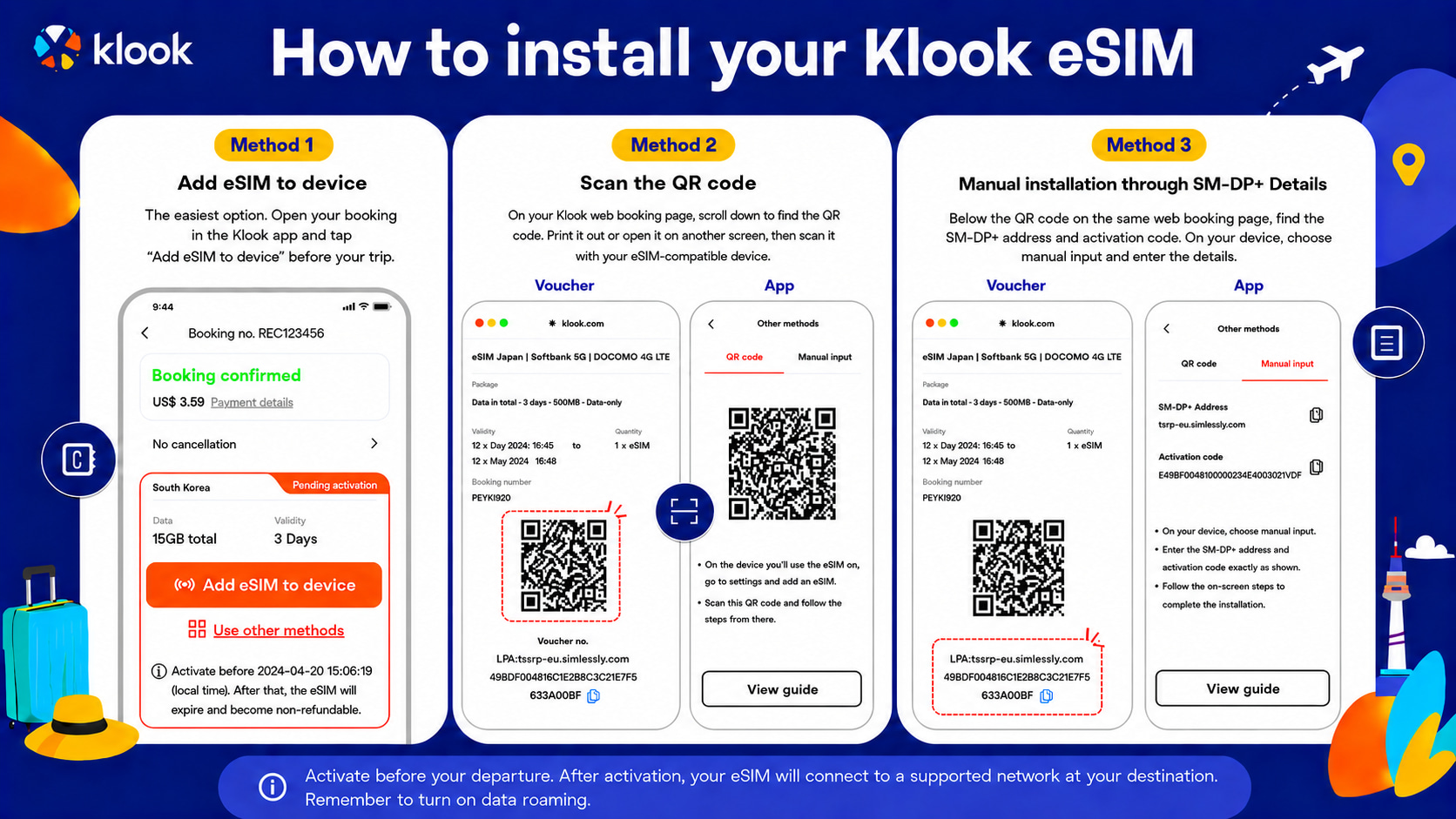
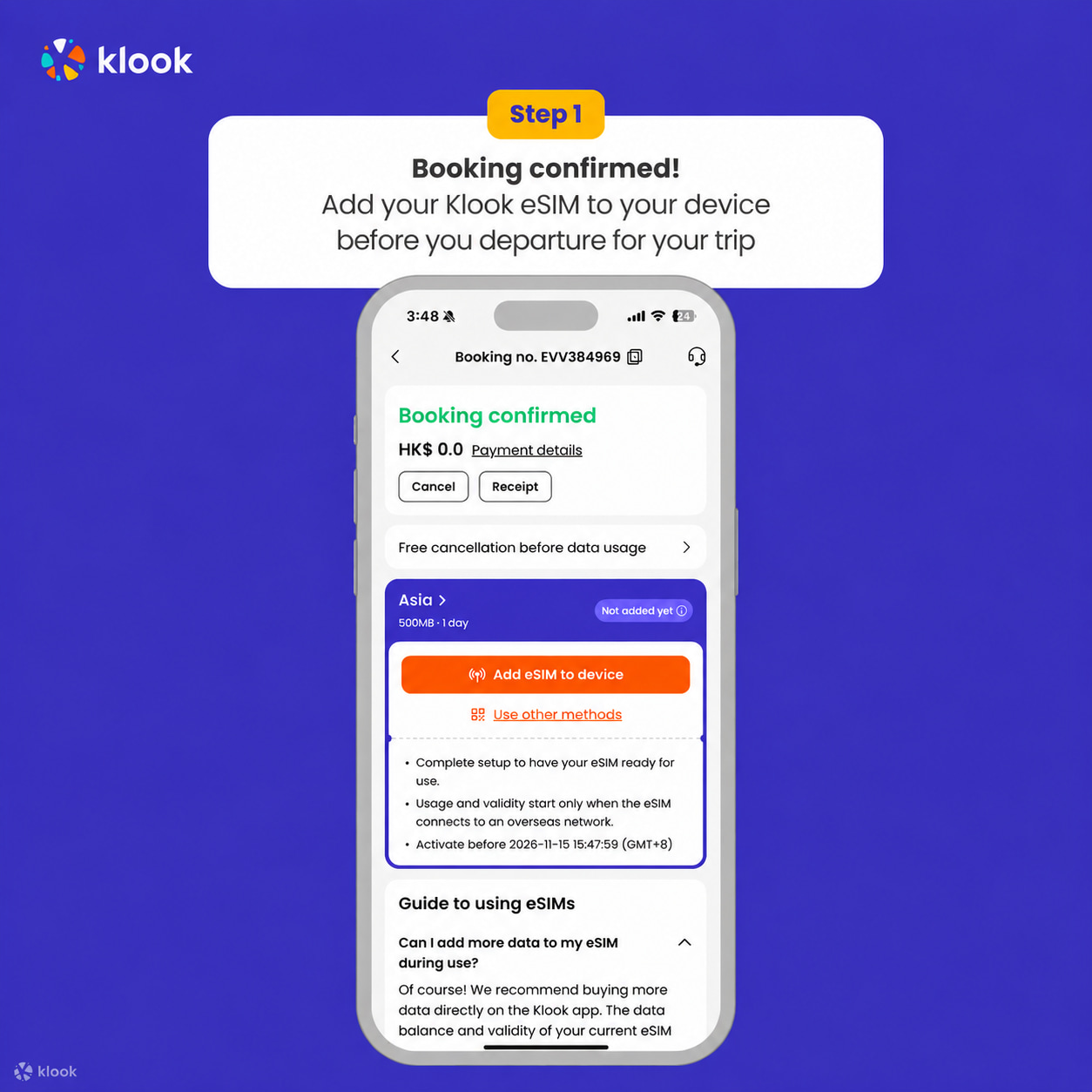
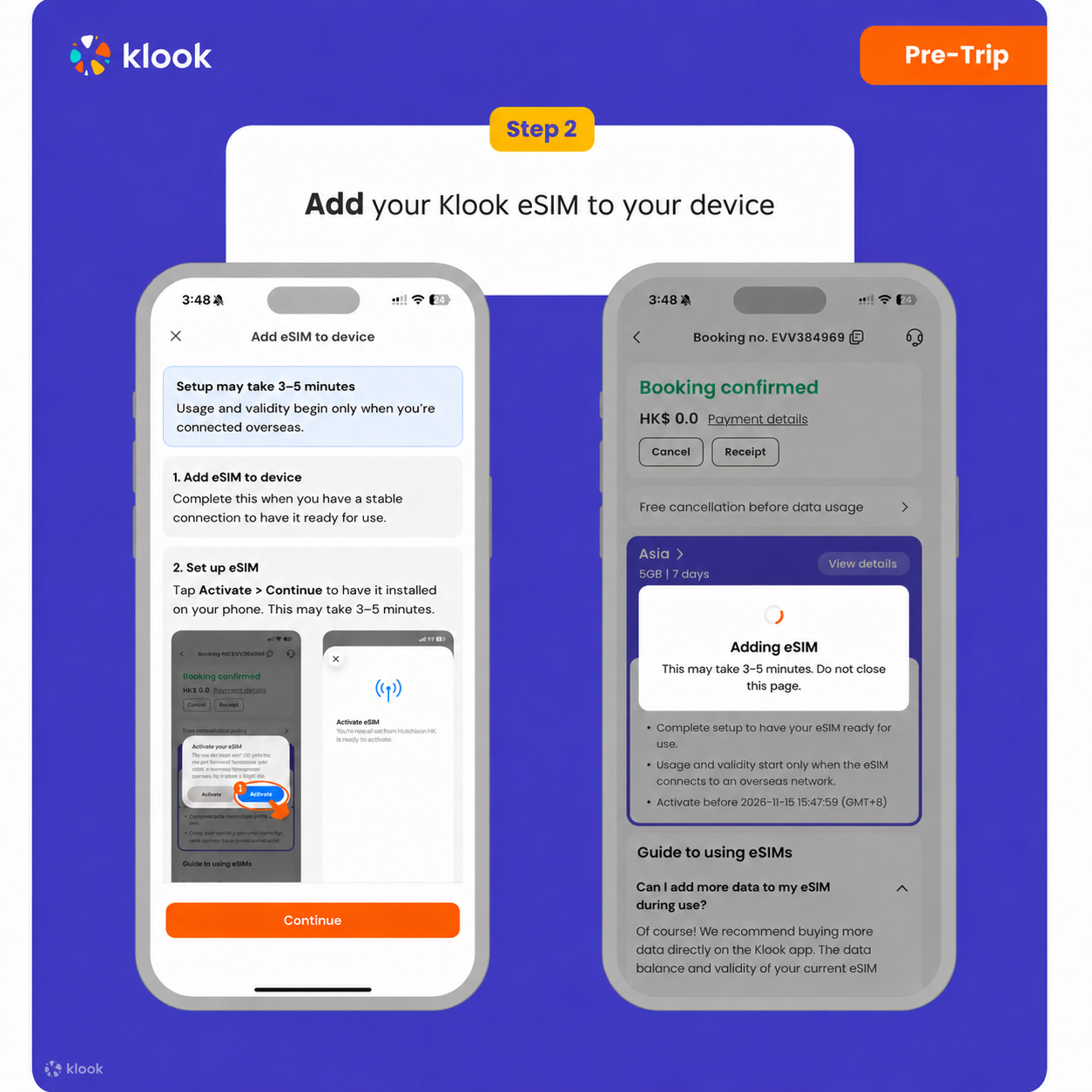
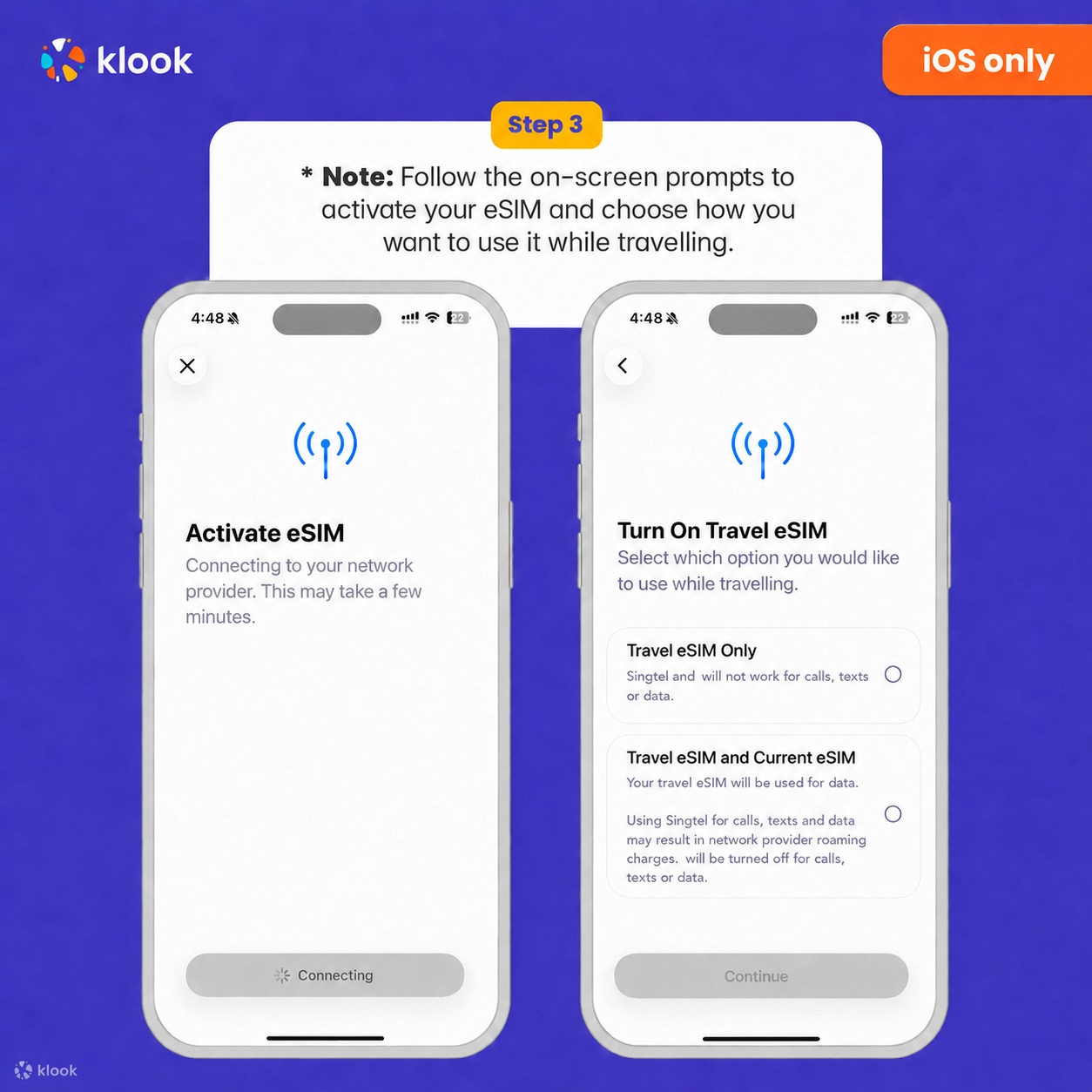
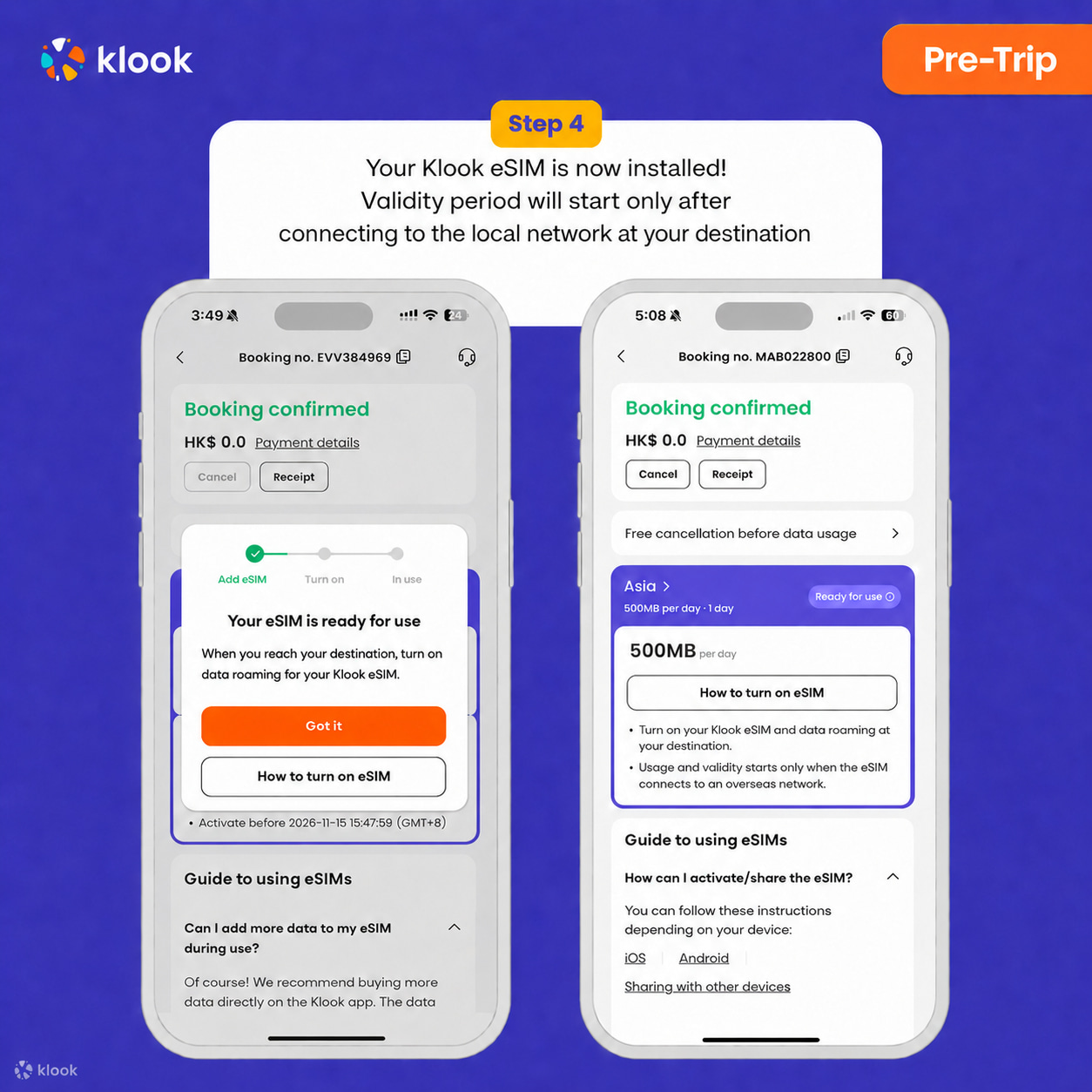
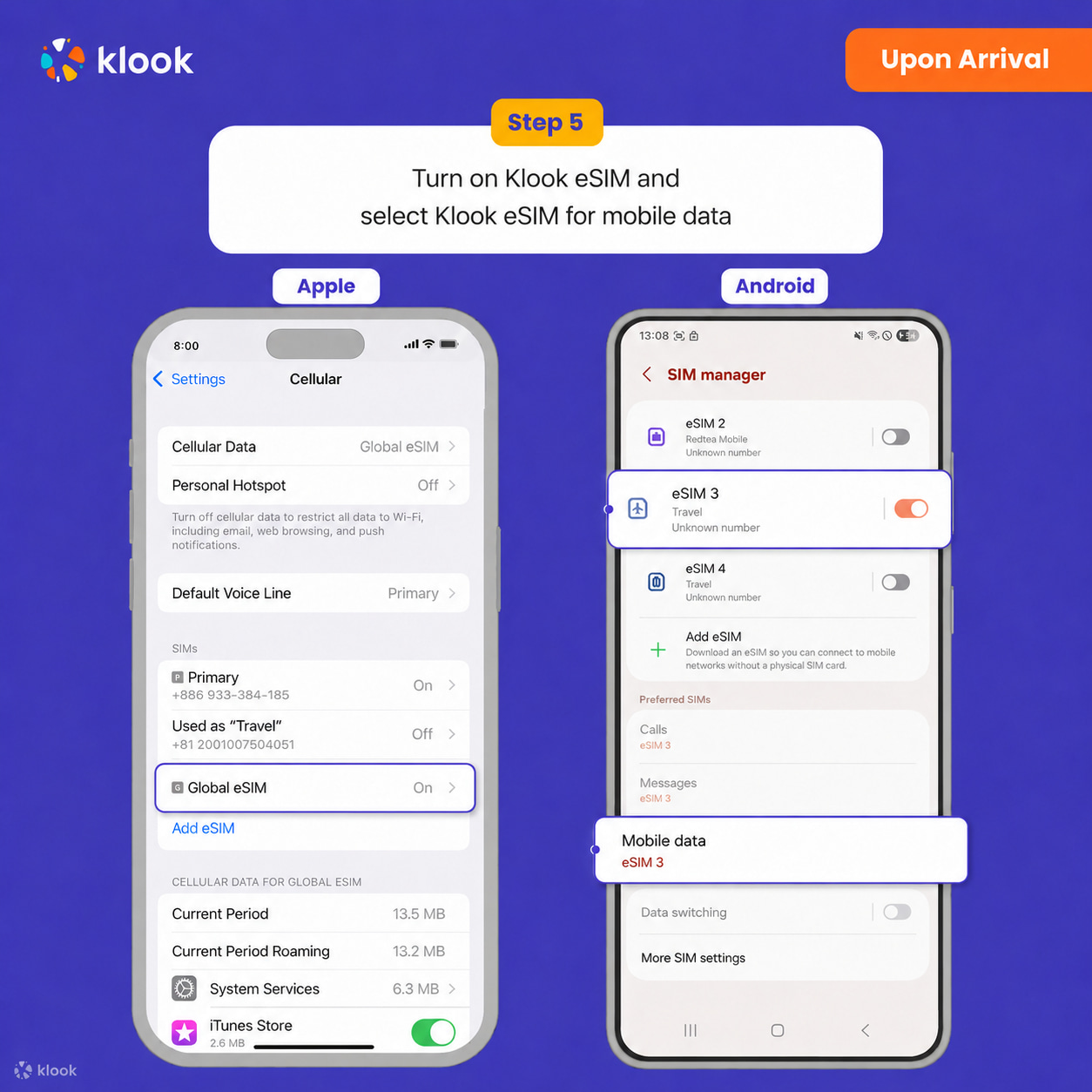
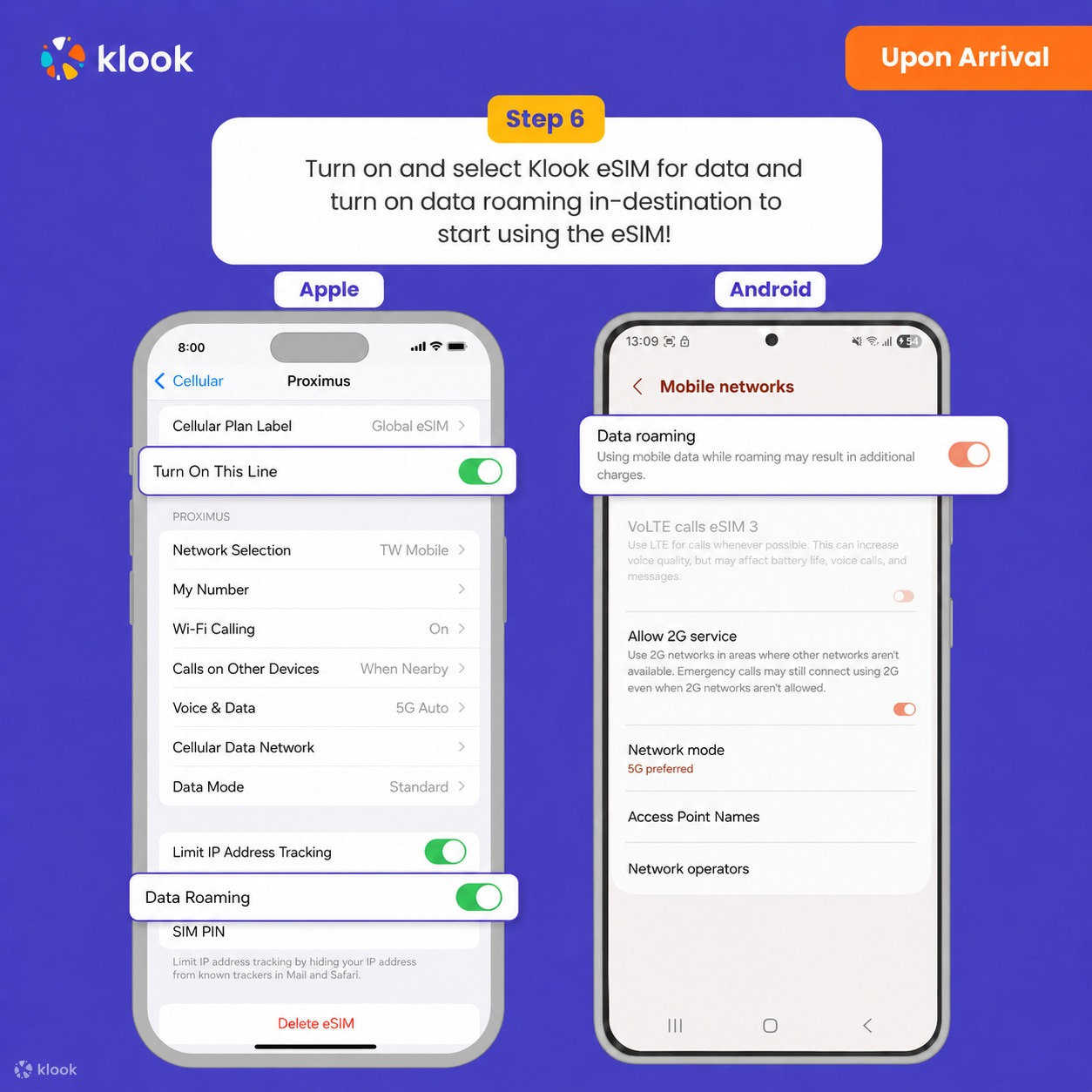
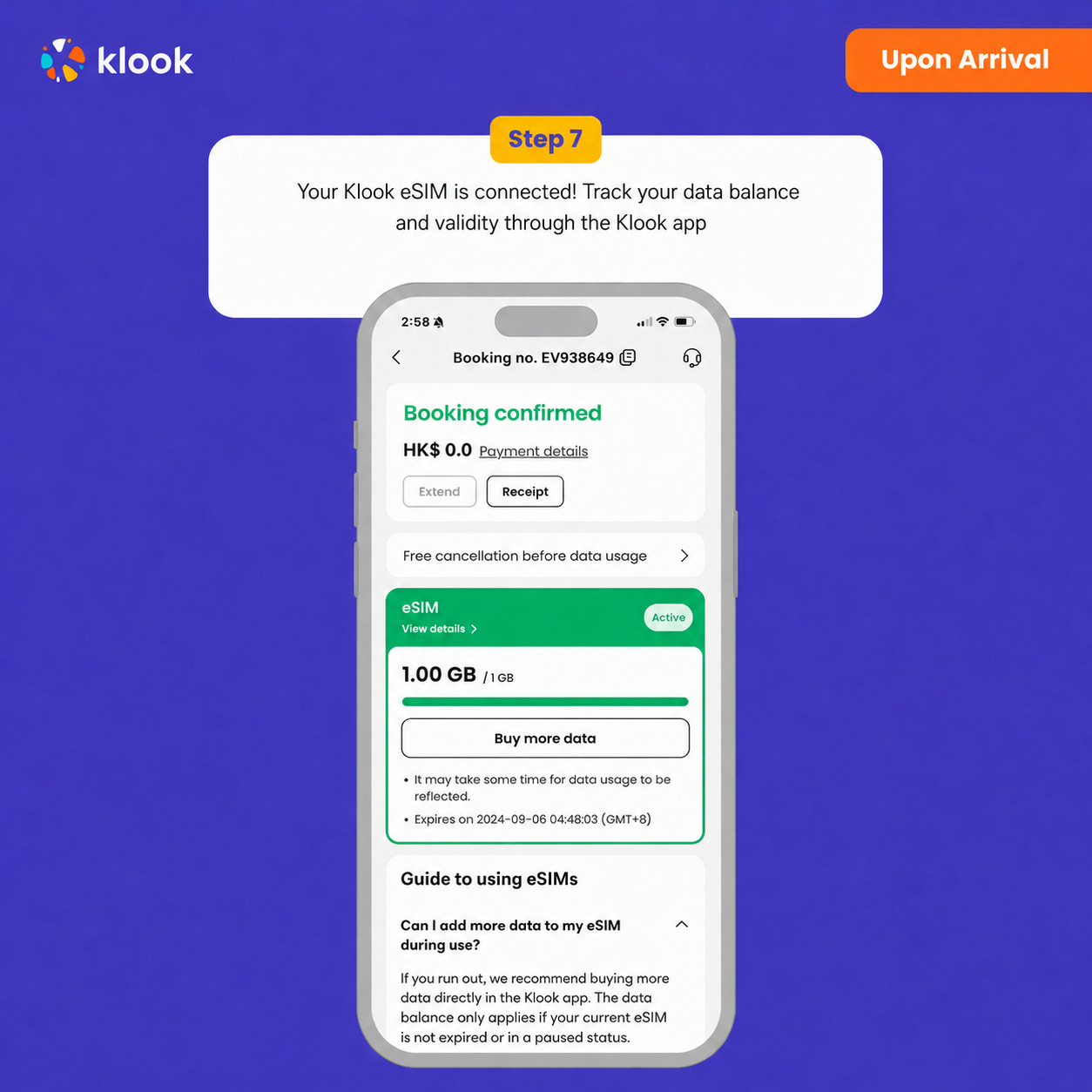
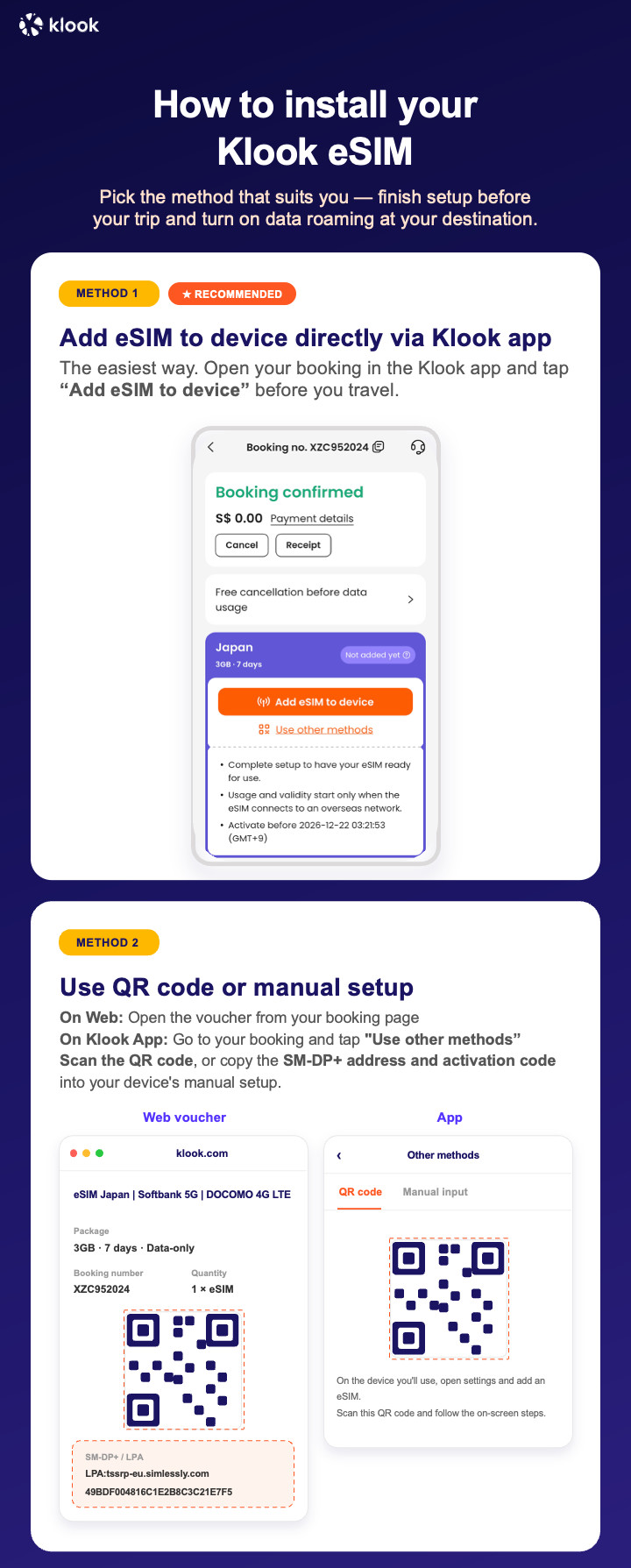
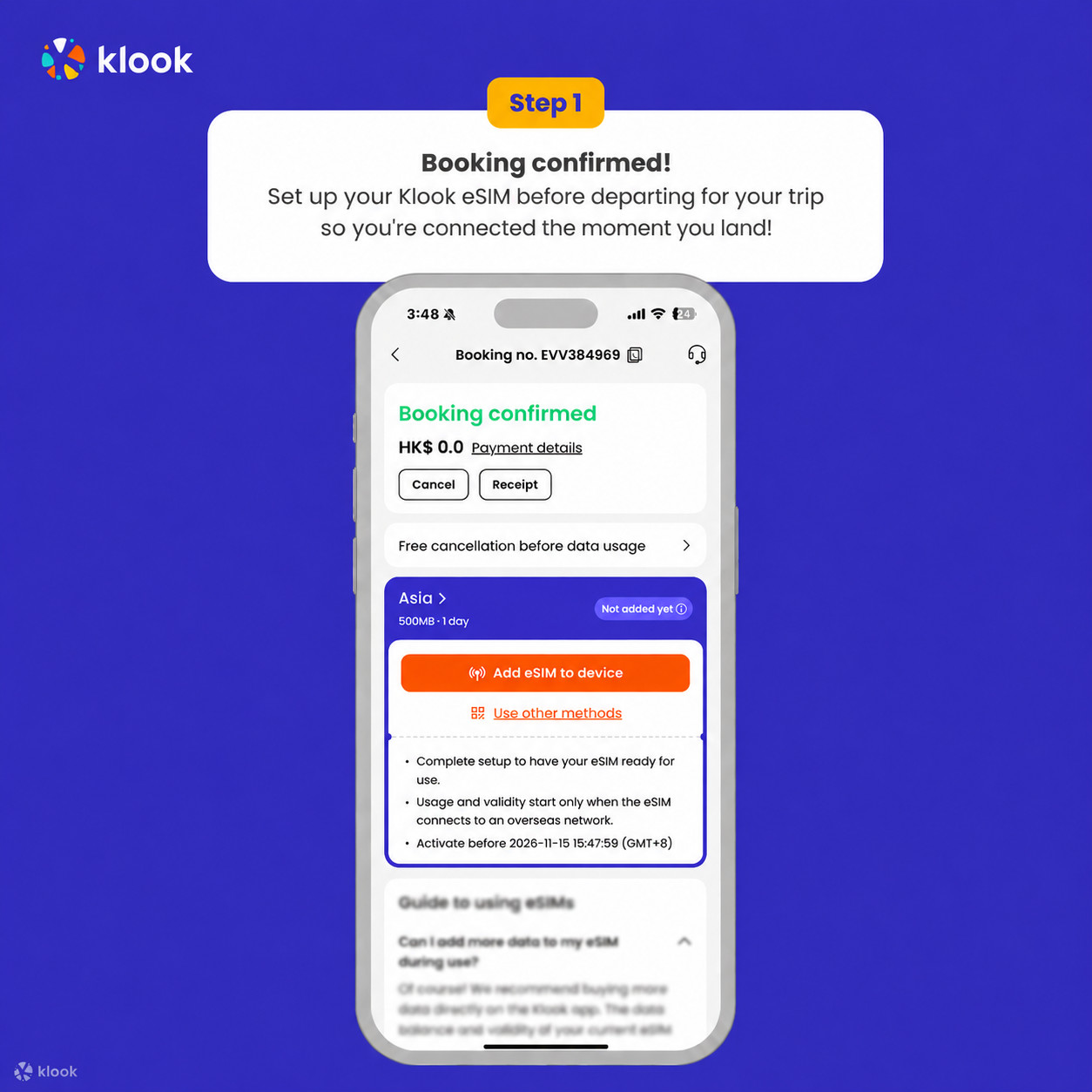
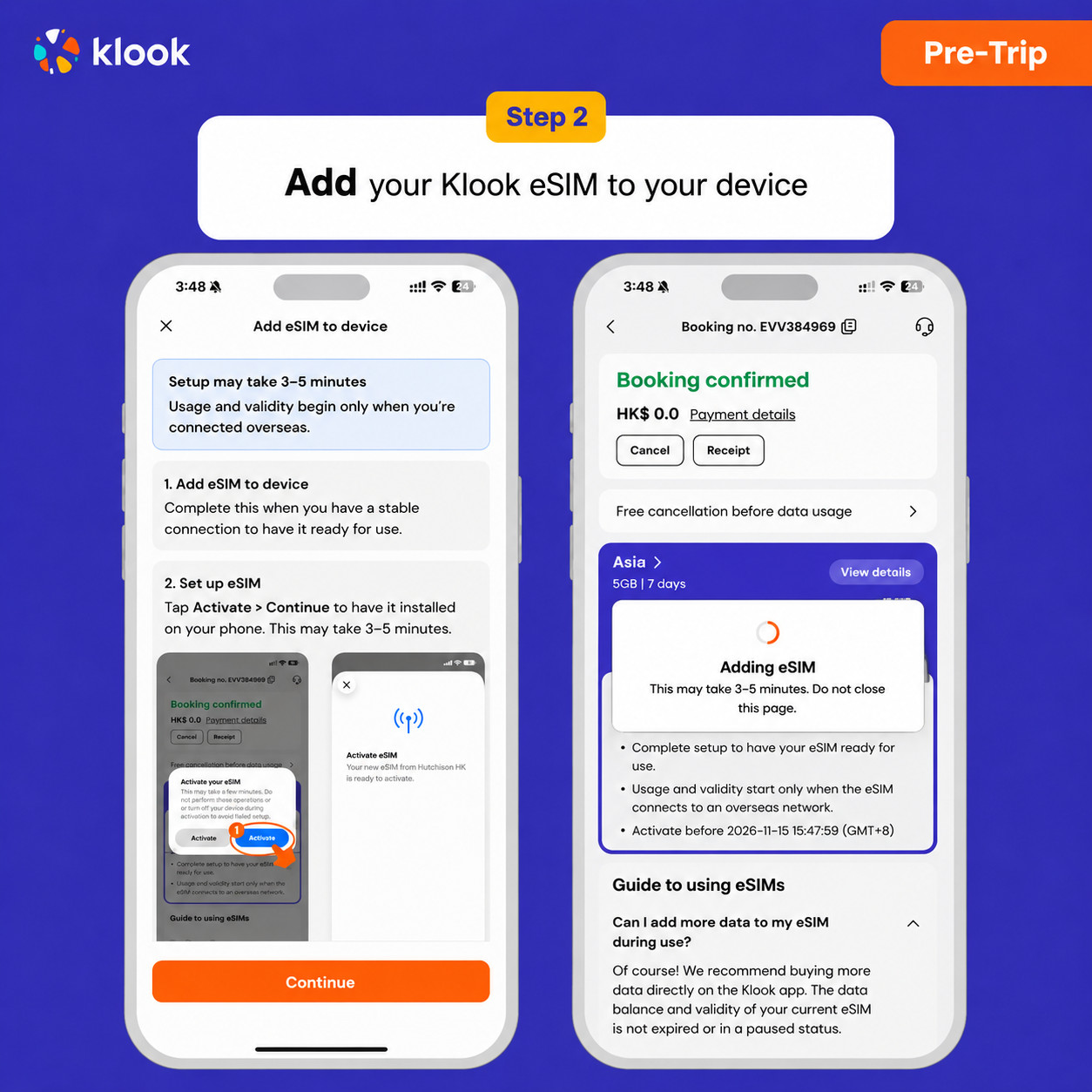
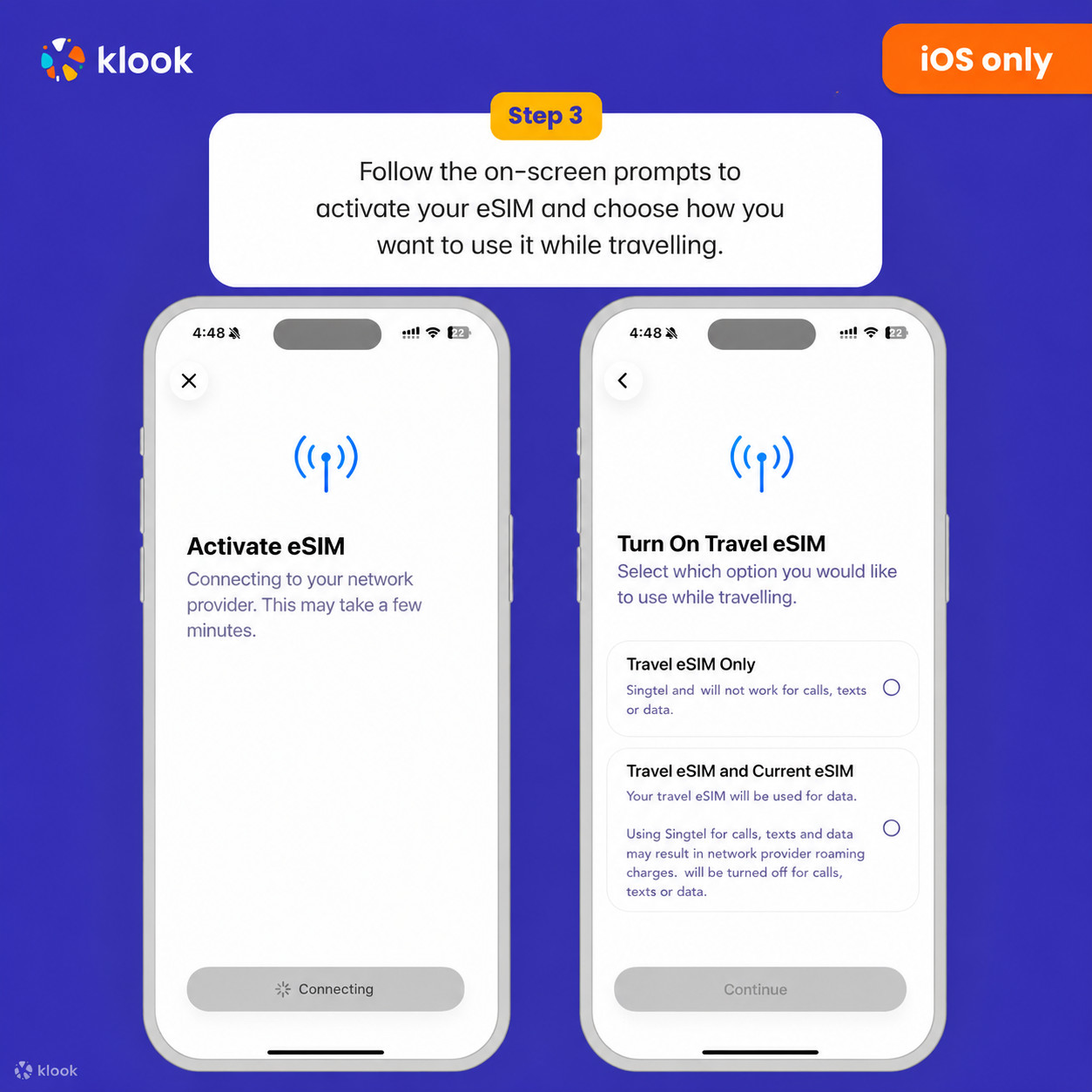
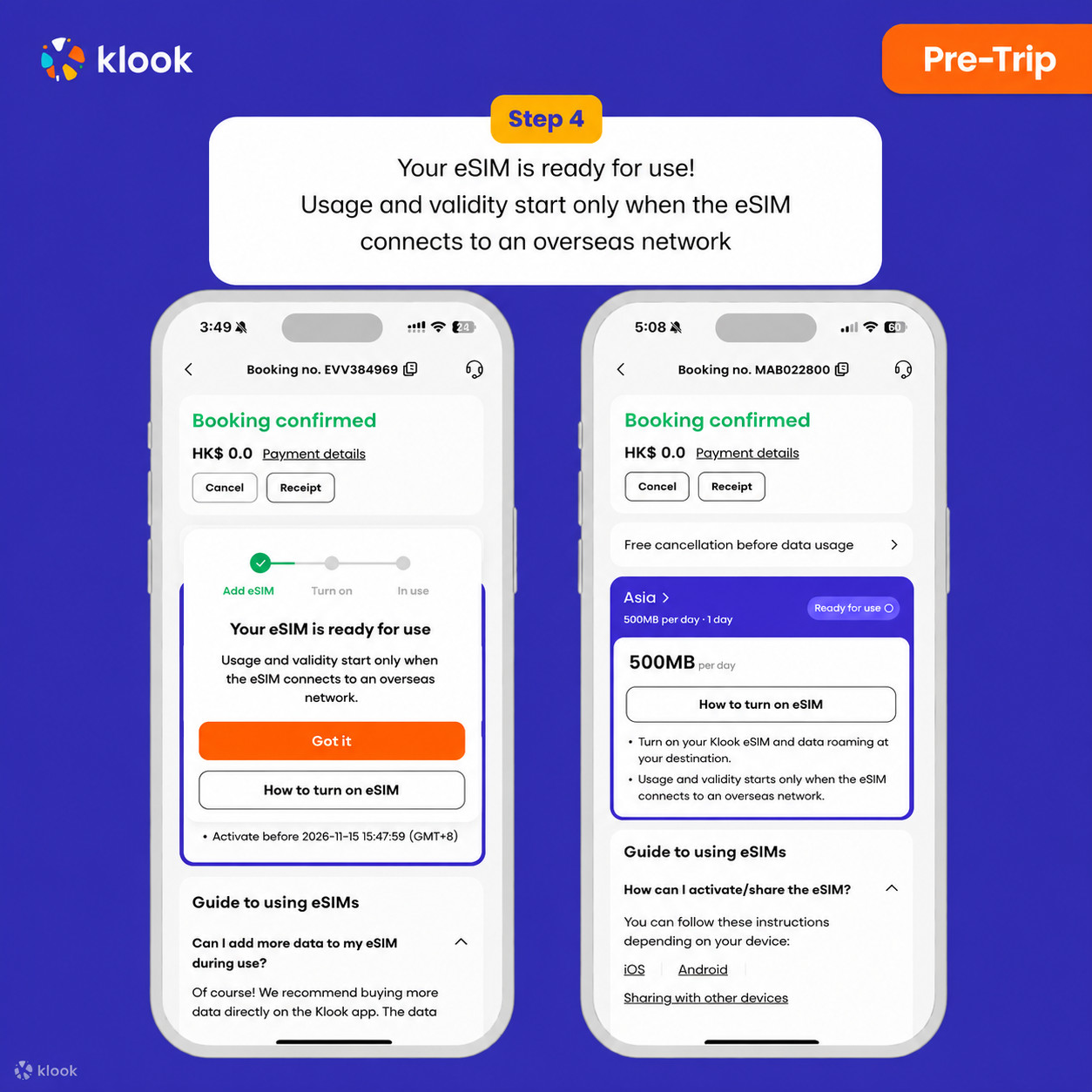
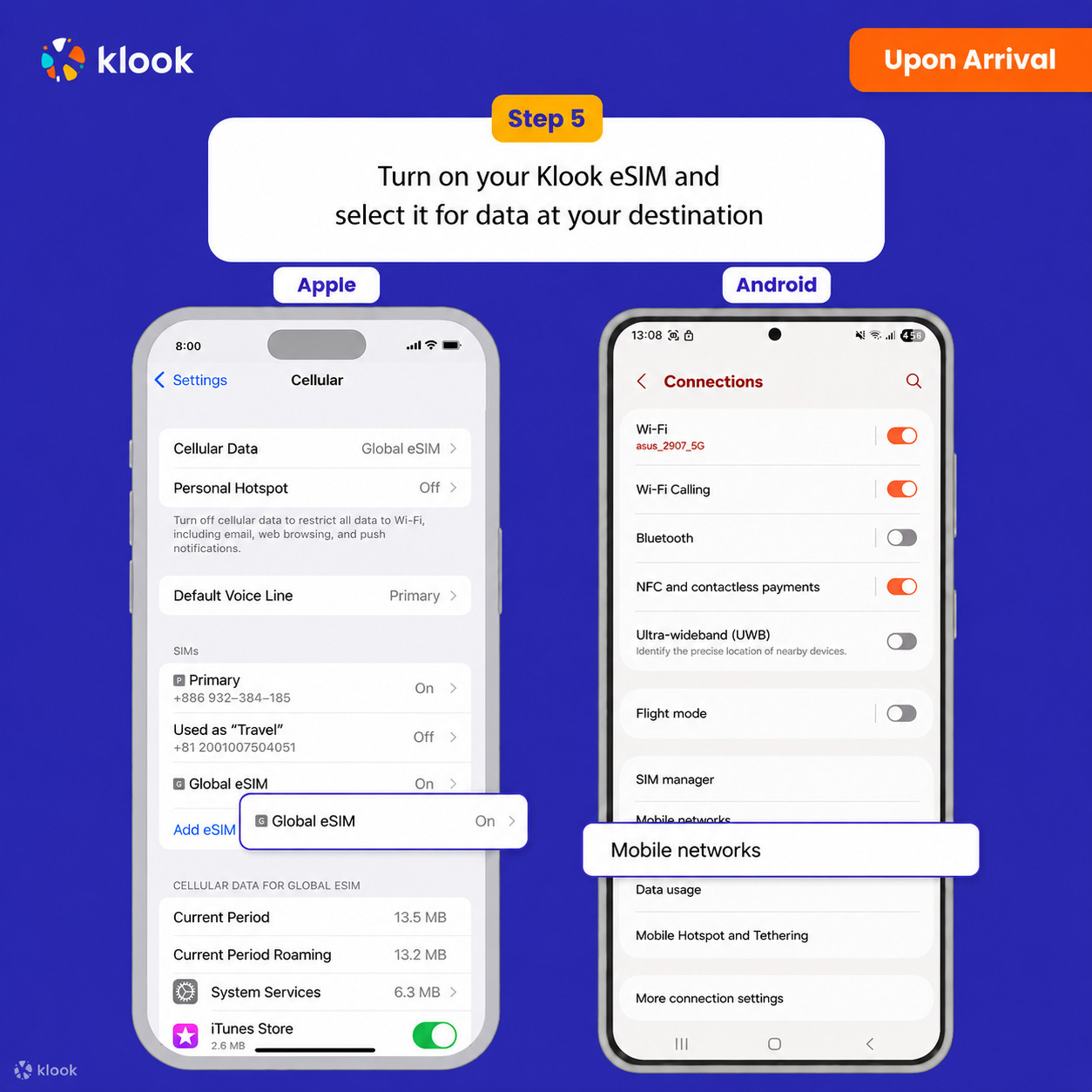
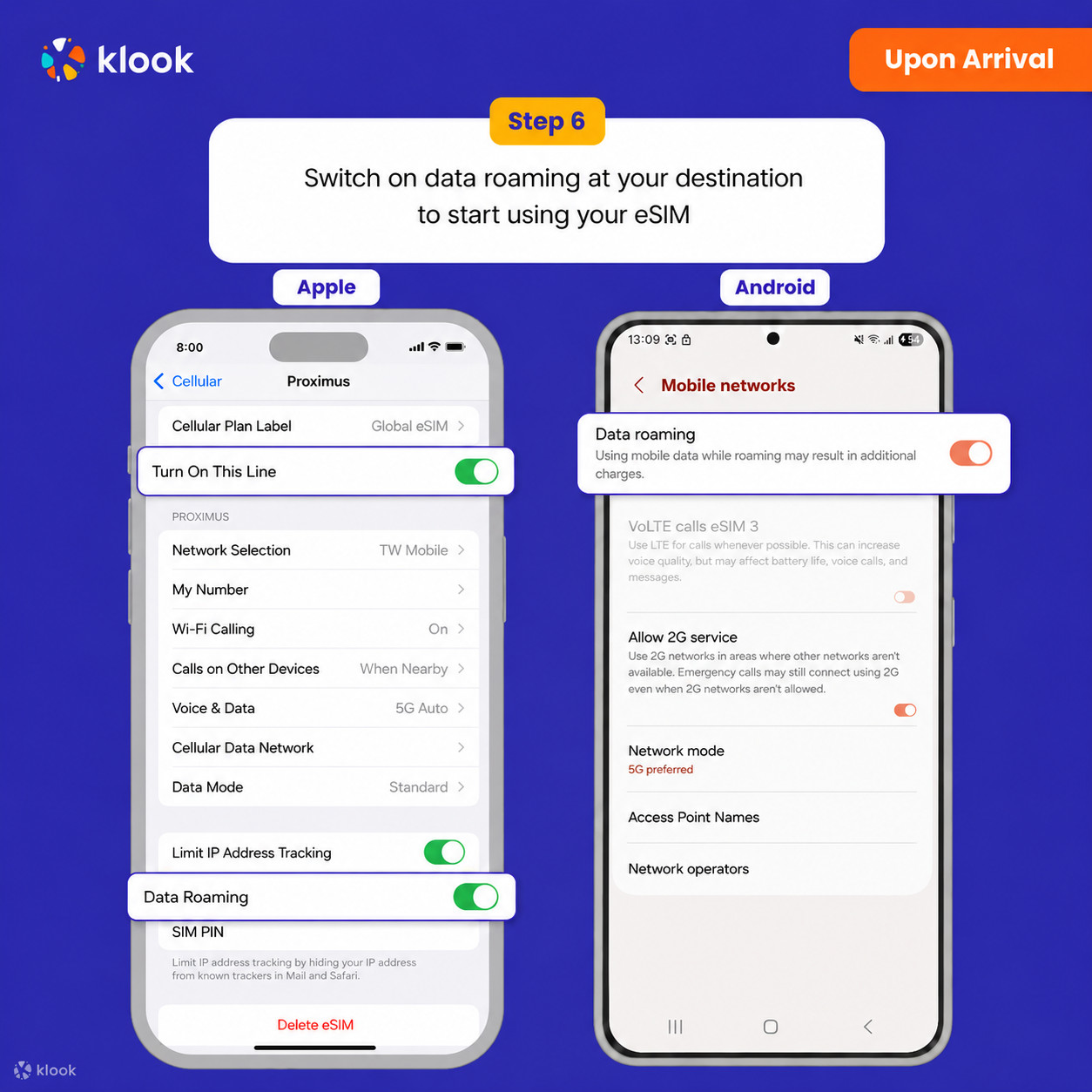
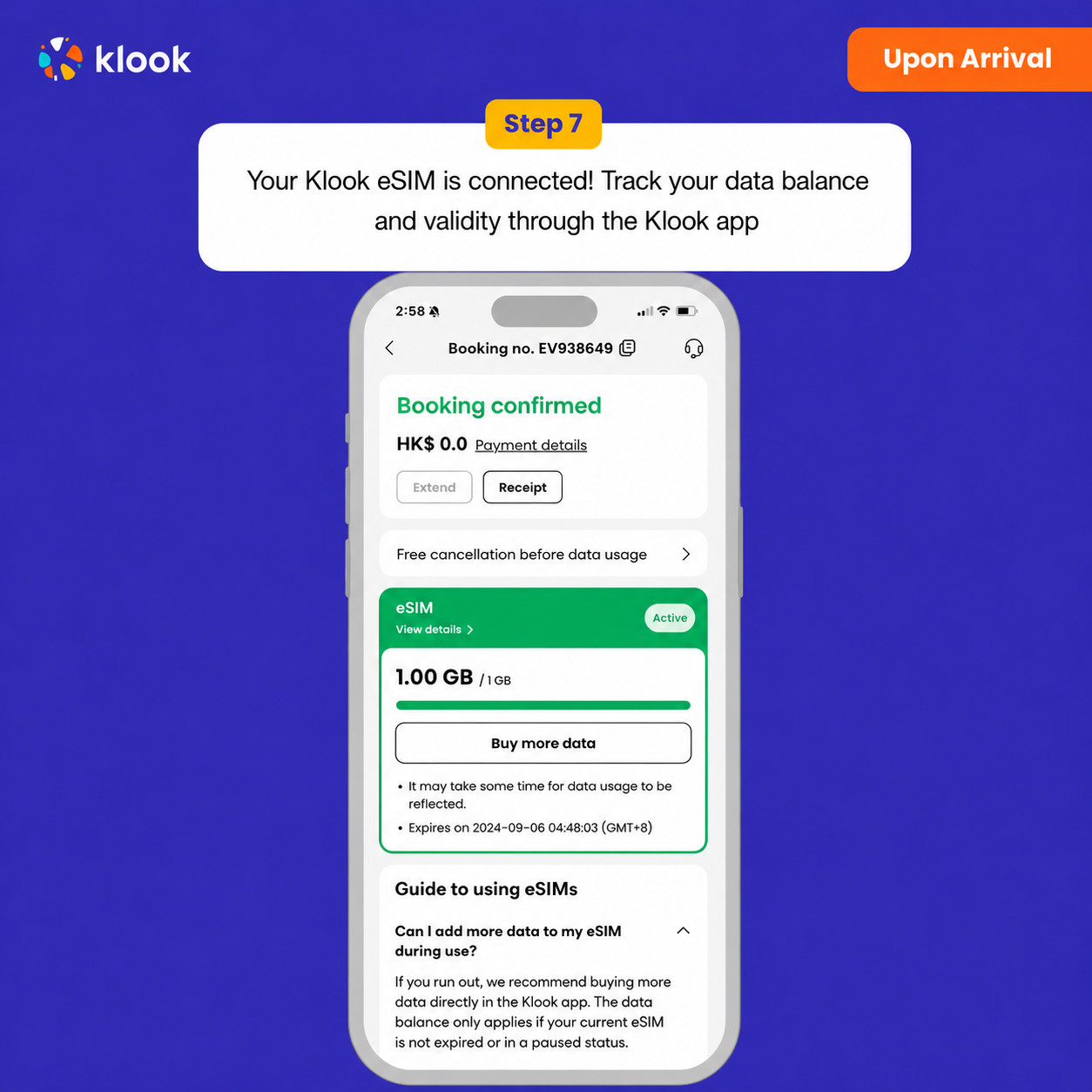
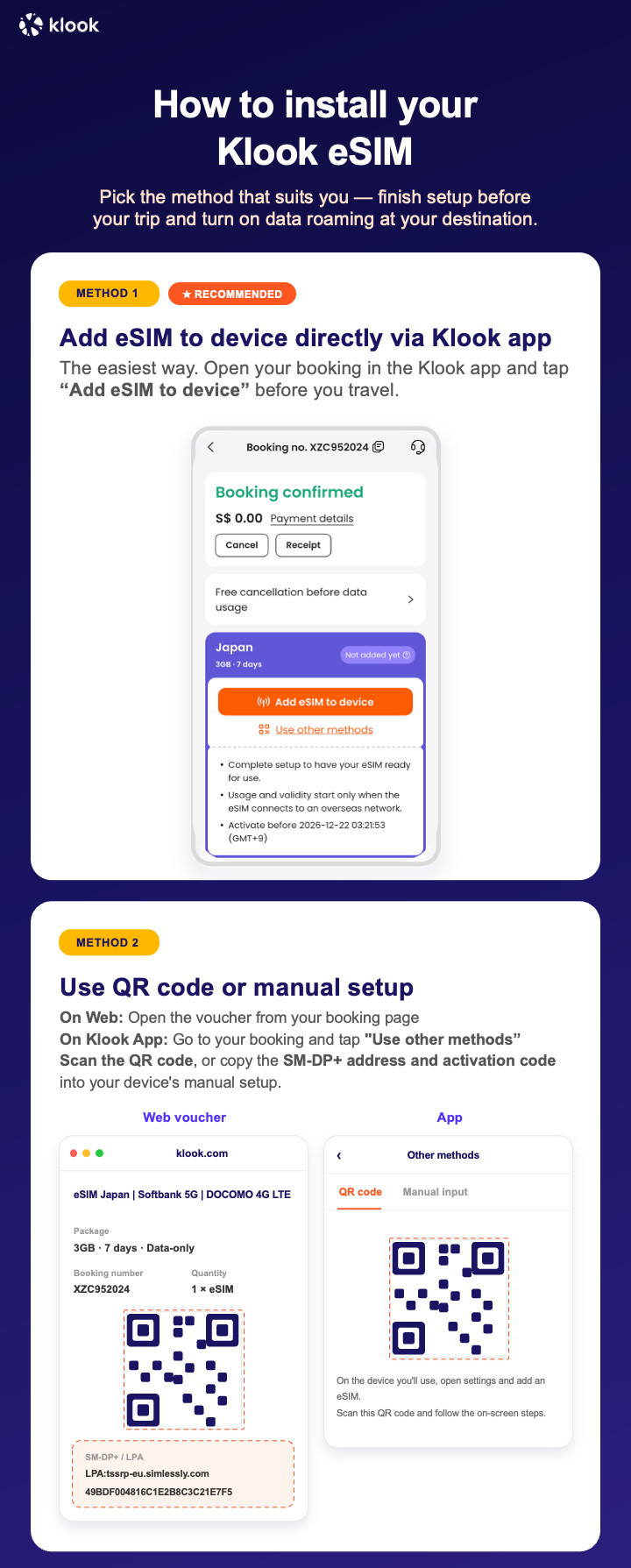
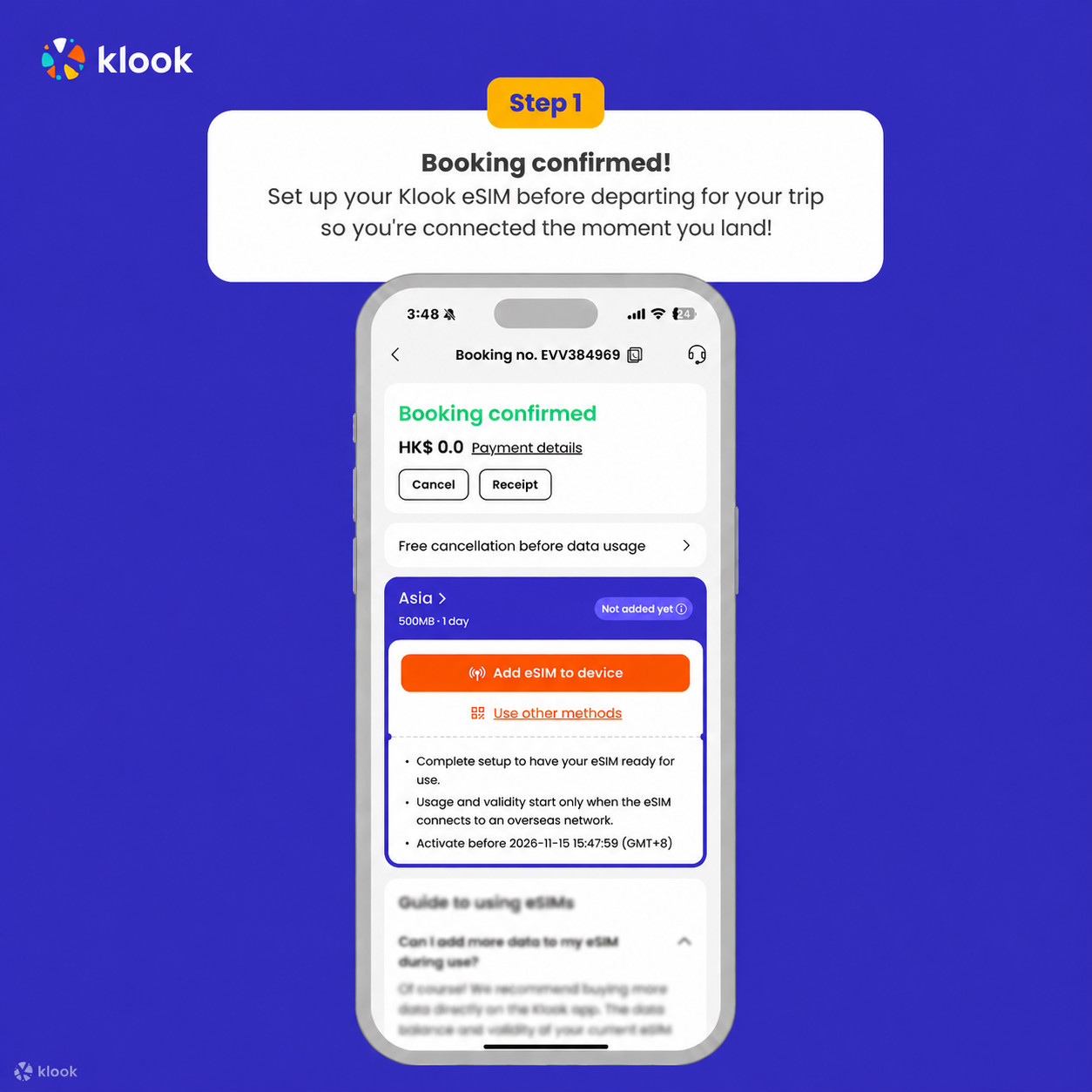
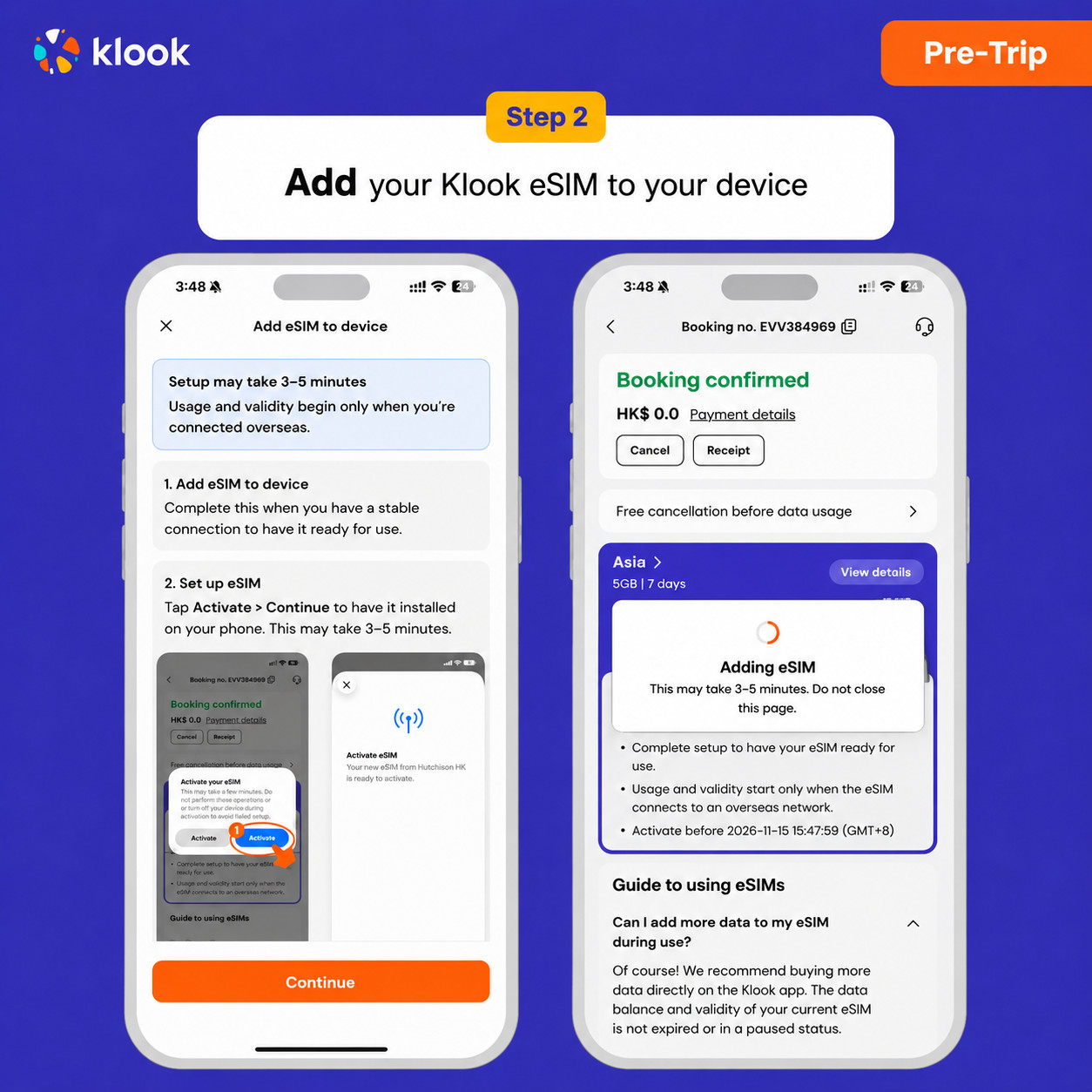
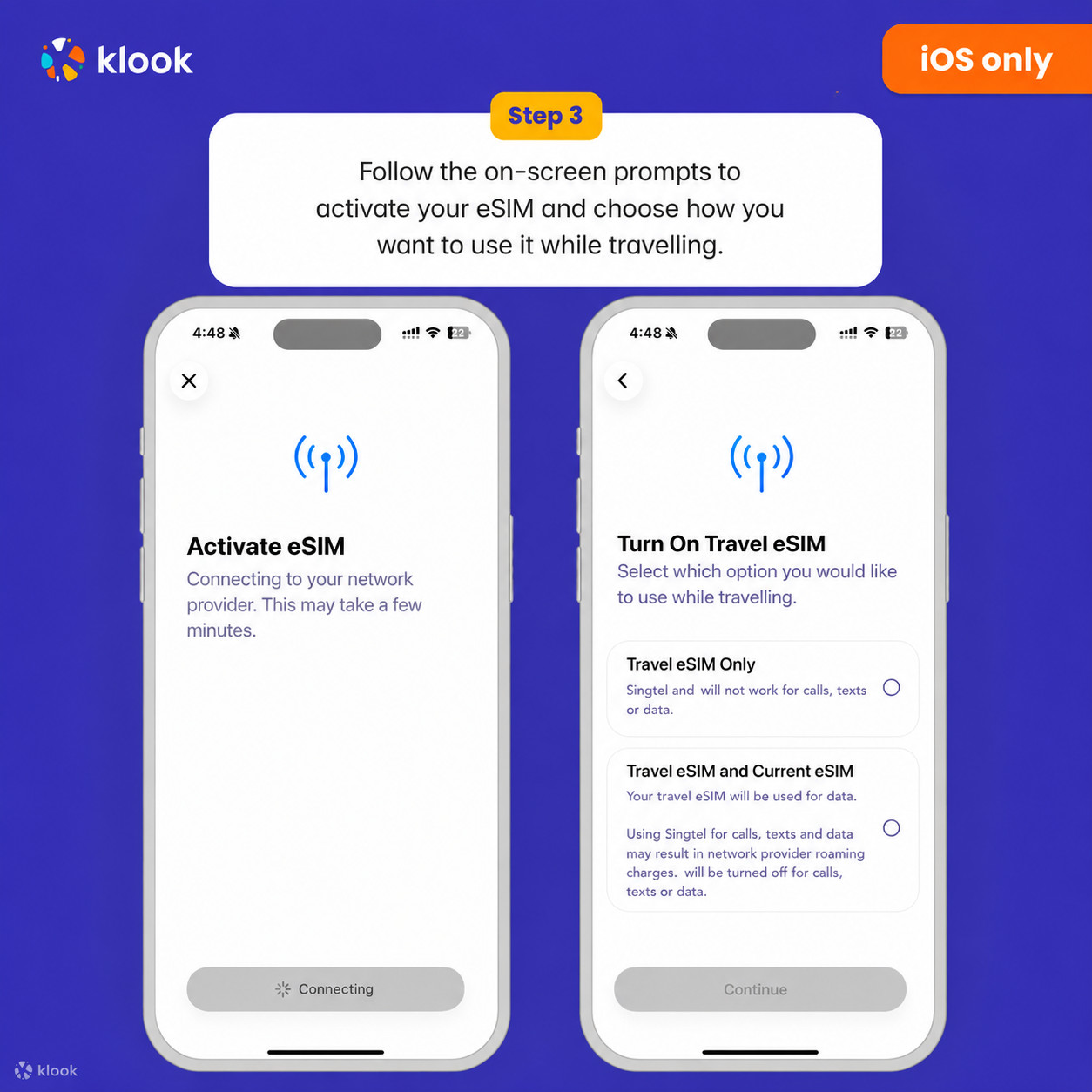
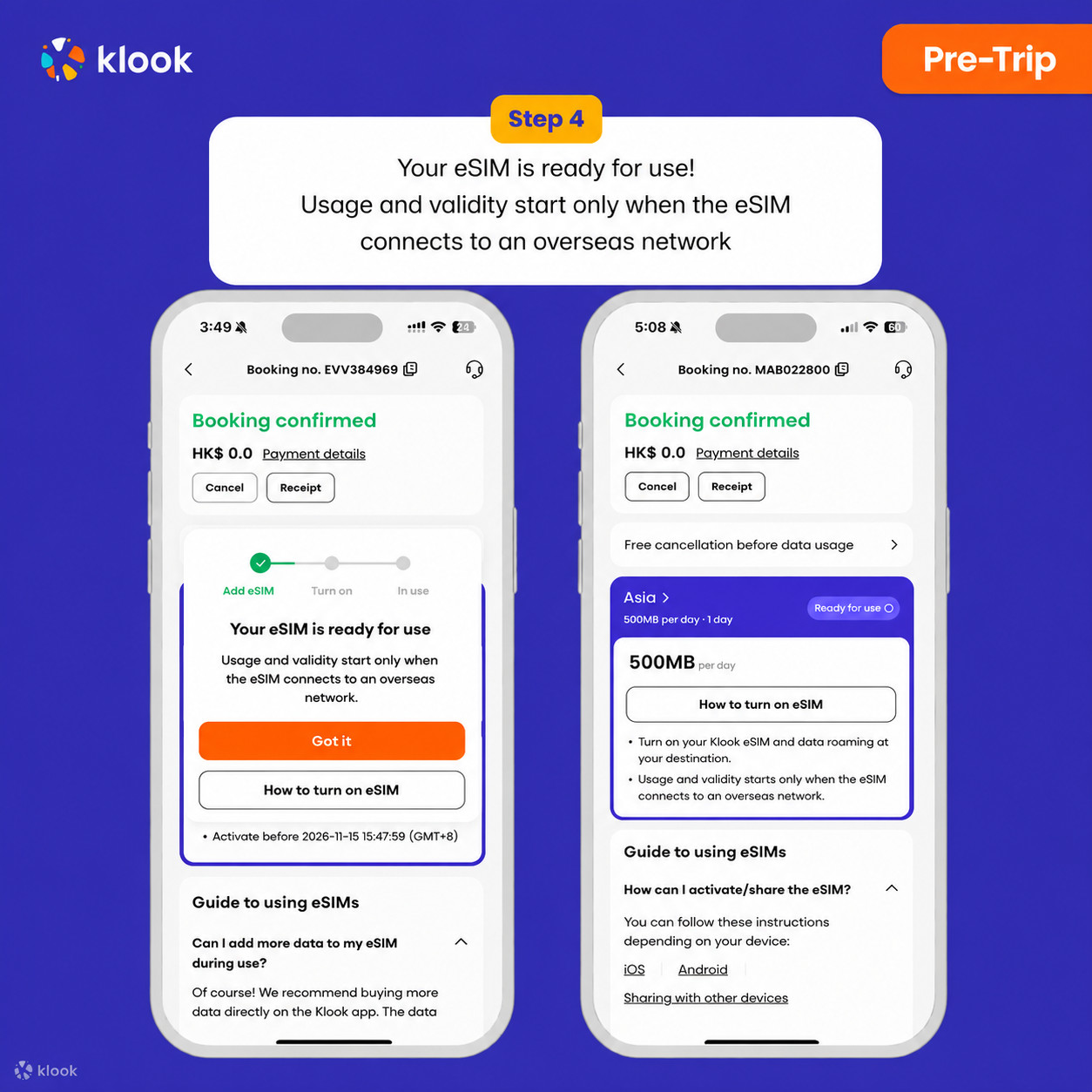
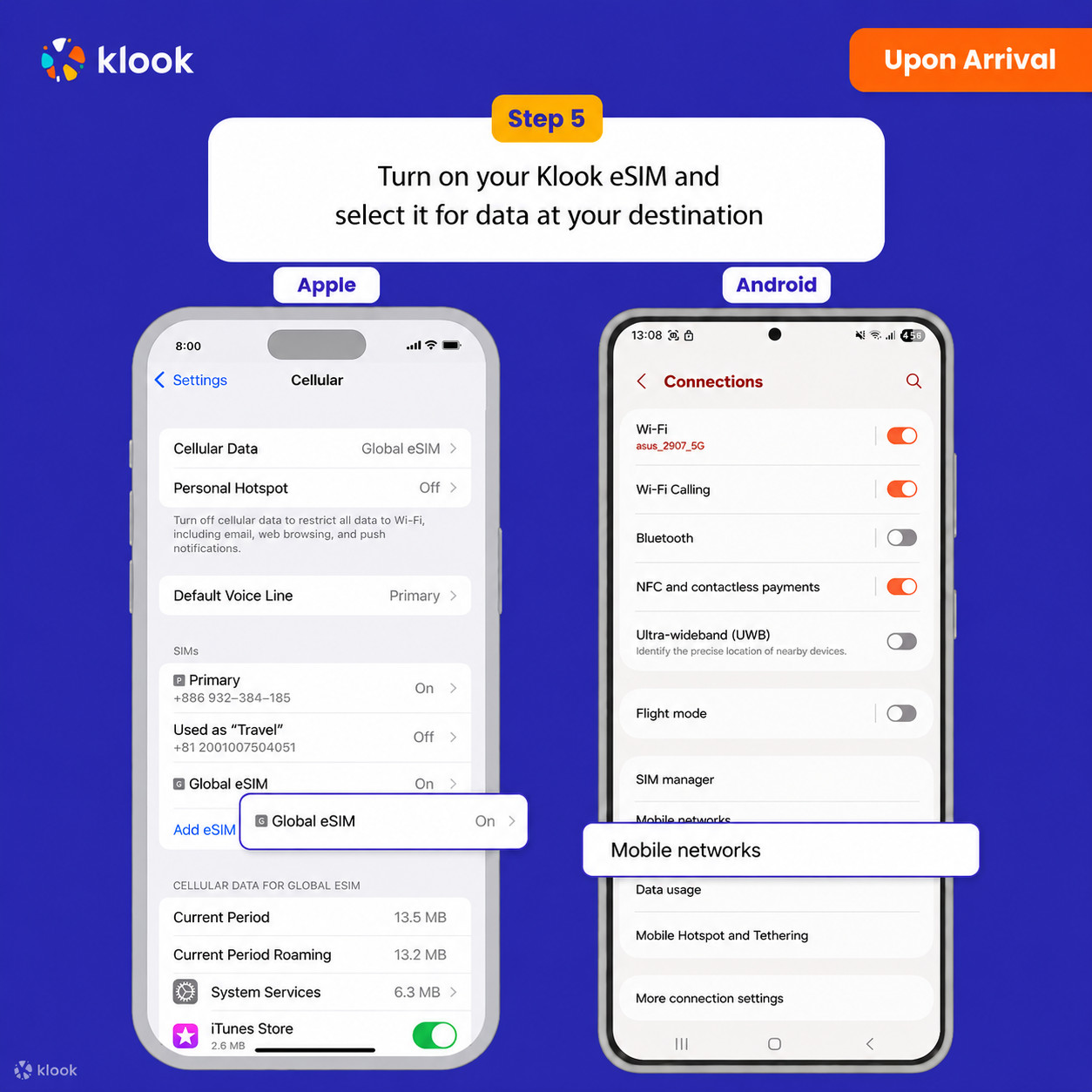
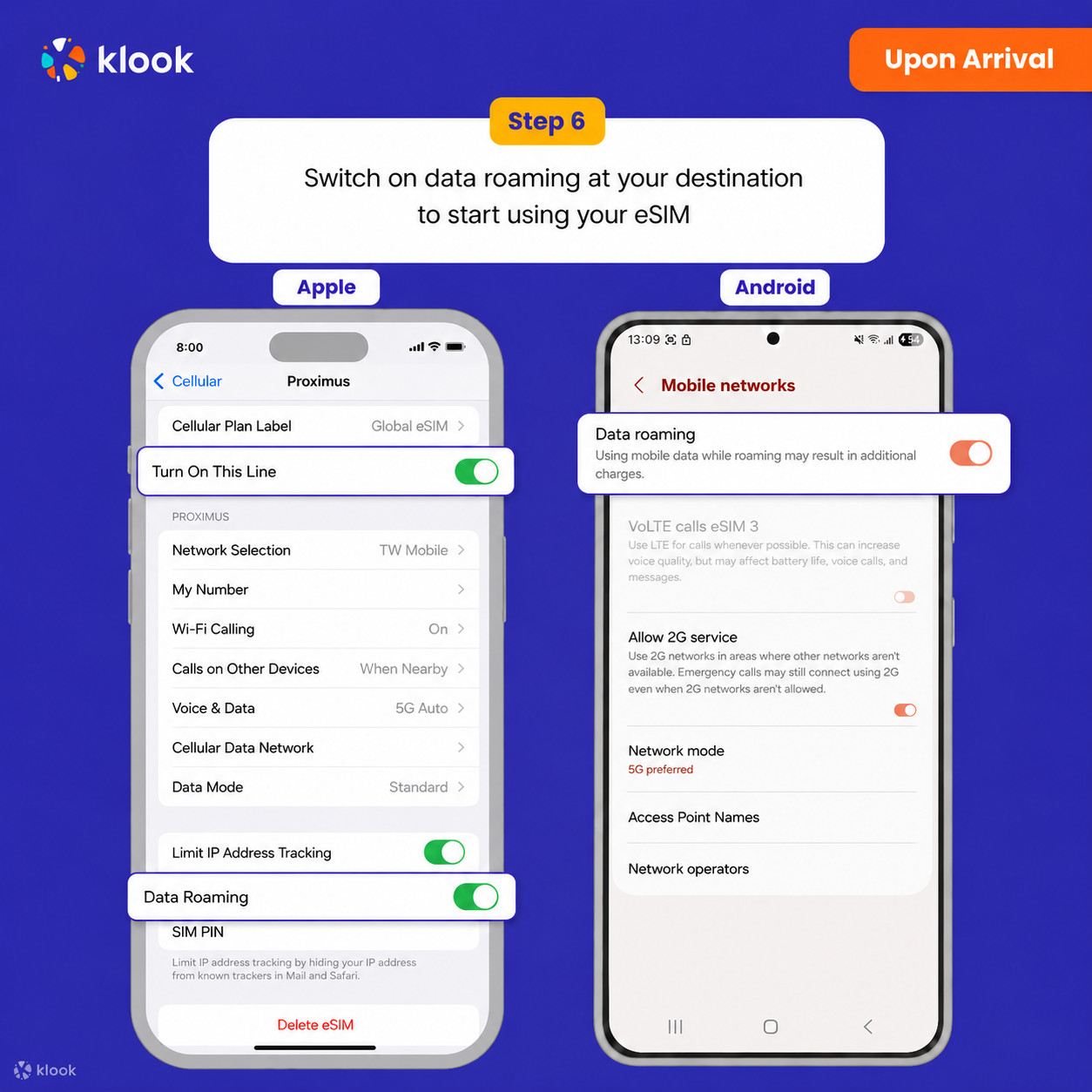
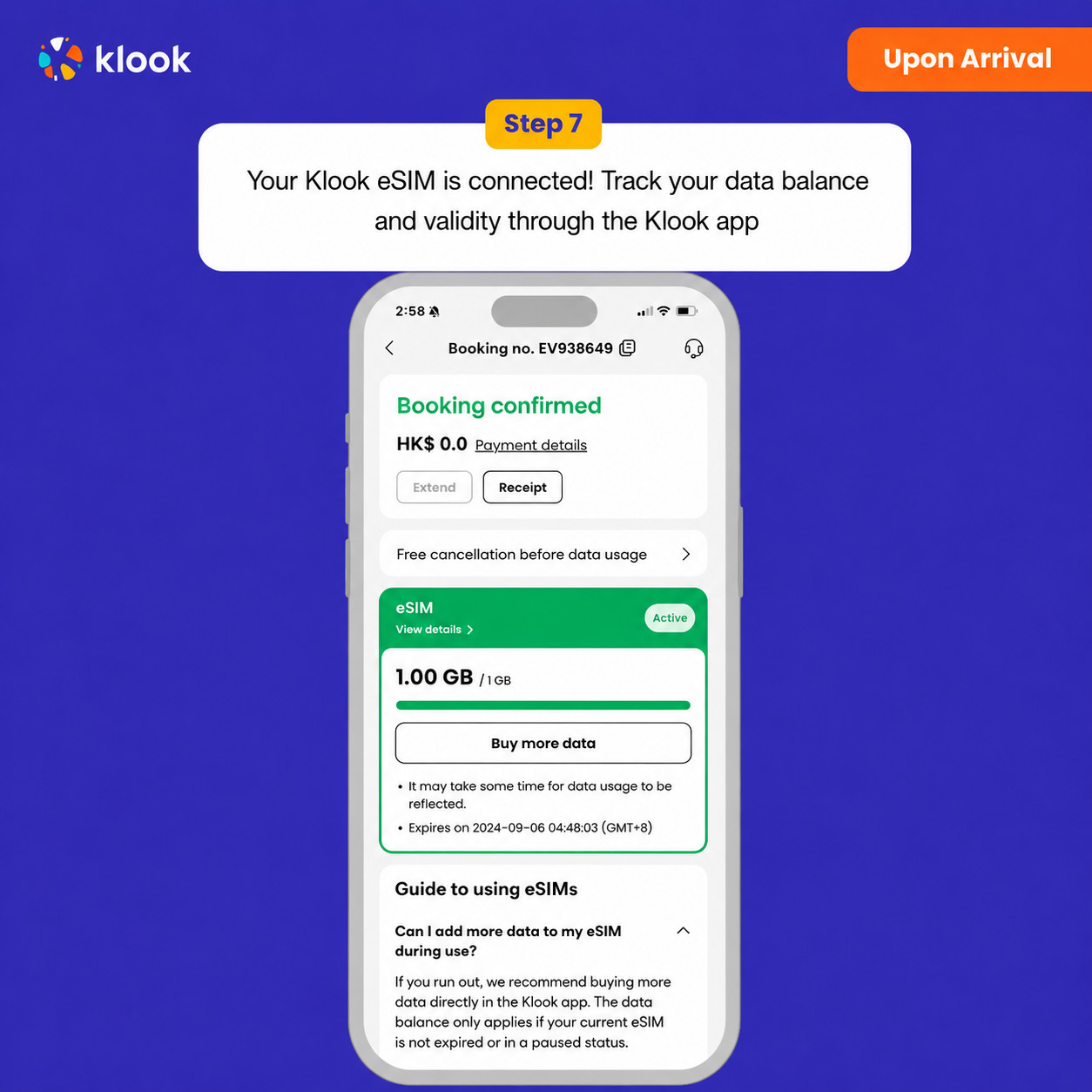
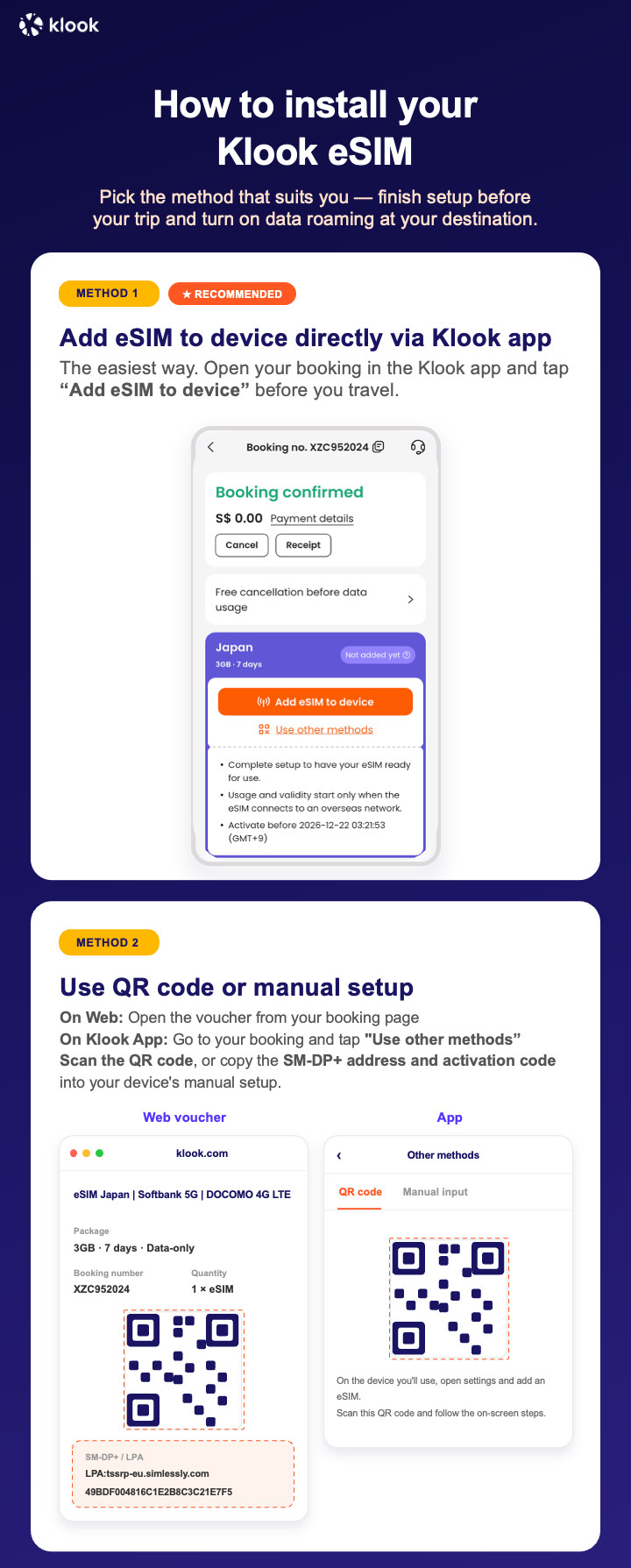
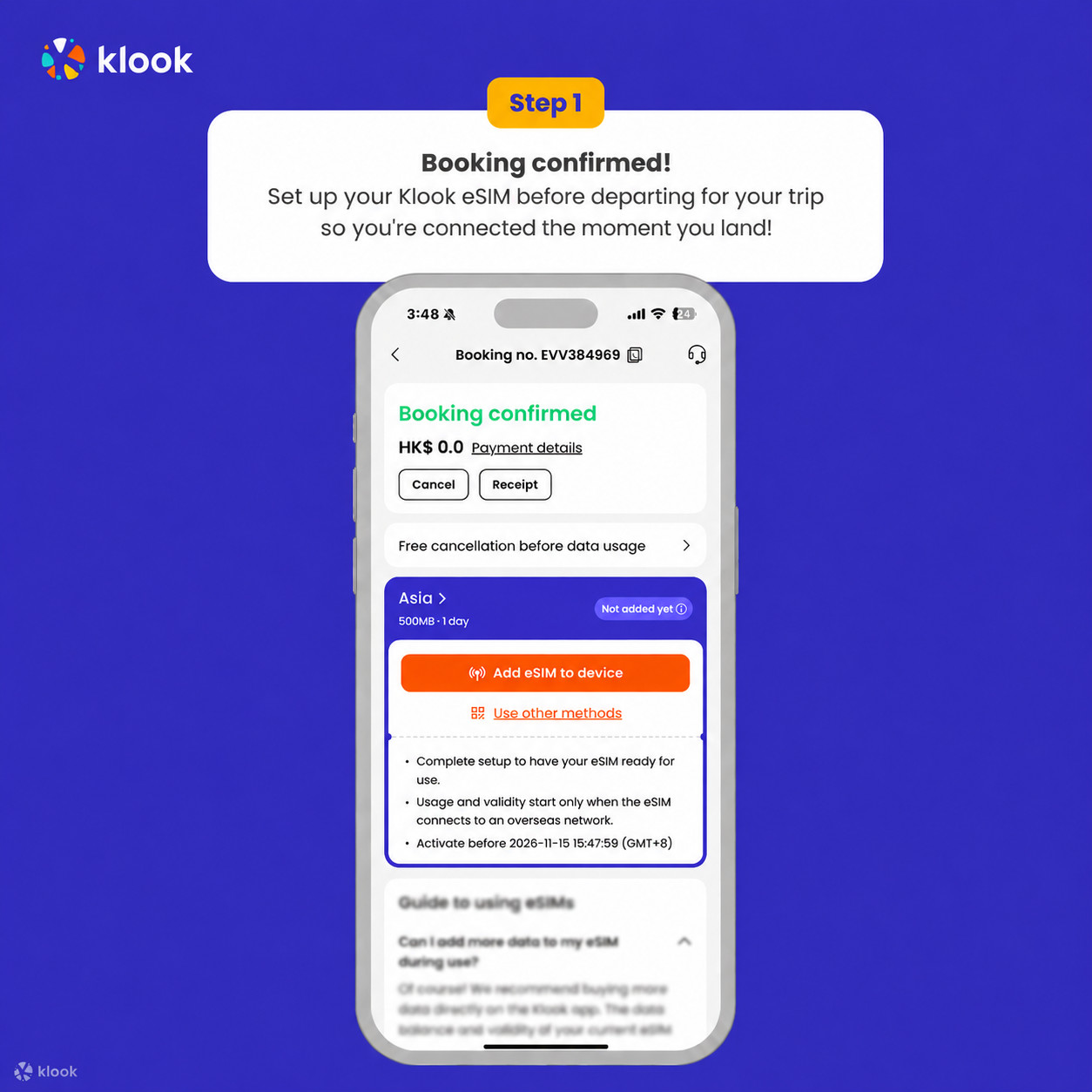
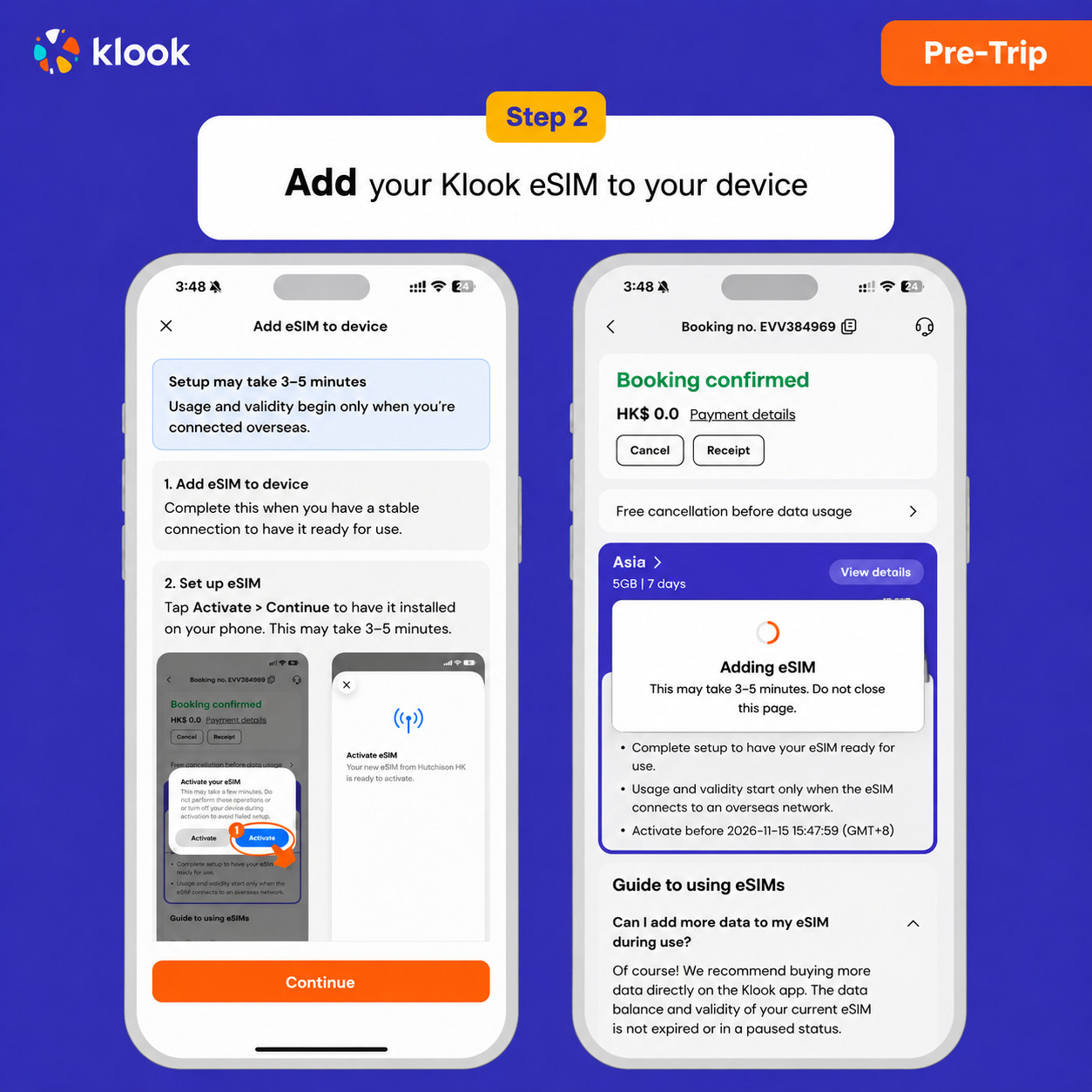
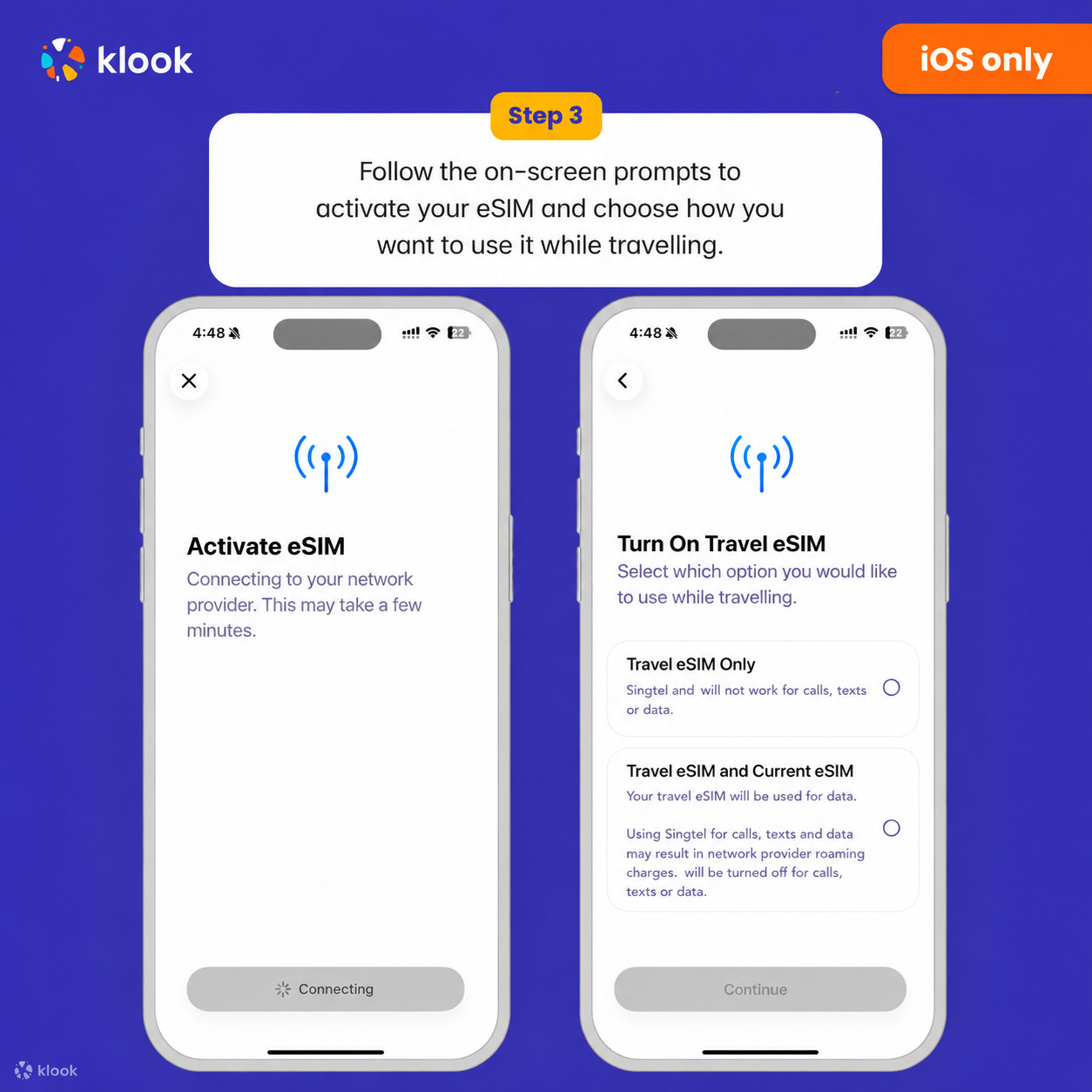
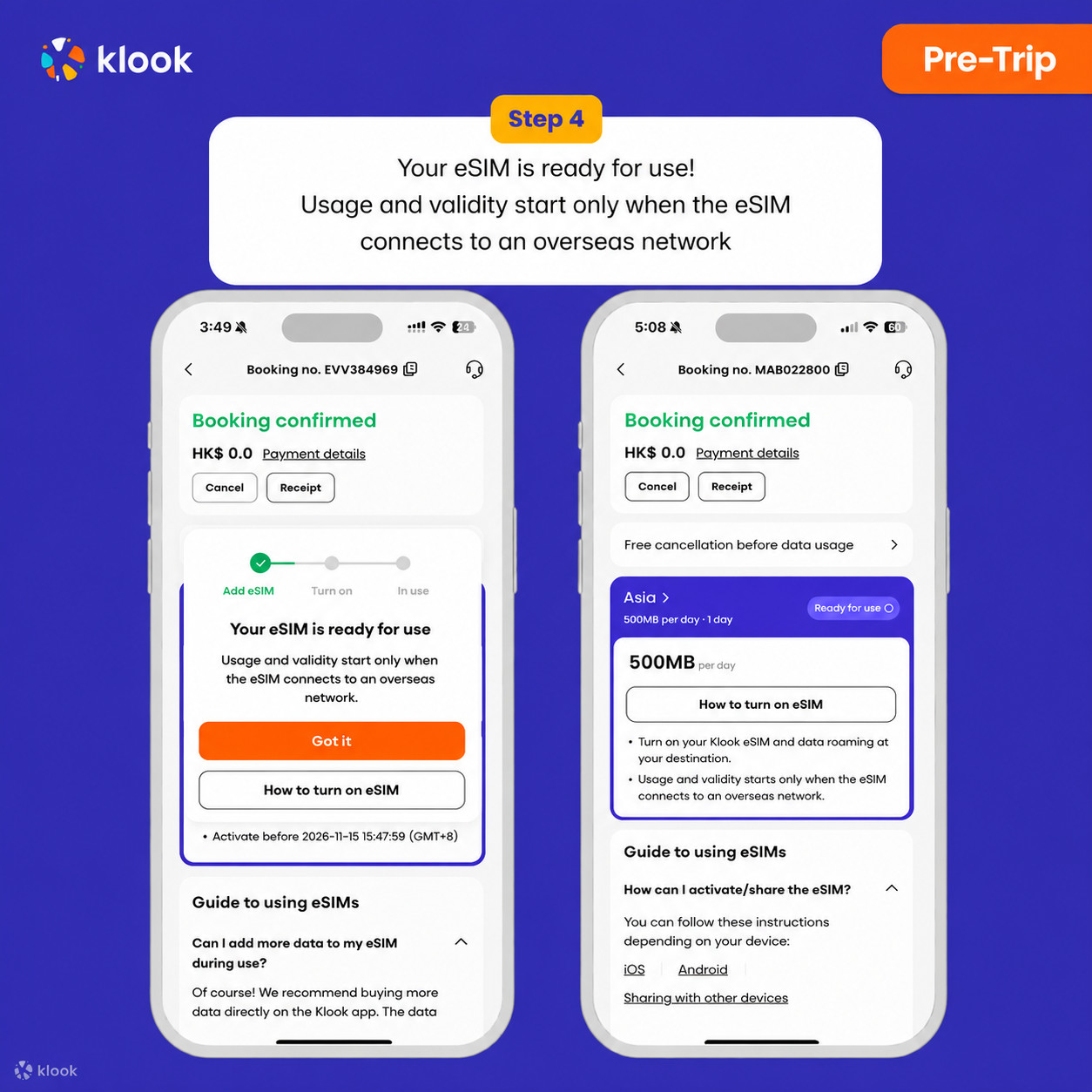
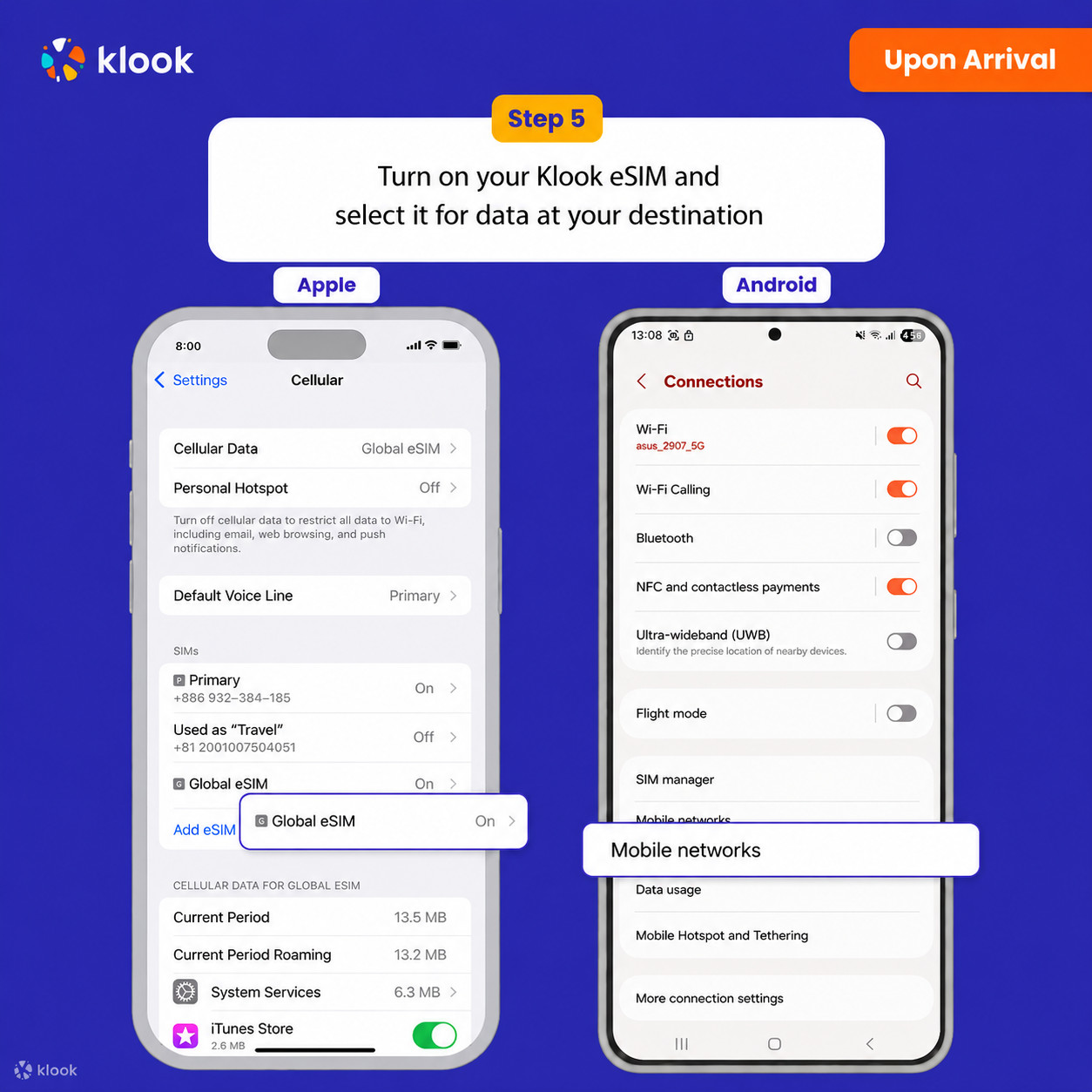
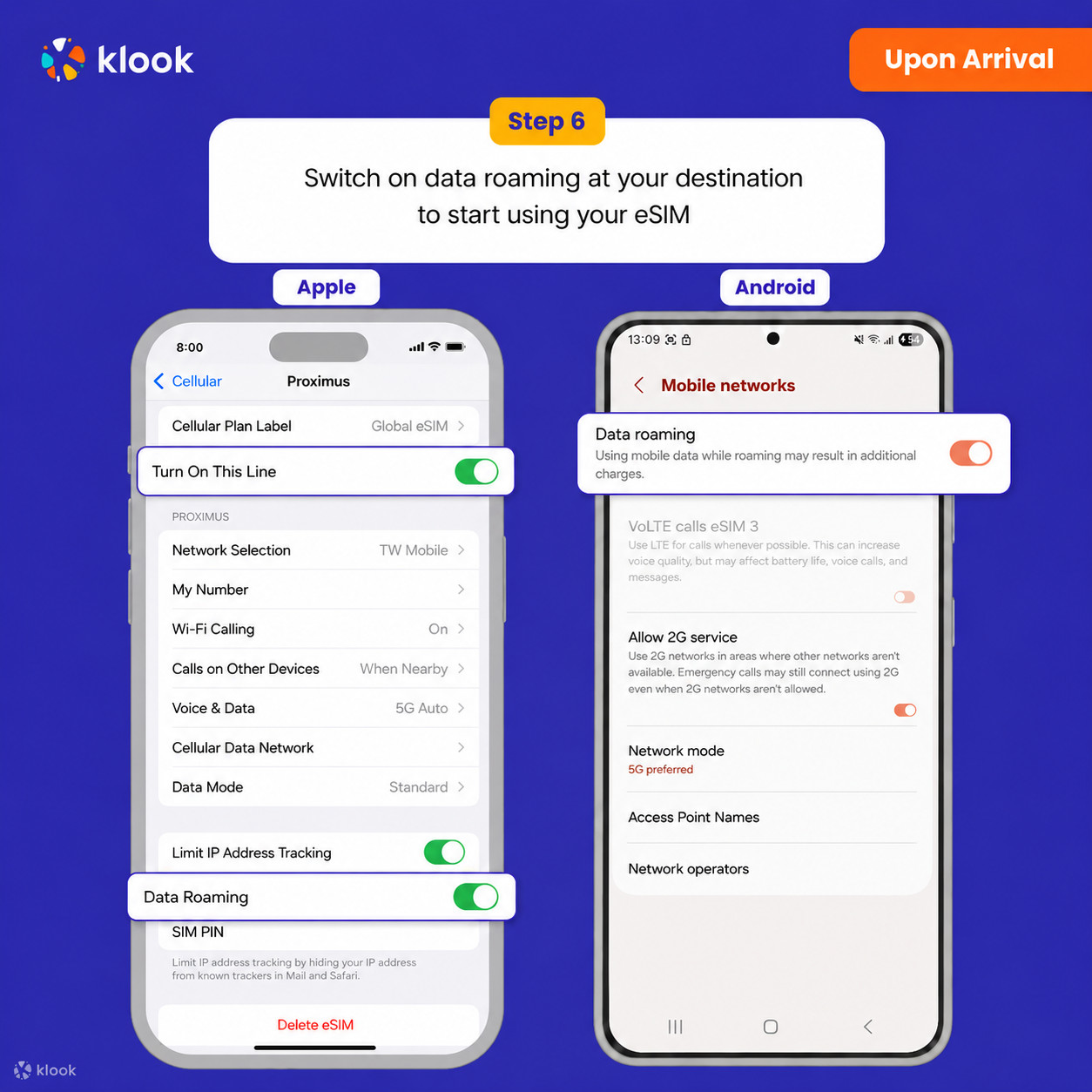
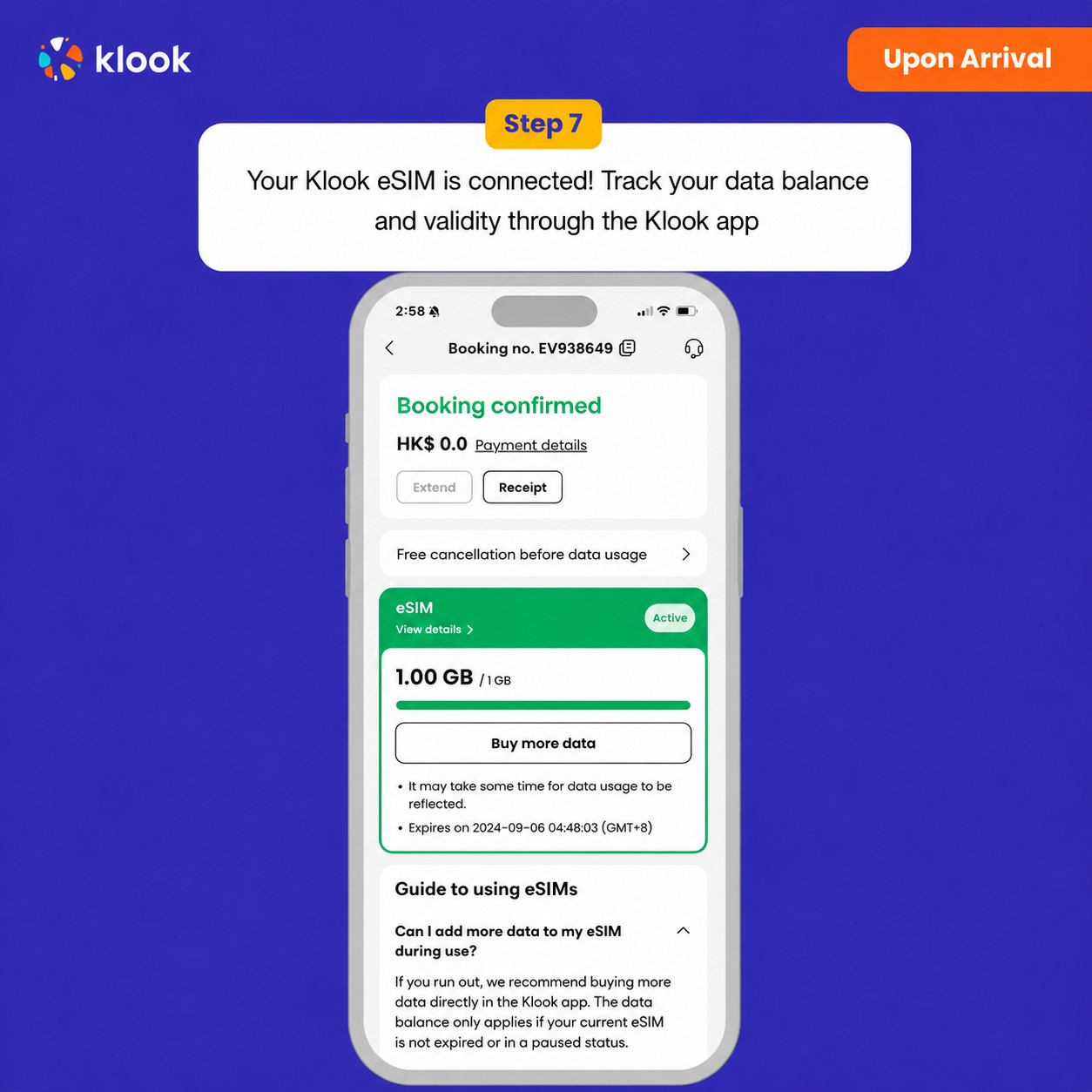
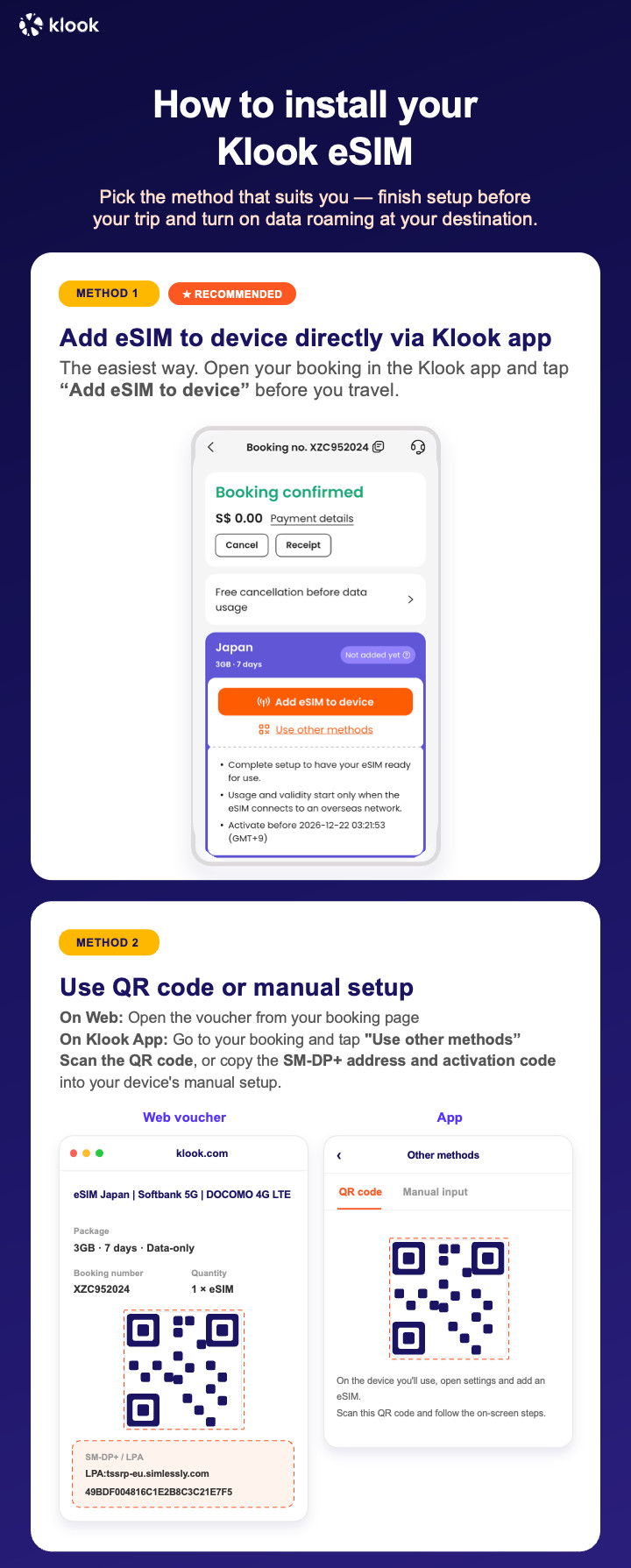
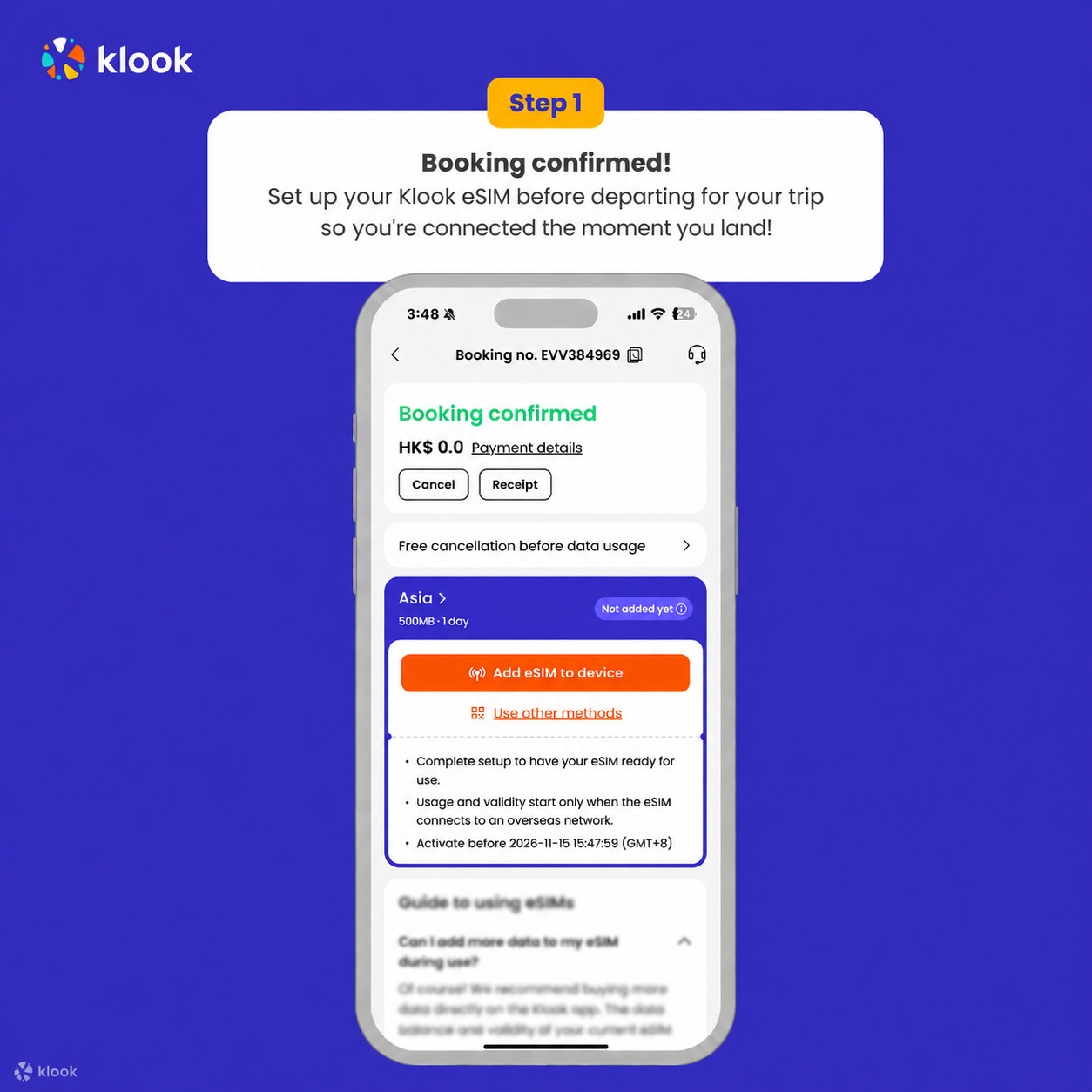
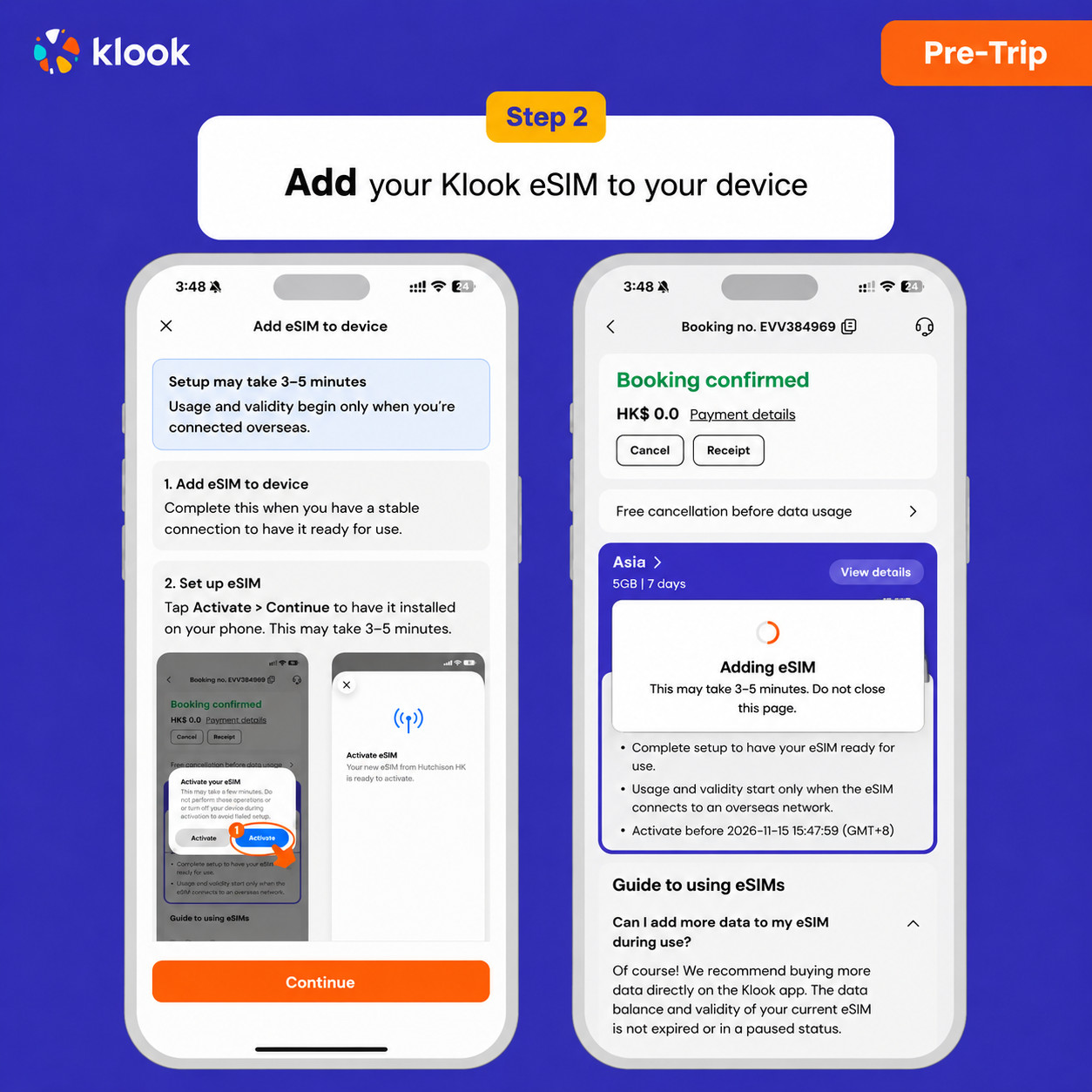
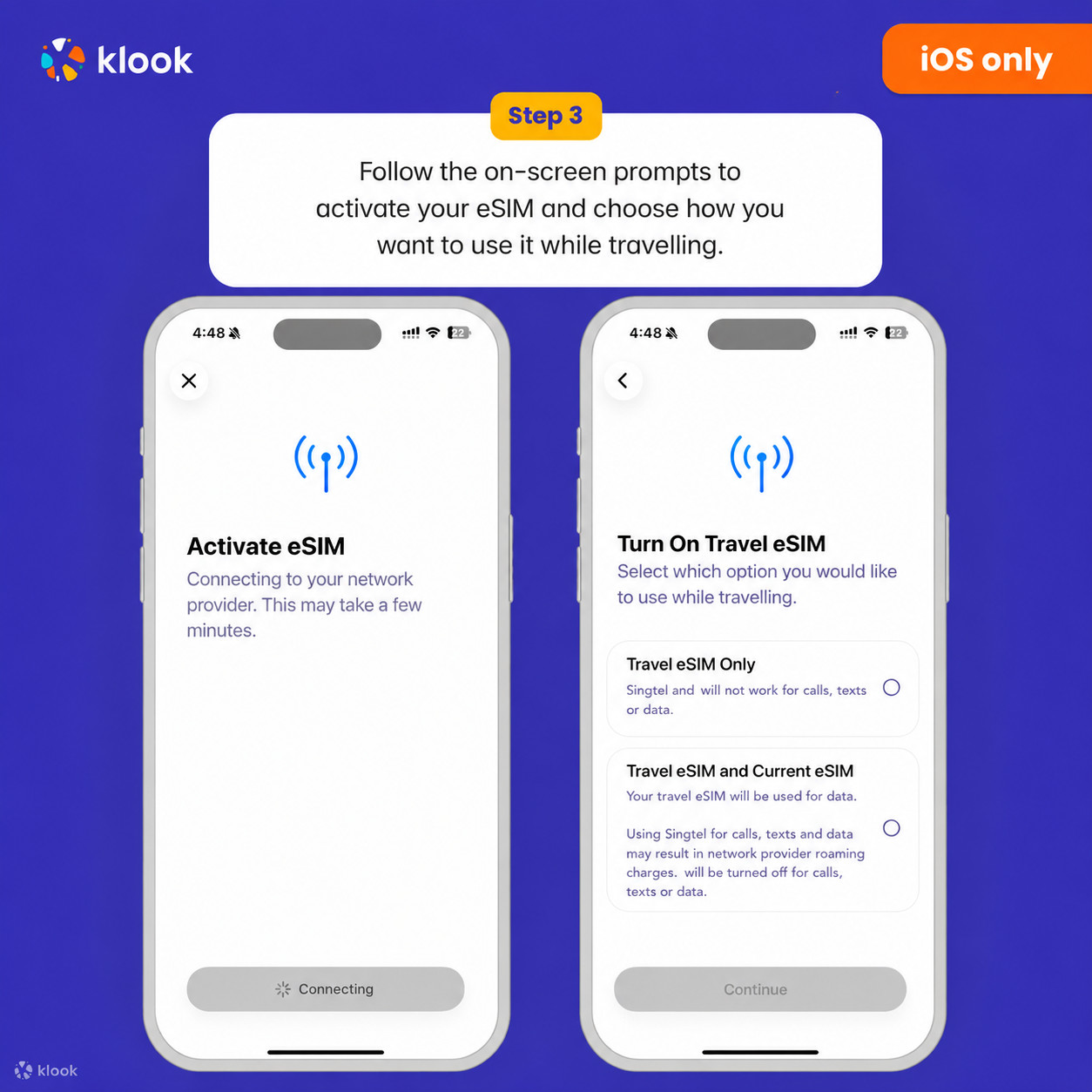
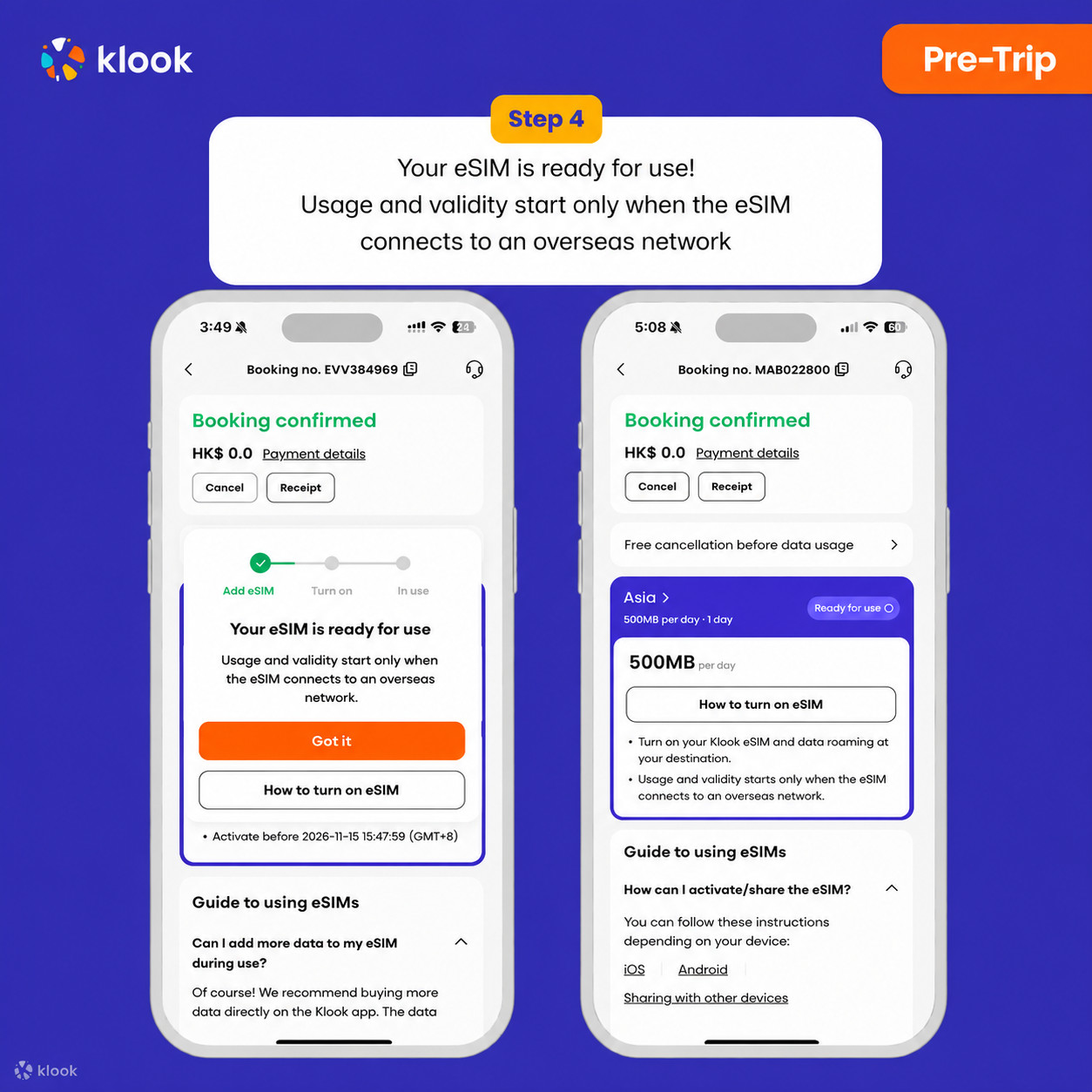
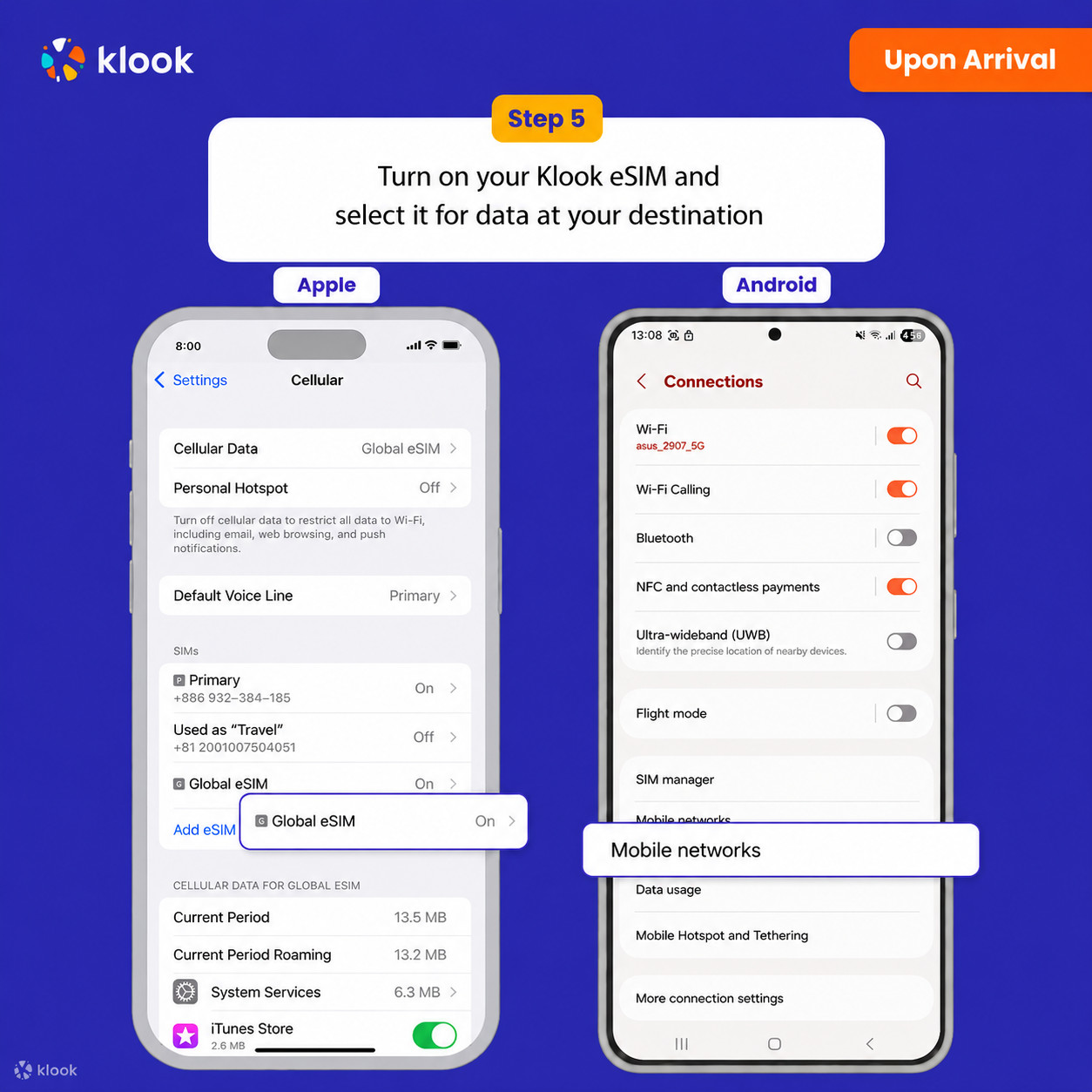
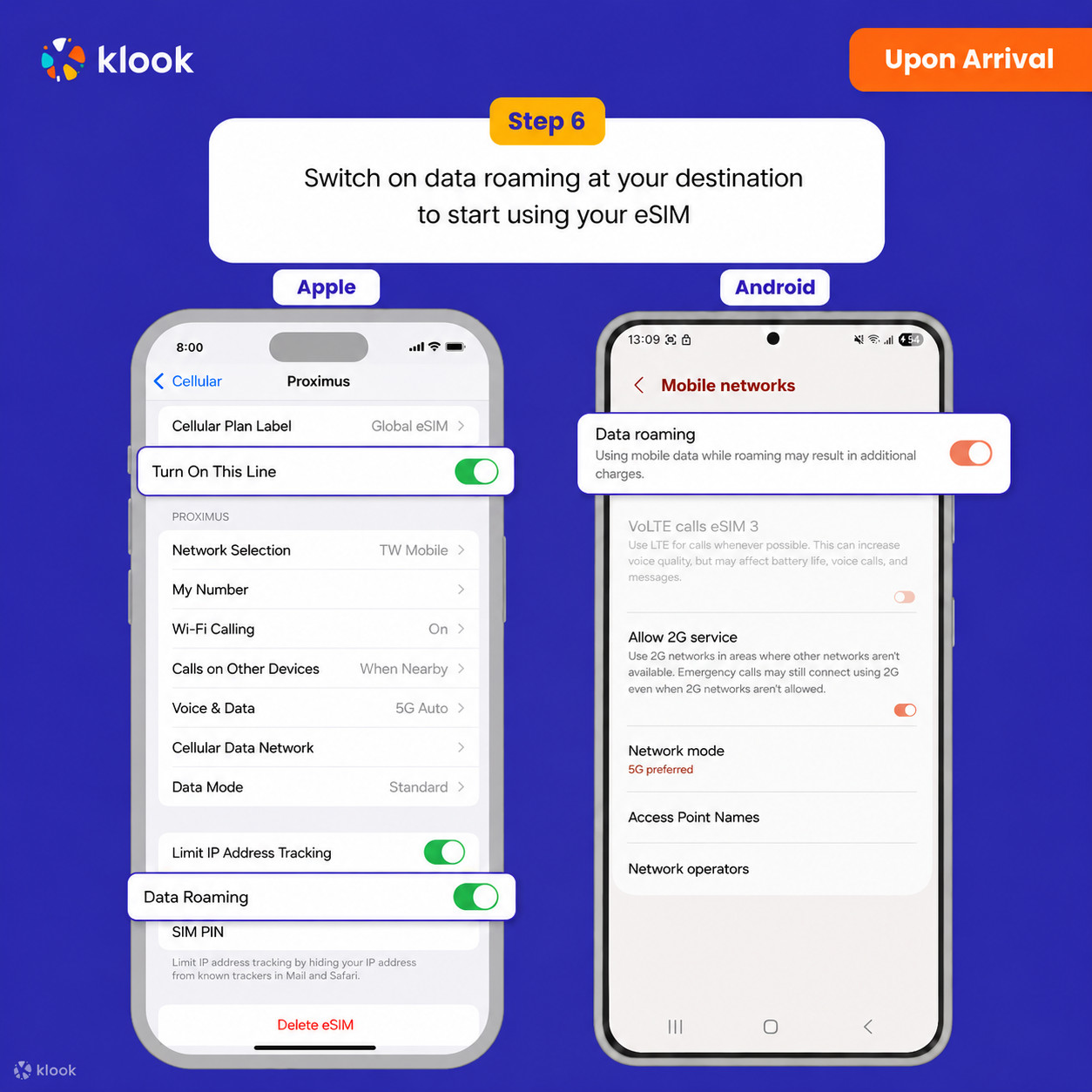
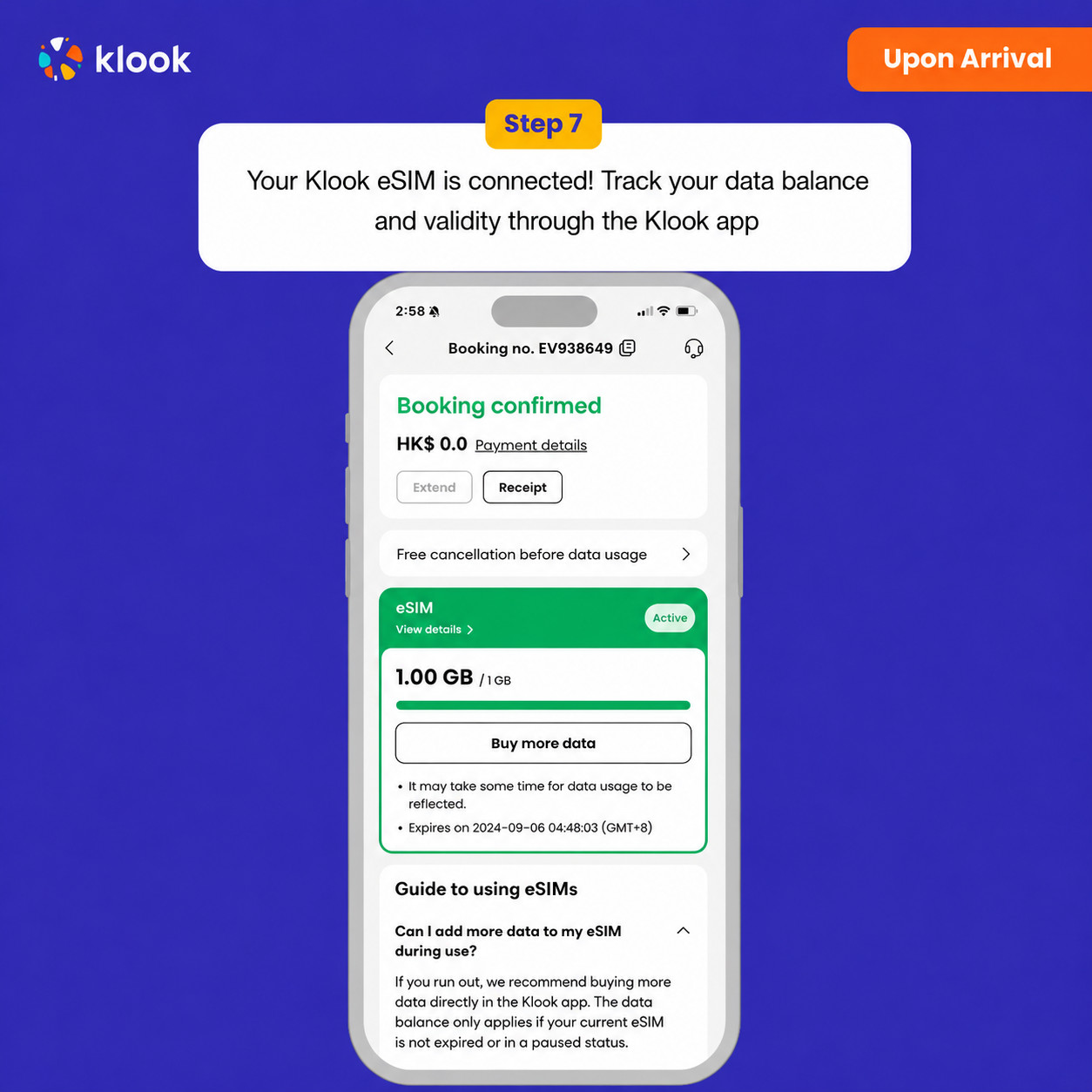
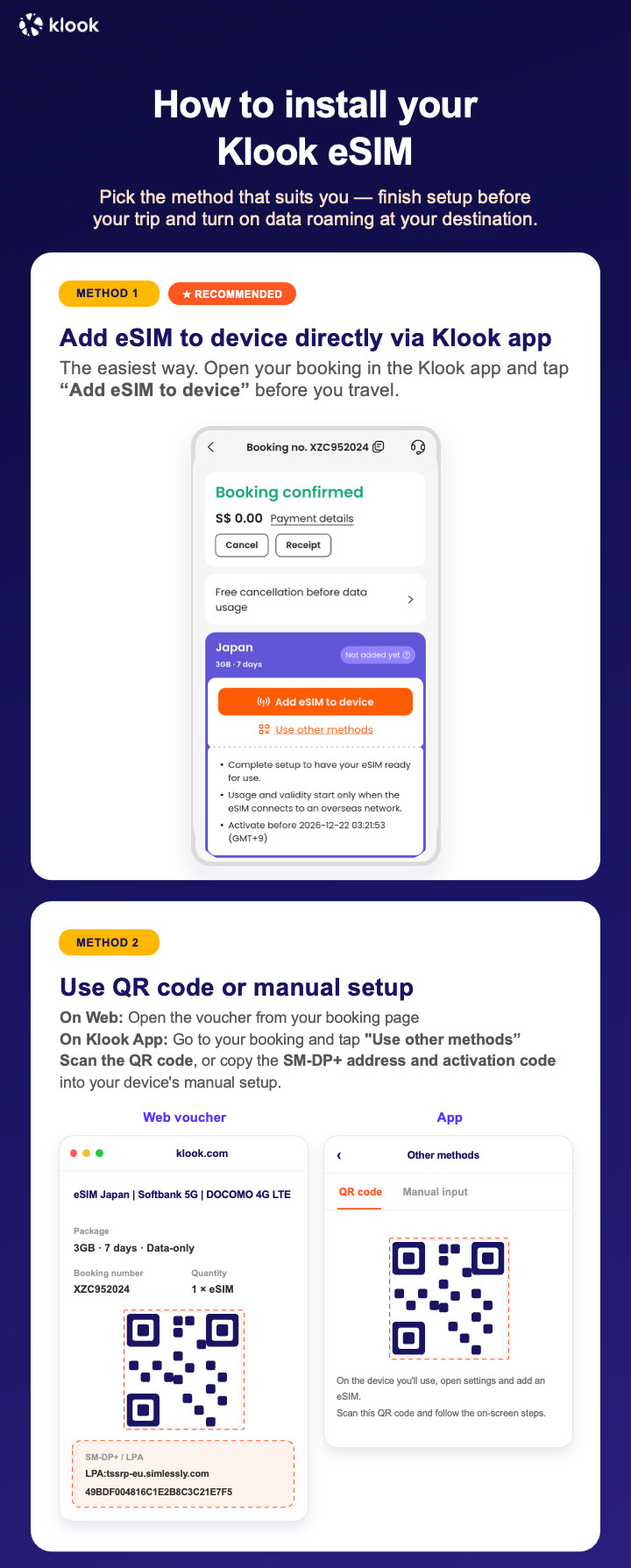
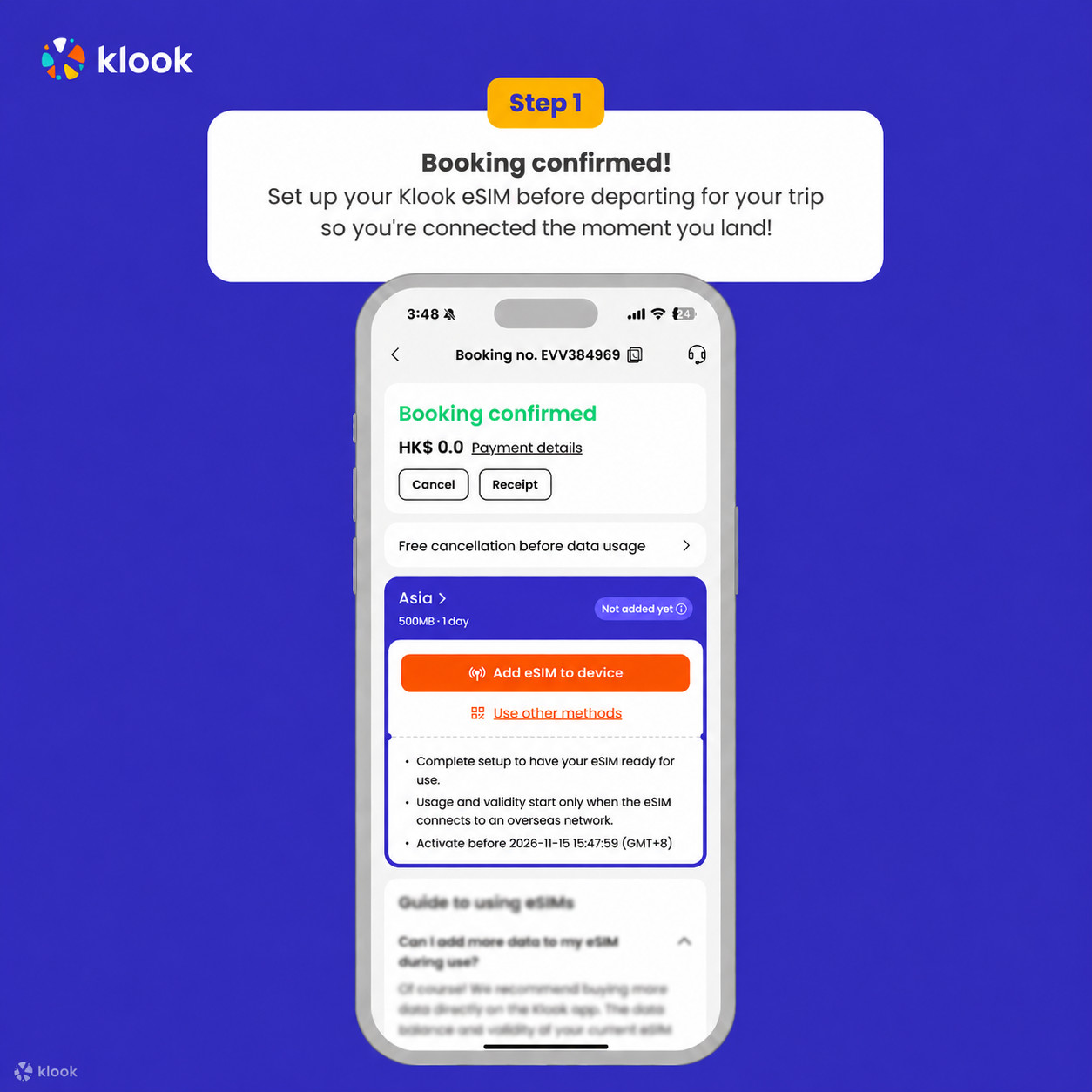
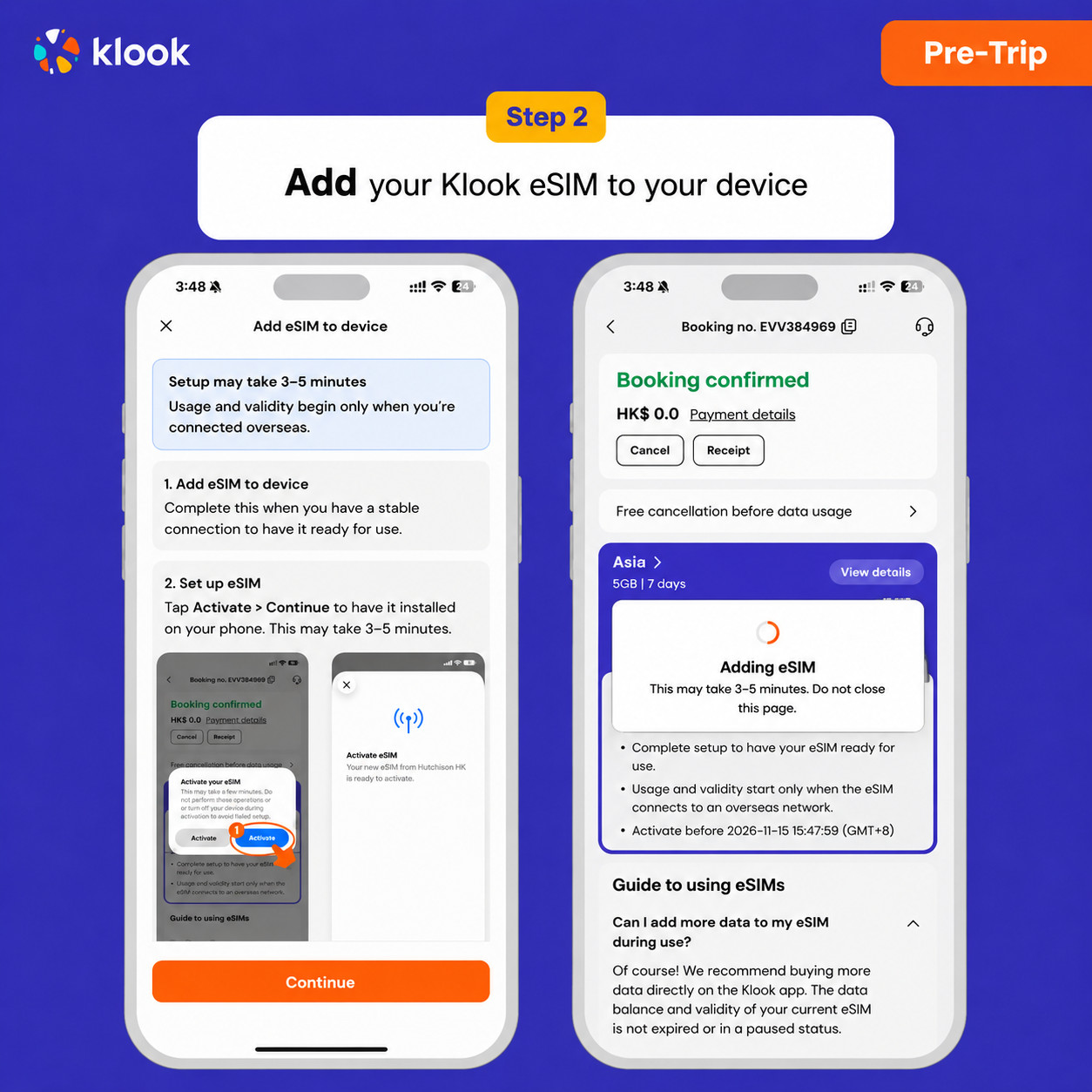
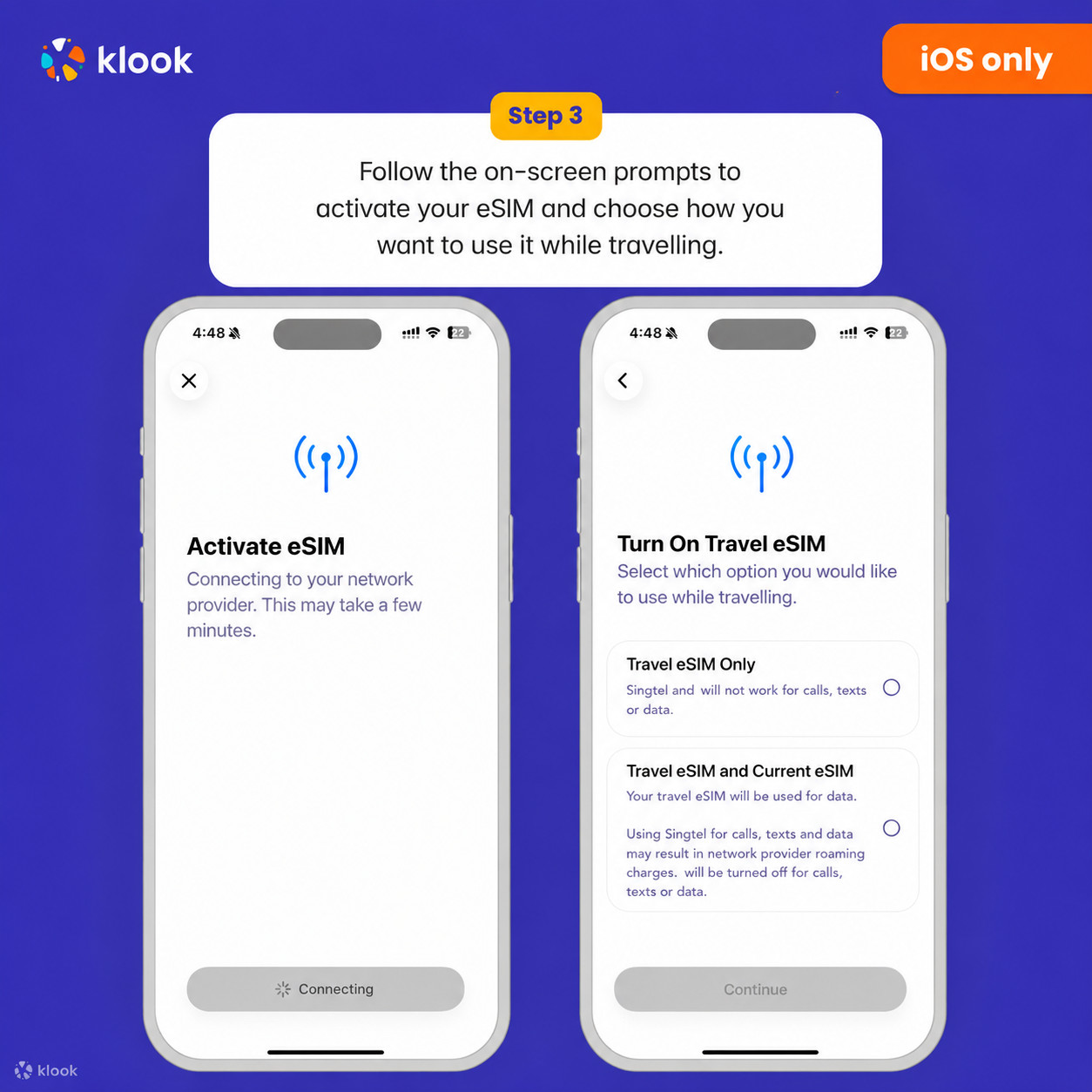
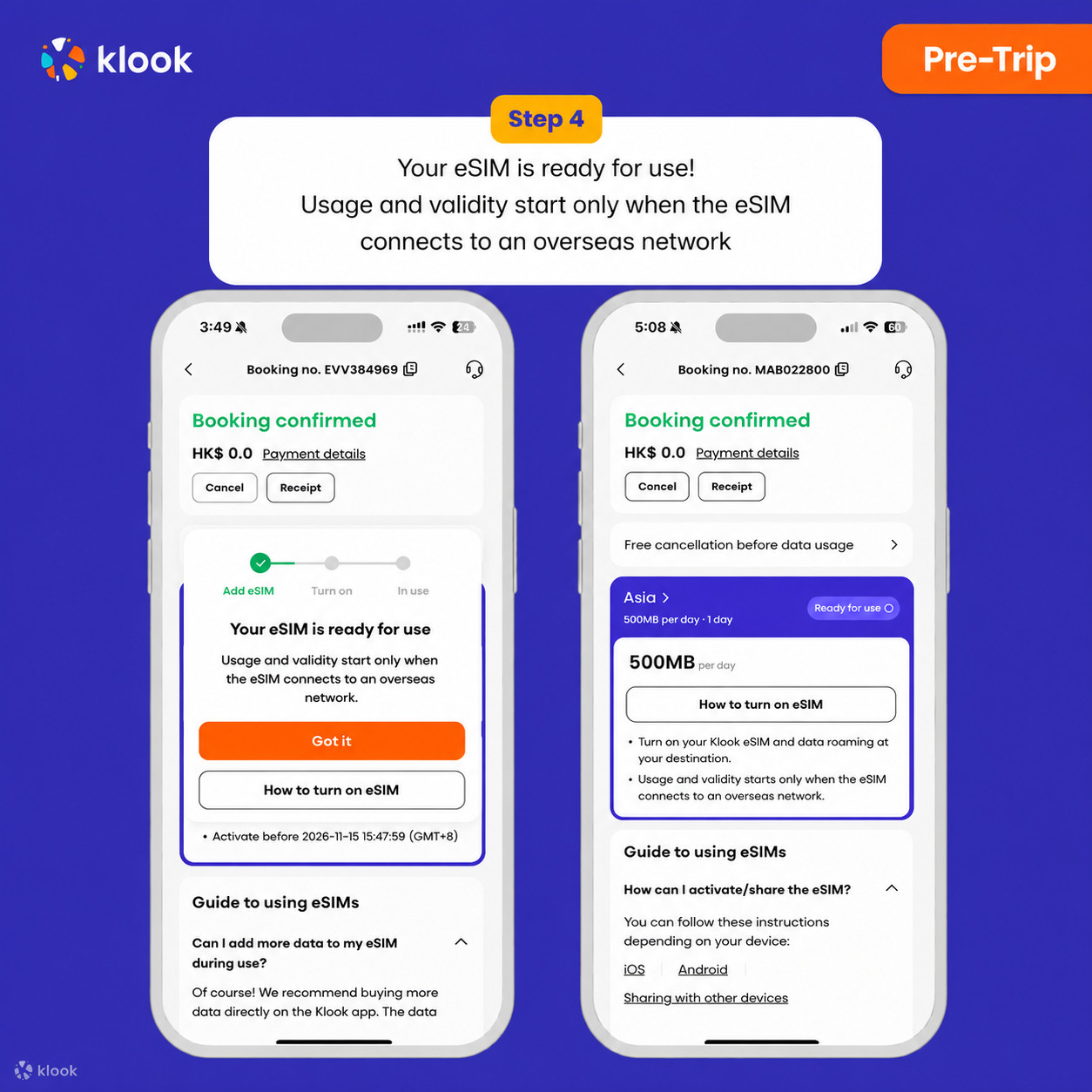
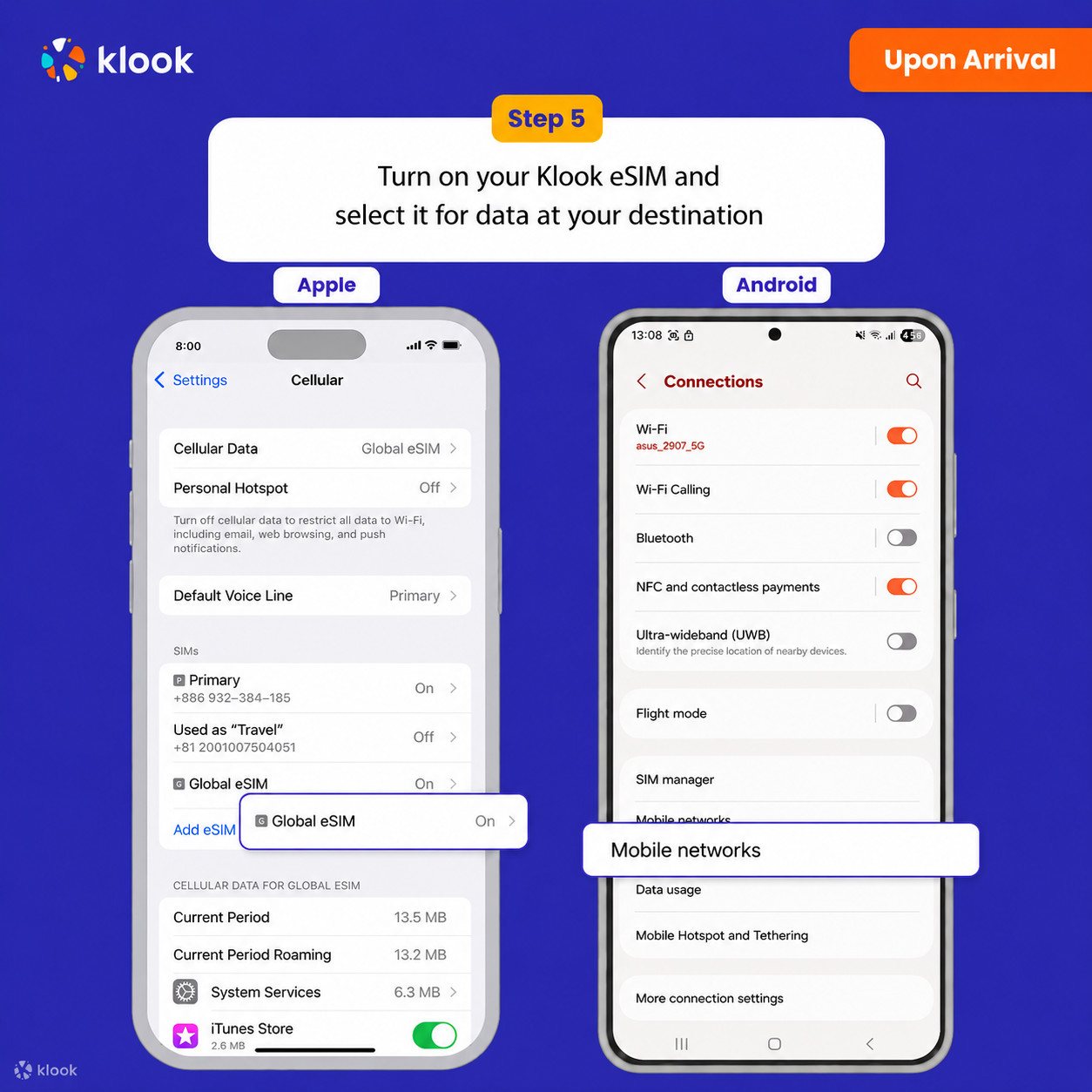
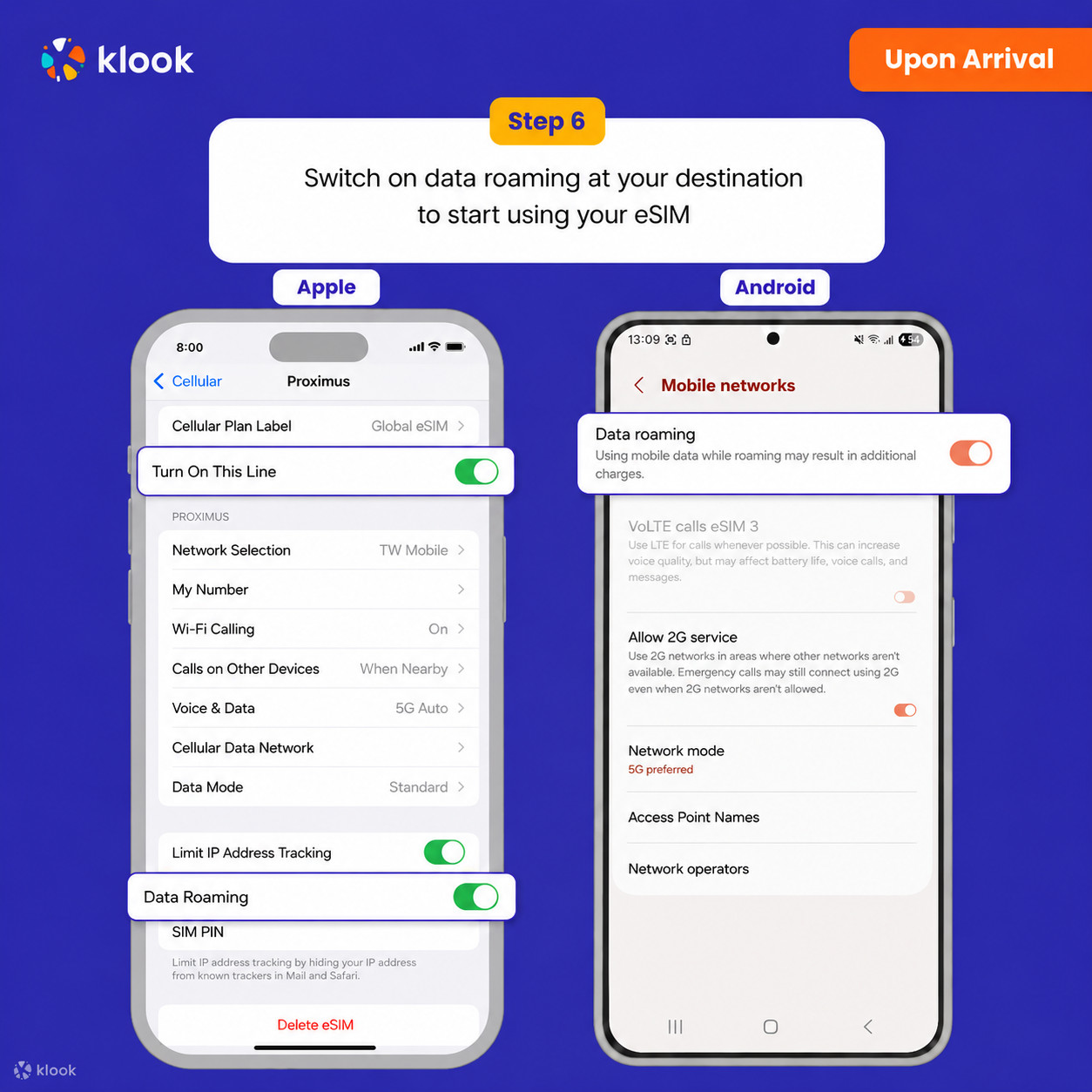
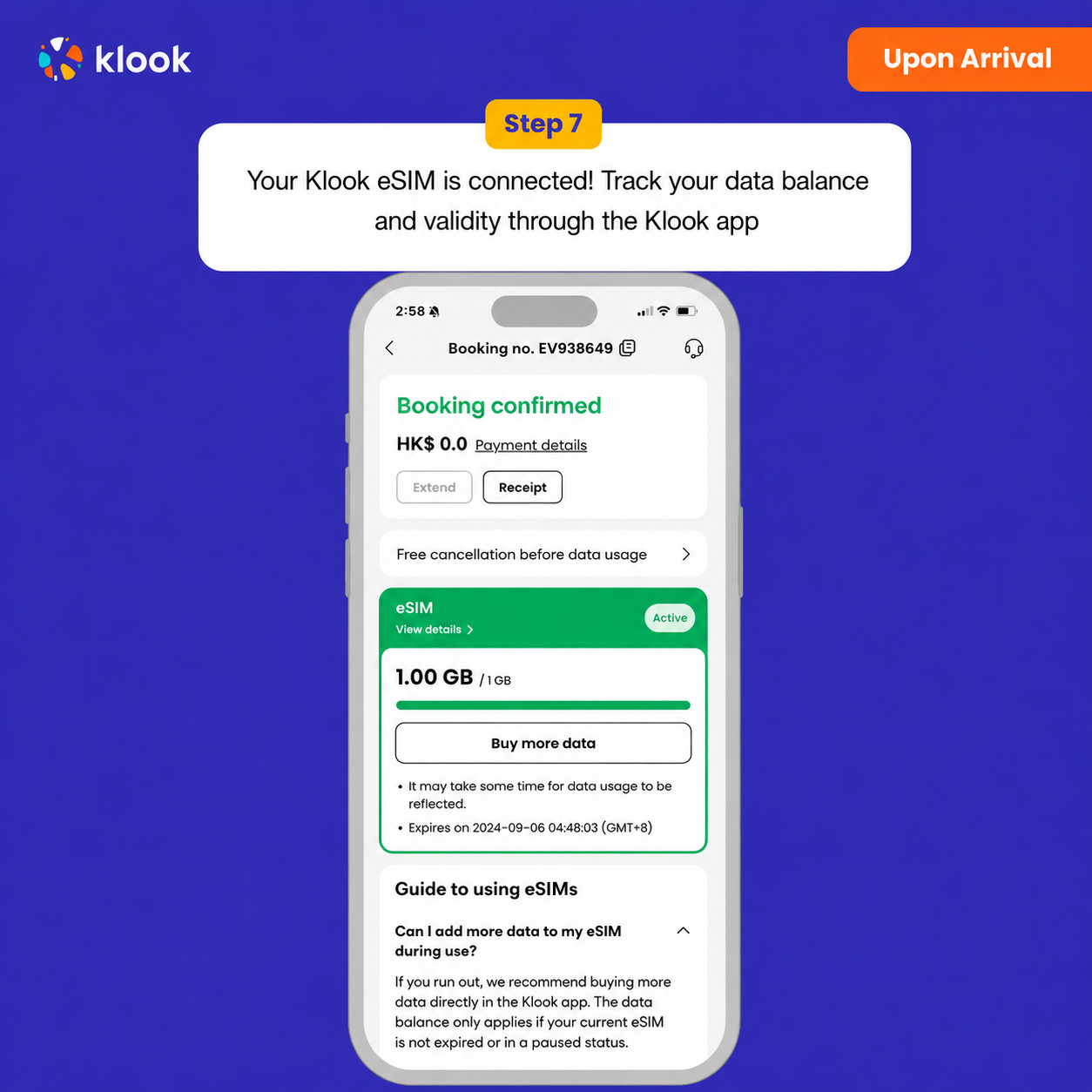
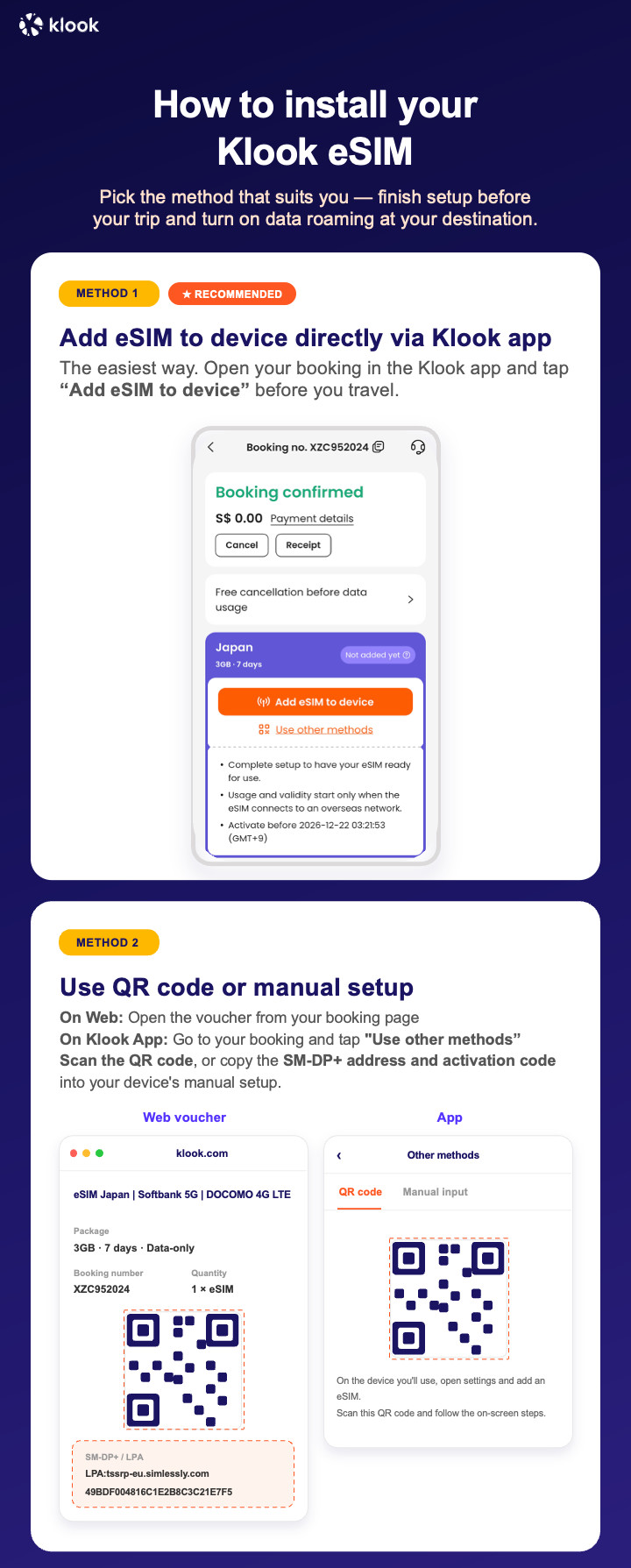
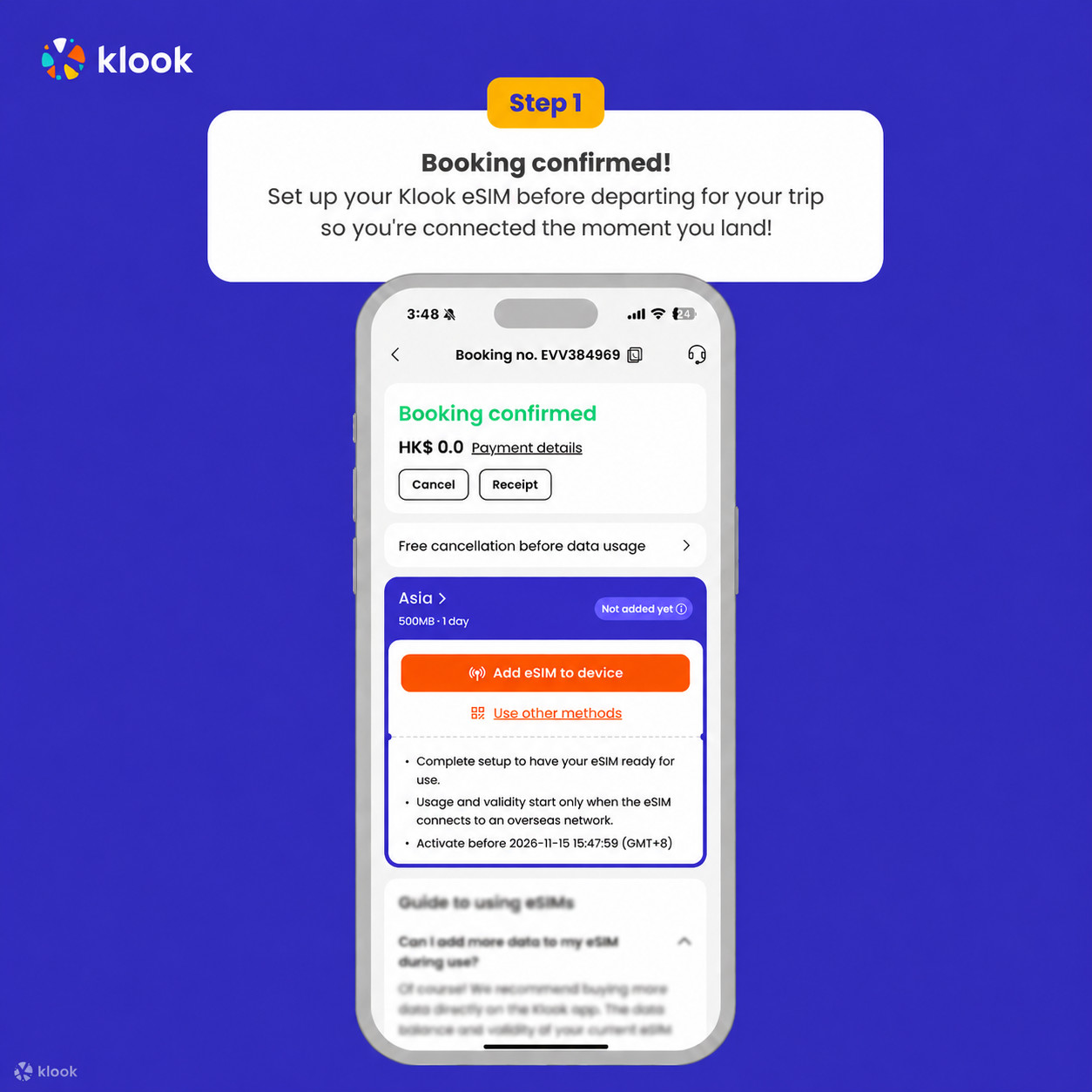
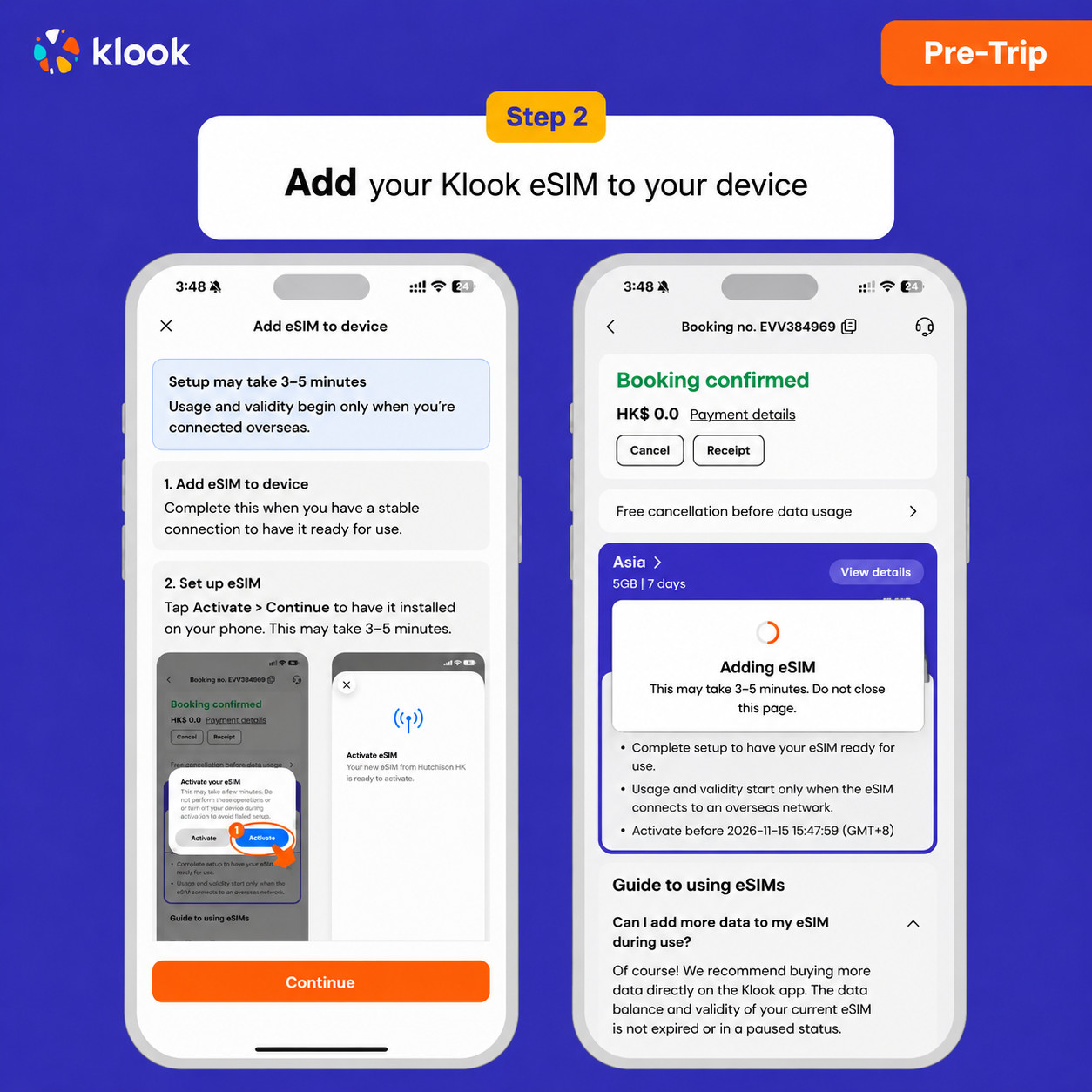
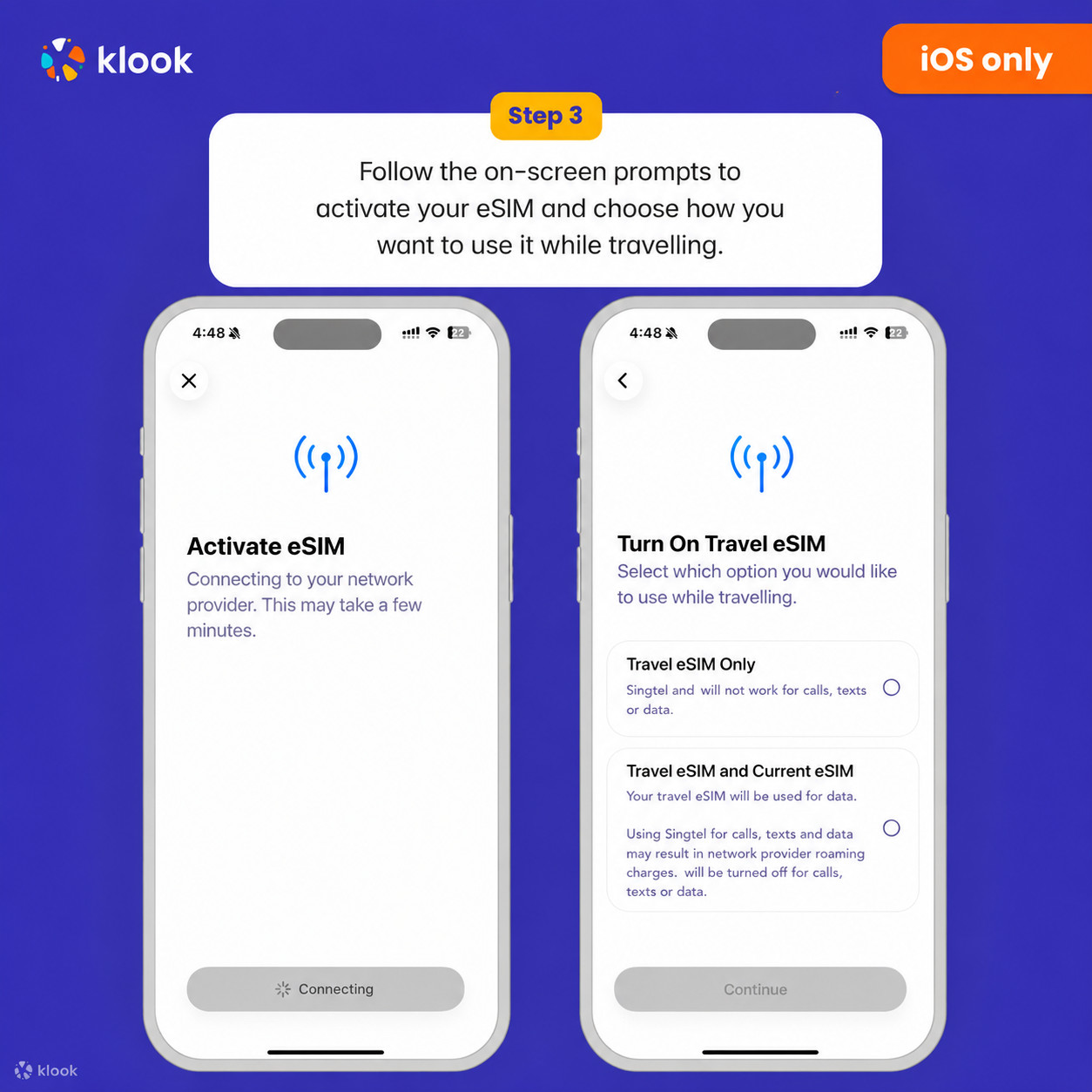
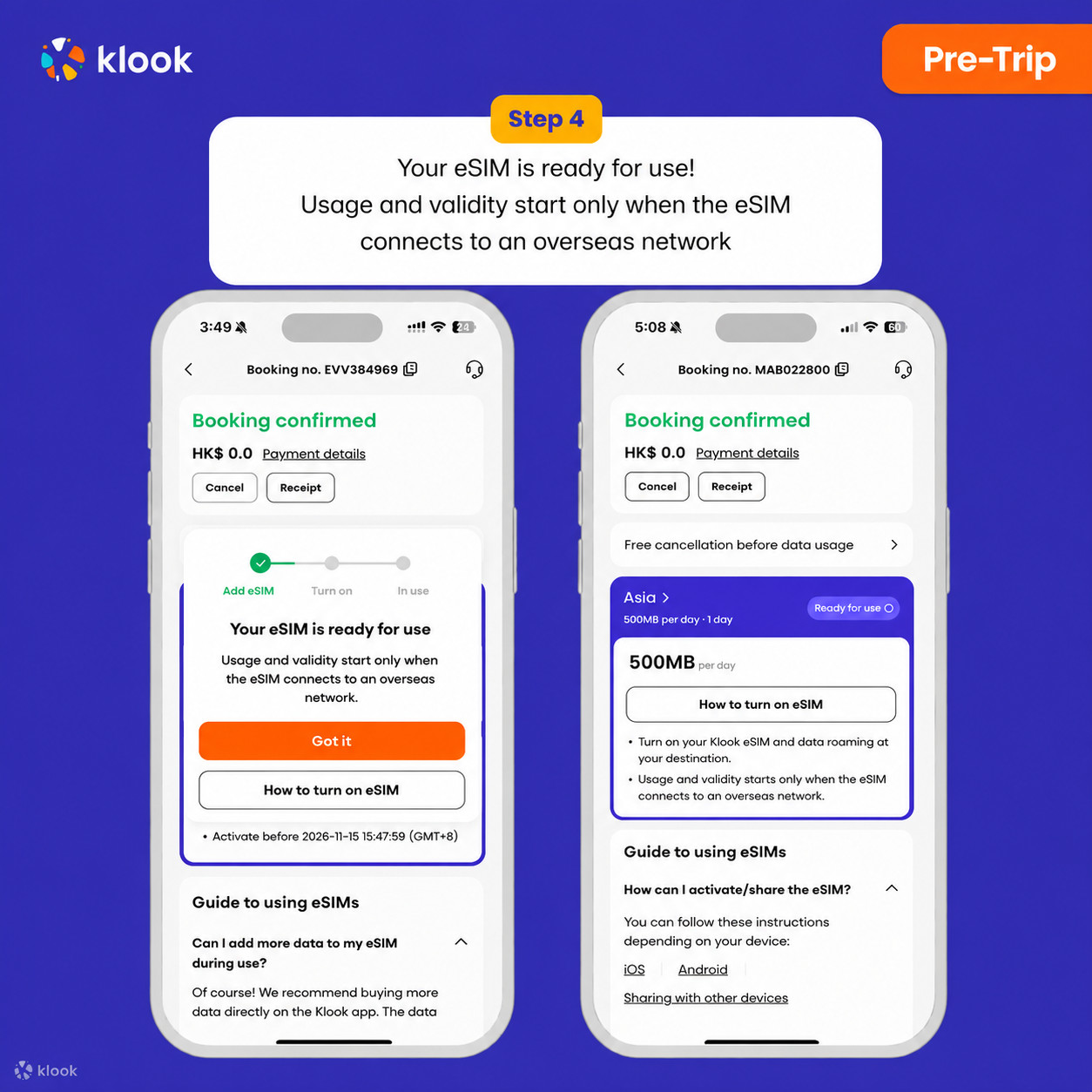
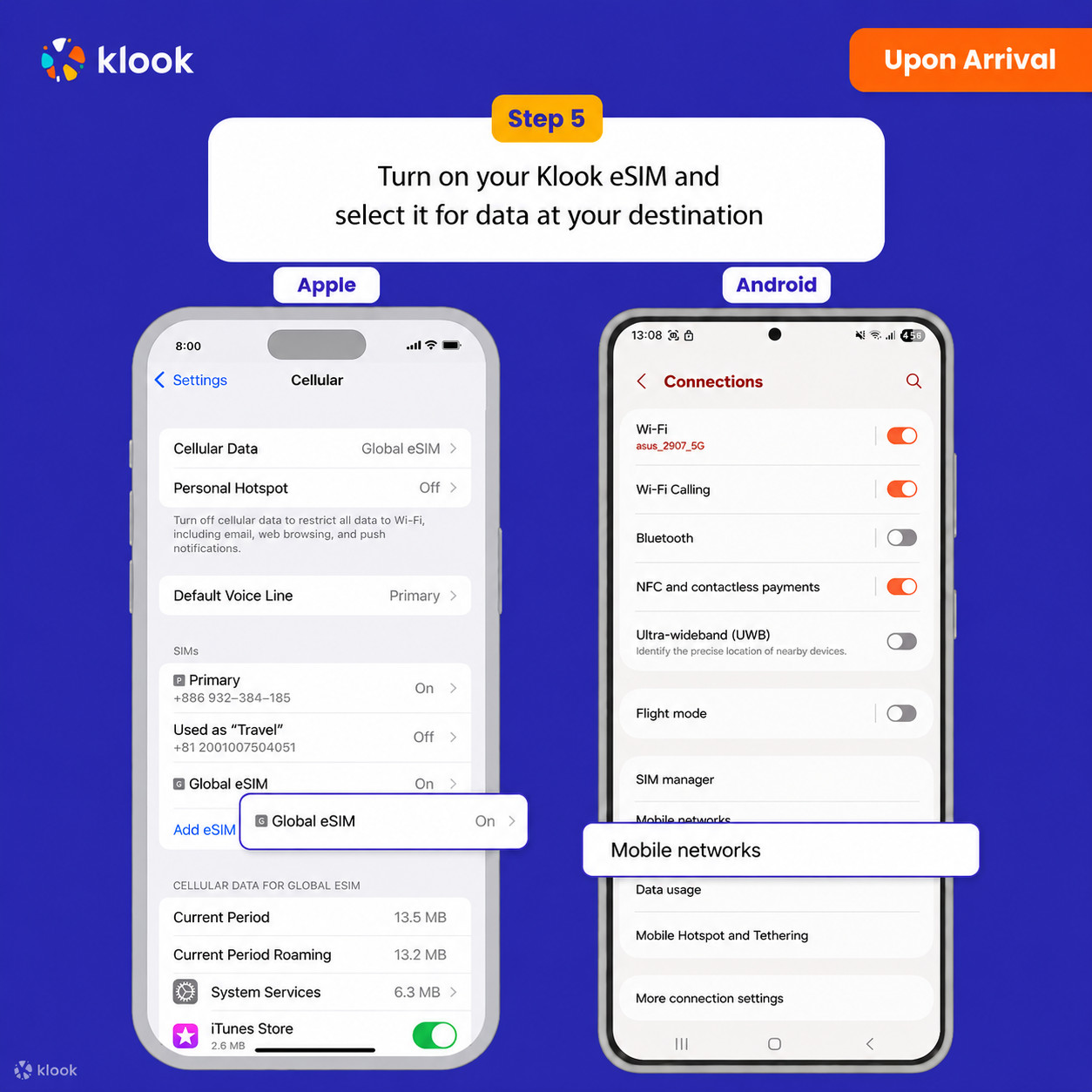
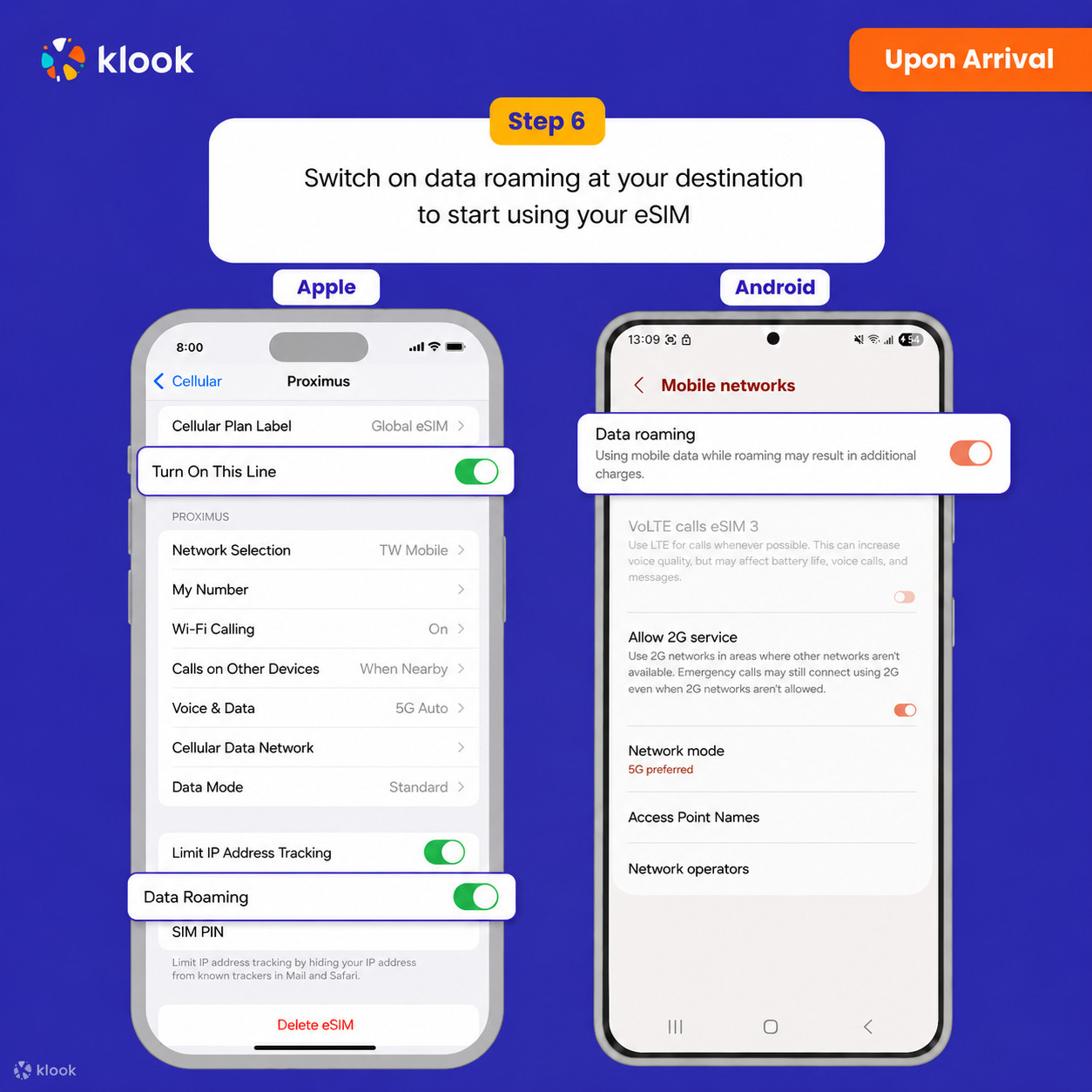
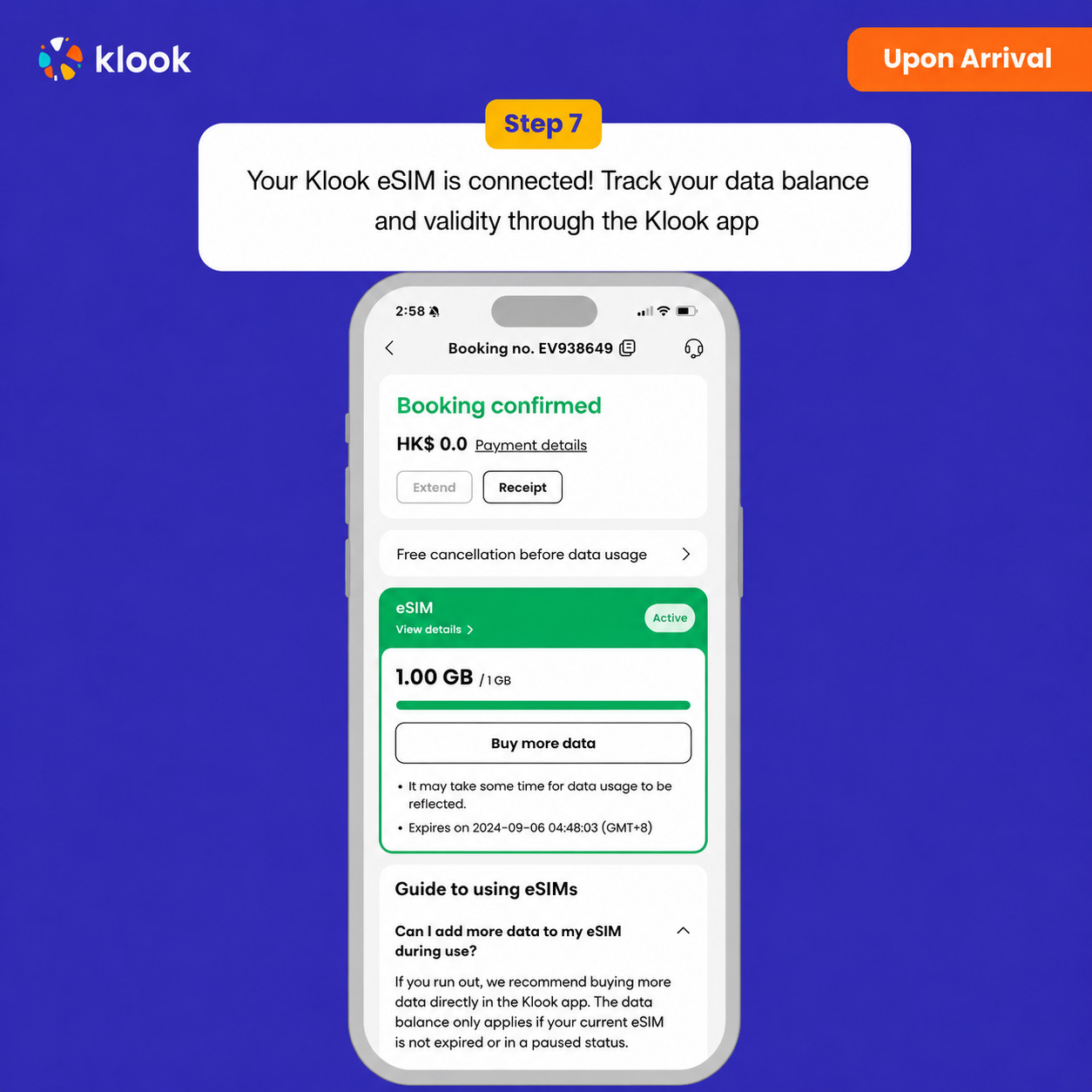
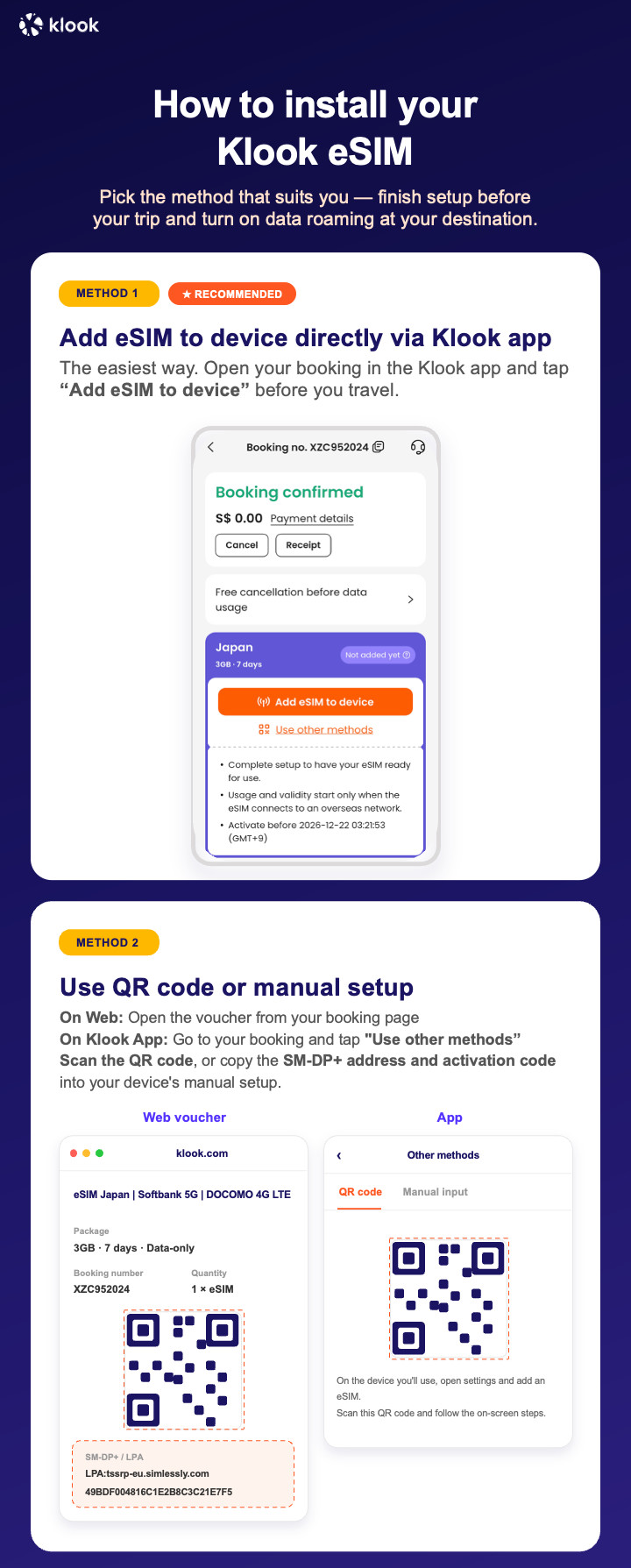
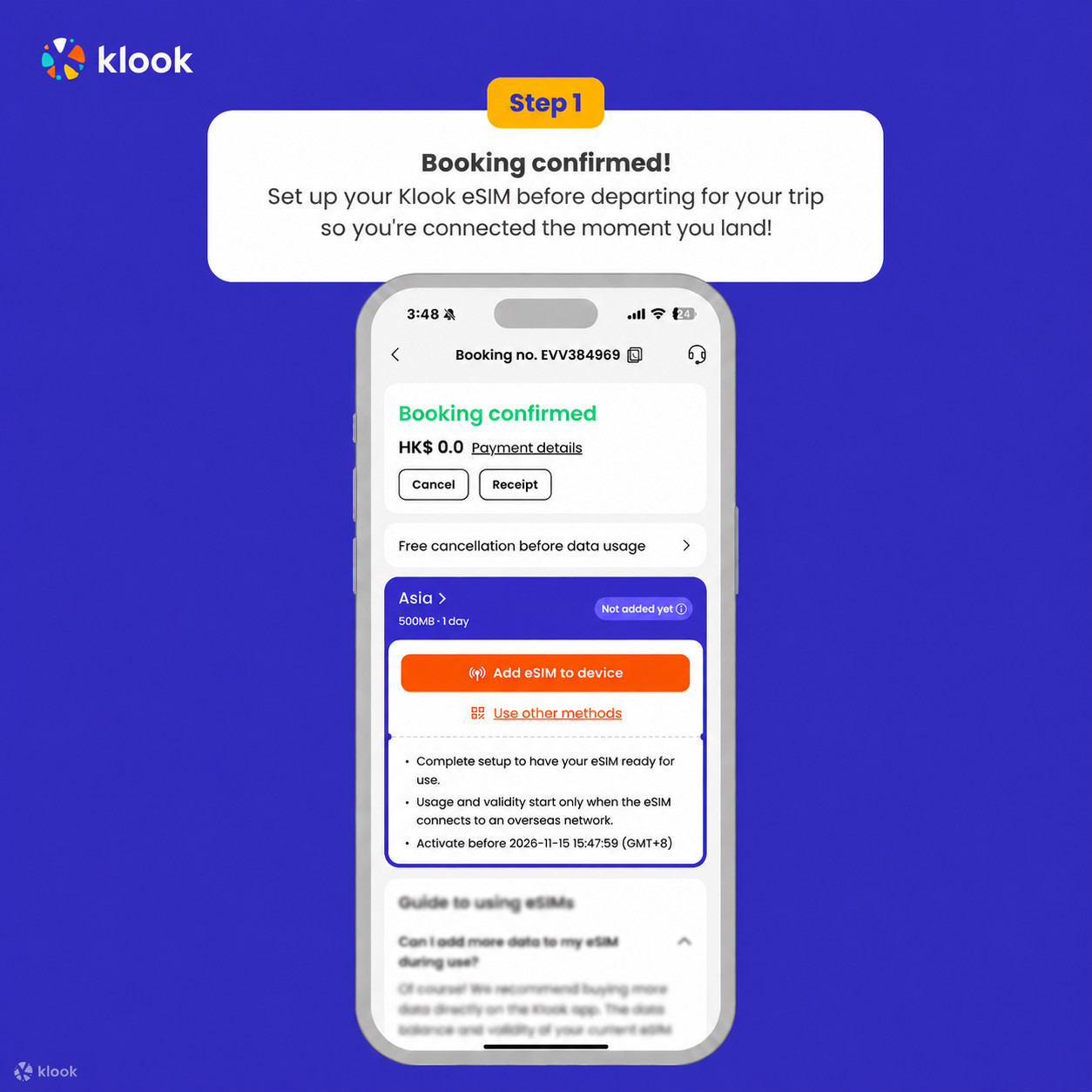
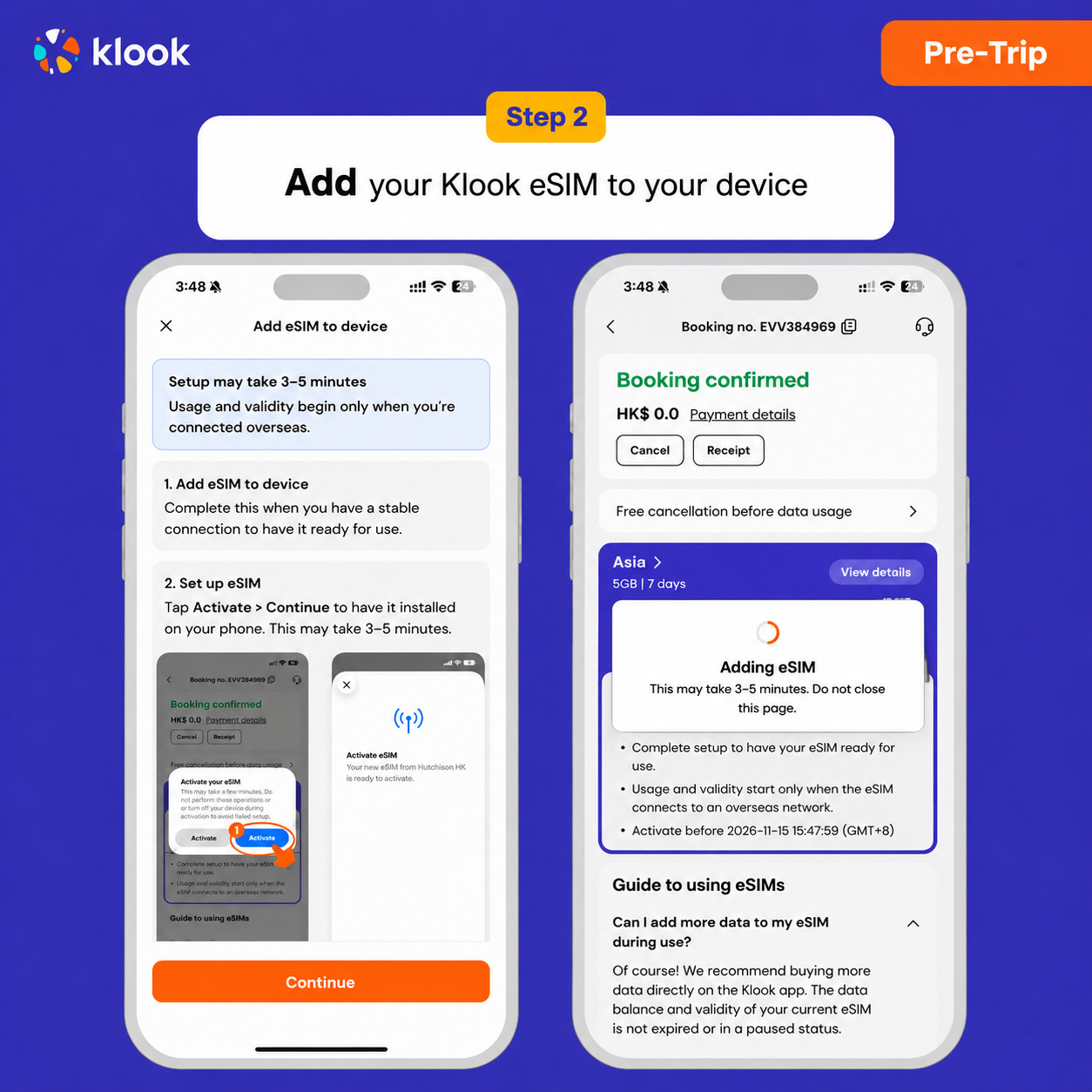
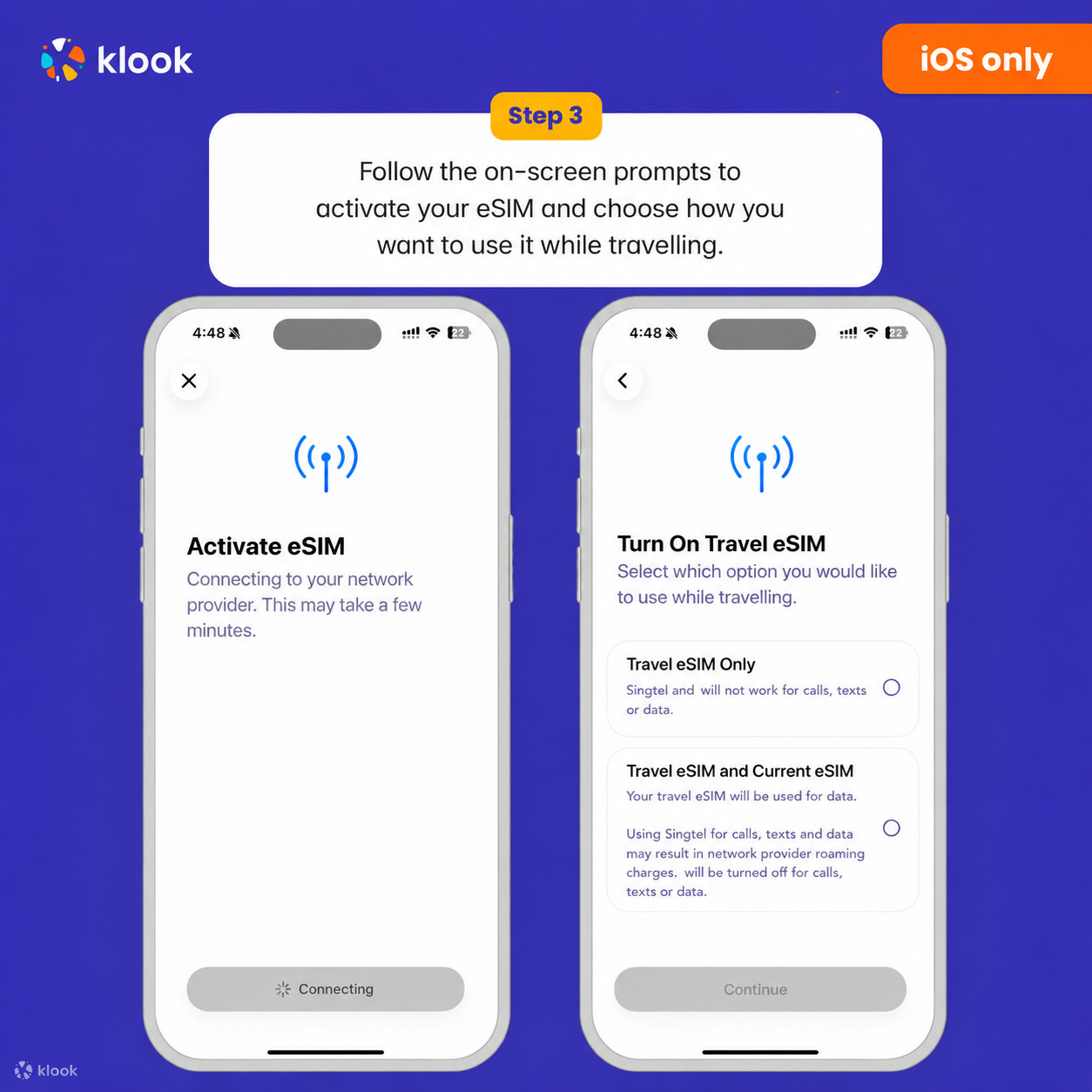
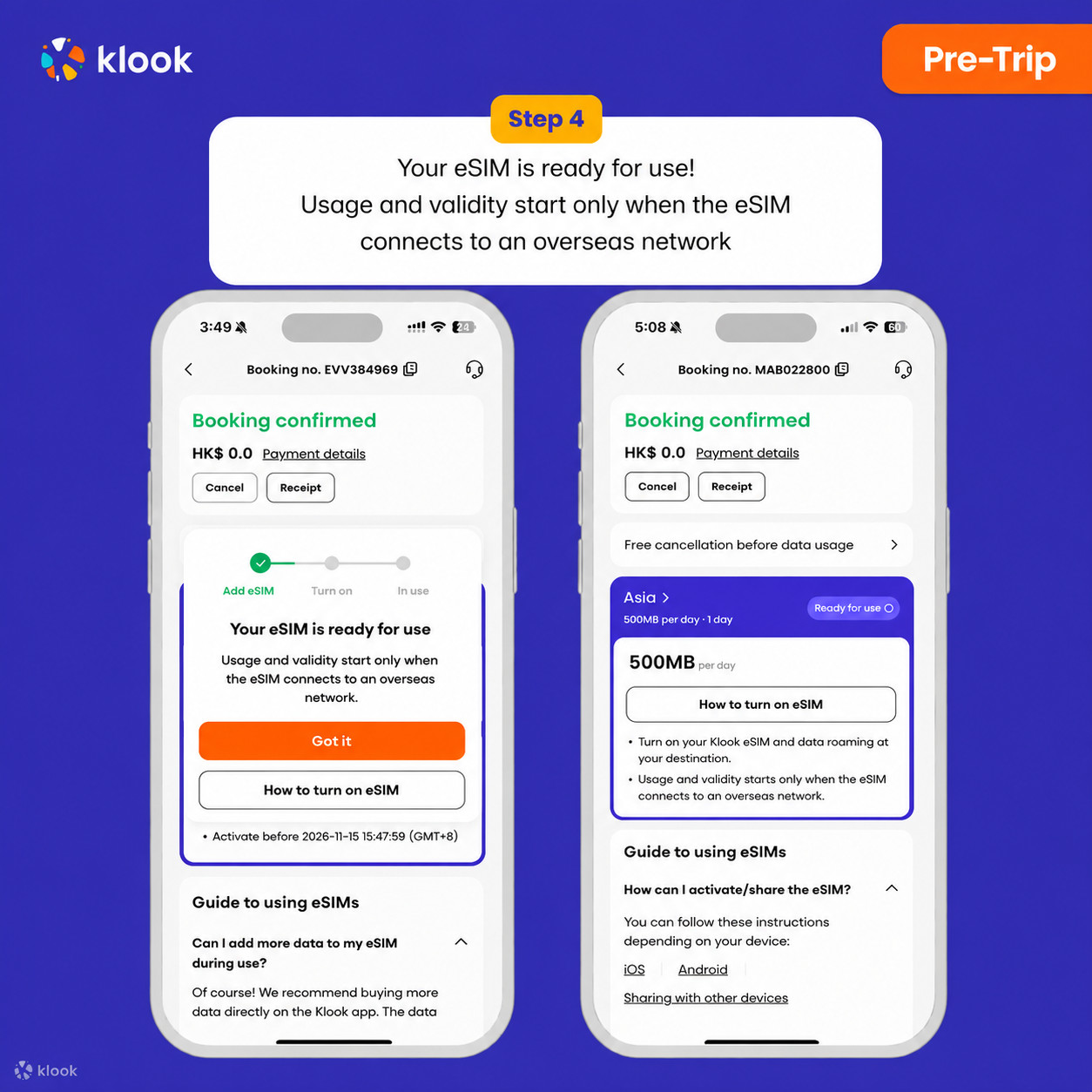
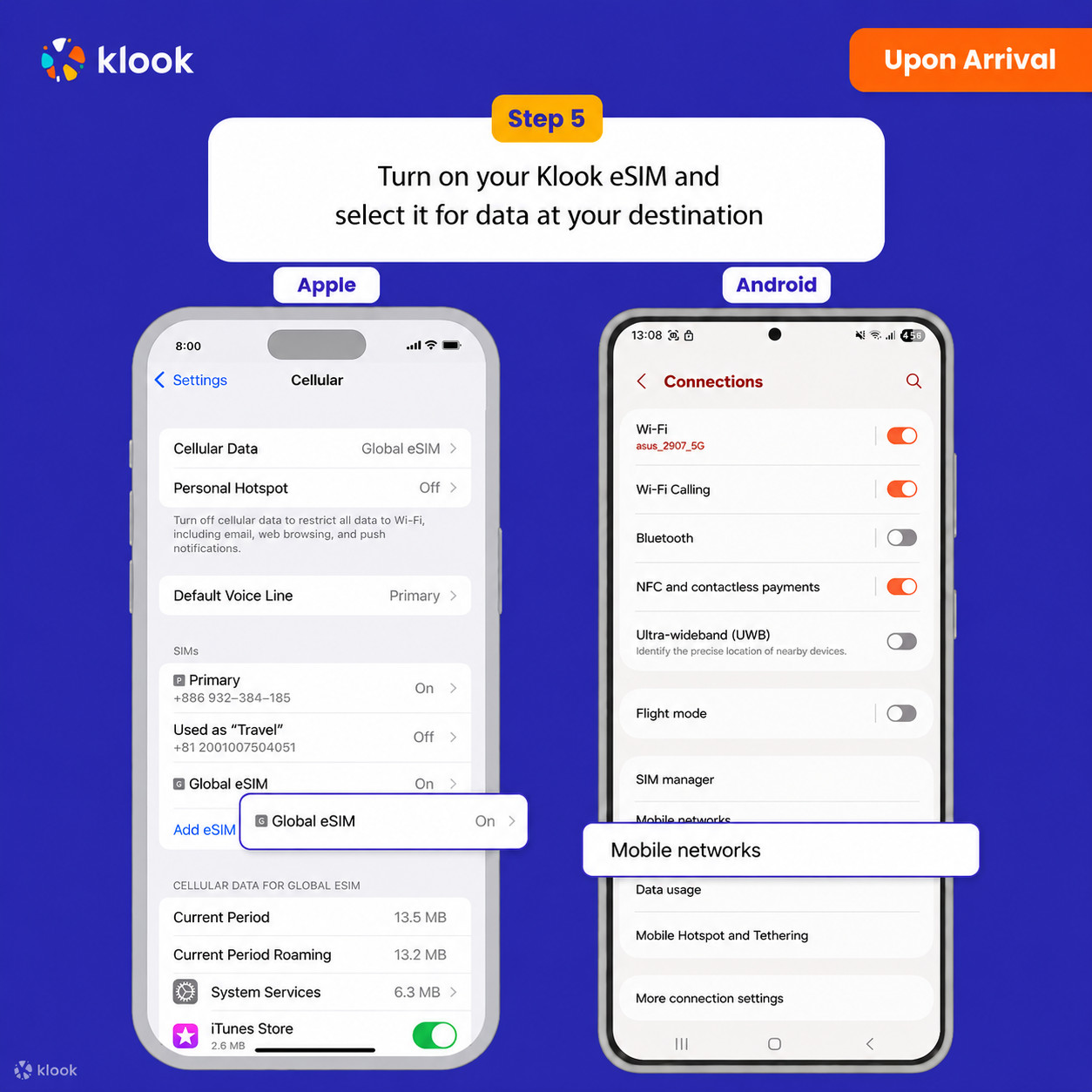
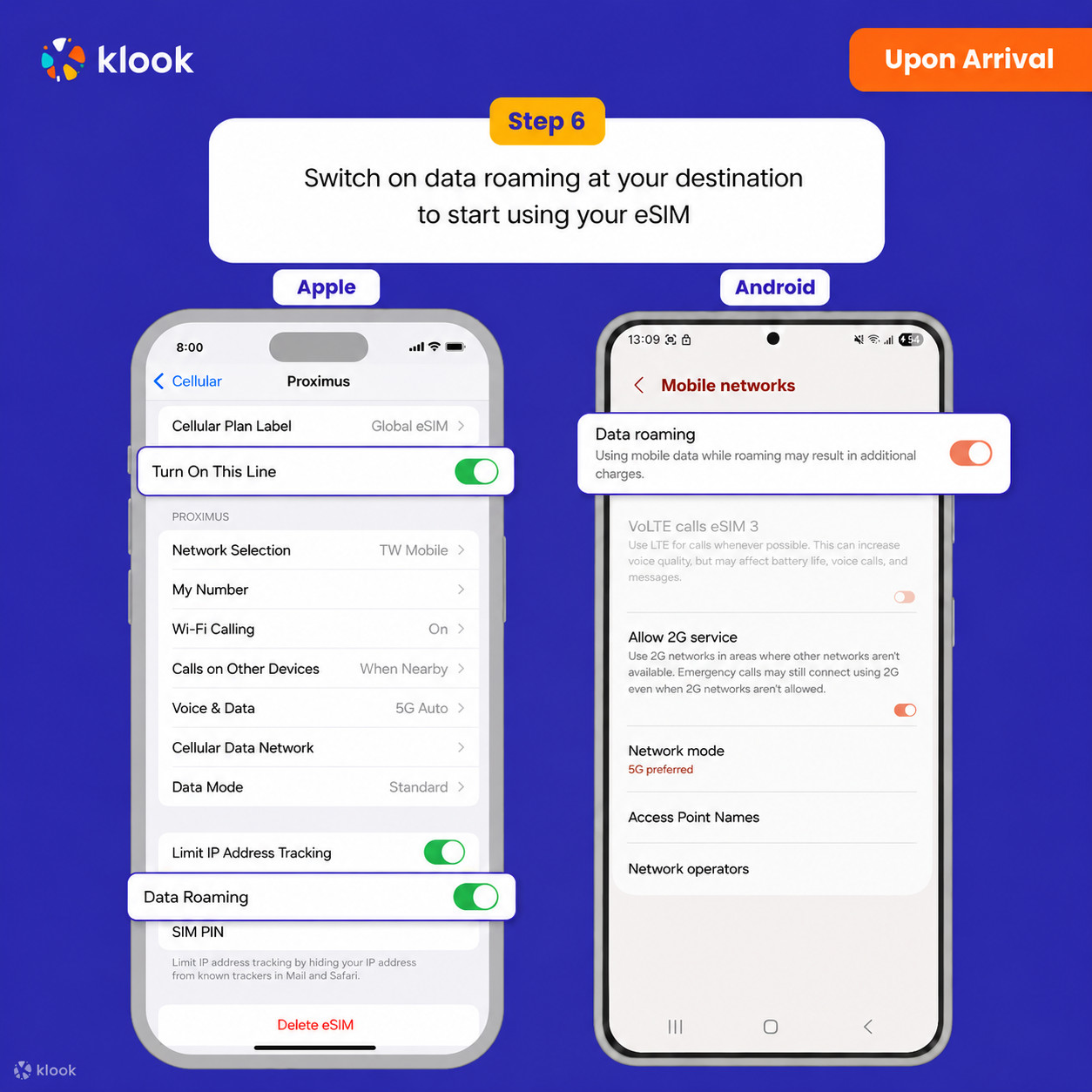
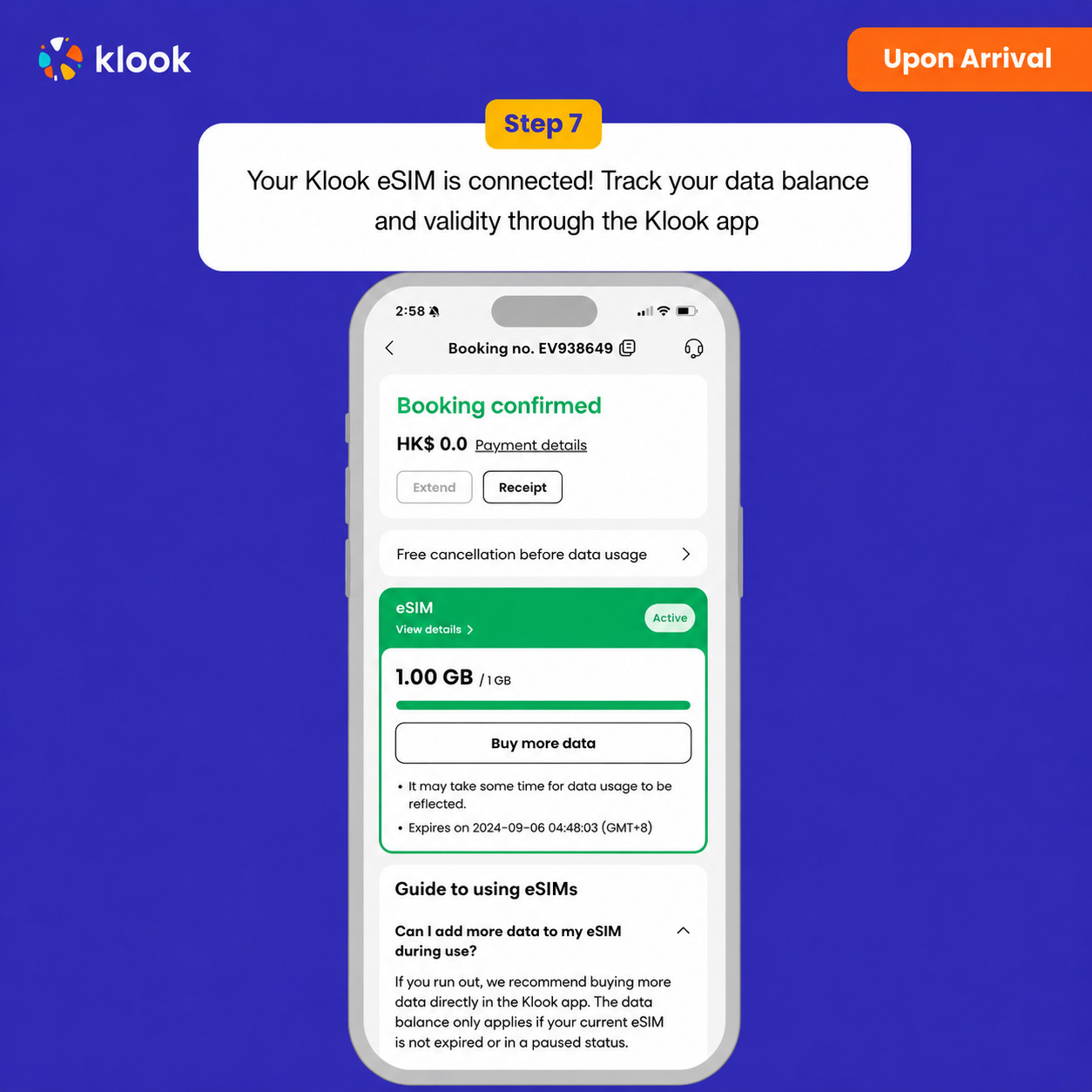
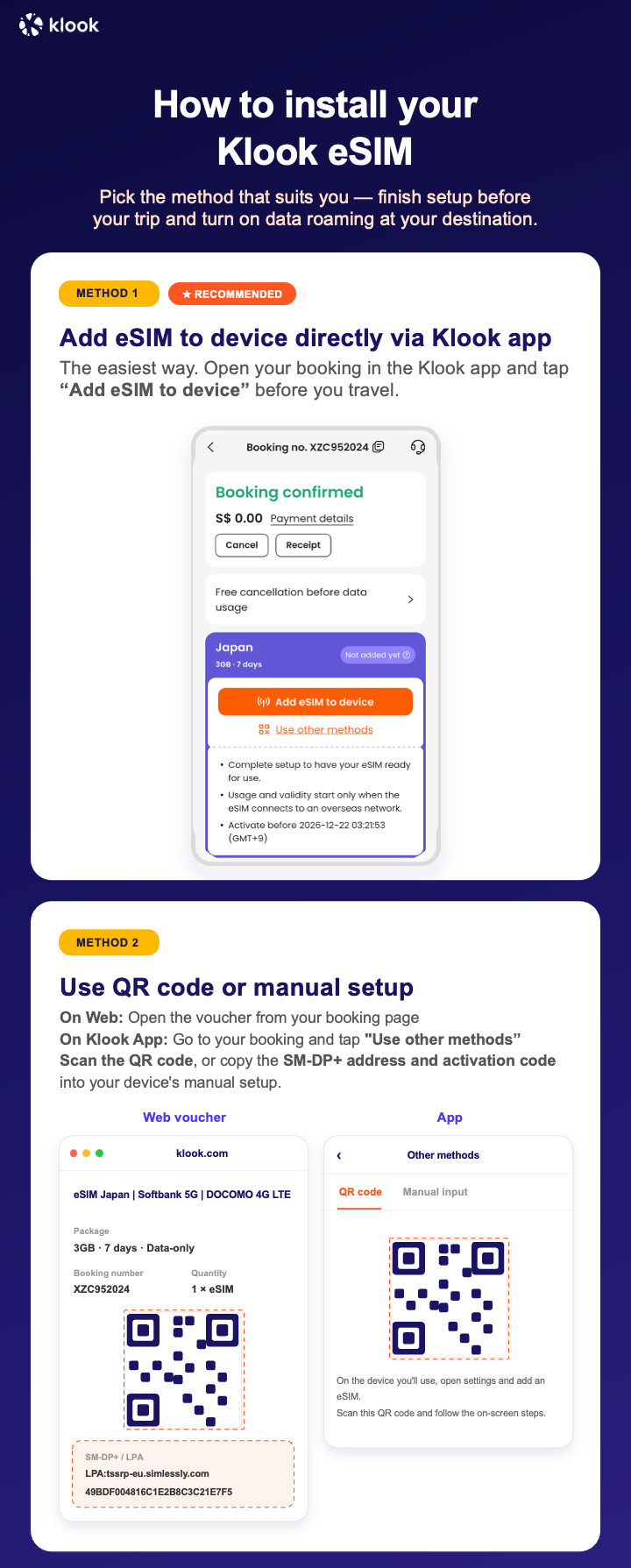
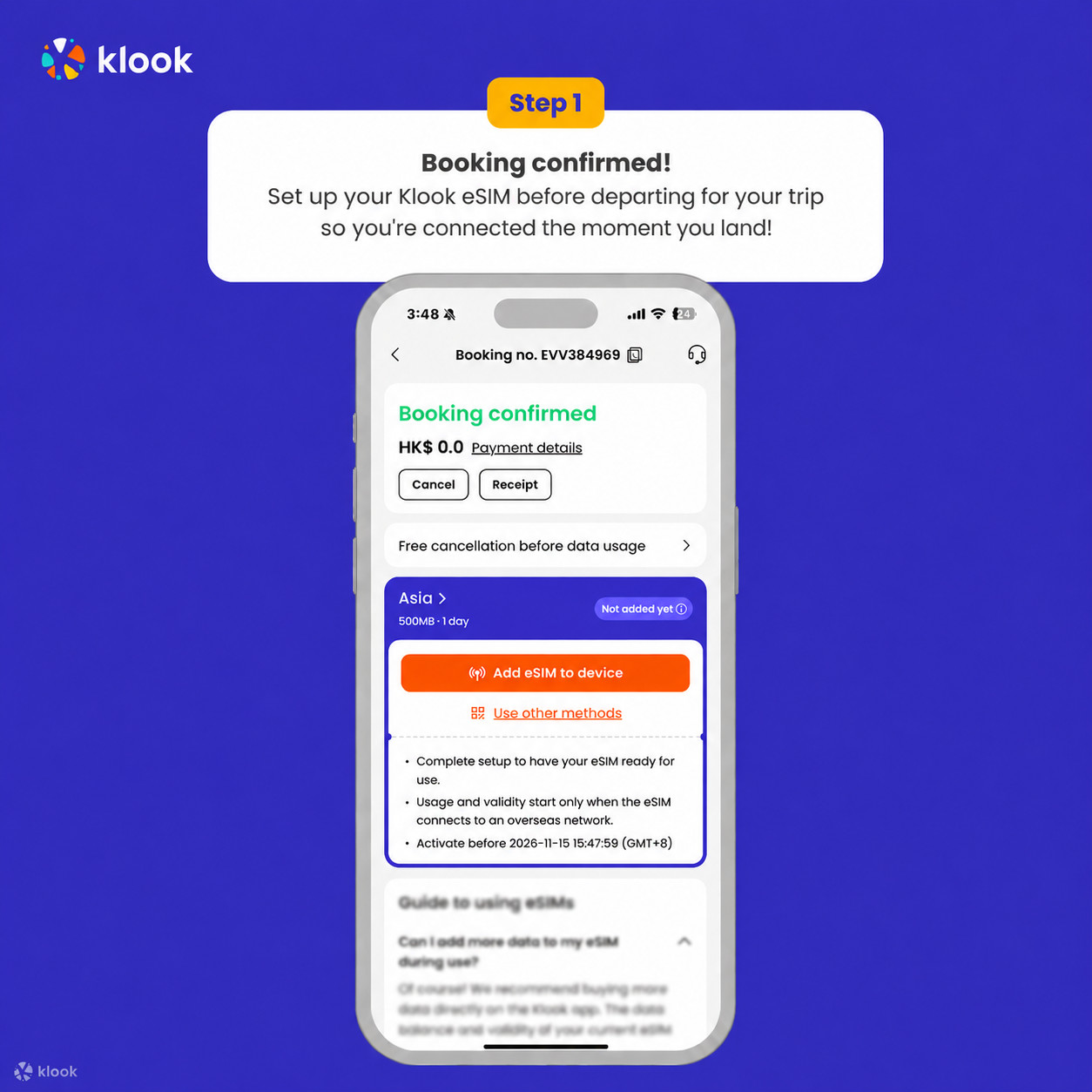
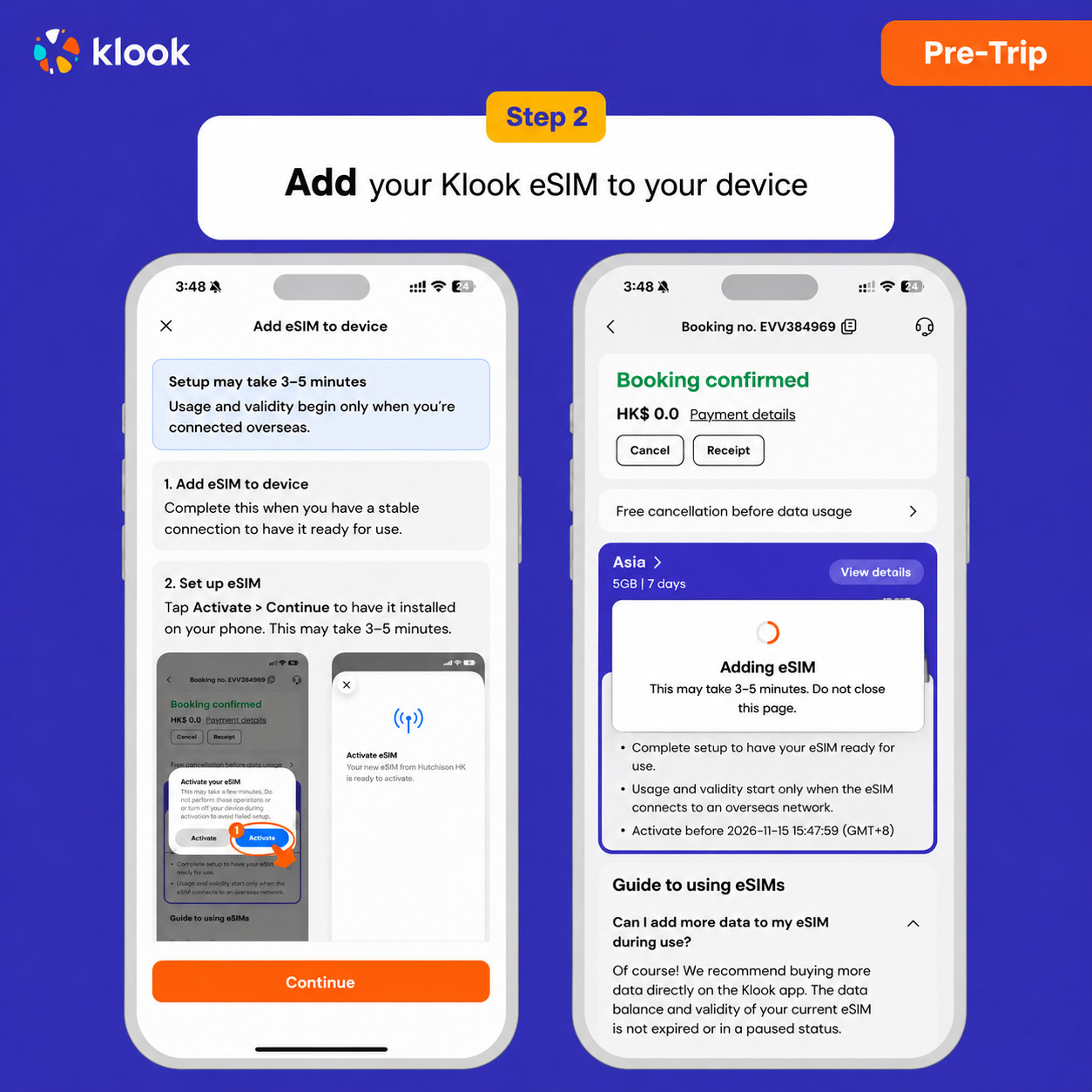
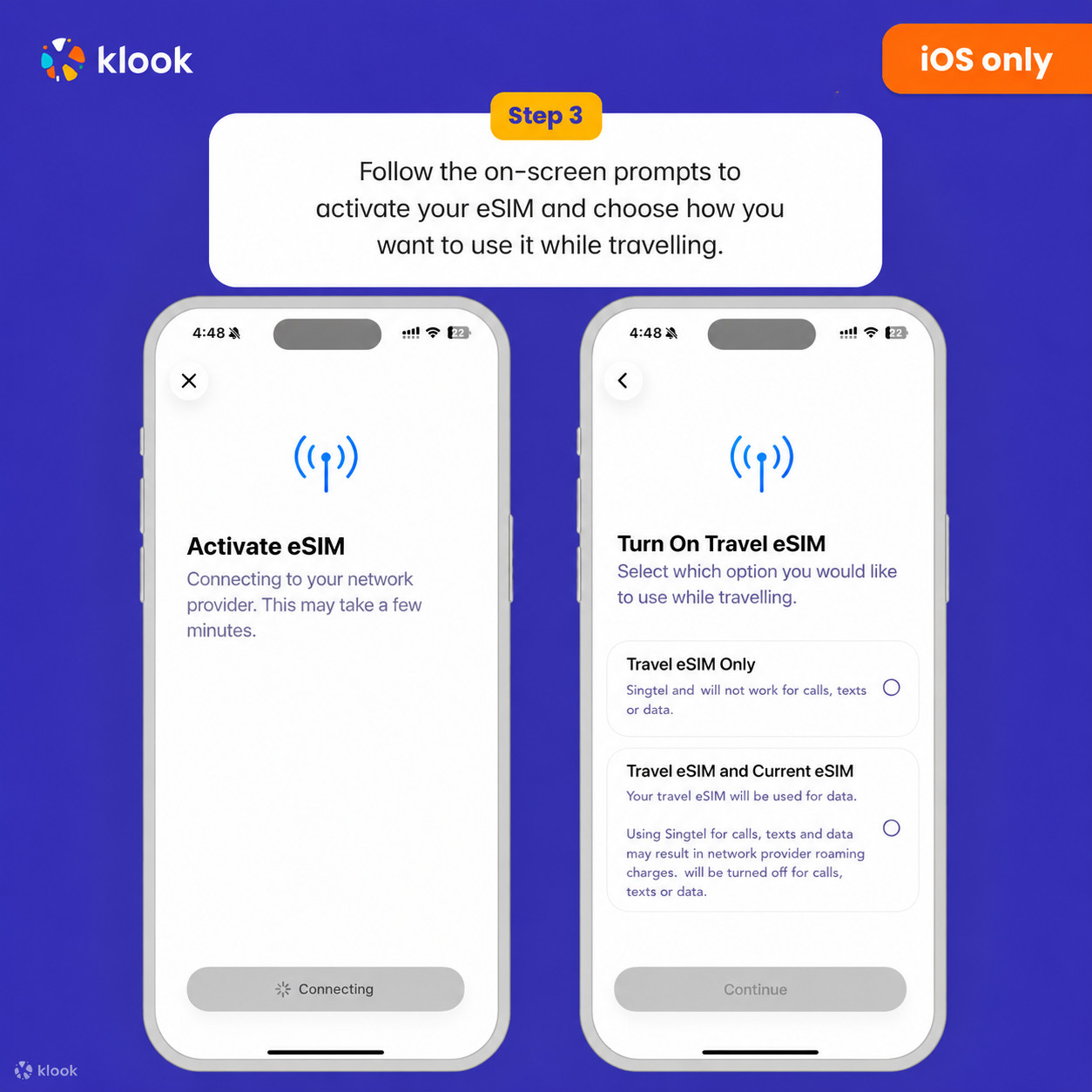
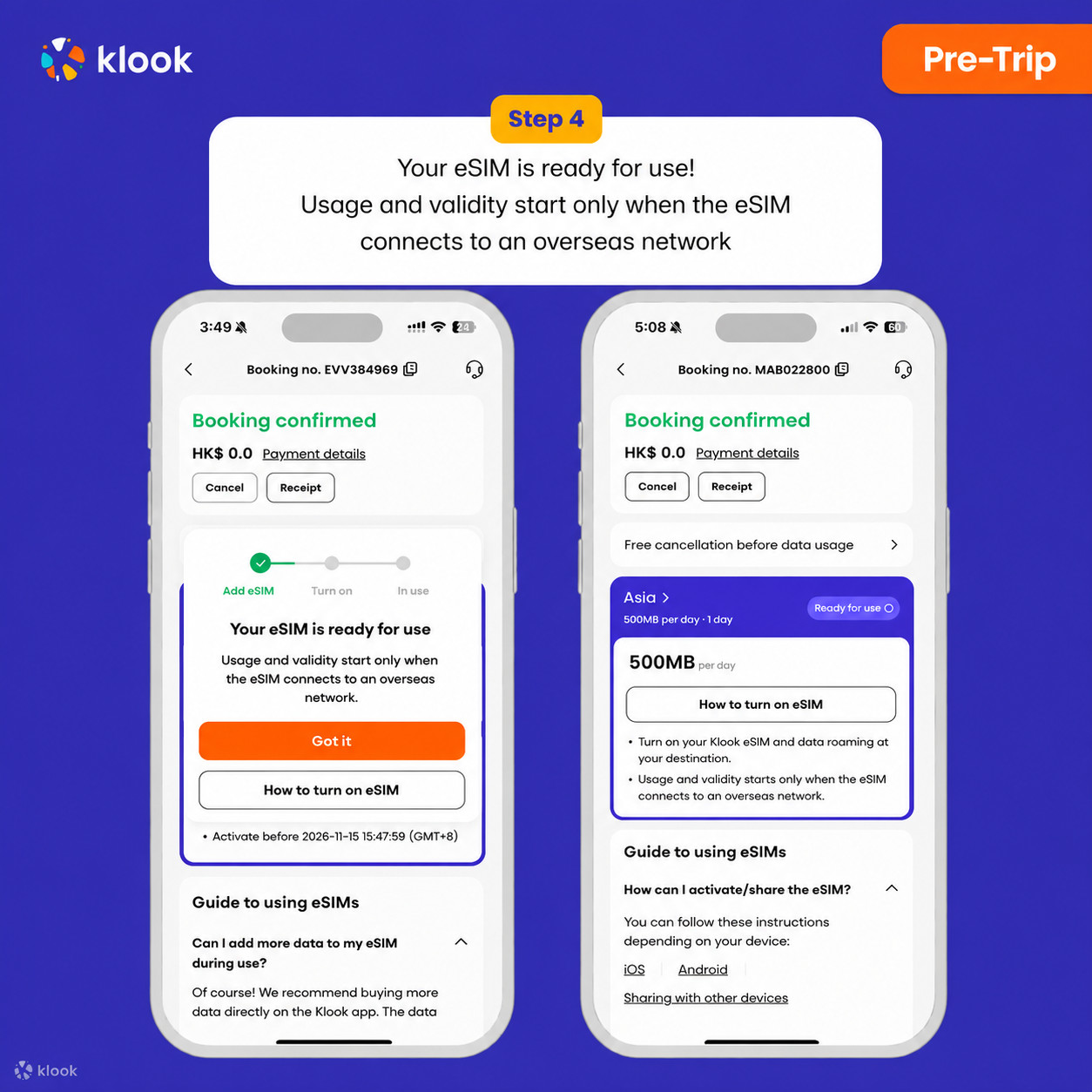
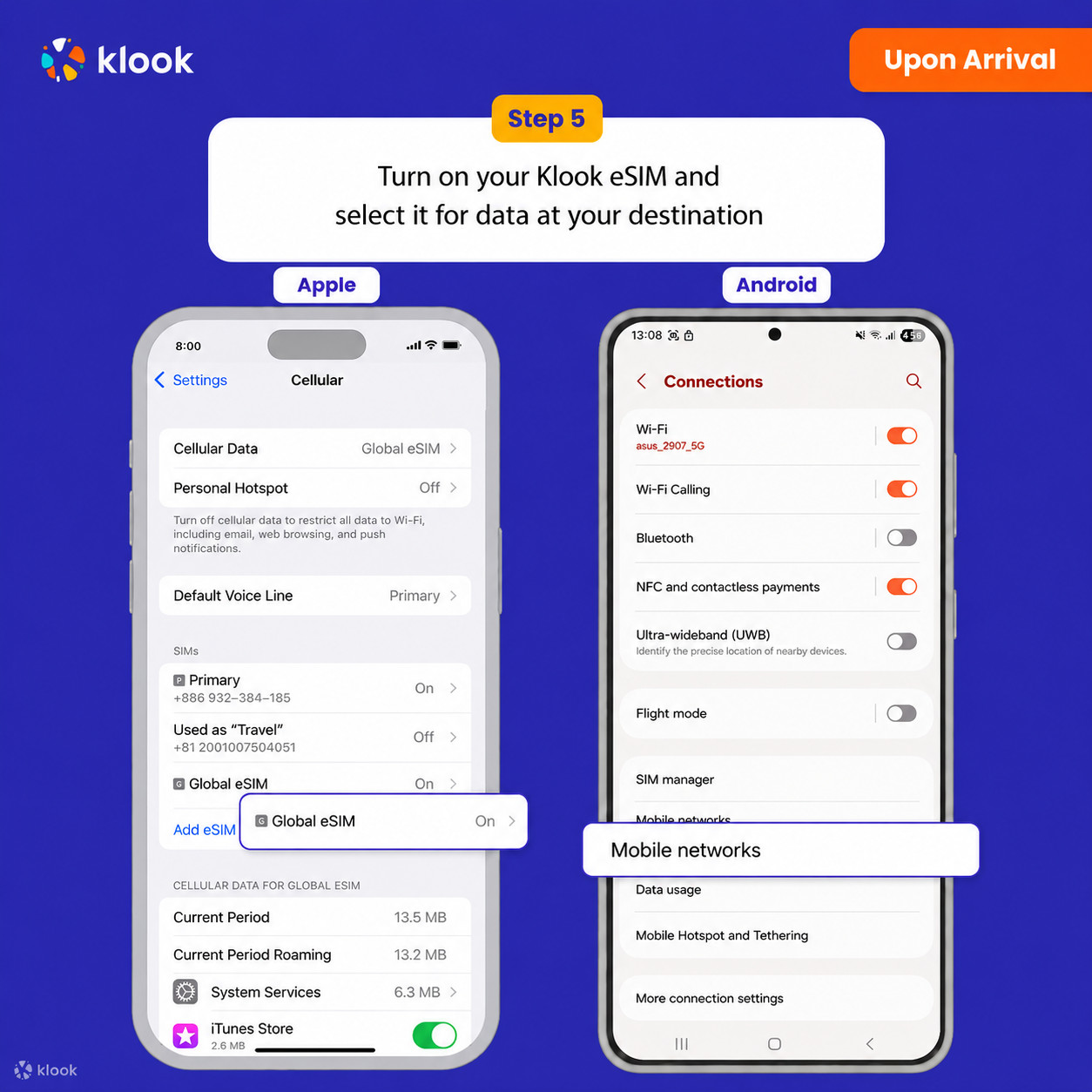
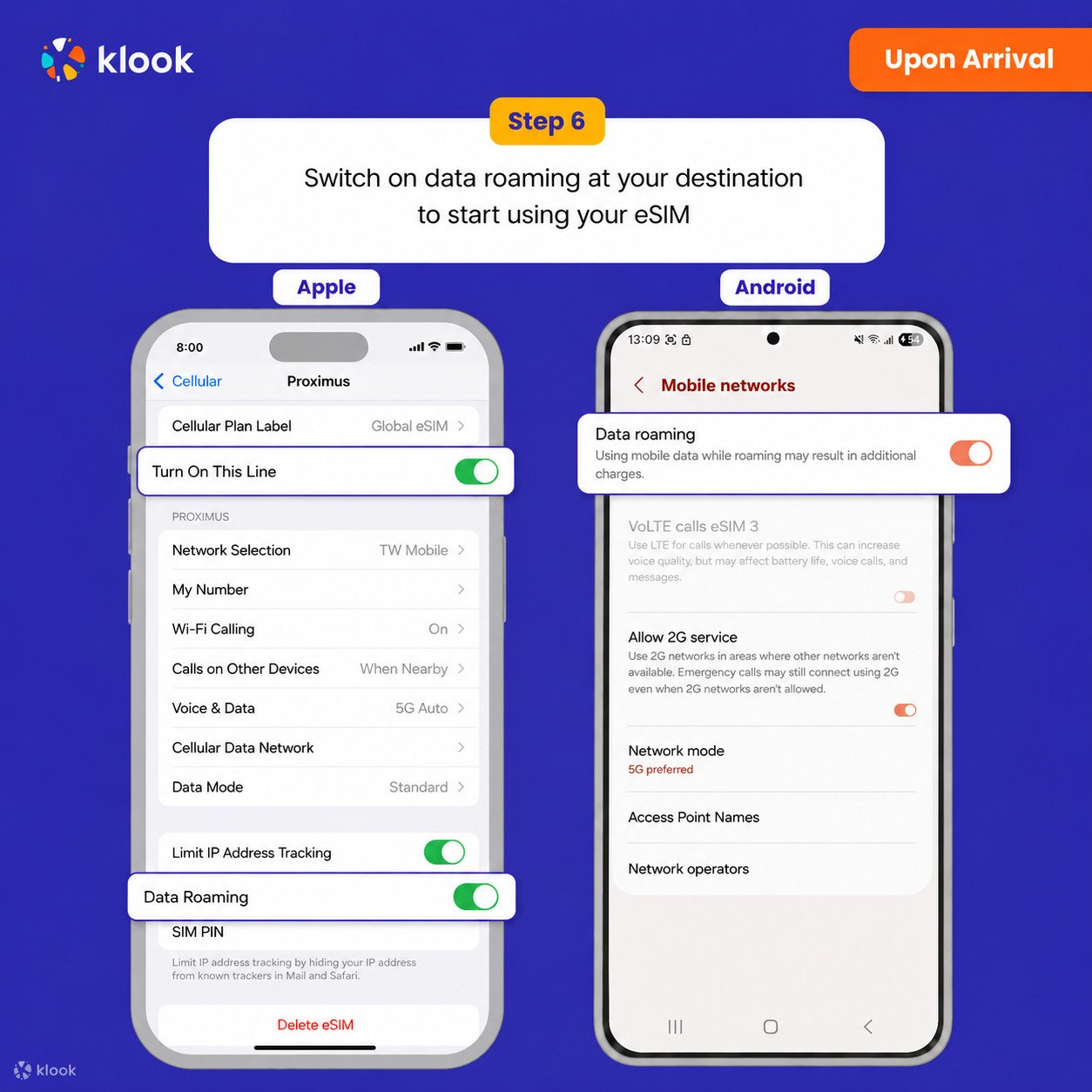
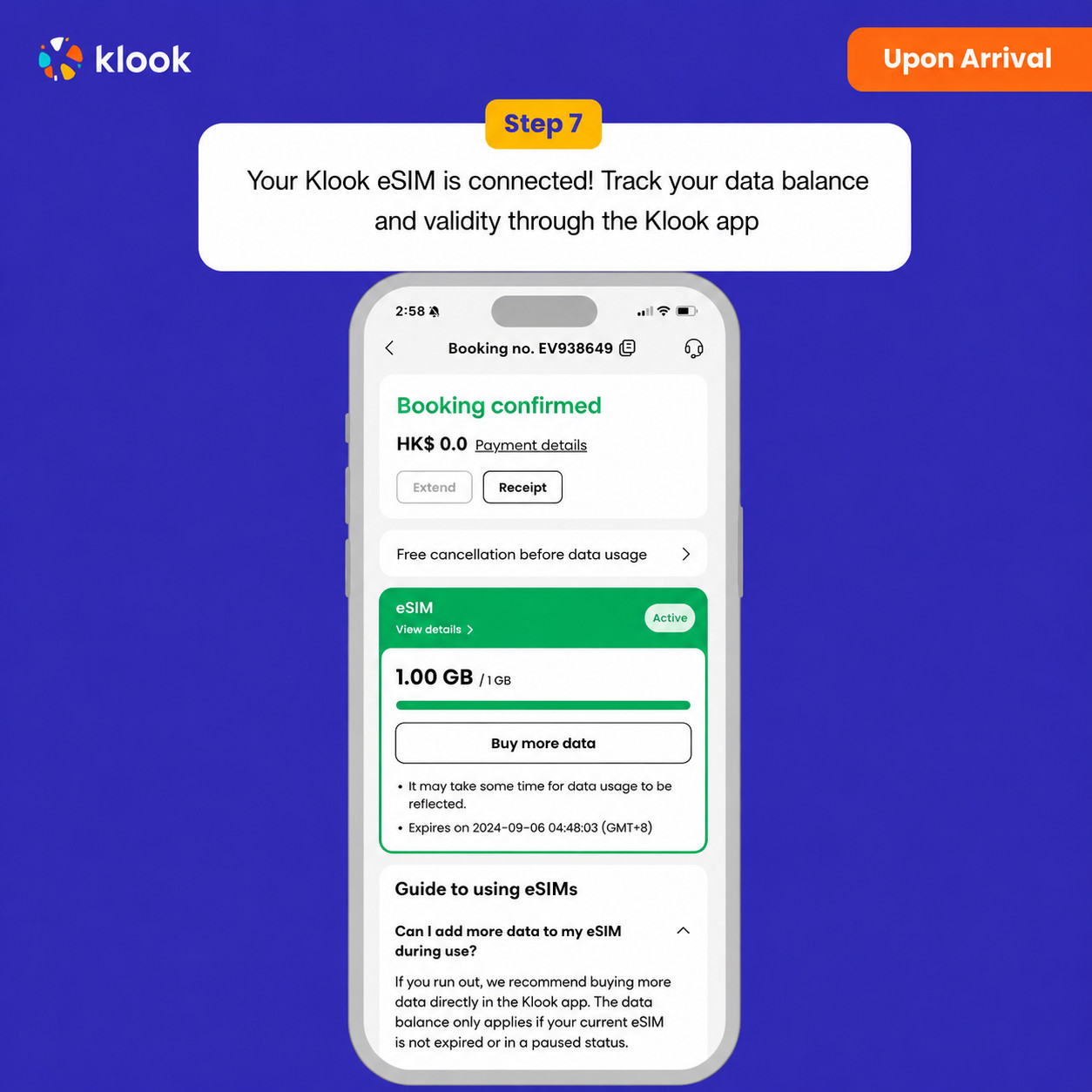
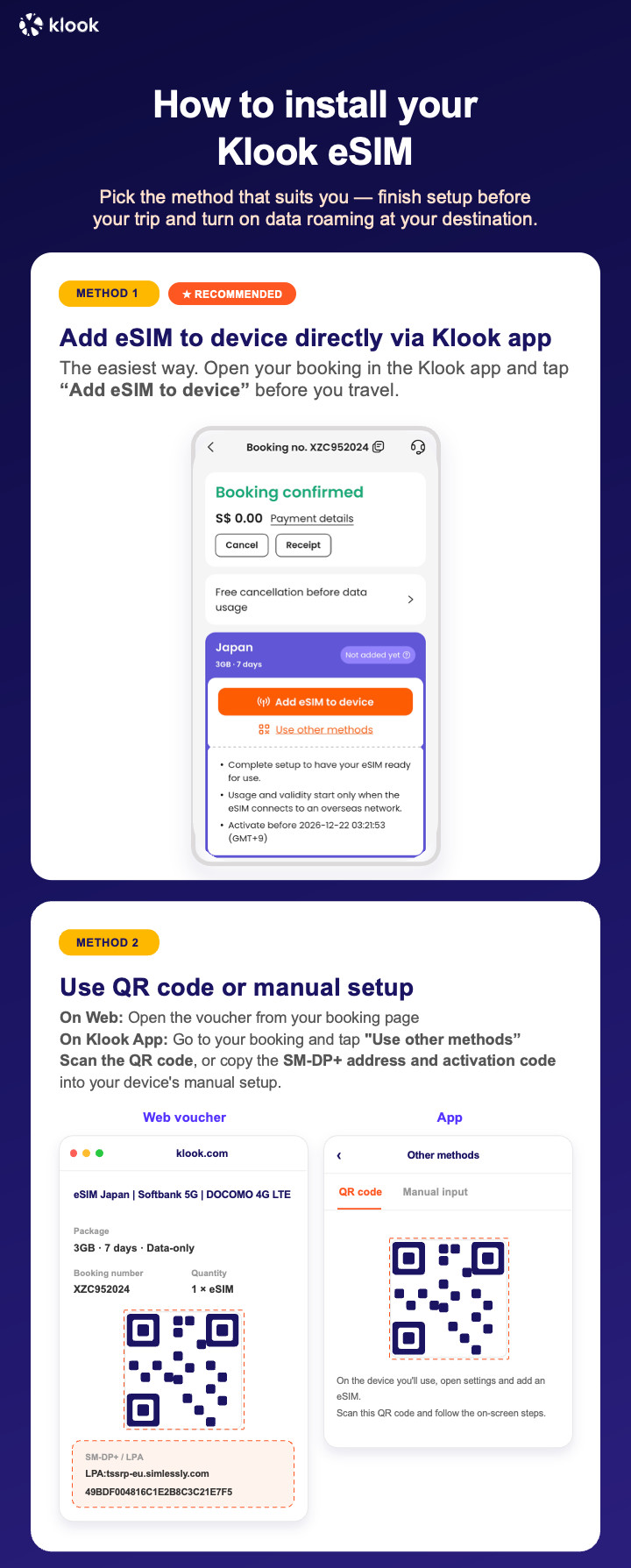
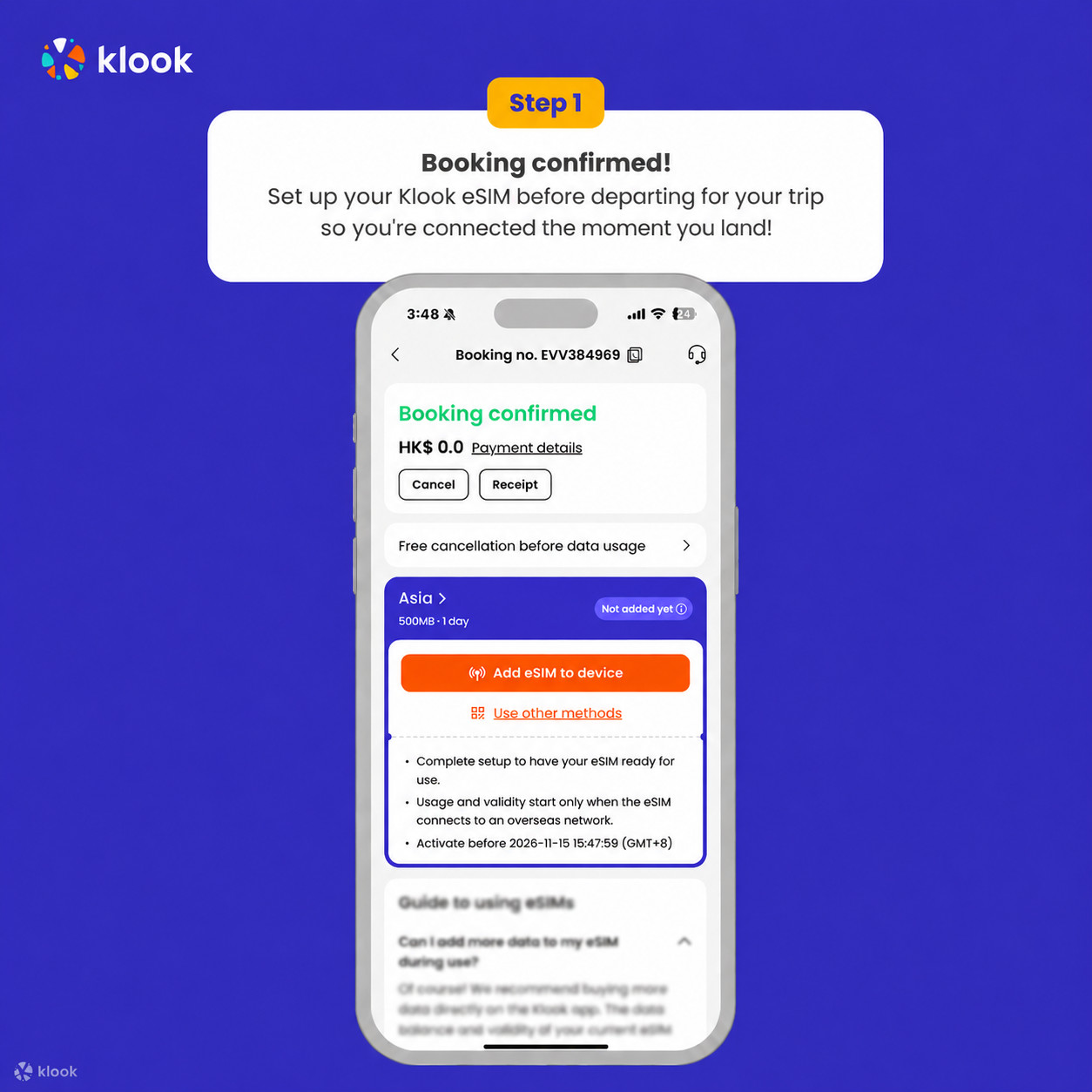
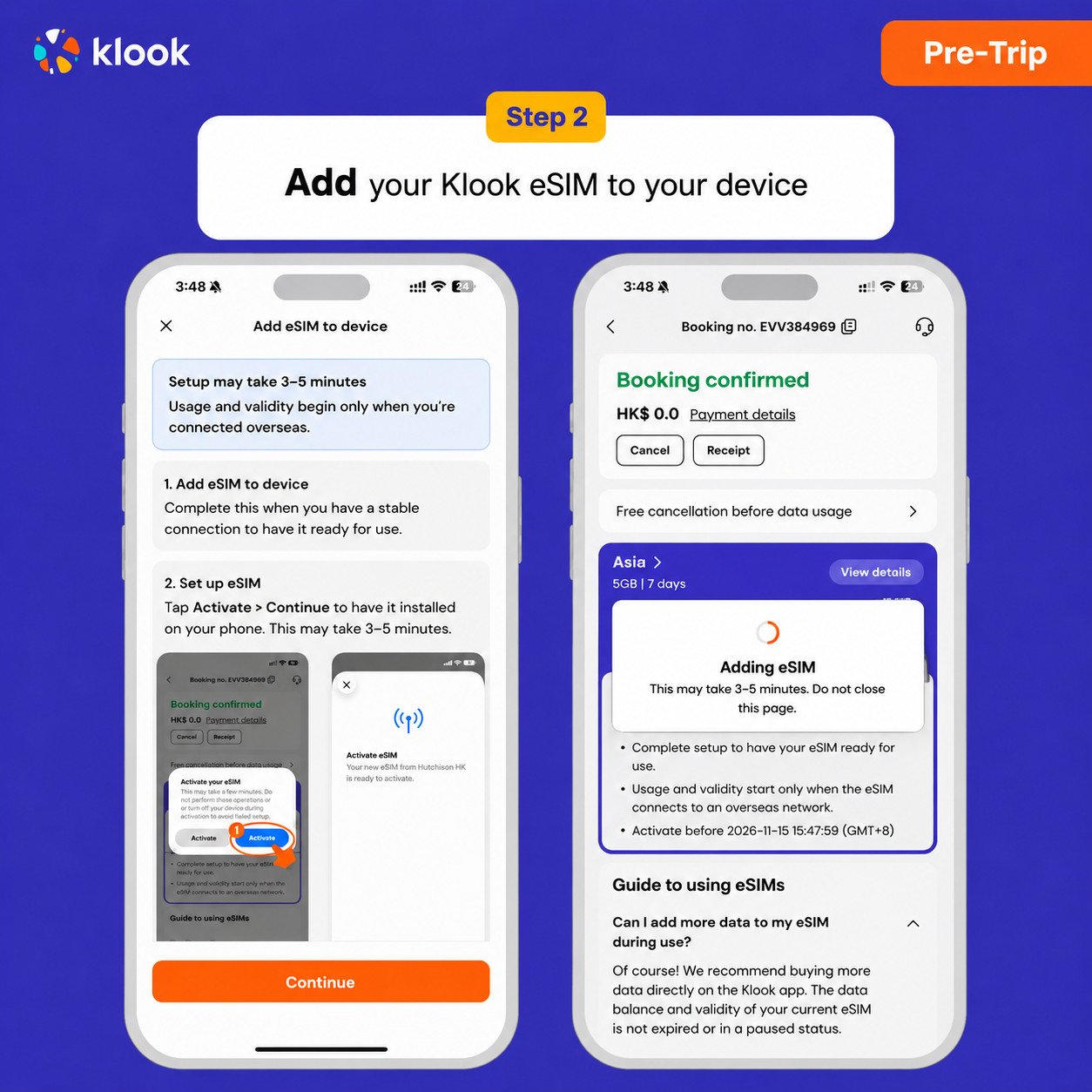
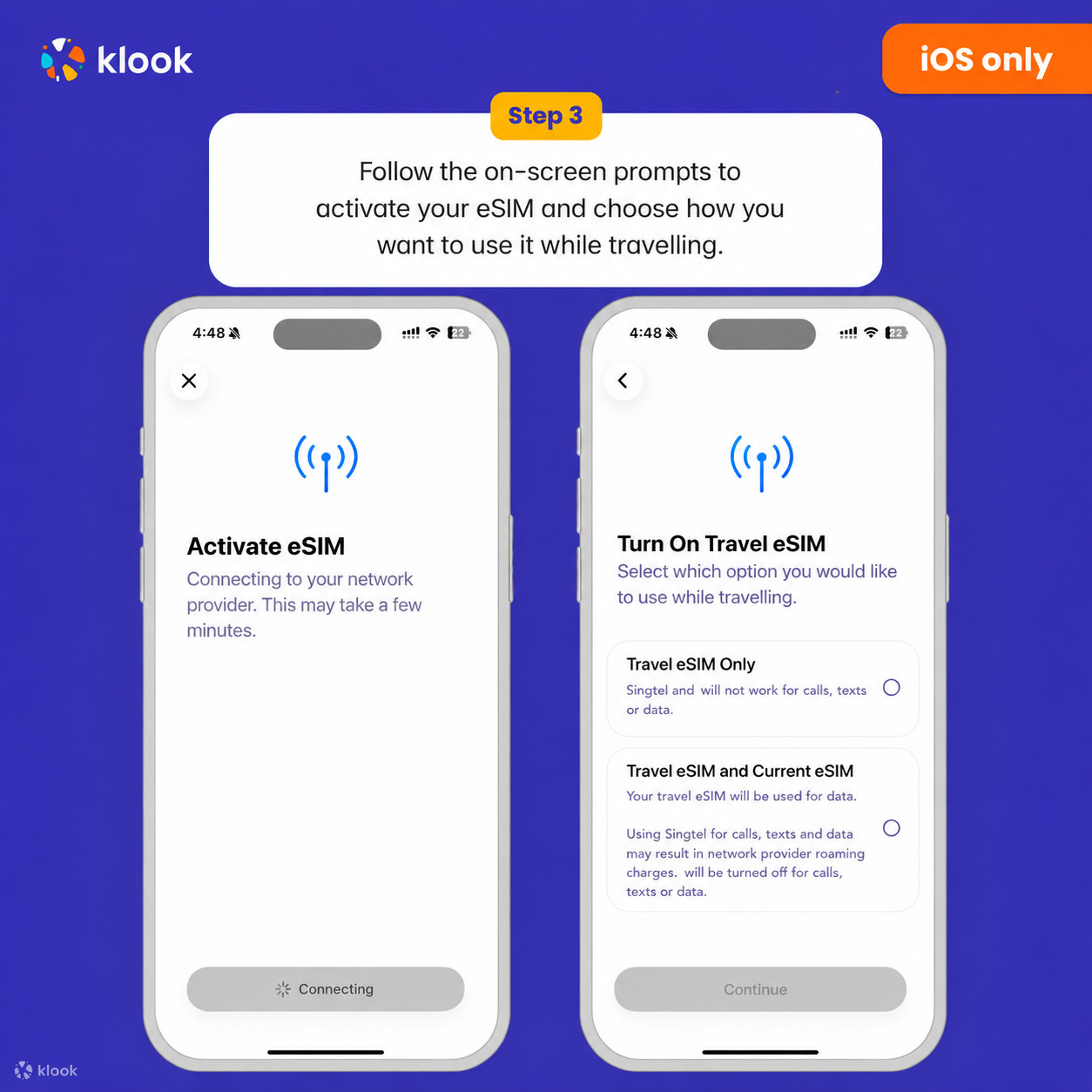
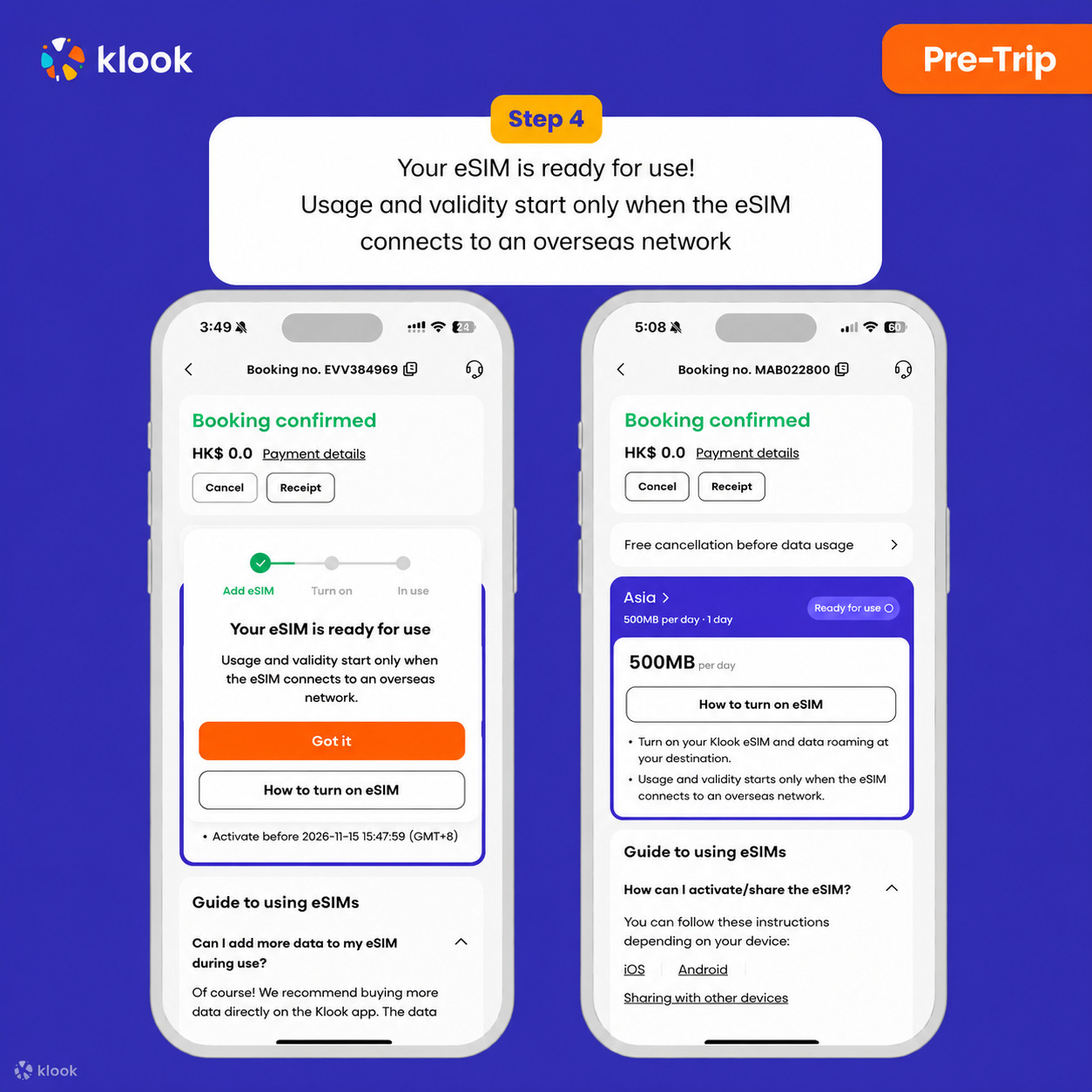
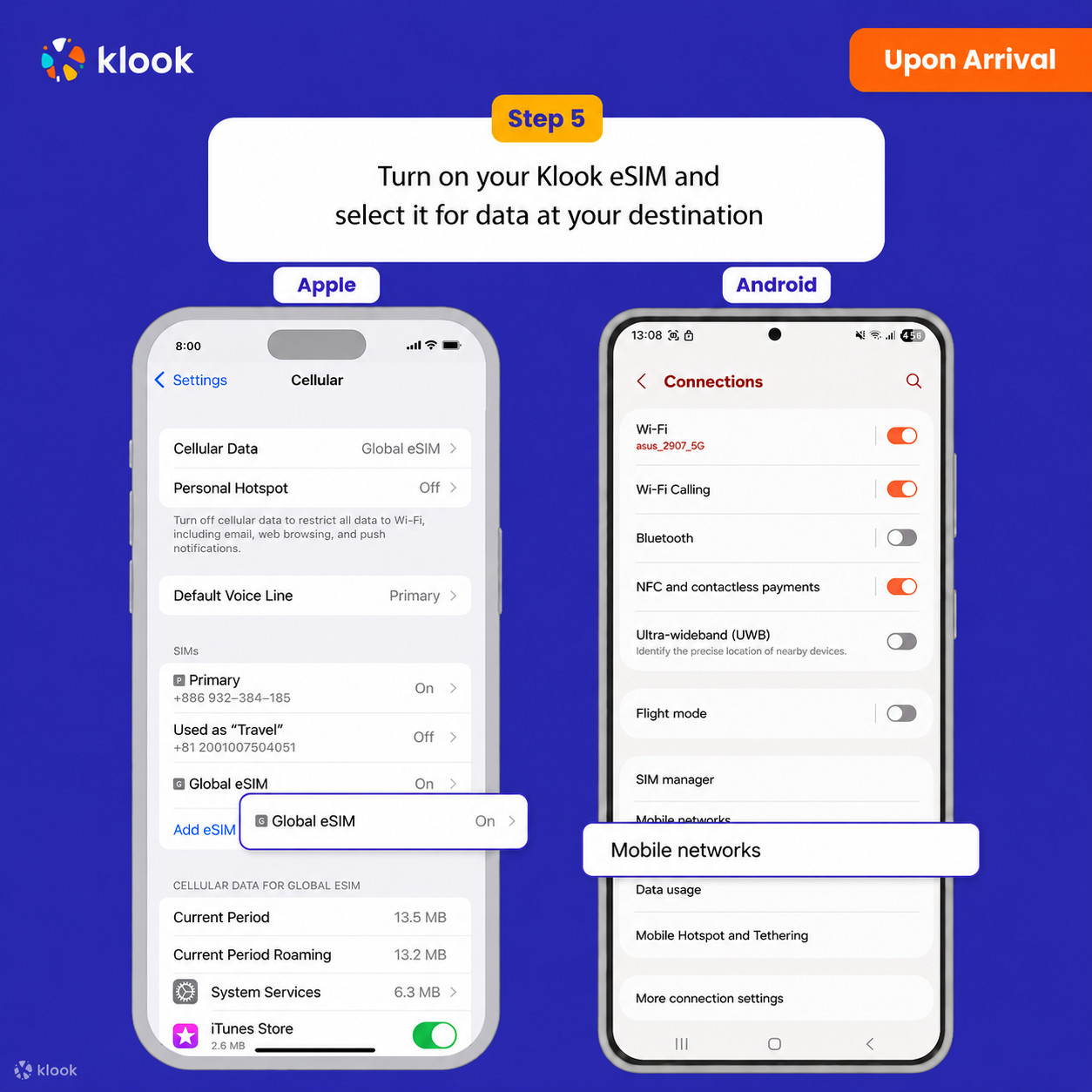
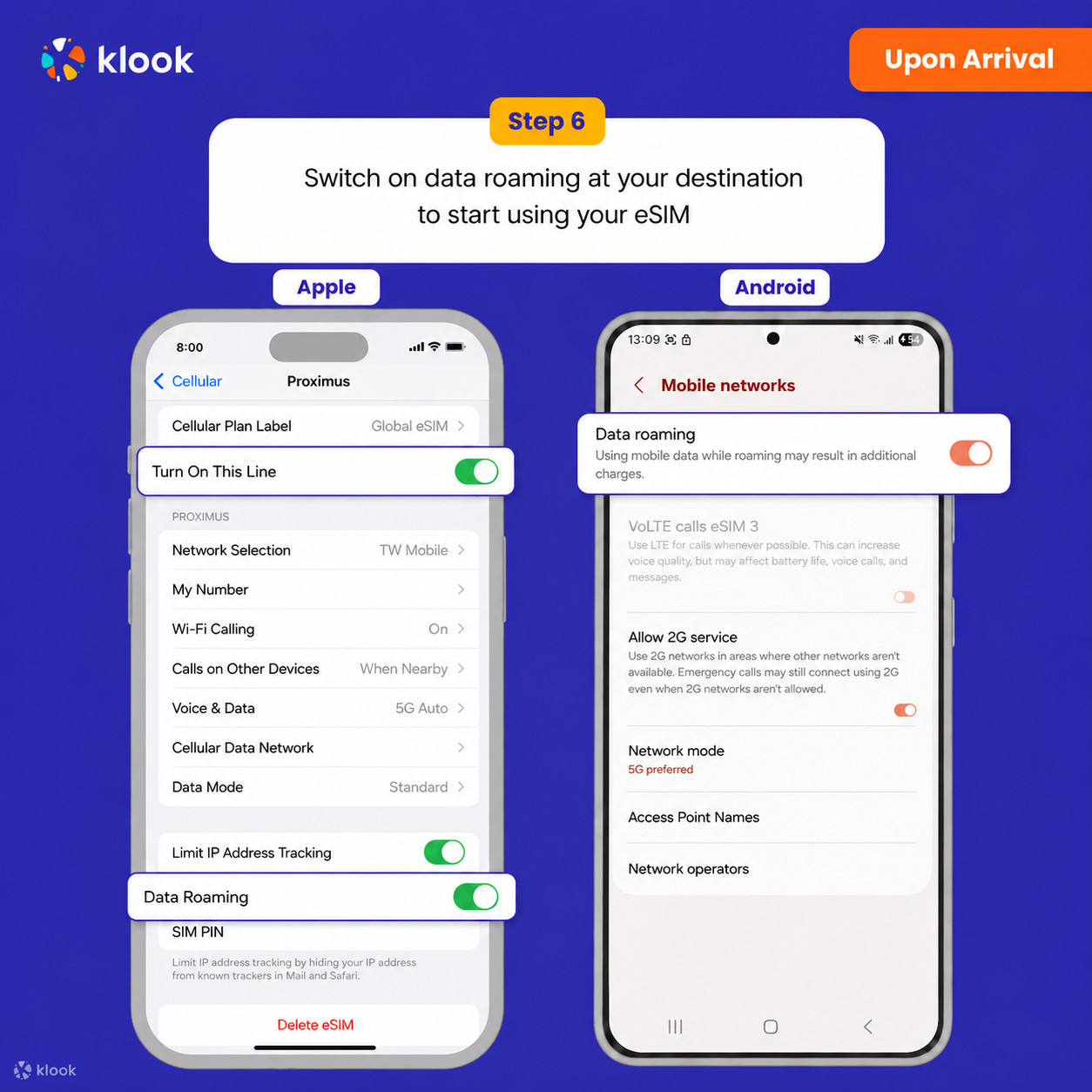
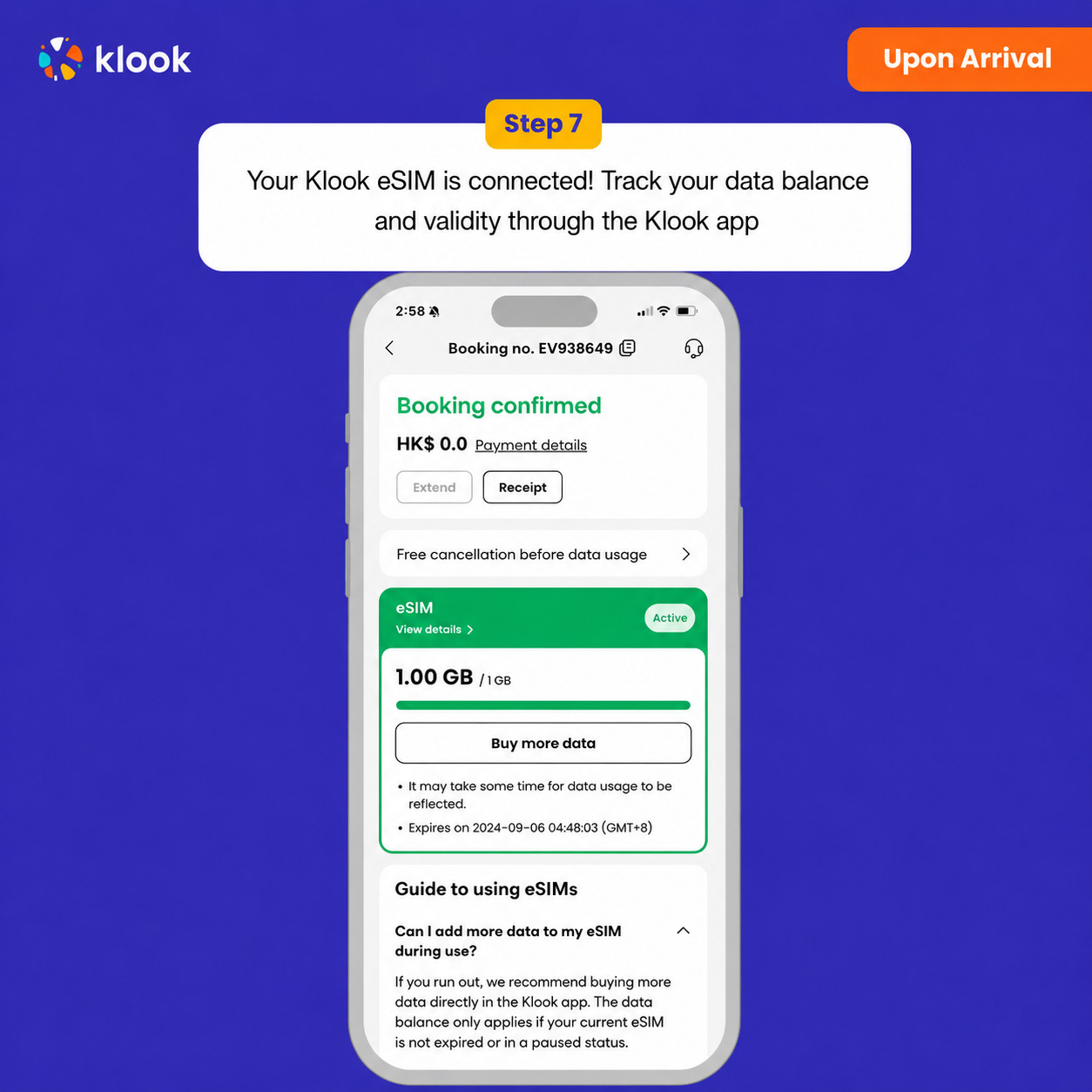
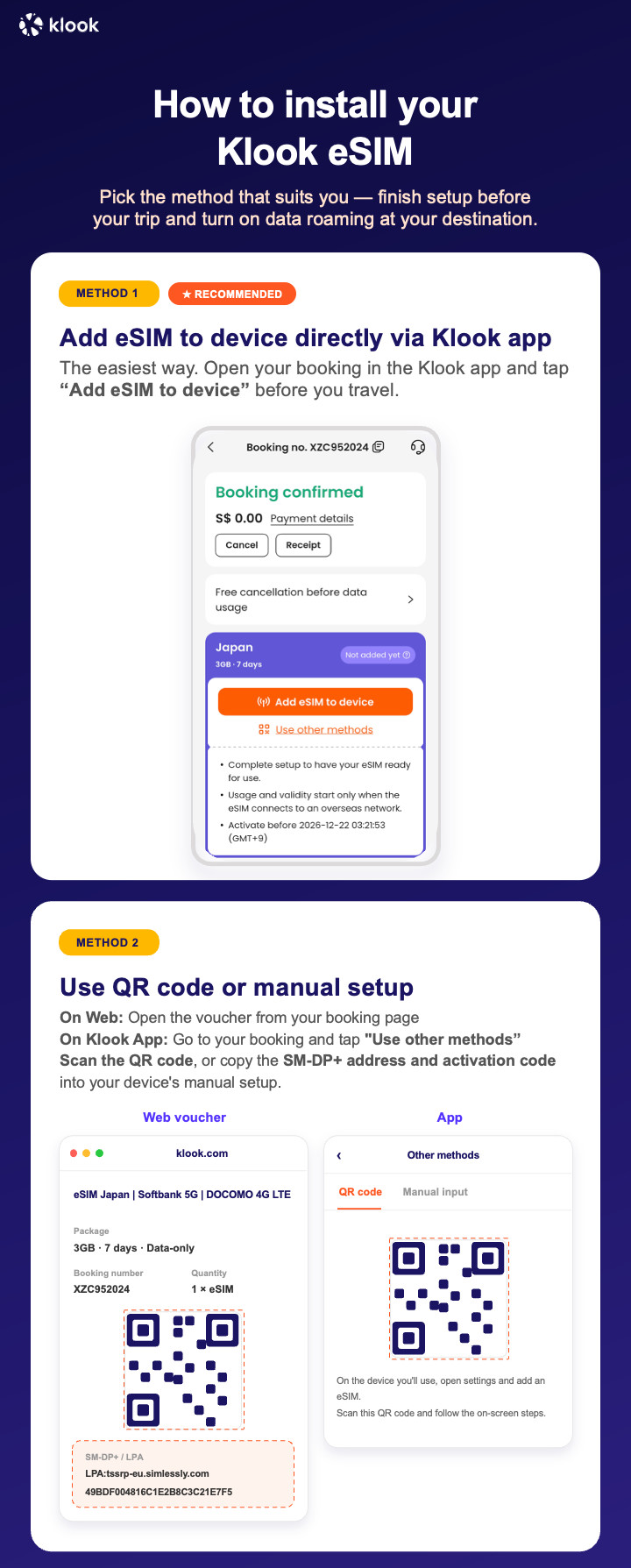
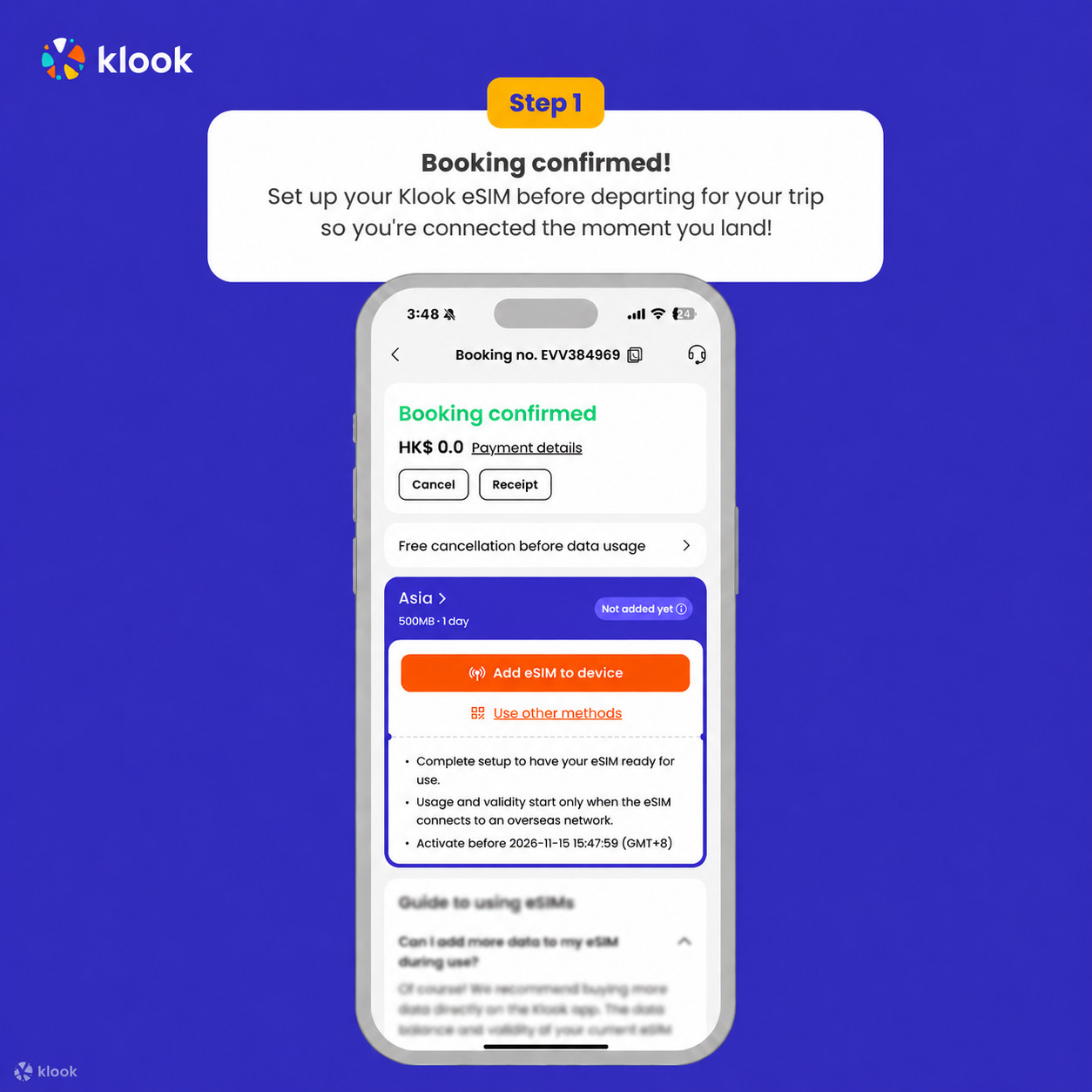
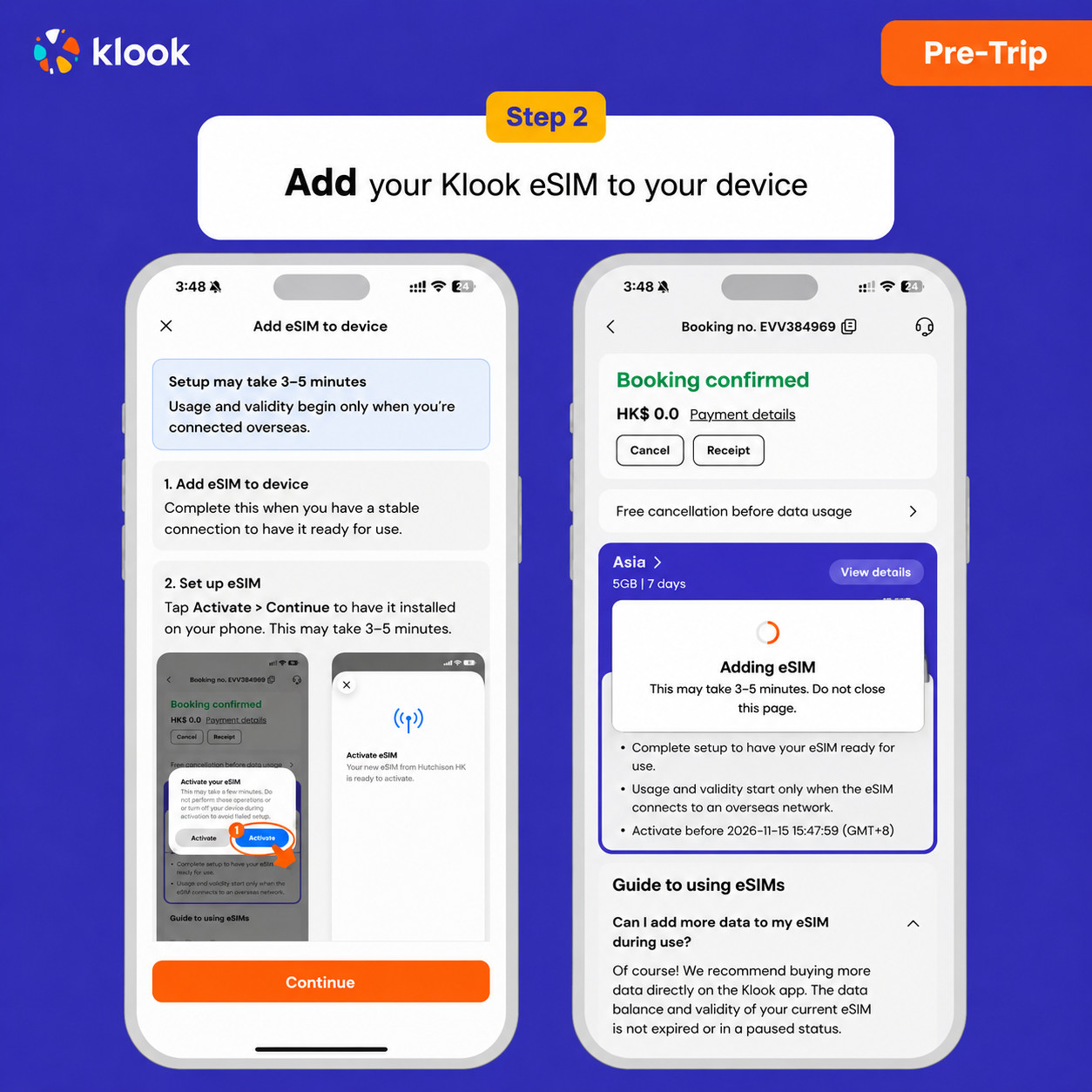
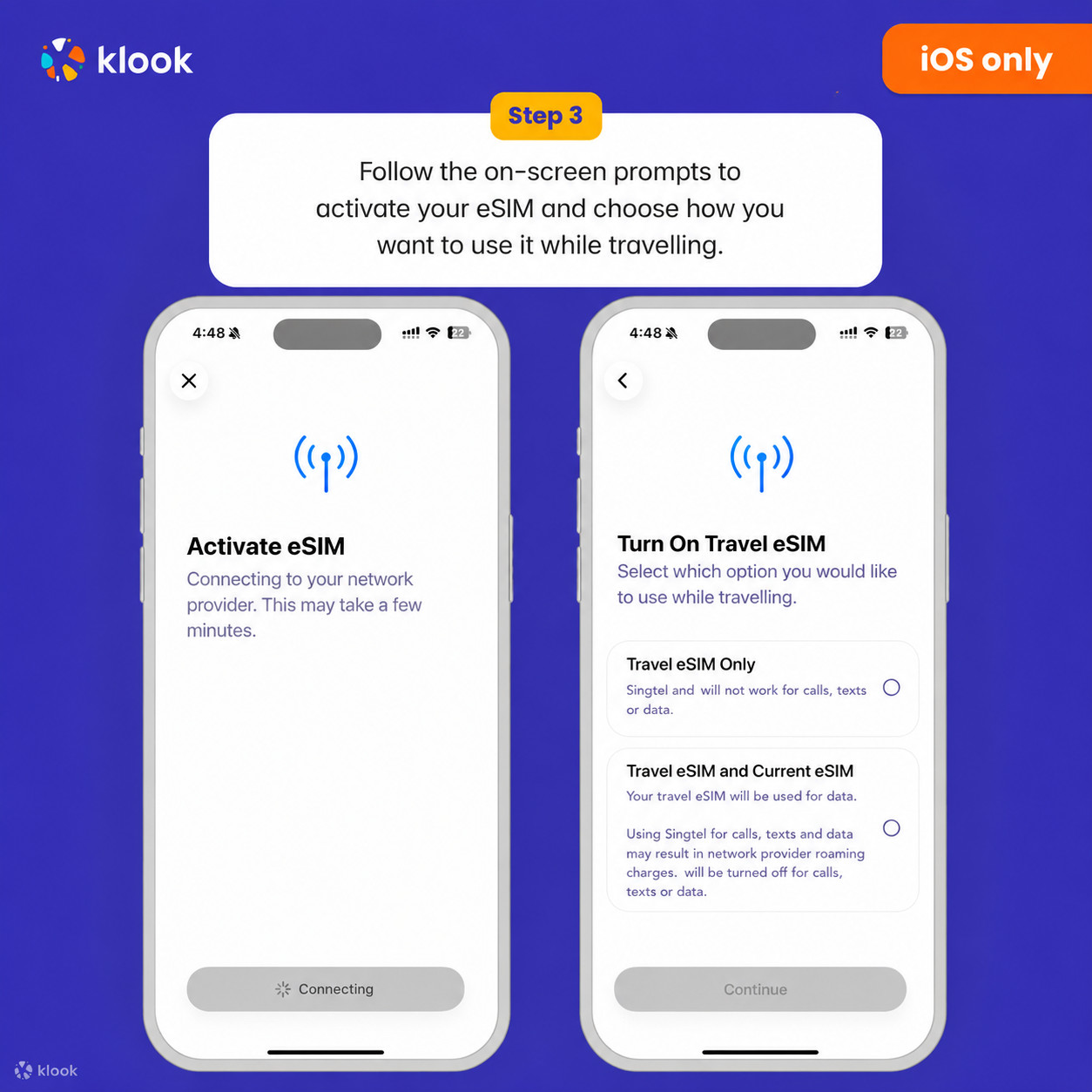
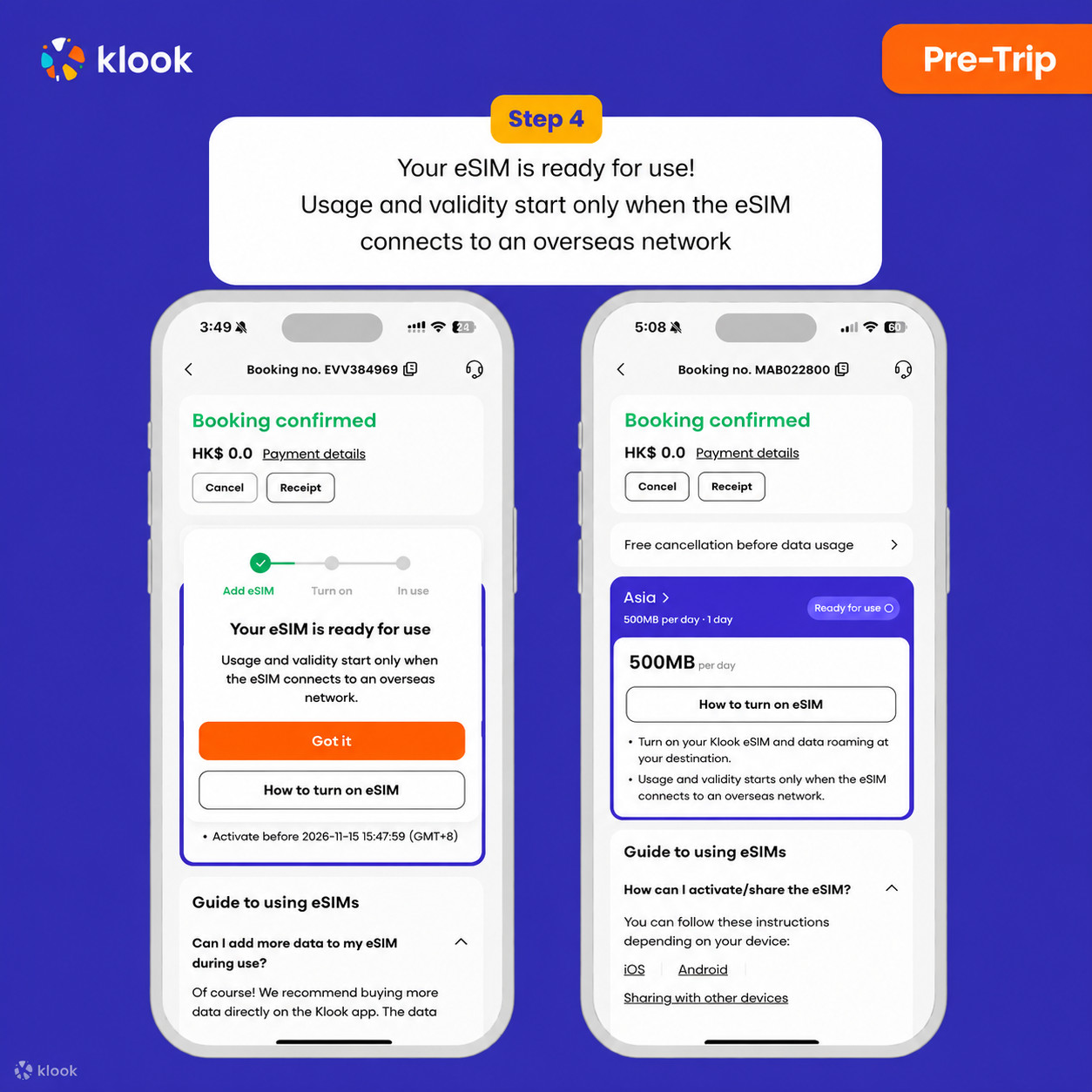
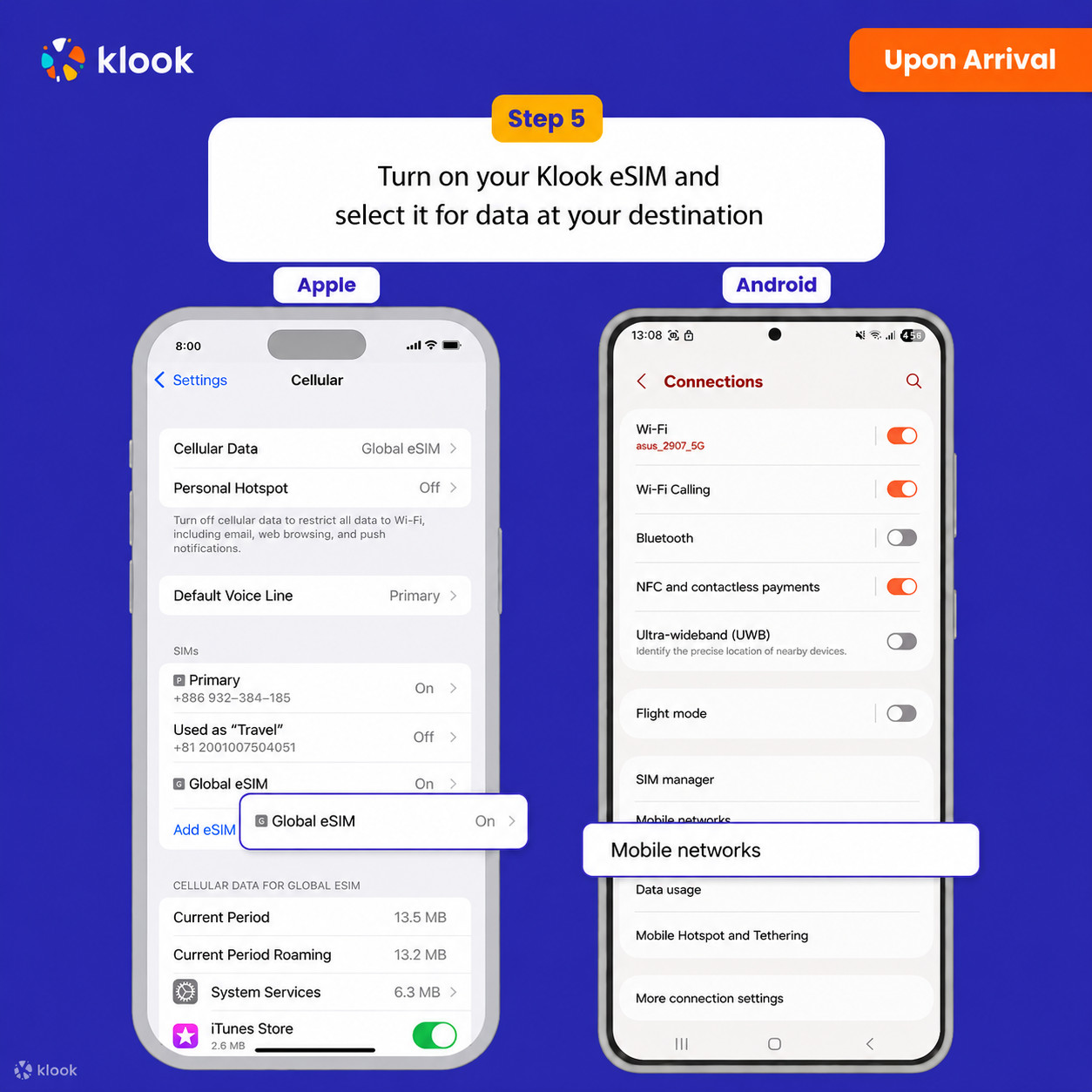
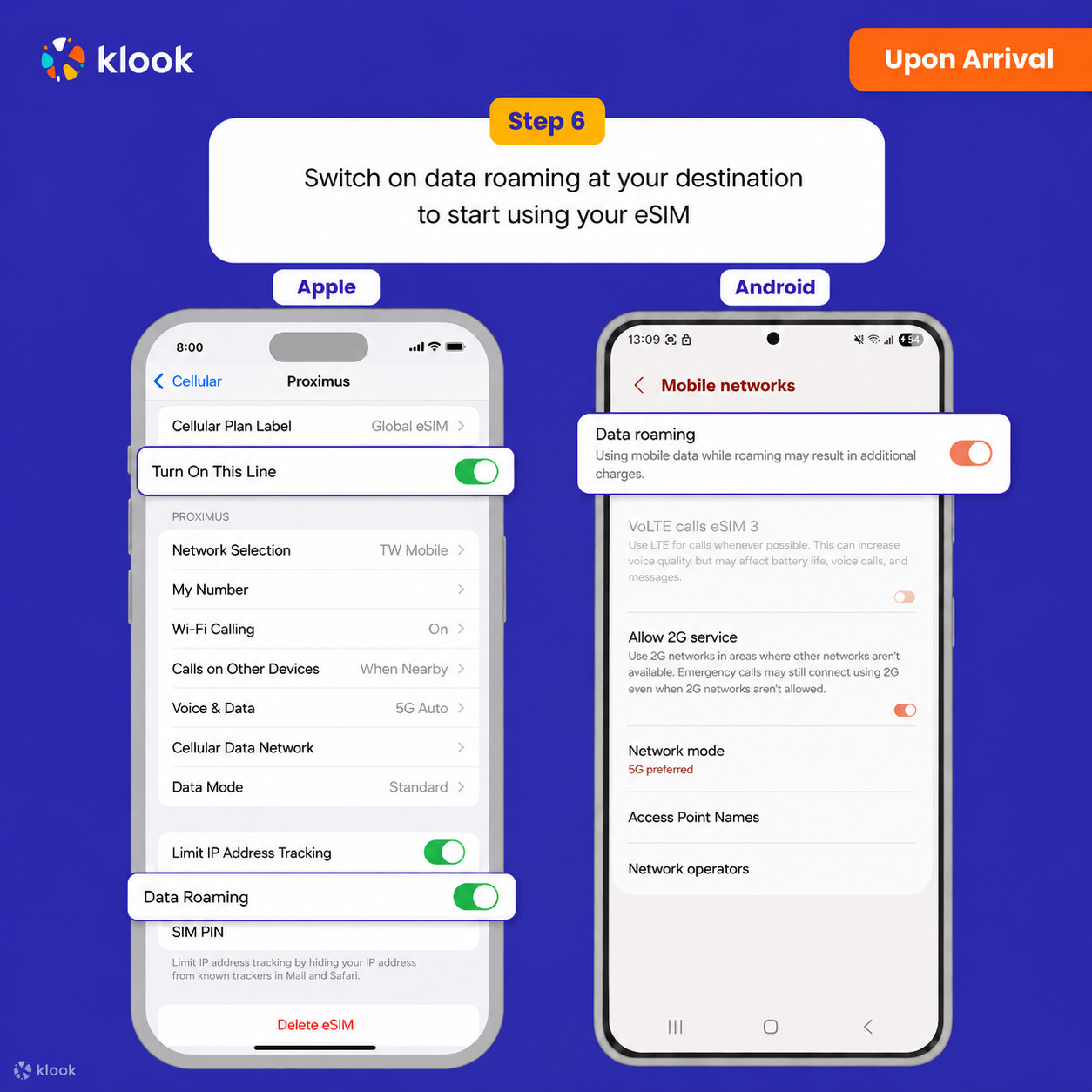
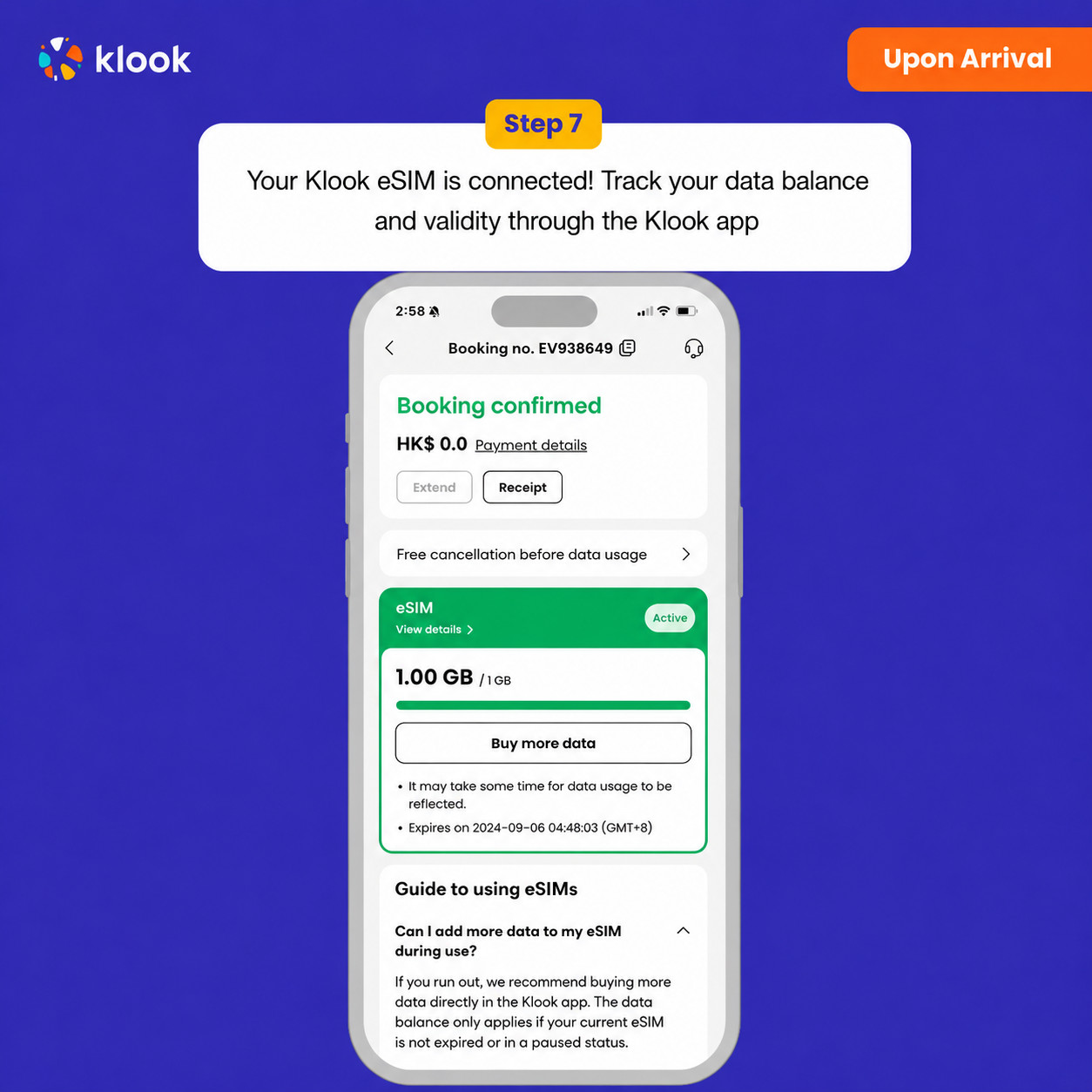
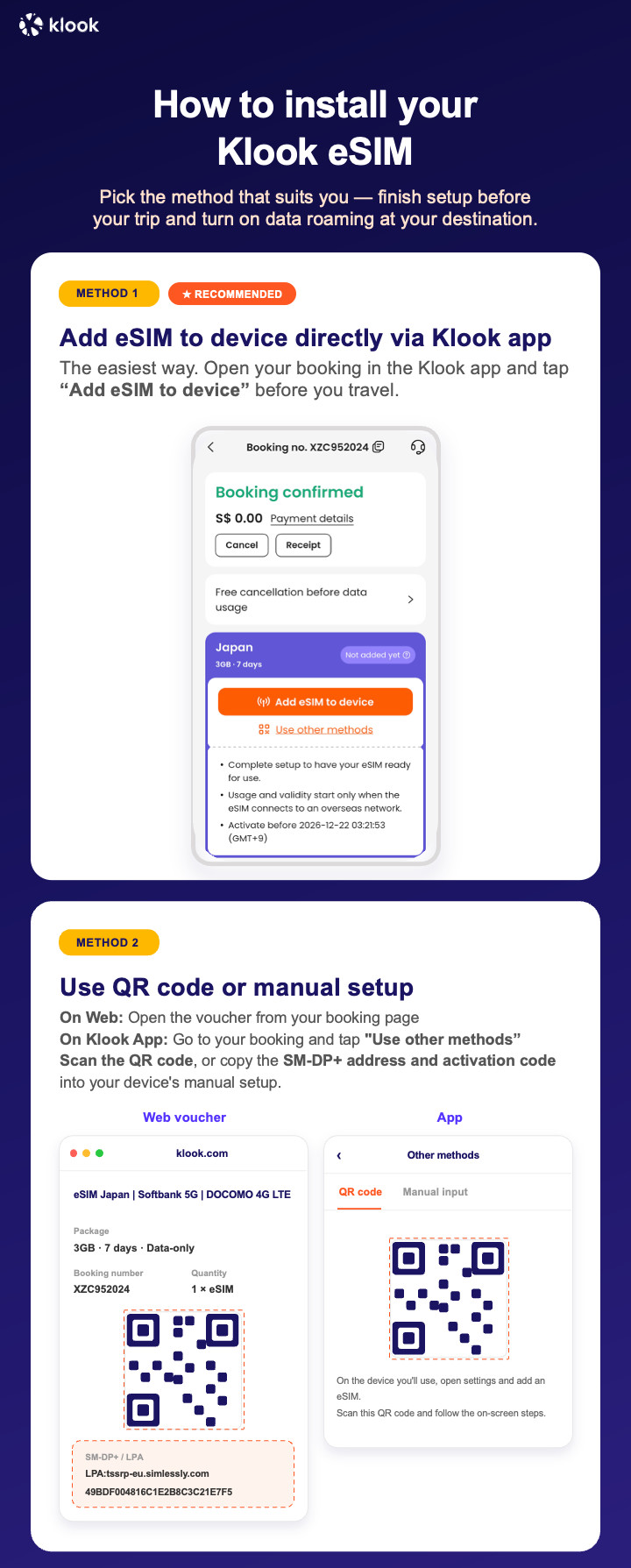
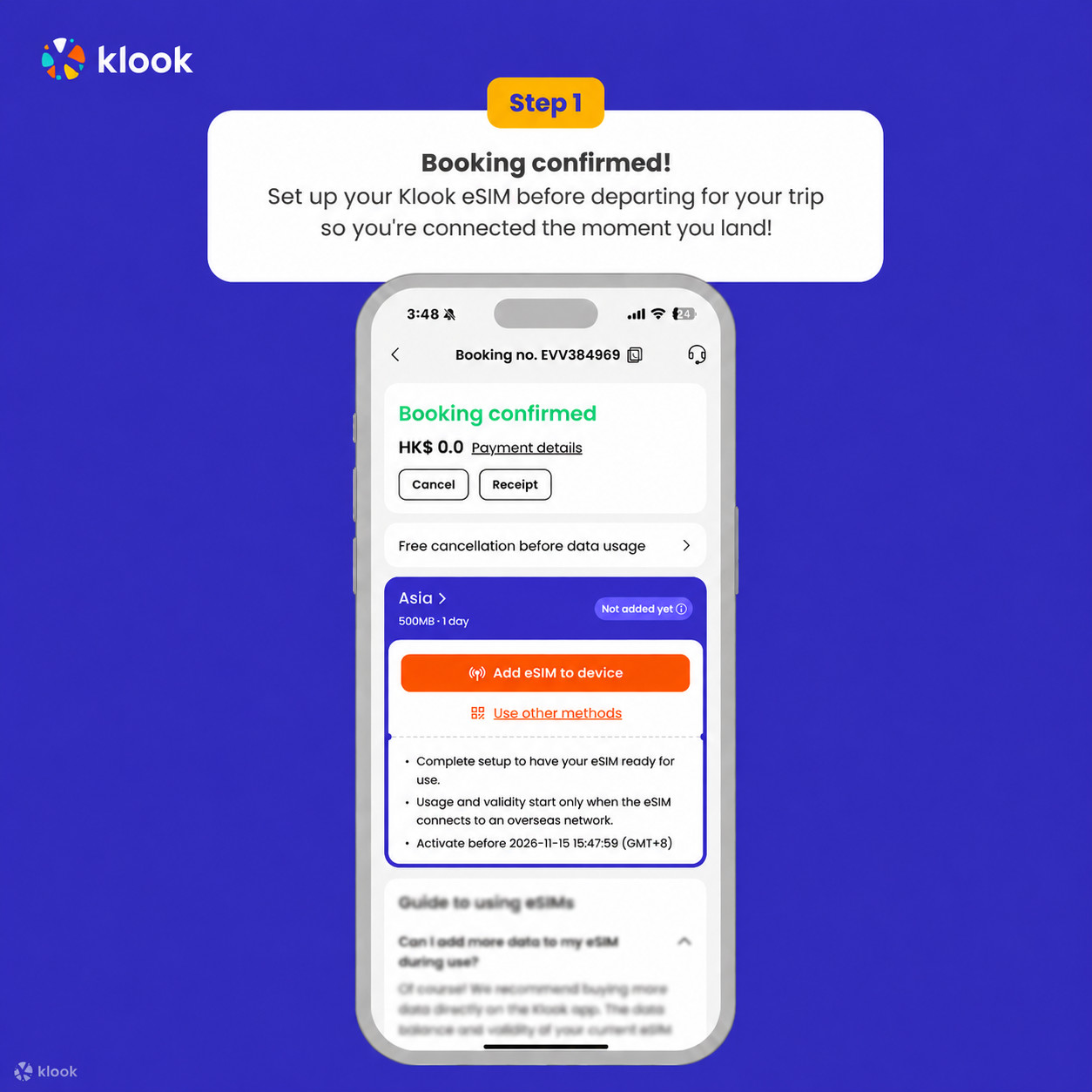
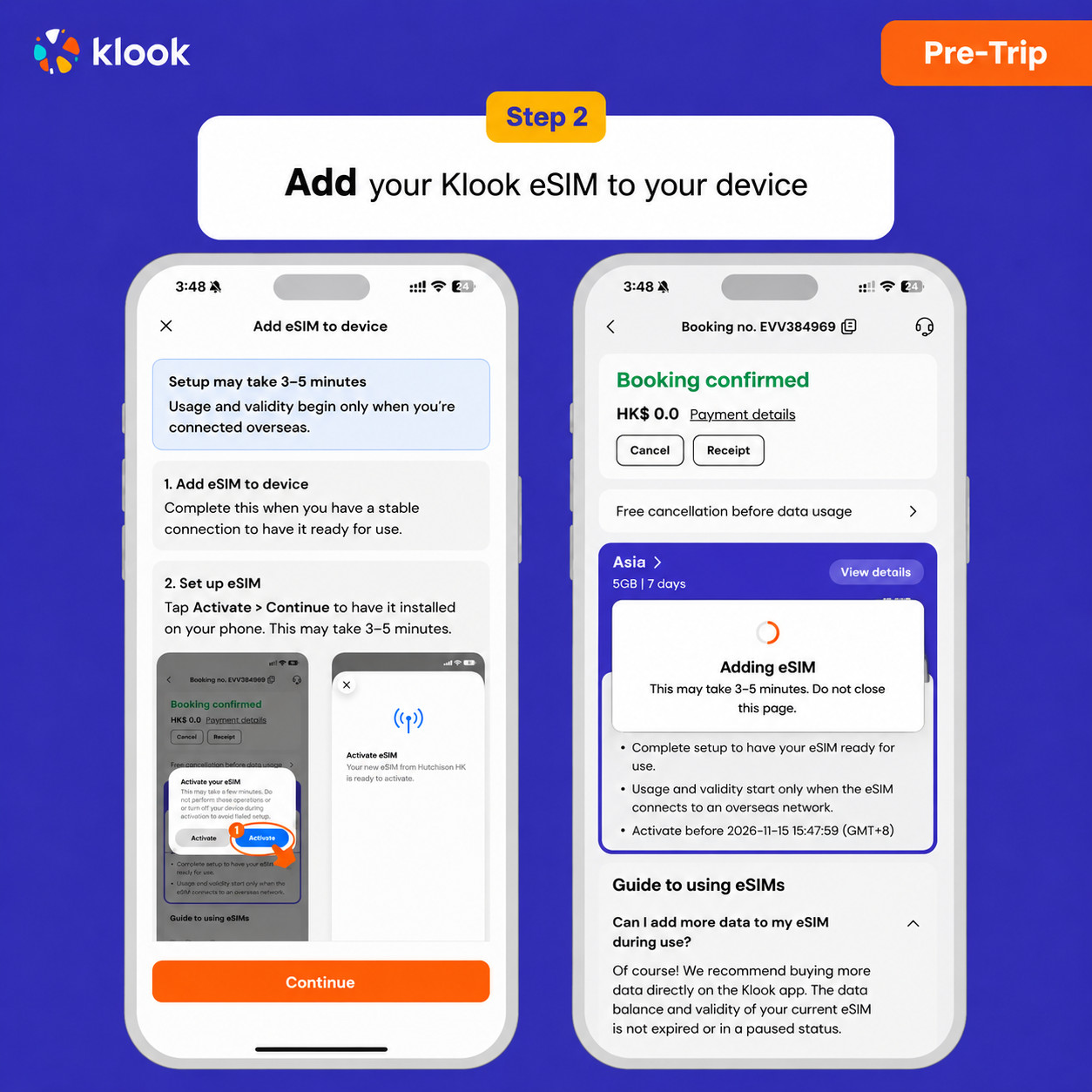
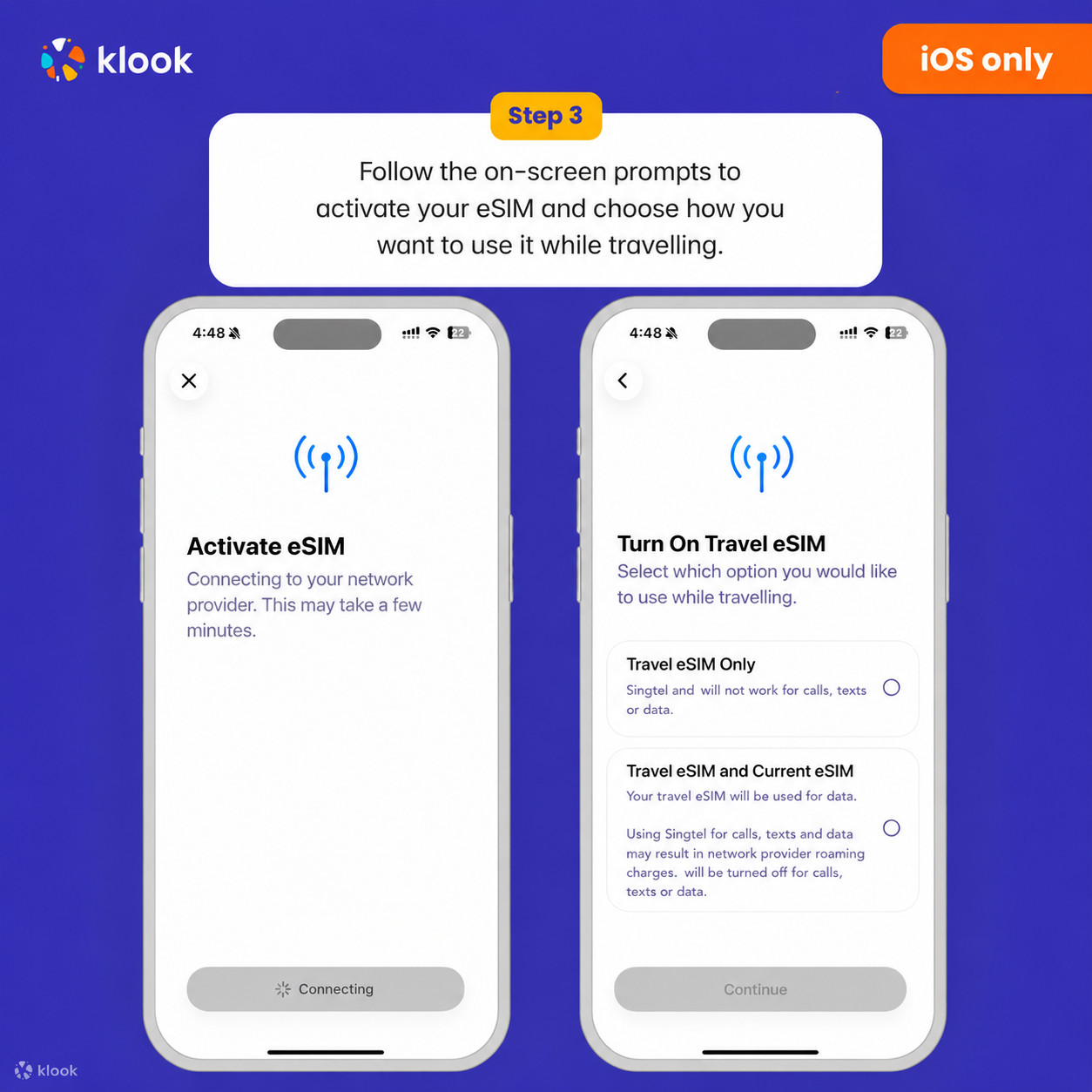
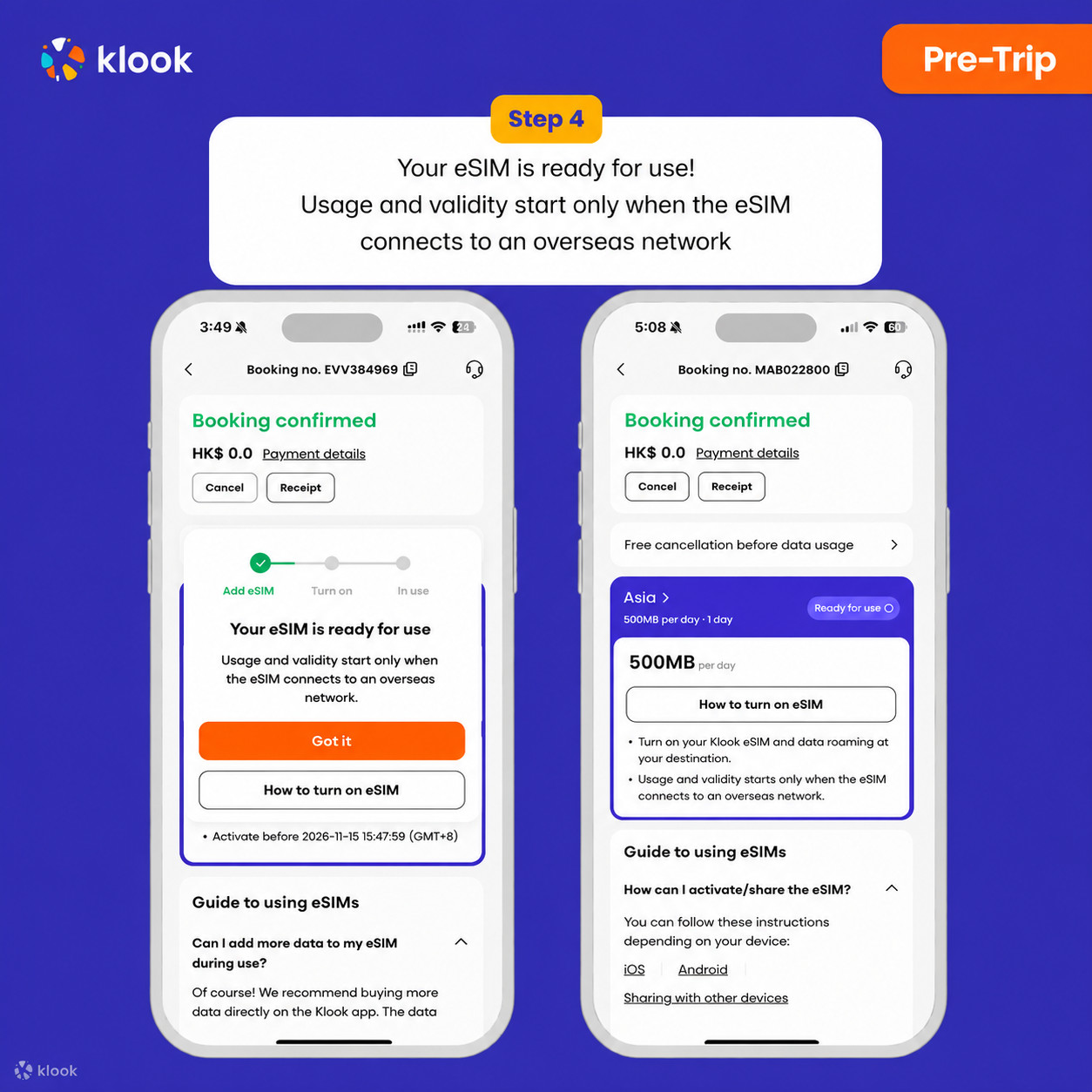
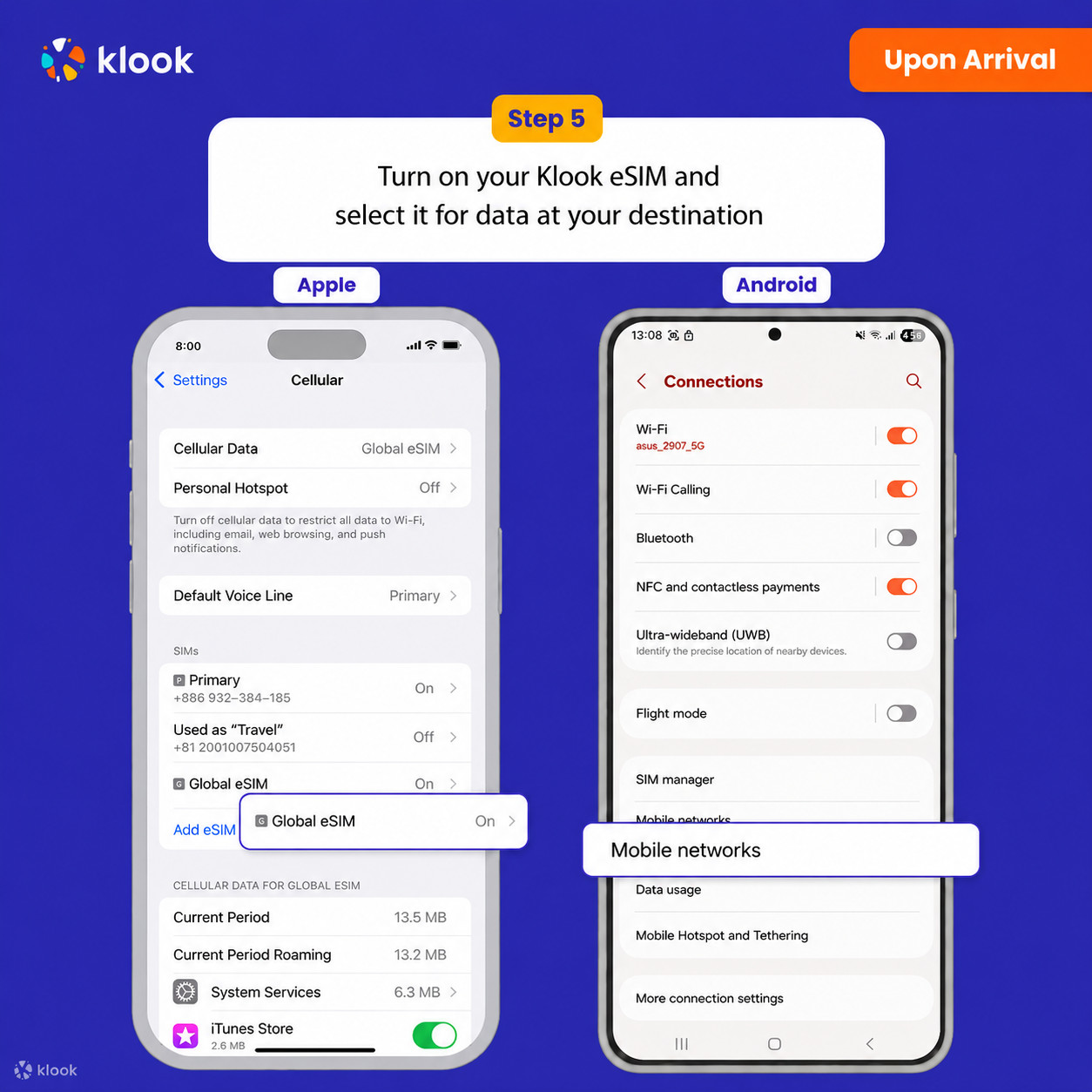
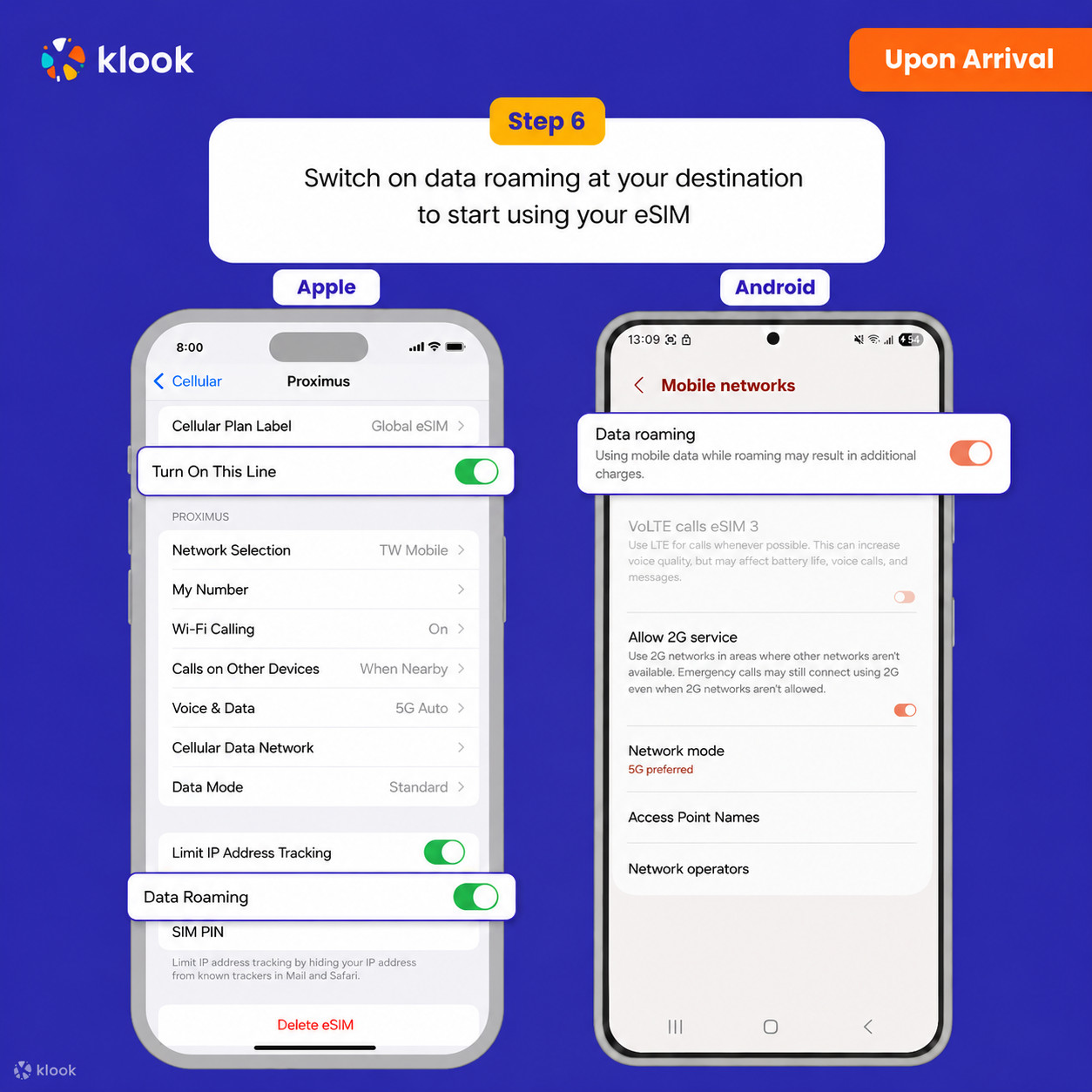
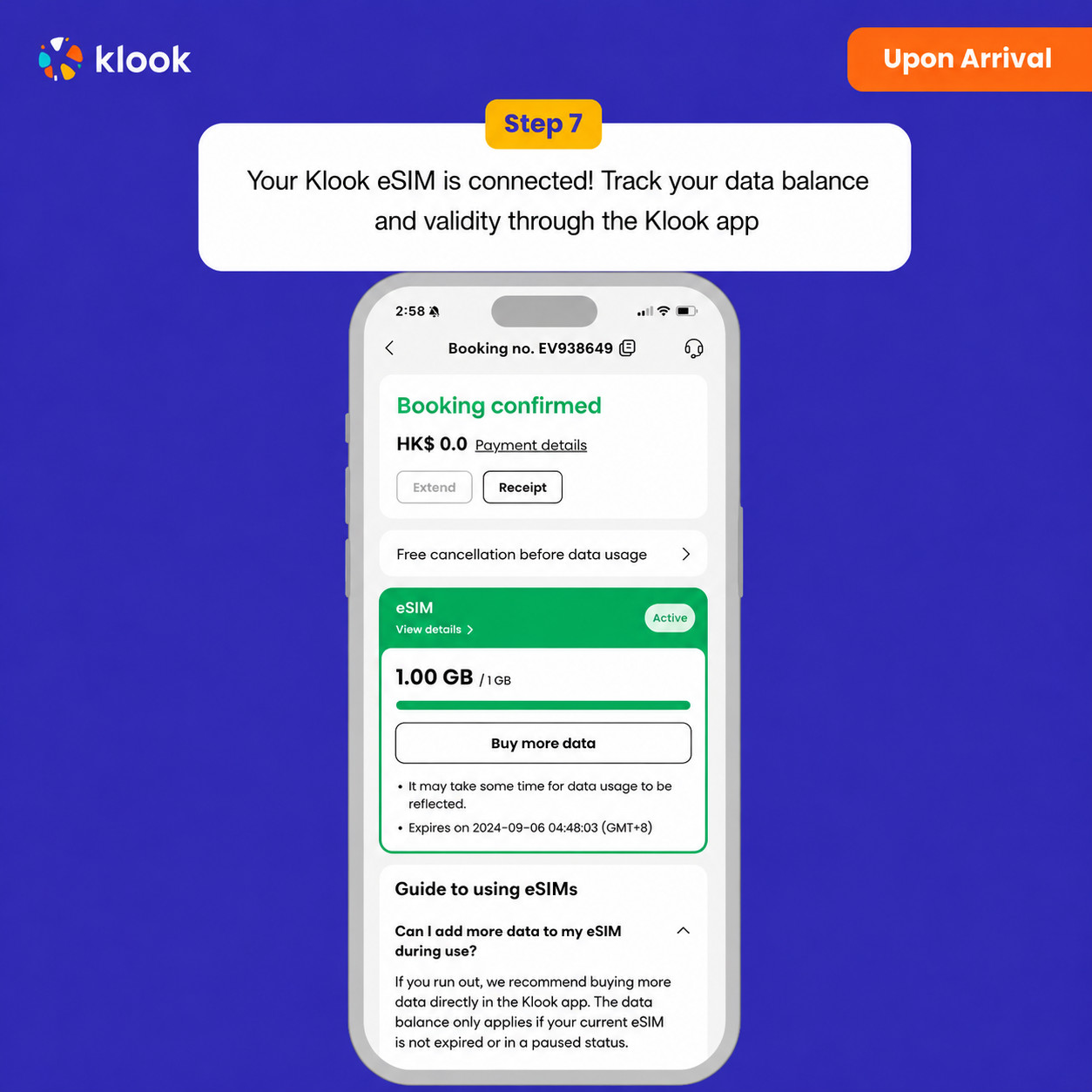
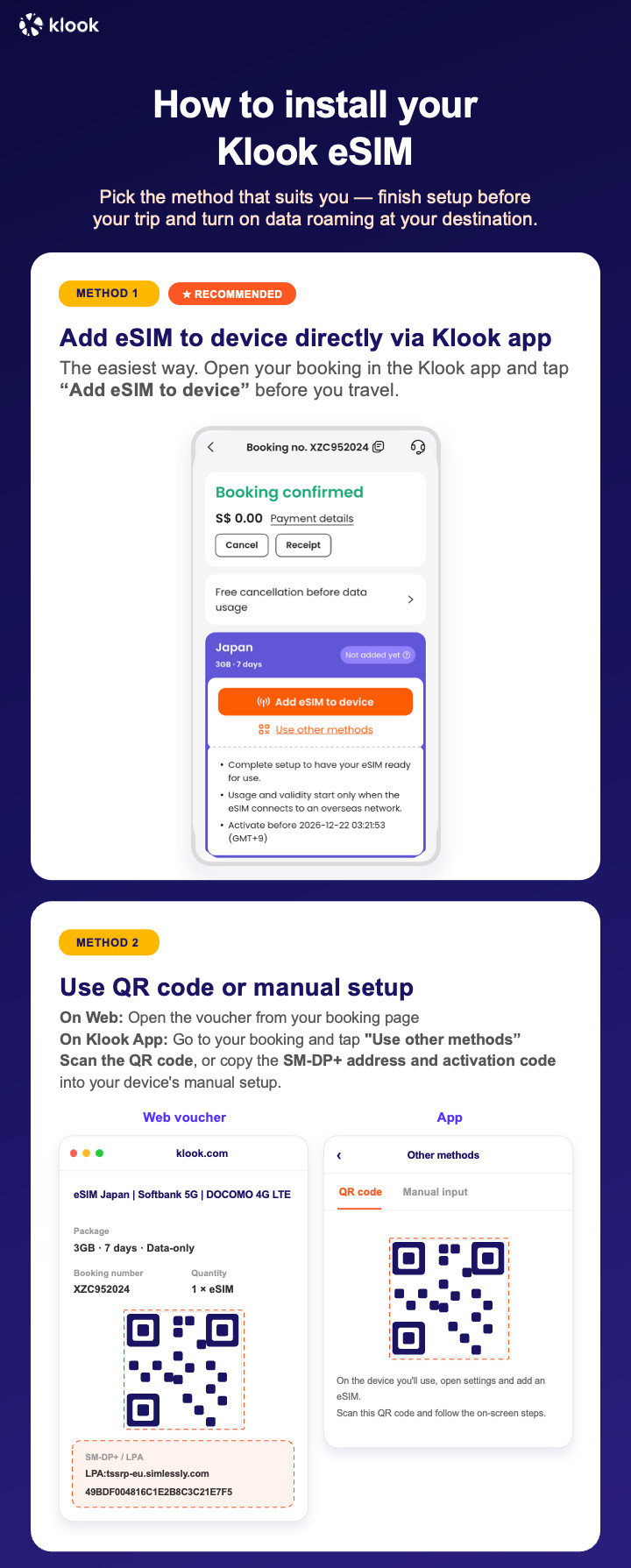
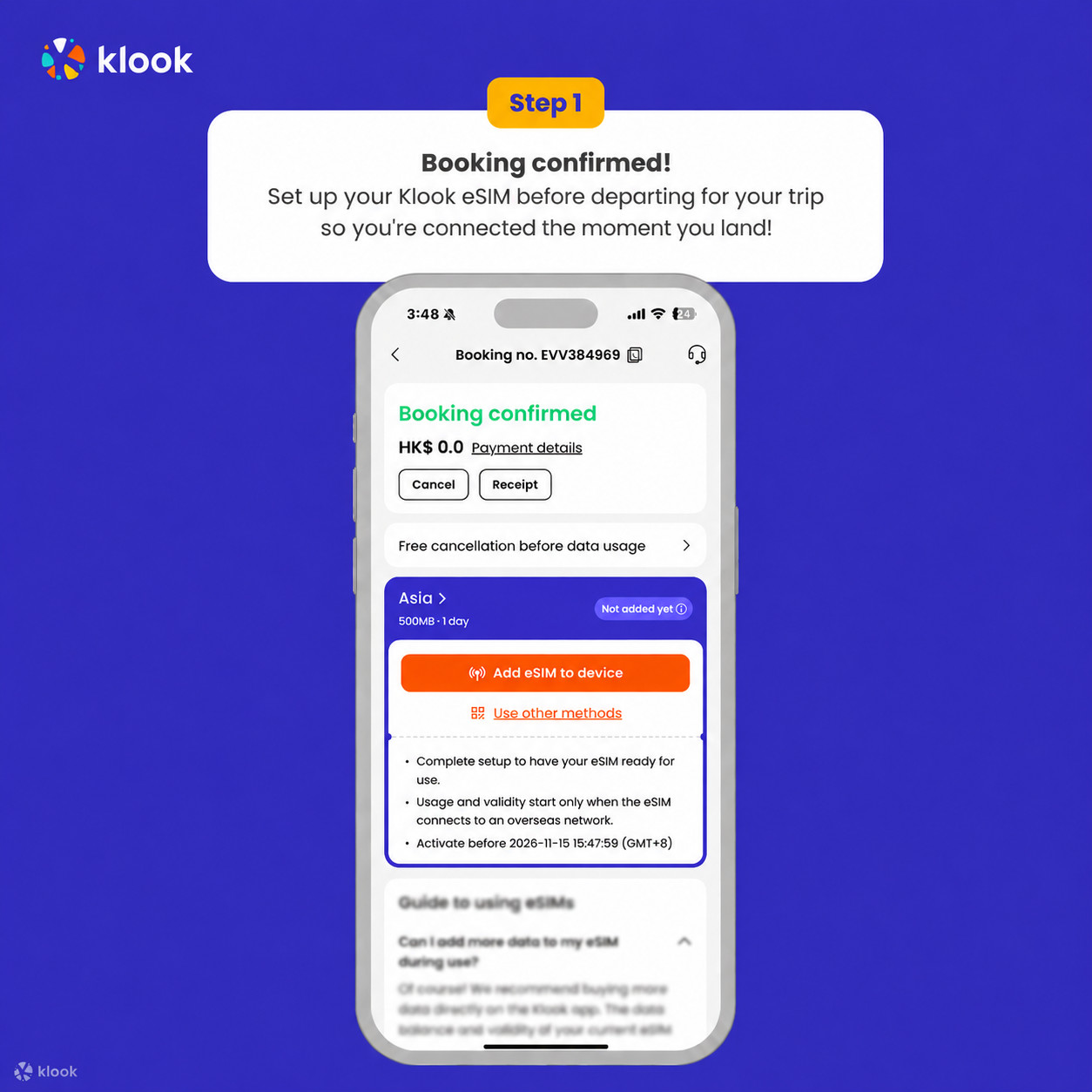
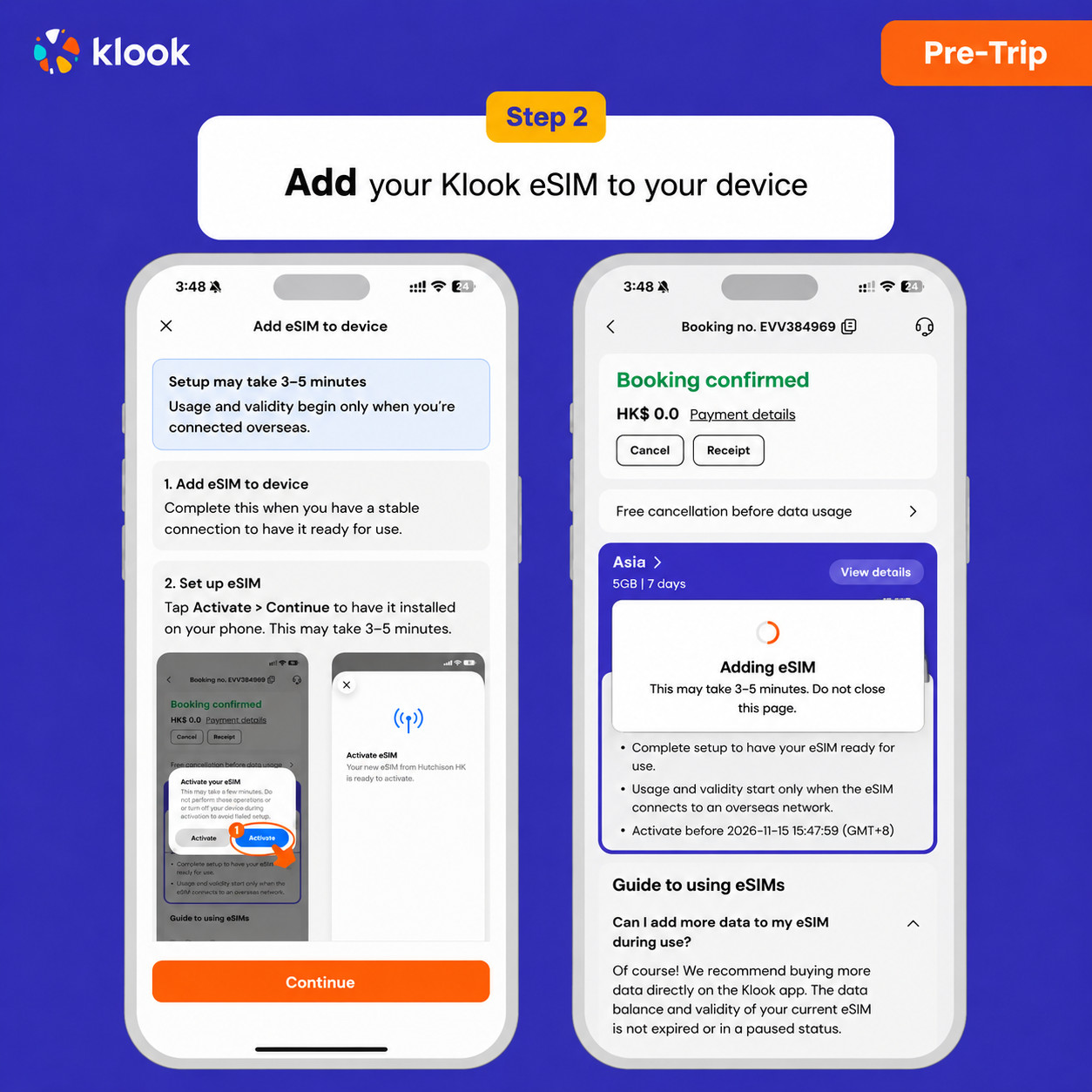
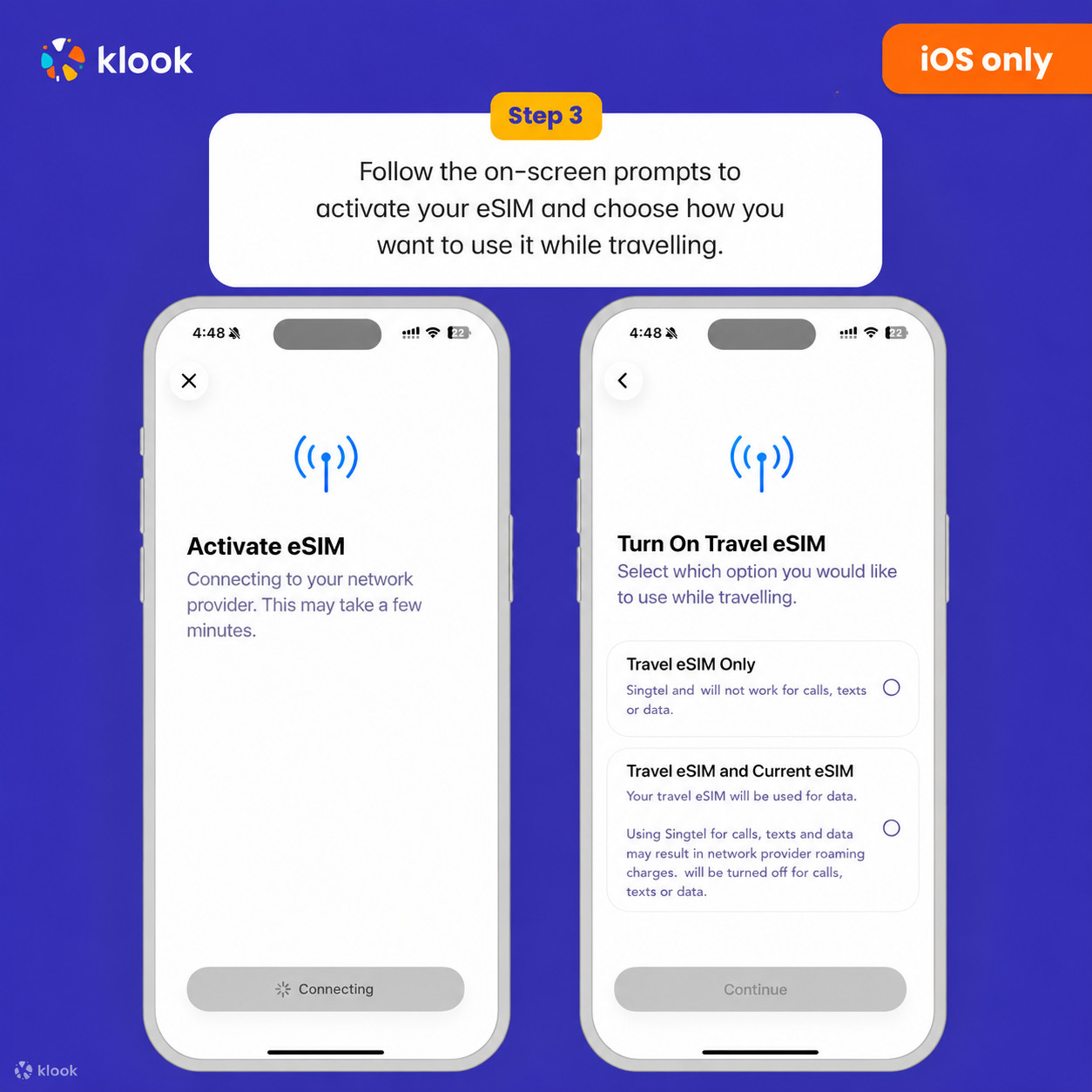
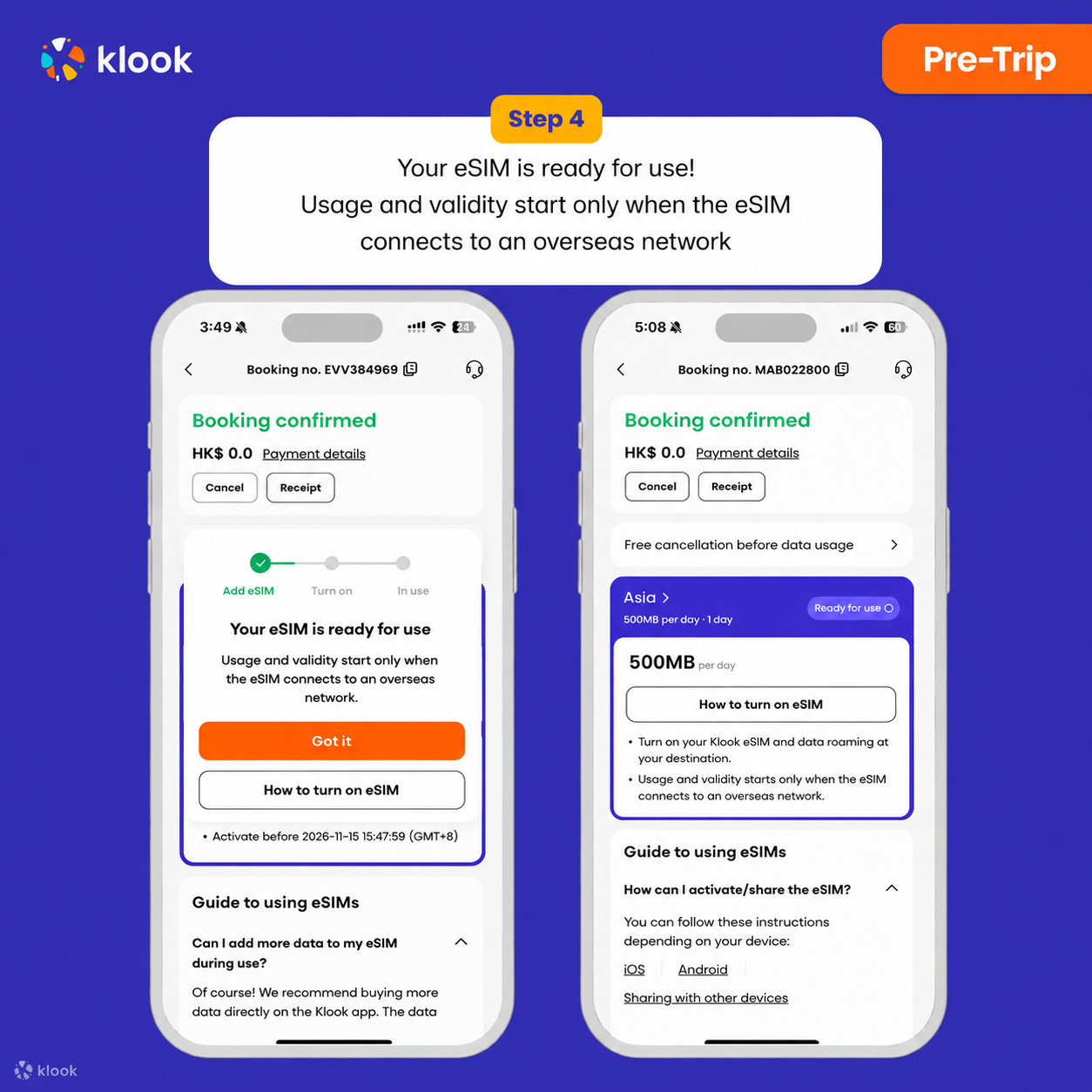
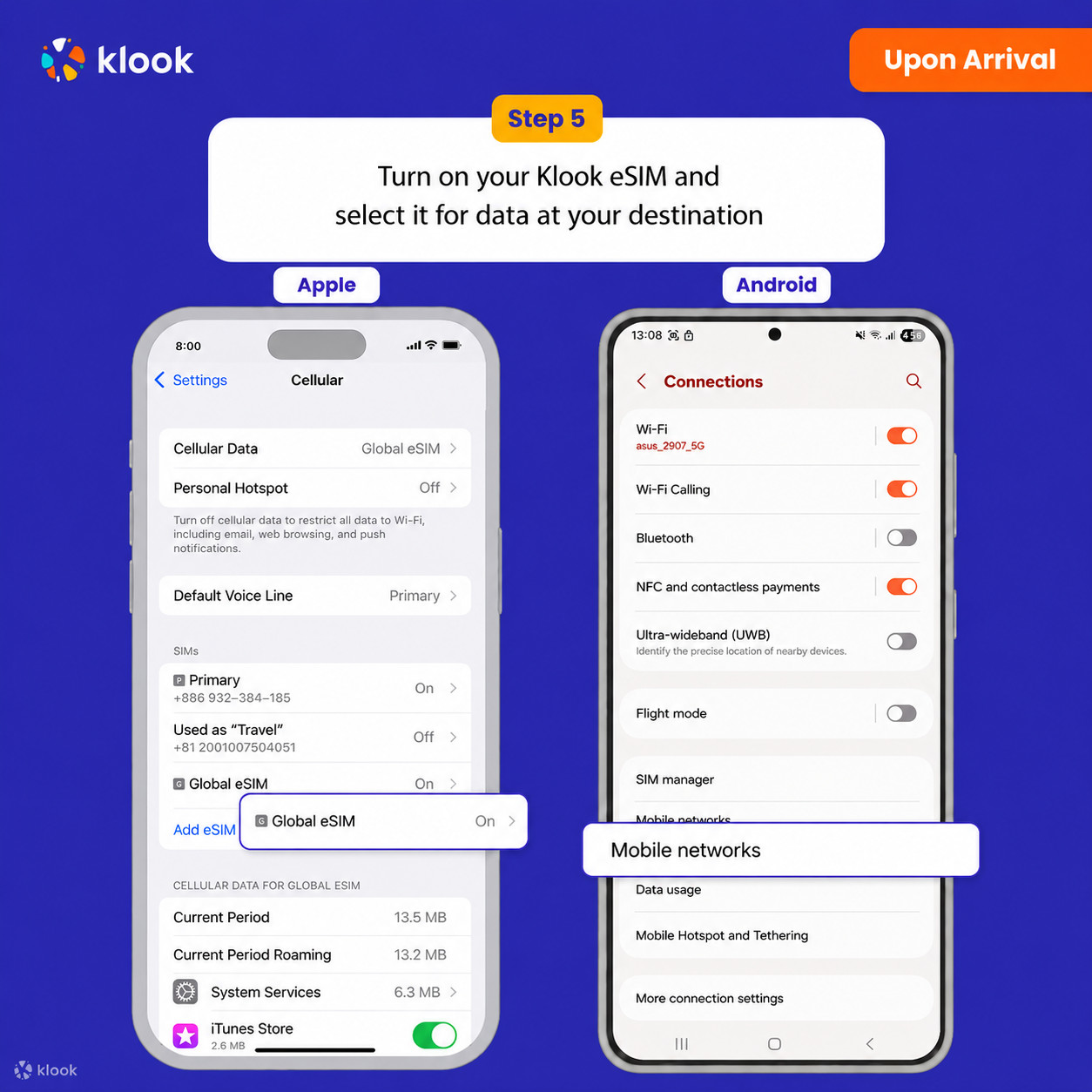
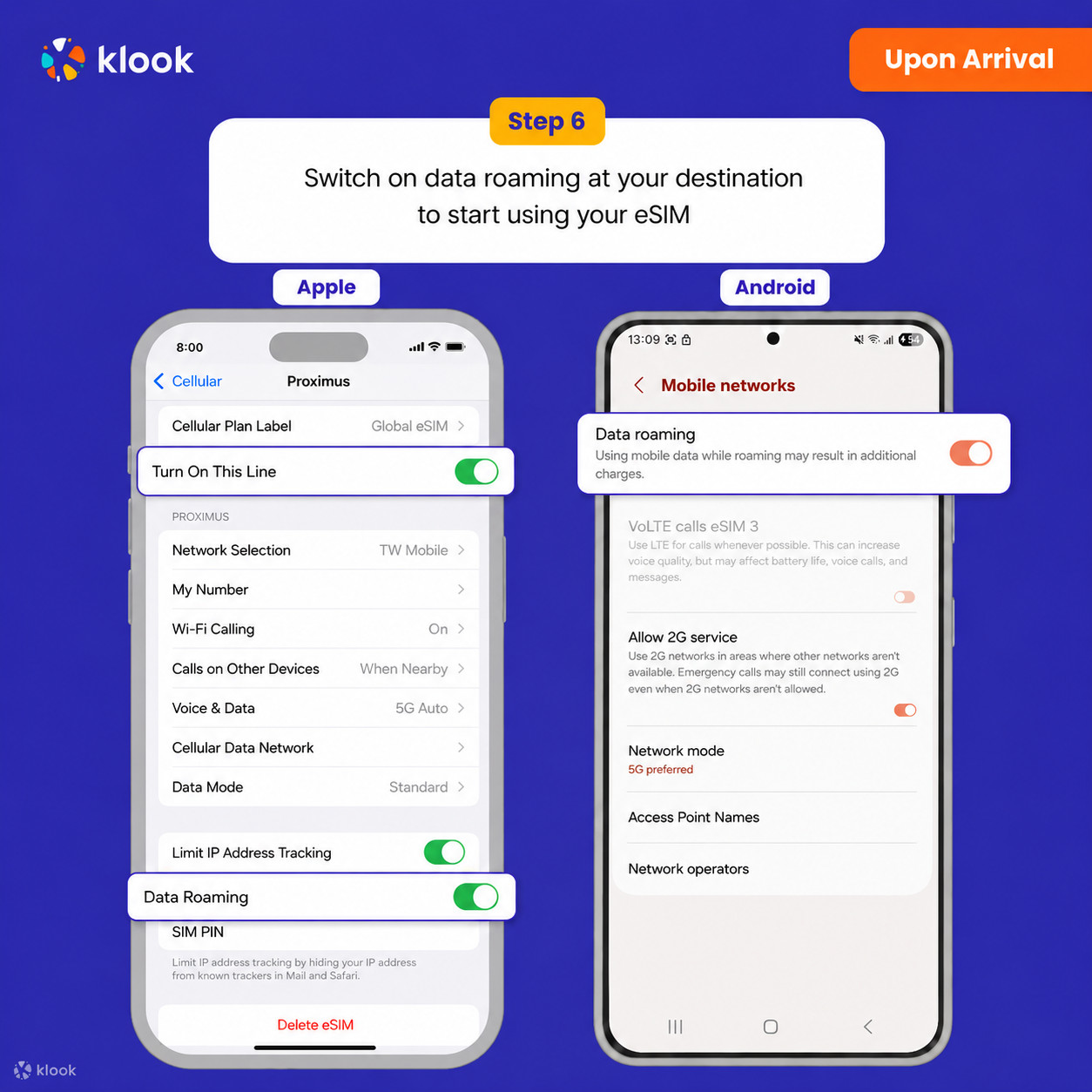
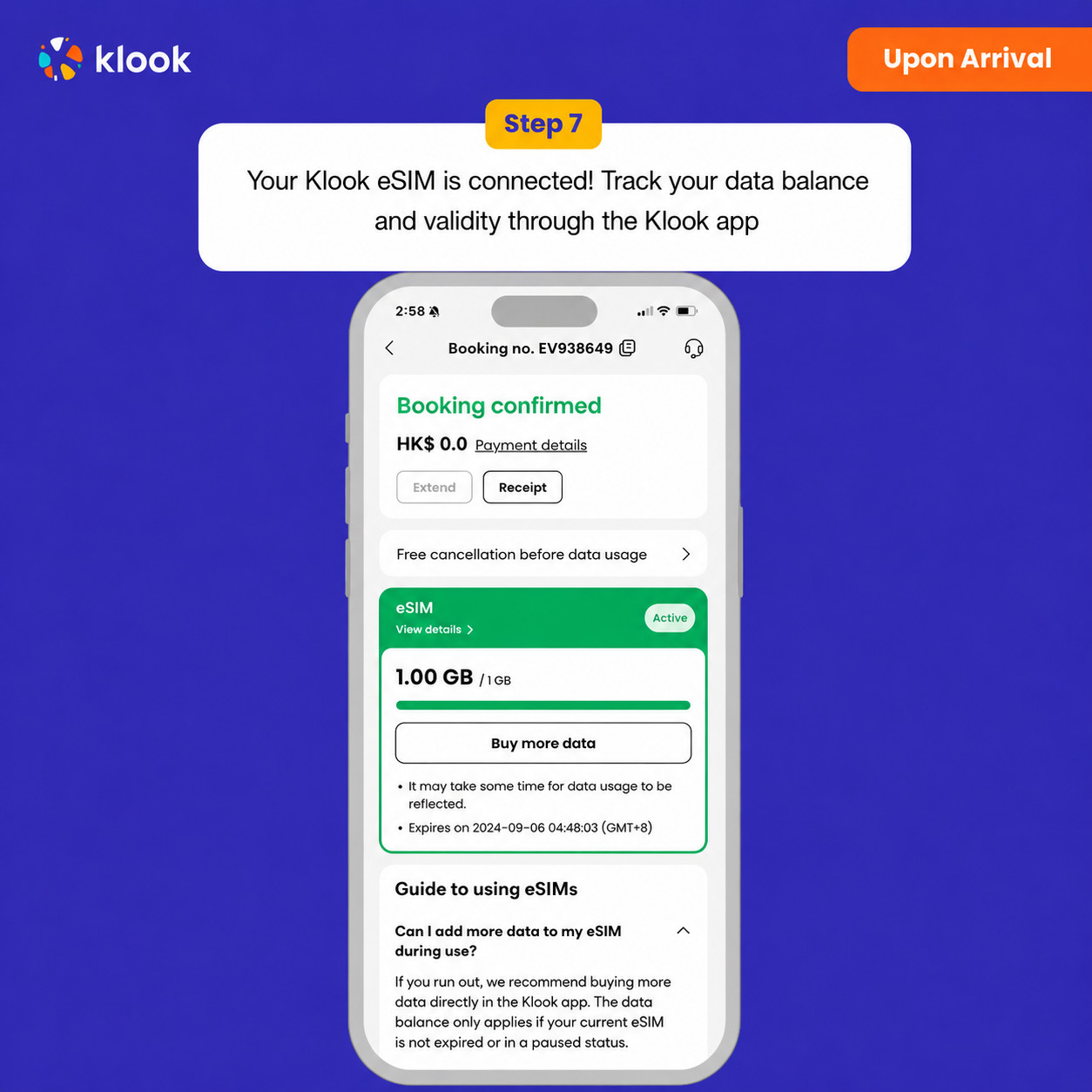
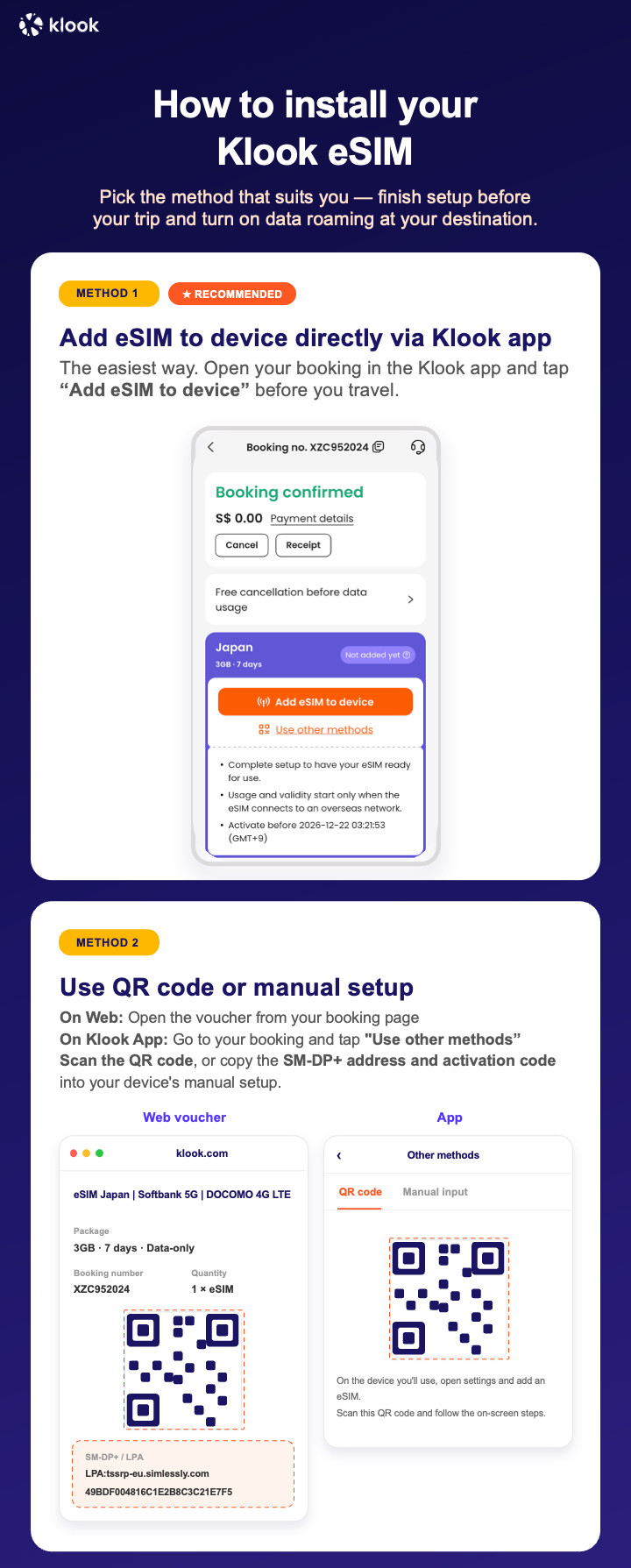
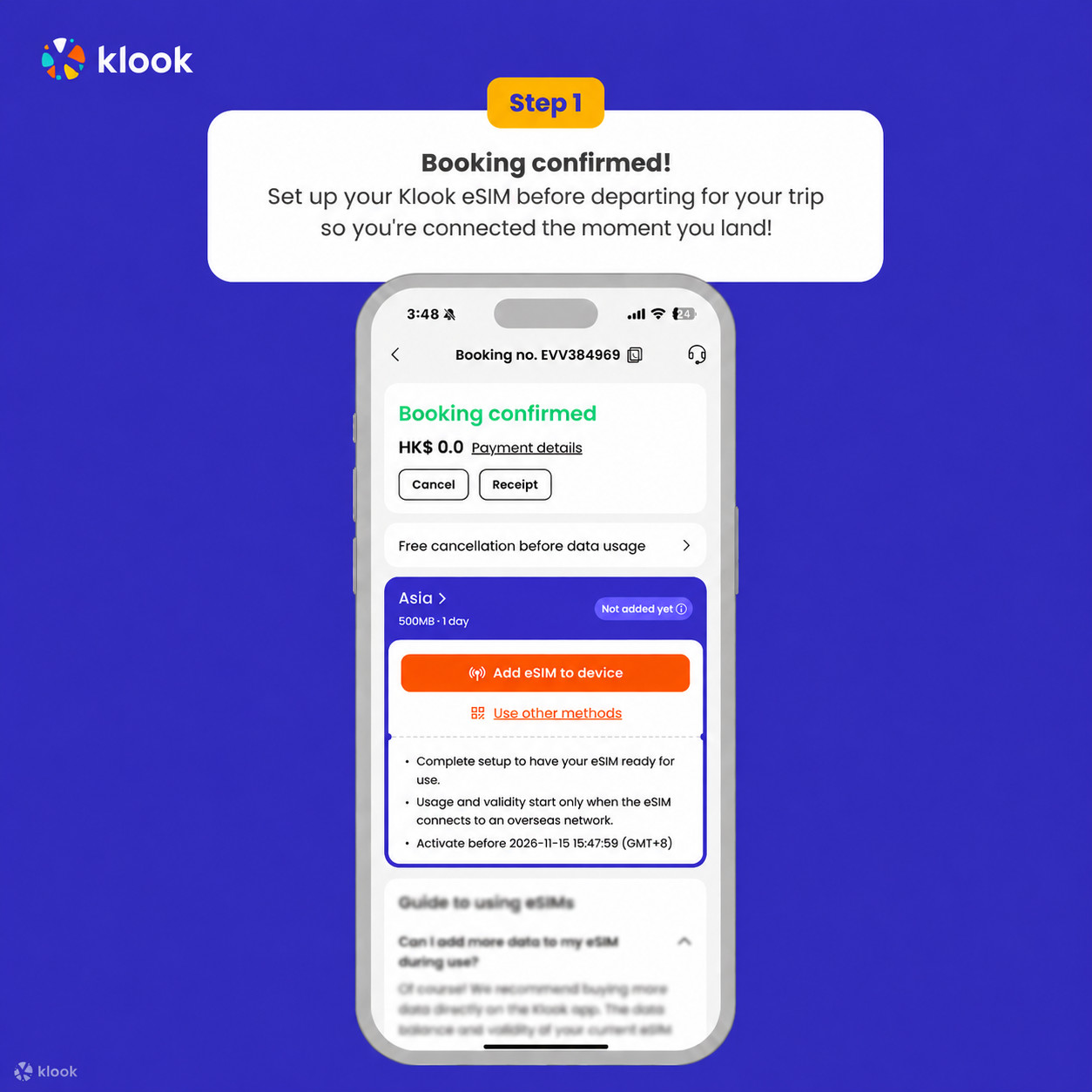
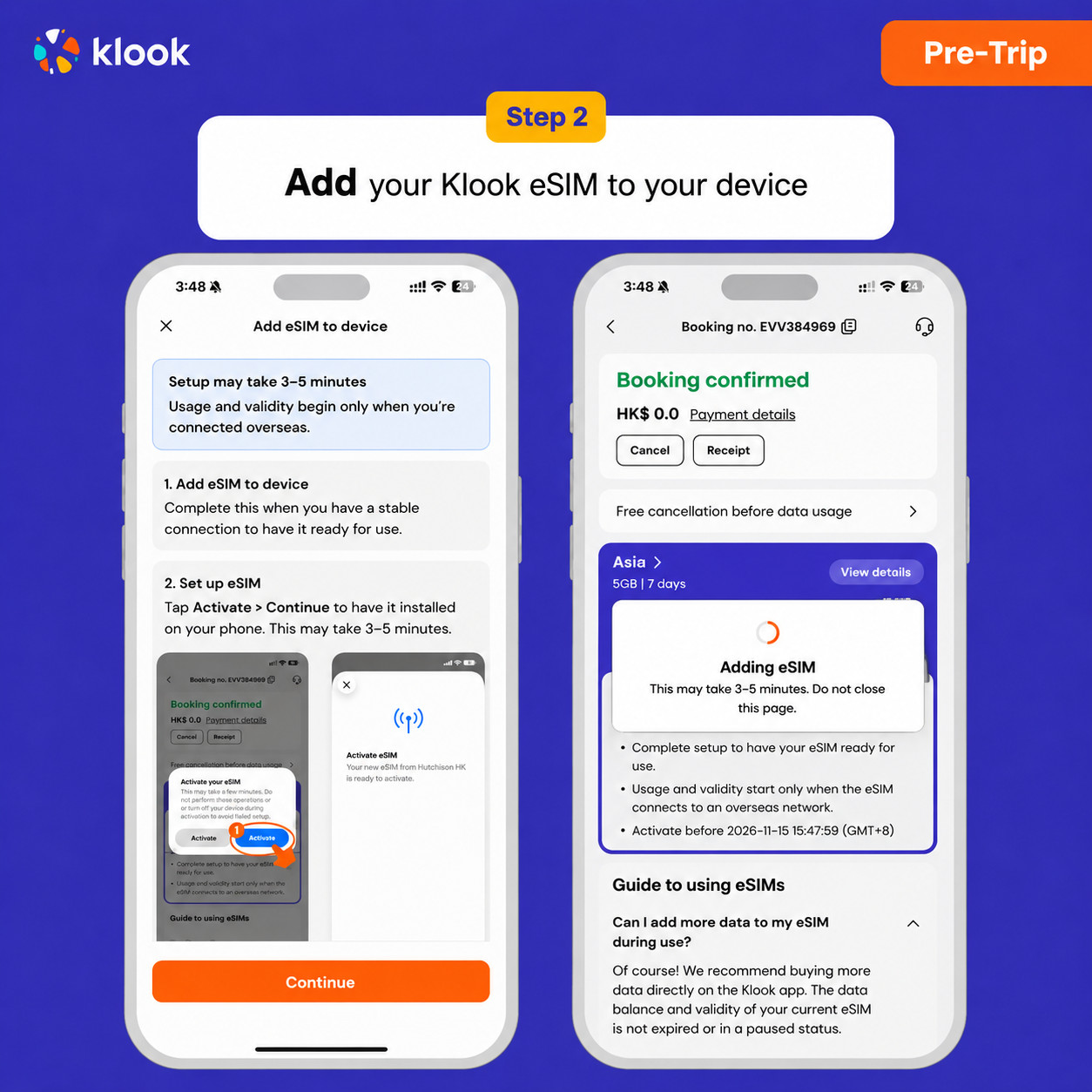
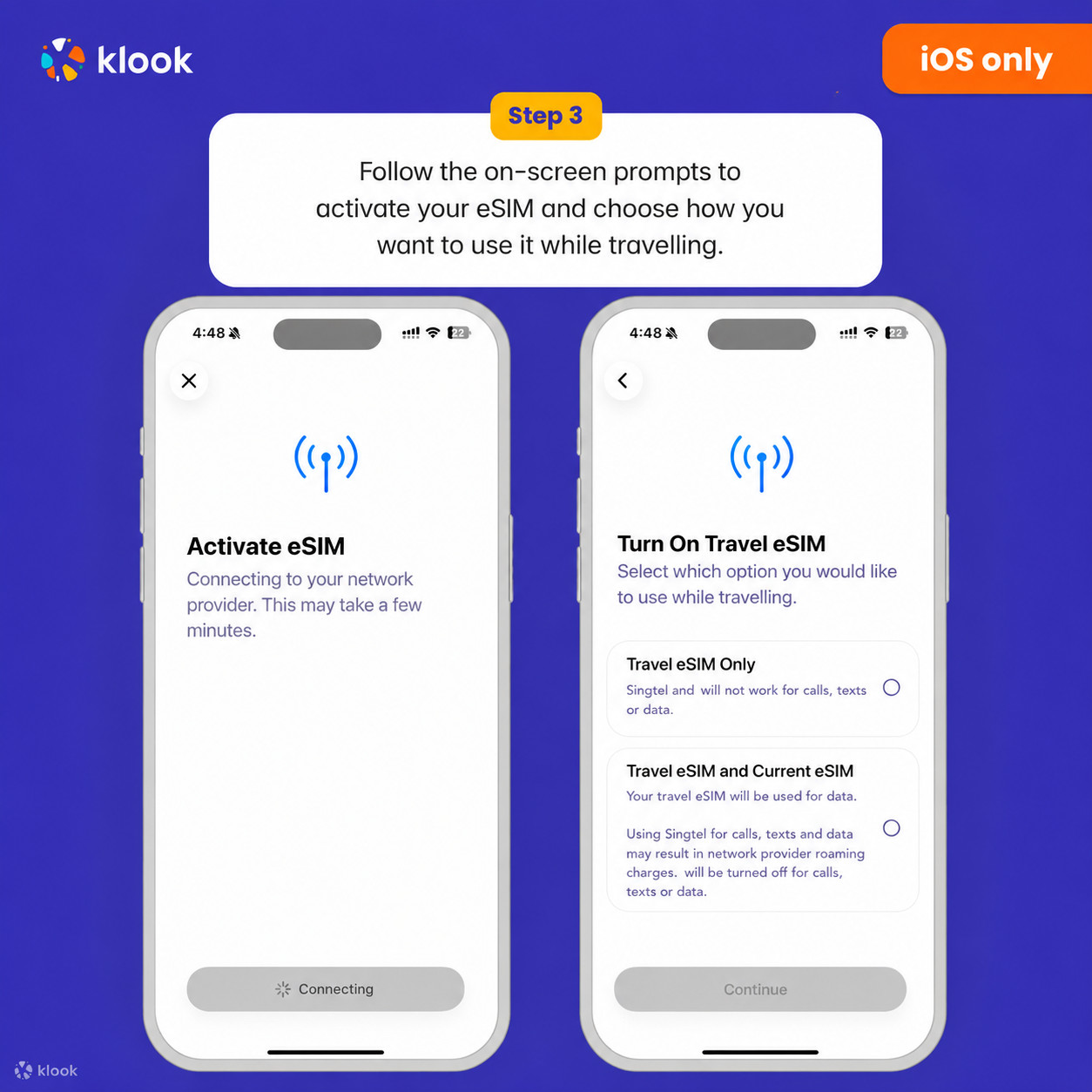
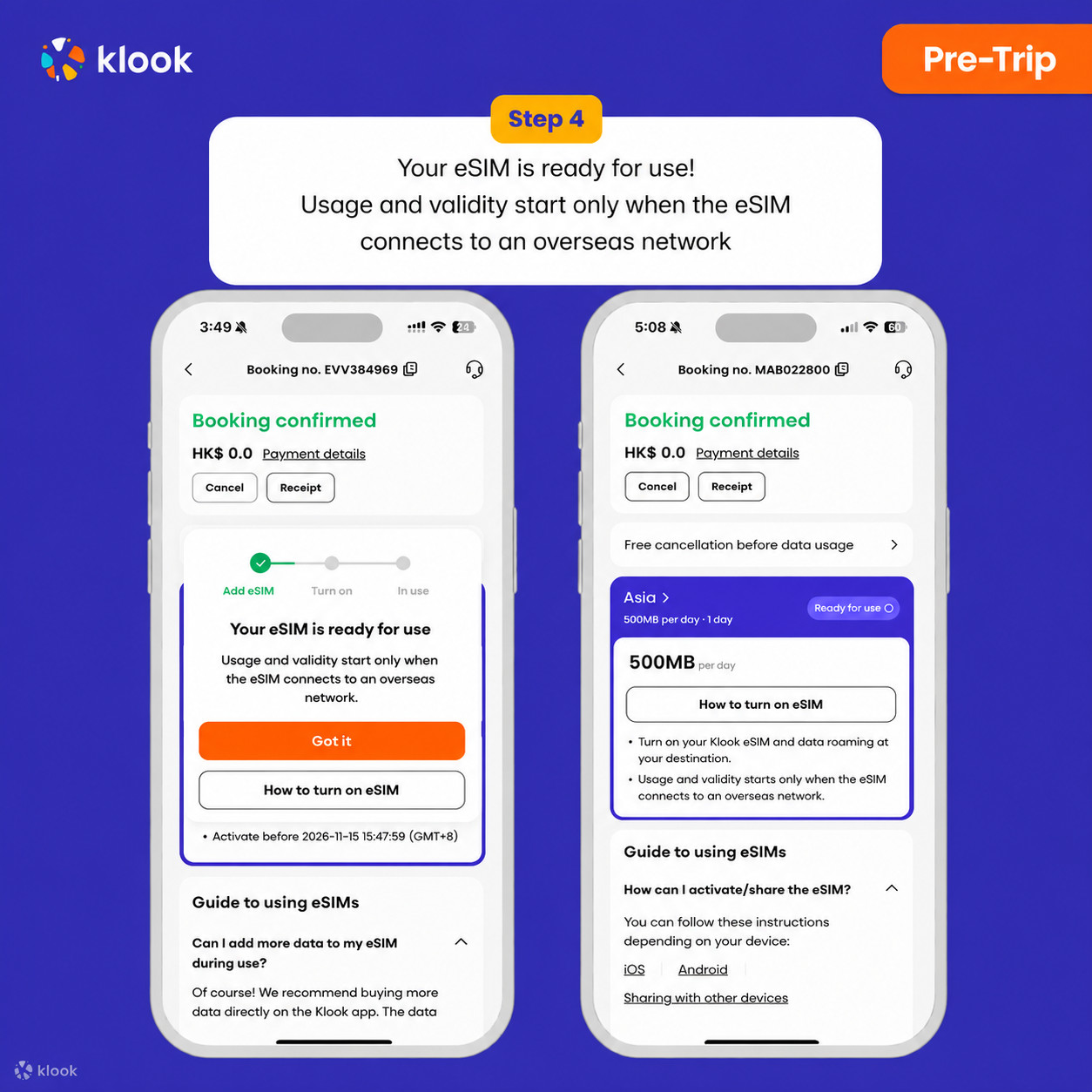
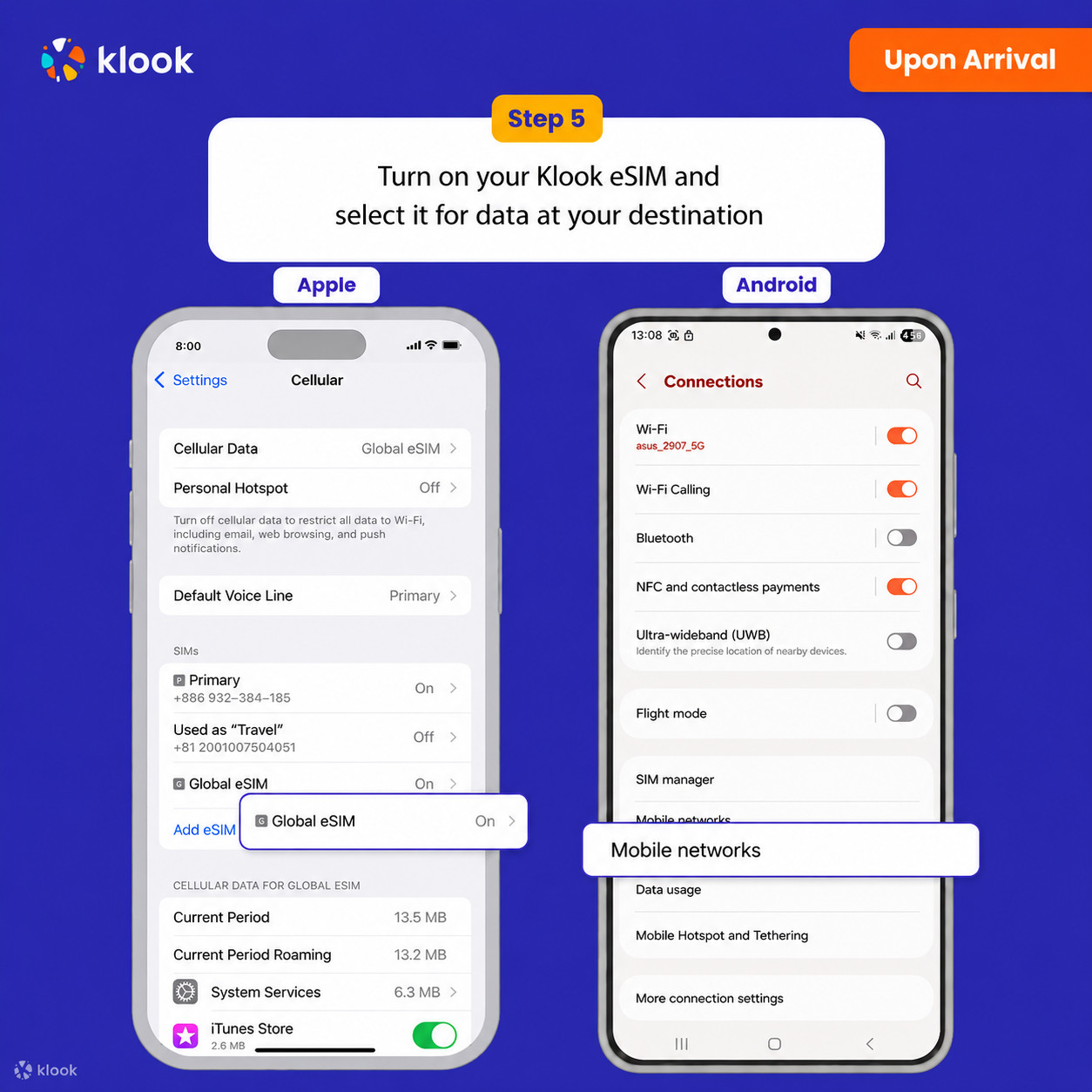
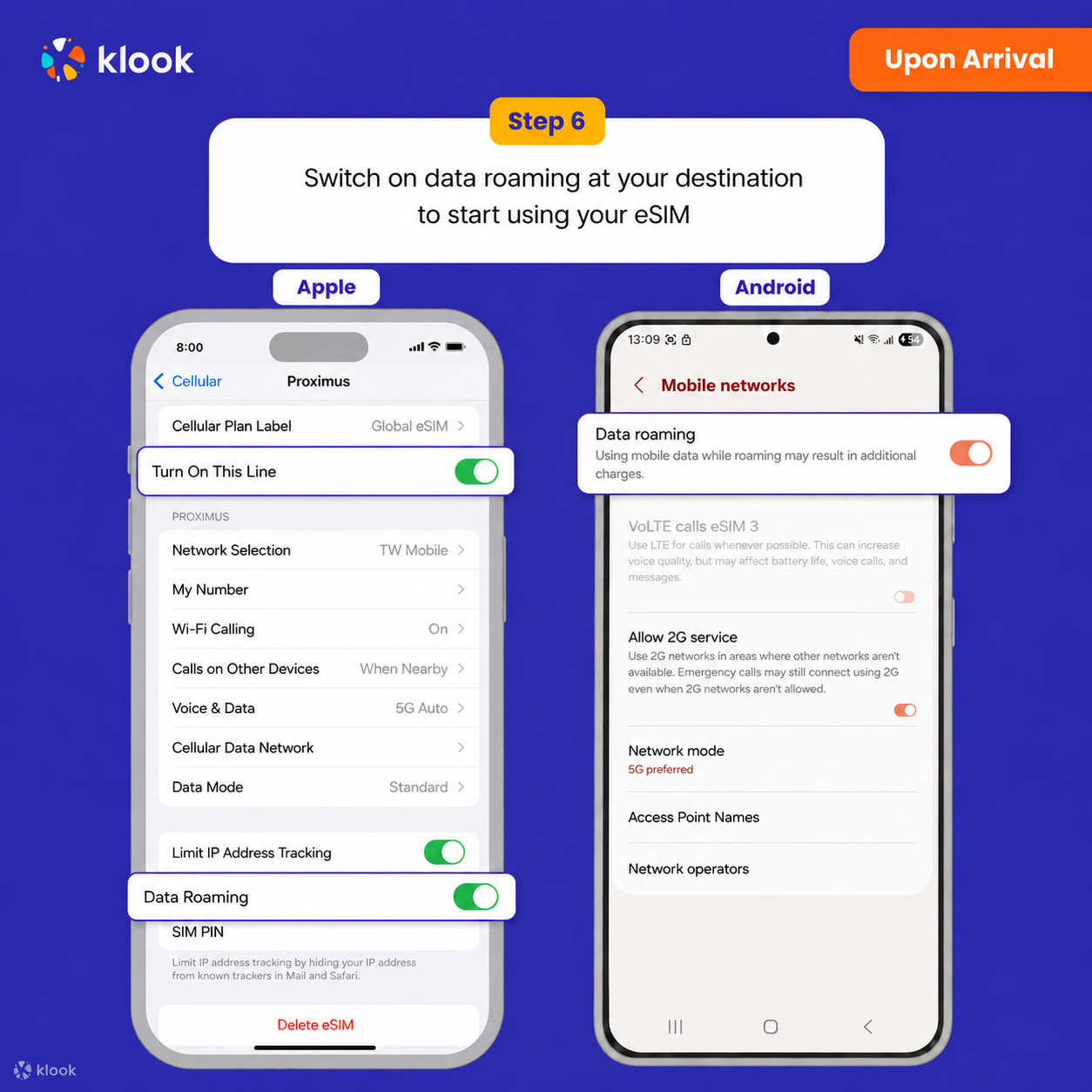
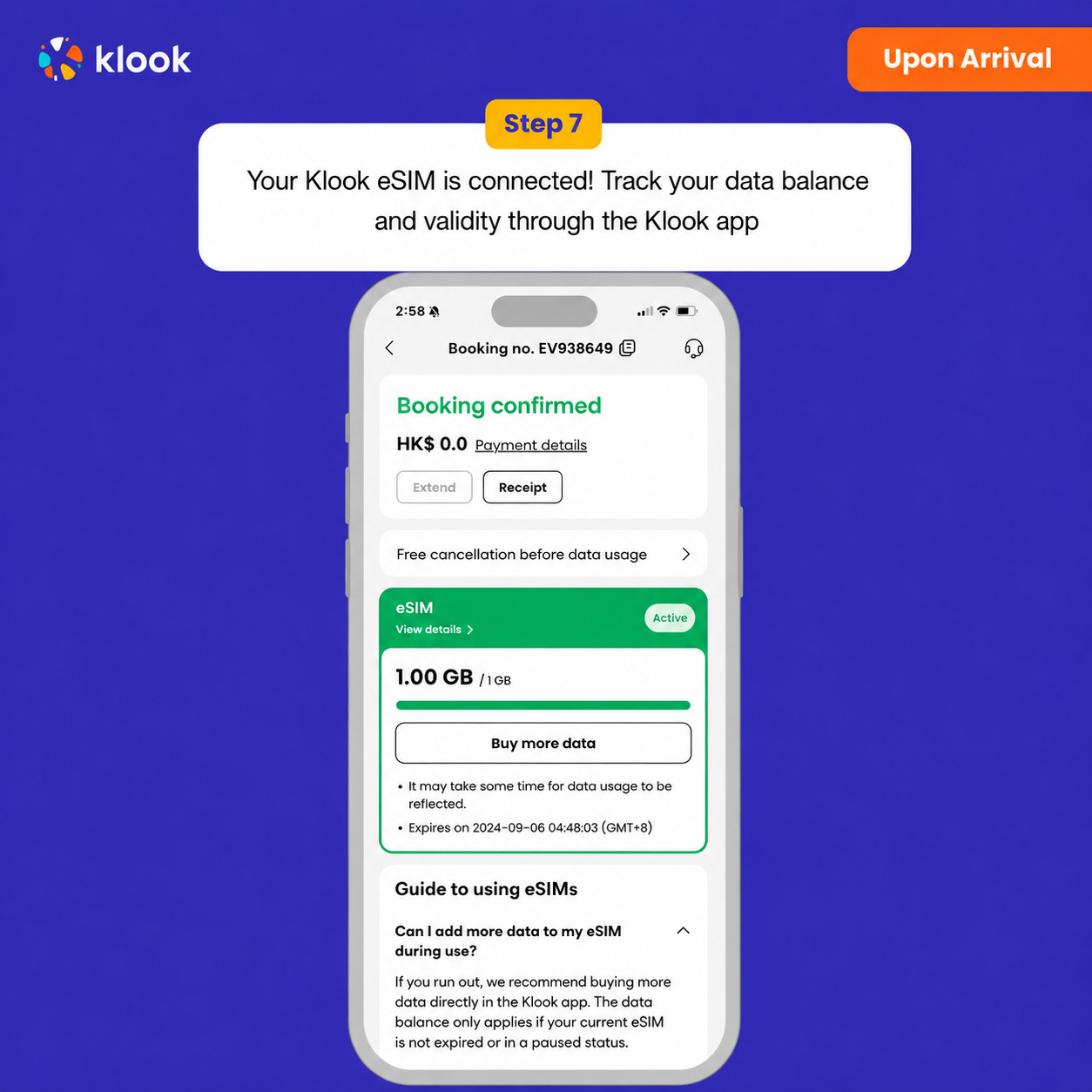
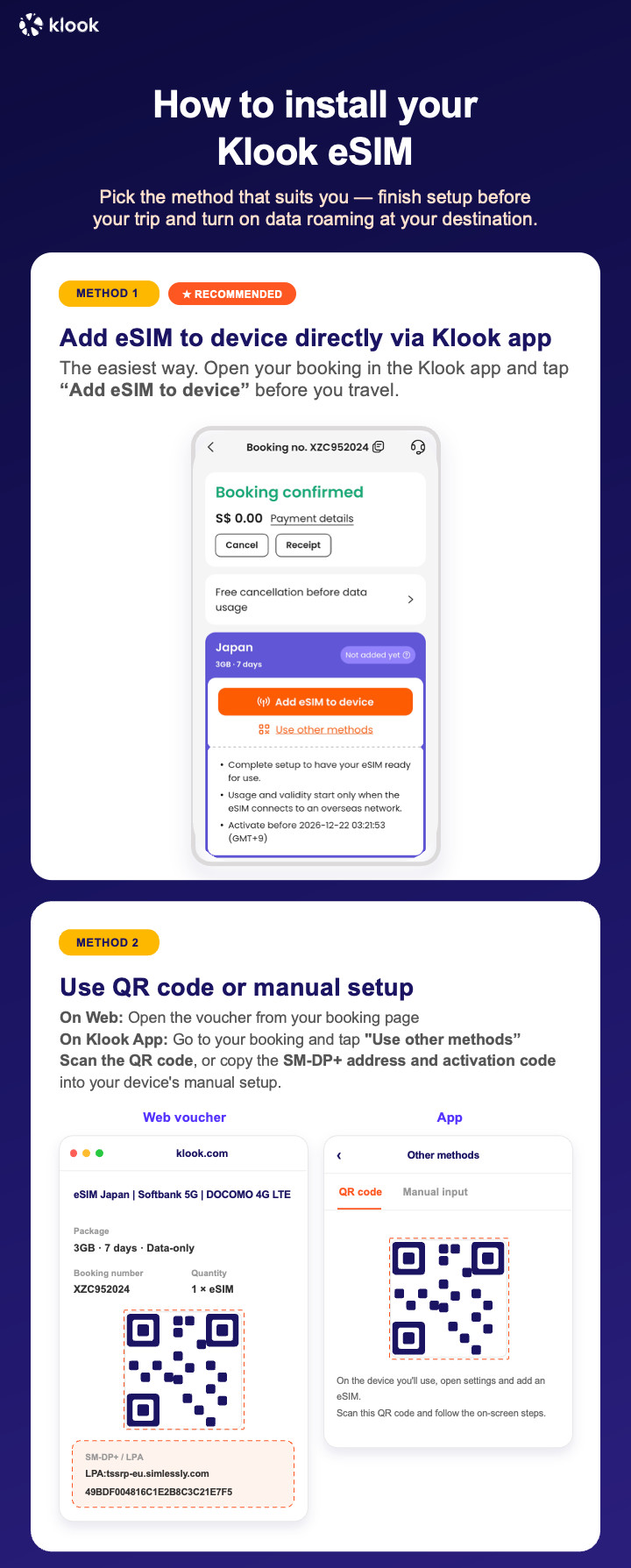
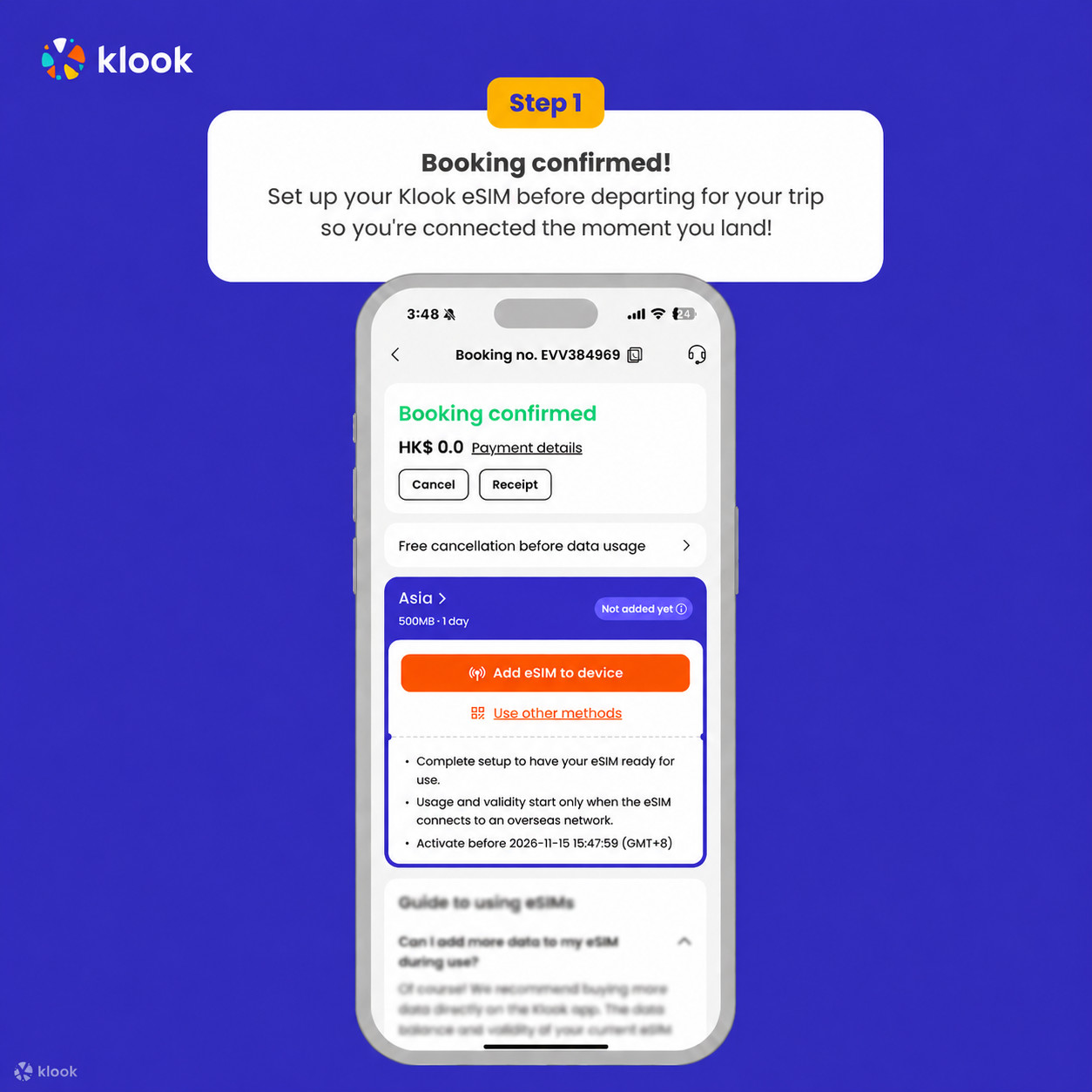
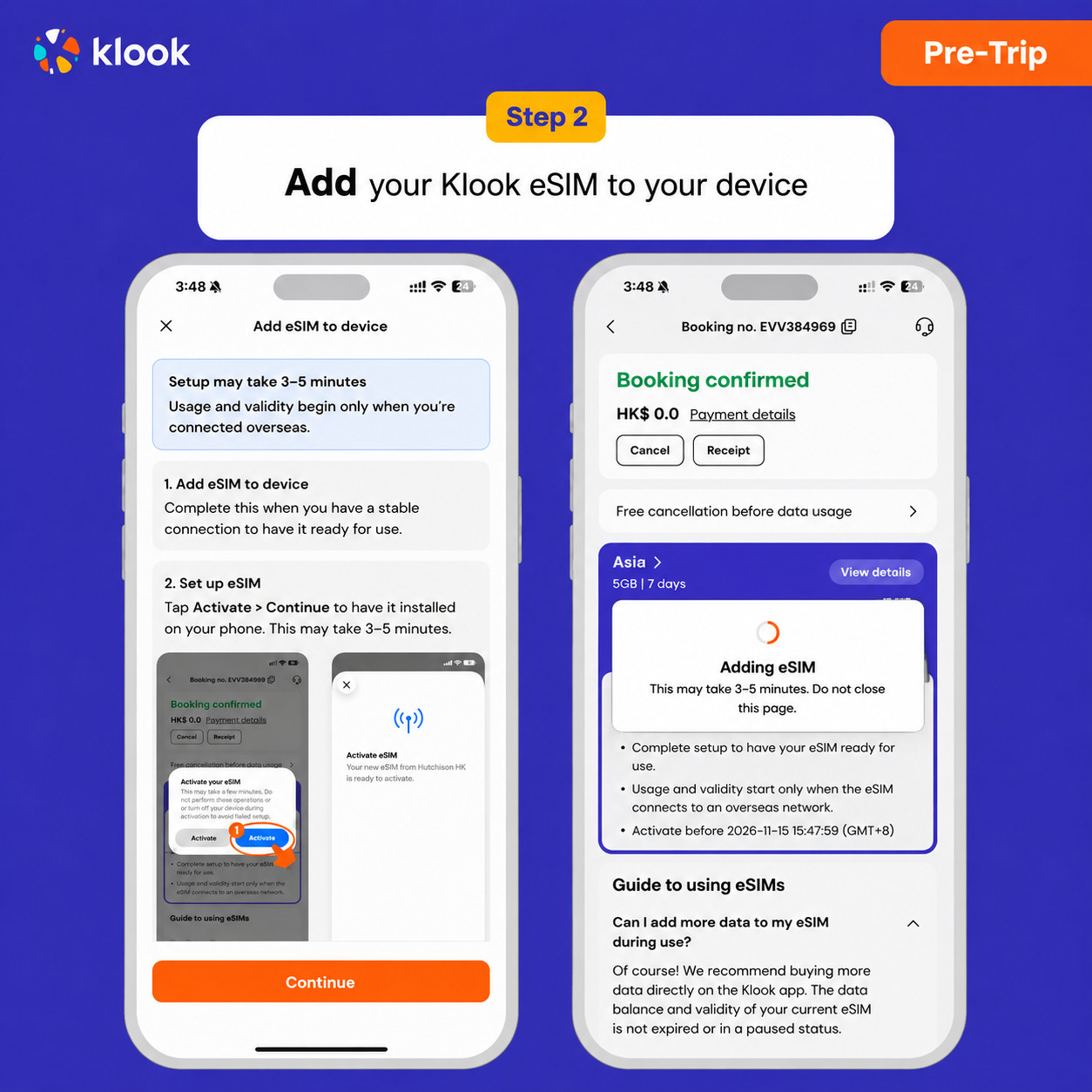
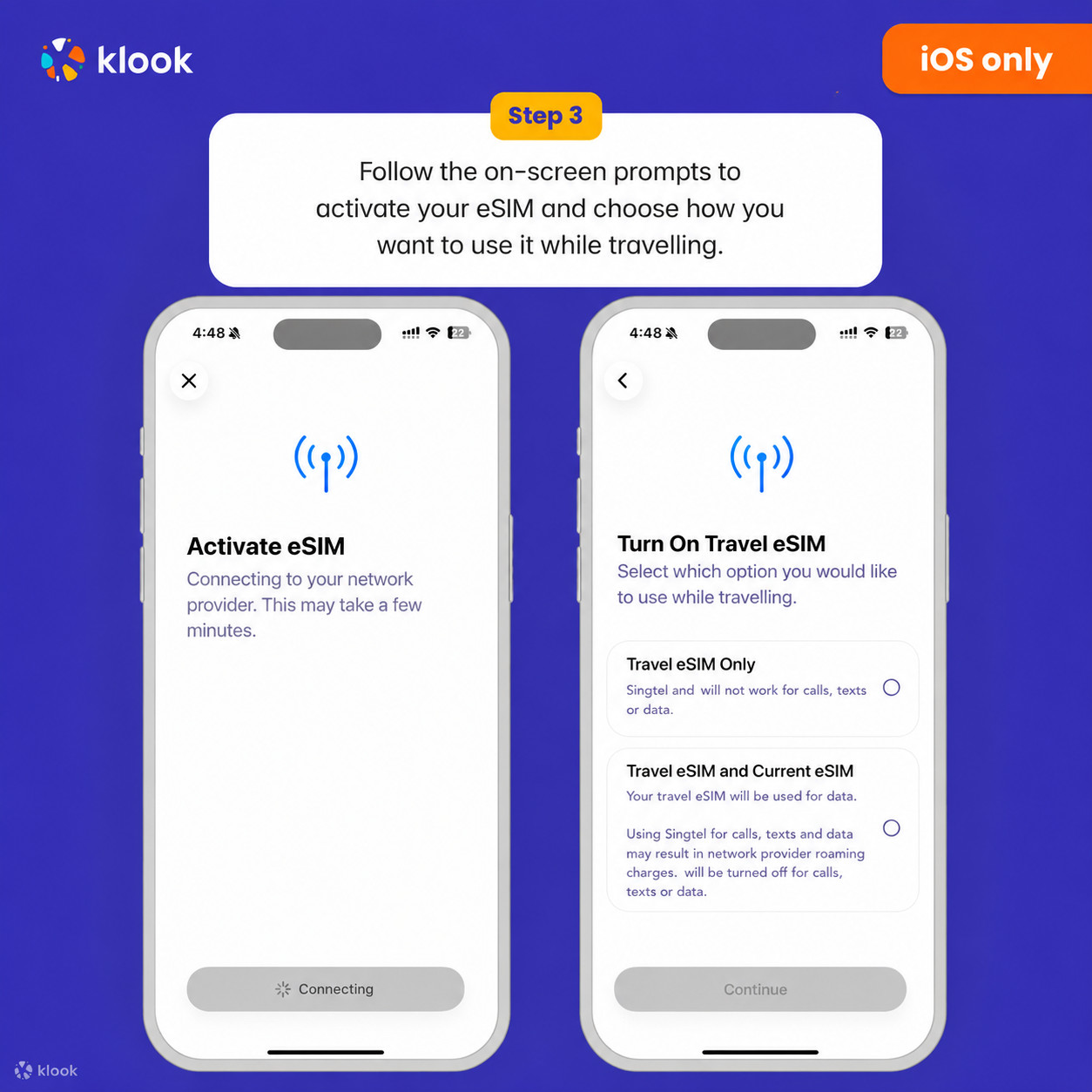
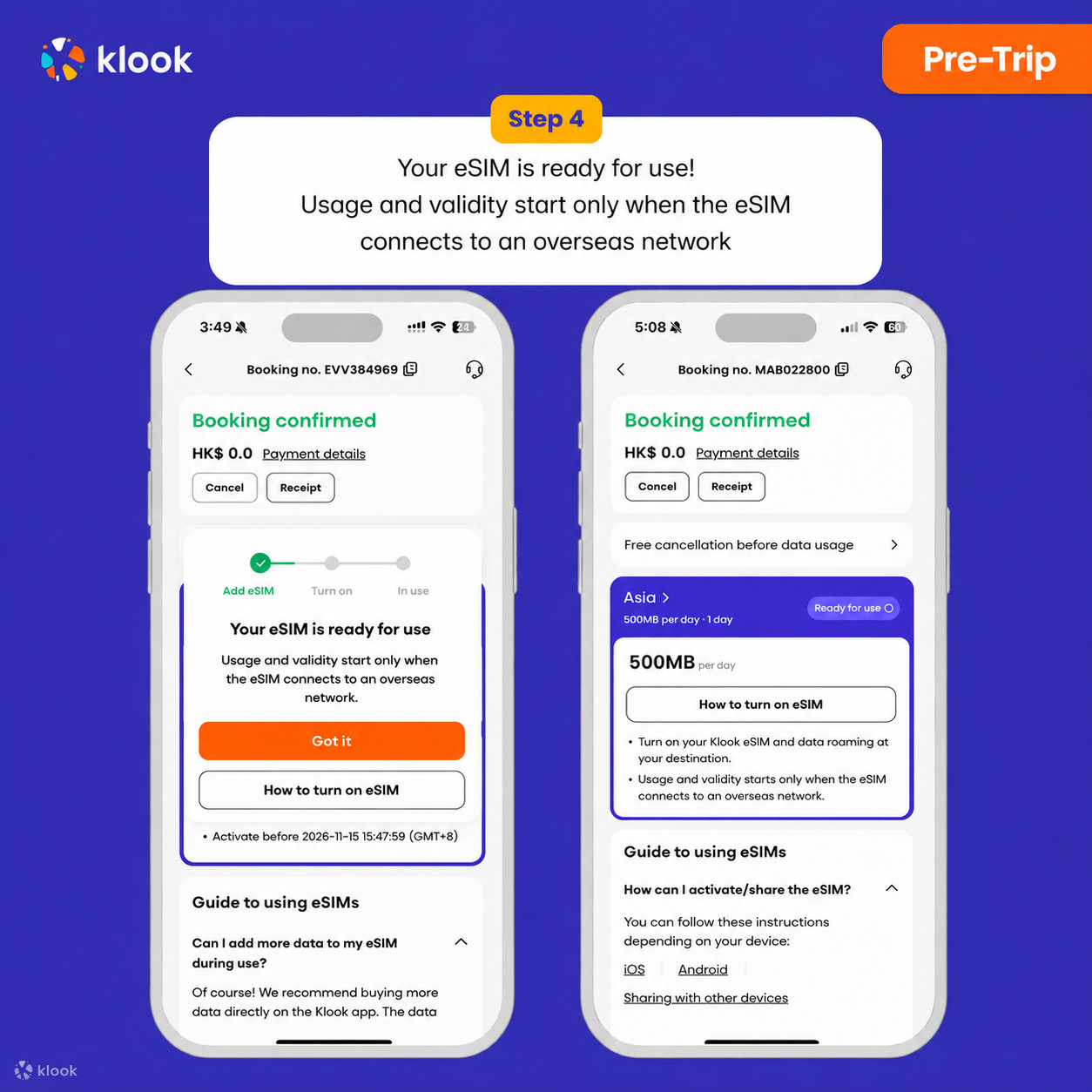
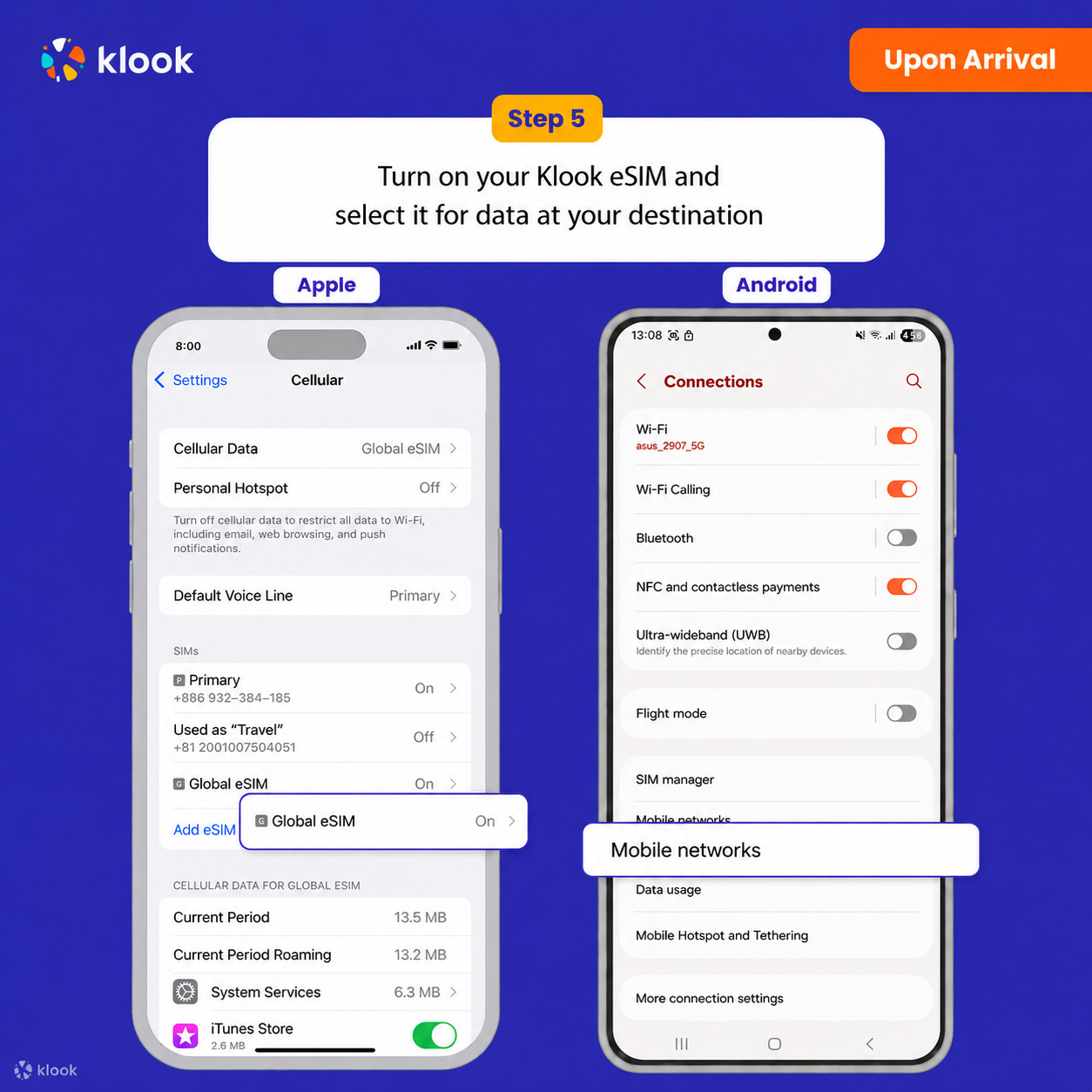
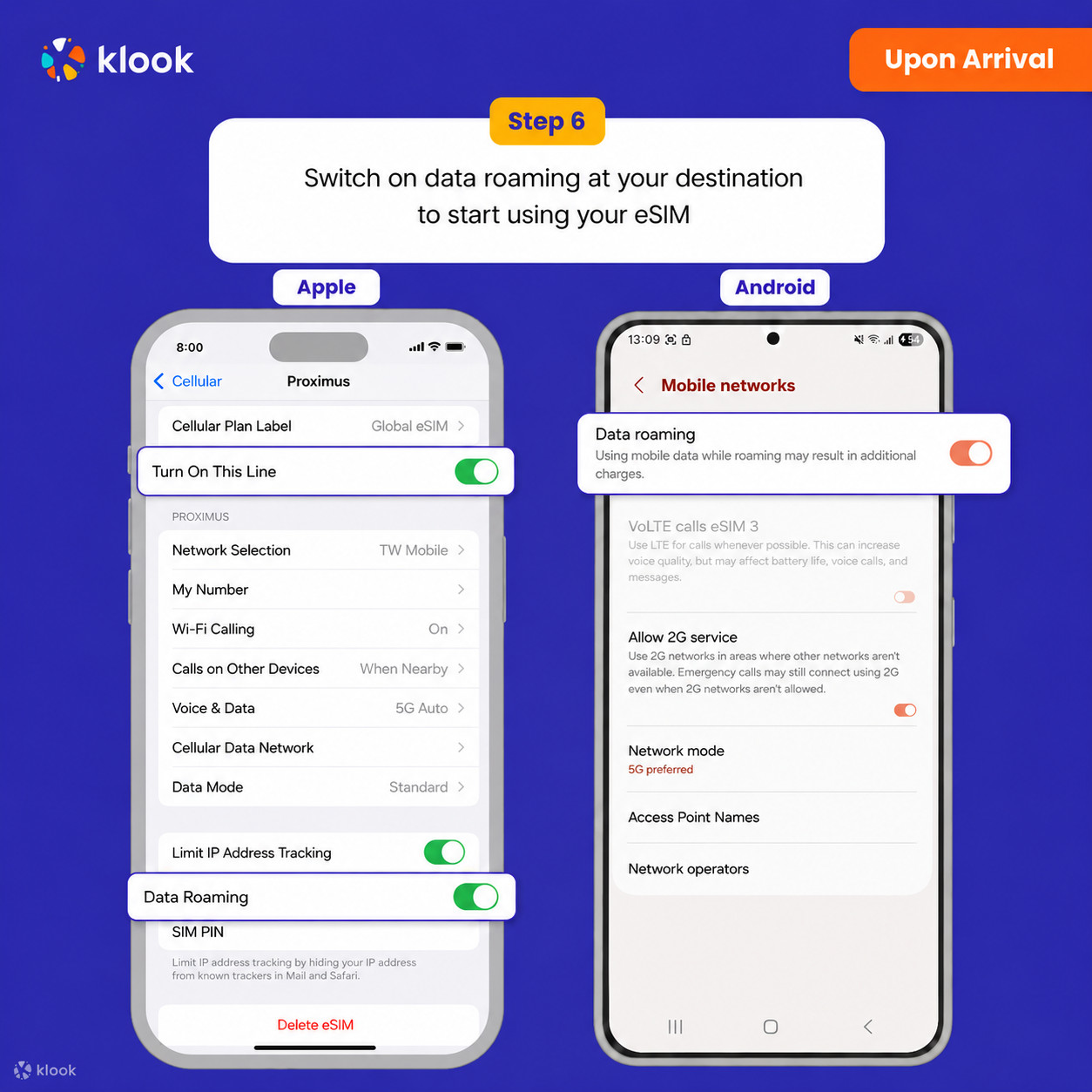
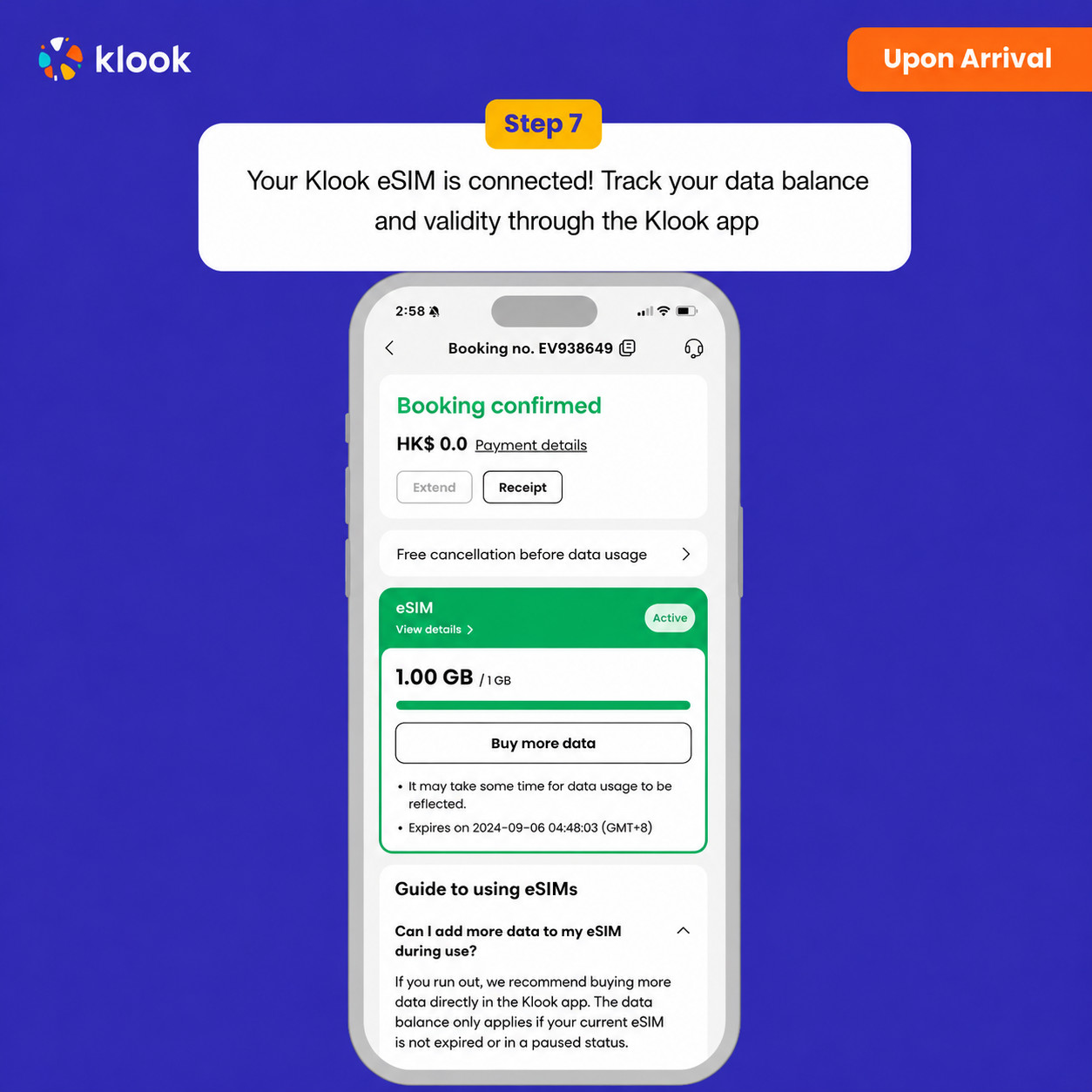
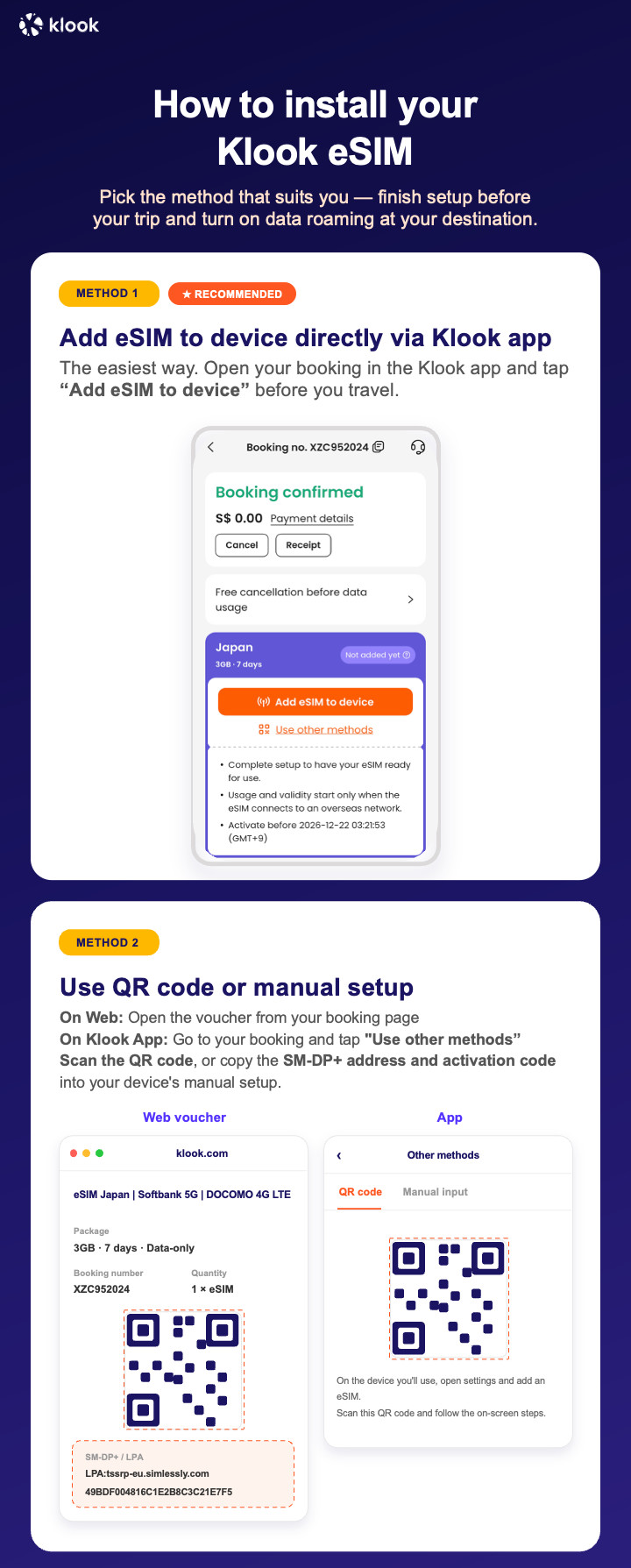
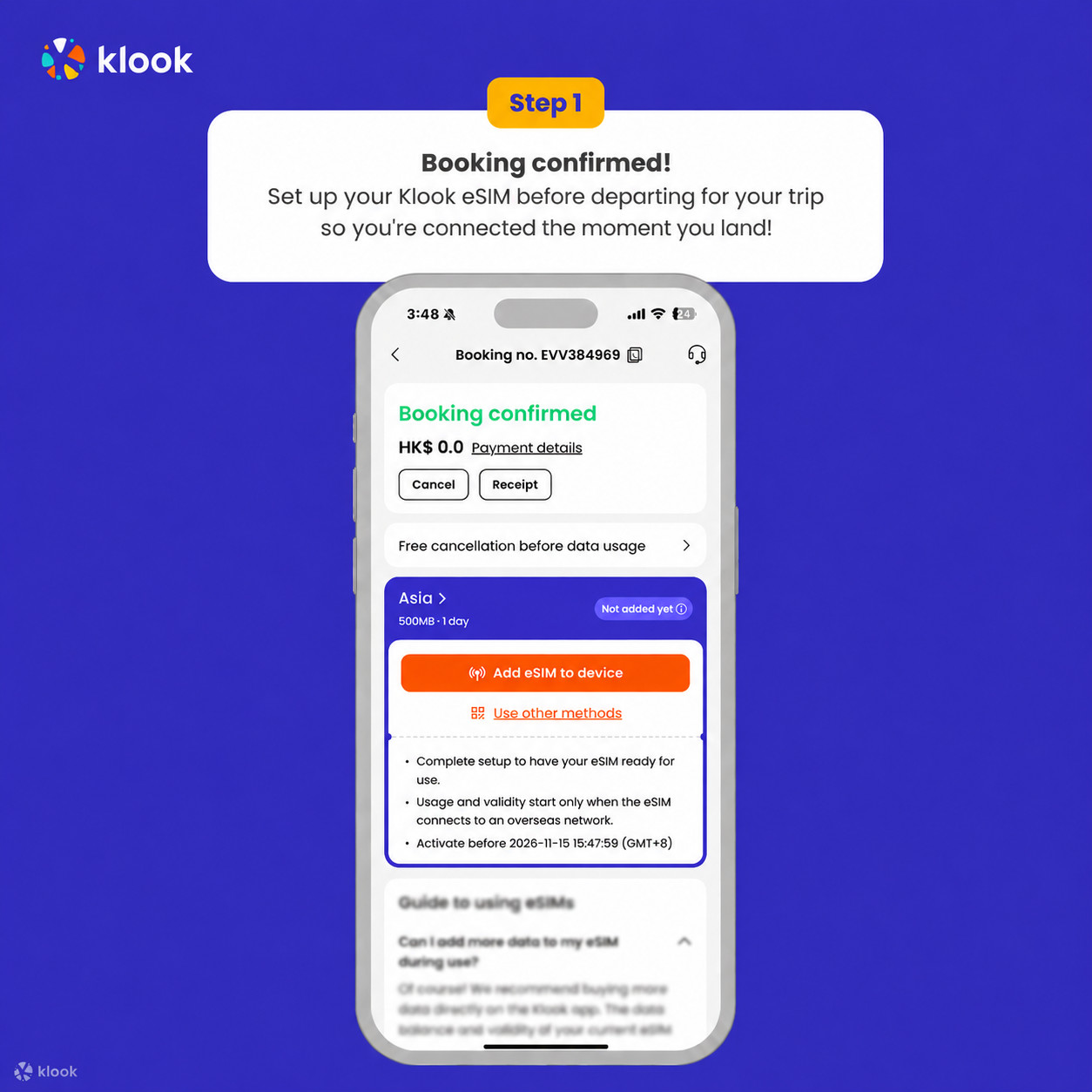
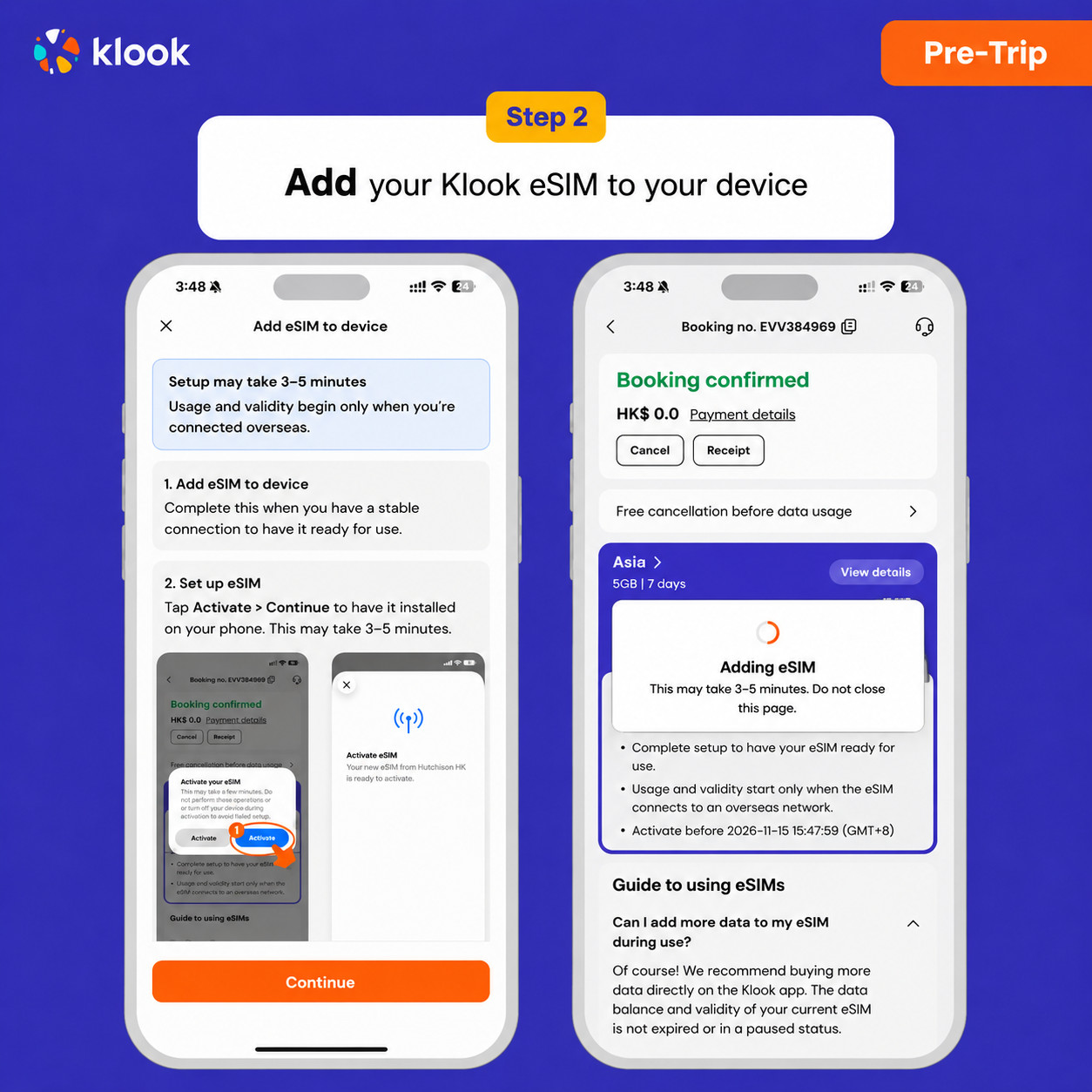
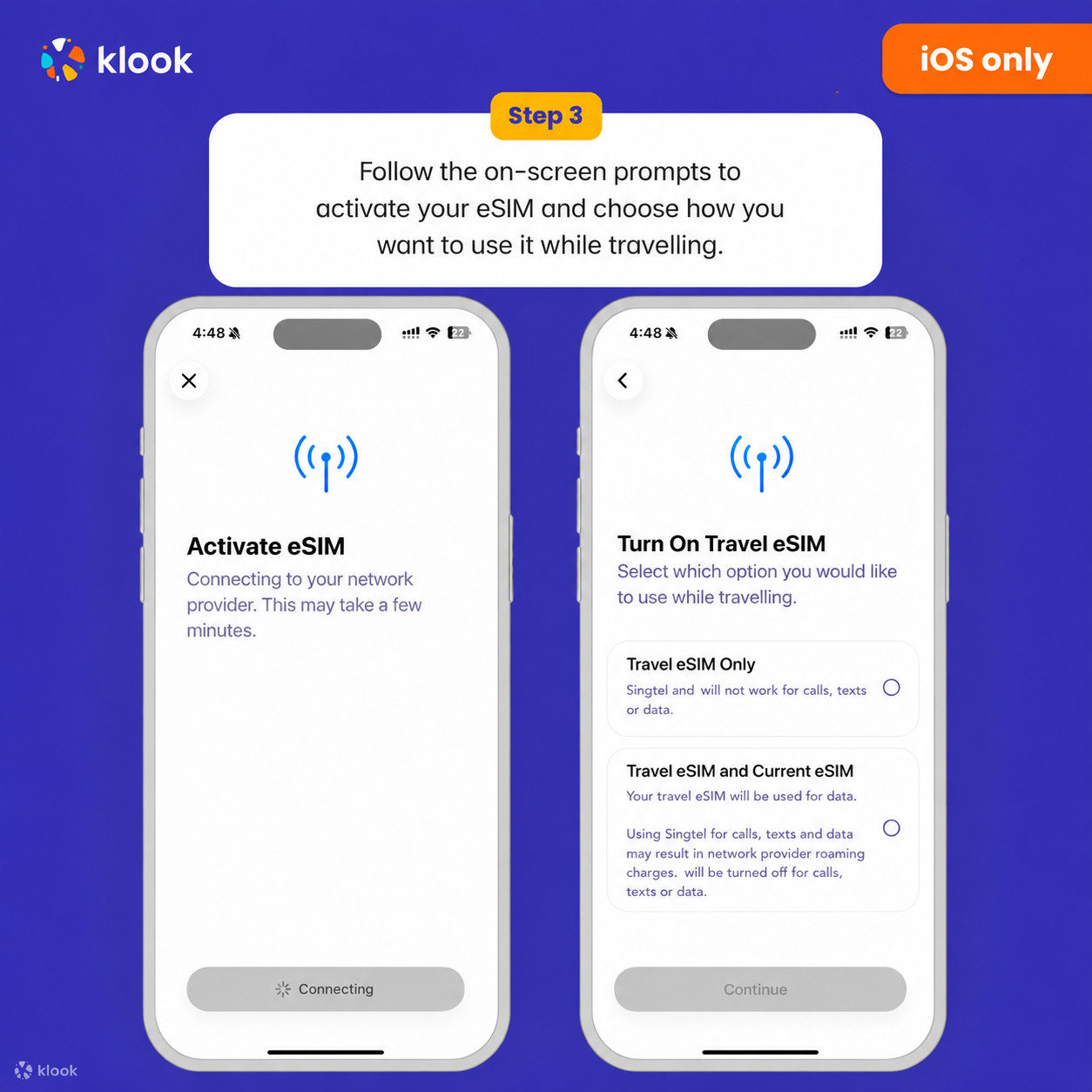
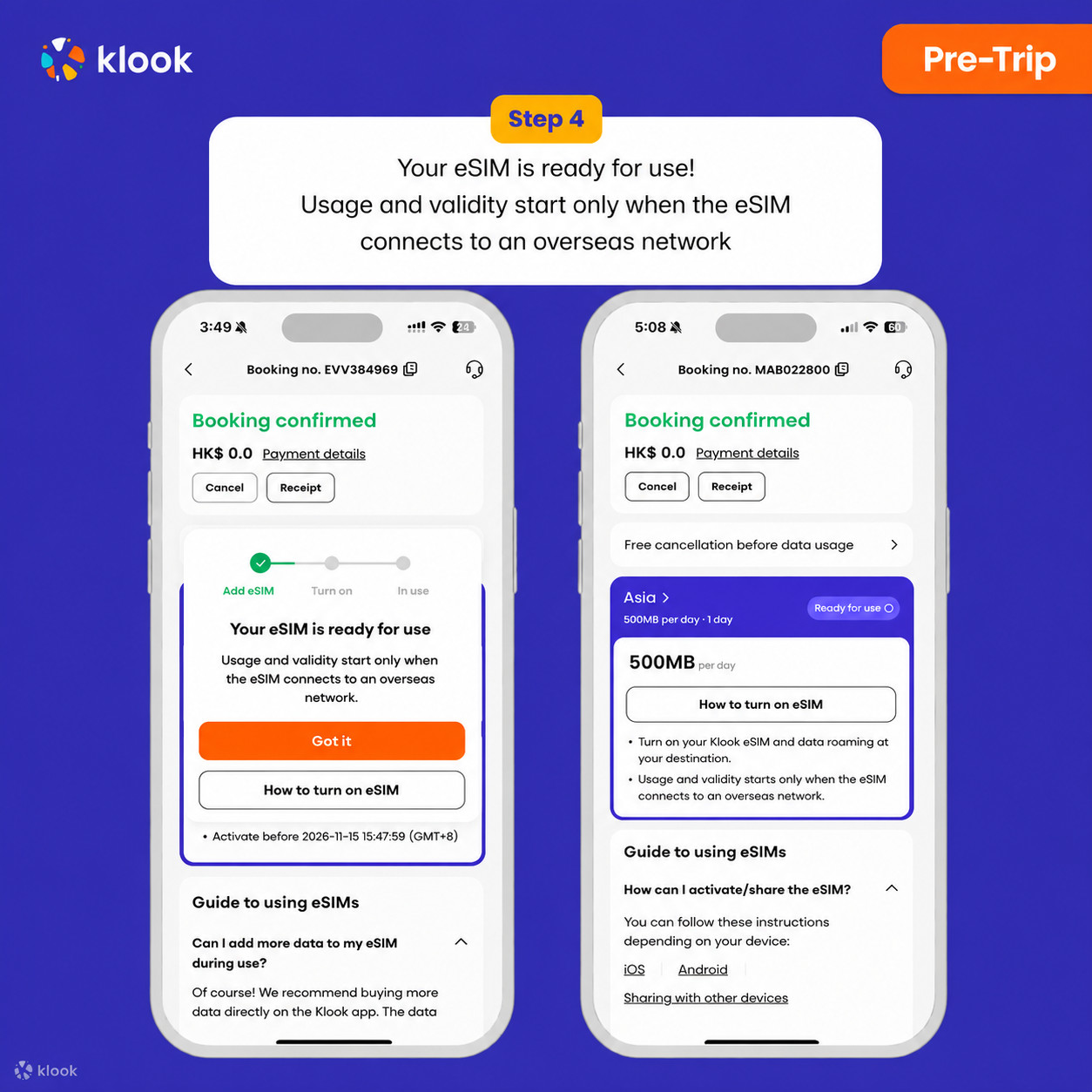
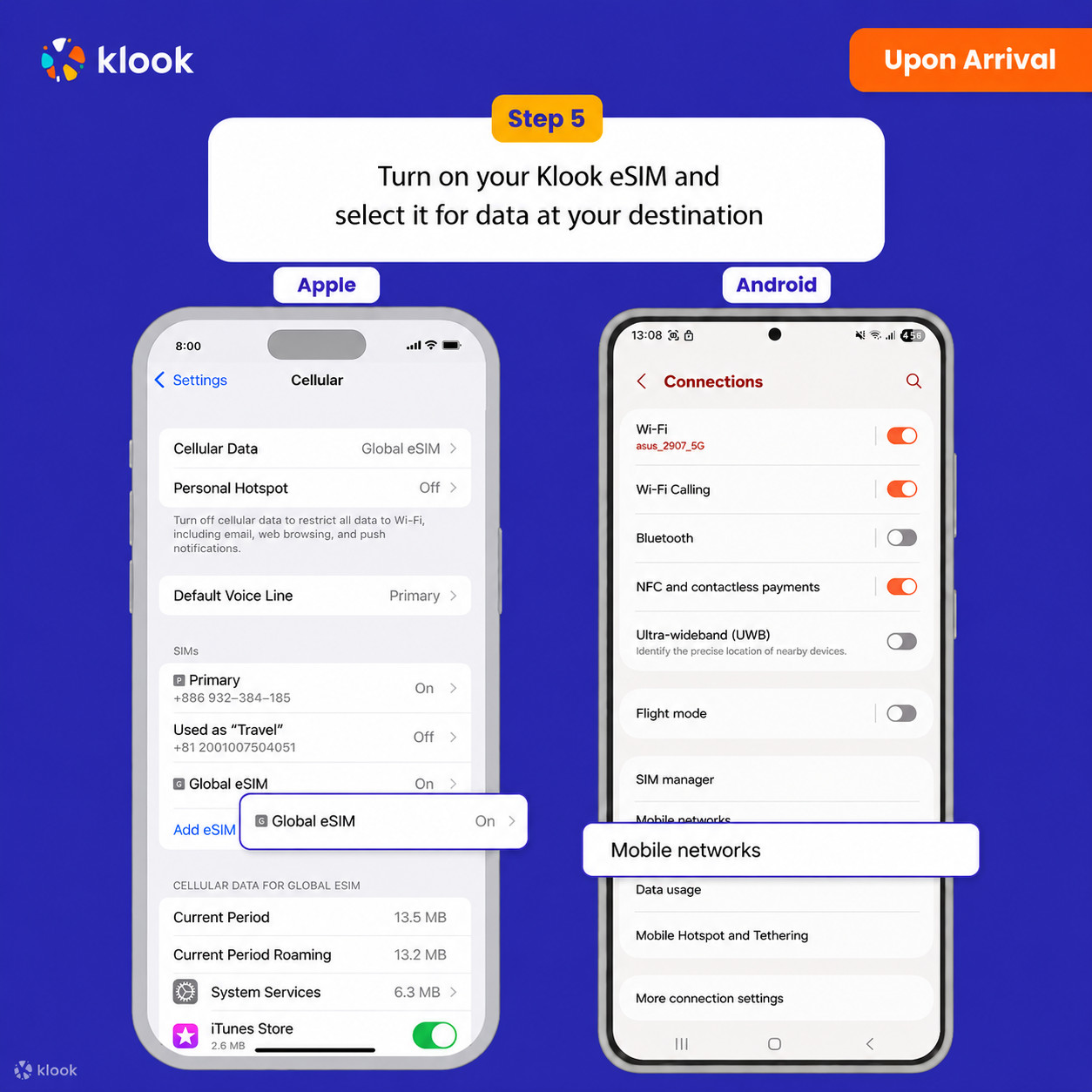
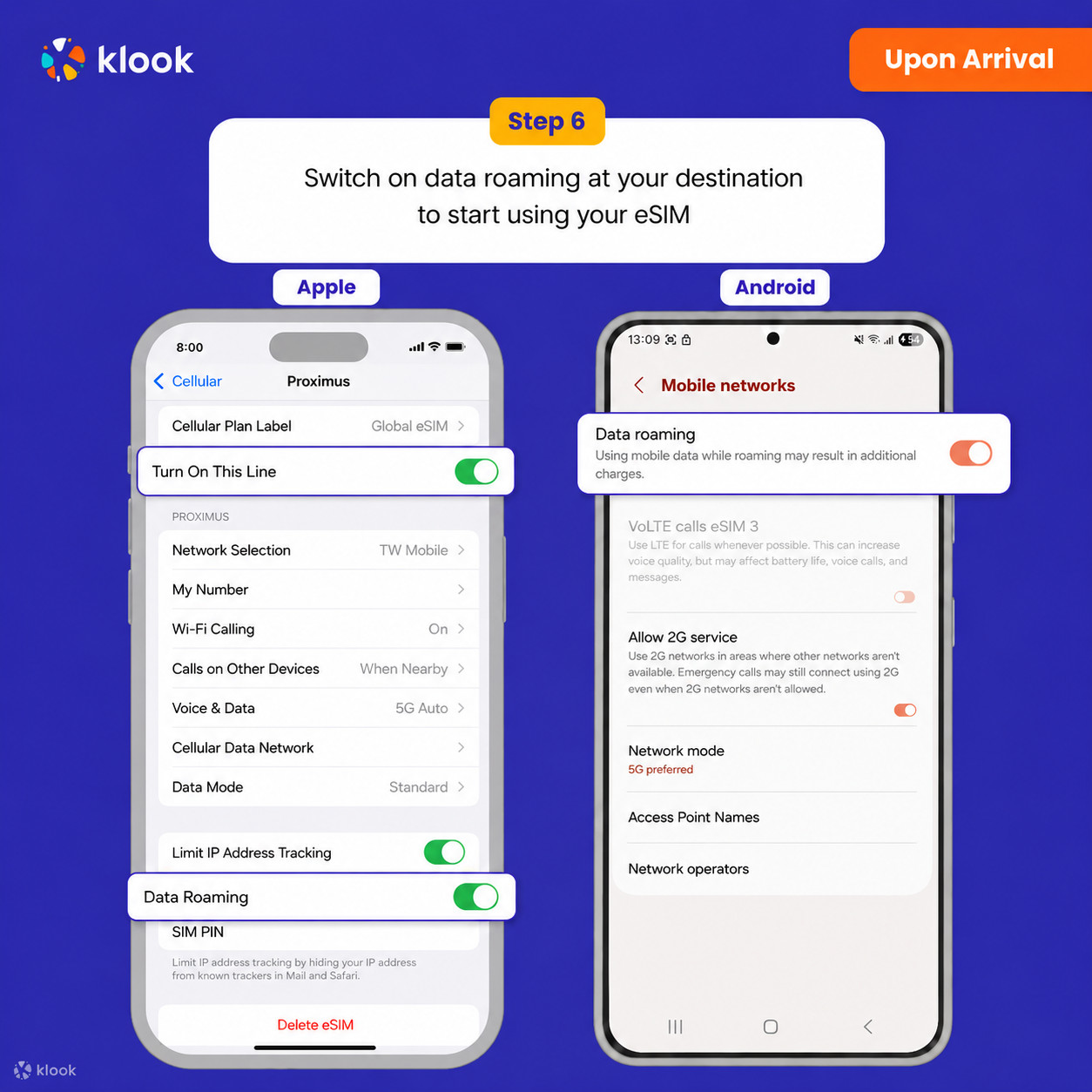
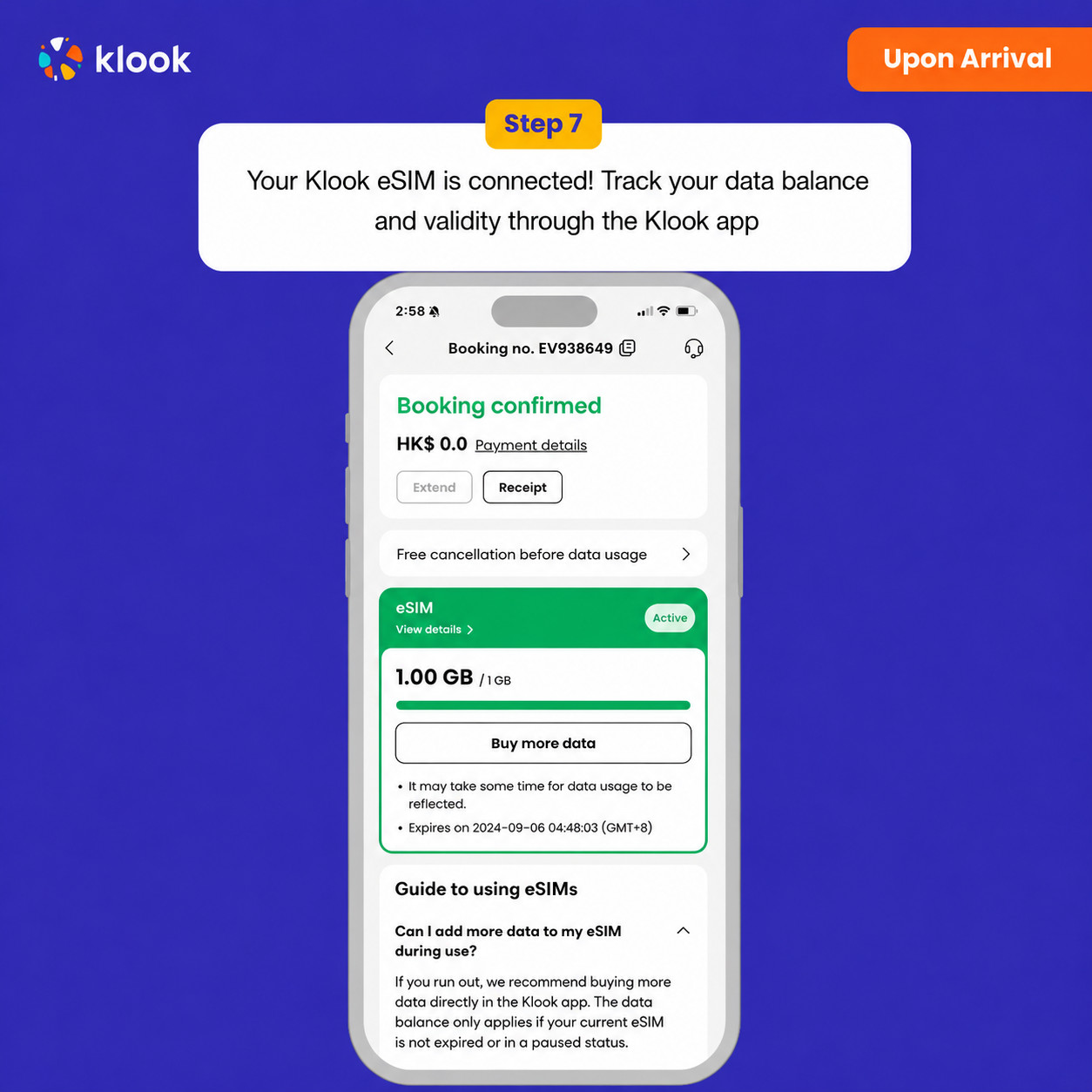
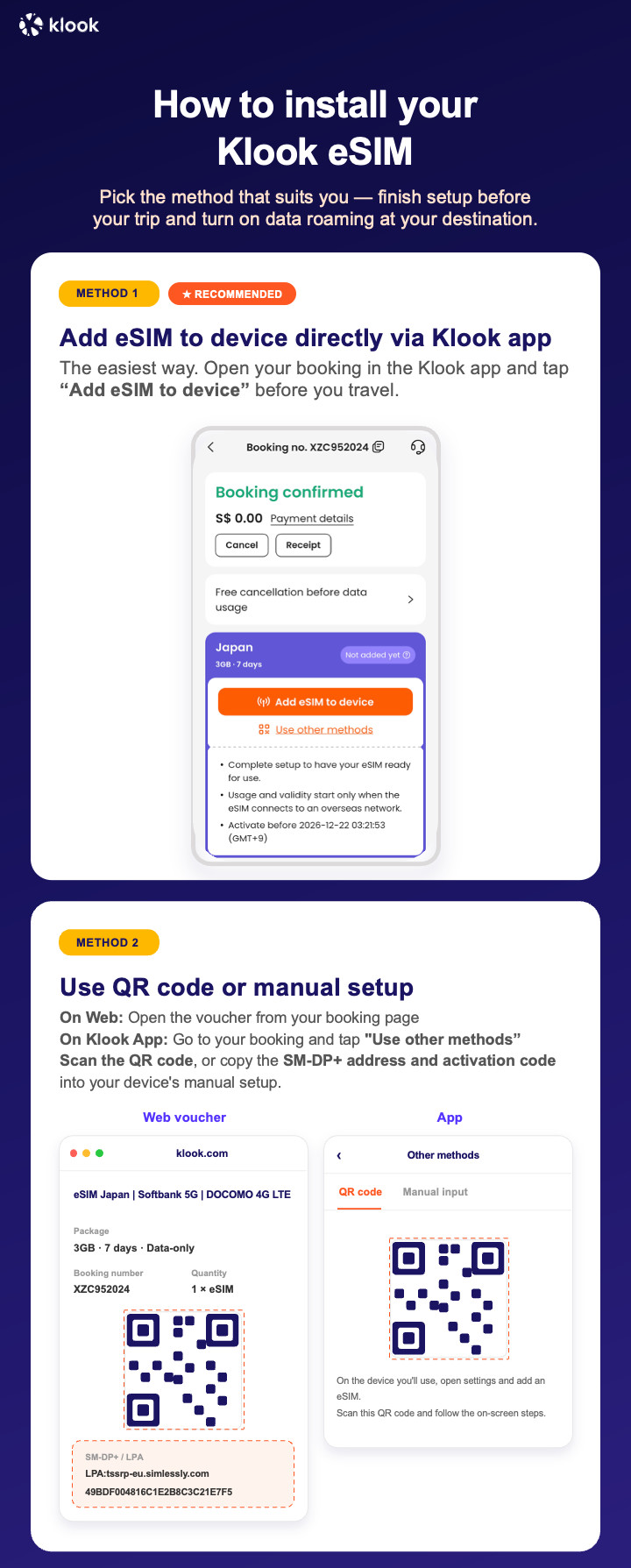
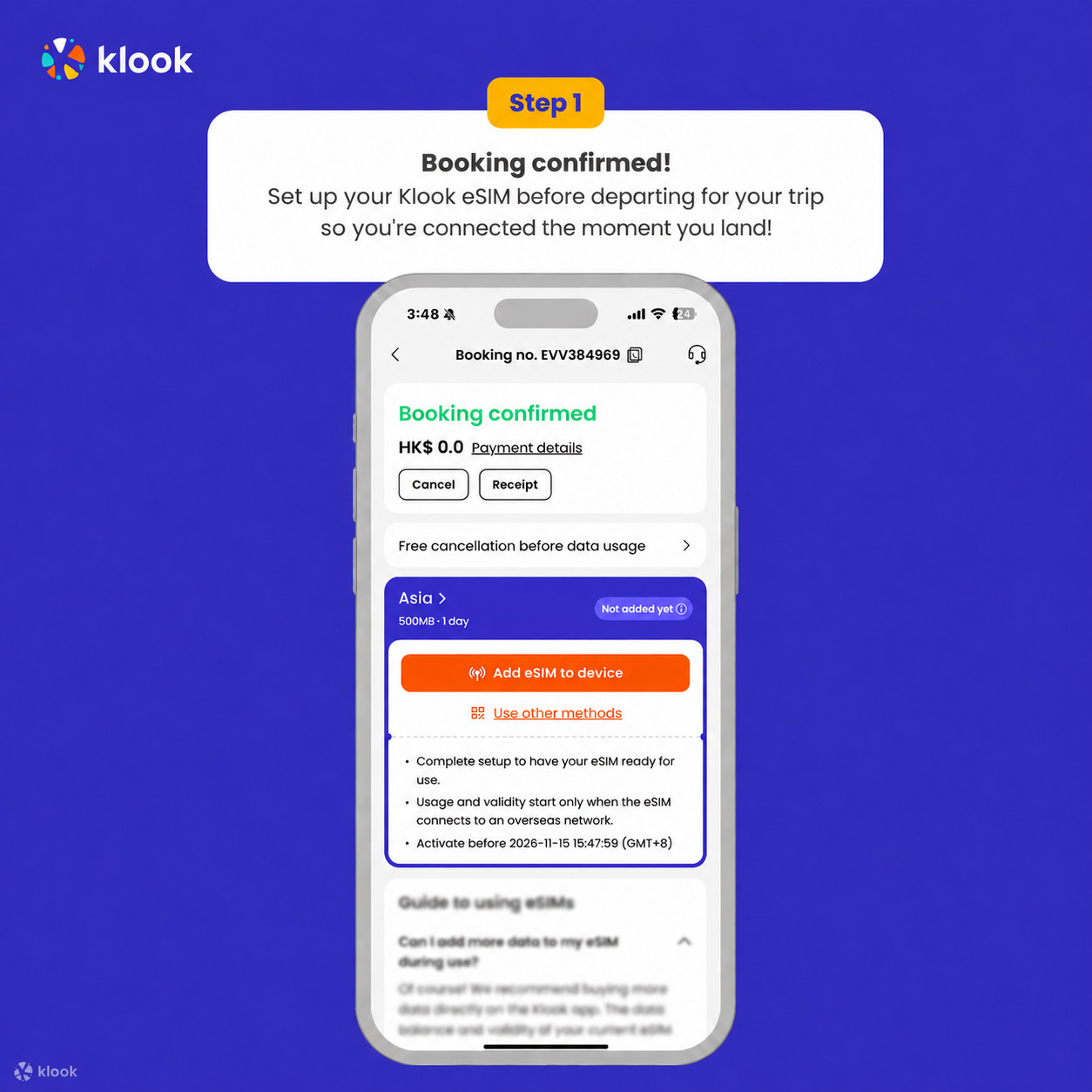
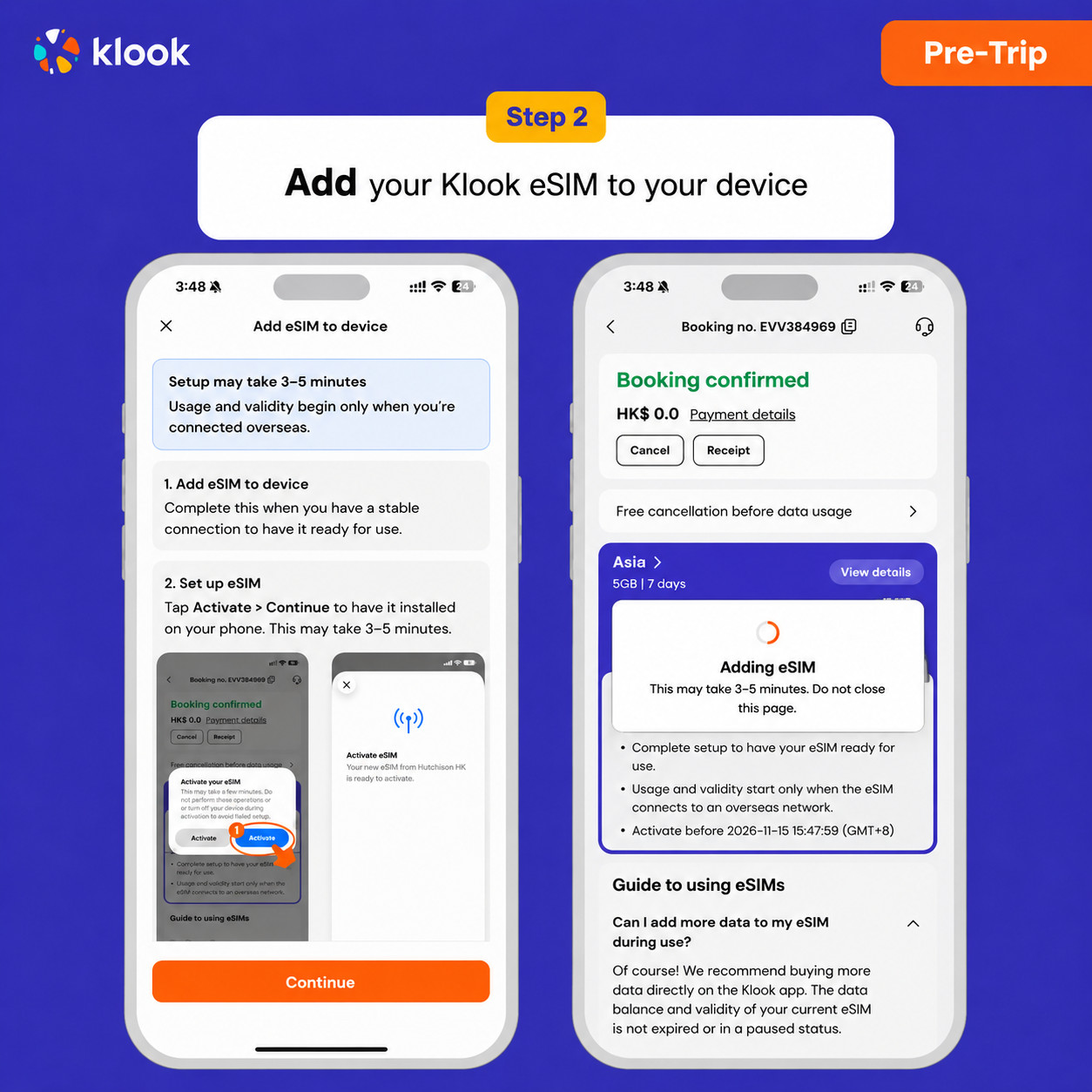
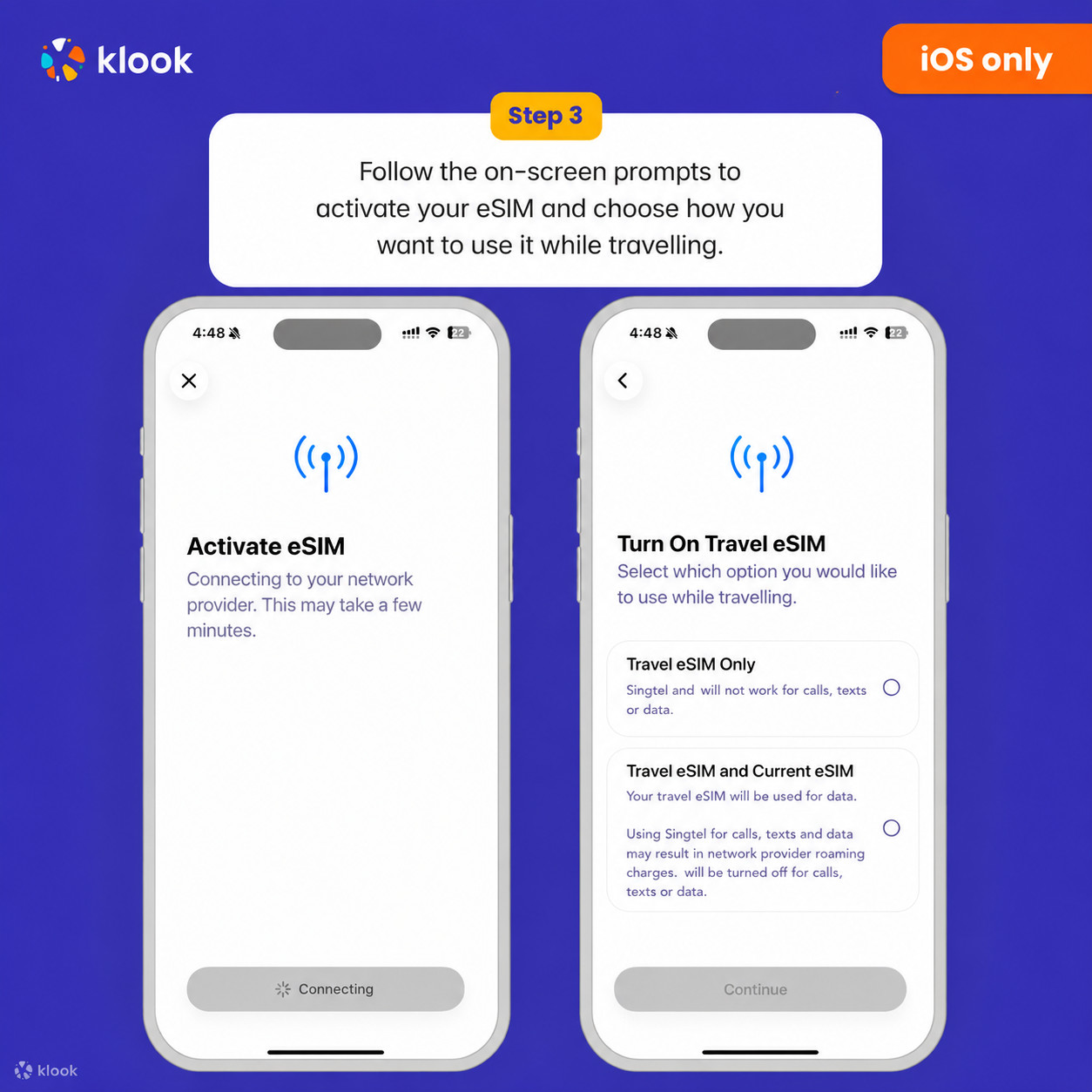
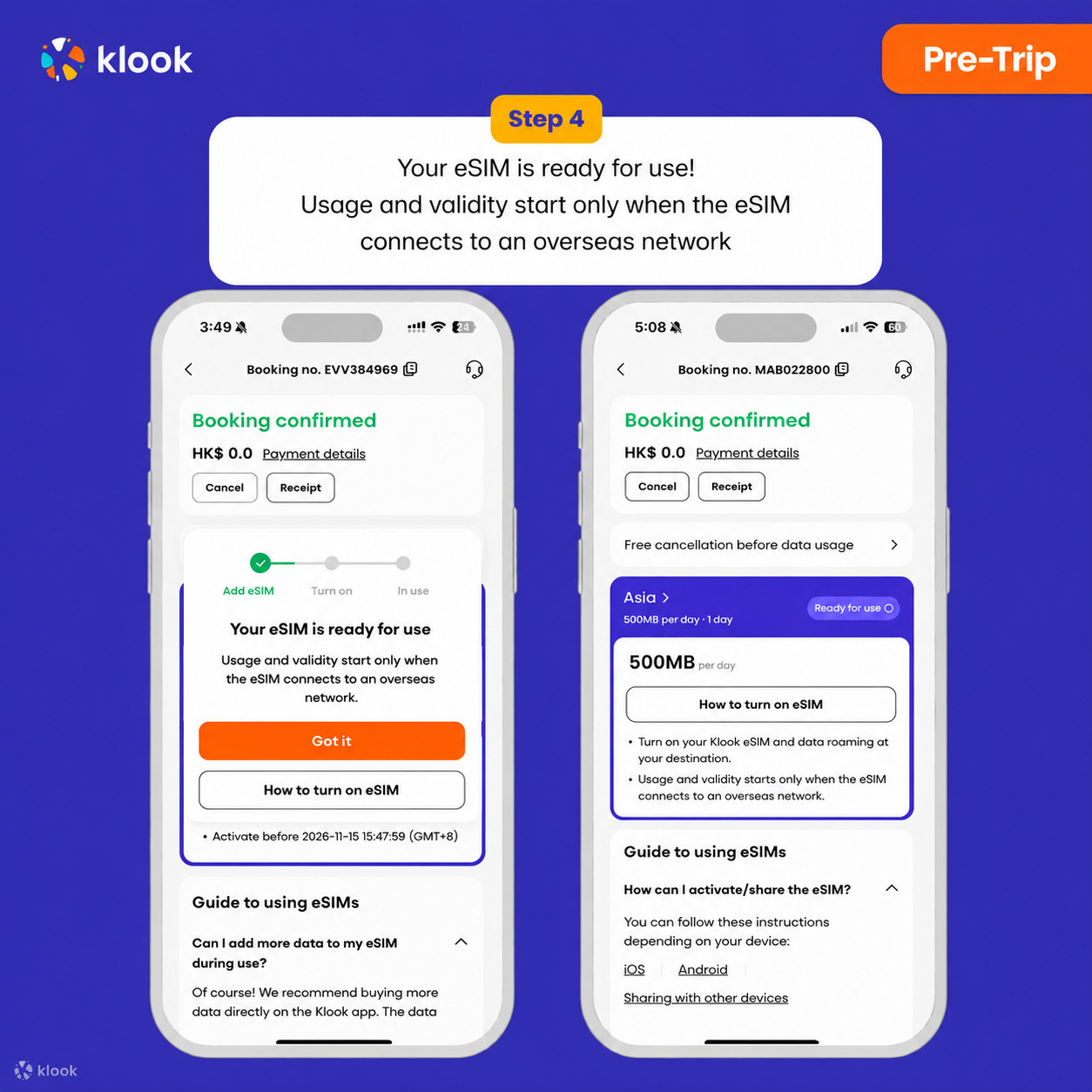
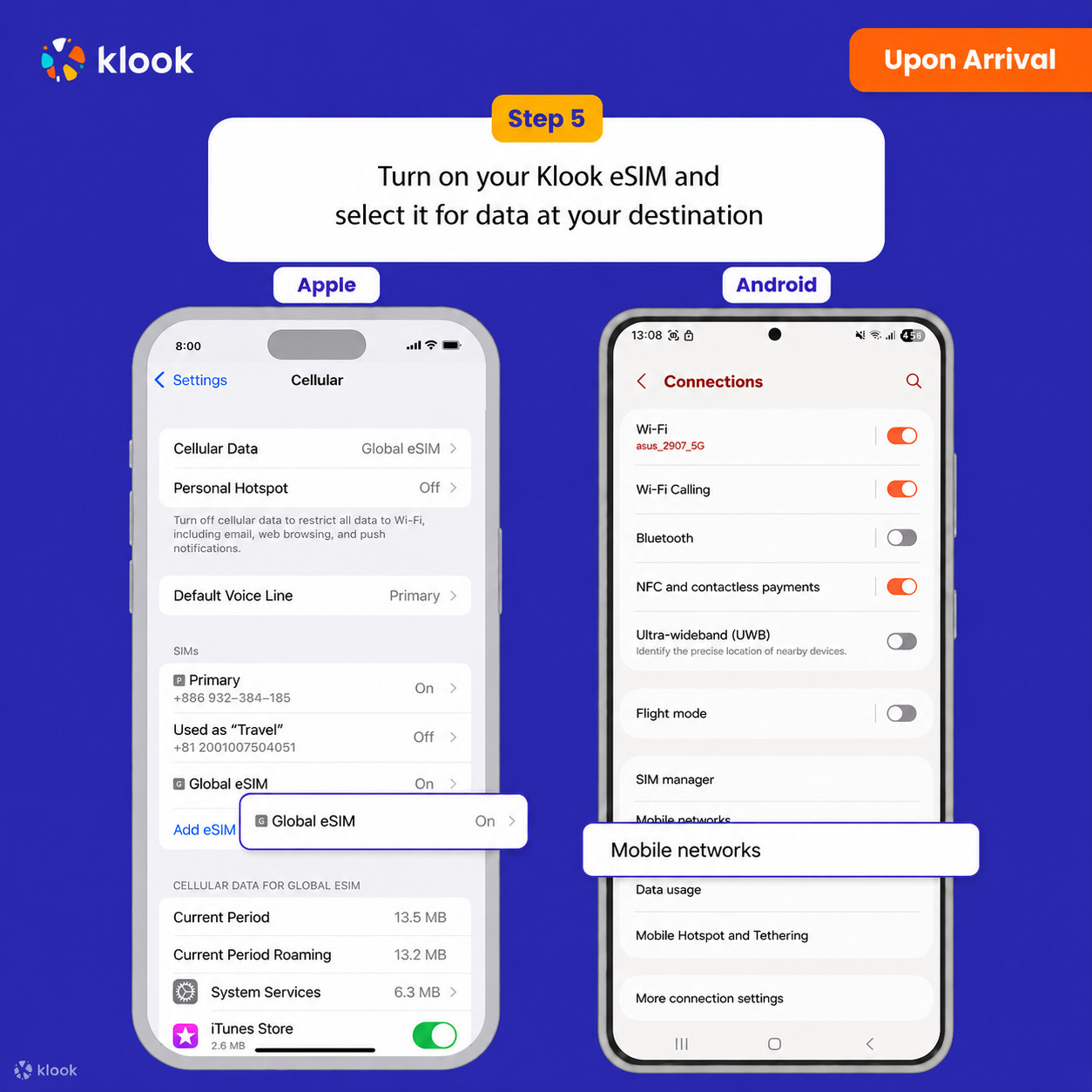
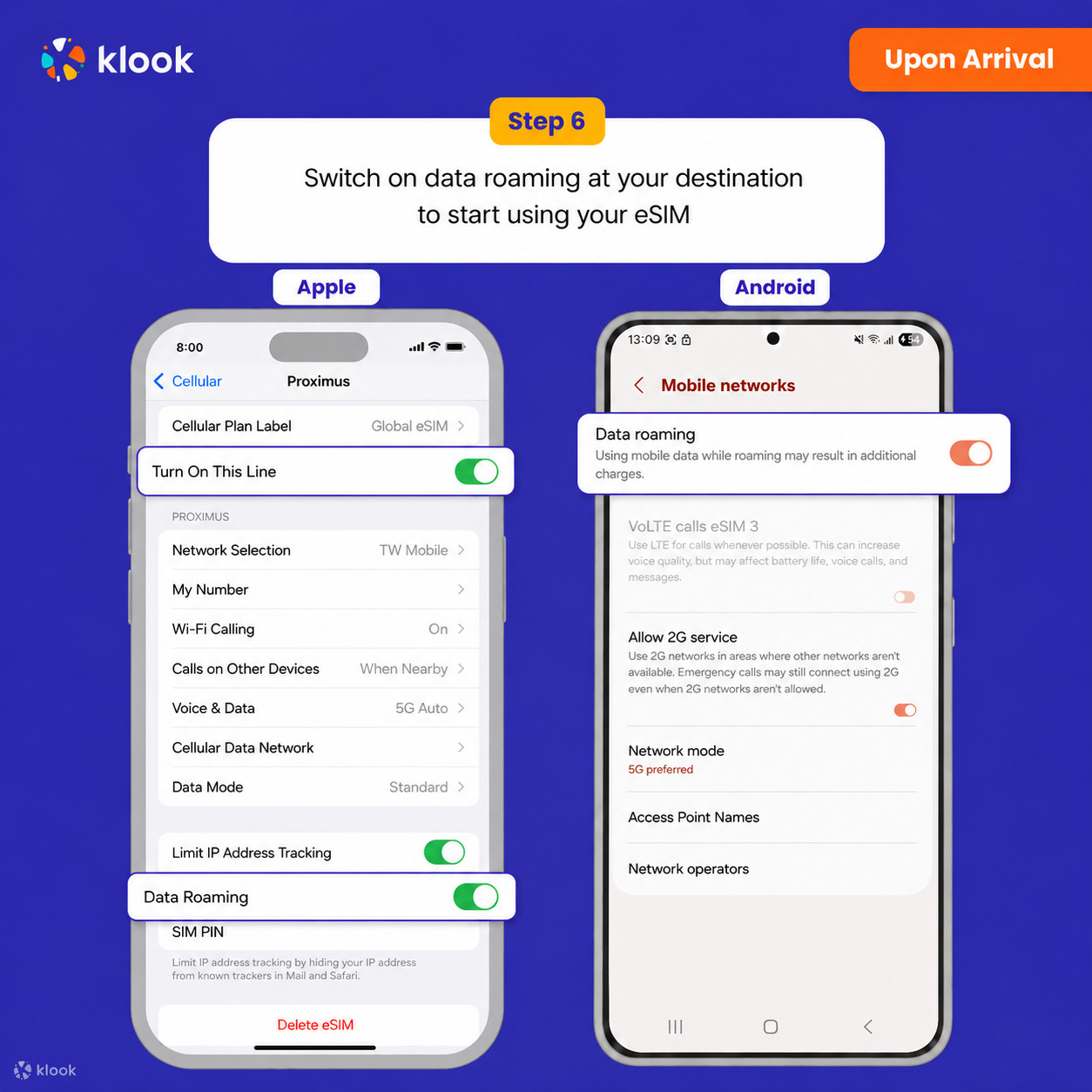
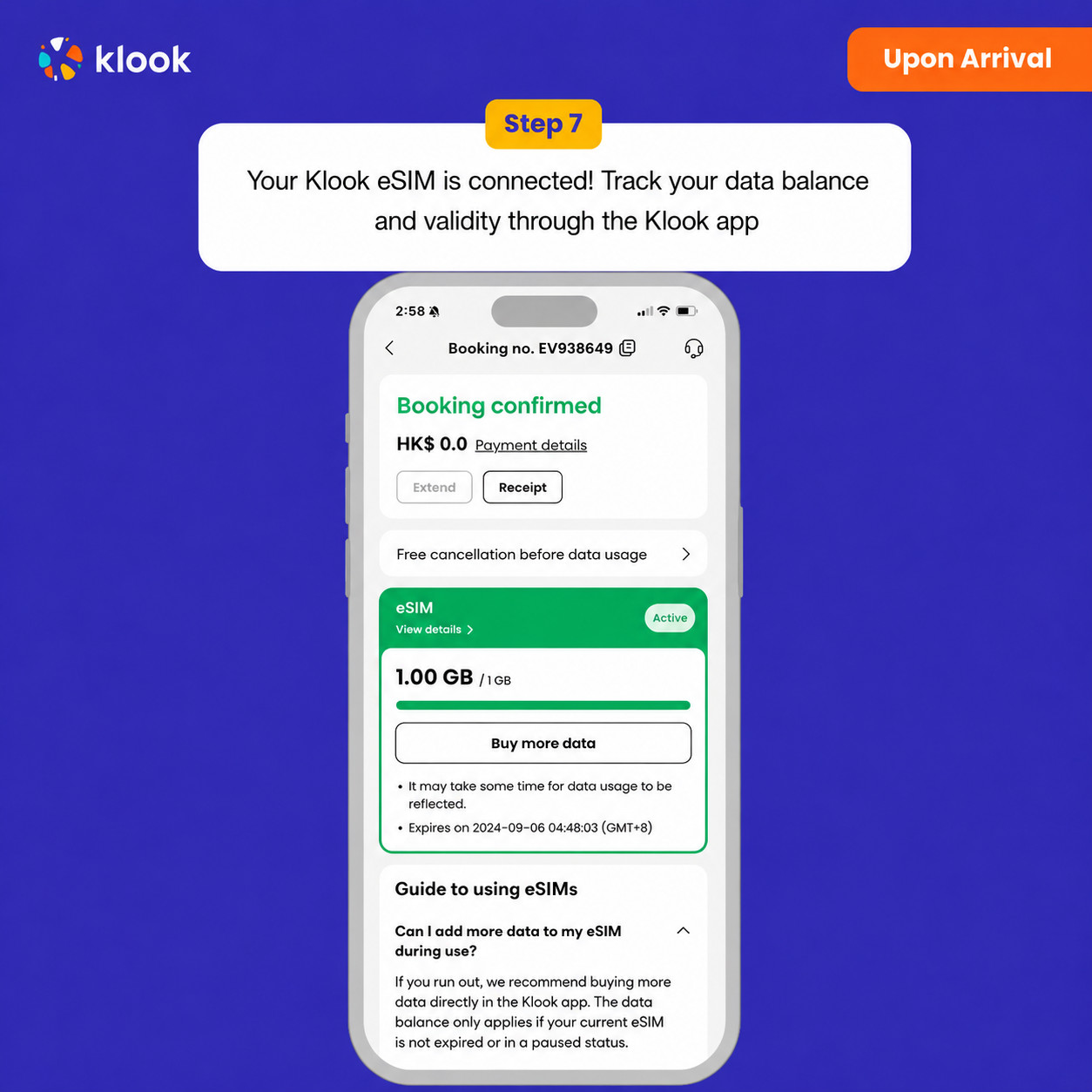
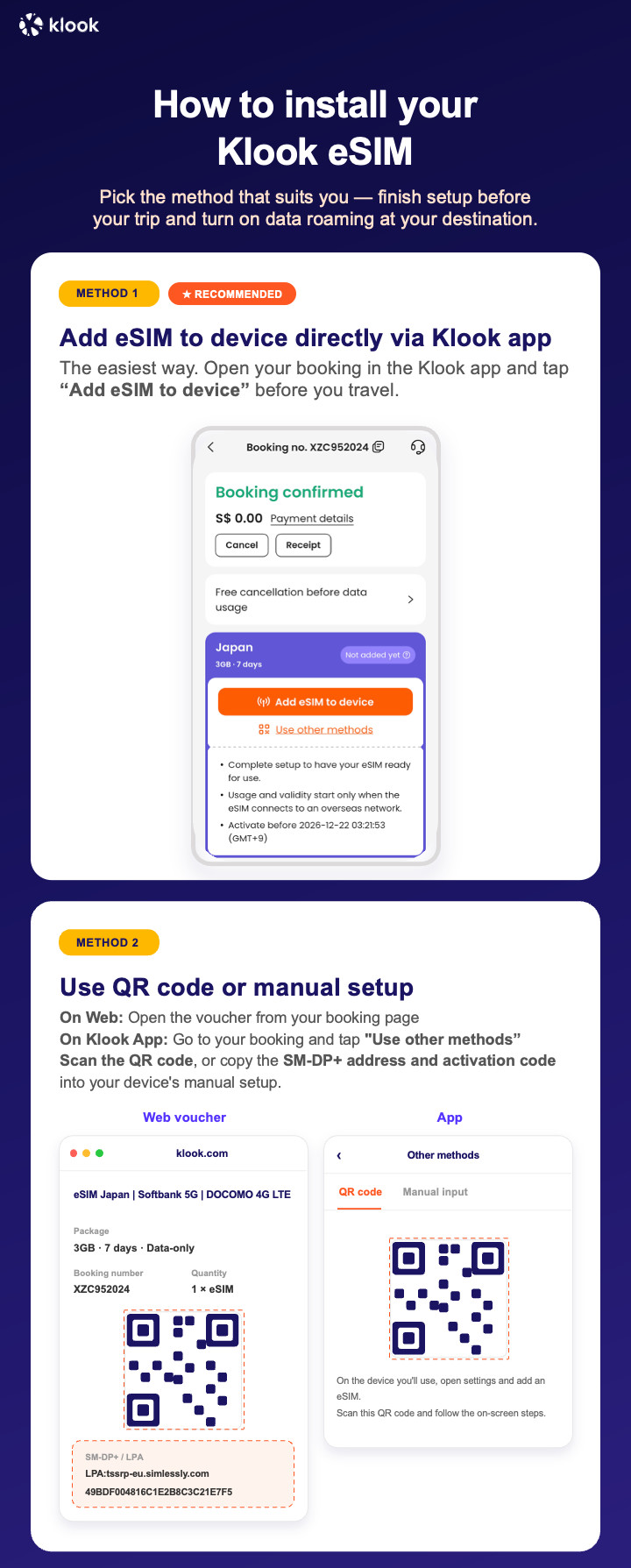
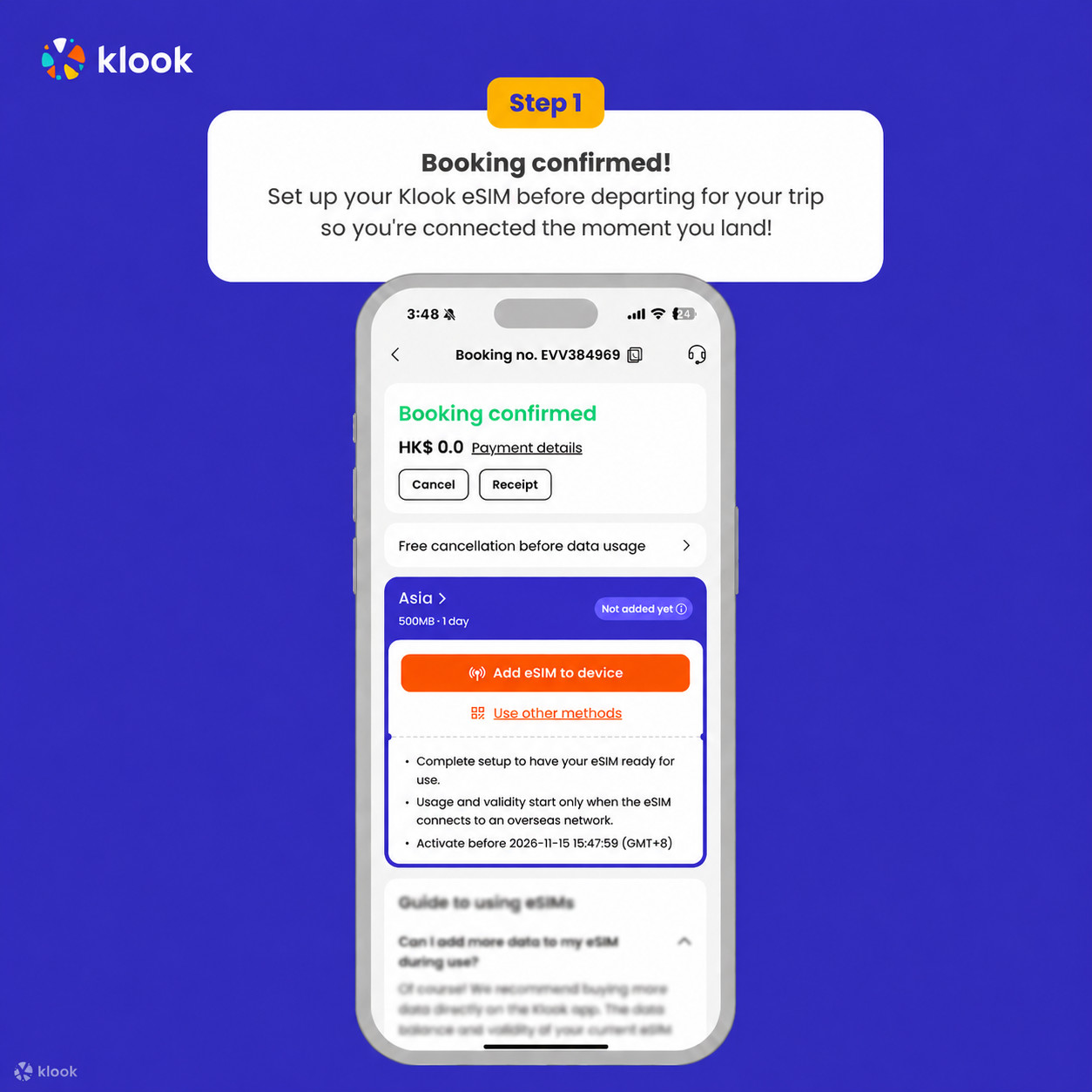
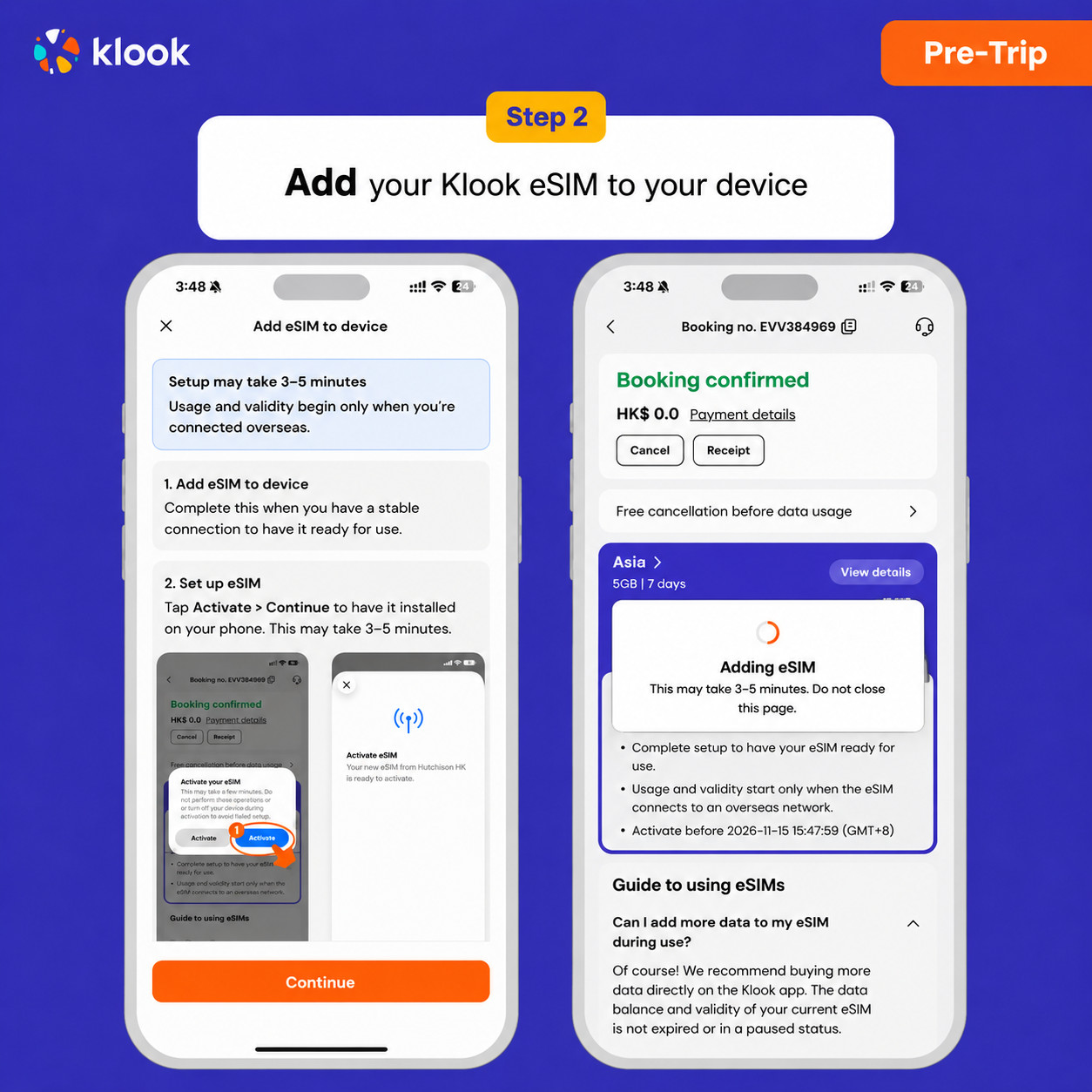
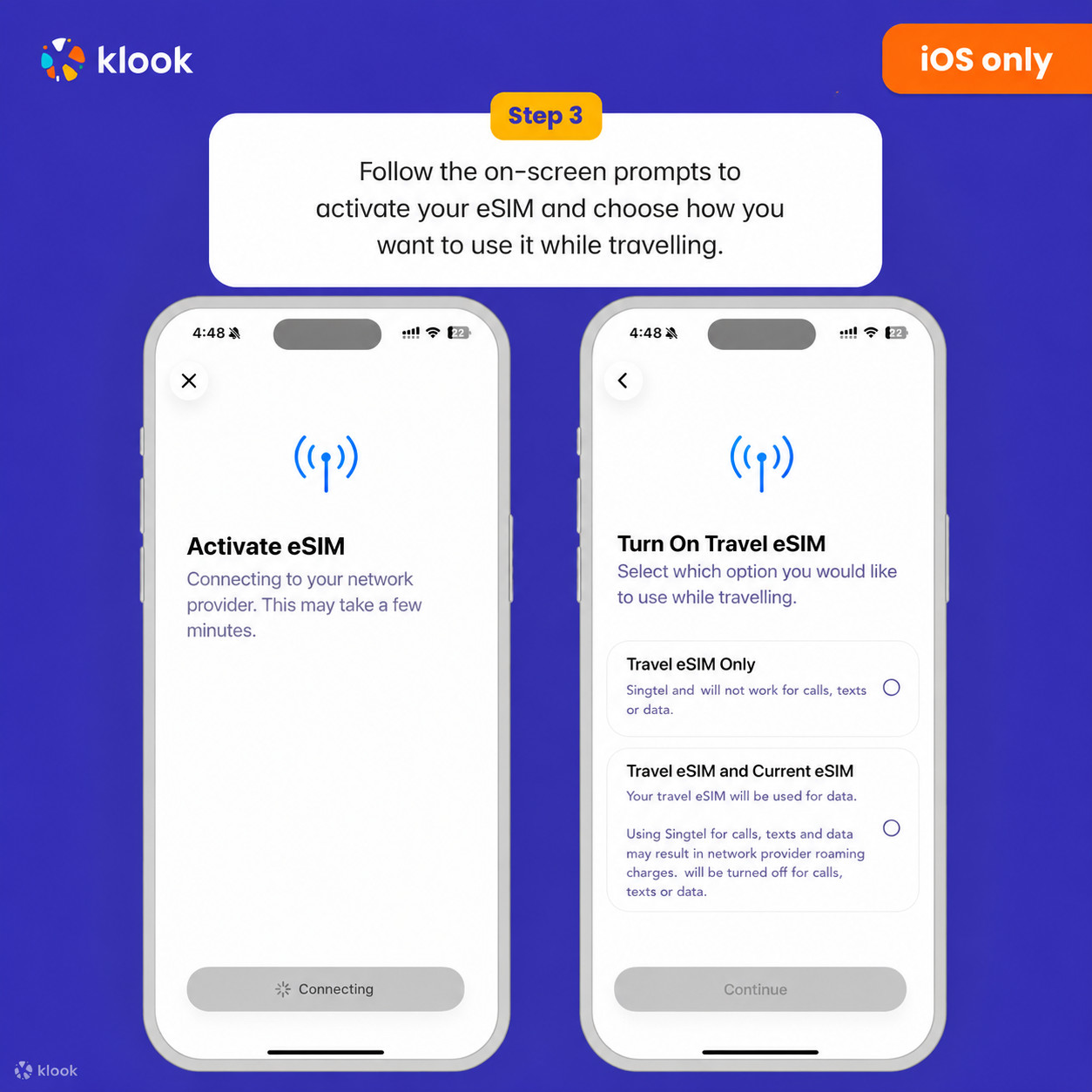
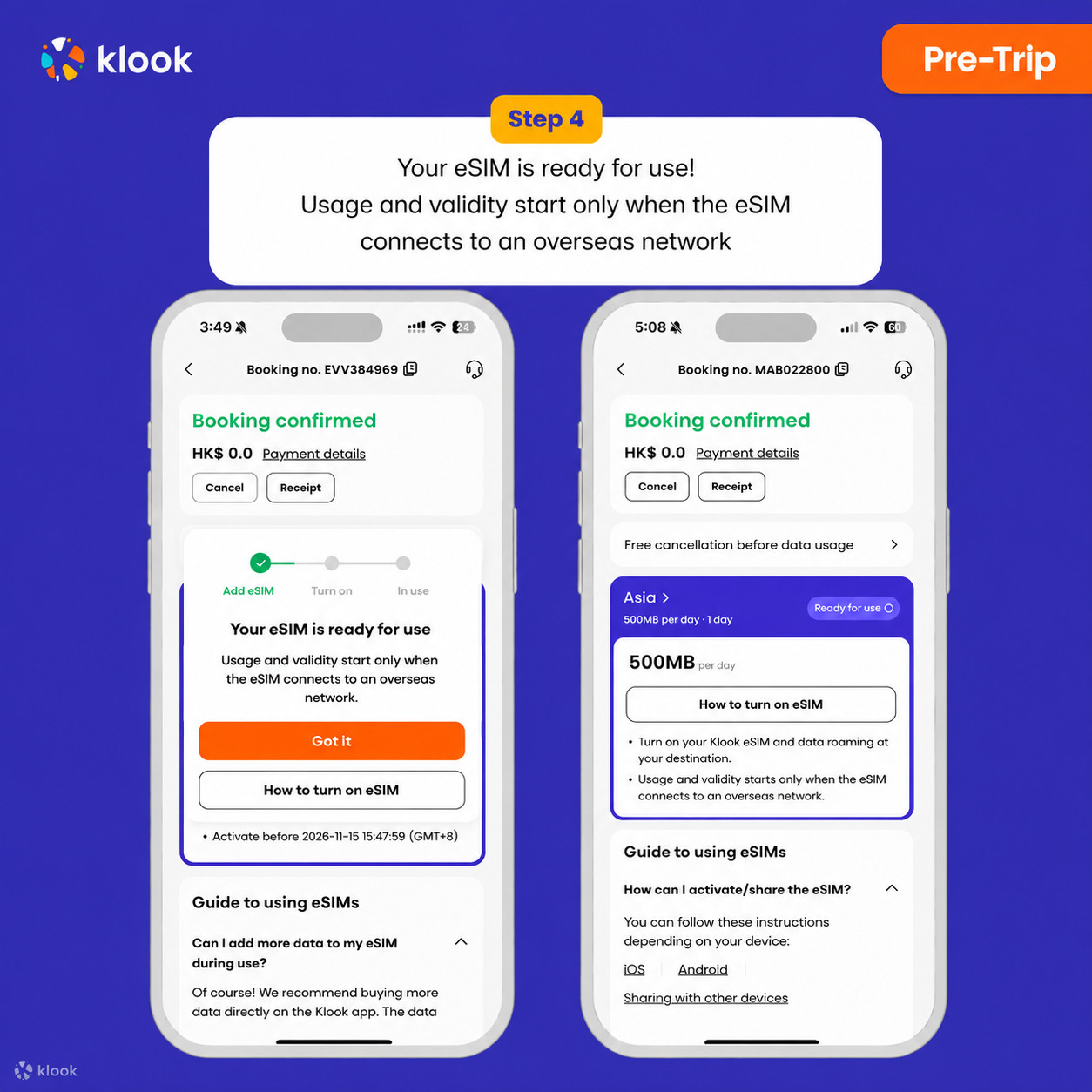
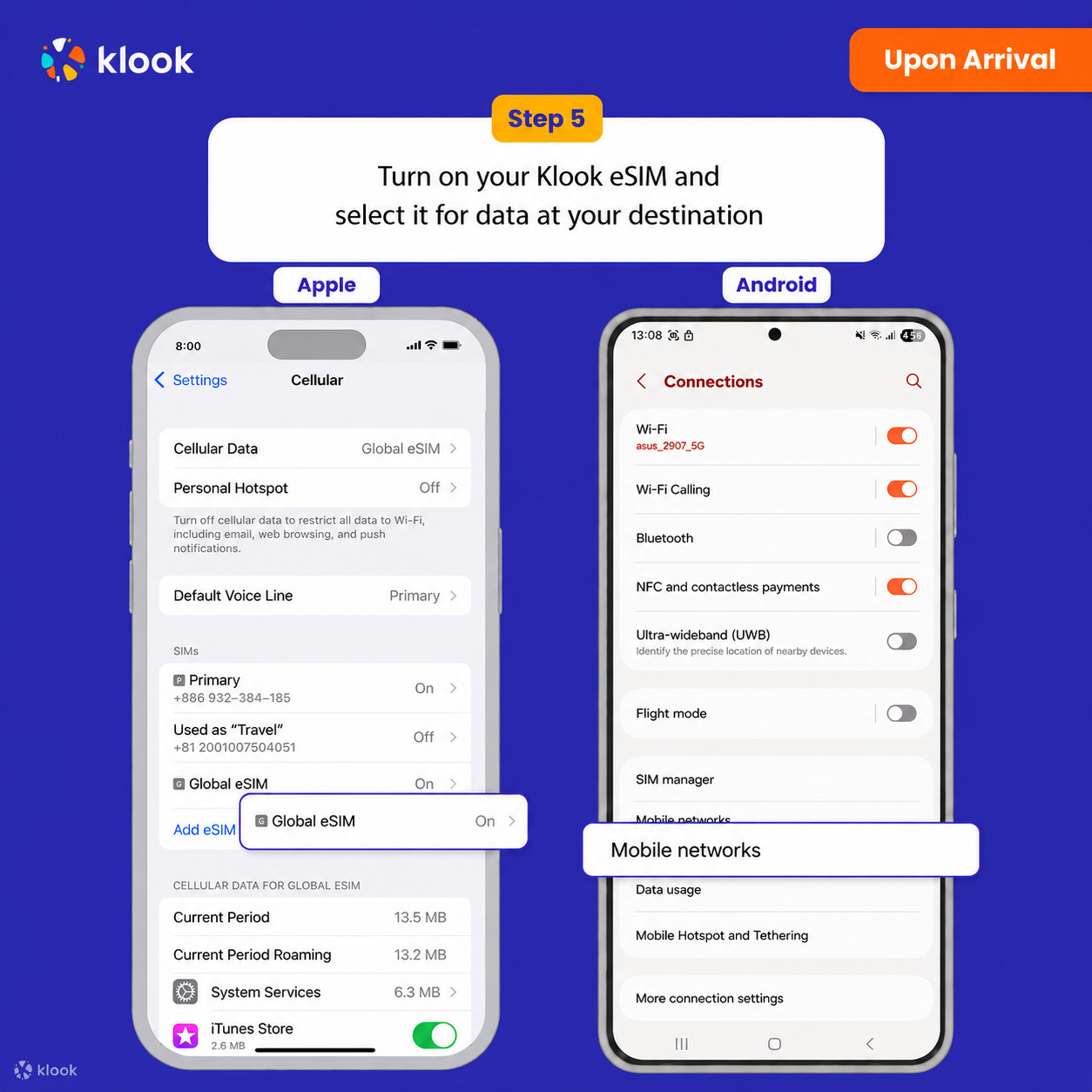
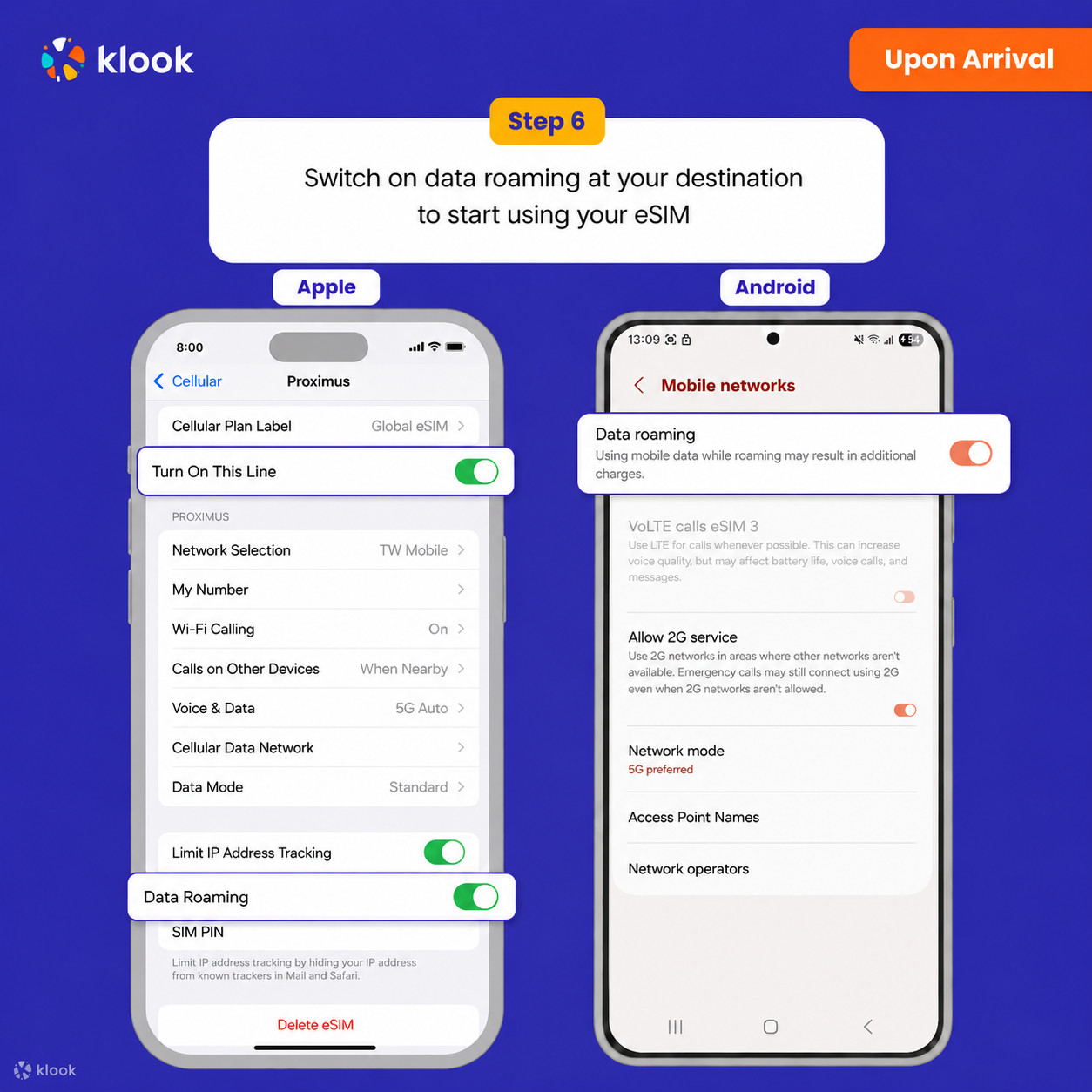
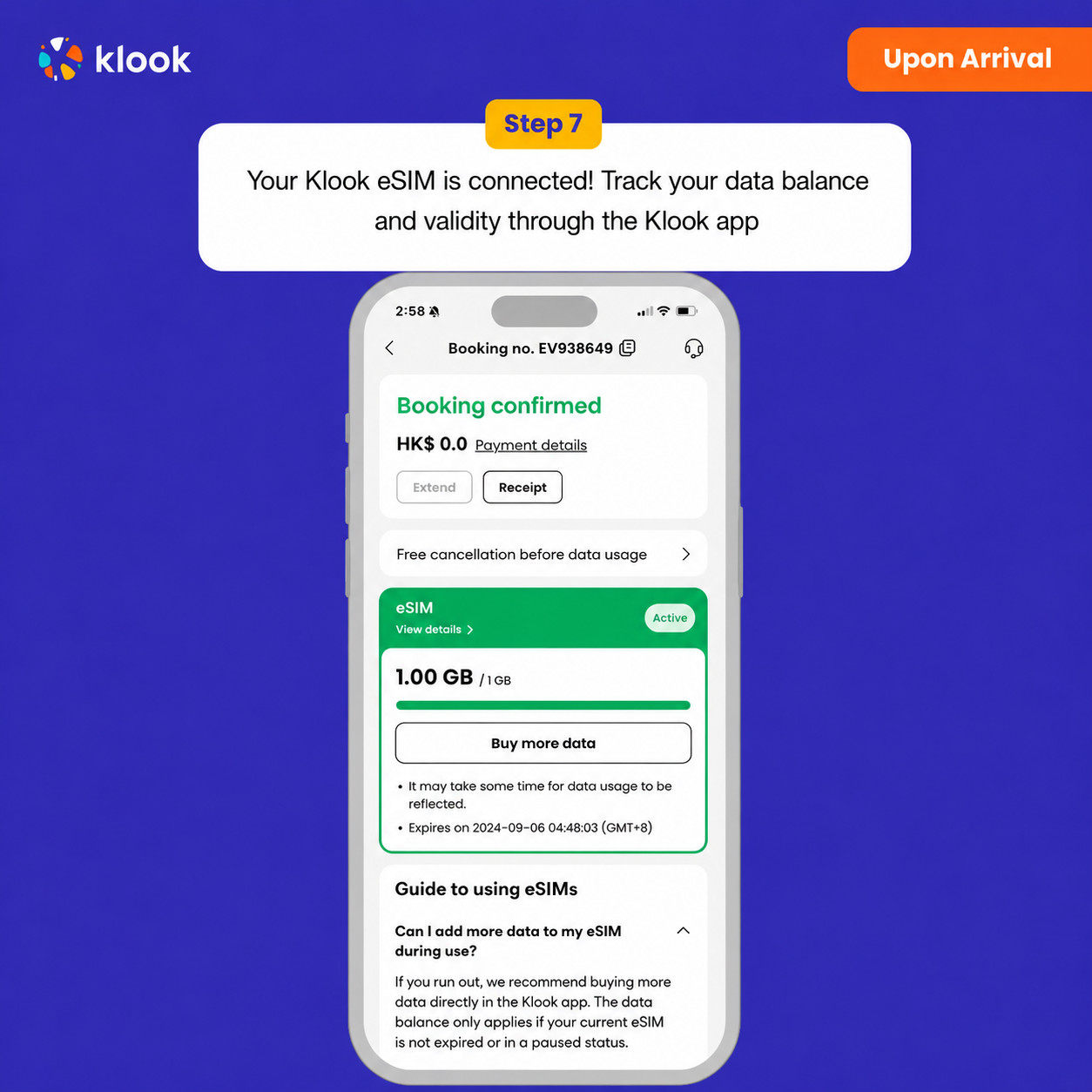
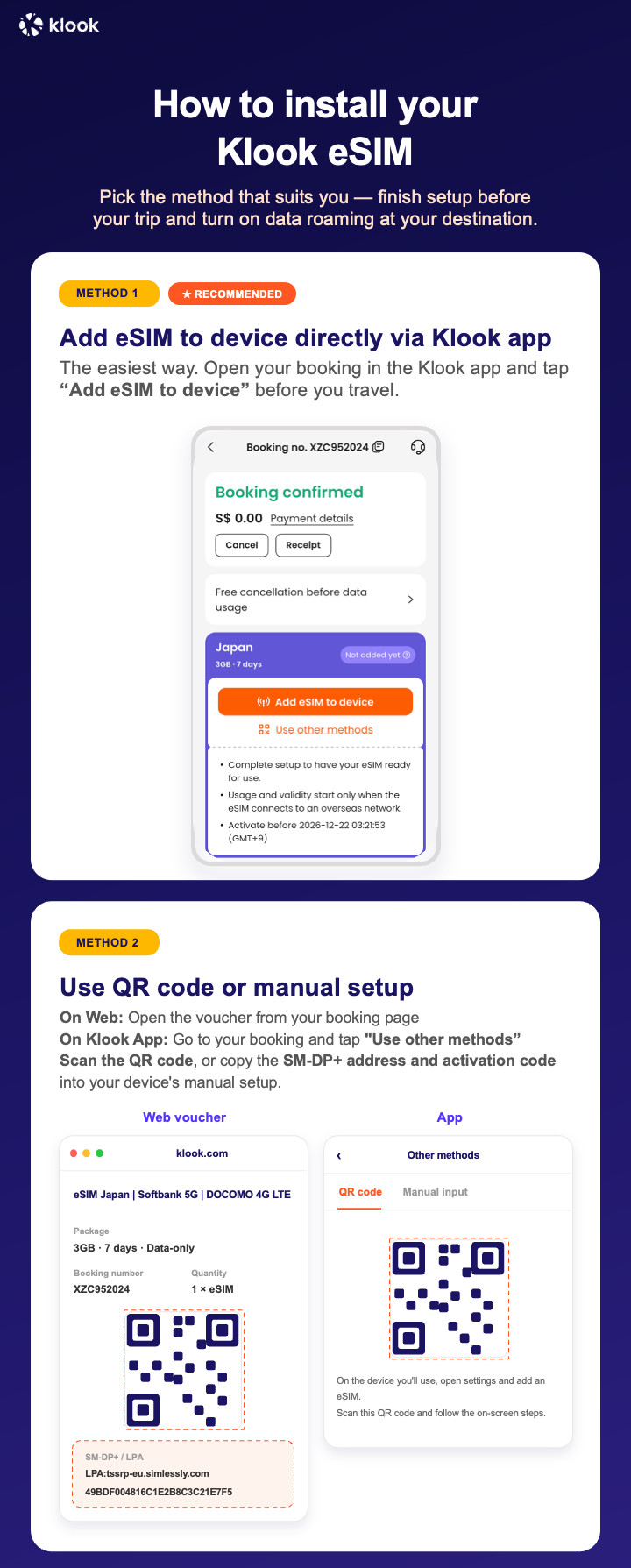
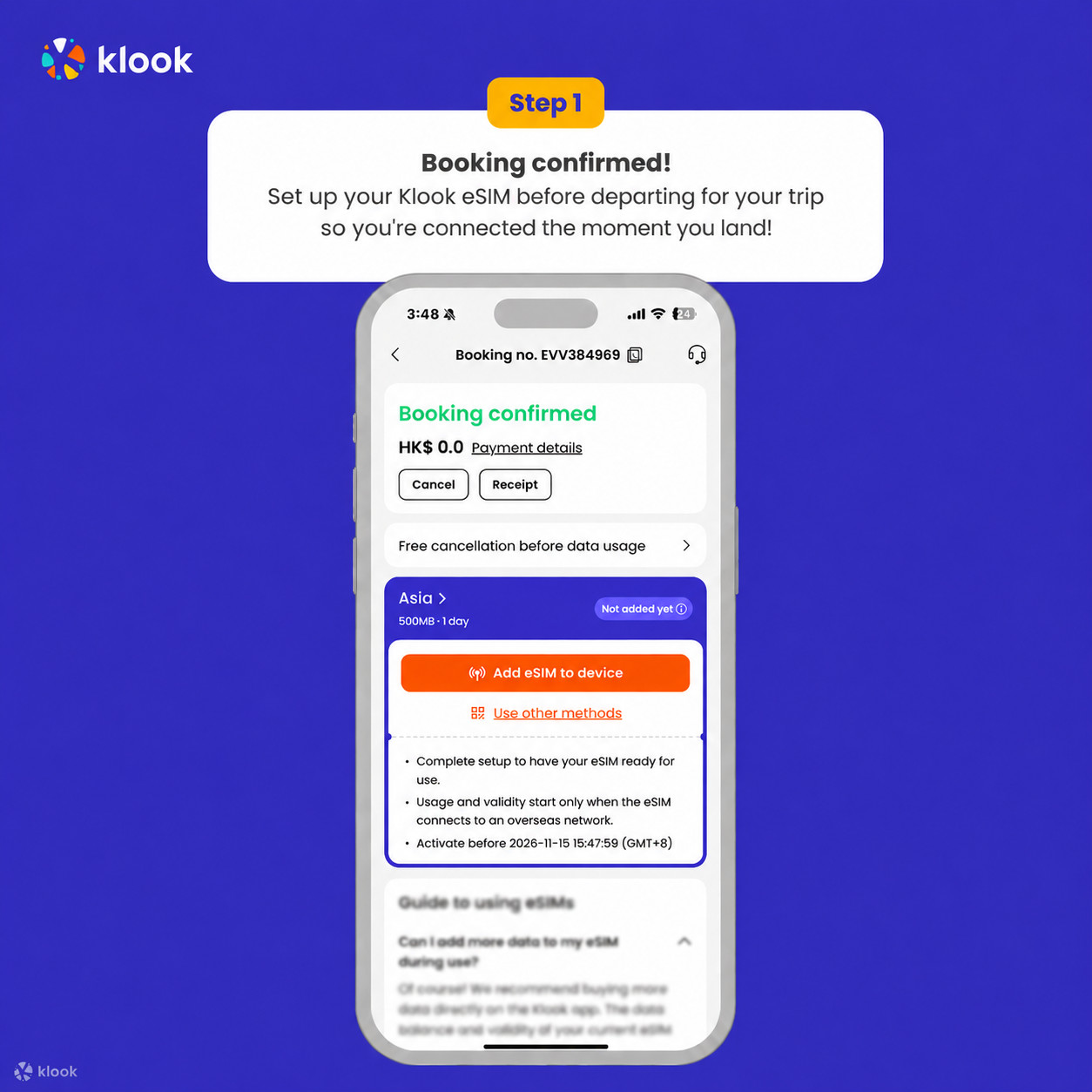
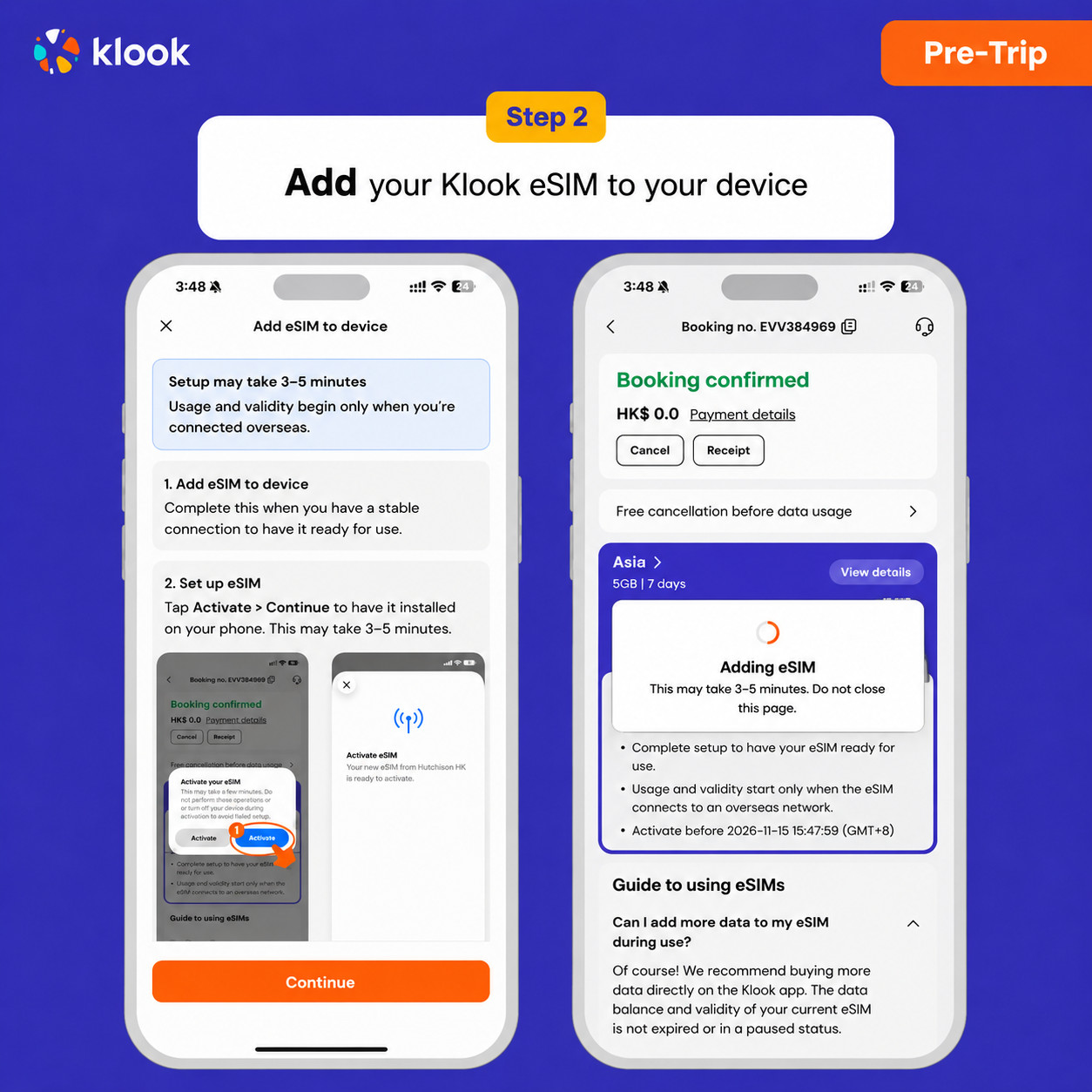
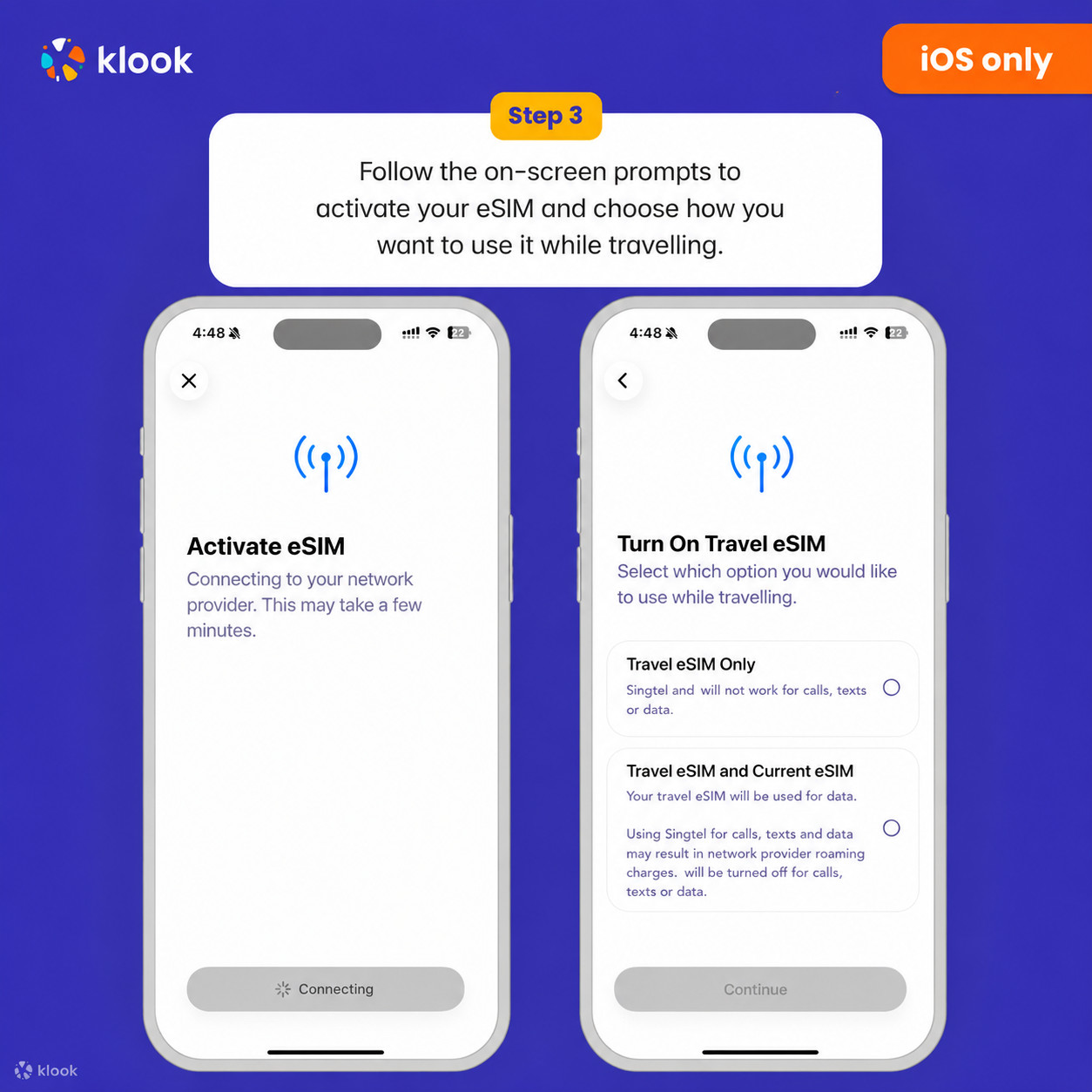
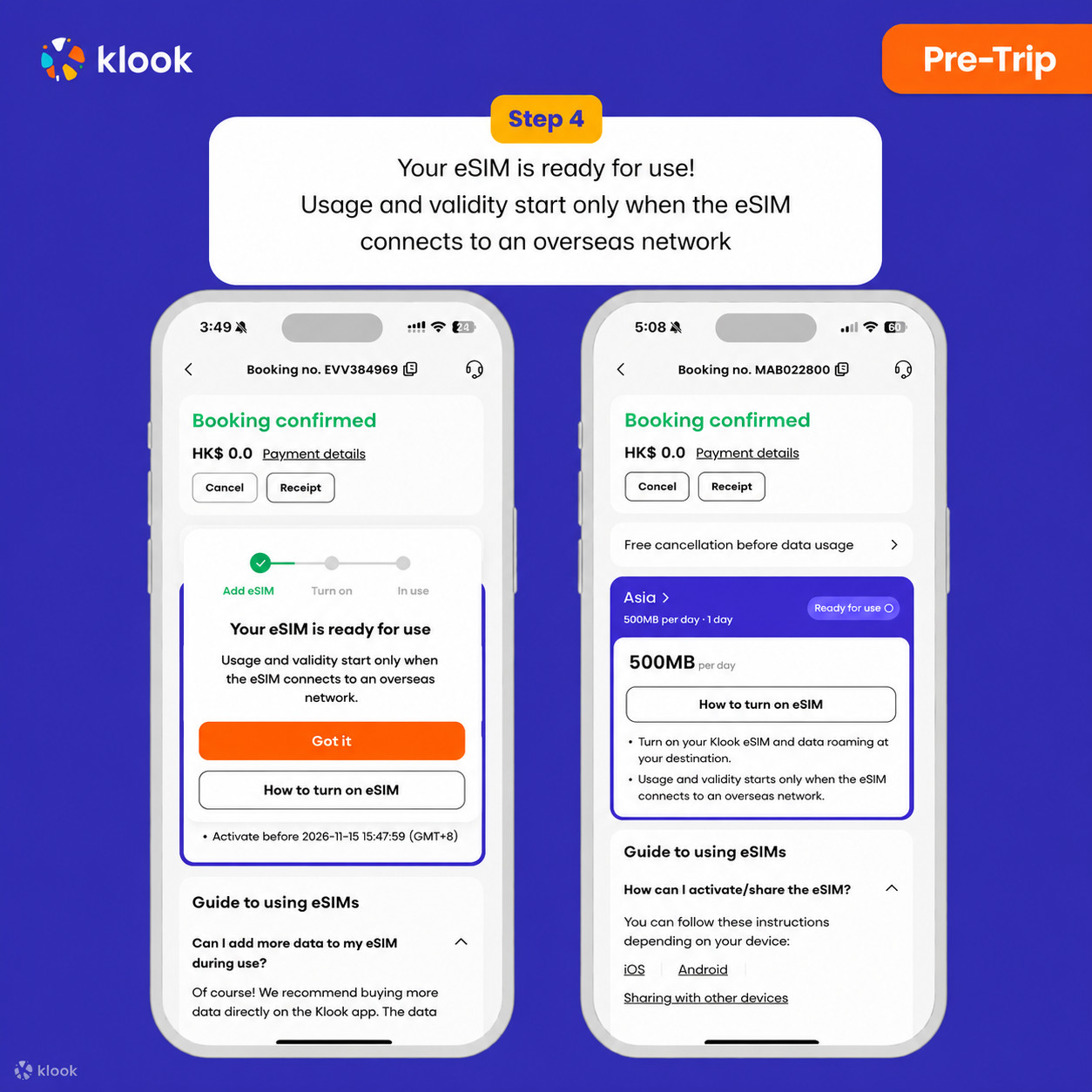
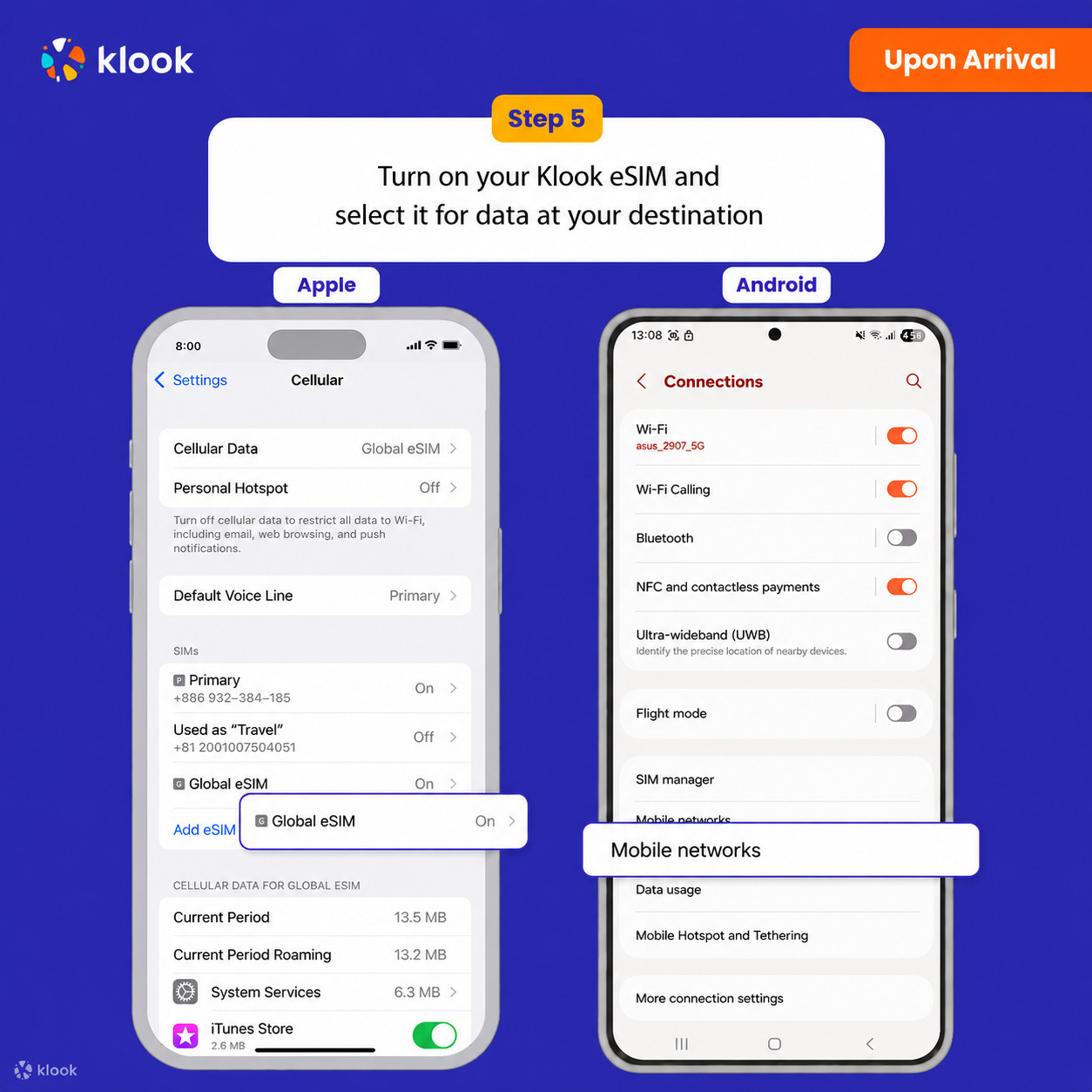
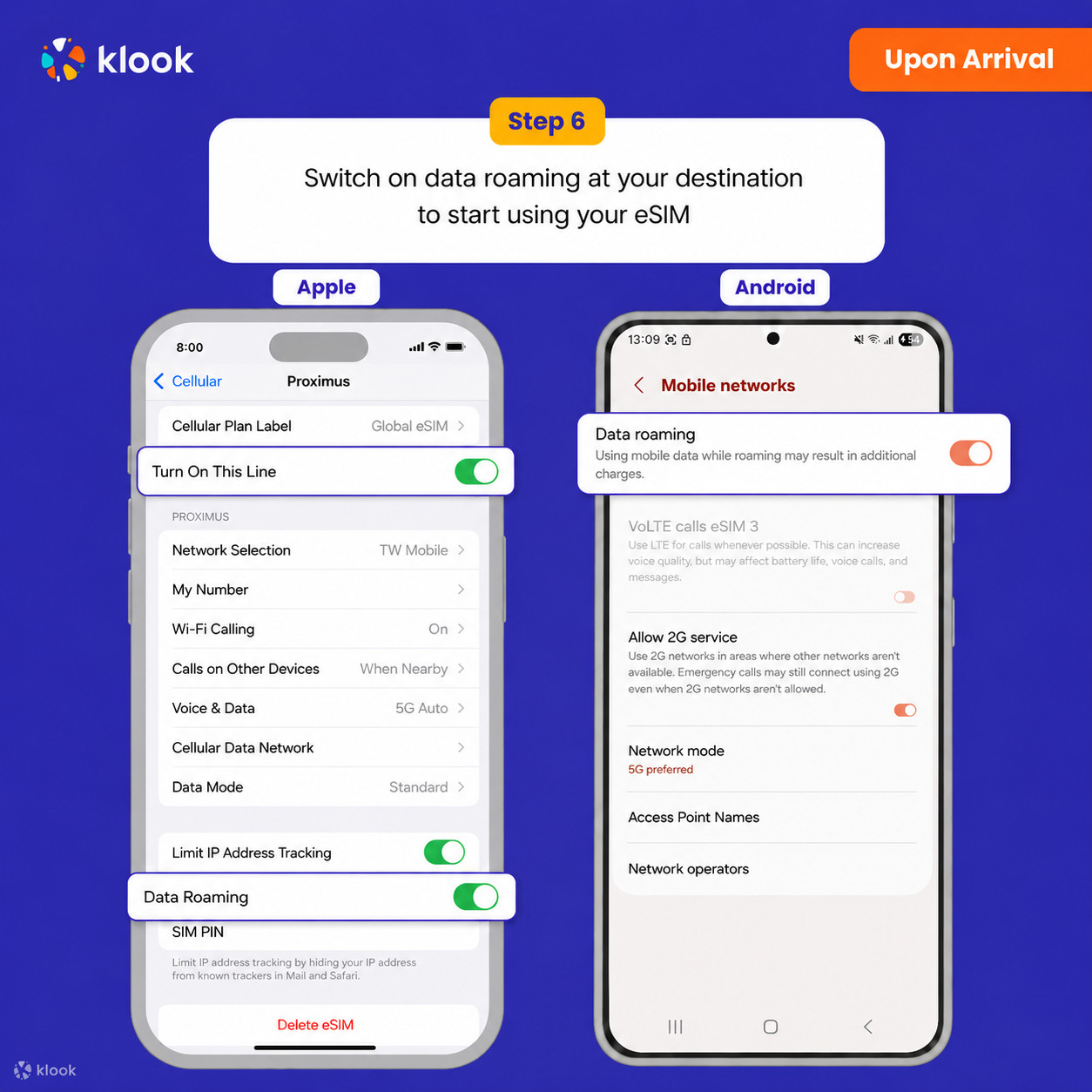
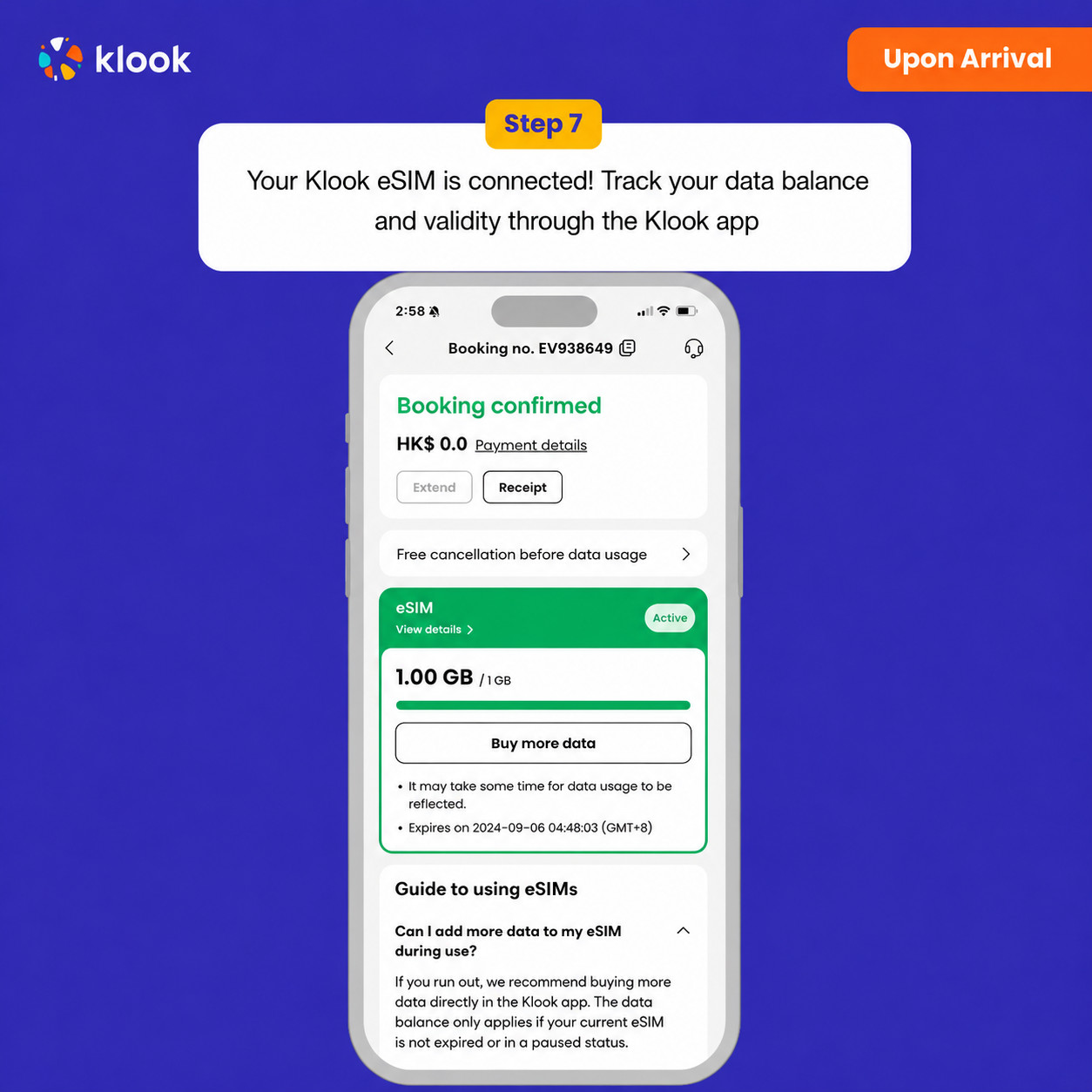
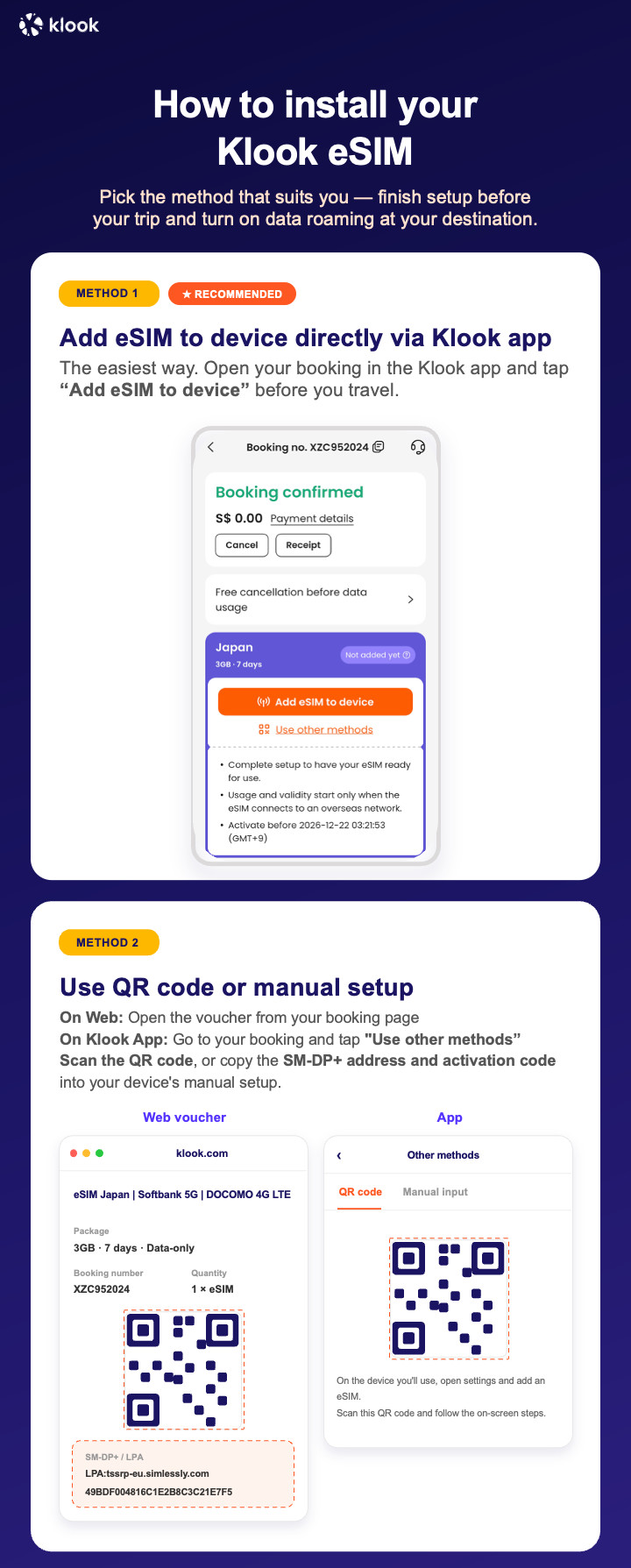
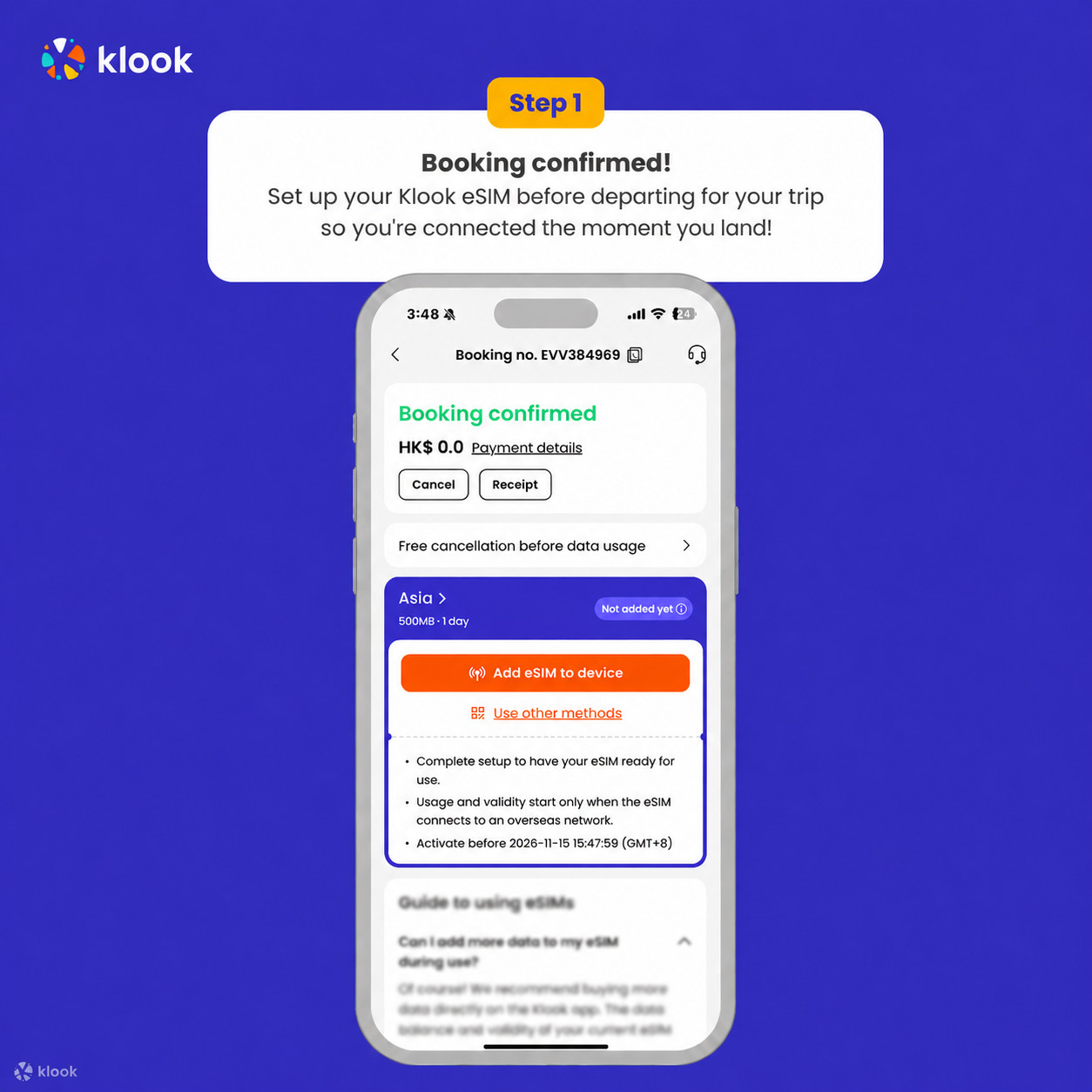
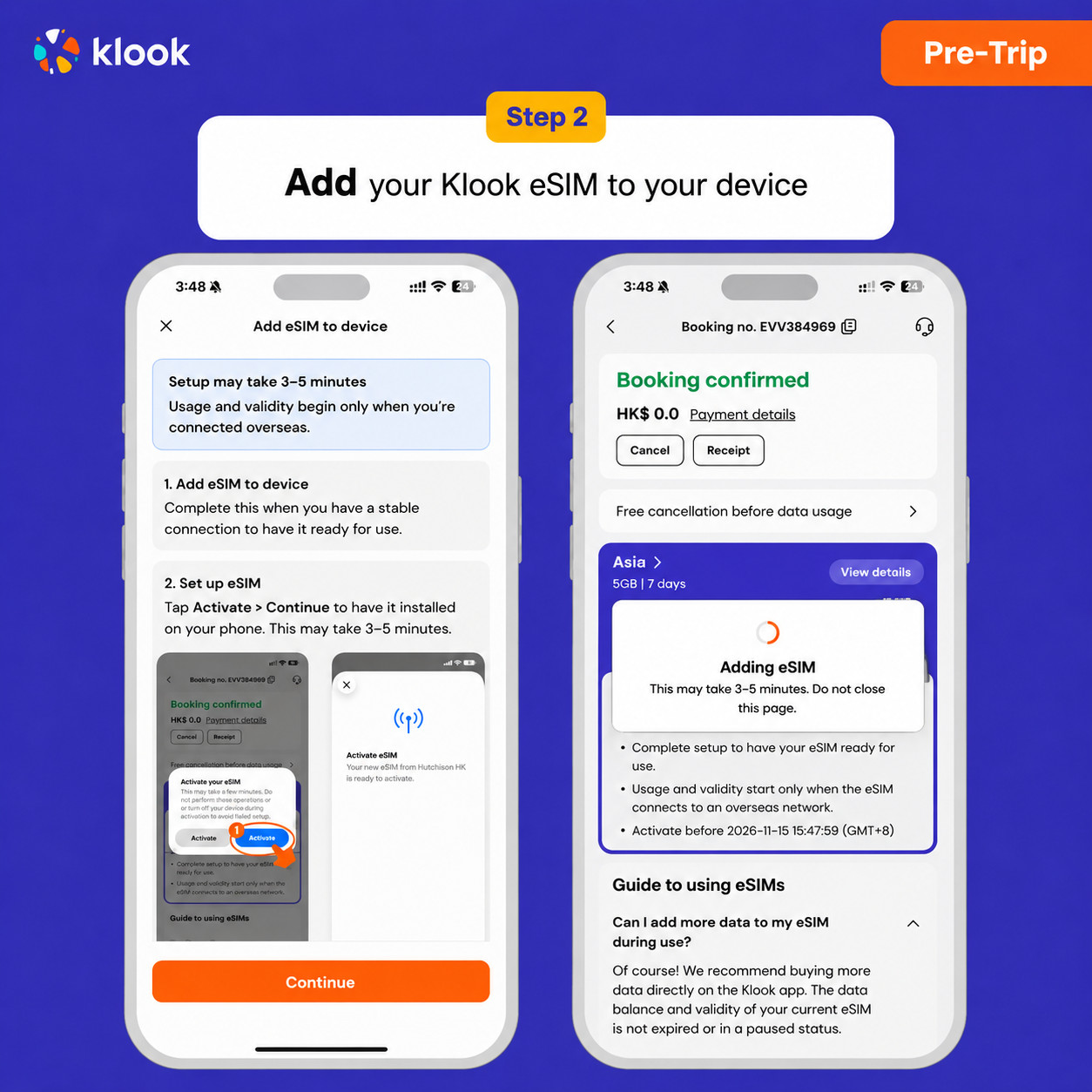
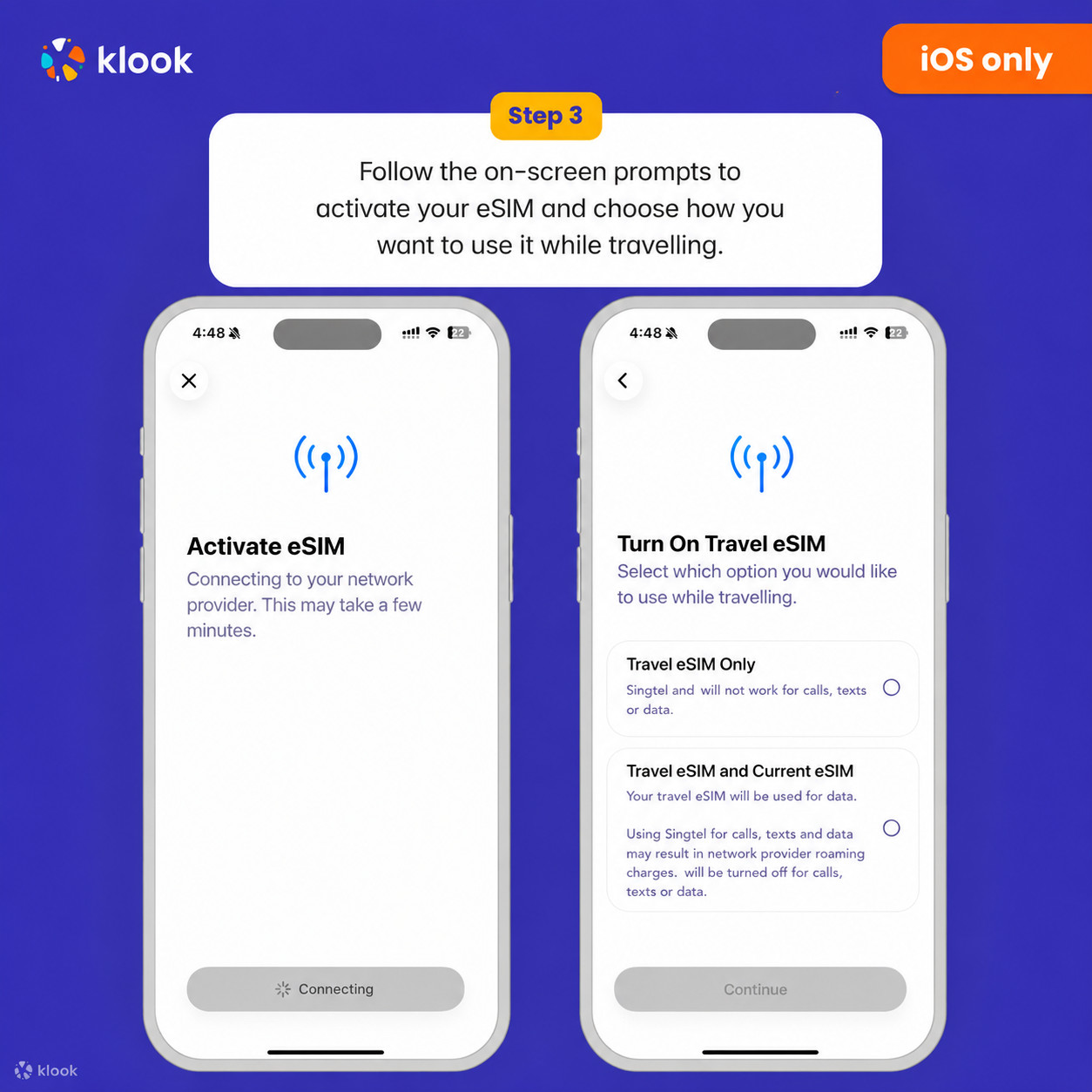
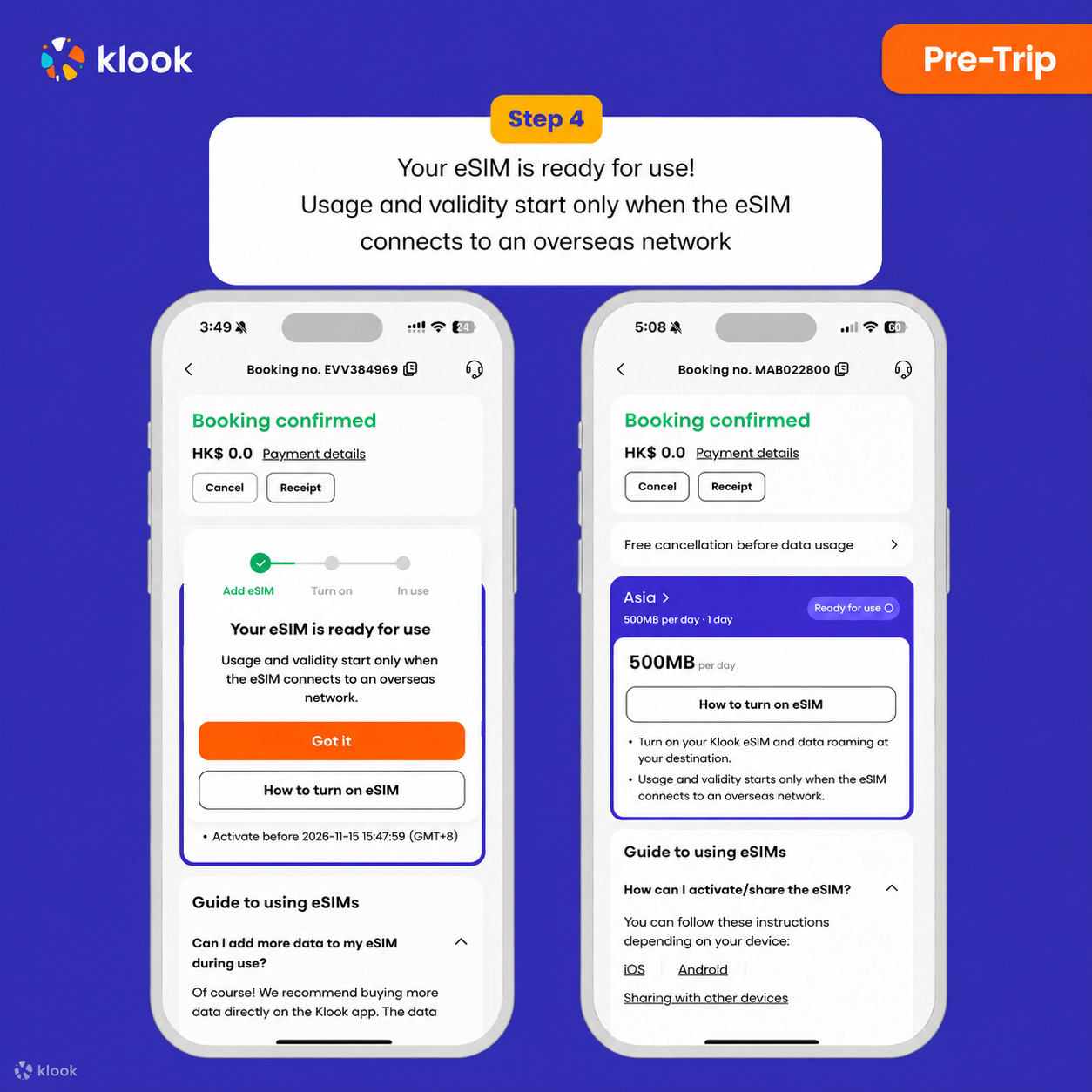
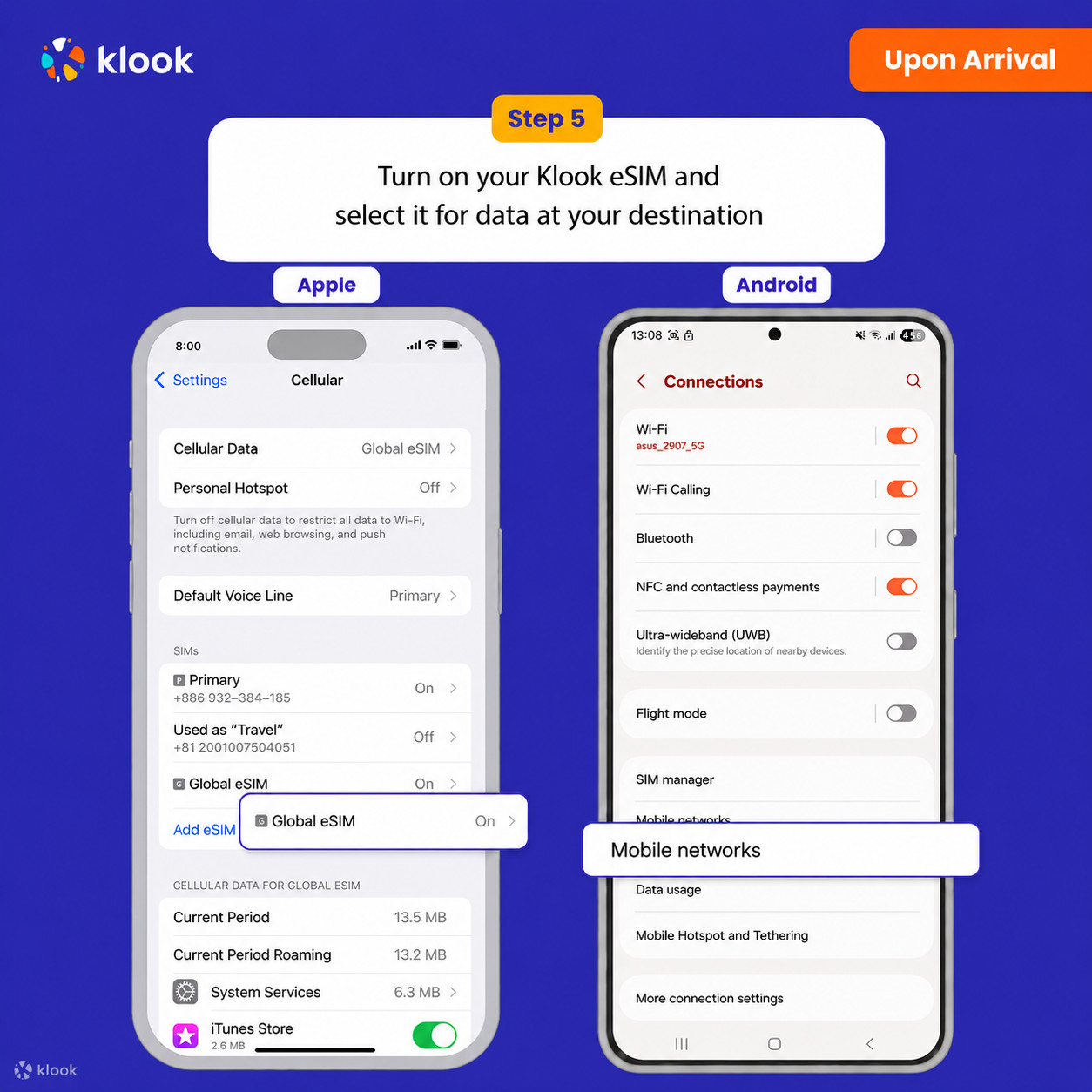
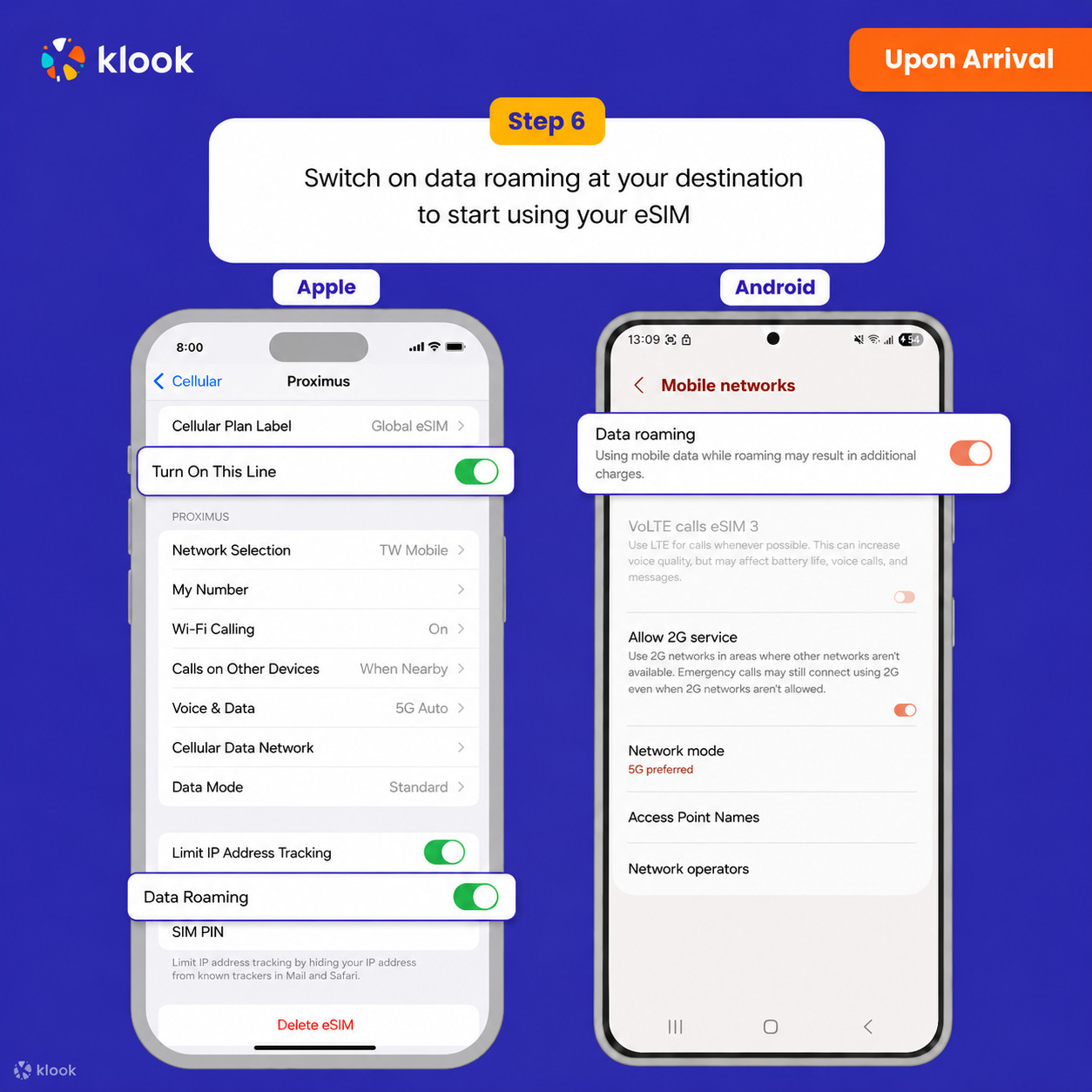
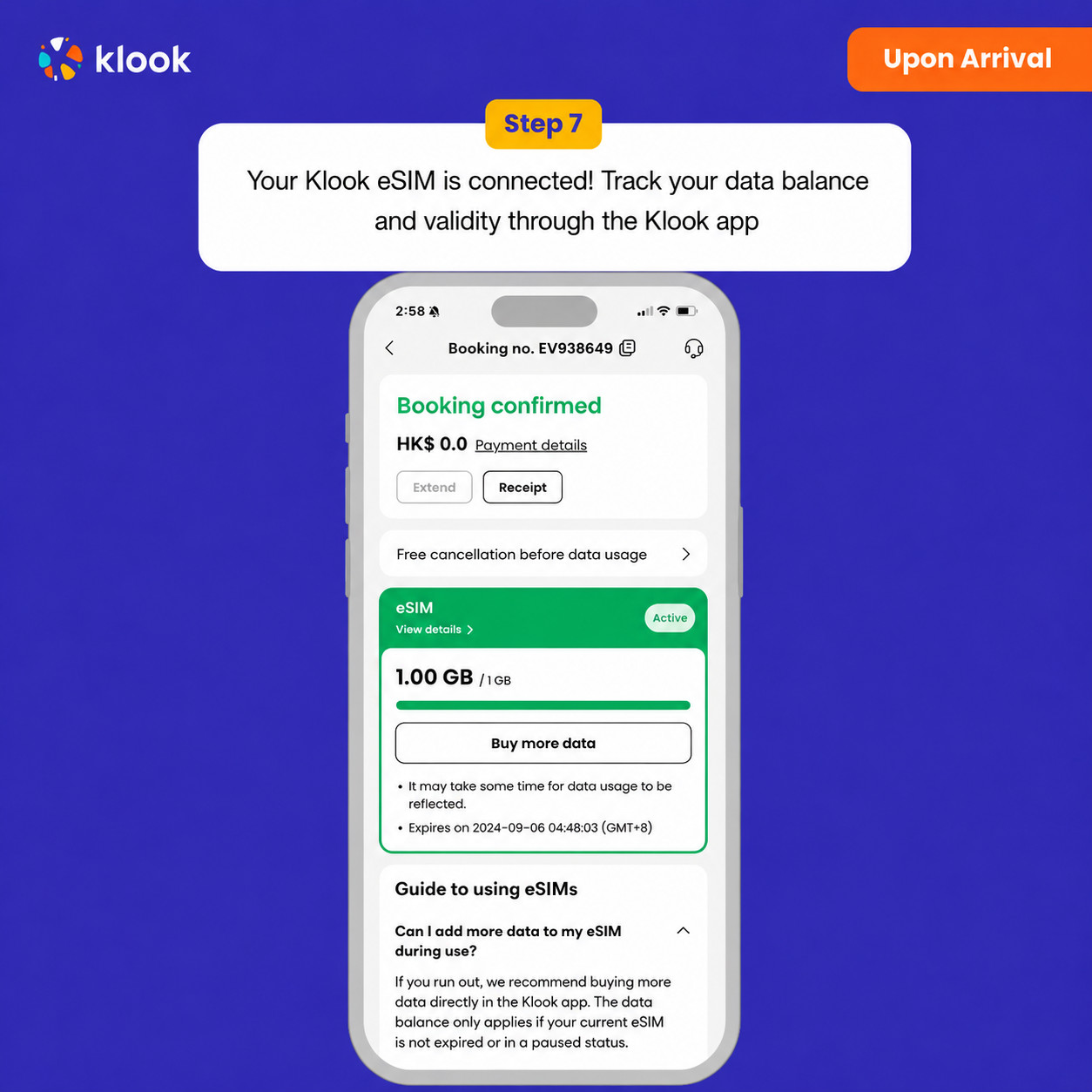
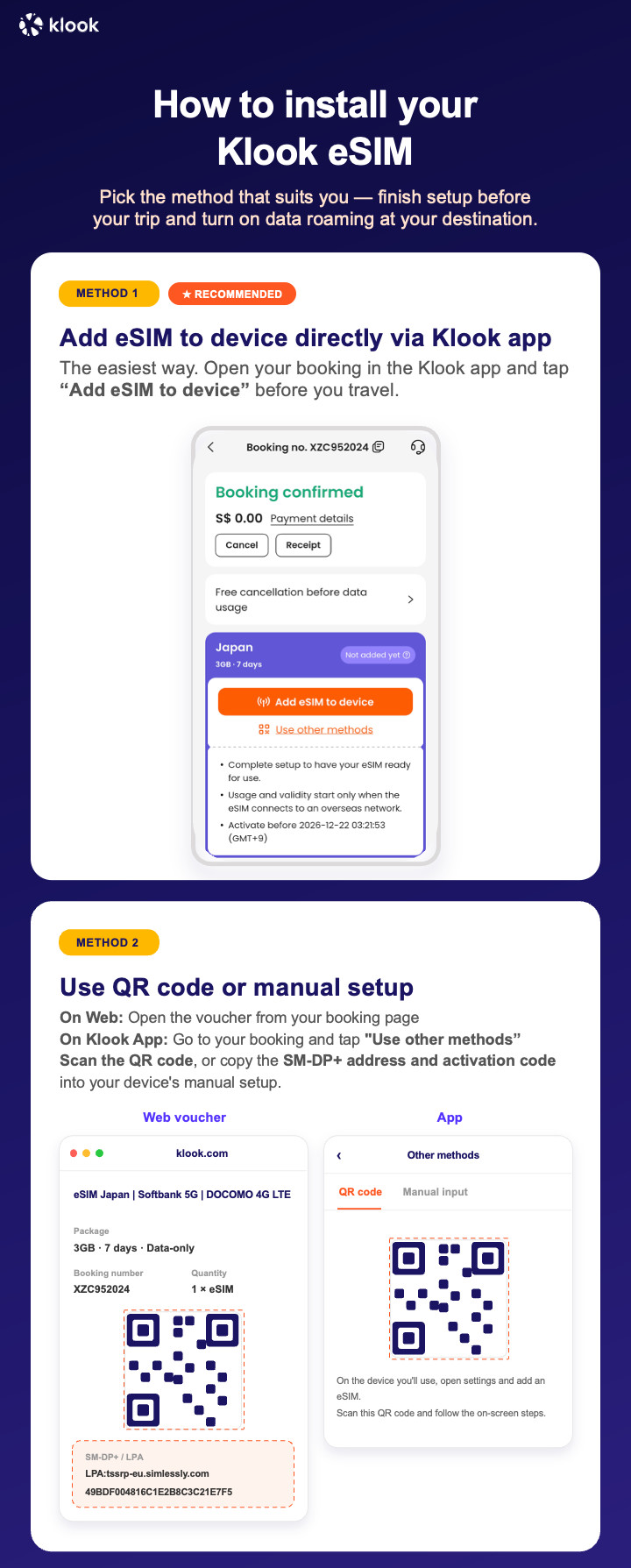
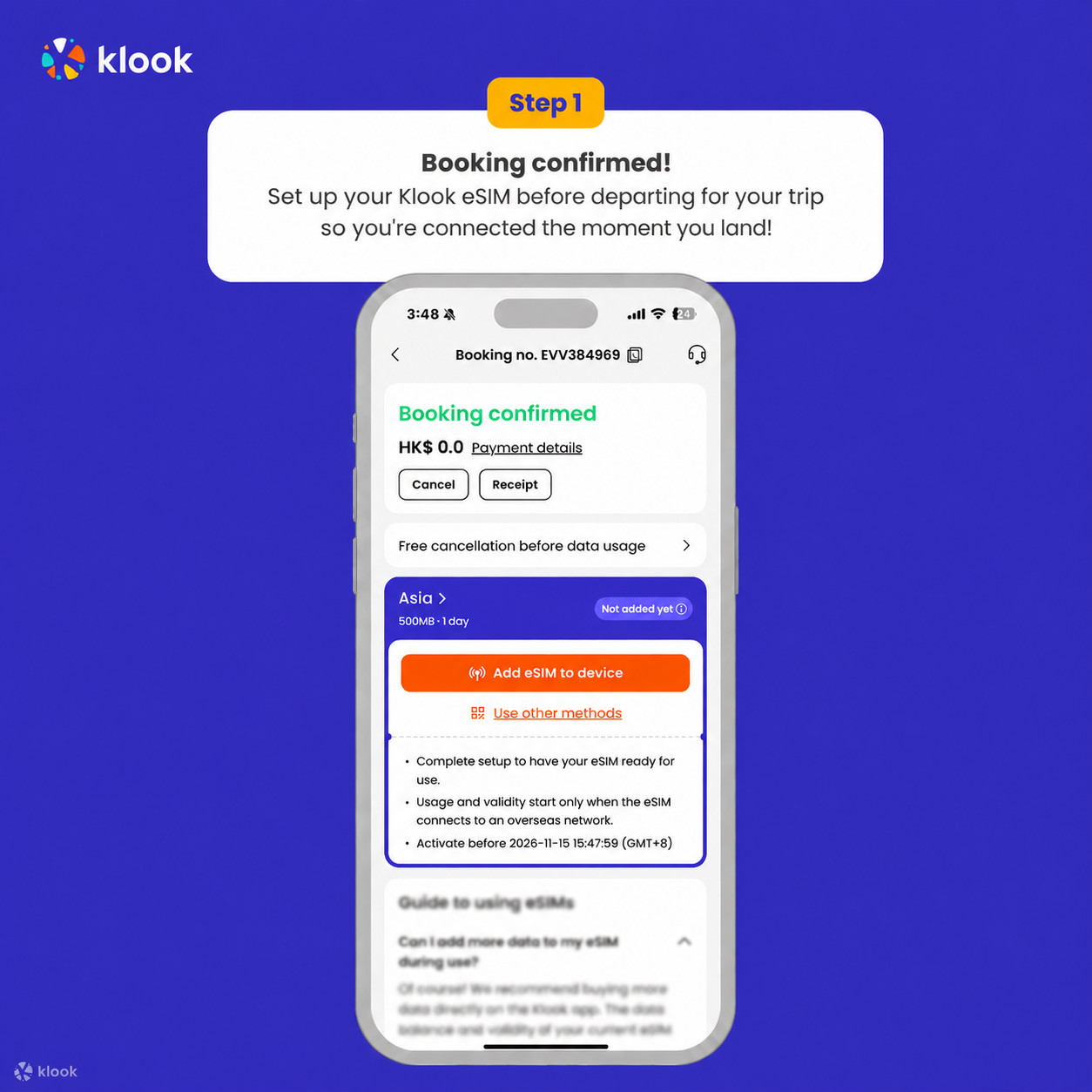
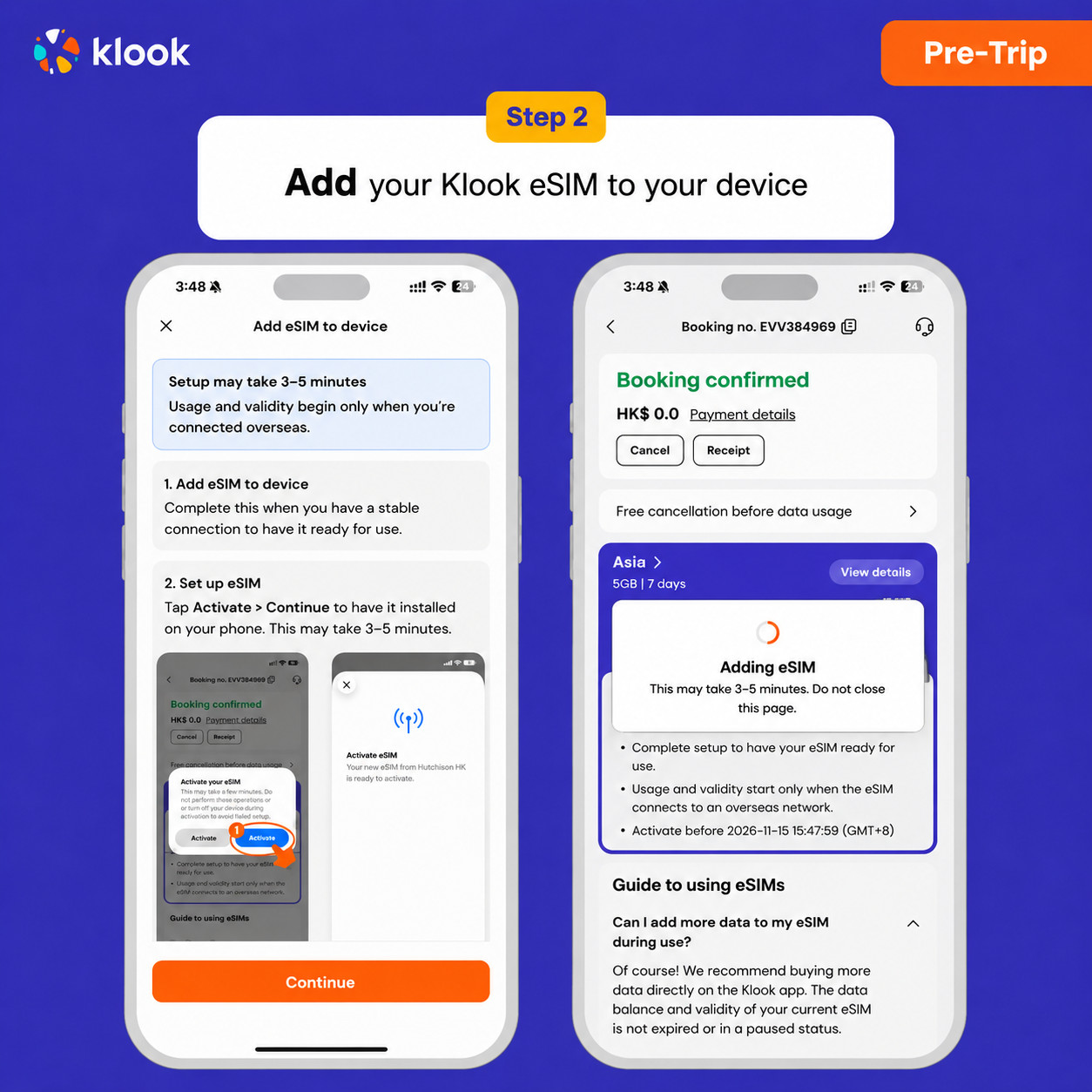
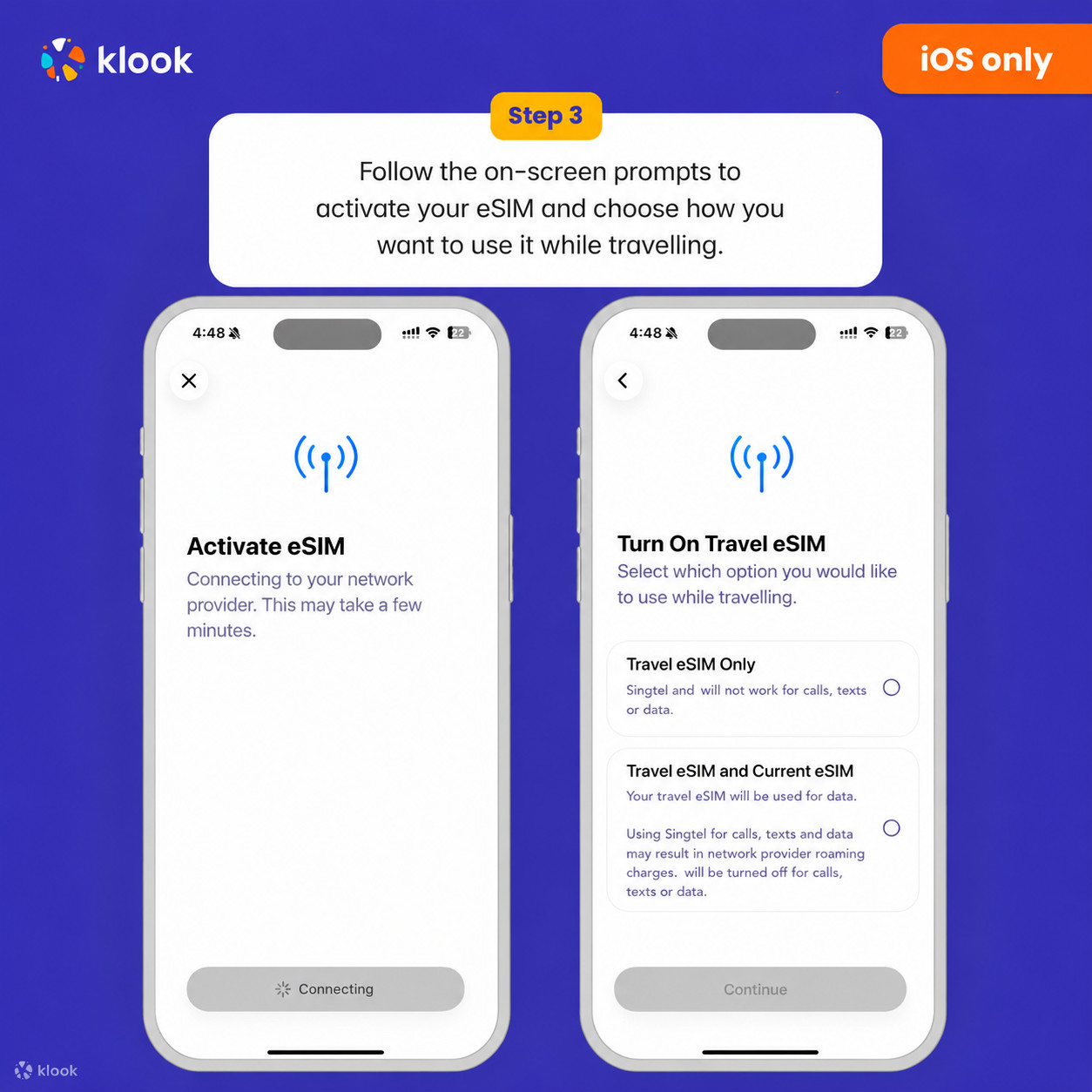
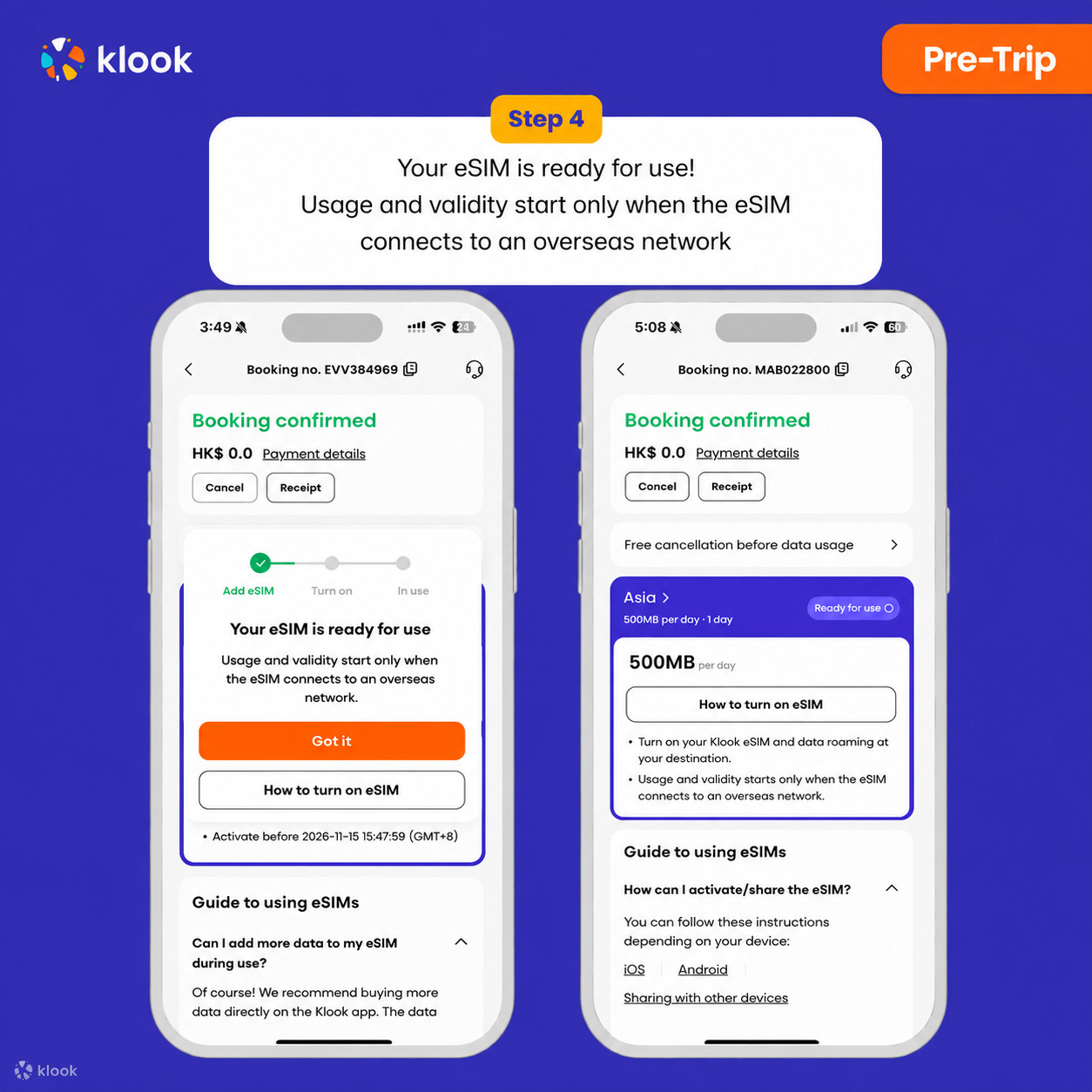
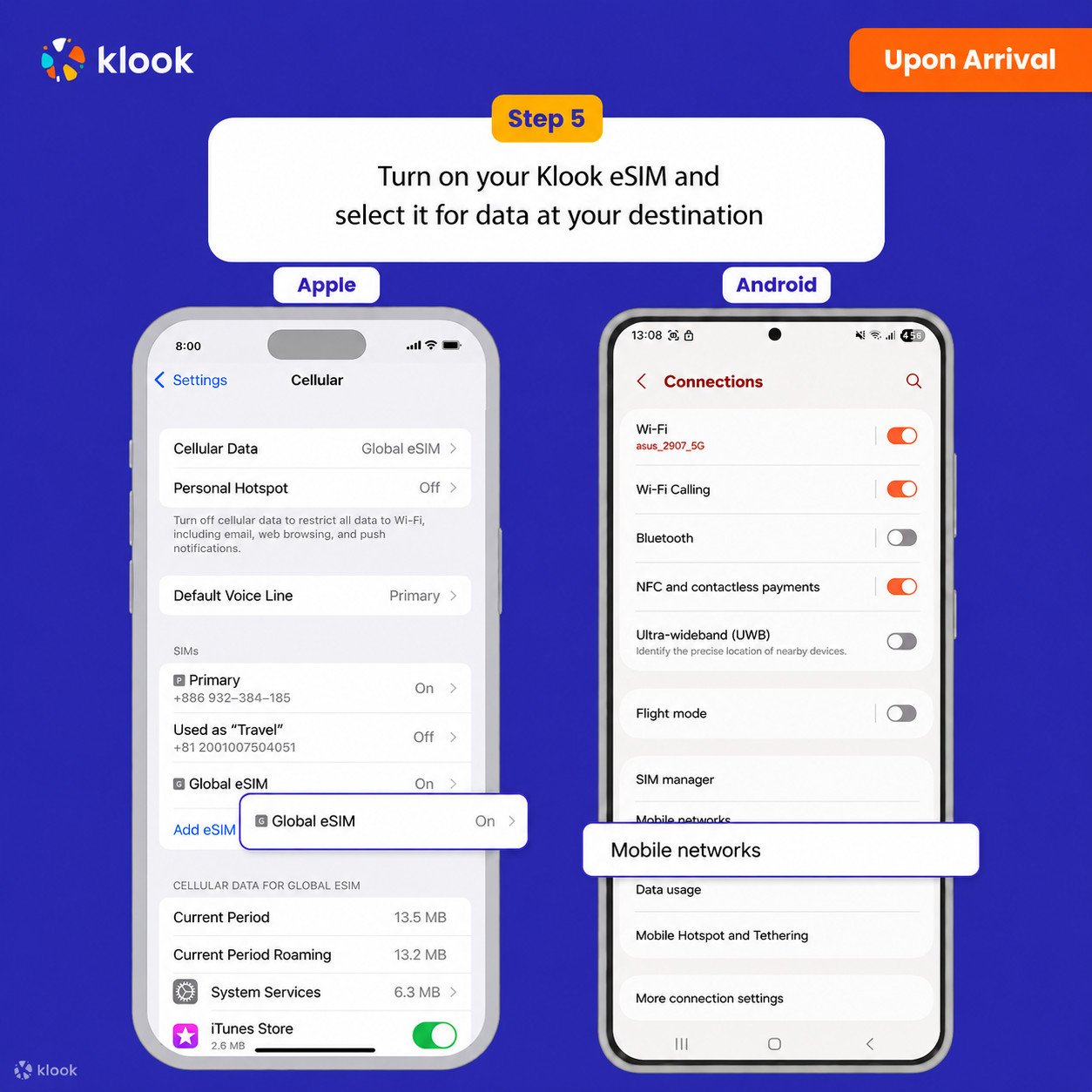
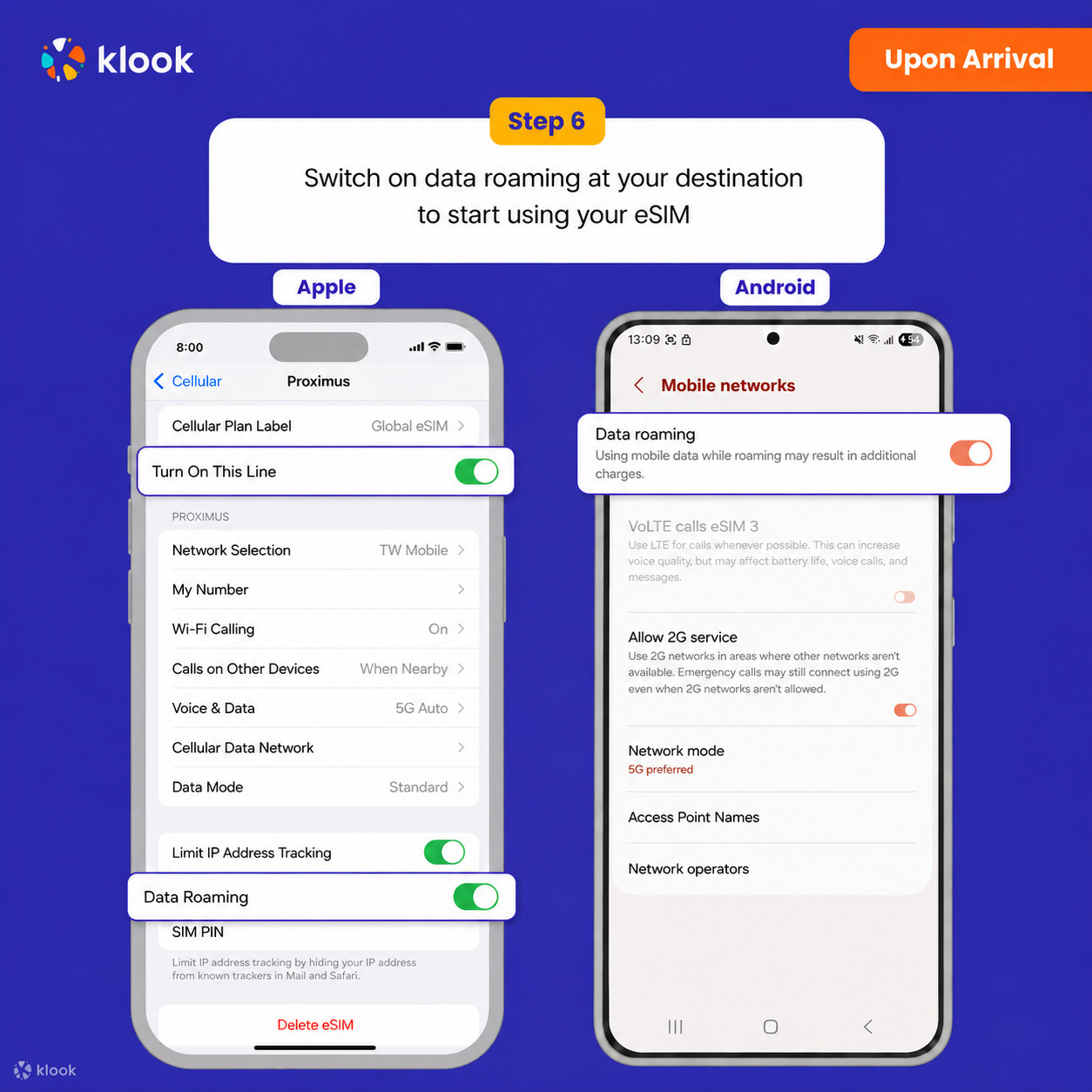
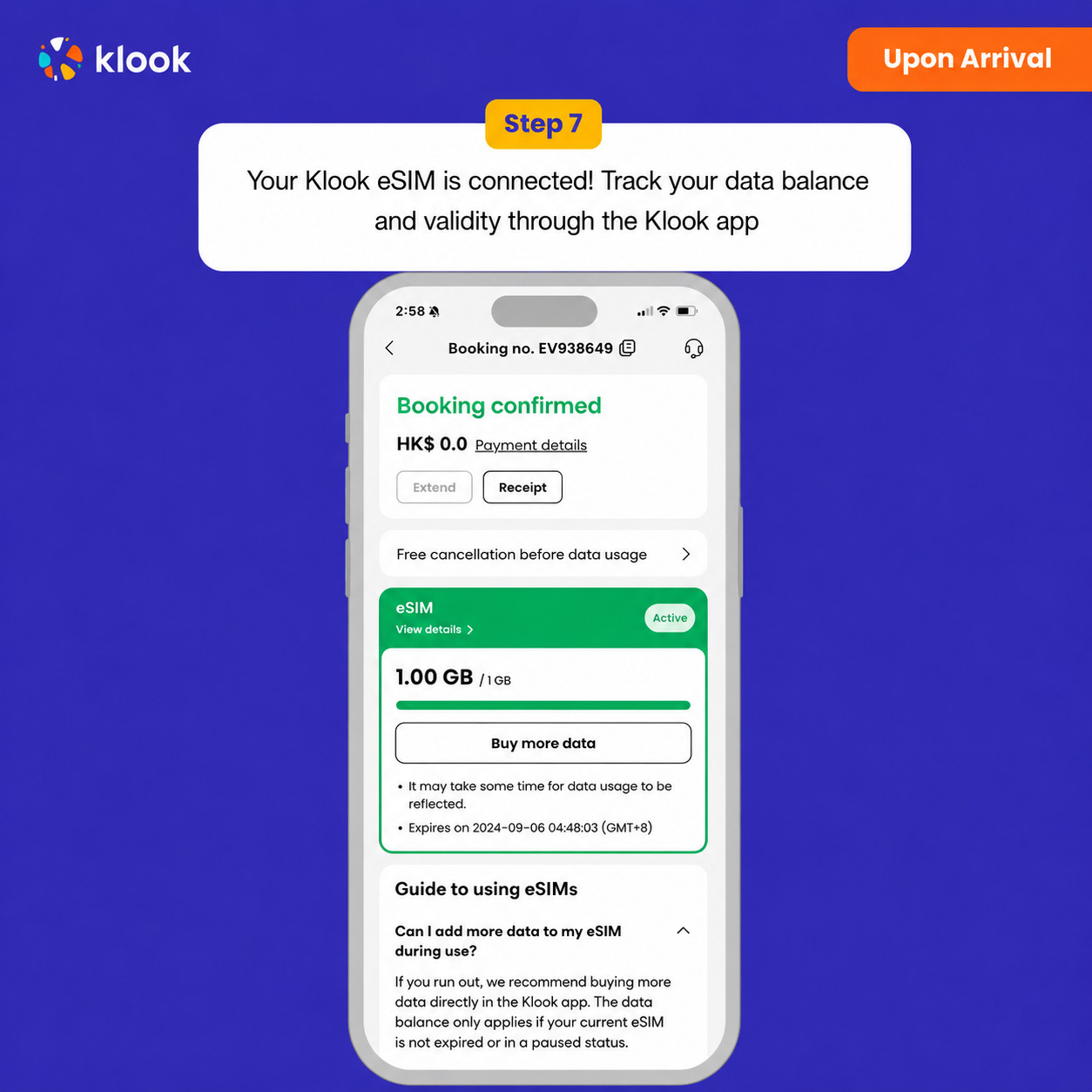
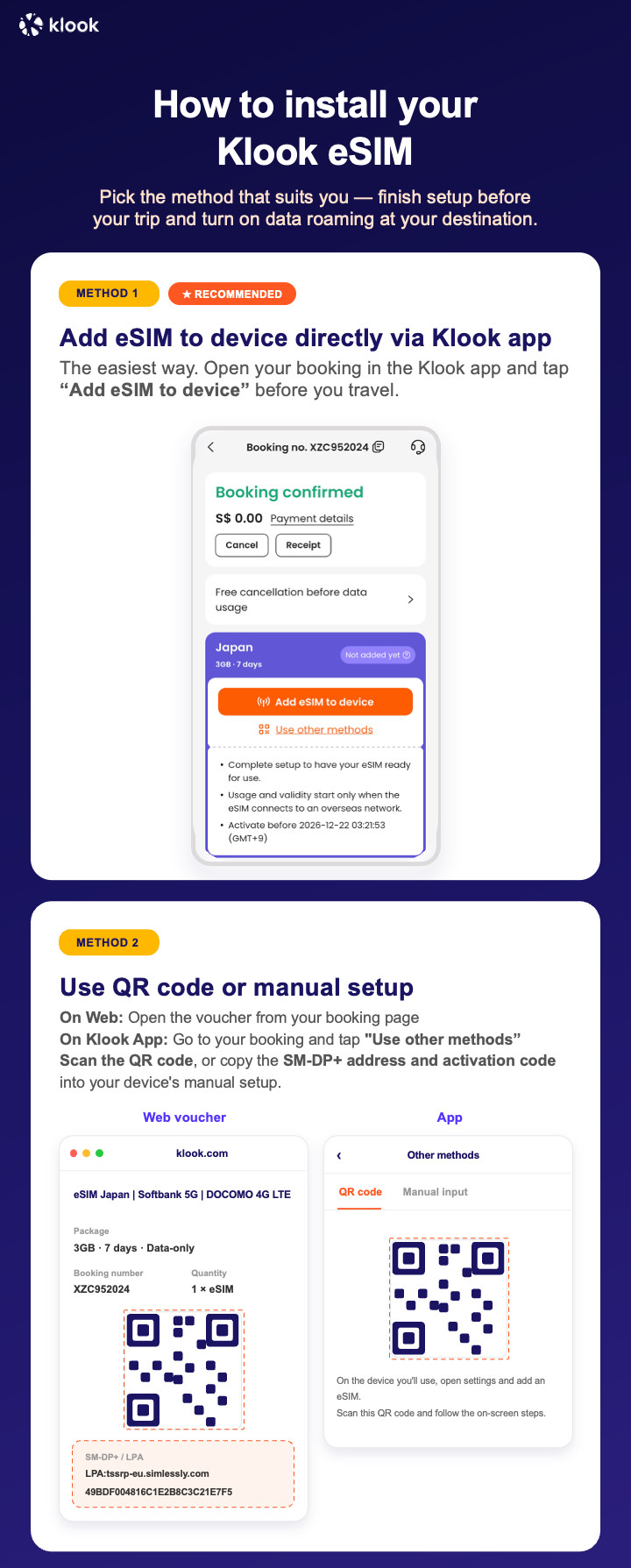
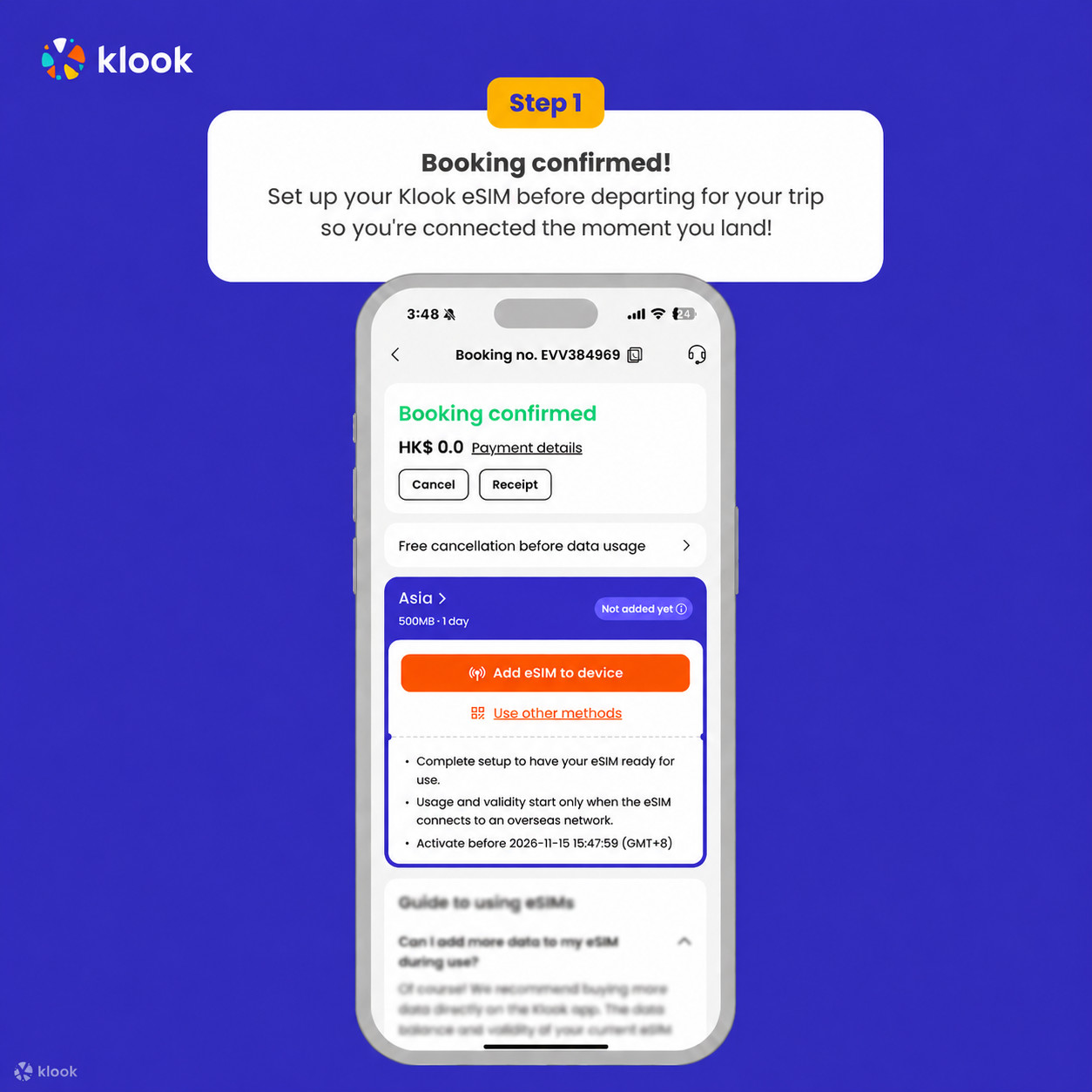
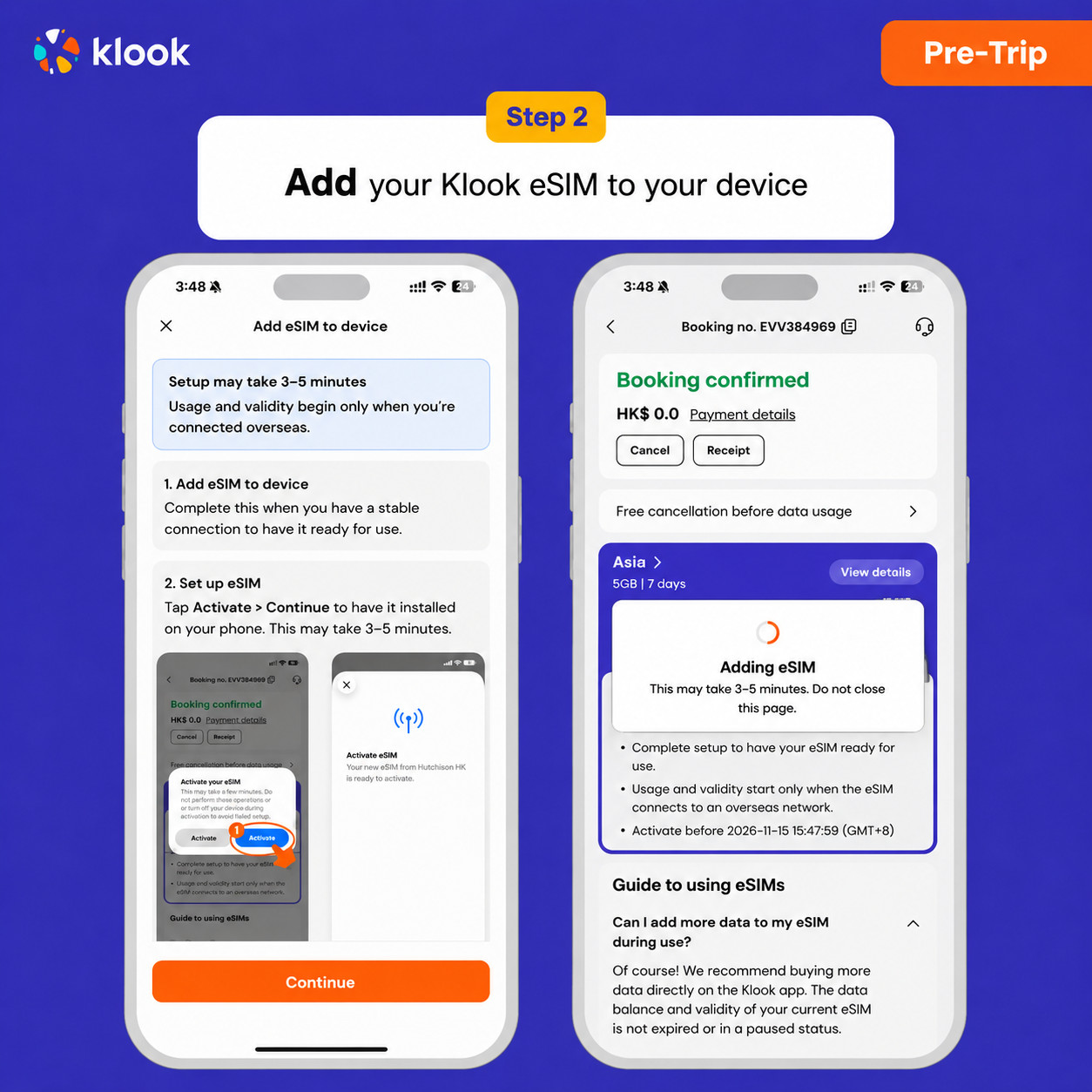
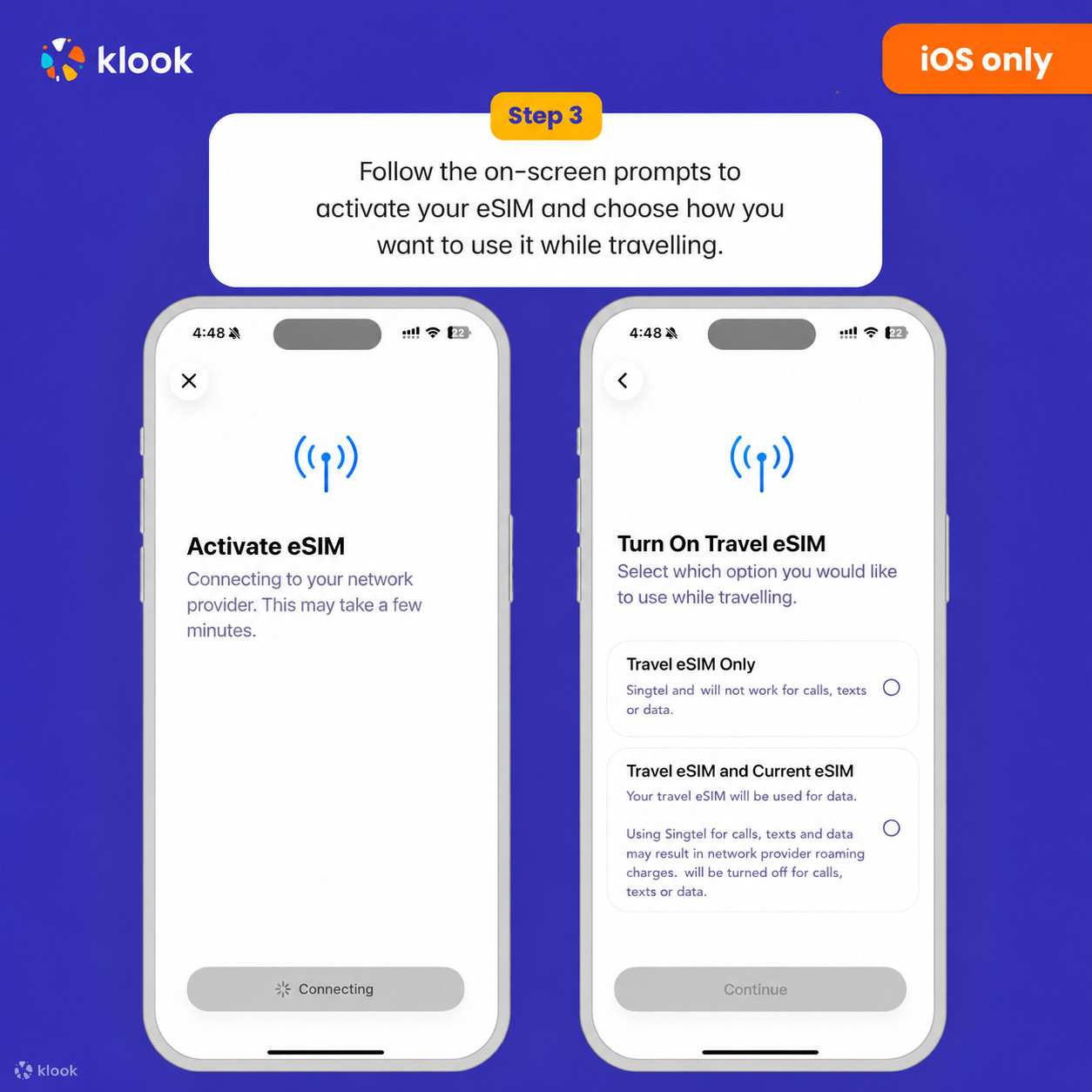
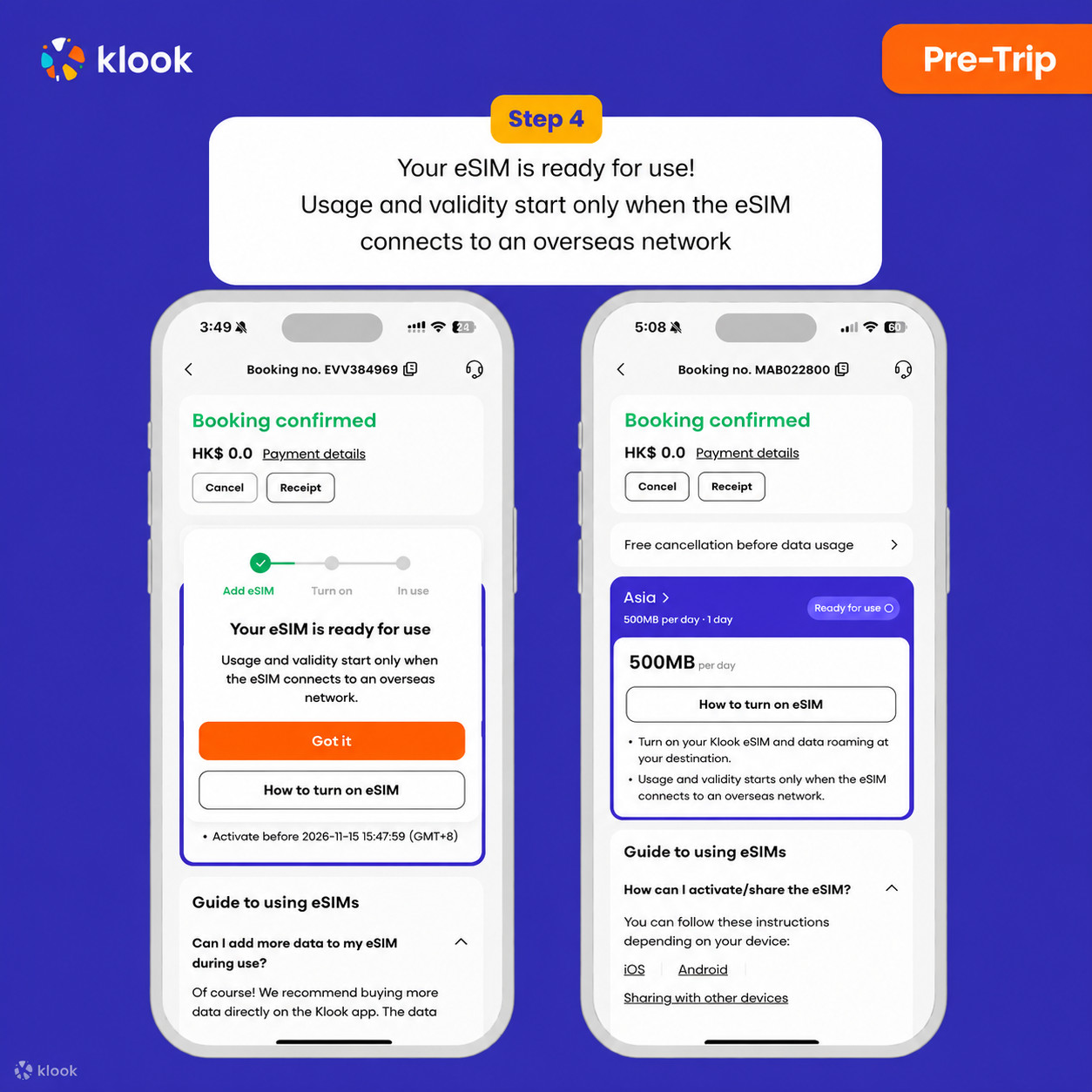
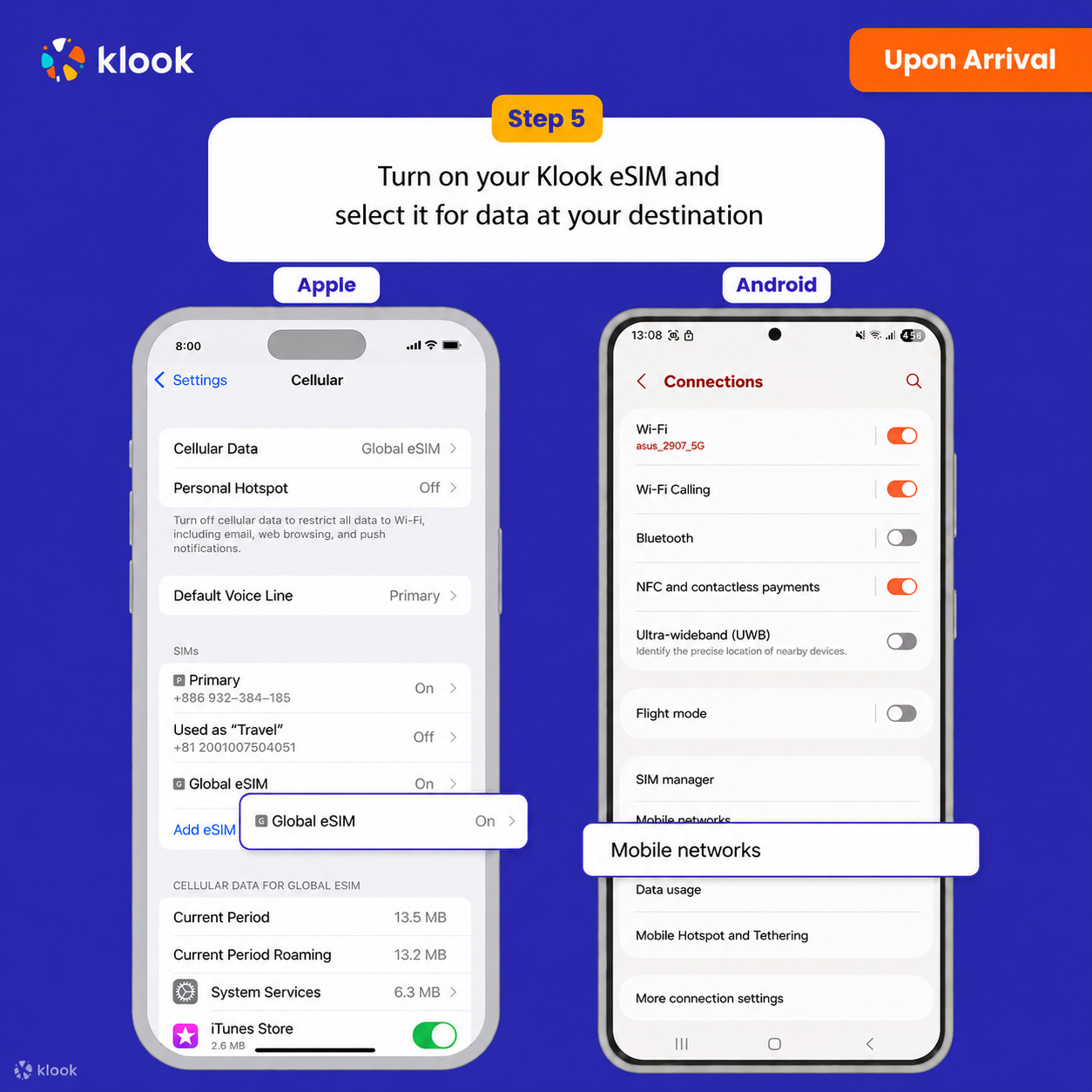
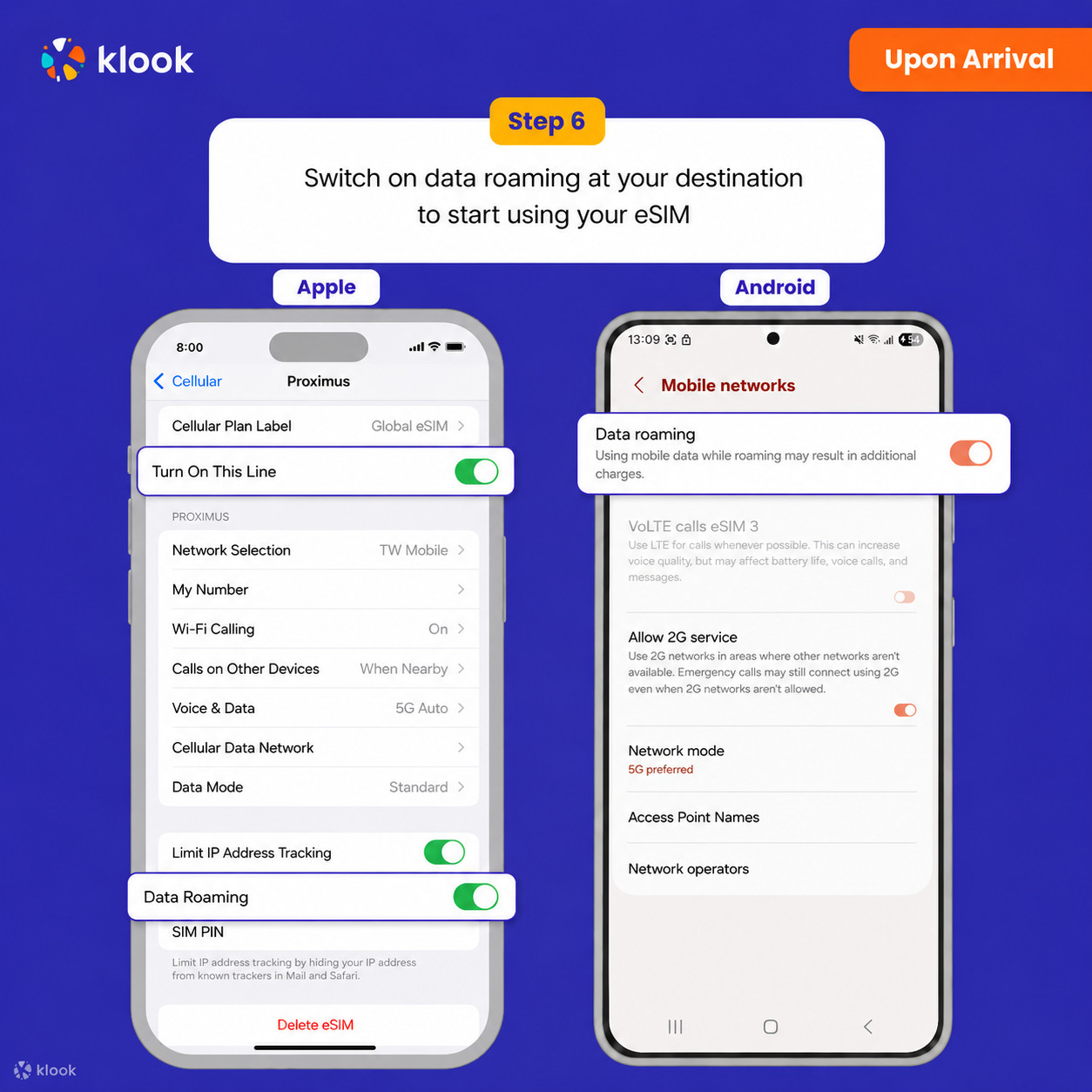
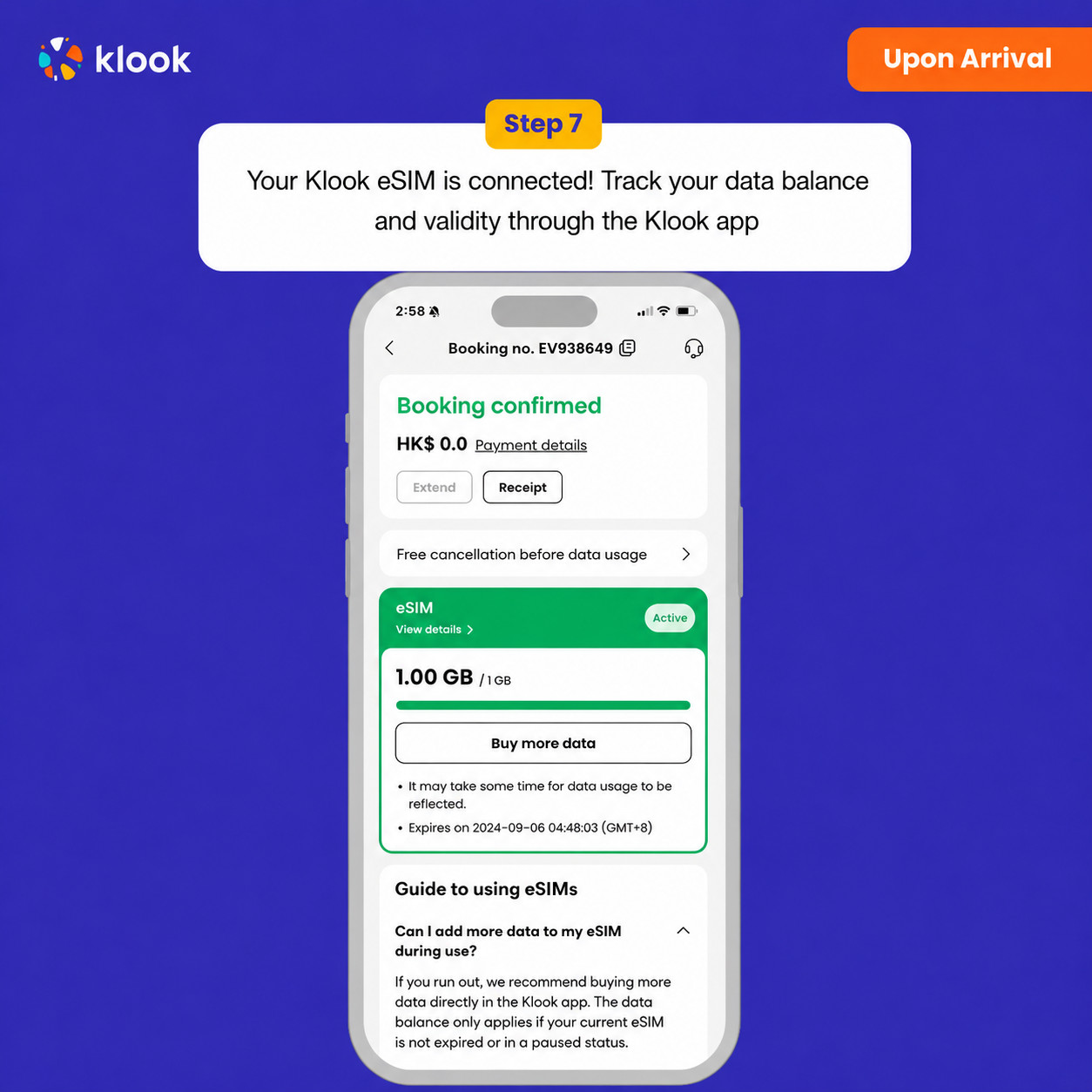
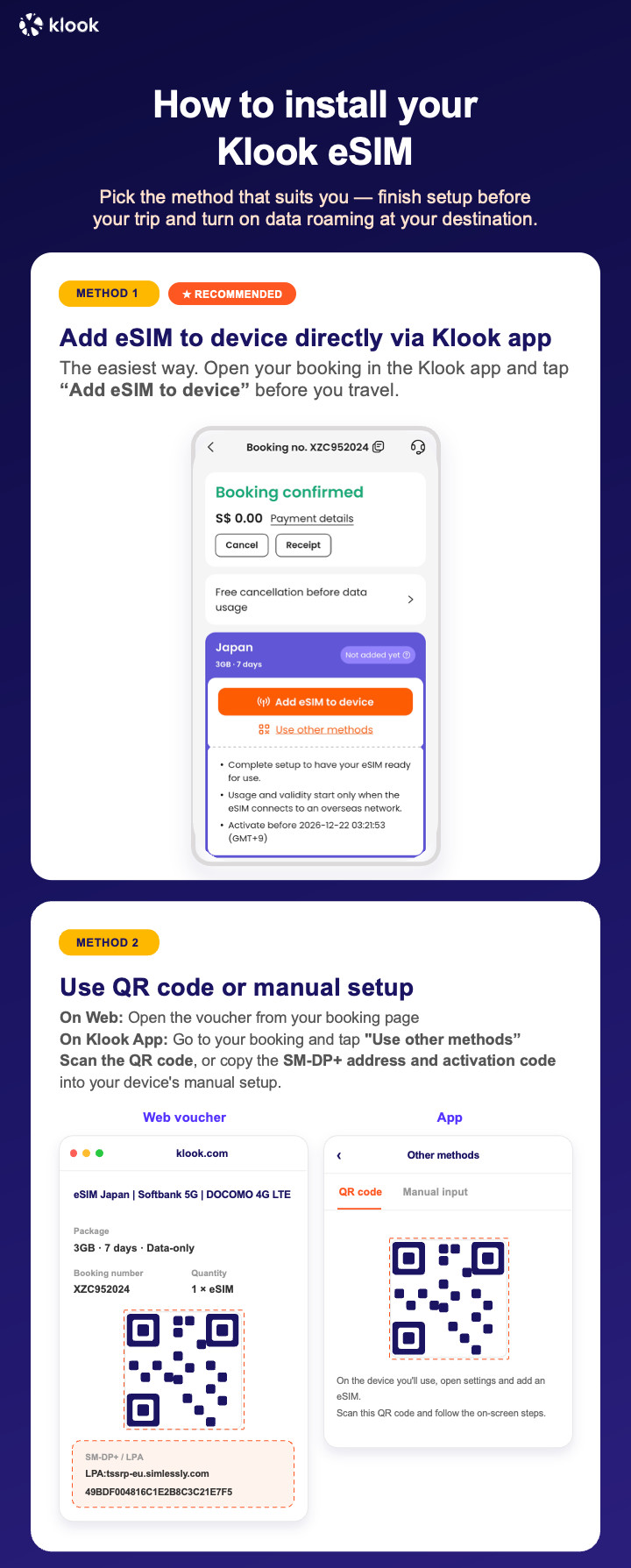
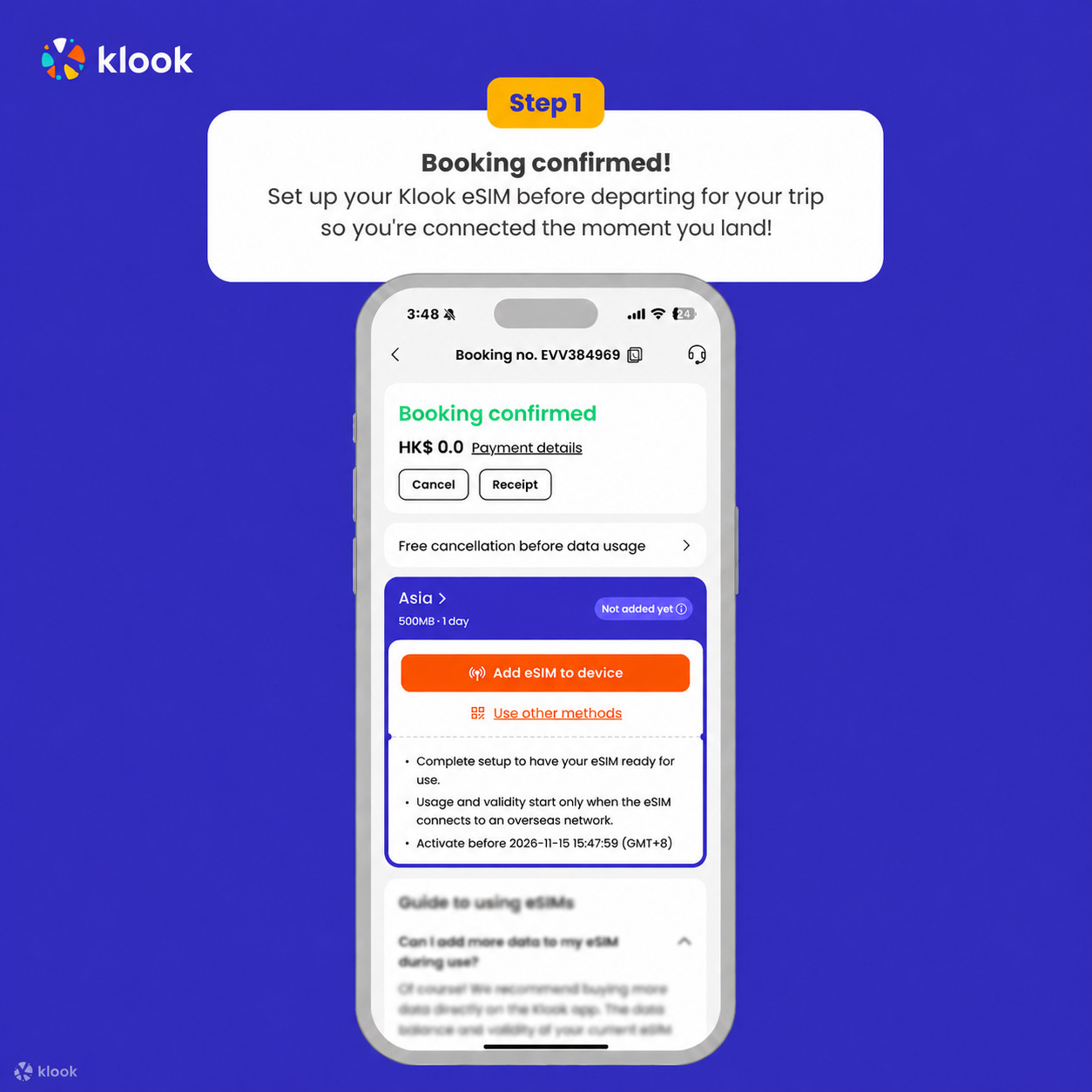
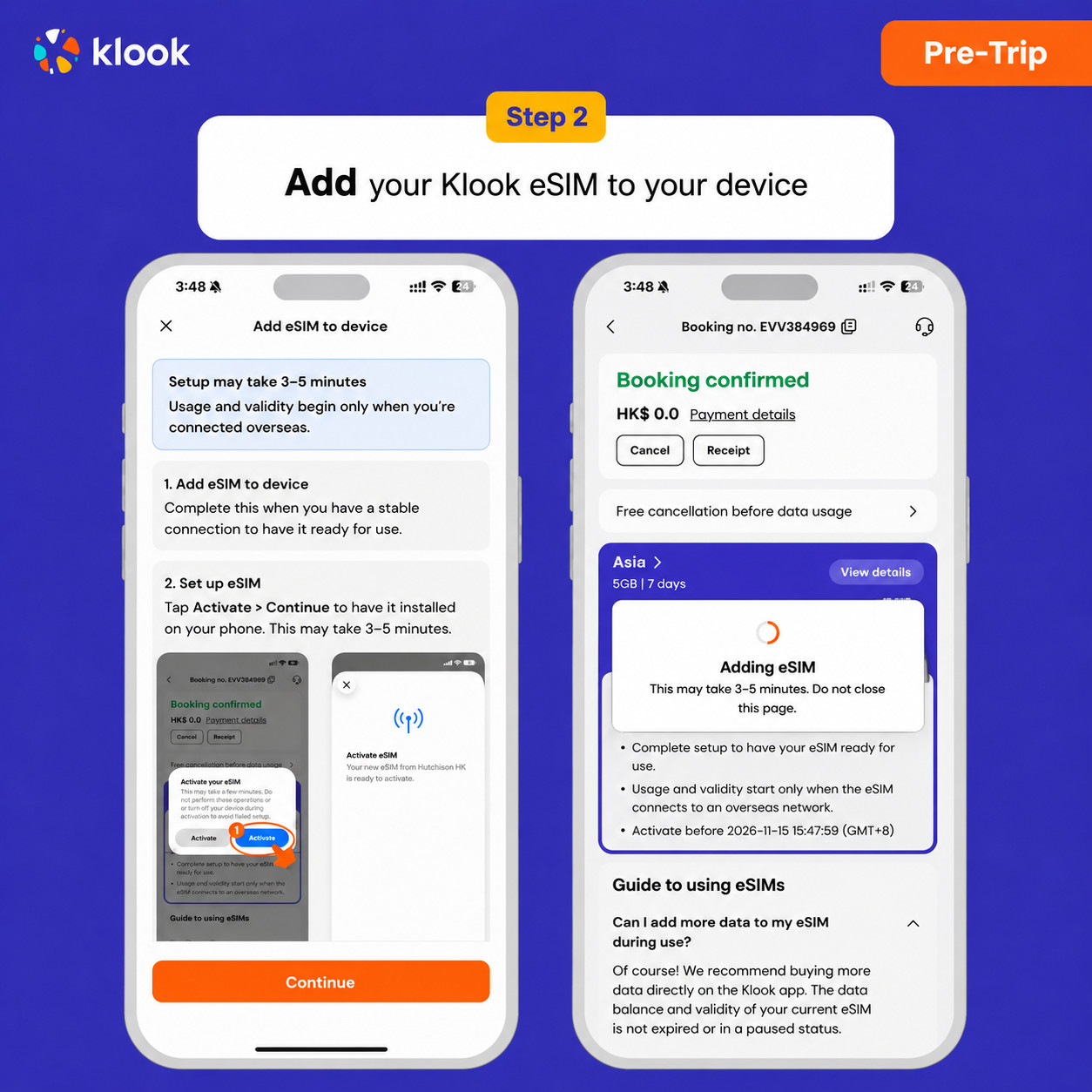
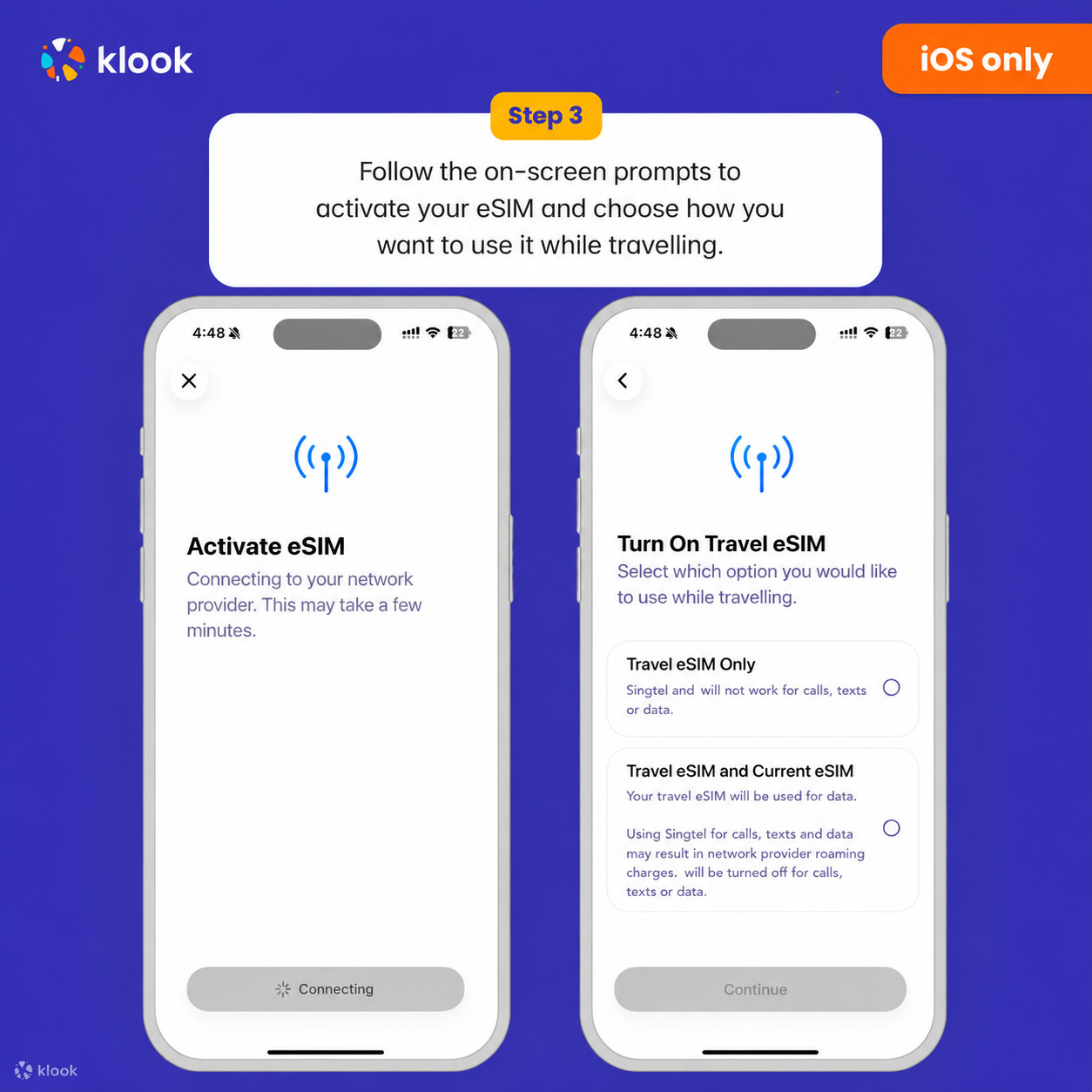
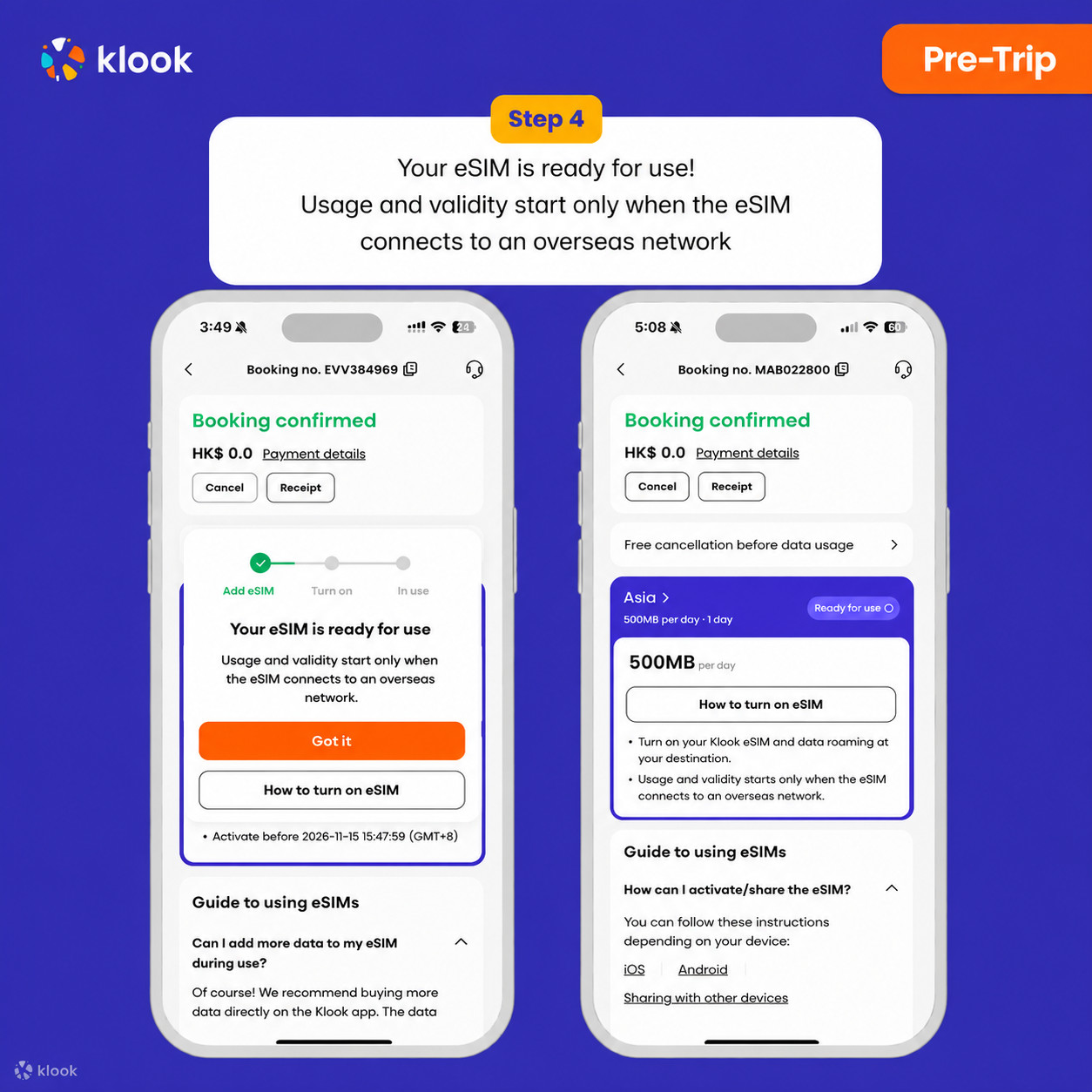
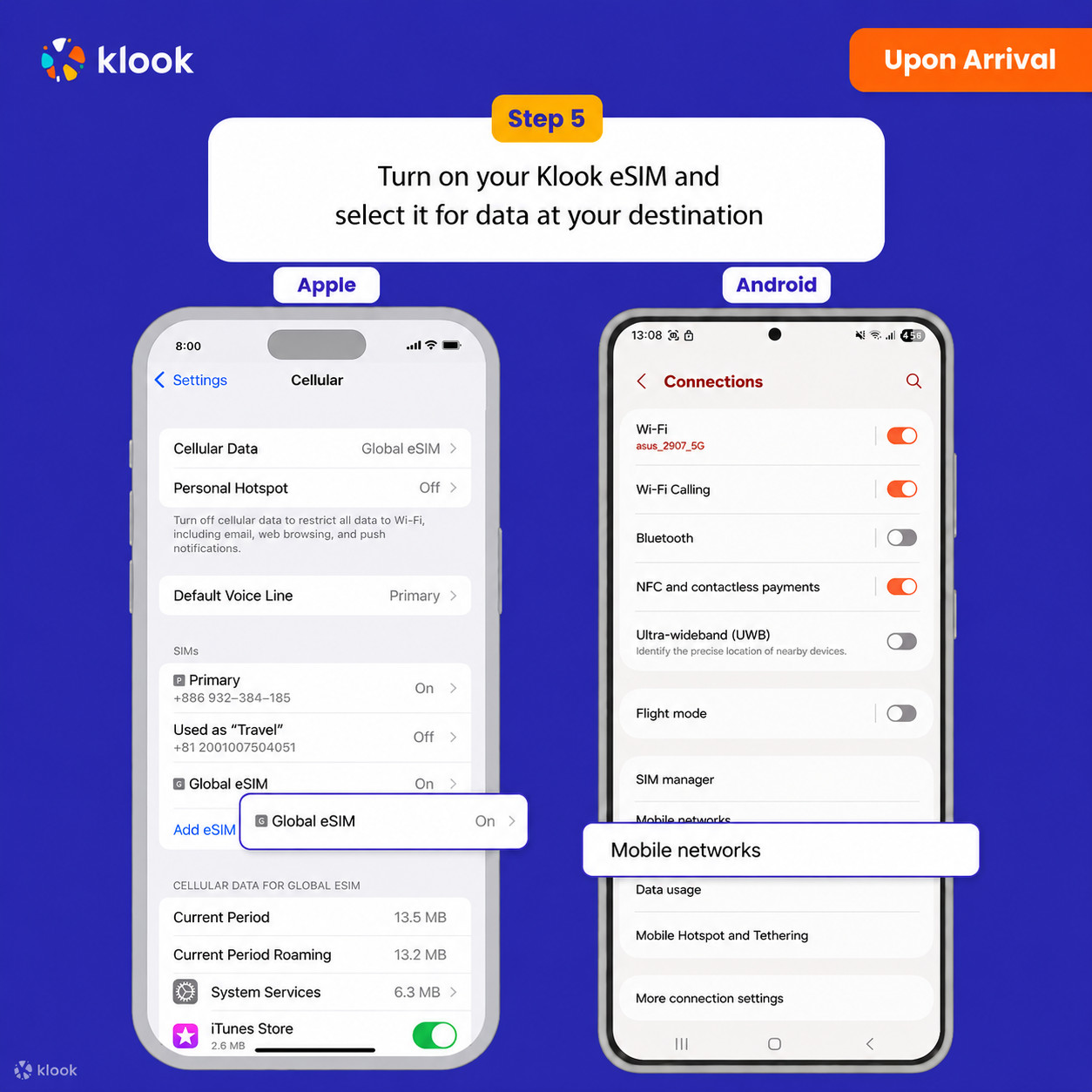
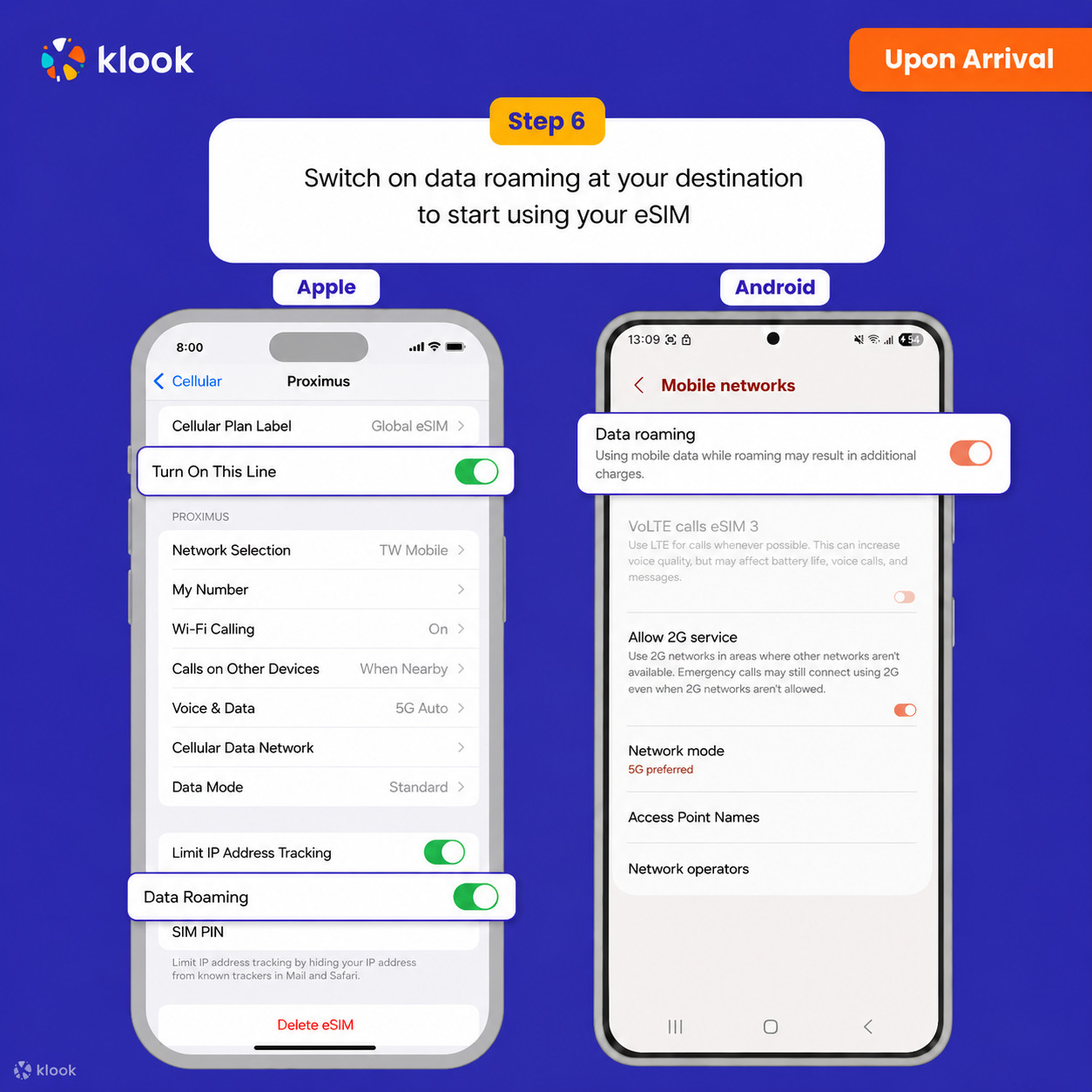
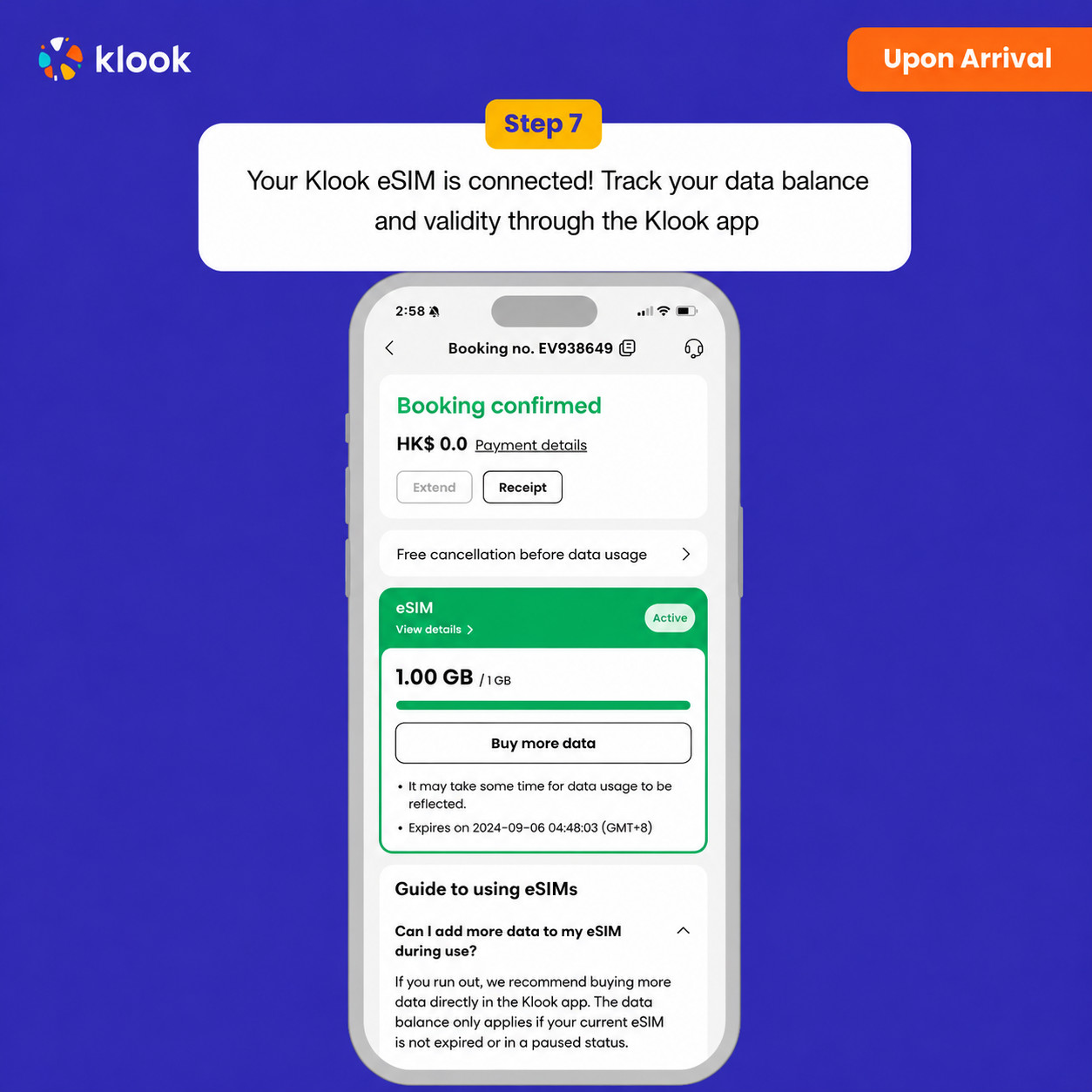
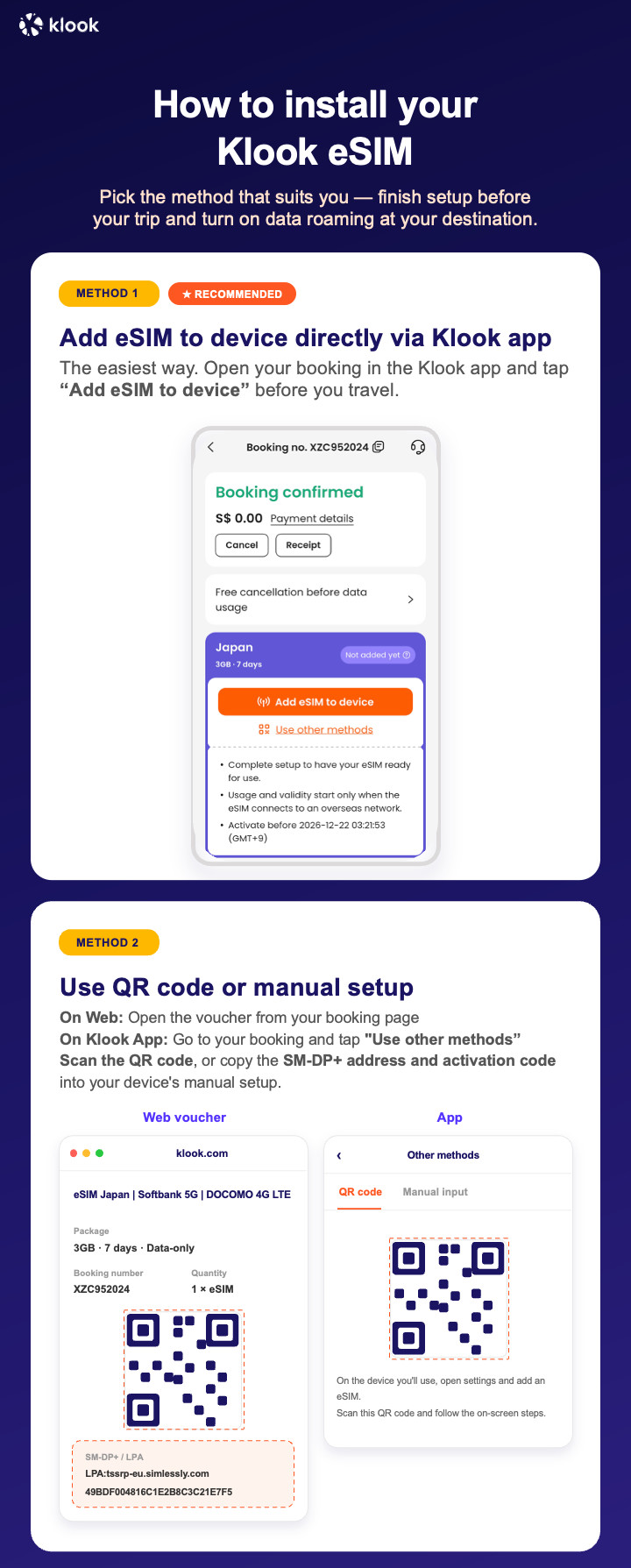
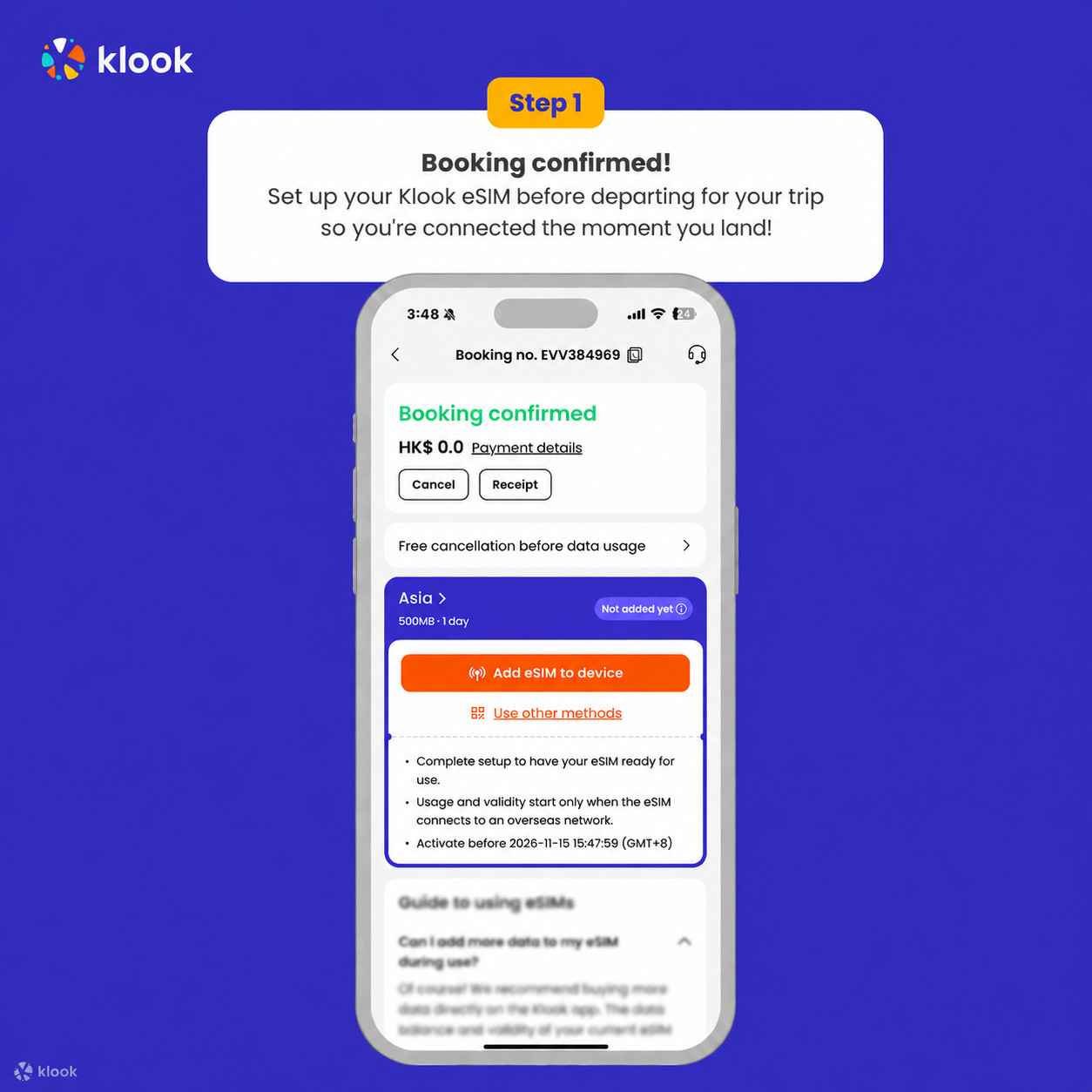
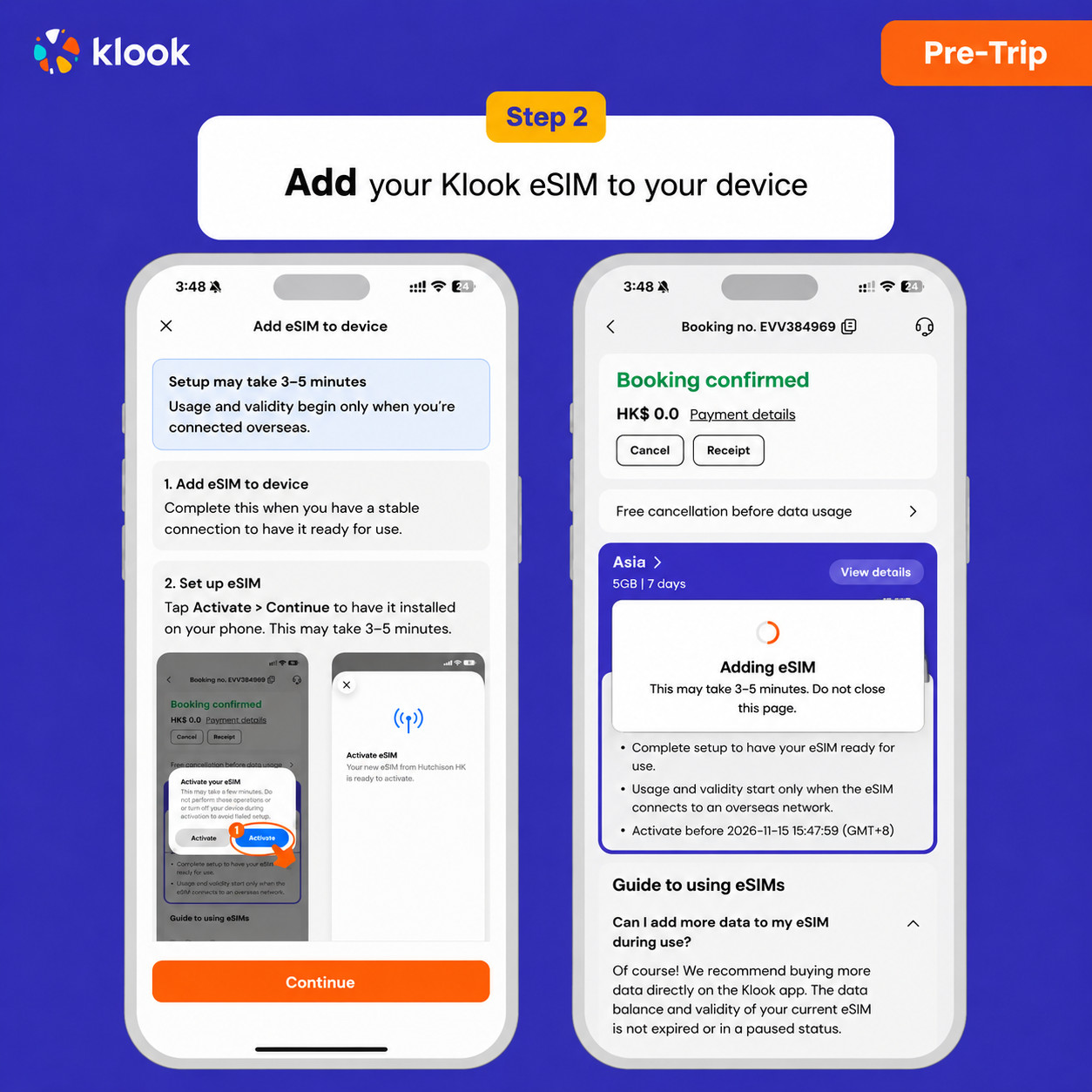
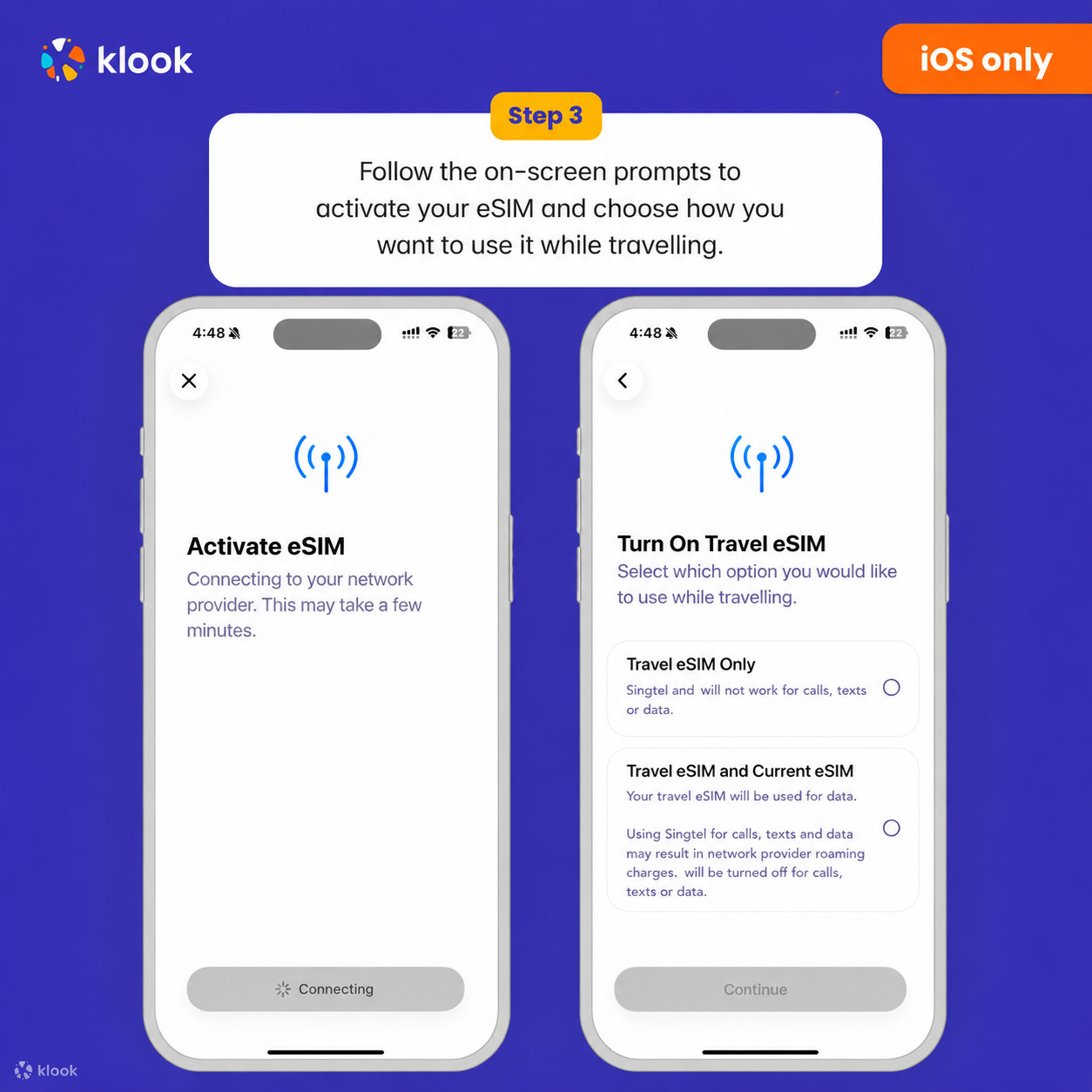
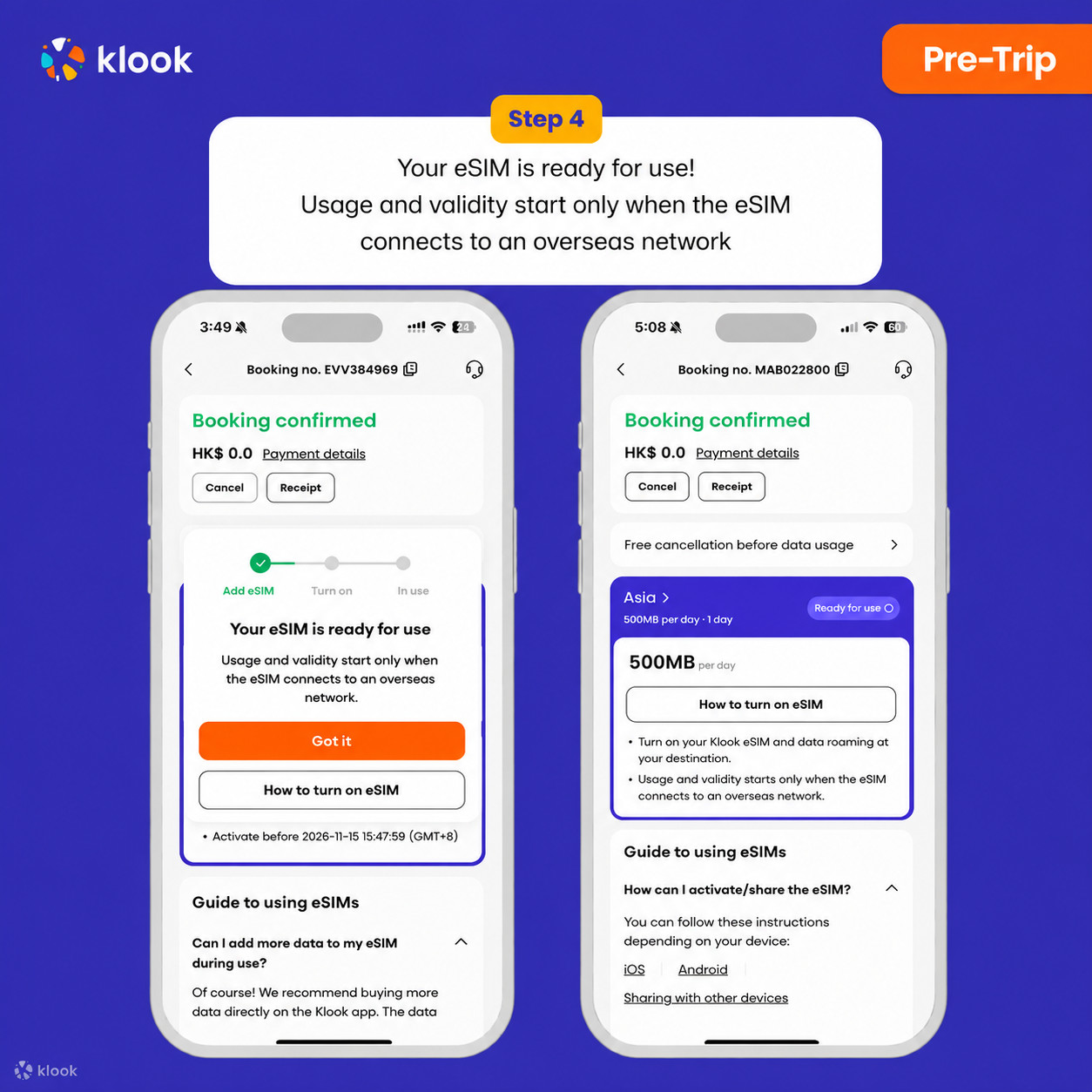
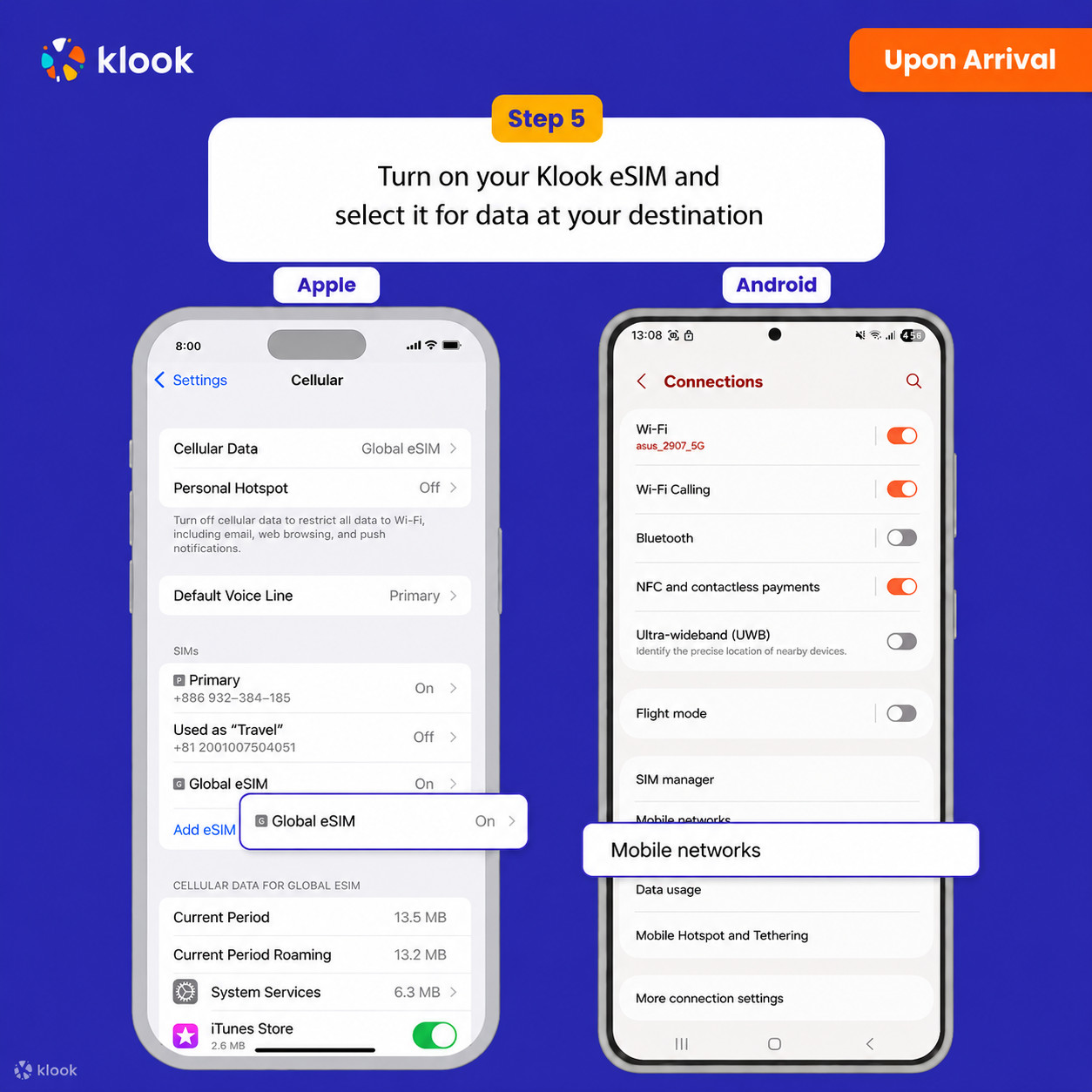
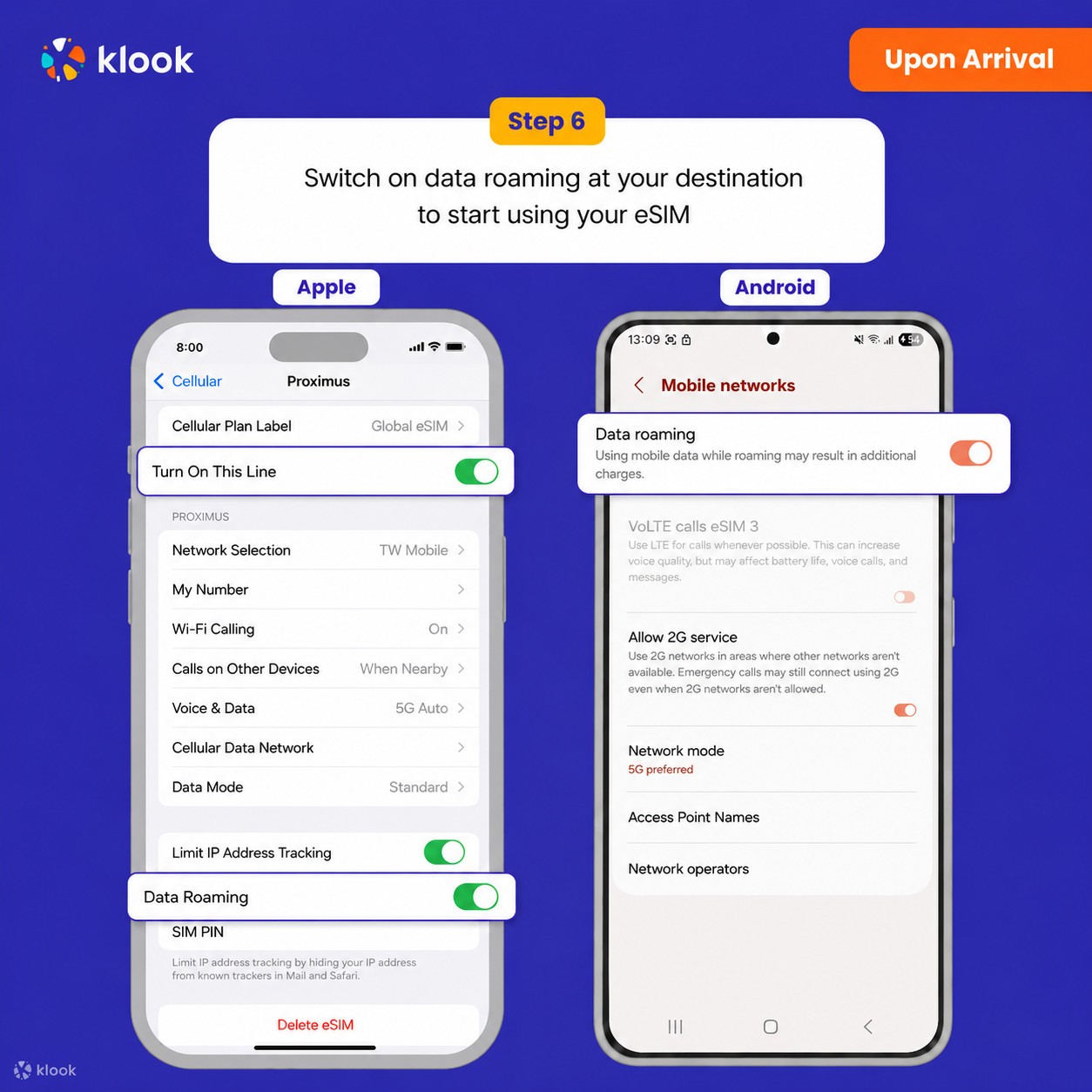
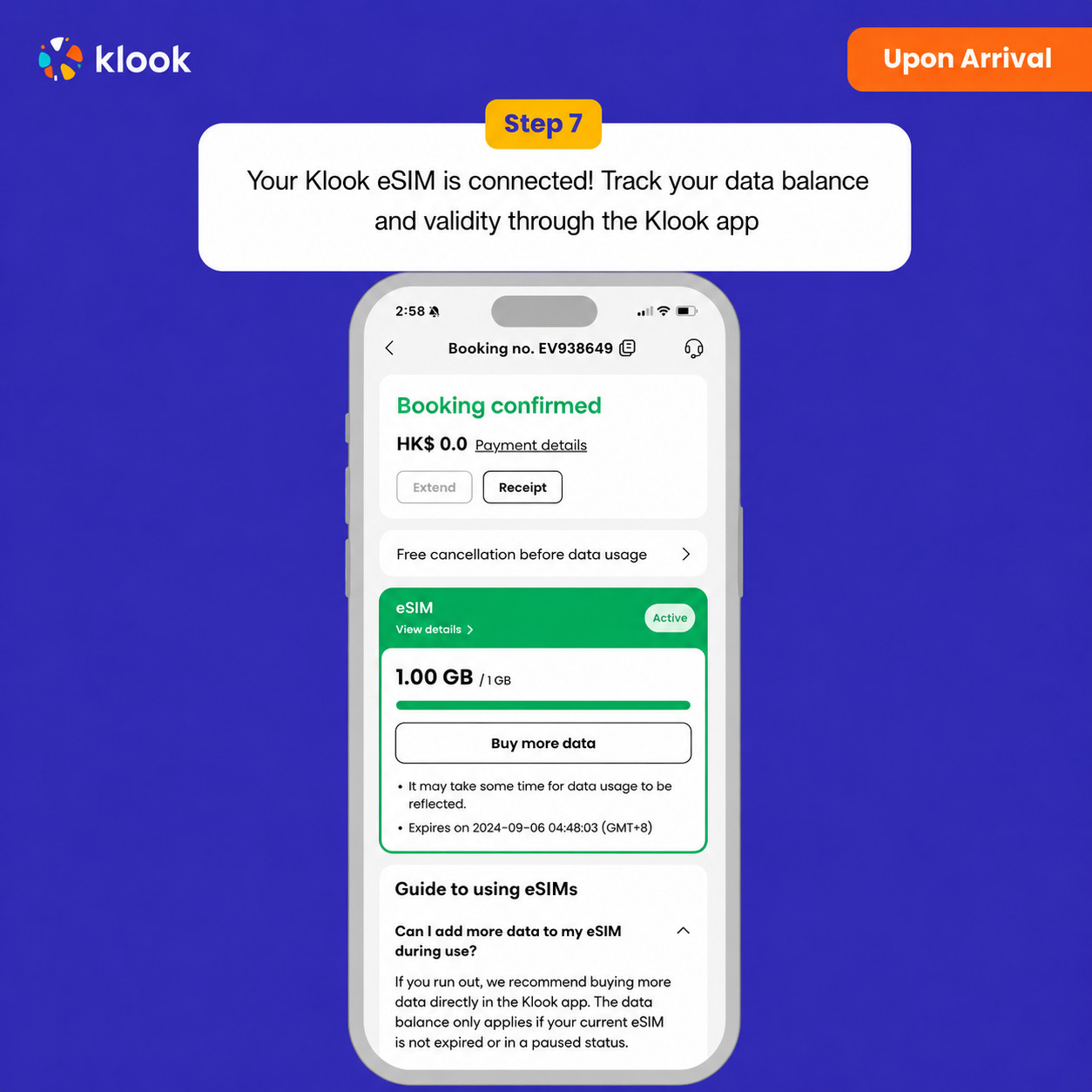
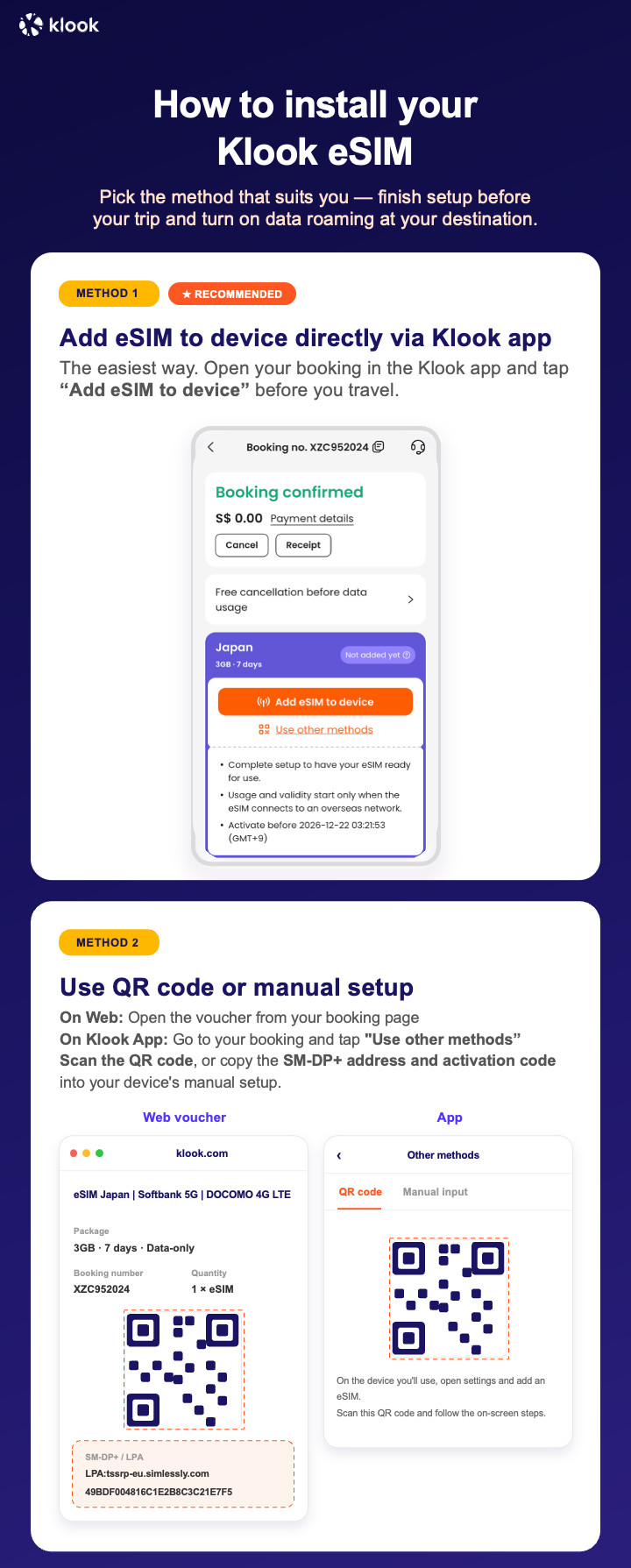
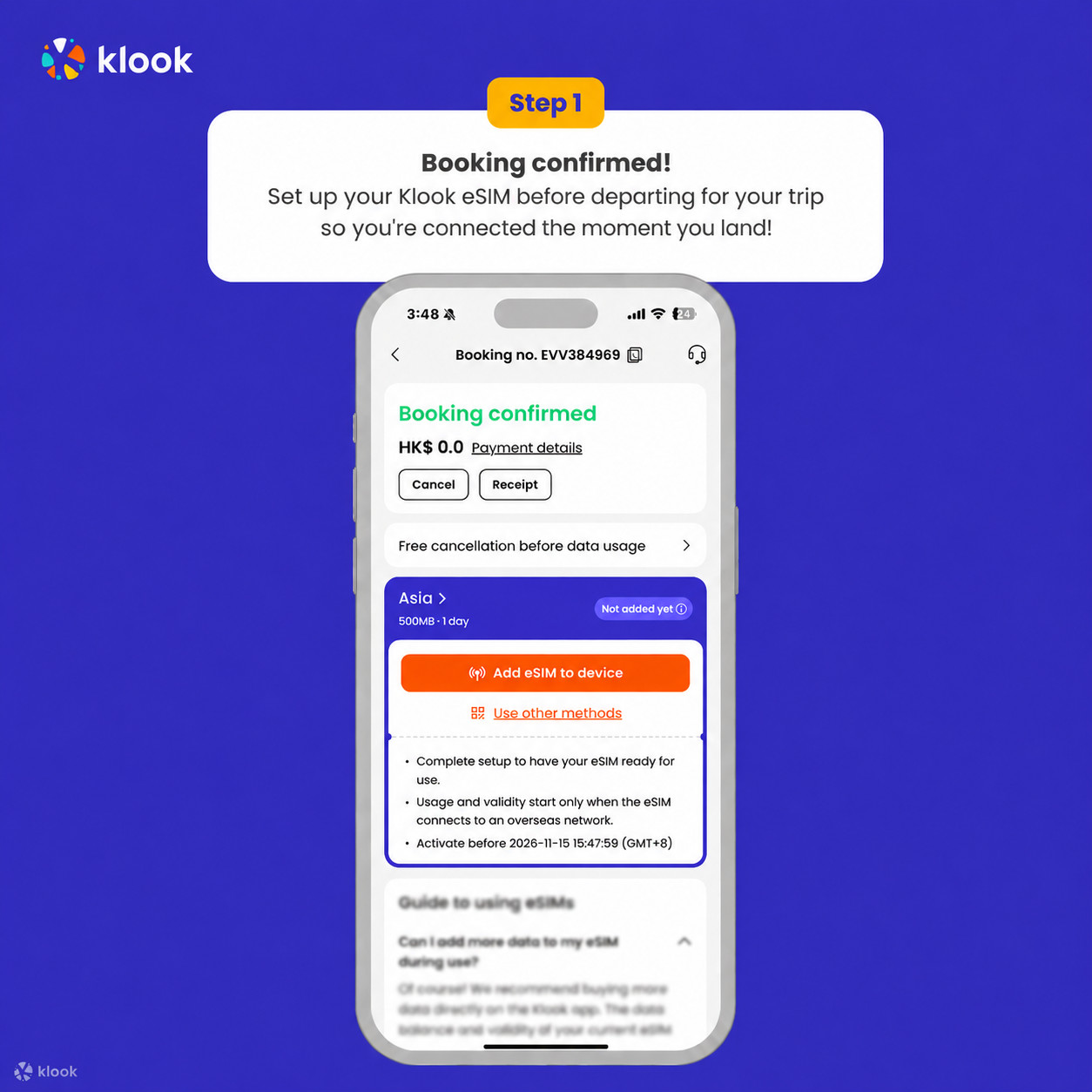
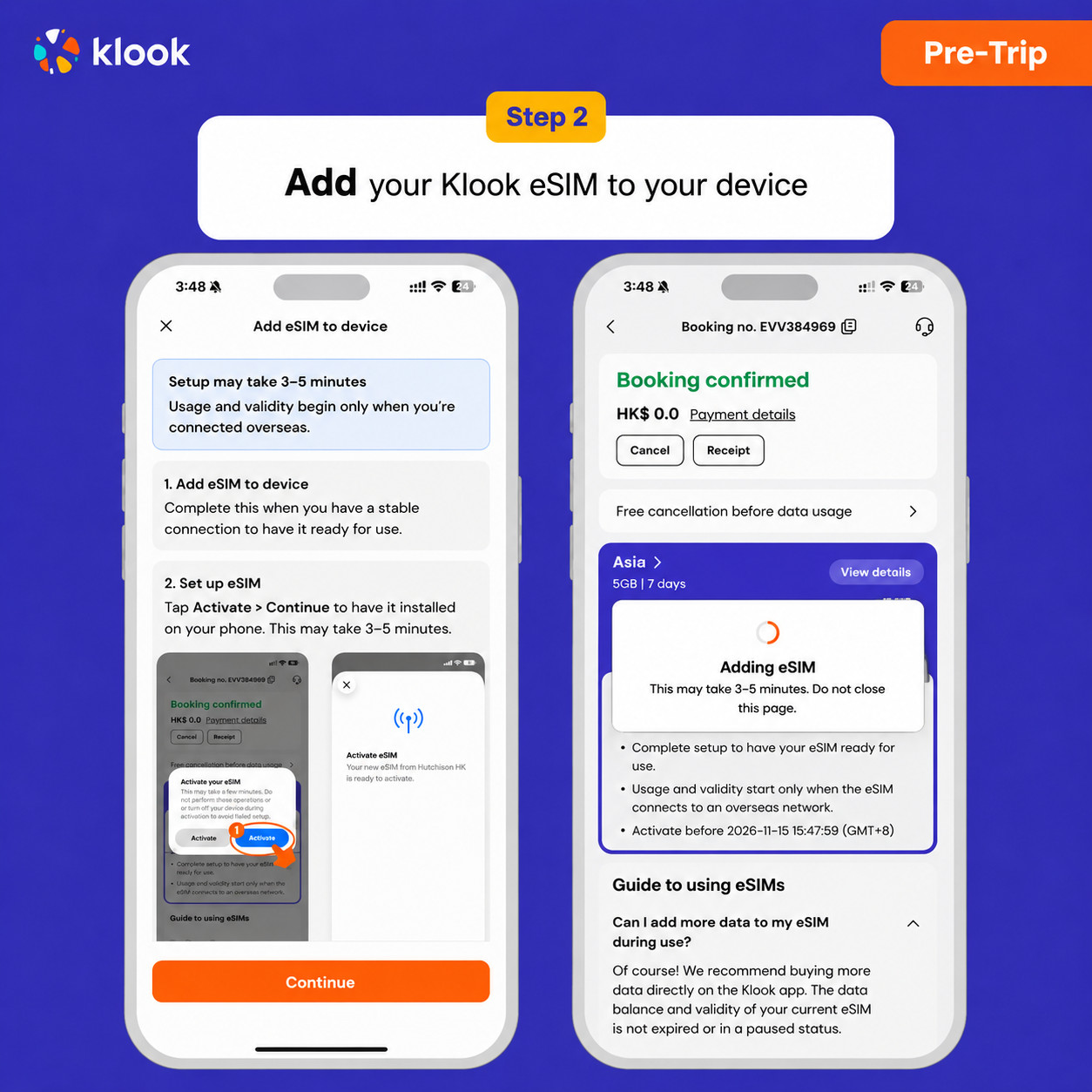
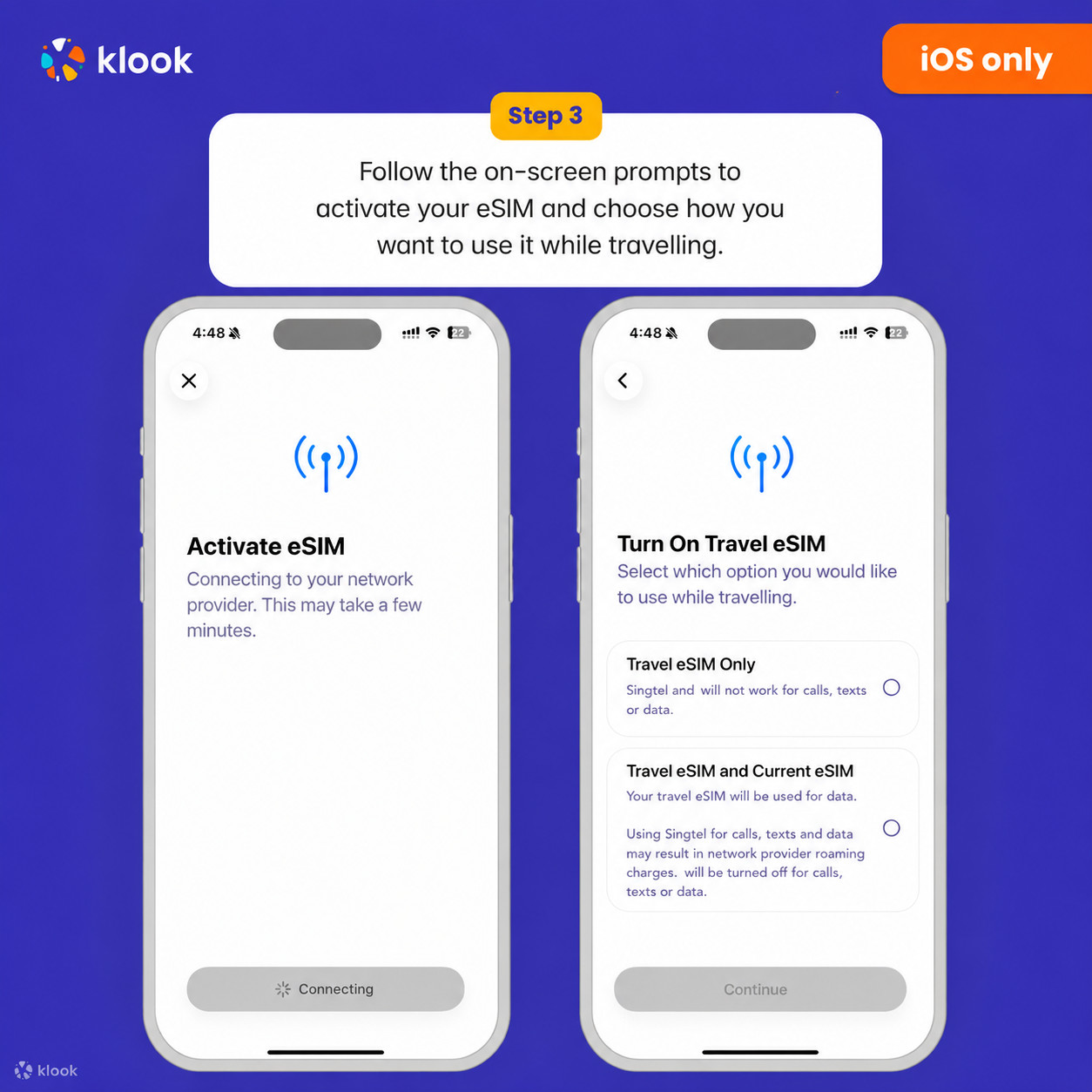
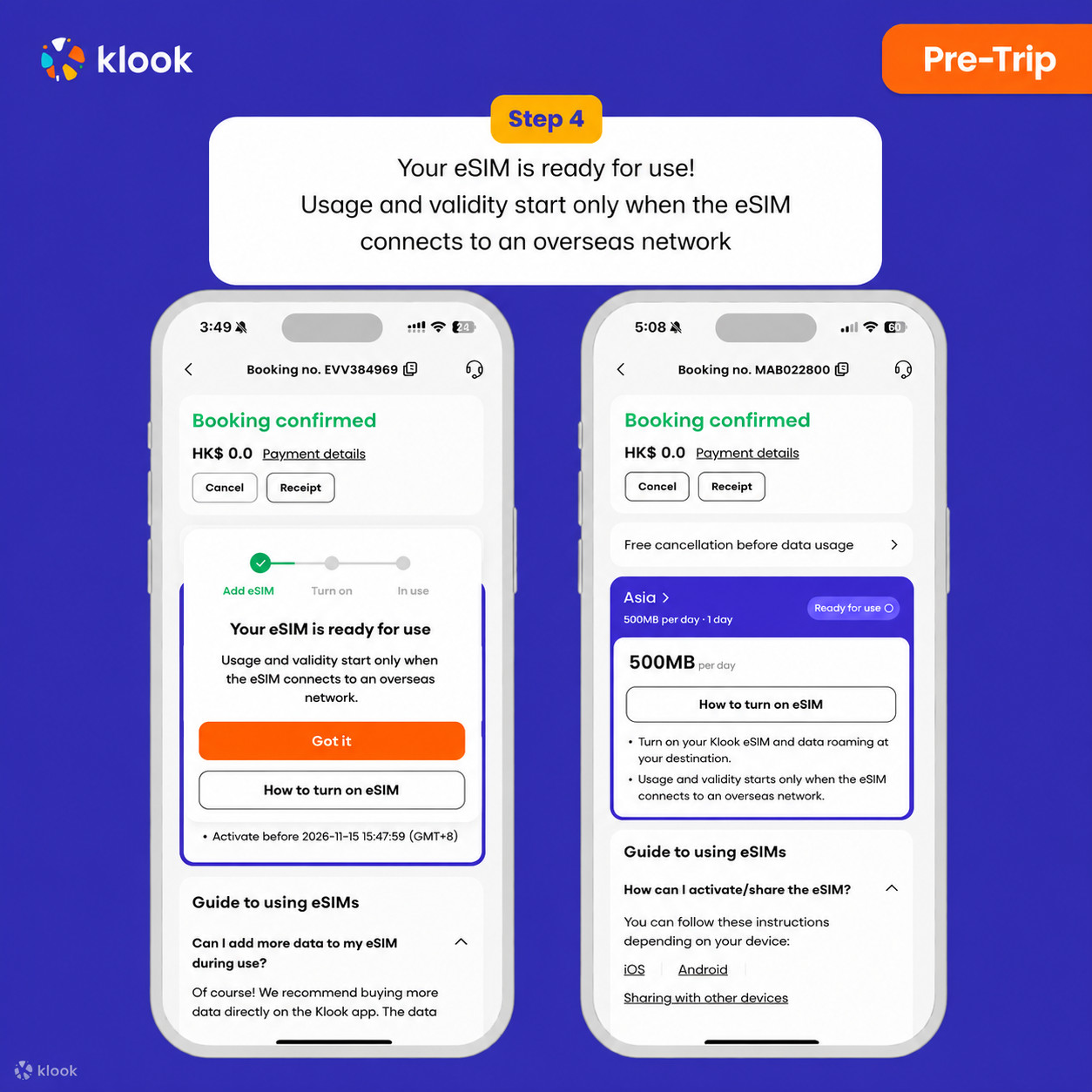
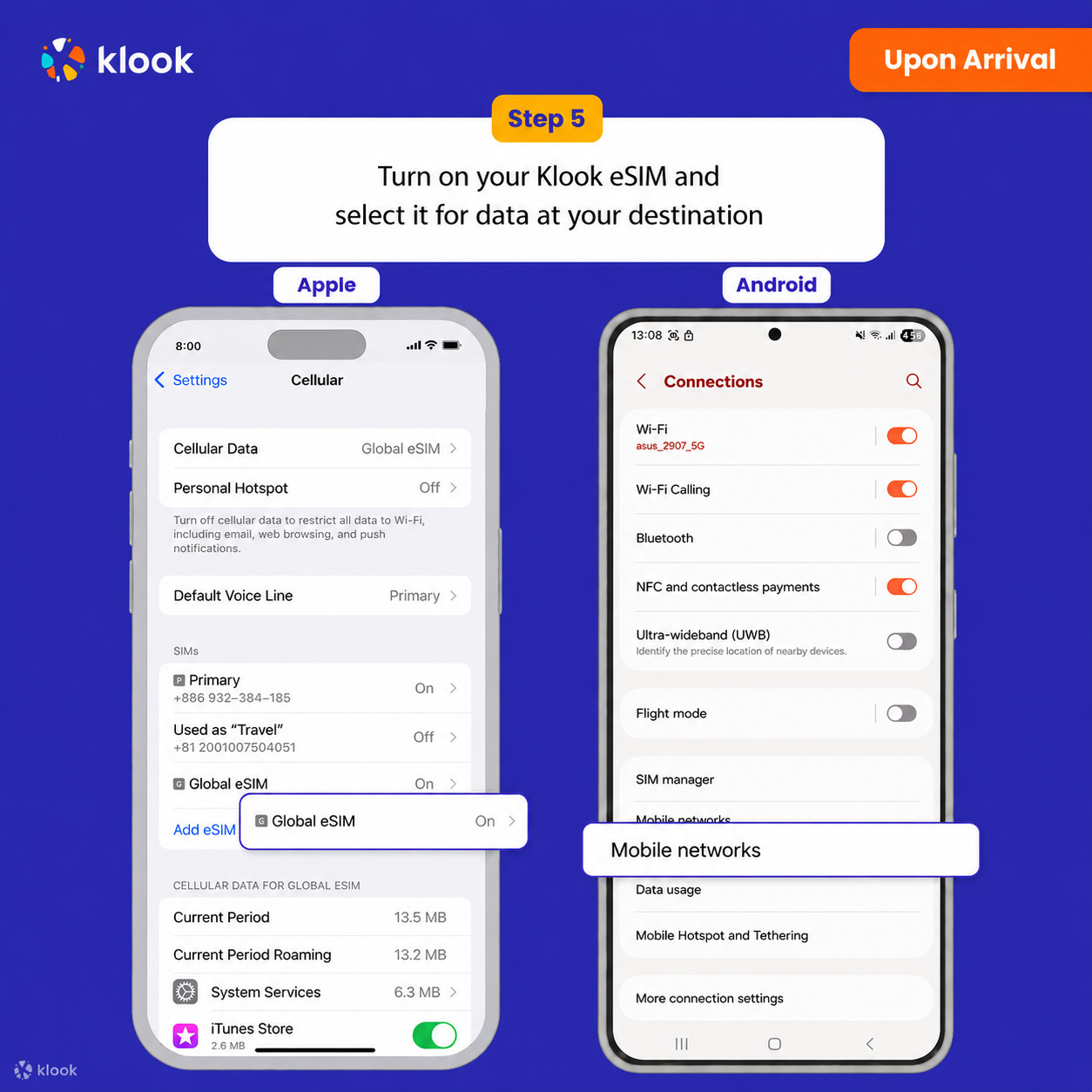
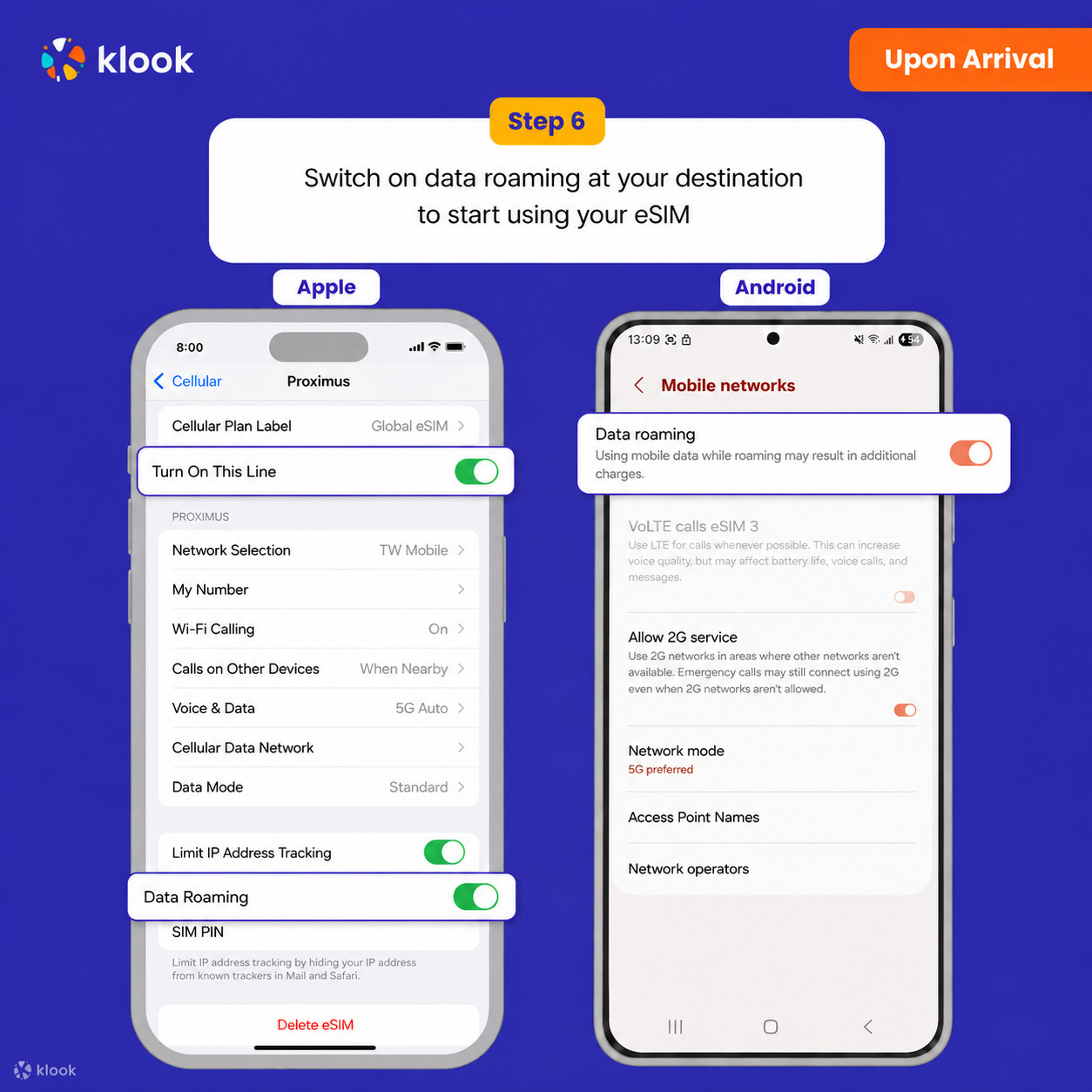
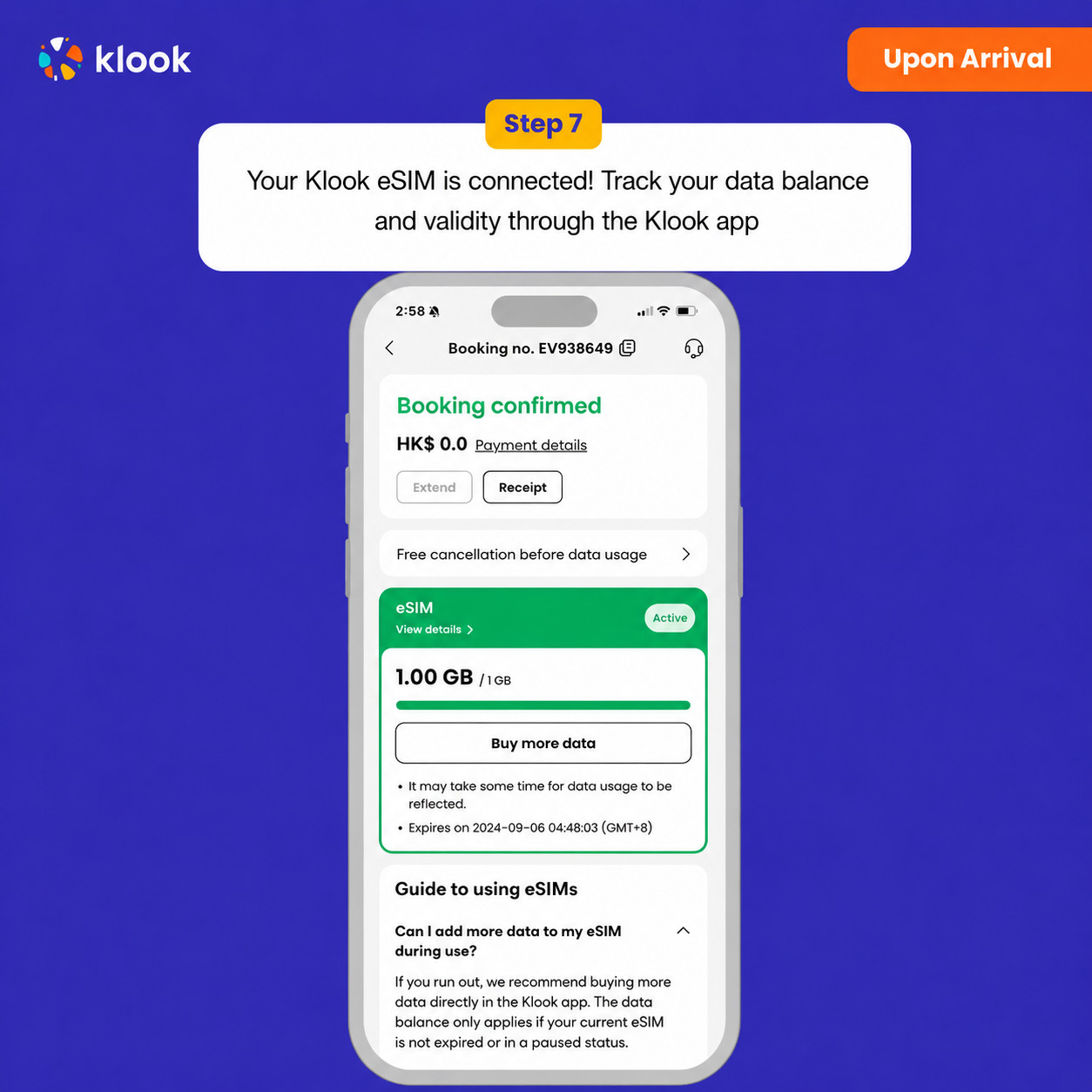
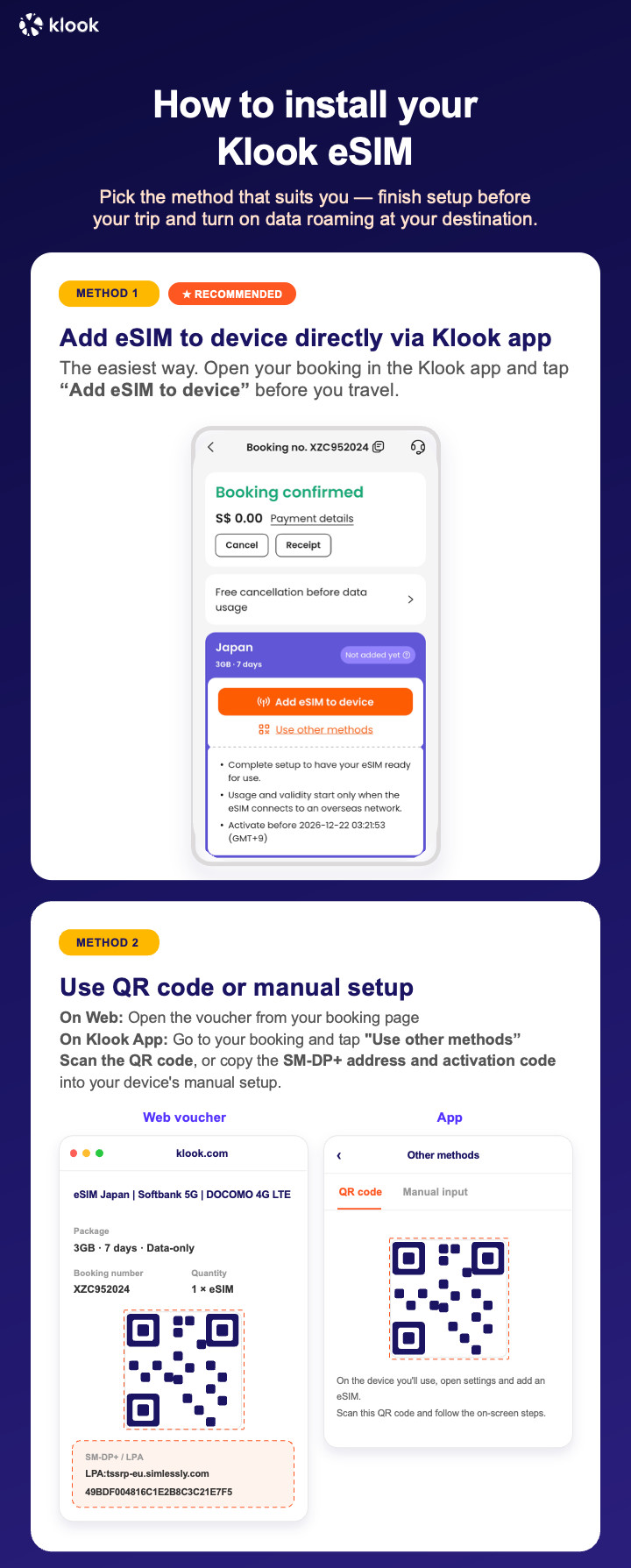
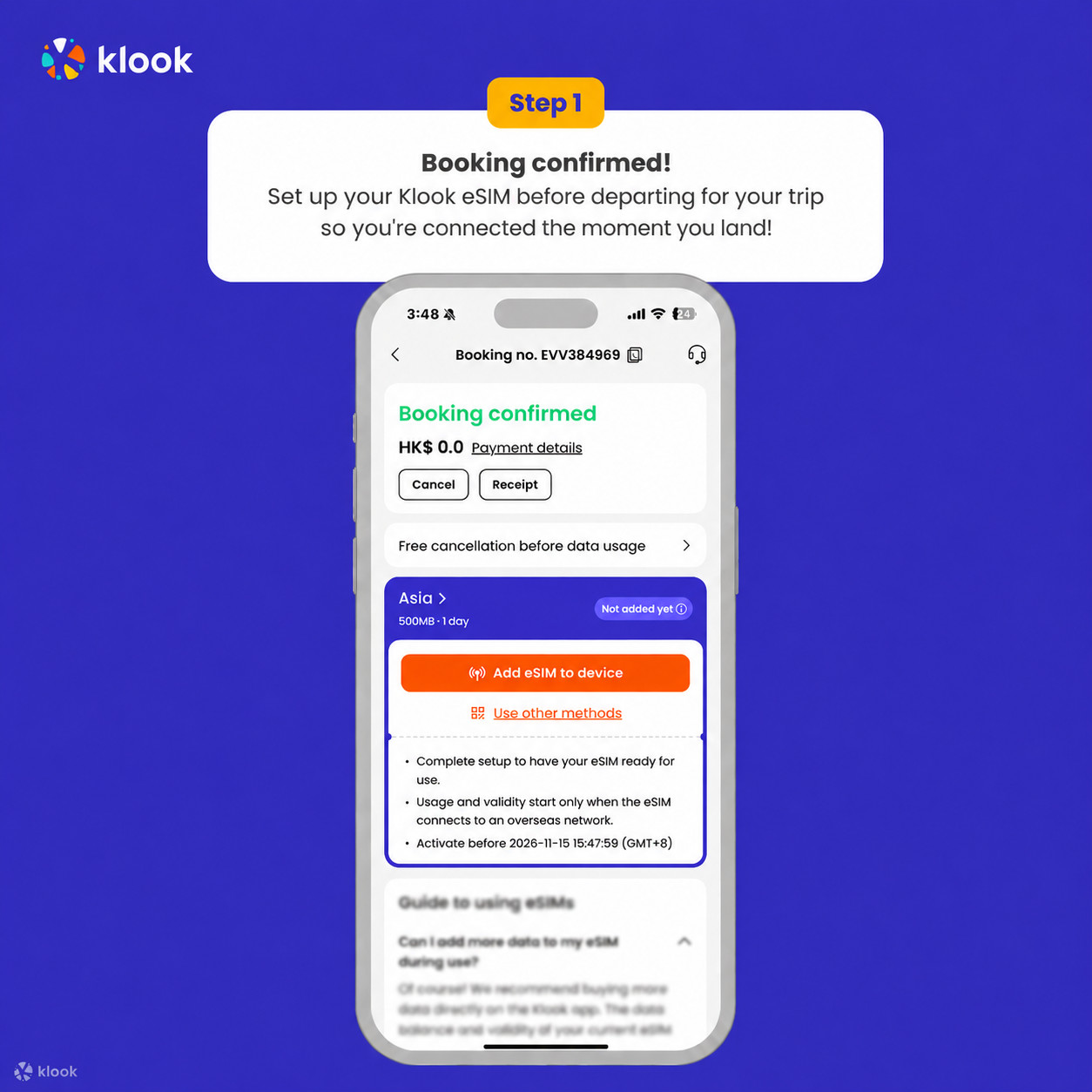
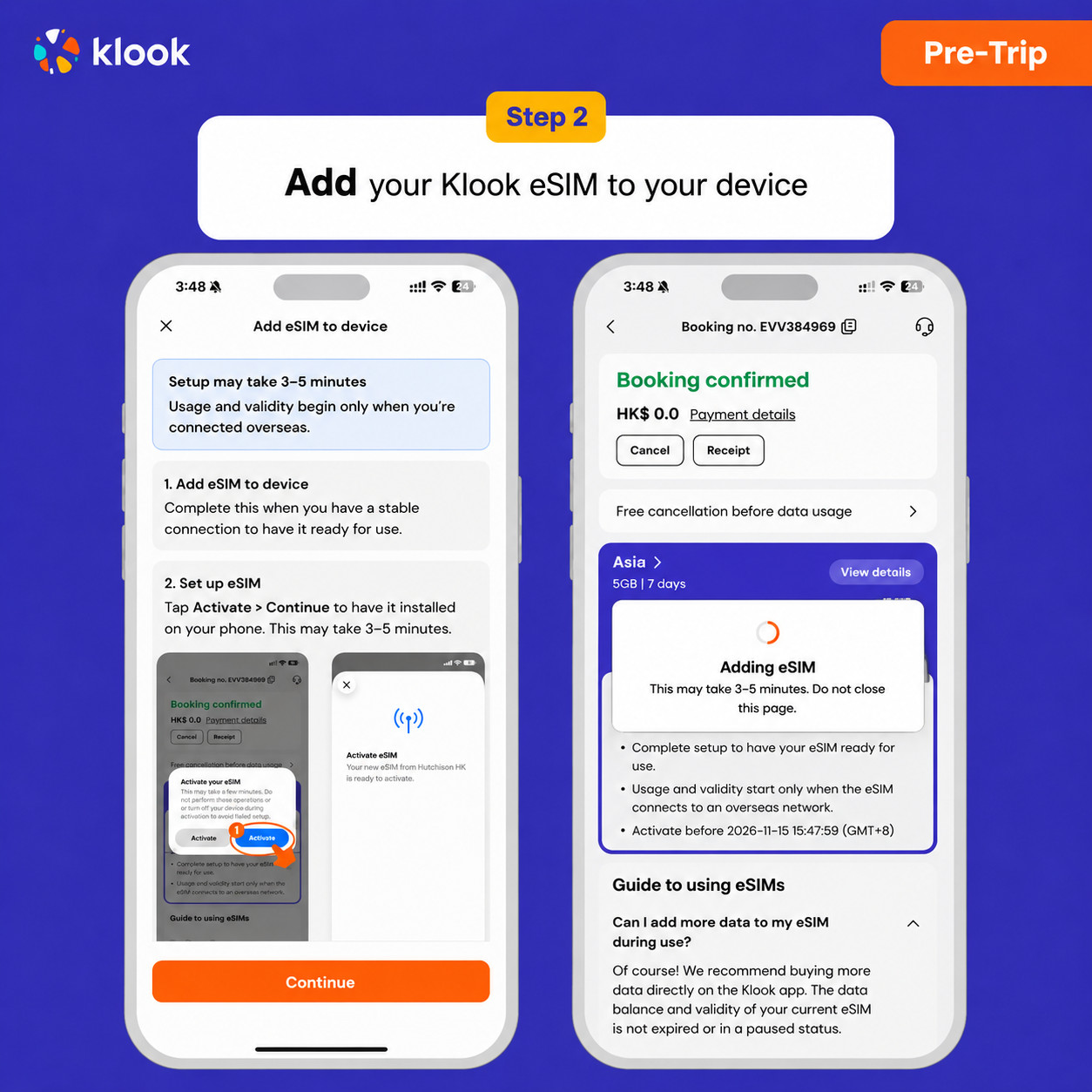
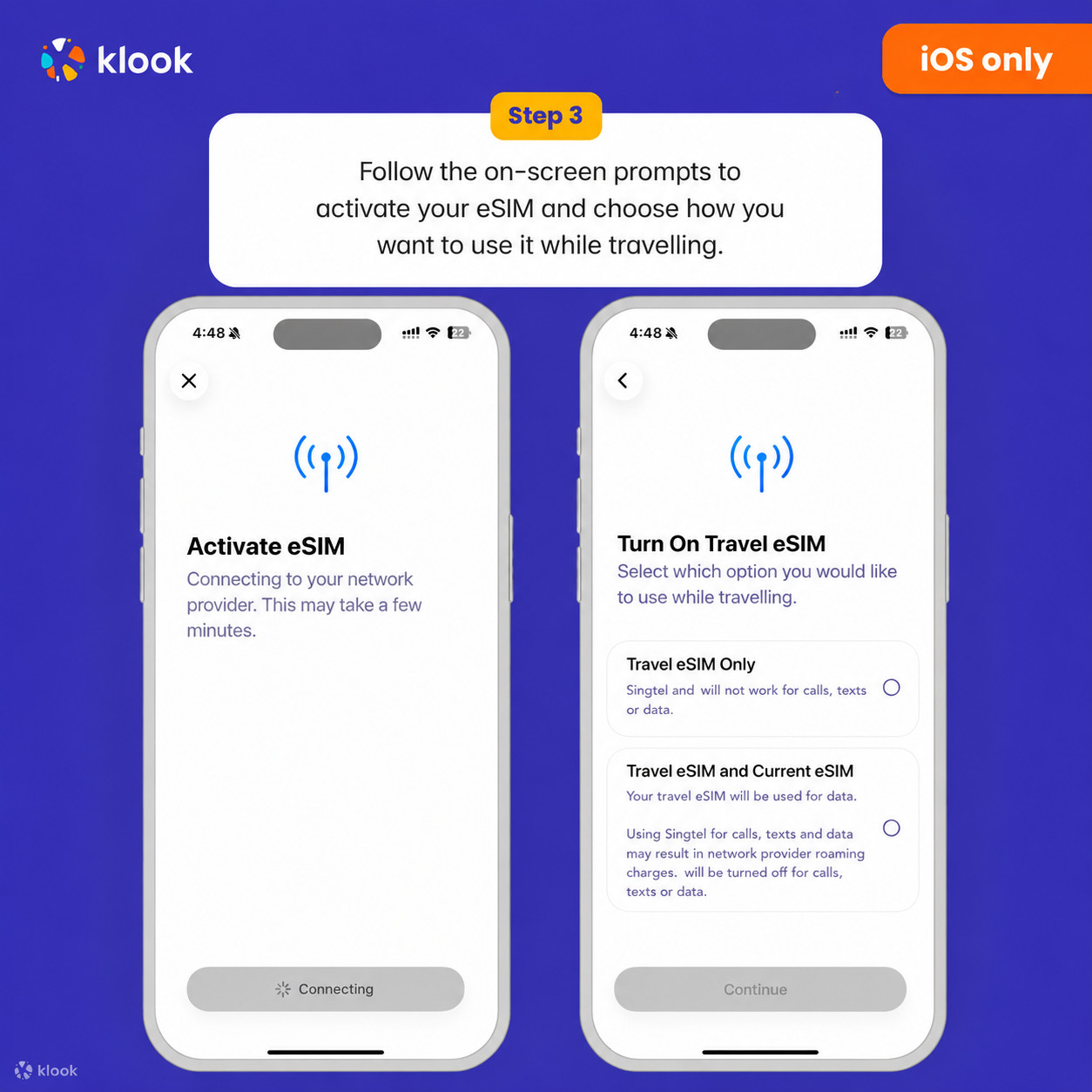
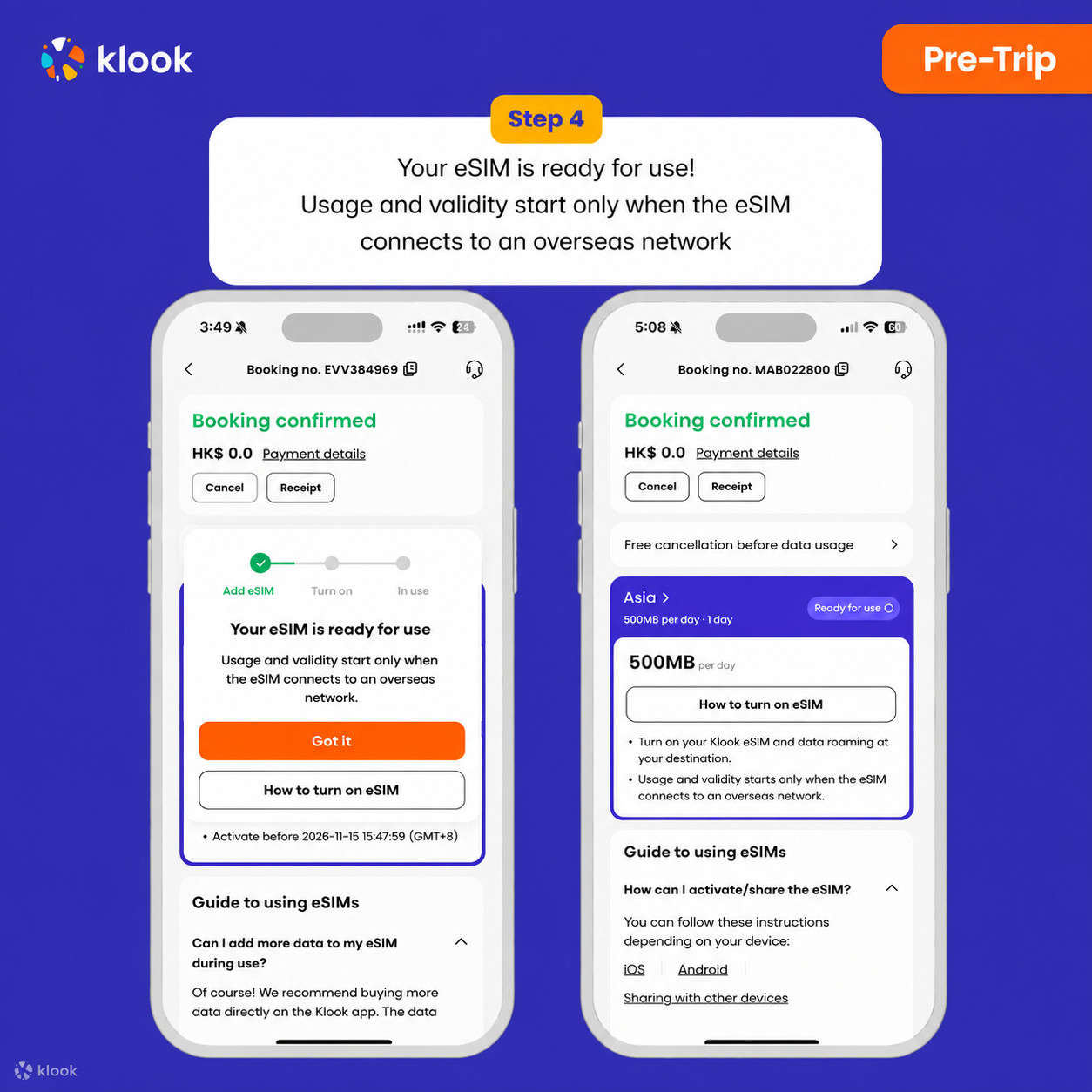
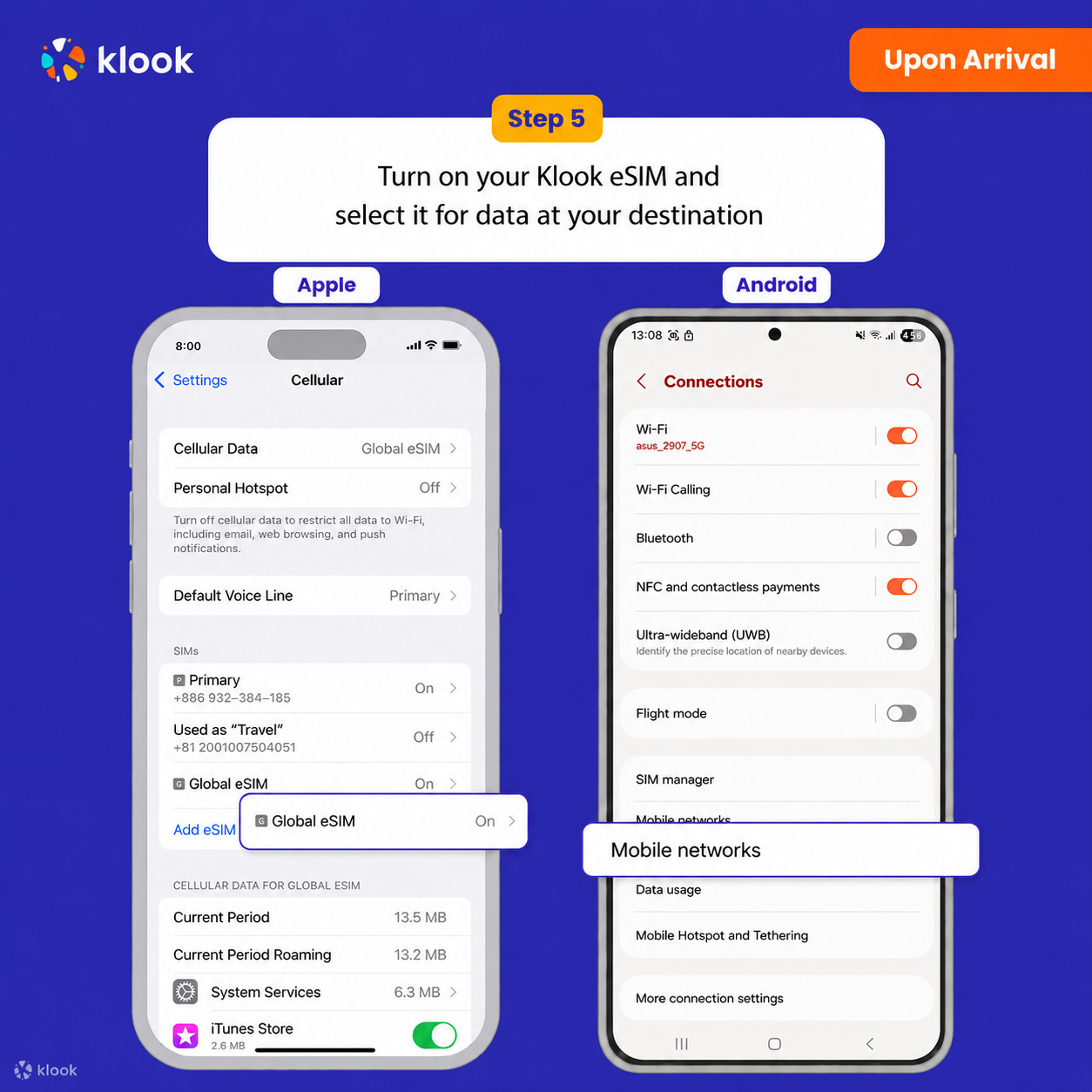
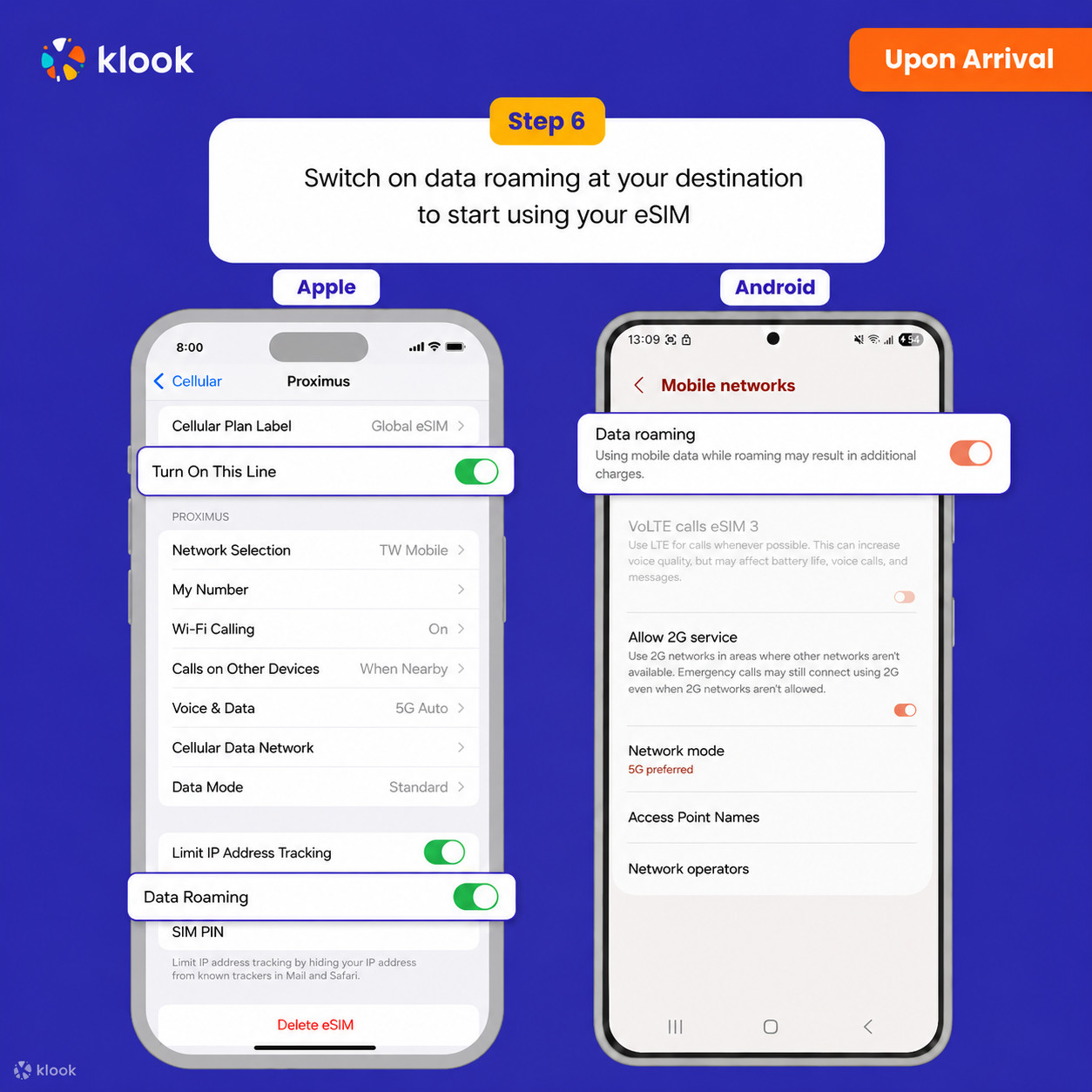
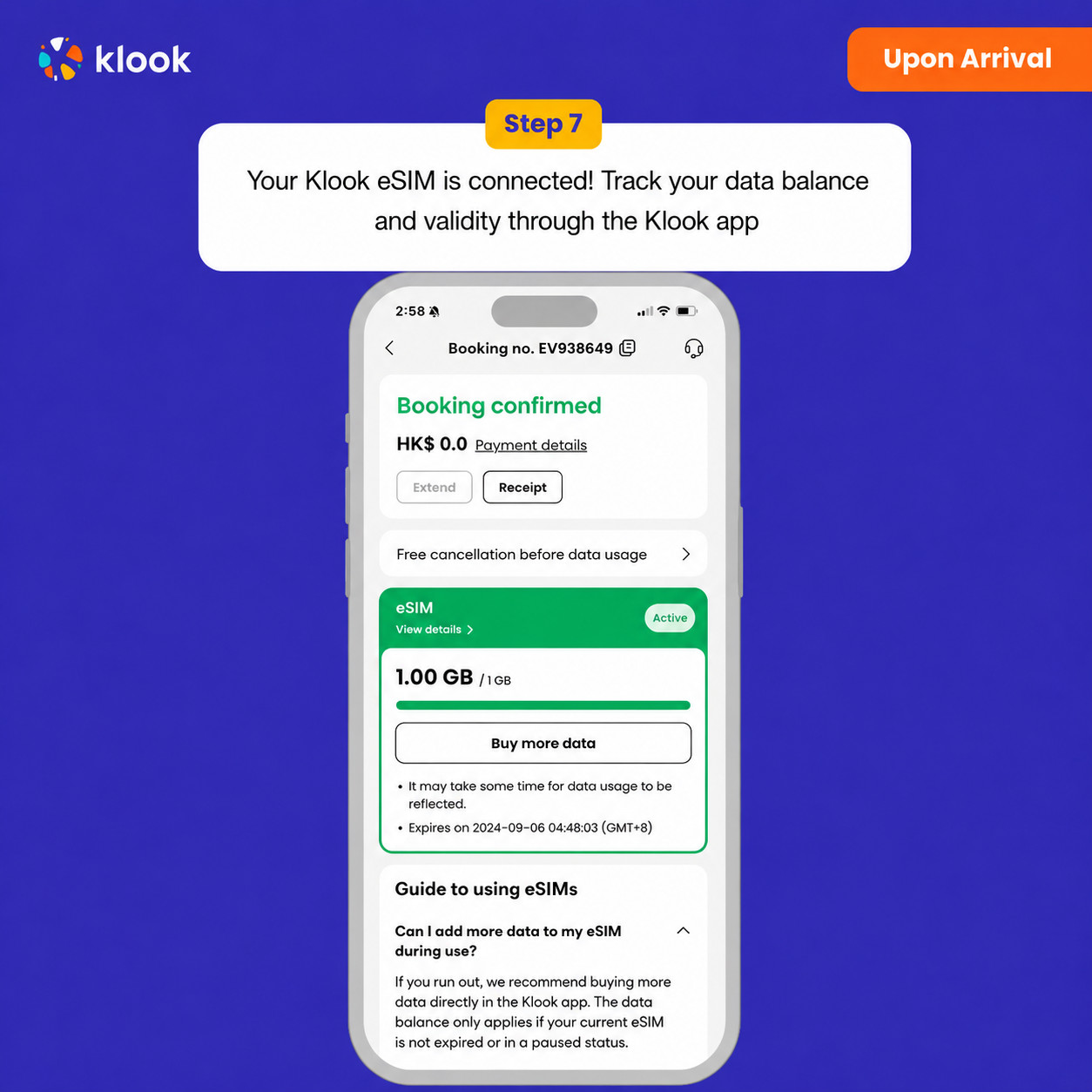
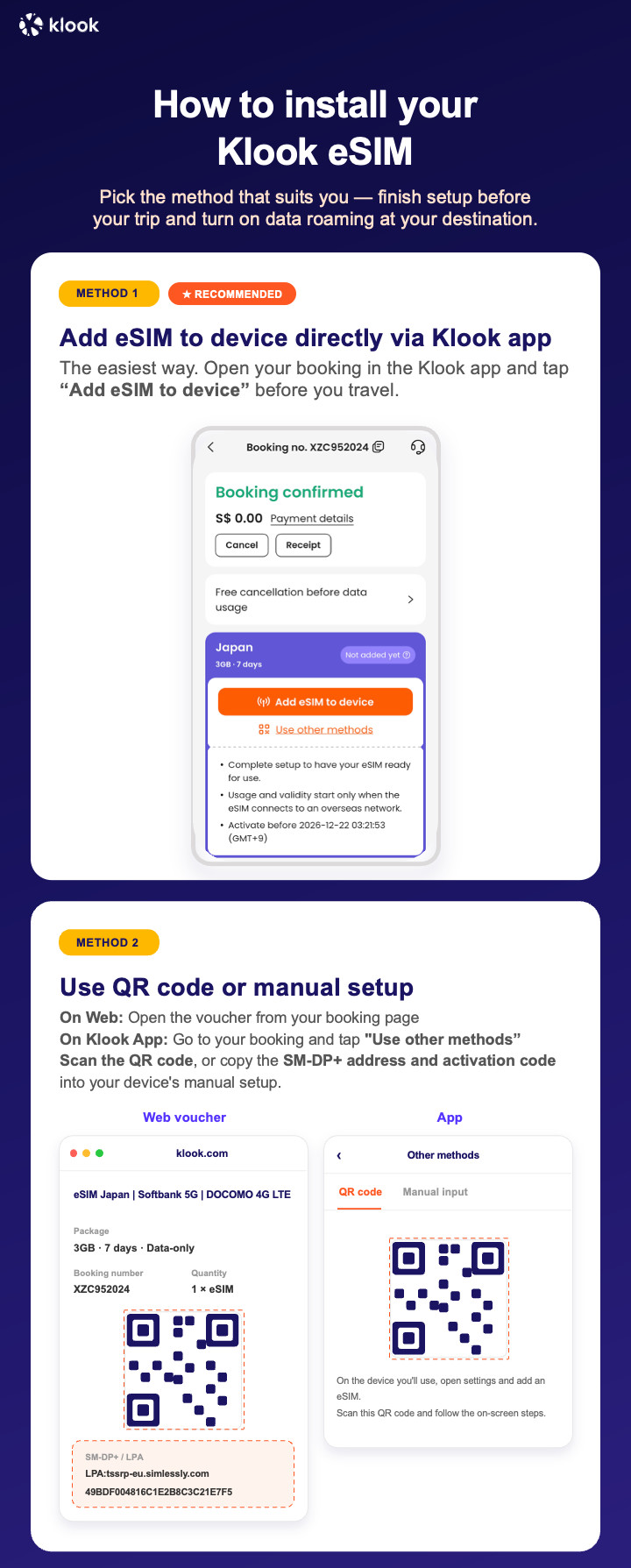
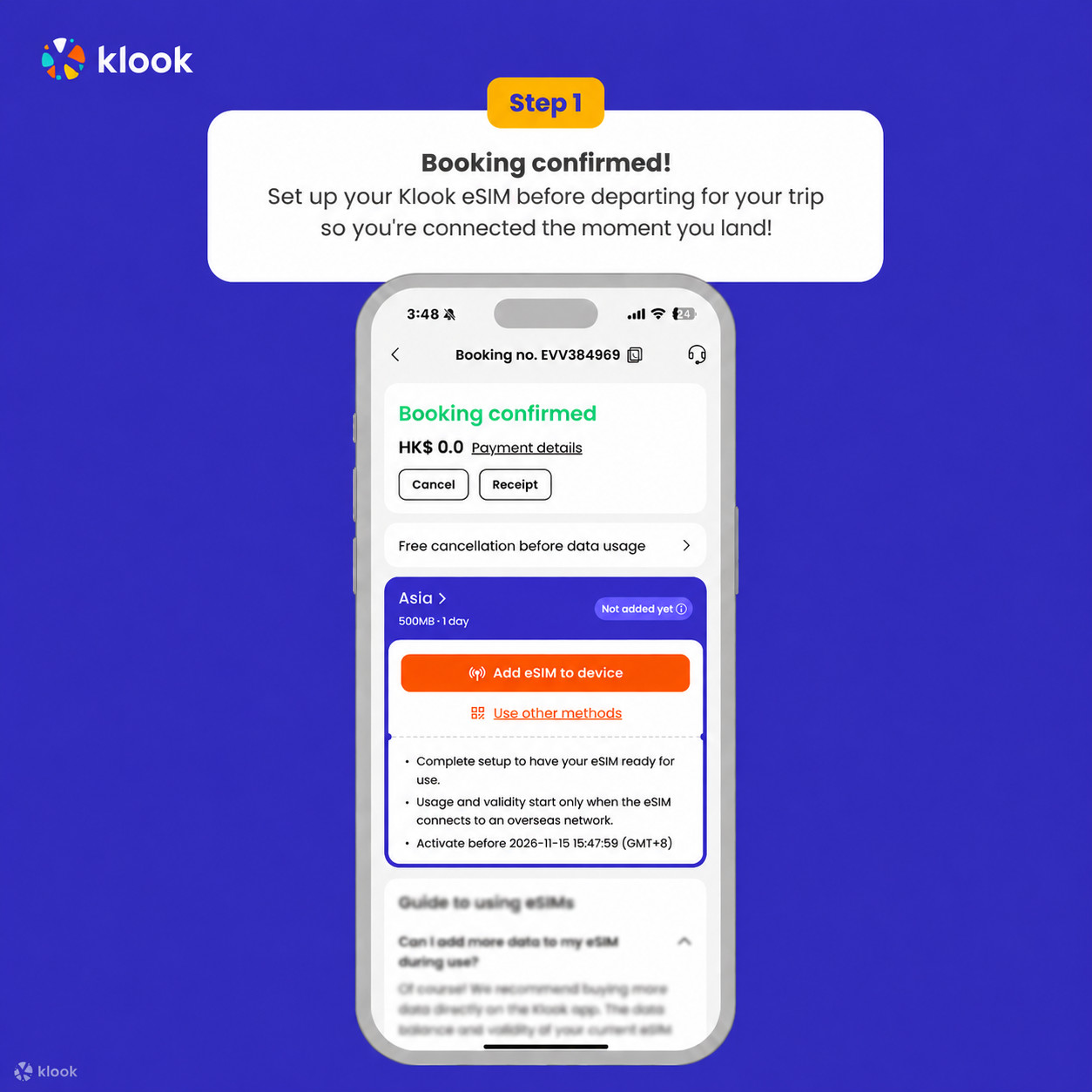
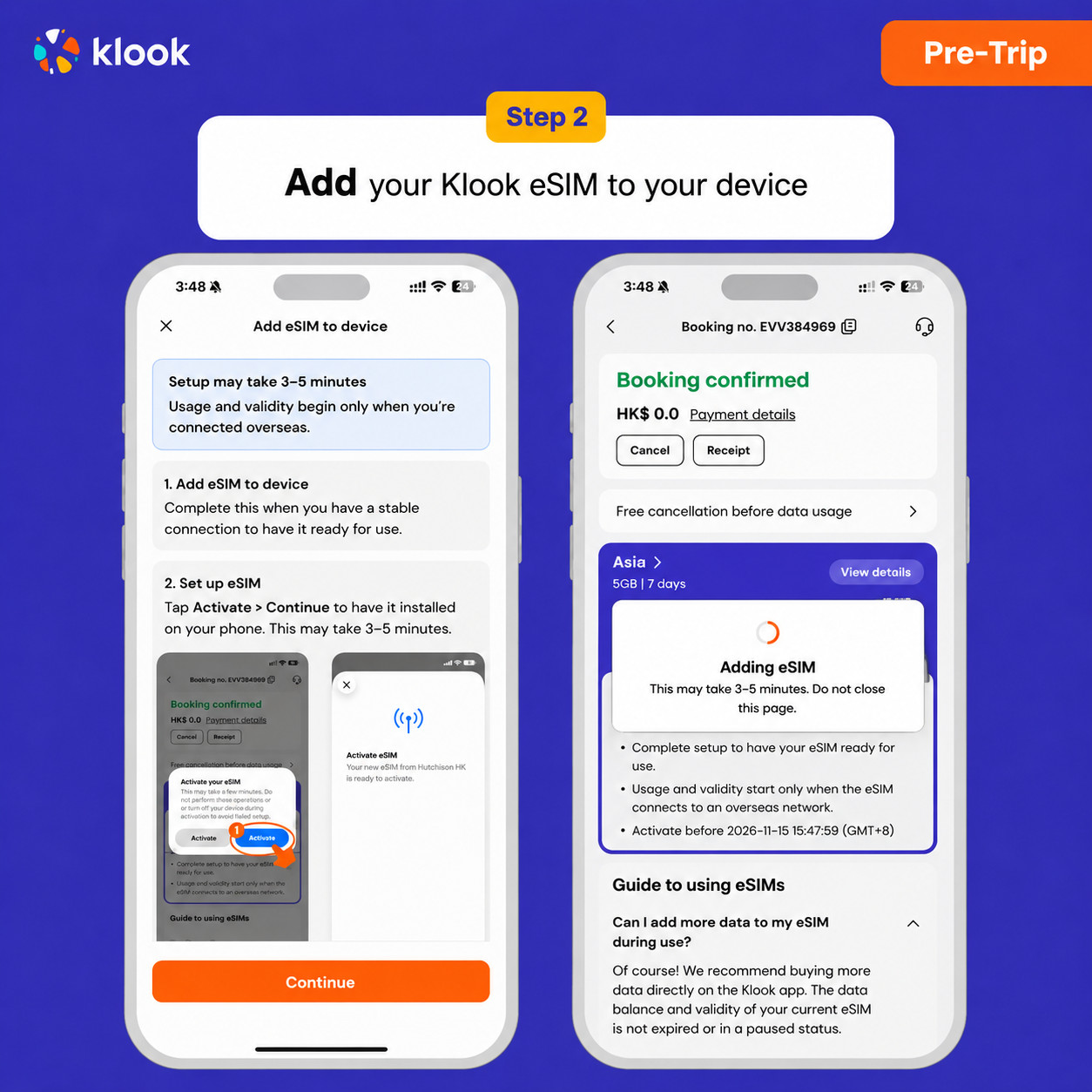
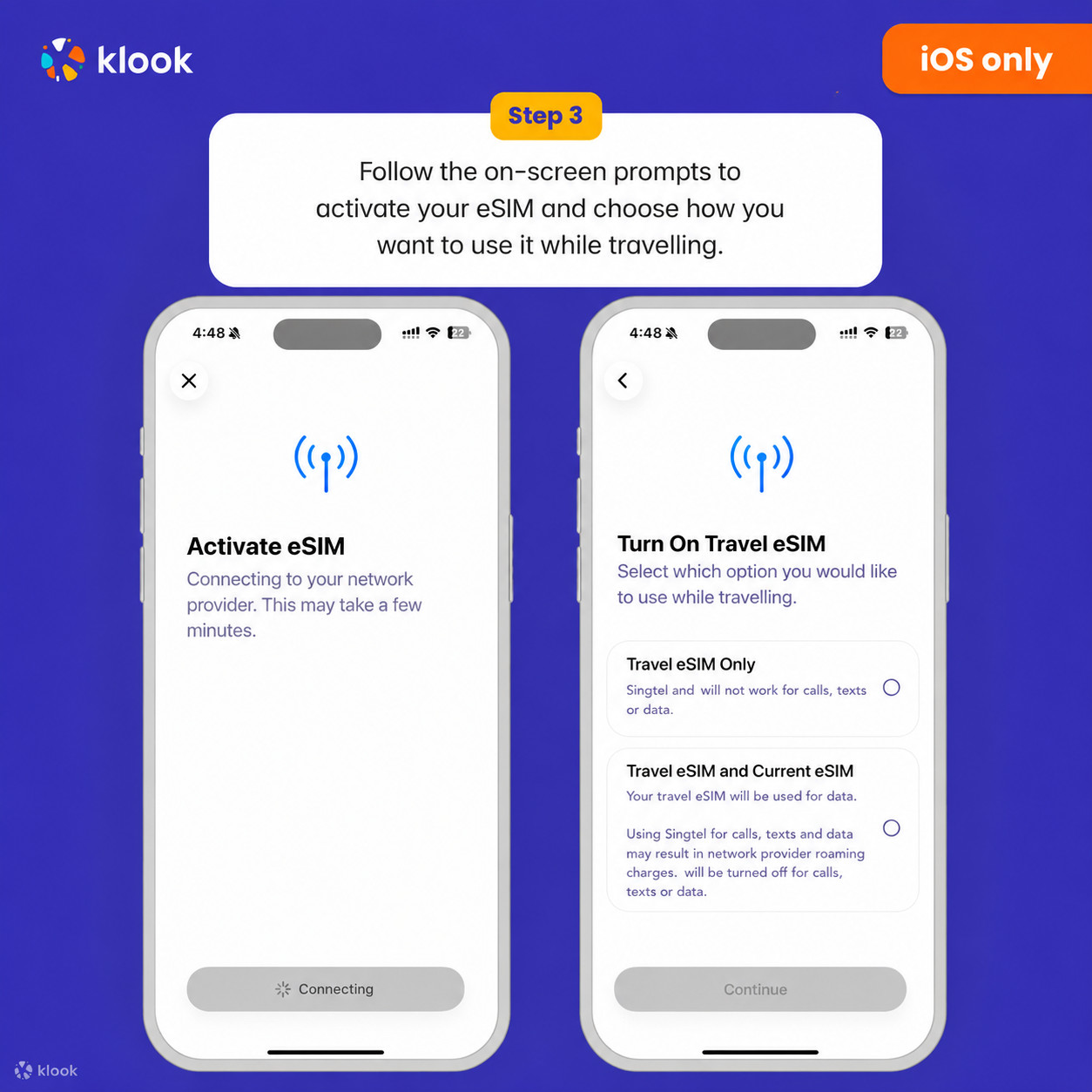
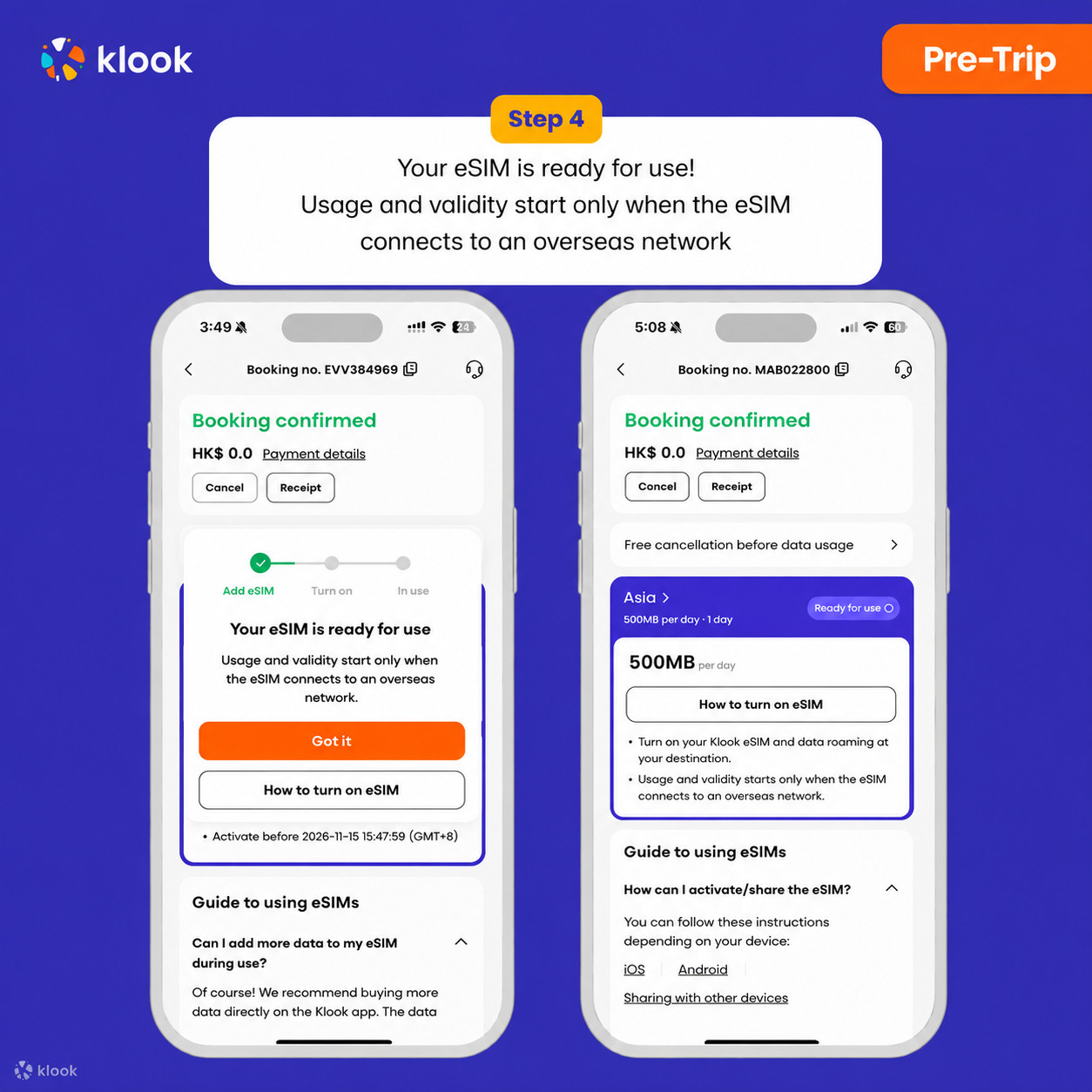
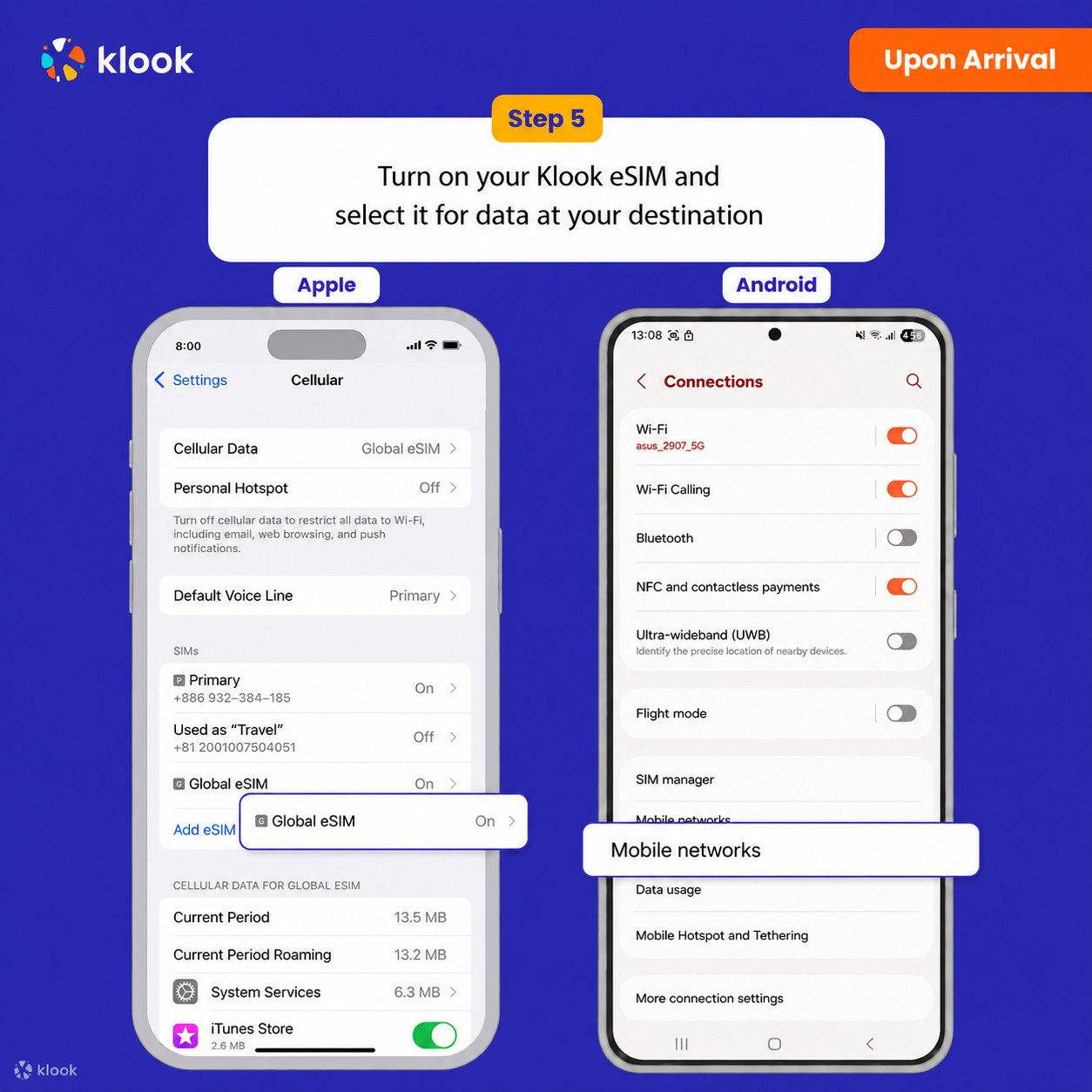
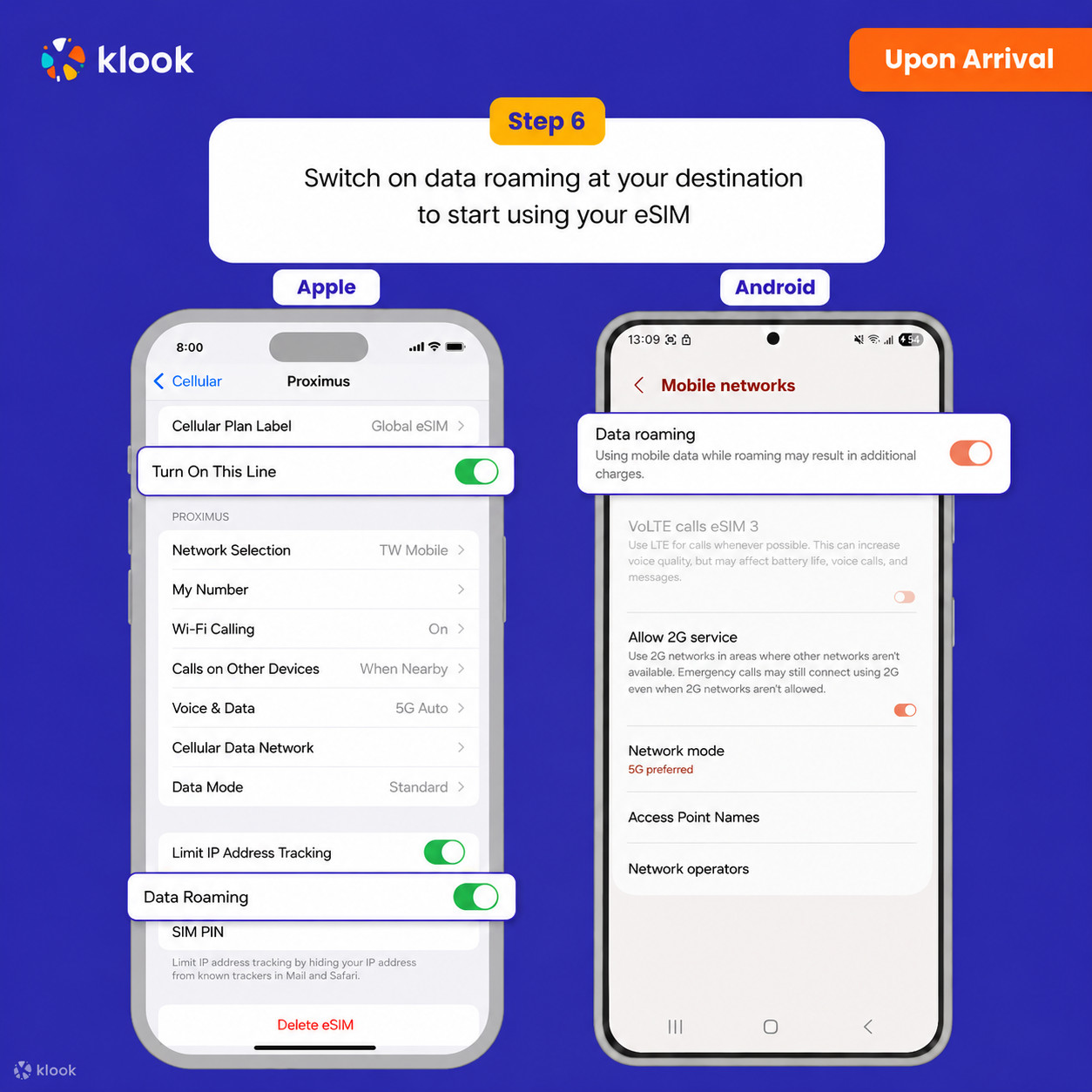
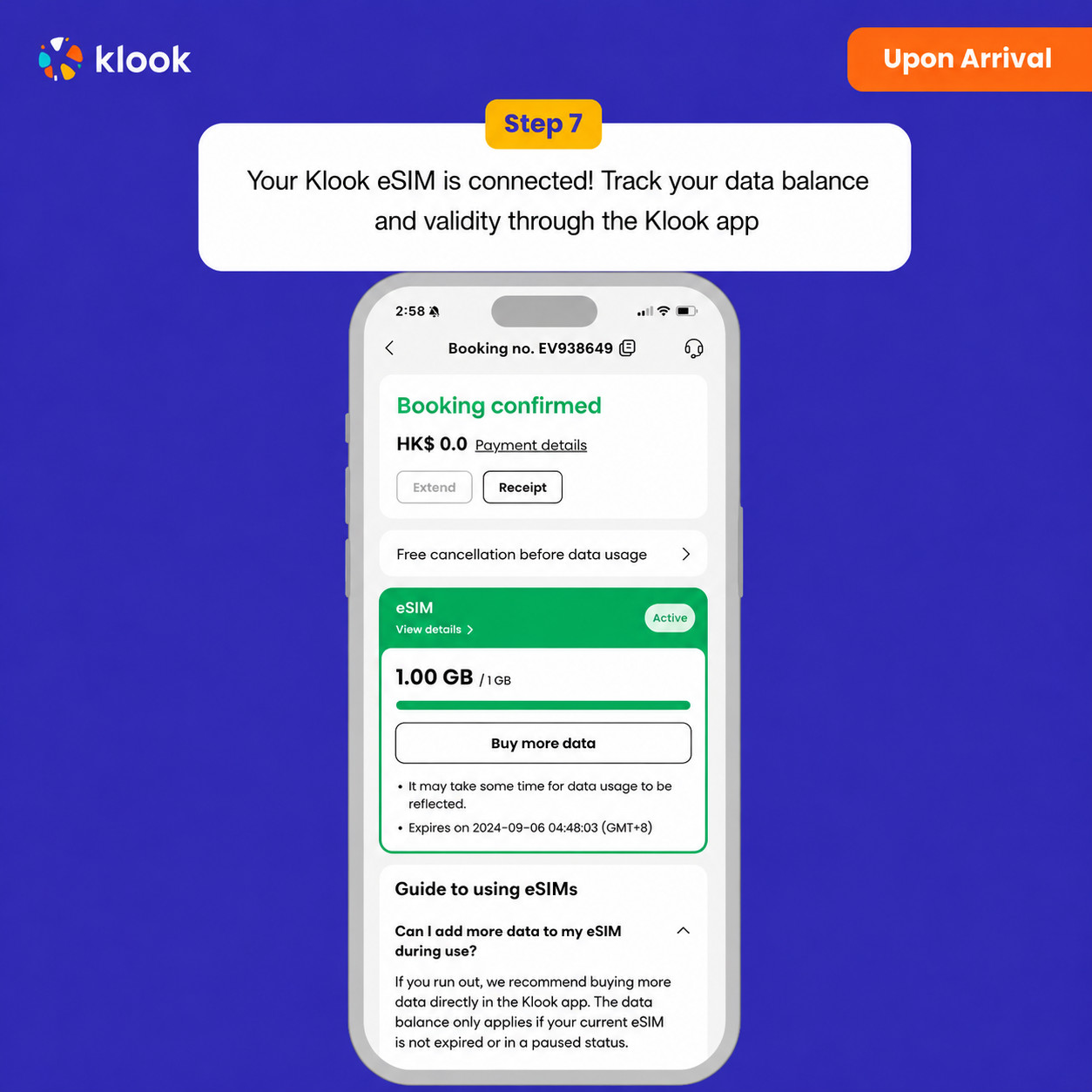
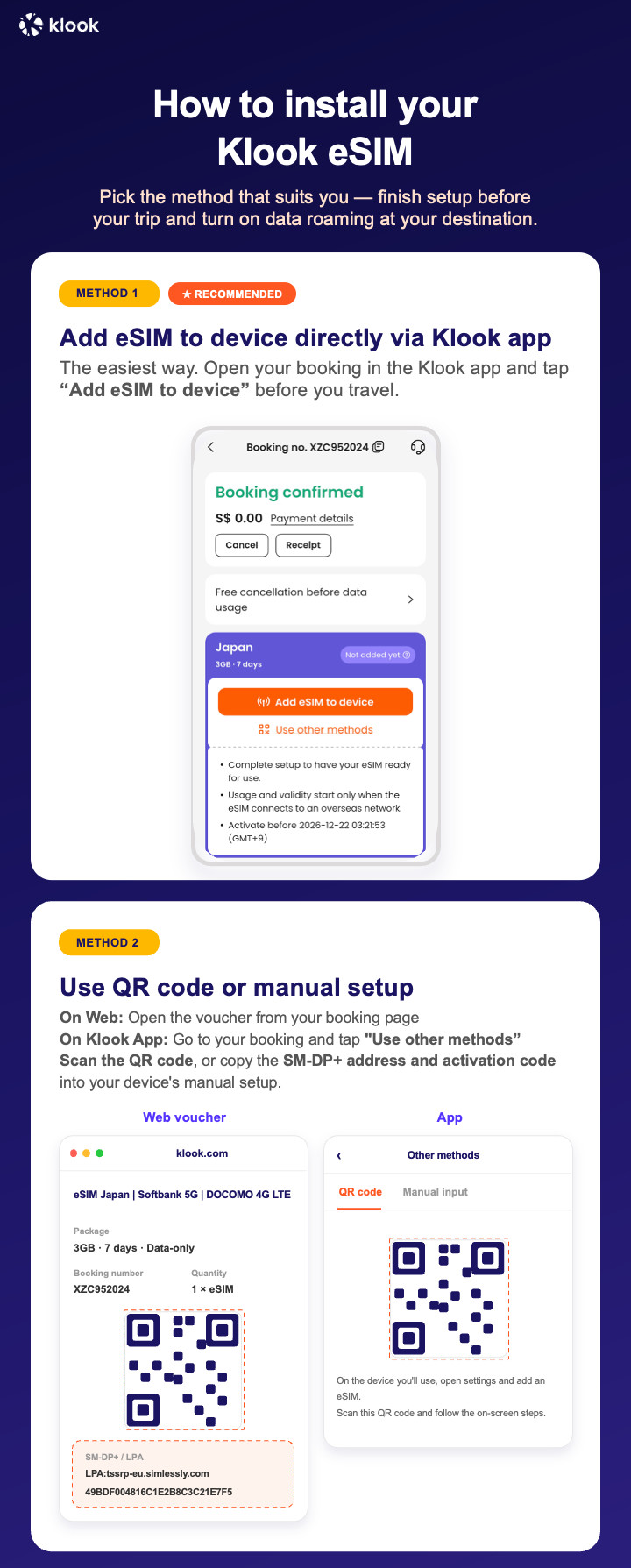
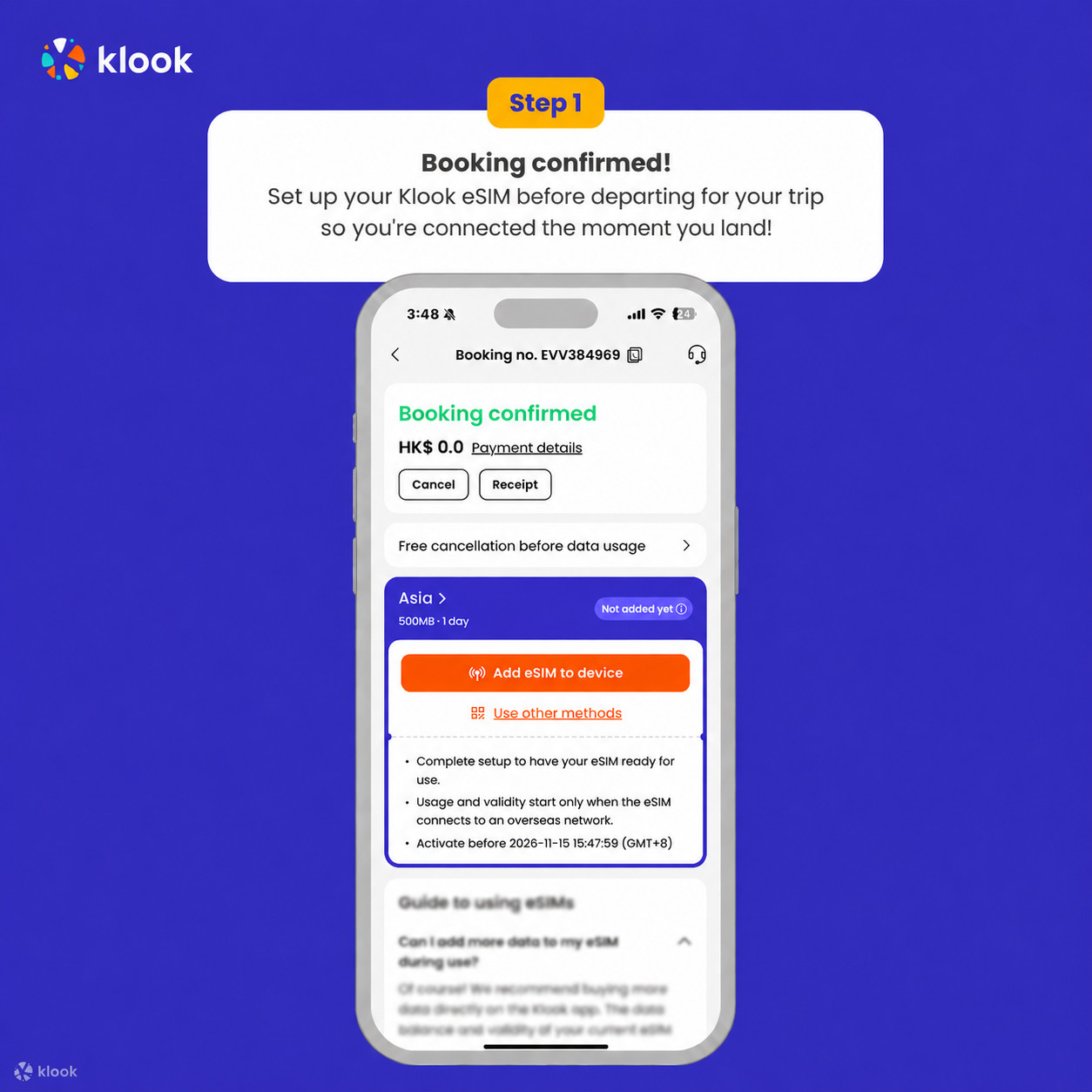
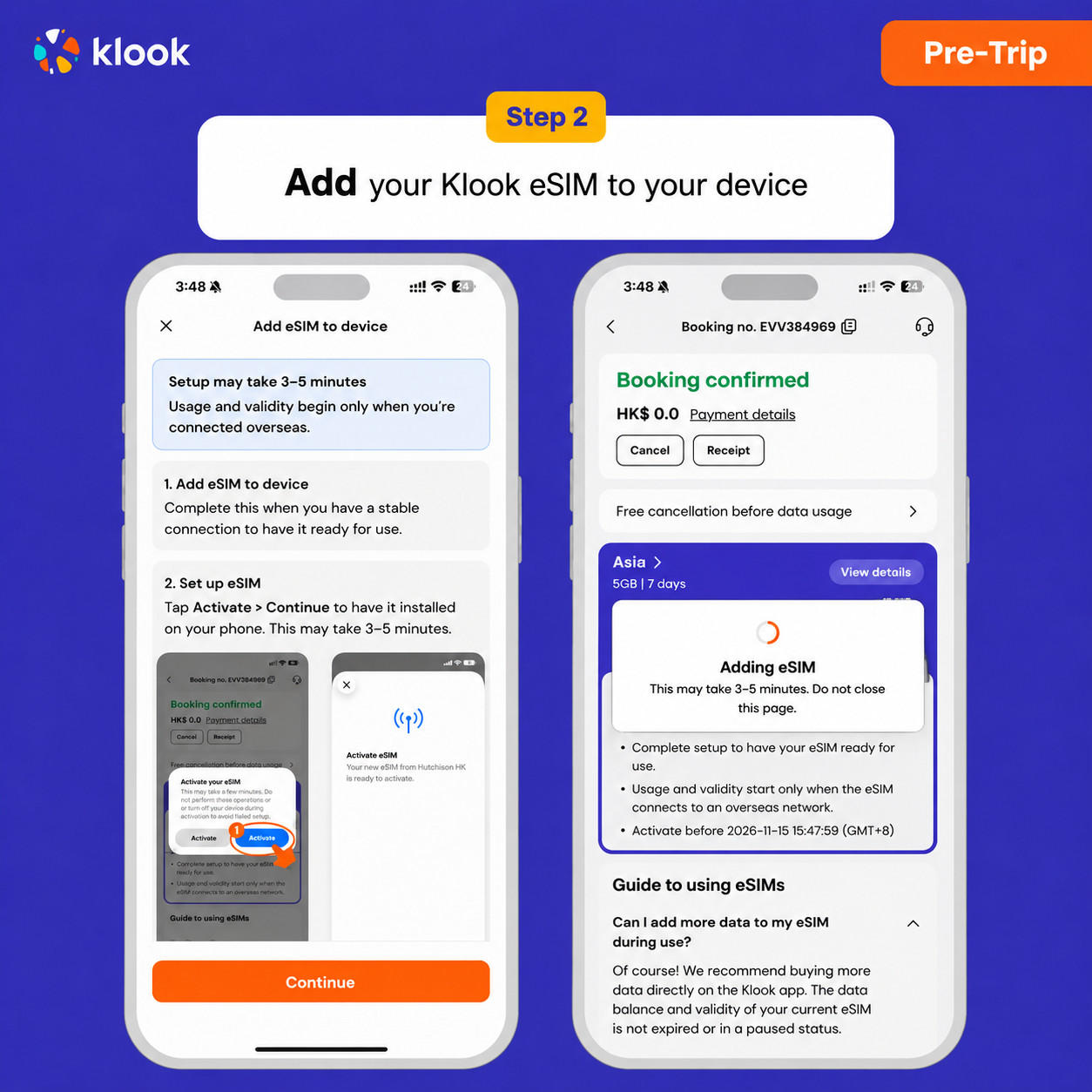
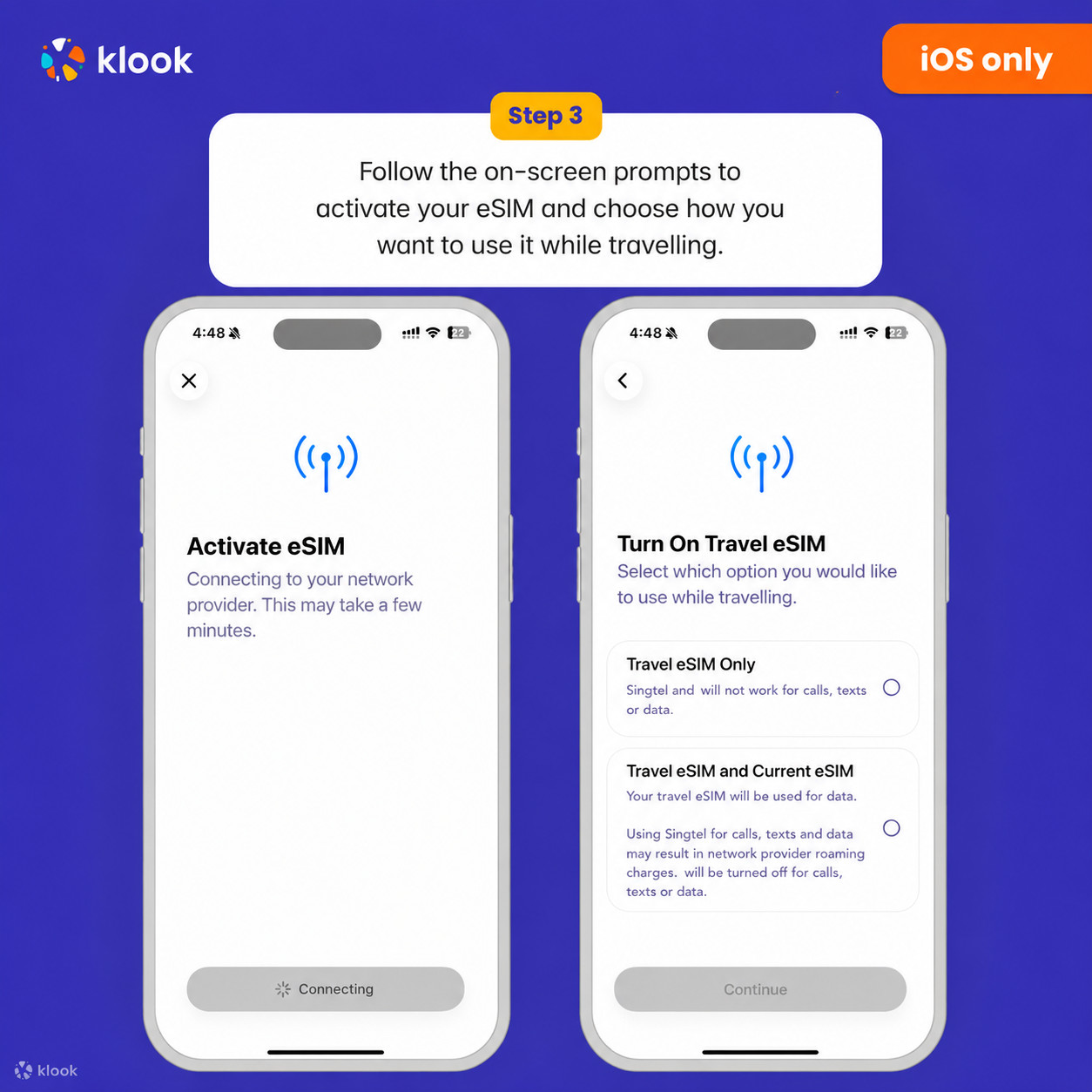
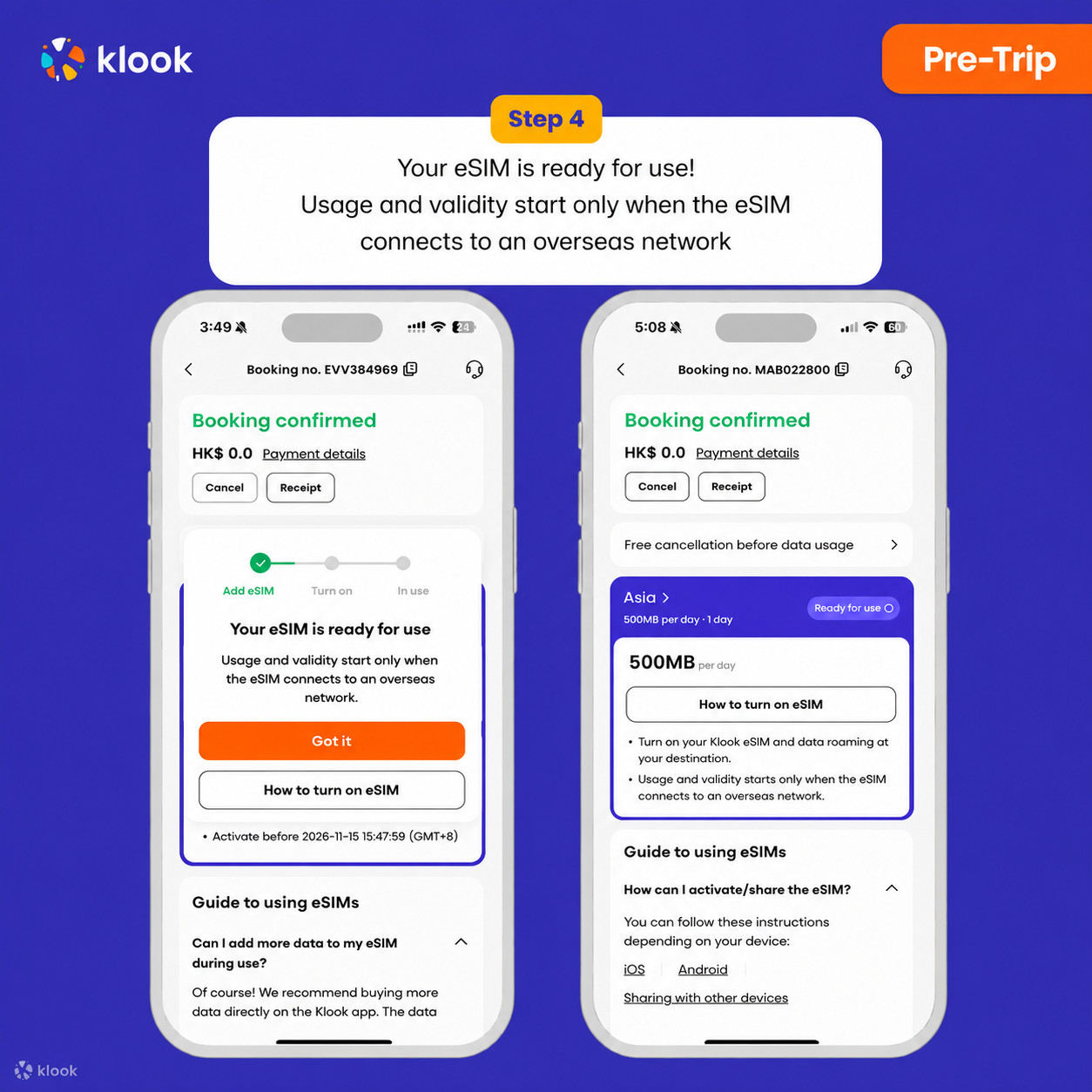
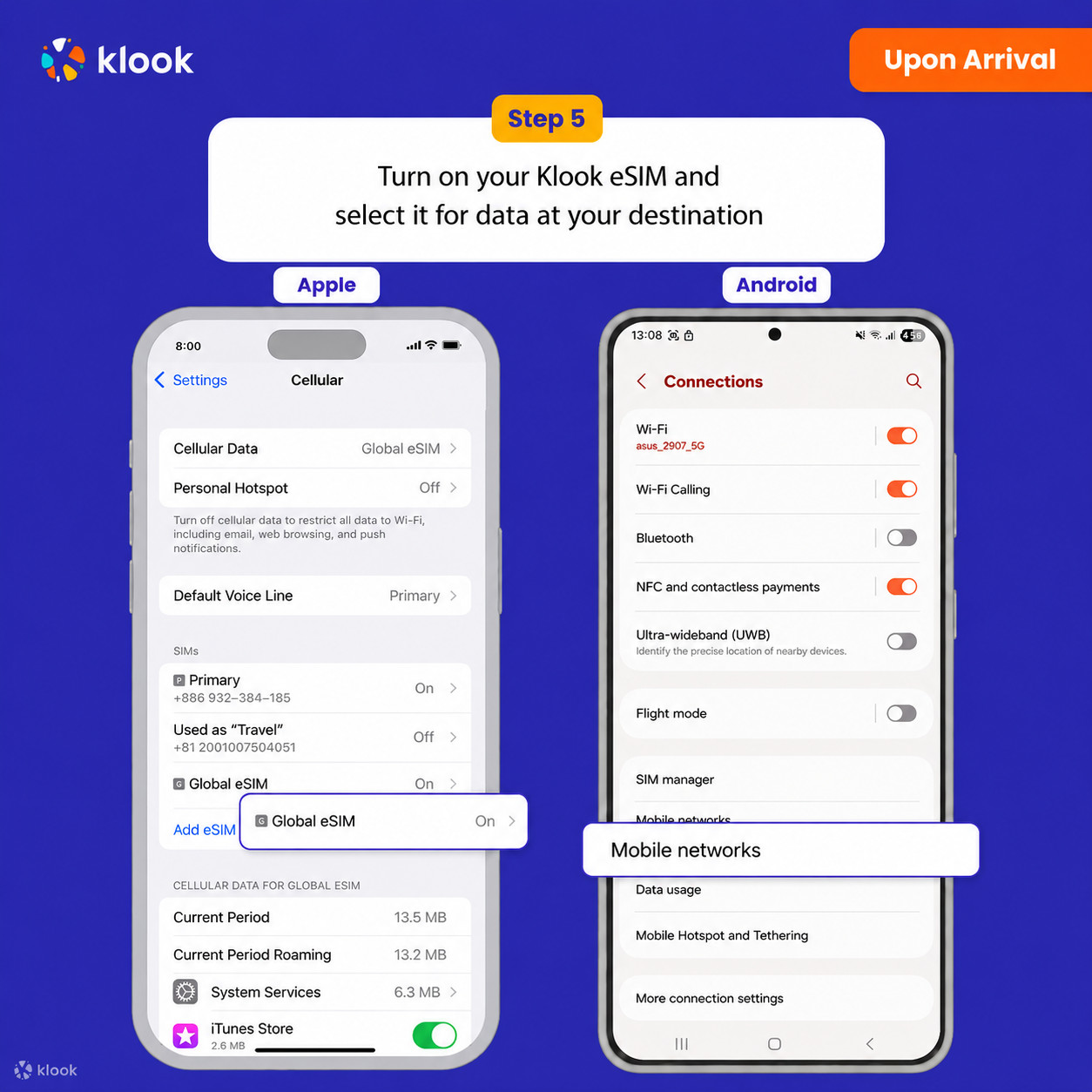
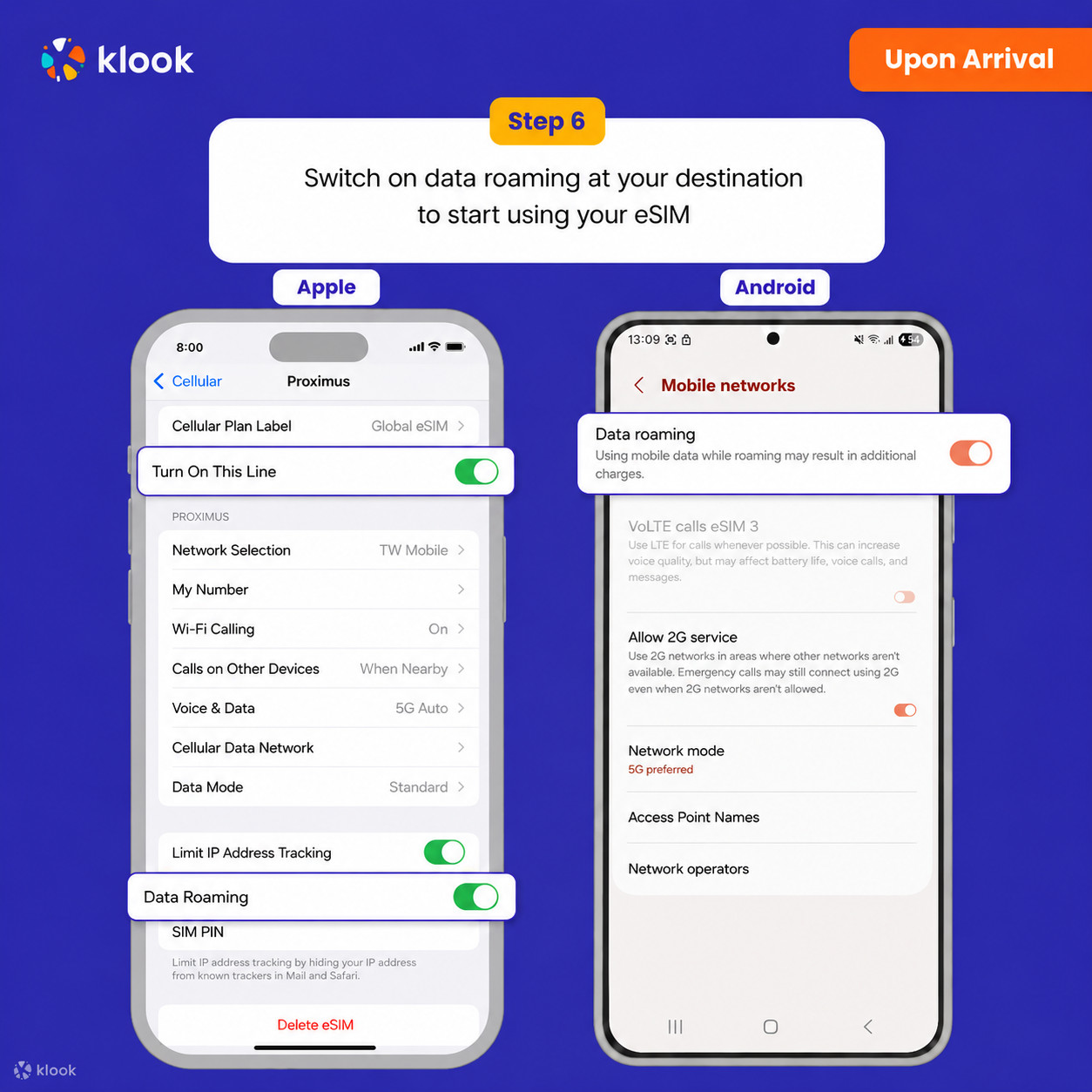
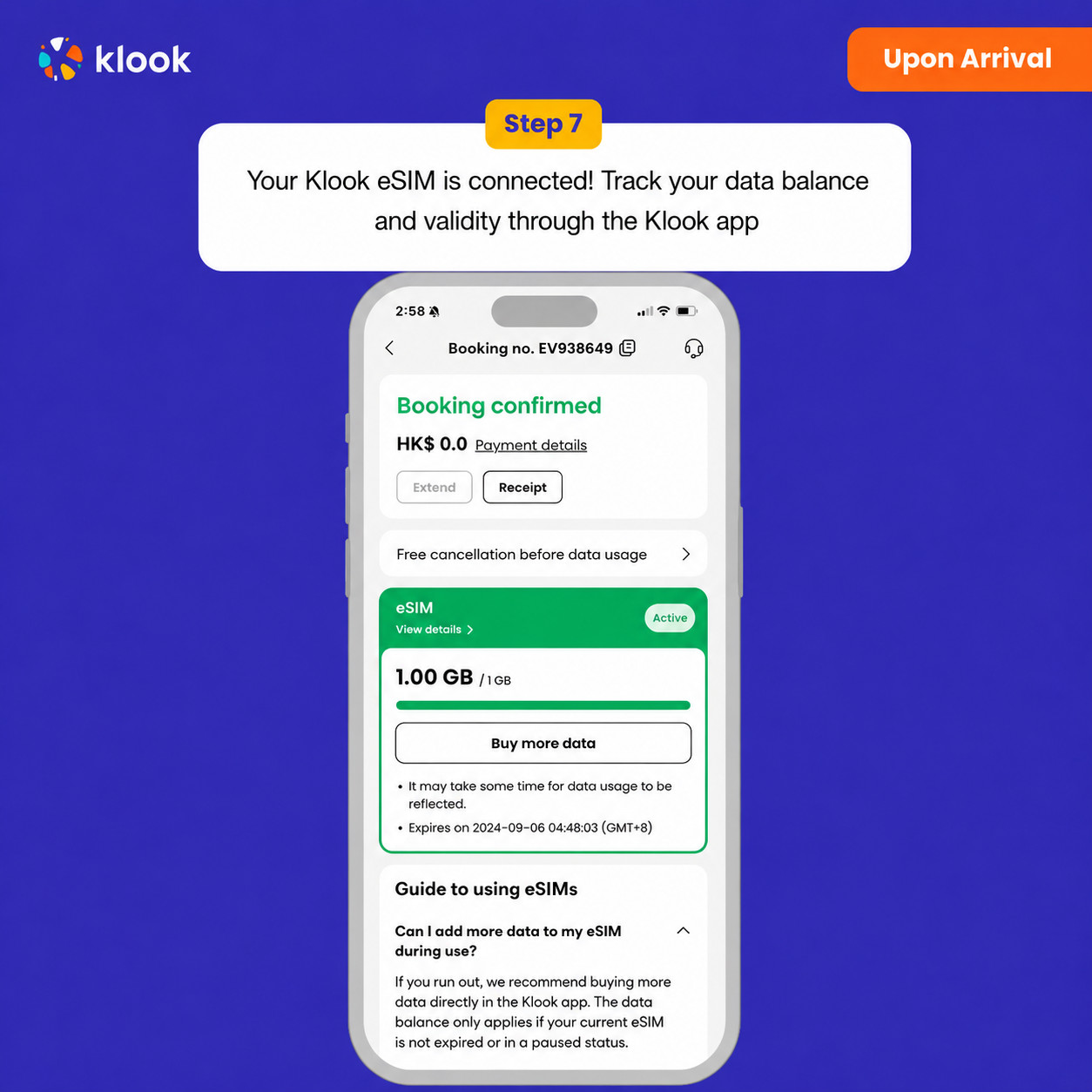
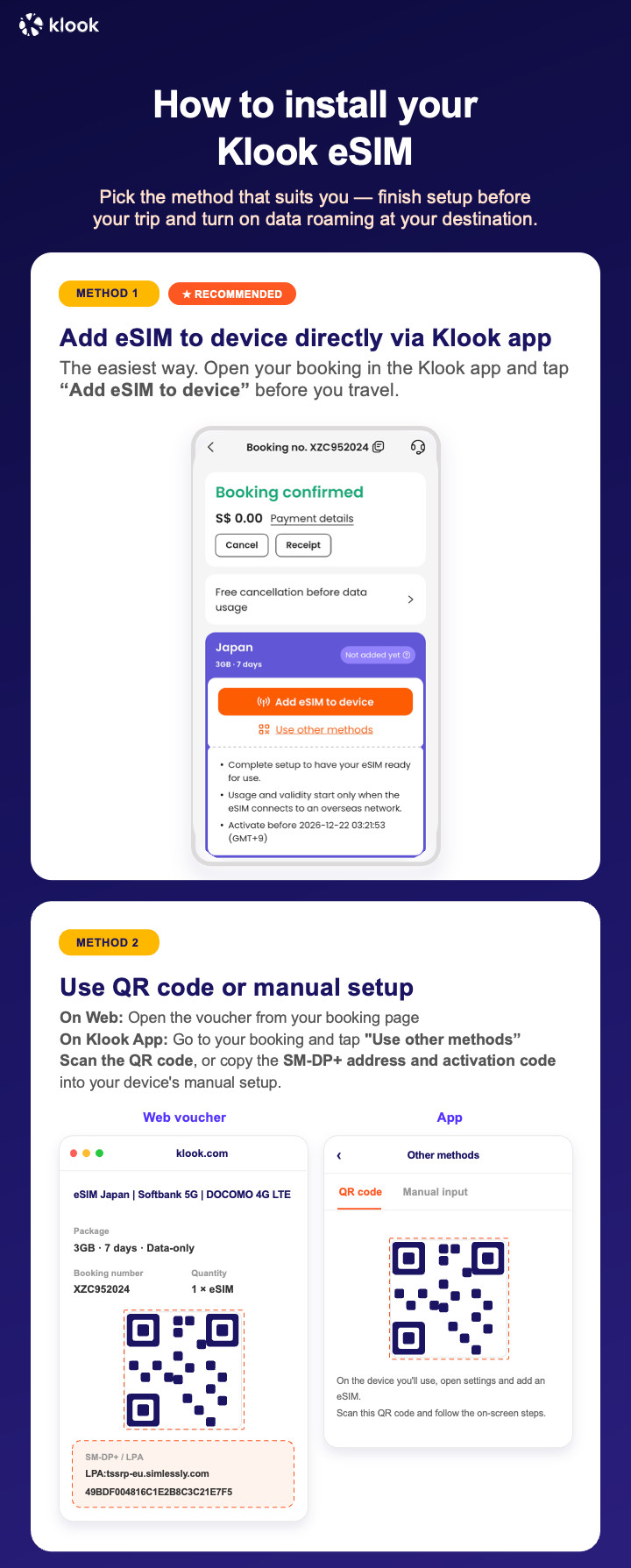
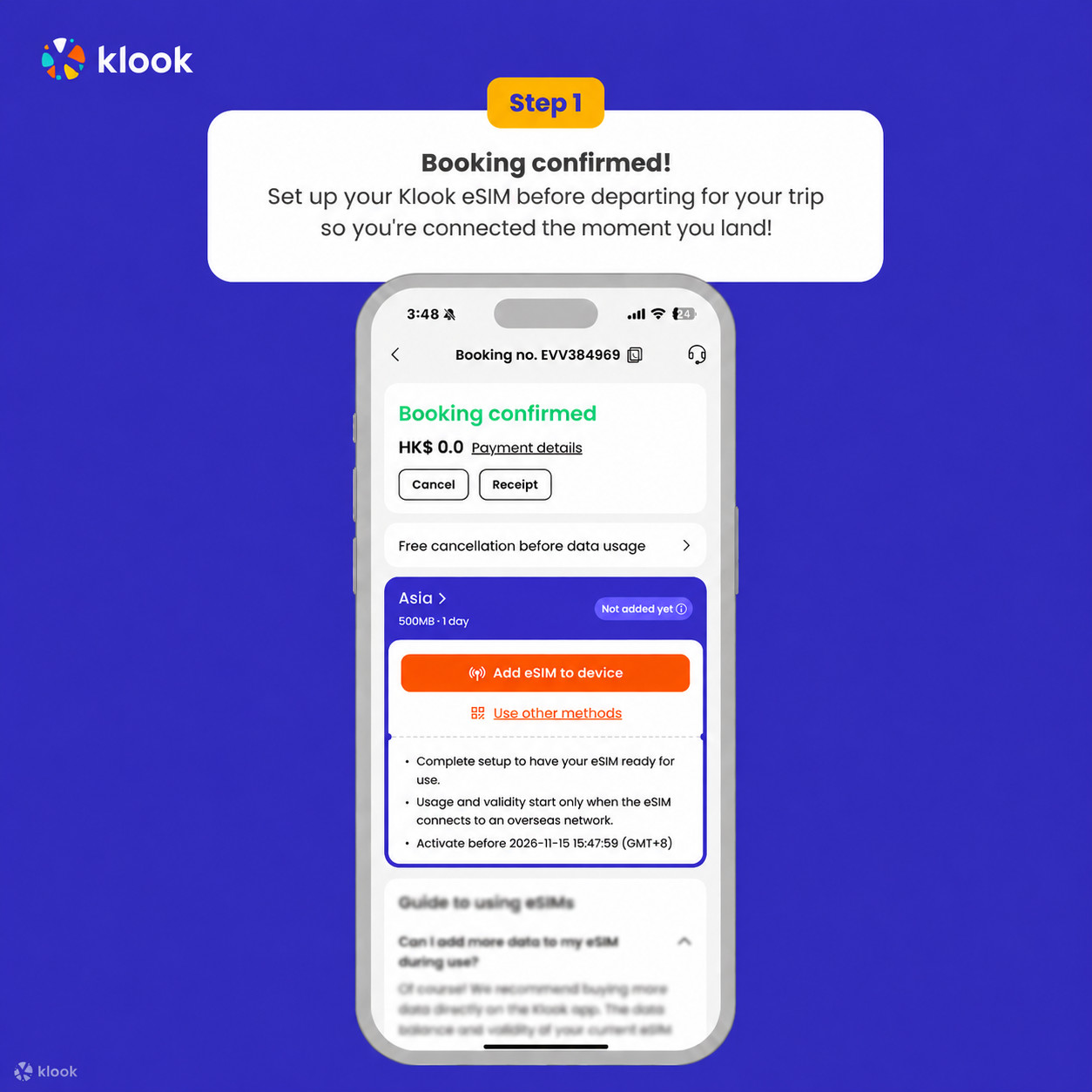
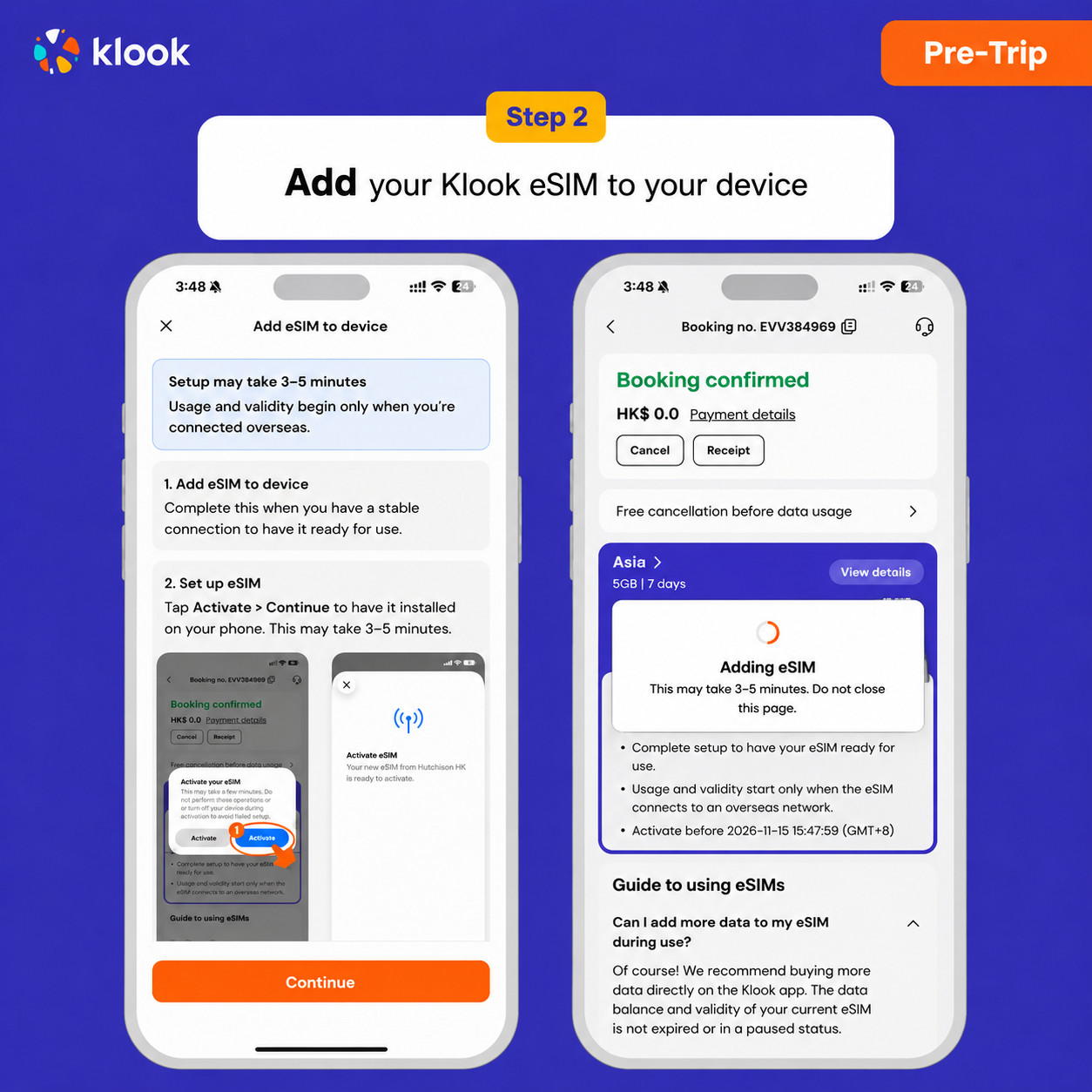
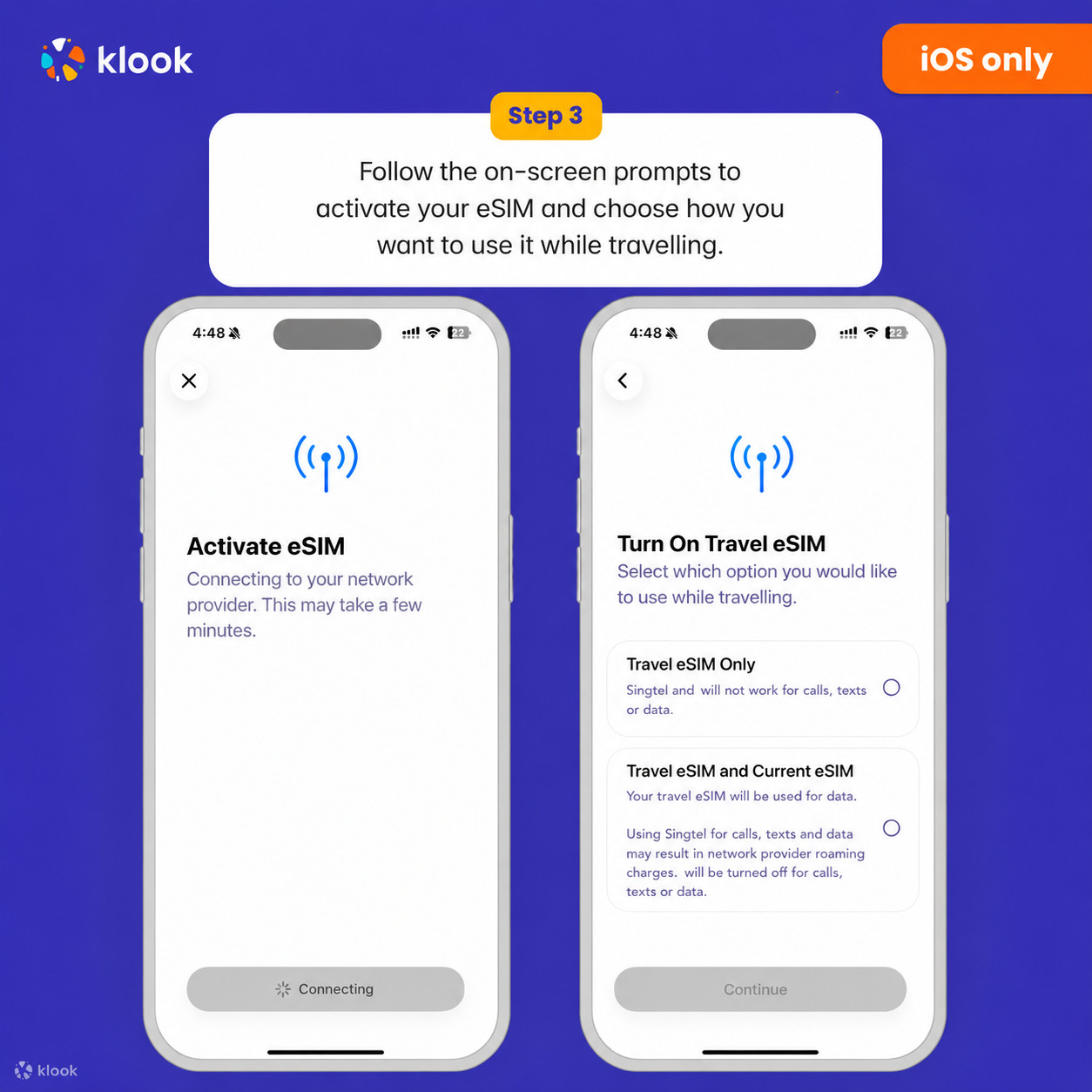
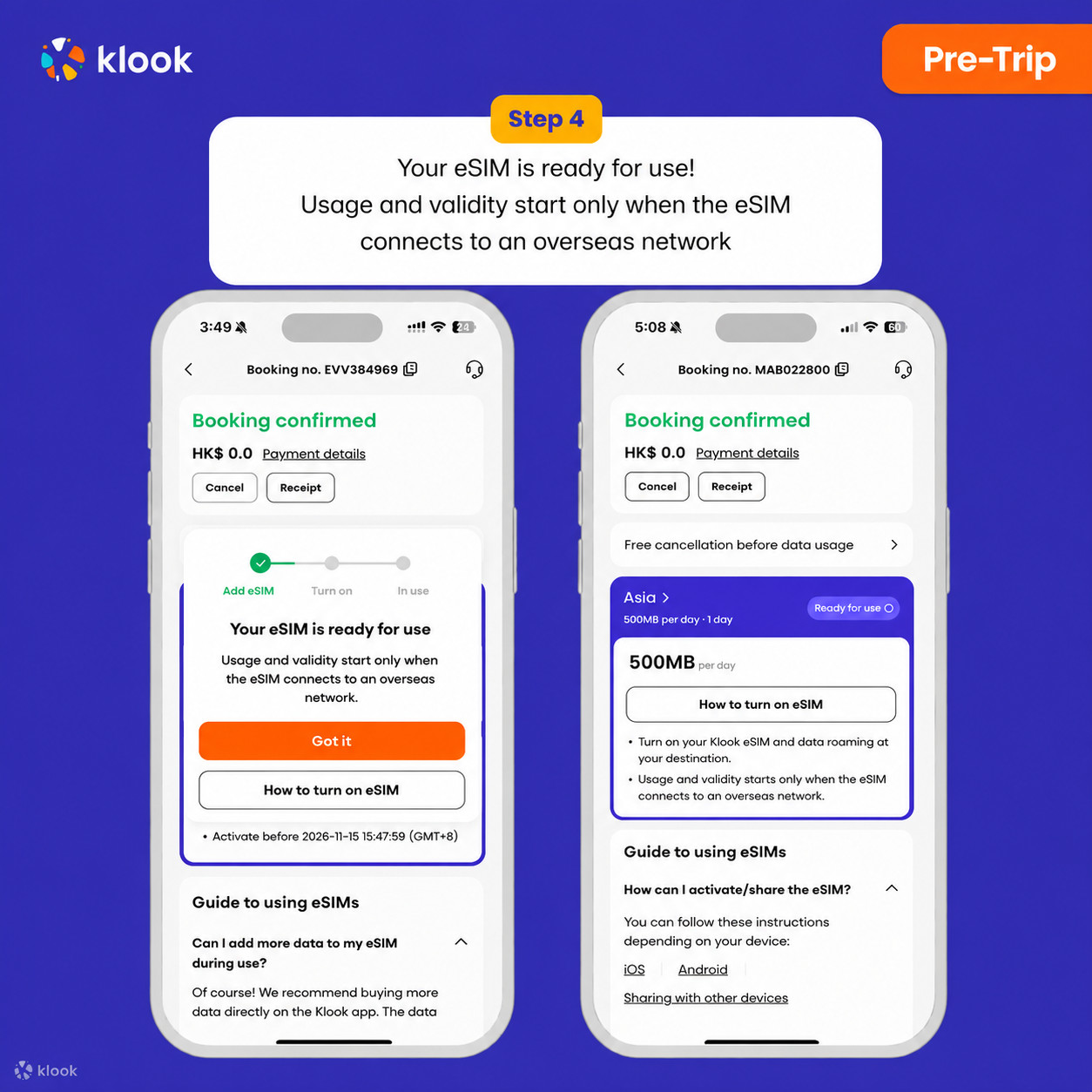
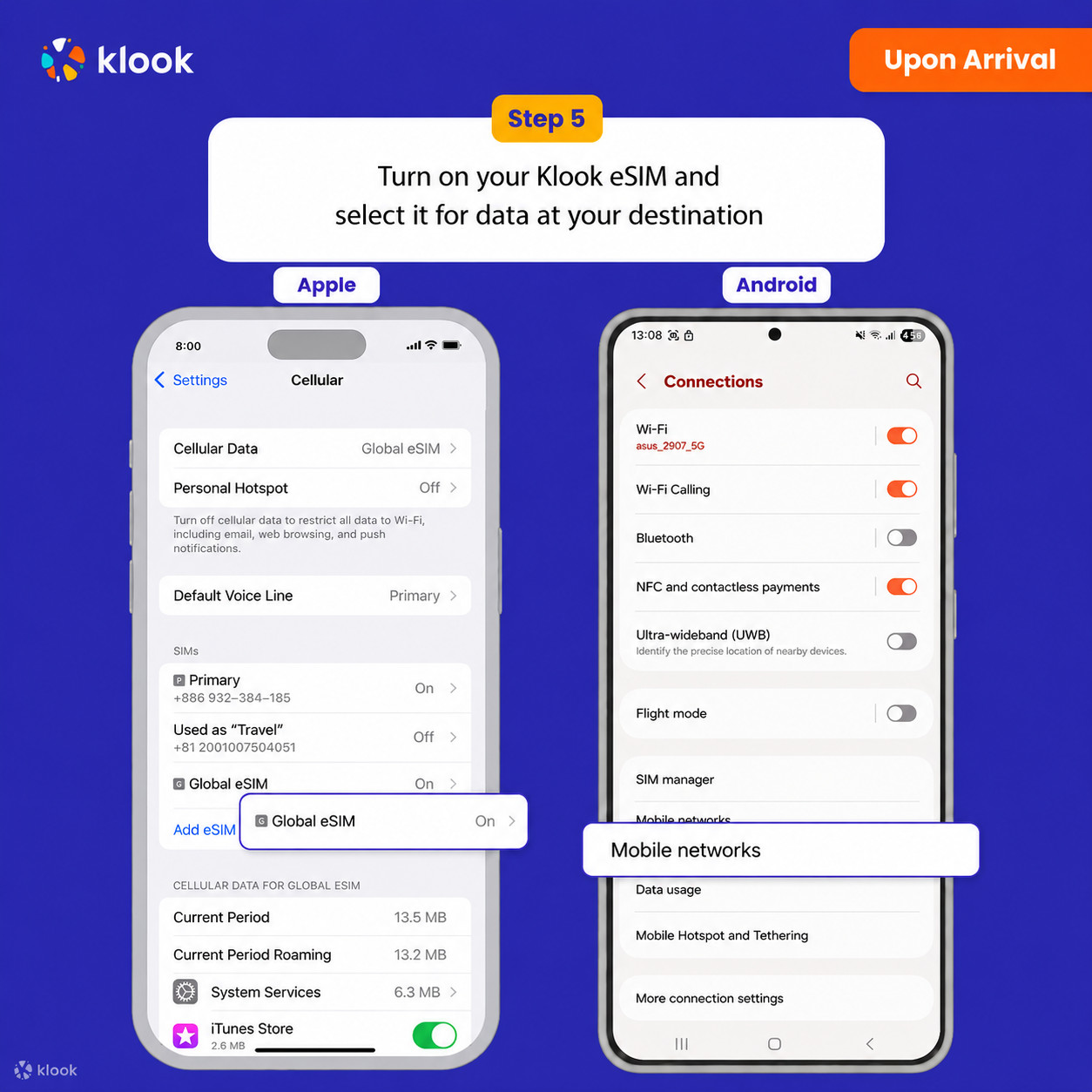
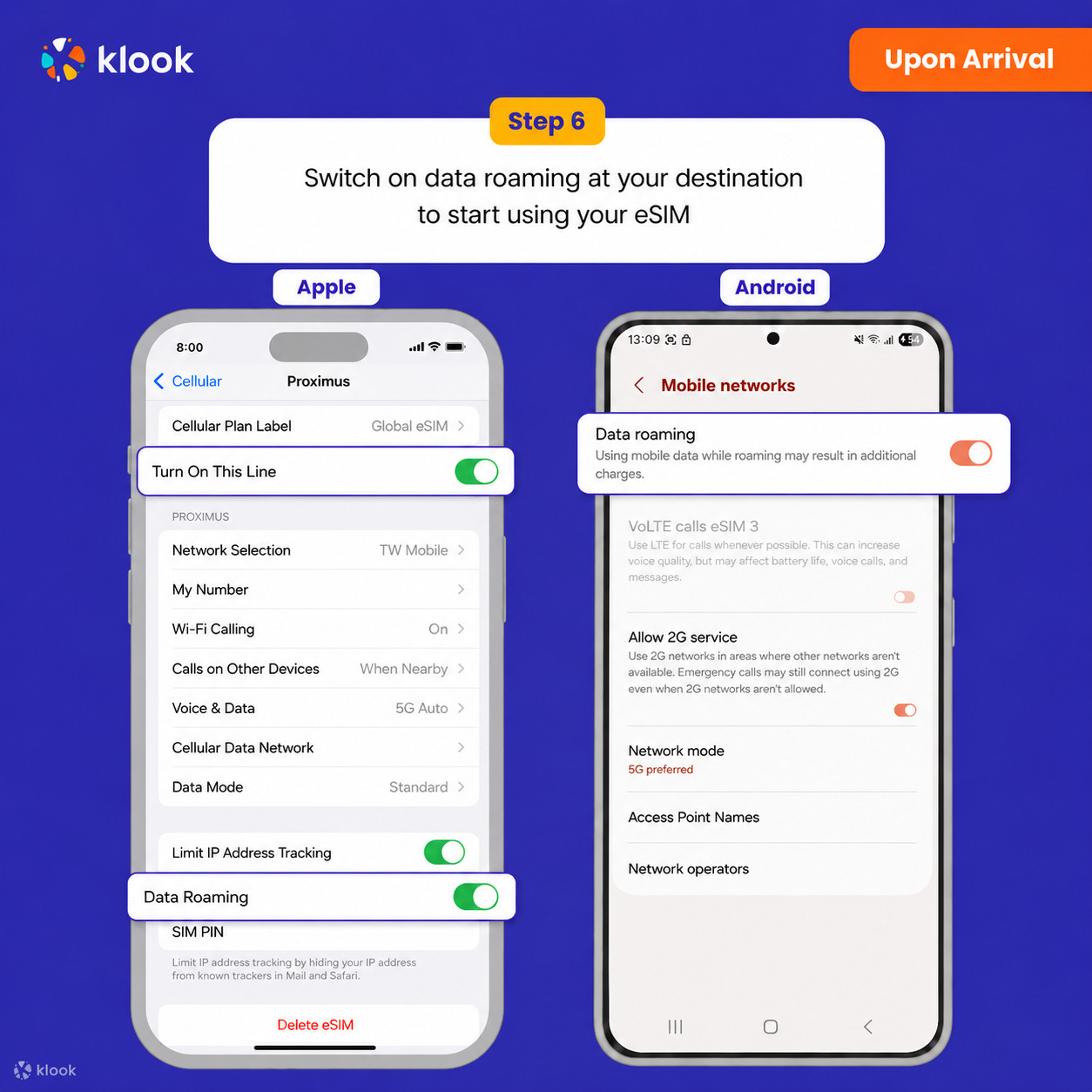
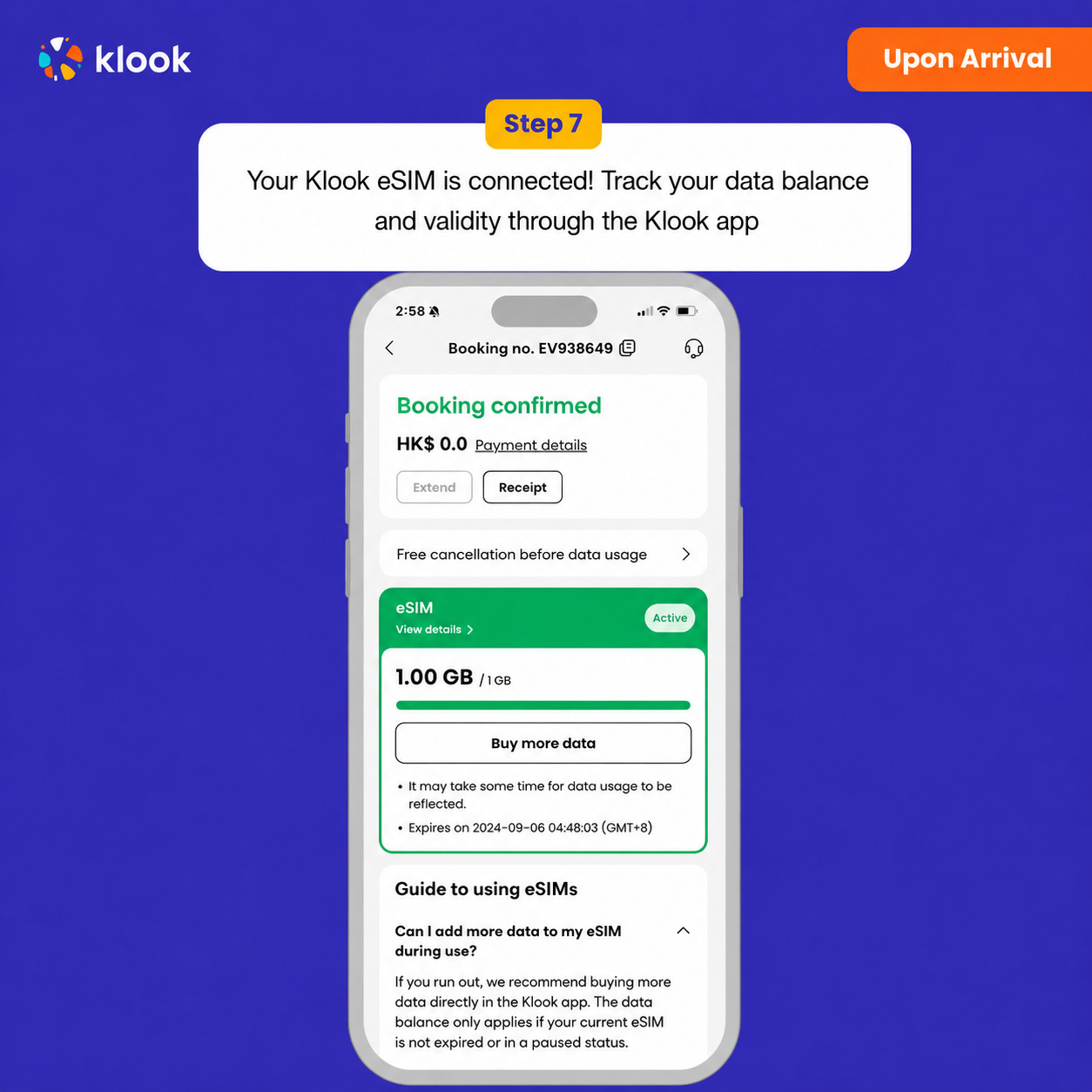
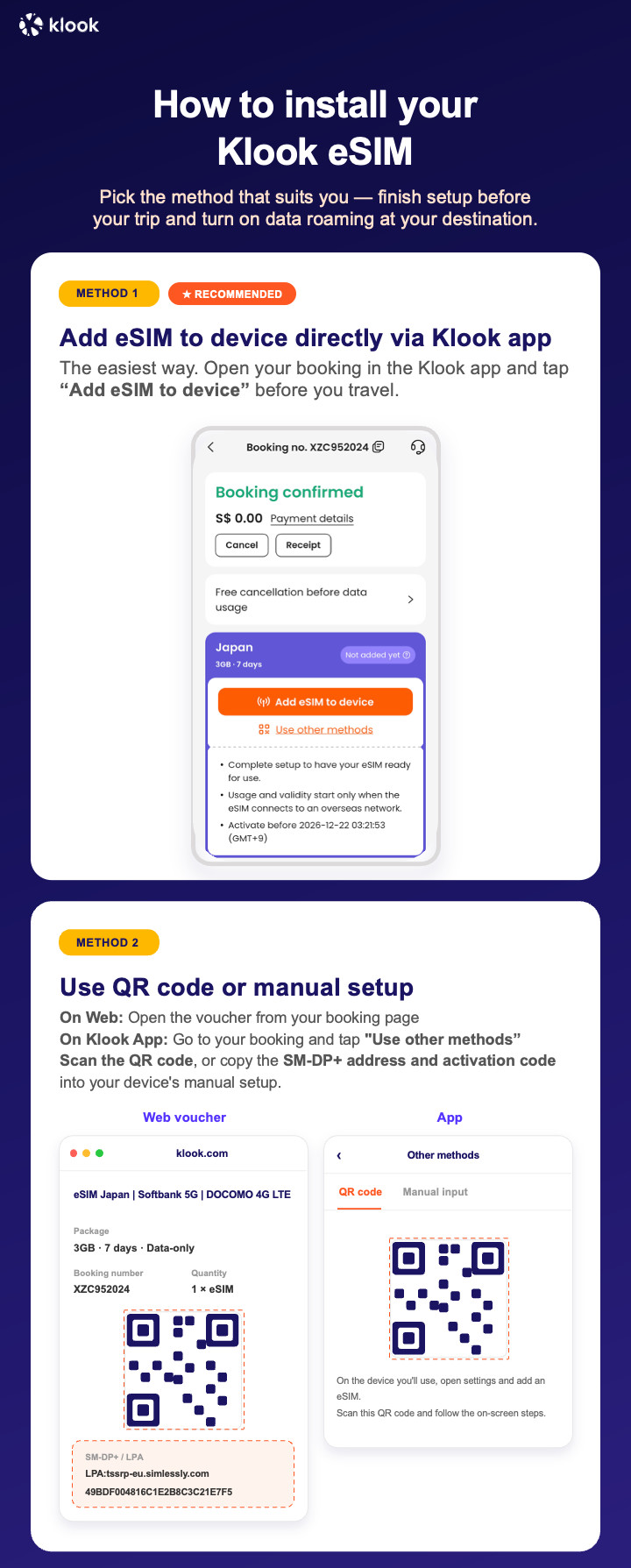
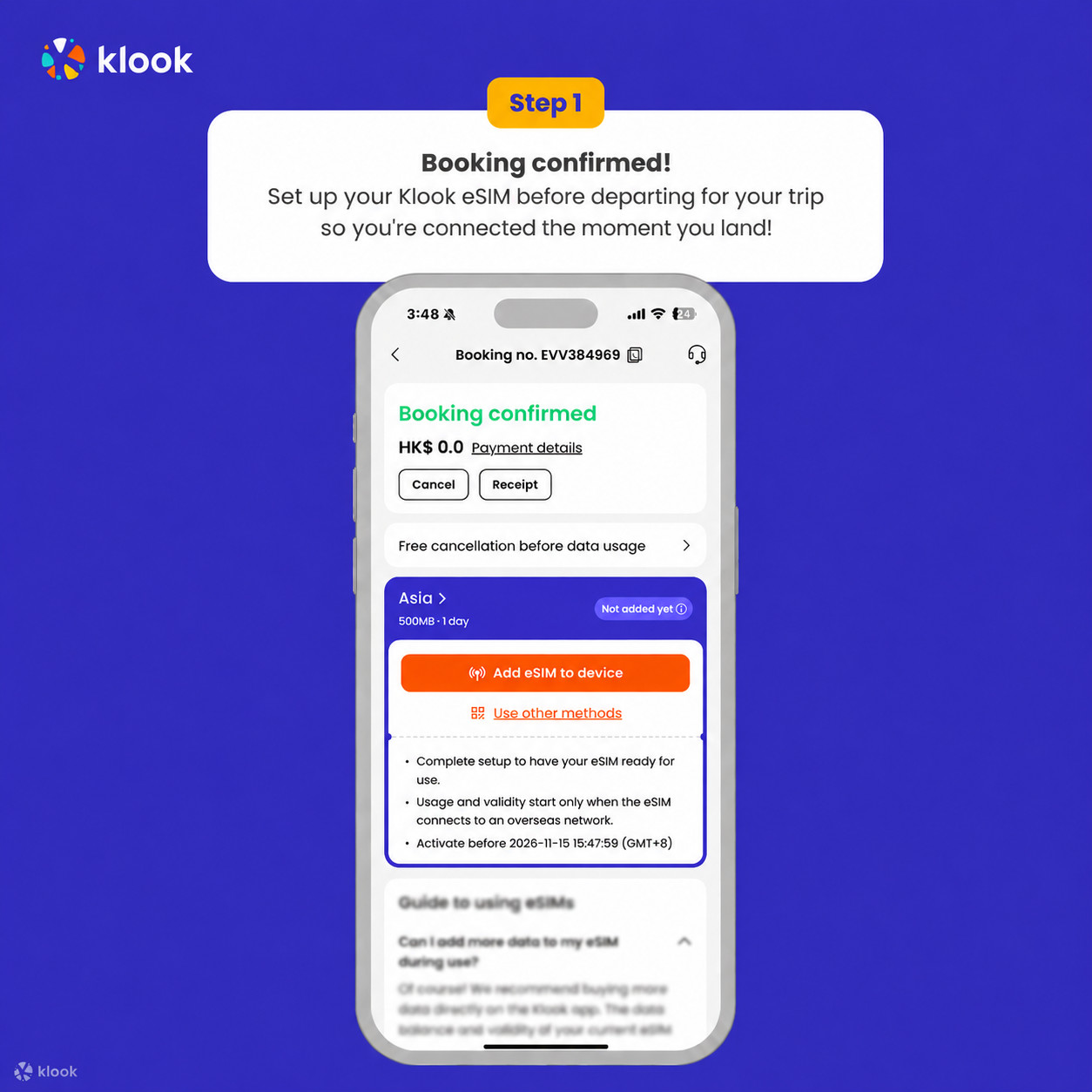
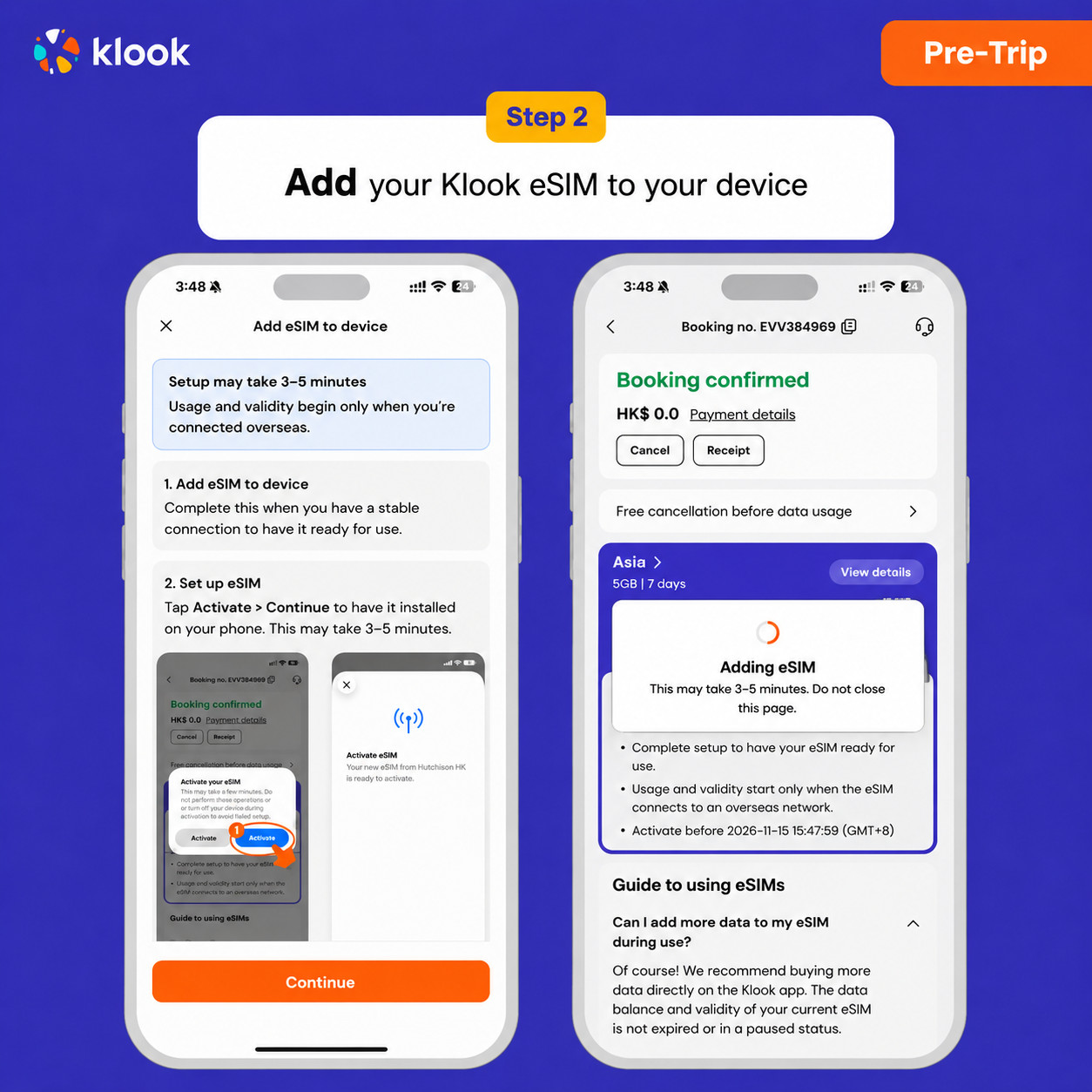
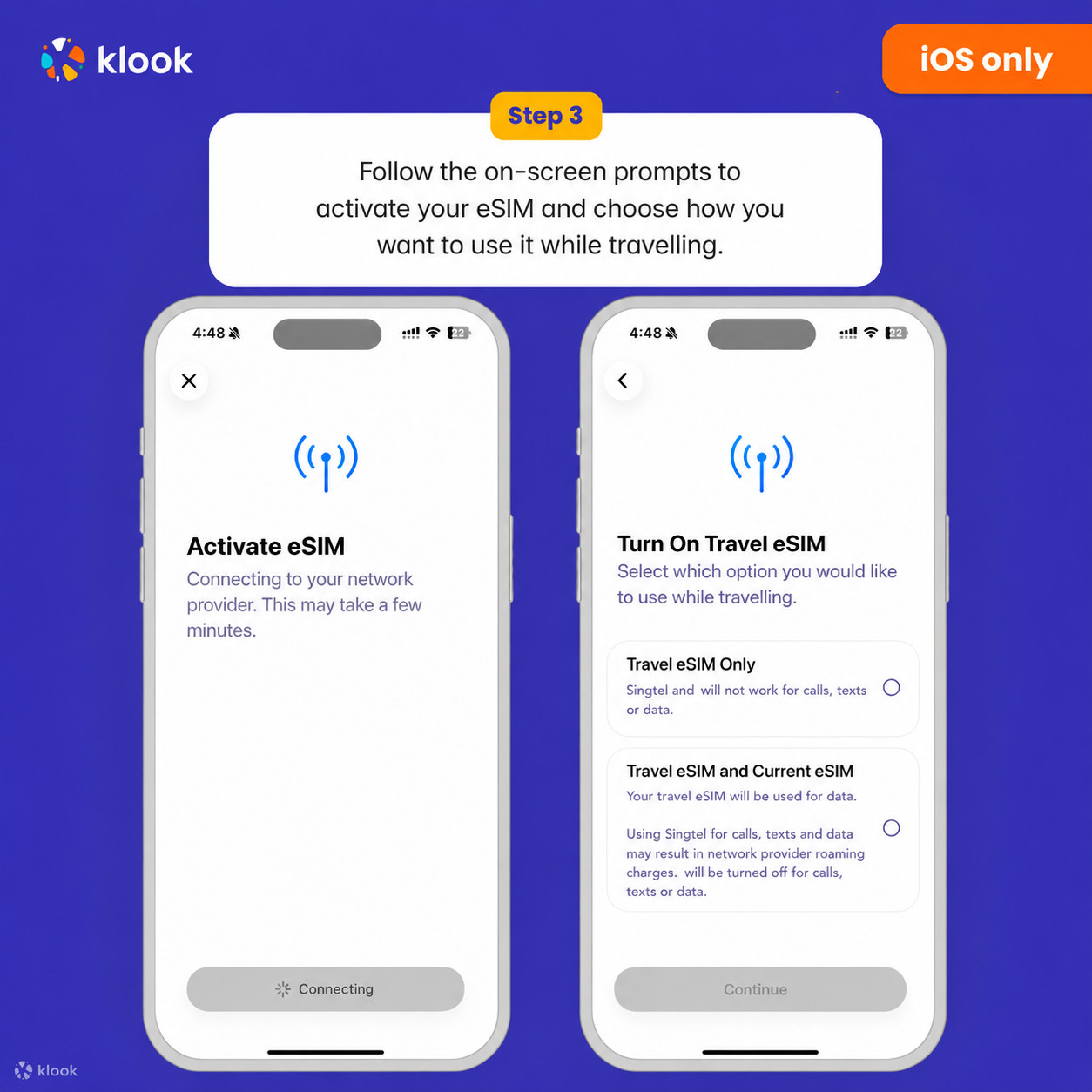
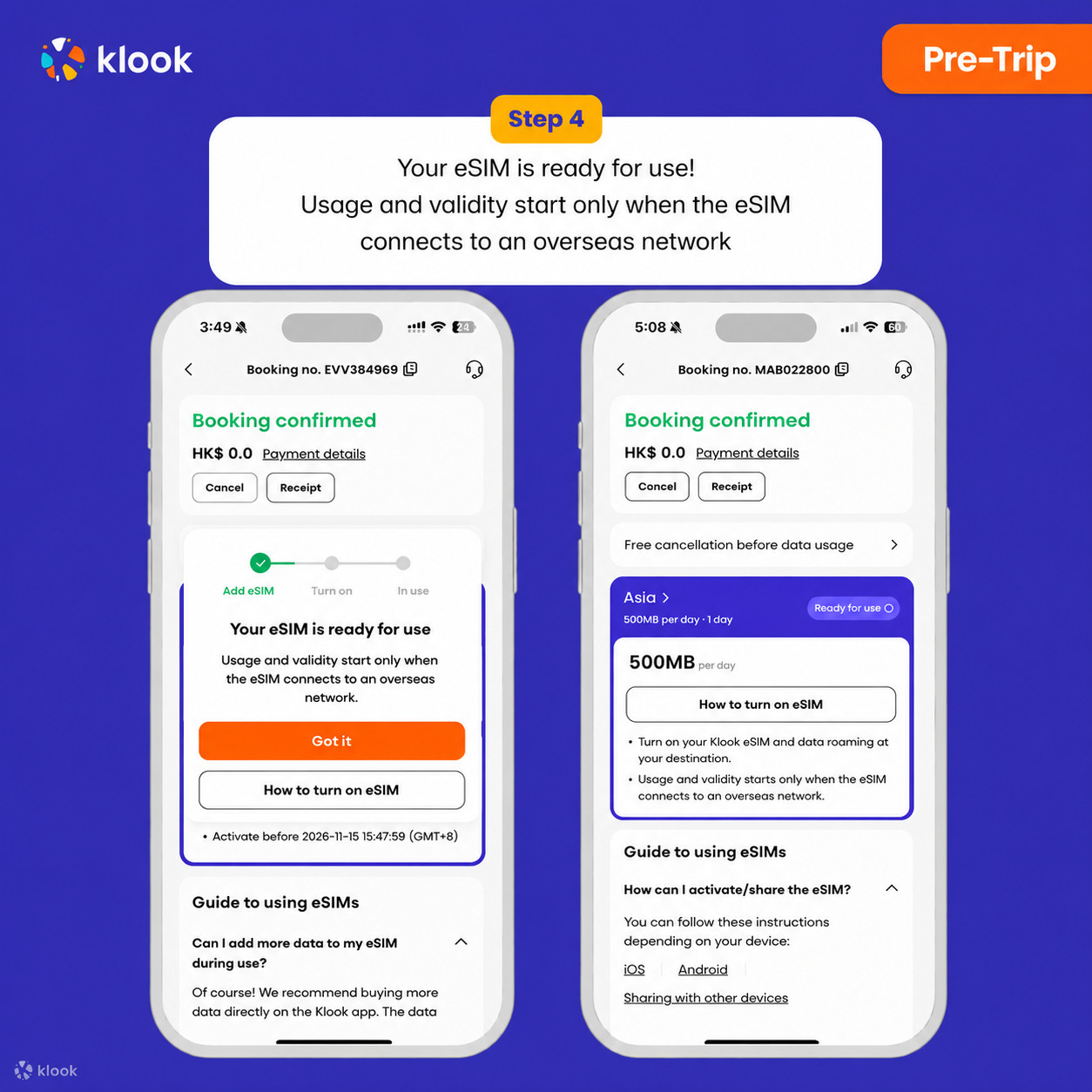
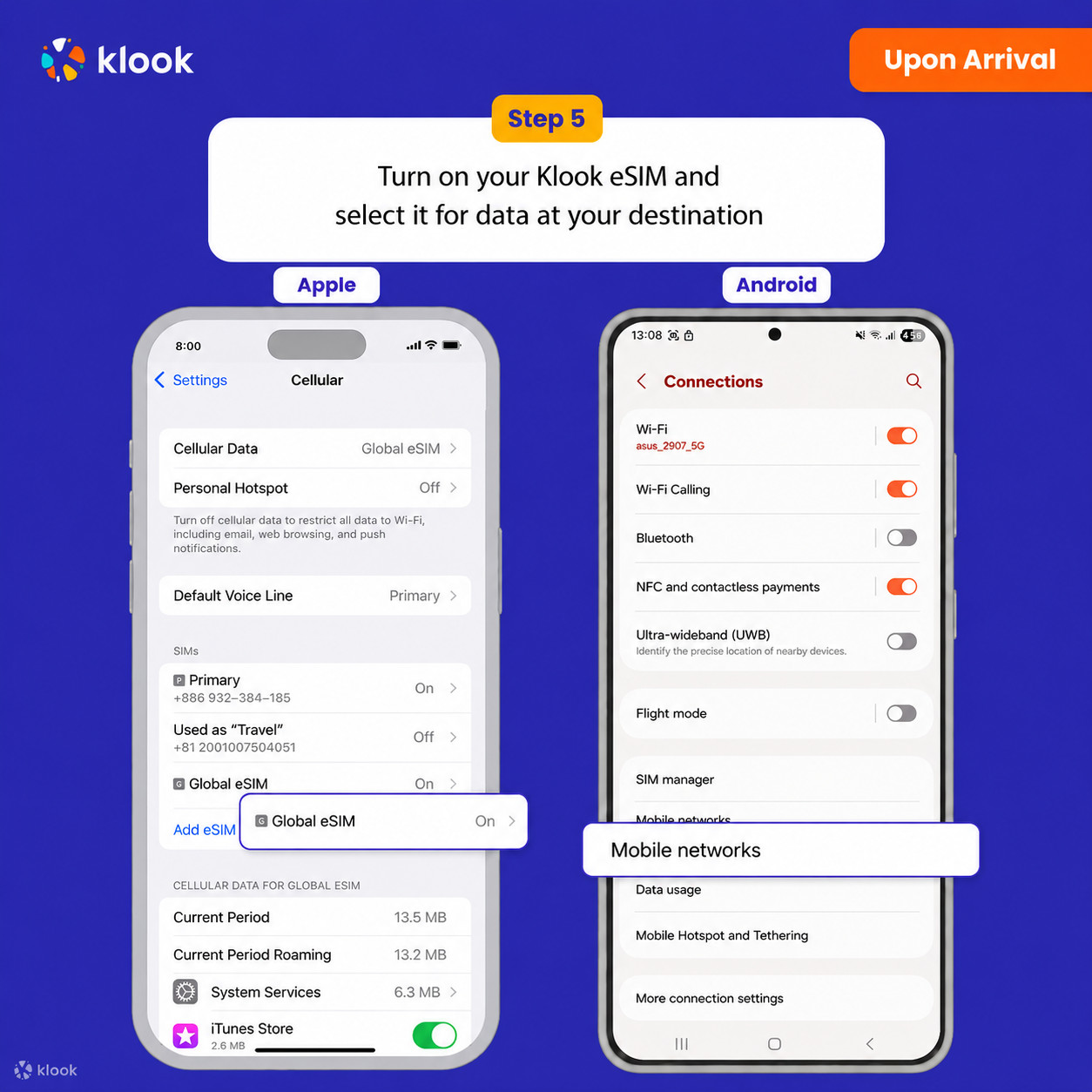
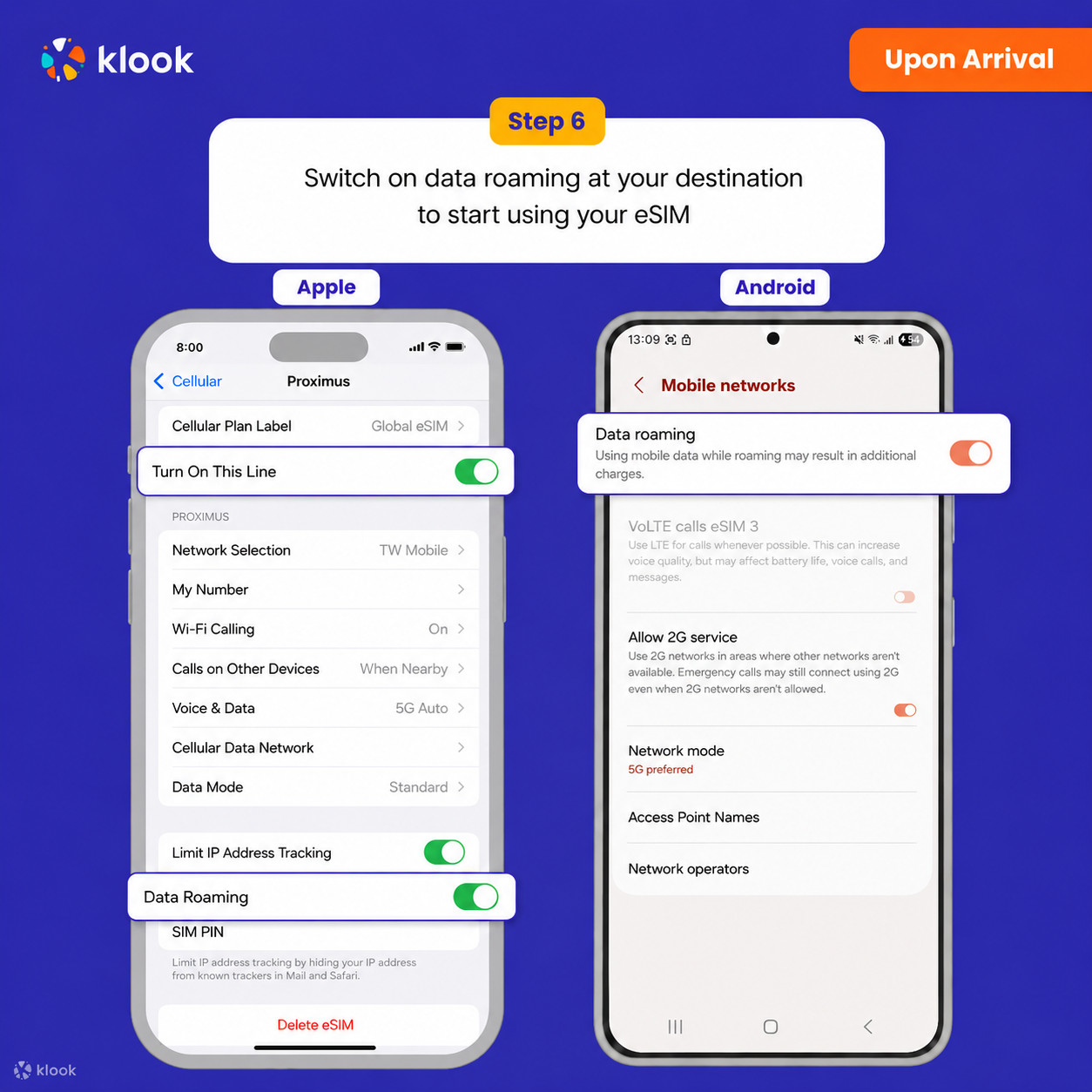
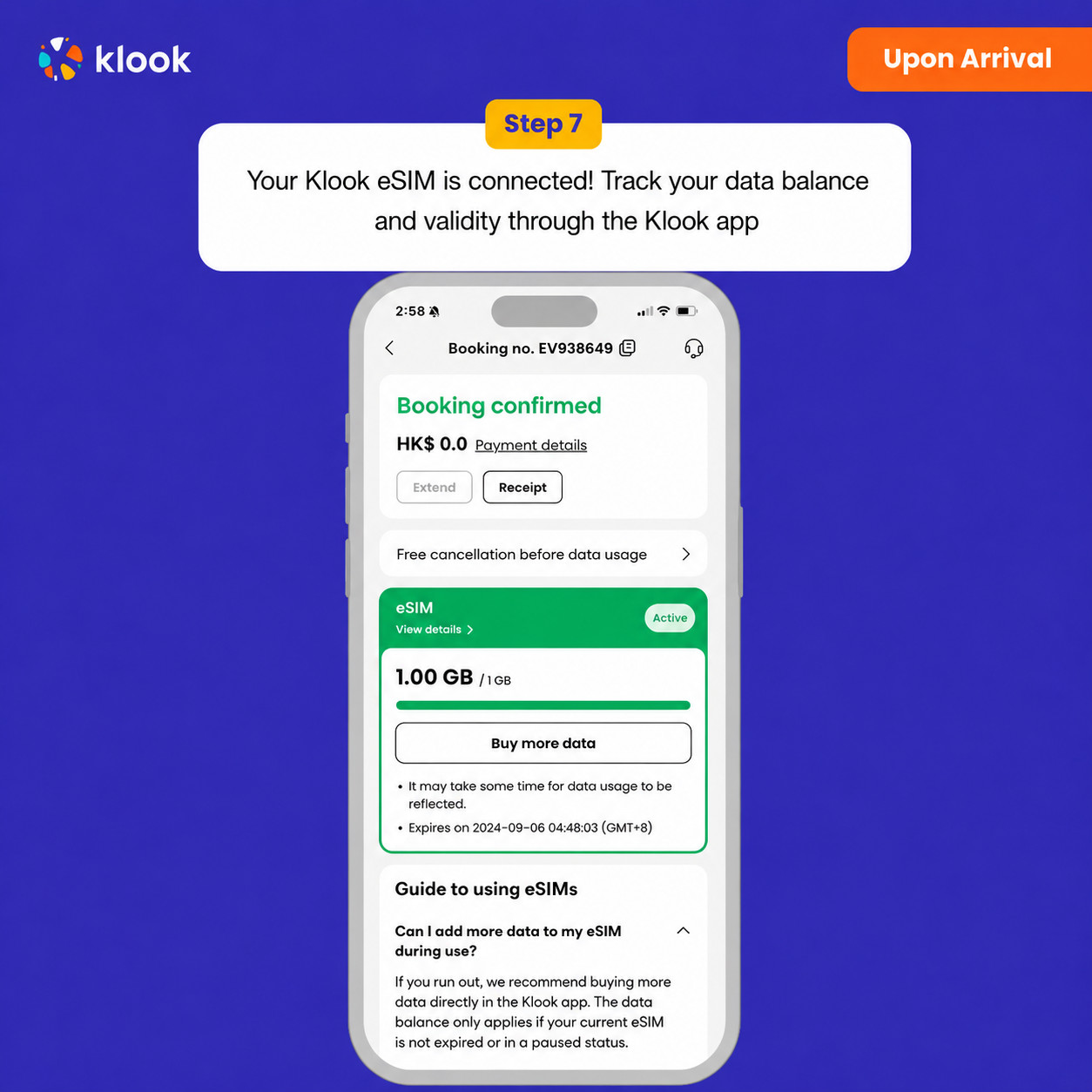
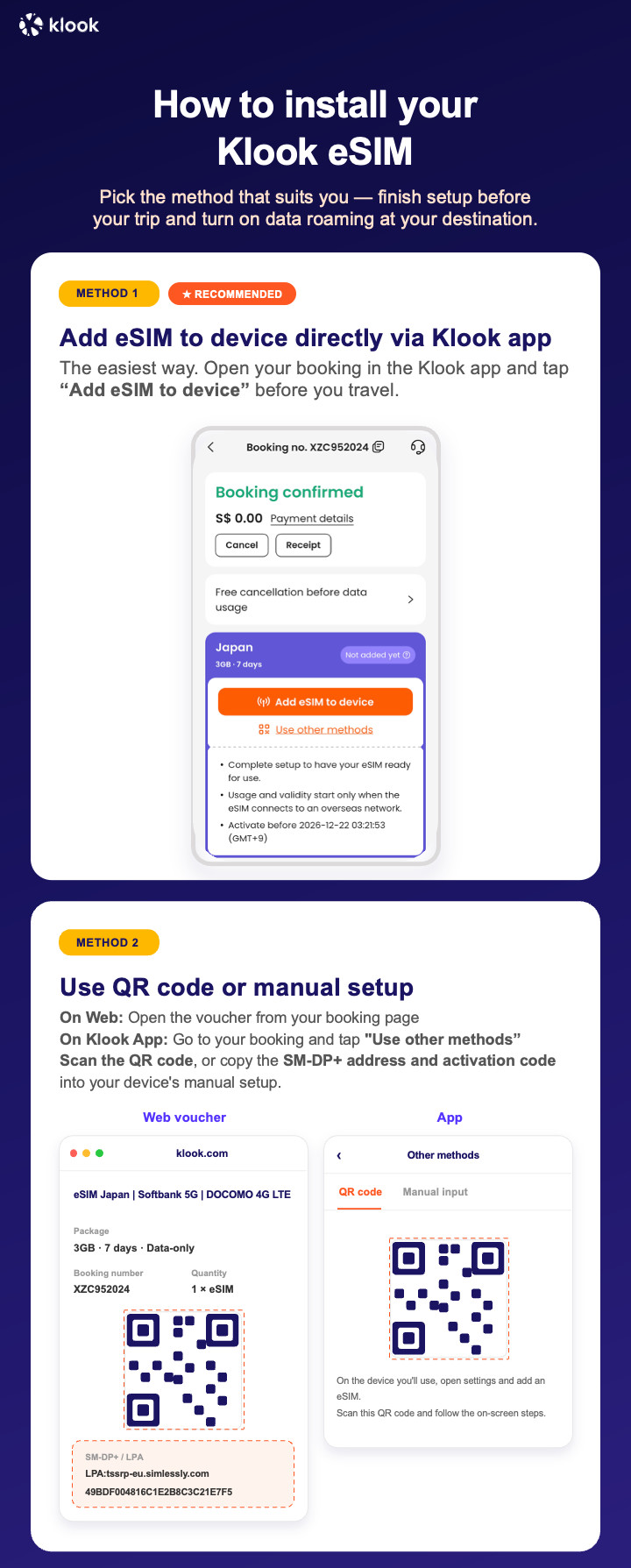
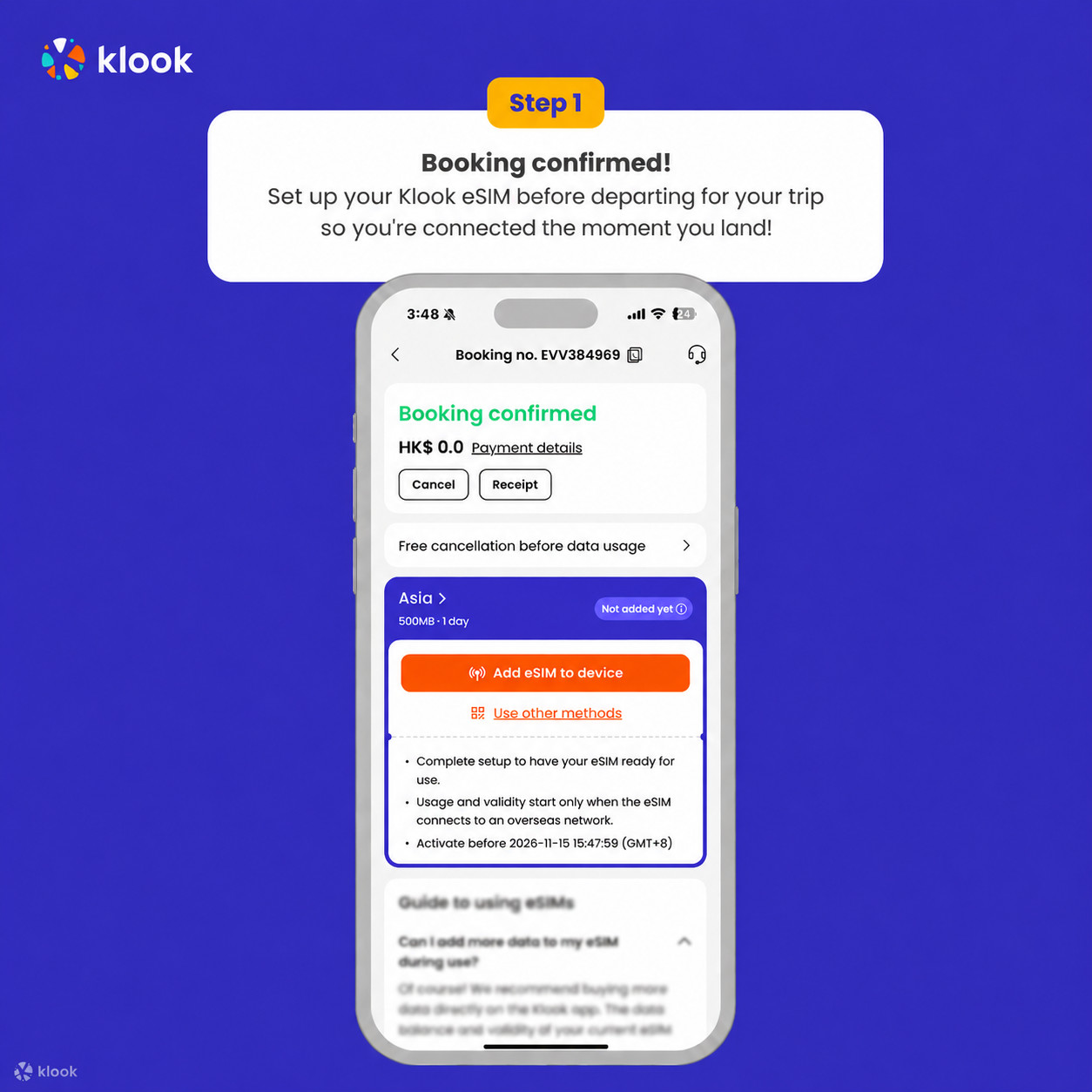
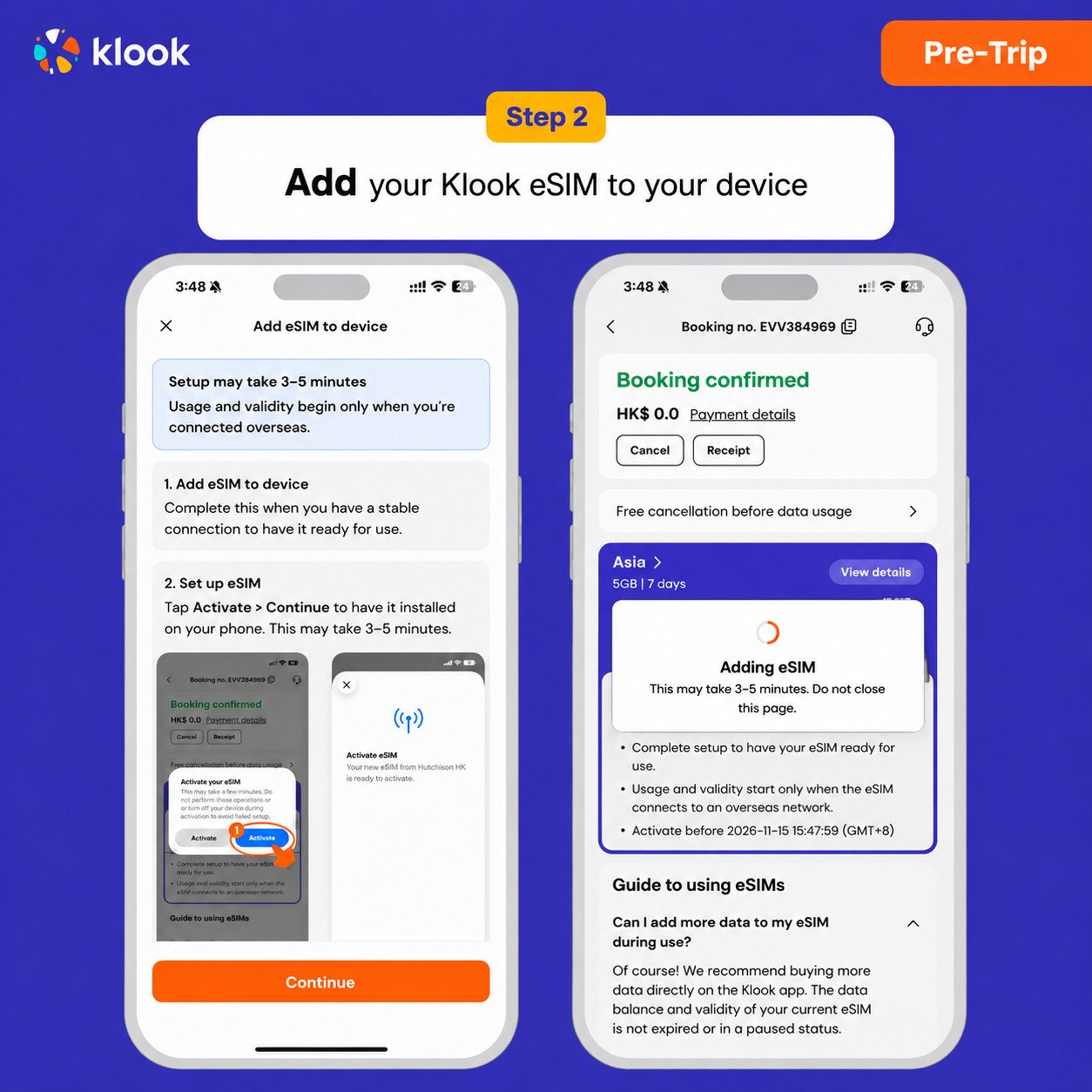
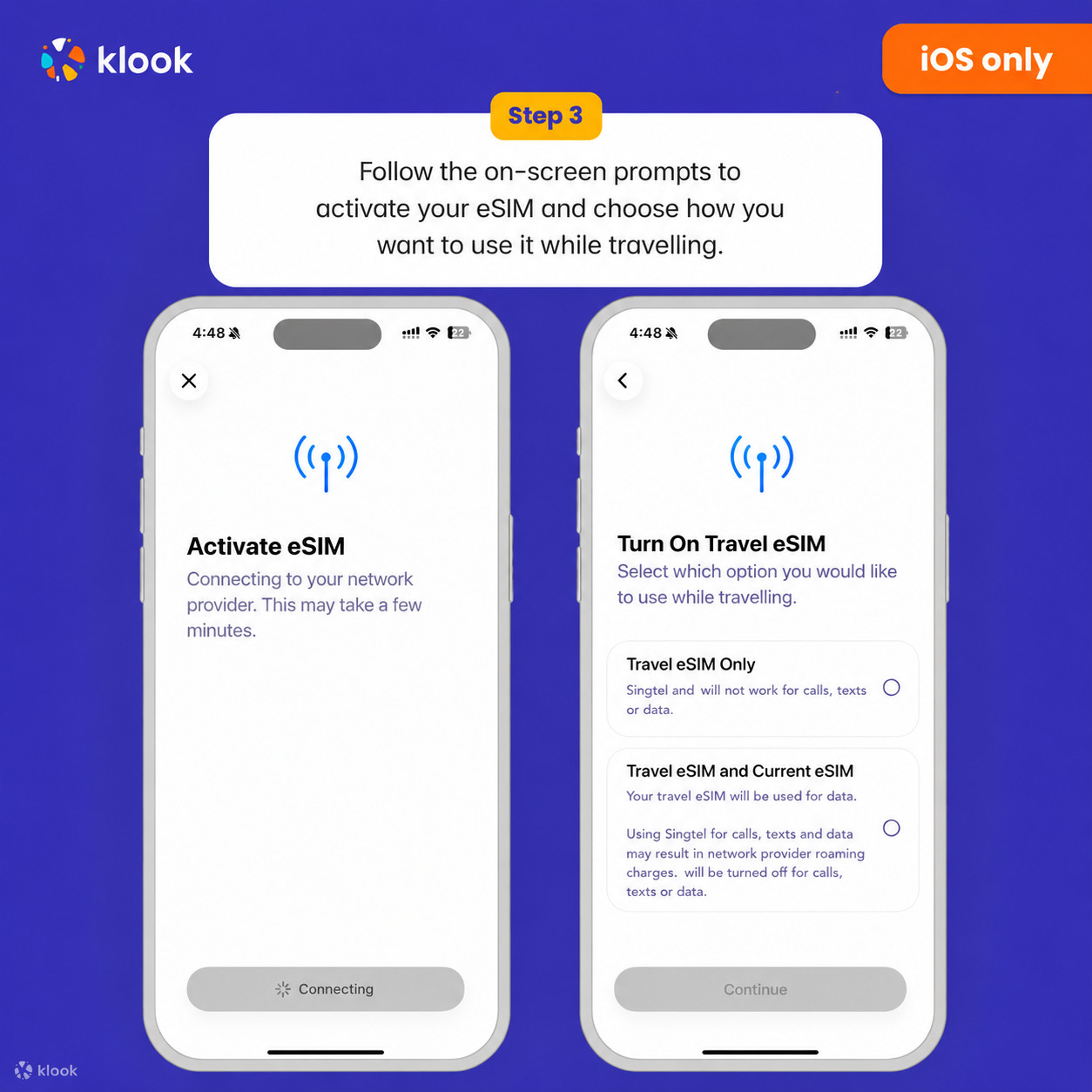
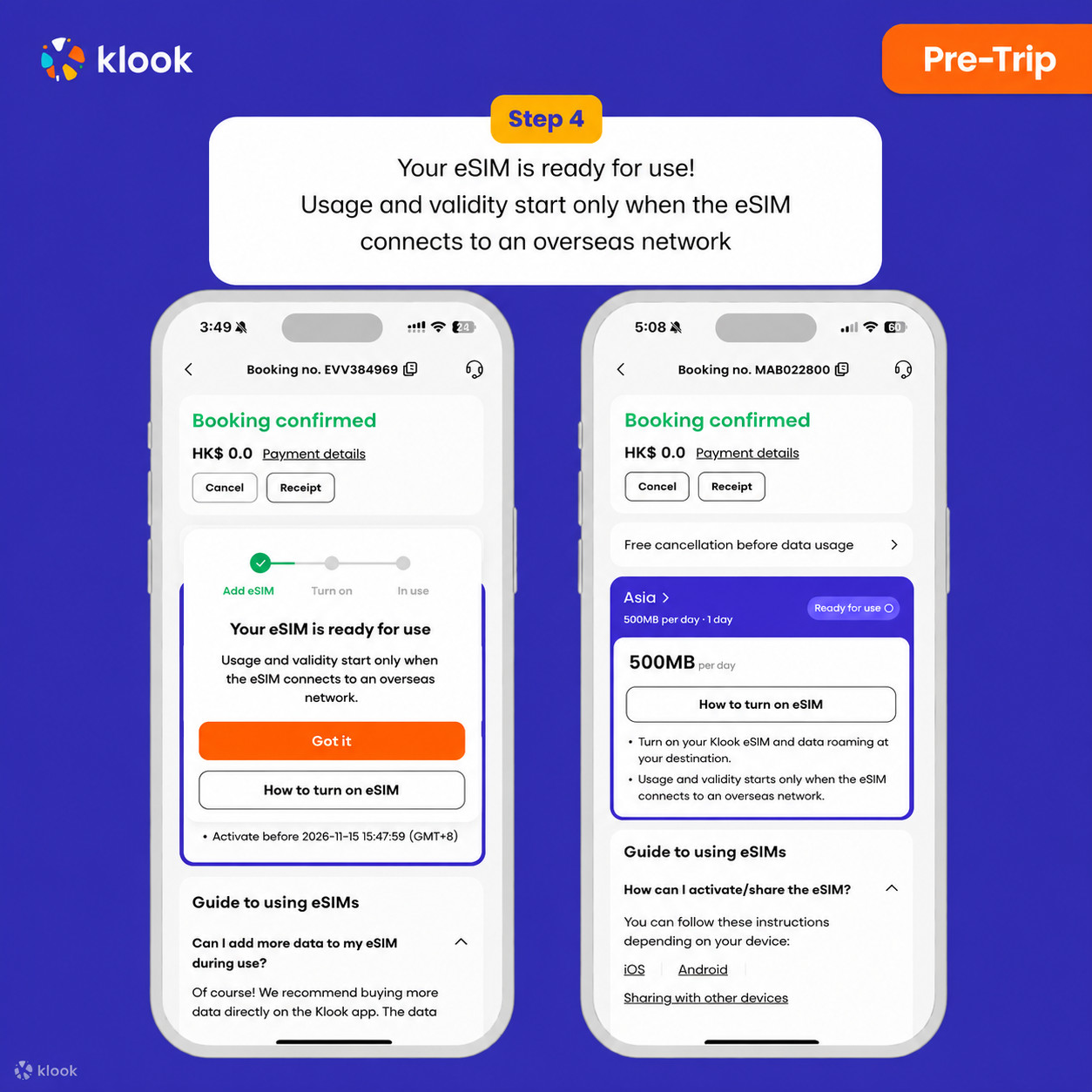
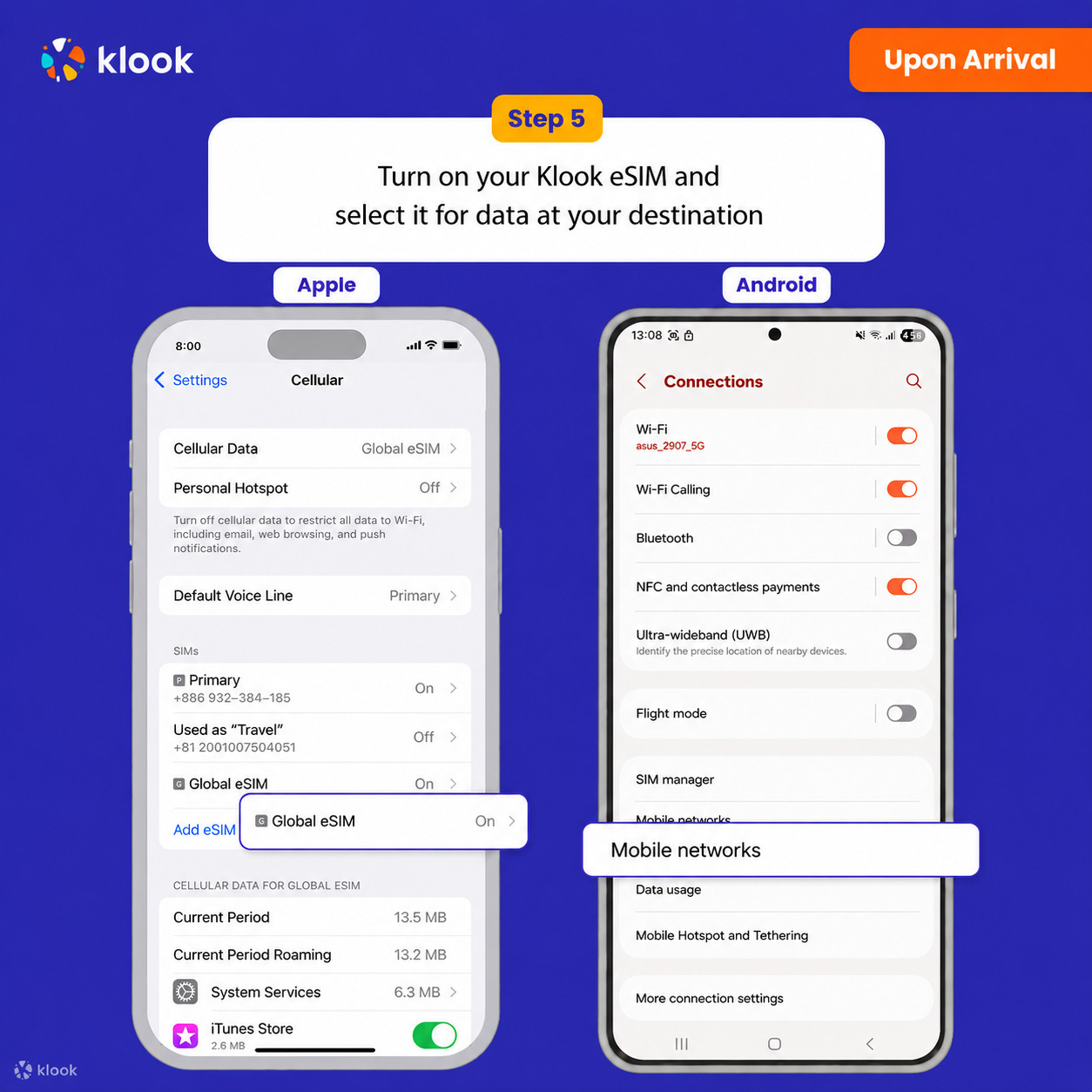
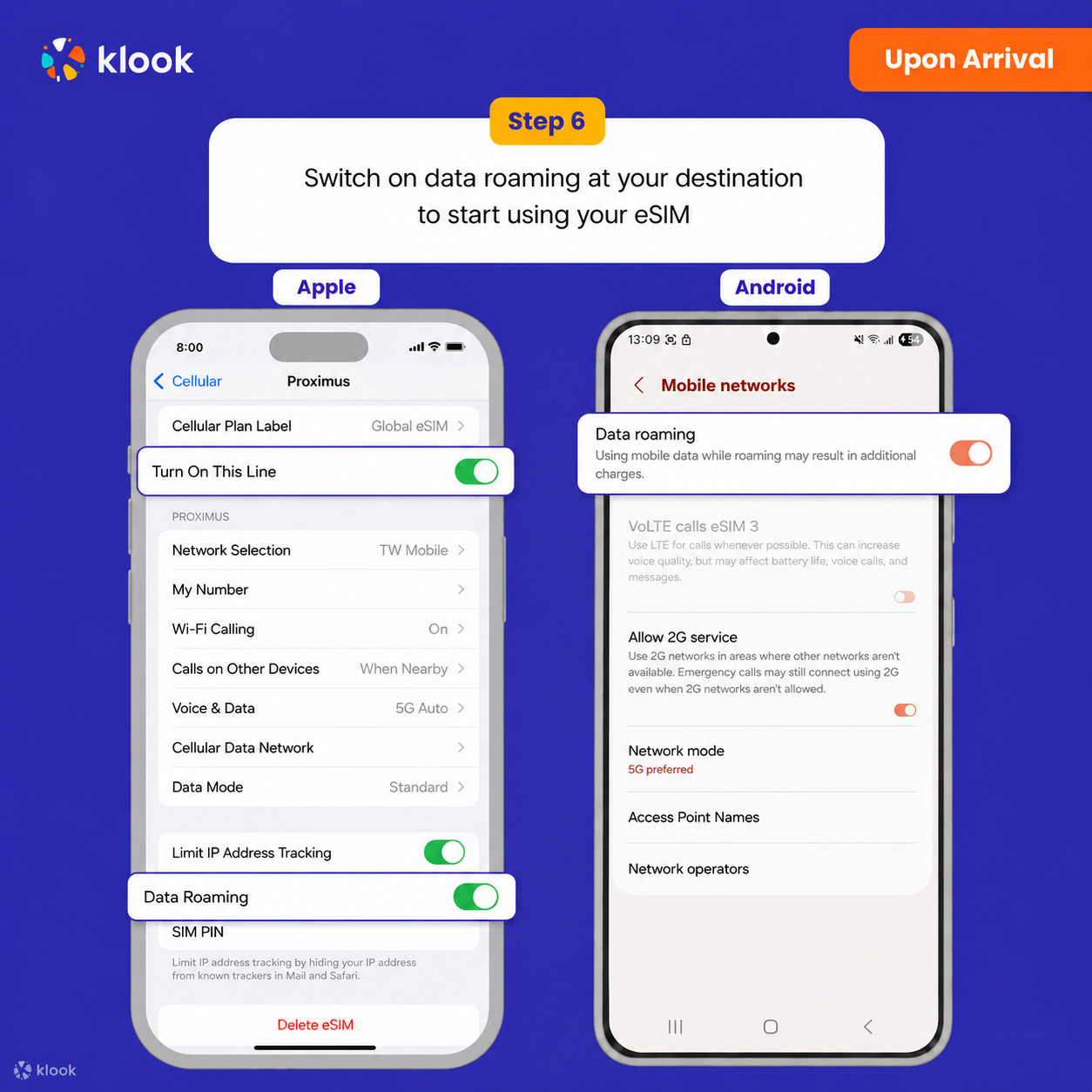
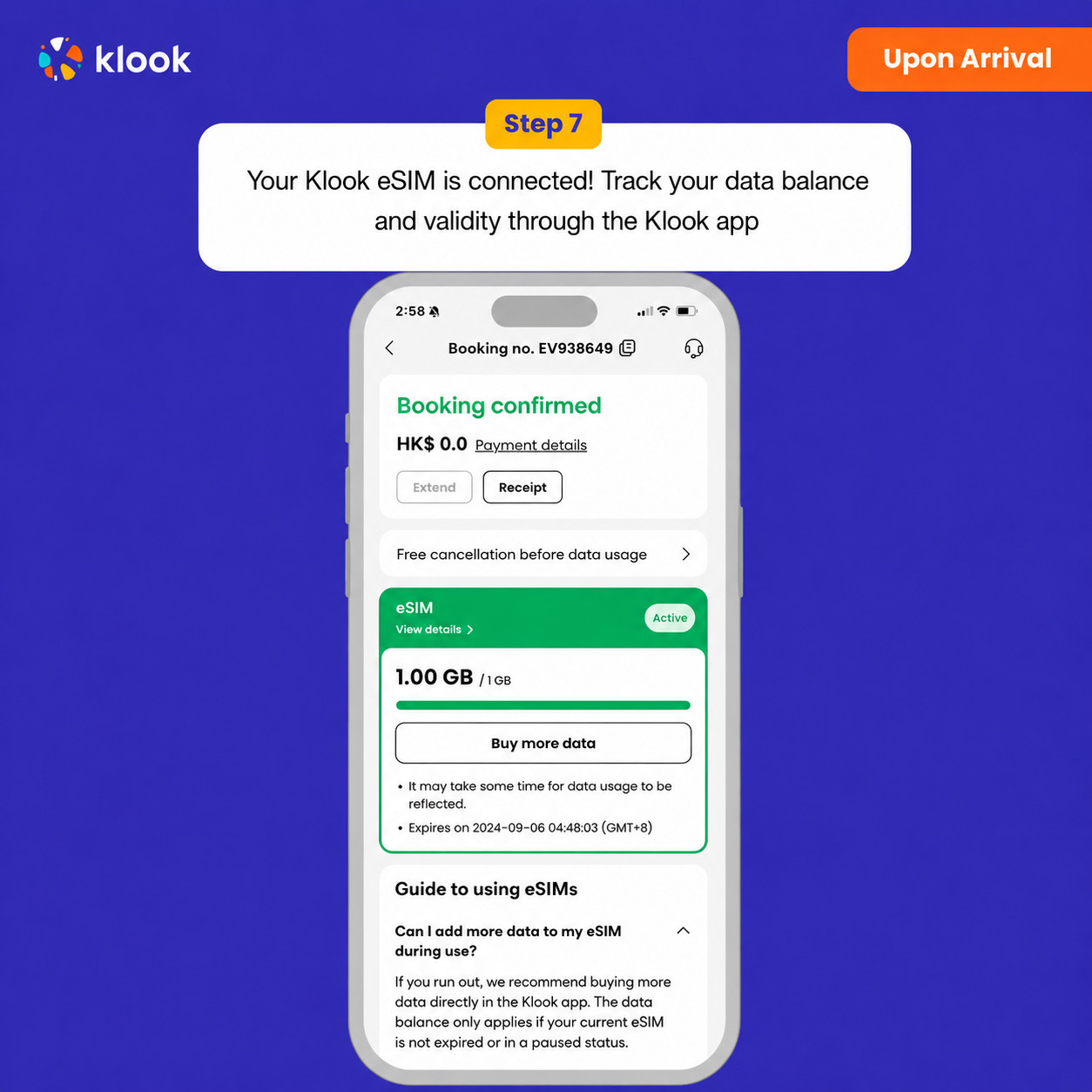
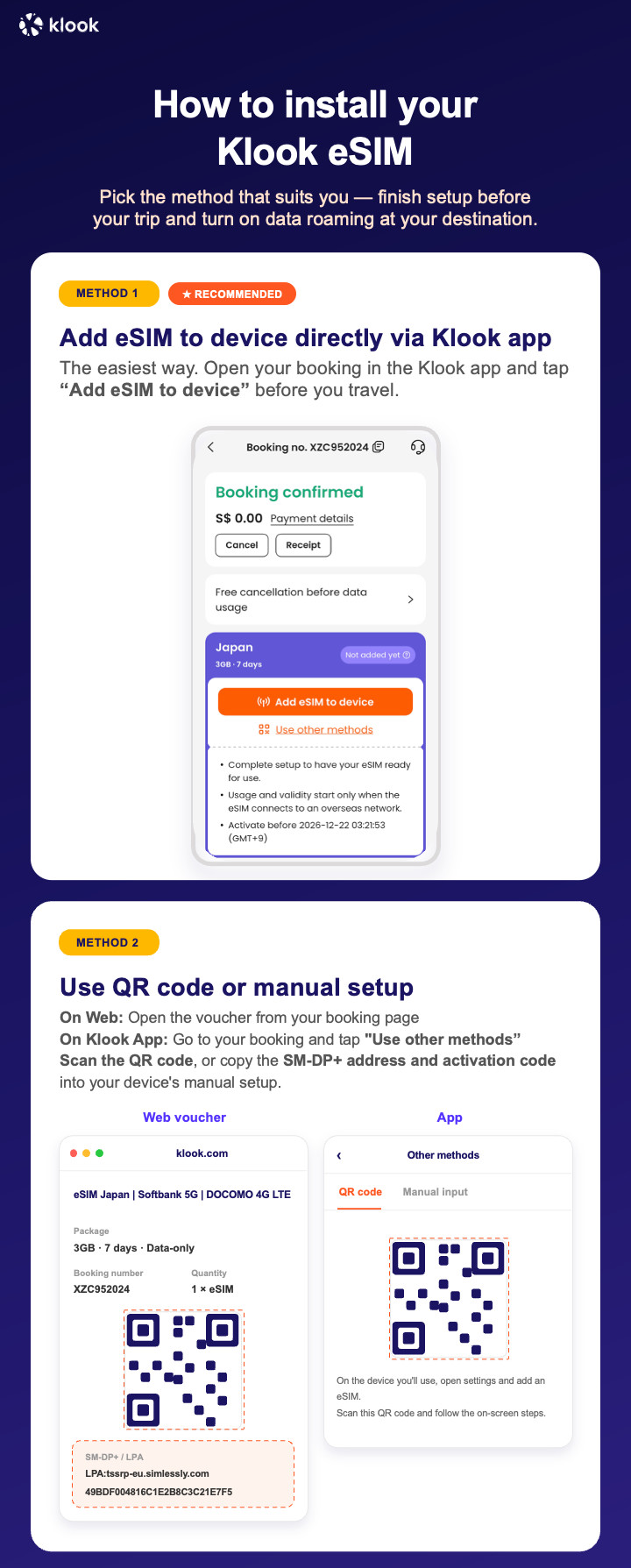
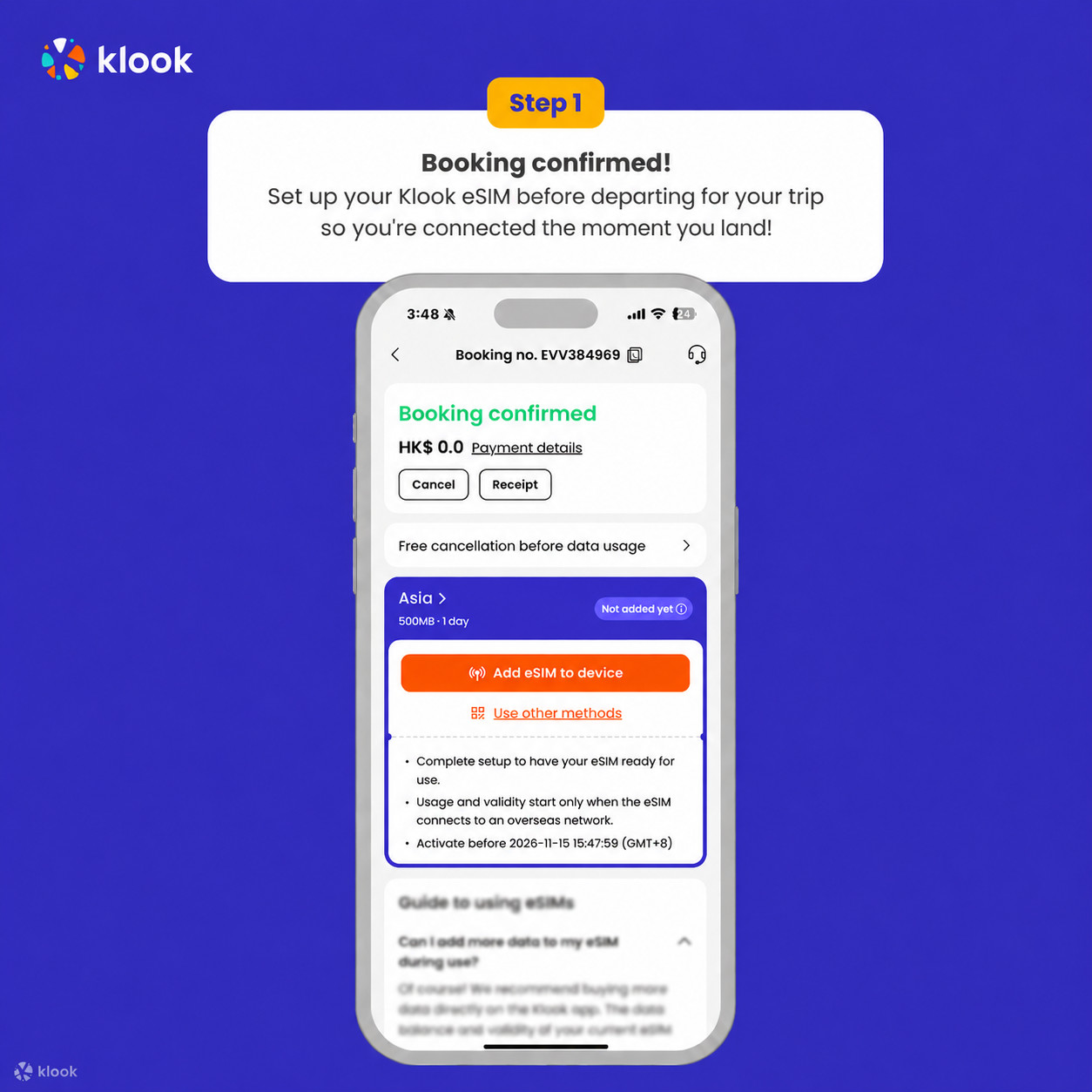
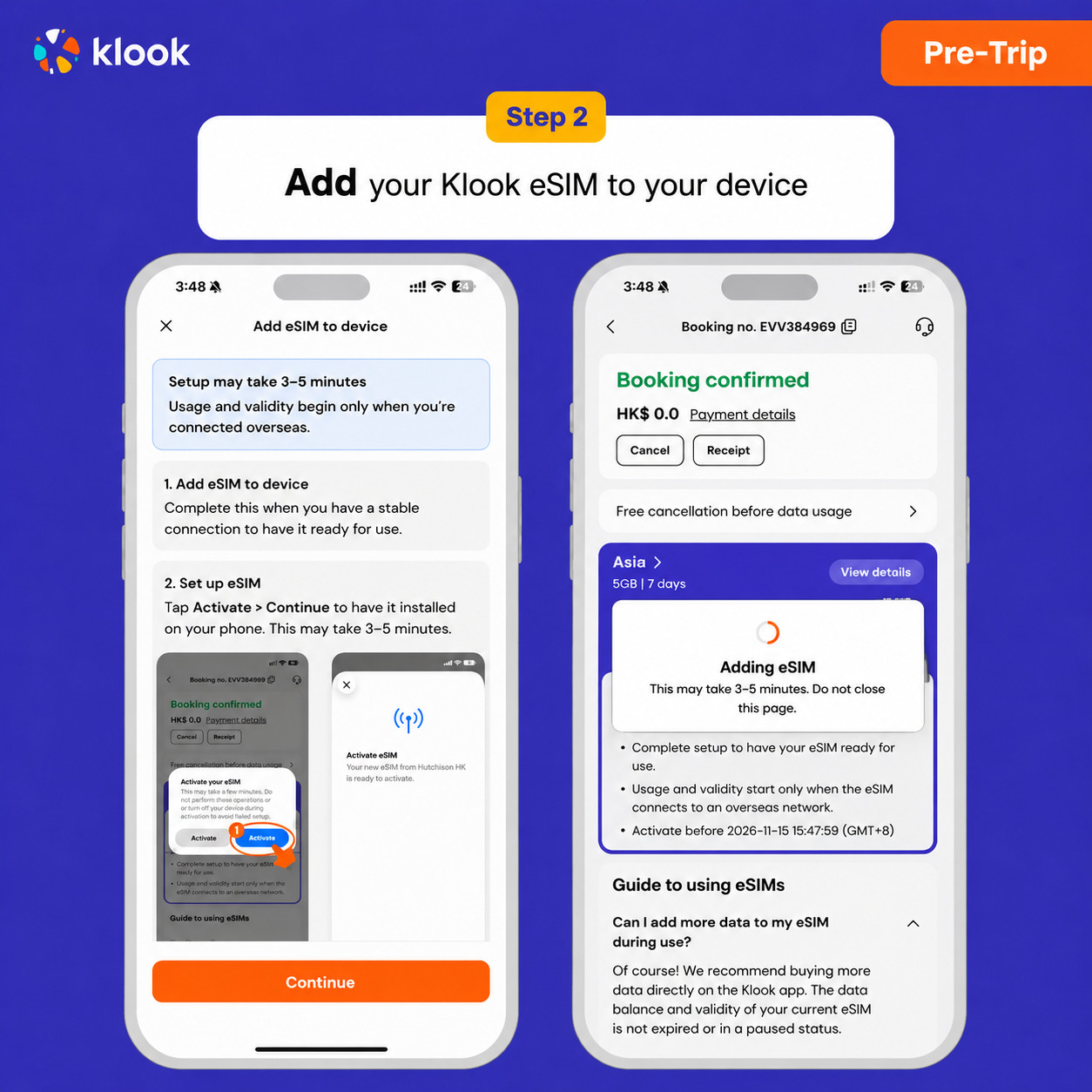
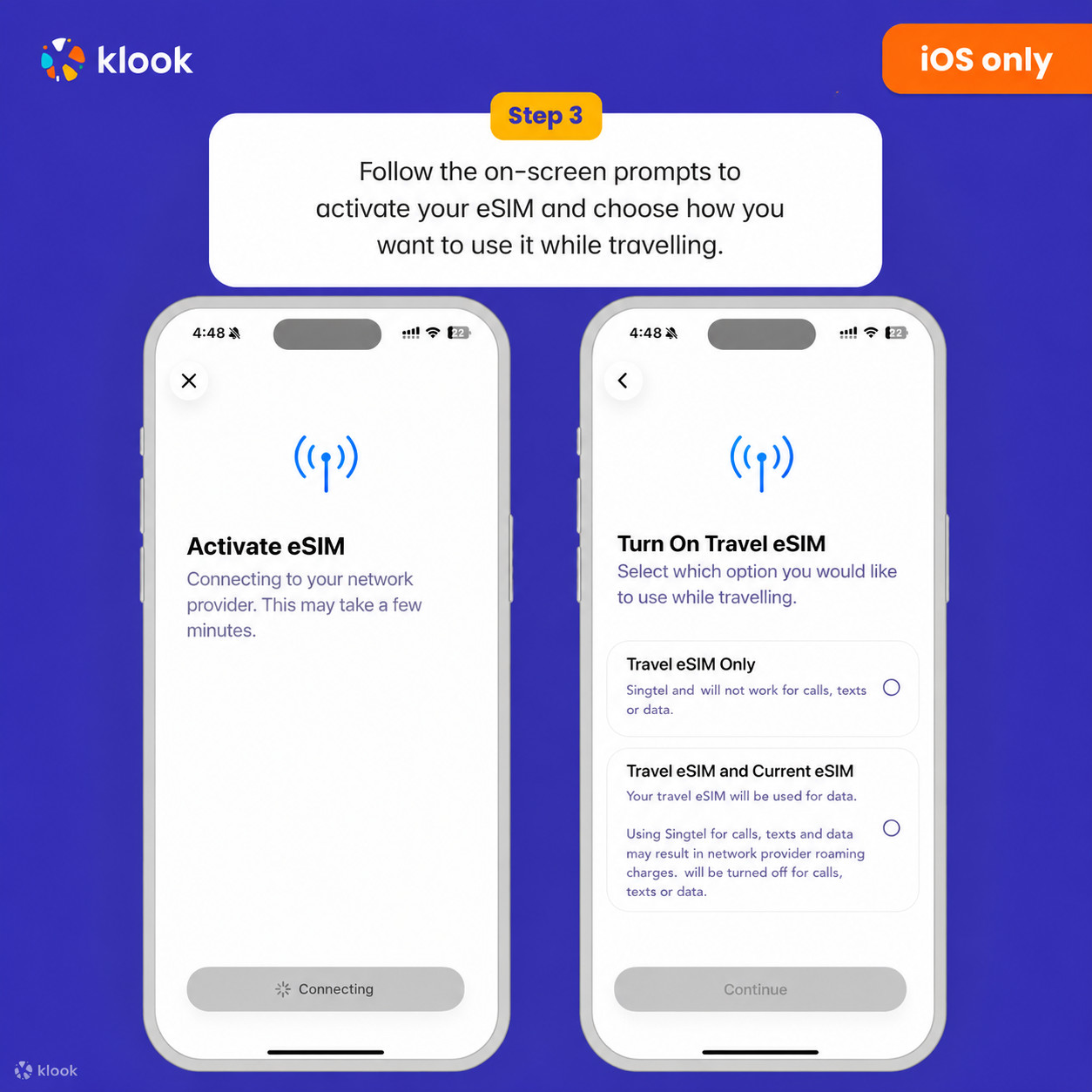
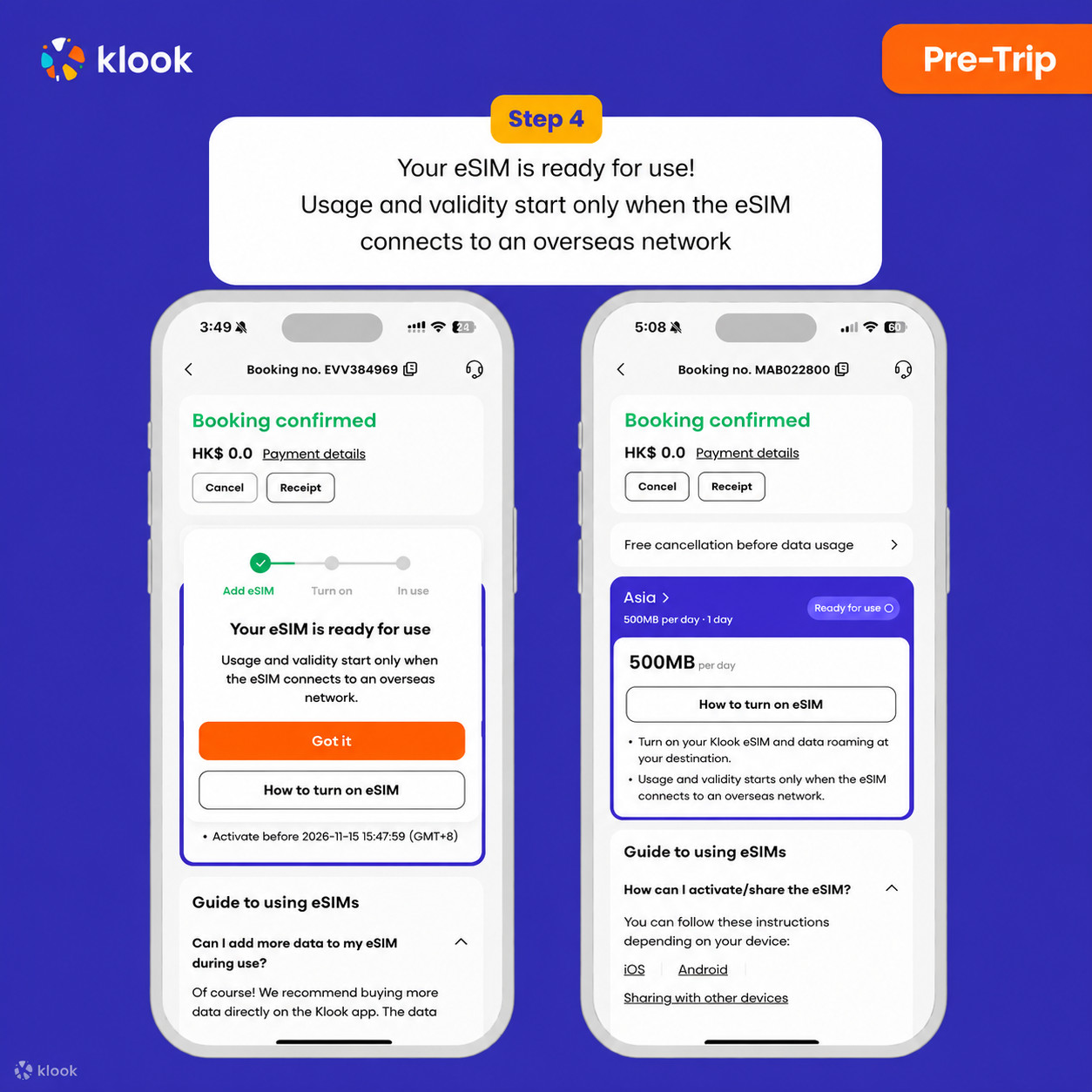
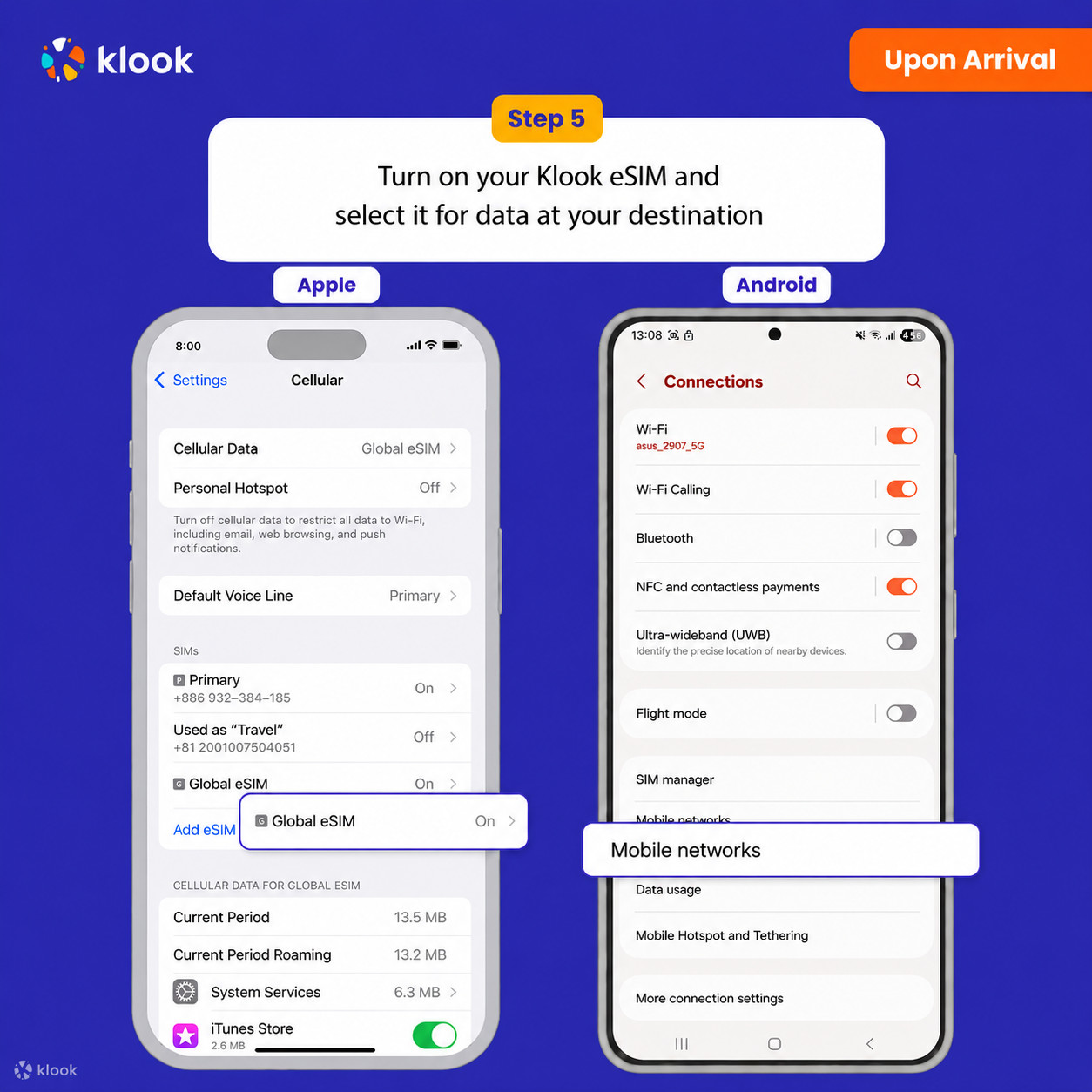
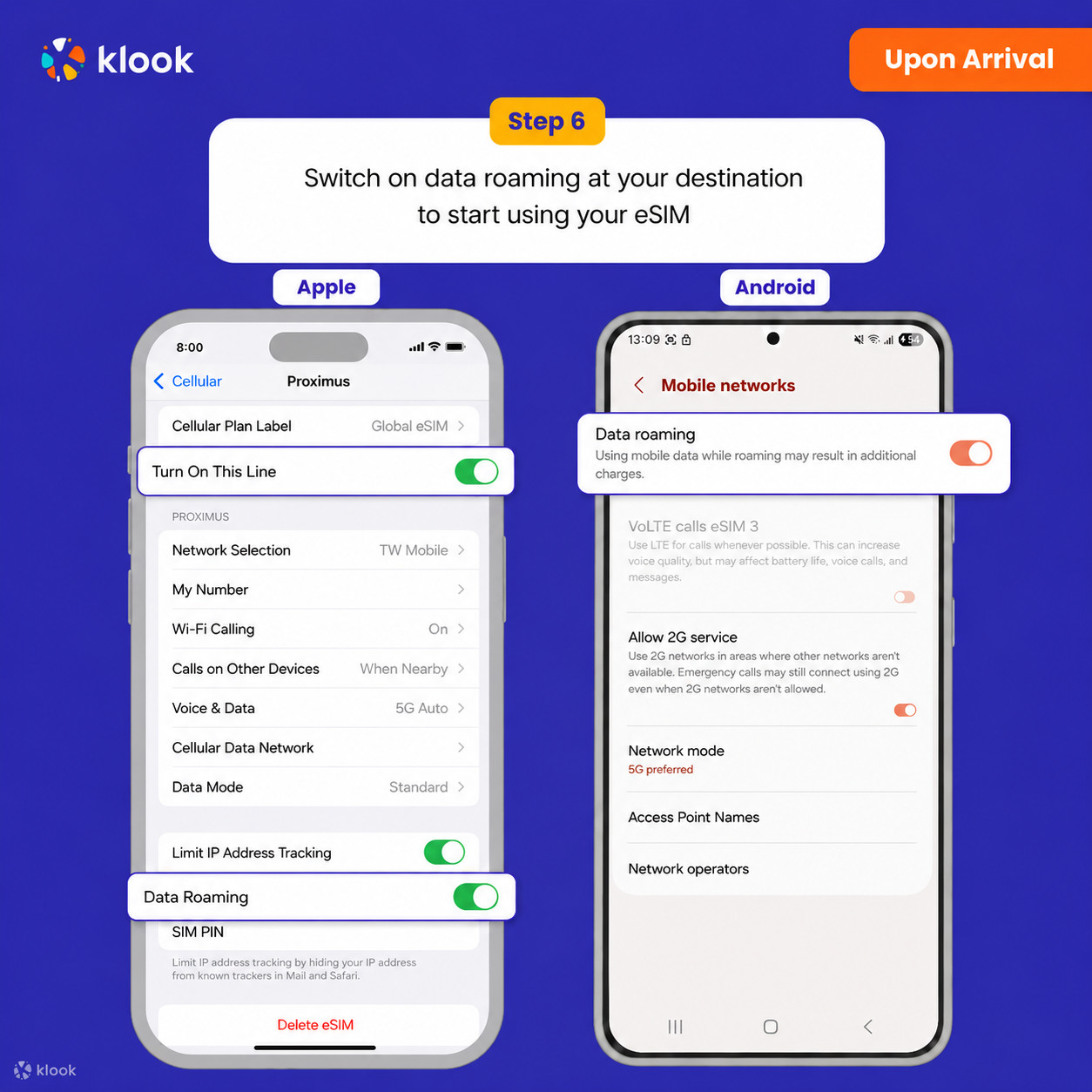
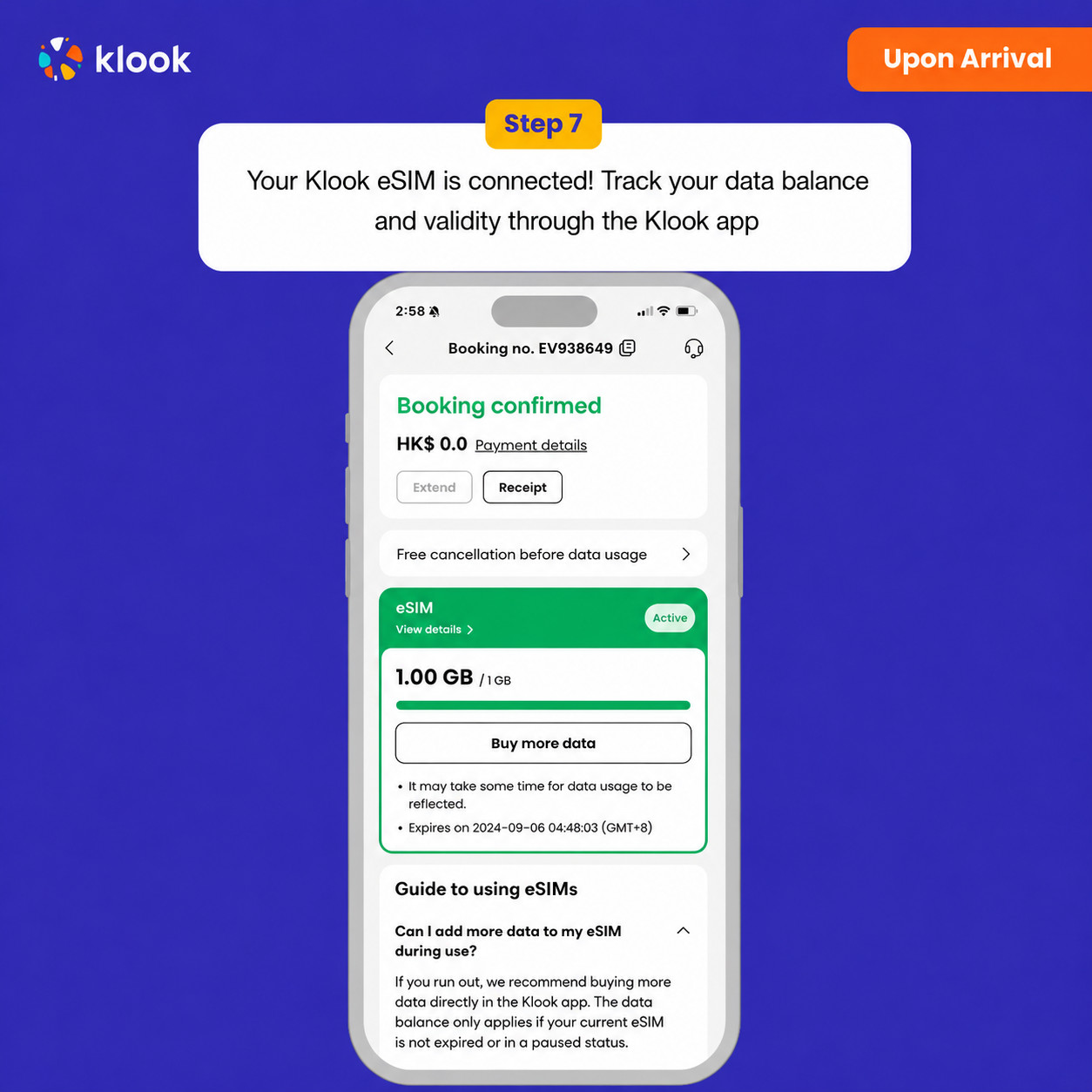
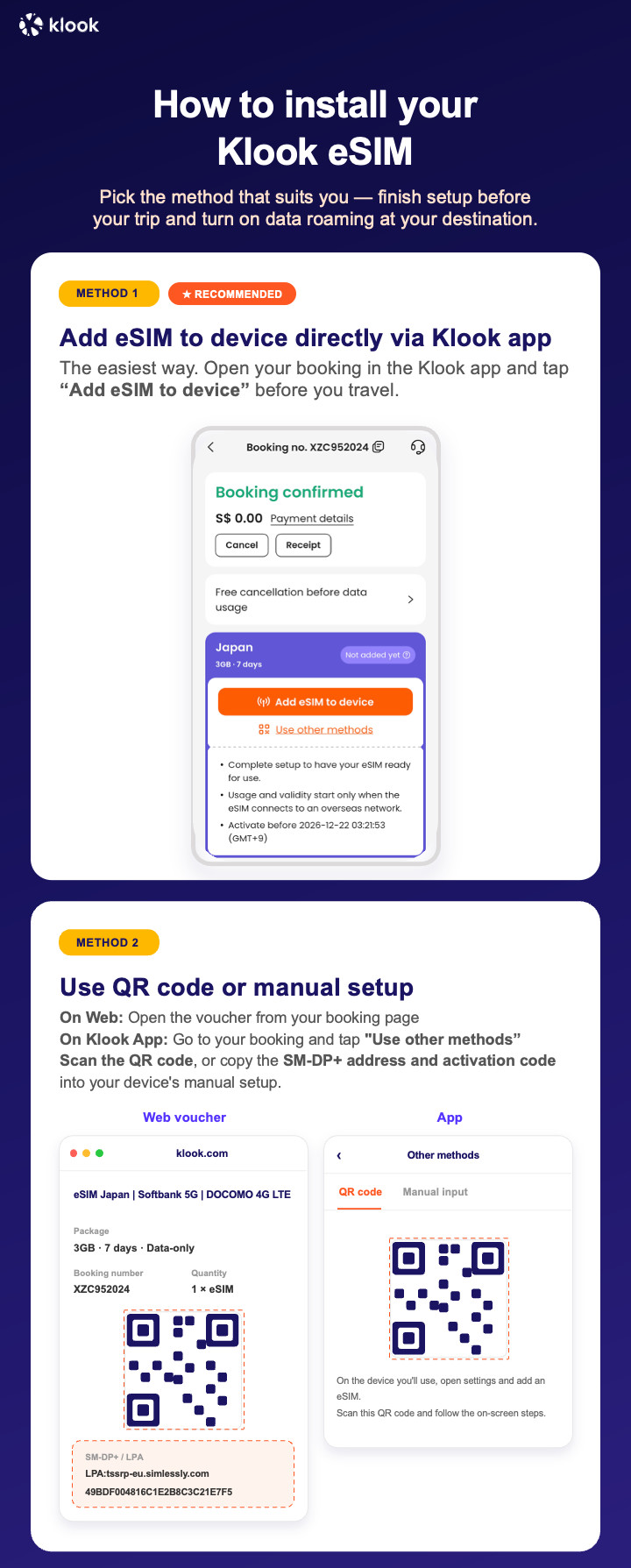
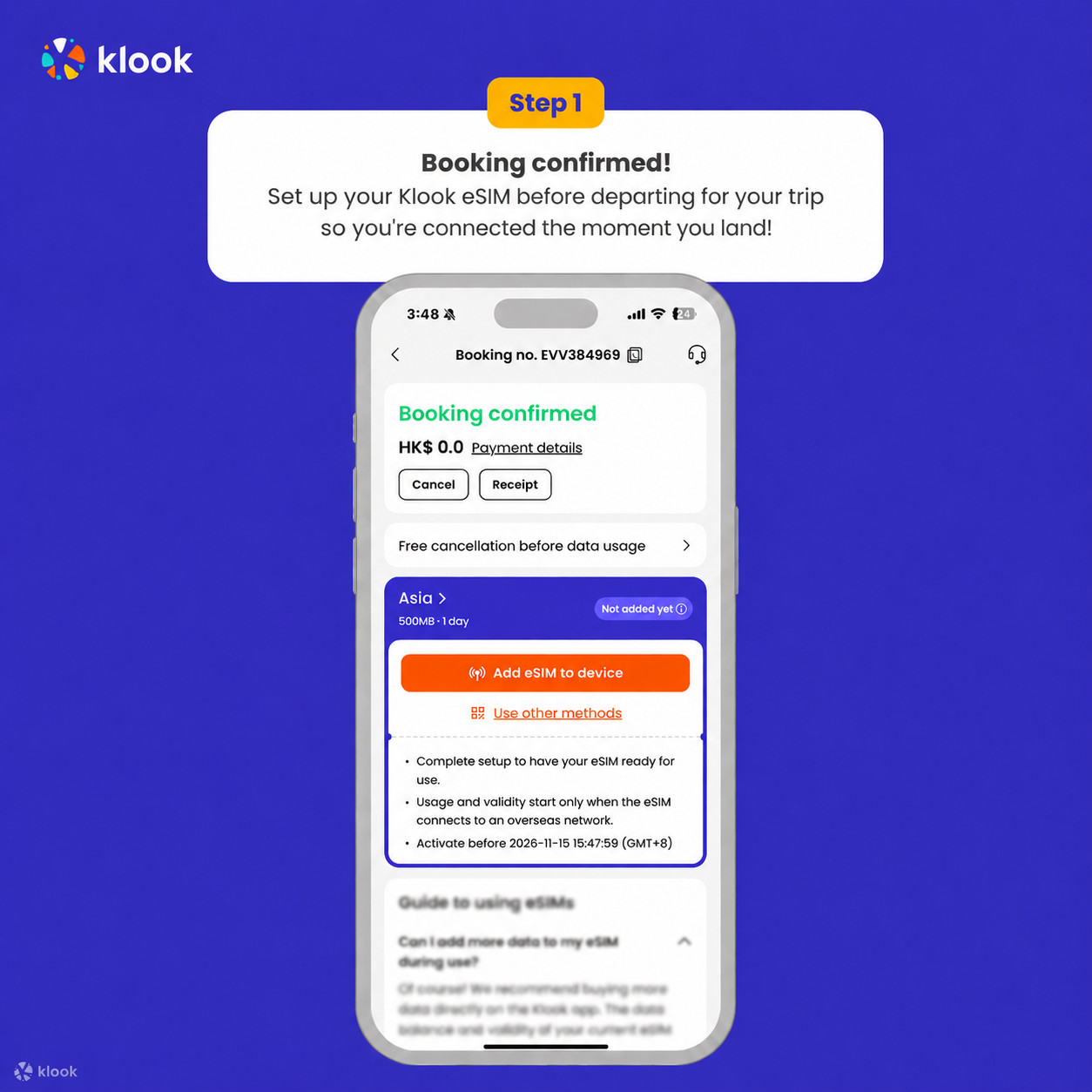
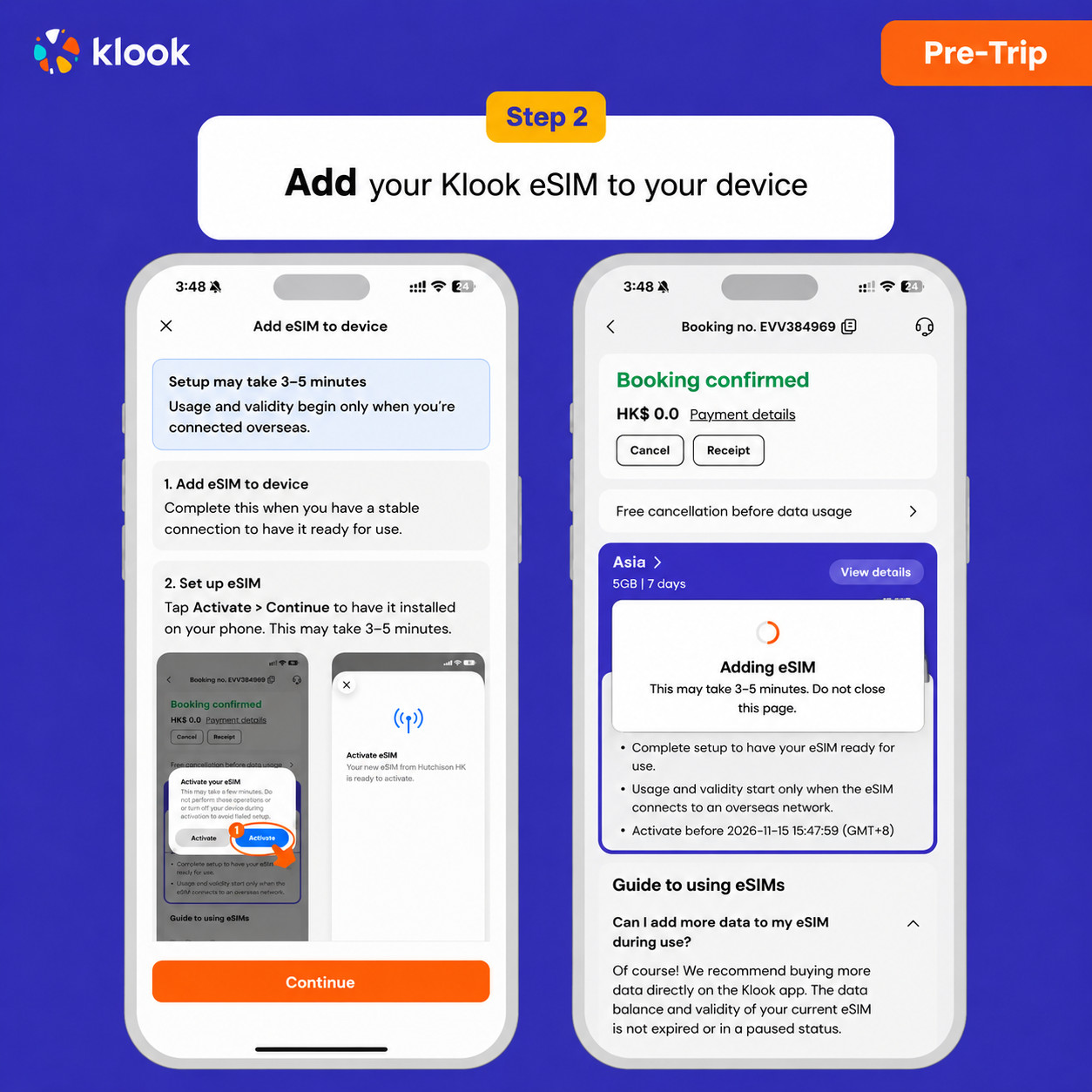
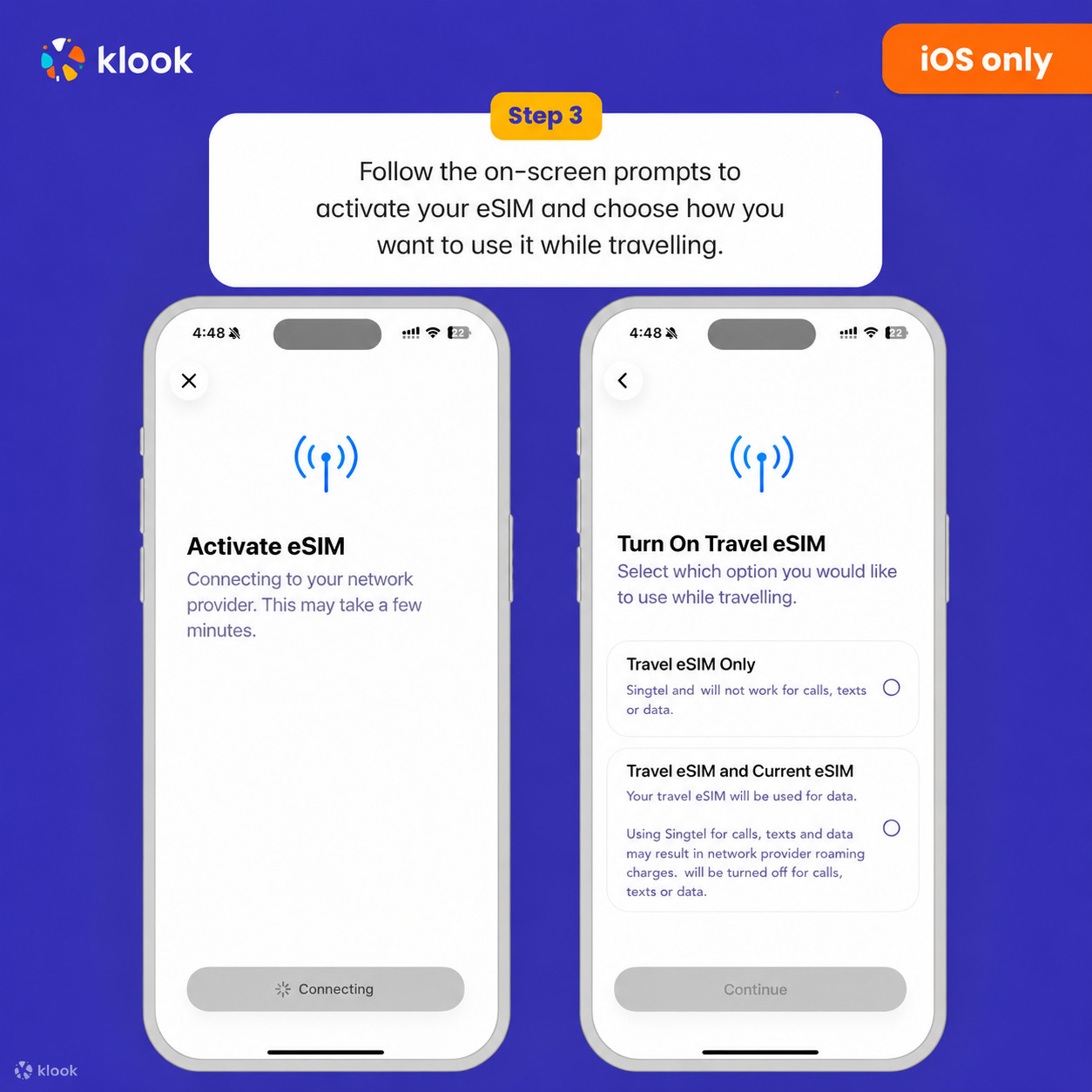
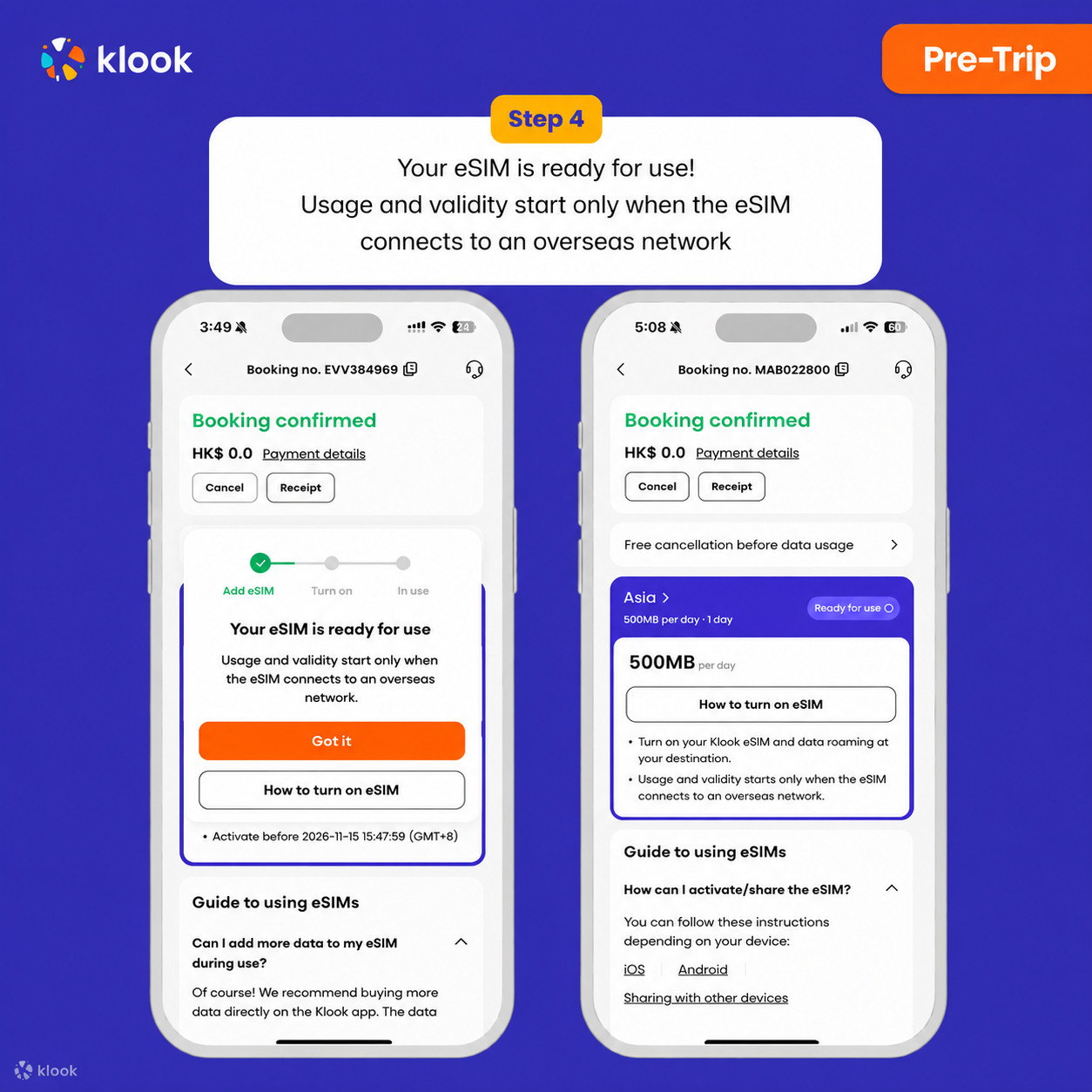
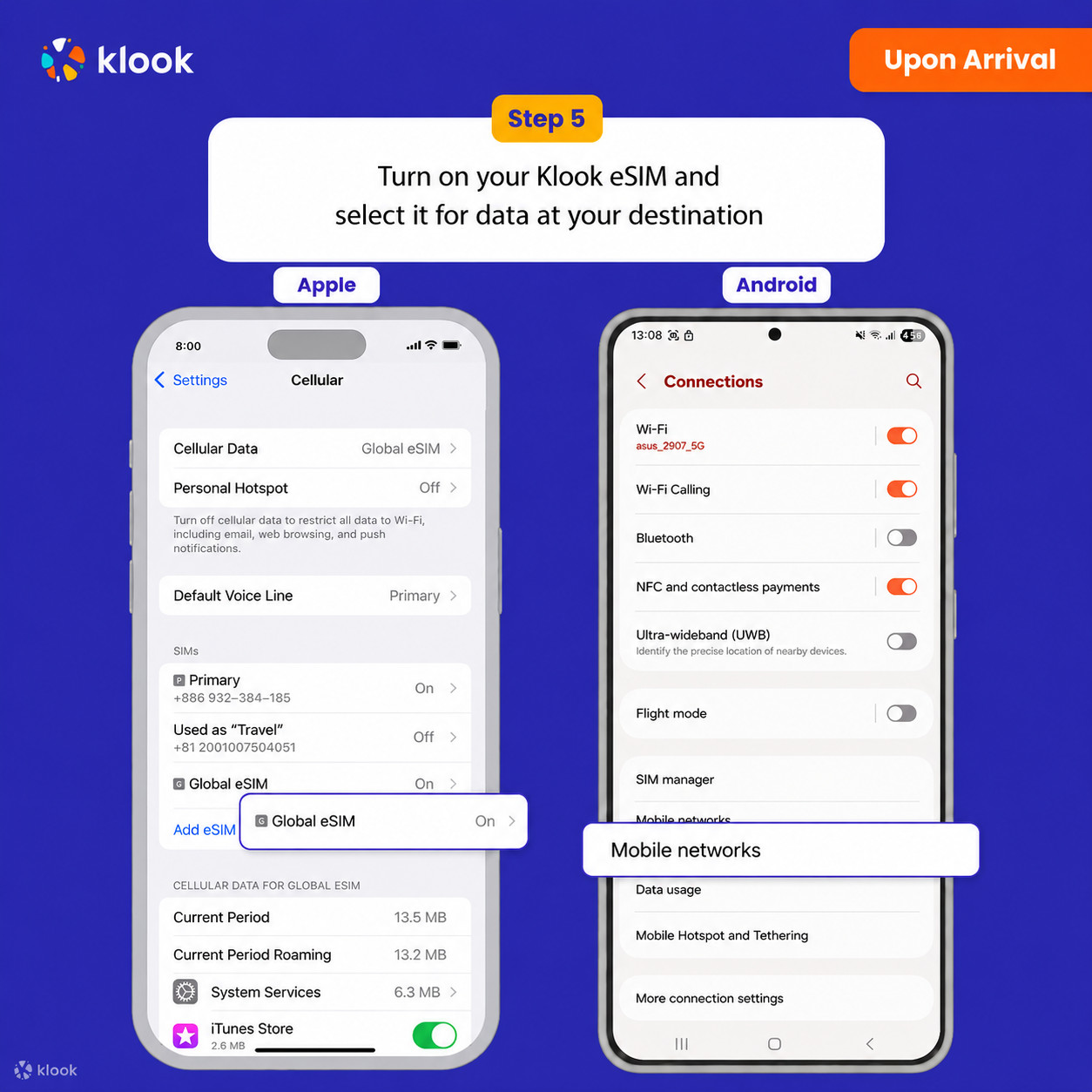
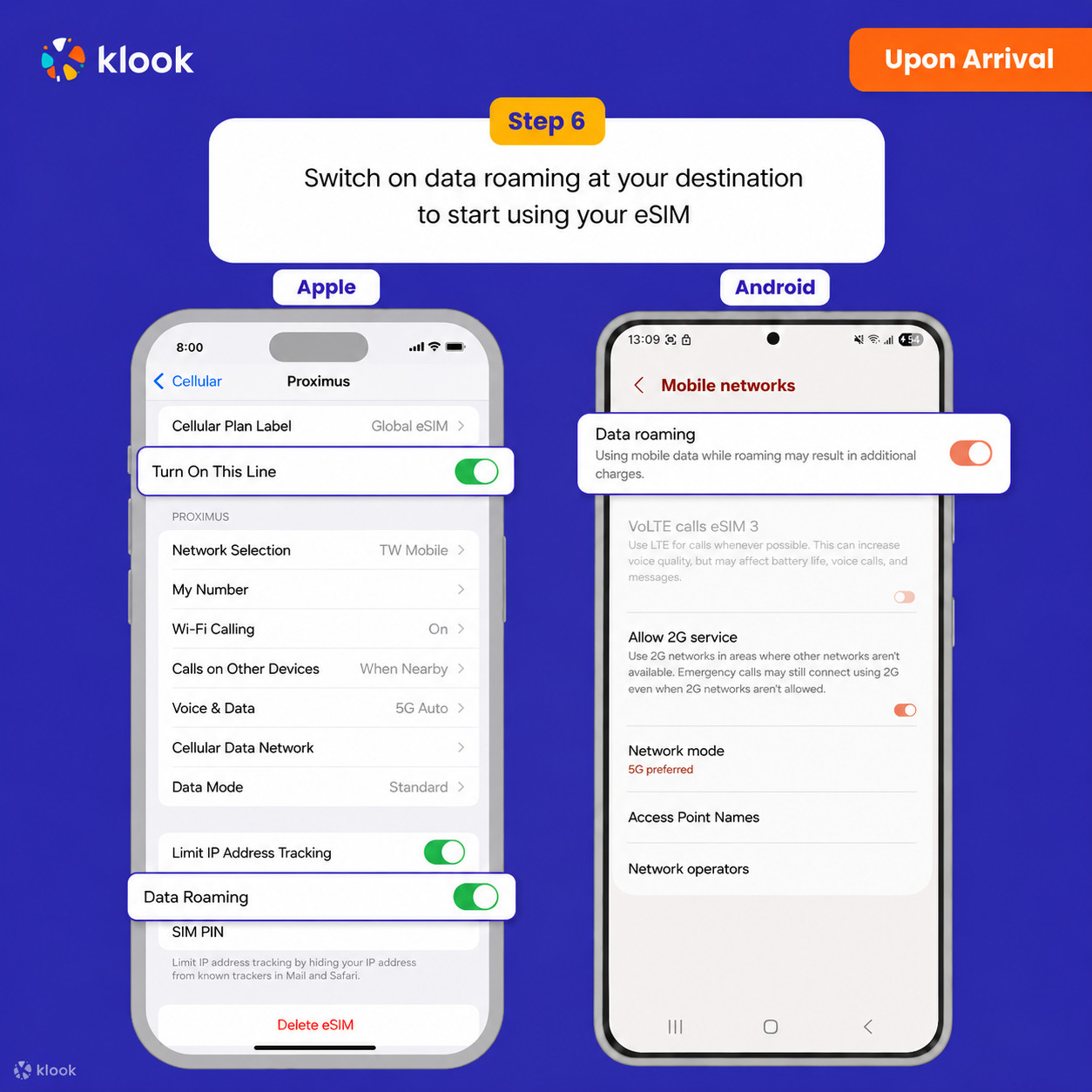
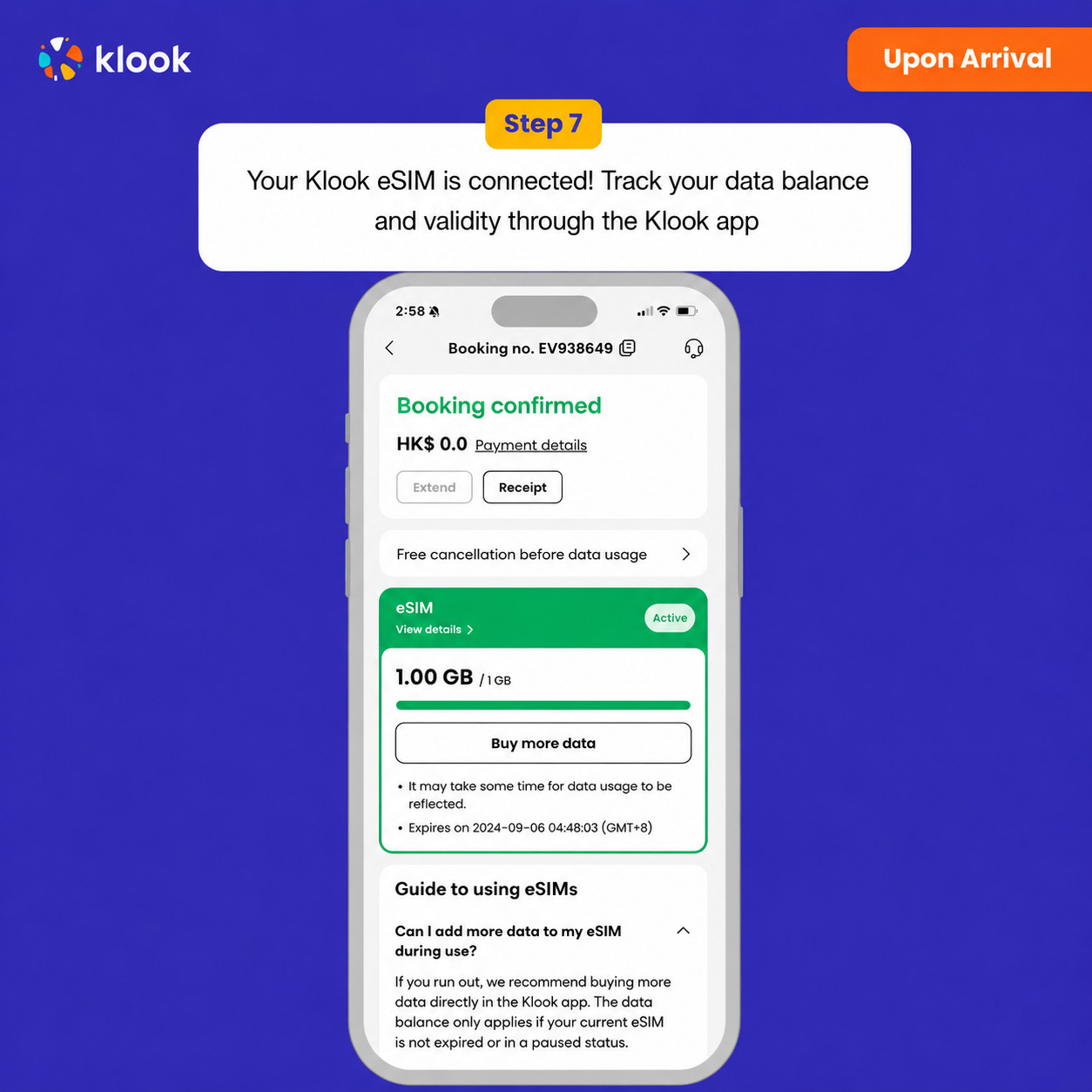
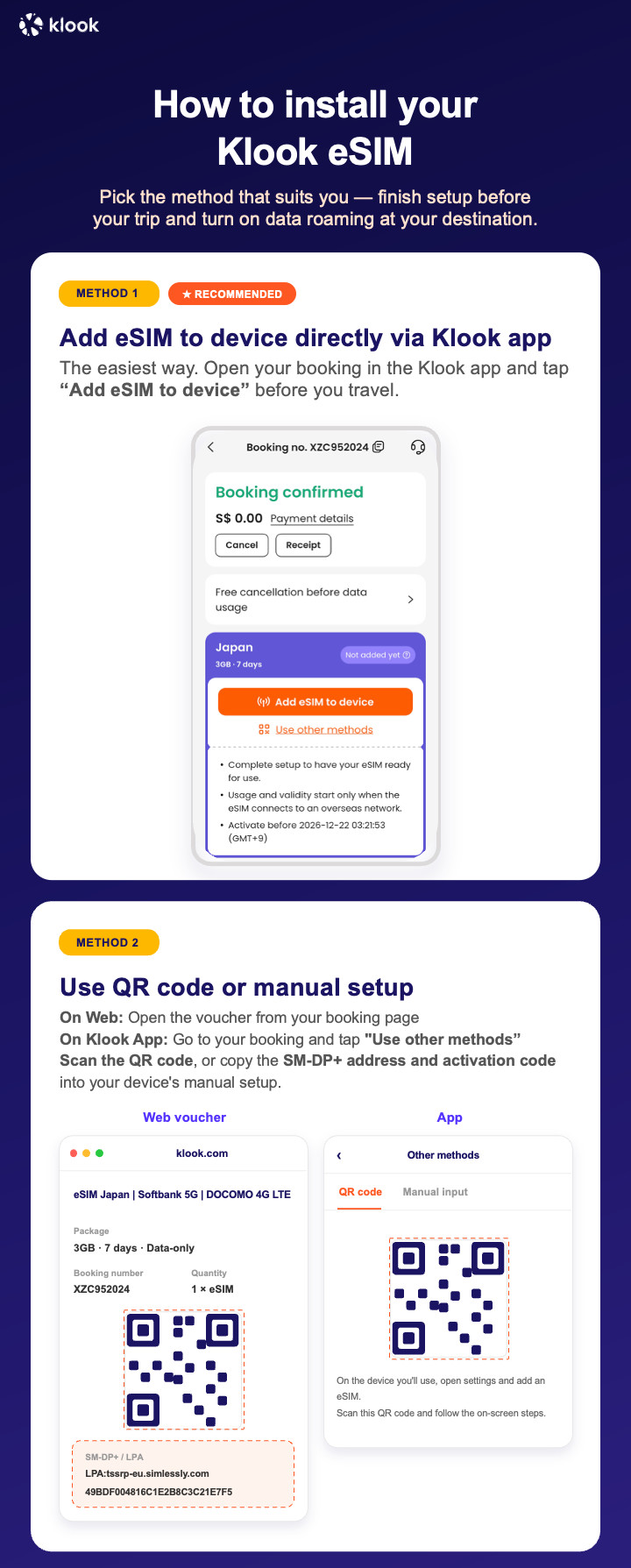
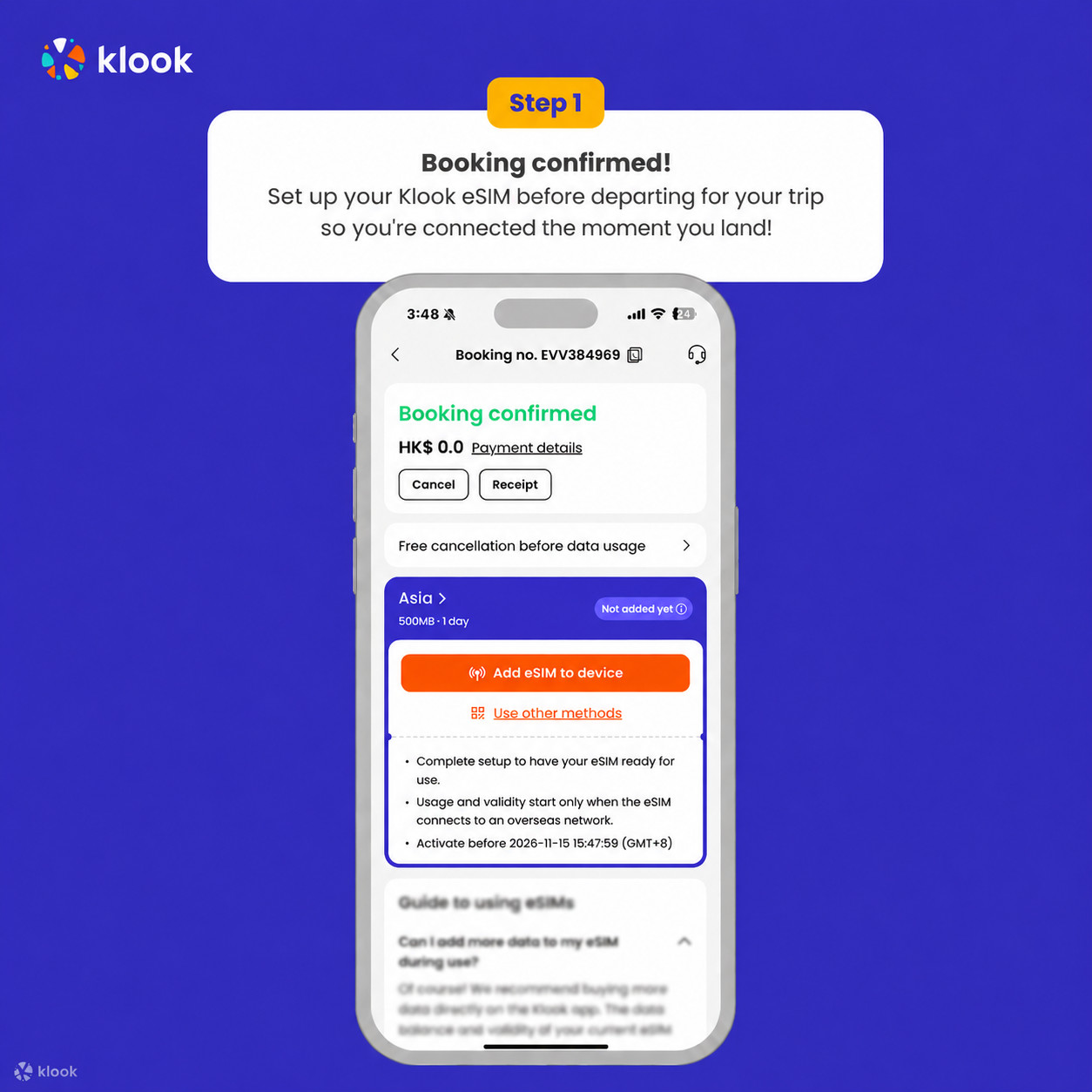
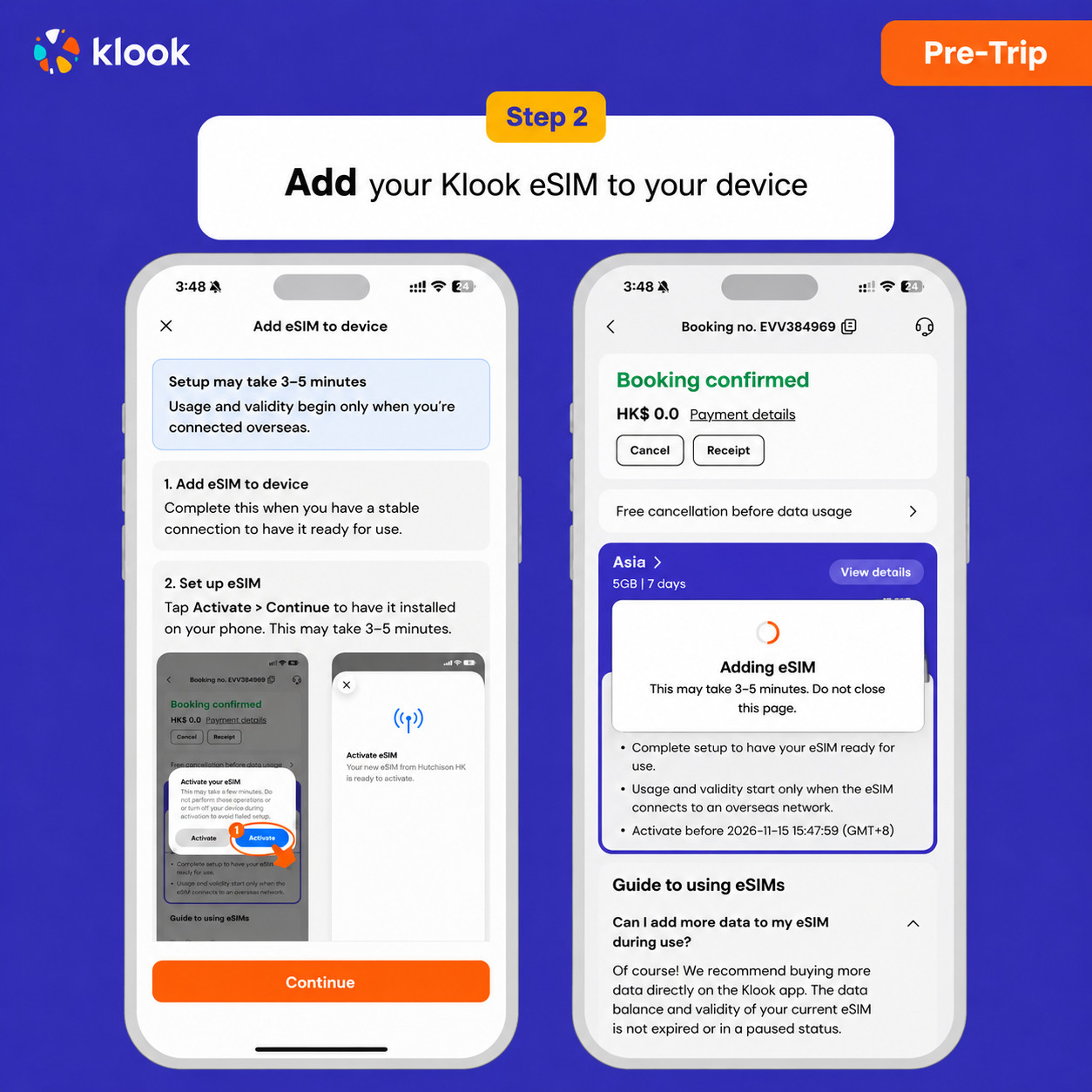
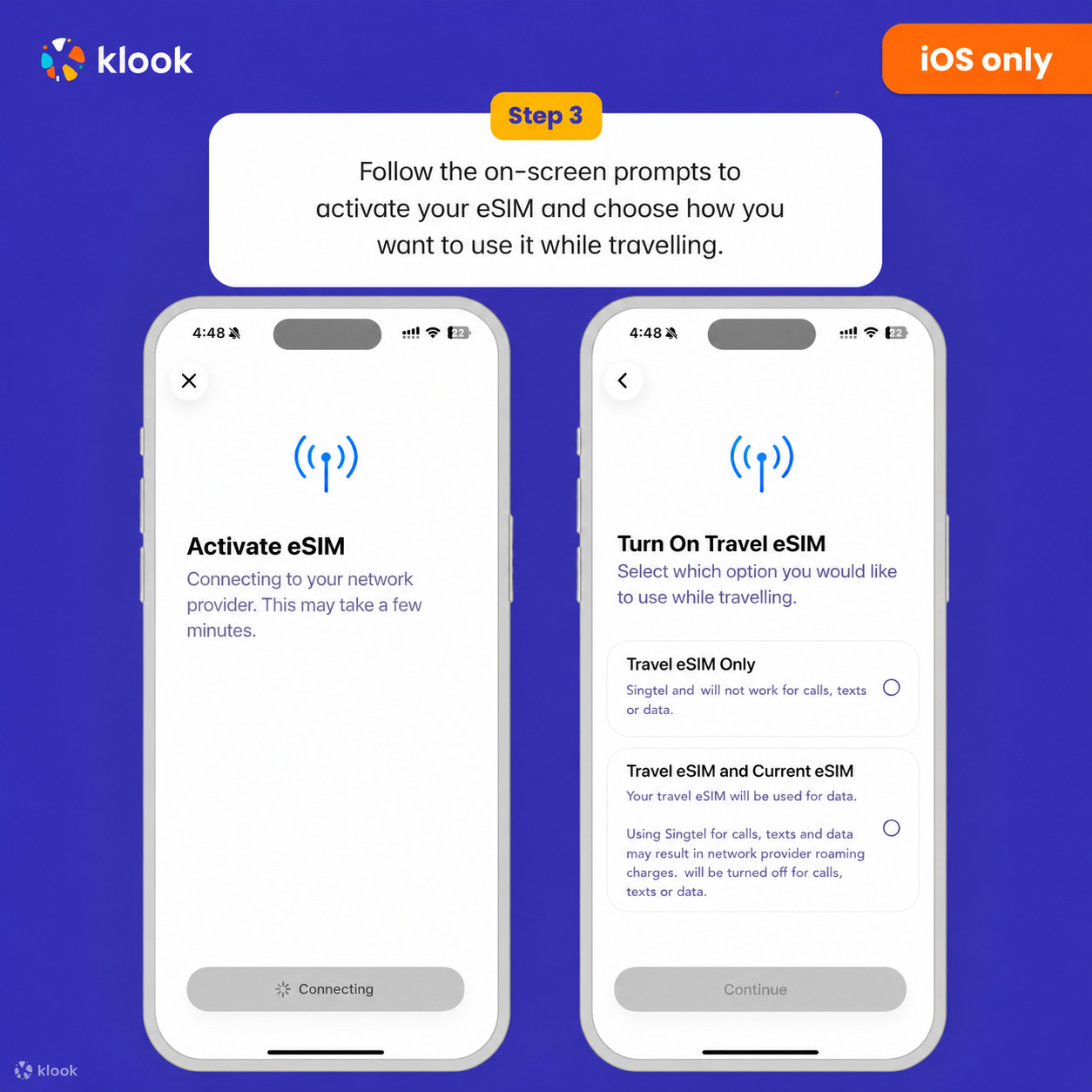
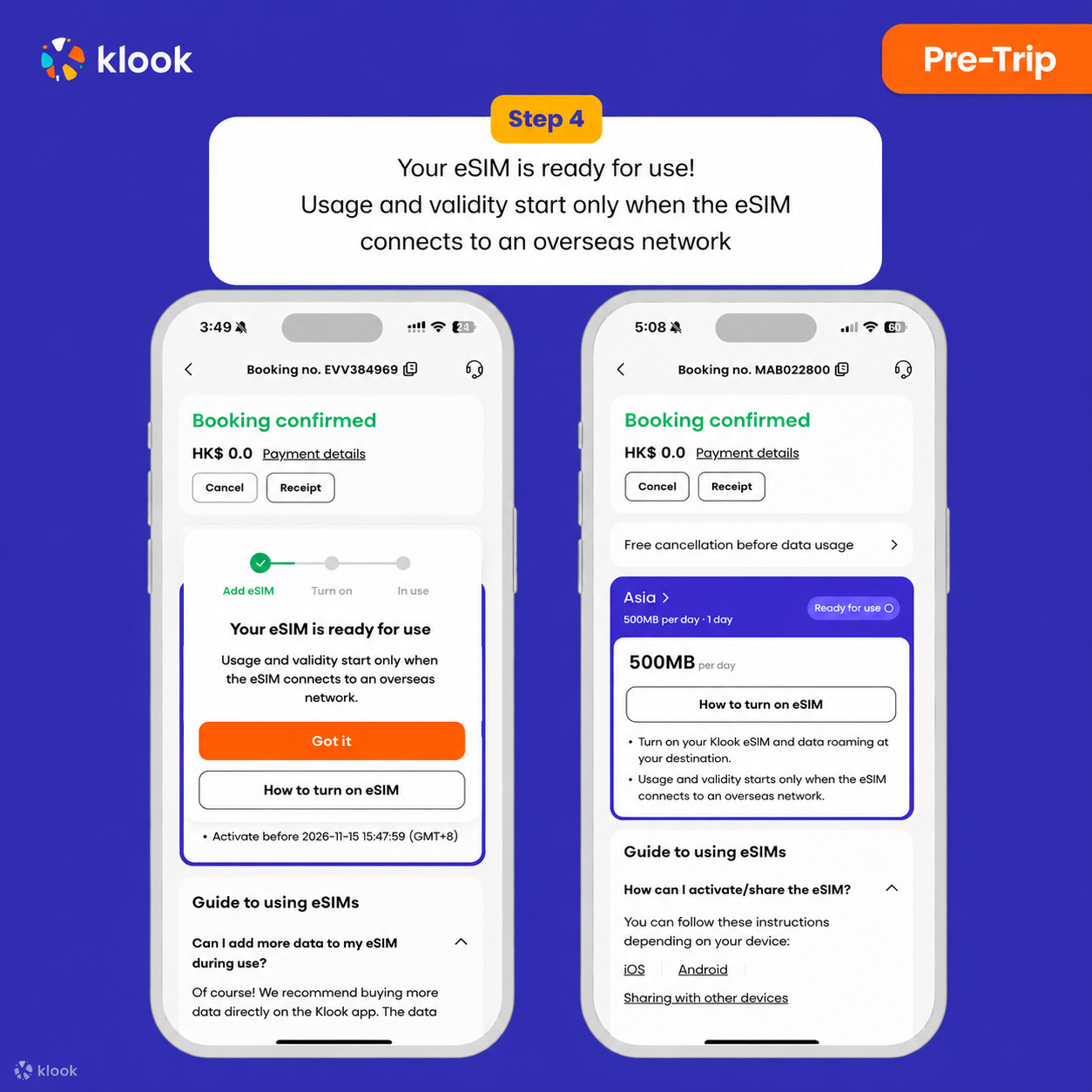
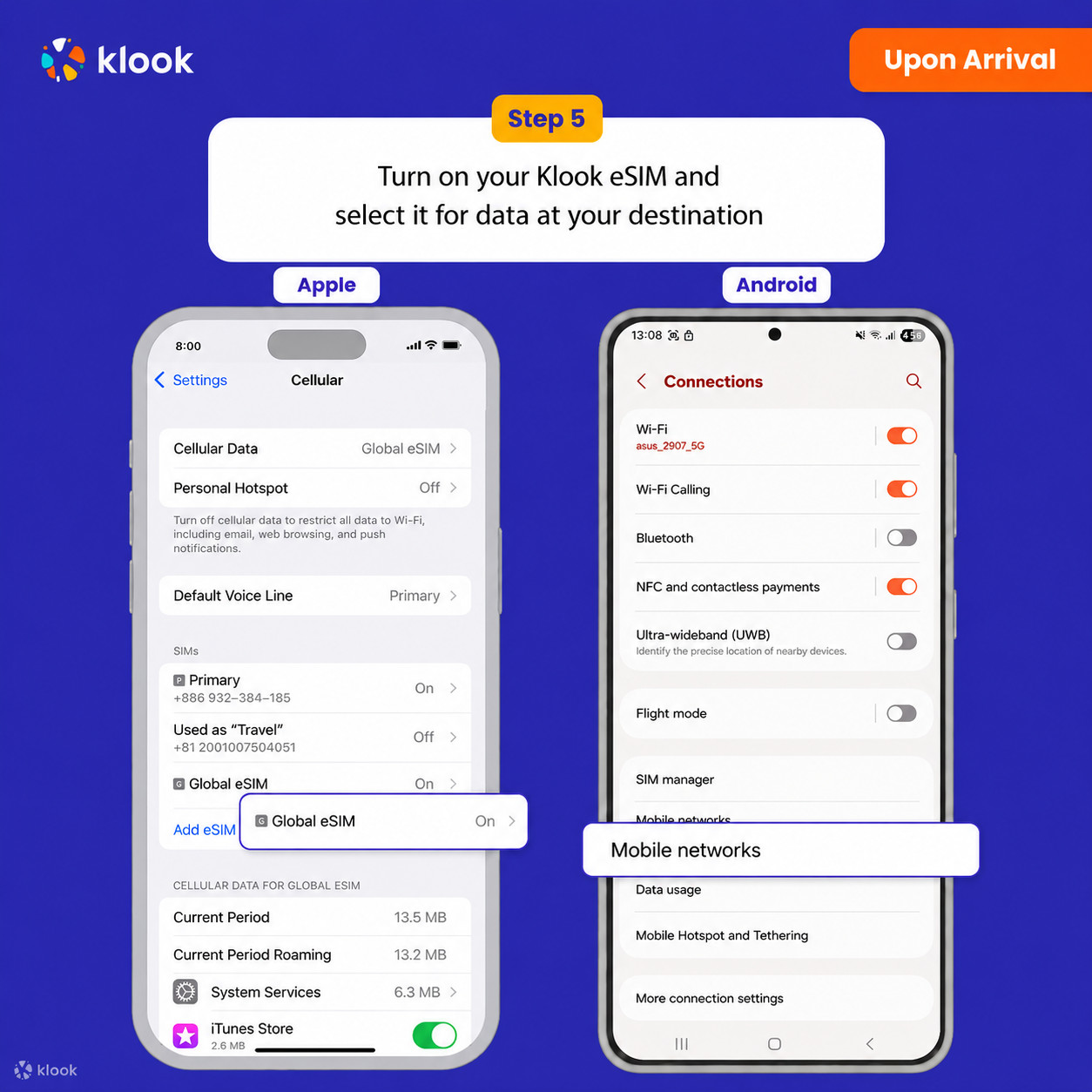
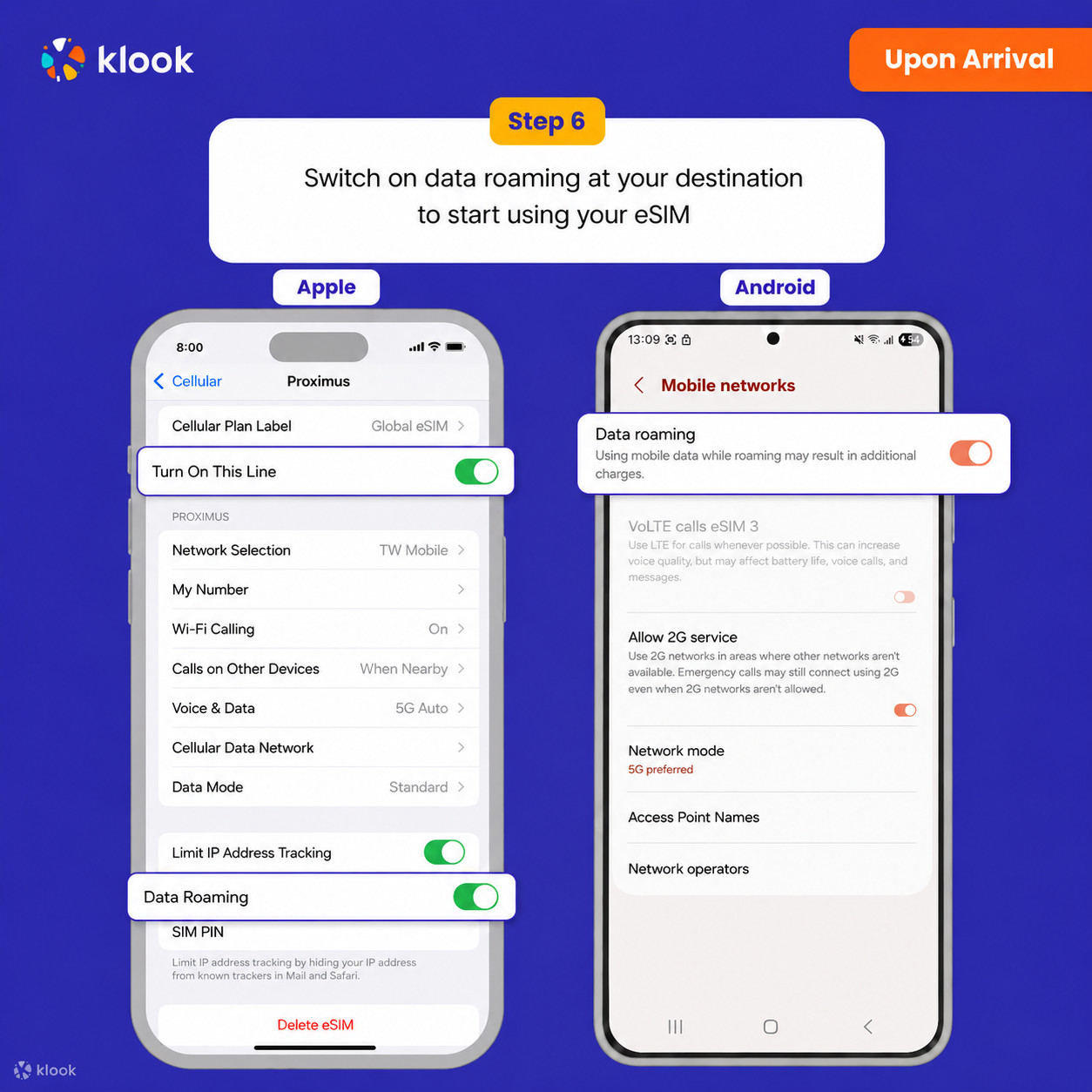
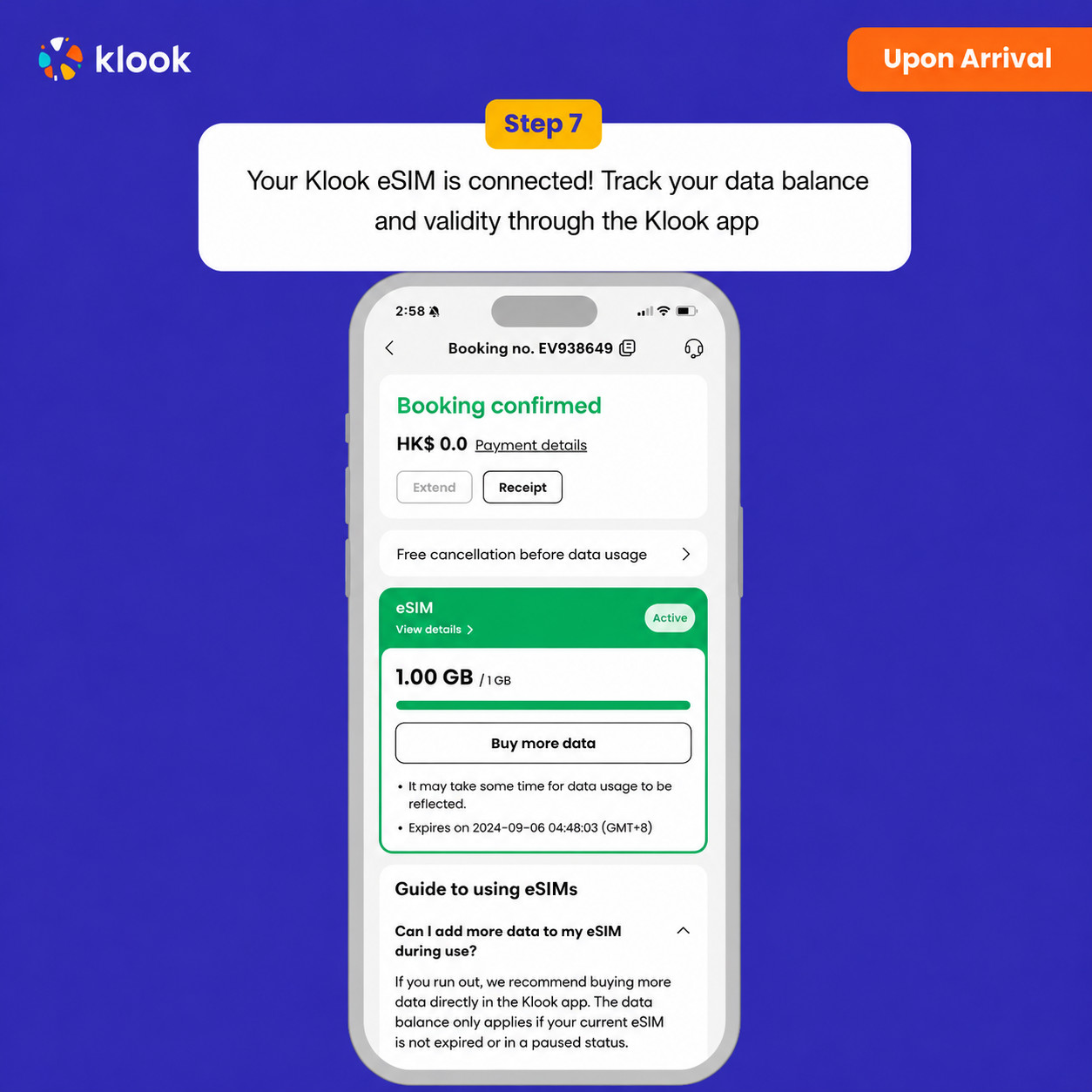
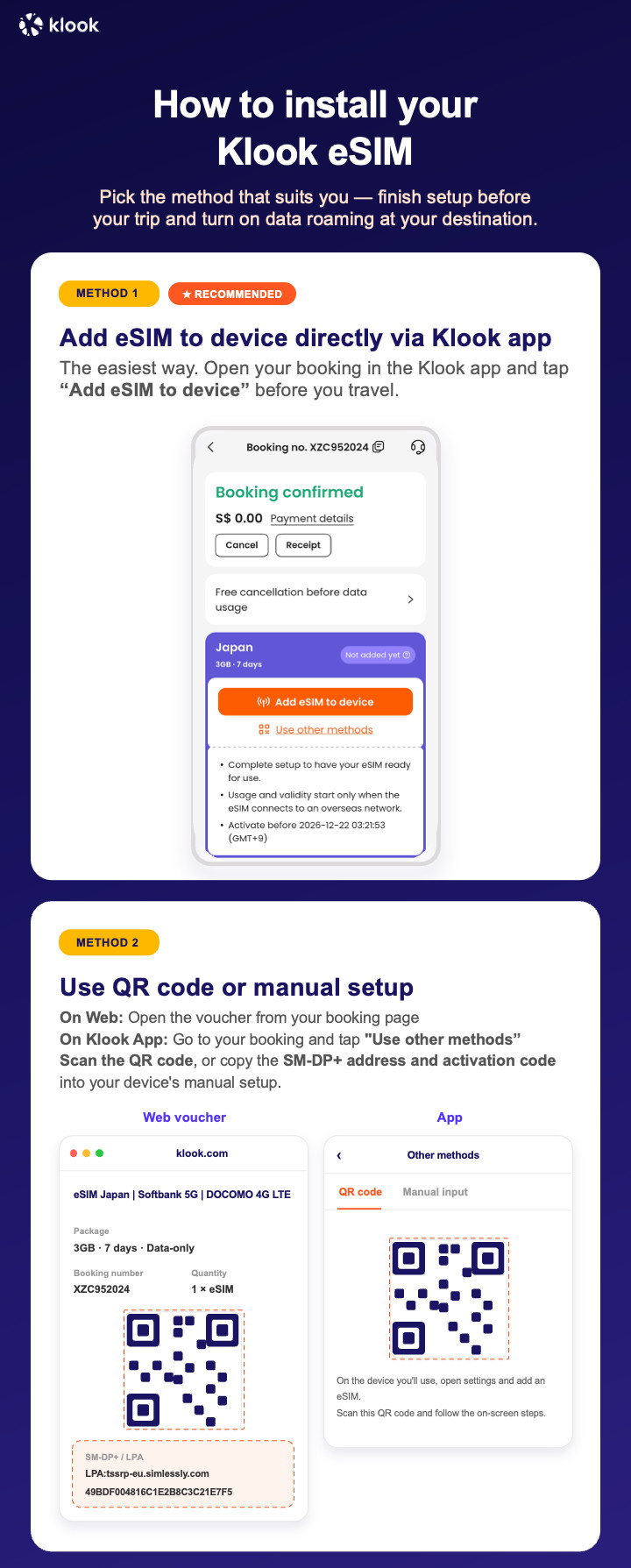
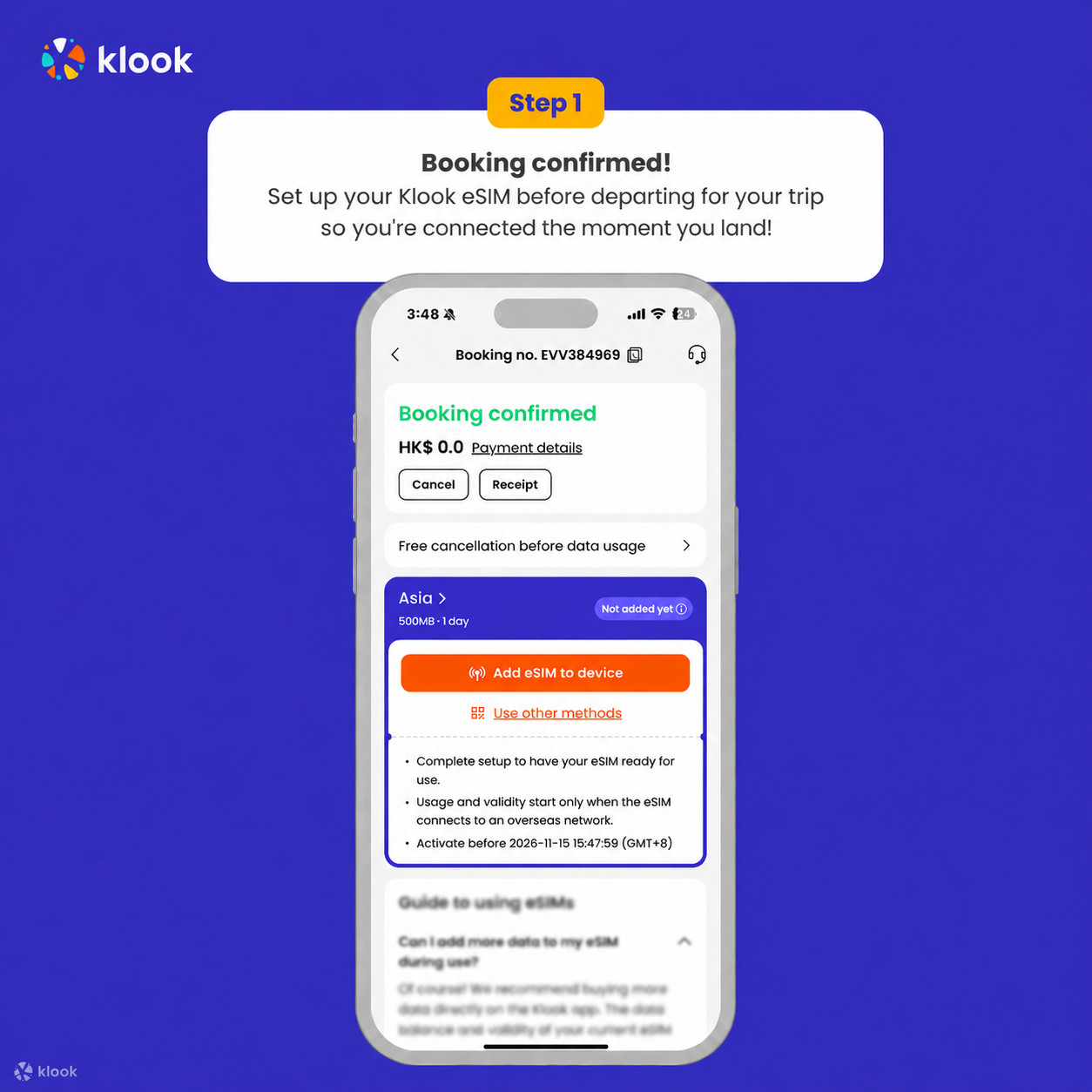
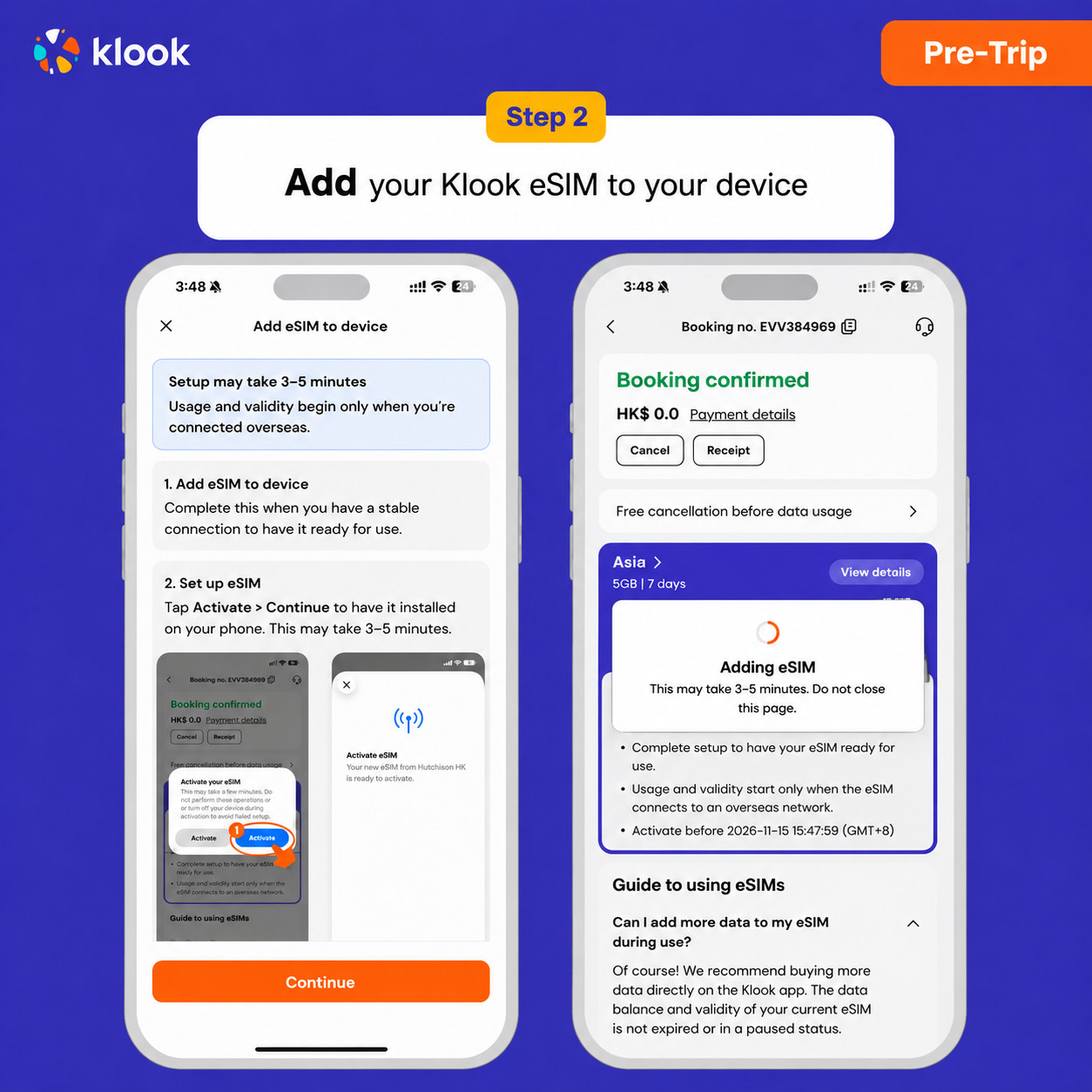
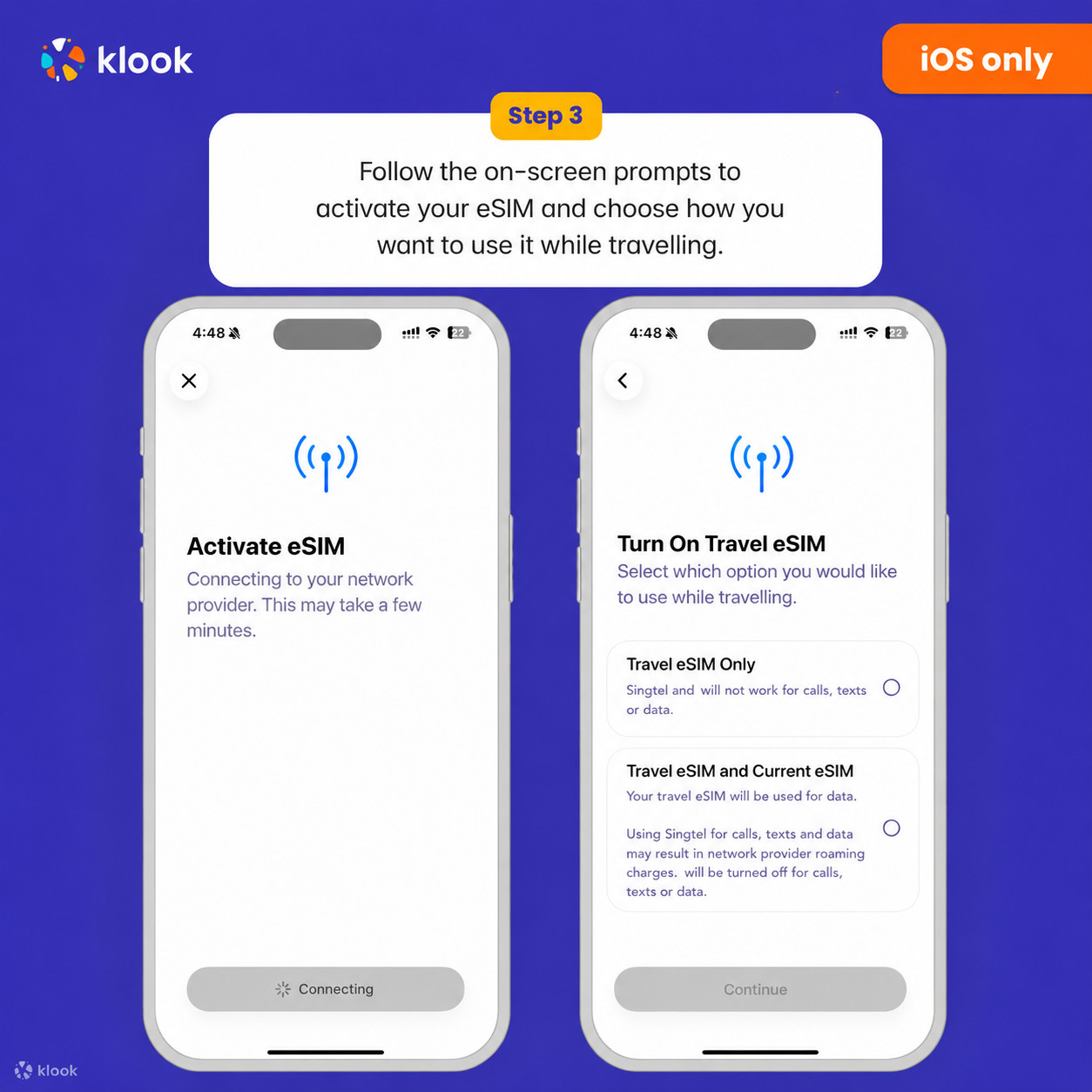
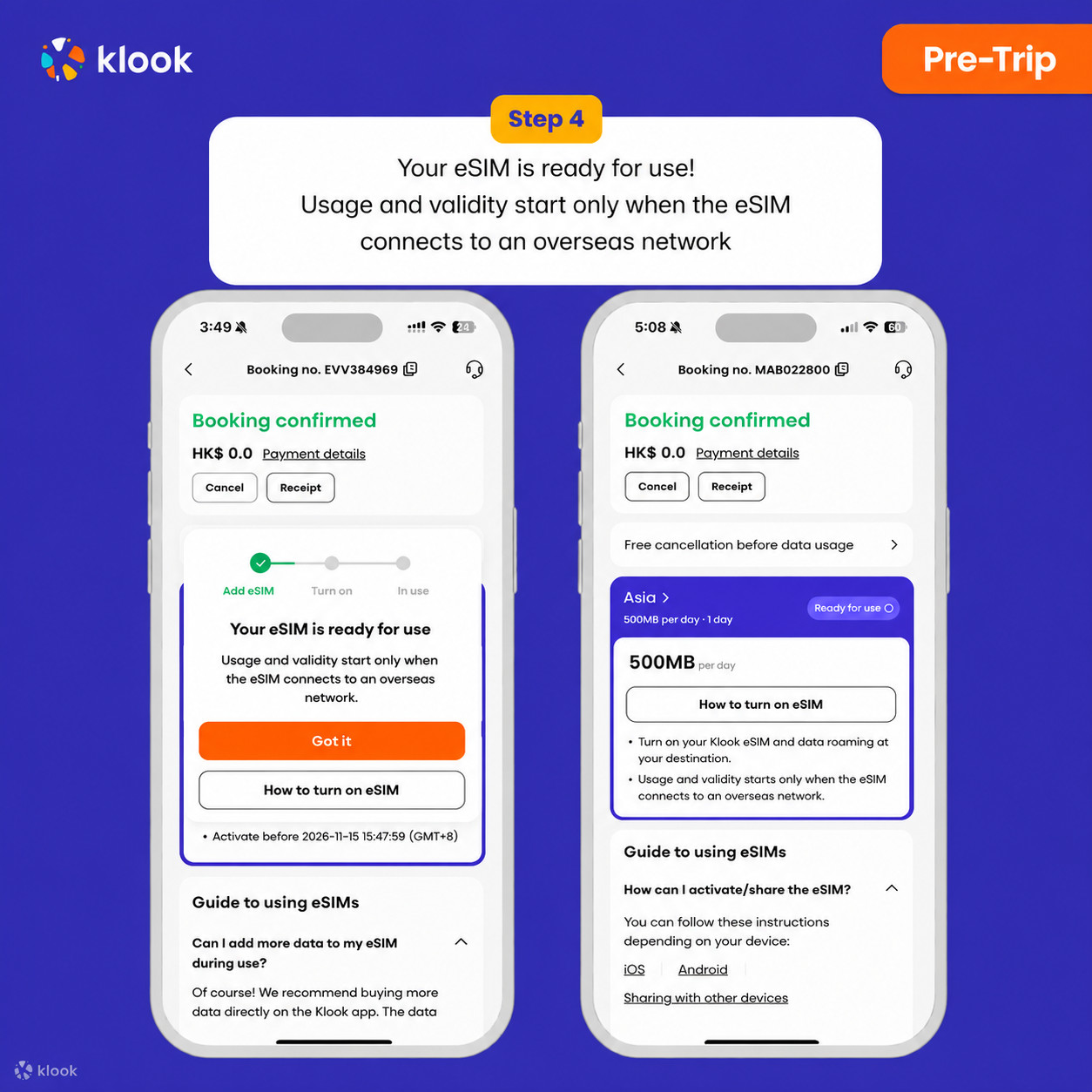
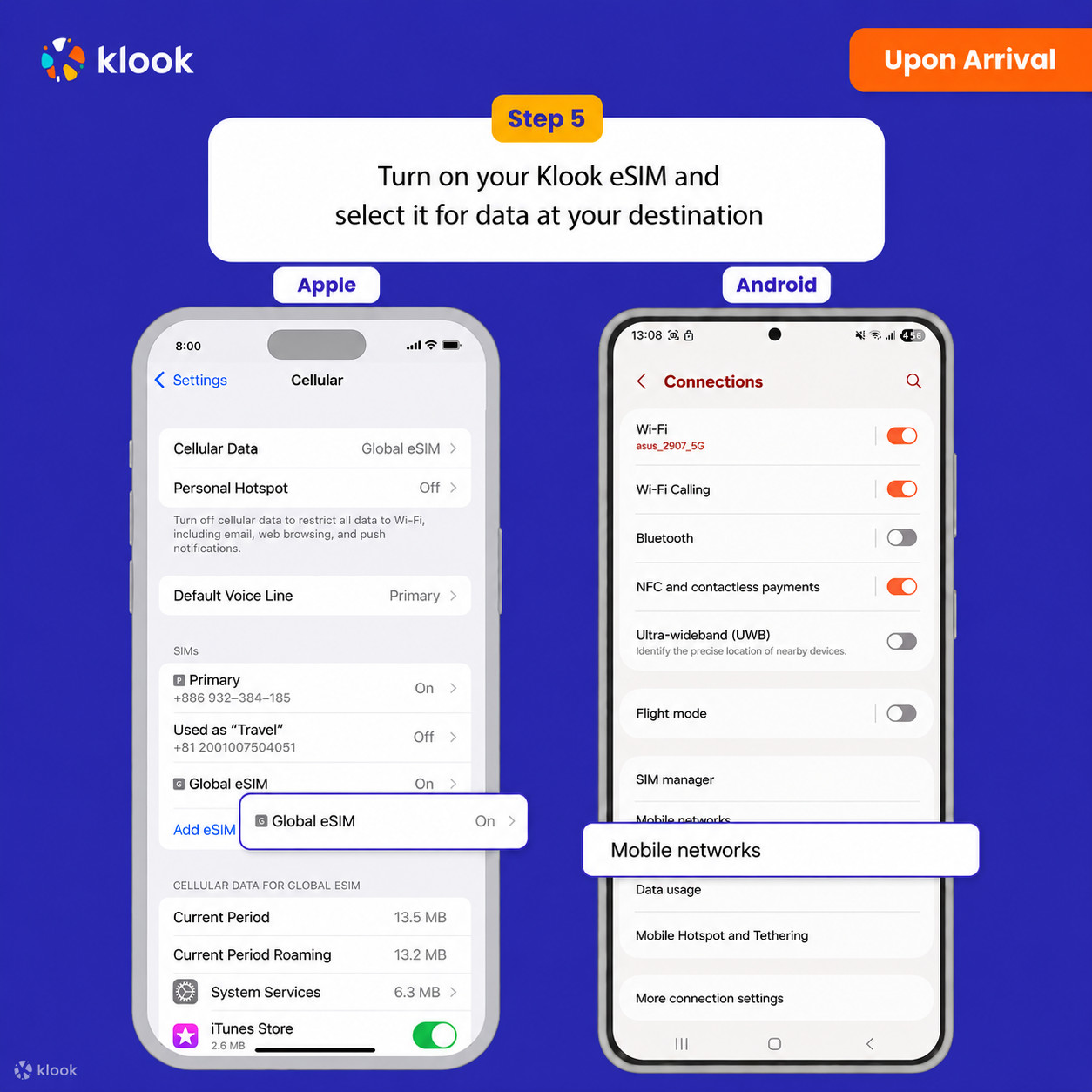
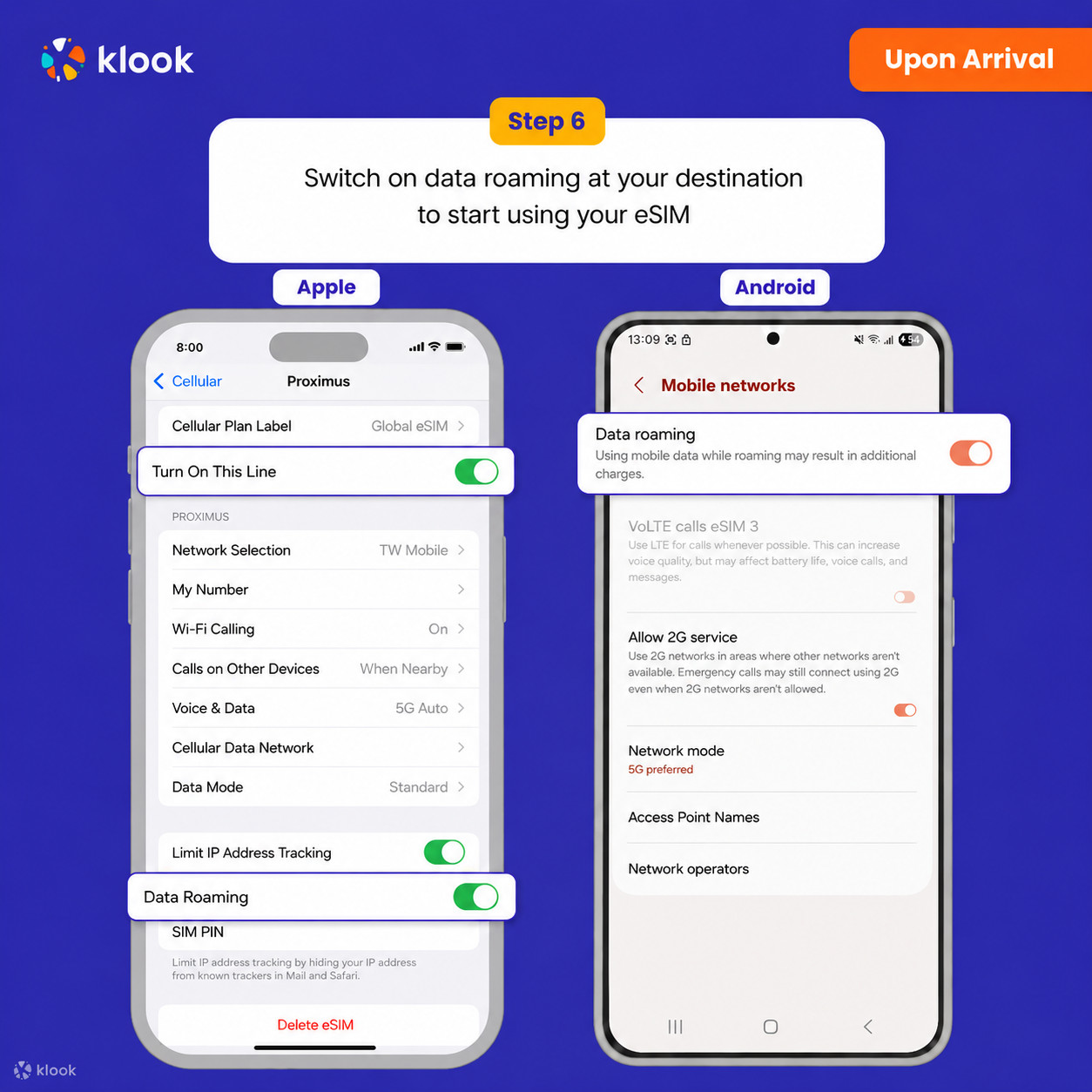
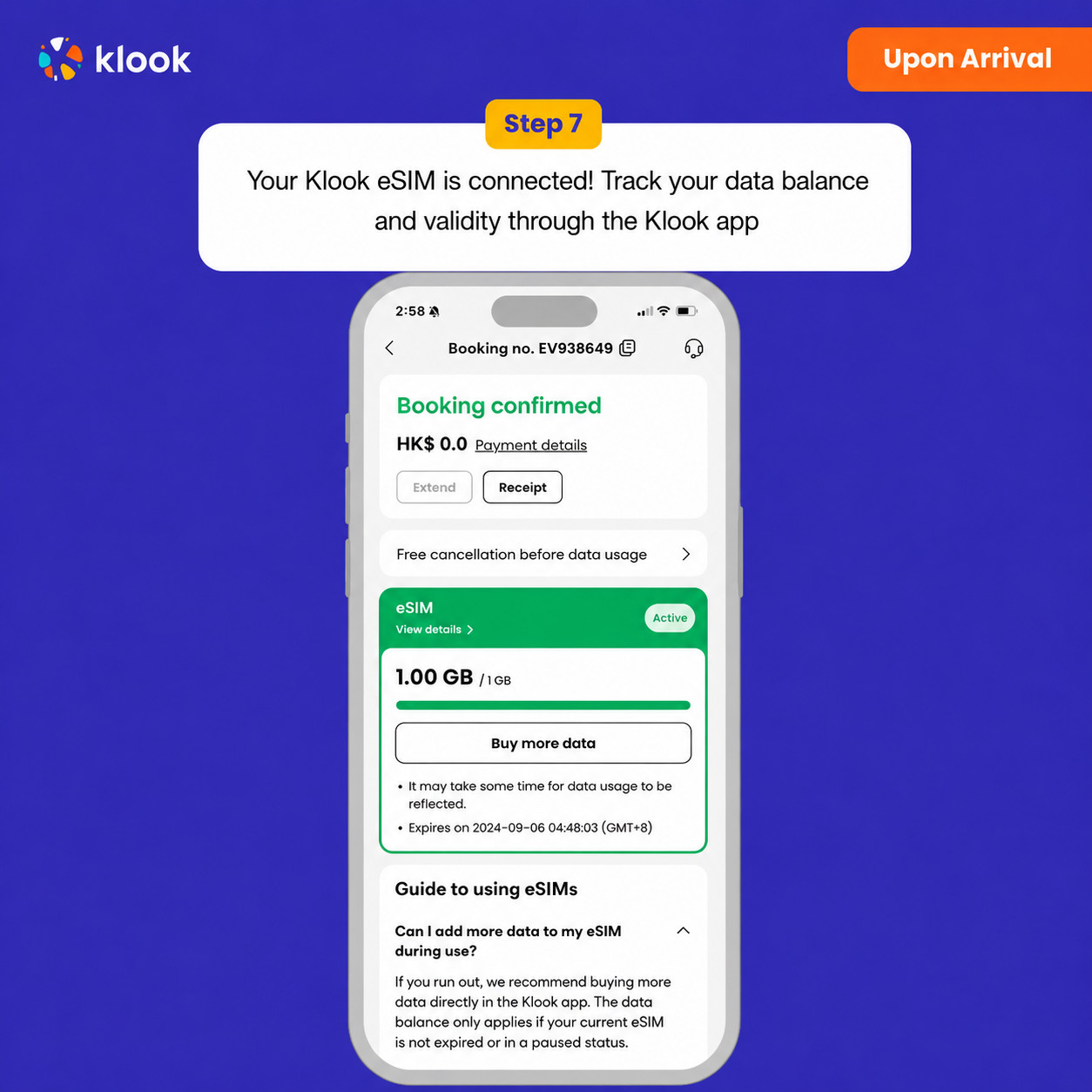
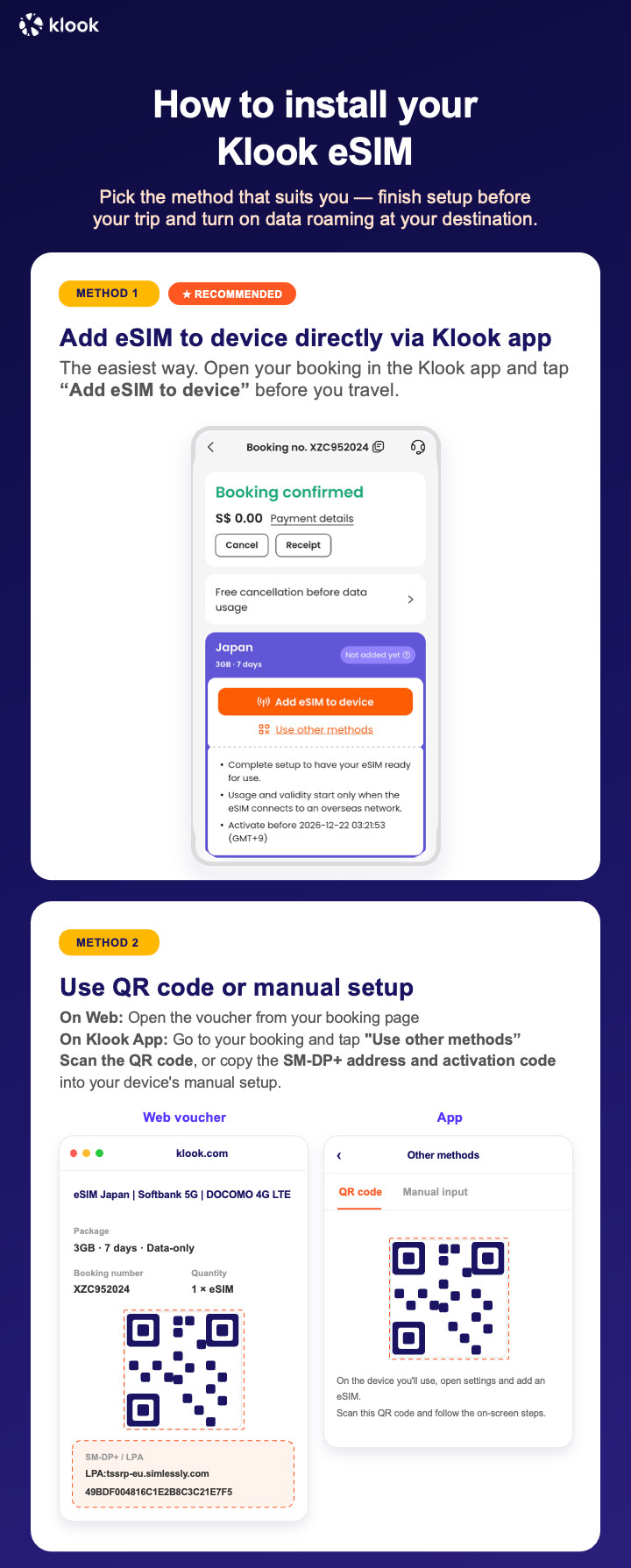
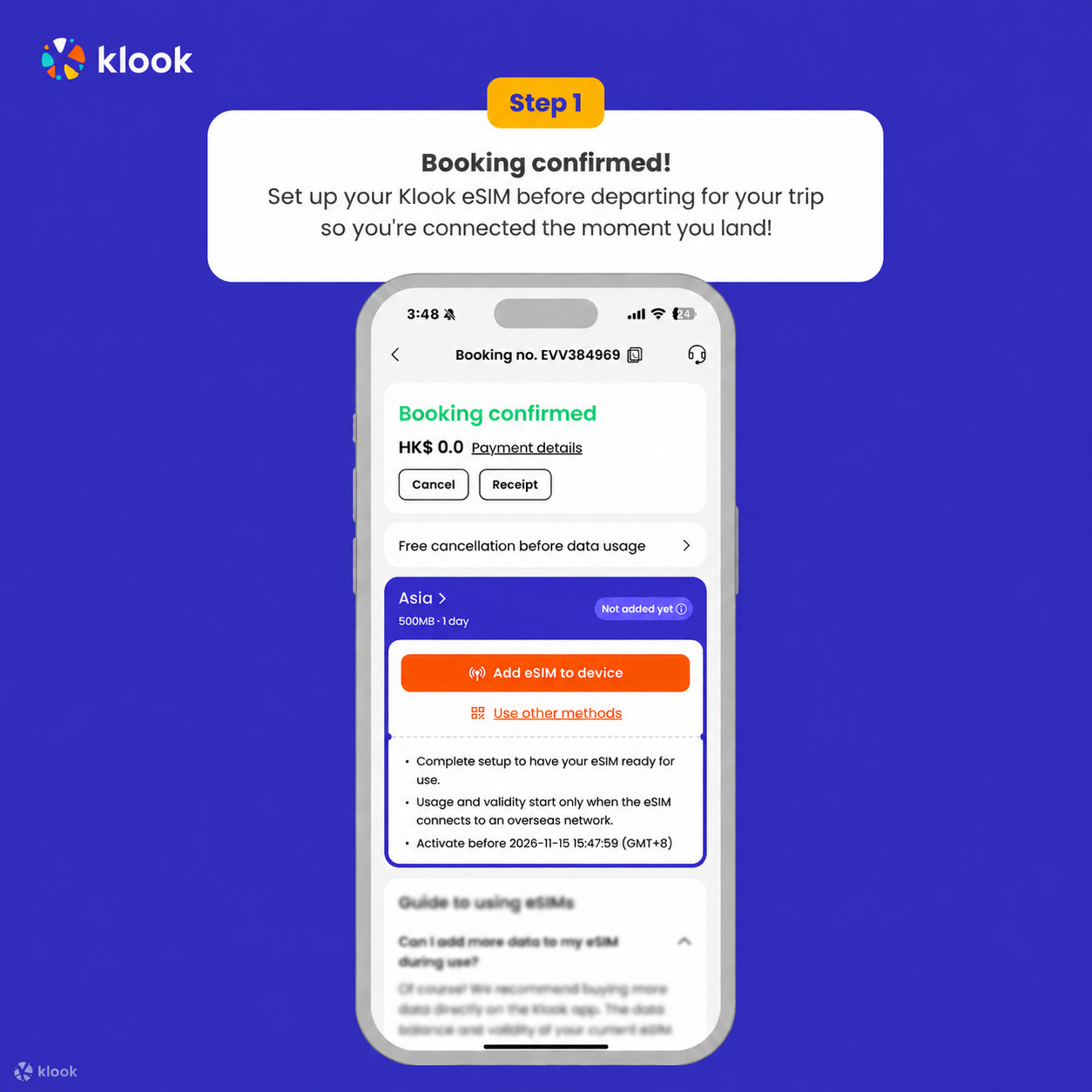
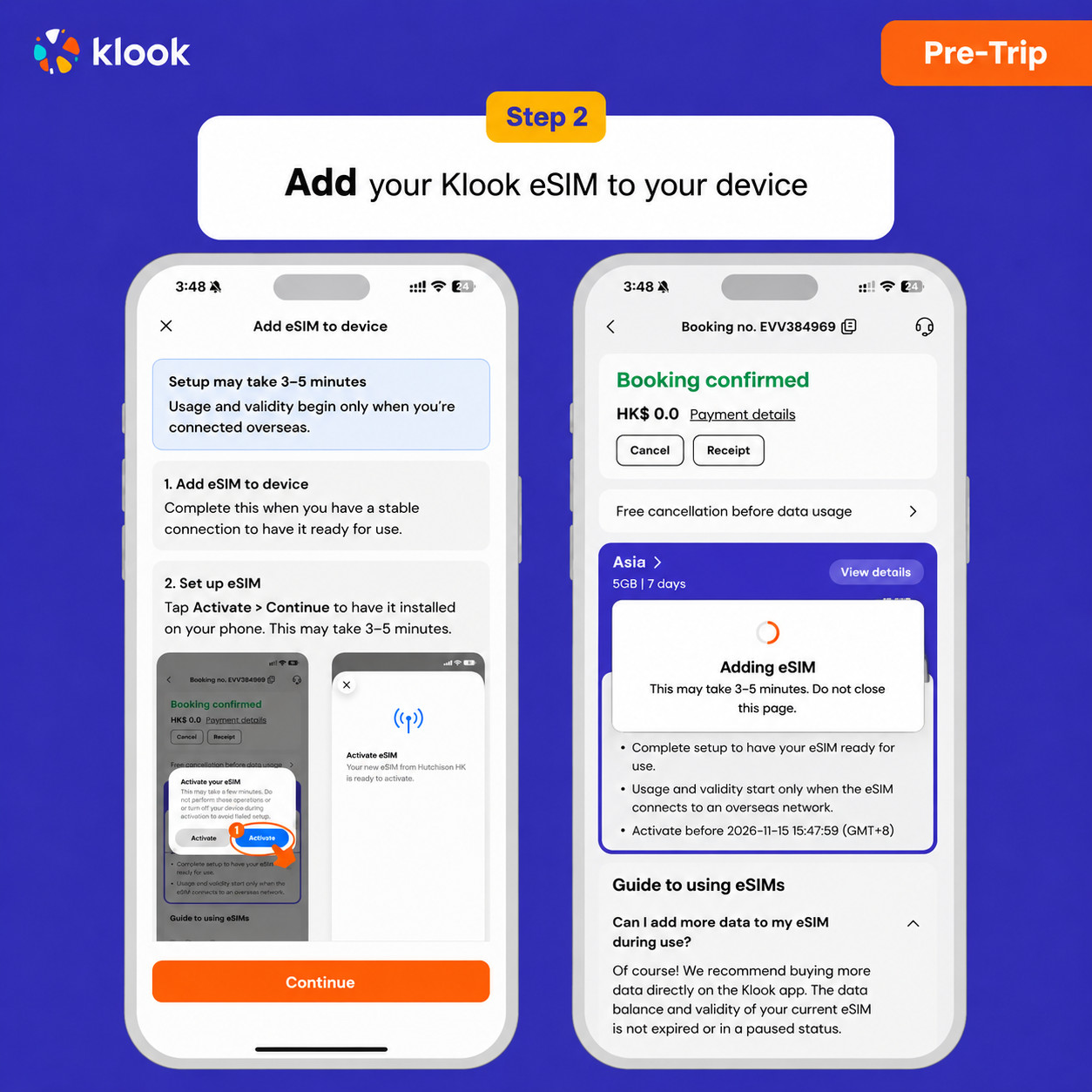
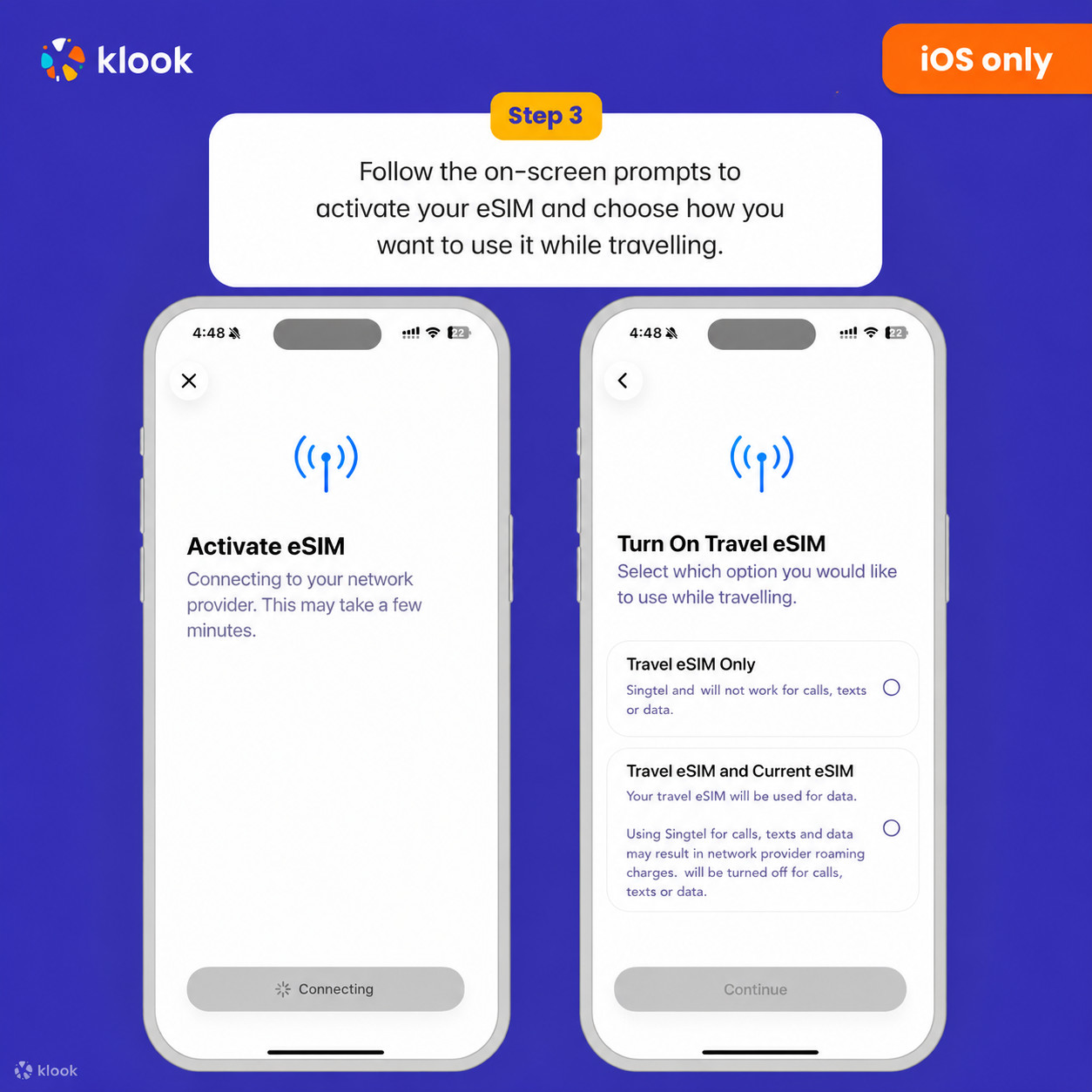
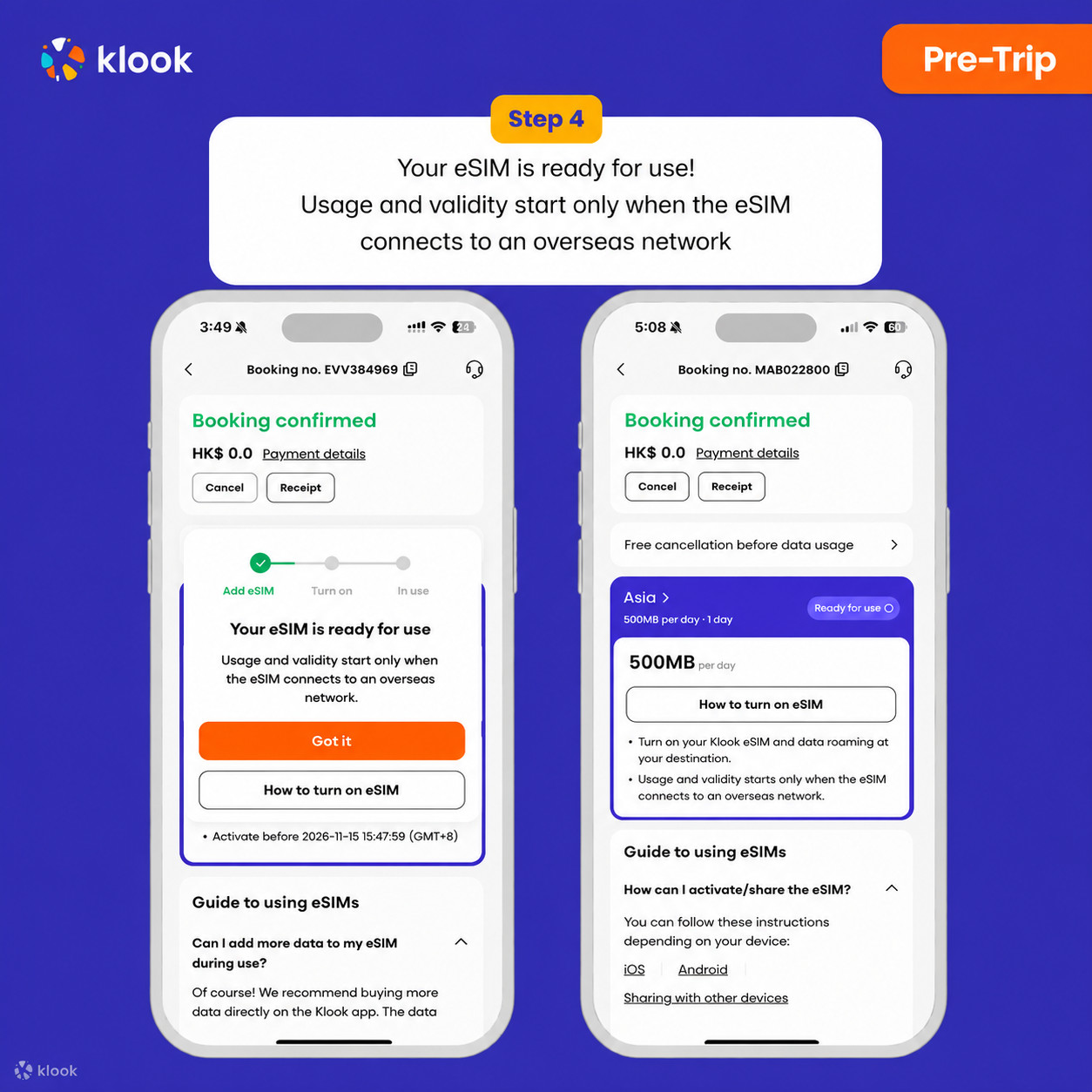
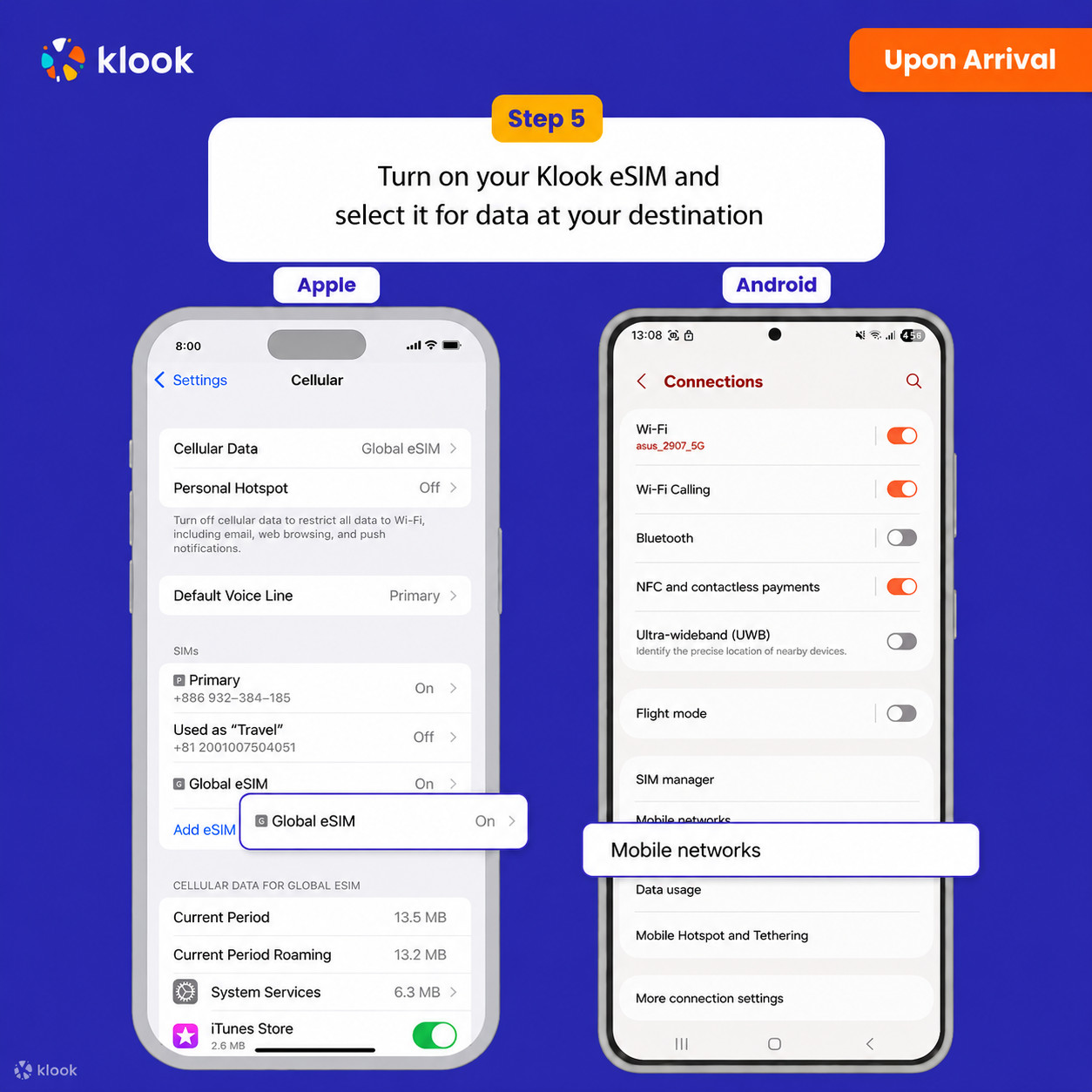
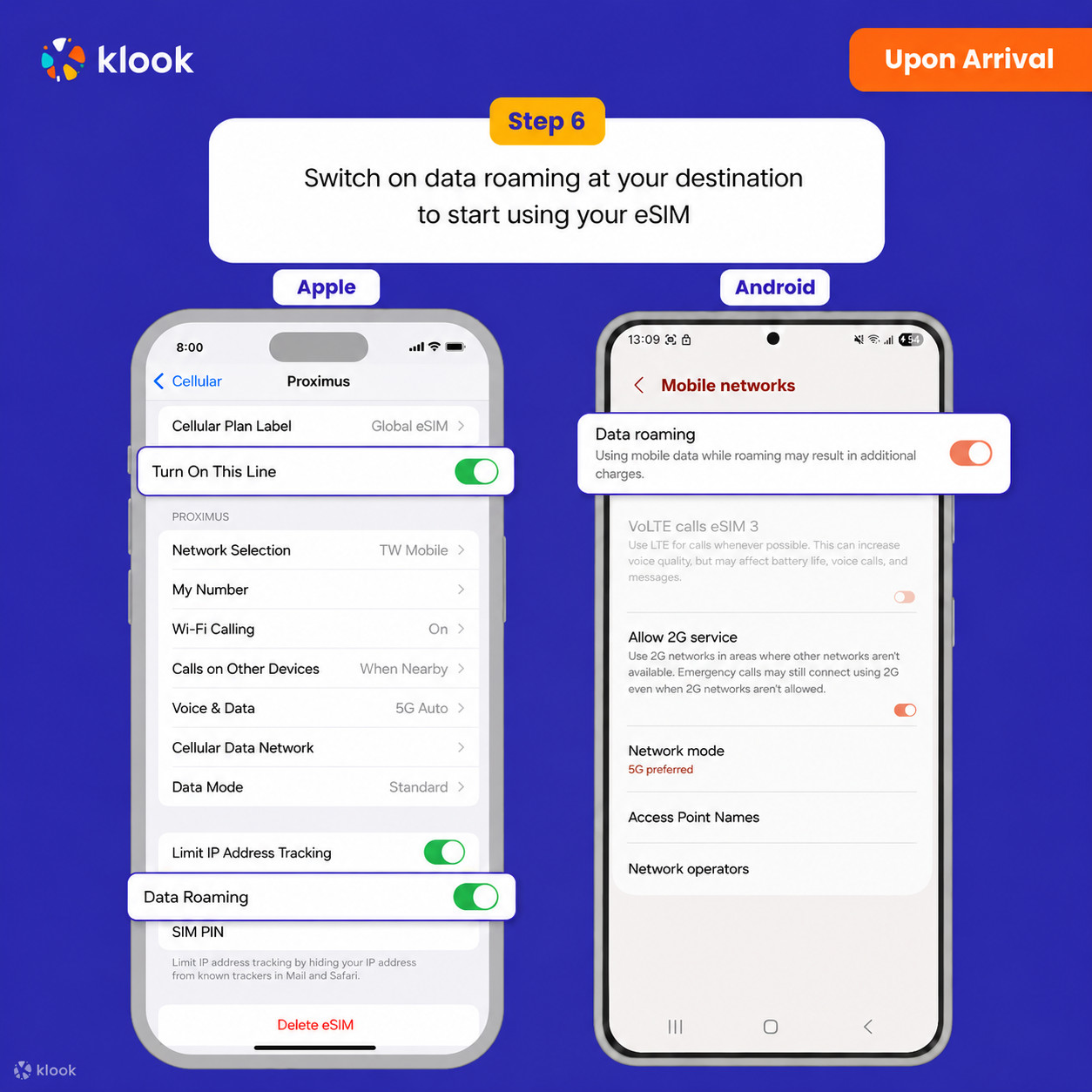
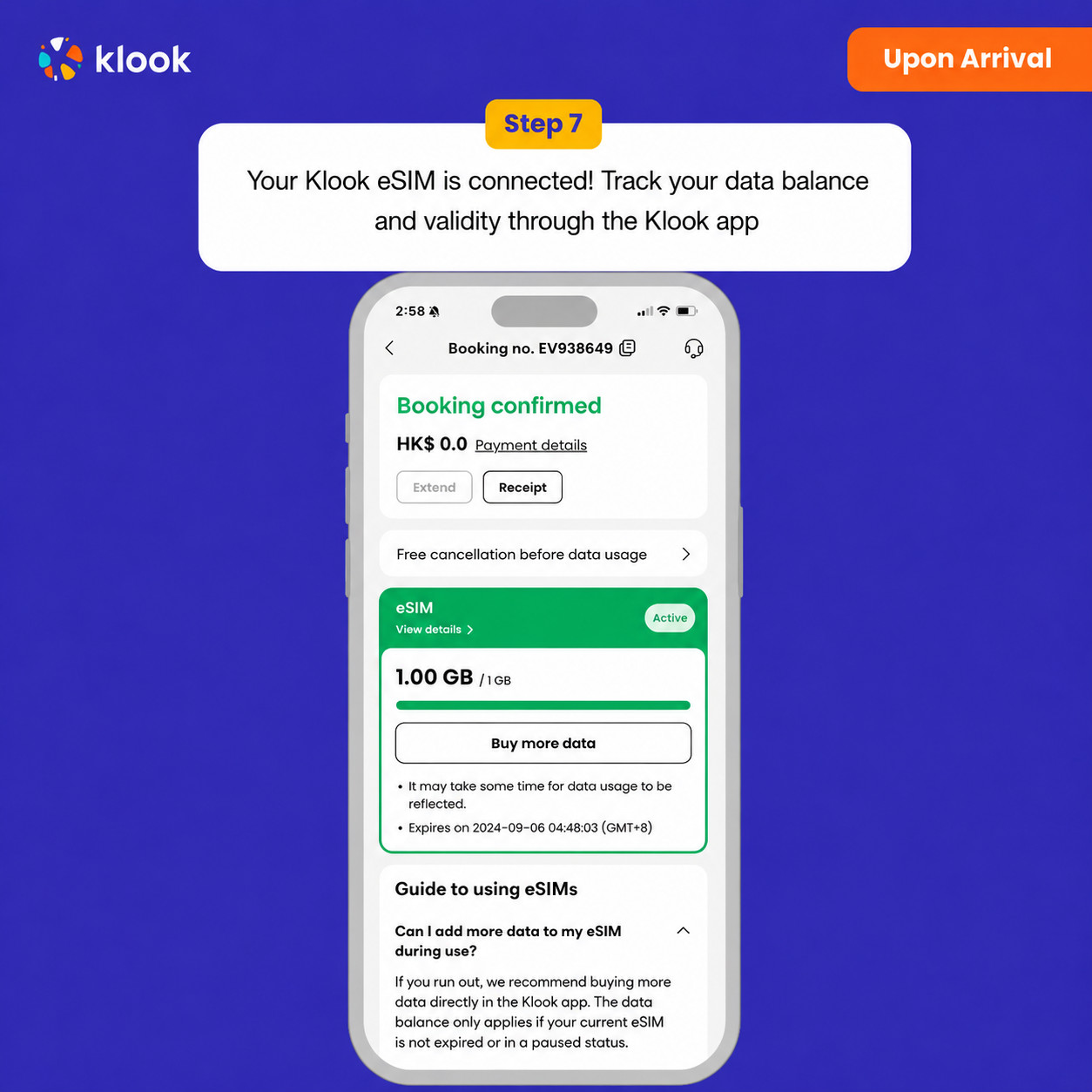
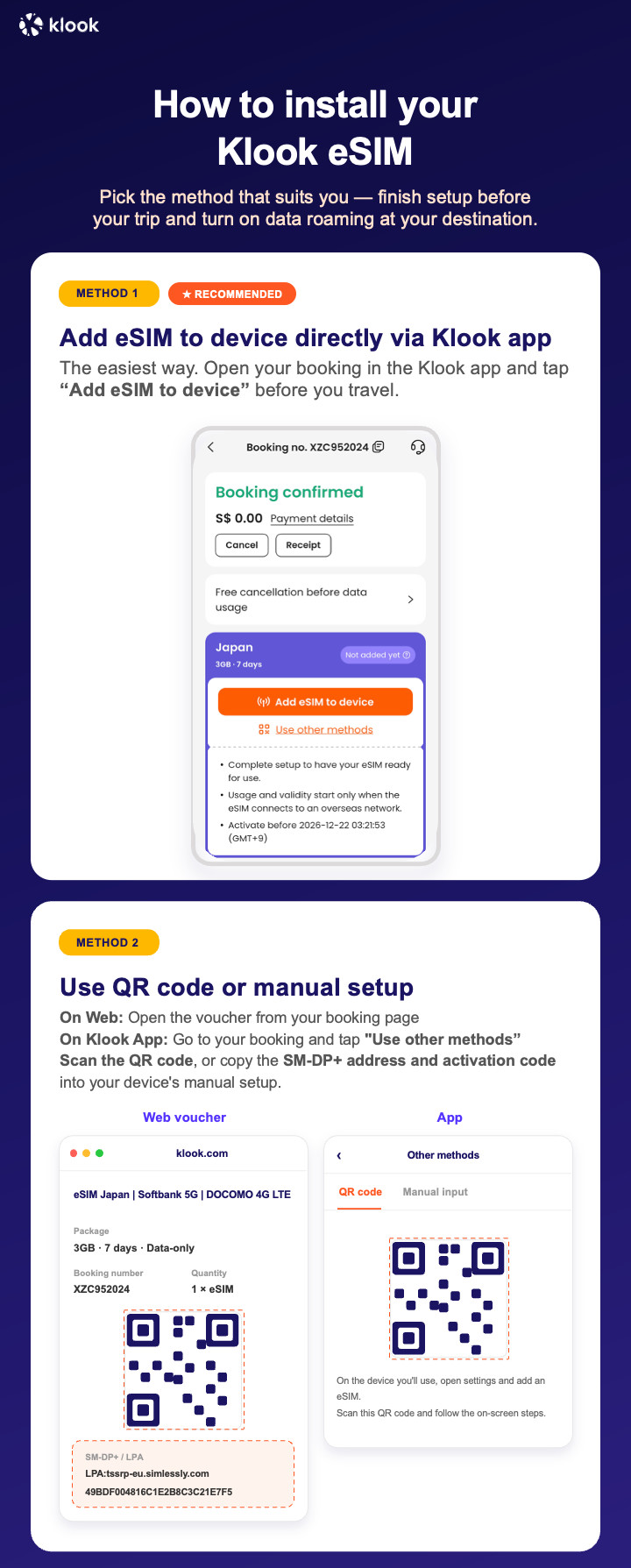
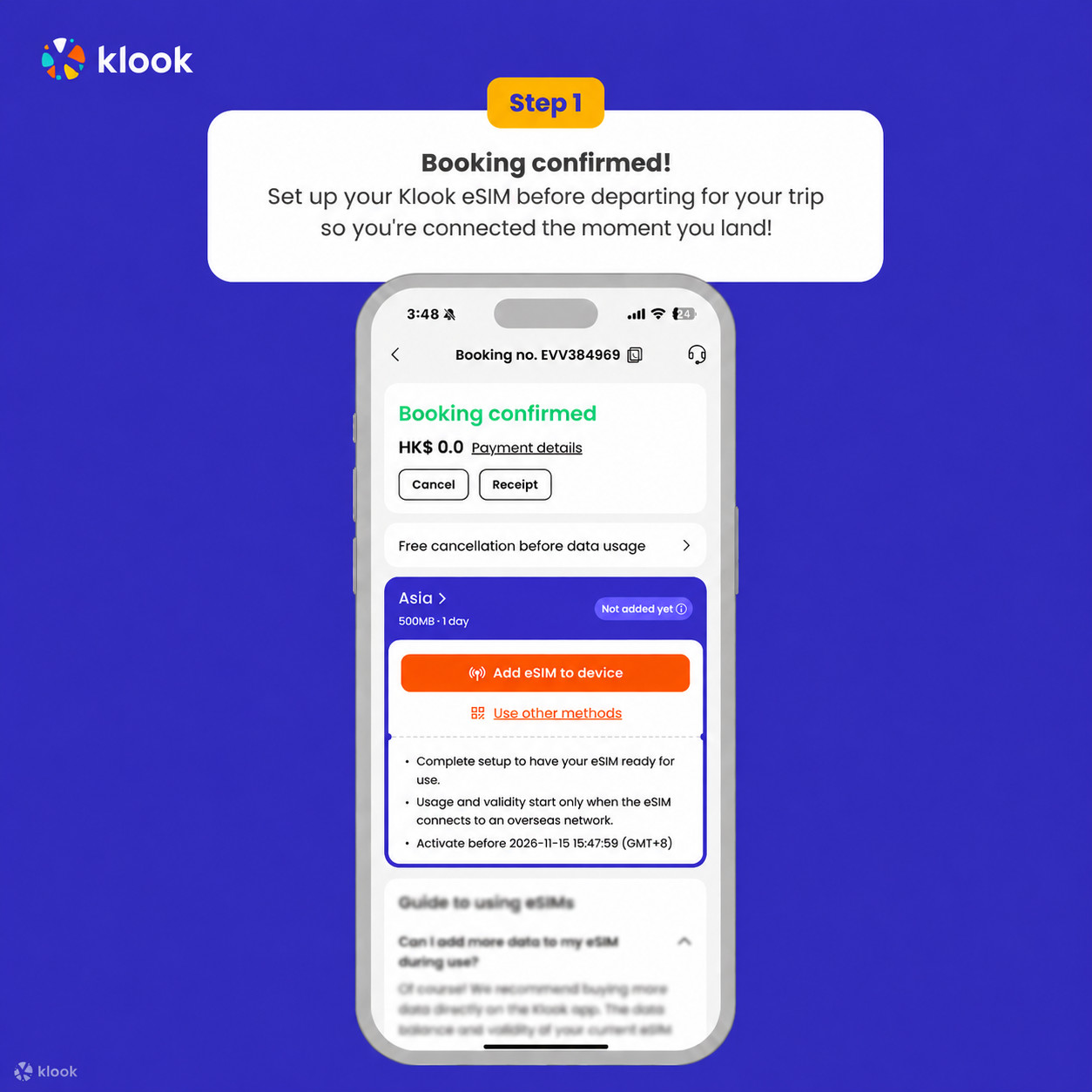
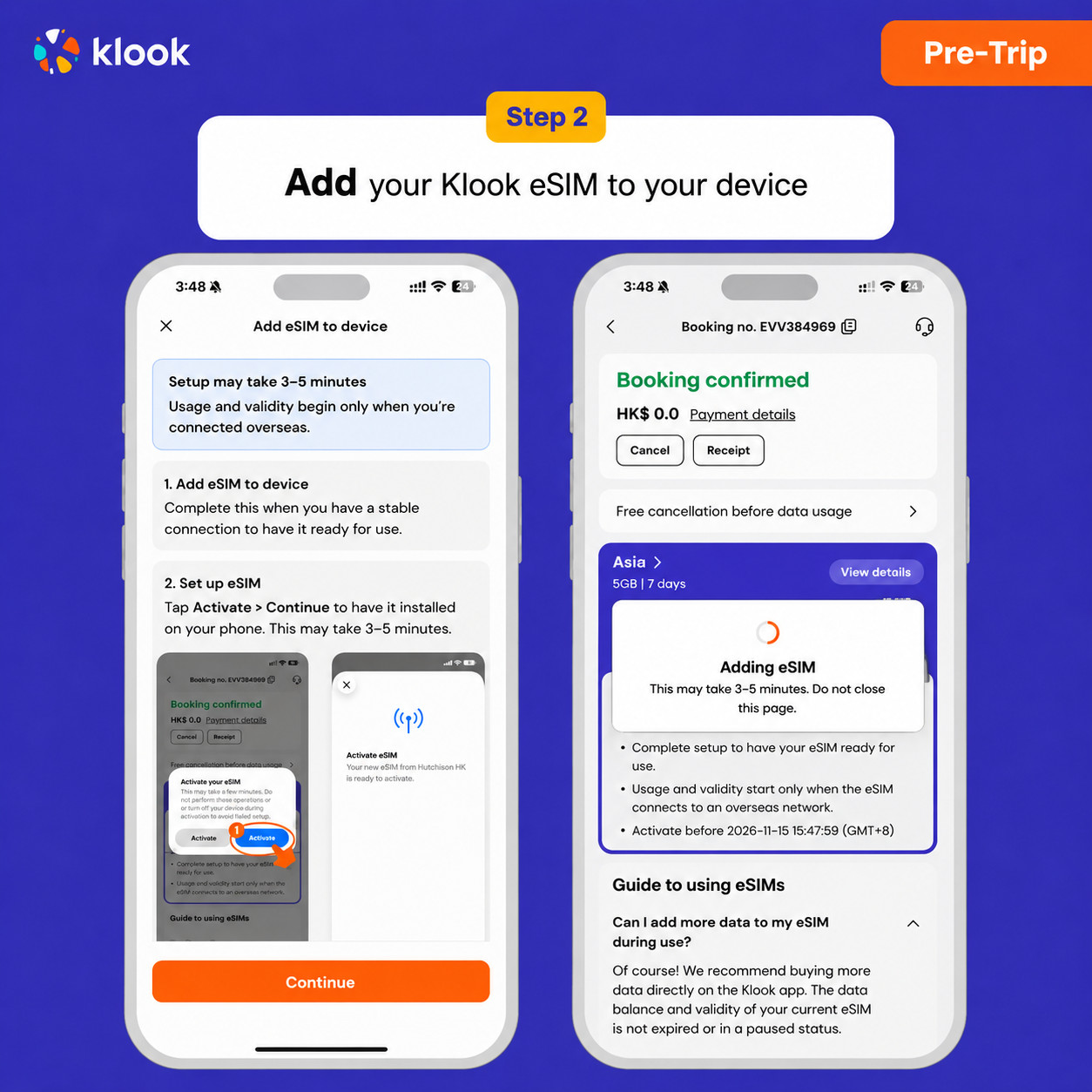
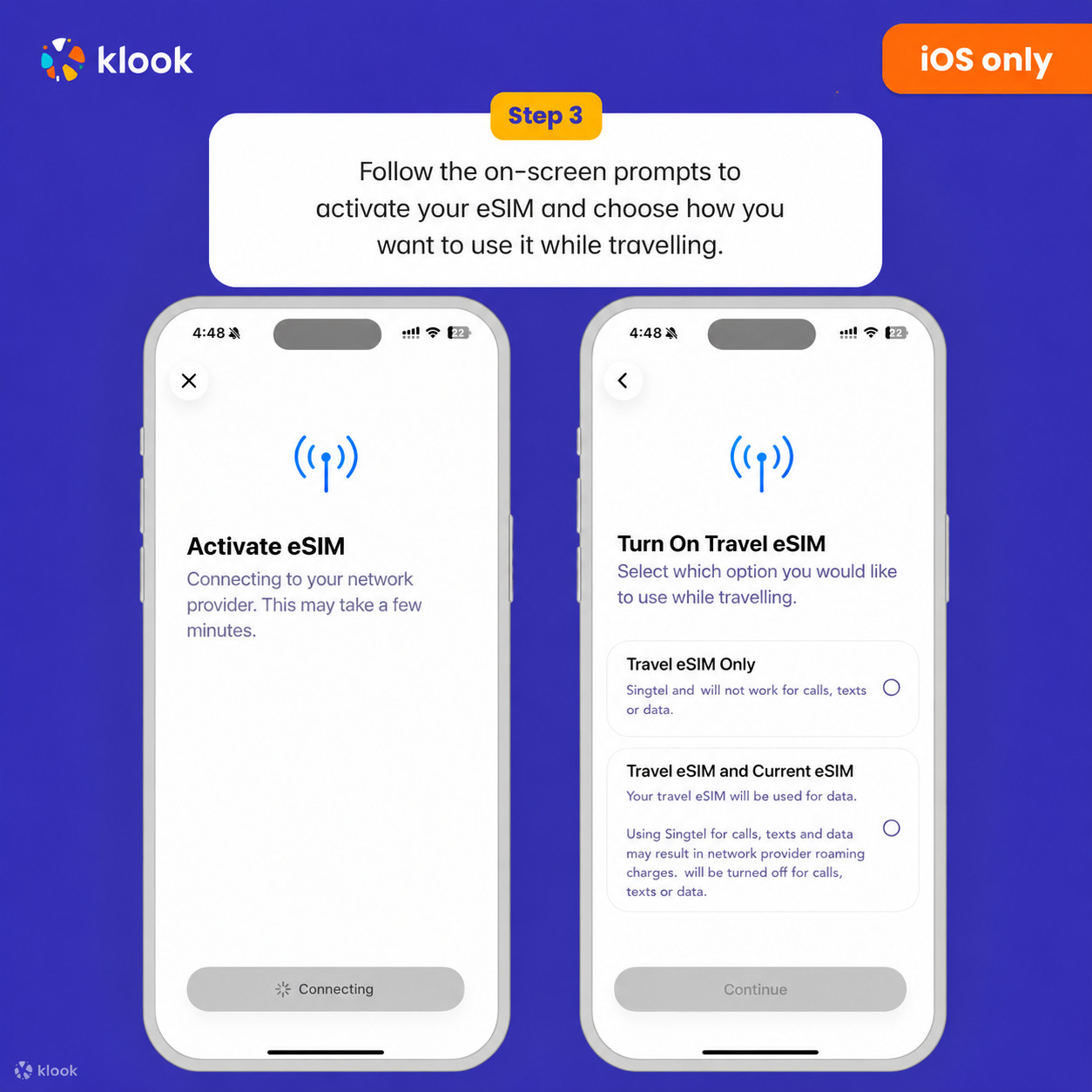
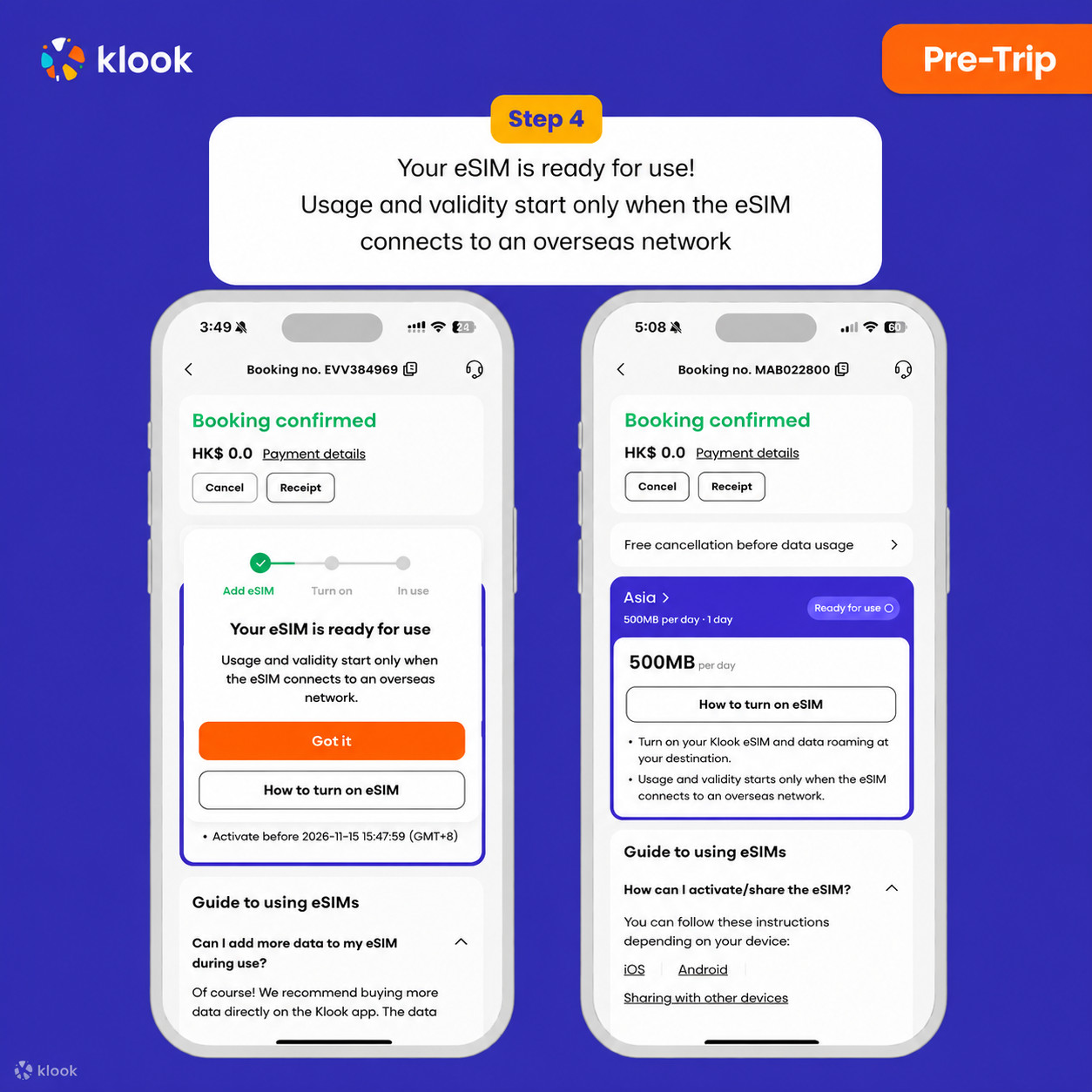
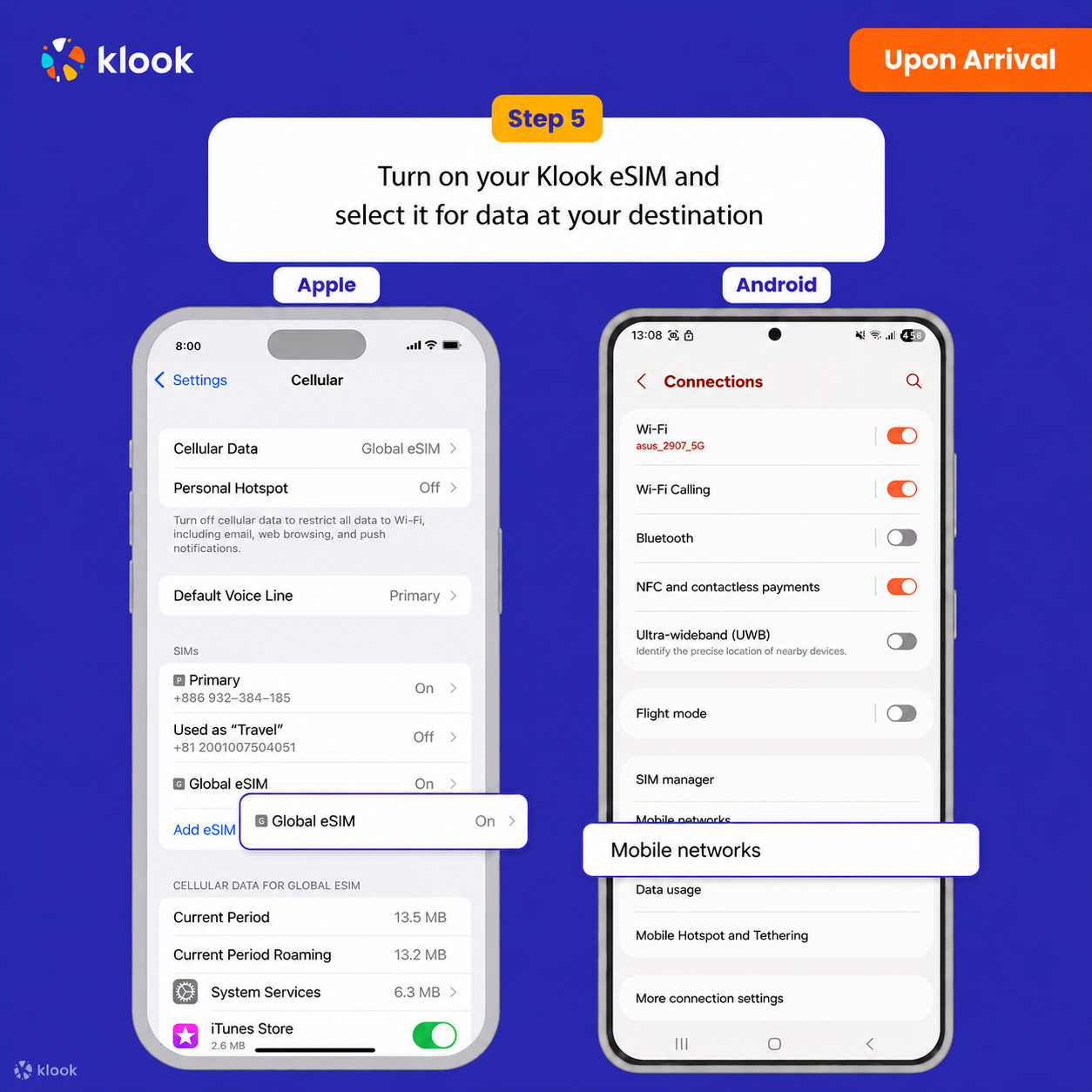
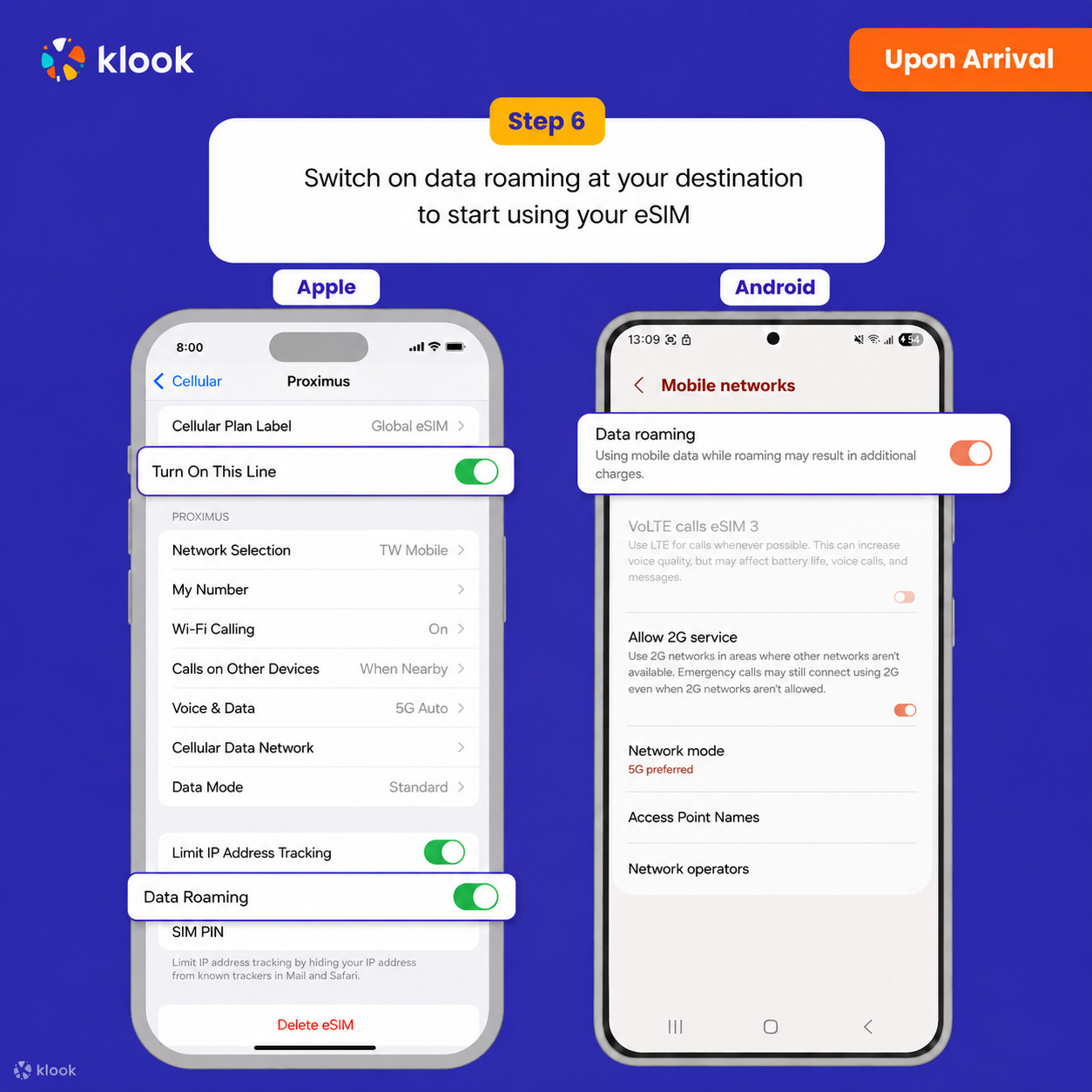
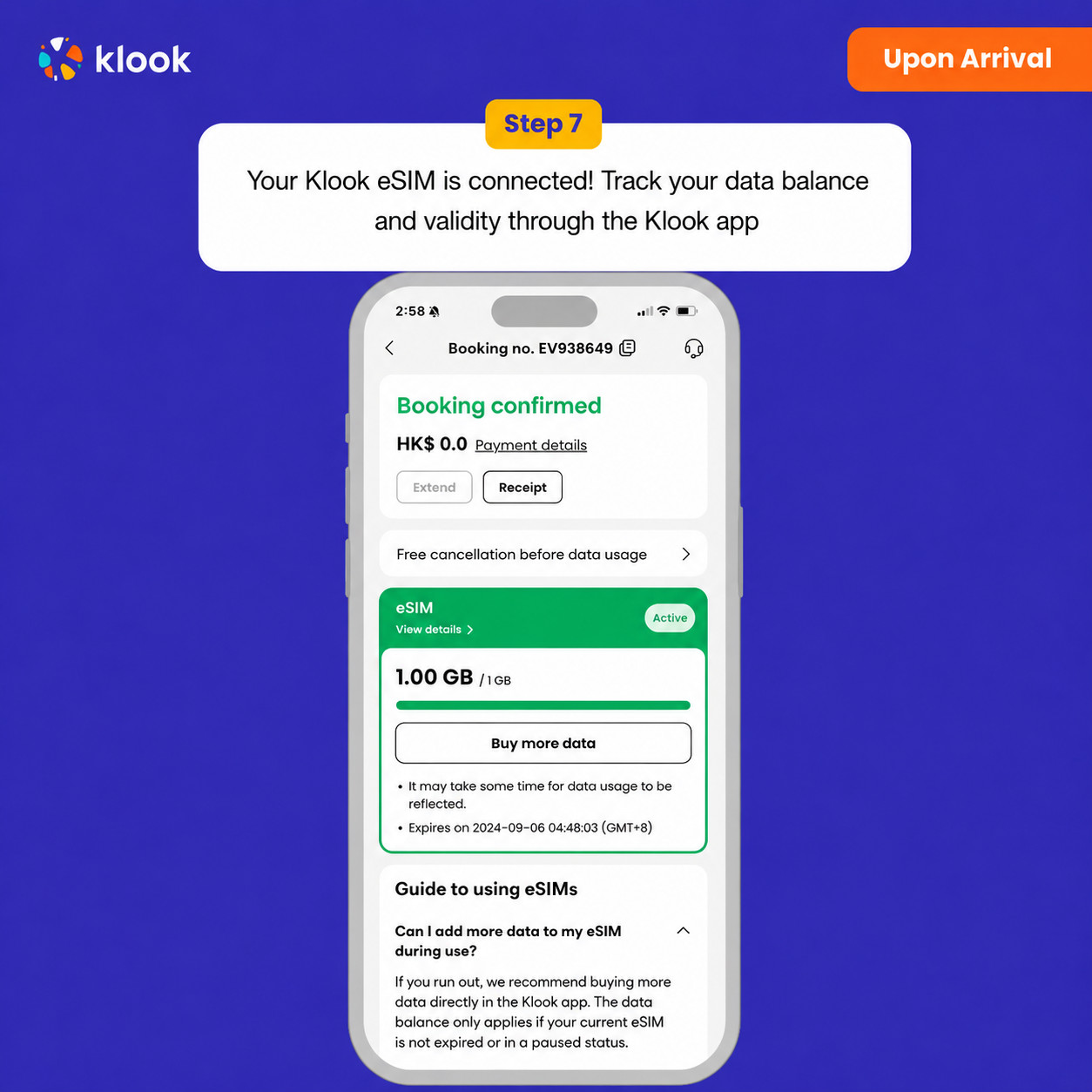
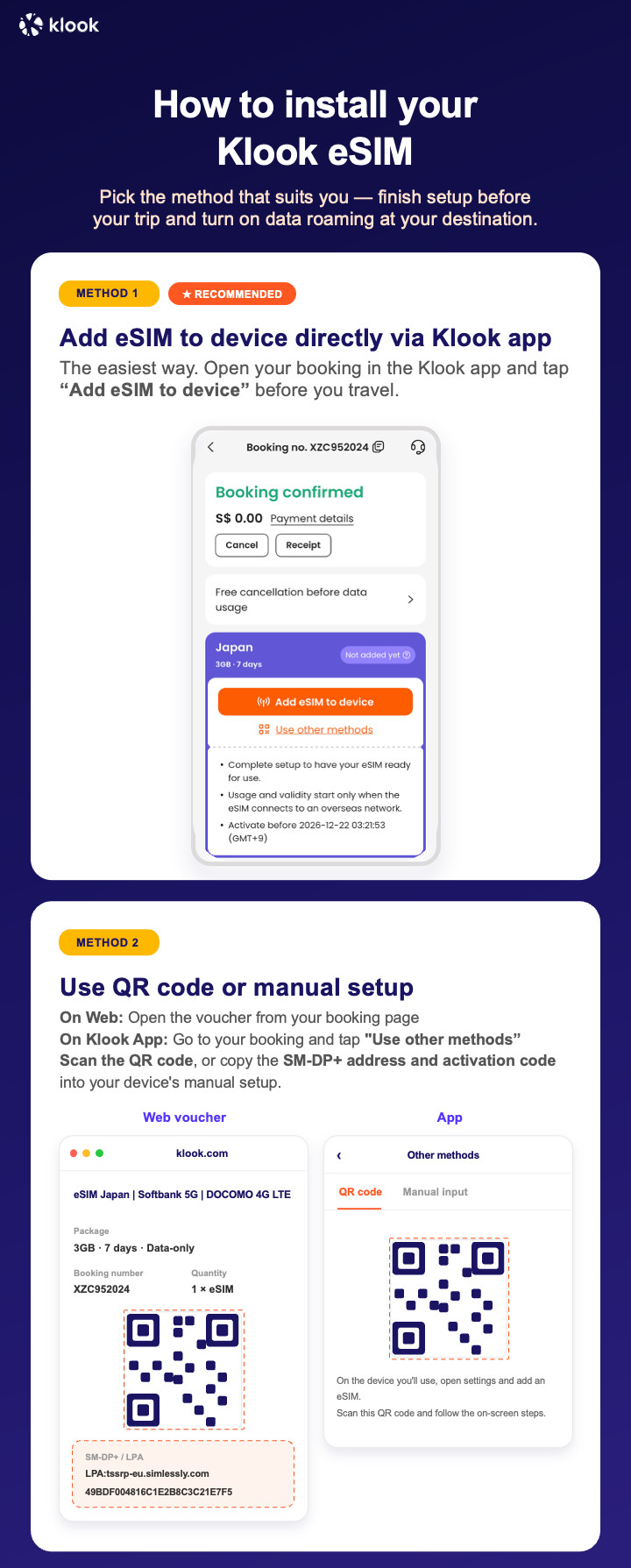
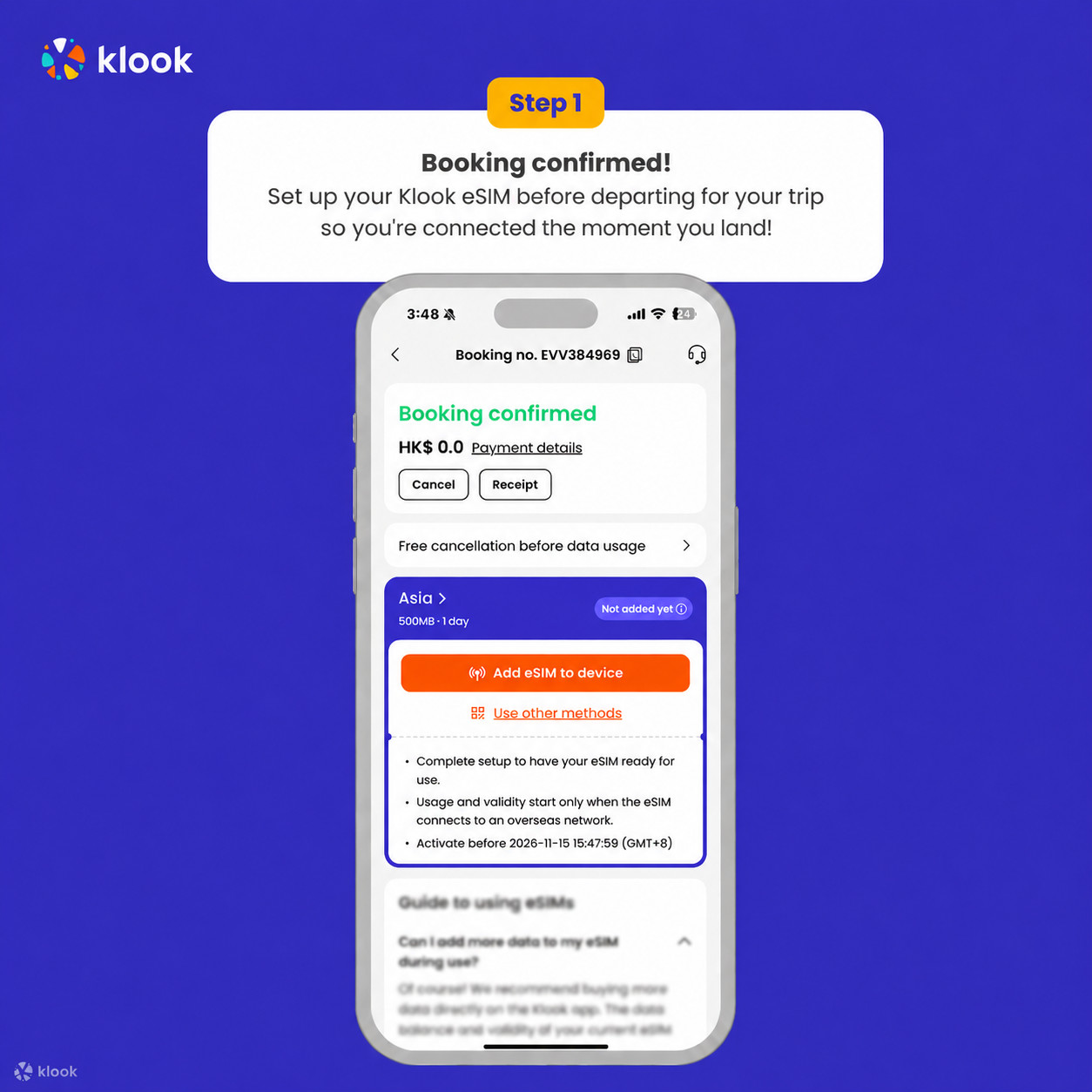
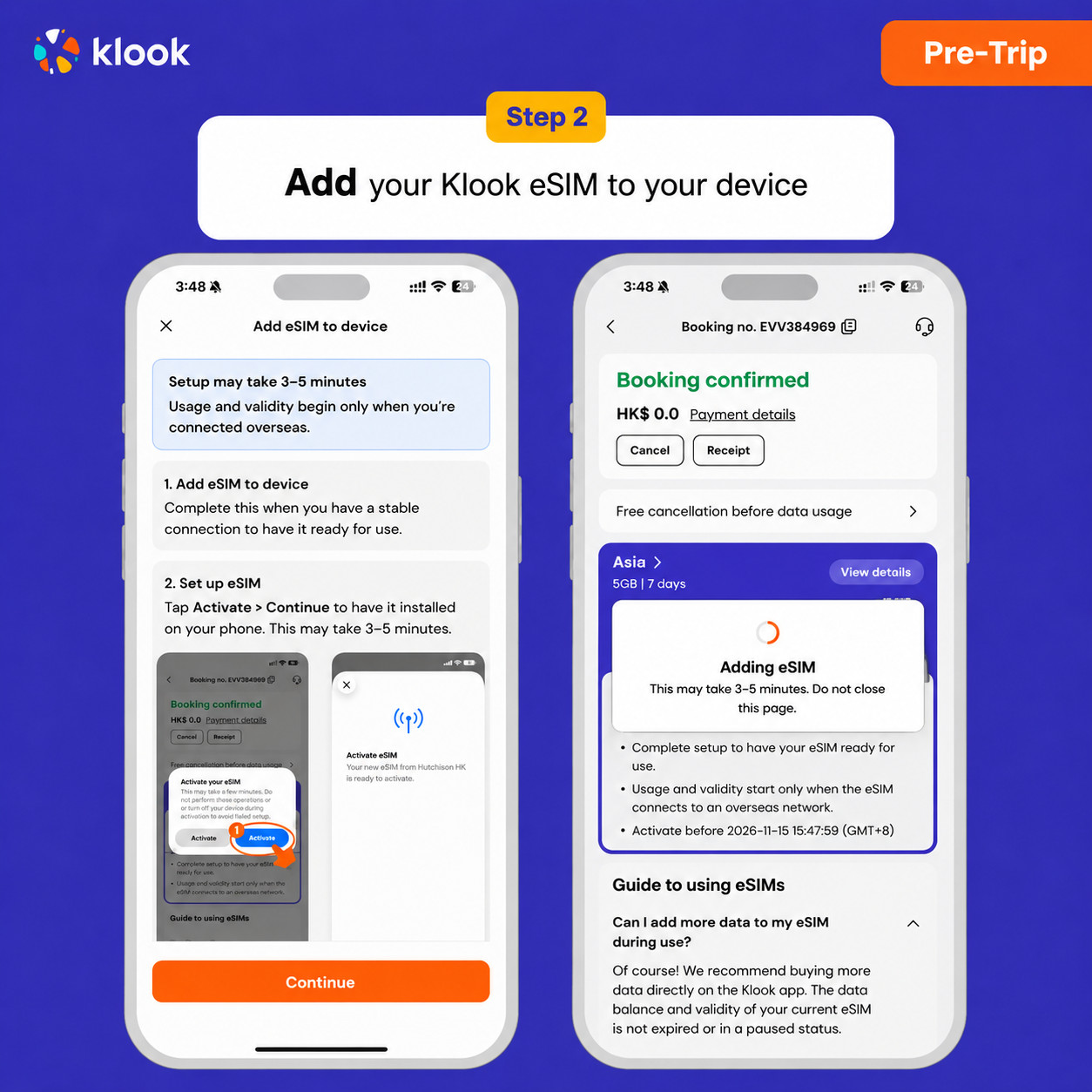
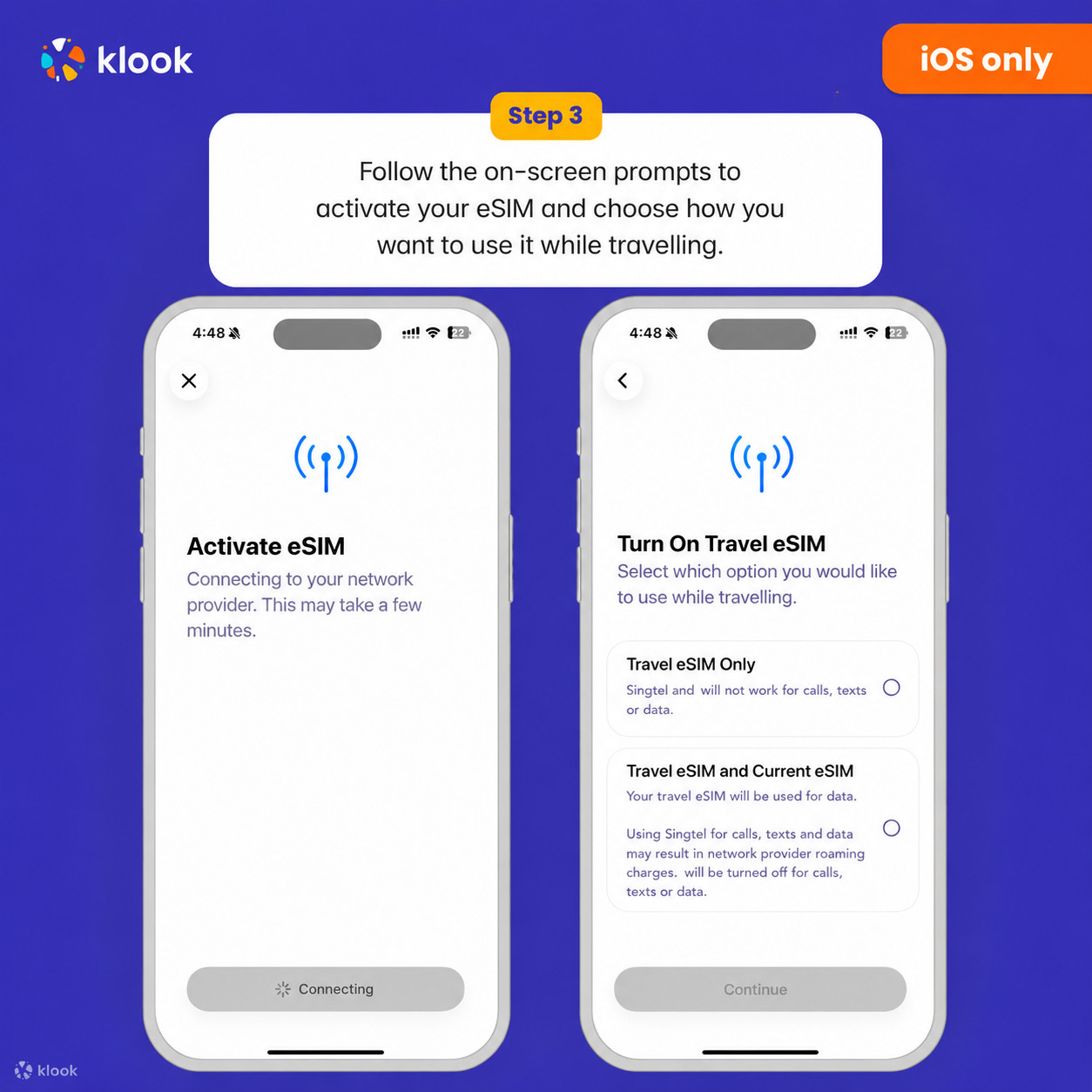
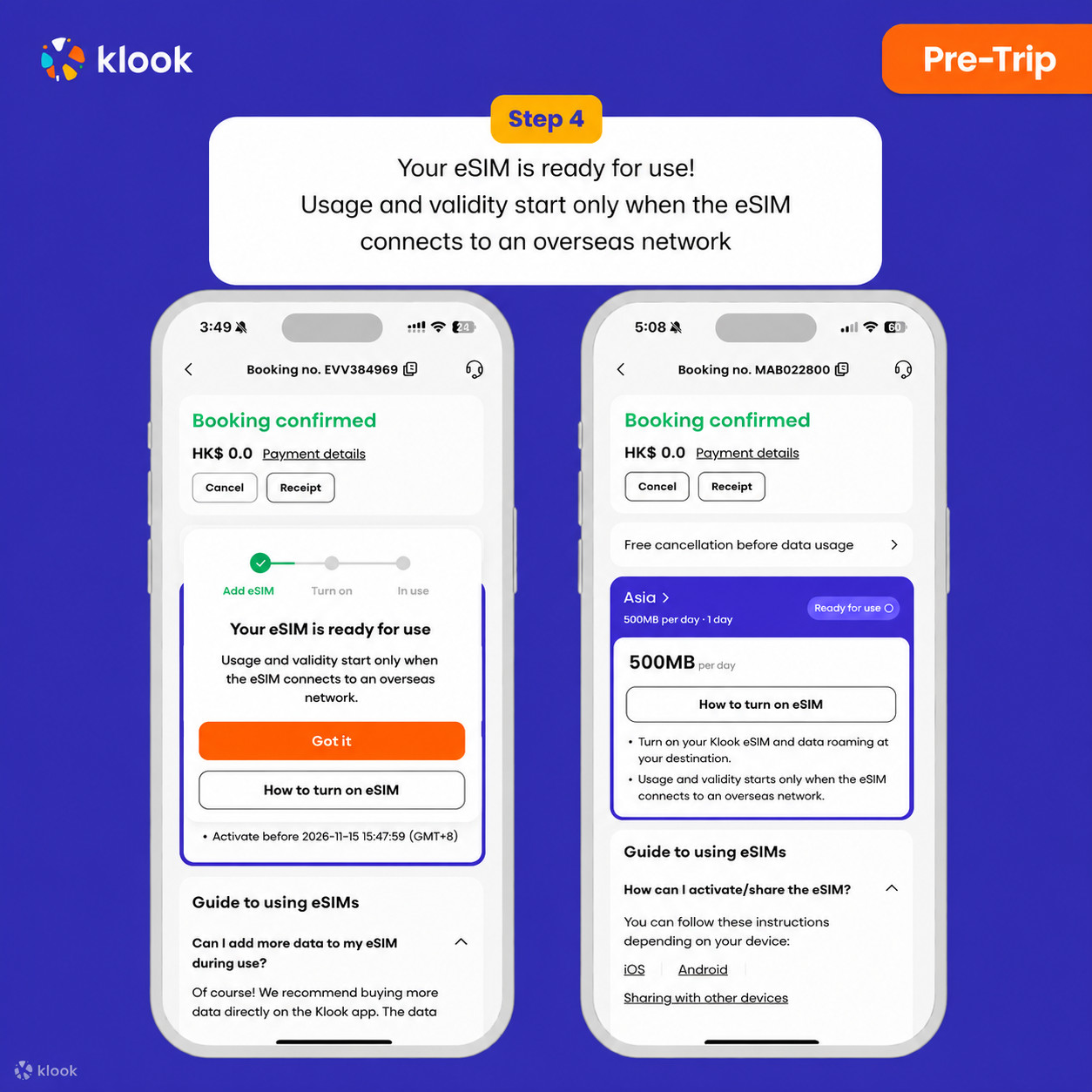
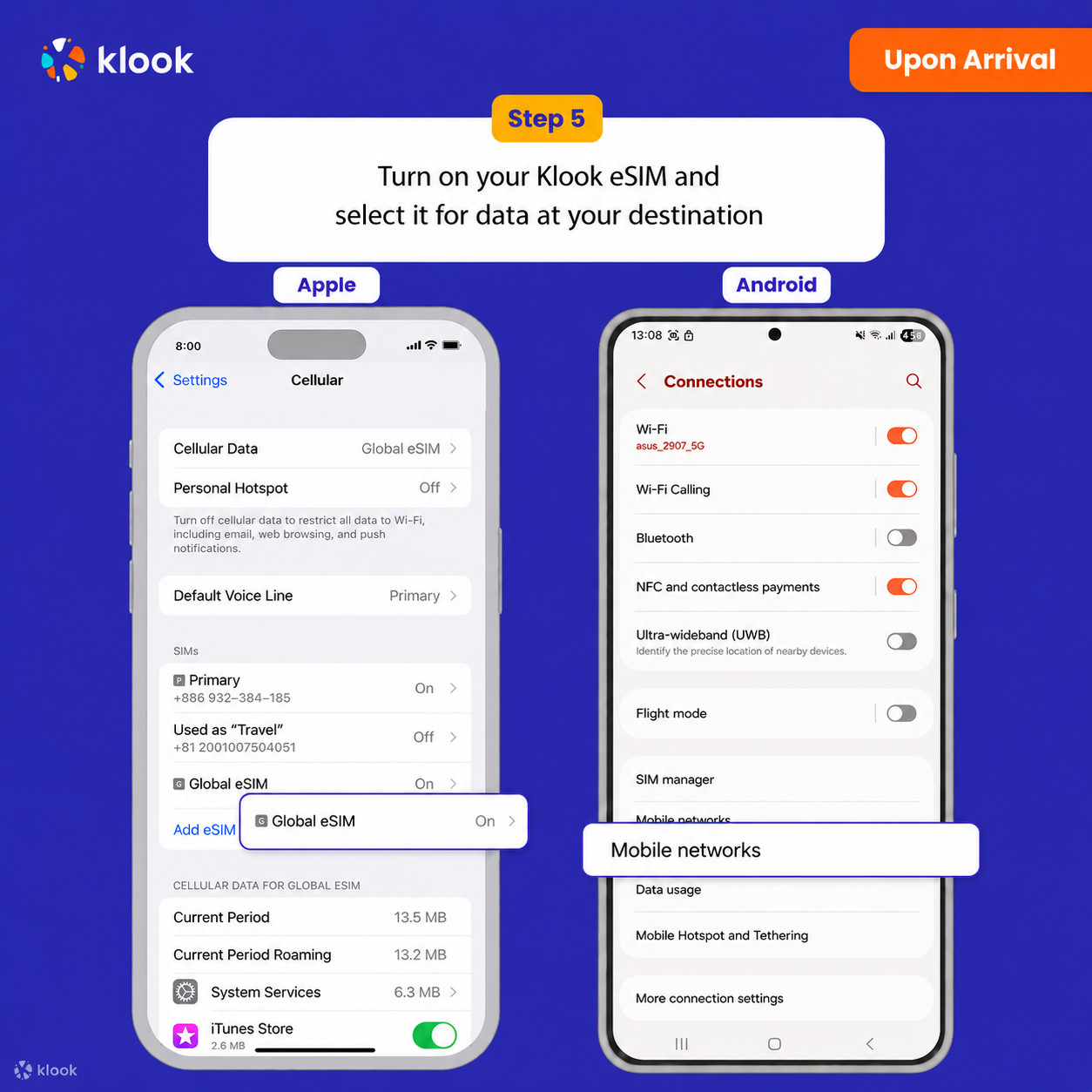
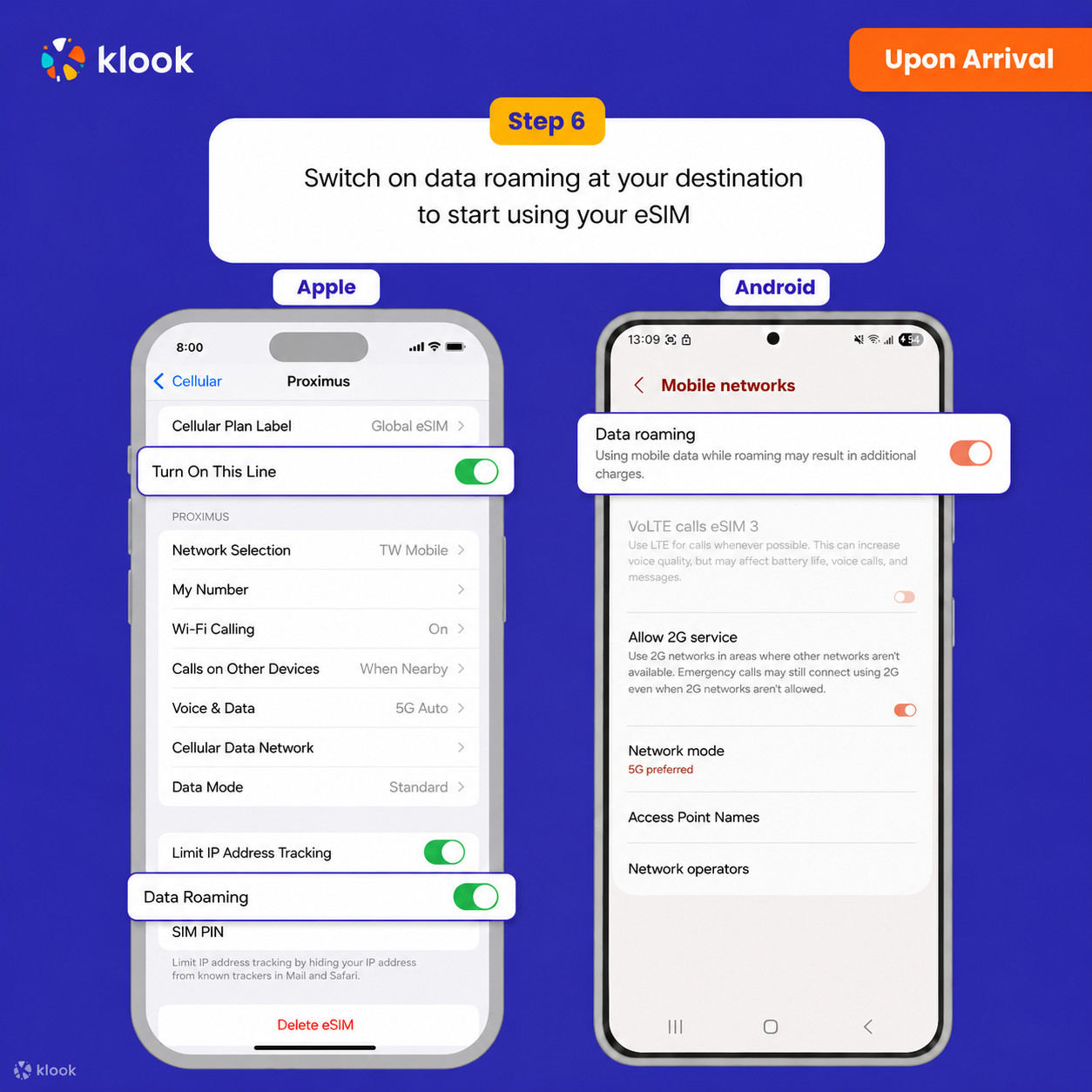
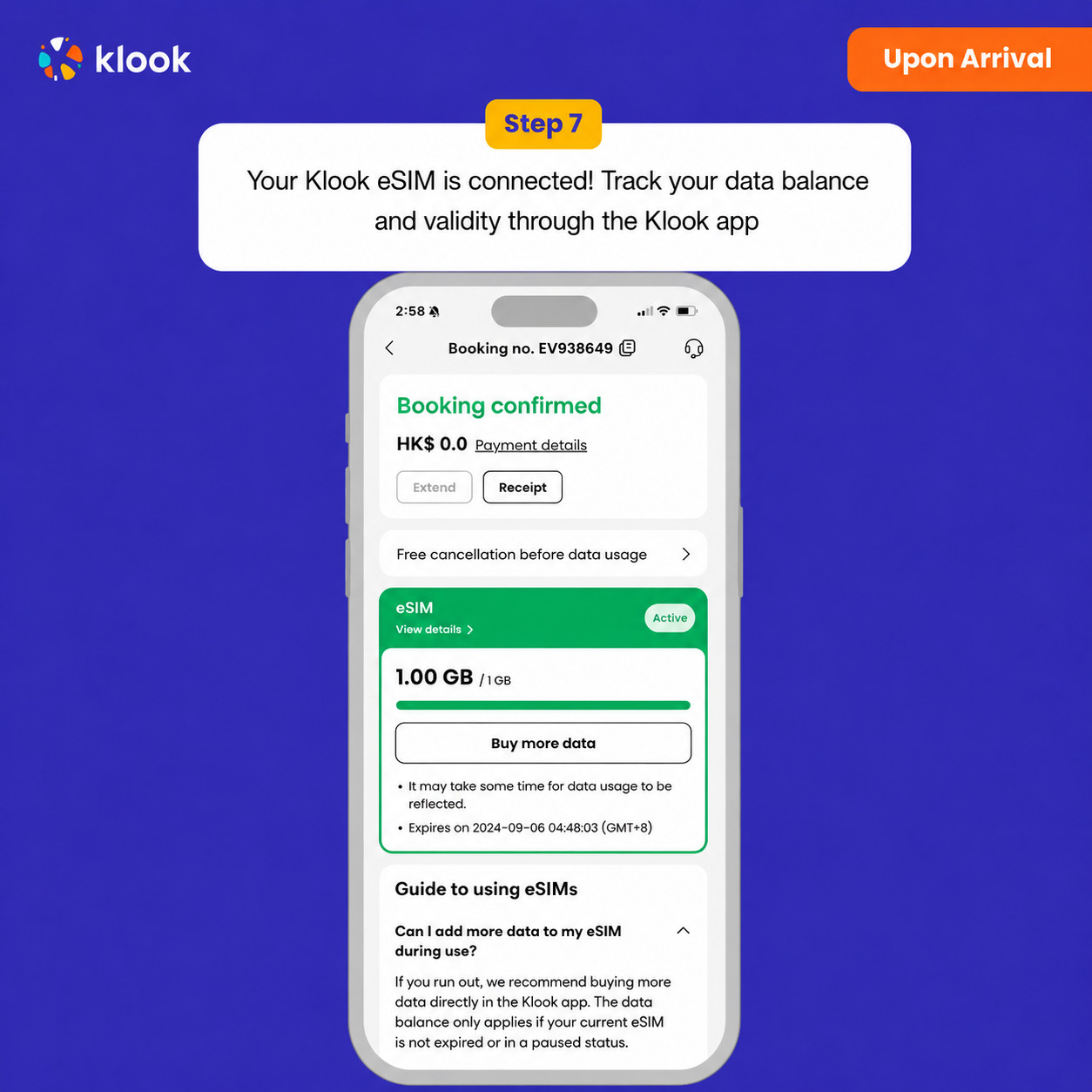
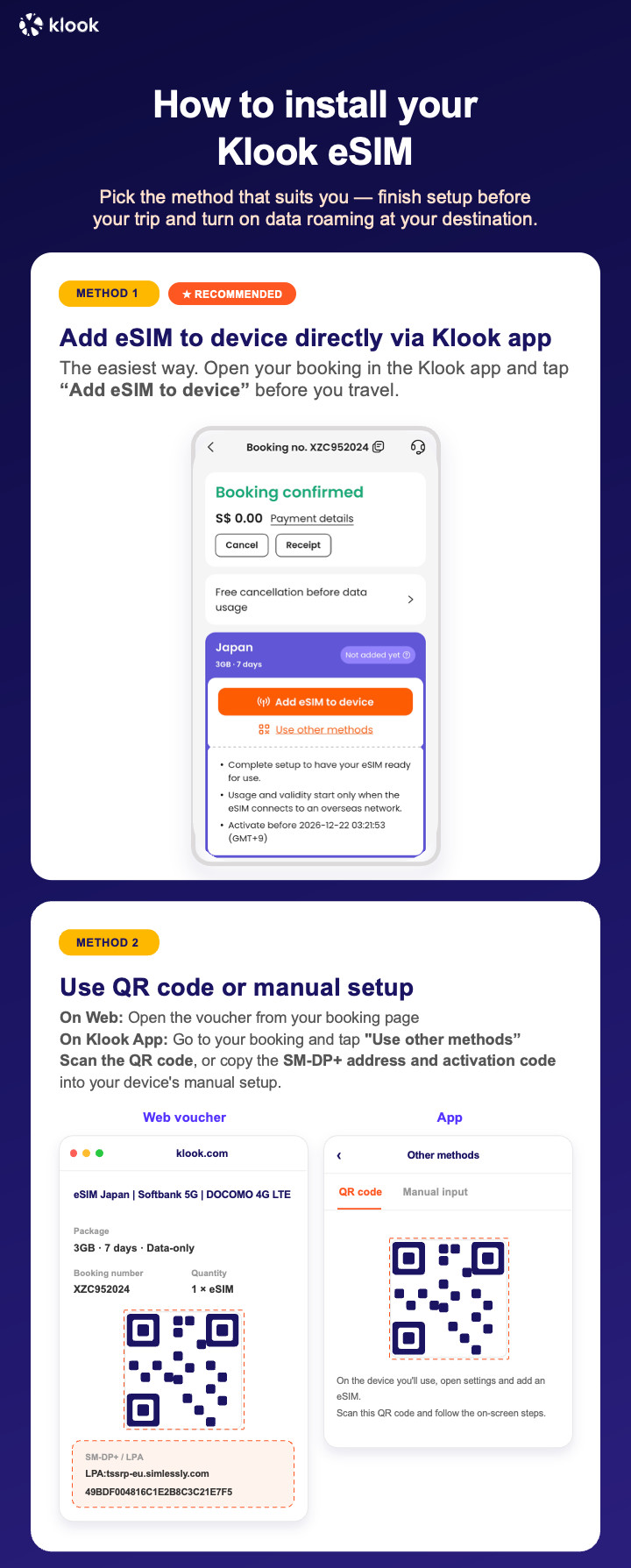
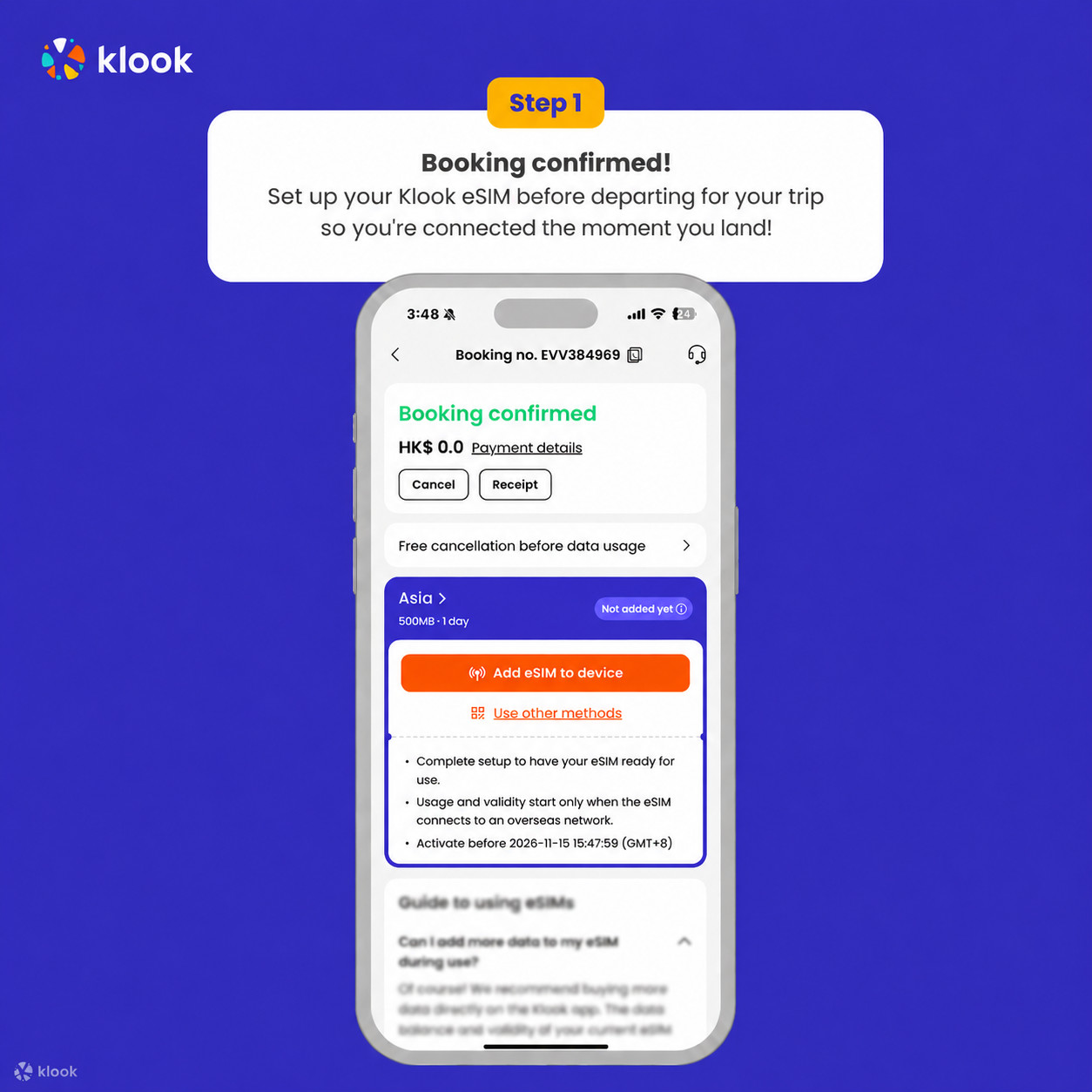
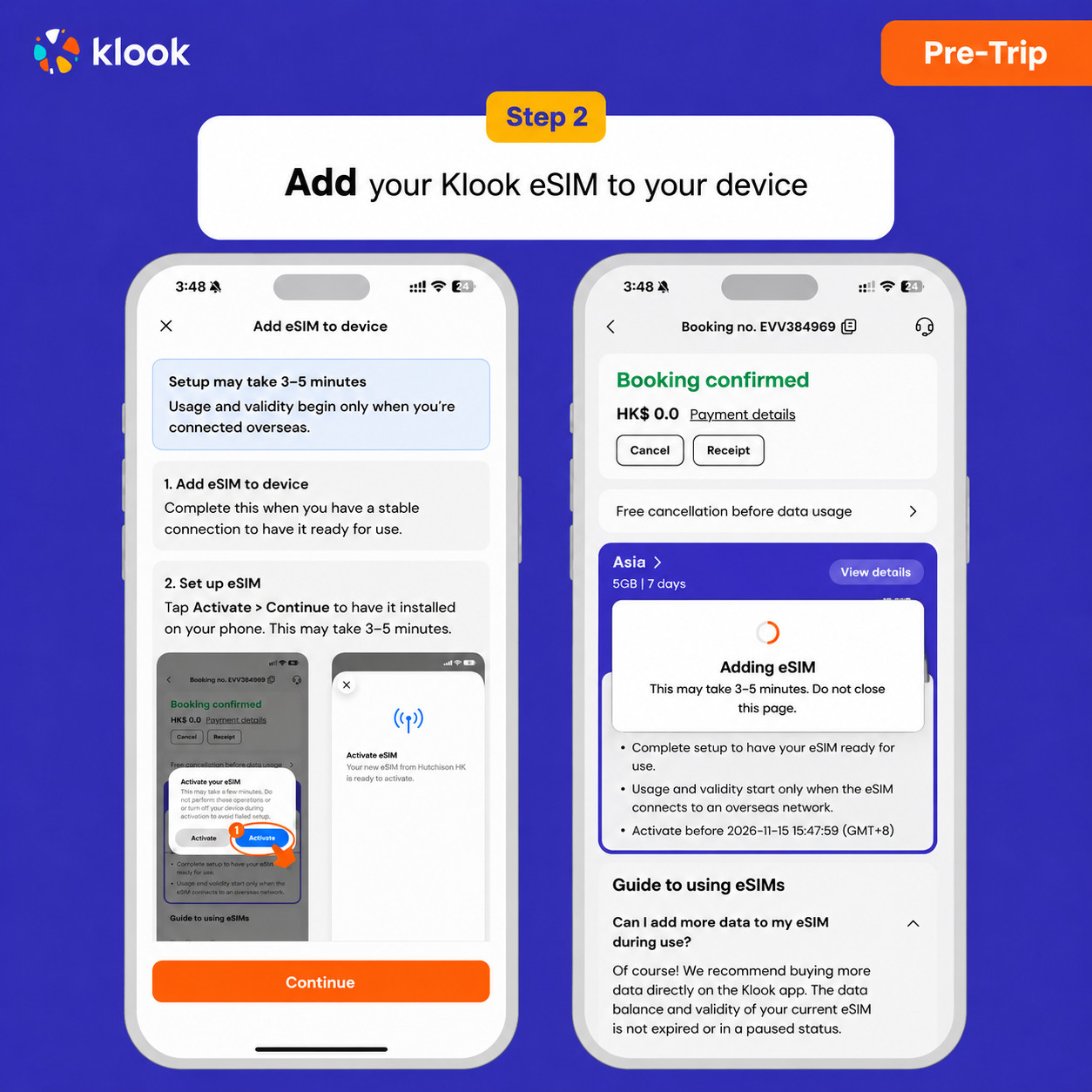
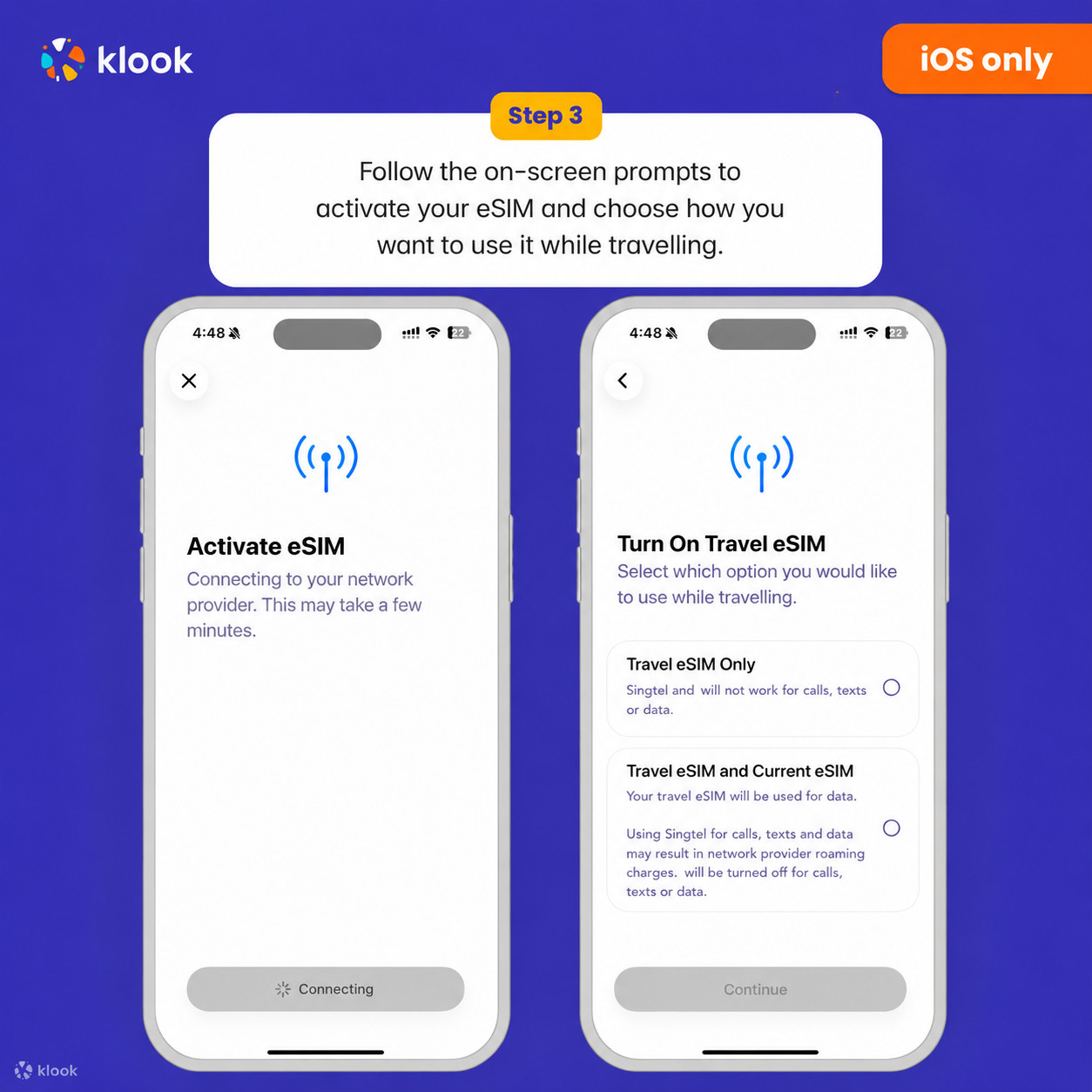
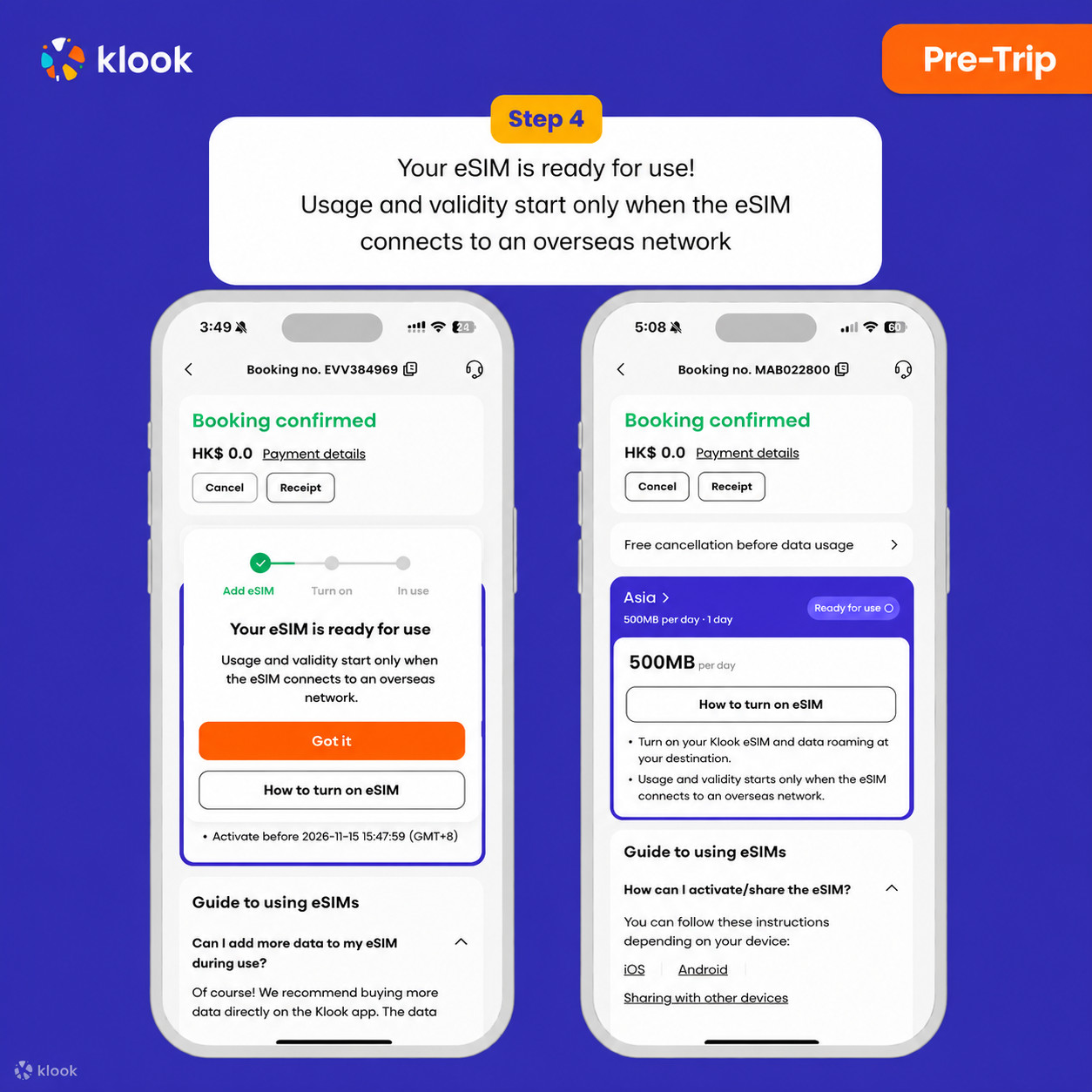
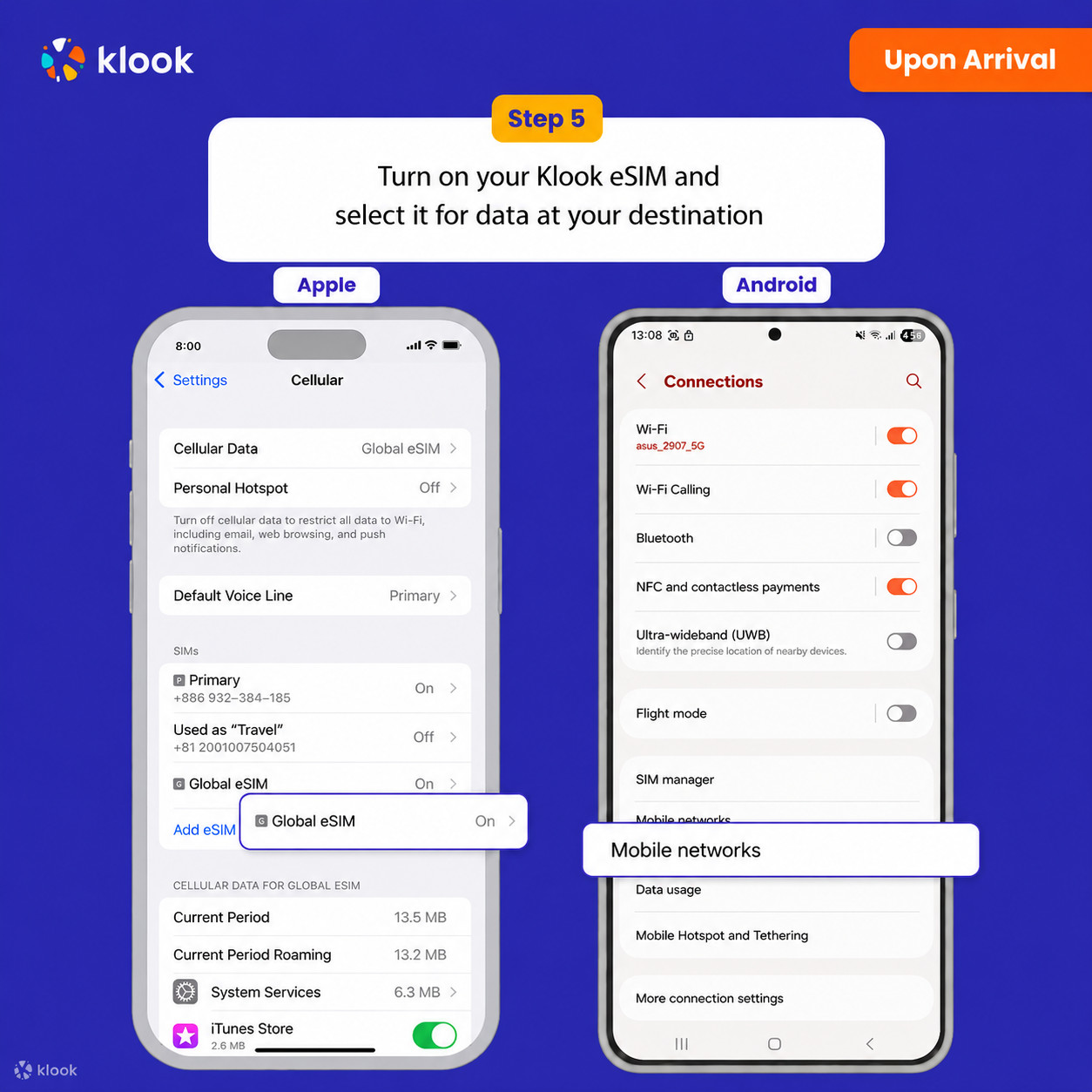
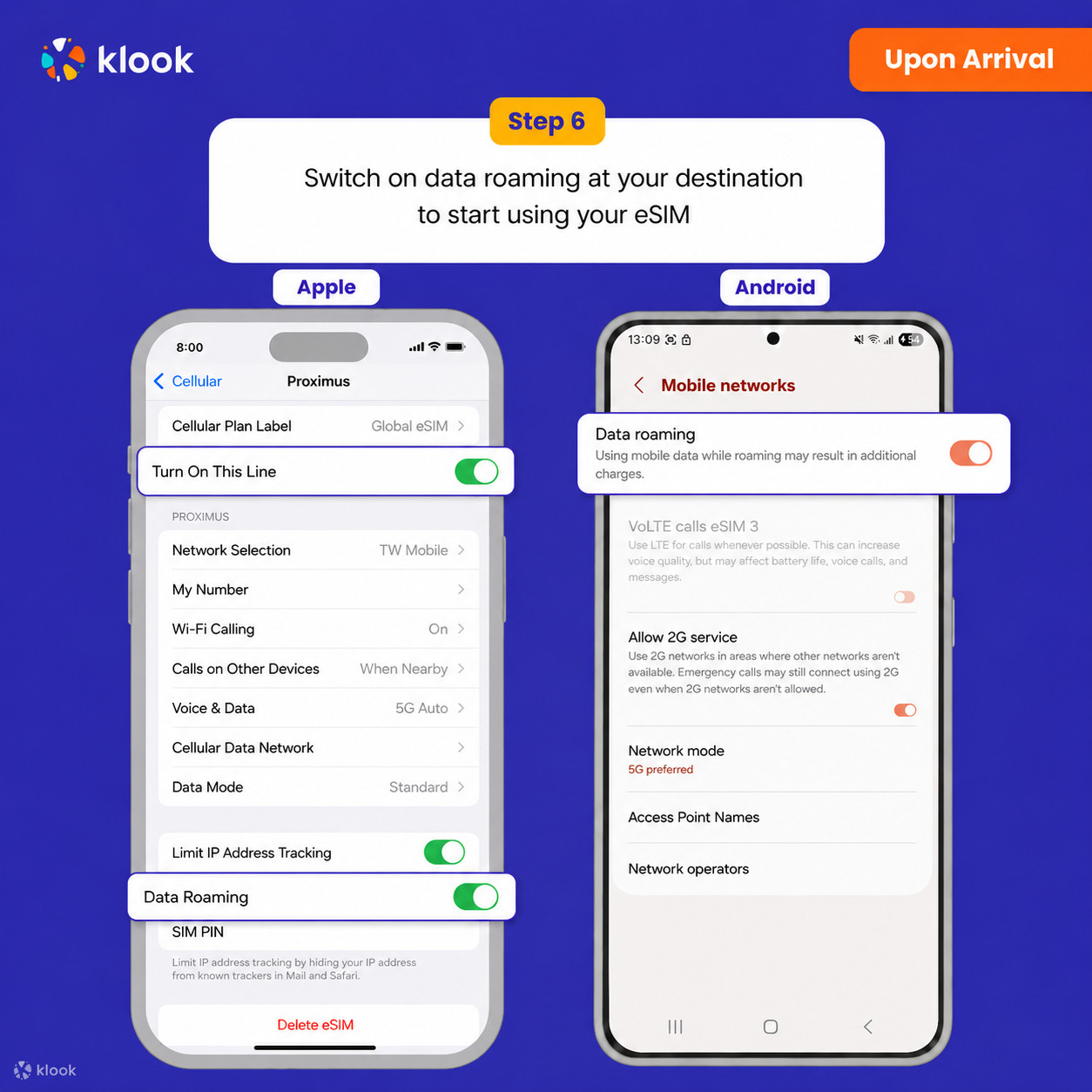
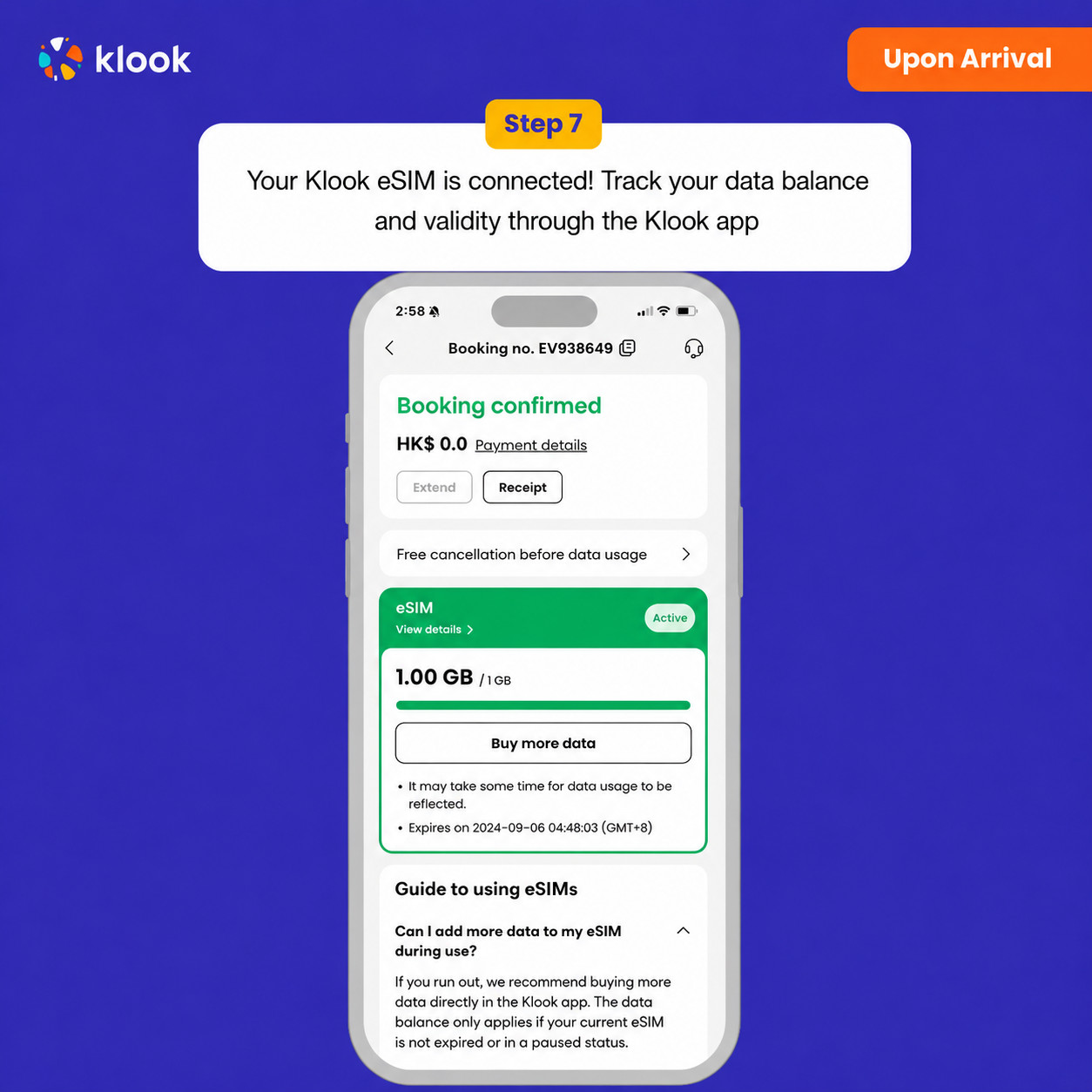
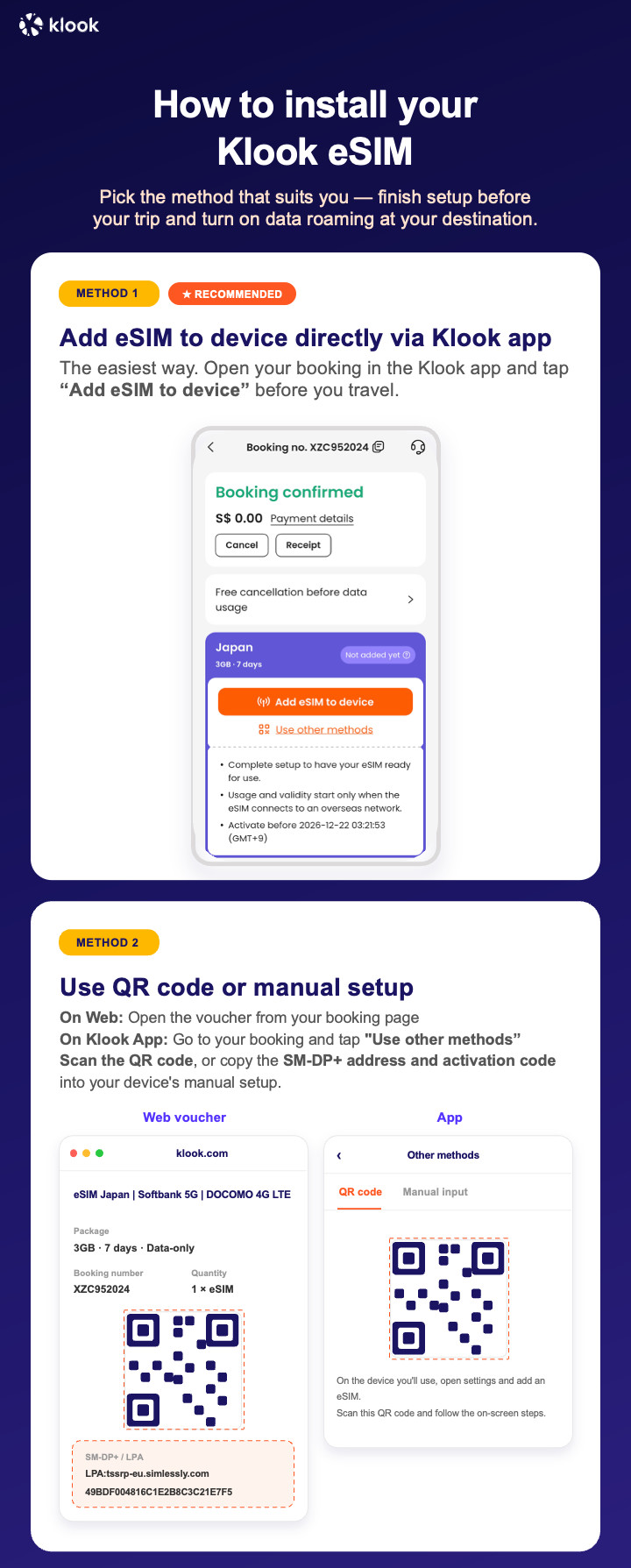
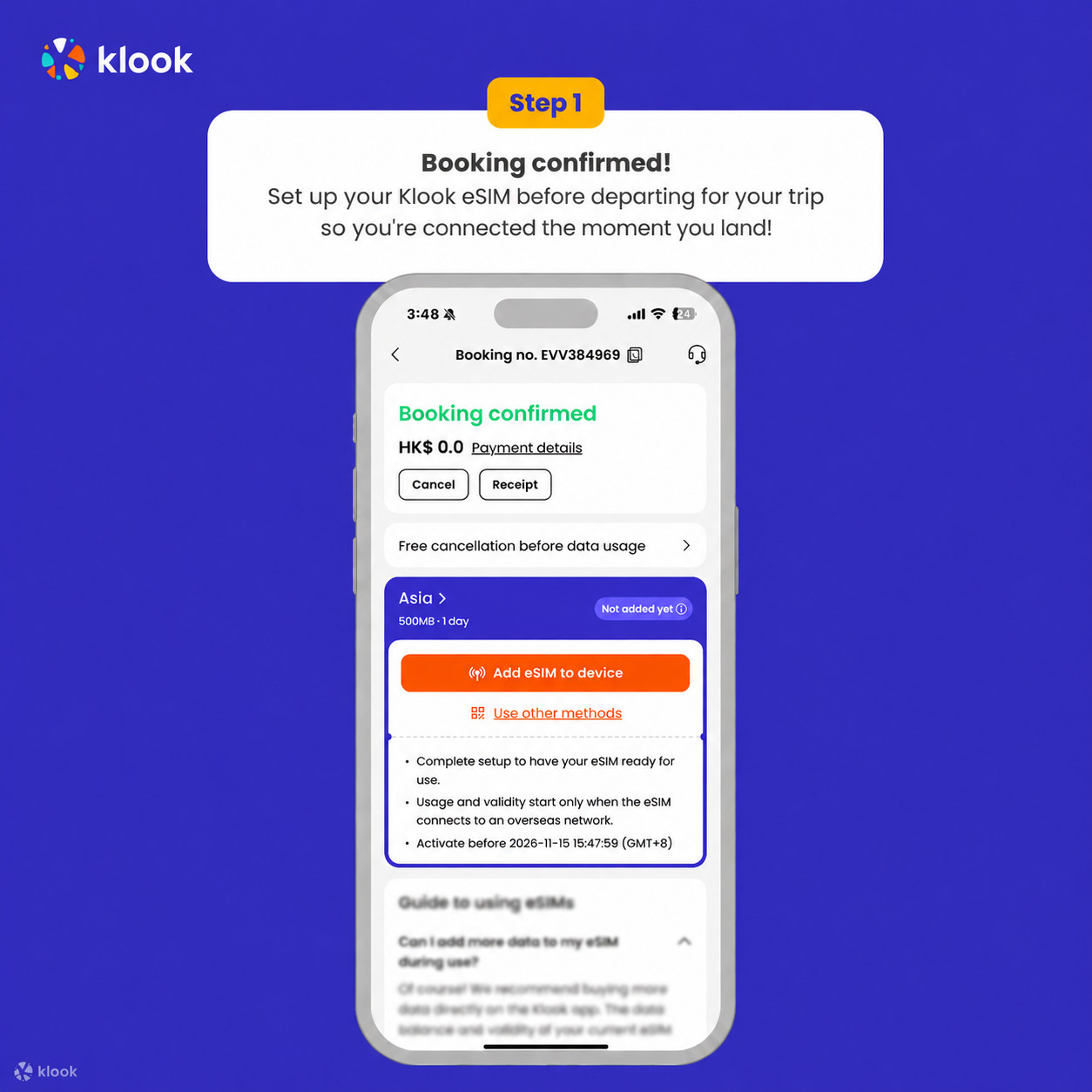
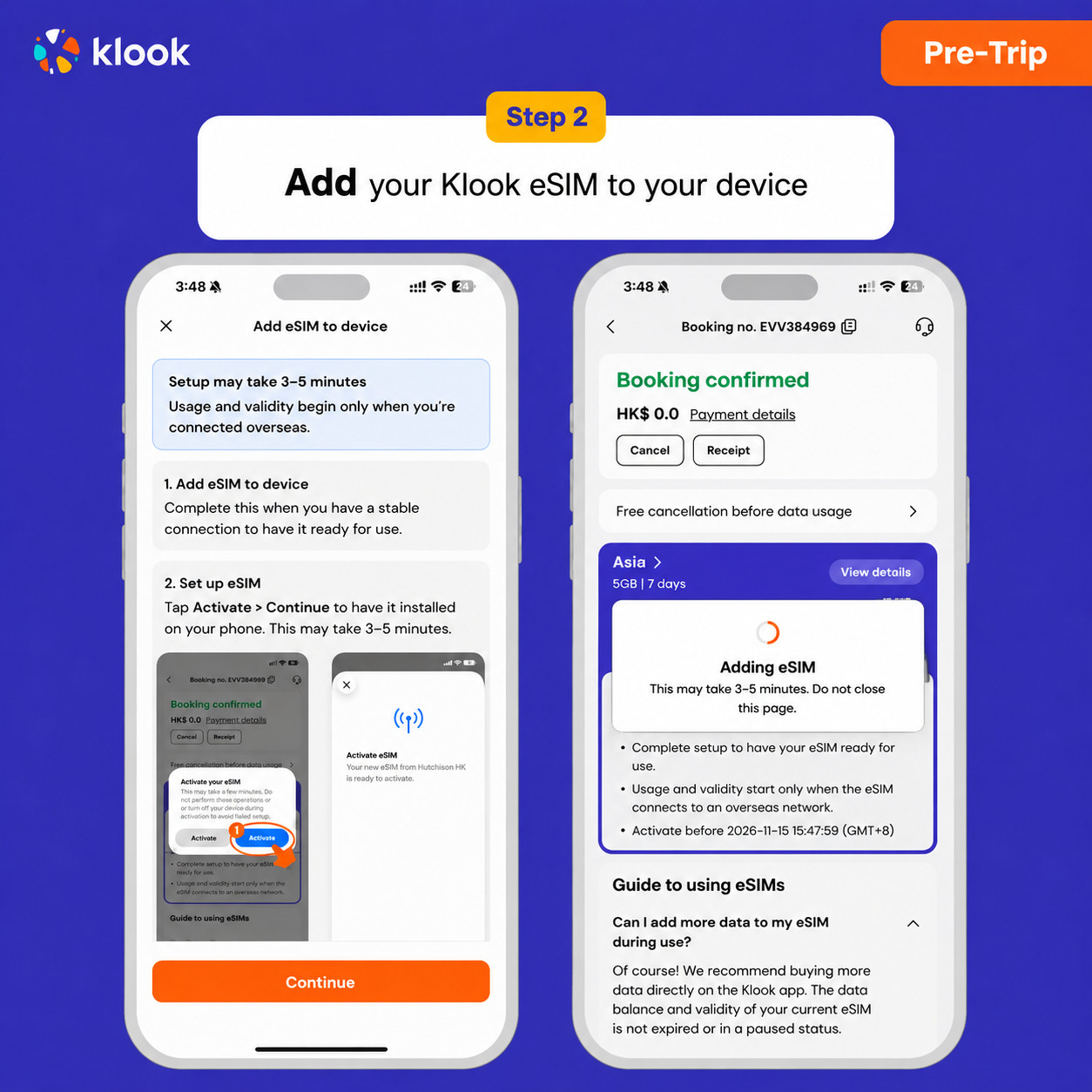
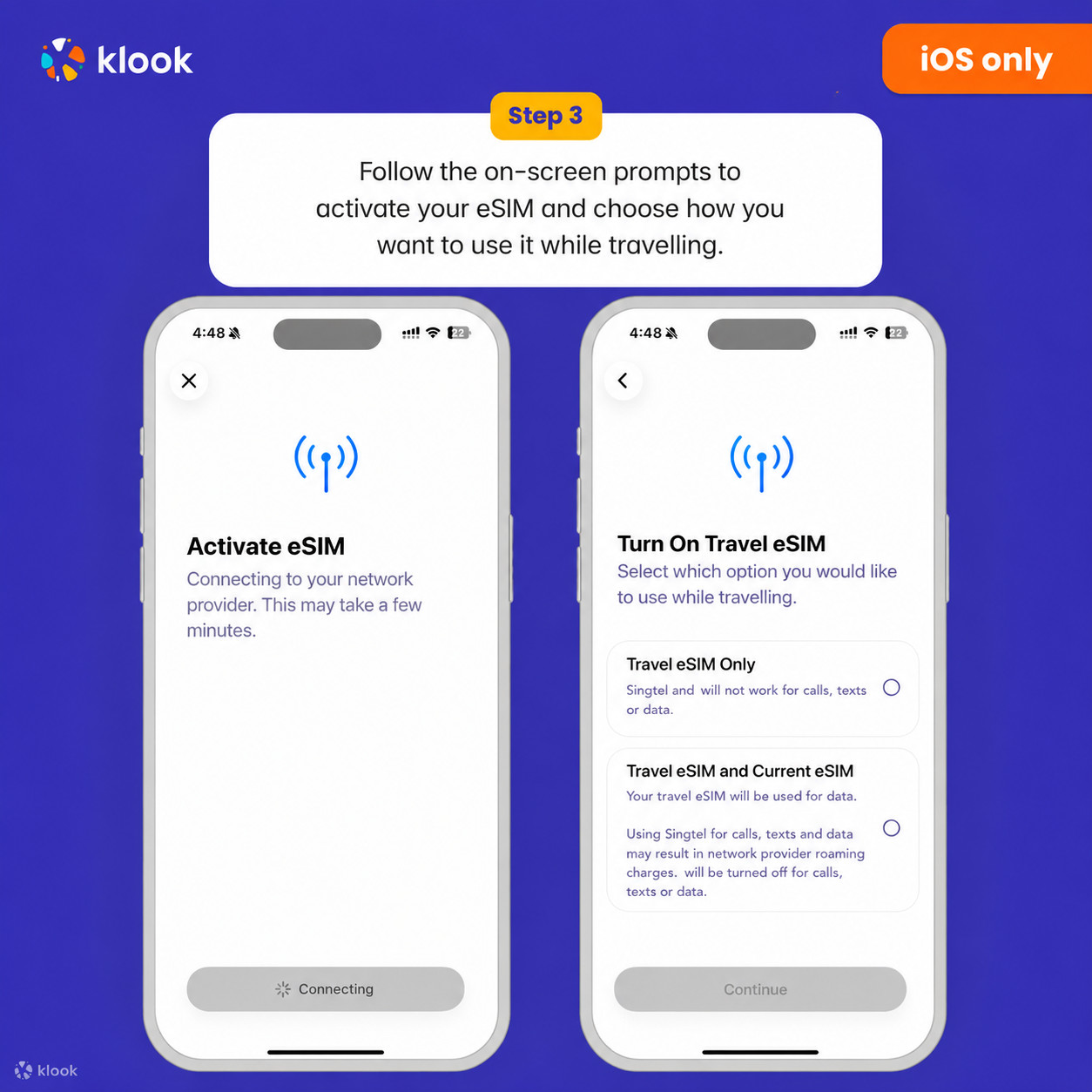
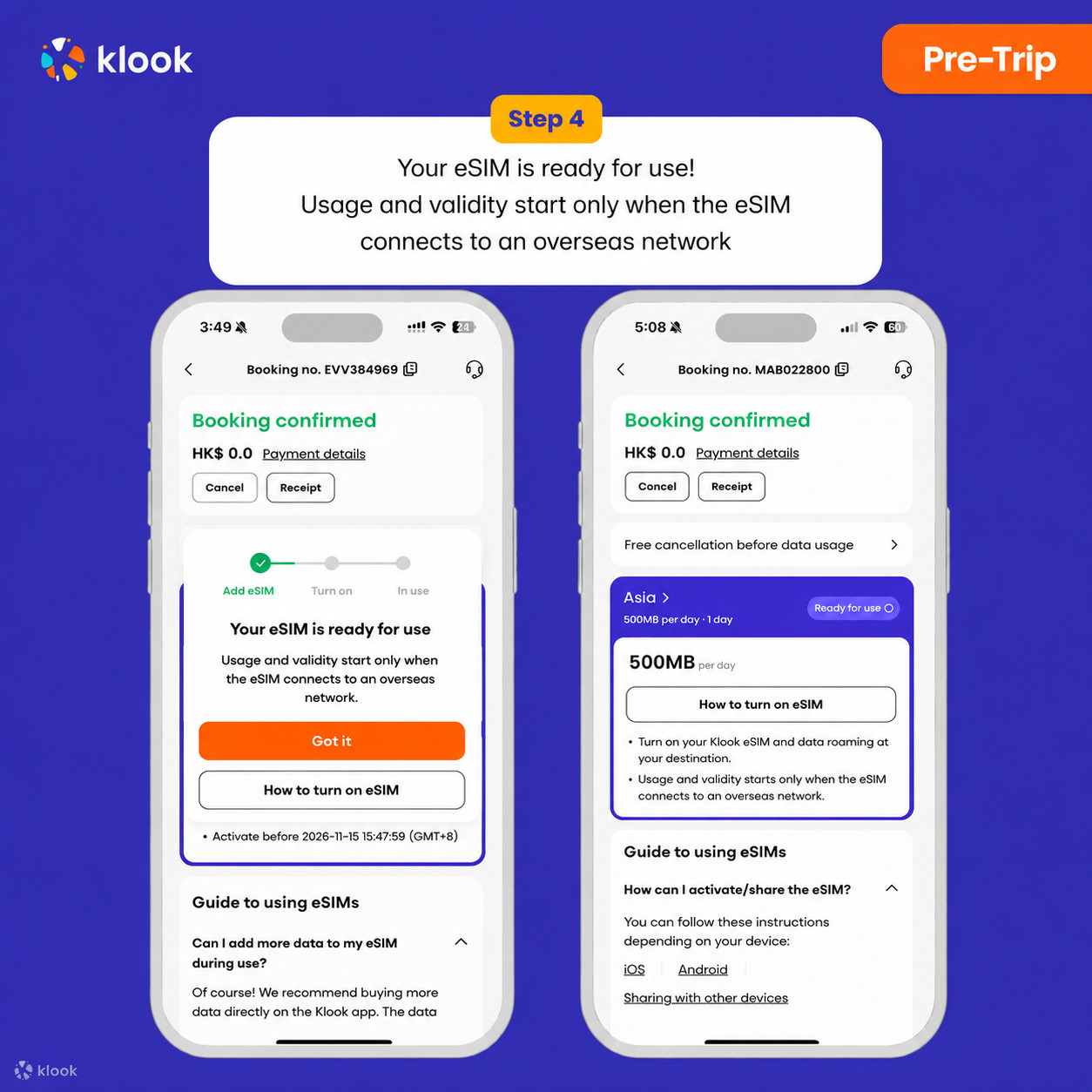
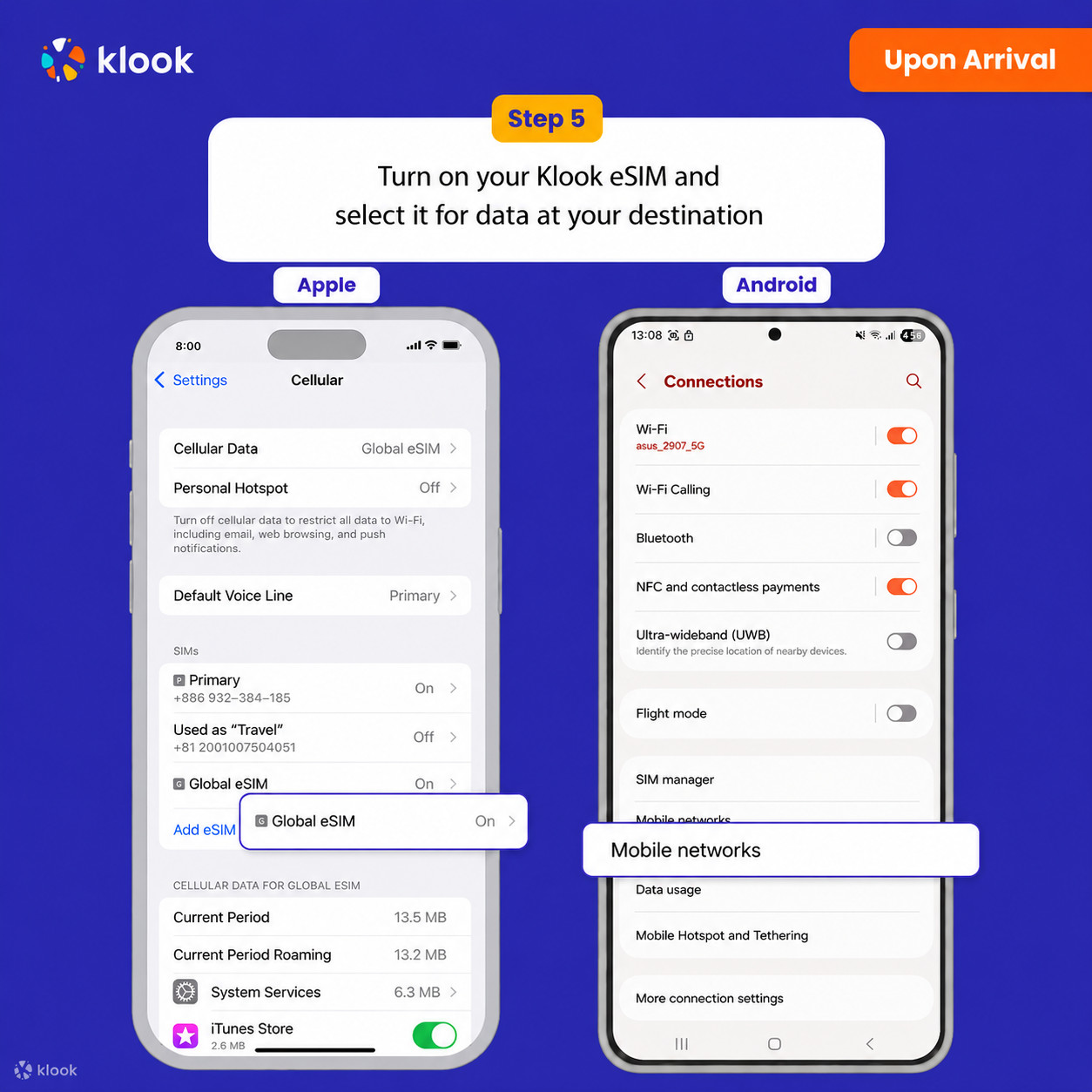
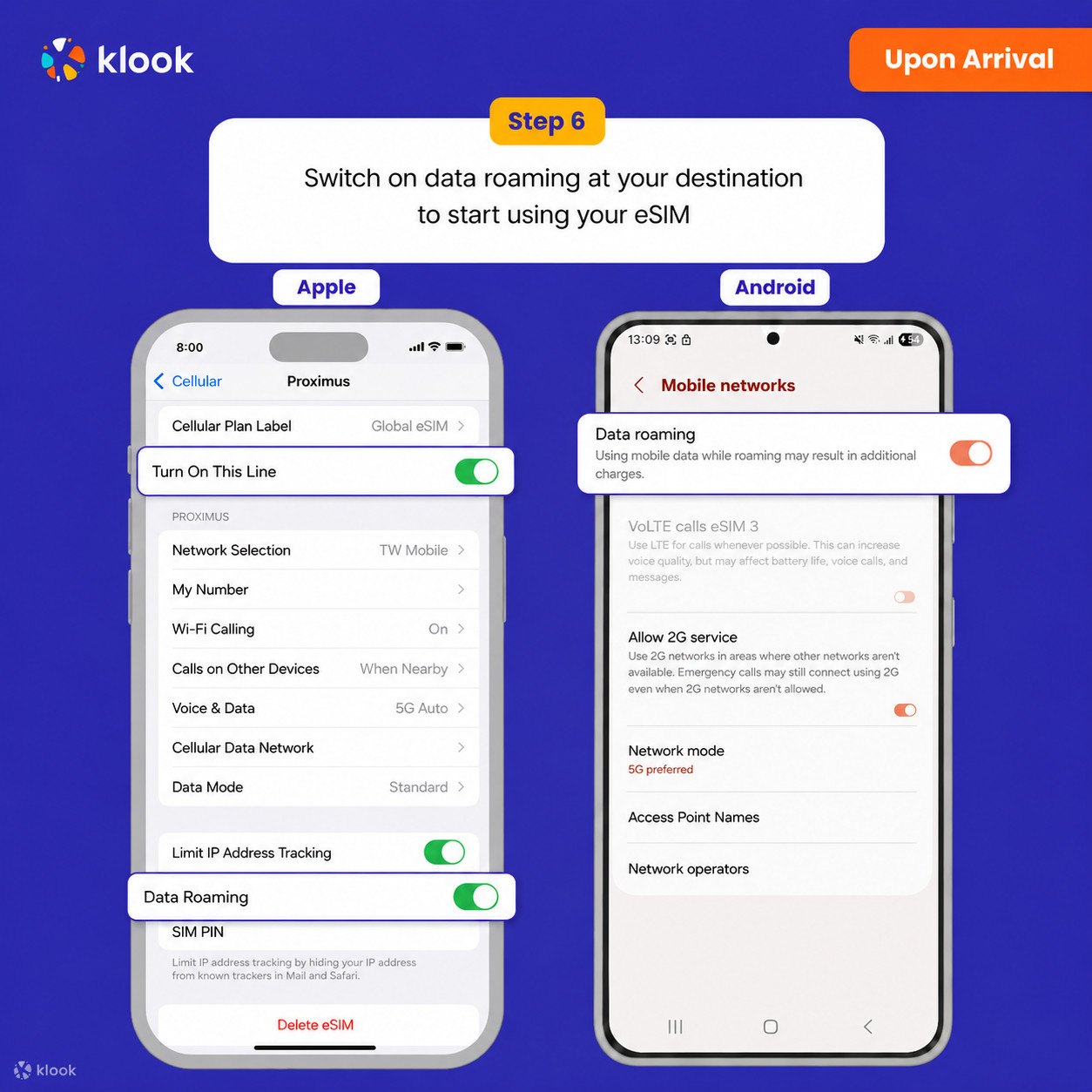
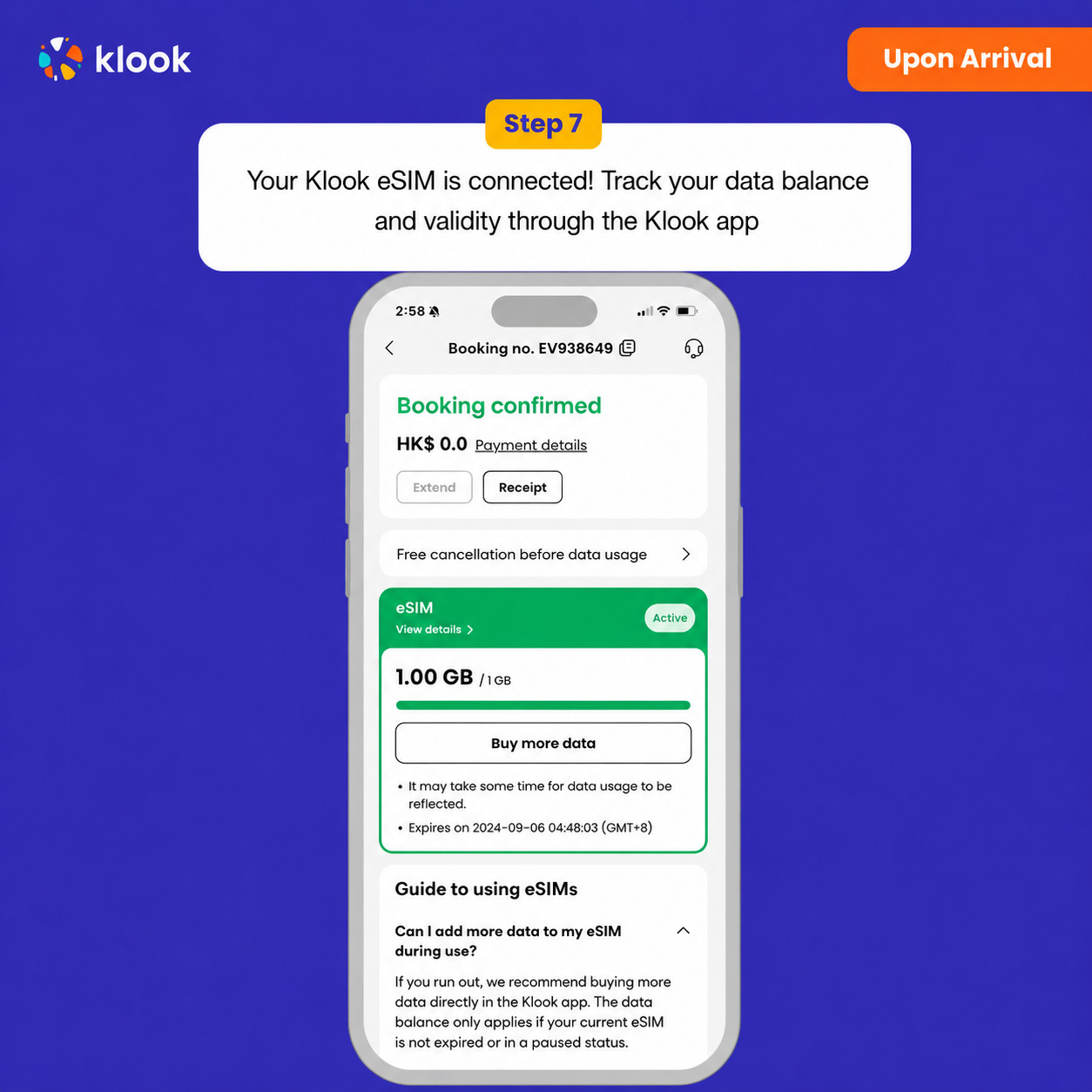
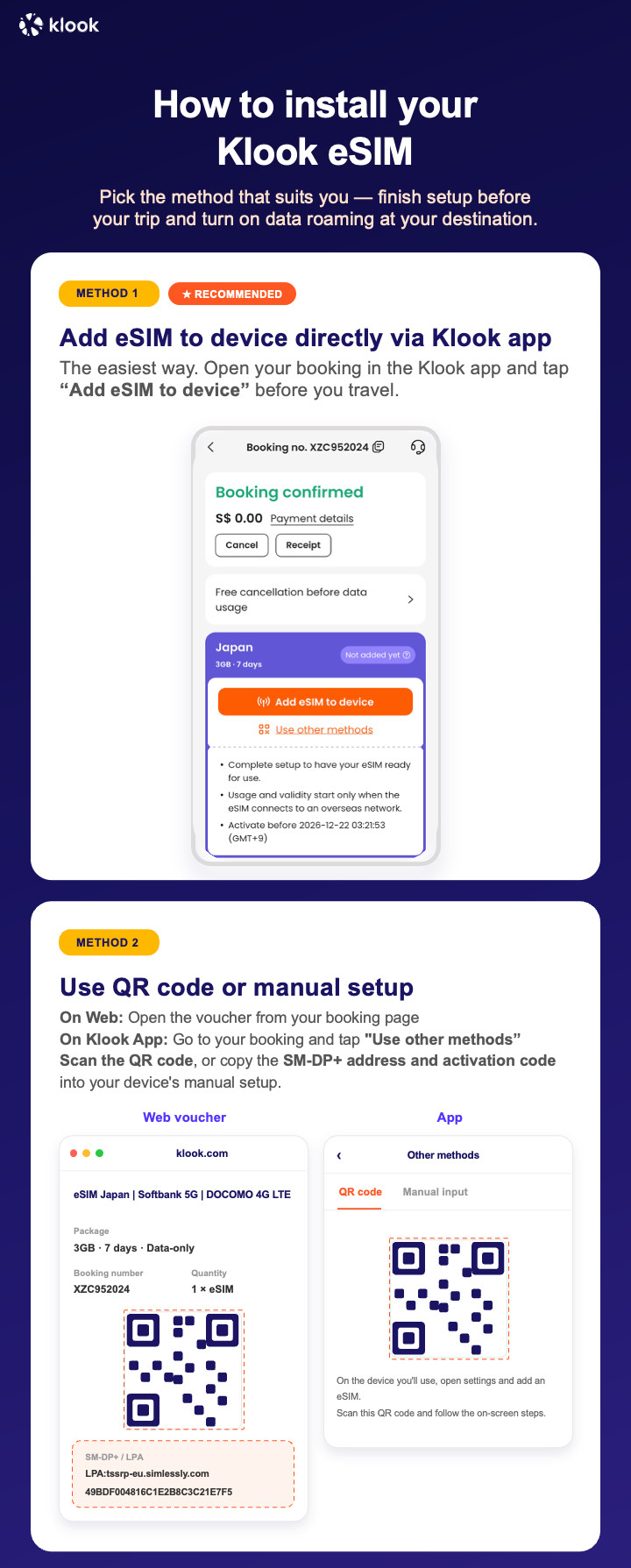
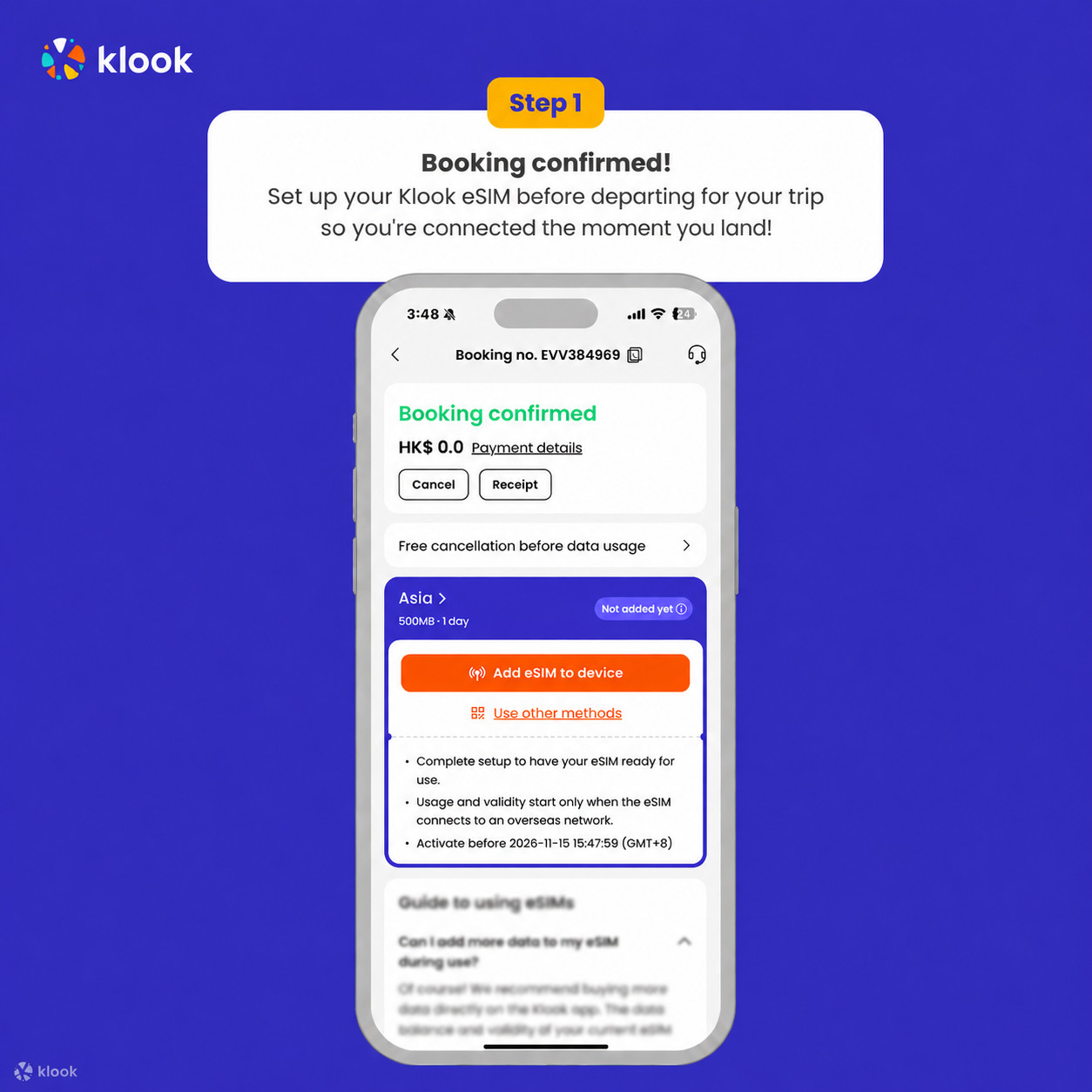
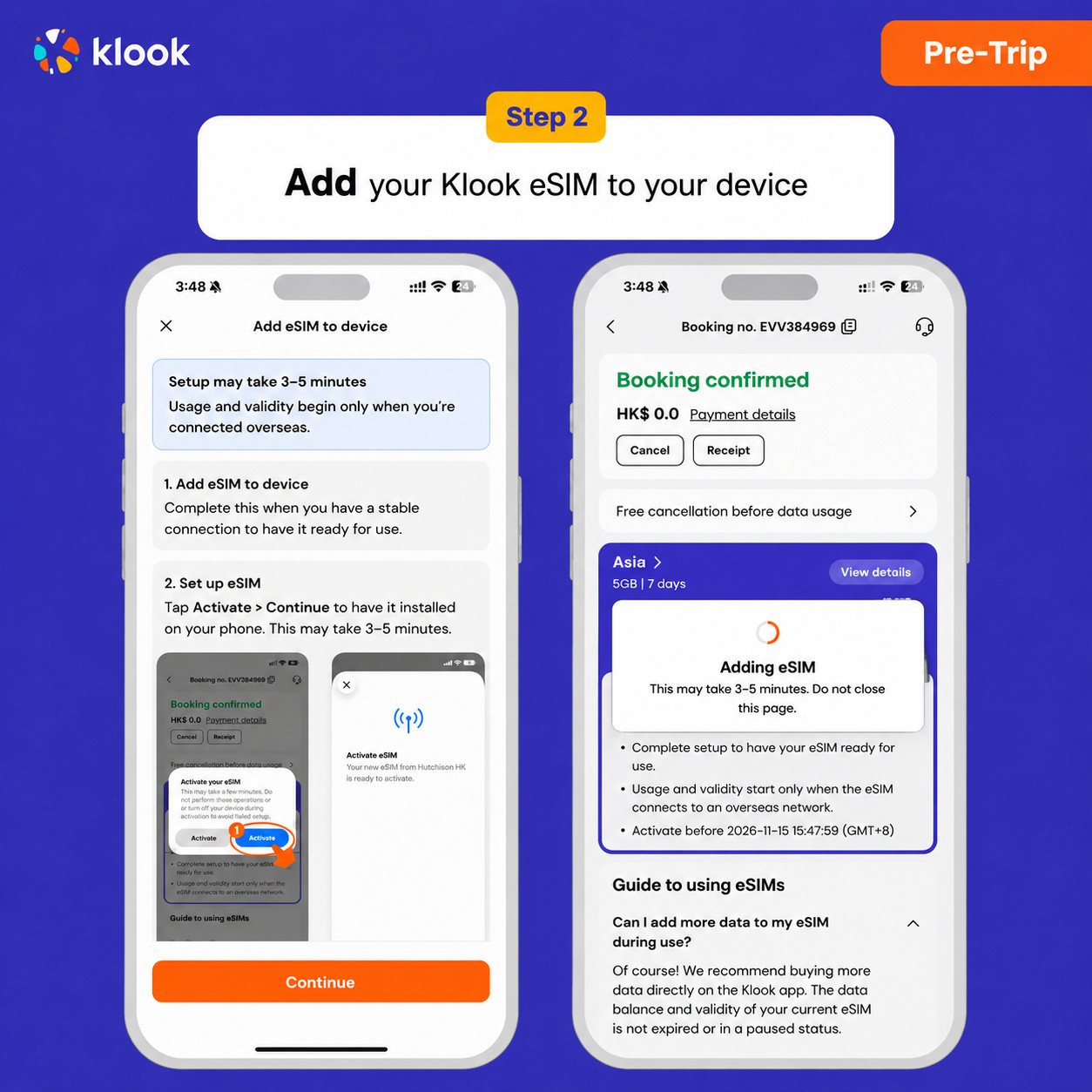
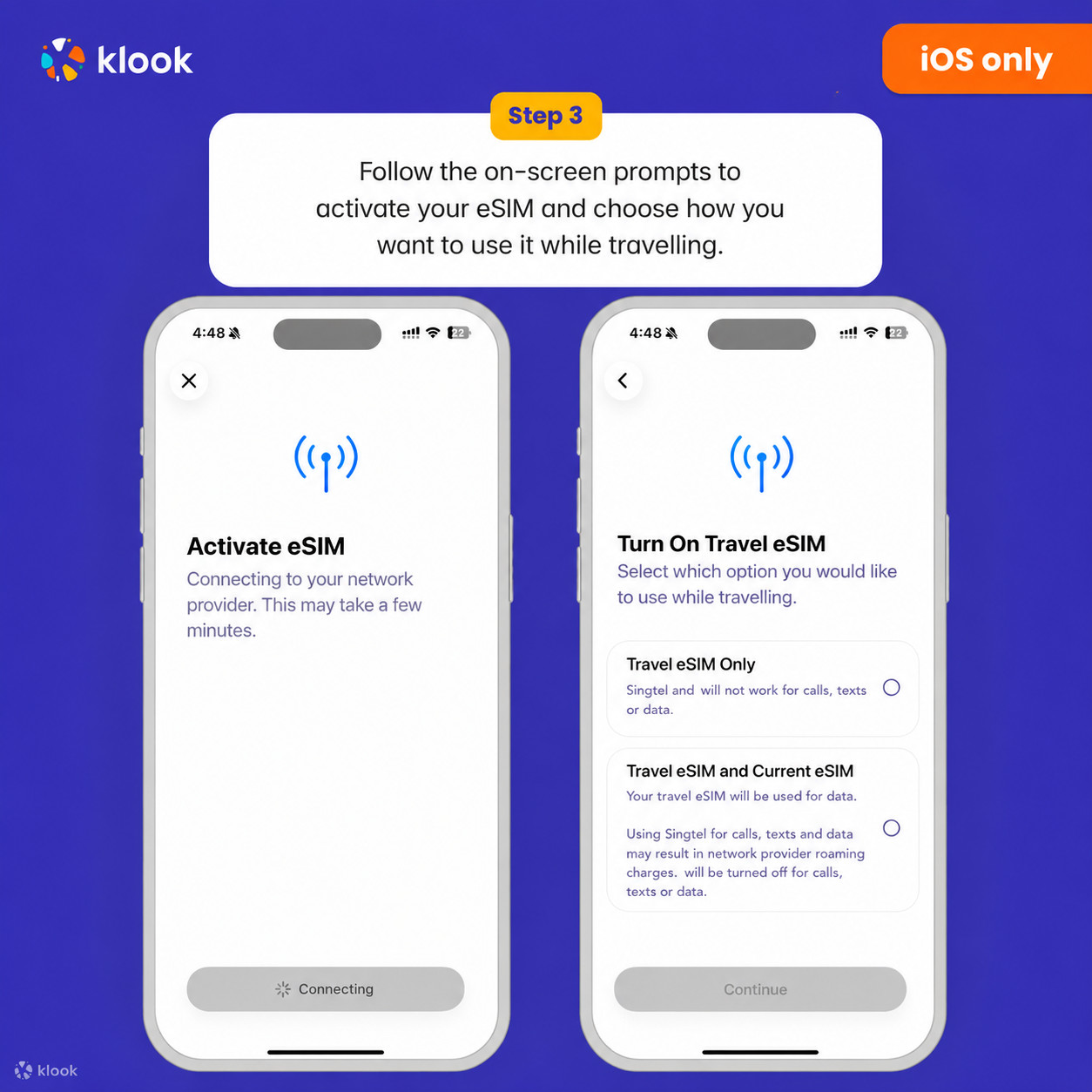
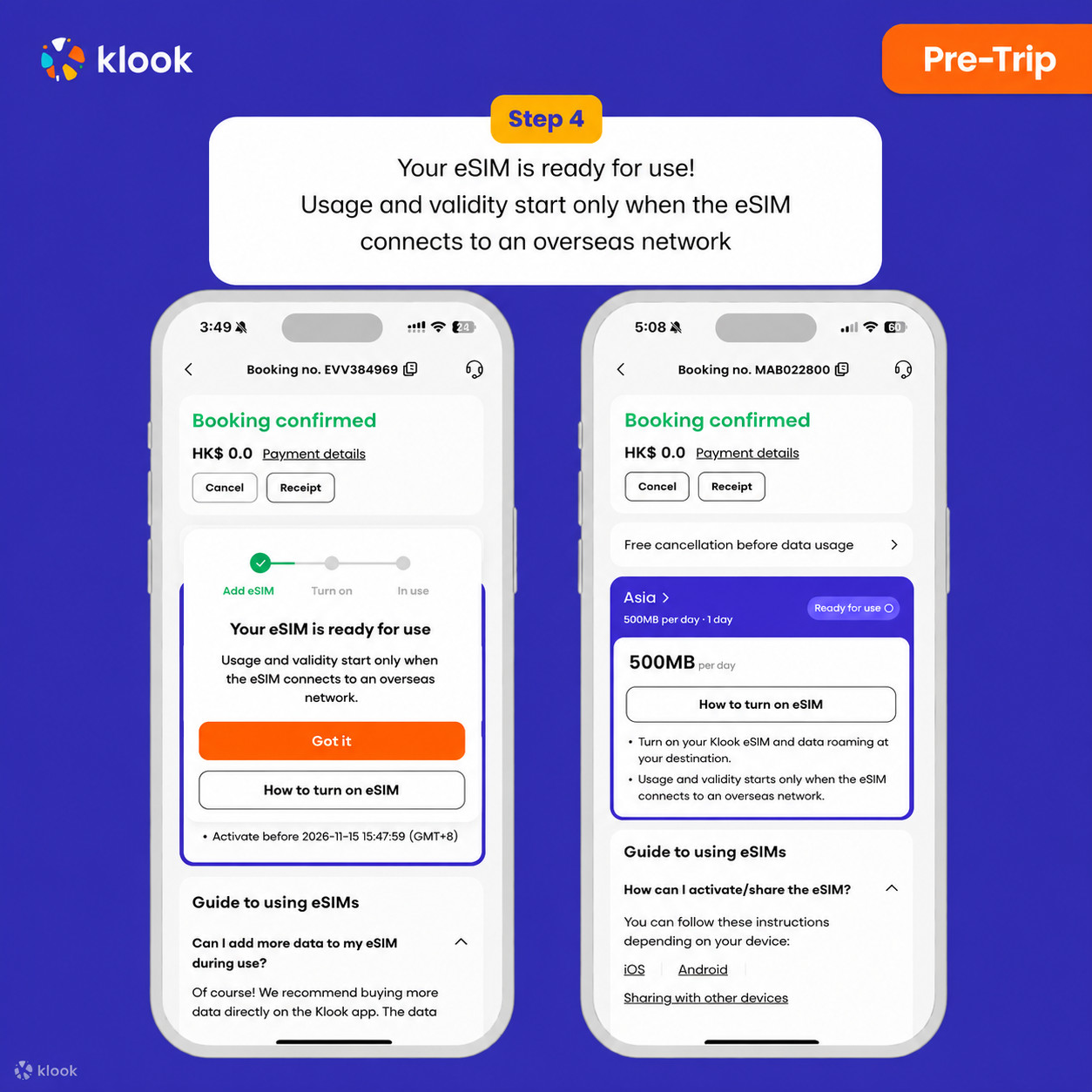
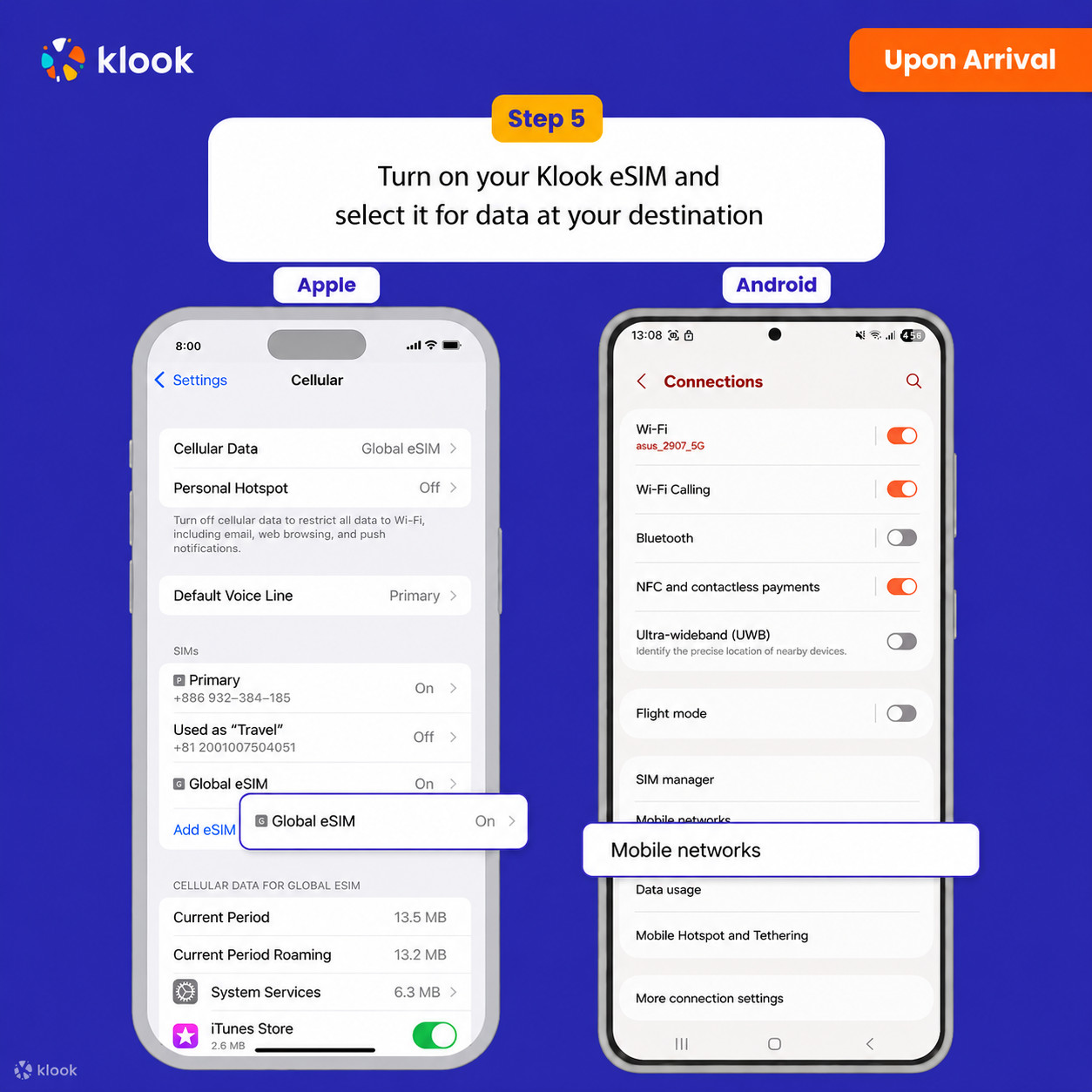
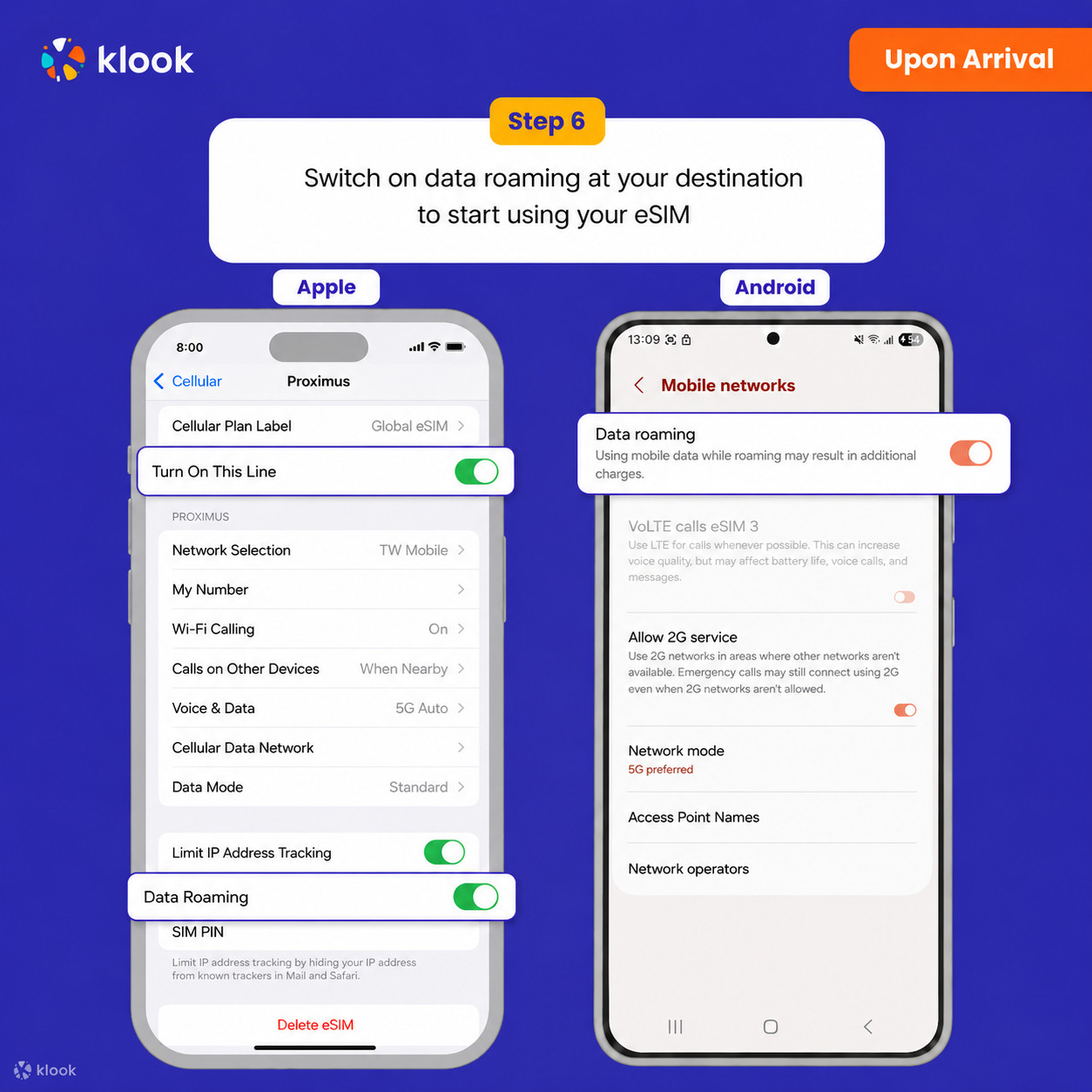
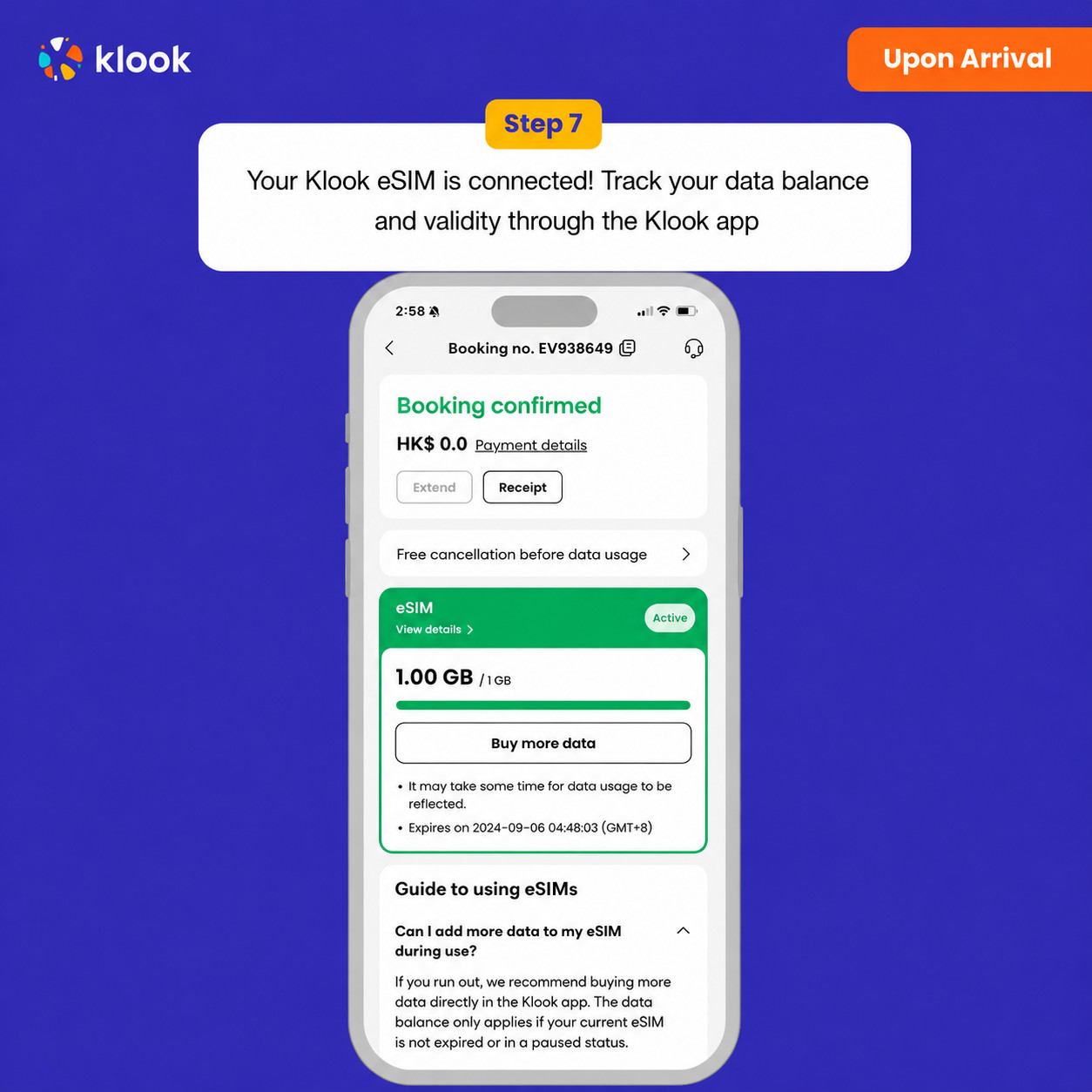
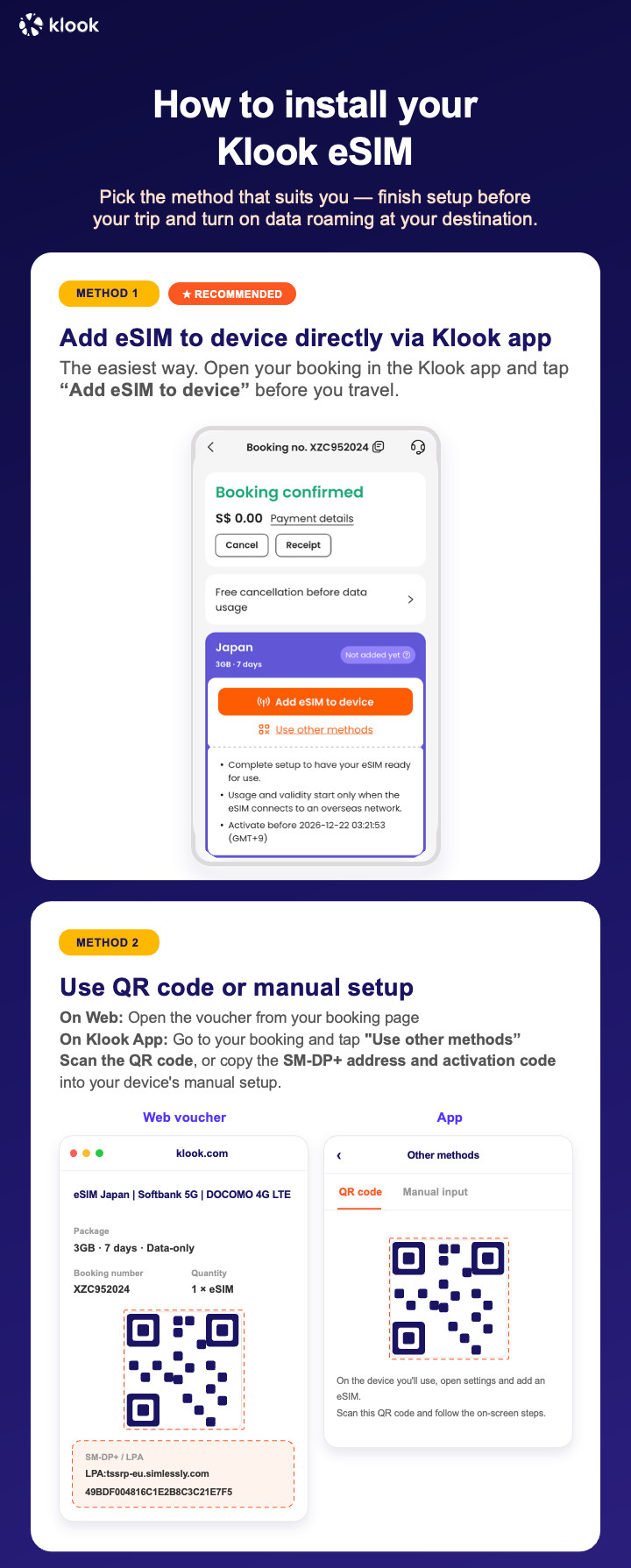
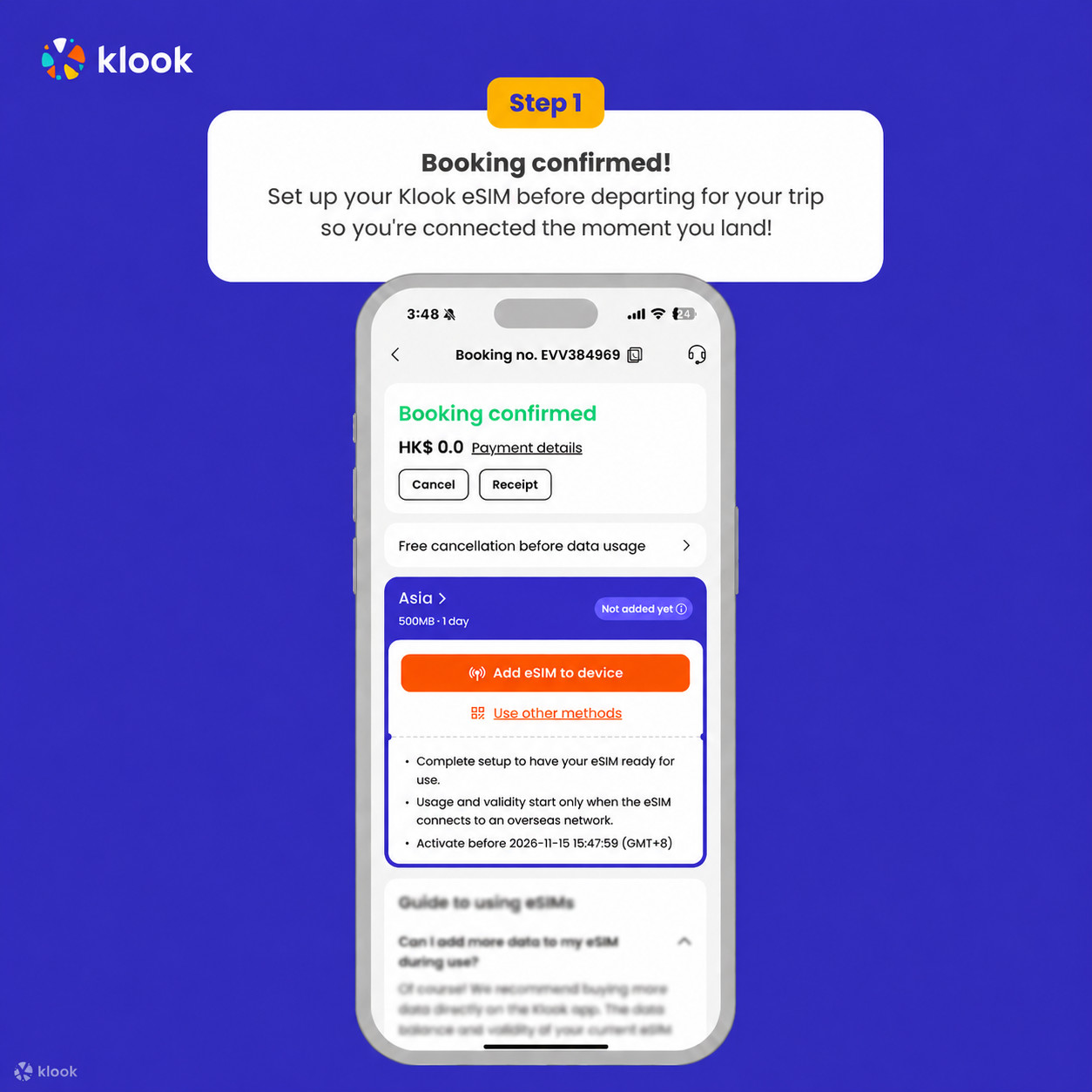
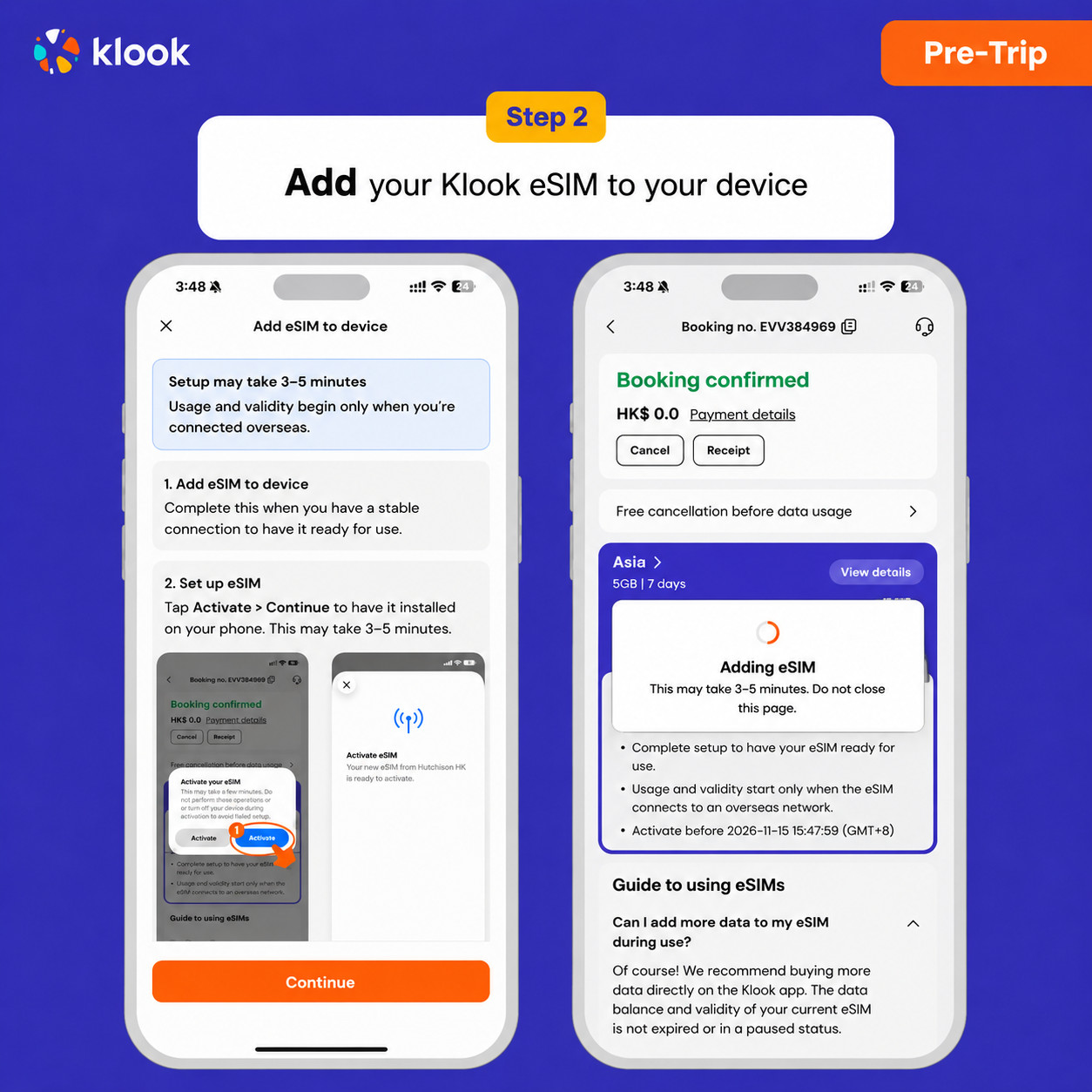
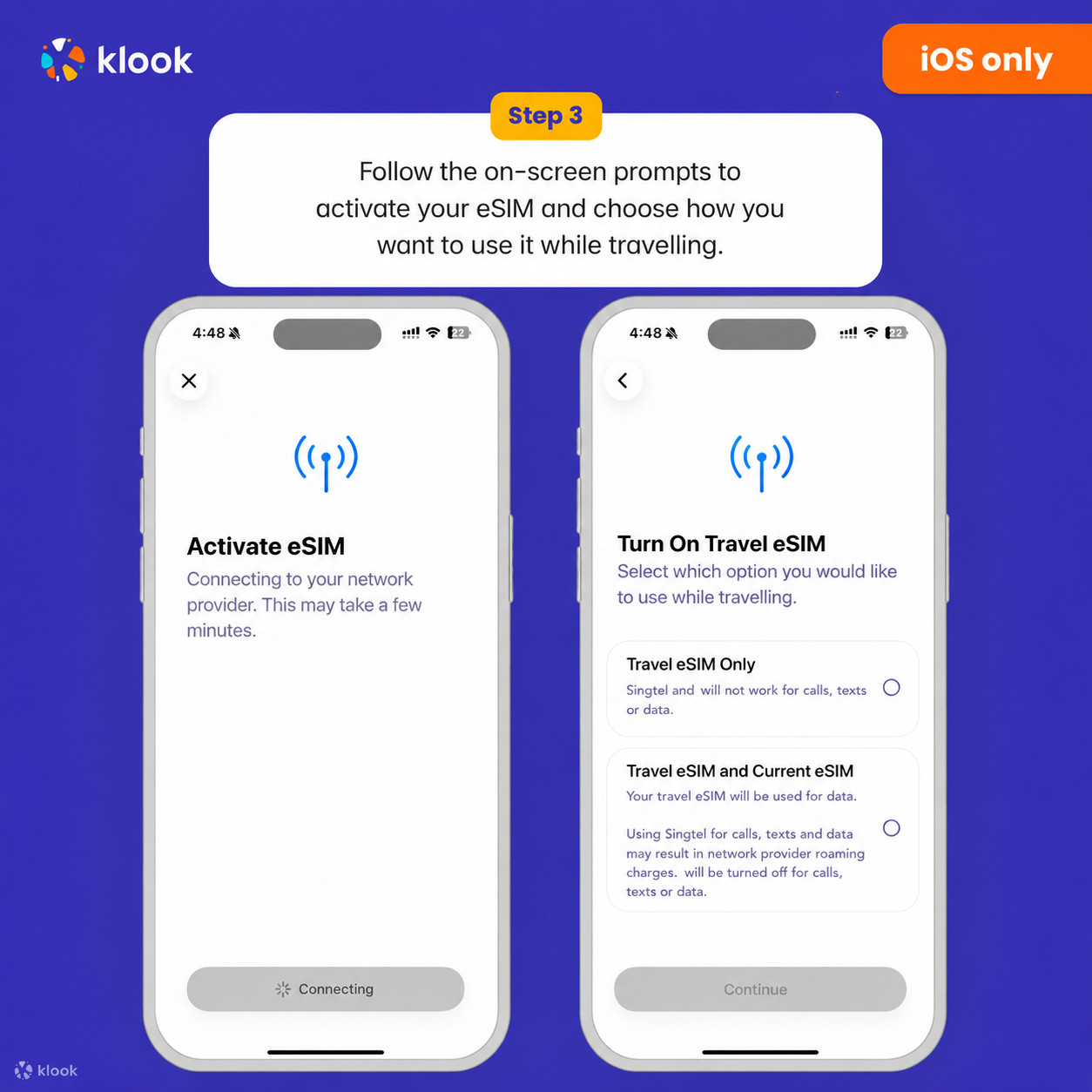
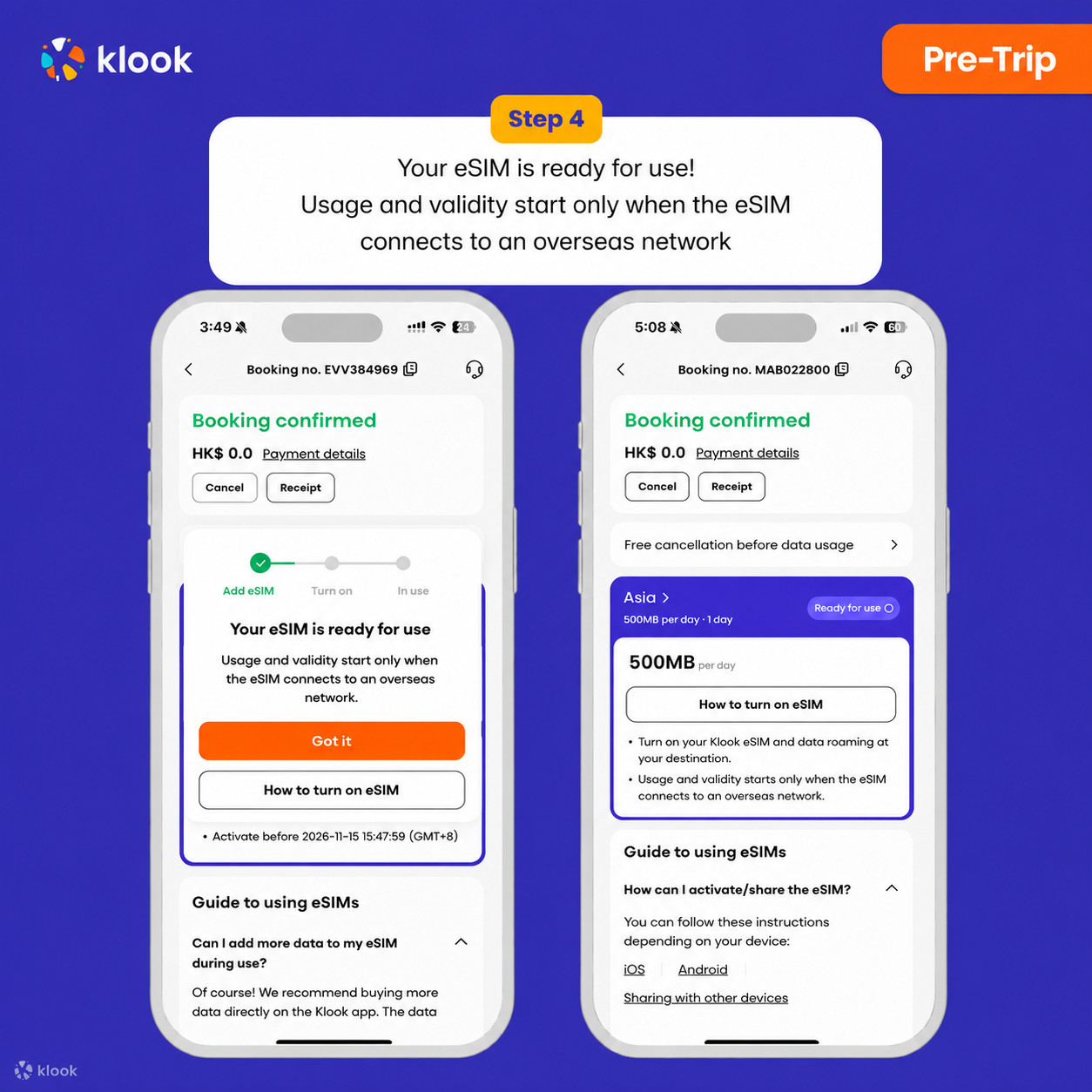
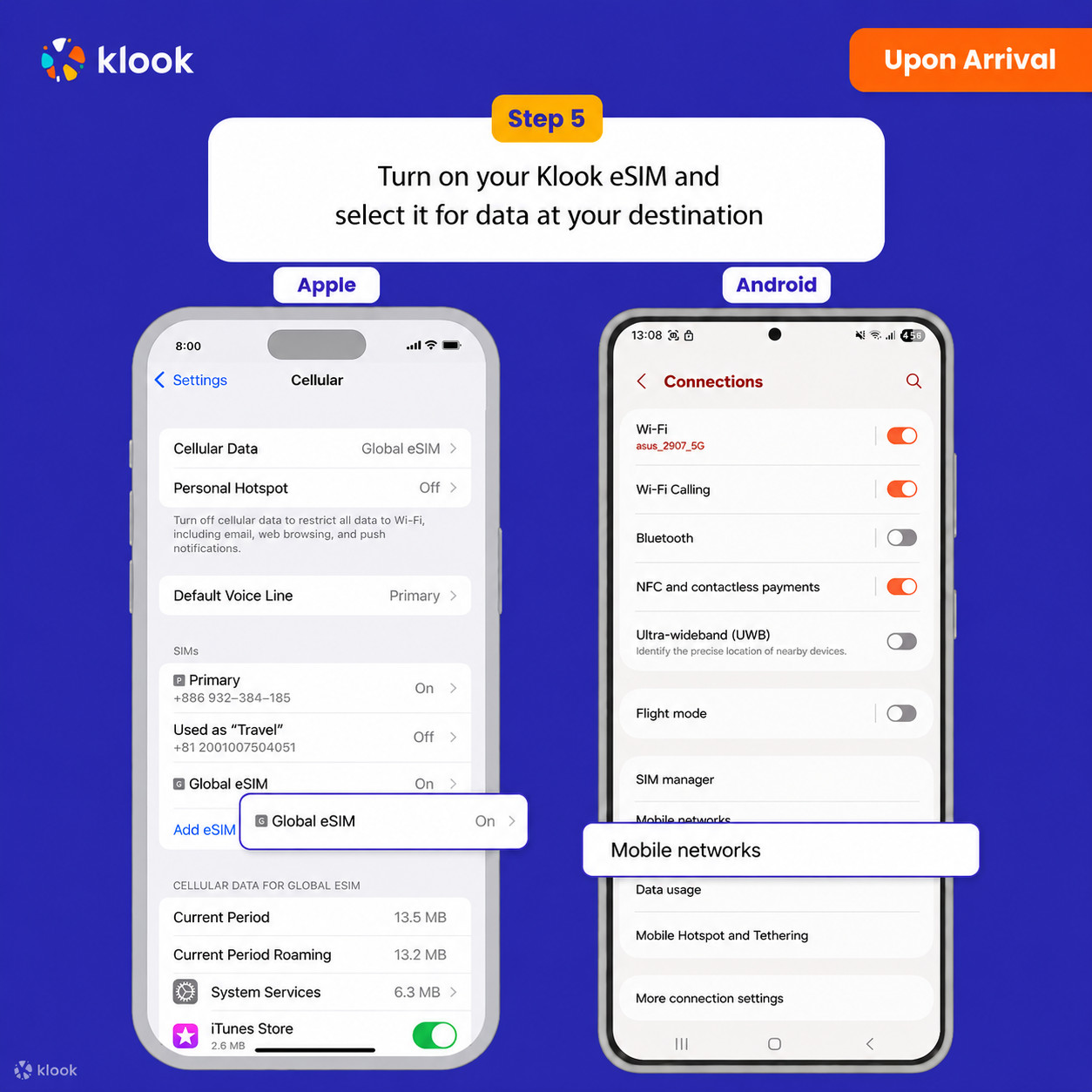
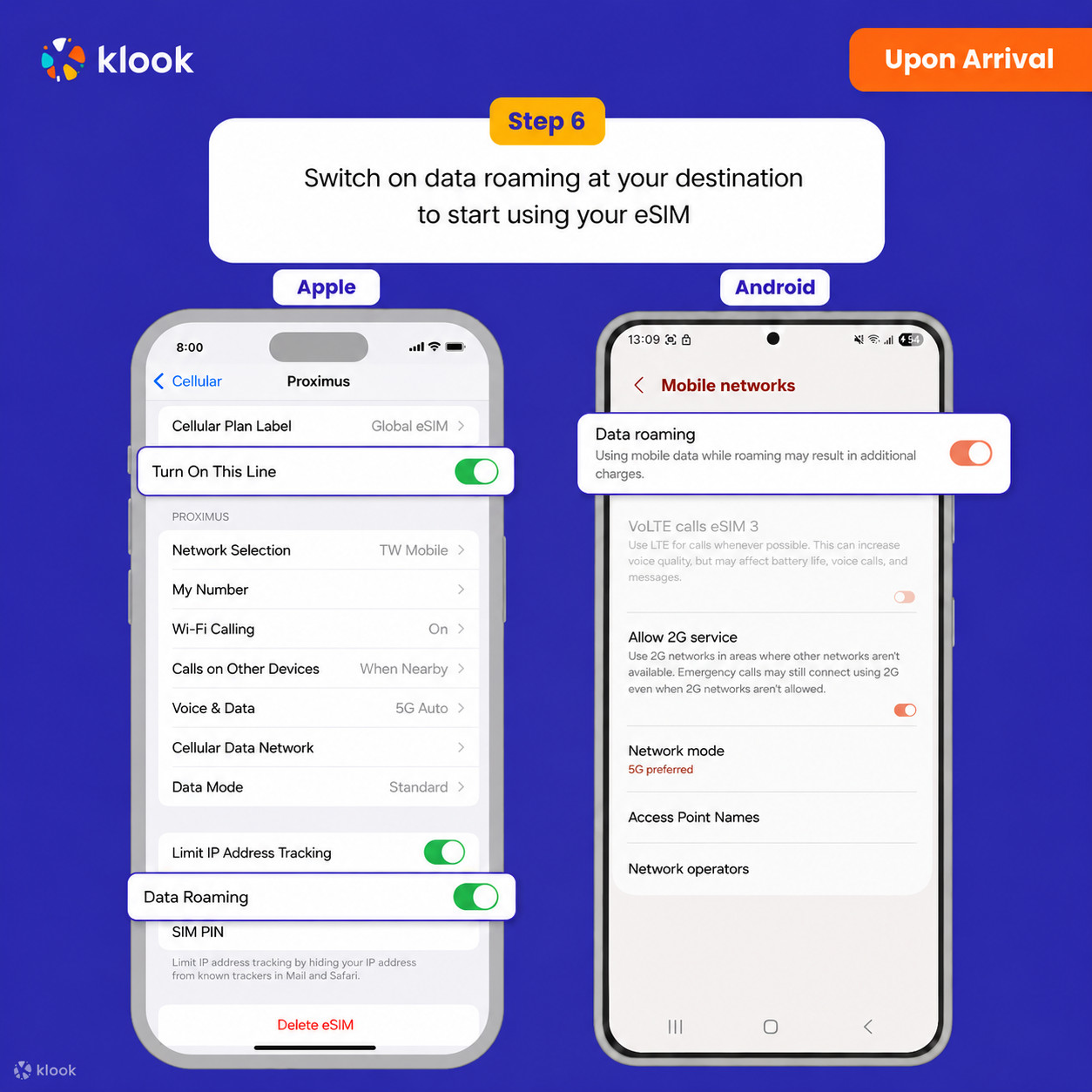
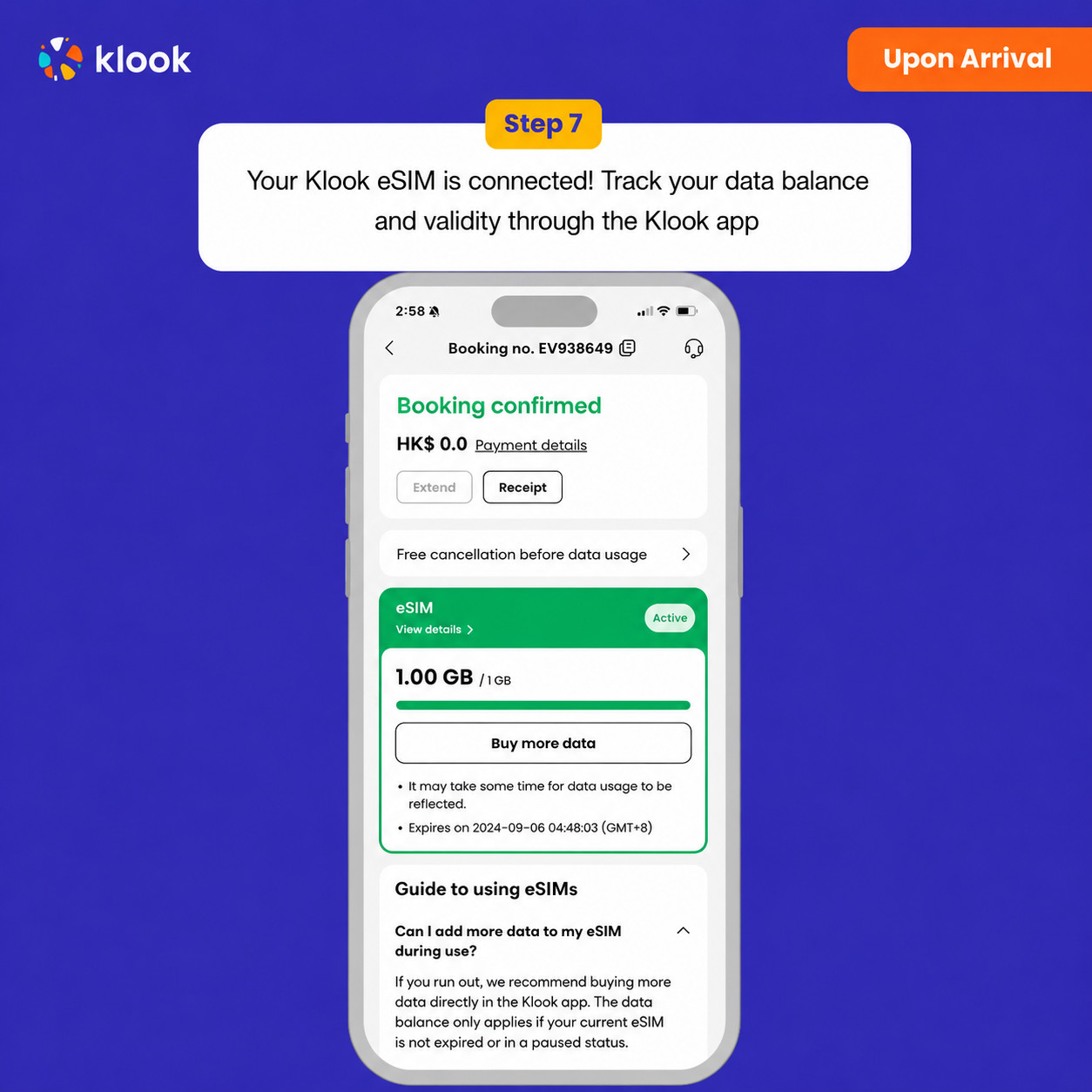
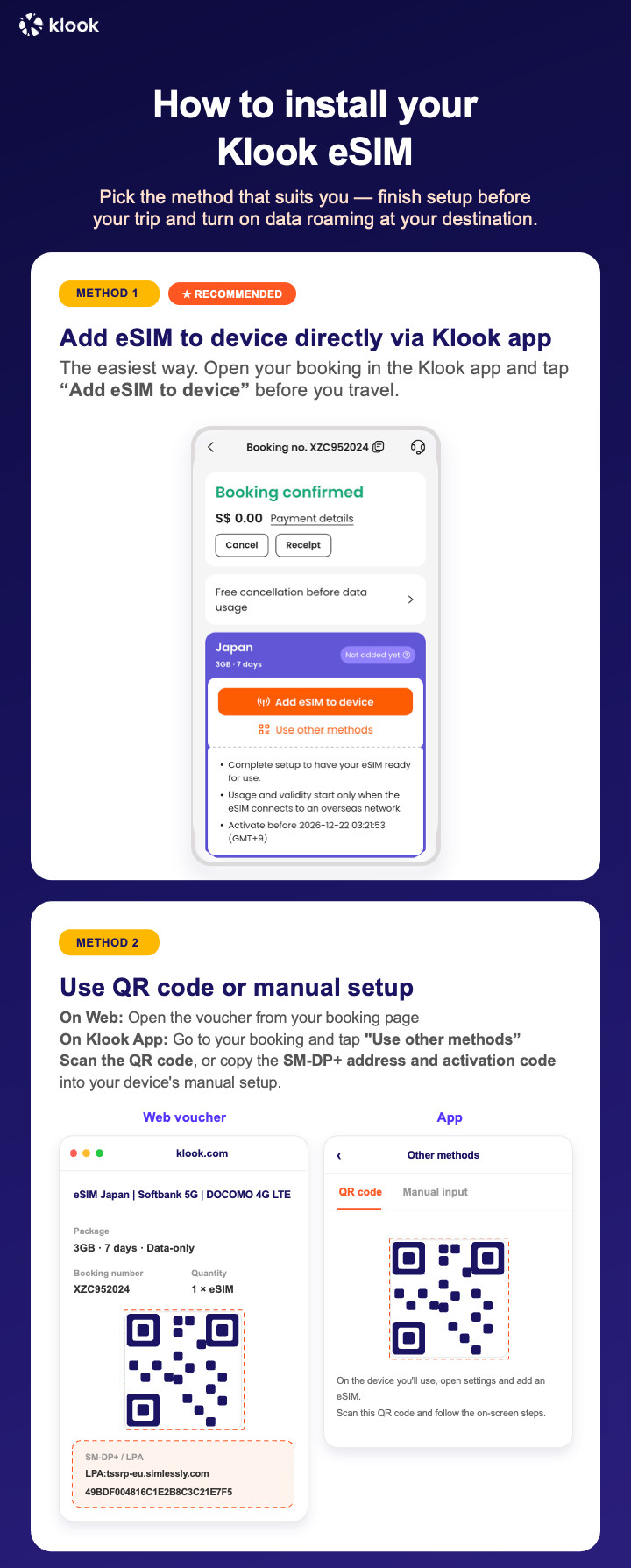
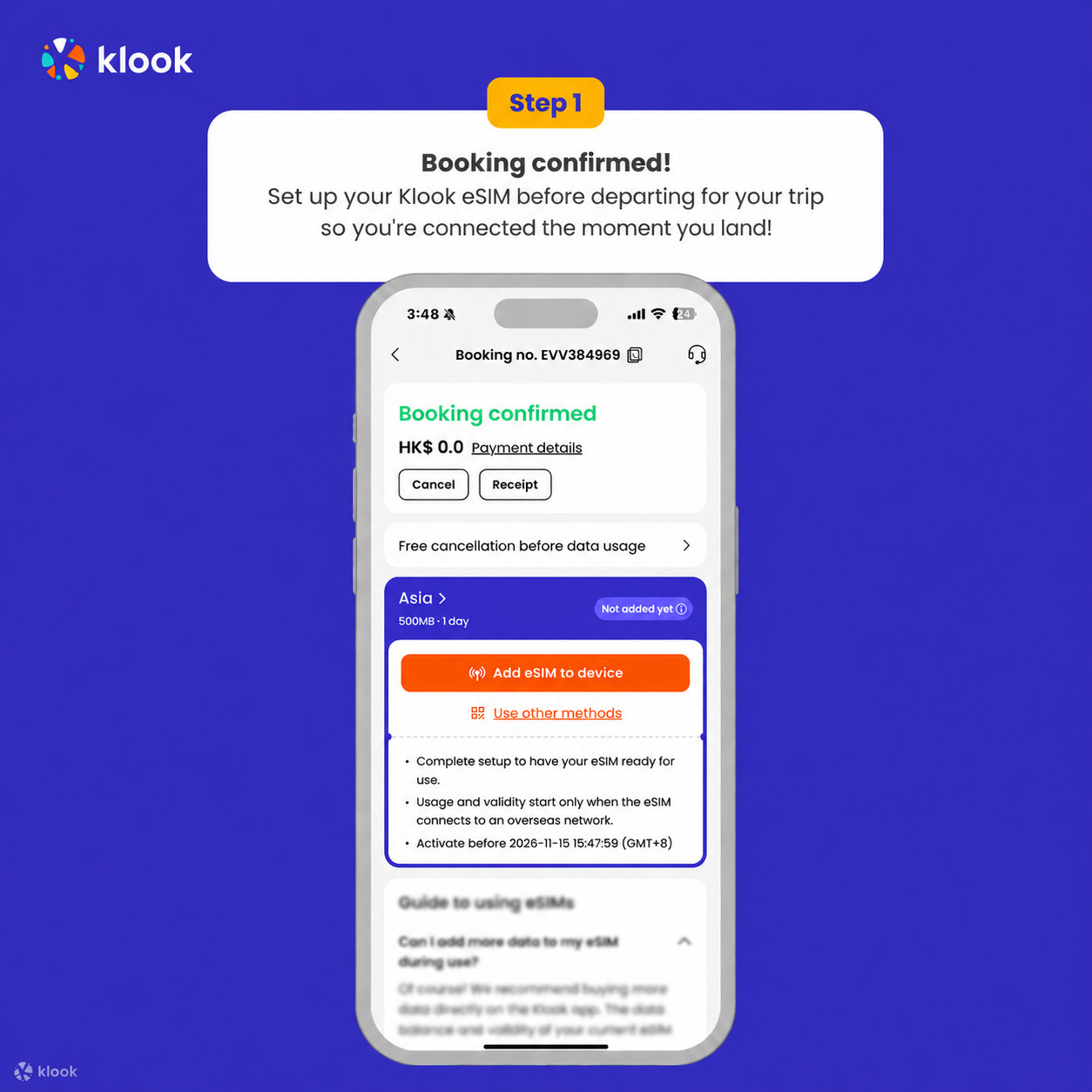
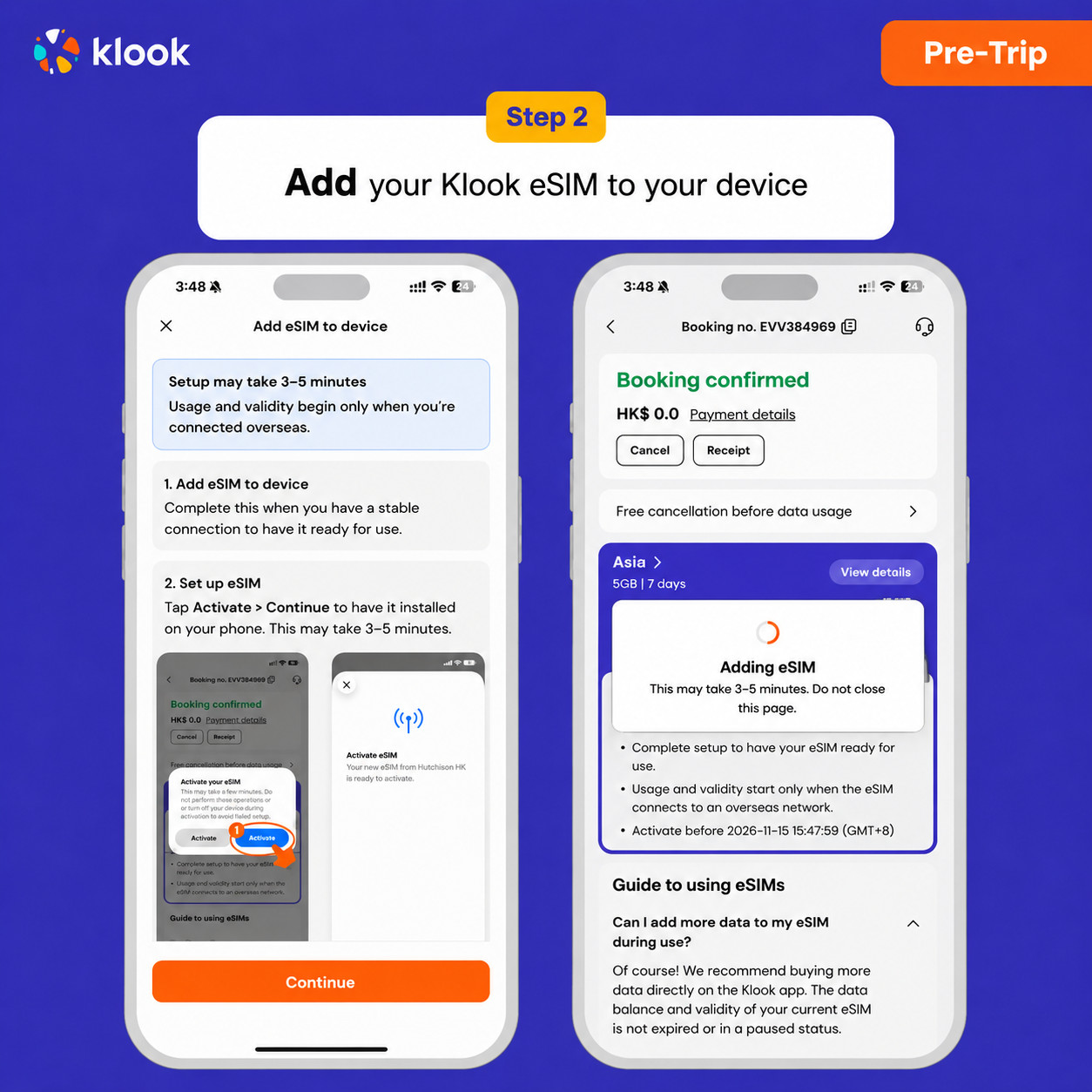
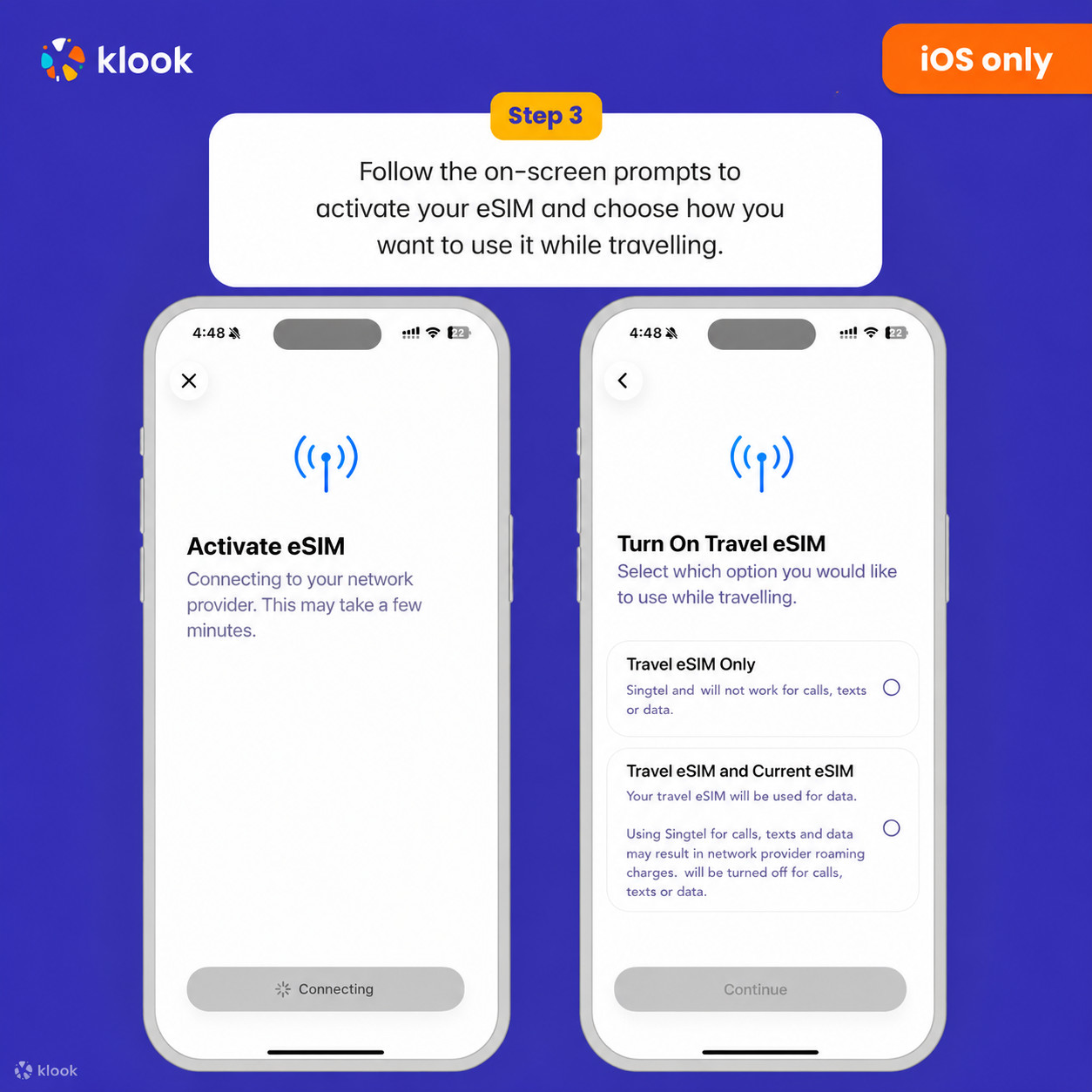
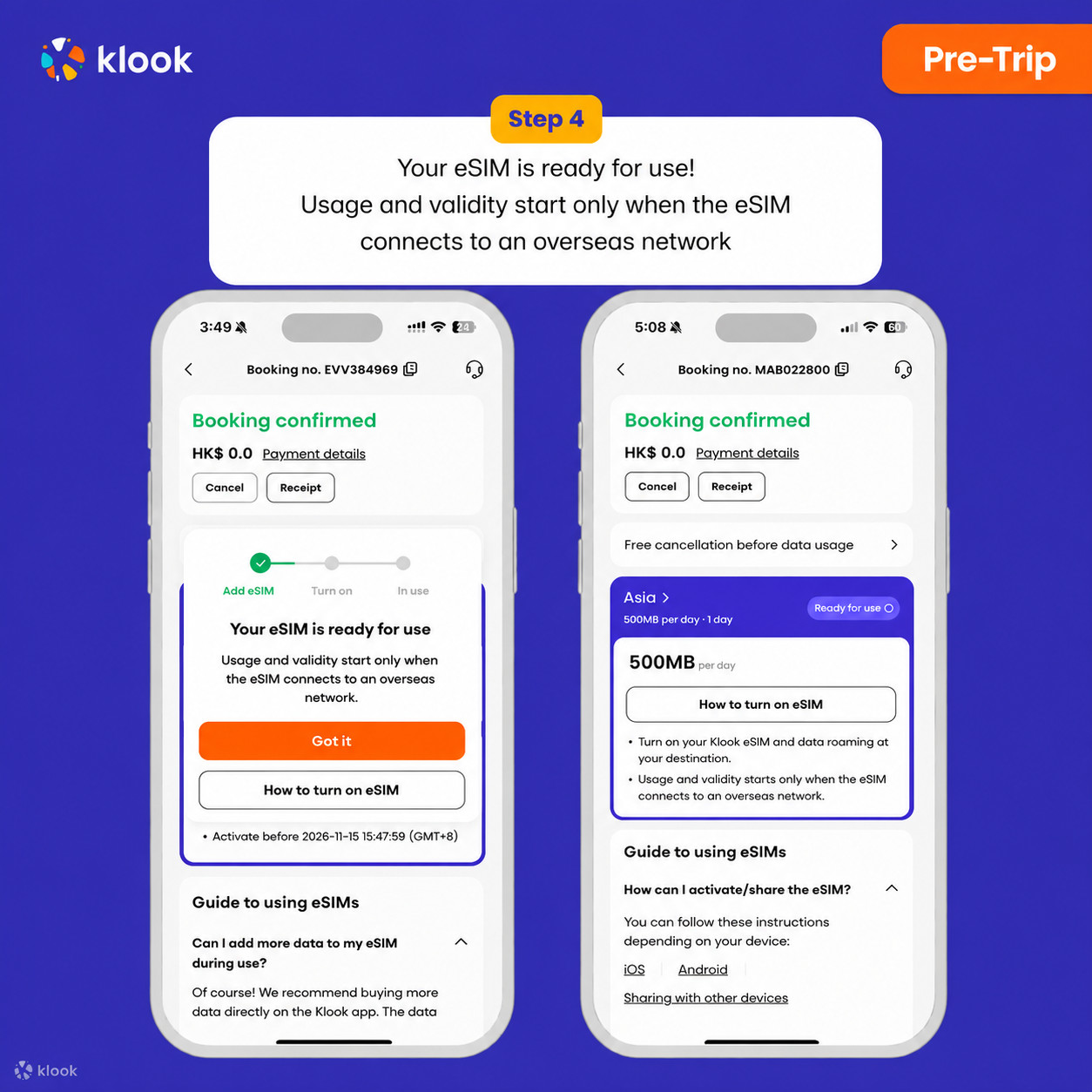
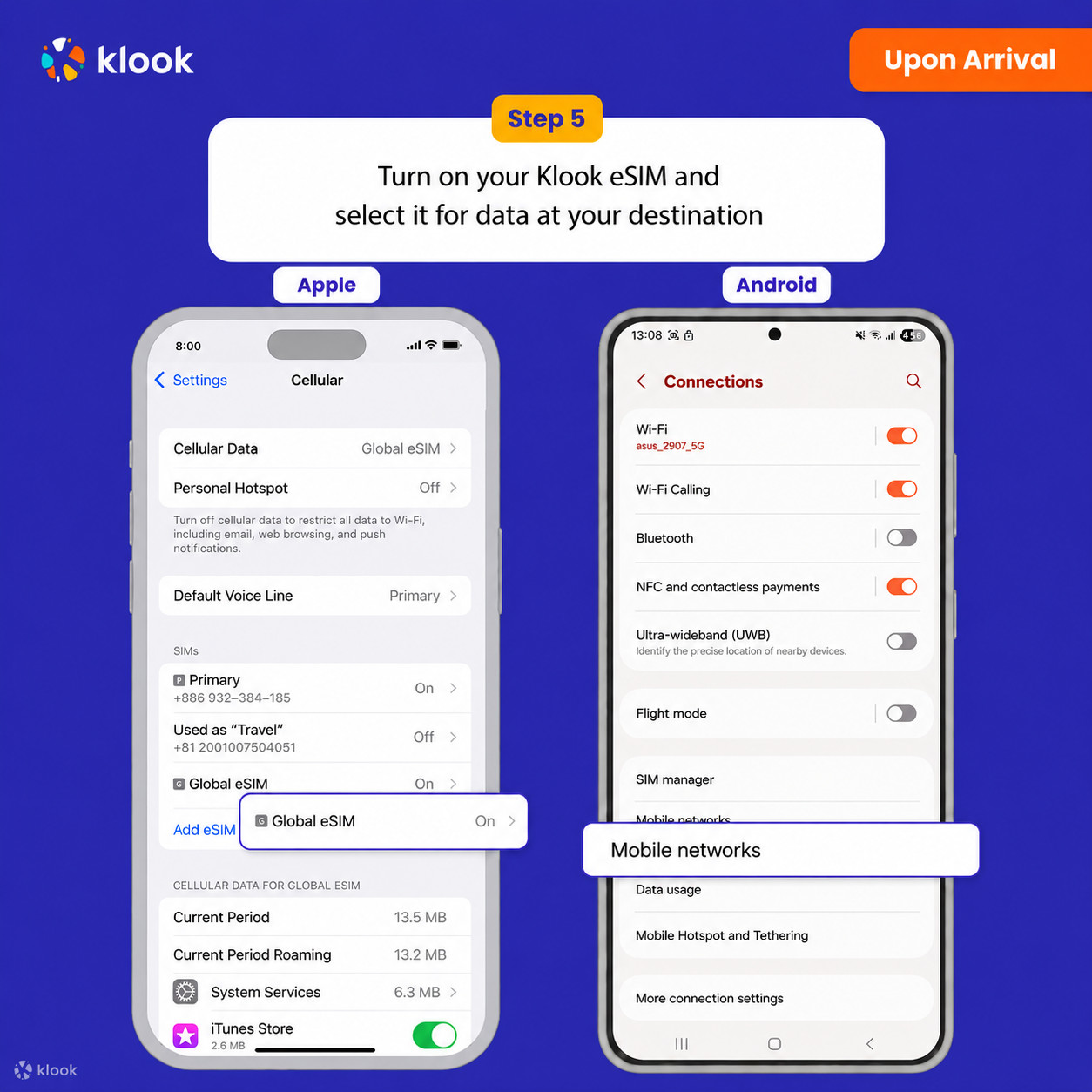
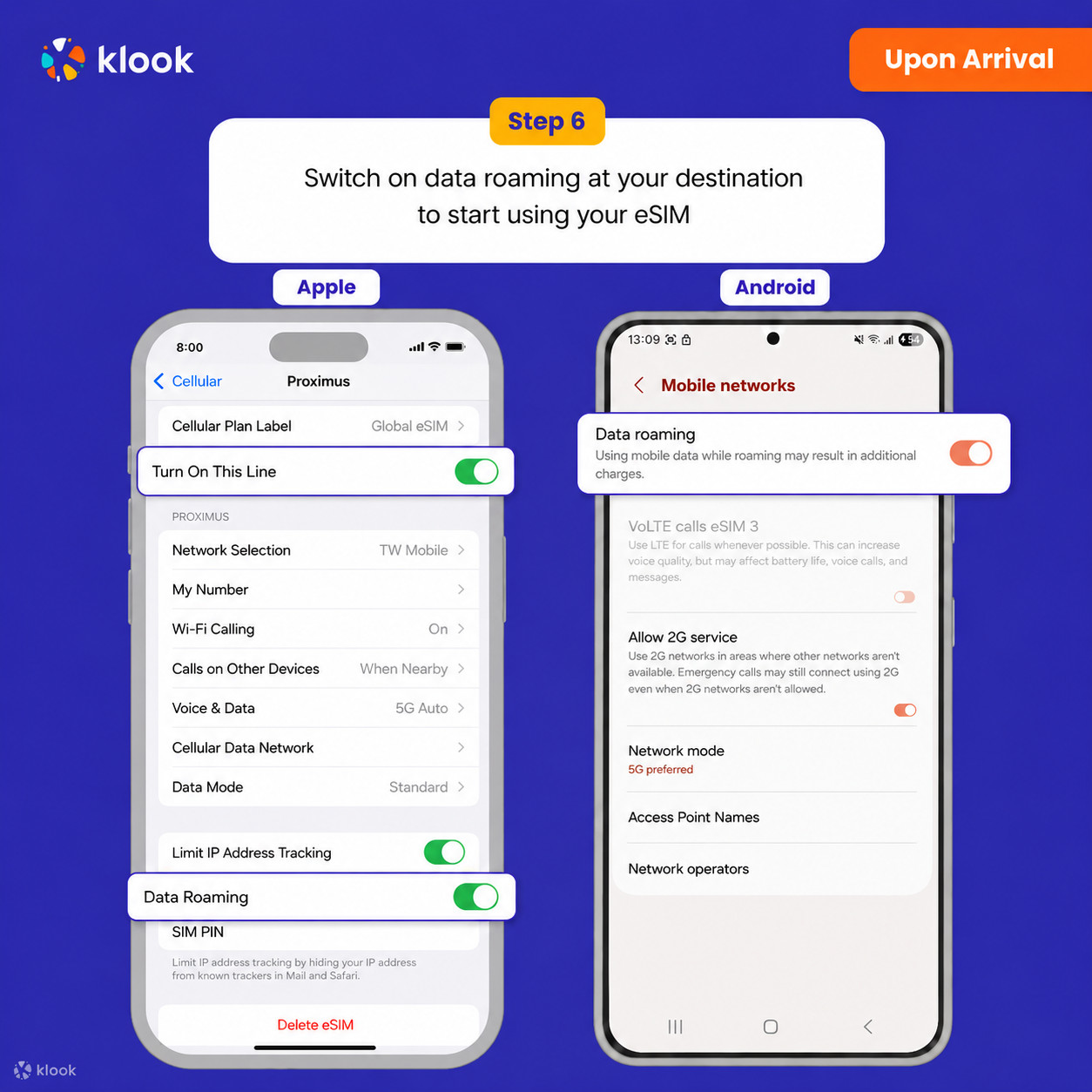
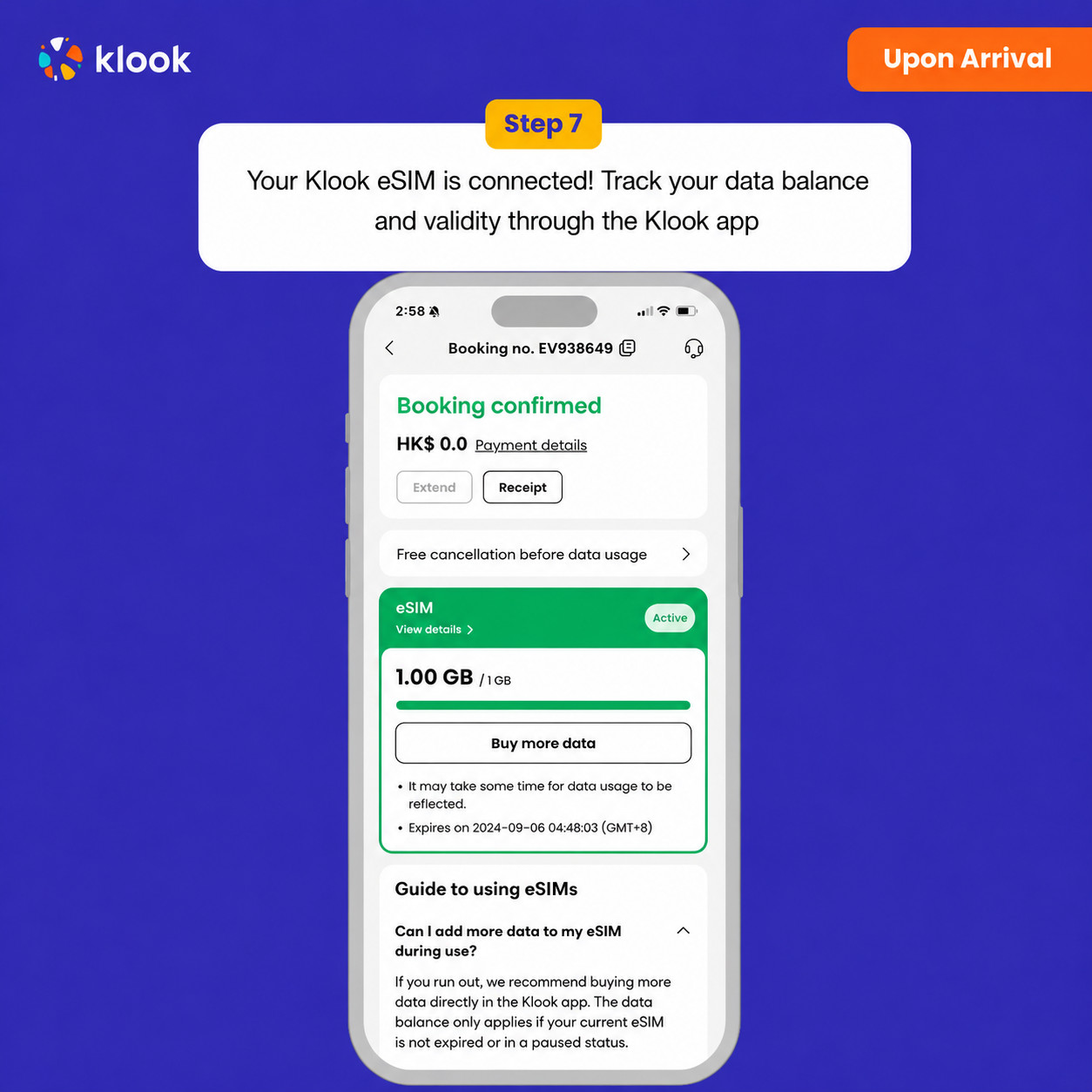
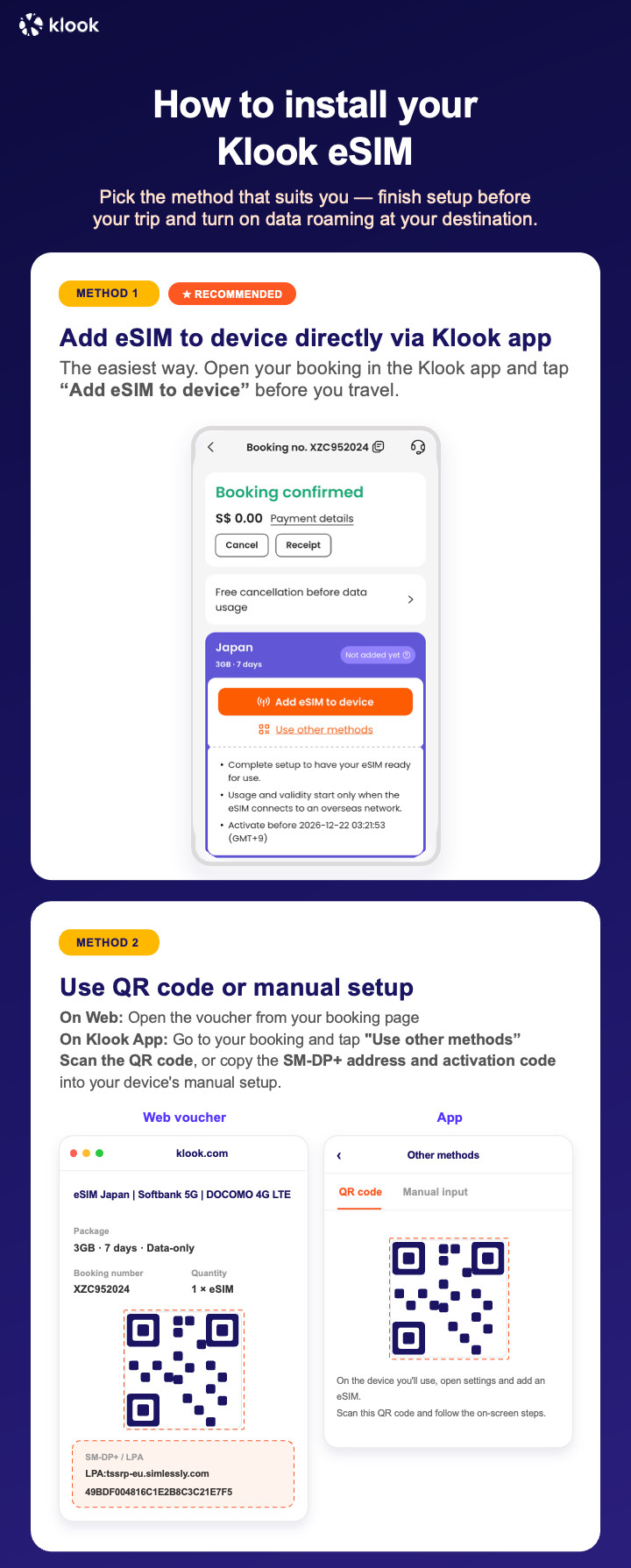
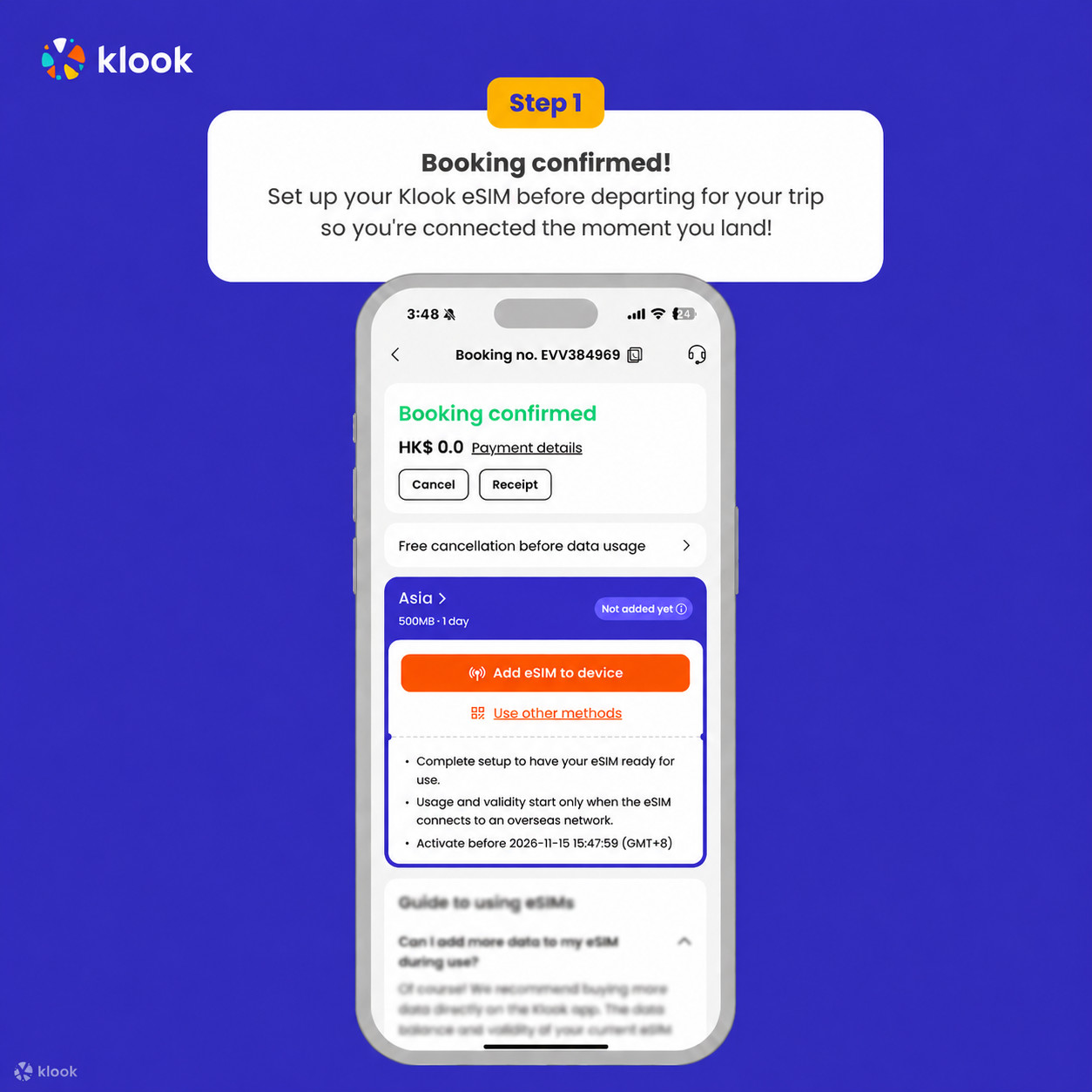
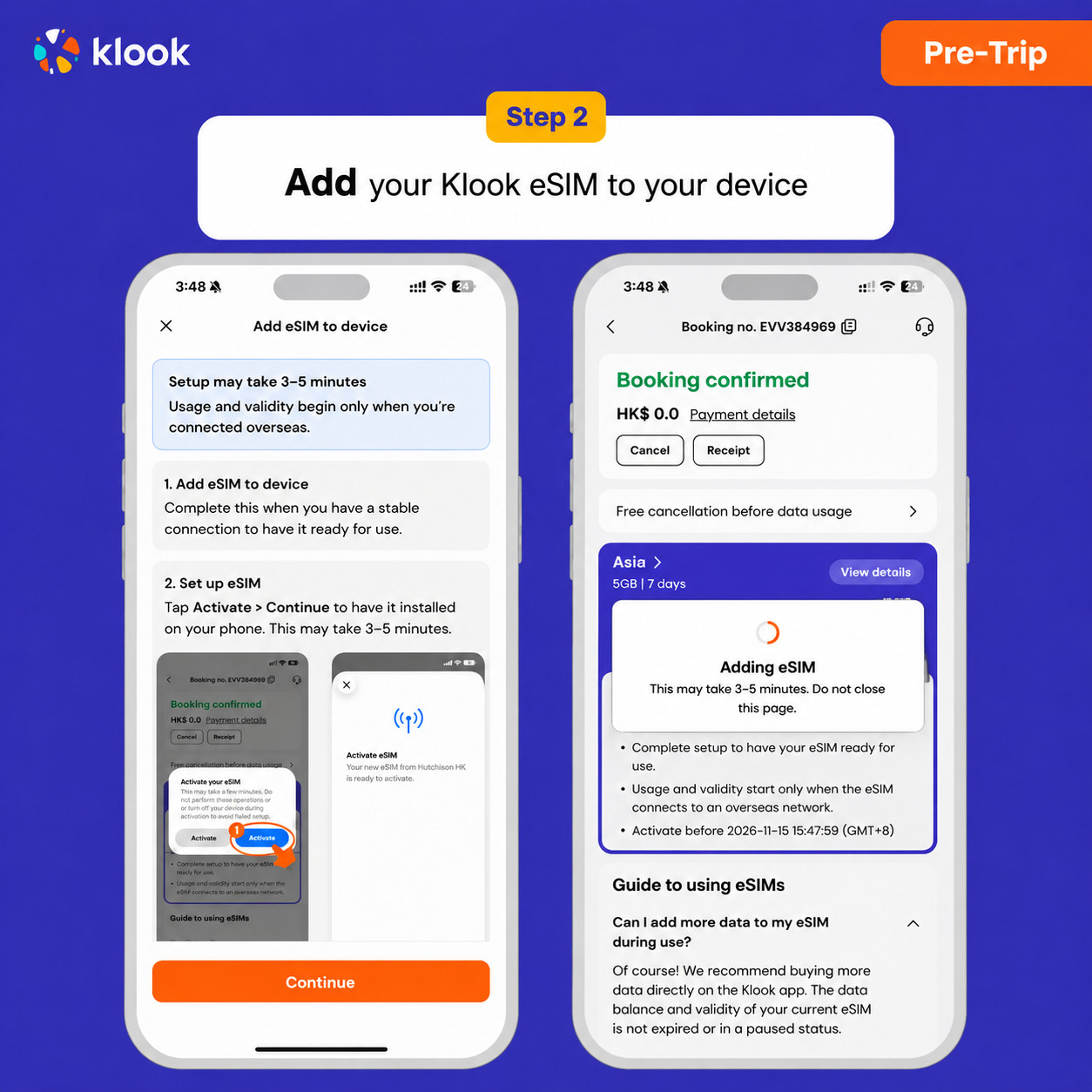
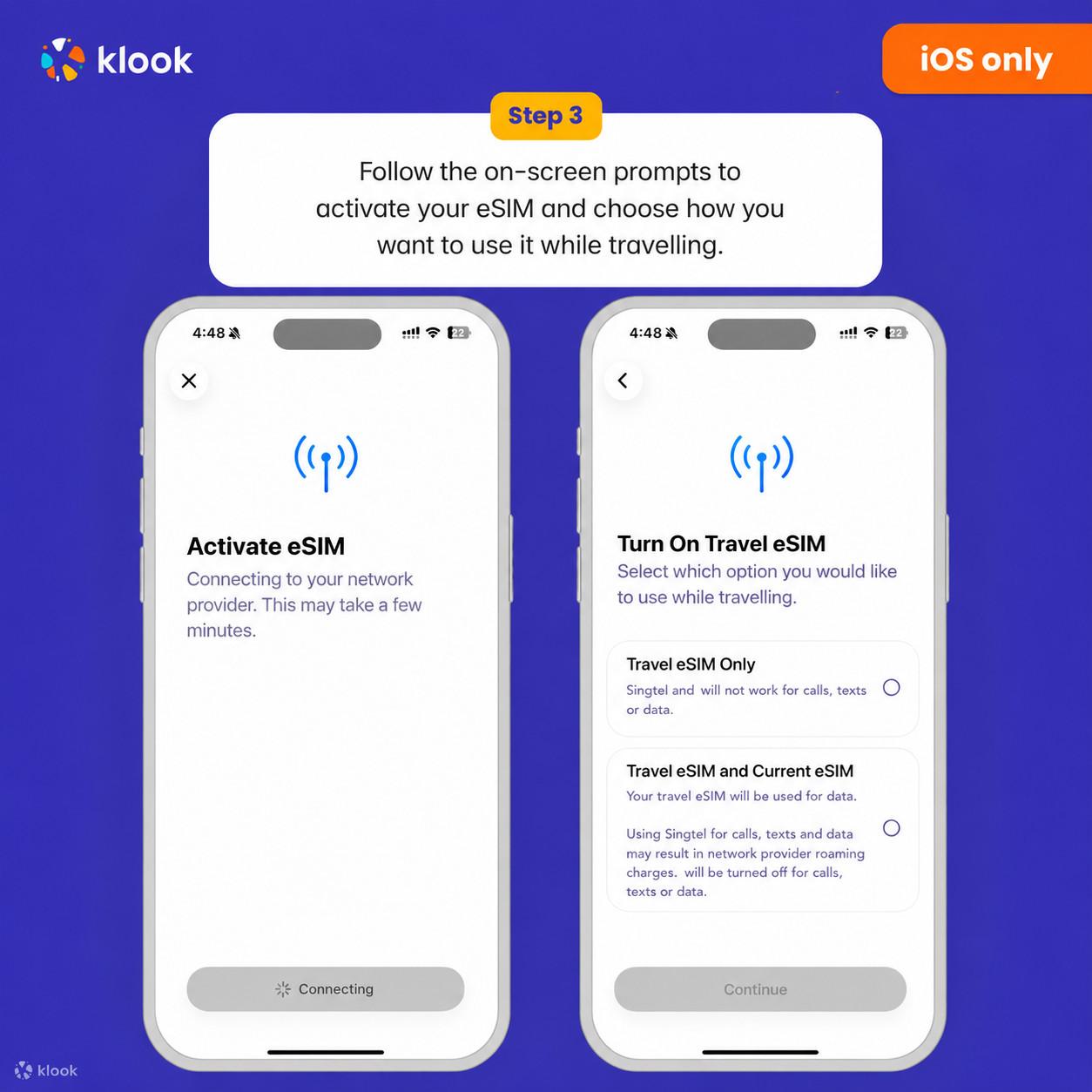
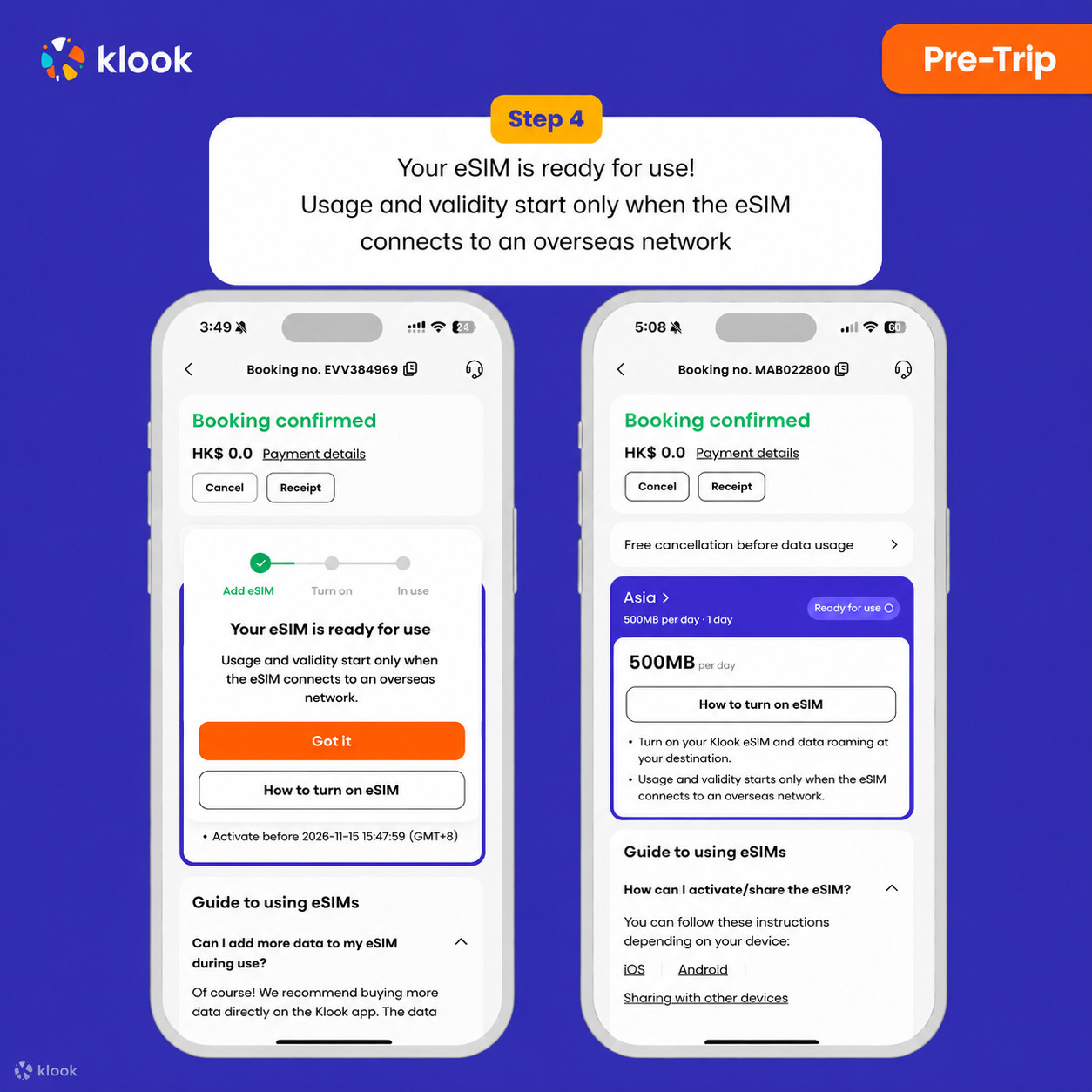
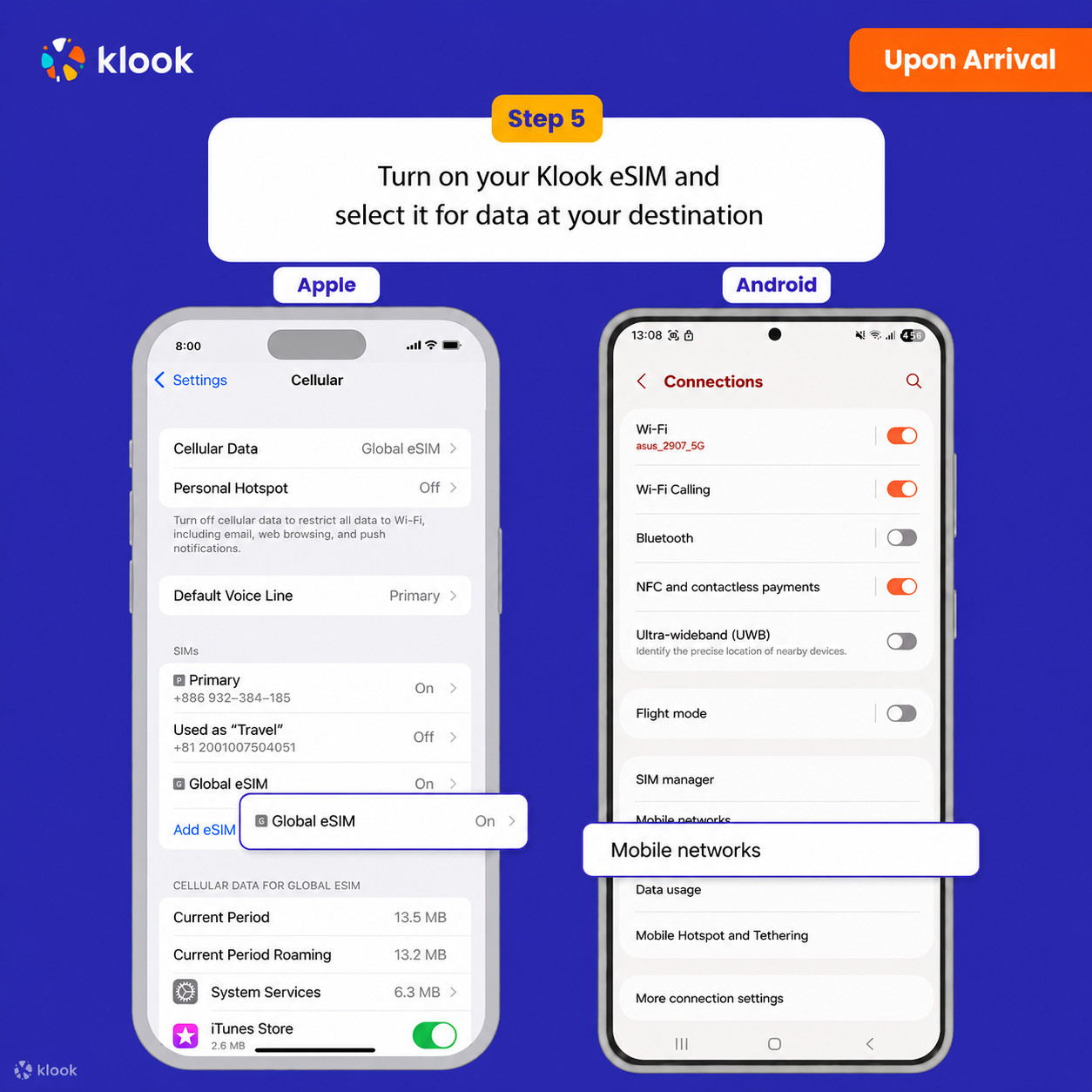
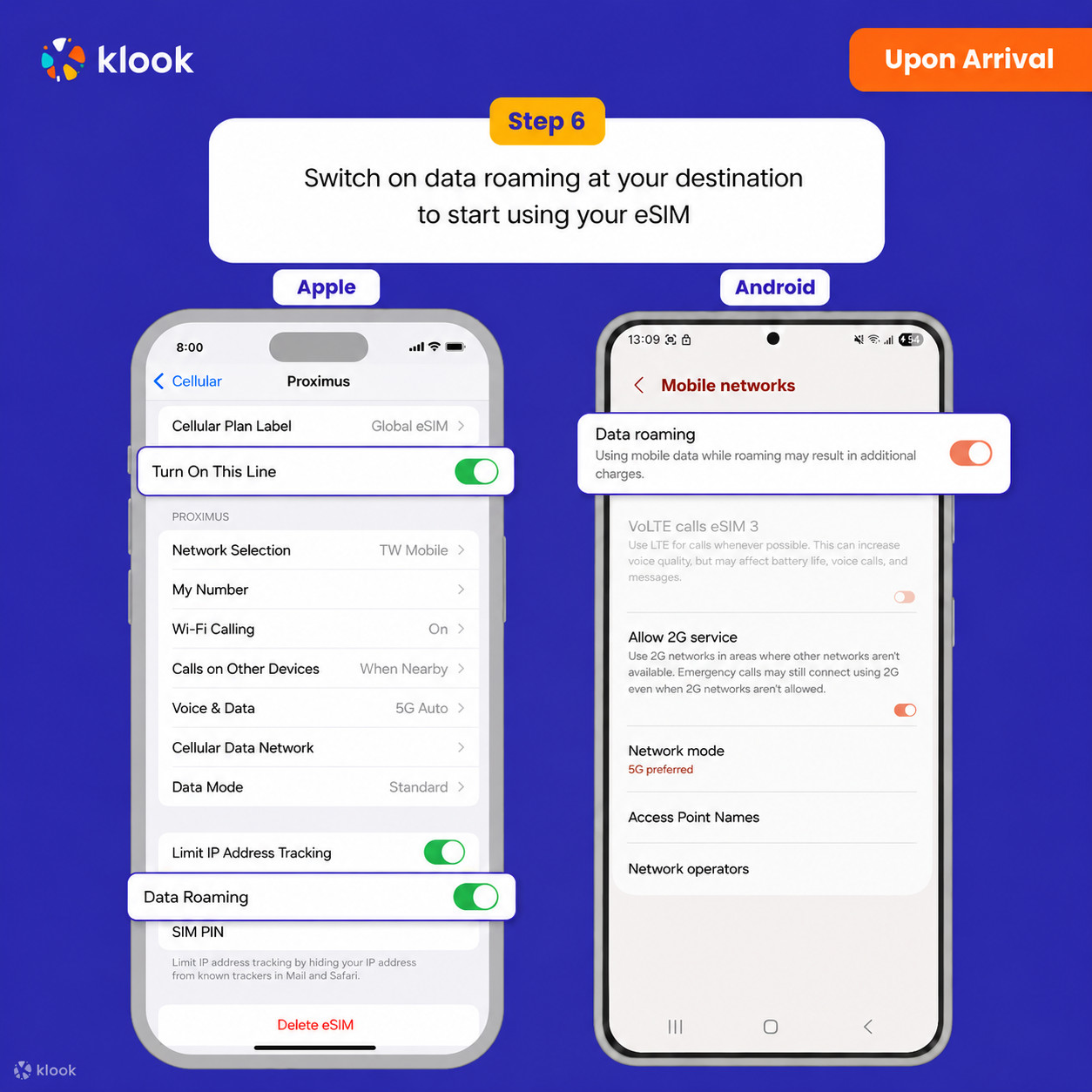
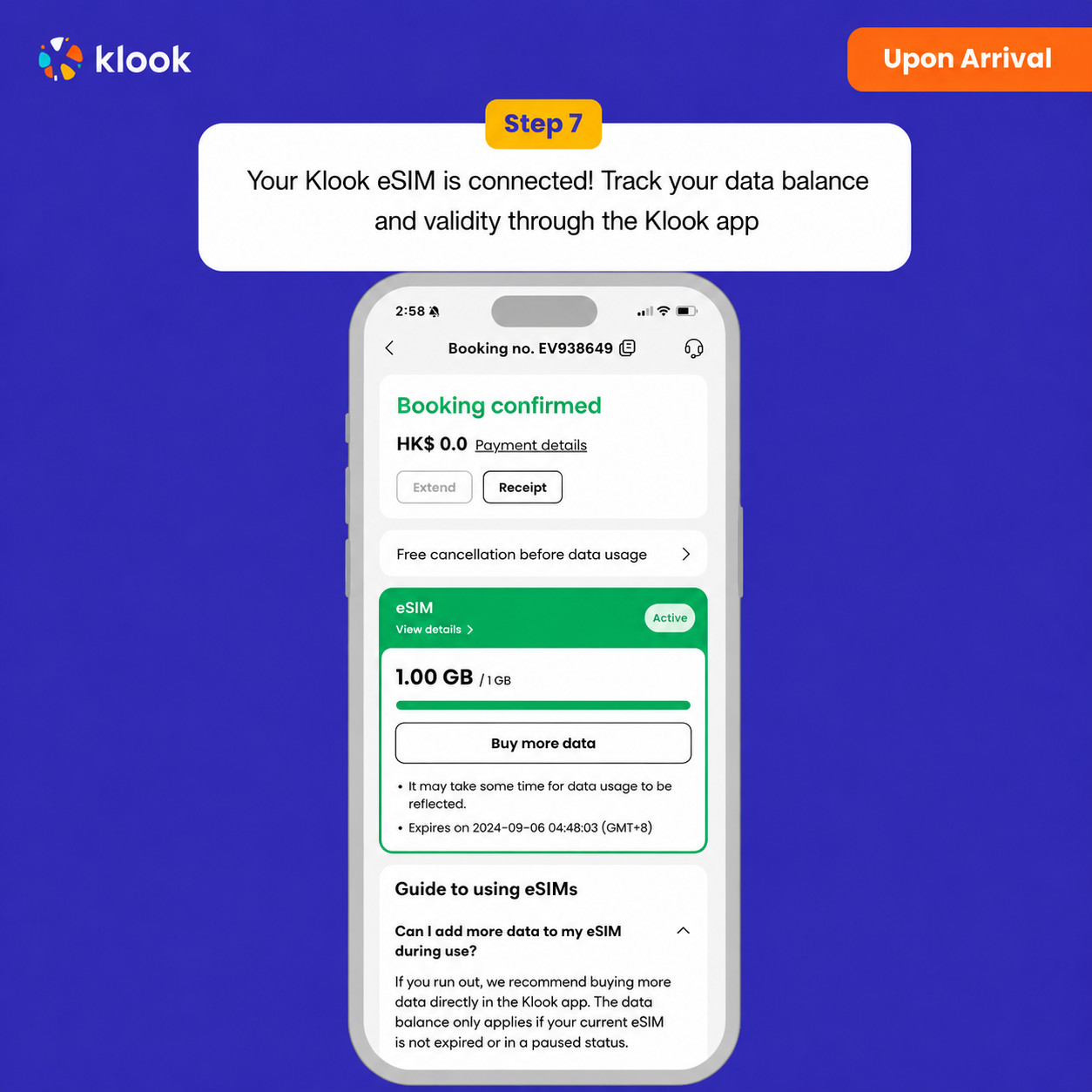
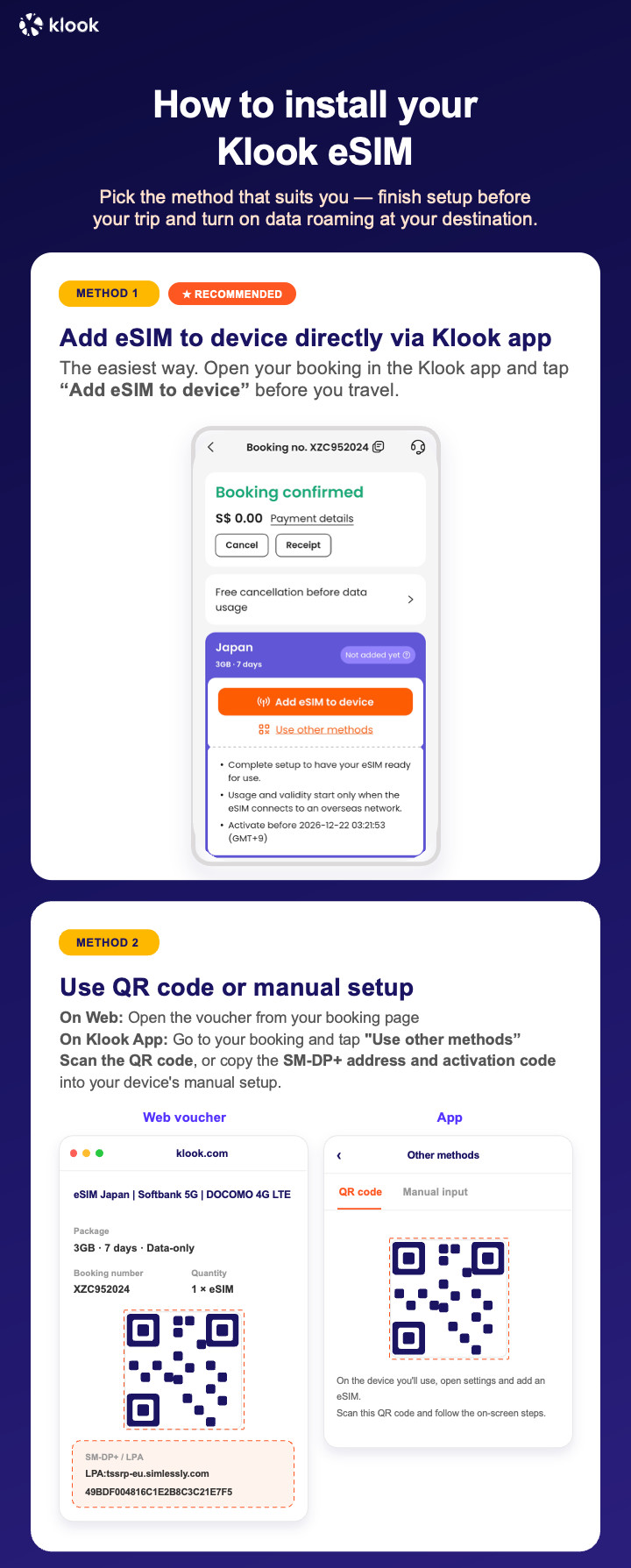
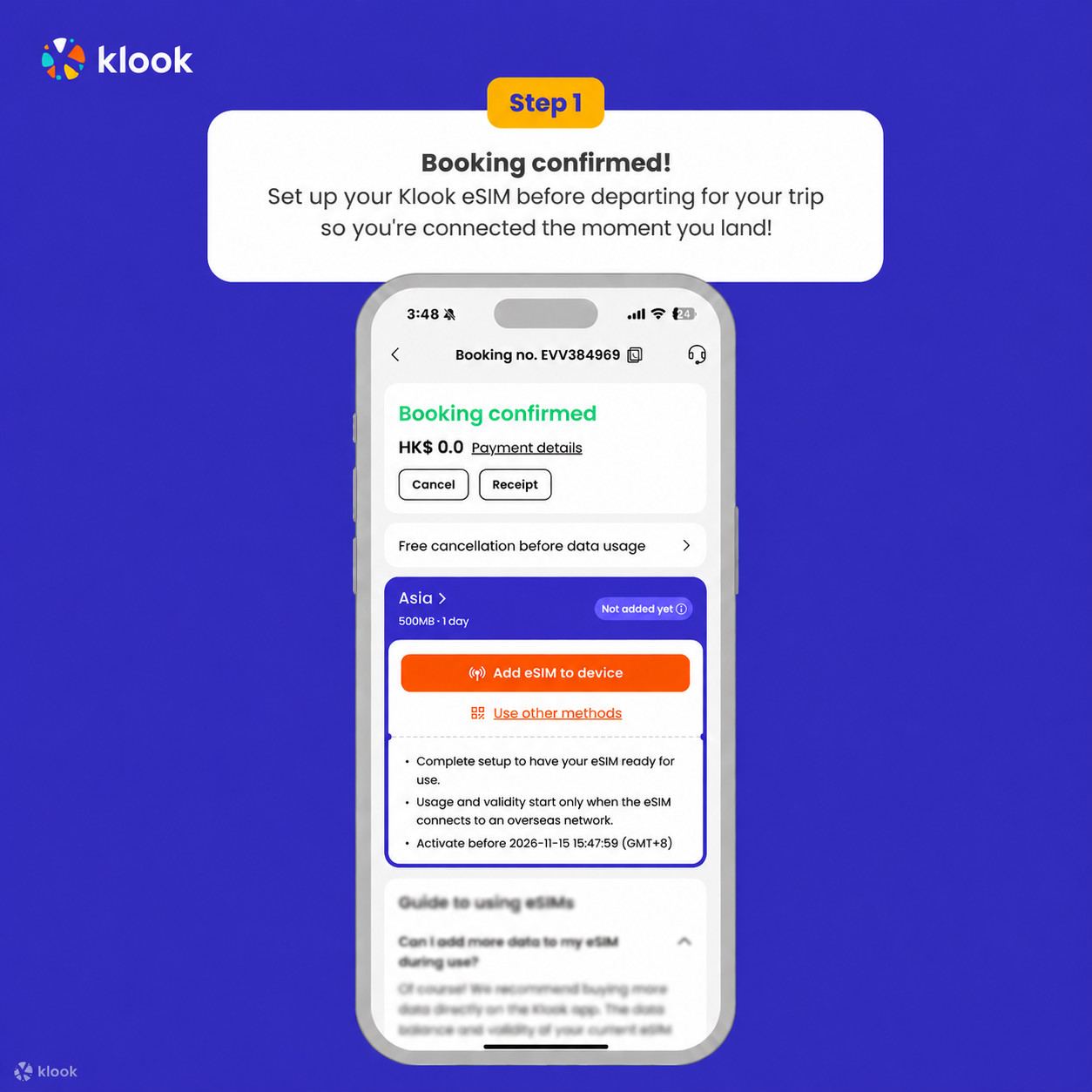
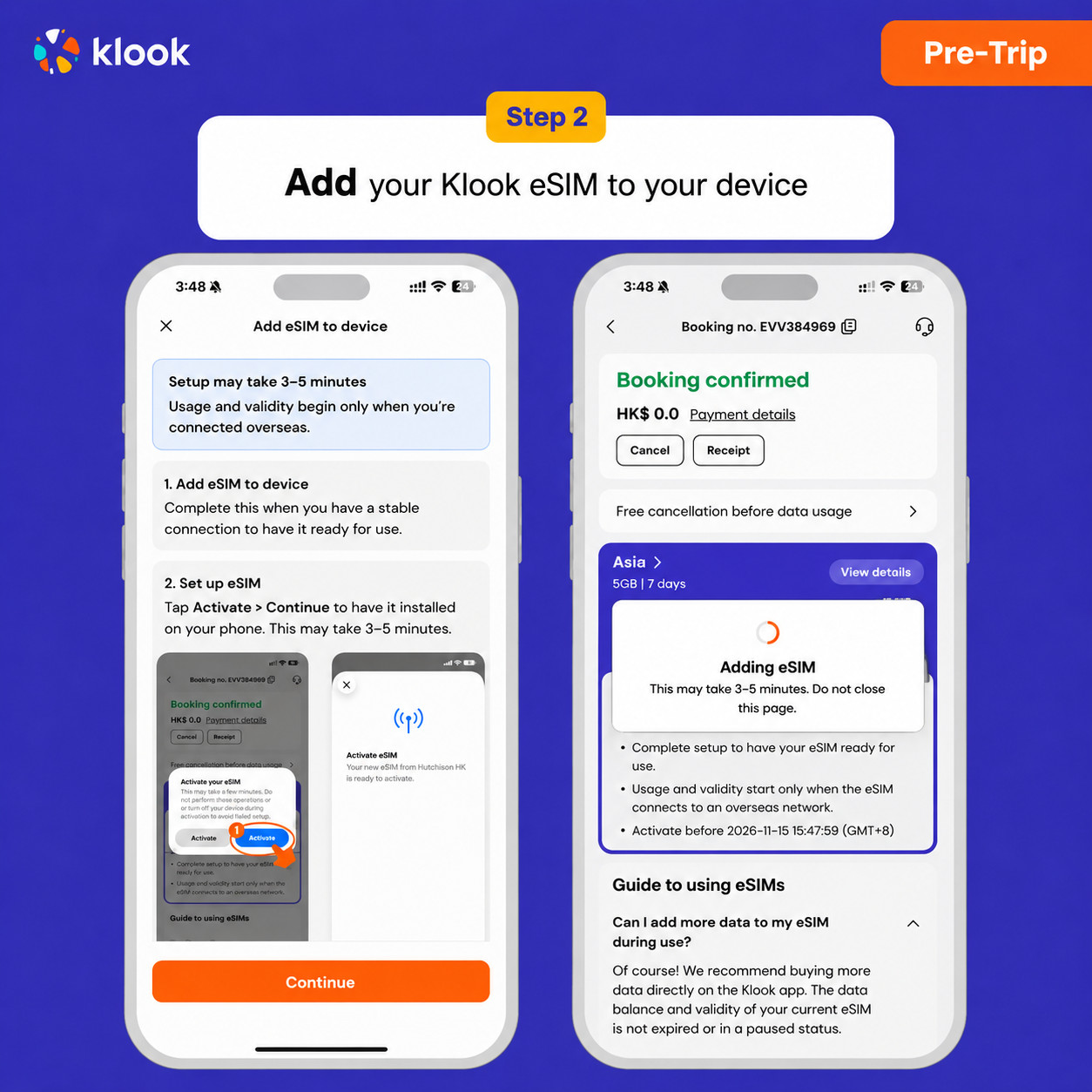
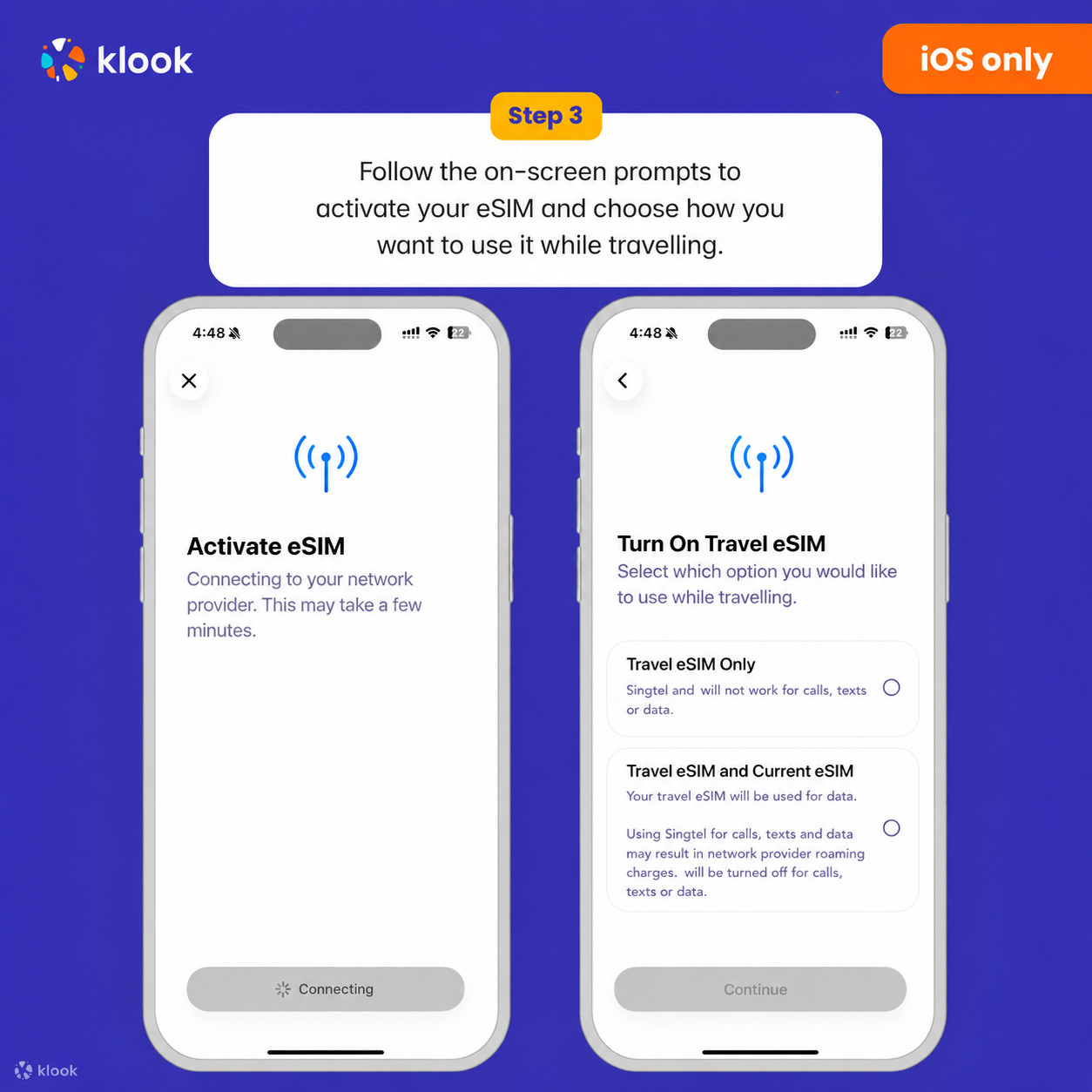
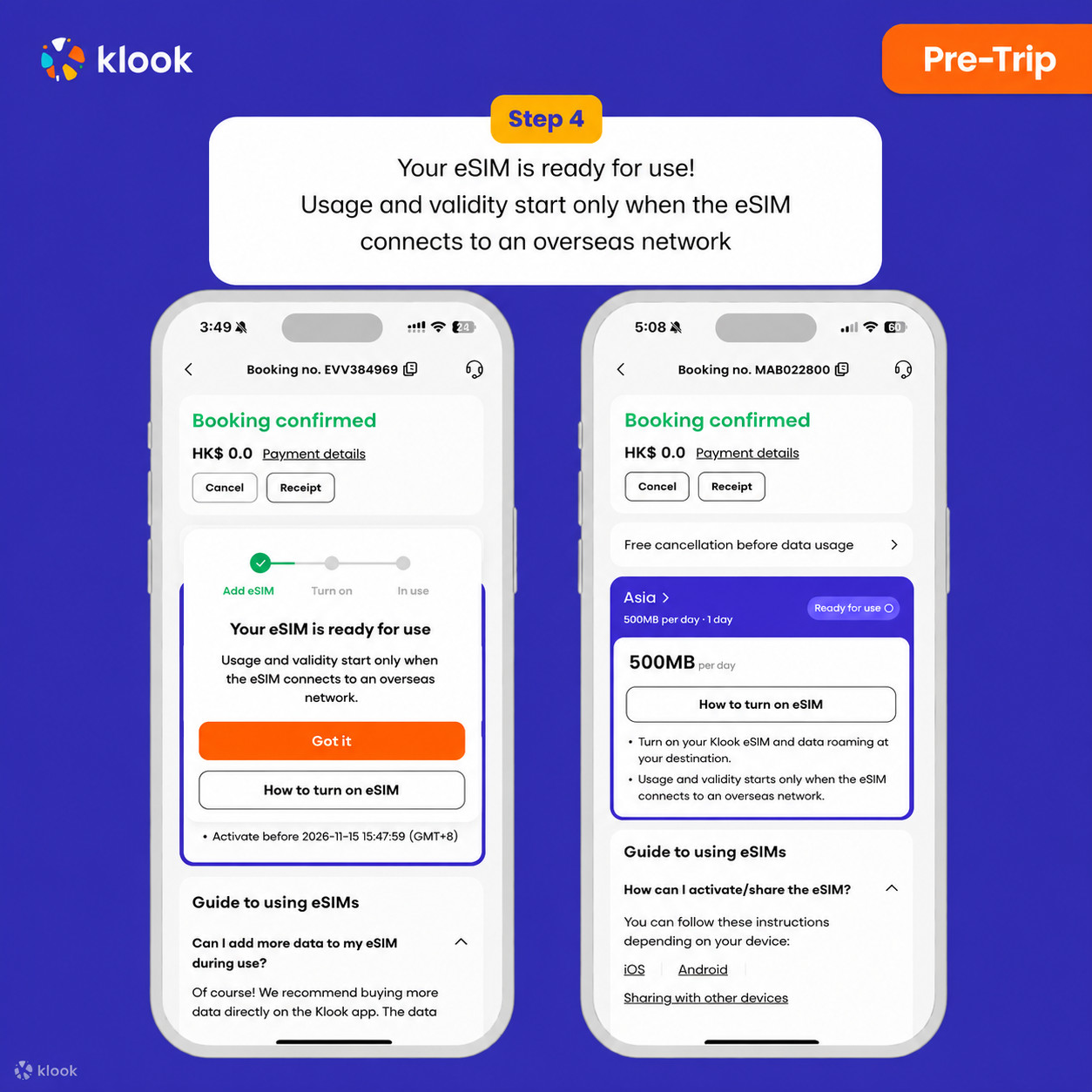
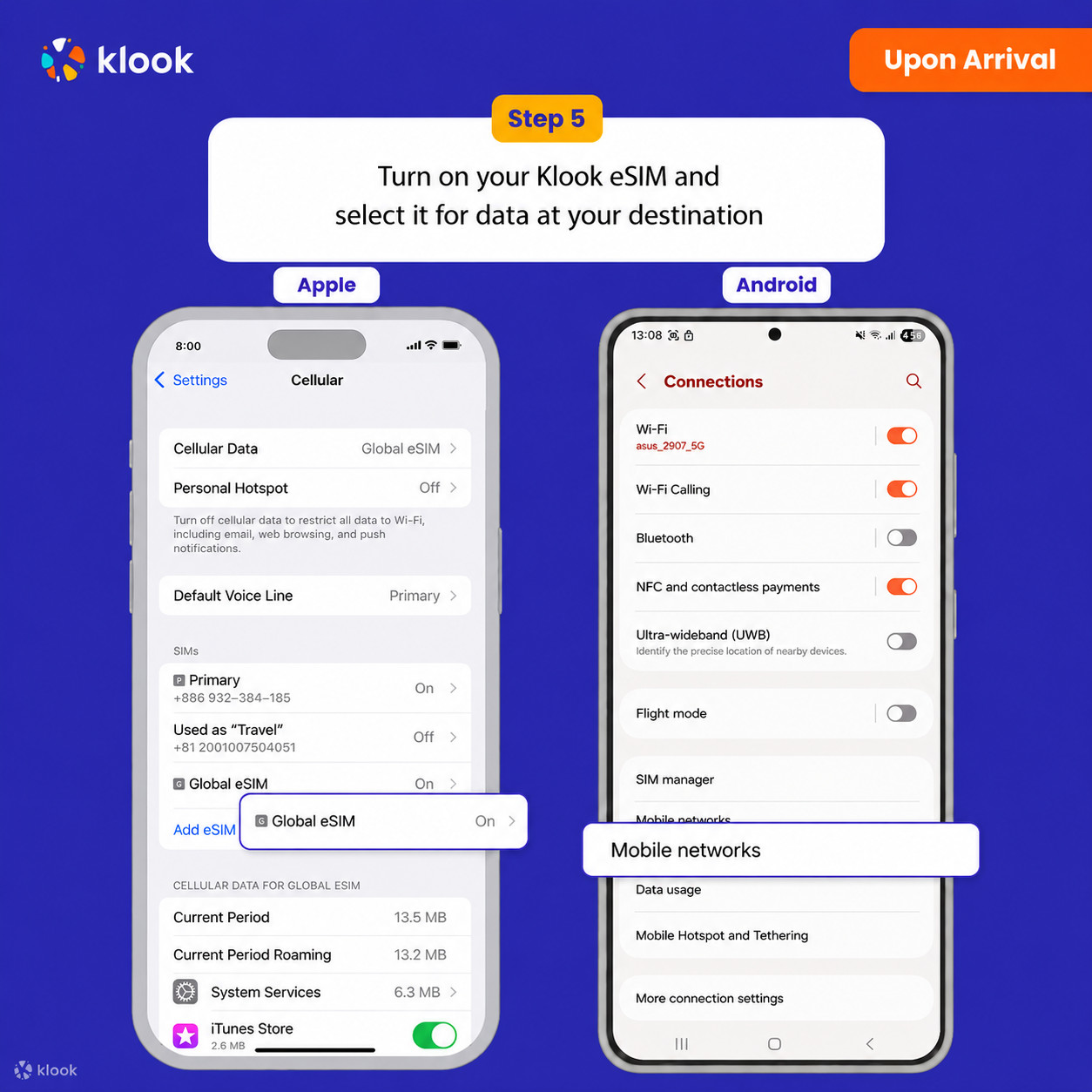
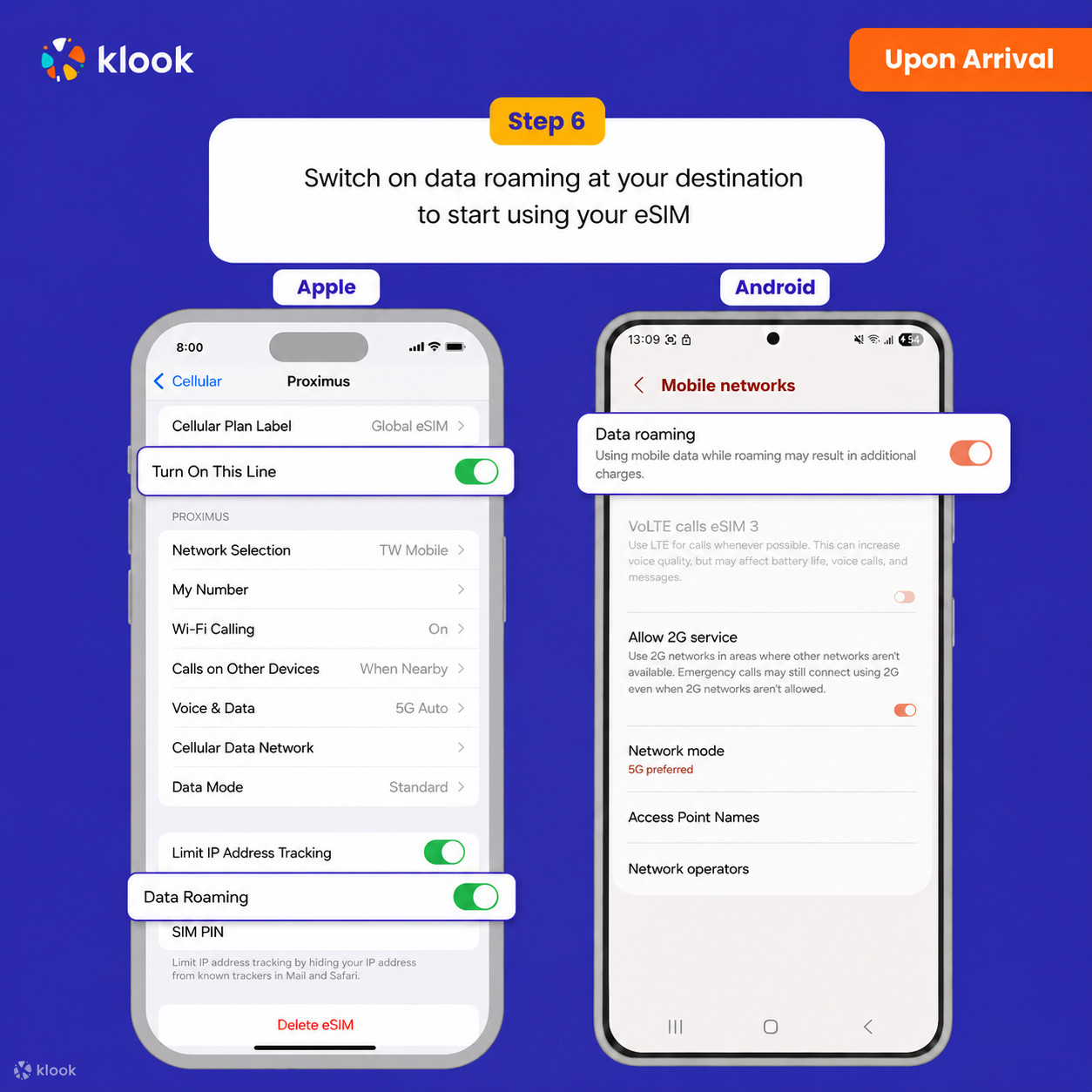
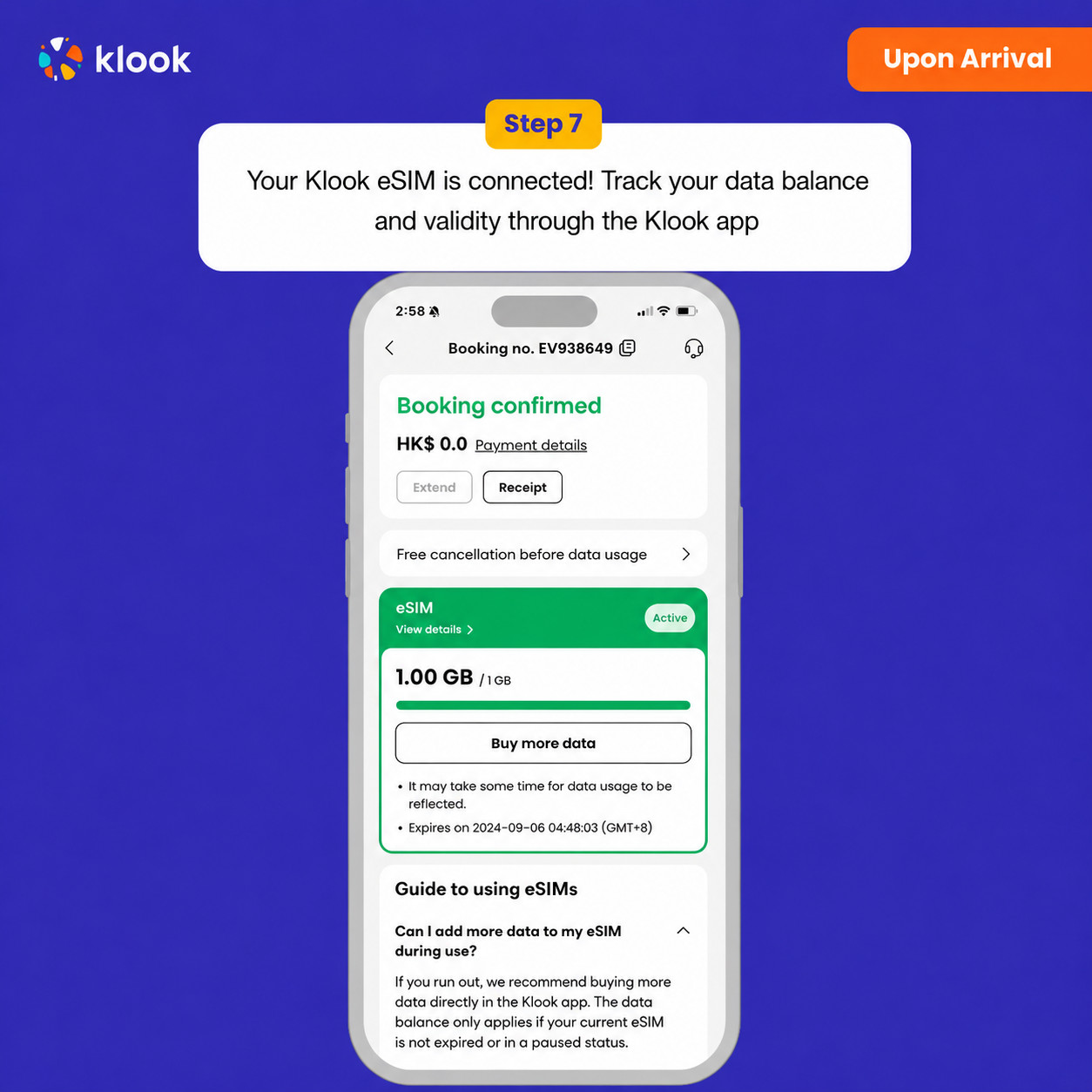
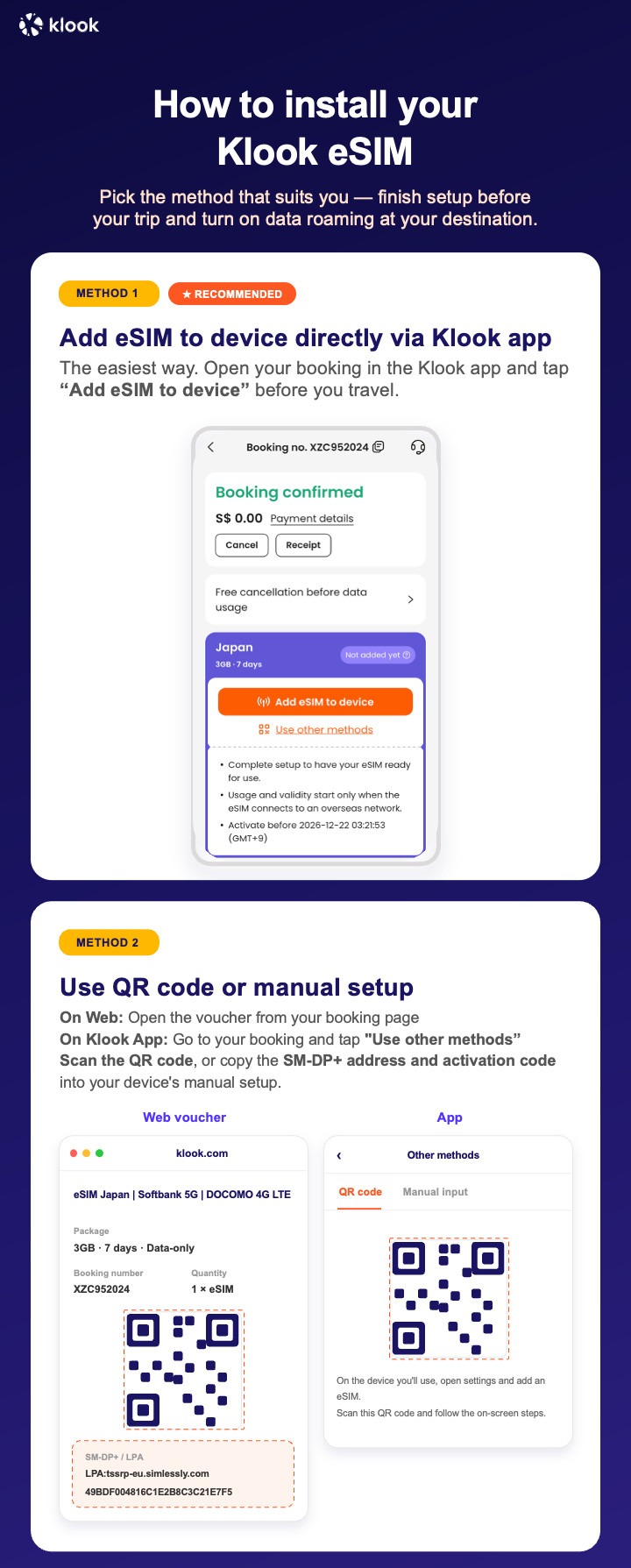
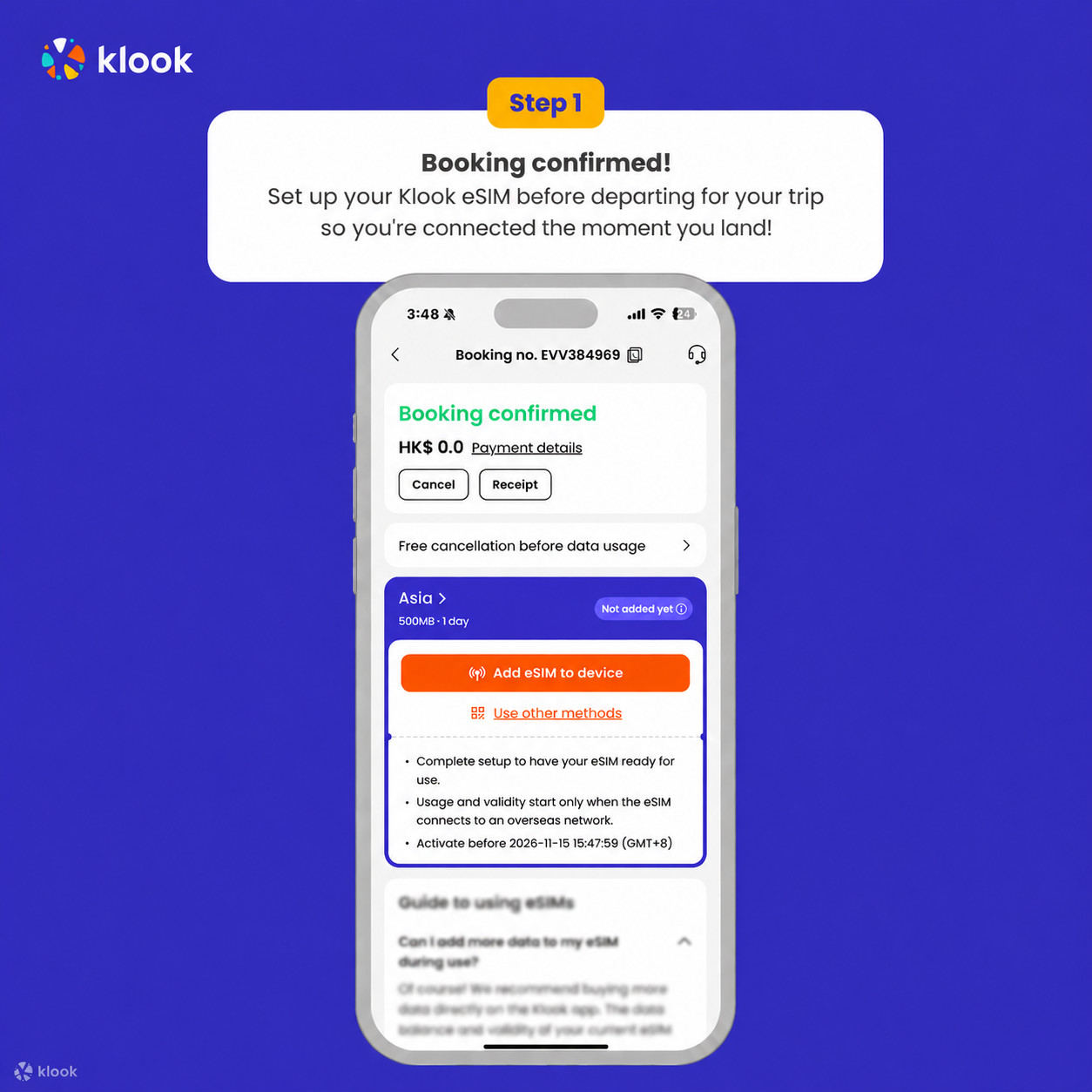
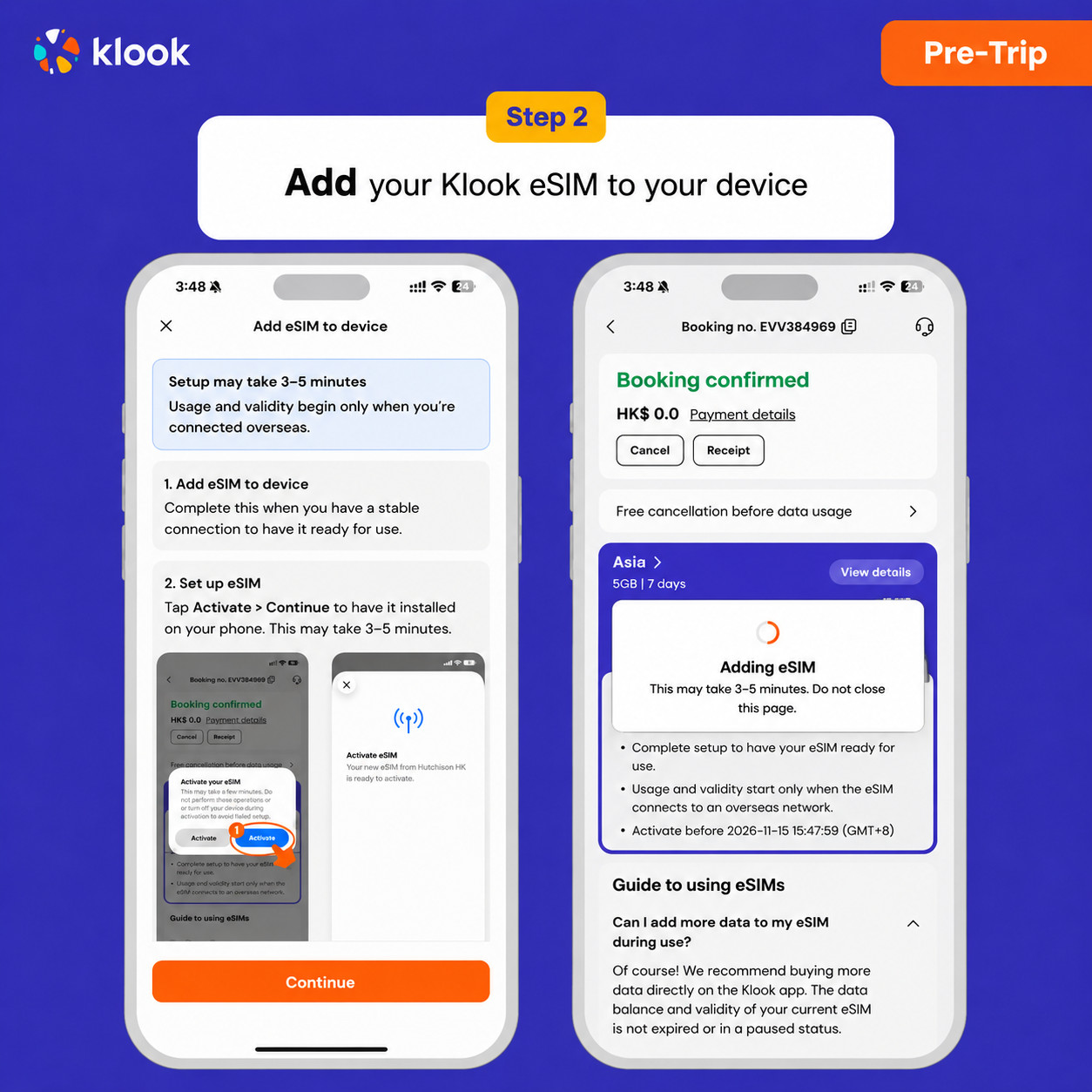
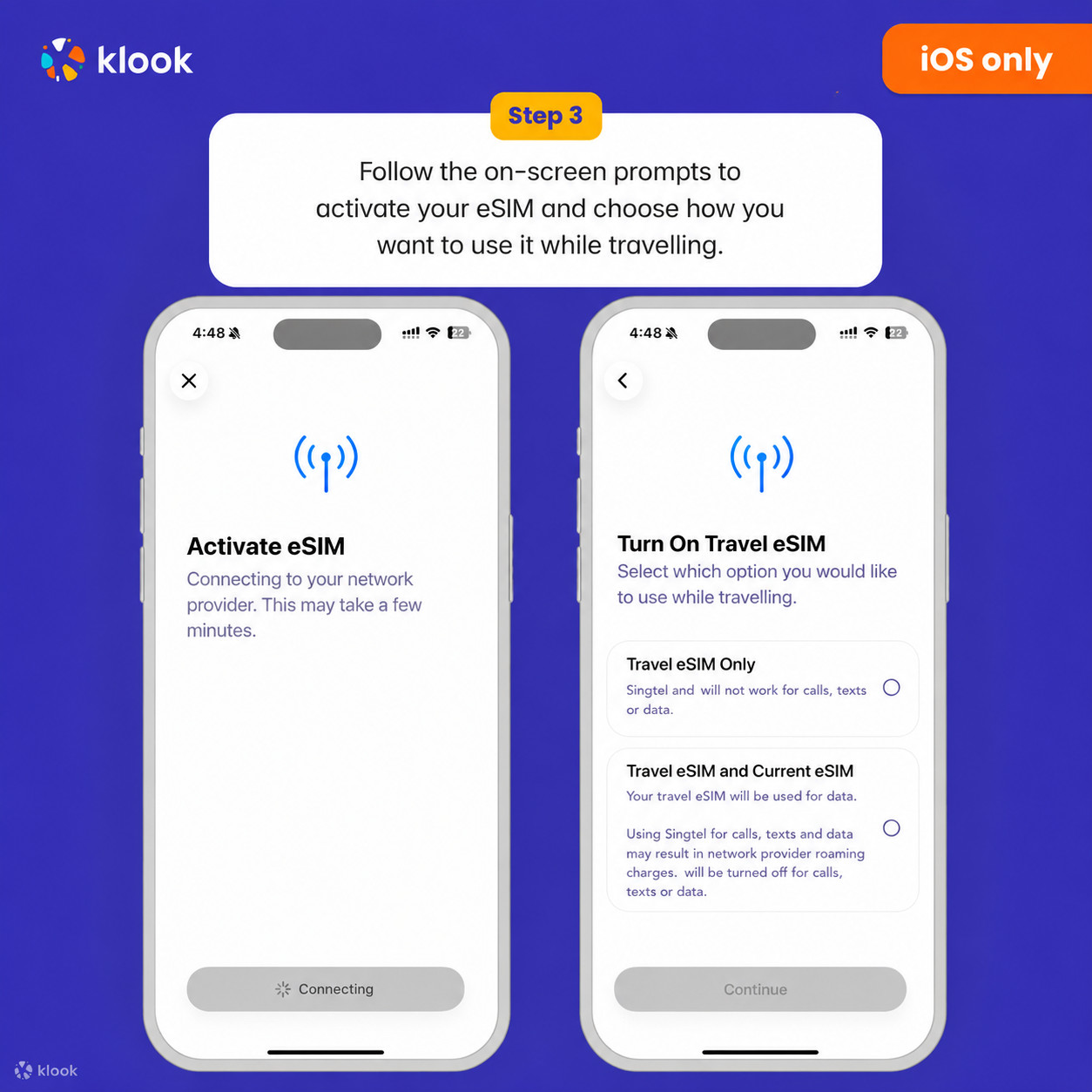
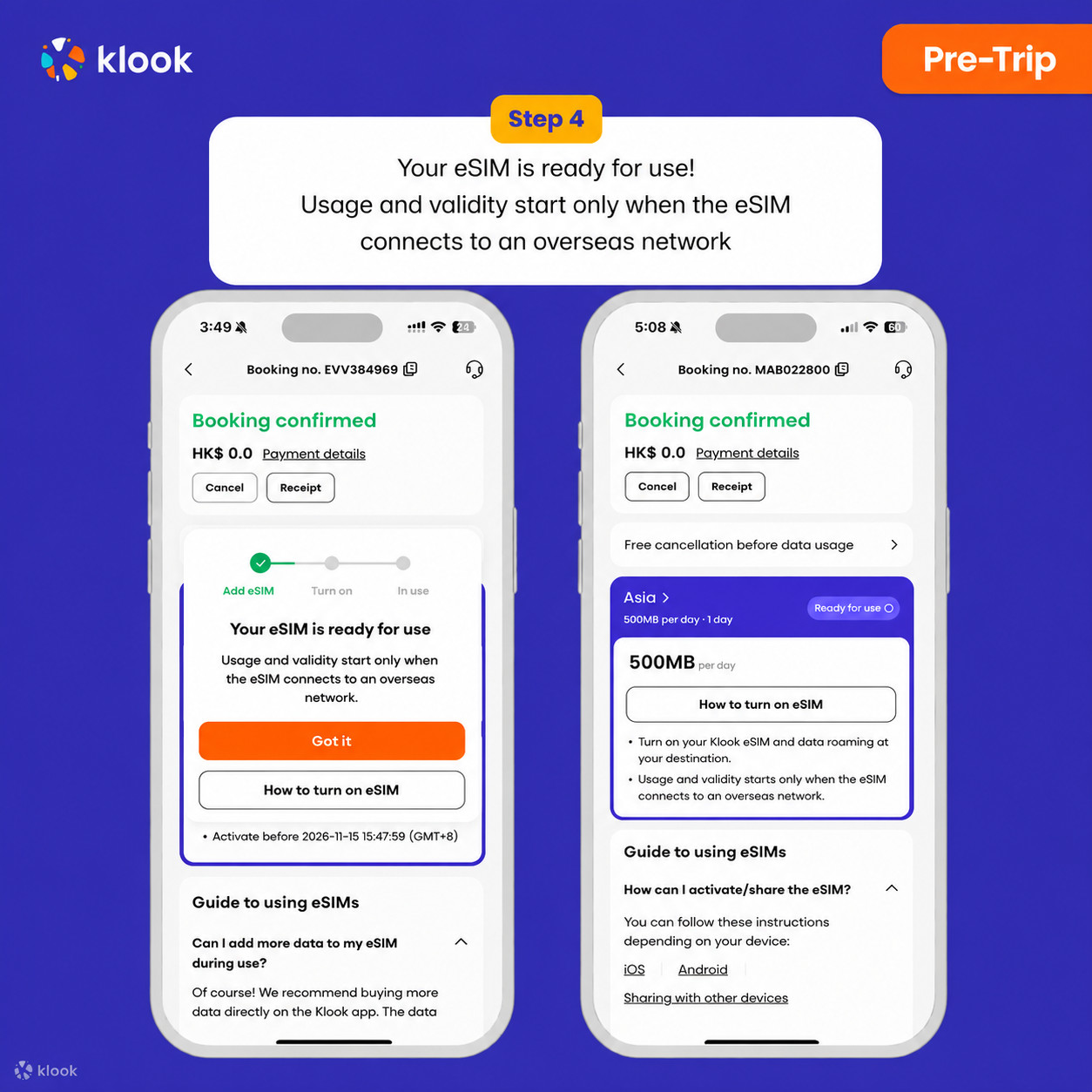
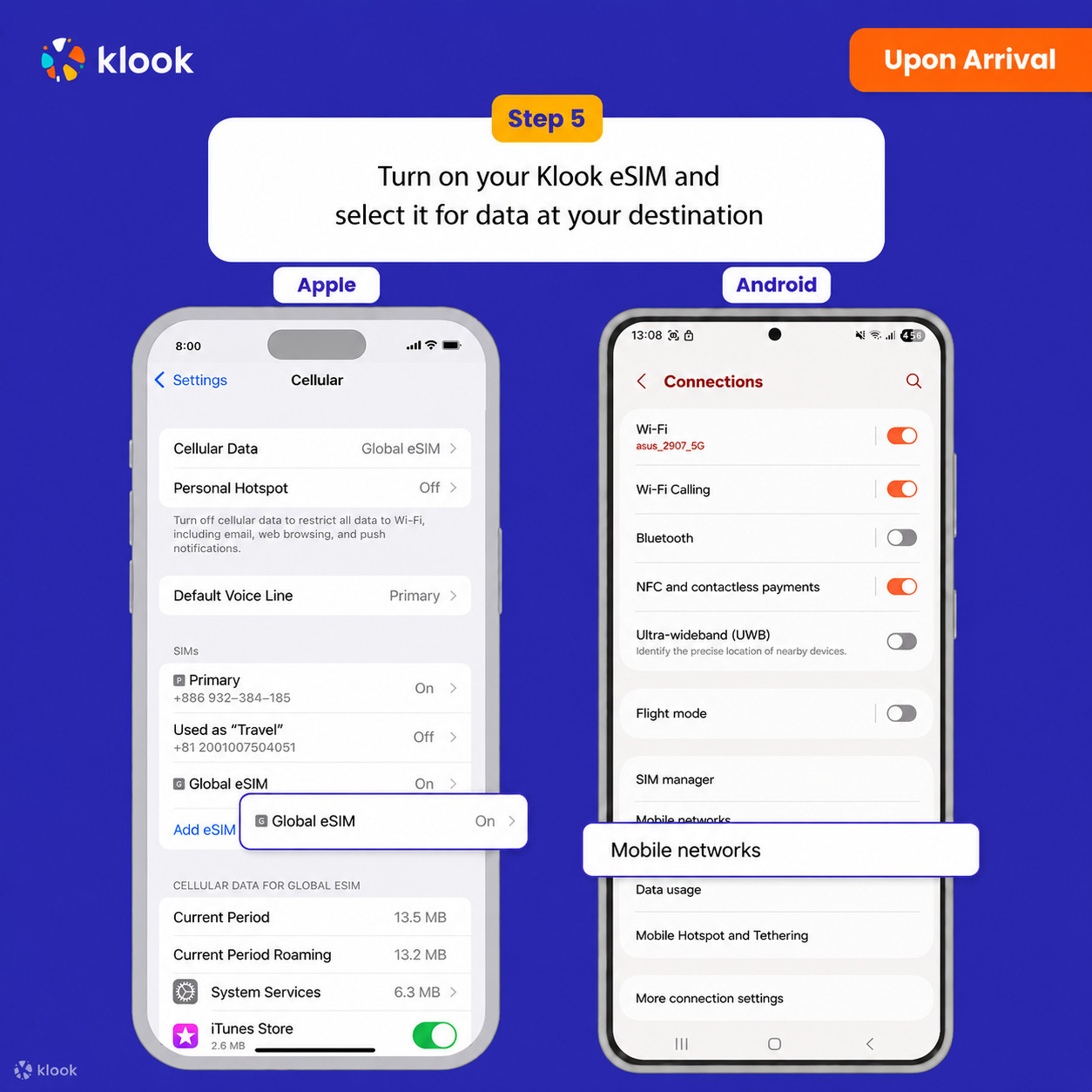
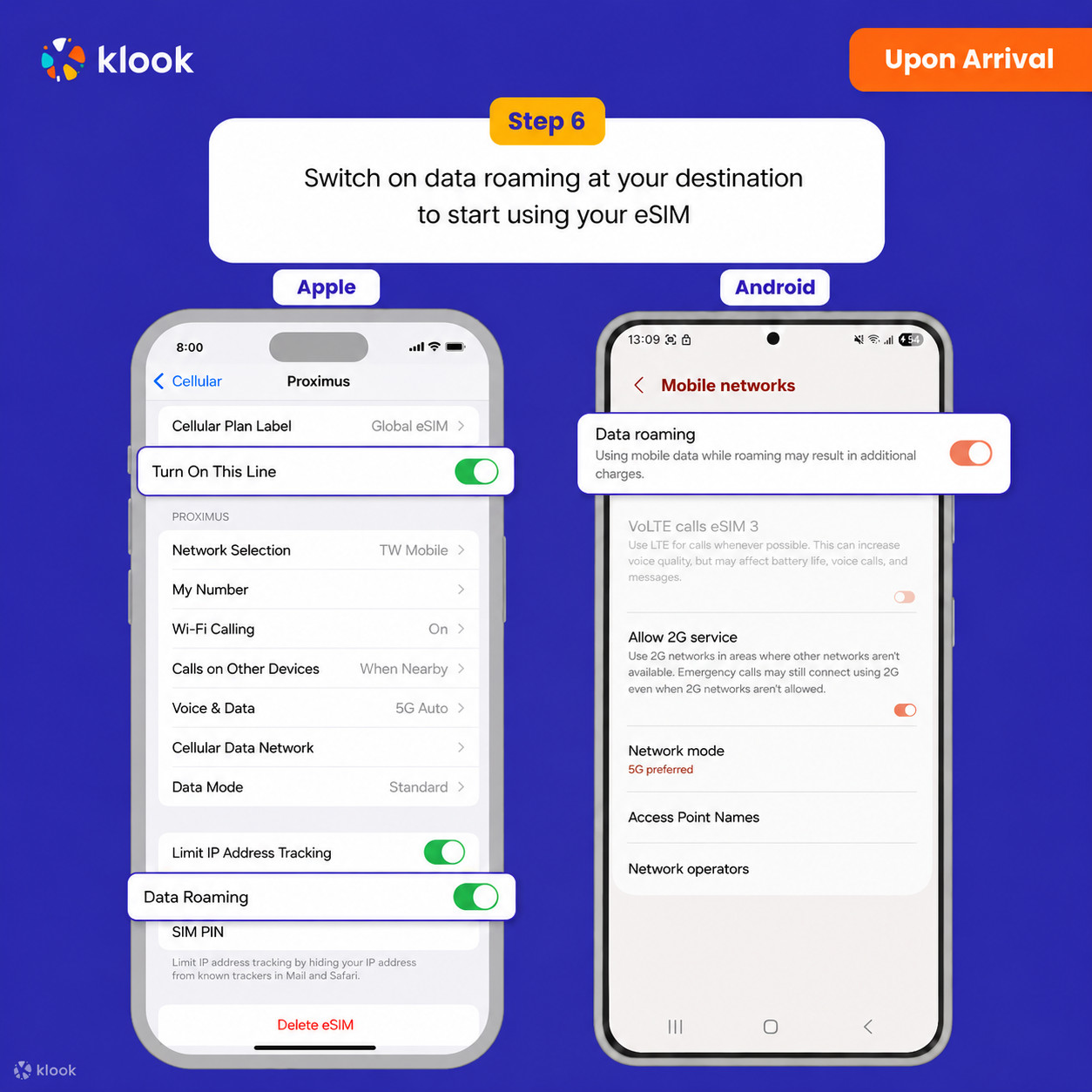
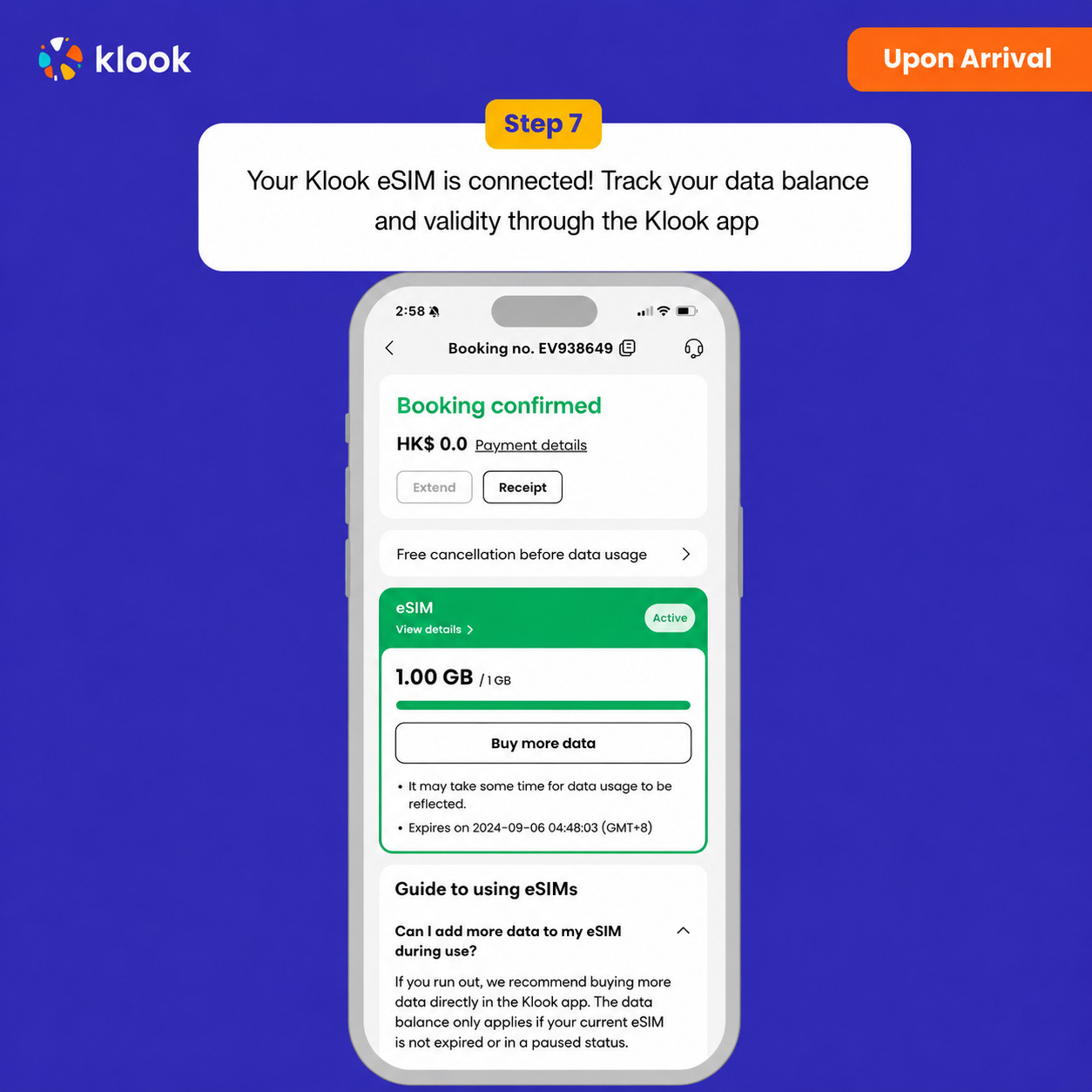
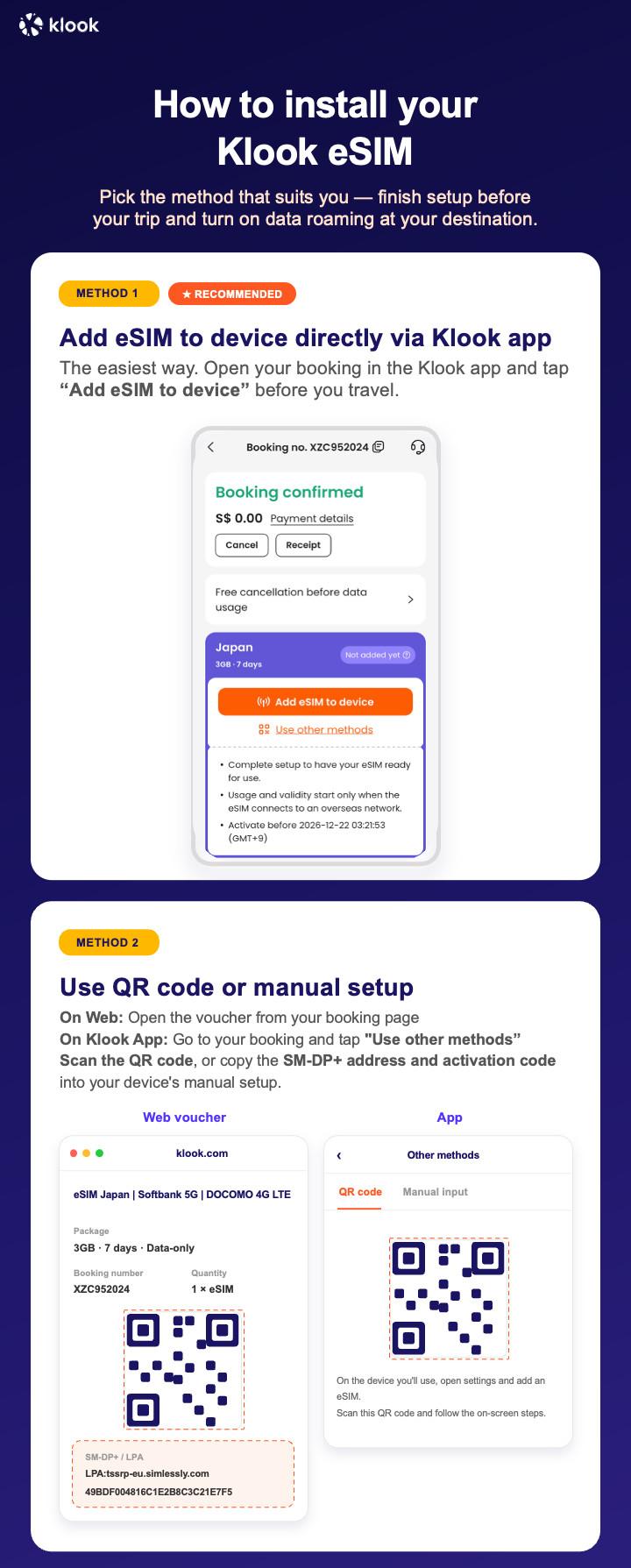
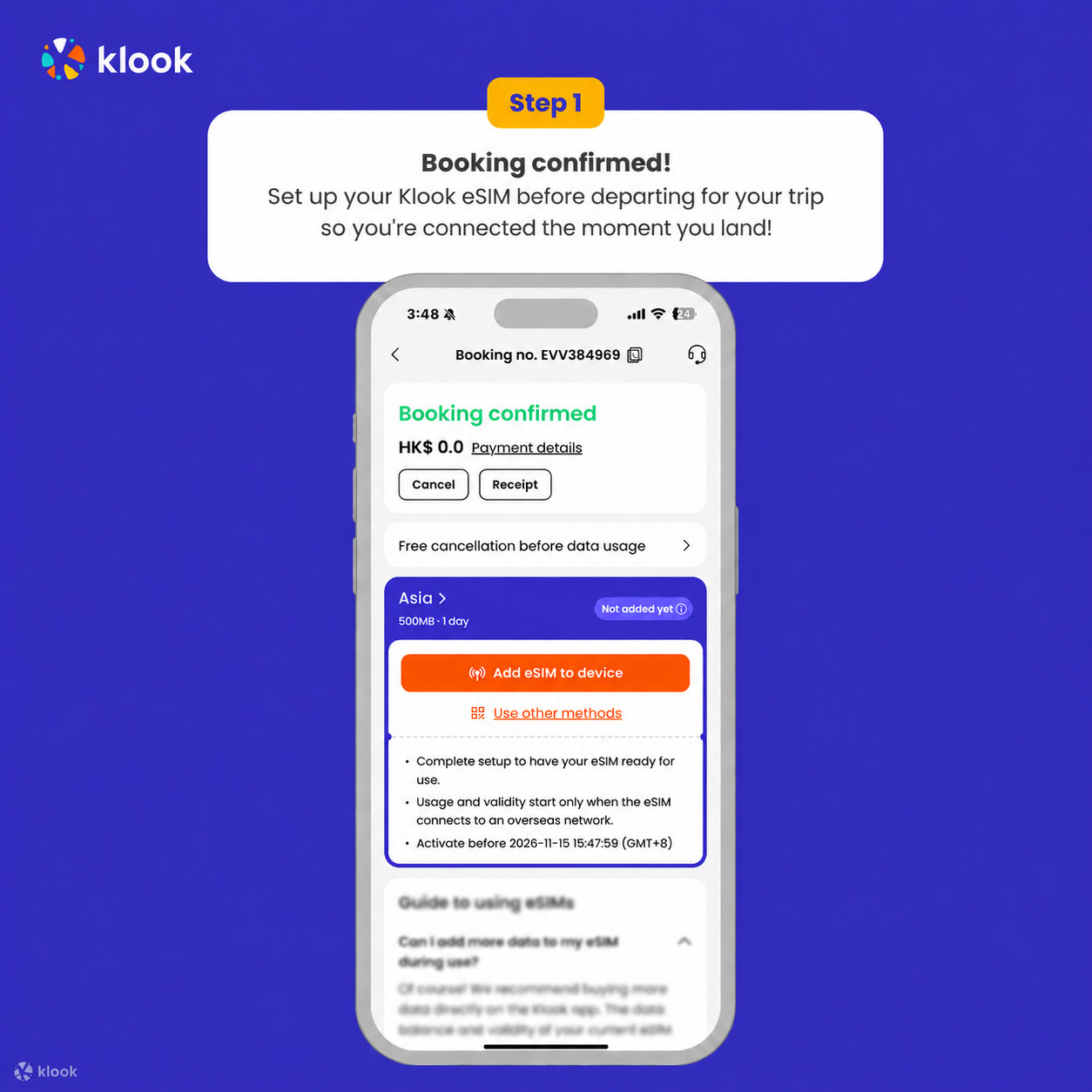
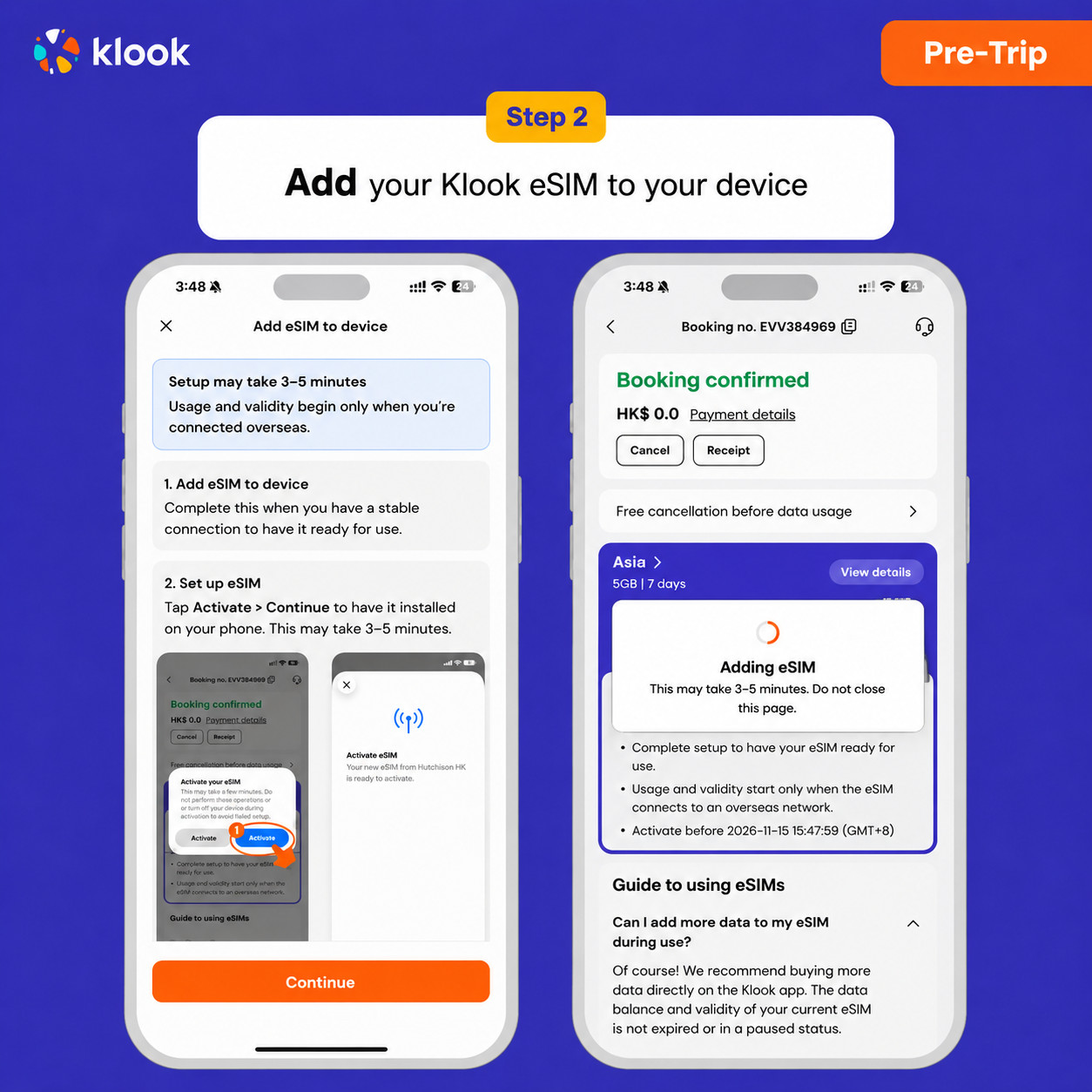
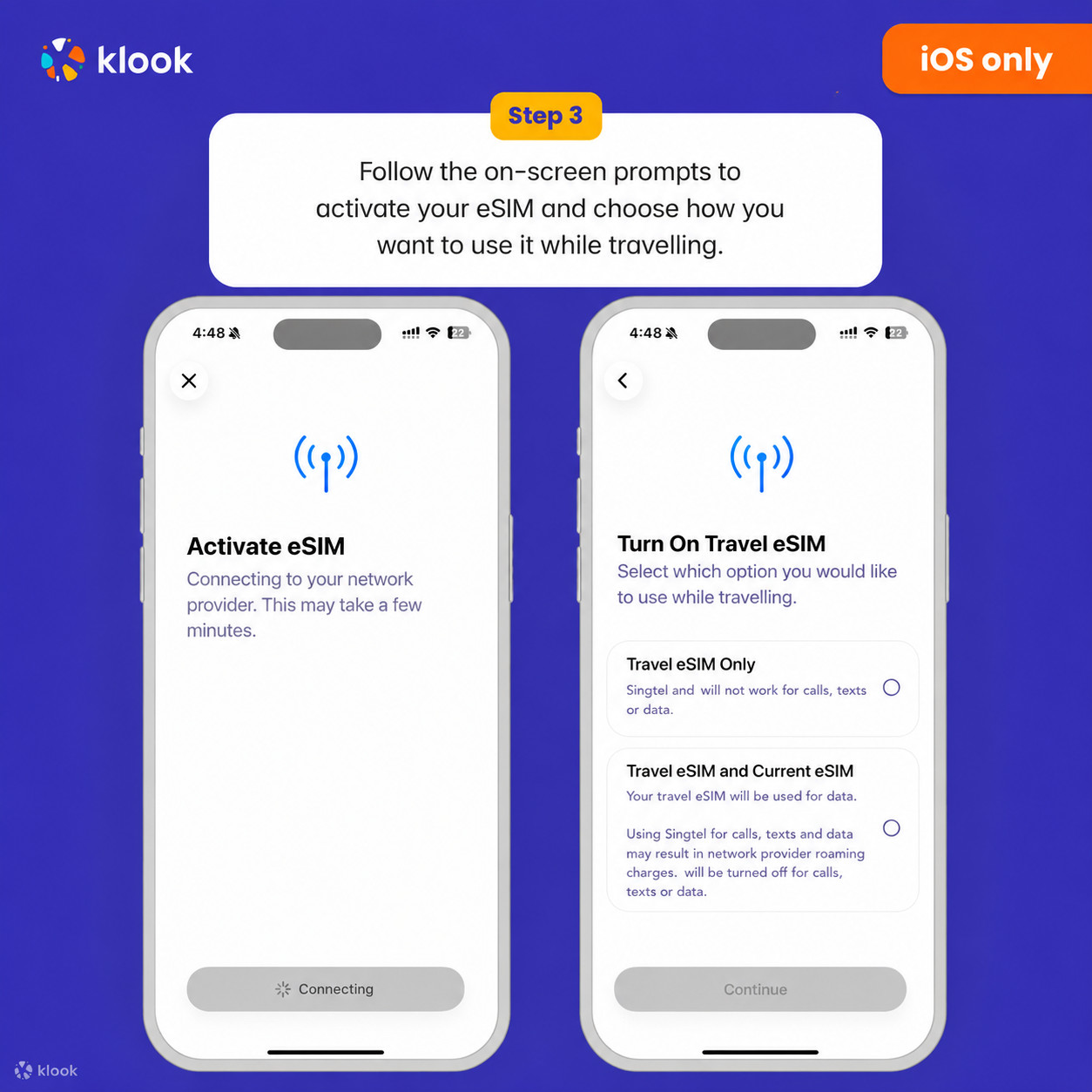
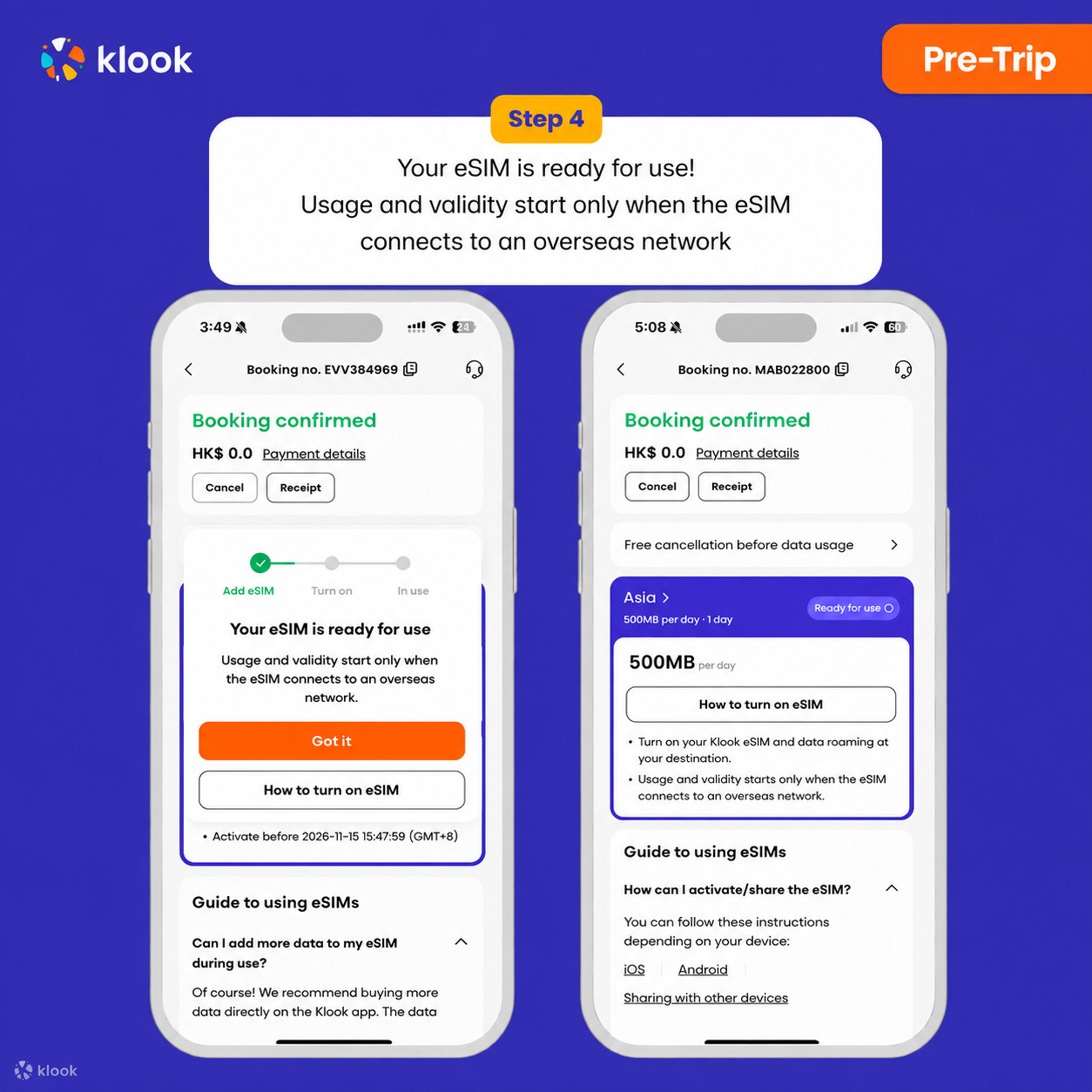
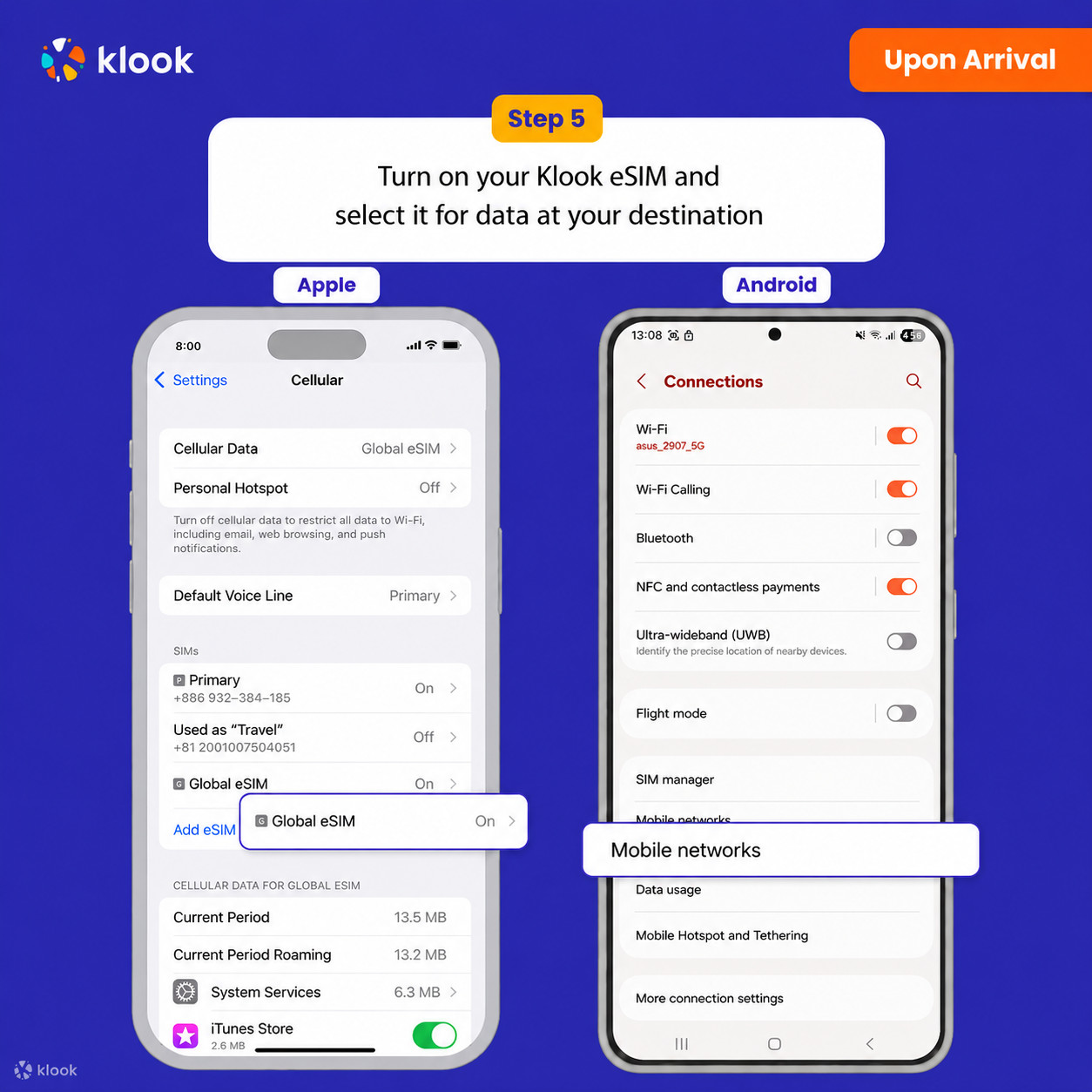
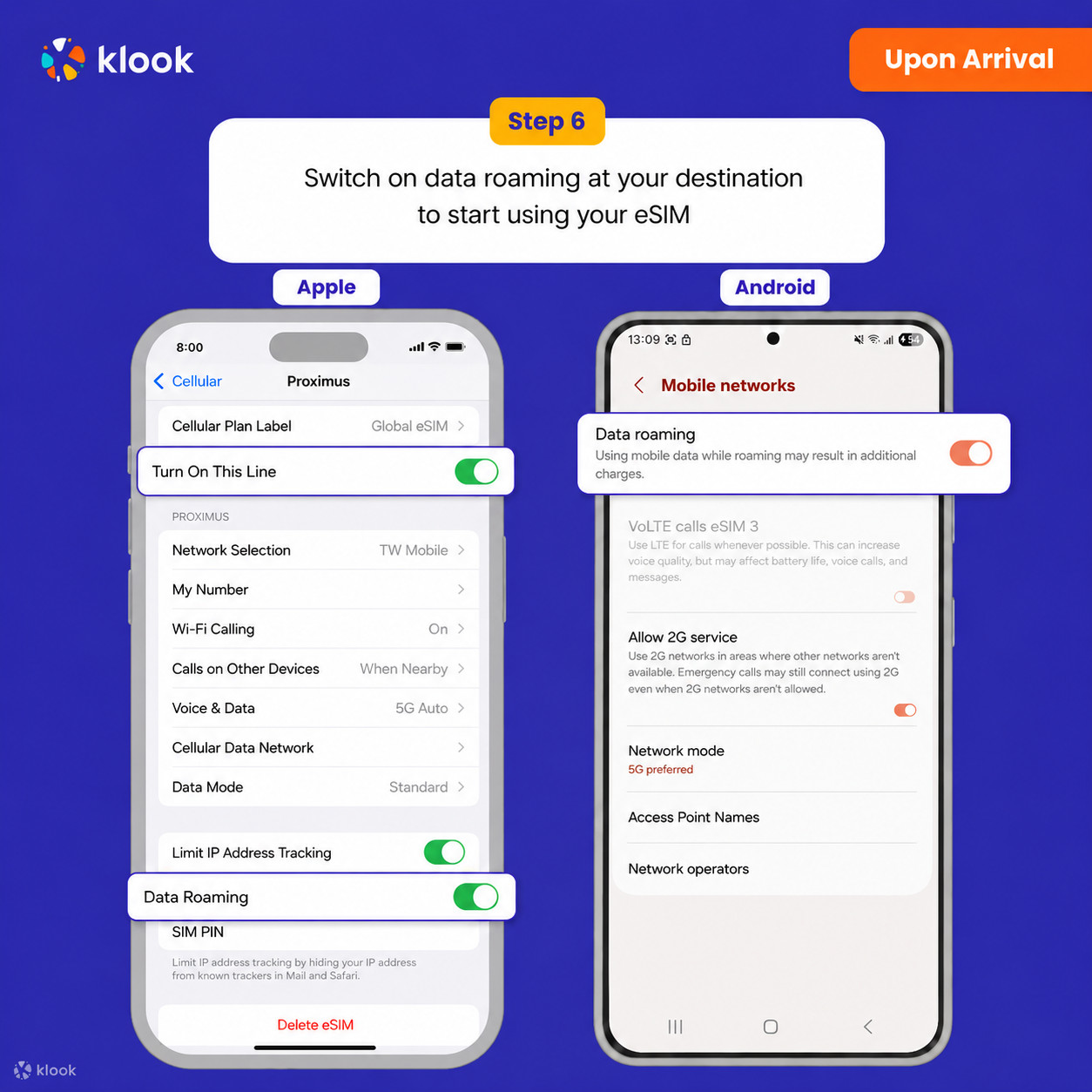
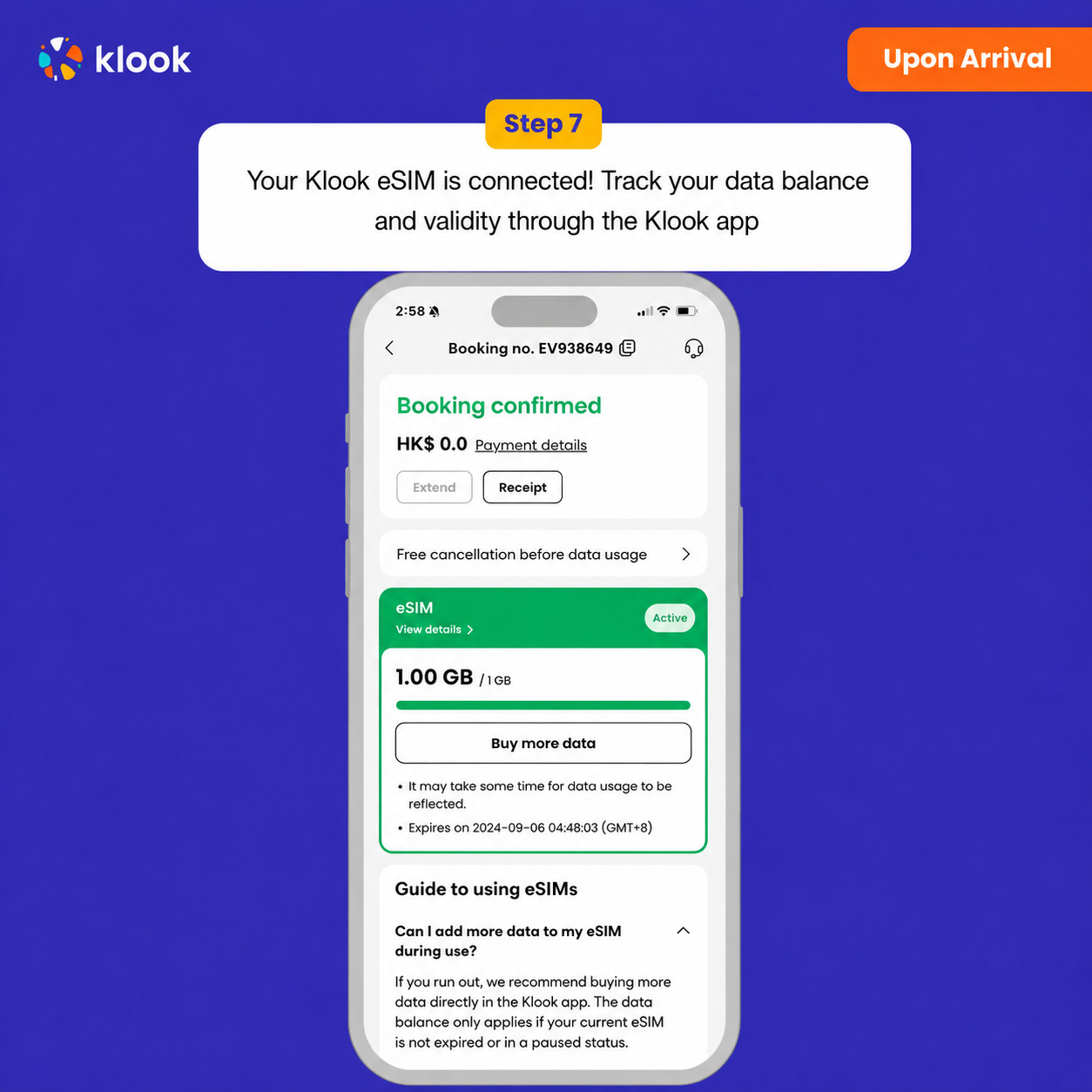
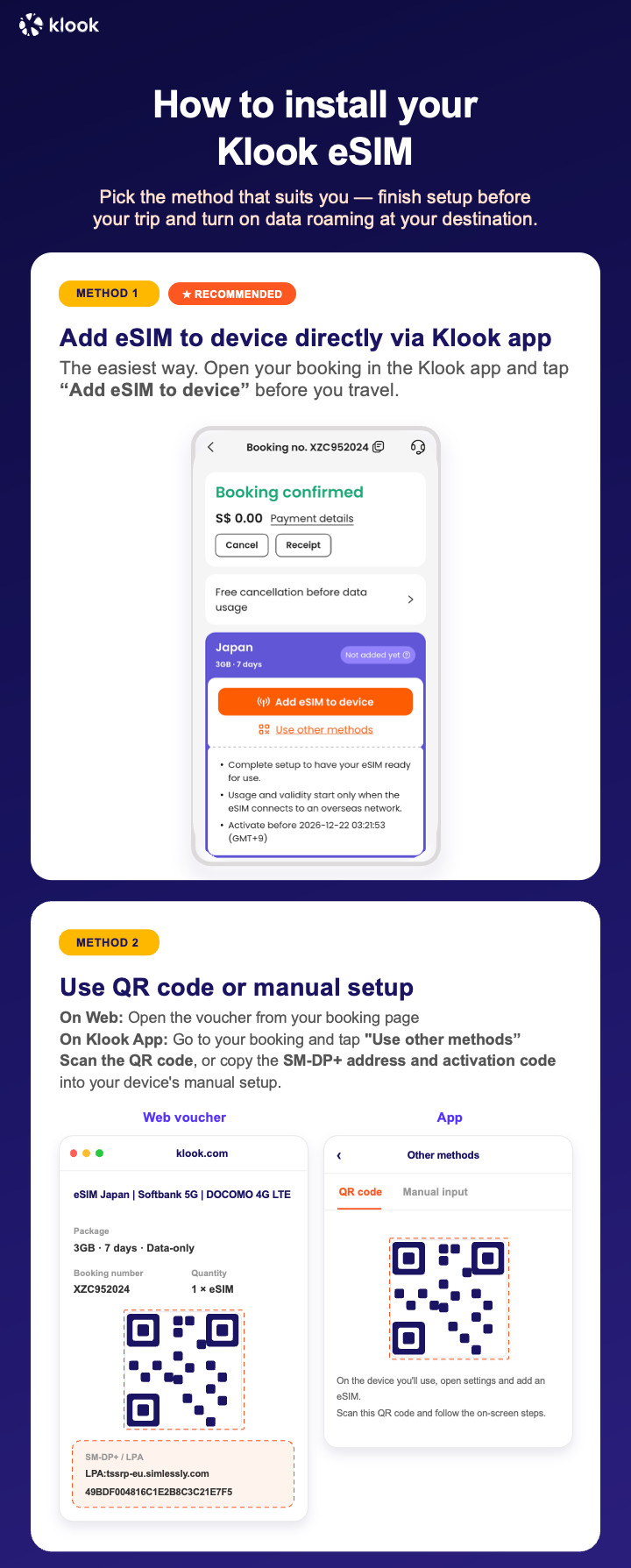
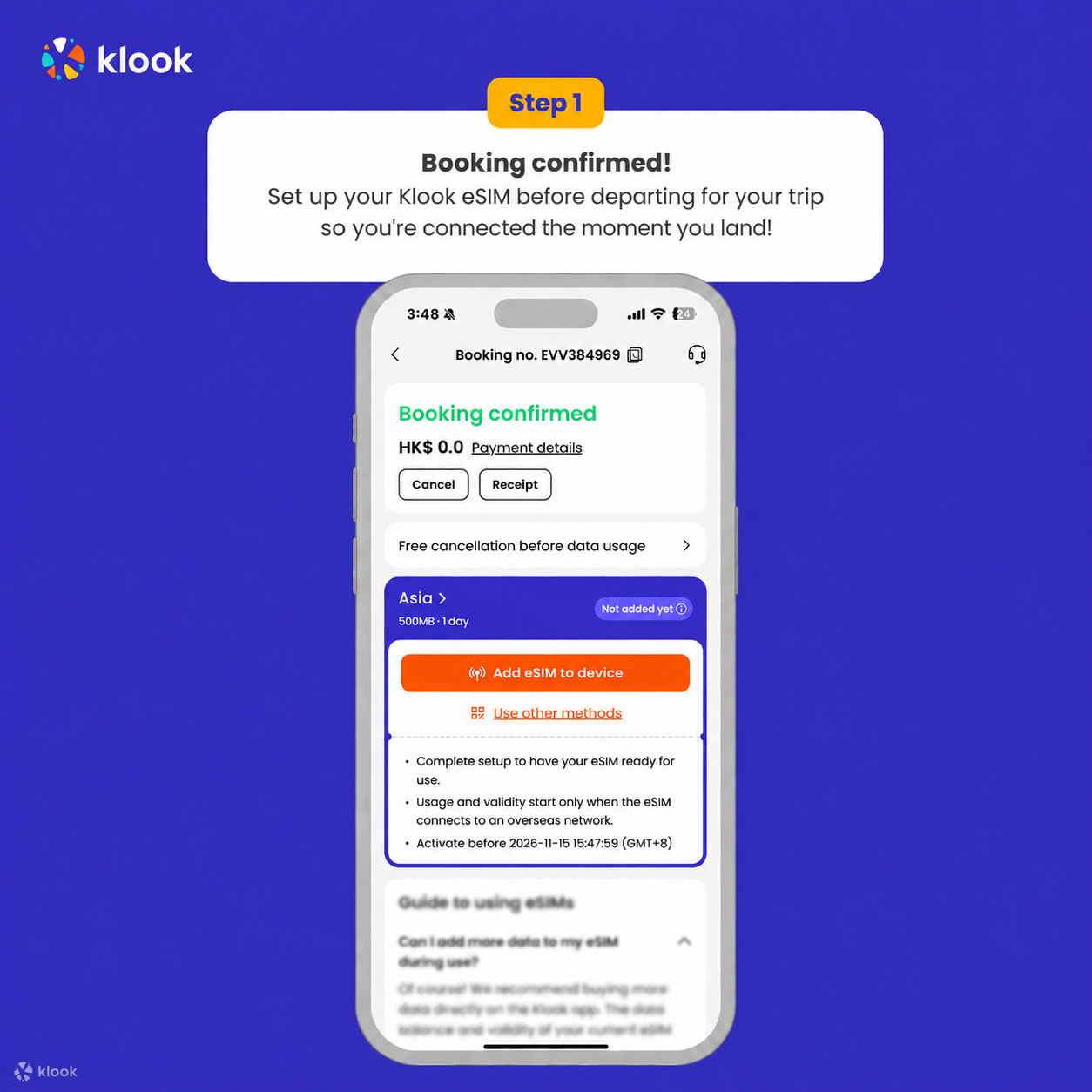
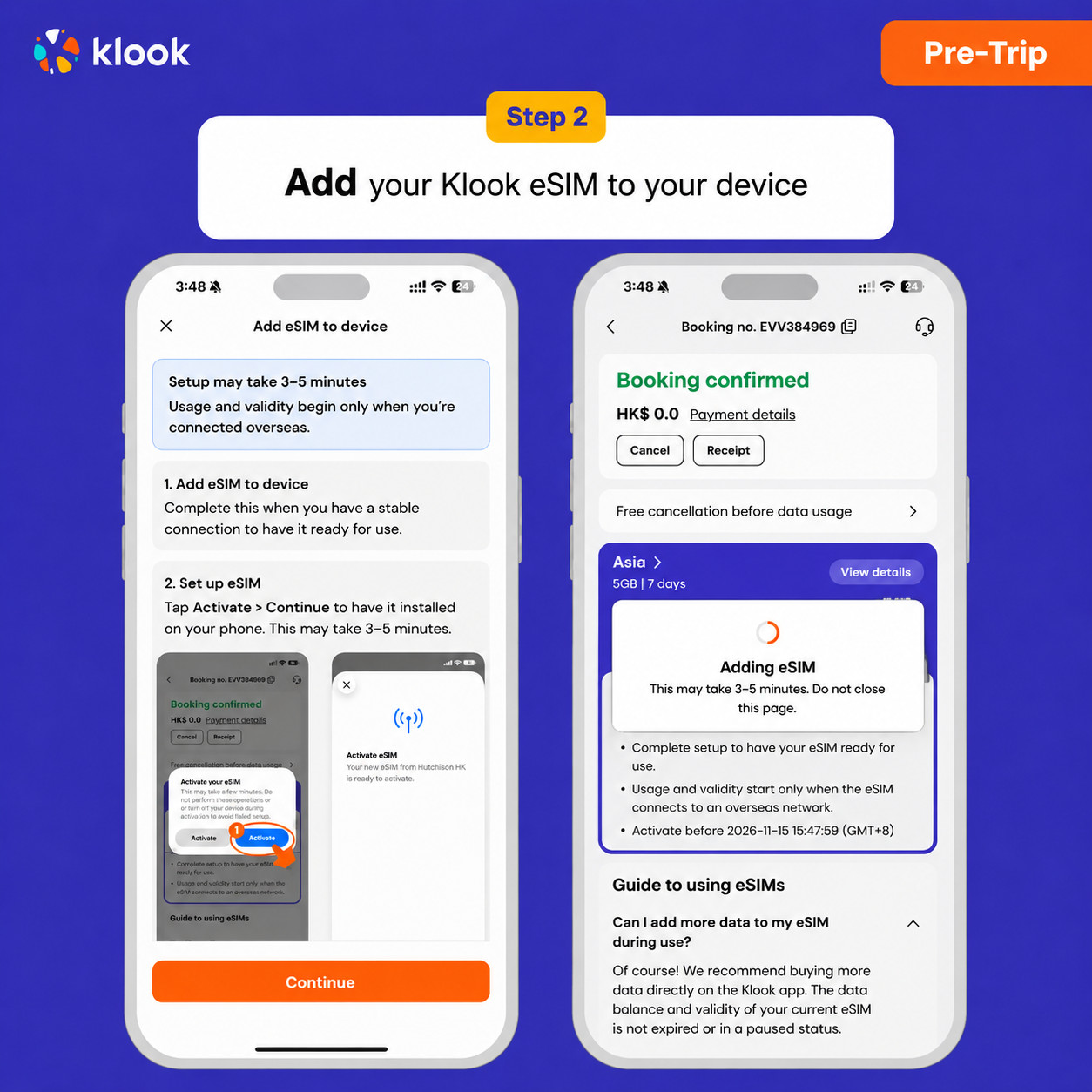
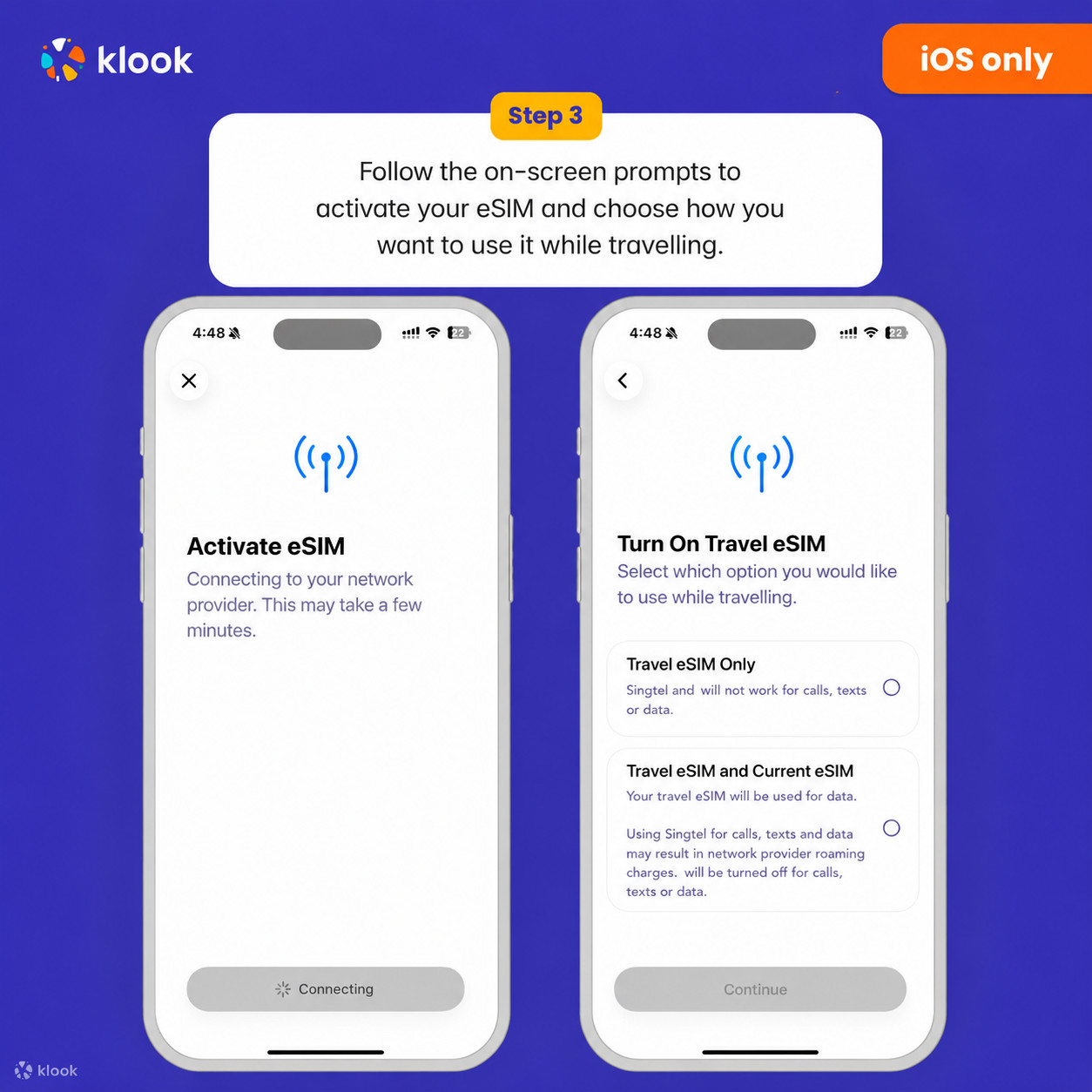
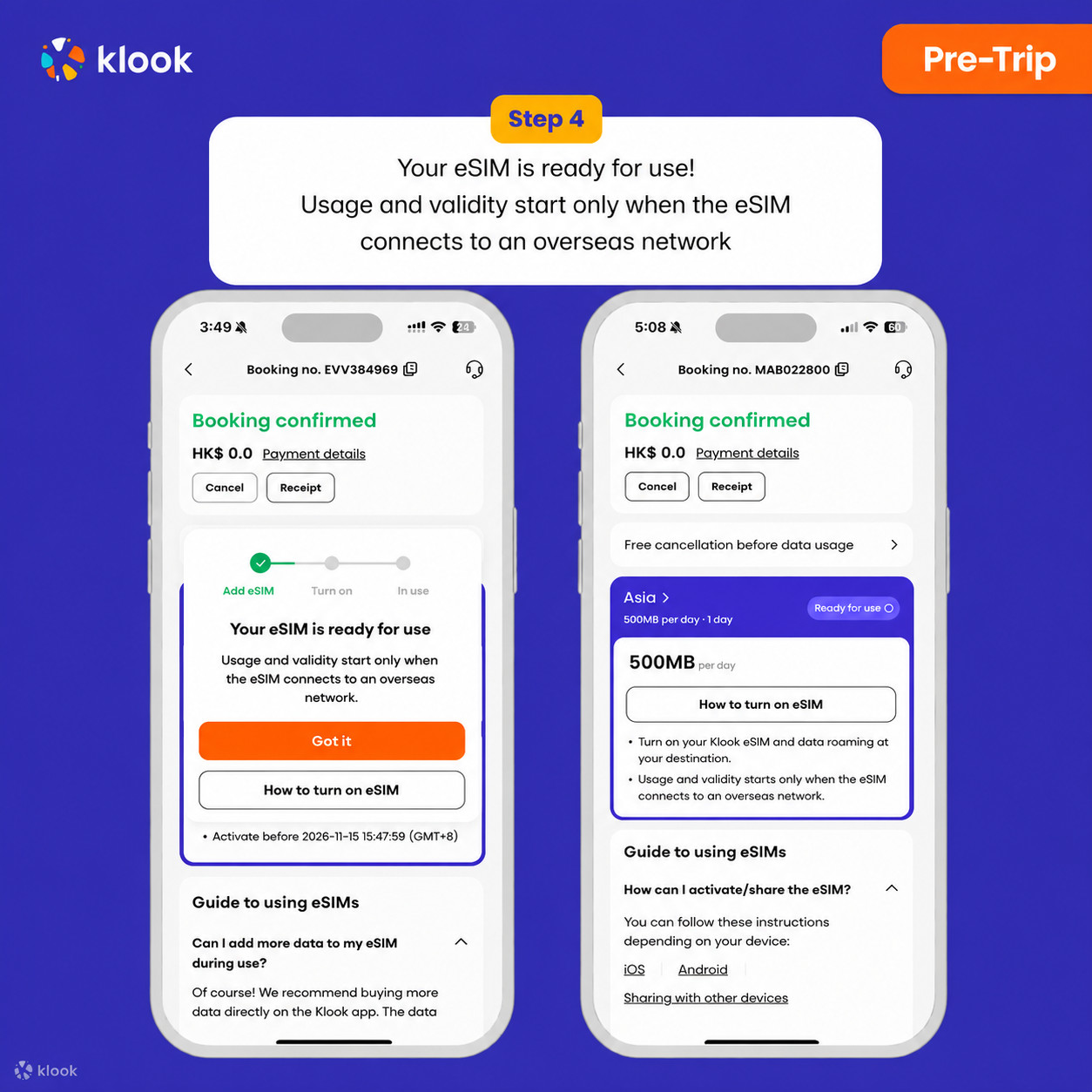
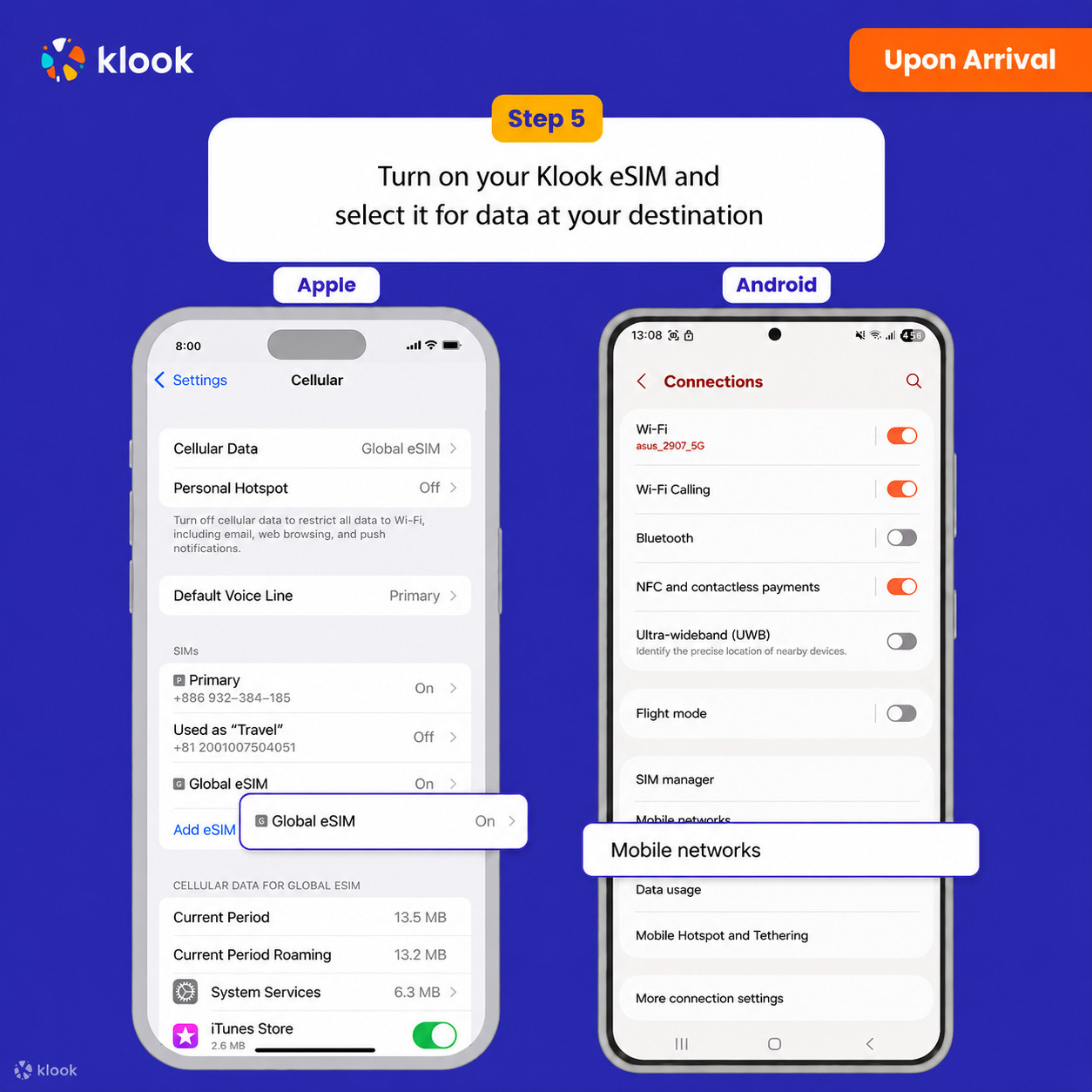
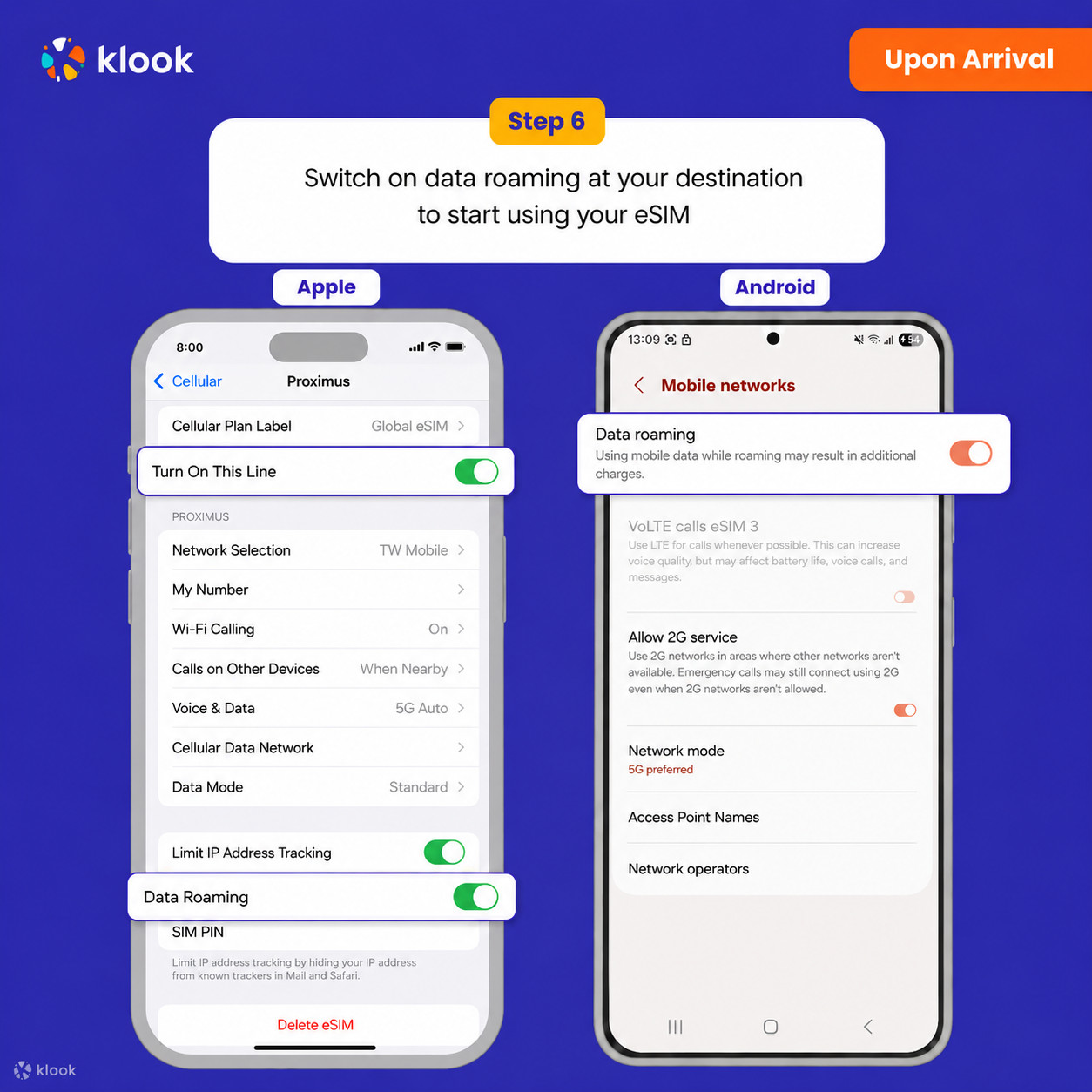
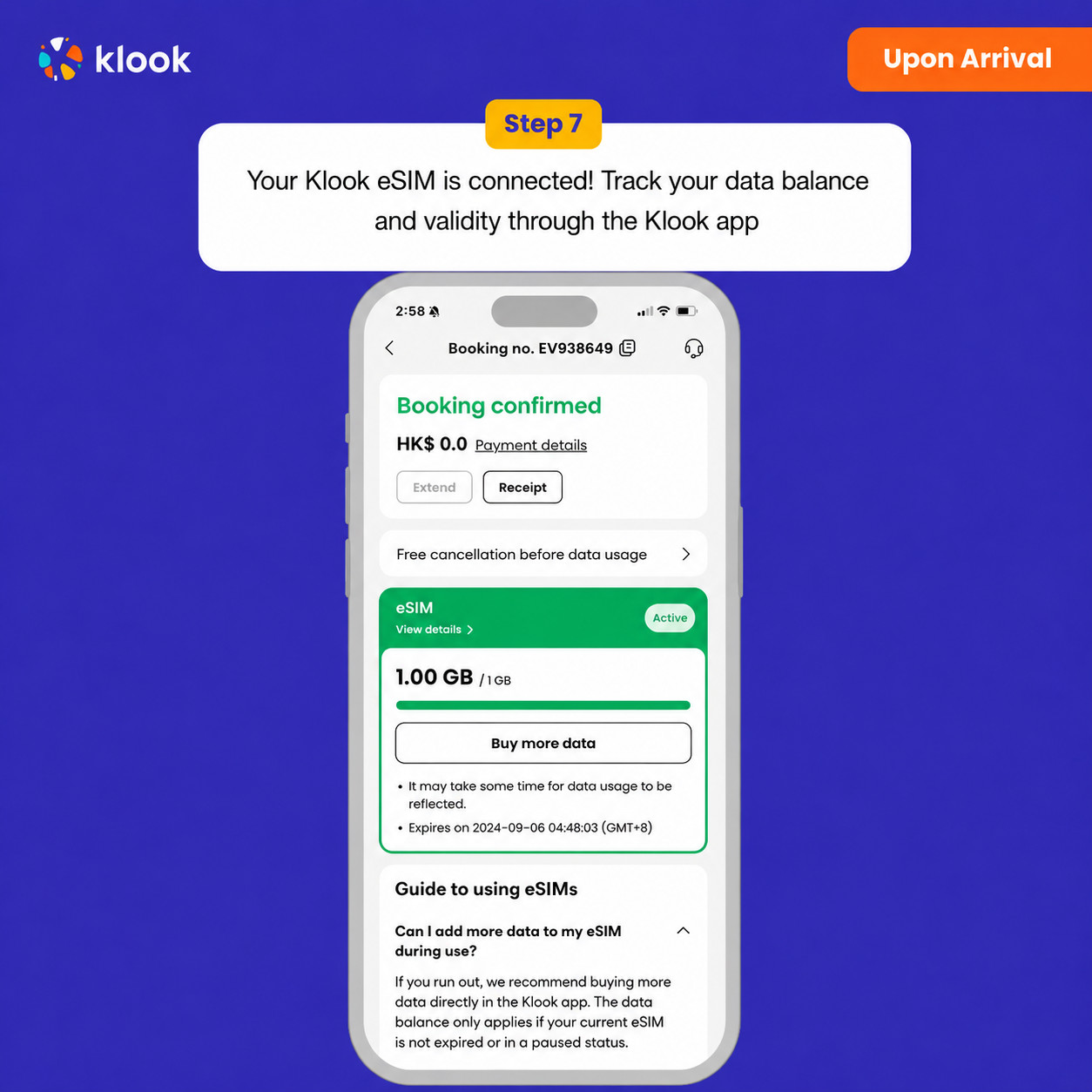
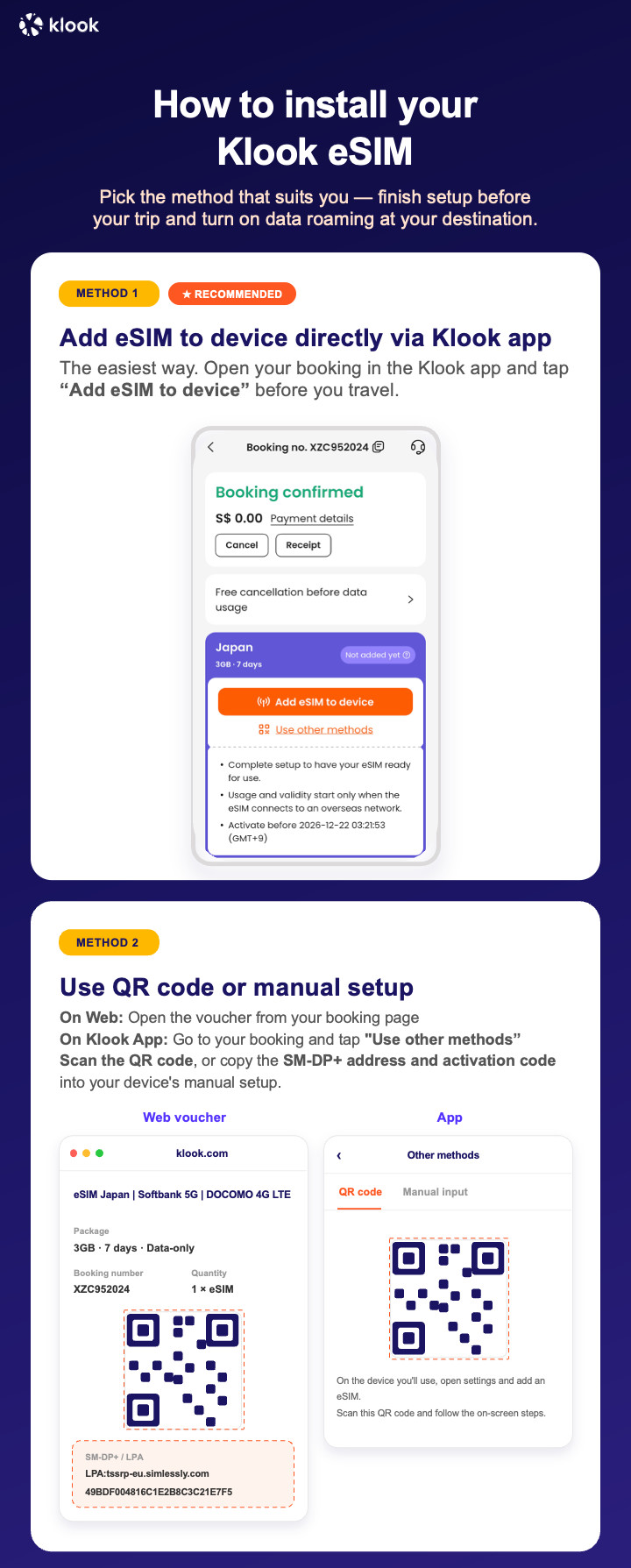
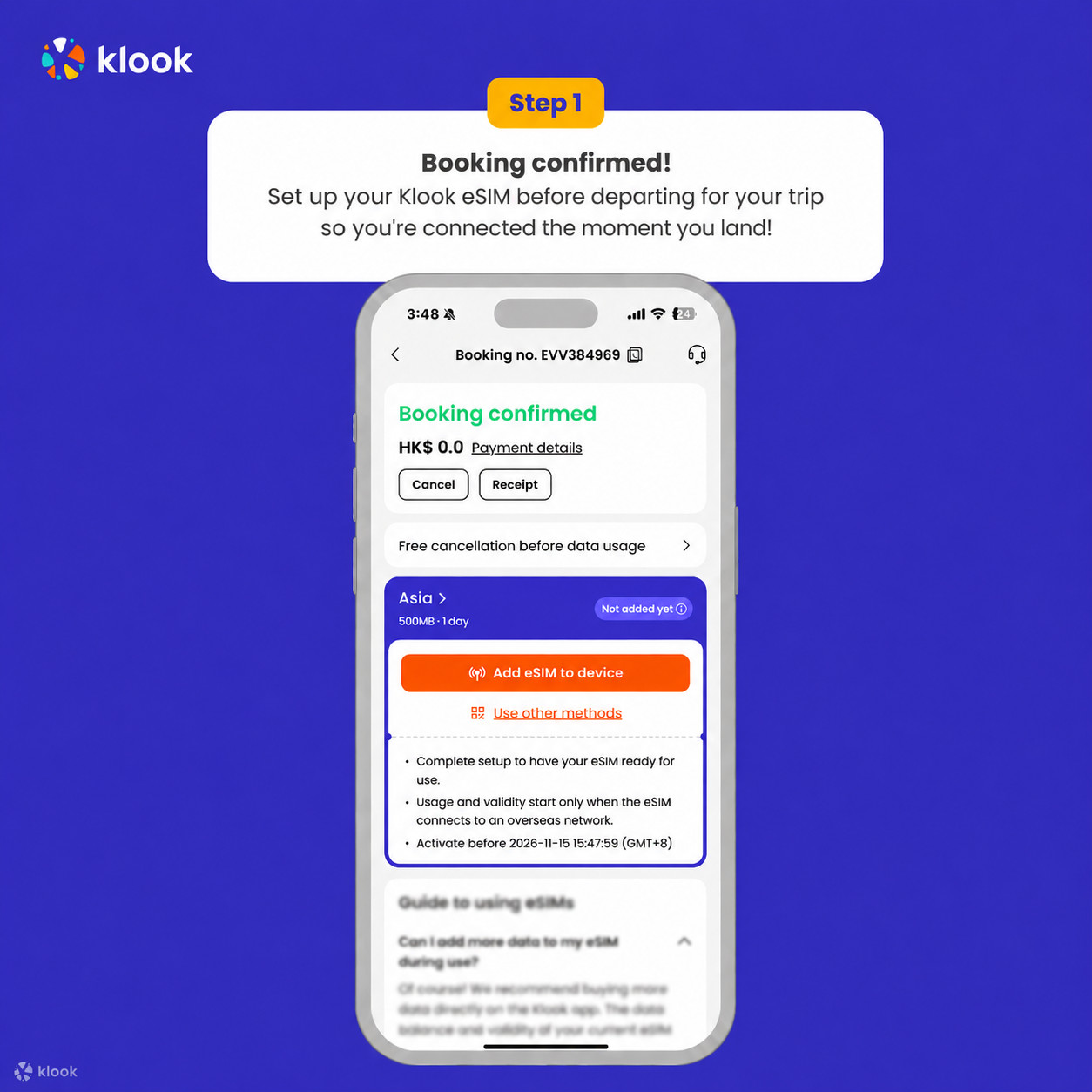
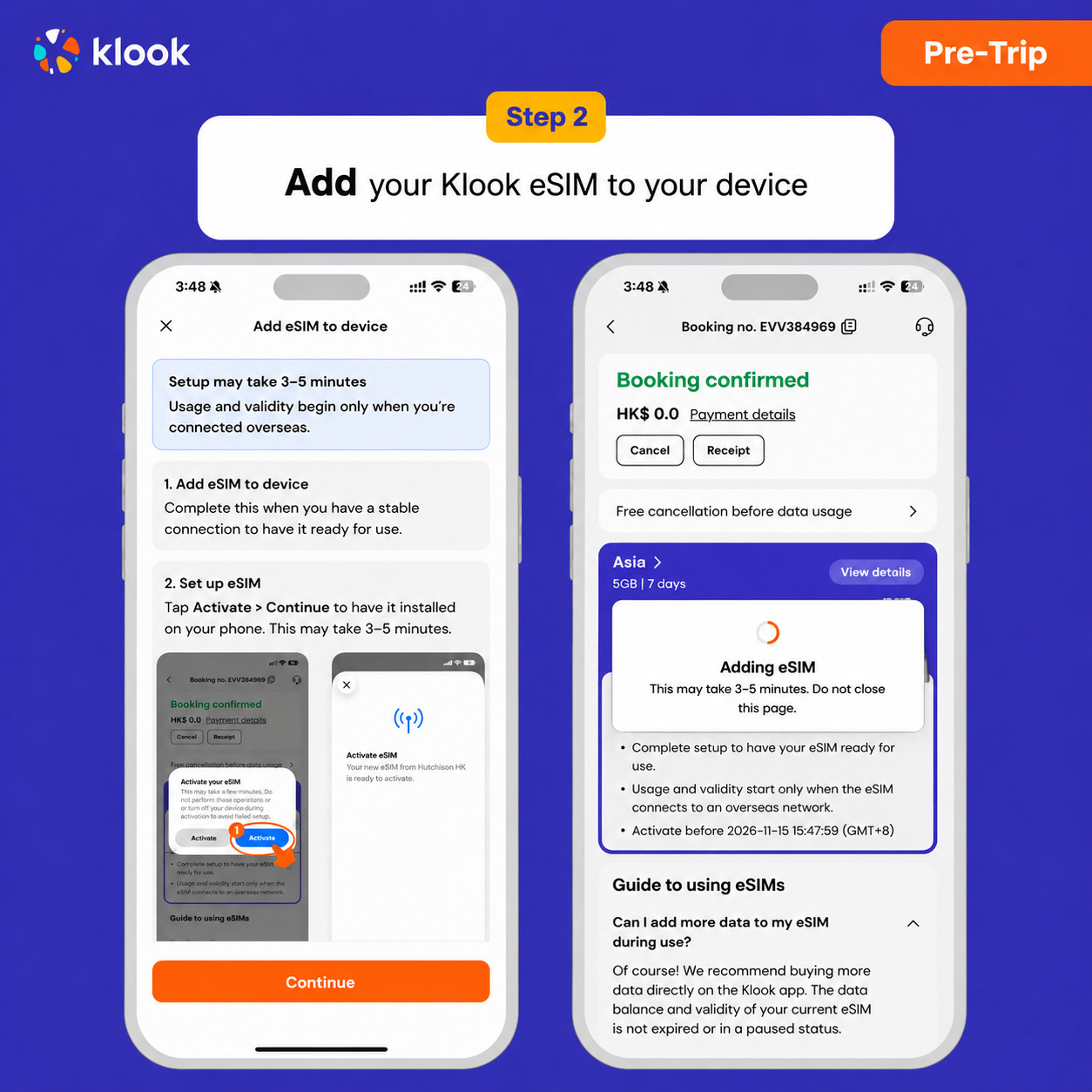
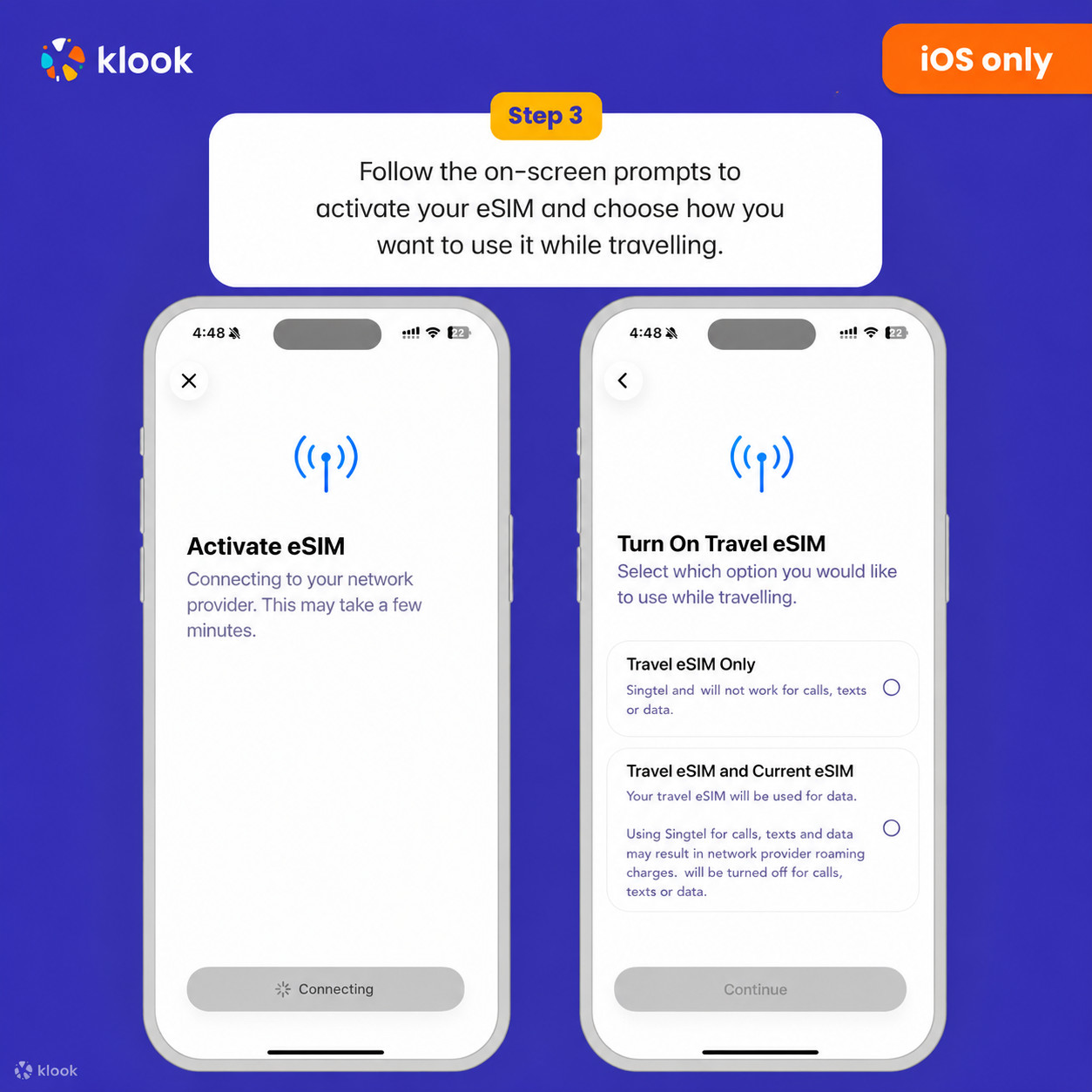
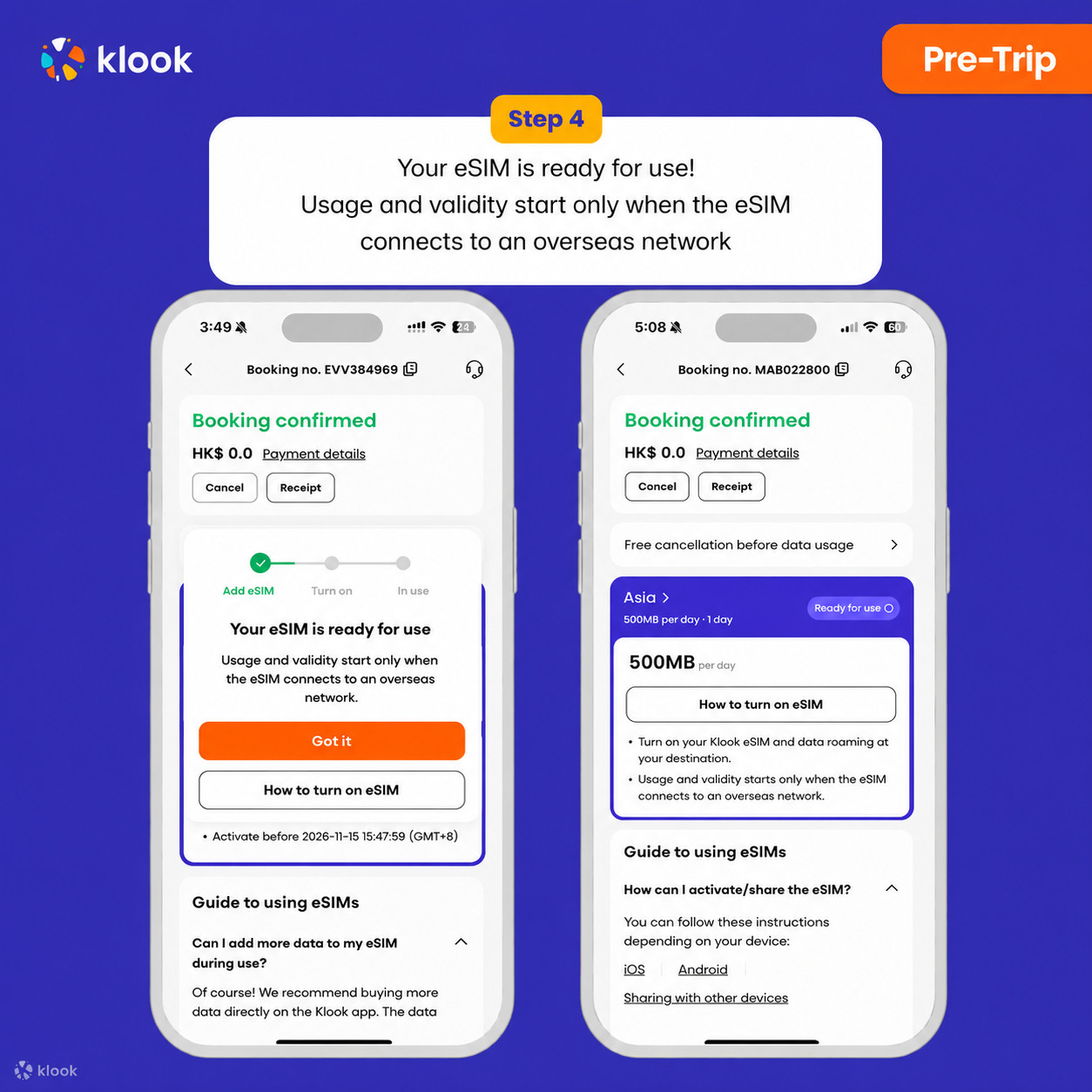
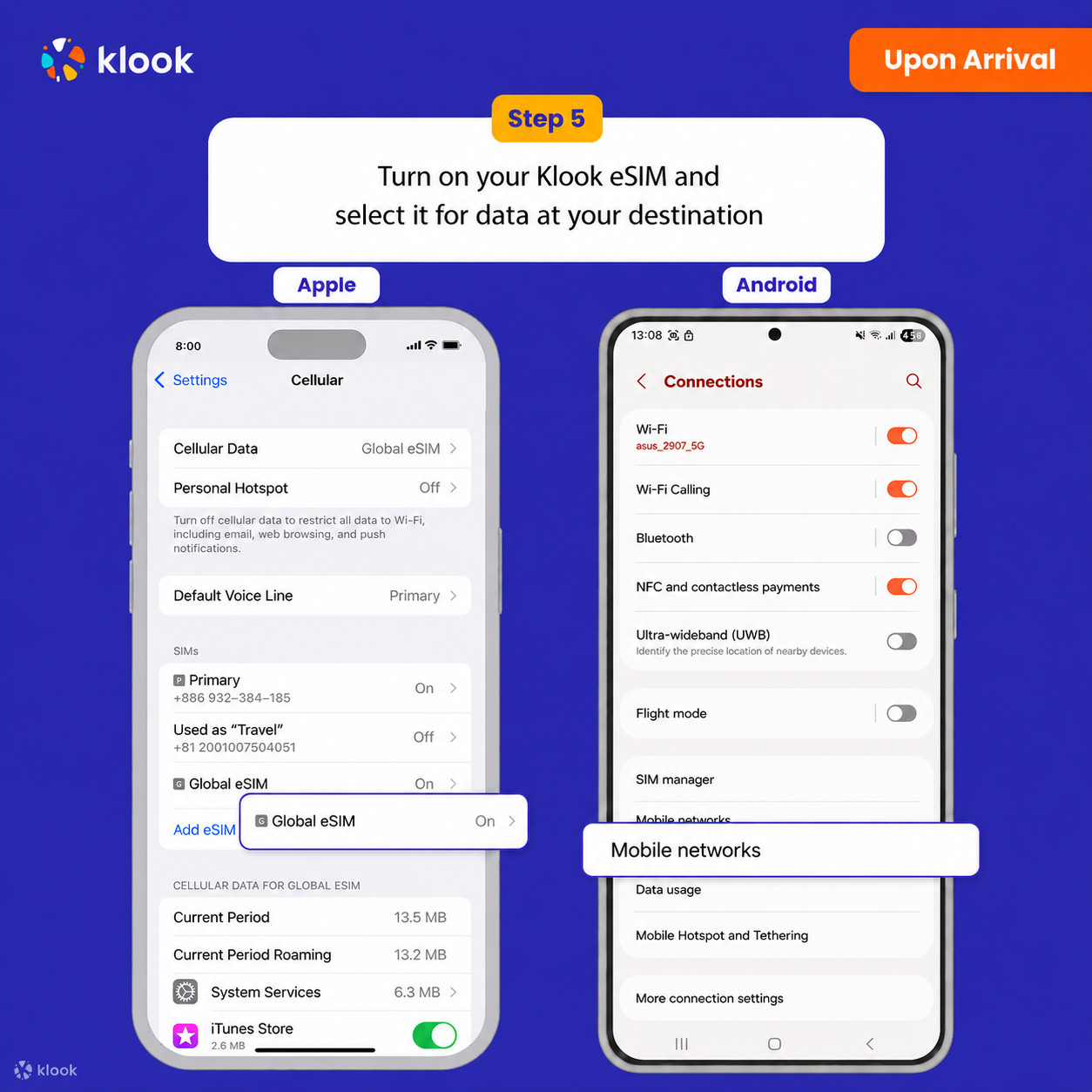
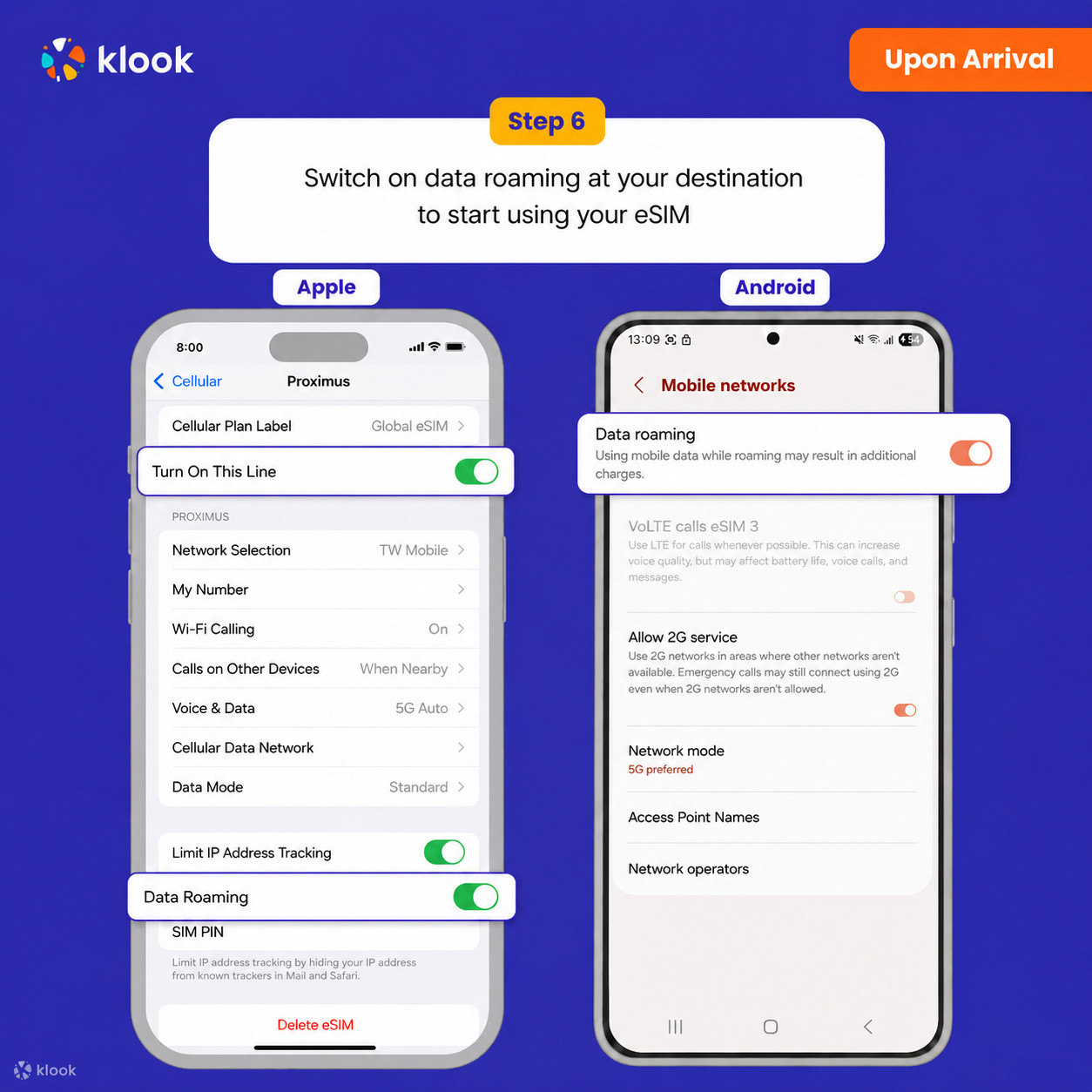
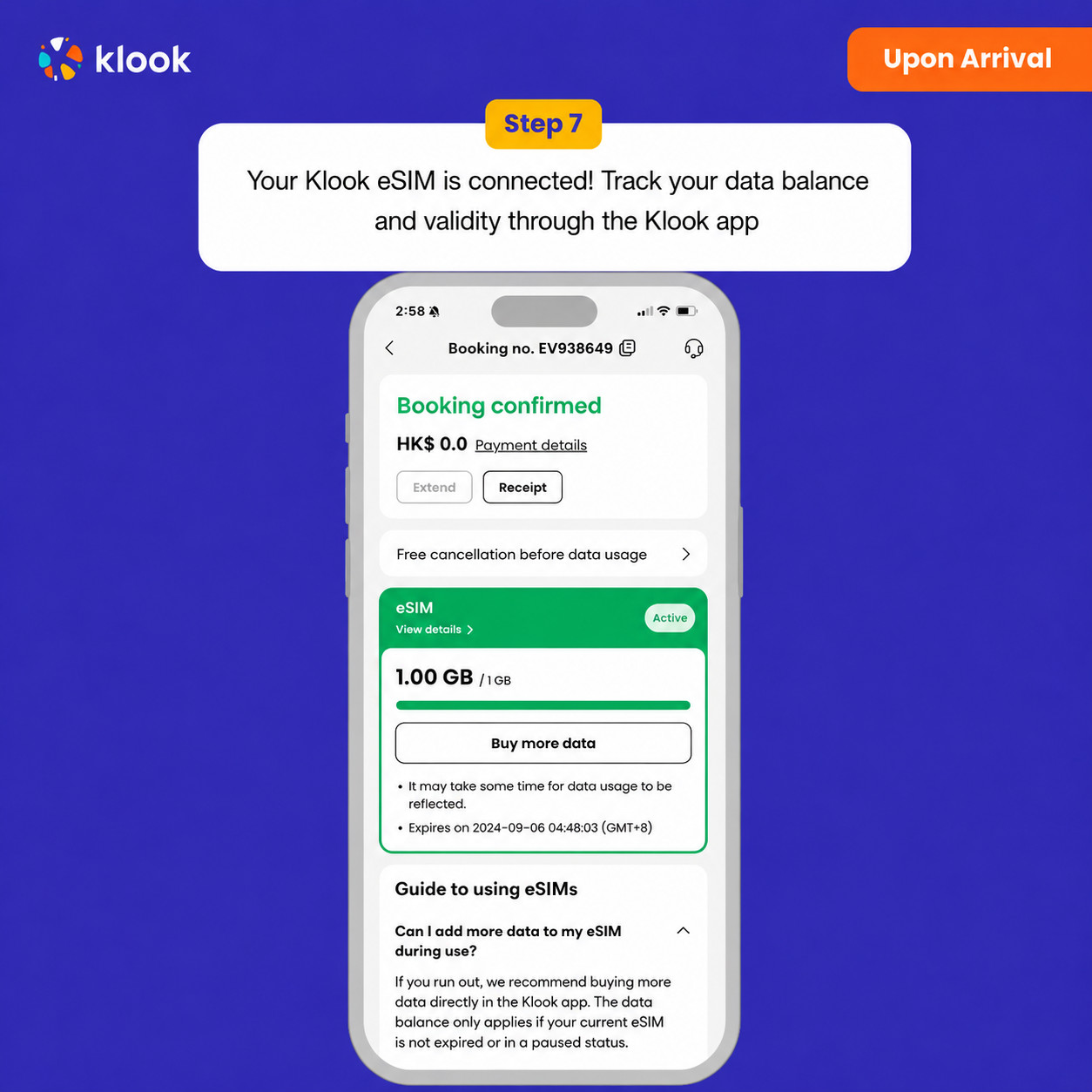
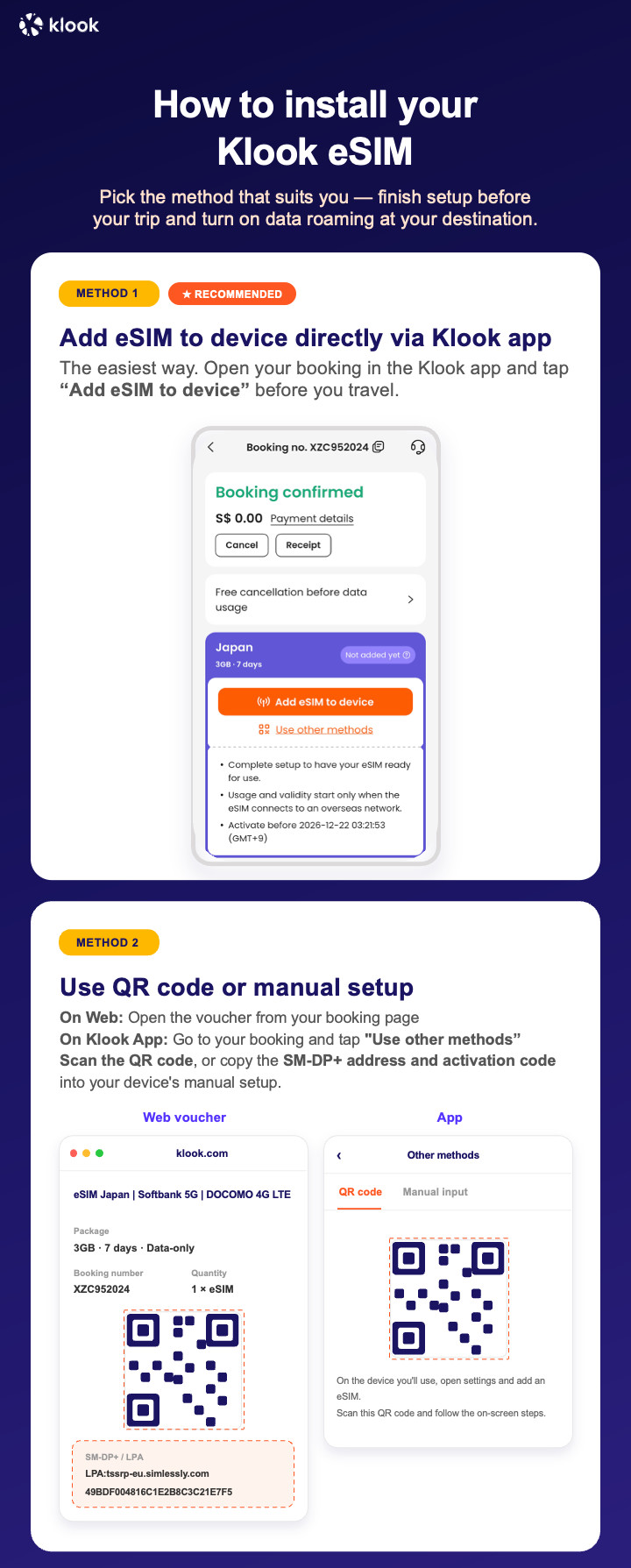
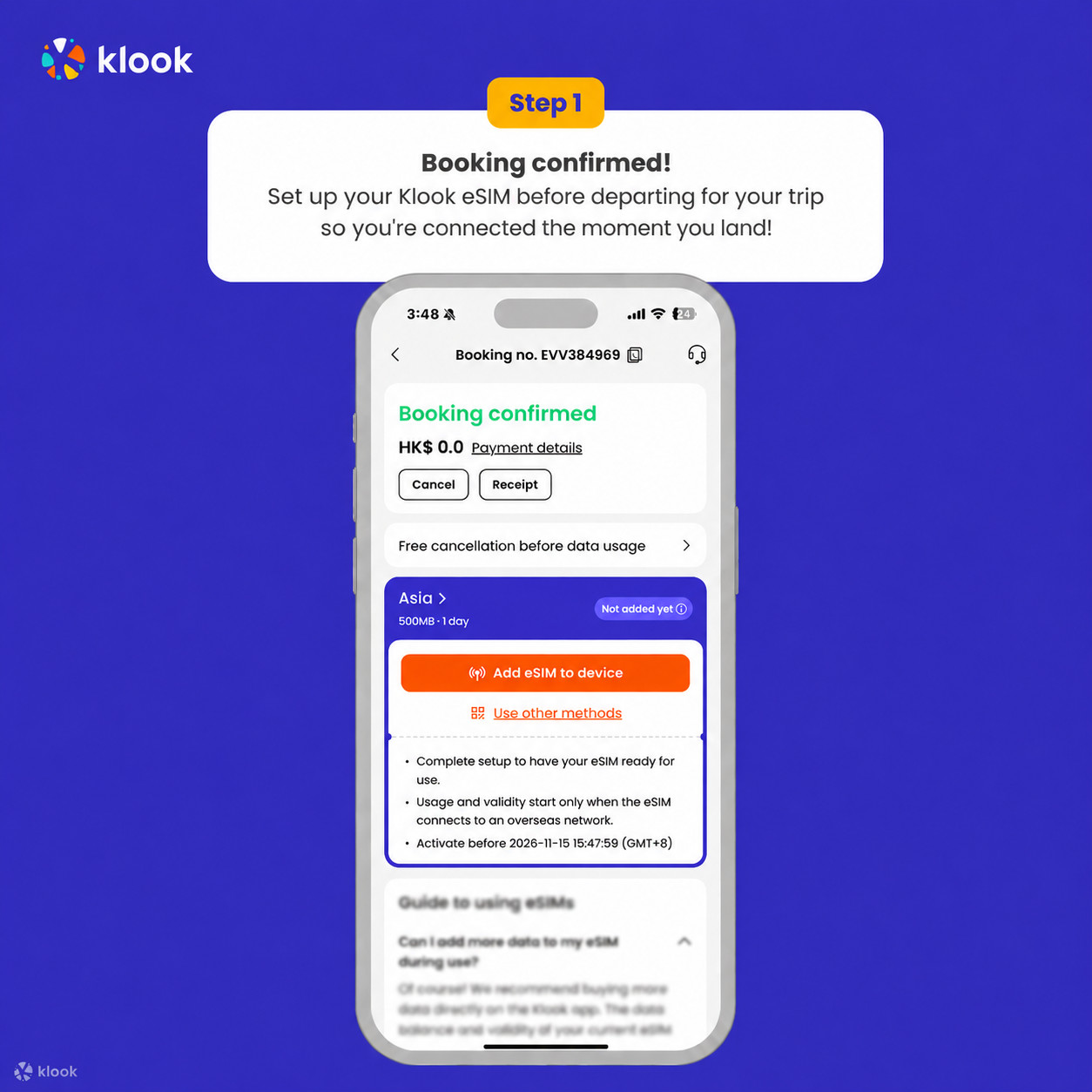
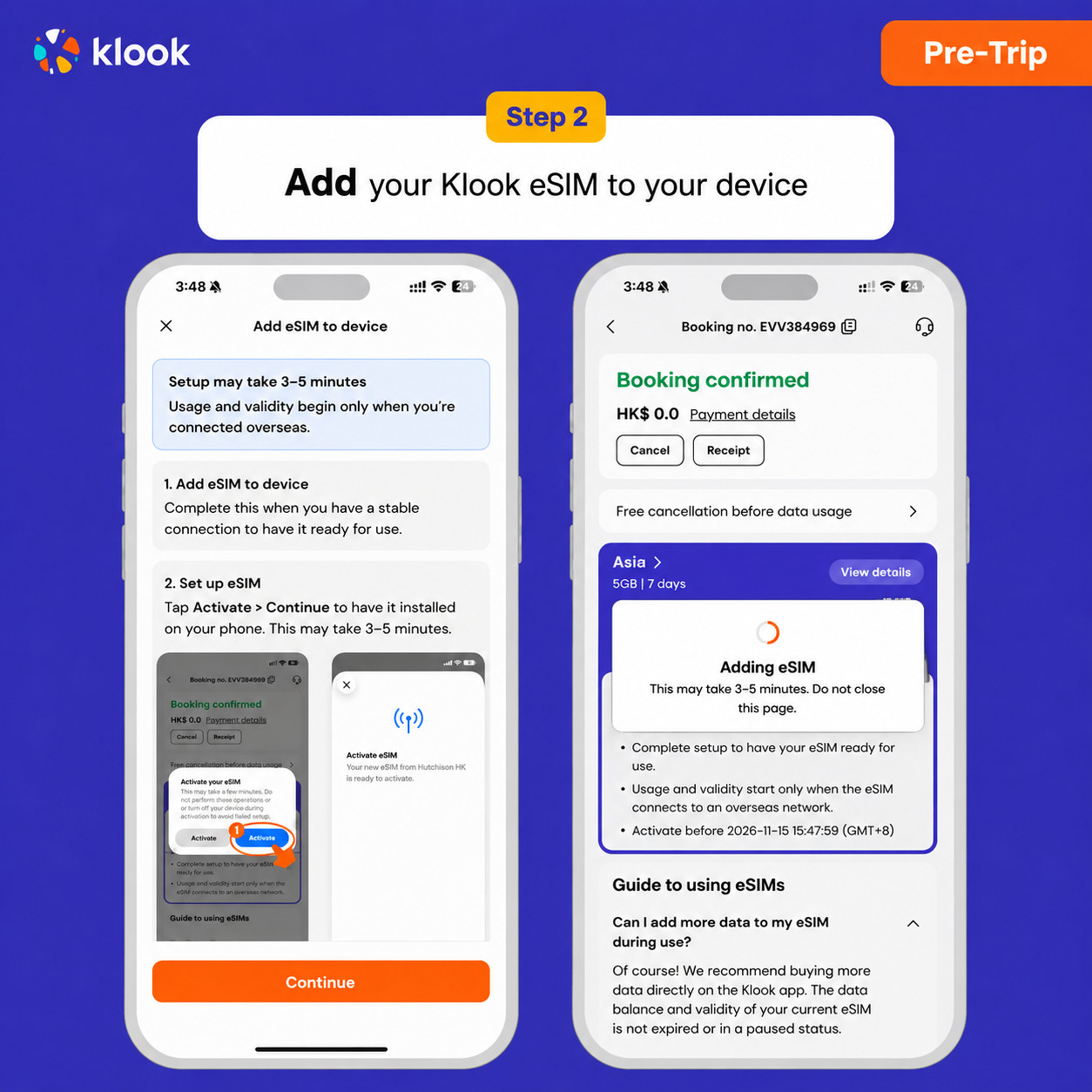
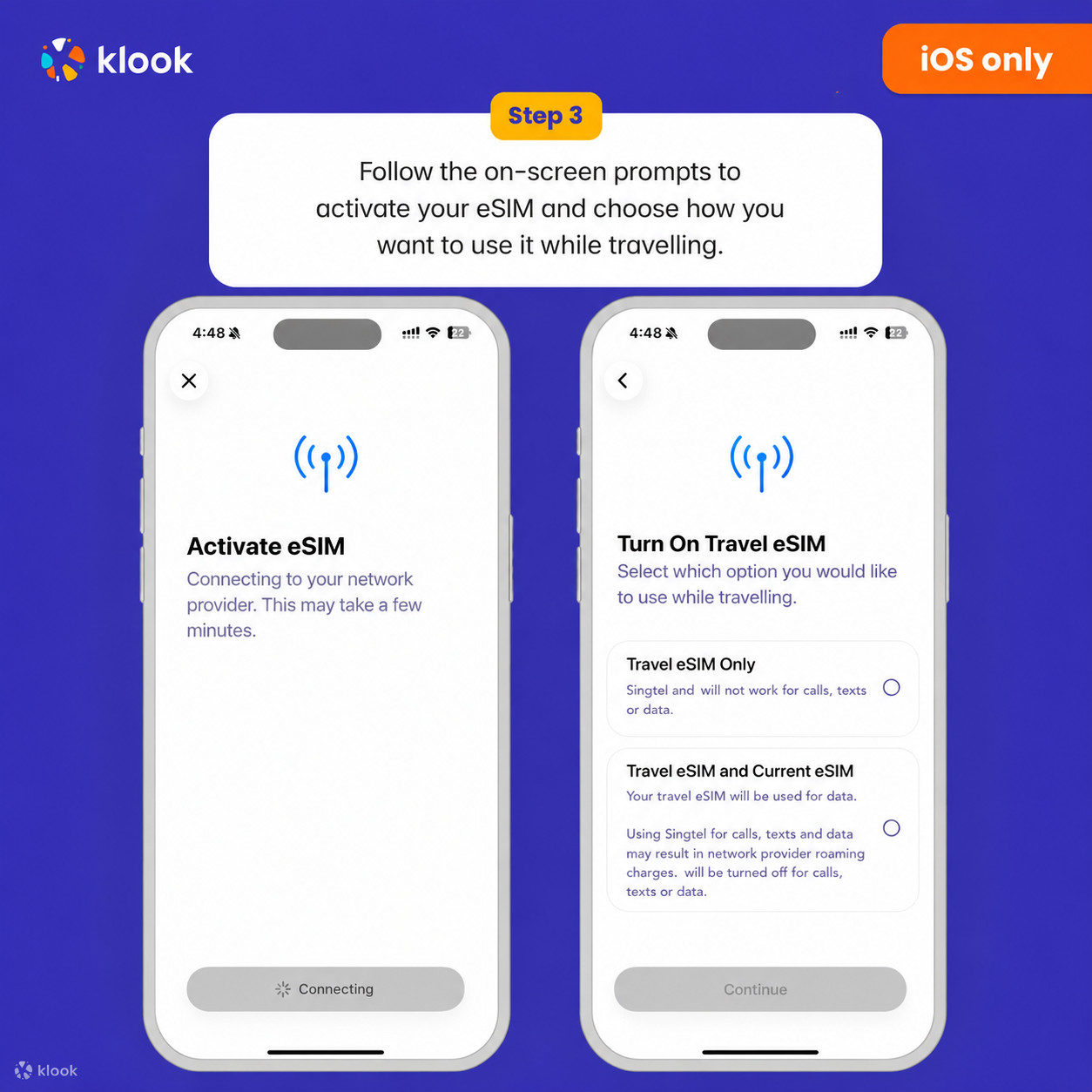
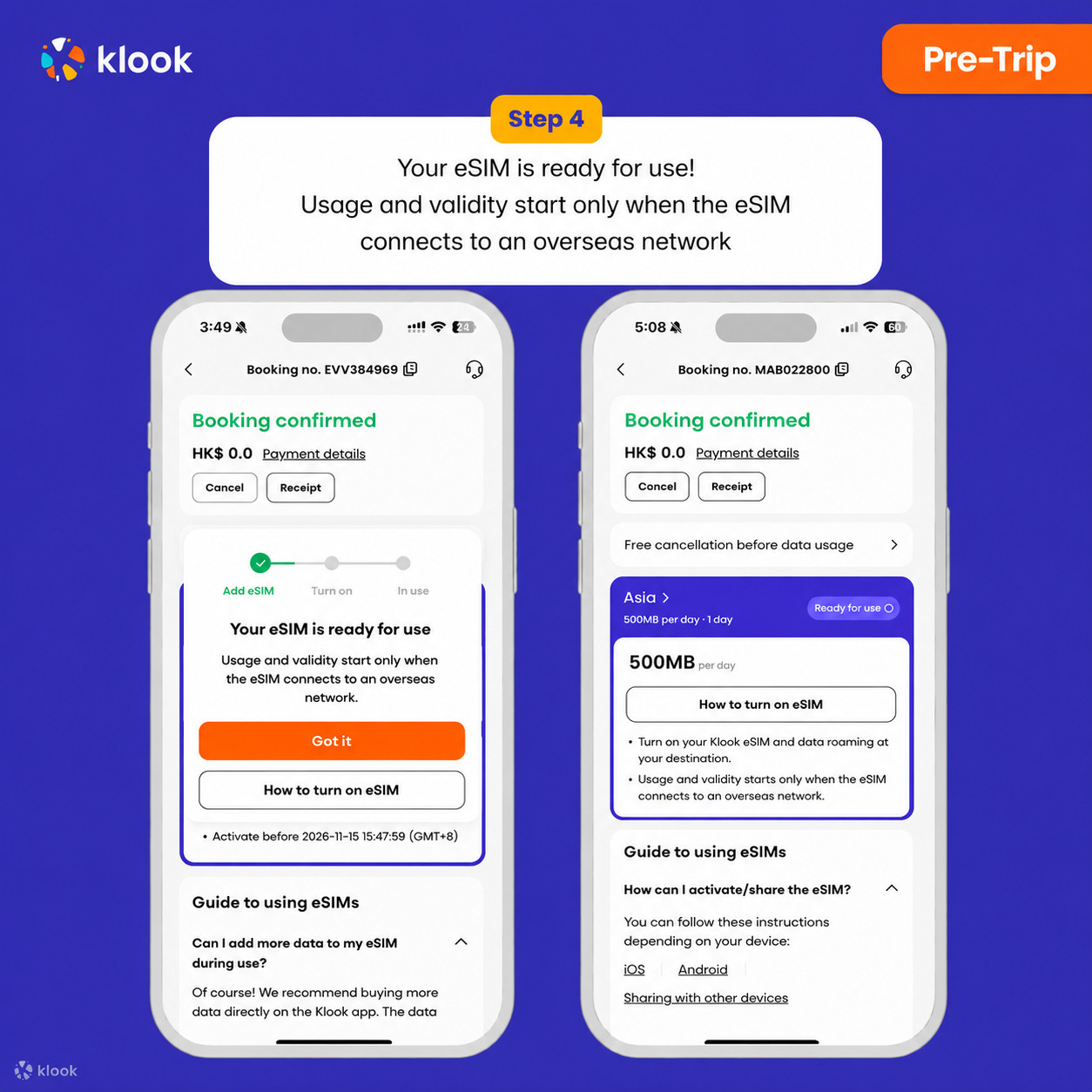
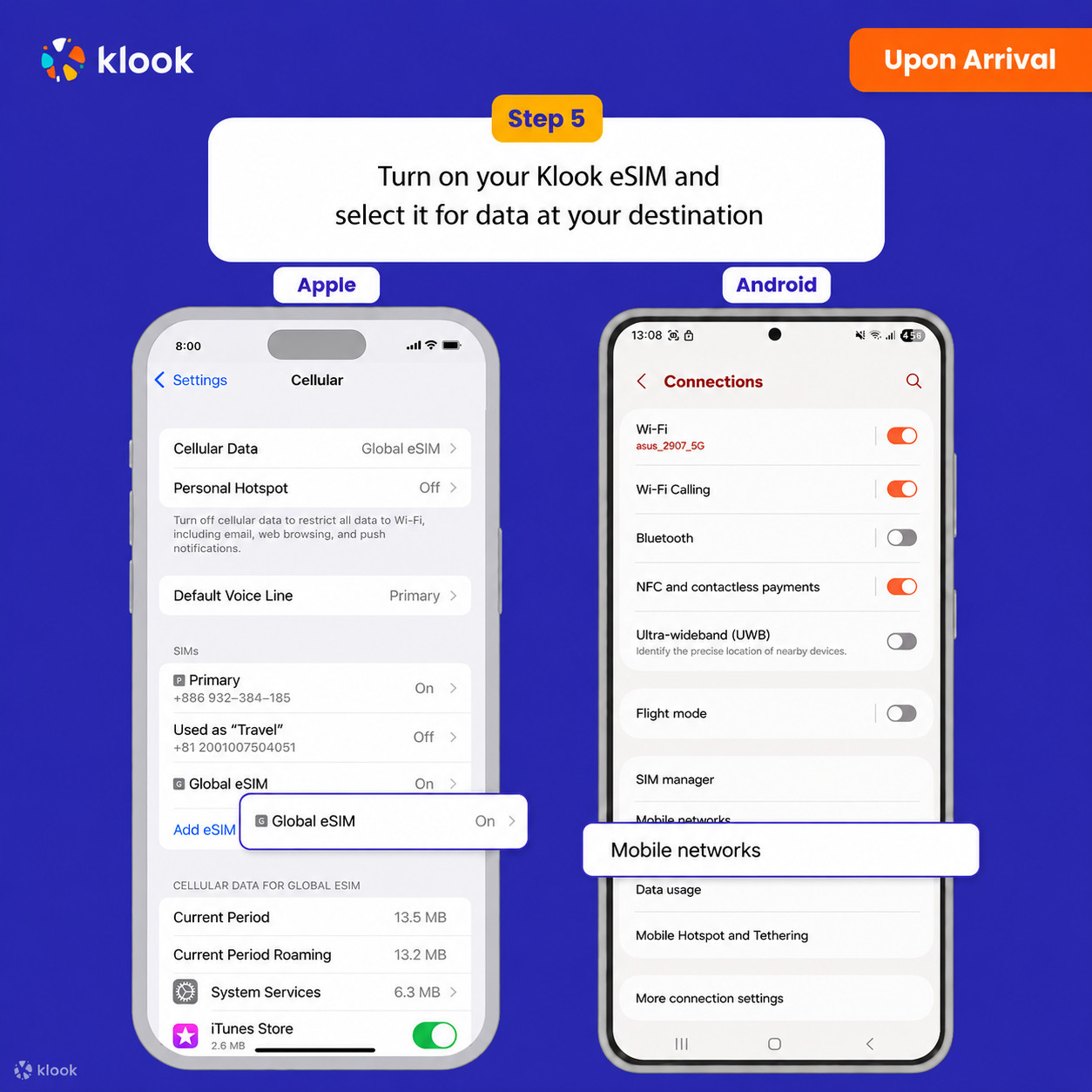
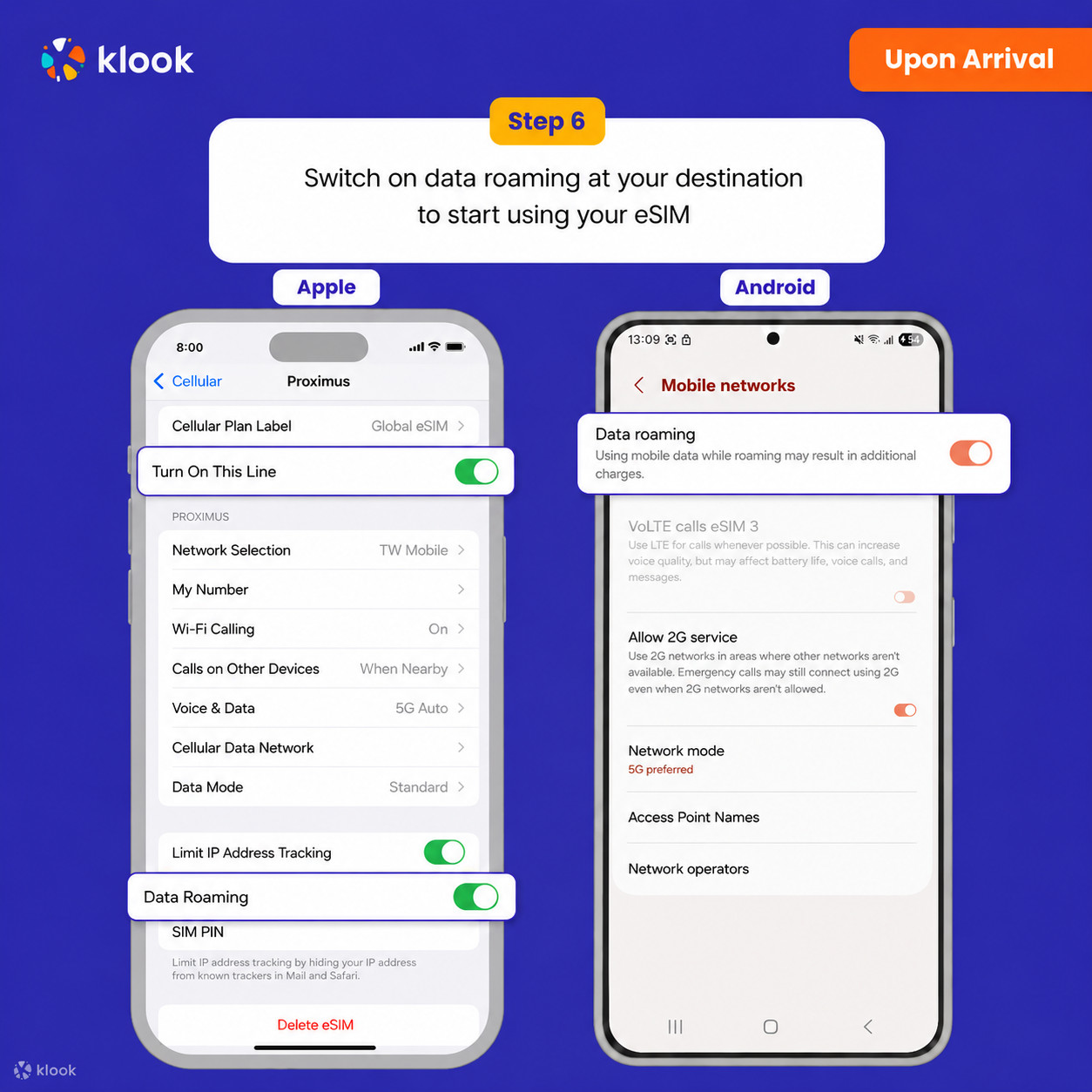
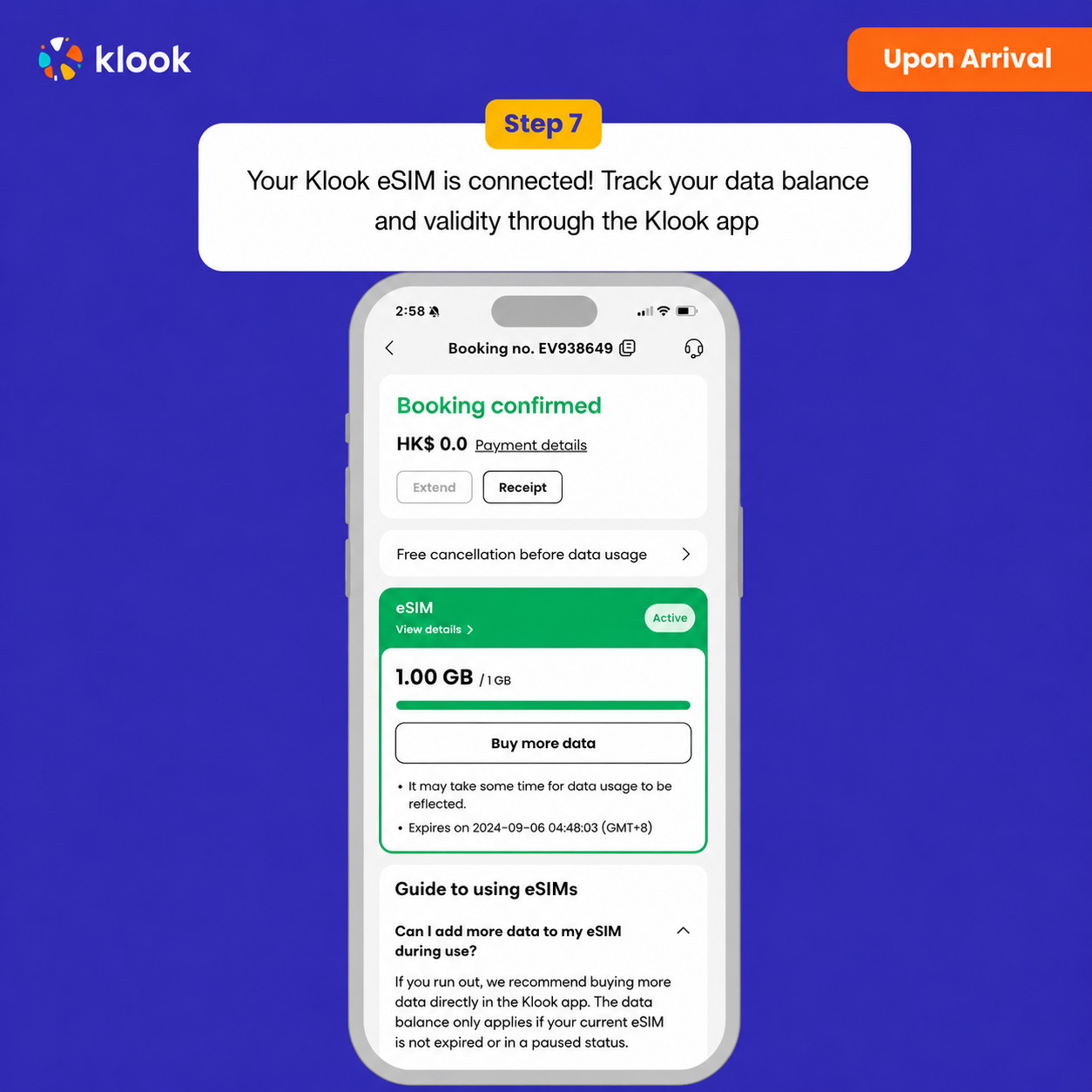
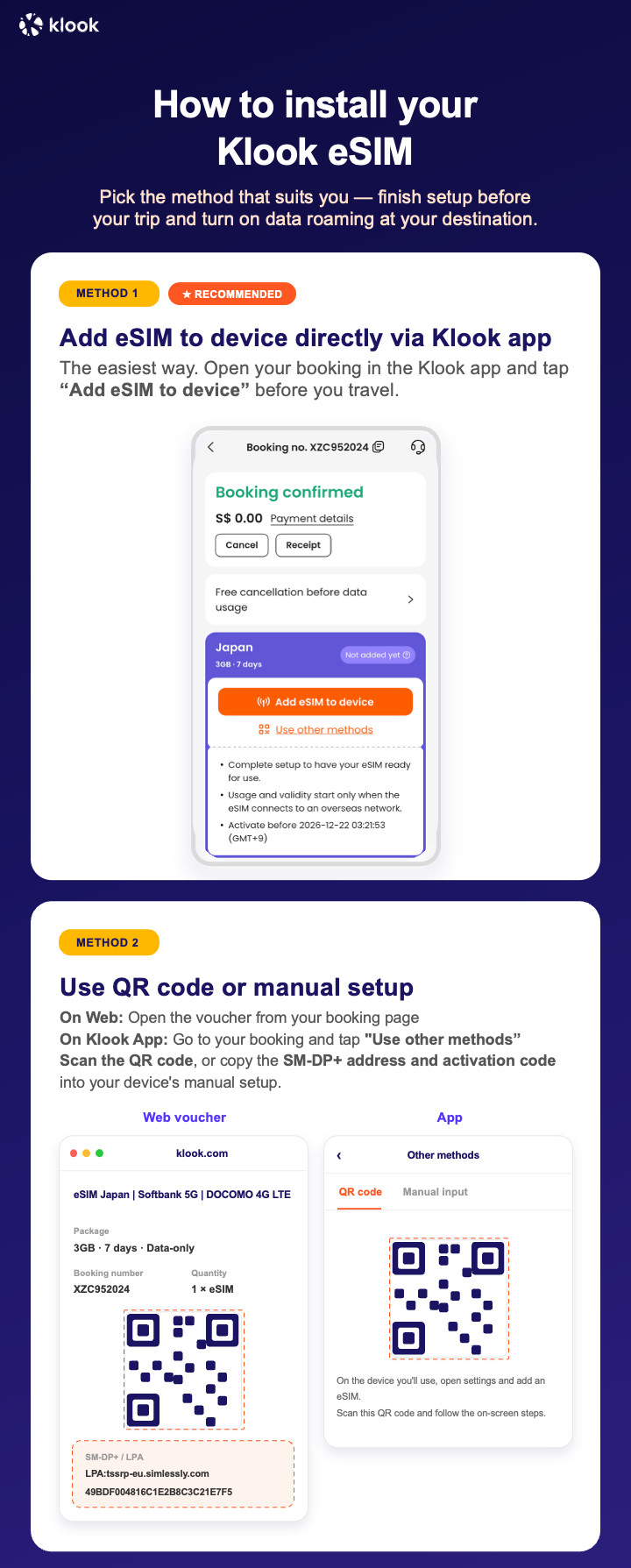
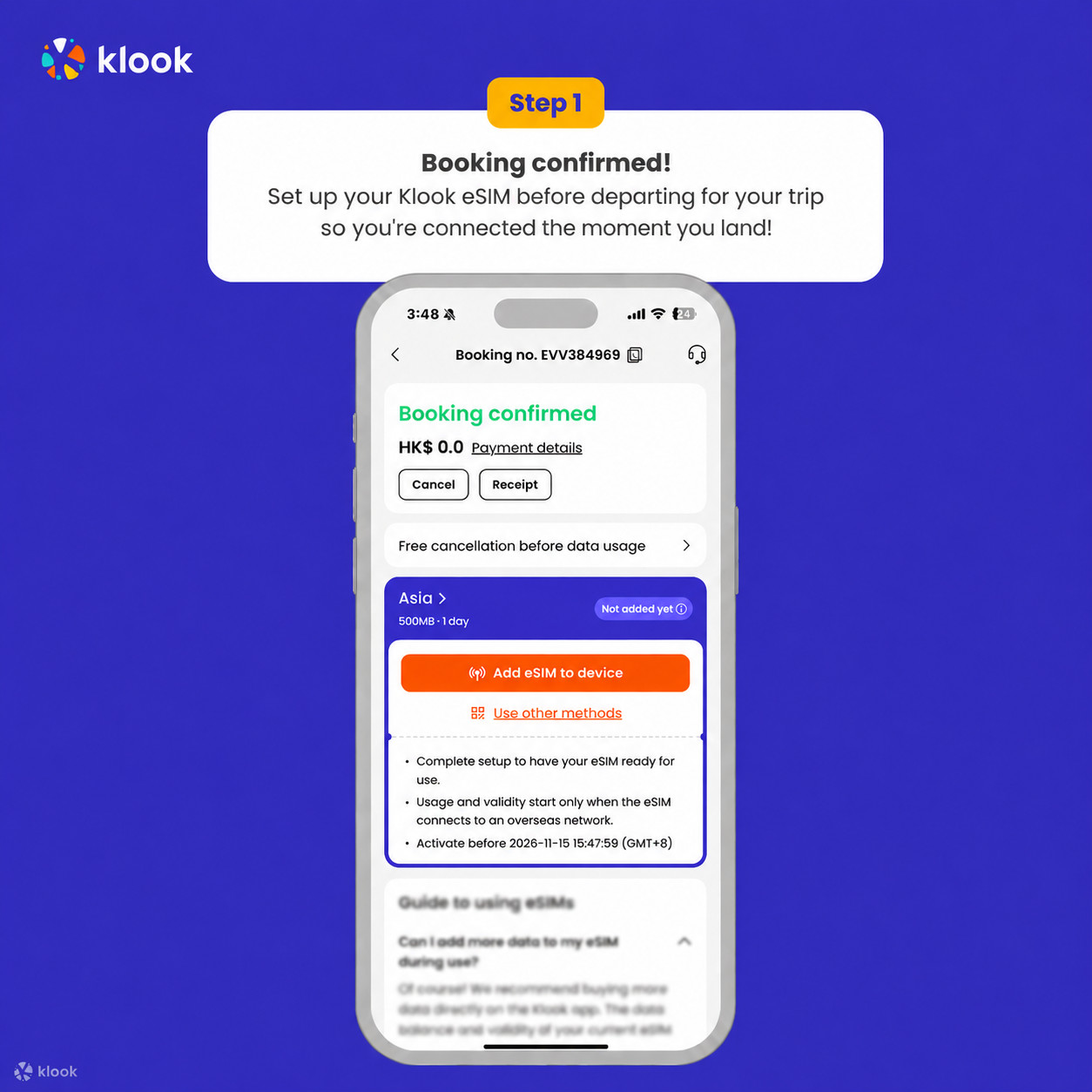
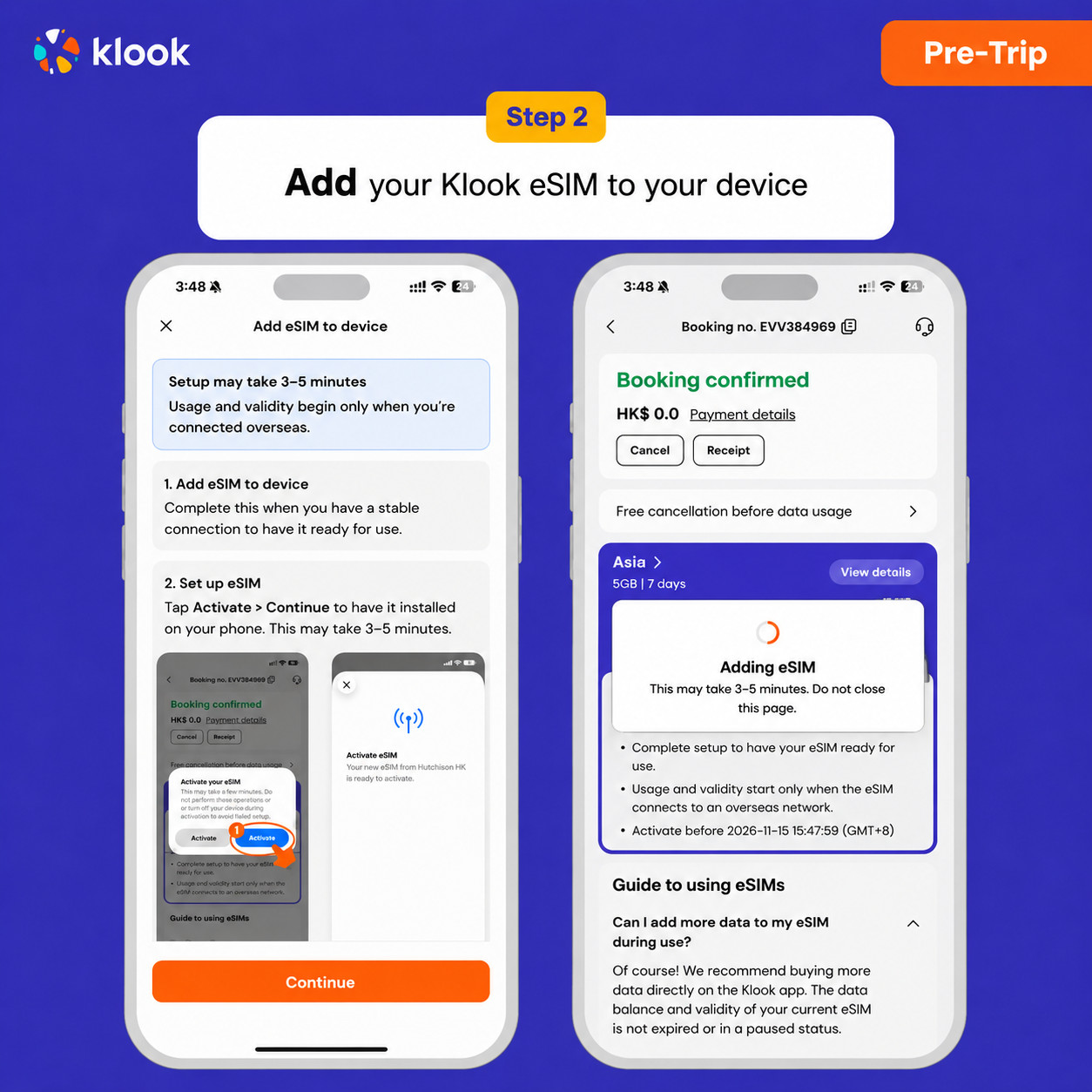
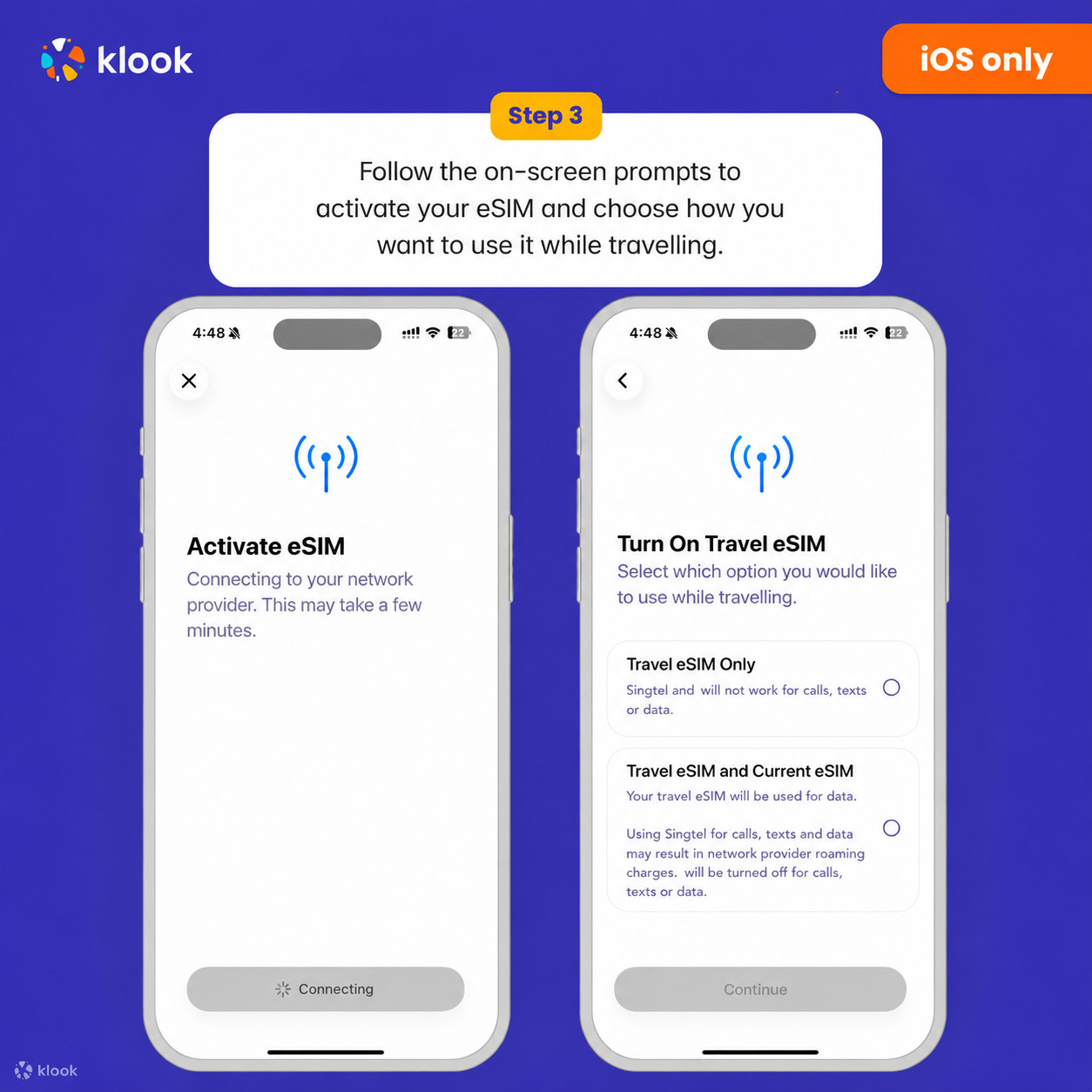
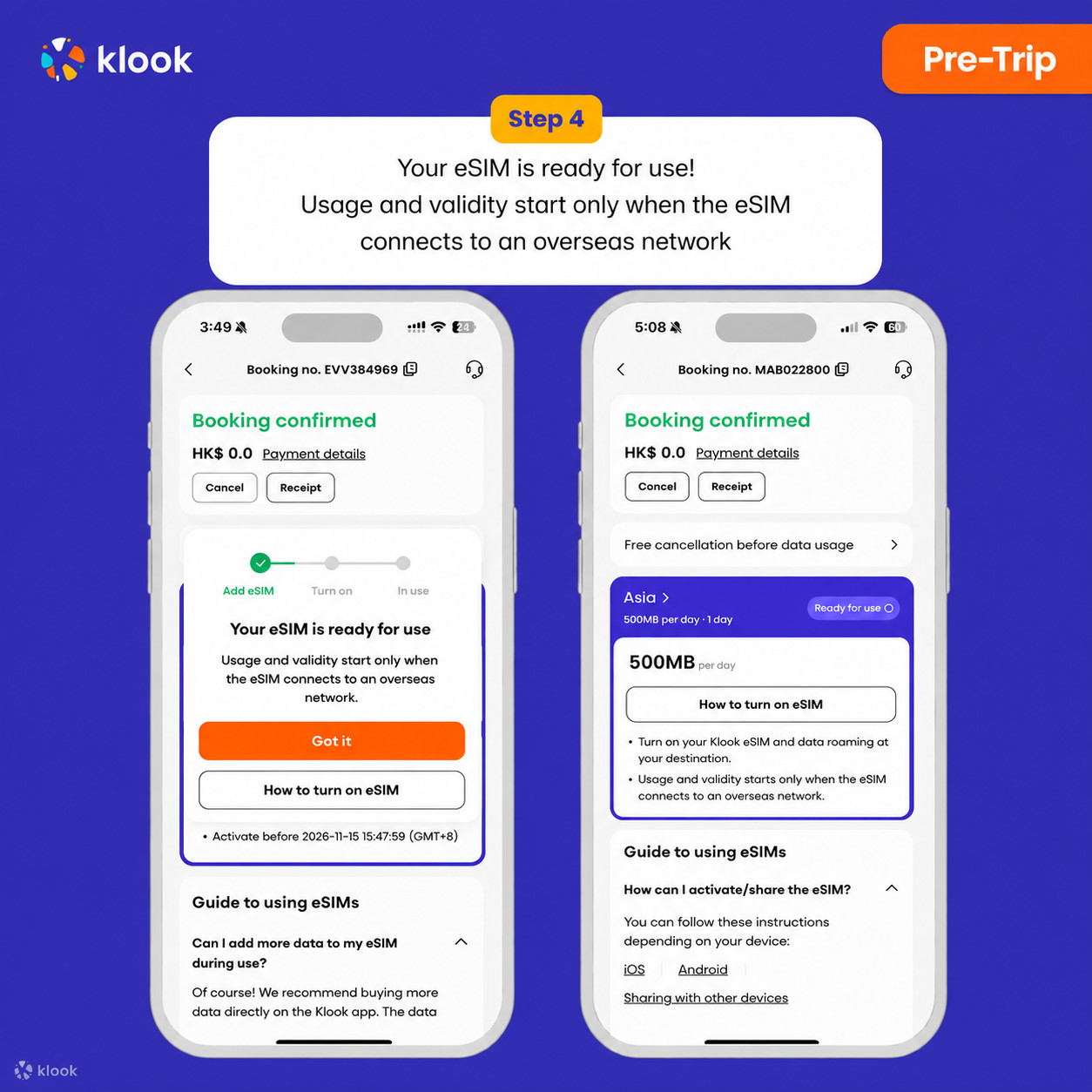
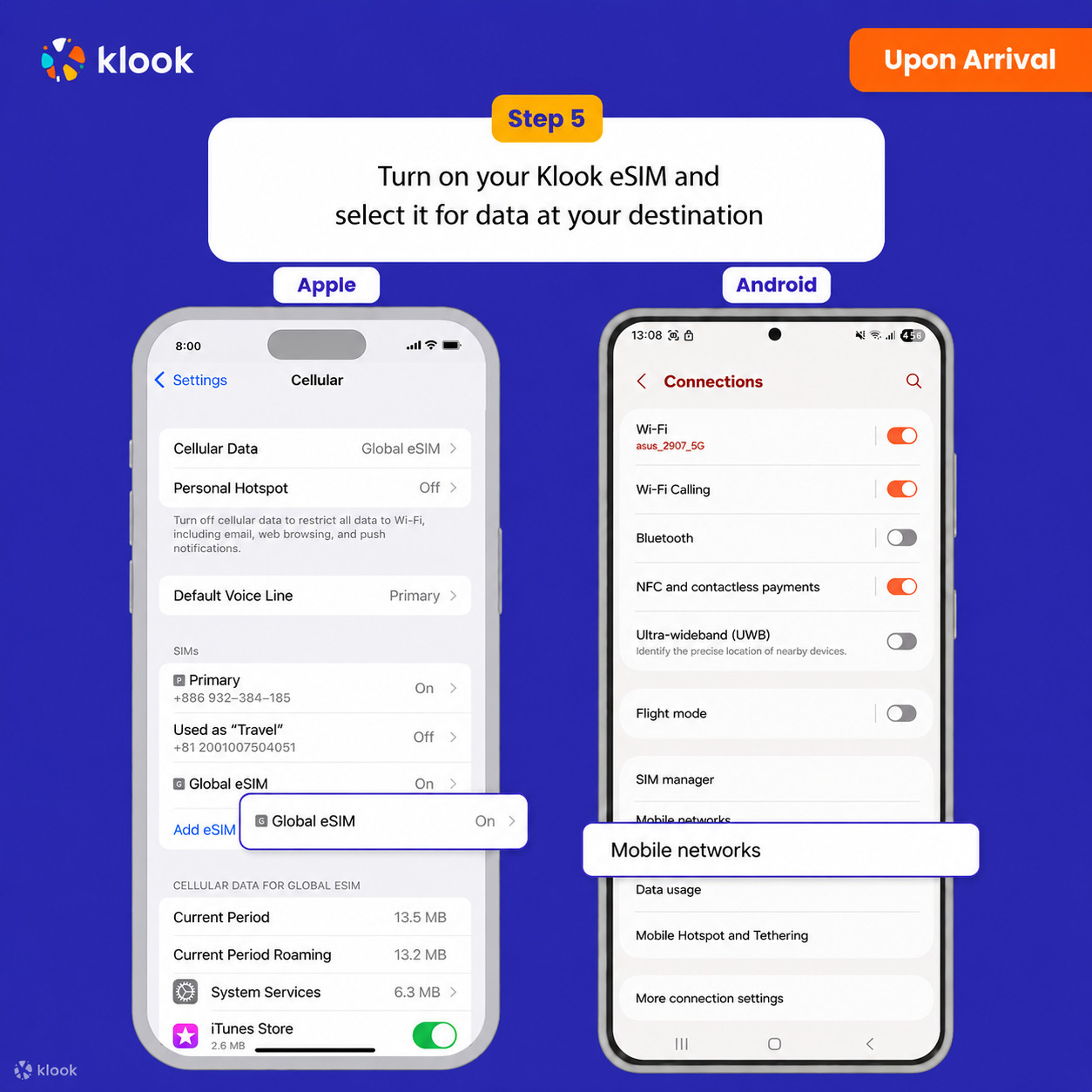
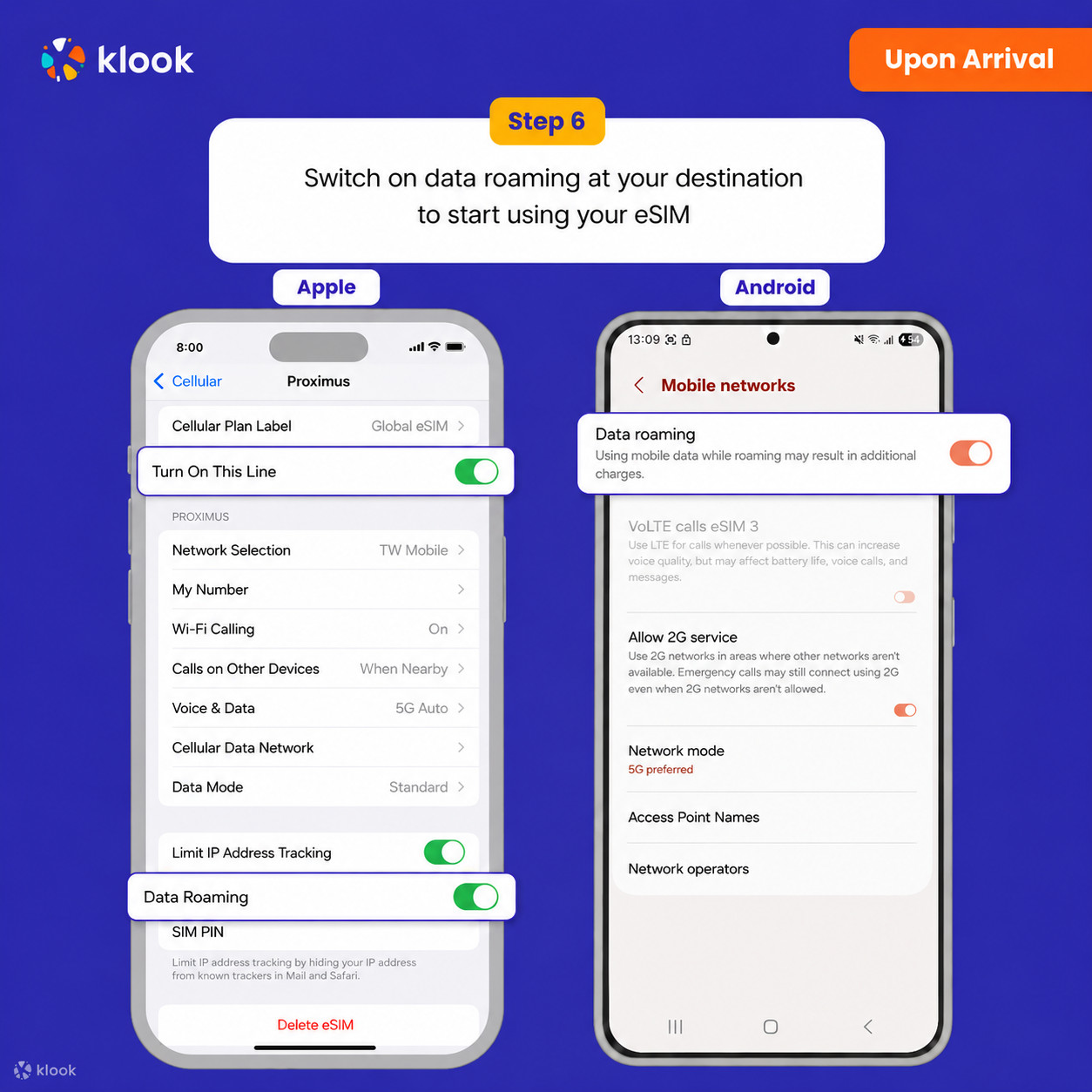
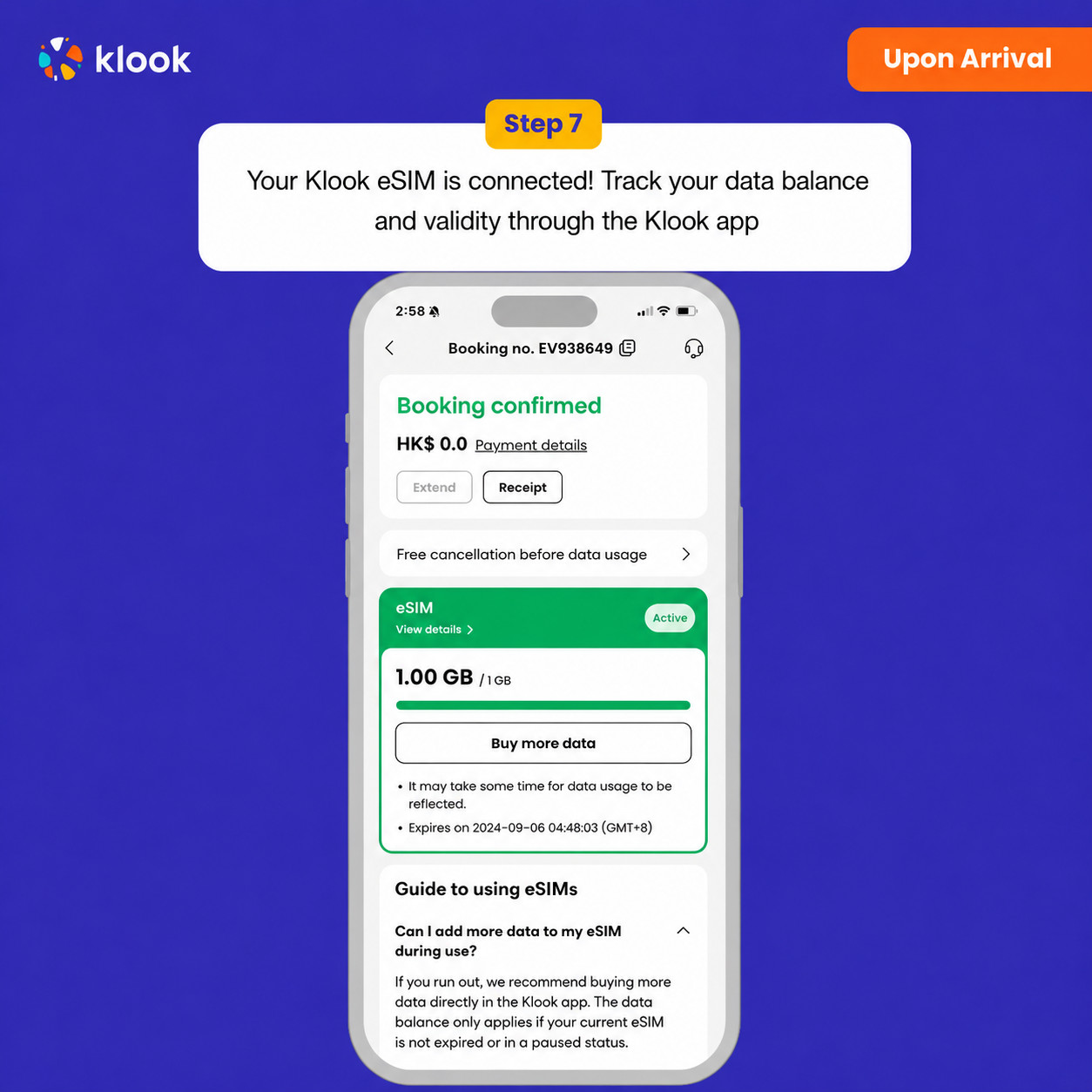
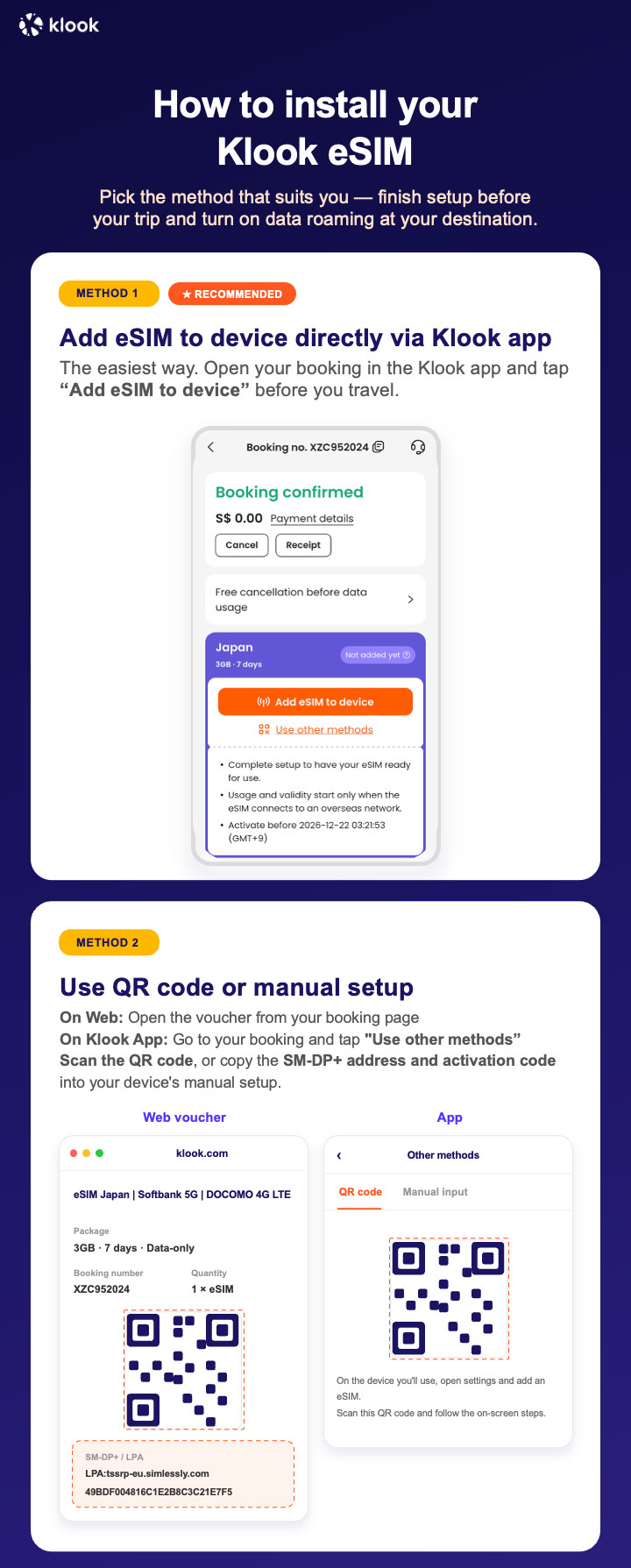
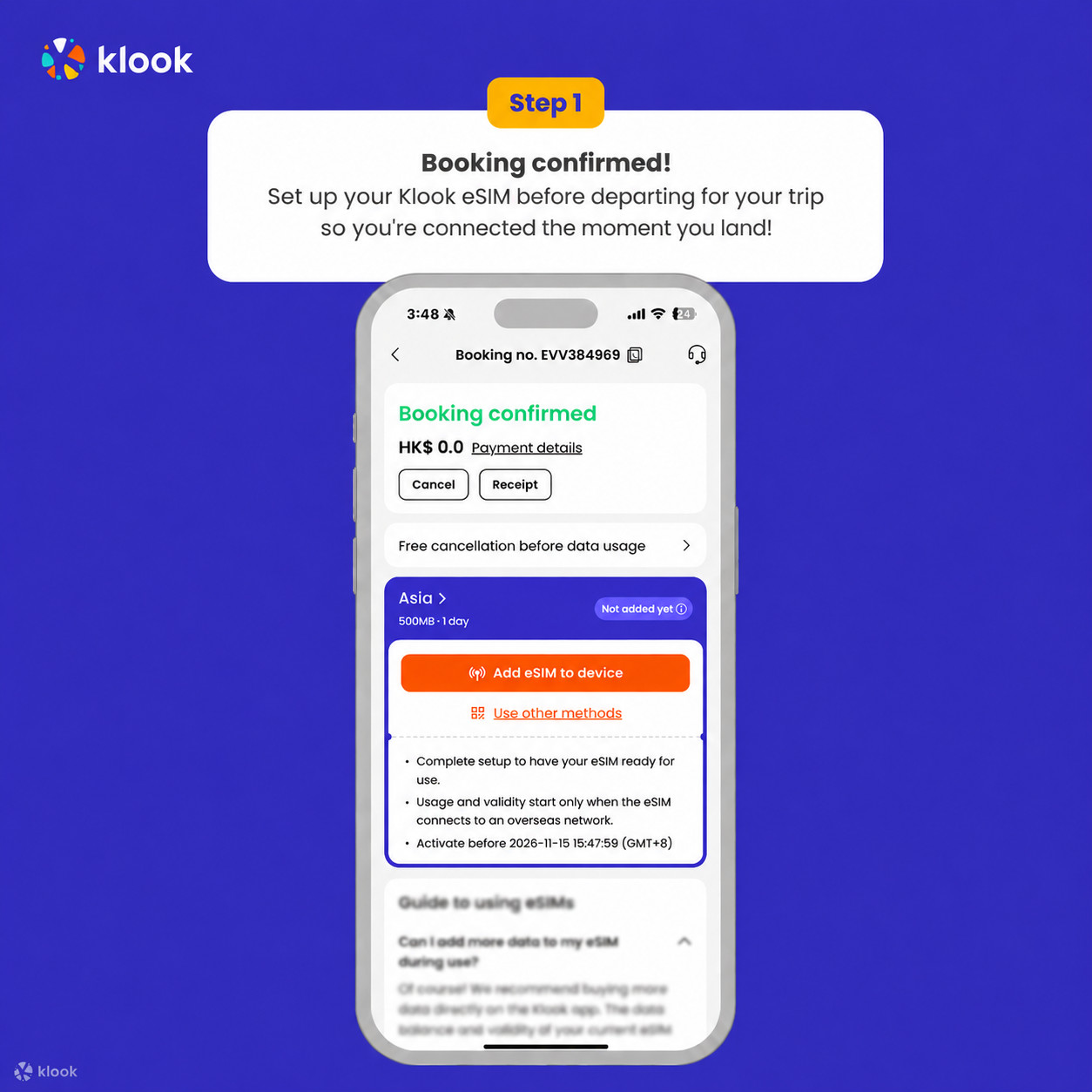
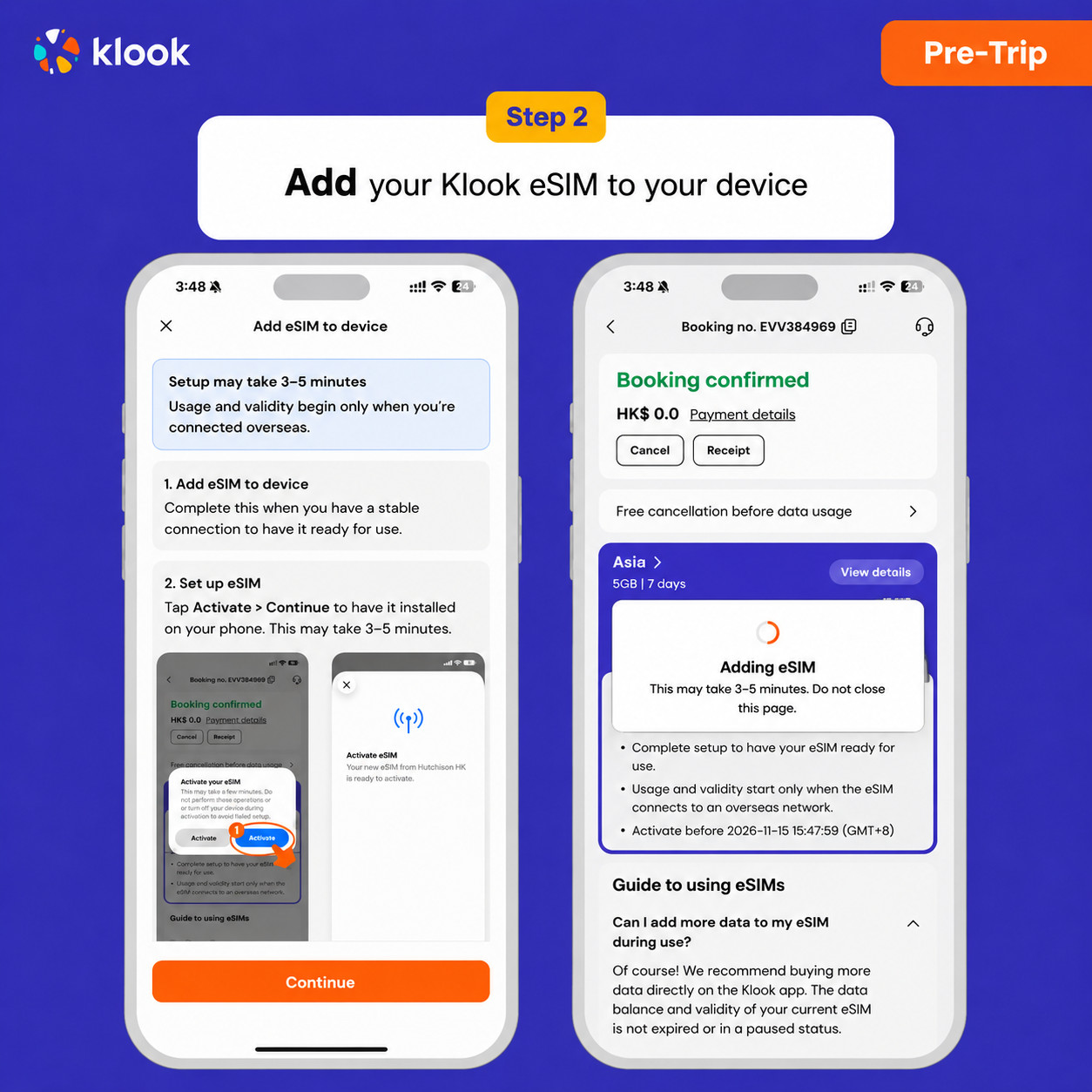
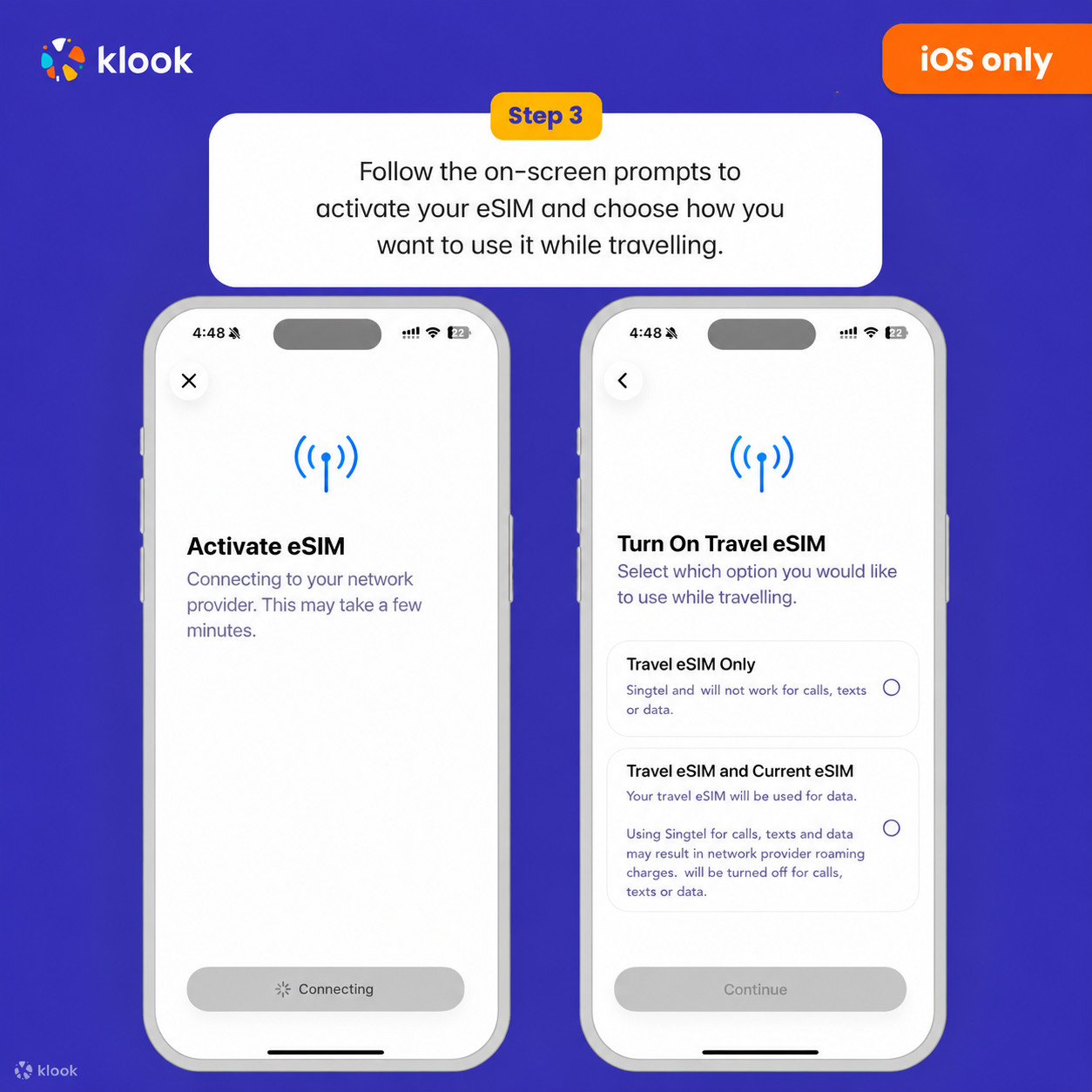
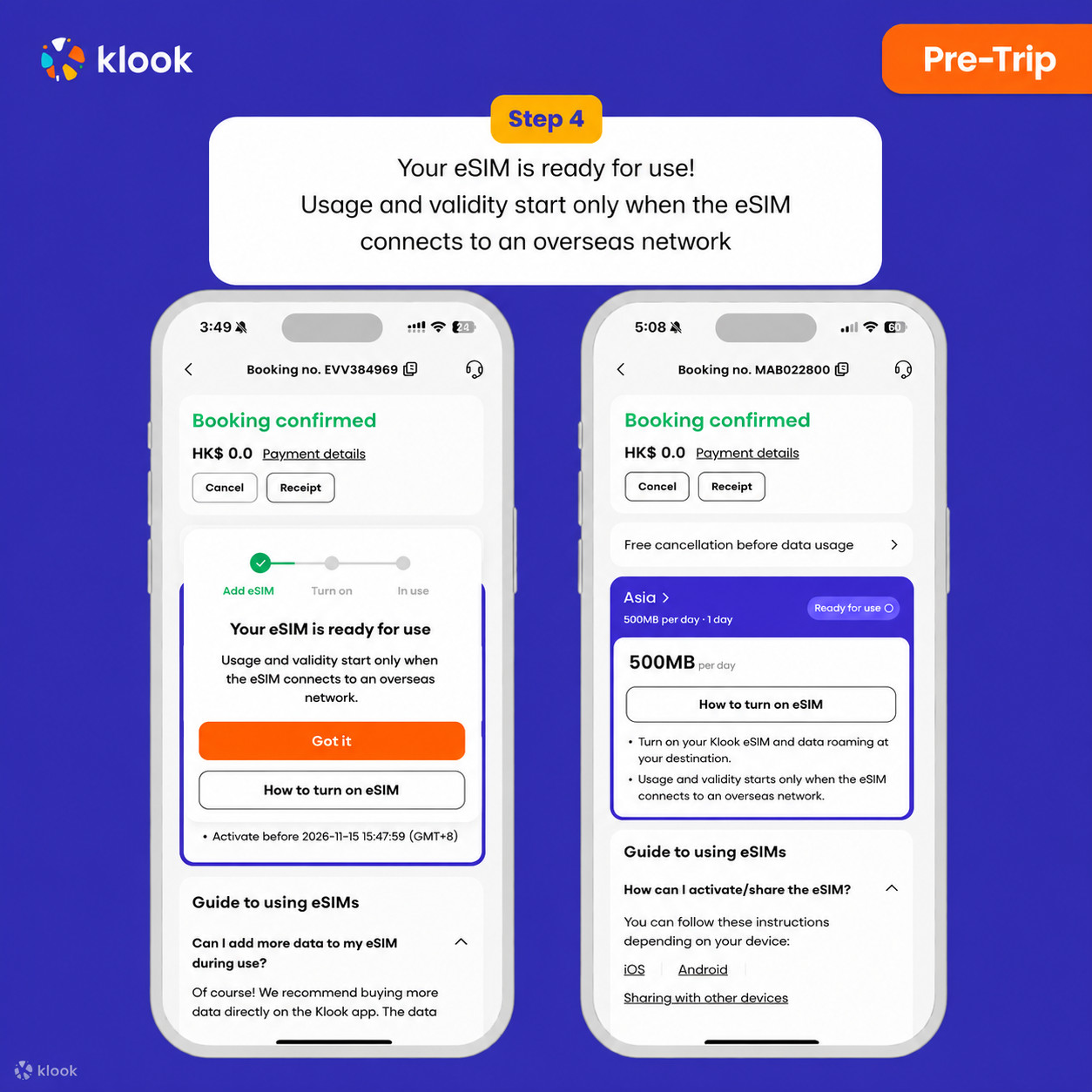
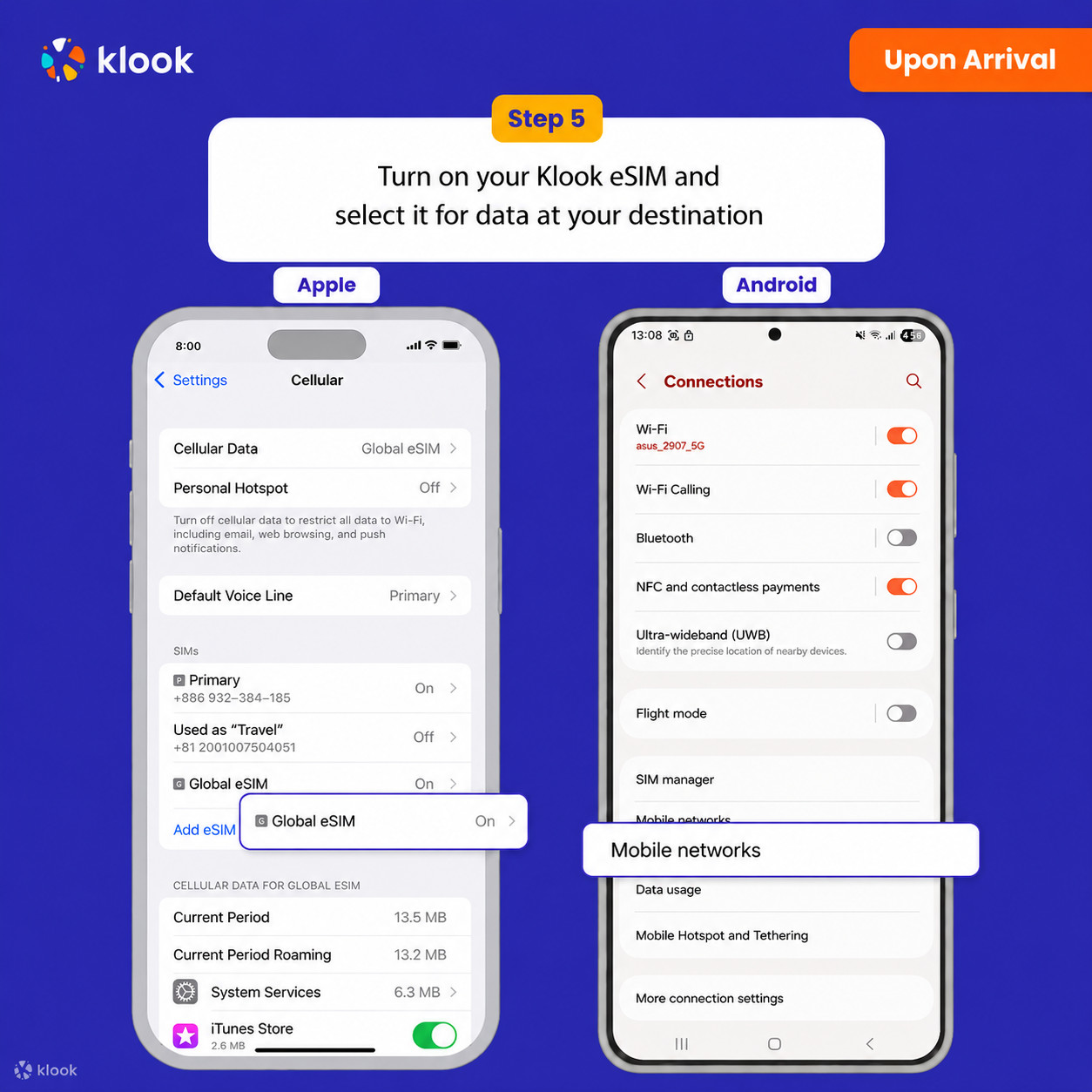
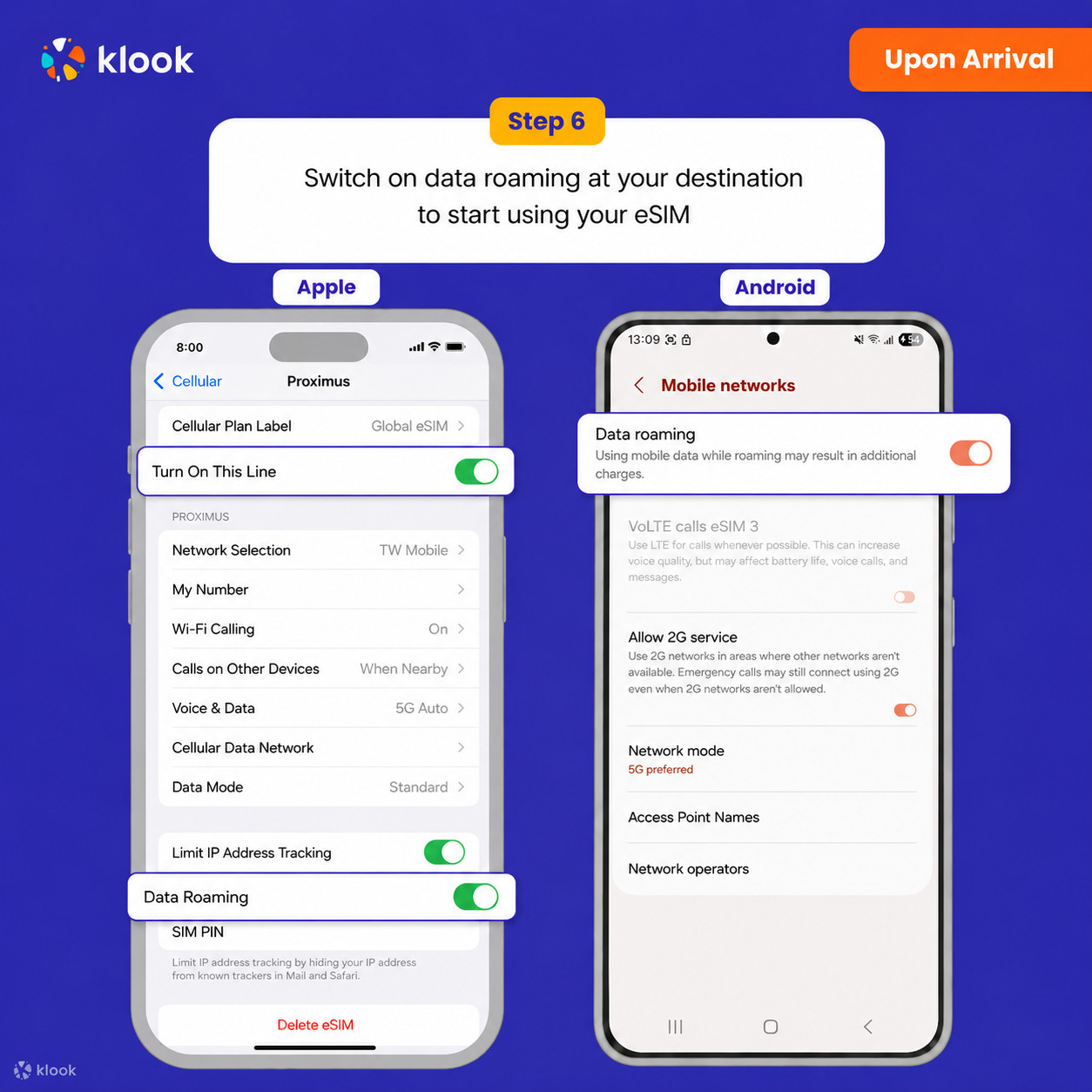
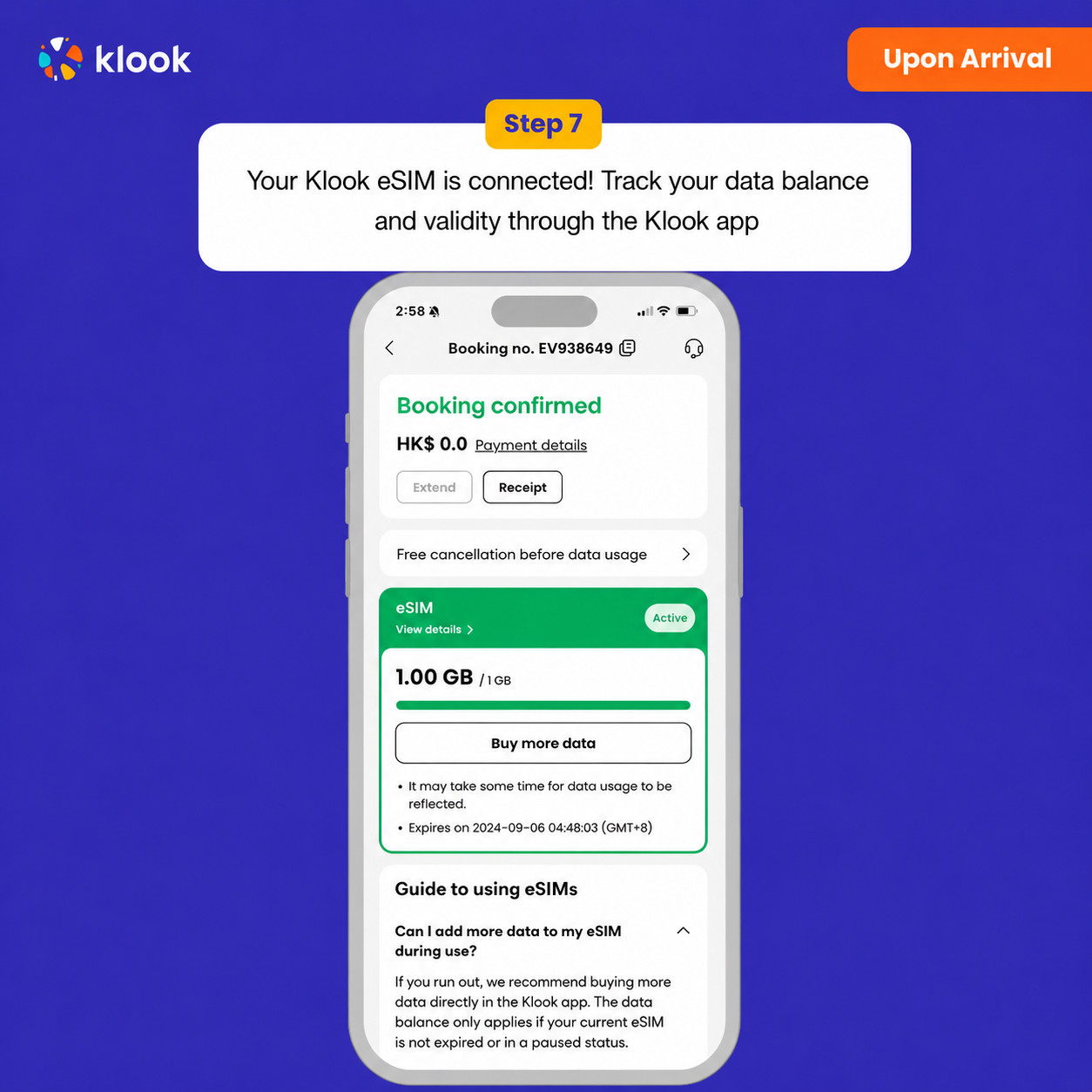
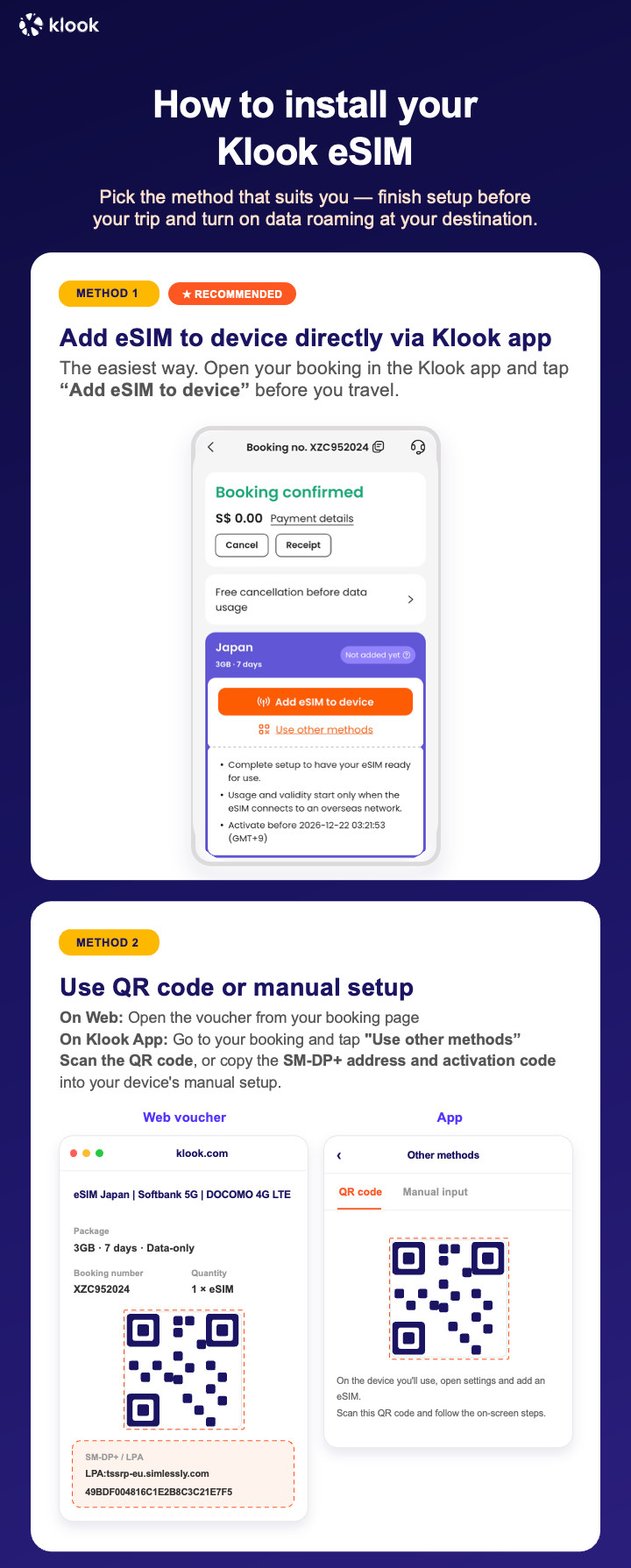
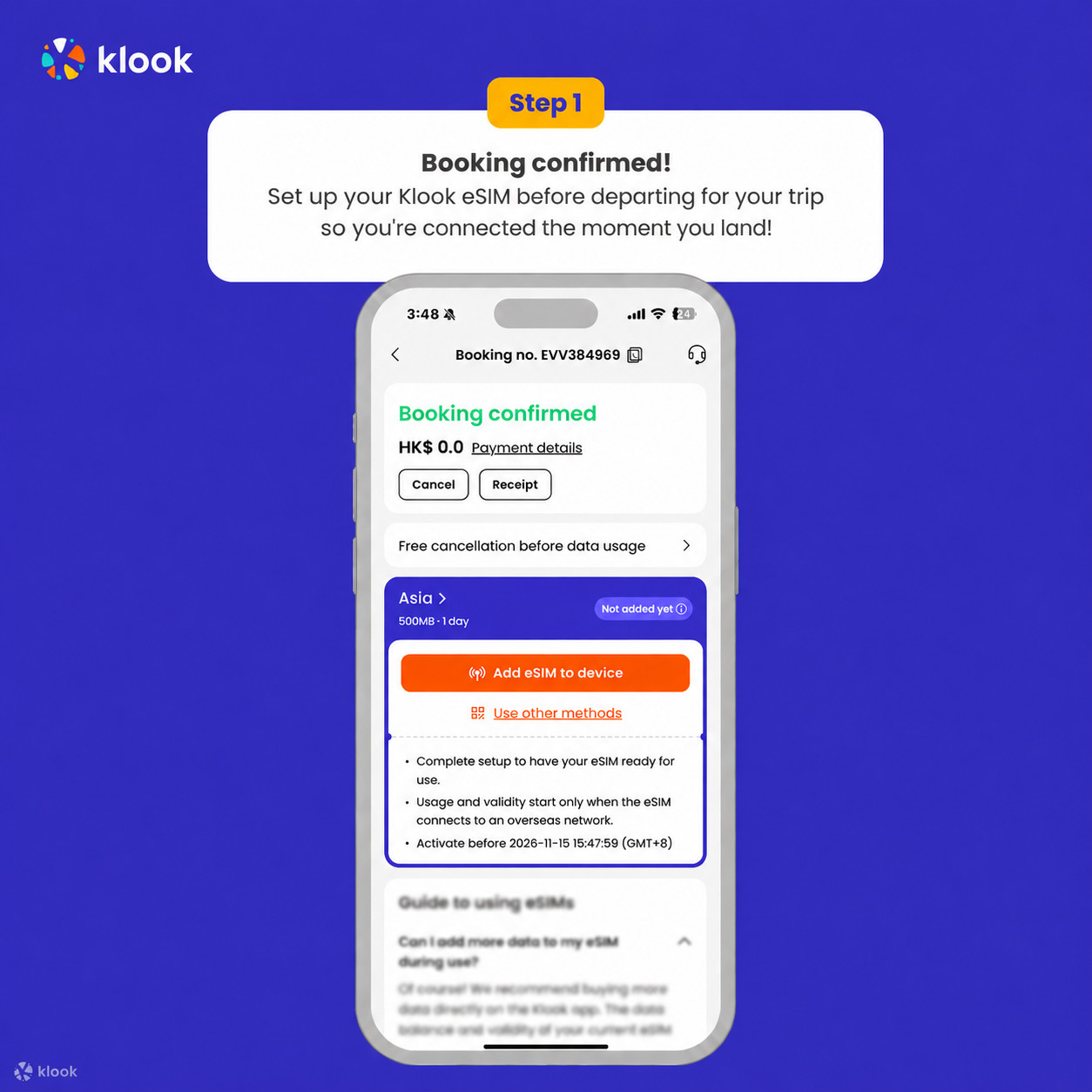
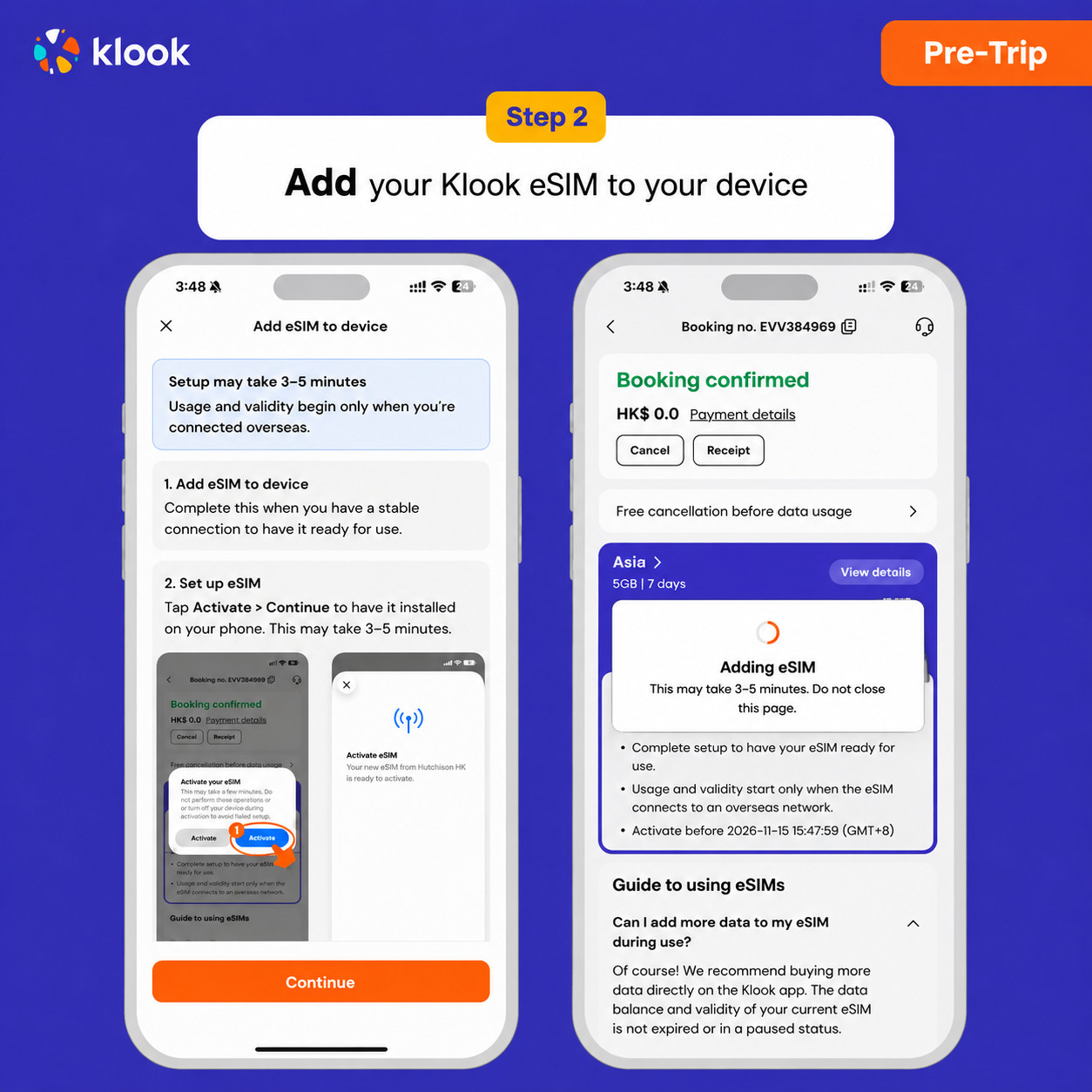
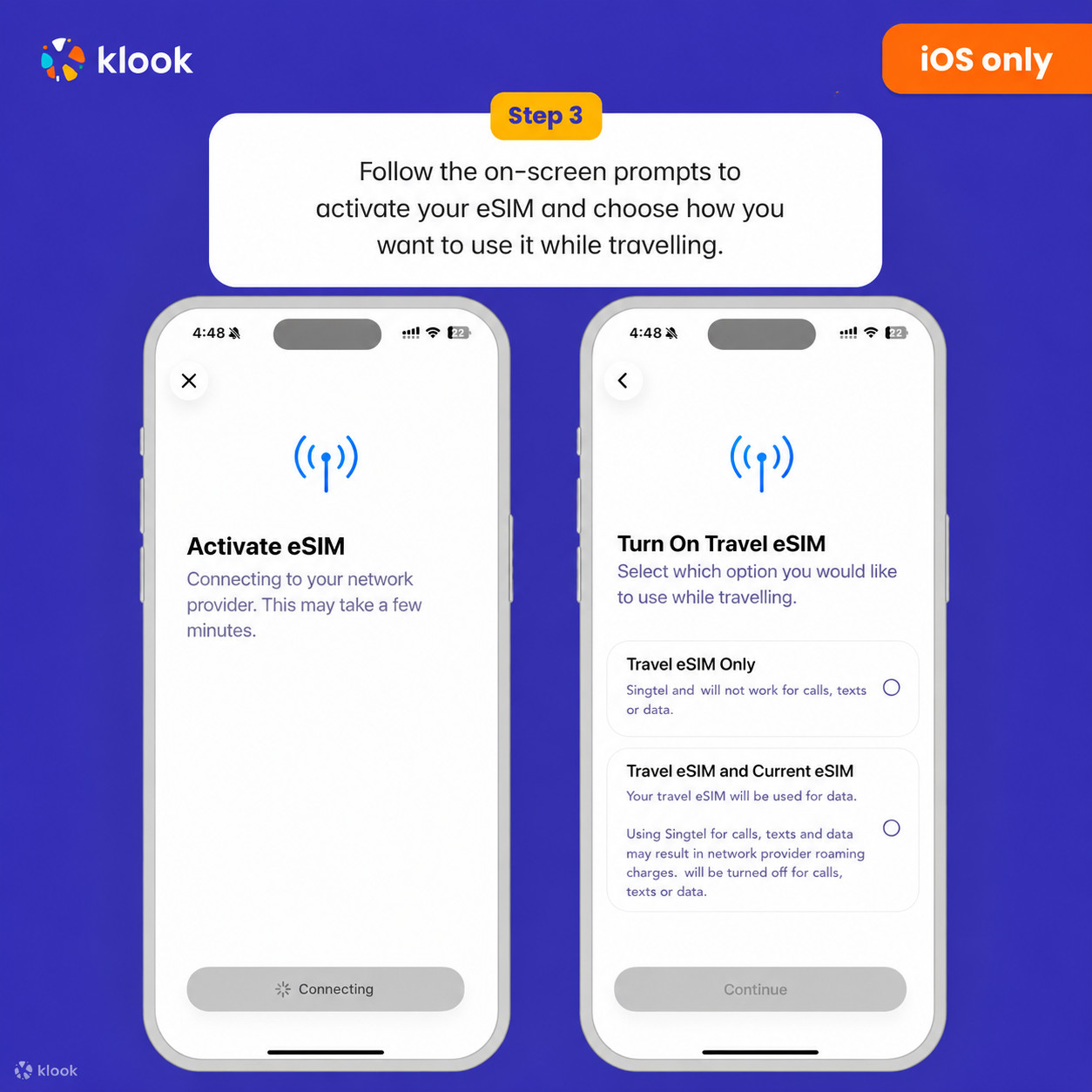
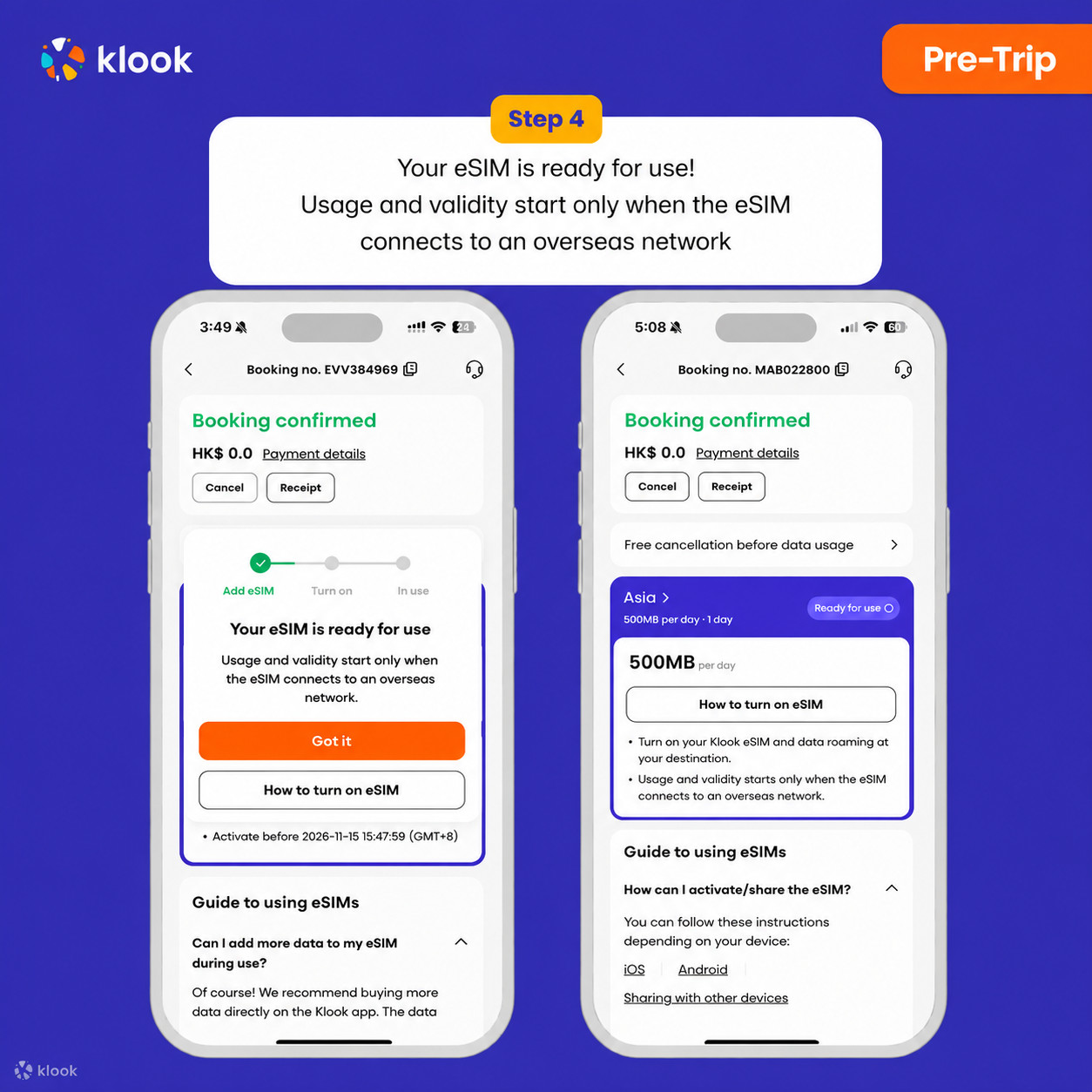
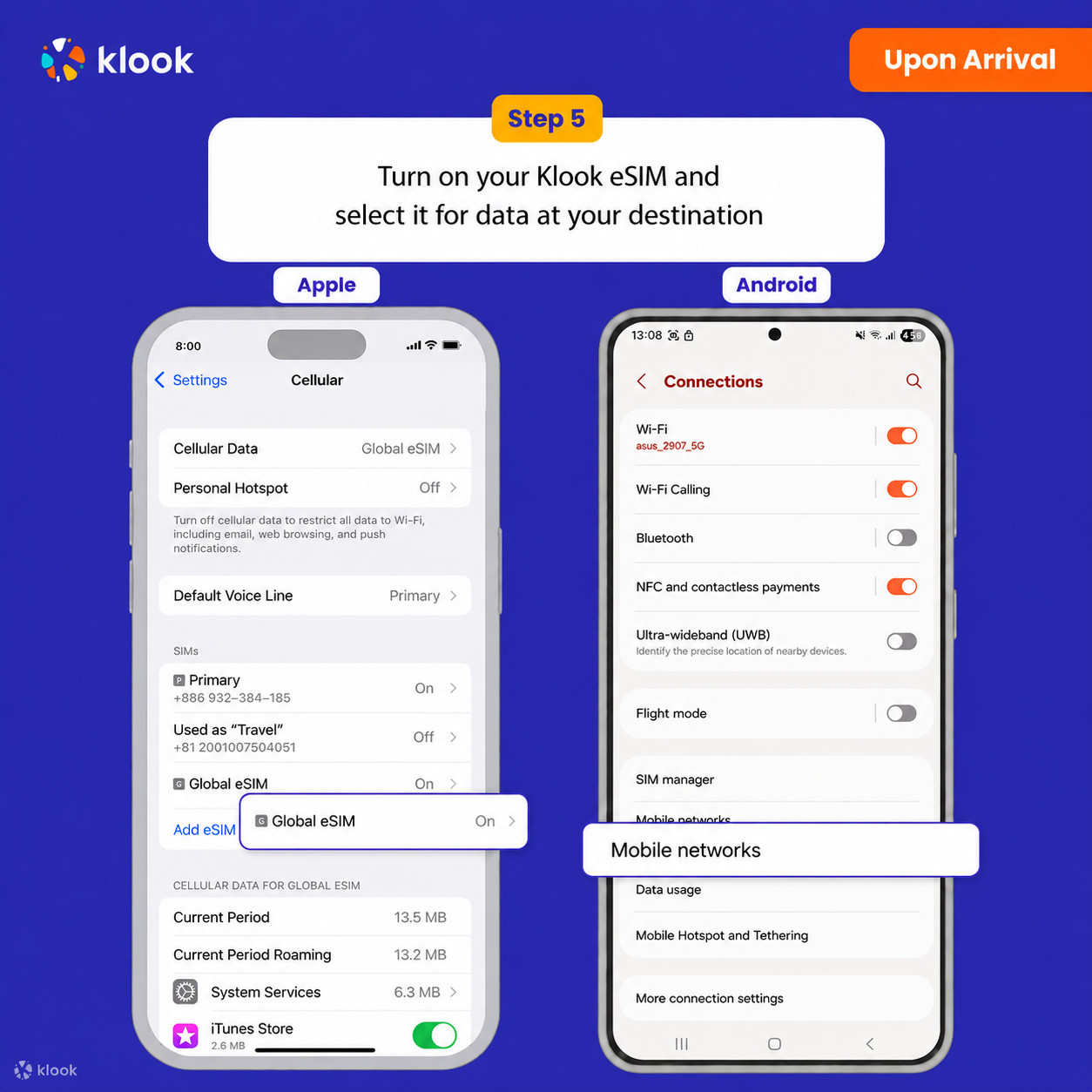
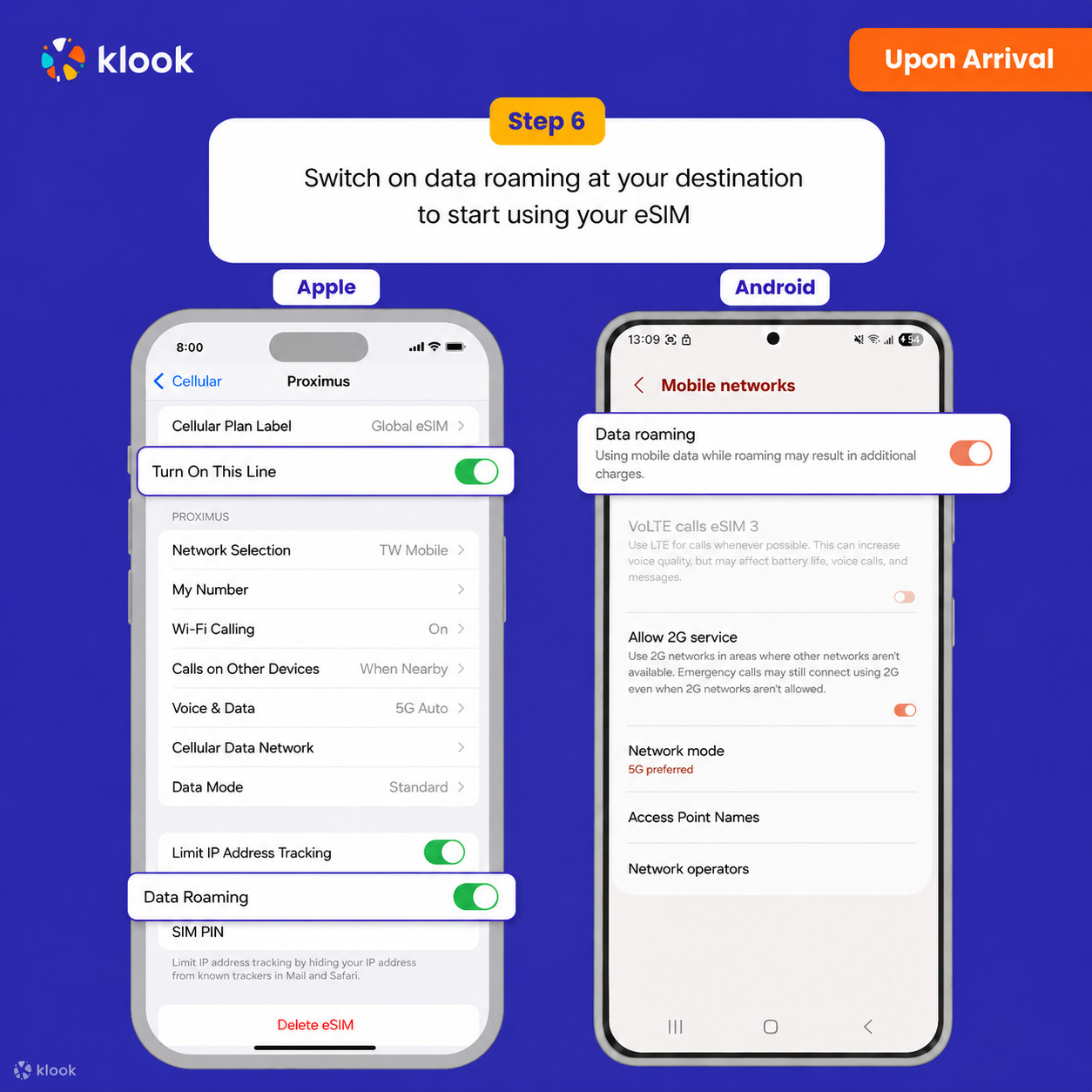
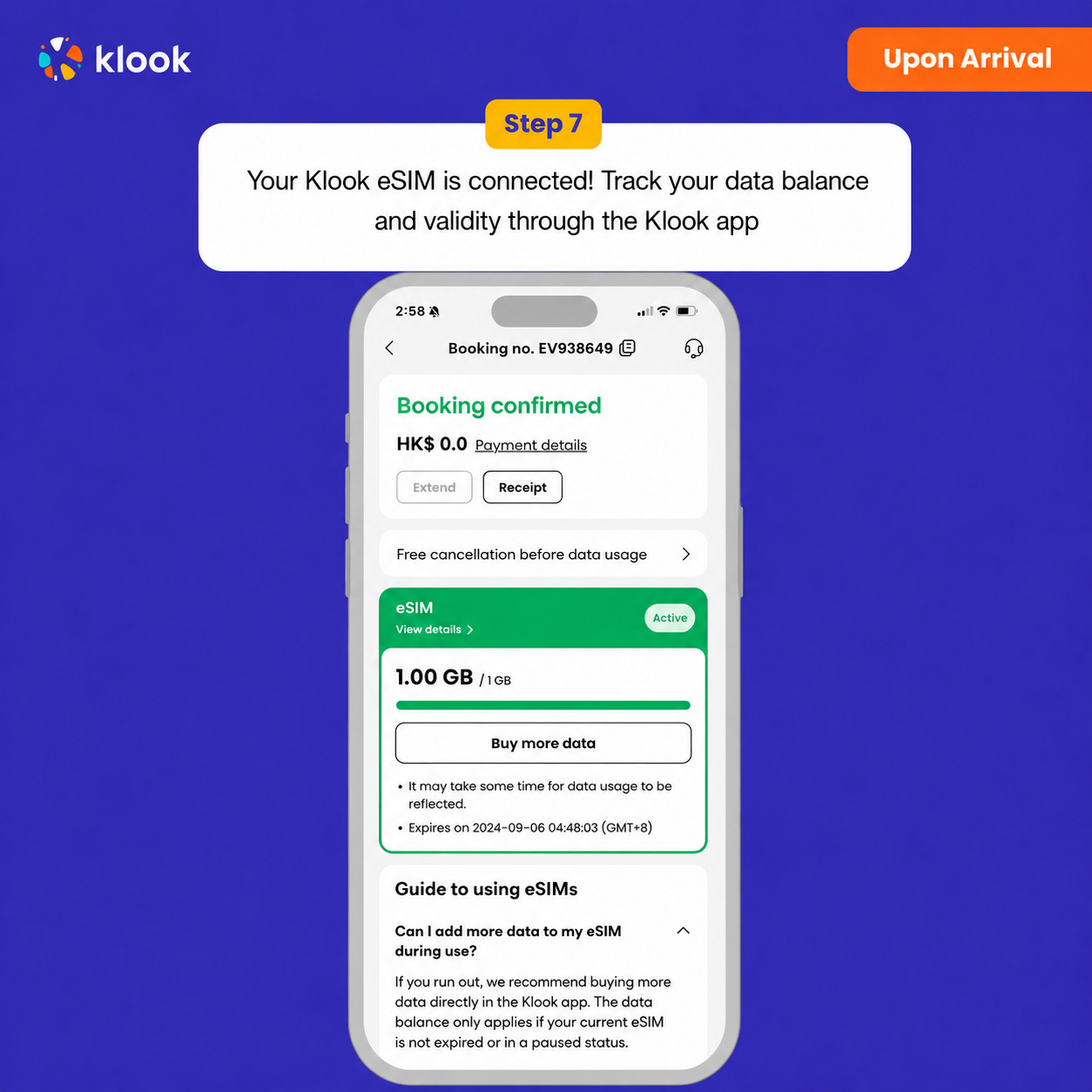
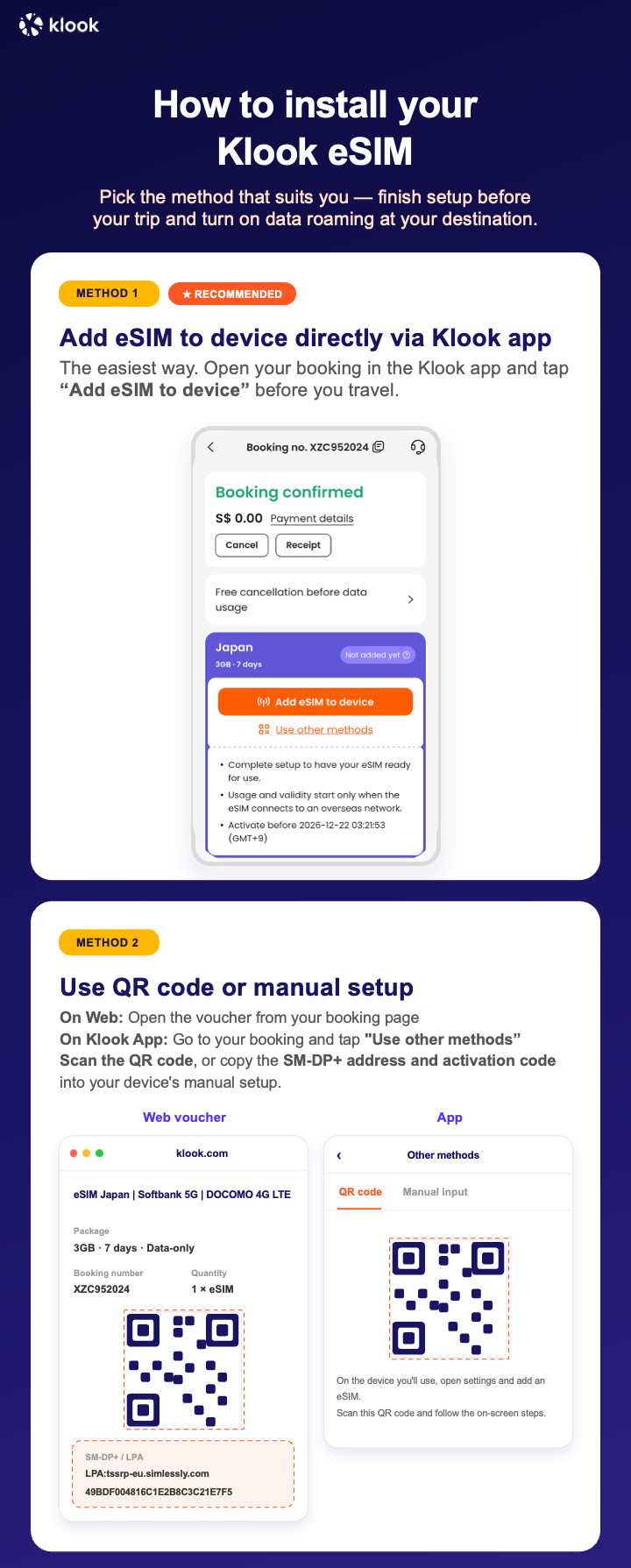
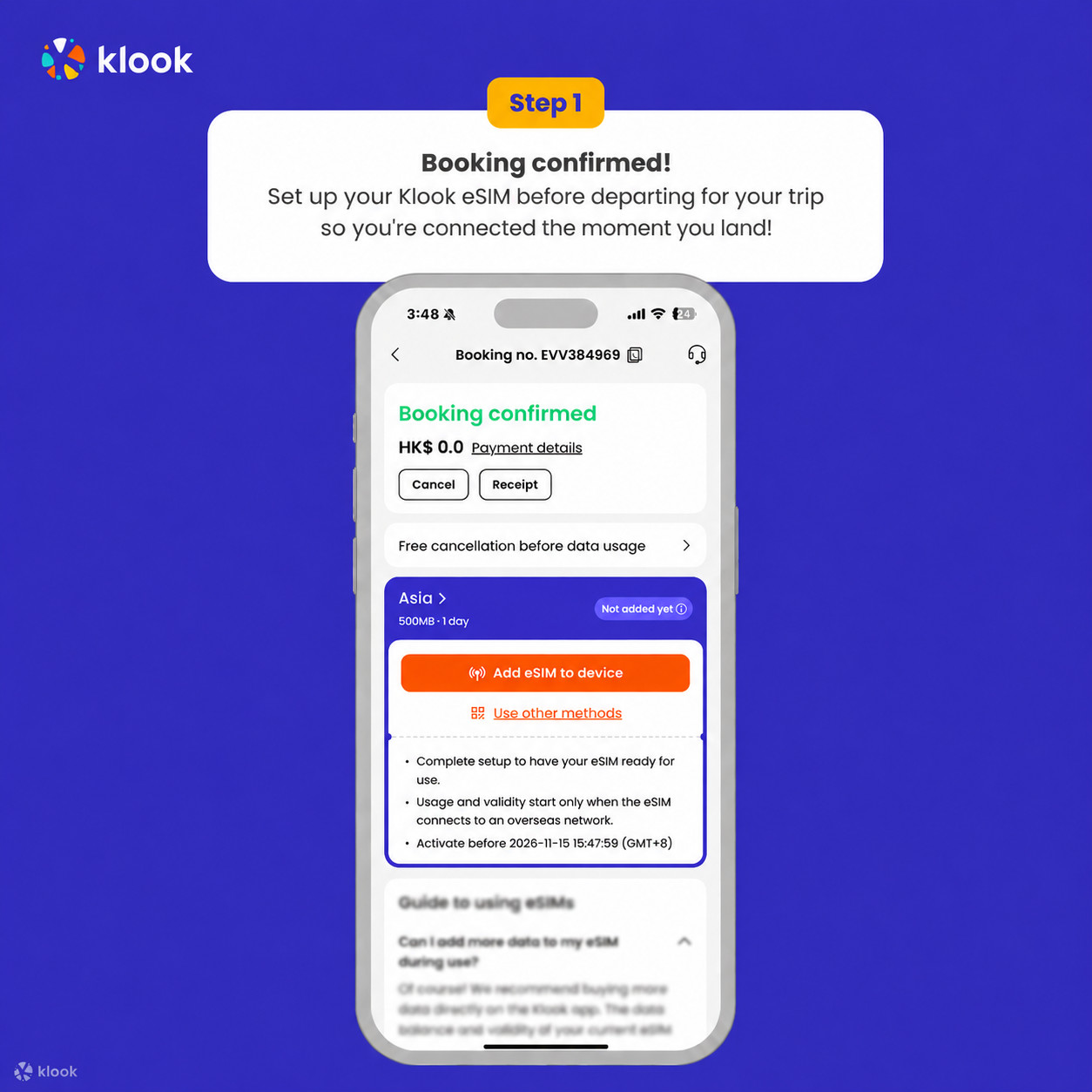
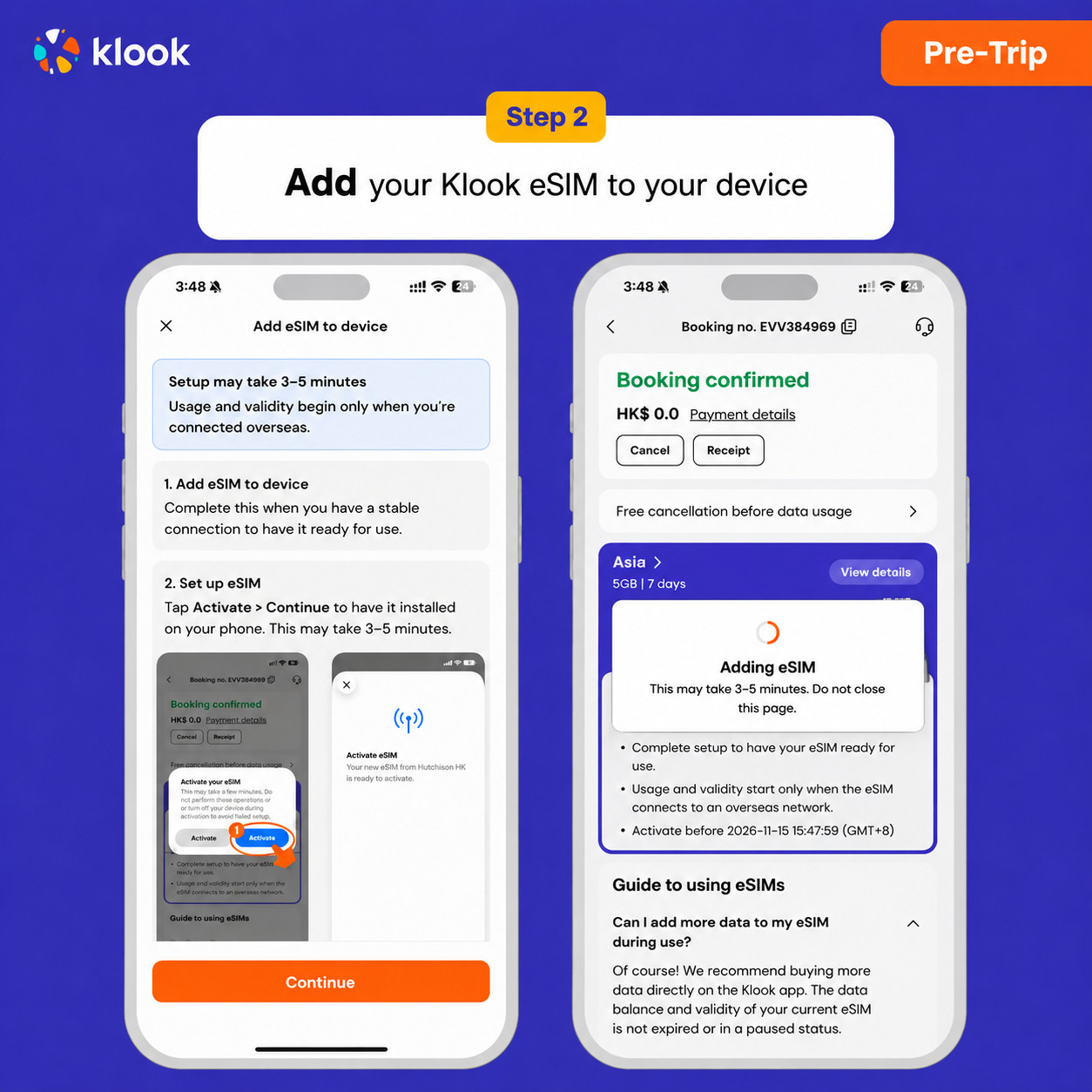
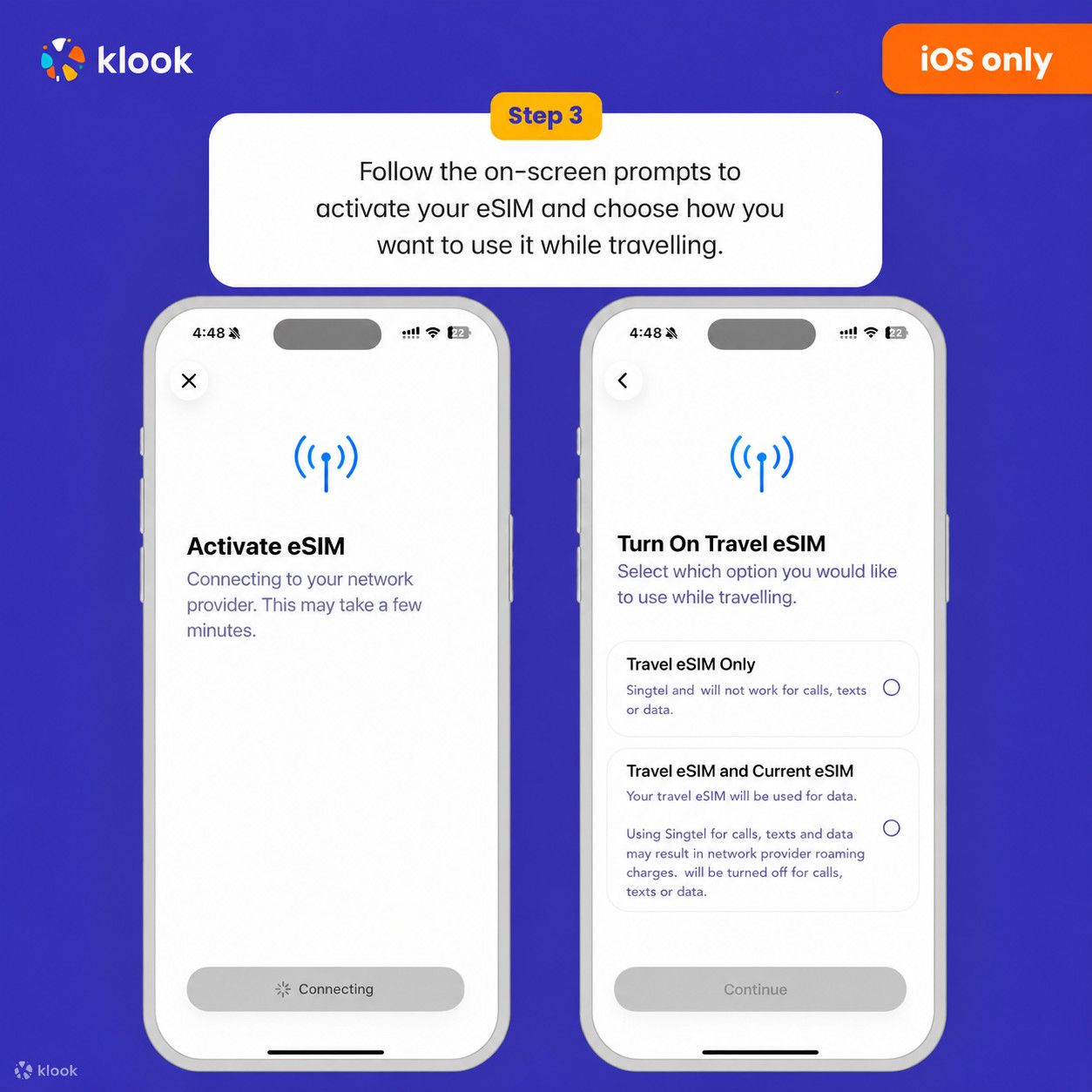
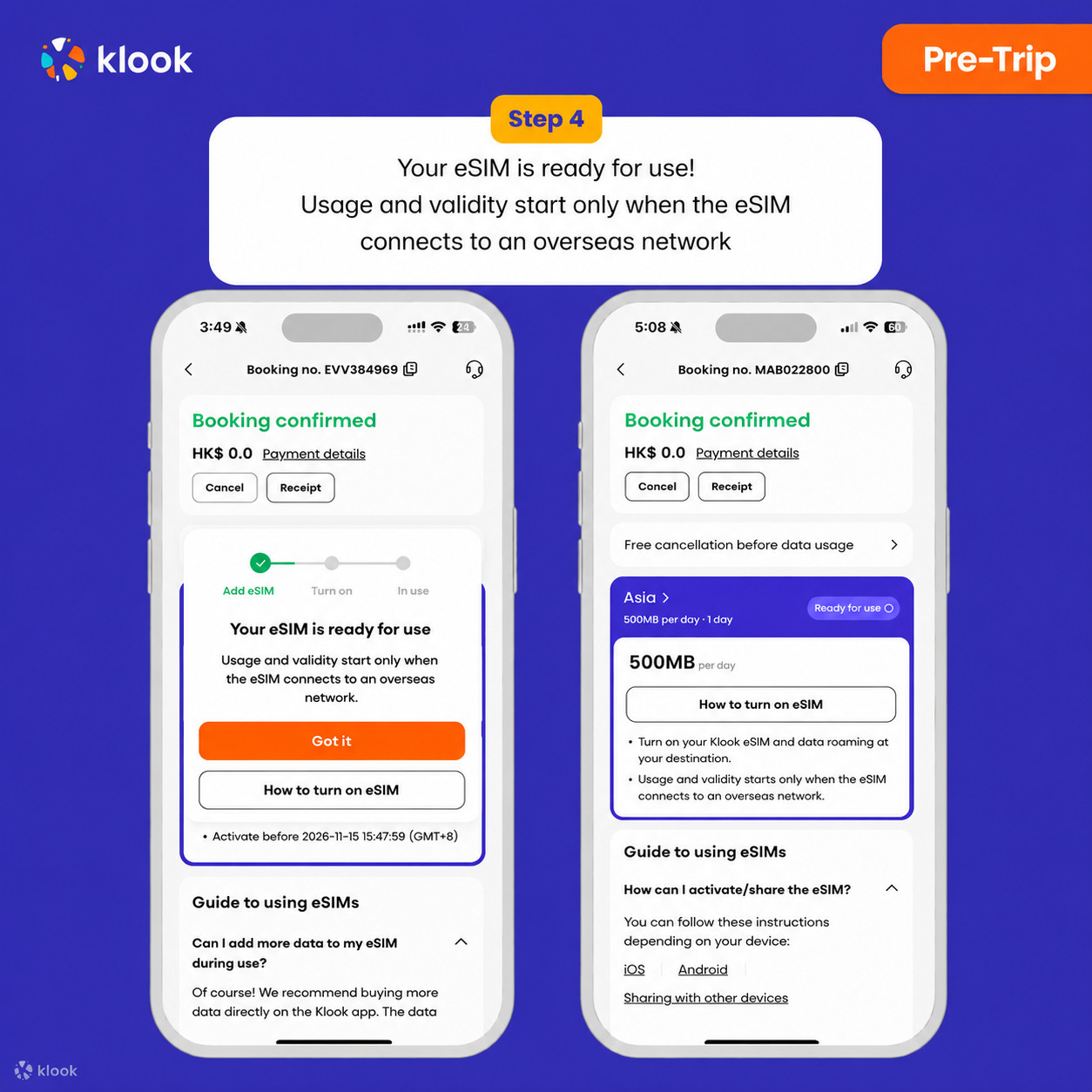
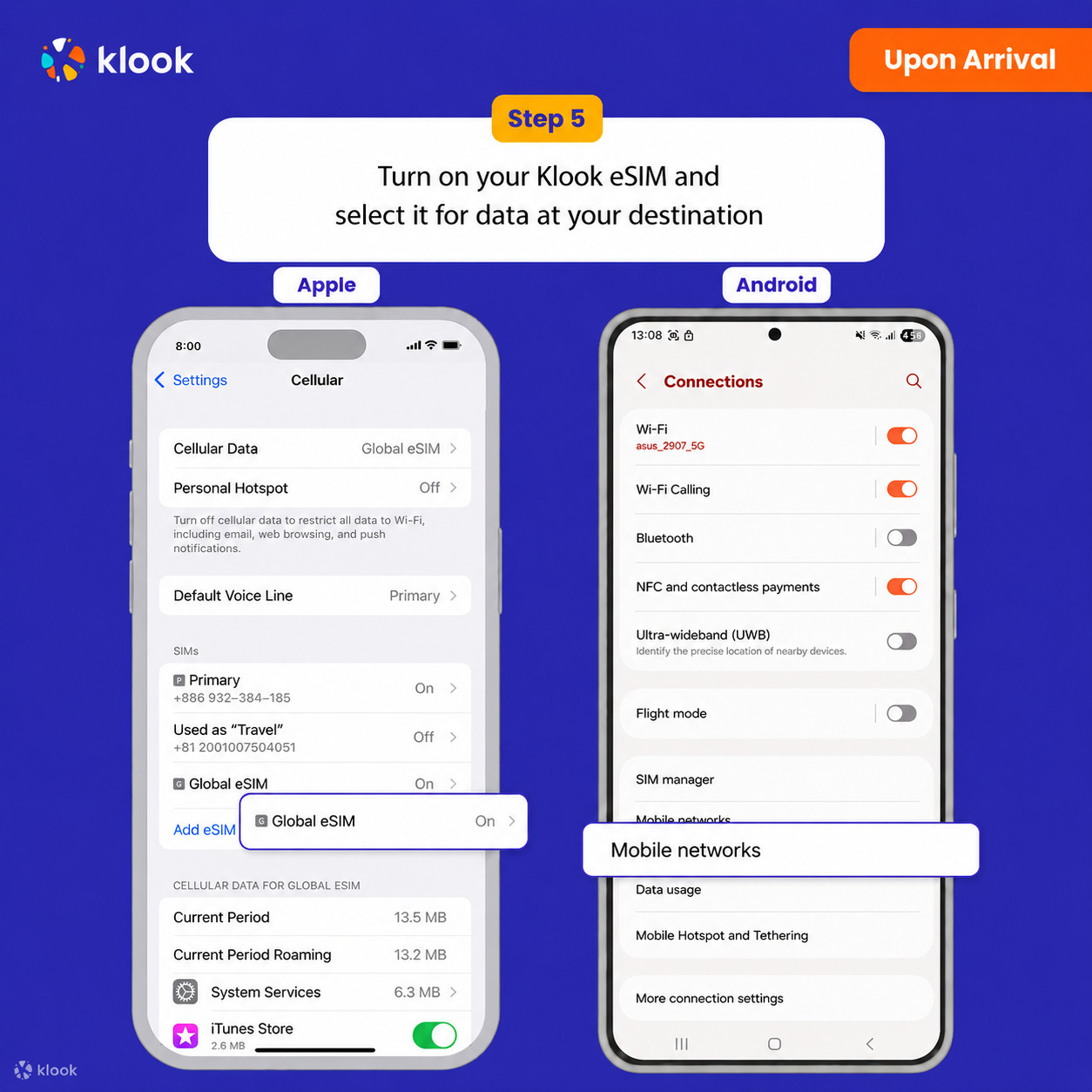
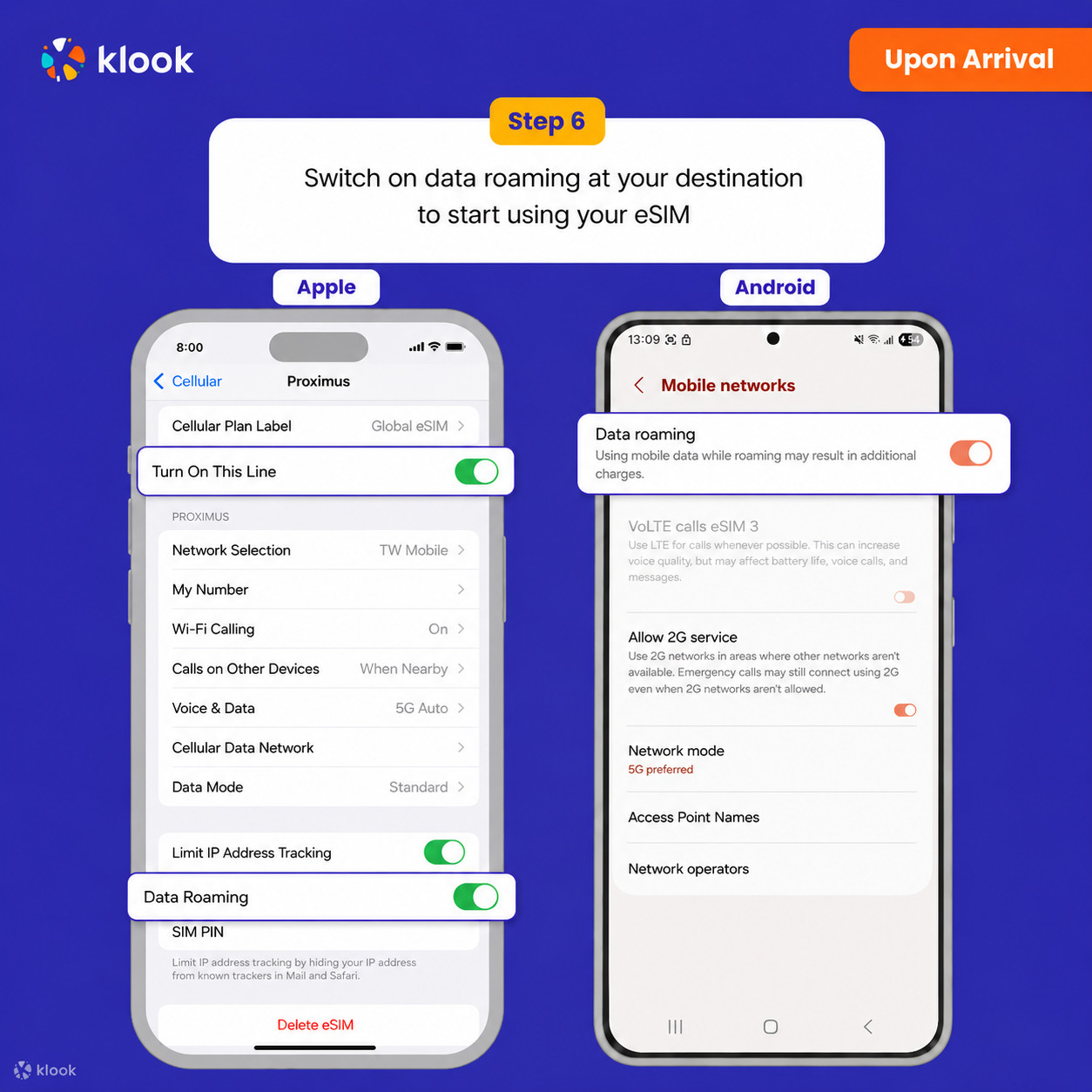
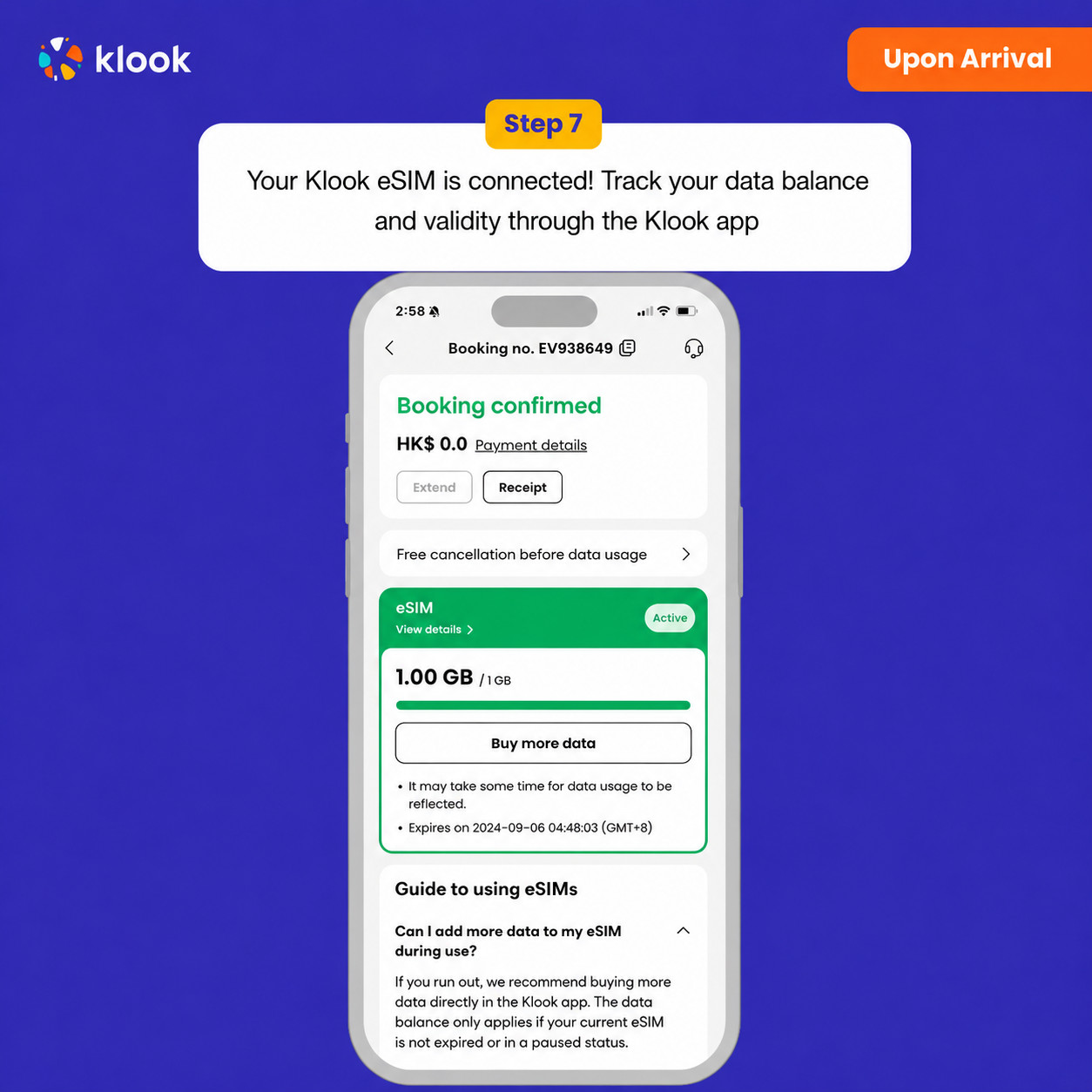
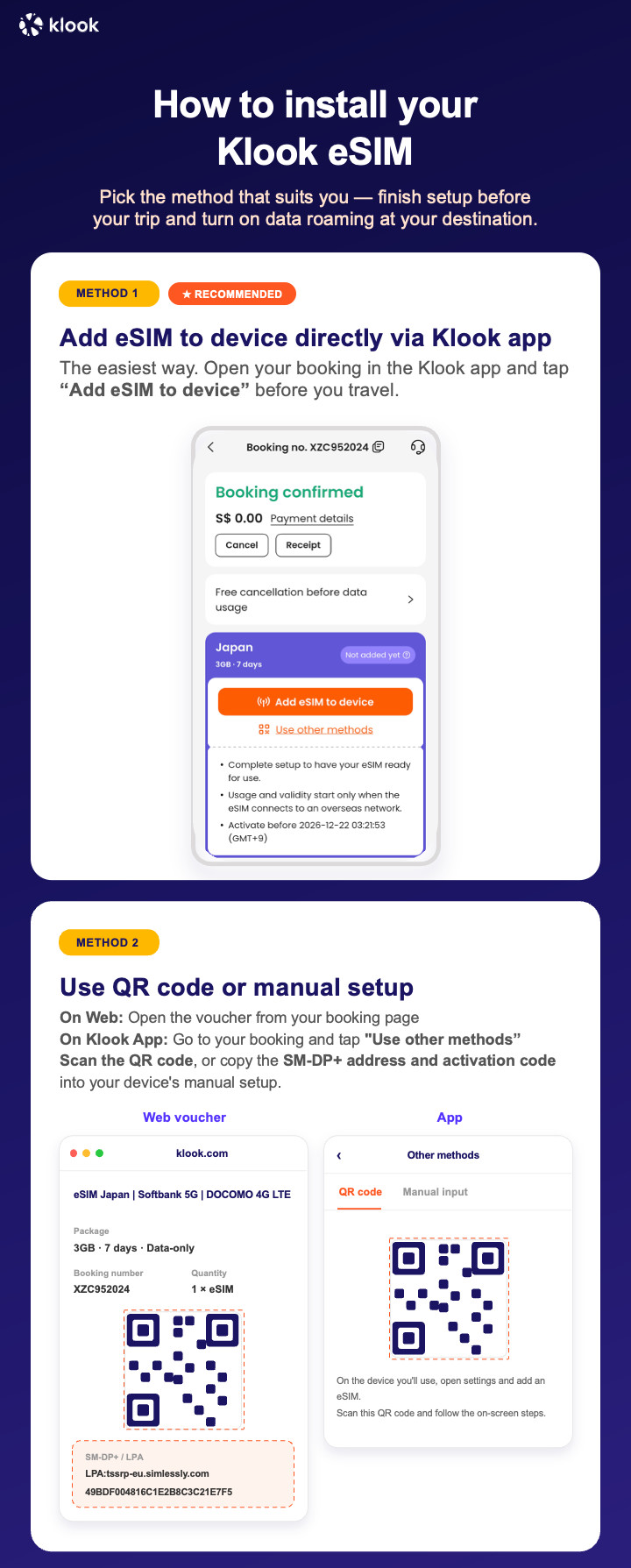
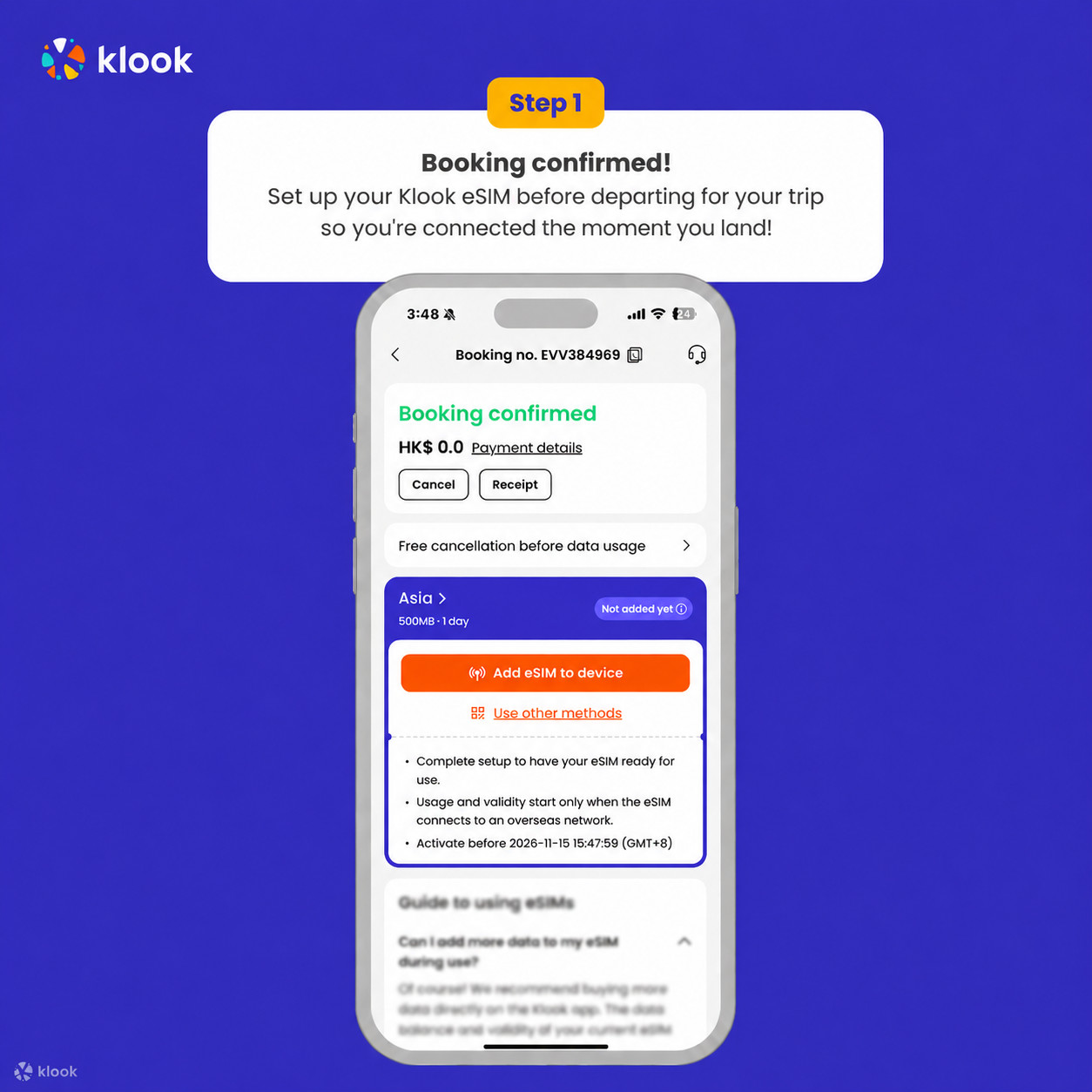
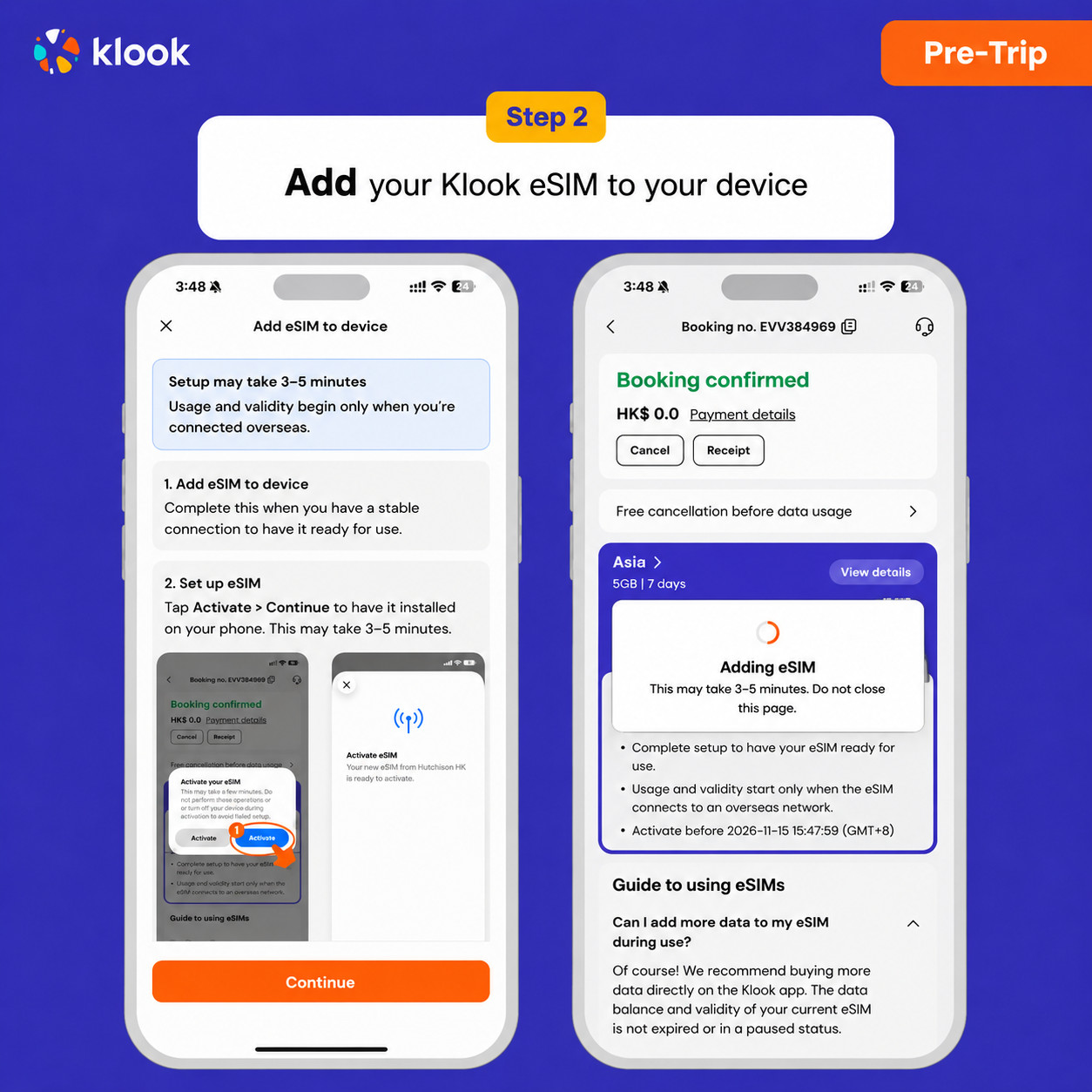
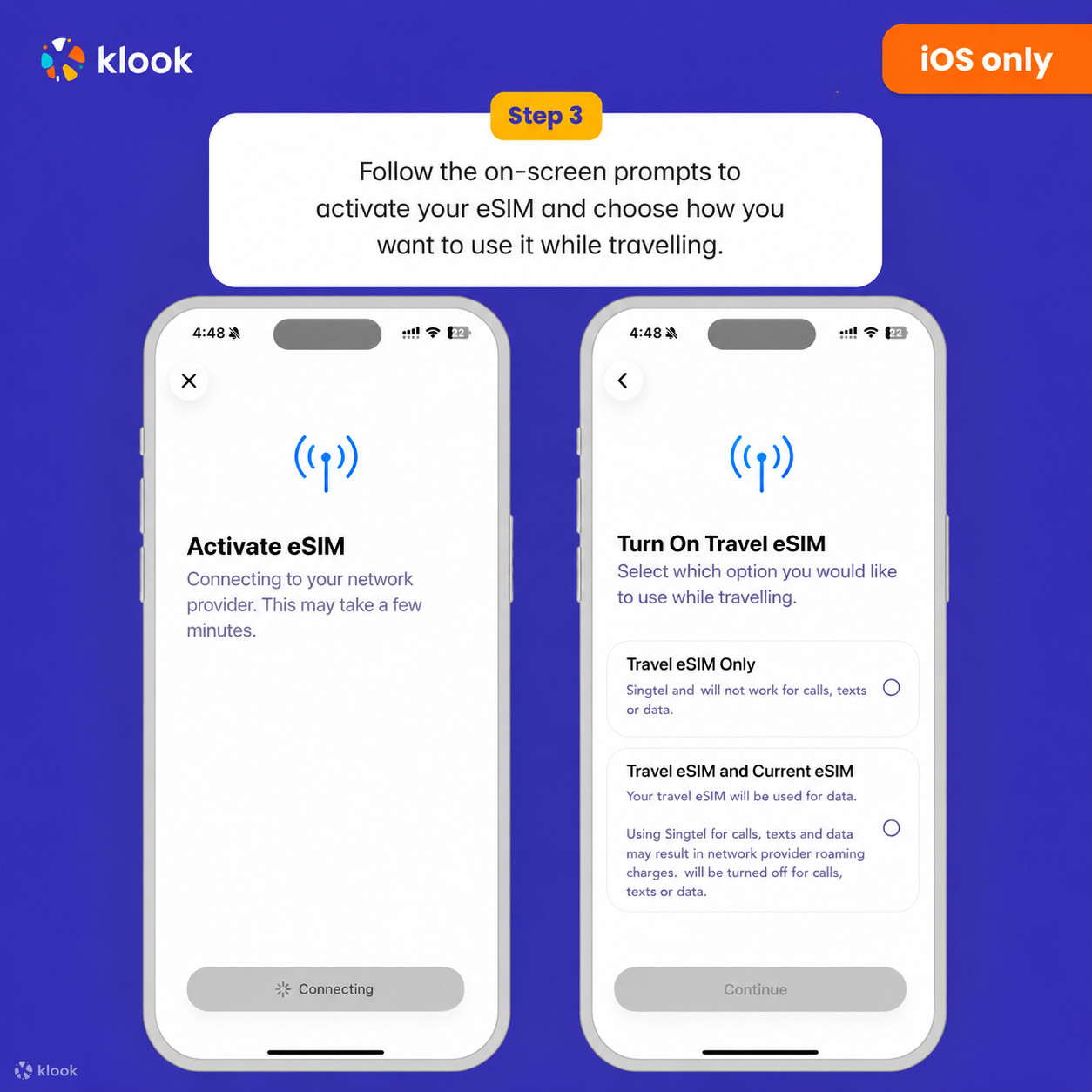
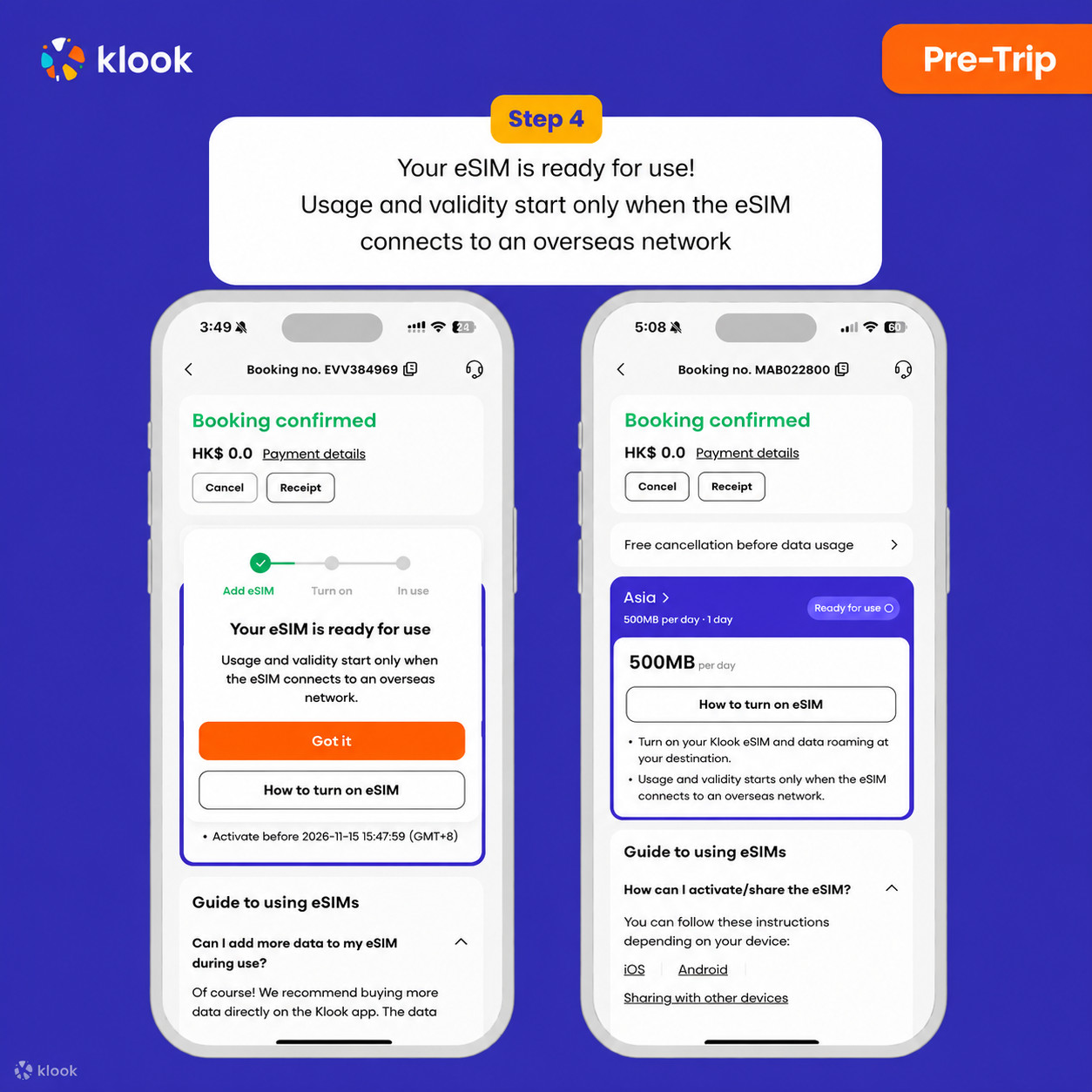
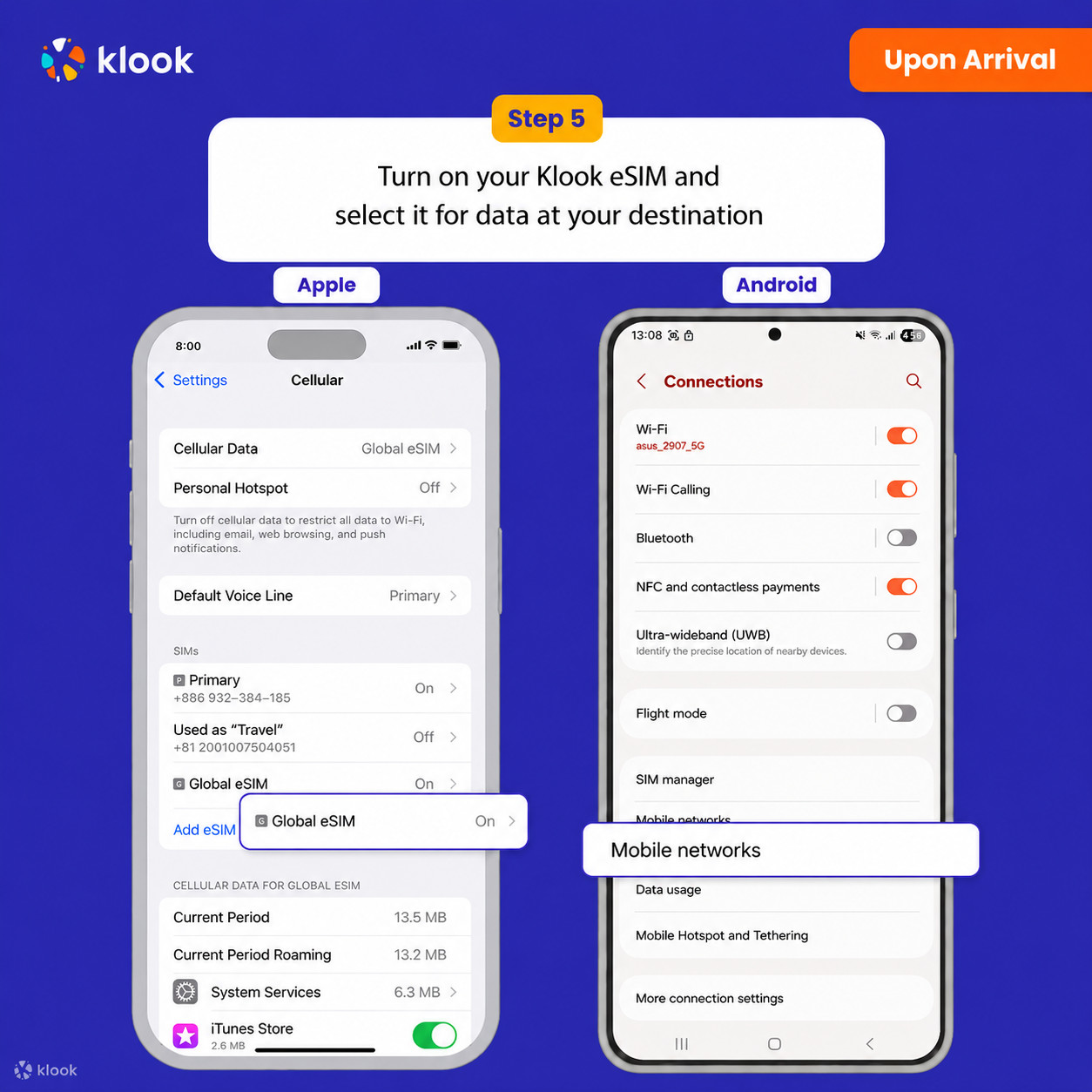
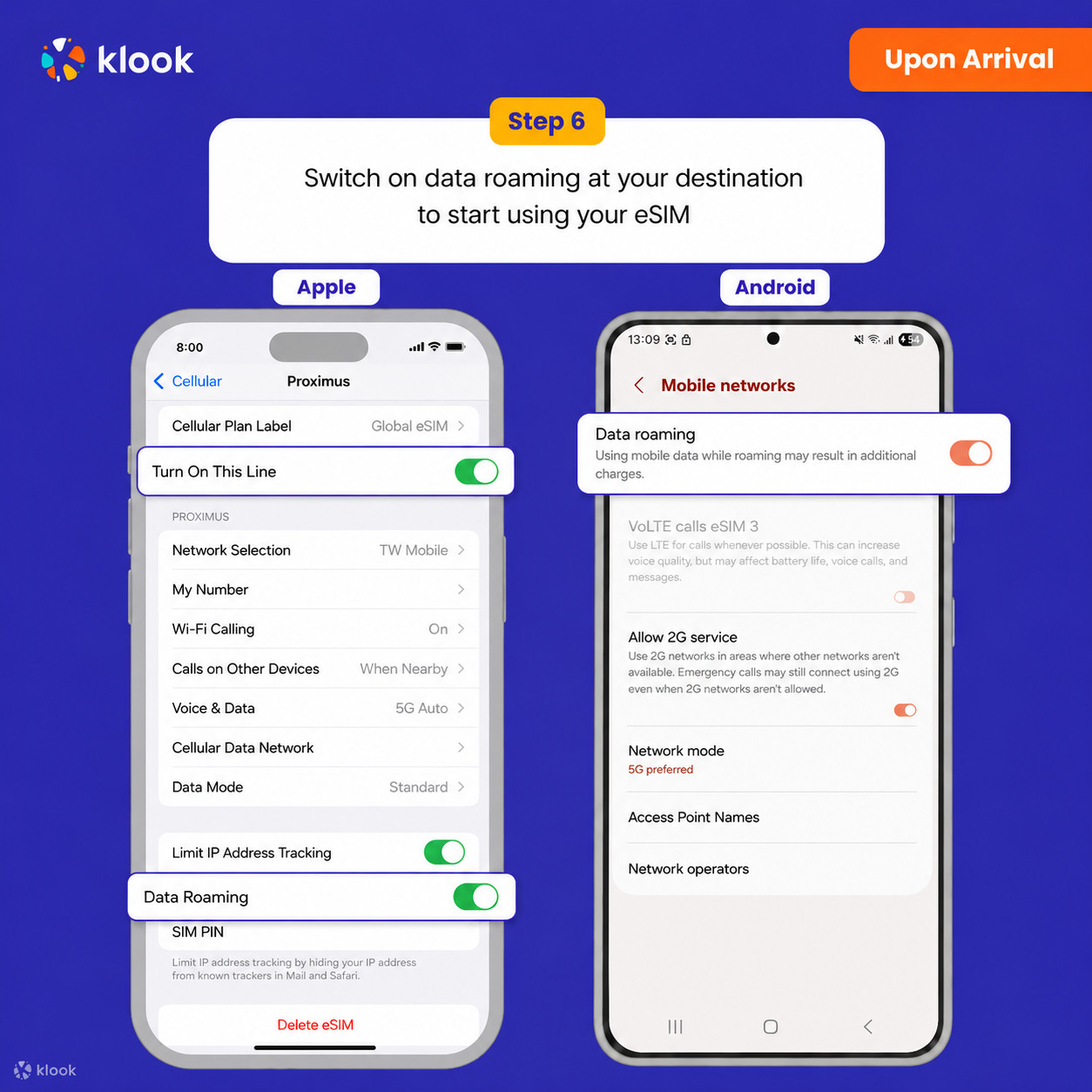
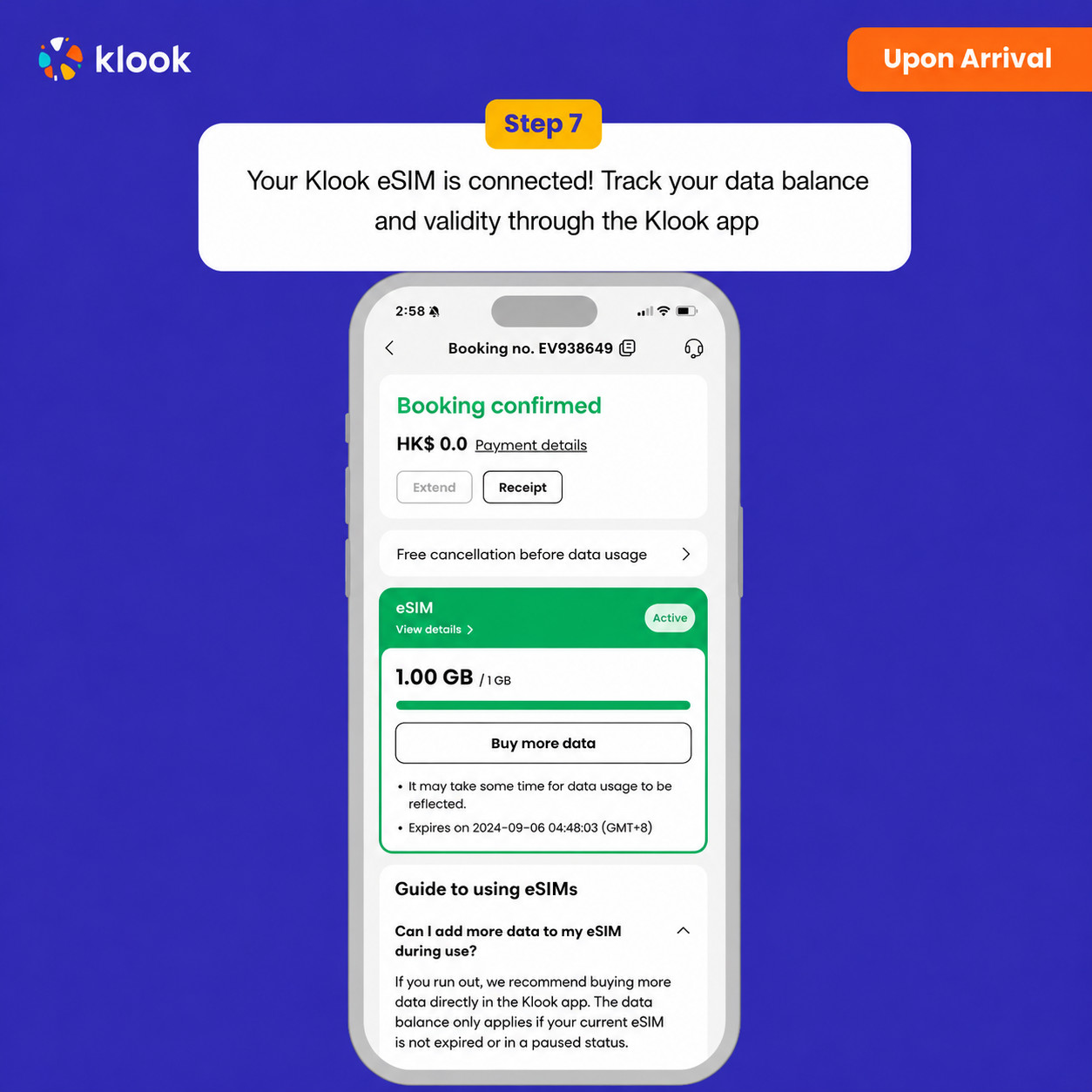
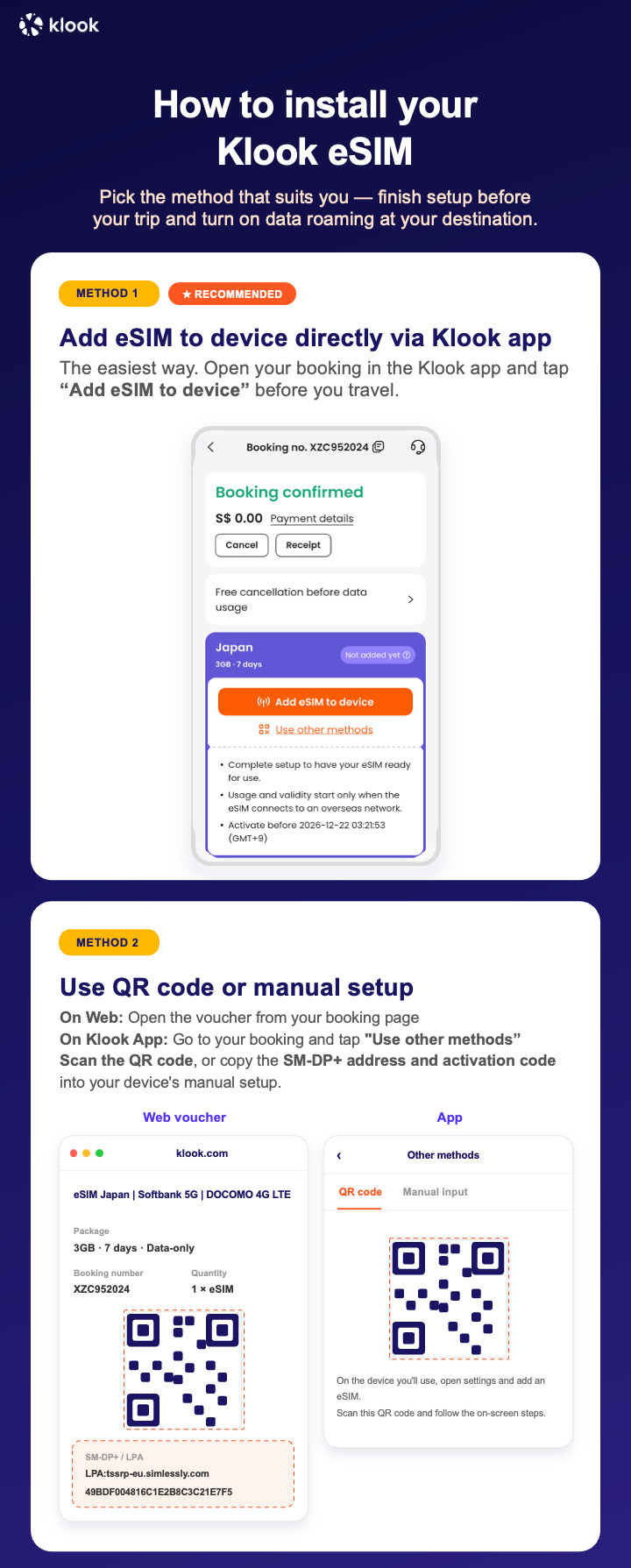
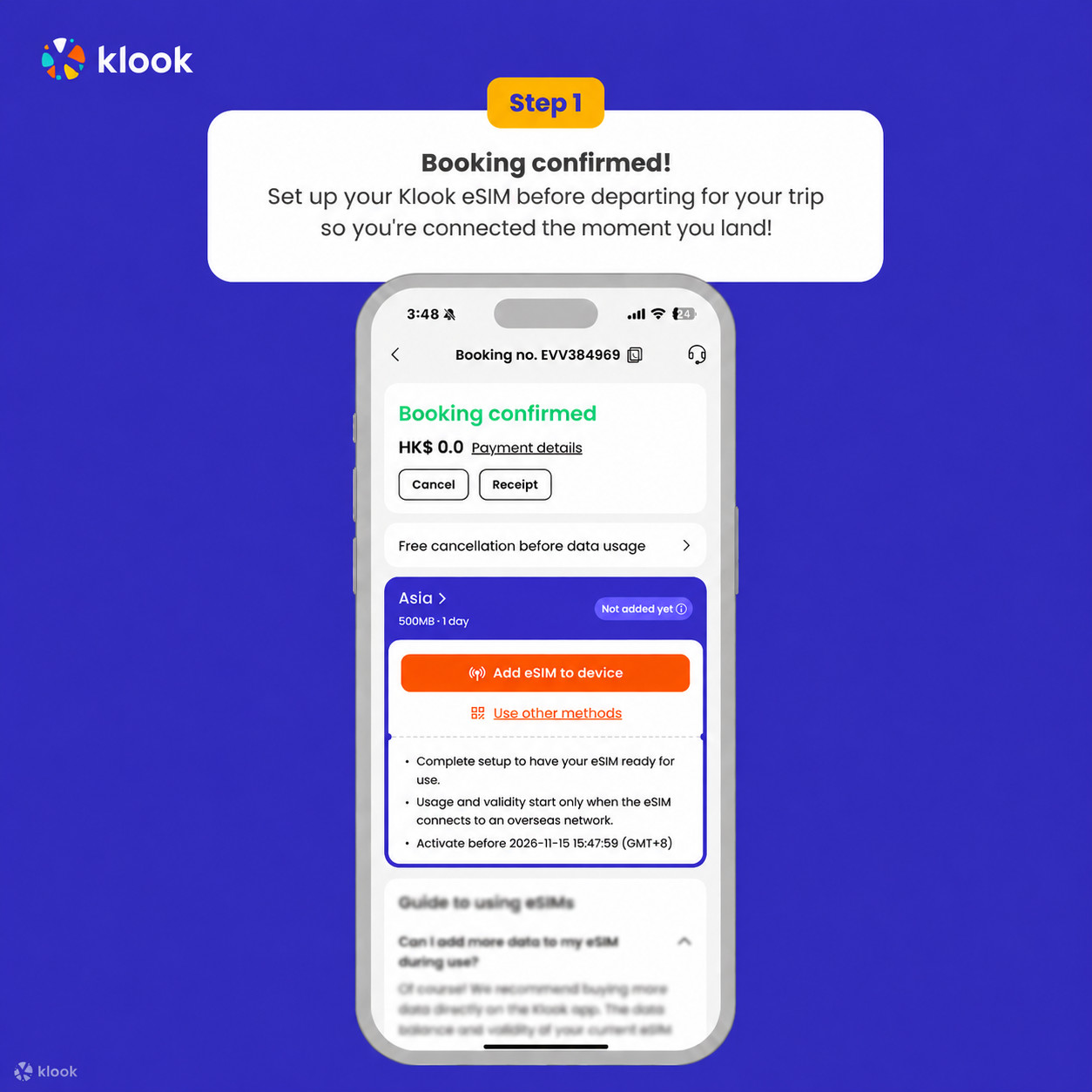
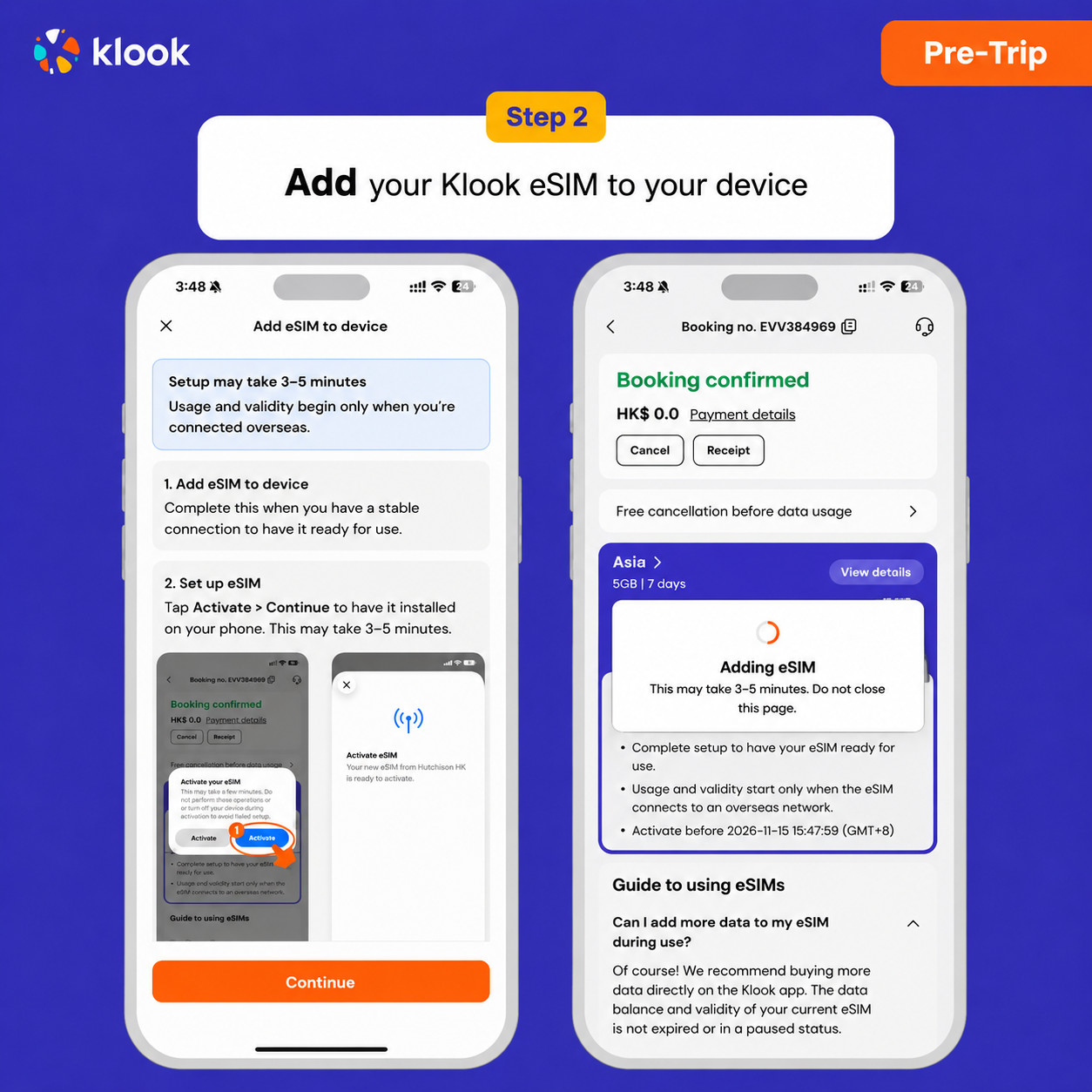
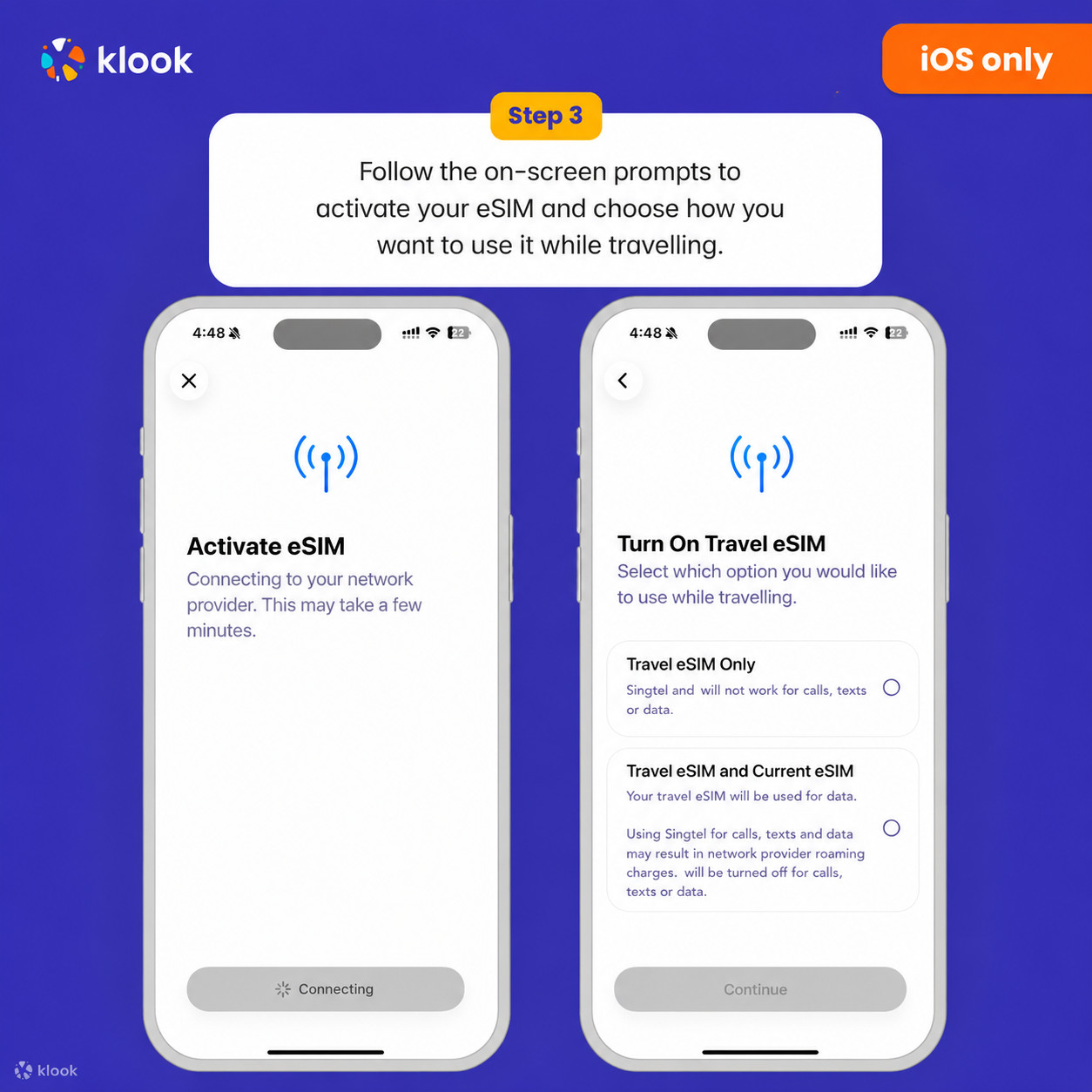
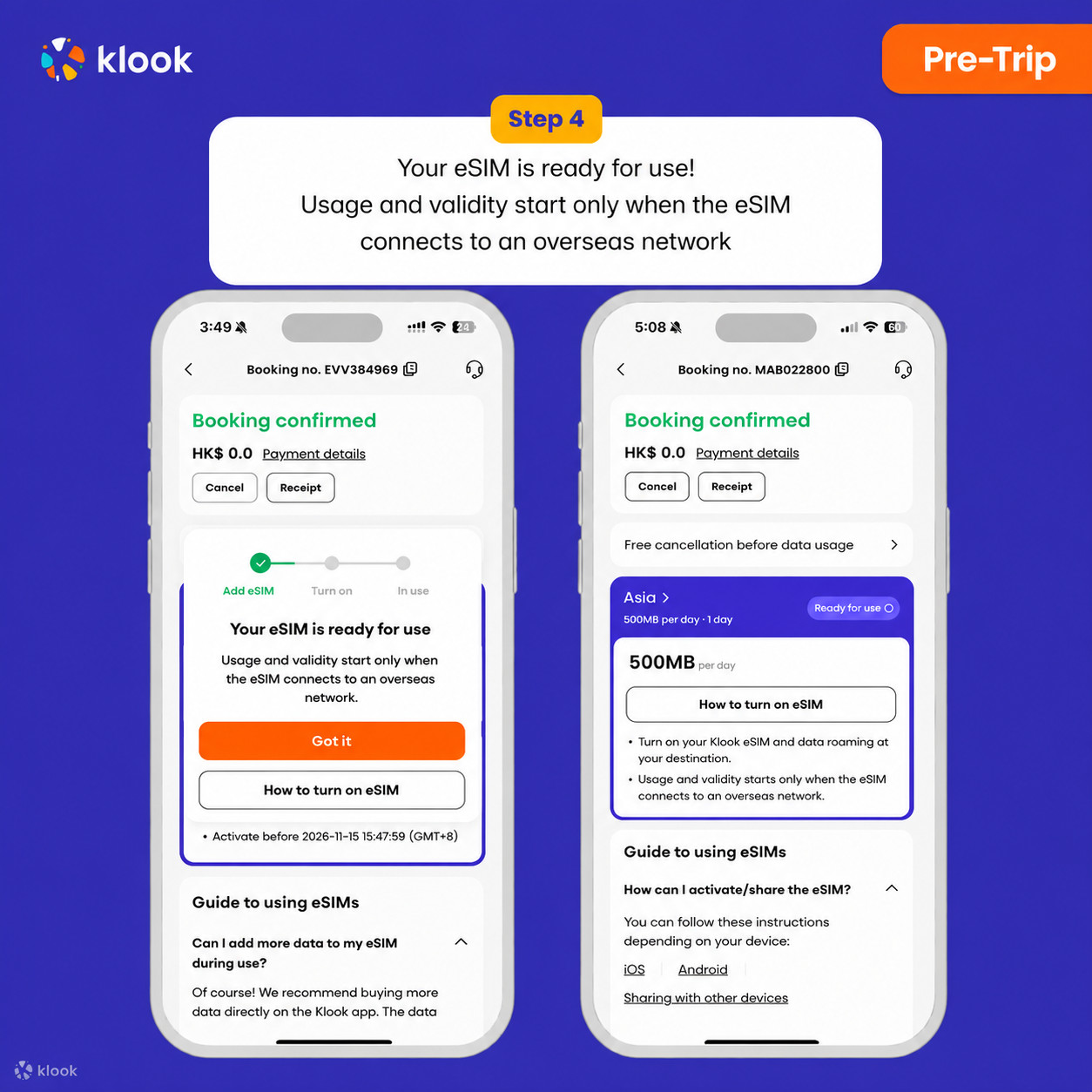
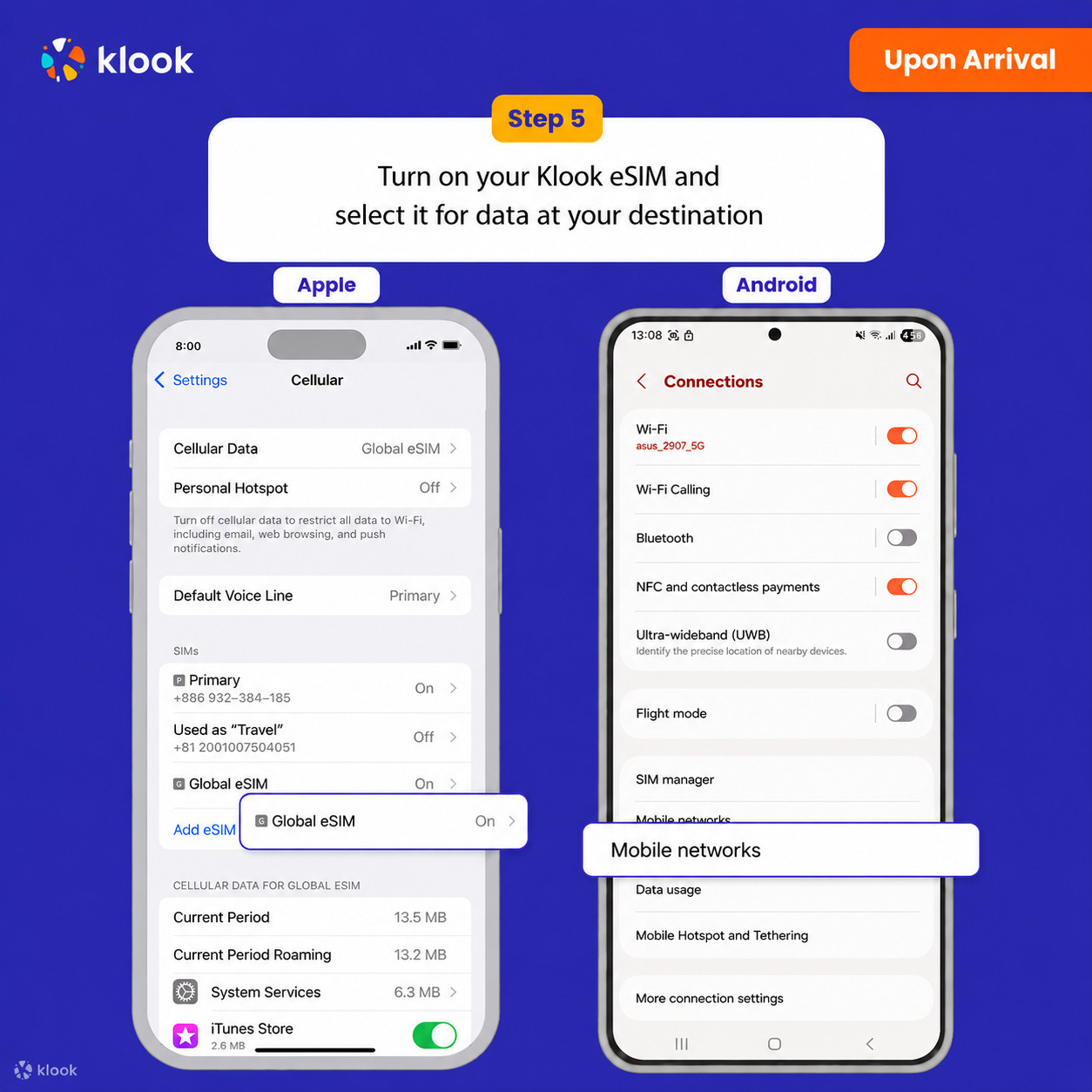
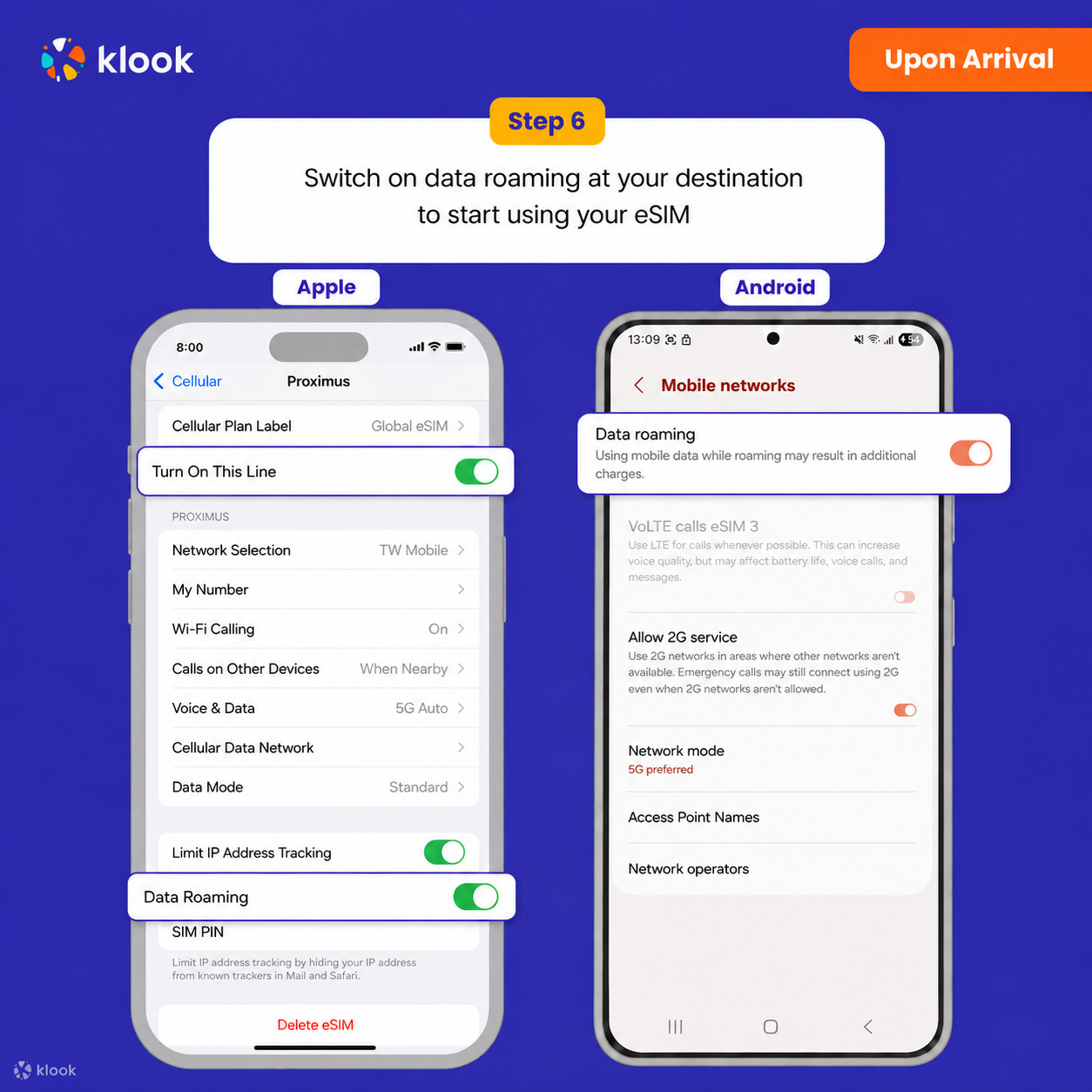
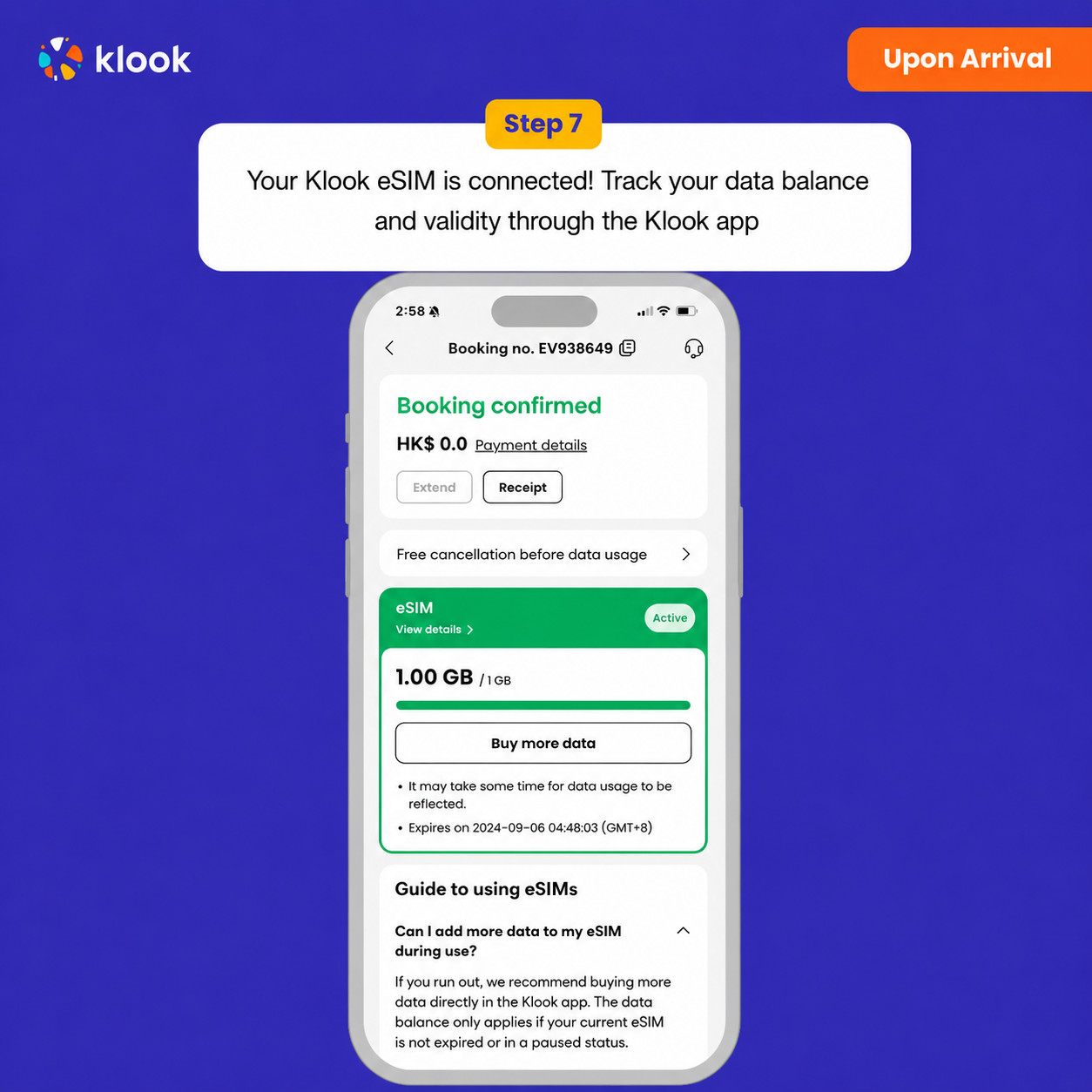
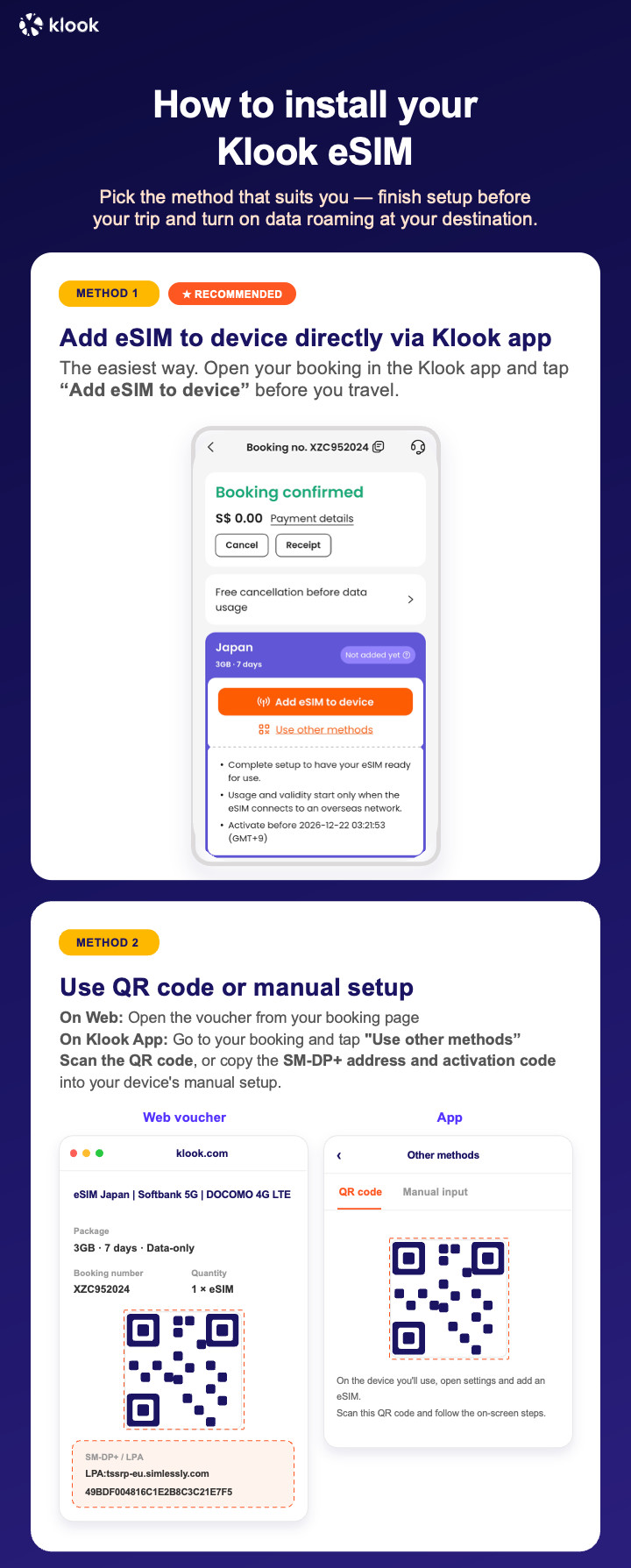
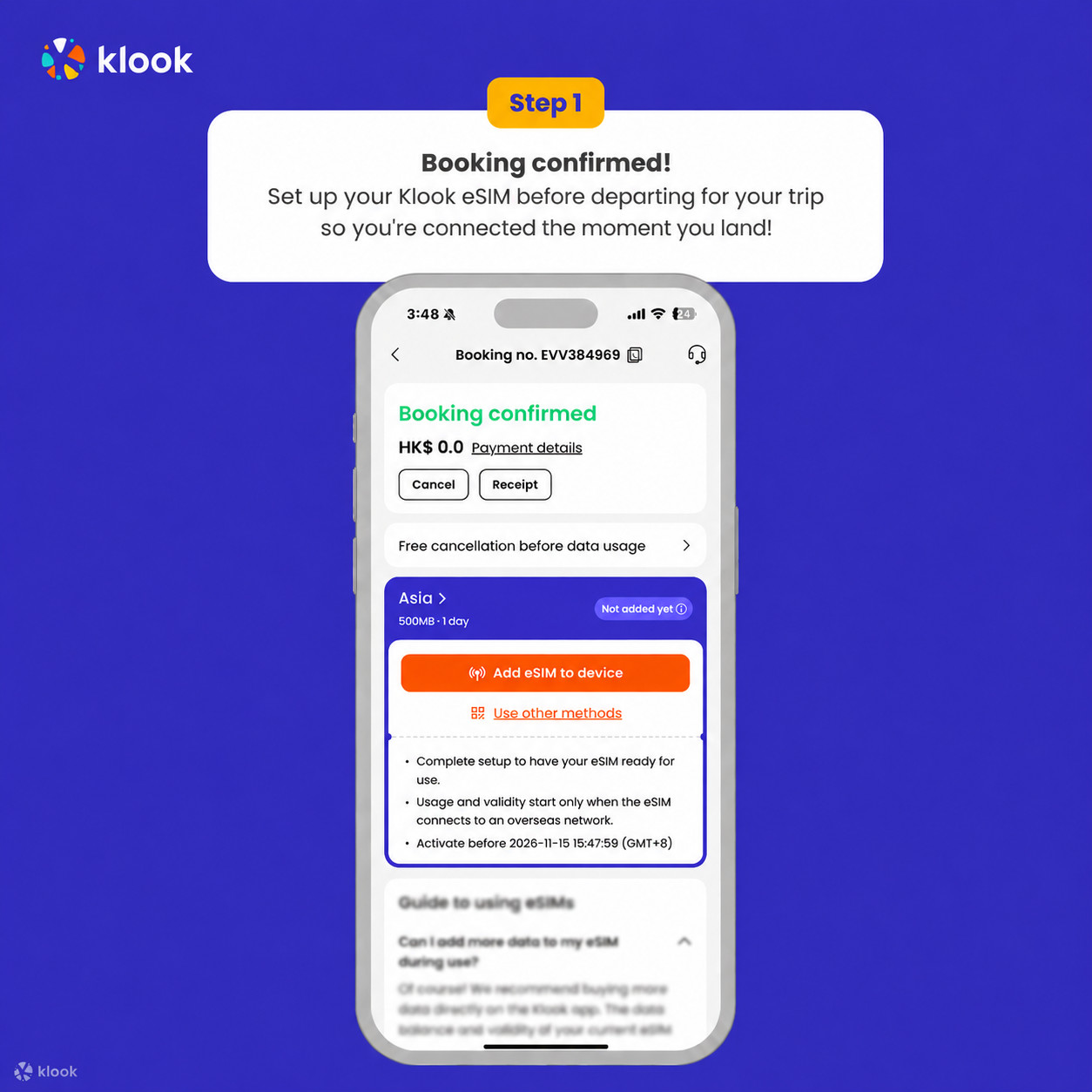
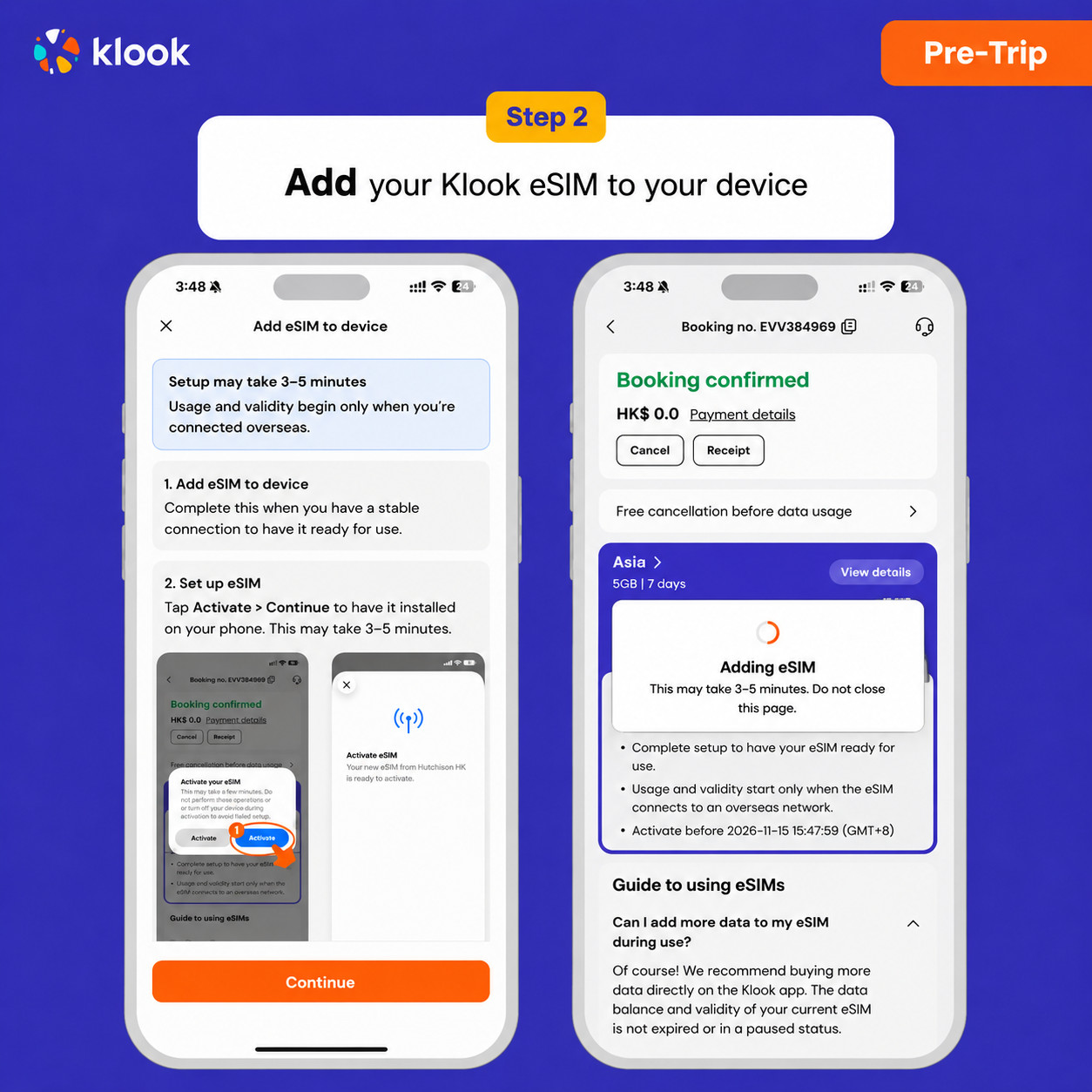
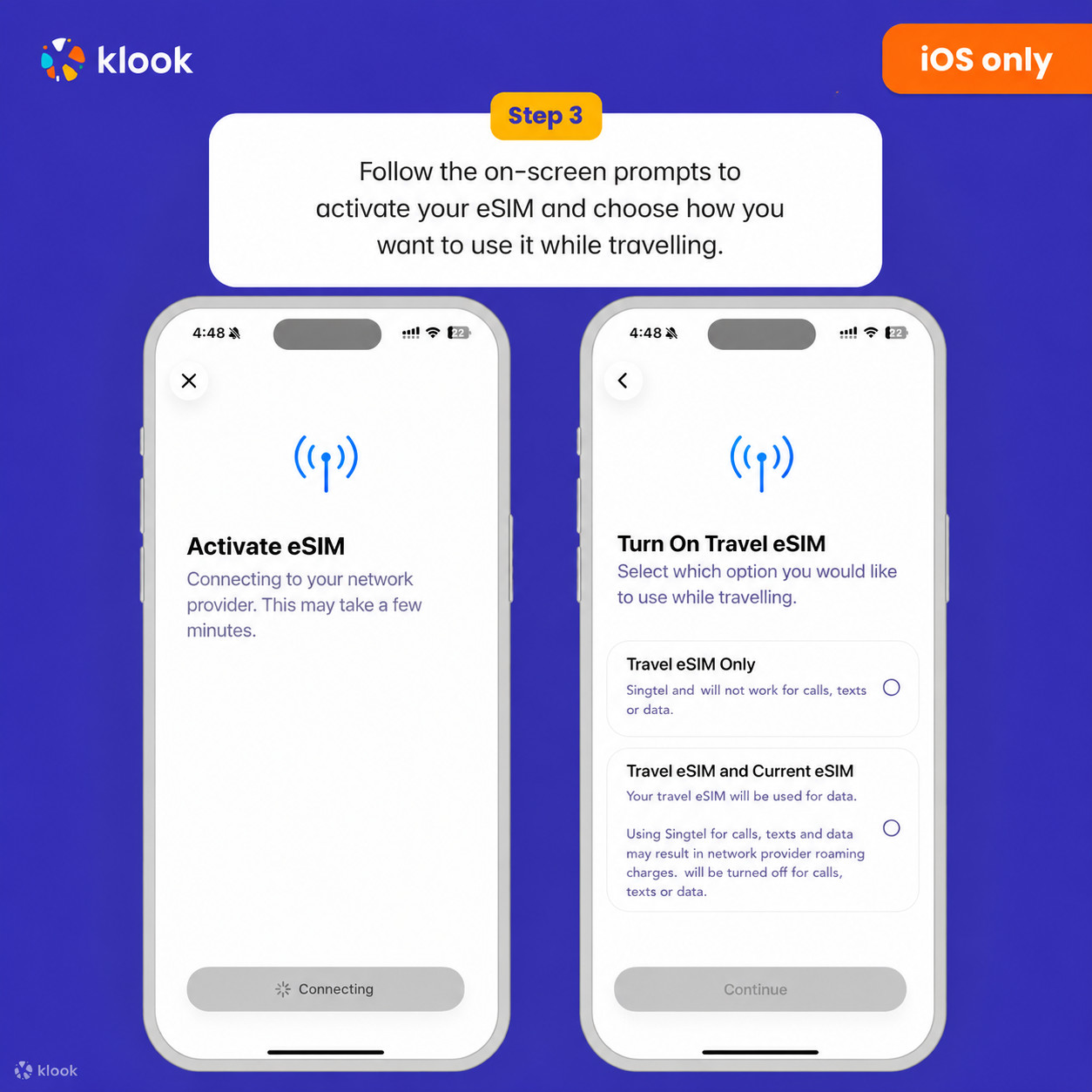
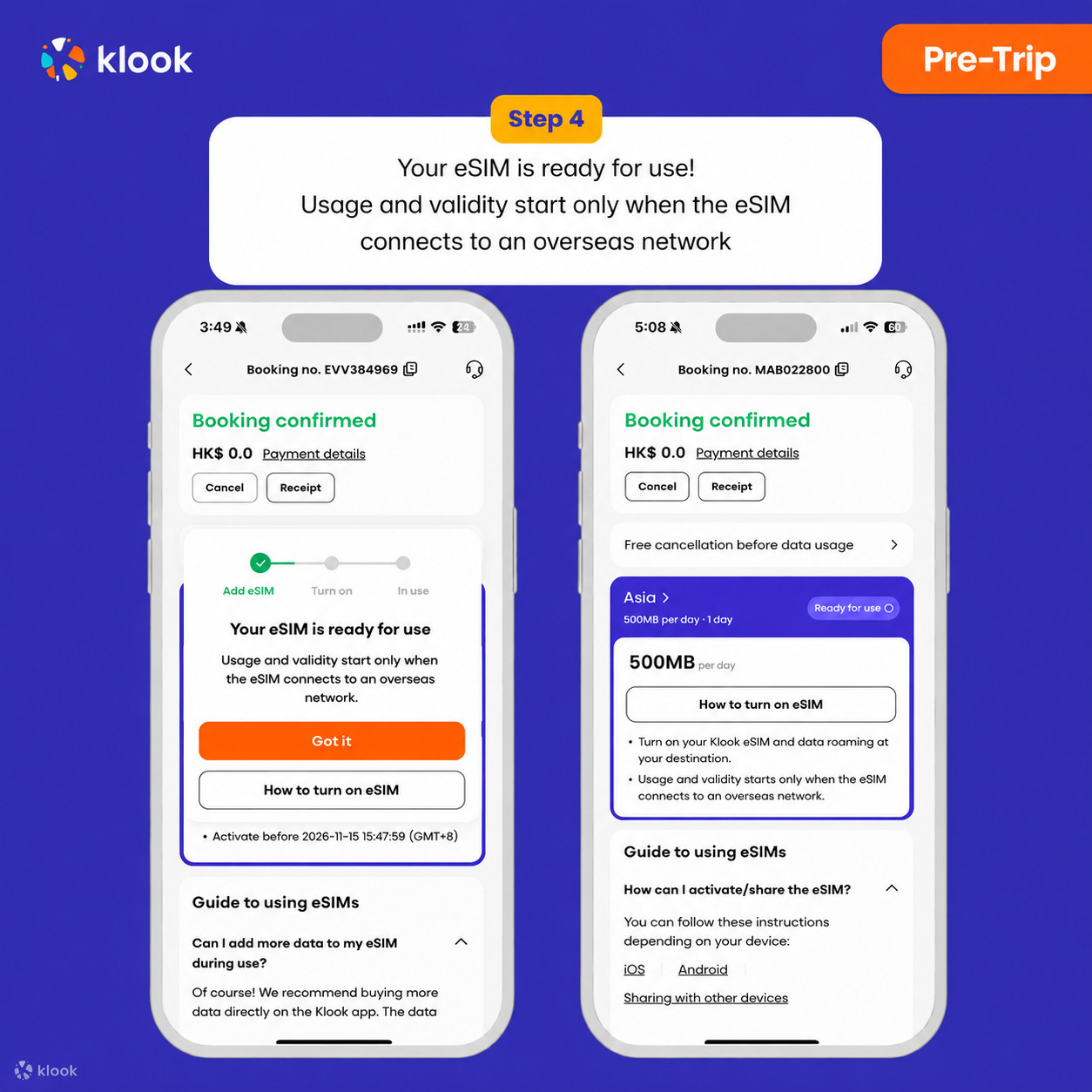
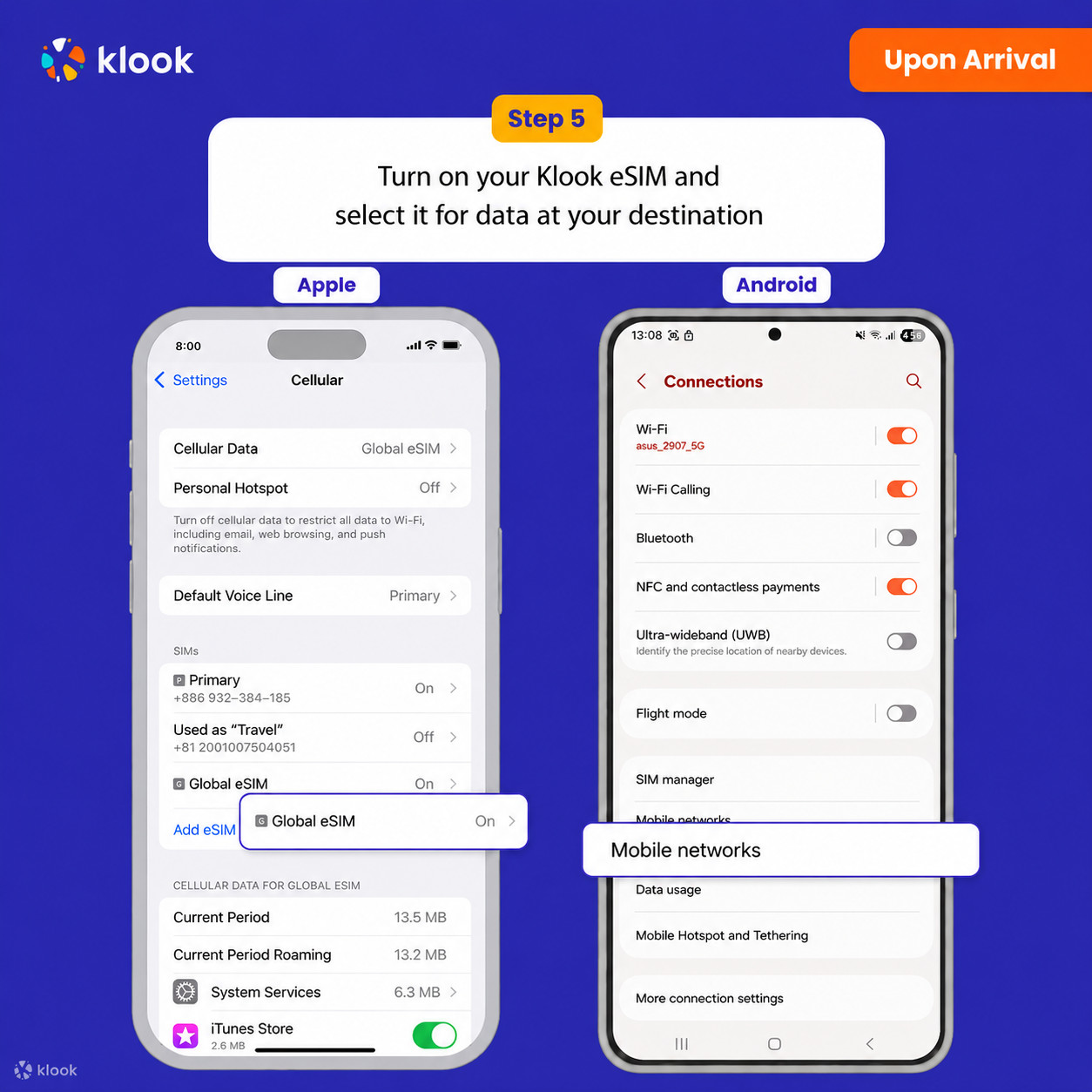
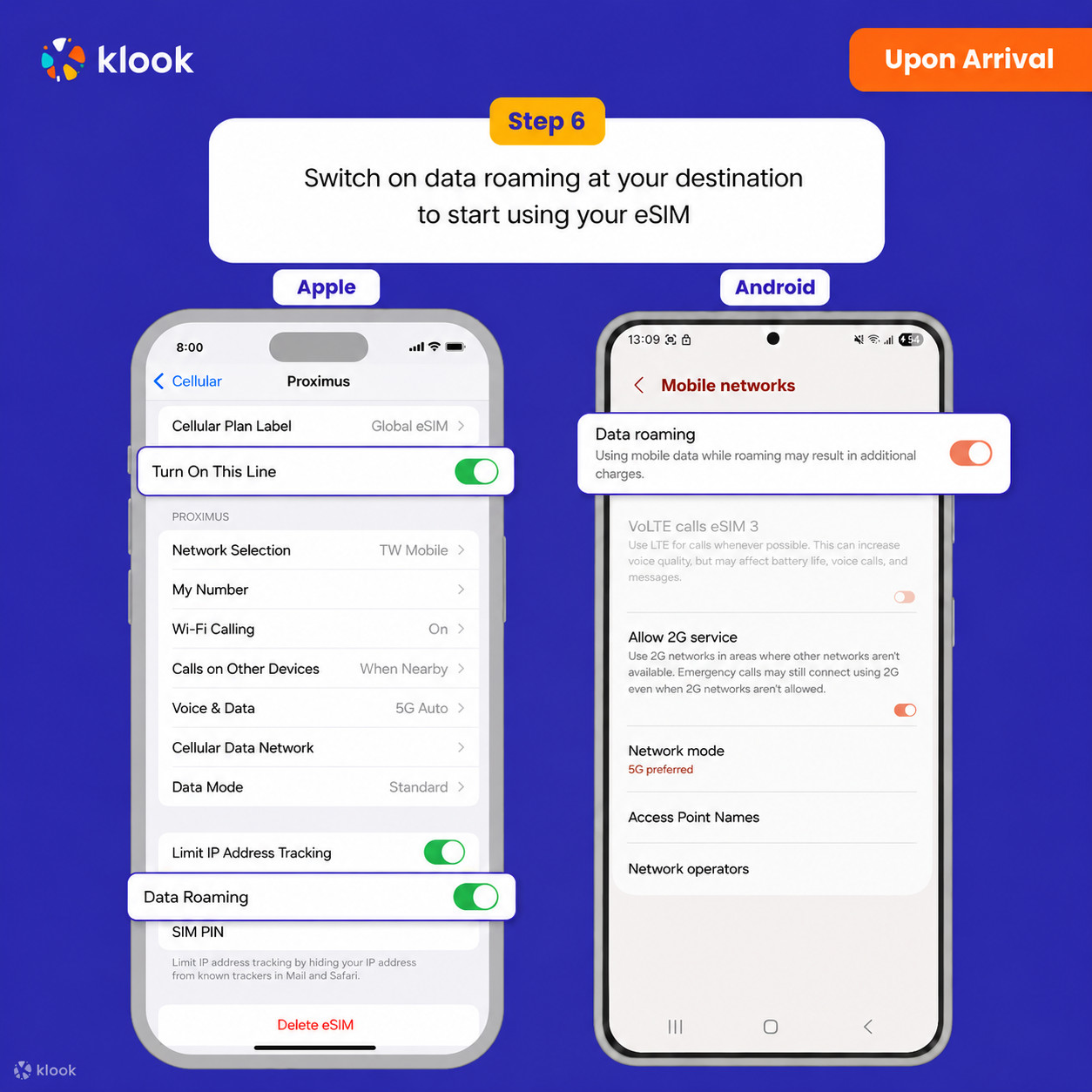
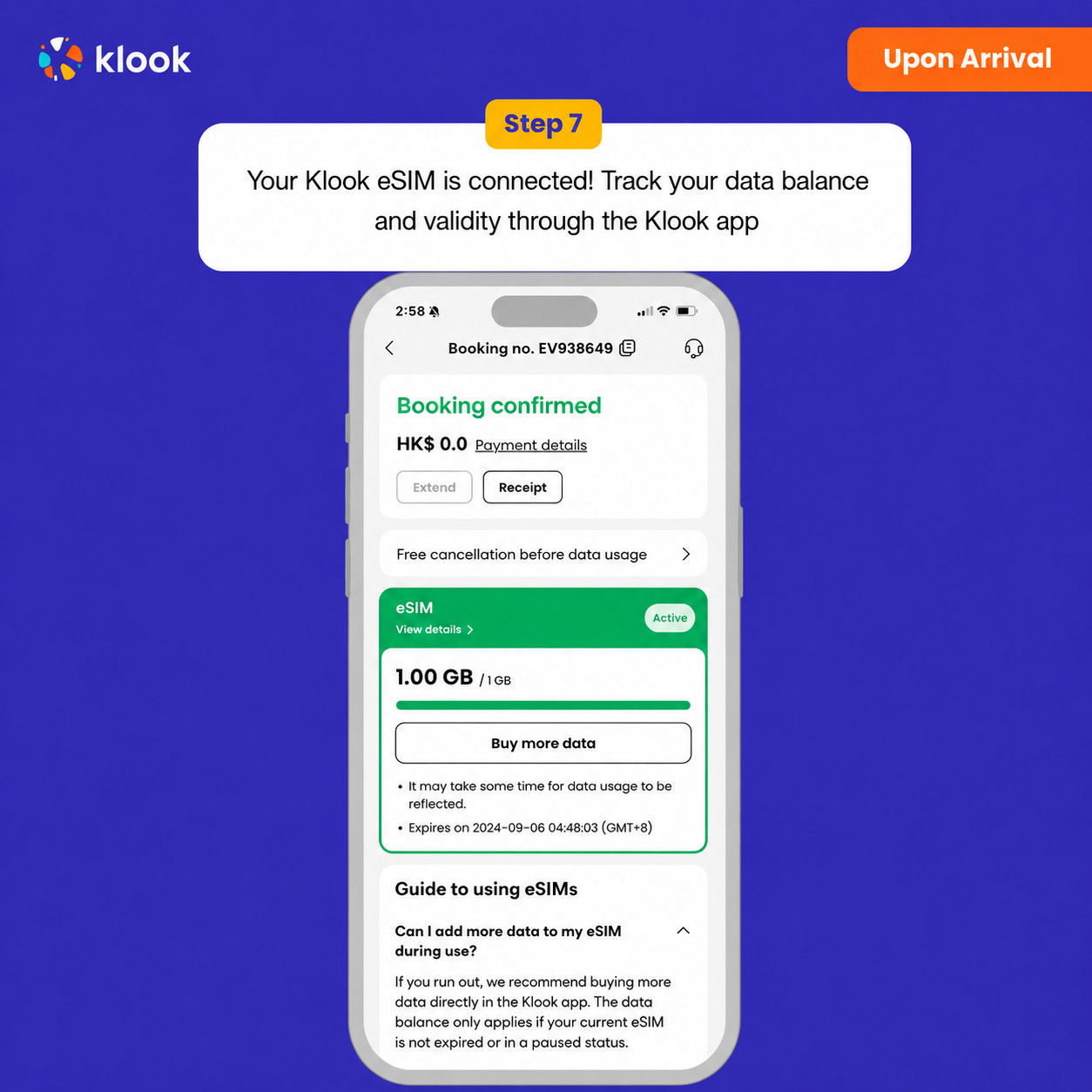
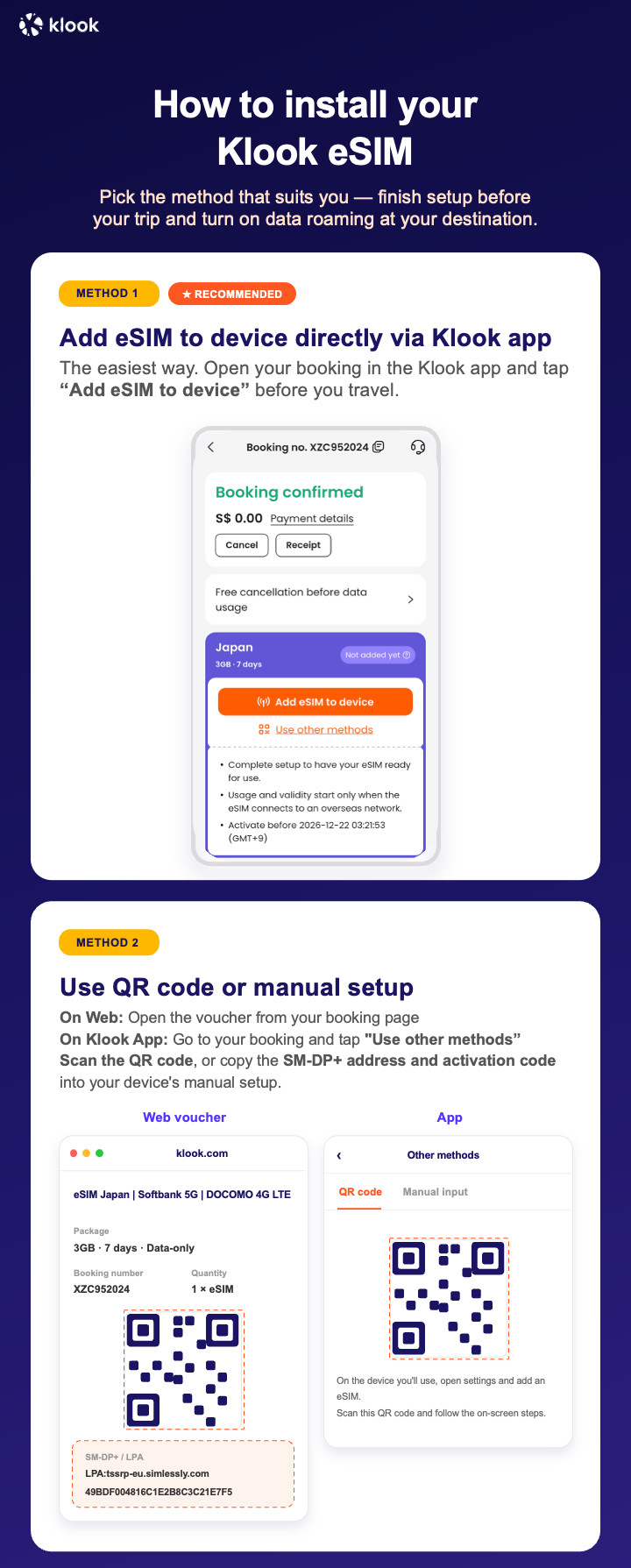
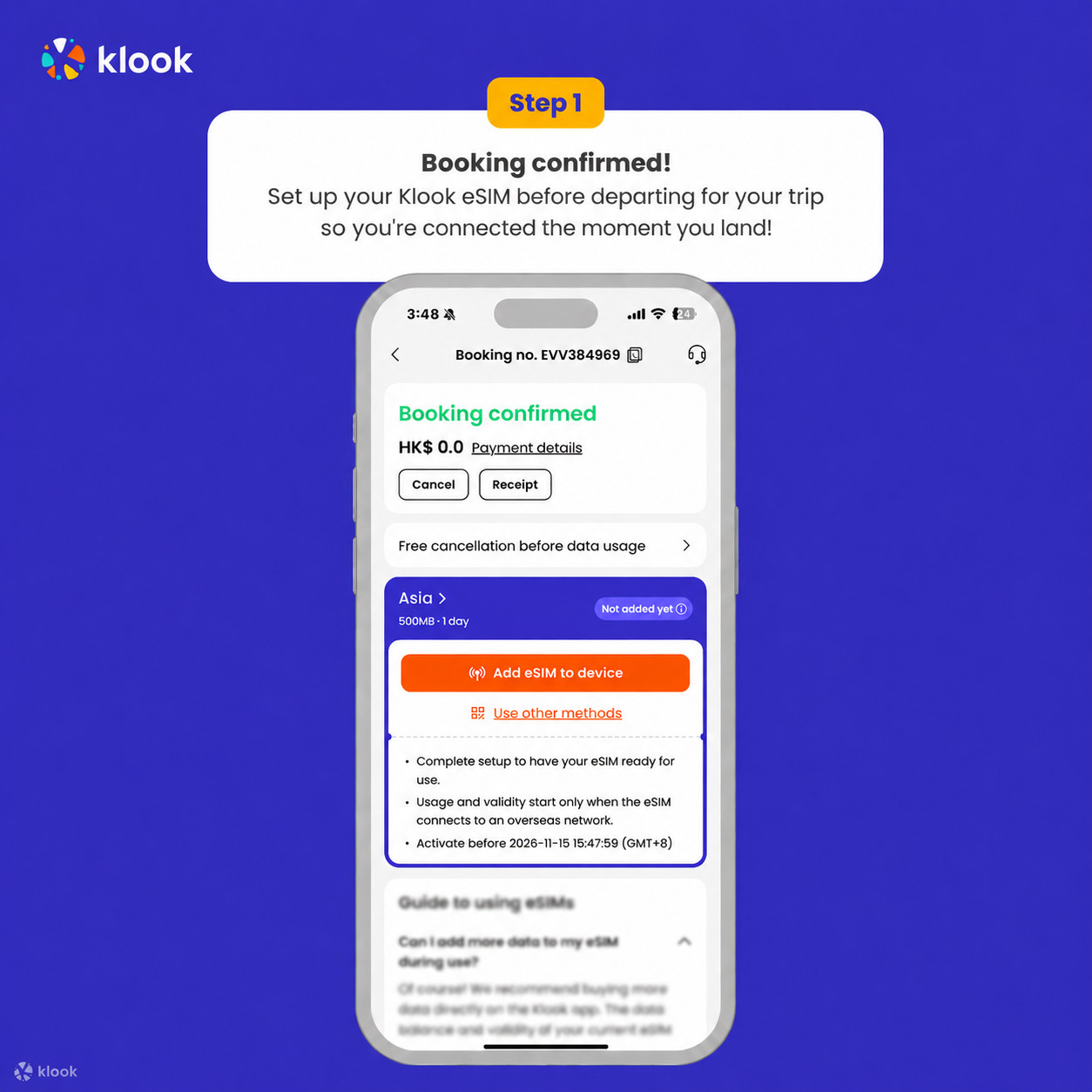
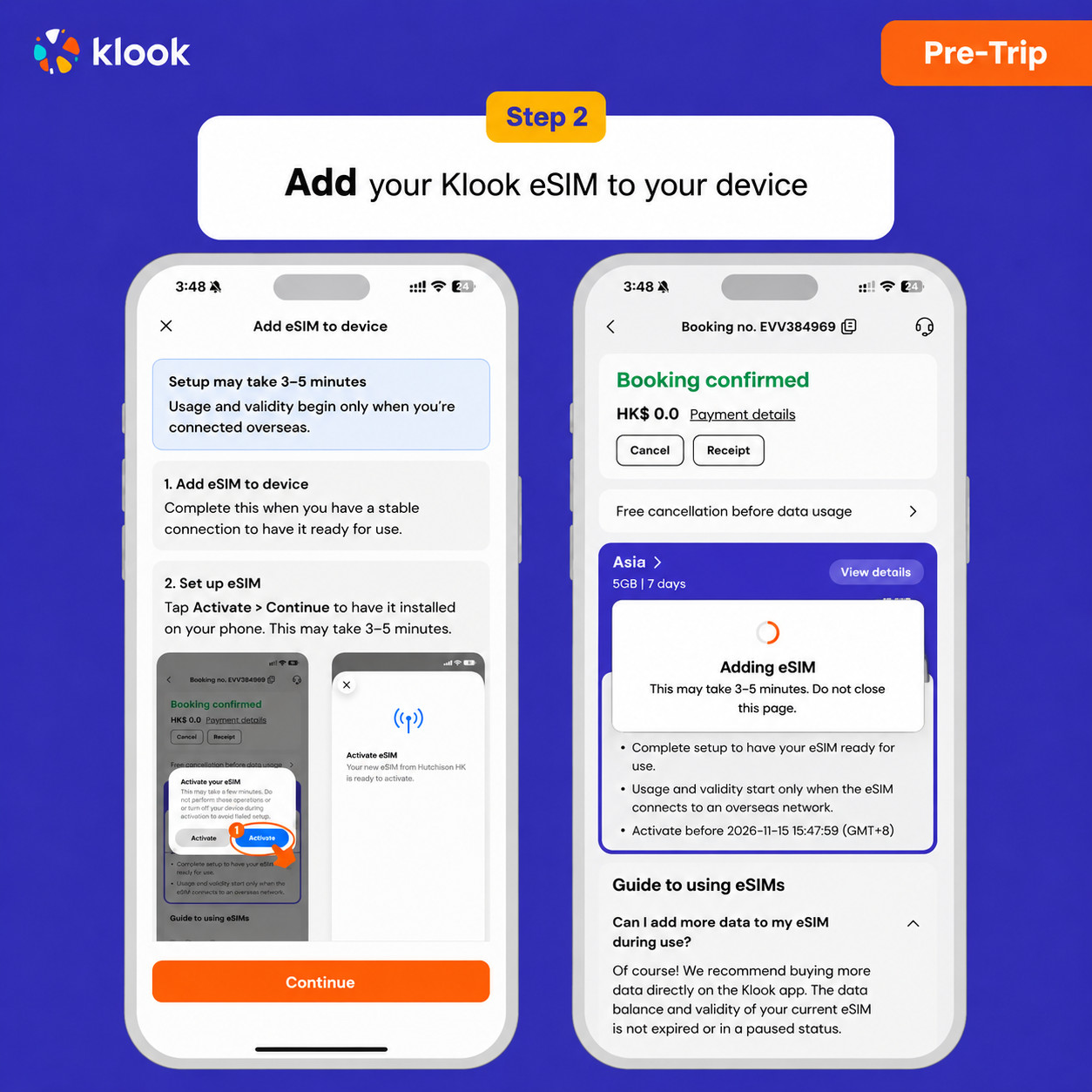
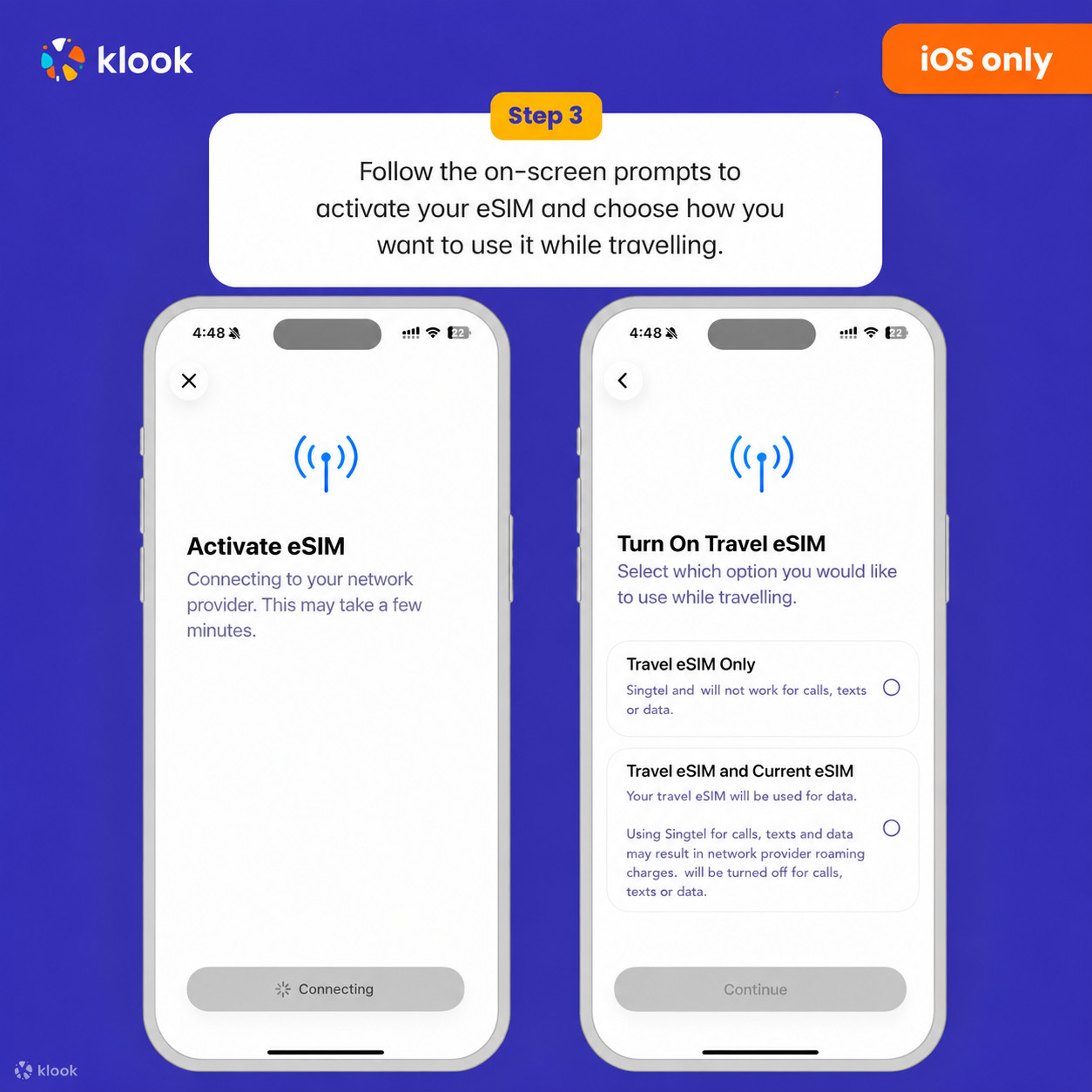
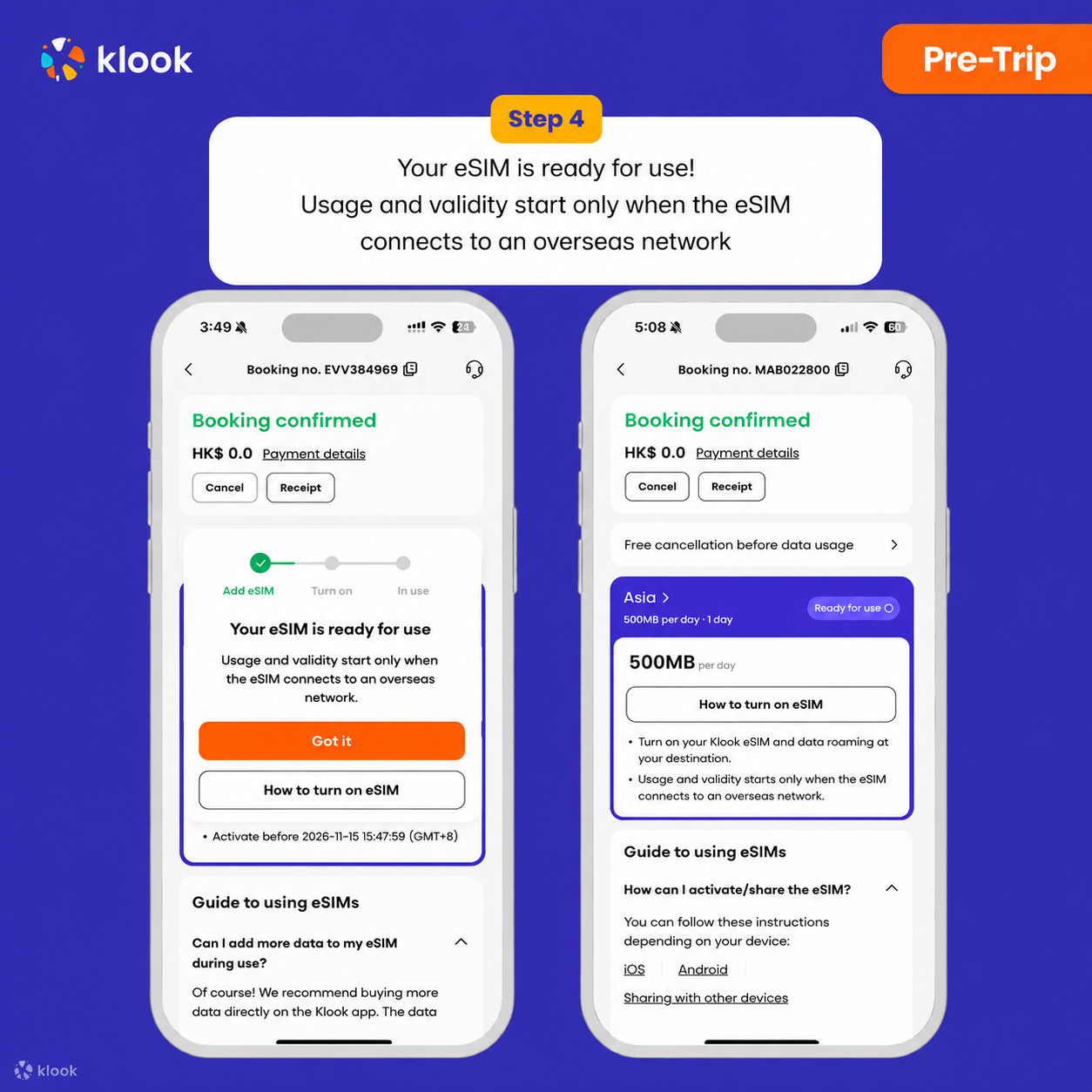
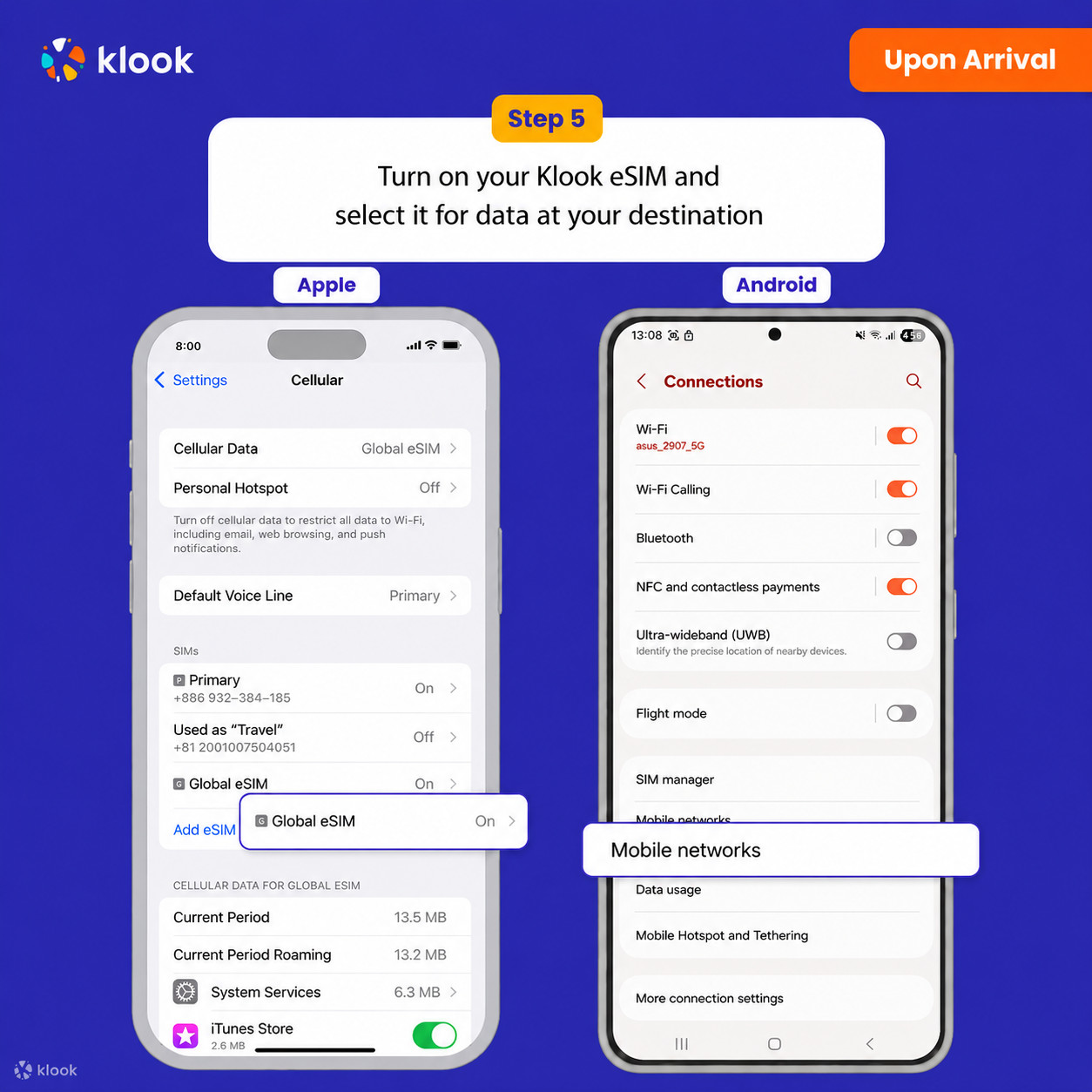
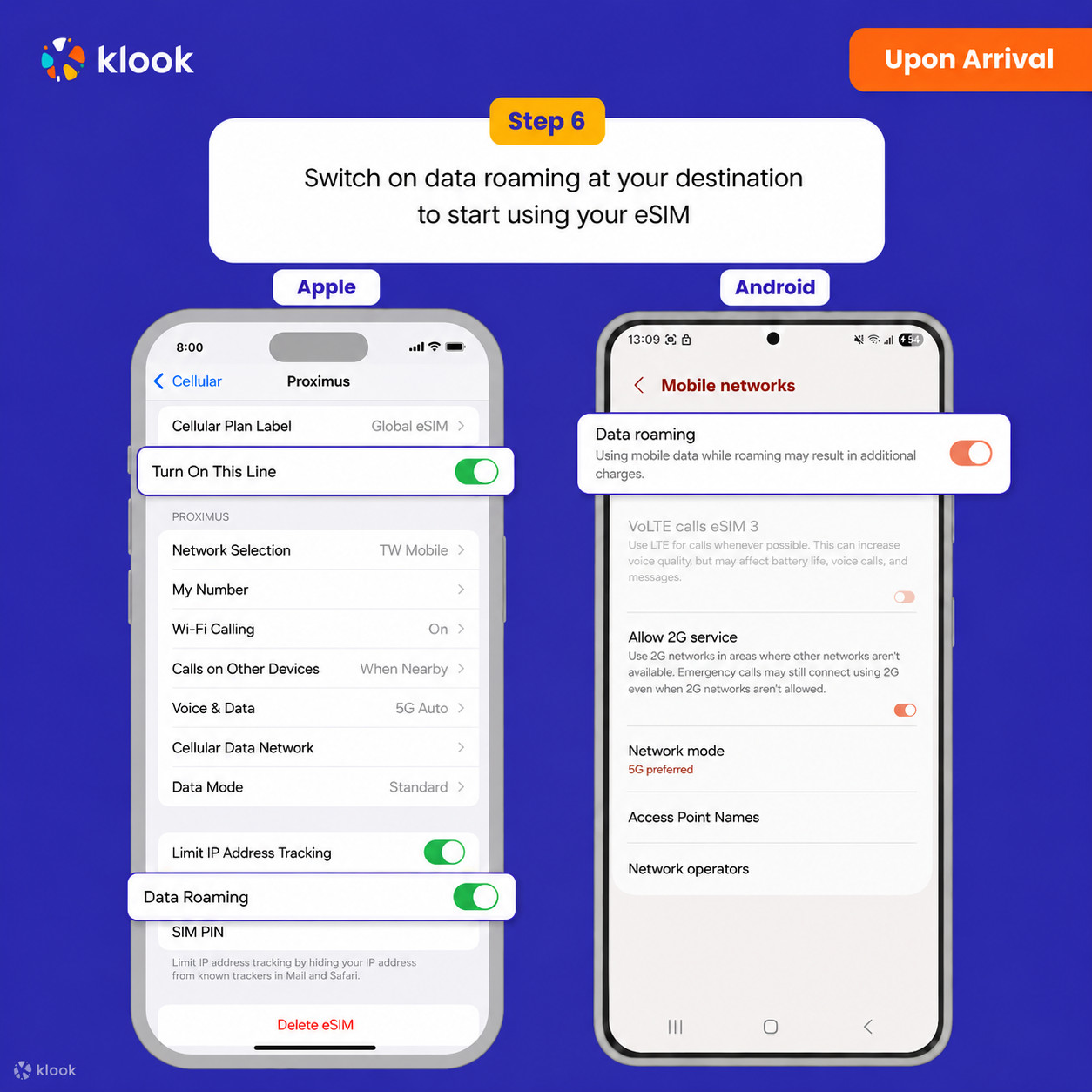
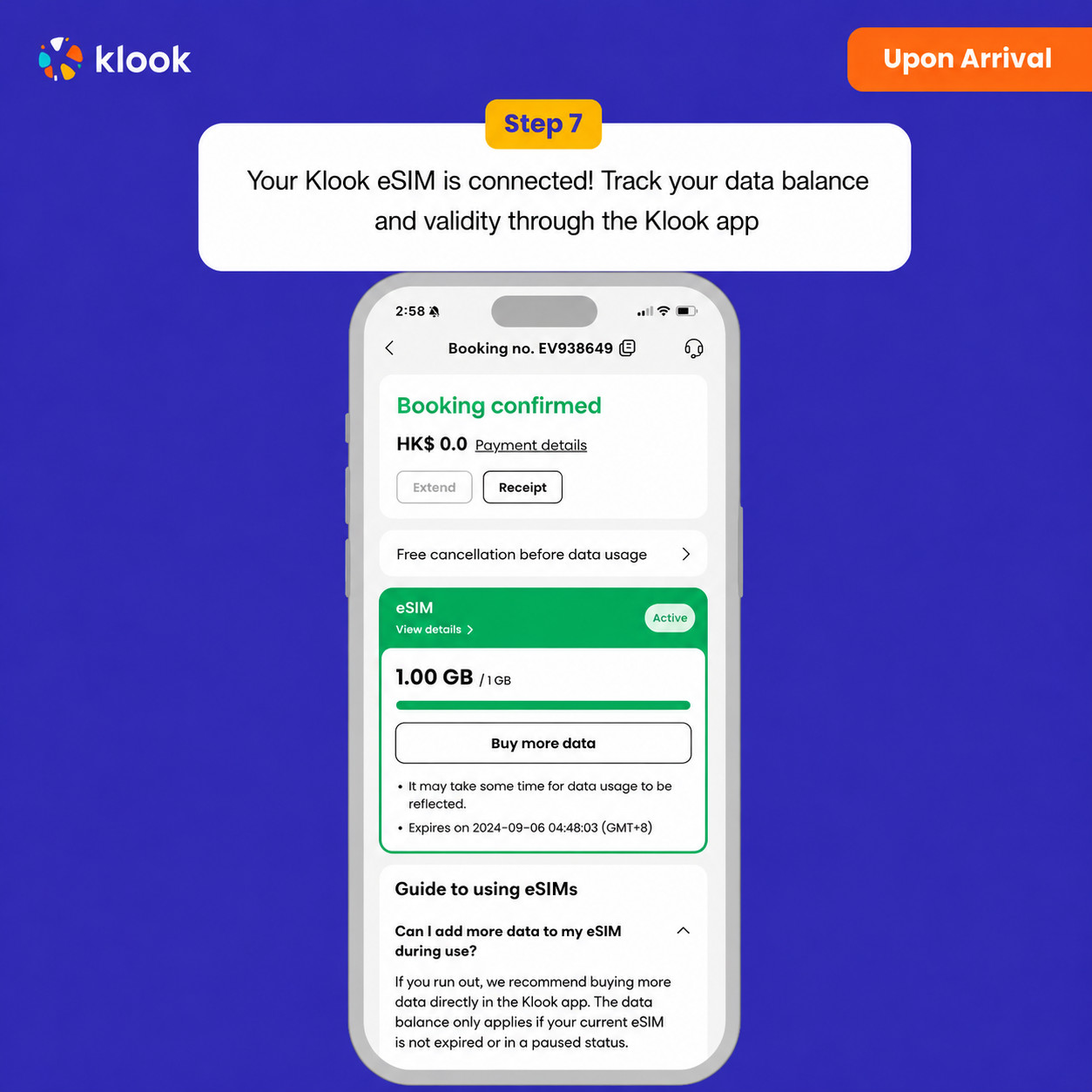
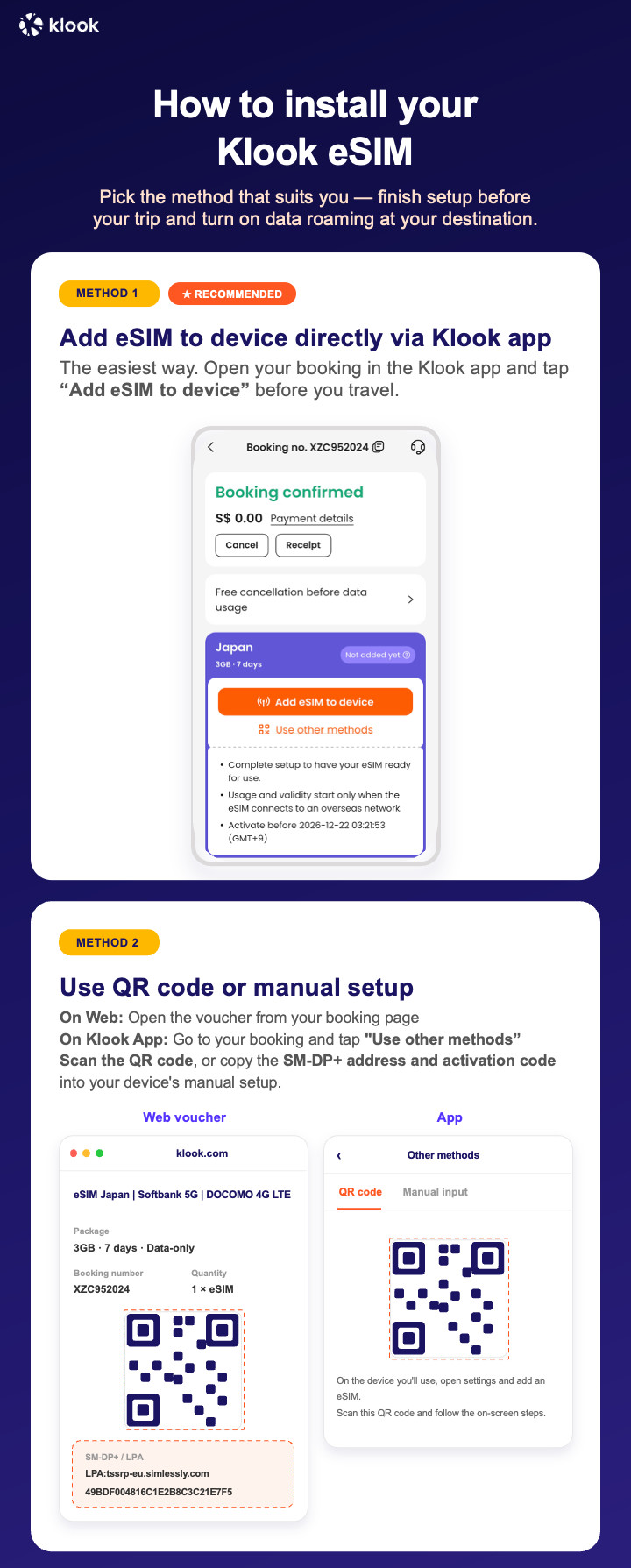
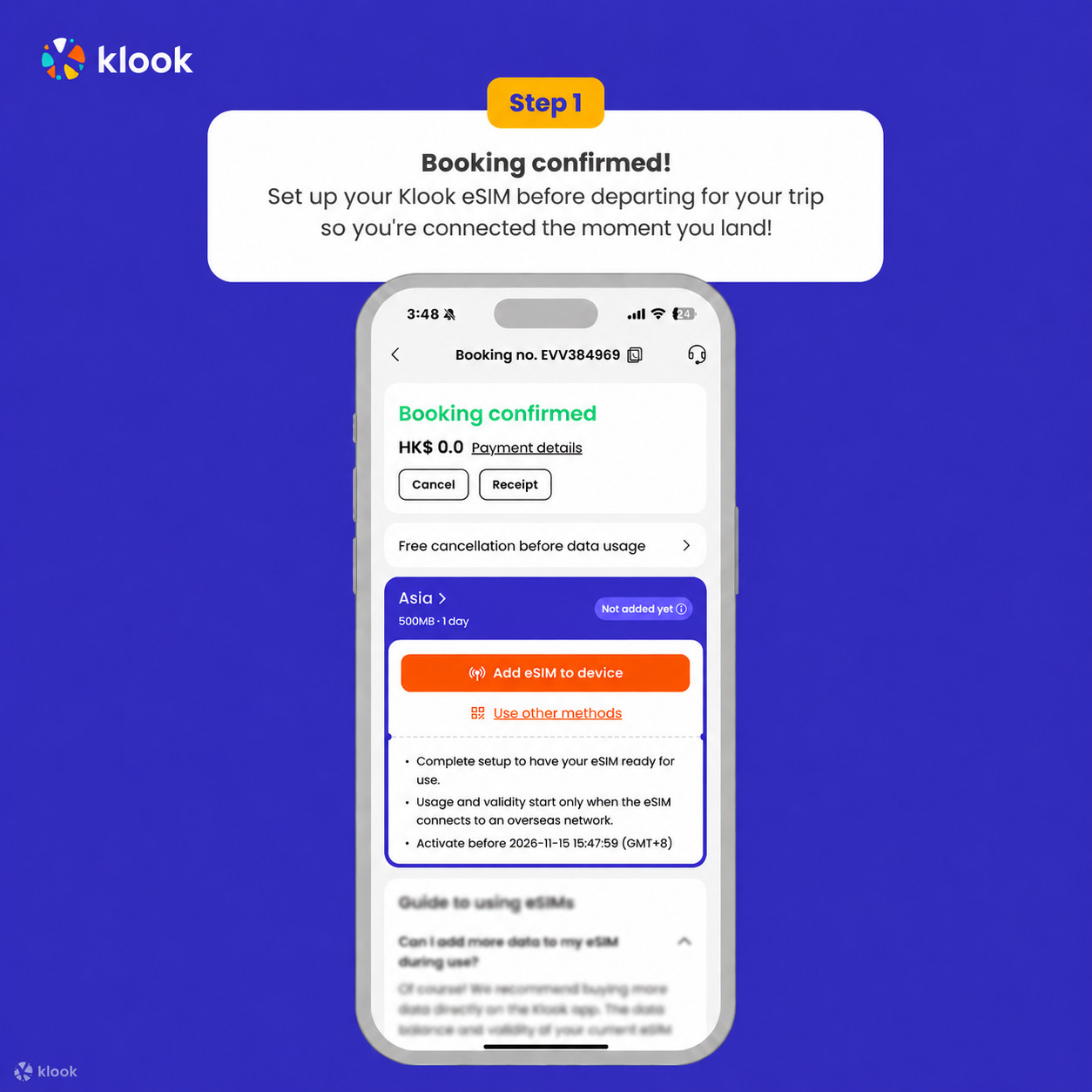
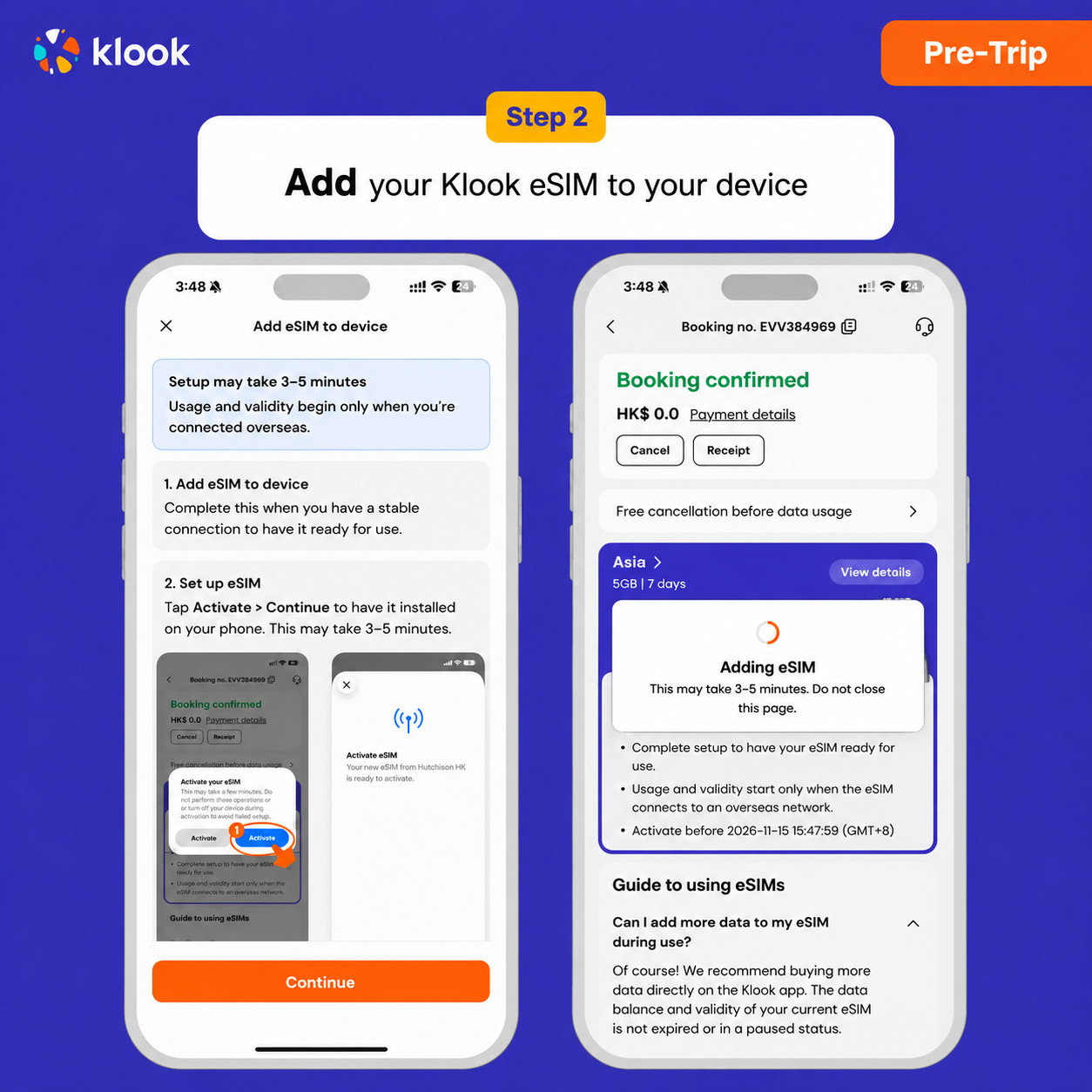
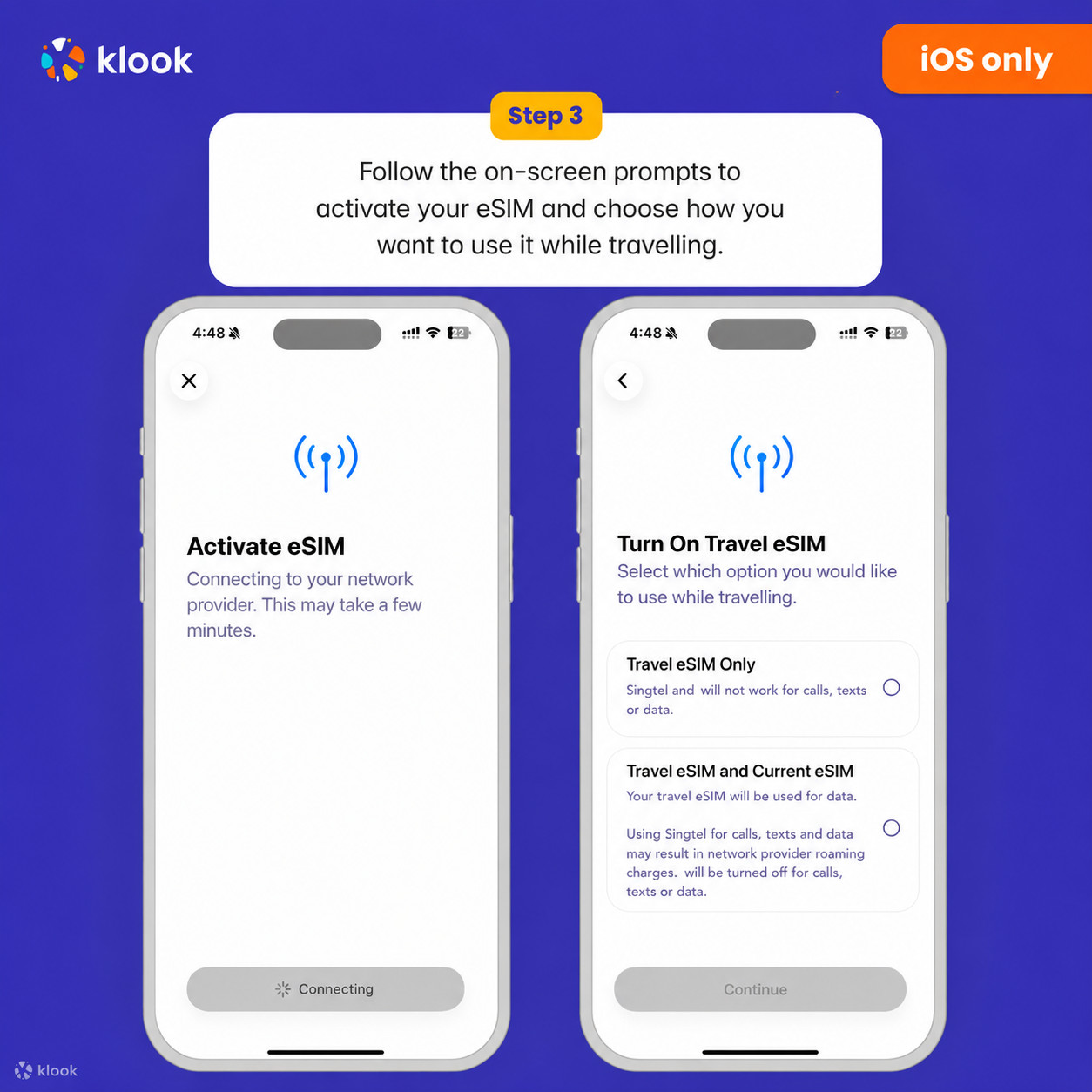
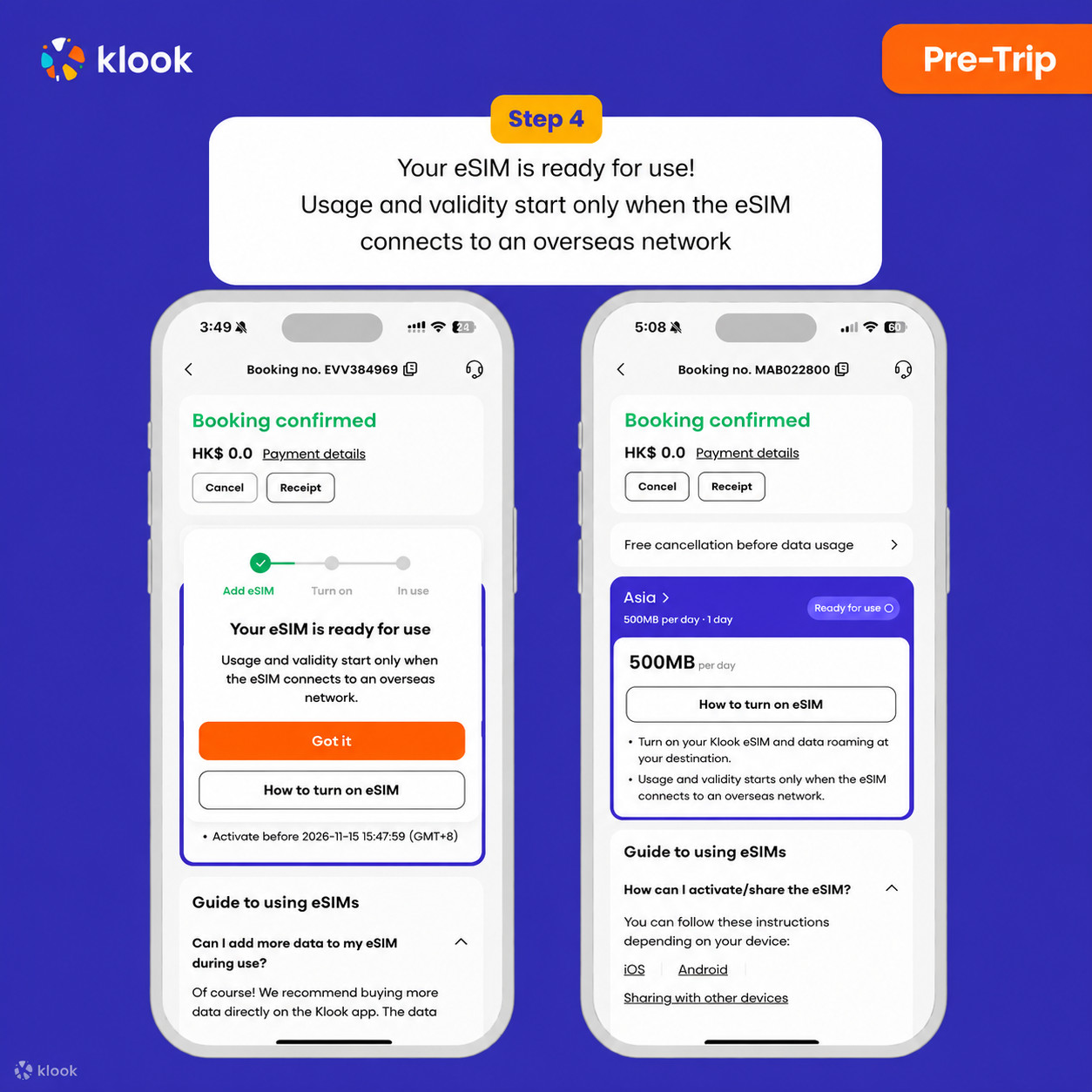
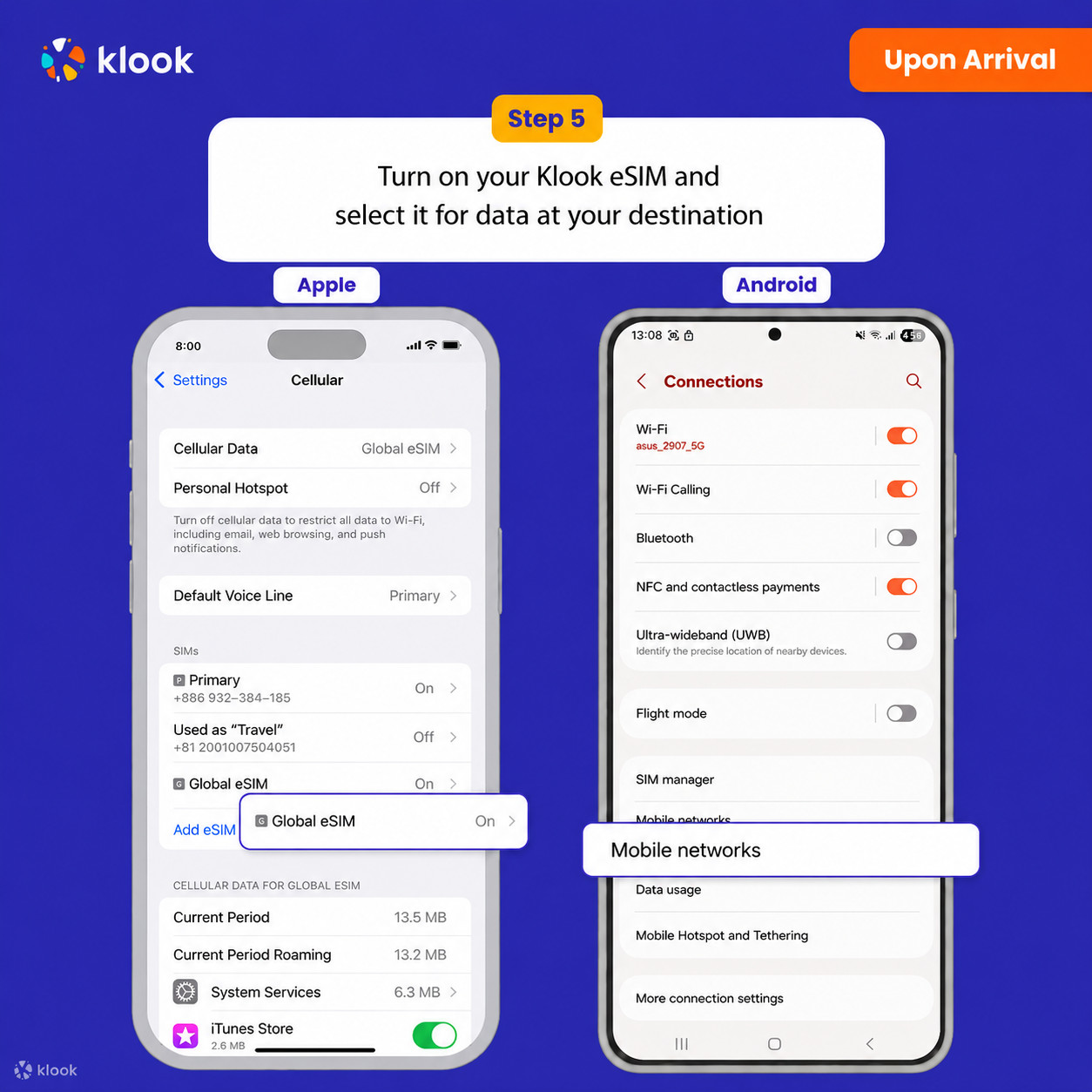
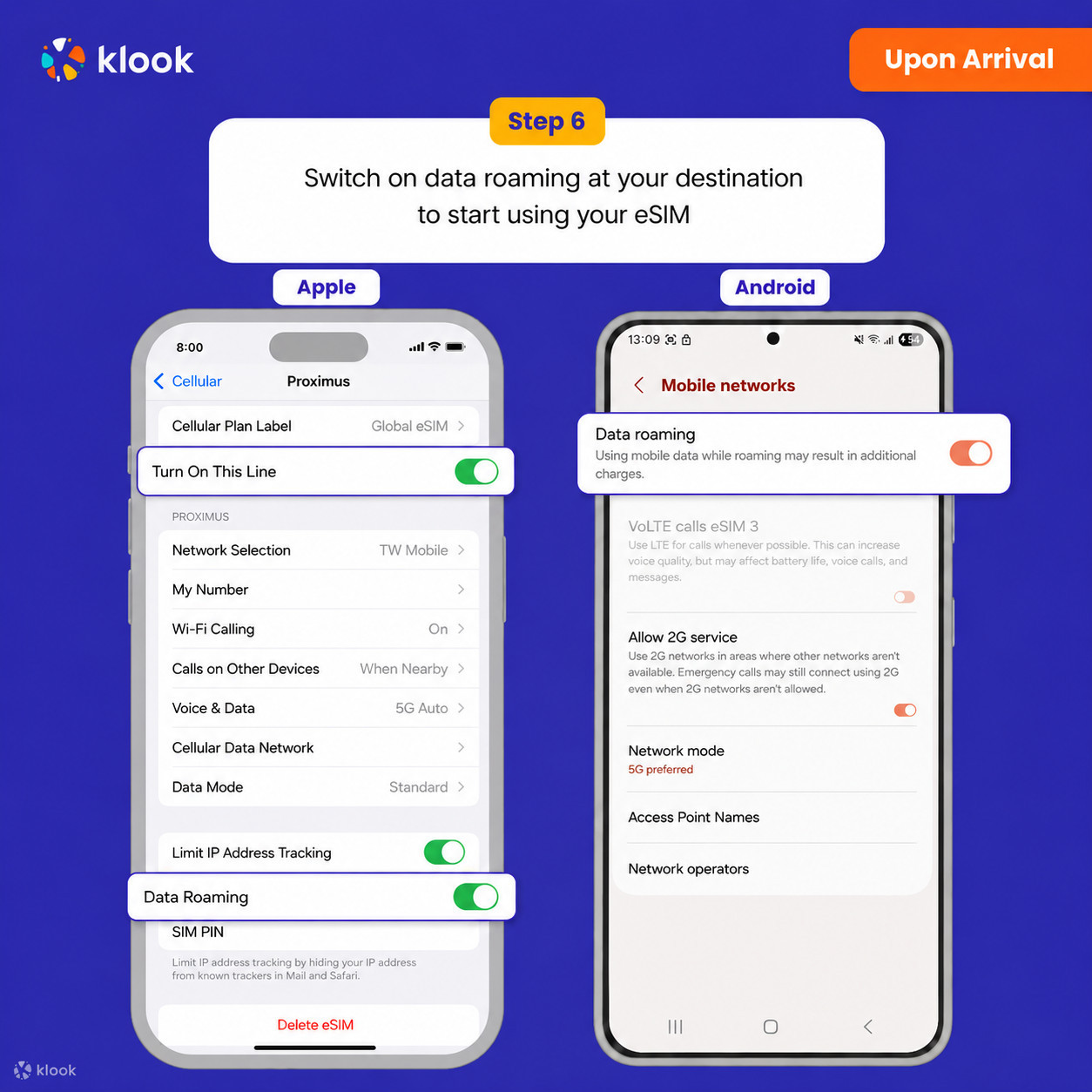
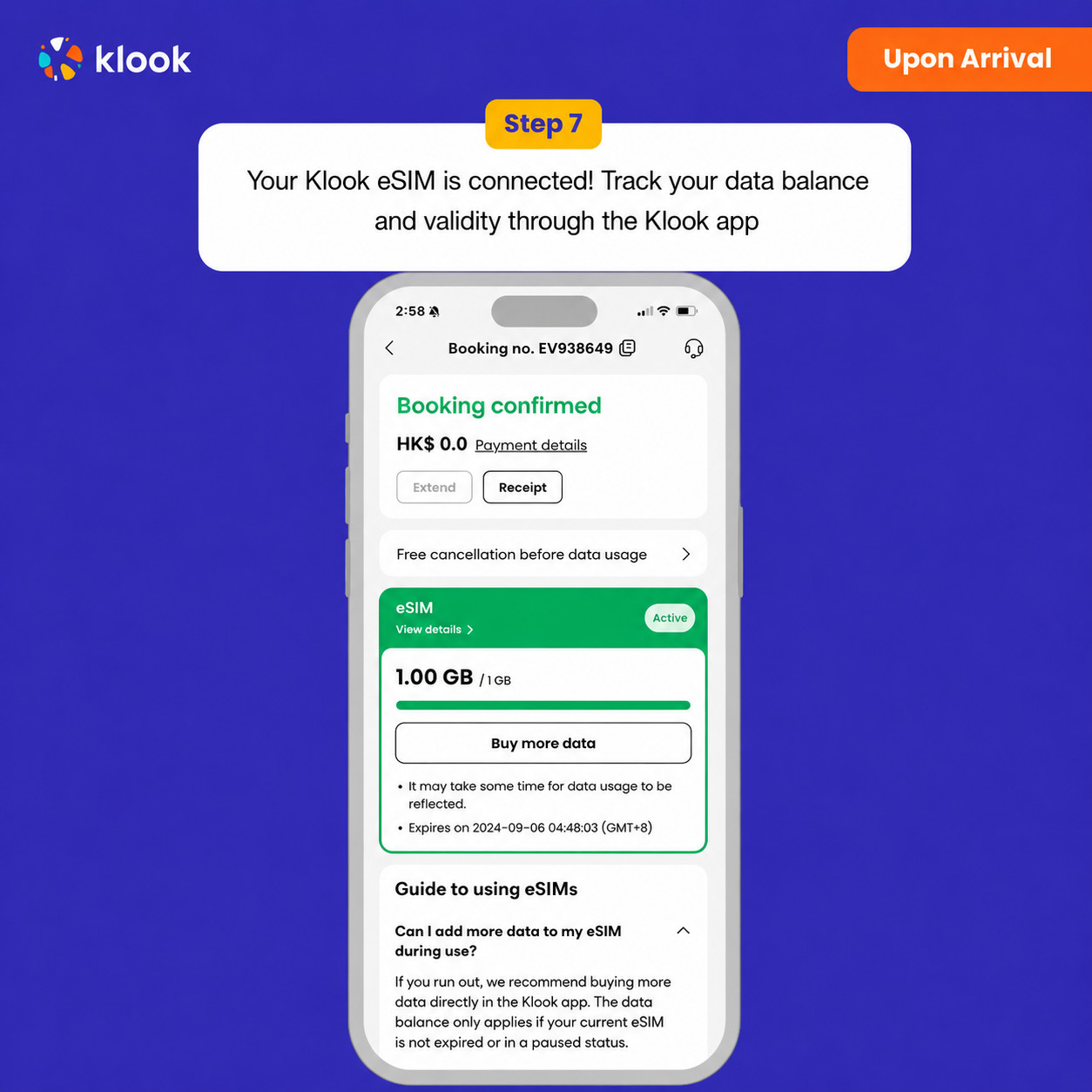
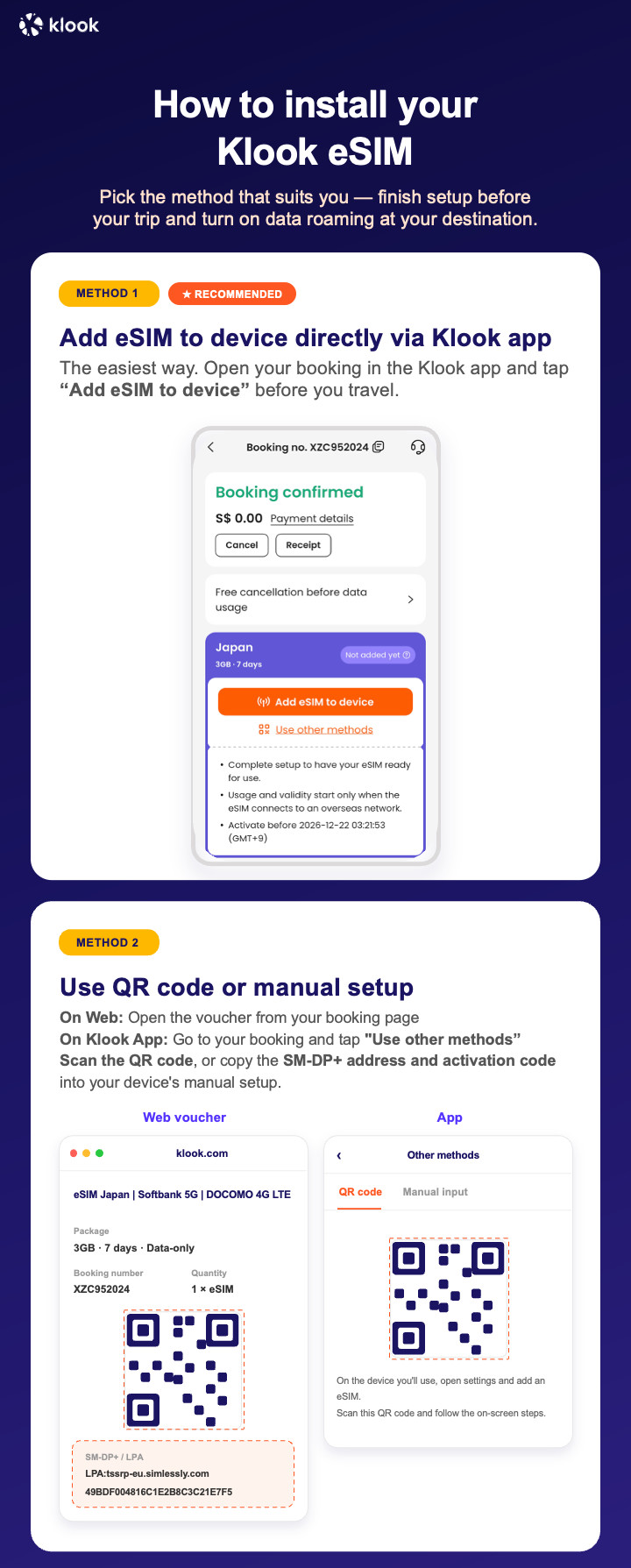
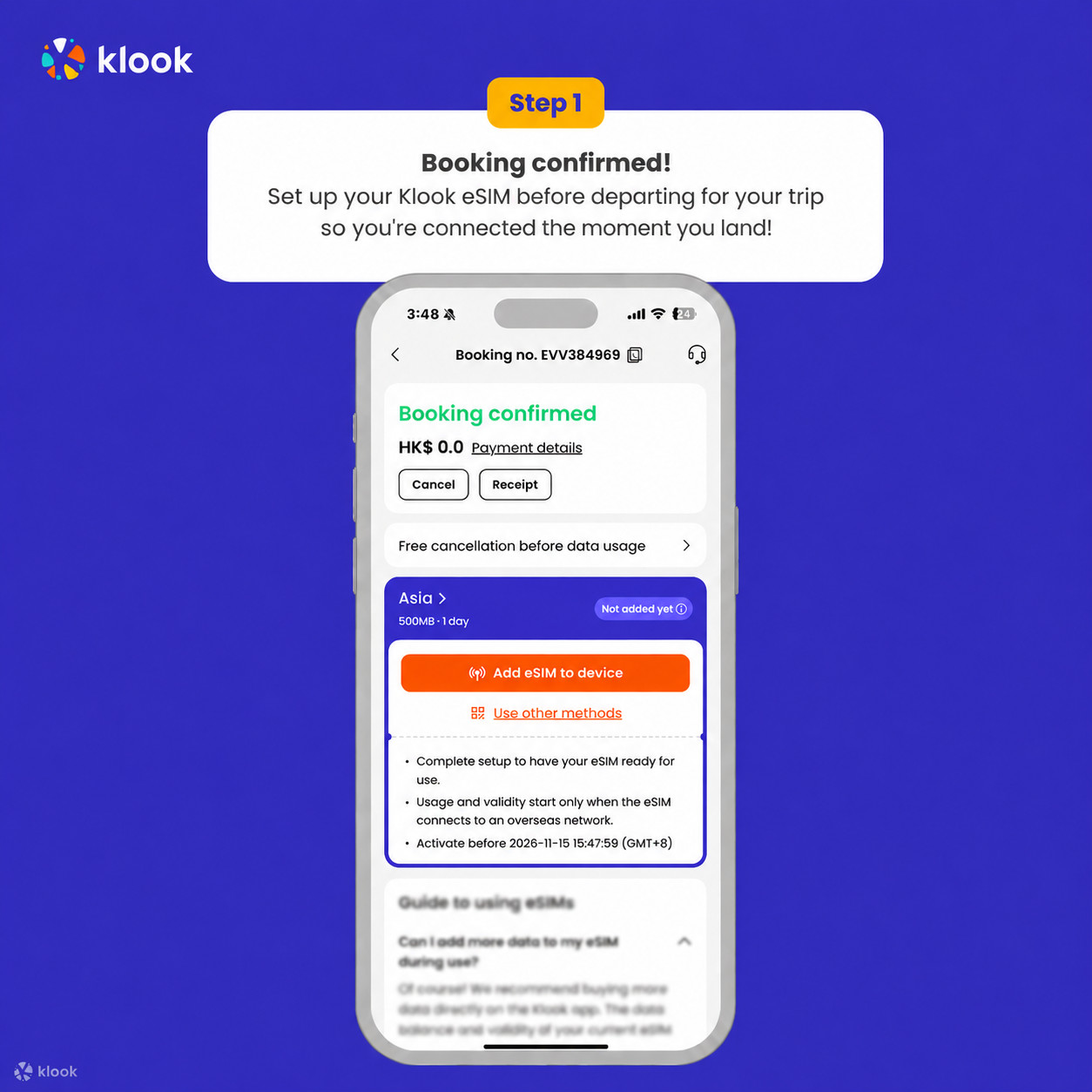
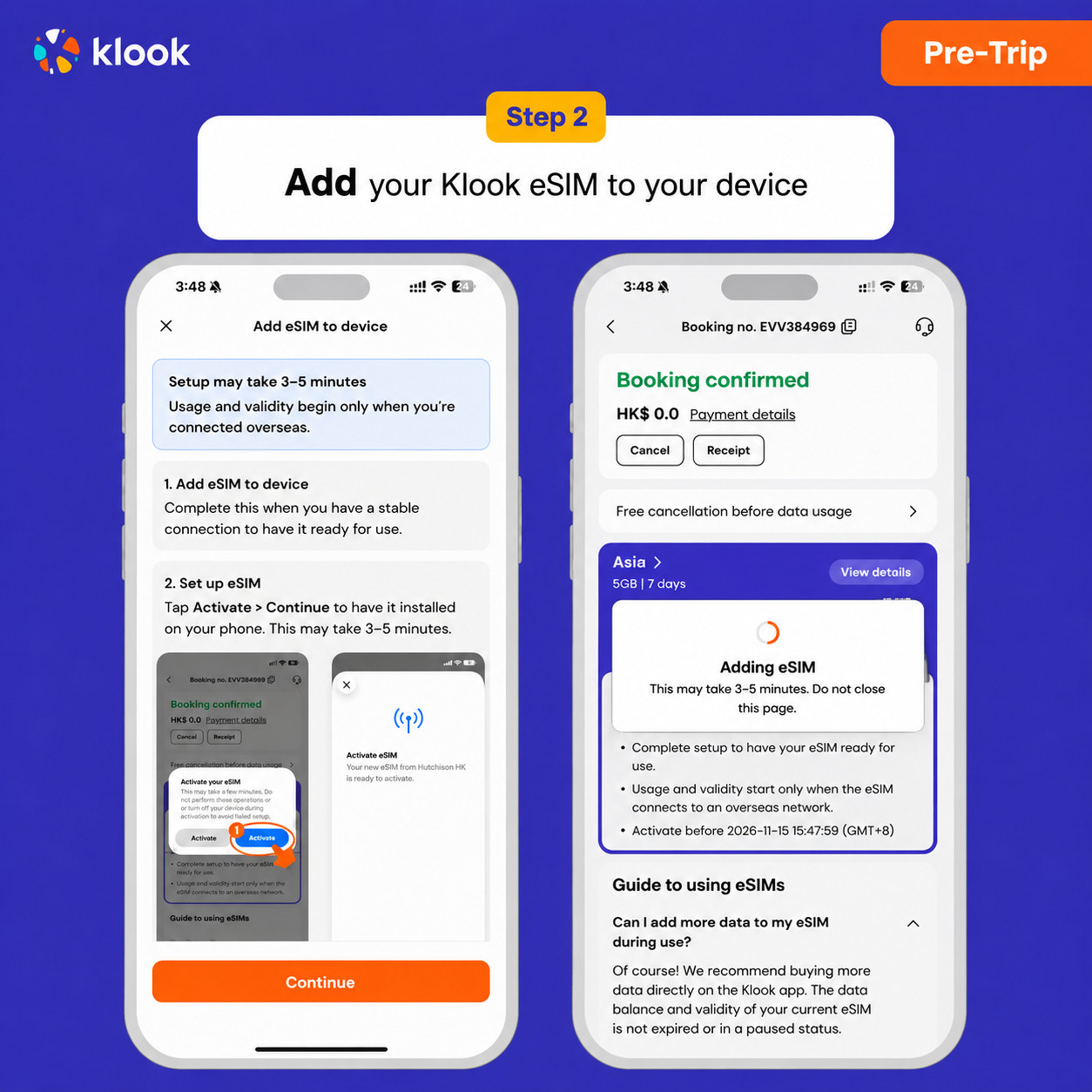
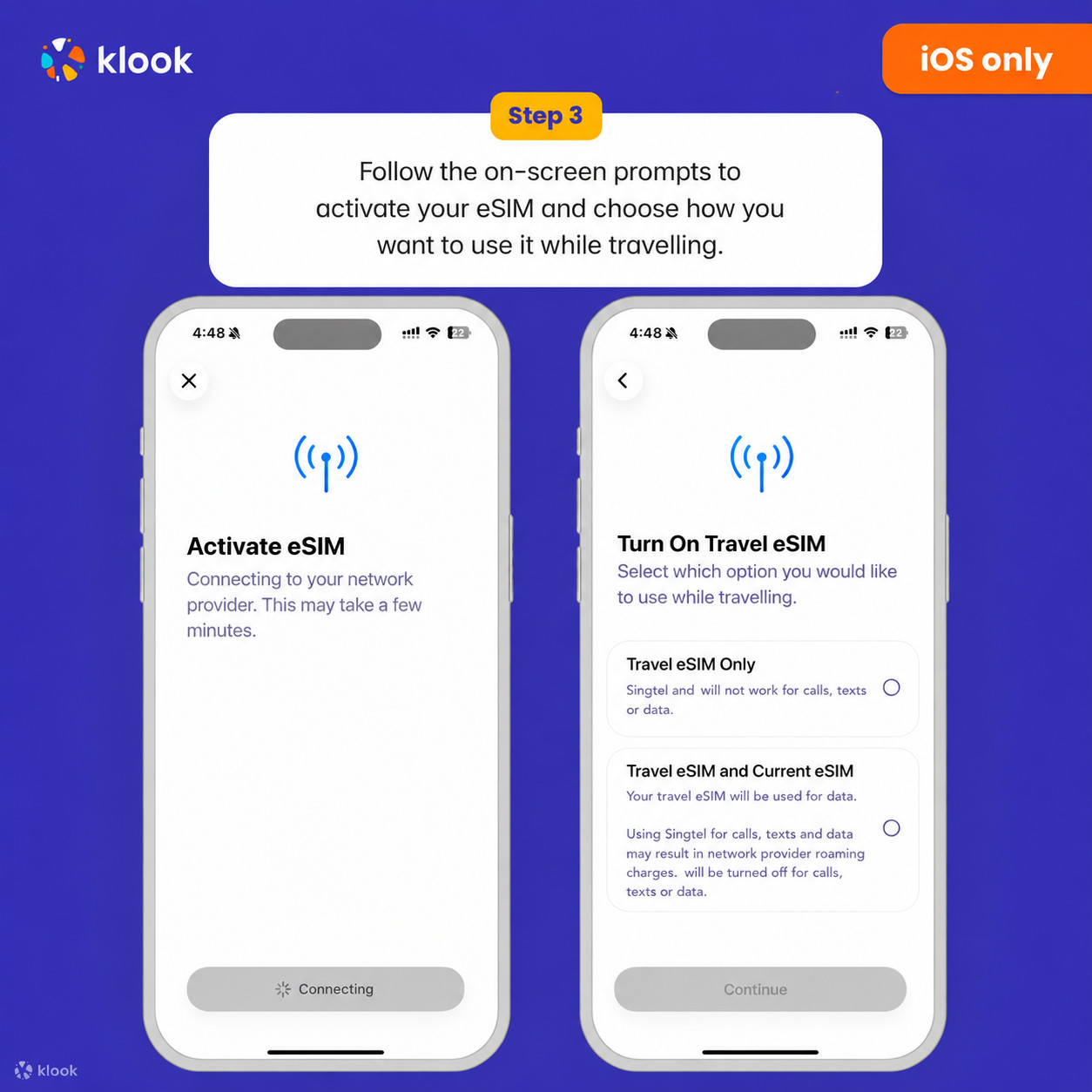
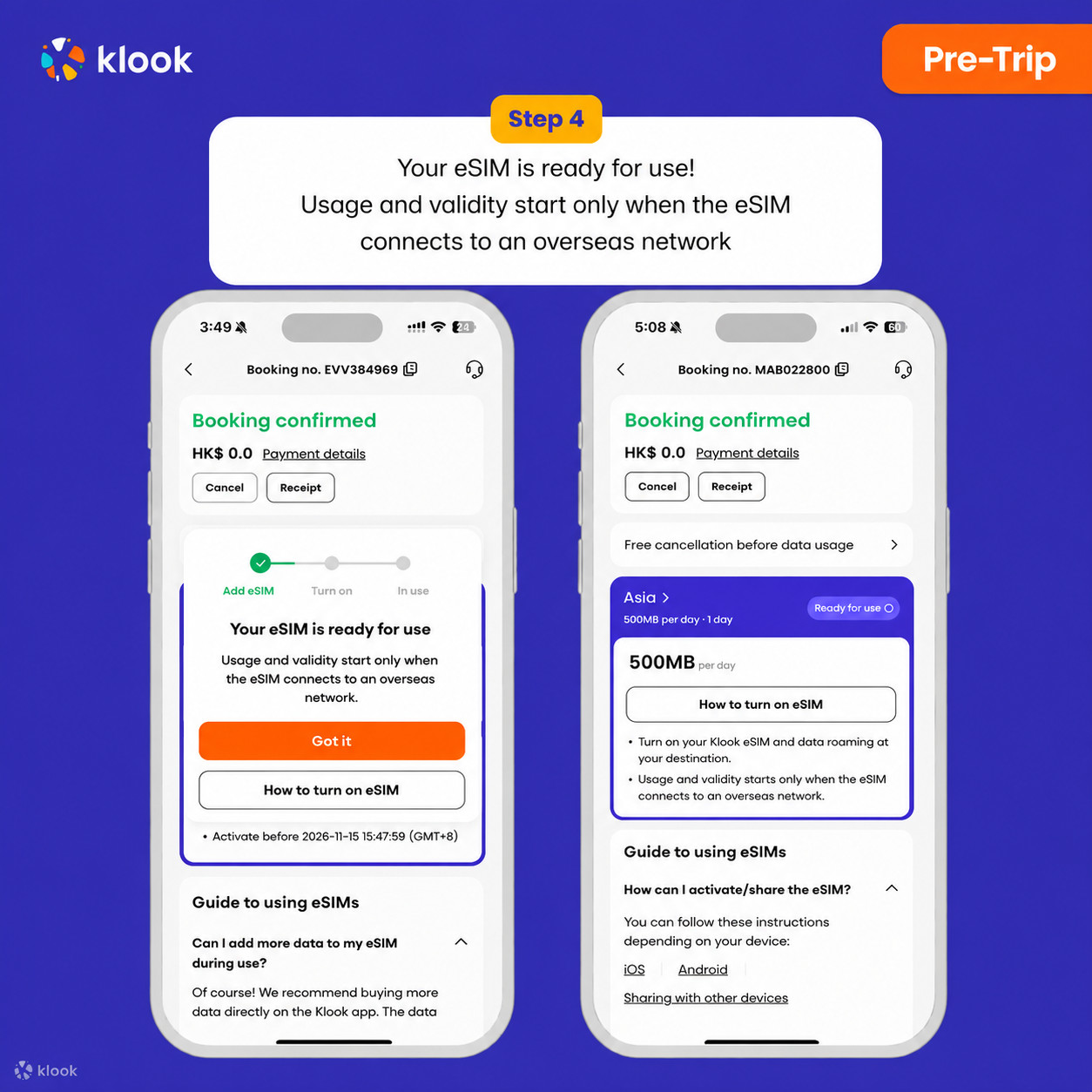
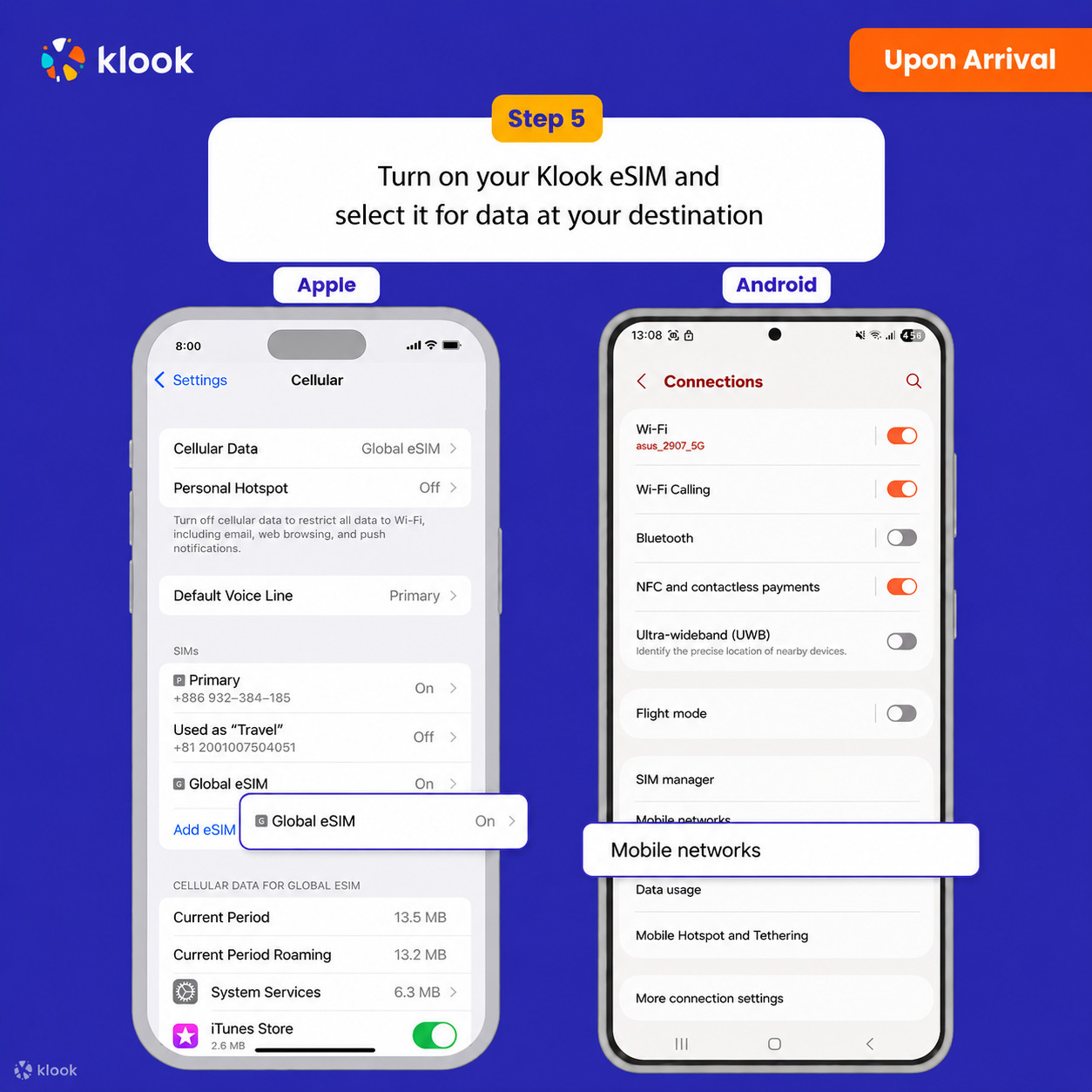
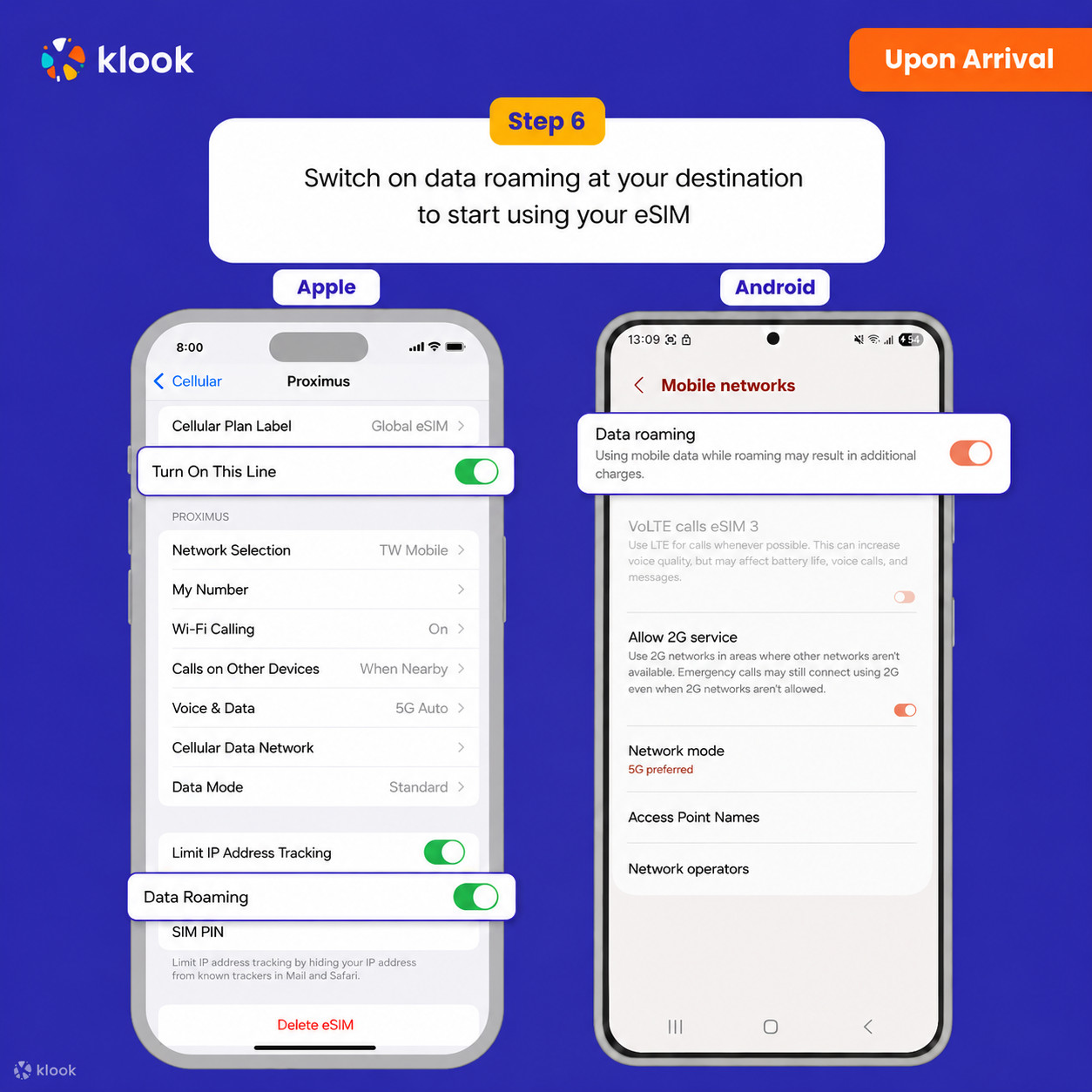
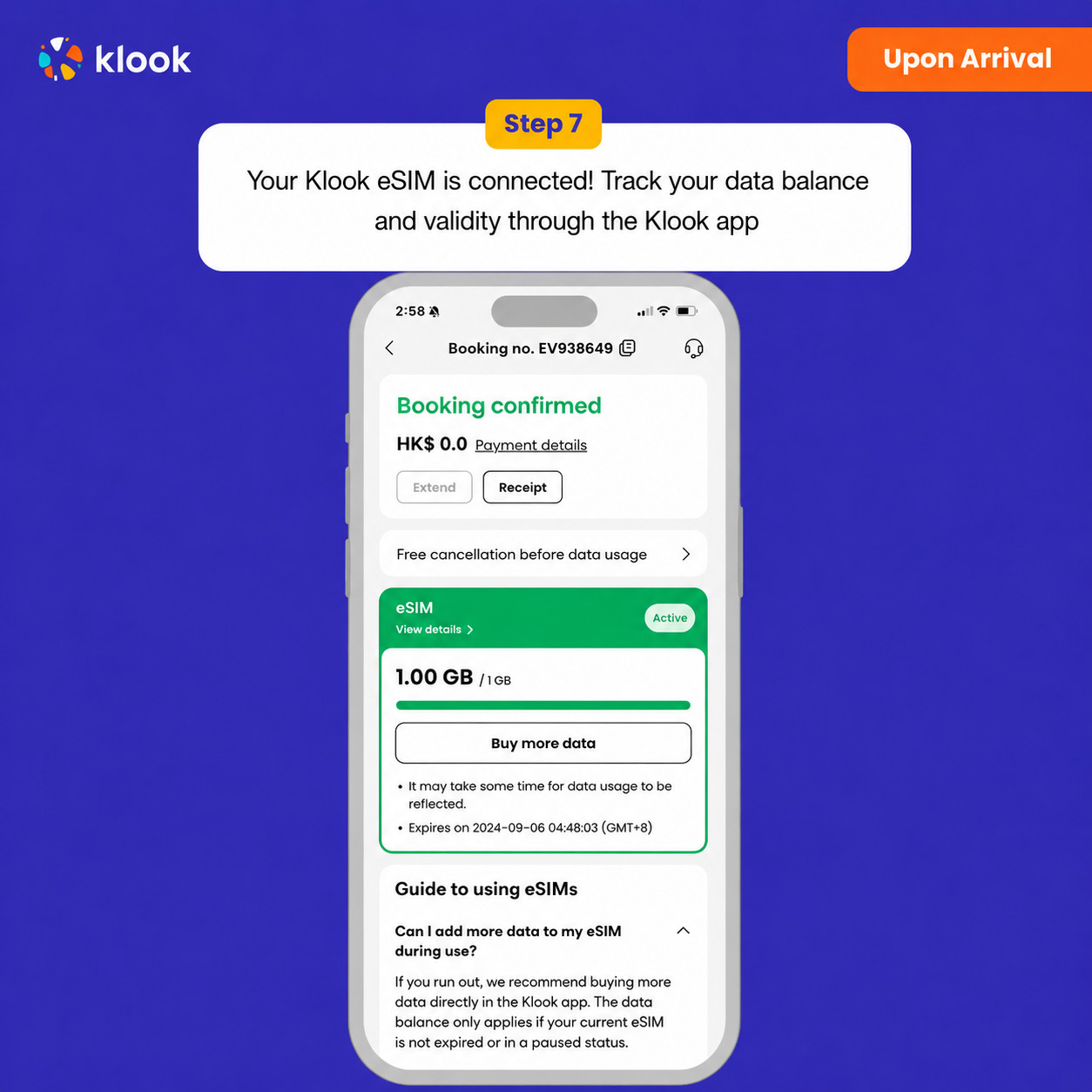
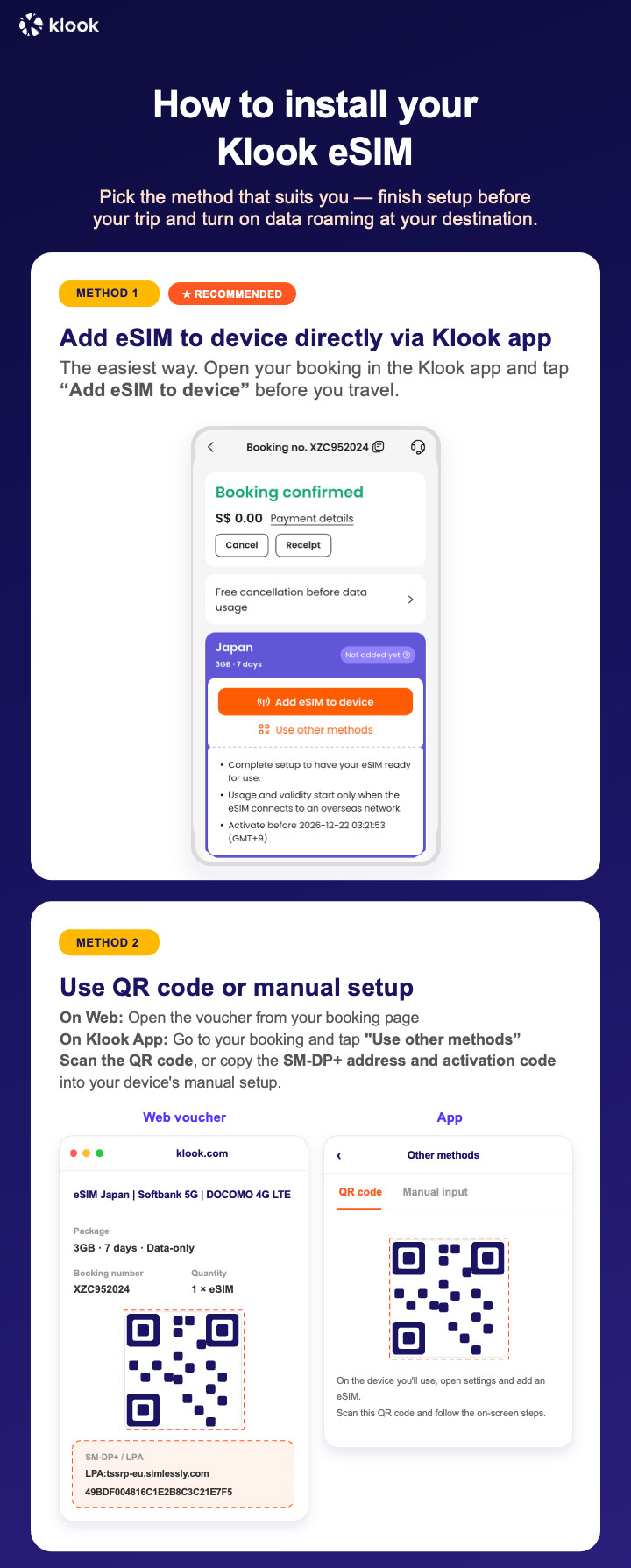
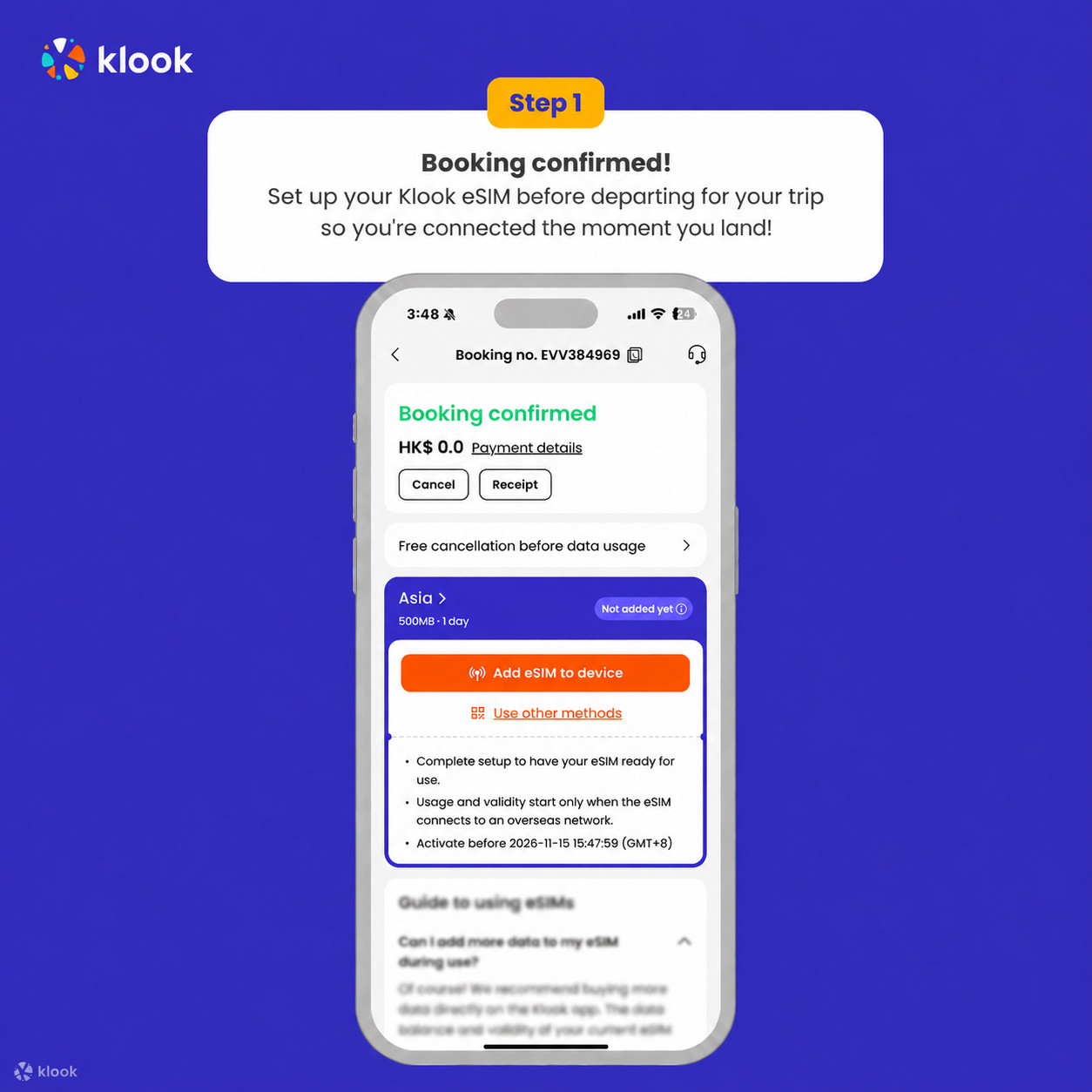
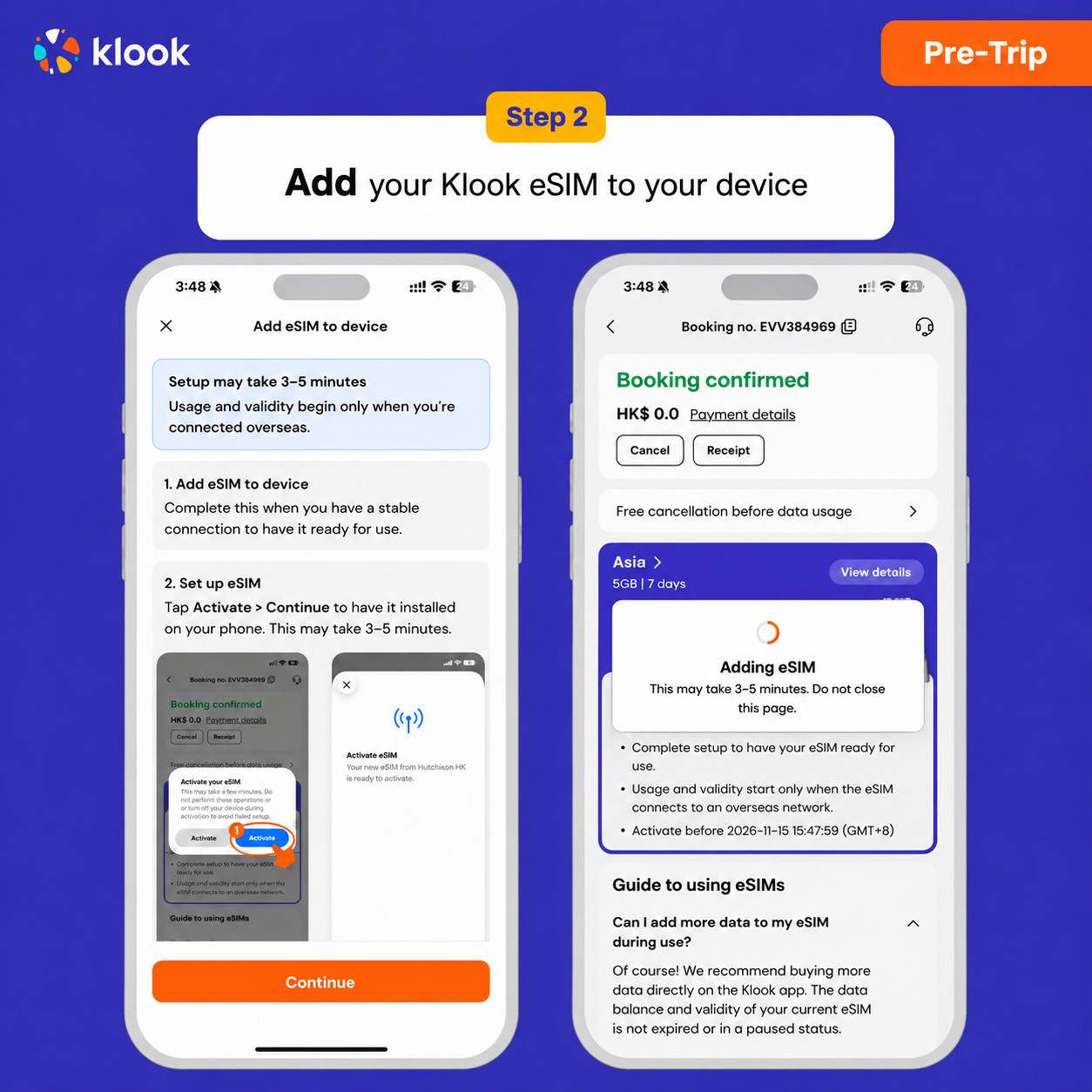
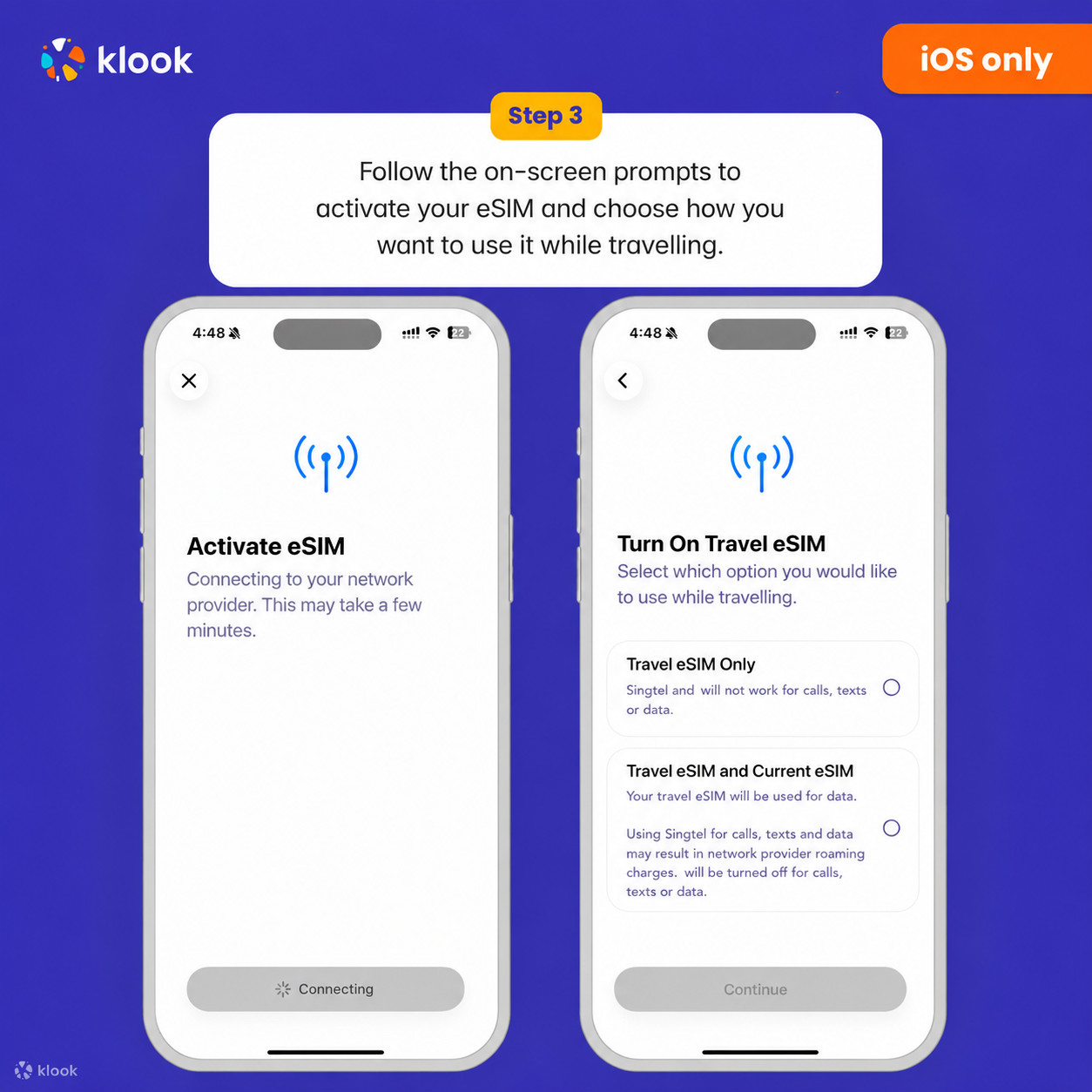
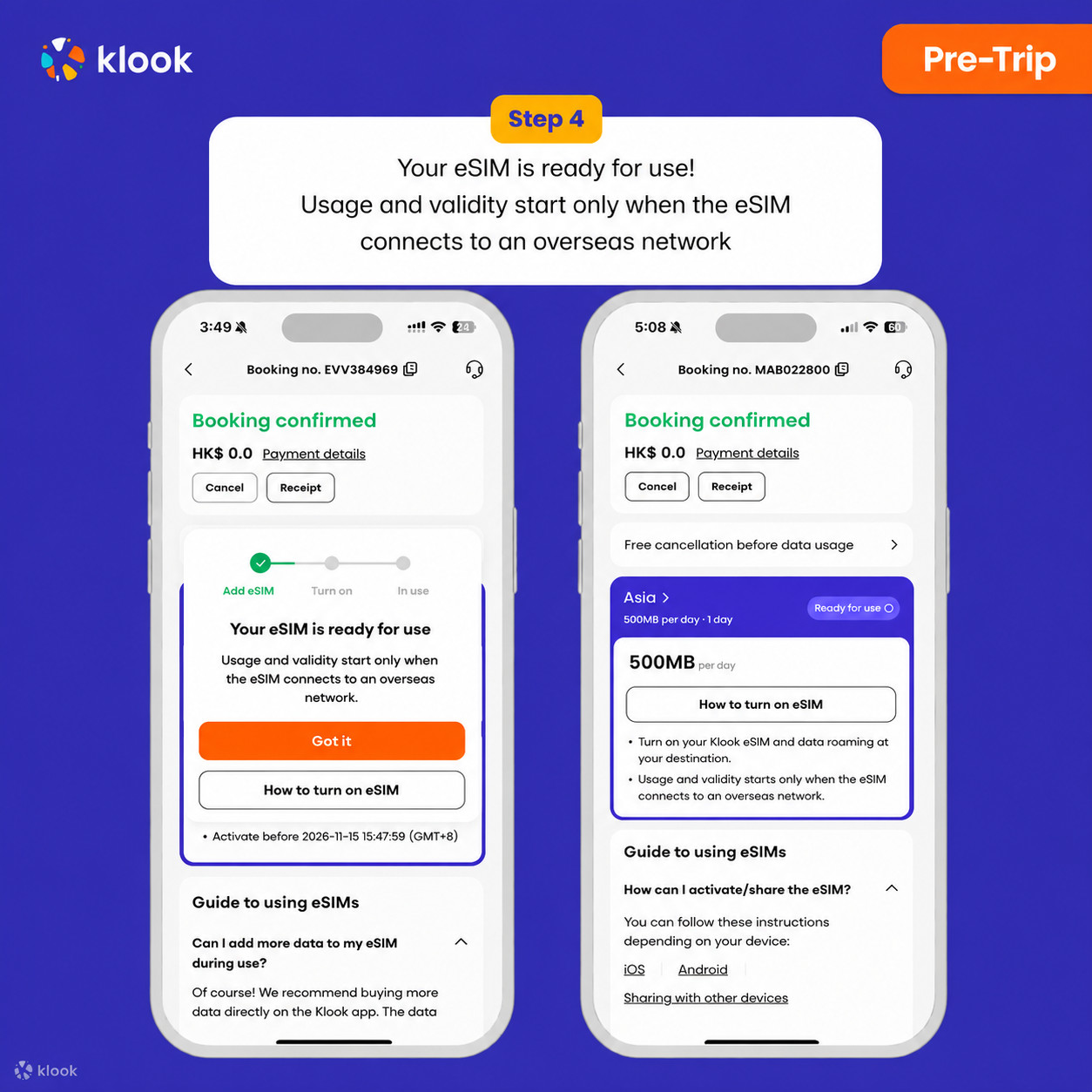
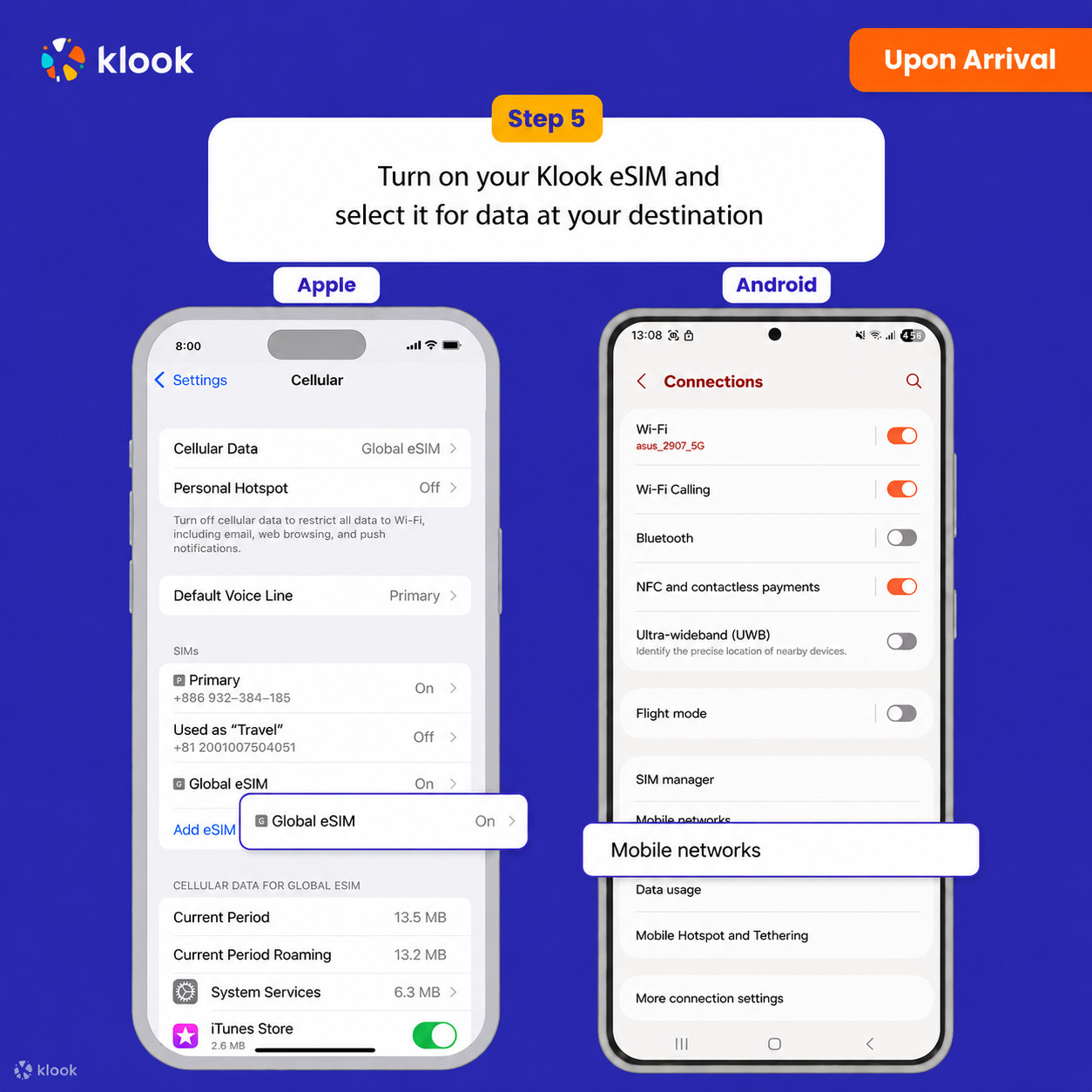
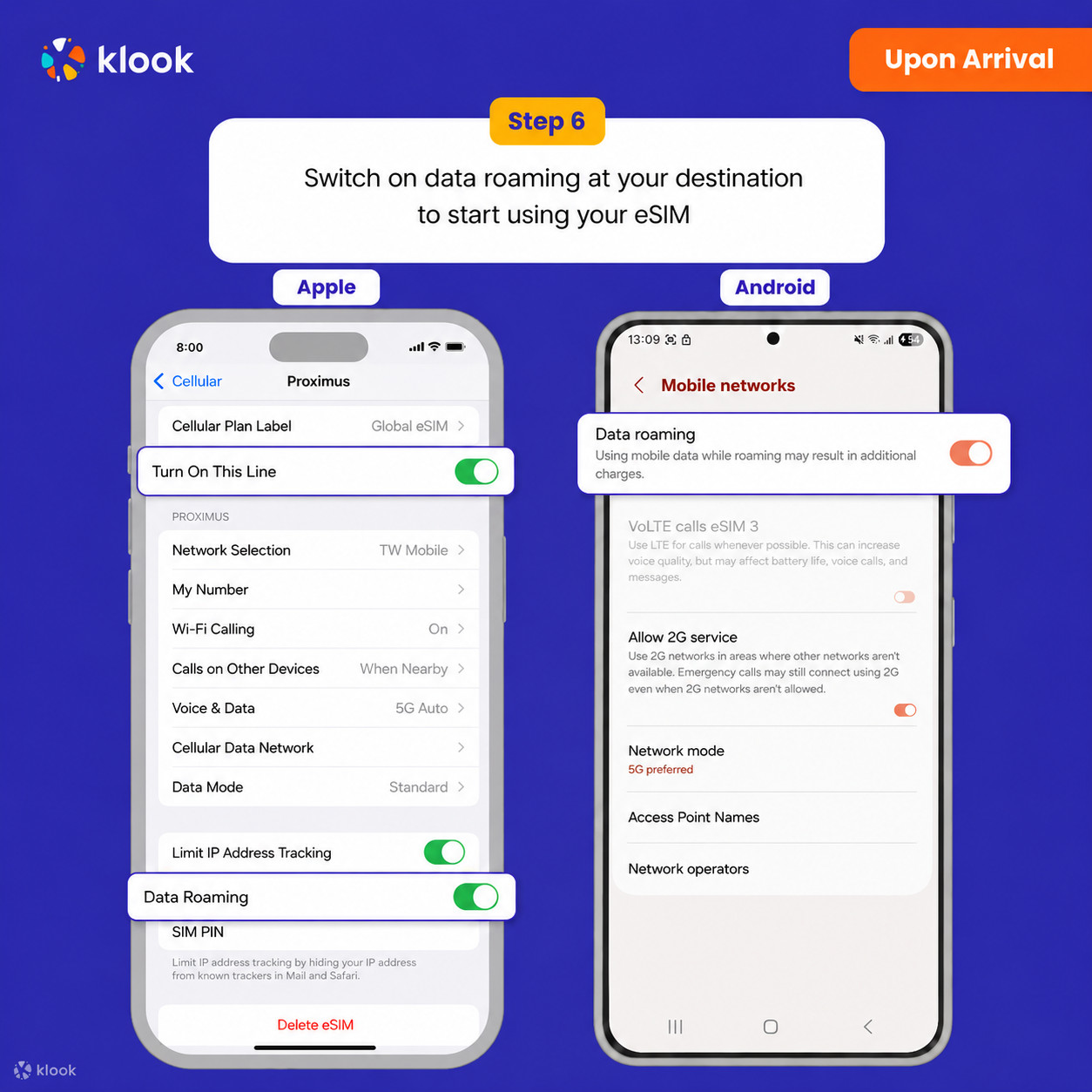
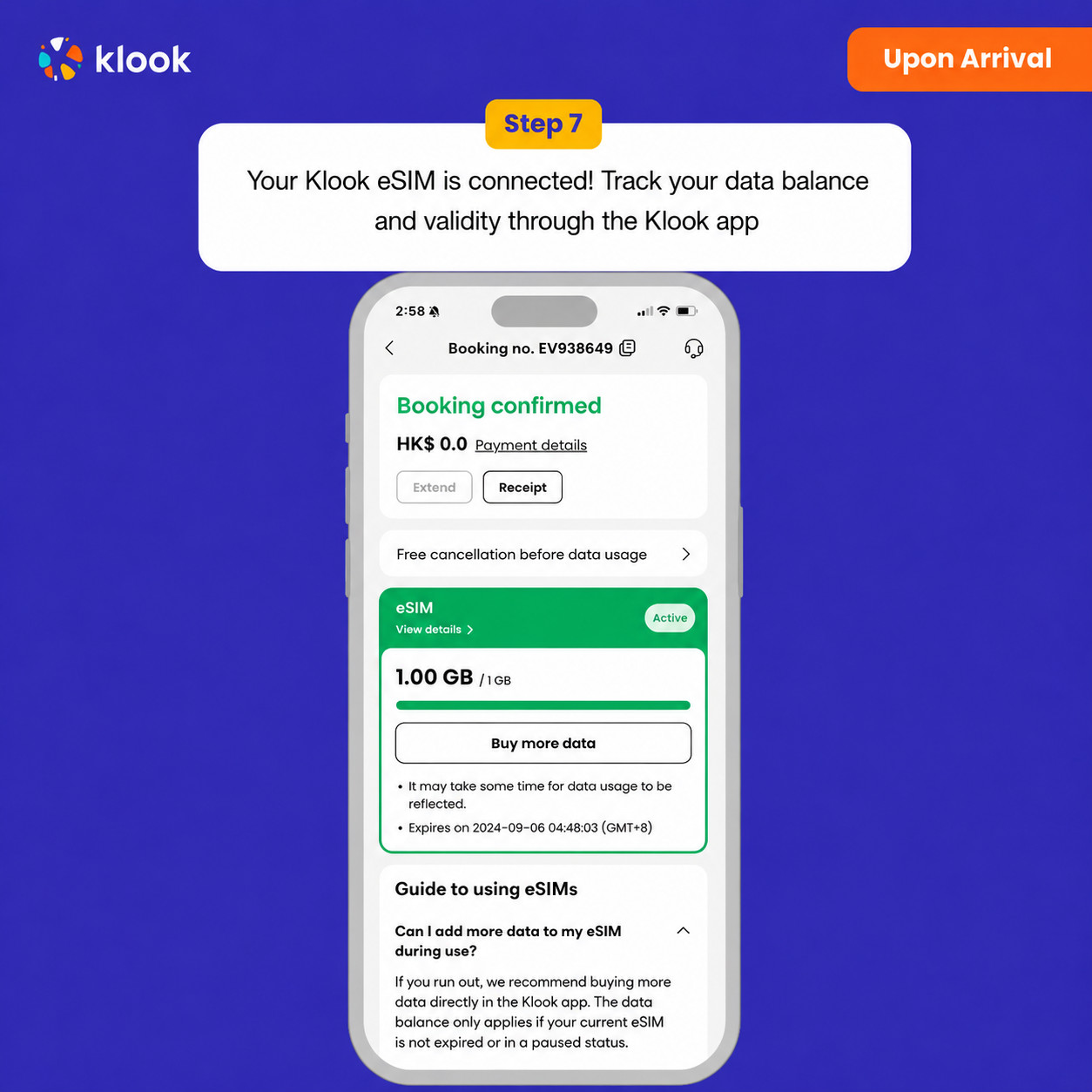
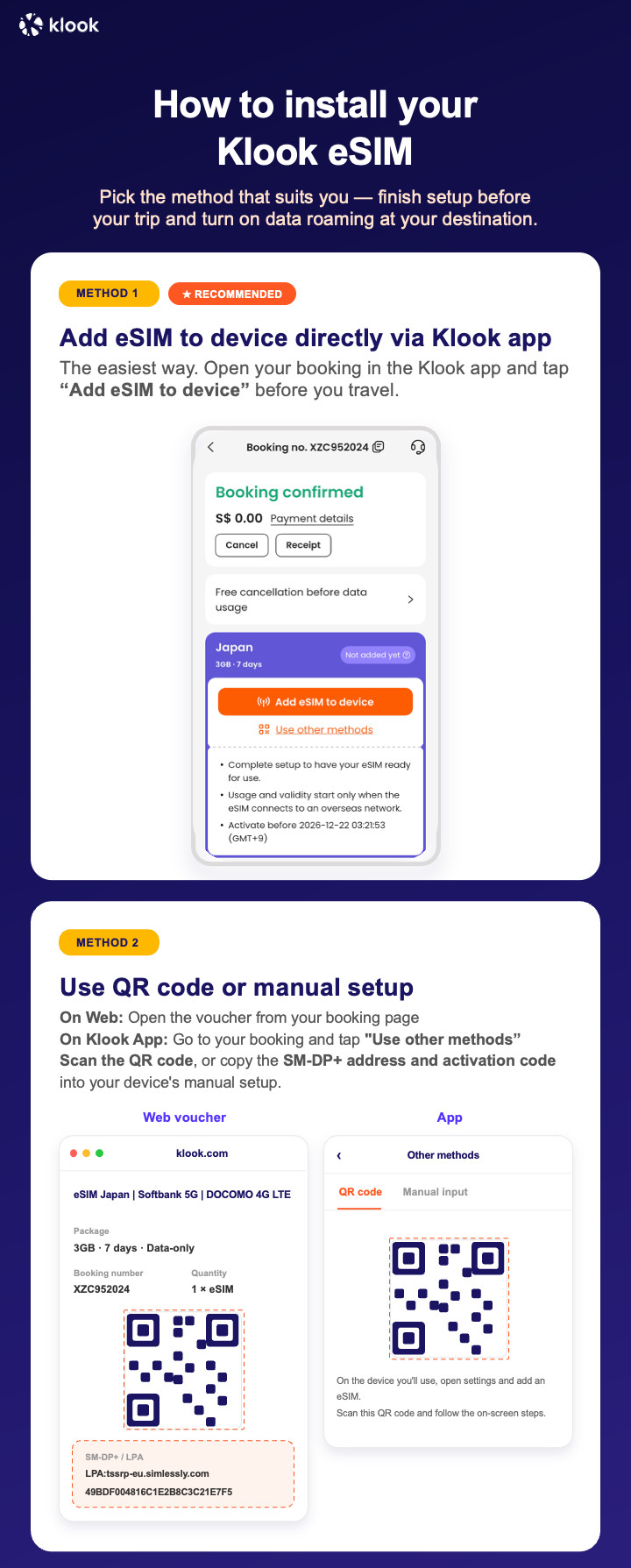
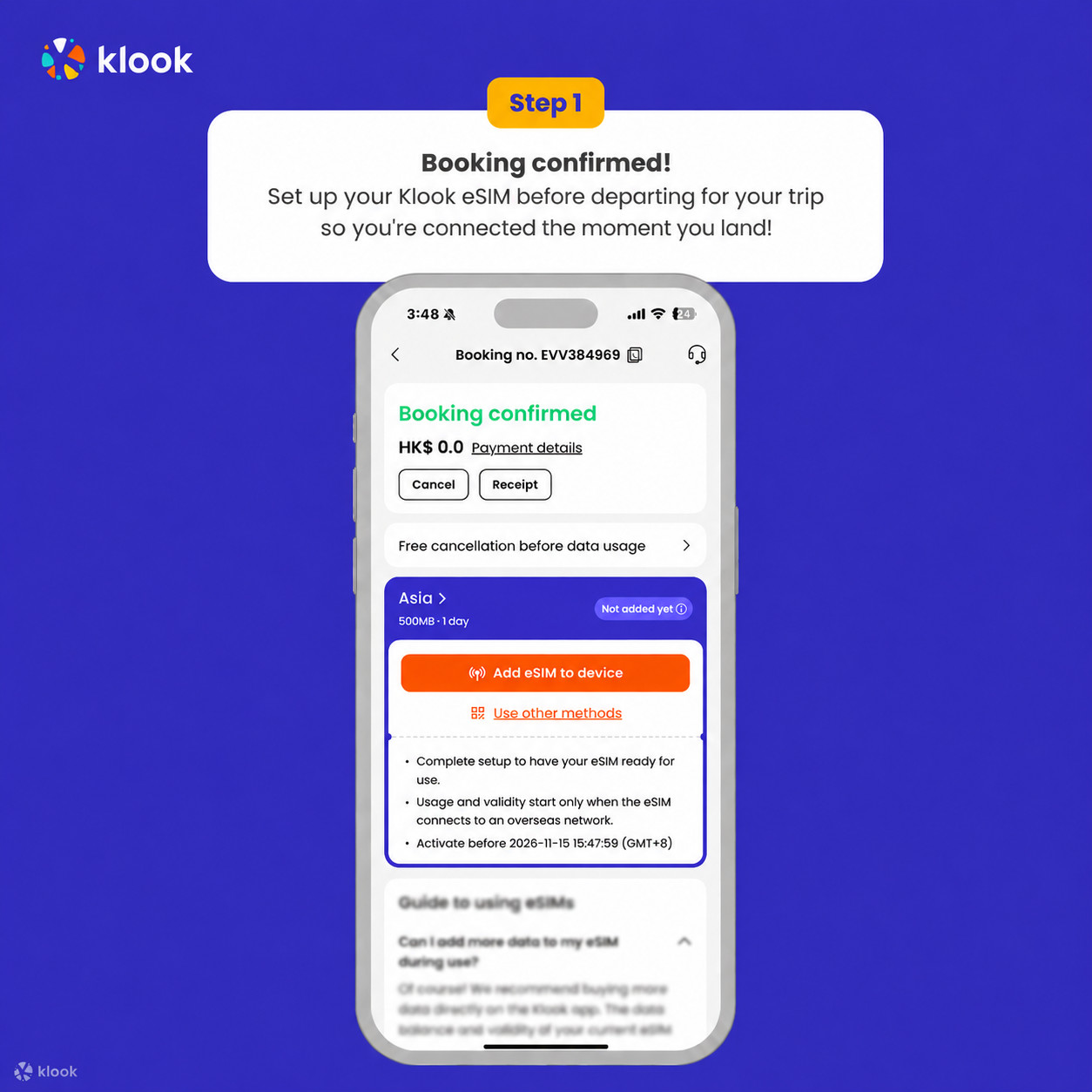
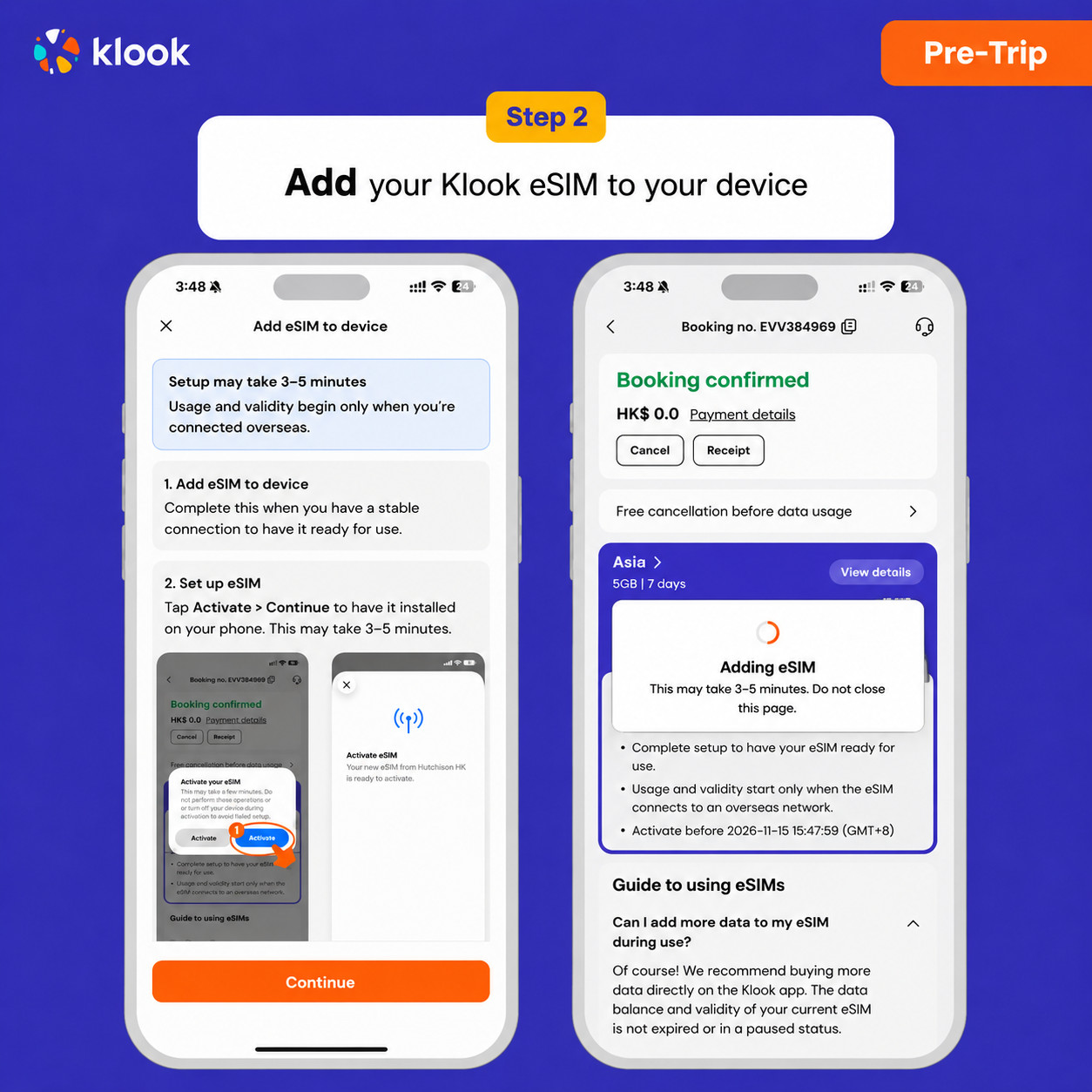
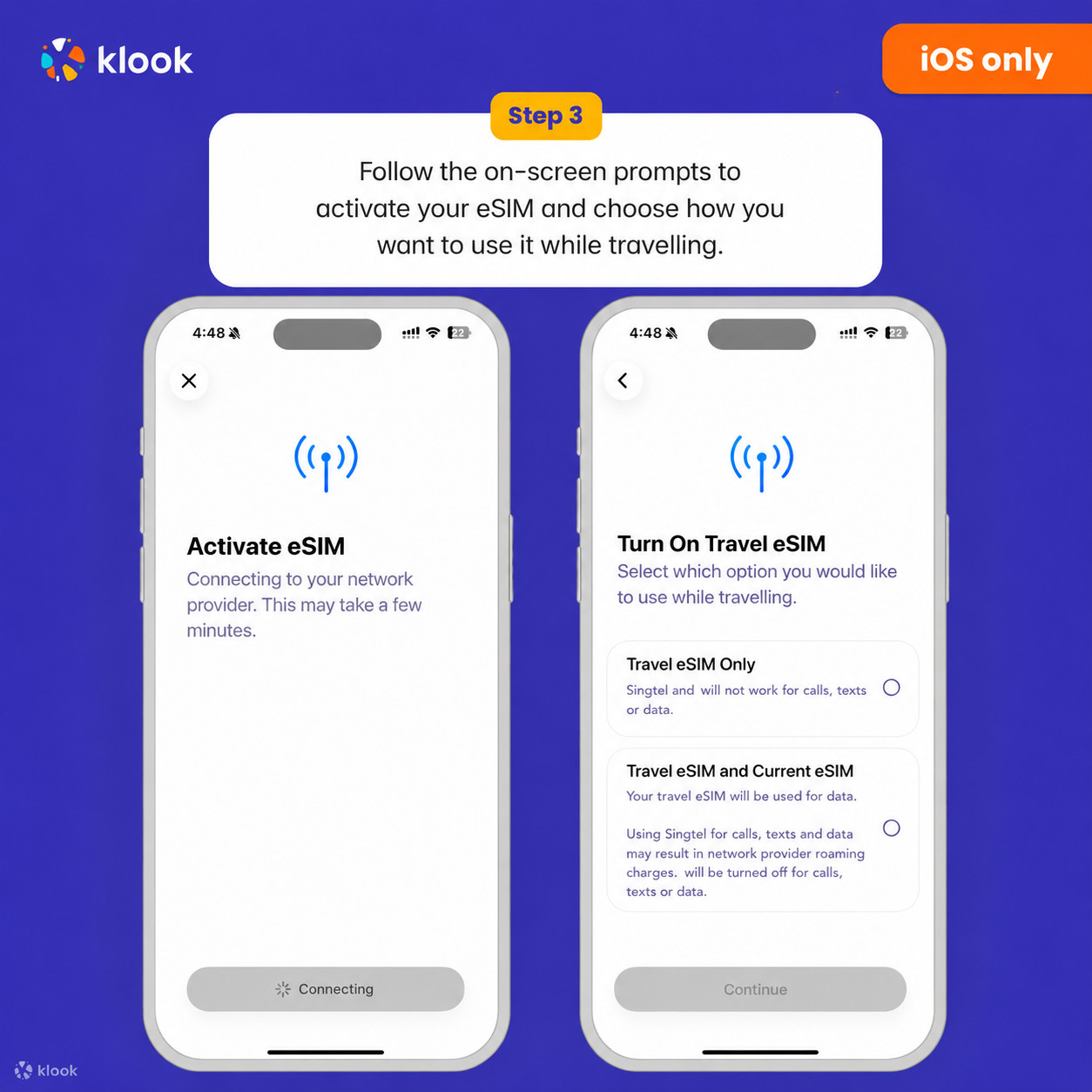
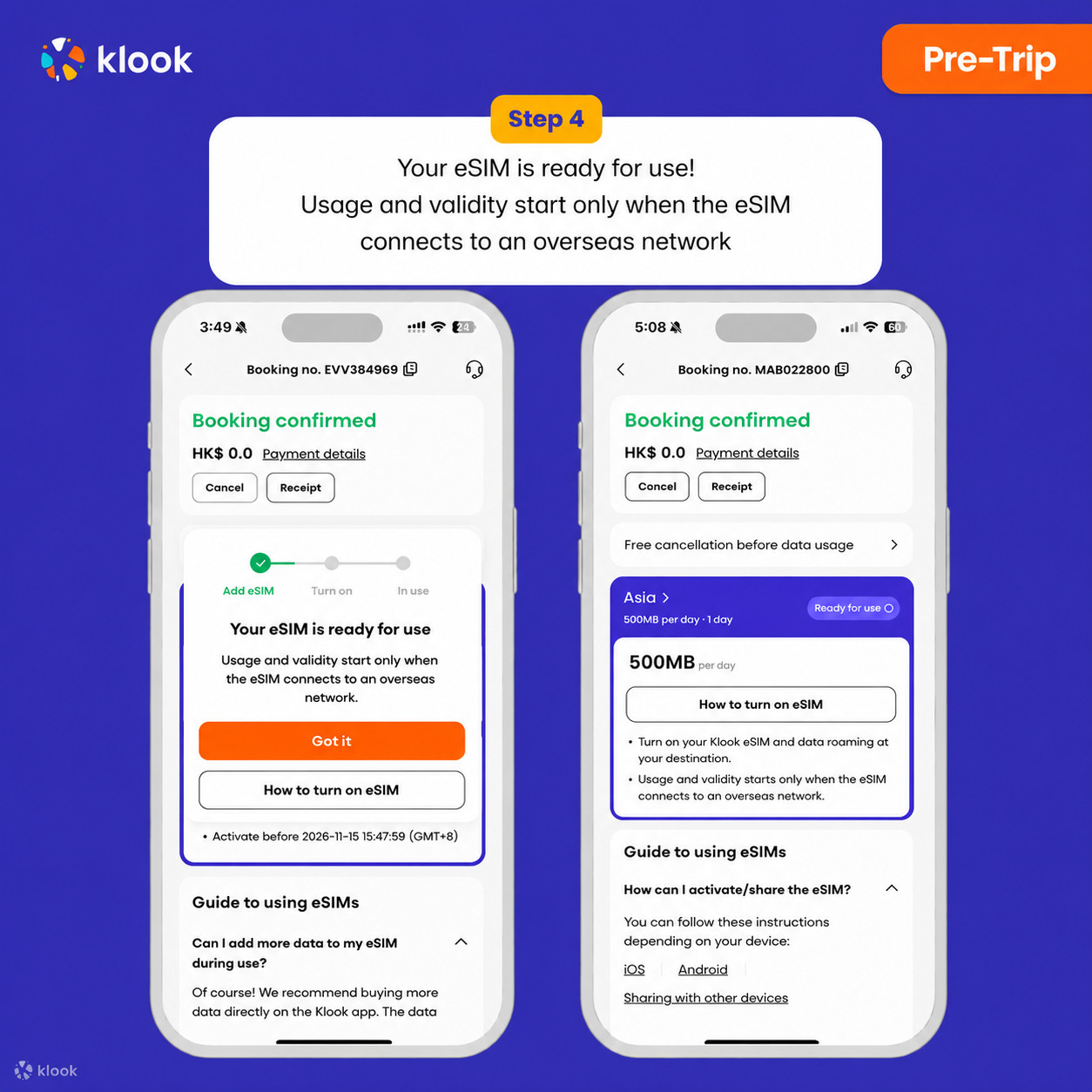
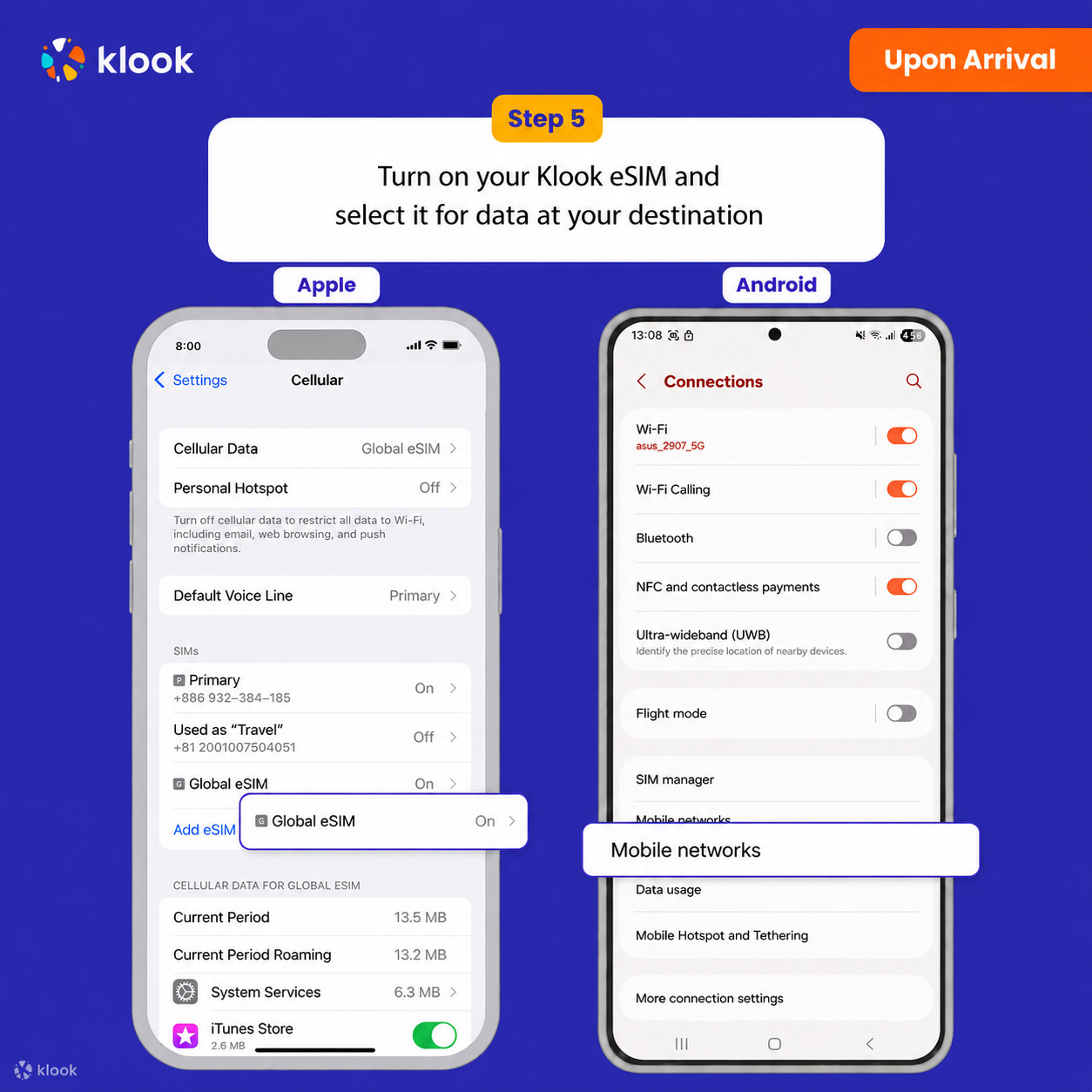
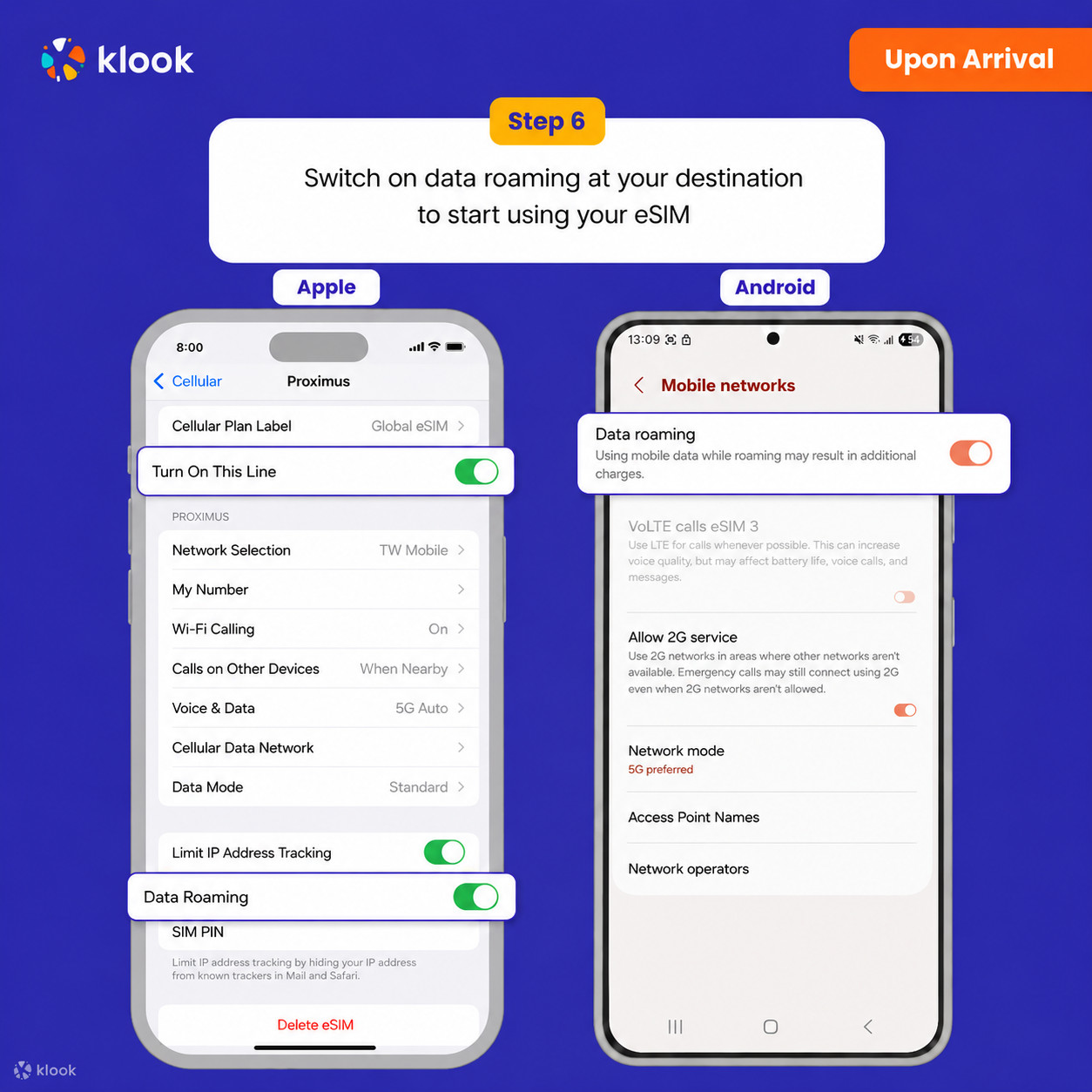
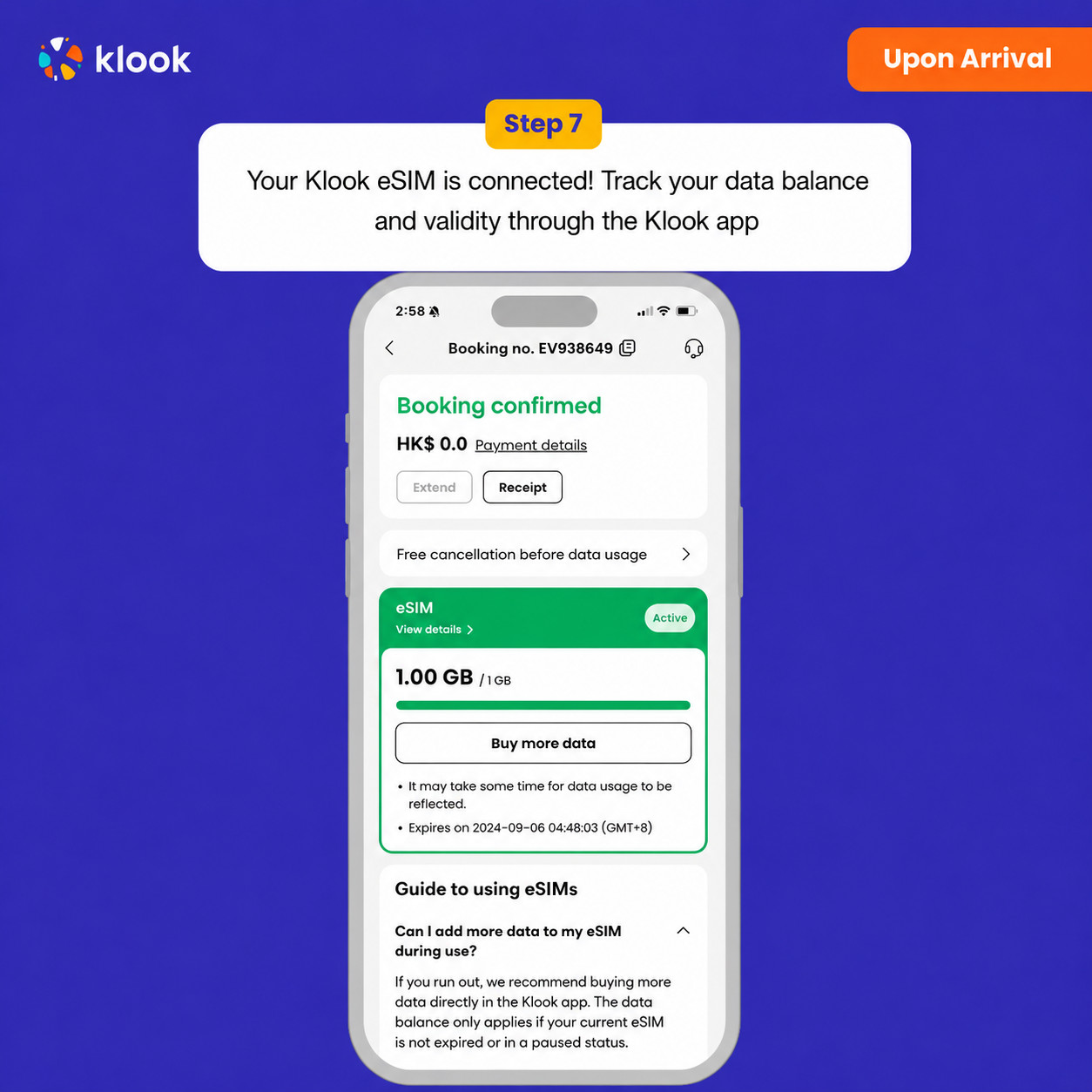
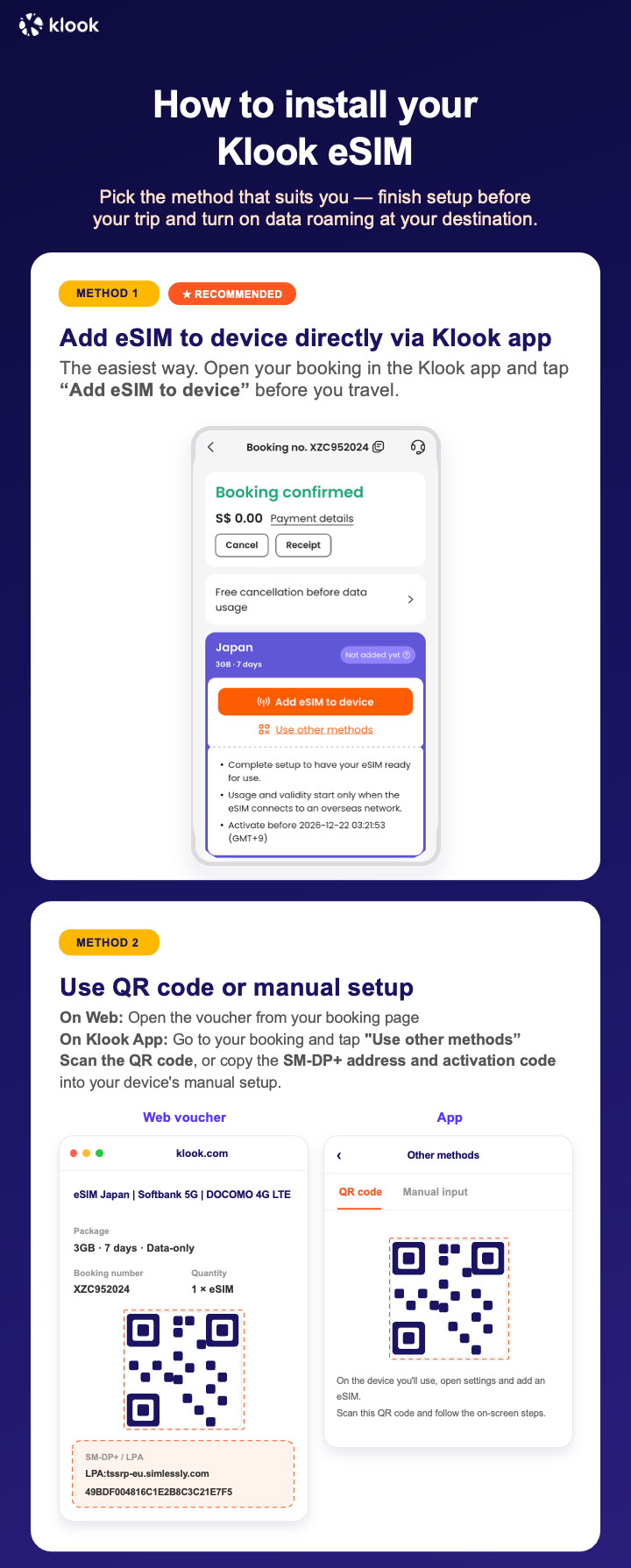
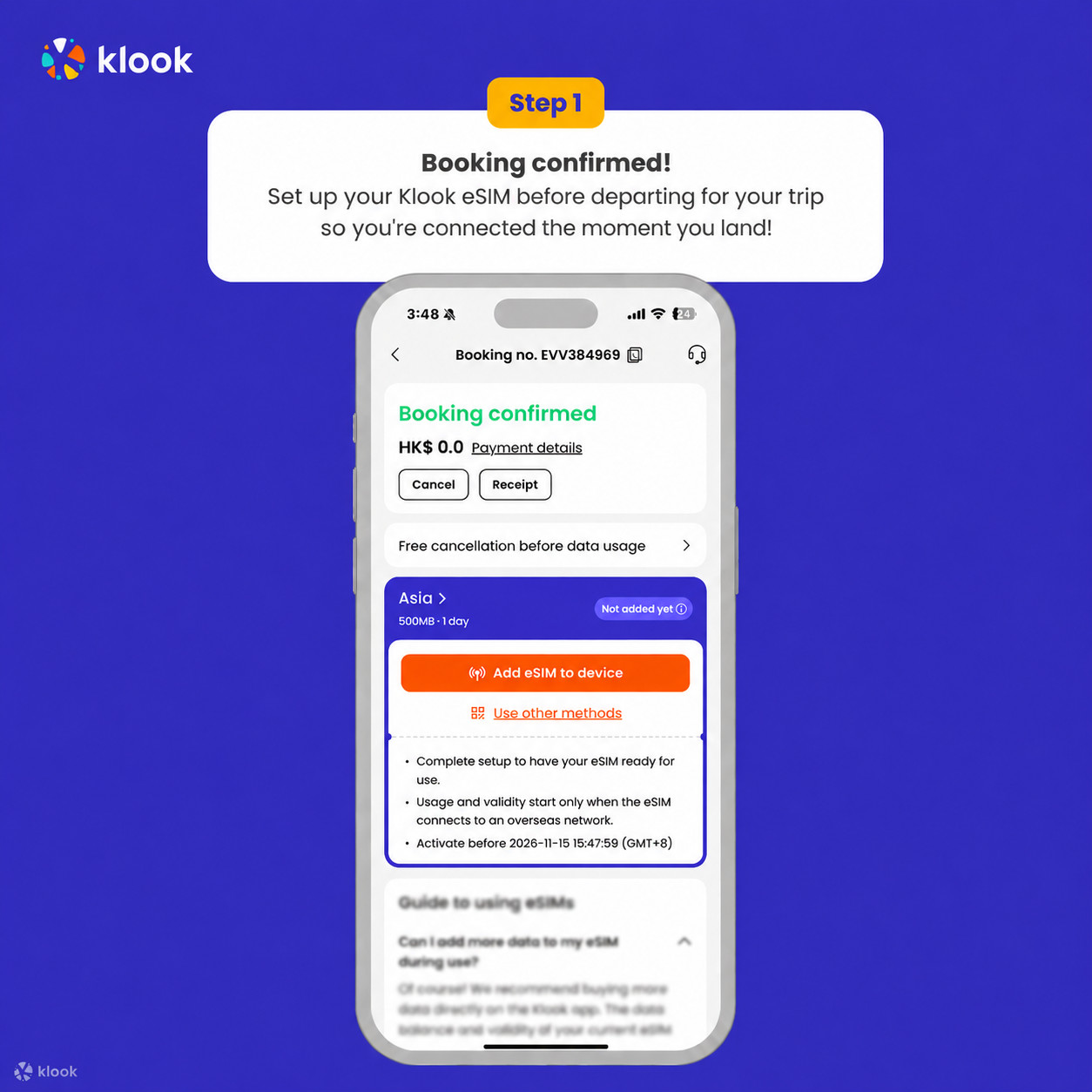
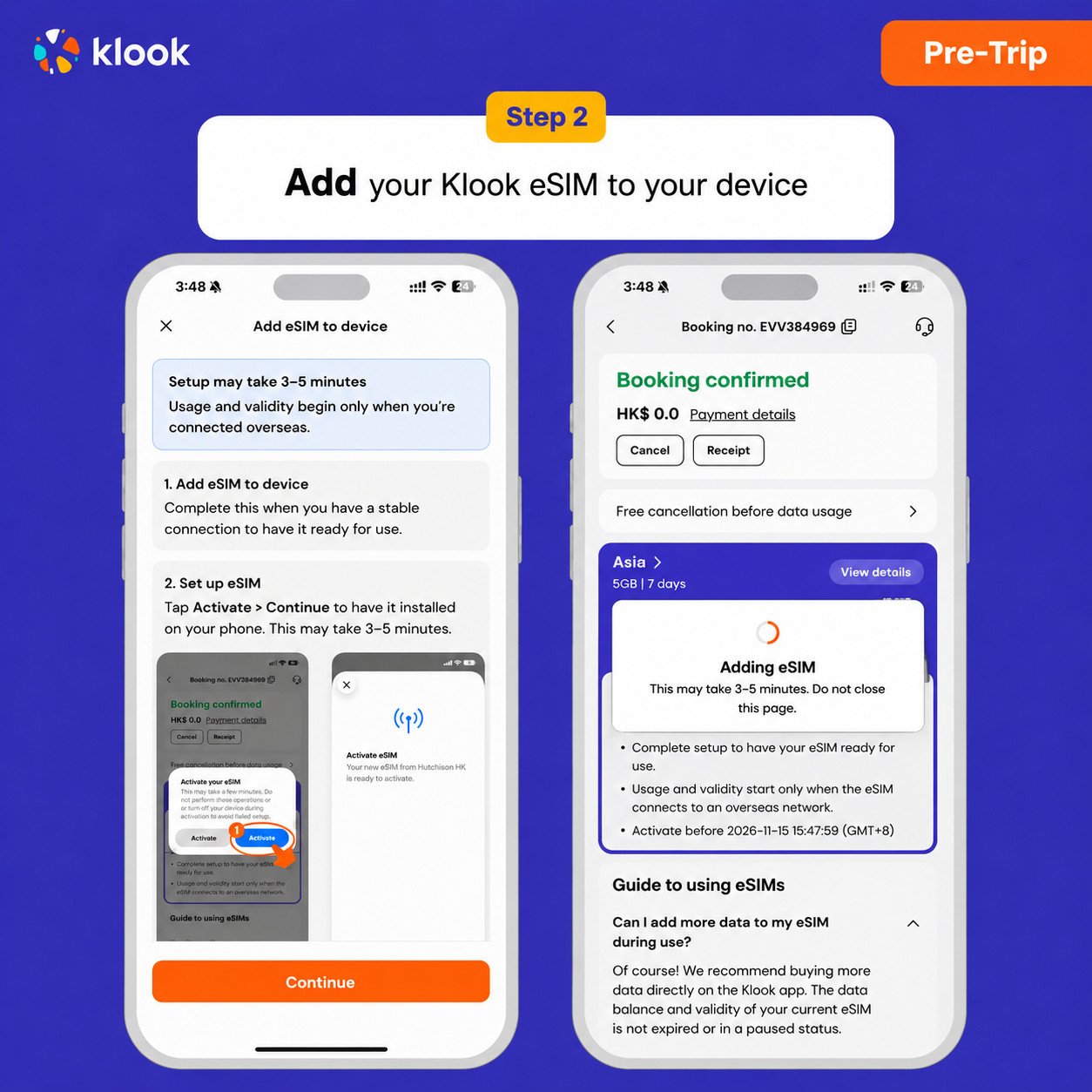
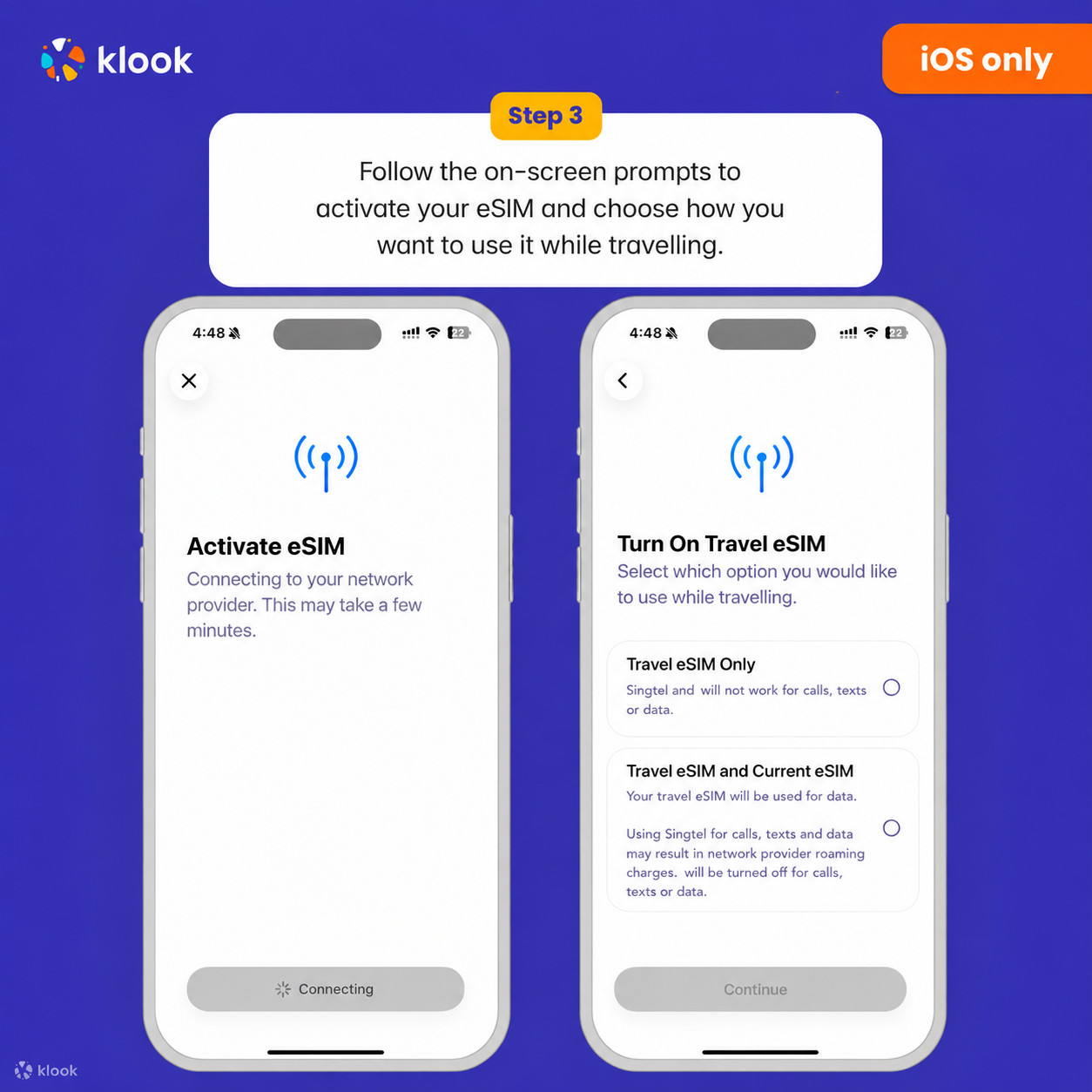
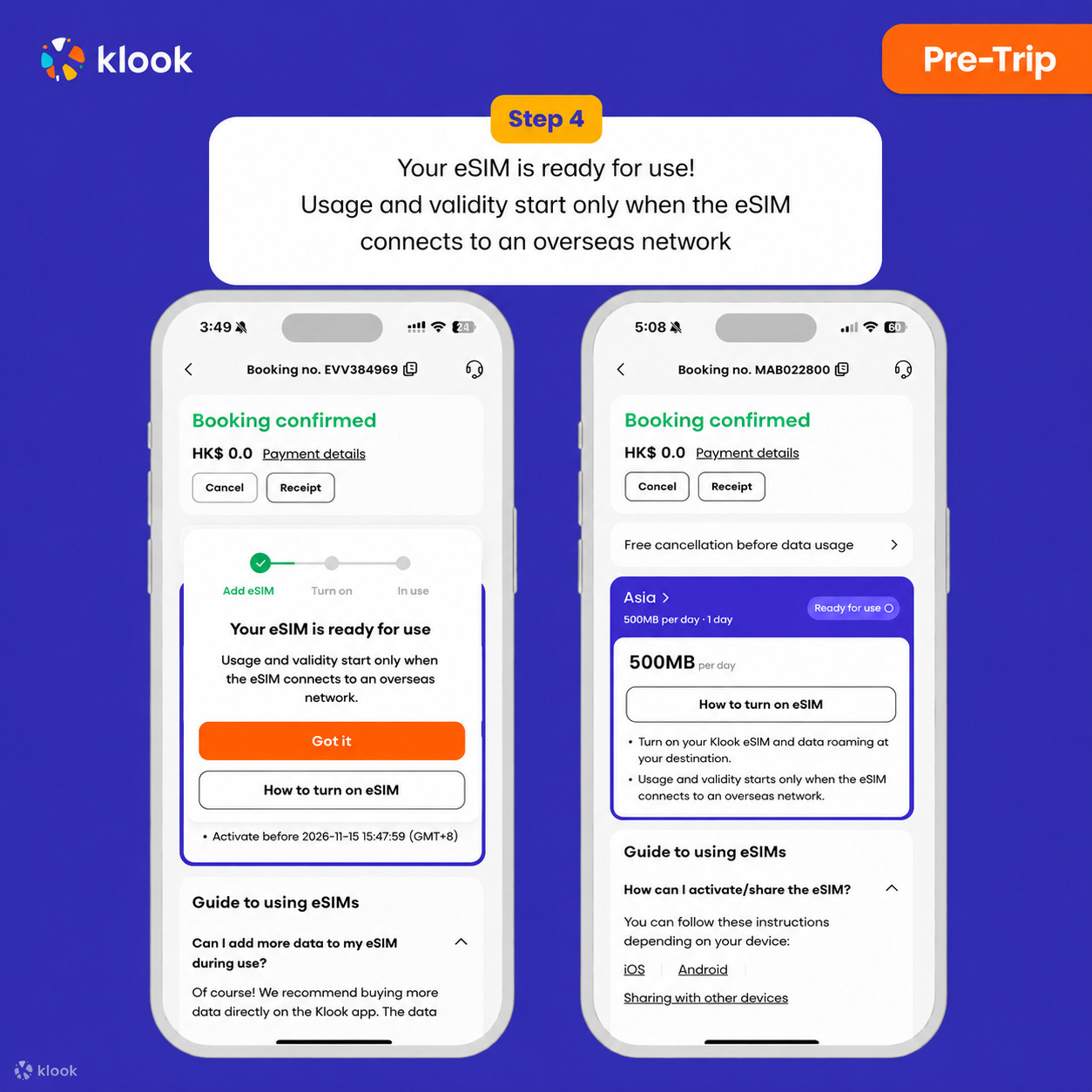
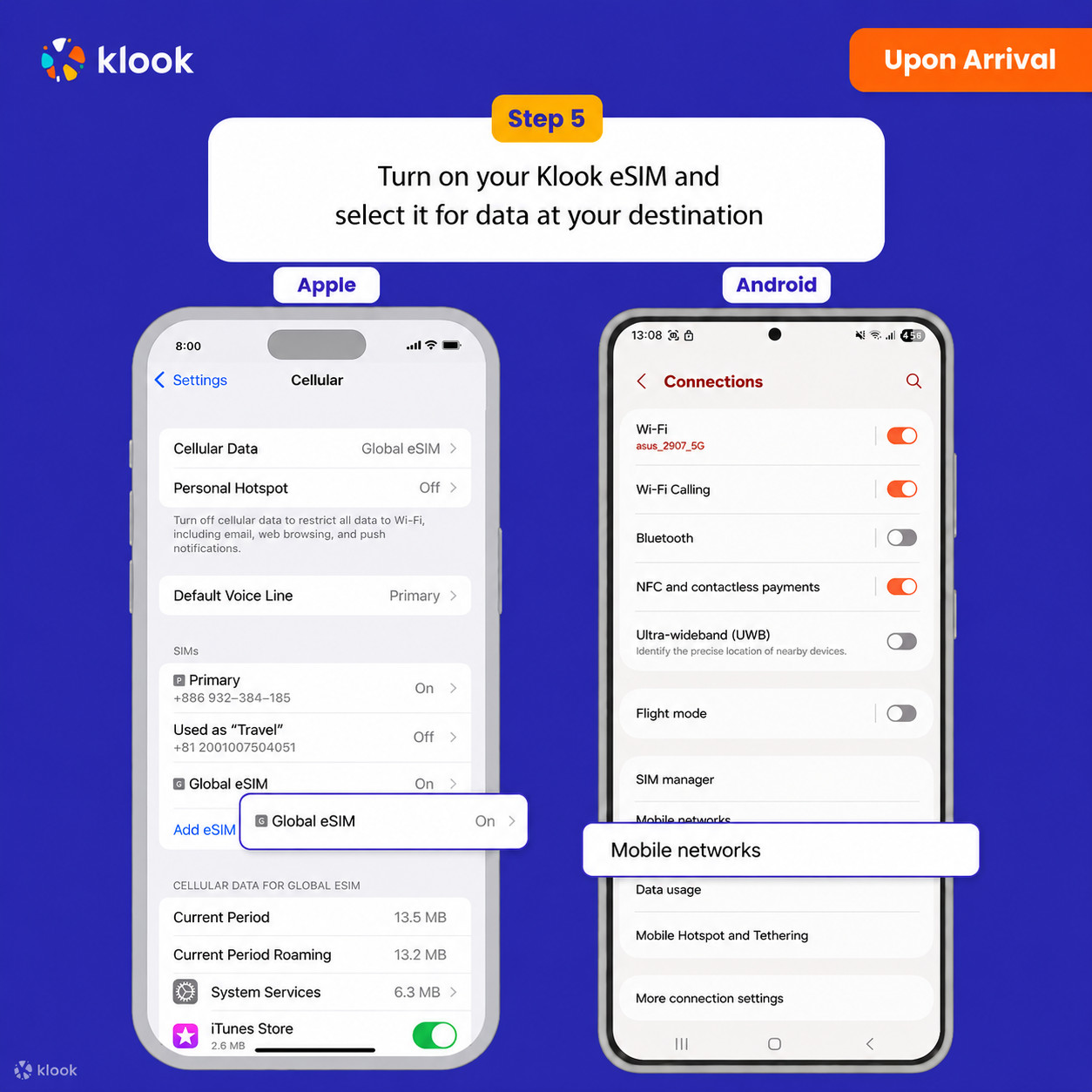
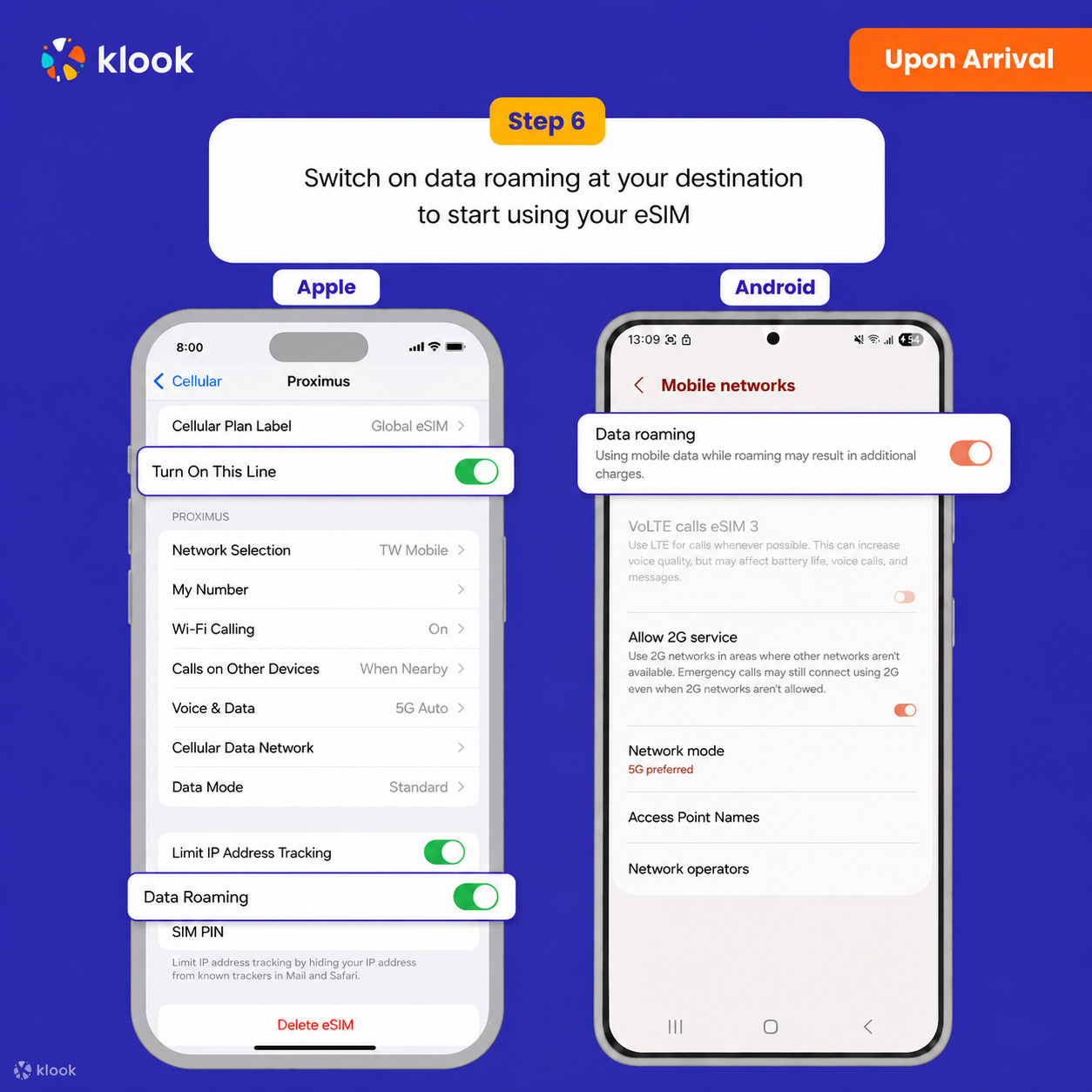
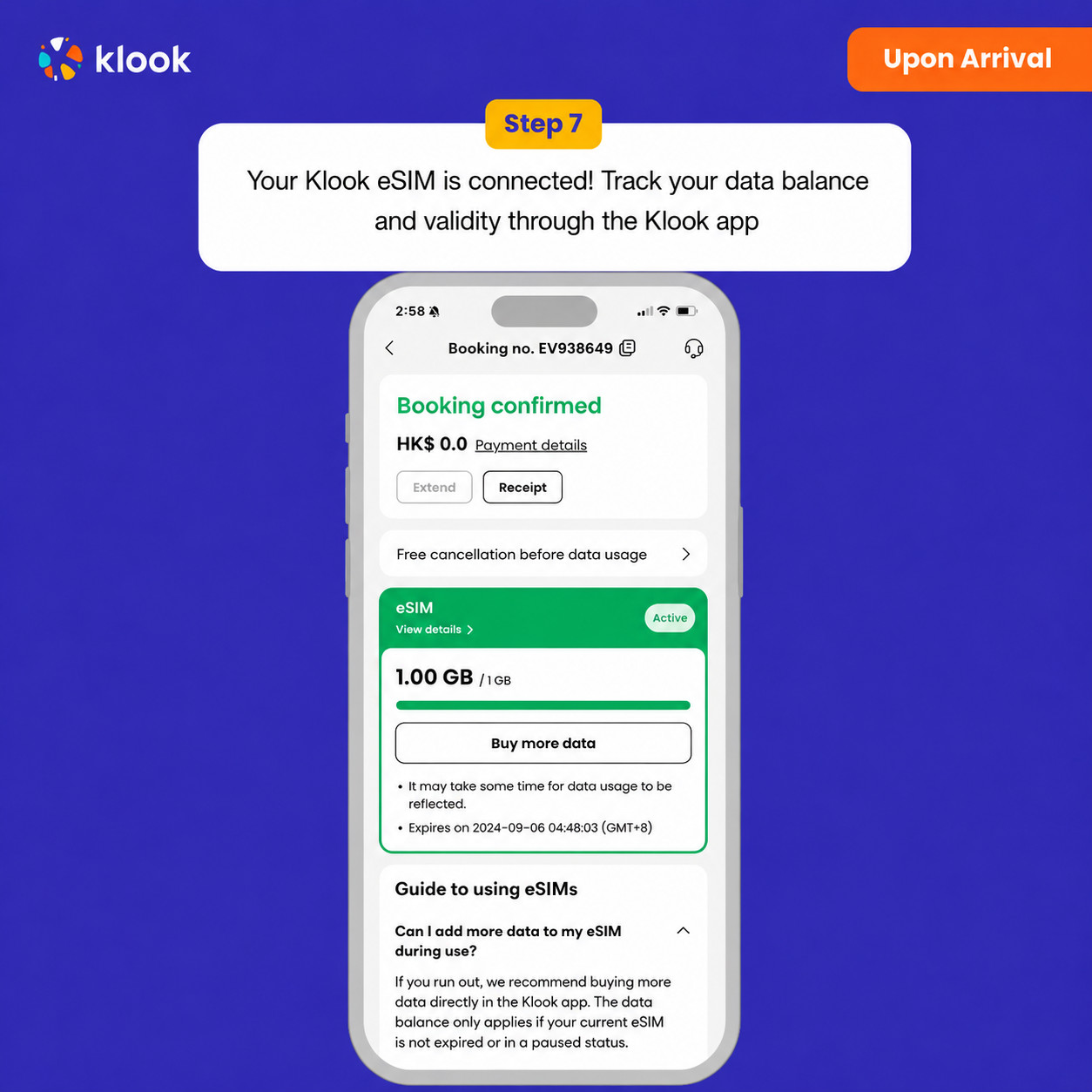
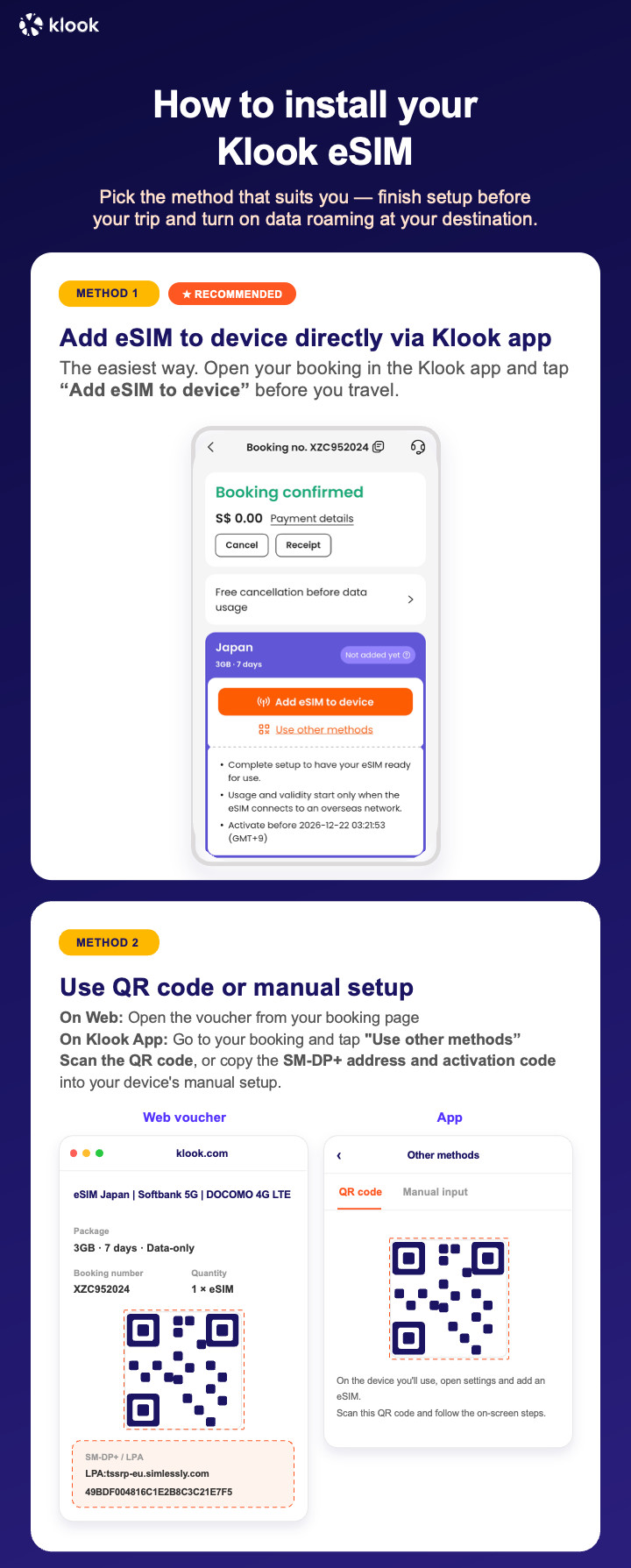
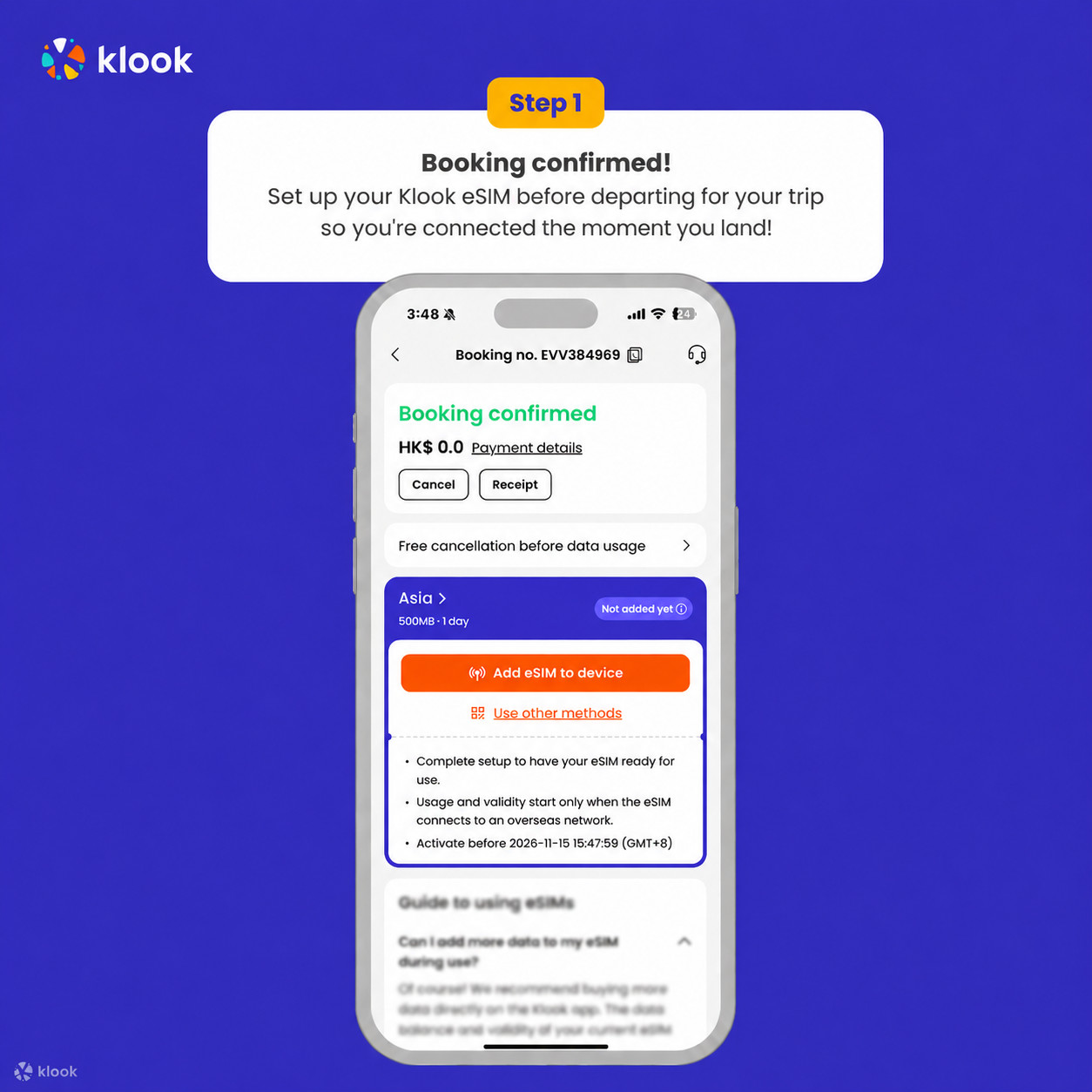
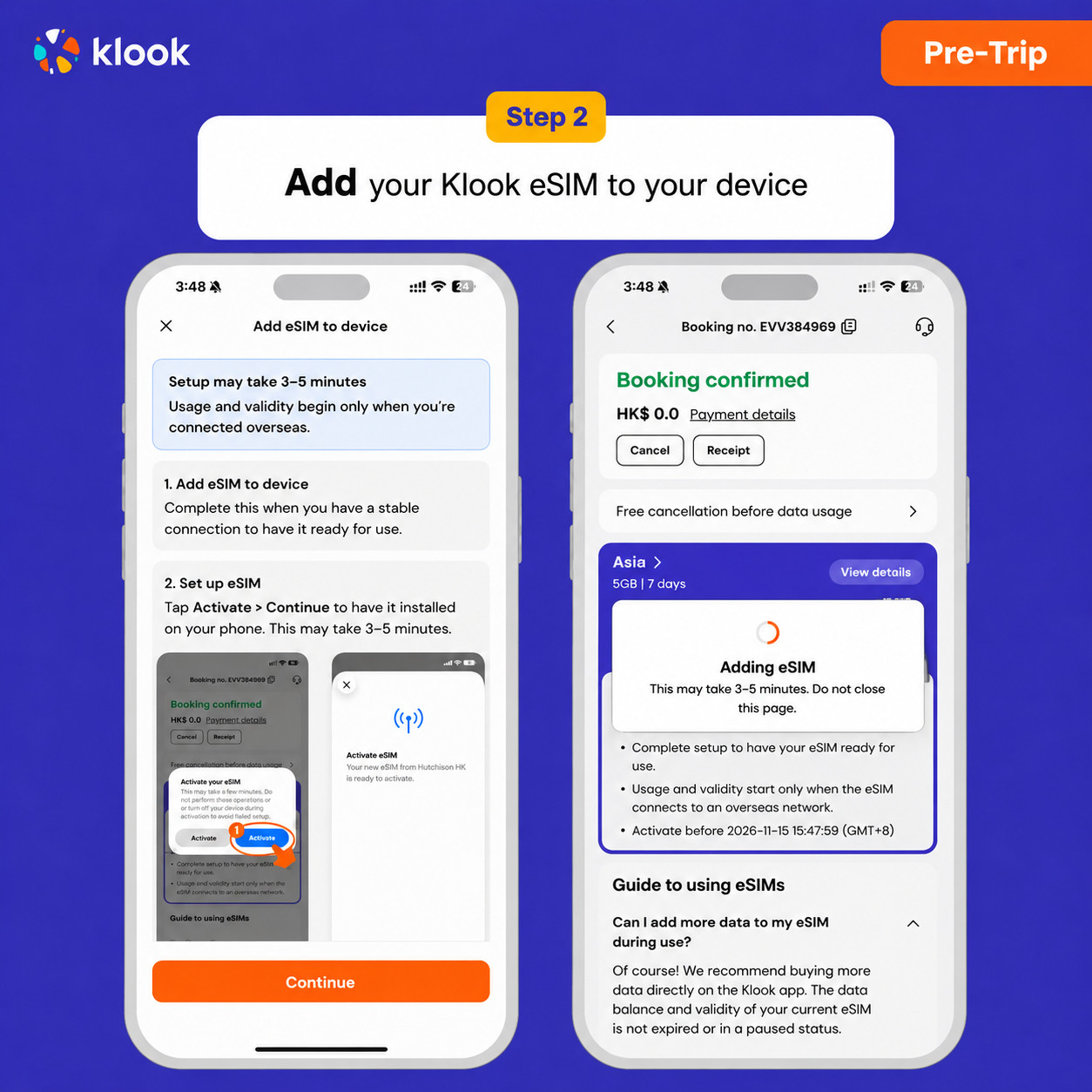
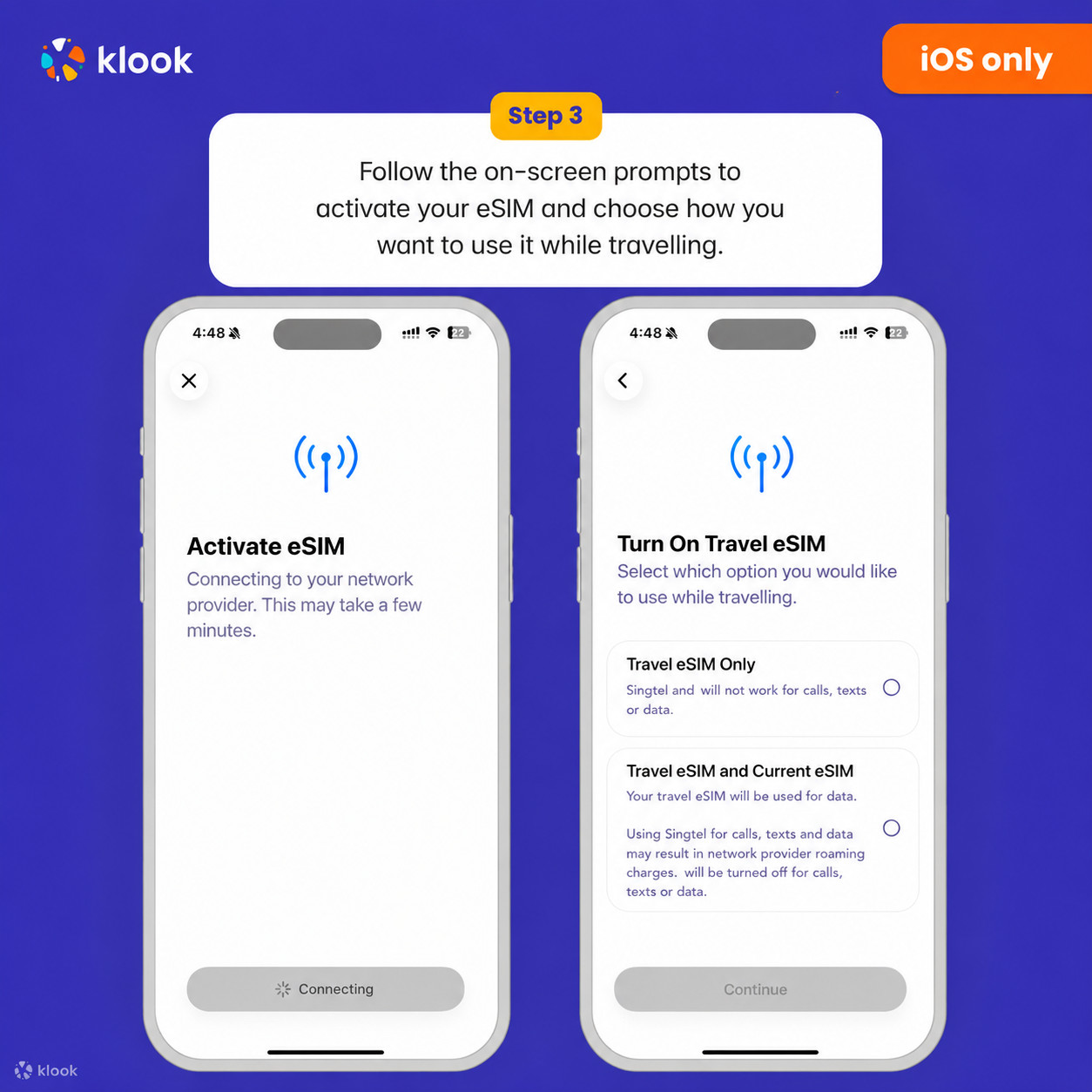
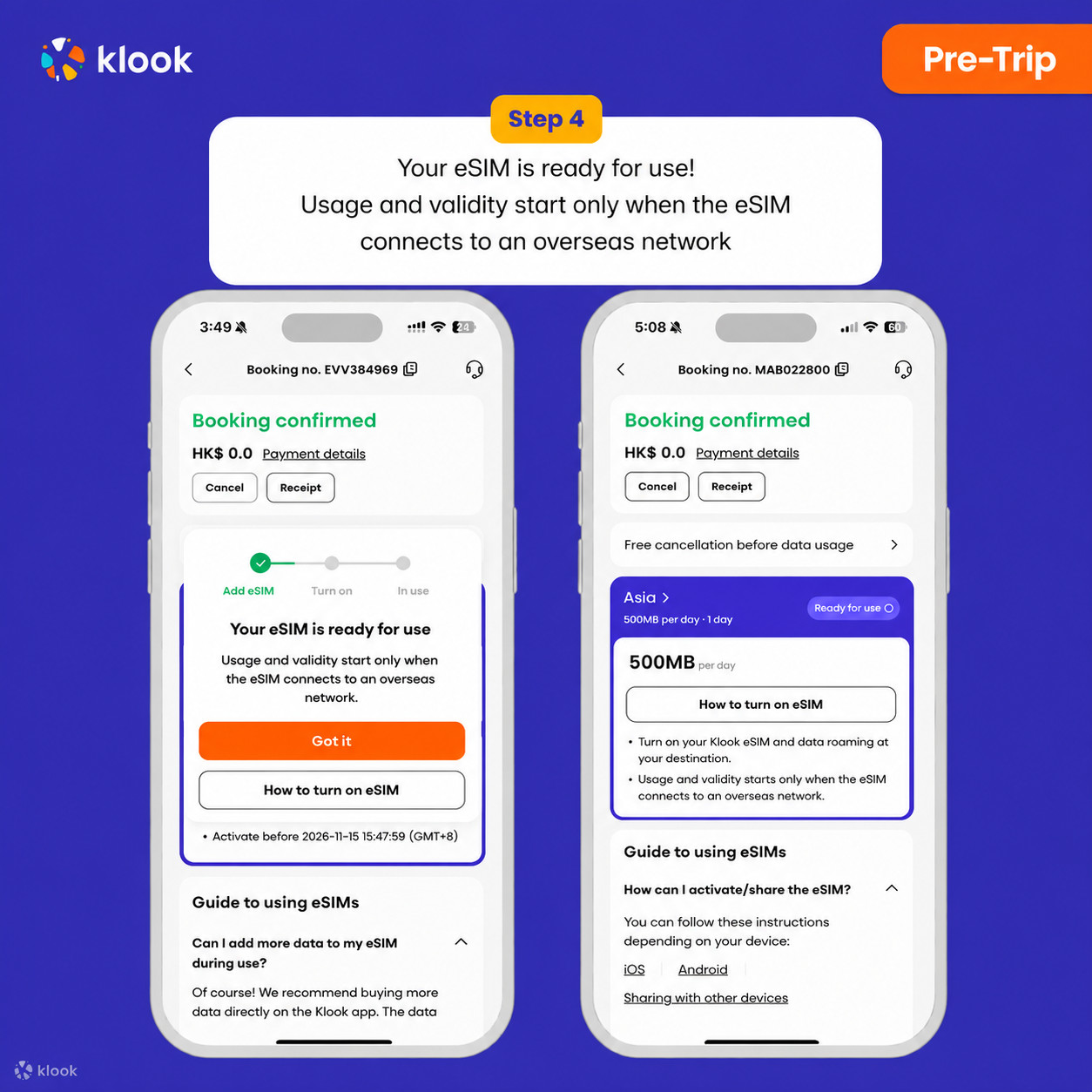
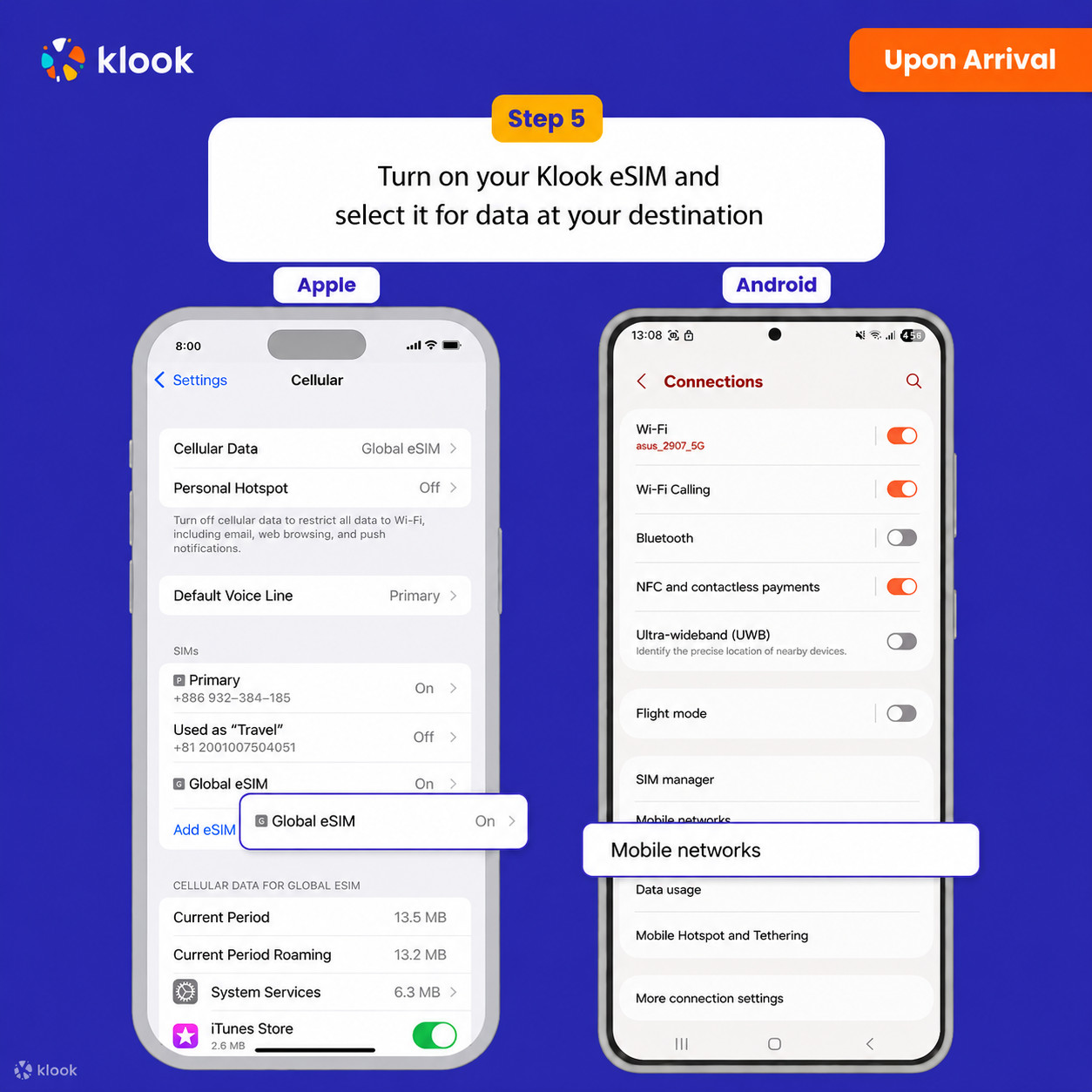
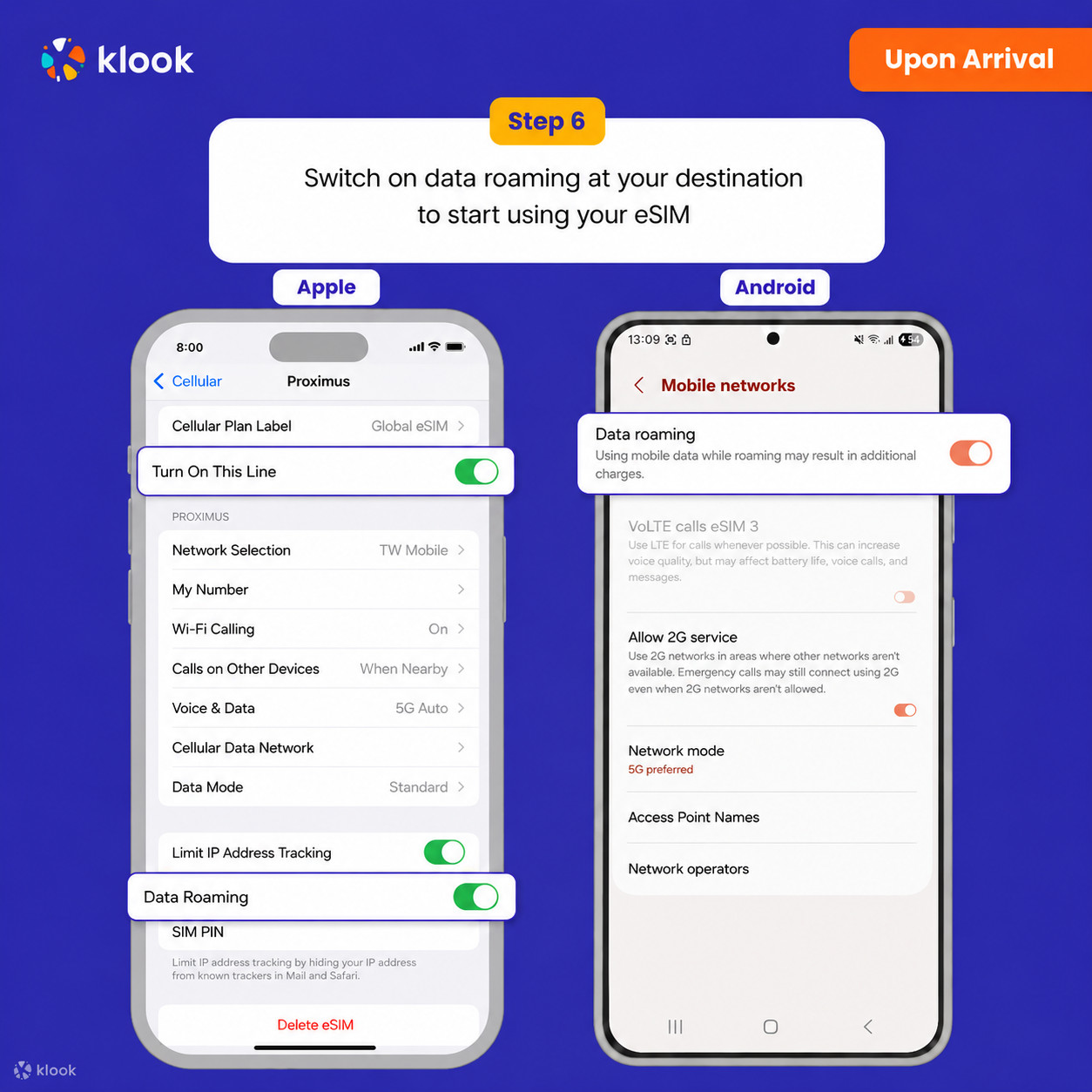
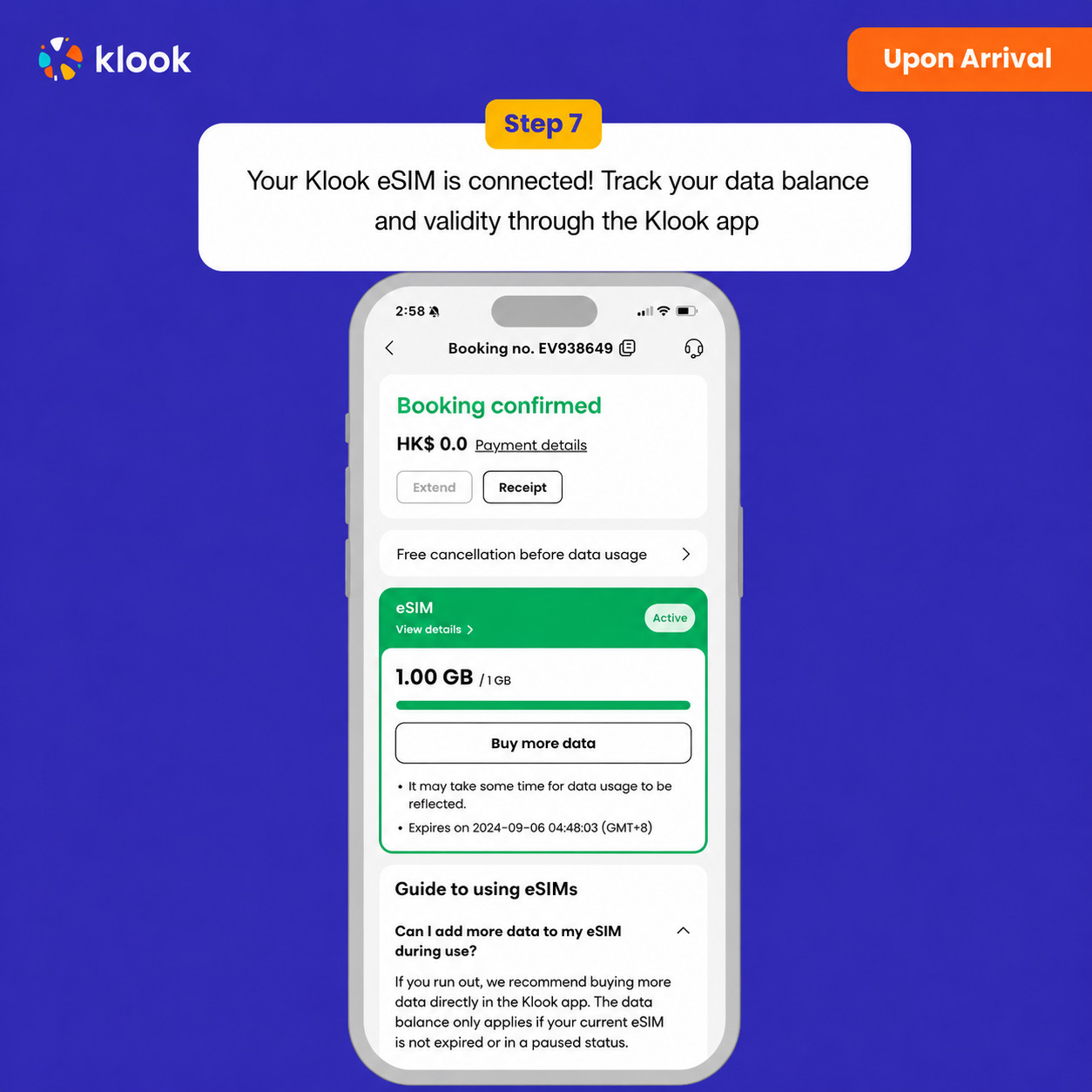
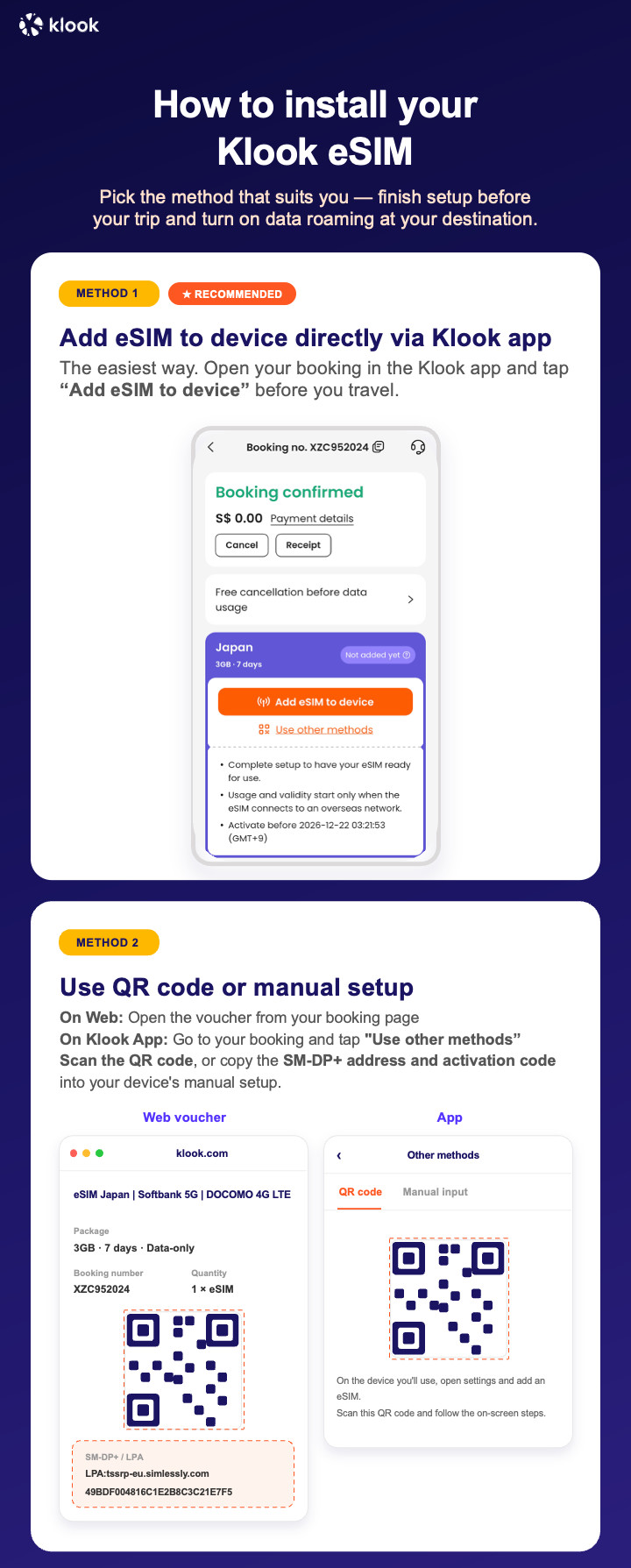
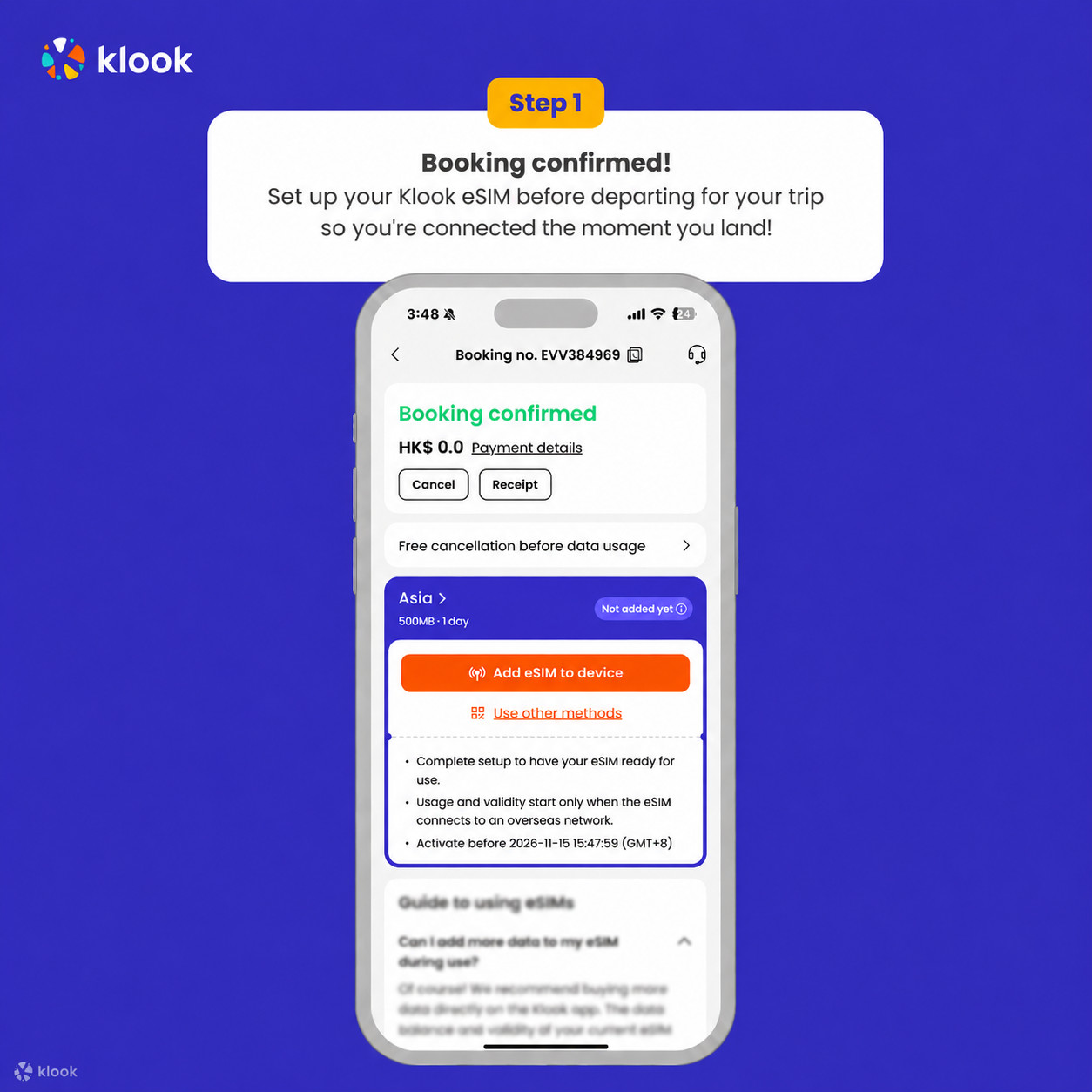
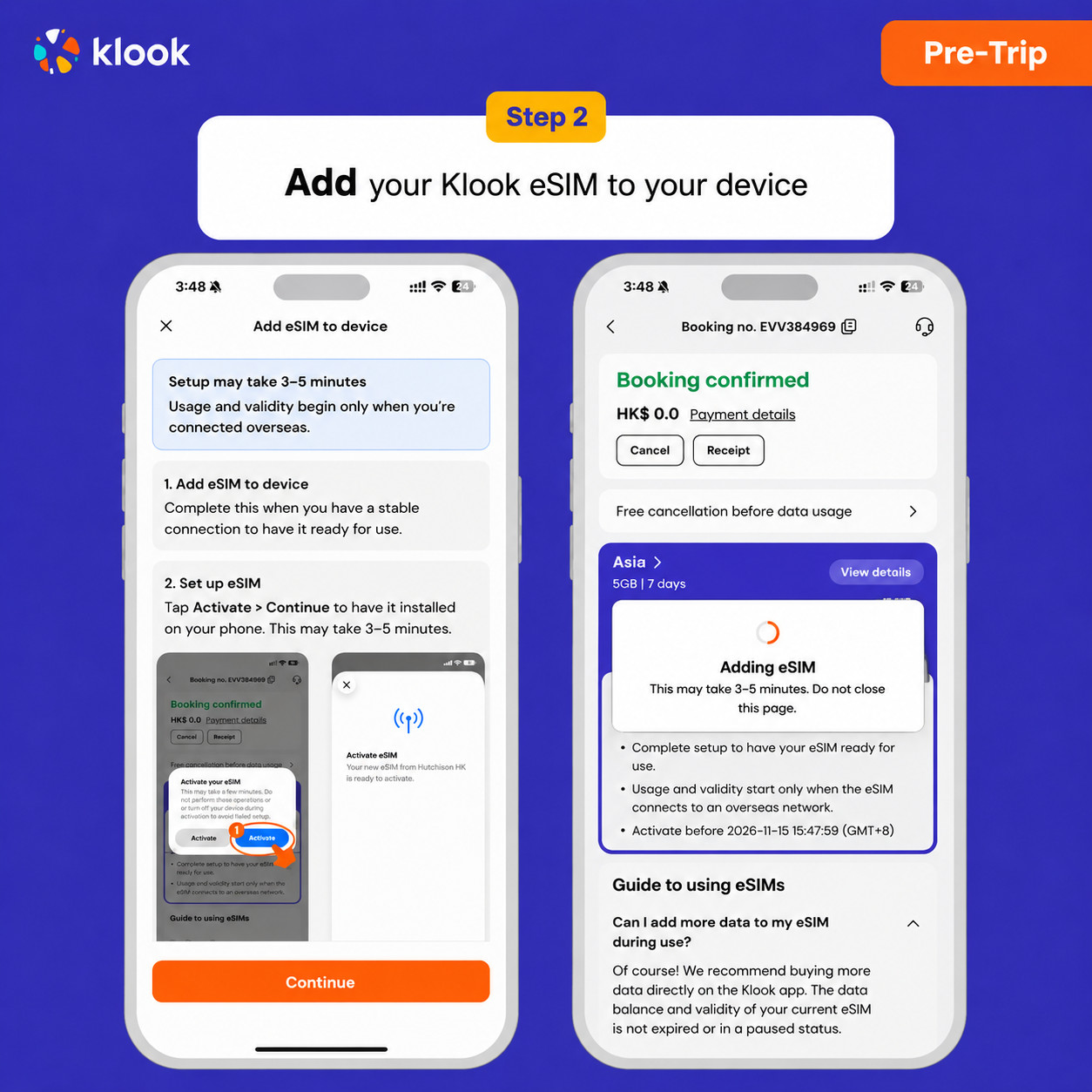
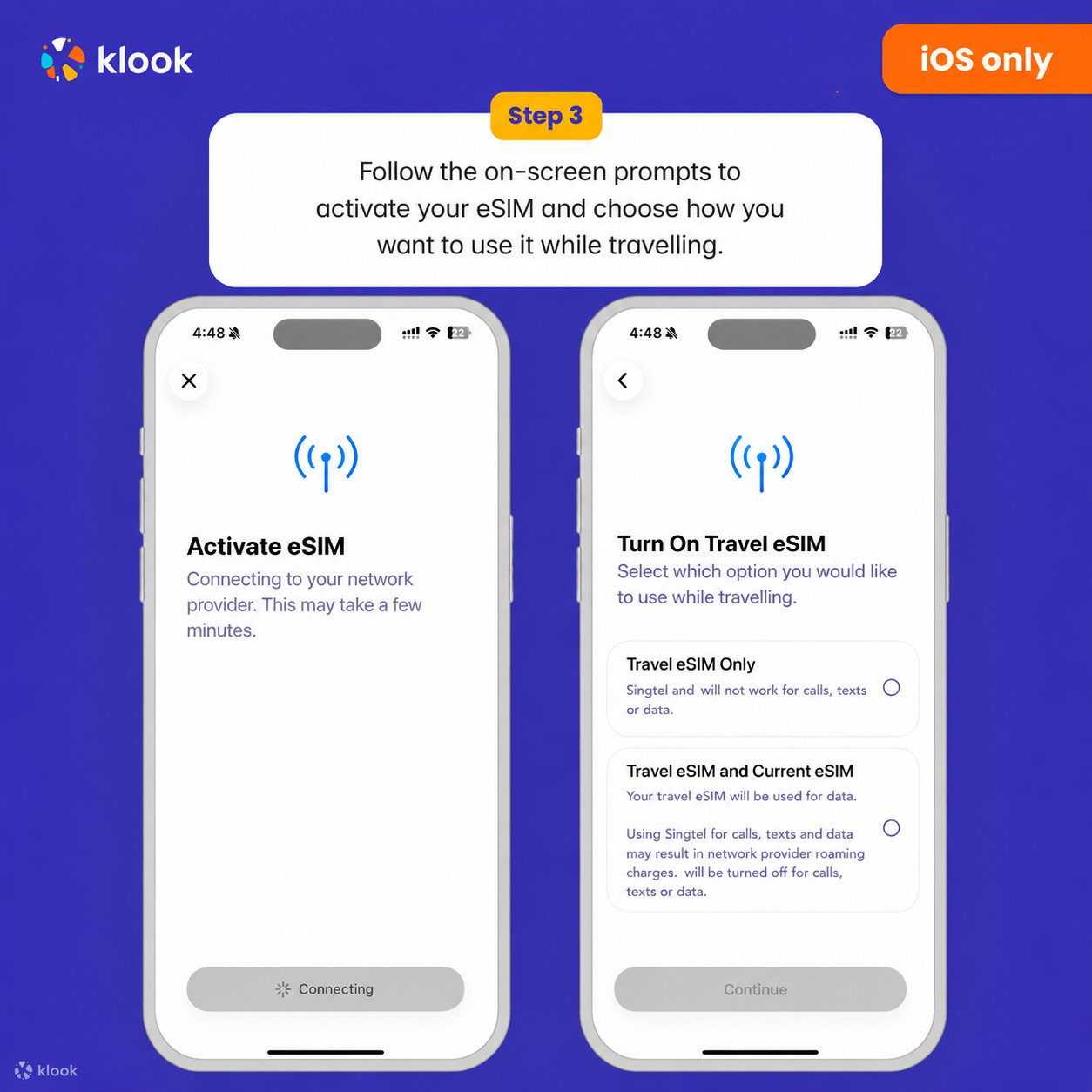
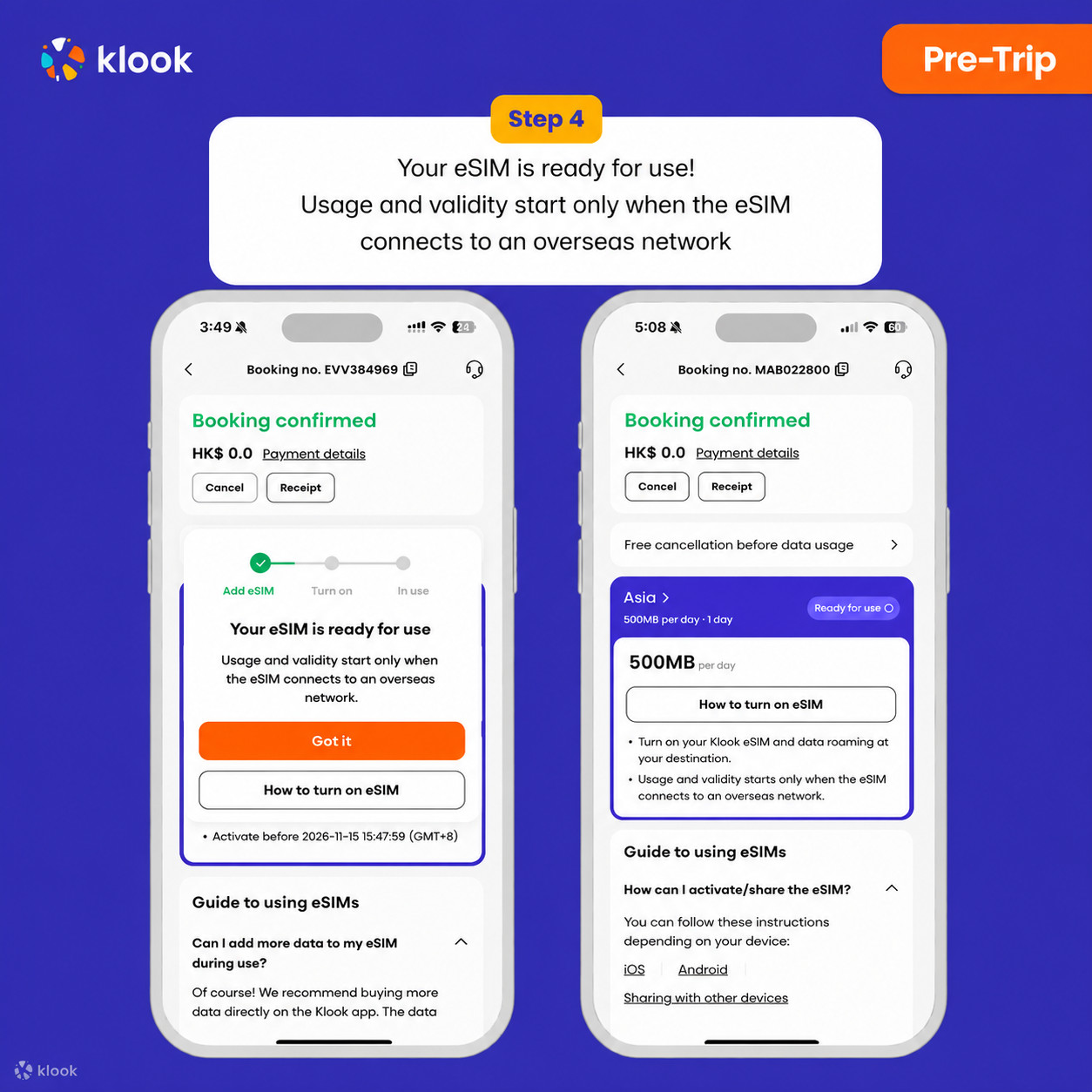
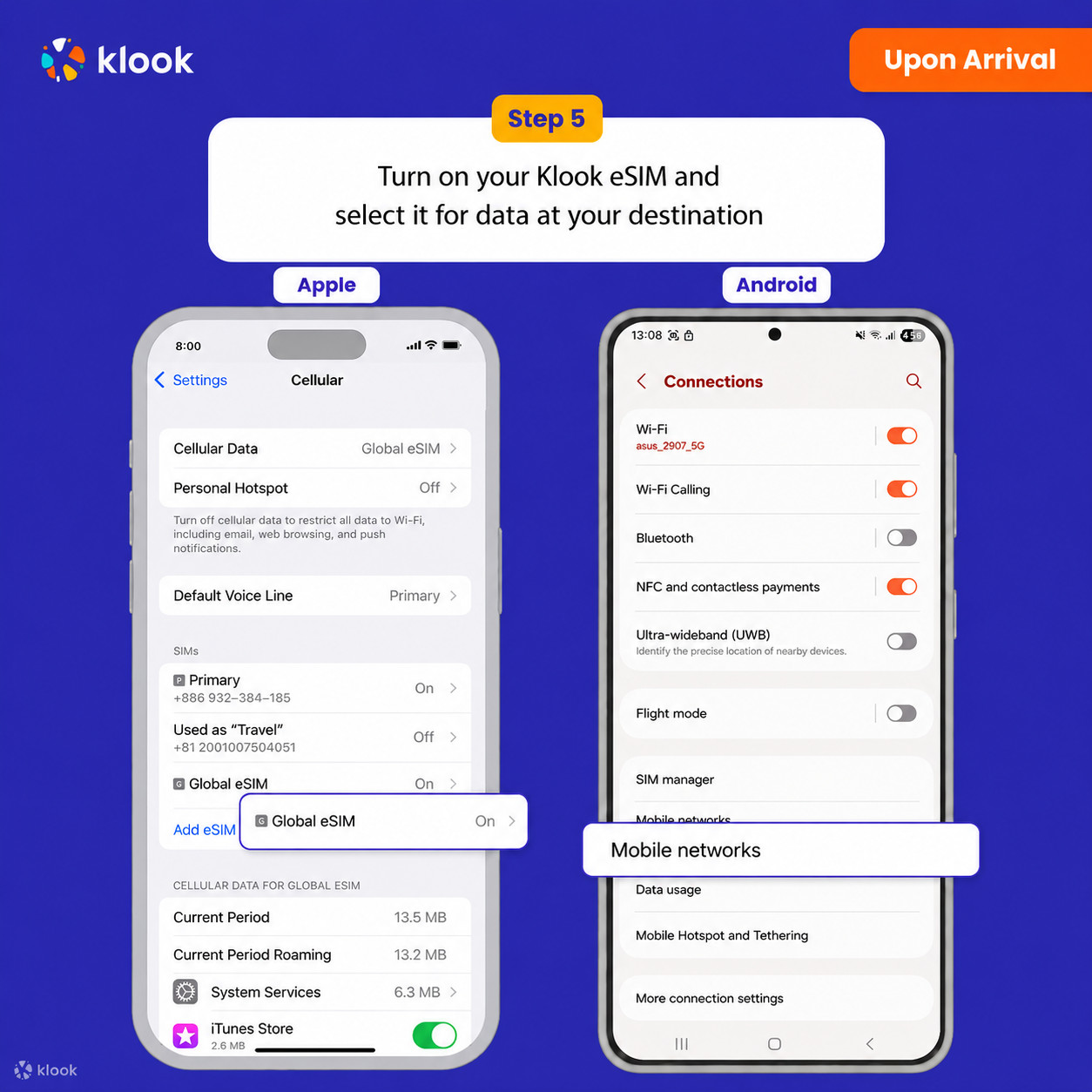
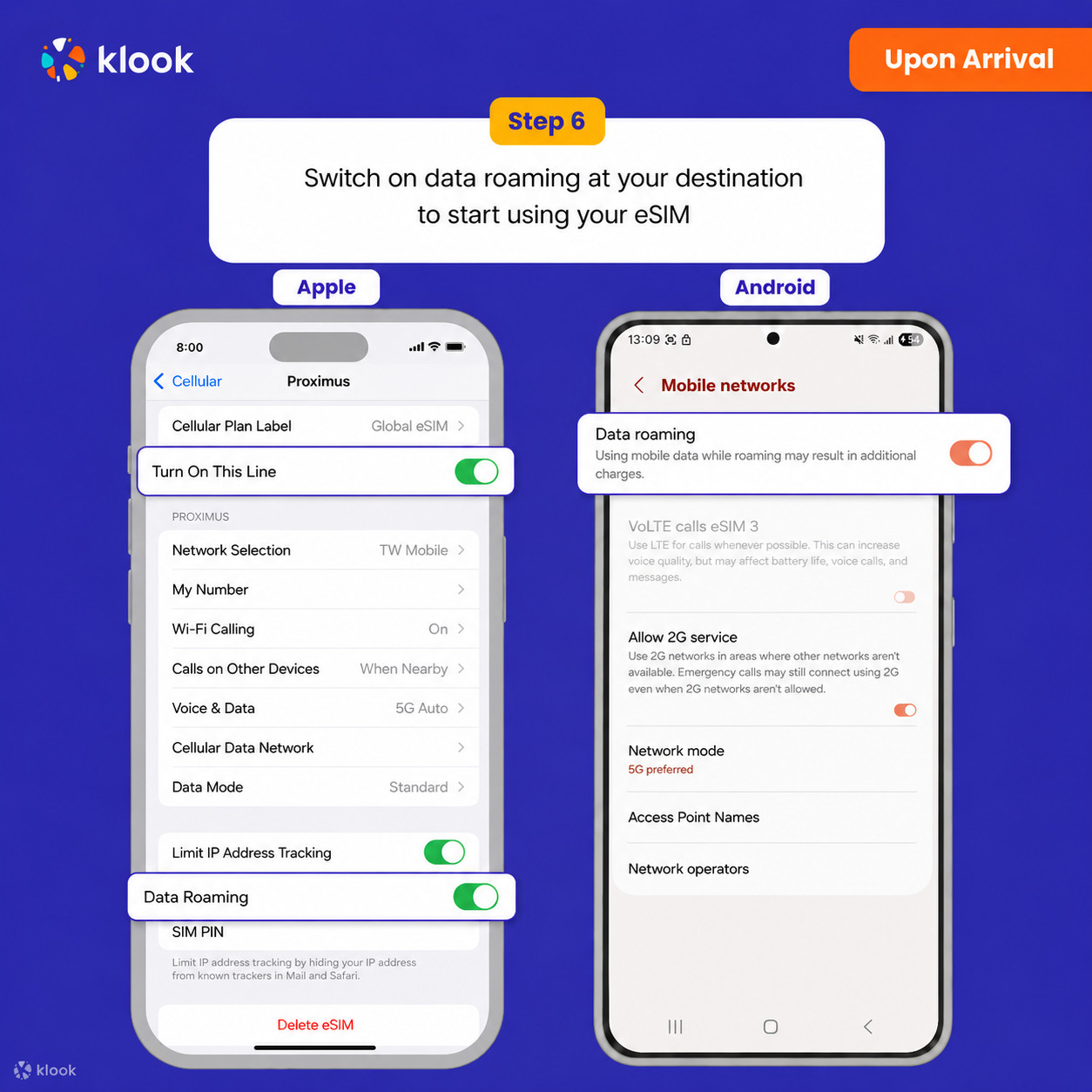
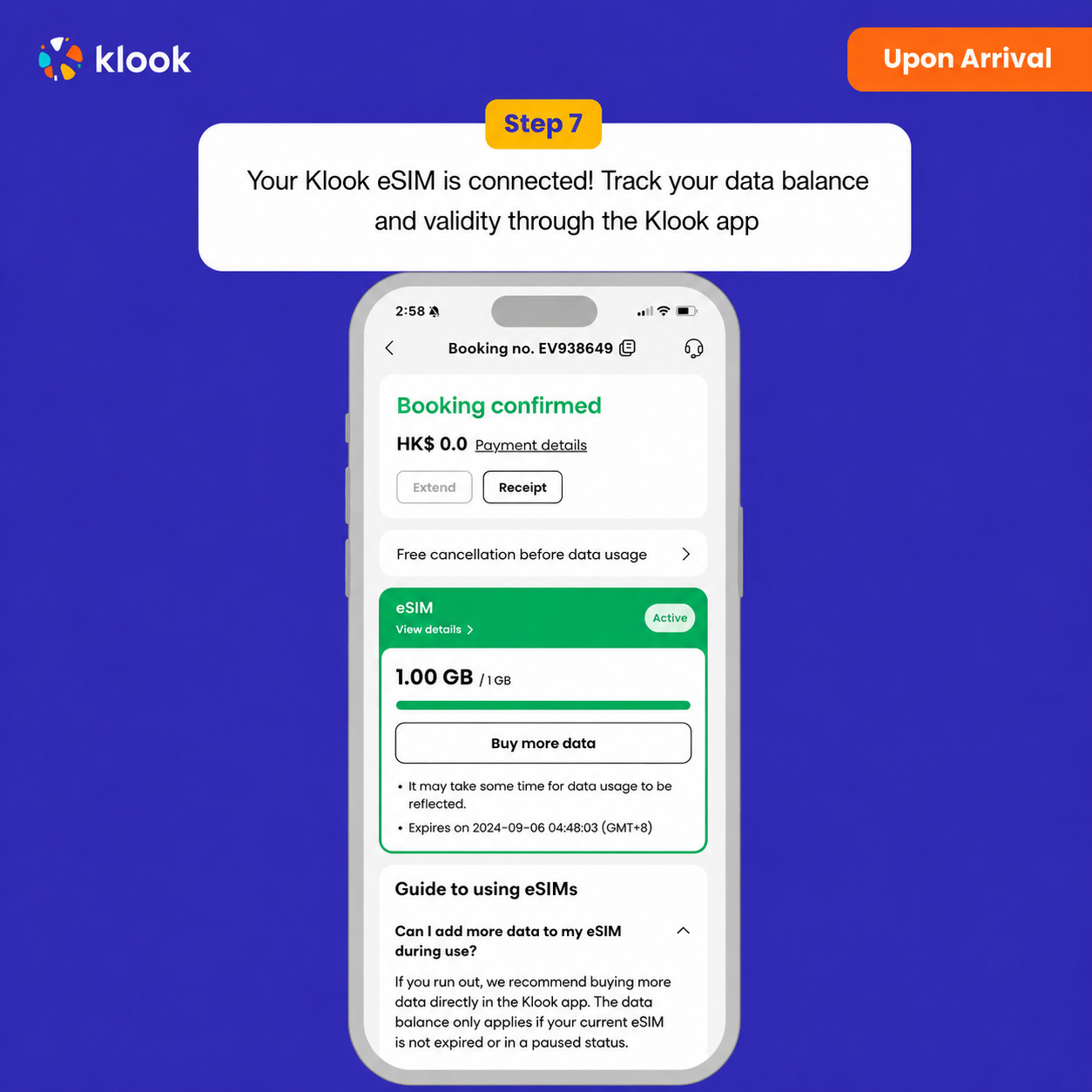
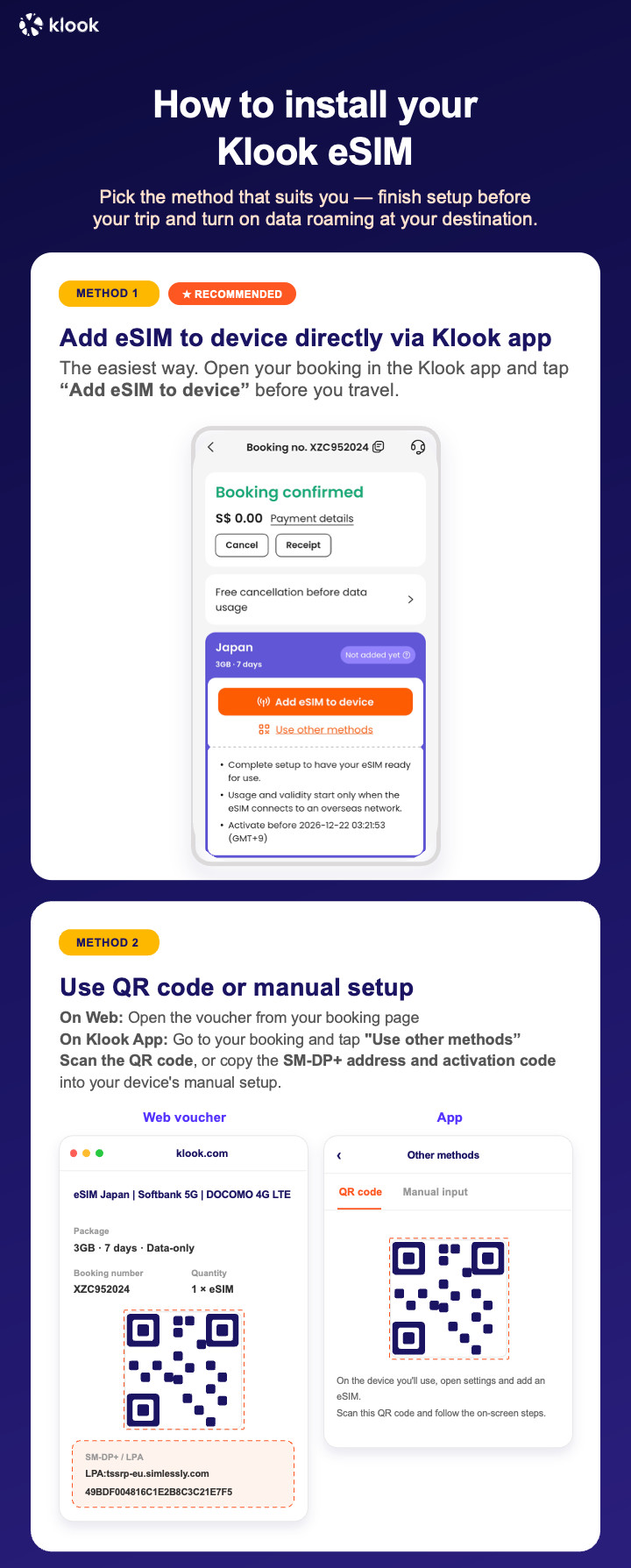
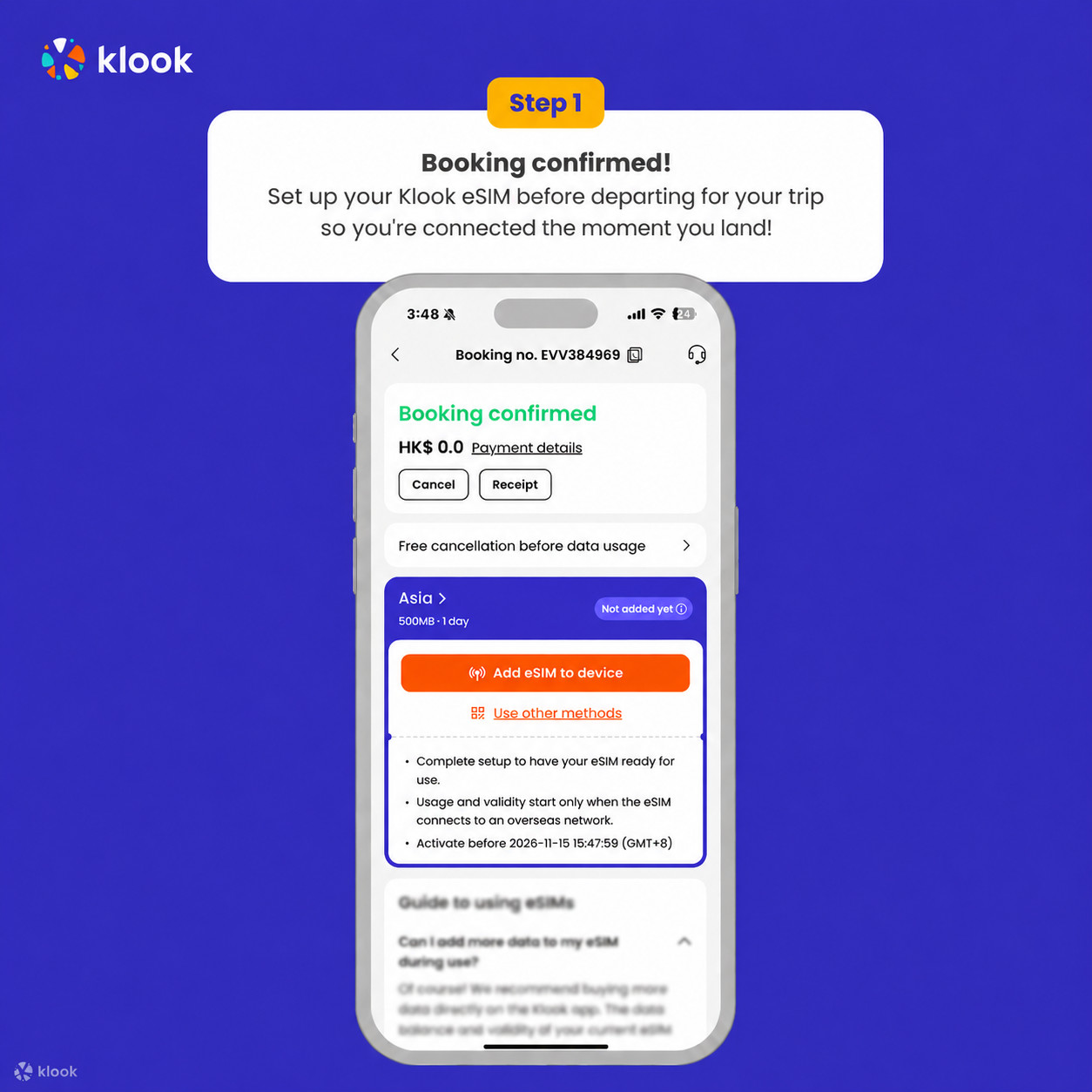
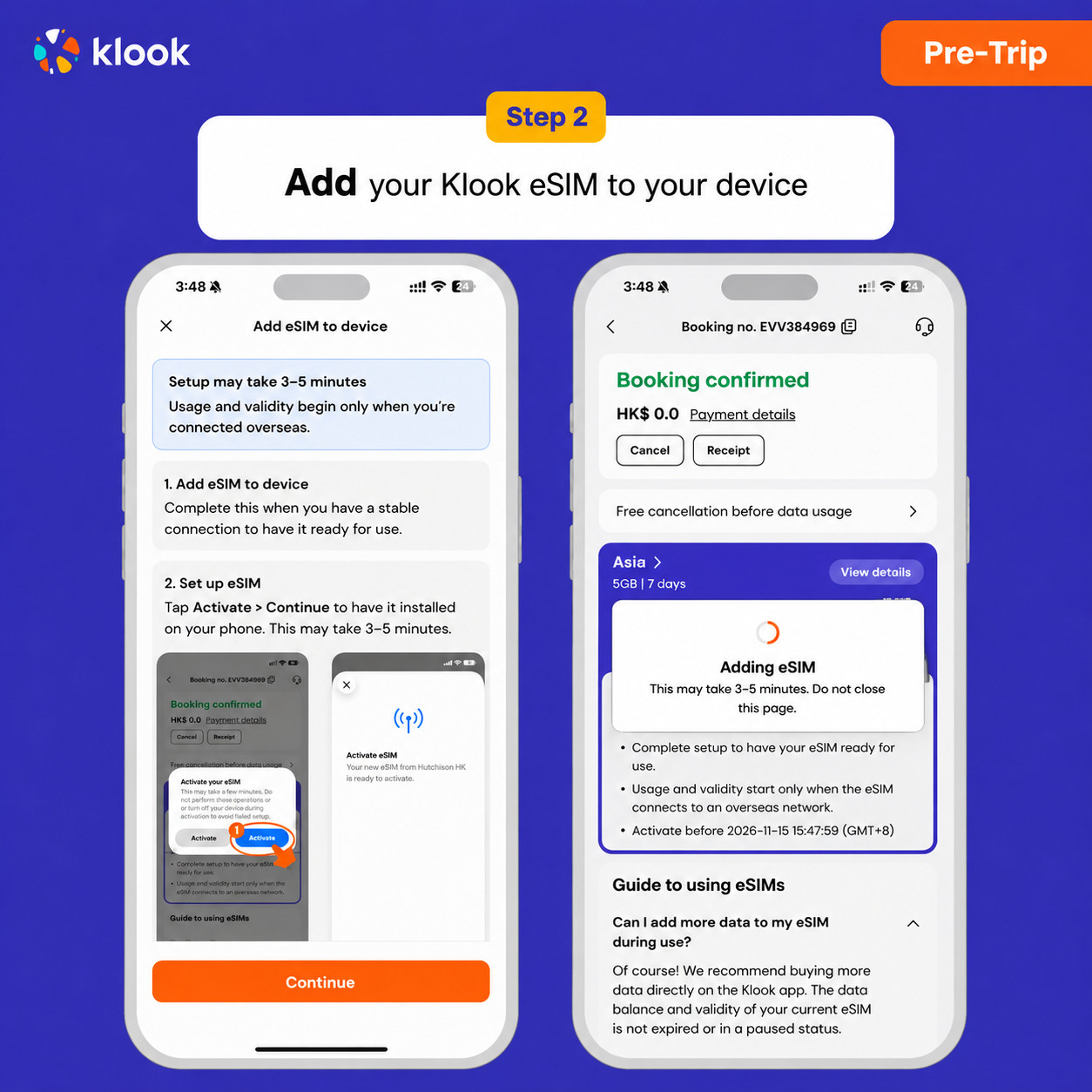
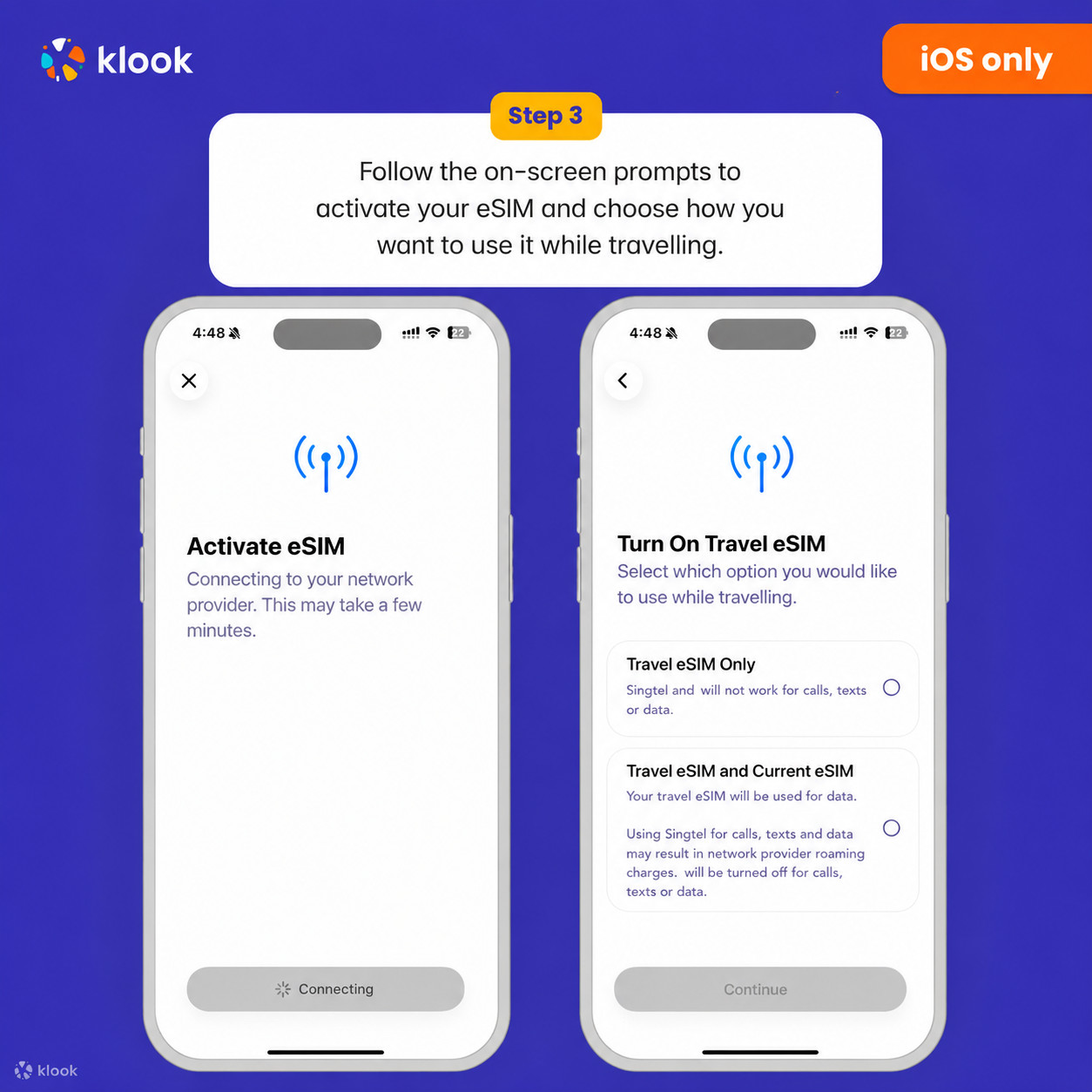
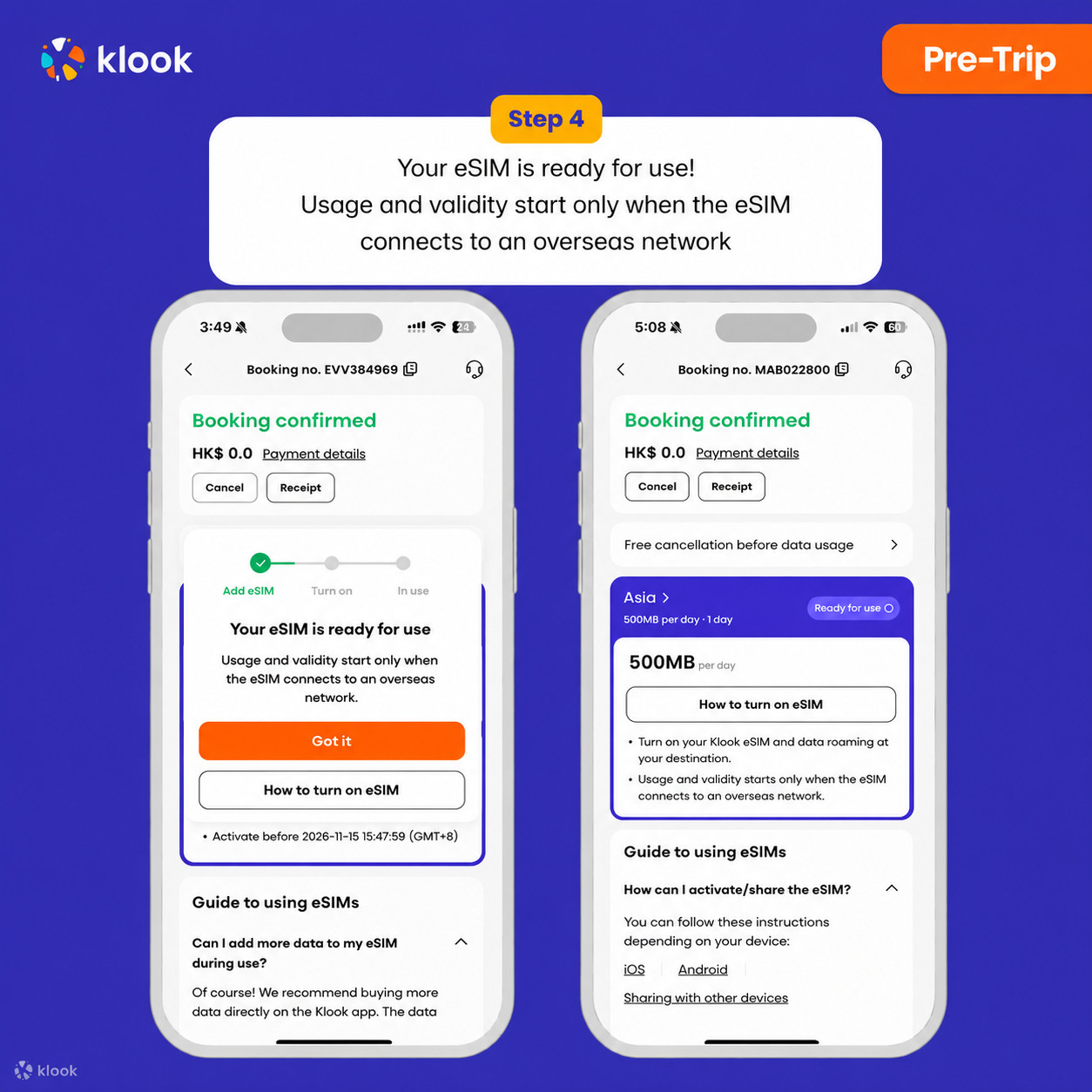
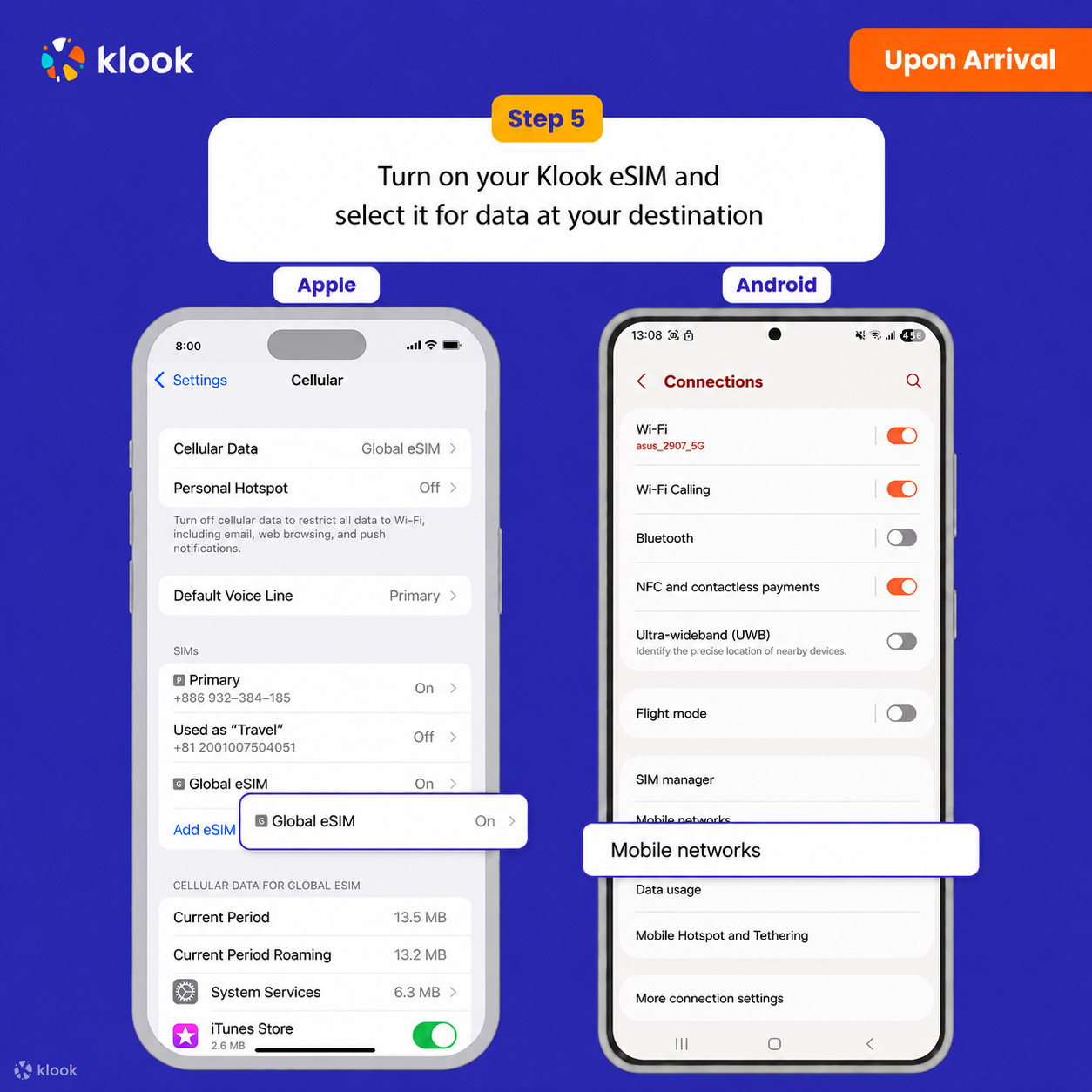
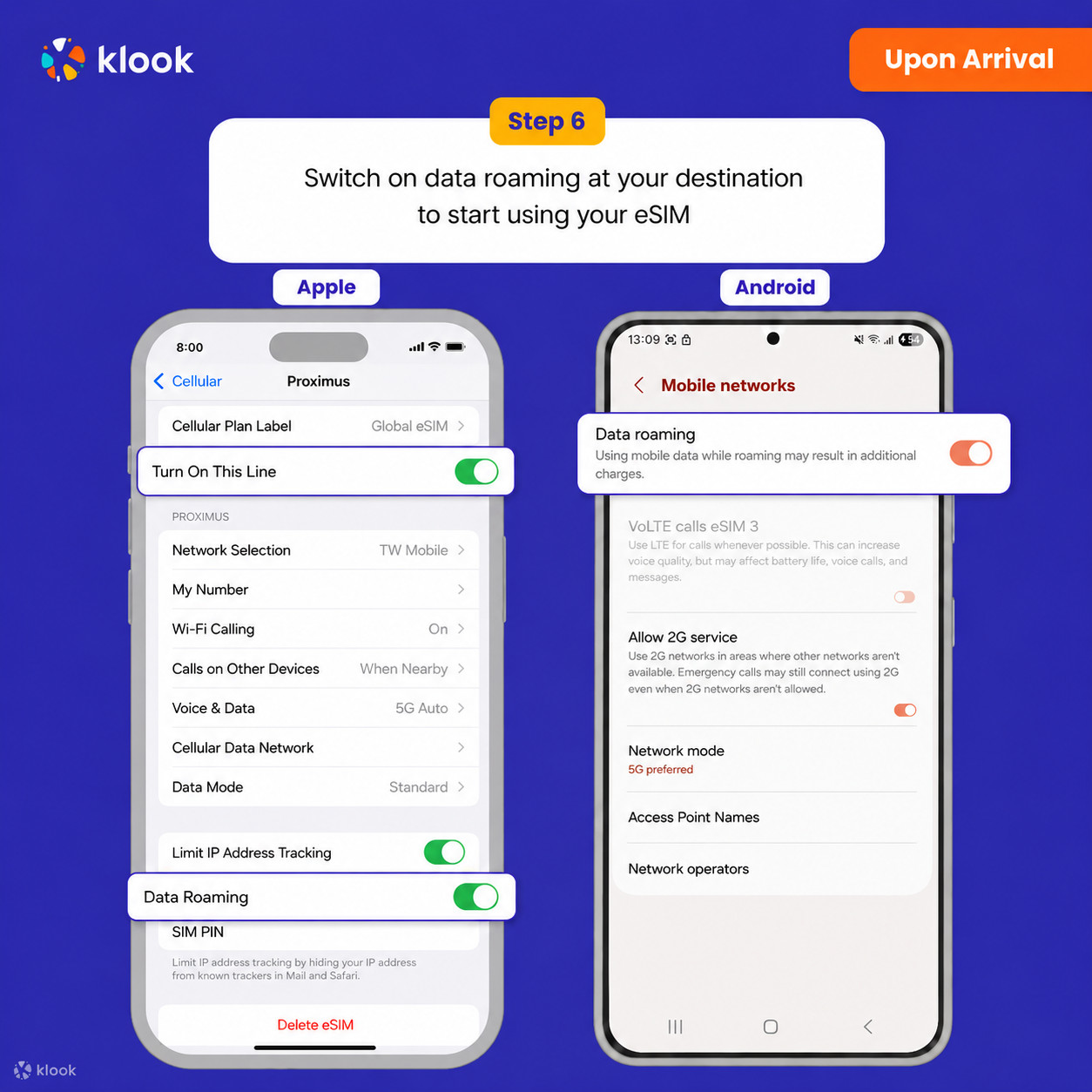
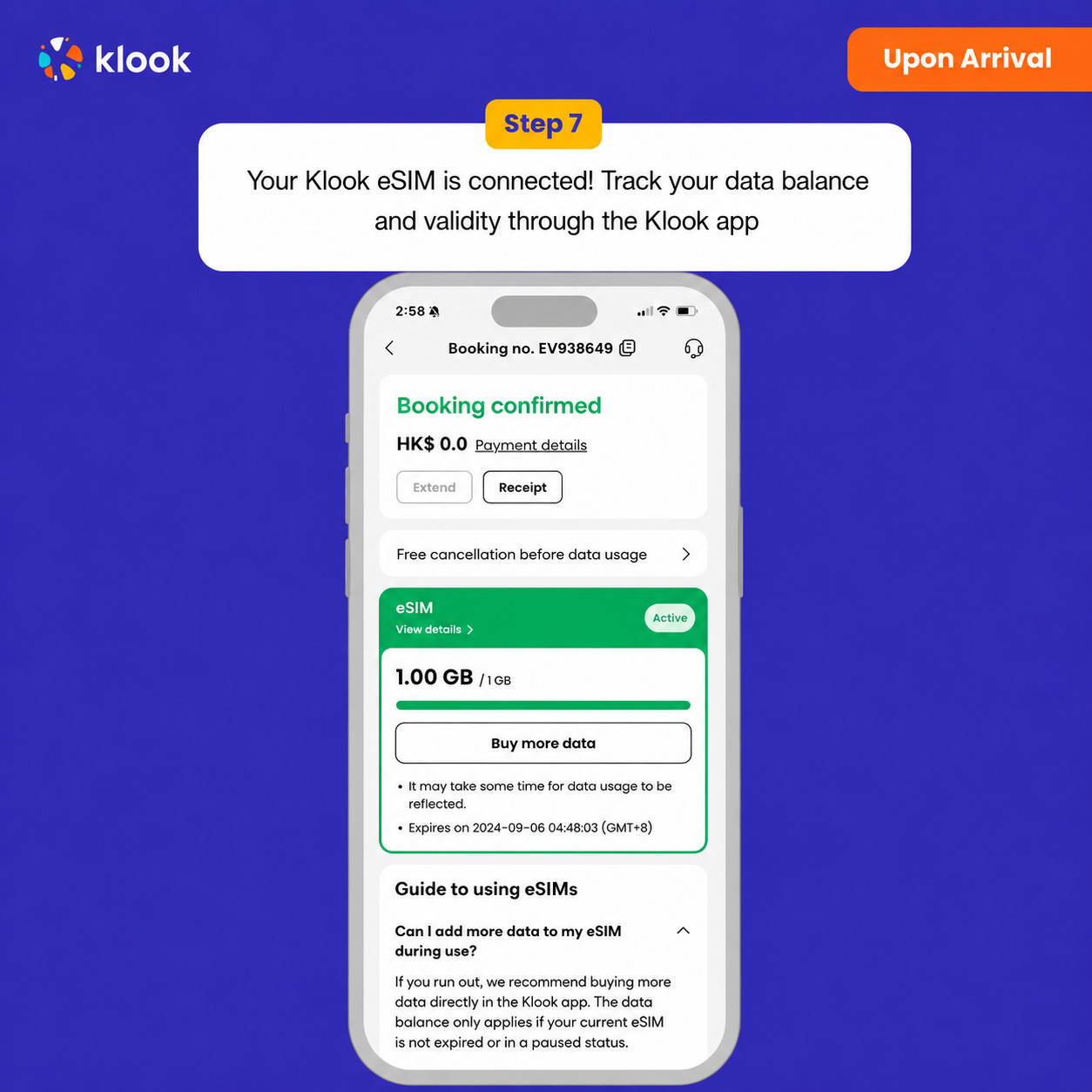
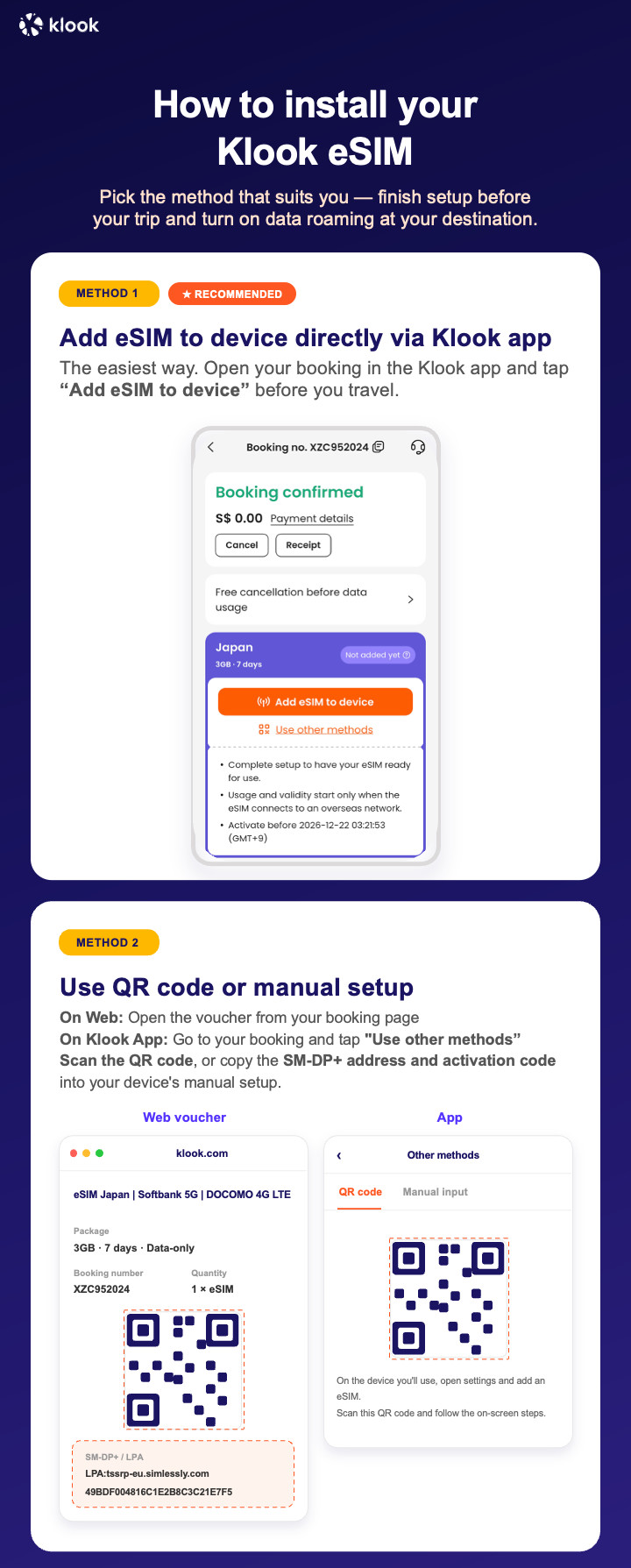
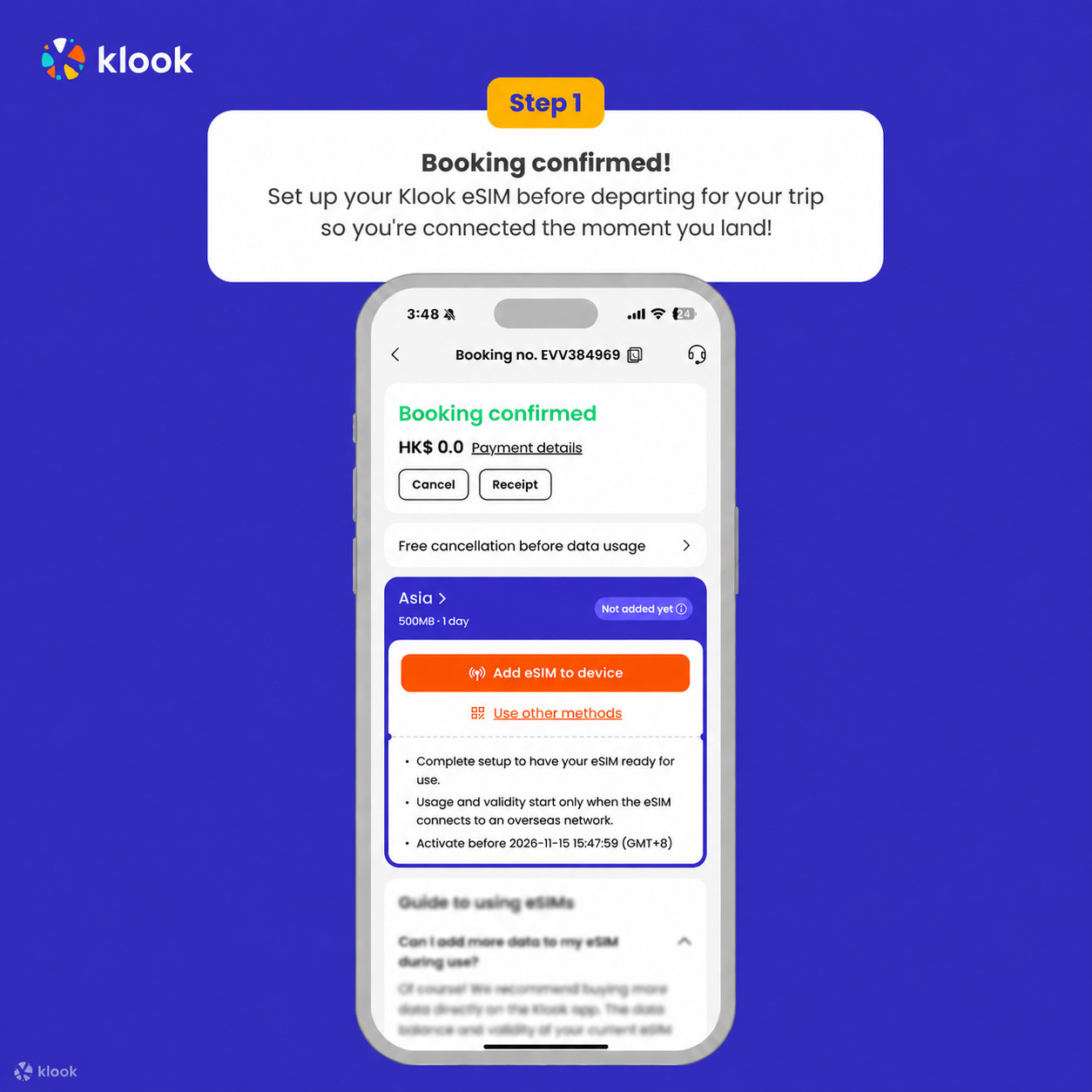
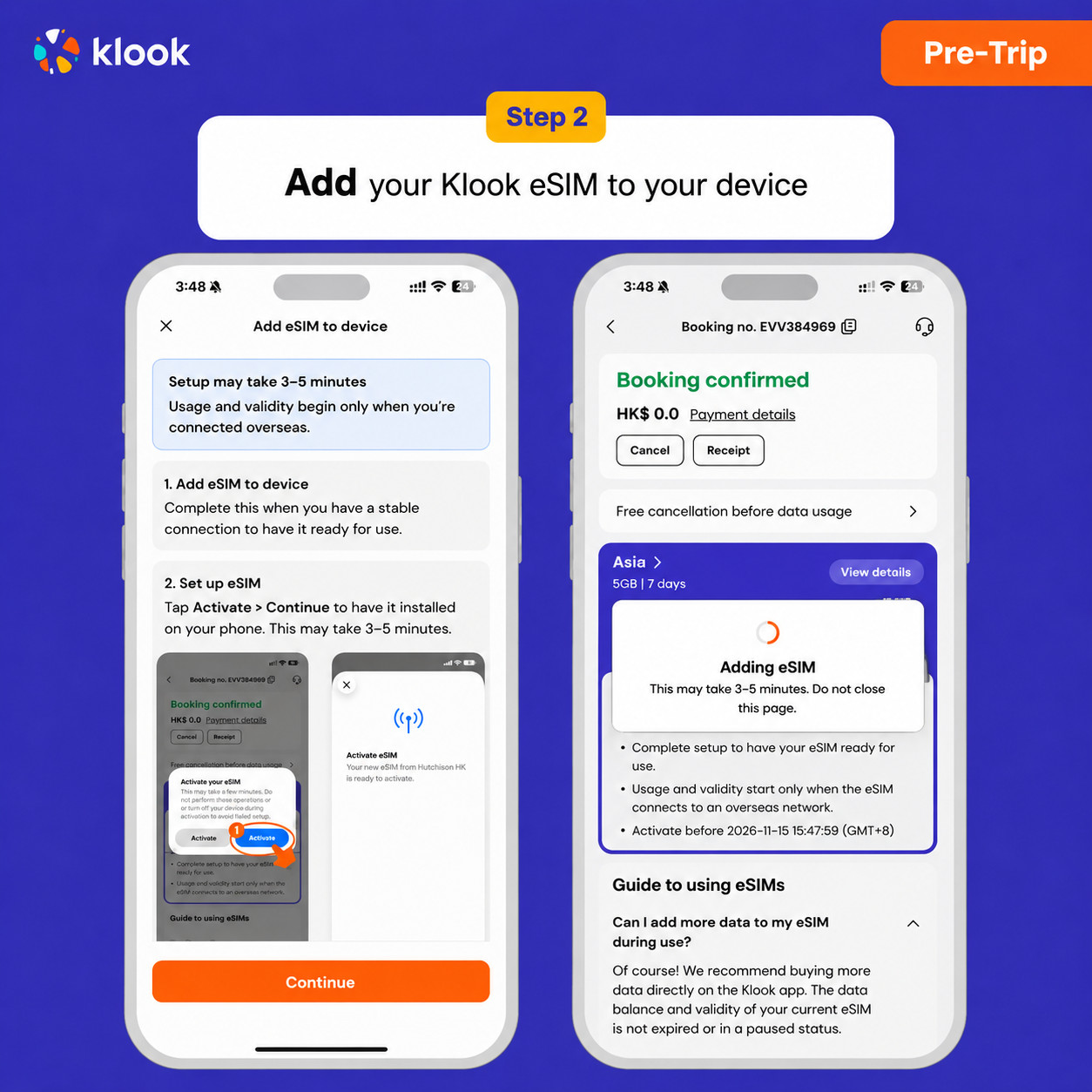
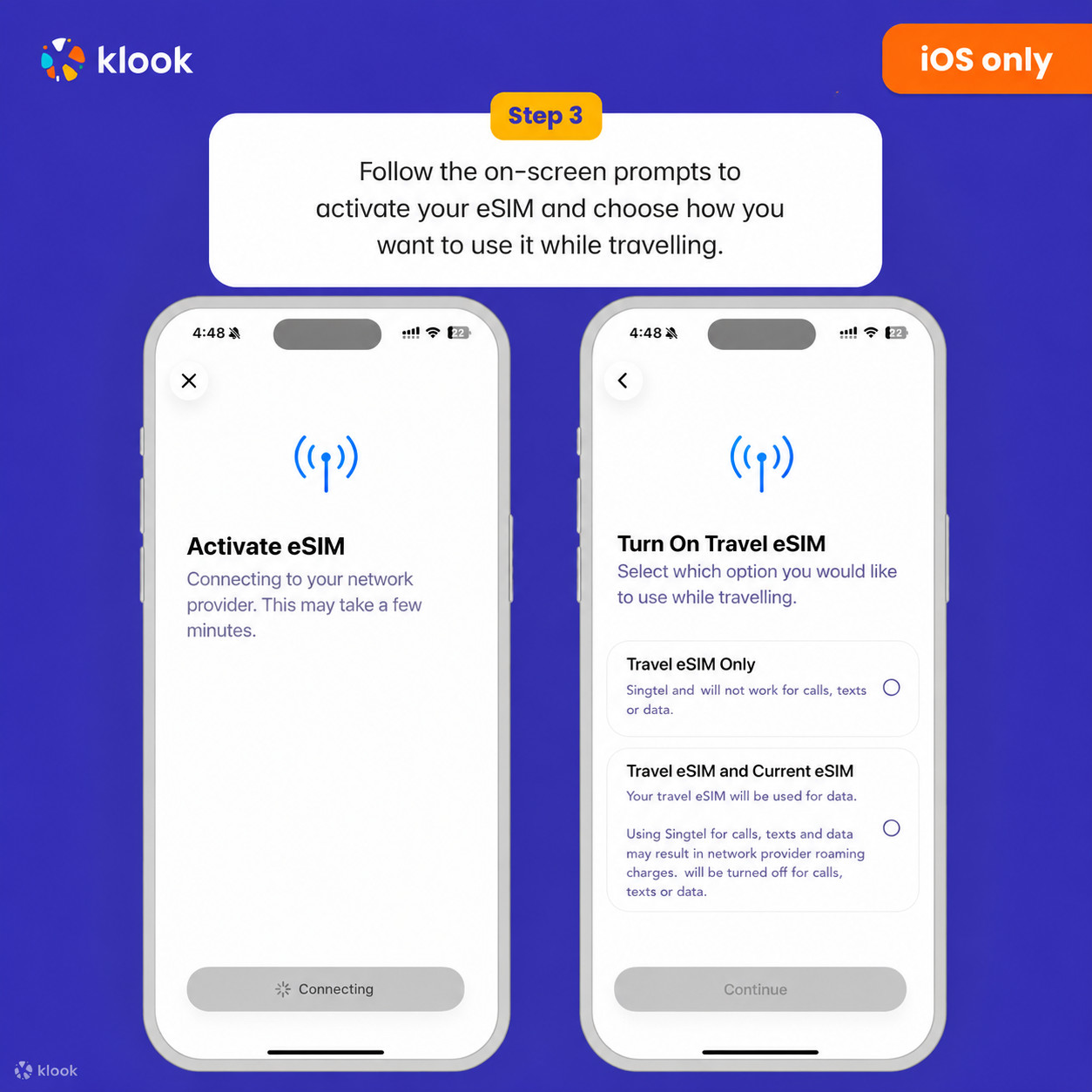
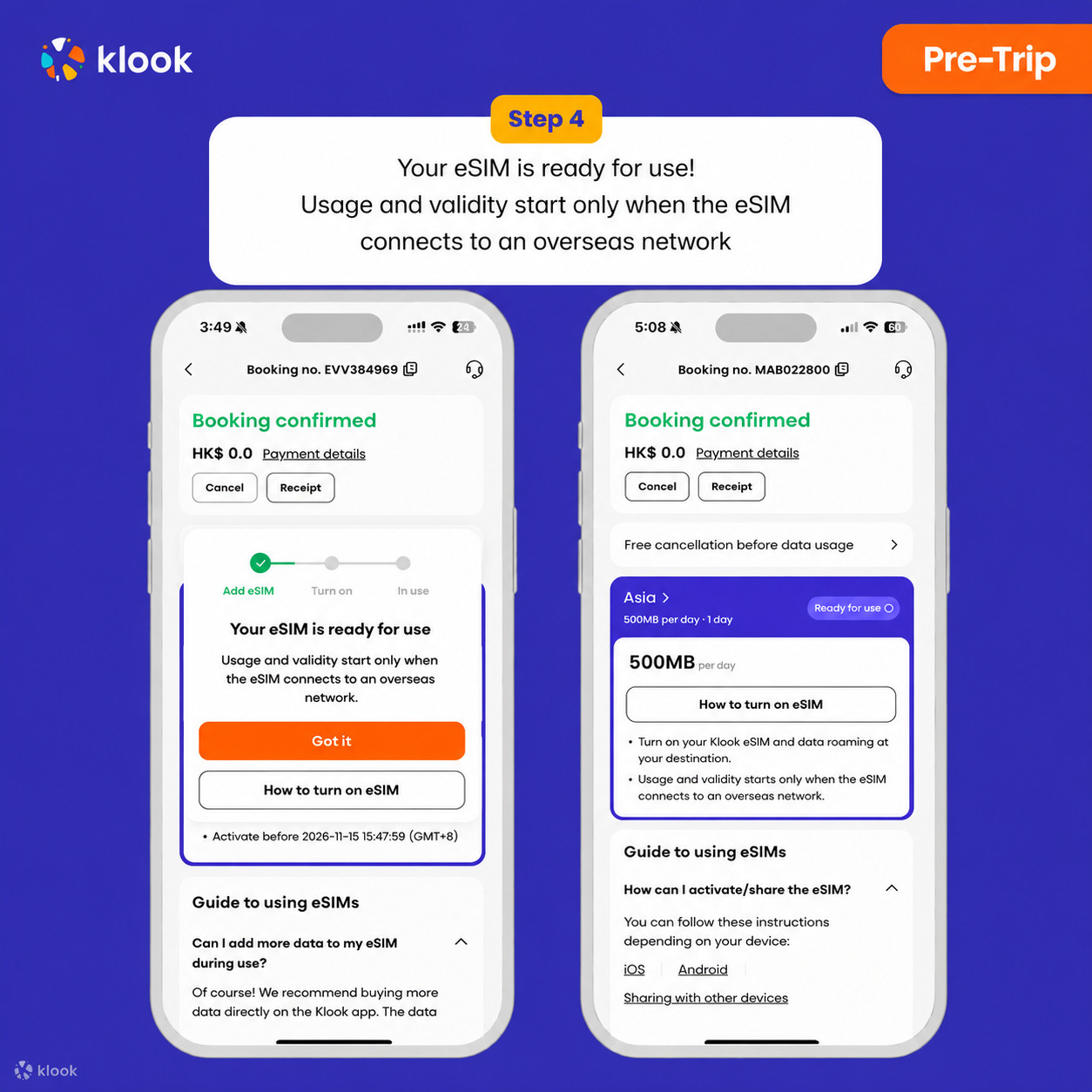
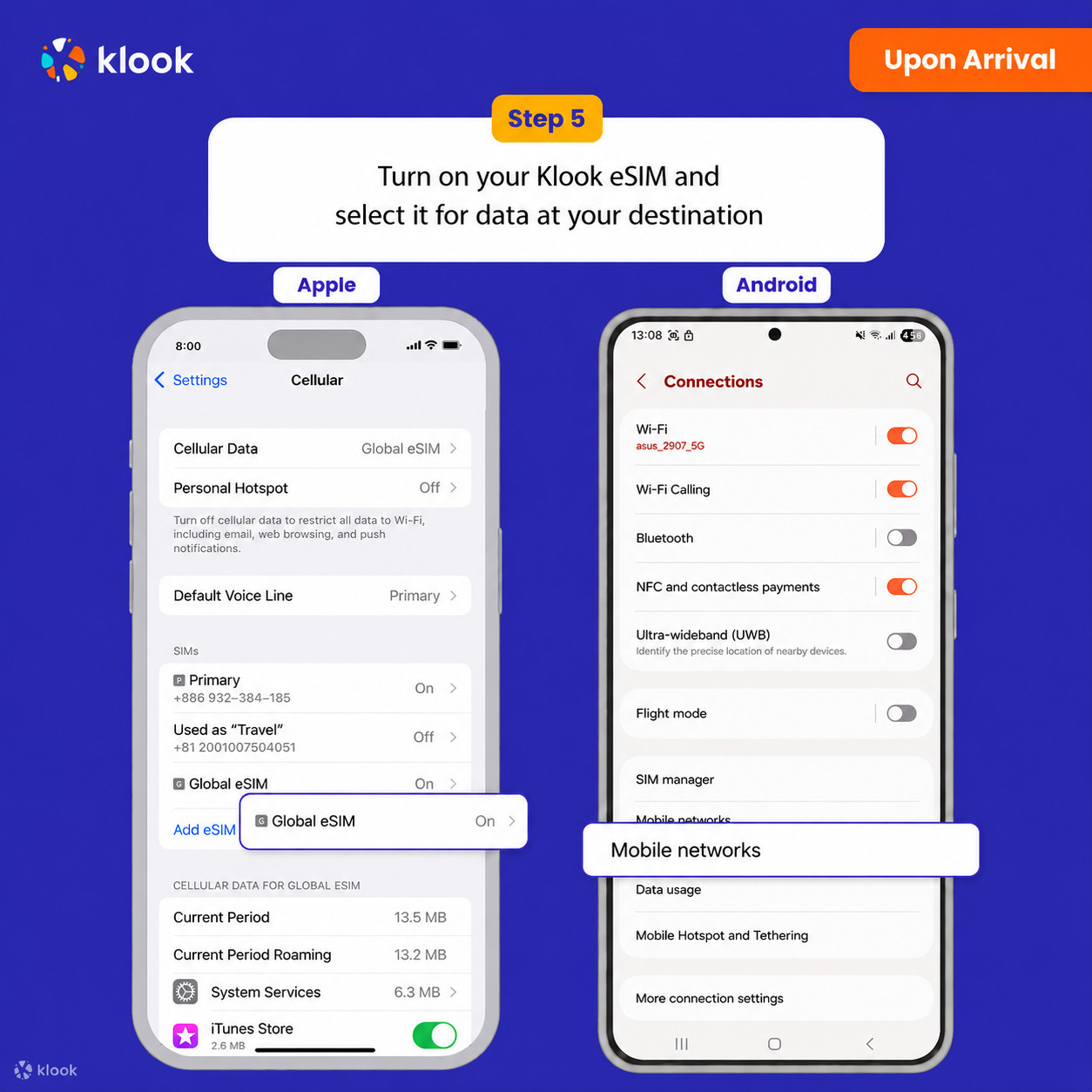
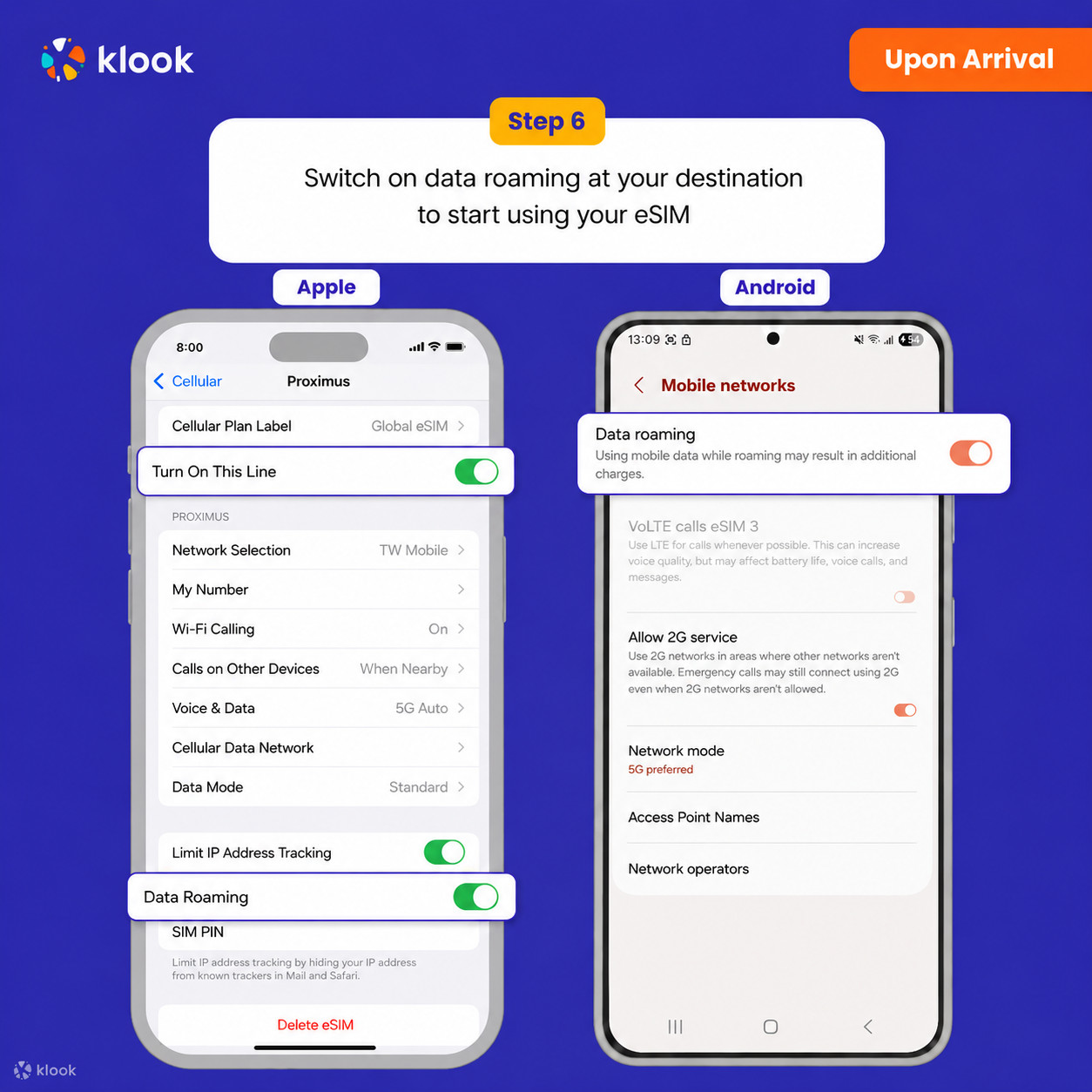
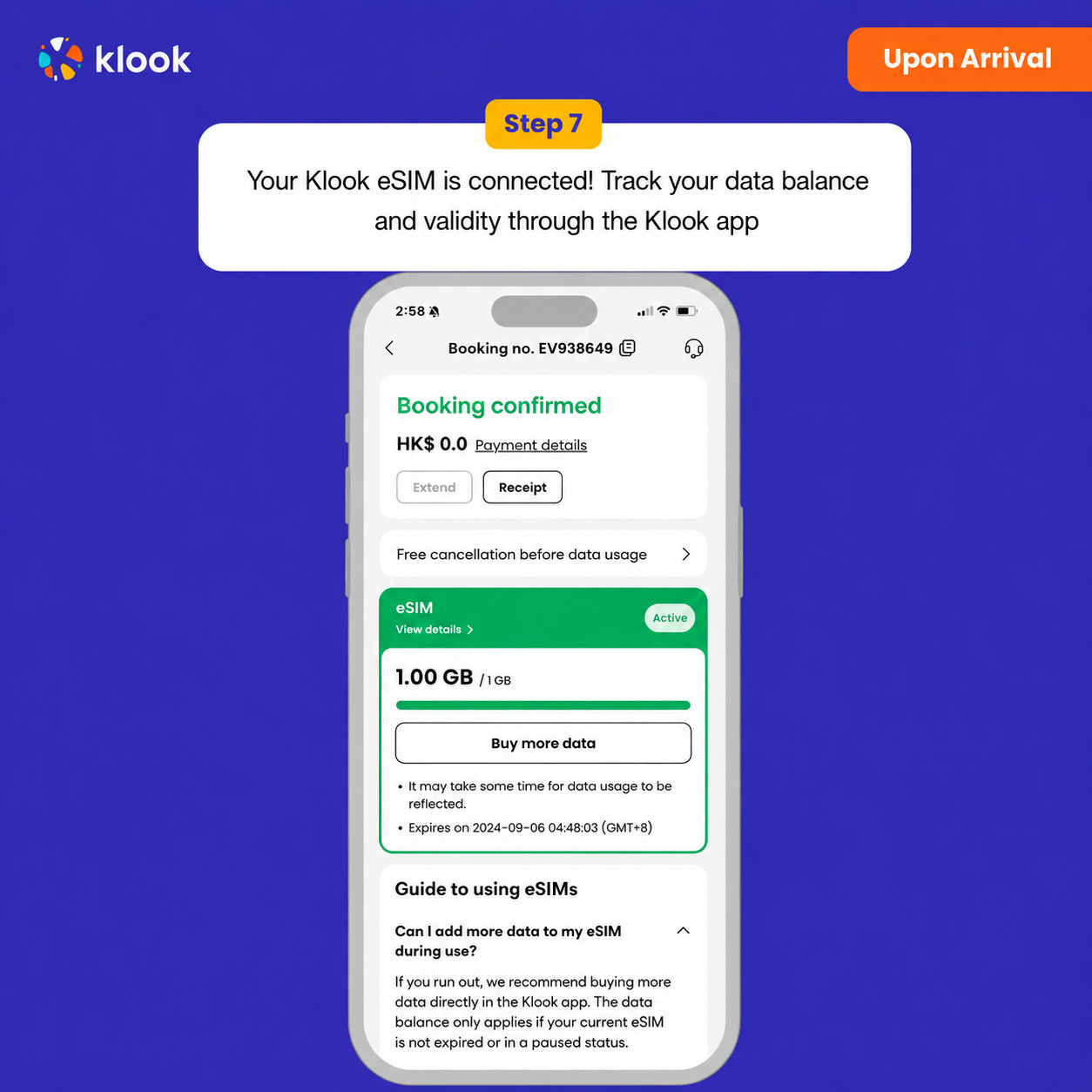
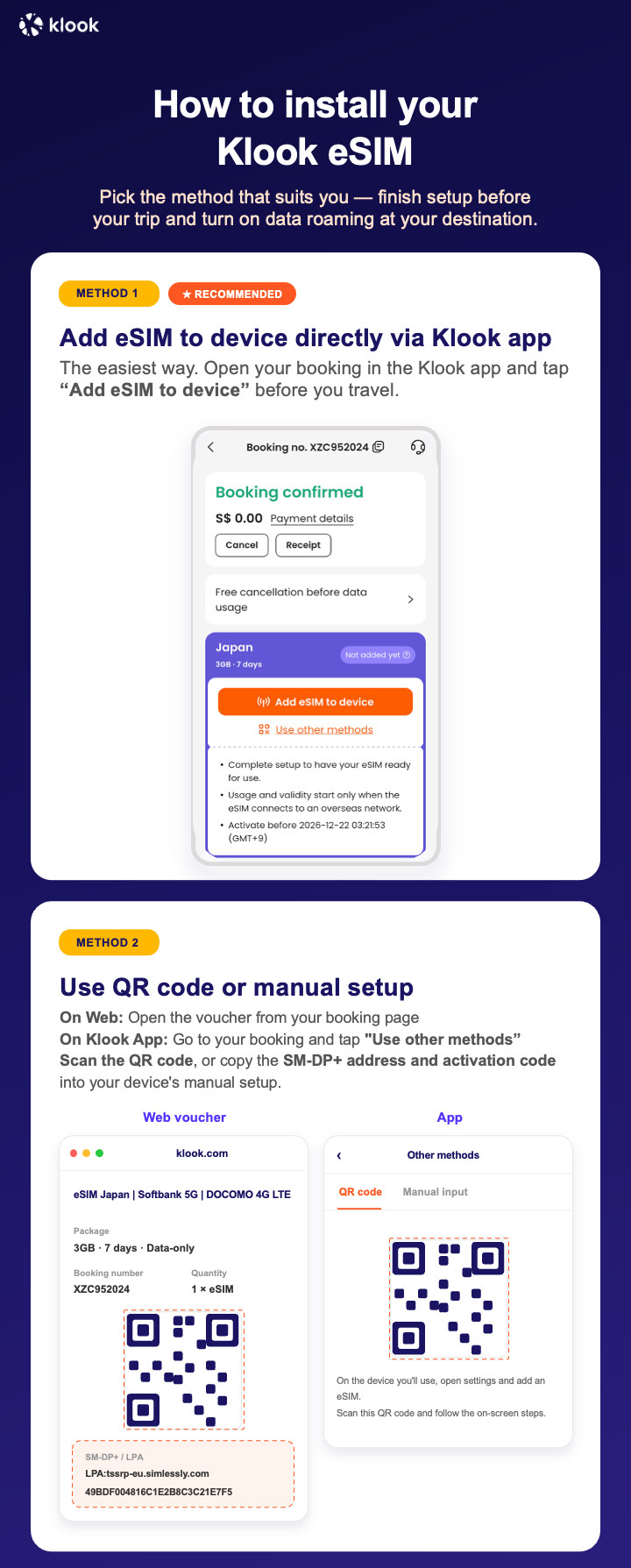
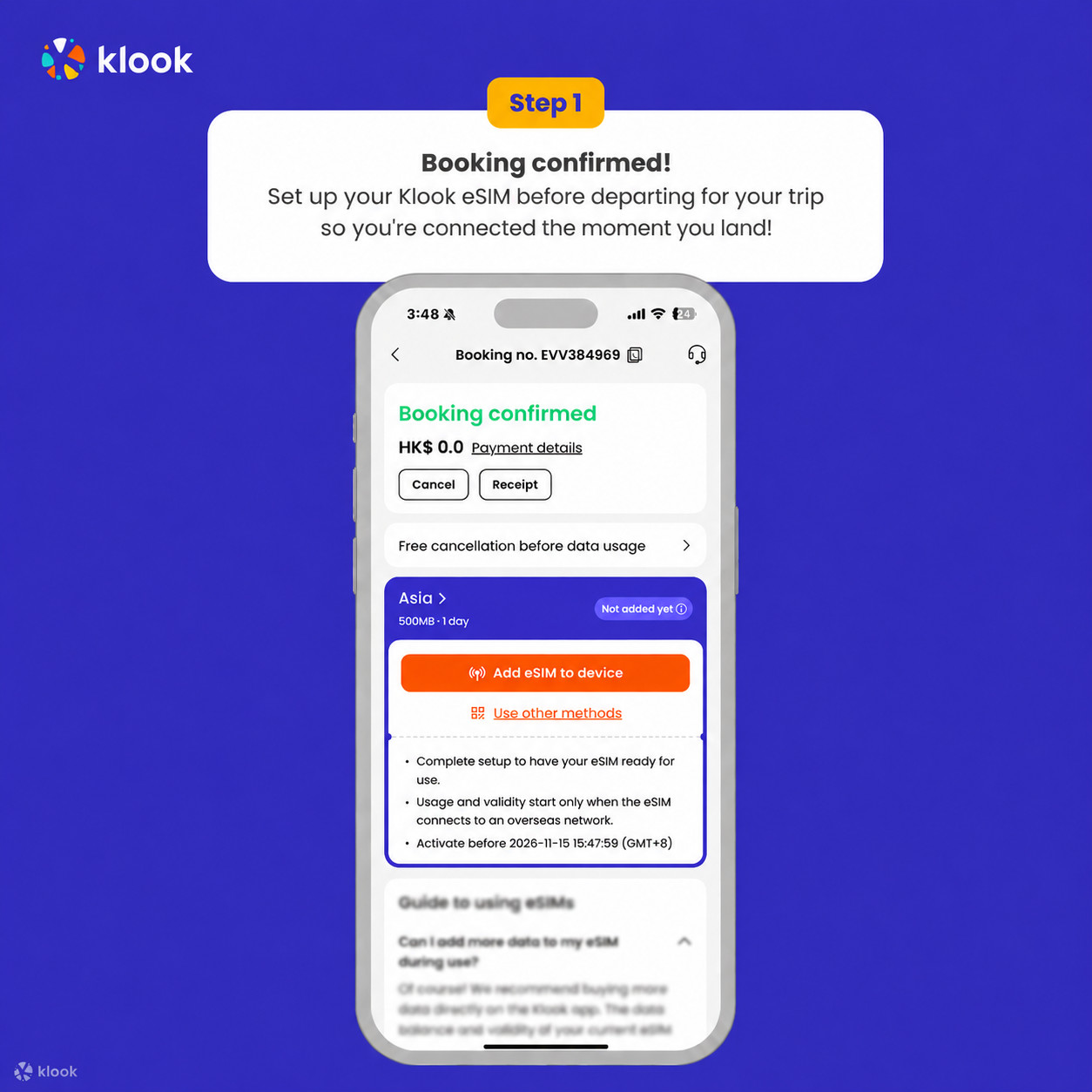
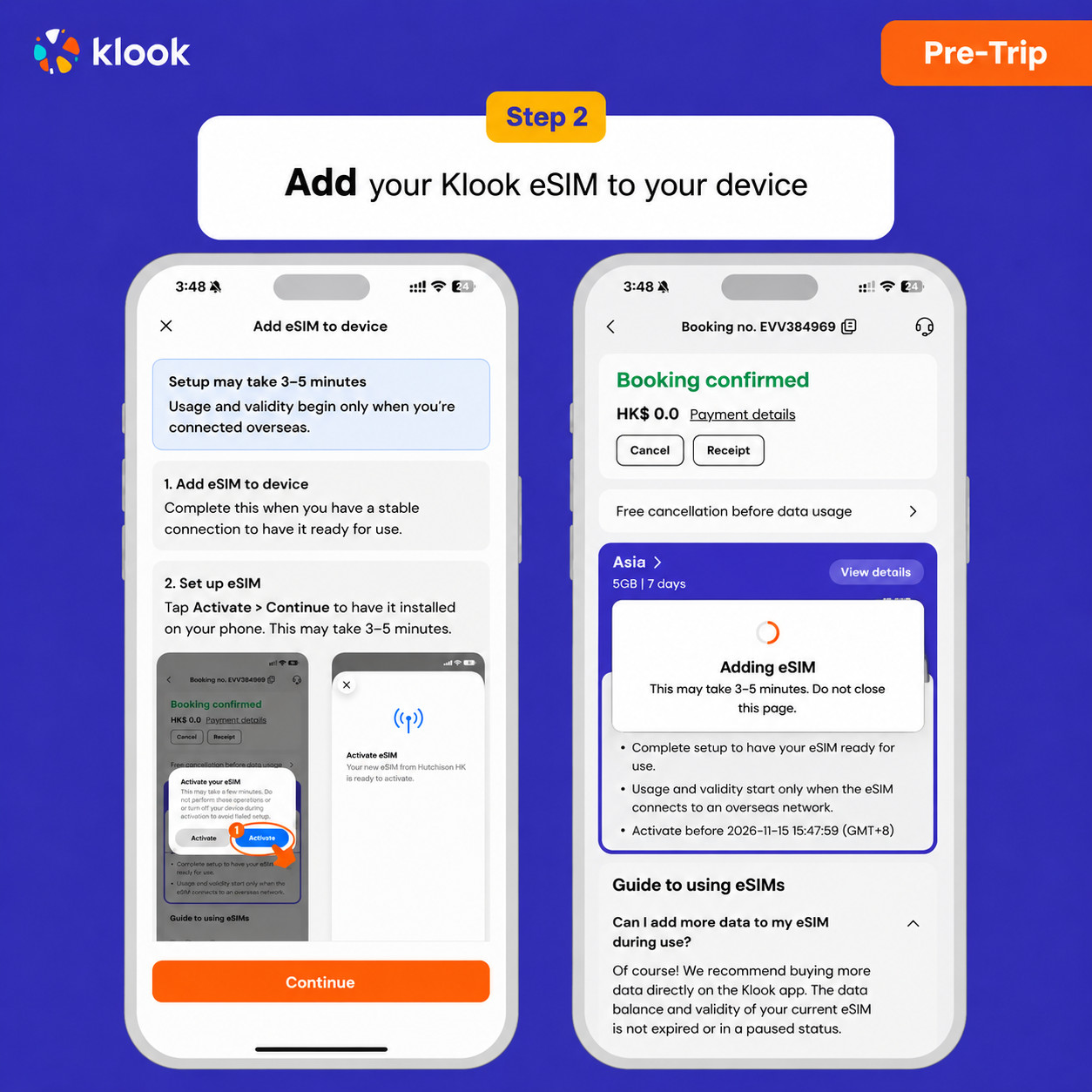
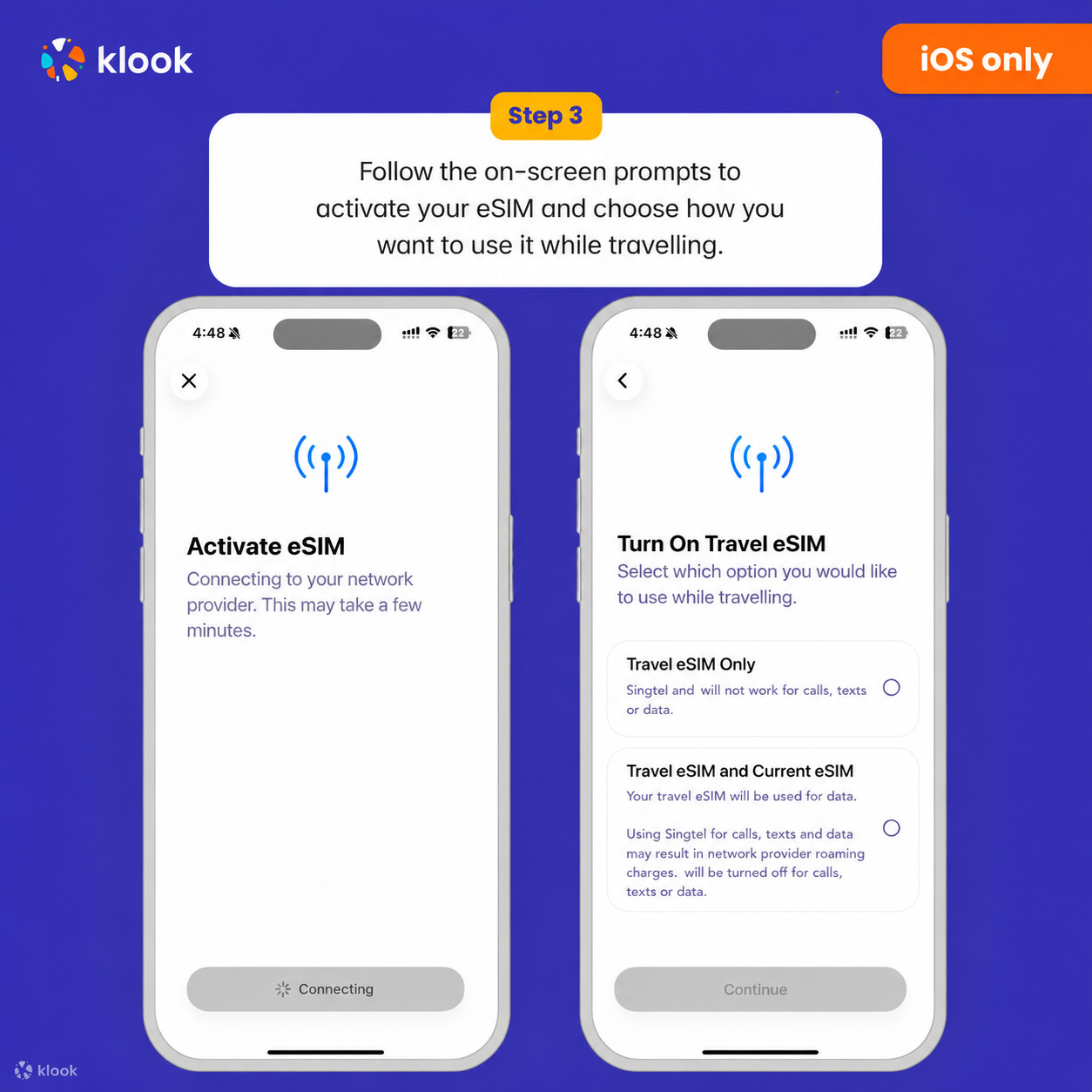
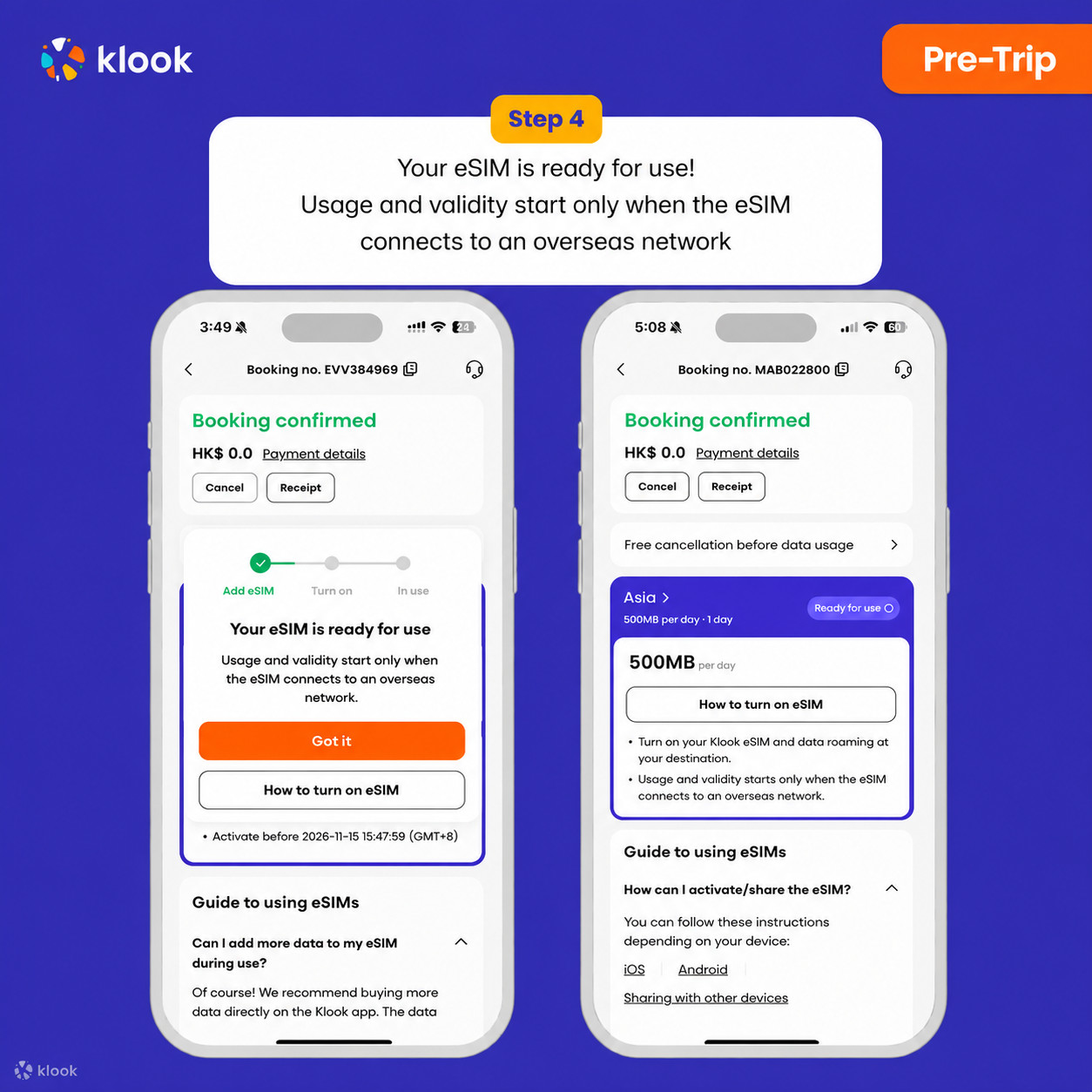
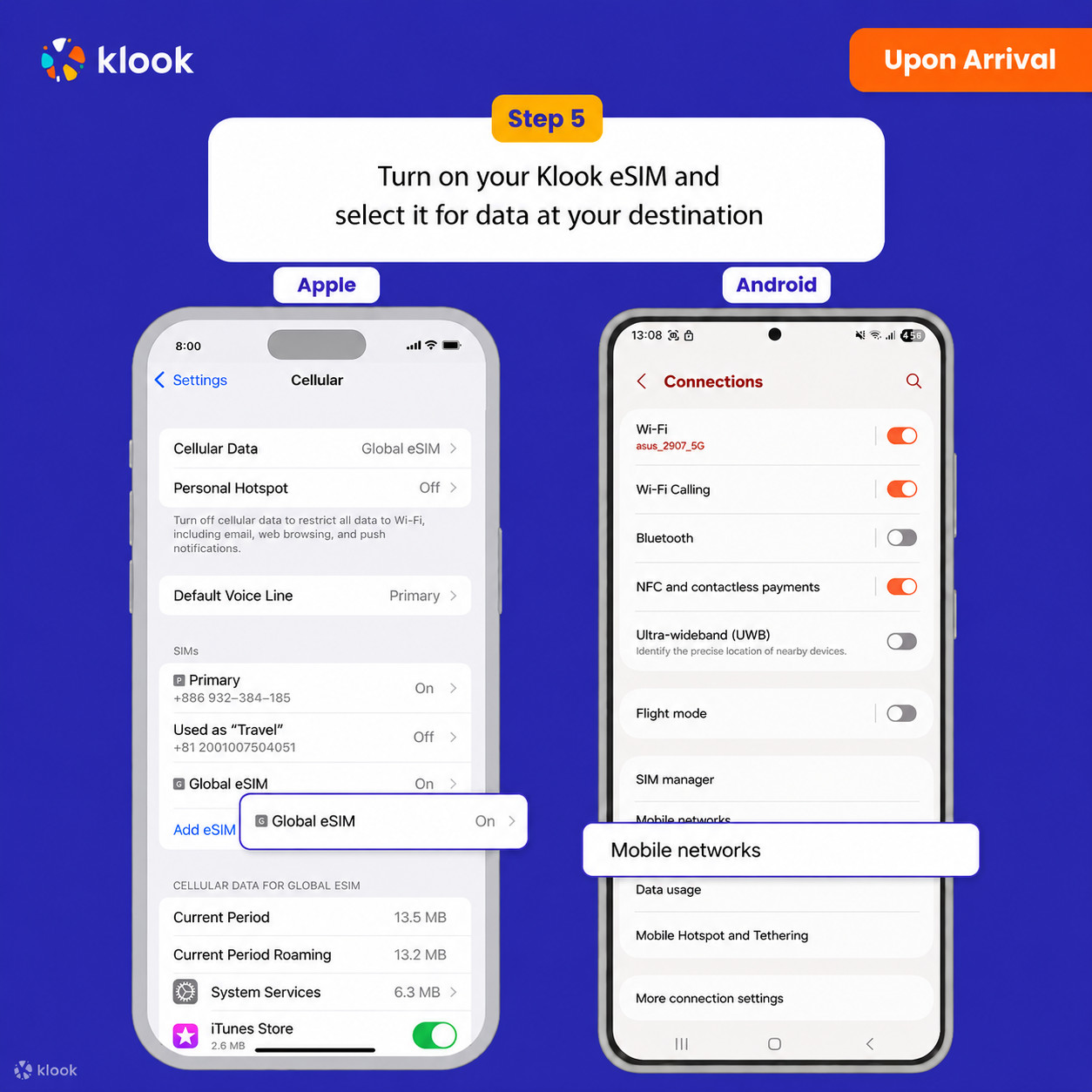
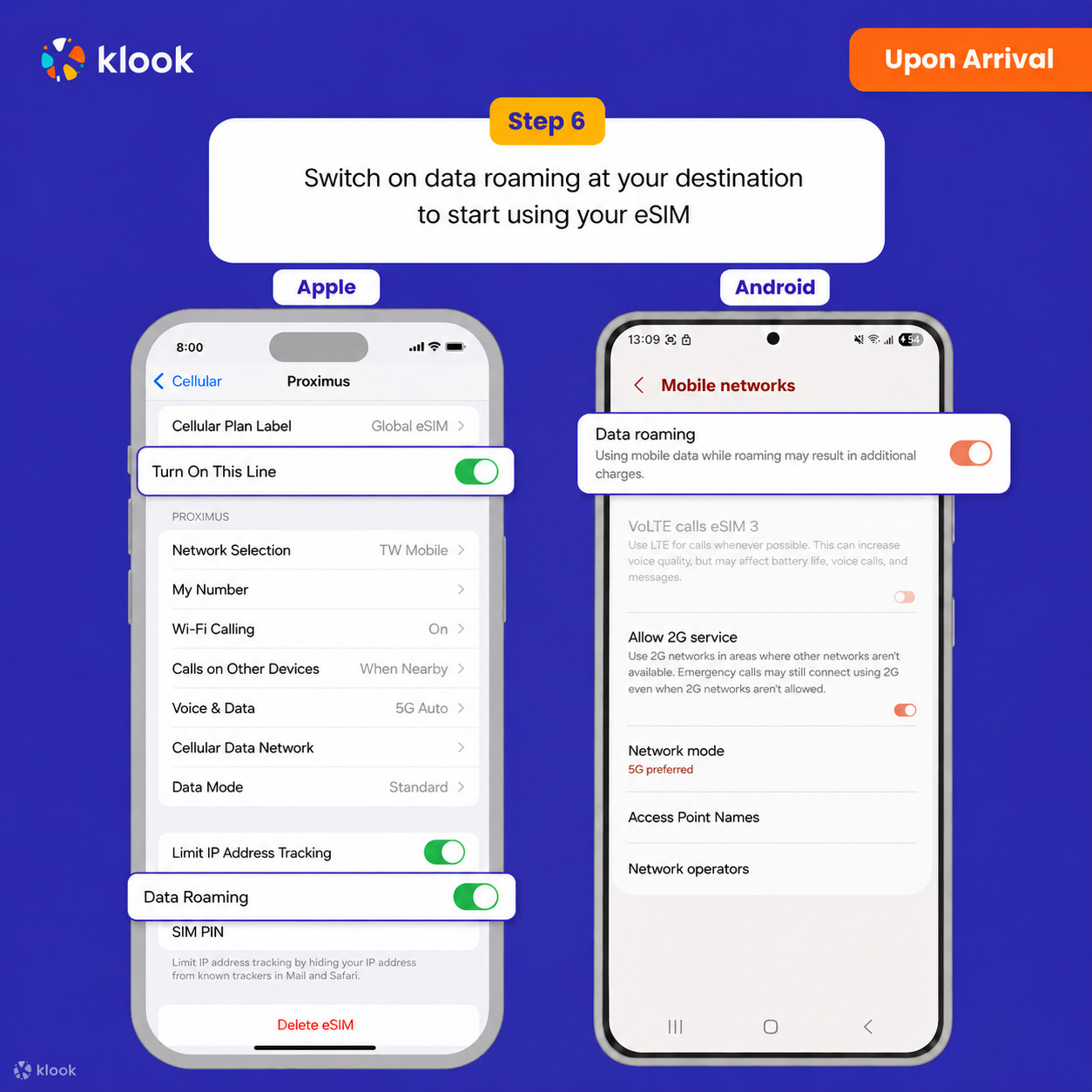
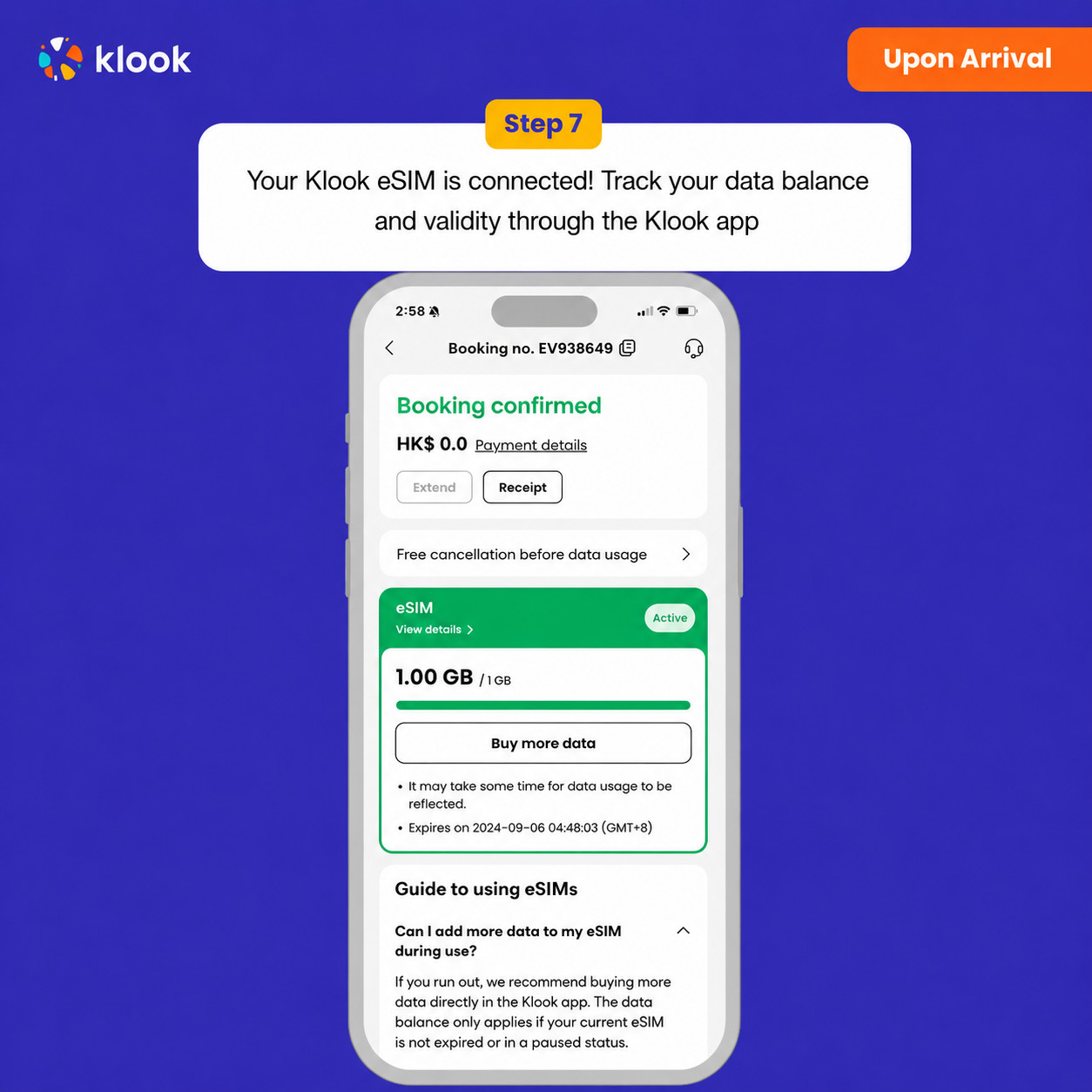
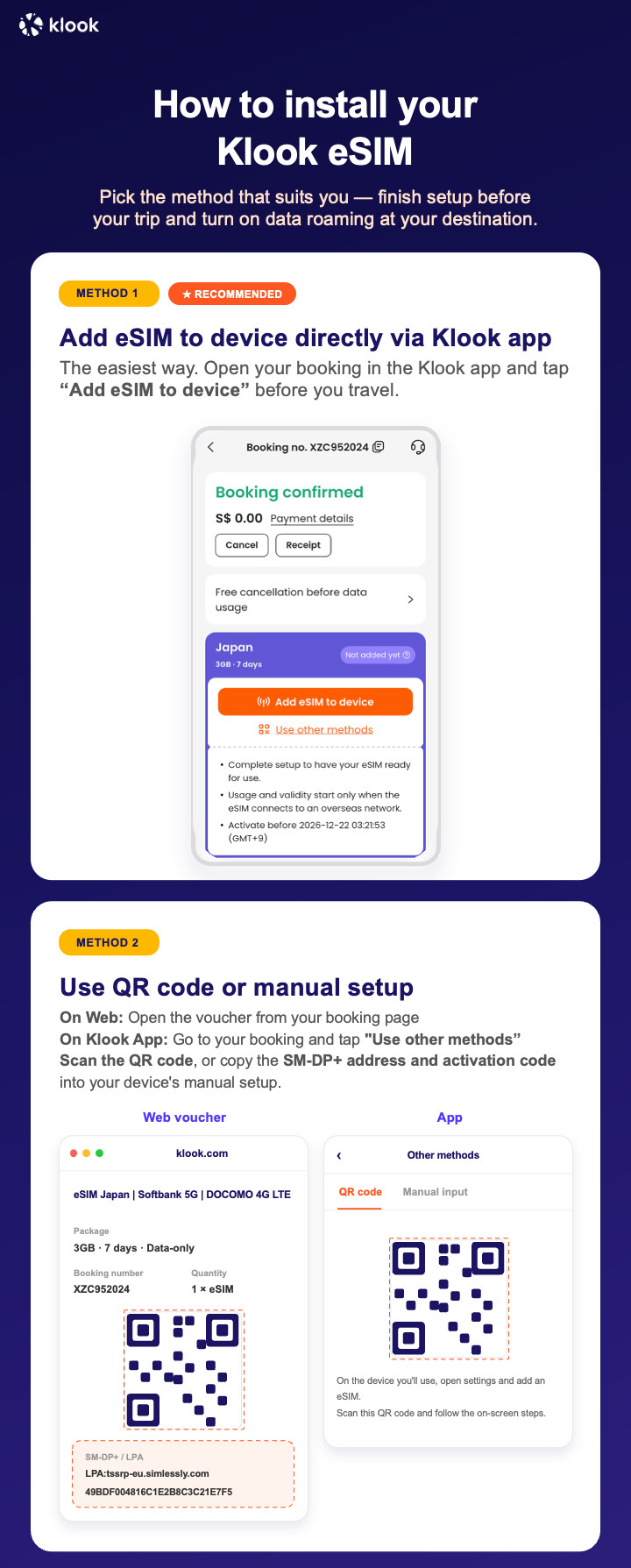
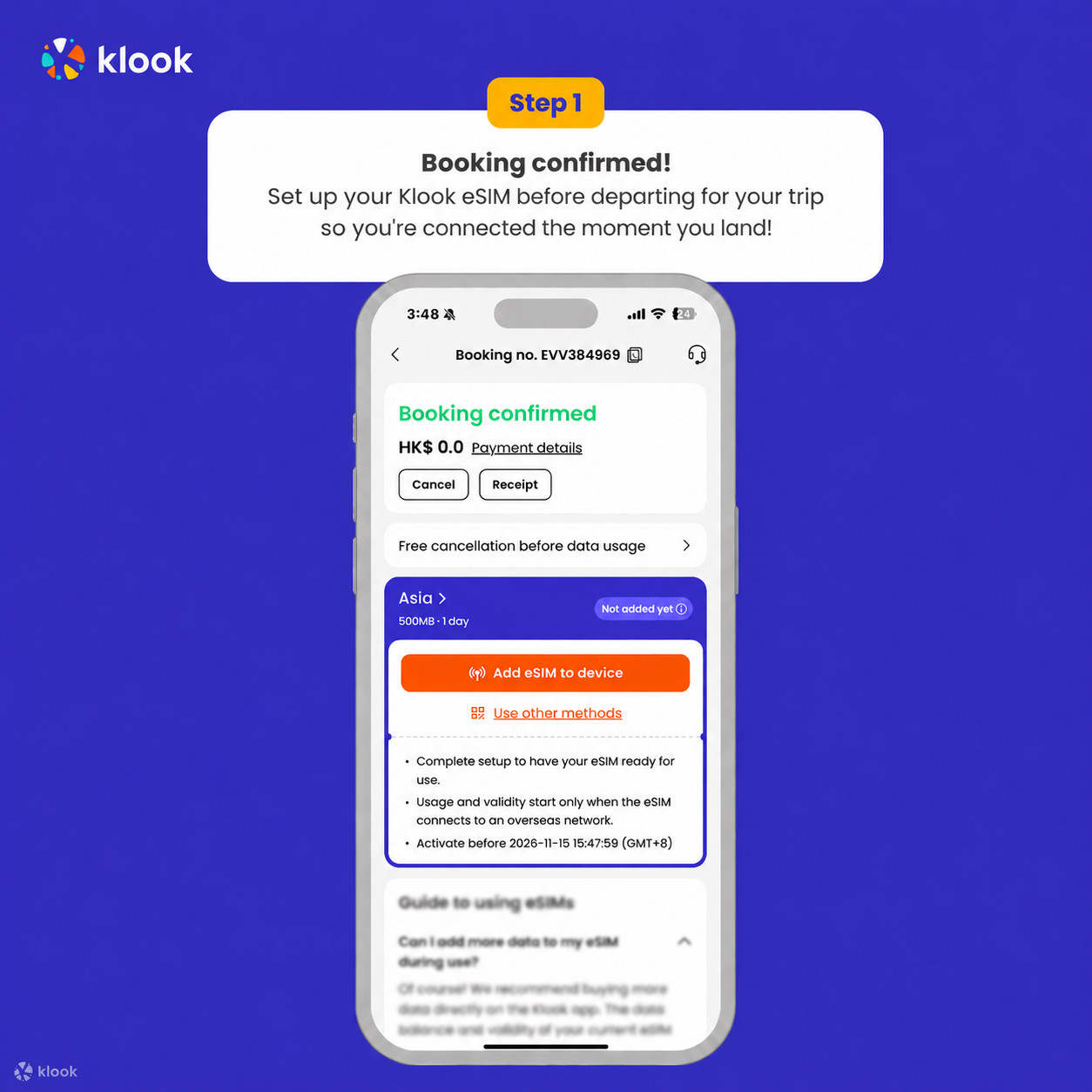
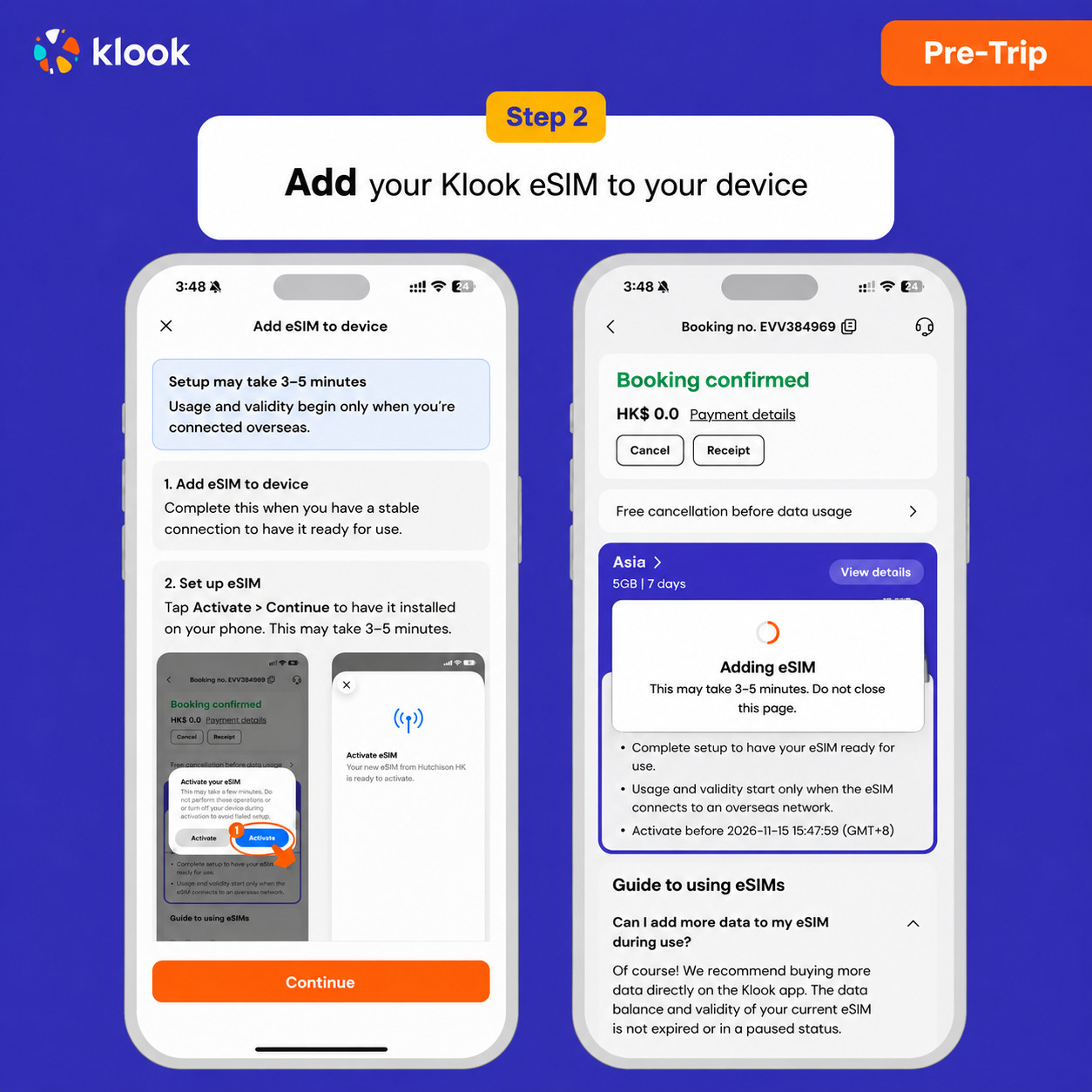
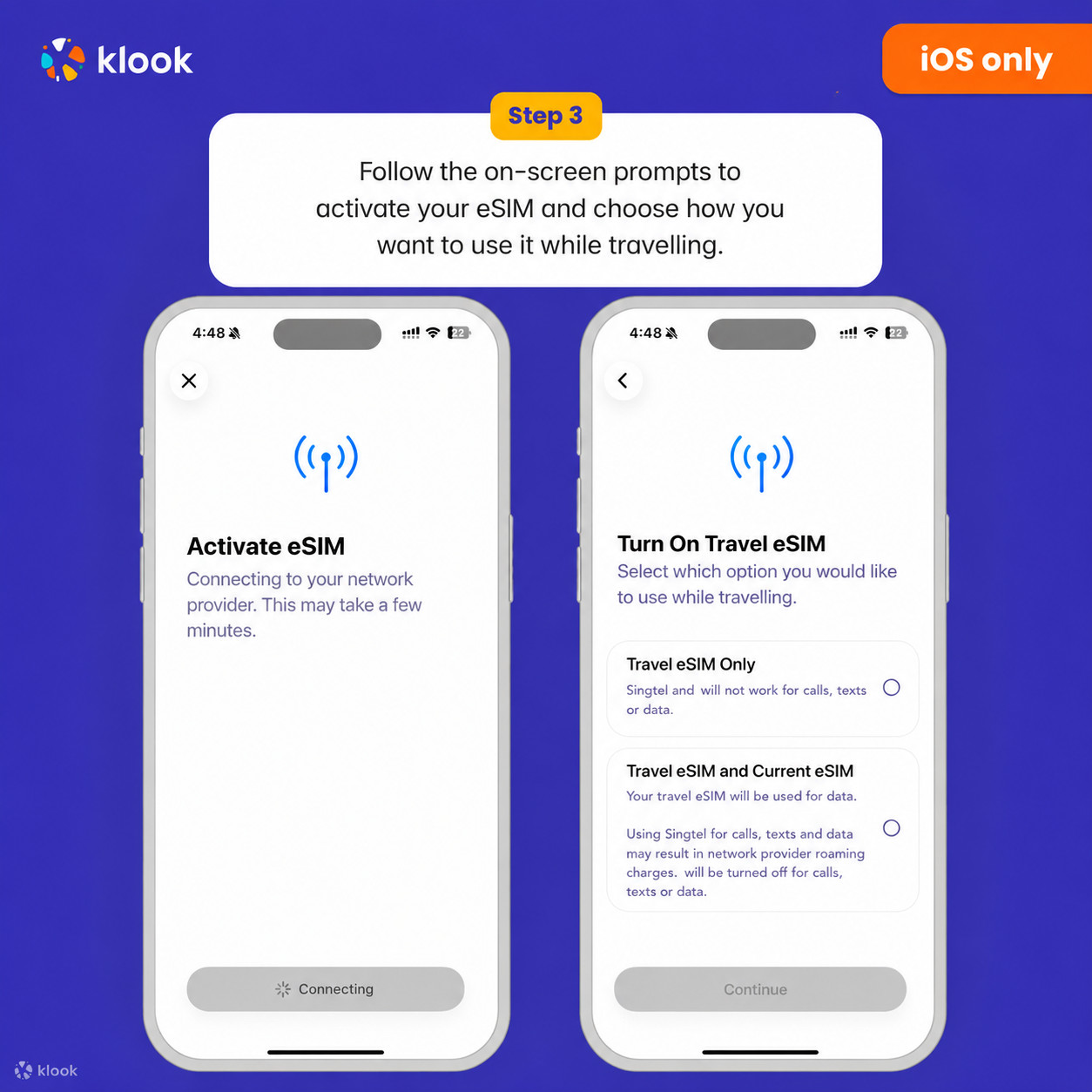
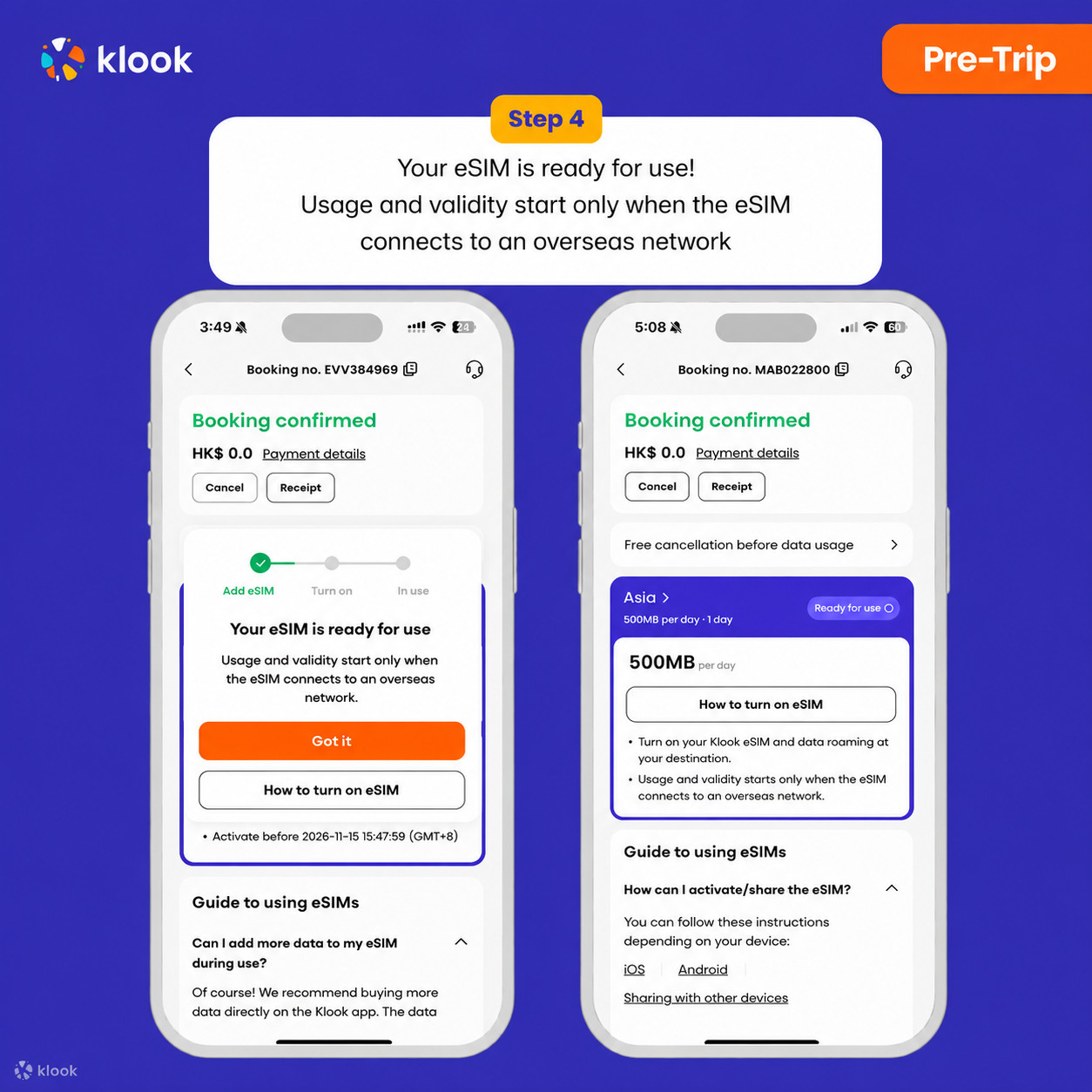
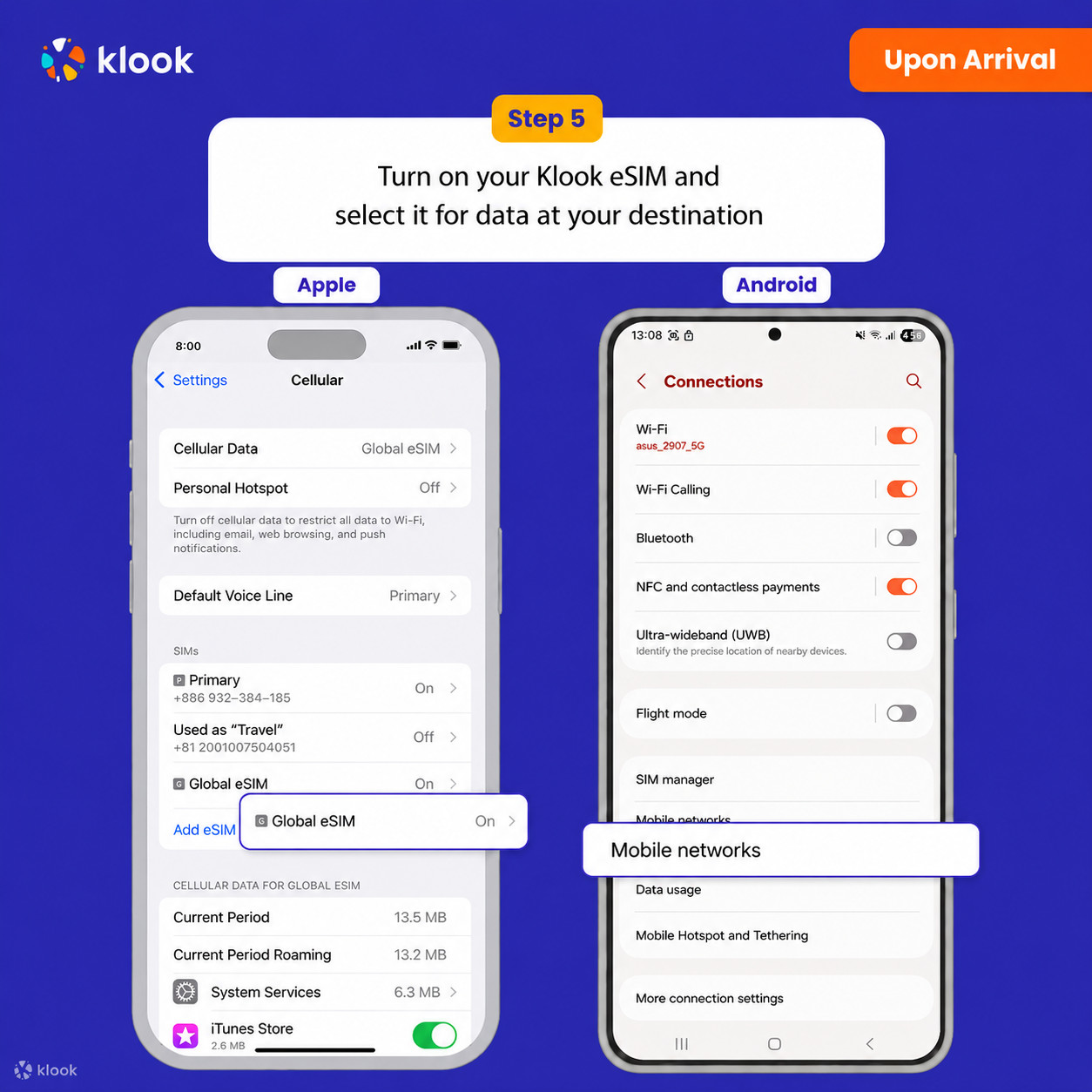
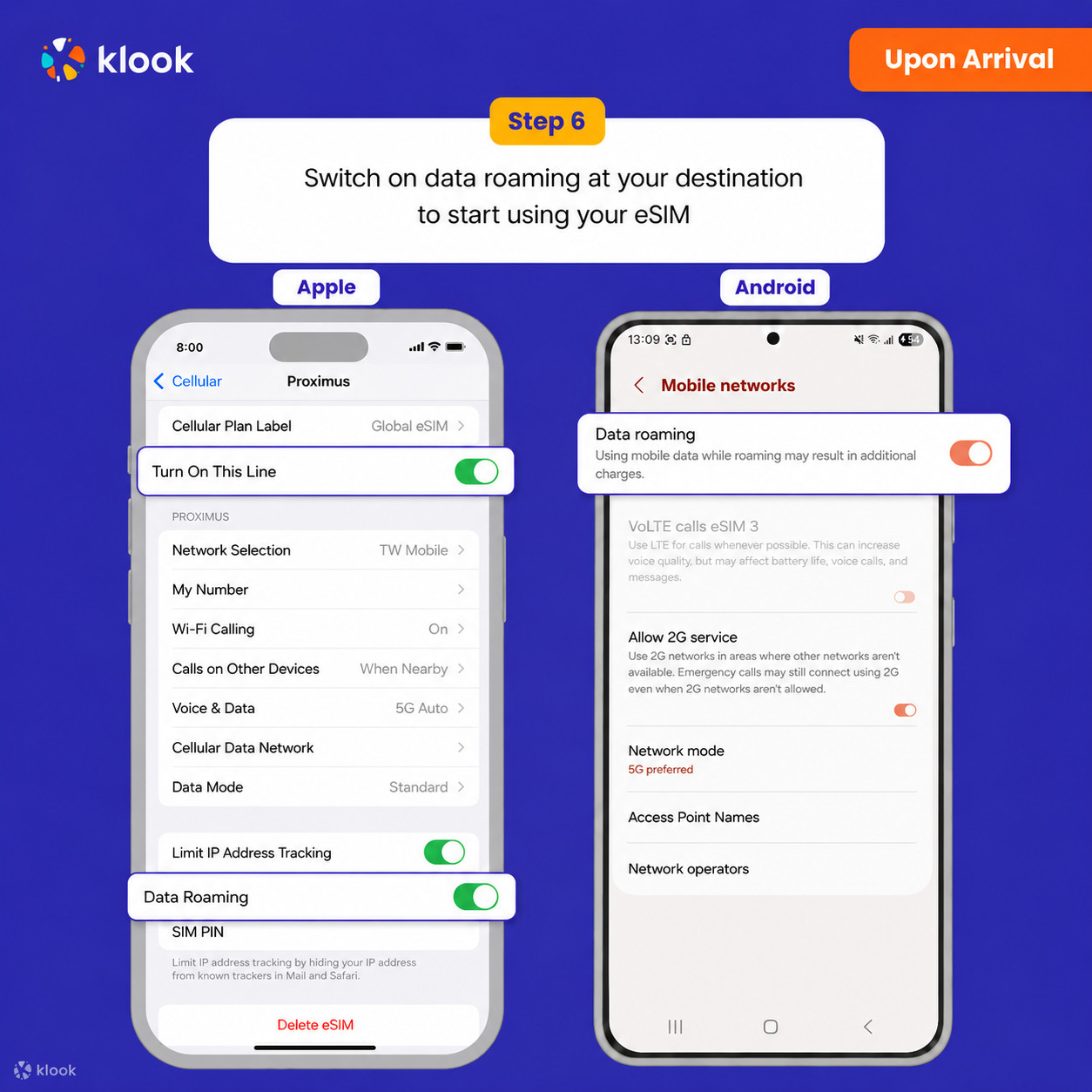
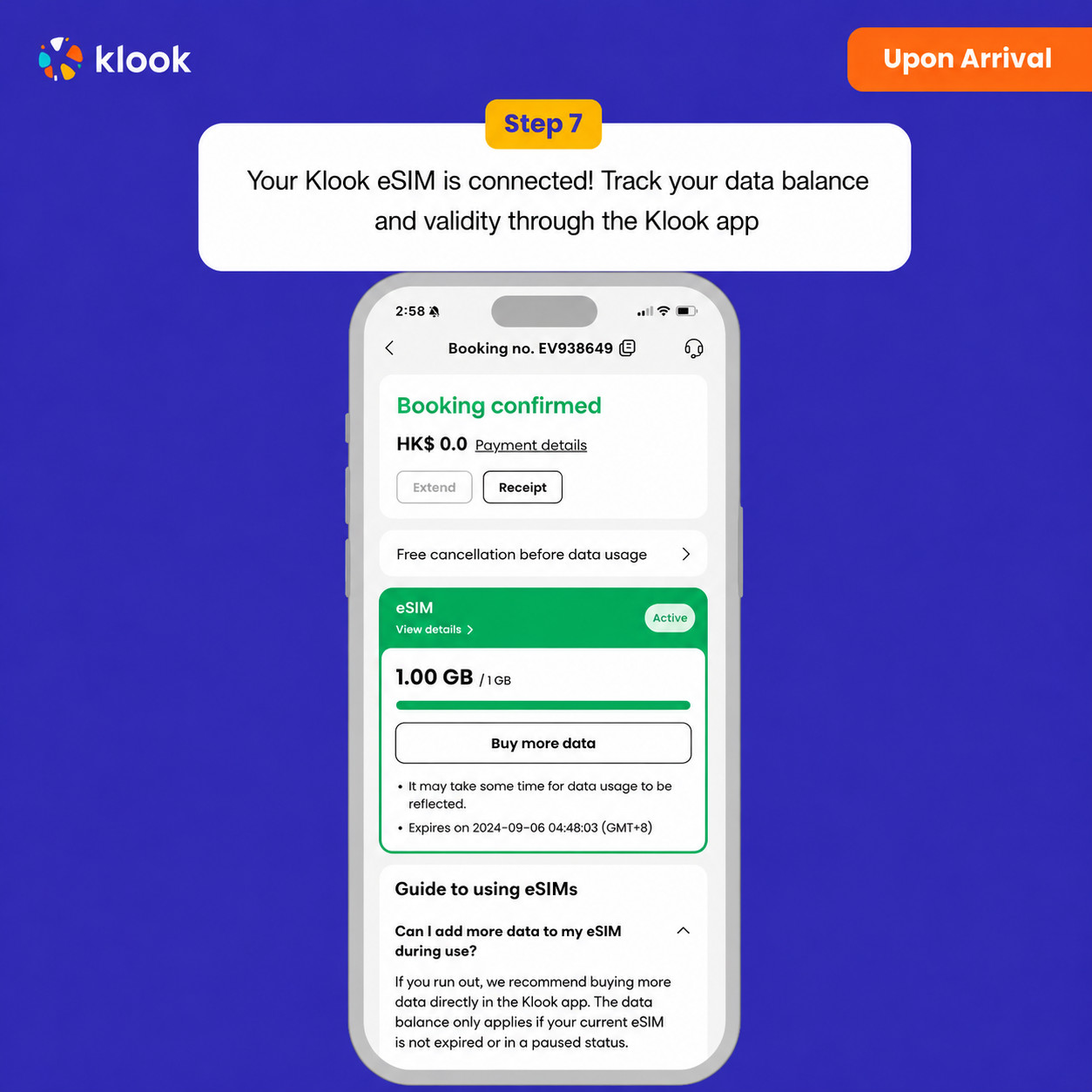
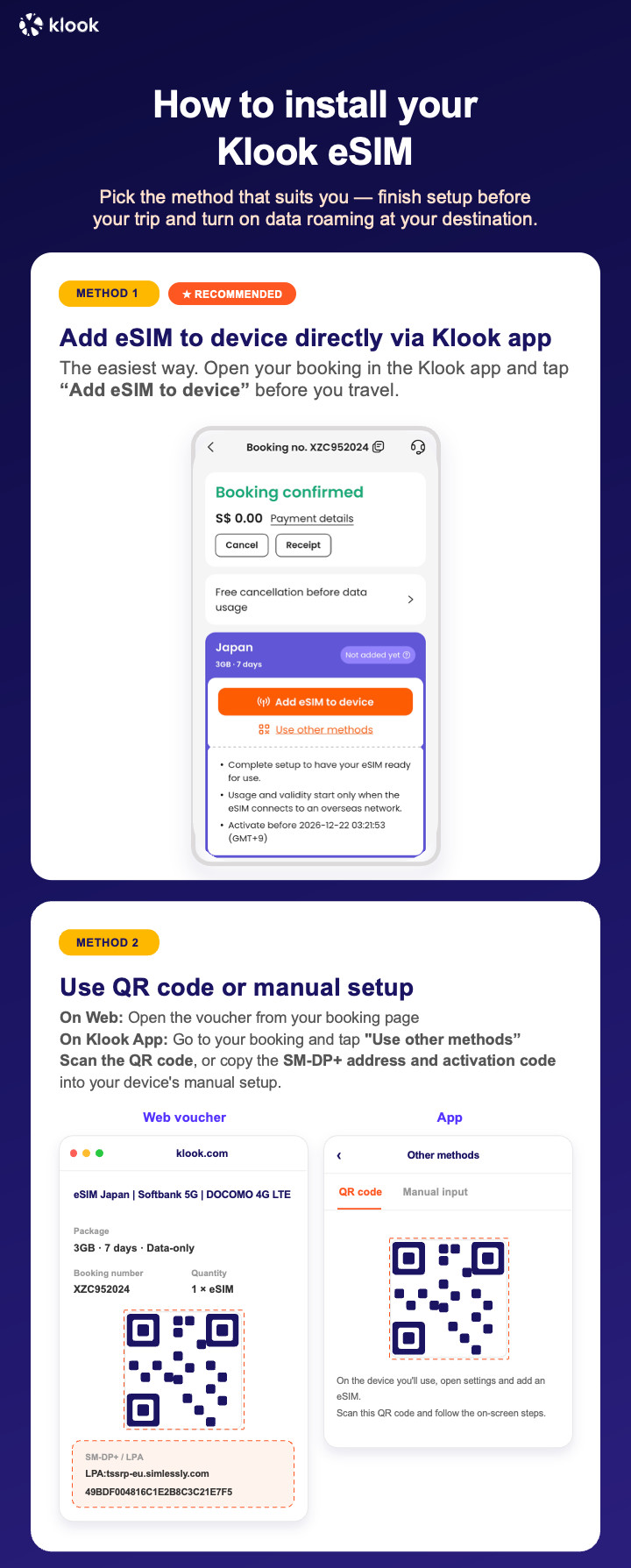
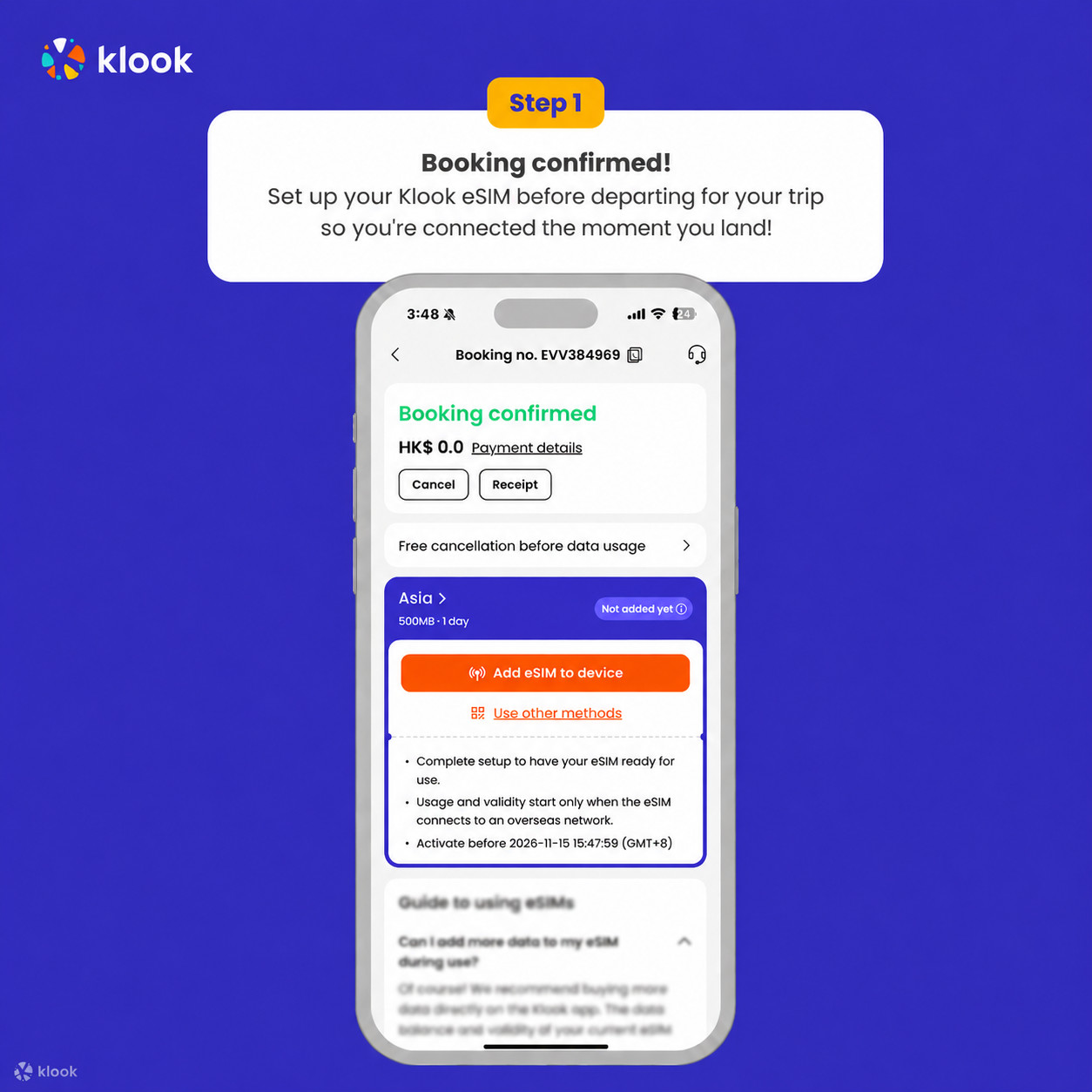
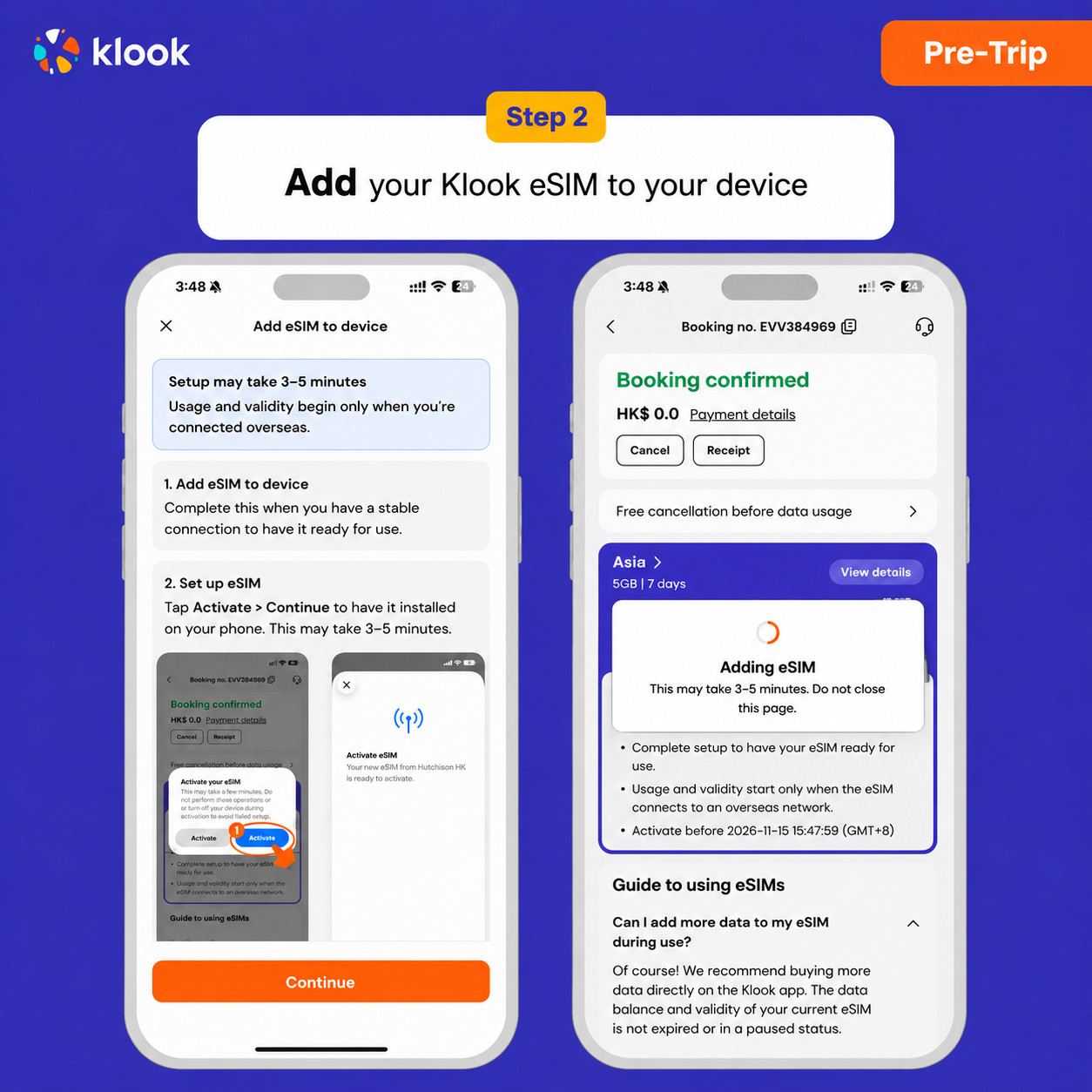
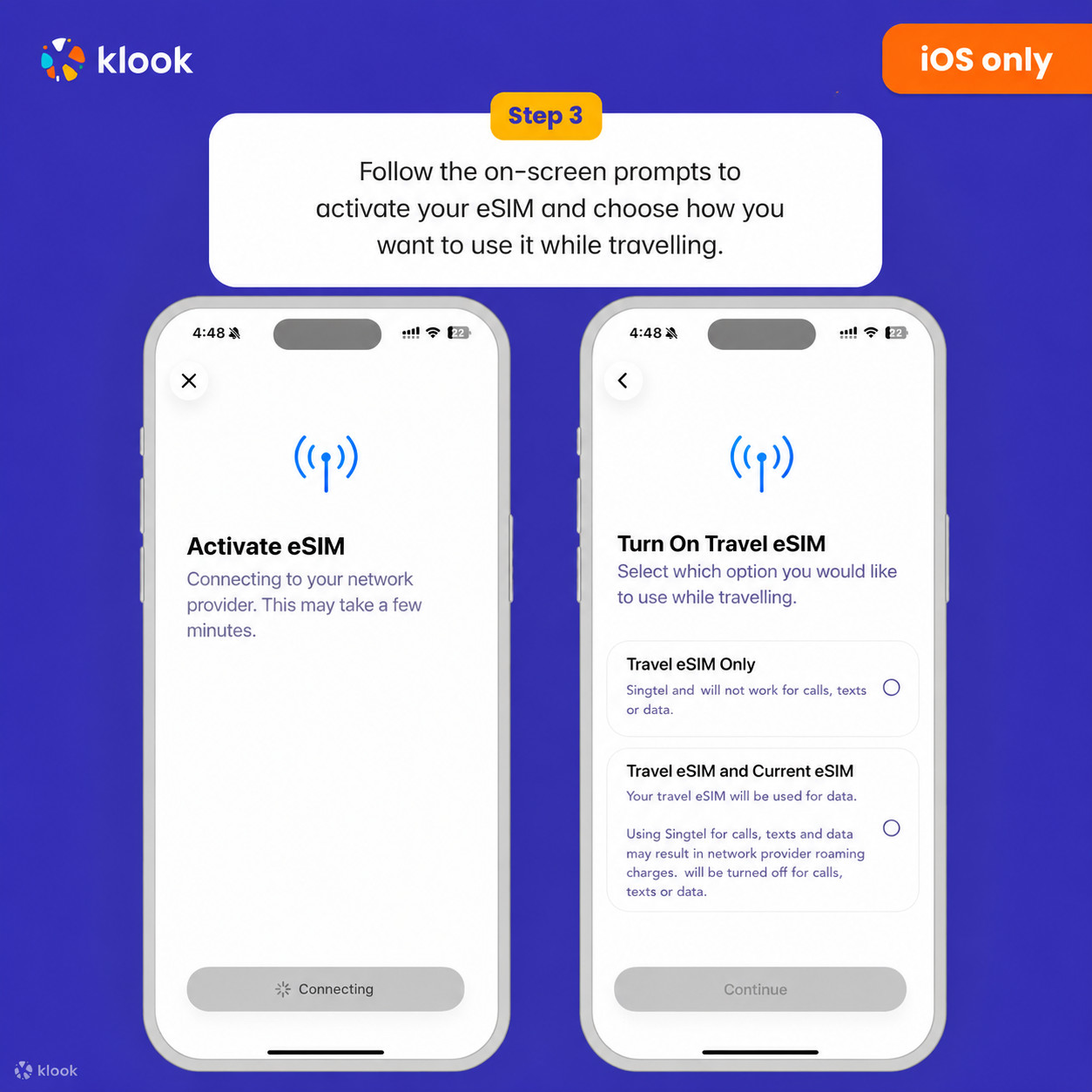
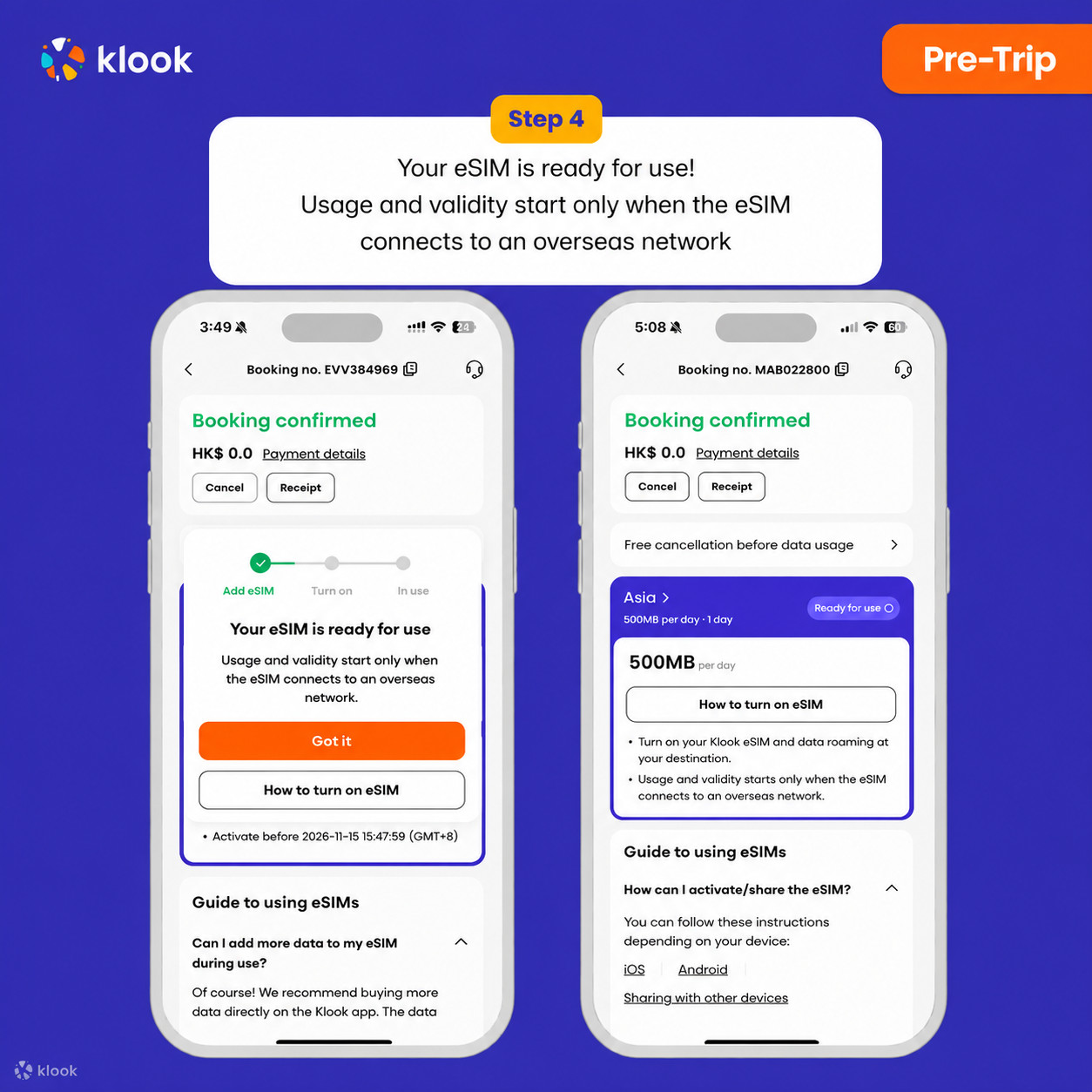
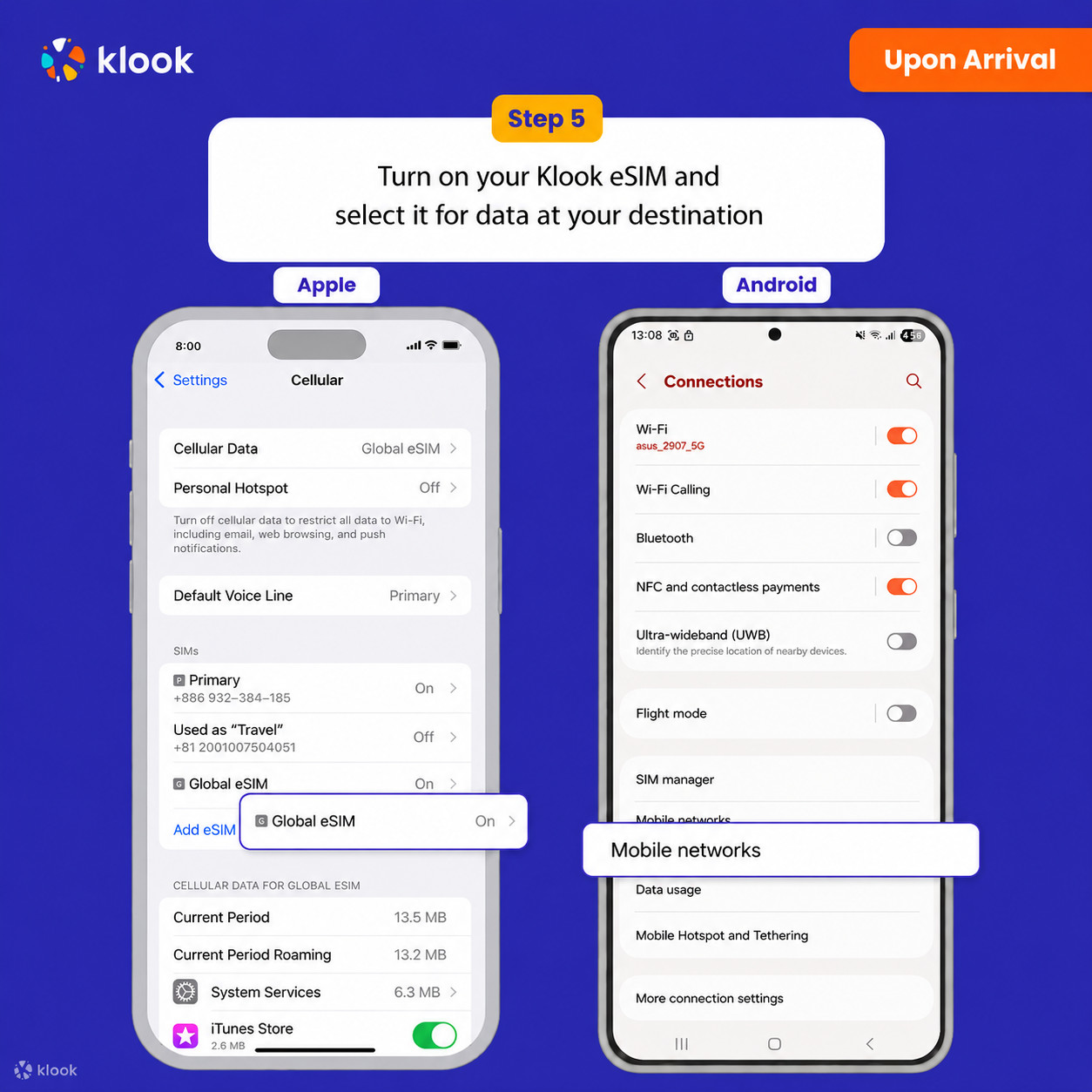
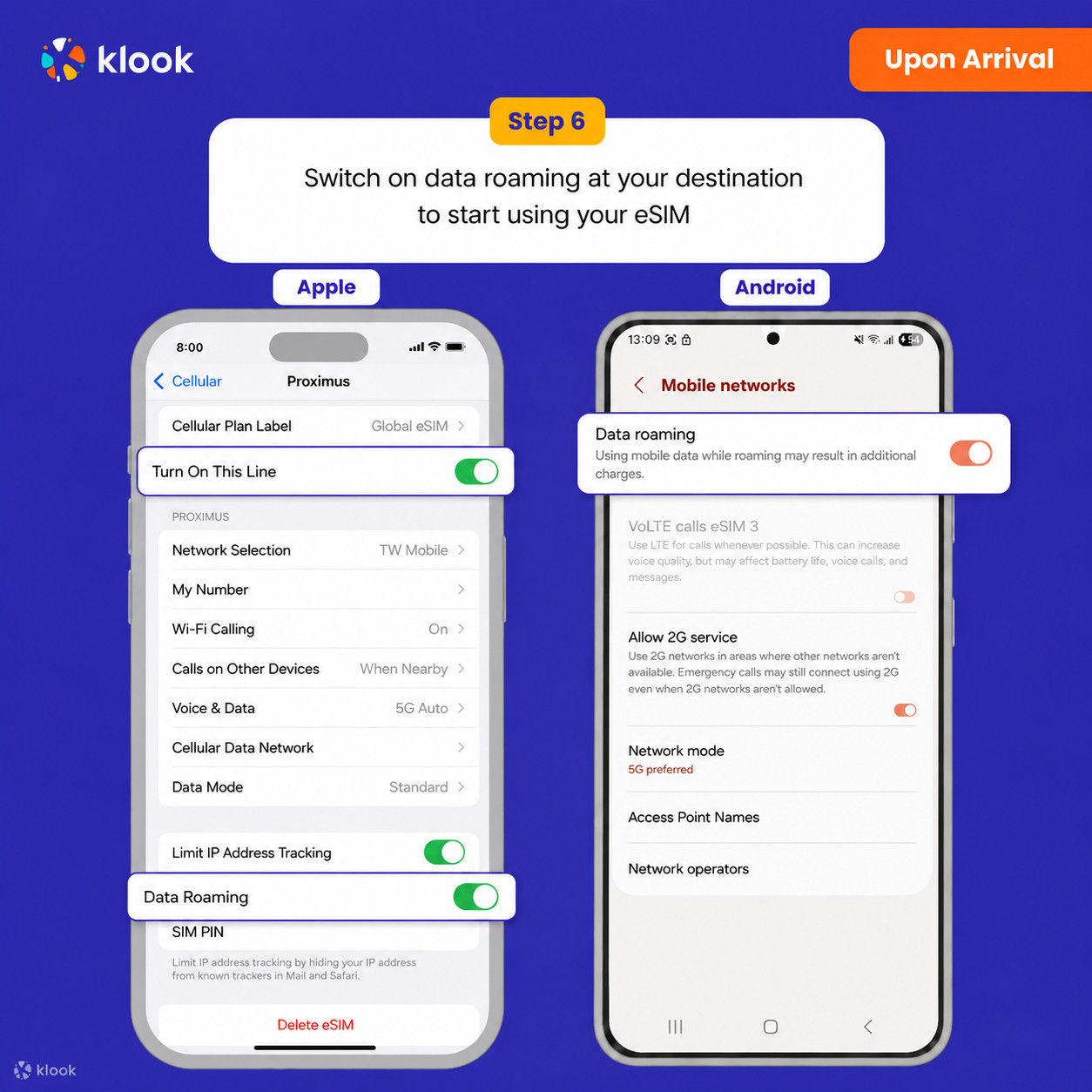
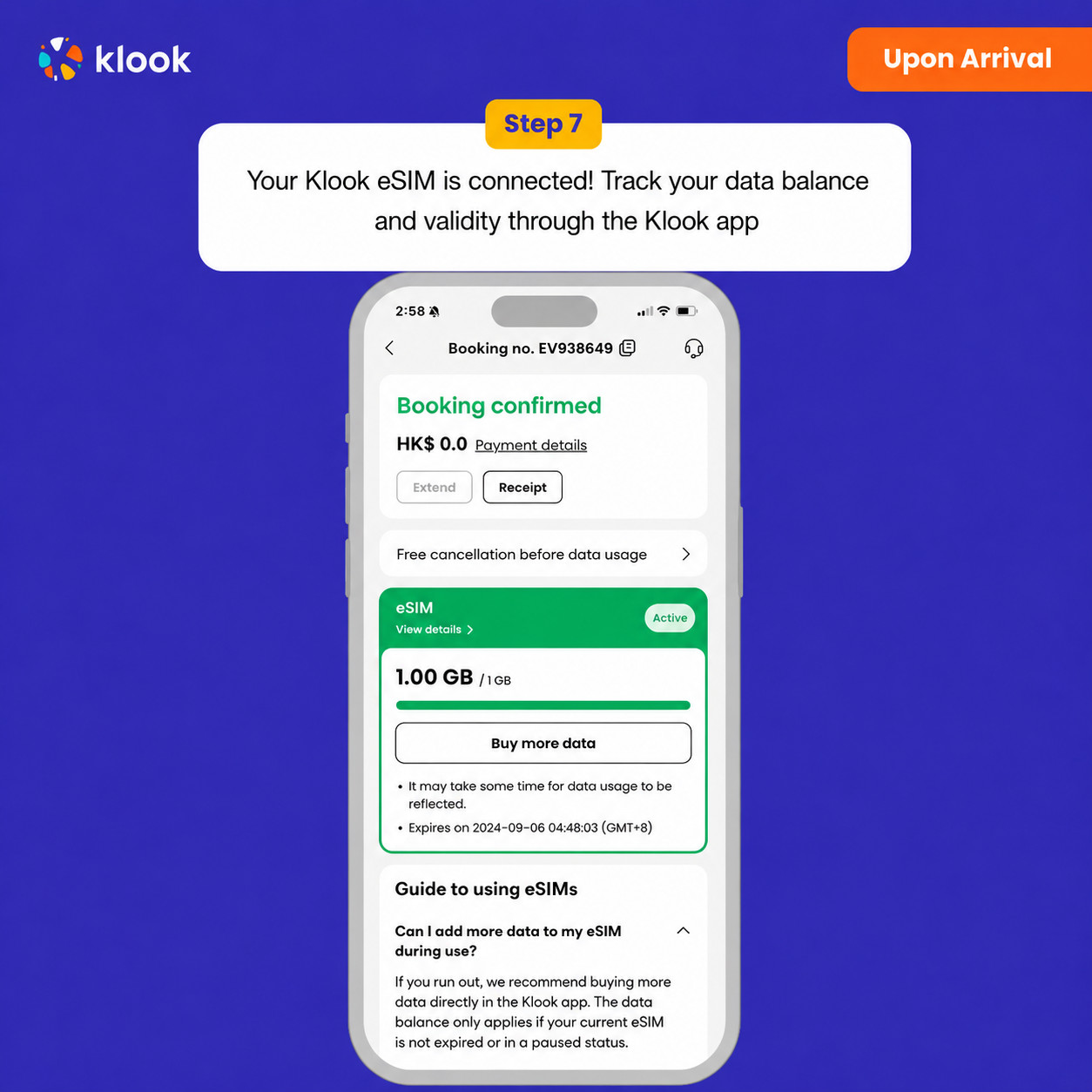
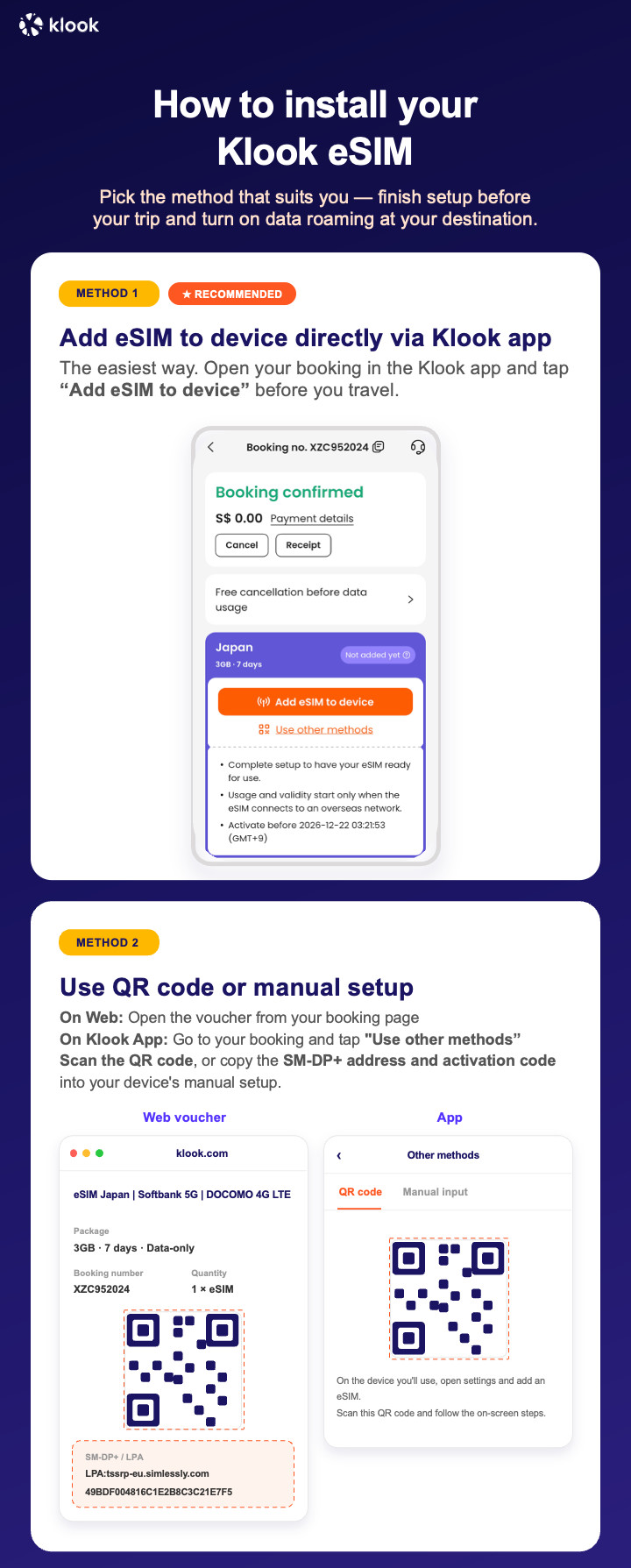
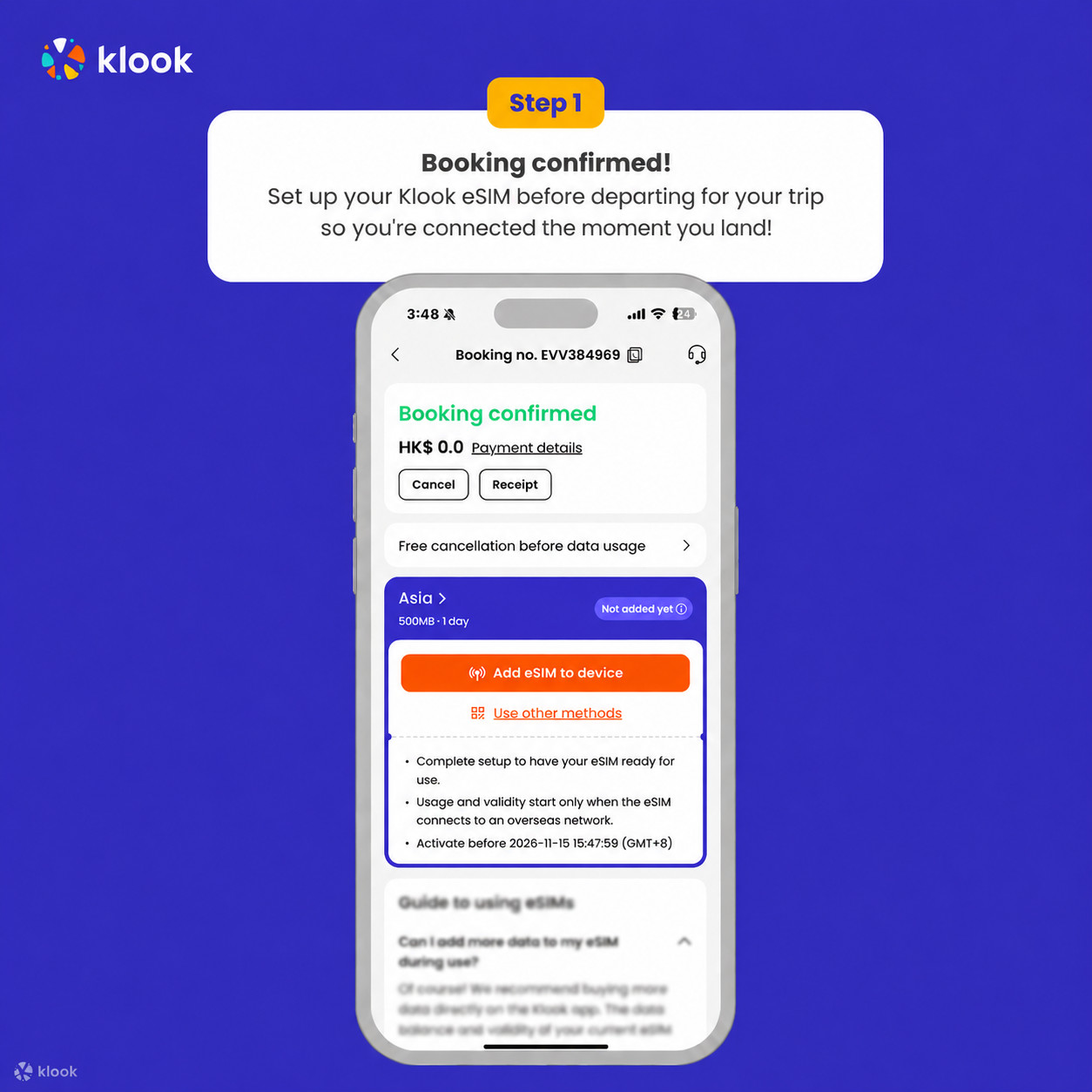
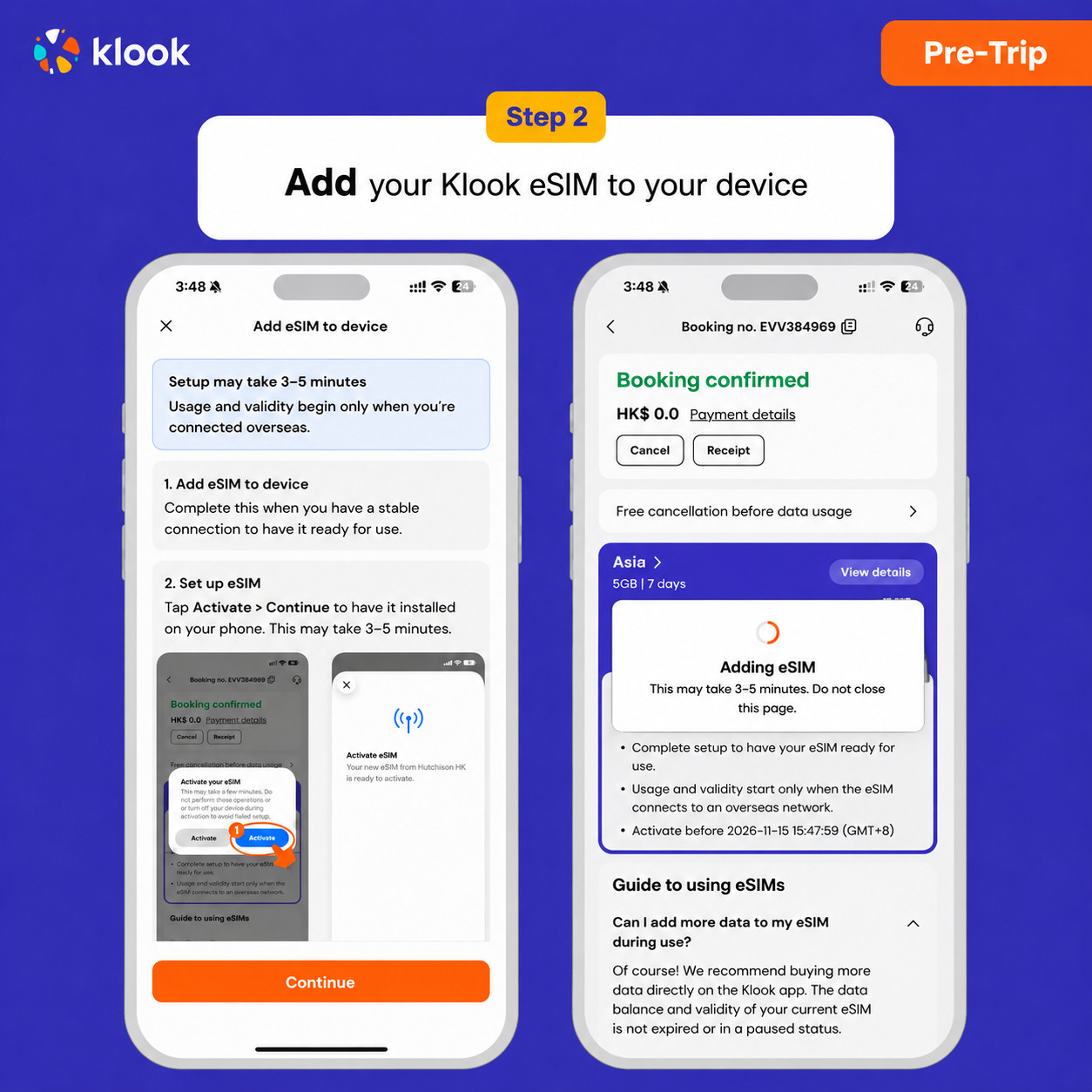
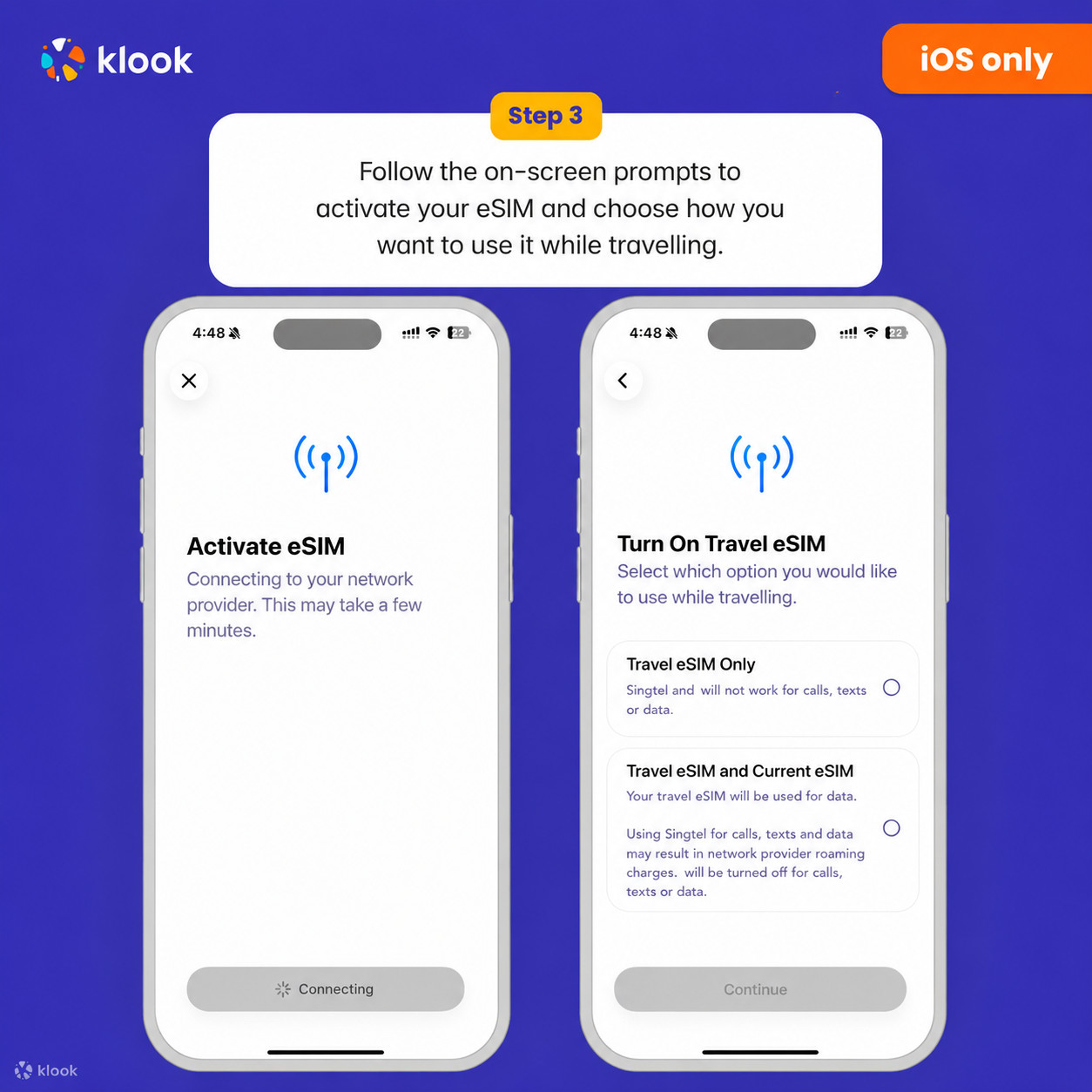
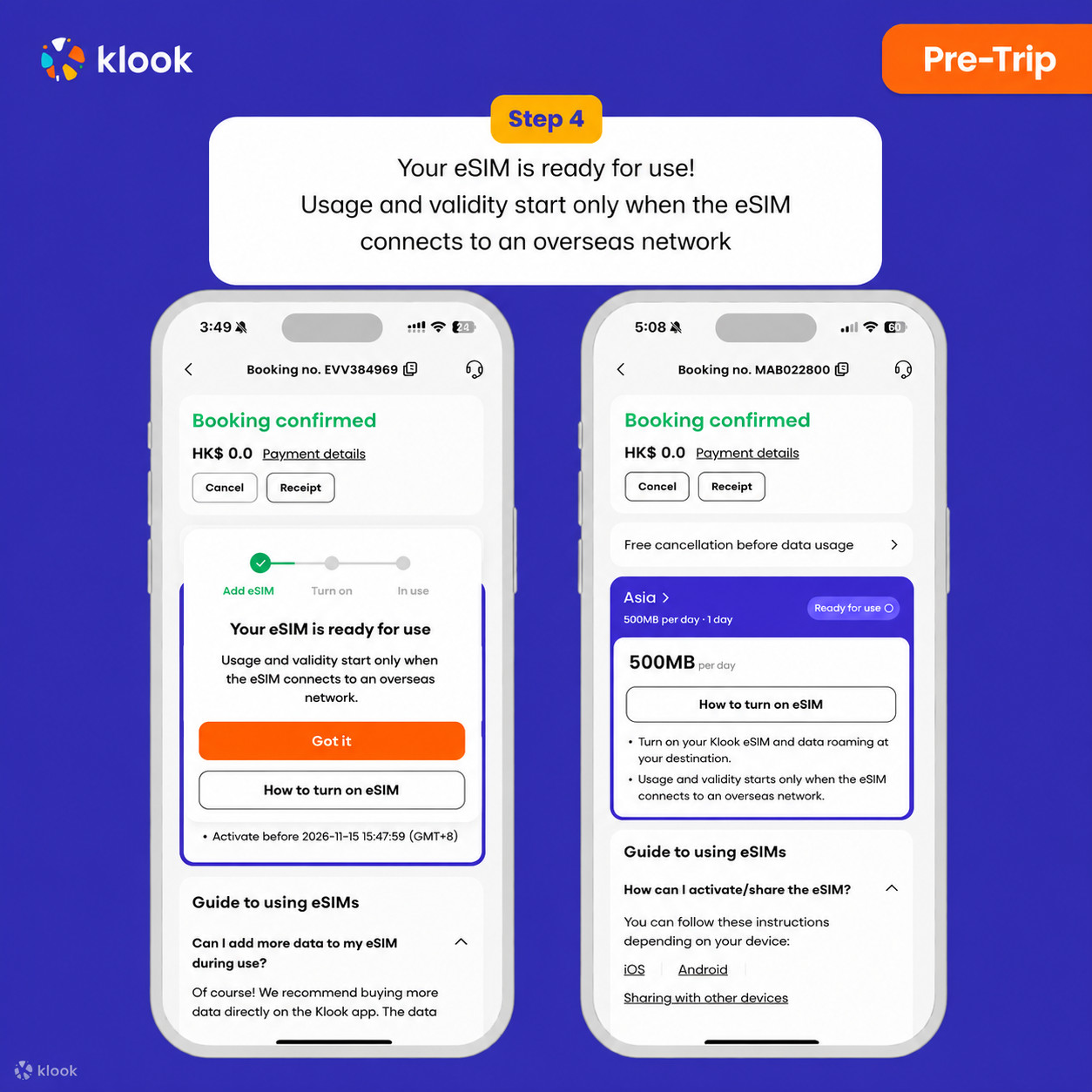
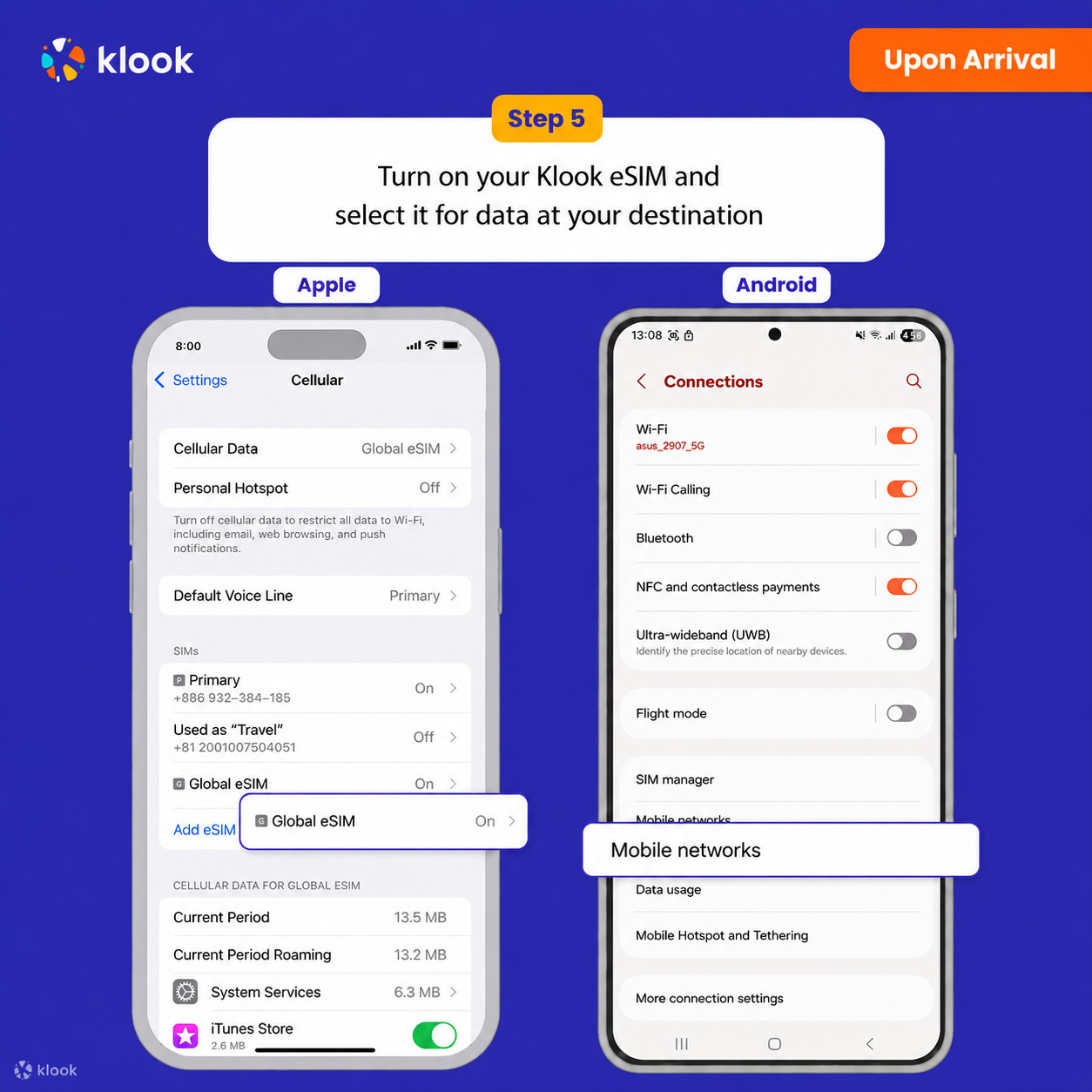
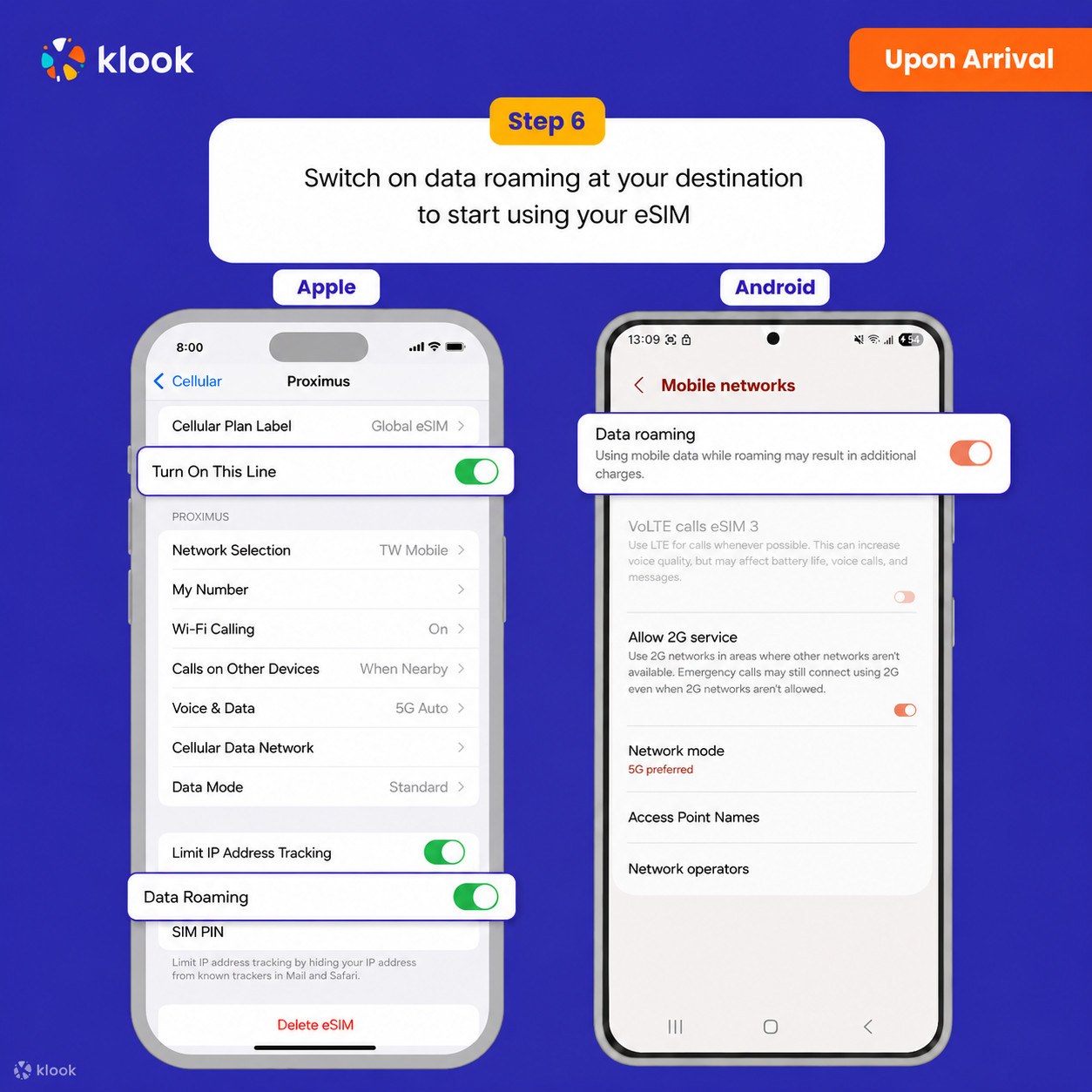
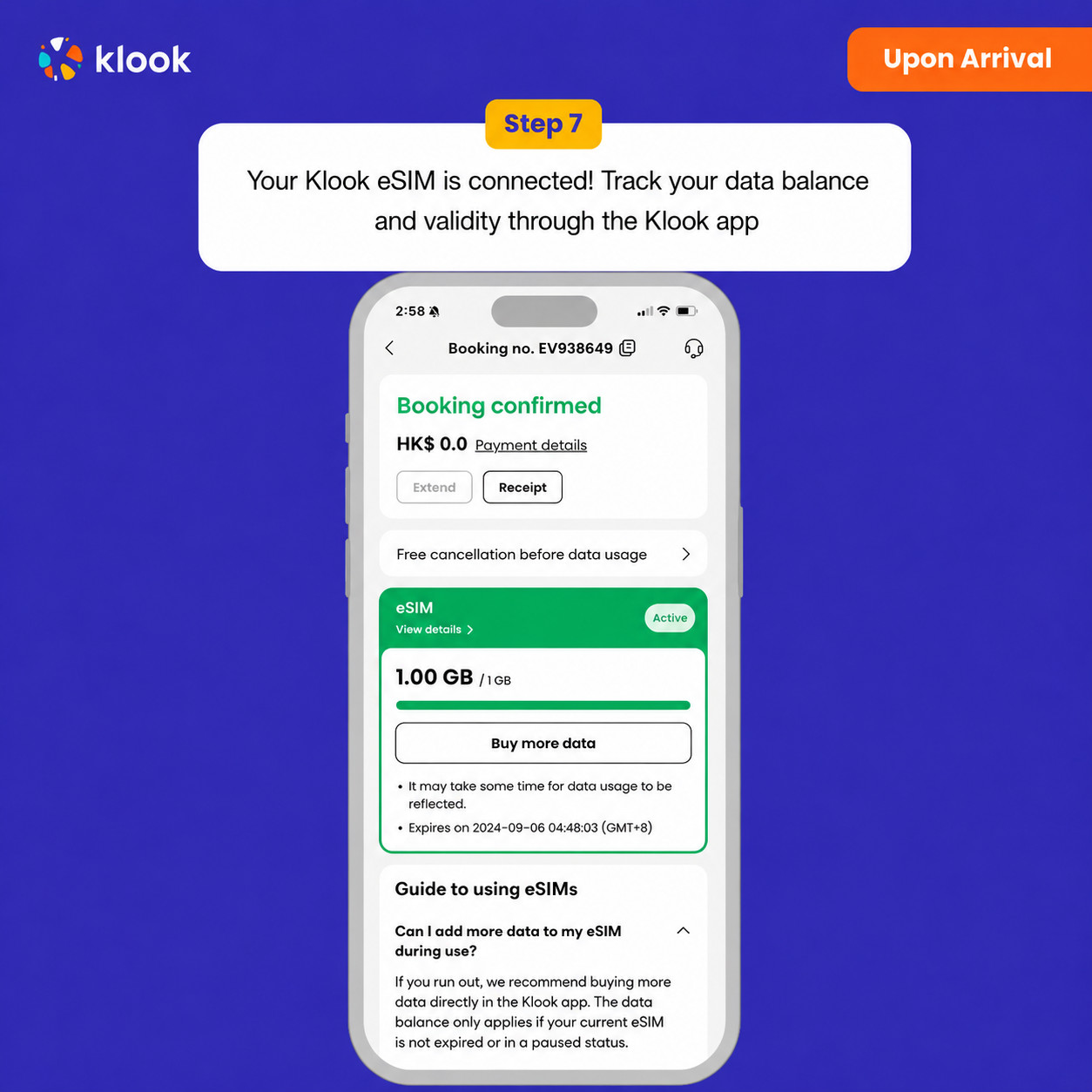
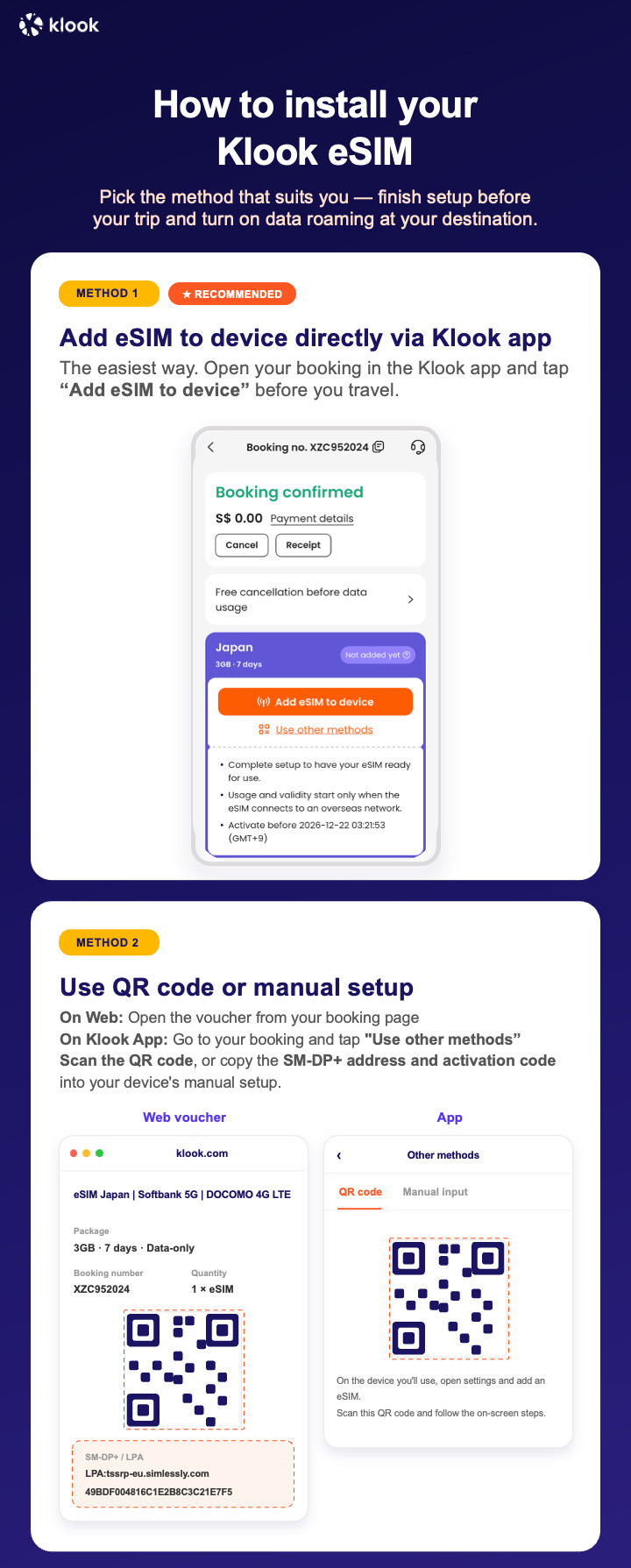
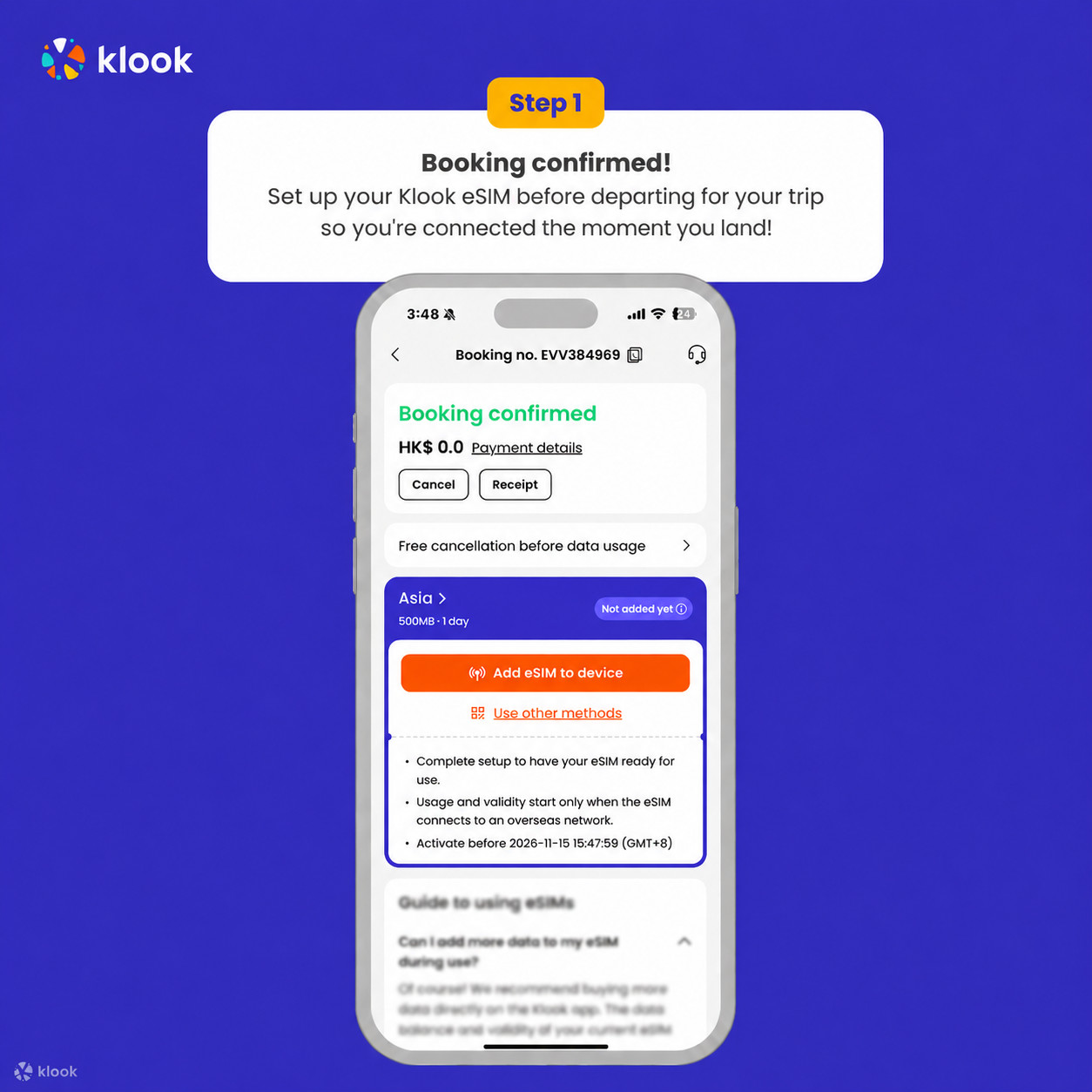
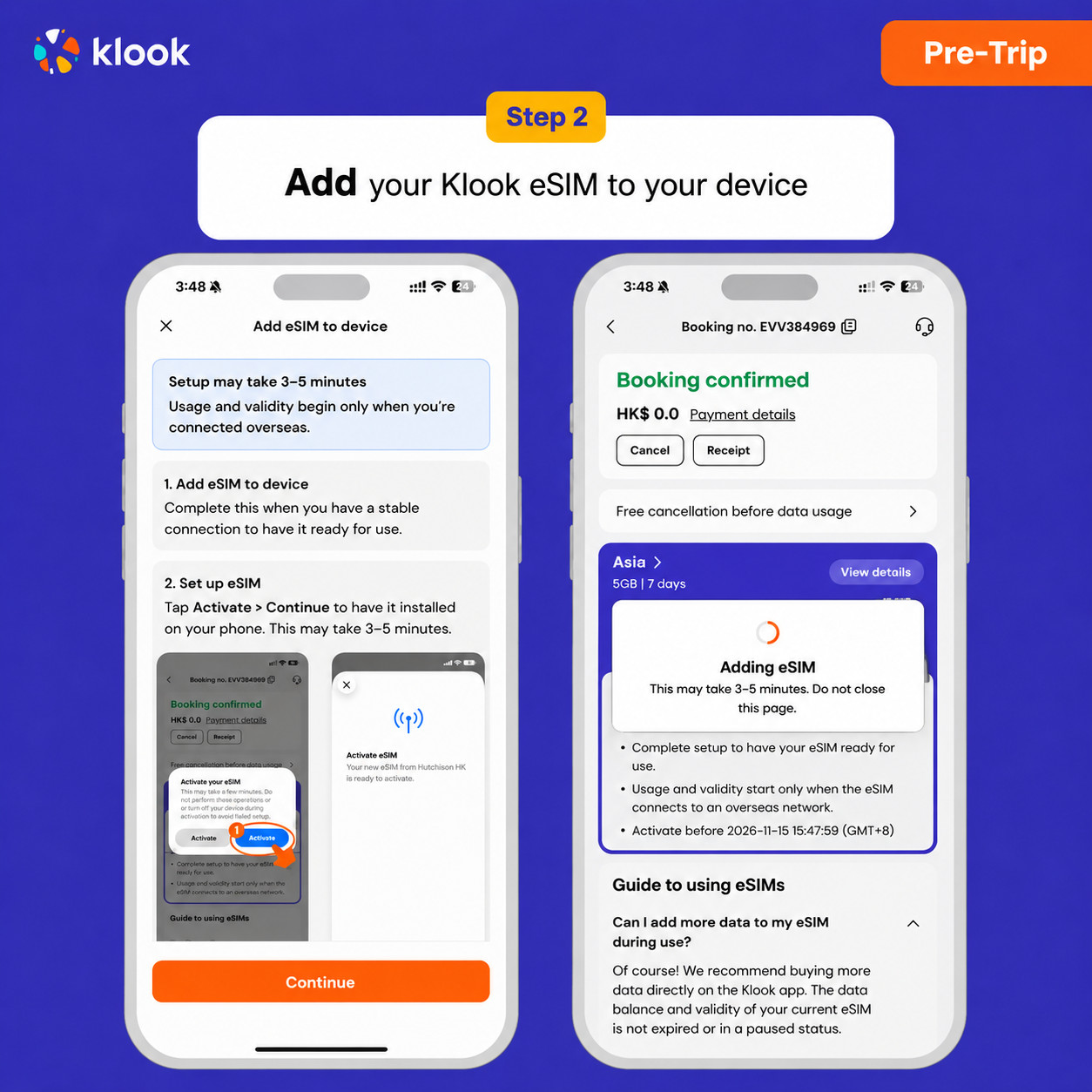
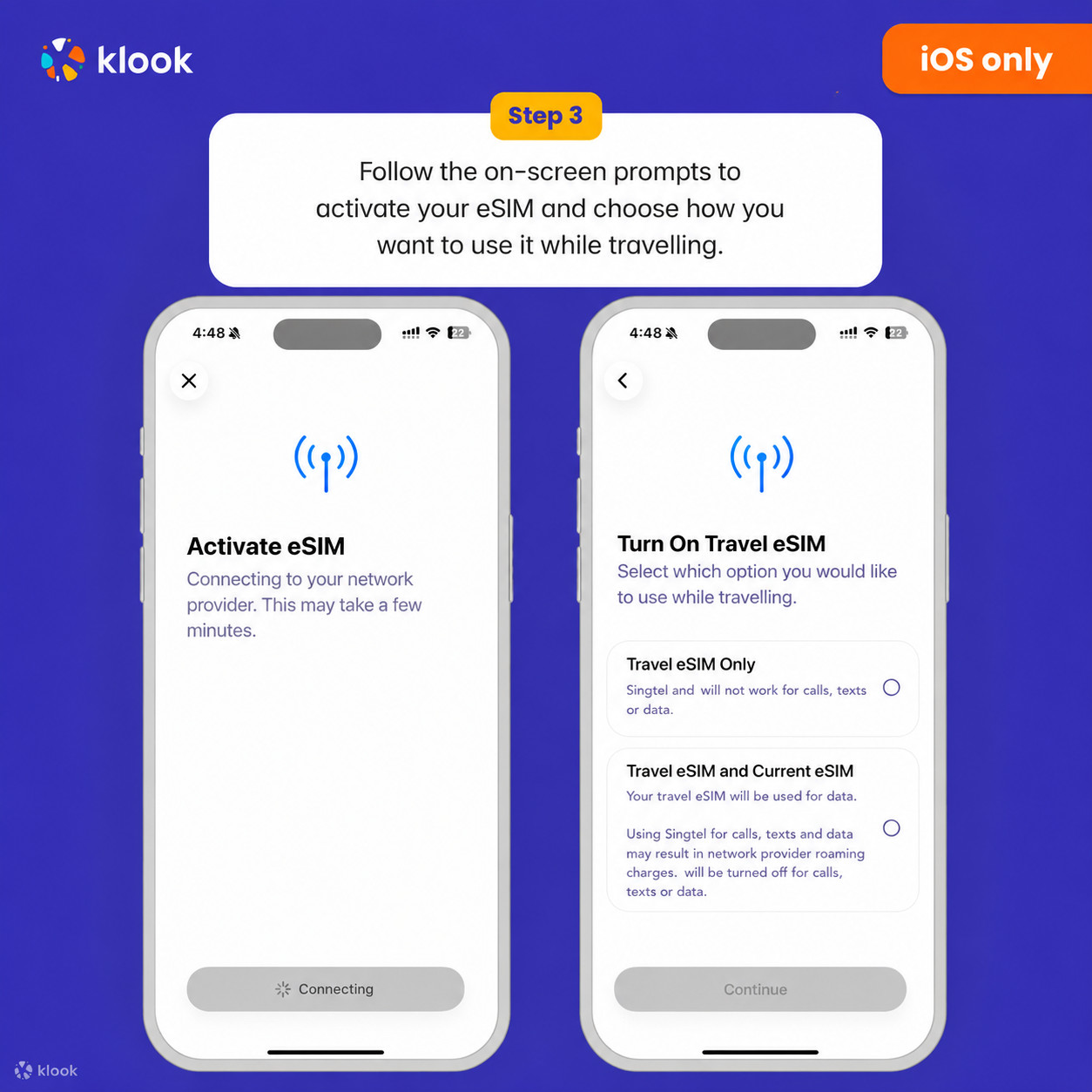
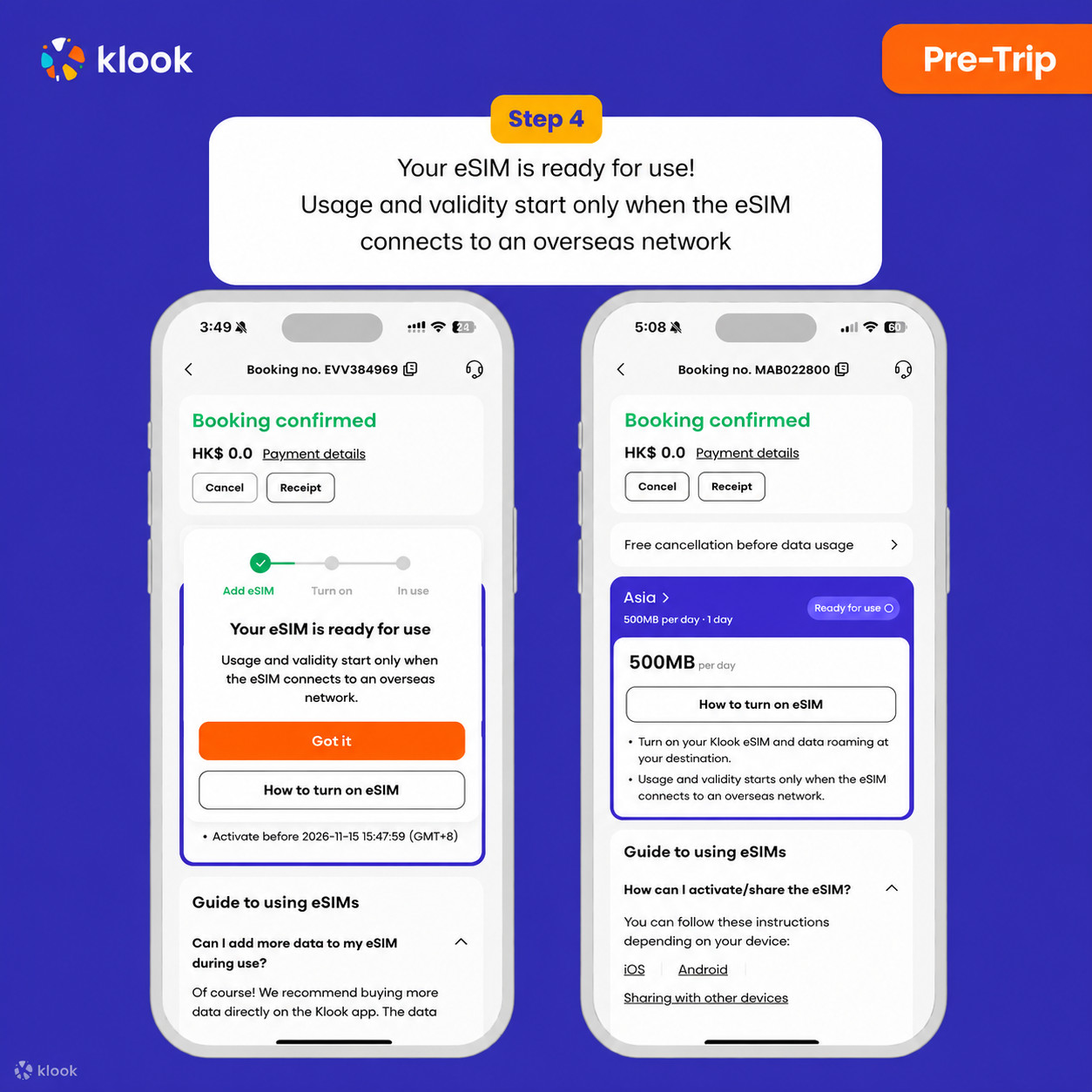
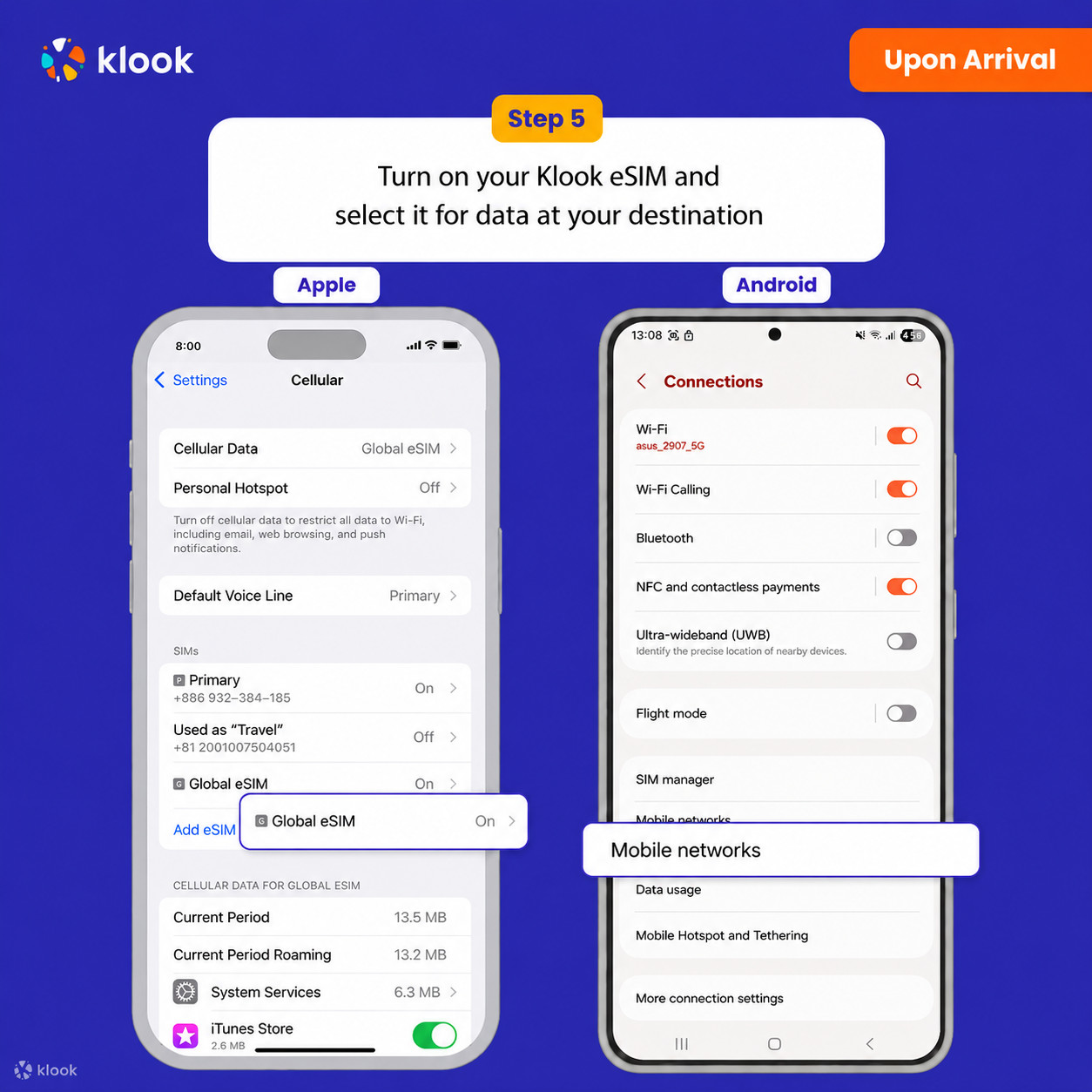
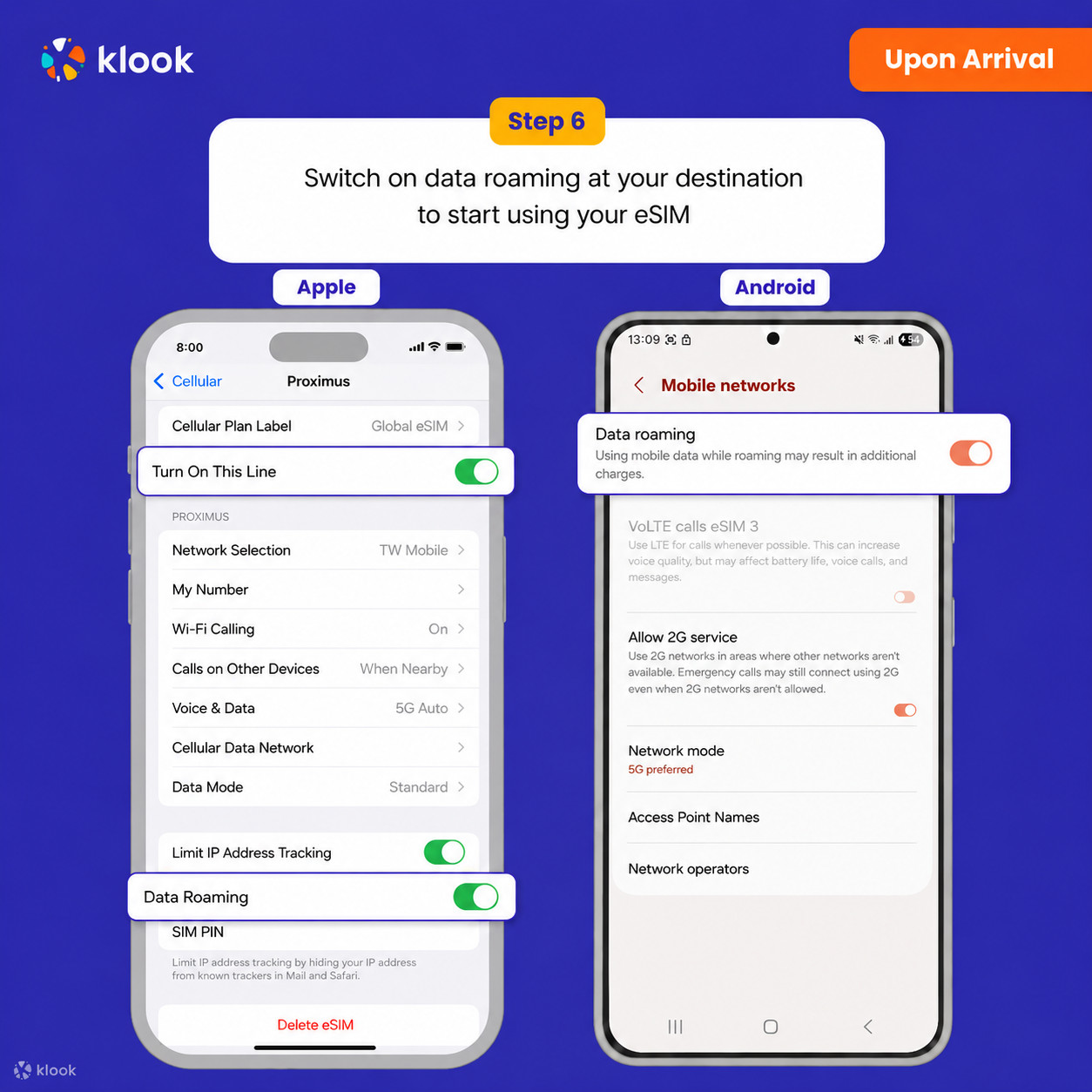
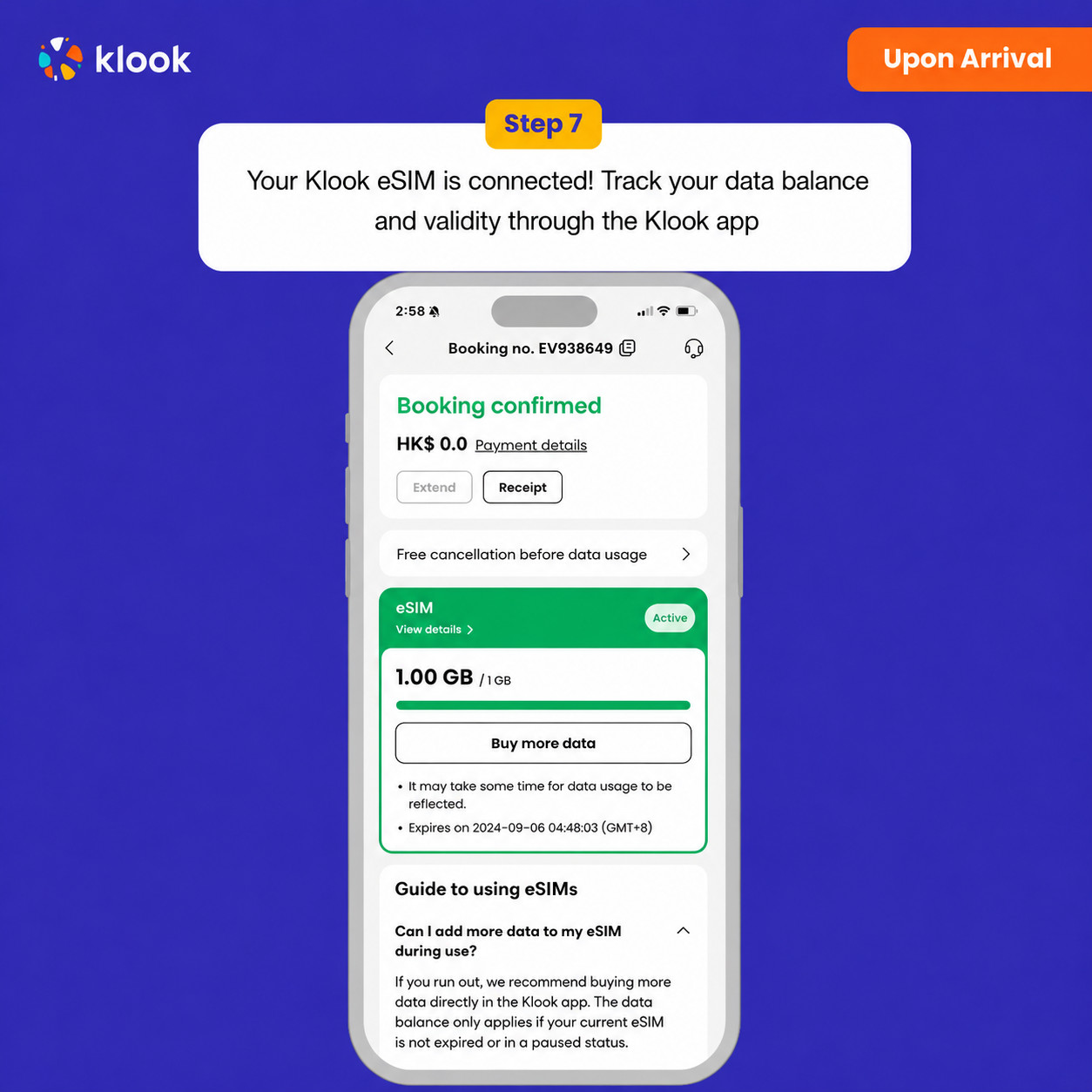
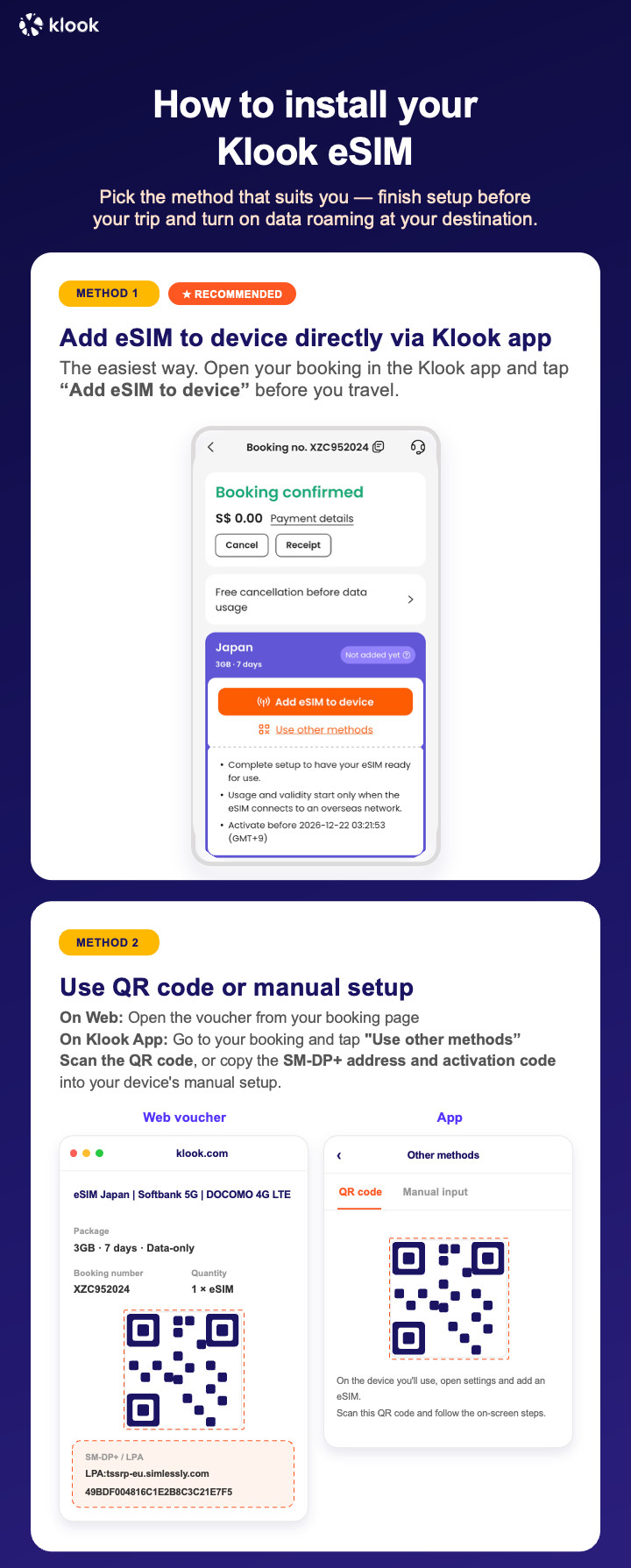
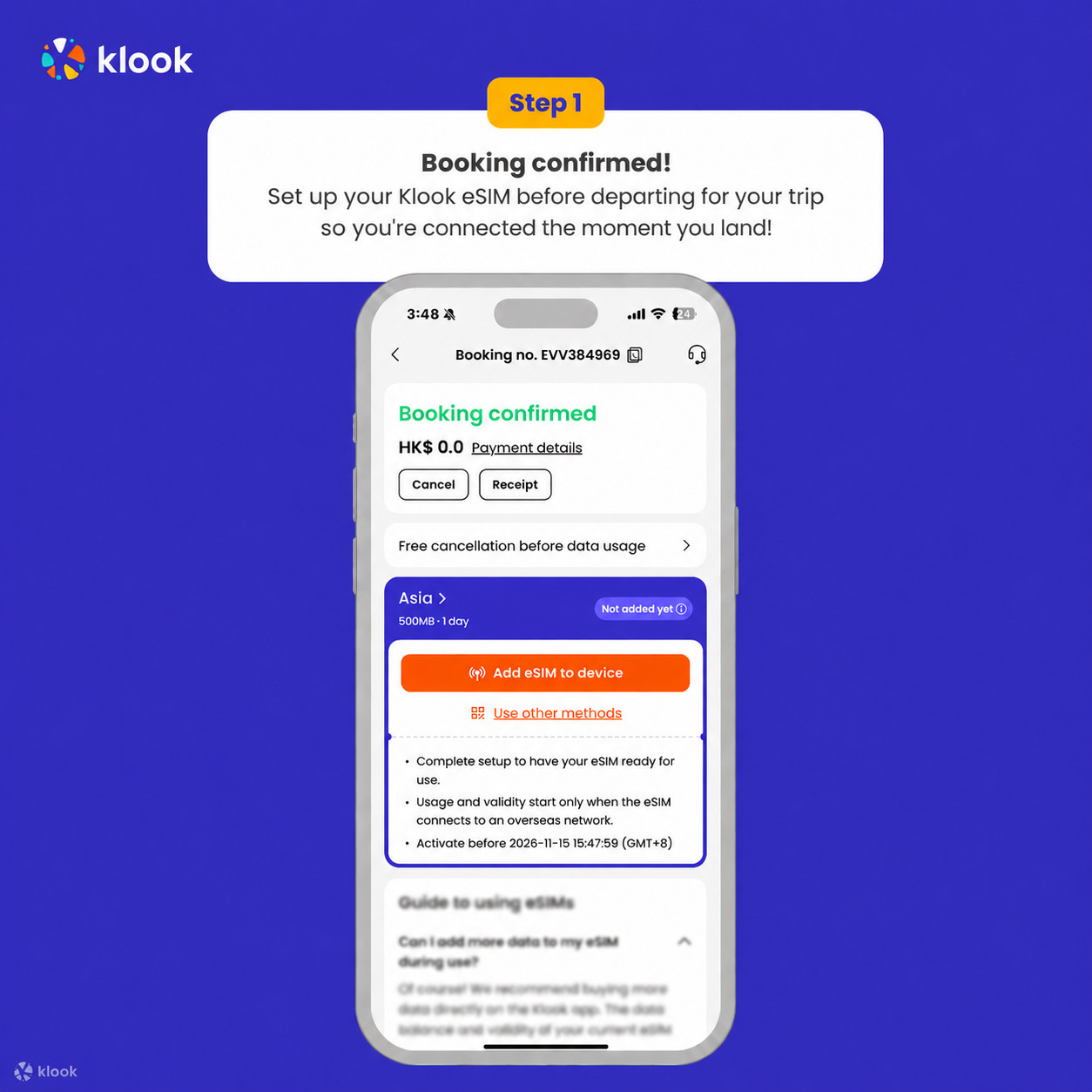
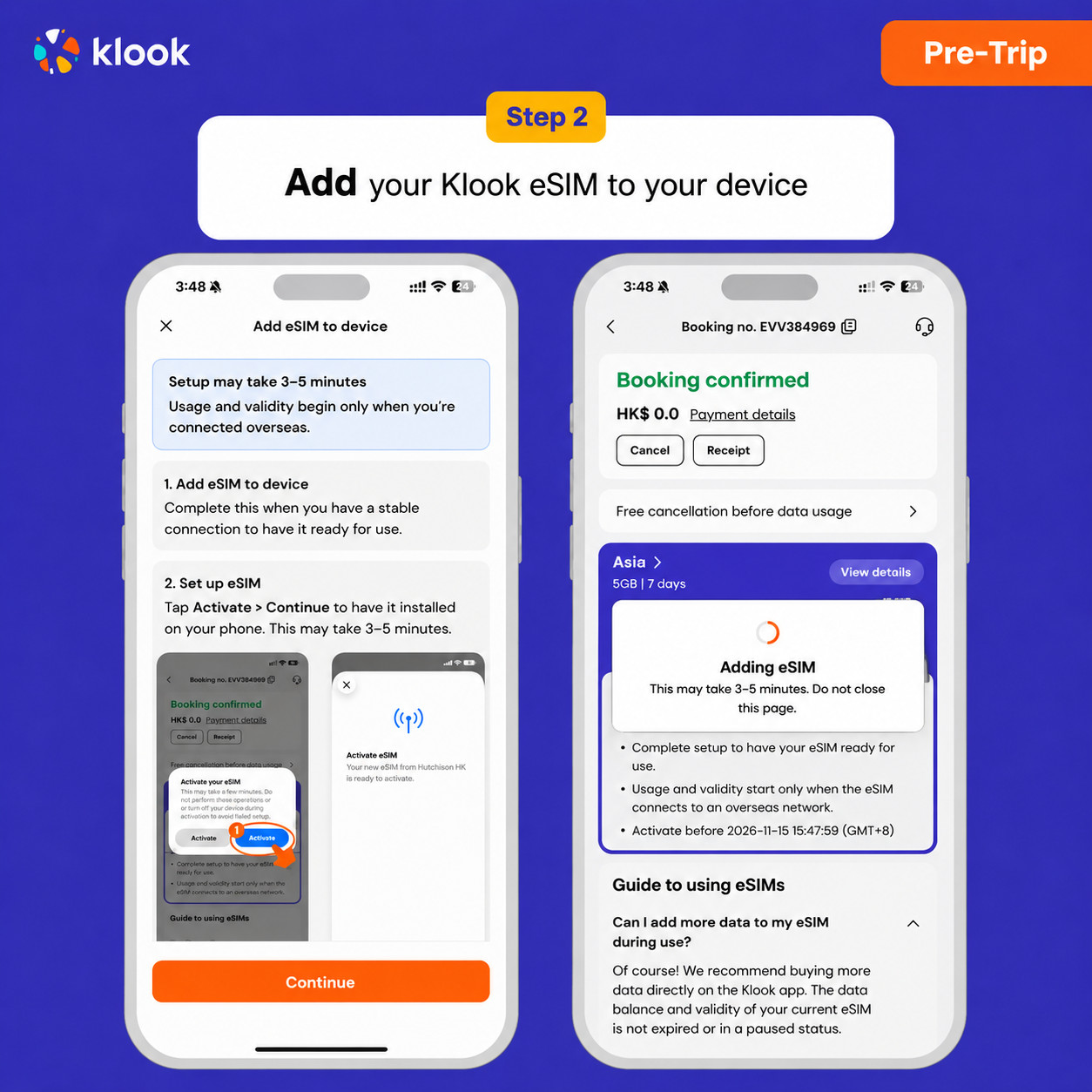
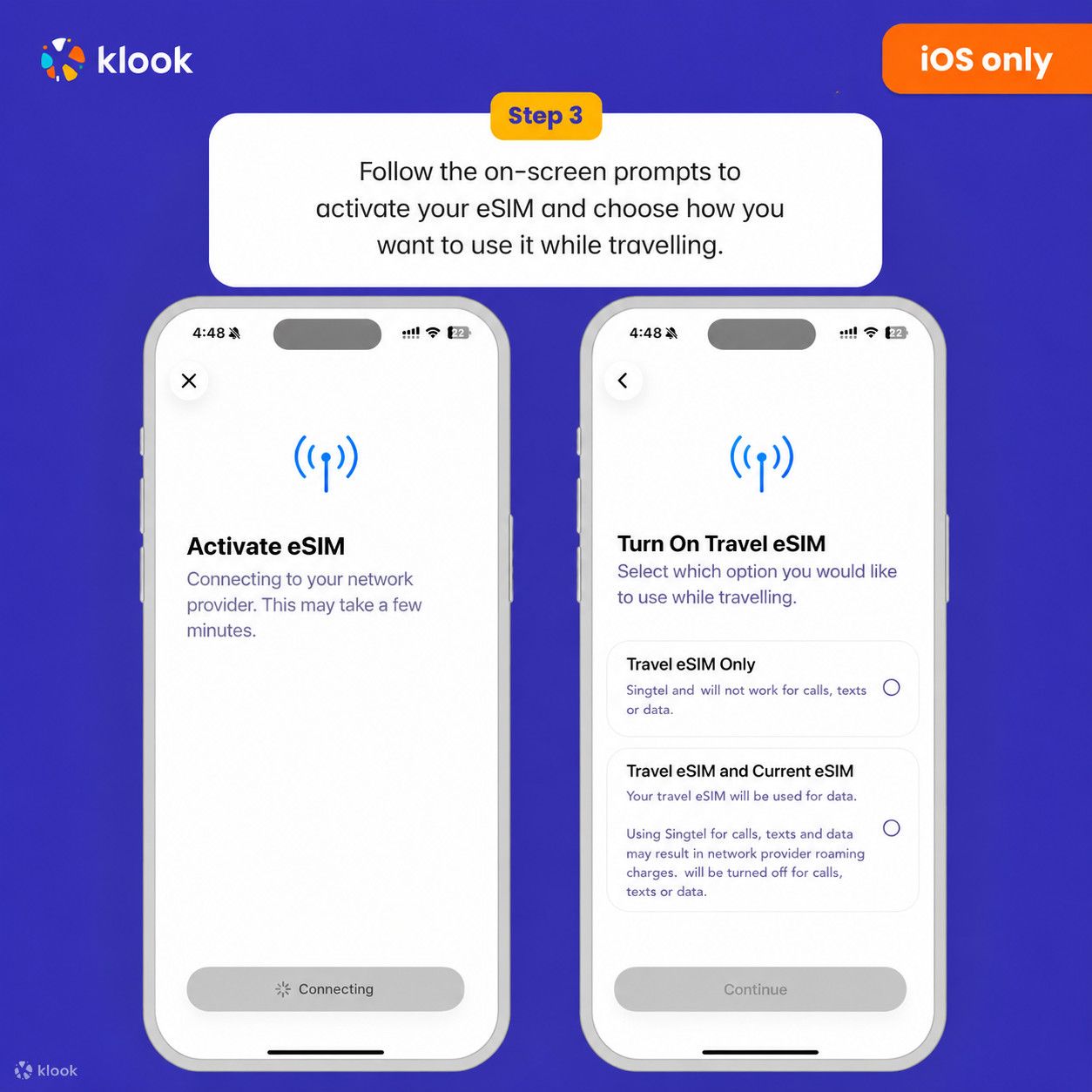
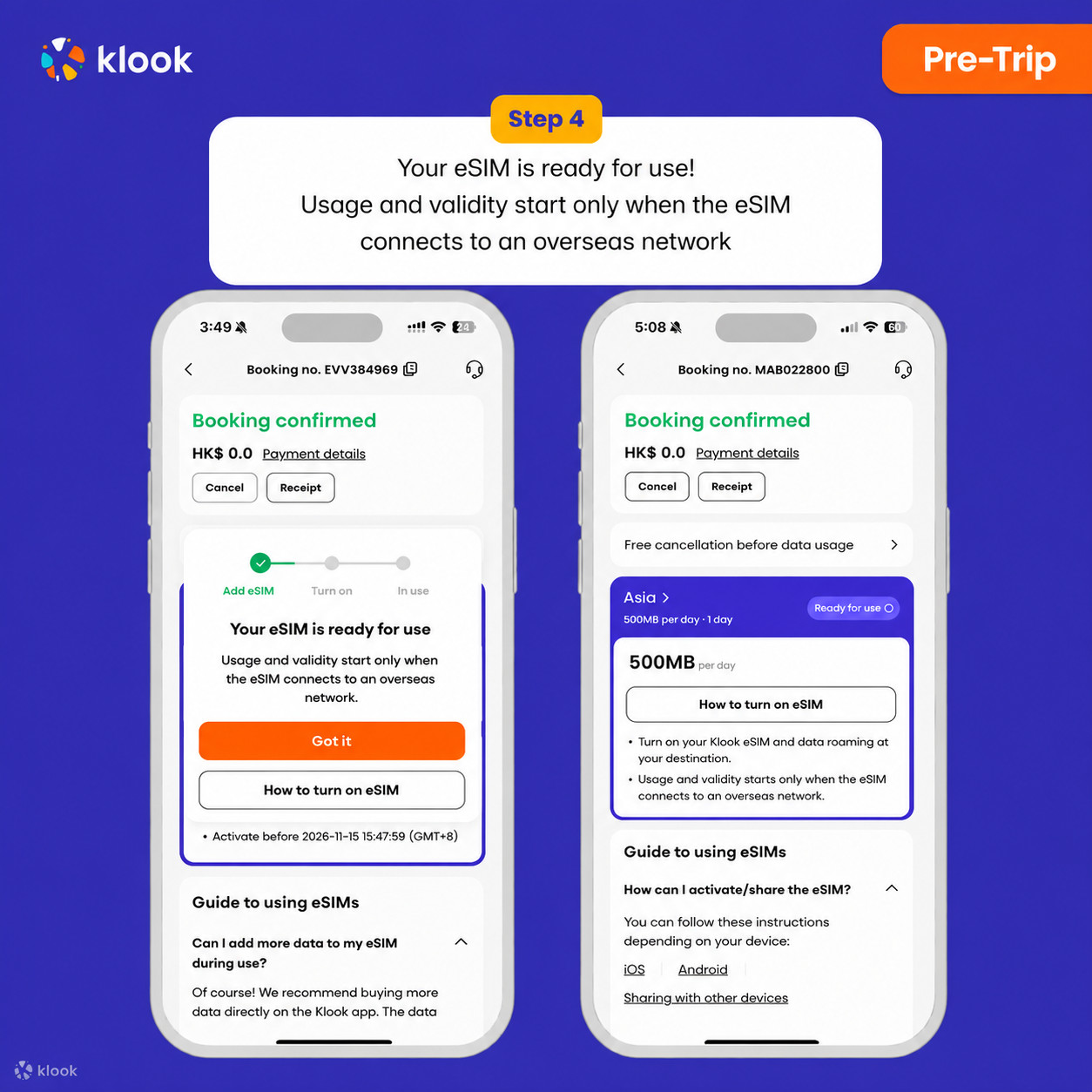
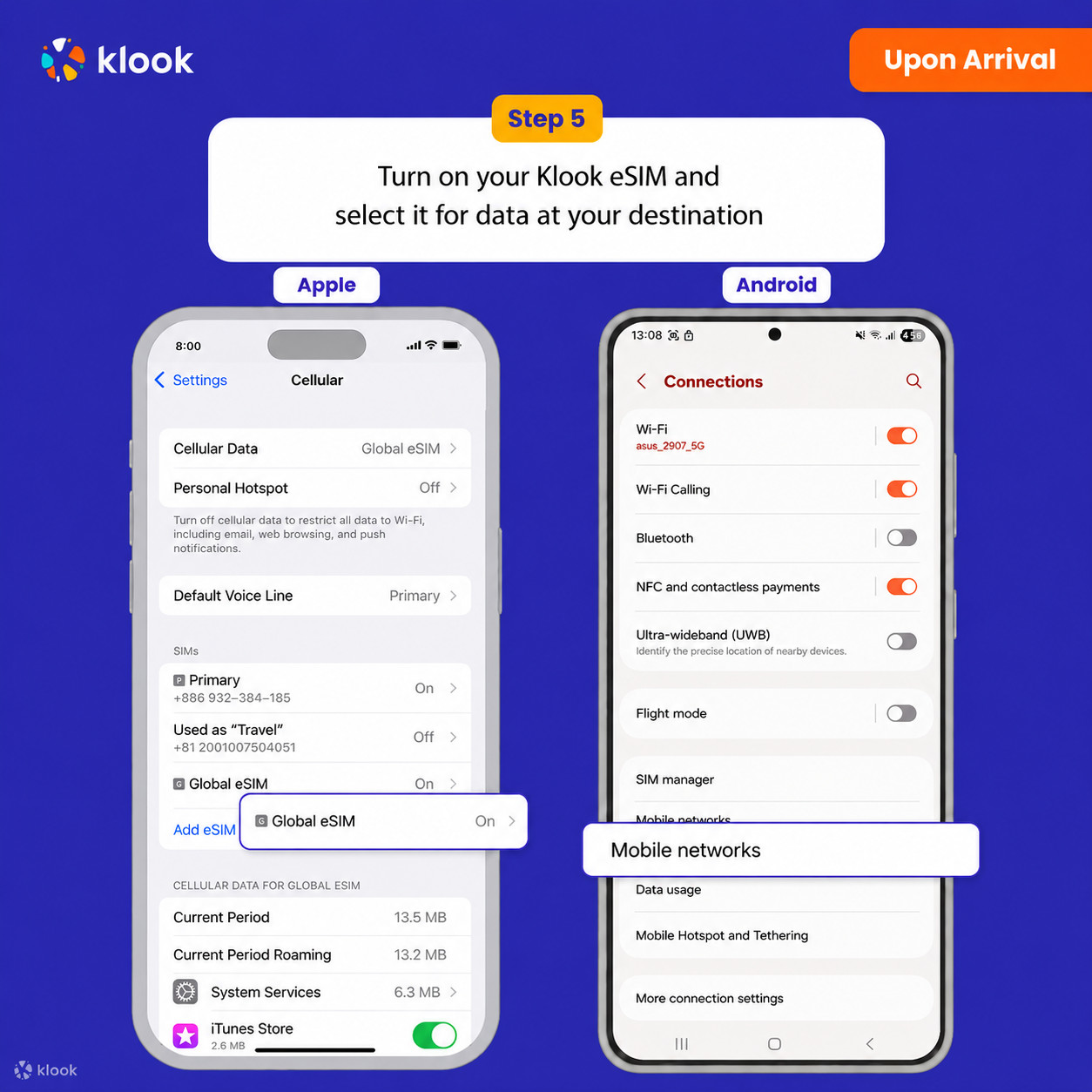
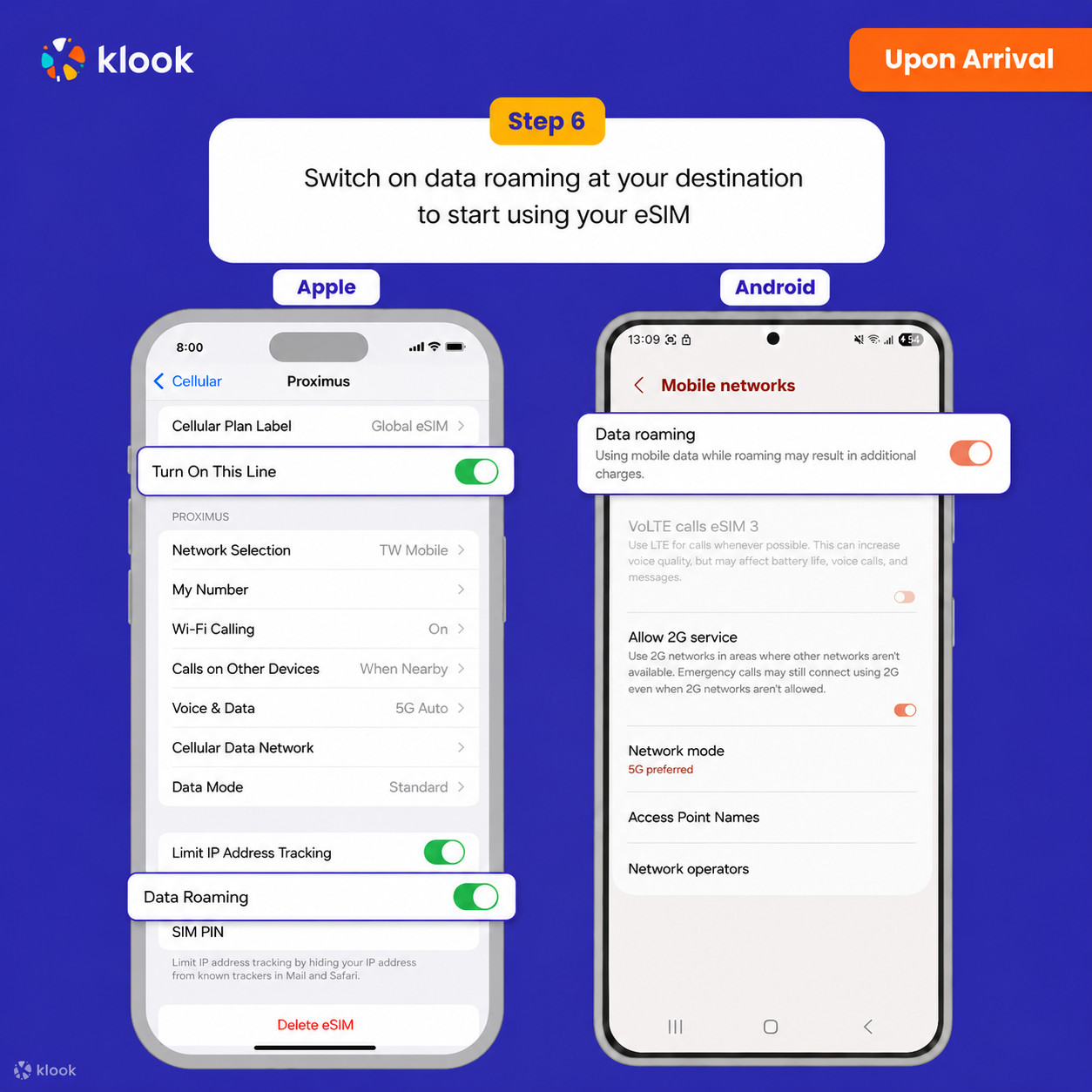
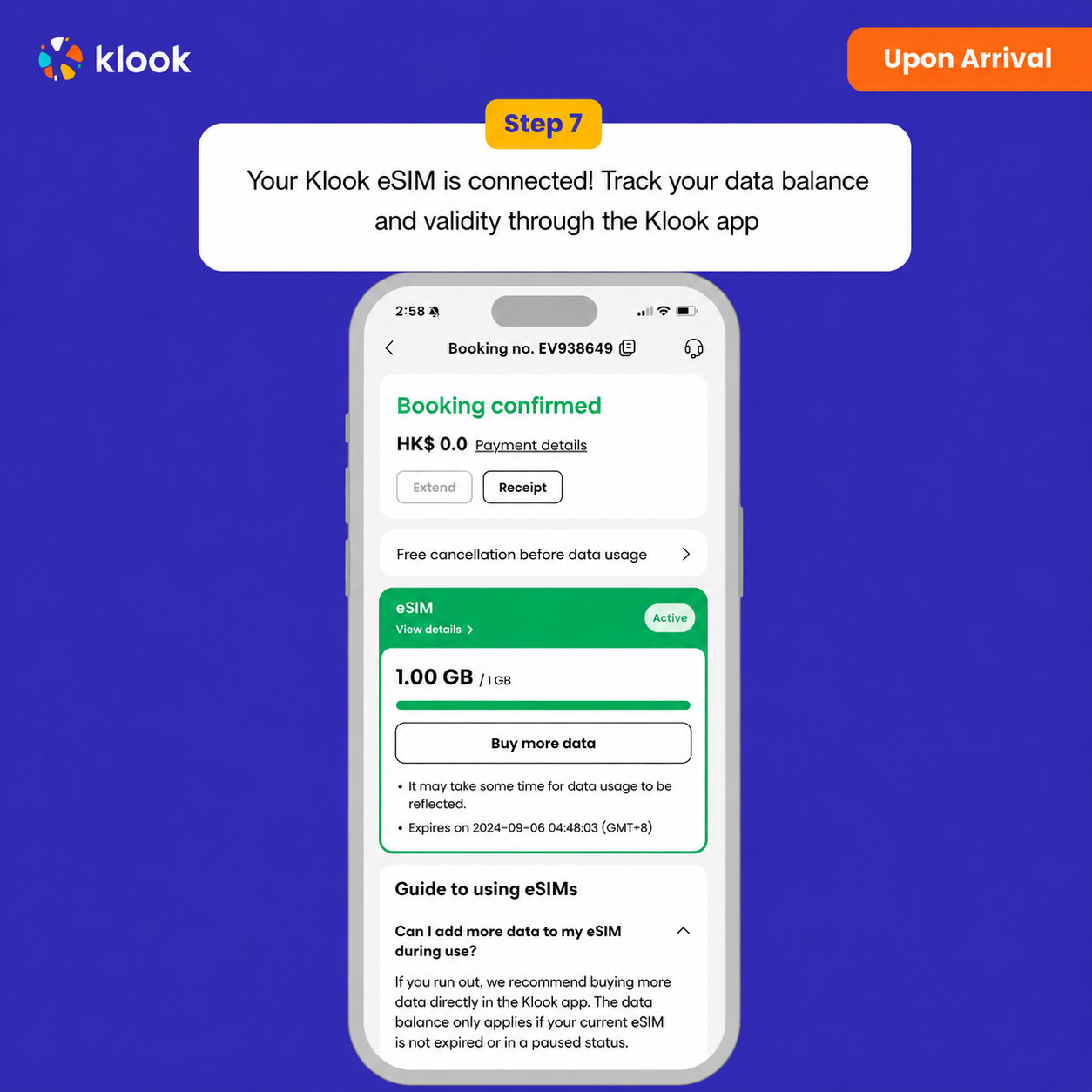
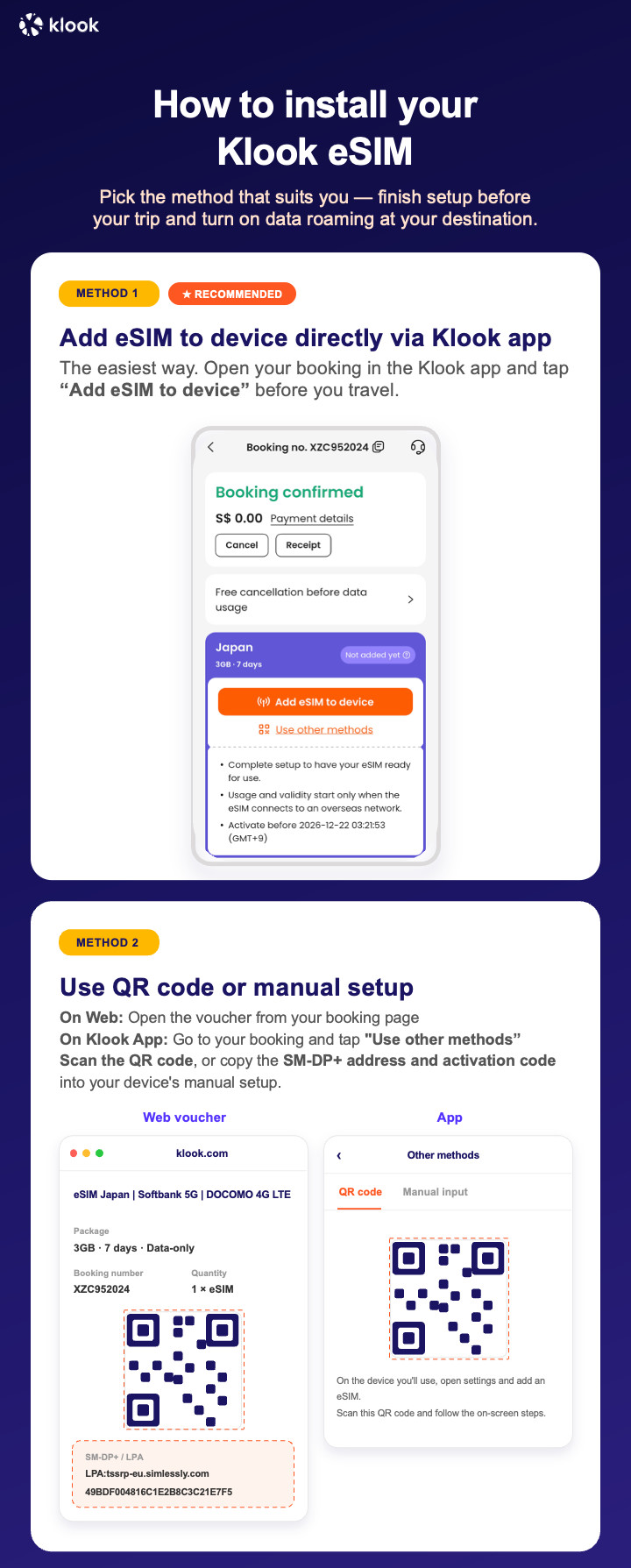
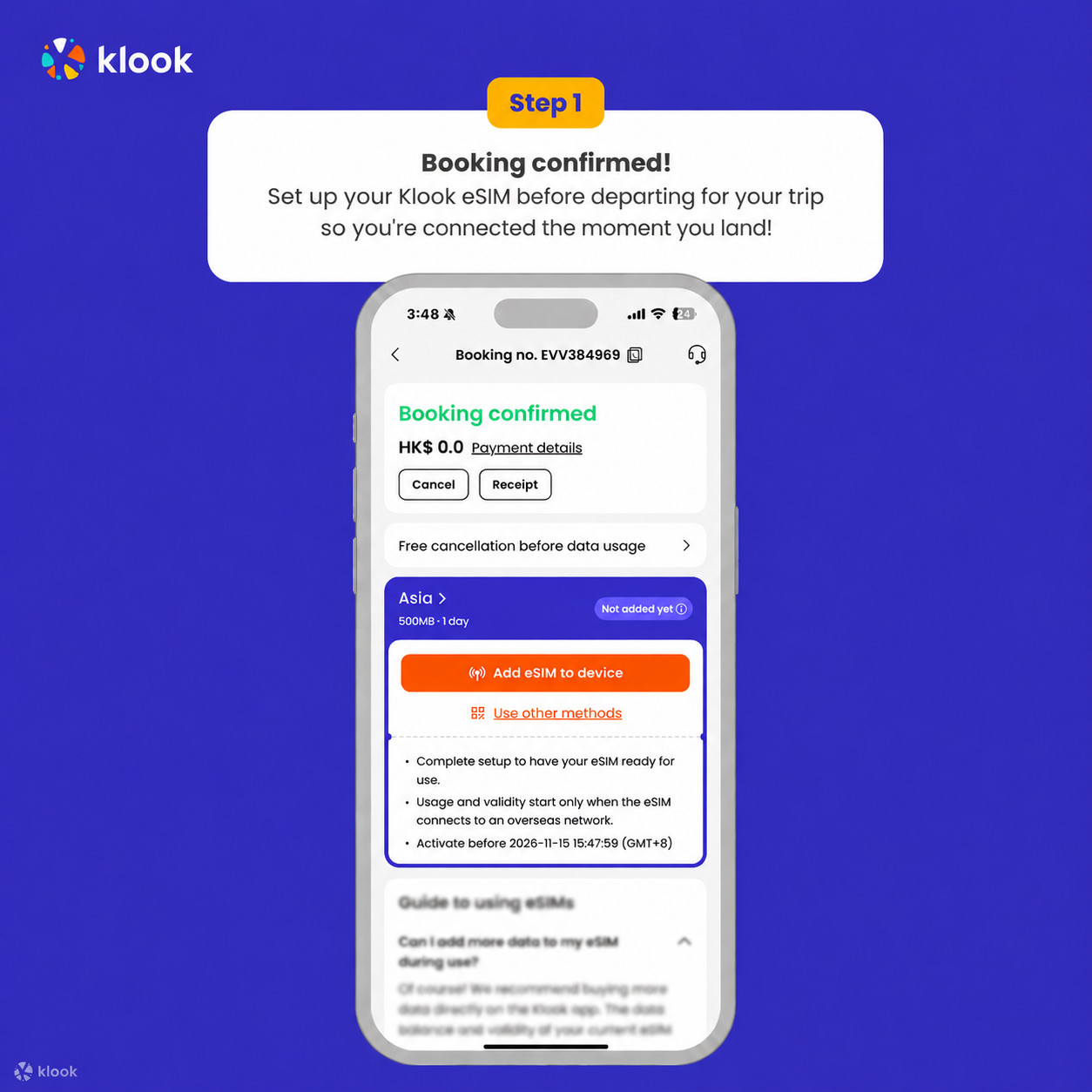
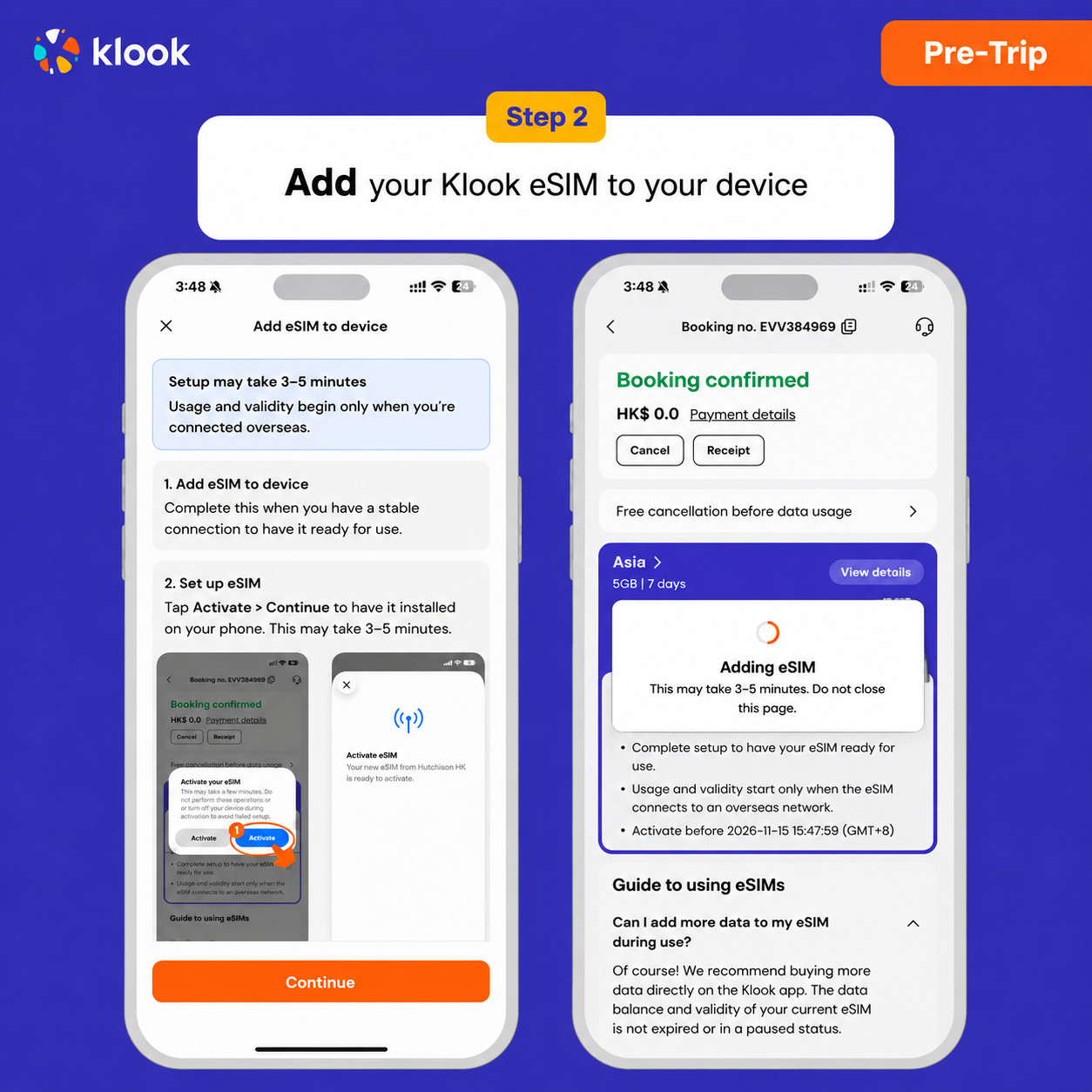
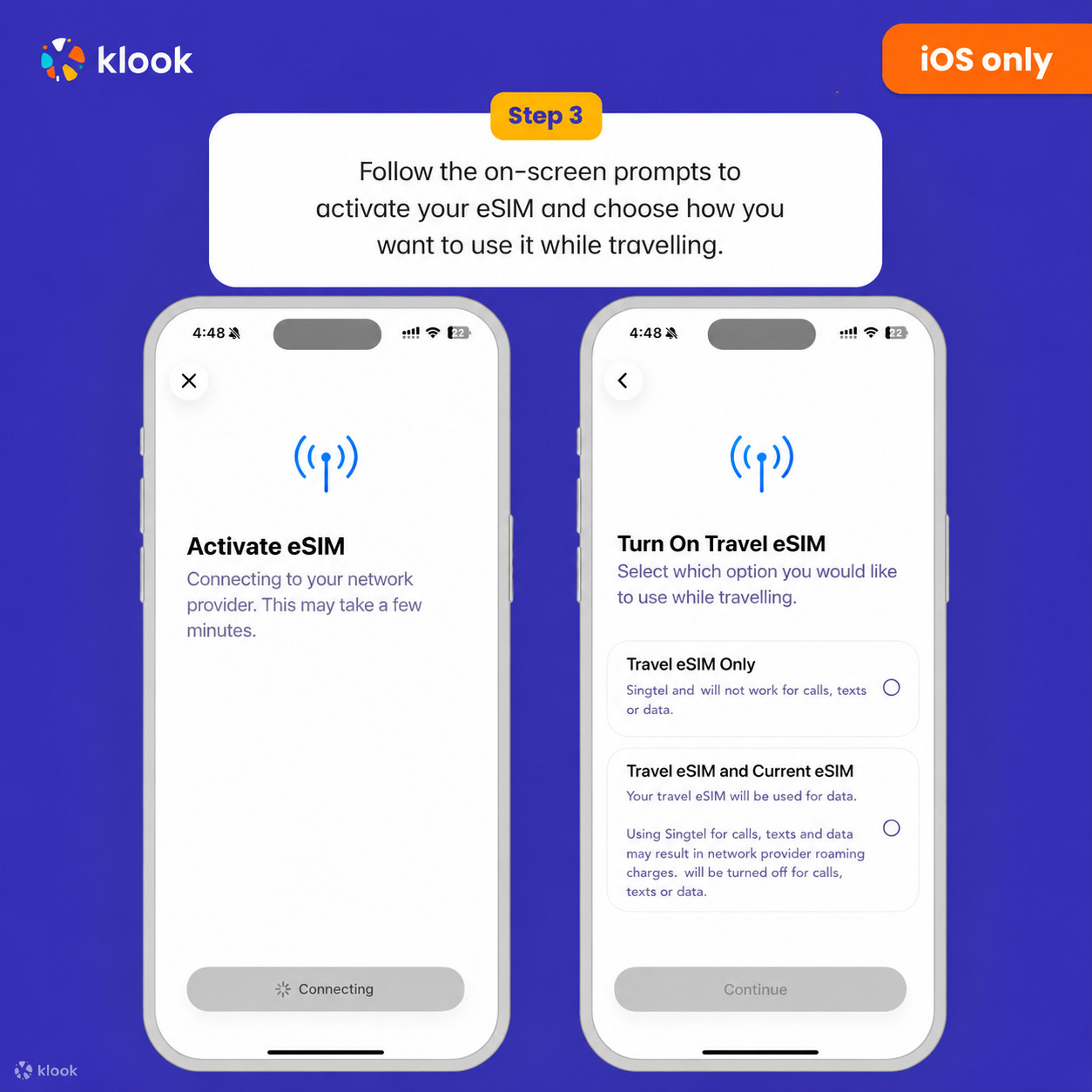
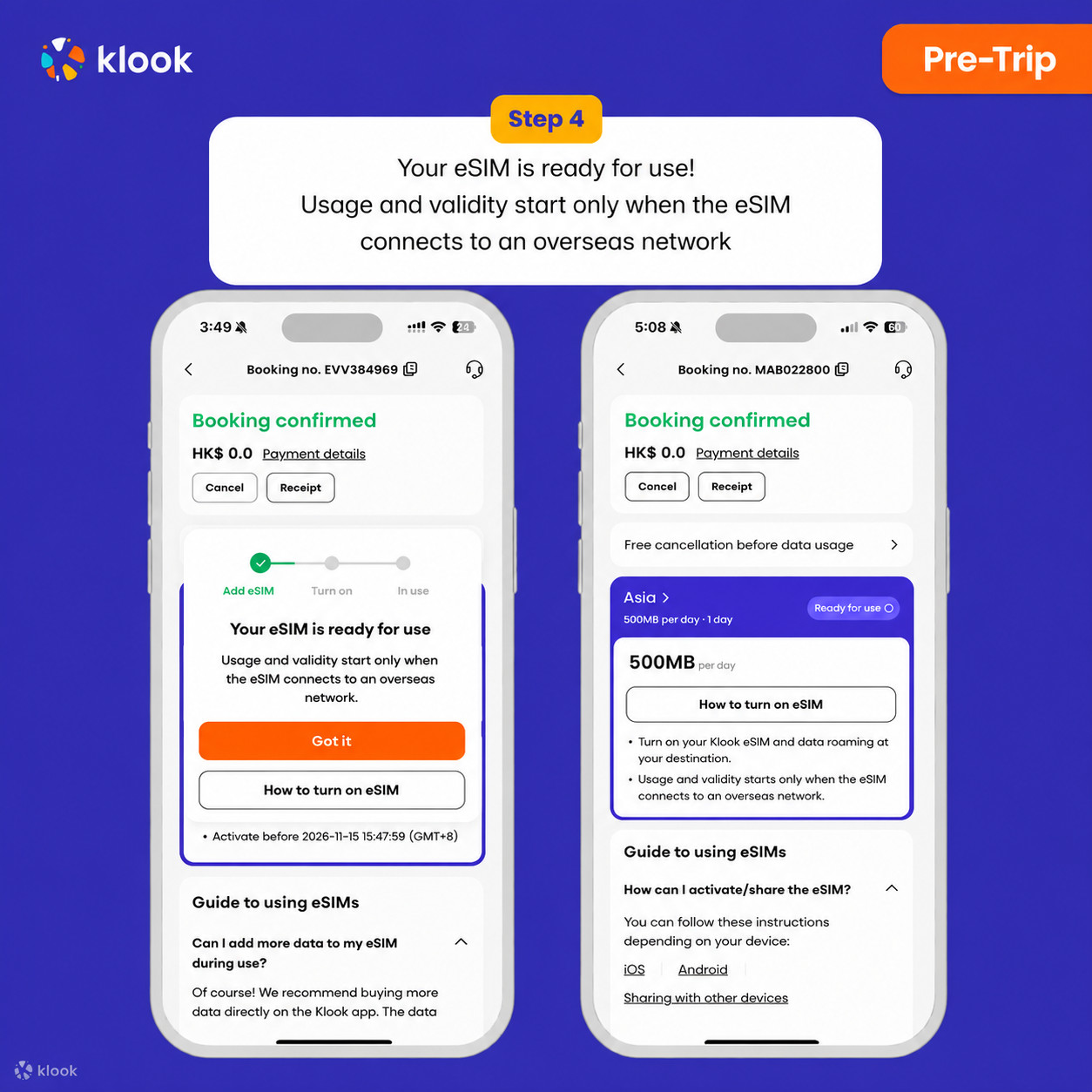
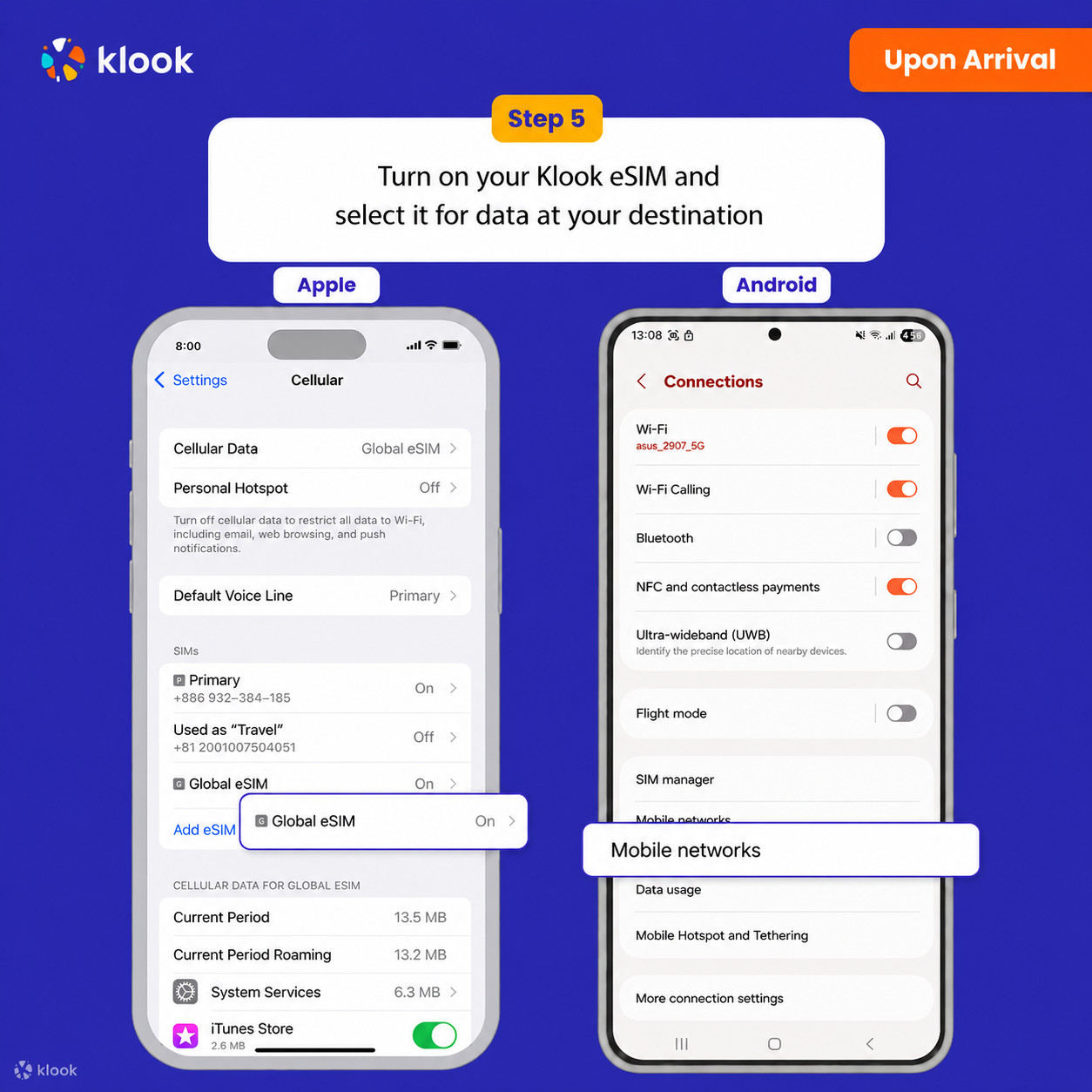
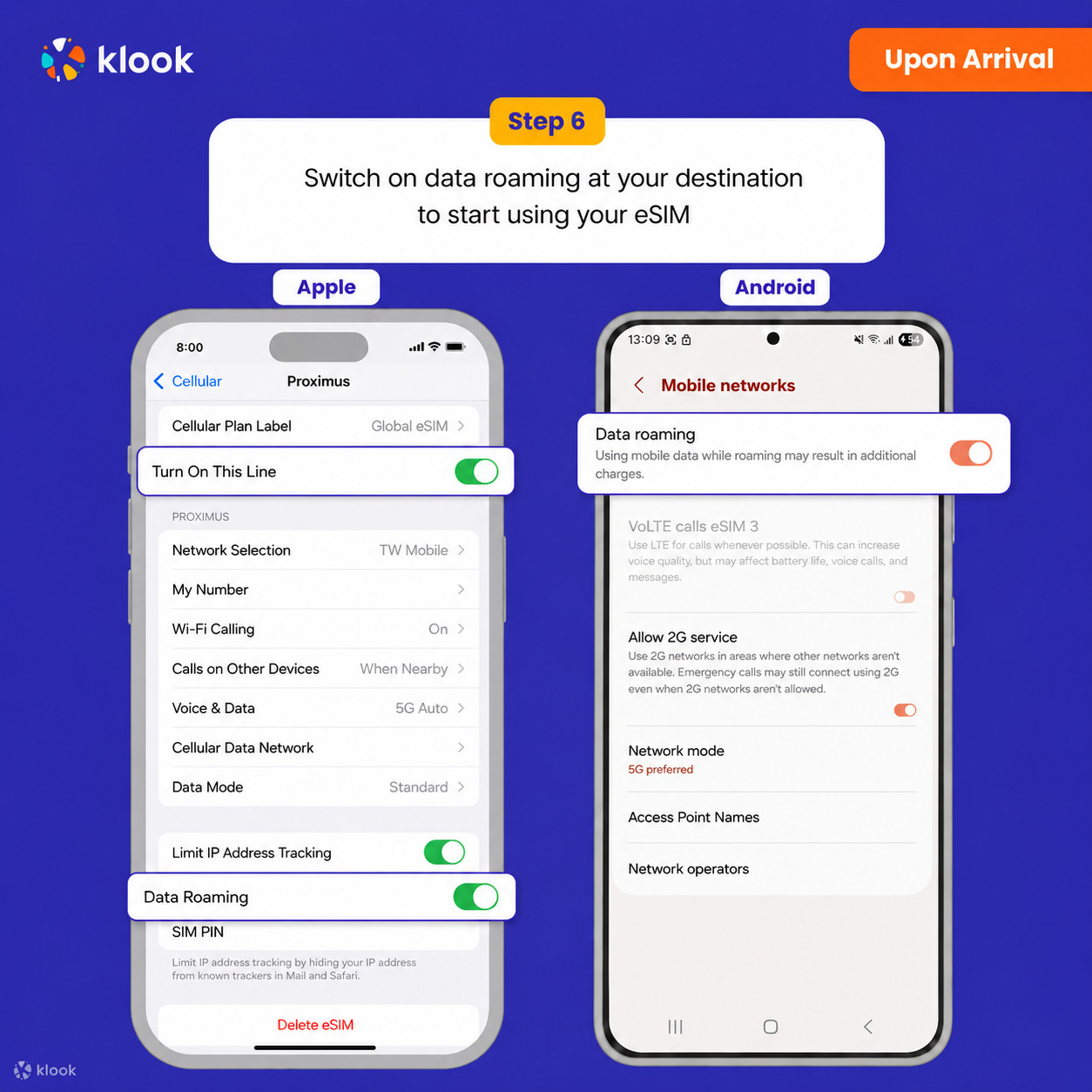
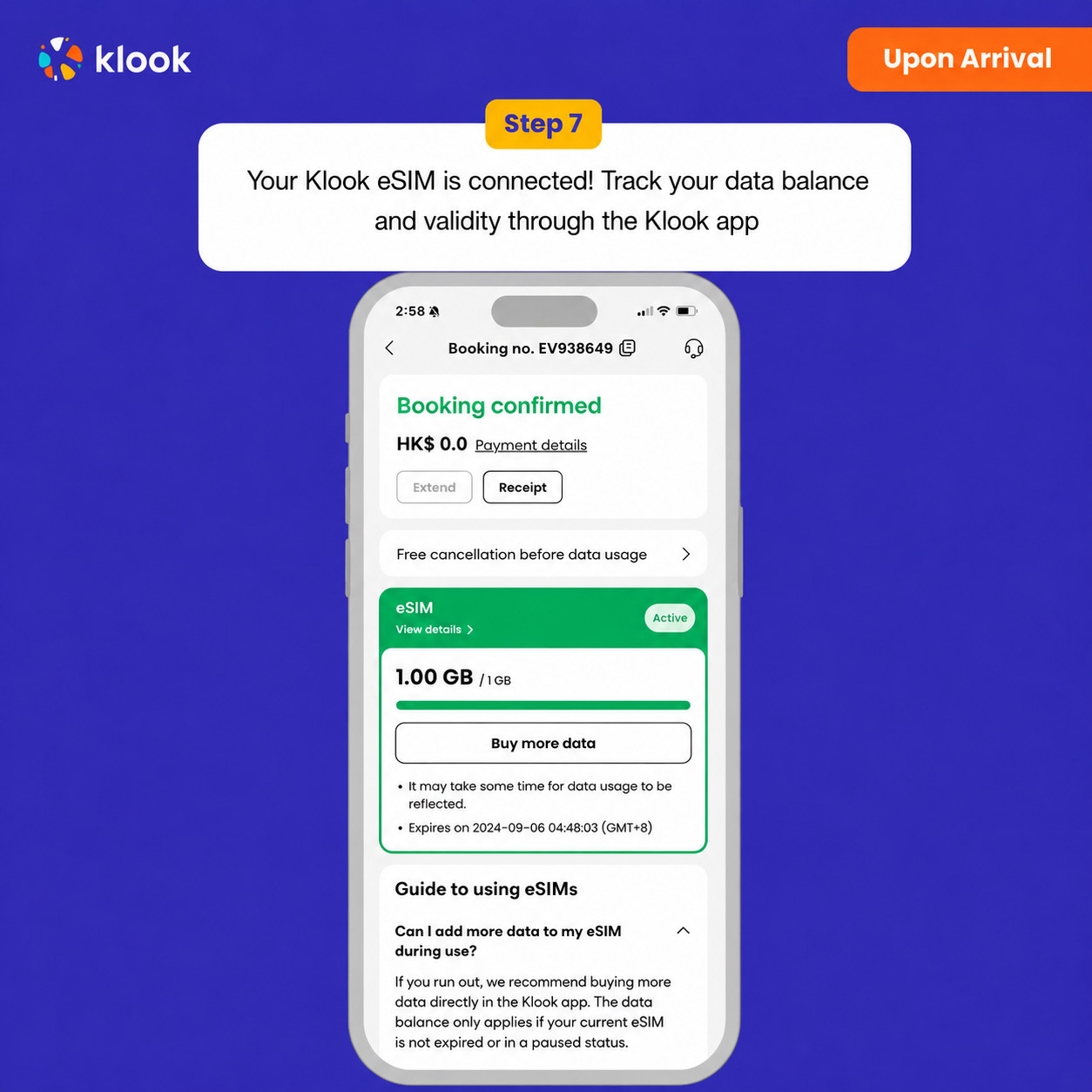
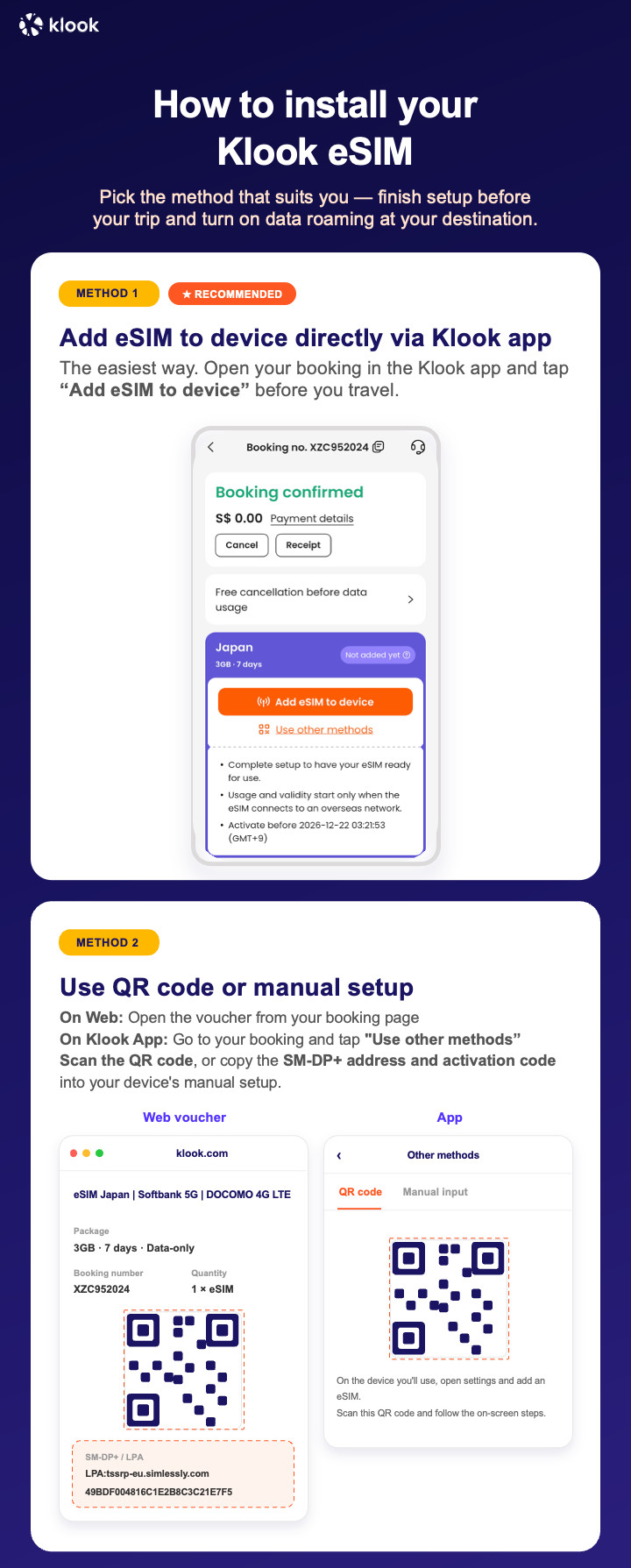
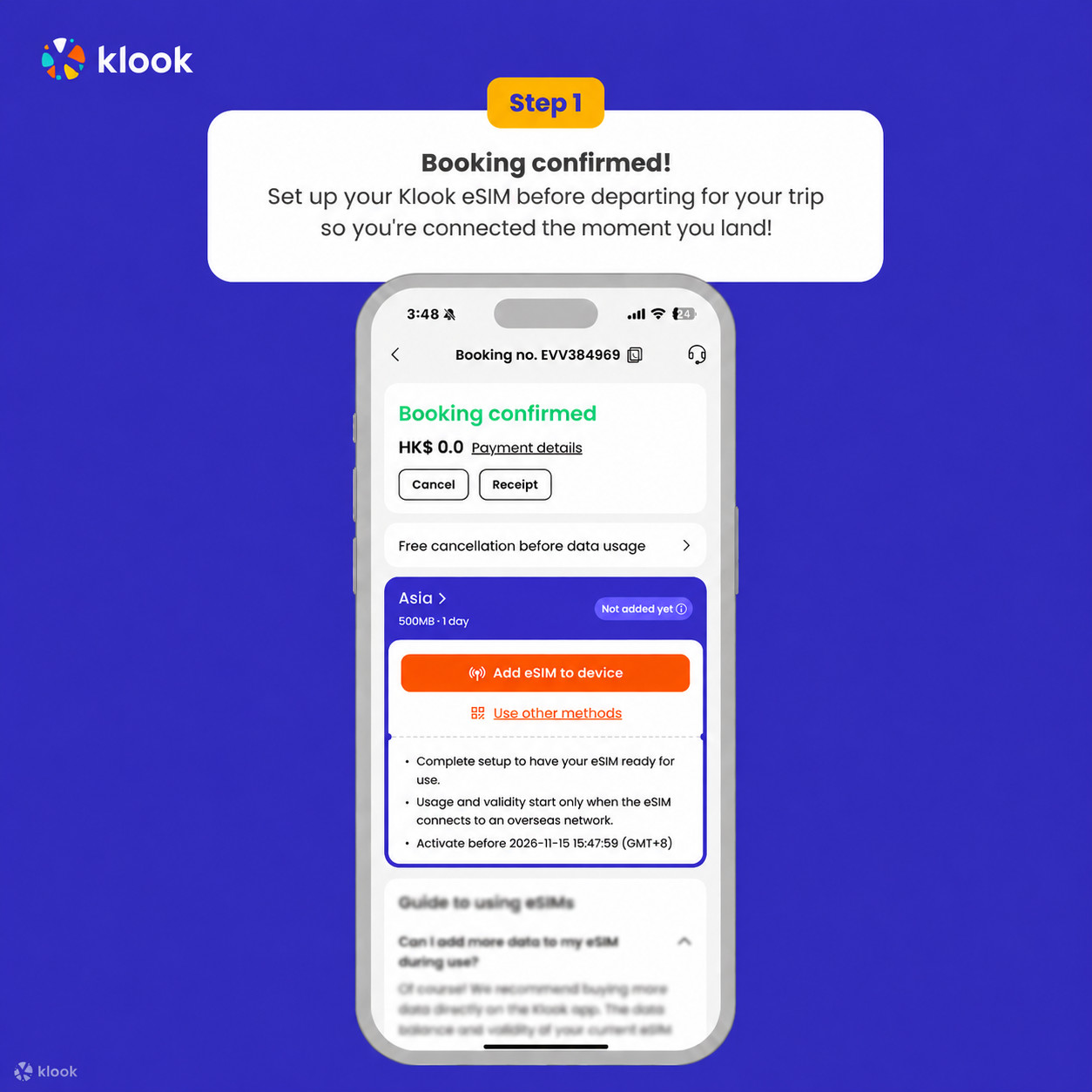
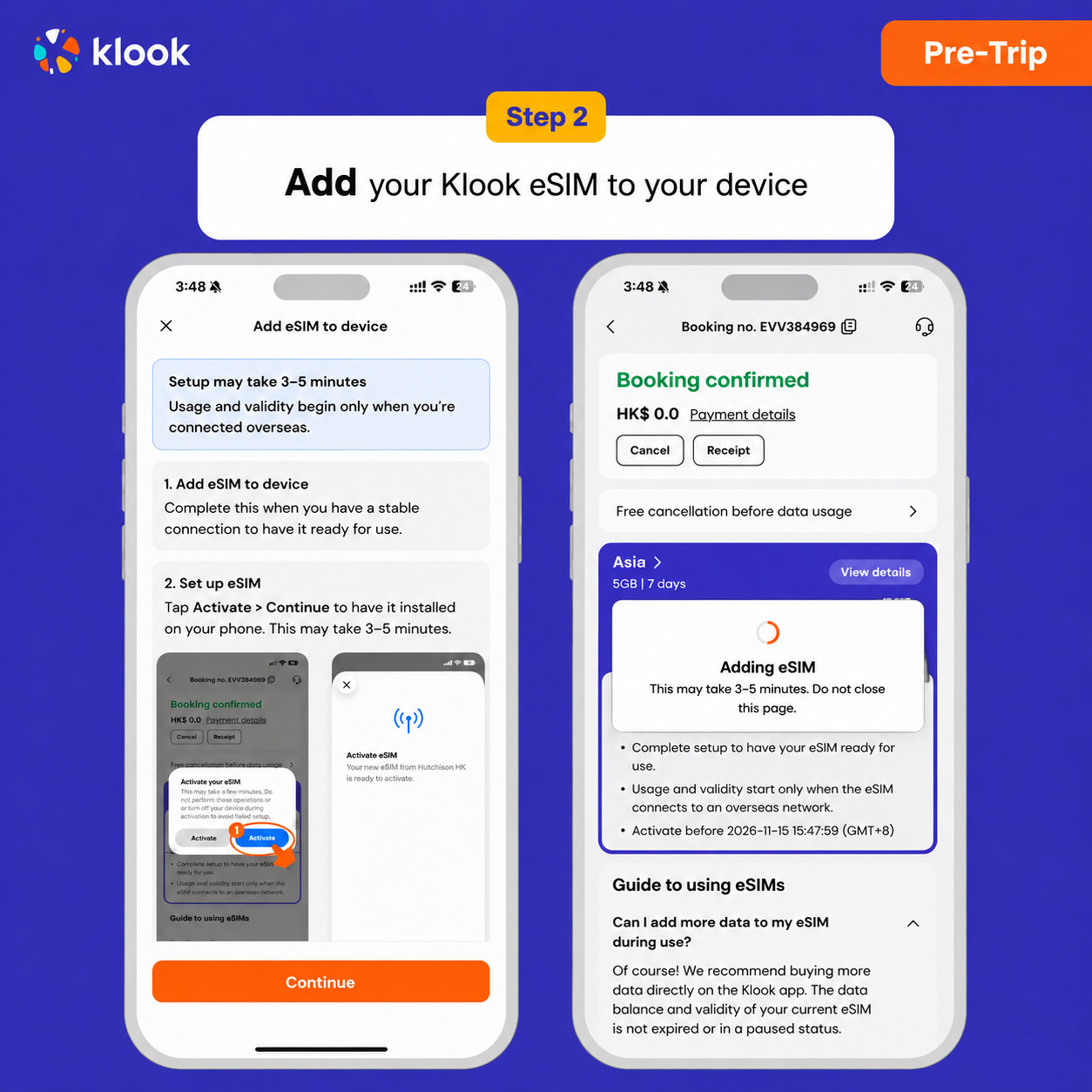
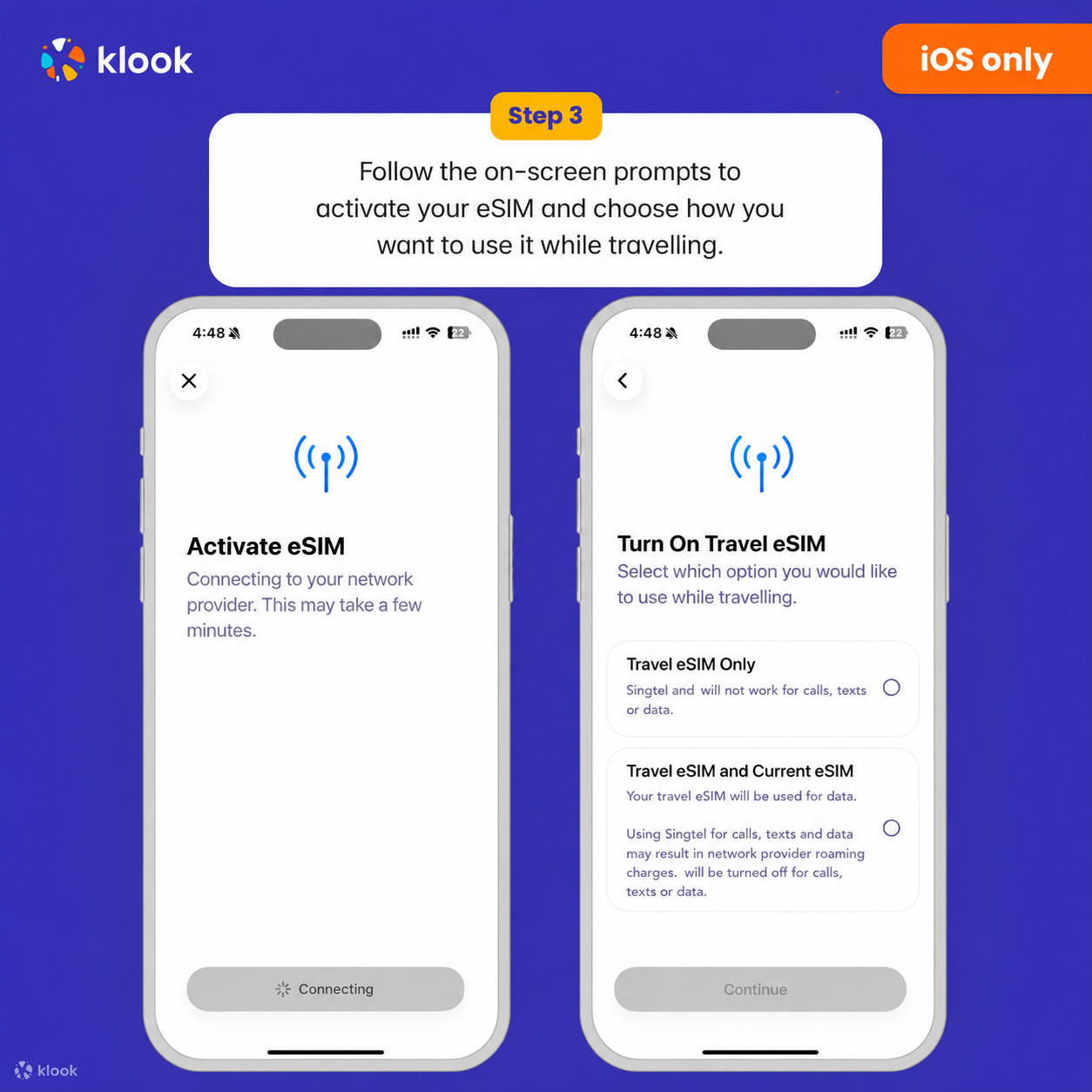
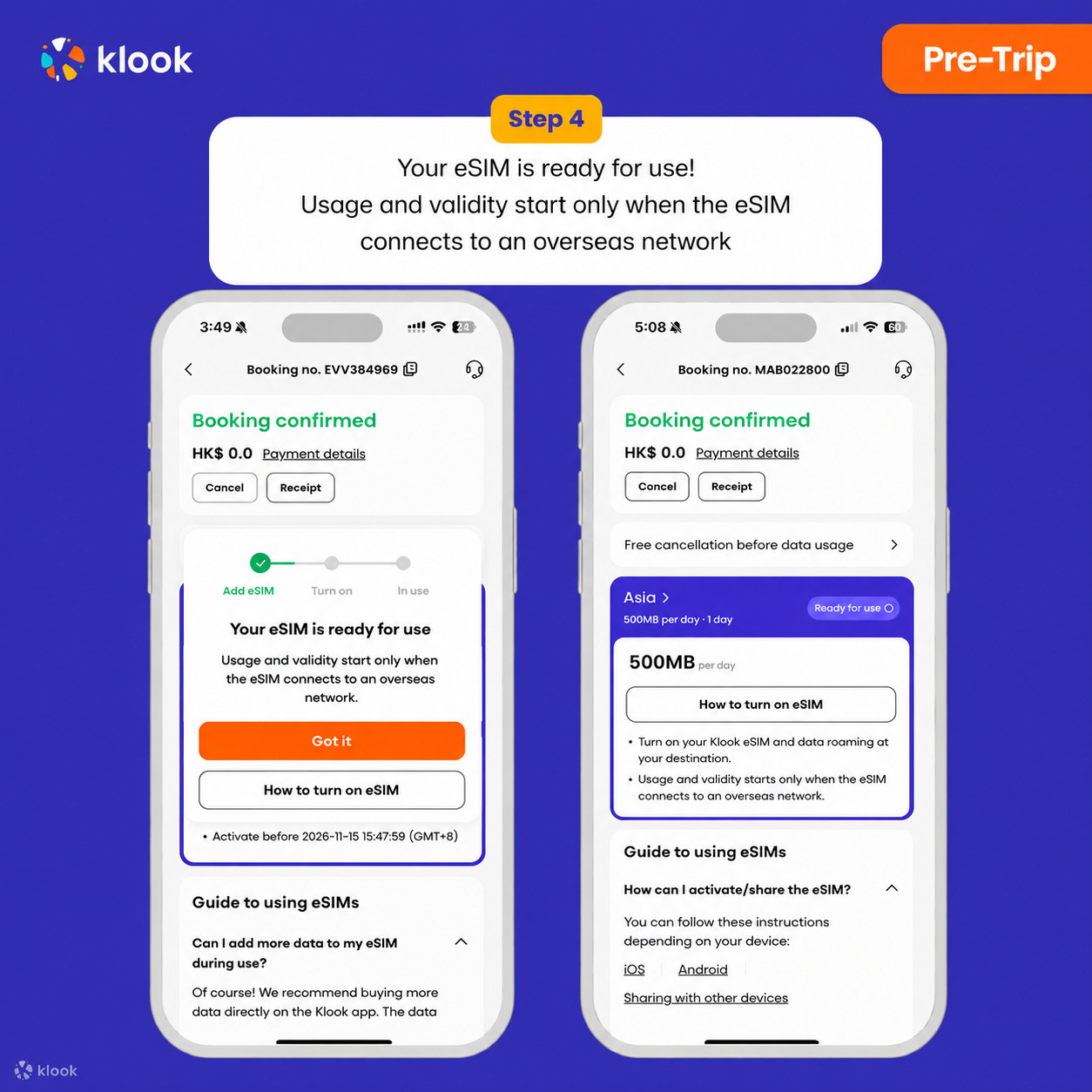
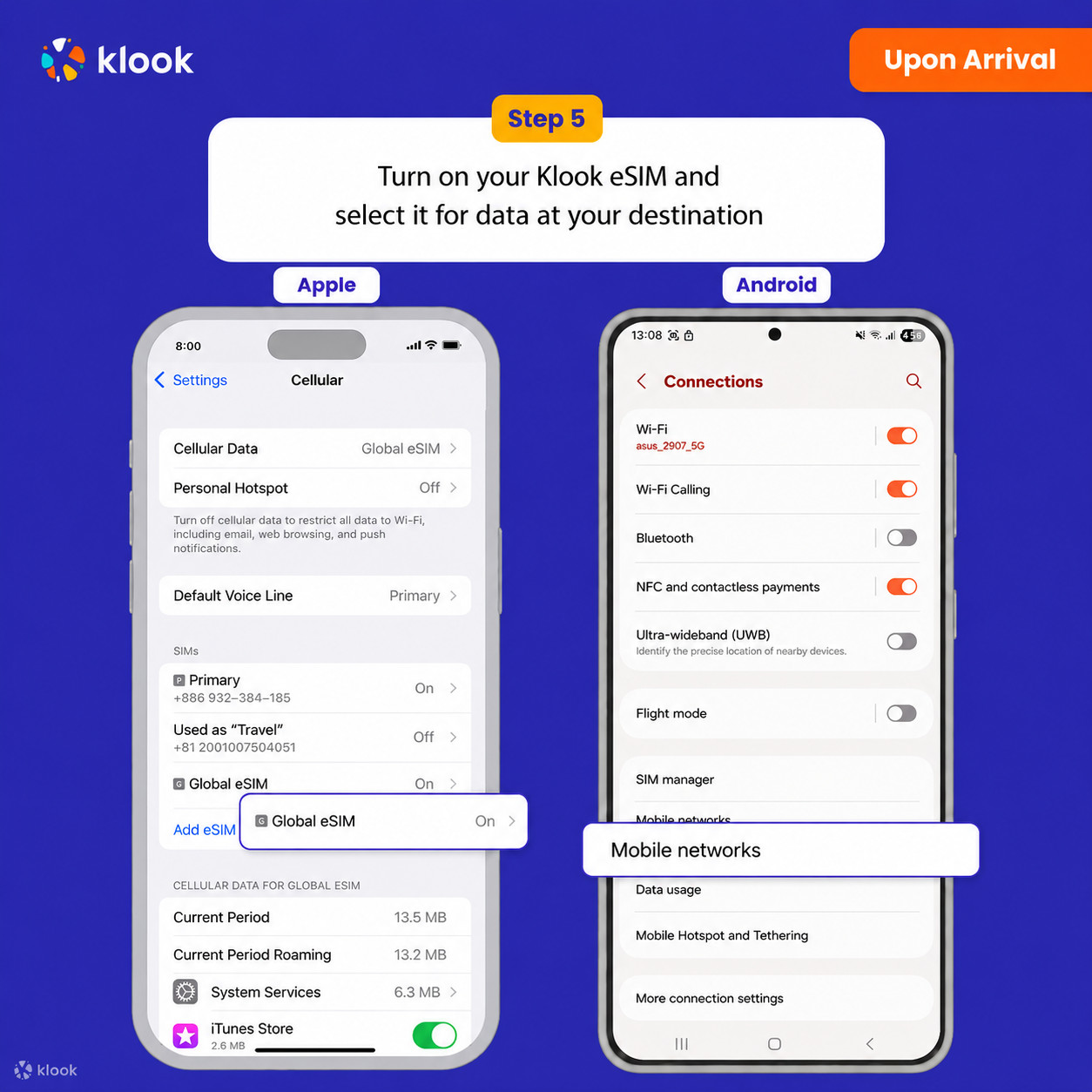
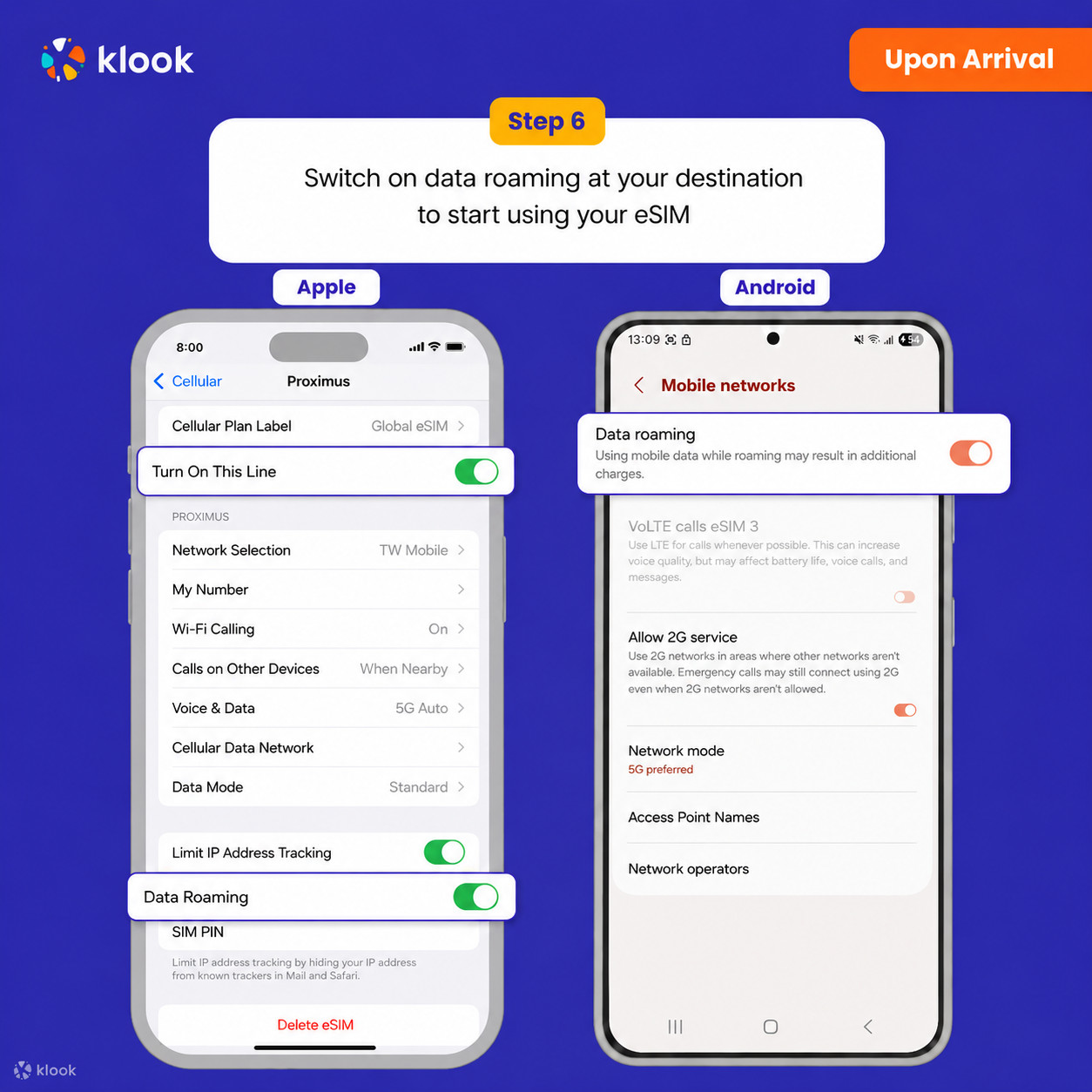
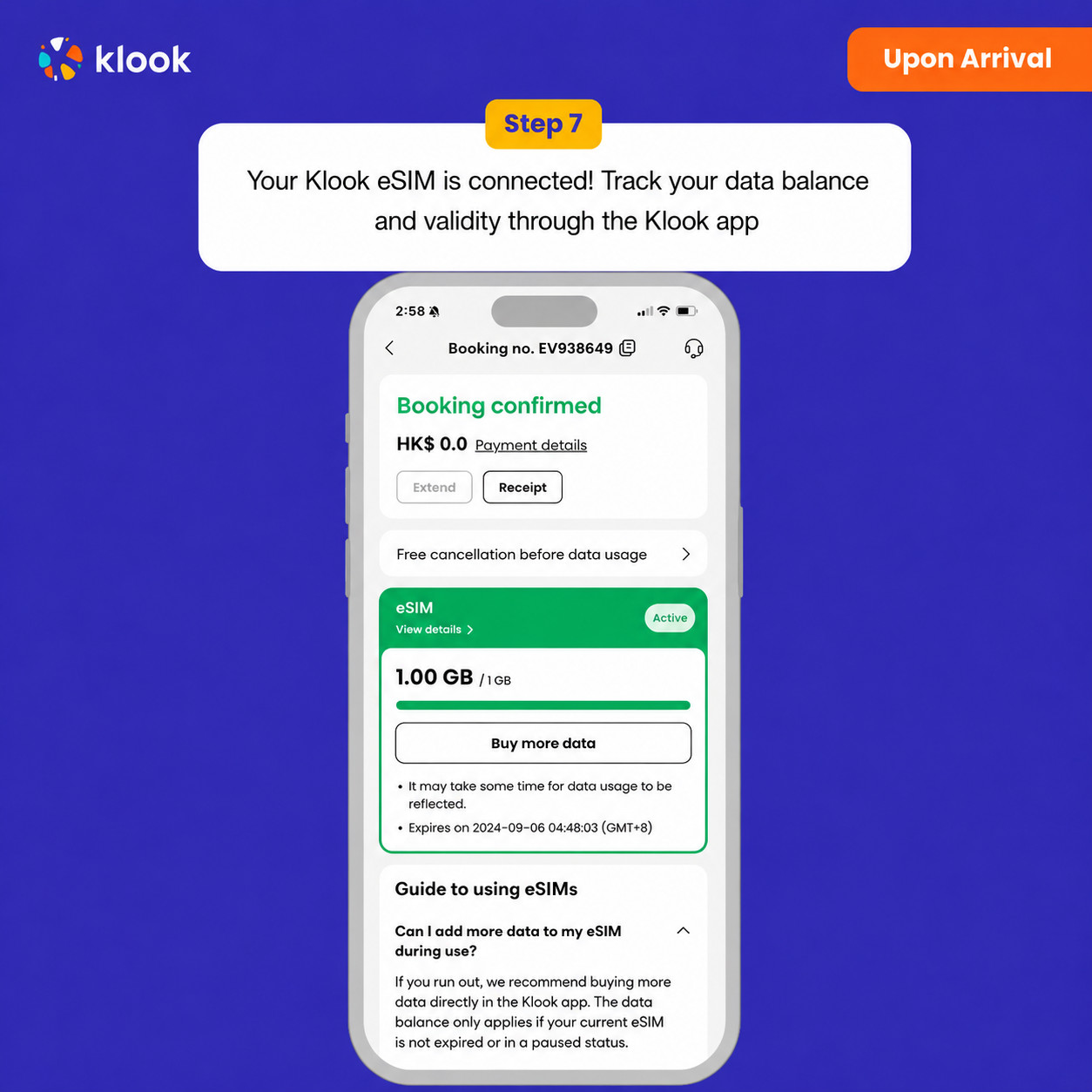
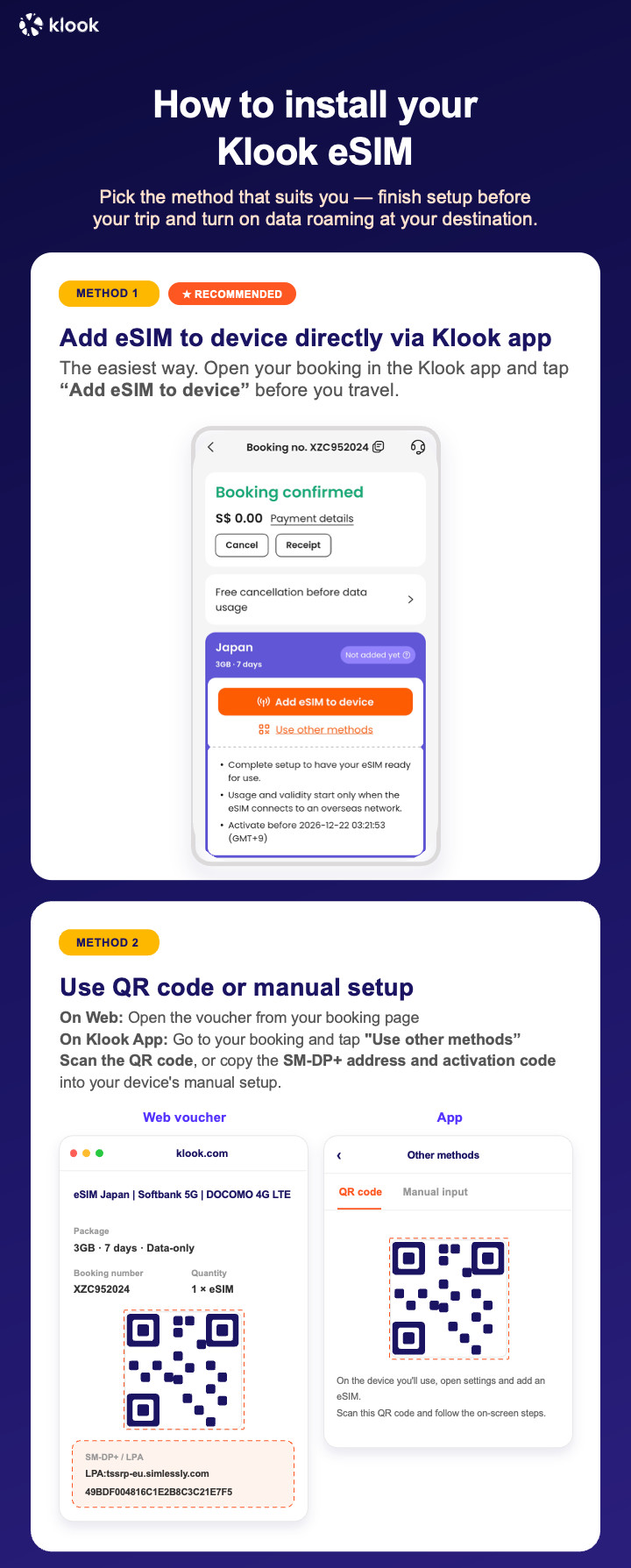
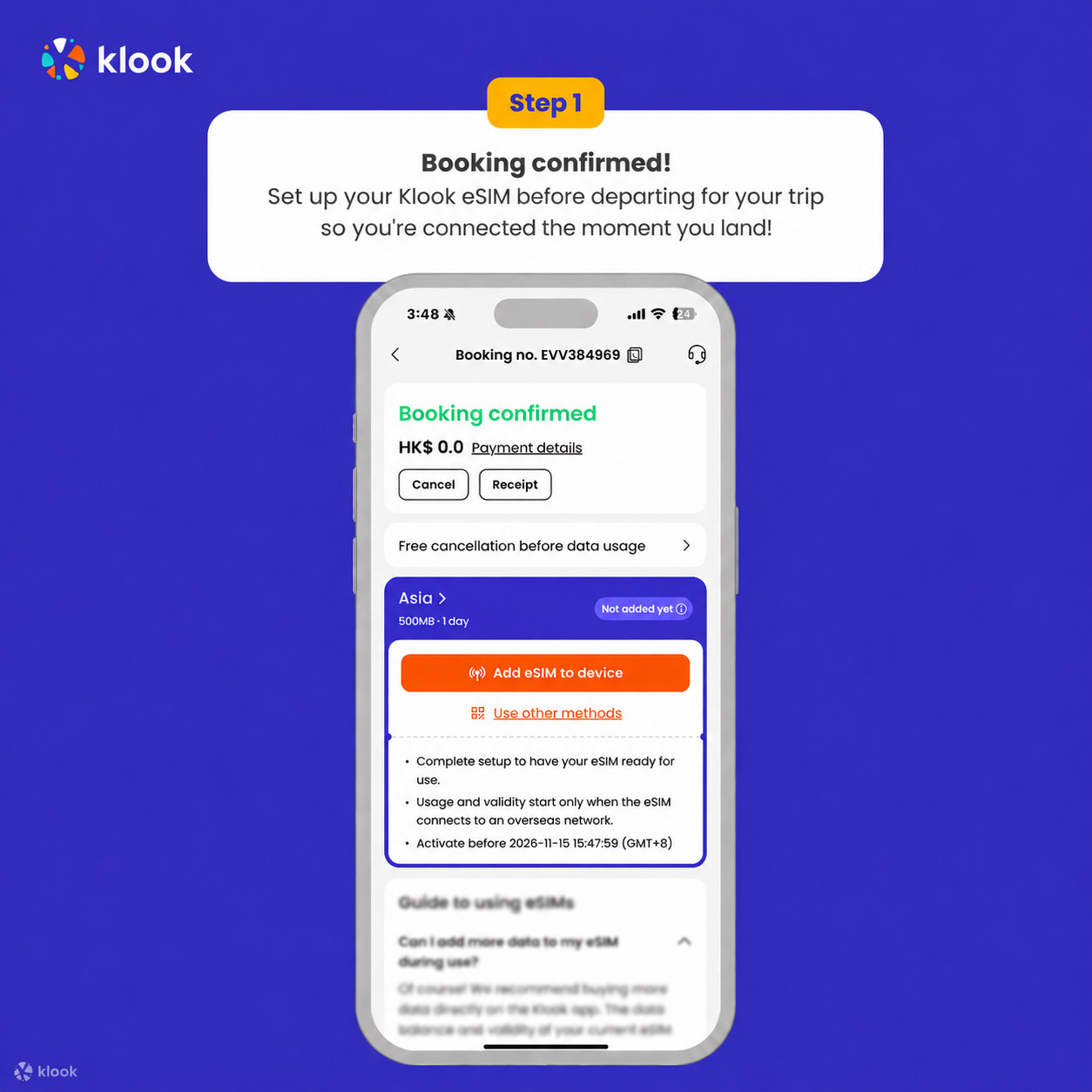
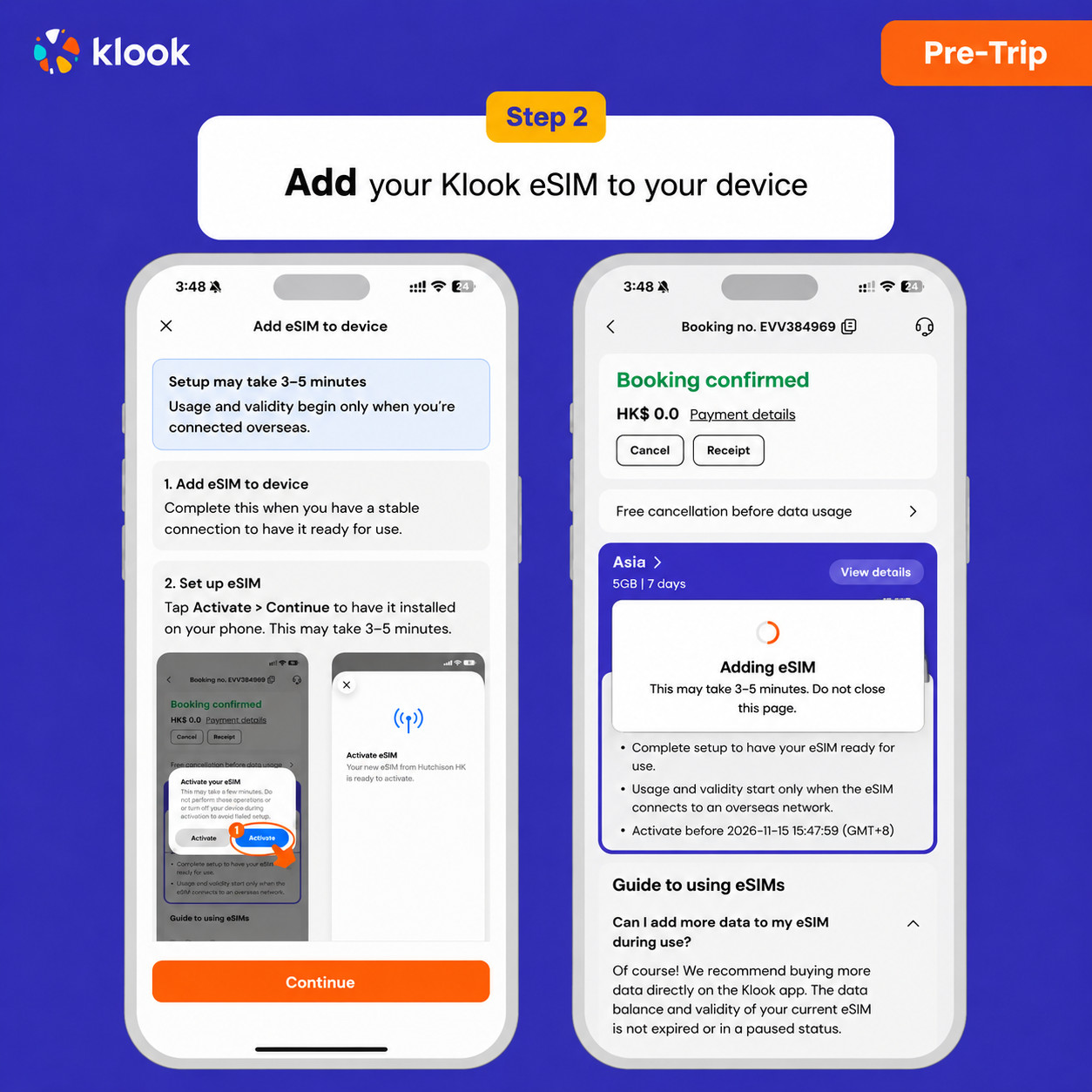
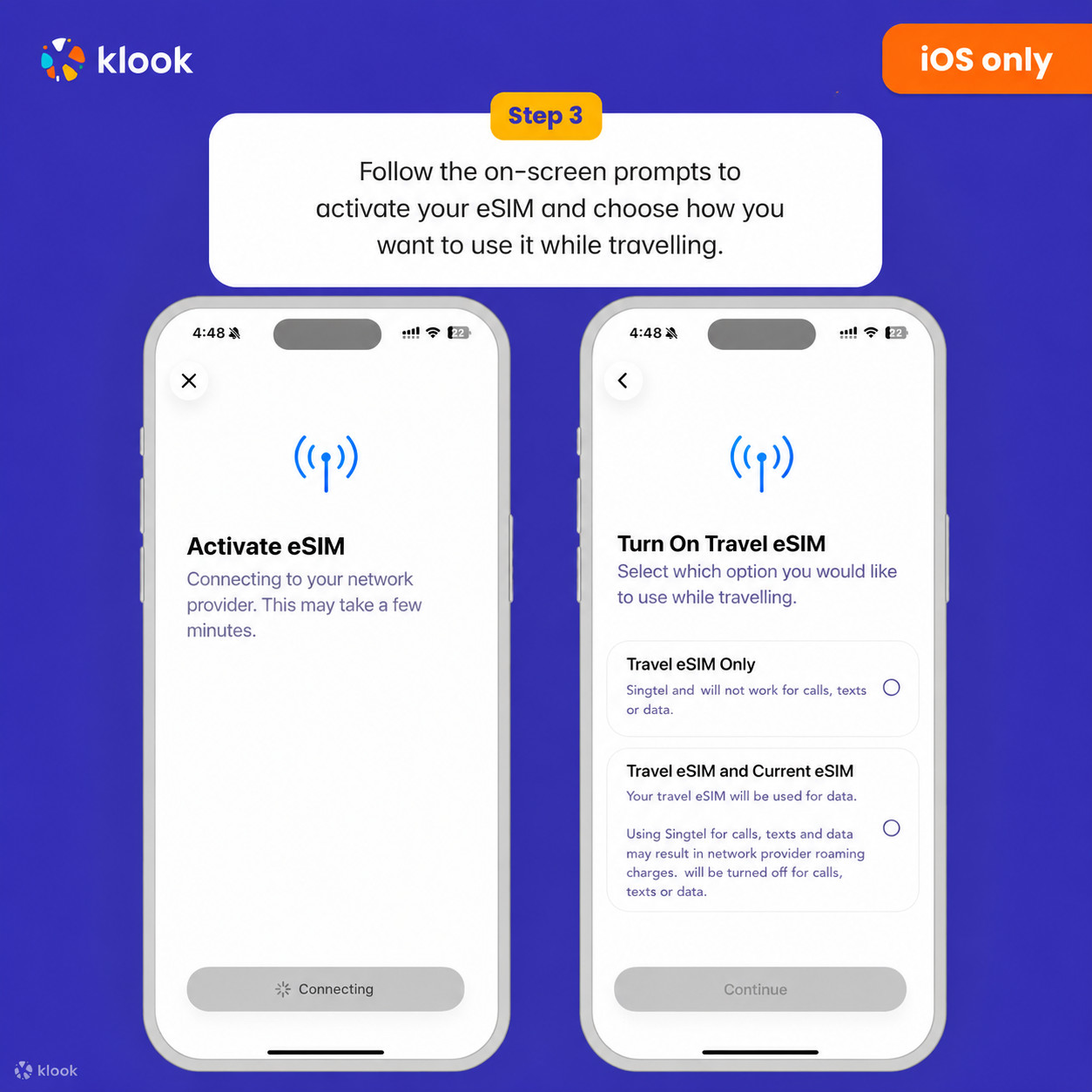
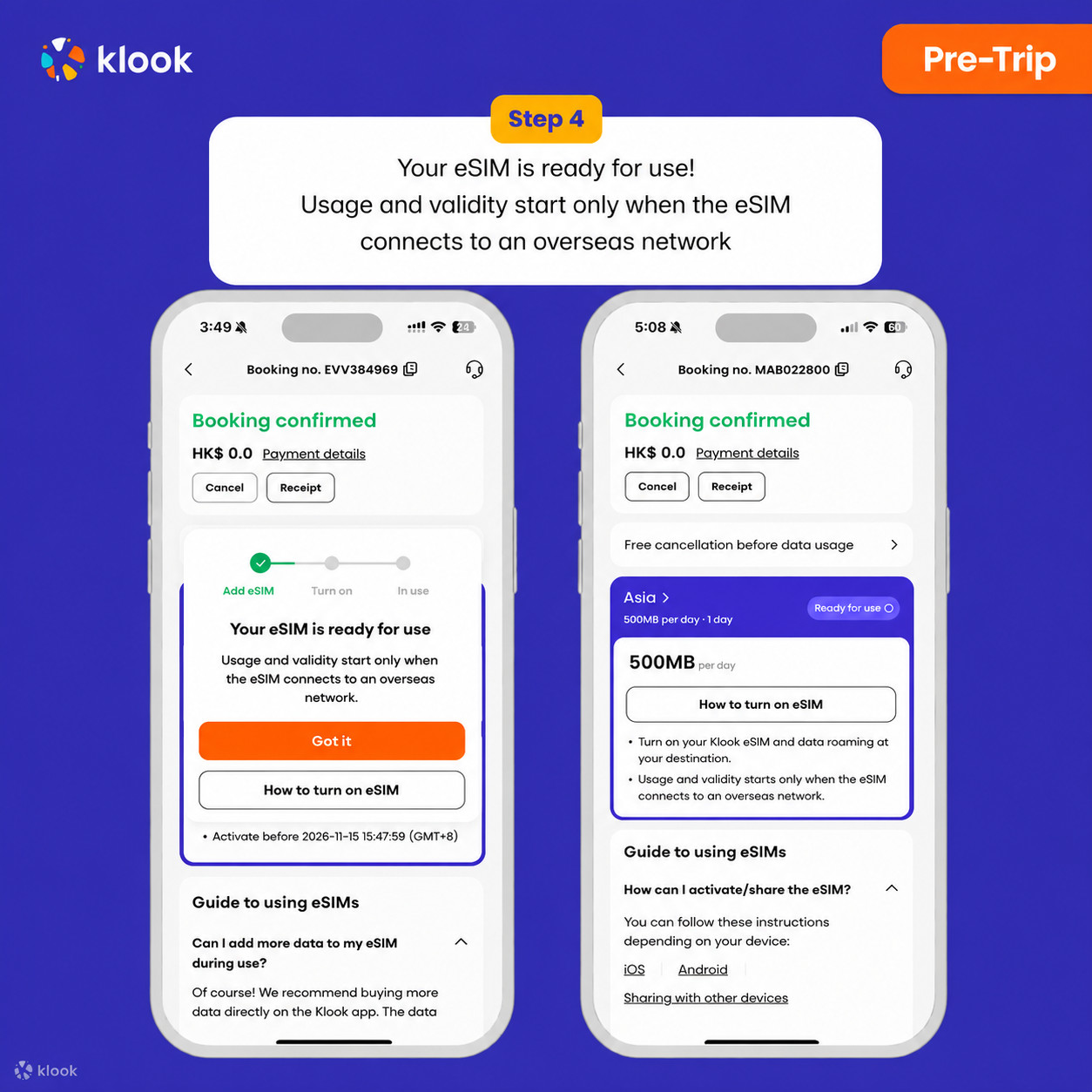
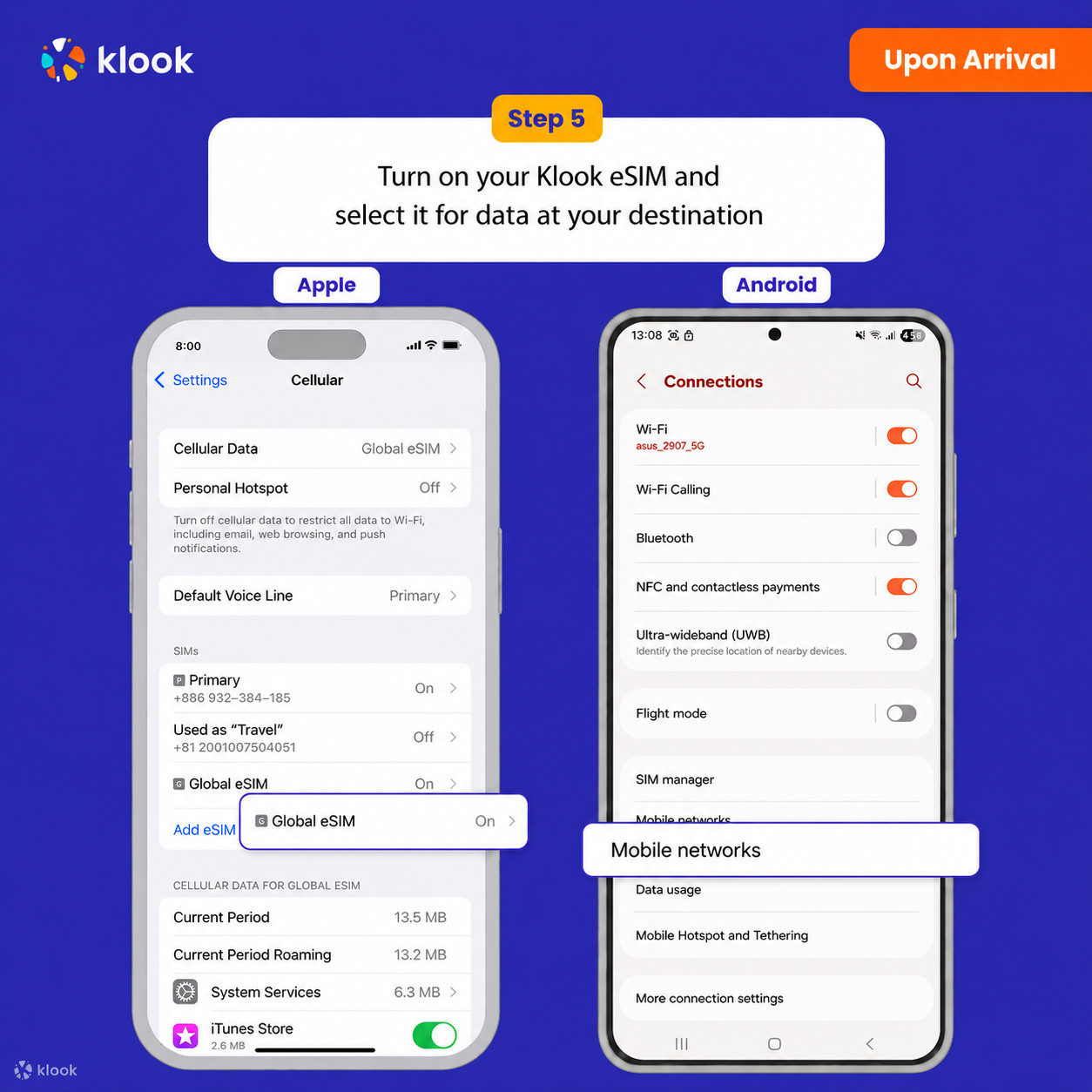
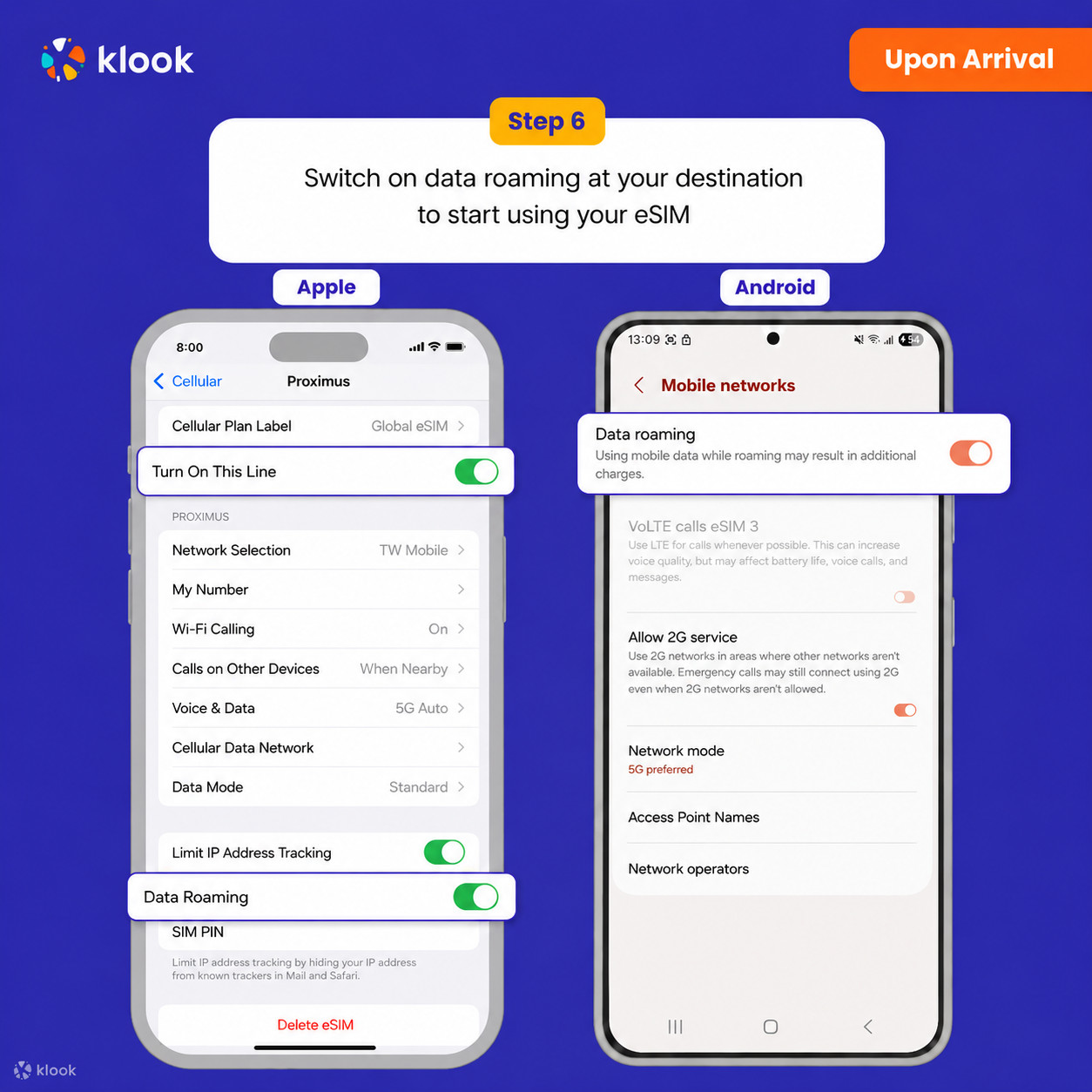
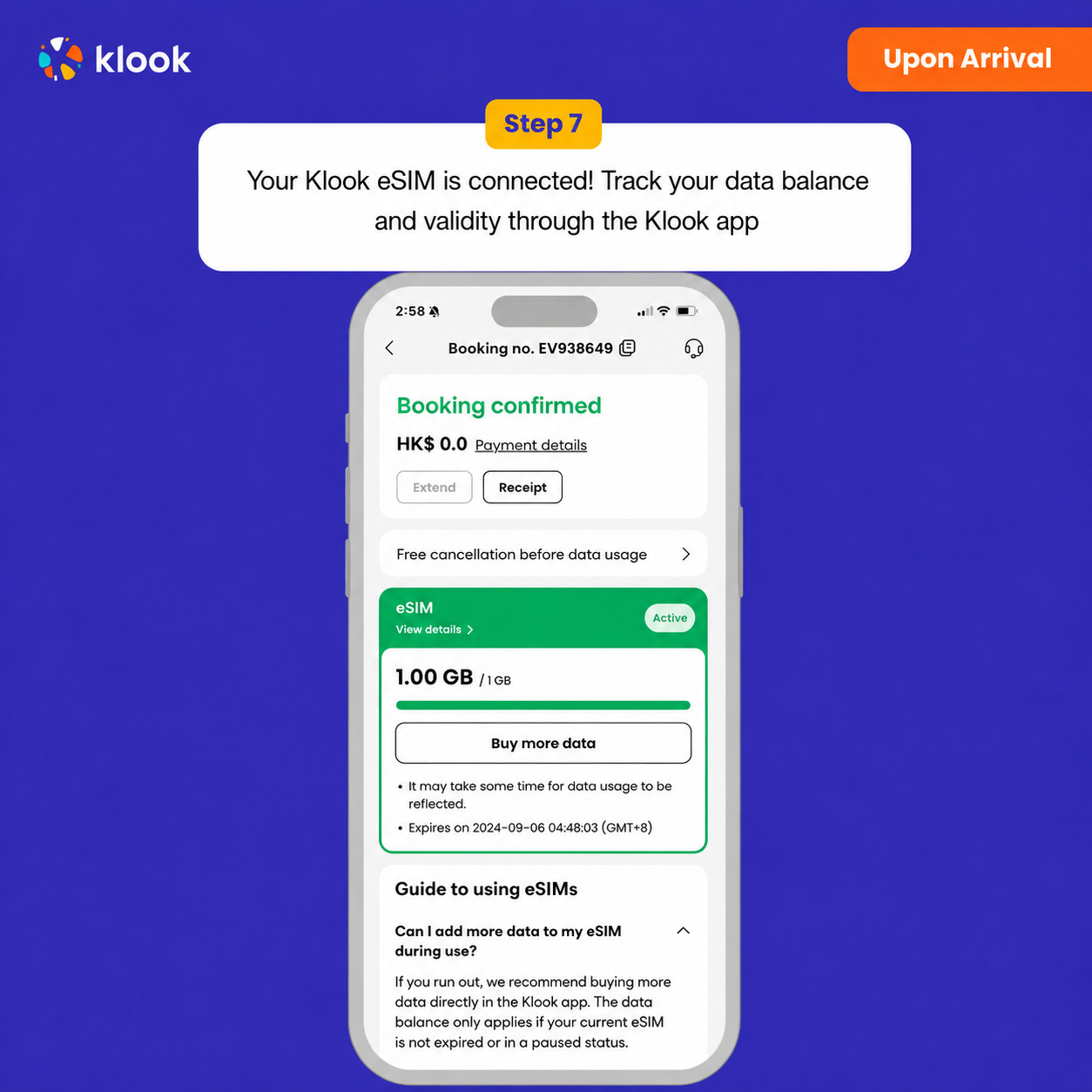
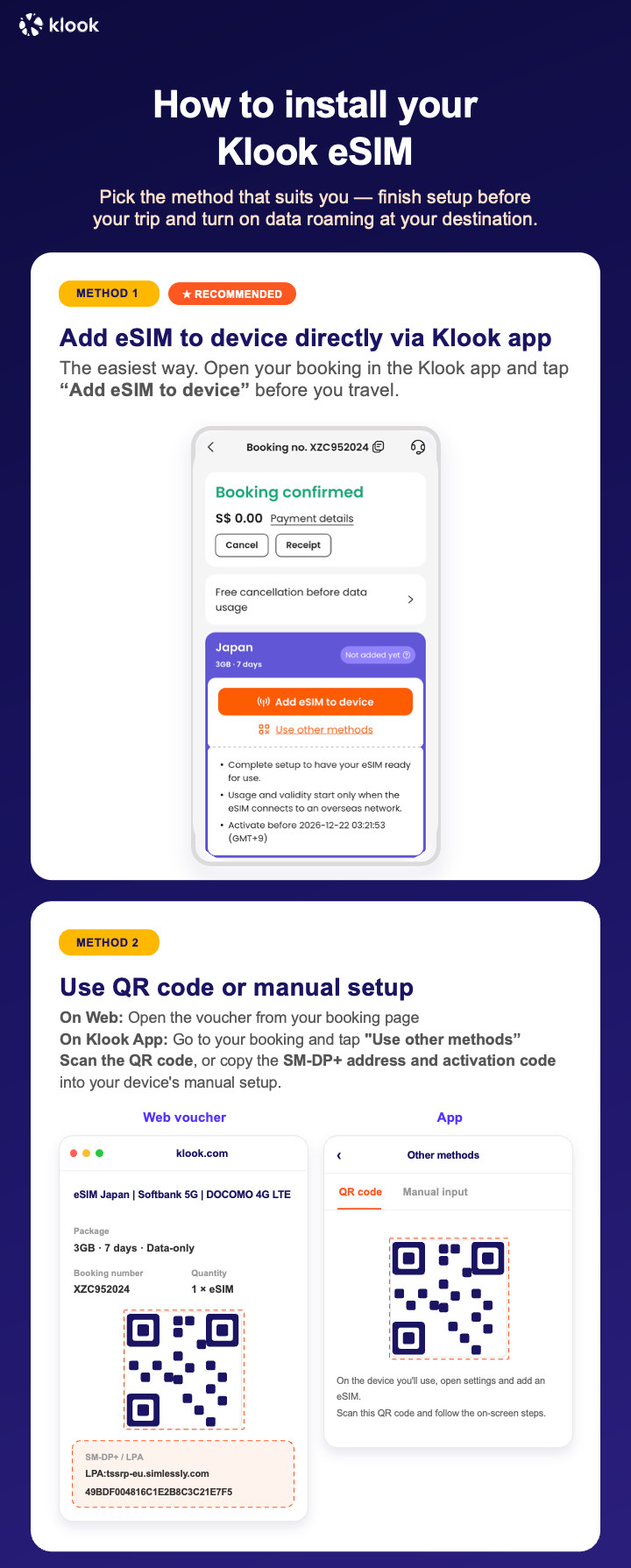
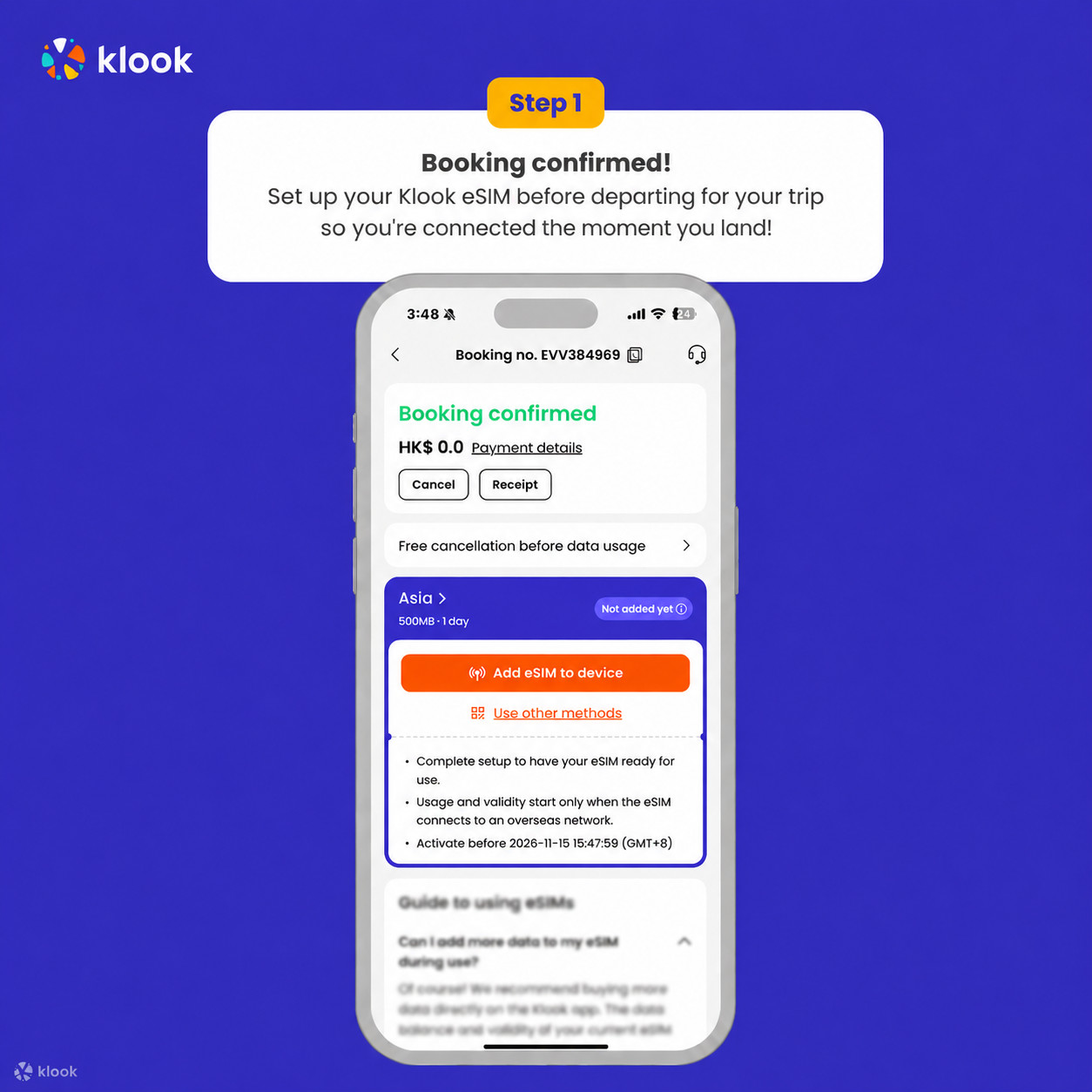
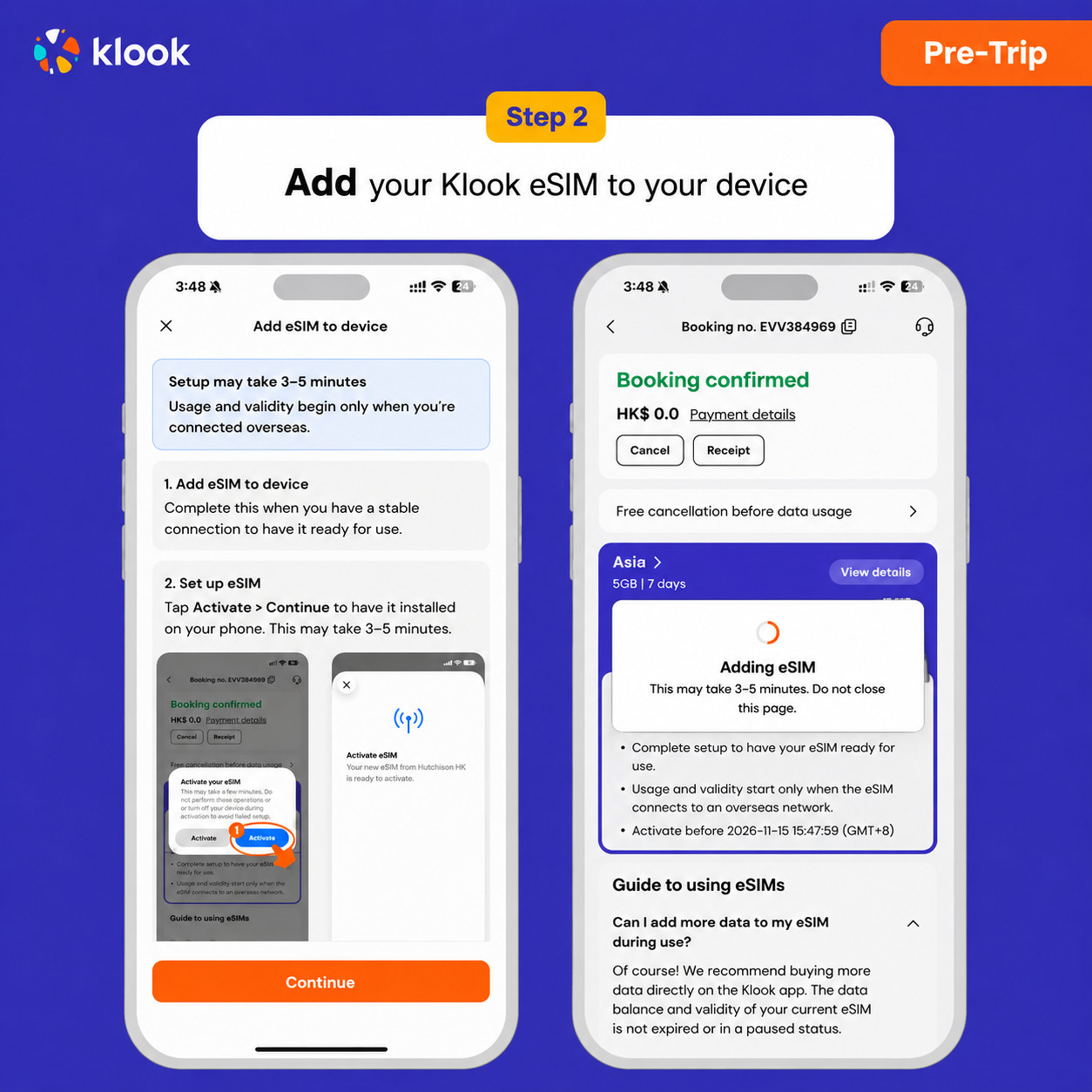
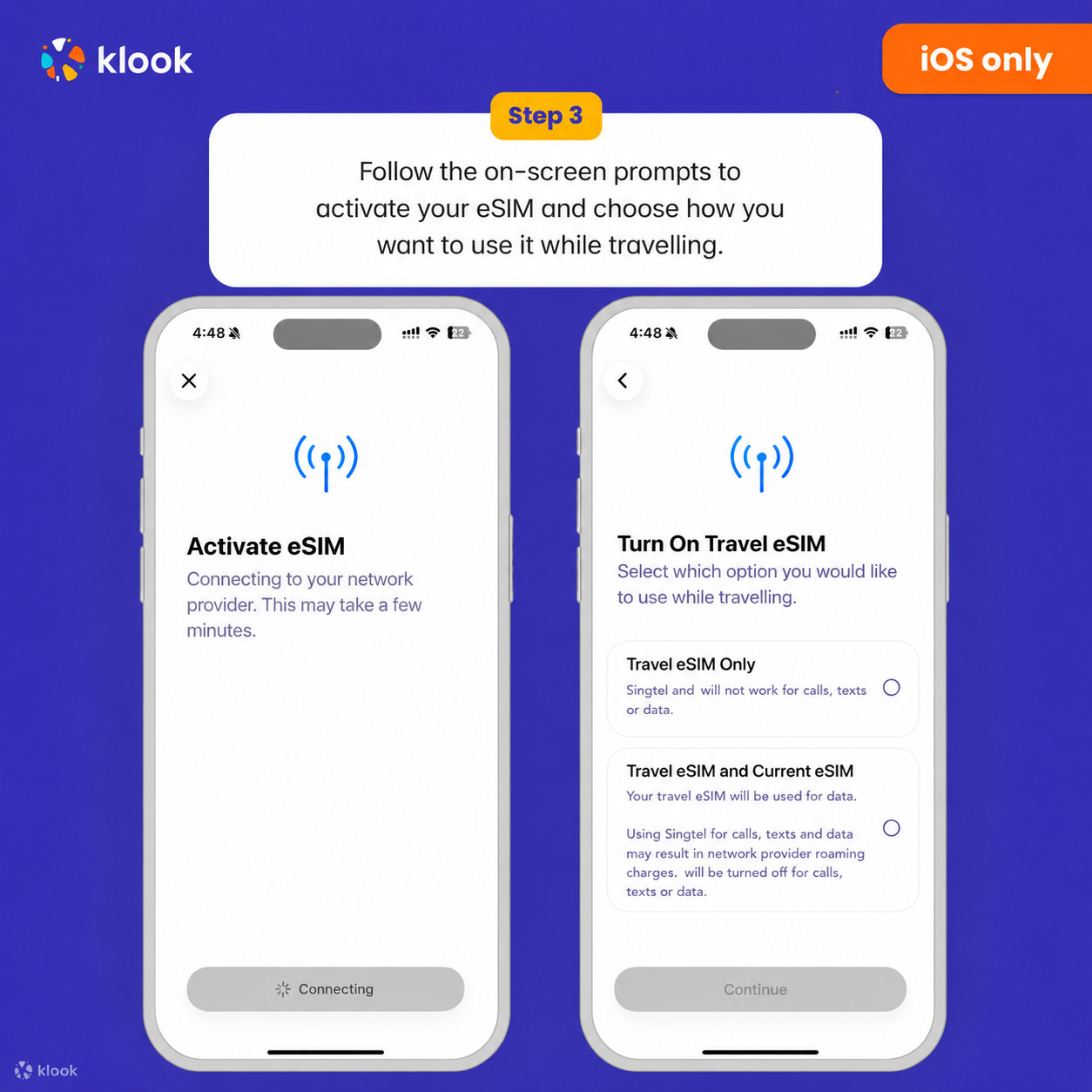
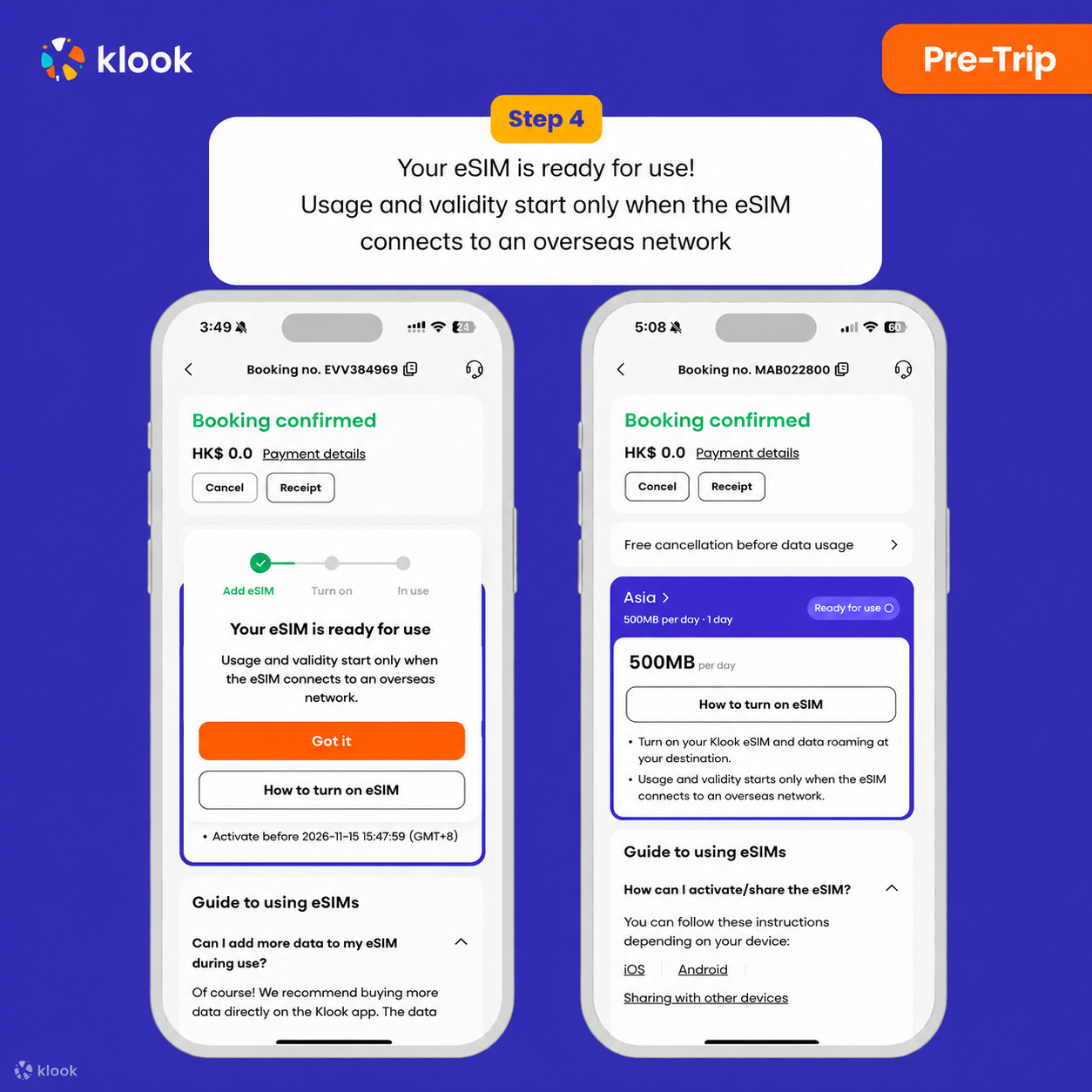
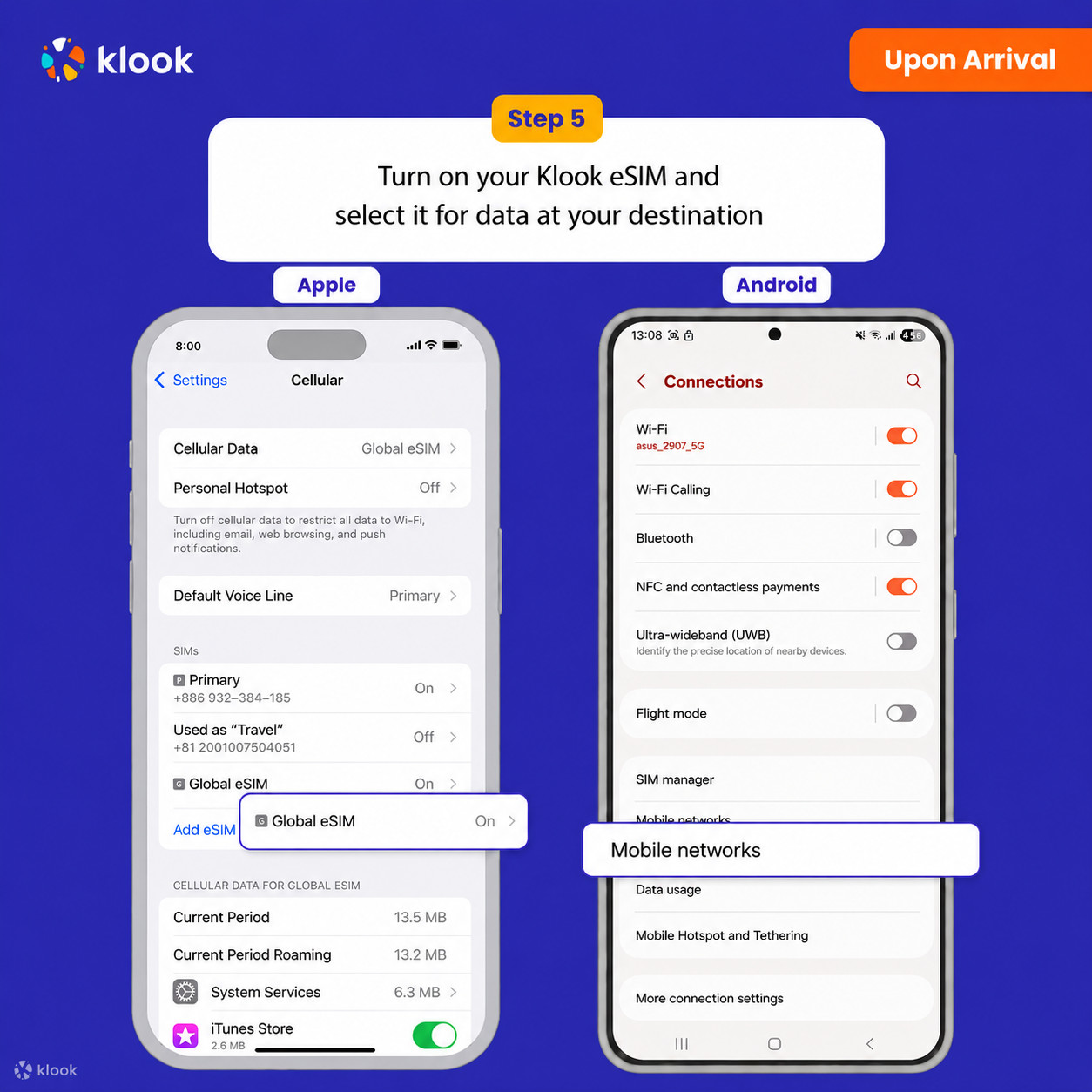
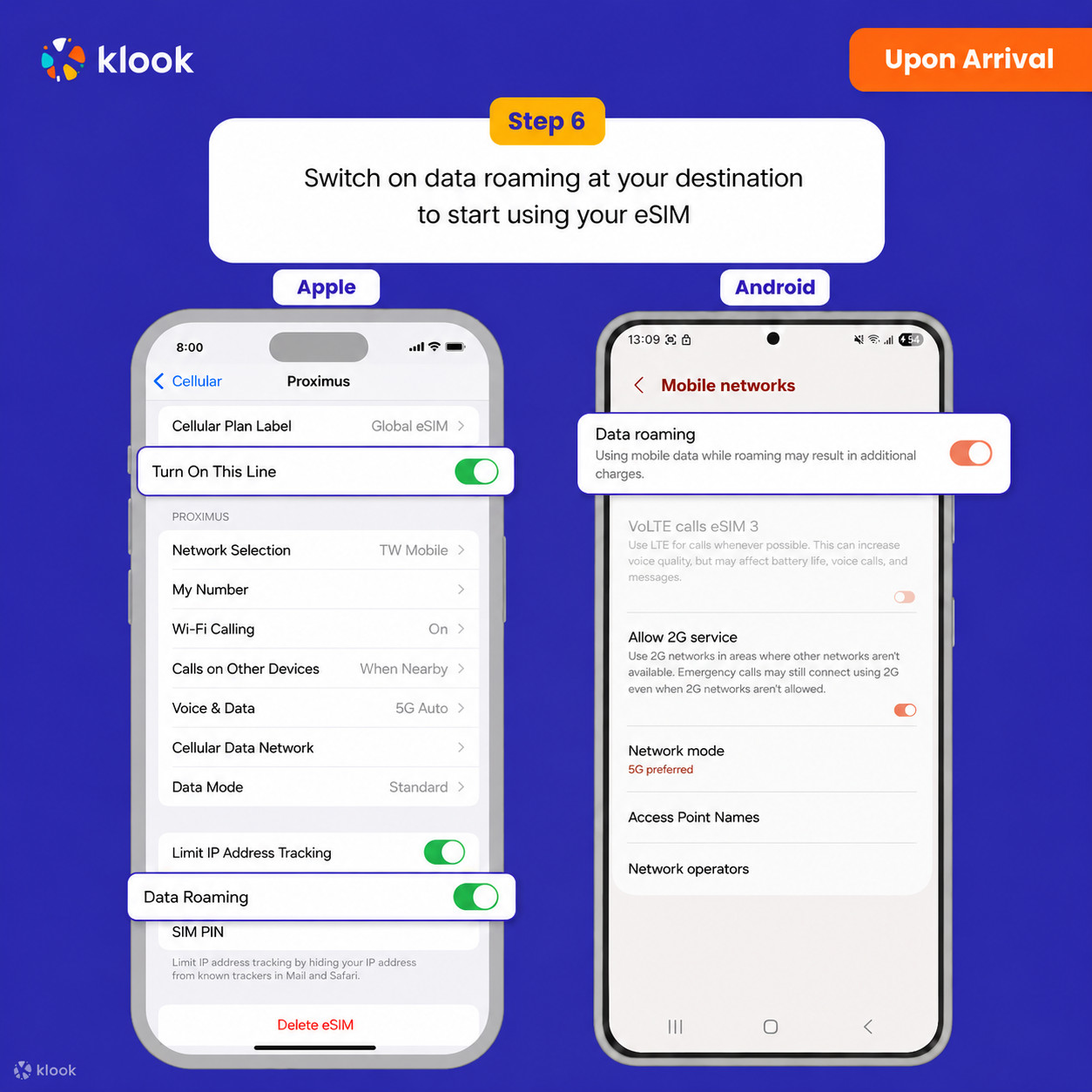
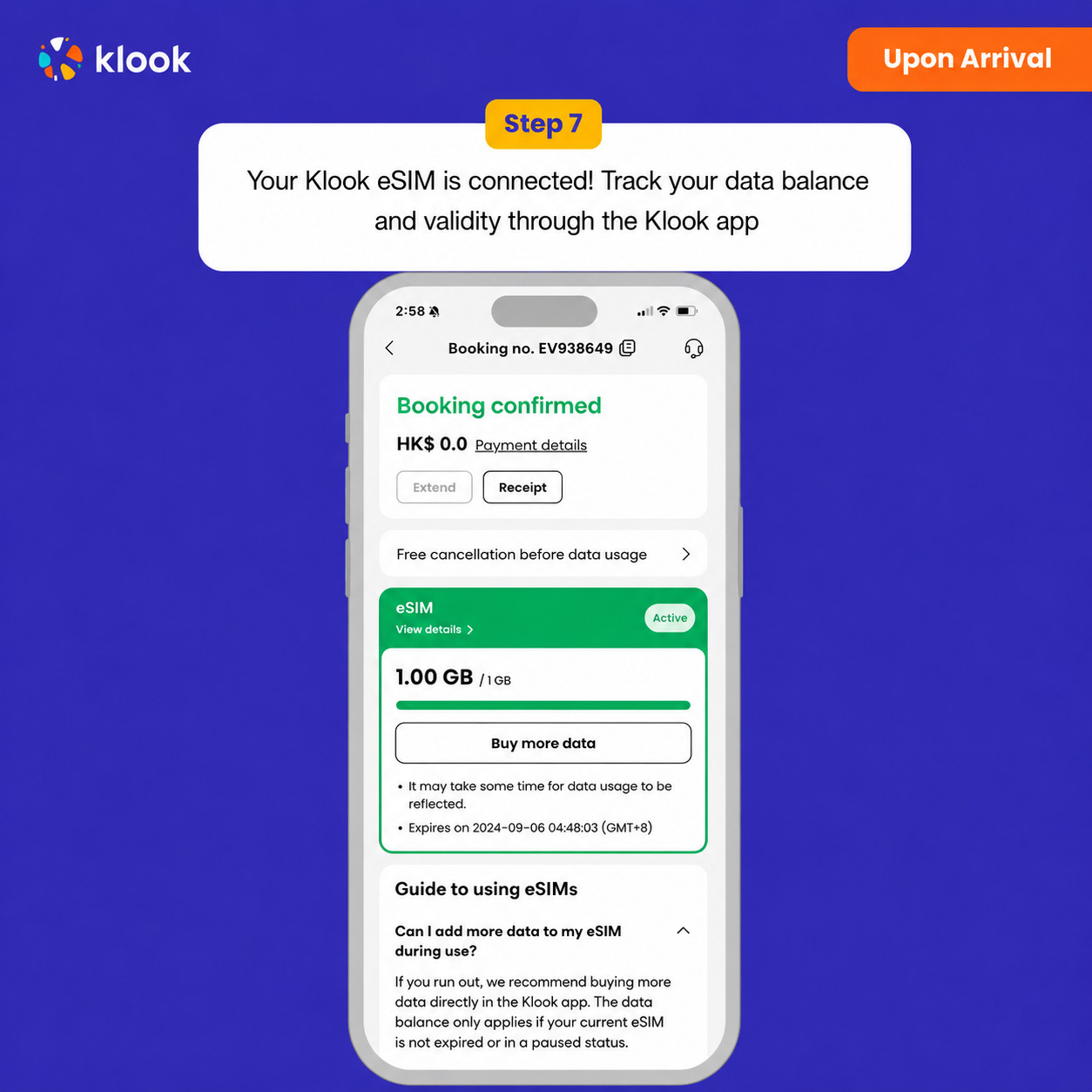
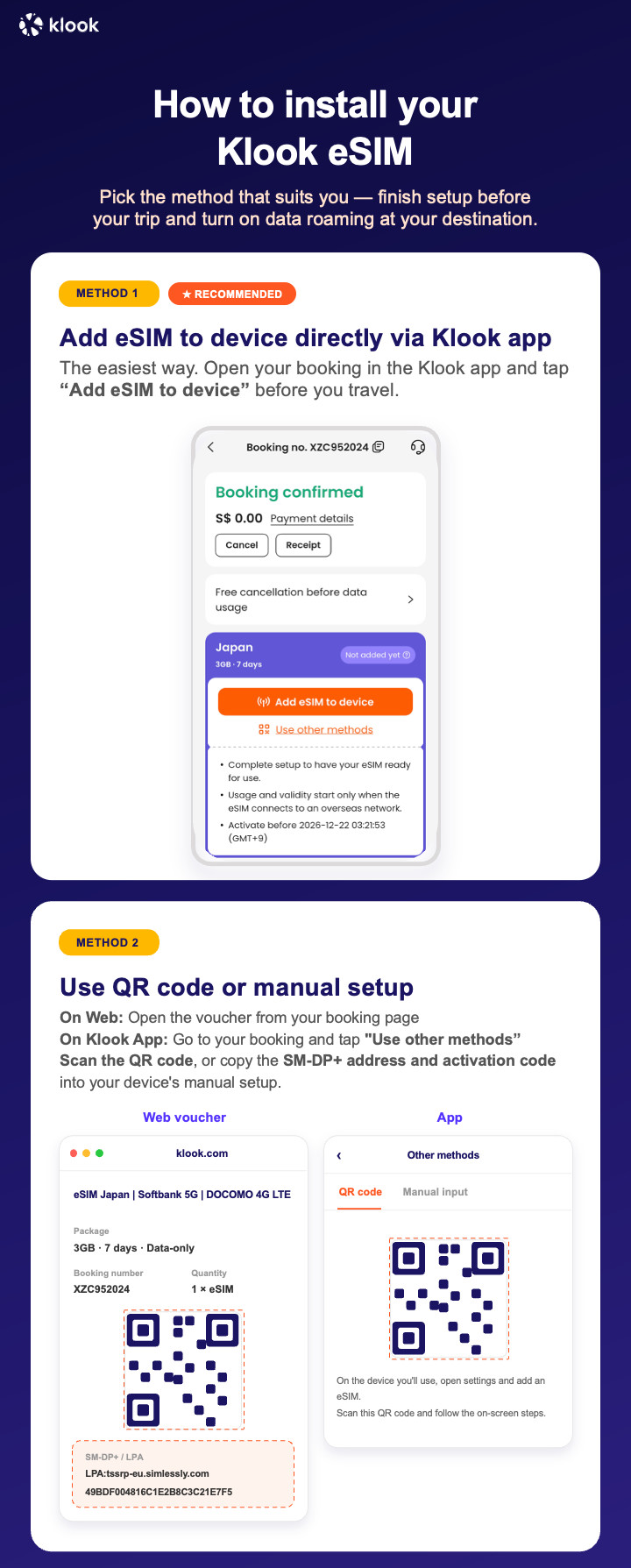
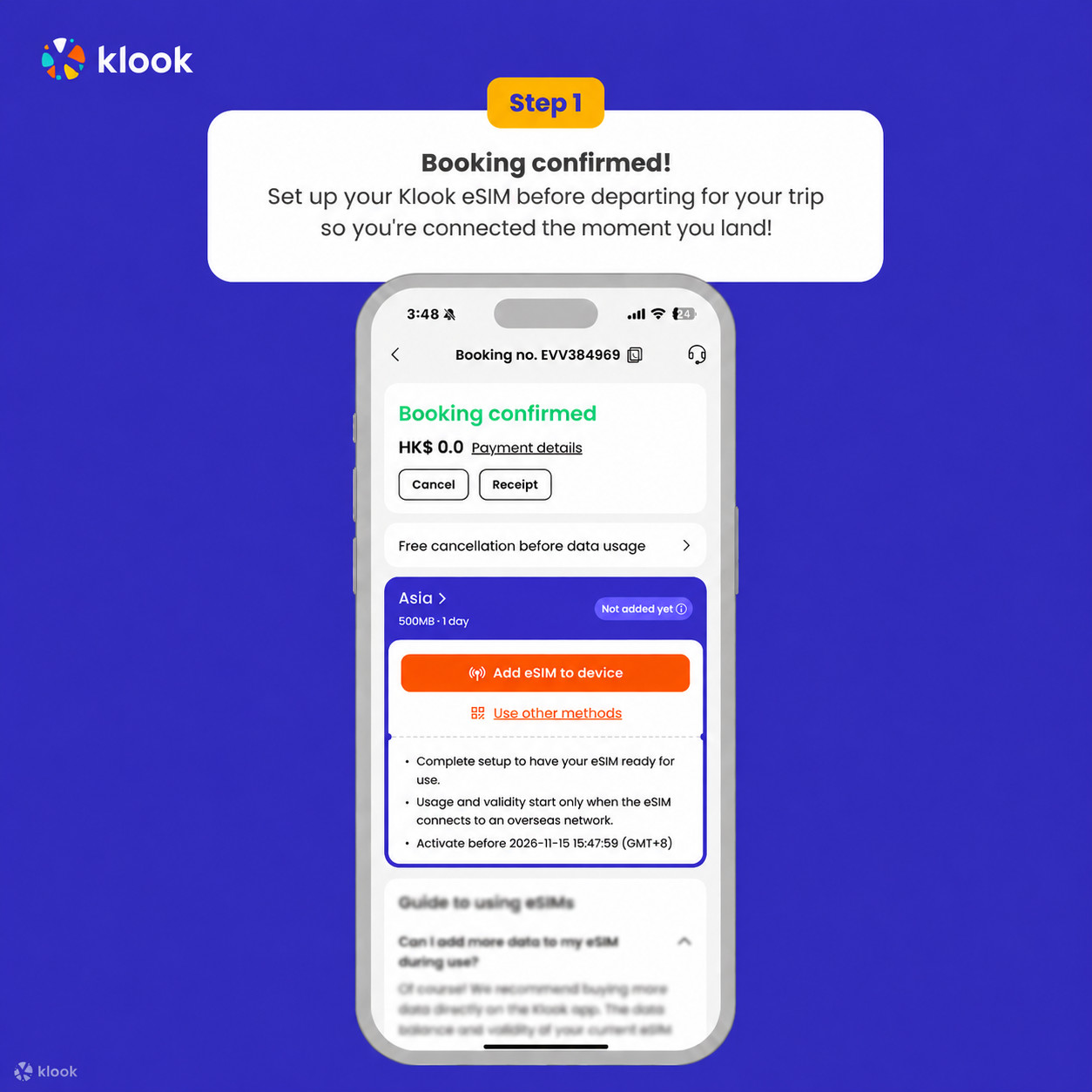
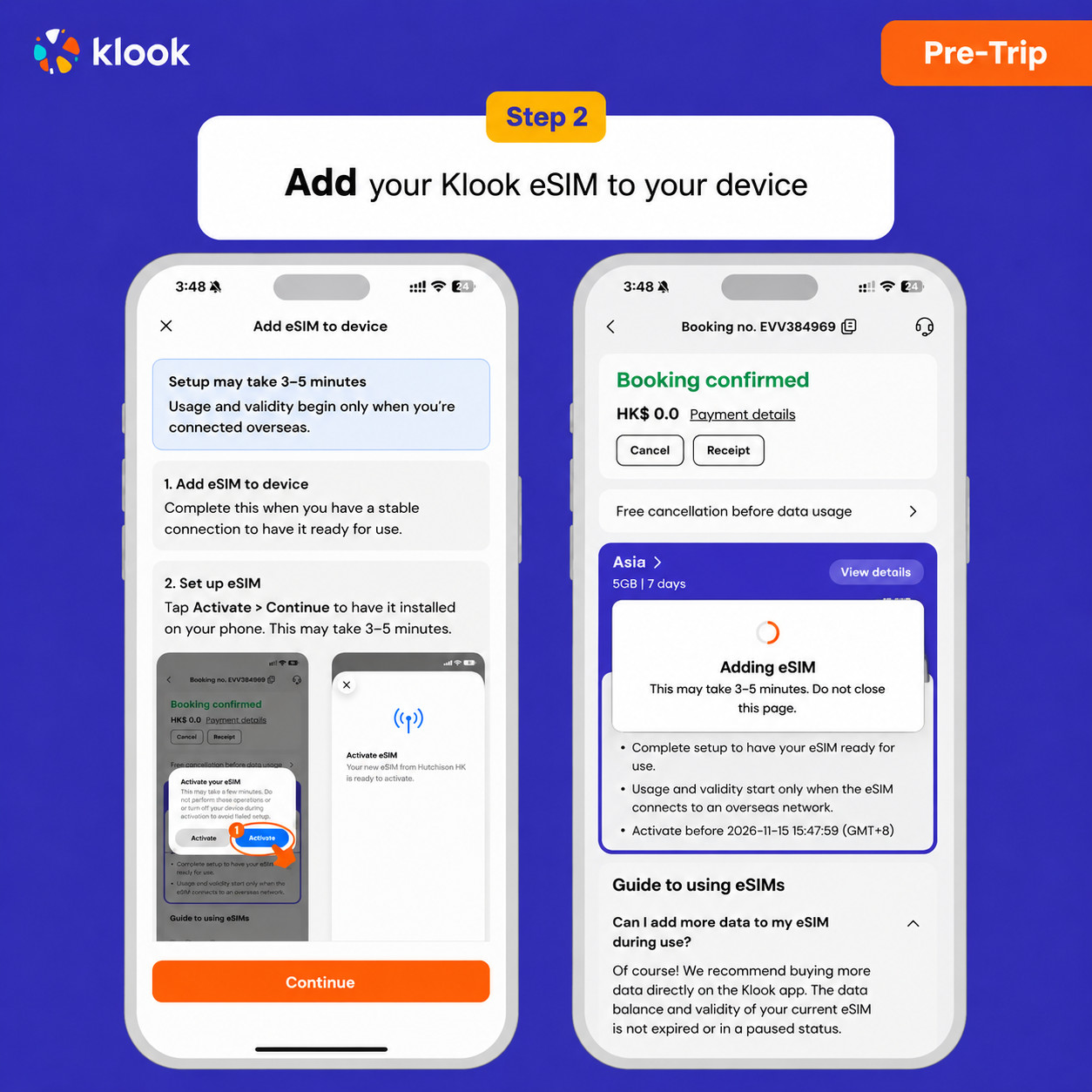
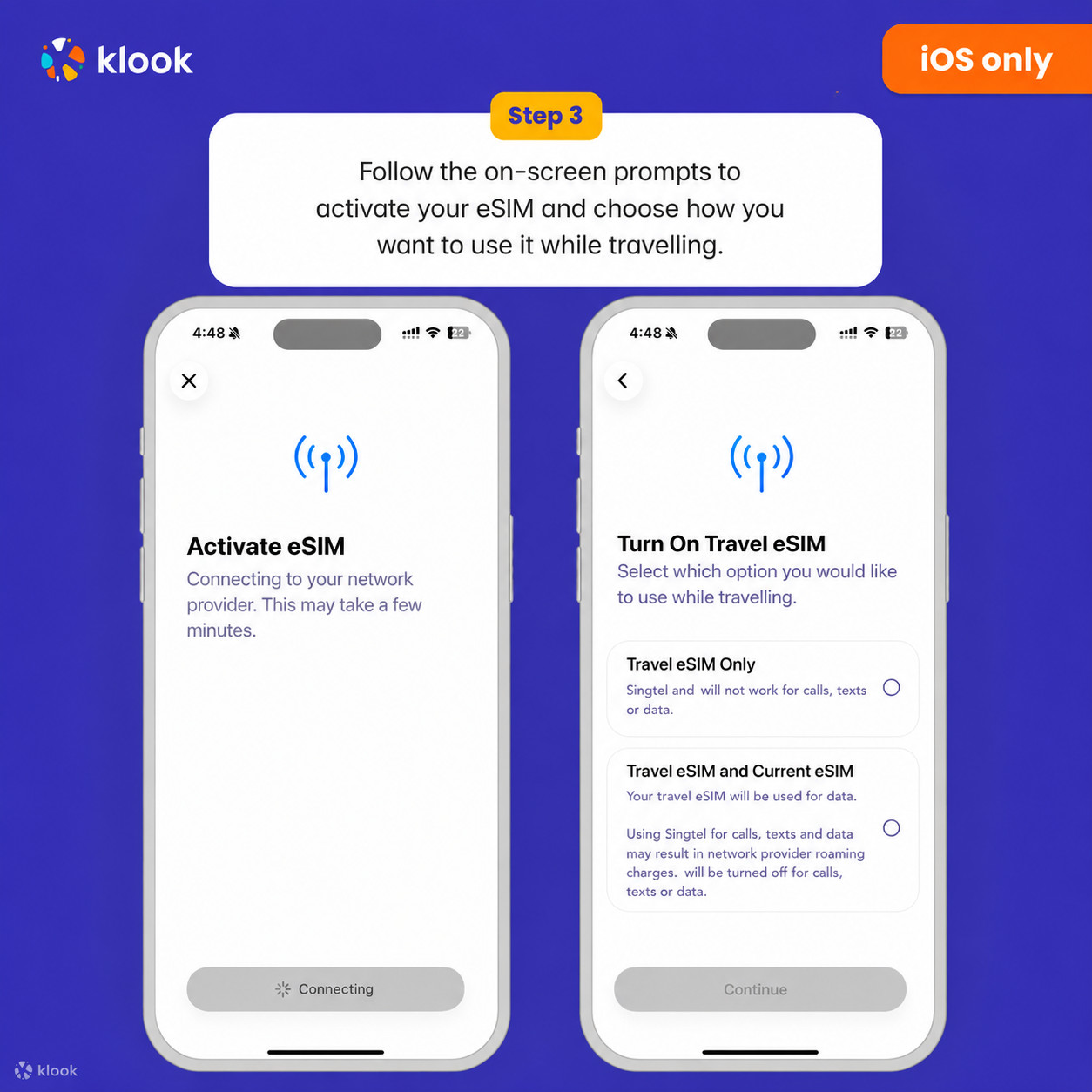
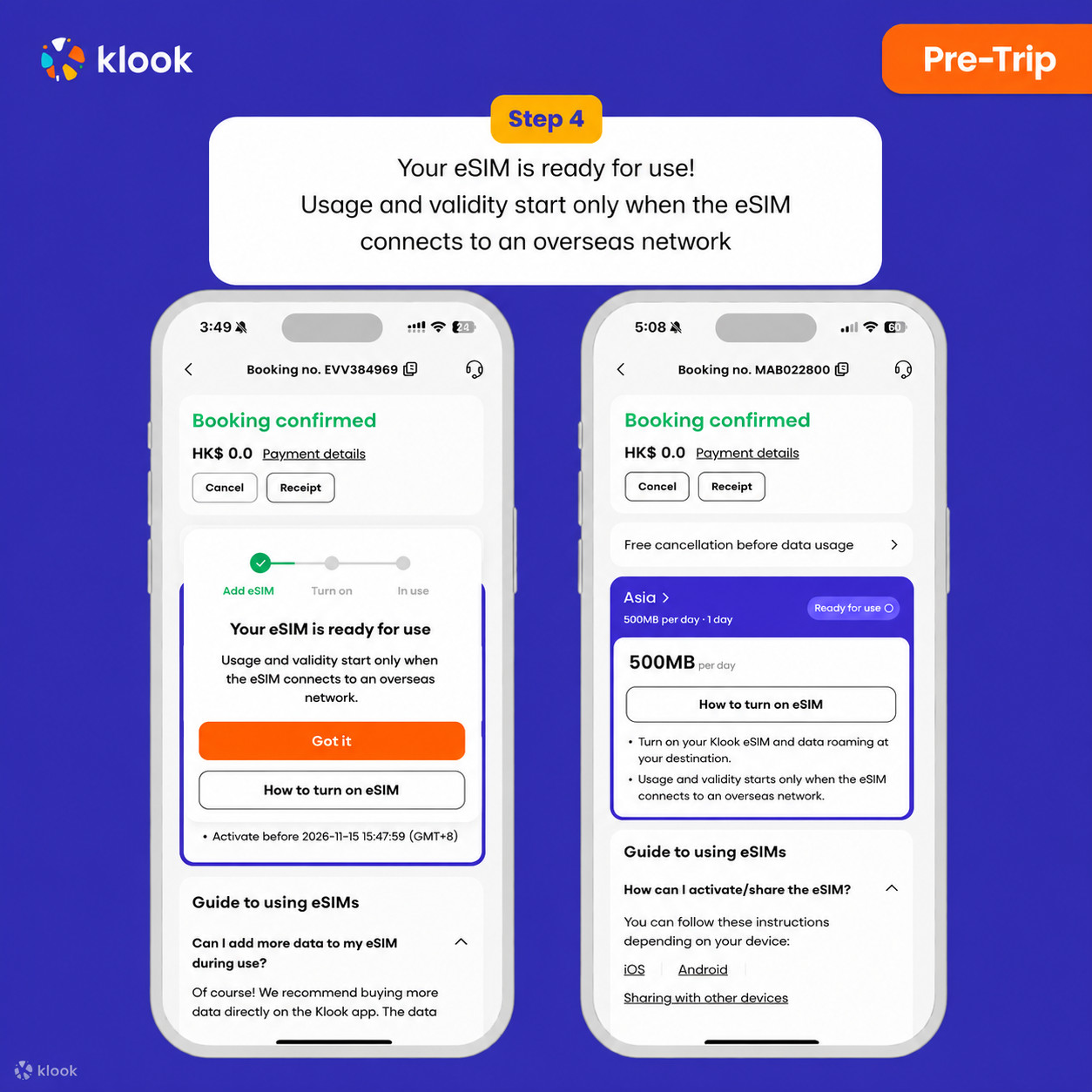
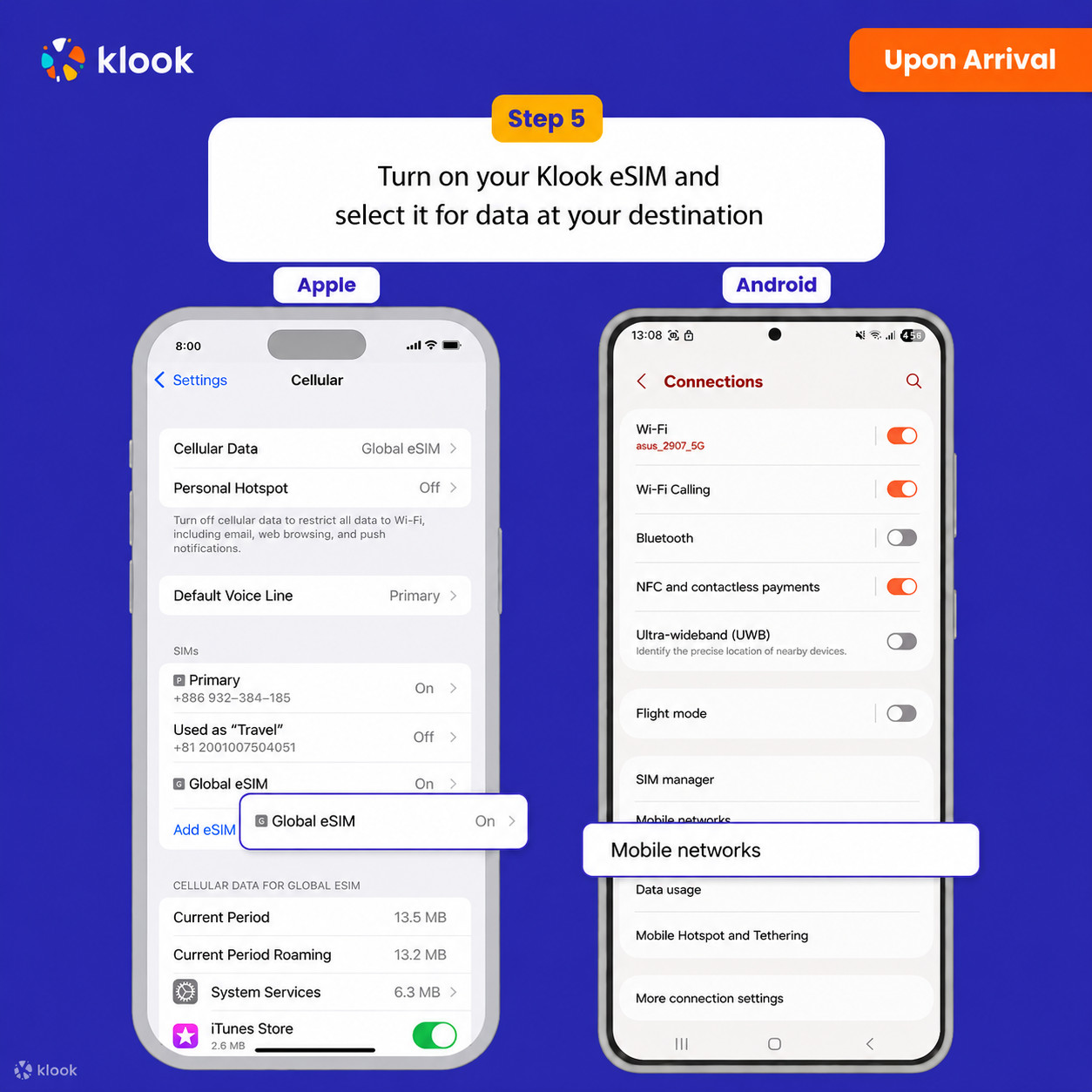
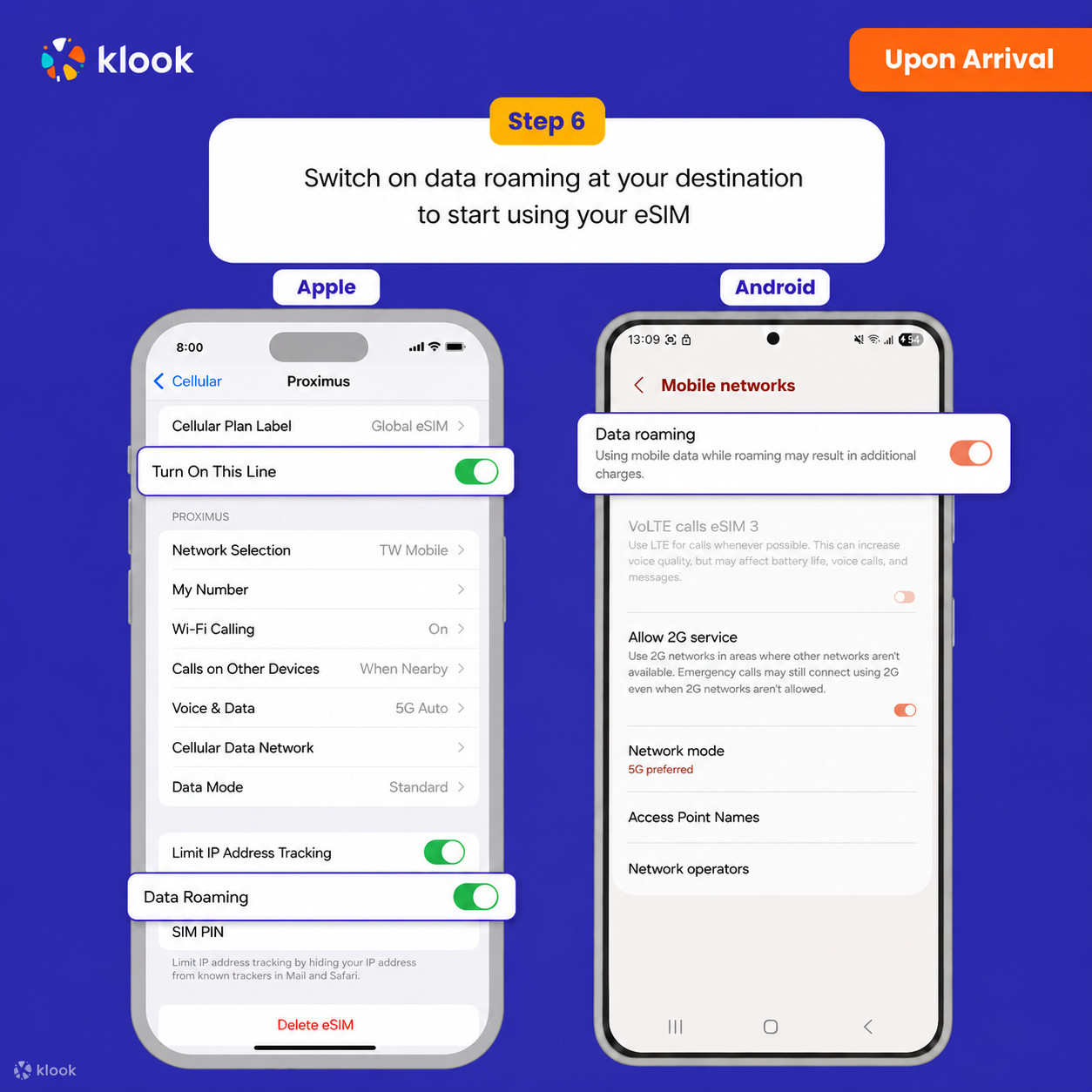
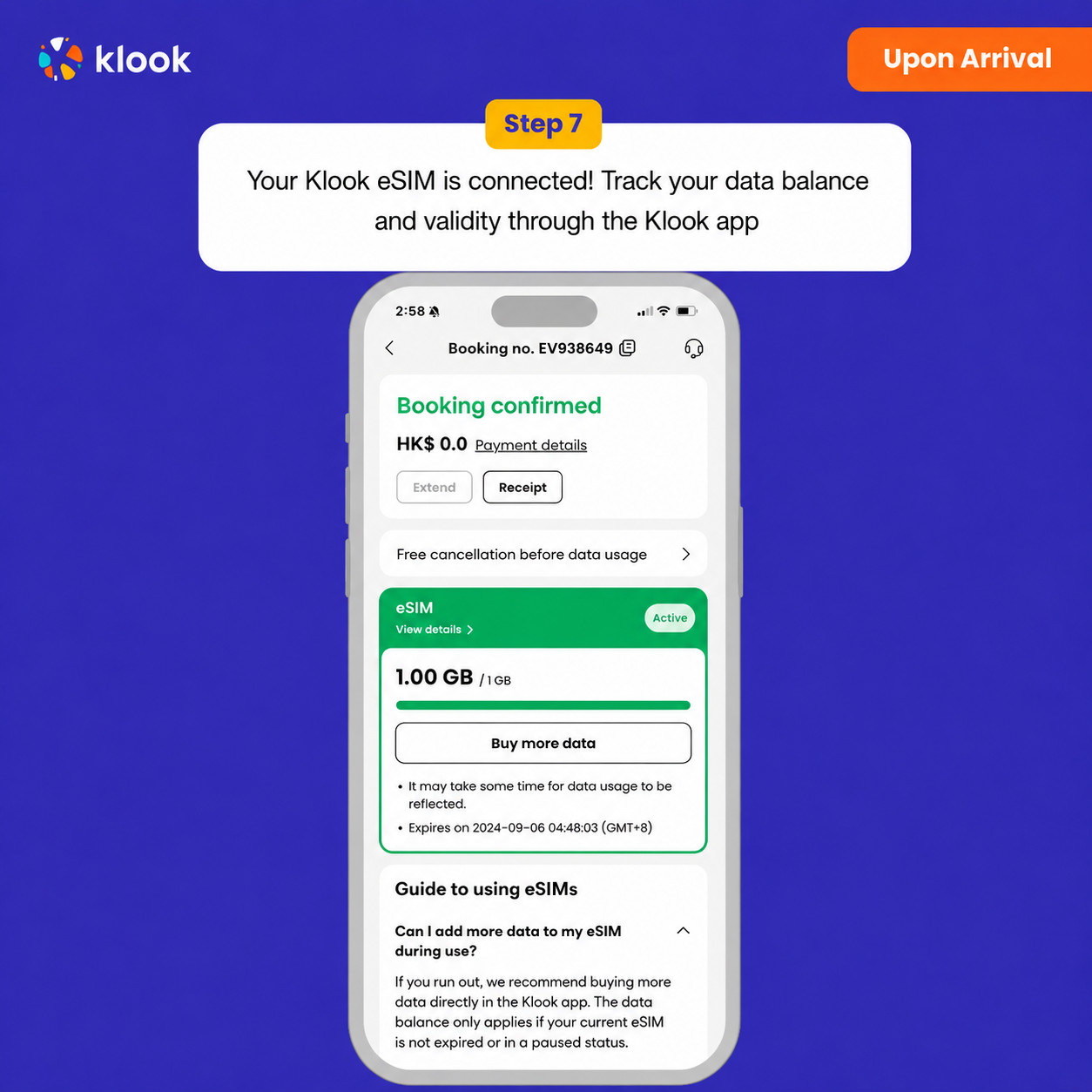
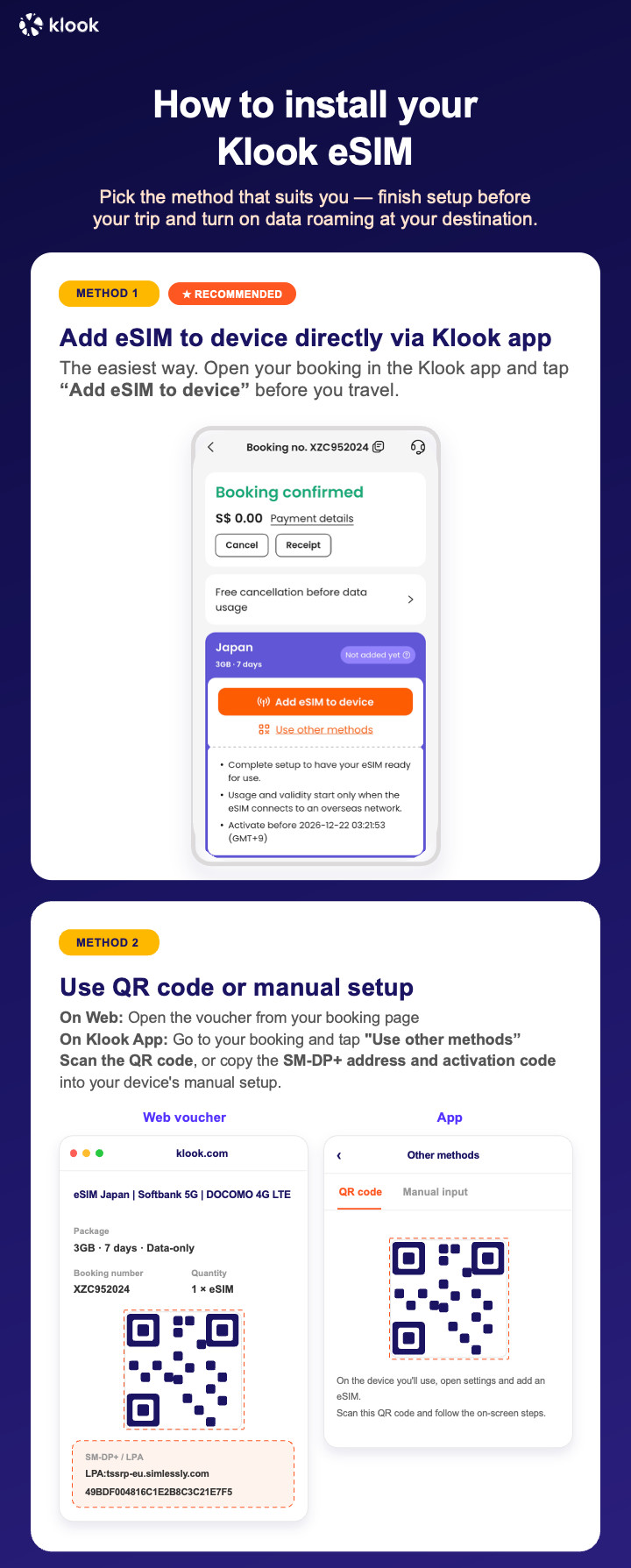
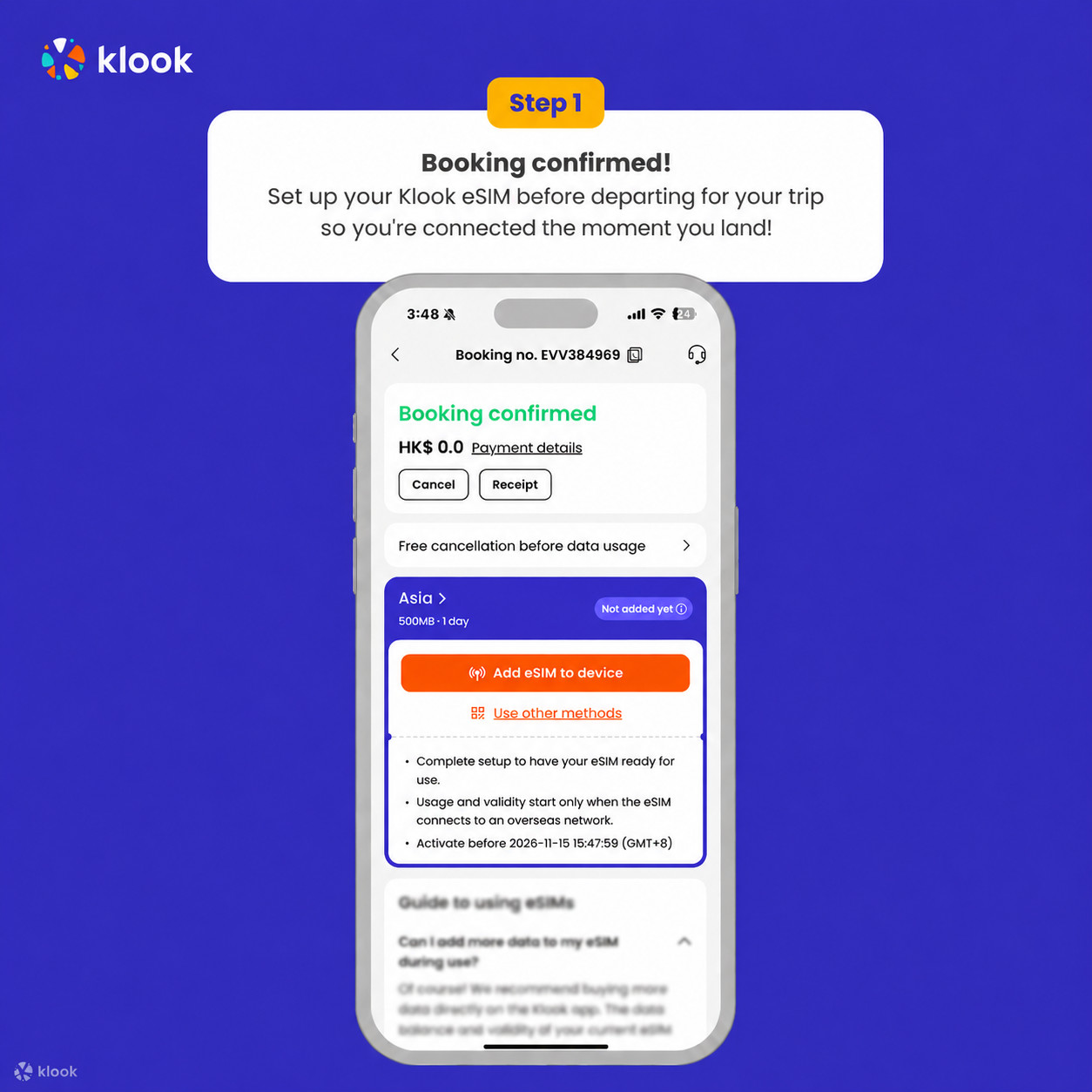
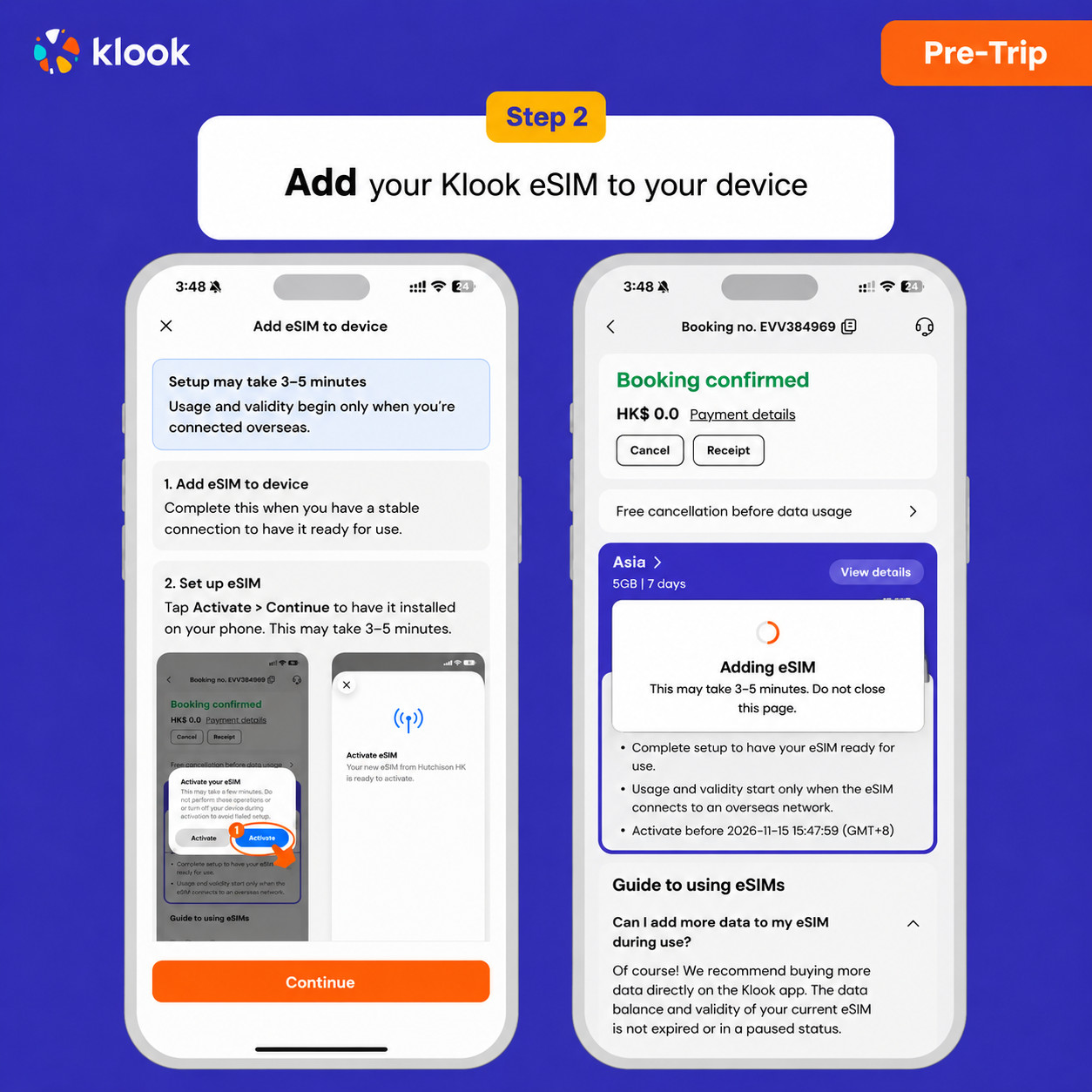
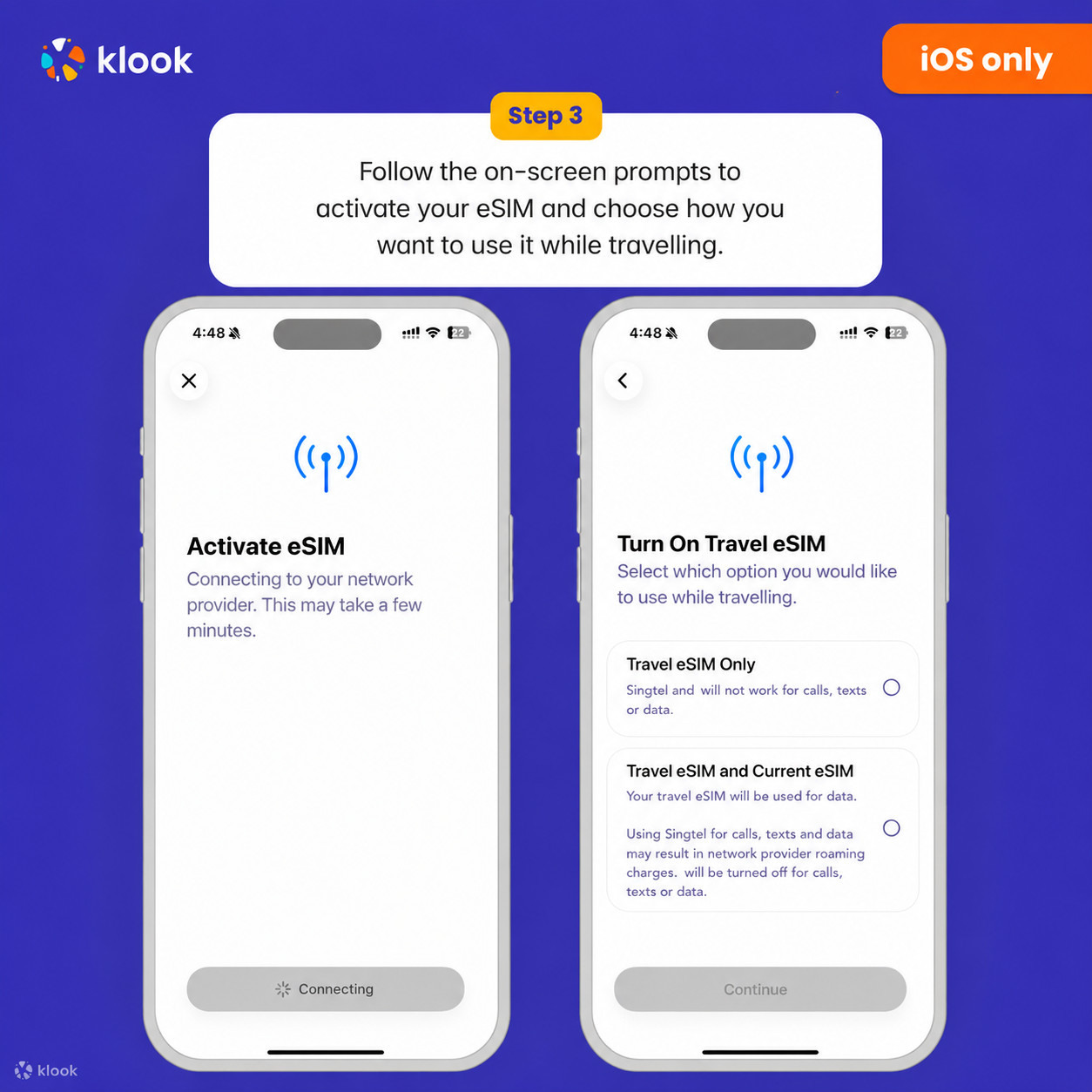
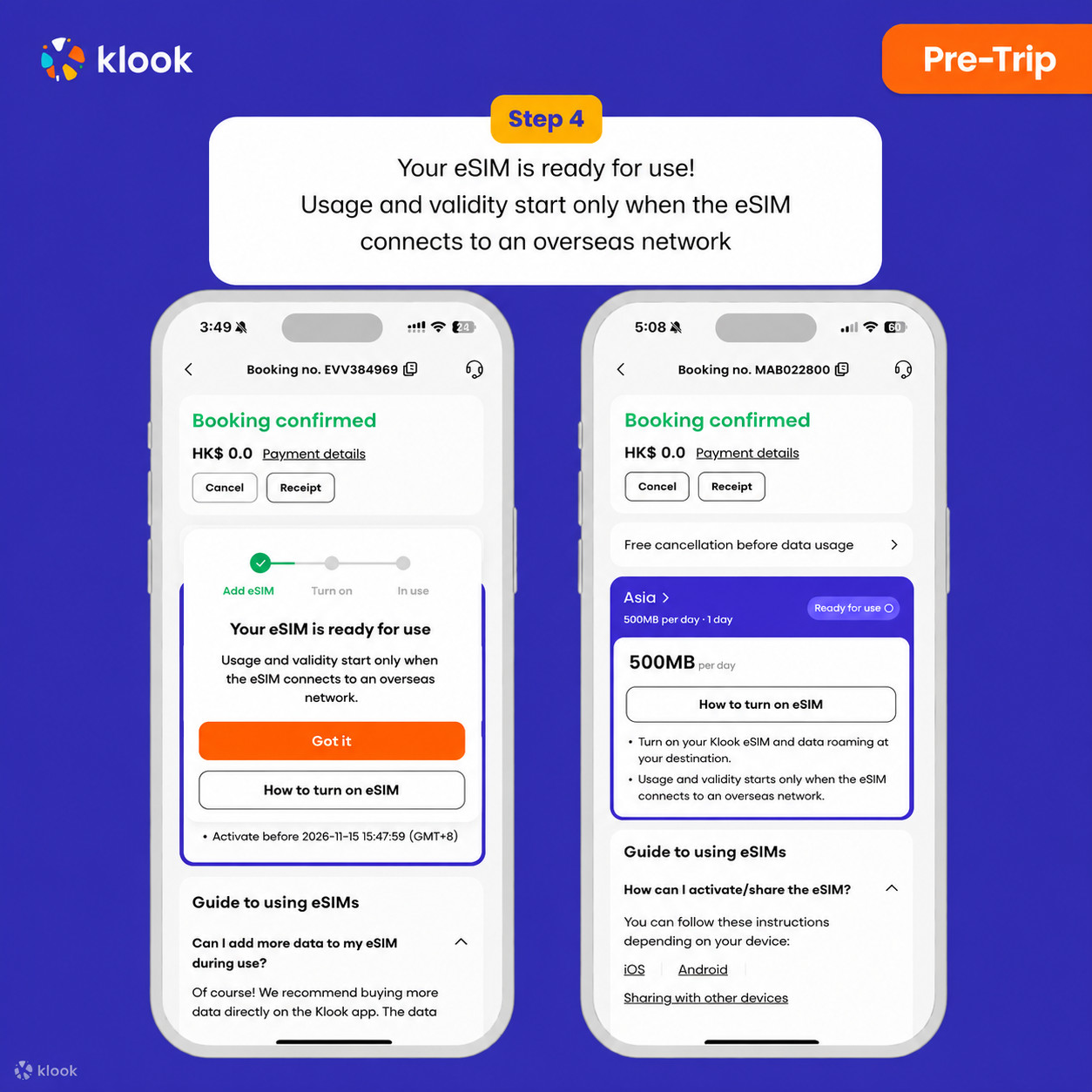
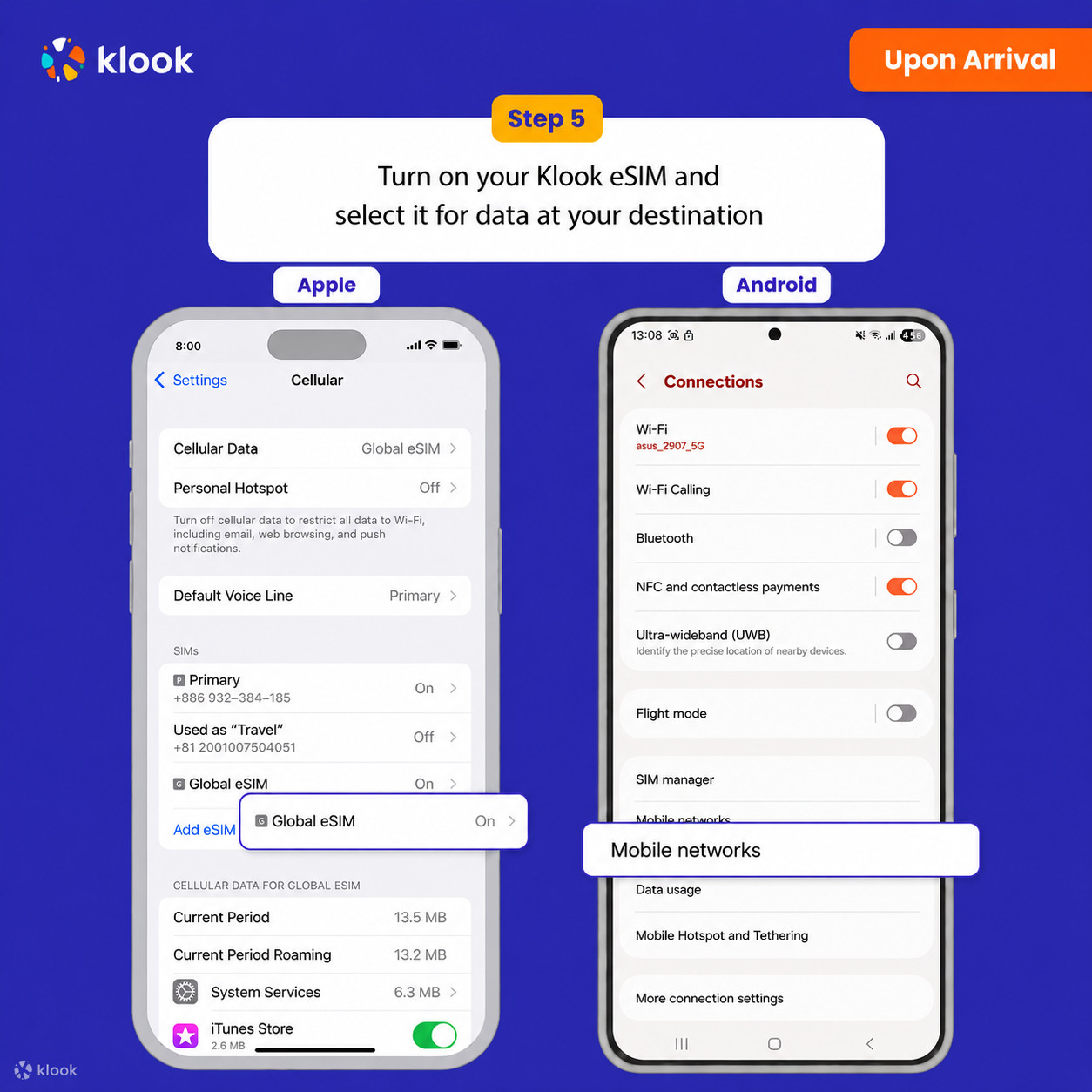
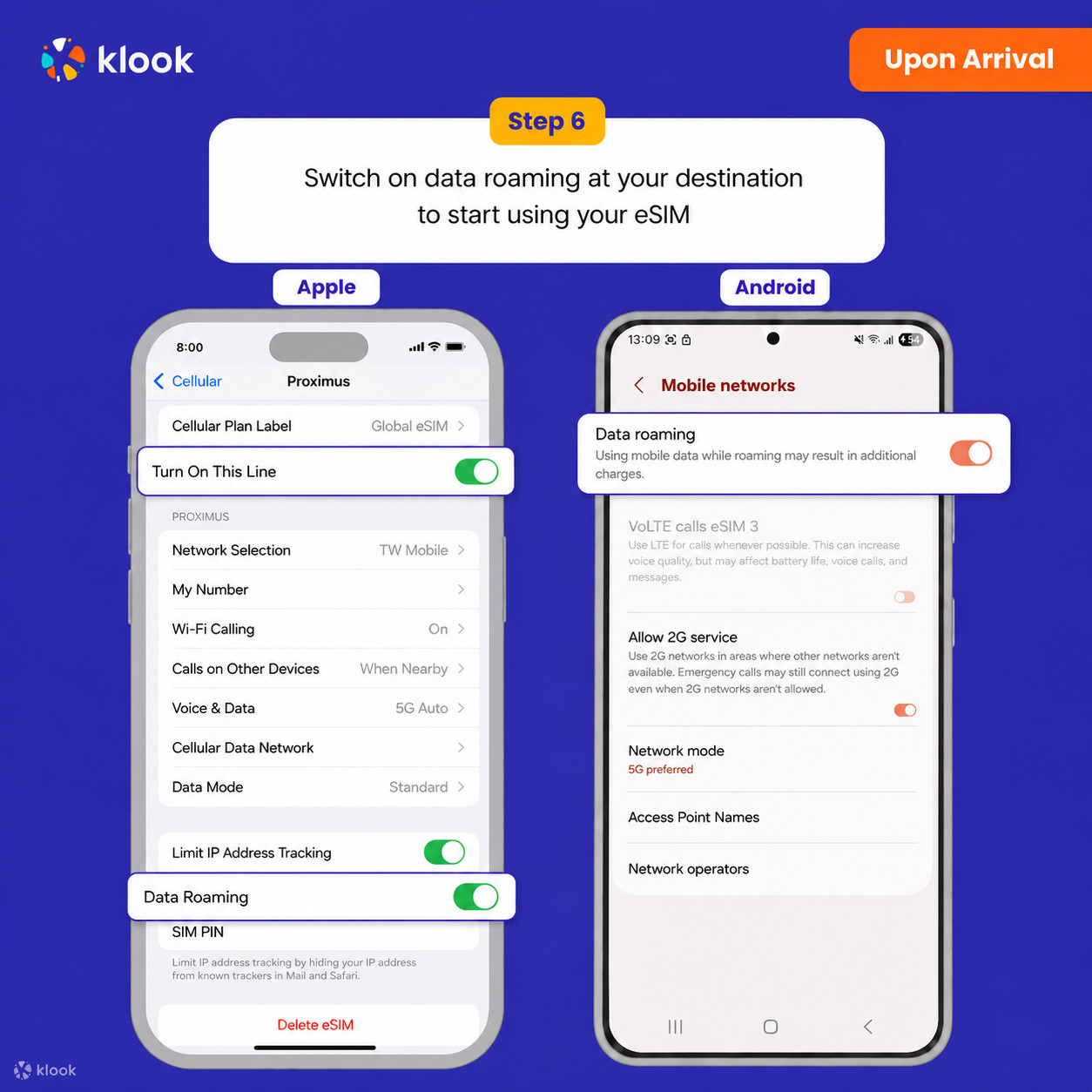
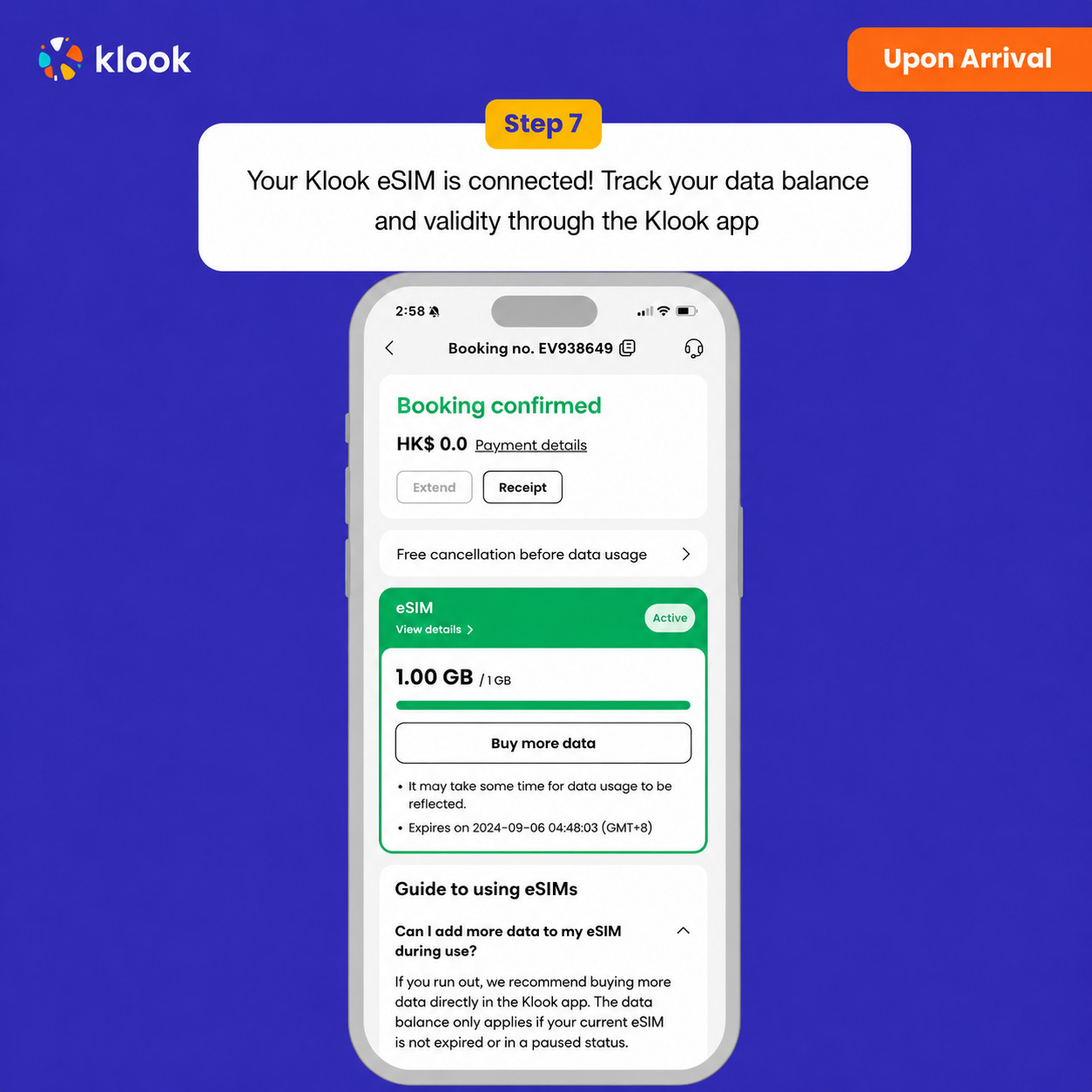
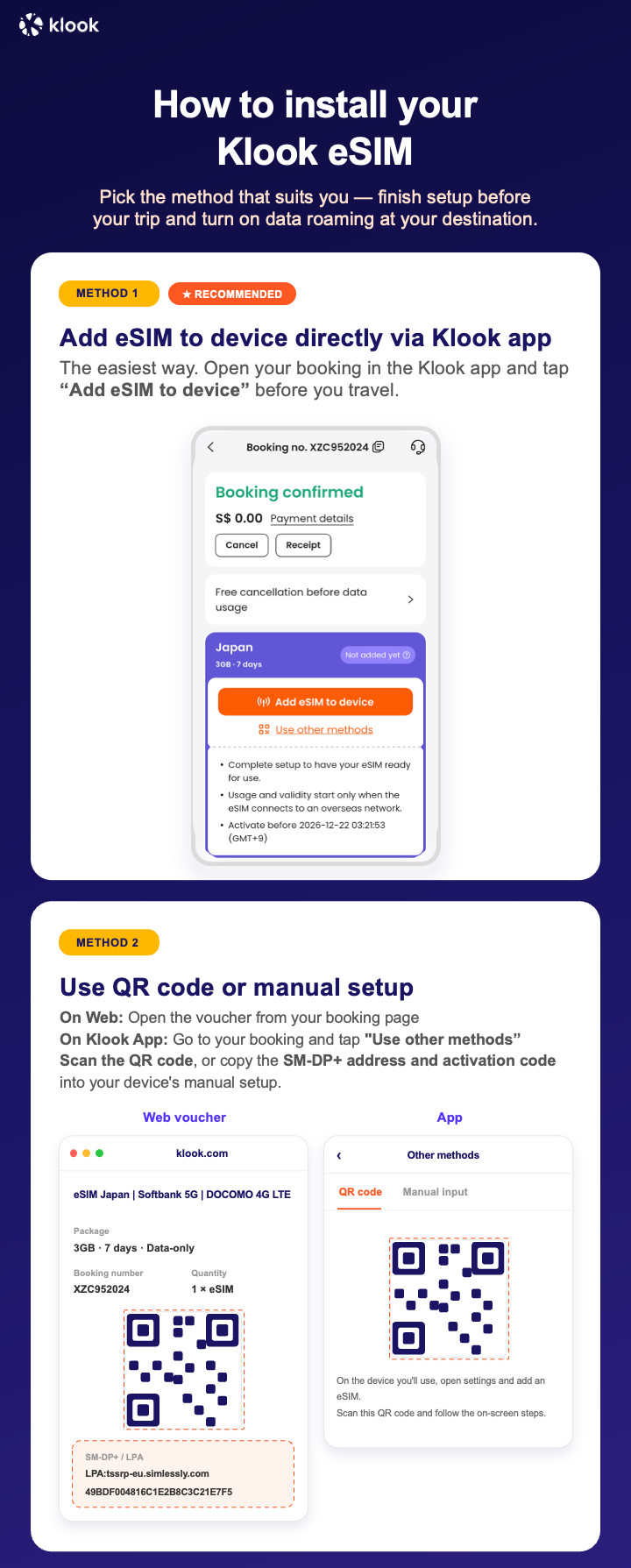
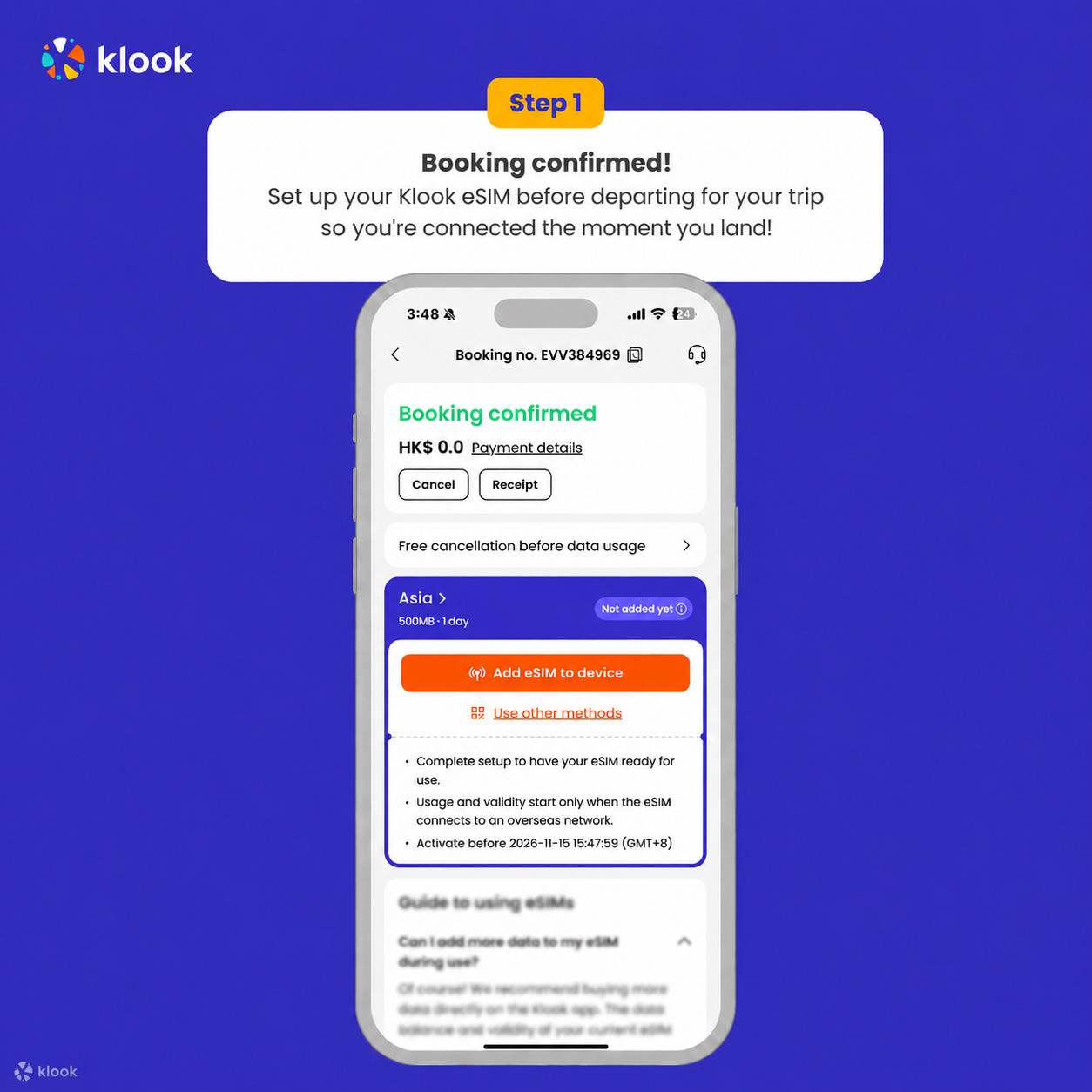
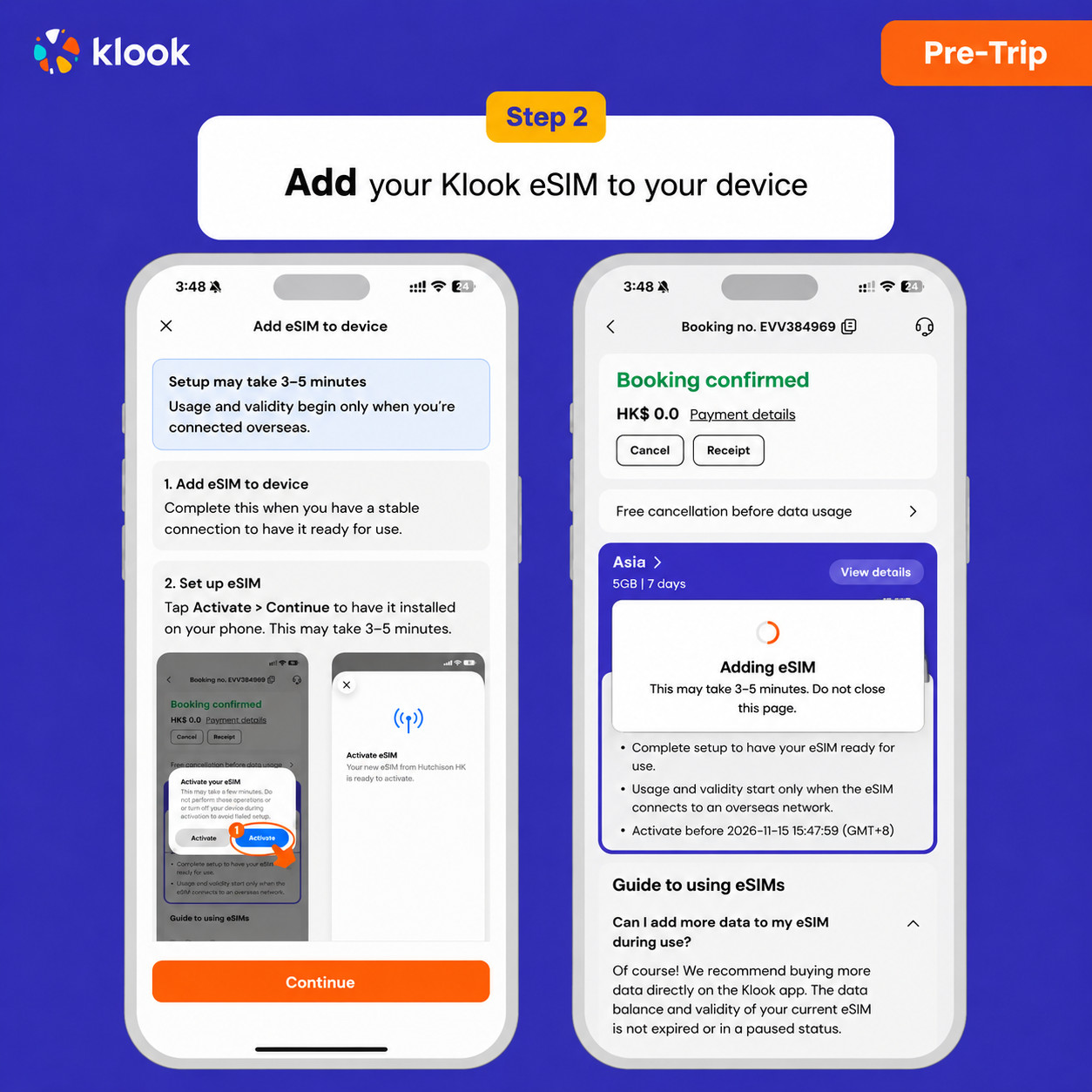
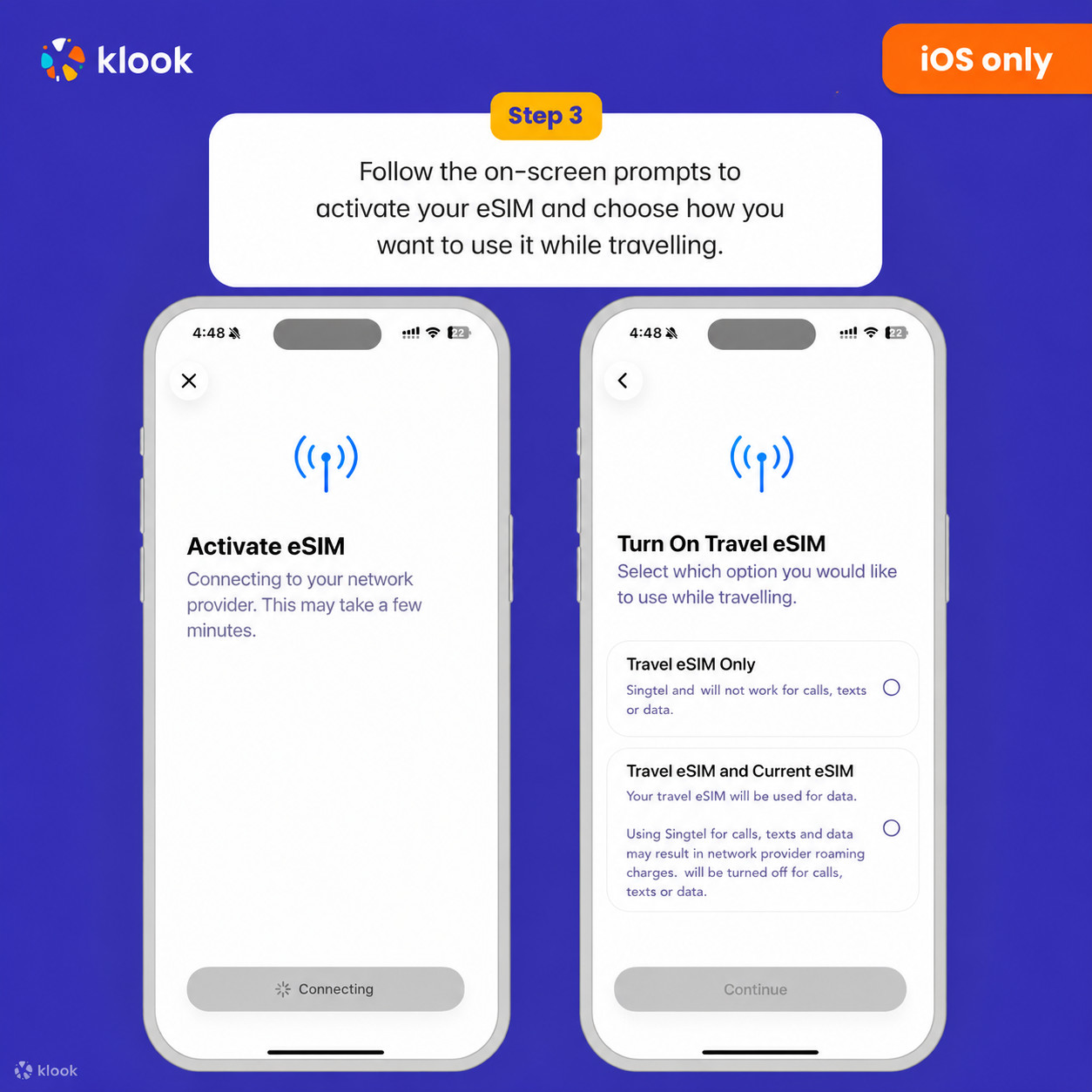
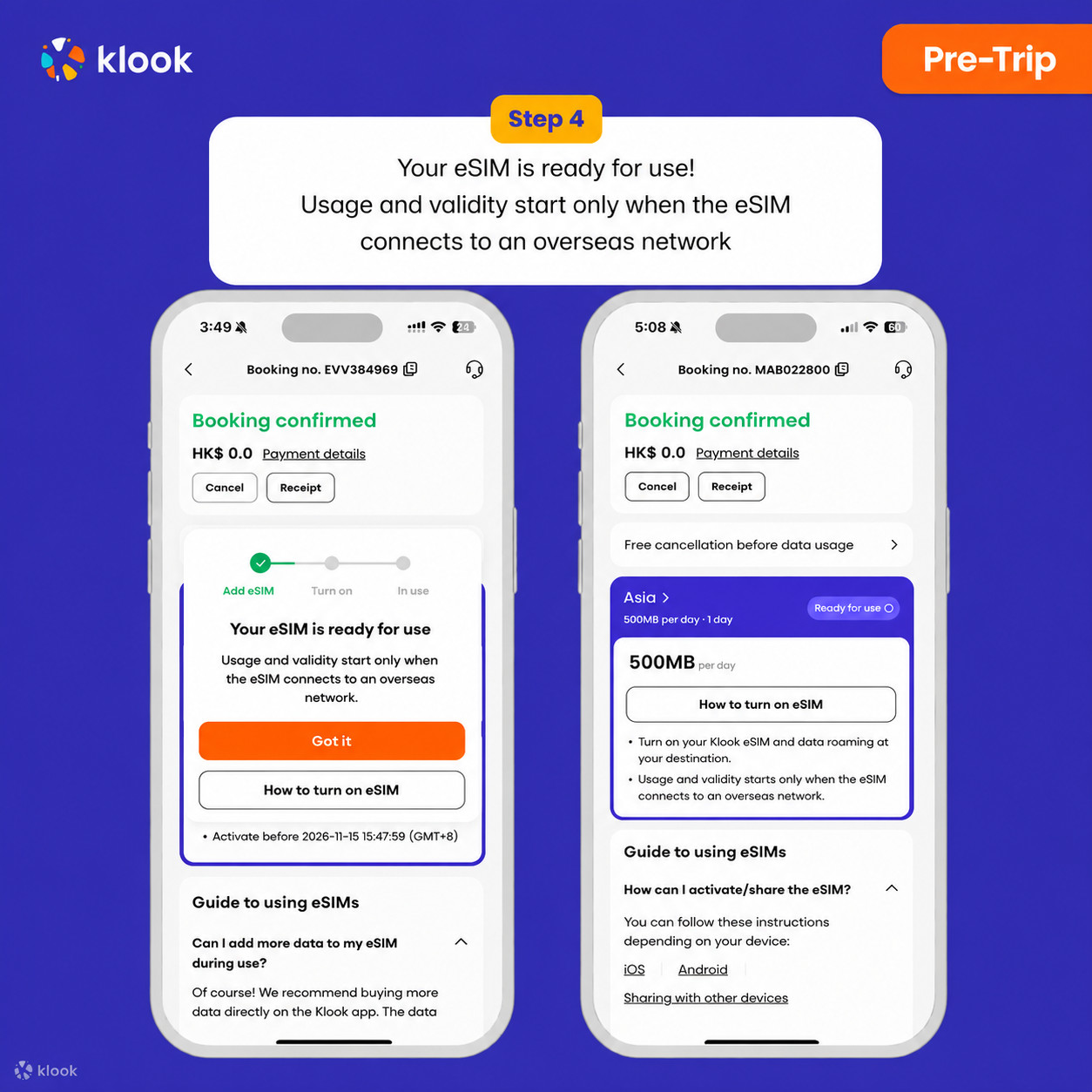
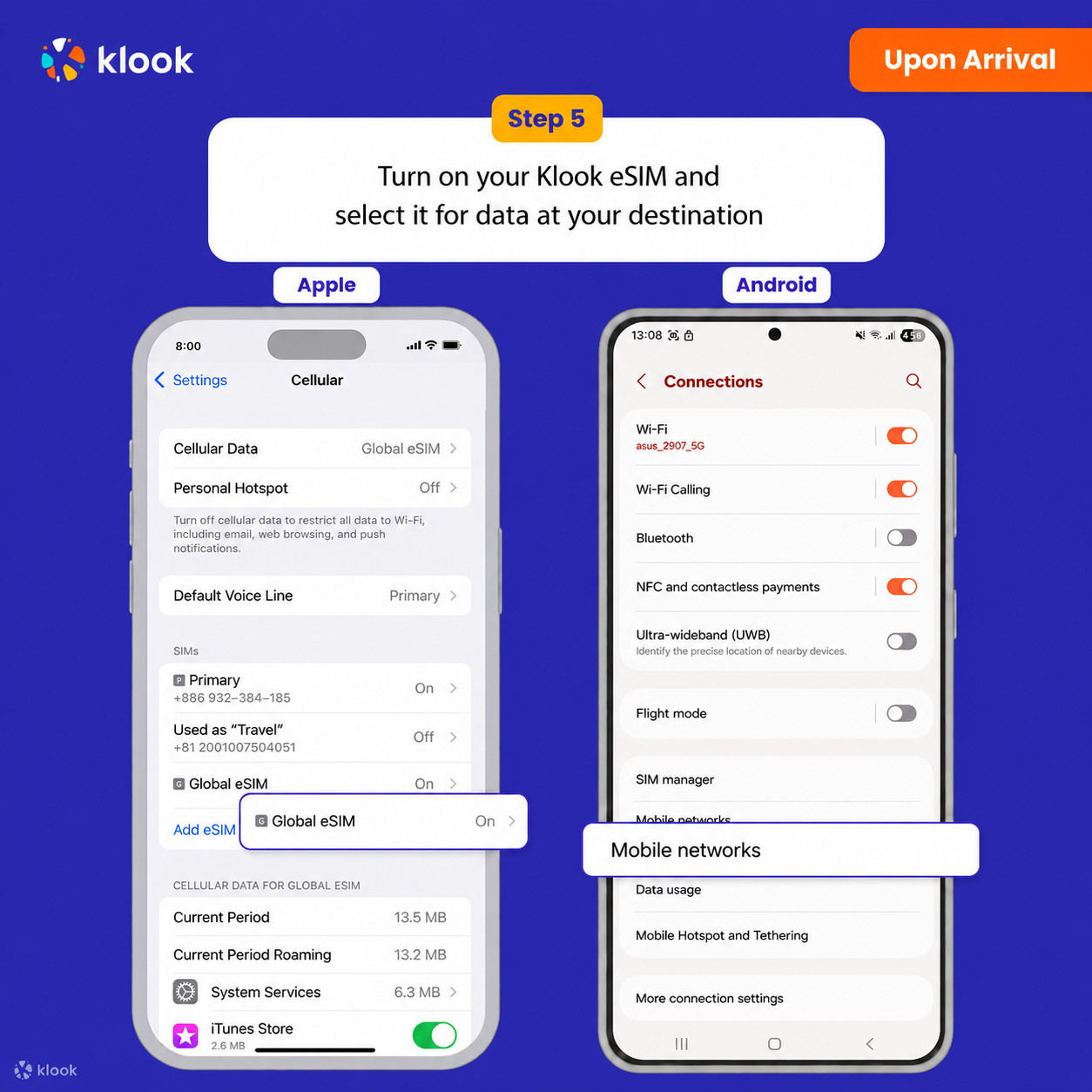
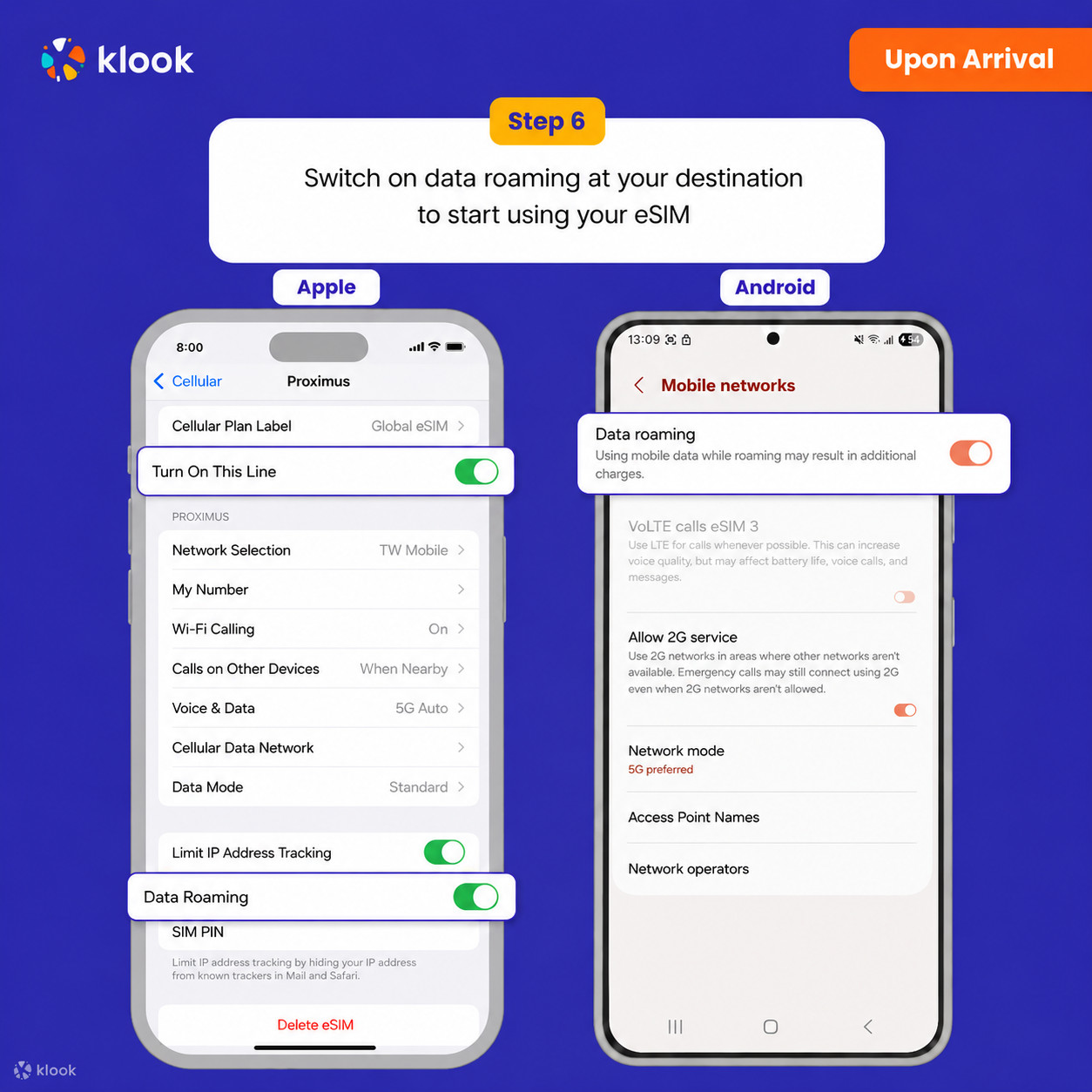
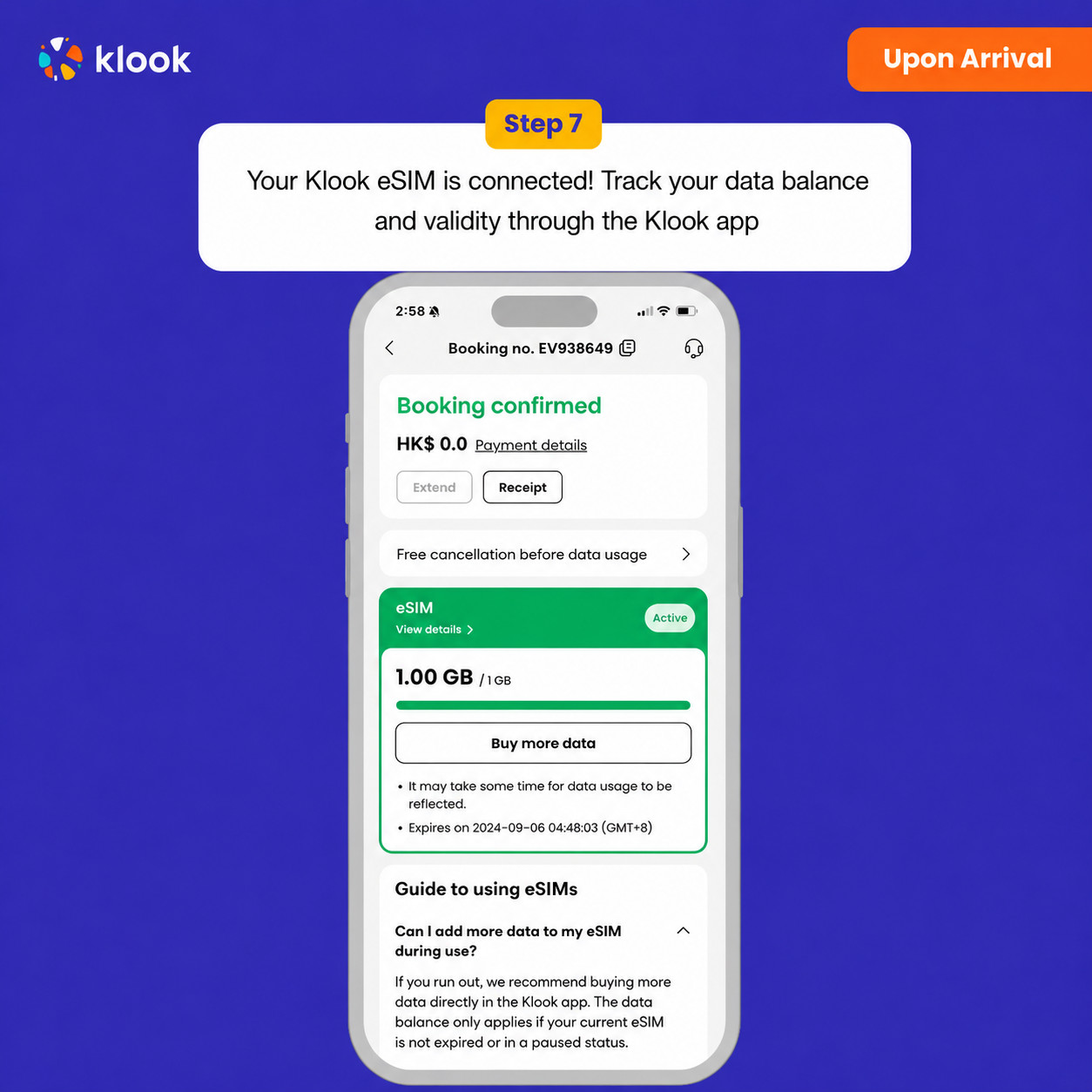
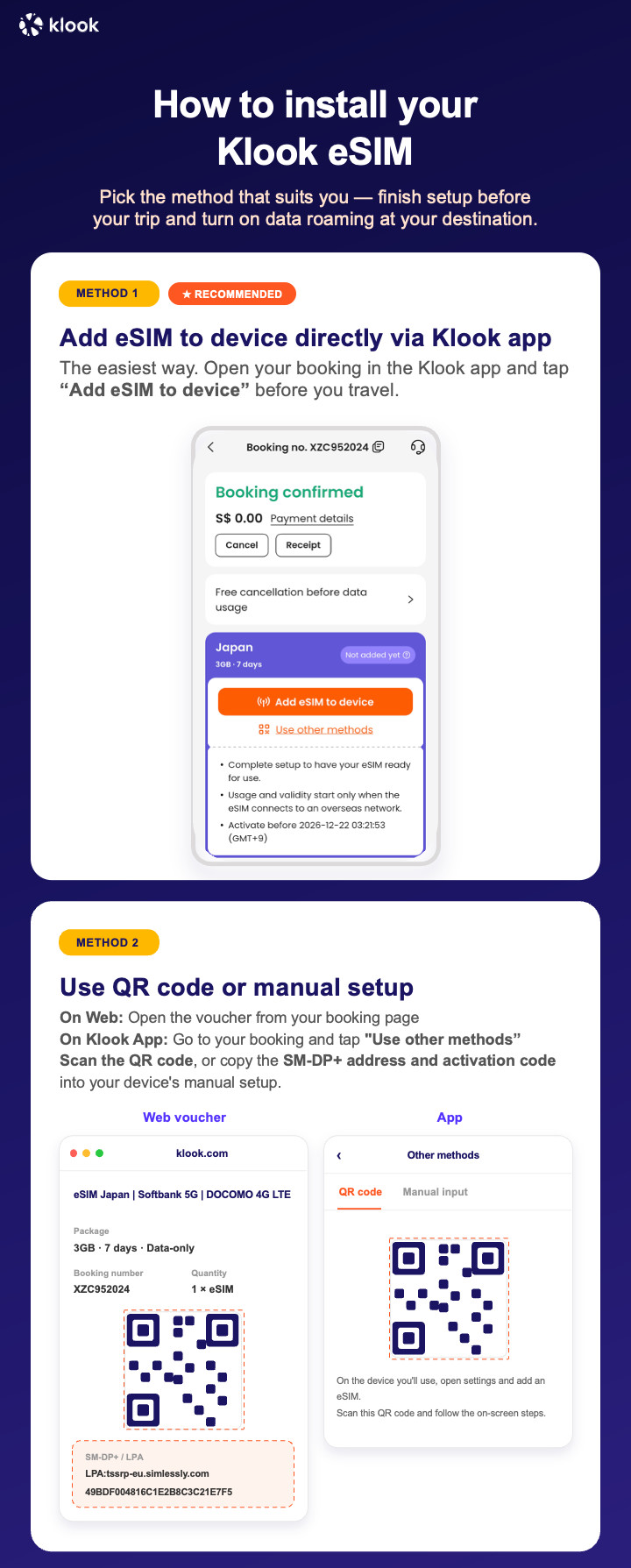
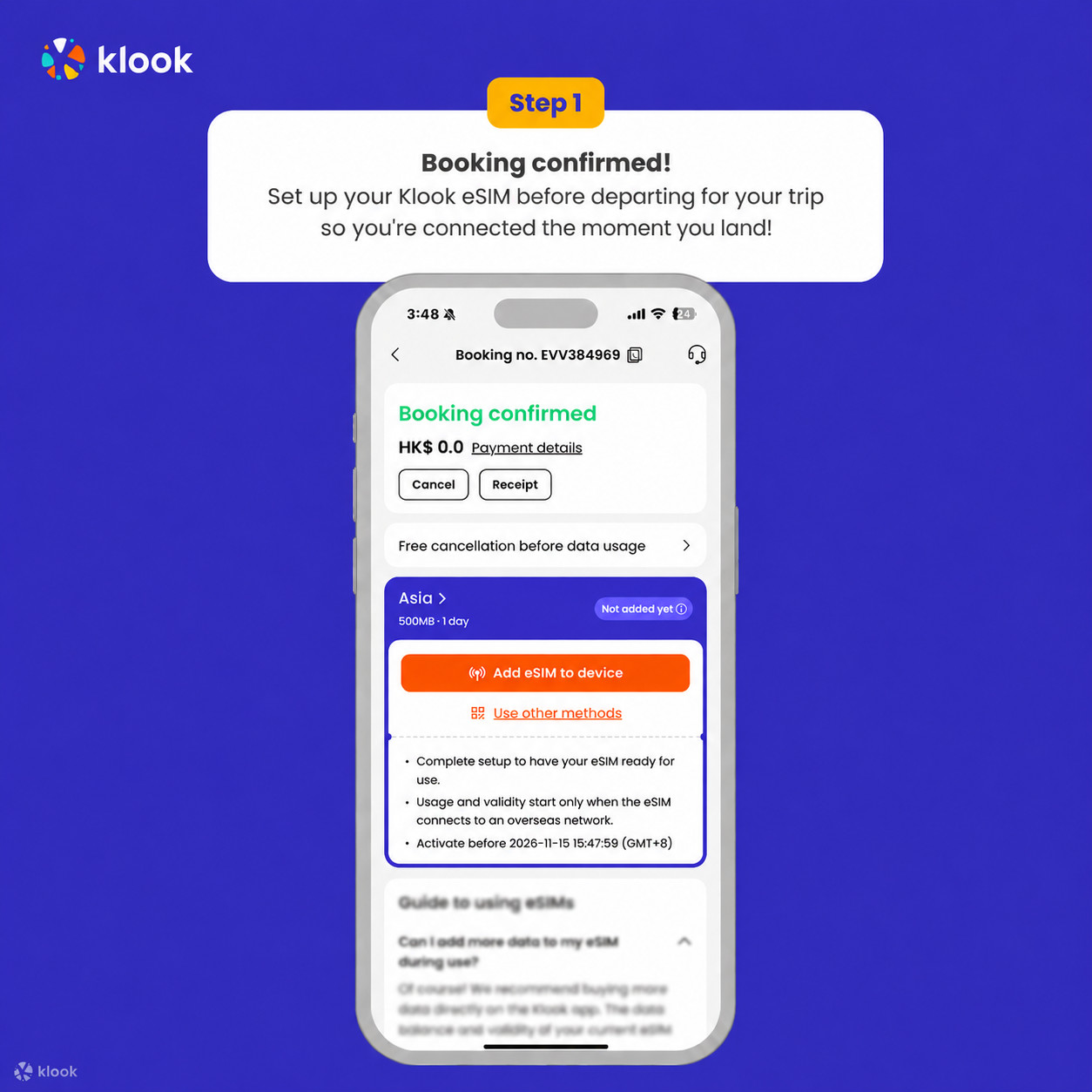
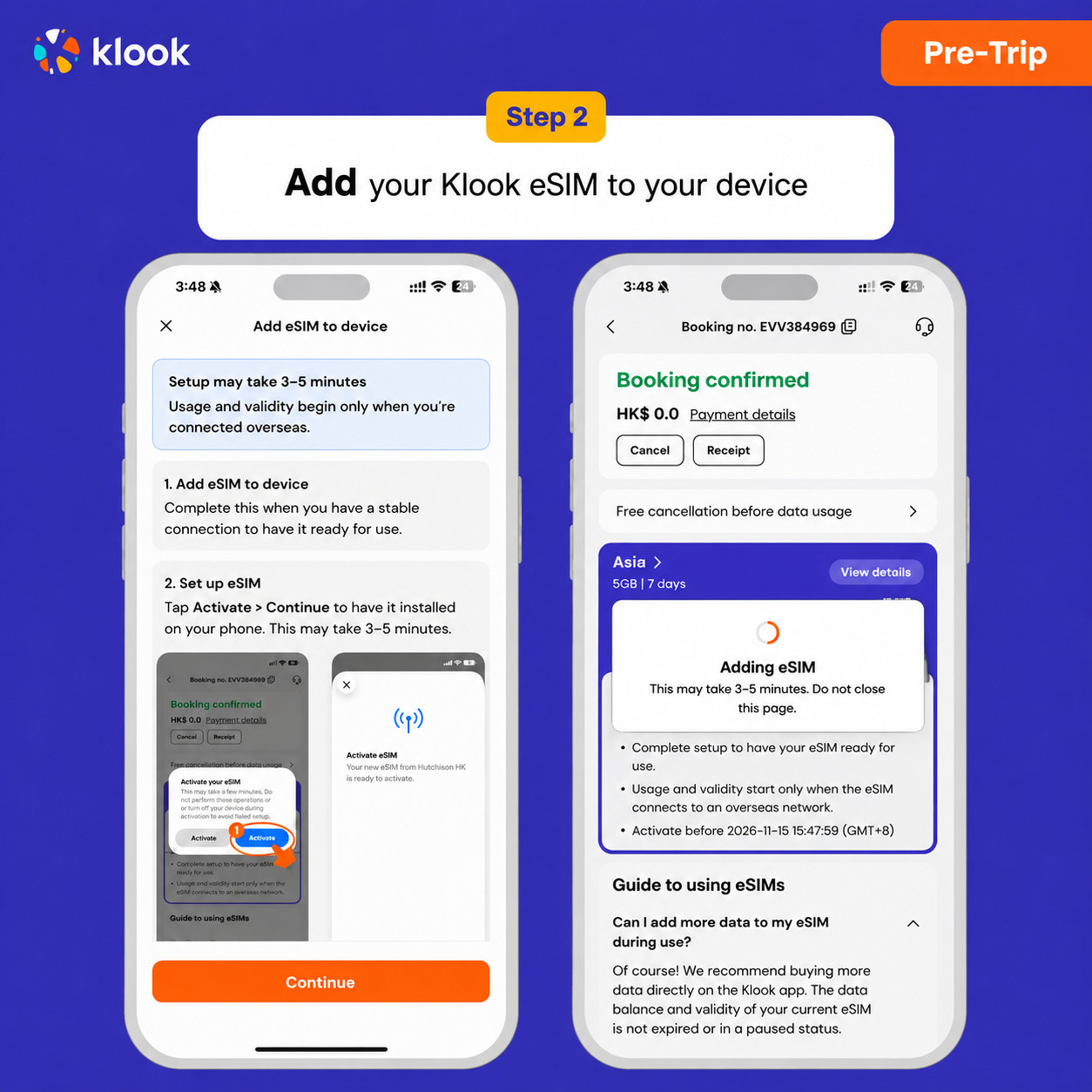
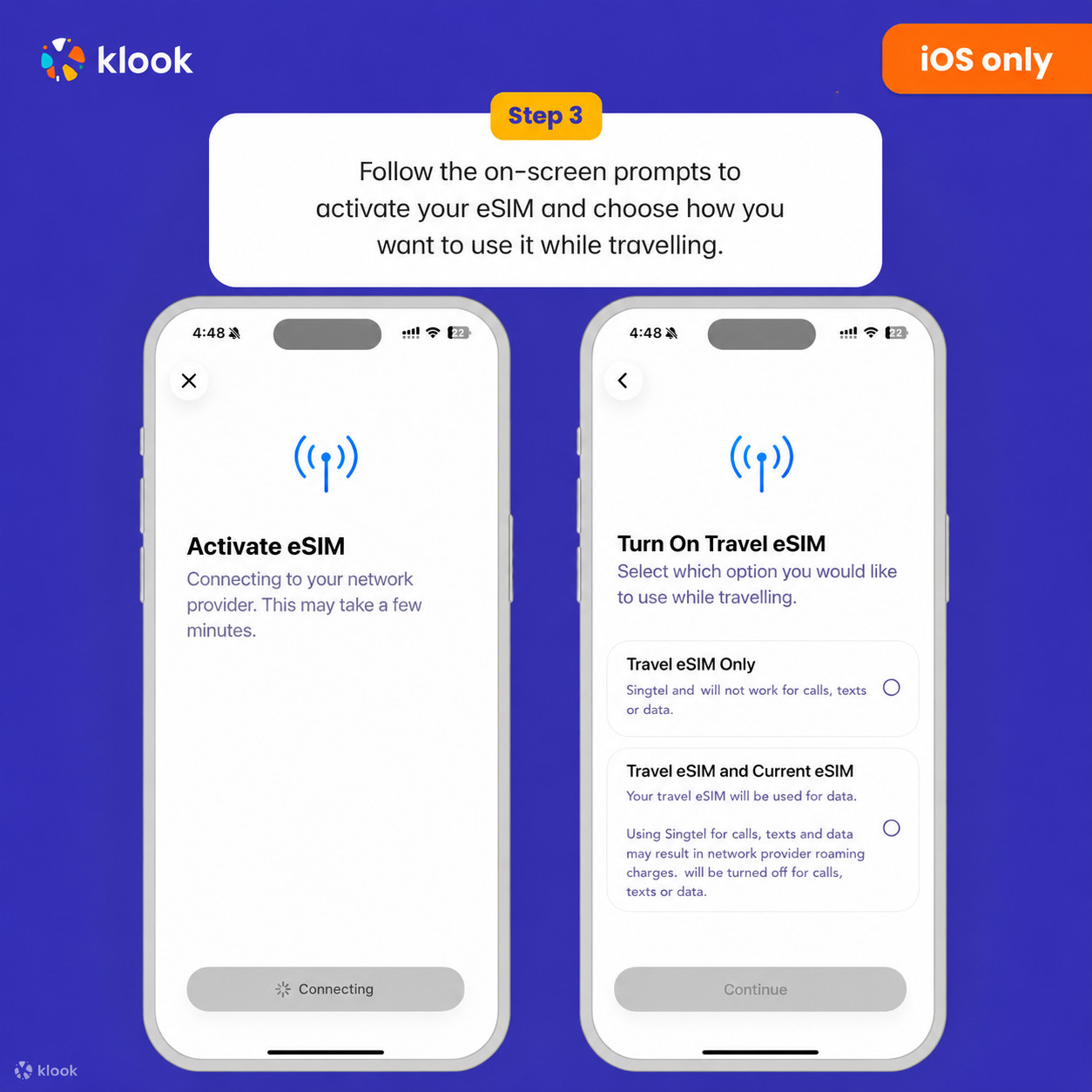
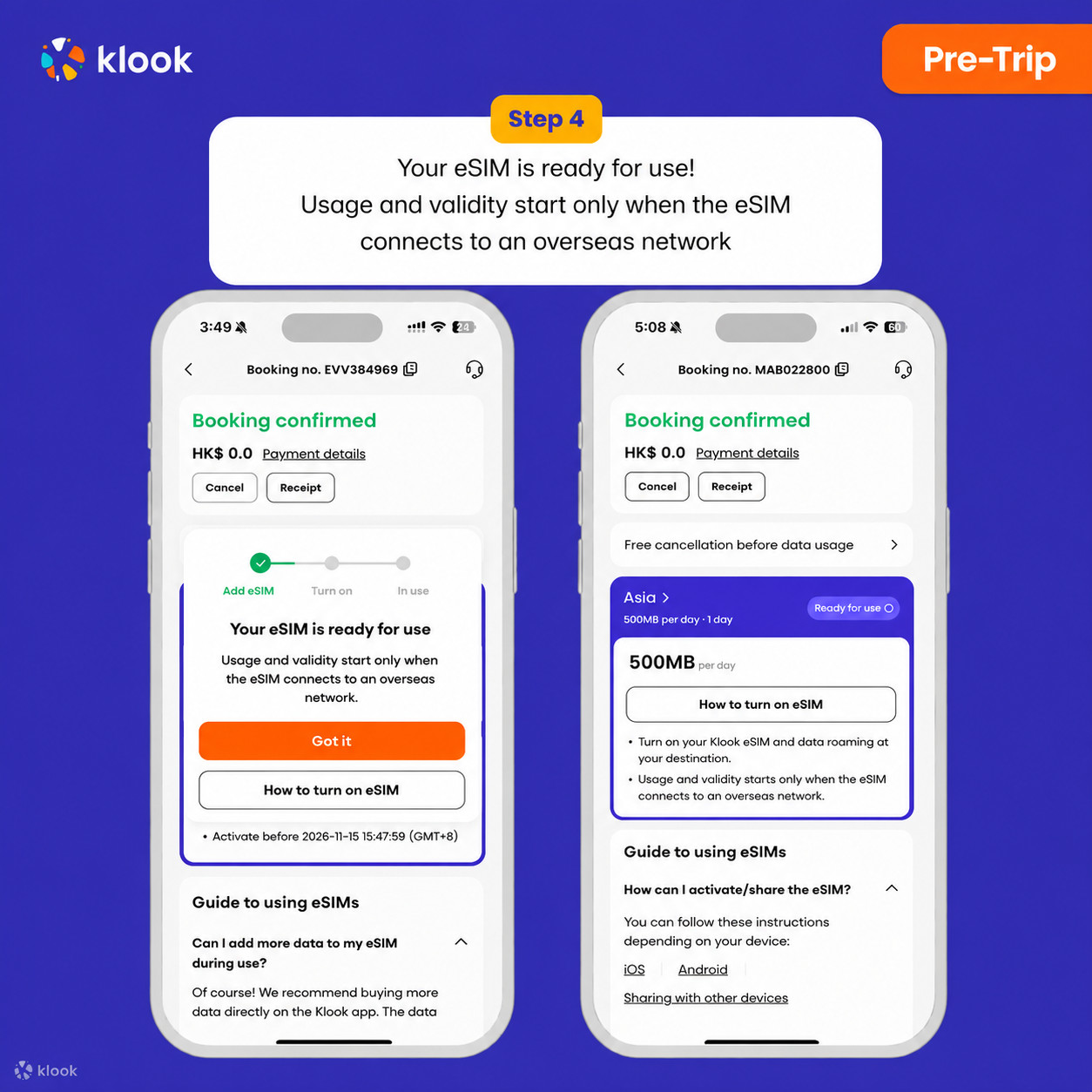
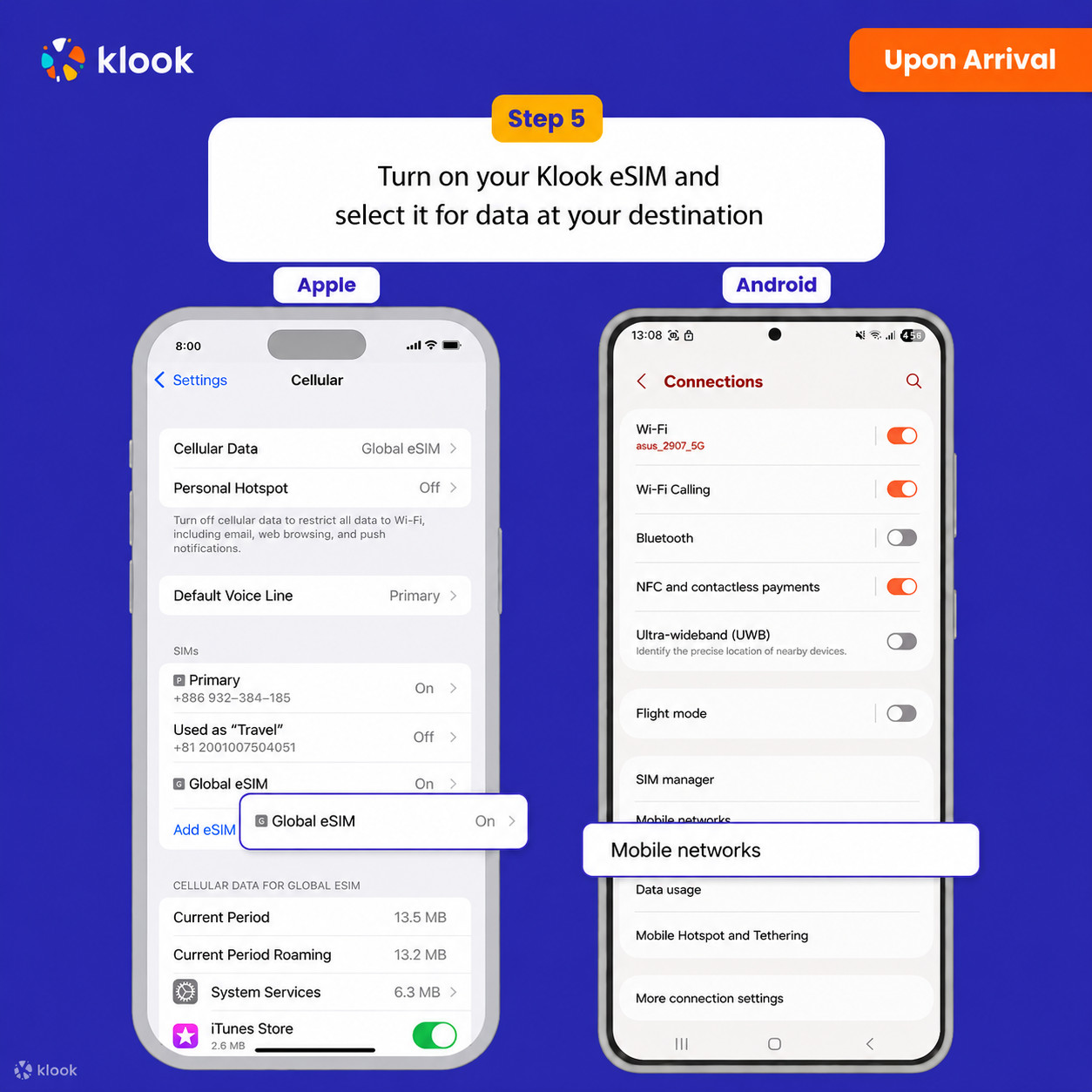
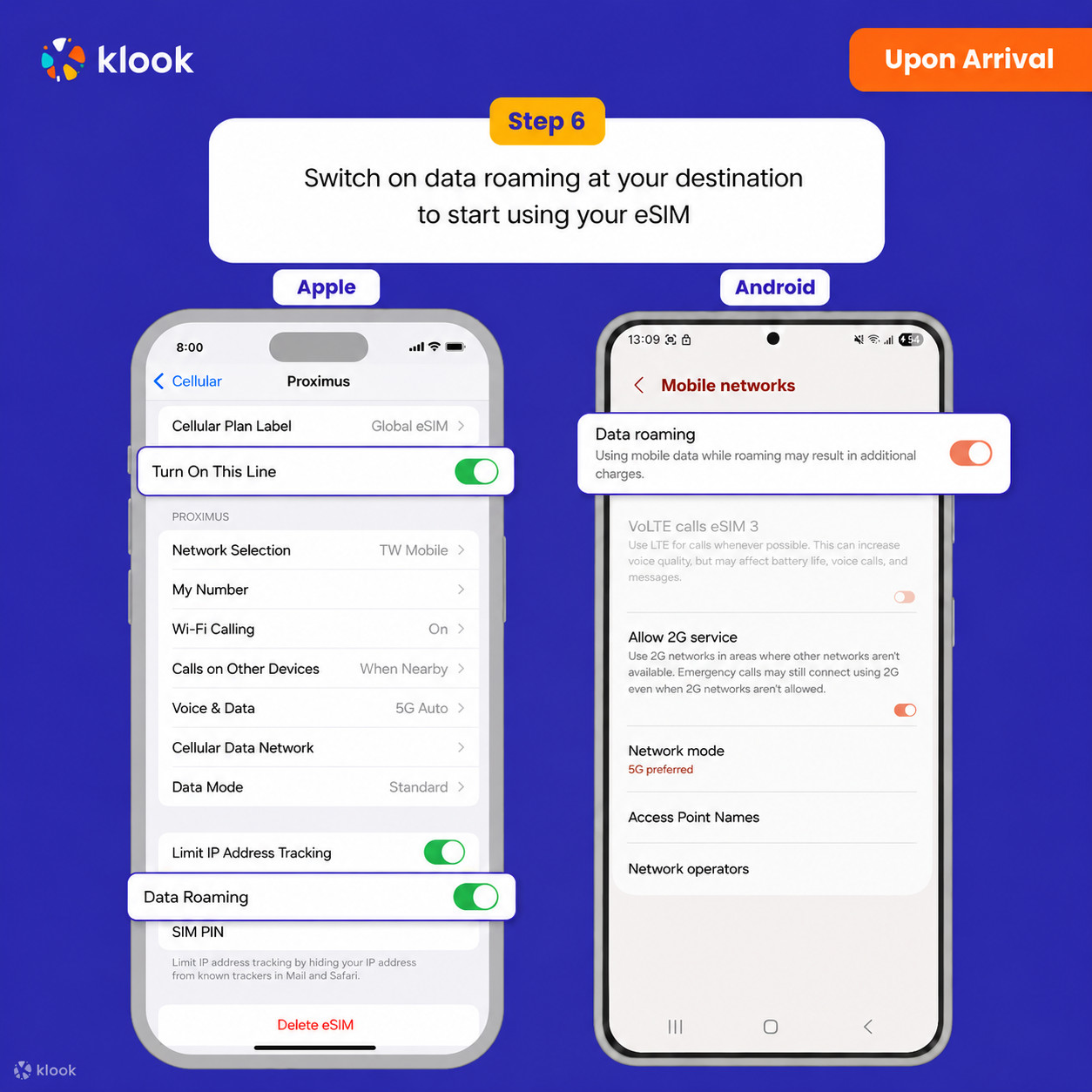
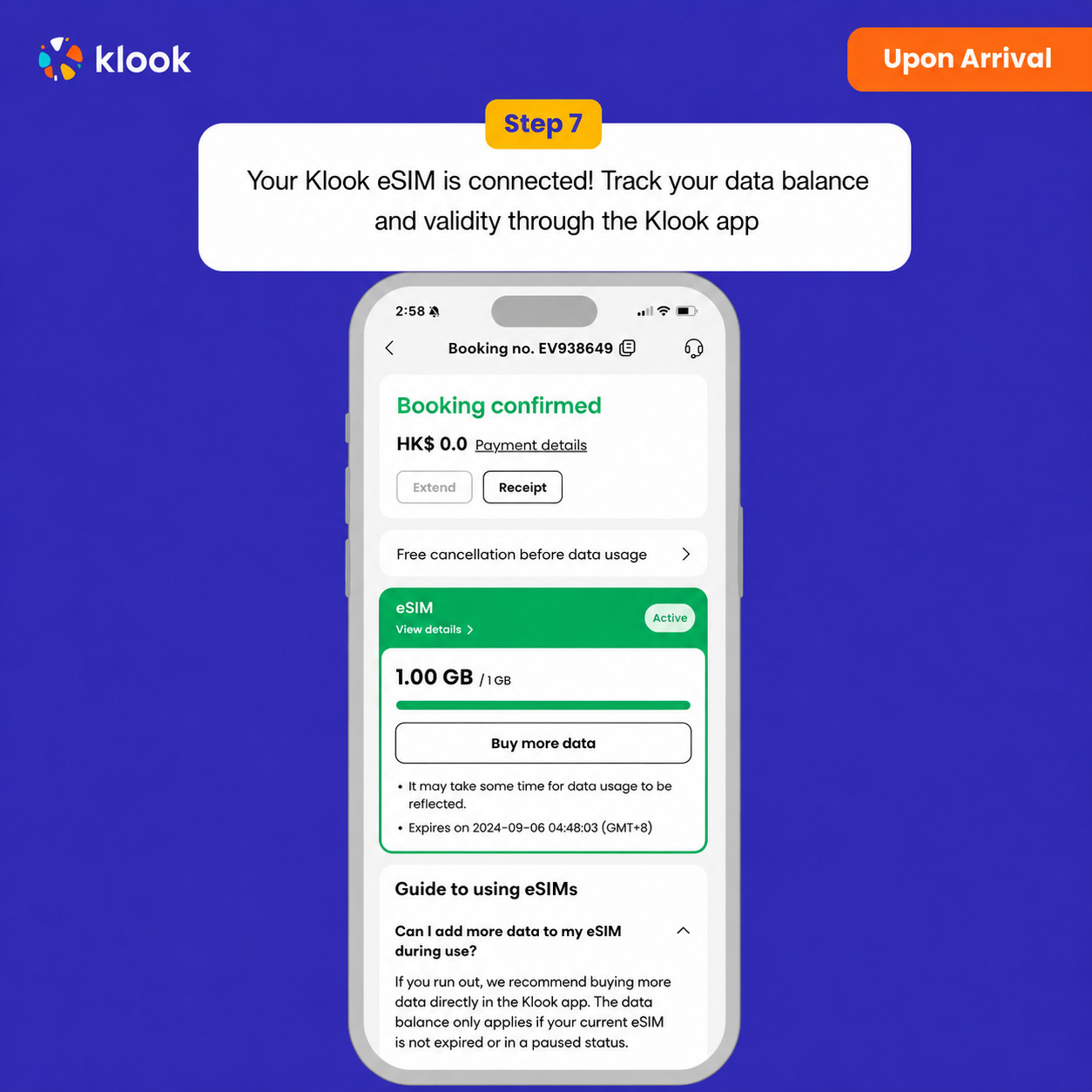
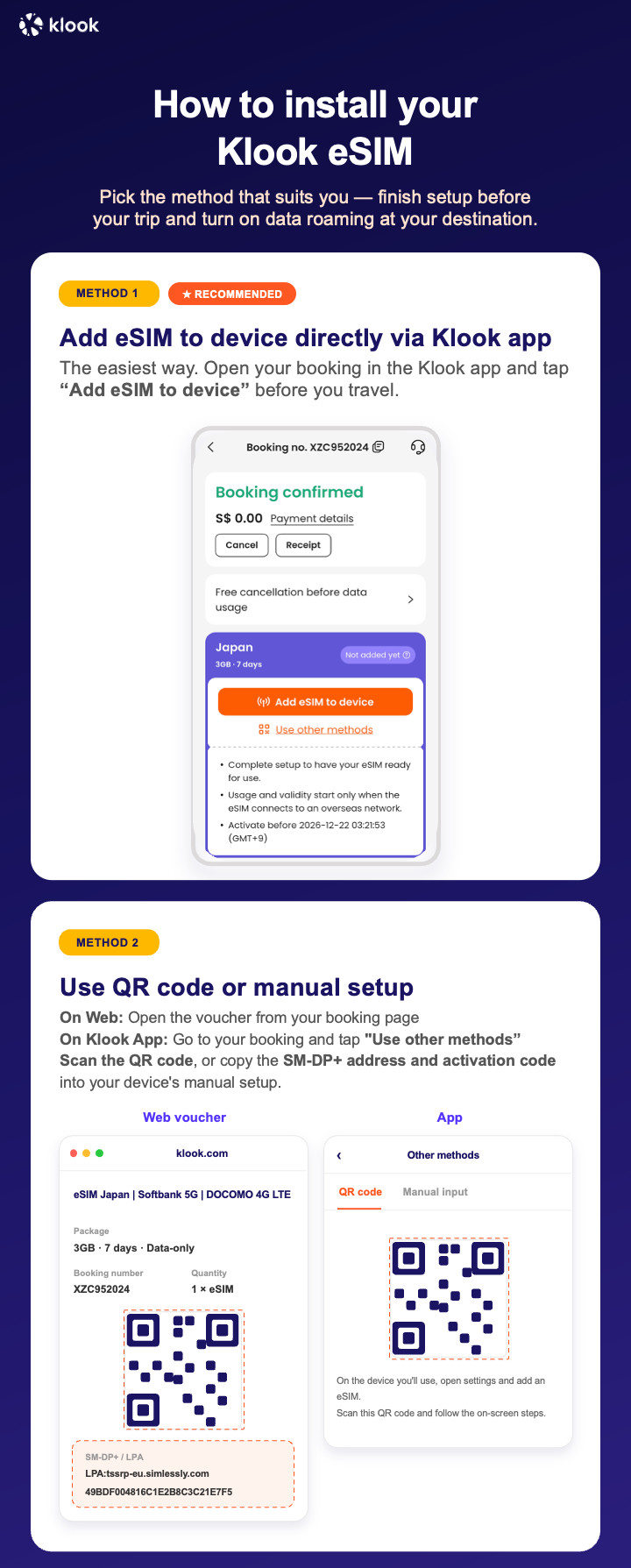
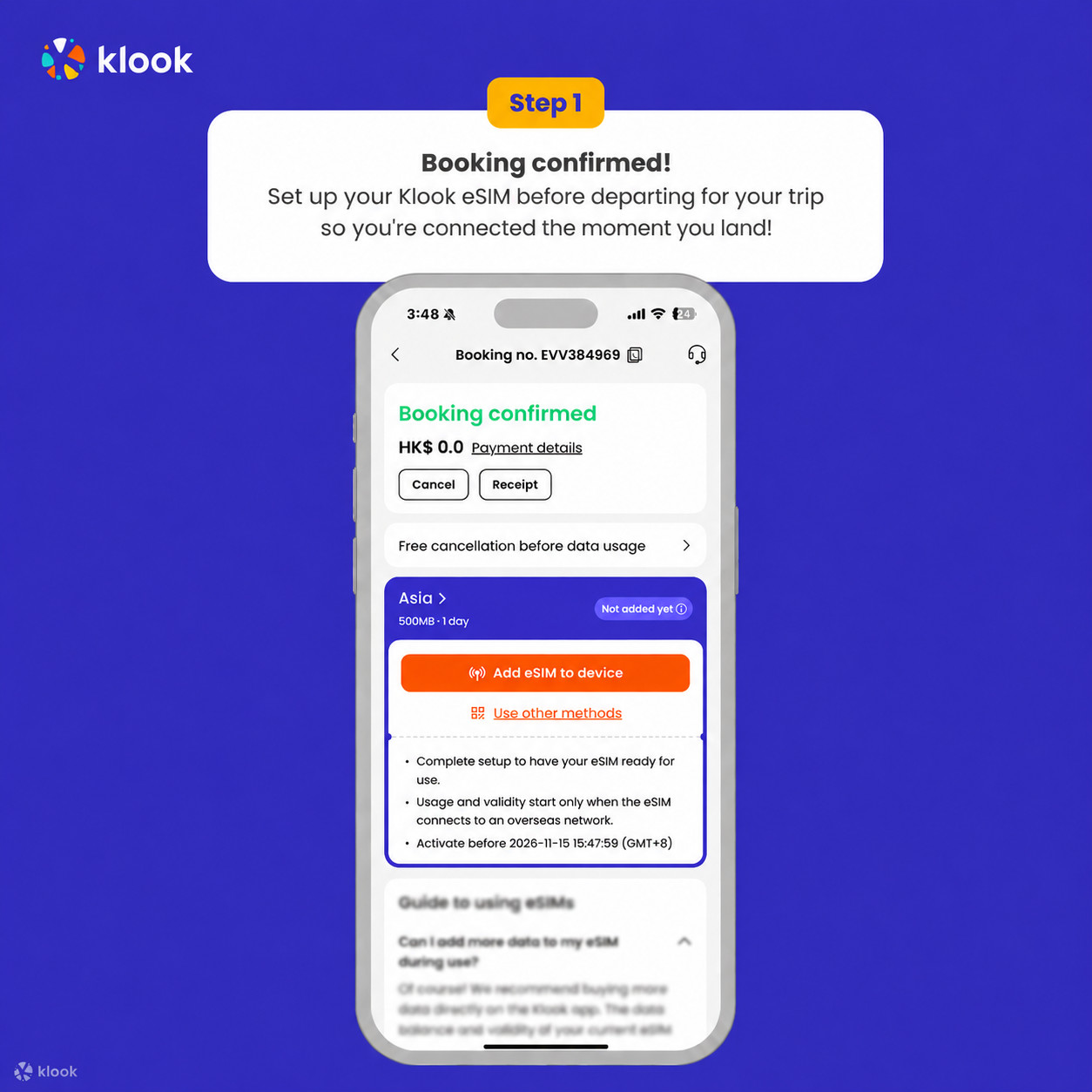
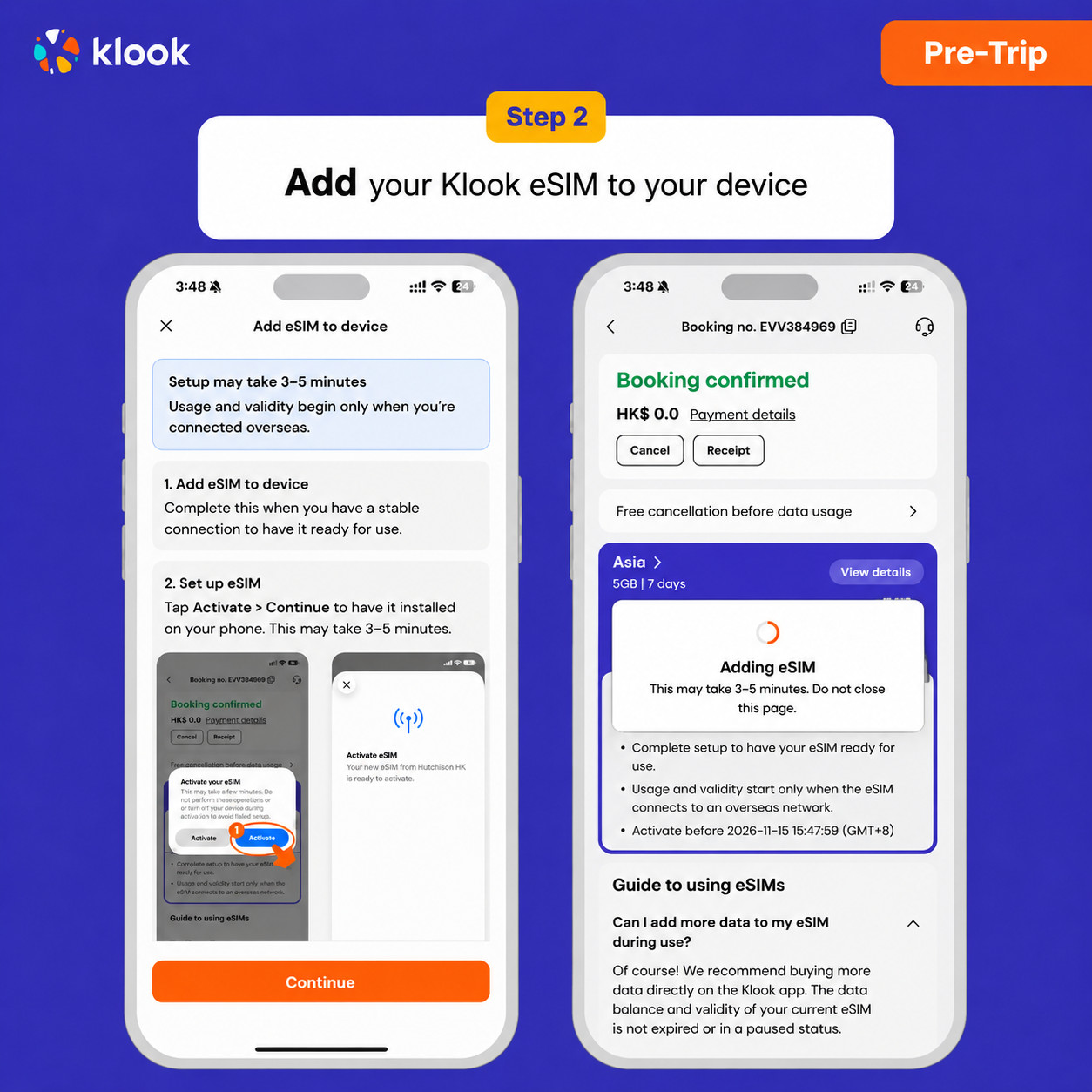
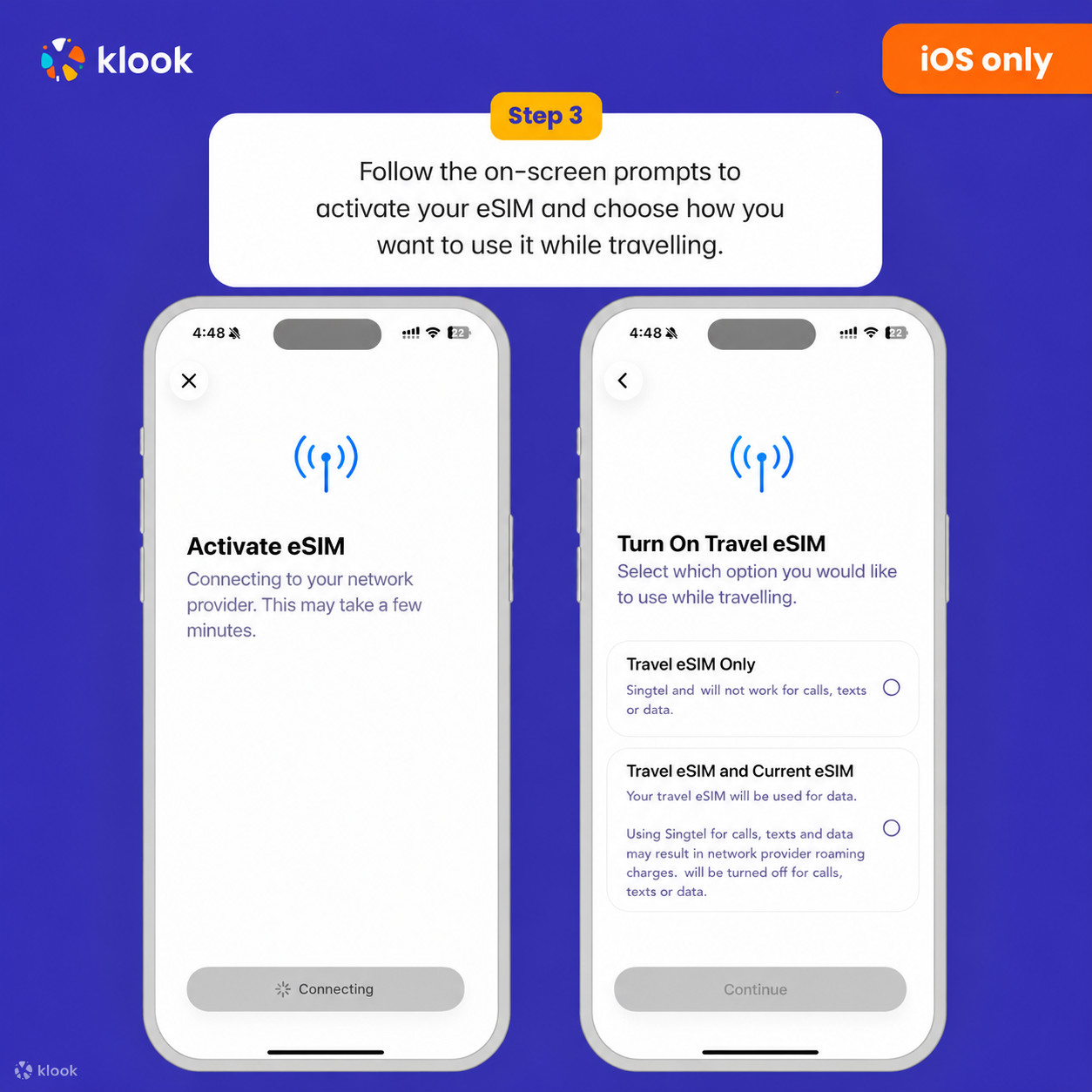
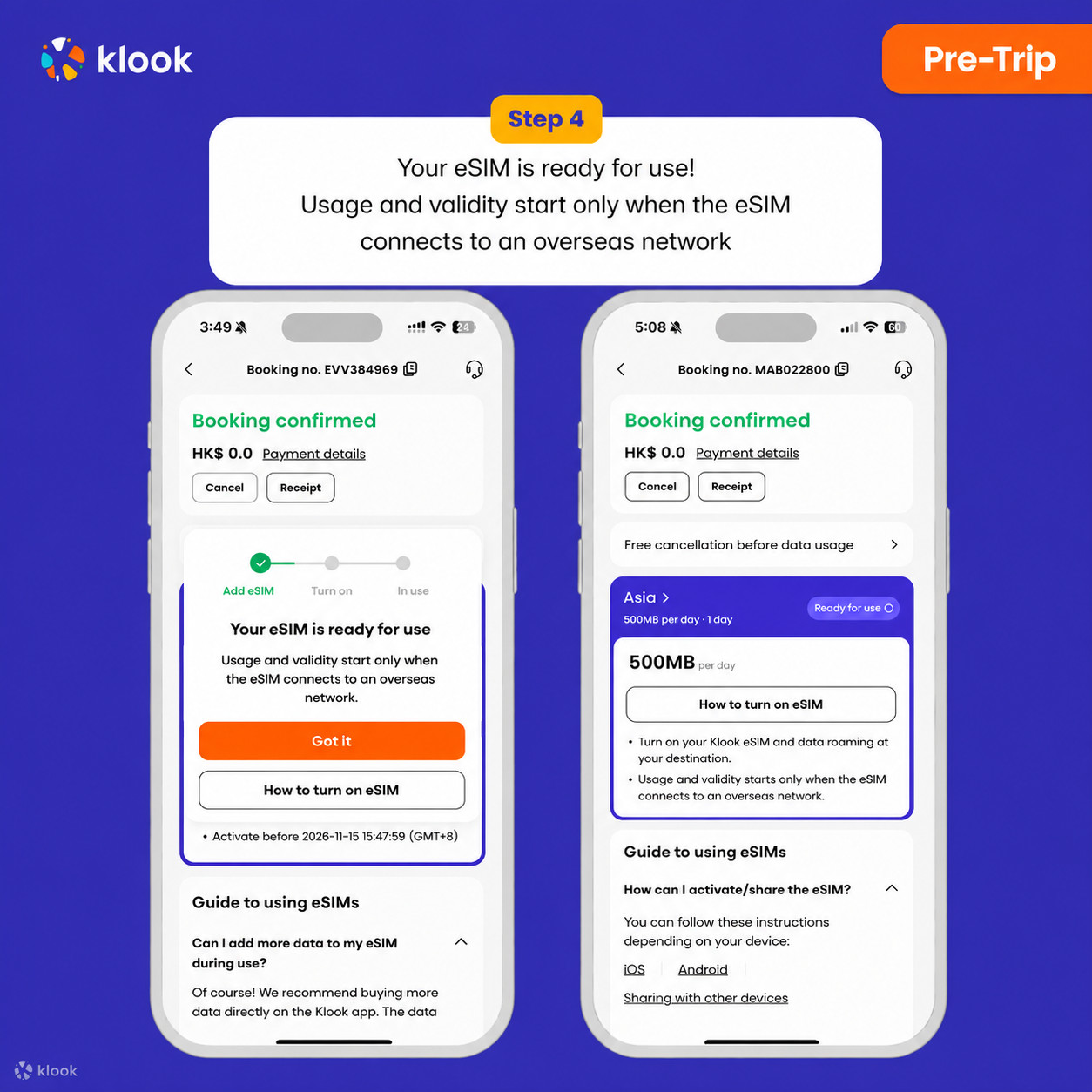
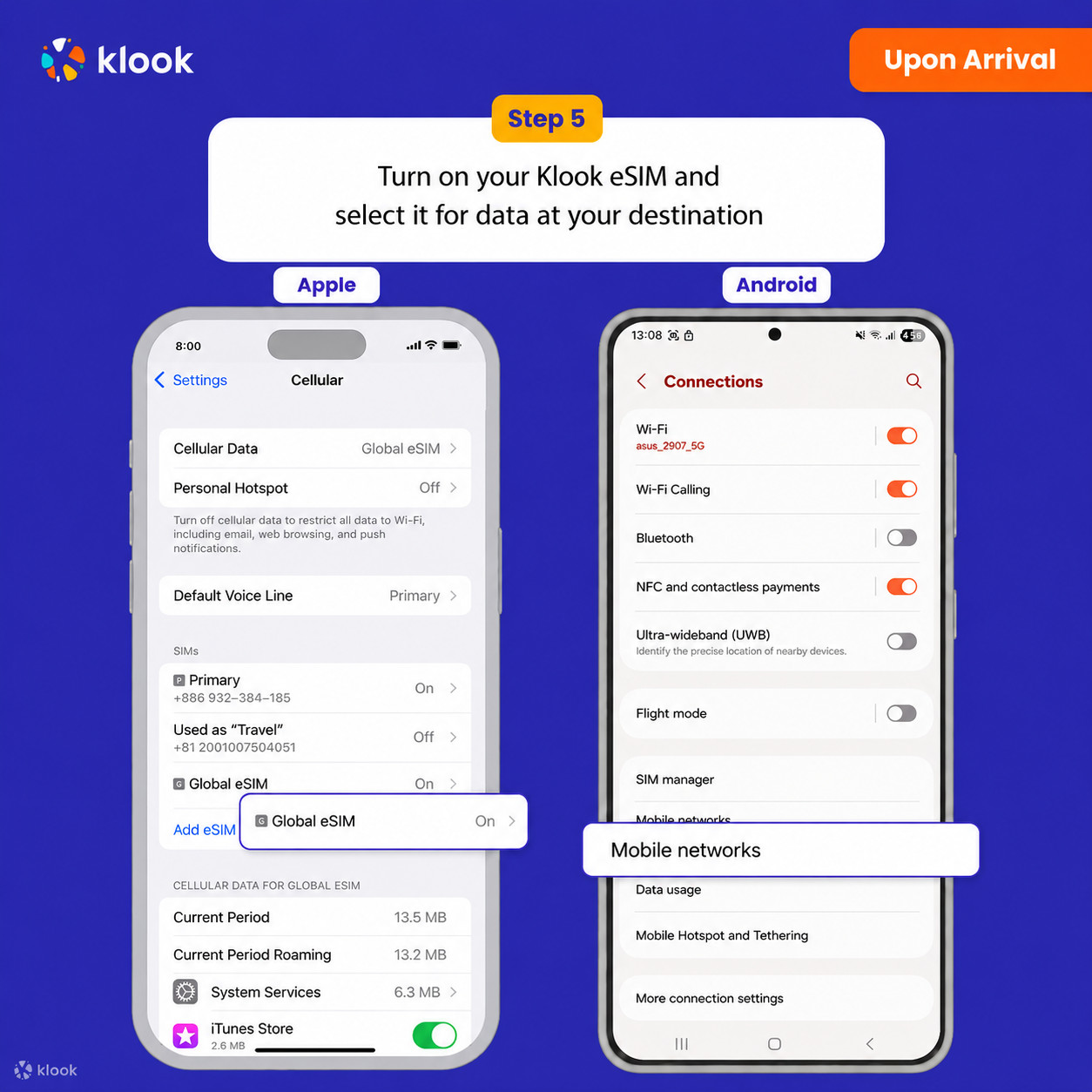
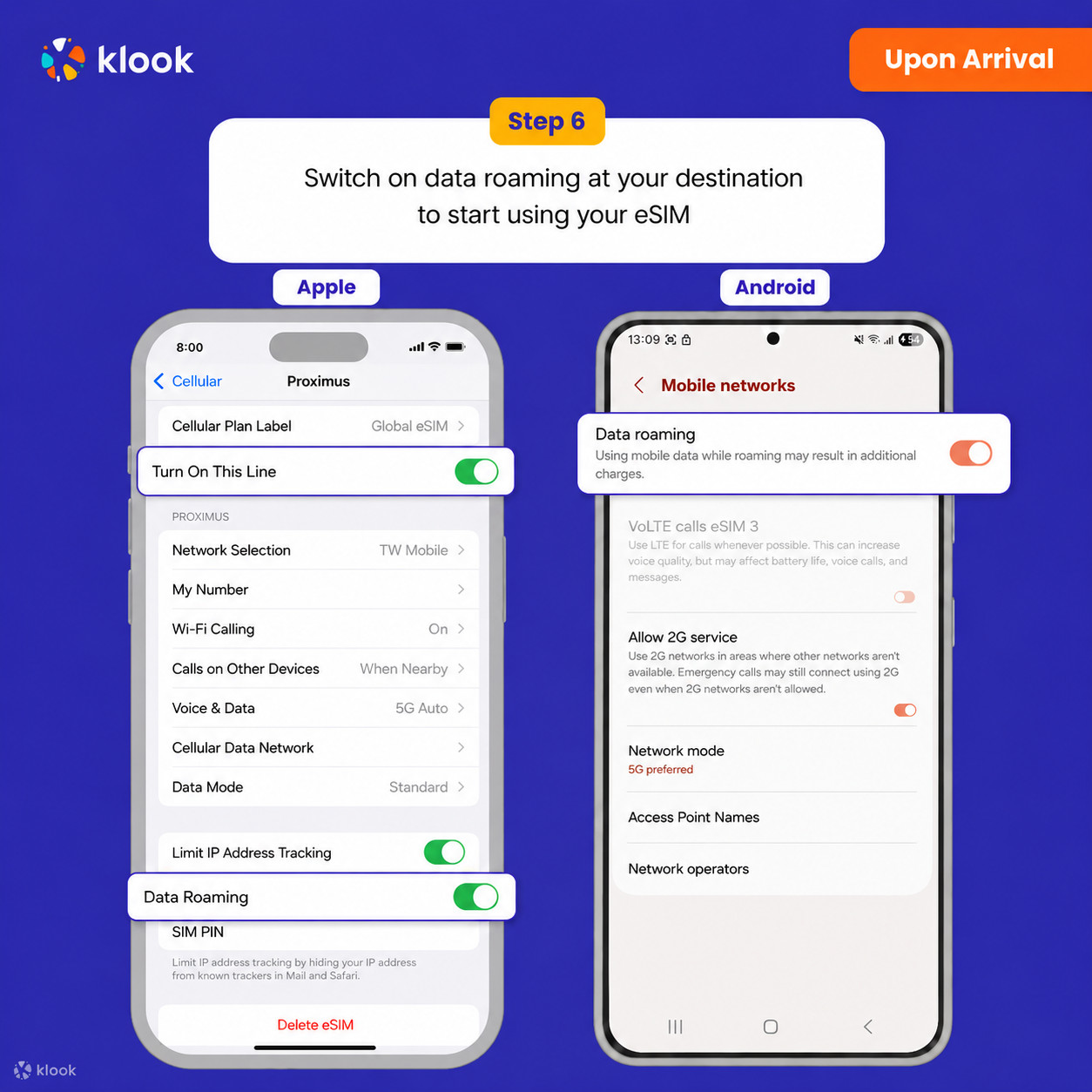
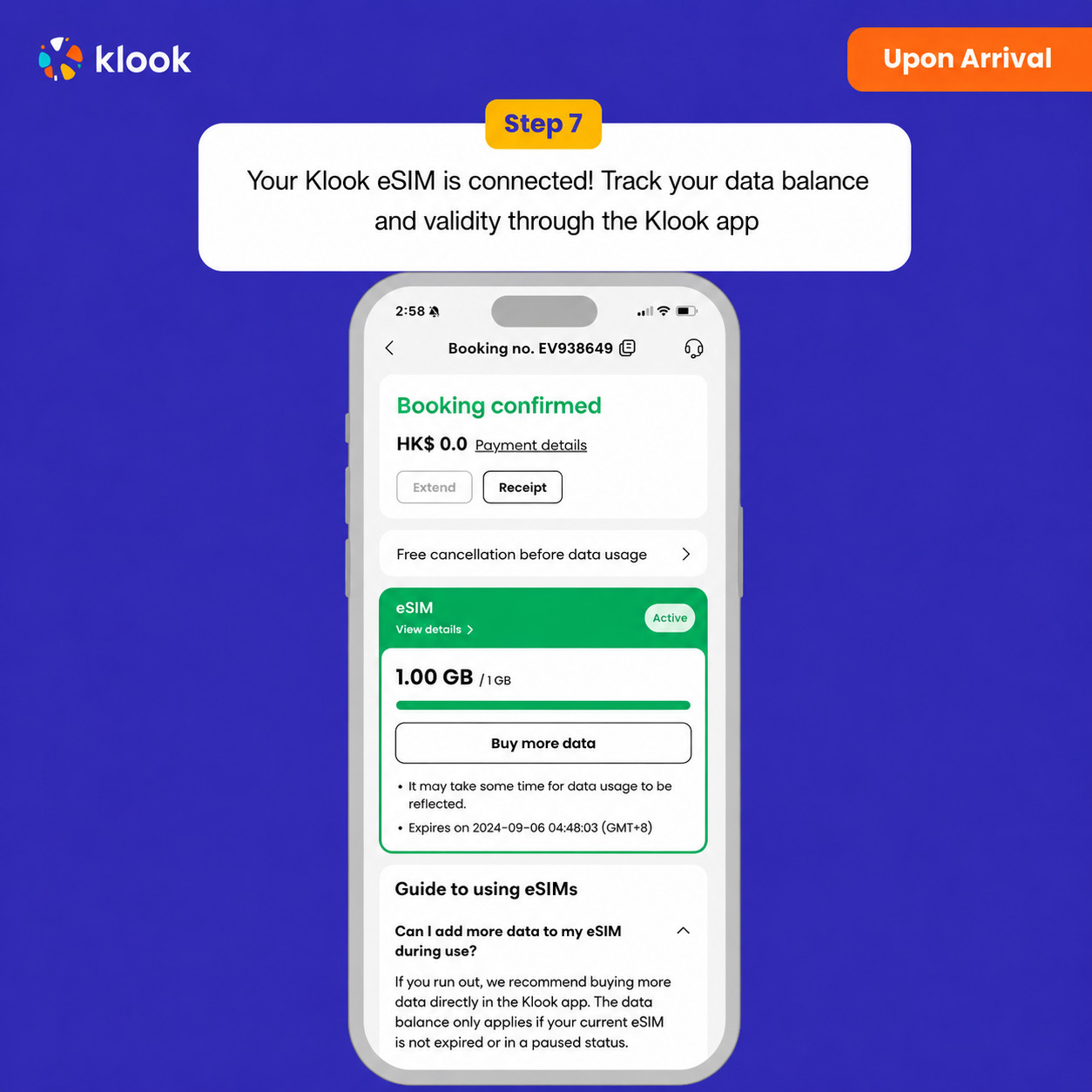
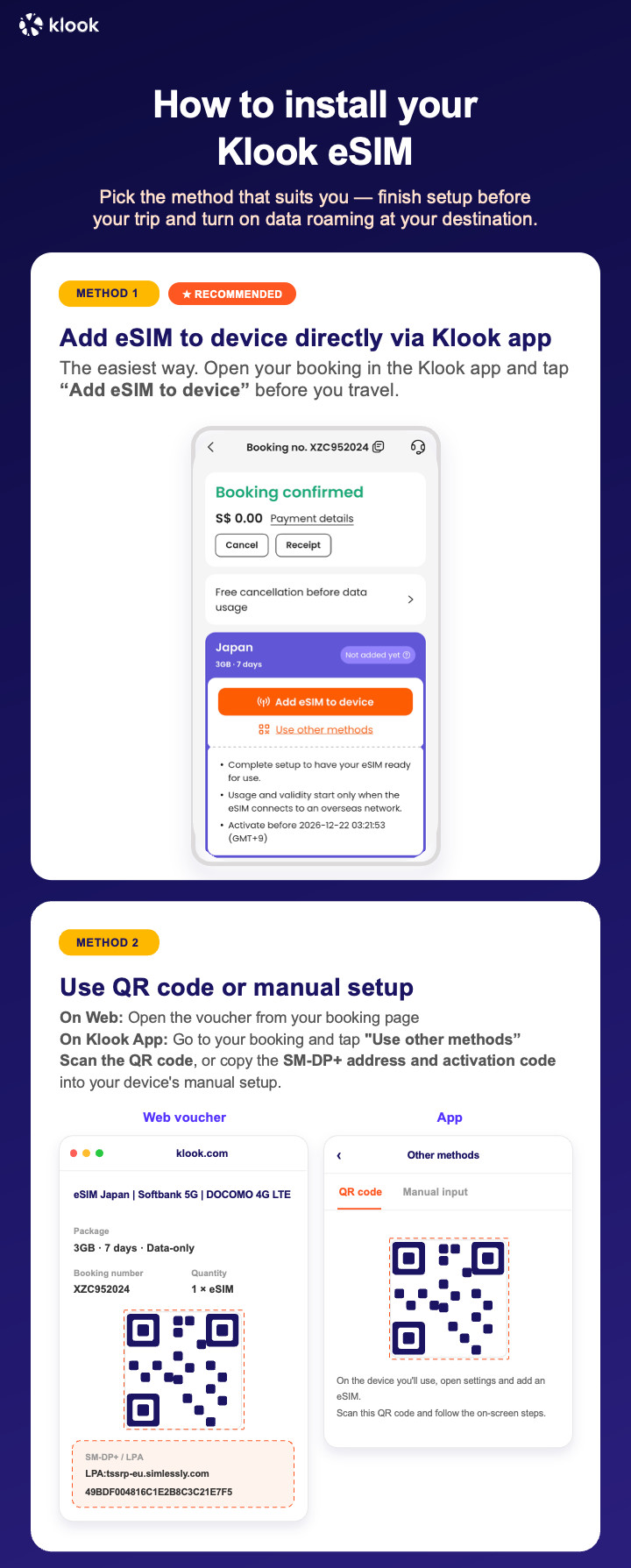
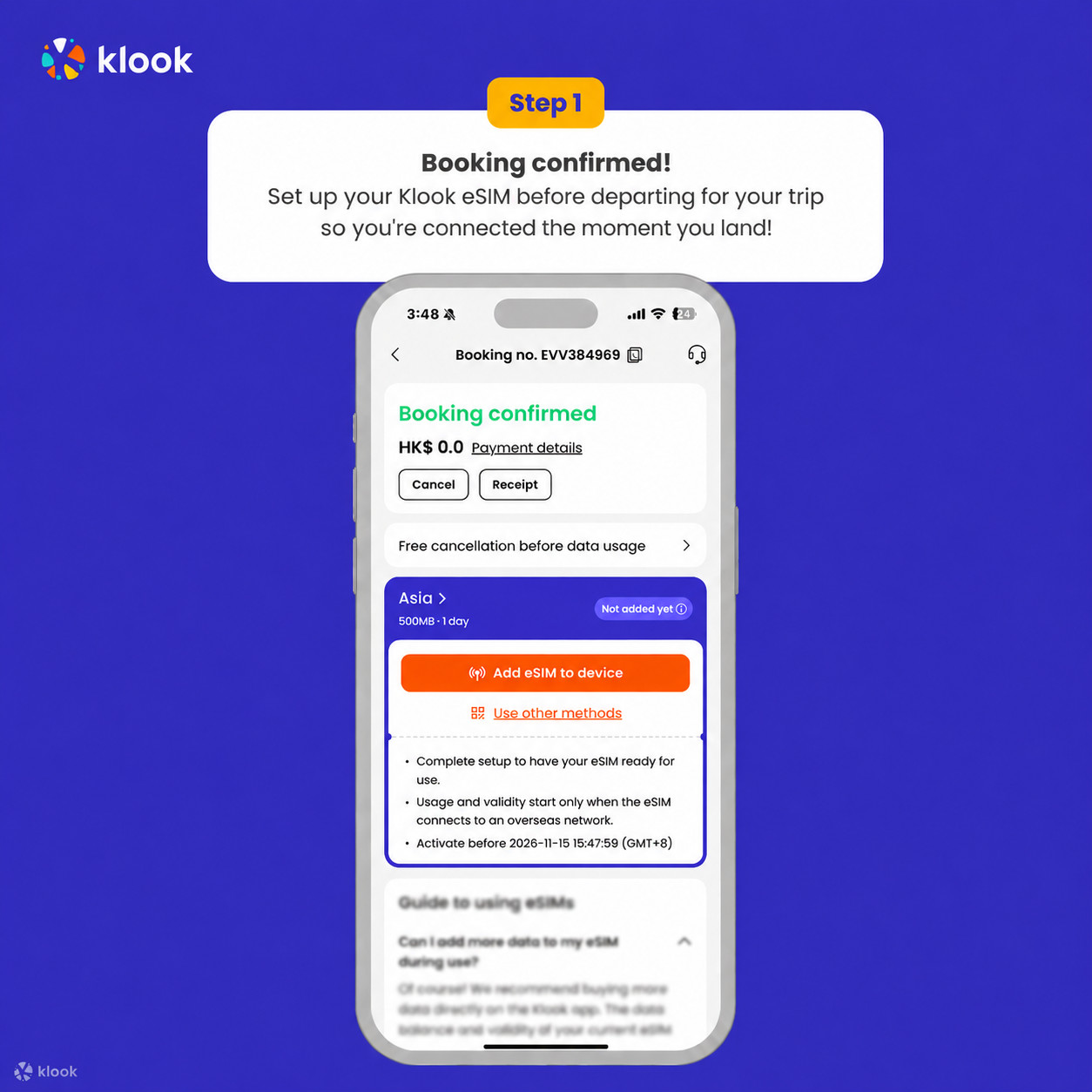
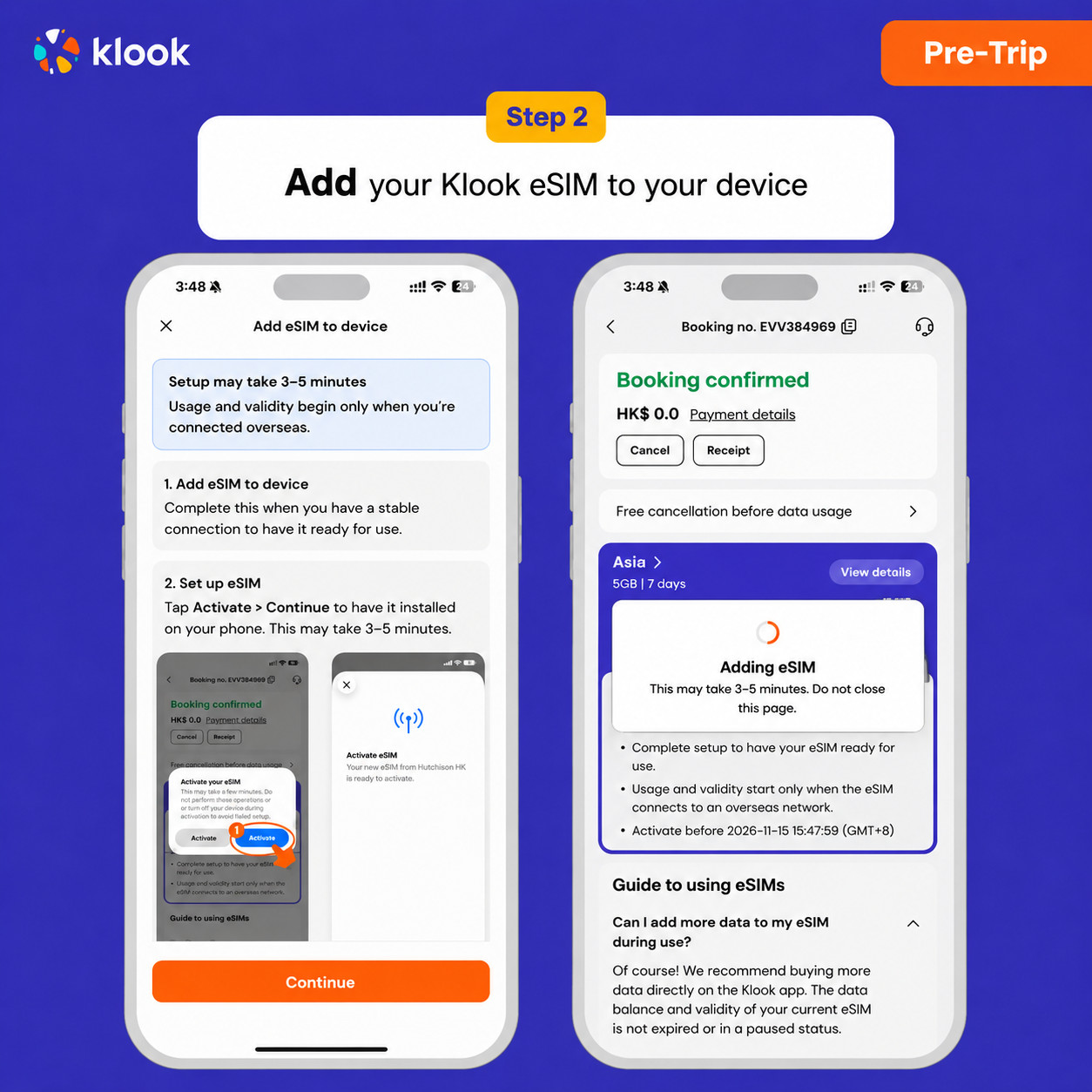
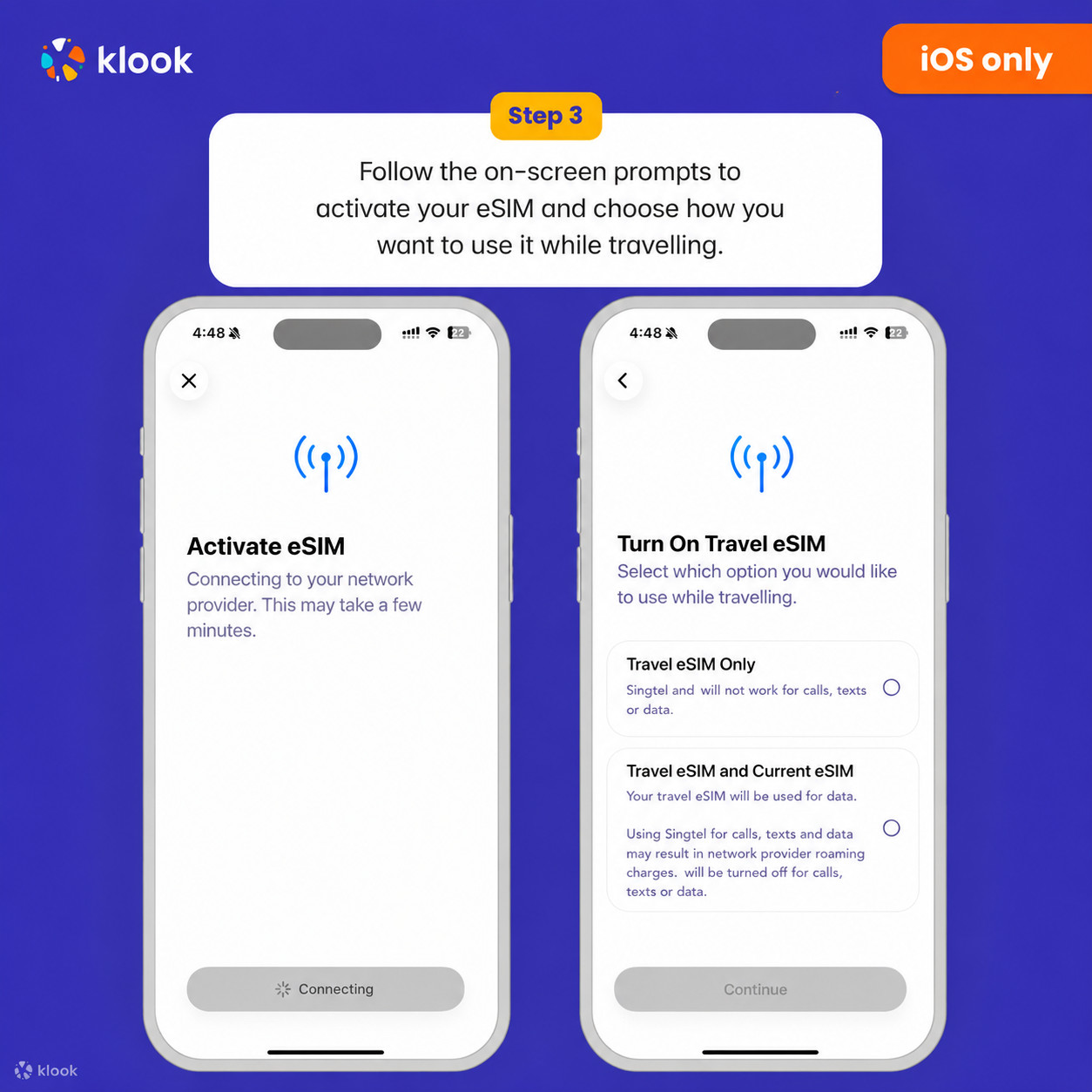
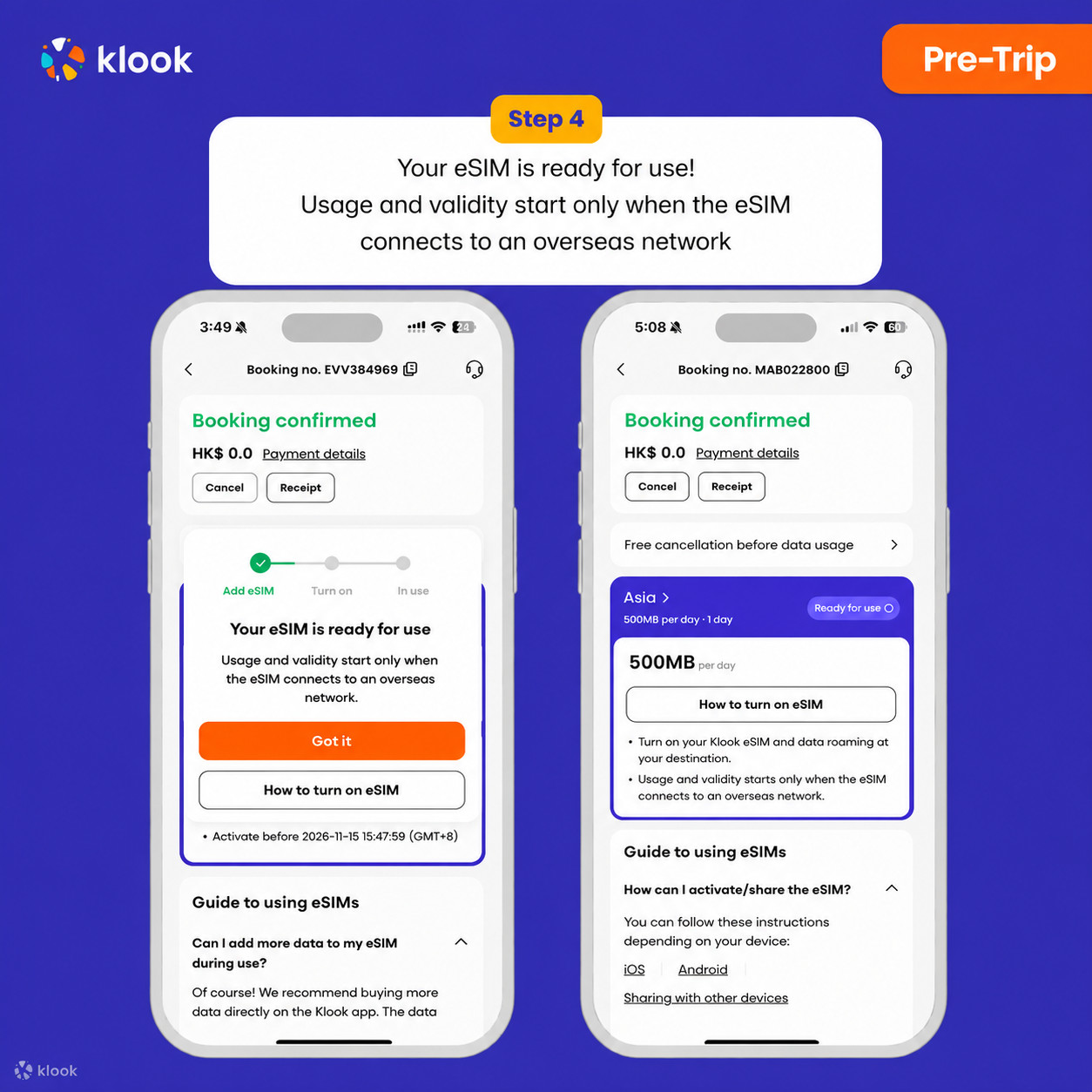
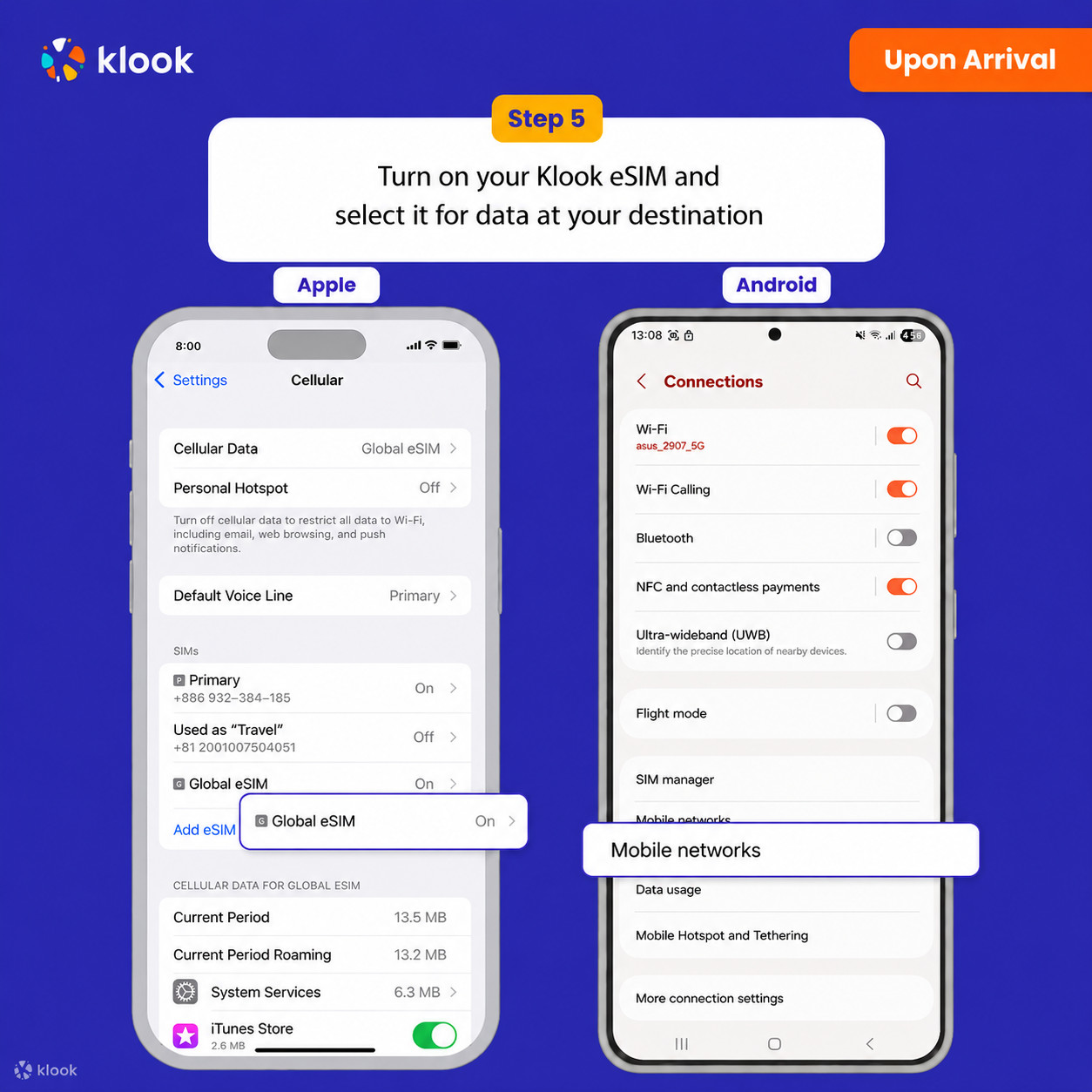
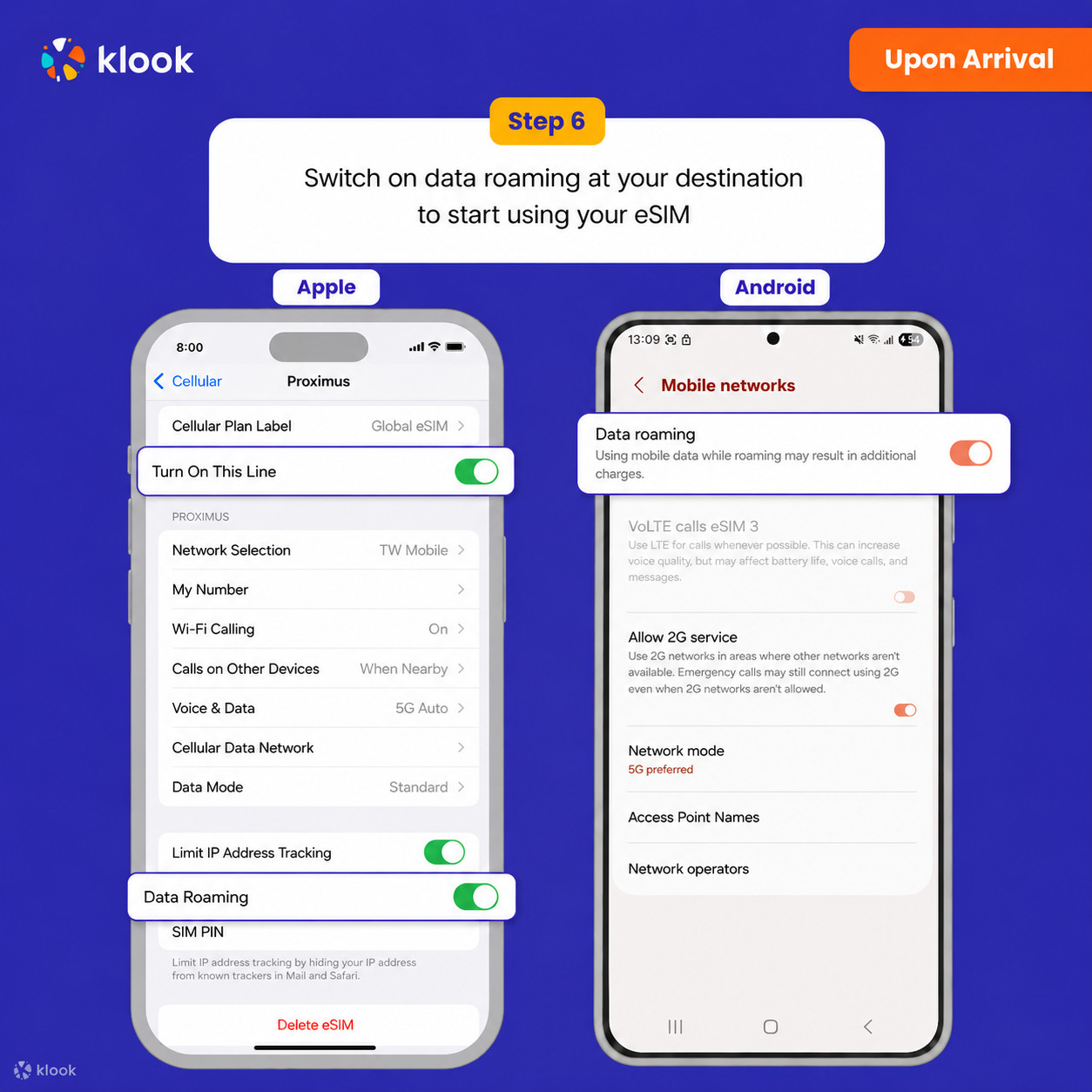
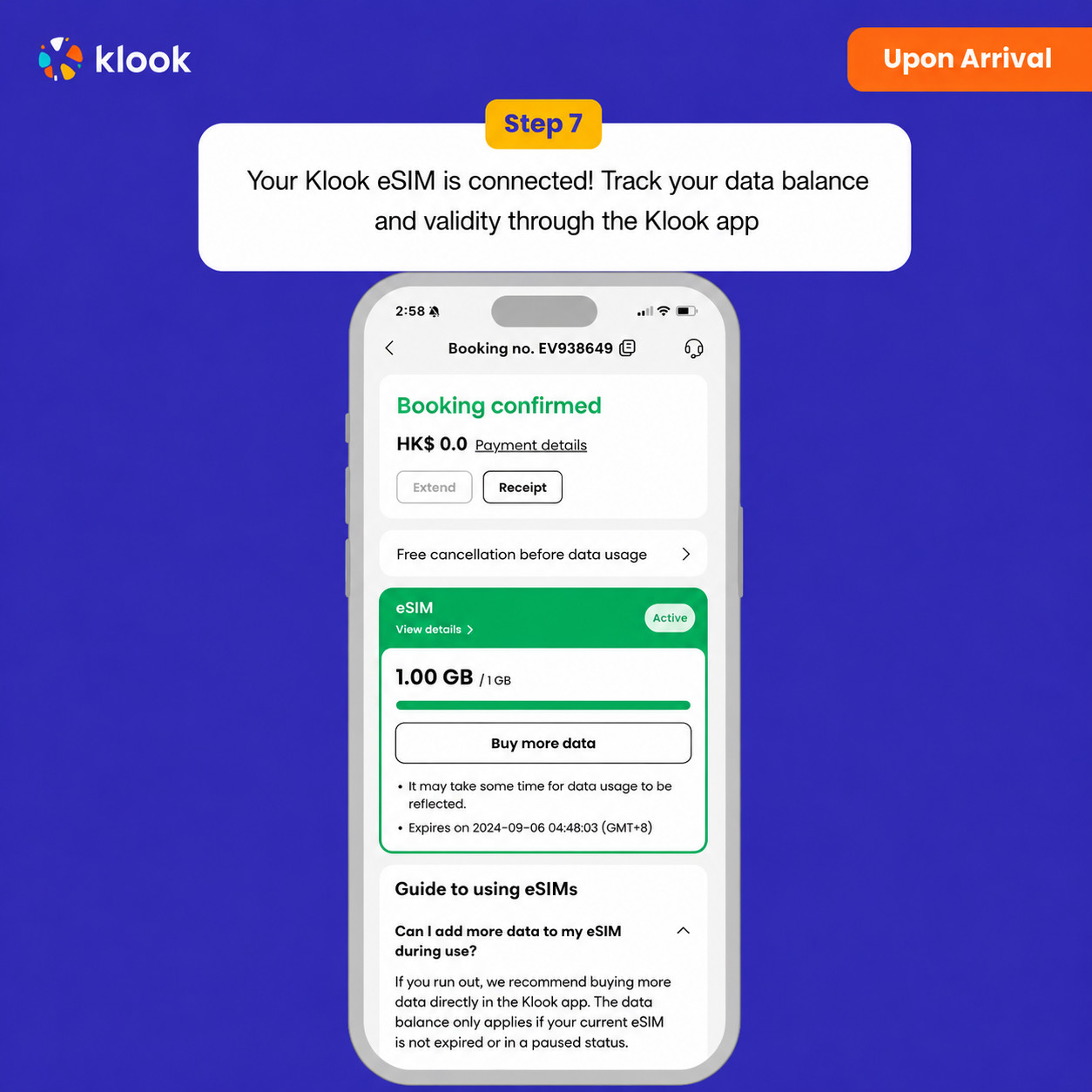
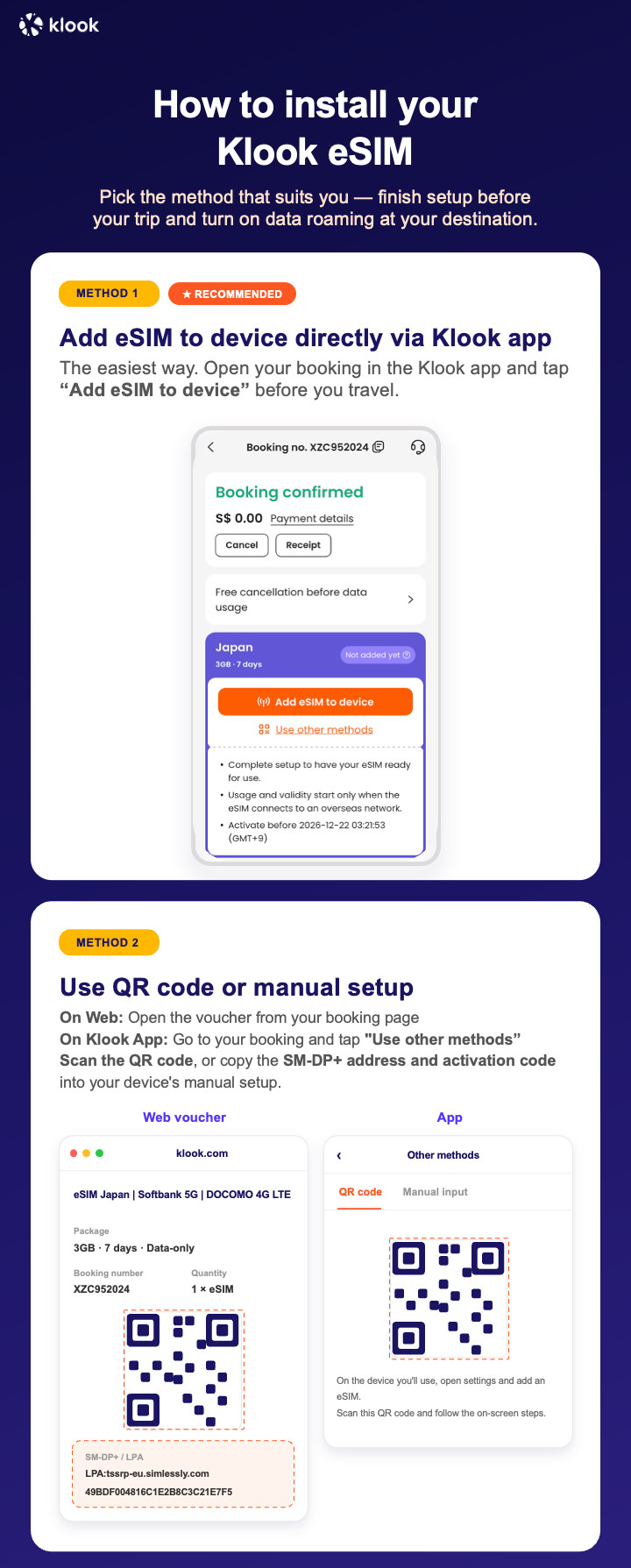
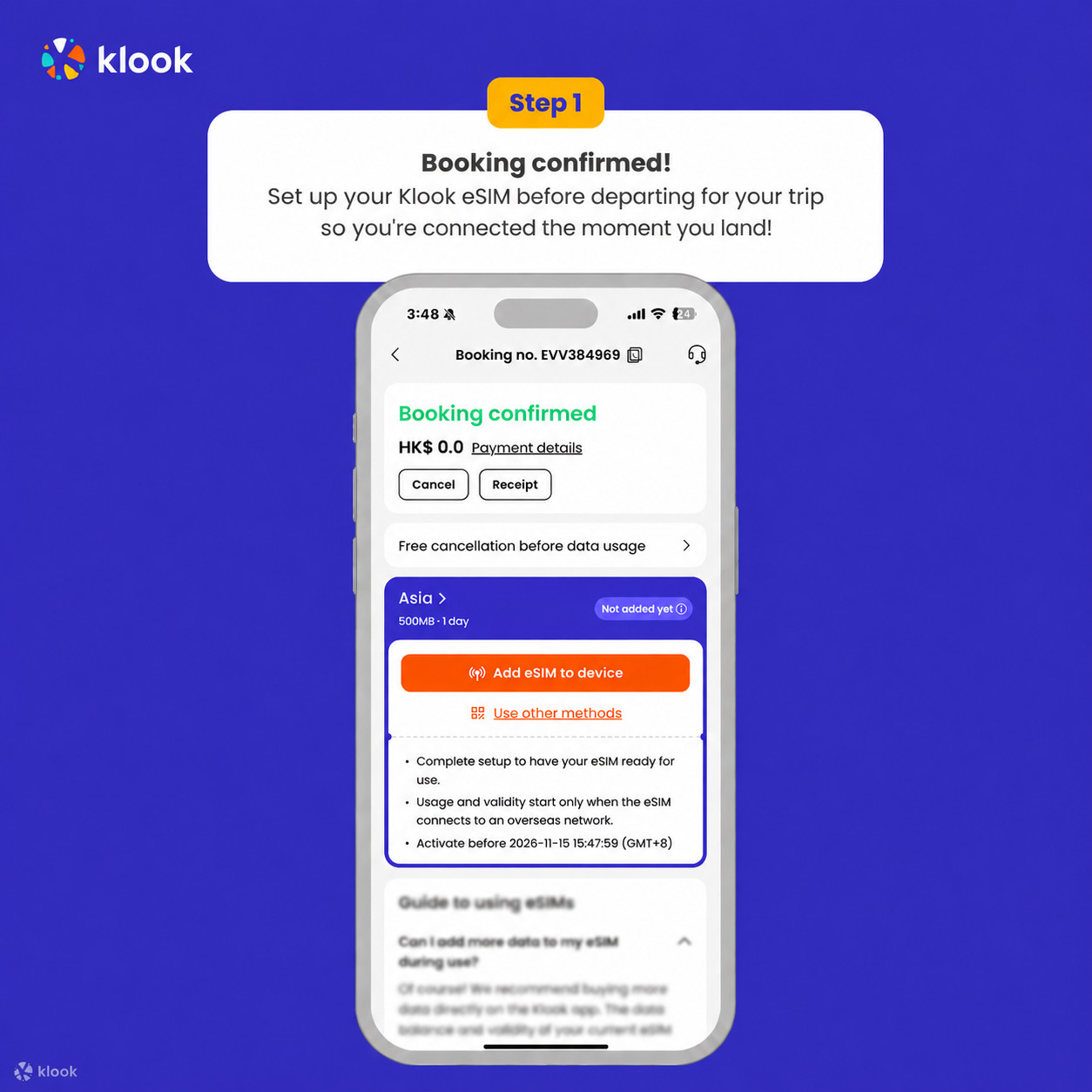
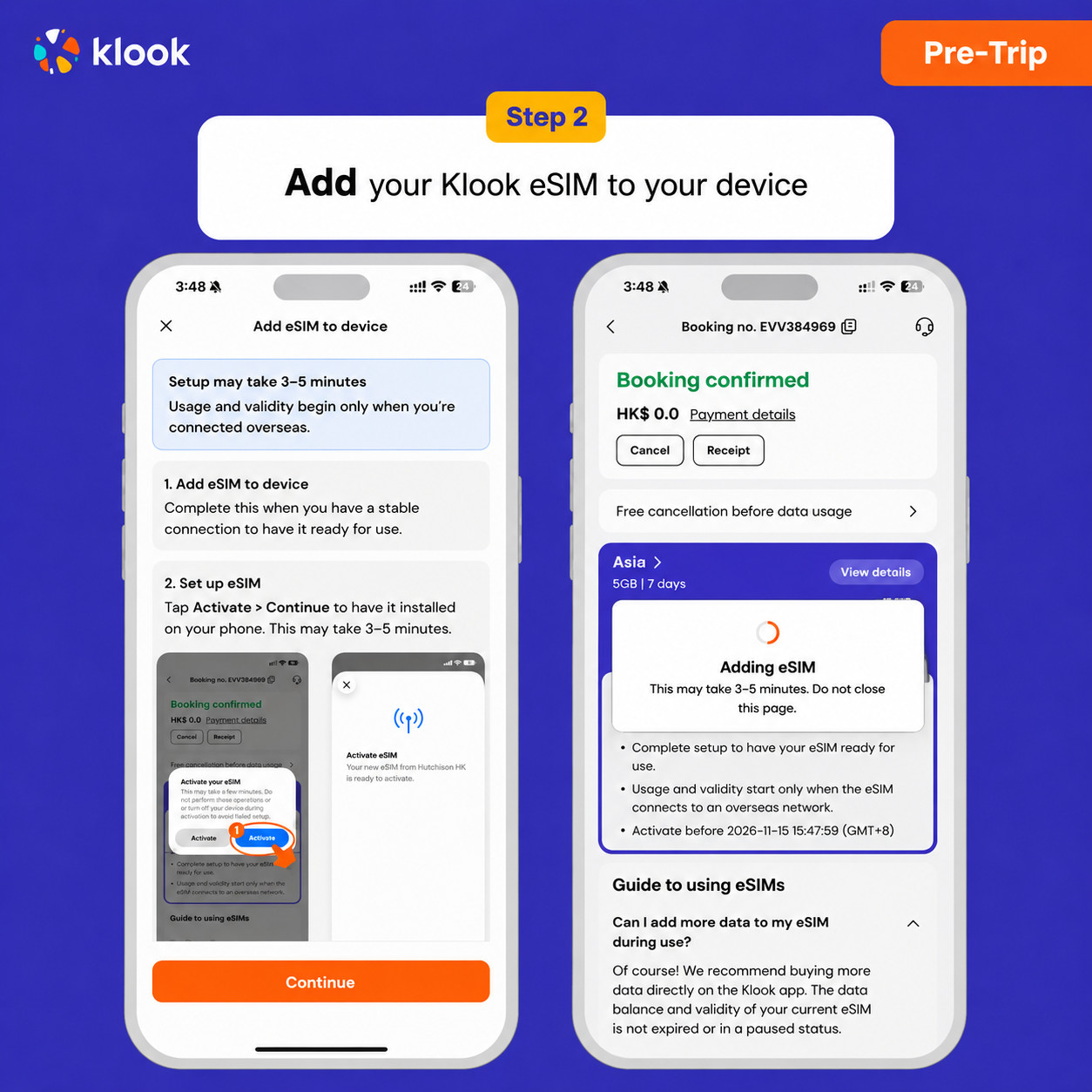
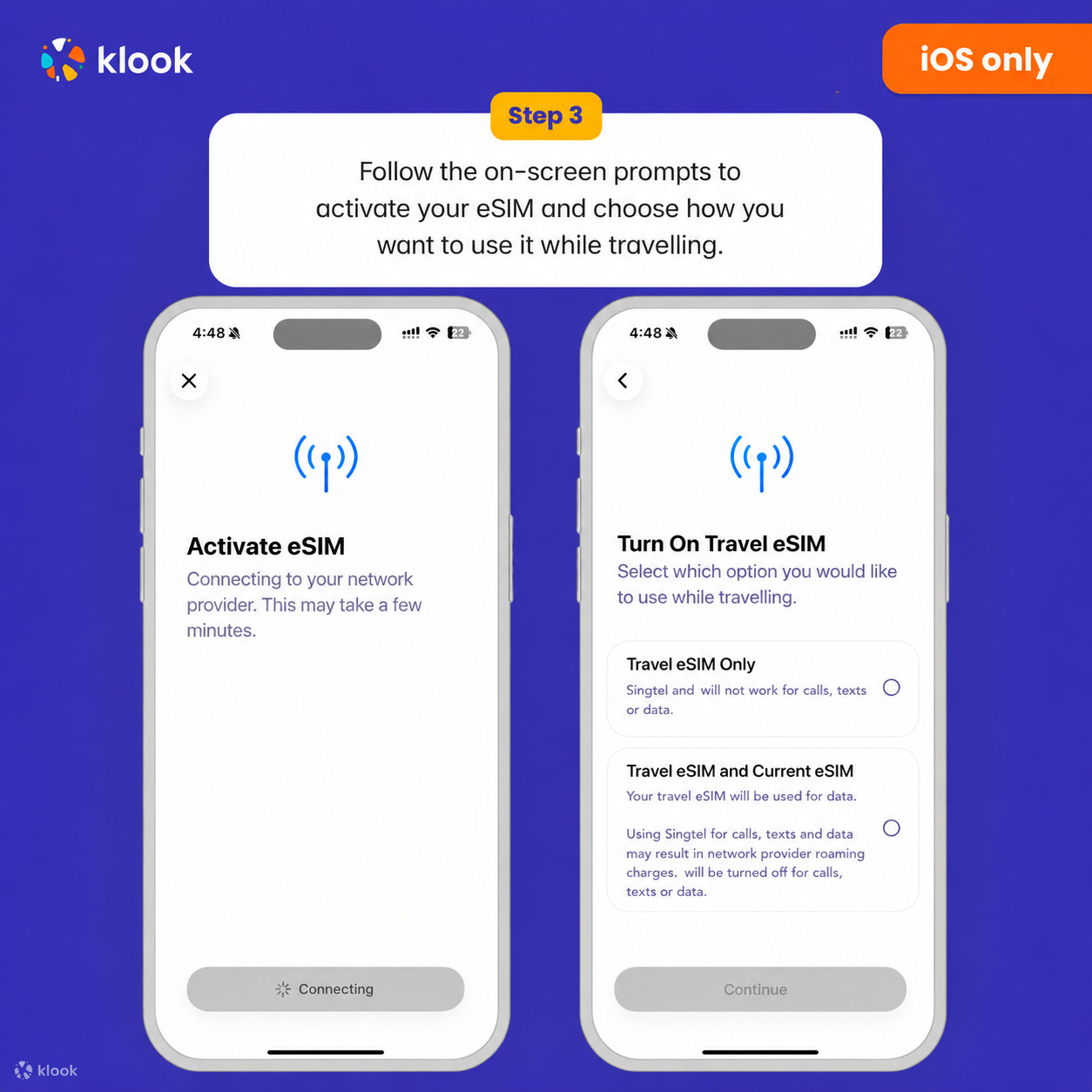
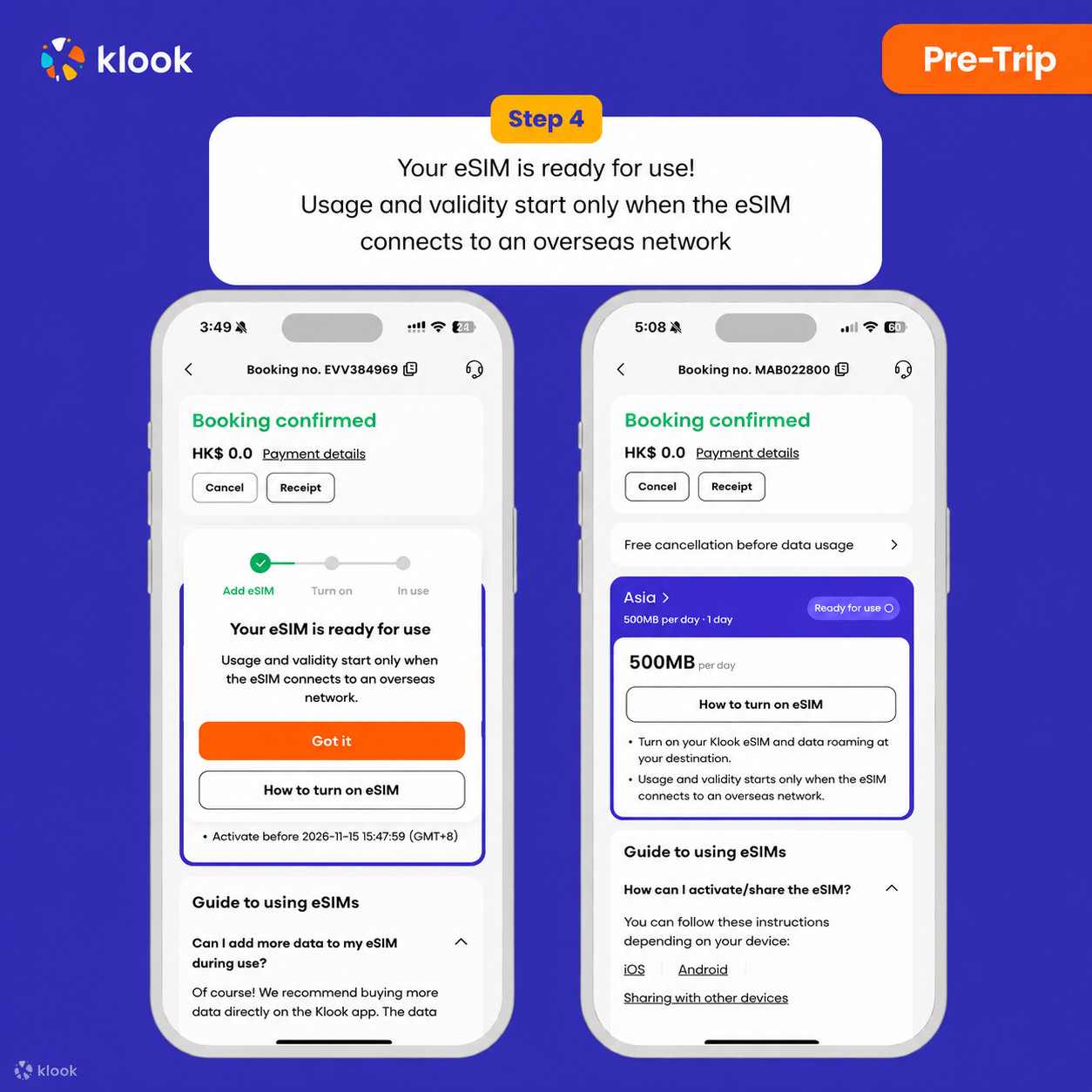
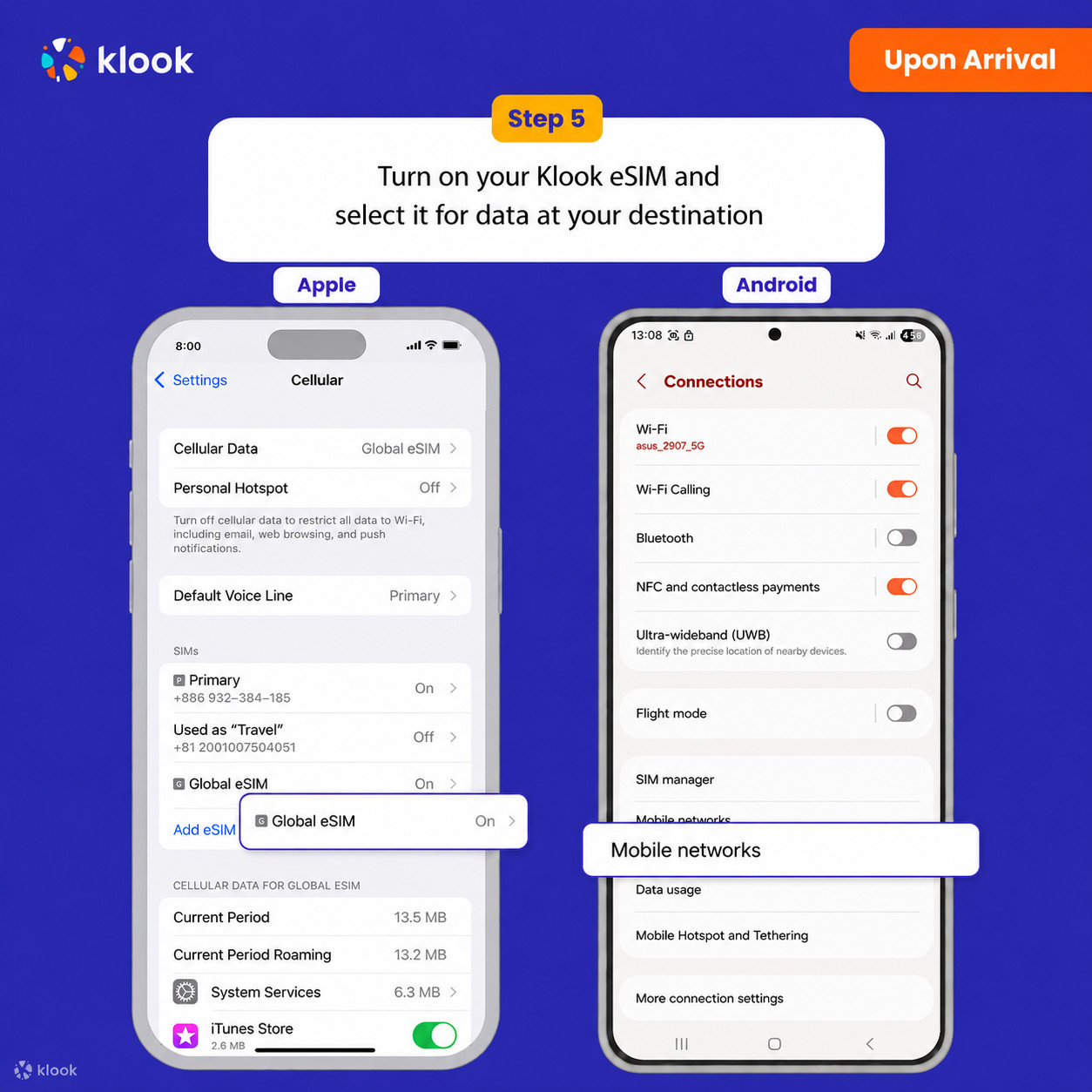
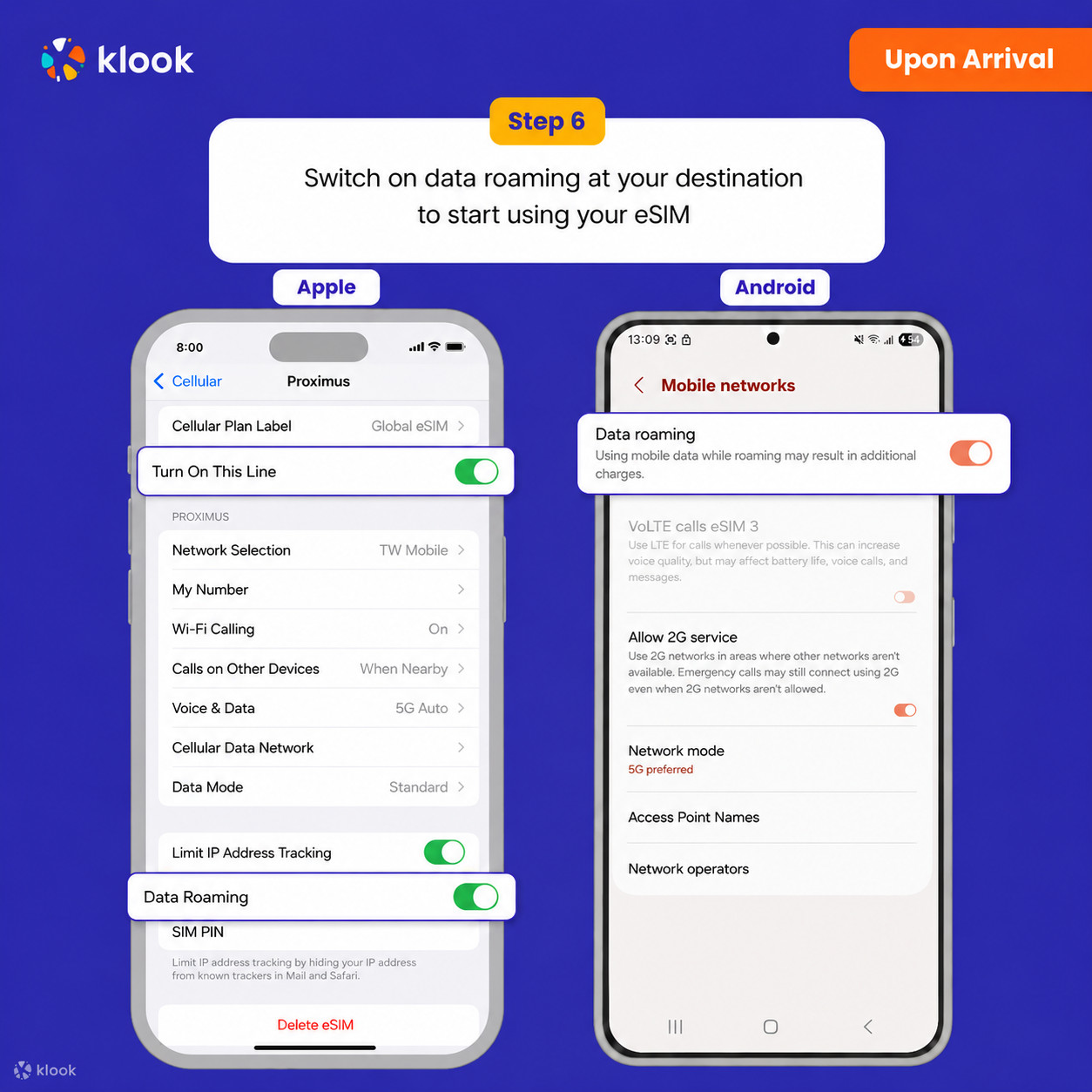
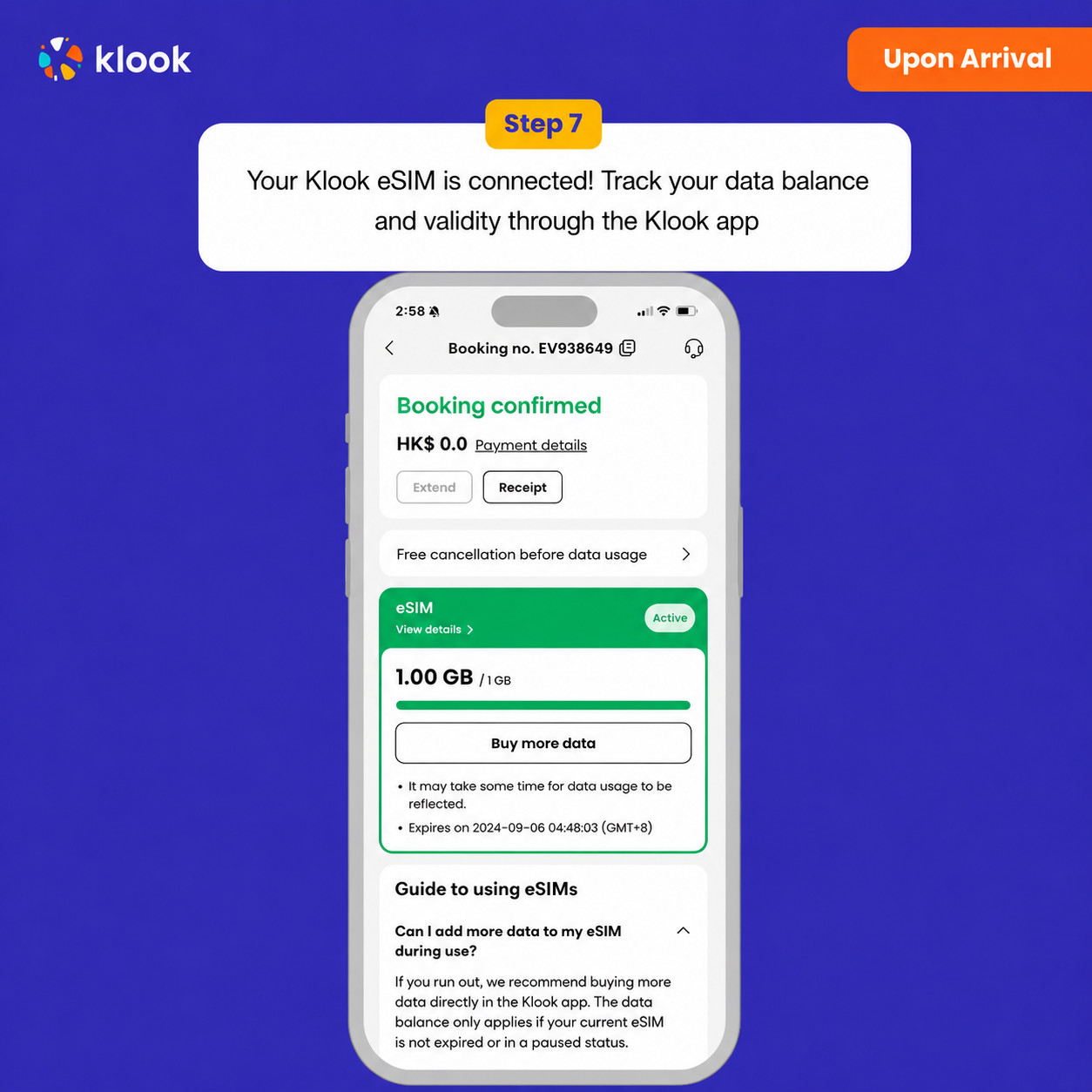
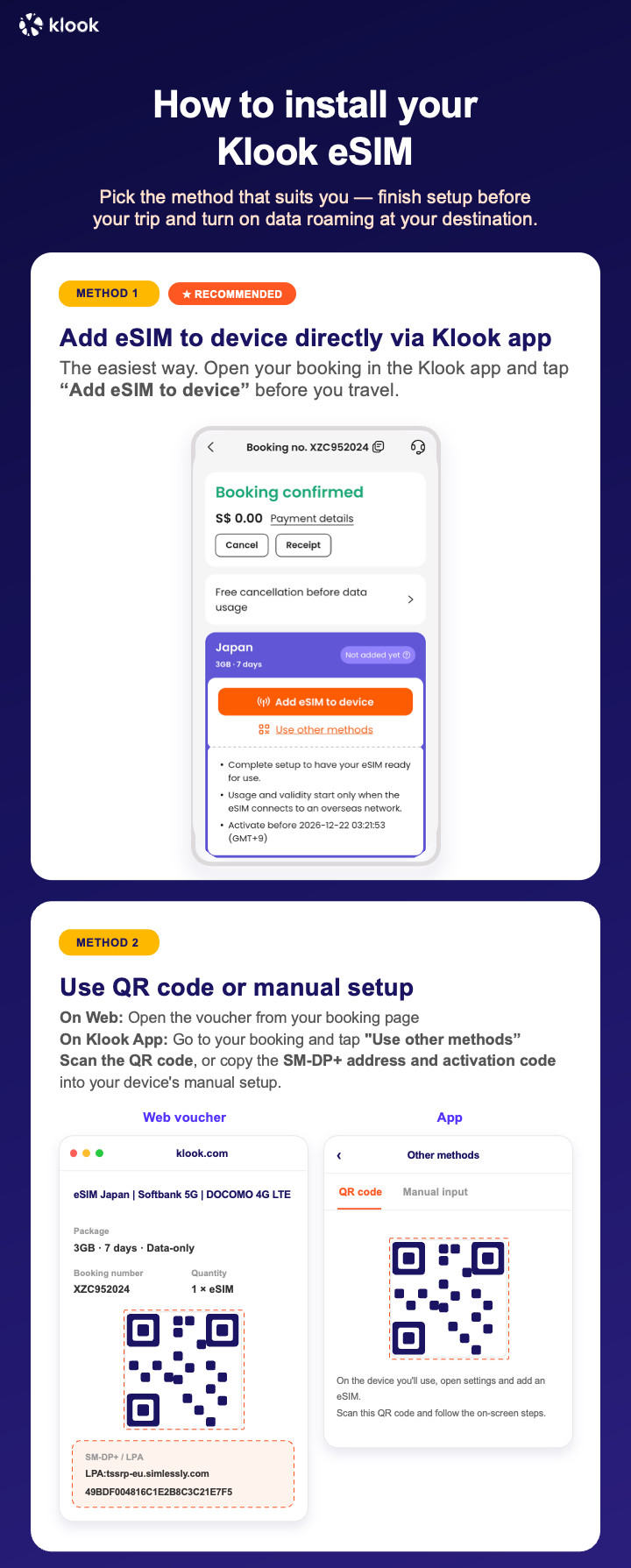
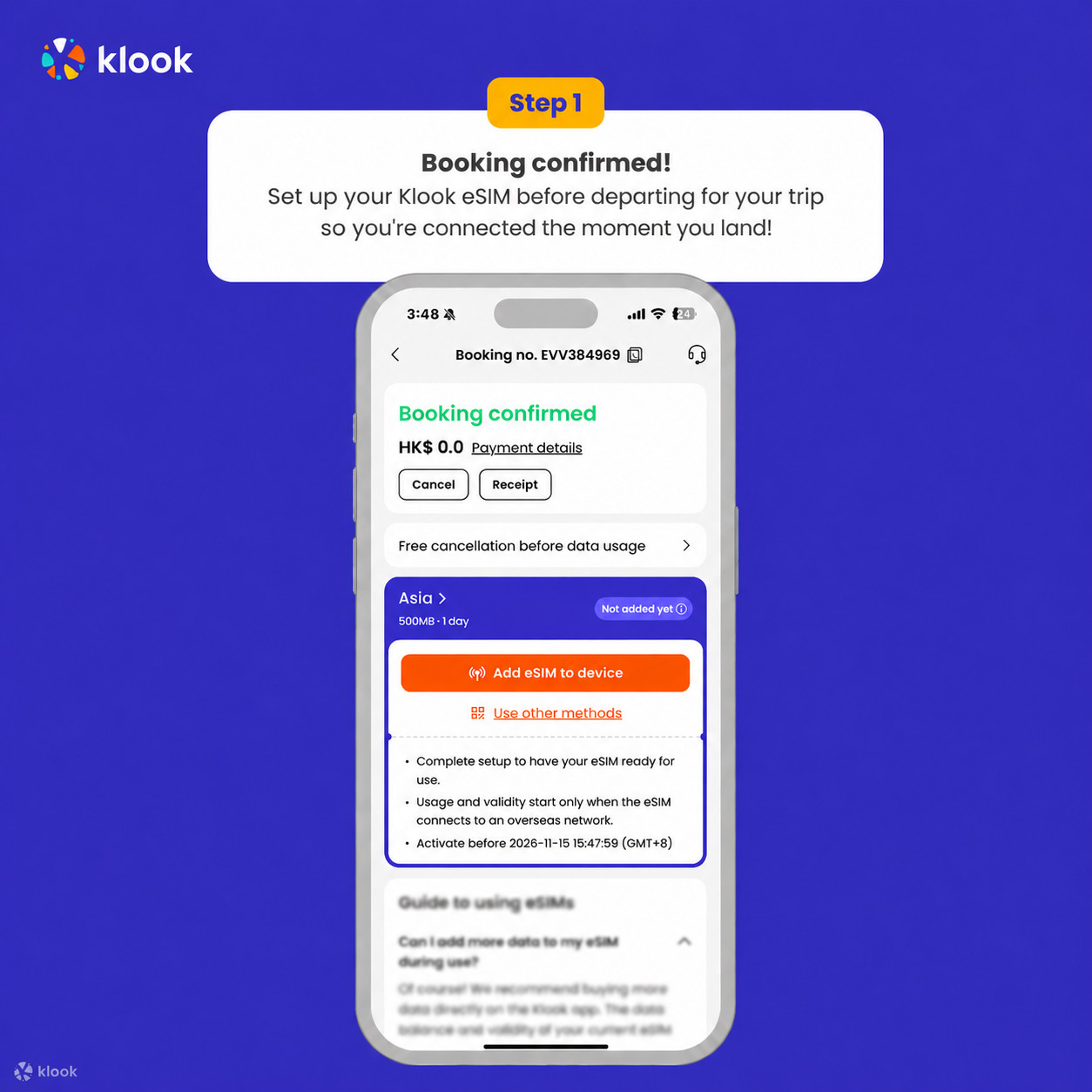
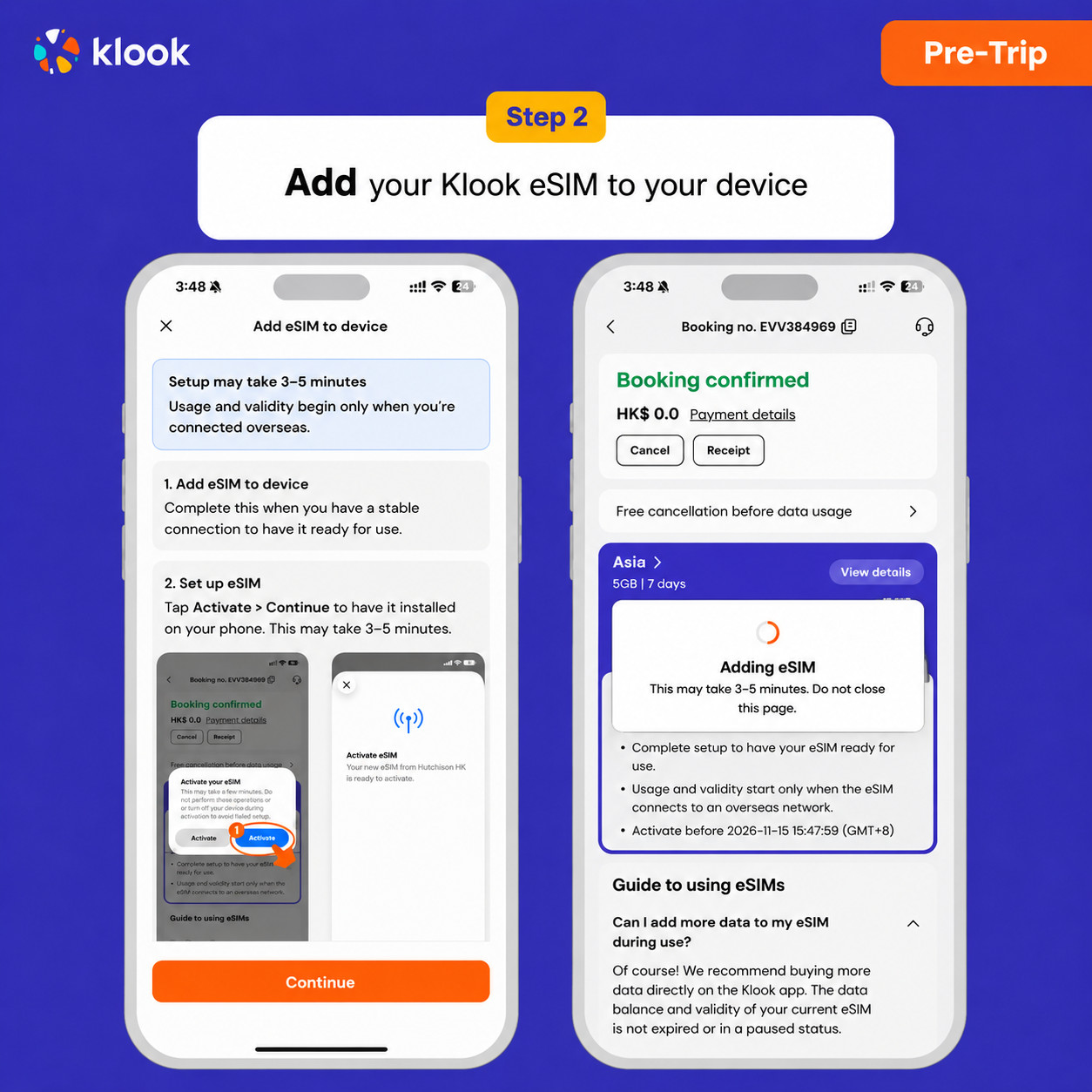
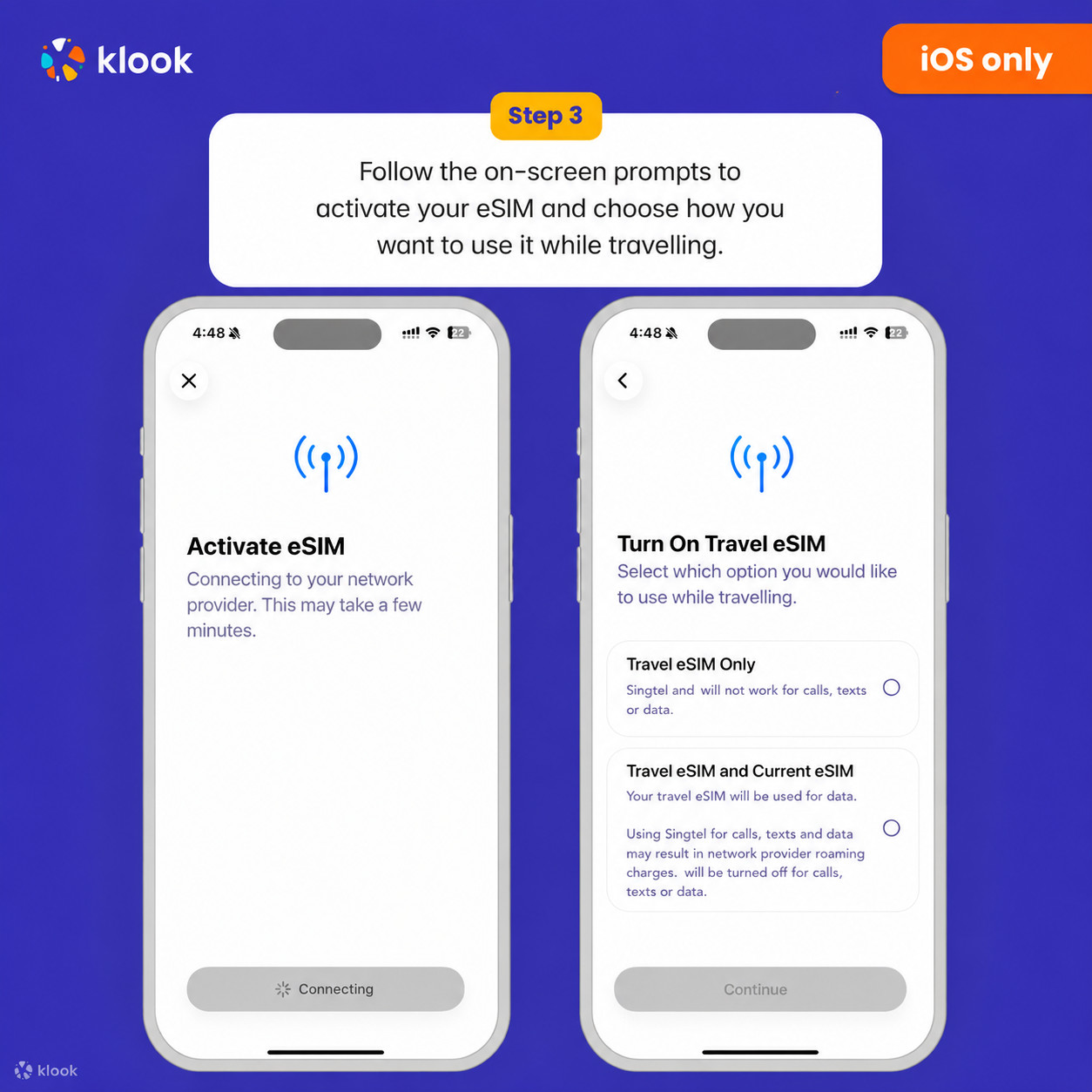
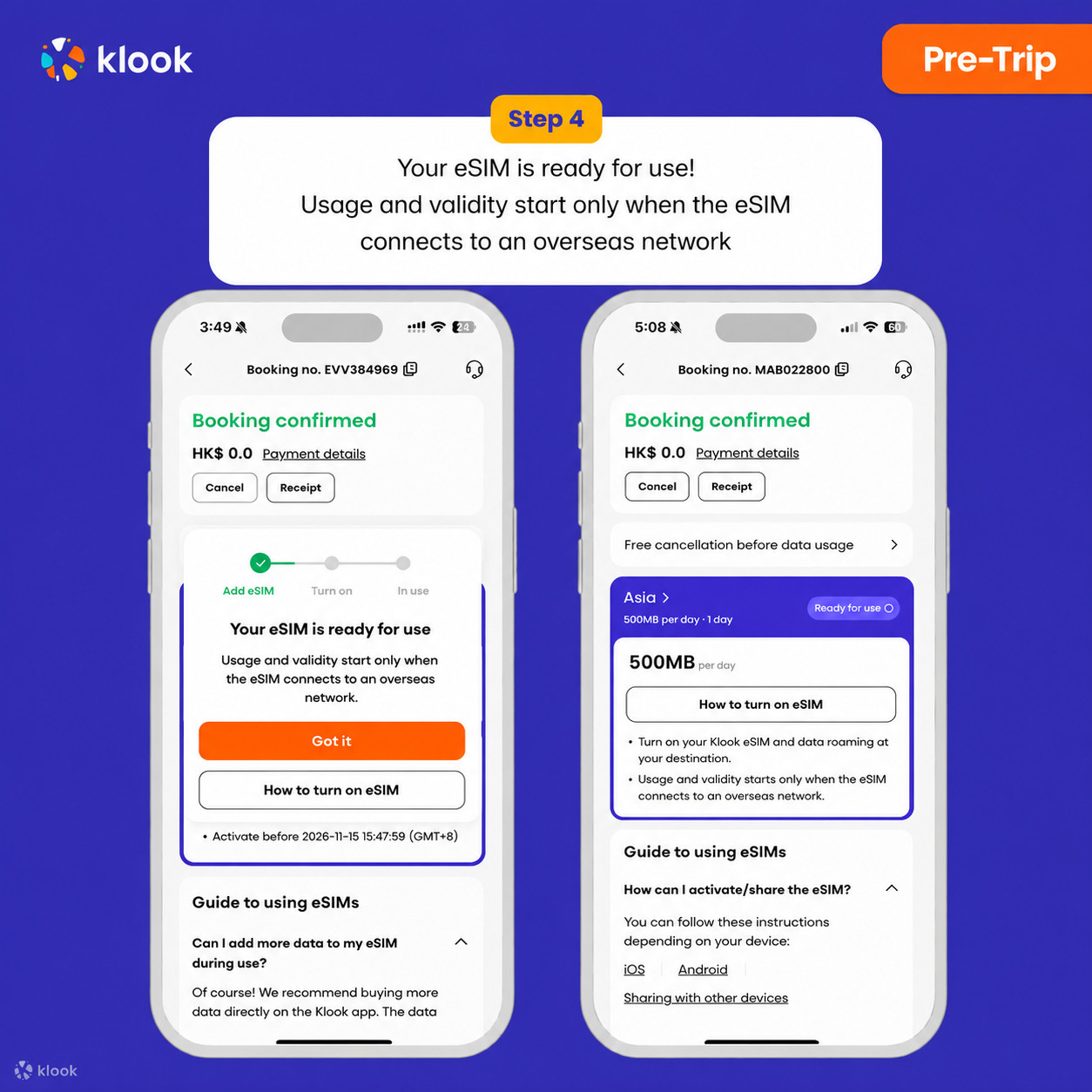
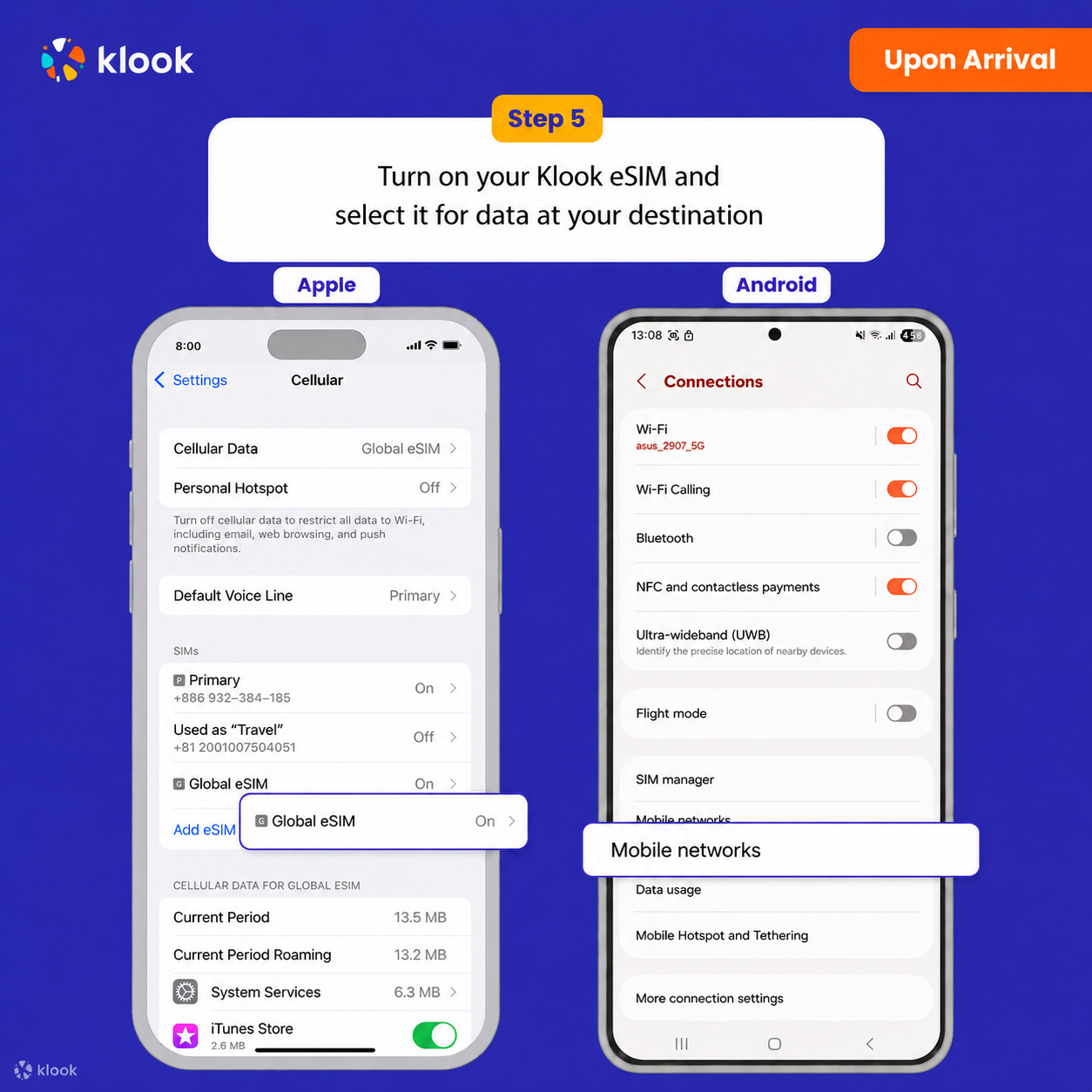
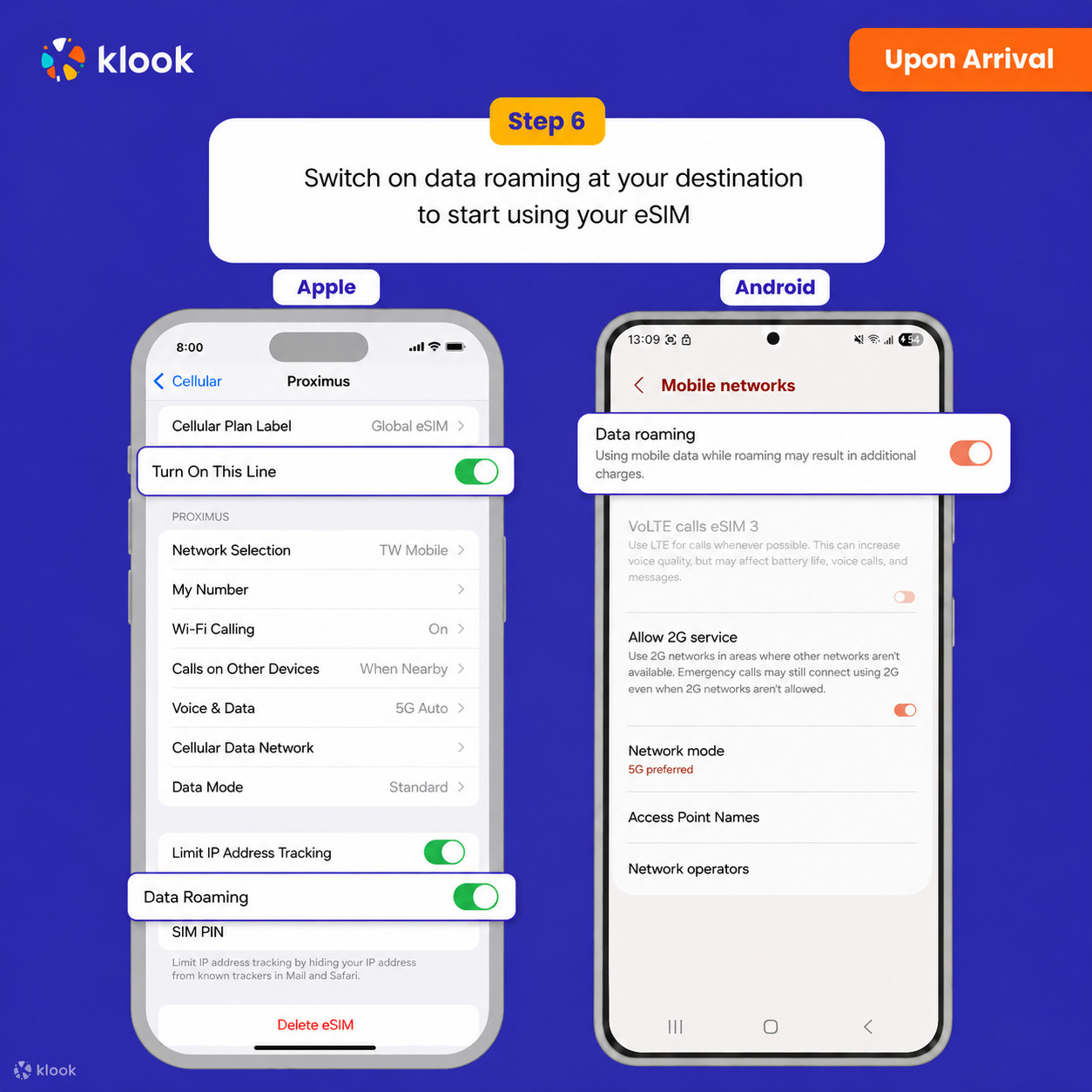
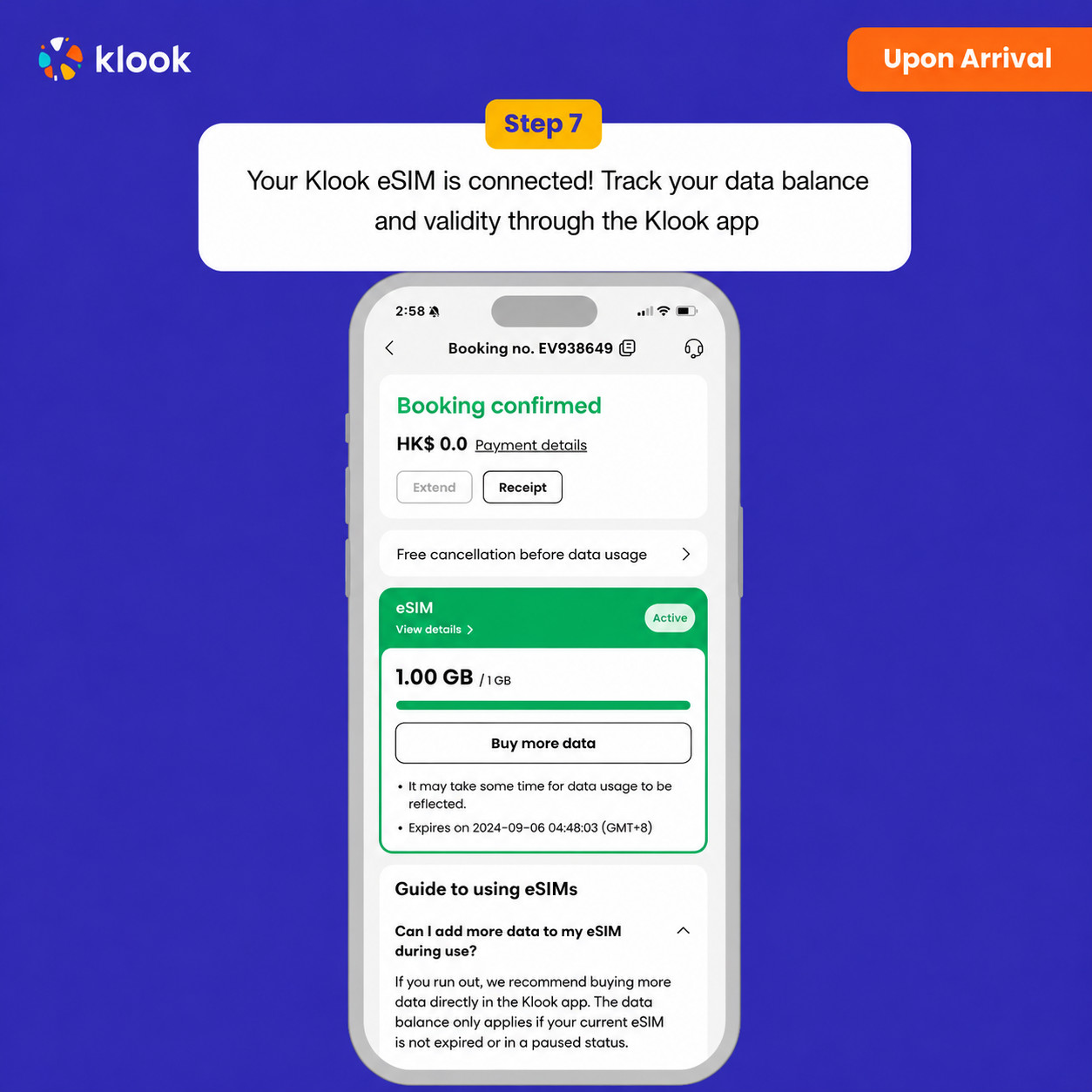
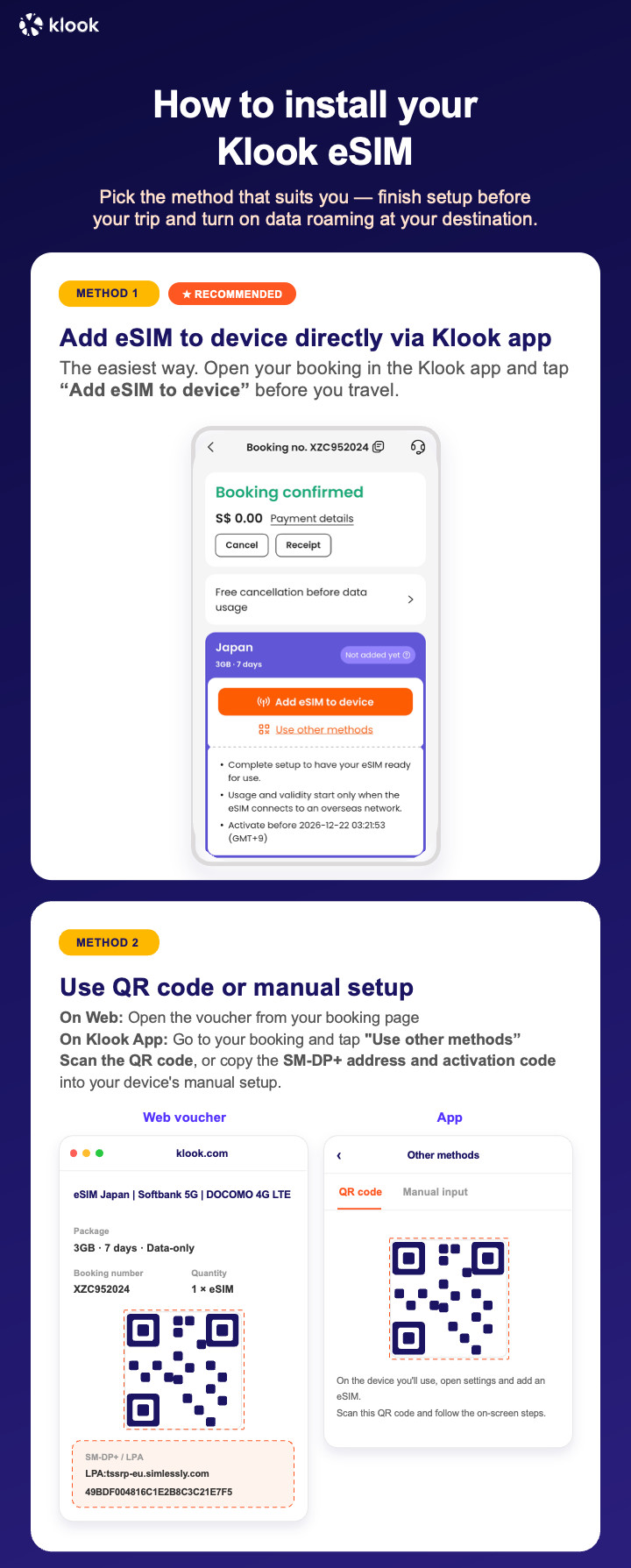
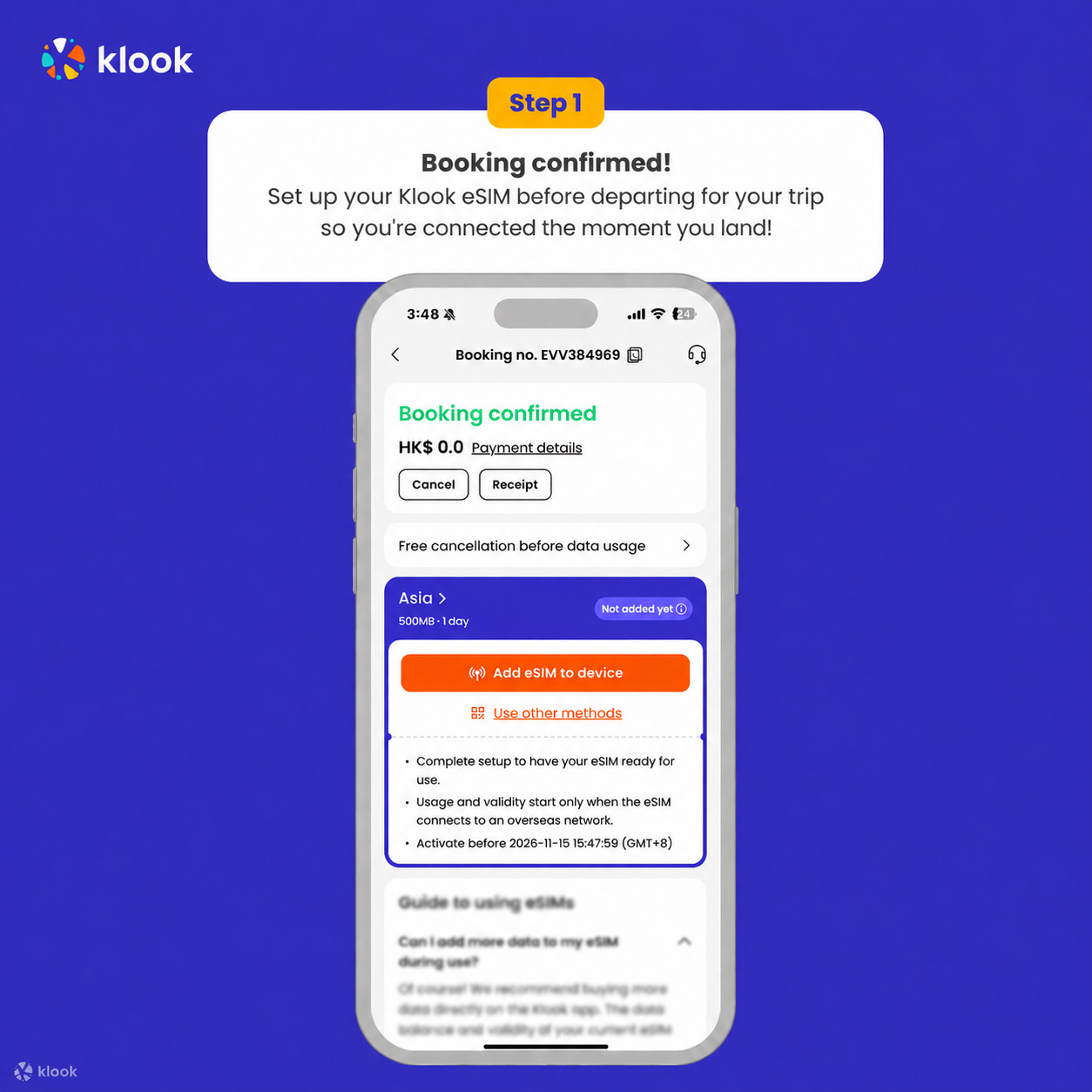
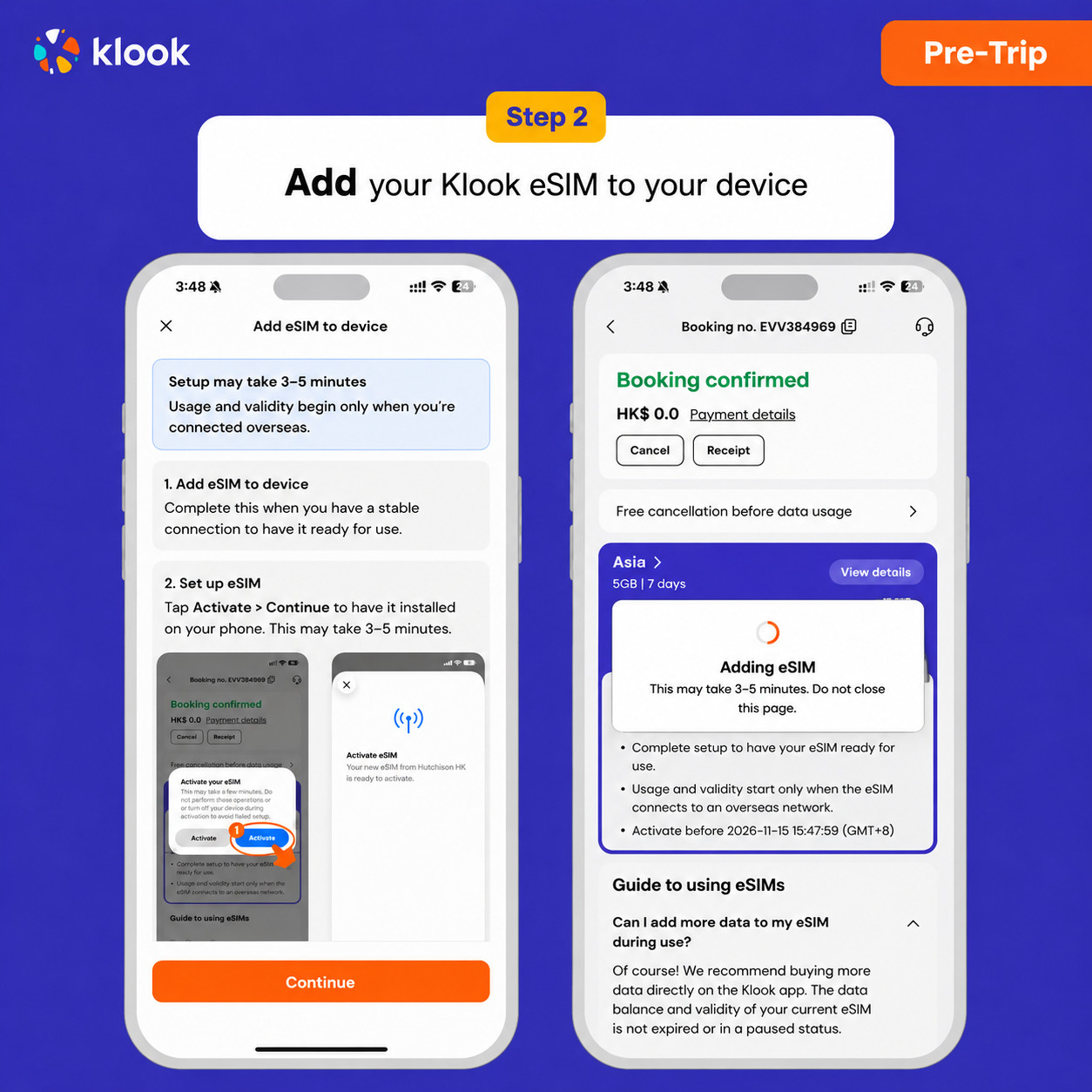
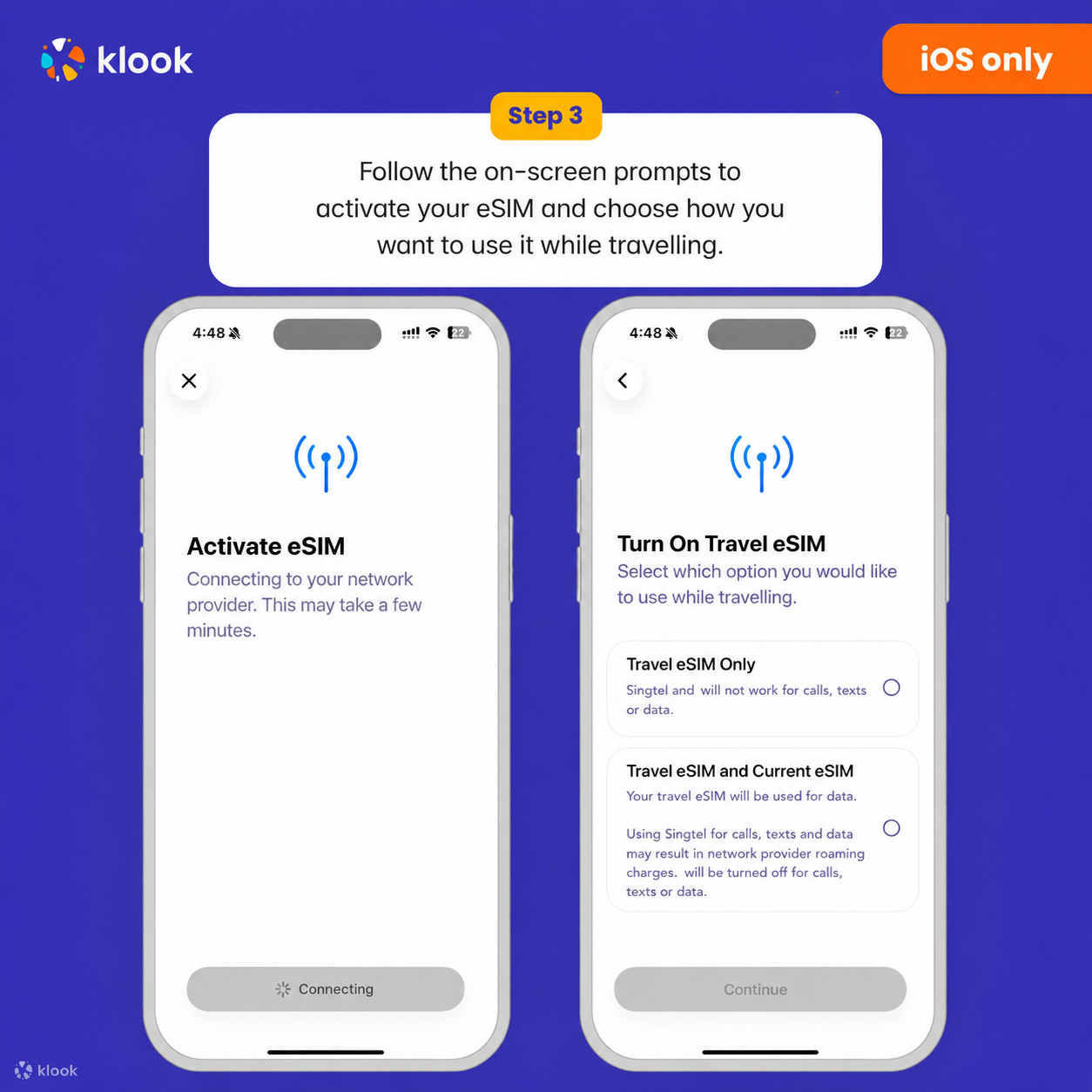
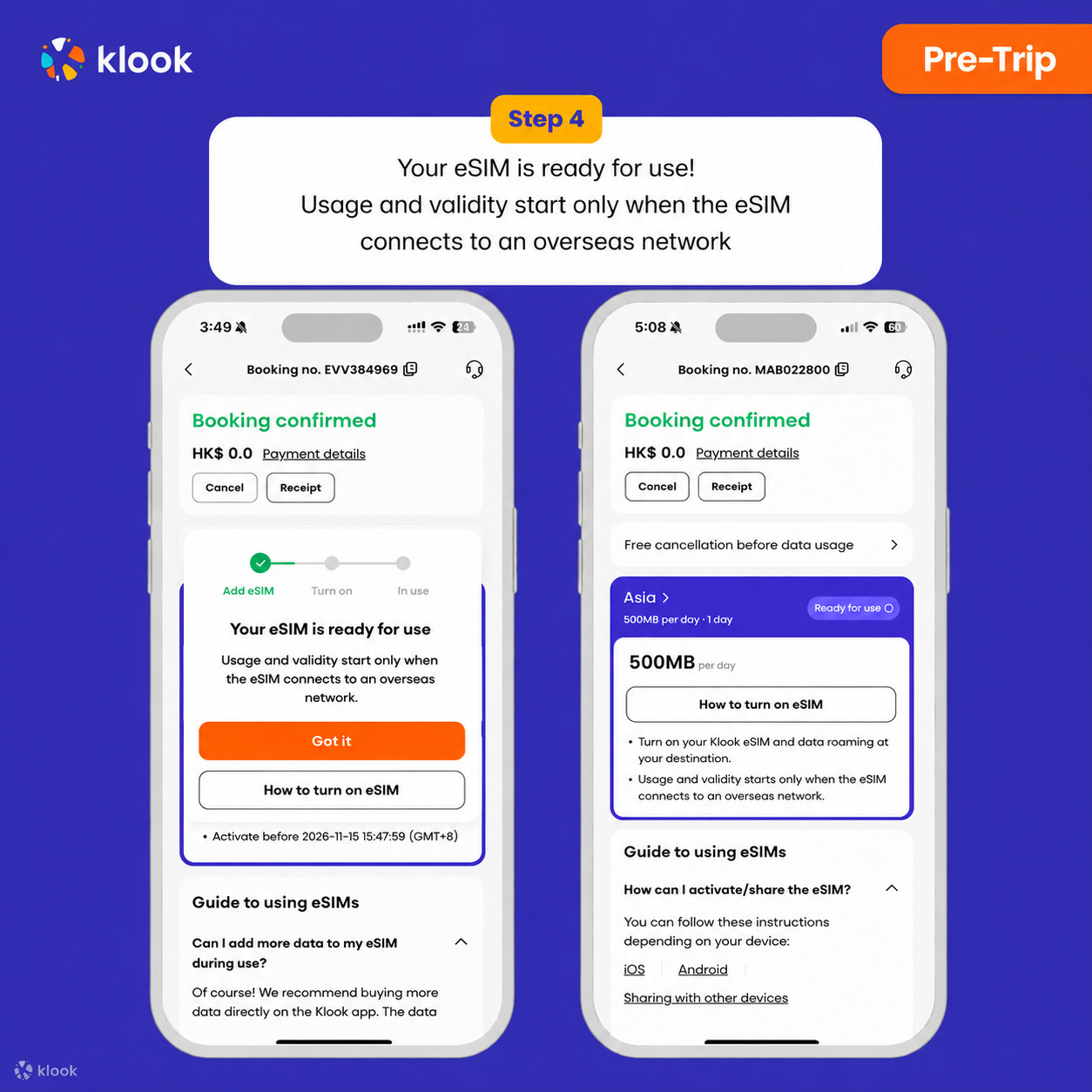
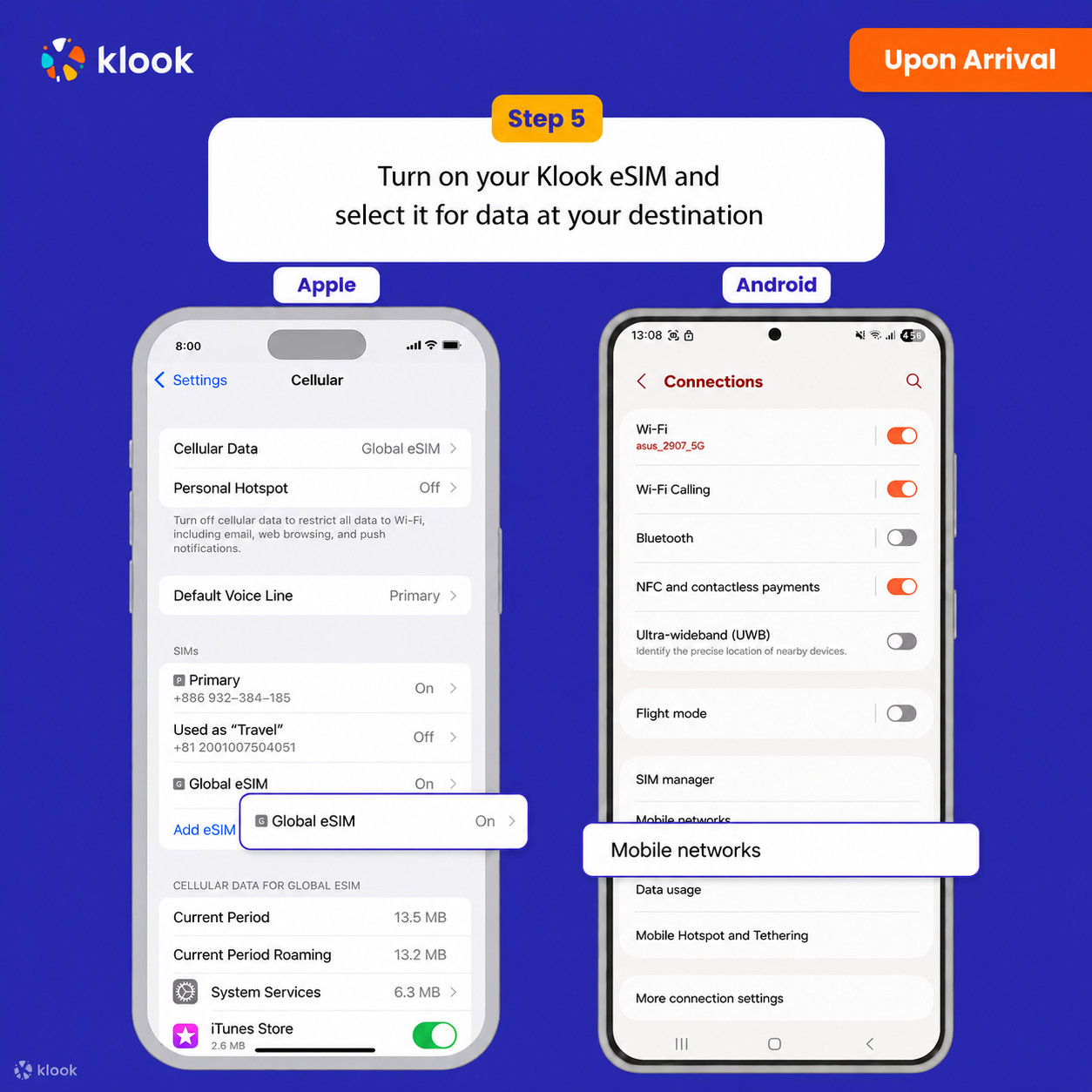
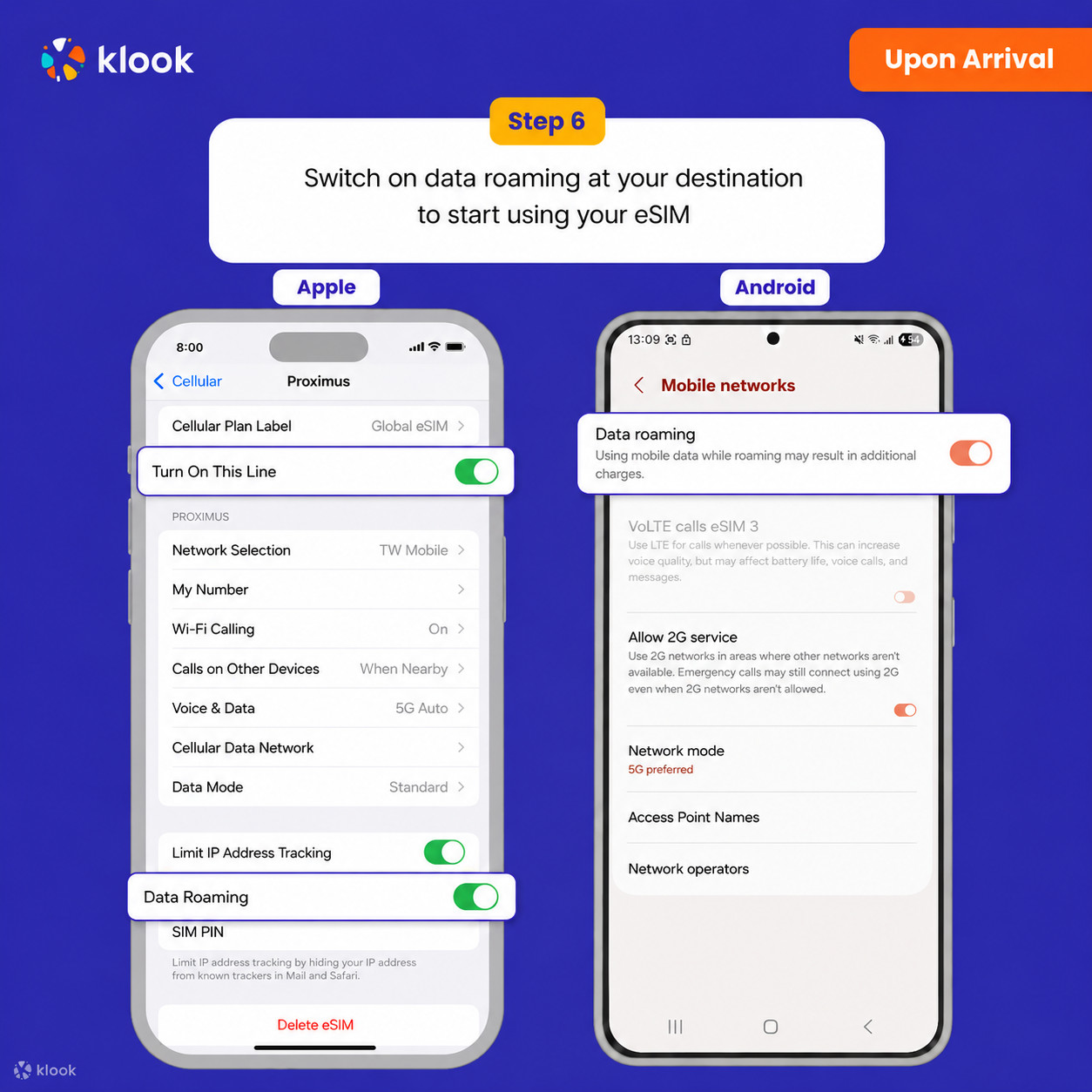
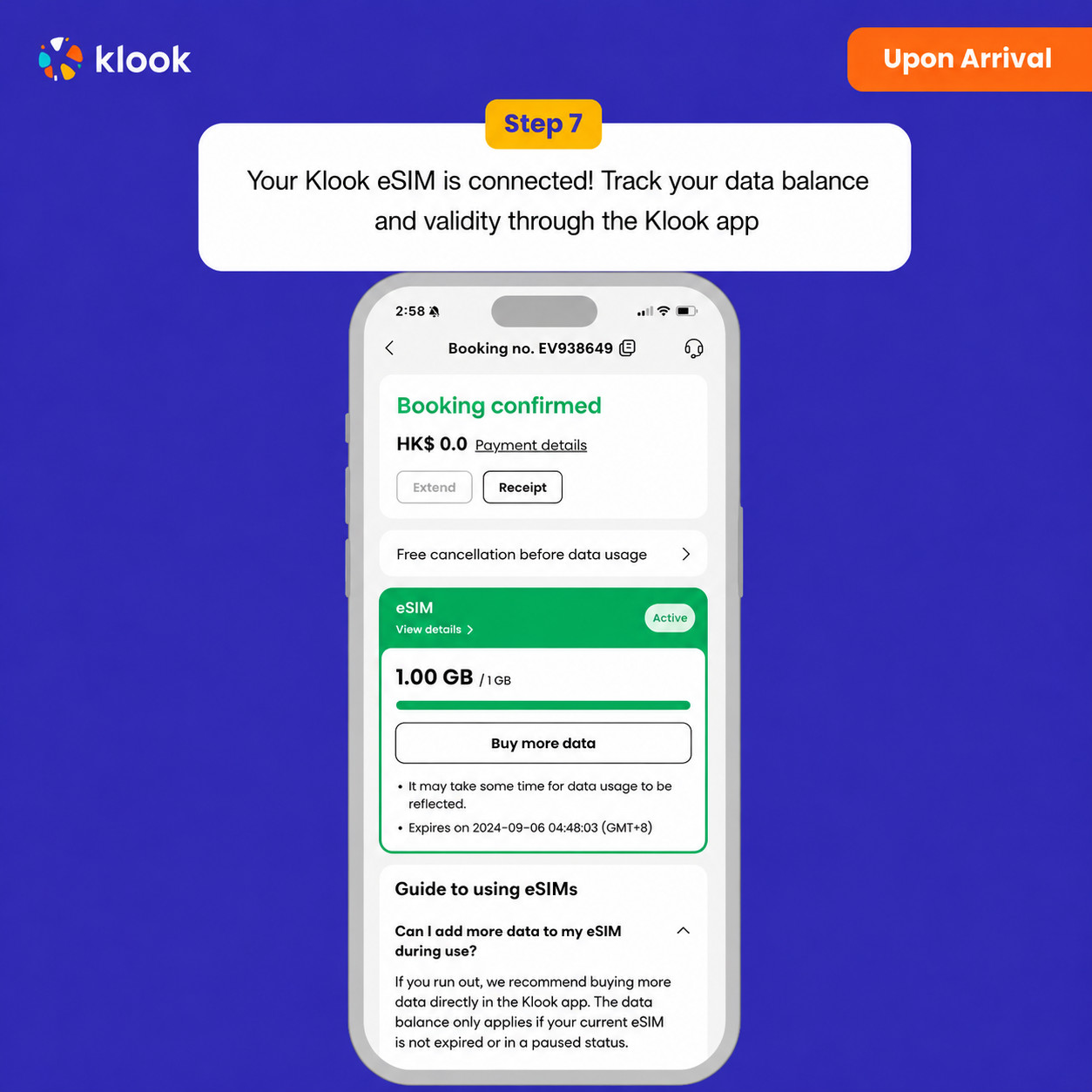
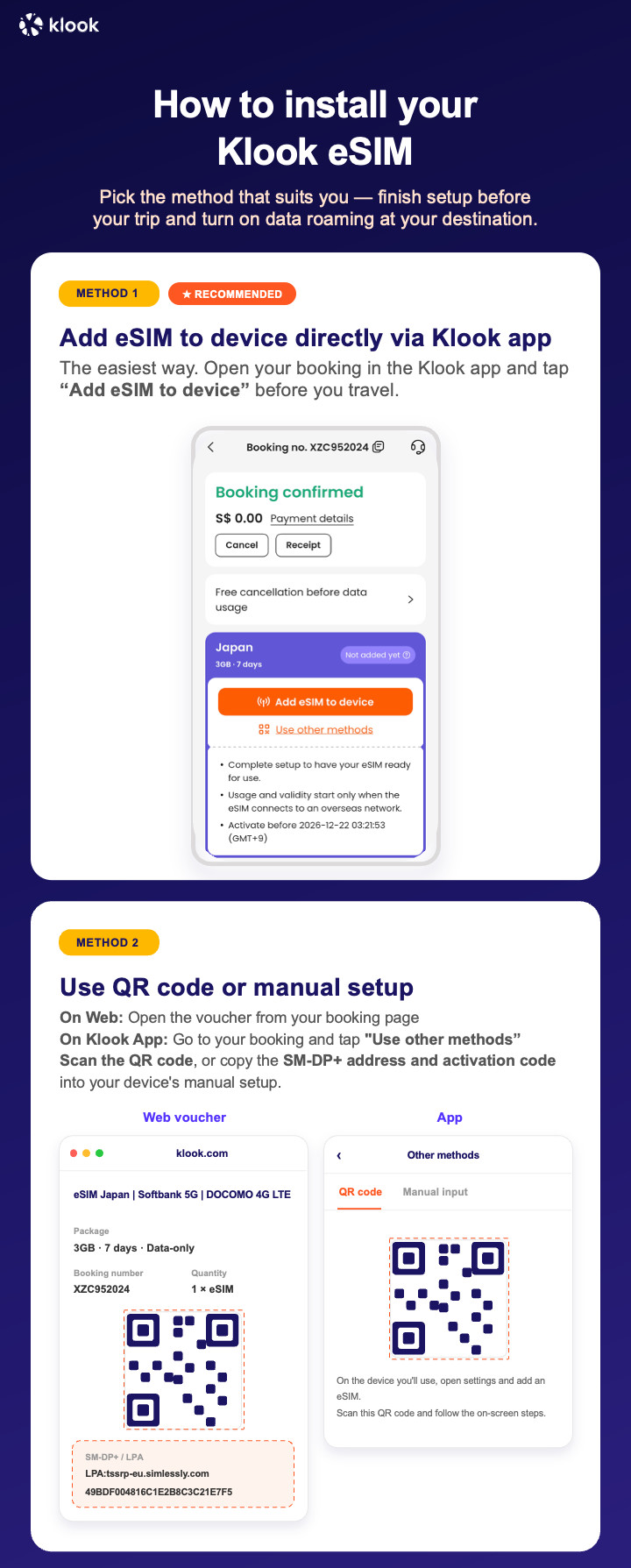
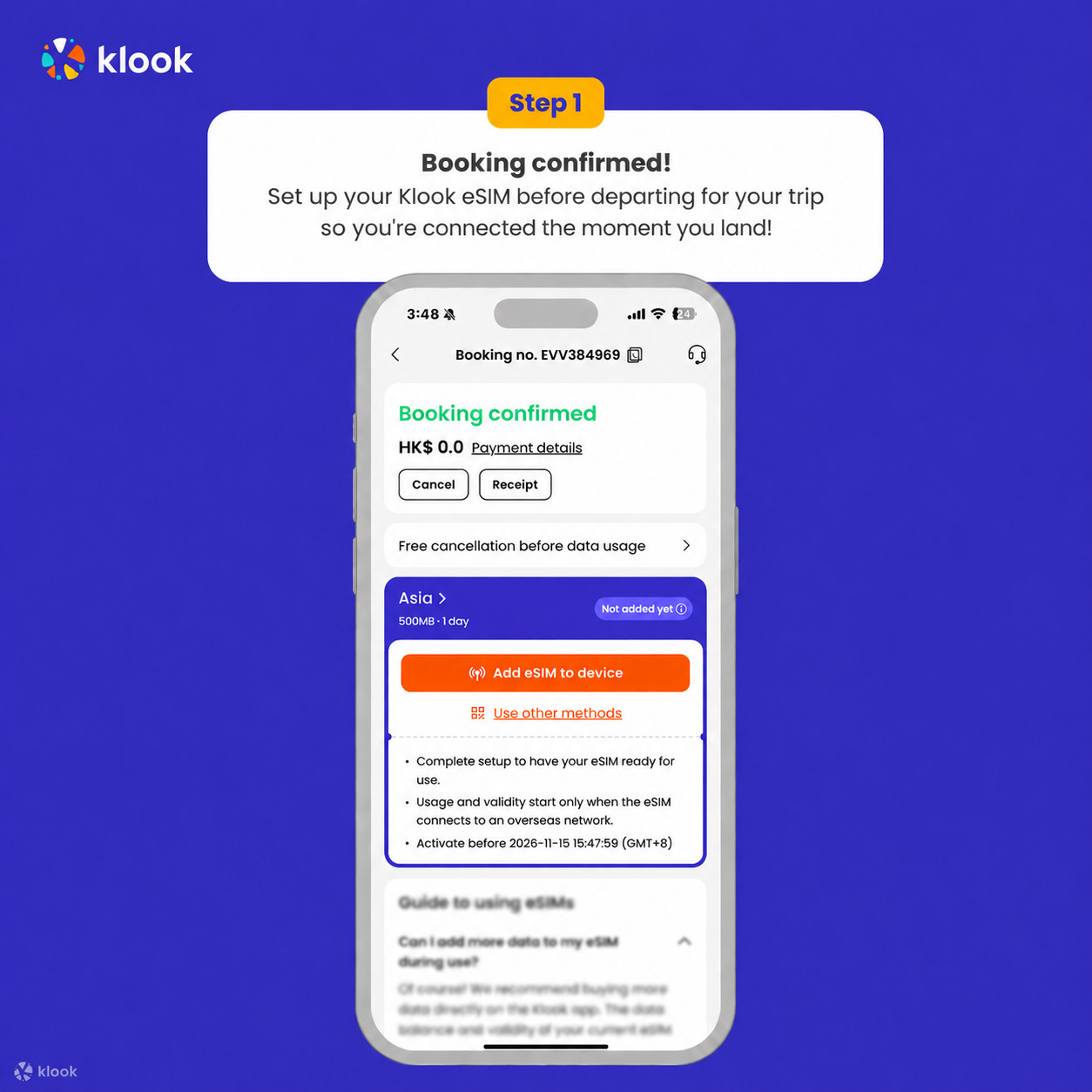
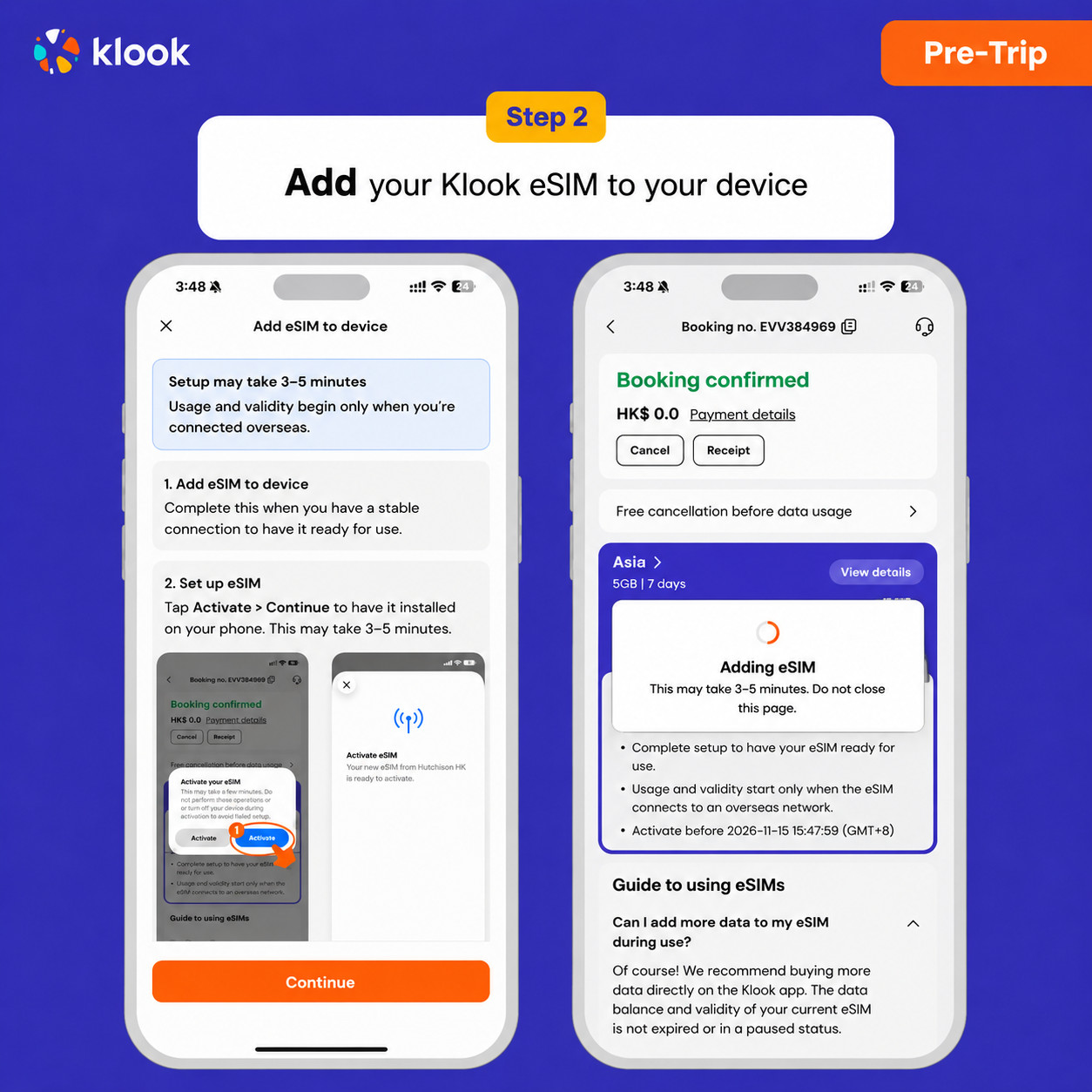
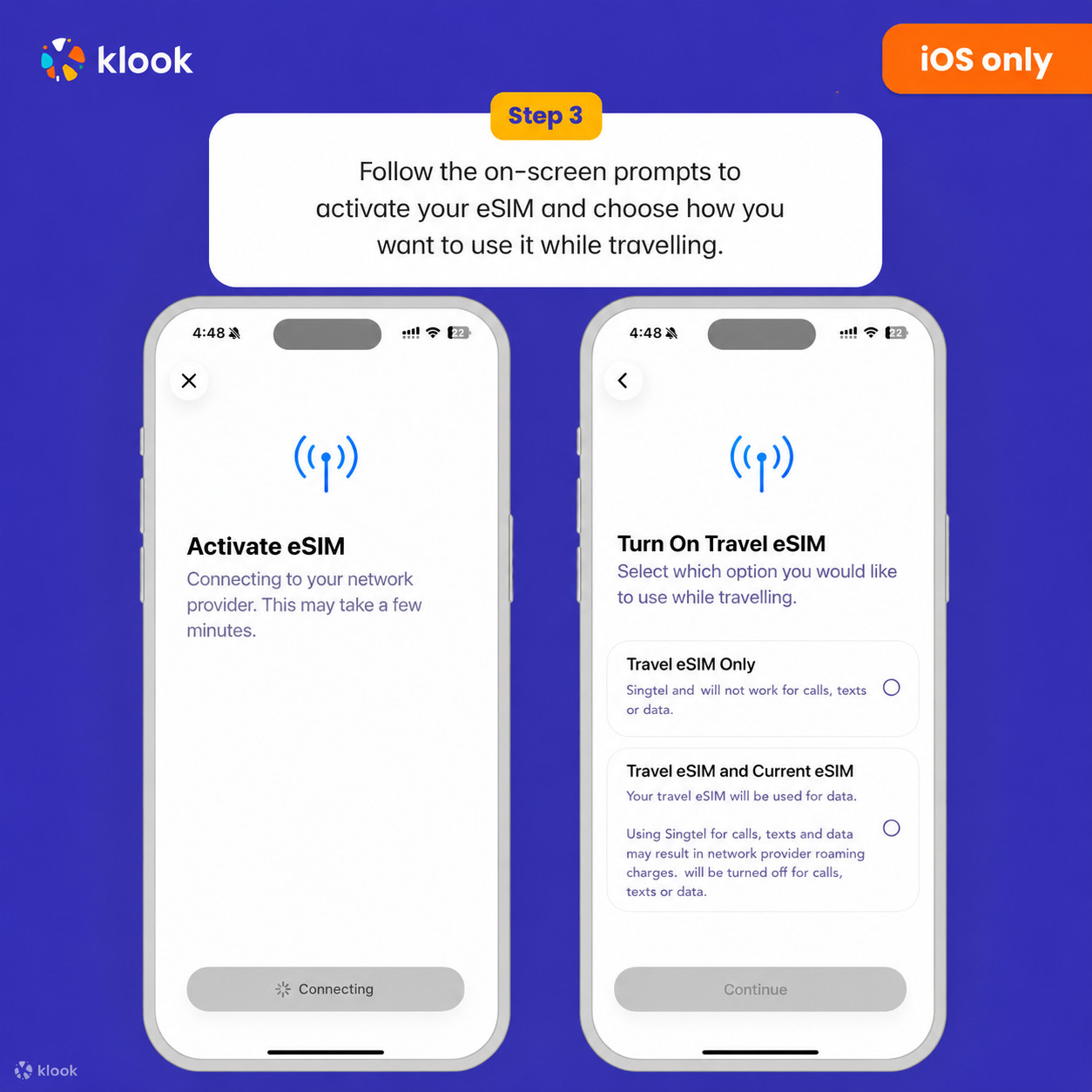
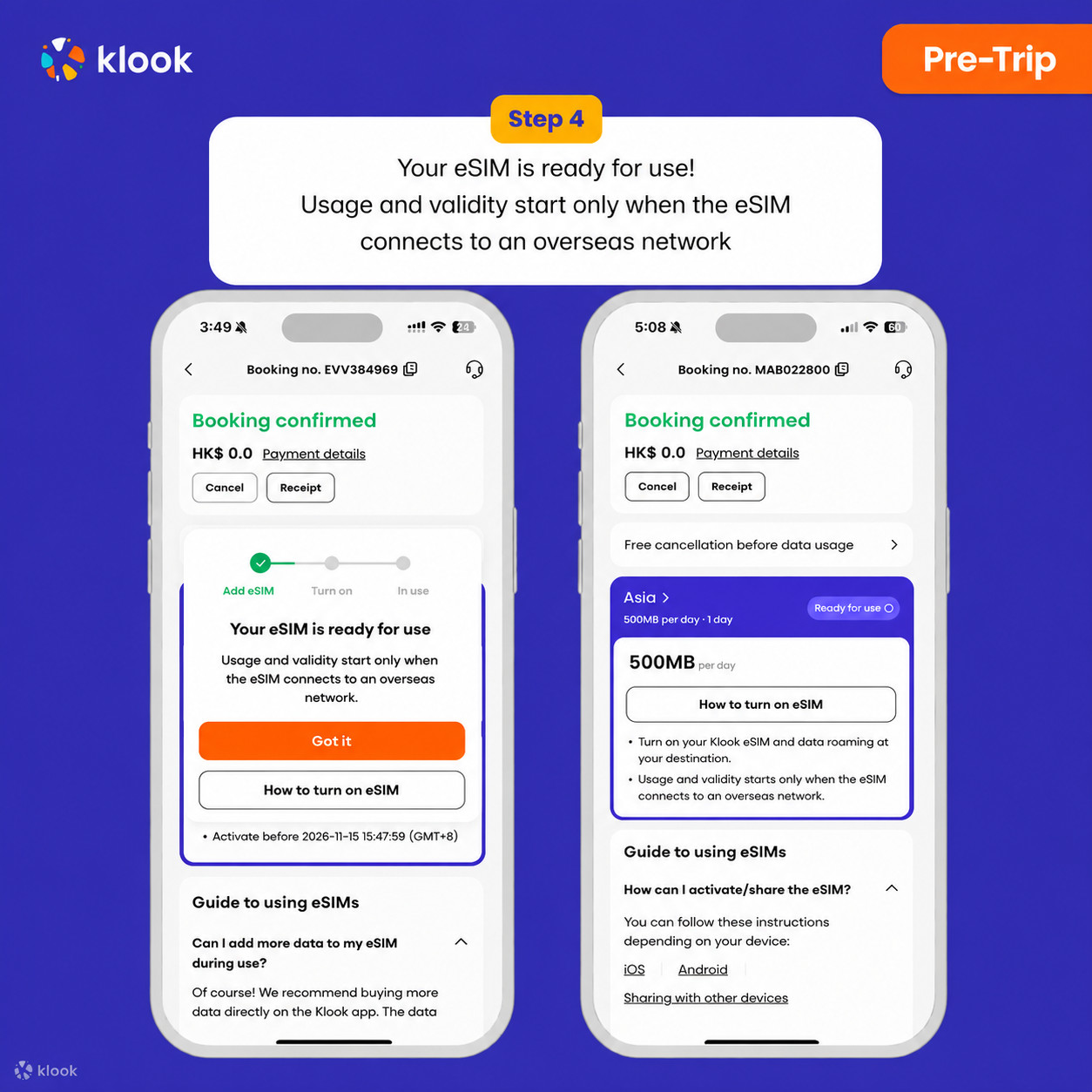
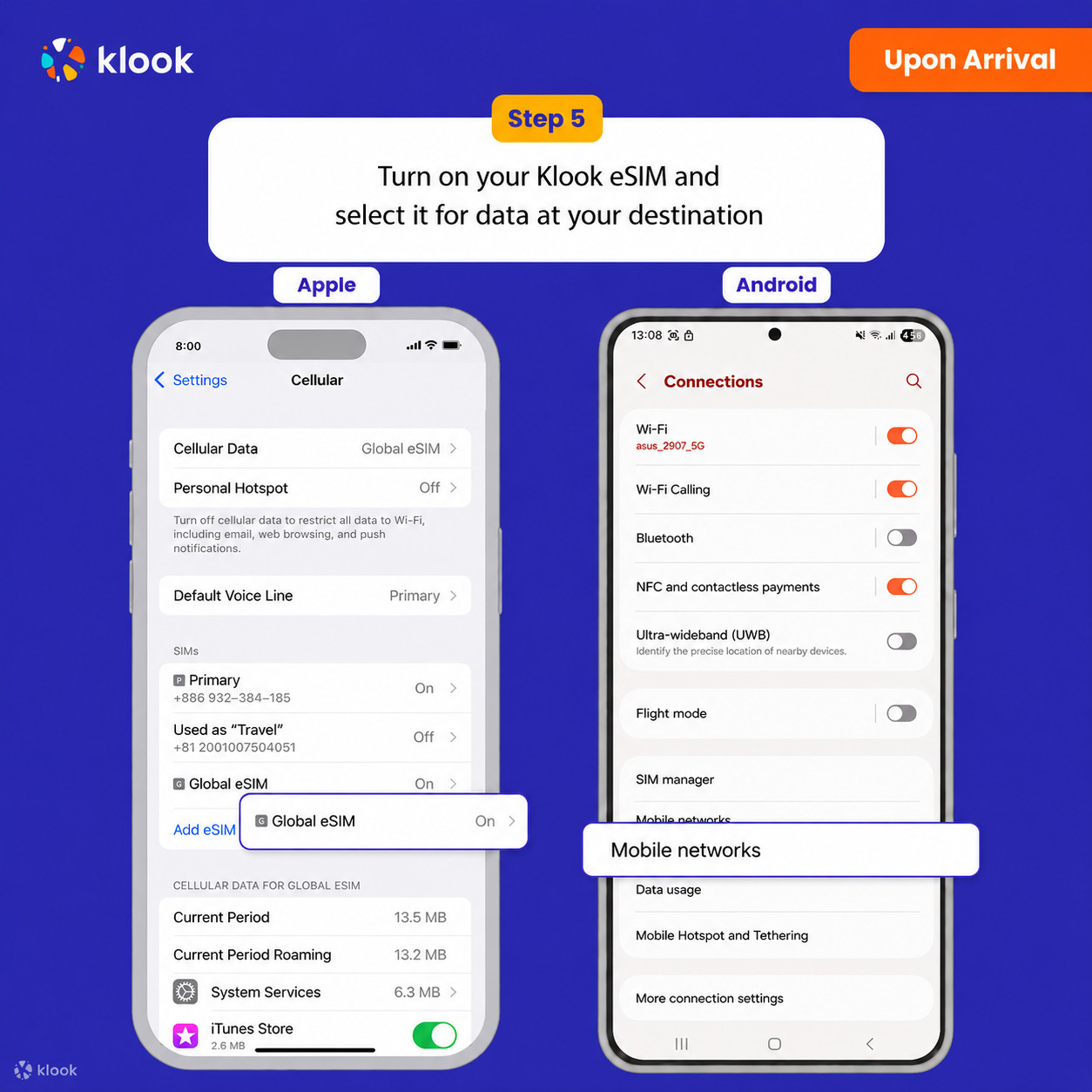
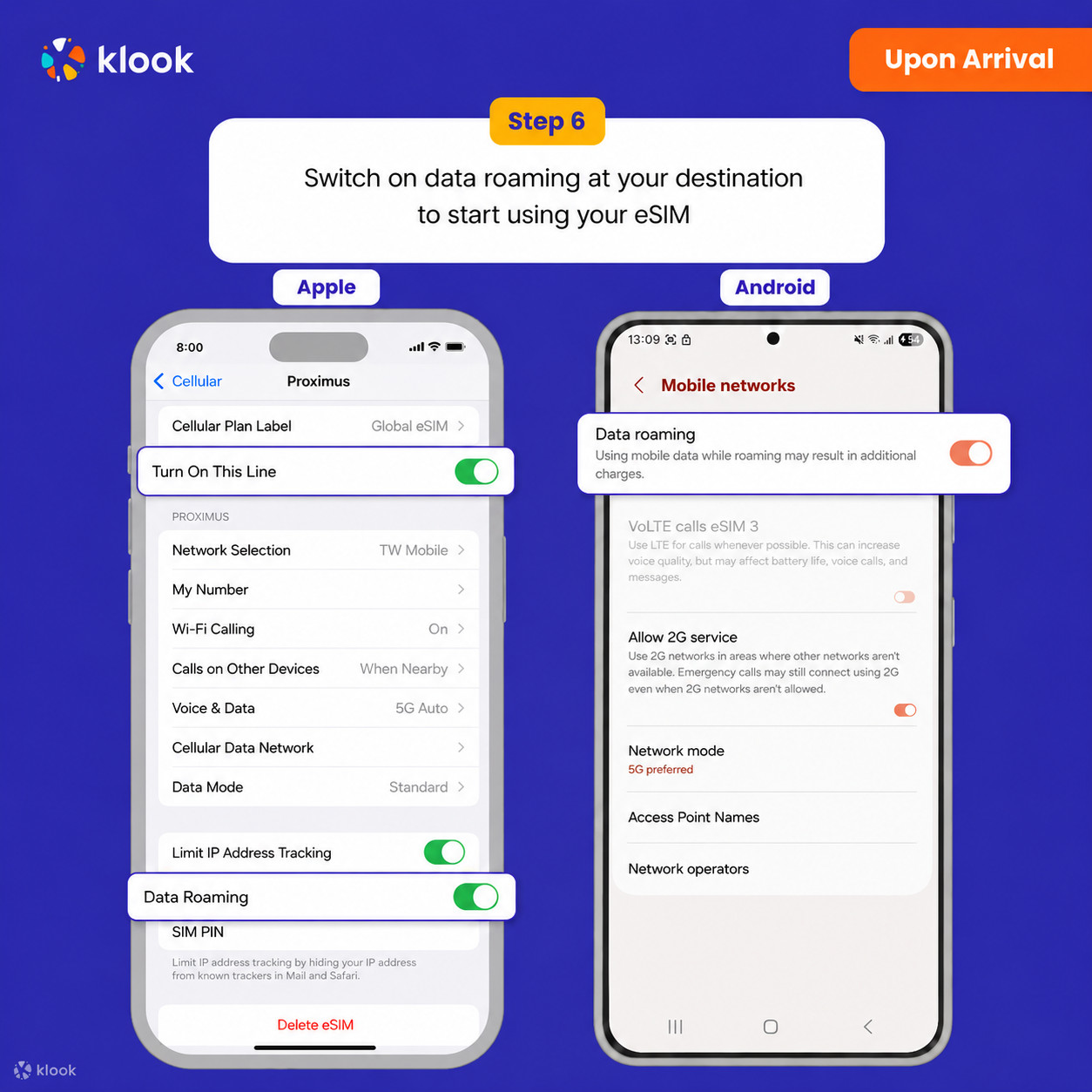
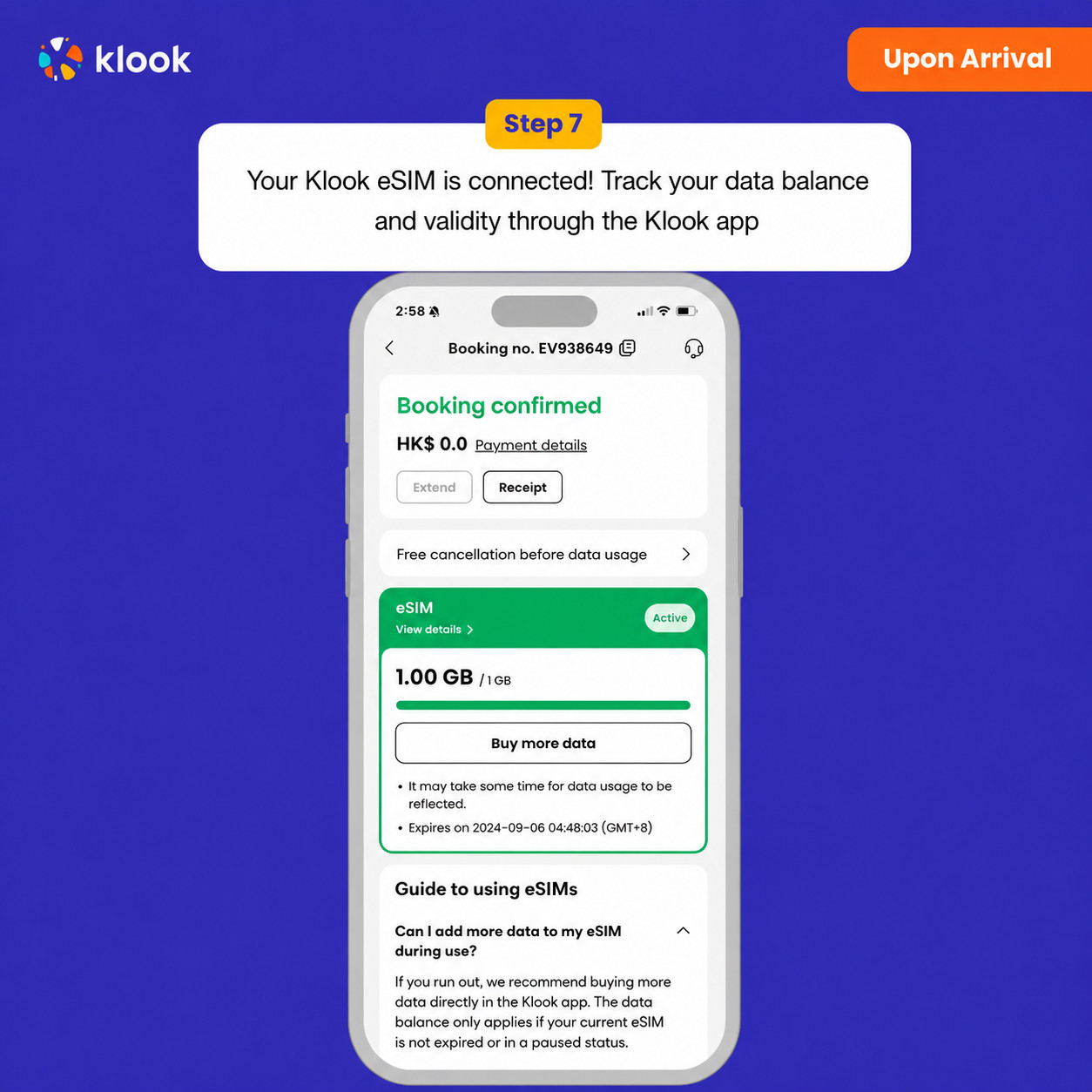
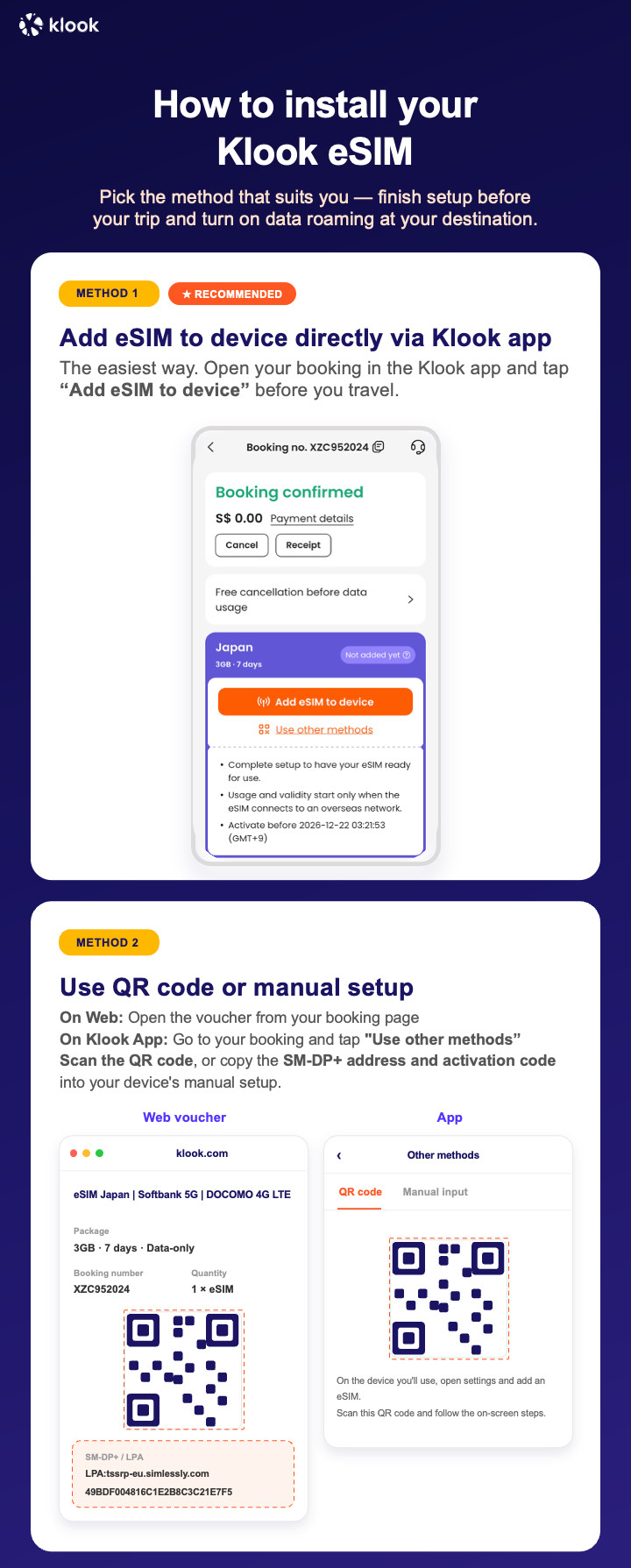
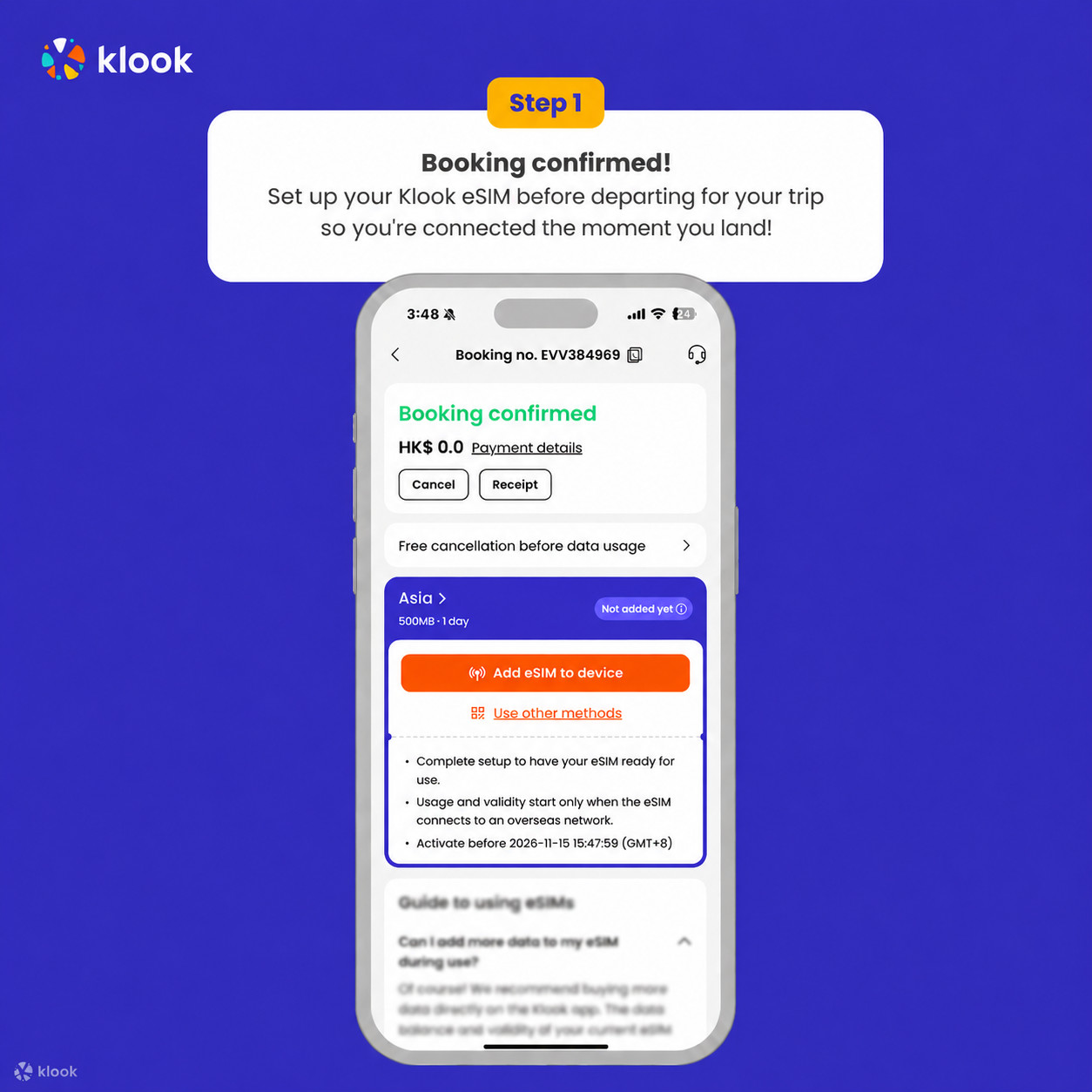
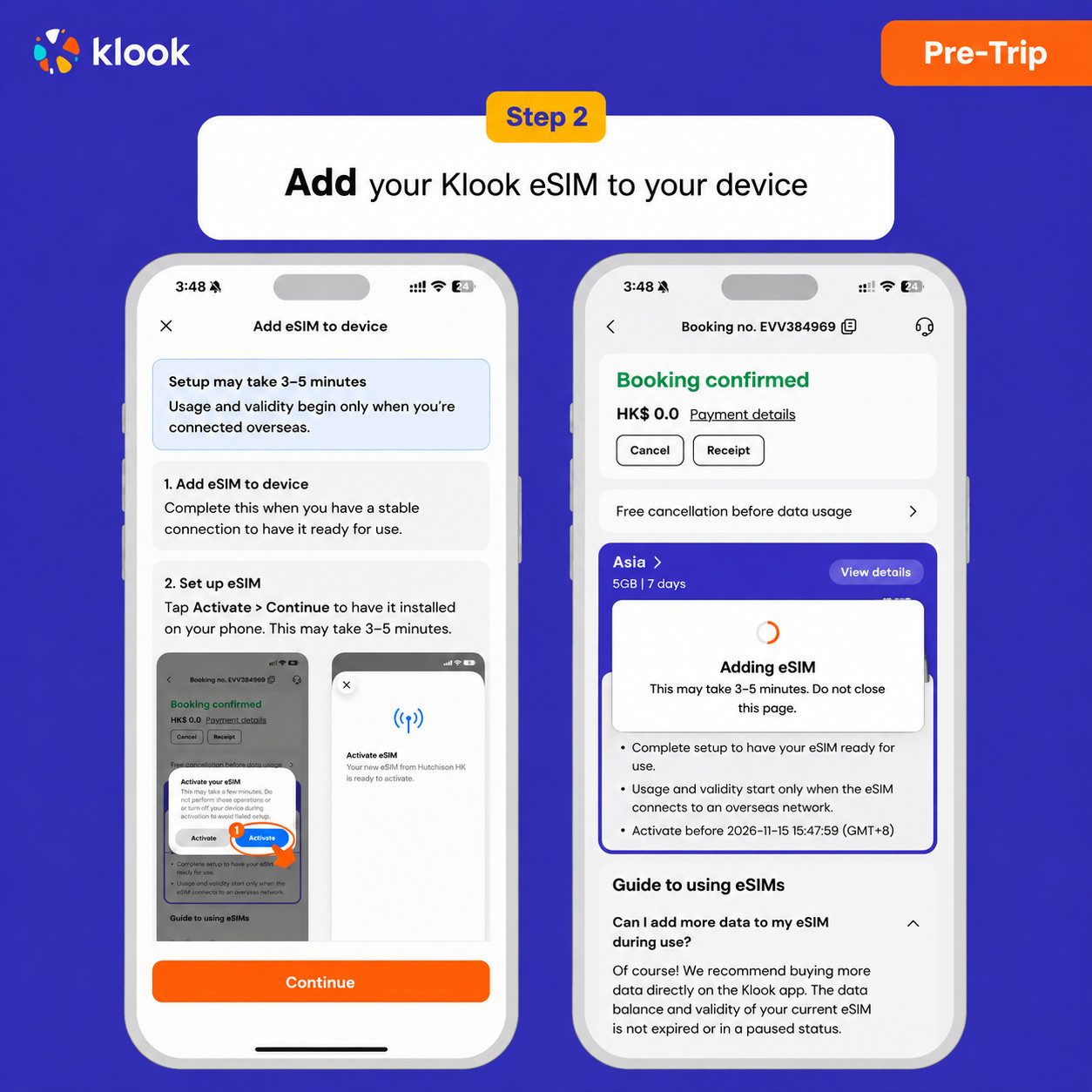
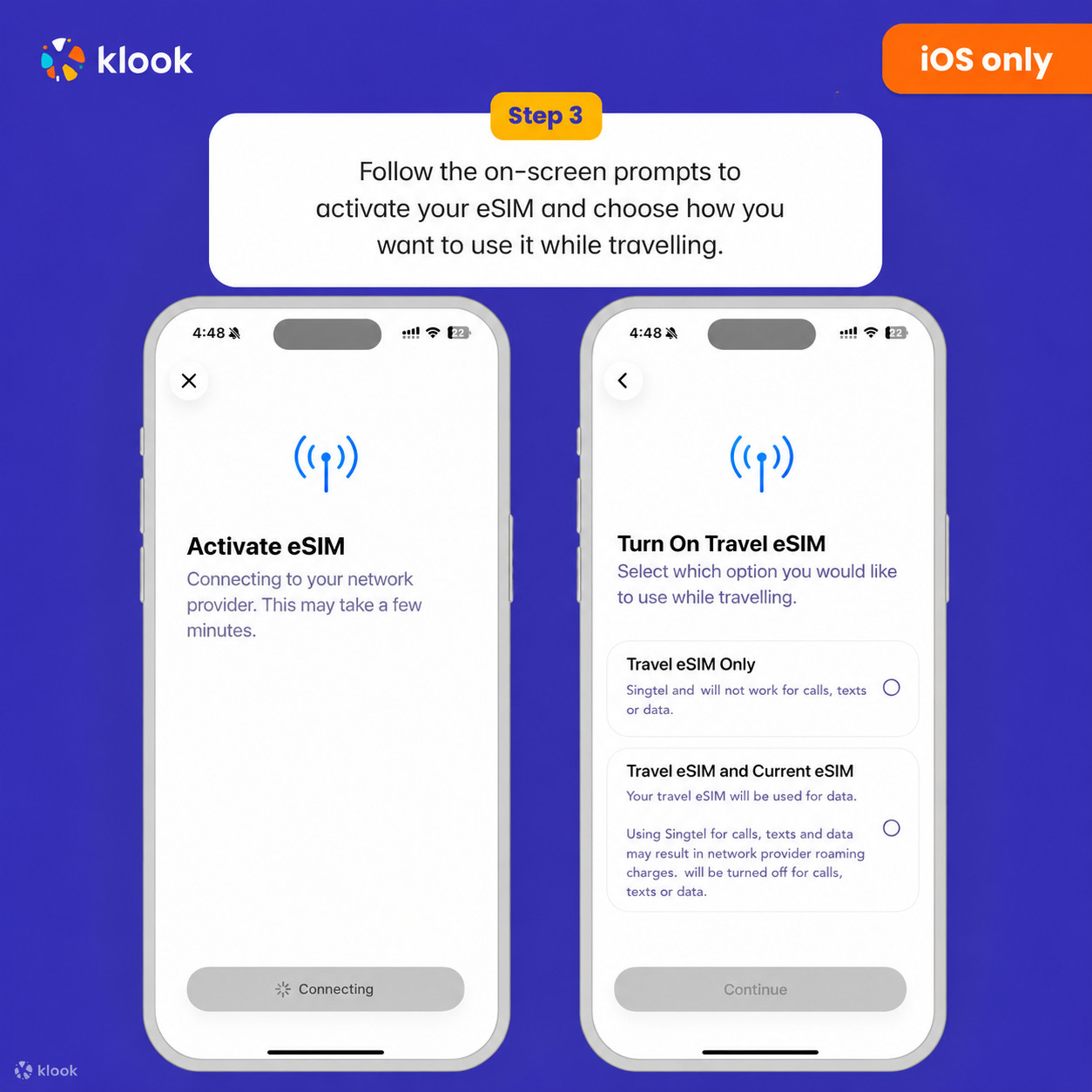
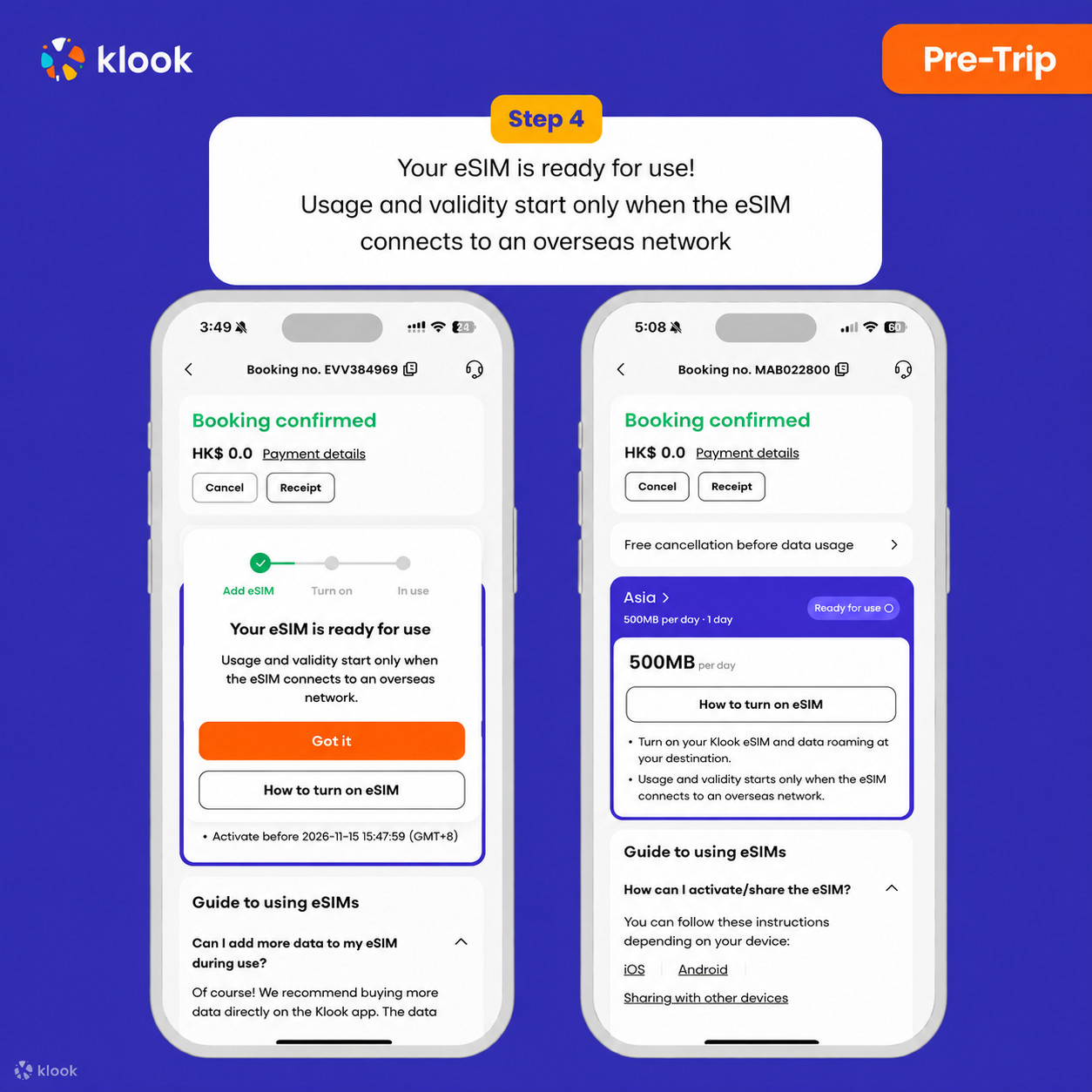
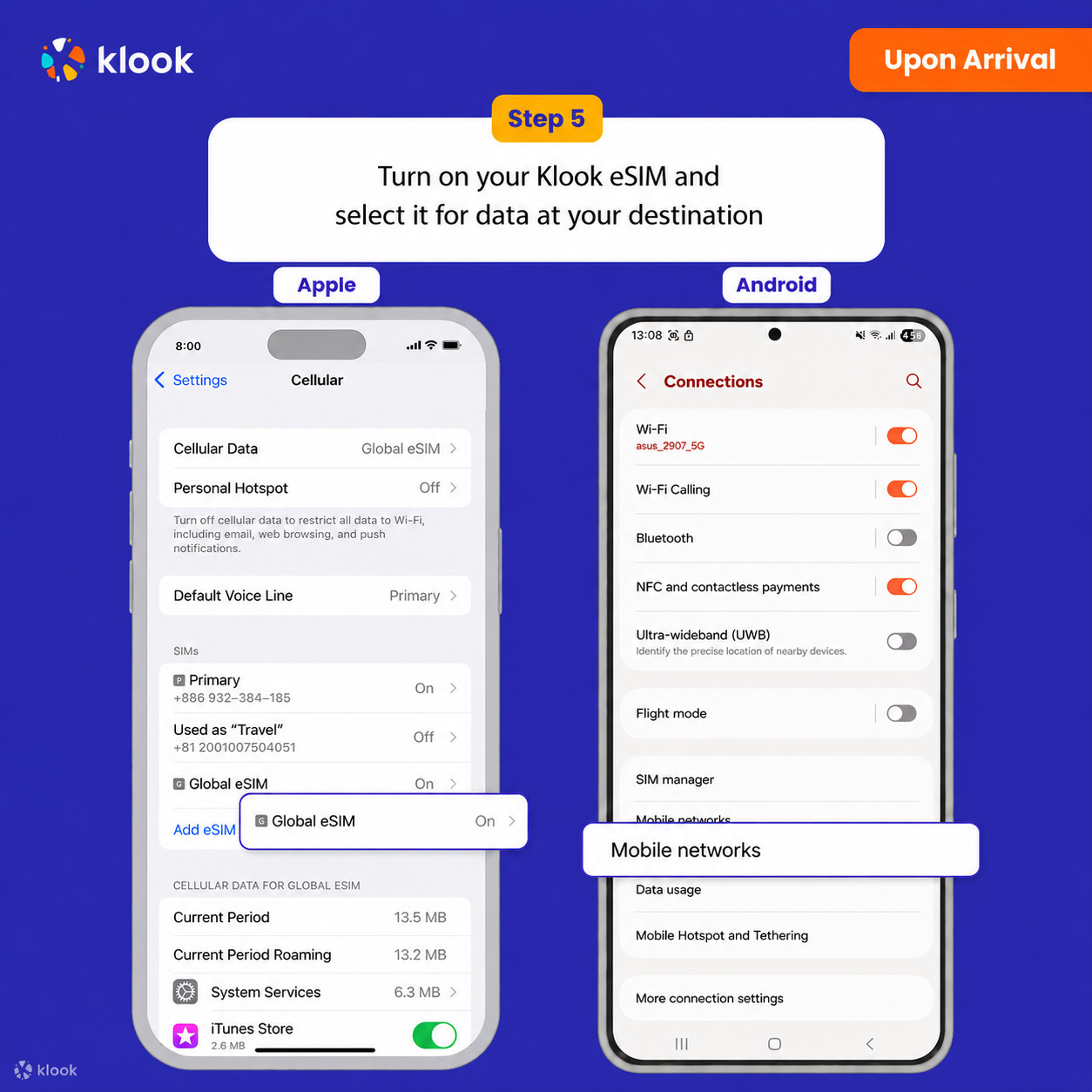
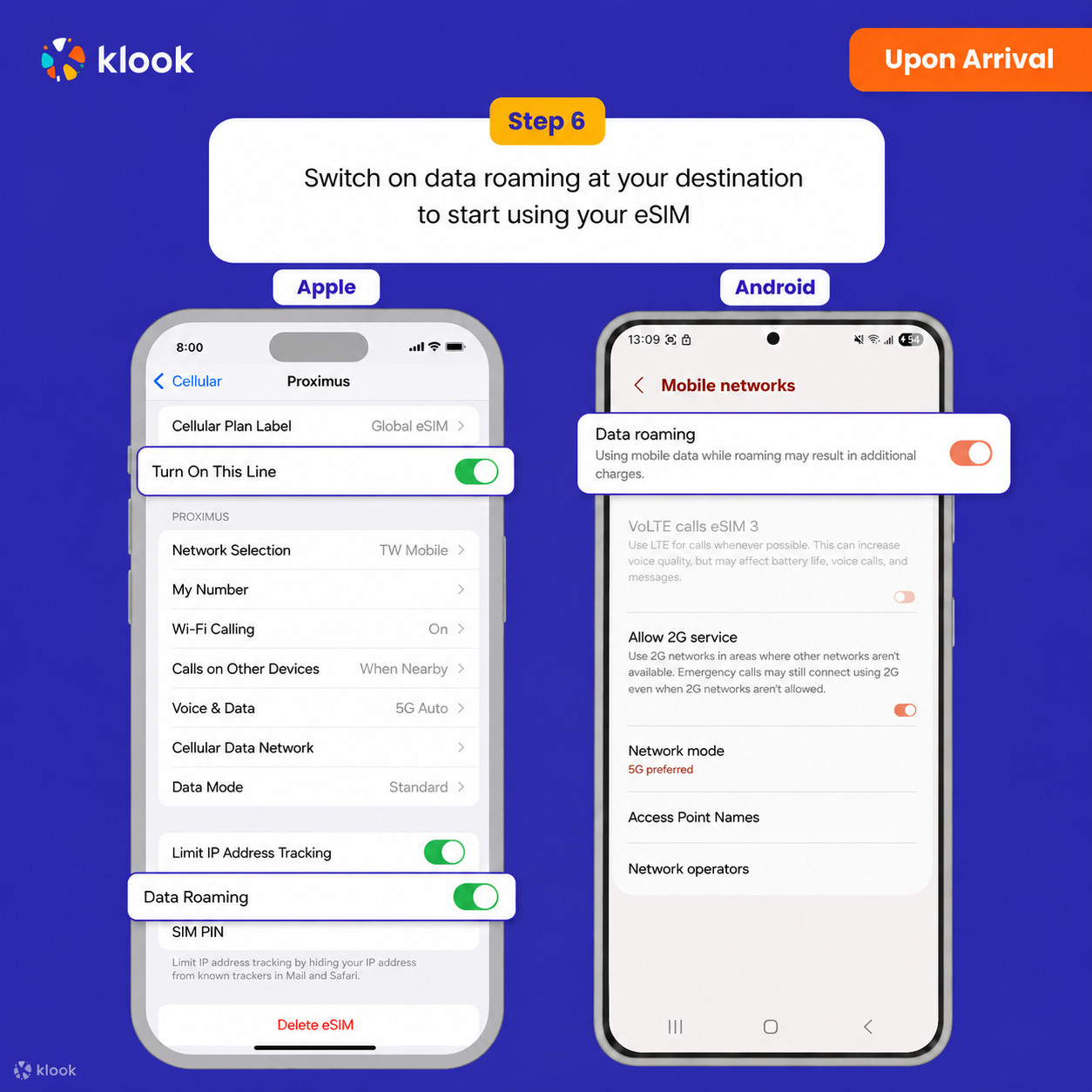
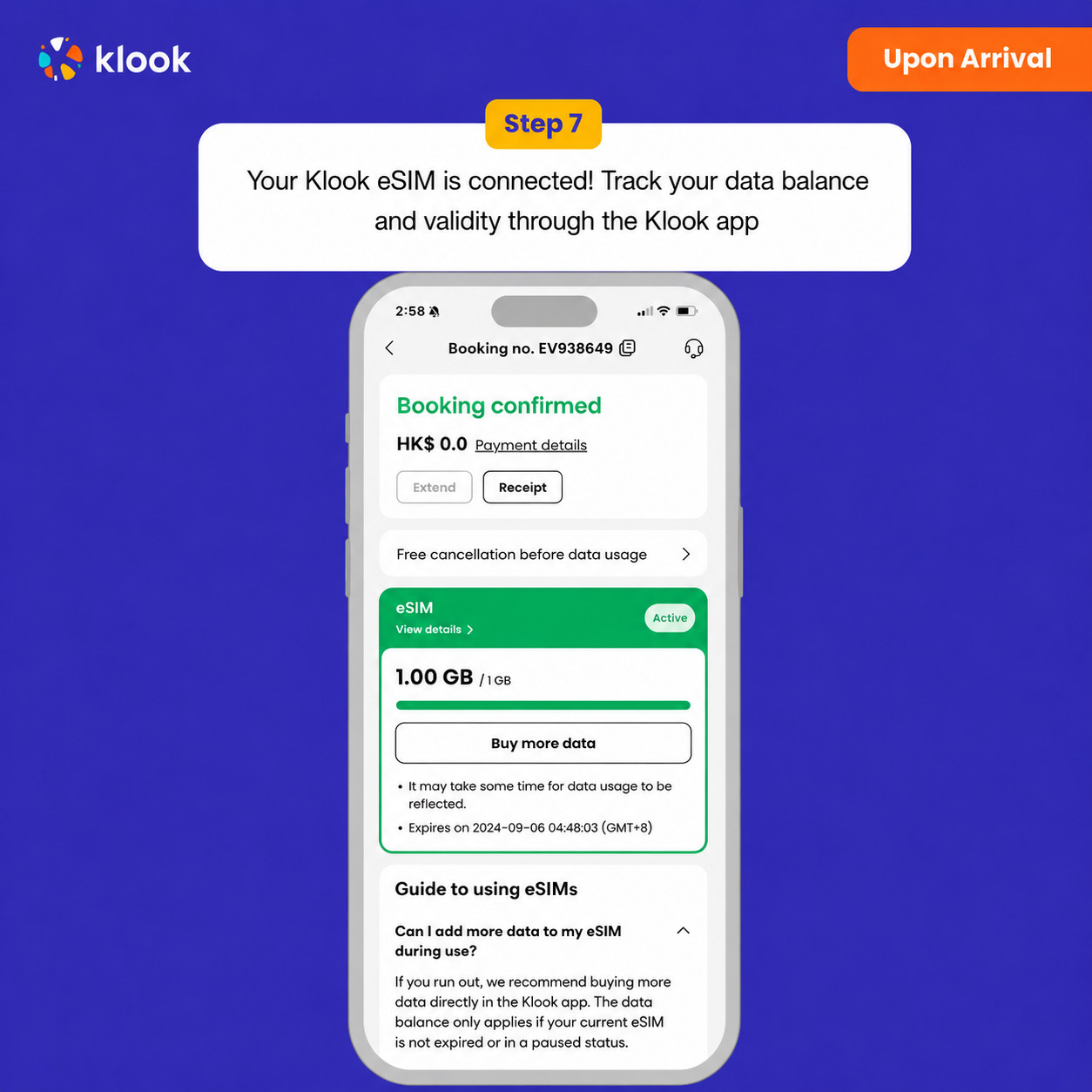
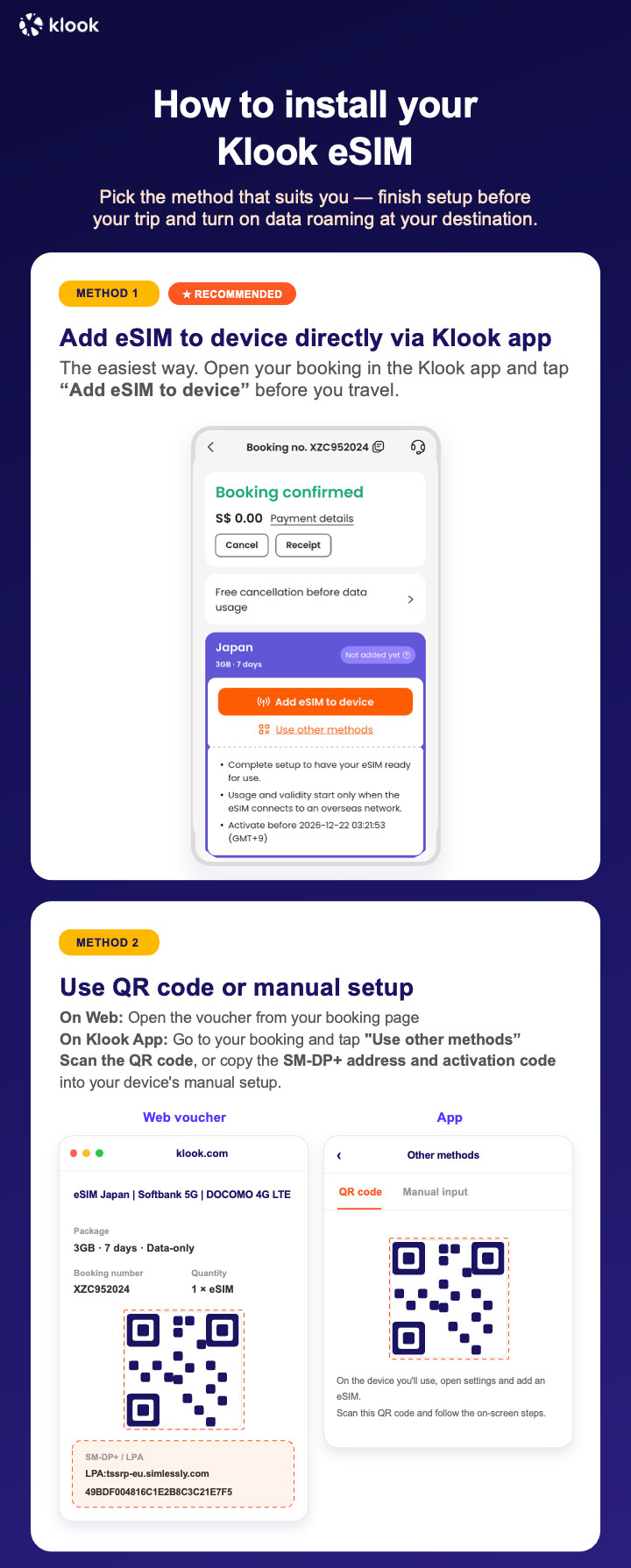
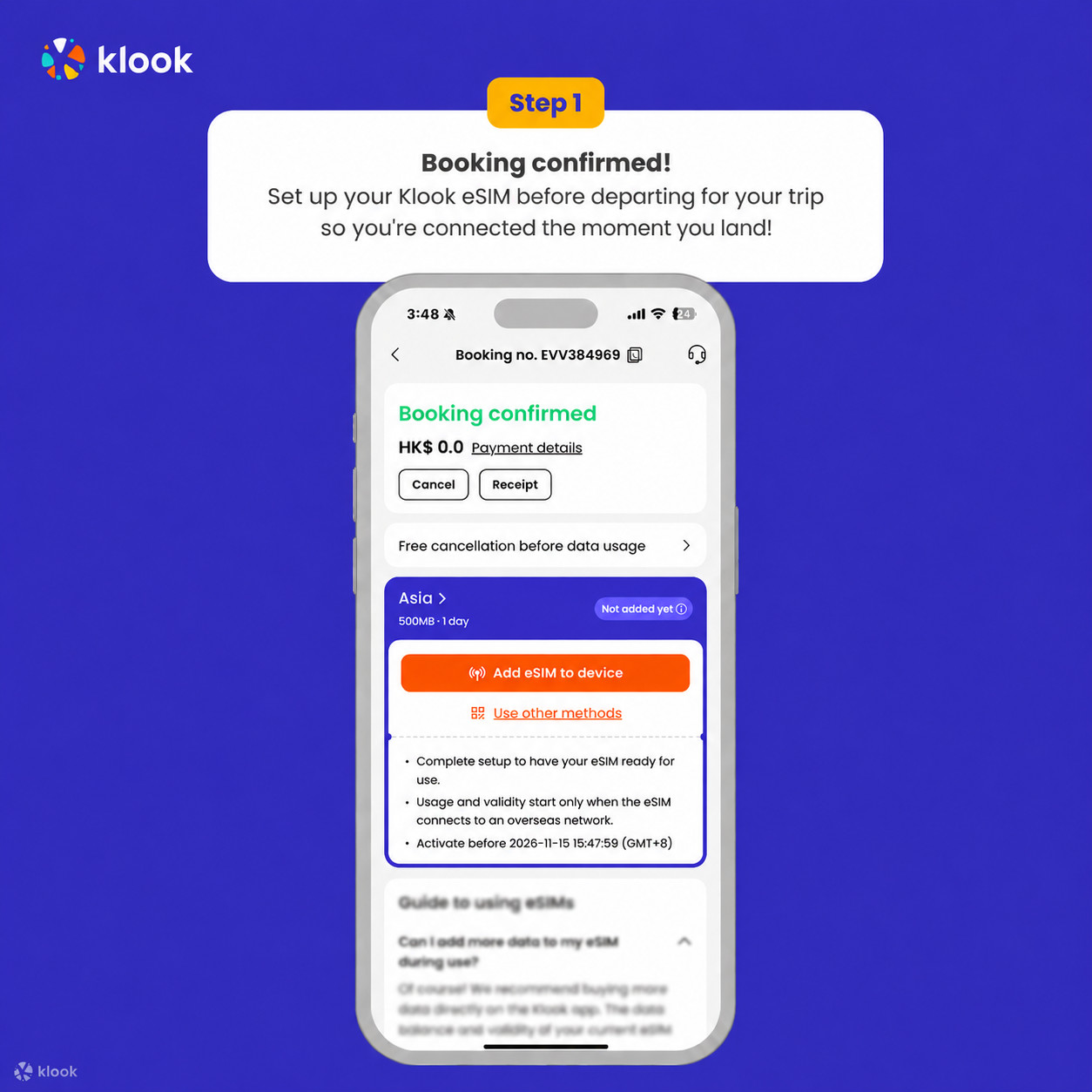
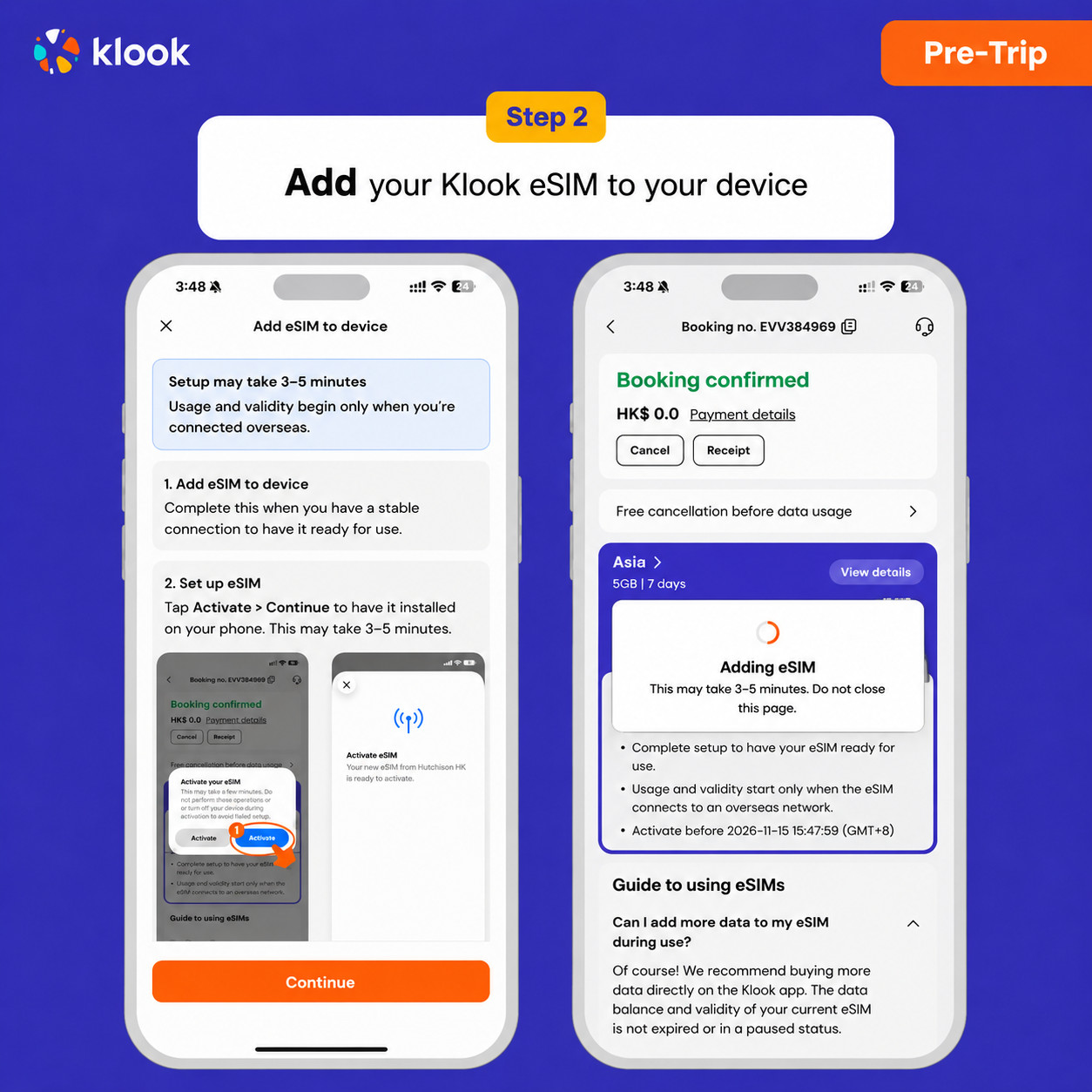
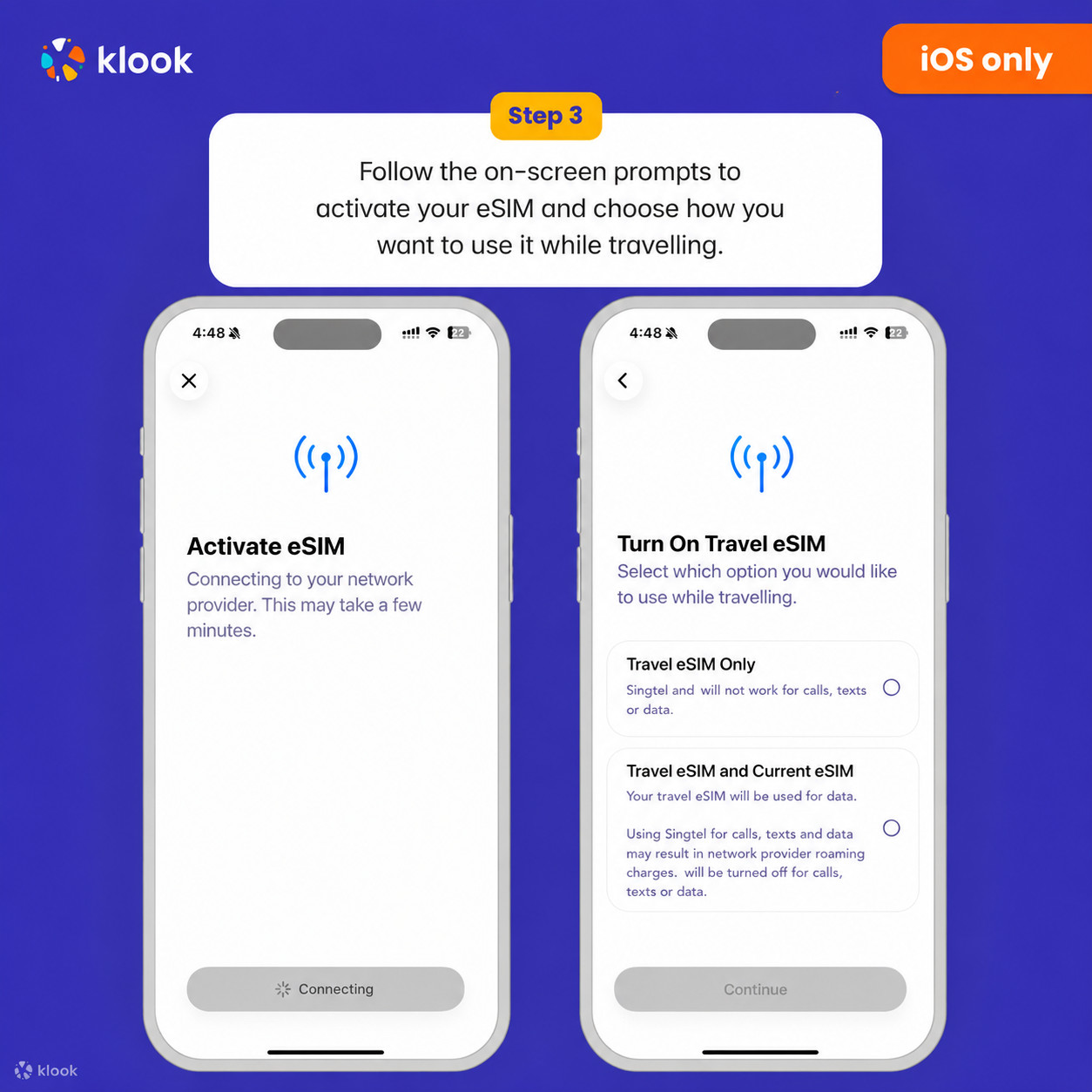
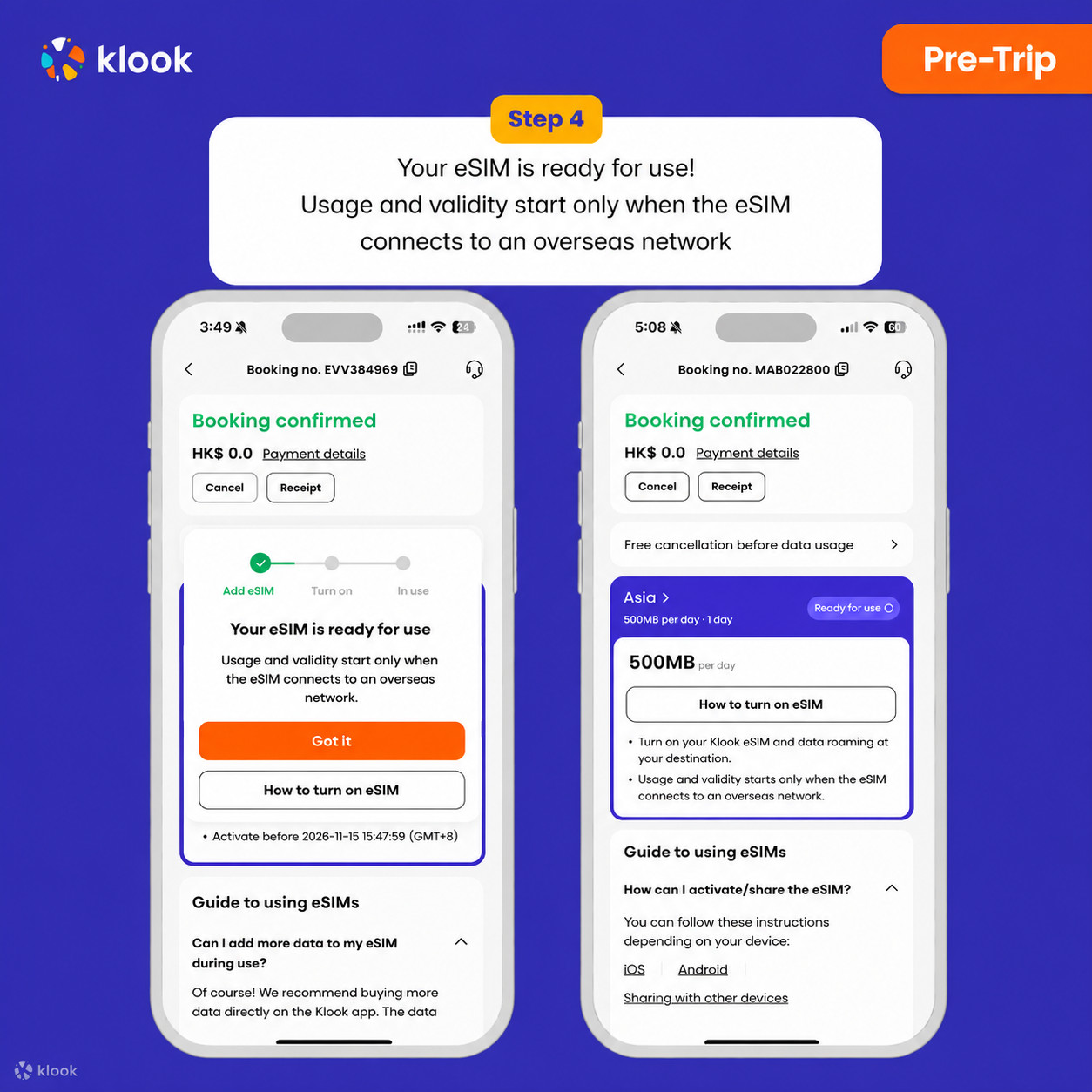
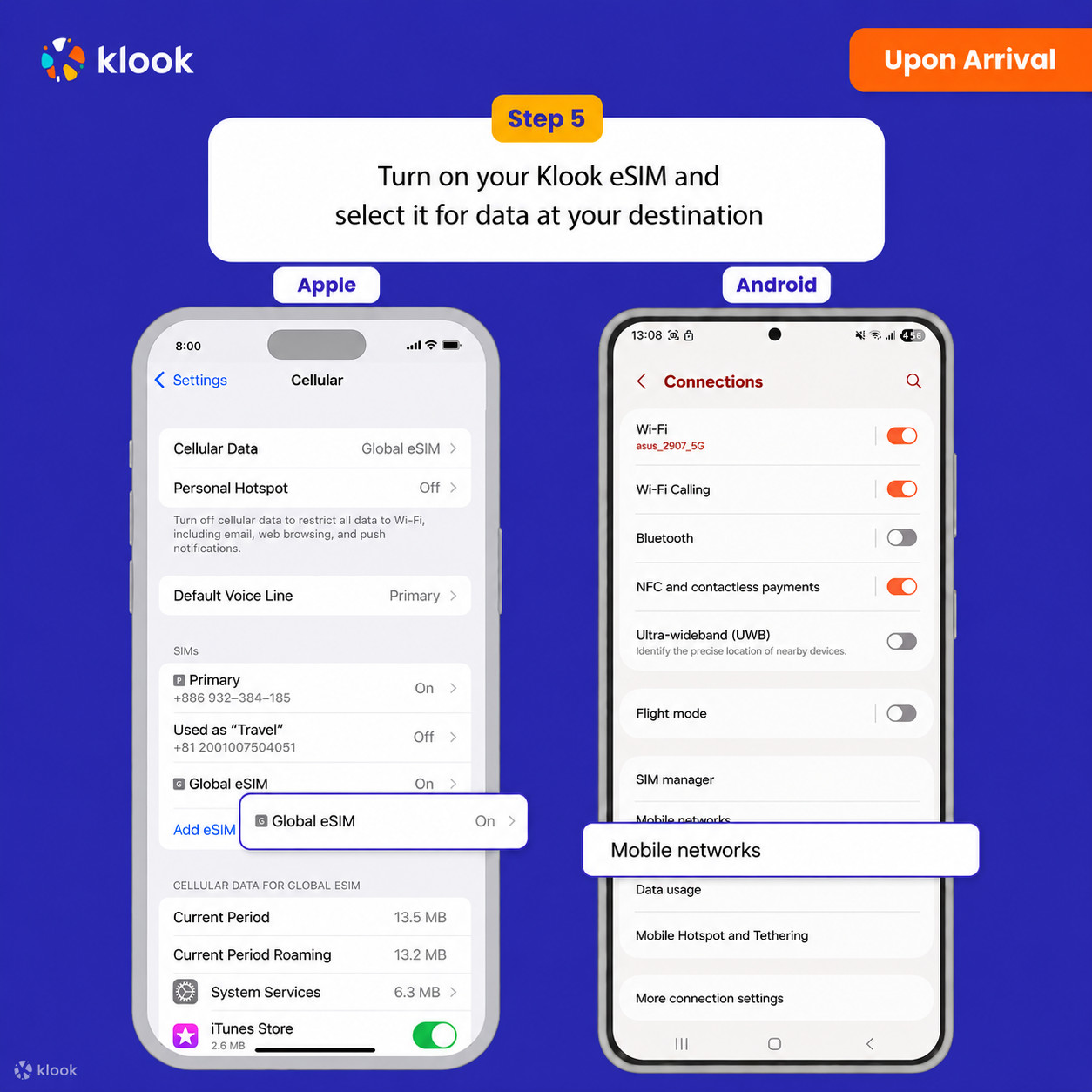
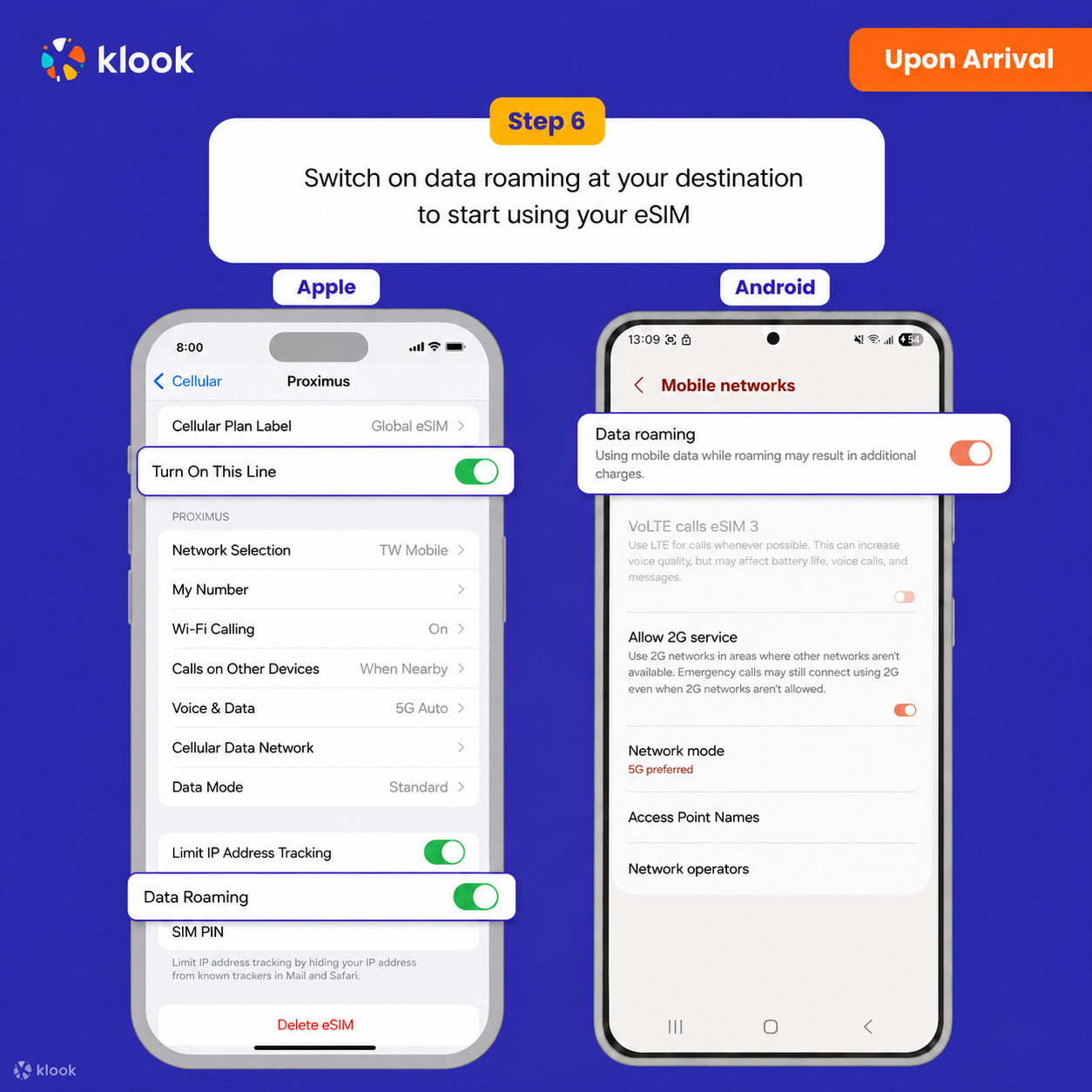
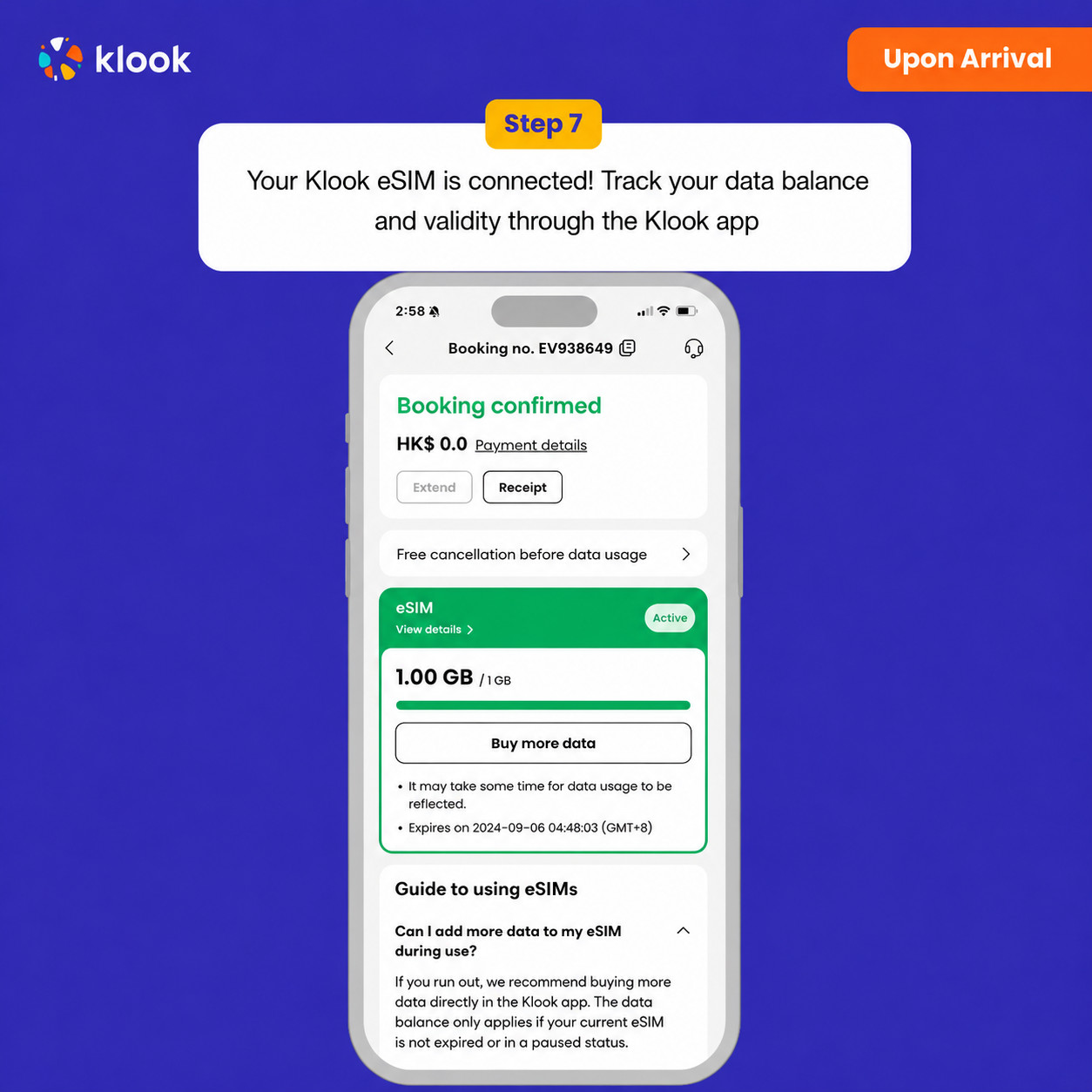
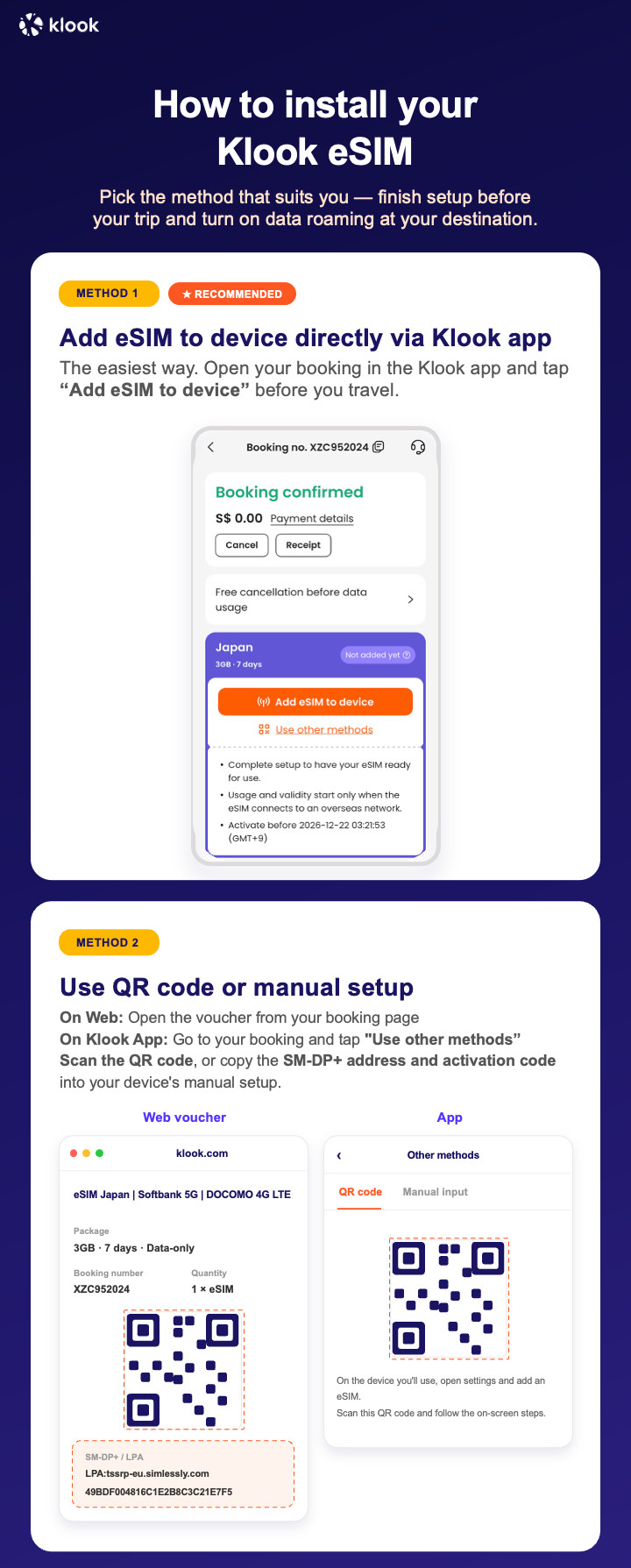
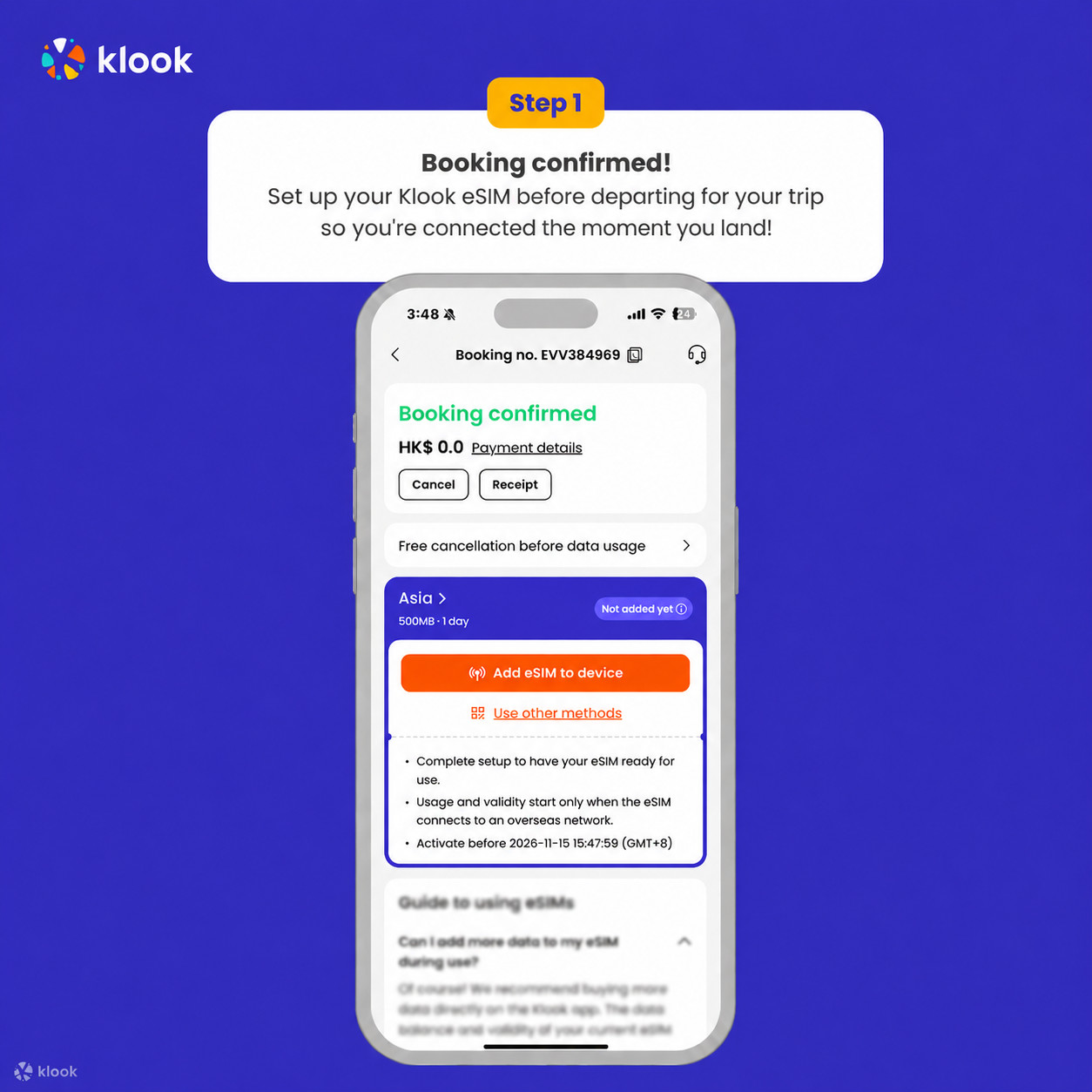
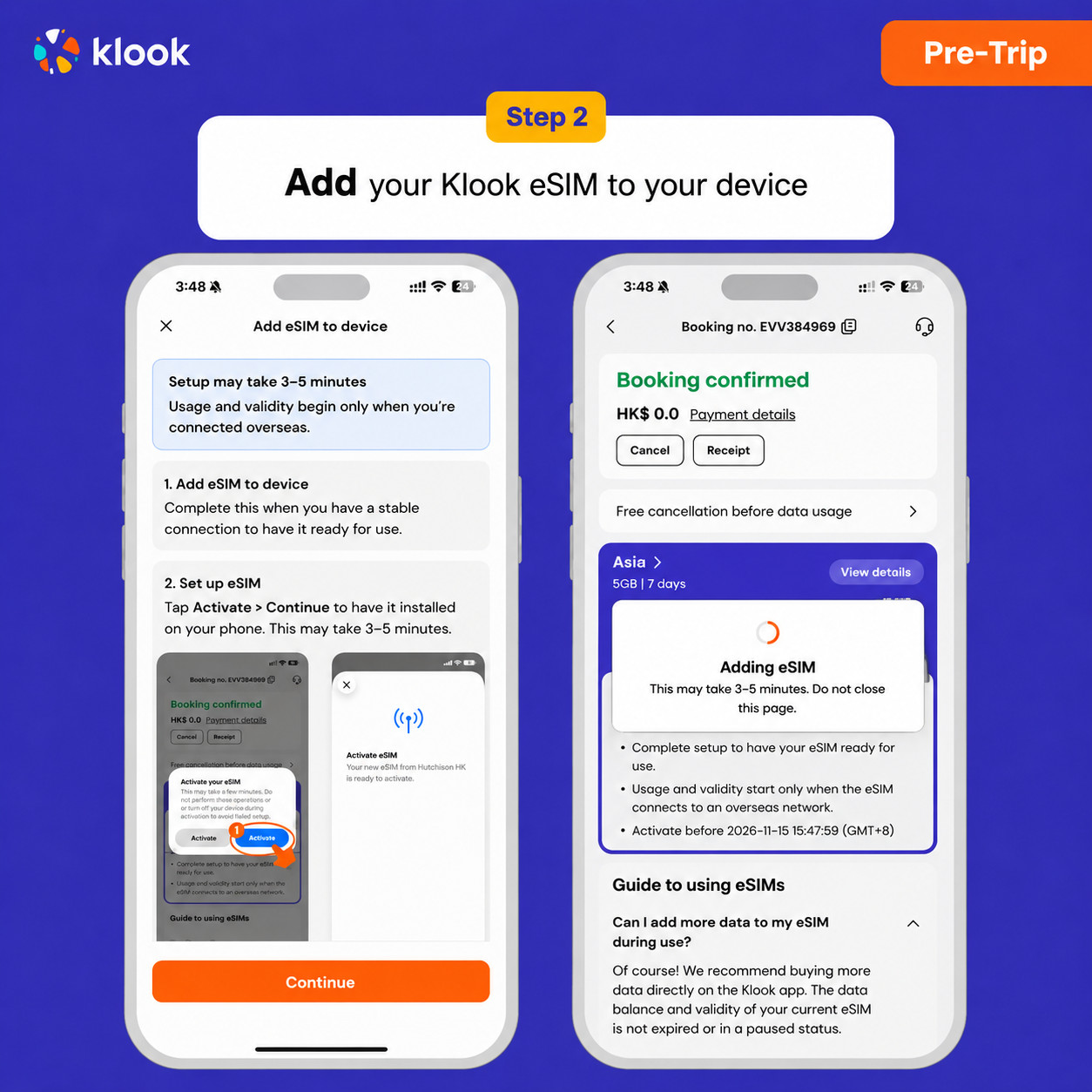
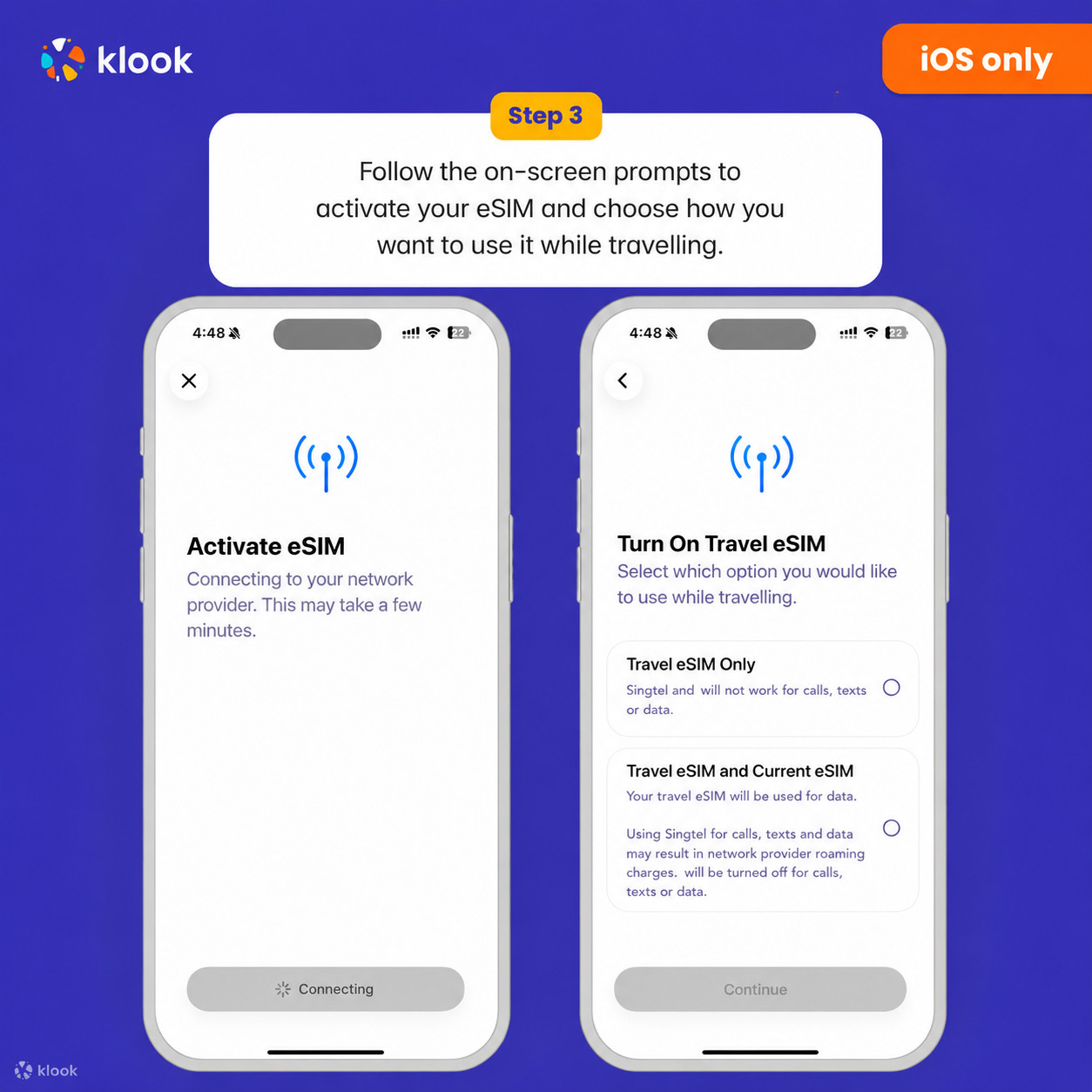
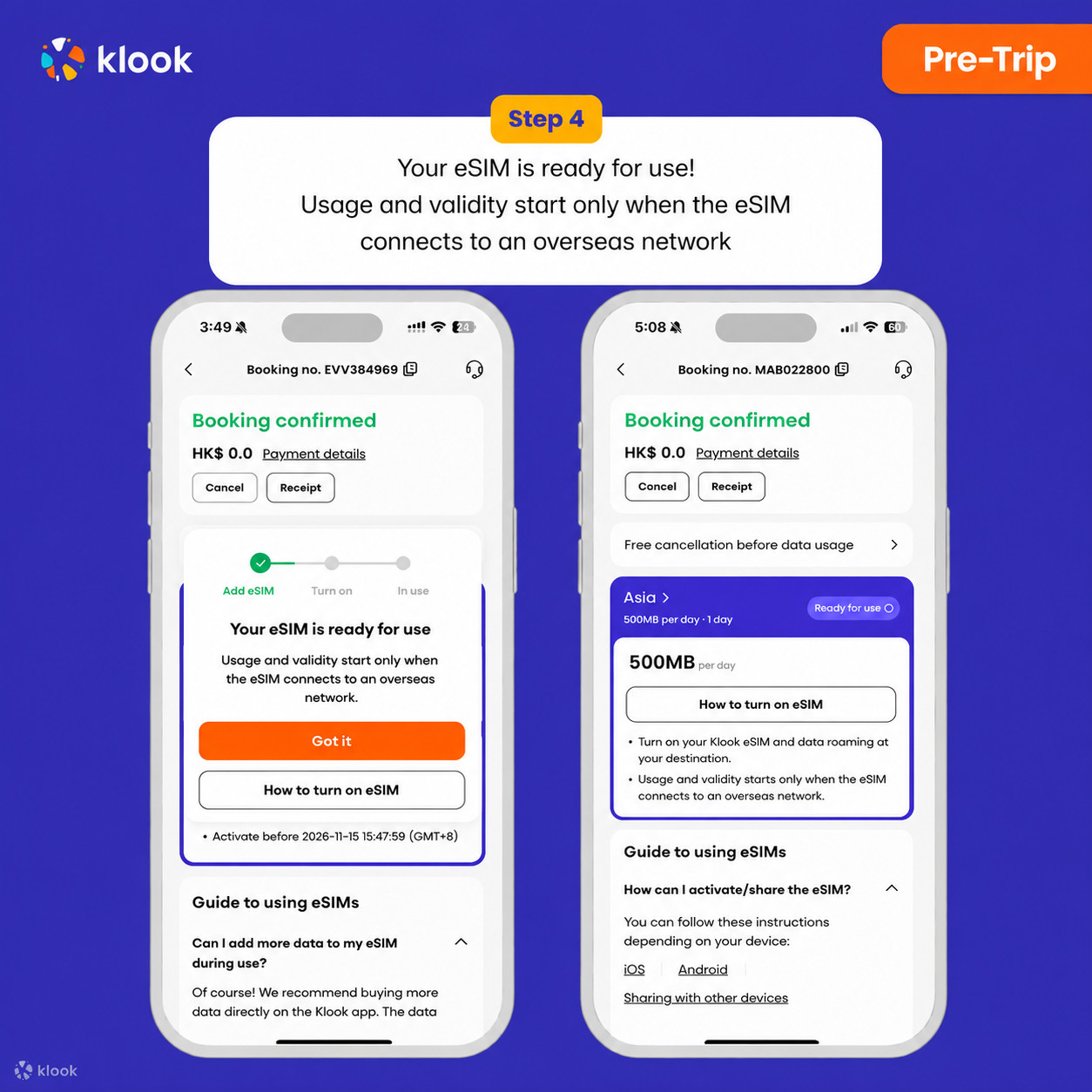
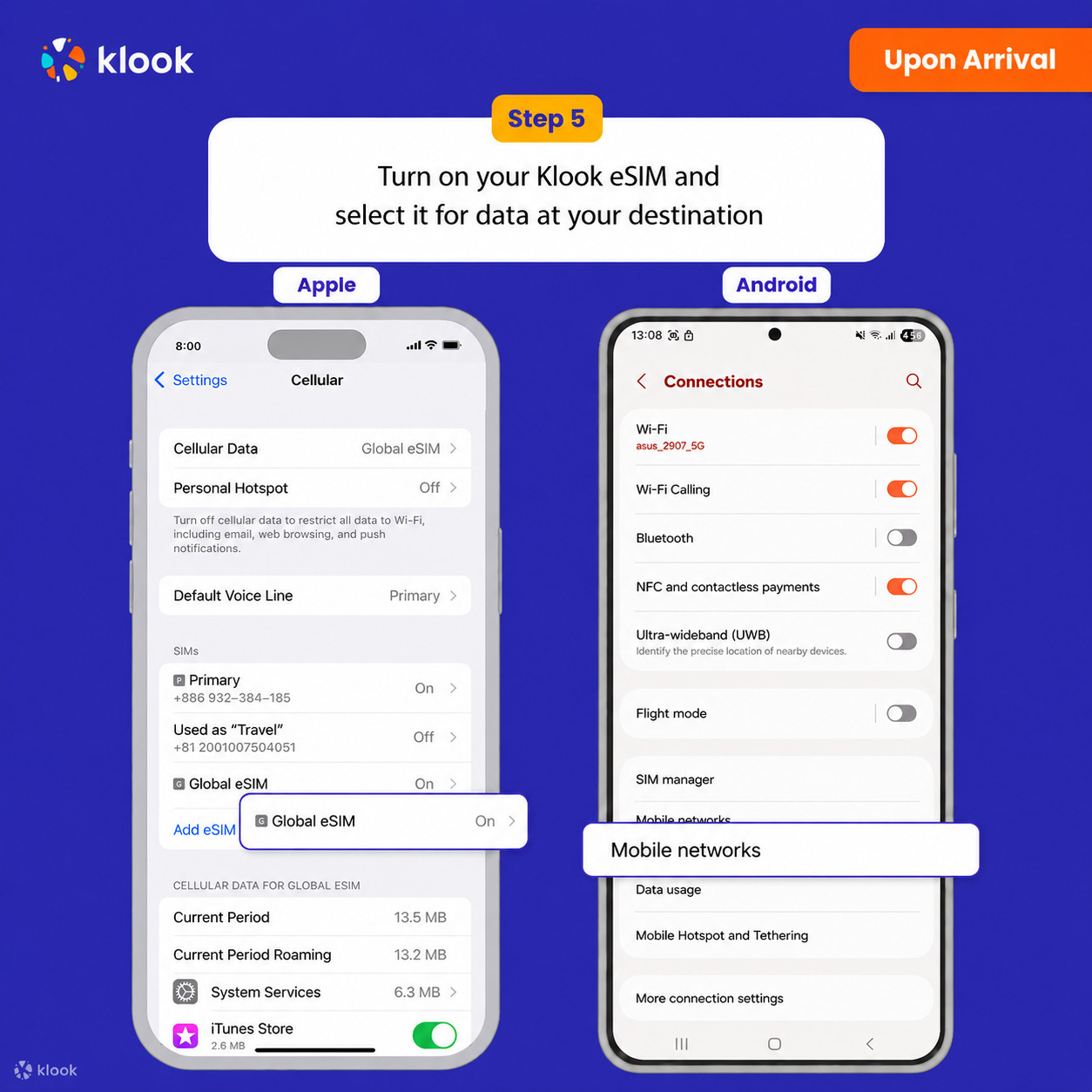
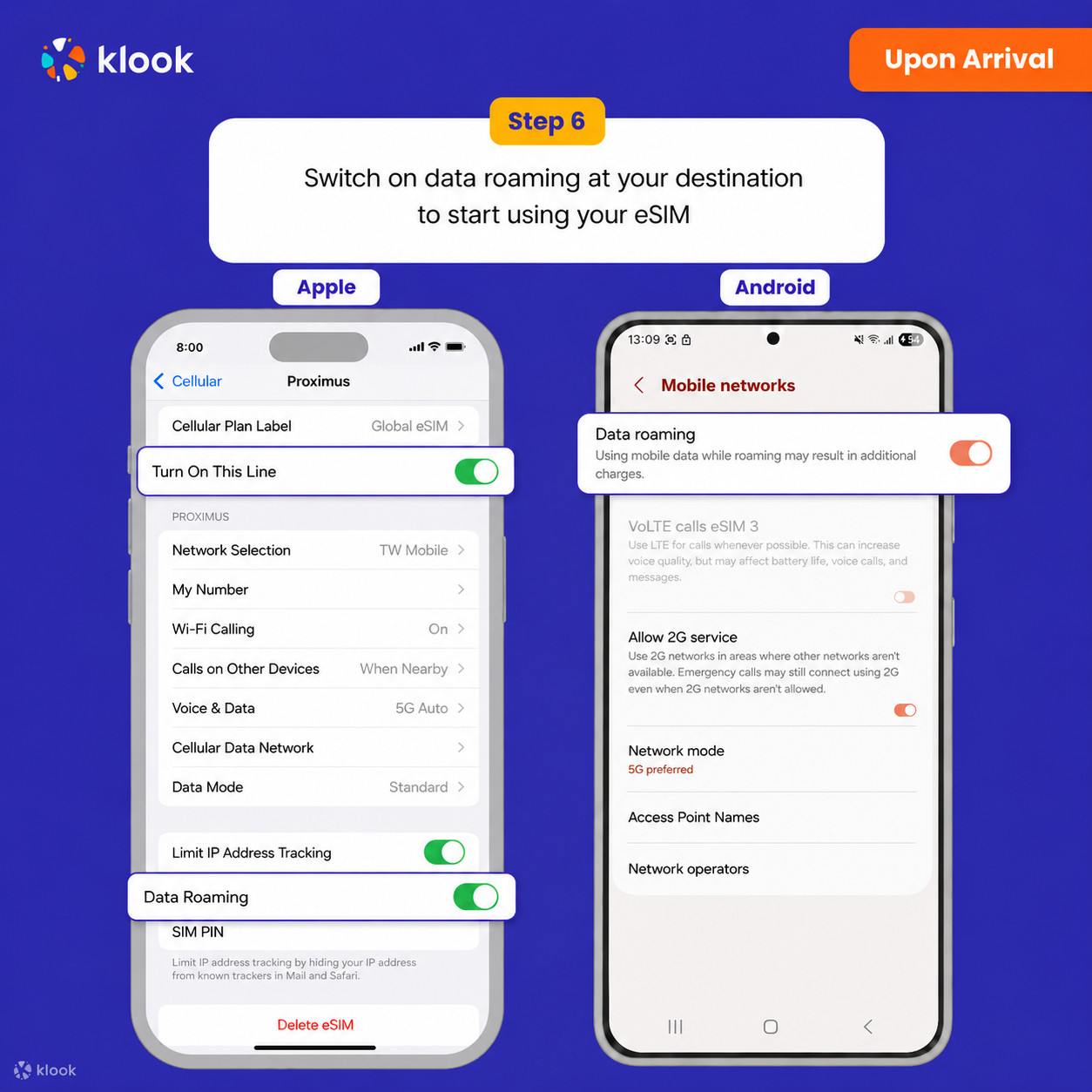
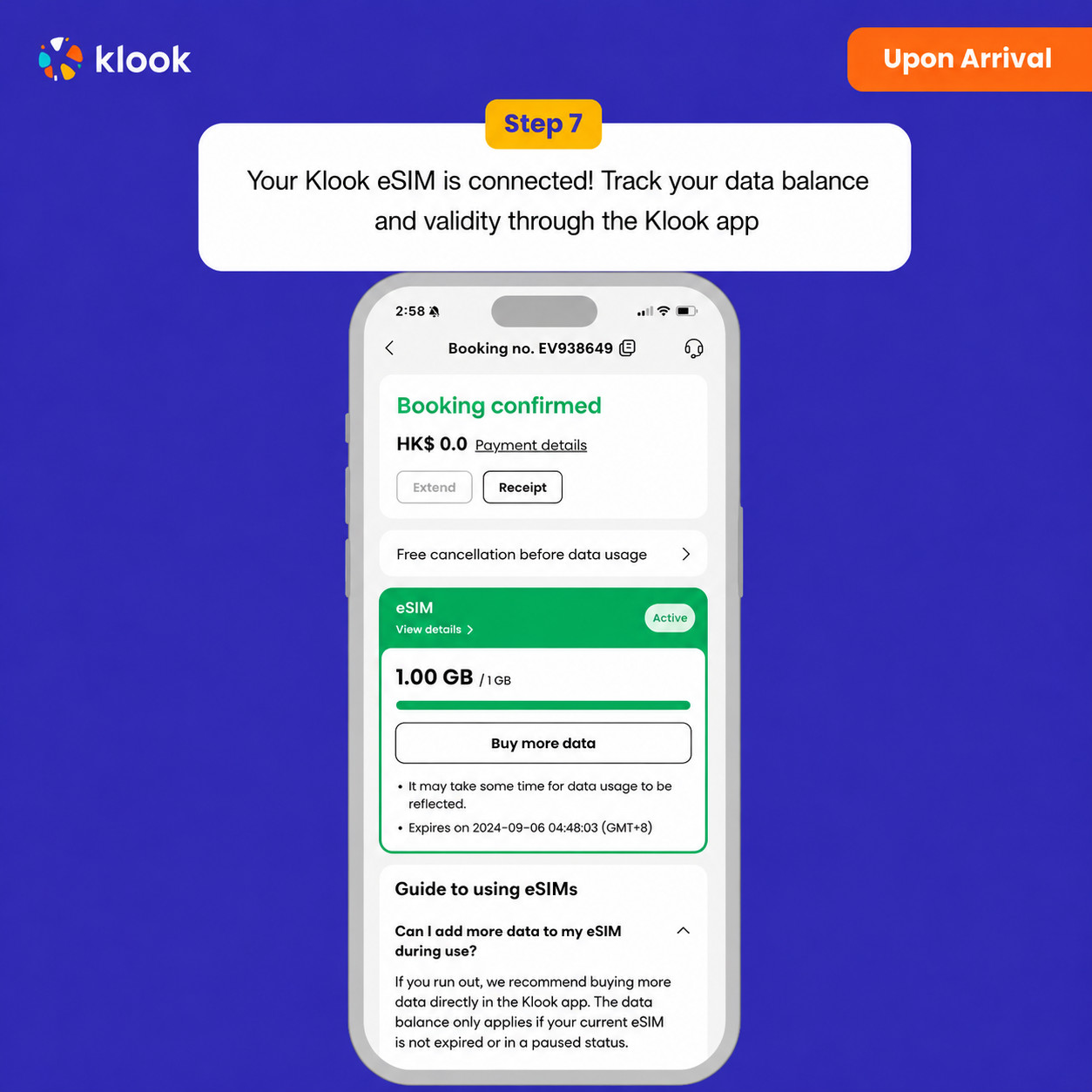
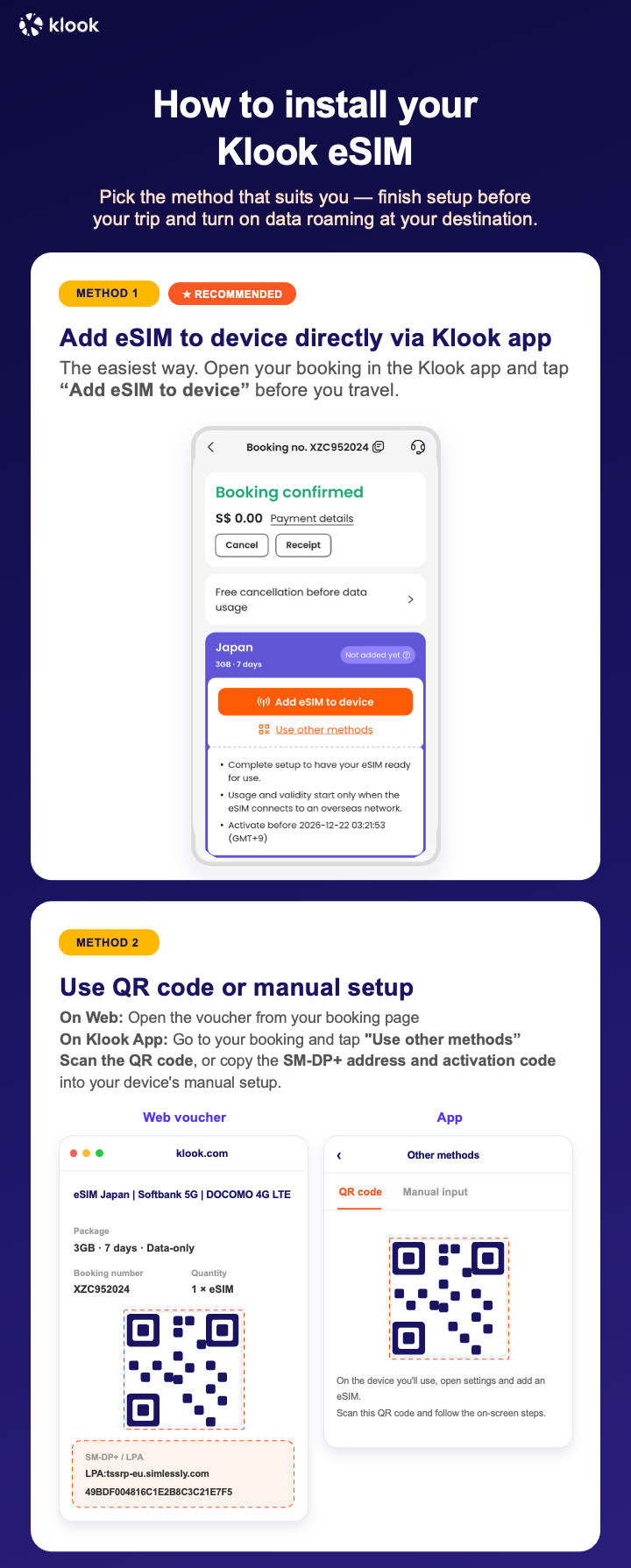
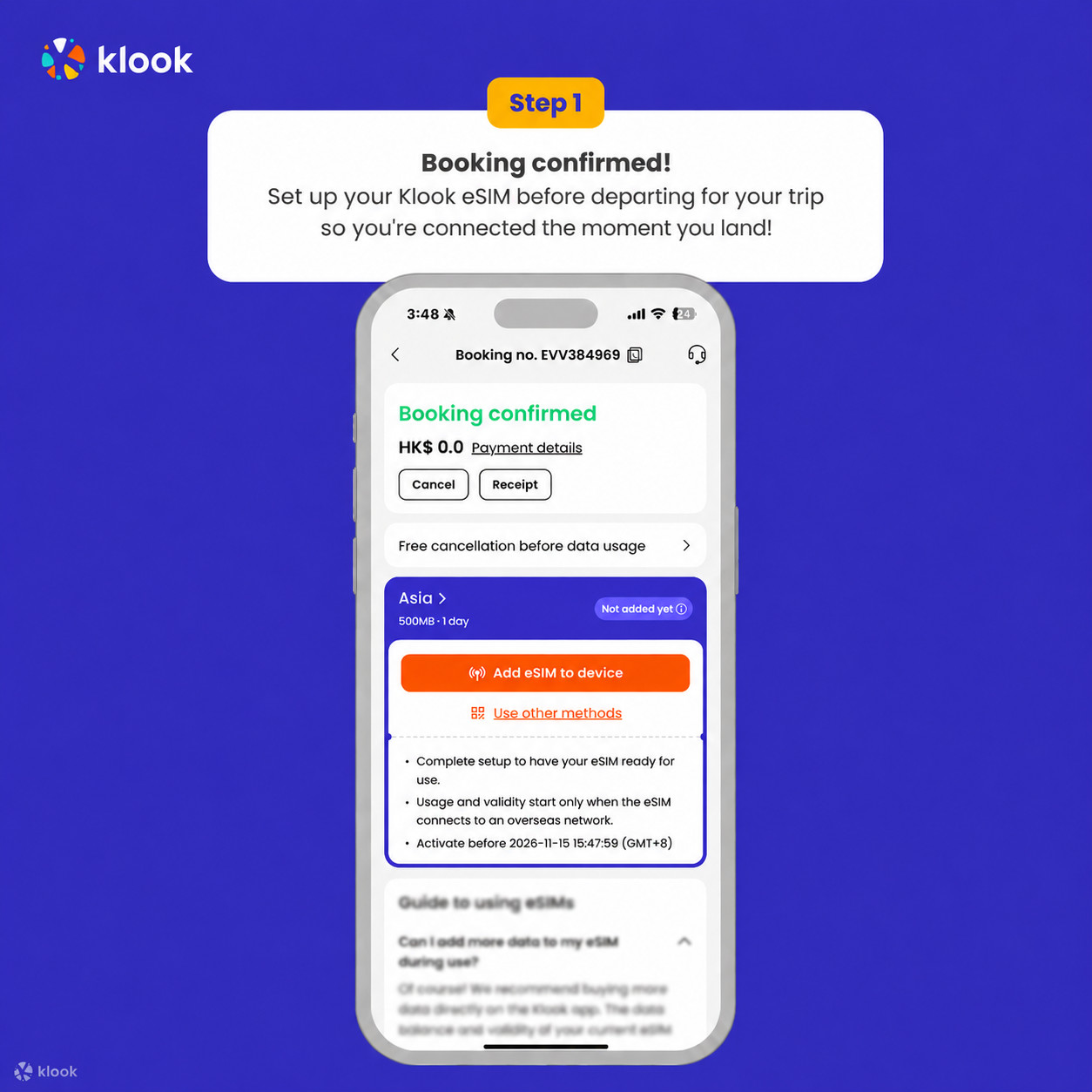
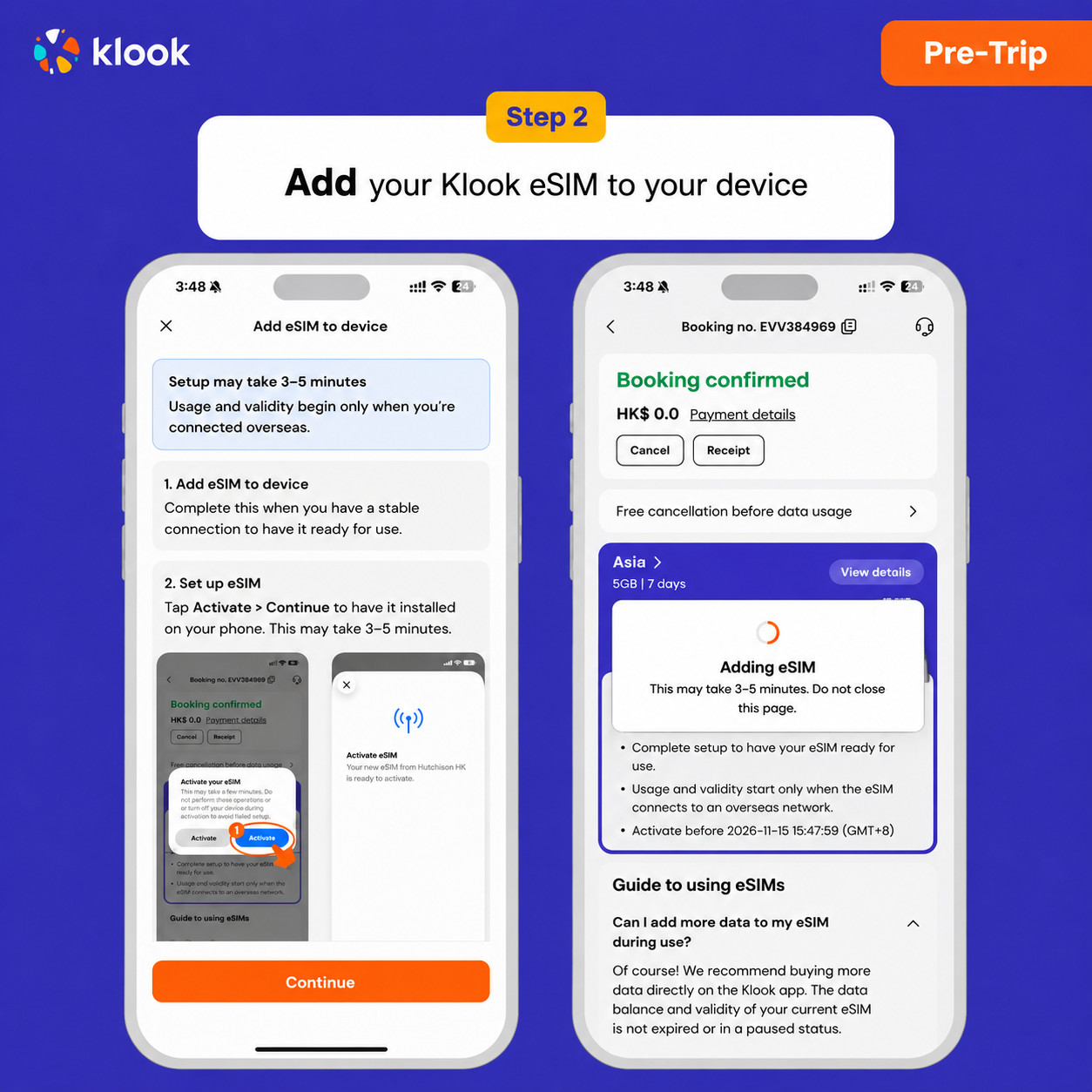
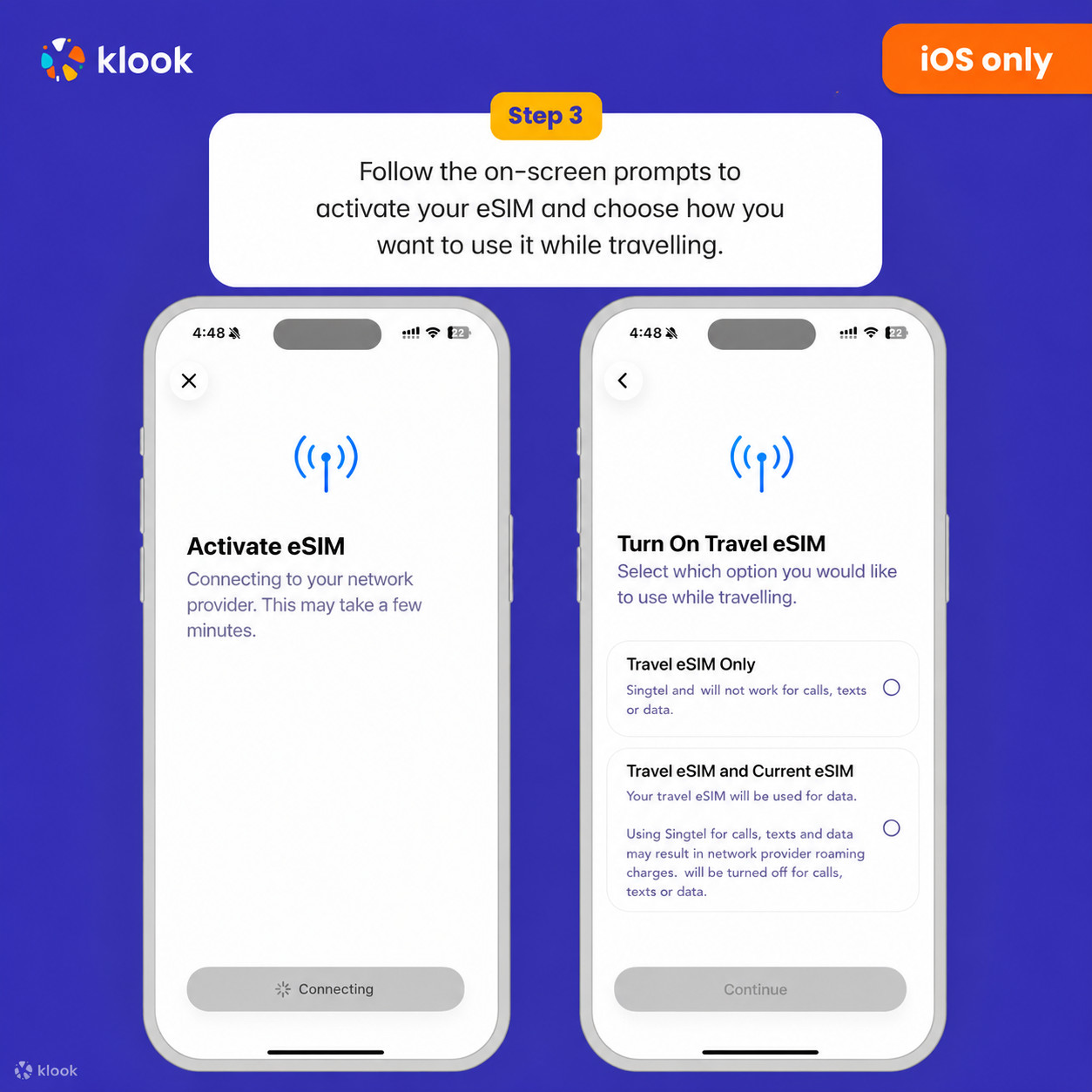
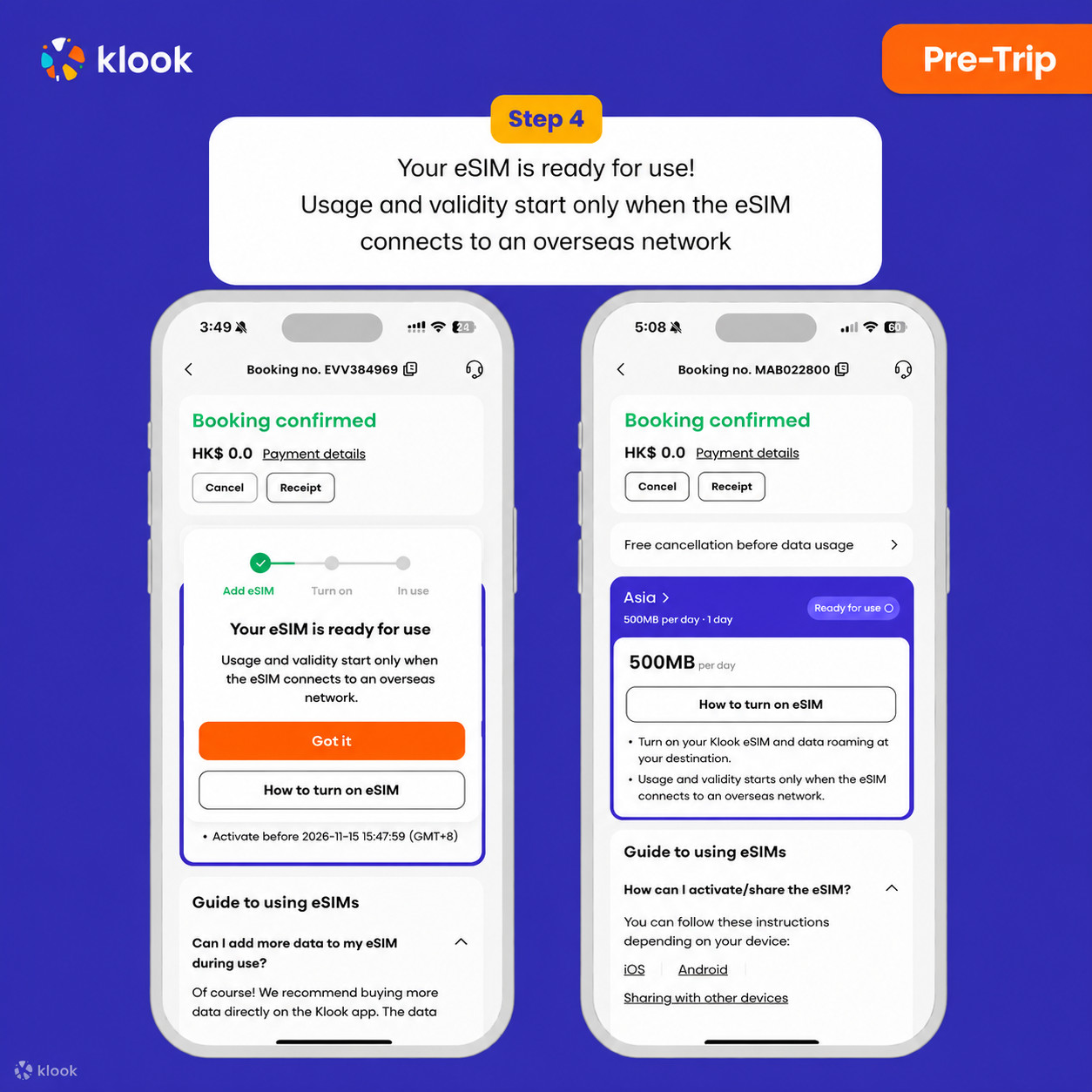
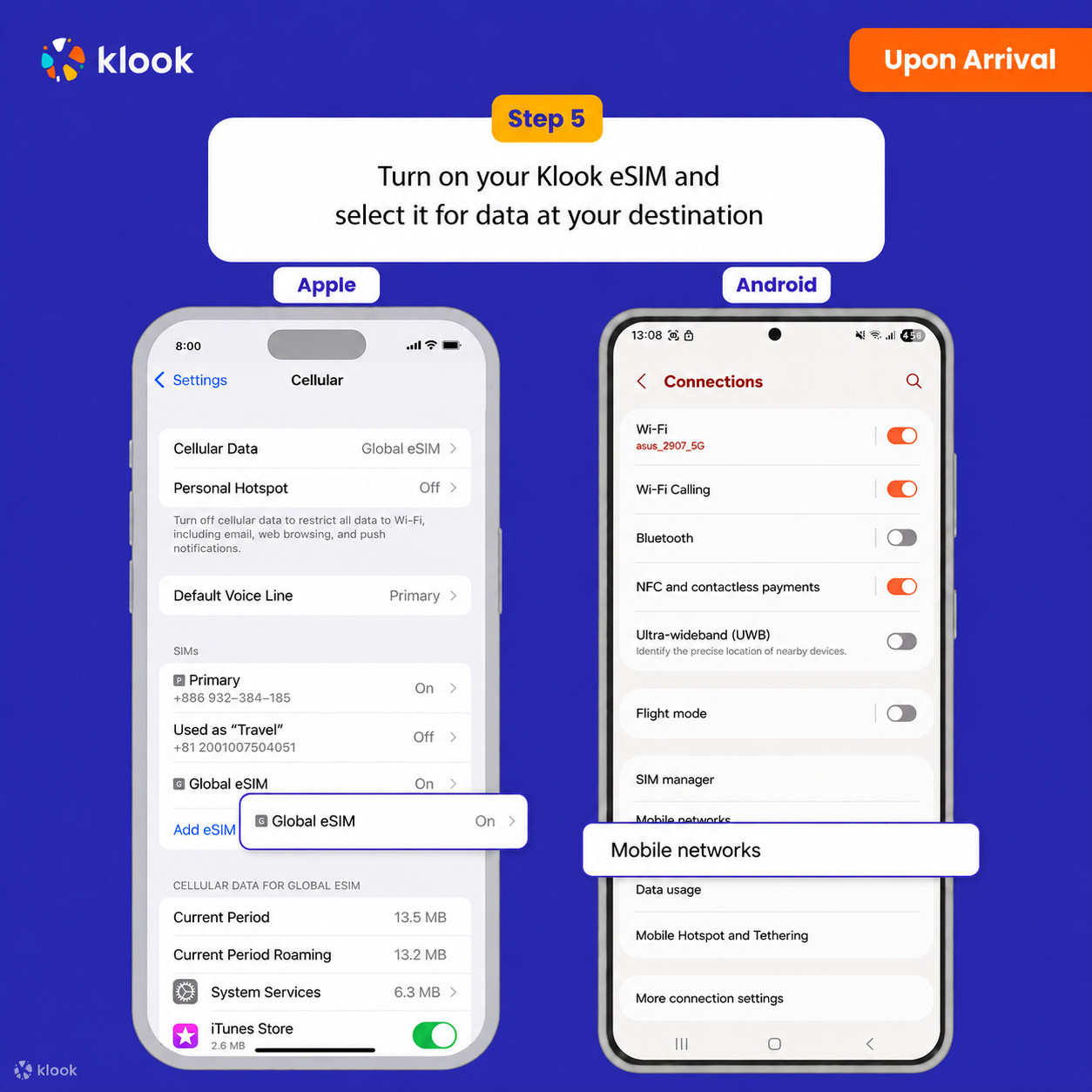
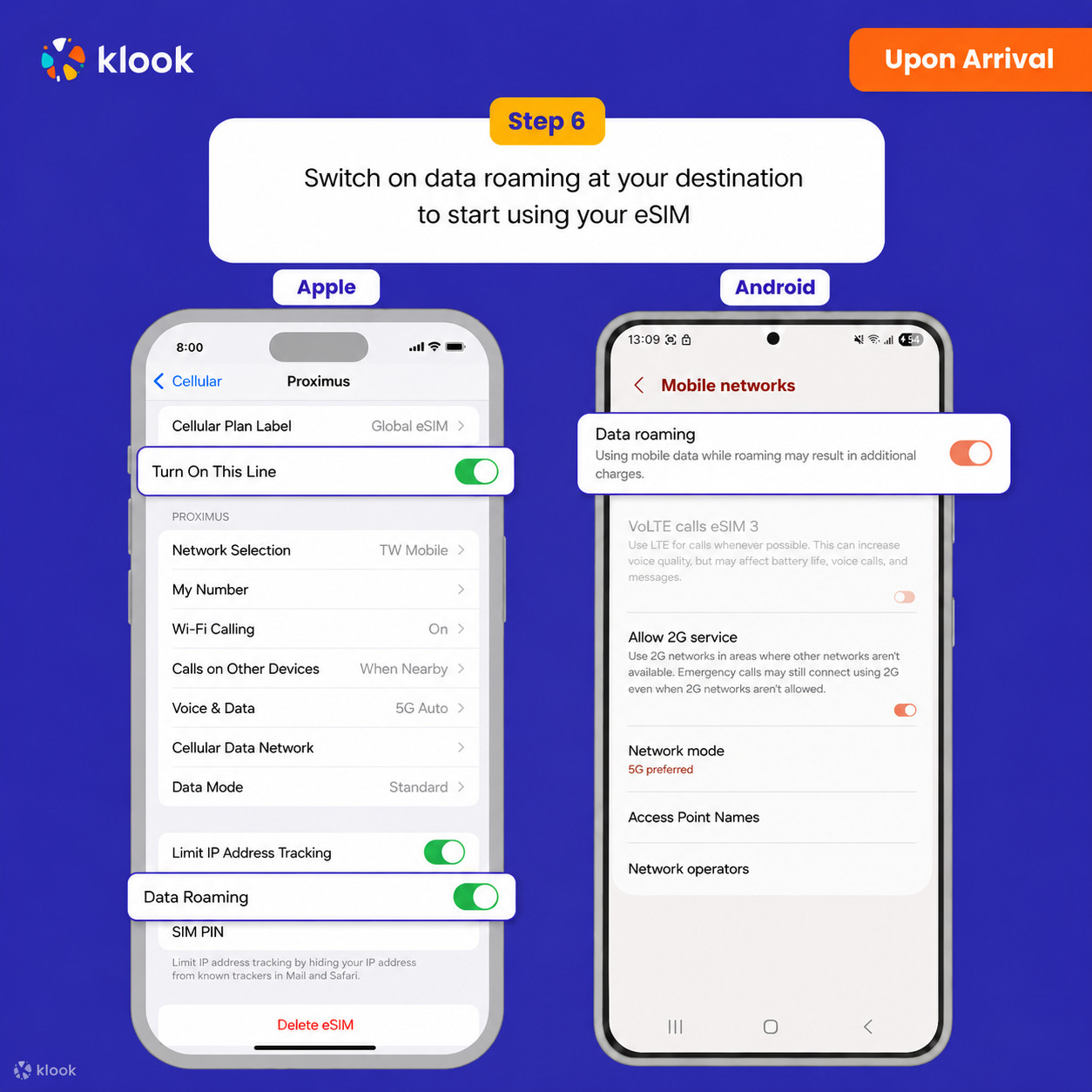
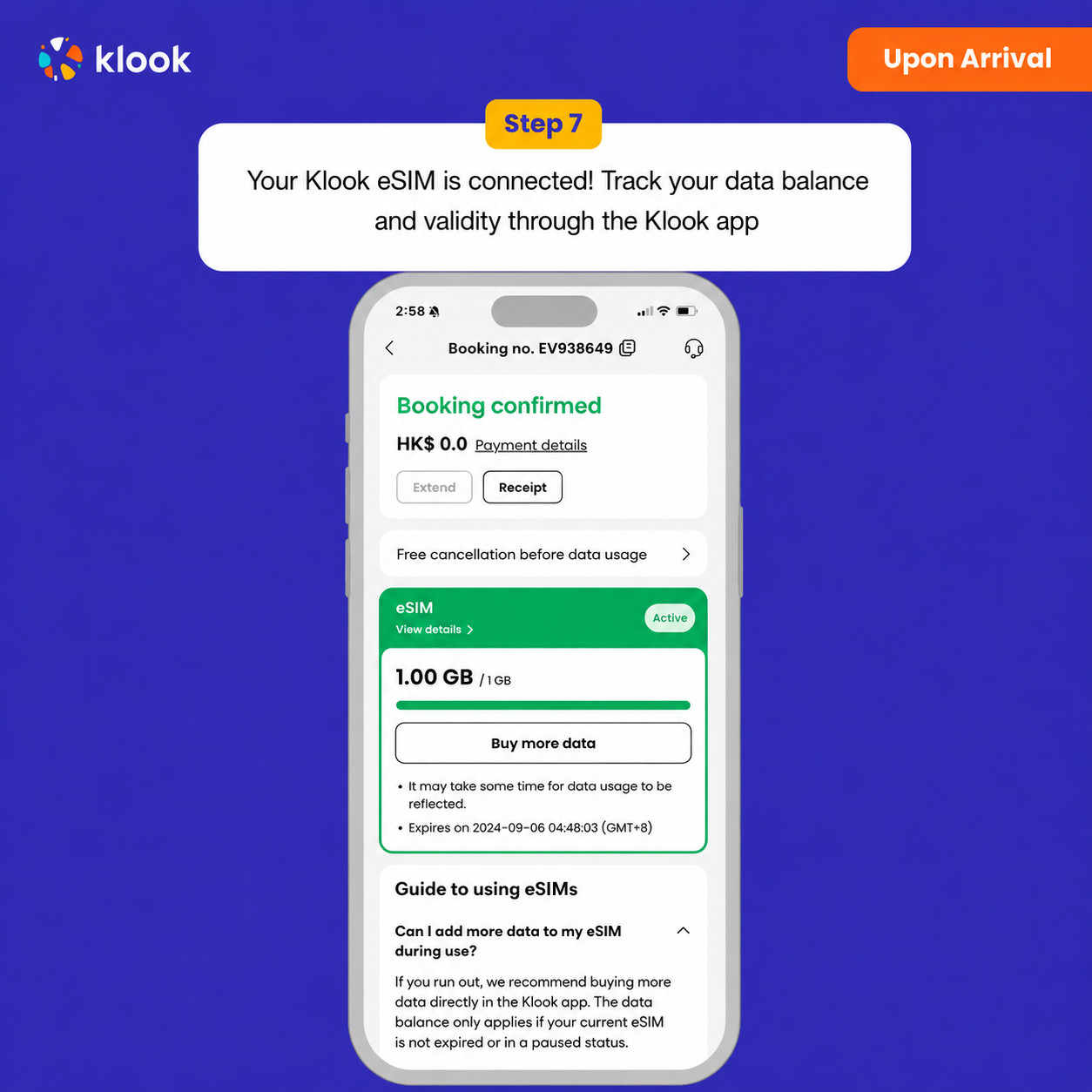
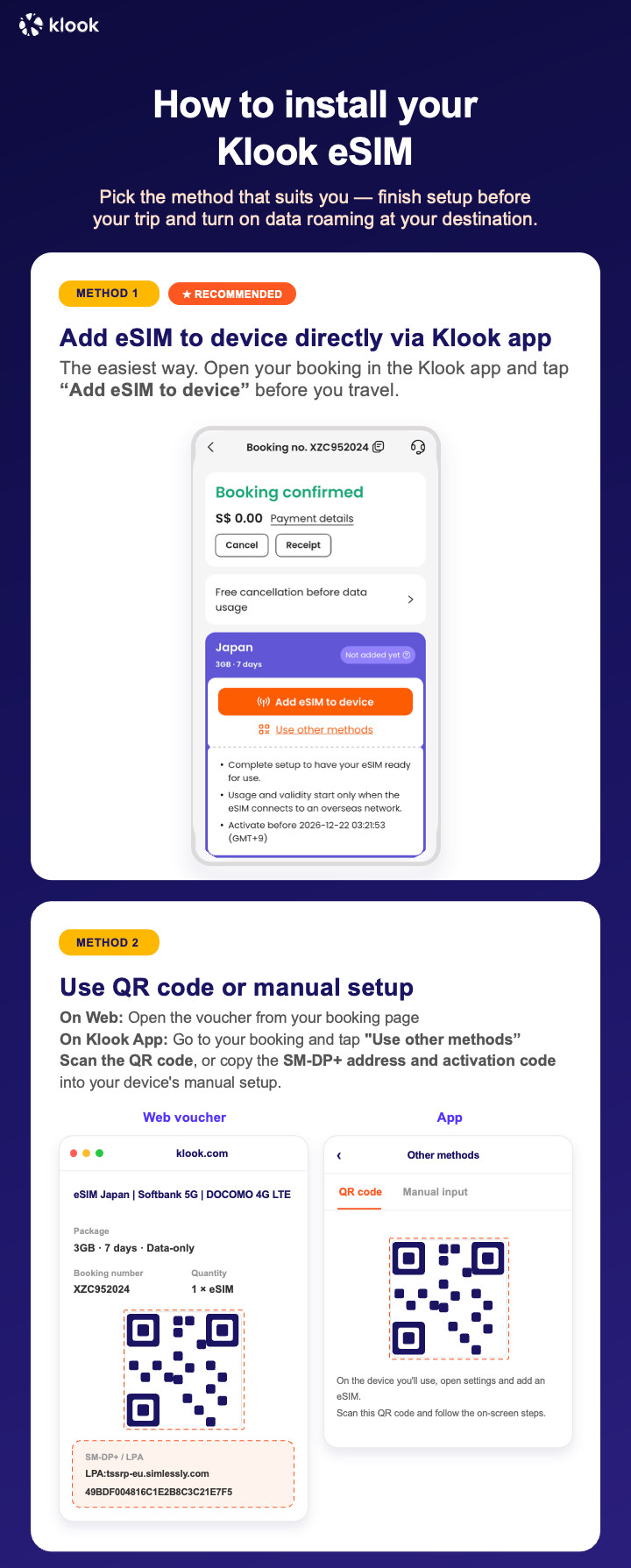
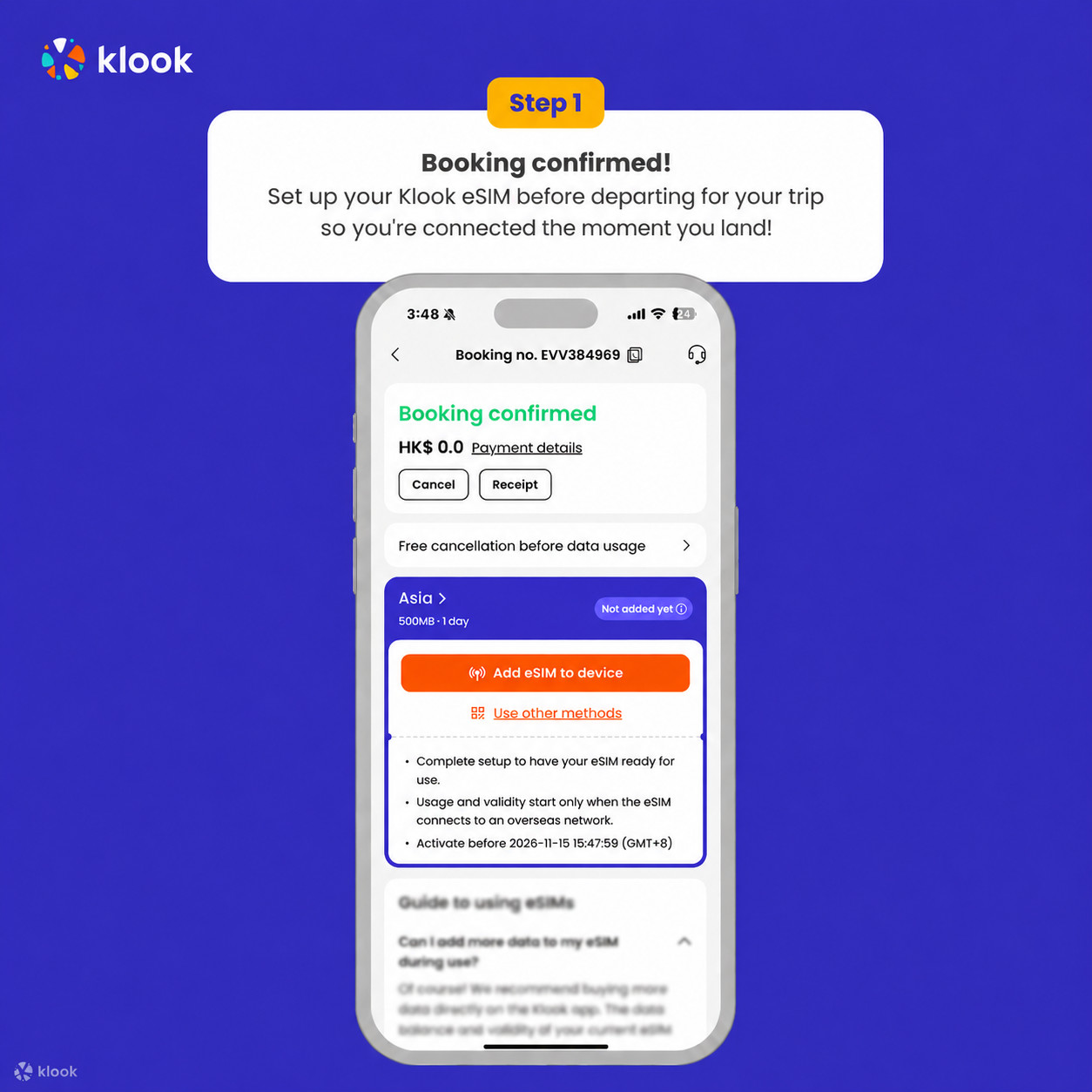
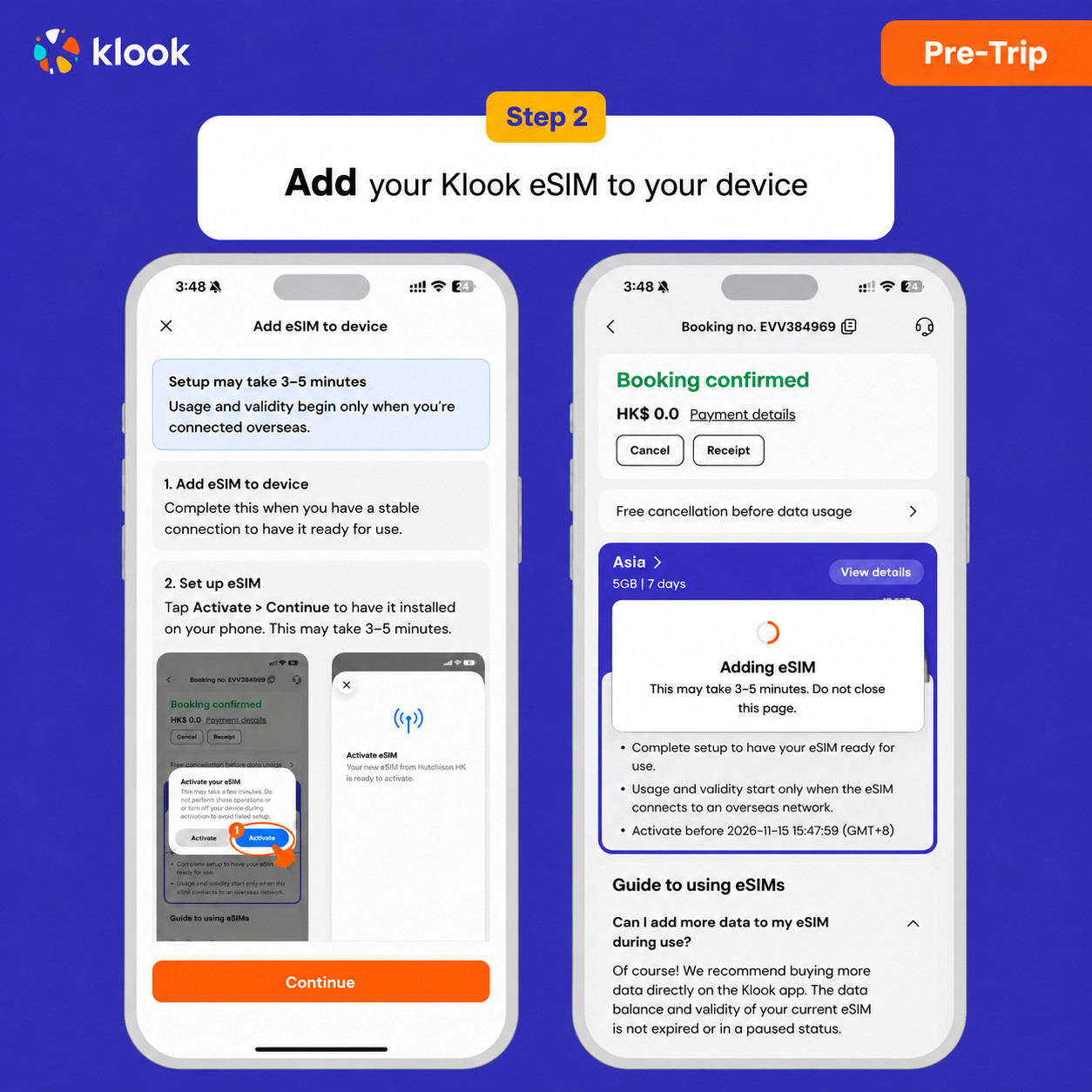
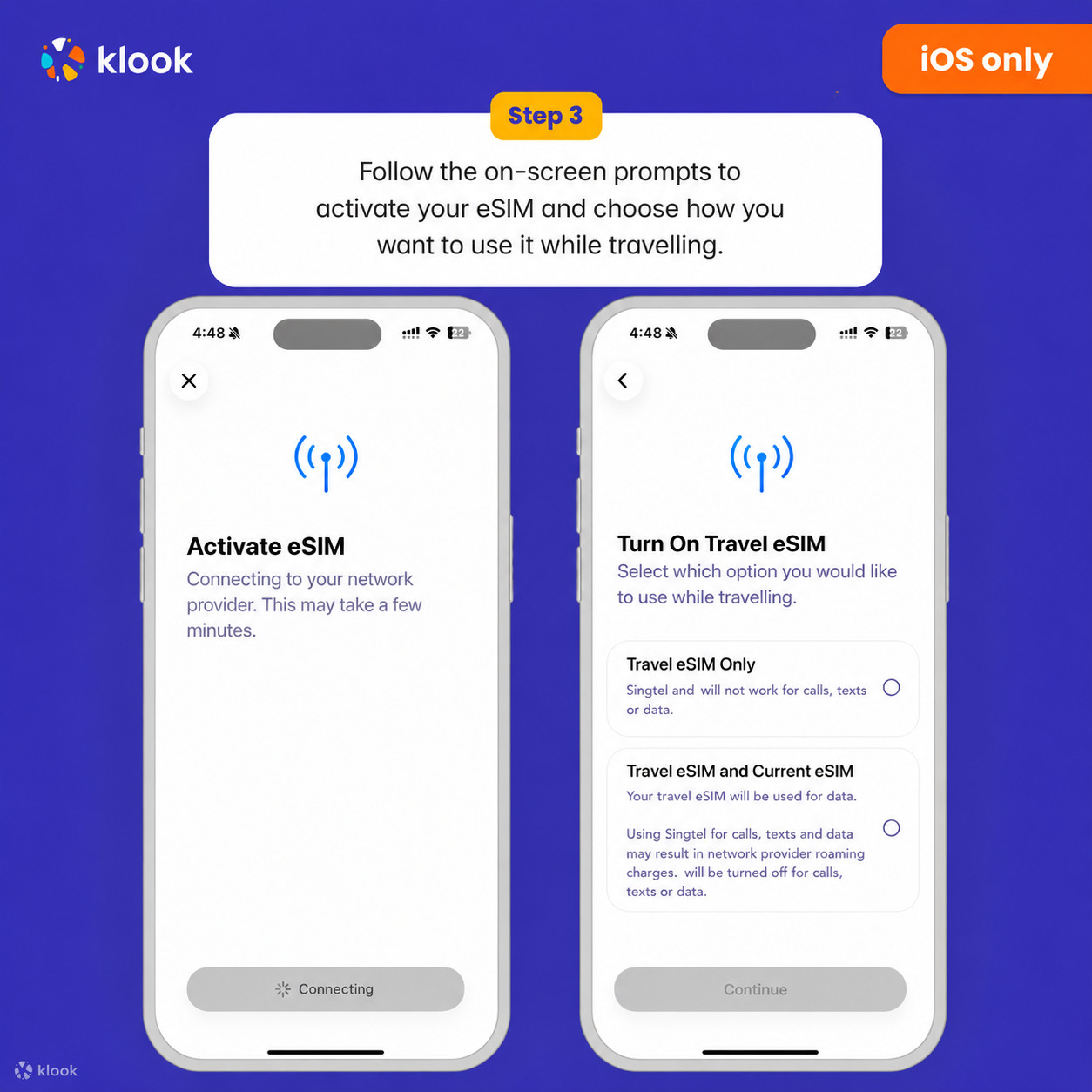
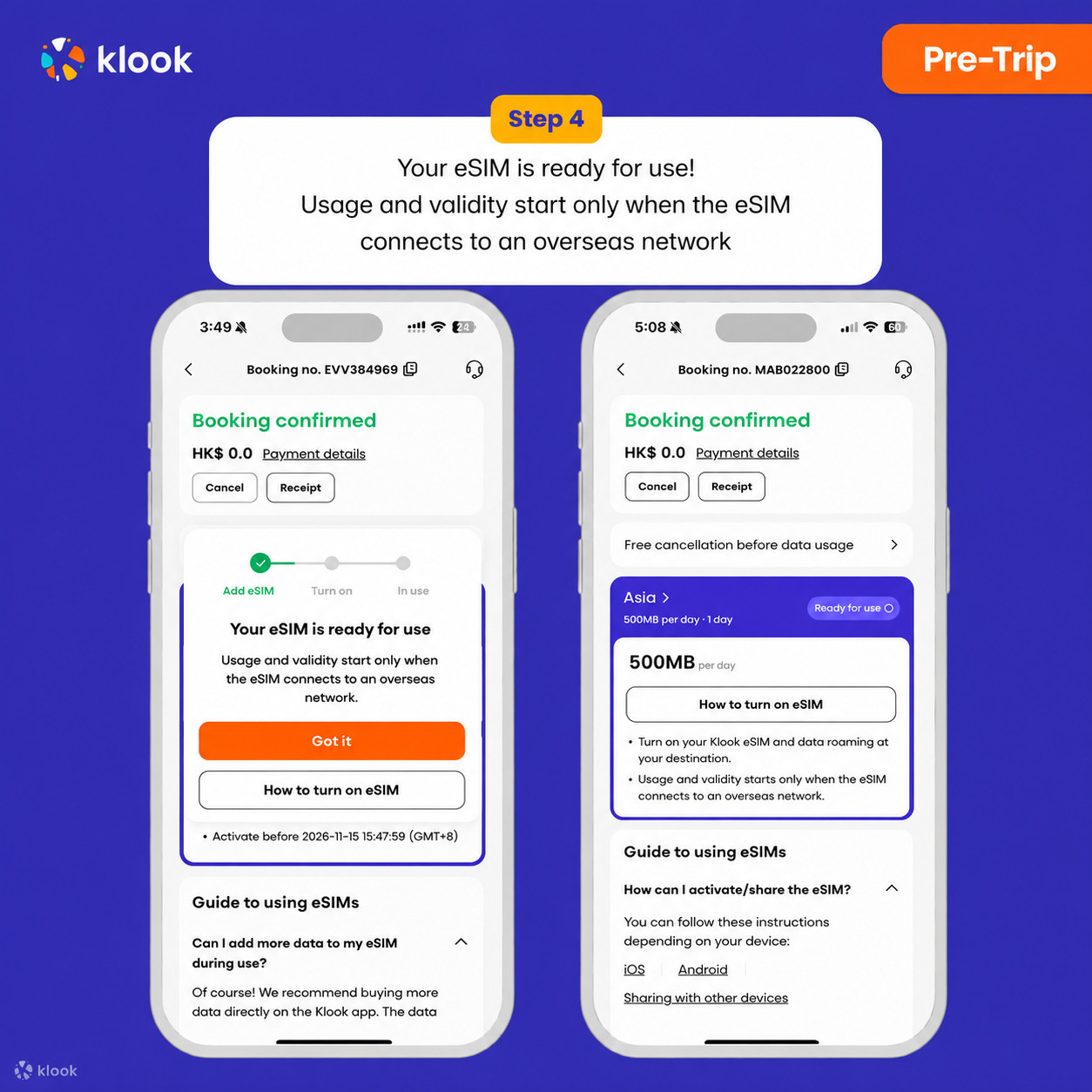
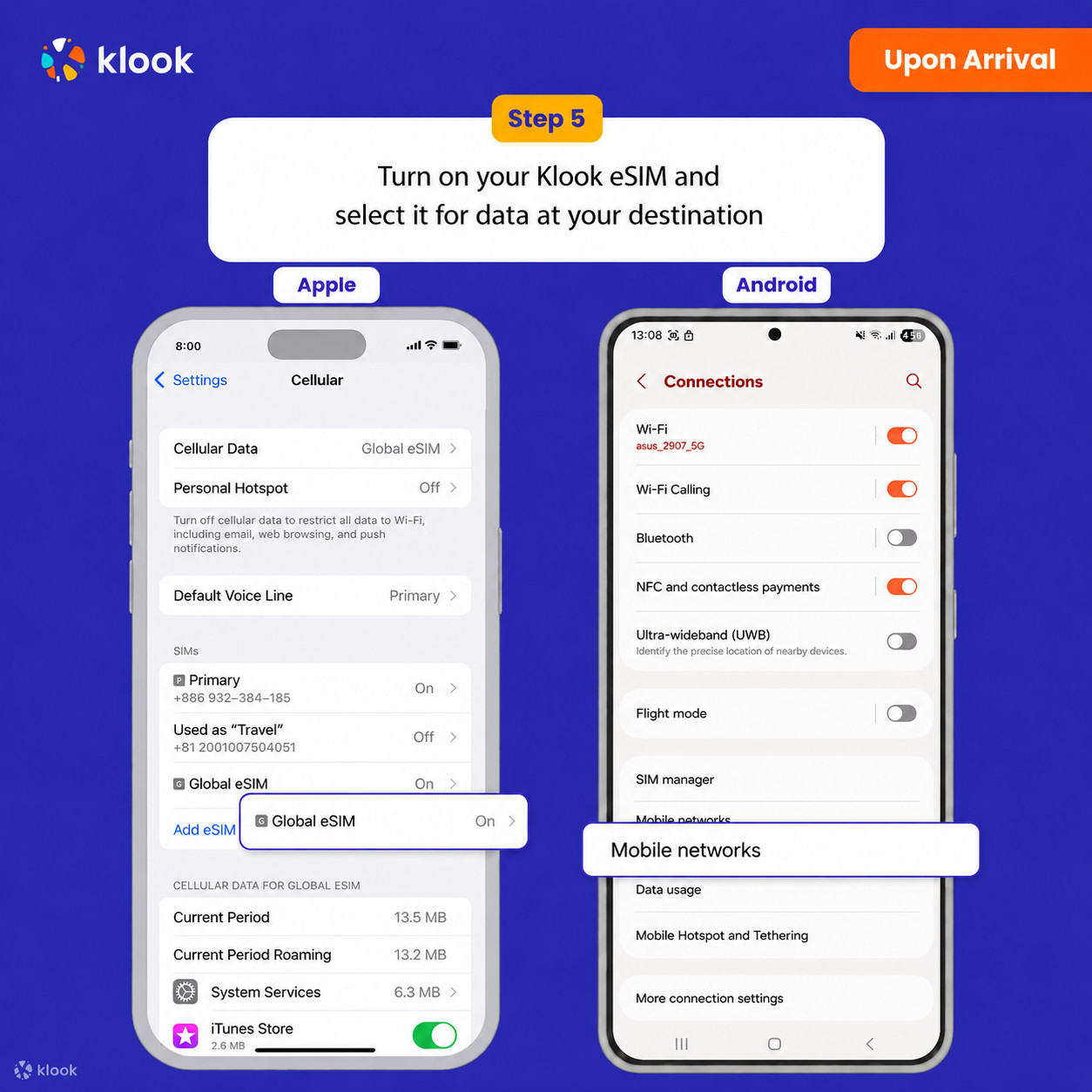
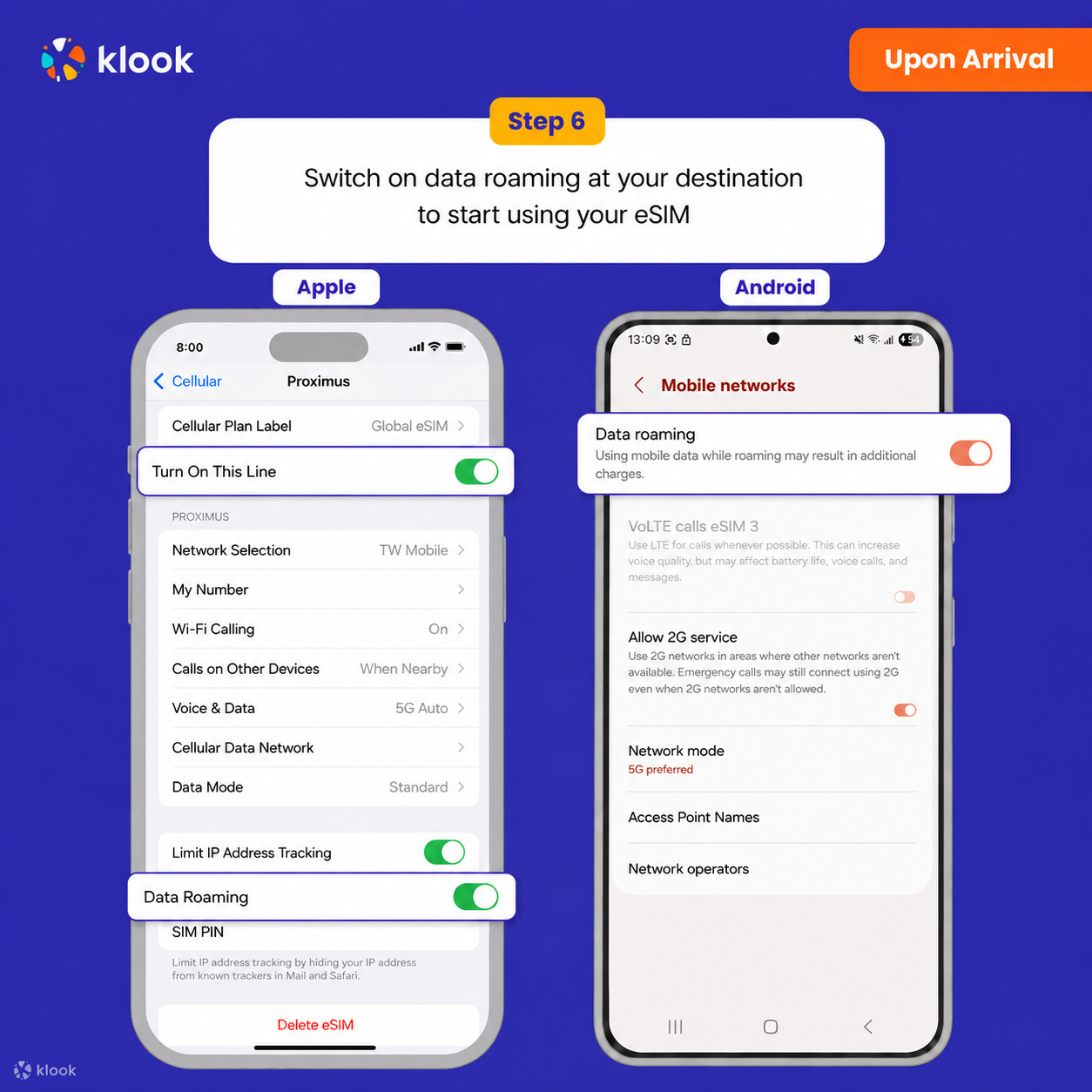
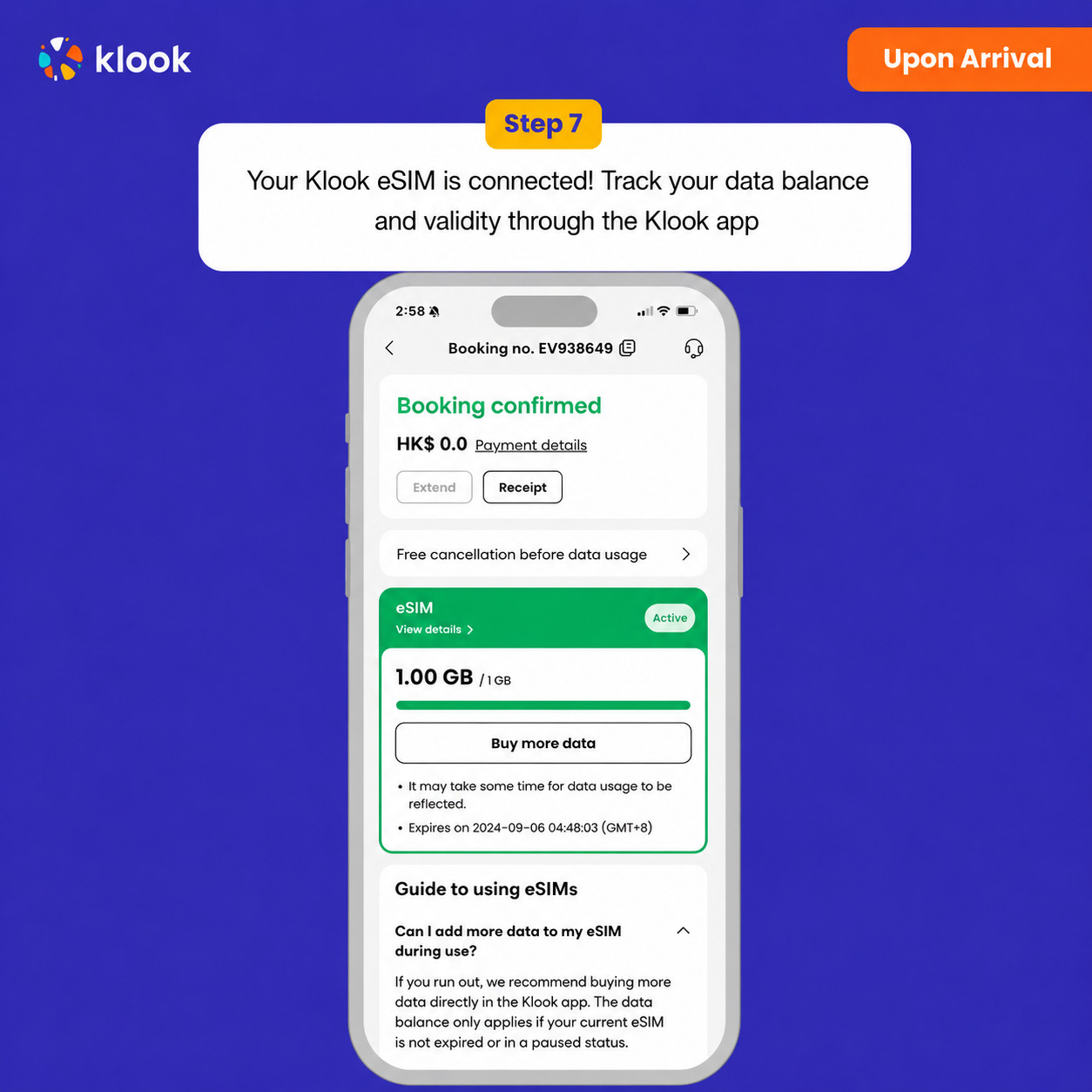
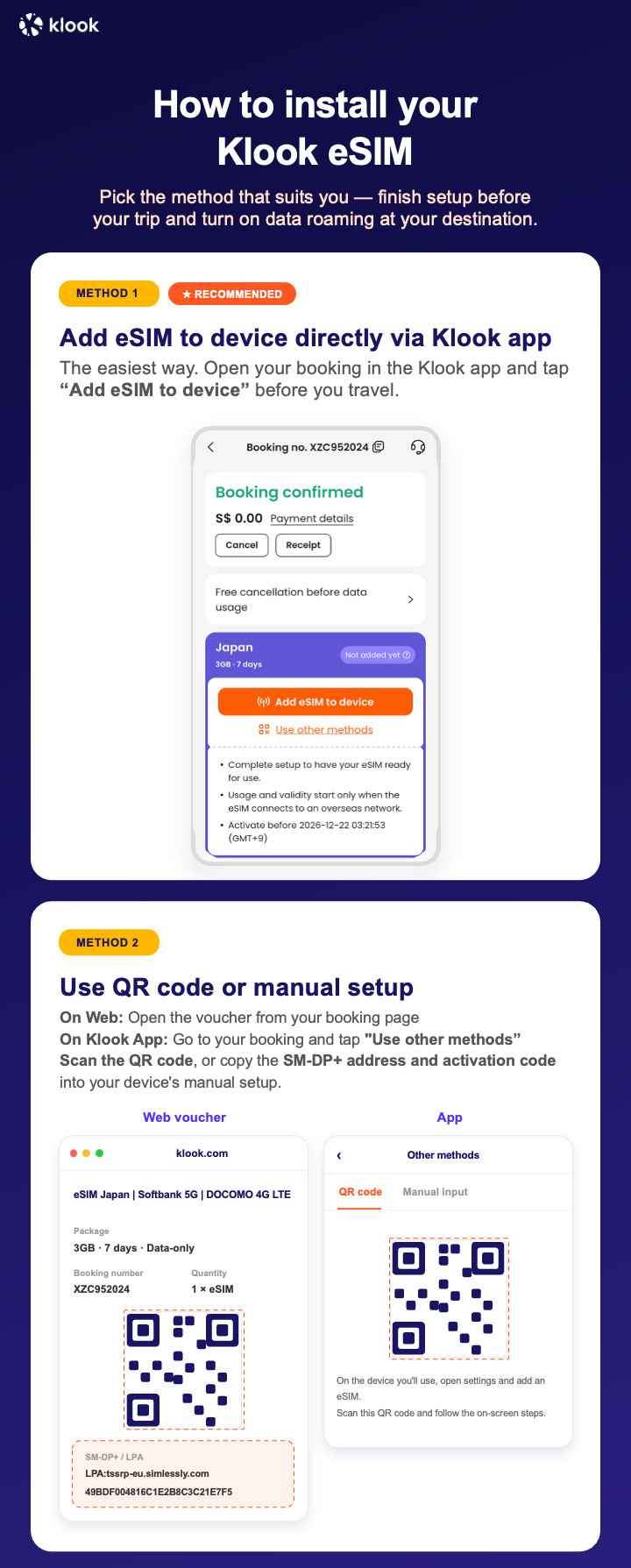
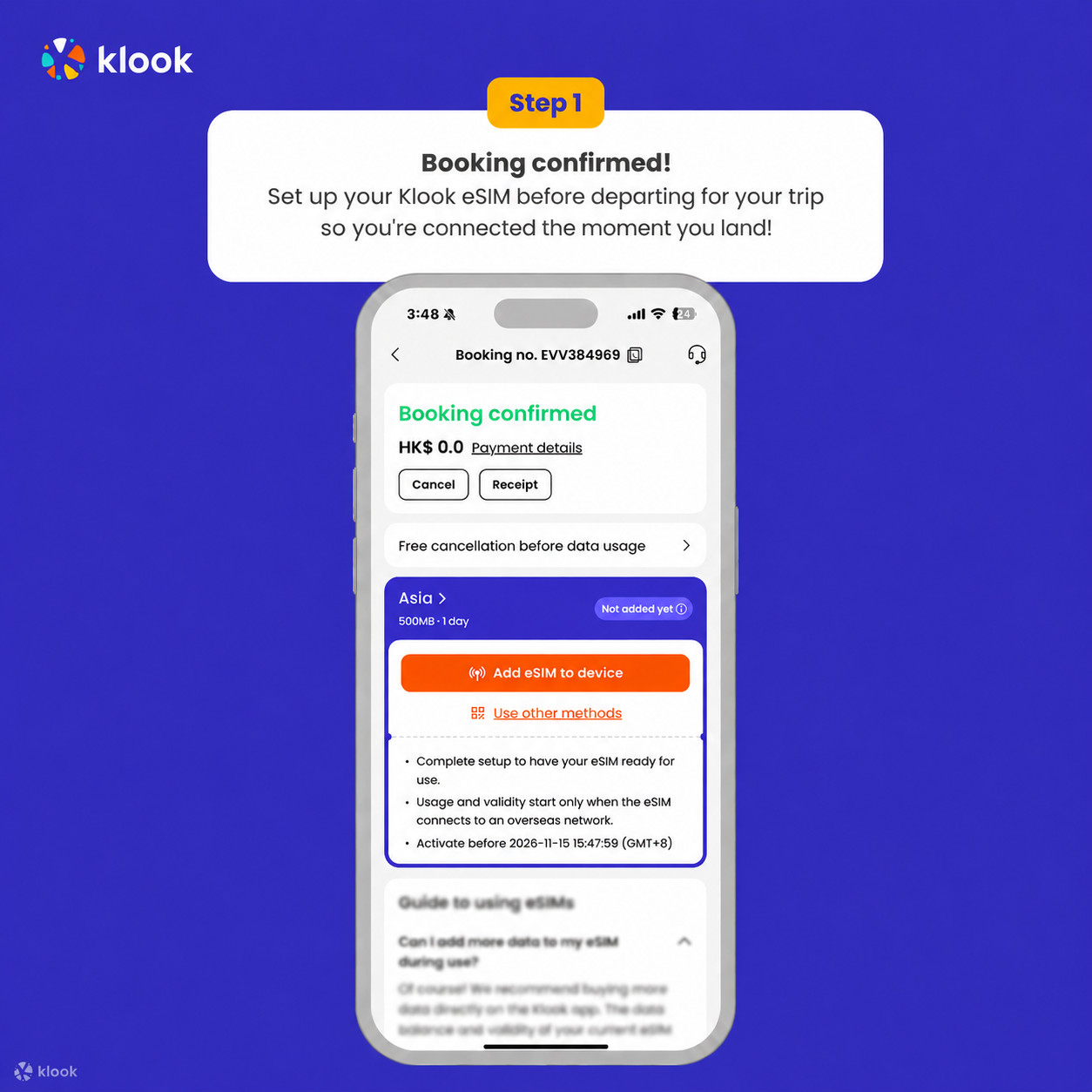
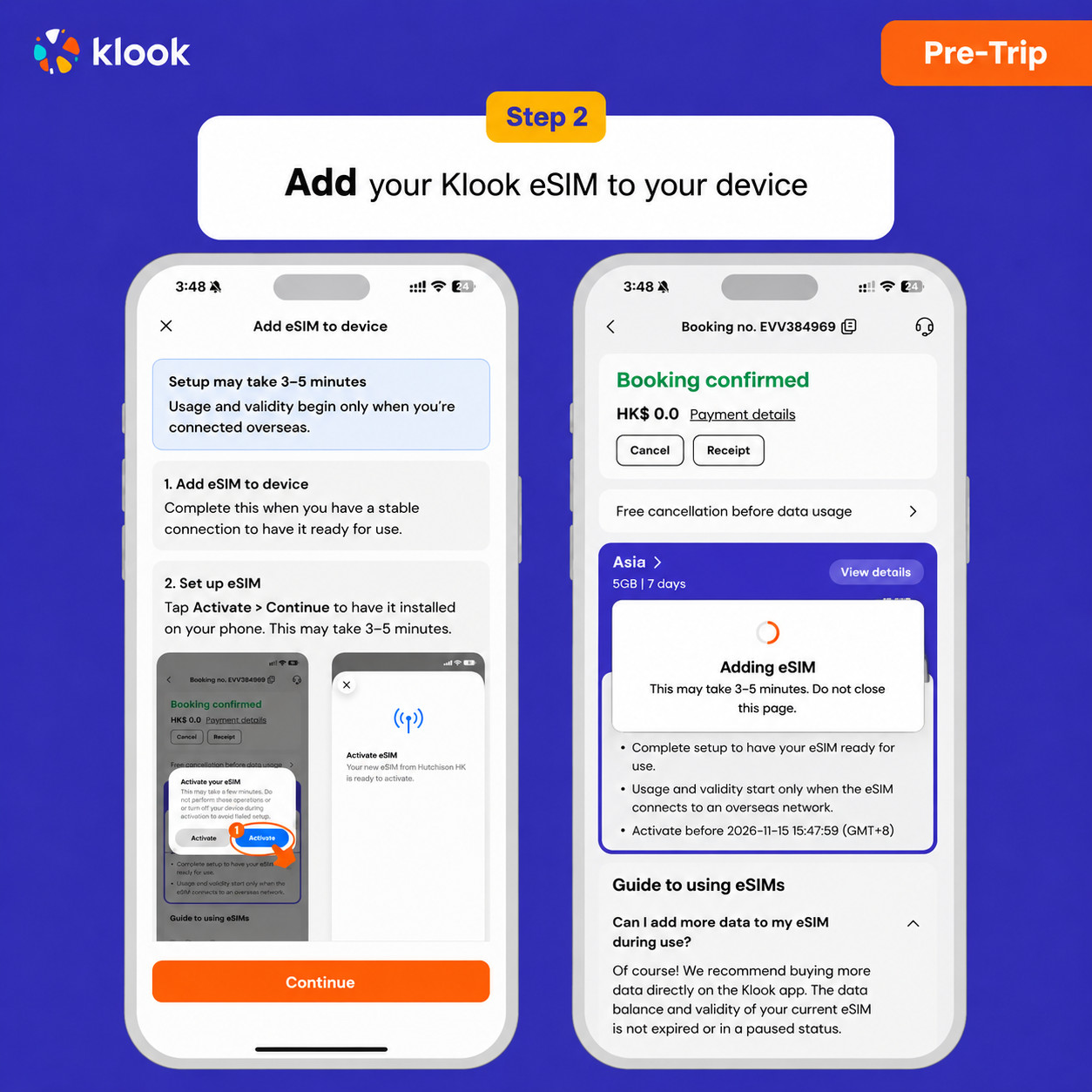
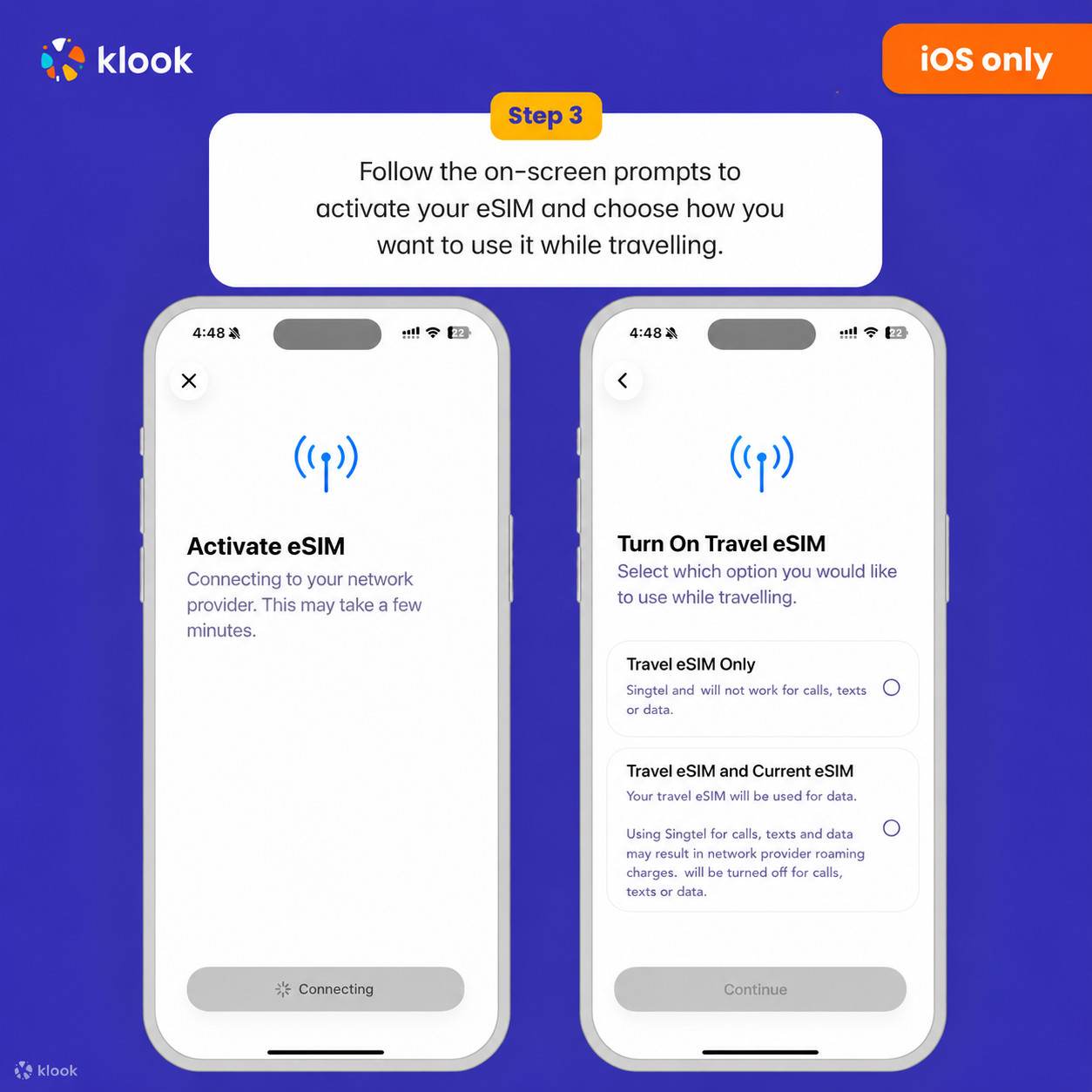
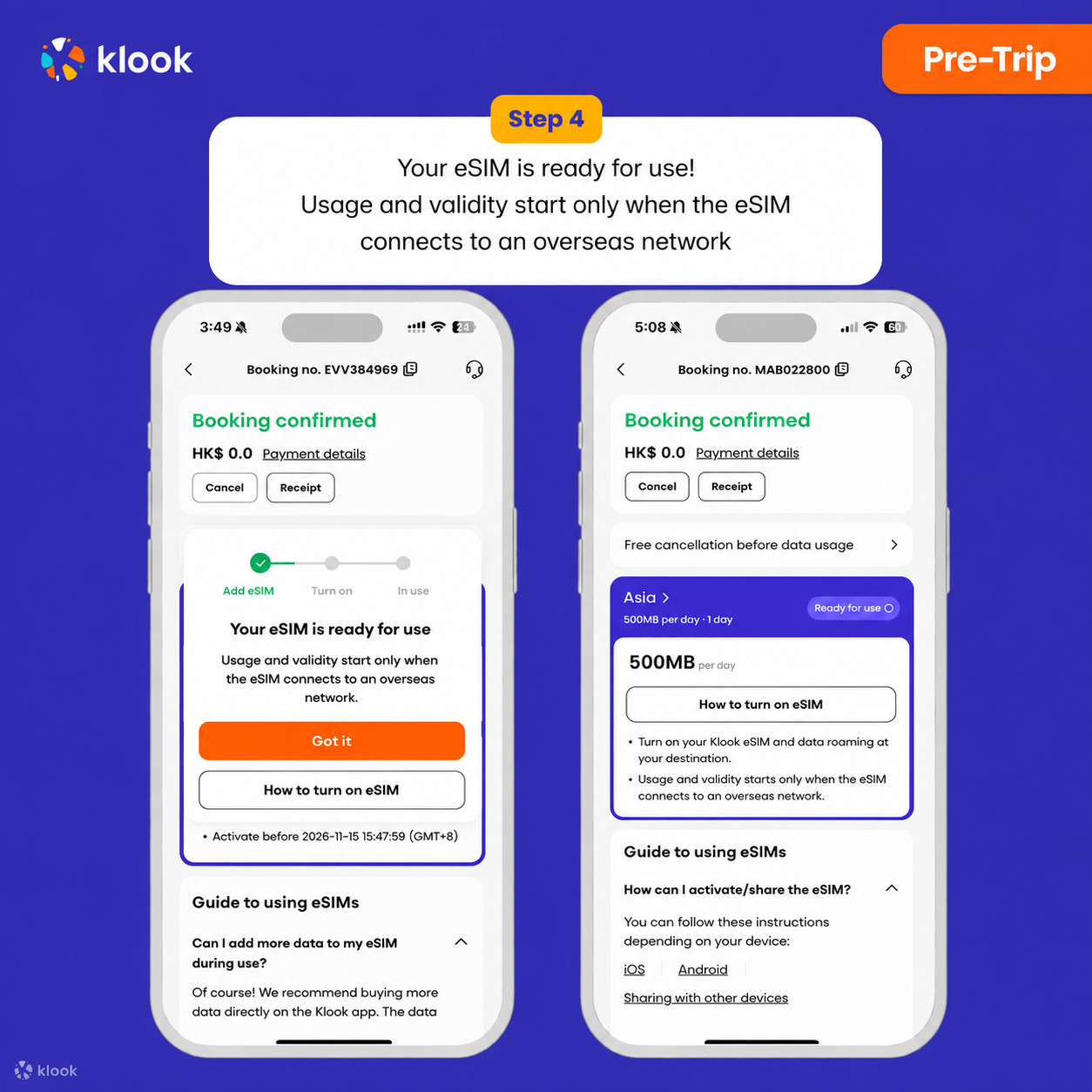
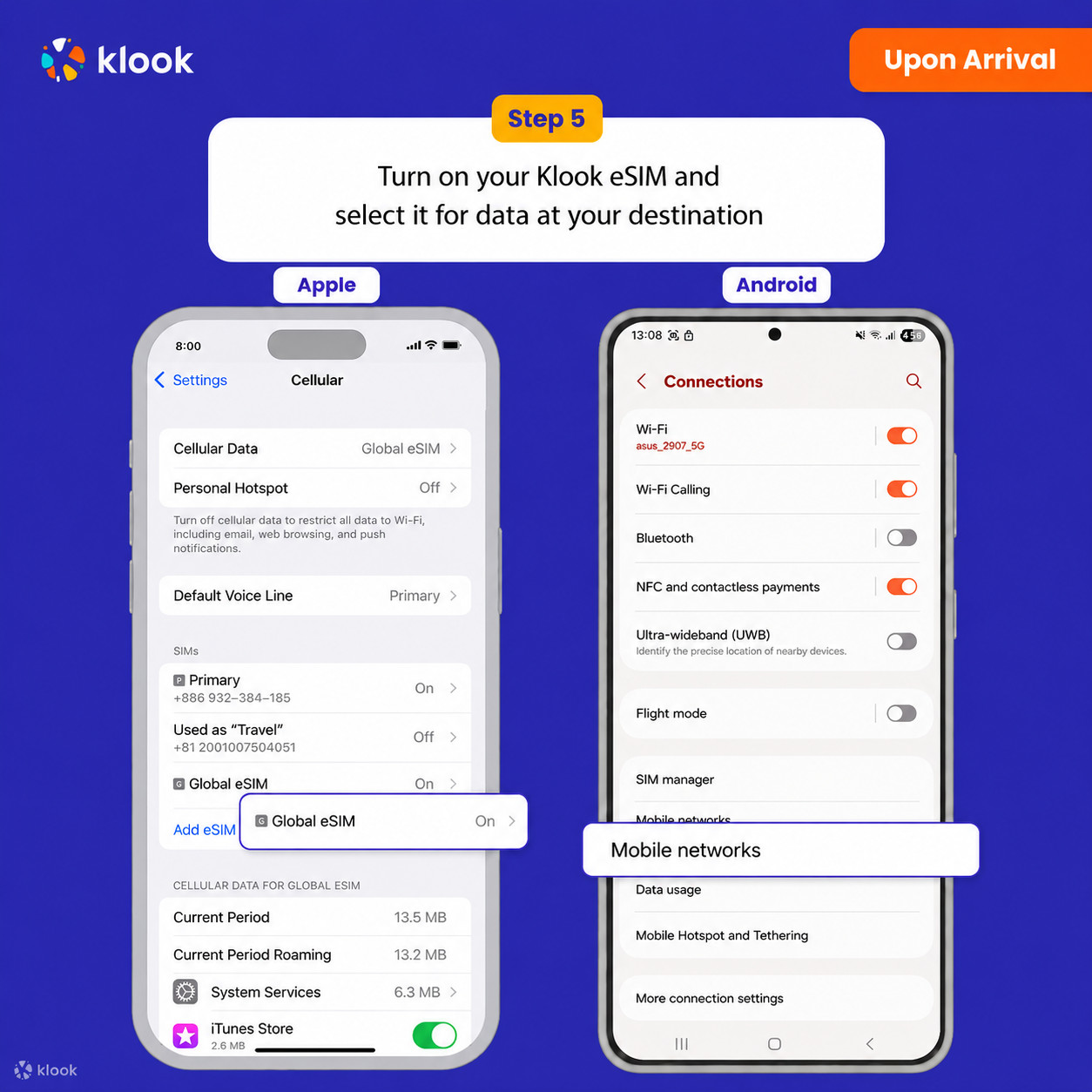
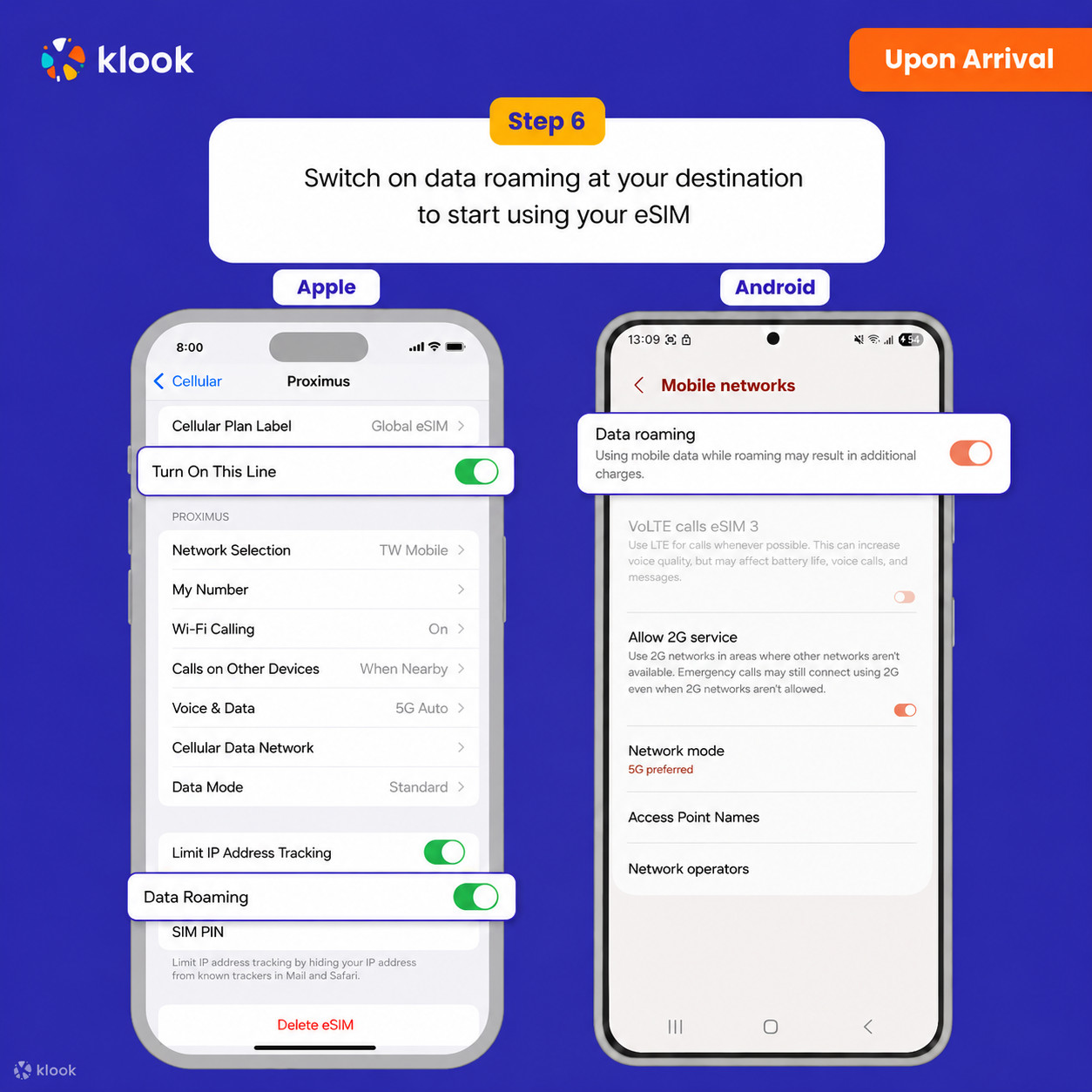
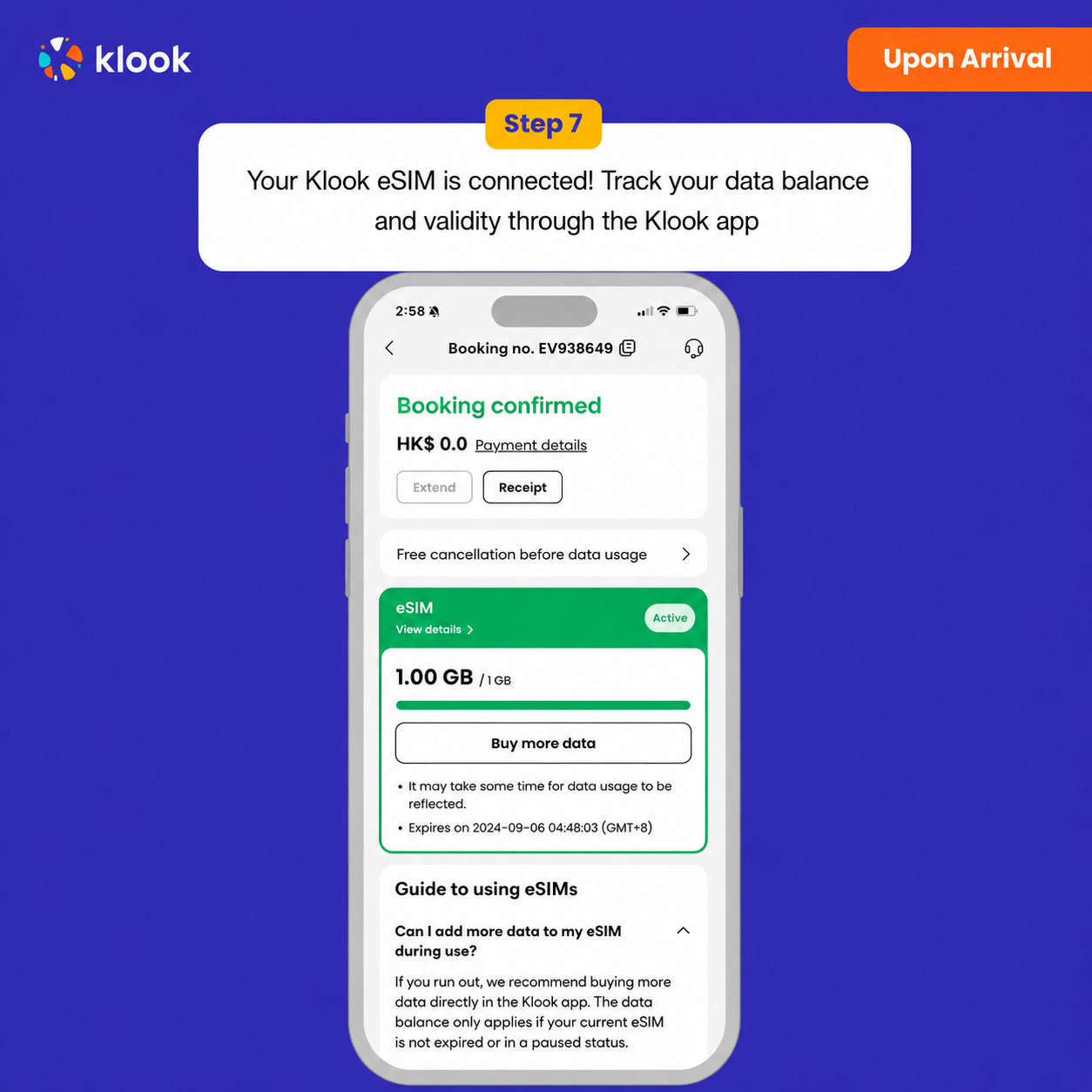
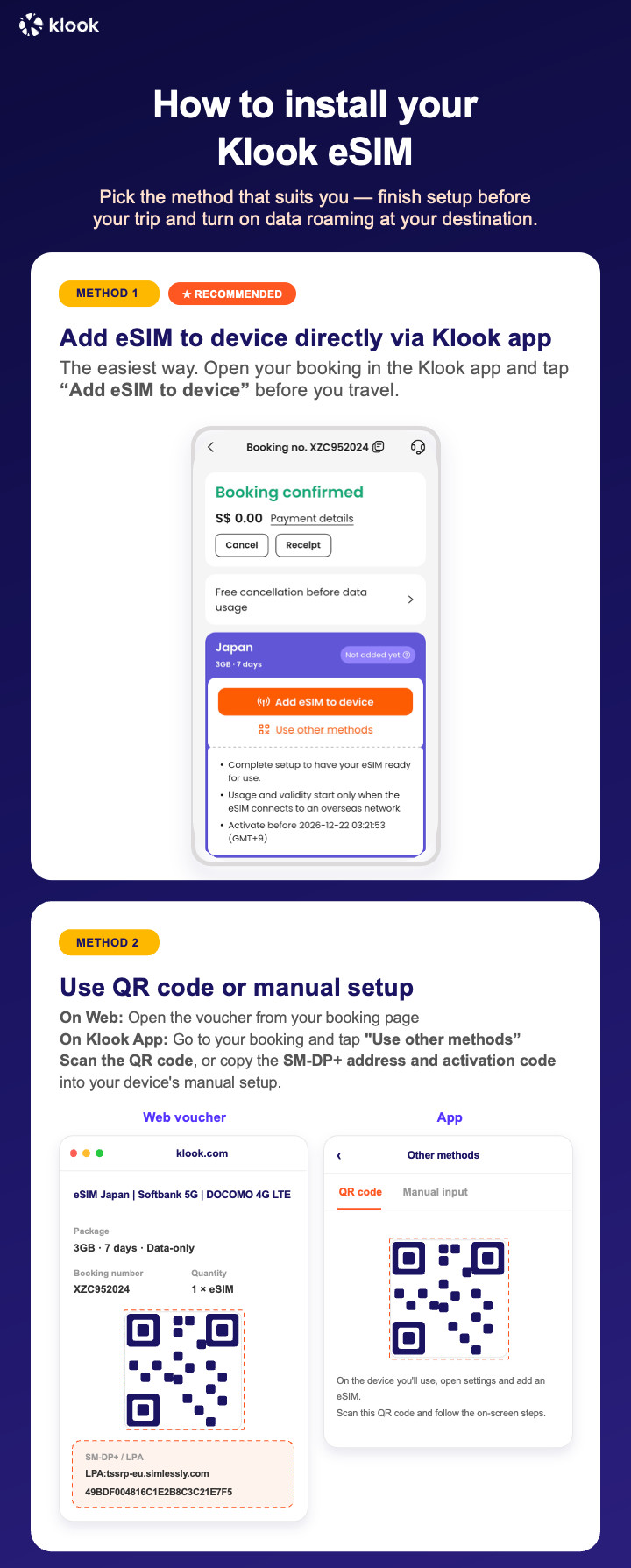
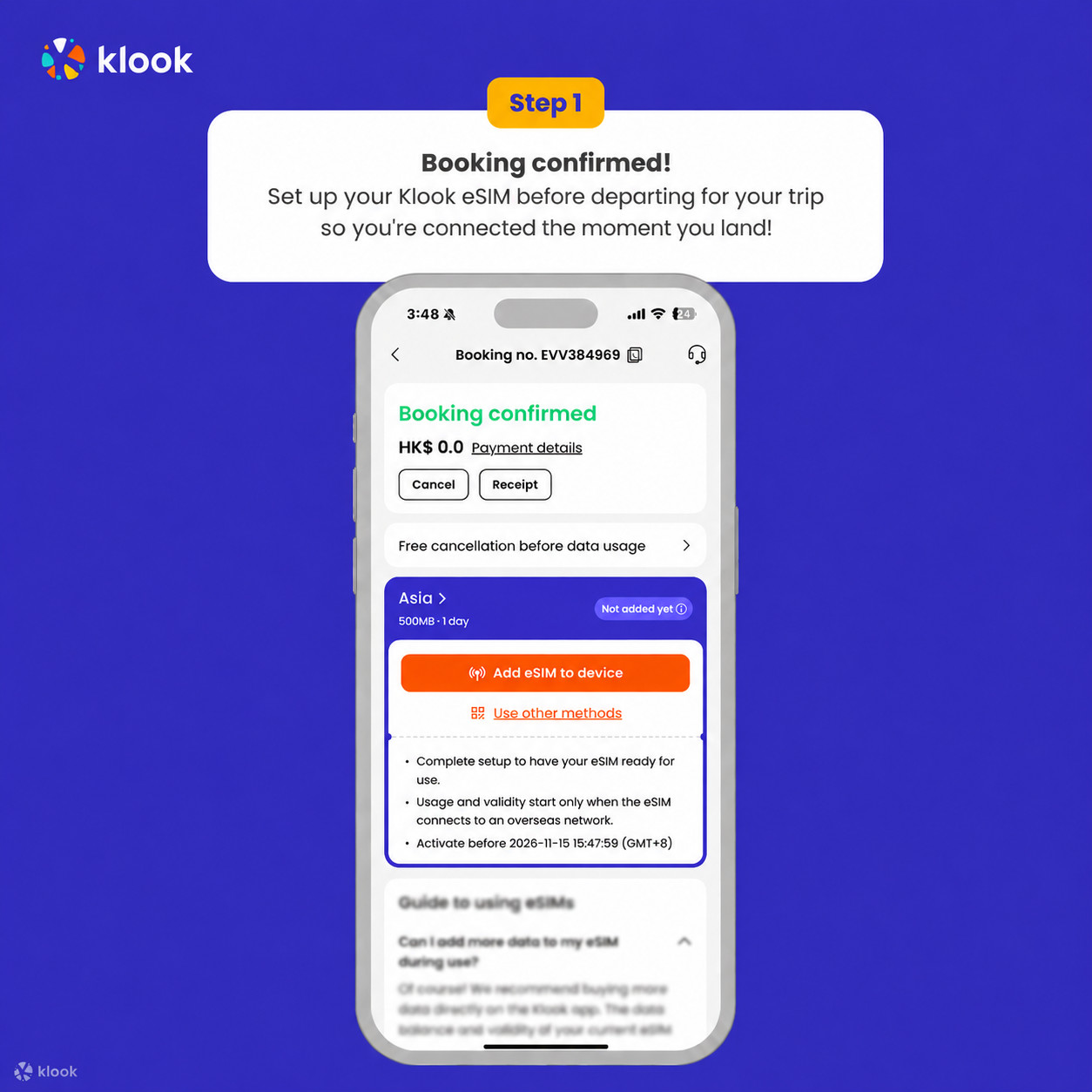
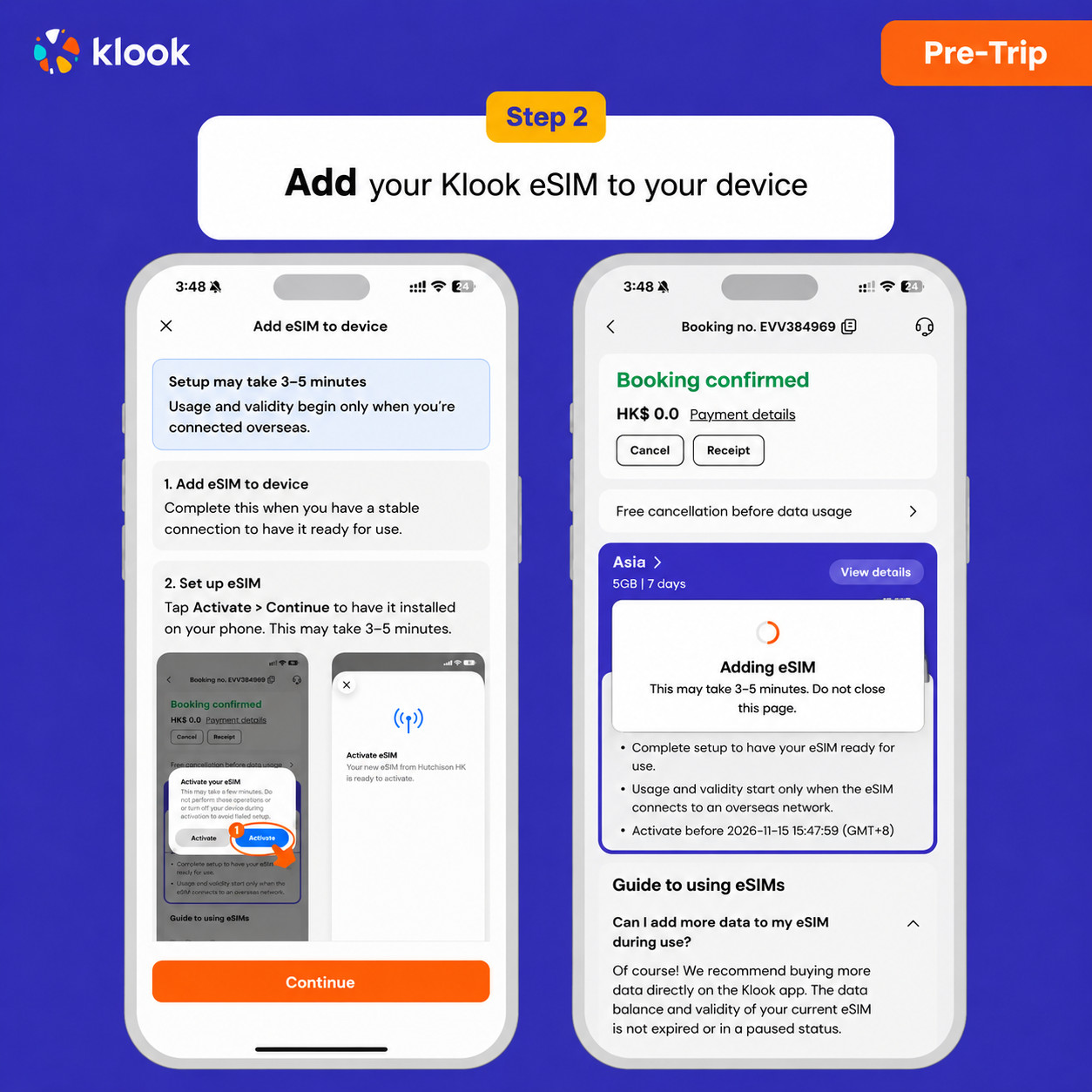
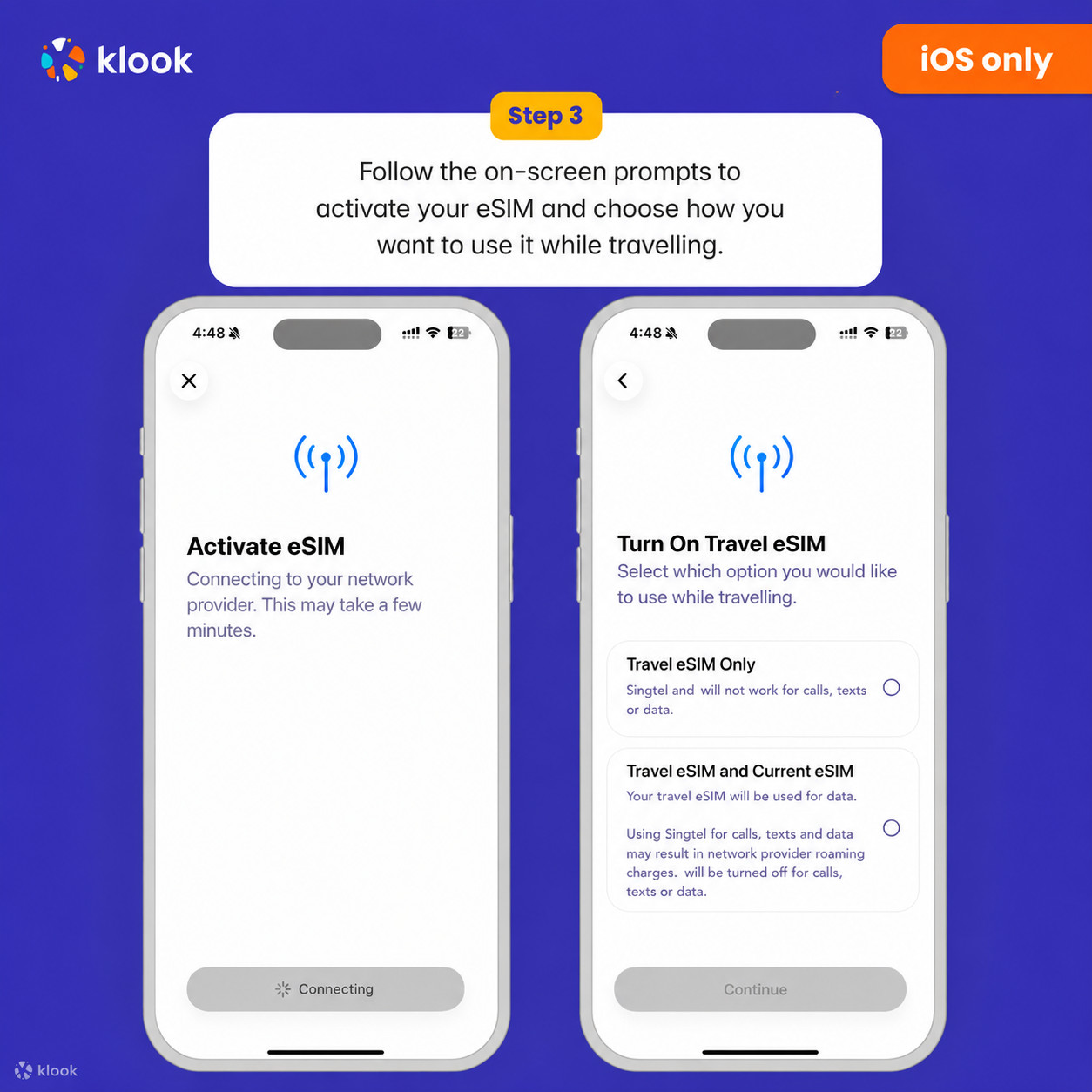
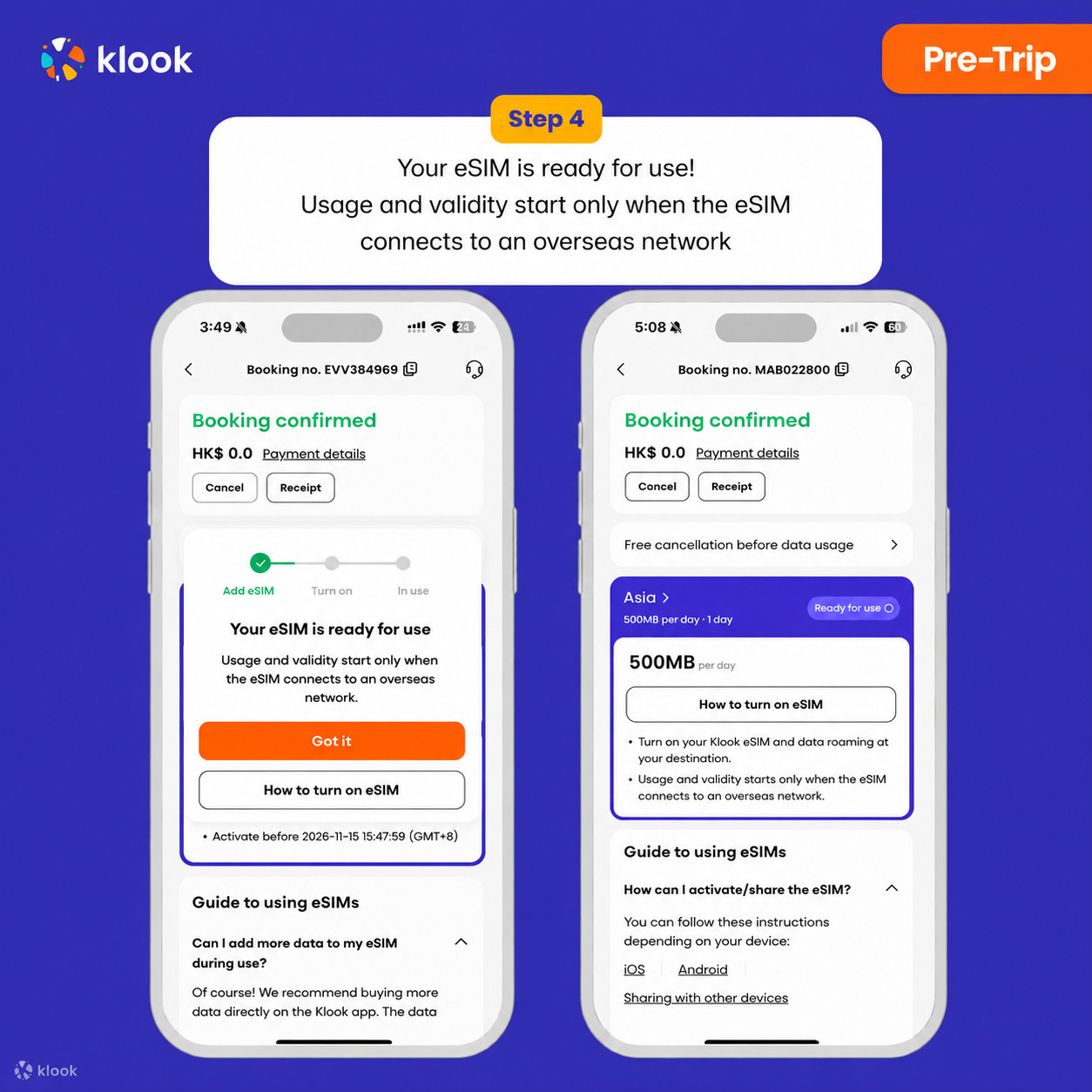
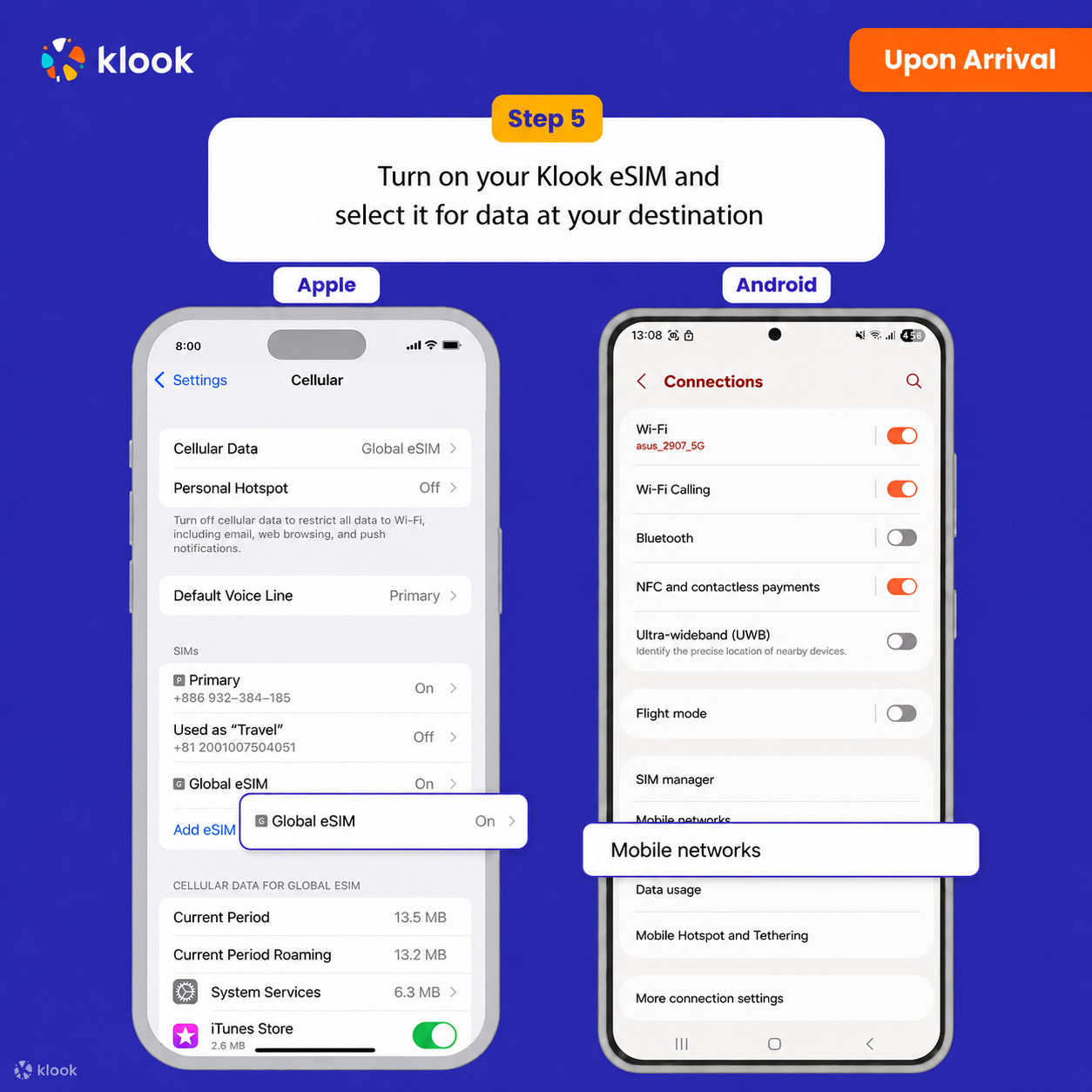
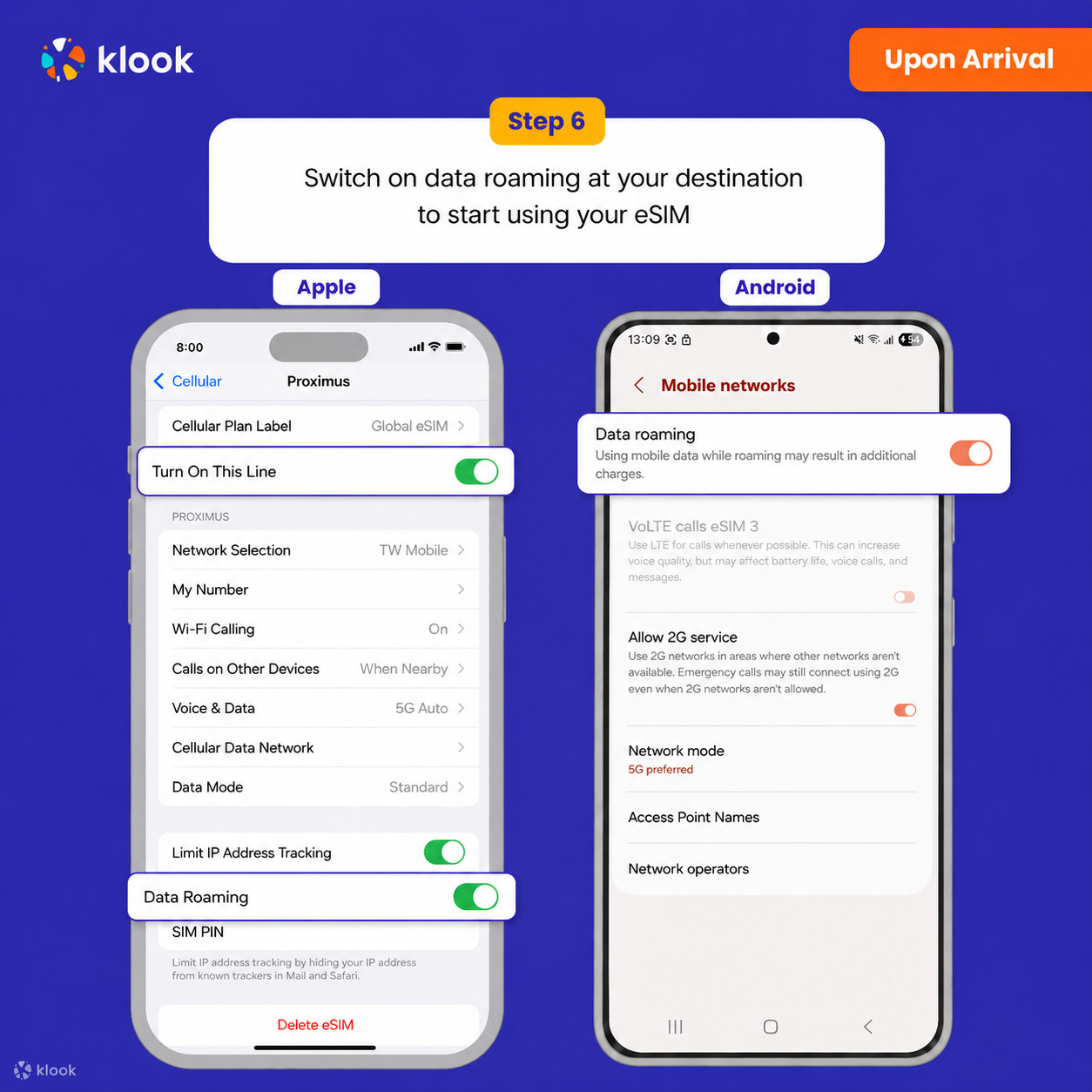
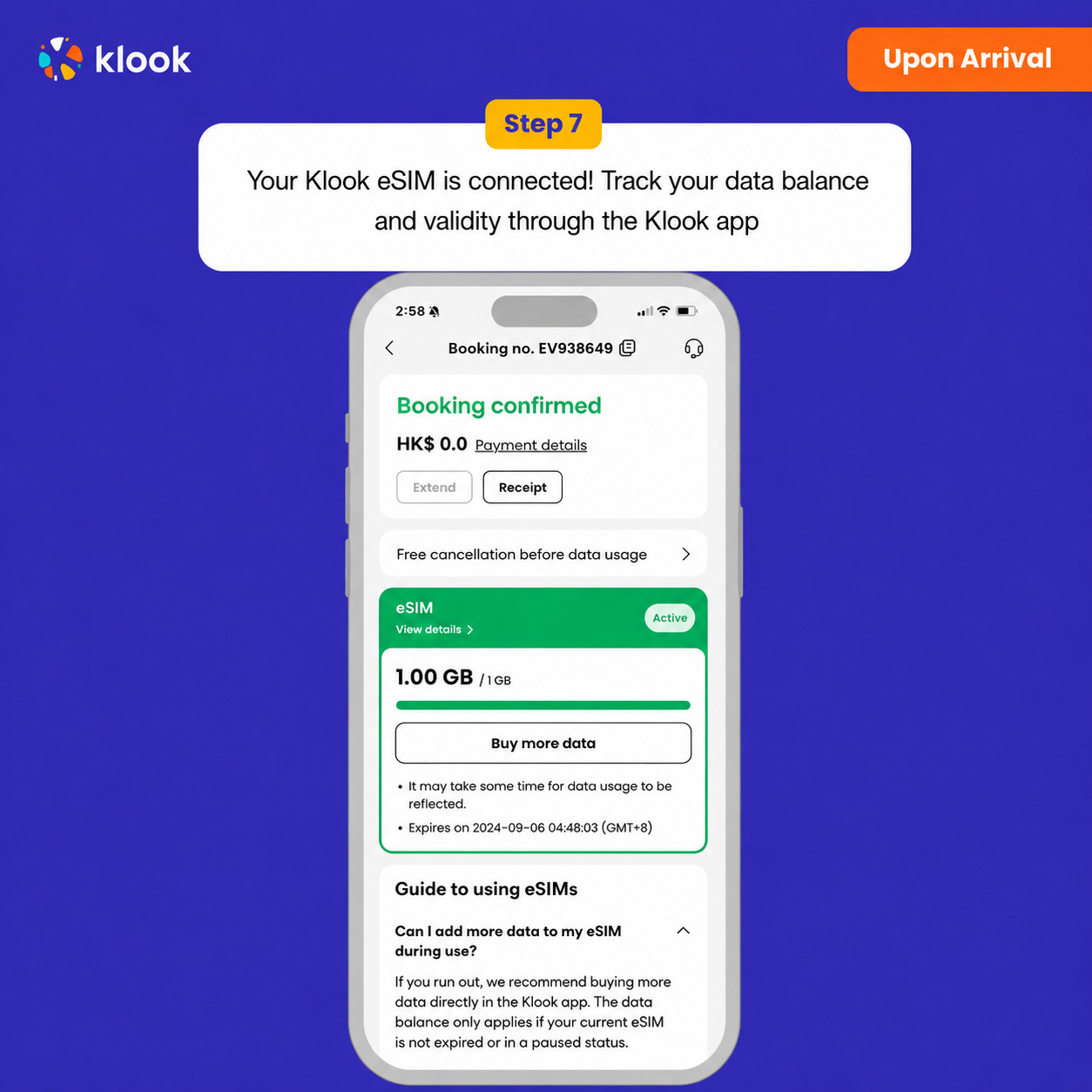
 Avtomobil turi