eSIM tarifingiz manzil mobil tarmog‘iga ulangan vaqtdan boshlab ishga tushadi. Masalan, 3 kunlik tarifni soat 10:00 da faollashtirsangiz, u 3 kundan so‘ng soat 10:00 da tugaydi.
Klook eSIM-ni safarga chiqishdan oldin faollashtiring
ESIM-ni safarga chiqishdan oldin faollashtiring
Klook eSIM o‘rnatish usullari
ESIM-ni Klook ilovasida faollashtirish, QR kodni skanerlash yoki SMDP+ ma’lumotlarini qo‘lda kiritish orqali faollashtiring
Klook eSIM ilovada faollashtirish
O‘rnatishni boshlash uchun broningizda Qurilmaga eSIM qo‘shish tugmasini bosing. Havotir olmang, internet va amal qilish muddati faqat manzilingizga yetib borganingizda boshlanadi
Klook eSIM ilovada faollashtirish
ESIM o‘rnatilishi avtomatik tarzda boshlanadi
Klook eSIM iOS o‘rnatilishi
iOS qurilmangizda Klook eSIM-ni safar uchun sozlang
Klook eSIM o‘rnatildi
ESIM foydalanishga tayyor! Foydalanish va amal qilish muddati faqat eSIM chet el tarmog‘iga ulanganidan so‘ng boshlanadi
Klook eSIM-ni yoqing
Klook eSIM-ni yoqing va mobil internet uchun Klook eSIM-ni tanlang
Data roaming-ni yoqing
Manzilingizda data roaming-ni yoqing va eSIM-dan foydalanishni boshlang
Klook eSIM ulandi
Klook eSIM ulandi! Ma’lumotlar balansingiz va amal qilish muddatini Klook ilovasi orqali kuzatib boring
Tasdiqlash siyosati
Bir necha daqiqa ichida tasdiq olasiz. Agar tasdiqni ko‘rmasangiz, mijozlarni qo‘llab-quvvatlash xizmatimizga murojaat qiling.
eSIM tarifingiz manzil mobil tarmog‘iga ulangan vaqtdan boshlab ishga tushadi. Masalan, 3 kunlik tarifni soat 10:00 da faollashtirsangiz, u 3 kundan so‘ng soat 10:00 da tugaydi.
Klook eSIM-ni safarga chiqishdan oldin faollashtiring
ESIM-ni safarga chiqishdan oldin faollashtiring
Klook eSIM o‘rnatish usullari
ESIM-ni Klook ilovasida faollashtirish, QR kodni skanerlash yoki SMDP+ ma’lumotlarini qo‘lda kiritish orqali faollashtiring
Klook eSIM ilovada faollashtirish
O‘rnatishni boshlash uchun broningizda Qurilmaga eSIM qo‘shish tugmasini bosing. Havotir olmang, internet va amal qilish muddati faqat manzilingizga yetib borganingizda boshlanadi
Klook eSIM ilovada faollashtirish
ESIM o‘rnatilishi avtomatik tarzda boshlanadi
Klook eSIM iOS o‘rnatilishi
iOS qurilmangizda Klook eSIM-ni safar uchun sozlang
Klook eSIM o‘rnatildi
ESIM foydalanishga tayyor! Foydalanish va amal qilish muddati faqat eSIM chet el tarmog‘iga ulanganidan so‘ng boshlanadi
Klook eSIM-ni yoqing
Klook eSIM-ni yoqing va mobil internet uchun Klook eSIM-ni tanlang
Data roaming-ni yoqing
Manzilingizda data roaming-ni yoqing va eSIM-dan foydalanishni boshlang
Klook eSIM ulandi
Klook eSIM ulandi! Ma’lumotlar balansingiz va amal qilish muddatini Klook ilovasi orqali kuzatib boring
Tasdiqlash siyosati
Bir necha daqiqa ichida tasdiq olasiz. Agar tasdiqni ko‘rmasangiz, mijozlarni qo‘llab-quvvatlash xizmatimizga murojaat qiling.
Klook eSIM-ni safarga chiqishdan oldin faollashtiring
ESIM-ni safarga chiqishdan oldin faollashtiring
Klook eSIM o‘rnatish usullari
ESIM-ni Klook ilovasida faollashtirish, QR kodni skanerlash yoki SMDP+ ma’lumotlarini qo‘lda kiritish orqali faollashtiring
Klook eSIM ilovada faollashtirish
O‘rnatishni boshlash uchun broningizda Qurilmaga eSIM qo‘shish tugmasini bosing. Havotir olmang, internet va amal qilish muddati faqat manzilingizga yetib borganingizda boshlanadi
Klook eSIM ilovada faollashtirish
ESIM o‘rnatilishi avtomatik tarzda boshlanadi
Klook eSIM iOS o‘rnatilishi
iOS qurilmangizda Klook eSIM-ni safar uchun sozlang
Klook eSIM o‘rnatildi
ESIM foydalanishga tayyor! Foydalanish va amal qilish muddati faqat eSIM chet el tarmog‘iga ulanganidan so‘ng boshlanadi
Klook eSIM-ni yoqing
Klook eSIM-ni yoqing va mobil internet uchun Klook eSIM-ni tanlang
Data roaming-ni yoqing
Manzilingizda data roaming-ni yoqing va eSIM-dan foydalanishni boshlang
Klook eSIM ulandi
Klook eSIM ulandi! Ma’lumotlar balansingiz va amal qilish muddatini Klook ilovasi orqali kuzatib boring
eSIM tarifingiz manzil mobil tarmog‘iga ulangan vaqtdan boshlab ishga tushadi. Masalan, 3 kunlik tarifni soat 10:00 da faollashtirsangiz, u 3 kundan so‘ng soat 10:00 da tugaydi.
Tasdiqlash siyosati
Bir necha daqiqa ichida tasdiq olasiz. Agar tasdiqni ko‘rmasangiz, mijozlarni qo‘llab-quvvatlash xizmatimizga murojaat qiling.
eSIM tarifingiz manzil mobil tarmog‘iga ulangan vaqtdan boshlab ishga tushadi. Masalan, 3 kunlik tarifni soat 10:00 da faollashtirsangiz, u 3 kundan so‘ng soat 10:00 da tugaydi.
Klook eSIM-ni safarga chiqishdan oldin faollashtiring
ESIM-ni safarga chiqishdan oldin faollashtiring
Klook eSIM o‘rnatish usullari
ESIM-ni Klook ilovasida faollashtirish, QR kodni skanerlash yoki SMDP+ ma’lumotlarini qo‘lda kiritish orqali faollashtiring
Klook eSIM ilovada faollashtirish
O‘rnatishni boshlash uchun broningizda Qurilmaga eSIM qo‘shish tugmasini bosing. Havotir olmang, internet va amal qilish muddati faqat manzilingizga yetib borganingizda boshlanadi
Klook eSIM ilovada faollashtirish
ESIM o‘rnatilishi avtomatik tarzda boshlanadi
Klook eSIM iOS o‘rnatilishi
iOS qurilmangizda Klook eSIM-ni safar uchun sozlang
Klook eSIM o‘rnatildi
ESIM foydalanishga tayyor! Foydalanish va amal qilish muddati faqat eSIM chet el tarmog‘iga ulanganidan so‘ng boshlanadi
Klook eSIM-ni yoqing
Klook eSIM-ni yoqing va mobil internet uchun Klook eSIM-ni tanlang
Data roaming-ni yoqing
Manzilingizda data roaming-ni yoqing va eSIM-dan foydalanishni boshlang
Klook eSIM ulandi
Klook eSIM ulandi! Ma’lumotlar balansingiz va amal qilish muddatini Klook ilovasi orqali kuzatib boring
Tasdiqlash siyosati
Bir necha daqiqa ichida tasdiq olasiz. Agar tasdiqni ko‘rmasangiz, mijozlarni qo‘llab-quvvatlash xizmatimizga murojaat qiling.
Klook eSIM-ni safarga chiqishdan oldin faollashtiring
ESIM-ni safarga chiqishdan oldin faollashtiring
Klook eSIM o‘rnatish usullari
ESIM-ni Klook ilovasida faollashtirish, QR kodni skanerlash yoki SMDP+ ma’lumotlarini qo‘lda kiritish orqali faollashtiring
Klook eSIM ilovada faollashtirish
O‘rnatishni boshlash uchun broningizda Qurilmaga eSIM qo‘shish tugmasini bosing. Havotir olmang, internet va amal qilish muddati faqat manzilingizga yetib borganingizda boshlanadi
Klook eSIM ilovada faollashtirish
ESIM o‘rnatilishi avtomatik tarzda boshlanadi
Klook eSIM iOS o‘rnatilishi
iOS qurilmangizda Klook eSIM-ni safar uchun sozlang
Klook eSIM o‘rnatildi
ESIM foydalanishga tayyor! Foydalanish va amal qilish muddati faqat eSIM chet el tarmog‘iga ulanganidan so‘ng boshlanadi
Klook eSIM-ni yoqing
Klook eSIM-ni yoqing va mobil internet uchun Klook eSIM-ni tanlang
Data roaming-ni yoqing
Manzilingizda data roaming-ni yoqing va eSIM-dan foydalanishni boshlang
Klook eSIM ulandi
Klook eSIM ulandi! Ma’lumotlar balansingiz va amal qilish muddatini Klook ilovasi orqali kuzatib boring
eSIM tarifingiz manzil mobil tarmog‘iga ulangan vaqtdan boshlab ishga tushadi. Masalan, 3 kunlik tarifni soat 10:00 da faollashtirsangiz, u 3 kundan so‘ng soat 10:00 da tugaydi.
Tasdiqlash siyosati
Bir necha daqiqa ichida tasdiq olasiz. Agar tasdiqni ko‘rmasangiz, mijozlarni qo‘llab-quvvatlash xizmatimizga murojaat qiling.
Activate your eSIM via Klook in-app activation, scanning the QR code, or entering the SMDP+ details manually
Klook eSIM In-app activation
Activate your eSIM just by clicking Add eSIM to device on your booking. Don't worry, data and validity will only commence when you reach your destination
Klook eSIM In-app activation
Installation of your eSIM will start automatically
Klook eSIM iOS installation
Set up your Klook eSIM for travel
Klook eSIM installed
Your Klook eSIM is now installed! Validity period will start only after connecting to the local network at your destination
Turn on Klook eSIM
Turn on Klook eSIM and select Klook eSIM for mobile data
Turn on Data roaming
Turn on and select Klook eSIM for data and turn on data roaming in-destination to start using the eSIM!
Klook eSIM connected
Your klook esim is connected! Track your data balance and validity through the Klook app
Klook eSIM connected
Your klook esim is connected! Track your data balance and validity through the Klook app
eSIM tarifingiz manzil mobil tarmog‘iga ulangan vaqtdan boshlab ishga tushadi. Masalan, 3 kunlik tarifni soat 10:00 da faollashtirsangiz, u 3 kundan so‘ng soat 10:00 da tugaydi.
Tasdiqlash siyosati
Bir necha daqiqa ichida tasdiq olasiz. Agar tasdiqni ko‘rmasangiz, mijozlarni qo‘llab-quvvatlash xizmatimizga murojaat qiling.
Klook eSIM-ni safarga chiqishdan oldin faollashtiring
ESIM-ni safarga chiqishdan oldin faollashtiring
Klook eSIM o‘rnatish usullari
ESIM-ni Klook ilovasida faollashtirish, QR kodni skanerlash yoki SMDP+ ma’lumotlarini qo‘lda kiritish orqali faollashtiring
Klook eSIM ilovada faollashtirish
O‘rnatishni boshlash uchun broningizda Qurilmaga eSIM qo‘shish tugmasini bosing. Havotir olmang, internet va amal qilish muddati faqat manzilingizga yetib borganingizda boshlanadi
Klook eSIM ilovada faollashtirish
ESIM o‘rnatilishi avtomatik tarzda boshlanadi
Klook eSIM iOS o‘rnatilishi
iOS qurilmangizda Klook eSIM-ni safar uchun sozlang
Klook eSIM o‘rnatildi
ESIM foydalanishga tayyor! Foydalanish va amal qilish muddati faqat eSIM chet el tarmog‘iga ulanganidan so‘ng boshlanadi
Klook eSIM-ni yoqing
Klook eSIM-ni yoqing va mobil internet uchun Klook eSIM-ni tanlang
Data roaming-ni yoqing
Manzilingizda data roaming-ni yoqing va eSIM-dan foydalanishni boshlang
Klook eSIM ulandi
Klook eSIM ulandi! Ma’lumotlar balansingiz va amal qilish muddatini Klook ilovasi orqali kuzatib boring
eSIM tarifingiz manzil mobil tarmog‘iga ulangan vaqtdan boshlab ishga tushadi. Masalan, 3 kunlik tarifni soat 10:00 da faollashtirsangiz, u 3 kundan so‘ng soat 10:00 da tugaydi.
Klook eSIM-ni safarga chiqishdan oldin faollashtiring
ESIM-ni safarga chiqishdan oldin faollashtiring
Klook eSIM o‘rnatish usullari
ESIM-ni Klook ilovasida faollashtirish, QR kodni skanerlash yoki SMDP+ ma’lumotlarini qo‘lda kiritish orqali faollashtiring
Klook eSIM ilovada faollashtirish
O‘rnatishni boshlash uchun broningizda Qurilmaga eSIM qo‘shish tugmasini bosing. Havotir olmang, internet va amal qilish muddati faqat manzilingizga yetib borganingizda boshlanadi
Klook eSIM ilovada faollashtirish
ESIM o‘rnatilishi avtomatik tarzda boshlanadi
Klook eSIM iOS o‘rnatilishi
iOS qurilmangizda Klook eSIM-ni safar uchun sozlang
Klook eSIM o‘rnatildi
ESIM foydalanishga tayyor! Foydalanish va amal qilish muddati faqat eSIM chet el tarmog‘iga ulanganidan so‘ng boshlanadi
Klook eSIM-ni yoqing
Klook eSIM-ni yoqing va mobil internet uchun Klook eSIM-ni tanlang
Data roaming-ni yoqing
Manzilingizda data roaming-ni yoqing va eSIM-dan foydalanishni boshlang
Klook eSIM ulandi
Klook eSIM ulandi! Ma’lumotlar balansingiz va amal qilish muddatini Klook ilovasi orqali kuzatib boring
eSIM tarifingiz manzil mobil tarmog‘iga ulangan vaqtdan boshlab ishga tushadi. Masalan, 3 kunlik tarifni soat 10:00 da faollashtirsangiz, u 3 kundan so‘ng soat 10:00 da tugaydi.
Klook eSIM-ni safarga chiqishdan oldin faollashtiring
ESIM-ni safarga chiqishdan oldin faollashtiring
Klook eSIM o‘rnatish usullari
ESIM-ni Klook ilovasida faollashtirish, QR kodni skanerlash yoki SMDP+ ma’lumotlarini qo‘lda kiritish orqali faollashtiring
Klook eSIM ilovada faollashtirish
O‘rnatishni boshlash uchun broningizda Qurilmaga eSIM qo‘shish tugmasini bosing. Havotir olmang, internet va amal qilish muddati faqat manzilingizga yetib borganingizda boshlanadi
Klook eSIM ilovada faollashtirish
ESIM o‘rnatilishi avtomatik tarzda boshlanadi
Klook eSIM iOS o‘rnatilishi
iOS qurilmangizda Klook eSIM-ni safar uchun sozlang
Klook eSIM o‘rnatildi
ESIM foydalanishga tayyor! Foydalanish va amal qilish muddati faqat eSIM chet el tarmog‘iga ulanganidan so‘ng boshlanadi
Klook eSIM-ni yoqing
Klook eSIM-ni yoqing va mobil internet uchun Klook eSIM-ni tanlang
Data roaming-ni yoqing
Manzilingizda data roaming-ni yoqing va eSIM-dan foydalanishni boshlang
Klook eSIM ulandi
Klook eSIM ulandi! Ma’lumotlar balansingiz va amal qilish muddatini Klook ilovasi orqali kuzatib boring
eSIM tarifingiz manzil mobil tarmog‘iga ulangan vaqtdan boshlab ishga tushadi. Masalan, 3 kunlik tarifni soat 10:00 da faollashtirsangiz, u 3 kundan so‘ng soat 10:00 da tugaydi.
Tasdiqlash siyosati
Bir necha daqiqa ichida tasdiq olasiz. Agar tasdiqni ko‘rmasangiz, mijozlarni qo‘llab-quvvatlash xizmatimizga murojaat qiling.
Activate your eSIM via Klook in-app activation, scanning the QR code, or entering the SMDP+ details manually
Klook eSIM In-app activation
Activate your eSIM just by clicking Add eSIM to device on your booking. Don't worry, data and validity will only commence when you reach your destination
Klook eSIM In-app activation
Installation of your eSIM will start automatically
Klook eSIM iOS installation
Set up your Klook eSIM for travel
Klook eSIM installed
Your Klook eSIM is now installed! Validity period will start only after connecting to the local network at your destination
Turn on Klook eSIM
Turn on Klook eSIM and select Klook eSIM for mobile data
Turn on Data roaming
Turn on and select Klook eSIM for data and turn on data roaming in-destination to start using the eSIM!
Klook eSIM connected
Your klook esim is connected! Track your data balance and validity through the Klook app
Klook eSIM connected
Your klook esim is connected! Track your data balance and validity through the Klook app
eSIM tarifingiz manzil mobil tarmog‘iga ulangan vaqtdan boshlab ishga tushadi. Masalan, 3 kunlik tarifni soat 10:00 da faollashtirsangiz, u 3 kundan so‘ng soat 10:00 da tugaydi.
Tasdiqlash siyosati
Bir necha daqiqa ichida tasdiq olasiz. Agar tasdiqni ko‘rmasangiz, mijozlarni qo‘llab-quvvatlash xizmatimizga murojaat qiling.
eSIM tarifingiz manzil mobil tarmog‘iga ulangan vaqtdan boshlab ishga tushadi. Masalan, 3 kunlik tarifni soat 10:00 da faollashtirsangiz, u 3 kundan so‘ng soat 10:00 da tugaydi.
Klook eSIM installation methods
Activate your eSIM via Klook in-app activation, scanning the QR code, or entering the SMDP+ details manually
Klook eSIM In-app activation
Activate your eSIM just by clicking Add eSIM to device on your booking. Don't worry, data and validity will only commence when you reach your destination
Klook eSIM In-app activation
Installation of your eSIM will start automatically
Klook eSIM iOS installation
Set up your Klook eSIM for travel
Klook eSIM installed
Your Klook eSIM is now installed! Validity period will start only after connecting to the local network at your destination
Turn on Klook eSIM
Turn on Klook eSIM and select Klook eSIM for mobile data
Turn on Data roaming
Turn on and select Klook eSIM for data and turn on data roaming in-destination to start using the eSIM!
Klook eSIM connected
Your klook esim is connected! Track your data balance and validity through the Klook app
Klook eSIM connected
Your klook esim is connected! Track your data balance and validity through the Klook app
Tasdiqlash siyosati
Bir necha daqiqa ichida tasdiq olasiz. Agar tasdiqni ko‘rmasangiz, mijozlarni qo‘llab-quvvatlash xizmatimizga murojaat qiling.
Activate your eSIM via Klook in-app activation, scanning the QR code, or entering the SMDP+ details manually
Klook eSIM In-app activation
Activate your eSIM just by clicking Add eSIM to device on your booking. Don't worry, data and validity will only commence when you reach your destination
Klook eSIM In-app activation
Installation of your eSIM will start automatically
Klook eSIM iOS installation
Set up your Klook eSIM for travel
Klook eSIM installed
Your Klook eSIM is now installed! Validity period will start only after connecting to the local network at your destination
Turn on Klook eSIM
Turn on Klook eSIM and select Klook eSIM for mobile data
Turn on Data roaming
Turn on and select Klook eSIM for data and turn on data roaming in-destination to start using the eSIM!
Klook eSIM connected
Your klook esim is connected! Track your data balance and validity through the Klook app
Klook eSIM connected
Your klook esim is connected! Track your data balance and validity through the Klook app
eSIM tarifingiz manzil mobil tarmog‘iga ulangan vaqtdan boshlab ishga tushadi. Masalan, 3 kunlik tarifni soat 10:00 da faollashtirsangiz, u 3 kundan so‘ng soat 10:00 da tugaydi.
Tasdiqlash siyosati
Bir necha daqiqa ichida tasdiq olasiz. Agar tasdiqni ko‘rmasangiz, mijozlarni qo‘llab-quvvatlash xizmatimizga murojaat qiling.
eSIM tarifingiz manzil mobil tarmog‘iga ulangan vaqtdan boshlab ishga tushadi. Masalan, 3 kunlik tarifni soat 10:00 da faollashtirsangiz, u 3 kundan so‘ng soat 10:00 da tugaydi.
Klook eSIM installation methods
Activate your eSIM via Klook in-app activation, scanning the QR code, or entering the SMDP+ details manually
Klook eSIM In-app activation
Activate your eSIM just by clicking Add eSIM to device on your booking. Don't worry, data and validity will only commence when you reach your destination
Klook eSIM In-app activation
Installation of your eSIM will start automatically
Klook eSIM iOS installation
Set up your Klook eSIM for travel
Klook eSIM installed
Your Klook eSIM is now installed! Validity period will start only after connecting to the local network at your destination
Turn on Klook eSIM
Turn on Klook eSIM and select Klook eSIM for mobile data
Turn on Data roaming
Turn on and select Klook eSIM for data and turn on data roaming in-destination to start using the eSIM!
Klook eSIM connected
Your klook esim is connected! Track your data balance and validity through the Klook app
Klook eSIM connected
Your klook esim is connected! Track your data balance and validity through the Klook app
Tasdiqlash siyosati
Bir necha daqiqa ichida tasdiq olasiz. Agar tasdiqni ko‘rmasangiz, mijozlarni qo‘llab-quvvatlash xizmatimizga murojaat qiling.
eSIM tarifingiz manzil mobil tarmog‘iga ulangan vaqtdan boshlab ishga tushadi. Masalan, 3 kunlik tarifni soat 10:00 da faollashtirsangiz, u 3 kundan so‘ng soat 10:00 da tugaydi.
Klook eSIM installation methods
Activate your eSIM via Klook in-app activation, scanning the QR code, or entering the SMDP+ details manually
Klook eSIM In-app activation
Activate your eSIM just by clicking Add eSIM to device on your booking. Don't worry, data and validity will only commence when you reach your destination
Klook eSIM In-app activation
Installation of your eSIM will start automatically
Klook eSIM iOS installation
Set up your Klook eSIM for travel
Klook eSIM installed
Your Klook eSIM is now installed! Validity period will start only after connecting to the local network at your destination
Turn on Klook eSIM
Turn on Klook eSIM and select Klook eSIM for mobile data
Turn on Data roaming
Turn on and select Klook eSIM for data and turn on data roaming in-destination to start using the eSIM!
Klook eSIM connected
Your klook esim is connected! Track your data balance and validity through the Klook app
Klook eSIM connected
Your klook esim is connected! Track your data balance and validity through the Klook app
Tasdiqlash siyosati
Bir necha daqiqa ichida tasdiq olasiz. Agar tasdiqni ko‘rmasangiz, mijozlarni qo‘llab-quvvatlash xizmatimizga murojaat qiling.
eSIM tarifingiz manzil mobil tarmog‘iga ulangan vaqtdan boshlab ishga tushadi. Masalan, 3 kunlik tarifni soat 10:00 da faollashtirsangiz, u 3 kundan so‘ng soat 10:00 da tugaydi.
Klook eSIM installation methods
Activate your eSIM via Klook in-app activation, scanning the QR code, or entering the SMDP+ details manually
Klook eSIM In-app activation
Activate your eSIM just by clicking Add eSIM to device on your booking. Don't worry, data and validity will only commence when you reach your destination
Klook eSIM In-app activation
Installation of your eSIM will start automatically
Klook eSIM iOS installation
Set up your Klook eSIM for travel
Klook eSIM installed
Your Klook eSIM is now installed! Validity period will start only after connecting to the local network at your destination
Turn on Klook eSIM
Turn on Klook eSIM and select Klook eSIM for mobile data
Turn on Data roaming
Turn on and select Klook eSIM for data and turn on data roaming in-destination to start using the eSIM!
Klook eSIM connected
Your klook esim is connected! Track your data balance and validity through the Klook app
Klook eSIM connected
Your klook esim is connected! Track your data balance and validity through the Klook app
Activate your eSIM via Klook in-app activation, scanning the QR code, or entering the SMDP+ details manually
Klook eSIM In-app activation
Activate your eSIM just by clicking Add eSIM to device on your booking. Don't worry, data and validity will only commence when you reach your destination
Klook eSIM In-app activation
Installation of your eSIM will start automatically
Klook eSIM iOS installation
Set up your Klook eSIM for travel
Klook eSIM installed
Your Klook eSIM is now installed! Validity period will start only after connecting to the local network at your destination
Turn on Klook eSIM
Turn on Klook eSIM and select Klook eSIM for mobile data
Turn on Data roaming
Turn on and select Klook eSIM for data and turn on data roaming in-destination to start using the eSIM!
Klook eSIM connected
Your klook esim is connected! Track your data balance and validity through the Klook app
Klook eSIM connected
Your klook esim is connected! Track your data balance and validity through the Klook app
eSIM tarifingiz manzil mobil tarmog‘iga ulangan vaqtdan boshlab ishga tushadi. Masalan, 3 kunlik tarifni soat 10:00 da faollashtirsangiz, u 3 kundan so‘ng soat 10:00 da tugaydi.
eSIM tarifingiz manzil mobil tarmog‘iga ulangan vaqtdan boshlab ishga tushadi. Masalan, 3 kunlik tarifni soat 10:00 da faollashtirsangiz, u 3 kundan so‘ng soat 10:00 da tugaydi.
Klook eSIM-ni safarga chiqishdan oldin faollashtiring
ESIM-ni safarga chiqishdan oldin faollashtiring
Klook eSIM o‘rnatish usullari
ESIM-ni Klook ilovasida faollashtirish, QR kodni skanerlash yoki SMDP+ ma’lumotlarini qo‘lda kiritish orqali faollashtiring
Klook eSIM ilovada faollashtirish
O‘rnatishni boshlash uchun broningizda Qurilmaga eSIM qo‘shish tugmasini bosing. Havotir olmang, internet va amal qilish muddati faqat manzilingizga yetib borganingizda boshlanadi
Klook eSIM ilovada faollashtirish
ESIM o‘rnatilishi avtomatik tarzda boshlanadi
Klook eSIM iOS o‘rnatilishi
iOS qurilmangizda Klook eSIM-ni safar uchun sozlang
Klook eSIM o‘rnatildi
ESIM foydalanishga tayyor! Foydalanish va amal qilish muddati faqat eSIM chet el tarmog‘iga ulanganidan so‘ng boshlanadi
Klook eSIM-ni yoqing
Klook eSIM-ni yoqing va mobil internet uchun Klook eSIM-ni tanlang
Data roaming-ni yoqing
Manzilingizda data roaming-ni yoqing va eSIM-dan foydalanishni boshlang
Klook eSIM ulandi
Klook eSIM ulandi! Ma’lumotlar balansingiz va amal qilish muddatini Klook ilovasi orqali kuzatib boring
Activate your eSIM via Klook in-app activation, scanning the QR code, or entering the SMDP+ details manually
Klook eSIM In-app activation
Activate your eSIM just by clicking Add eSIM to device on your booking. Don't worry, data and validity will only commence when you reach your destination
Klook eSIM In-app activation
Installation of your eSIM will start automatically
Klook eSIM iOS installation
Set up your Klook eSIM for travel
Klook eSIM installed
Your Klook eSIM is now installed! Validity period will start only after connecting to the local network at your destination
Turn on Klook eSIM
Turn on Klook eSIM and select Klook eSIM for mobile data
Turn on Data roaming
Turn on and select Klook eSIM for data and turn on data roaming in-destination to start using the eSIM!
Klook eSIM connected
Your klook esim is connected! Track your data balance and validity through the Klook app
Klook eSIM connected
Your klook esim is connected! Track your data balance and validity through the Klook app
eSIM tarifingiz manzil mobil tarmog‘iga ulangan vaqtdan boshlab ishga tushadi. Masalan, 3 kunlik tarifni soat 10:00 da faollashtirsangiz, u 3 kundan so‘ng soat 10:00 da tugaydi.
Tasdiqlash siyosati
Bir necha daqiqa ichida tasdiq olasiz. Agar tasdiqni ko‘rmasangiz, mijozlarni qo‘llab-quvvatlash xizmatimizga murojaat qiling.
Activate your eSIM via Klook in-app activation, scanning the QR code, or entering the SMDP+ details manually
Klook eSIM In-app activation
Activate your eSIM just by clicking Add eSIM to device on your booking. Don't worry, data and validity will only commence when you reach your destination
Klook eSIM In-app activation
Installation of your eSIM will start automatically
Klook eSIM iOS installation
Set up your Klook eSIM for travel
Klook eSIM installed
Your Klook eSIM is now installed! Validity period will start only after connecting to the local network at your destination
Turn on Klook eSIM
Turn on Klook eSIM and select Klook eSIM for mobile data
Turn on Data roaming
Turn on and select Klook eSIM for data and turn on data roaming in-destination to start using the eSIM!
Klook eSIM connected
Your klook esim is connected! Track your data balance and validity through the Klook app
Klook eSIM connected
Your klook esim is connected! Track your data balance and validity through the Klook app
eSIM tarifingiz manzil mobil tarmog‘iga ulangan vaqtdan boshlab ishga tushadi. Masalan, 3 kunlik tarifni soat 10:00 da faollashtirsangiz, u 3 kundan so‘ng soat 10:00 da tugaydi.
Activate your eSIM via Klook in-app activation, scanning the QR code, or entering the SMDP+ details manually
Klook eSIM In-app activation
Activate your eSIM just by clicking Add eSIM to device on your booking. Don't worry, data and validity will only commence when you reach your destination
Klook eSIM In-app activation
Installation of your eSIM will start automatically
Klook eSIM iOS installation
Set up your Klook eSIM for travel
Klook eSIM installed
Your Klook eSIM is now installed! Validity period will start only after connecting to the local network at your destination
Turn on Klook eSIM
Turn on Klook eSIM and select Klook eSIM for mobile data
Turn on Data roaming
Turn on and select Klook eSIM for data and turn on data roaming in-destination to start using the eSIM!
Klook eSIM connected
Your klook esim is connected! Track your data balance and validity through the Klook app
Klook eSIM connected
Your klook esim is connected! Track your data balance and validity through the Klook app
eSIM tarifingiz manzil mobil tarmog‘iga ulangan vaqtdan boshlab ishga tushadi. Masalan, 3 kunlik tarifni soat 10:00 da faollashtirsangiz, u 3 kundan so‘ng soat 10:00 da tugaydi.
eSIM tarifingiz manzil mobil tarmog‘iga ulangan vaqtdan boshlab ishga tushadi. Masalan, 3 kunlik tarifni soat 10:00 da faollashtirsangiz, u 3 kundan so‘ng soat 10:00 da tugaydi.
Klook eSIM installation methods
Activate your eSIM via Klook in-app activation, scanning the QR code, or entering the SMDP+ details manually
Klook eSIM In-app activation
Activate your eSIM just by clicking Add eSIM to device on your booking. Don't worry, data and validity will only commence when you reach your destination
Klook eSIM In-app activation
Installation of your eSIM will start automatically
Klook eSIM iOS installation
Set up your Klook eSIM for travel
Klook eSIM installed
Your Klook eSIM is now installed! Validity period will start only after connecting to the local network at your destination
Turn on Klook eSIM
Turn on Klook eSIM and select Klook eSIM for mobile data
Turn on Data roaming
Turn on and select Klook eSIM for data and turn on data roaming in-destination to start using the eSIM!
Klook eSIM connected
Your klook esim is connected! Track your data balance and validity through the Klook app
Klook eSIM connected
Your klook esim is connected! Track your data balance and validity through the Klook app
Tasdiqlash siyosati
Bir necha daqiqa ichida tasdiq olasiz. Agar tasdiqni ko‘rmasangiz, mijozlarni qo‘llab-quvvatlash xizmatimizga murojaat qiling.
Klook eSIM-ni safarga chiqishdan oldin faollashtiring
ESIM-ni safarga chiqishdan oldin faollashtiring
Klook eSIM o‘rnatish usullari
ESIM-ni Klook ilovasida faollashtirish, QR kodni skanerlash yoki SMDP+ ma’lumotlarini qo‘lda kiritish orqali faollashtiring
Klook eSIM ilovada faollashtirish
O‘rnatishni boshlash uchun broningizda Qurilmaga eSIM qo‘shish tugmasini bosing. Havotir olmang, internet va amal qilish muddati faqat manzilingizga yetib borganingizda boshlanadi
Klook eSIM ilovada faollashtirish
ESIM o‘rnatilishi avtomatik tarzda boshlanadi
Klook eSIM iOS o‘rnatilishi
iOS qurilmangizda Klook eSIM-ni safar uchun sozlang
Klook eSIM o‘rnatildi
ESIM foydalanishga tayyor! Foydalanish va amal qilish muddati faqat eSIM chet el tarmog‘iga ulanganidan so‘ng boshlanadi
Klook eSIM-ni yoqing
Klook eSIM-ni yoqing va mobil internet uchun Klook eSIM-ni tanlang
Data roaming-ni yoqing
Manzilingizda data roaming-ni yoqing va eSIM-dan foydalanishni boshlang
Klook eSIM ulandi
Klook eSIM ulandi! Ma’lumotlar balansingiz va amal qilish muddatini Klook ilovasi orqali kuzatib boring
eSIM tarifingiz manzil mobil tarmog‘iga ulangan vaqtdan boshlab ishga tushadi. Masalan, 3 kunlik tarifni soat 10:00 da faollashtirsangiz, u 3 kundan so‘ng soat 10:00 da tugaydi.
Klook eSIM-ni safarga chiqishdan oldin faollashtiring
ESIM-ni safarga chiqishdan oldin faollashtiring
Klook eSIM o‘rnatish usullari
ESIM-ni Klook ilovasida faollashtirish, QR kodni skanerlash yoki SMDP+ ma’lumotlarini qo‘lda kiritish orqali faollashtiring
Klook eSIM ilovada faollashtirish
O‘rnatishni boshlash uchun broningizda Qurilmaga eSIM qo‘shish tugmasini bosing. Havotir olmang, internet va amal qilish muddati faqat manzilingizga yetib borganingizda boshlanadi
Klook eSIM ilovada faollashtirish
ESIM o‘rnatilishi avtomatik tarzda boshlanadi
Klook eSIM iOS o‘rnatilishi
iOS qurilmangizda Klook eSIM-ni safar uchun sozlang
Klook eSIM o‘rnatildi
ESIM foydalanishga tayyor! Foydalanish va amal qilish muddati faqat eSIM chet el tarmog‘iga ulanganidan so‘ng boshlanadi
Klook eSIM-ni yoqing
Klook eSIM-ni yoqing va mobil internet uchun Klook eSIM-ni tanlang
Data roaming-ni yoqing
Manzilingizda data roaming-ni yoqing va eSIM-dan foydalanishni boshlang
Klook eSIM ulandi
Klook eSIM ulandi! Ma’lumotlar balansingiz va amal qilish muddatini Klook ilovasi orqali kuzatib boring
eSIM tarifingiz manzil mobil tarmog‘iga ulangan vaqtdan boshlab ishga tushadi. Masalan, 3 kunlik tarifni soat 10:00 da faollashtirsangiz, u 3 kundan so‘ng soat 10:00 da tugaydi.
eSIM tarifingiz manzil mobil tarmog‘iga ulangan vaqtdan boshlab ishga tushadi. Masalan, 3 kunlik tarifni soat 10:00 da faollashtirsangiz, u 3 kundan so‘ng soat 10:00 da tugaydi.
Klook eSIM installation methods
Activate your eSIM via Klook in-app activation, scanning the QR code, or entering the SMDP+ details manually
Klook eSIM In-app activation
Activate your eSIM just by clicking Add eSIM to device on your booking. Don't worry, data and validity will only commence when you reach your destination
Klook eSIM In-app activation
Installation of your eSIM will start automatically
Klook eSIM iOS installation
Set up your Klook eSIM for travel
Klook eSIM installed
Your Klook eSIM is now installed! Validity period will start only after connecting to the local network at your destination
Turn on Klook eSIM
Turn on Klook eSIM and select Klook eSIM for mobile data
Turn on Data roaming
Turn on and select Klook eSIM for data and turn on data roaming in-destination to start using the eSIM!
Klook eSIM connected
Your klook esim is connected! Track your data balance and validity through the Klook app
Klook eSIM connected
Your klook esim is connected! Track your data balance and validity through the Klook app
Activate your eSIM via Klook in-app activation, scanning the QR code, or entering the SMDP+ details manually
Klook eSIM In-app activation
Activate your eSIM just by clicking Add eSIM to device on your booking. Don't worry, data and validity will only commence when you reach your destination
Klook eSIM In-app activation
Installation of your eSIM will start automatically
Klook eSIM iOS installation
Set up your Klook eSIM for travel
Klook eSIM installed
Your Klook eSIM is now installed! Validity period will start only after connecting to the local network at your destination
Turn on Klook eSIM
Turn on Klook eSIM and select Klook eSIM for mobile data
Turn on Data roaming
Turn on and select Klook eSIM for data and turn on data roaming in-destination to start using the eSIM!
Klook eSIM connected
Your klook esim is connected! Track your data balance and validity through the Klook app
Klook eSIM connected
Your klook esim is connected! Track your data balance and validity through the Klook app
eSIM tarifingiz manzil mobil tarmog‘iga ulangan vaqtdan boshlab ishga tushadi. Masalan, 3 kunlik tarifni soat 10:00 da faollashtirsangiz, u 3 kundan so‘ng soat 10:00 da tugaydi.
Tasdiqlash siyosati
Bir necha daqiqa ichida tasdiq olasiz. Agar tasdiqni ko‘rmasangiz, mijozlarni qo‘llab-quvvatlash xizmatimizga murojaat qiling.
Activate your eSIM via Klook in-app activation, scanning the QR code, or entering the SMDP+ details manually
Klook eSIM In-app activation
Activate your eSIM just by clicking Add eSIM to device on your booking. Don't worry, data and validity will only commence when you reach your destination
Klook eSIM In-app activation
Installation of your eSIM will start automatically
Klook eSIM iOS installation
Set up your Klook eSIM for travel
Klook eSIM installed
Your Klook eSIM is now installed! Validity period will start only after connecting to the local network at your destination
Turn on Klook eSIM
Turn on Klook eSIM and select Klook eSIM for mobile data
Turn on Data roaming
Turn on and select Klook eSIM for data and turn on data roaming in-destination to start using the eSIM!
Klook eSIM connected
Your klook esim is connected! Track your data balance and validity through the Klook app
Klook eSIM connected
Your klook esim is connected! Track your data balance and validity through the Klook app
eSIM tarifingiz manzil mobil tarmog‘iga ulangan vaqtdan boshlab ishga tushadi. Masalan, 3 kunlik tarifni soat 10:00 da faollashtirsangiz, u 3 kundan so‘ng soat 10:00 da tugaydi.
Activate your eSIM via Klook in-app activation, scanning the QR code, or entering the SMDP+ details manually
Klook eSIM In-app activation
Activate your eSIM just by clicking Add eSIM to device on your booking. Don't worry, data and validity will only commence when you reach your destination
Klook eSIM In-app activation
Installation of your eSIM will start automatically
Klook eSIM iOS installation
Set up your Klook eSIM for travel
Klook eSIM installed
Your Klook eSIM is now installed! Validity period will start only after connecting to the local network at your destination
Turn on Klook eSIM
Turn on Klook eSIM and select Klook eSIM for mobile data
Turn on Data roaming
Turn on and select Klook eSIM for data and turn on data roaming in-destination to start using the eSIM!
Klook eSIM connected
Your klook esim is connected! Track your data balance and validity through the Klook app
Klook eSIM connected
Your klook esim is connected! Track your data balance and validity through the Klook app
eSIM tarifingiz manzil mobil tarmog‘iga ulangan vaqtdan boshlab ishga tushadi. Masalan, 3 kunlik tarifni soat 10:00 da faollashtirsangiz, u 3 kundan so‘ng soat 10:00 da tugaydi.
Tasdiqlash siyosati
Bir necha daqiqa ichida tasdiq olasiz. Agar tasdiqni ko‘rmasangiz, mijozlarni qo‘llab-quvvatlash xizmatimizga murojaat qiling.
Klook eSIM-ni safarga chiqishdan oldin faollashtiring
ESIM-ni safarga chiqishdan oldin faollashtiring
Klook eSIM o‘rnatish usullari
ESIM-ni Klook ilovasida faollashtirish, QR kodni skanerlash yoki SMDP+ ma’lumotlarini qo‘lda kiritish orqali faollashtiring
Klook eSIM ilovada faollashtirish
O‘rnatishni boshlash uchun broningizda Qurilmaga eSIM qo‘shish tugmasini bosing. Havotir olmang, internet va amal qilish muddati faqat manzilingizga yetib borganingizda boshlanadi
Klook eSIM ilovada faollashtirish
ESIM o‘rnatilishi avtomatik tarzda boshlanadi
Klook eSIM iOS o‘rnatilishi
iOS qurilmangizda Klook eSIM-ni safar uchun sozlang
Klook eSIM o‘rnatildi
ESIM foydalanishga tayyor! Foydalanish va amal qilish muddati faqat eSIM chet el tarmog‘iga ulanganidan so‘ng boshlanadi
Klook eSIM-ni yoqing
Klook eSIM-ni yoqing va mobil internet uchun Klook eSIM-ni tanlang
Data roaming-ni yoqing
Manzilingizda data roaming-ni yoqing va eSIM-dan foydalanishni boshlang
Klook eSIM ulandi
Klook eSIM ulandi! Ma’lumotlar balansingiz va amal qilish muddatini Klook ilovasi orqali kuzatib boring
eSIM tarifingiz manzil mobil tarmog‘iga ulangan vaqtdan boshlab ishga tushadi. Masalan, 3 kunlik tarifni soat 10:00 da faollashtirsangiz, u 3 kundan so‘ng soat 10:00 da tugaydi.
eSIM tarifingiz manzil mobil tarmog‘iga ulangan vaqtdan boshlab ishga tushadi. Masalan, 3 kunlik tarifni soat 10:00 da faollashtirsangiz, u 3 kundan so‘ng soat 10:00 da tugaydi.
Klook eSIM-ni safarga chiqishdan oldin faollashtiring
ESIM-ni safarga chiqishdan oldin faollashtiring
Klook eSIM o‘rnatish usullari
ESIM-ni Klook ilovasida faollashtirish, QR kodni skanerlash yoki SMDP+ ma’lumotlarini qo‘lda kiritish orqali faollashtiring
Klook eSIM ilovada faollashtirish
O‘rnatishni boshlash uchun broningizda Qurilmaga eSIM qo‘shish tugmasini bosing. Havotir olmang, internet va amal qilish muddati faqat manzilingizga yetib borganingizda boshlanadi
Klook eSIM ilovada faollashtirish
ESIM o‘rnatilishi avtomatik tarzda boshlanadi
Klook eSIM iOS o‘rnatilishi
iOS qurilmangizda Klook eSIM-ni safar uchun sozlang
Klook eSIM o‘rnatildi
ESIM foydalanishga tayyor! Foydalanish va amal qilish muddati faqat eSIM chet el tarmog‘iga ulanganidan so‘ng boshlanadi
Klook eSIM-ni yoqing
Klook eSIM-ni yoqing va mobil internet uchun Klook eSIM-ni tanlang
Data roaming-ni yoqing
Manzilingizda data roaming-ni yoqing va eSIM-dan foydalanishni boshlang
Klook eSIM ulandi
Klook eSIM ulandi! Ma’lumotlar balansingiz va amal qilish muddatini Klook ilovasi orqali kuzatib boring
Tasdiqlash siyosati
Bir necha daqiqa ichida tasdiq olasiz. Agar tasdiqni ko‘rmasangiz, mijozlarni qo‘llab-quvvatlash xizmatimizga murojaat qiling.
Klook eSIM-ni safarga chiqishdan oldin faollashtiring
ESIM-ni safarga chiqishdan oldin faollashtiring
Klook eSIM o‘rnatish usullari
ESIM-ni Klook ilovasida faollashtirish, QR kodni skanerlash yoki SMDP+ ma’lumotlarini qo‘lda kiritish orqali faollashtiring
Klook eSIM ilovada faollashtirish
O‘rnatishni boshlash uchun broningizda Qurilmaga eSIM qo‘shish tugmasini bosing. Havotir olmang, internet va amal qilish muddati faqat manzilingizga yetib borganingizda boshlanadi
Klook eSIM ilovada faollashtirish
ESIM o‘rnatilishi avtomatik tarzda boshlanadi
Klook eSIM iOS o‘rnatilishi
iOS qurilmangizda Klook eSIM-ni safar uchun sozlang
Klook eSIM o‘rnatildi
ESIM foydalanishga tayyor! Foydalanish va amal qilish muddati faqat eSIM chet el tarmog‘iga ulanganidan so‘ng boshlanadi
Klook eSIM-ni yoqing
Klook eSIM-ni yoqing va mobil internet uchun Klook eSIM-ni tanlang
Data roaming-ni yoqing
Manzilingizda data roaming-ni yoqing va eSIM-dan foydalanishni boshlang
Klook eSIM ulandi
Klook eSIM ulandi! Ma’lumotlar balansingiz va amal qilish muddatini Klook ilovasi orqali kuzatib boring
eSIM tarifingiz manzil mobil tarmog‘iga ulangan vaqtdan boshlab ishga tushadi. Masalan, 3 kunlik tarifni soat 10:00 da faollashtirsangiz, u 3 kundan so‘ng soat 10:00 da tugaydi.
eSIM tarifingiz manzil mobil tarmog‘iga ulangan vaqtdan boshlab ishga tushadi. Masalan, 3 kunlik tarifni soat 10:00 da faollashtirsangiz, u 3 kundan so‘ng soat 10:00 da tugaydi.
Klook eSIM-ni safarga chiqishdan oldin faollashtiring
ESIM-ni safarga chiqishdan oldin faollashtiring
Klook eSIM o‘rnatish usullari
ESIM-ni Klook ilovasida faollashtirish, QR kodni skanerlash yoki SMDP+ ma’lumotlarini qo‘lda kiritish orqali faollashtiring
Klook eSIM ilovada faollashtirish
O‘rnatishni boshlash uchun broningizda Qurilmaga eSIM qo‘shish tugmasini bosing. Havotir olmang, internet va amal qilish muddati faqat manzilingizga yetib borganingizda boshlanadi
Klook eSIM ilovada faollashtirish
ESIM o‘rnatilishi avtomatik tarzda boshlanadi
Klook eSIM iOS o‘rnatilishi
iOS qurilmangizda Klook eSIM-ni safar uchun sozlang
Klook eSIM o‘rnatildi
ESIM foydalanishga tayyor! Foydalanish va amal qilish muddati faqat eSIM chet el tarmog‘iga ulanganidan so‘ng boshlanadi
Klook eSIM-ni yoqing
Klook eSIM-ni yoqing va mobil internet uchun Klook eSIM-ni tanlang
Data roaming-ni yoqing
Manzilingizda data roaming-ni yoqing va eSIM-dan foydalanishni boshlang
Klook eSIM ulandi
Klook eSIM ulandi! Ma’lumotlar balansingiz va amal qilish muddatini Klook ilovasi orqali kuzatib boring
eSIM tarifingiz manzil mobil tarmog‘iga ulangan vaqtdan boshlab ishga tushadi. Masalan, 3 kunlik tarifni soat 10:00 da faollashtirsangiz, u 3 kundan so‘ng soat 10:00 da tugaydi.
Klook eSIM-ni safarga chiqishdan oldin faollashtiring
ESIM-ni safarga chiqishdan oldin faollashtiring
Klook eSIM o‘rnatish usullari
ESIM-ni Klook ilovasida faollashtirish, QR kodni skanerlash yoki SMDP+ ma’lumotlarini qo‘lda kiritish orqali faollashtiring
Klook eSIM ilovada faollashtirish
O‘rnatishni boshlash uchun broningizda Qurilmaga eSIM qo‘shish tugmasini bosing. Havotir olmang, internet va amal qilish muddati faqat manzilingizga yetib borganingizda boshlanadi
Klook eSIM ilovada faollashtirish
ESIM o‘rnatilishi avtomatik tarzda boshlanadi
Klook eSIM iOS o‘rnatilishi
iOS qurilmangizda Klook eSIM-ni safar uchun sozlang
Klook eSIM o‘rnatildi
ESIM foydalanishga tayyor! Foydalanish va amal qilish muddati faqat eSIM chet el tarmog‘iga ulanganidan so‘ng boshlanadi
Klook eSIM-ni yoqing
Klook eSIM-ni yoqing va mobil internet uchun Klook eSIM-ni tanlang
Data roaming-ni yoqing
Manzilingizda data roaming-ni yoqing va eSIM-dan foydalanishni boshlang
Klook eSIM ulandi
Klook eSIM ulandi! Ma’lumotlar balansingiz va amal qilish muddatini Klook ilovasi orqali kuzatib boring
Tasdiqlash siyosati
Bir necha daqiqa ichida tasdiq olasiz. Agar tasdiqni ko‘rmasangiz, mijozlarni qo‘llab-quvvatlash xizmatimizga murojaat qiling.
Klook eSIM-ni safarga chiqishdan oldin faollashtiring
ESIM-ni safarga chiqishdan oldin faollashtiring
Klook eSIM o‘rnatish usullari
ESIM-ni Klook ilovasida faollashtirish, QR kodni skanerlash yoki SMDP+ ma’lumotlarini qo‘lda kiritish orqali faollashtiring
Klook eSIM ilovada faollashtirish
O‘rnatishni boshlash uchun broningizda Qurilmaga eSIM qo‘shish tugmasini bosing. Havotir olmang, internet va amal qilish muddati faqat manzilingizga yetib borganingizda boshlanadi
Klook eSIM ilovada faollashtirish
ESIM o‘rnatilishi avtomatik tarzda boshlanadi
Klook eSIM iOS o‘rnatilishi
iOS qurilmangizda Klook eSIM-ni safar uchun sozlang
Klook eSIM o‘rnatildi
ESIM foydalanishga tayyor! Foydalanish va amal qilish muddati faqat eSIM chet el tarmog‘iga ulanganidan so‘ng boshlanadi
Klook eSIM-ni yoqing
Klook eSIM-ni yoqing va mobil internet uchun Klook eSIM-ni tanlang
Data roaming-ni yoqing
Manzilingizda data roaming-ni yoqing va eSIM-dan foydalanishni boshlang
Klook eSIM ulandi
Klook eSIM ulandi! Ma’lumotlar balansingiz va amal qilish muddatini Klook ilovasi orqali kuzatib boring
eSIM tarifingiz manzil mobil tarmog‘iga ulangan vaqtdan boshlab ishga tushadi. Masalan, 3 kunlik tarifni soat 10:00 da faollashtirsangiz, u 3 kundan so‘ng soat 10:00 da tugaydi.
eSIM tarifingiz manzil mobil tarmog‘iga ulangan vaqtdan boshlab ishga tushadi. Masalan, 3 kunlik tarifni soat 10:00 da faollashtirsangiz, u 3 kundan so‘ng soat 10:00 da tugaydi.
Klook eSIM-ni safarga chiqishdan oldin faollashtiring
ESIM-ni safarga chiqishdan oldin faollashtiring
Klook eSIM o‘rnatish usullari
ESIM-ni Klook ilovasida faollashtirish, QR kodni skanerlash yoki SMDP+ ma’lumotlarini qo‘lda kiritish orqali faollashtiring
Klook eSIM ilovada faollashtirish
O‘rnatishni boshlash uchun broningizda Qurilmaga eSIM qo‘shish tugmasini bosing. Havotir olmang, internet va amal qilish muddati faqat manzilingizga yetib borganingizda boshlanadi
Klook eSIM ilovada faollashtirish
ESIM o‘rnatilishi avtomatik tarzda boshlanadi
Klook eSIM iOS o‘rnatilishi
iOS qurilmangizda Klook eSIM-ni safar uchun sozlang
Klook eSIM o‘rnatildi
ESIM foydalanishga tayyor! Foydalanish va amal qilish muddati faqat eSIM chet el tarmog‘iga ulanganidan so‘ng boshlanadi
Klook eSIM-ni yoqing
Klook eSIM-ni yoqing va mobil internet uchun Klook eSIM-ni tanlang
Data roaming-ni yoqing
Manzilingizda data roaming-ni yoqing va eSIM-dan foydalanishni boshlang
Klook eSIM ulandi
Klook eSIM ulandi! Ma’lumotlar balansingiz va amal qilish muddatini Klook ilovasi orqali kuzatib boring
Klook eSIM-ni safarga chiqishdan oldin faollashtiring
ESIM-ni safarga chiqishdan oldin faollashtiring
Klook eSIM o‘rnatish usullari
ESIM-ni Klook ilovasida faollashtirish, QR kodni skanerlash yoki SMDP+ ma’lumotlarini qo‘lda kiritish orqali faollashtiring
Klook eSIM ilovada faollashtirish
O‘rnatishni boshlash uchun broningizda Qurilmaga eSIM qo‘shish tugmasini bosing. Havotir olmang, internet va amal qilish muddati faqat manzilingizga yetib borganingizda boshlanadi
Klook eSIM ilovada faollashtirish
ESIM o‘rnatilishi avtomatik tarzda boshlanadi
Klook eSIM iOS o‘rnatilishi
iOS qurilmangizda Klook eSIM-ni safar uchun sozlang
Klook eSIM o‘rnatildi
ESIM foydalanishga tayyor! Foydalanish va amal qilish muddati faqat eSIM chet el tarmog‘iga ulanganidan so‘ng boshlanadi
Klook eSIM-ni yoqing
Klook eSIM-ni yoqing va mobil internet uchun Klook eSIM-ni tanlang
Data roaming-ni yoqing
Manzilingizda data roaming-ni yoqing va eSIM-dan foydalanishni boshlang
Klook eSIM ulandi
Klook eSIM ulandi! Ma’lumotlar balansingiz va amal qilish muddatini Klook ilovasi orqali kuzatib boring
eSIM tarifingiz manzil mobil tarmog‘iga ulangan vaqtdan boshlab ishga tushadi. Masalan, 3 kunlik tarifni soat 10:00 da faollashtirsangiz, u 3 kundan so‘ng soat 10:00 da tugaydi.
Klook eSIM-ni safarga chiqishdan oldin faollashtiring
ESIM-ni safarga chiqishdan oldin faollashtiring
Klook eSIM o‘rnatish usullari
ESIM-ni Klook ilovasida faollashtirish, QR kodni skanerlash yoki SMDP+ ma’lumotlarini qo‘lda kiritish orqali faollashtiring
Klook eSIM ilovada faollashtirish
O‘rnatishni boshlash uchun broningizda Qurilmaga eSIM qo‘shish tugmasini bosing. Havotir olmang, internet va amal qilish muddati faqat manzilingizga yetib borganingizda boshlanadi
Klook eSIM ilovada faollashtirish
ESIM o‘rnatilishi avtomatik tarzda boshlanadi
Klook eSIM iOS o‘rnatilishi
iOS qurilmangizda Klook eSIM-ni safar uchun sozlang
Klook eSIM o‘rnatildi
ESIM foydalanishga tayyor! Foydalanish va amal qilish muddati faqat eSIM chet el tarmog‘iga ulanganidan so‘ng boshlanadi
Klook eSIM-ni yoqing
Klook eSIM-ni yoqing va mobil internet uchun Klook eSIM-ni tanlang
Data roaming-ni yoqing
Manzilingizda data roaming-ni yoqing va eSIM-dan foydalanishni boshlang
Klook eSIM ulandi
Klook eSIM ulandi! Ma’lumotlar balansingiz va amal qilish muddatini Klook ilovasi orqali kuzatib boring
eSIM tarifingiz manzil mobil tarmog‘iga ulangan vaqtdan boshlab ishga tushadi. Masalan, 3 kunlik tarifni soat 10:00 da faollashtirsangiz, u 3 kundan so‘ng soat 10:00 da tugaydi.
eSIM tarifingiz manzil mobil tarmog‘iga ulangan vaqtdan boshlab ishga tushadi. Masalan, 3 kunlik tarifni soat 10:00 da faollashtirsangiz, u 3 kundan so‘ng soat 10:00 da tugaydi.
Klook eSIM-ni safarga chiqishdan oldin faollashtiring
ESIM-ni safarga chiqishdan oldin faollashtiring
Klook eSIM o‘rnatish usullari
ESIM-ni Klook ilovasida faollashtirish, QR kodni skanerlash yoki SMDP+ ma’lumotlarini qo‘lda kiritish orqali faollashtiring
Klook eSIM ilovada faollashtirish
O‘rnatishni boshlash uchun broningizda Qurilmaga eSIM qo‘shish tugmasini bosing. Havotir olmang, internet va amal qilish muddati faqat manzilingizga yetib borganingizda boshlanadi
Klook eSIM ilovada faollashtirish
ESIM o‘rnatilishi avtomatik tarzda boshlanadi
Klook eSIM iOS o‘rnatilishi
iOS qurilmangizda Klook eSIM-ni safar uchun sozlang
Klook eSIM o‘rnatildi
ESIM foydalanishga tayyor! Foydalanish va amal qilish muddati faqat eSIM chet el tarmog‘iga ulanganidan so‘ng boshlanadi
Klook eSIM-ni yoqing
Klook eSIM-ni yoqing va mobil internet uchun Klook eSIM-ni tanlang
Data roaming-ni yoqing
Manzilingizda data roaming-ni yoqing va eSIM-dan foydalanishni boshlang
Klook eSIM ulandi
Klook eSIM ulandi! Ma’lumotlar balansingiz va amal qilish muddatini Klook ilovasi orqali kuzatib boring
Tasdiqlash siyosati
Bir necha daqiqa ichida tasdiq olasiz. Agar tasdiqni ko‘rmasangiz, mijozlarni qo‘llab-quvvatlash xizmatimizga murojaat qiling.
Klook eSIM-ni safarga chiqishdan oldin faollashtiring
ESIM-ni safarga chiqishdan oldin faollashtiring
Klook eSIM o‘rnatish usullari
ESIM-ni Klook ilovasida faollashtirish, QR kodni skanerlash yoki SMDP+ ma’lumotlarini qo‘lda kiritish orqali faollashtiring
Klook eSIM ilovada faollashtirish
O‘rnatishni boshlash uchun broningizda Qurilmaga eSIM qo‘shish tugmasini bosing. Havotir olmang, internet va amal qilish muddati faqat manzilingizga yetib borganingizda boshlanadi
Klook eSIM ilovada faollashtirish
ESIM o‘rnatilishi avtomatik tarzda boshlanadi
Klook eSIM iOS o‘rnatilishi
iOS qurilmangizda Klook eSIM-ni safar uchun sozlang
Klook eSIM o‘rnatildi
ESIM foydalanishga tayyor! Foydalanish va amal qilish muddati faqat eSIM chet el tarmog‘iga ulanganidan so‘ng boshlanadi
Klook eSIM-ni yoqing
Klook eSIM-ni yoqing va mobil internet uchun Klook eSIM-ni tanlang
Data roaming-ni yoqing
Manzilingizda data roaming-ni yoqing va eSIM-dan foydalanishni boshlang
Klook eSIM ulandi
Klook eSIM ulandi! Ma’lumotlar balansingiz va amal qilish muddatini Klook ilovasi orqali kuzatib boring
eSIM tarifingiz manzil mobil tarmog‘iga ulangan vaqtdan boshlab ishga tushadi. Masalan, 3 kunlik tarifni soat 10:00 da faollashtirsangiz, u 3 kundan so‘ng soat 10:00 da tugaydi.
eSIM tarifingiz manzil mobil tarmog‘iga ulangan vaqtdan boshlab ishga tushadi. Masalan, 3 kunlik tarifni soat 10:00 da faollashtirsangiz, u 3 kundan so‘ng soat 10:00 da tugaydi.
Klook eSIM-ni safarga chiqishdan oldin faollashtiring
ESIM-ni safarga chiqishdan oldin faollashtiring
Klook eSIM o‘rnatish usullari
ESIM-ni Klook ilovasida faollashtirish, QR kodni skanerlash yoki SMDP+ ma’lumotlarini qo‘lda kiritish orqali faollashtiring
Klook eSIM ilovada faollashtirish
O‘rnatishni boshlash uchun broningizda Qurilmaga eSIM qo‘shish tugmasini bosing. Havotir olmang, internet va amal qilish muddati faqat manzilingizga yetib borganingizda boshlanadi
Klook eSIM ilovada faollashtirish
ESIM o‘rnatilishi avtomatik tarzda boshlanadi
Klook eSIM iOS o‘rnatilishi
iOS qurilmangizda Klook eSIM-ni safar uchun sozlang
Klook eSIM o‘rnatildi
ESIM foydalanishga tayyor! Foydalanish va amal qilish muddati faqat eSIM chet el tarmog‘iga ulanganidan so‘ng boshlanadi
Klook eSIM-ni yoqing
Klook eSIM-ni yoqing va mobil internet uchun Klook eSIM-ni tanlang
Data roaming-ni yoqing
Manzilingizda data roaming-ni yoqing va eSIM-dan foydalanishni boshlang
Klook eSIM ulandi
Klook eSIM ulandi! Ma’lumotlar balansingiz va amal qilish muddatini Klook ilovasi orqali kuzatib boring
Kunlik internet · 26 kun · Cheksiz · Faqat internet
eSIM
580 800 so'm
≈$48
Klook eSIM-ni safarga chiqishdan oldin faollashtiring
ESIM-ni safarga chiqishdan oldin faollashtiring
Klook eSIM o‘rnatish usullari
ESIM-ni Klook ilovasida faollashtirish, QR kodni skanerlash yoki SMDP+ ma’lumotlarini qo‘lda kiritish orqali faollashtiring
Klook eSIM ilovada faollashtirish
O‘rnatishni boshlash uchun broningizda Qurilmaga eSIM qo‘shish tugmasini bosing. Havotir olmang, internet va amal qilish muddati faqat manzilingizga yetib borganingizda boshlanadi
Klook eSIM ilovada faollashtirish
ESIM o‘rnatilishi avtomatik tarzda boshlanadi
Klook eSIM iOS o‘rnatilishi
iOS qurilmangizda Klook eSIM-ni safar uchun sozlang
Klook eSIM o‘rnatildi
ESIM foydalanishga tayyor! Foydalanish va amal qilish muddati faqat eSIM chet el tarmog‘iga ulanganidan so‘ng boshlanadi
Klook eSIM-ni yoqing
Klook eSIM-ni yoqing va mobil internet uchun Klook eSIM-ni tanlang
Data roaming-ni yoqing
Manzilingizda data roaming-ni yoqing va eSIM-dan foydalanishni boshlang
Klook eSIM ulandi
Klook eSIM ulandi! Ma’lumotlar balansingiz va amal qilish muddatini Klook ilovasi orqali kuzatib boring
eSIM tarifingiz manzil mobil tarmog‘iga ulangan vaqtdan boshlab ishga tushadi. Masalan, 3 kunlik tarifni soat 10:00 da faollashtirsangiz, u 3 kundan so‘ng soat 10:00 da tugaydi.
Tasdiqlash siyosati
Bir necha daqiqa ichida tasdiq olasiz. Agar tasdiqni ko‘rmasangiz, mijozlarni qo‘llab-quvvatlash xizmatimizga murojaat qiling.
eSIM tarifingiz manzil mobil tarmog‘iga ulangan vaqtdan boshlab ishga tushadi. Masalan, 3 kunlik tarifni soat 10:00 da faollashtirsangiz, u 3 kundan so‘ng soat 10:00 da tugaydi.
Klook eSIM-ni safarga chiqishdan oldin faollashtiring
ESIM-ni safarga chiqishdan oldin faollashtiring
Klook eSIM o‘rnatish usullari
ESIM-ni Klook ilovasida faollashtirish, QR kodni skanerlash yoki SMDP+ ma’lumotlarini qo‘lda kiritish orqali faollashtiring
Klook eSIM ilovada faollashtirish
O‘rnatishni boshlash uchun broningizda Qurilmaga eSIM qo‘shish tugmasini bosing. Havotir olmang, internet va amal qilish muddati faqat manzilingizga yetib borganingizda boshlanadi
Klook eSIM ilovada faollashtirish
ESIM o‘rnatilishi avtomatik tarzda boshlanadi
Klook eSIM iOS o‘rnatilishi
iOS qurilmangizda Klook eSIM-ni safar uchun sozlang
Klook eSIM o‘rnatildi
ESIM foydalanishga tayyor! Foydalanish va amal qilish muddati faqat eSIM chet el tarmog‘iga ulanganidan so‘ng boshlanadi
Klook eSIM-ni yoqing
Klook eSIM-ni yoqing va mobil internet uchun Klook eSIM-ni tanlang
Data roaming-ni yoqing
Manzilingizda data roaming-ni yoqing va eSIM-dan foydalanishni boshlang
Klook eSIM ulandi
Klook eSIM ulandi! Ma’lumotlar balansingiz va amal qilish muddatini Klook ilovasi orqali kuzatib boring
Klook eSIM-ni safarga chiqishdan oldin faollashtiring
ESIM-ni safarga chiqishdan oldin faollashtiring
Klook eSIM o‘rnatish usullari
ESIM-ni Klook ilovasida faollashtirish, QR kodni skanerlash yoki SMDP+ ma’lumotlarini qo‘lda kiritish orqali faollashtiring
Klook eSIM ilovada faollashtirish
O‘rnatishni boshlash uchun broningizda Qurilmaga eSIM qo‘shish tugmasini bosing. Havotir olmang, internet va amal qilish muddati faqat manzilingizga yetib borganingizda boshlanadi
Klook eSIM ilovada faollashtirish
ESIM o‘rnatilishi avtomatik tarzda boshlanadi
Klook eSIM iOS o‘rnatilishi
iOS qurilmangizda Klook eSIM-ni safar uchun sozlang
Klook eSIM o‘rnatildi
ESIM foydalanishga tayyor! Foydalanish va amal qilish muddati faqat eSIM chet el tarmog‘iga ulanganidan so‘ng boshlanadi
Klook eSIM-ni yoqing
Klook eSIM-ni yoqing va mobil internet uchun Klook eSIM-ni tanlang
Data roaming-ni yoqing
Manzilingizda data roaming-ni yoqing va eSIM-dan foydalanishni boshlang
Klook eSIM ulandi
Klook eSIM ulandi! Ma’lumotlar balansingiz va amal qilish muddatini Klook ilovasi orqali kuzatib boring
eSIM tarifingiz manzil mobil tarmog‘iga ulangan vaqtdan boshlab ishga tushadi. Masalan, 3 kunlik tarifni soat 10:00 da faollashtirsangiz, u 3 kundan so‘ng soat 10:00 da tugaydi.
eSIM tarifingiz manzil mobil tarmog‘iga ulangan vaqtdan boshlab ishga tushadi. Masalan, 3 kunlik tarifni soat 10:00 da faollashtirsangiz, u 3 kundan so‘ng soat 10:00 da tugaydi.
Klook eSIM-ni safarga chiqishdan oldin faollashtiring
ESIM-ni safarga chiqishdan oldin faollashtiring
Klook eSIM o‘rnatish usullari
ESIM-ni Klook ilovasida faollashtirish, QR kodni skanerlash yoki SMDP+ ma’lumotlarini qo‘lda kiritish orqali faollashtiring
Klook eSIM ilovada faollashtirish
O‘rnatishni boshlash uchun broningizda Qurilmaga eSIM qo‘shish tugmasini bosing. Havotir olmang, internet va amal qilish muddati faqat manzilingizga yetib borganingizda boshlanadi
Klook eSIM ilovada faollashtirish
ESIM o‘rnatilishi avtomatik tarzda boshlanadi
Klook eSIM iOS o‘rnatilishi
iOS qurilmangizda Klook eSIM-ni safar uchun sozlang
Klook eSIM o‘rnatildi
ESIM foydalanishga tayyor! Foydalanish va amal qilish muddati faqat eSIM chet el tarmog‘iga ulanganidan so‘ng boshlanadi
Klook eSIM-ni yoqing
Klook eSIM-ni yoqing va mobil internet uchun Klook eSIM-ni tanlang
Data roaming-ni yoqing
Manzilingizda data roaming-ni yoqing va eSIM-dan foydalanishni boshlang
Klook eSIM ulandi
Klook eSIM ulandi! Ma’lumotlar balansingiz va amal qilish muddatini Klook ilovasi orqali kuzatib boring
Klook eSIM-ni safarga chiqishdan oldin faollashtiring
ESIM-ni safarga chiqishdan oldin faollashtiring
Klook eSIM o‘rnatish usullari
ESIM-ni Klook ilovasida faollashtirish, QR kodni skanerlash yoki SMDP+ ma’lumotlarini qo‘lda kiritish orqali faollashtiring
Klook eSIM ilovada faollashtirish
O‘rnatishni boshlash uchun broningizda Qurilmaga eSIM qo‘shish tugmasini bosing. Havotir olmang, internet va amal qilish muddati faqat manzilingizga yetib borganingizda boshlanadi
Klook eSIM ilovada faollashtirish
ESIM o‘rnatilishi avtomatik tarzda boshlanadi
Klook eSIM iOS o‘rnatilishi
iOS qurilmangizda Klook eSIM-ni safar uchun sozlang
Klook eSIM o‘rnatildi
ESIM foydalanishga tayyor! Foydalanish va amal qilish muddati faqat eSIM chet el tarmog‘iga ulanganidan so‘ng boshlanadi
Klook eSIM-ni yoqing
Klook eSIM-ni yoqing va mobil internet uchun Klook eSIM-ni tanlang
Data roaming-ni yoqing
Manzilingizda data roaming-ni yoqing va eSIM-dan foydalanishni boshlang
Klook eSIM ulandi
Klook eSIM ulandi! Ma’lumotlar balansingiz va amal qilish muddatini Klook ilovasi orqali kuzatib boring
eSIM tarifingiz manzil mobil tarmog‘iga ulangan vaqtdan boshlab ishga tushadi. Masalan, 3 kunlik tarifni soat 10:00 da faollashtirsangiz, u 3 kundan so‘ng soat 10:00 da tugaydi.
Tasdiqlash siyosati
Bir necha daqiqa ichida tasdiq olasiz. Agar tasdiqni ko‘rmasangiz, mijozlarni qo‘llab-quvvatlash xizmatimizga murojaat qiling.
Klook eSIM-ni safarga chiqishdan oldin faollashtiring
ESIM-ni safarga chiqishdan oldin faollashtiring
Klook eSIM o‘rnatish usullari
ESIM-ni Klook ilovasida faollashtirish, QR kodni skanerlash yoki SMDP+ ma’lumotlarini qo‘lda kiritish orqali faollashtiring
Klook eSIM ilovada faollashtirish
O‘rnatishni boshlash uchun broningizda Qurilmaga eSIM qo‘shish tugmasini bosing. Havotir olmang, internet va amal qilish muddati faqat manzilingizga yetib borganingizda boshlanadi
Klook eSIM ilovada faollashtirish
ESIM o‘rnatilishi avtomatik tarzda boshlanadi
Klook eSIM iOS o‘rnatilishi
iOS qurilmangizda Klook eSIM-ni safar uchun sozlang
Klook eSIM o‘rnatildi
ESIM foydalanishga tayyor! Foydalanish va amal qilish muddati faqat eSIM chet el tarmog‘iga ulanganidan so‘ng boshlanadi
Klook eSIM-ni yoqing
Klook eSIM-ni yoqing va mobil internet uchun Klook eSIM-ni tanlang
Data roaming-ni yoqing
Manzilingizda data roaming-ni yoqing va eSIM-dan foydalanishni boshlang
Klook eSIM ulandi
Klook eSIM ulandi! Ma’lumotlar balansingiz va amal qilish muddatini Klook ilovasi orqali kuzatib boring
eSIM tarifingiz manzil mobil tarmog‘iga ulangan vaqtdan boshlab ishga tushadi. Masalan, 3 kunlik tarifni soat 10:00 da faollashtirsangiz, u 3 kundan so‘ng soat 10:00 da tugaydi.
eSIM tarifingiz manzil mobil tarmog‘iga ulangan vaqtdan boshlab ishga tushadi. Masalan, 3 kunlik tarifni soat 10:00 da faollashtirsangiz, u 3 kundan so‘ng soat 10:00 da tugaydi.
Klook eSIM-ni safarga chiqishdan oldin faollashtiring
ESIM-ni safarga chiqishdan oldin faollashtiring
Klook eSIM o‘rnatish usullari
ESIM-ni Klook ilovasida faollashtirish, QR kodni skanerlash yoki SMDP+ ma’lumotlarini qo‘lda kiritish orqali faollashtiring
Klook eSIM ilovada faollashtirish
O‘rnatishni boshlash uchun broningizda Qurilmaga eSIM qo‘shish tugmasini bosing. Havotir olmang, internet va amal qilish muddati faqat manzilingizga yetib borganingizda boshlanadi
Klook eSIM ilovada faollashtirish
ESIM o‘rnatilishi avtomatik tarzda boshlanadi
Klook eSIM iOS o‘rnatilishi
iOS qurilmangizda Klook eSIM-ni safar uchun sozlang
Klook eSIM o‘rnatildi
ESIM foydalanishga tayyor! Foydalanish va amal qilish muddati faqat eSIM chet el tarmog‘iga ulanganidan so‘ng boshlanadi
Klook eSIM-ni yoqing
Klook eSIM-ni yoqing va mobil internet uchun Klook eSIM-ni tanlang
Data roaming-ni yoqing
Manzilingizda data roaming-ni yoqing va eSIM-dan foydalanishni boshlang
Klook eSIM ulandi
Klook eSIM ulandi! Ma’lumotlar balansingiz va amal qilish muddatini Klook ilovasi orqali kuzatib boring
Klook eSIM-ni safarga chiqishdan oldin faollashtiring
ESIM-ni safarga chiqishdan oldin faollashtiring
Klook eSIM o‘rnatish usullari
ESIM-ni Klook ilovasida faollashtirish, QR kodni skanerlash yoki SMDP+ ma’lumotlarini qo‘lda kiritish orqali faollashtiring
Klook eSIM ilovada faollashtirish
O‘rnatishni boshlash uchun broningizda Qurilmaga eSIM qo‘shish tugmasini bosing. Havotir olmang, internet va amal qilish muddati faqat manzilingizga yetib borganingizda boshlanadi
Klook eSIM ilovada faollashtirish
ESIM o‘rnatilishi avtomatik tarzda boshlanadi
Klook eSIM iOS o‘rnatilishi
iOS qurilmangizda Klook eSIM-ni safar uchun sozlang
Klook eSIM o‘rnatildi
ESIM foydalanishga tayyor! Foydalanish va amal qilish muddati faqat eSIM chet el tarmog‘iga ulanganidan so‘ng boshlanadi
Klook eSIM-ni yoqing
Klook eSIM-ni yoqing va mobil internet uchun Klook eSIM-ni tanlang
Data roaming-ni yoqing
Manzilingizda data roaming-ni yoqing va eSIM-dan foydalanishni boshlang
Klook eSIM ulandi
Klook eSIM ulandi! Ma’lumotlar balansingiz va amal qilish muddatini Klook ilovasi orqali kuzatib boring
eSIM tarifingiz manzil mobil tarmog‘iga ulangan vaqtdan boshlab ishga tushadi. Masalan, 3 kunlik tarifni soat 10:00 da faollashtirsangiz, u 3 kundan so‘ng soat 10:00 da tugaydi.
Klook eSIM-ni safarga chiqishdan oldin faollashtiring
ESIM-ni safarga chiqishdan oldin faollashtiring
Klook eSIM o‘rnatish usullari
ESIM-ni Klook ilovasida faollashtirish, QR kodni skanerlash yoki SMDP+ ma’lumotlarini qo‘lda kiritish orqali faollashtiring
Klook eSIM ilovada faollashtirish
O‘rnatishni boshlash uchun broningizda Qurilmaga eSIM qo‘shish tugmasini bosing. Havotir olmang, internet va amal qilish muddati faqat manzilingizga yetib borganingizda boshlanadi
Klook eSIM ilovada faollashtirish
ESIM o‘rnatilishi avtomatik tarzda boshlanadi
Klook eSIM iOS o‘rnatilishi
iOS qurilmangizda Klook eSIM-ni safar uchun sozlang
Klook eSIM o‘rnatildi
ESIM foydalanishga tayyor! Foydalanish va amal qilish muddati faqat eSIM chet el tarmog‘iga ulanganidan so‘ng boshlanadi
Klook eSIM-ni yoqing
Klook eSIM-ni yoqing va mobil internet uchun Klook eSIM-ni tanlang
Data roaming-ni yoqing
Manzilingizda data roaming-ni yoqing va eSIM-dan foydalanishni boshlang
Klook eSIM ulandi
Klook eSIM ulandi! Ma’lumotlar balansingiz va amal qilish muddatini Klook ilovasi orqali kuzatib boring
eSIM tarifingiz manzil mobil tarmog‘iga ulangan vaqtdan boshlab ishga tushadi. Masalan, 3 kunlik tarifni soat 10:00 da faollashtirsangiz, u 3 kundan so‘ng soat 10:00 da tugaydi.
Tasdiqlash siyosati
Bir necha daqiqa ichida tasdiq olasiz. Agar tasdiqni ko‘rmasangiz, mijozlarni qo‘llab-quvvatlash xizmatimizga murojaat qiling.
eSIM tarifingiz manzil mobil tarmog‘iga ulangan vaqtdan boshlab ishga tushadi. Masalan, 3 kunlik tarifni soat 10:00 da faollashtirsangiz, u 3 kundan so‘ng soat 10:00 da tugaydi.
Klook eSIM-ni safarga chiqishdan oldin faollashtiring
ESIM-ni safarga chiqishdan oldin faollashtiring
Klook eSIM o‘rnatish usullari
ESIM-ni Klook ilovasida faollashtirish, QR kodni skanerlash yoki SMDP+ ma’lumotlarini qo‘lda kiritish orqali faollashtiring
Klook eSIM ilovada faollashtirish
O‘rnatishni boshlash uchun broningizda Qurilmaga eSIM qo‘shish tugmasini bosing. Havotir olmang, internet va amal qilish muddati faqat manzilingizga yetib borganingizda boshlanadi
Klook eSIM ilovada faollashtirish
ESIM o‘rnatilishi avtomatik tarzda boshlanadi
Klook eSIM iOS o‘rnatilishi
iOS qurilmangizda Klook eSIM-ni safar uchun sozlang
Klook eSIM o‘rnatildi
ESIM foydalanishga tayyor! Foydalanish va amal qilish muddati faqat eSIM chet el tarmog‘iga ulanganidan so‘ng boshlanadi
Klook eSIM-ni yoqing
Klook eSIM-ni yoqing va mobil internet uchun Klook eSIM-ni tanlang
Data roaming-ni yoqing
Manzilingizda data roaming-ni yoqing va eSIM-dan foydalanishni boshlang
Klook eSIM ulandi
Klook eSIM ulandi! Ma’lumotlar balansingiz va amal qilish muddatini Klook ilovasi orqali kuzatib boring
Klook eSIM-ni safarga chiqishdan oldin faollashtiring
ESIM-ni safarga chiqishdan oldin faollashtiring
Klook eSIM o‘rnatish usullari
ESIM-ni Klook ilovasida faollashtirish, QR kodni skanerlash yoki SMDP+ ma’lumotlarini qo‘lda kiritish orqali faollashtiring
Klook eSIM ilovada faollashtirish
O‘rnatishni boshlash uchun broningizda Qurilmaga eSIM qo‘shish tugmasini bosing. Havotir olmang, internet va amal qilish muddati faqat manzilingizga yetib borganingizda boshlanadi
Klook eSIM ilovada faollashtirish
ESIM o‘rnatilishi avtomatik tarzda boshlanadi
Klook eSIM iOS o‘rnatilishi
iOS qurilmangizda Klook eSIM-ni safar uchun sozlang
Klook eSIM o‘rnatildi
ESIM foydalanishga tayyor! Foydalanish va amal qilish muddati faqat eSIM chet el tarmog‘iga ulanganidan so‘ng boshlanadi
Klook eSIM-ni yoqing
Klook eSIM-ni yoqing va mobil internet uchun Klook eSIM-ni tanlang
Data roaming-ni yoqing
Manzilingizda data roaming-ni yoqing va eSIM-dan foydalanishni boshlang
Klook eSIM ulandi
Klook eSIM ulandi! Ma’lumotlar balansingiz va amal qilish muddatini Klook ilovasi orqali kuzatib boring
eSIM tarifingiz manzil mobil tarmog‘iga ulangan vaqtdan boshlab ishga tushadi. Masalan, 3 kunlik tarifni soat 10:00 da faollashtirsangiz, u 3 kundan so‘ng soat 10:00 da tugaydi.
Tasdiqlash siyosati
Bir necha daqiqa ichida tasdiq olasiz. Agar tasdiqni ko‘rmasangiz, mijozlarni qo‘llab-quvvatlash xizmatimizga murojaat qiling.
Klook eSIM-ni safarga chiqishdan oldin faollashtiring
ESIM-ni safarga chiqishdan oldin faollashtiring
Klook eSIM o‘rnatish usullari
ESIM-ni Klook ilovasida faollashtirish, QR kodni skanerlash yoki SMDP+ ma’lumotlarini qo‘lda kiritish orqali faollashtiring
Klook eSIM ilovada faollashtirish
O‘rnatishni boshlash uchun broningizda Qurilmaga eSIM qo‘shish tugmasini bosing. Havotir olmang, internet va amal qilish muddati faqat manzilingizga yetib borganingizda boshlanadi
Klook eSIM ilovada faollashtirish
ESIM o‘rnatilishi avtomatik tarzda boshlanadi
Klook eSIM iOS o‘rnatilishi
iOS qurilmangizda Klook eSIM-ni safar uchun sozlang
Klook eSIM o‘rnatildi
ESIM foydalanishga tayyor! Foydalanish va amal qilish muddati faqat eSIM chet el tarmog‘iga ulanganidan so‘ng boshlanadi
Klook eSIM-ni yoqing
Klook eSIM-ni yoqing va mobil internet uchun Klook eSIM-ni tanlang
Data roaming-ni yoqing
Manzilingizda data roaming-ni yoqing va eSIM-dan foydalanishni boshlang
Klook eSIM ulandi
Klook eSIM ulandi! Ma’lumotlar balansingiz va amal qilish muddatini Klook ilovasi orqali kuzatib boring
eSIM tarifingiz manzil mobil tarmog‘iga ulangan vaqtdan boshlab ishga tushadi. Masalan, 3 kunlik tarifni soat 10:00 da faollashtirsangiz, u 3 kundan so‘ng soat 10:00 da tugaydi.
Klook eSIM-ni safarga chiqishdan oldin faollashtiring
ESIM-ni safarga chiqishdan oldin faollashtiring
Klook eSIM o‘rnatish usullari
ESIM-ni Klook ilovasida faollashtirish, QR kodni skanerlash yoki SMDP+ ma’lumotlarini qo‘lda kiritish orqali faollashtiring
Klook eSIM ilovada faollashtirish
O‘rnatishni boshlash uchun broningizda Qurilmaga eSIM qo‘shish tugmasini bosing. Havotir olmang, internet va amal qilish muddati faqat manzilingizga yetib borganingizda boshlanadi
Klook eSIM ilovada faollashtirish
ESIM o‘rnatilishi avtomatik tarzda boshlanadi
Klook eSIM iOS o‘rnatilishi
iOS qurilmangizda Klook eSIM-ni safar uchun sozlang
Klook eSIM o‘rnatildi
ESIM foydalanishga tayyor! Foydalanish va amal qilish muddati faqat eSIM chet el tarmog‘iga ulanganidan so‘ng boshlanadi
Klook eSIM-ni yoqing
Klook eSIM-ni yoqing va mobil internet uchun Klook eSIM-ni tanlang
Data roaming-ni yoqing
Manzilingizda data roaming-ni yoqing va eSIM-dan foydalanishni boshlang
Klook eSIM ulandi
Klook eSIM ulandi! Ma’lumotlar balansingiz va amal qilish muddatini Klook ilovasi orqali kuzatib boring
eSIM tarifingiz manzil mobil tarmog‘iga ulangan vaqtdan boshlab ishga tushadi. Masalan, 3 kunlik tarifni soat 10:00 da faollashtirsangiz, u 3 kundan so‘ng soat 10:00 da tugaydi.
Tasdiqlash siyosati
Bir necha daqiqa ichida tasdiq olasiz. Agar tasdiqni ko‘rmasangiz, mijozlarni qo‘llab-quvvatlash xizmatimizga murojaat qiling.
eSIM tarifingiz manzil mobil tarmog‘iga ulangan vaqtdan boshlab ishga tushadi. Masalan, 3 kunlik tarifni soat 10:00 da faollashtirsangiz, u 3 kundan so‘ng soat 10:00 da tugaydi.
Klook eSIM-ni safarga chiqishdan oldin faollashtiring
ESIM-ni safarga chiqishdan oldin faollashtiring
Klook eSIM o‘rnatish usullari
ESIM-ni Klook ilovasida faollashtirish, QR kodni skanerlash yoki SMDP+ ma’lumotlarini qo‘lda kiritish orqali faollashtiring
Klook eSIM ilovada faollashtirish
O‘rnatishni boshlash uchun broningizda Qurilmaga eSIM qo‘shish tugmasini bosing. Havotir olmang, internet va amal qilish muddati faqat manzilingizga yetib borganingizda boshlanadi
Klook eSIM ilovada faollashtirish
ESIM o‘rnatilishi avtomatik tarzda boshlanadi
Klook eSIM iOS o‘rnatilishi
iOS qurilmangizda Klook eSIM-ni safar uchun sozlang
Klook eSIM o‘rnatildi
ESIM foydalanishga tayyor! Foydalanish va amal qilish muddati faqat eSIM chet el tarmog‘iga ulanganidan so‘ng boshlanadi
Klook eSIM-ni yoqing
Klook eSIM-ni yoqing va mobil internet uchun Klook eSIM-ni tanlang
Data roaming-ni yoqing
Manzilingizda data roaming-ni yoqing va eSIM-dan foydalanishni boshlang
Klook eSIM ulandi
Klook eSIM ulandi! Ma’lumotlar balansingiz va amal qilish muddatini Klook ilovasi orqali kuzatib boring
eSIM tarifingiz manzil mobil tarmog‘iga ulangan vaqtdan boshlab ishga tushadi. Masalan, 3 kunlik tarifni soat 10:00 da faollashtirsangiz, u 3 kundan so‘ng soat 10:00 da tugaydi.
Klook eSIM-ni safarga chiqishdan oldin faollashtiring
ESIM-ni safarga chiqishdan oldin faollashtiring
Klook eSIM o‘rnatish usullari
ESIM-ni Klook ilovasida faollashtirish, QR kodni skanerlash yoki SMDP+ ma’lumotlarini qo‘lda kiritish orqali faollashtiring
Klook eSIM ilovada faollashtirish
O‘rnatishni boshlash uchun broningizda Qurilmaga eSIM qo‘shish tugmasini bosing. Havotir olmang, internet va amal qilish muddati faqat manzilingizga yetib borganingizda boshlanadi
Klook eSIM ilovada faollashtirish
ESIM o‘rnatilishi avtomatik tarzda boshlanadi
Klook eSIM iOS o‘rnatilishi
iOS qurilmangizda Klook eSIM-ni safar uchun sozlang
Klook eSIM o‘rnatildi
ESIM foydalanishga tayyor! Foydalanish va amal qilish muddati faqat eSIM chet el tarmog‘iga ulanganidan so‘ng boshlanadi
Klook eSIM-ni yoqing
Klook eSIM-ni yoqing va mobil internet uchun Klook eSIM-ni tanlang
Data roaming-ni yoqing
Manzilingizda data roaming-ni yoqing va eSIM-dan foydalanishni boshlang
Klook eSIM ulandi
Klook eSIM ulandi! Ma’lumotlar balansingiz va amal qilish muddatini Klook ilovasi orqali kuzatib boring
Tasdiqlash siyosati
Bir necha daqiqa ichida tasdiq olasiz. Agar tasdiqni ko‘rmasangiz, mijozlarni qo‘llab-quvvatlash xizmatimizga murojaat qiling.
Klook eSIM-ni safarga chiqishdan oldin faollashtiring
ESIM-ni safarga chiqishdan oldin faollashtiring
Klook eSIM o‘rnatish usullari
ESIM-ni Klook ilovasida faollashtirish, QR kodni skanerlash yoki SMDP+ ma’lumotlarini qo‘lda kiritish orqali faollashtiring
Klook eSIM ilovada faollashtirish
O‘rnatishni boshlash uchun broningizda Qurilmaga eSIM qo‘shish tugmasini bosing. Havotir olmang, internet va amal qilish muddati faqat manzilingizga yetib borganingizda boshlanadi
Klook eSIM ilovada faollashtirish
ESIM o‘rnatilishi avtomatik tarzda boshlanadi
Klook eSIM iOS o‘rnatilishi
iOS qurilmangizda Klook eSIM-ni safar uchun sozlang
Klook eSIM o‘rnatildi
ESIM foydalanishga tayyor! Foydalanish va amal qilish muddati faqat eSIM chet el tarmog‘iga ulanganidan so‘ng boshlanadi
Klook eSIM-ni yoqing
Klook eSIM-ni yoqing va mobil internet uchun Klook eSIM-ni tanlang
Data roaming-ni yoqing
Manzilingizda data roaming-ni yoqing va eSIM-dan foydalanishni boshlang
Klook eSIM ulandi
Klook eSIM ulandi! Ma’lumotlar balansingiz va amal qilish muddatini Klook ilovasi orqali kuzatib boring
eSIM tarifingiz manzil mobil tarmog‘iga ulangan vaqtdan boshlab ishga tushadi. Masalan, 3 kunlik tarifni soat 10:00 da faollashtirsangiz, u 3 kundan so‘ng soat 10:00 da tugaydi.
Tasdiqlash siyosati
Bir necha daqiqa ichida tasdiq olasiz. Agar tasdiqni ko‘rmasangiz, mijozlarni qo‘llab-quvvatlash xizmatimizga murojaat qiling.
eSIM tarifingiz manzil mobil tarmog‘iga ulangan vaqtdan boshlab ishga tushadi. Masalan, 3 kunlik tarifni soat 10:00 da faollashtirsangiz, u 3 kundan so‘ng soat 10:00 da tugaydi.
Klook eSIM-ni safarga chiqishdan oldin faollashtiring
ESIM-ni safarga chiqishdan oldin faollashtiring
Klook eSIM o‘rnatish usullari
ESIM-ni Klook ilovasida faollashtirish, QR kodni skanerlash yoki SMDP+ ma’lumotlarini qo‘lda kiritish orqali faollashtiring
Klook eSIM ilovada faollashtirish
O‘rnatishni boshlash uchun broningizda Qurilmaga eSIM qo‘shish tugmasini bosing. Havotir olmang, internet va amal qilish muddati faqat manzilingizga yetib borganingizda boshlanadi
Klook eSIM ilovada faollashtirish
ESIM o‘rnatilishi avtomatik tarzda boshlanadi
Klook eSIM iOS o‘rnatilishi
iOS qurilmangizda Klook eSIM-ni safar uchun sozlang
Klook eSIM o‘rnatildi
ESIM foydalanishga tayyor! Foydalanish va amal qilish muddati faqat eSIM chet el tarmog‘iga ulanganidan so‘ng boshlanadi
Klook eSIM-ni yoqing
Klook eSIM-ni yoqing va mobil internet uchun Klook eSIM-ni tanlang
Data roaming-ni yoqing
Manzilingizda data roaming-ni yoqing va eSIM-dan foydalanishni boshlang
Klook eSIM ulandi
Klook eSIM ulandi! Ma’lumotlar balansingiz va amal qilish muddatini Klook ilovasi orqali kuzatib boring
eSIM tarifingiz manzil mobil tarmog‘iga ulangan vaqtdan boshlab ishga tushadi. Masalan, 3 kunlik tarifni soat 10:00 da faollashtirsangiz, u 3 kundan so‘ng soat 10:00 da tugaydi.
Klook eSIM-ni safarga chiqishdan oldin faollashtiring
ESIM-ni safarga chiqishdan oldin faollashtiring
Klook eSIM o‘rnatish usullari
ESIM-ni Klook ilovasida faollashtirish, QR kodni skanerlash yoki SMDP+ ma’lumotlarini qo‘lda kiritish orqali faollashtiring
Klook eSIM ilovada faollashtirish
O‘rnatishni boshlash uchun broningizda Qurilmaga eSIM qo‘shish tugmasini bosing. Havotir olmang, internet va amal qilish muddati faqat manzilingizga yetib borganingizda boshlanadi
Klook eSIM ilovada faollashtirish
ESIM o‘rnatilishi avtomatik tarzda boshlanadi
Klook eSIM iOS o‘rnatilishi
iOS qurilmangizda Klook eSIM-ni safar uchun sozlang
Klook eSIM o‘rnatildi
ESIM foydalanishga tayyor! Foydalanish va amal qilish muddati faqat eSIM chet el tarmog‘iga ulanganidan so‘ng boshlanadi
Klook eSIM-ni yoqing
Klook eSIM-ni yoqing va mobil internet uchun Klook eSIM-ni tanlang
Data roaming-ni yoqing
Manzilingizda data roaming-ni yoqing va eSIM-dan foydalanishni boshlang
Klook eSIM ulandi
Klook eSIM ulandi! Ma’lumotlar balansingiz va amal qilish muddatini Klook ilovasi orqali kuzatib boring
Tasdiqlash siyosati
Bir necha daqiqa ichida tasdiq olasiz. Agar tasdiqni ko‘rmasangiz, mijozlarni qo‘llab-quvvatlash xizmatimizga murojaat qiling.
eSIM tarifingiz manzil mobil tarmog‘iga ulangan vaqtdan boshlab ishga tushadi. Masalan, 3 kunlik tarifni soat 10:00 da faollashtirsangiz, u 3 kundan so‘ng soat 10:00 da tugaydi.
Klook eSIM-ni safarga chiqishdan oldin faollashtiring
ESIM-ni safarga chiqishdan oldin faollashtiring
Klook eSIM o‘rnatish usullari
ESIM-ni Klook ilovasida faollashtirish, QR kodni skanerlash yoki SMDP+ ma’lumotlarini qo‘lda kiritish orqali faollashtiring
Klook eSIM ilovada faollashtirish
O‘rnatishni boshlash uchun broningizda Qurilmaga eSIM qo‘shish tugmasini bosing. Havotir olmang, internet va amal qilish muddati faqat manzilingizga yetib borganingizda boshlanadi
Klook eSIM ilovada faollashtirish
ESIM o‘rnatilishi avtomatik tarzda boshlanadi
Klook eSIM iOS o‘rnatilishi
iOS qurilmangizda Klook eSIM-ni safar uchun sozlang
Klook eSIM o‘rnatildi
ESIM foydalanishga tayyor! Foydalanish va amal qilish muddati faqat eSIM chet el tarmog‘iga ulanganidan so‘ng boshlanadi
Klook eSIM-ni yoqing
Klook eSIM-ni yoqing va mobil internet uchun Klook eSIM-ni tanlang
Data roaming-ni yoqing
Manzilingizda data roaming-ni yoqing va eSIM-dan foydalanishni boshlang
Klook eSIM ulandi
Klook eSIM ulandi! Ma’lumotlar balansingiz va amal qilish muddatini Klook ilovasi orqali kuzatib boring
Klook eSIM-ni safarga chiqishdan oldin faollashtiring
ESIM-ni safarga chiqishdan oldin faollashtiring
Klook eSIM o‘rnatish usullari
ESIM-ni Klook ilovasida faollashtirish, QR kodni skanerlash yoki SMDP+ ma’lumotlarini qo‘lda kiritish orqali faollashtiring
Klook eSIM ilovada faollashtirish
O‘rnatishni boshlash uchun broningizda Qurilmaga eSIM qo‘shish tugmasini bosing. Havotir olmang, internet va amal qilish muddati faqat manzilingizga yetib borganingizda boshlanadi
Klook eSIM ilovada faollashtirish
ESIM o‘rnatilishi avtomatik tarzda boshlanadi
Klook eSIM iOS o‘rnatilishi
iOS qurilmangizda Klook eSIM-ni safar uchun sozlang
Klook eSIM o‘rnatildi
ESIM foydalanishga tayyor! Foydalanish va amal qilish muddati faqat eSIM chet el tarmog‘iga ulanganidan so‘ng boshlanadi
Klook eSIM-ni yoqing
Klook eSIM-ni yoqing va mobil internet uchun Klook eSIM-ni tanlang
Data roaming-ni yoqing
Manzilingizda data roaming-ni yoqing va eSIM-dan foydalanishni boshlang
Klook eSIM ulandi
Klook eSIM ulandi! Ma’lumotlar balansingiz va amal qilish muddatini Klook ilovasi orqali kuzatib boring
eSIM tarifingiz manzil mobil tarmog‘iga ulangan vaqtdan boshlab ishga tushadi. Masalan, 3 kunlik tarifni soat 10:00 da faollashtirsangiz, u 3 kundan so‘ng soat 10:00 da tugaydi.
Klook eSIM-ni safarga chiqishdan oldin faollashtiring
ESIM-ni safarga chiqishdan oldin faollashtiring
Klook eSIM o‘rnatish usullari
ESIM-ni Klook ilovasida faollashtirish, QR kodni skanerlash yoki SMDP+ ma’lumotlarini qo‘lda kiritish orqali faollashtiring
Klook eSIM ilovada faollashtirish
O‘rnatishni boshlash uchun broningizda Qurilmaga eSIM qo‘shish tugmasini bosing. Havotir olmang, internet va amal qilish muddati faqat manzilingizga yetib borganingizda boshlanadi
Klook eSIM ilovada faollashtirish
ESIM o‘rnatilishi avtomatik tarzda boshlanadi
Klook eSIM iOS o‘rnatilishi
iOS qurilmangizda Klook eSIM-ni safar uchun sozlang
Klook eSIM o‘rnatildi
ESIM foydalanishga tayyor! Foydalanish va amal qilish muddati faqat eSIM chet el tarmog‘iga ulanganidan so‘ng boshlanadi
Klook eSIM-ni yoqing
Klook eSIM-ni yoqing va mobil internet uchun Klook eSIM-ni tanlang
Data roaming-ni yoqing
Manzilingizda data roaming-ni yoqing va eSIM-dan foydalanishni boshlang
Klook eSIM ulandi
Klook eSIM ulandi! Ma’lumotlar balansingiz va amal qilish muddatini Klook ilovasi orqali kuzatib boring
eSIM tarifingiz manzil mobil tarmog‘iga ulangan vaqtdan boshlab ishga tushadi. Masalan, 3 kunlik tarifni soat 10:00 da faollashtirsangiz, u 3 kundan so‘ng soat 10:00 da tugaydi.
Tasdiqlash siyosati
Bir necha daqiqa ichida tasdiq olasiz. Agar tasdiqni ko‘rmasangiz, mijozlarni qo‘llab-quvvatlash xizmatimizga murojaat qiling.
eSIM tarifingiz manzil mobil tarmog‘iga ulangan vaqtdan boshlab ishga tushadi. Masalan, 3 kunlik tarifni soat 10:00 da faollashtirsangiz, u 3 kundan so‘ng soat 10:00 da tugaydi.
Klook eSIM-ni safarga chiqishdan oldin faollashtiring
ESIM-ni safarga chiqishdan oldin faollashtiring
Klook eSIM o‘rnatish usullari
ESIM-ni Klook ilovasida faollashtirish, QR kodni skanerlash yoki SMDP+ ma’lumotlarini qo‘lda kiritish orqali faollashtiring
Klook eSIM ilovada faollashtirish
O‘rnatishni boshlash uchun broningizda Qurilmaga eSIM qo‘shish tugmasini bosing. Havotir olmang, internet va amal qilish muddati faqat manzilingizga yetib borganingizda boshlanadi
Klook eSIM ilovada faollashtirish
ESIM o‘rnatilishi avtomatik tarzda boshlanadi
Klook eSIM iOS o‘rnatilishi
iOS qurilmangizda Klook eSIM-ni safar uchun sozlang
Klook eSIM o‘rnatildi
ESIM foydalanishga tayyor! Foydalanish va amal qilish muddati faqat eSIM chet el tarmog‘iga ulanganidan so‘ng boshlanadi
Klook eSIM-ni yoqing
Klook eSIM-ni yoqing va mobil internet uchun Klook eSIM-ni tanlang
Data roaming-ni yoqing
Manzilingizda data roaming-ni yoqing va eSIM-dan foydalanishni boshlang
Klook eSIM ulandi
Klook eSIM ulandi! Ma’lumotlar balansingiz va amal qilish muddatini Klook ilovasi orqali kuzatib boring
Tasdiqlash siyosati
Bir necha daqiqa ichida tasdiq olasiz. Agar tasdiqni ko‘rmasangiz, mijozlarni qo‘llab-quvvatlash xizmatimizga murojaat qiling.
eSIM tarifingiz manzil mobil tarmog‘iga ulangan vaqtdan boshlab ishga tushadi. Masalan, 3 kunlik tarifni soat 10:00 da faollashtirsangiz, u 3 kundan so‘ng soat 10:00 da tugaydi.
Klook eSIM-ni safarga chiqishdan oldin faollashtiring
ESIM-ni safarga chiqishdan oldin faollashtiring
Klook eSIM o‘rnatish usullari
ESIM-ni Klook ilovasida faollashtirish, QR kodni skanerlash yoki SMDP+ ma’lumotlarini qo‘lda kiritish orqali faollashtiring
Klook eSIM ilovada faollashtirish
O‘rnatishni boshlash uchun broningizda Qurilmaga eSIM qo‘shish tugmasini bosing. Havotir olmang, internet va amal qilish muddati faqat manzilingizga yetib borganingizda boshlanadi
Klook eSIM ilovada faollashtirish
ESIM o‘rnatilishi avtomatik tarzda boshlanadi
Klook eSIM iOS o‘rnatilishi
iOS qurilmangizda Klook eSIM-ni safar uchun sozlang
Klook eSIM o‘rnatildi
ESIM foydalanishga tayyor! Foydalanish va amal qilish muddati faqat eSIM chet el tarmog‘iga ulanganidan so‘ng boshlanadi
Klook eSIM-ni yoqing
Klook eSIM-ni yoqing va mobil internet uchun Klook eSIM-ni tanlang
Data roaming-ni yoqing
Manzilingizda data roaming-ni yoqing va eSIM-dan foydalanishni boshlang
Klook eSIM ulandi
Klook eSIM ulandi! Ma’lumotlar balansingiz va amal qilish muddatini Klook ilovasi orqali kuzatib boring
Tasdiqlash siyosati
Bir necha daqiqa ichida tasdiq olasiz. Agar tasdiqni ko‘rmasangiz, mijozlarni qo‘llab-quvvatlash xizmatimizga murojaat qiling.
eSIM tarifingiz manzil mobil tarmog‘iga ulangan vaqtdan boshlab ishga tushadi. Masalan, 3 kunlik tarifni soat 10:00 da faollashtirsangiz, u 3 kundan so‘ng soat 10:00 da tugaydi.
Klook eSIM-ni safarga chiqishdan oldin faollashtiring
ESIM-ni safarga chiqishdan oldin faollashtiring
Klook eSIM o‘rnatish usullari
ESIM-ni Klook ilovasida faollashtirish, QR kodni skanerlash yoki SMDP+ ma’lumotlarini qo‘lda kiritish orqali faollashtiring
Klook eSIM ilovada faollashtirish
O‘rnatishni boshlash uchun broningizda Qurilmaga eSIM qo‘shish tugmasini bosing. Havotir olmang, internet va amal qilish muddati faqat manzilingizga yetib borganingizda boshlanadi
Klook eSIM ilovada faollashtirish
ESIM o‘rnatilishi avtomatik tarzda boshlanadi
Klook eSIM iOS o‘rnatilishi
iOS qurilmangizda Klook eSIM-ni safar uchun sozlang
Klook eSIM o‘rnatildi
ESIM foydalanishga tayyor! Foydalanish va amal qilish muddati faqat eSIM chet el tarmog‘iga ulanganidan so‘ng boshlanadi
Klook eSIM-ni yoqing
Klook eSIM-ni yoqing va mobil internet uchun Klook eSIM-ni tanlang
Data roaming-ni yoqing
Manzilingizda data roaming-ni yoqing va eSIM-dan foydalanishni boshlang
Klook eSIM ulandi
Klook eSIM ulandi! Ma’lumotlar balansingiz va amal qilish muddatini Klook ilovasi orqali kuzatib boring
Tasdiqlash siyosati
Bir necha daqiqa ichida tasdiq olasiz. Agar tasdiqni ko‘rmasangiz, mijozlarni qo‘llab-quvvatlash xizmatimizga murojaat qiling.
eSIM tarifingiz manzil mobil tarmog‘iga ulangan vaqtdan boshlab ishga tushadi. Masalan, 3 kunlik tarifni soat 10:00 da faollashtirsangiz, u 3 kundan so‘ng soat 10:00 da tugaydi.
Klook eSIM-ni safarga chiqishdan oldin faollashtiring
ESIM-ni safarga chiqishdan oldin faollashtiring
Klook eSIM o‘rnatish usullari
ESIM-ni Klook ilovasida faollashtirish, QR kodni skanerlash yoki SMDP+ ma’lumotlarini qo‘lda kiritish orqali faollashtiring
Klook eSIM ilovada faollashtirish
O‘rnatishni boshlash uchun broningizda Qurilmaga eSIM qo‘shish tugmasini bosing. Havotir olmang, internet va amal qilish muddati faqat manzilingizga yetib borganingizda boshlanadi
Klook eSIM ilovada faollashtirish
ESIM o‘rnatilishi avtomatik tarzda boshlanadi
Klook eSIM iOS o‘rnatilishi
iOS qurilmangizda Klook eSIM-ni safar uchun sozlang
Klook eSIM o‘rnatildi
ESIM foydalanishga tayyor! Foydalanish va amal qilish muddati faqat eSIM chet el tarmog‘iga ulanganidan so‘ng boshlanadi
Klook eSIM-ni yoqing
Klook eSIM-ni yoqing va mobil internet uchun Klook eSIM-ni tanlang
Data roaming-ni yoqing
Manzilingizda data roaming-ni yoqing va eSIM-dan foydalanishni boshlang
Klook eSIM ulandi
Klook eSIM ulandi! Ma’lumotlar balansingiz va amal qilish muddatini Klook ilovasi orqali kuzatib boring
Klook eSIM-ni safarga chiqishdan oldin faollashtiring
ESIM-ni safarga chiqishdan oldin faollashtiring
Klook eSIM o‘rnatish usullari
ESIM-ni Klook ilovasida faollashtirish, QR kodni skanerlash yoki SMDP+ ma’lumotlarini qo‘lda kiritish orqali faollashtiring
Klook eSIM ilovada faollashtirish
O‘rnatishni boshlash uchun broningizda Qurilmaga eSIM qo‘shish tugmasini bosing. Havotir olmang, internet va amal qilish muddati faqat manzilingizga yetib borganingizda boshlanadi
Klook eSIM ilovada faollashtirish
ESIM o‘rnatilishi avtomatik tarzda boshlanadi
Klook eSIM iOS o‘rnatilishi
iOS qurilmangizda Klook eSIM-ni safar uchun sozlang
Klook eSIM o‘rnatildi
ESIM foydalanishga tayyor! Foydalanish va amal qilish muddati faqat eSIM chet el tarmog‘iga ulanganidan so‘ng boshlanadi
Klook eSIM-ni yoqing
Klook eSIM-ni yoqing va mobil internet uchun Klook eSIM-ni tanlang
Data roaming-ni yoqing
Manzilingizda data roaming-ni yoqing va eSIM-dan foydalanishni boshlang
Klook eSIM ulandi
Klook eSIM ulandi! Ma’lumotlar balansingiz va amal qilish muddatini Klook ilovasi orqali kuzatib boring
eSIM tarifingiz manzil mobil tarmog‘iga ulangan vaqtdan boshlab ishga tushadi. Masalan, 3 kunlik tarifni soat 10:00 da faollashtirsangiz, u 3 kundan so‘ng soat 10:00 da tugaydi.
eSIM tarifingiz manzil mobil tarmog‘iga ulangan vaqtdan boshlab ishga tushadi. Masalan, 3 kunlik tarifni soat 10:00 da faollashtirsangiz, u 3 kundan so‘ng soat 10:00 da tugaydi.
Klook eSIM-ni safarga chiqishdan oldin faollashtiring
ESIM-ni safarga chiqishdan oldin faollashtiring
Klook eSIM o‘rnatish usullari
ESIM-ni Klook ilovasida faollashtirish, QR kodni skanerlash yoki SMDP+ ma’lumotlarini qo‘lda kiritish orqali faollashtiring
Klook eSIM ilovada faollashtirish
O‘rnatishni boshlash uchun broningizda Qurilmaga eSIM qo‘shish tugmasini bosing. Havotir olmang, internet va amal qilish muddati faqat manzilingizga yetib borganingizda boshlanadi
Klook eSIM ilovada faollashtirish
ESIM o‘rnatilishi avtomatik tarzda boshlanadi
Klook eSIM iOS o‘rnatilishi
iOS qurilmangizda Klook eSIM-ni safar uchun sozlang
Klook eSIM o‘rnatildi
ESIM foydalanishga tayyor! Foydalanish va amal qilish muddati faqat eSIM chet el tarmog‘iga ulanganidan so‘ng boshlanadi
Klook eSIM-ni yoqing
Klook eSIM-ni yoqing va mobil internet uchun Klook eSIM-ni tanlang
Data roaming-ni yoqing
Manzilingizda data roaming-ni yoqing va eSIM-dan foydalanishni boshlang
Klook eSIM ulandi
Klook eSIM ulandi! Ma’lumotlar balansingiz va amal qilish muddatini Klook ilovasi orqali kuzatib boring
Tasdiqlash siyosati
Bir necha daqiqa ichida tasdiq olasiz. Agar tasdiqni ko‘rmasangiz, mijozlarni qo‘llab-quvvatlash xizmatimizga murojaat qiling.
Bir necha daqiqa ichida tasdiq olasiz. Agar tasdiqni ko‘rmasangiz, mijozlarni qo‘llab-quvvatlash xizmatimizga murojaat qiling.
Klook eSIM-ni safarga chiqishdan oldin faollashtiring
ESIM-ni safarga chiqishdan oldin faollashtiring
Klook eSIM o‘rnatish usullari
ESIM-ni Klook ilovasida faollashtirish, QR kodni skanerlash yoki SMDP+ ma’lumotlarini qo‘lda kiritish orqali faollashtiring
Klook eSIM ilovada faollashtirish
O‘rnatishni boshlash uchun broningizda Qurilmaga eSIM qo‘shish tugmasini bosing. Havotir olmang, internet va amal qilish muddati faqat manzilingizga yetib borganingizda boshlanadi
Klook eSIM ilovada faollashtirish
ESIM o‘rnatilishi avtomatik tarzda boshlanadi
Klook eSIM iOS o‘rnatilishi
iOS qurilmangizda Klook eSIM-ni safar uchun sozlang
Klook eSIM o‘rnatildi
ESIM foydalanishga tayyor! Foydalanish va amal qilish muddati faqat eSIM chet el tarmog‘iga ulanganidan so‘ng boshlanadi
Klook eSIM-ni yoqing
Klook eSIM-ni yoqing va mobil internet uchun Klook eSIM-ni tanlang
Data roaming-ni yoqing
Manzilingizda data roaming-ni yoqing va eSIM-dan foydalanishni boshlang
Klook eSIM ulandi
Klook eSIM ulandi! Ma’lumotlar balansingiz va amal qilish muddatini Klook ilovasi orqali kuzatib boring
eSIM tarifingiz manzil mobil tarmog‘iga ulangan vaqtdan boshlab ishga tushadi. Masalan, 3 kunlik tarifni soat 10:00 da faollashtirsangiz, u 3 kundan so‘ng soat 10:00 da tugaydi.
eSIM tarifingiz manzil mobil tarmog‘iga ulangan vaqtdan boshlab ishga tushadi. Masalan, 3 kunlik tarifni soat 10:00 da faollashtirsangiz, u 3 kundan so‘ng soat 10:00 da tugaydi.
Klook eSIM-ni safarga chiqishdan oldin faollashtiring
ESIM-ni safarga chiqishdan oldin faollashtiring
Klook eSIM o‘rnatish usullari
ESIM-ni Klook ilovasida faollashtirish, QR kodni skanerlash yoki SMDP+ ma’lumotlarini qo‘lda kiritish orqali faollashtiring
Klook eSIM ilovada faollashtirish
O‘rnatishni boshlash uchun broningizda Qurilmaga eSIM qo‘shish tugmasini bosing. Havotir olmang, internet va amal qilish muddati faqat manzilingizga yetib borganingizda boshlanadi
Klook eSIM ilovada faollashtirish
ESIM o‘rnatilishi avtomatik tarzda boshlanadi
Klook eSIM iOS o‘rnatilishi
iOS qurilmangizda Klook eSIM-ni safar uchun sozlang
Klook eSIM o‘rnatildi
ESIM foydalanishga tayyor! Foydalanish va amal qilish muddati faqat eSIM chet el tarmog‘iga ulanganidan so‘ng boshlanadi
Klook eSIM-ni yoqing
Klook eSIM-ni yoqing va mobil internet uchun Klook eSIM-ni tanlang
Data roaming-ni yoqing
Manzilingizda data roaming-ni yoqing va eSIM-dan foydalanishni boshlang
Klook eSIM ulandi
Klook eSIM ulandi! Ma’lumotlar balansingiz va amal qilish muddatini Klook ilovasi orqali kuzatib boring
eSIM tarifingiz manzil mobil tarmog‘iga ulangan vaqtdan boshlab ishga tushadi. Masalan, 3 kunlik tarifni soat 10:00 da faollashtirsangiz, u 3 kundan so‘ng soat 10:00 da tugaydi.
Klook eSIM-ni safarga chiqishdan oldin faollashtiring
ESIM-ni safarga chiqishdan oldin faollashtiring
Klook eSIM o‘rnatish usullari
ESIM-ni Klook ilovasida faollashtirish, QR kodni skanerlash yoki SMDP+ ma’lumotlarini qo‘lda kiritish orqali faollashtiring
Klook eSIM ilovada faollashtirish
O‘rnatishni boshlash uchun broningizda Qurilmaga eSIM qo‘shish tugmasini bosing. Havotir olmang, internet va amal qilish muddati faqat manzilingizga yetib borganingizda boshlanadi
Klook eSIM ilovada faollashtirish
ESIM o‘rnatilishi avtomatik tarzda boshlanadi
Klook eSIM iOS o‘rnatilishi
iOS qurilmangizda Klook eSIM-ni safar uchun sozlang
Klook eSIM o‘rnatildi
ESIM foydalanishga tayyor! Foydalanish va amal qilish muddati faqat eSIM chet el tarmog‘iga ulanganidan so‘ng boshlanadi
Klook eSIM-ni yoqing
Klook eSIM-ni yoqing va mobil internet uchun Klook eSIM-ni tanlang
Data roaming-ni yoqing
Manzilingizda data roaming-ni yoqing va eSIM-dan foydalanishni boshlang
Klook eSIM ulandi
Klook eSIM ulandi! Ma’lumotlar balansingiz va amal qilish muddatini Klook ilovasi orqali kuzatib boring
Tasdiqlash siyosati
Bir necha daqiqa ichida tasdiq olasiz. Agar tasdiqni ko‘rmasangiz, mijozlarni qo‘llab-quvvatlash xizmatimizga murojaat qiling.
eSIM tarifingiz manzil mobil tarmog‘iga ulangan vaqtdan boshlab ishga tushadi. Masalan, 3 kunlik tarifni soat 10:00 da faollashtirsangiz, u 3 kundan so‘ng soat 10:00 da tugaydi.
Klook eSIM-ni safarga chiqishdan oldin faollashtiring
ESIM-ni safarga chiqishdan oldin faollashtiring
Klook eSIM o‘rnatish usullari
ESIM-ni Klook ilovasida faollashtirish, QR kodni skanerlash yoki SMDP+ ma’lumotlarini qo‘lda kiritish orqali faollashtiring
Klook eSIM ilovada faollashtirish
O‘rnatishni boshlash uchun broningizda Qurilmaga eSIM qo‘shish tugmasini bosing. Havotir olmang, internet va amal qilish muddati faqat manzilingizga yetib borganingizda boshlanadi
Klook eSIM ilovada faollashtirish
ESIM o‘rnatilishi avtomatik tarzda boshlanadi
Klook eSIM iOS o‘rnatilishi
iOS qurilmangizda Klook eSIM-ni safar uchun sozlang
Klook eSIM o‘rnatildi
ESIM foydalanishga tayyor! Foydalanish va amal qilish muddati faqat eSIM chet el tarmog‘iga ulanganidan so‘ng boshlanadi
Klook eSIM-ni yoqing
Klook eSIM-ni yoqing va mobil internet uchun Klook eSIM-ni tanlang
Data roaming-ni yoqing
Manzilingizda data roaming-ni yoqing va eSIM-dan foydalanishni boshlang
Klook eSIM ulandi
Klook eSIM ulandi! Ma’lumotlar balansingiz va amal qilish muddatini Klook ilovasi orqali kuzatib boring
eSIM tarifingiz manzil mobil tarmog‘iga ulangan vaqtdan boshlab ishga tushadi. Masalan, 3 kunlik tarifni soat 10:00 da faollashtirsangiz, u 3 kundan so‘ng soat 10:00 da tugaydi.
Klook eSIM-ni safarga chiqishdan oldin faollashtiring
ESIM-ni safarga chiqishdan oldin faollashtiring
Klook eSIM o‘rnatish usullari
ESIM-ni Klook ilovasida faollashtirish, QR kodni skanerlash yoki SMDP+ ma’lumotlarini qo‘lda kiritish orqali faollashtiring
Klook eSIM ilovada faollashtirish
O‘rnatishni boshlash uchun broningizda Qurilmaga eSIM qo‘shish tugmasini bosing. Havotir olmang, internet va amal qilish muddati faqat manzilingizga yetib borganingizda boshlanadi
Klook eSIM ilovada faollashtirish
ESIM o‘rnatilishi avtomatik tarzda boshlanadi
Klook eSIM iOS o‘rnatilishi
iOS qurilmangizda Klook eSIM-ni safar uchun sozlang
Klook eSIM o‘rnatildi
ESIM foydalanishga tayyor! Foydalanish va amal qilish muddati faqat eSIM chet el tarmog‘iga ulanganidan so‘ng boshlanadi
Klook eSIM-ni yoqing
Klook eSIM-ni yoqing va mobil internet uchun Klook eSIM-ni tanlang
Data roaming-ni yoqing
Manzilingizda data roaming-ni yoqing va eSIM-dan foydalanishni boshlang
Klook eSIM ulandi
Klook eSIM ulandi! Ma’lumotlar balansingiz va amal qilish muddatini Klook ilovasi orqali kuzatib boring
Klook eSIM-ni safarga chiqishdan oldin faollashtiring
ESIM-ni safarga chiqishdan oldin faollashtiring
Klook eSIM o‘rnatish usullari
ESIM-ni Klook ilovasida faollashtirish, QR kodni skanerlash yoki SMDP+ ma’lumotlarini qo‘lda kiritish orqali faollashtiring
Klook eSIM ilovada faollashtirish
O‘rnatishni boshlash uchun broningizda Qurilmaga eSIM qo‘shish tugmasini bosing. Havotir olmang, internet va amal qilish muddati faqat manzilingizga yetib borganingizda boshlanadi
Klook eSIM ilovada faollashtirish
ESIM o‘rnatilishi avtomatik tarzda boshlanadi
Klook eSIM iOS o‘rnatilishi
iOS qurilmangizda Klook eSIM-ni safar uchun sozlang
Klook eSIM o‘rnatildi
ESIM foydalanishga tayyor! Foydalanish va amal qilish muddati faqat eSIM chet el tarmog‘iga ulanganidan so‘ng boshlanadi
Klook eSIM-ni yoqing
Klook eSIM-ni yoqing va mobil internet uchun Klook eSIM-ni tanlang
Data roaming-ni yoqing
Manzilingizda data roaming-ni yoqing va eSIM-dan foydalanishni boshlang
Klook eSIM ulandi
Klook eSIM ulandi! Ma’lumotlar balansingiz va amal qilish muddatini Klook ilovasi orqali kuzatib boring
eSIM tarifingiz manzil mobil tarmog‘iga ulangan vaqtdan boshlab ishga tushadi. Masalan, 3 kunlik tarifni soat 10:00 da faollashtirsangiz, u 3 kundan so‘ng soat 10:00 da tugaydi.
Klook eSIM-ni safarga chiqishdan oldin faollashtiring
ESIM-ni safarga chiqishdan oldin faollashtiring
Klook eSIM o‘rnatish usullari
ESIM-ni Klook ilovasida faollashtirish, QR kodni skanerlash yoki SMDP+ ma’lumotlarini qo‘lda kiritish orqali faollashtiring
Klook eSIM ilovada faollashtirish
O‘rnatishni boshlash uchun broningizda Qurilmaga eSIM qo‘shish tugmasini bosing. Havotir olmang, internet va amal qilish muddati faqat manzilingizga yetib borganingizda boshlanadi
Klook eSIM ilovada faollashtirish
ESIM o‘rnatilishi avtomatik tarzda boshlanadi
Klook eSIM iOS o‘rnatilishi
iOS qurilmangizda Klook eSIM-ni safar uchun sozlang
Klook eSIM o‘rnatildi
ESIM foydalanishga tayyor! Foydalanish va amal qilish muddati faqat eSIM chet el tarmog‘iga ulanganidan so‘ng boshlanadi
Klook eSIM-ni yoqing
Klook eSIM-ni yoqing va mobil internet uchun Klook eSIM-ni tanlang
Data roaming-ni yoqing
Manzilingizda data roaming-ni yoqing va eSIM-dan foydalanishni boshlang
Klook eSIM ulandi
Klook eSIM ulandi! Ma’lumotlar balansingiz va amal qilish muddatini Klook ilovasi orqali kuzatib boring
eSIM tarifingiz manzil mobil tarmog‘iga ulangan vaqtdan boshlab ishga tushadi. Masalan, 3 kunlik tarifni soat 10:00 da faollashtirsangiz, u 3 kundan so‘ng soat 10:00 da tugaydi.
Tasdiqlash siyosati
Bir necha daqiqa ichida tasdiq olasiz. Agar tasdiqni ko‘rmasangiz, mijozlarni qo‘llab-quvvatlash xizmatimizga murojaat qiling.
Klook eSIM-ni safarga chiqishdan oldin faollashtiring
ESIM-ni safarga chiqishdan oldin faollashtiring
Klook eSIM o‘rnatish usullari
ESIM-ni Klook ilovasida faollashtirish, QR kodni skanerlash yoki SMDP+ ma’lumotlarini qo‘lda kiritish orqali faollashtiring
Klook eSIM ilovada faollashtirish
O‘rnatishni boshlash uchun broningizda Qurilmaga eSIM qo‘shish tugmasini bosing. Havotir olmang, internet va amal qilish muddati faqat manzilingizga yetib borganingizda boshlanadi
Klook eSIM ilovada faollashtirish
ESIM o‘rnatilishi avtomatik tarzda boshlanadi
Klook eSIM iOS o‘rnatilishi
iOS qurilmangizda Klook eSIM-ni safar uchun sozlang
Klook eSIM o‘rnatildi
ESIM foydalanishga tayyor! Foydalanish va amal qilish muddati faqat eSIM chet el tarmog‘iga ulanganidan so‘ng boshlanadi
Klook eSIM-ni yoqing
Klook eSIM-ni yoqing va mobil internet uchun Klook eSIM-ni tanlang
Data roaming-ni yoqing
Manzilingizda data roaming-ni yoqing va eSIM-dan foydalanishni boshlang
Klook eSIM ulandi
Klook eSIM ulandi! Ma’lumotlar balansingiz va amal qilish muddatini Klook ilovasi orqali kuzatib boring
eSIM tarifingiz manzil mobil tarmog‘iga ulangan vaqtdan boshlab ishga tushadi. Masalan, 3 kunlik tarifni soat 10:00 da faollashtirsangiz, u 3 kundan so‘ng soat 10:00 da tugaydi.
Tasdiqlash siyosati
Bir necha daqiqa ichida tasdiq olasiz. Agar tasdiqni ko‘rmasangiz, mijozlarni qo‘llab-quvvatlash xizmatimizga murojaat qiling.
eSIM tarifingiz manzil mobil tarmog‘iga ulangan vaqtdan boshlab ishga tushadi. Masalan, 3 kunlik tarifni soat 10:00 da faollashtirsangiz, u 3 kundan so‘ng soat 10:00 da tugaydi.
Klook eSIM-ni safarga chiqishdan oldin faollashtiring
ESIM-ni safarga chiqishdan oldin faollashtiring
Klook eSIM o‘rnatish usullari
ESIM-ni Klook ilovasida faollashtirish, QR kodni skanerlash yoki SMDP+ ma’lumotlarini qo‘lda kiritish orqali faollashtiring
Klook eSIM ilovada faollashtirish
O‘rnatishni boshlash uchun broningizda Qurilmaga eSIM qo‘shish tugmasini bosing. Havotir olmang, internet va amal qilish muddati faqat manzilingizga yetib borganingizda boshlanadi
Klook eSIM ilovada faollashtirish
ESIM o‘rnatilishi avtomatik tarzda boshlanadi
Klook eSIM iOS o‘rnatilishi
iOS qurilmangizda Klook eSIM-ni safar uchun sozlang
Klook eSIM o‘rnatildi
ESIM foydalanishga tayyor! Foydalanish va amal qilish muddati faqat eSIM chet el tarmog‘iga ulanganidan so‘ng boshlanadi
Klook eSIM-ni yoqing
Klook eSIM-ni yoqing va mobil internet uchun Klook eSIM-ni tanlang
Data roaming-ni yoqing
Manzilingizda data roaming-ni yoqing va eSIM-dan foydalanishni boshlang
Klook eSIM ulandi
Klook eSIM ulandi! Ma’lumotlar balansingiz va amal qilish muddatini Klook ilovasi orqali kuzatib boring
Klook eSIM-ni safarga chiqishdan oldin faollashtiring
ESIM-ni safarga chiqishdan oldin faollashtiring
Klook eSIM o‘rnatish usullari
ESIM-ni Klook ilovasida faollashtirish, QR kodni skanerlash yoki SMDP+ ma’lumotlarini qo‘lda kiritish orqali faollashtiring
Klook eSIM ilovada faollashtirish
O‘rnatishni boshlash uchun broningizda Qurilmaga eSIM qo‘shish tugmasini bosing. Havotir olmang, internet va amal qilish muddati faqat manzilingizga yetib borganingizda boshlanadi
Klook eSIM ilovada faollashtirish
ESIM o‘rnatilishi avtomatik tarzda boshlanadi
Klook eSIM iOS o‘rnatilishi
iOS qurilmangizda Klook eSIM-ni safar uchun sozlang
Klook eSIM o‘rnatildi
ESIM foydalanishga tayyor! Foydalanish va amal qilish muddati faqat eSIM chet el tarmog‘iga ulanganidan so‘ng boshlanadi
Klook eSIM-ni yoqing
Klook eSIM-ni yoqing va mobil internet uchun Klook eSIM-ni tanlang
Data roaming-ni yoqing
Manzilingizda data roaming-ni yoqing va eSIM-dan foydalanishni boshlang
Klook eSIM ulandi
Klook eSIM ulandi! Ma’lumotlar balansingiz va amal qilish muddatini Klook ilovasi orqali kuzatib boring
eSIM tarifingiz manzil mobil tarmog‘iga ulangan vaqtdan boshlab ishga tushadi. Masalan, 3 kunlik tarifni soat 10:00 da faollashtirsangiz, u 3 kundan so‘ng soat 10:00 da tugaydi.
Tasdiqlash siyosati
Bir necha daqiqa ichida tasdiq olasiz. Agar tasdiqni ko‘rmasangiz, mijozlarni qo‘llab-quvvatlash xizmatimizga murojaat qiling.
eSIM tarifingiz manzil mobil tarmog‘iga ulangan vaqtdan boshlab ishga tushadi. Masalan, 3 kunlik tarifni soat 10:00 da faollashtirsangiz, u 3 kundan so‘ng soat 10:00 da tugaydi.
Klook eSIM-ni safarga chiqishdan oldin faollashtiring
ESIM-ni safarga chiqishdan oldin faollashtiring
Klook eSIM o‘rnatish usullari
ESIM-ni Klook ilovasida faollashtirish, QR kodni skanerlash yoki SMDP+ ma’lumotlarini qo‘lda kiritish orqali faollashtiring
Klook eSIM ilovada faollashtirish
O‘rnatishni boshlash uchun broningizda Qurilmaga eSIM qo‘shish tugmasini bosing. Havotir olmang, internet va amal qilish muddati faqat manzilingizga yetib borganingizda boshlanadi
Klook eSIM ilovada faollashtirish
ESIM o‘rnatilishi avtomatik tarzda boshlanadi
Klook eSIM iOS o‘rnatilishi
iOS qurilmangizda Klook eSIM-ni safar uchun sozlang
Klook eSIM o‘rnatildi
ESIM foydalanishga tayyor! Foydalanish va amal qilish muddati faqat eSIM chet el tarmog‘iga ulanganidan so‘ng boshlanadi
Klook eSIM-ni yoqing
Klook eSIM-ni yoqing va mobil internet uchun Klook eSIM-ni tanlang
Data roaming-ni yoqing
Manzilingizda data roaming-ni yoqing va eSIM-dan foydalanishni boshlang
Klook eSIM ulandi
Klook eSIM ulandi! Ma’lumotlar balansingiz va amal qilish muddatini Klook ilovasi orqali kuzatib boring
Bir necha daqiqa ichida tasdiq olasiz. Agar tasdiqni ko‘rmasangiz, mijozlarni qo‘llab-quvvatlash xizmatimizga murojaat qiling.
Klook eSIM-ni safarga chiqishdan oldin faollashtiring
ESIM-ni safarga chiqishdan oldin faollashtiring
Klook eSIM o‘rnatish usullari
ESIM-ni Klook ilovasida faollashtirish, QR kodni skanerlash yoki SMDP+ ma’lumotlarini qo‘lda kiritish orqali faollashtiring
Klook eSIM ilovada faollashtirish
O‘rnatishni boshlash uchun broningizda Qurilmaga eSIM qo‘shish tugmasini bosing. Havotir olmang, internet va amal qilish muddati faqat manzilingizga yetib borganingizda boshlanadi
Klook eSIM ilovada faollashtirish
ESIM o‘rnatilishi avtomatik tarzda boshlanadi
Klook eSIM iOS o‘rnatilishi
iOS qurilmangizda Klook eSIM-ni safar uchun sozlang
Klook eSIM o‘rnatildi
ESIM foydalanishga tayyor! Foydalanish va amal qilish muddati faqat eSIM chet el tarmog‘iga ulanganidan so‘ng boshlanadi
Klook eSIM-ni yoqing
Klook eSIM-ni yoqing va mobil internet uchun Klook eSIM-ni tanlang
Data roaming-ni yoqing
Manzilingizda data roaming-ni yoqing va eSIM-dan foydalanishni boshlang
Klook eSIM ulandi
Klook eSIM ulandi! Ma’lumotlar balansingiz va amal qilish muddatini Klook ilovasi orqali kuzatib boring
eSIM tarifingiz manzil mobil tarmog‘iga ulangan vaqtdan boshlab ishga tushadi. Masalan, 3 kunlik tarifni soat 10:00 da faollashtirsangiz, u 3 kundan so‘ng soat 10:00 da tugaydi.
eSIM tarifingiz manzil mobil tarmog‘iga ulangan vaqtdan boshlab ishga tushadi. Masalan, 3 kunlik tarifni soat 10:00 da faollashtirsangiz, u 3 kundan so‘ng soat 10:00 da tugaydi.
Klook eSIM-ni safarga chiqishdan oldin faollashtiring
ESIM-ni safarga chiqishdan oldin faollashtiring
Klook eSIM o‘rnatish usullari
ESIM-ni Klook ilovasida faollashtirish, QR kodni skanerlash yoki SMDP+ ma’lumotlarini qo‘lda kiritish orqali faollashtiring
Klook eSIM ilovada faollashtirish
O‘rnatishni boshlash uchun broningizda Qurilmaga eSIM qo‘shish tugmasini bosing. Havotir olmang, internet va amal qilish muddati faqat manzilingizga yetib borganingizda boshlanadi
Klook eSIM ilovada faollashtirish
ESIM o‘rnatilishi avtomatik tarzda boshlanadi
Klook eSIM iOS o‘rnatilishi
iOS qurilmangizda Klook eSIM-ni safar uchun sozlang
Klook eSIM o‘rnatildi
ESIM foydalanishga tayyor! Foydalanish va amal qilish muddati faqat eSIM chet el tarmog‘iga ulanganidan so‘ng boshlanadi
Klook eSIM-ni yoqing
Klook eSIM-ni yoqing va mobil internet uchun Klook eSIM-ni tanlang
Data roaming-ni yoqing
Manzilingizda data roaming-ni yoqing va eSIM-dan foydalanishni boshlang
Klook eSIM ulandi
Klook eSIM ulandi! Ma’lumotlar balansingiz va amal qilish muddatini Klook ilovasi orqali kuzatib boring
eSIM tarifingiz manzil mobil tarmog‘iga ulangan vaqtdan boshlab ishga tushadi. Masalan, 3 kunlik tarifni soat 10:00 da faollashtirsangiz, u 3 kundan so‘ng soat 10:00 da tugaydi.
Klook eSIM-ni safarga chiqishdan oldin faollashtiring
ESIM-ni safarga chiqishdan oldin faollashtiring
Klook eSIM o‘rnatish usullari
ESIM-ni Klook ilovasida faollashtirish, QR kodni skanerlash yoki SMDP+ ma’lumotlarini qo‘lda kiritish orqali faollashtiring
Klook eSIM ilovada faollashtirish
O‘rnatishni boshlash uchun broningizda Qurilmaga eSIM qo‘shish tugmasini bosing. Havotir olmang, internet va amal qilish muddati faqat manzilingizga yetib borganingizda boshlanadi
Klook eSIM ilovada faollashtirish
ESIM o‘rnatilishi avtomatik tarzda boshlanadi
Klook eSIM iOS o‘rnatilishi
iOS qurilmangizda Klook eSIM-ni safar uchun sozlang
Klook eSIM o‘rnatildi
ESIM foydalanishga tayyor! Foydalanish va amal qilish muddati faqat eSIM chet el tarmog‘iga ulanganidan so‘ng boshlanadi
Klook eSIM-ni yoqing
Klook eSIM-ni yoqing va mobil internet uchun Klook eSIM-ni tanlang
Data roaming-ni yoqing
Manzilingizda data roaming-ni yoqing va eSIM-dan foydalanishni boshlang
Klook eSIM ulandi
Klook eSIM ulandi! Ma’lumotlar balansingiz va amal qilish muddatini Klook ilovasi orqali kuzatib boring
Tasdiqlash siyosati
Bir necha daqiqa ichida tasdiq olasiz. Agar tasdiqni ko‘rmasangiz, mijozlarni qo‘llab-quvvatlash xizmatimizga murojaat qiling.
Klook eSIM-ni safarga chiqishdan oldin faollashtiring
ESIM-ni safarga chiqishdan oldin faollashtiring
Klook eSIM o‘rnatish usullari
ESIM-ni Klook ilovasida faollashtirish, QR kodni skanerlash yoki SMDP+ ma’lumotlarini qo‘lda kiritish orqali faollashtiring
Klook eSIM ilovada faollashtirish
O‘rnatishni boshlash uchun broningizda Qurilmaga eSIM qo‘shish tugmasini bosing. Havotir olmang, internet va amal qilish muddati faqat manzilingizga yetib borganingizda boshlanadi
Klook eSIM ilovada faollashtirish
ESIM o‘rnatilishi avtomatik tarzda boshlanadi
Klook eSIM iOS o‘rnatilishi
iOS qurilmangizda Klook eSIM-ni safar uchun sozlang
Klook eSIM o‘rnatildi
ESIM foydalanishga tayyor! Foydalanish va amal qilish muddati faqat eSIM chet el tarmog‘iga ulanganidan so‘ng boshlanadi
Klook eSIM-ni yoqing
Klook eSIM-ni yoqing va mobil internet uchun Klook eSIM-ni tanlang
Data roaming-ni yoqing
Manzilingizda data roaming-ni yoqing va eSIM-dan foydalanishni boshlang
Klook eSIM ulandi
Klook eSIM ulandi! Ma’lumotlar balansingiz va amal qilish muddatini Klook ilovasi orqali kuzatib boring
eSIM tarifingiz manzil mobil tarmog‘iga ulangan vaqtdan boshlab ishga tushadi. Masalan, 3 kunlik tarifni soat 10:00 da faollashtirsangiz, u 3 kundan so‘ng soat 10:00 da tugaydi.
Tasdiqlash siyosati
Bir necha daqiqa ichida tasdiq olasiz. Agar tasdiqni ko‘rmasangiz, mijozlarni qo‘llab-quvvatlash xizmatimizga murojaat qiling.
eSIM tarifingiz manzil mobil tarmog‘iga ulangan vaqtdan boshlab ishga tushadi. Masalan, 3 kunlik tarifni soat 10:00 da faollashtirsangiz, u 3 kundan so‘ng soat 10:00 da tugaydi.
Klook eSIM-ni safarga chiqishdan oldin faollashtiring
ESIM-ni safarga chiqishdan oldin faollashtiring
Klook eSIM o‘rnatish usullari
ESIM-ni Klook ilovasida faollashtirish, QR kodni skanerlash yoki SMDP+ ma’lumotlarini qo‘lda kiritish orqali faollashtiring
Klook eSIM ilovada faollashtirish
O‘rnatishni boshlash uchun broningizda Qurilmaga eSIM qo‘shish tugmasini bosing. Havotir olmang, internet va amal qilish muddati faqat manzilingizga yetib borganingizda boshlanadi
Klook eSIM ilovada faollashtirish
ESIM o‘rnatilishi avtomatik tarzda boshlanadi
Klook eSIM iOS o‘rnatilishi
iOS qurilmangizda Klook eSIM-ni safar uchun sozlang
Klook eSIM o‘rnatildi
ESIM foydalanishga tayyor! Foydalanish va amal qilish muddati faqat eSIM chet el tarmog‘iga ulanganidan so‘ng boshlanadi
Klook eSIM-ni yoqing
Klook eSIM-ni yoqing va mobil internet uchun Klook eSIM-ni tanlang
Data roaming-ni yoqing
Manzilingizda data roaming-ni yoqing va eSIM-dan foydalanishni boshlang
Klook eSIM ulandi
Klook eSIM ulandi! Ma’lumotlar balansingiz va amal qilish muddatini Klook ilovasi orqali kuzatib boring
Tasdiqlash siyosati
Bir necha daqiqa ichida tasdiq olasiz. Agar tasdiqni ko‘rmasangiz, mijozlarni qo‘llab-quvvatlash xizmatimizga murojaat qiling.
Klook eSIM-ni safarga chiqishdan oldin faollashtiring
ESIM-ni safarga chiqishdan oldin faollashtiring
Klook eSIM o‘rnatish usullari
ESIM-ni Klook ilovasida faollashtirish, QR kodni skanerlash yoki SMDP+ ma’lumotlarini qo‘lda kiritish orqali faollashtiring
Klook eSIM ilovada faollashtirish
O‘rnatishni boshlash uchun broningizda Qurilmaga eSIM qo‘shish tugmasini bosing. Havotir olmang, internet va amal qilish muddati faqat manzilingizga yetib borganingizda boshlanadi
Klook eSIM ilovada faollashtirish
ESIM o‘rnatilishi avtomatik tarzda boshlanadi
Klook eSIM iOS o‘rnatilishi
iOS qurilmangizda Klook eSIM-ni safar uchun sozlang
Klook eSIM o‘rnatildi
ESIM foydalanishga tayyor! Foydalanish va amal qilish muddati faqat eSIM chet el tarmog‘iga ulanganidan so‘ng boshlanadi
Klook eSIM-ni yoqing
Klook eSIM-ni yoqing va mobil internet uchun Klook eSIM-ni tanlang
Data roaming-ni yoqing
Manzilingizda data roaming-ni yoqing va eSIM-dan foydalanishni boshlang
Klook eSIM ulandi
Klook eSIM ulandi! Ma’lumotlar balansingiz va amal qilish muddatini Klook ilovasi orqali kuzatib boring
eSIM tarifingiz manzil mobil tarmog‘iga ulangan vaqtdan boshlab ishga tushadi. Masalan, 3 kunlik tarifni soat 10:00 da faollashtirsangiz, u 3 kundan so‘ng soat 10:00 da tugaydi.
Tasdiqlash siyosati
Bir necha daqiqa ichida tasdiq olasiz. Agar tasdiqni ko‘rmasangiz, mijozlarni qo‘llab-quvvatlash xizmatimizga murojaat qiling.
Klook eSIM-ni safarga chiqishdan oldin faollashtiring
ESIM-ni safarga chiqishdan oldin faollashtiring
Klook eSIM o‘rnatish usullari
ESIM-ni Klook ilovasida faollashtirish, QR kodni skanerlash yoki SMDP+ ma’lumotlarini qo‘lda kiritish orqali faollashtiring
Klook eSIM ilovada faollashtirish
O‘rnatishni boshlash uchun broningizda Qurilmaga eSIM qo‘shish tugmasini bosing. Havotir olmang, internet va amal qilish muddati faqat manzilingizga yetib borganingizda boshlanadi
Klook eSIM ilovada faollashtirish
ESIM o‘rnatilishi avtomatik tarzda boshlanadi
Klook eSIM iOS o‘rnatilishi
iOS qurilmangizda Klook eSIM-ni safar uchun sozlang
Klook eSIM o‘rnatildi
ESIM foydalanishga tayyor! Foydalanish va amal qilish muddati faqat eSIM chet el tarmog‘iga ulanganidan so‘ng boshlanadi
Klook eSIM-ni yoqing
Klook eSIM-ni yoqing va mobil internet uchun Klook eSIM-ni tanlang
Data roaming-ni yoqing
Manzilingizda data roaming-ni yoqing va eSIM-dan foydalanishni boshlang
Klook eSIM ulandi
Klook eSIM ulandi! Ma’lumotlar balansingiz va amal qilish muddatini Klook ilovasi orqali kuzatib boring
eSIM tarifingiz manzil mobil tarmog‘iga ulangan vaqtdan boshlab ishga tushadi. Masalan, 3 kunlik tarifni soat 10:00 da faollashtirsangiz, u 3 kundan so‘ng soat 10:00 da tugaydi.
Tasdiqlash siyosati
Bir necha daqiqa ichida tasdiq olasiz. Agar tasdiqni ko‘rmasangiz, mijozlarni qo‘llab-quvvatlash xizmatimizga murojaat qiling.
Klook eSIM-ni safarga chiqishdan oldin faollashtiring
ESIM-ni safarga chiqishdan oldin faollashtiring
Klook eSIM o‘rnatish usullari
ESIM-ni Klook ilovasida faollashtirish, QR kodni skanerlash yoki SMDP+ ma’lumotlarini qo‘lda kiritish orqali faollashtiring
Klook eSIM ilovada faollashtirish
O‘rnatishni boshlash uchun broningizda Qurilmaga eSIM qo‘shish tugmasini bosing. Havotir olmang, internet va amal qilish muddati faqat manzilingizga yetib borganingizda boshlanadi
Klook eSIM ilovada faollashtirish
ESIM o‘rnatilishi avtomatik tarzda boshlanadi
Klook eSIM iOS o‘rnatilishi
iOS qurilmangizda Klook eSIM-ni safar uchun sozlang
Klook eSIM o‘rnatildi
ESIM foydalanishga tayyor! Foydalanish va amal qilish muddati faqat eSIM chet el tarmog‘iga ulanganidan so‘ng boshlanadi
Klook eSIM-ni yoqing
Klook eSIM-ni yoqing va mobil internet uchun Klook eSIM-ni tanlang
Data roaming-ni yoqing
Manzilingizda data roaming-ni yoqing va eSIM-dan foydalanishni boshlang
Klook eSIM ulandi
Klook eSIM ulandi! Ma’lumotlar balansingiz va amal qilish muddatini Klook ilovasi orqali kuzatib boring
eSIM tarifingiz manzil mobil tarmog‘iga ulangan vaqtdan boshlab ishga tushadi. Masalan, 3 kunlik tarifni soat 10:00 da faollashtirsangiz, u 3 kundan so‘ng soat 10:00 da tugaydi.
Tasdiqlash siyosati
Bir necha daqiqa ichida tasdiq olasiz. Agar tasdiqni ko‘rmasangiz, mijozlarni qo‘llab-quvvatlash xizmatimizga murojaat qiling.
Klook eSIM-ni safarga chiqishdan oldin faollashtiring
ESIM-ni safarga chiqishdan oldin faollashtiring
Klook eSIM o‘rnatish usullari
ESIM-ni Klook ilovasida faollashtirish, QR kodni skanerlash yoki SMDP+ ma’lumotlarini qo‘lda kiritish orqali faollashtiring
Klook eSIM ilovada faollashtirish
O‘rnatishni boshlash uchun broningizda Qurilmaga eSIM qo‘shish tugmasini bosing. Havotir olmang, internet va amal qilish muddati faqat manzilingizga yetib borganingizda boshlanadi
Klook eSIM ilovada faollashtirish
ESIM o‘rnatilishi avtomatik tarzda boshlanadi
Klook eSIM iOS o‘rnatilishi
iOS qurilmangizda Klook eSIM-ni safar uchun sozlang
Klook eSIM o‘rnatildi
ESIM foydalanishga tayyor! Foydalanish va amal qilish muddati faqat eSIM chet el tarmog‘iga ulanganidan so‘ng boshlanadi
Klook eSIM-ni yoqing
Klook eSIM-ni yoqing va mobil internet uchun Klook eSIM-ni tanlang
Data roaming-ni yoqing
Manzilingizda data roaming-ni yoqing va eSIM-dan foydalanishni boshlang
Klook eSIM ulandi
Klook eSIM ulandi! Ma’lumotlar balansingiz va amal qilish muddatini Klook ilovasi orqali kuzatib boring
eSIM tarifingiz manzil mobil tarmog‘iga ulangan vaqtdan boshlab ishga tushadi. Masalan, 3 kunlik tarifni soat 10:00 da faollashtirsangiz, u 3 kundan so‘ng soat 10:00 da tugaydi.
Tasdiqlash siyosati
Bir necha daqiqa ichida tasdiq olasiz. Agar tasdiqni ko‘rmasangiz, mijozlarni qo‘llab-quvvatlash xizmatimizga murojaat qiling.
eSIM tarifingiz manzil mobil tarmog‘iga ulangan vaqtdan boshlab ishga tushadi. Masalan, 3 kunlik tarifni soat 10:00 da faollashtirsangiz, u 3 kundan so‘ng soat 10:00 da tugaydi.
Klook eSIM-ni safarga chiqishdan oldin faollashtiring
ESIM-ni safarga chiqishdan oldin faollashtiring
Klook eSIM o‘rnatish usullari
ESIM-ni Klook ilovasida faollashtirish, QR kodni skanerlash yoki SMDP+ ma’lumotlarini qo‘lda kiritish orqali faollashtiring
Klook eSIM ilovada faollashtirish
O‘rnatishni boshlash uchun broningizda Qurilmaga eSIM qo‘shish tugmasini bosing. Havotir olmang, internet va amal qilish muddati faqat manzilingizga yetib borganingizda boshlanadi
Klook eSIM ilovada faollashtirish
ESIM o‘rnatilishi avtomatik tarzda boshlanadi
Klook eSIM iOS o‘rnatilishi
iOS qurilmangizda Klook eSIM-ni safar uchun sozlang
Klook eSIM o‘rnatildi
ESIM foydalanishga tayyor! Foydalanish va amal qilish muddati faqat eSIM chet el tarmog‘iga ulanganidan so‘ng boshlanadi
Klook eSIM-ni yoqing
Klook eSIM-ni yoqing va mobil internet uchun Klook eSIM-ni tanlang
Data roaming-ni yoqing
Manzilingizda data roaming-ni yoqing va eSIM-dan foydalanishni boshlang
Klook eSIM ulandi
Klook eSIM ulandi! Ma’lumotlar balansingiz va amal qilish muddatini Klook ilovasi orqali kuzatib boring
eSIM tarifingiz manzil mobil tarmog‘iga ulangan vaqtdan boshlab ishga tushadi. Masalan, 3 kunlik tarifni soat 10:00 da faollashtirsangiz, u 3 kundan so‘ng soat 10:00 da tugaydi.
Klook eSIM-ni safarga chiqishdan oldin faollashtiring
ESIM-ni safarga chiqishdan oldin faollashtiring
Klook eSIM o‘rnatish usullari
ESIM-ni Klook ilovasida faollashtirish, QR kodni skanerlash yoki SMDP+ ma’lumotlarini qo‘lda kiritish orqali faollashtiring
Klook eSIM ilovada faollashtirish
O‘rnatishni boshlash uchun broningizda Qurilmaga eSIM qo‘shish tugmasini bosing. Havotir olmang, internet va amal qilish muddati faqat manzilingizga yetib borganingizda boshlanadi
Klook eSIM ilovada faollashtirish
ESIM o‘rnatilishi avtomatik tarzda boshlanadi
Klook eSIM iOS o‘rnatilishi
iOS qurilmangizda Klook eSIM-ni safar uchun sozlang
Klook eSIM o‘rnatildi
ESIM foydalanishga tayyor! Foydalanish va amal qilish muddati faqat eSIM chet el tarmog‘iga ulanganidan so‘ng boshlanadi
Klook eSIM-ni yoqing
Klook eSIM-ni yoqing va mobil internet uchun Klook eSIM-ni tanlang
Data roaming-ni yoqing
Manzilingizda data roaming-ni yoqing va eSIM-dan foydalanishni boshlang
Klook eSIM ulandi
Klook eSIM ulandi! Ma’lumotlar balansingiz va amal qilish muddatini Klook ilovasi orqali kuzatib boring
Tasdiqlash siyosati
Bir necha daqiqa ichida tasdiq olasiz. Agar tasdiqni ko‘rmasangiz, mijozlarni qo‘llab-quvvatlash xizmatimizga murojaat qiling.
Klook eSIM-ni safarga chiqishdan oldin faollashtiring
ESIM-ni safarga chiqishdan oldin faollashtiring
Klook eSIM o‘rnatish usullari
ESIM-ni Klook ilovasida faollashtirish, QR kodni skanerlash yoki SMDP+ ma’lumotlarini qo‘lda kiritish orqali faollashtiring
Klook eSIM ilovada faollashtirish
O‘rnatishni boshlash uchun broningizda Qurilmaga eSIM qo‘shish tugmasini bosing. Havotir olmang, internet va amal qilish muddati faqat manzilingizga yetib borganingizda boshlanadi
Klook eSIM ilovada faollashtirish
ESIM o‘rnatilishi avtomatik tarzda boshlanadi
Klook eSIM iOS o‘rnatilishi
iOS qurilmangizda Klook eSIM-ni safar uchun sozlang
Klook eSIM o‘rnatildi
ESIM foydalanishga tayyor! Foydalanish va amal qilish muddati faqat eSIM chet el tarmog‘iga ulanganidan so‘ng boshlanadi
Klook eSIM-ni yoqing
Klook eSIM-ni yoqing va mobil internet uchun Klook eSIM-ni tanlang
Data roaming-ni yoqing
Manzilingizda data roaming-ni yoqing va eSIM-dan foydalanishni boshlang
Klook eSIM ulandi
Klook eSIM ulandi! Ma’lumotlar balansingiz va amal qilish muddatini Klook ilovasi orqali kuzatib boring
eSIM tarifingiz manzil mobil tarmog‘iga ulangan vaqtdan boshlab ishga tushadi. Masalan, 3 kunlik tarifni soat 10:00 da faollashtirsangiz, u 3 kundan so‘ng soat 10:00 da tugaydi.
eSIM tarifingiz manzil mobil tarmog‘iga ulangan vaqtdan boshlab ishga tushadi. Masalan, 3 kunlik tarifni soat 10:00 da faollashtirsangiz, u 3 kundan so‘ng soat 10:00 da tugaydi.
Klook eSIM-ni safarga chiqishdan oldin faollashtiring
ESIM-ni safarga chiqishdan oldin faollashtiring
Klook eSIM o‘rnatish usullari
ESIM-ni Klook ilovasida faollashtirish, QR kodni skanerlash yoki SMDP+ ma’lumotlarini qo‘lda kiritish orqali faollashtiring
Klook eSIM ilovada faollashtirish
O‘rnatishni boshlash uchun broningizda Qurilmaga eSIM qo‘shish tugmasini bosing. Havotir olmang, internet va amal qilish muddati faqat manzilingizga yetib borganingizda boshlanadi
Klook eSIM ilovada faollashtirish
ESIM o‘rnatilishi avtomatik tarzda boshlanadi
Klook eSIM iOS o‘rnatilishi
iOS qurilmangizda Klook eSIM-ni safar uchun sozlang
Klook eSIM o‘rnatildi
ESIM foydalanishga tayyor! Foydalanish va amal qilish muddati faqat eSIM chet el tarmog‘iga ulanganidan so‘ng boshlanadi
Klook eSIM-ni yoqing
Klook eSIM-ni yoqing va mobil internet uchun Klook eSIM-ni tanlang
Data roaming-ni yoqing
Manzilingizda data roaming-ni yoqing va eSIM-dan foydalanishni boshlang
Klook eSIM ulandi
Klook eSIM ulandi! Ma’lumotlar balansingiz va amal qilish muddatini Klook ilovasi orqali kuzatib boring
Tasdiqlash siyosati
Bir necha daqiqa ichida tasdiq olasiz. Agar tasdiqni ko‘rmasangiz, mijozlarni qo‘llab-quvvatlash xizmatimizga murojaat qiling.
Klook eSIM-ni safarga chiqishdan oldin faollashtiring
ESIM-ni safarga chiqishdan oldin faollashtiring
Klook eSIM o‘rnatish usullari
ESIM-ni Klook ilovasida faollashtirish, QR kodni skanerlash yoki SMDP+ ma’lumotlarini qo‘lda kiritish orqali faollashtiring
Klook eSIM ilovada faollashtirish
O‘rnatishni boshlash uchun broningizda Qurilmaga eSIM qo‘shish tugmasini bosing. Havotir olmang, internet va amal qilish muddati faqat manzilingizga yetib borganingizda boshlanadi
Klook eSIM ilovada faollashtirish
ESIM o‘rnatilishi avtomatik tarzda boshlanadi
Klook eSIM iOS o‘rnatilishi
iOS qurilmangizda Klook eSIM-ni safar uchun sozlang
Klook eSIM o‘rnatildi
ESIM foydalanishga tayyor! Foydalanish va amal qilish muddati faqat eSIM chet el tarmog‘iga ulanganidan so‘ng boshlanadi
Klook eSIM-ni yoqing
Klook eSIM-ni yoqing va mobil internet uchun Klook eSIM-ni tanlang
Data roaming-ni yoqing
Manzilingizda data roaming-ni yoqing va eSIM-dan foydalanishni boshlang
Klook eSIM ulandi
Klook eSIM ulandi! Ma’lumotlar balansingiz va amal qilish muddatini Klook ilovasi orqali kuzatib boring
eSIM tarifingiz manzil mobil tarmog‘iga ulangan vaqtdan boshlab ishga tushadi. Masalan, 3 kunlik tarifni soat 10:00 da faollashtirsangiz, u 3 kundan so‘ng soat 10:00 da tugaydi.
eSIM tarifingiz manzil mobil tarmog‘iga ulangan vaqtdan boshlab ishga tushadi. Masalan, 3 kunlik tarifni soat 10:00 da faollashtirsangiz, u 3 kundan so‘ng soat 10:00 da tugaydi.
Klook eSIM-ni safarga chiqishdan oldin faollashtiring
ESIM-ni safarga chiqishdan oldin faollashtiring
Klook eSIM o‘rnatish usullari
ESIM-ni Klook ilovasida faollashtirish, QR kodni skanerlash yoki SMDP+ ma’lumotlarini qo‘lda kiritish orqali faollashtiring
Klook eSIM ilovada faollashtirish
O‘rnatishni boshlash uchun broningizda Qurilmaga eSIM qo‘shish tugmasini bosing. Havotir olmang, internet va amal qilish muddati faqat manzilingizga yetib borganingizda boshlanadi
Klook eSIM ilovada faollashtirish
ESIM o‘rnatilishi avtomatik tarzda boshlanadi
Klook eSIM iOS o‘rnatilishi
iOS qurilmangizda Klook eSIM-ni safar uchun sozlang
Klook eSIM o‘rnatildi
ESIM foydalanishga tayyor! Foydalanish va amal qilish muddati faqat eSIM chet el tarmog‘iga ulanganidan so‘ng boshlanadi
Klook eSIM-ni yoqing
Klook eSIM-ni yoqing va mobil internet uchun Klook eSIM-ni tanlang
Data roaming-ni yoqing
Manzilingizda data roaming-ni yoqing va eSIM-dan foydalanishni boshlang
Klook eSIM ulandi
Klook eSIM ulandi! Ma’lumotlar balansingiz va amal qilish muddatini Klook ilovasi orqali kuzatib boring
Klook eSIM-ni safarga chiqishdan oldin faollashtiring
ESIM-ni safarga chiqishdan oldin faollashtiring
Klook eSIM o‘rnatish usullari
ESIM-ni Klook ilovasida faollashtirish, QR kodni skanerlash yoki SMDP+ ma’lumotlarini qo‘lda kiritish orqali faollashtiring
Klook eSIM ilovada faollashtirish
O‘rnatishni boshlash uchun broningizda Qurilmaga eSIM qo‘shish tugmasini bosing. Havotir olmang, internet va amal qilish muddati faqat manzilingizga yetib borganingizda boshlanadi
Klook eSIM ilovada faollashtirish
ESIM o‘rnatilishi avtomatik tarzda boshlanadi
Klook eSIM iOS o‘rnatilishi
iOS qurilmangizda Klook eSIM-ni safar uchun sozlang
Klook eSIM o‘rnatildi
ESIM foydalanishga tayyor! Foydalanish va amal qilish muddati faqat eSIM chet el tarmog‘iga ulanganidan so‘ng boshlanadi
Klook eSIM-ni yoqing
Klook eSIM-ni yoqing va mobil internet uchun Klook eSIM-ni tanlang
Data roaming-ni yoqing
Manzilingizda data roaming-ni yoqing va eSIM-dan foydalanishni boshlang
Klook eSIM ulandi
Klook eSIM ulandi! Ma’lumotlar balansingiz va amal qilish muddatini Klook ilovasi orqali kuzatib boring
eSIM tarifingiz manzil mobil tarmog‘iga ulangan vaqtdan boshlab ishga tushadi. Masalan, 3 kunlik tarifni soat 10:00 da faollashtirsangiz, u 3 kundan so‘ng soat 10:00 da tugaydi.
Klook eSIM-ni safarga chiqishdan oldin faollashtiring
ESIM-ni safarga chiqishdan oldin faollashtiring
Klook eSIM o‘rnatish usullari
ESIM-ni Klook ilovasida faollashtirish, QR kodni skanerlash yoki SMDP+ ma’lumotlarini qo‘lda kiritish orqali faollashtiring
Klook eSIM ilovada faollashtirish
O‘rnatishni boshlash uchun broningizda Qurilmaga eSIM qo‘shish tugmasini bosing. Havotir olmang, internet va amal qilish muddati faqat manzilingizga yetib borganingizda boshlanadi
Klook eSIM ilovada faollashtirish
ESIM o‘rnatilishi avtomatik tarzda boshlanadi
Klook eSIM iOS o‘rnatilishi
iOS qurilmangizda Klook eSIM-ni safar uchun sozlang
Klook eSIM o‘rnatildi
ESIM foydalanishga tayyor! Foydalanish va amal qilish muddati faqat eSIM chet el tarmog‘iga ulanganidan so‘ng boshlanadi
Klook eSIM-ni yoqing
Klook eSIM-ni yoqing va mobil internet uchun Klook eSIM-ni tanlang
Data roaming-ni yoqing
Manzilingizda data roaming-ni yoqing va eSIM-dan foydalanishni boshlang
Klook eSIM ulandi
Klook eSIM ulandi! Ma’lumotlar balansingiz va amal qilish muddatini Klook ilovasi orqali kuzatib boring
eSIM tarifingiz manzil mobil tarmog‘iga ulangan vaqtdan boshlab ishga tushadi. Masalan, 3 kunlik tarifni soat 10:00 da faollashtirsangiz, u 3 kundan so‘ng soat 10:00 da tugaydi.
Tasdiqlash siyosati
Bir necha daqiqa ichida tasdiq olasiz. Agar tasdiqni ko‘rmasangiz, mijozlarni qo‘llab-quvvatlash xizmatimizga murojaat qiling.
Klook eSIM-ni safarga chiqishdan oldin faollashtiring
ESIM-ni safarga chiqishdan oldin faollashtiring
Klook eSIM o‘rnatish usullari
ESIM-ni Klook ilovasida faollashtirish, QR kodni skanerlash yoki SMDP+ ma’lumotlarini qo‘lda kiritish orqali faollashtiring
Klook eSIM ilovada faollashtirish
O‘rnatishni boshlash uchun broningizda Qurilmaga eSIM qo‘shish tugmasini bosing. Havotir olmang, internet va amal qilish muddati faqat manzilingizga yetib borganingizda boshlanadi
Klook eSIM ilovada faollashtirish
ESIM o‘rnatilishi avtomatik tarzda boshlanadi
Klook eSIM iOS o‘rnatilishi
iOS qurilmangizda Klook eSIM-ni safar uchun sozlang
Klook eSIM o‘rnatildi
ESIM foydalanishga tayyor! Foydalanish va amal qilish muddati faqat eSIM chet el tarmog‘iga ulanganidan so‘ng boshlanadi
Klook eSIM-ni yoqing
Klook eSIM-ni yoqing va mobil internet uchun Klook eSIM-ni tanlang
Data roaming-ni yoqing
Manzilingizda data roaming-ni yoqing va eSIM-dan foydalanishni boshlang
Klook eSIM ulandi
Klook eSIM ulandi! Ma’lumotlar balansingiz va amal qilish muddatini Klook ilovasi orqali kuzatib boring
eSIM tarifingiz manzil mobil tarmog‘iga ulangan vaqtdan boshlab ishga tushadi. Masalan, 3 kunlik tarifni soat 10:00 da faollashtirsangiz, u 3 kundan so‘ng soat 10:00 da tugaydi.
Tasdiqlash siyosati
Bir necha daqiqa ichida tasdiq olasiz. Agar tasdiqni ko‘rmasangiz, mijozlarni qo‘llab-quvvatlash xizmatimizga murojaat qiling.
eSIM tarifingiz manzil mobil tarmog‘iga ulangan vaqtdan boshlab ishga tushadi. Masalan, 3 kunlik tarifni soat 10:00 da faollashtirsangiz, u 3 kundan so‘ng soat 10:00 da tugaydi.
Klook eSIM-ni safarga chiqishdan oldin faollashtiring
ESIM-ni safarga chiqishdan oldin faollashtiring
Klook eSIM o‘rnatish usullari
ESIM-ni Klook ilovasida faollashtirish, QR kodni skanerlash yoki SMDP+ ma’lumotlarini qo‘lda kiritish orqali faollashtiring
Klook eSIM ilovada faollashtirish
O‘rnatishni boshlash uchun broningizda Qurilmaga eSIM qo‘shish tugmasini bosing. Havotir olmang, internet va amal qilish muddati faqat manzilingizga yetib borganingizda boshlanadi
Klook eSIM ilovada faollashtirish
ESIM o‘rnatilishi avtomatik tarzda boshlanadi
Klook eSIM iOS o‘rnatilishi
iOS qurilmangizda Klook eSIM-ni safar uchun sozlang
Klook eSIM o‘rnatildi
ESIM foydalanishga tayyor! Foydalanish va amal qilish muddati faqat eSIM chet el tarmog‘iga ulanganidan so‘ng boshlanadi
Klook eSIM-ni yoqing
Klook eSIM-ni yoqing va mobil internet uchun Klook eSIM-ni tanlang
Data roaming-ni yoqing
Manzilingizda data roaming-ni yoqing va eSIM-dan foydalanishni boshlang
Klook eSIM ulandi
Klook eSIM ulandi! Ma’lumotlar balansingiz va amal qilish muddatini Klook ilovasi orqali kuzatib boring
Activate your eSIM via Klook in-app activation, scanning the QR code, or entering the SMDP+ details manually
Klook eSIM In-app activation
Activate your eSIM just by clicking Add eSIM to device on your booking. Don't worry, data and validity will only commence when you reach your destination
Klook eSIM In-app activation
Installation of your eSIM will start automatically
Klook eSIM iOS installation
Set up your Klook eSIM for travel
Klook eSIM installed
Your Klook eSIM is now installed! Validity period will start only after connecting to the local network at your destination
Turn on Klook eSIM
Turn on Klook eSIM and select Klook eSIM for mobile data
Turn on Data roaming
Turn on and select Klook eSIM for data and turn on data roaming in-destination to start using the eSIM!
Klook eSIM connected
Your klook esim is connected! Track your data balance and validity through the Klook app
Klook eSIM connected
Your klook esim is connected! Track your data balance and validity through the Klook app
eSIM tarifingiz manzil mobil tarmog‘iga ulangan vaqtdan boshlab ishga tushadi. Masalan, 3 kunlik tarifni soat 10:00 da faollashtirsangiz, u 3 kundan so‘ng soat 10:00 da tugaydi.
eSIM tarifingiz manzil mobil tarmog‘iga ulangan vaqtdan boshlab ishga tushadi. Masalan, 3 kunlik tarifni soat 10:00 da faollashtirsangiz, u 3 kundan so‘ng soat 10:00 da tugaydi.
Klook eSIM-ni safarga chiqishdan oldin faollashtiring
ESIM-ni safarga chiqishdan oldin faollashtiring
Klook eSIM o‘rnatish usullari
ESIM-ni Klook ilovasida faollashtirish, QR kodni skanerlash yoki SMDP+ ma’lumotlarini qo‘lda kiritish orqali faollashtiring
Klook eSIM ilovada faollashtirish
O‘rnatishni boshlash uchun broningizda Qurilmaga eSIM qo‘shish tugmasini bosing. Havotir olmang, internet va amal qilish muddati faqat manzilingizga yetib borganingizda boshlanadi
Klook eSIM ilovada faollashtirish
ESIM o‘rnatilishi avtomatik tarzda boshlanadi
Klook eSIM iOS o‘rnatilishi
iOS qurilmangizda Klook eSIM-ni safar uchun sozlang
Klook eSIM o‘rnatildi
ESIM foydalanishga tayyor! Foydalanish va amal qilish muddati faqat eSIM chet el tarmog‘iga ulanganidan so‘ng boshlanadi
Klook eSIM-ni yoqing
Klook eSIM-ni yoqing va mobil internet uchun Klook eSIM-ni tanlang
Data roaming-ni yoqing
Manzilingizda data roaming-ni yoqing va eSIM-dan foydalanishni boshlang
Klook eSIM ulandi
Klook eSIM ulandi! Ma’lumotlar balansingiz va amal qilish muddatini Klook ilovasi orqali kuzatib boring
Tasdiqlash siyosati
Bir necha daqiqa ichida tasdiq olasiz. Agar tasdiqni ko‘rmasangiz, mijozlarni qo‘llab-quvvatlash xizmatimizga murojaat qiling.
Activate your eSIM via Klook in-app activation, scanning the QR code, or entering the SMDP+ details manually
Klook eSIM In-app activation
Activate your eSIM just by clicking Add eSIM to device on your booking. Don't worry, data and validity will only commence when you reach your destination
Klook eSIM In-app activation
Installation of your eSIM will start automatically
Klook eSIM iOS installation
Set up your Klook eSIM for travel
Klook eSIM installed
Your Klook eSIM is now installed! Validity period will start only after connecting to the local network at your destination
Turn on Klook eSIM
Turn on Klook eSIM and select Klook eSIM for mobile data
Turn on Data roaming
Turn on and select Klook eSIM for data and turn on data roaming in-destination to start using the eSIM!
Klook eSIM connected
Your klook esim is connected! Track your data balance and validity through the Klook app
Klook eSIM connected
Your klook esim is connected! Track your data balance and validity through the Klook app
eSIM tarifingiz manzil mobil tarmog‘iga ulangan vaqtdan boshlab ishga tushadi. Masalan, 3 kunlik tarifni soat 10:00 da faollashtirsangiz, u 3 kundan so‘ng soat 10:00 da tugaydi.
Activate your eSIM via Klook in-app activation, scanning the QR code, or entering the SMDP+ details manually
Klook eSIM In-app activation
Activate your eSIM just by clicking Add eSIM to device on your booking. Don't worry, data and validity will only commence when you reach your destination
Klook eSIM In-app activation
Installation of your eSIM will start automatically
Klook eSIM iOS installation
Set up your Klook eSIM for travel
Klook eSIM installed
Your Klook eSIM is now installed! Validity period will start only after connecting to the local network at your destination
Turn on Klook eSIM
Turn on Klook eSIM and select Klook eSIM for mobile data
Turn on Data roaming
Turn on and select Klook eSIM for data and turn on data roaming in-destination to start using the eSIM!
Klook eSIM connected
Your klook esim is connected! Track your data balance and validity through the Klook app
Klook eSIM connected
Your klook esim is connected! Track your data balance and validity through the Klook app
eSIM tarifingiz manzil mobil tarmog‘iga ulangan vaqtdan boshlab ishga tushadi. Masalan, 3 kunlik tarifni soat 10:00 da faollashtirsangiz, u 3 kundan so‘ng soat 10:00 da tugaydi.
eSIM tarifingiz manzil mobil tarmog‘iga ulangan vaqtdan boshlab ishga tushadi. Masalan, 3 kunlik tarifni soat 10:00 da faollashtirsangiz, u 3 kundan so‘ng soat 10:00 da tugaydi.
Klook eSIM installation methods
Activate your eSIM via Klook in-app activation, scanning the QR code, or entering the SMDP+ details manually
Klook eSIM In-app activation
Activate your eSIM just by clicking Add eSIM to device on your booking. Don't worry, data and validity will only commence when you reach your destination
Klook eSIM In-app activation
Installation of your eSIM will start automatically
Klook eSIM iOS installation
Set up your Klook eSIM for travel
Klook eSIM installed
Your Klook eSIM is now installed! Validity period will start only after connecting to the local network at your destination
Turn on Klook eSIM
Turn on Klook eSIM and select Klook eSIM for mobile data
Turn on Data roaming
Turn on and select Klook eSIM for data and turn on data roaming in-destination to start using the eSIM!
Klook eSIM connected
Your klook esim is connected! Track your data balance and validity through the Klook app
Klook eSIM connected
Your klook esim is connected! Track your data balance and validity through the Klook app
Tasdiqlash siyosati
Bir necha daqiqa ichida tasdiq olasiz. Agar tasdiqni ko‘rmasangiz, mijozlarni qo‘llab-quvvatlash xizmatimizga murojaat qiling.
Activate your eSIM via Klook in-app activation, scanning the QR code, or entering the SMDP+ details manually
Klook eSIM In-app activation
Activate your eSIM just by clicking Add eSIM to device on your booking. Don't worry, data and validity will only commence when you reach your destination
Klook eSIM In-app activation
Installation of your eSIM will start automatically
Klook eSIM iOS installation
Set up your Klook eSIM for travel
Klook eSIM installed
Your Klook eSIM is now installed! Validity period will start only after connecting to the local network at your destination
Turn on Klook eSIM
Turn on Klook eSIM and select Klook eSIM for mobile data
Turn on Data roaming
Turn on and select Klook eSIM for data and turn on data roaming in-destination to start using the eSIM!
Klook eSIM connected
Your klook esim is connected! Track your data balance and validity through the Klook app
Klook eSIM connected
Your klook esim is connected! Track your data balance and validity through the Klook app
eSIM tarifingiz manzil mobil tarmog‘iga ulangan vaqtdan boshlab ishga tushadi. Masalan, 3 kunlik tarifni soat 10:00 da faollashtirsangiz, u 3 kundan so‘ng soat 10:00 da tugaydi.
eSIM tarifingiz manzil mobil tarmog‘iga ulangan vaqtdan boshlab ishga tushadi. Masalan, 3 kunlik tarifni soat 10:00 da faollashtirsangiz, u 3 kundan so‘ng soat 10:00 da tugaydi.
Klook eSIM-ni safarga chiqishdan oldin faollashtiring
ESIM-ni safarga chiqishdan oldin faollashtiring
Klook eSIM o‘rnatish usullari
ESIM-ni Klook ilovasida faollashtirish, QR kodni skanerlash yoki SMDP+ ma’lumotlarini qo‘lda kiritish orqali faollashtiring
Klook eSIM ilovada faollashtirish
O‘rnatishni boshlash uchun broningizda Qurilmaga eSIM qo‘shish tugmasini bosing. Havotir olmang, internet va amal qilish muddati faqat manzilingizga yetib borganingizda boshlanadi
Klook eSIM ilovada faollashtirish
ESIM o‘rnatilishi avtomatik tarzda boshlanadi
Klook eSIM iOS o‘rnatilishi
iOS qurilmangizda Klook eSIM-ni safar uchun sozlang
Klook eSIM o‘rnatildi
ESIM foydalanishga tayyor! Foydalanish va amal qilish muddati faqat eSIM chet el tarmog‘iga ulanganidan so‘ng boshlanadi
Klook eSIM-ni yoqing
Klook eSIM-ni yoqing va mobil internet uchun Klook eSIM-ni tanlang
Data roaming-ni yoqing
Manzilingizda data roaming-ni yoqing va eSIM-dan foydalanishni boshlang
Klook eSIM ulandi
Klook eSIM ulandi! Ma’lumotlar balansingiz va amal qilish muddatini Klook ilovasi orqali kuzatib boring
Klook eSIM-ni safarga chiqishdan oldin faollashtiring
ESIM-ni safarga chiqishdan oldin faollashtiring
Klook eSIM o‘rnatish usullari
ESIM-ni Klook ilovasida faollashtirish, QR kodni skanerlash yoki SMDP+ ma’lumotlarini qo‘lda kiritish orqali faollashtiring
Klook eSIM ilovada faollashtirish
O‘rnatishni boshlash uchun broningizda Qurilmaga eSIM qo‘shish tugmasini bosing. Havotir olmang, internet va amal qilish muddati faqat manzilingizga yetib borganingizda boshlanadi
Klook eSIM ilovada faollashtirish
ESIM o‘rnatilishi avtomatik tarzda boshlanadi
Klook eSIM iOS o‘rnatilishi
iOS qurilmangizda Klook eSIM-ni safar uchun sozlang
Klook eSIM o‘rnatildi
ESIM foydalanishga tayyor! Foydalanish va amal qilish muddati faqat eSIM chet el tarmog‘iga ulanganidan so‘ng boshlanadi
Klook eSIM-ni yoqing
Klook eSIM-ni yoqing va mobil internet uchun Klook eSIM-ni tanlang
Data roaming-ni yoqing
Manzilingizda data roaming-ni yoqing va eSIM-dan foydalanishni boshlang
Klook eSIM ulandi
Klook eSIM ulandi! Ma’lumotlar balansingiz va amal qilish muddatini Klook ilovasi orqali kuzatib boring
eSIM tarifingiz manzil mobil tarmog‘iga ulangan vaqtdan boshlab ishga tushadi. Masalan, 3 kunlik tarifni soat 10:00 da faollashtirsangiz, u 3 kundan so‘ng soat 10:00 da tugaydi.
Klook eSIM-ni safarga chiqishdan oldin faollashtiring
ESIM-ni safarga chiqishdan oldin faollashtiring
Klook eSIM o‘rnatish usullari
ESIM-ni Klook ilovasida faollashtirish, QR kodni skanerlash yoki SMDP+ ma’lumotlarini qo‘lda kiritish orqali faollashtiring
Klook eSIM ilovada faollashtirish
O‘rnatishni boshlash uchun broningizda Qurilmaga eSIM qo‘shish tugmasini bosing. Havotir olmang, internet va amal qilish muddati faqat manzilingizga yetib borganingizda boshlanadi
Klook eSIM ilovada faollashtirish
ESIM o‘rnatilishi avtomatik tarzda boshlanadi
Klook eSIM iOS o‘rnatilishi
iOS qurilmangizda Klook eSIM-ni safar uchun sozlang
Klook eSIM o‘rnatildi
ESIM foydalanishga tayyor! Foydalanish va amal qilish muddati faqat eSIM chet el tarmog‘iga ulanganidan so‘ng boshlanadi
Klook eSIM-ni yoqing
Klook eSIM-ni yoqing va mobil internet uchun Klook eSIM-ni tanlang
Data roaming-ni yoqing
Manzilingizda data roaming-ni yoqing va eSIM-dan foydalanishni boshlang
Klook eSIM ulandi
Klook eSIM ulandi! Ma’lumotlar balansingiz va amal qilish muddatini Klook ilovasi orqali kuzatib boring
eSIM tarifingiz manzil mobil tarmog‘iga ulangan vaqtdan boshlab ishga tushadi. Masalan, 3 kunlik tarifni soat 10:00 da faollashtirsangiz, u 3 kundan so‘ng soat 10:00 da tugaydi.
Tasdiqlash siyosati
Bir necha daqiqa ichida tasdiq olasiz. Agar tasdiqni ko‘rmasangiz, mijozlarni qo‘llab-quvvatlash xizmatimizga murojaat qiling.
eSIM tarifingiz manzil mobil tarmog‘iga ulangan vaqtdan boshlab ishga tushadi. Masalan, 3 kunlik tarifni soat 10:00 da faollashtirsangiz, u 3 kundan so‘ng soat 10:00 da tugaydi.
Klook eSIM-ni safarga chiqishdan oldin faollashtiring
ESIM-ni safarga chiqishdan oldin faollashtiring
Klook eSIM o‘rnatish usullari
ESIM-ni Klook ilovasida faollashtirish, QR kodni skanerlash yoki SMDP+ ma’lumotlarini qo‘lda kiritish orqali faollashtiring
Klook eSIM ilovada faollashtirish
O‘rnatishni boshlash uchun broningizda Qurilmaga eSIM qo‘shish tugmasini bosing. Havotir olmang, internet va amal qilish muddati faqat manzilingizga yetib borganingizda boshlanadi
Klook eSIM ilovada faollashtirish
ESIM o‘rnatilishi avtomatik tarzda boshlanadi
Klook eSIM iOS o‘rnatilishi
iOS qurilmangizda Klook eSIM-ni safar uchun sozlang
Klook eSIM o‘rnatildi
ESIM foydalanishga tayyor! Foydalanish va amal qilish muddati faqat eSIM chet el tarmog‘iga ulanganidan so‘ng boshlanadi
Klook eSIM-ni yoqing
Klook eSIM-ni yoqing va mobil internet uchun Klook eSIM-ni tanlang
Data roaming-ni yoqing
Manzilingizda data roaming-ni yoqing va eSIM-dan foydalanishni boshlang
Klook eSIM ulandi
Klook eSIM ulandi! Ma’lumotlar balansingiz va amal qilish muddatini Klook ilovasi orqali kuzatib boring
Tasdiqlash siyosati
Bir necha daqiqa ichida tasdiq olasiz. Agar tasdiqni ko‘rmasangiz, mijozlarni qo‘llab-quvvatlash xizmatimizga murojaat qiling.
Klook eSIM-ni safarga chiqishdan oldin faollashtiring
ESIM-ni safarga chiqishdan oldin faollashtiring
Klook eSIM o‘rnatish usullari
ESIM-ni Klook ilovasida faollashtirish, QR kodni skanerlash yoki SMDP+ ma’lumotlarini qo‘lda kiritish orqali faollashtiring
Klook eSIM ilovada faollashtirish
O‘rnatishni boshlash uchun broningizda Qurilmaga eSIM qo‘shish tugmasini bosing. Havotir olmang, internet va amal qilish muddati faqat manzilingizga yetib borganingizda boshlanadi
Klook eSIM ilovada faollashtirish
ESIM o‘rnatilishi avtomatik tarzda boshlanadi
Klook eSIM iOS o‘rnatilishi
iOS qurilmangizda Klook eSIM-ni safar uchun sozlang
Klook eSIM o‘rnatildi
ESIM foydalanishga tayyor! Foydalanish va amal qilish muddati faqat eSIM chet el tarmog‘iga ulanganidan so‘ng boshlanadi
Klook eSIM-ni yoqing
Klook eSIM-ni yoqing va mobil internet uchun Klook eSIM-ni tanlang
Data roaming-ni yoqing
Manzilingizda data roaming-ni yoqing va eSIM-dan foydalanishni boshlang
Klook eSIM ulandi
Klook eSIM ulandi! Ma’lumotlar balansingiz va amal qilish muddatini Klook ilovasi orqali kuzatib boring
eSIM tarifingiz manzil mobil tarmog‘iga ulangan vaqtdan boshlab ishga tushadi. Masalan, 3 kunlik tarifni soat 10:00 da faollashtirsangiz, u 3 kundan so‘ng soat 10:00 da tugaydi.
Tasdiqlash siyosati
Bir necha daqiqa ichida tasdiq olasiz. Agar tasdiqni ko‘rmasangiz, mijozlarni qo‘llab-quvvatlash xizmatimizga murojaat qiling.
eSIM tarifingiz manzil mobil tarmog‘iga ulangan vaqtdan boshlab ishga tushadi. Masalan, 3 kunlik tarifni soat 10:00 da faollashtirsangiz, u 3 kundan so‘ng soat 10:00 da tugaydi.
Klook eSIM-ni safarga chiqishdan oldin faollashtiring
ESIM-ni safarga chiqishdan oldin faollashtiring
Klook eSIM o‘rnatish usullari
ESIM-ni Klook ilovasida faollashtirish, QR kodni skanerlash yoki SMDP+ ma’lumotlarini qo‘lda kiritish orqali faollashtiring
Klook eSIM ilovada faollashtirish
O‘rnatishni boshlash uchun broningizda Qurilmaga eSIM qo‘shish tugmasini bosing. Havotir olmang, internet va amal qilish muddati faqat manzilingizga yetib borganingizda boshlanadi
Klook eSIM ilovada faollashtirish
ESIM o‘rnatilishi avtomatik tarzda boshlanadi
Klook eSIM iOS o‘rnatilishi
iOS qurilmangizda Klook eSIM-ni safar uchun sozlang
Klook eSIM o‘rnatildi
ESIM foydalanishga tayyor! Foydalanish va amal qilish muddati faqat eSIM chet el tarmog‘iga ulanganidan so‘ng boshlanadi
Klook eSIM-ni yoqing
Klook eSIM-ni yoqing va mobil internet uchun Klook eSIM-ni tanlang
Data roaming-ni yoqing
Manzilingizda data roaming-ni yoqing va eSIM-dan foydalanishni boshlang
Klook eSIM ulandi
Klook eSIM ulandi! Ma’lumotlar balansingiz va amal qilish muddatini Klook ilovasi orqali kuzatib boring
eSIM tarifingiz manzil mobil tarmog‘iga ulangan vaqtdan boshlab ishga tushadi. Masalan, 3 kunlik tarifni soat 10:00 da faollashtirsangiz, u 3 kundan so‘ng soat 10:00 da tugaydi.
Klook eSIM-ni safarga chiqishdan oldin faollashtiring
ESIM-ni safarga chiqishdan oldin faollashtiring
Klook eSIM o‘rnatish usullari
ESIM-ni Klook ilovasida faollashtirish, QR kodni skanerlash yoki SMDP+ ma’lumotlarini qo‘lda kiritish orqali faollashtiring
Klook eSIM ilovada faollashtirish
O‘rnatishni boshlash uchun broningizda Qurilmaga eSIM qo‘shish tugmasini bosing. Havotir olmang, internet va amal qilish muddati faqat manzilingizga yetib borganingizda boshlanadi
Klook eSIM ilovada faollashtirish
ESIM o‘rnatilishi avtomatik tarzda boshlanadi
Klook eSIM iOS o‘rnatilishi
iOS qurilmangizda Klook eSIM-ni safar uchun sozlang
Klook eSIM o‘rnatildi
ESIM foydalanishga tayyor! Foydalanish va amal qilish muddati faqat eSIM chet el tarmog‘iga ulanganidan so‘ng boshlanadi
Klook eSIM-ni yoqing
Klook eSIM-ni yoqing va mobil internet uchun Klook eSIM-ni tanlang
Data roaming-ni yoqing
Manzilingizda data roaming-ni yoqing va eSIM-dan foydalanishni boshlang
Klook eSIM ulandi
Klook eSIM ulandi! Ma’lumotlar balansingiz va amal qilish muddatini Klook ilovasi orqali kuzatib boring
eSIM tarifingiz manzil mobil tarmog‘iga ulangan vaqtdan boshlab ishga tushadi. Masalan, 3 kunlik tarifni soat 10:00 da faollashtirsangiz, u 3 kundan so‘ng soat 10:00 da tugaydi.
Klook eSIM-ni safarga chiqishdan oldin faollashtiring
ESIM-ni safarga chiqishdan oldin faollashtiring
Klook eSIM o‘rnatish usullari
ESIM-ni Klook ilovasida faollashtirish, QR kodni skanerlash yoki SMDP+ ma’lumotlarini qo‘lda kiritish orqali faollashtiring
Klook eSIM ilovada faollashtirish
O‘rnatishni boshlash uchun broningizda Qurilmaga eSIM qo‘shish tugmasini bosing. Havotir olmang, internet va amal qilish muddati faqat manzilingizga yetib borganingizda boshlanadi
Klook eSIM ilovada faollashtirish
ESIM o‘rnatilishi avtomatik tarzda boshlanadi
Klook eSIM iOS o‘rnatilishi
iOS qurilmangizda Klook eSIM-ni safar uchun sozlang
Klook eSIM o‘rnatildi
ESIM foydalanishga tayyor! Foydalanish va amal qilish muddati faqat eSIM chet el tarmog‘iga ulanganidan so‘ng boshlanadi
Klook eSIM-ni yoqing
Klook eSIM-ni yoqing va mobil internet uchun Klook eSIM-ni tanlang
Data roaming-ni yoqing
Manzilingizda data roaming-ni yoqing va eSIM-dan foydalanishni boshlang
Klook eSIM ulandi
Klook eSIM ulandi! Ma’lumotlar balansingiz va amal qilish muddatini Klook ilovasi orqali kuzatib boring
Tasdiqlash siyosati
Bir necha daqiqa ichida tasdiq olasiz. Agar tasdiqni ko‘rmasangiz, mijozlarni qo‘llab-quvvatlash xizmatimizga murojaat qiling.
Klook eSIM-ni safarga chiqishdan oldin faollashtiring
ESIM-ni safarga chiqishdan oldin faollashtiring
Klook eSIM o‘rnatish usullari
ESIM-ni Klook ilovasida faollashtirish, QR kodni skanerlash yoki SMDP+ ma’lumotlarini qo‘lda kiritish orqali faollashtiring
Klook eSIM ilovada faollashtirish
O‘rnatishni boshlash uchun broningizda Qurilmaga eSIM qo‘shish tugmasini bosing. Havotir olmang, internet va amal qilish muddati faqat manzilingizga yetib borganingizda boshlanadi
Klook eSIM ilovada faollashtirish
ESIM o‘rnatilishi avtomatik tarzda boshlanadi
Klook eSIM iOS o‘rnatilishi
iOS qurilmangizda Klook eSIM-ni safar uchun sozlang
Klook eSIM o‘rnatildi
ESIM foydalanishga tayyor! Foydalanish va amal qilish muddati faqat eSIM chet el tarmog‘iga ulanganidan so‘ng boshlanadi
Klook eSIM-ni yoqing
Klook eSIM-ni yoqing va mobil internet uchun Klook eSIM-ni tanlang
Data roaming-ni yoqing
Manzilingizda data roaming-ni yoqing va eSIM-dan foydalanishni boshlang
Klook eSIM ulandi
Klook eSIM ulandi! Ma’lumotlar balansingiz va amal qilish muddatini Klook ilovasi orqali kuzatib boring
eSIM tarifingiz manzil mobil tarmog‘iga ulangan vaqtdan boshlab ishga tushadi. Masalan, 3 kunlik tarifni soat 10:00 da faollashtirsangiz, u 3 kundan so‘ng soat 10:00 da tugaydi.
Tasdiqlash siyosati
Bir necha daqiqa ichida tasdiq olasiz. Agar tasdiqni ko‘rmasangiz, mijozlarni qo‘llab-quvvatlash xizmatimizga murojaat qiling.
eSIM tarifingiz manzil mobil tarmog‘iga ulangan vaqtdan boshlab ishga tushadi. Masalan, 3 kunlik tarifni soat 10:00 da faollashtirsangiz, u 3 kundan so‘ng soat 10:00 da tugaydi.
Klook eSIM-ni safarga chiqishdan oldin faollashtiring
ESIM-ni safarga chiqishdan oldin faollashtiring
Klook eSIM o‘rnatish usullari
ESIM-ni Klook ilovasida faollashtirish, QR kodni skanerlash yoki SMDP+ ma’lumotlarini qo‘lda kiritish orqali faollashtiring
Klook eSIM ilovada faollashtirish
O‘rnatishni boshlash uchun broningizda Qurilmaga eSIM qo‘shish tugmasini bosing. Havotir olmang, internet va amal qilish muddati faqat manzilingizga yetib borganingizda boshlanadi
Klook eSIM ilovada faollashtirish
ESIM o‘rnatilishi avtomatik tarzda boshlanadi
Klook eSIM iOS o‘rnatilishi
iOS qurilmangizda Klook eSIM-ni safar uchun sozlang
Klook eSIM o‘rnatildi
ESIM foydalanishga tayyor! Foydalanish va amal qilish muddati faqat eSIM chet el tarmog‘iga ulanganidan so‘ng boshlanadi
Klook eSIM-ni yoqing
Klook eSIM-ni yoqing va mobil internet uchun Klook eSIM-ni tanlang
Data roaming-ni yoqing
Manzilingizda data roaming-ni yoqing va eSIM-dan foydalanishni boshlang
Klook eSIM ulandi
Klook eSIM ulandi! Ma’lumotlar balansingiz va amal qilish muddatini Klook ilovasi orqali kuzatib boring
Tasdiqlash siyosati
Bir necha daqiqa ichida tasdiq olasiz. Agar tasdiqni ko‘rmasangiz, mijozlarni qo‘llab-quvvatlash xizmatimizga murojaat qiling.
Klook eSIM-ni safarga chiqishdan oldin faollashtiring
ESIM-ni safarga chiqishdan oldin faollashtiring
Klook eSIM o‘rnatish usullari
ESIM-ni Klook ilovasida faollashtirish, QR kodni skanerlash yoki SMDP+ ma’lumotlarini qo‘lda kiritish orqali faollashtiring
Klook eSIM ilovada faollashtirish
O‘rnatishni boshlash uchun broningizda Qurilmaga eSIM qo‘shish tugmasini bosing. Havotir olmang, internet va amal qilish muddati faqat manzilingizga yetib borganingizda boshlanadi
Klook eSIM ilovada faollashtirish
ESIM o‘rnatilishi avtomatik tarzda boshlanadi
Klook eSIM iOS o‘rnatilishi
iOS qurilmangizda Klook eSIM-ni safar uchun sozlang
Klook eSIM o‘rnatildi
ESIM foydalanishga tayyor! Foydalanish va amal qilish muddati faqat eSIM chet el tarmog‘iga ulanganidan so‘ng boshlanadi
Klook eSIM-ni yoqing
Klook eSIM-ni yoqing va mobil internet uchun Klook eSIM-ni tanlang
Data roaming-ni yoqing
Manzilingizda data roaming-ni yoqing va eSIM-dan foydalanishni boshlang
Klook eSIM ulandi
Klook eSIM ulandi! Ma’lumotlar balansingiz va amal qilish muddatini Klook ilovasi orqali kuzatib boring
eSIM tarifingiz manzil mobil tarmog‘iga ulangan vaqtdan boshlab ishga tushadi. Masalan, 3 kunlik tarifni soat 10:00 da faollashtirsangiz, u 3 kundan so‘ng soat 10:00 da tugaydi.
Klook eSIM-ni safarga chiqishdan oldin faollashtiring
ESIM-ni safarga chiqishdan oldin faollashtiring
Klook eSIM o‘rnatish usullari
ESIM-ni Klook ilovasida faollashtirish, QR kodni skanerlash yoki SMDP+ ma’lumotlarini qo‘lda kiritish orqali faollashtiring
Klook eSIM ilovada faollashtirish
O‘rnatishni boshlash uchun broningizda Qurilmaga eSIM qo‘shish tugmasini bosing. Havotir olmang, internet va amal qilish muddati faqat manzilingizga yetib borganingizda boshlanadi
Klook eSIM ilovada faollashtirish
ESIM o‘rnatilishi avtomatik tarzda boshlanadi
Klook eSIM iOS o‘rnatilishi
iOS qurilmangizda Klook eSIM-ni safar uchun sozlang
Klook eSIM o‘rnatildi
ESIM foydalanishga tayyor! Foydalanish va amal qilish muddati faqat eSIM chet el tarmog‘iga ulanganidan so‘ng boshlanadi
Klook eSIM-ni yoqing
Klook eSIM-ni yoqing va mobil internet uchun Klook eSIM-ni tanlang
Data roaming-ni yoqing
Manzilingizda data roaming-ni yoqing va eSIM-dan foydalanishni boshlang
Klook eSIM ulandi
Klook eSIM ulandi! Ma’lumotlar balansingiz va amal qilish muddatini Klook ilovasi orqali kuzatib boring
eSIM tarifingiz manzil mobil tarmog‘iga ulangan vaqtdan boshlab ishga tushadi. Masalan, 3 kunlik tarifni soat 10:00 da faollashtirsangiz, u 3 kundan so‘ng soat 10:00 da tugaydi.
Klook eSIM-ni safarga chiqishdan oldin faollashtiring
ESIM-ni safarga chiqishdan oldin faollashtiring
Klook eSIM o‘rnatish usullari
ESIM-ni Klook ilovasida faollashtirish, QR kodni skanerlash yoki SMDP+ ma’lumotlarini qo‘lda kiritish orqali faollashtiring
Klook eSIM ilovada faollashtirish
O‘rnatishni boshlash uchun broningizda Qurilmaga eSIM qo‘shish tugmasini bosing. Havotir olmang, internet va amal qilish muddati faqat manzilingizga yetib borganingizda boshlanadi
Klook eSIM ilovada faollashtirish
ESIM o‘rnatilishi avtomatik tarzda boshlanadi
Klook eSIM iOS o‘rnatilishi
iOS qurilmangizda Klook eSIM-ni safar uchun sozlang
Klook eSIM o‘rnatildi
ESIM foydalanishga tayyor! Foydalanish va amal qilish muddati faqat eSIM chet el tarmog‘iga ulanganidan so‘ng boshlanadi
Klook eSIM-ni yoqing
Klook eSIM-ni yoqing va mobil internet uchun Klook eSIM-ni tanlang
Data roaming-ni yoqing
Manzilingizda data roaming-ni yoqing va eSIM-dan foydalanishni boshlang
Klook eSIM ulandi
Klook eSIM ulandi! Ma’lumotlar balansingiz va amal qilish muddatini Klook ilovasi orqali kuzatib boring
eSIM tarifingiz manzil mobil tarmog‘iga ulangan vaqtdan boshlab ishga tushadi. Masalan, 3 kunlik tarifni soat 10:00 da faollashtirsangiz, u 3 kundan so‘ng soat 10:00 da tugaydi.
Tasdiqlash siyosati
Bir necha daqiqa ichida tasdiq olasiz. Agar tasdiqni ko‘rmasangiz, mijozlarni qo‘llab-quvvatlash xizmatimizga murojaat qiling.
Klook eSIM-ni safarga chiqishdan oldin faollashtiring
ESIM-ni safarga chiqishdan oldin faollashtiring
Klook eSIM o‘rnatish usullari
ESIM-ni Klook ilovasida faollashtirish, QR kodni skanerlash yoki SMDP+ ma’lumotlarini qo‘lda kiritish orqali faollashtiring
Klook eSIM ilovada faollashtirish
O‘rnatishni boshlash uchun broningizda Qurilmaga eSIM qo‘shish tugmasini bosing. Havotir olmang, internet va amal qilish muddati faqat manzilingizga yetib borganingizda boshlanadi
Klook eSIM ilovada faollashtirish
ESIM o‘rnatilishi avtomatik tarzda boshlanadi
Klook eSIM iOS o‘rnatilishi
iOS qurilmangizda Klook eSIM-ni safar uchun sozlang
Klook eSIM o‘rnatildi
ESIM foydalanishga tayyor! Foydalanish va amal qilish muddati faqat eSIM chet el tarmog‘iga ulanganidan so‘ng boshlanadi
Klook eSIM-ni yoqing
Klook eSIM-ni yoqing va mobil internet uchun Klook eSIM-ni tanlang
Data roaming-ni yoqing
Manzilingizda data roaming-ni yoqing va eSIM-dan foydalanishni boshlang
Klook eSIM ulandi
Klook eSIM ulandi! Ma’lumotlar balansingiz va amal qilish muddatini Klook ilovasi orqali kuzatib boring
eSIM tarifingiz manzil mobil tarmog‘iga ulangan vaqtdan boshlab ishga tushadi. Masalan, 3 kunlik tarifni soat 10:00 da faollashtirsangiz, u 3 kundan so‘ng soat 10:00 da tugaydi.
Tasdiqlash siyosati
Bir necha daqiqa ichida tasdiq olasiz. Agar tasdiqni ko‘rmasangiz, mijozlarni qo‘llab-quvvatlash xizmatimizga murojaat qiling.
Klook eSIM-ni safarga chiqishdan oldin faollashtiring
ESIM-ni safarga chiqishdan oldin faollashtiring
Klook eSIM o‘rnatish usullari
ESIM-ni Klook ilovasida faollashtirish, QR kodni skanerlash yoki SMDP+ ma’lumotlarini qo‘lda kiritish orqali faollashtiring
Klook eSIM ilovada faollashtirish
O‘rnatishni boshlash uchun broningizda Qurilmaga eSIM qo‘shish tugmasini bosing. Havotir olmang, internet va amal qilish muddati faqat manzilingizga yetib borganingizda boshlanadi
Klook eSIM ilovada faollashtirish
ESIM o‘rnatilishi avtomatik tarzda boshlanadi
Klook eSIM iOS o‘rnatilishi
iOS qurilmangizda Klook eSIM-ni safar uchun sozlang
Klook eSIM o‘rnatildi
ESIM foydalanishga tayyor! Foydalanish va amal qilish muddati faqat eSIM chet el tarmog‘iga ulanganidan so‘ng boshlanadi
Klook eSIM-ni yoqing
Klook eSIM-ni yoqing va mobil internet uchun Klook eSIM-ni tanlang
Data roaming-ni yoqing
Manzilingizda data roaming-ni yoqing va eSIM-dan foydalanishni boshlang
Klook eSIM ulandi
Klook eSIM ulandi! Ma’lumotlar balansingiz va amal qilish muddatini Klook ilovasi orqali kuzatib boring
eSIM tarifingiz manzil mobil tarmog‘iga ulangan vaqtdan boshlab ishga tushadi. Masalan, 3 kunlik tarifni soat 10:00 da faollashtirsangiz, u 3 kundan so‘ng soat 10:00 da tugaydi.
Kunlik internet · 1 kun · Cheksiz · Faqat internet
eSIM
24 200 so'm
≈$2
Tasdiqlash siyosati
Bir necha daqiqa ichida tasdiq olasiz. Agar tasdiqni ko‘rmasangiz, mijozlarni qo‘llab-quvvatlash xizmatimizga murojaat qiling.
Klook eSIM-ni safarga chiqishdan oldin faollashtiring
ESIM-ni safarga chiqishdan oldin faollashtiring
Klook eSIM o‘rnatish usullari
ESIM-ni Klook ilovasida faollashtirish, QR kodni skanerlash yoki SMDP+ ma’lumotlarini qo‘lda kiritish orqali faollashtiring
Klook eSIM ilovada faollashtirish
O‘rnatishni boshlash uchun broningizda Qurilmaga eSIM qo‘shish tugmasini bosing. Havotir olmang, internet va amal qilish muddati faqat manzilingizga yetib borganingizda boshlanadi
Klook eSIM ilovada faollashtirish
ESIM o‘rnatilishi avtomatik tarzda boshlanadi
Klook eSIM iOS o‘rnatilishi
iOS qurilmangizda Klook eSIM-ni safar uchun sozlang
Klook eSIM o‘rnatildi
ESIM foydalanishga tayyor! Foydalanish va amal qilish muddati faqat eSIM chet el tarmog‘iga ulanganidan so‘ng boshlanadi
Klook eSIM-ni yoqing
Klook eSIM-ni yoqing va mobil internet uchun Klook eSIM-ni tanlang
Data roaming-ni yoqing
Manzilingizda data roaming-ni yoqing va eSIM-dan foydalanishni boshlang
Klook eSIM ulandi
Klook eSIM ulandi! Ma’lumotlar balansingiz va amal qilish muddatini Klook ilovasi orqali kuzatib boring
eSIM tarifingiz manzil mobil tarmog‘iga ulangan vaqtdan boshlab ishga tushadi. Masalan, 3 kunlik tarifni soat 10:00 da faollashtirsangiz, u 3 kundan so‘ng soat 10:00 da tugaydi.
eSIM tarifingiz manzil mobil tarmog‘iga ulangan vaqtdan boshlab ishga tushadi. Masalan, 3 kunlik tarifni soat 10:00 da faollashtirsangiz, u 3 kundan so‘ng soat 10:00 da tugaydi.
Klook eSIM-ni safarga chiqishdan oldin faollashtiring
ESIM-ni safarga chiqishdan oldin faollashtiring
Klook eSIM o‘rnatish usullari
ESIM-ni Klook ilovasida faollashtirish, QR kodni skanerlash yoki SMDP+ ma’lumotlarini qo‘lda kiritish orqali faollashtiring
Klook eSIM ilovada faollashtirish
O‘rnatishni boshlash uchun broningizda Qurilmaga eSIM qo‘shish tugmasini bosing. Havotir olmang, internet va amal qilish muddati faqat manzilingizga yetib borganingizda boshlanadi
Klook eSIM ilovada faollashtirish
ESIM o‘rnatilishi avtomatik tarzda boshlanadi
Klook eSIM iOS o‘rnatilishi
iOS qurilmangizda Klook eSIM-ni safar uchun sozlang
Klook eSIM o‘rnatildi
ESIM foydalanishga tayyor! Foydalanish va amal qilish muddati faqat eSIM chet el tarmog‘iga ulanganidan so‘ng boshlanadi
Klook eSIM-ni yoqing
Klook eSIM-ni yoqing va mobil internet uchun Klook eSIM-ni tanlang
Data roaming-ni yoqing
Manzilingizda data roaming-ni yoqing va eSIM-dan foydalanishni boshlang
Klook eSIM ulandi
Klook eSIM ulandi! Ma’lumotlar balansingiz va amal qilish muddatini Klook ilovasi orqali kuzatib boring
Tasdiqlash siyosati
Bir necha daqiqa ichida tasdiq olasiz. Agar tasdiqni ko‘rmasangiz, mijozlarni qo‘llab-quvvatlash xizmatimizga murojaat qiling.
Activate your eSIM via Klook in-app activation, scanning the QR code, or entering the SMDP+ details manually
Klook eSIM In-app activation
Activate your eSIM just by clicking Add eSIM to device on your booking. Don't worry, data and validity will only commence when you reach your destination
Klook eSIM In-app activation
Installation of your eSIM will start automatically
Klook eSIM iOS installation
Set up your Klook eSIM for travel
Klook eSIM installed
Your Klook eSIM is now installed! Validity period will start only after connecting to the local network at your destination
Turn on Klook eSIM
Turn on Klook eSIM and select Klook eSIM for mobile data
Turn on Data roaming
Turn on and select Klook eSIM for data and turn on data roaming in-destination to start using the eSIM!
Klook eSIM connected
Your klook esim is connected! Track your data balance and validity through the Klook app
Klook eSIM connected
Your klook esim is connected! Track your data balance and validity through the Klook app
eSIM tarifingiz manzil mobil tarmog‘iga ulangan vaqtdan boshlab ishga tushadi. Masalan, 3 kunlik tarifni soat 10:00 da faollashtirsangiz, u 3 kundan so‘ng soat 10:00 da tugaydi.
eSIM tarifingiz manzil mobil tarmog‘iga ulangan vaqtdan boshlab ishga tushadi. Masalan, 3 kunlik tarifni soat 10:00 da faollashtirsangiz, u 3 kundan so‘ng soat 10:00 da tugaydi.
Klook eSIM installation methods
Activate your eSIM via Klook in-app activation, scanning the QR code, or entering the SMDP+ details manually
Klook eSIM In-app activation
Activate your eSIM just by clicking Add eSIM to device on your booking. Don't worry, data and validity will only commence when you reach your destination
Klook eSIM In-app activation
Installation of your eSIM will start automatically
Klook eSIM iOS installation
Set up your Klook eSIM for travel
Klook eSIM installed
Your Klook eSIM is now installed! Validity period will start only after connecting to the local network at your destination
Turn on Klook eSIM
Turn on Klook eSIM and select Klook eSIM for mobile data
Turn on Data roaming
Turn on and select Klook eSIM for data and turn on data roaming in-destination to start using the eSIM!
Klook eSIM connected
Your klook esim is connected! Track your data balance and validity through the Klook app
Klook eSIM connected
Your klook esim is connected! Track your data balance and validity through the Klook app
Tasdiqlash siyosati
Bir necha daqiqa ichida tasdiq olasiz. Agar tasdiqni ko‘rmasangiz, mijozlarni qo‘llab-quvvatlash xizmatimizga murojaat qiling.
Klook eSIM-ni safarga chiqishdan oldin faollashtiring
ESIM-ni safarga chiqishdan oldin faollashtiring
Klook eSIM o‘rnatish usullari
ESIM-ni Klook ilovasida faollashtirish, QR kodni skanerlash yoki SMDP+ ma’lumotlarini qo‘lda kiritish orqali faollashtiring
Klook eSIM ilovada faollashtirish
O‘rnatishni boshlash uchun broningizda Qurilmaga eSIM qo‘shish tugmasini bosing. Havotir olmang, internet va amal qilish muddati faqat manzilingizga yetib borganingizda boshlanadi
Klook eSIM ilovada faollashtirish
ESIM o‘rnatilishi avtomatik tarzda boshlanadi
Klook eSIM iOS o‘rnatilishi
iOS qurilmangizda Klook eSIM-ni safar uchun sozlang
Klook eSIM o‘rnatildi
ESIM foydalanishga tayyor! Foydalanish va amal qilish muddati faqat eSIM chet el tarmog‘iga ulanganidan so‘ng boshlanadi
Klook eSIM-ni yoqing
Klook eSIM-ni yoqing va mobil internet uchun Klook eSIM-ni tanlang
Data roaming-ni yoqing
Manzilingizda data roaming-ni yoqing va eSIM-dan foydalanishni boshlang
Klook eSIM ulandi
Klook eSIM ulandi! Ma’lumotlar balansingiz va amal qilish muddatini Klook ilovasi orqali kuzatib boring
eSIM tarifingiz manzil mobil tarmog‘iga ulangan vaqtdan boshlab ishga tushadi. Masalan, 3 kunlik tarifni soat 10:00 da faollashtirsangiz, u 3 kundan so‘ng soat 10:00 da tugaydi.
Tasdiqlash siyosati
Bir necha daqiqa ichida tasdiq olasiz. Agar tasdiqni ko‘rmasangiz, mijozlarni qo‘llab-quvvatlash xizmatimizga murojaat qiling.
eSIM tarifingiz manzil mobil tarmog‘iga ulangan vaqtdan boshlab ishga tushadi. Masalan, 3 kunlik tarifni soat 10:00 da faollashtirsangiz, u 3 kundan so‘ng soat 10:00 da tugaydi.
Klook eSIM-ni safarga chiqishdan oldin faollashtiring
ESIM-ni safarga chiqishdan oldin faollashtiring
Klook eSIM o‘rnatish usullari
ESIM-ni Klook ilovasida faollashtirish, QR kodni skanerlash yoki SMDP+ ma’lumotlarini qo‘lda kiritish orqali faollashtiring
Klook eSIM ilovada faollashtirish
O‘rnatishni boshlash uchun broningizda Qurilmaga eSIM qo‘shish tugmasini bosing. Havotir olmang, internet va amal qilish muddati faqat manzilingizga yetib borganingizda boshlanadi
Klook eSIM ilovada faollashtirish
ESIM o‘rnatilishi avtomatik tarzda boshlanadi
Klook eSIM iOS o‘rnatilishi
iOS qurilmangizda Klook eSIM-ni safar uchun sozlang
Klook eSIM o‘rnatildi
ESIM foydalanishga tayyor! Foydalanish va amal qilish muddati faqat eSIM chet el tarmog‘iga ulanganidan so‘ng boshlanadi
Klook eSIM-ni yoqing
Klook eSIM-ni yoqing va mobil internet uchun Klook eSIM-ni tanlang
Data roaming-ni yoqing
Manzilingizda data roaming-ni yoqing va eSIM-dan foydalanishni boshlang
Klook eSIM ulandi
Klook eSIM ulandi! Ma’lumotlar balansingiz va amal qilish muddatini Klook ilovasi orqali kuzatib boring
eSIM tarifingiz manzil mobil tarmog‘iga ulangan vaqtdan boshlab ishga tushadi. Masalan, 3 kunlik tarifni soat 10:00 da faollashtirsangiz, u 3 kundan so‘ng soat 10:00 da tugaydi.
Klook eSIM-ni safarga chiqishdan oldin faollashtiring
ESIM-ni safarga chiqishdan oldin faollashtiring
Klook eSIM o‘rnatish usullari
ESIM-ni Klook ilovasida faollashtirish, QR kodni skanerlash yoki SMDP+ ma’lumotlarini qo‘lda kiritish orqali faollashtiring
Klook eSIM ilovada faollashtirish
O‘rnatishni boshlash uchun broningizda Qurilmaga eSIM qo‘shish tugmasini bosing. Havotir olmang, internet va amal qilish muddati faqat manzilingizga yetib borganingizda boshlanadi
Klook eSIM ilovada faollashtirish
ESIM o‘rnatilishi avtomatik tarzda boshlanadi
Klook eSIM iOS o‘rnatilishi
iOS qurilmangizda Klook eSIM-ni safar uchun sozlang
Klook eSIM o‘rnatildi
ESIM foydalanishga tayyor! Foydalanish va amal qilish muddati faqat eSIM chet el tarmog‘iga ulanganidan so‘ng boshlanadi
Klook eSIM-ni yoqing
Klook eSIM-ni yoqing va mobil internet uchun Klook eSIM-ni tanlang
Data roaming-ni yoqing
Manzilingizda data roaming-ni yoqing va eSIM-dan foydalanishni boshlang
Klook eSIM ulandi
Klook eSIM ulandi! Ma’lumotlar balansingiz va amal qilish muddatini Klook ilovasi orqali kuzatib boring
Tasdiqlash siyosati
Bir necha daqiqa ichida tasdiq olasiz. Agar tasdiqni ko‘rmasangiz, mijozlarni qo‘llab-quvvatlash xizmatimizga murojaat qiling.
Klook eSIM-ni safarga chiqishdan oldin faollashtiring
ESIM-ni safarga chiqishdan oldin faollashtiring
Klook eSIM o‘rnatish usullari
ESIM-ni Klook ilovasida faollashtirish, QR kodni skanerlash yoki SMDP+ ma’lumotlarini qo‘lda kiritish orqali faollashtiring
Klook eSIM ilovada faollashtirish
O‘rnatishni boshlash uchun broningizda Qurilmaga eSIM qo‘shish tugmasini bosing. Havotir olmang, internet va amal qilish muddati faqat manzilingizga yetib borganingizda boshlanadi
Klook eSIM ilovada faollashtirish
ESIM o‘rnatilishi avtomatik tarzda boshlanadi
Klook eSIM iOS o‘rnatilishi
iOS qurilmangizda Klook eSIM-ni safar uchun sozlang
Klook eSIM o‘rnatildi
ESIM foydalanishga tayyor! Foydalanish va amal qilish muddati faqat eSIM chet el tarmog‘iga ulanganidan so‘ng boshlanadi
Klook eSIM-ni yoqing
Klook eSIM-ni yoqing va mobil internet uchun Klook eSIM-ni tanlang
Data roaming-ni yoqing
Manzilingizda data roaming-ni yoqing va eSIM-dan foydalanishni boshlang
Klook eSIM ulandi
Klook eSIM ulandi! Ma’lumotlar balansingiz va amal qilish muddatini Klook ilovasi orqali kuzatib boring
eSIM tarifingiz manzil mobil tarmog‘iga ulangan vaqtdan boshlab ishga tushadi. Masalan, 3 kunlik tarifni soat 10:00 da faollashtirsangiz, u 3 kundan so‘ng soat 10:00 da tugaydi.
Klook eSIM-ni safarga chiqishdan oldin faollashtiring
ESIM-ni safarga chiqishdan oldin faollashtiring
Klook eSIM o‘rnatish usullari
ESIM-ni Klook ilovasida faollashtirish, QR kodni skanerlash yoki SMDP+ ma’lumotlarini qo‘lda kiritish orqali faollashtiring
Klook eSIM ilovada faollashtirish
O‘rnatishni boshlash uchun broningizda Qurilmaga eSIM qo‘shish tugmasini bosing. Havotir olmang, internet va amal qilish muddati faqat manzilingizga yetib borganingizda boshlanadi
Klook eSIM ilovada faollashtirish
ESIM o‘rnatilishi avtomatik tarzda boshlanadi
Klook eSIM iOS o‘rnatilishi
iOS qurilmangizda Klook eSIM-ni safar uchun sozlang
Klook eSIM o‘rnatildi
ESIM foydalanishga tayyor! Foydalanish va amal qilish muddati faqat eSIM chet el tarmog‘iga ulanganidan so‘ng boshlanadi
Klook eSIM-ni yoqing
Klook eSIM-ni yoqing va mobil internet uchun Klook eSIM-ni tanlang
Data roaming-ni yoqing
Manzilingizda data roaming-ni yoqing va eSIM-dan foydalanishni boshlang
Klook eSIM ulandi
Klook eSIM ulandi! Ma’lumotlar balansingiz va amal qilish muddatini Klook ilovasi orqali kuzatib boring
eSIM tarifingiz manzil mobil tarmog‘iga ulangan vaqtdan boshlab ishga tushadi. Masalan, 3 kunlik tarifni soat 10:00 da faollashtirsangiz, u 3 kundan so‘ng soat 10:00 da tugaydi.
Tasdiqlash siyosati
Bir necha daqiqa ichida tasdiq olasiz. Agar tasdiqni ko‘rmasangiz, mijozlarni qo‘llab-quvvatlash xizmatimizga murojaat qiling.
Klook eSIM-ni safarga chiqishdan oldin faollashtiring
ESIM-ni safarga chiqishdan oldin faollashtiring
Klook eSIM o‘rnatish usullari
ESIM-ni Klook ilovasida faollashtirish, QR kodni skanerlash yoki SMDP+ ma’lumotlarini qo‘lda kiritish orqali faollashtiring
Klook eSIM ilovada faollashtirish
O‘rnatishni boshlash uchun broningizda Qurilmaga eSIM qo‘shish tugmasini bosing. Havotir olmang, internet va amal qilish muddati faqat manzilingizga yetib borganingizda boshlanadi
Klook eSIM ilovada faollashtirish
ESIM o‘rnatilishi avtomatik tarzda boshlanadi
Klook eSIM iOS o‘rnatilishi
iOS qurilmangizda Klook eSIM-ni safar uchun sozlang
Klook eSIM o‘rnatildi
ESIM foydalanishga tayyor! Foydalanish va amal qilish muddati faqat eSIM chet el tarmog‘iga ulanganidan so‘ng boshlanadi
Klook eSIM-ni yoqing
Klook eSIM-ni yoqing va mobil internet uchun Klook eSIM-ni tanlang
Data roaming-ni yoqing
Manzilingizda data roaming-ni yoqing va eSIM-dan foydalanishni boshlang
Klook eSIM ulandi
Klook eSIM ulandi! Ma’lumotlar balansingiz va amal qilish muddatini Klook ilovasi orqali kuzatib boring
eSIM tarifingiz manzil mobil tarmog‘iga ulangan vaqtdan boshlab ishga tushadi. Masalan, 3 kunlik tarifni soat 10:00 da faollashtirsangiz, u 3 kundan so‘ng soat 10:00 da tugaydi.
eSIM tarifingiz manzil mobil tarmog‘iga ulangan vaqtdan boshlab ishga tushadi. Masalan, 3 kunlik tarifni soat 10:00 da faollashtirsangiz, u 3 kundan so‘ng soat 10:00 da tugaydi.
Klook eSIM-ni safarga chiqishdan oldin faollashtiring
ESIM-ni safarga chiqishdan oldin faollashtiring
Klook eSIM o‘rnatish usullari
ESIM-ni Klook ilovasida faollashtirish, QR kodni skanerlash yoki SMDP+ ma’lumotlarini qo‘lda kiritish orqali faollashtiring
Klook eSIM ilovada faollashtirish
O‘rnatishni boshlash uchun broningizda Qurilmaga eSIM qo‘shish tugmasini bosing. Havotir olmang, internet va amal qilish muddati faqat manzilingizga yetib borganingizda boshlanadi
Klook eSIM ilovada faollashtirish
ESIM o‘rnatilishi avtomatik tarzda boshlanadi
Klook eSIM iOS o‘rnatilishi
iOS qurilmangizda Klook eSIM-ni safar uchun sozlang
Klook eSIM o‘rnatildi
ESIM foydalanishga tayyor! Foydalanish va amal qilish muddati faqat eSIM chet el tarmog‘iga ulanganidan so‘ng boshlanadi
Klook eSIM-ni yoqing
Klook eSIM-ni yoqing va mobil internet uchun Klook eSIM-ni tanlang
Data roaming-ni yoqing
Manzilingizda data roaming-ni yoqing va eSIM-dan foydalanishni boshlang
Klook eSIM ulandi
Klook eSIM ulandi! Ma’lumotlar balansingiz va amal qilish muddatini Klook ilovasi orqali kuzatib boring
Tasdiqlash siyosati
Bir necha daqiqa ichida tasdiq olasiz. Agar tasdiqni ko‘rmasangiz, mijozlarni qo‘llab-quvvatlash xizmatimizga murojaat qiling.
Klook eSIM-ni safarga chiqishdan oldin faollashtiring
ESIM-ni safarga chiqishdan oldin faollashtiring
Klook eSIM o‘rnatish usullari
ESIM-ni Klook ilovasida faollashtirish, QR kodni skanerlash yoki SMDP+ ma’lumotlarini qo‘lda kiritish orqali faollashtiring
Klook eSIM ilovada faollashtirish
O‘rnatishni boshlash uchun broningizda Qurilmaga eSIM qo‘shish tugmasini bosing. Havotir olmang, internet va amal qilish muddati faqat manzilingizga yetib borganingizda boshlanadi
Klook eSIM ilovada faollashtirish
ESIM o‘rnatilishi avtomatik tarzda boshlanadi
Klook eSIM iOS o‘rnatilishi
iOS qurilmangizda Klook eSIM-ni safar uchun sozlang
Klook eSIM o‘rnatildi
ESIM foydalanishga tayyor! Foydalanish va amal qilish muddati faqat eSIM chet el tarmog‘iga ulanganidan so‘ng boshlanadi
Klook eSIM-ni yoqing
Klook eSIM-ni yoqing va mobil internet uchun Klook eSIM-ni tanlang
Data roaming-ni yoqing
Manzilingizda data roaming-ni yoqing va eSIM-dan foydalanishni boshlang
Klook eSIM ulandi
Klook eSIM ulandi! Ma’lumotlar balansingiz va amal qilish muddatini Klook ilovasi orqali kuzatib boring
eSIM tarifingiz manzil mobil tarmog‘iga ulangan vaqtdan boshlab ishga tushadi. Masalan, 3 kunlik tarifni soat 10:00 da faollashtirsangiz, u 3 kundan so‘ng soat 10:00 da tugaydi.
Klook eSIM-ni safarga chiqishdan oldin faollashtiring
ESIM-ni safarga chiqishdan oldin faollashtiring
Klook eSIM o‘rnatish usullari
ESIM-ni Klook ilovasida faollashtirish, QR kodni skanerlash yoki SMDP+ ma’lumotlarini qo‘lda kiritish orqali faollashtiring
Klook eSIM ilovada faollashtirish
O‘rnatishni boshlash uchun broningizda Qurilmaga eSIM qo‘shish tugmasini bosing. Havotir olmang, internet va amal qilish muddati faqat manzilingizga yetib borganingizda boshlanadi
Klook eSIM ilovada faollashtirish
ESIM o‘rnatilishi avtomatik tarzda boshlanadi
Klook eSIM iOS o‘rnatilishi
iOS qurilmangizda Klook eSIM-ni safar uchun sozlang
Klook eSIM o‘rnatildi
ESIM foydalanishga tayyor! Foydalanish va amal qilish muddati faqat eSIM chet el tarmog‘iga ulanganidan so‘ng boshlanadi
Klook eSIM-ni yoqing
Klook eSIM-ni yoqing va mobil internet uchun Klook eSIM-ni tanlang
Data roaming-ni yoqing
Manzilingizda data roaming-ni yoqing va eSIM-dan foydalanishni boshlang
Klook eSIM ulandi
Klook eSIM ulandi! Ma’lumotlar balansingiz va amal qilish muddatini Klook ilovasi orqali kuzatib boring
eSIM tarifingiz manzil mobil tarmog‘iga ulangan vaqtdan boshlab ishga tushadi. Masalan, 3 kunlik tarifni soat 10:00 da faollashtirsangiz, u 3 kundan so‘ng soat 10:00 da tugaydi.
Tasdiqlash siyosati
Bir necha daqiqa ichida tasdiq olasiz. Agar tasdiqni ko‘rmasangiz, mijozlarni qo‘llab-quvvatlash xizmatimizga murojaat qiling.
Klook eSIM-ni safarga chiqishdan oldin faollashtiring
ESIM-ni safarga chiqishdan oldin faollashtiring
Klook eSIM o‘rnatish usullari
ESIM-ni Klook ilovasida faollashtirish, QR kodni skanerlash yoki SMDP+ ma’lumotlarini qo‘lda kiritish orqali faollashtiring
Klook eSIM ilovada faollashtirish
O‘rnatishni boshlash uchun broningizda Qurilmaga eSIM qo‘shish tugmasini bosing. Havotir olmang, internet va amal qilish muddati faqat manzilingizga yetib borganingizda boshlanadi
Klook eSIM ilovada faollashtirish
ESIM o‘rnatilishi avtomatik tarzda boshlanadi
Klook eSIM iOS o‘rnatilishi
iOS qurilmangizda Klook eSIM-ni safar uchun sozlang
Klook eSIM o‘rnatildi
ESIM foydalanishga tayyor! Foydalanish va amal qilish muddati faqat eSIM chet el tarmog‘iga ulanganidan so‘ng boshlanadi
Klook eSIM-ni yoqing
Klook eSIM-ni yoqing va mobil internet uchun Klook eSIM-ni tanlang
Data roaming-ni yoqing
Manzilingizda data roaming-ni yoqing va eSIM-dan foydalanishni boshlang
Klook eSIM ulandi
Klook eSIM ulandi! Ma’lumotlar balansingiz va amal qilish muddatini Klook ilovasi orqali kuzatib boring
eSIM tarifingiz manzil mobil tarmog‘iga ulangan vaqtdan boshlab ishga tushadi. Masalan, 3 kunlik tarifni soat 10:00 da faollashtirsangiz, u 3 kundan so‘ng soat 10:00 da tugaydi.
Tasdiqlash siyosati
Bir necha daqiqa ichida tasdiq olasiz. Agar tasdiqni ko‘rmasangiz, mijozlarni qo‘llab-quvvatlash xizmatimizga murojaat qiling.
Klook eSIM-ni safarga chiqishdan oldin faollashtiring
ESIM-ni safarga chiqishdan oldin faollashtiring
Klook eSIM o‘rnatish usullari
ESIM-ni Klook ilovasida faollashtirish, QR kodni skanerlash yoki SMDP+ ma’lumotlarini qo‘lda kiritish orqali faollashtiring
Klook eSIM ilovada faollashtirish
O‘rnatishni boshlash uchun broningizda Qurilmaga eSIM qo‘shish tugmasini bosing. Havotir olmang, internet va amal qilish muddati faqat manzilingizga yetib borganingizda boshlanadi
Klook eSIM ilovada faollashtirish
ESIM o‘rnatilishi avtomatik tarzda boshlanadi
Klook eSIM iOS o‘rnatilishi
iOS qurilmangizda Klook eSIM-ni safar uchun sozlang
Klook eSIM o‘rnatildi
ESIM foydalanishga tayyor! Foydalanish va amal qilish muddati faqat eSIM chet el tarmog‘iga ulanganidan so‘ng boshlanadi
Klook eSIM-ni yoqing
Klook eSIM-ni yoqing va mobil internet uchun Klook eSIM-ni tanlang
Data roaming-ni yoqing
Manzilingizda data roaming-ni yoqing va eSIM-dan foydalanishni boshlang
Klook eSIM ulandi
Klook eSIM ulandi! Ma’lumotlar balansingiz va amal qilish muddatini Klook ilovasi orqali kuzatib boring
eSIM tarifingiz manzil mobil tarmog‘iga ulangan vaqtdan boshlab ishga tushadi. Masalan, 3 kunlik tarifni soat 10:00 da faollashtirsangiz, u 3 kundan so‘ng soat 10:00 da tugaydi.
eSIM tarifingiz manzil mobil tarmog‘iga ulangan vaqtdan boshlab ishga tushadi. Masalan, 3 kunlik tarifni soat 10:00 da faollashtirsangiz, u 3 kundan so‘ng soat 10:00 da tugaydi.
Klook eSIM-ni safarga chiqishdan oldin faollashtiring
ESIM-ni safarga chiqishdan oldin faollashtiring
Klook eSIM o‘rnatish usullari
ESIM-ni Klook ilovasida faollashtirish, QR kodni skanerlash yoki SMDP+ ma’lumotlarini qo‘lda kiritish orqali faollashtiring
Klook eSIM ilovada faollashtirish
O‘rnatishni boshlash uchun broningizda Qurilmaga eSIM qo‘shish tugmasini bosing. Havotir olmang, internet va amal qilish muddati faqat manzilingizga yetib borganingizda boshlanadi
Klook eSIM ilovada faollashtirish
ESIM o‘rnatilishi avtomatik tarzda boshlanadi
Klook eSIM iOS o‘rnatilishi
iOS qurilmangizda Klook eSIM-ni safar uchun sozlang
Klook eSIM o‘rnatildi
ESIM foydalanishga tayyor! Foydalanish va amal qilish muddati faqat eSIM chet el tarmog‘iga ulanganidan so‘ng boshlanadi
Klook eSIM-ni yoqing
Klook eSIM-ni yoqing va mobil internet uchun Klook eSIM-ni tanlang
Data roaming-ni yoqing
Manzilingizda data roaming-ni yoqing va eSIM-dan foydalanishni boshlang
Klook eSIM ulandi
Klook eSIM ulandi! Ma’lumotlar balansingiz va amal qilish muddatini Klook ilovasi orqali kuzatib boring
Activate your eSIM via Klook in-app activation, scanning the QR code, or entering the SMDP+ details manually
Klook eSIM In-app activation
Activate your eSIM just by clicking Add eSIM to device on your booking. Don't worry, data and validity will only commence when you reach your destination
Klook eSIM In-app activation
Installation of your eSIM will start automatically
Klook eSIM iOS installation
Set up your Klook eSIM for travel
Klook eSIM installed
Your Klook eSIM is now installed! Validity period will start only after connecting to the local network at your destination
Turn on Klook eSIM
Turn on Klook eSIM and select Klook eSIM for mobile data
Turn on Data roaming
Turn on and select Klook eSIM for data and turn on data roaming in-destination to start using the eSIM!
Klook eSIM connected
Your klook esim is connected! Track your data balance and validity through the Klook app
Klook eSIM connected
Your klook esim is connected! Track your data balance and validity through the Klook app
eSIM tarifingiz manzil mobil tarmog‘iga ulangan vaqtdan boshlab ishga tushadi. Masalan, 3 kunlik tarifni soat 10:00 da faollashtirsangiz, u 3 kundan so‘ng soat 10:00 da tugaydi.
Klook eSIM-ni safarga chiqishdan oldin faollashtiring
ESIM-ni safarga chiqishdan oldin faollashtiring
Klook eSIM o‘rnatish usullari
ESIM-ni Klook ilovasida faollashtirish, QR kodni skanerlash yoki SMDP+ ma’lumotlarini qo‘lda kiritish orqali faollashtiring
Klook eSIM ilovada faollashtirish
O‘rnatishni boshlash uchun broningizda Qurilmaga eSIM qo‘shish tugmasini bosing. Havotir olmang, internet va amal qilish muddati faqat manzilingizga yetib borganingizda boshlanadi
Klook eSIM ilovada faollashtirish
ESIM o‘rnatilishi avtomatik tarzda boshlanadi
Klook eSIM iOS o‘rnatilishi
iOS qurilmangizda Klook eSIM-ni safar uchun sozlang
Klook eSIM o‘rnatildi
ESIM foydalanishga tayyor! Foydalanish va amal qilish muddati faqat eSIM chet el tarmog‘iga ulanganidan so‘ng boshlanadi
Klook eSIM-ni yoqing
Klook eSIM-ni yoqing va mobil internet uchun Klook eSIM-ni tanlang
Data roaming-ni yoqing
Manzilingizda data roaming-ni yoqing va eSIM-dan foydalanishni boshlang
Klook eSIM ulandi
Klook eSIM ulandi! Ma’lumotlar balansingiz va amal qilish muddatini Klook ilovasi orqali kuzatib boring
eSIM tarifingiz manzil mobil tarmog‘iga ulangan vaqtdan boshlab ishga tushadi. Masalan, 3 kunlik tarifni soat 10:00 da faollashtirsangiz, u 3 kundan so‘ng soat 10:00 da tugaydi.
Tasdiqlash siyosati
Bir necha daqiqa ichida tasdiq olasiz. Agar tasdiqni ko‘rmasangiz, mijozlarni qo‘llab-quvvatlash xizmatimizga murojaat qiling.



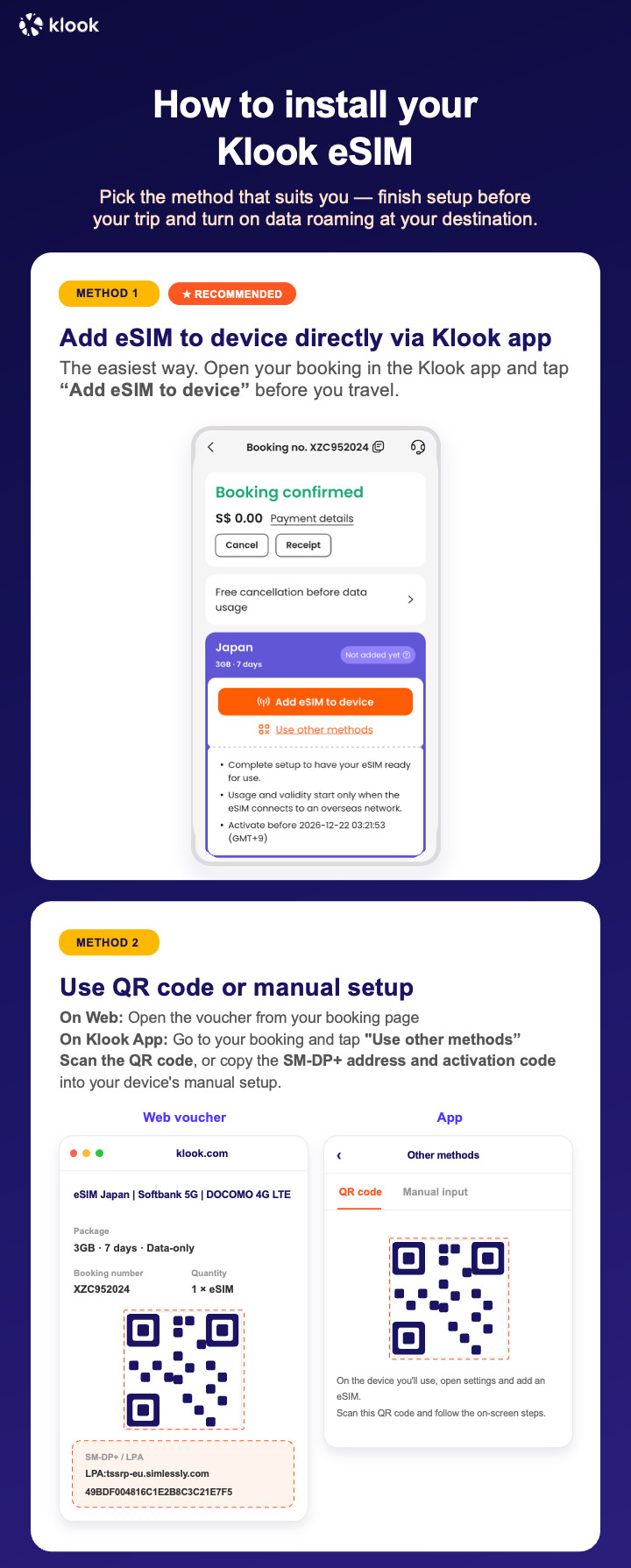
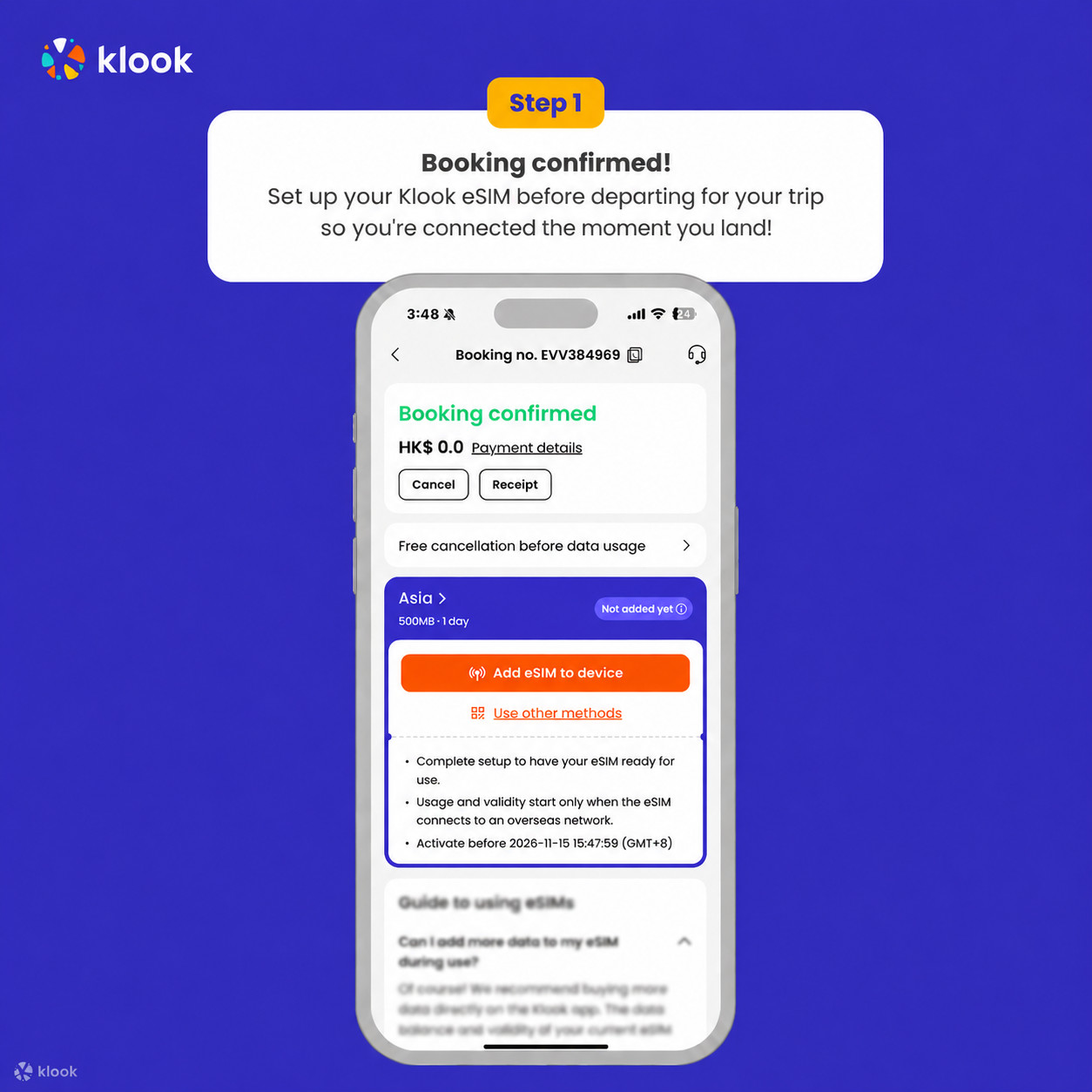
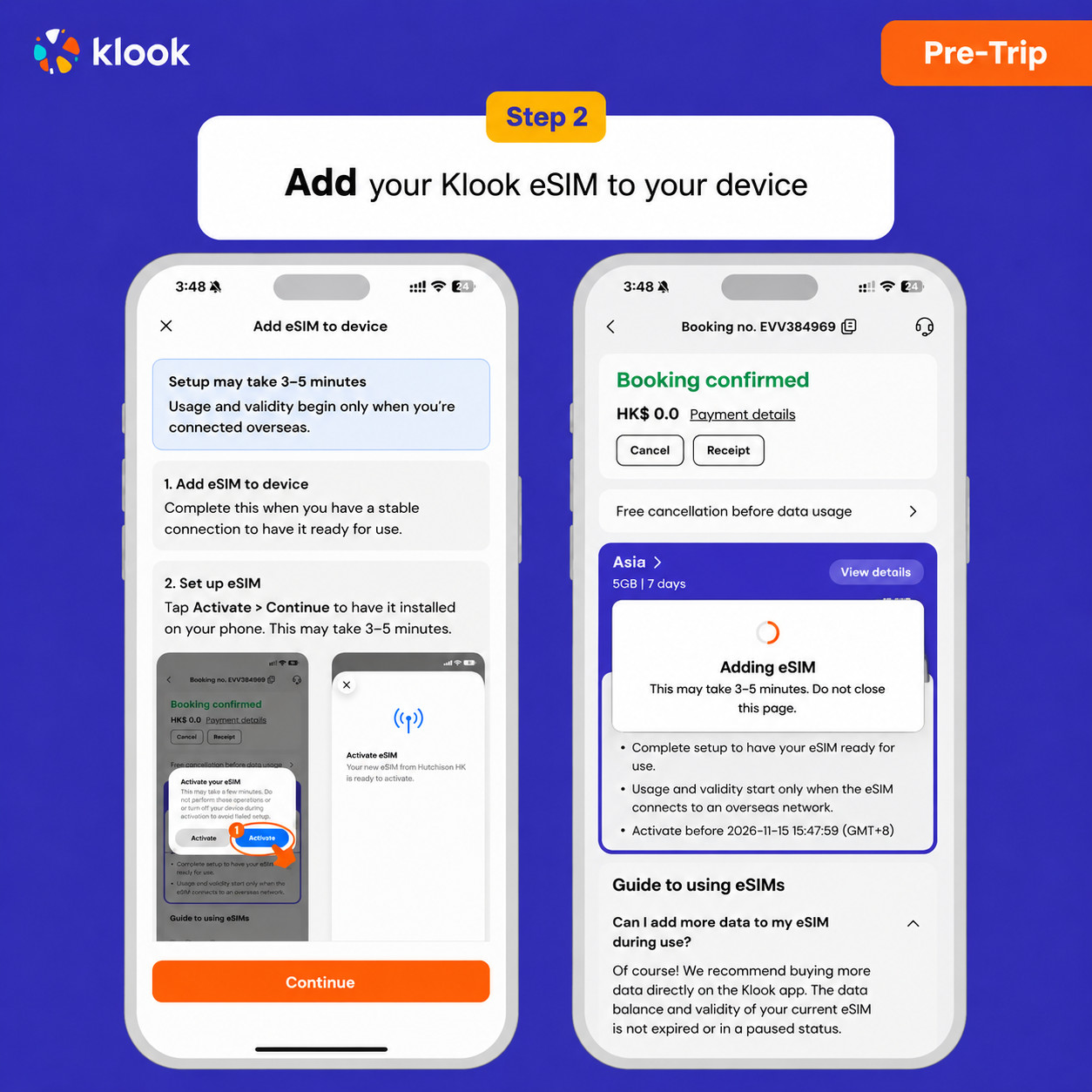
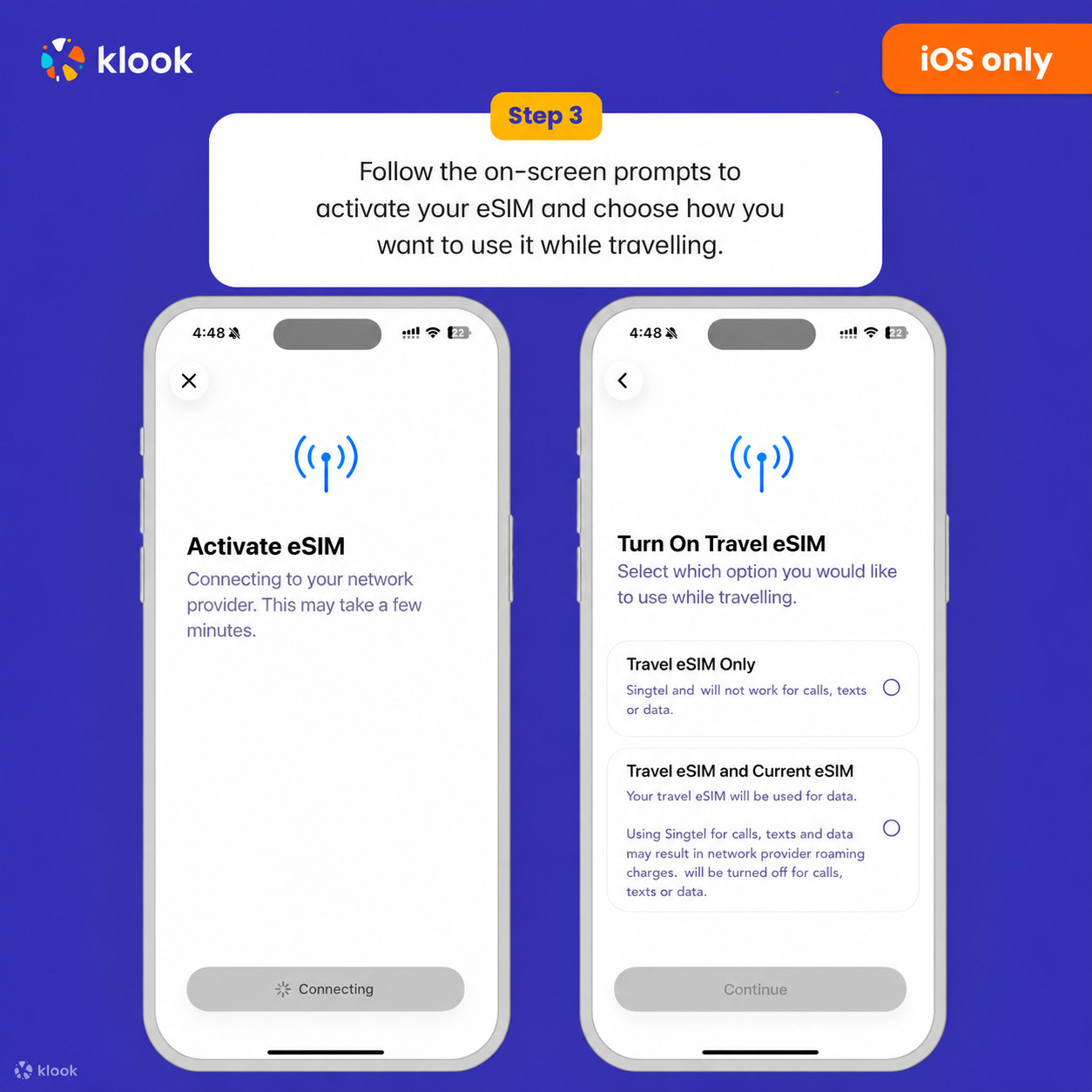
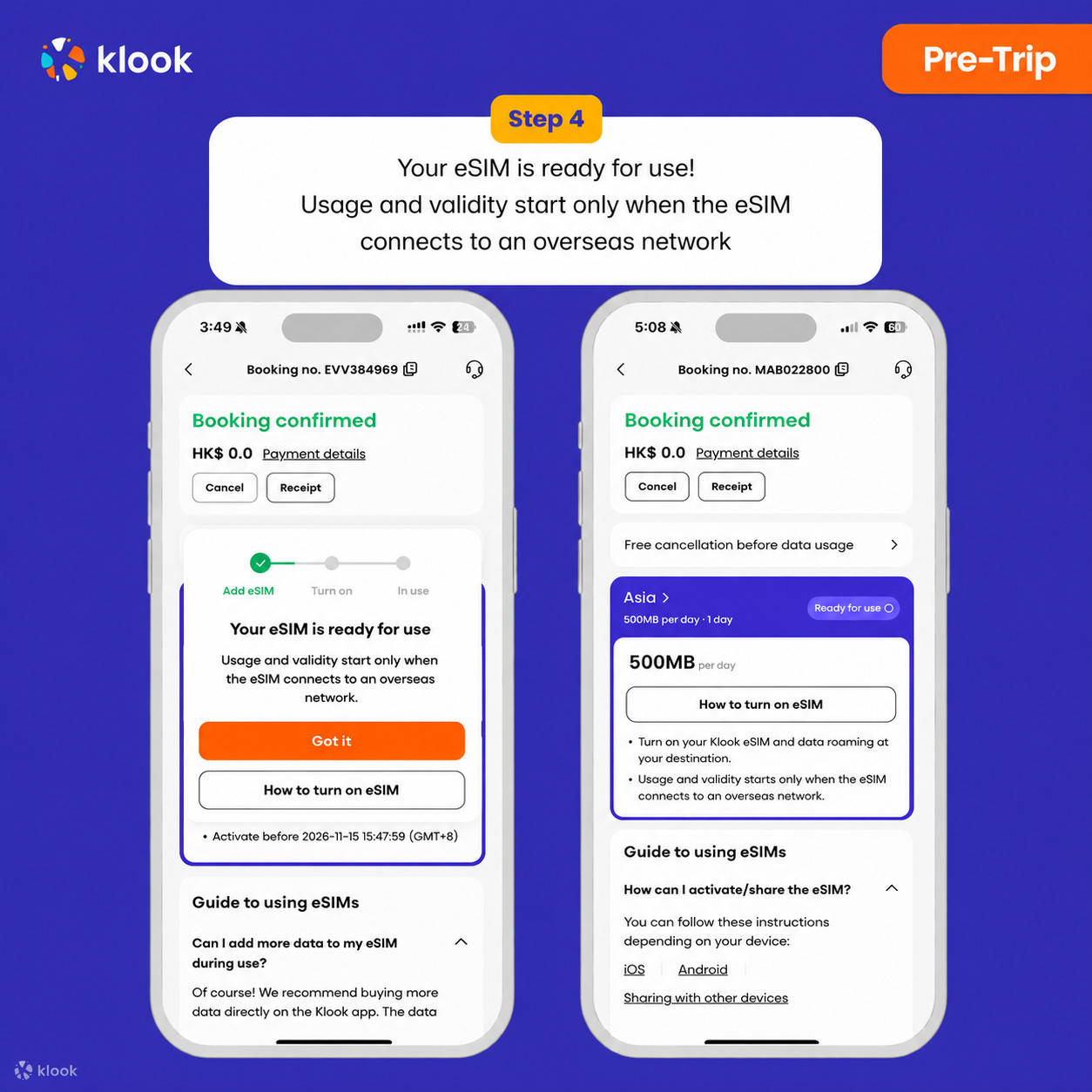
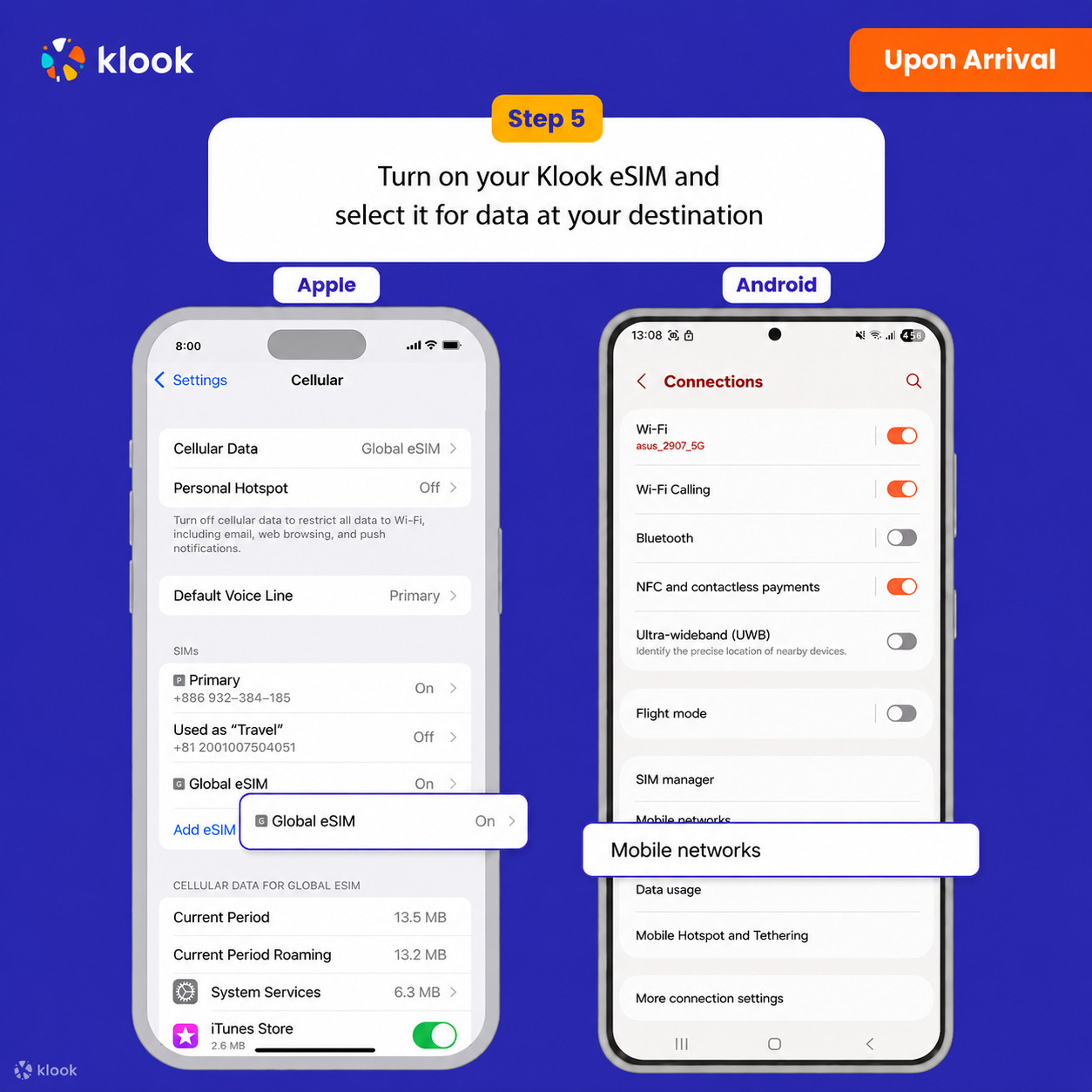
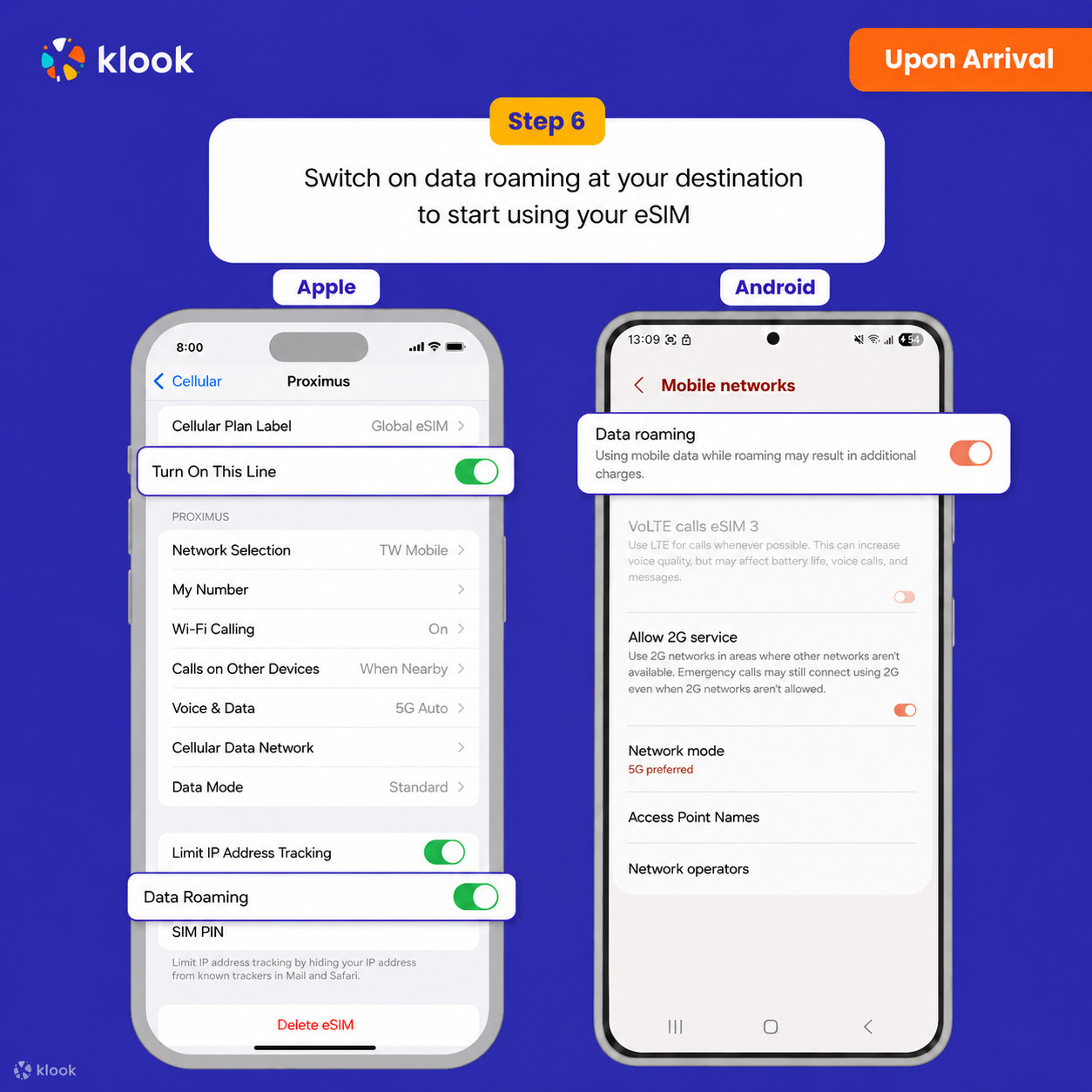
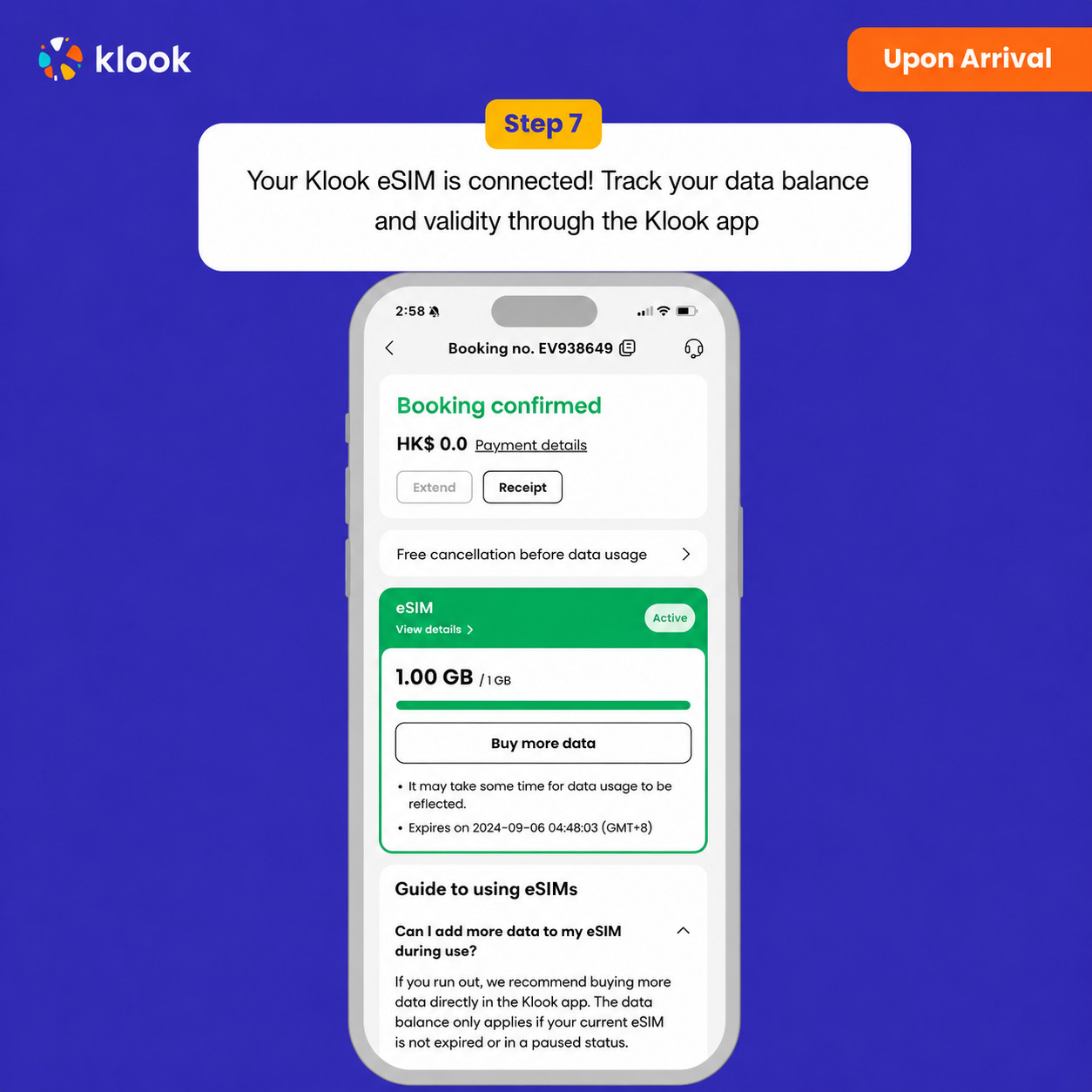
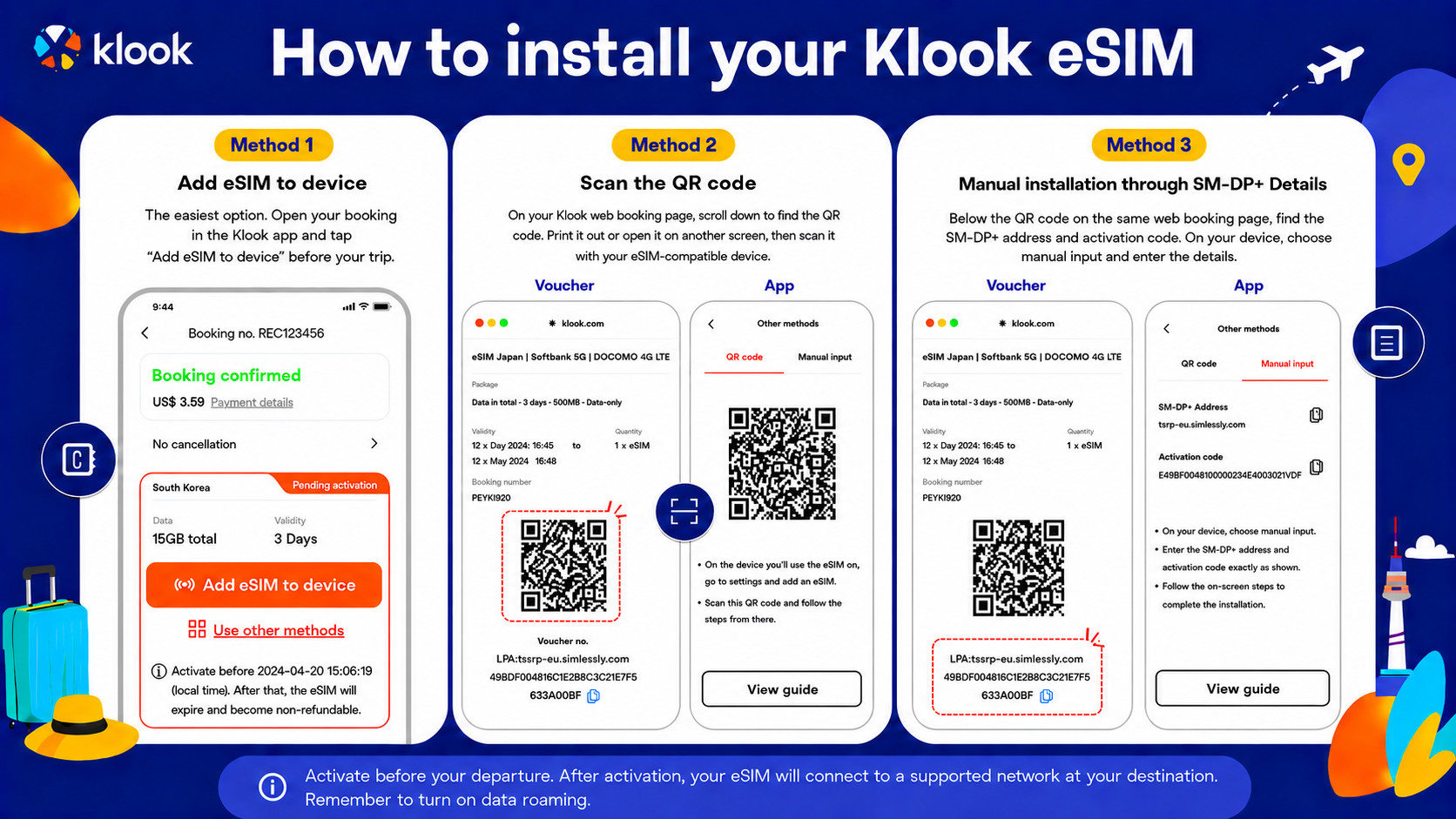
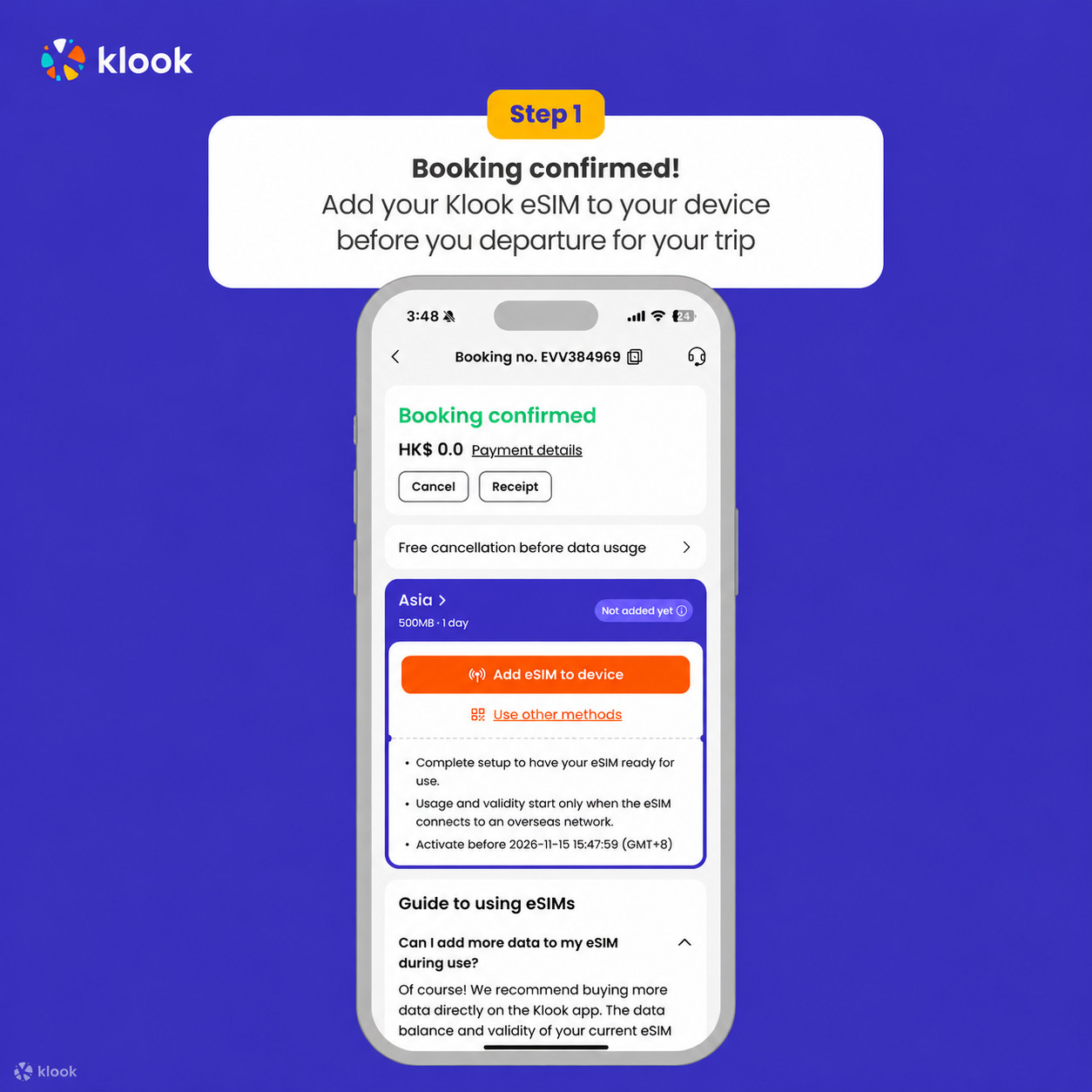
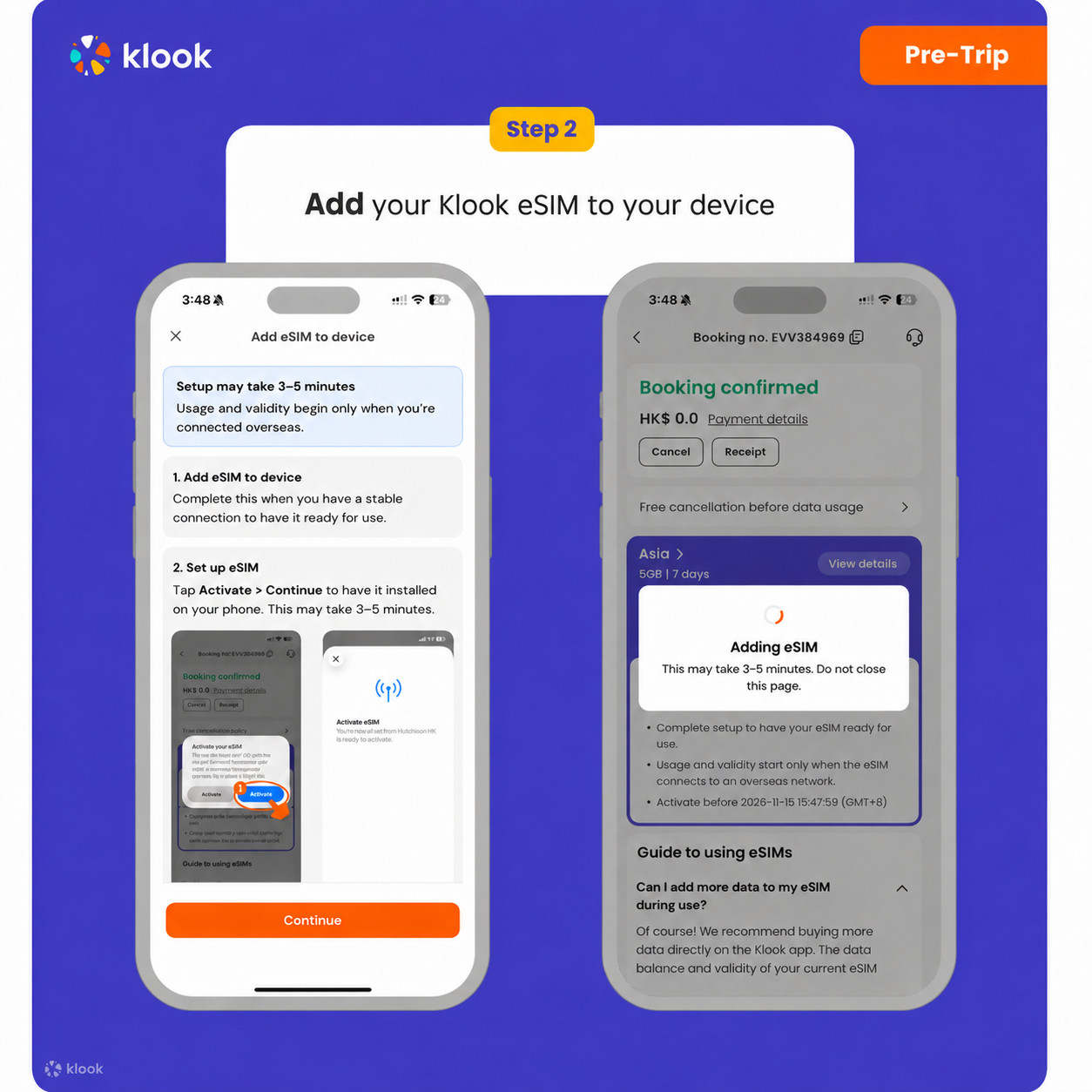
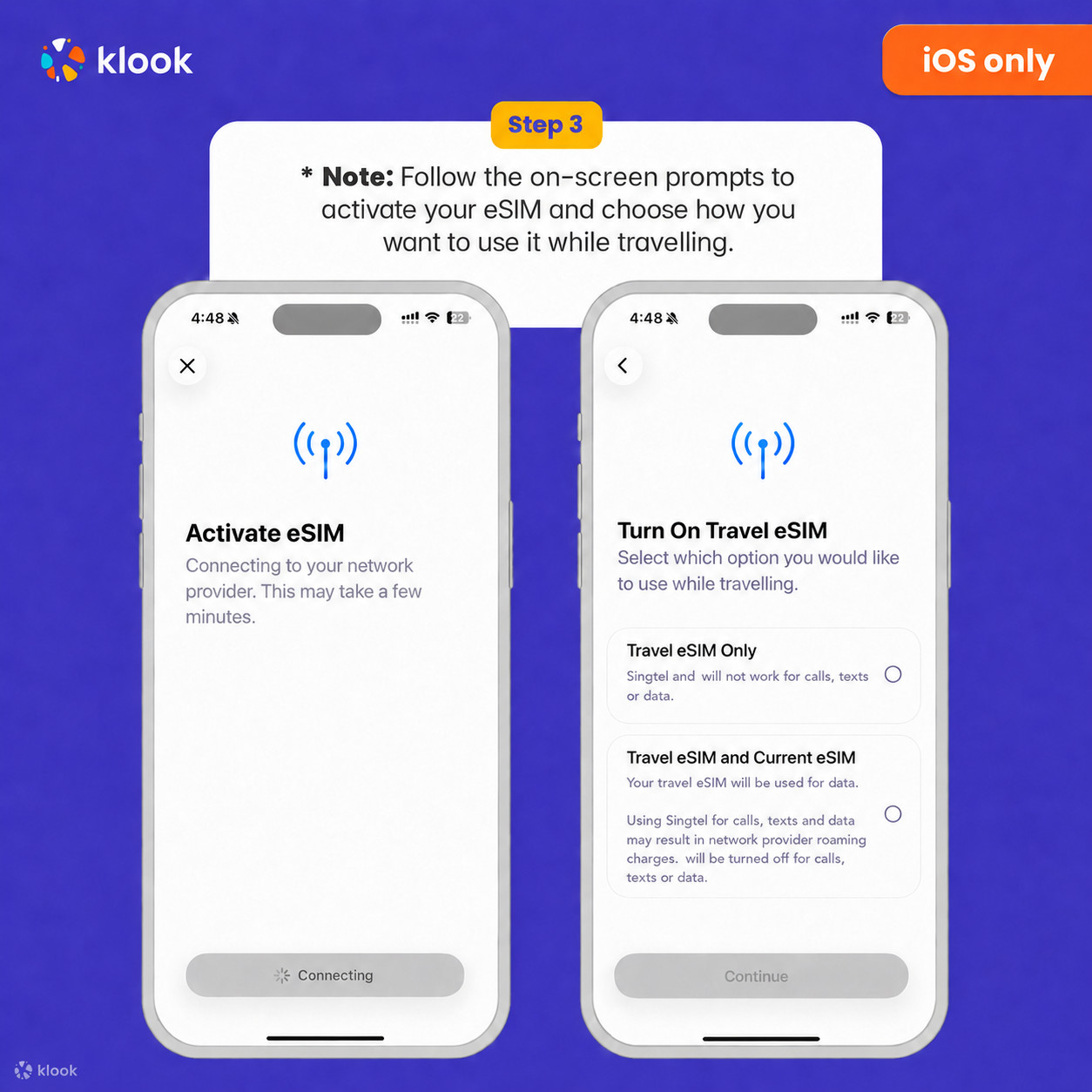
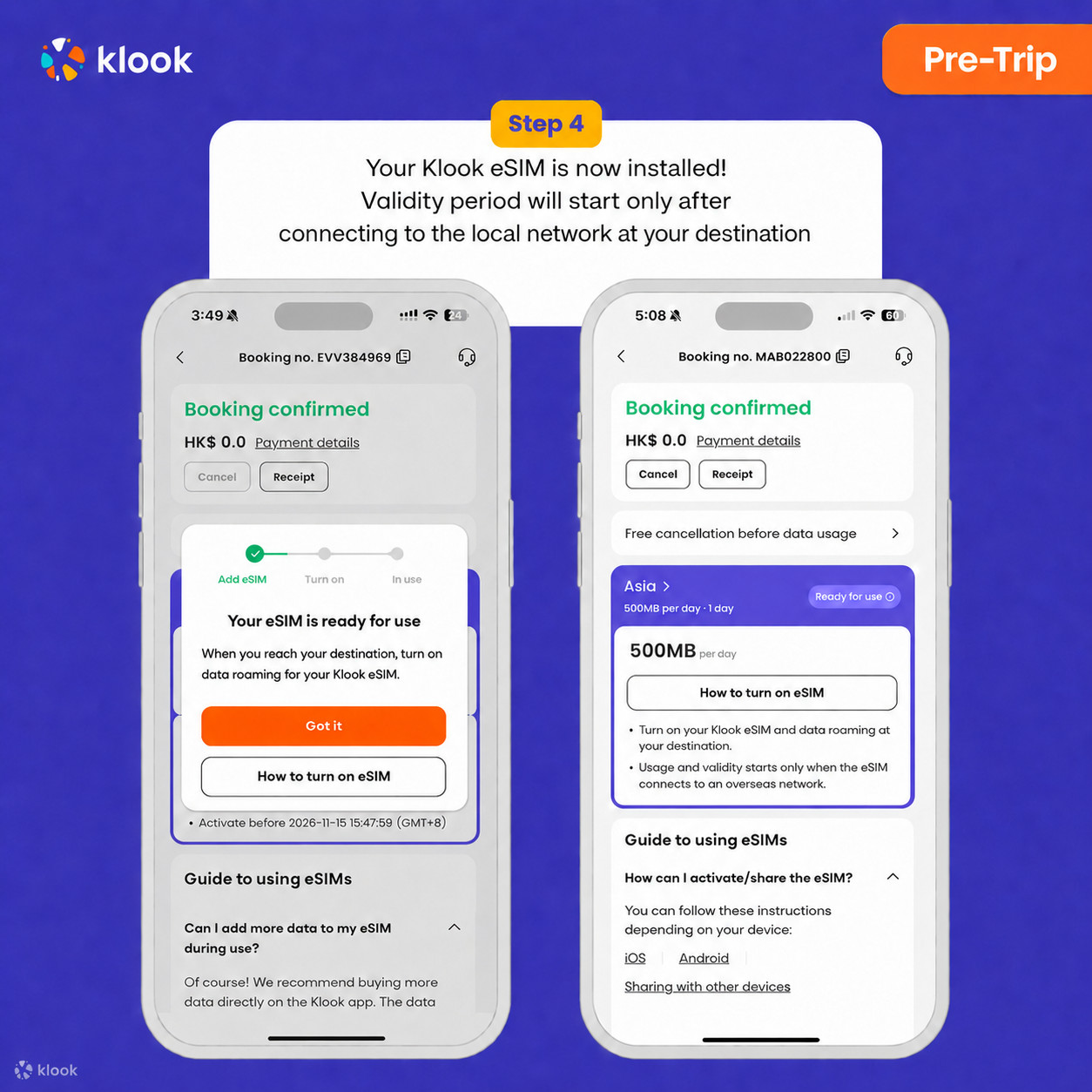
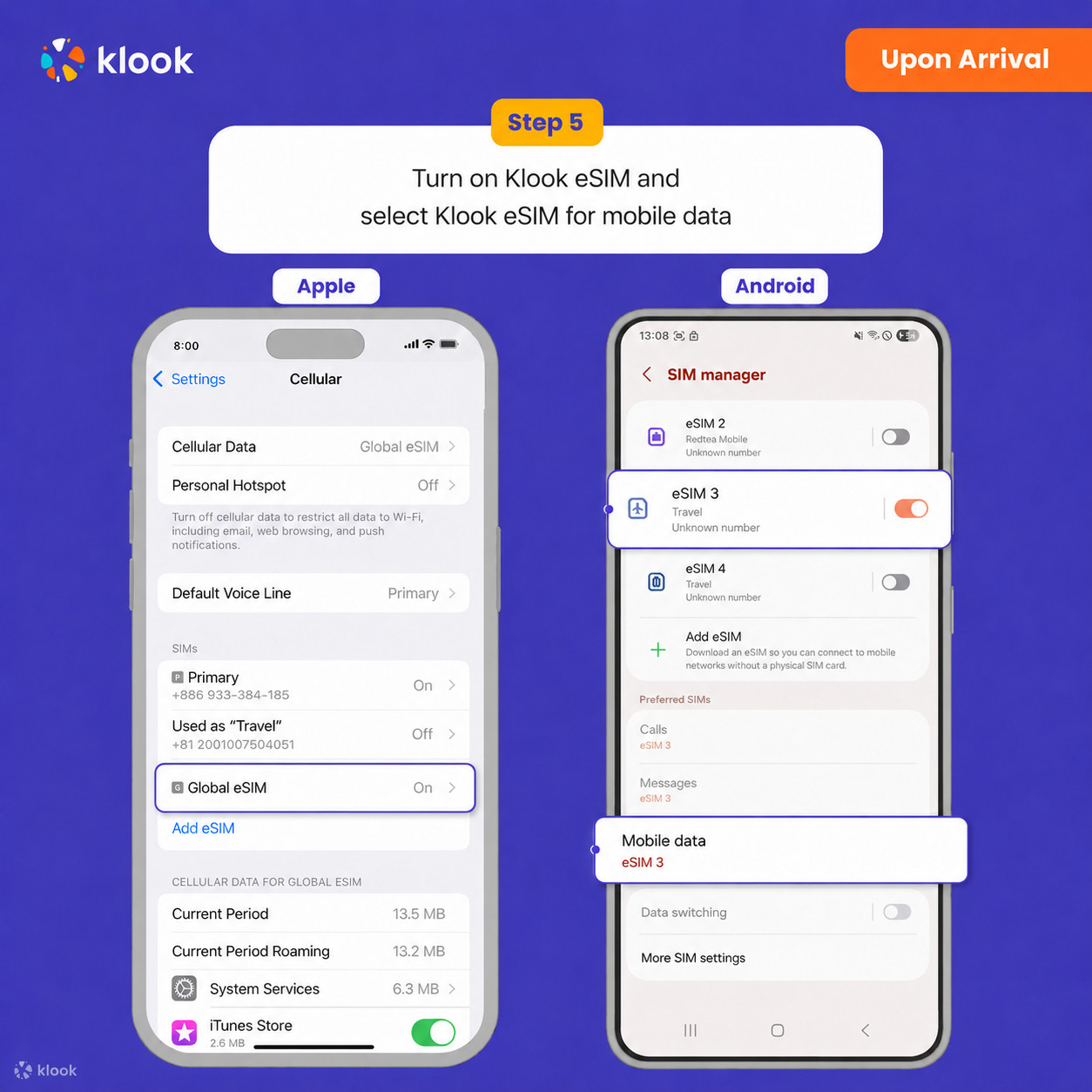
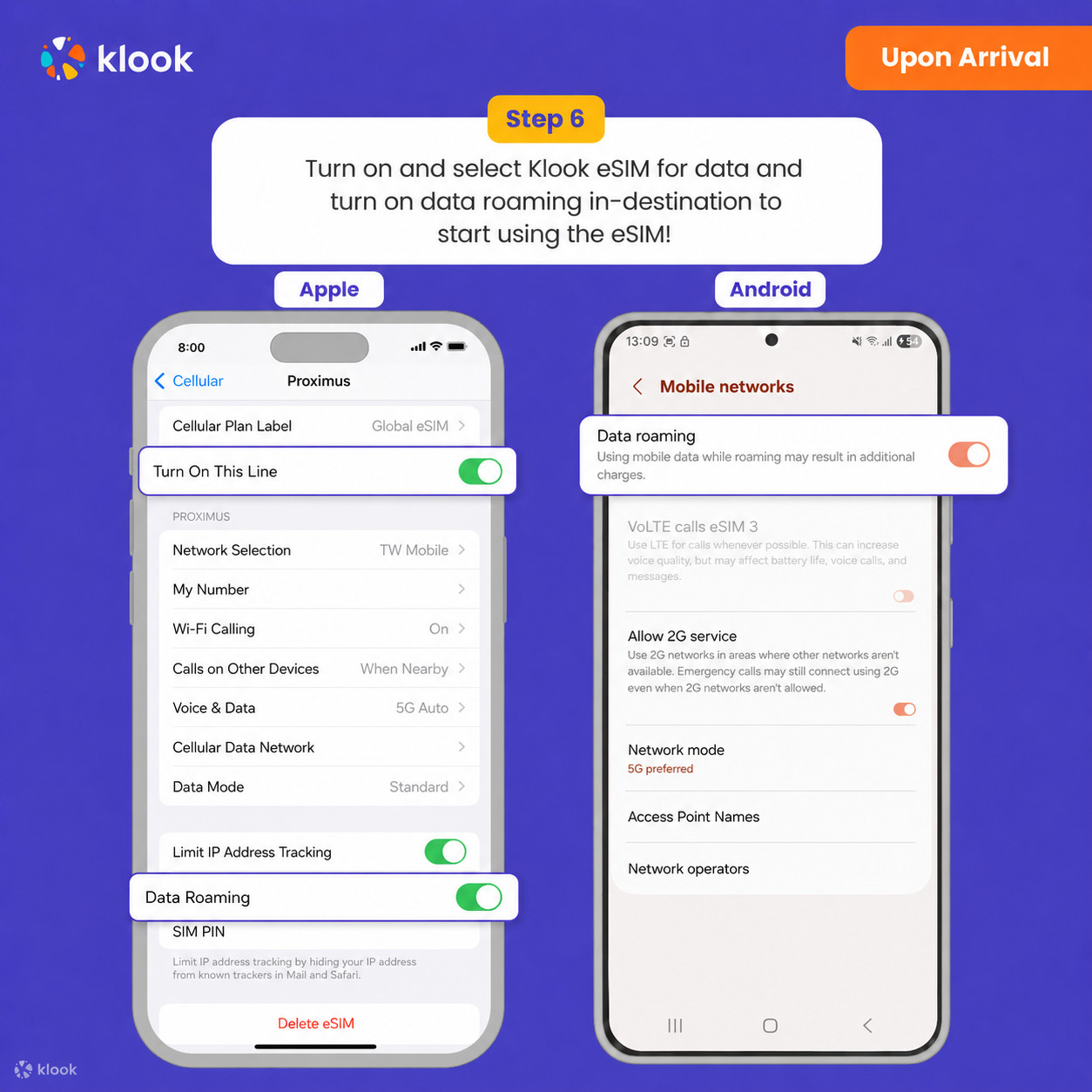
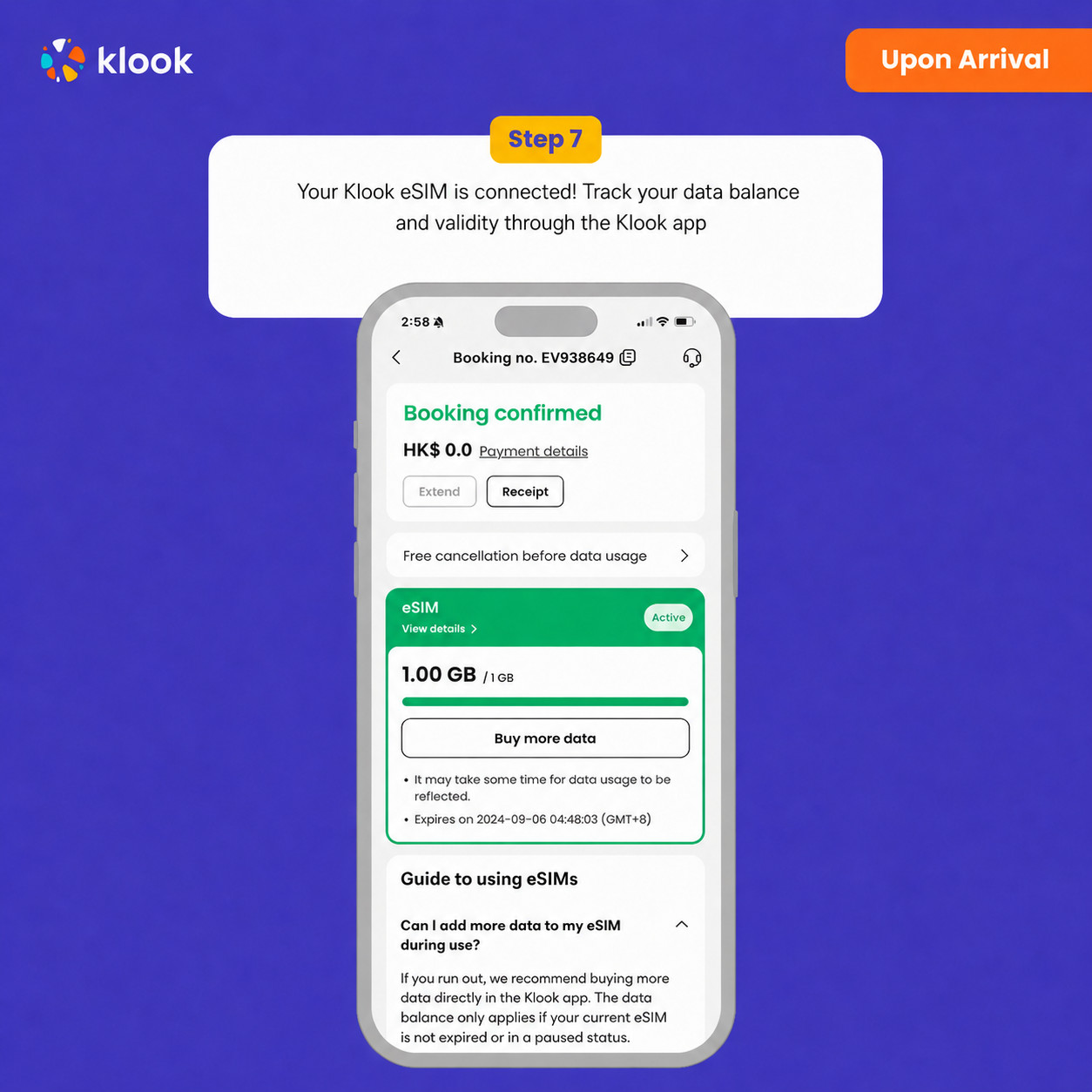
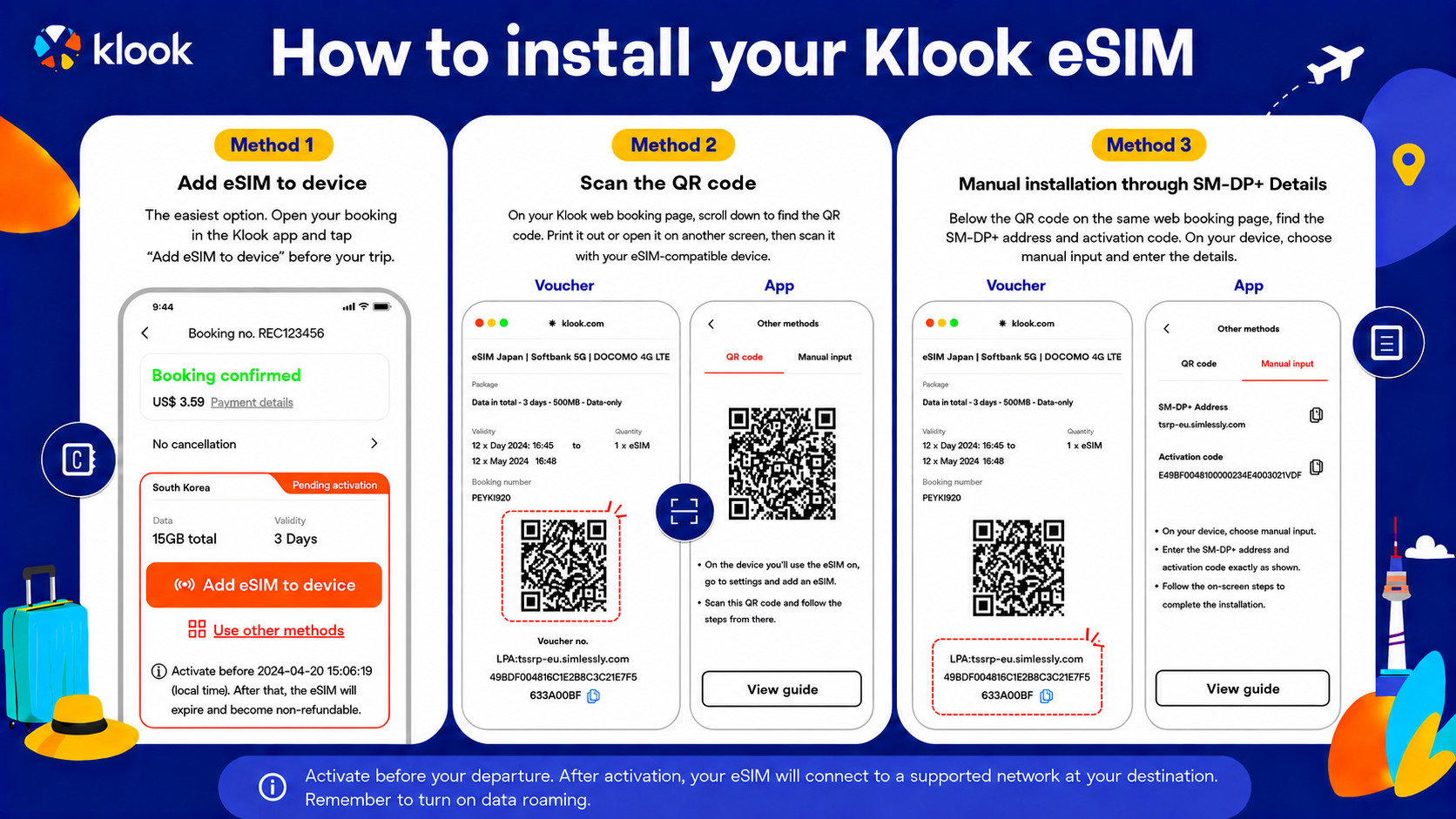
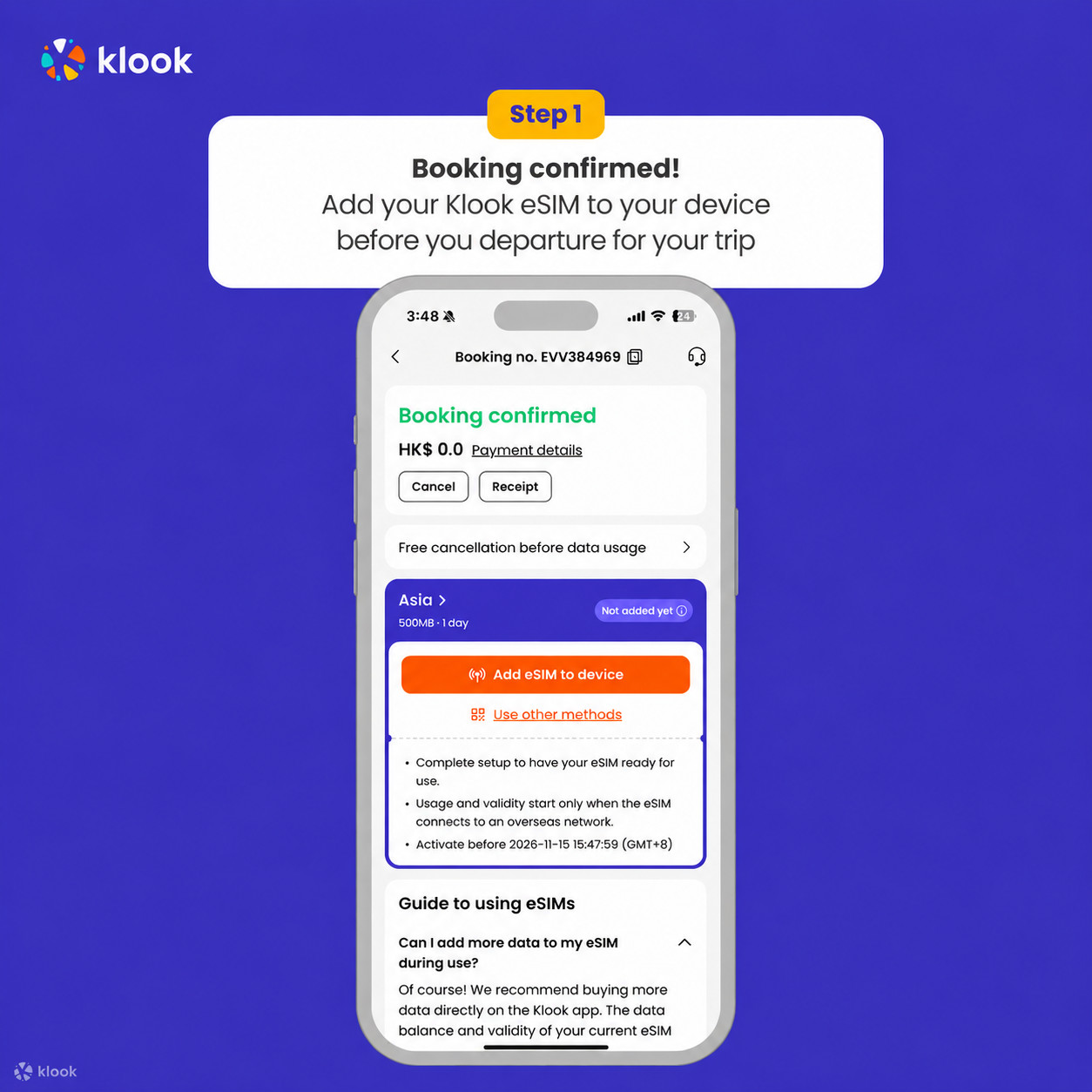
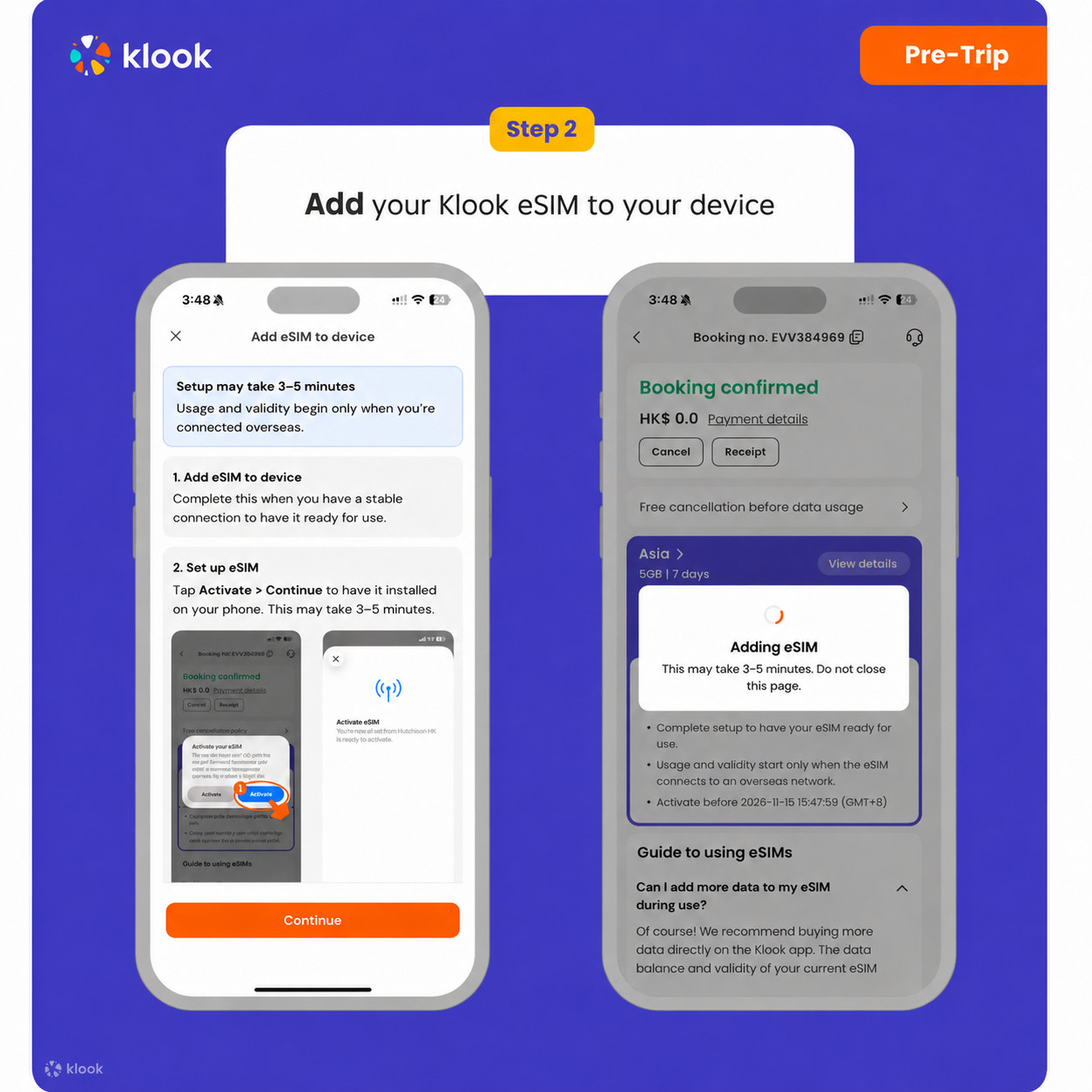
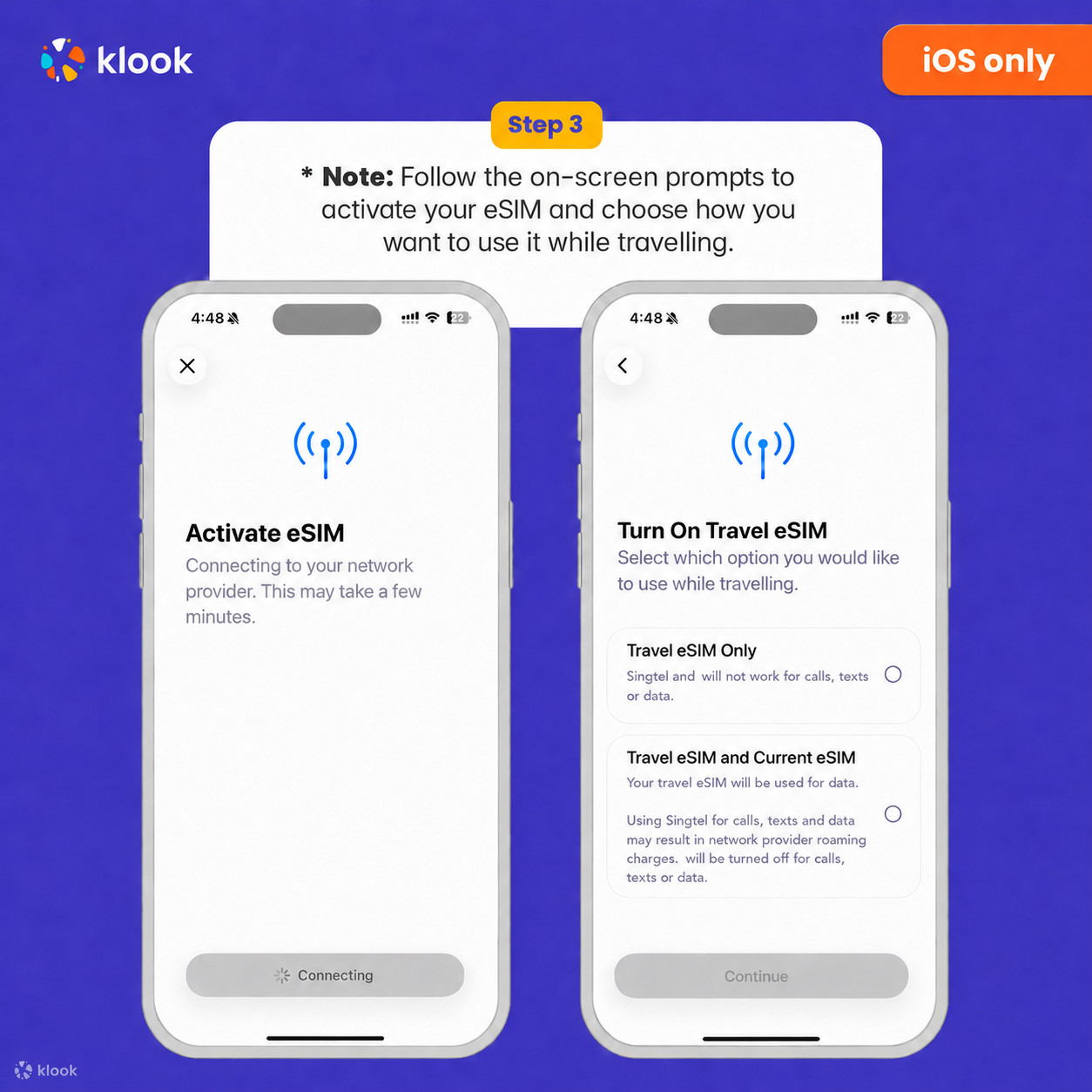
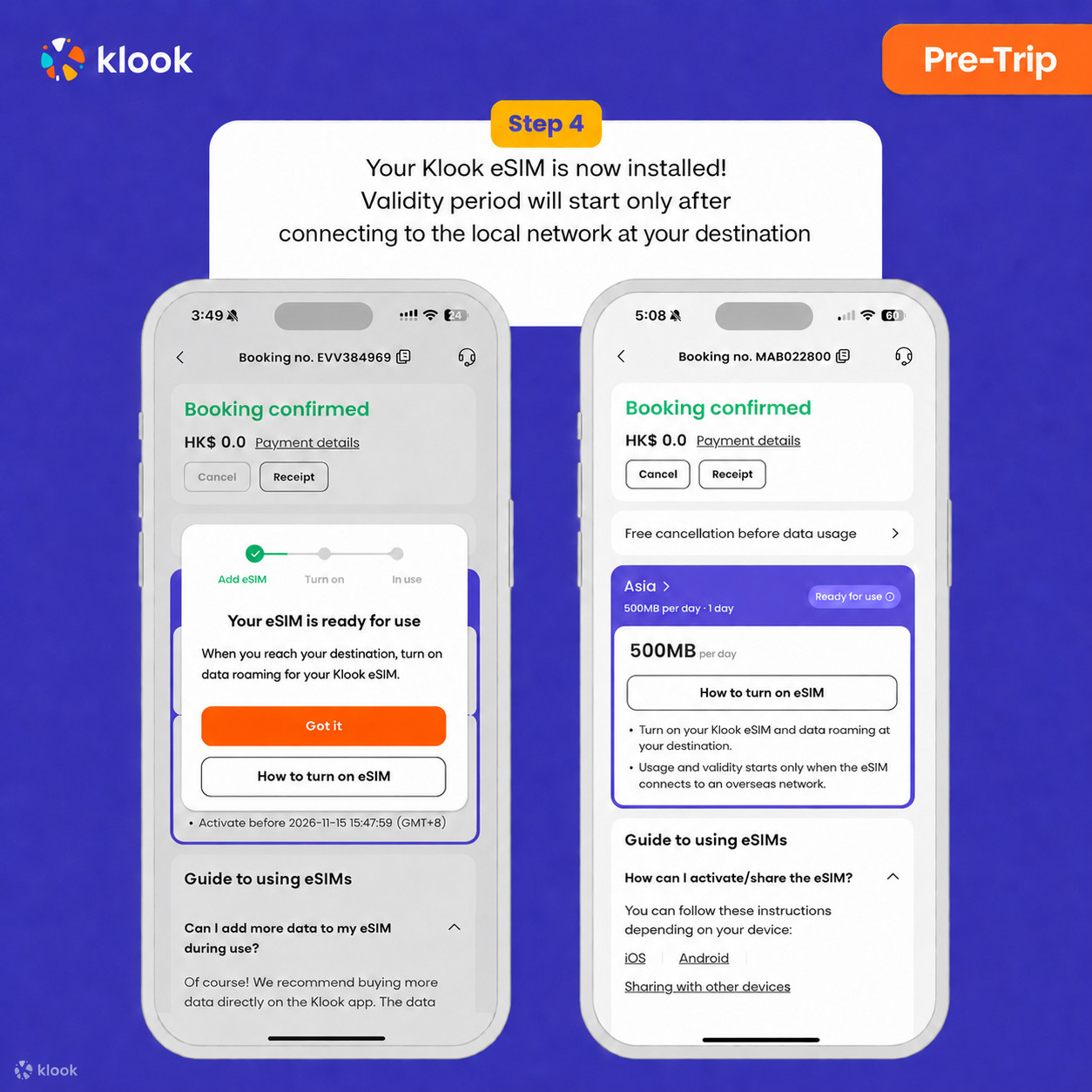
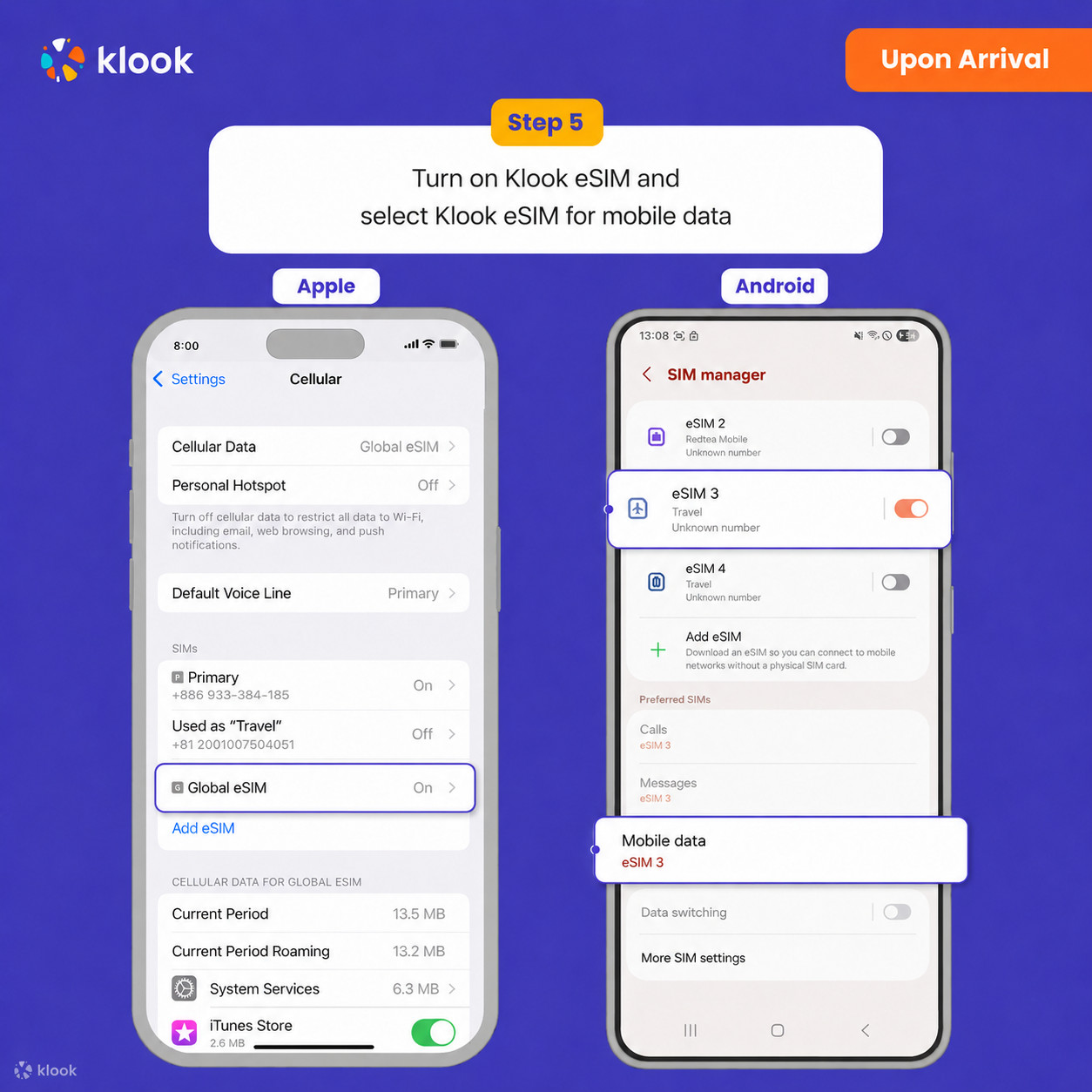
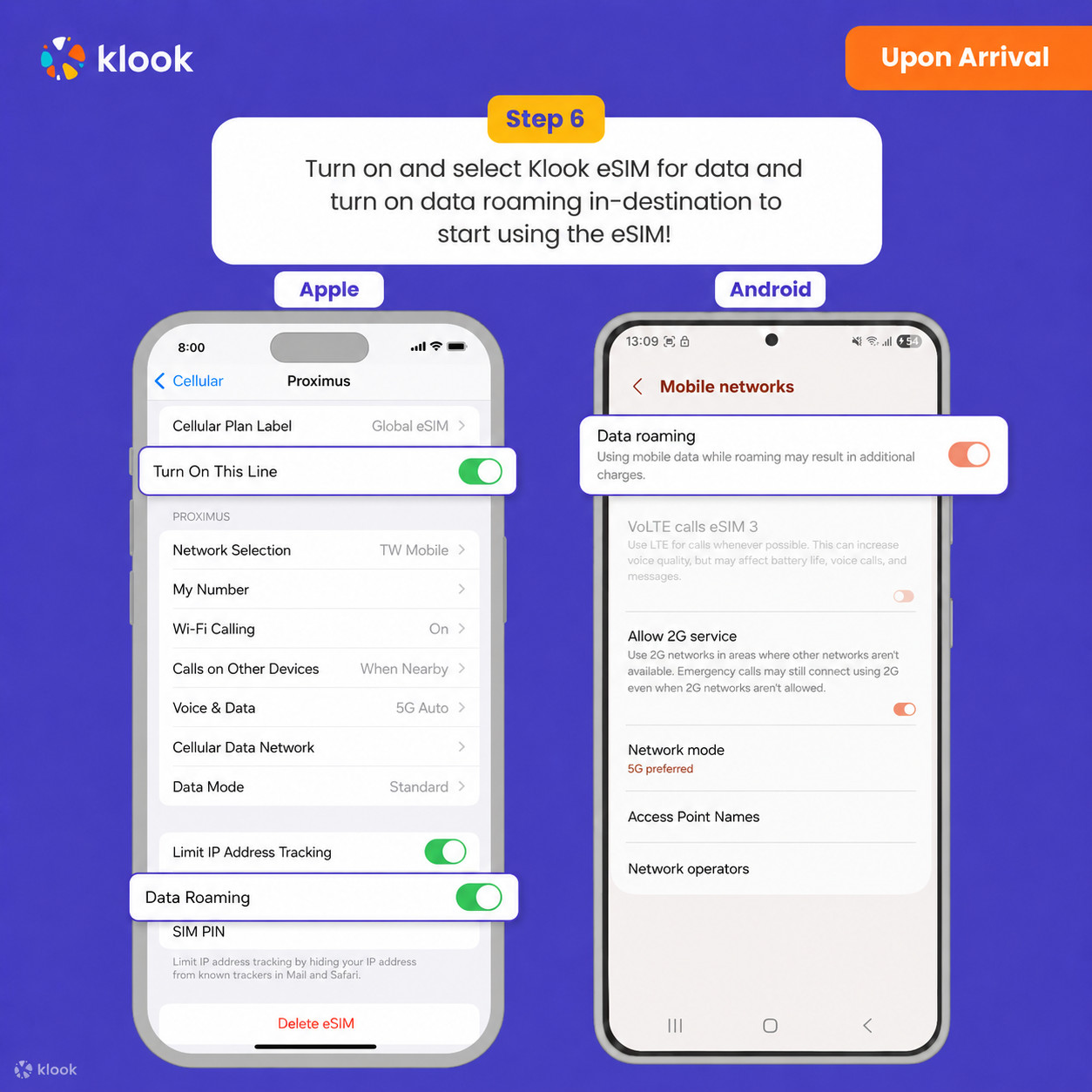
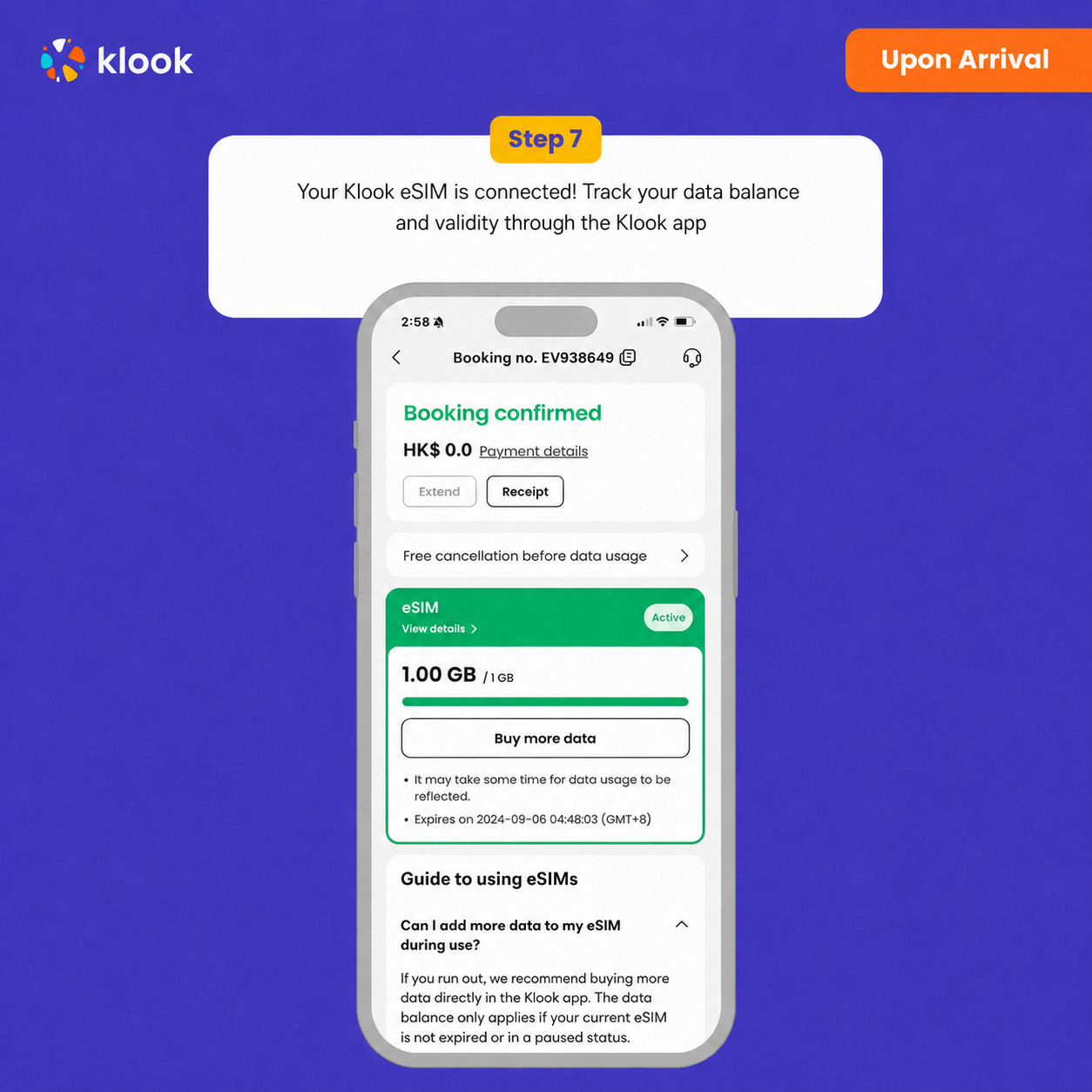
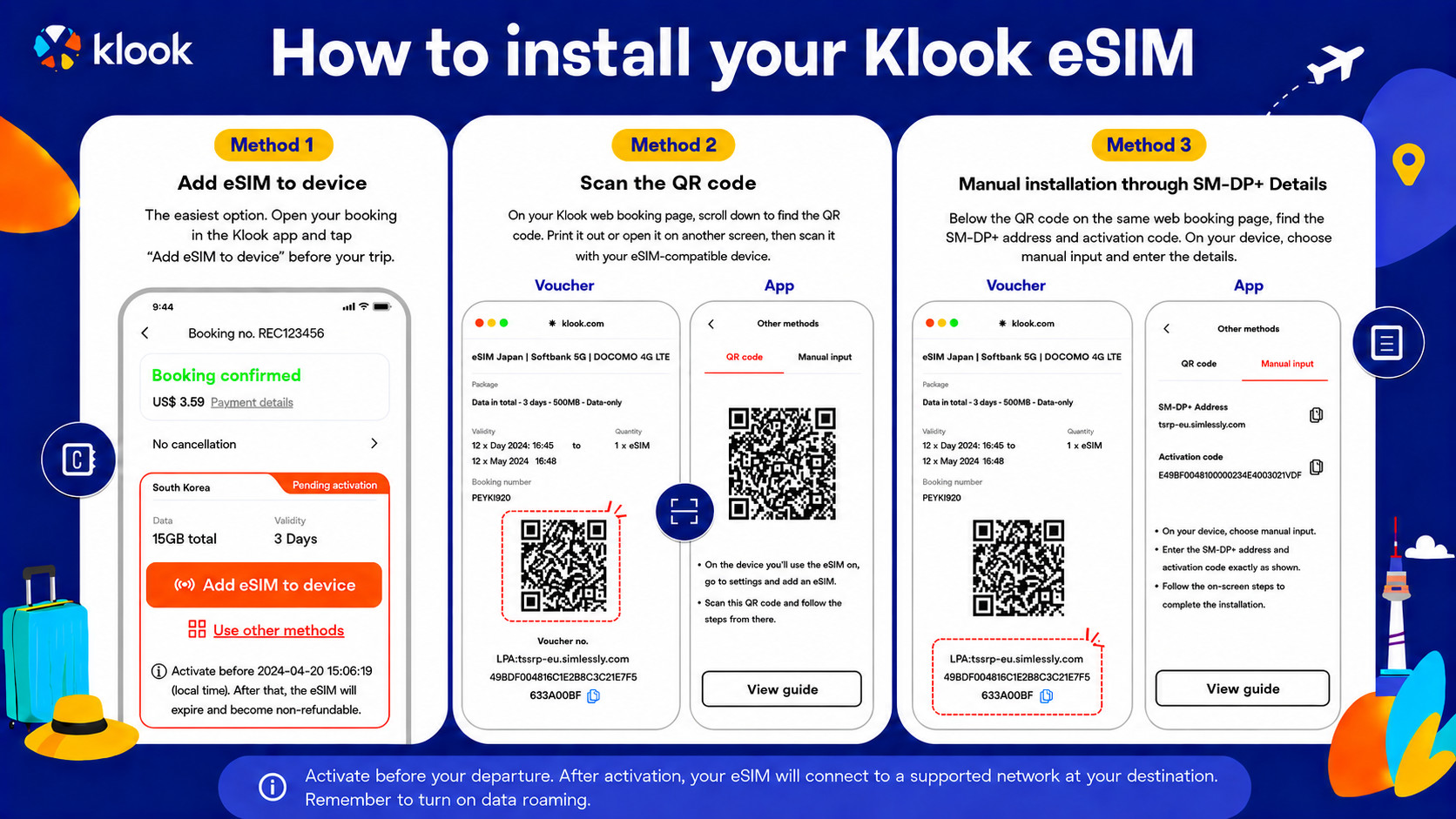
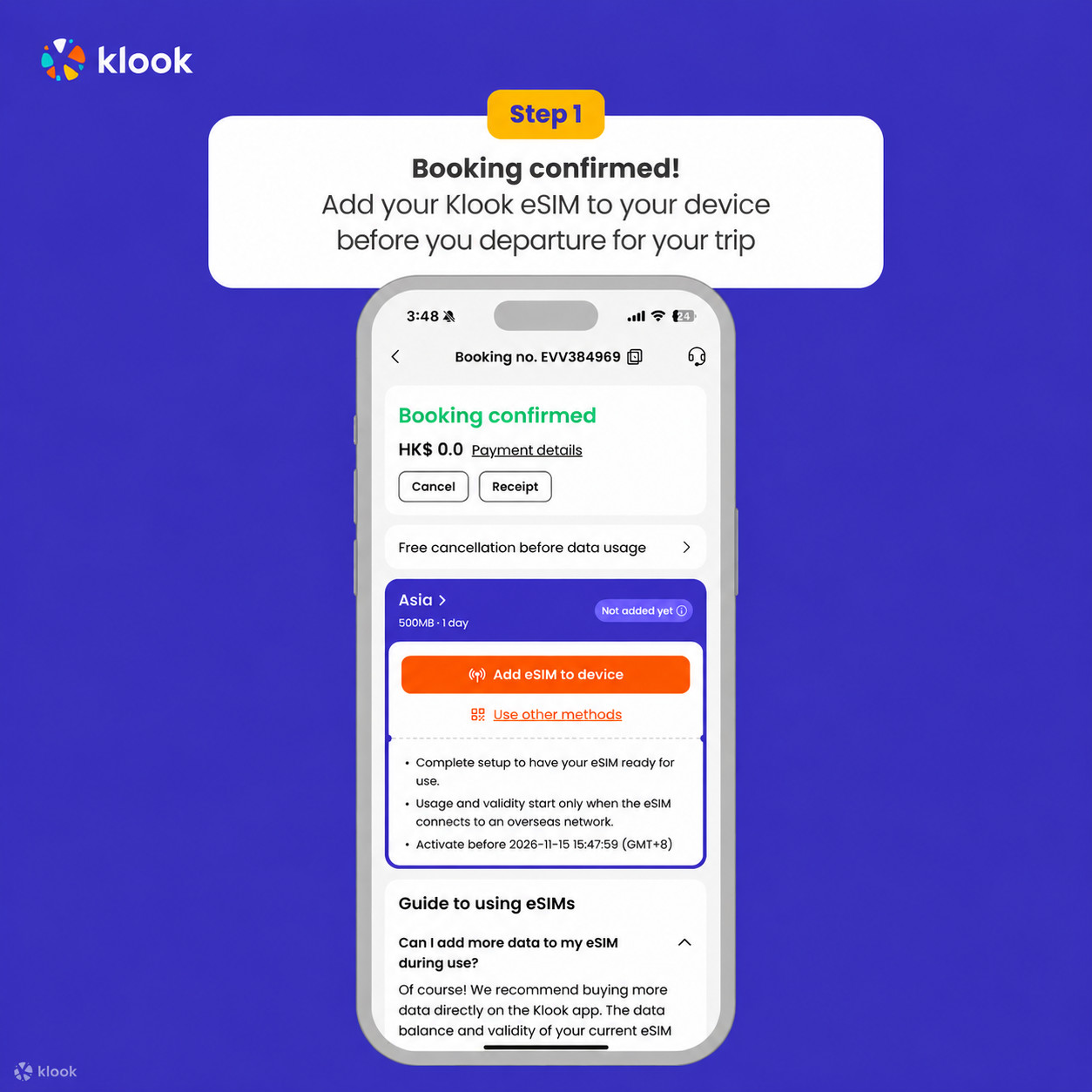
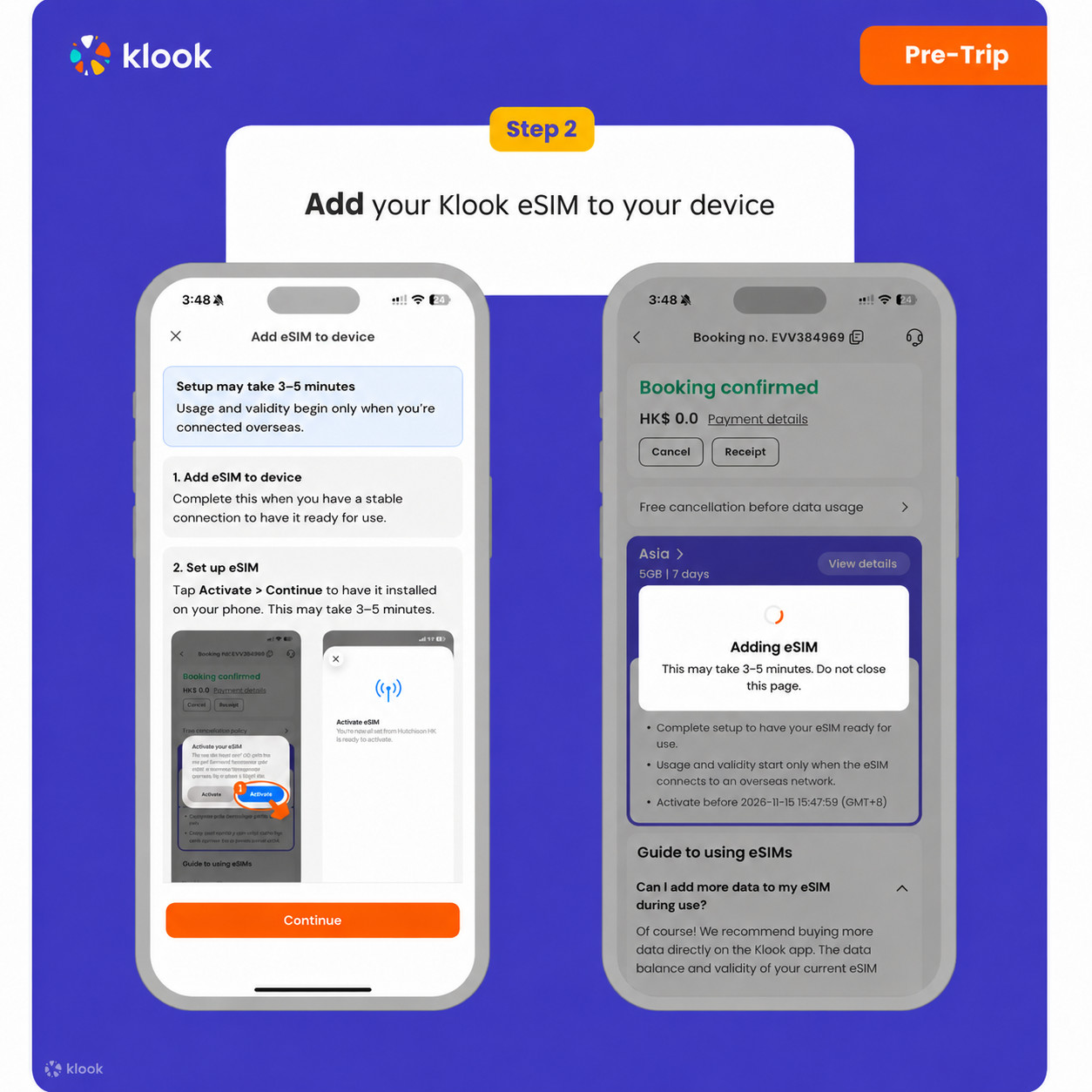
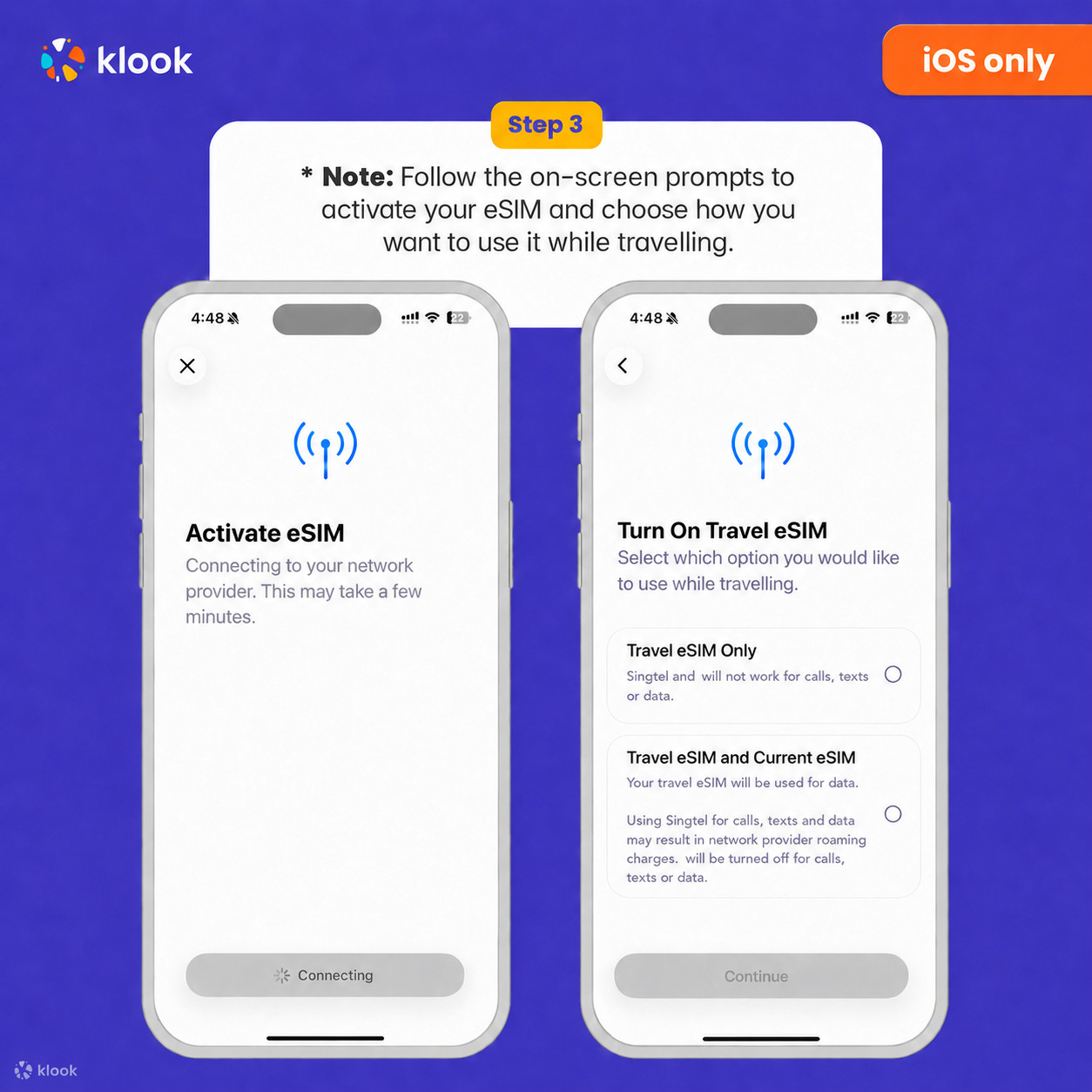
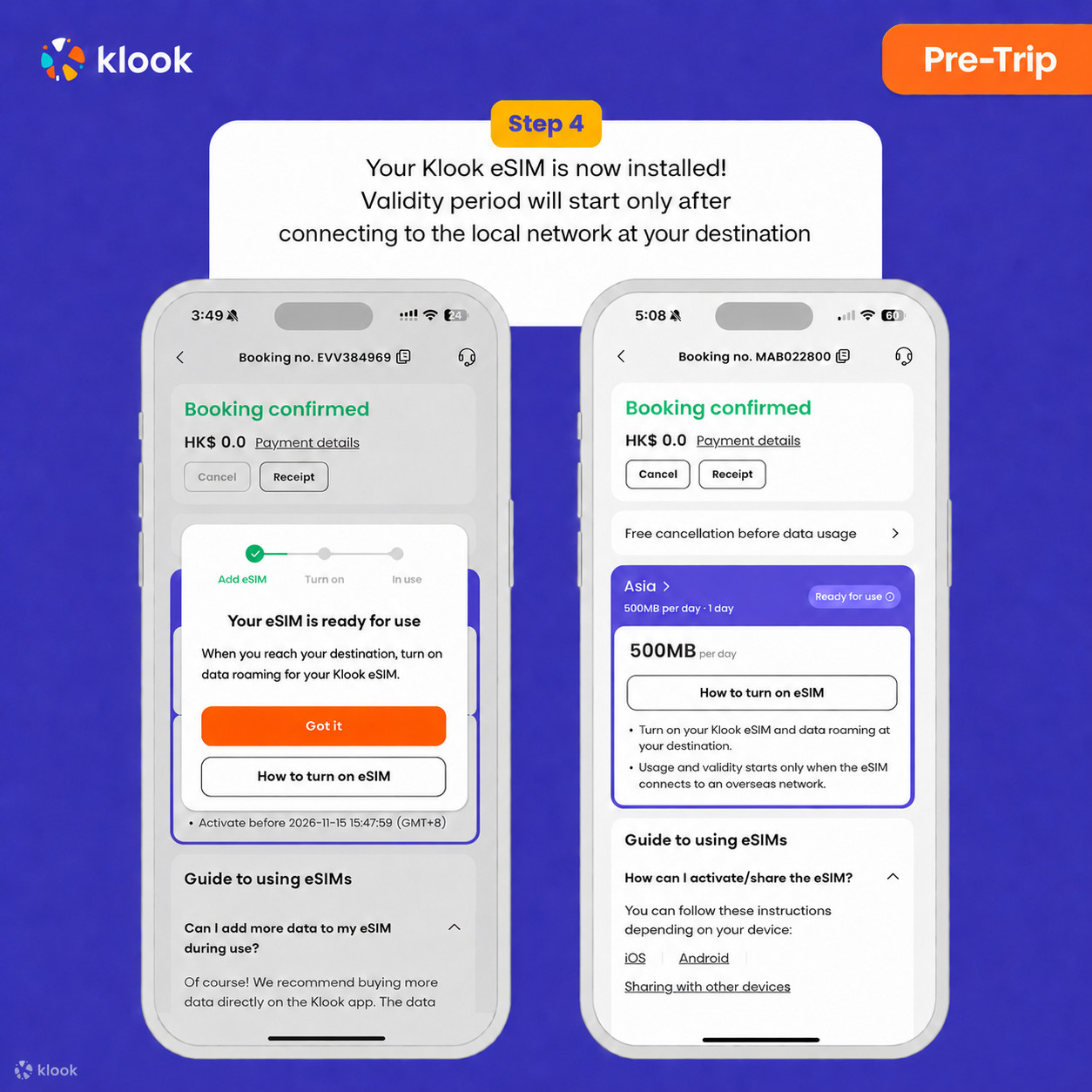
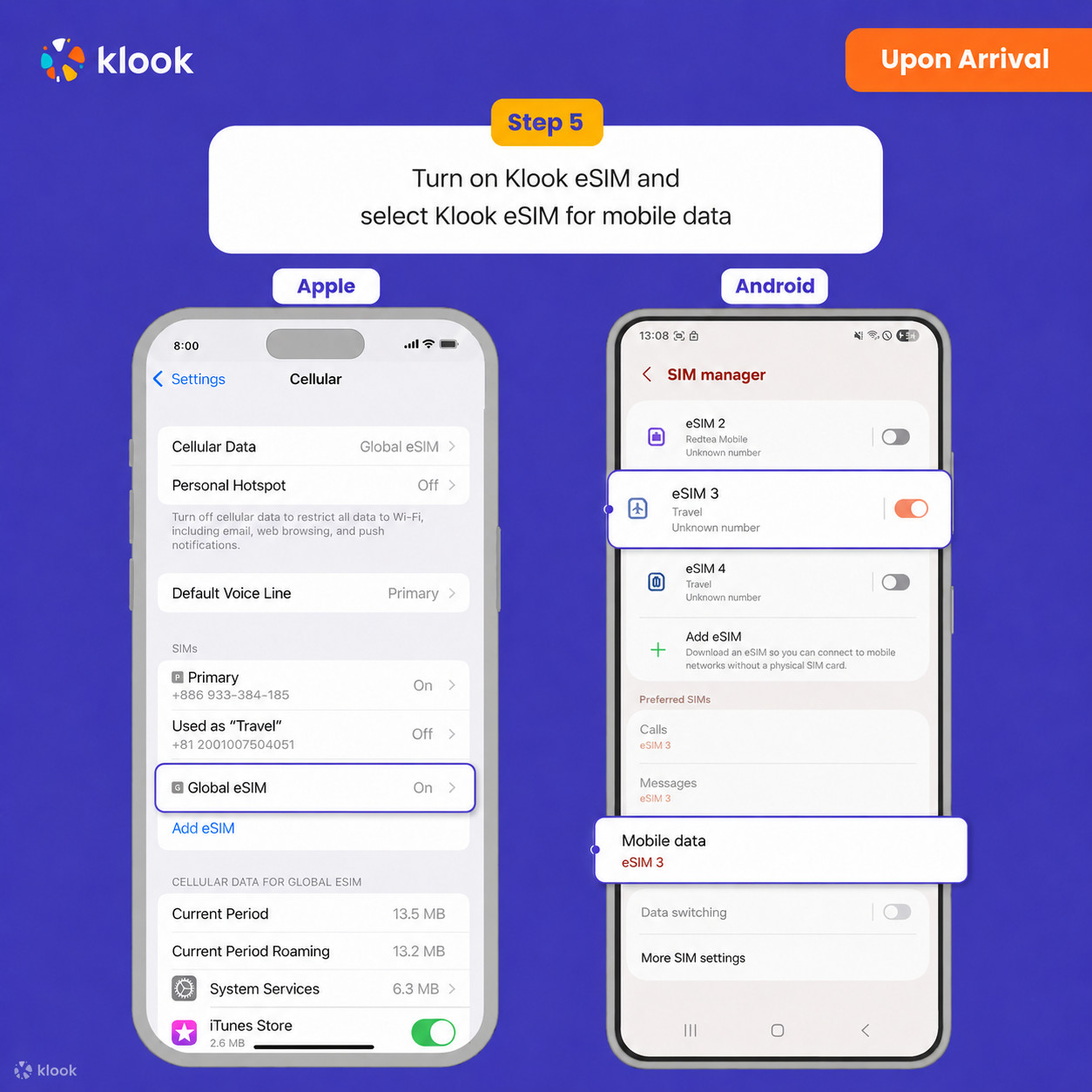
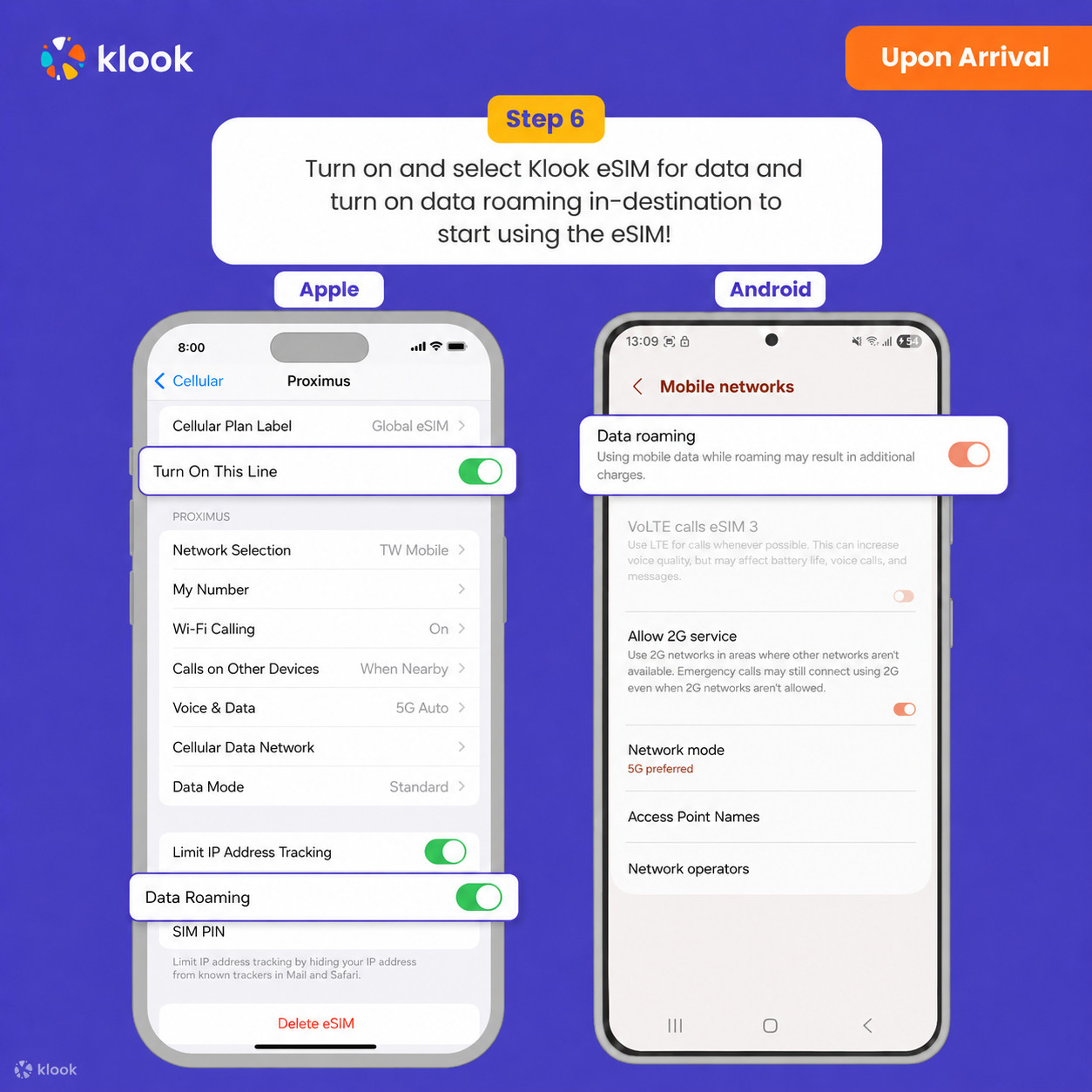
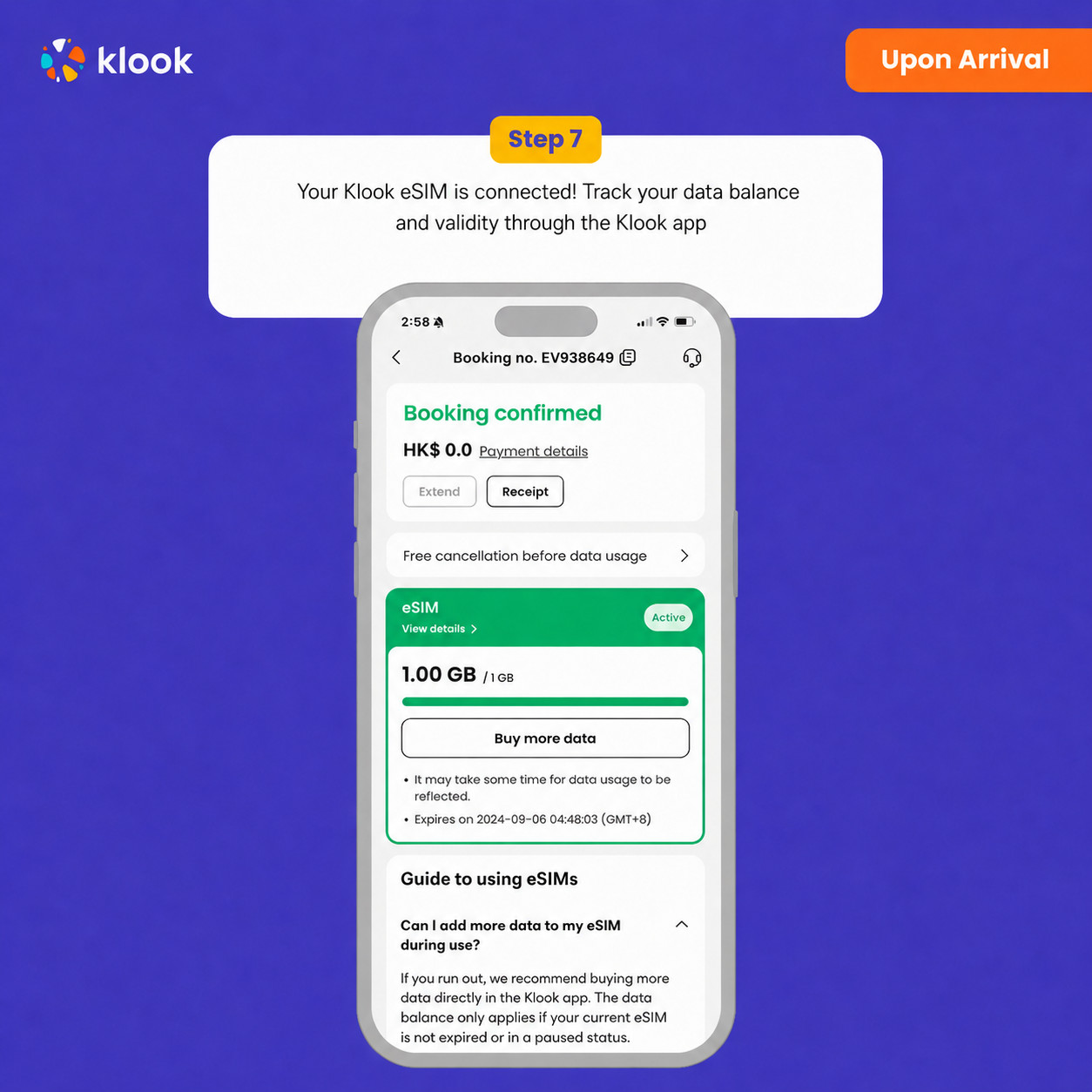
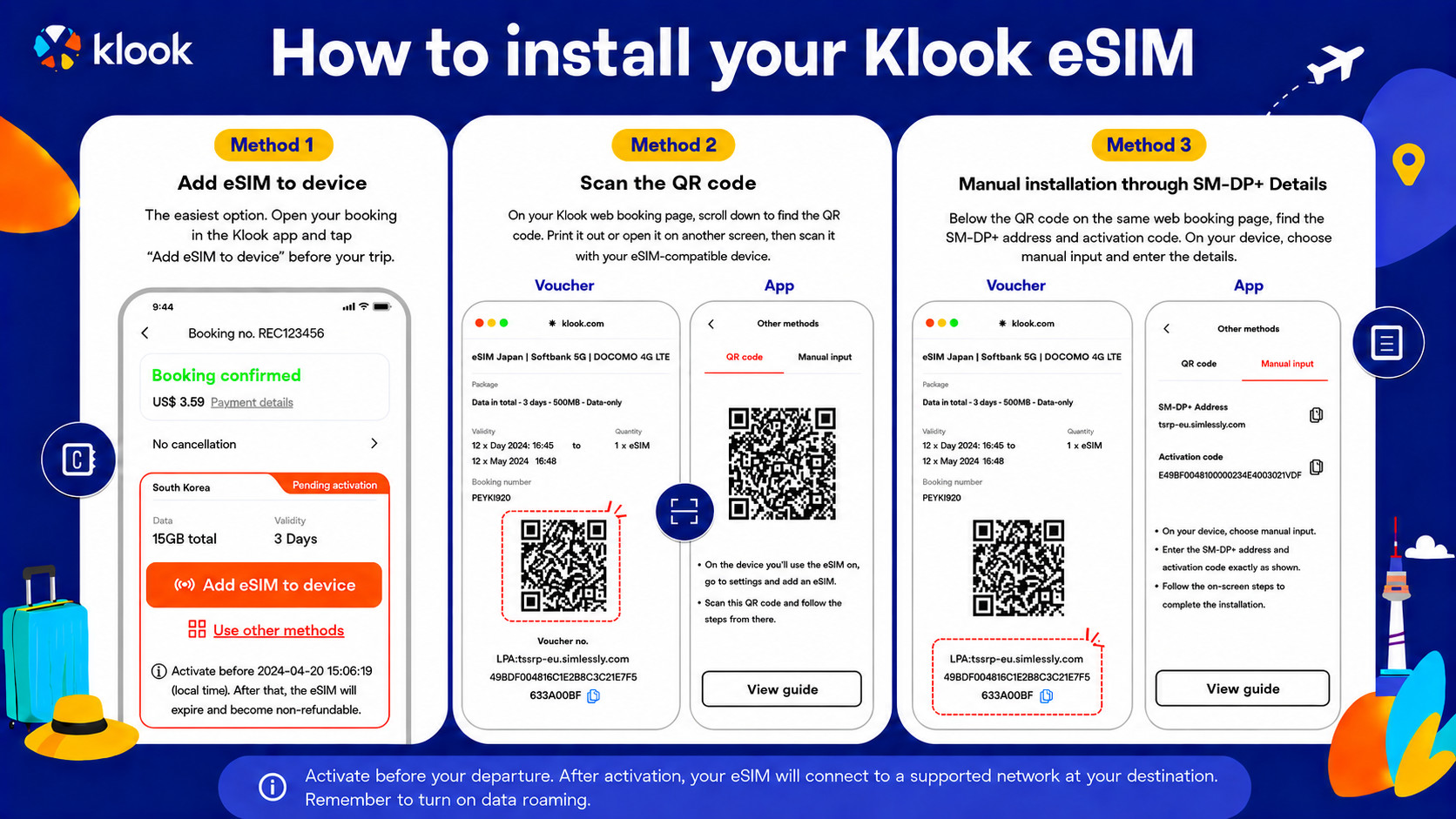
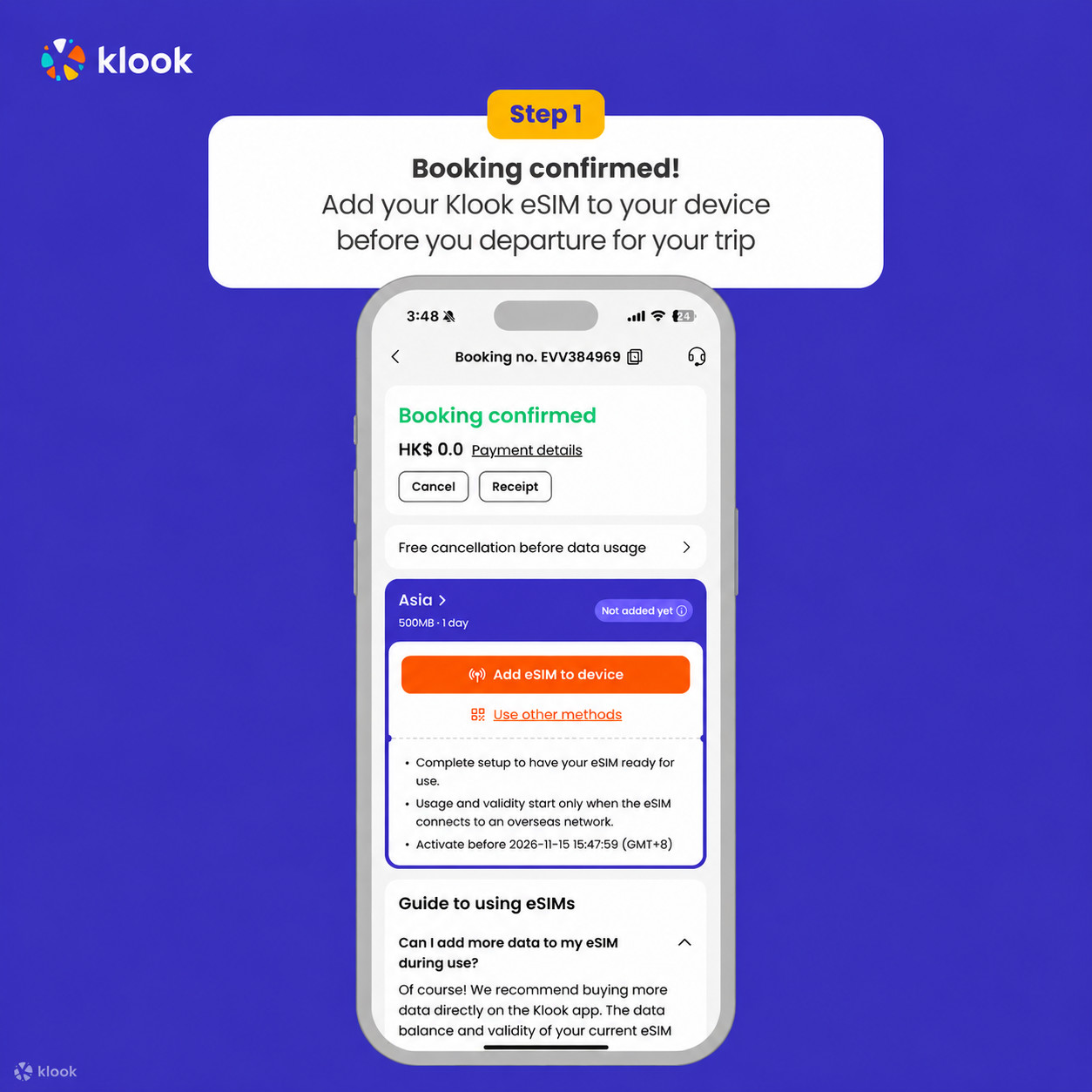
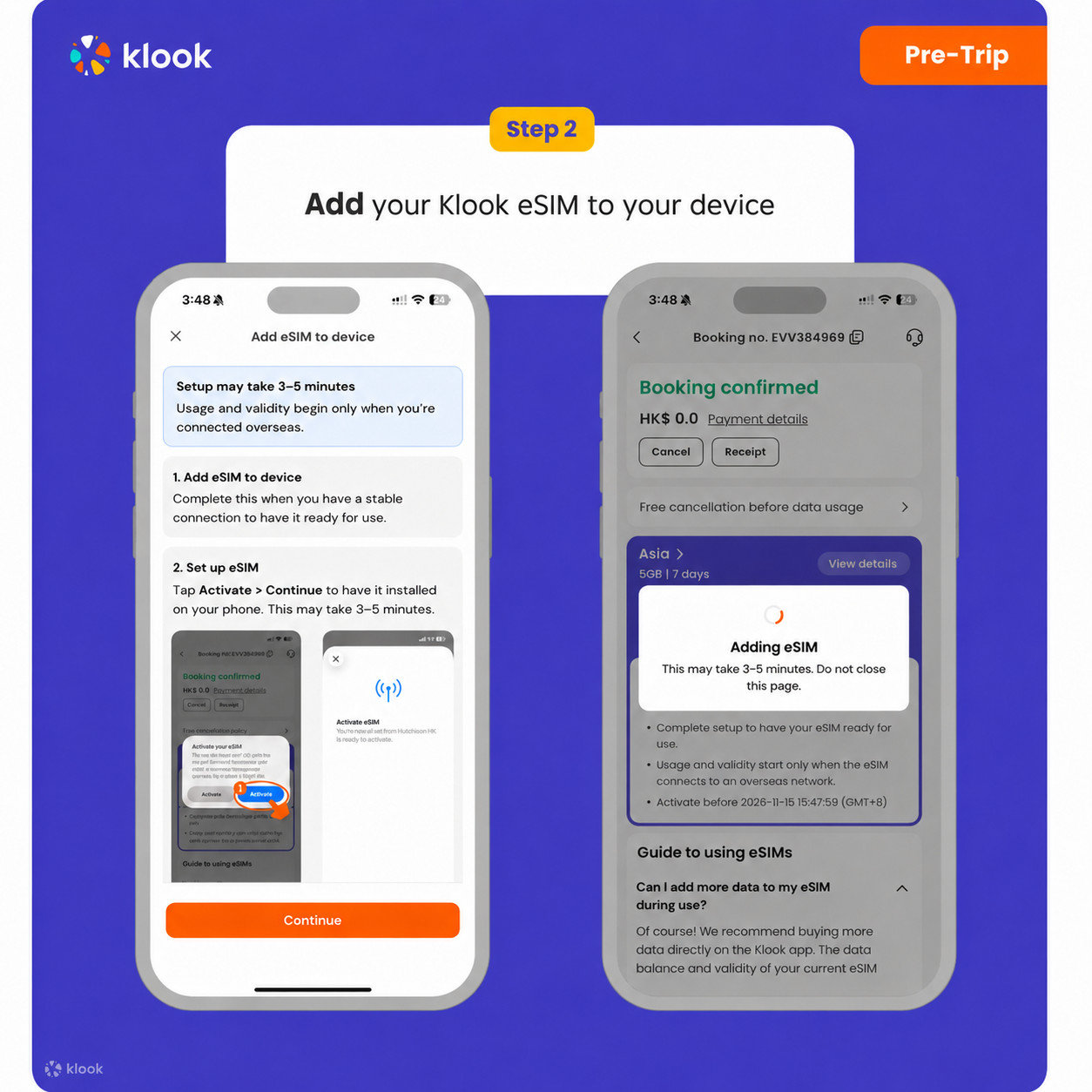
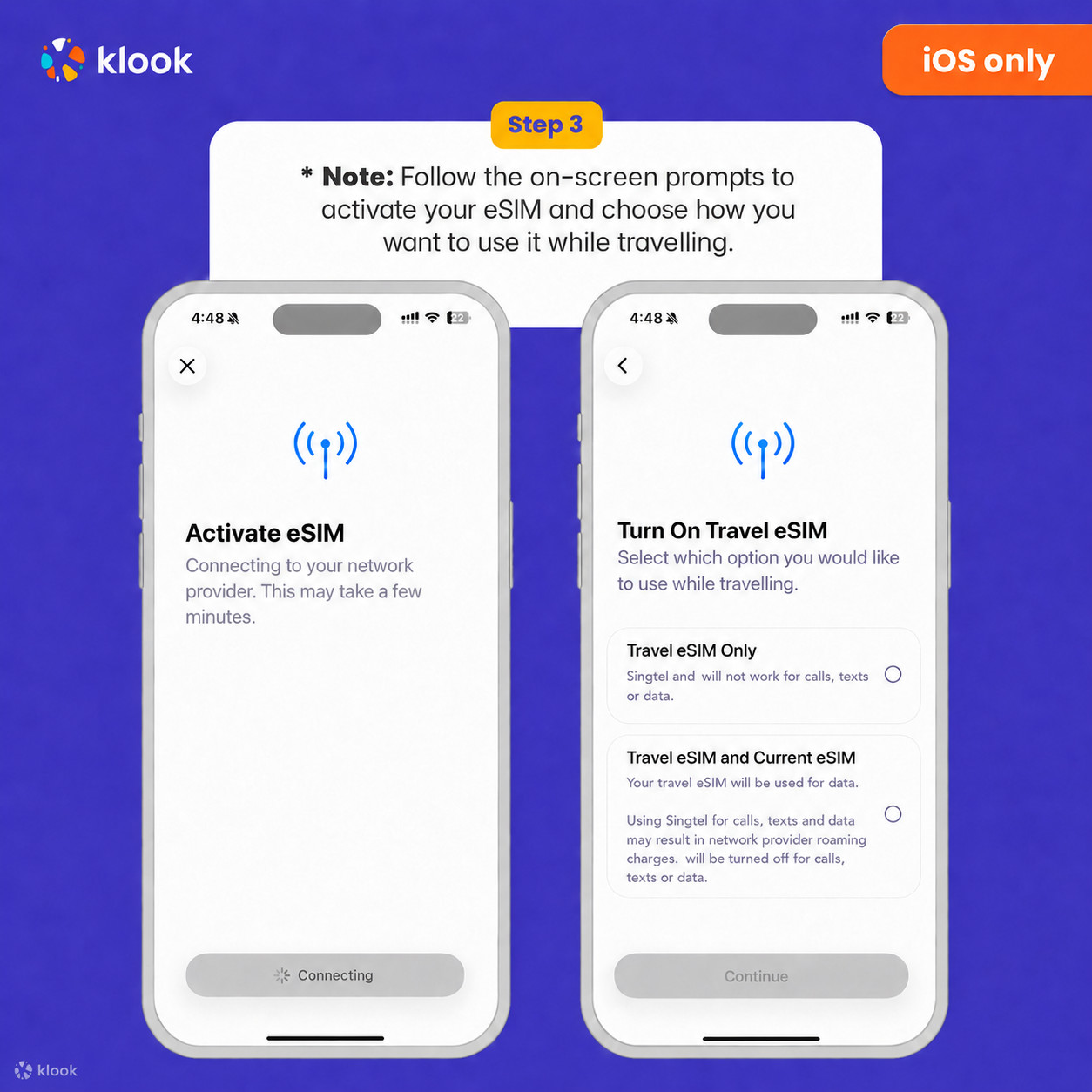
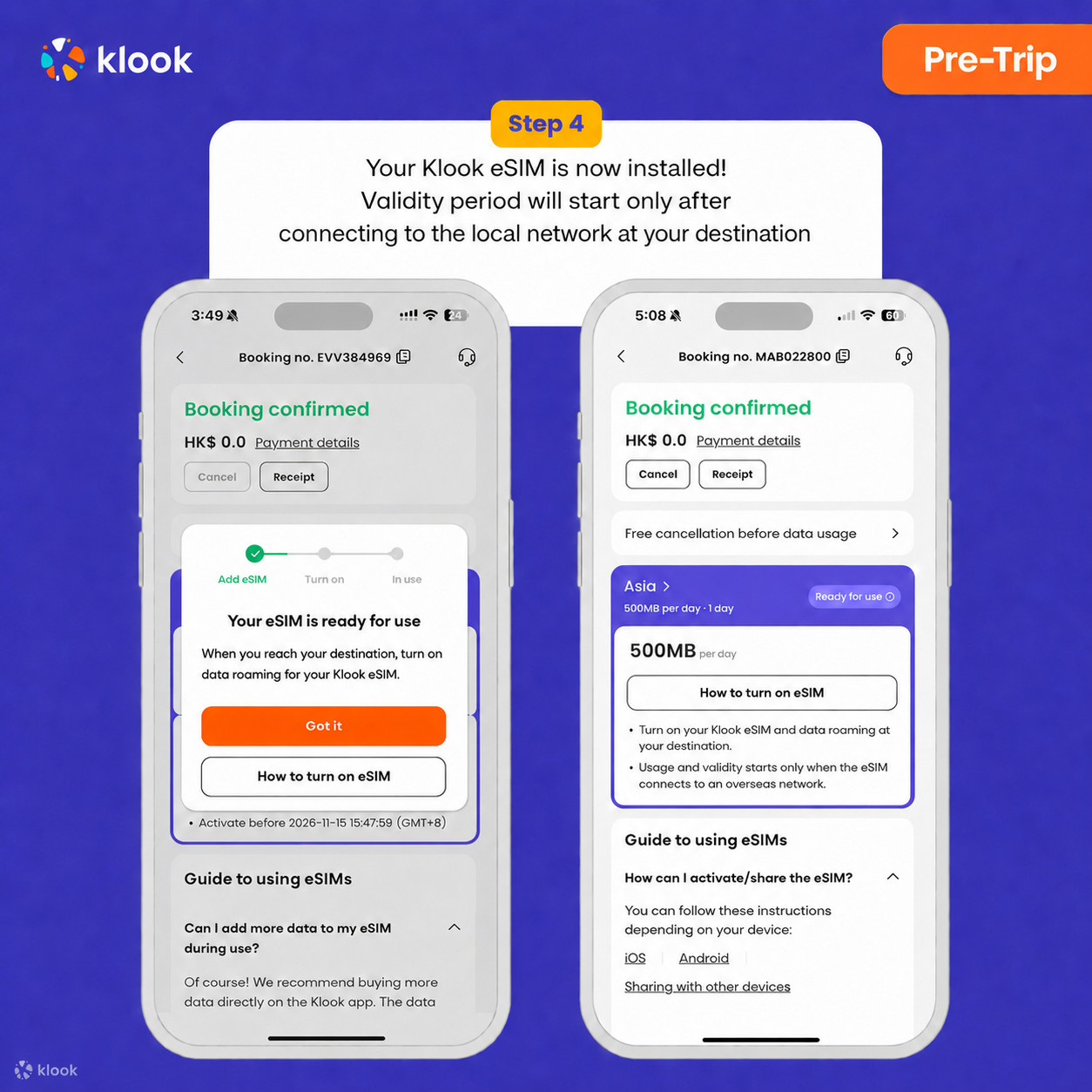
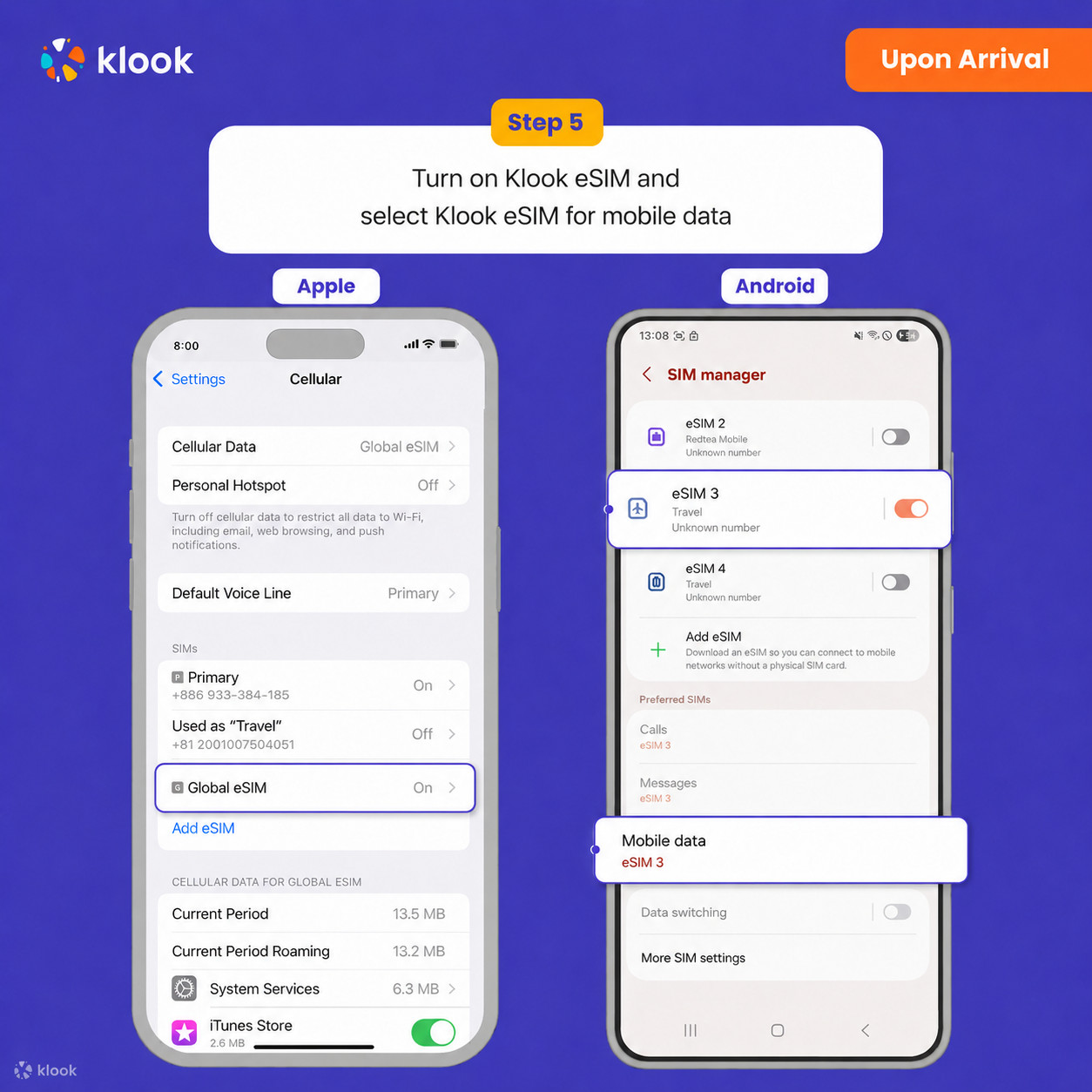
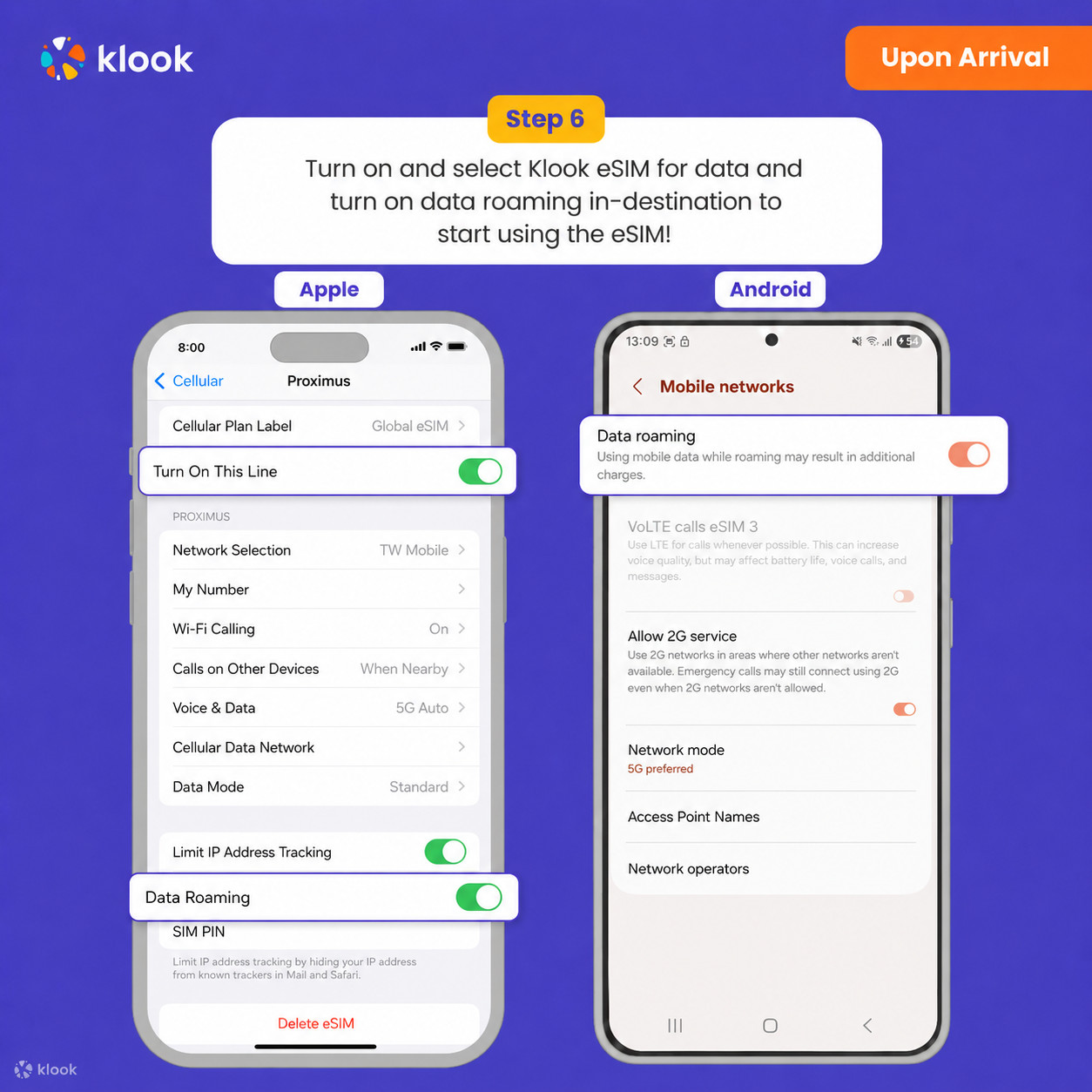
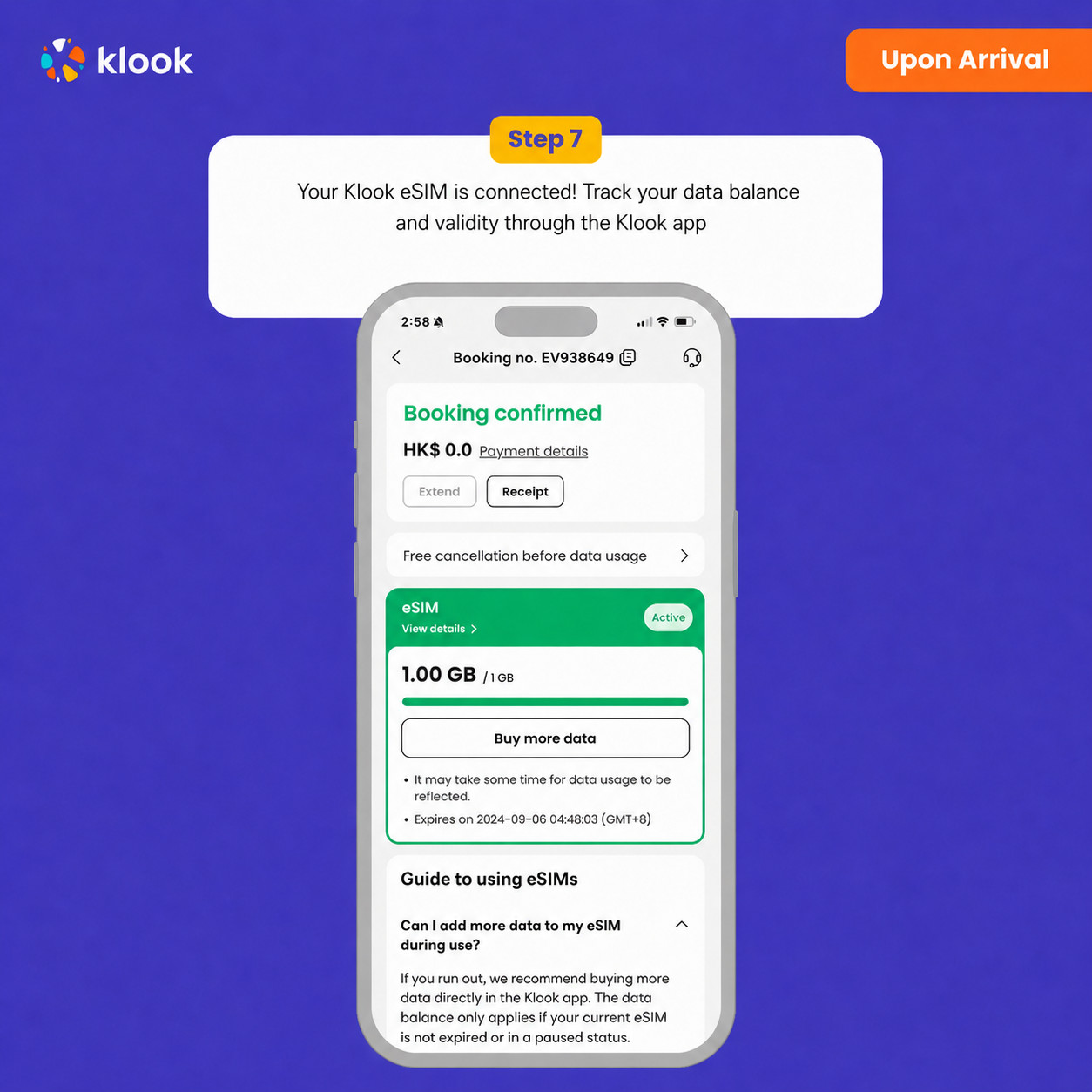
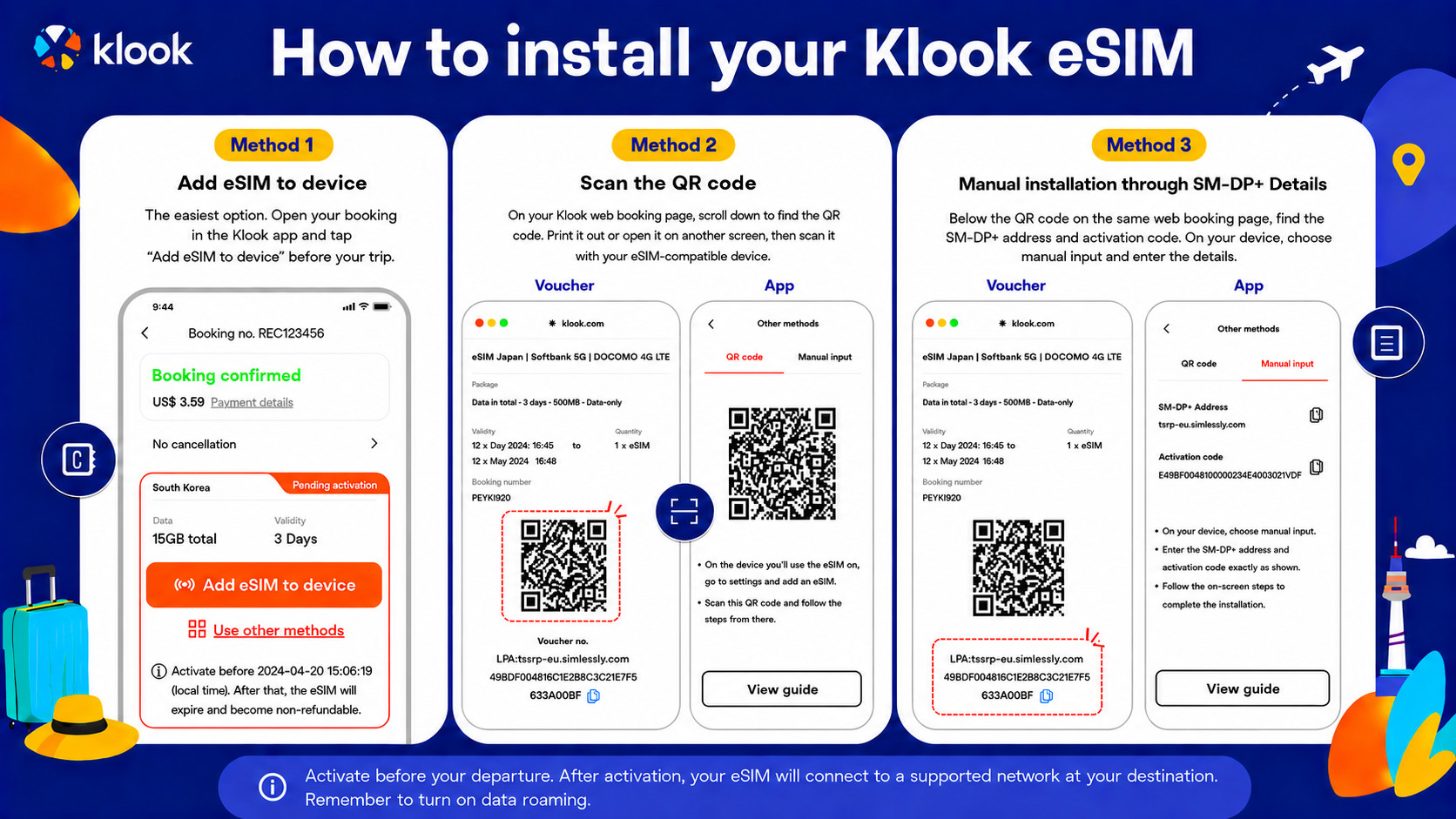
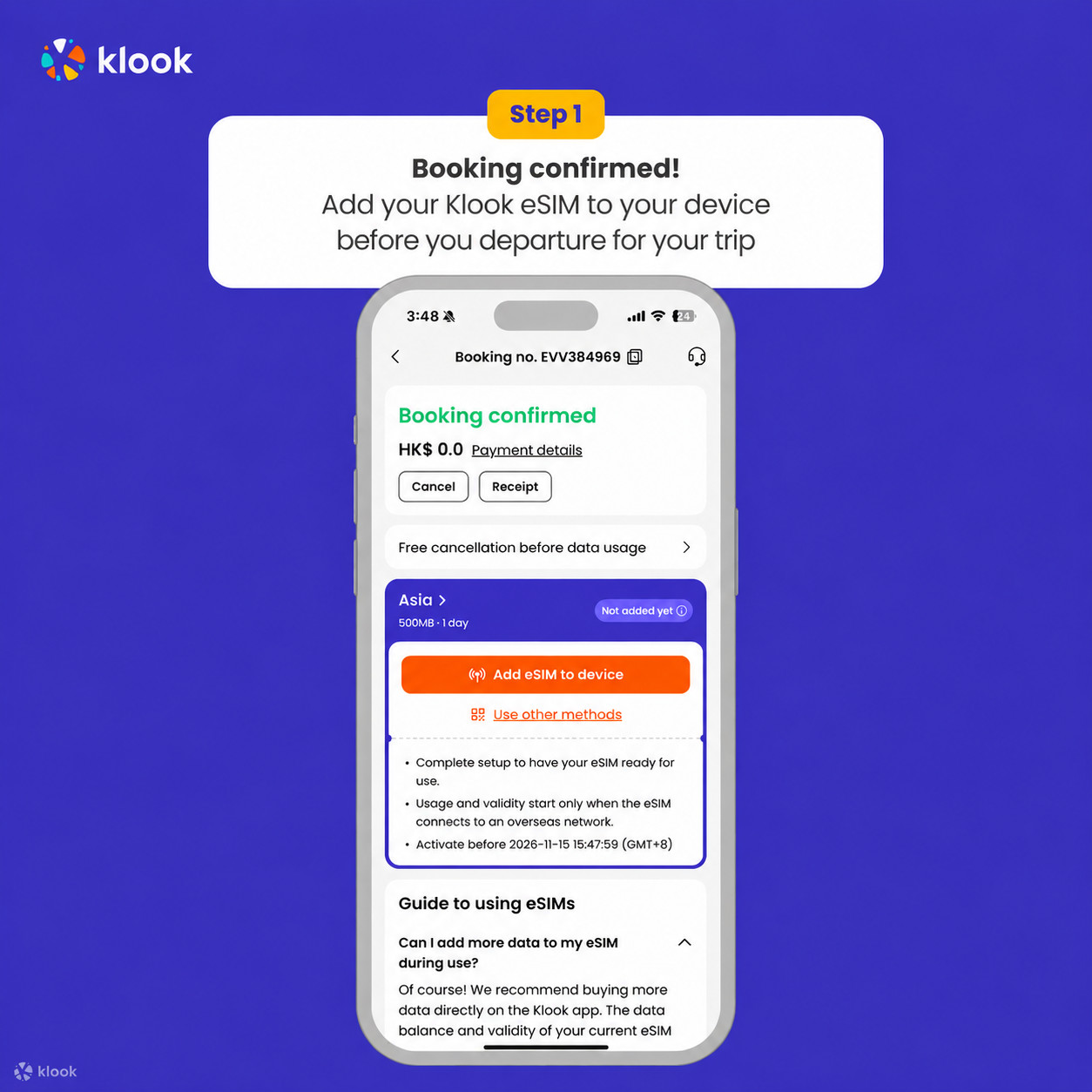
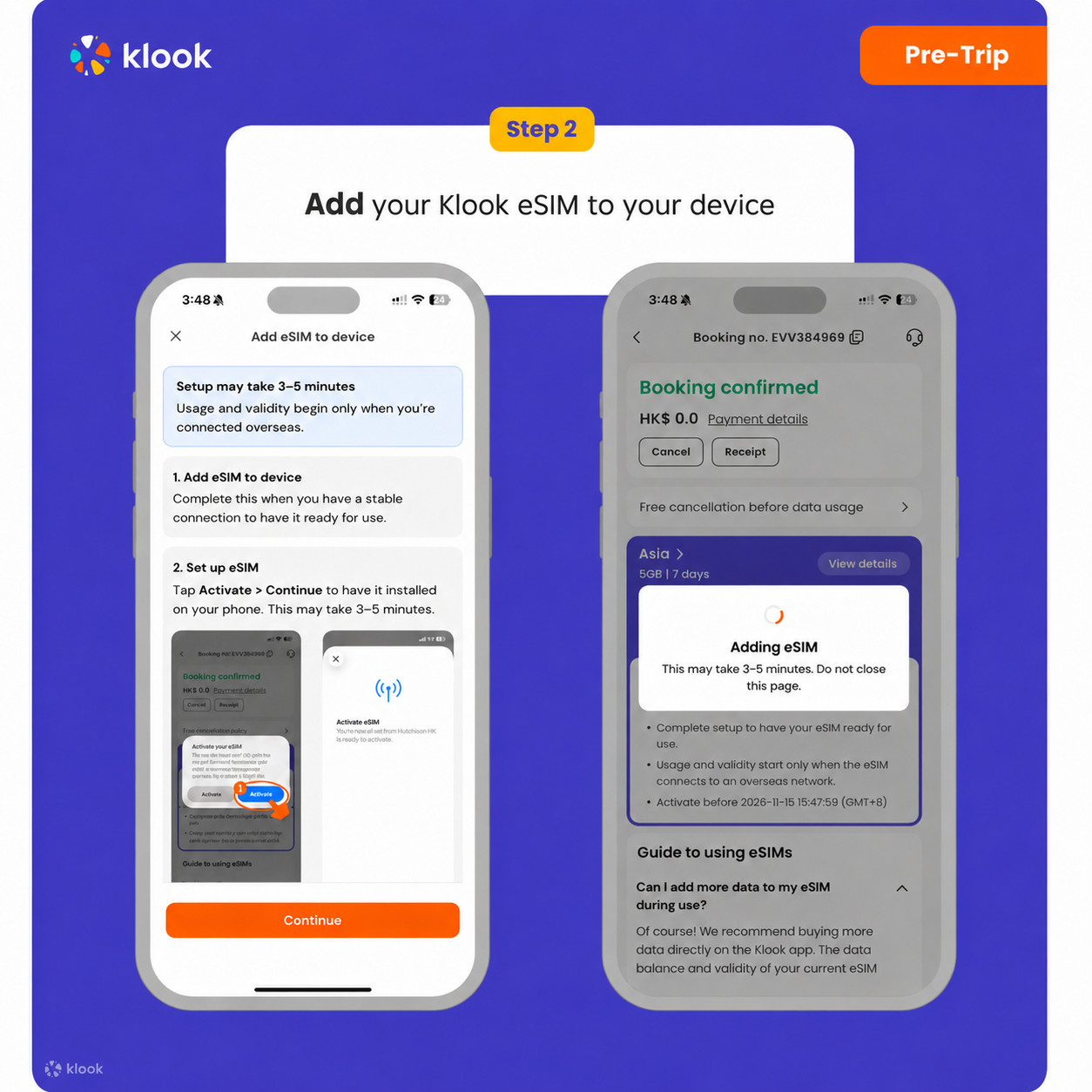
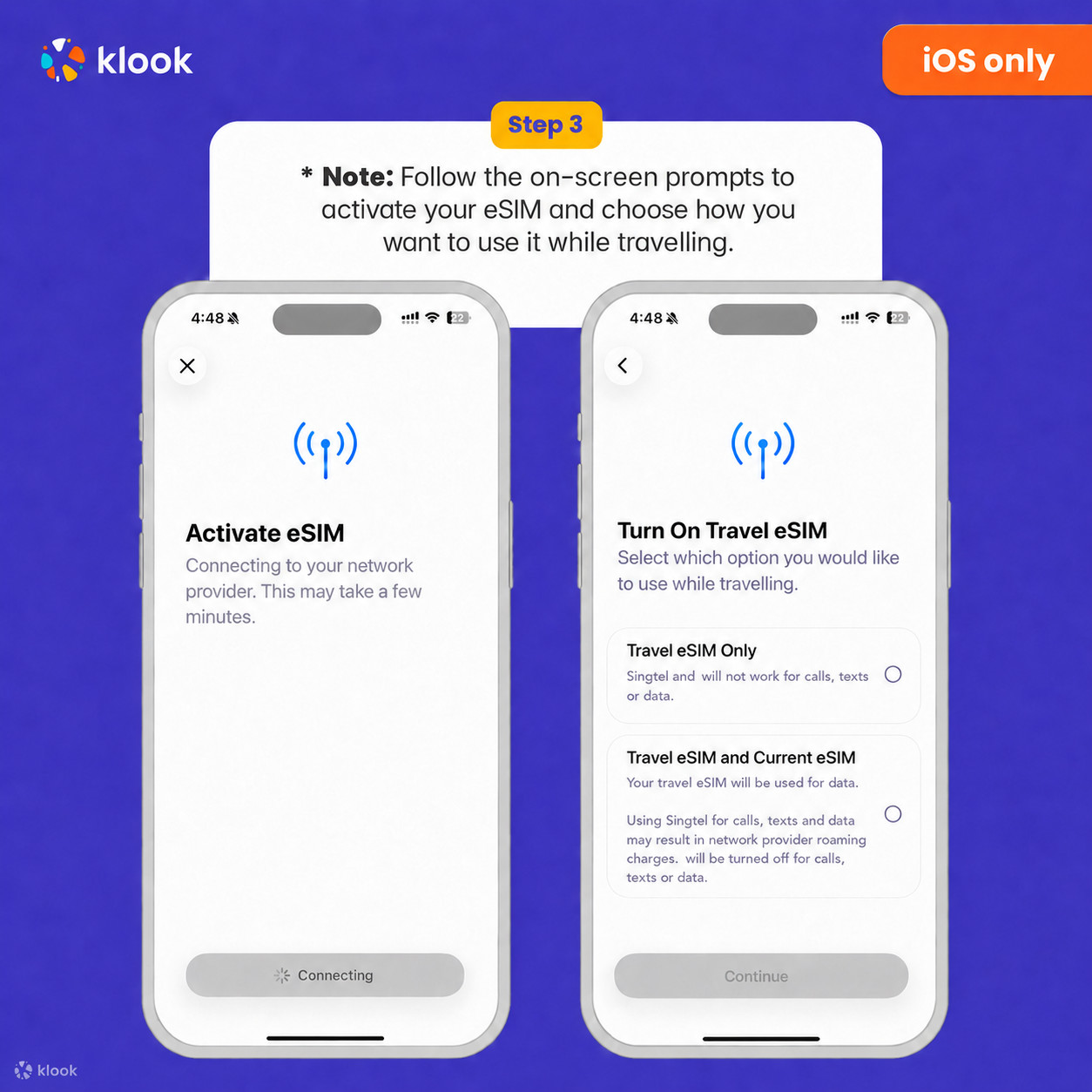
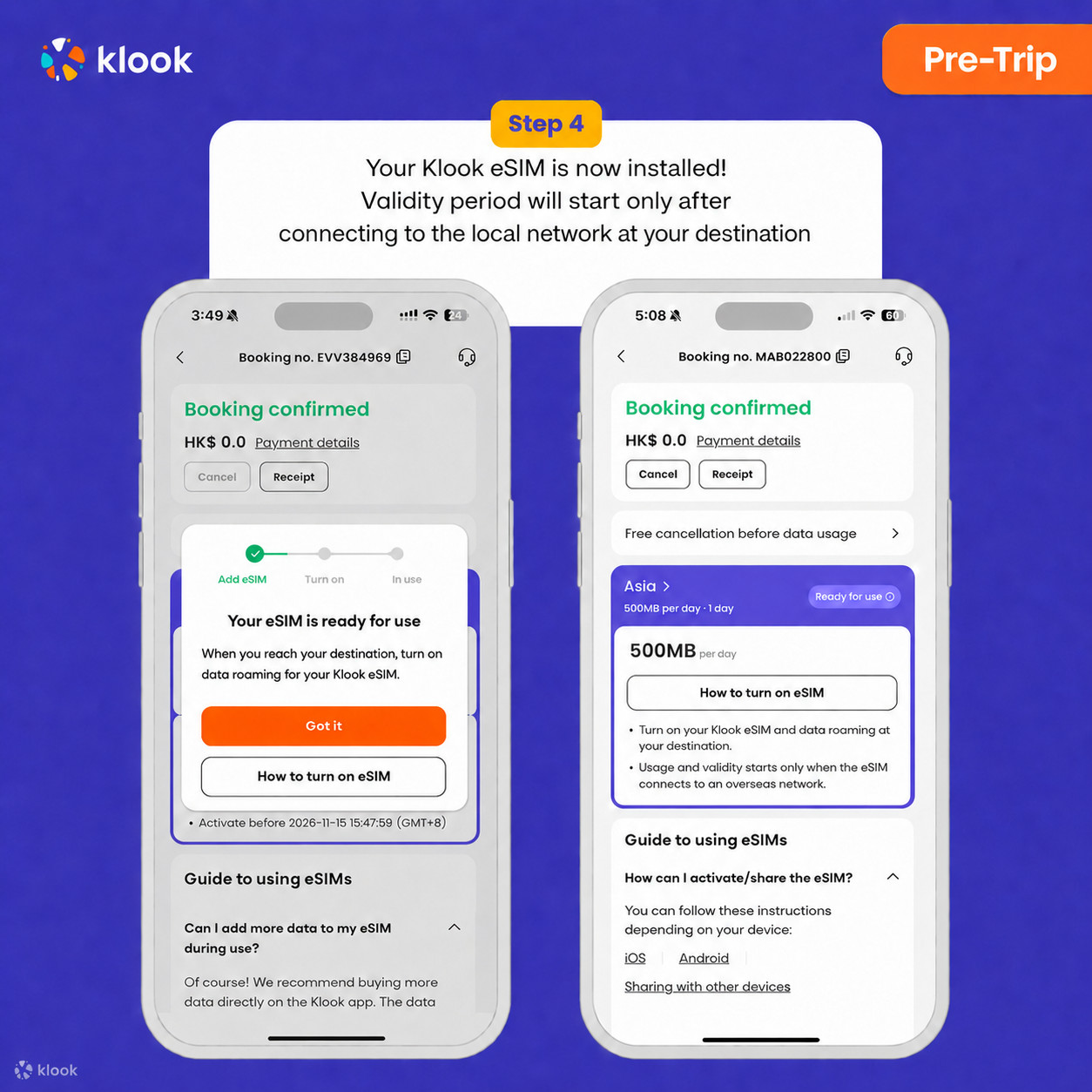
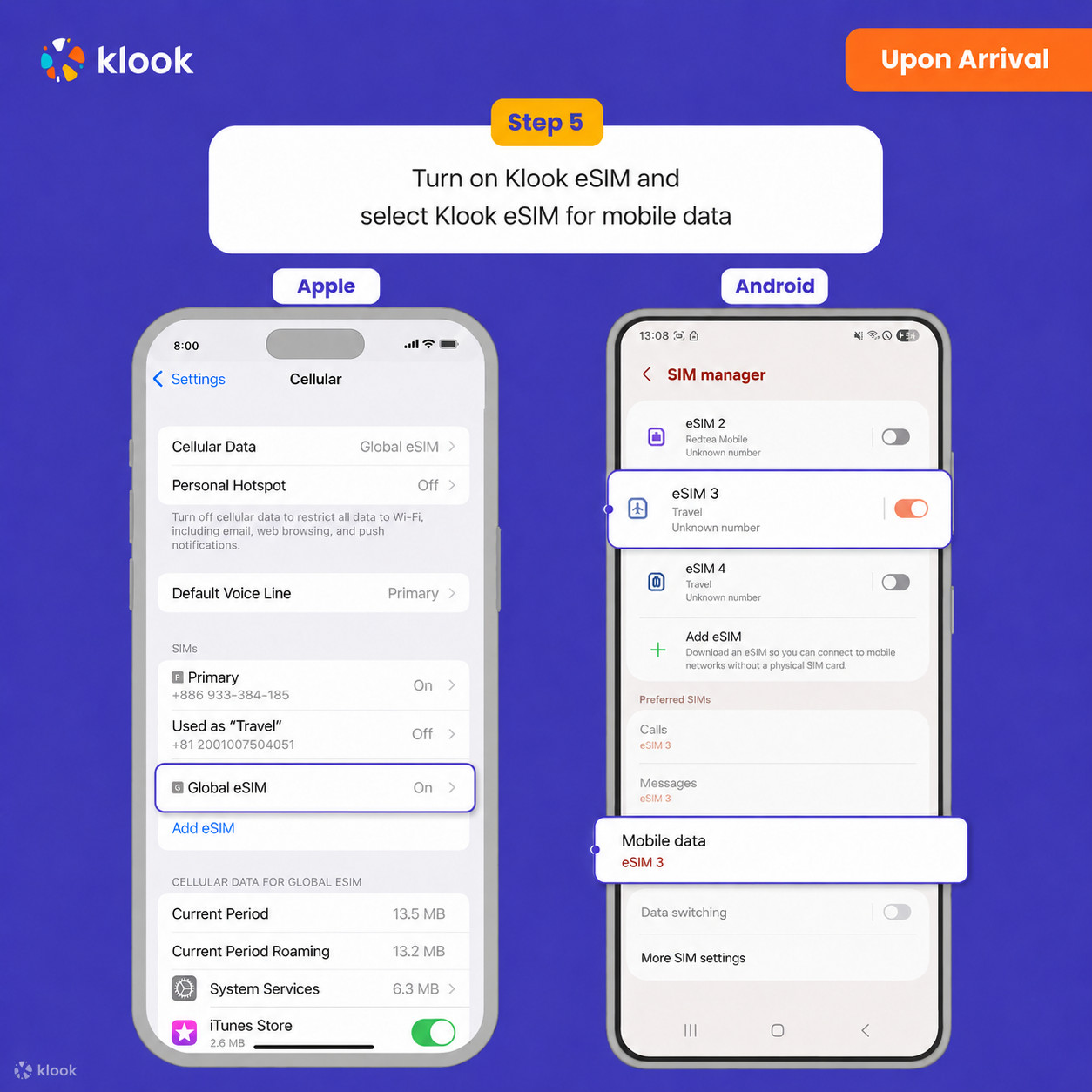
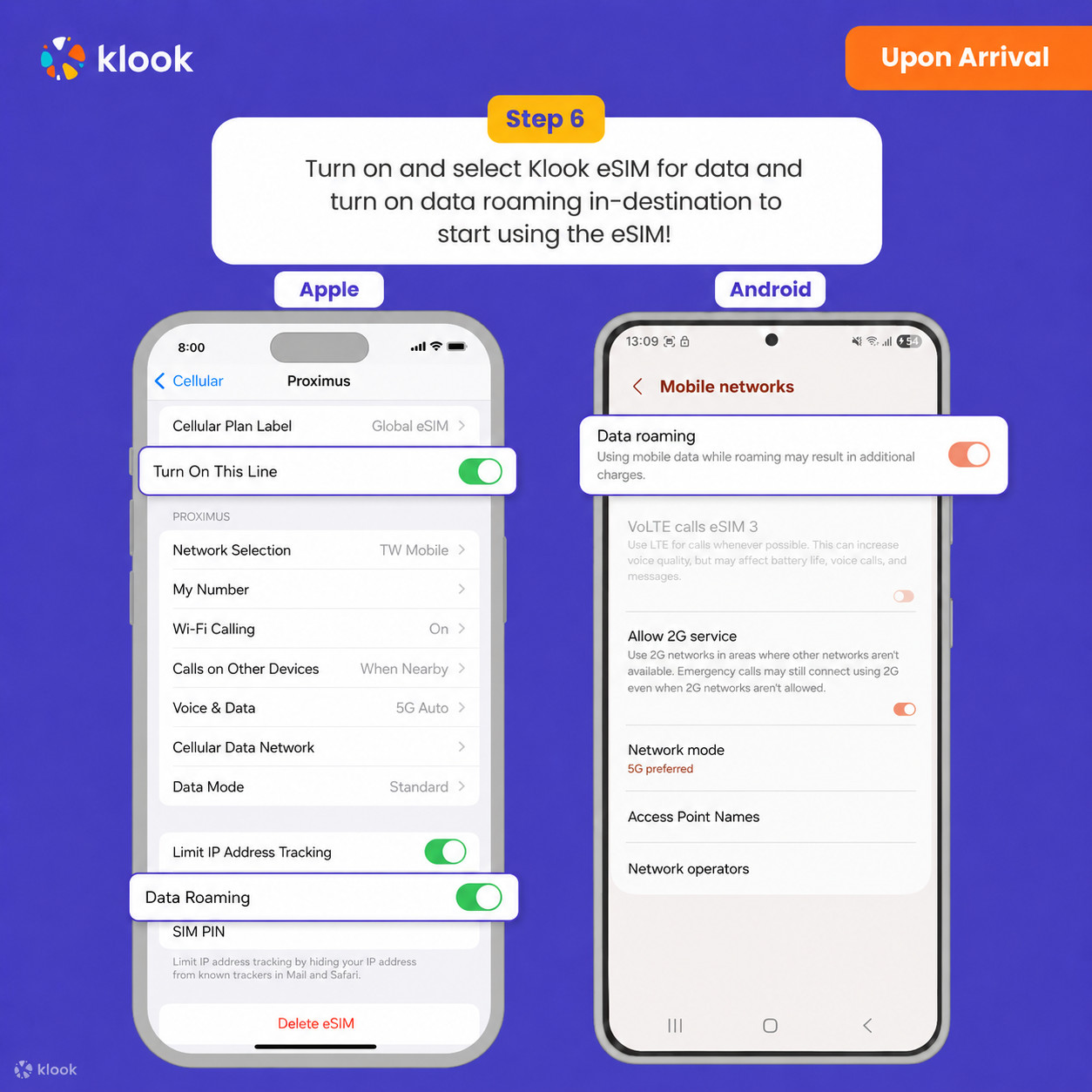
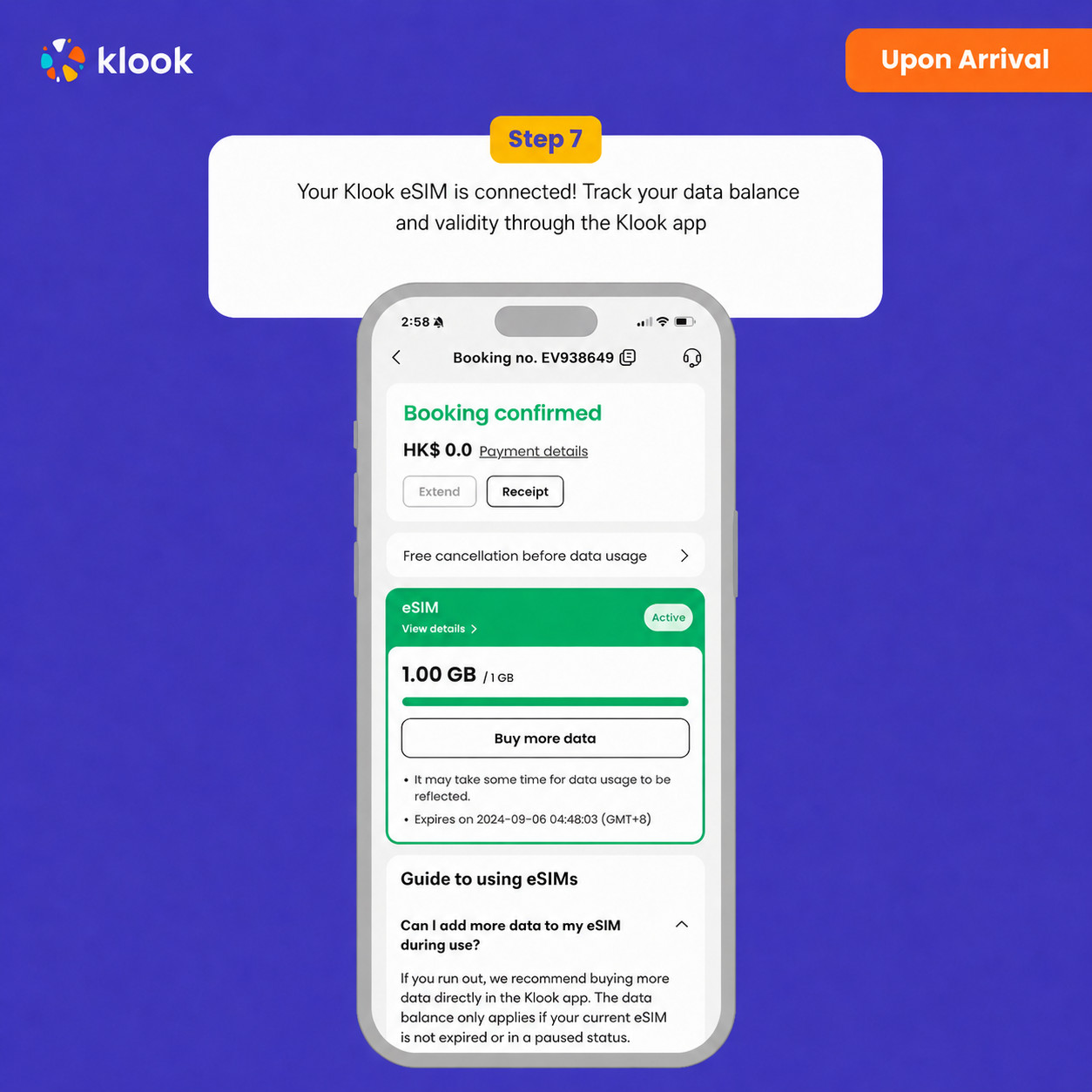
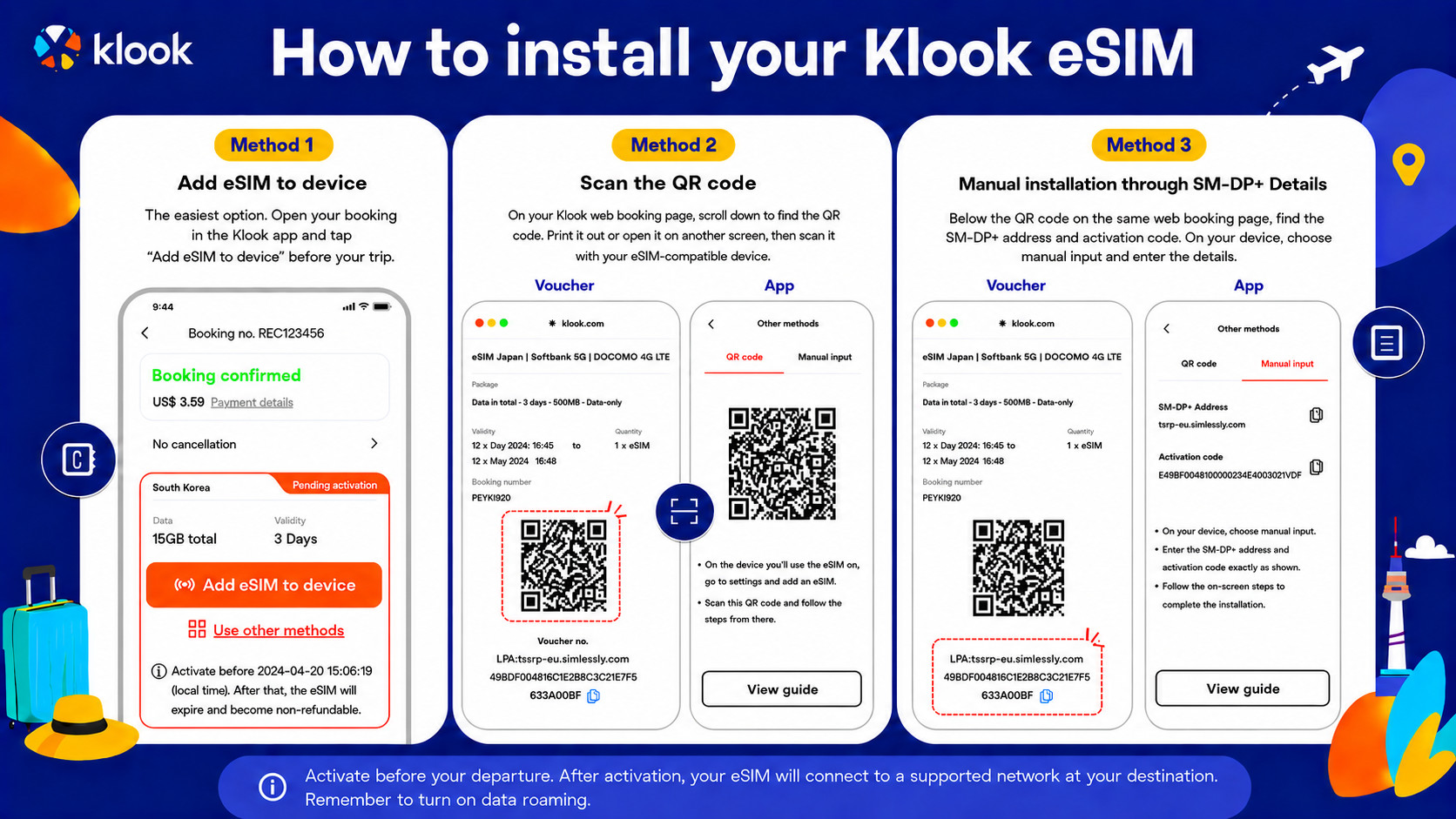
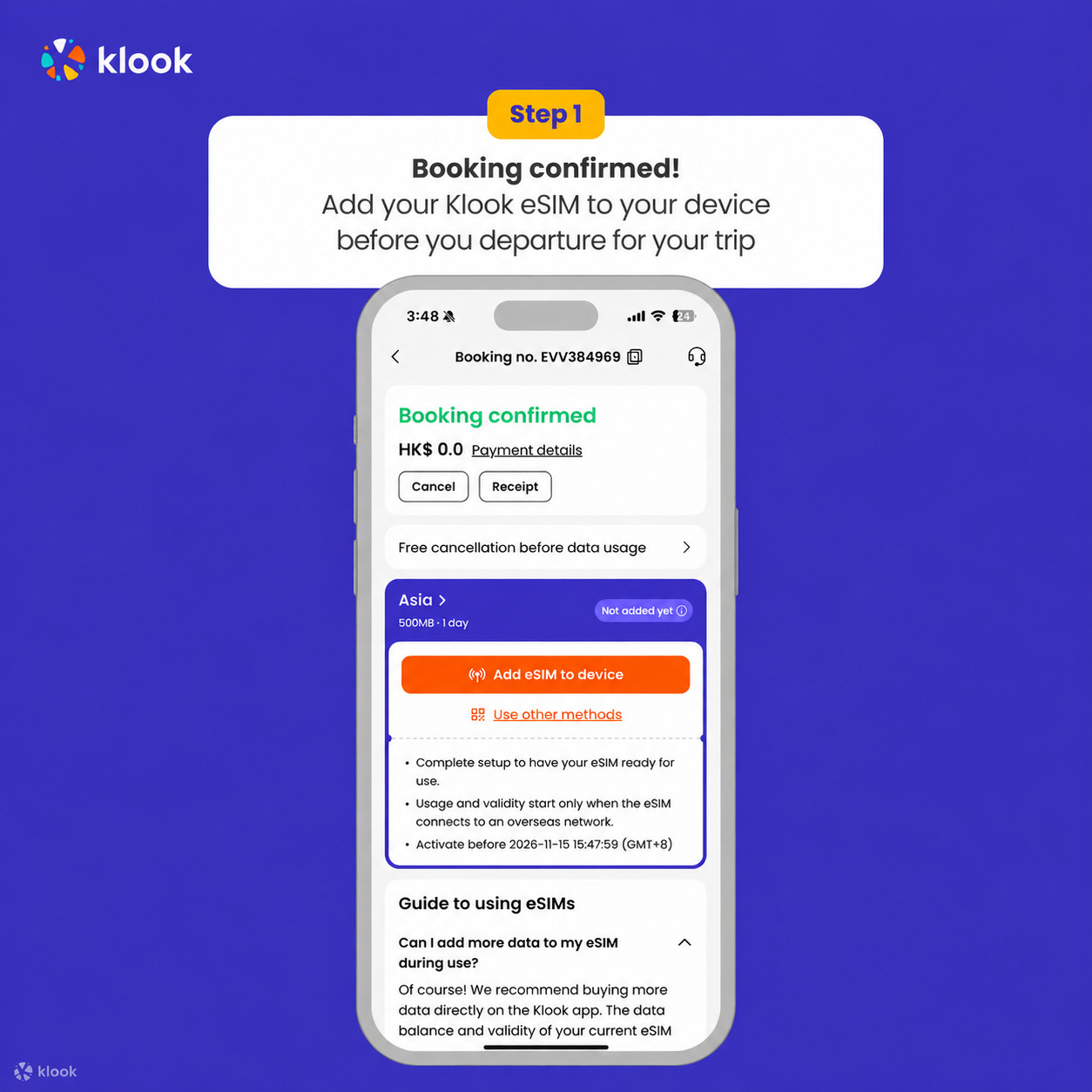
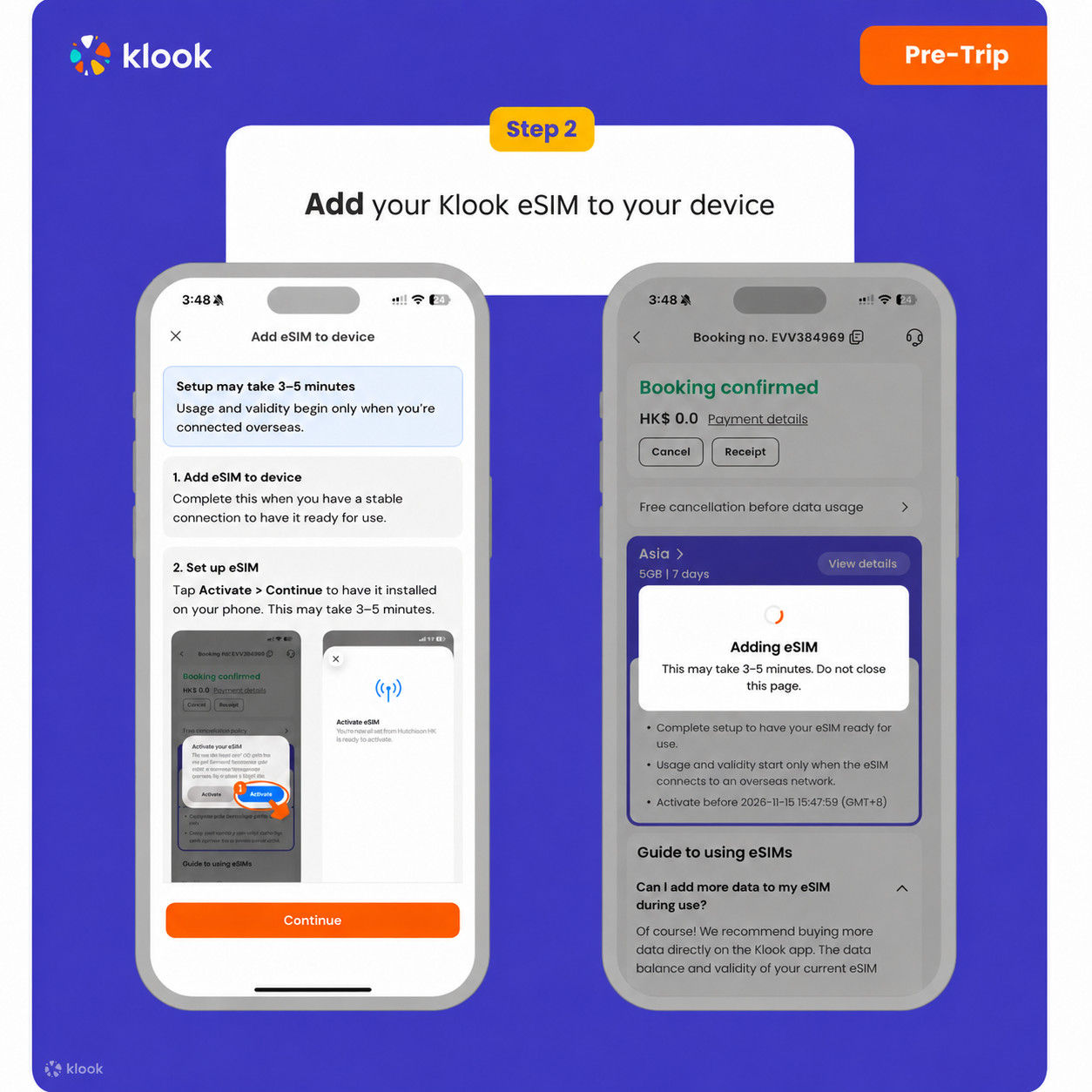
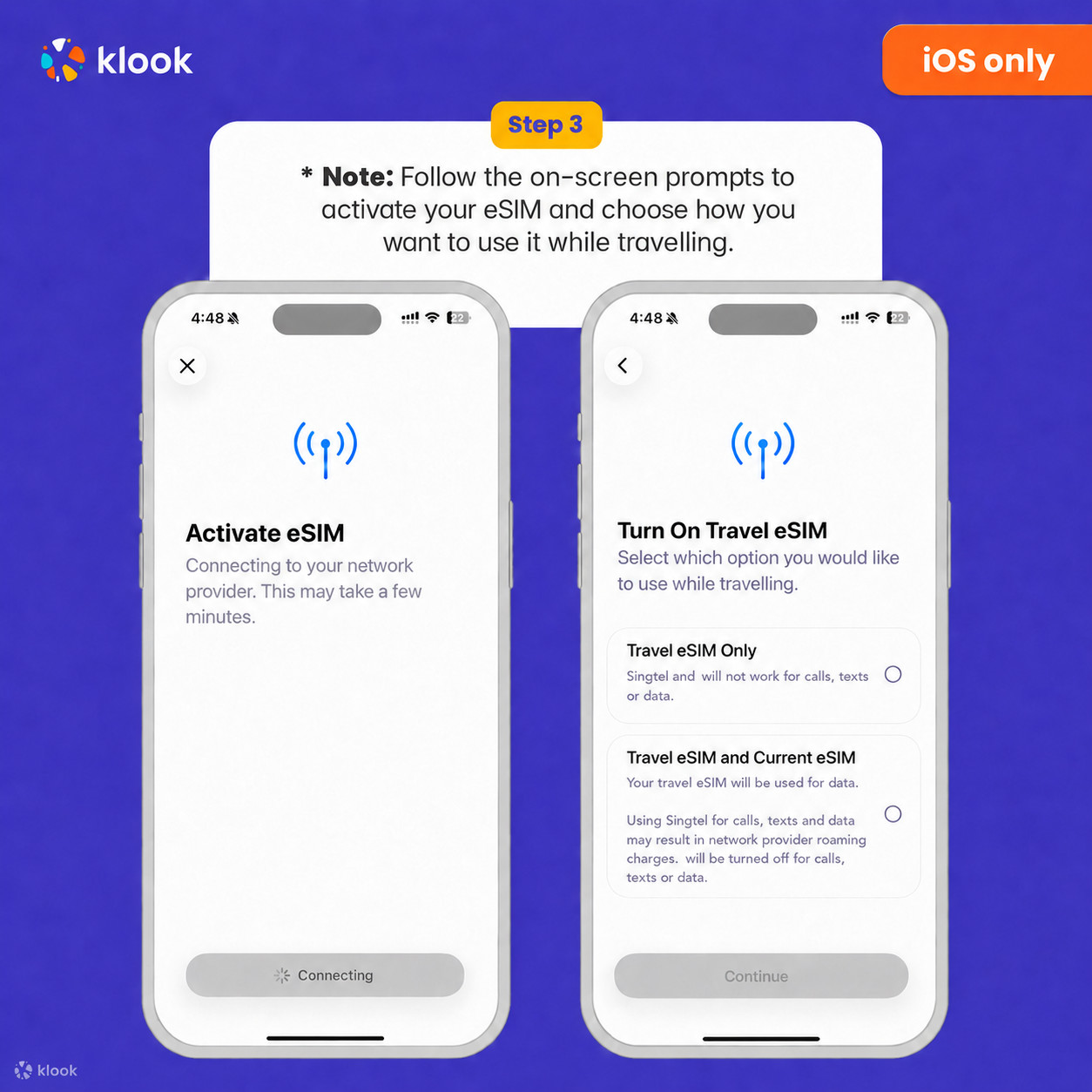
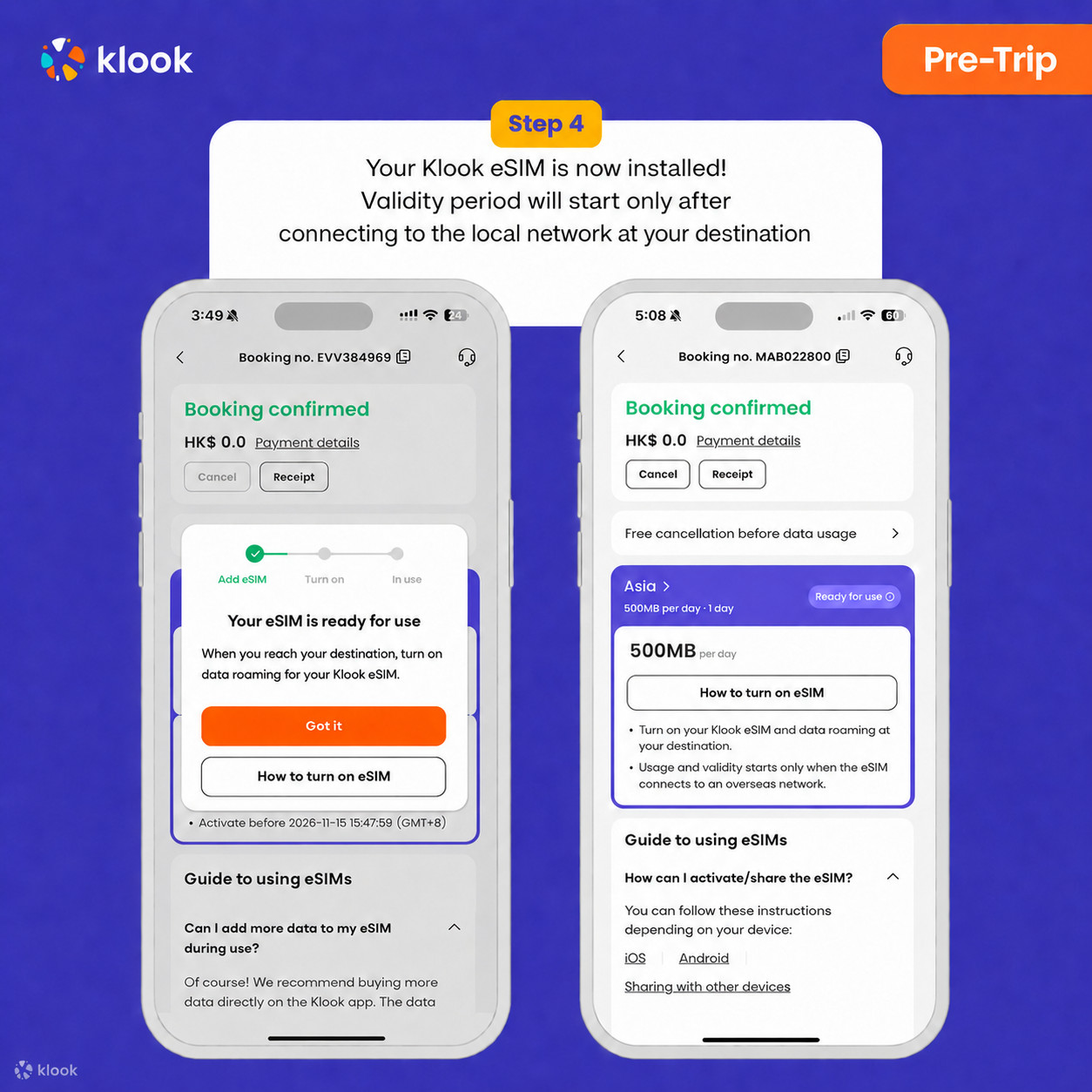
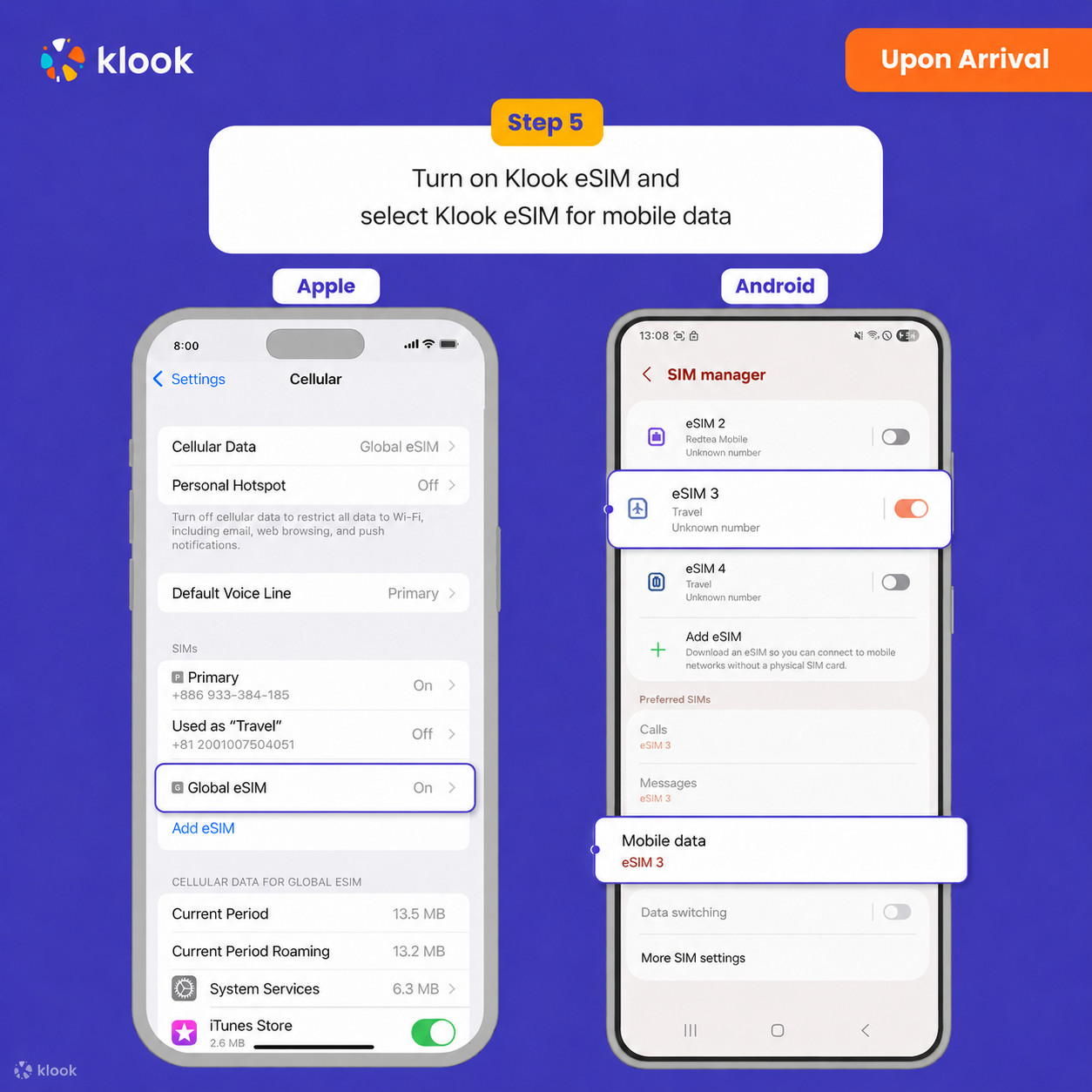
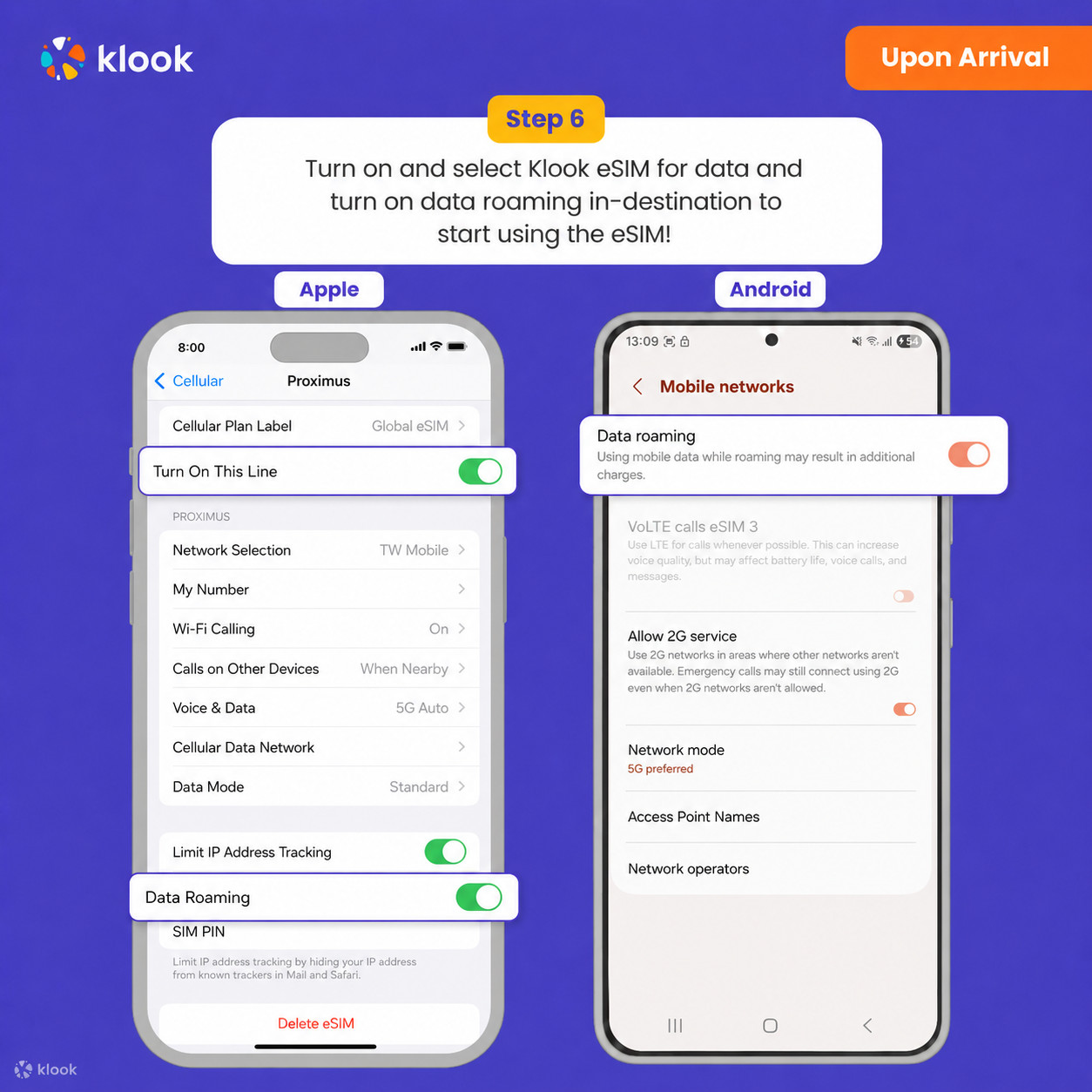
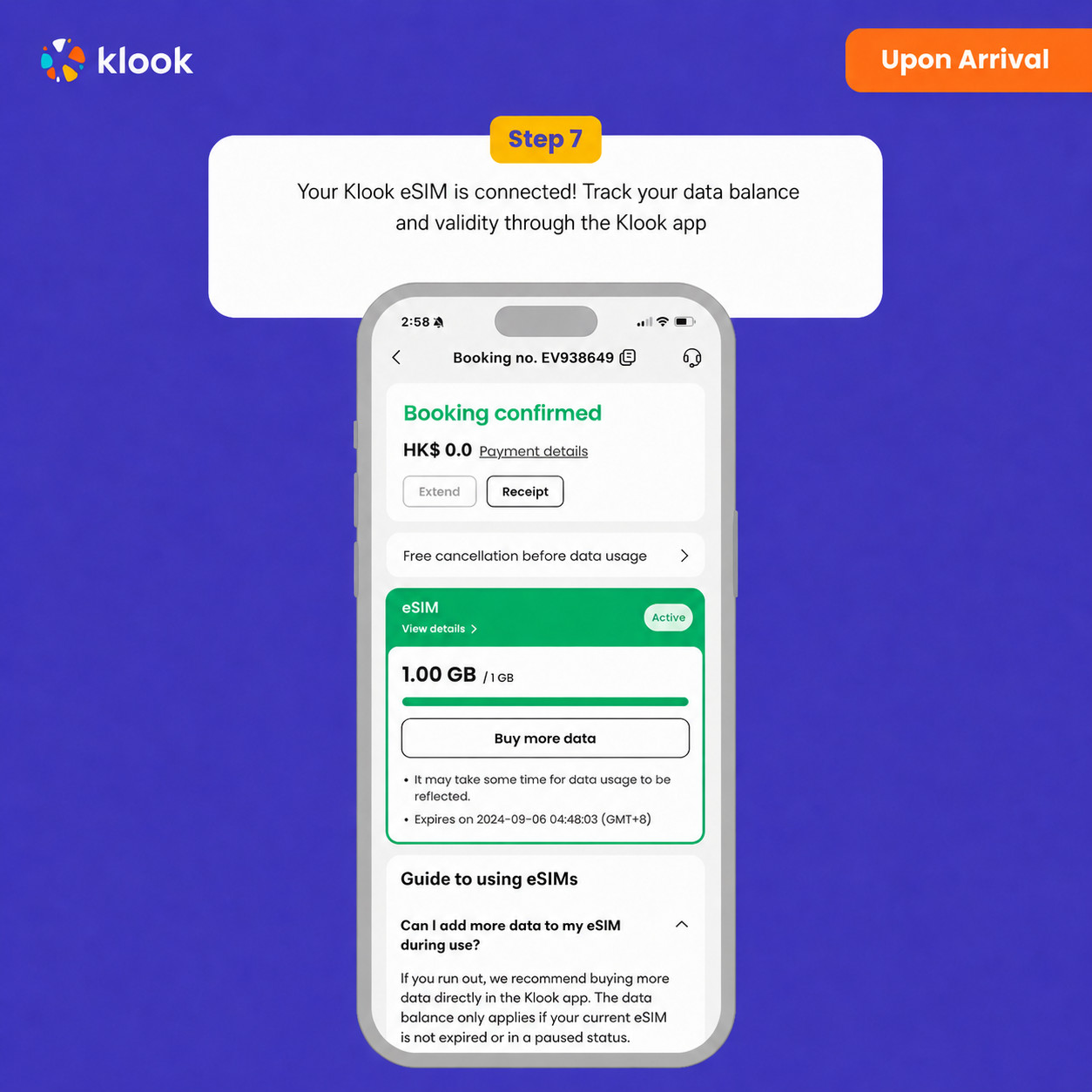
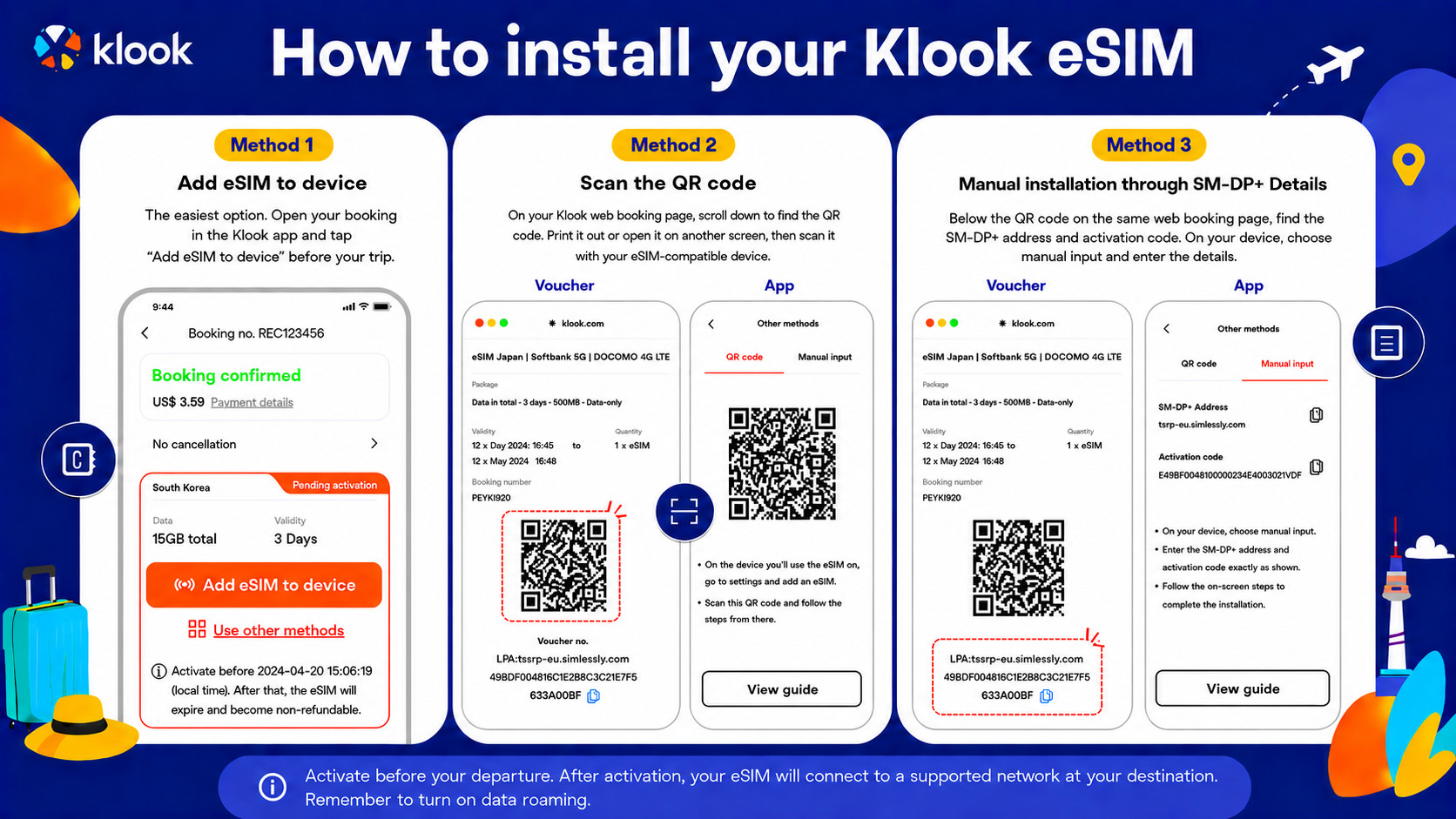
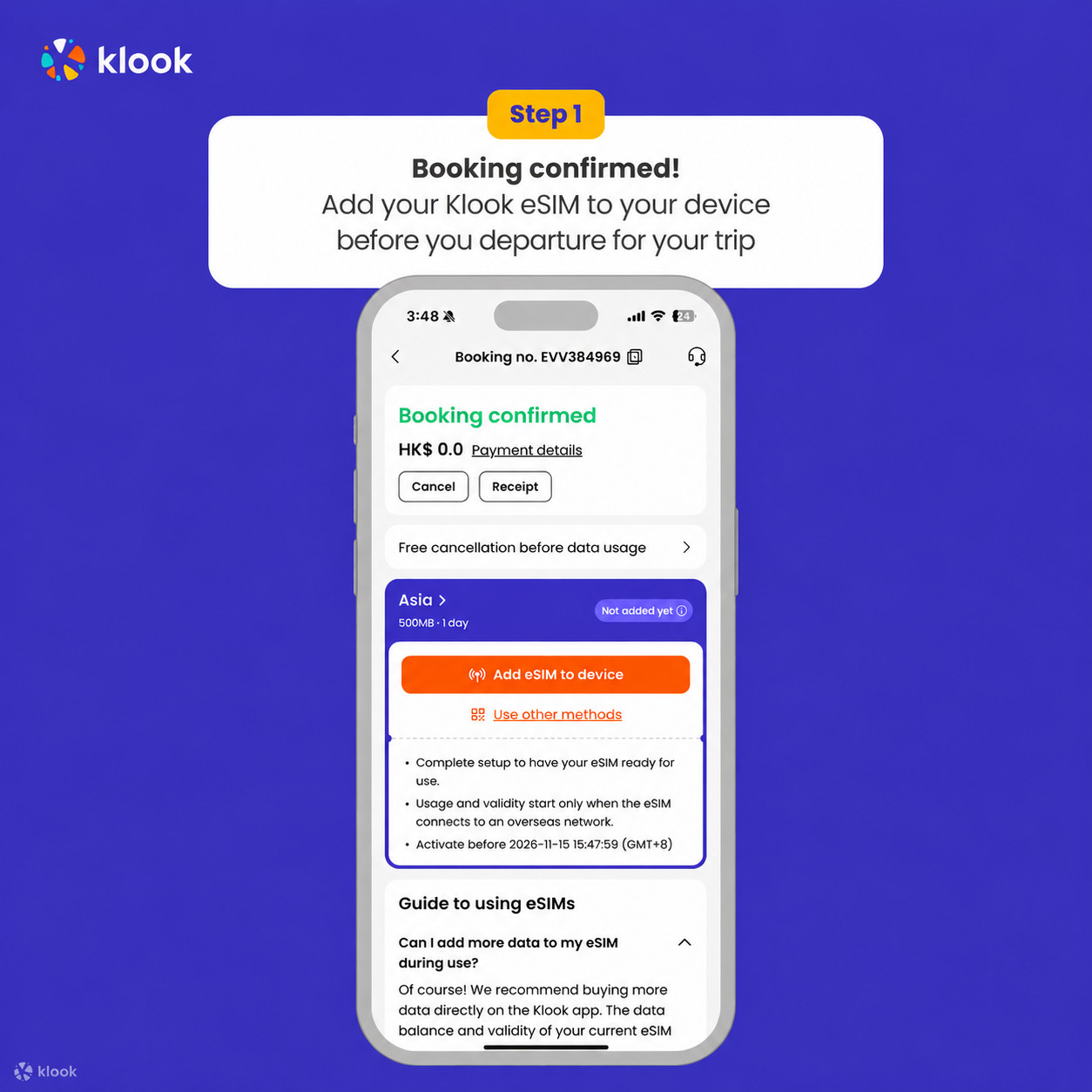
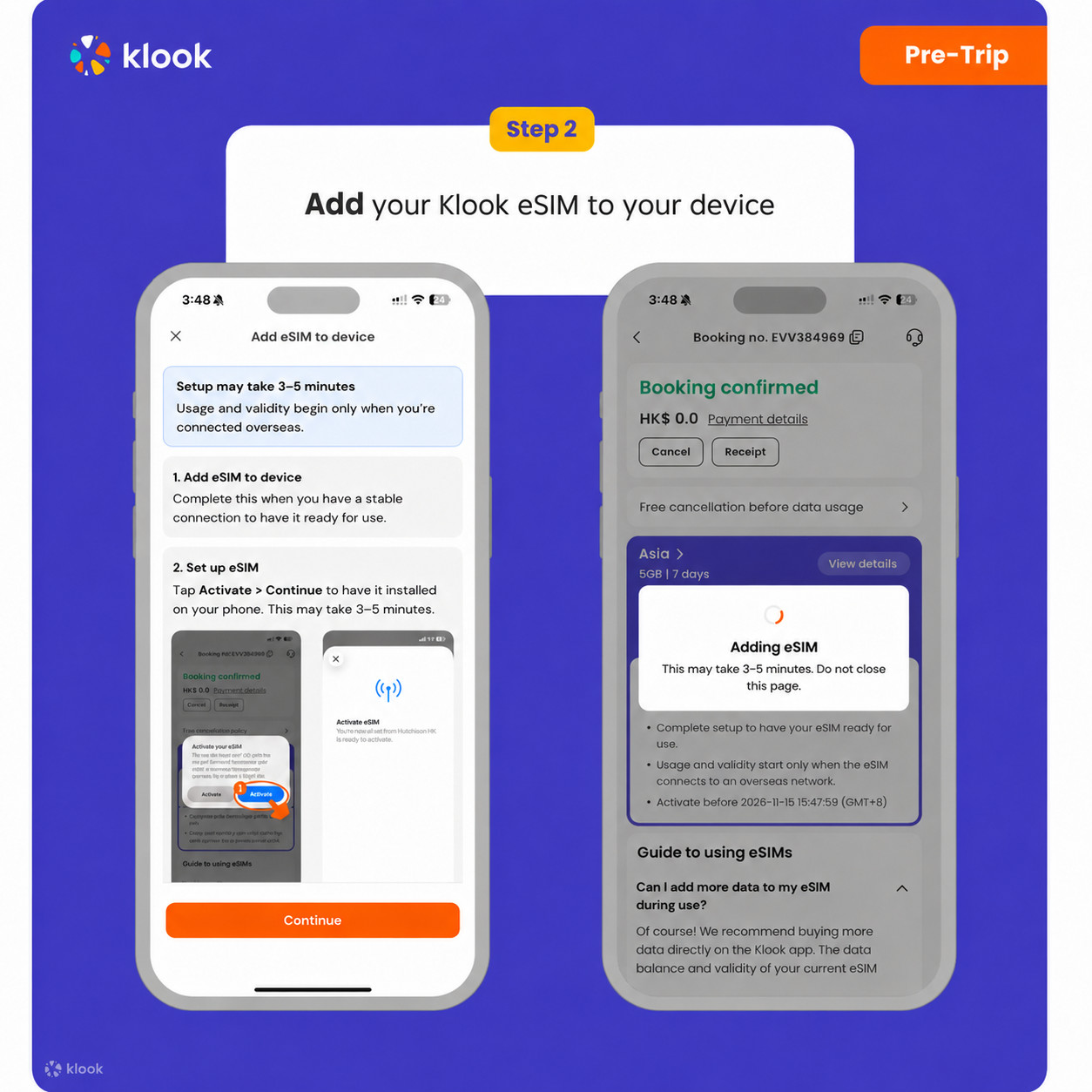
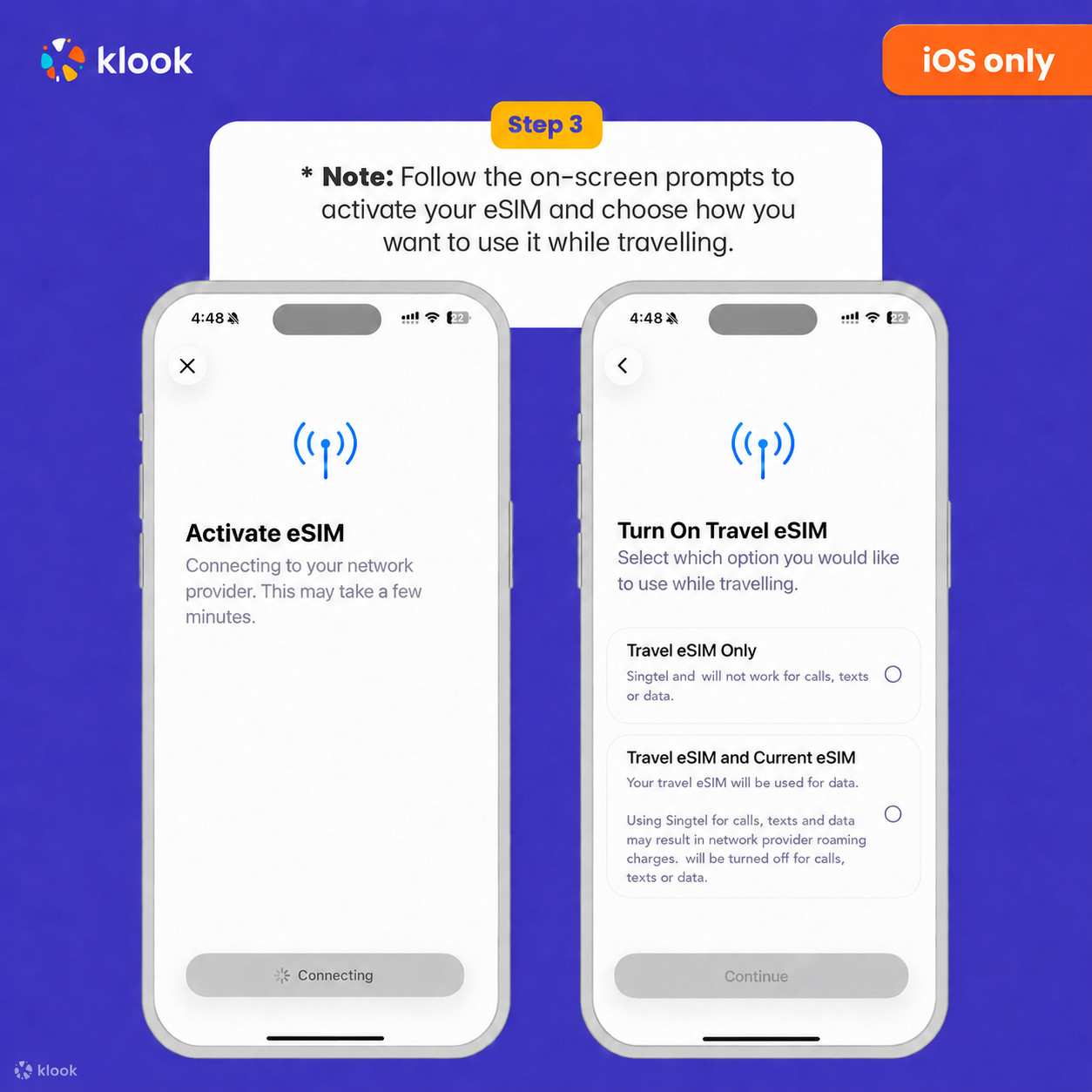
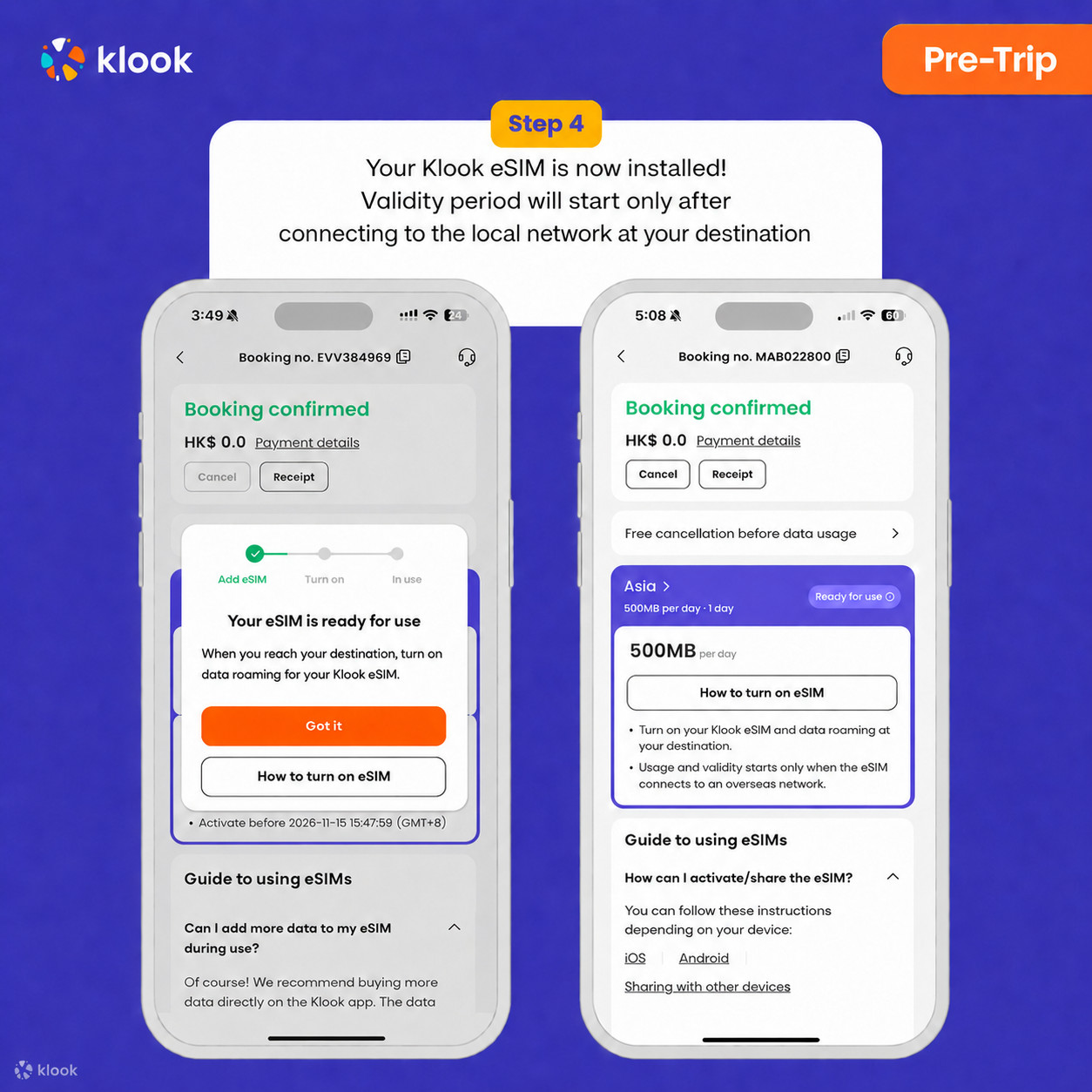
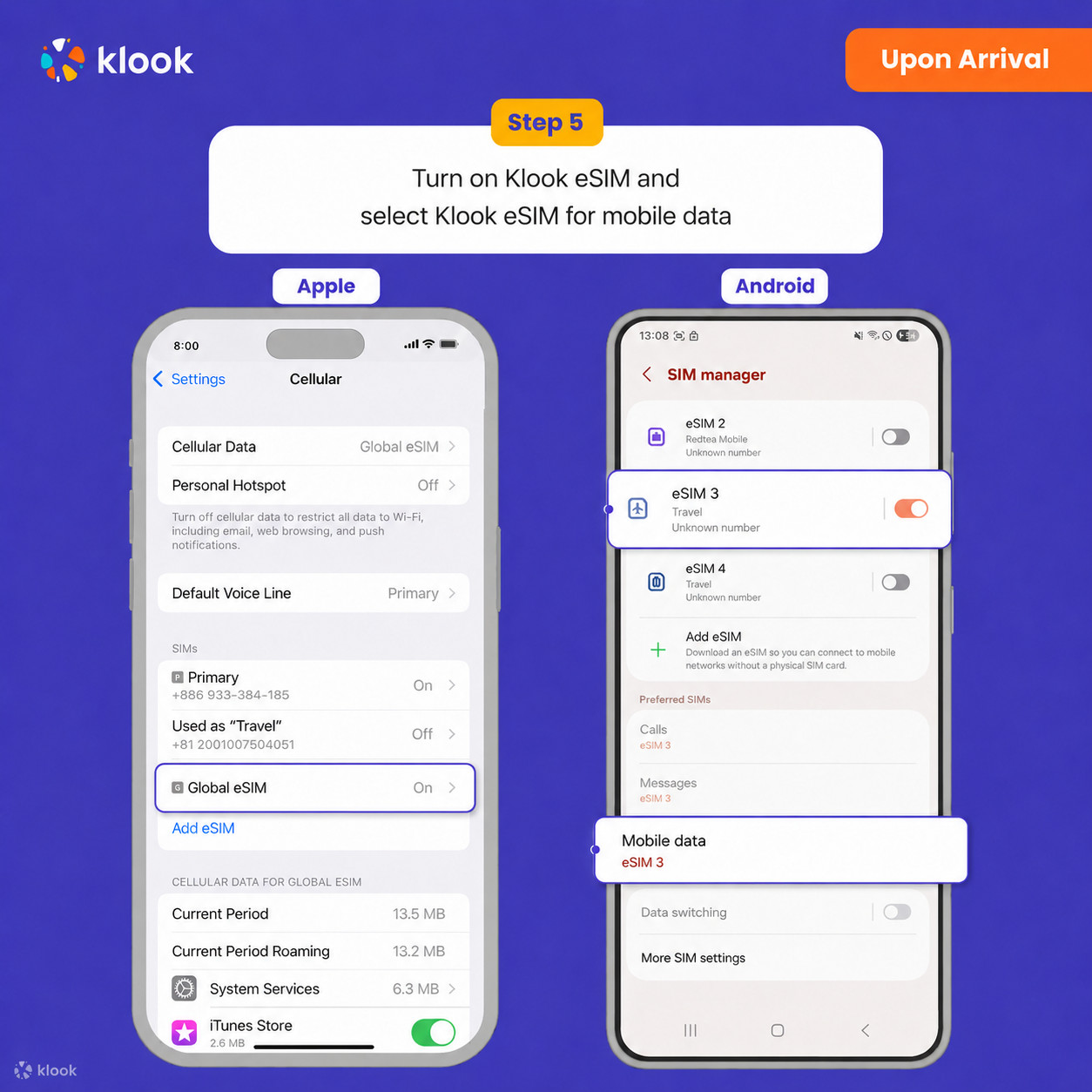
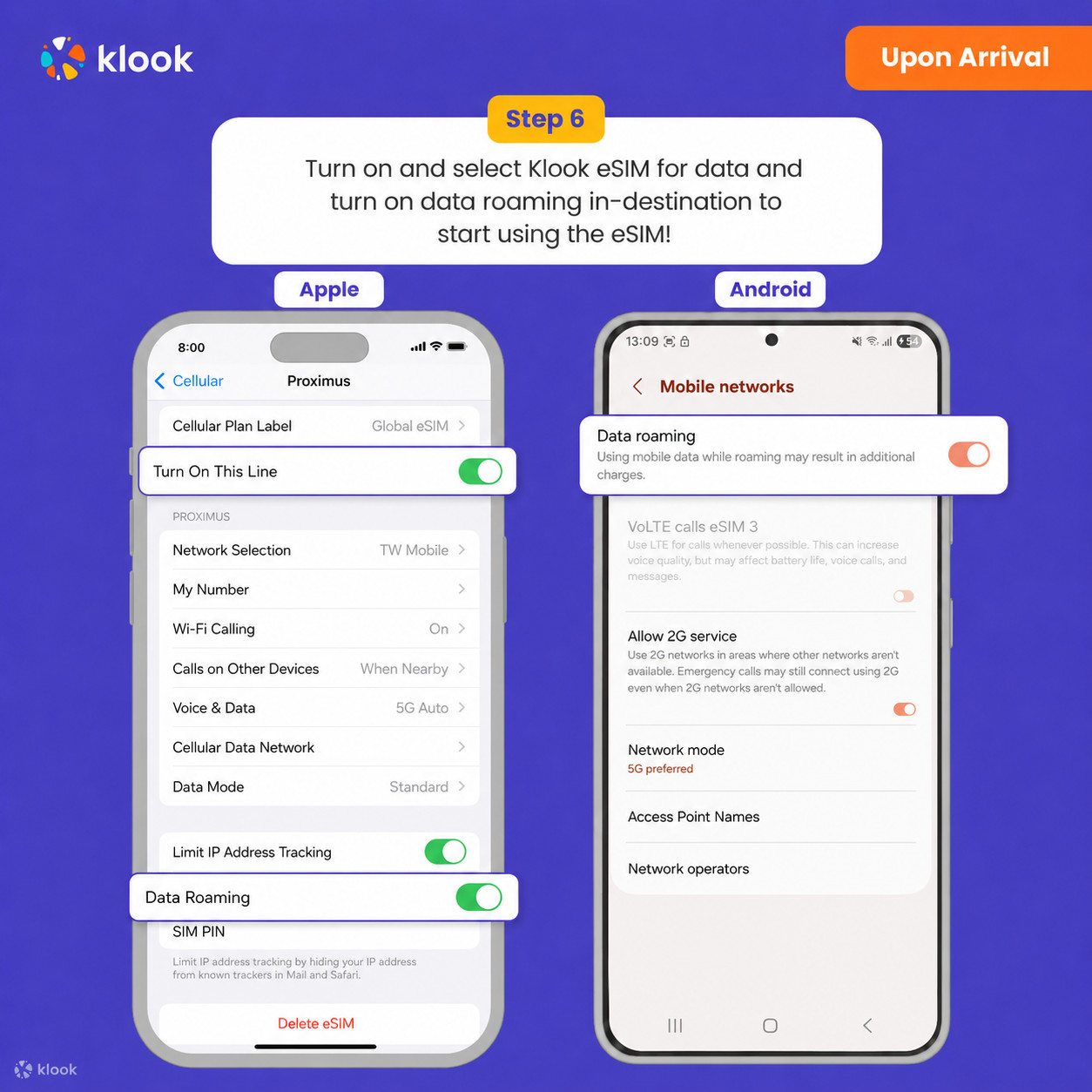
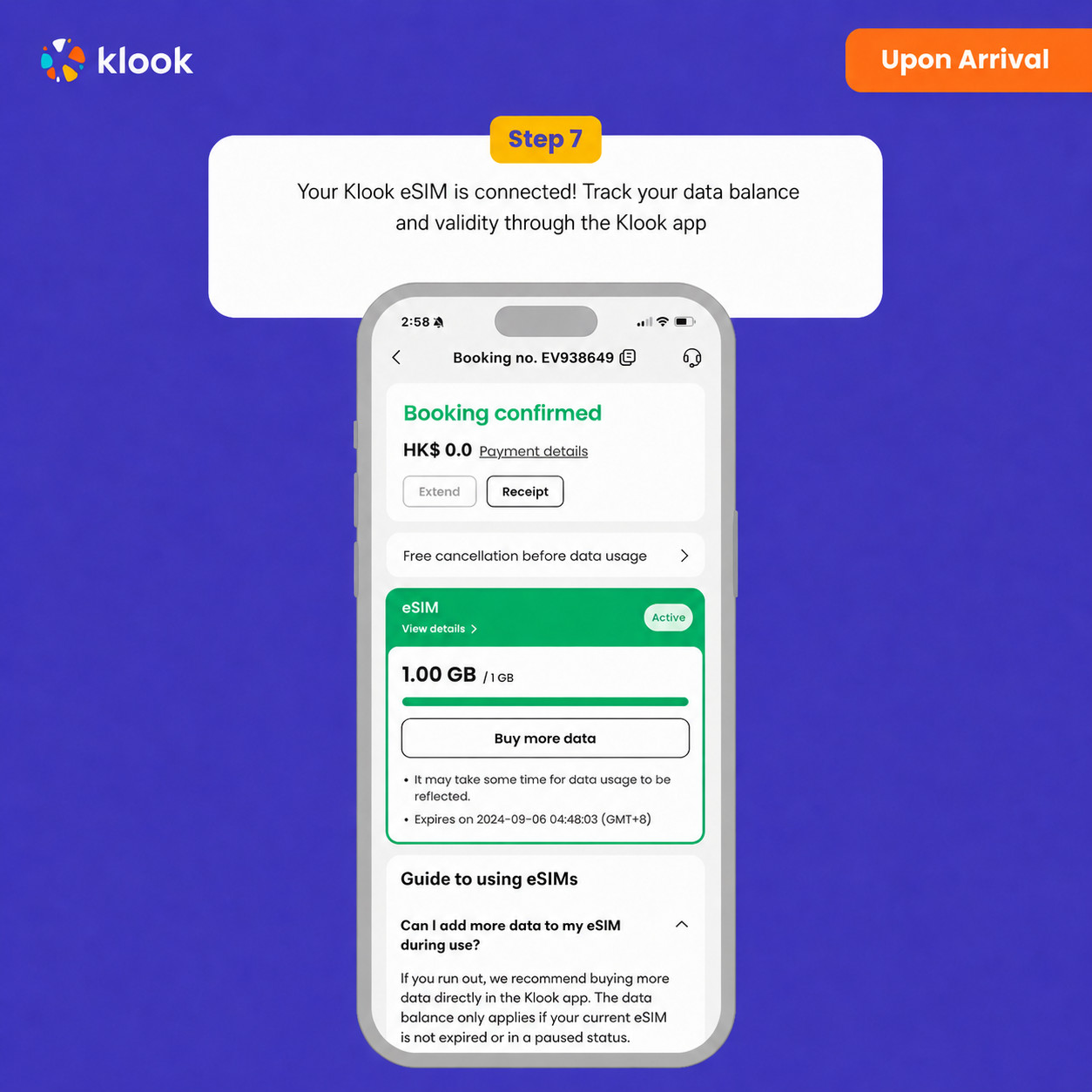
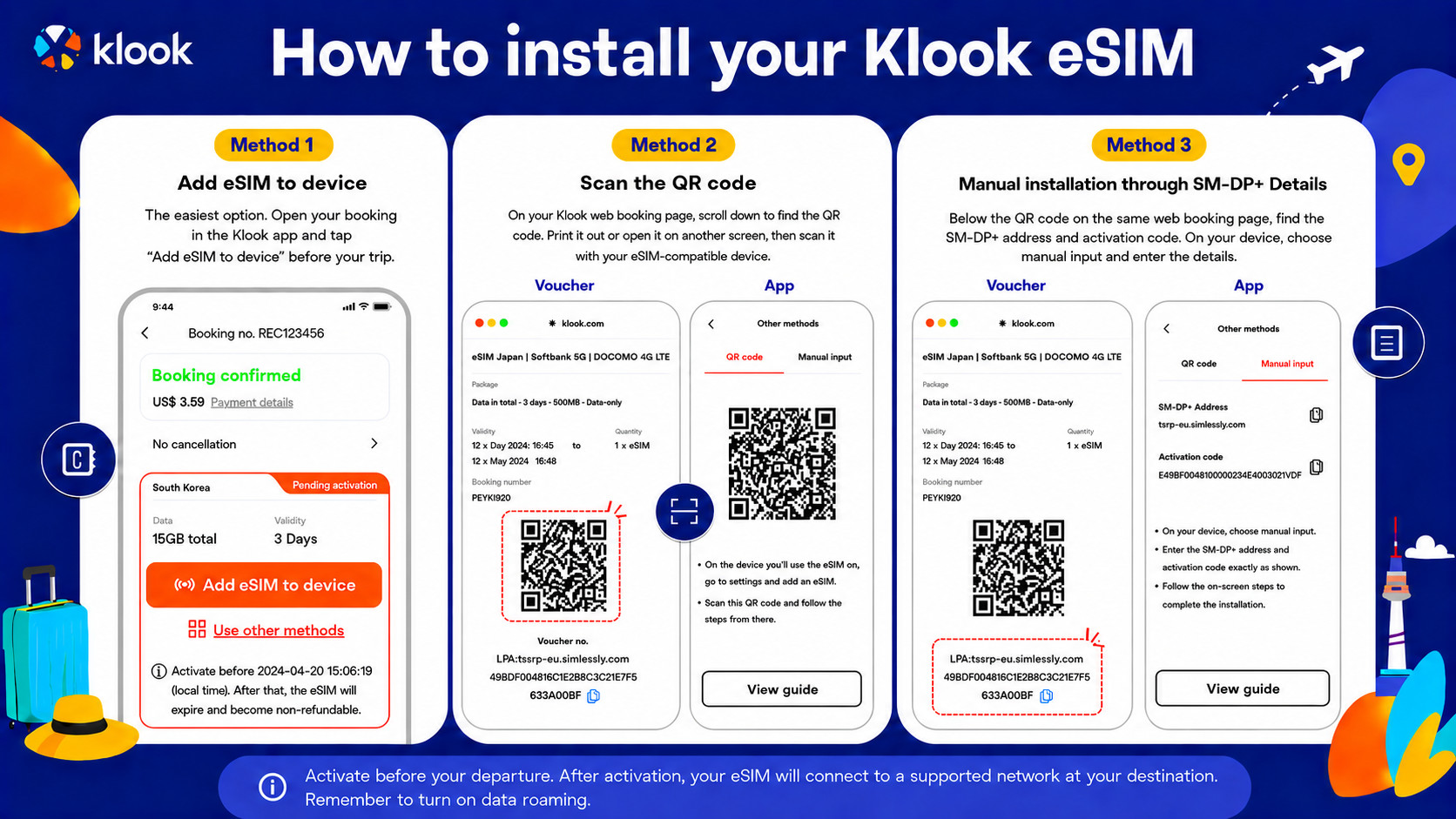
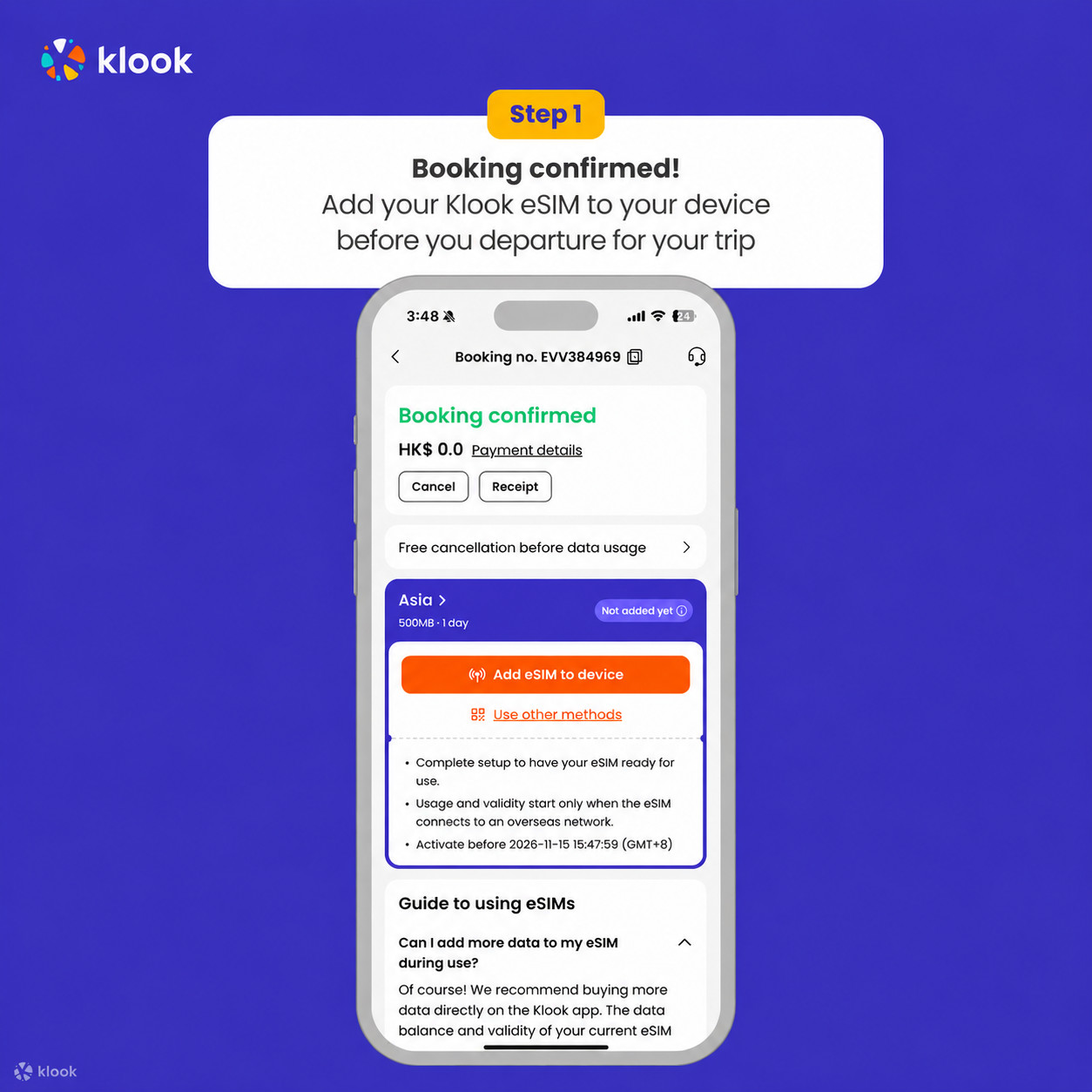
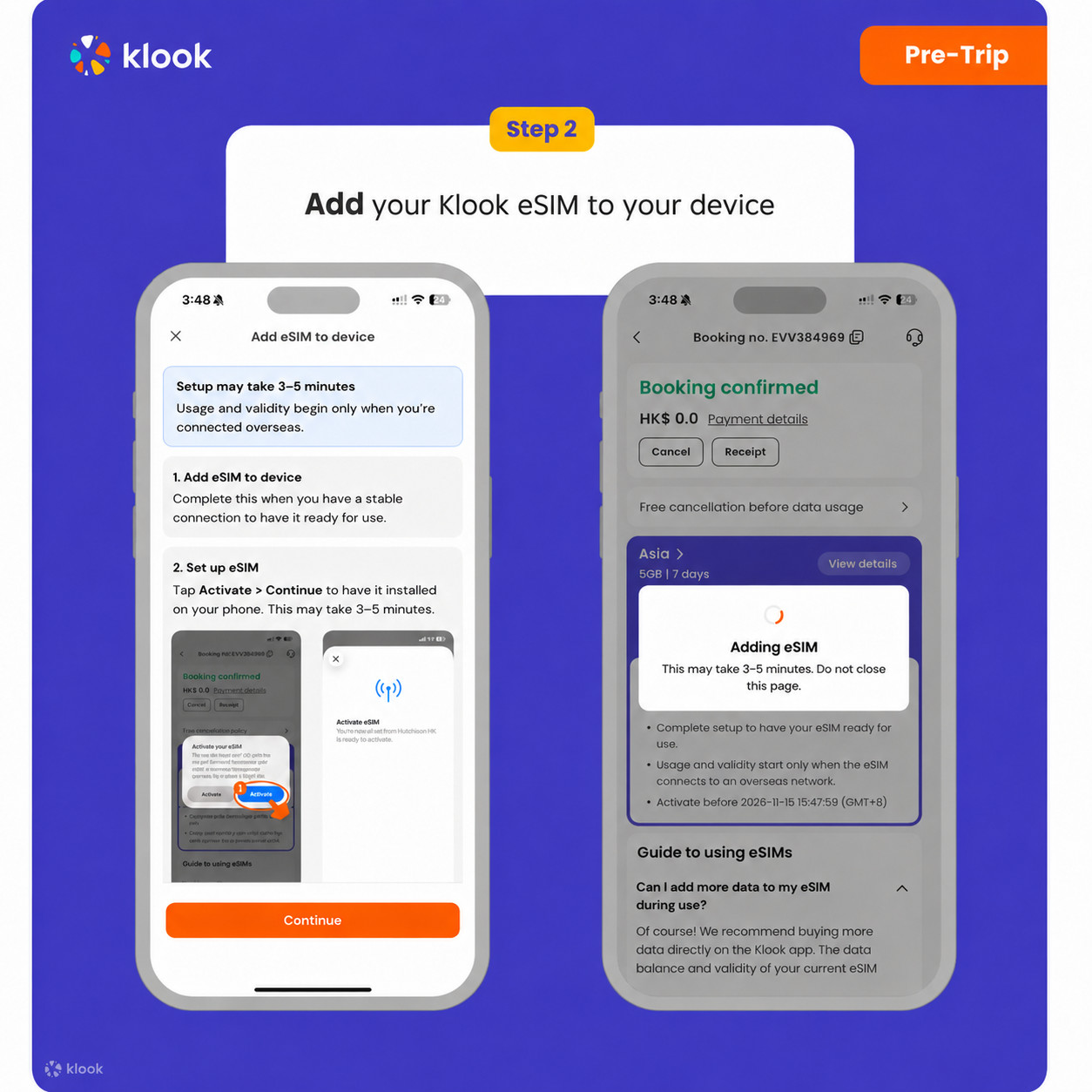
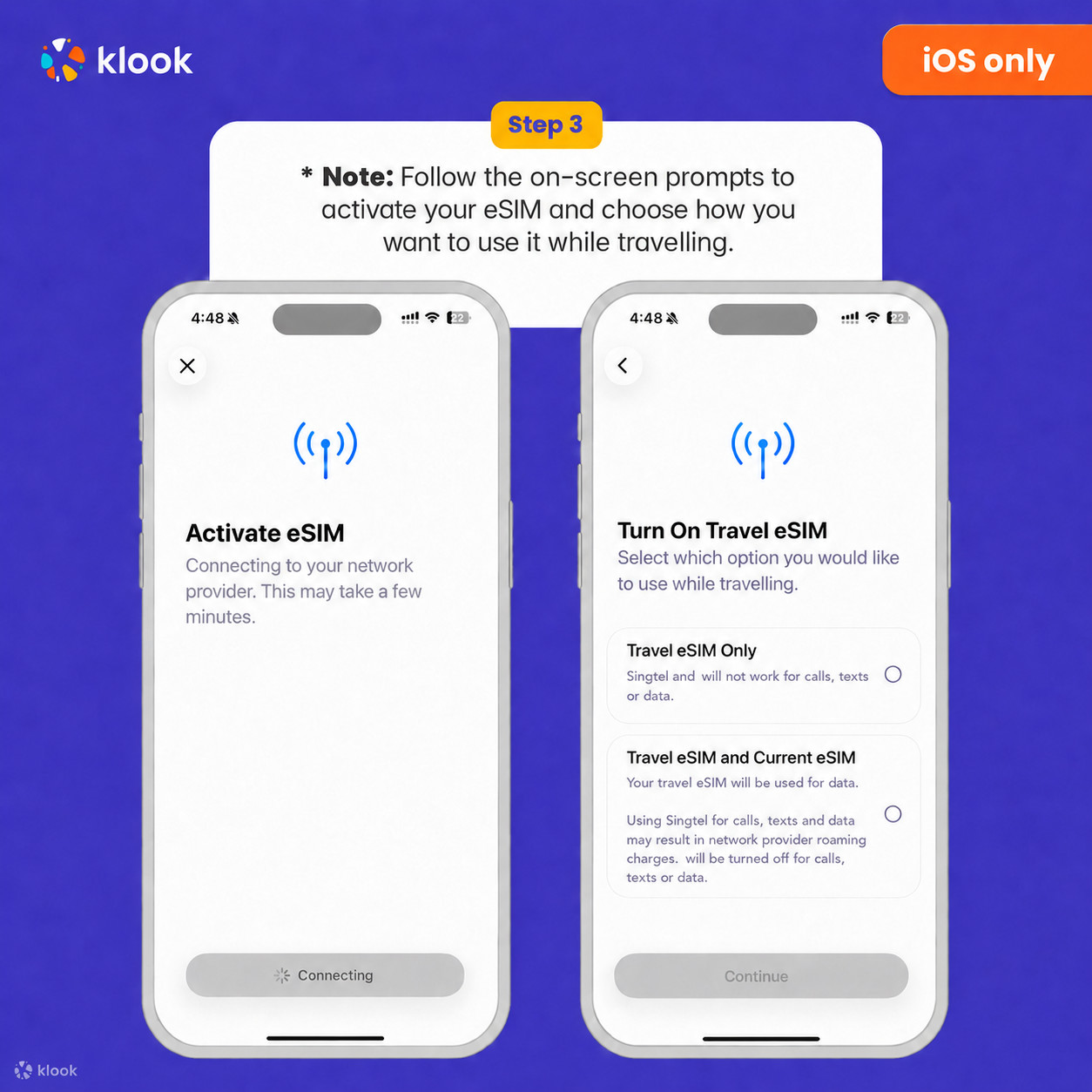
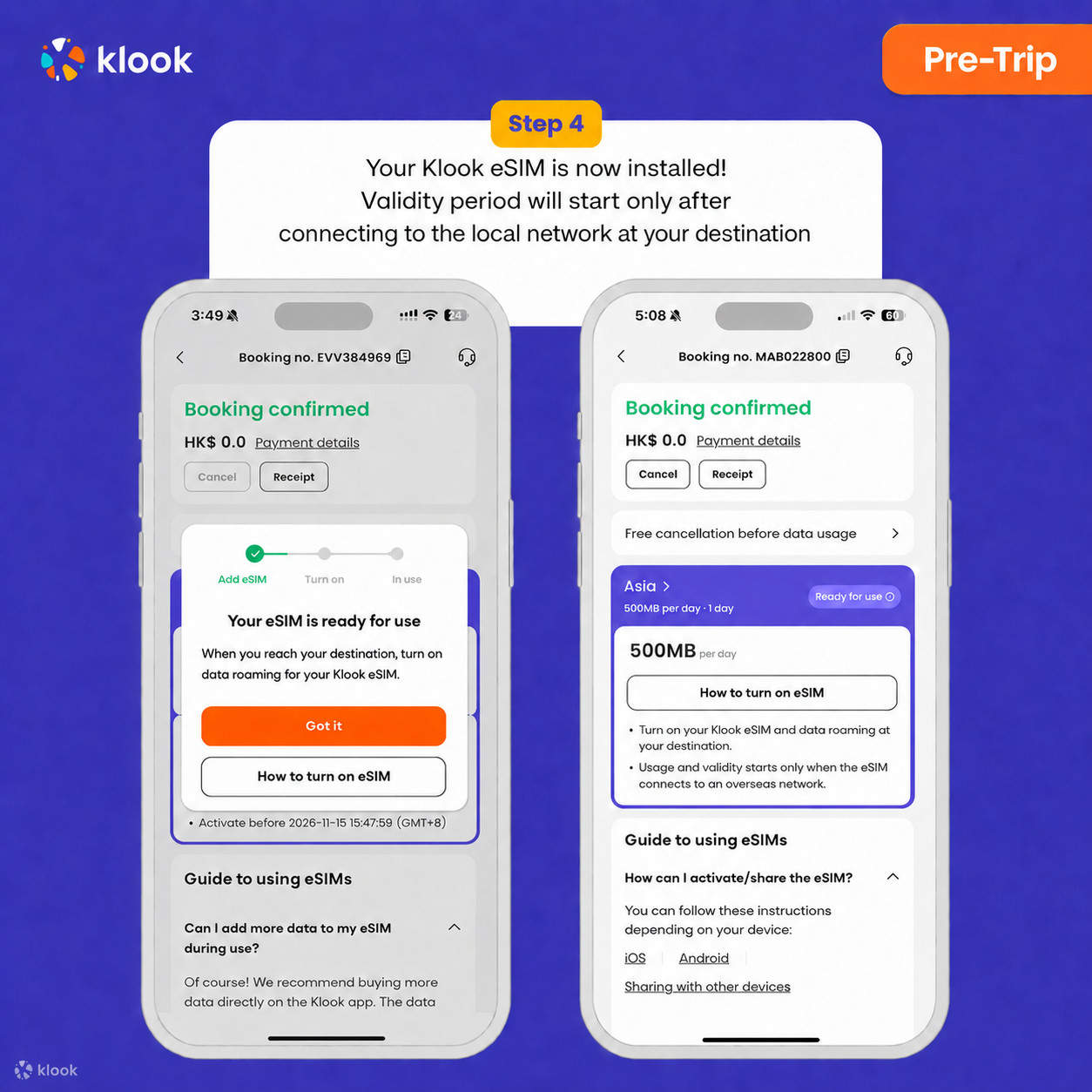
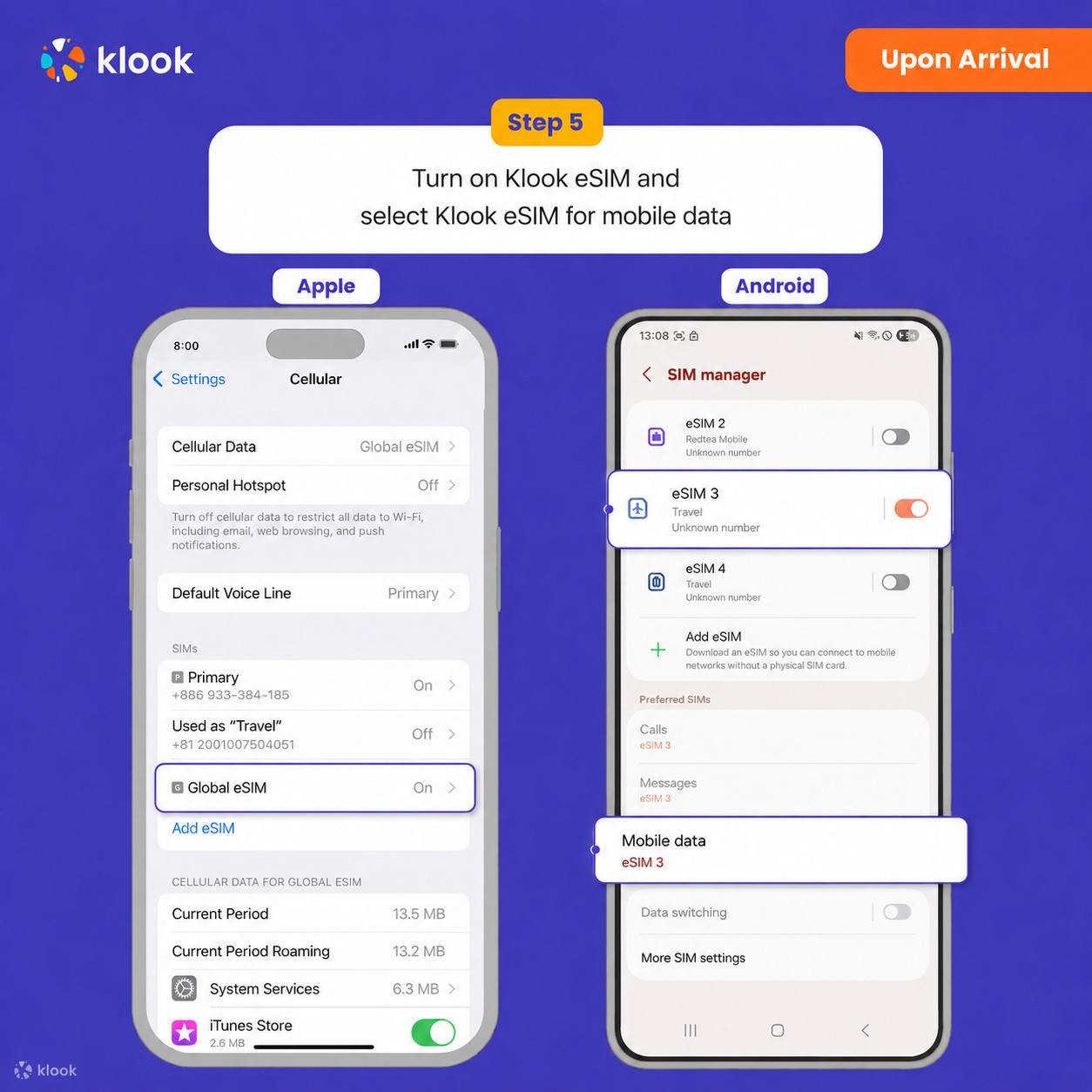
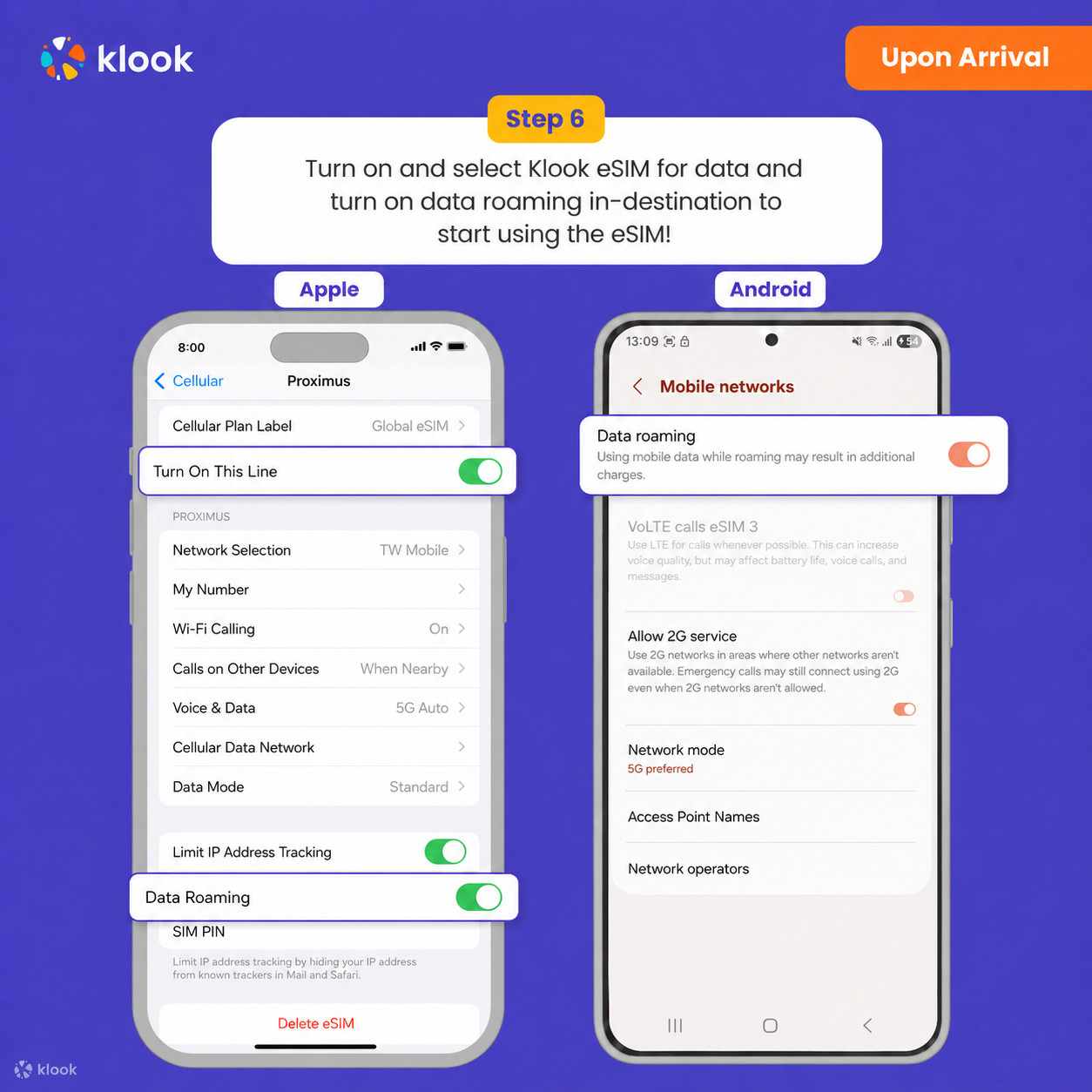
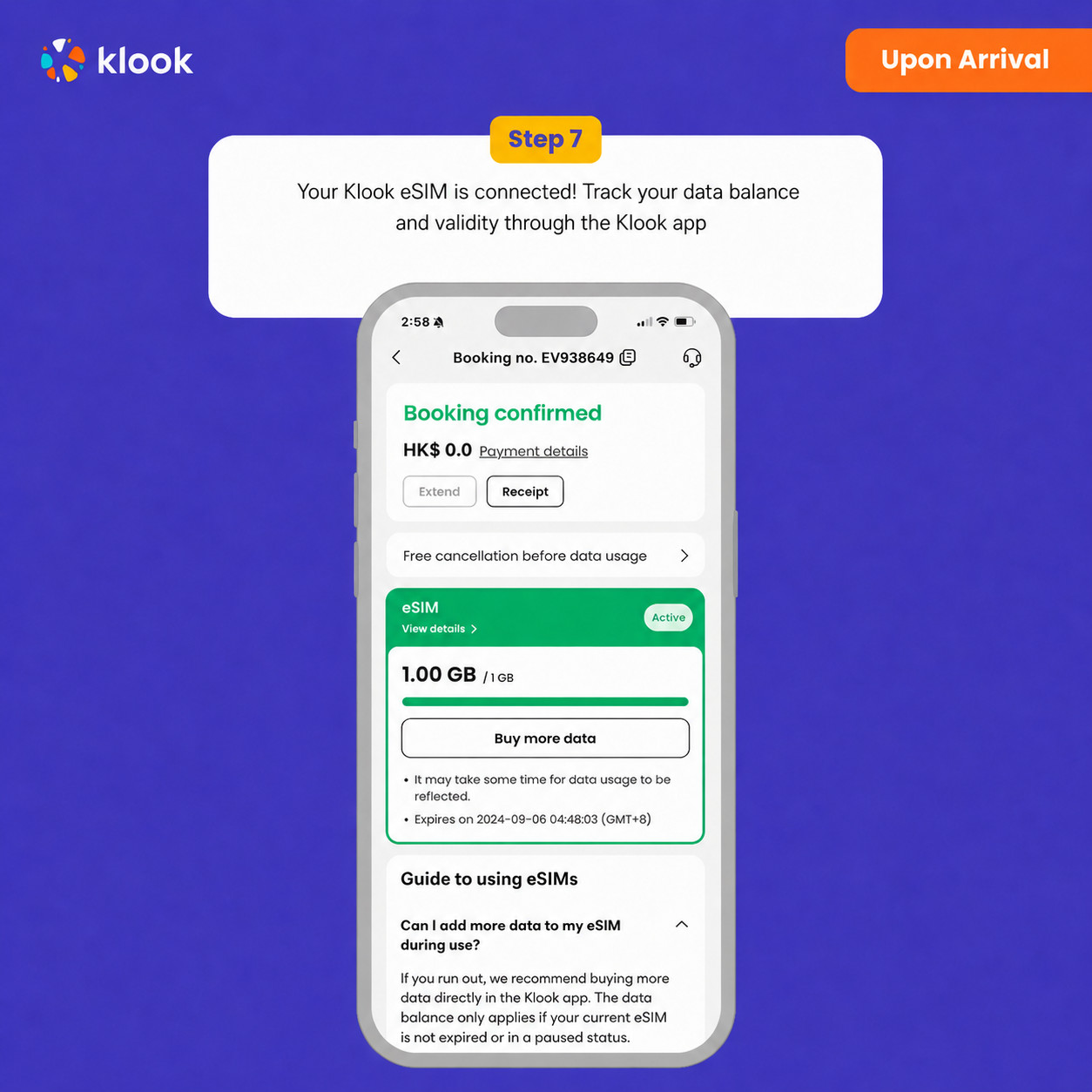
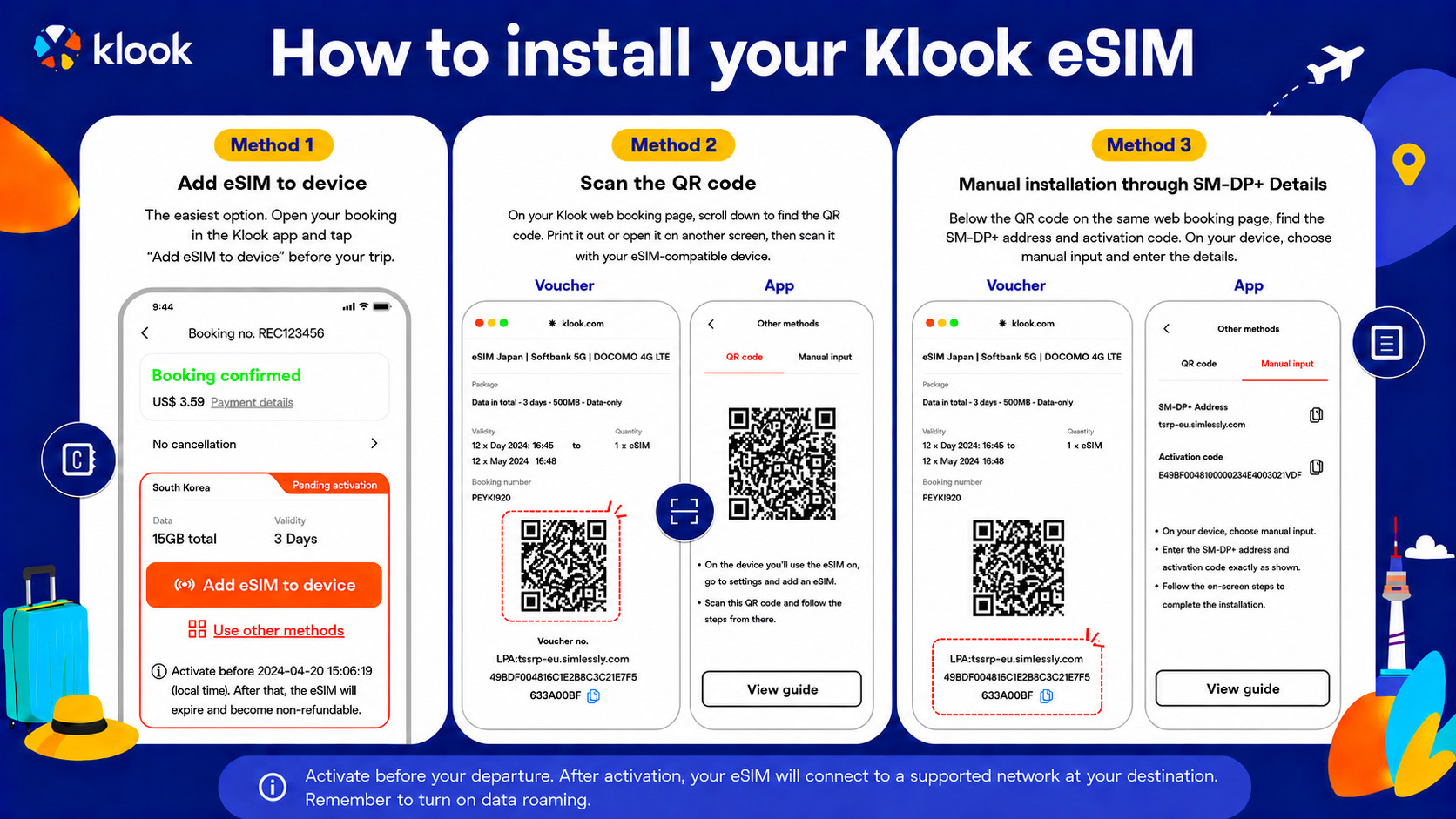
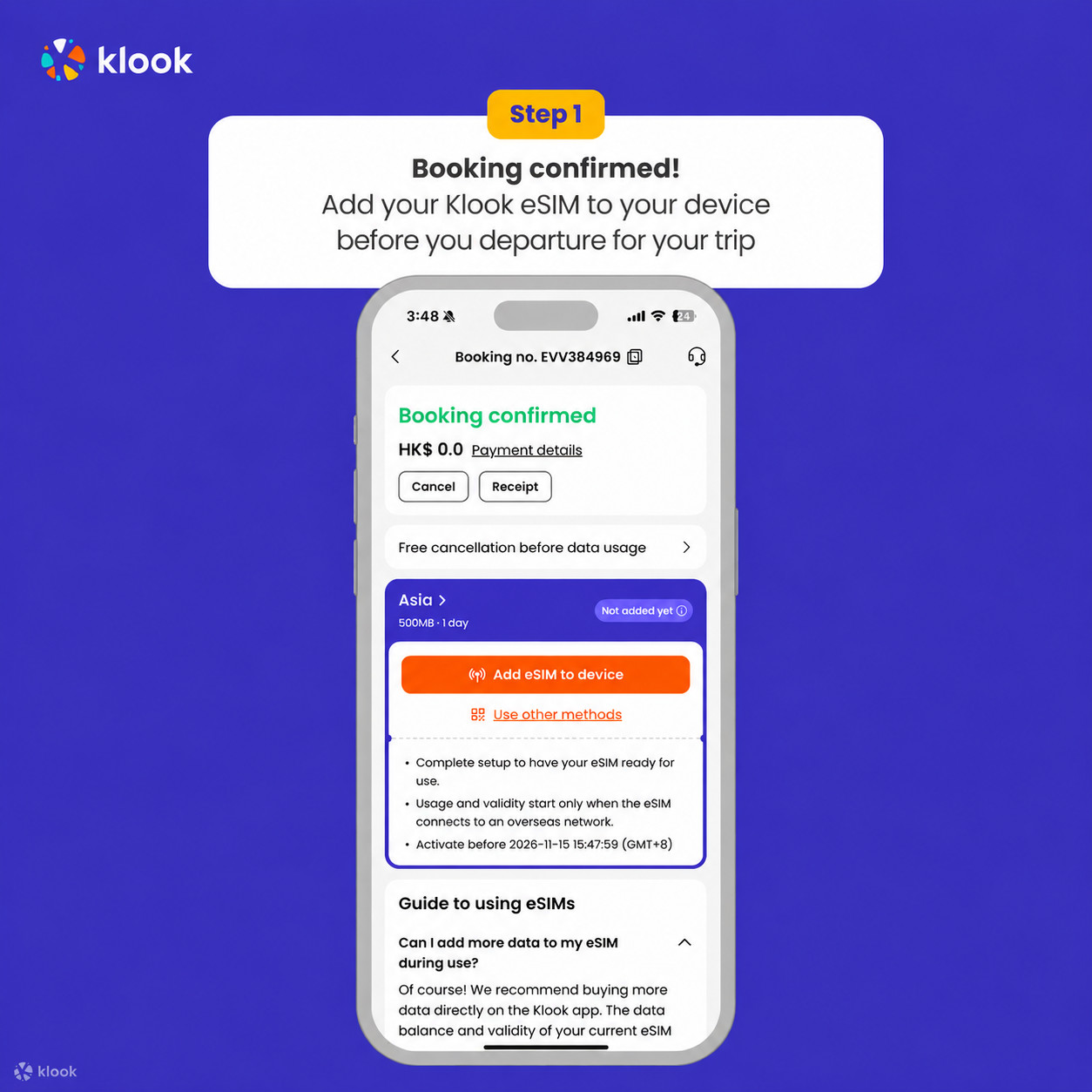
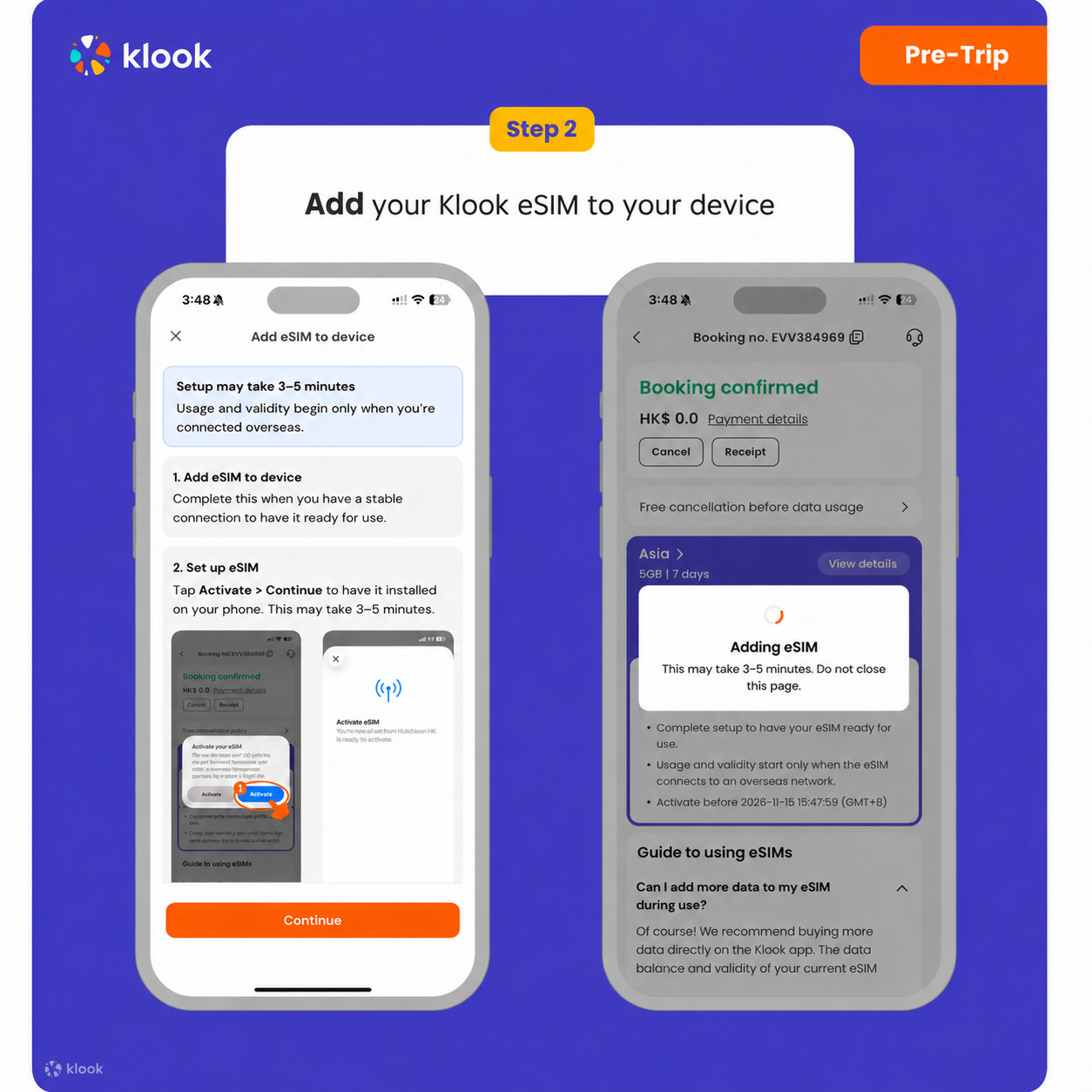
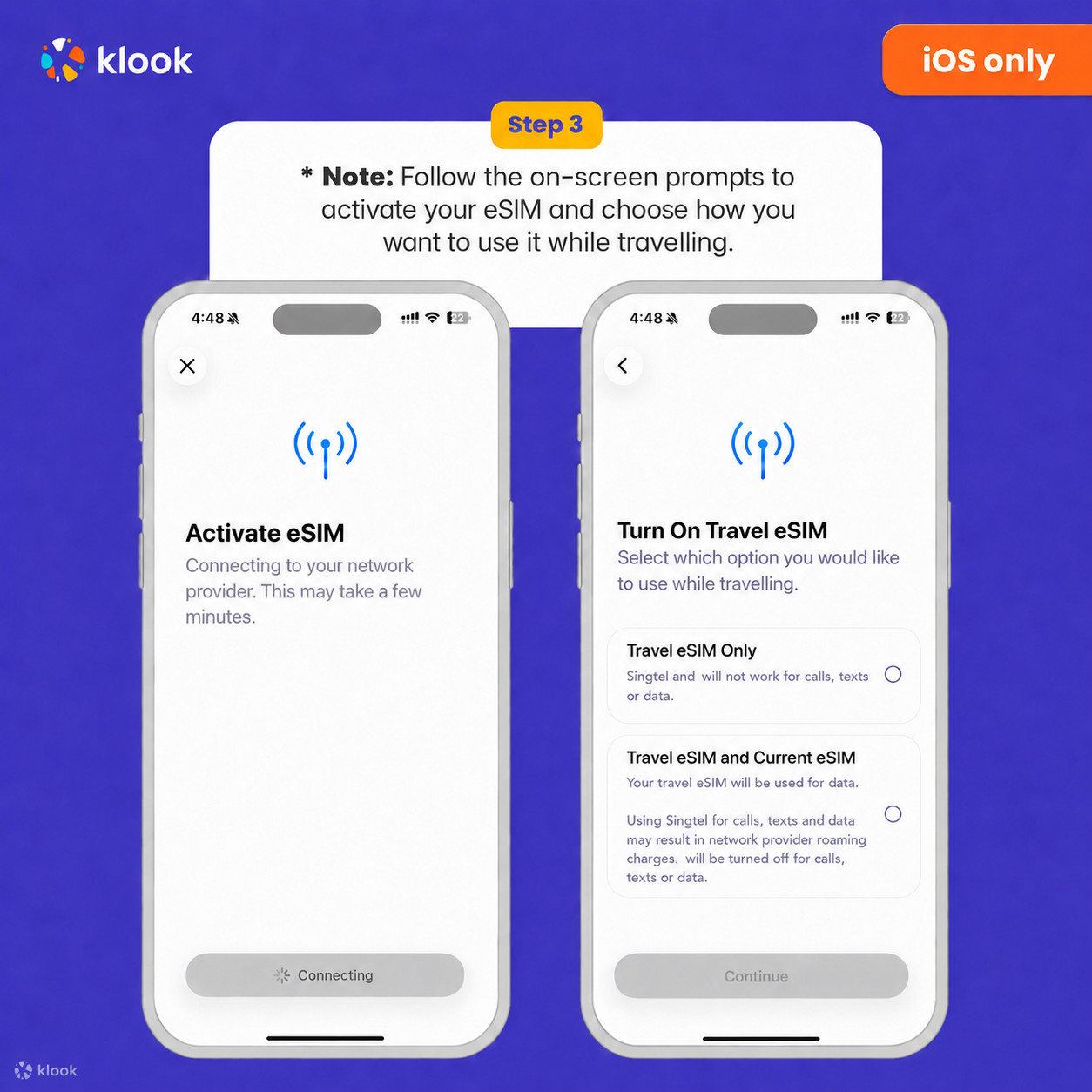
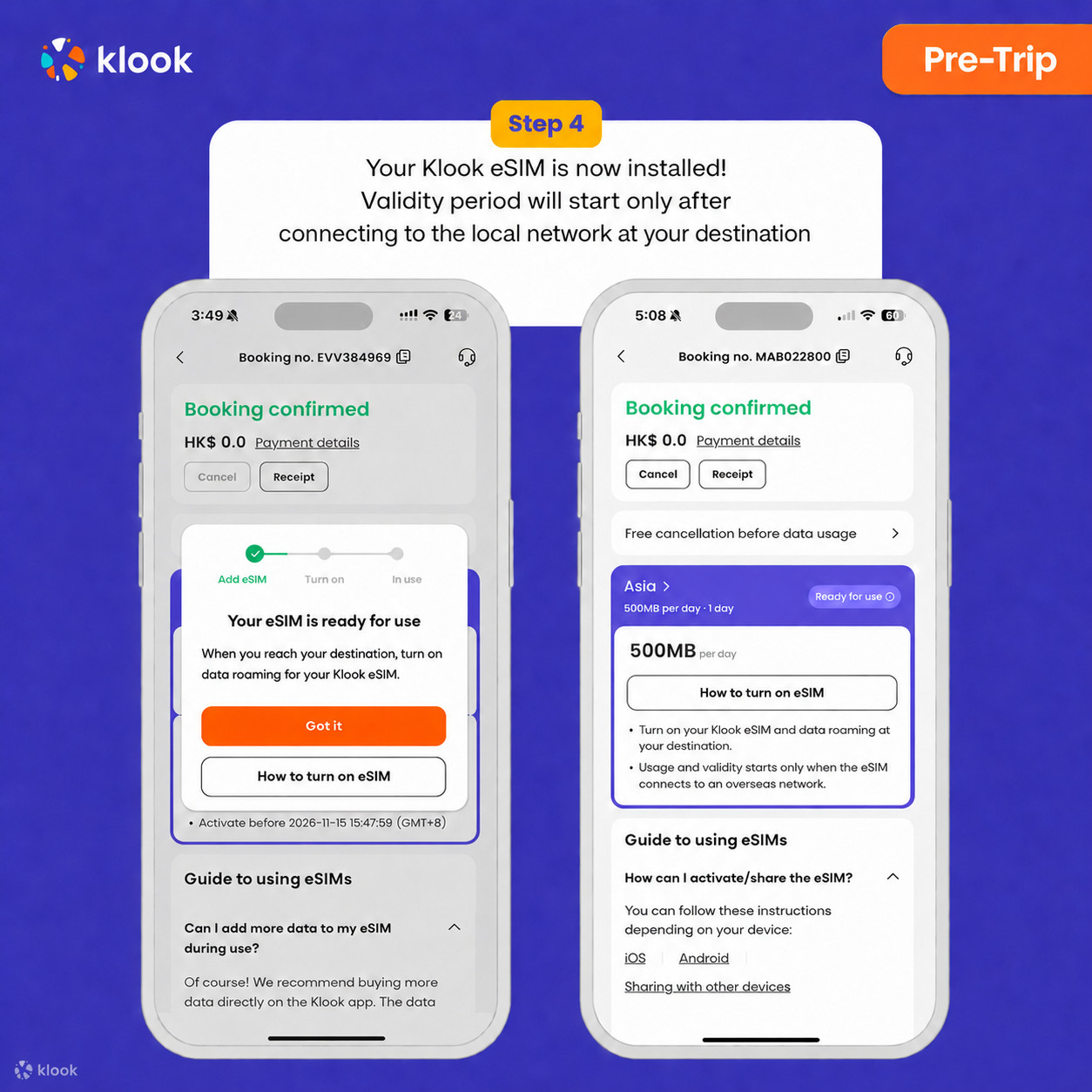
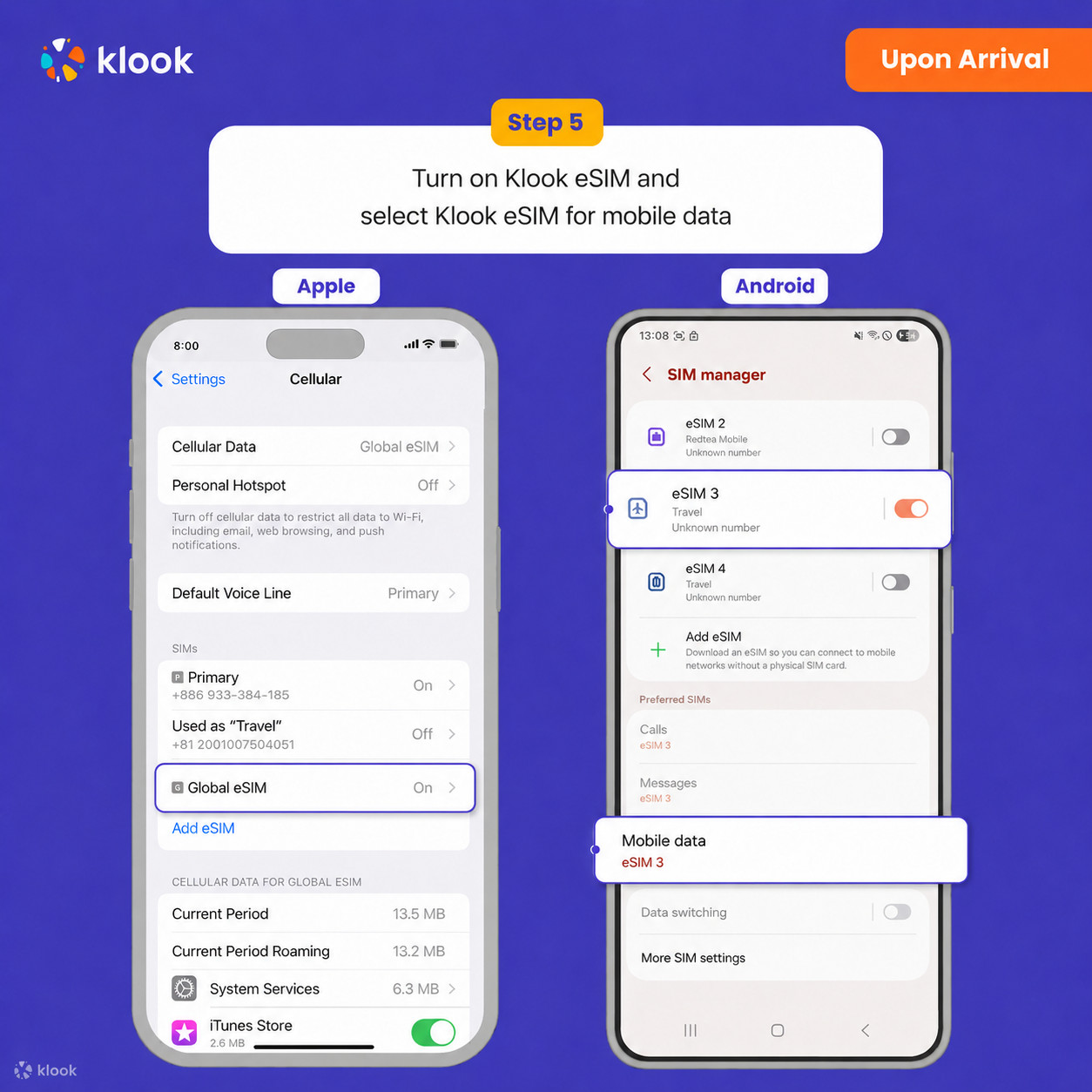
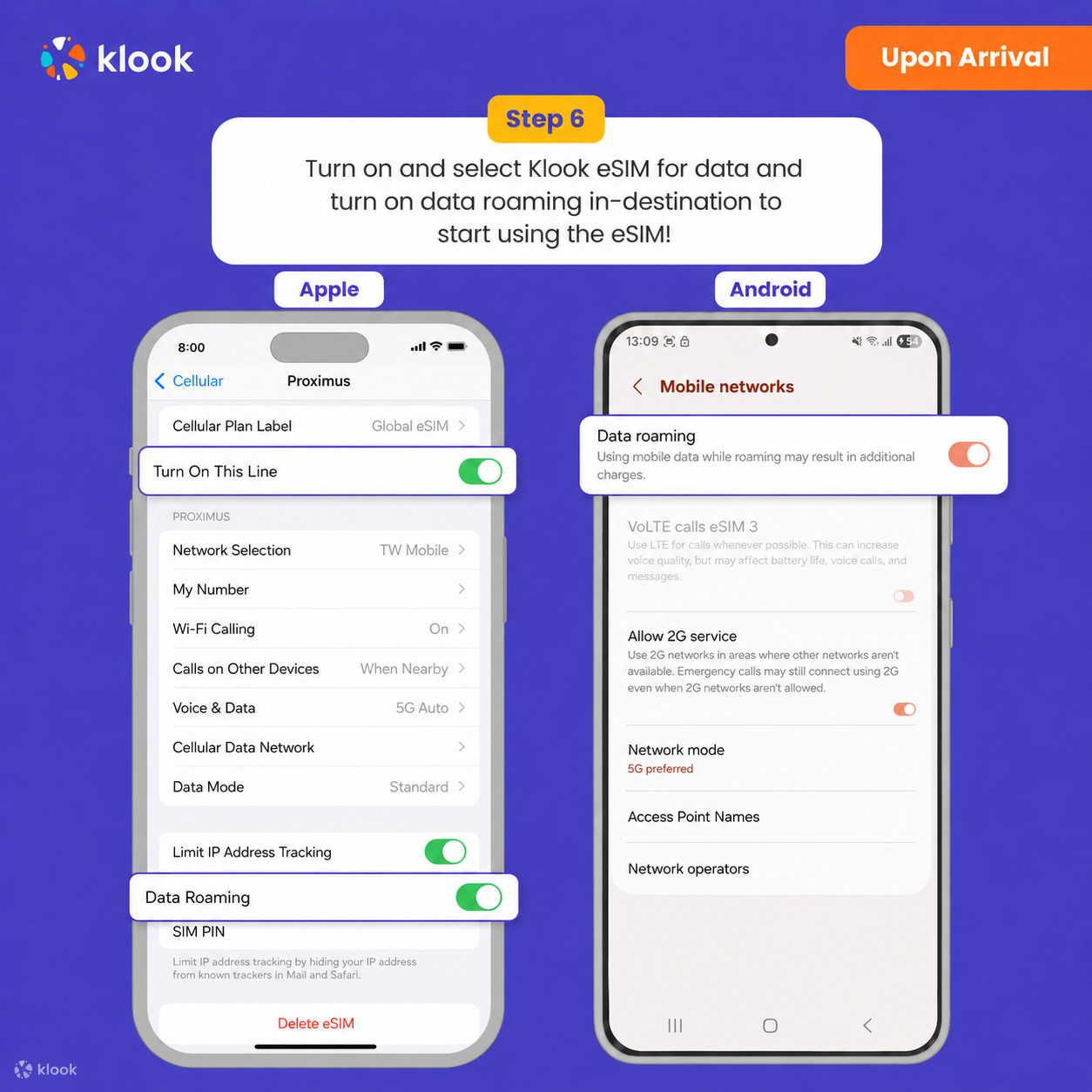
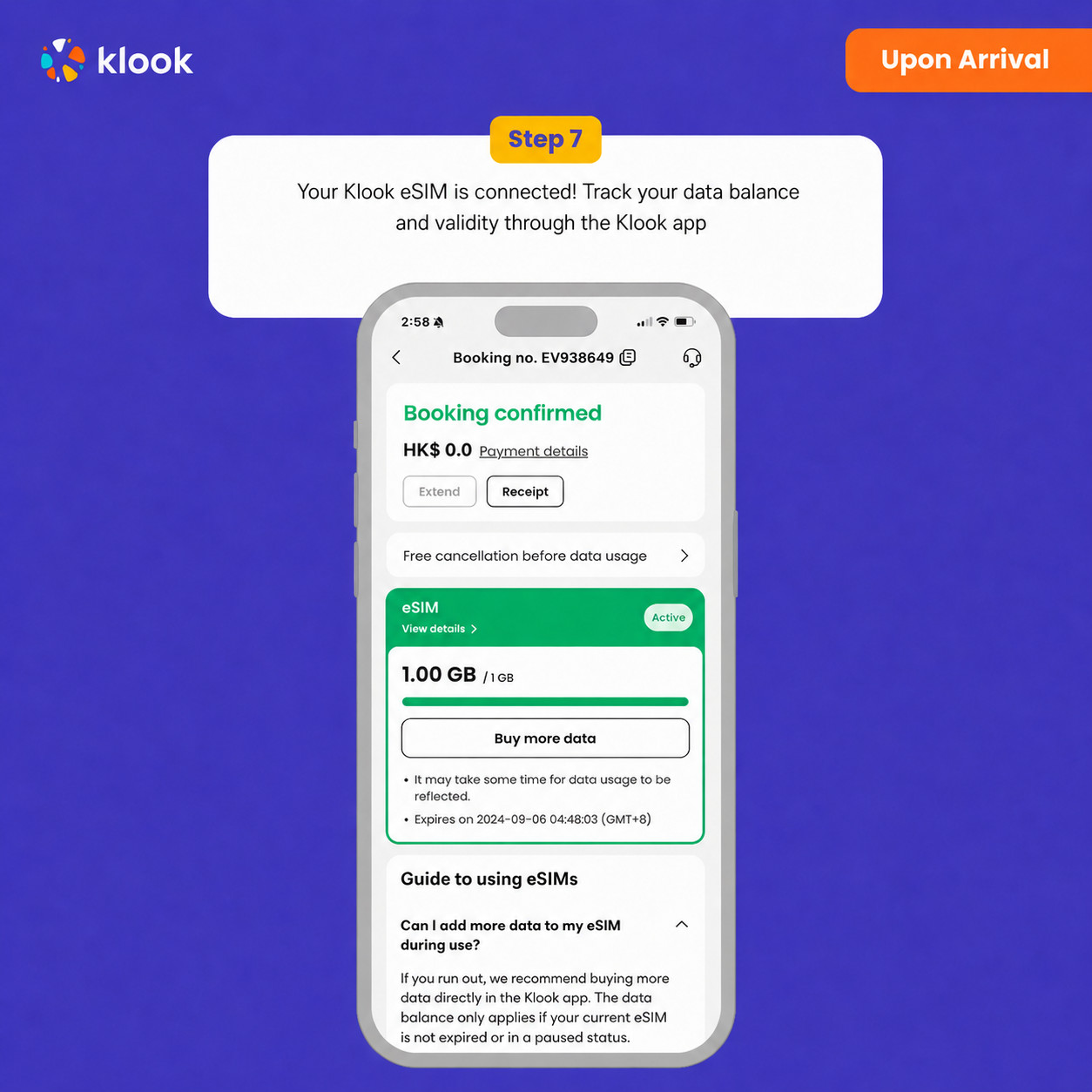
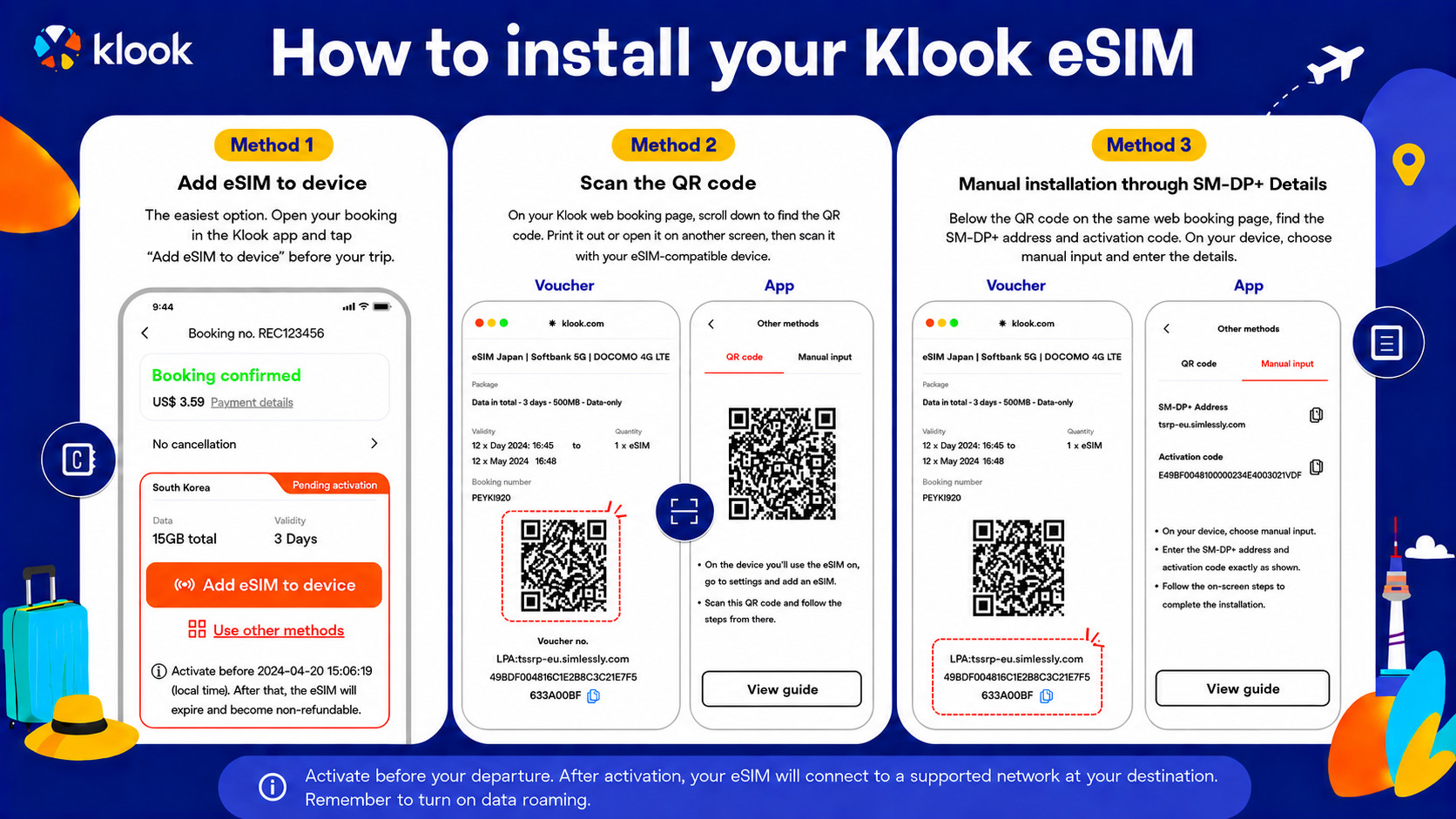
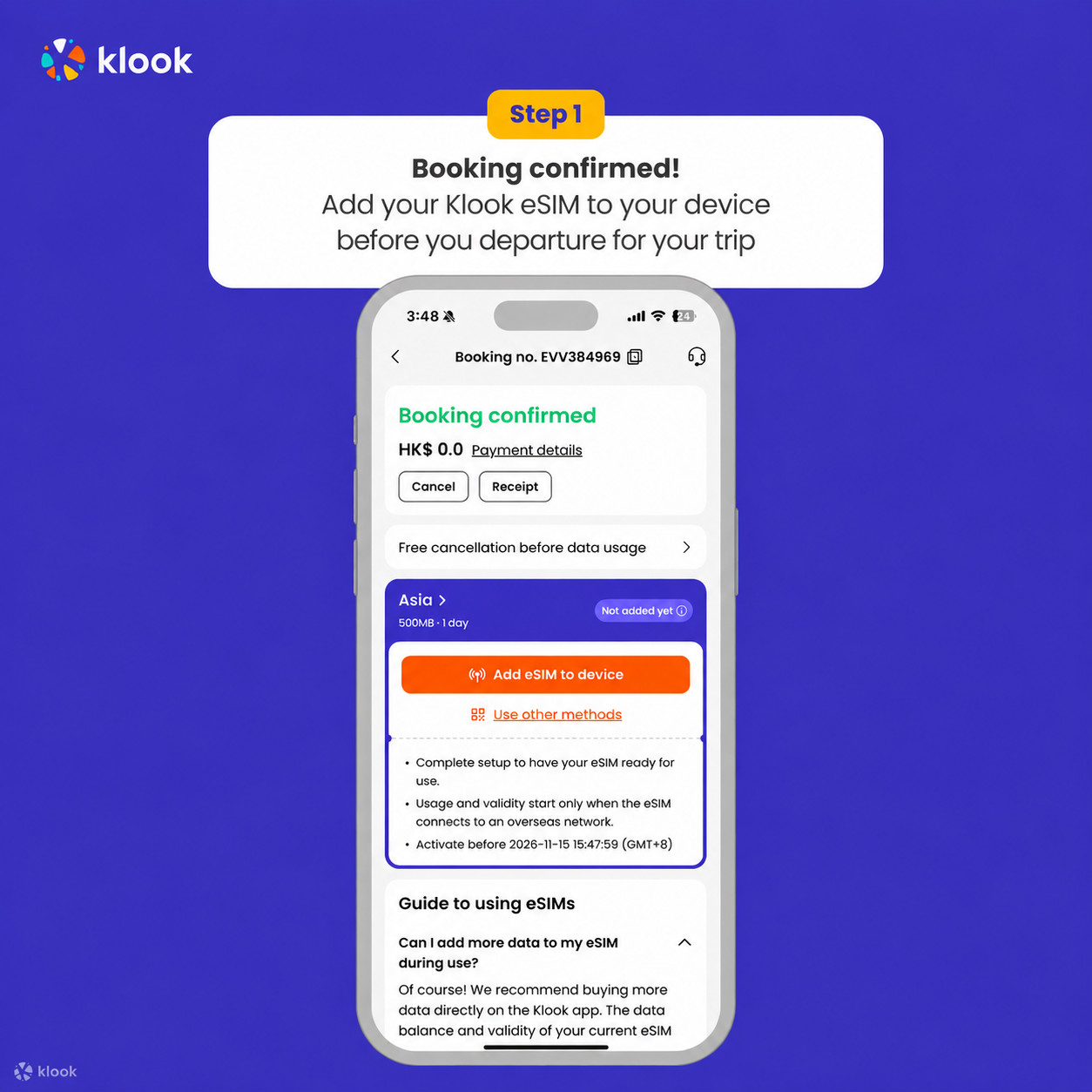
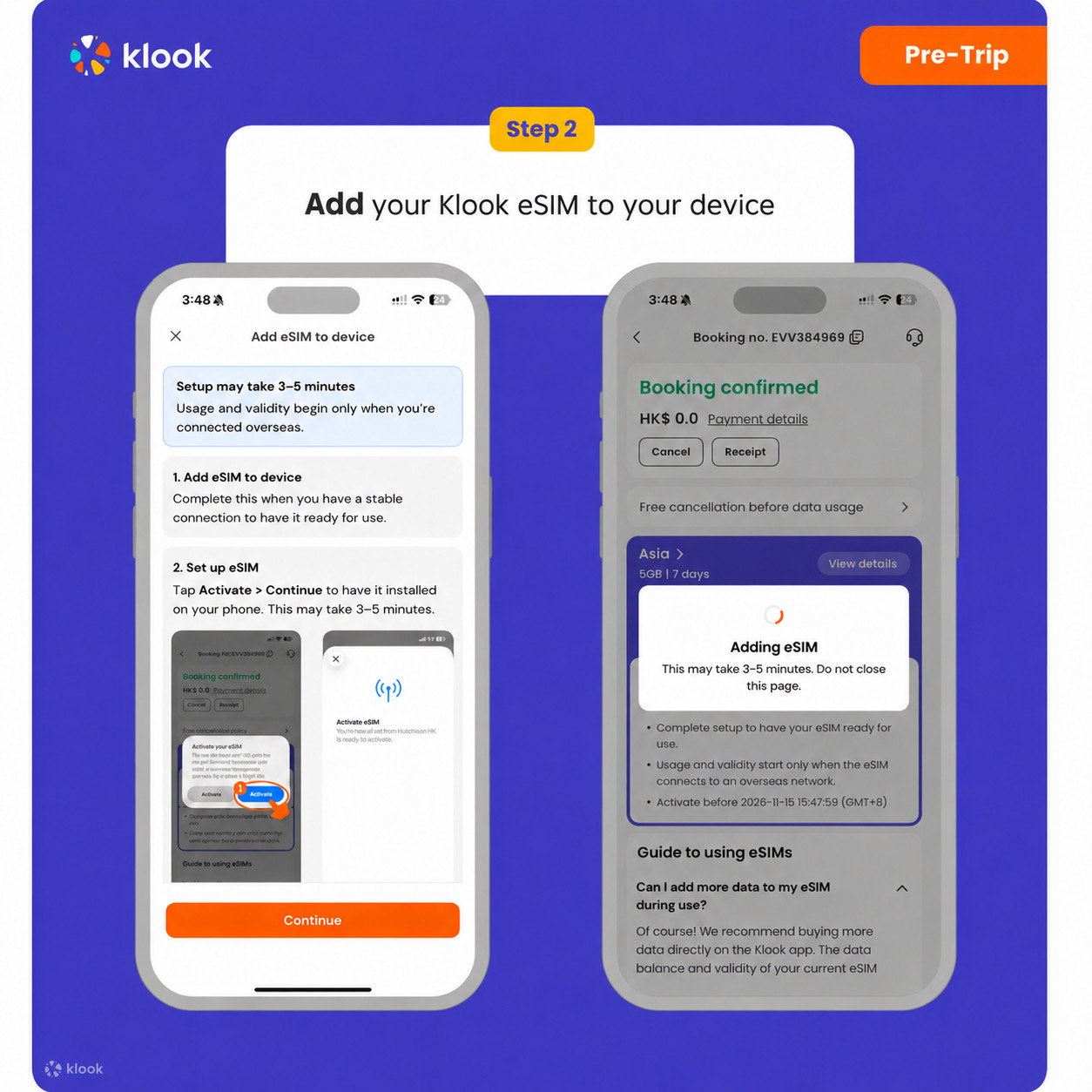
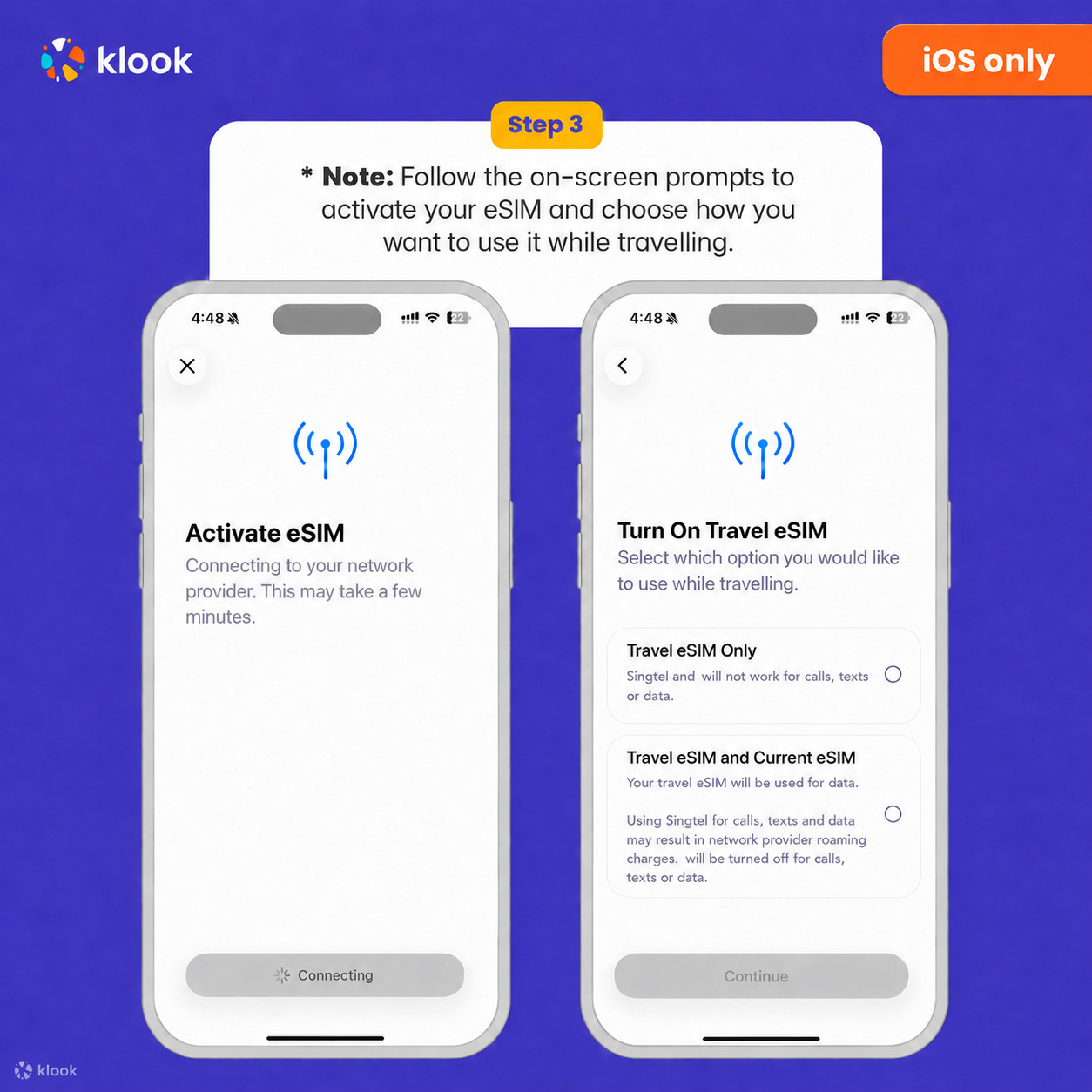
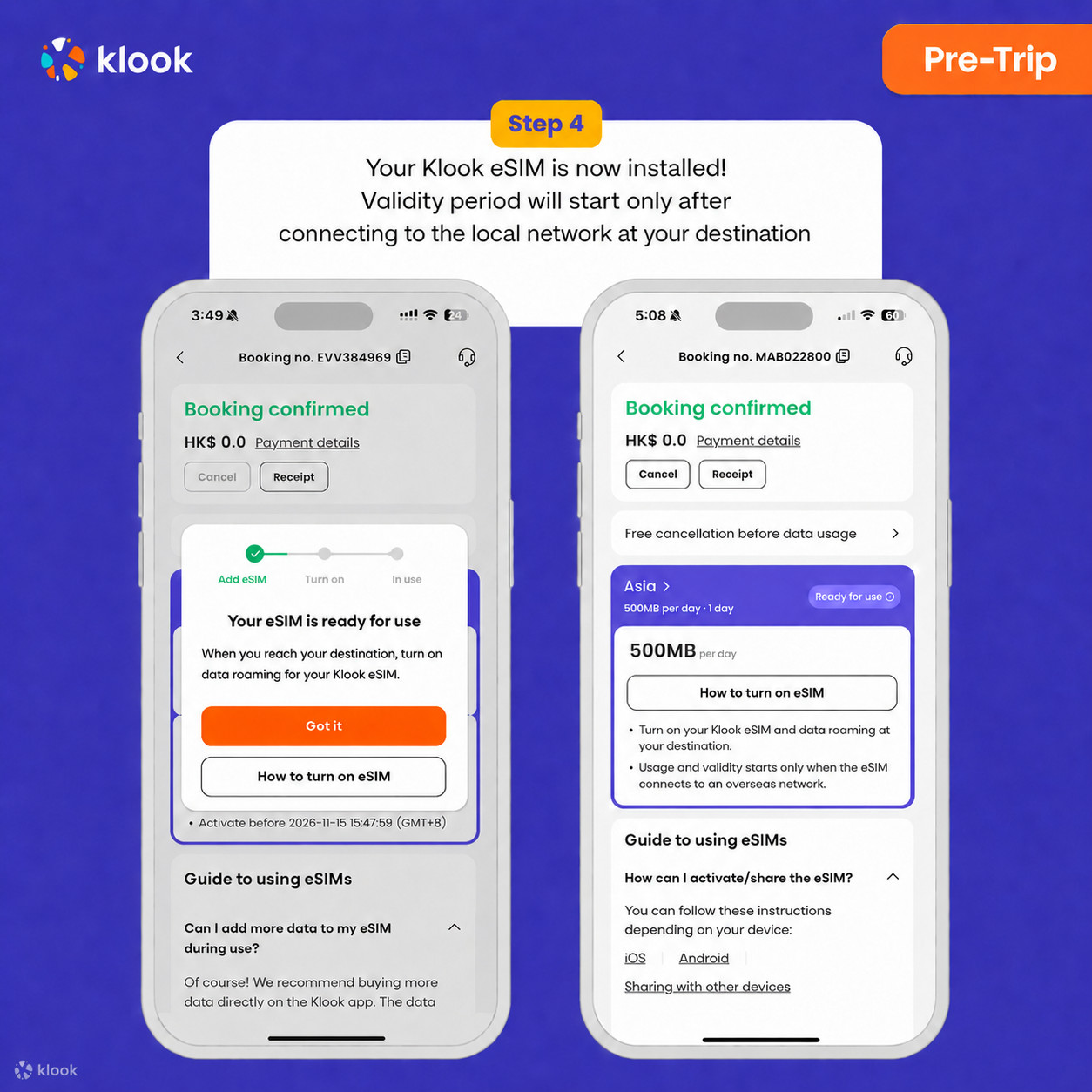
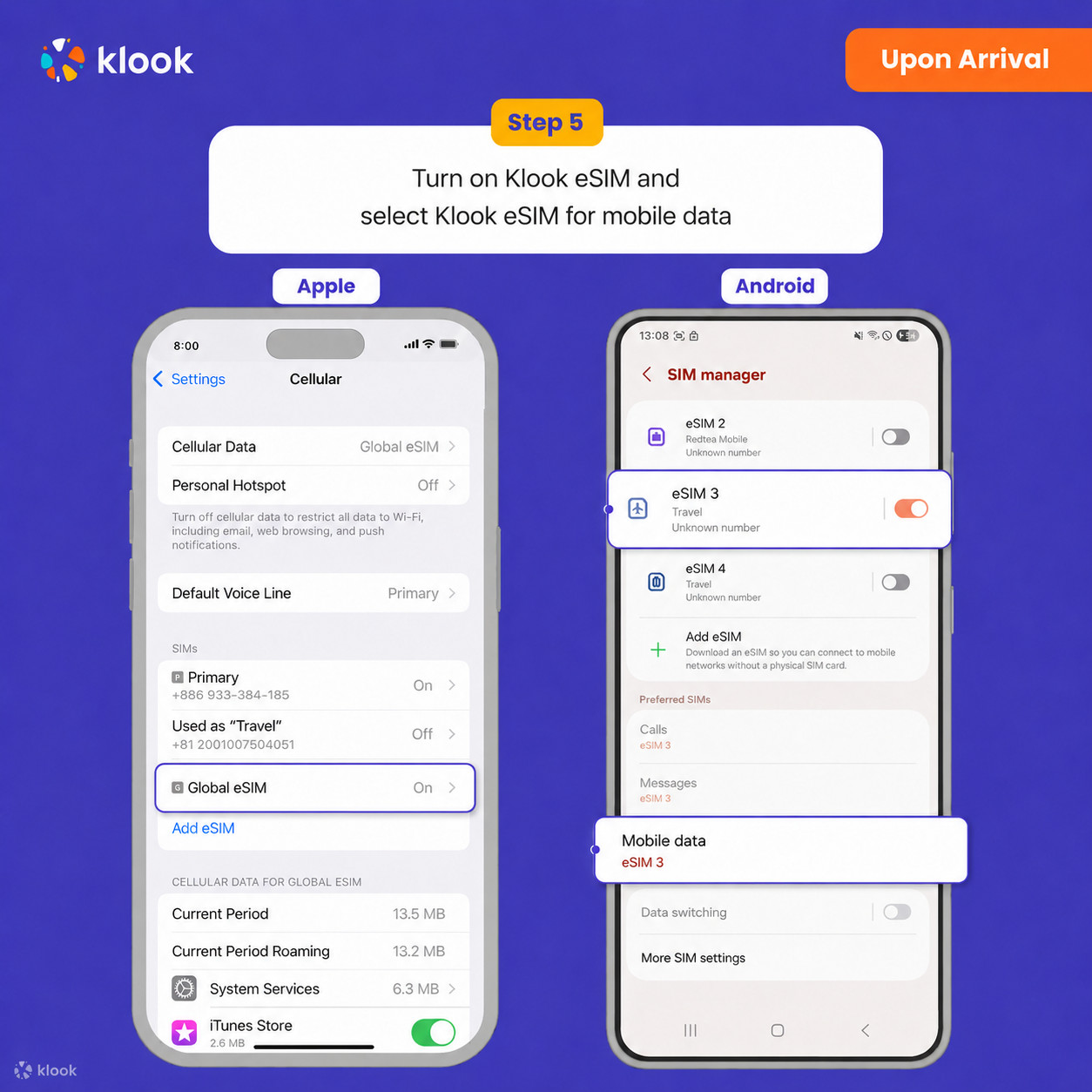
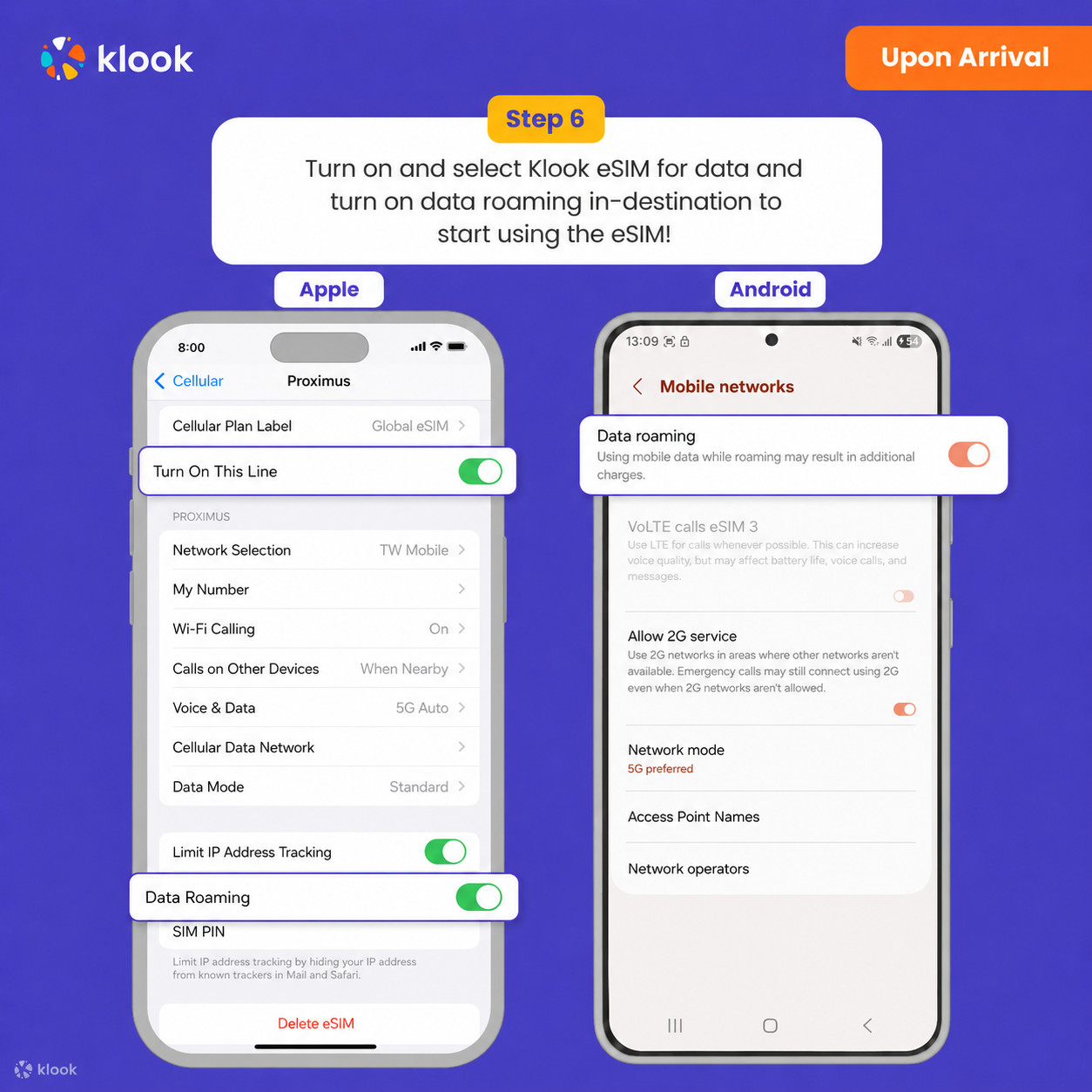
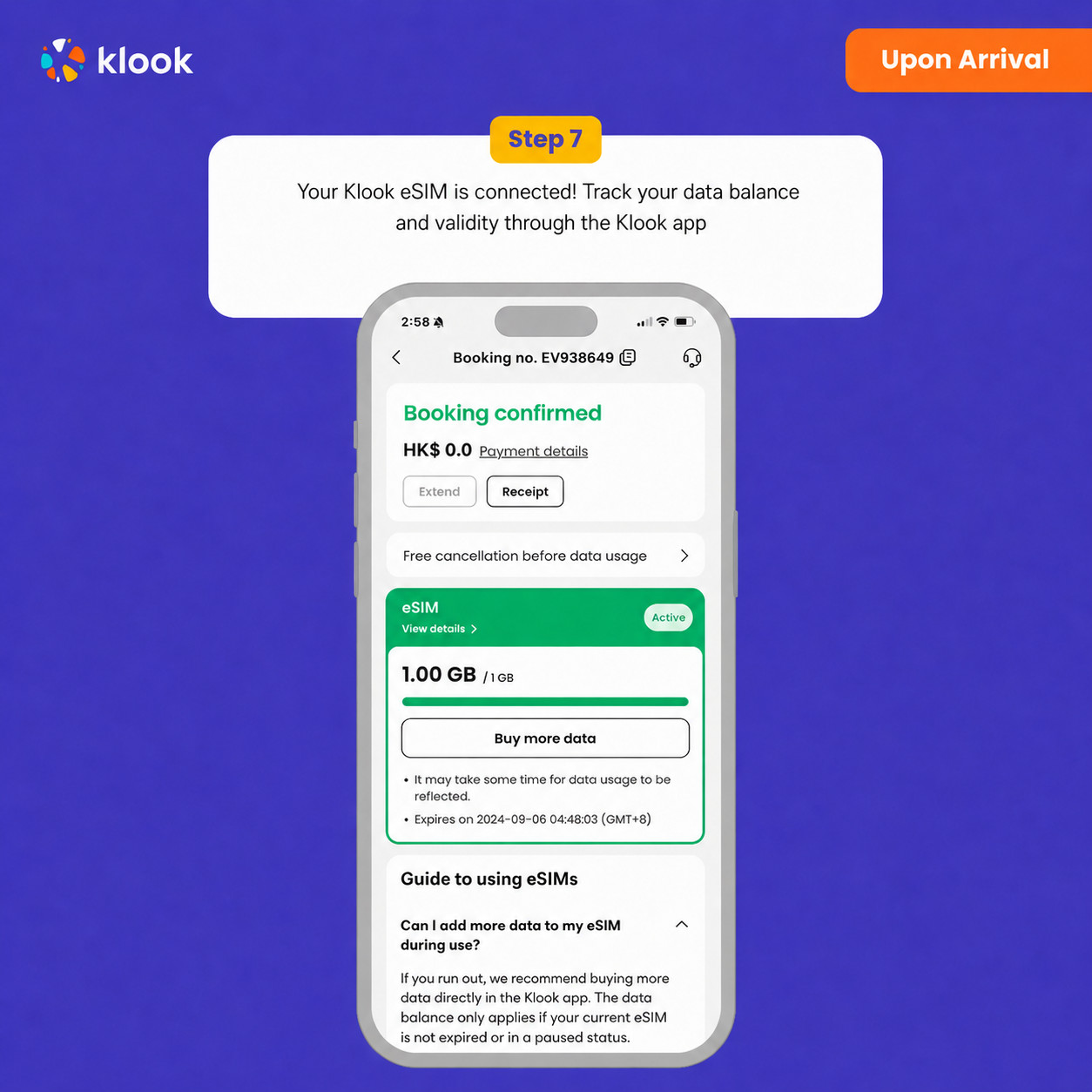
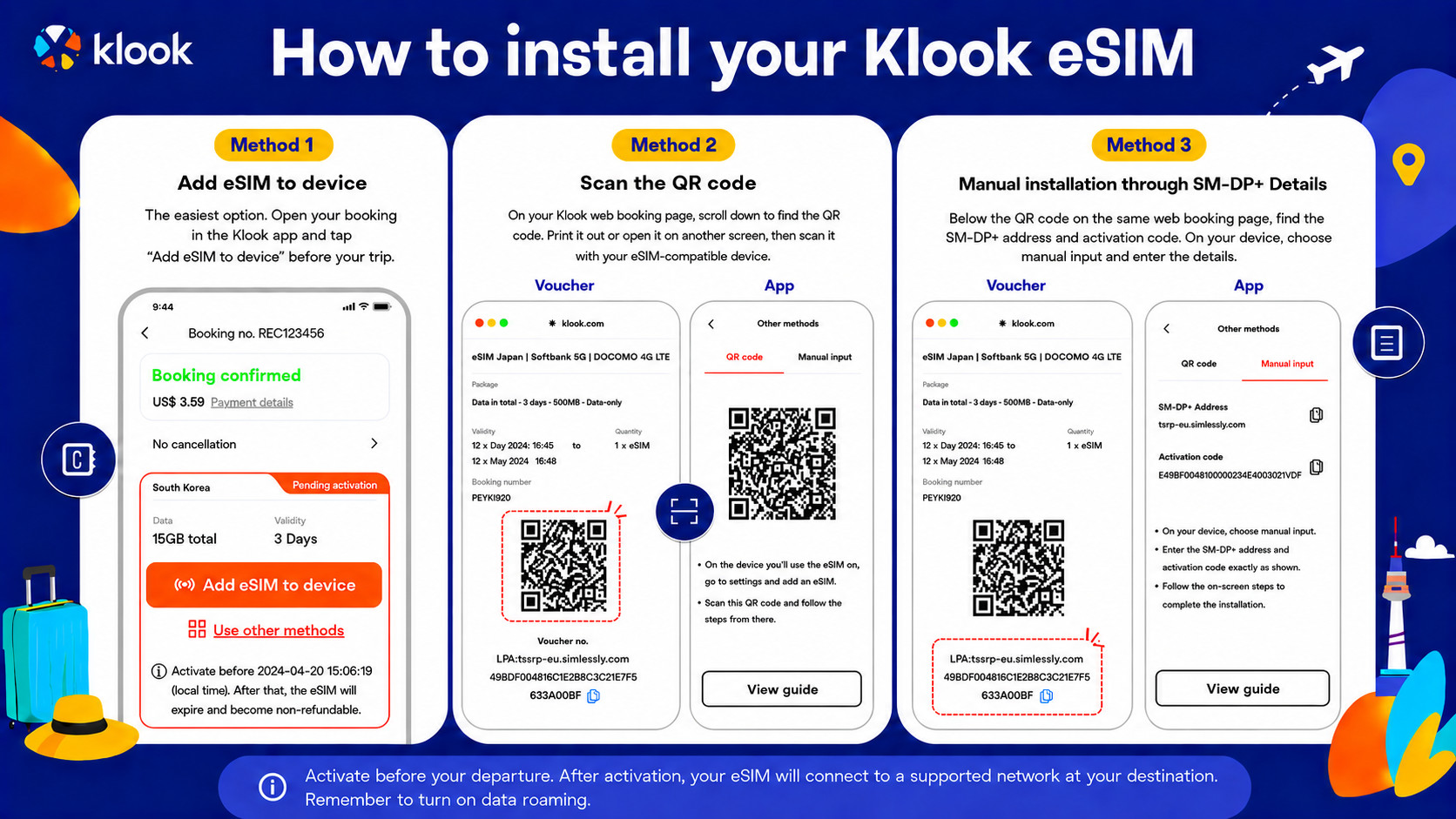
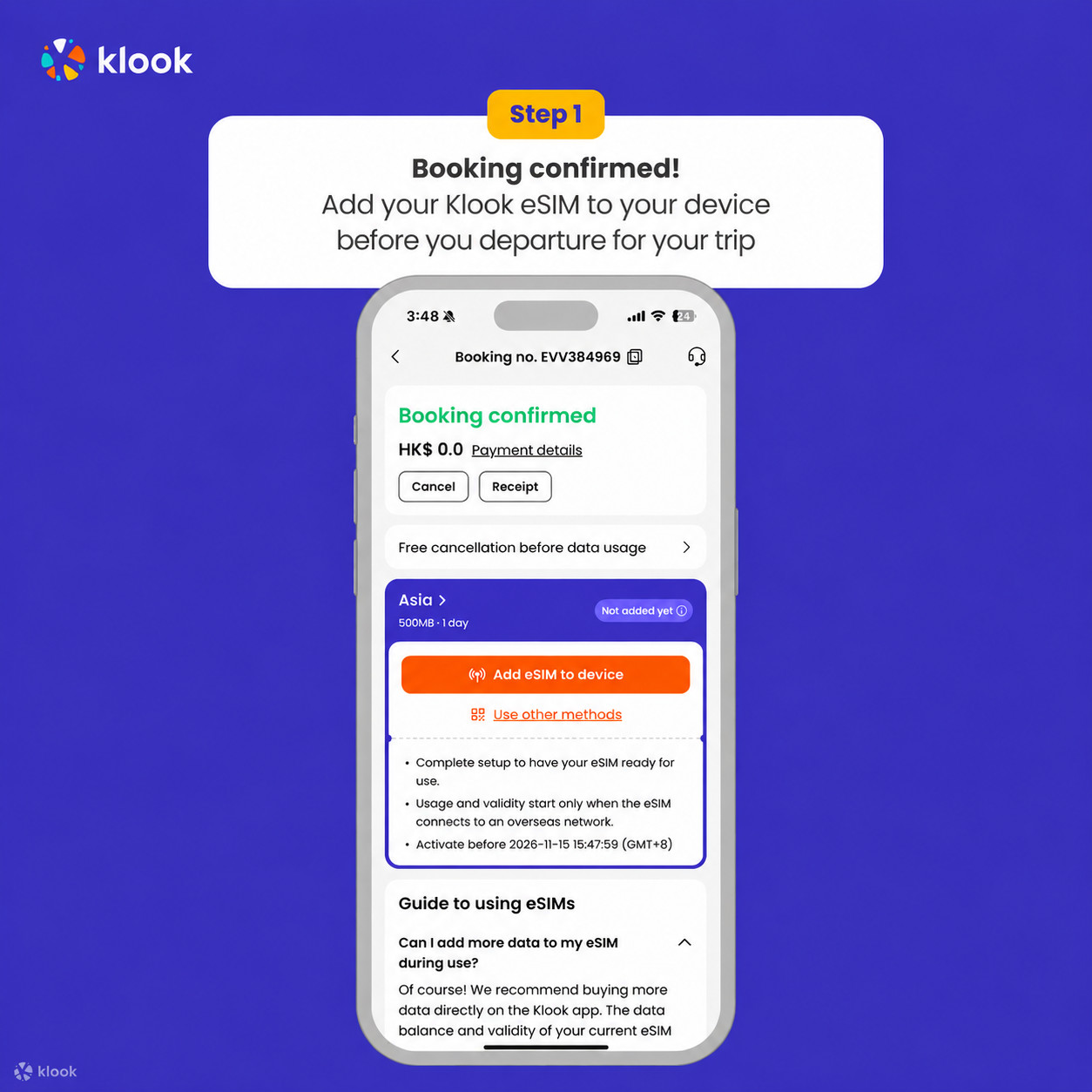
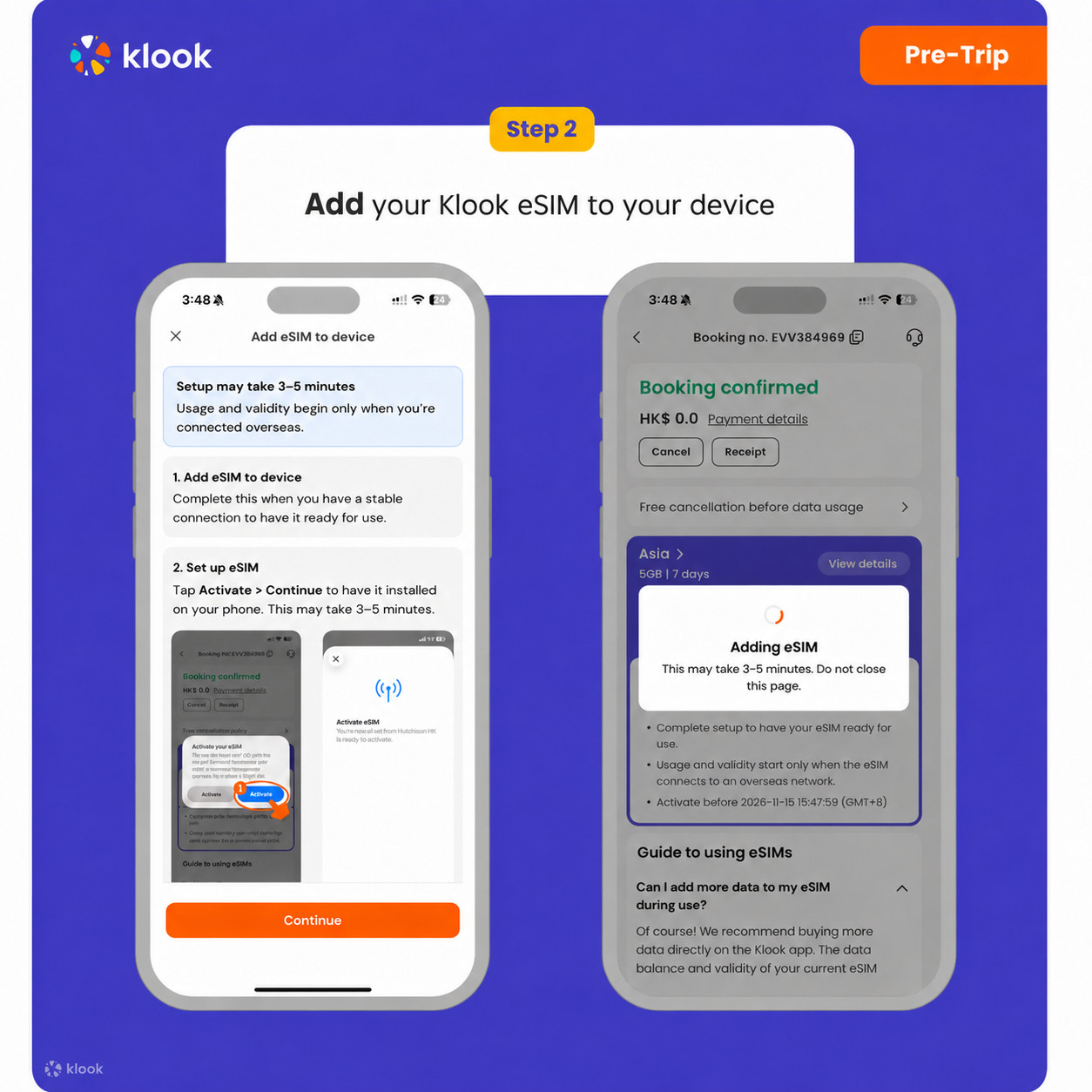
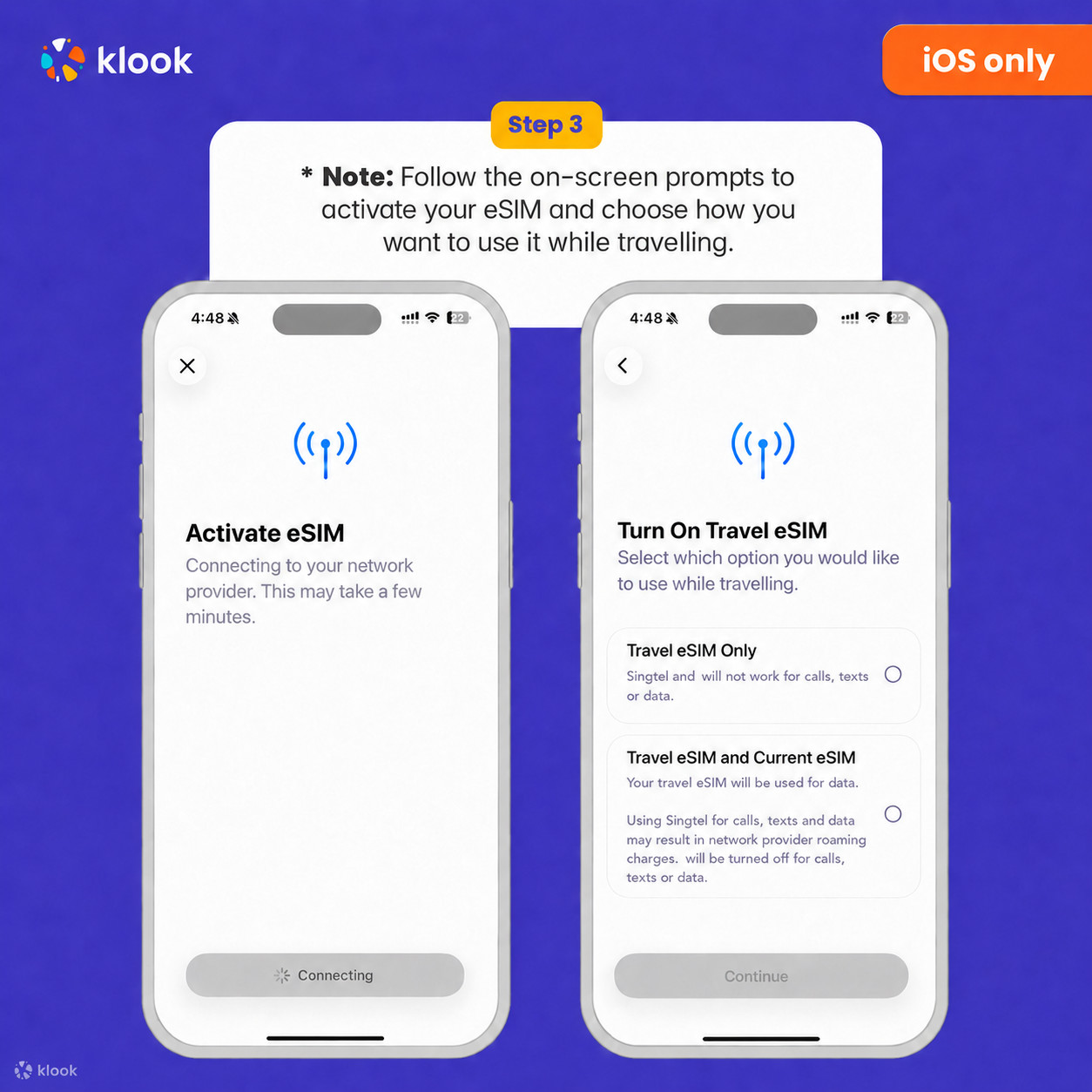
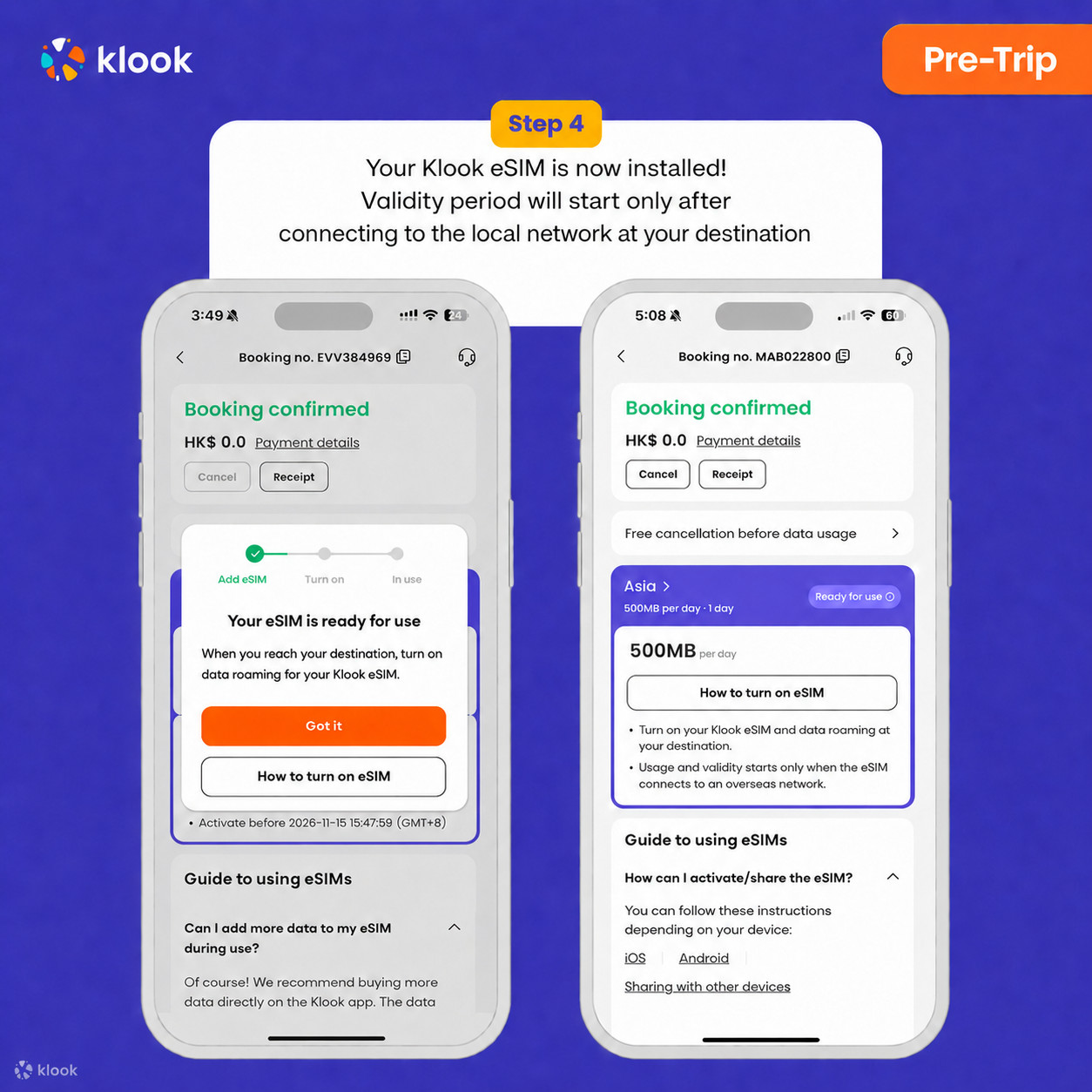
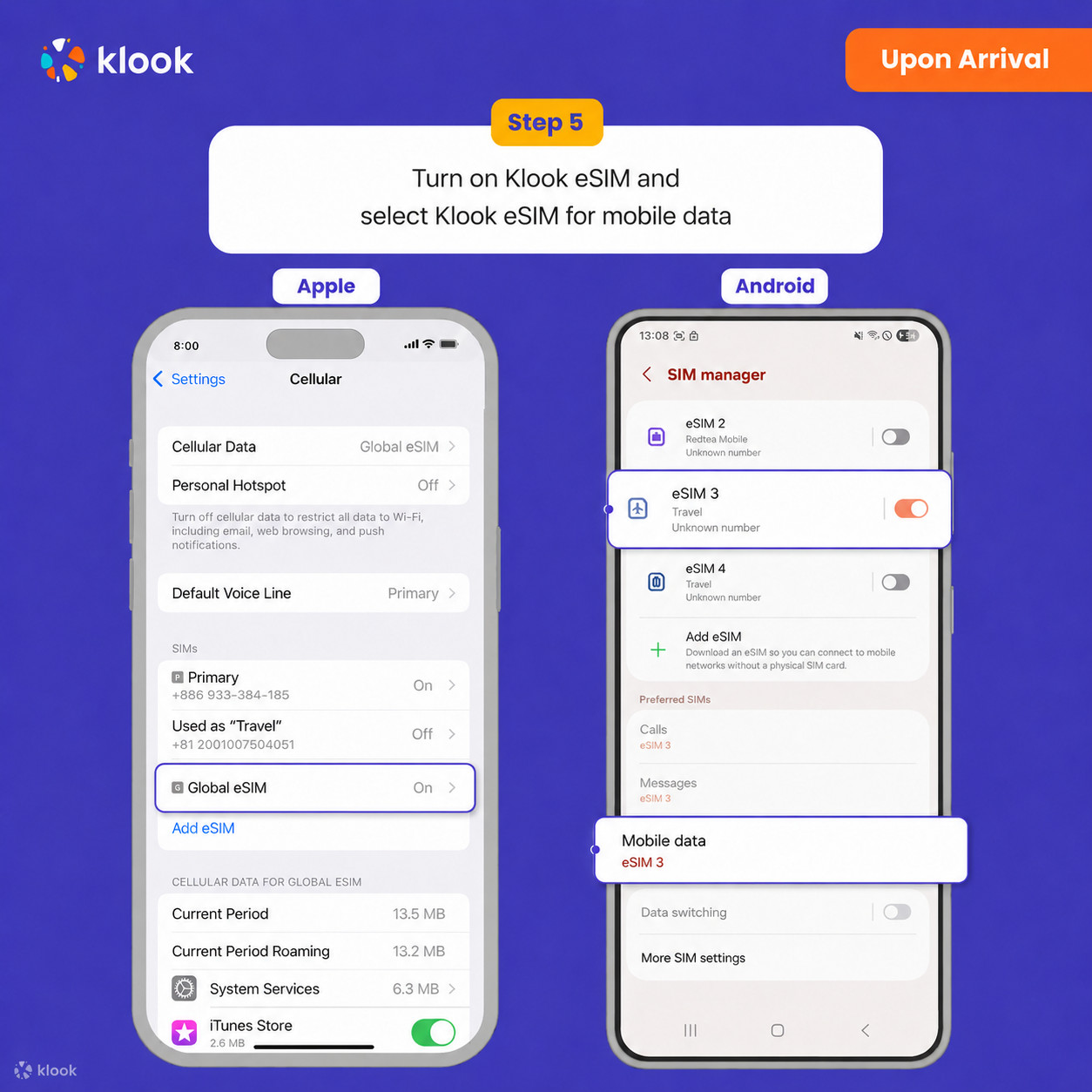
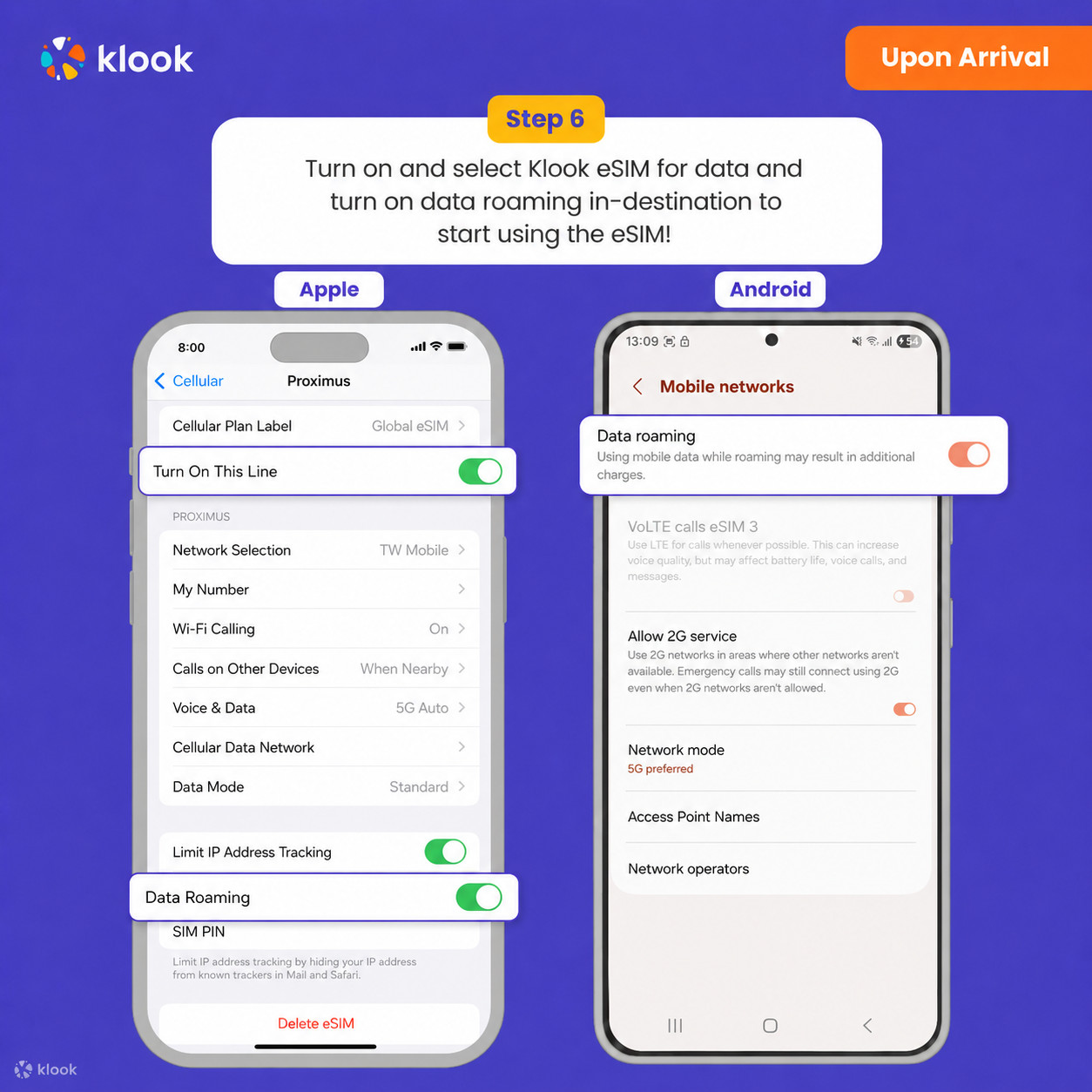
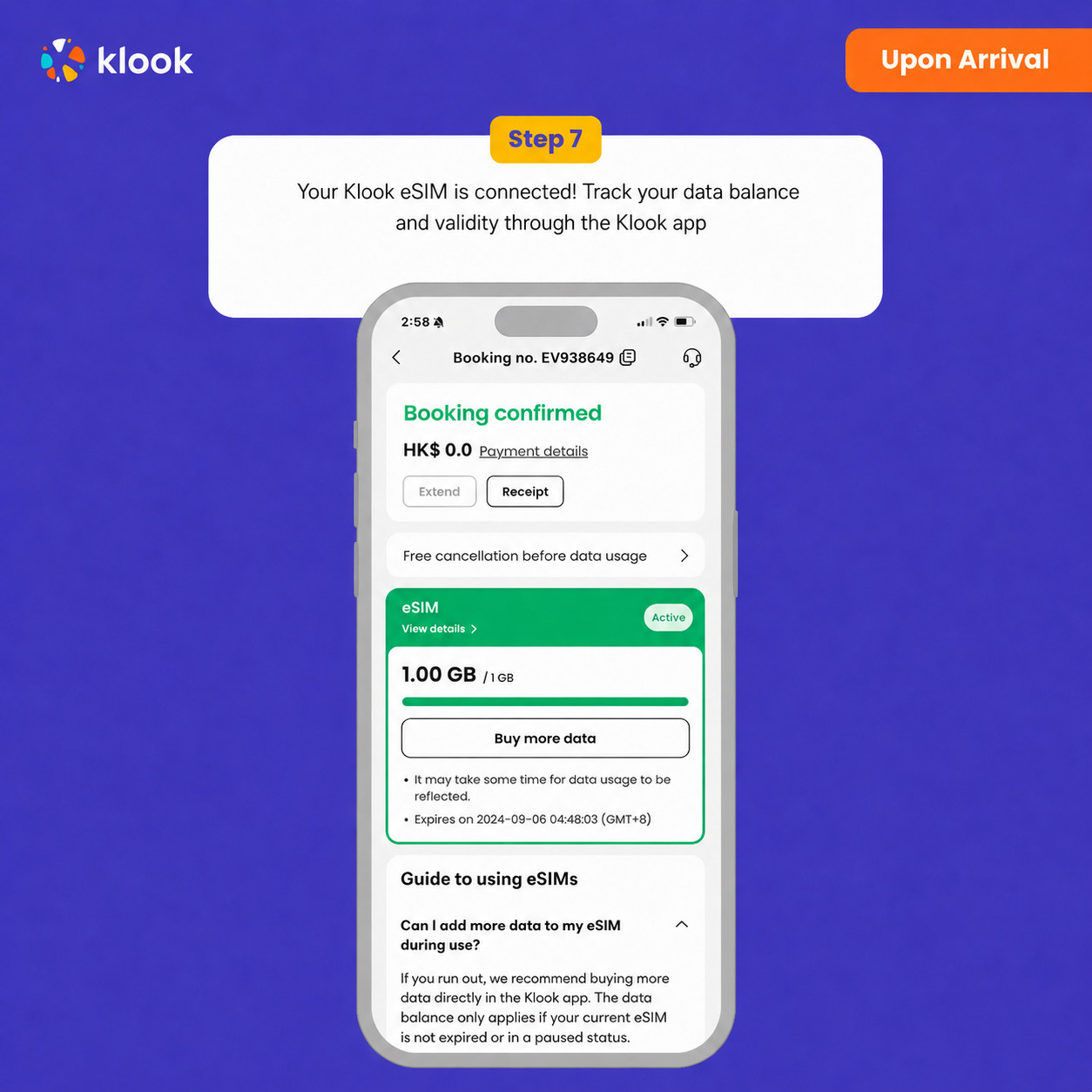
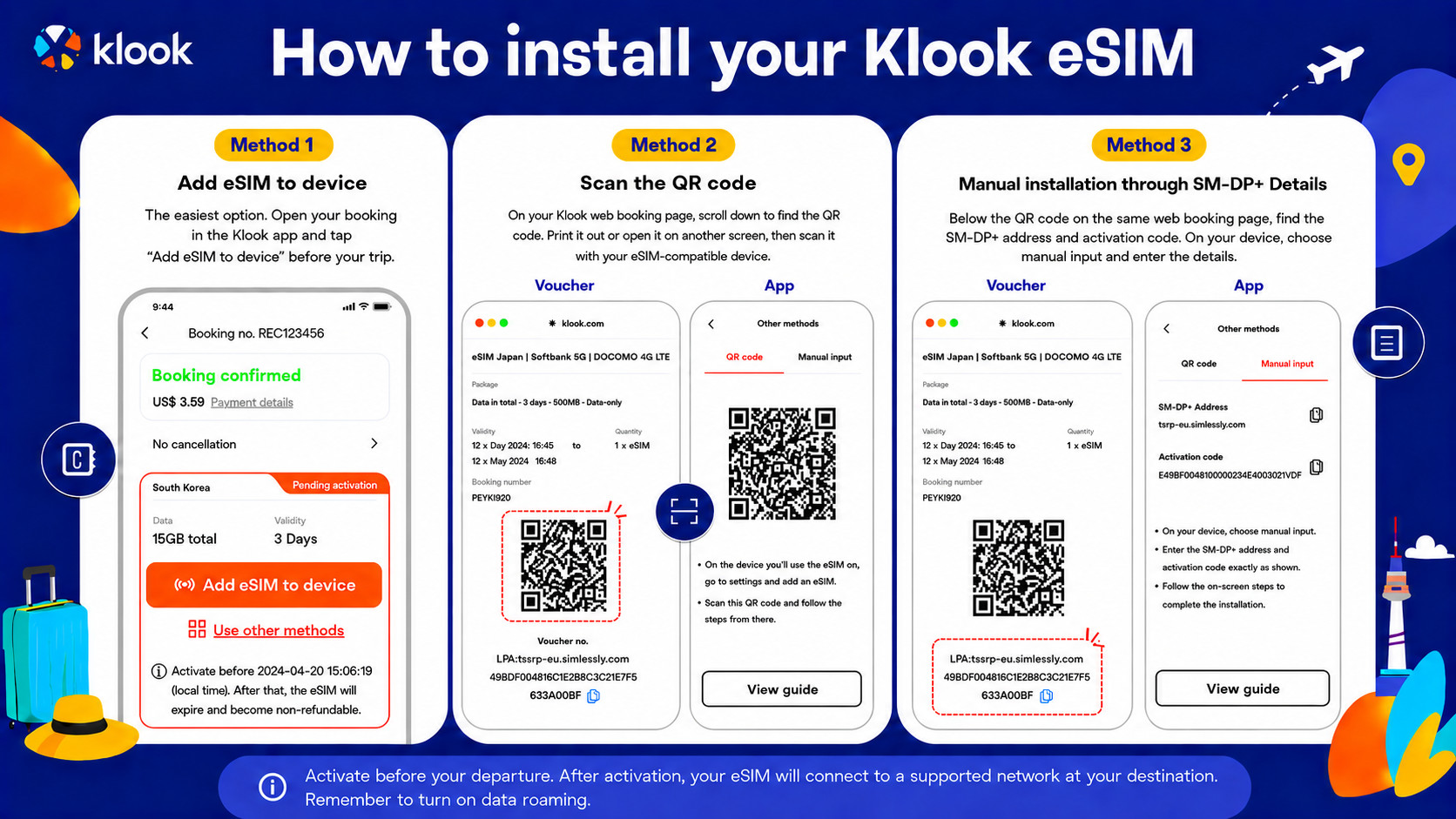
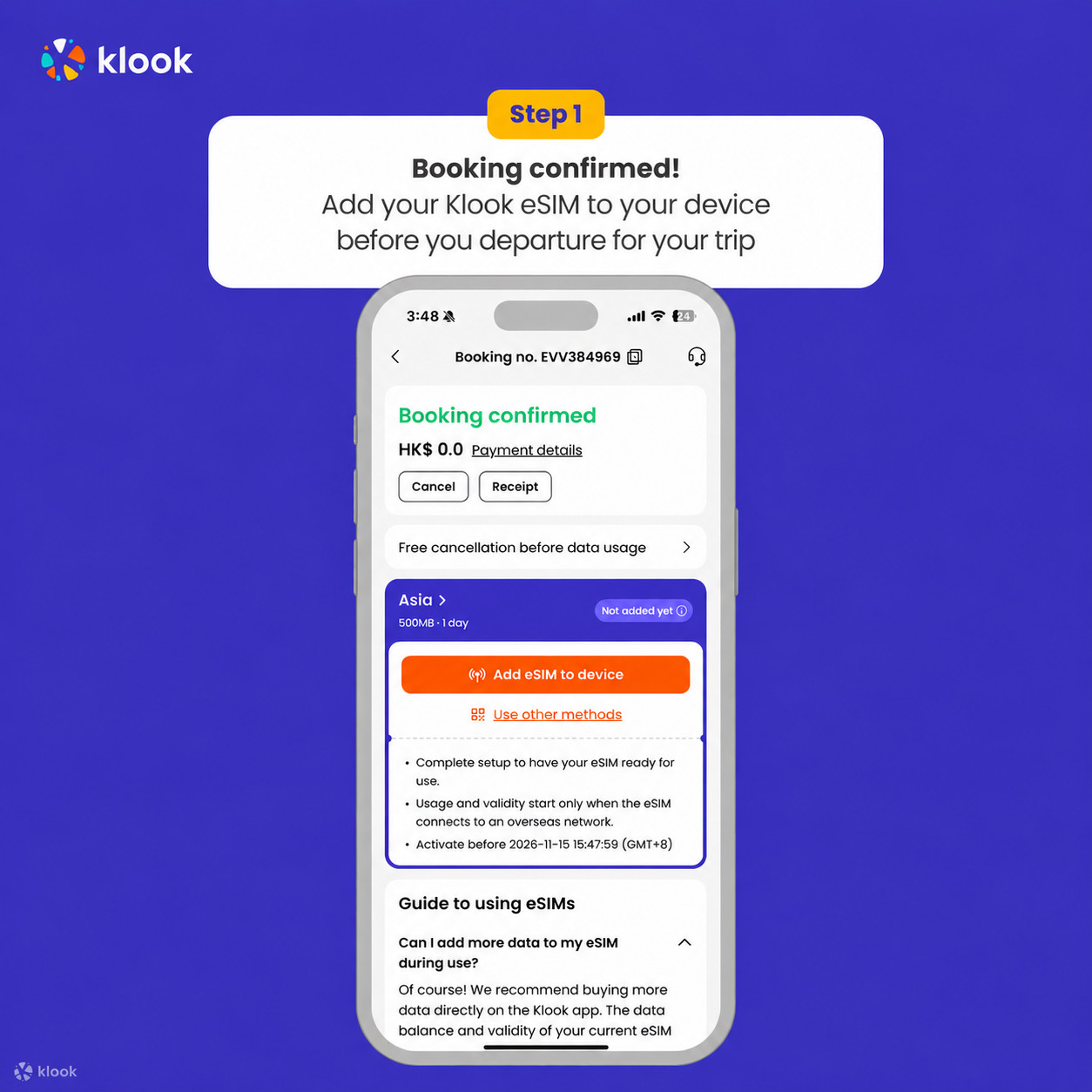
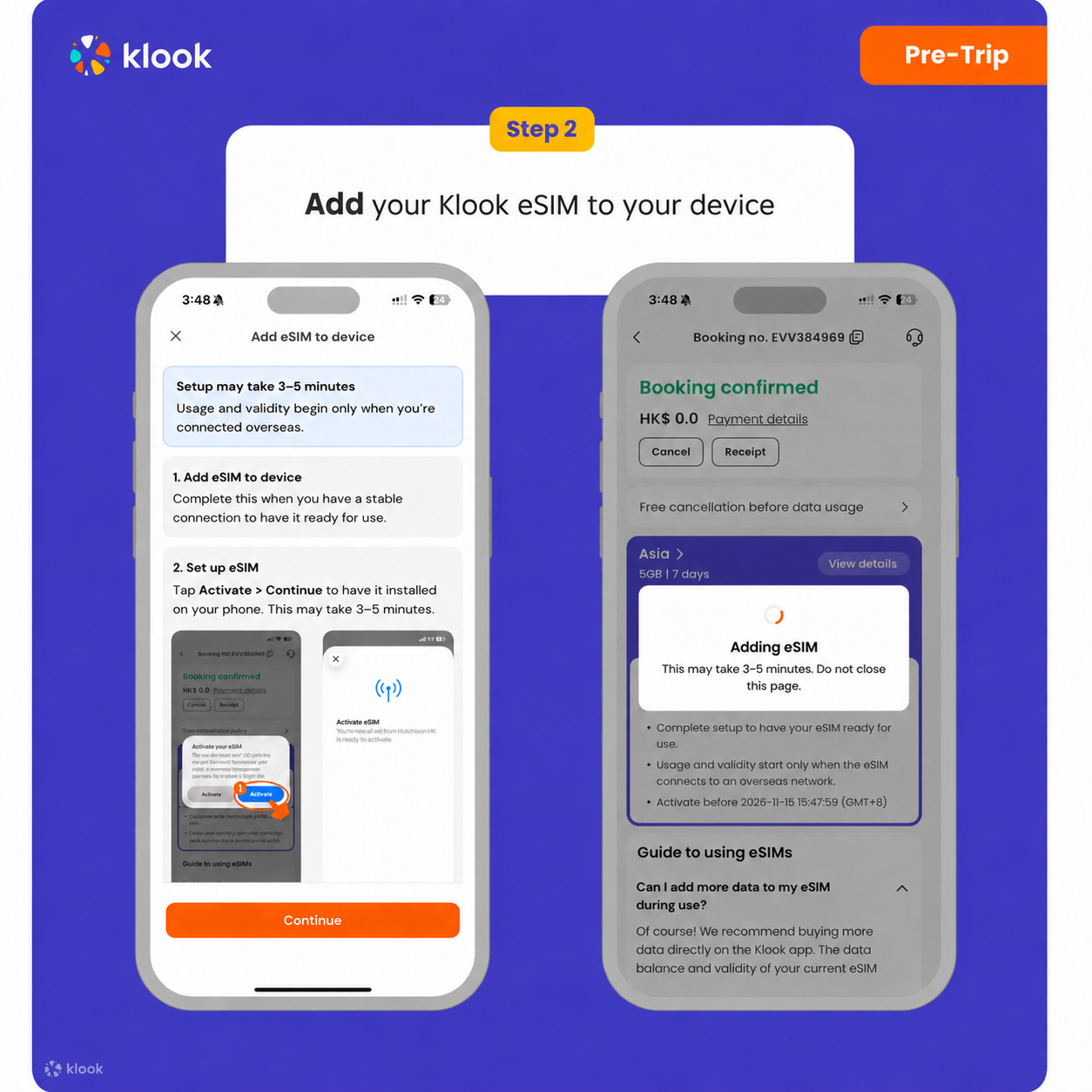
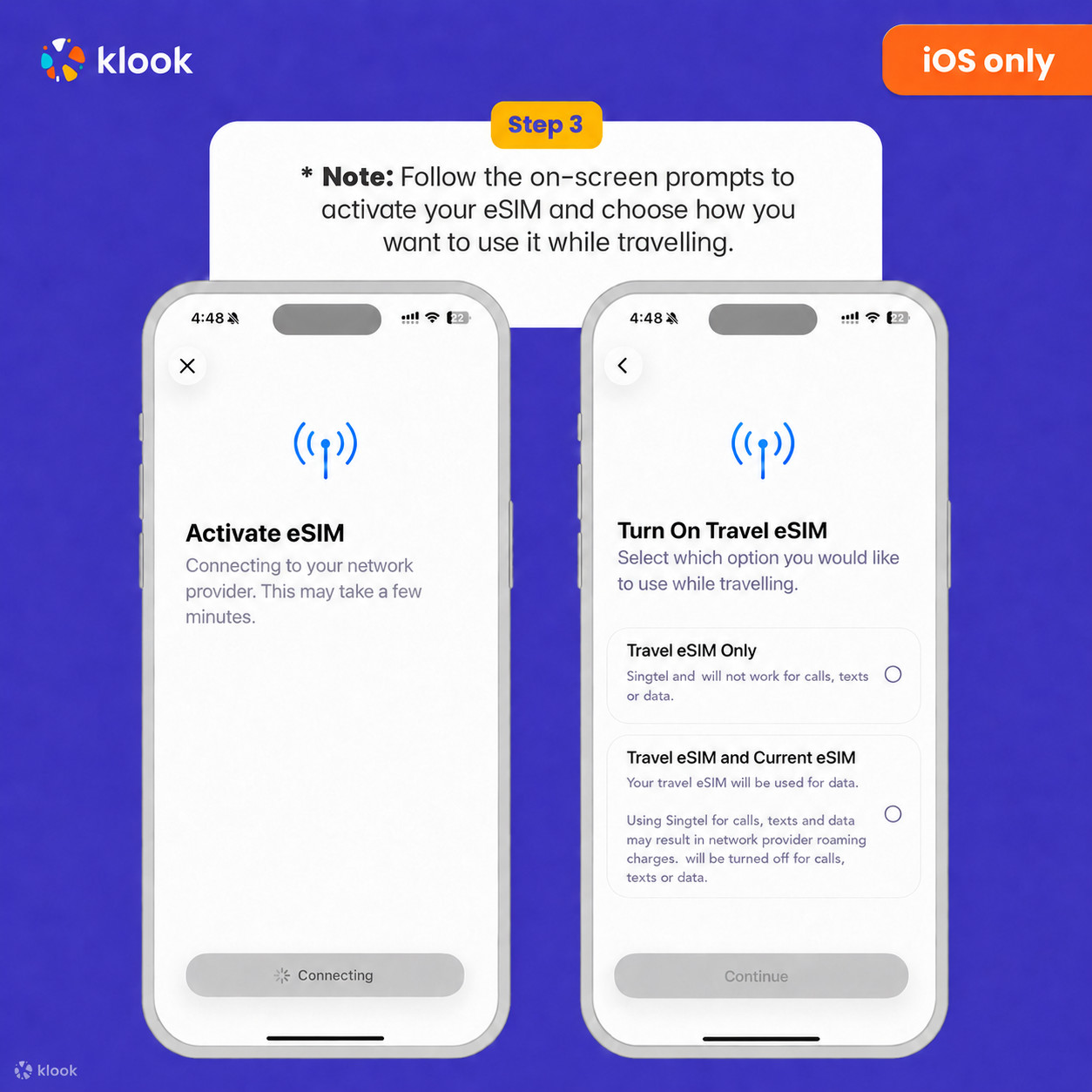
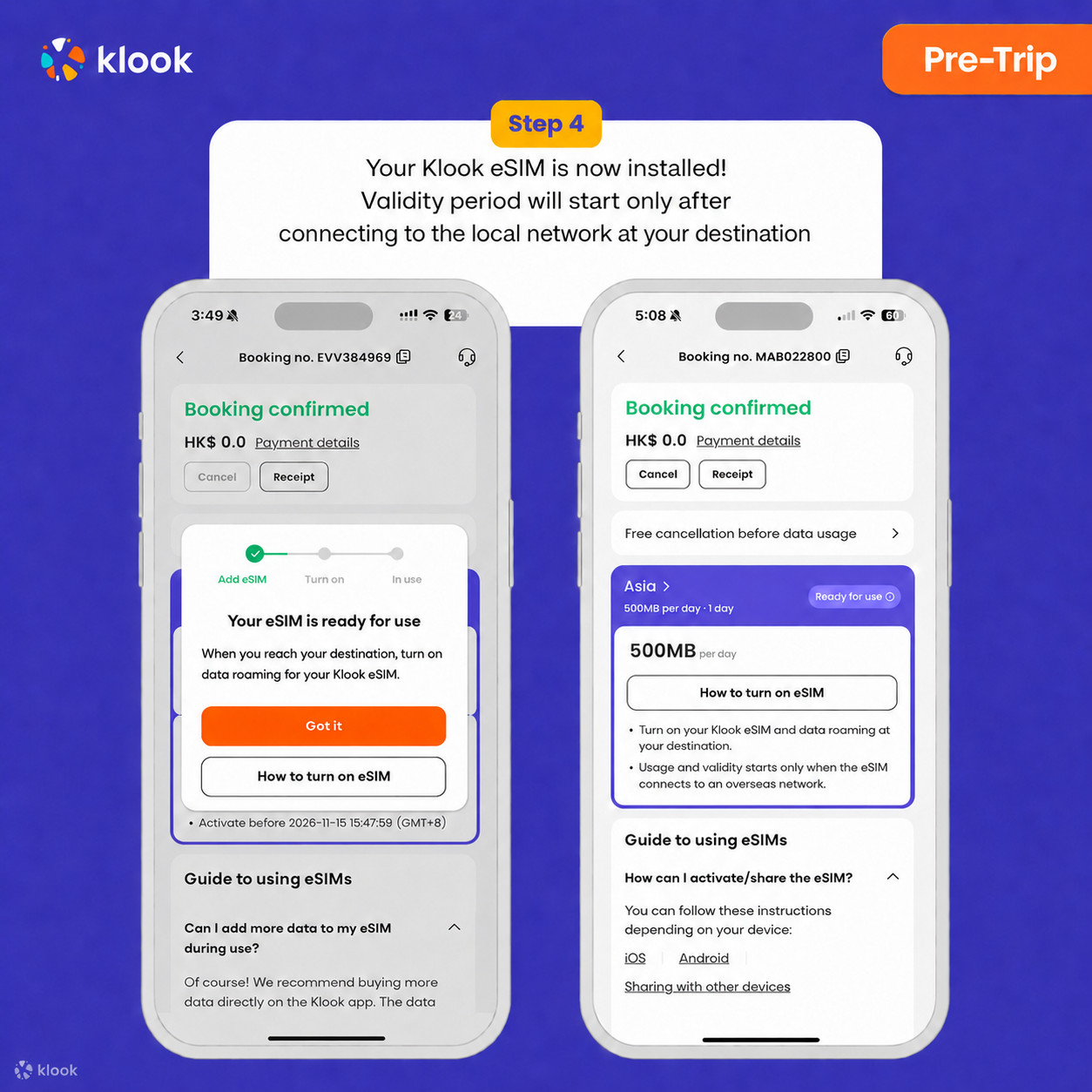
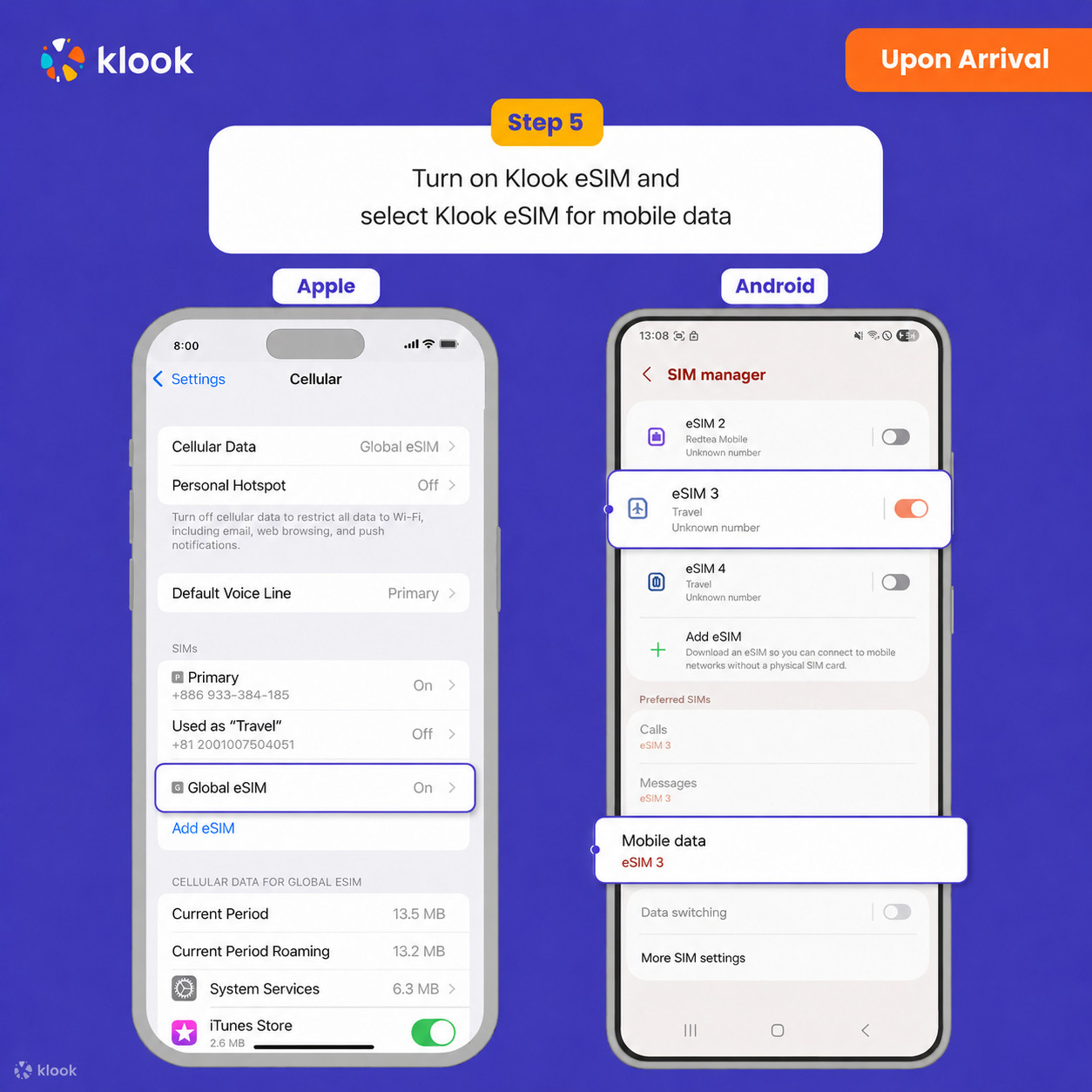
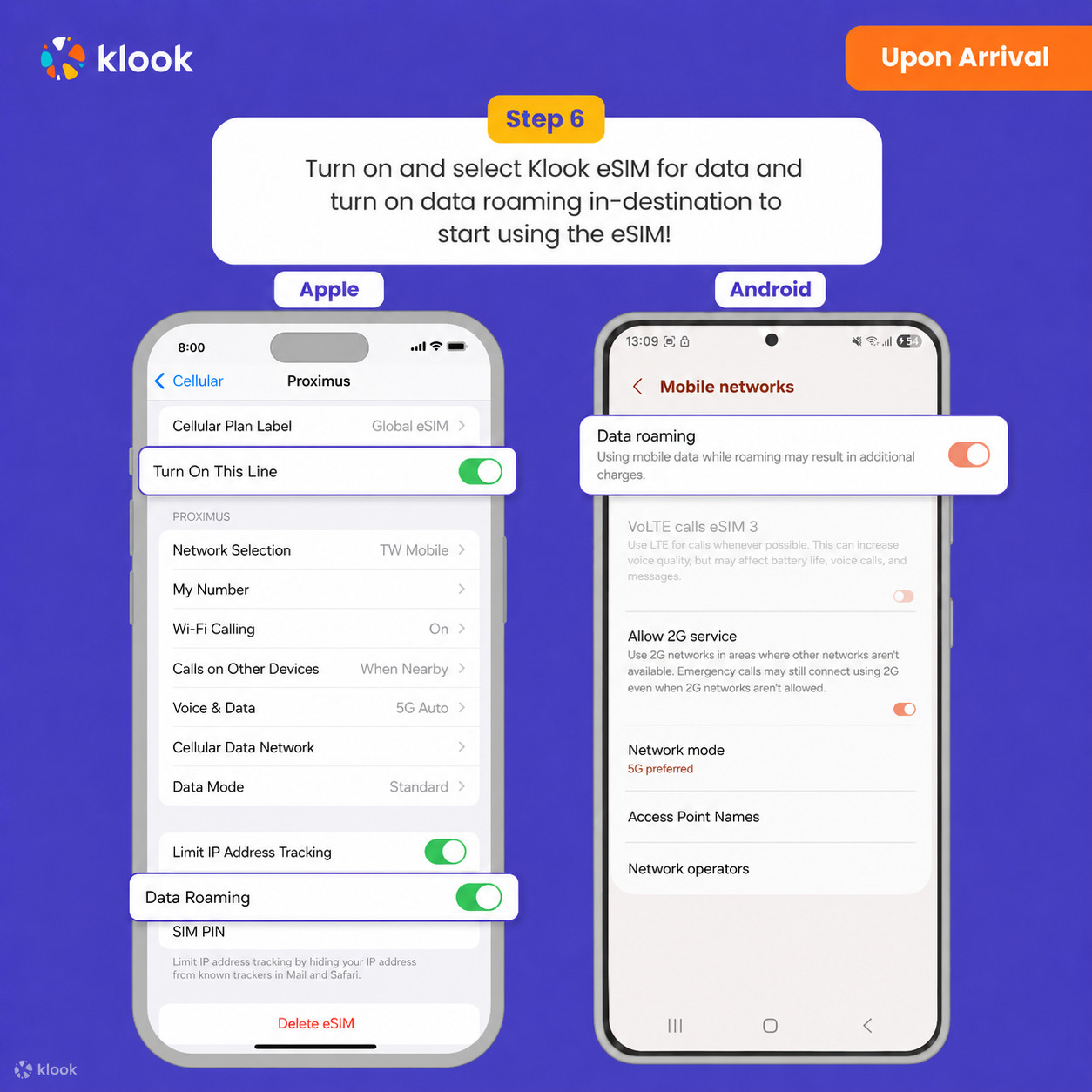
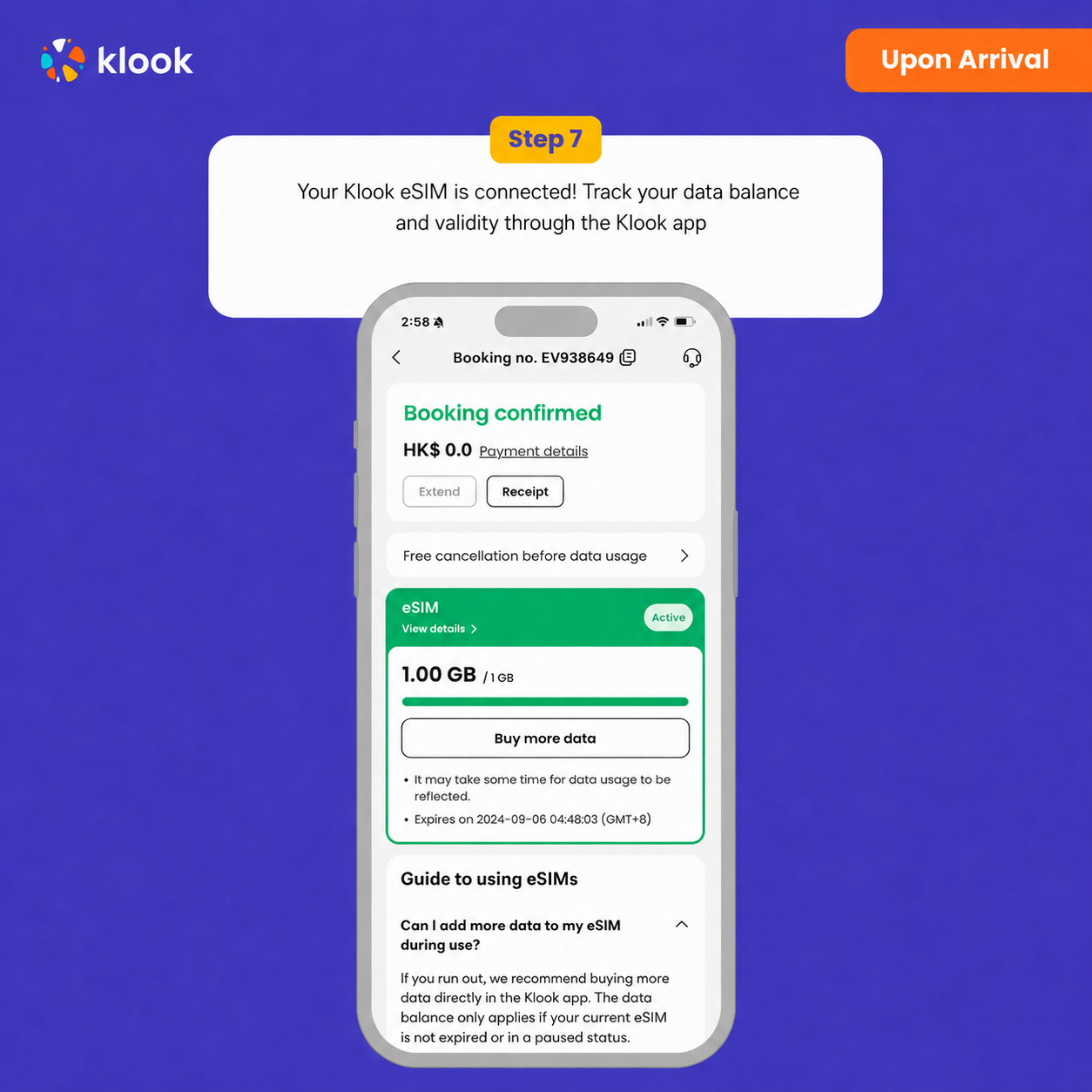
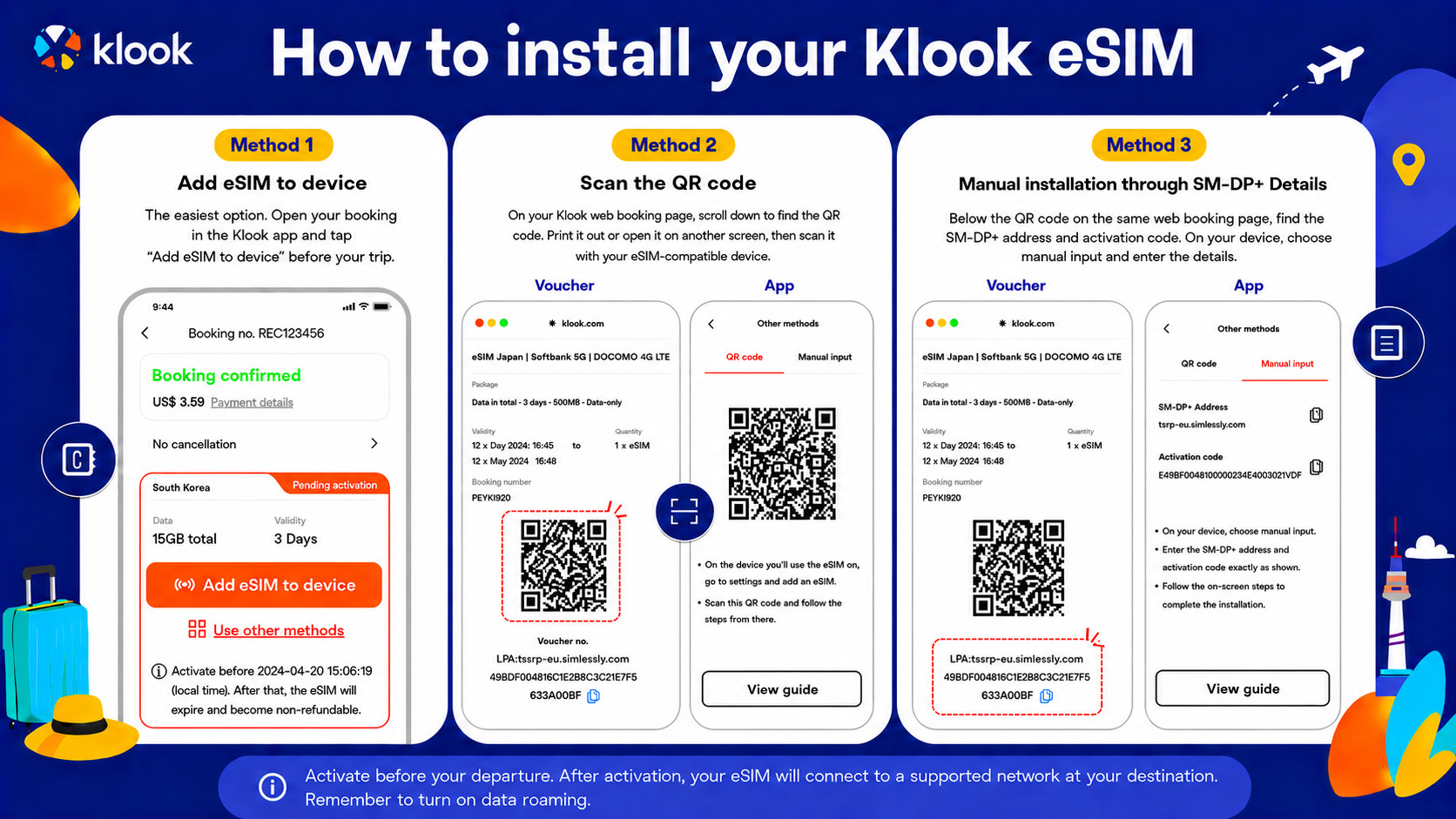
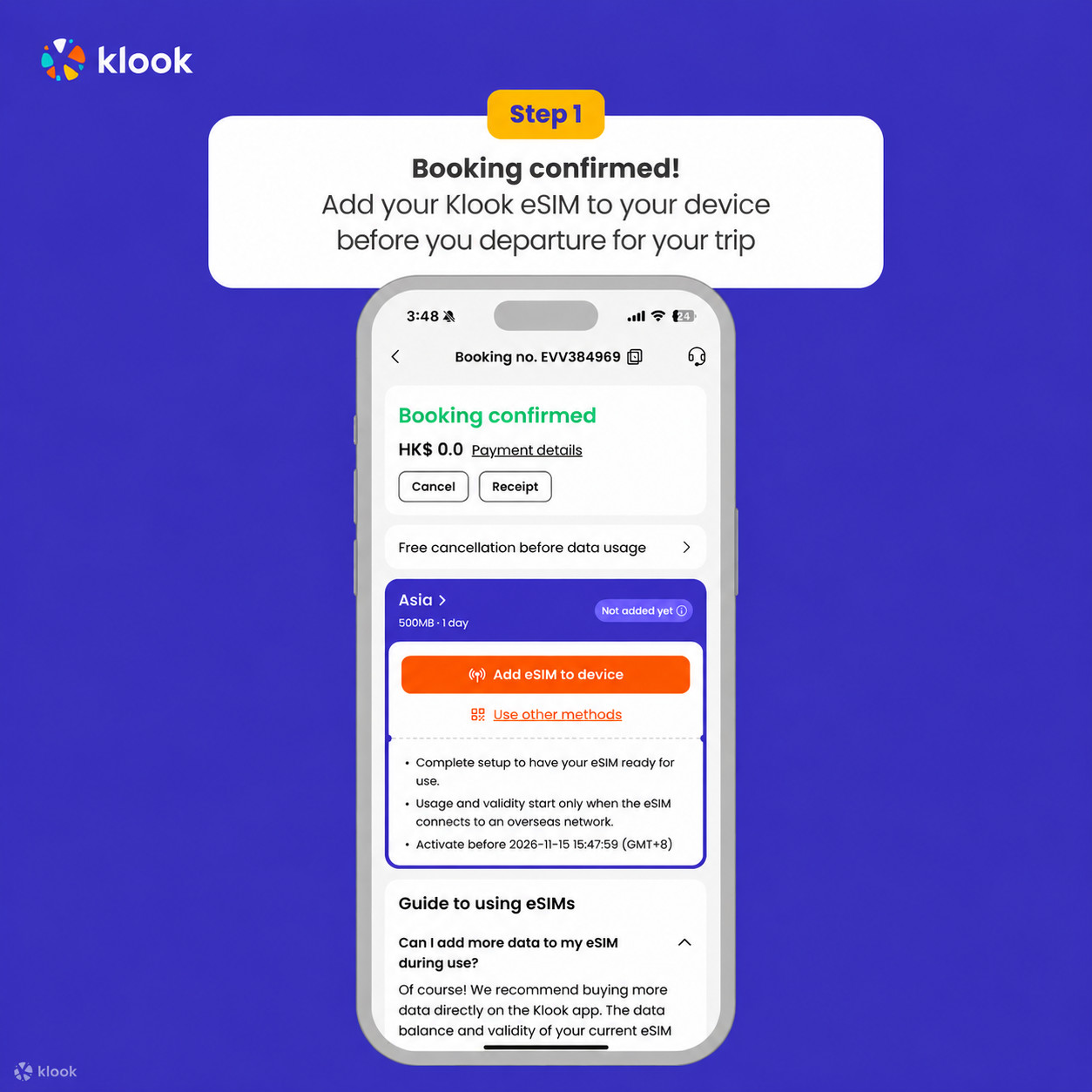
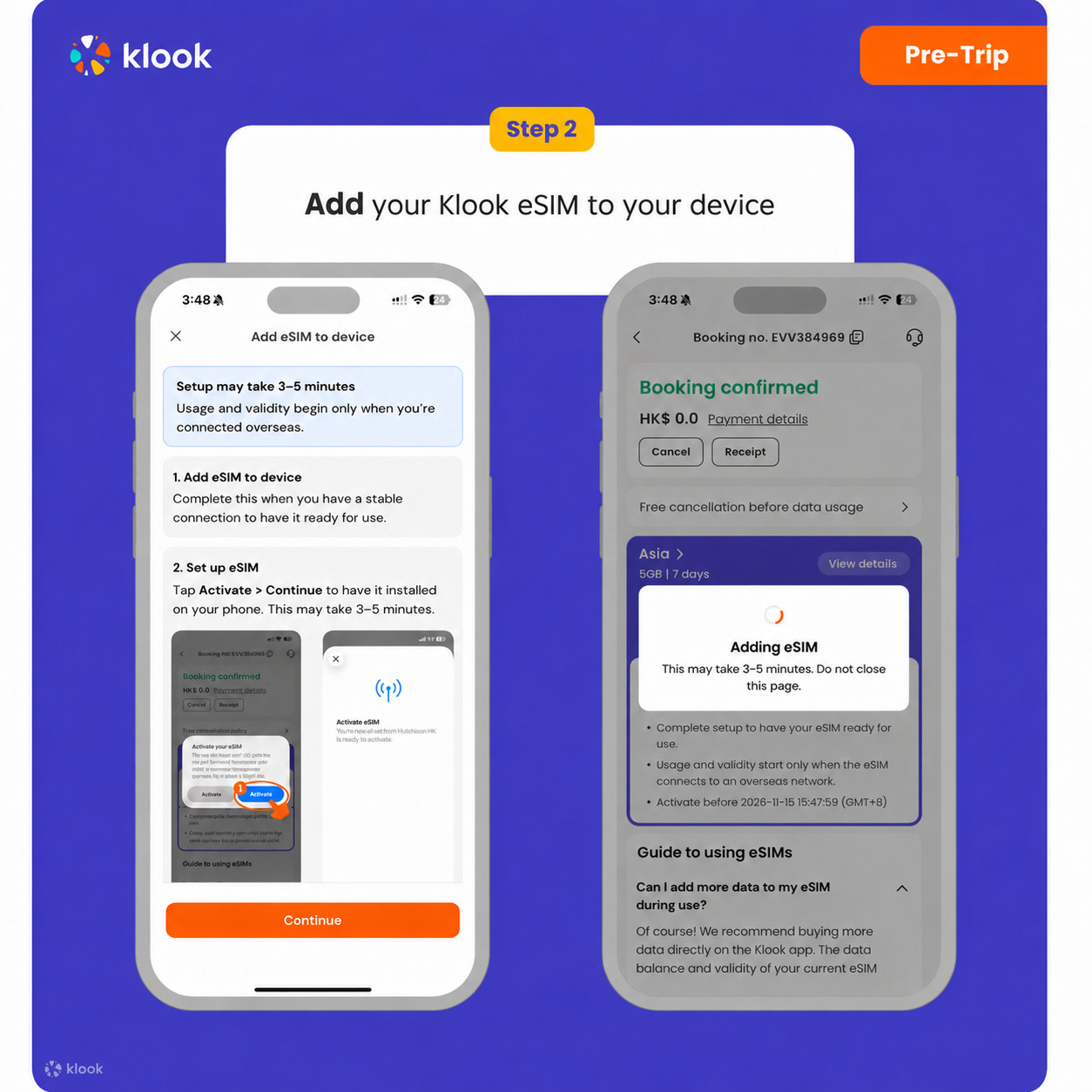
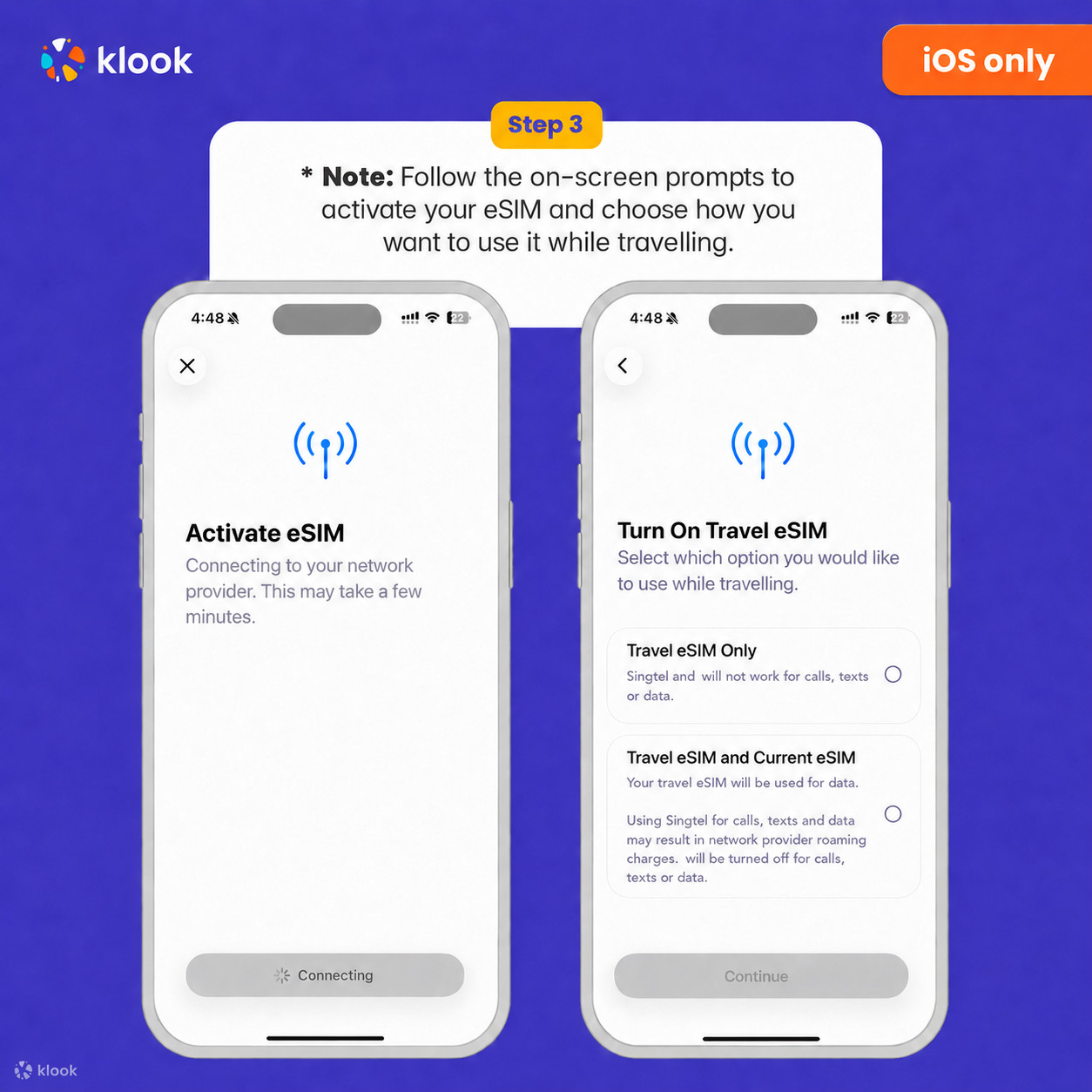
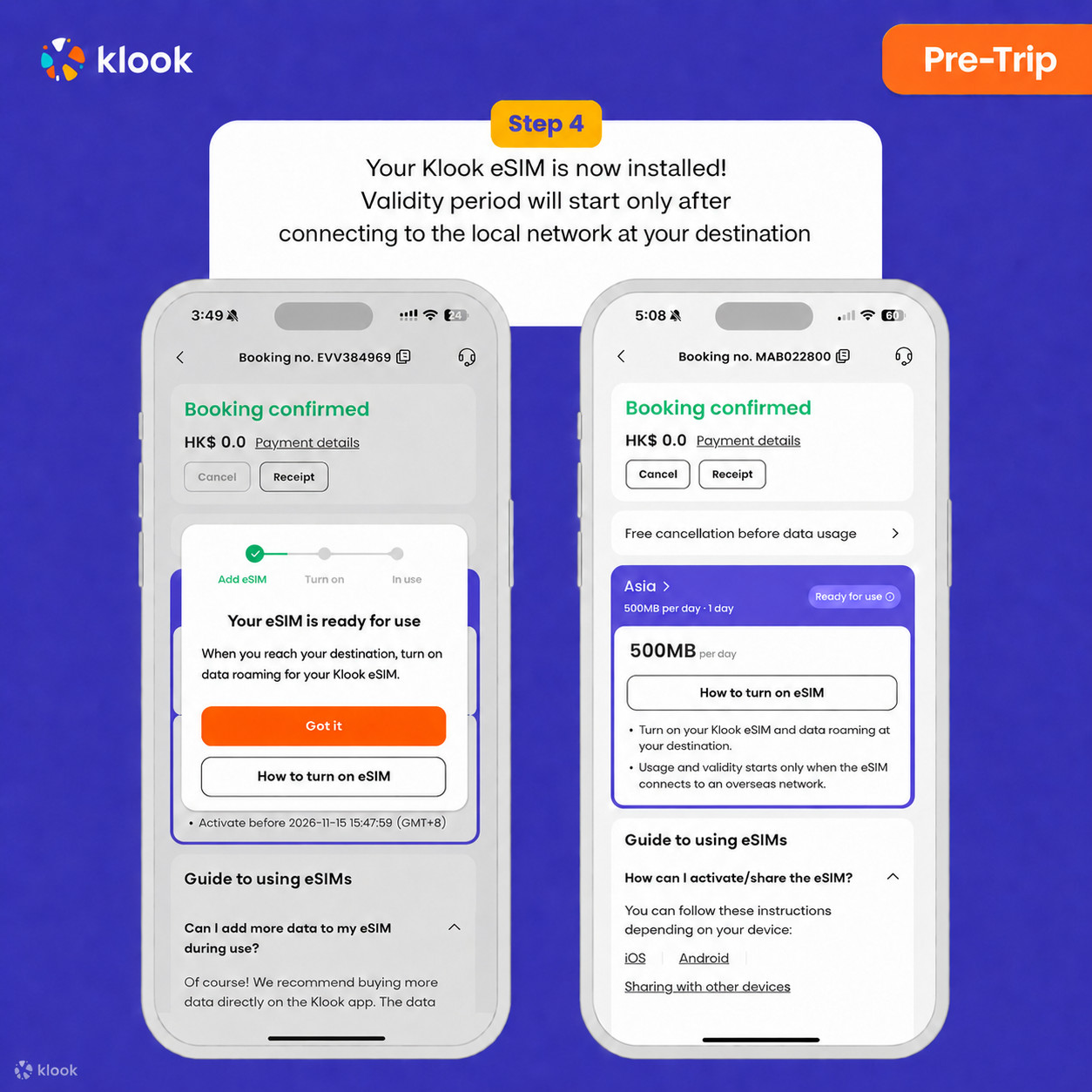
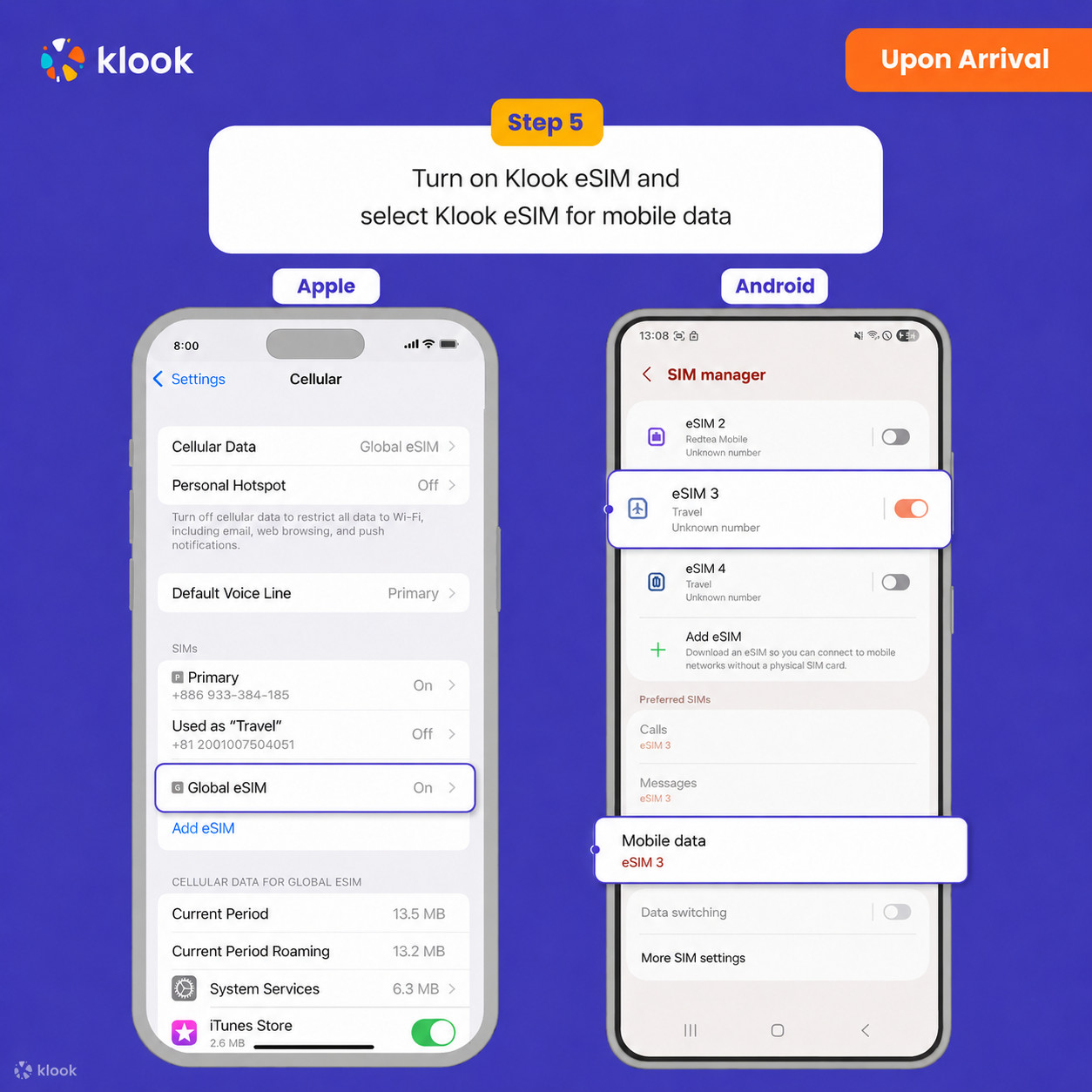
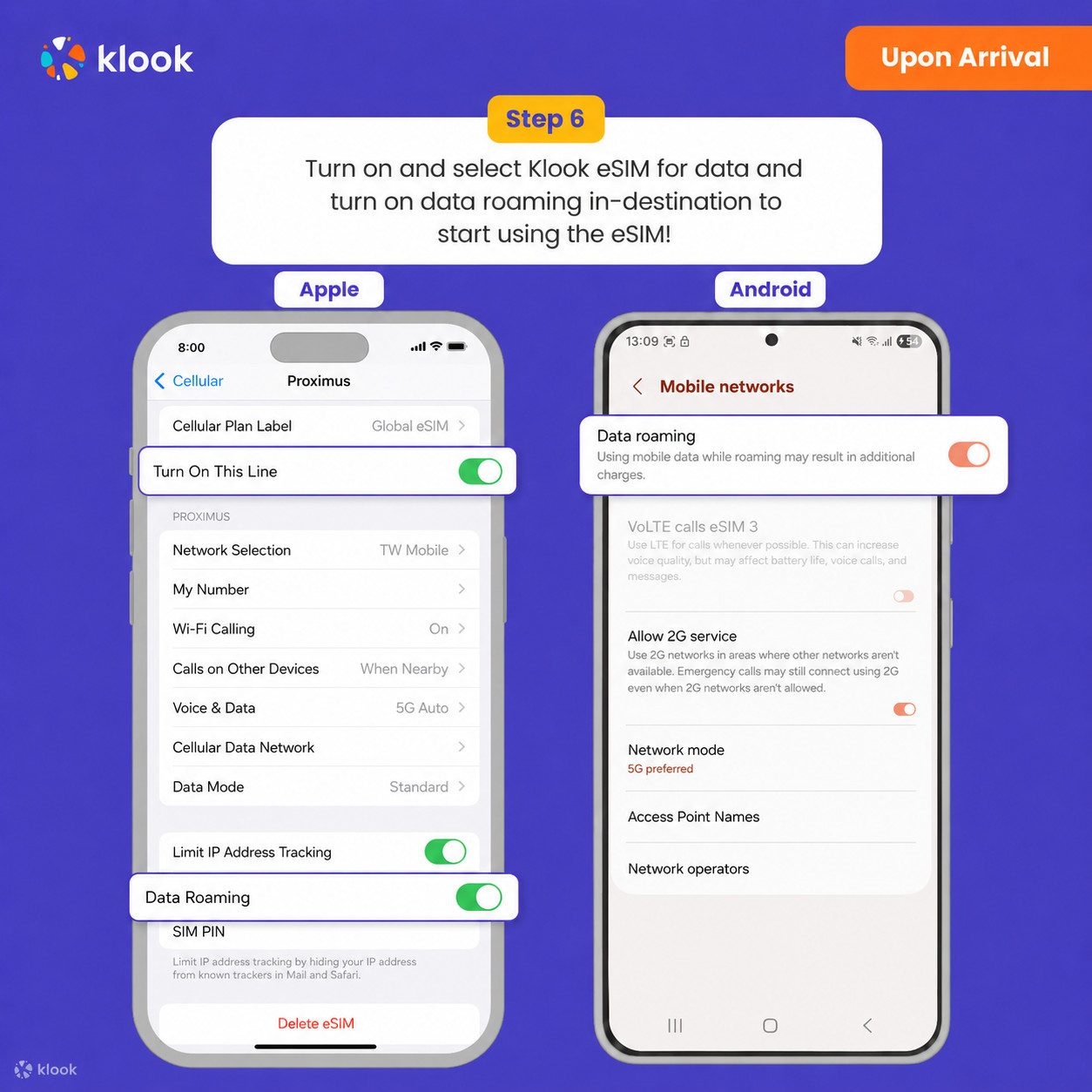
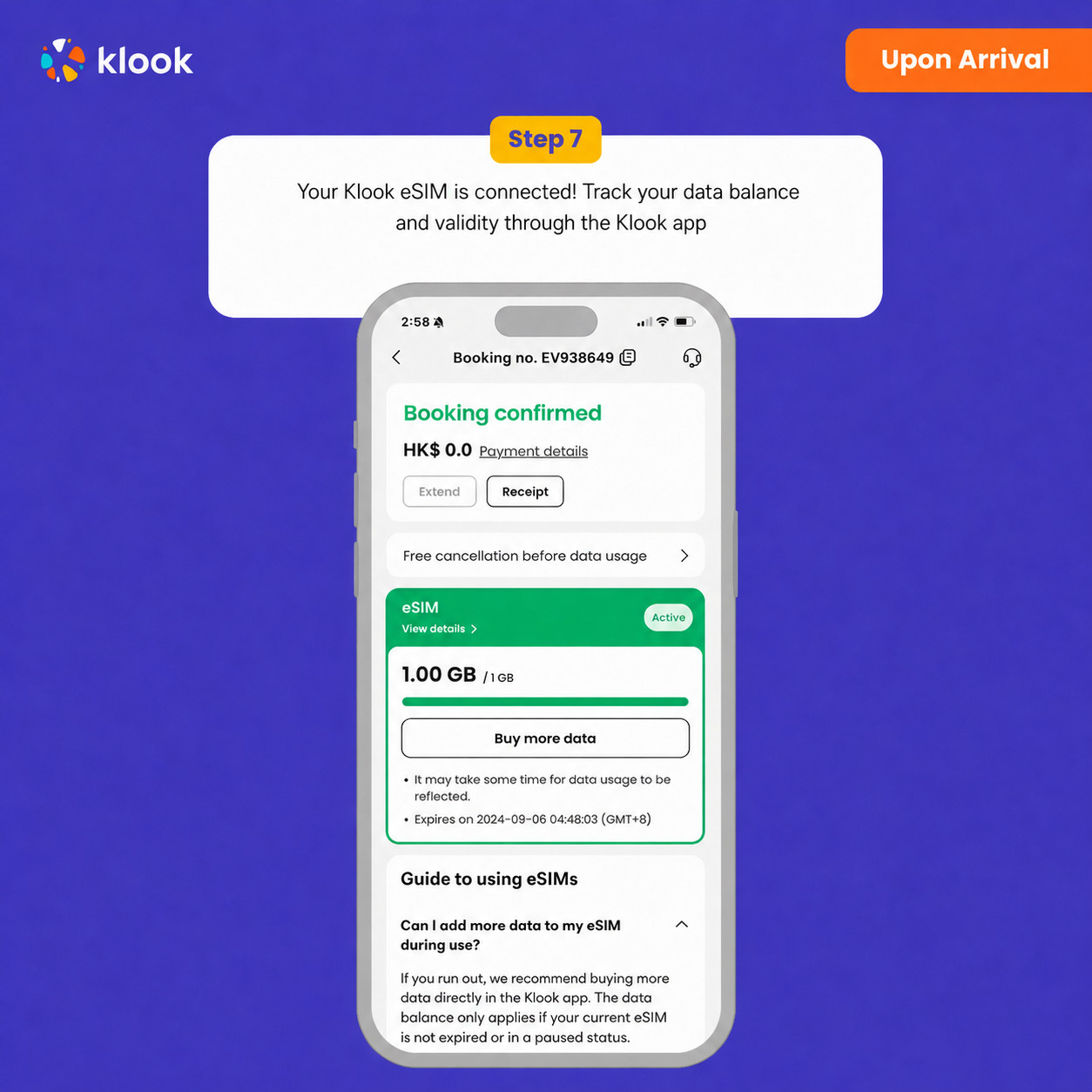
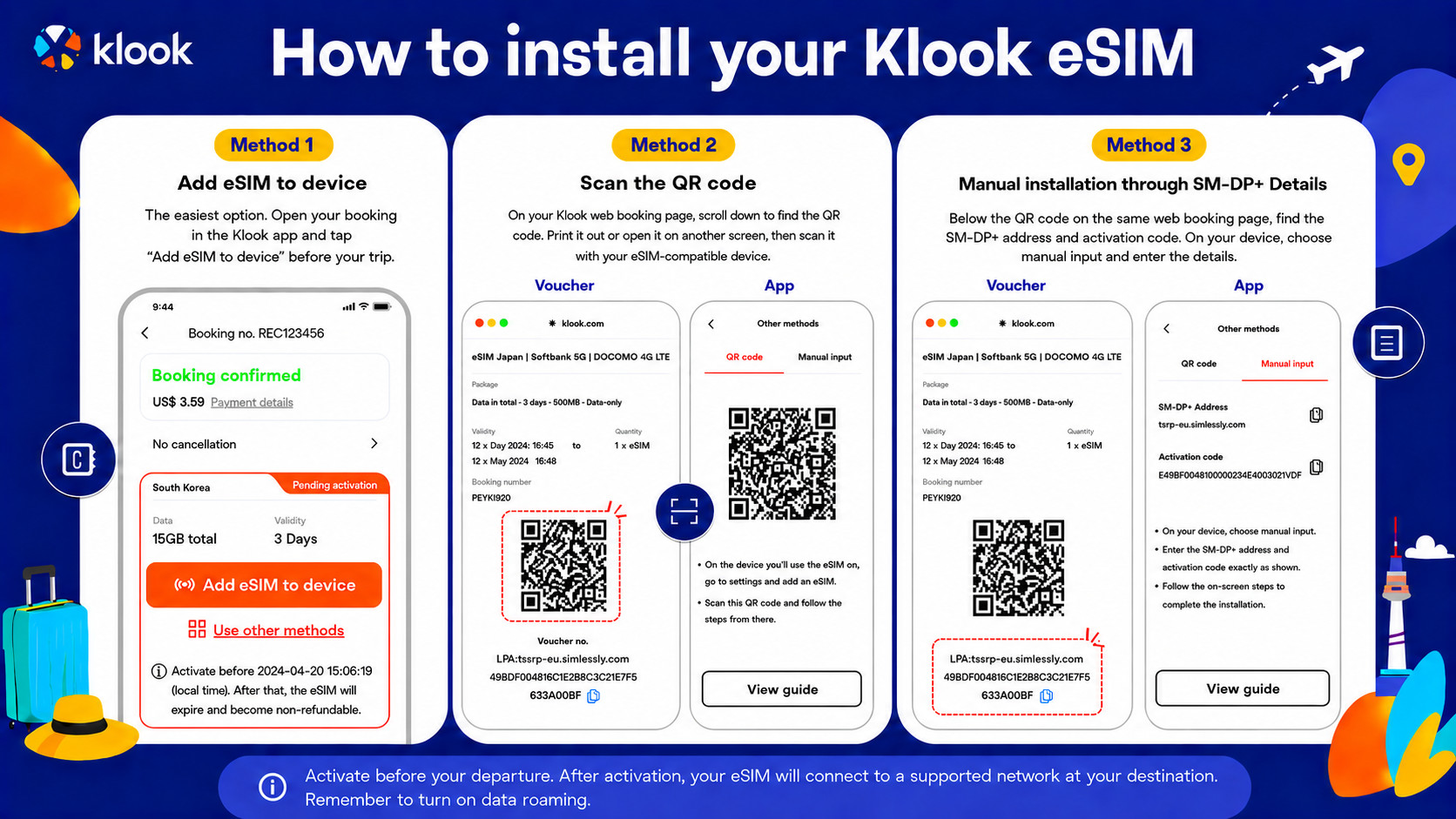
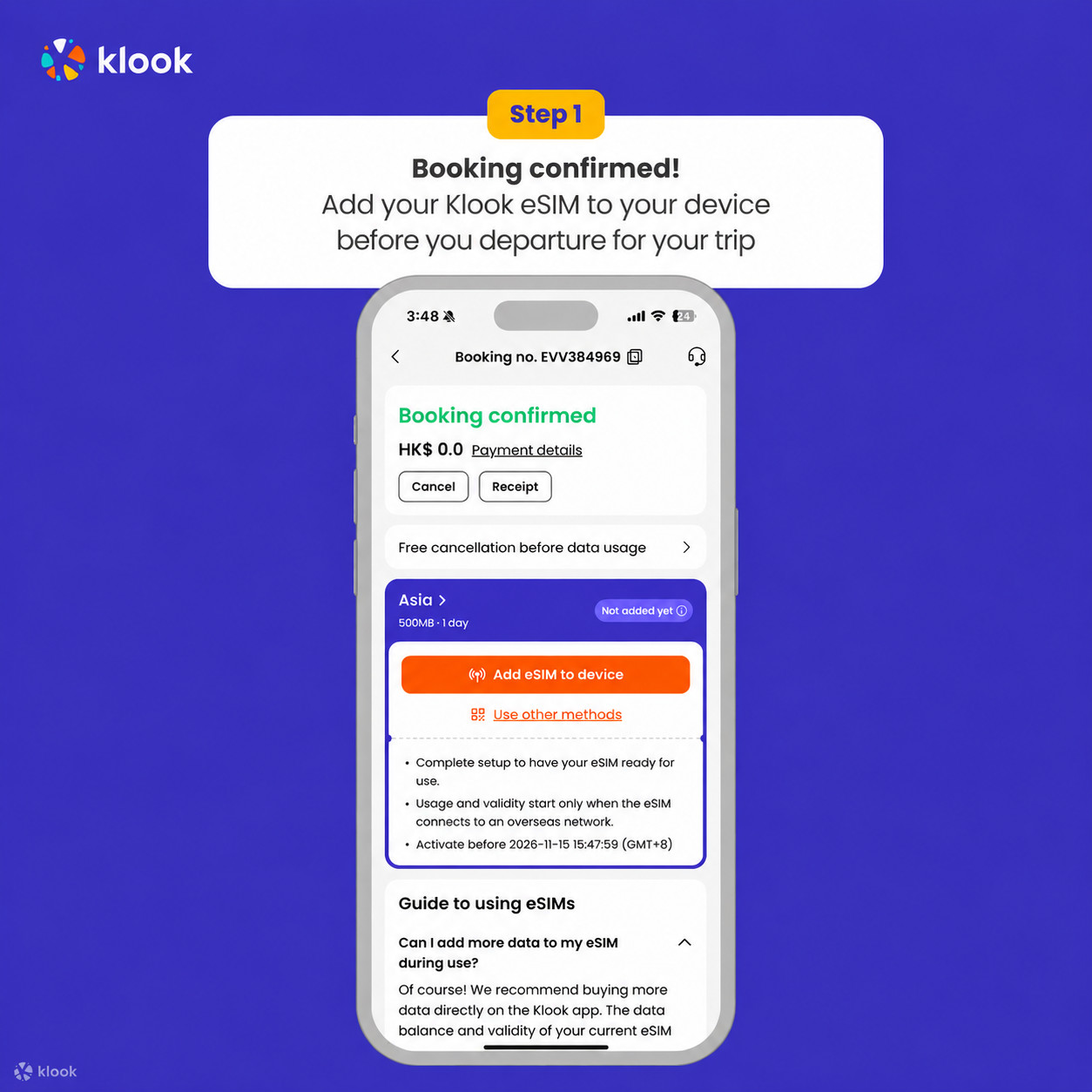
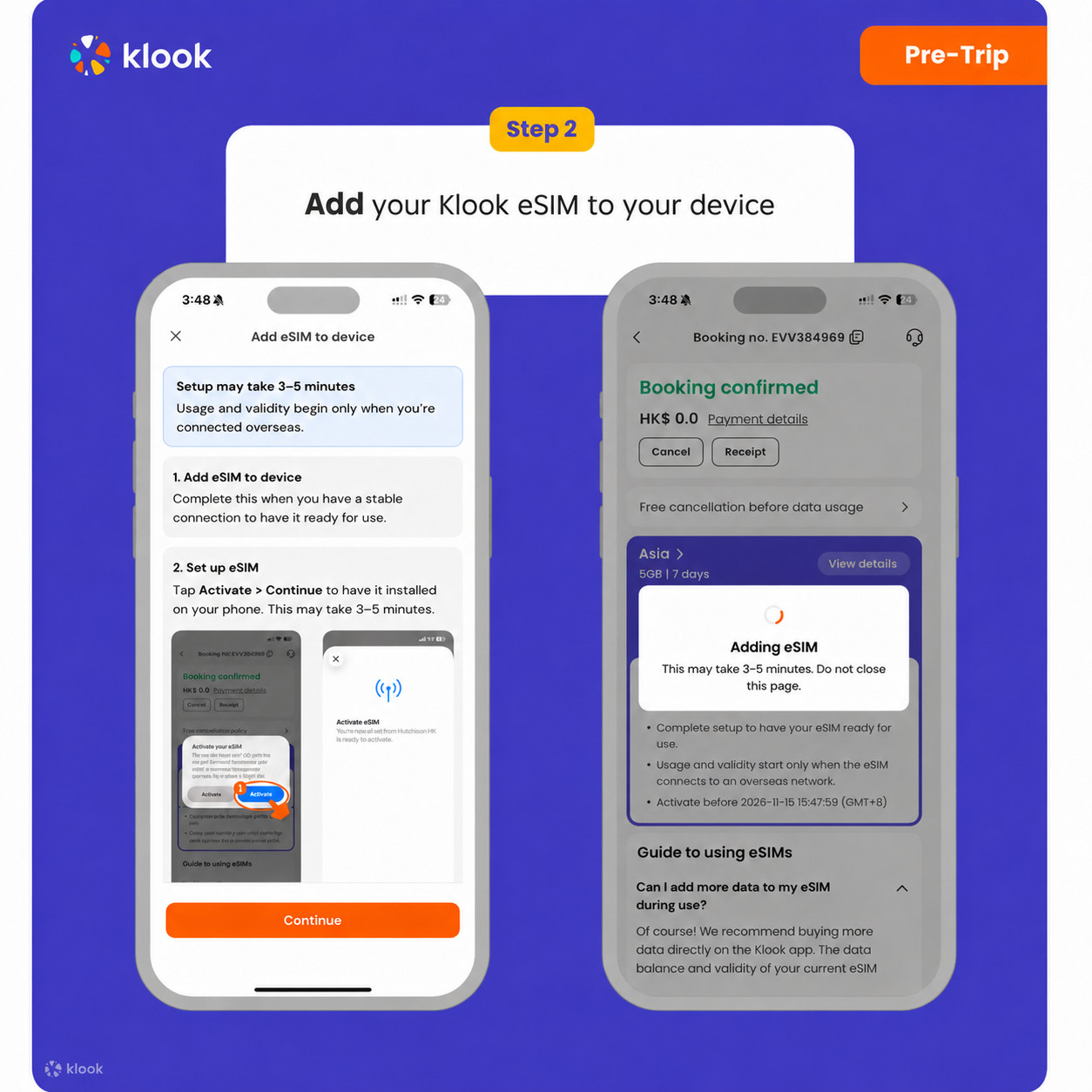
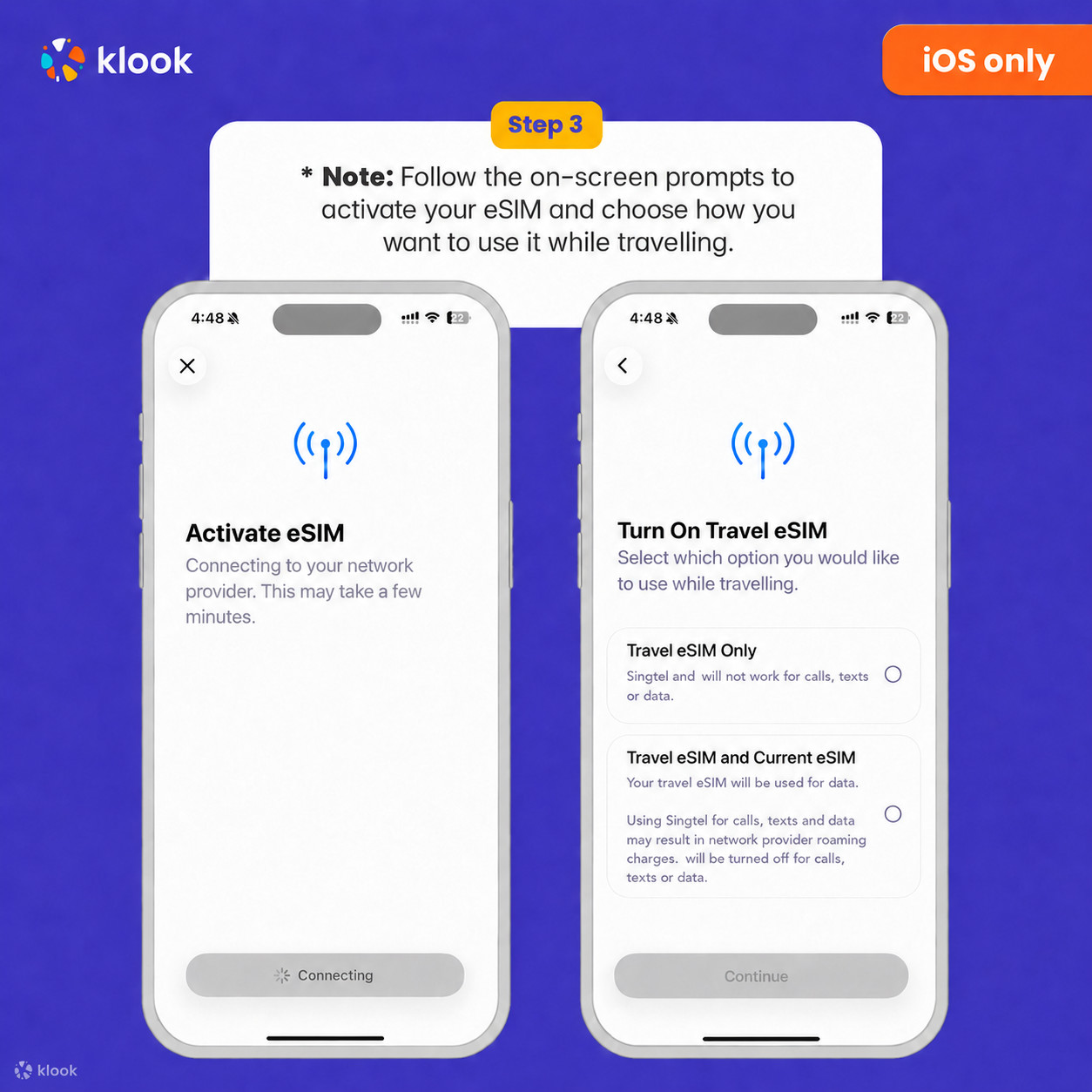
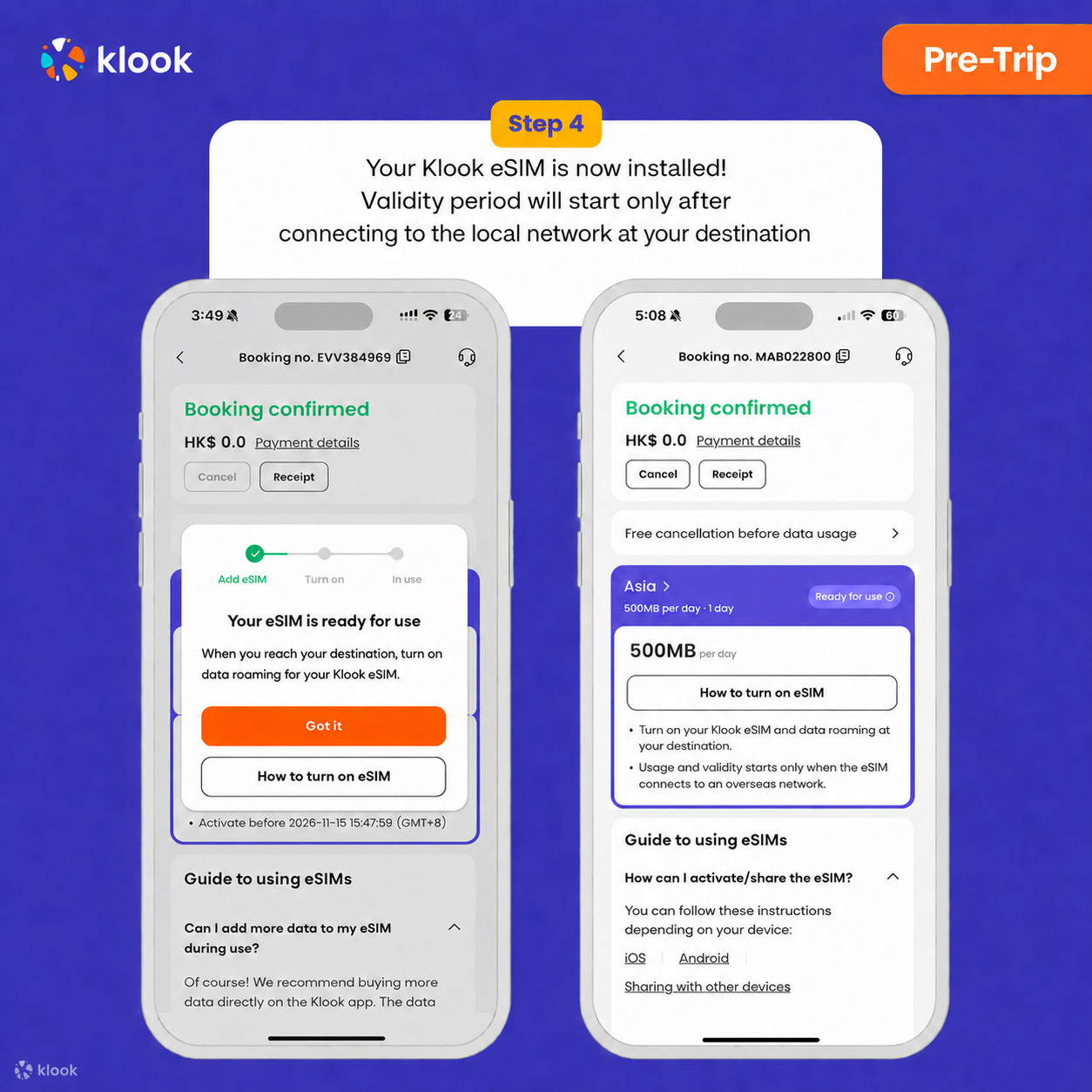
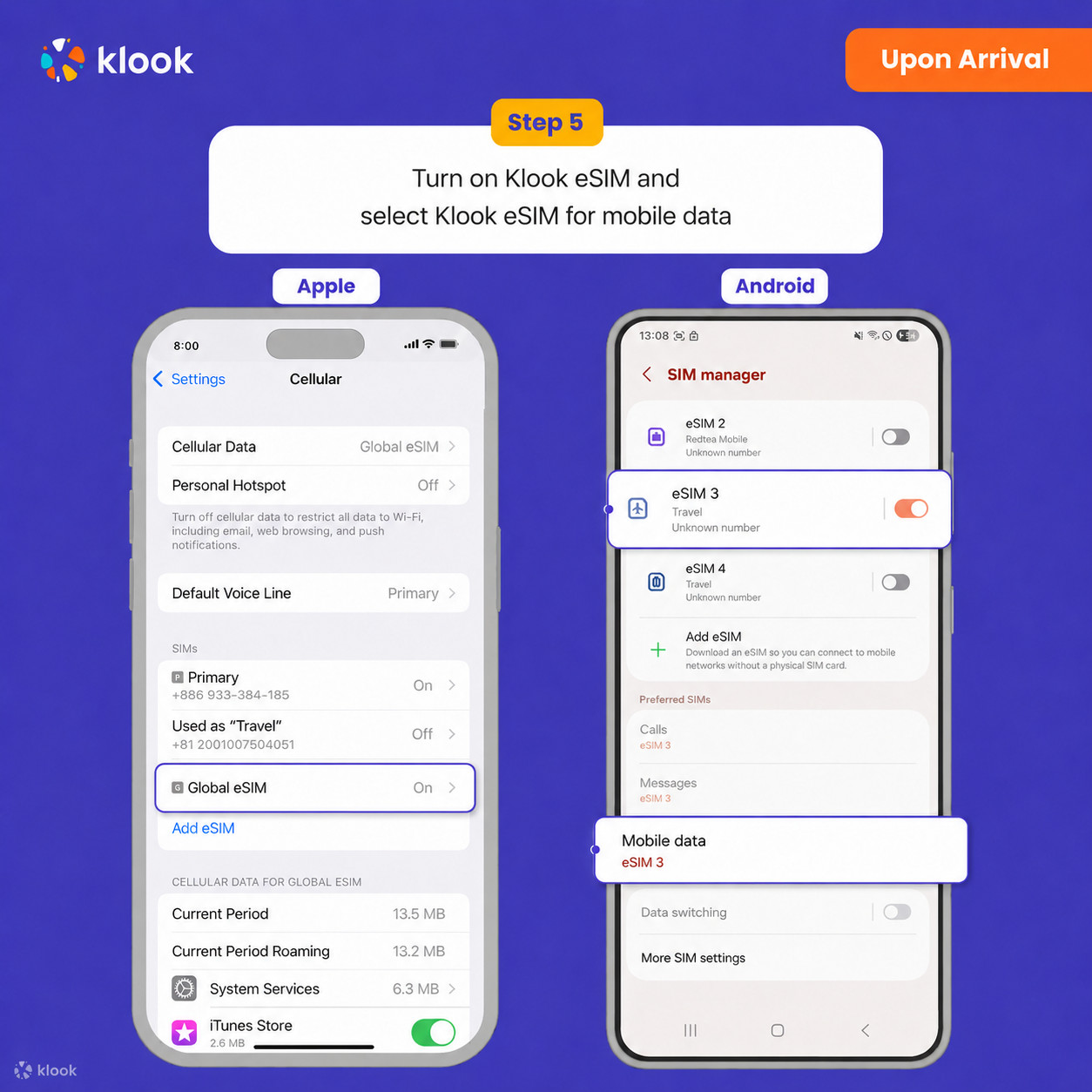
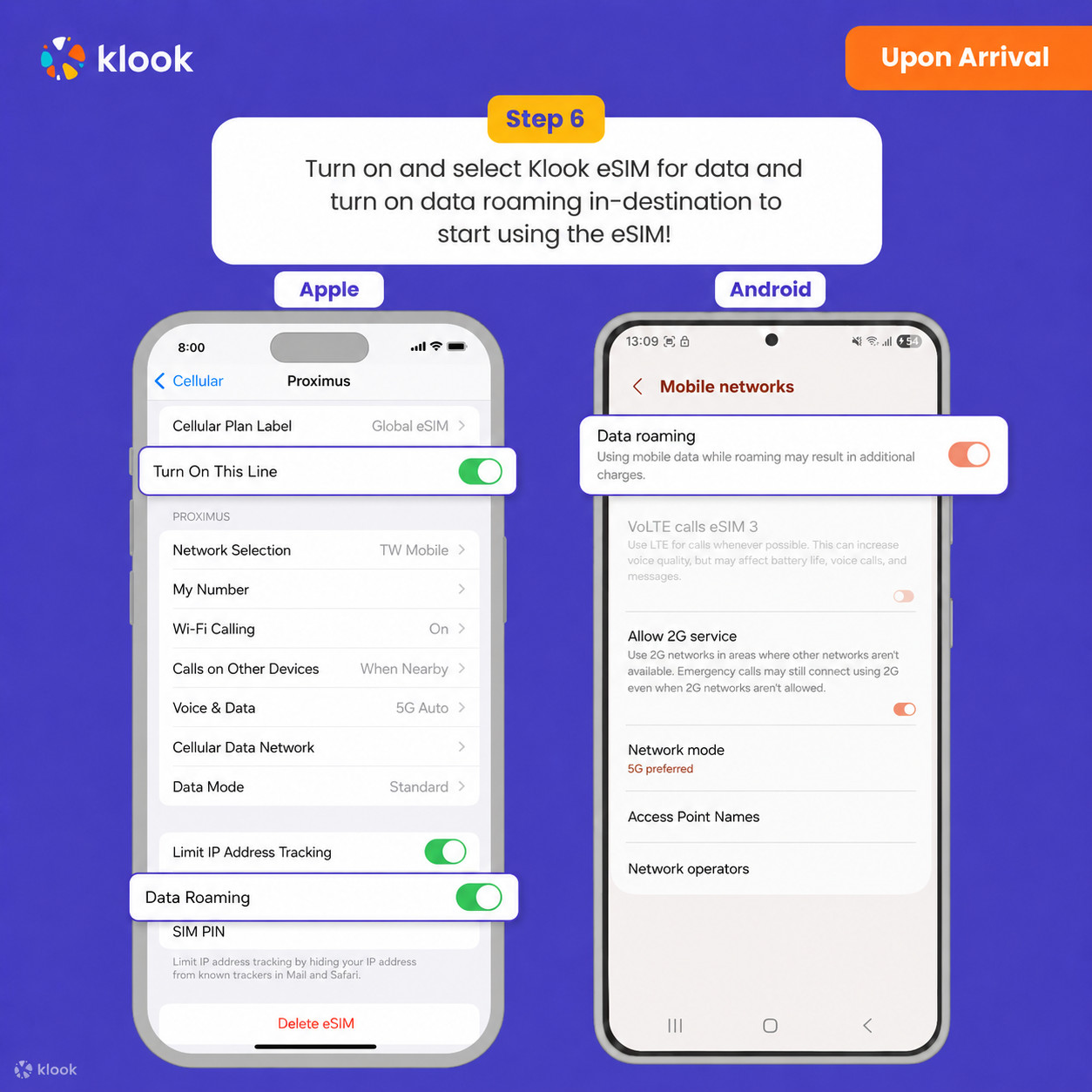
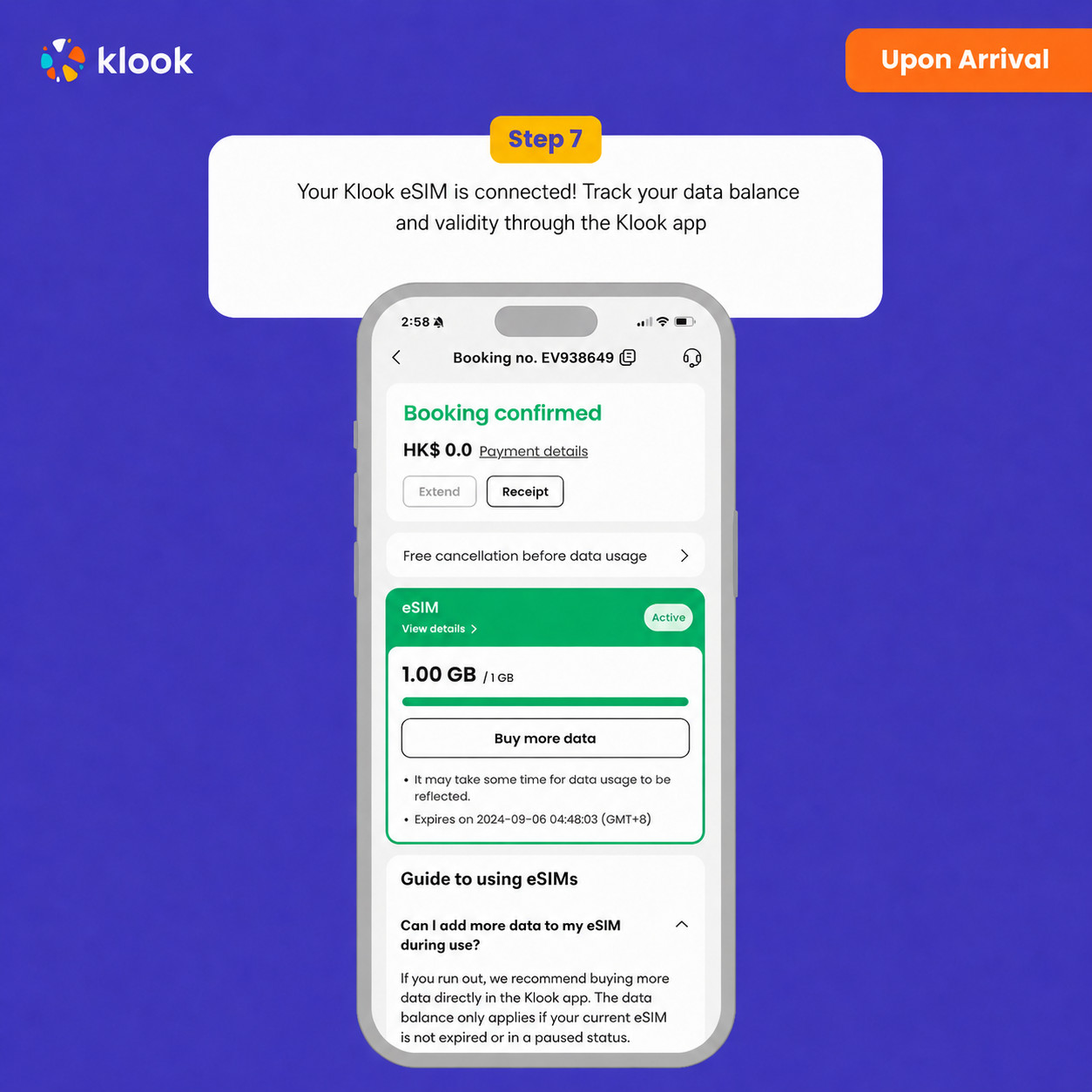
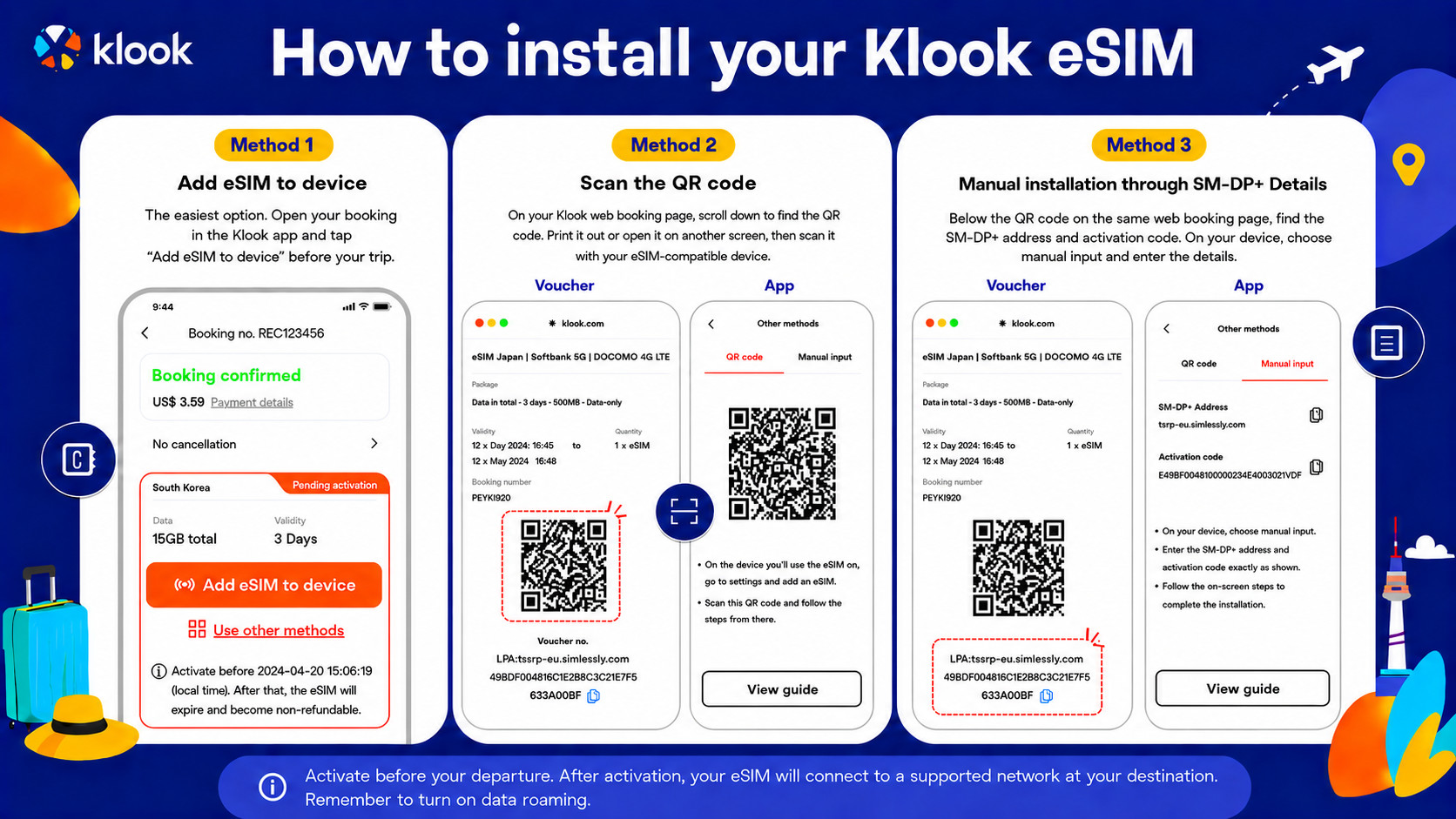
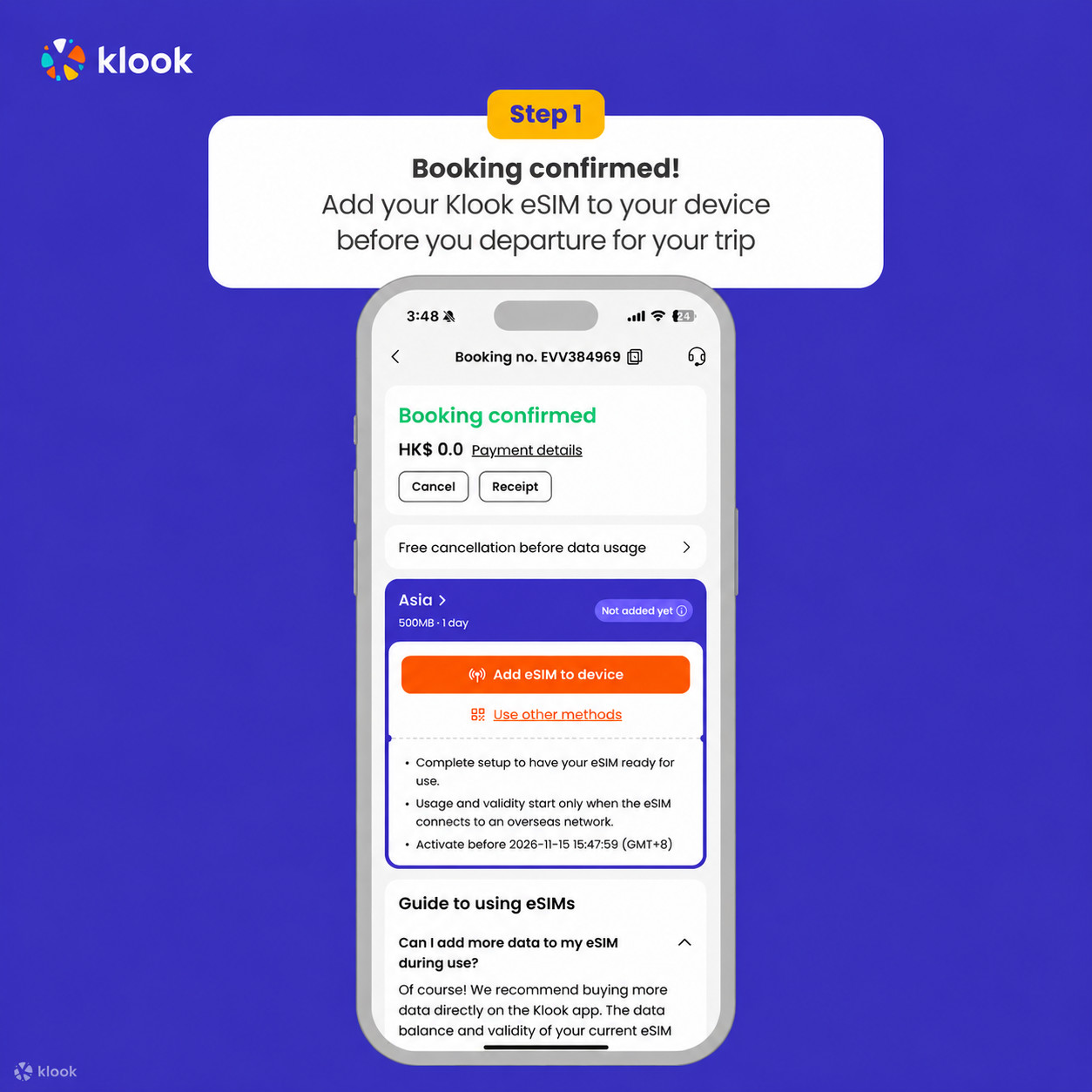
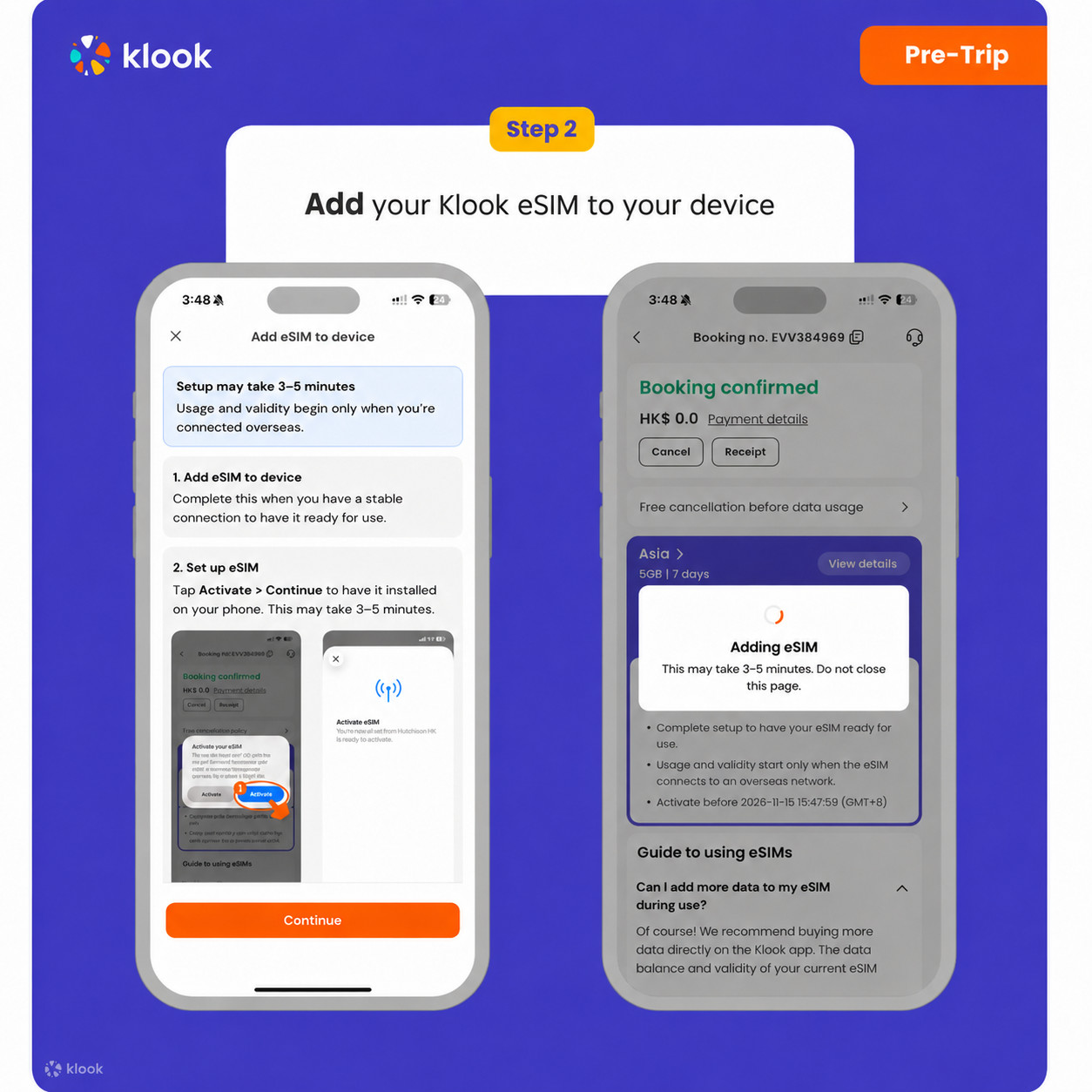
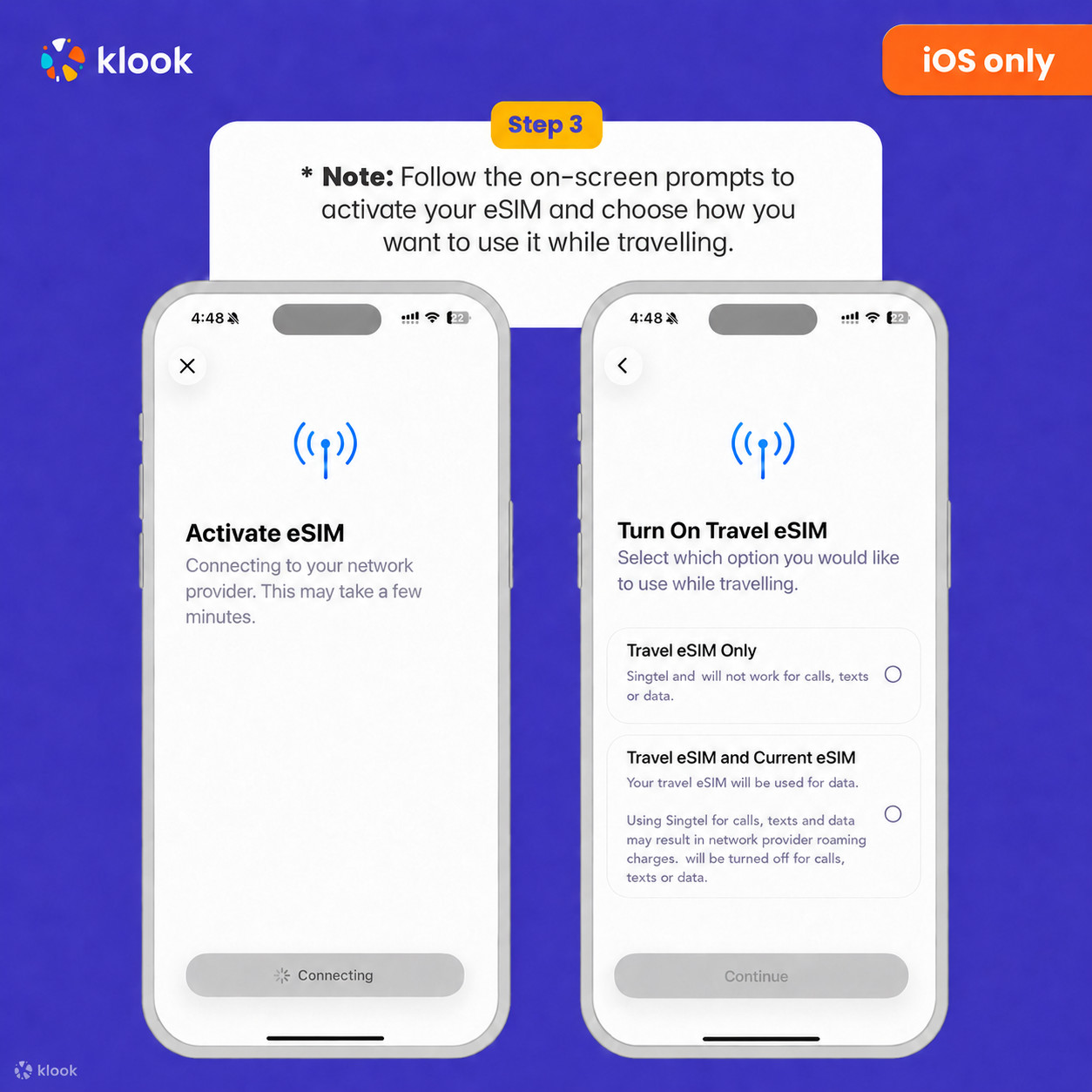
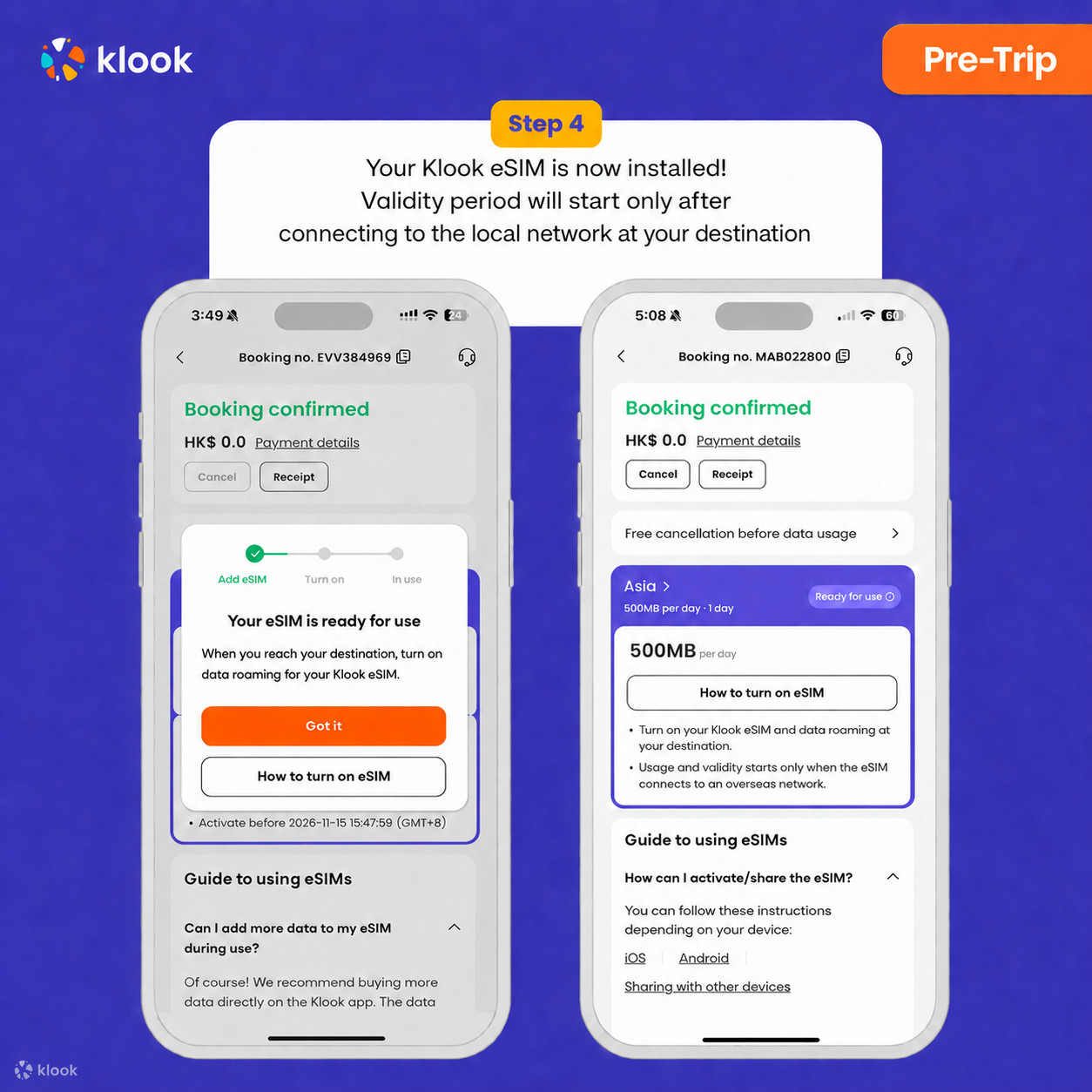
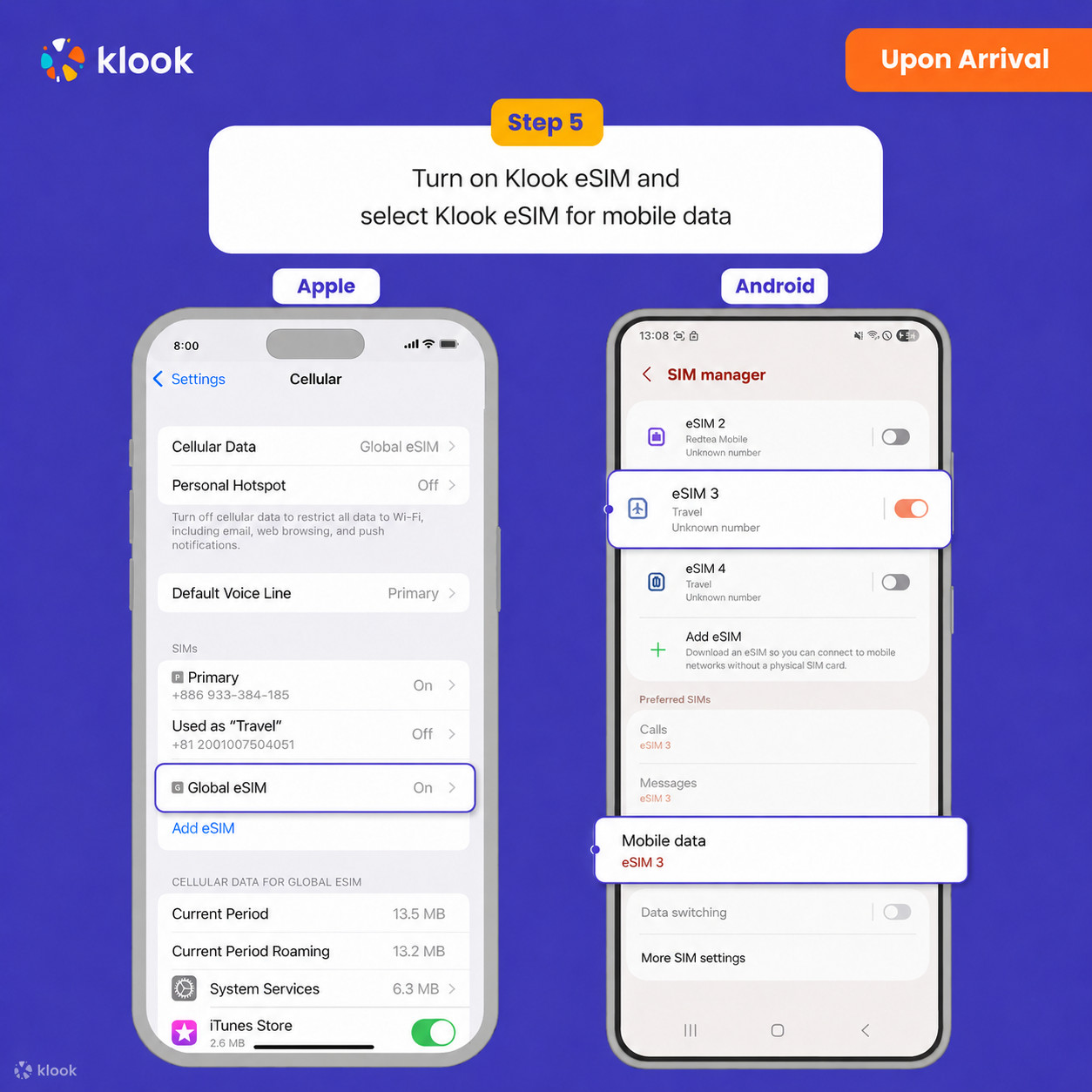
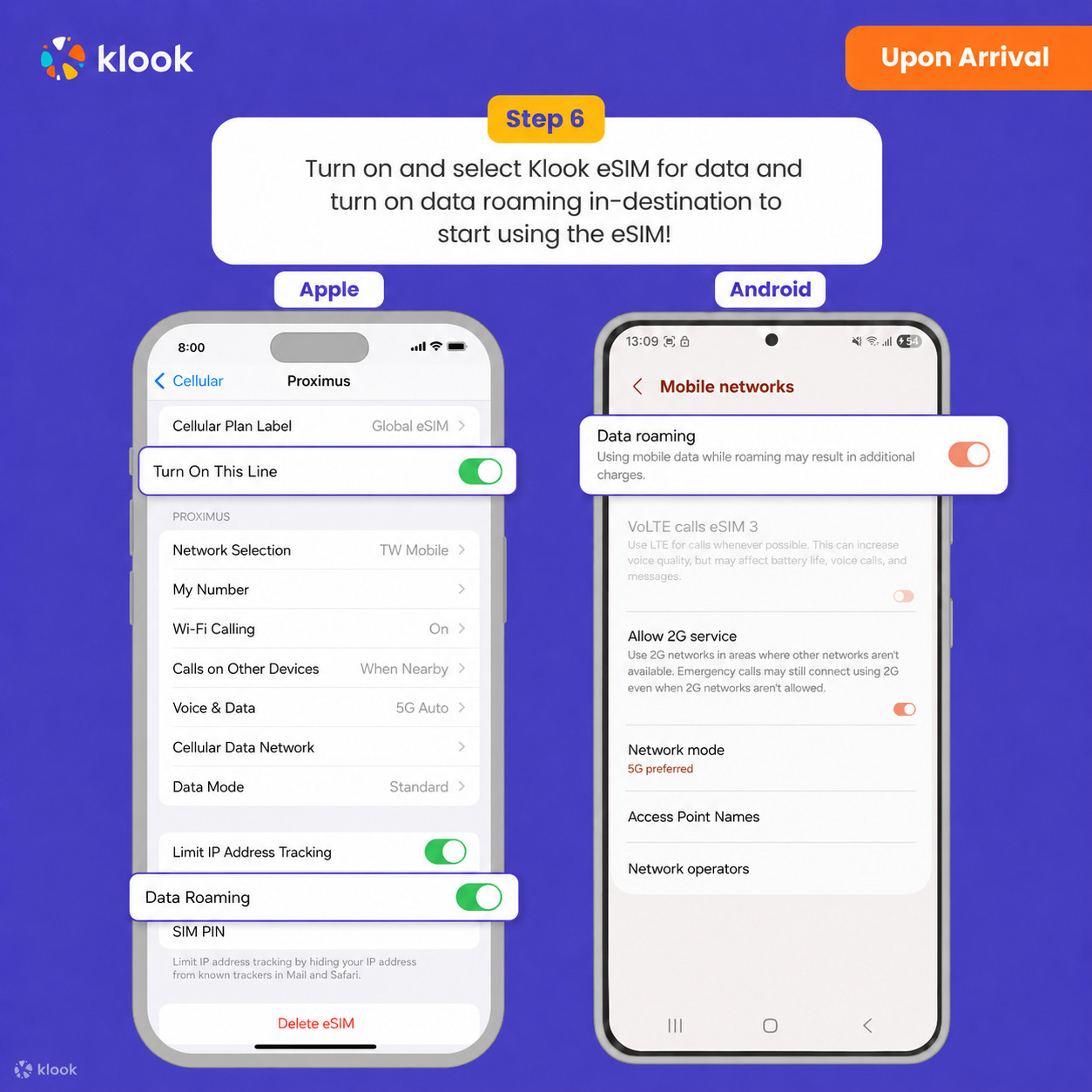
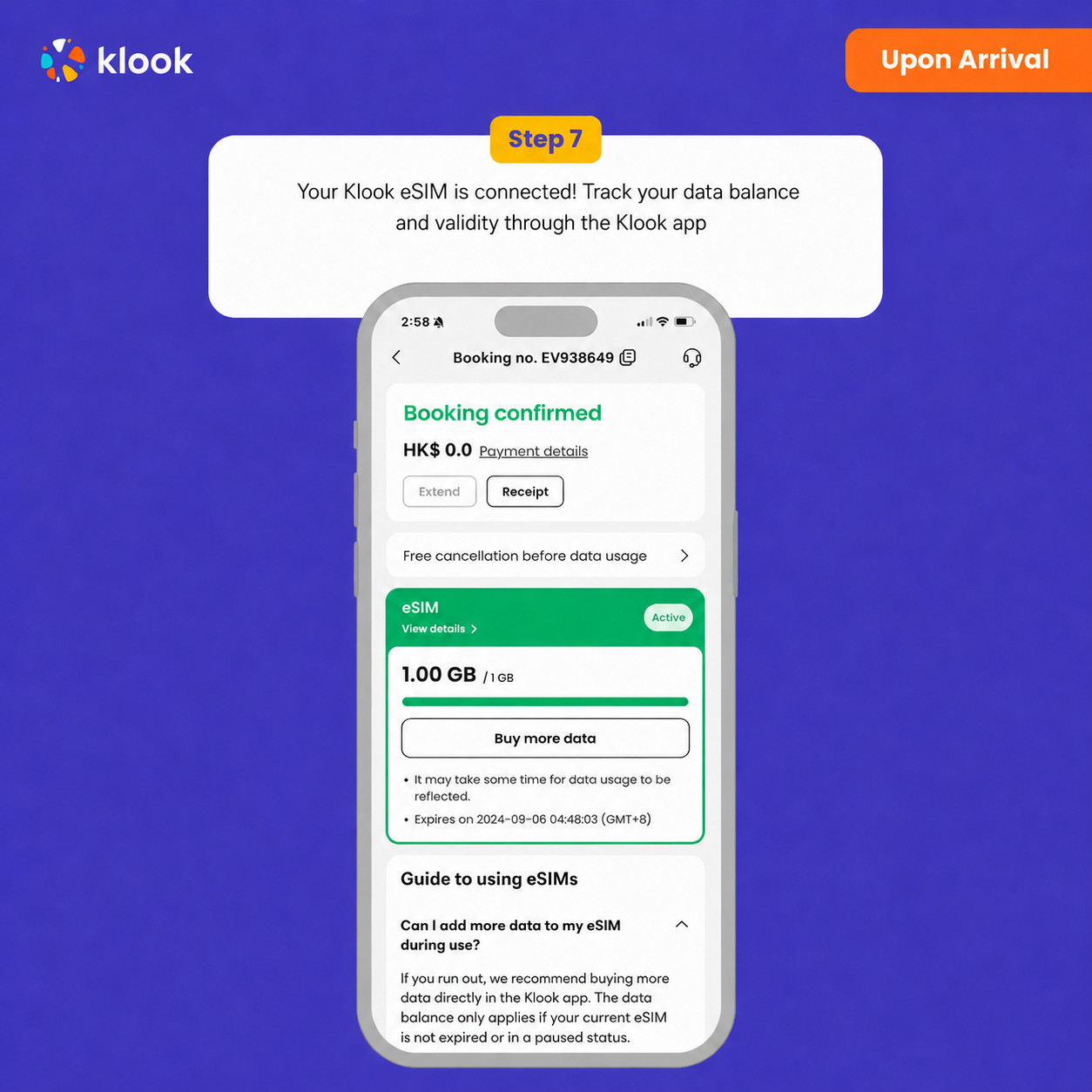
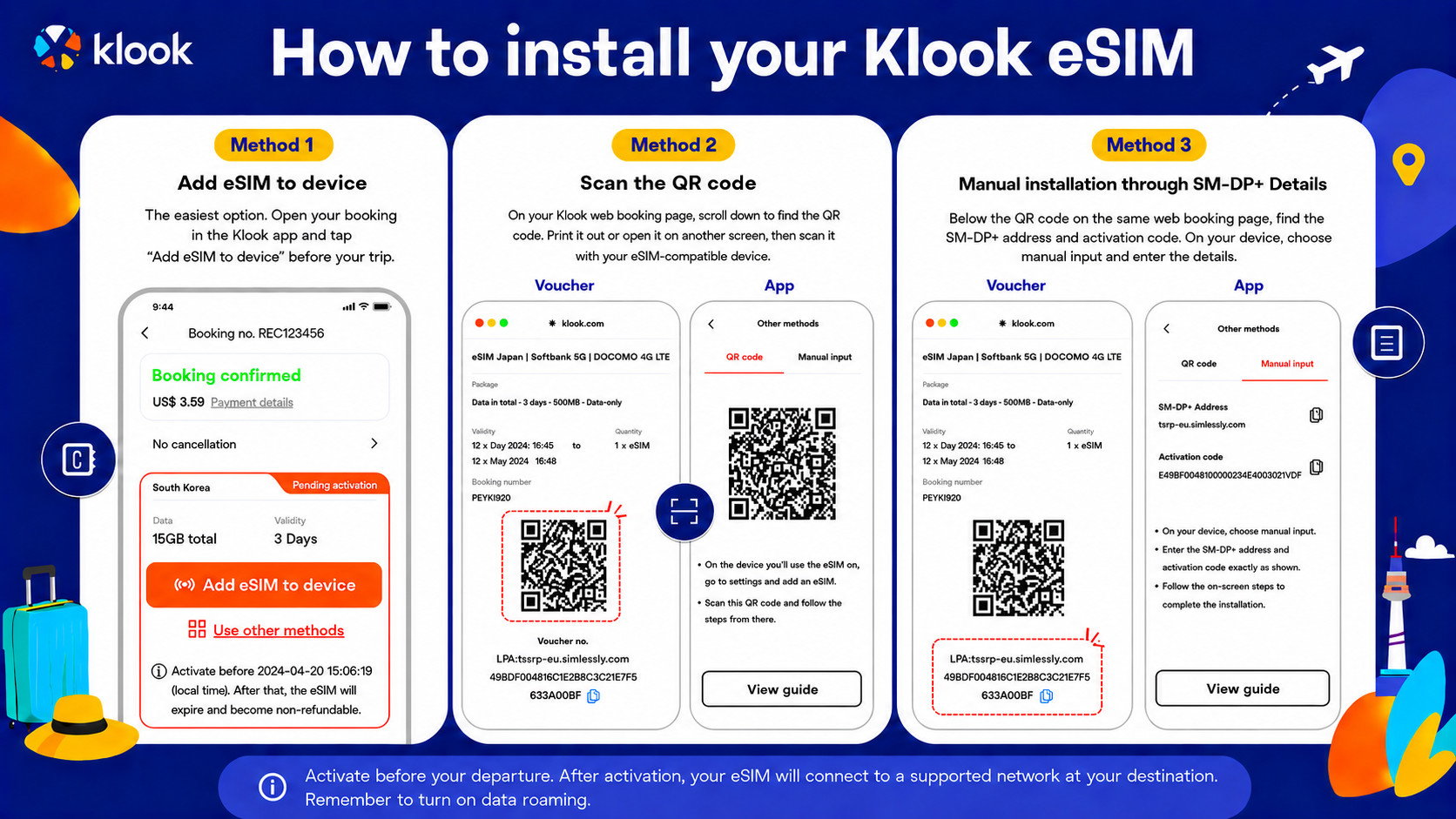
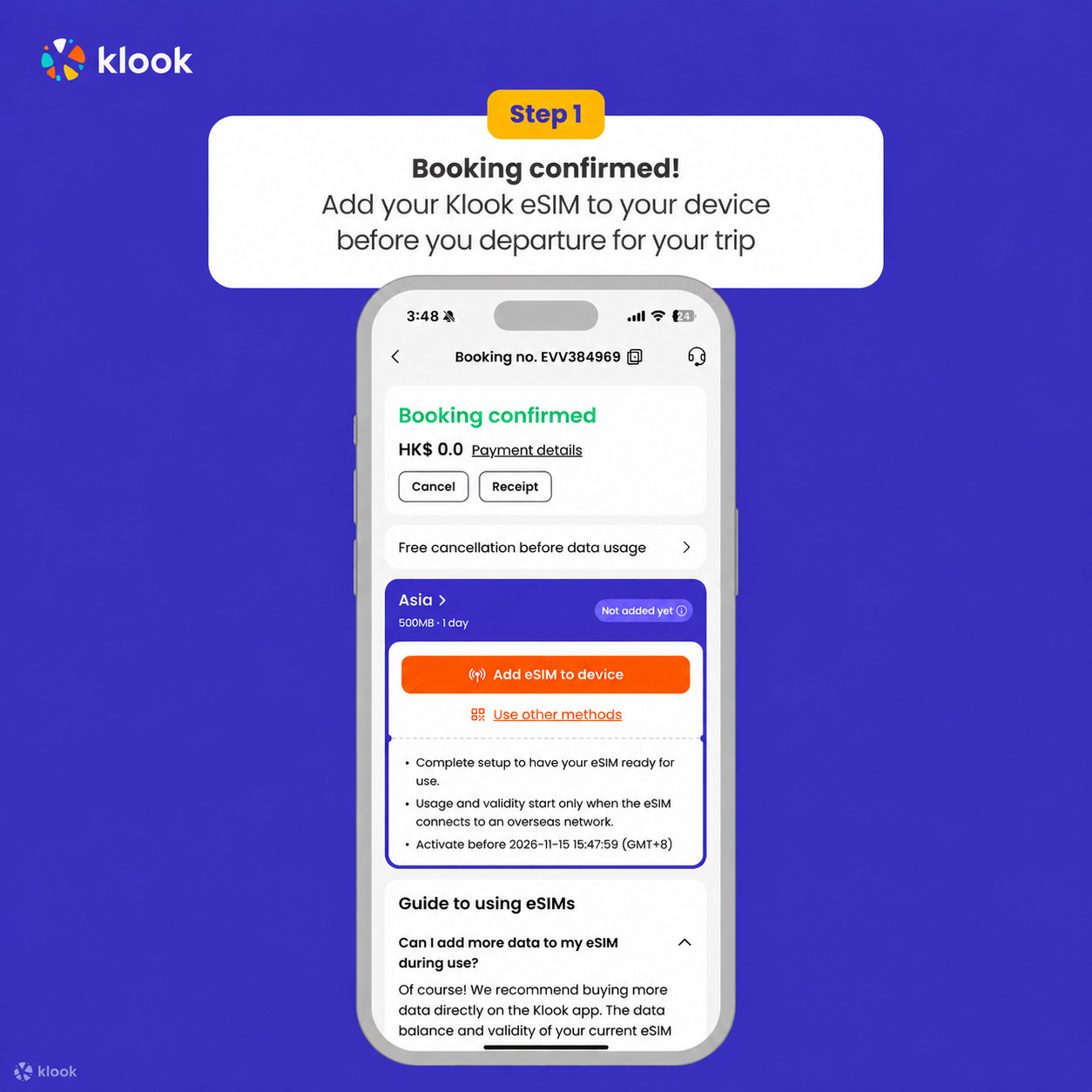
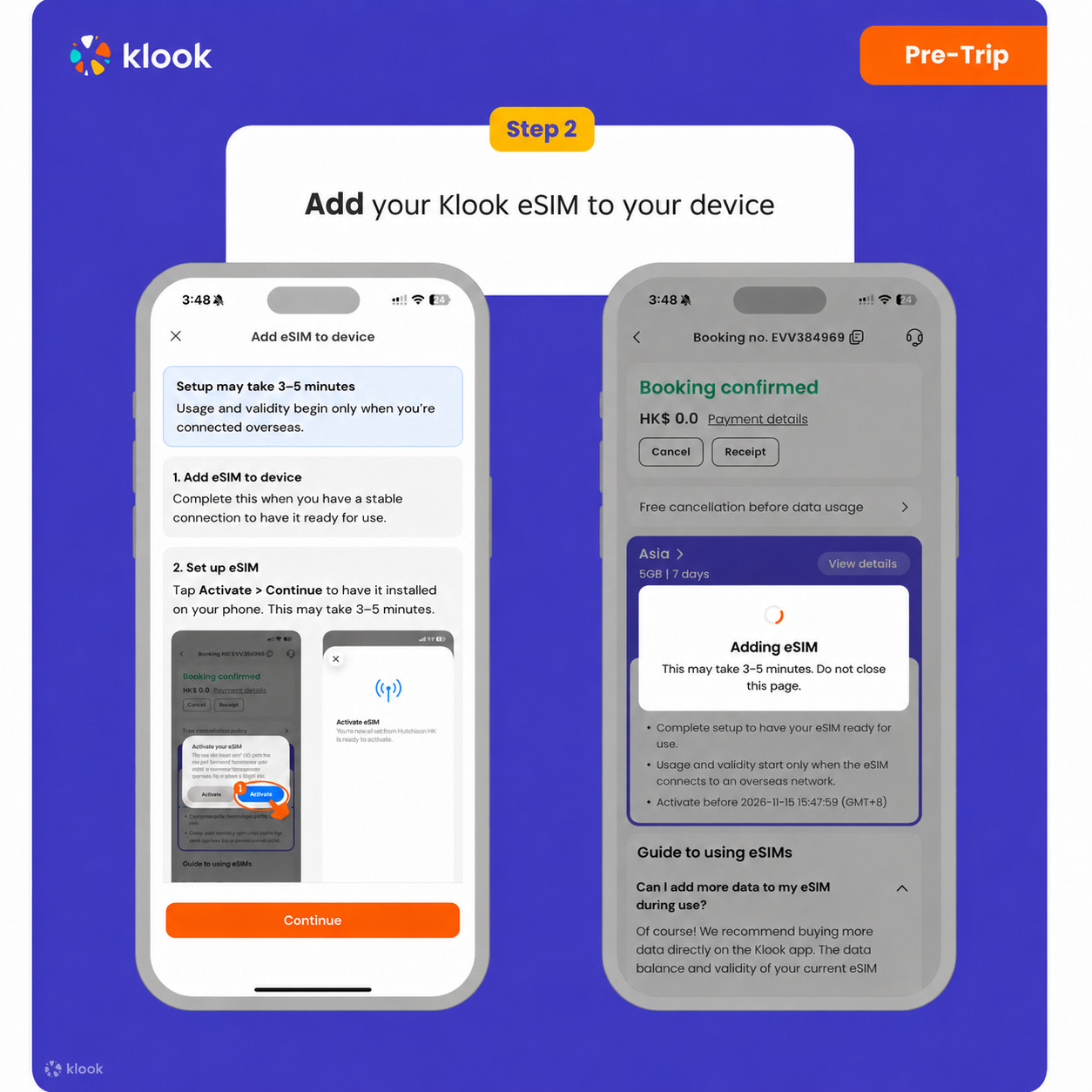
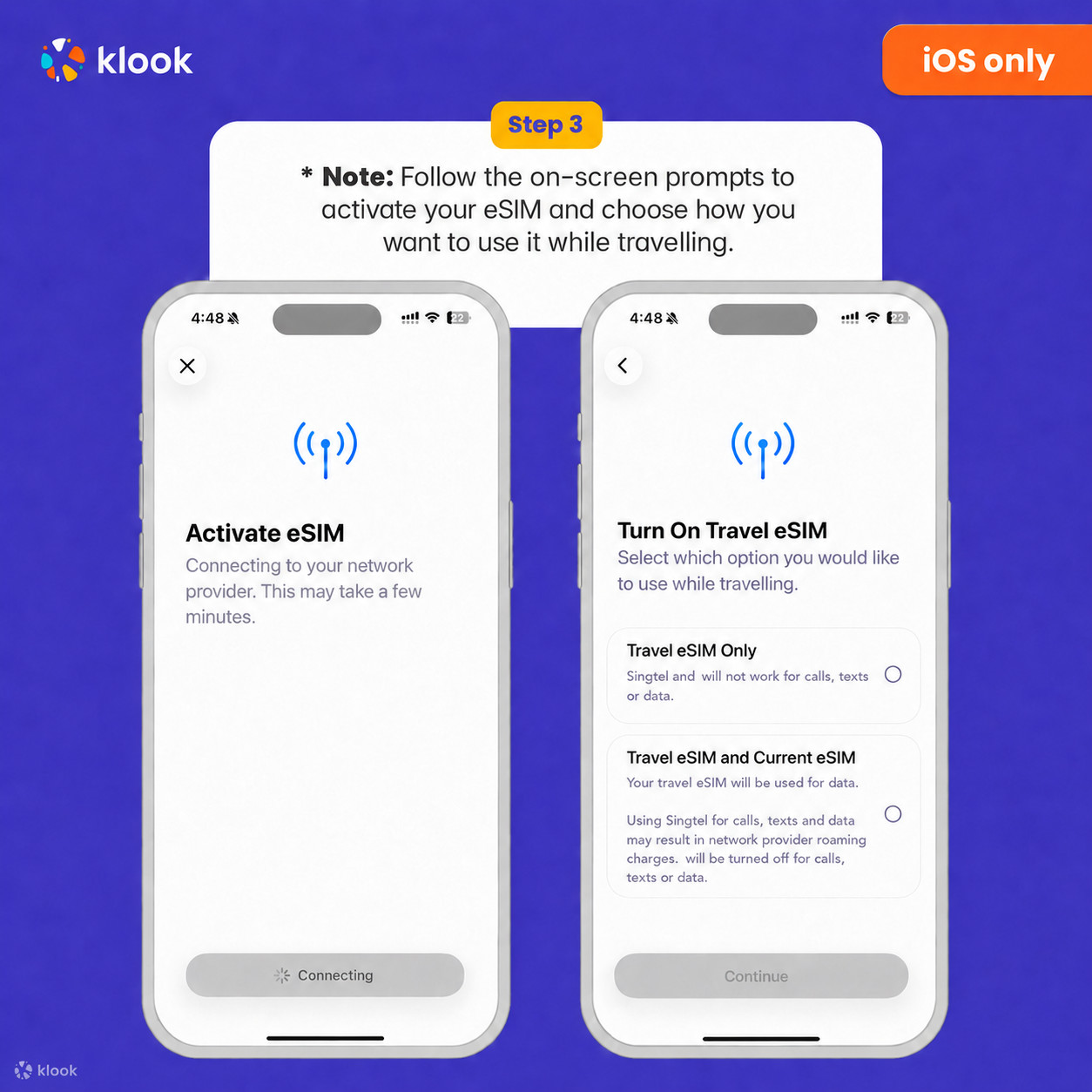
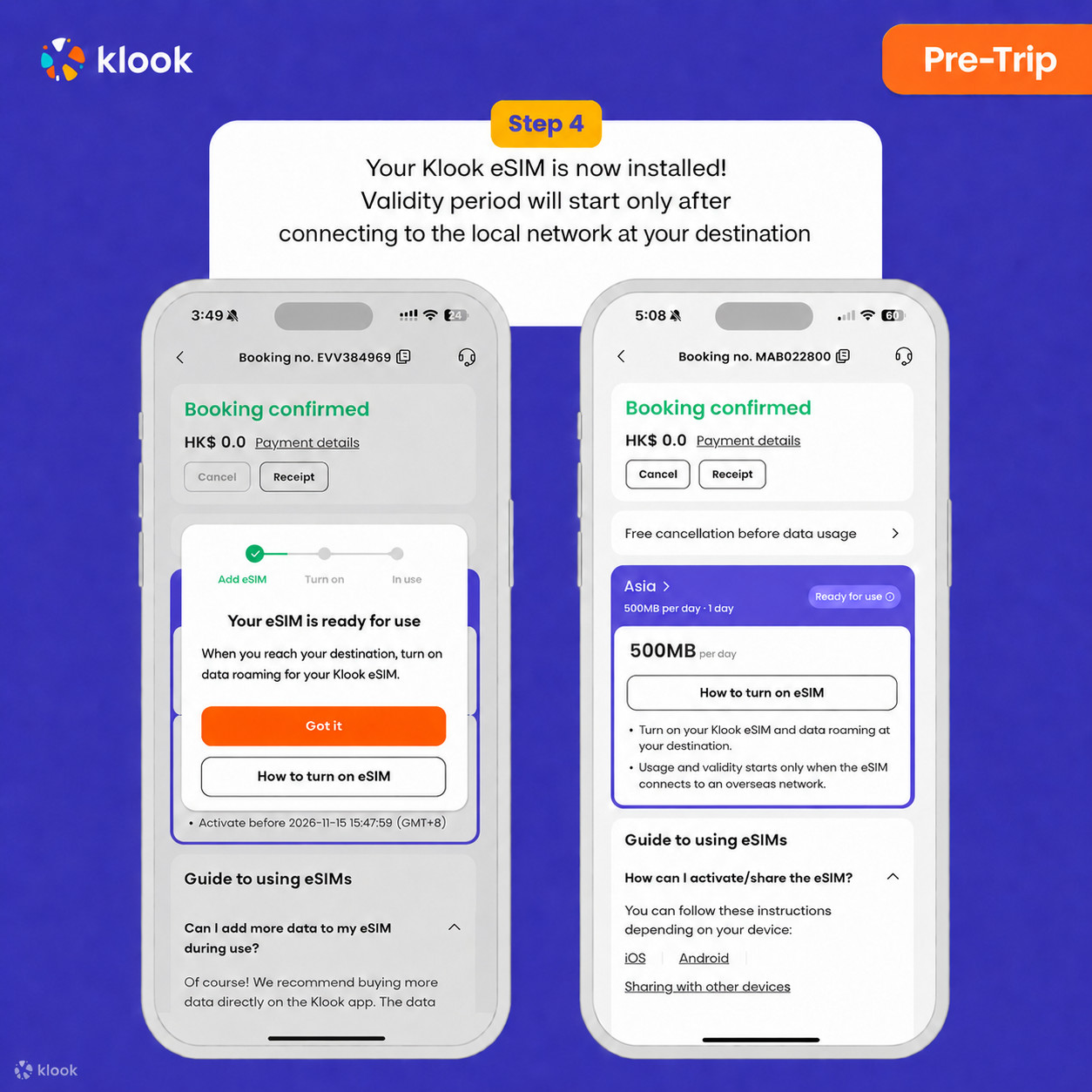
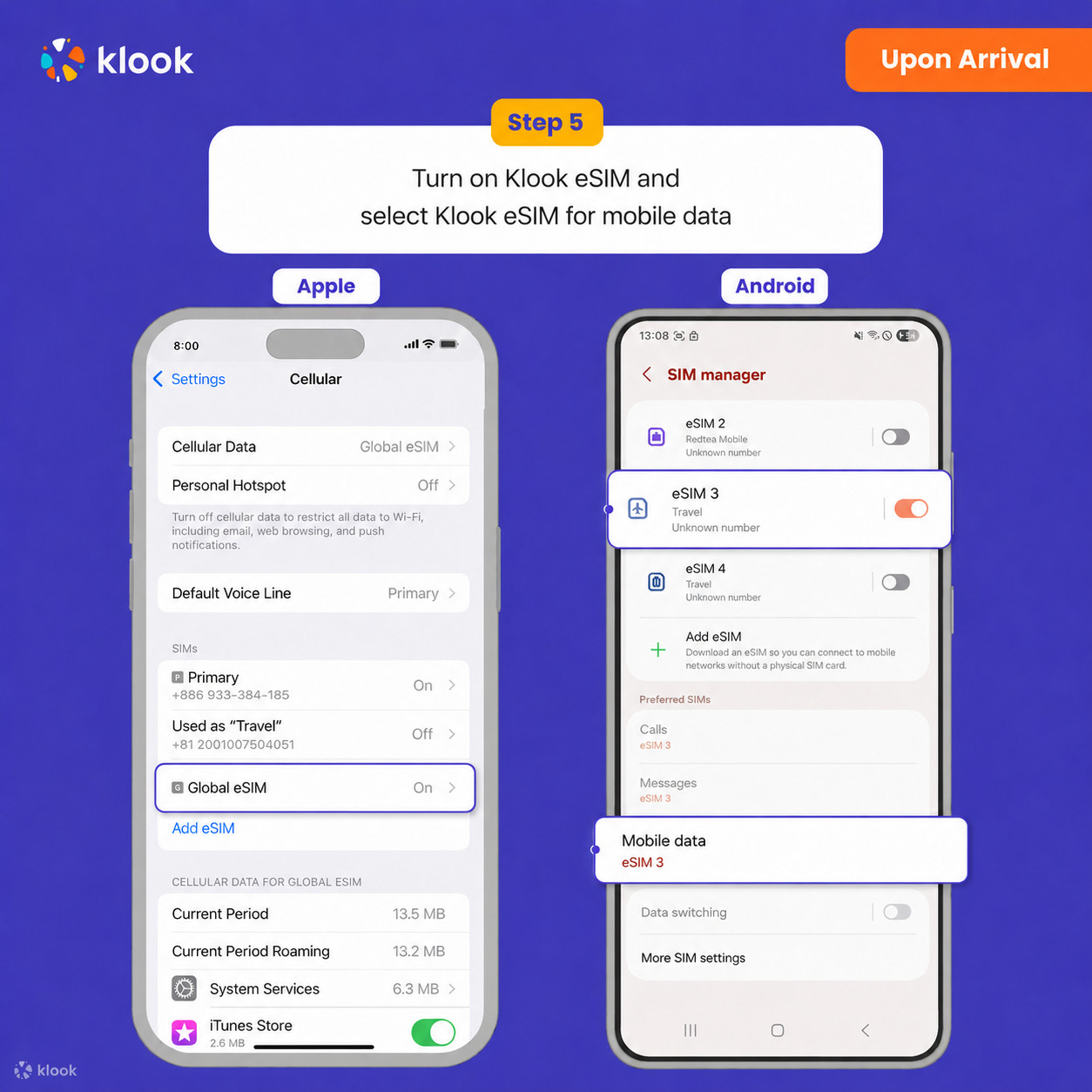
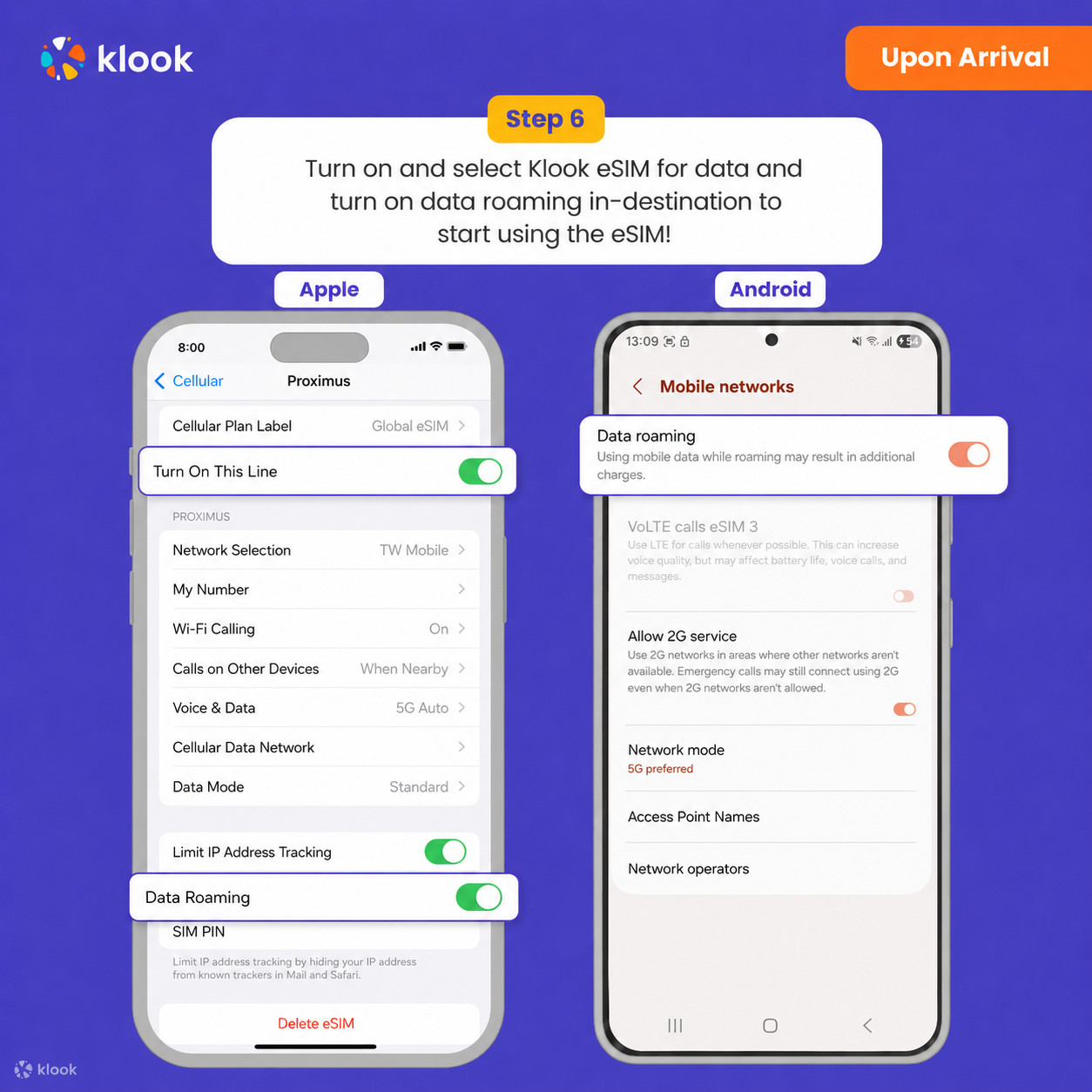
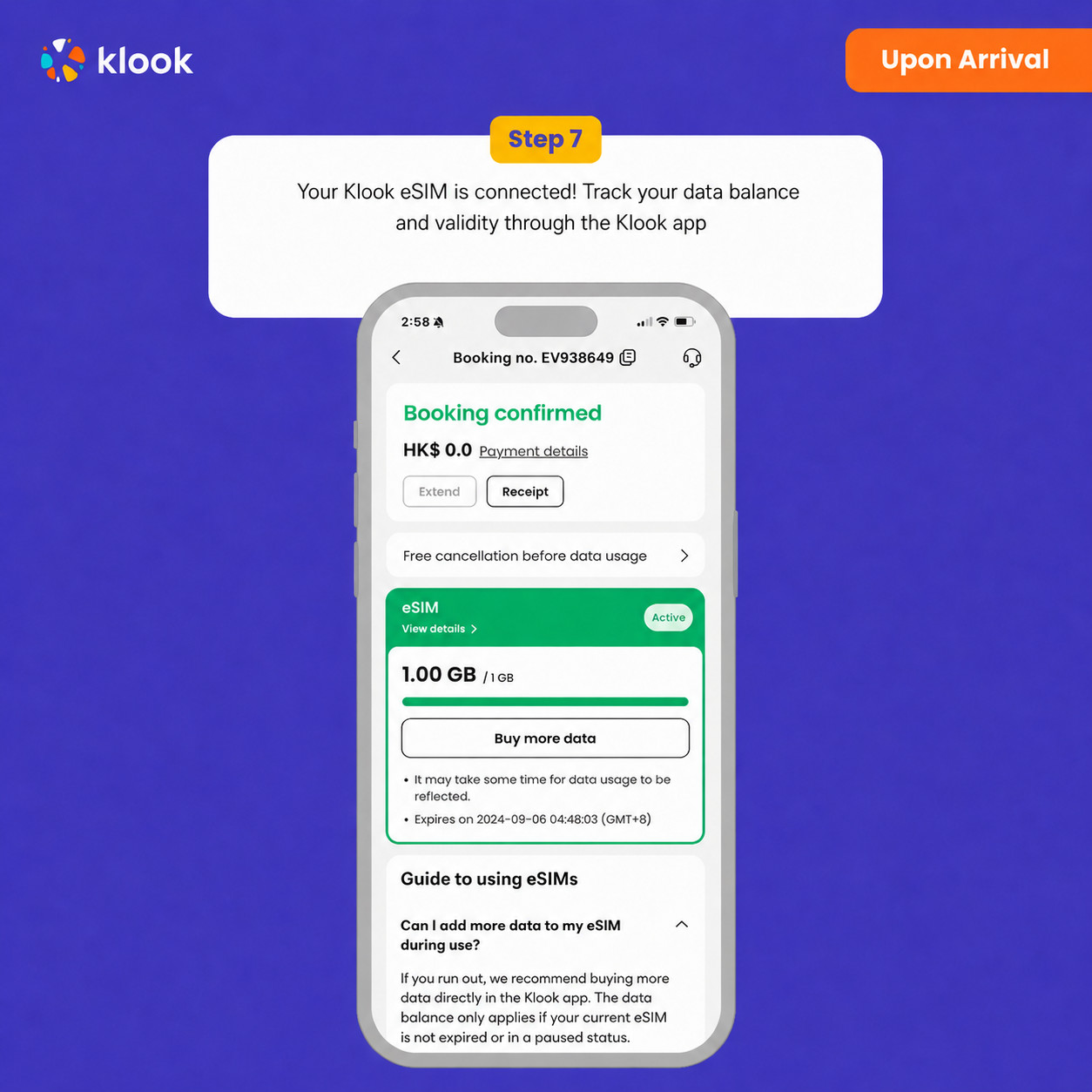
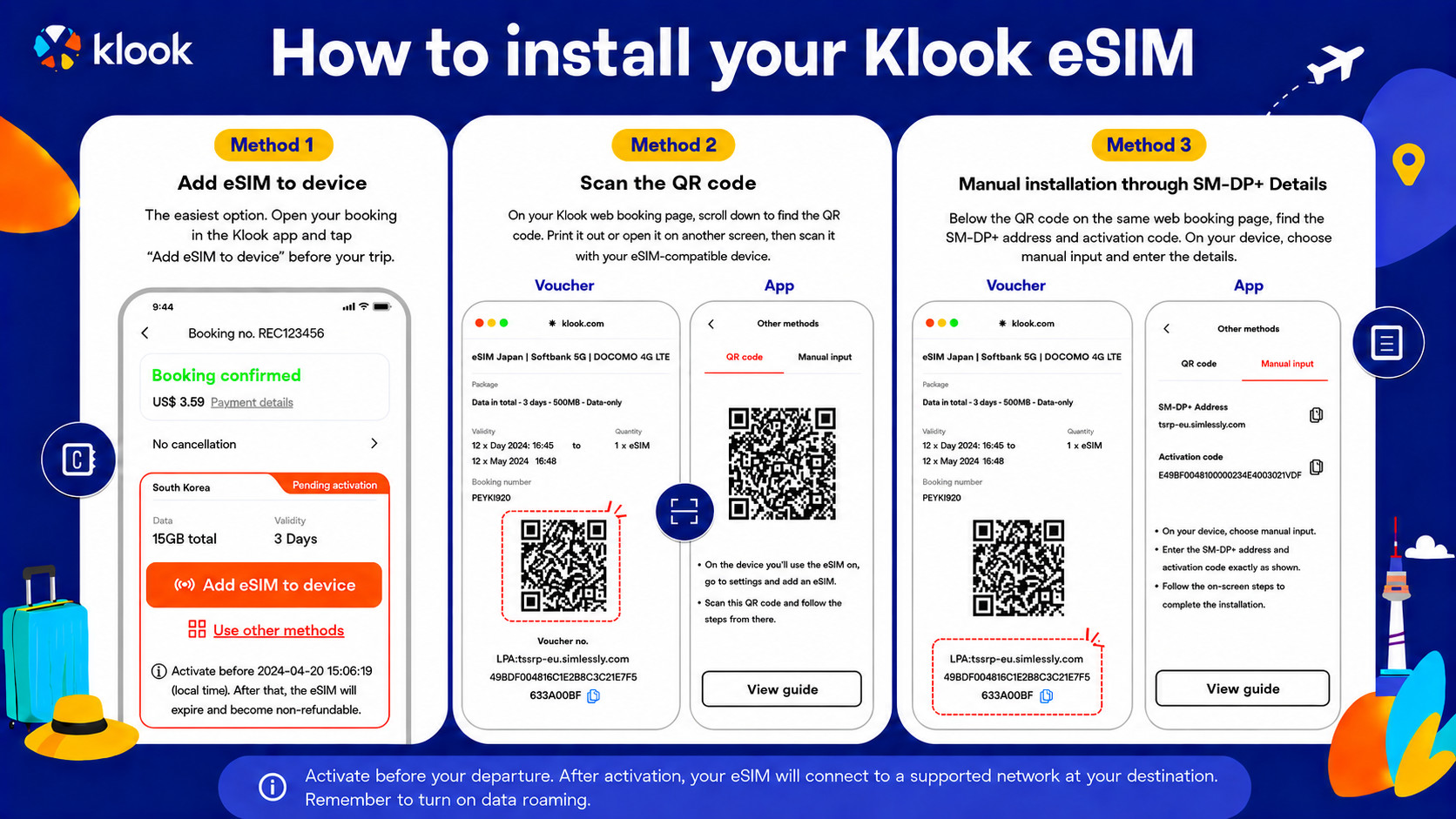
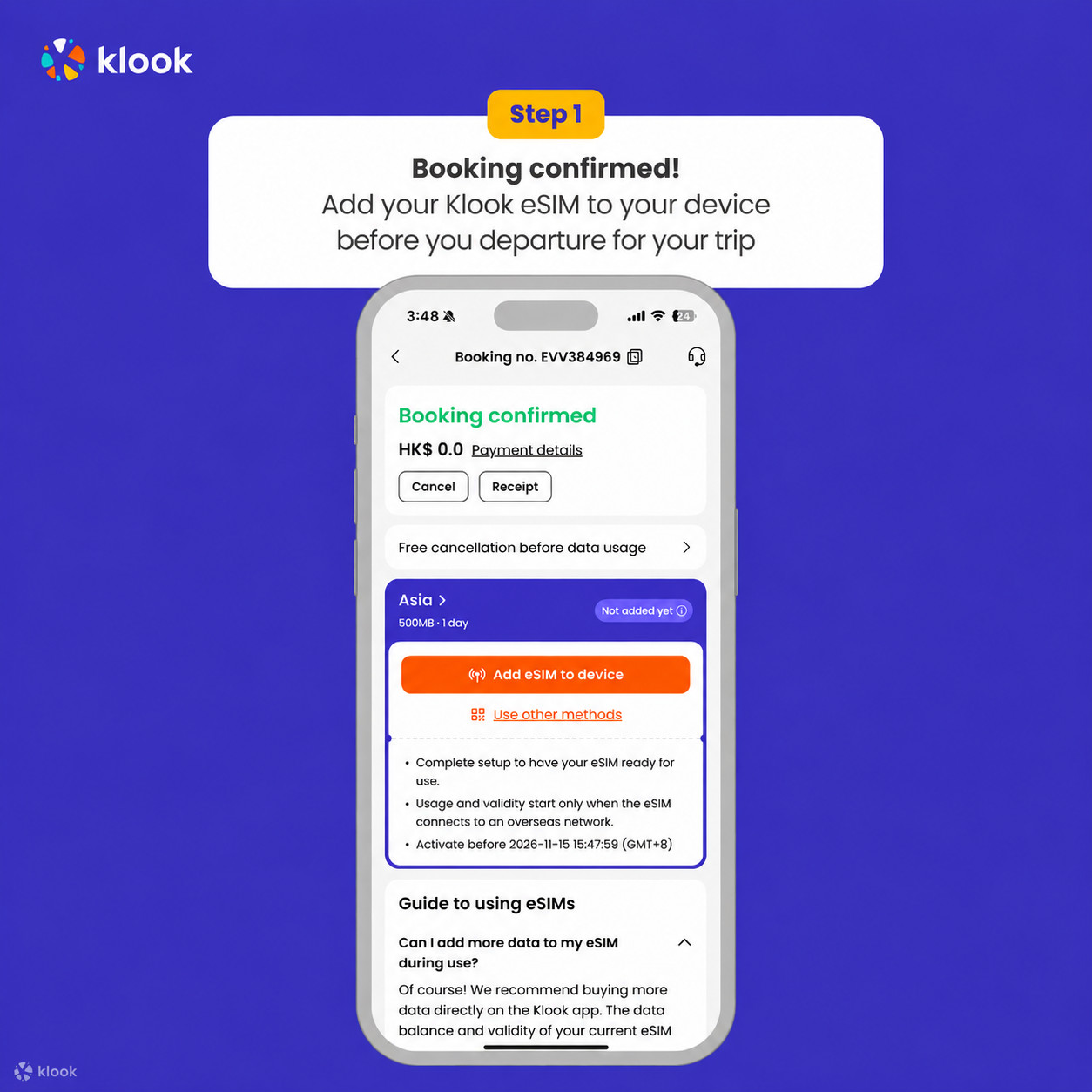
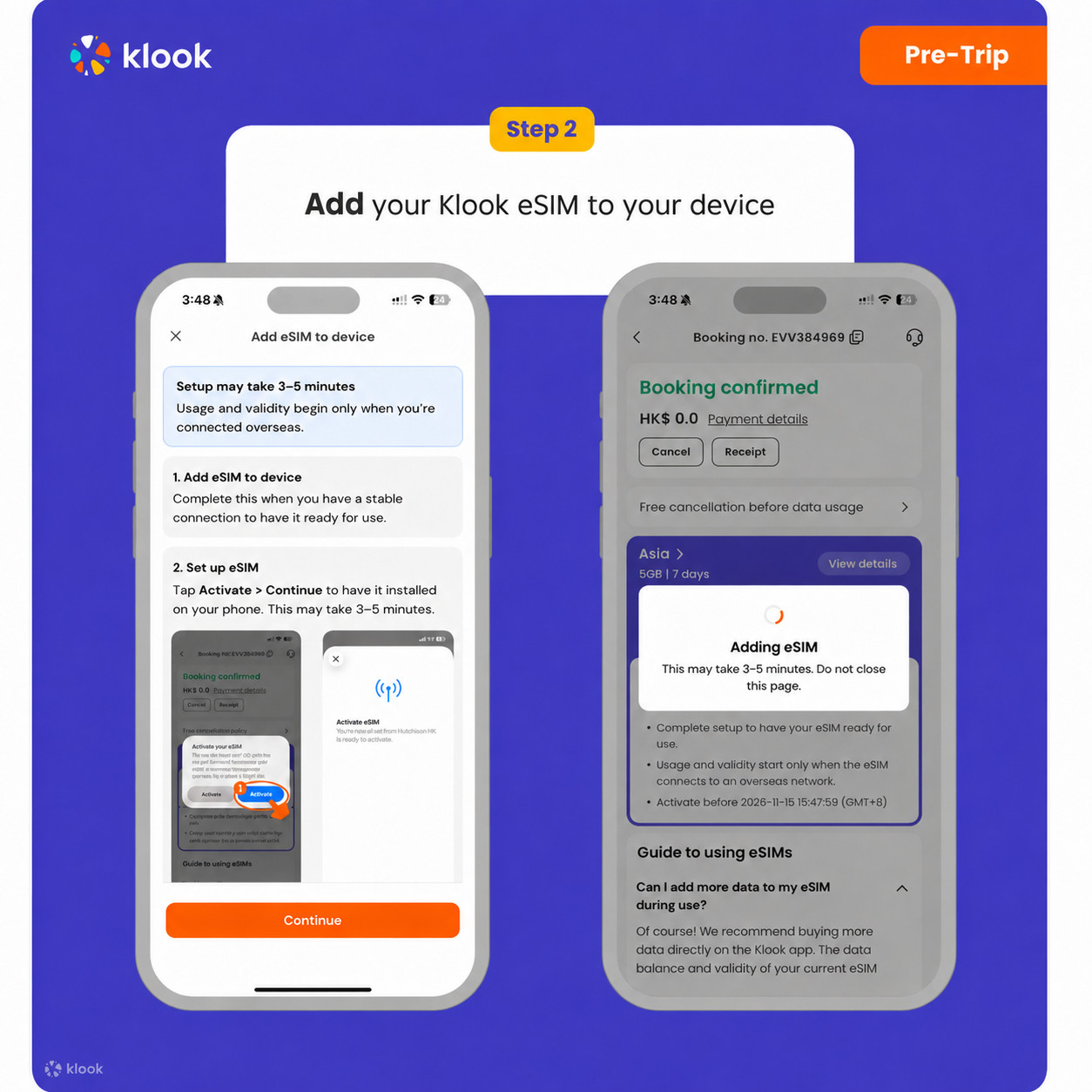
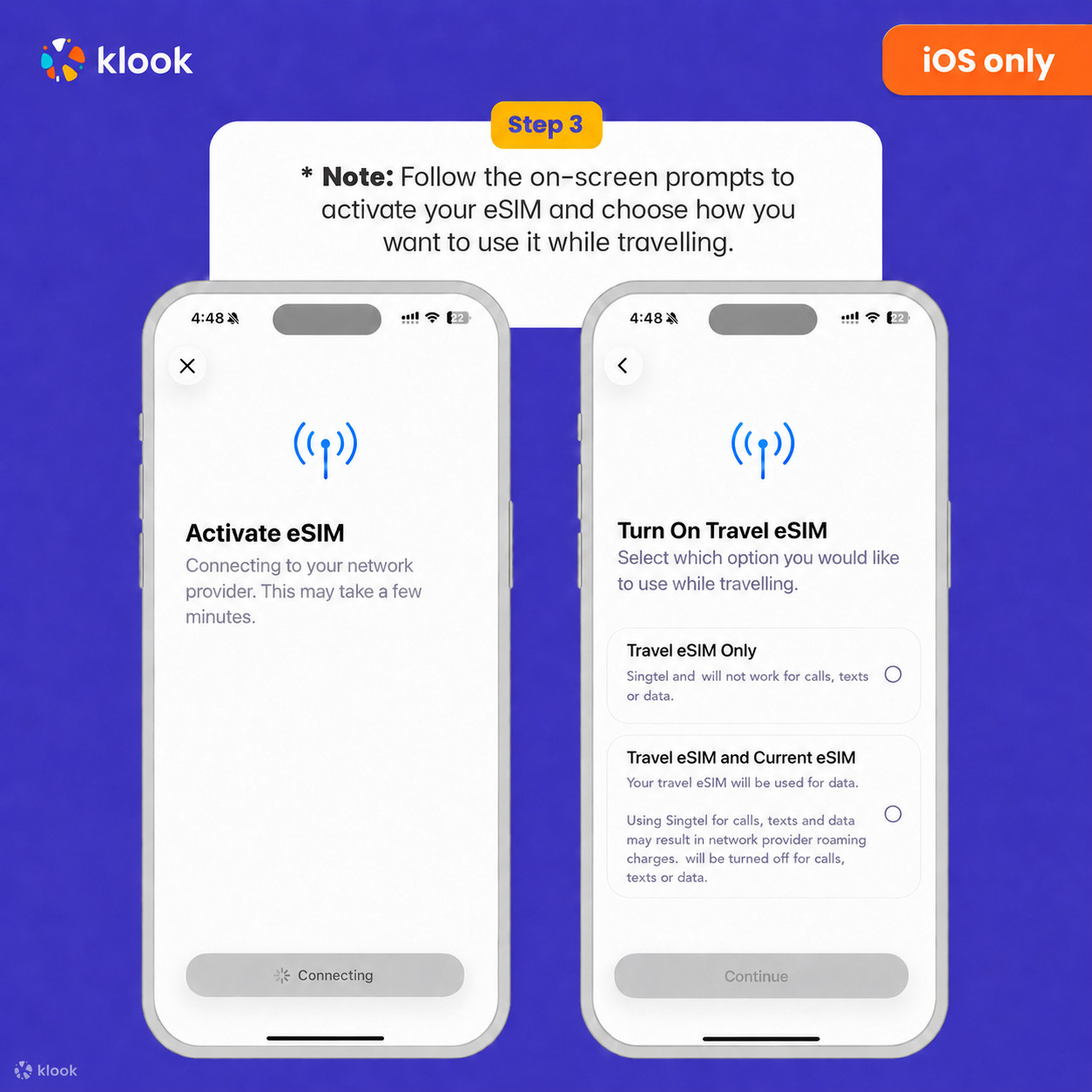
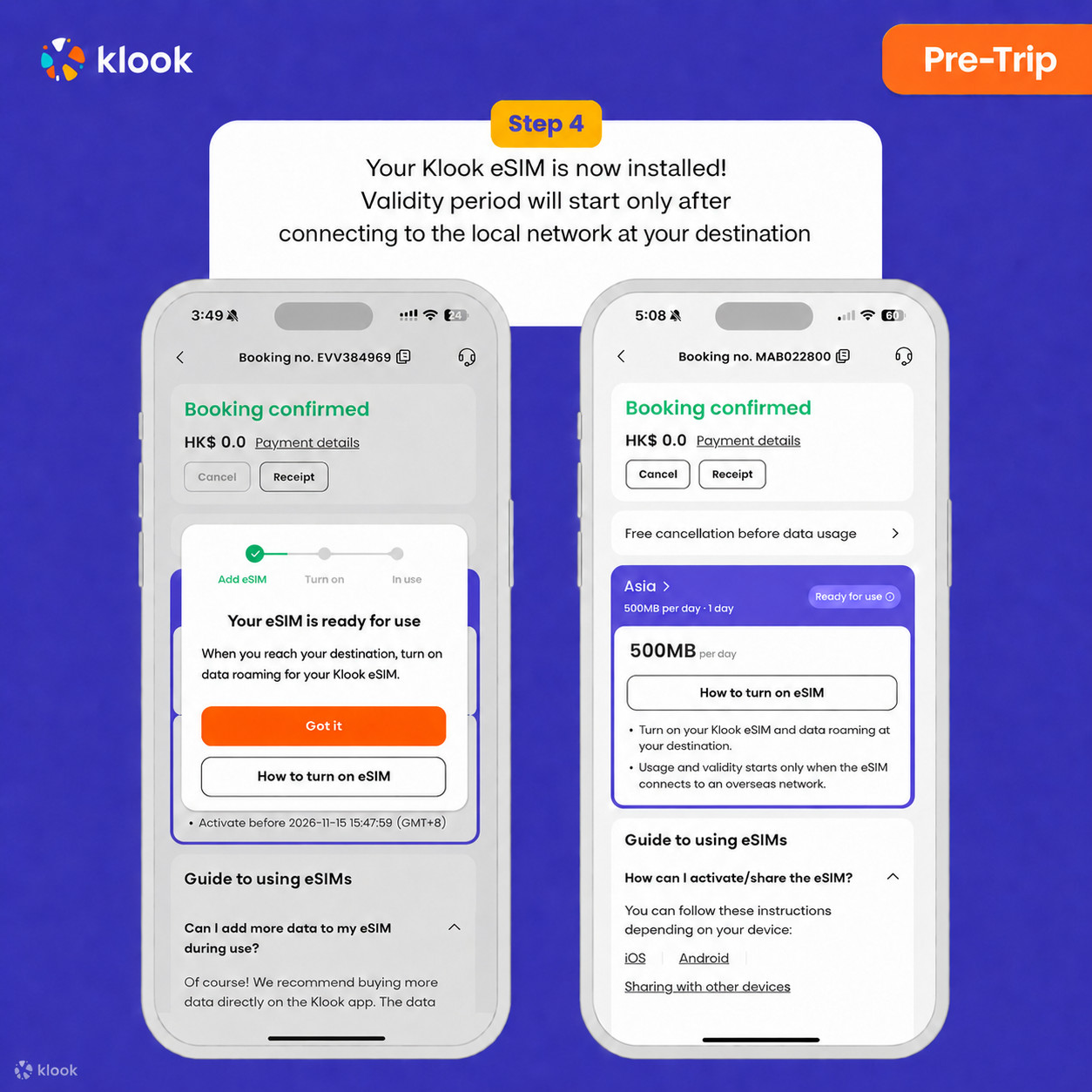
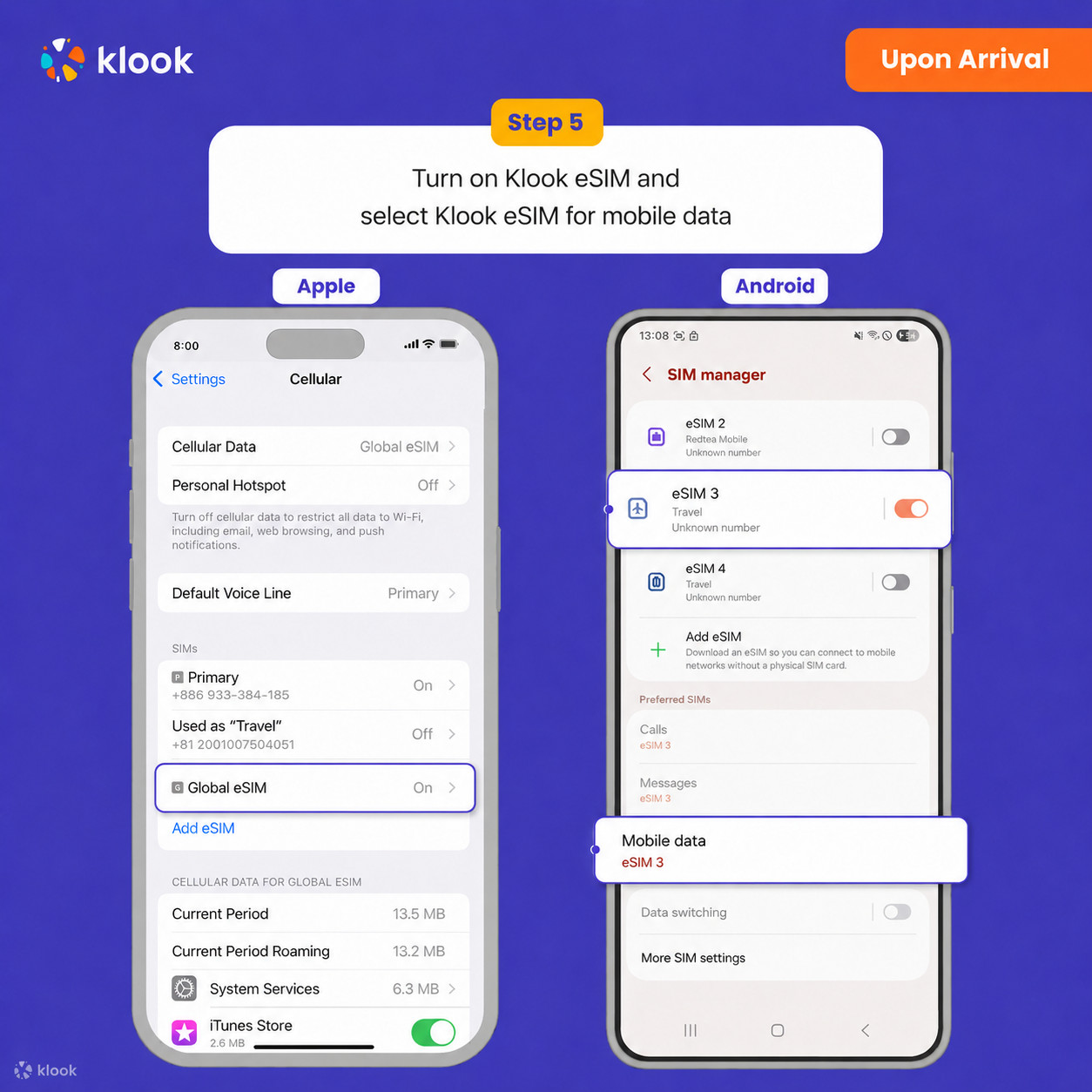
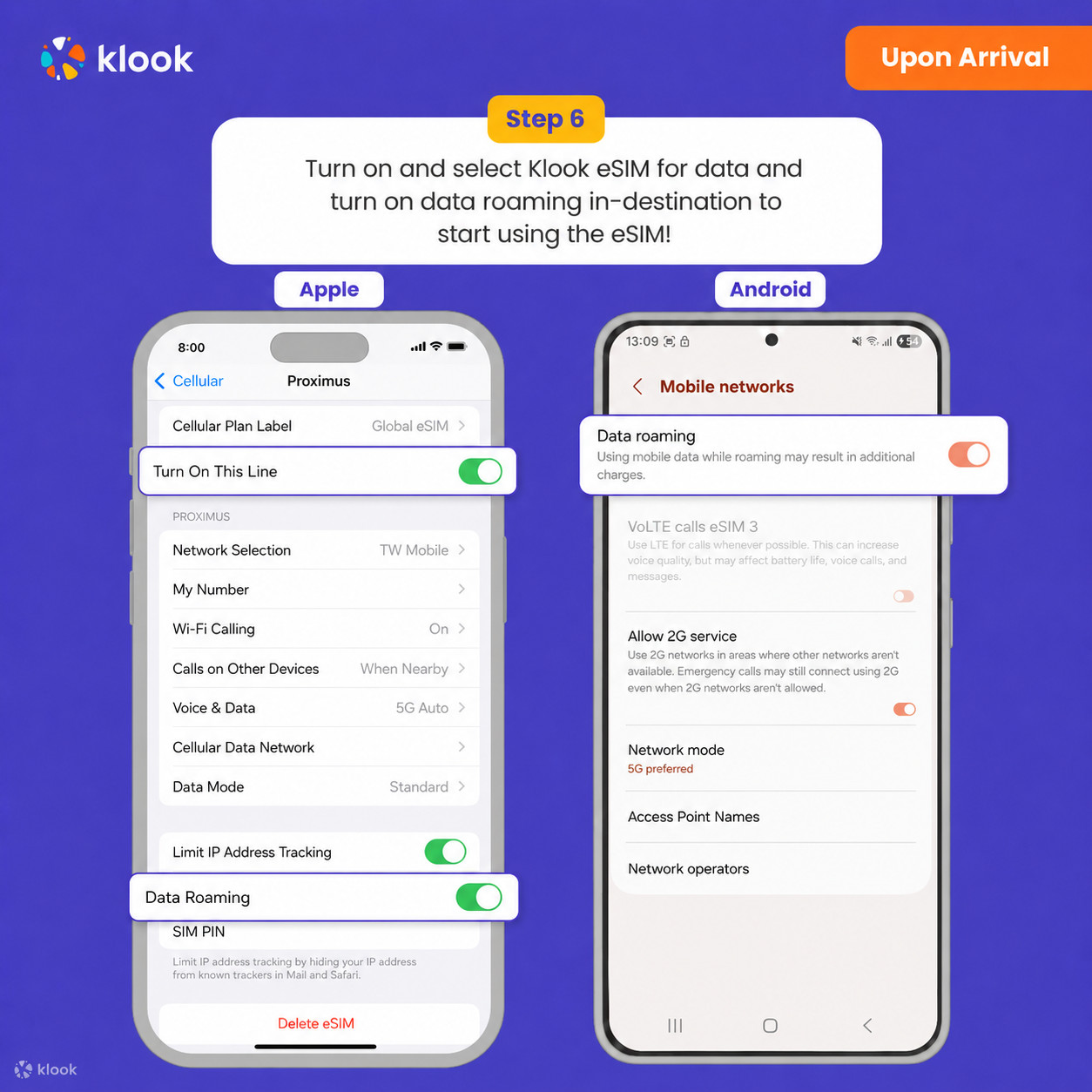
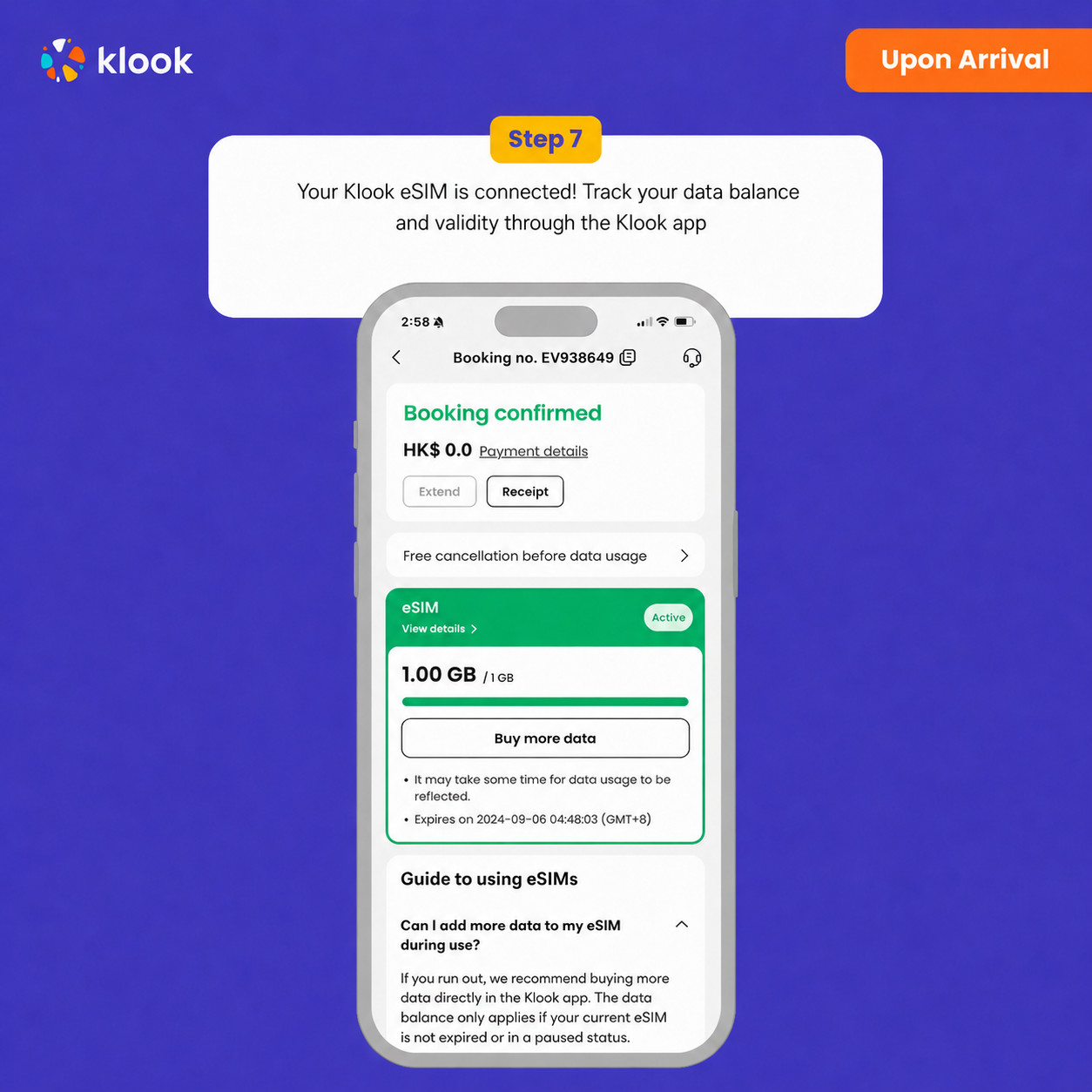
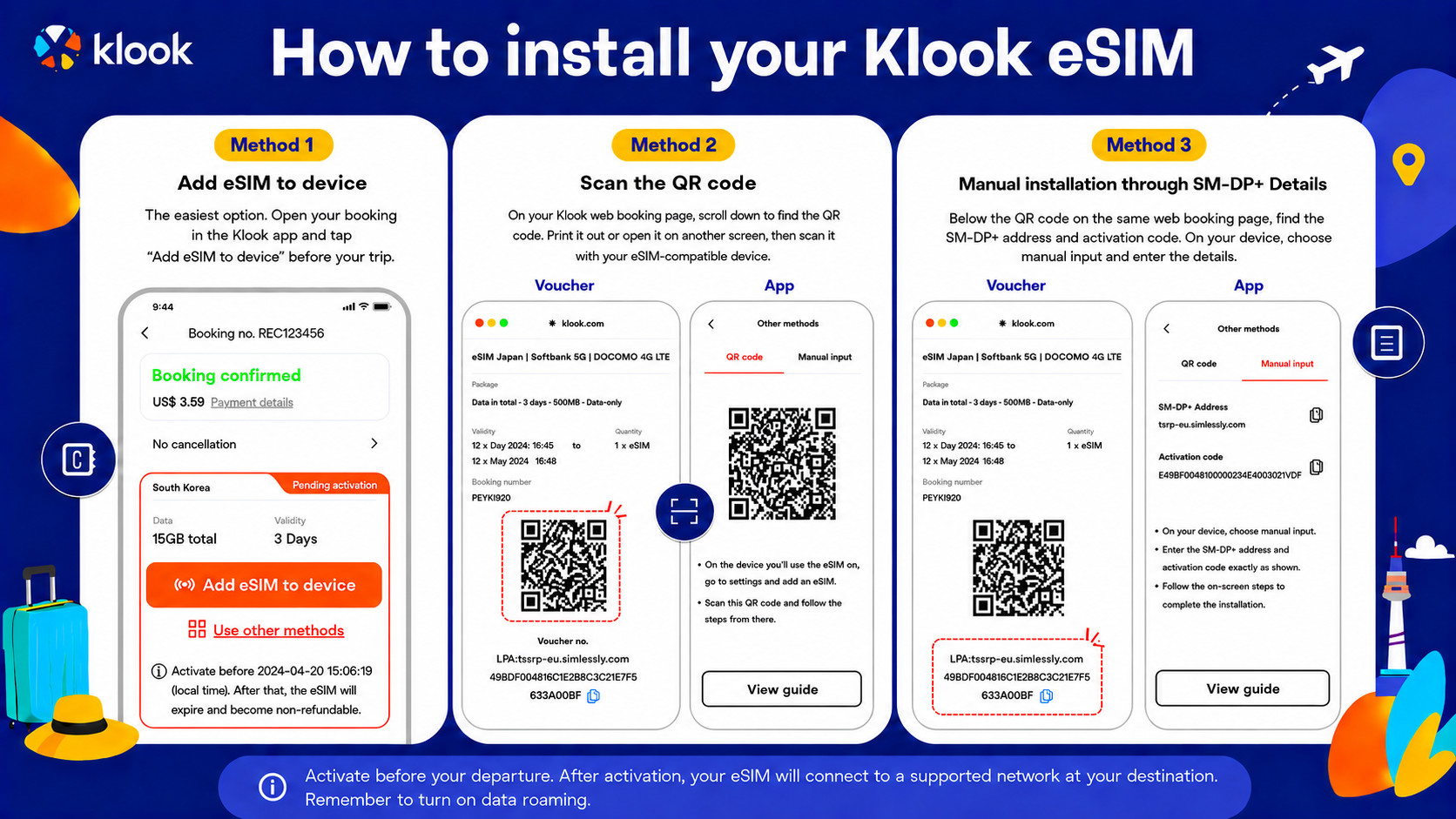
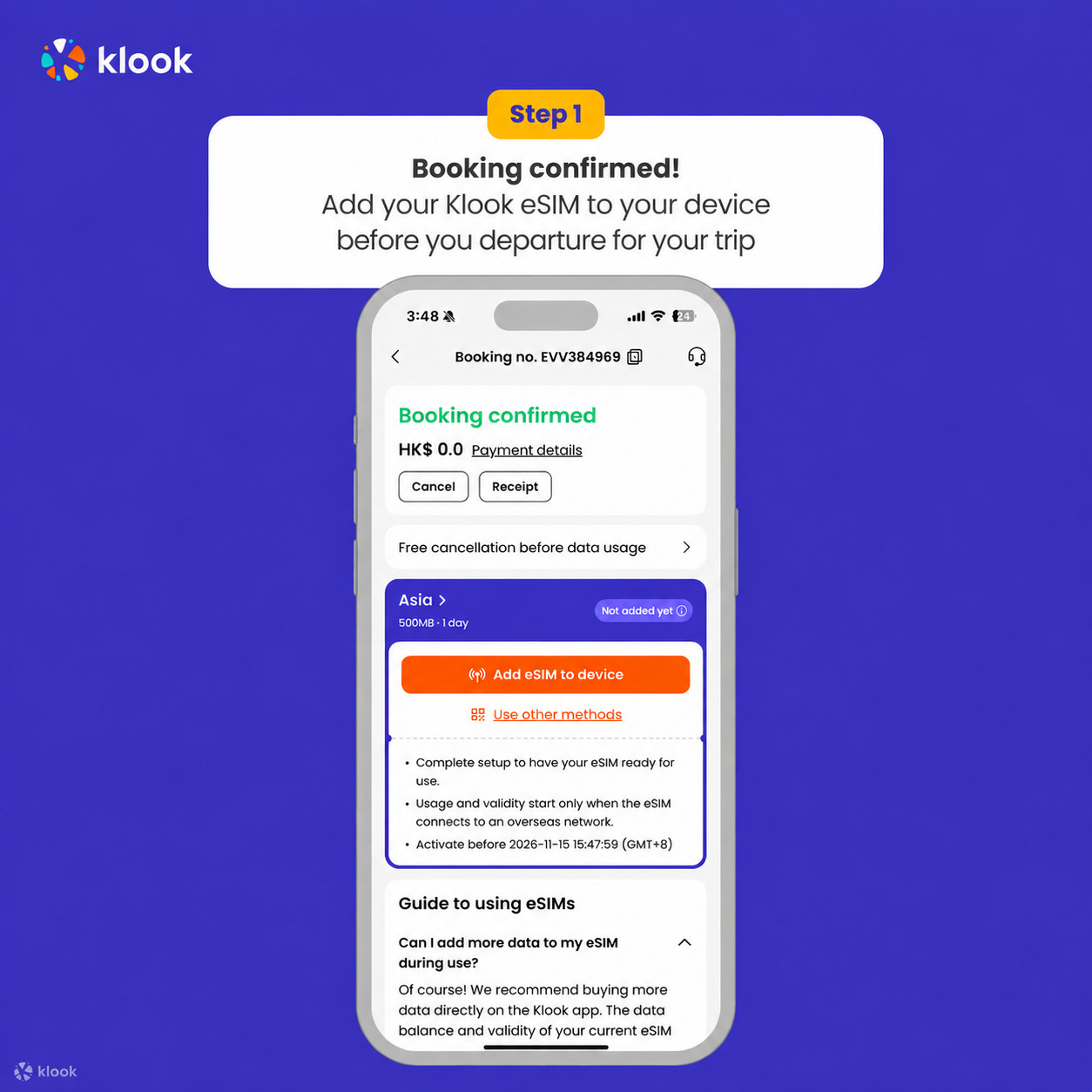
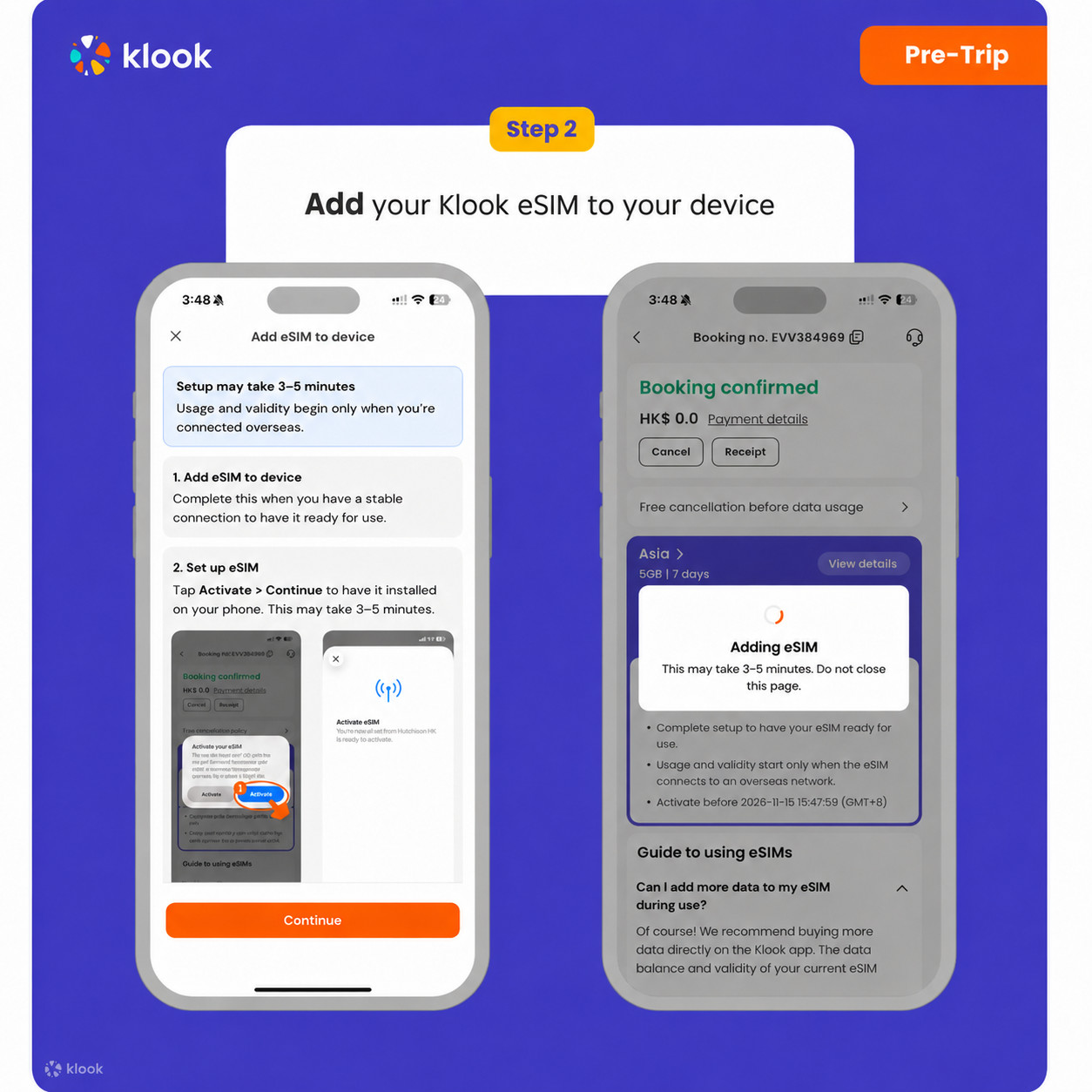
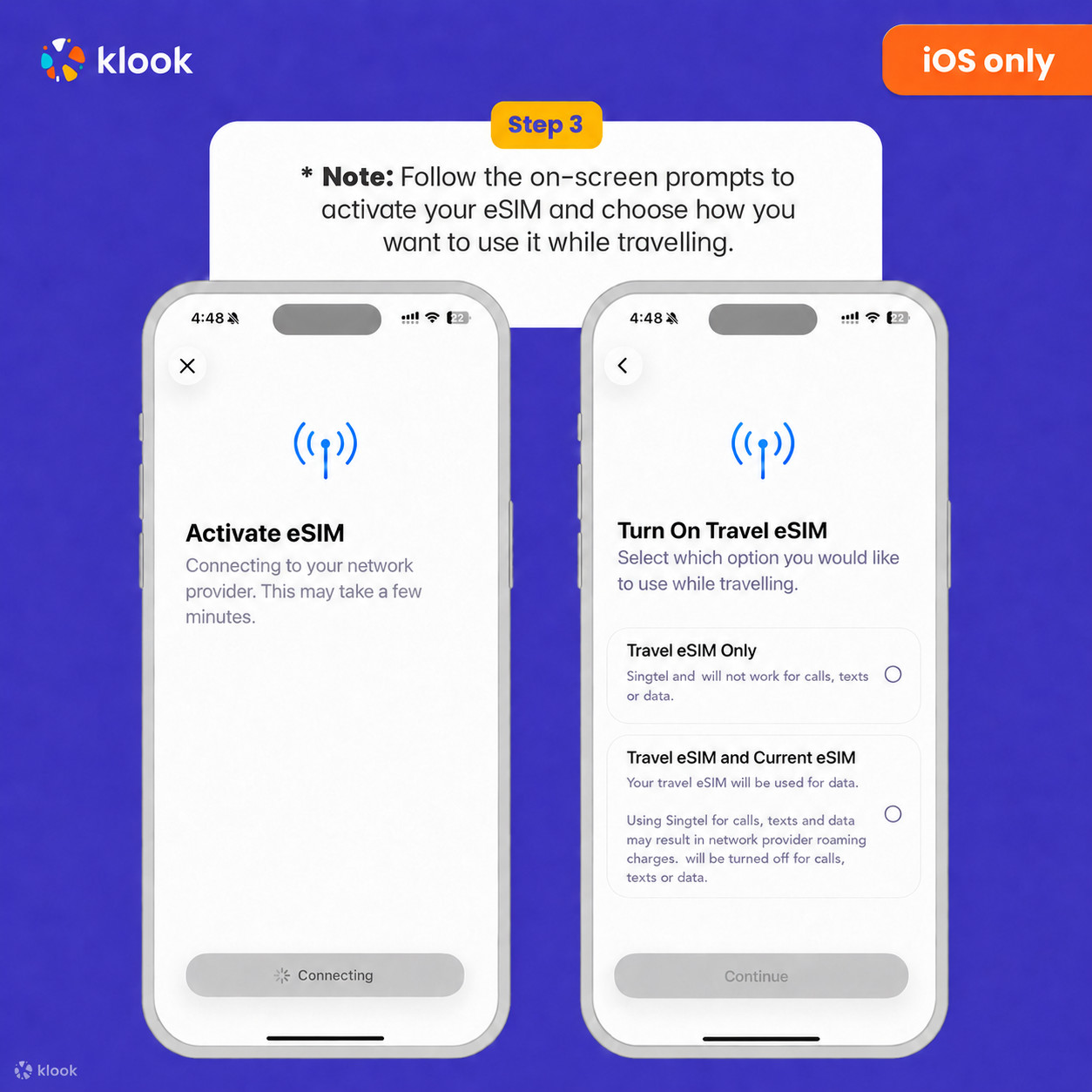
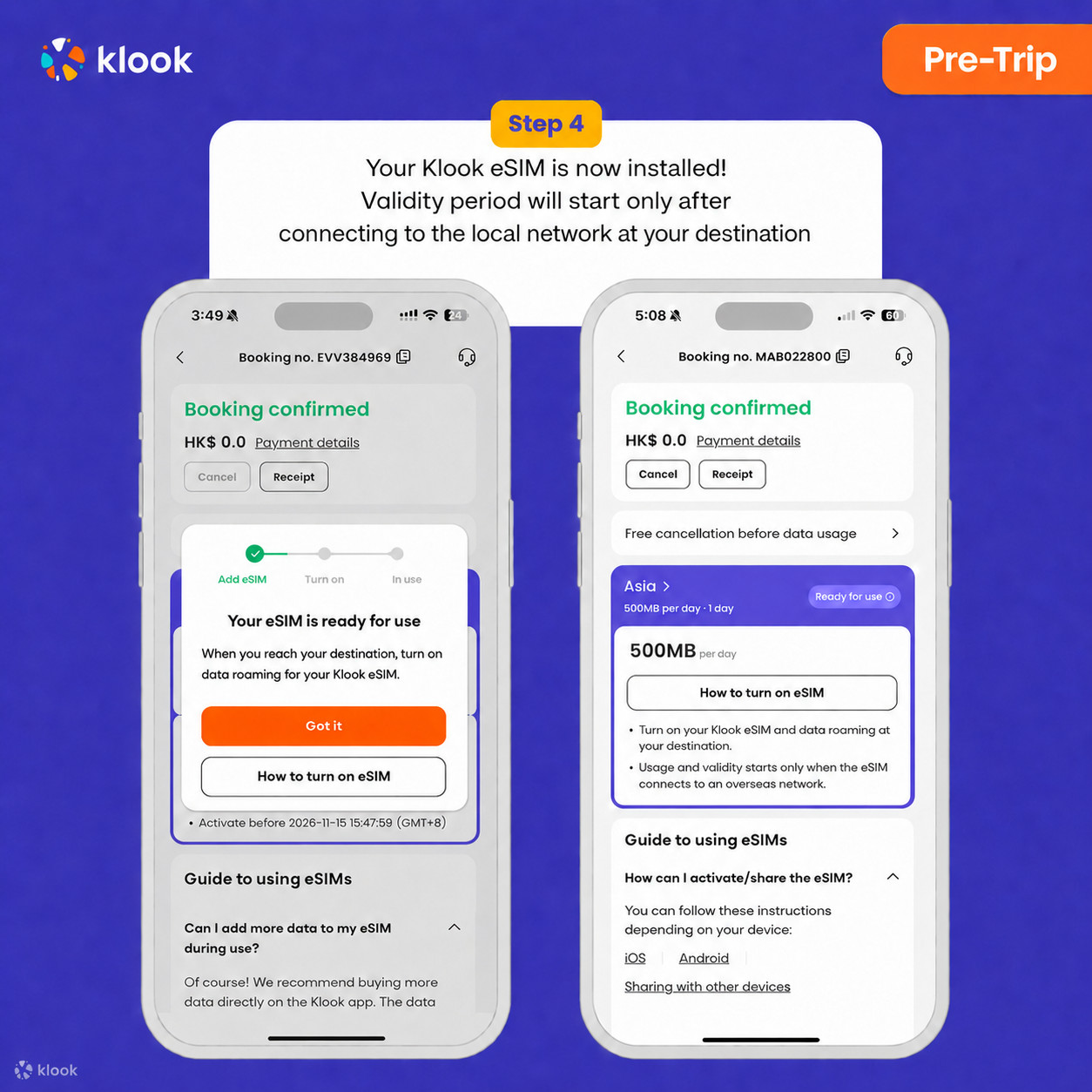
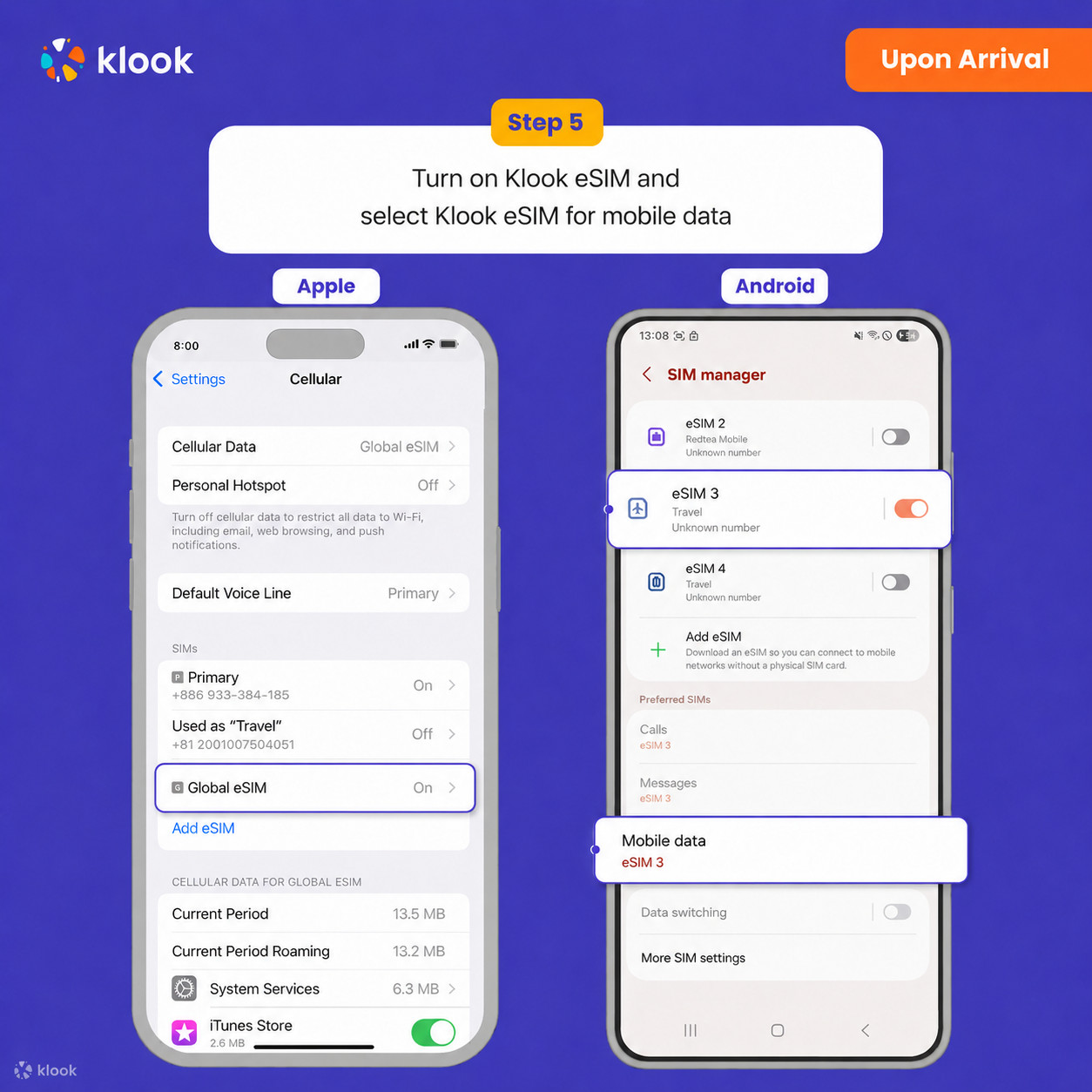
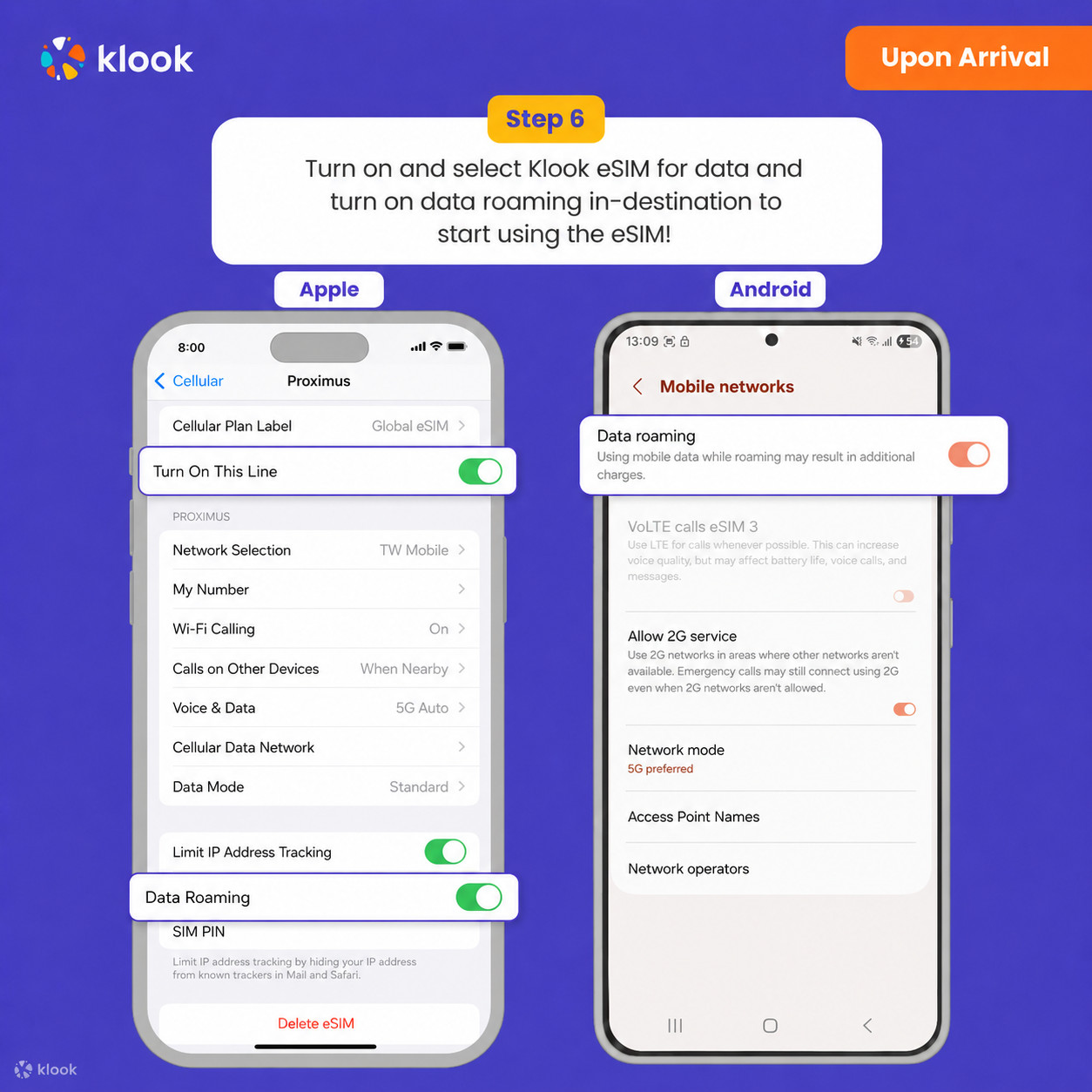
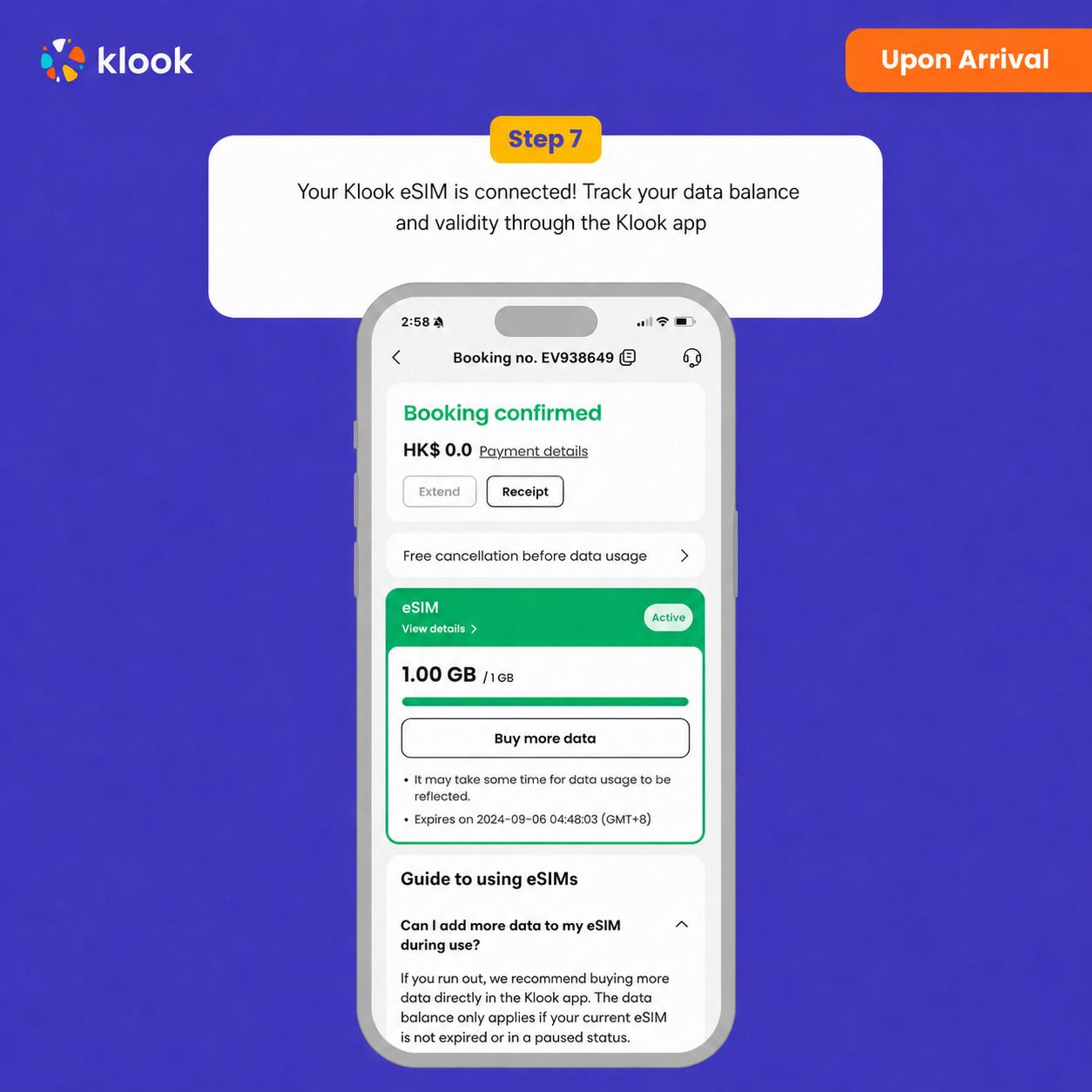
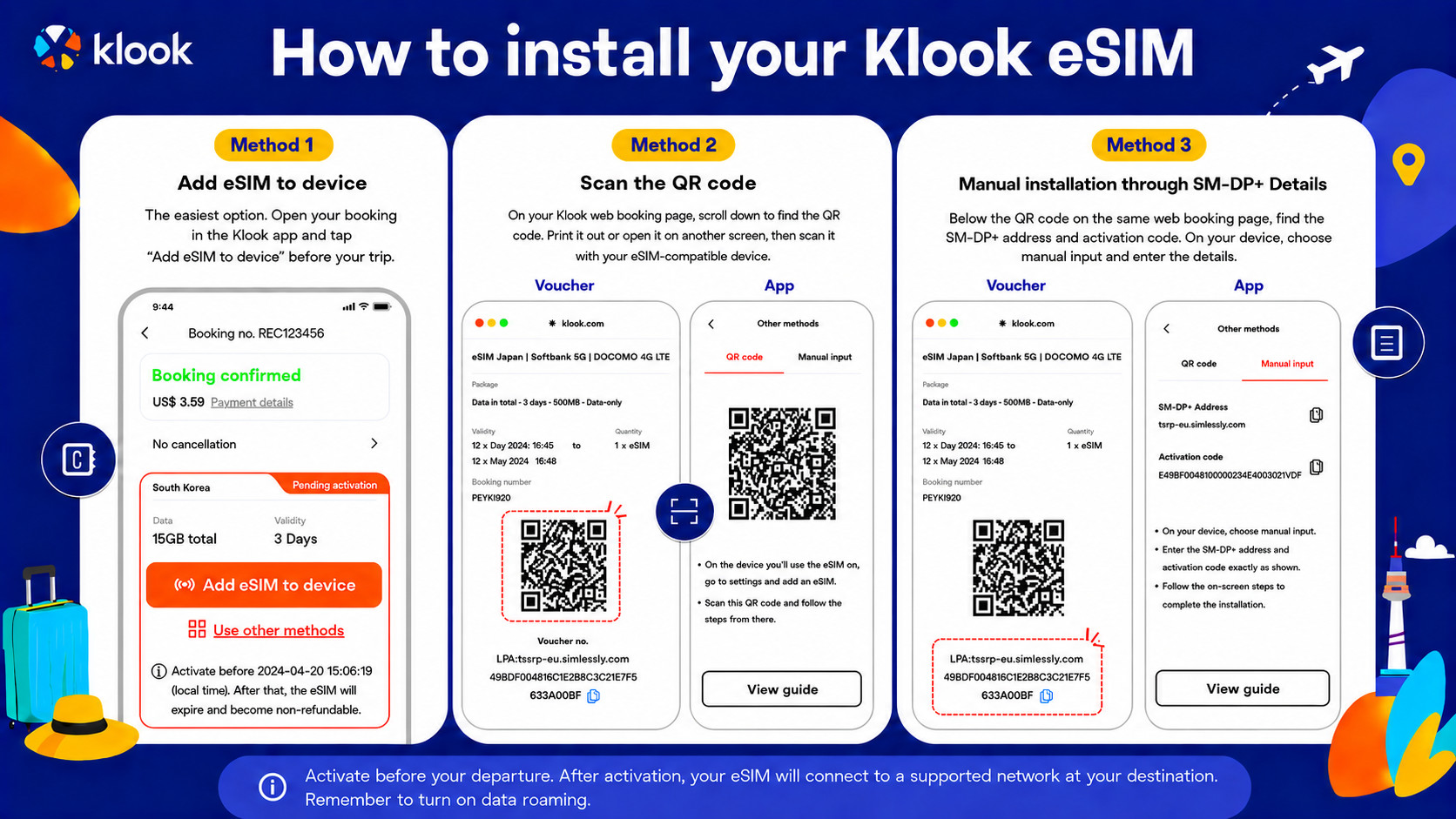
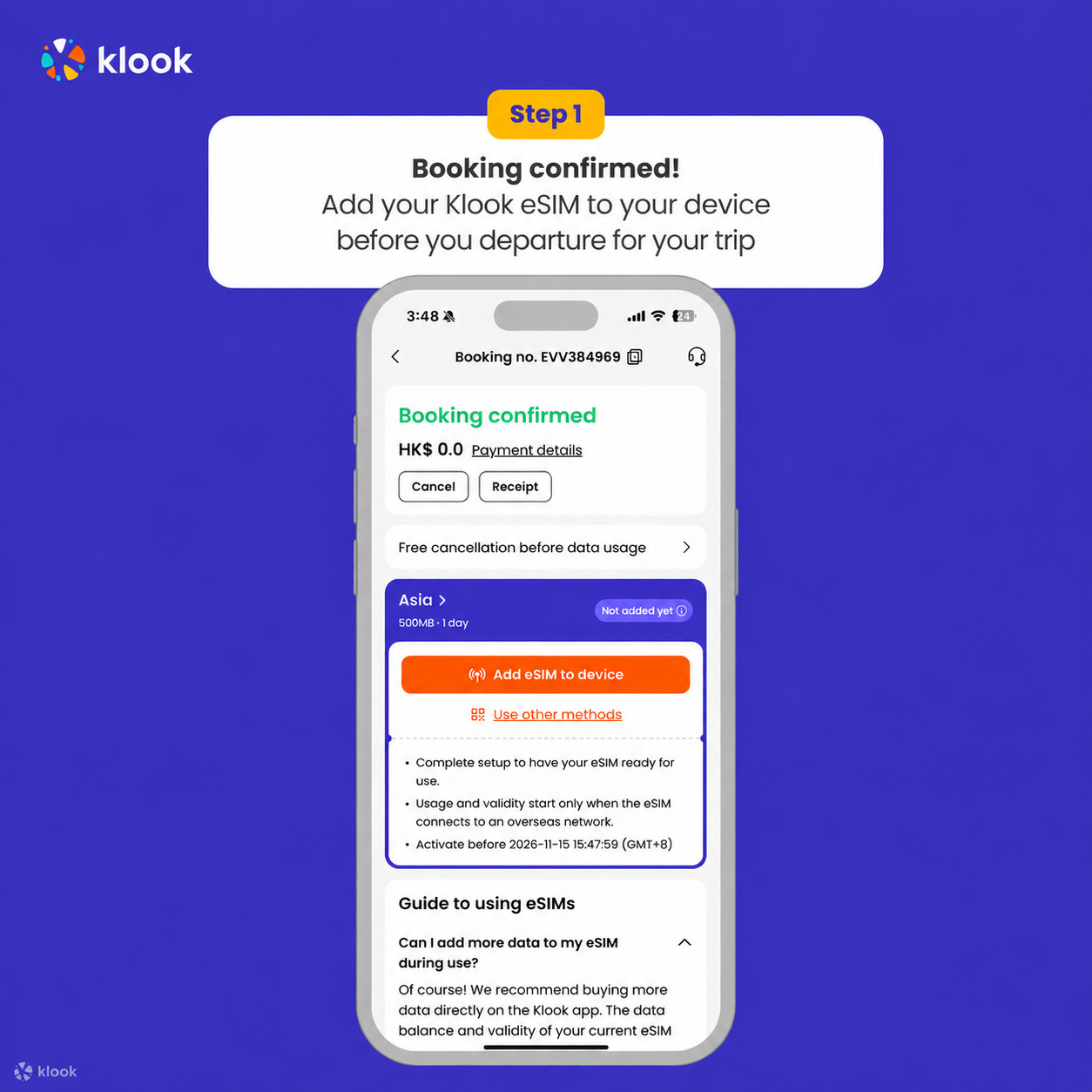
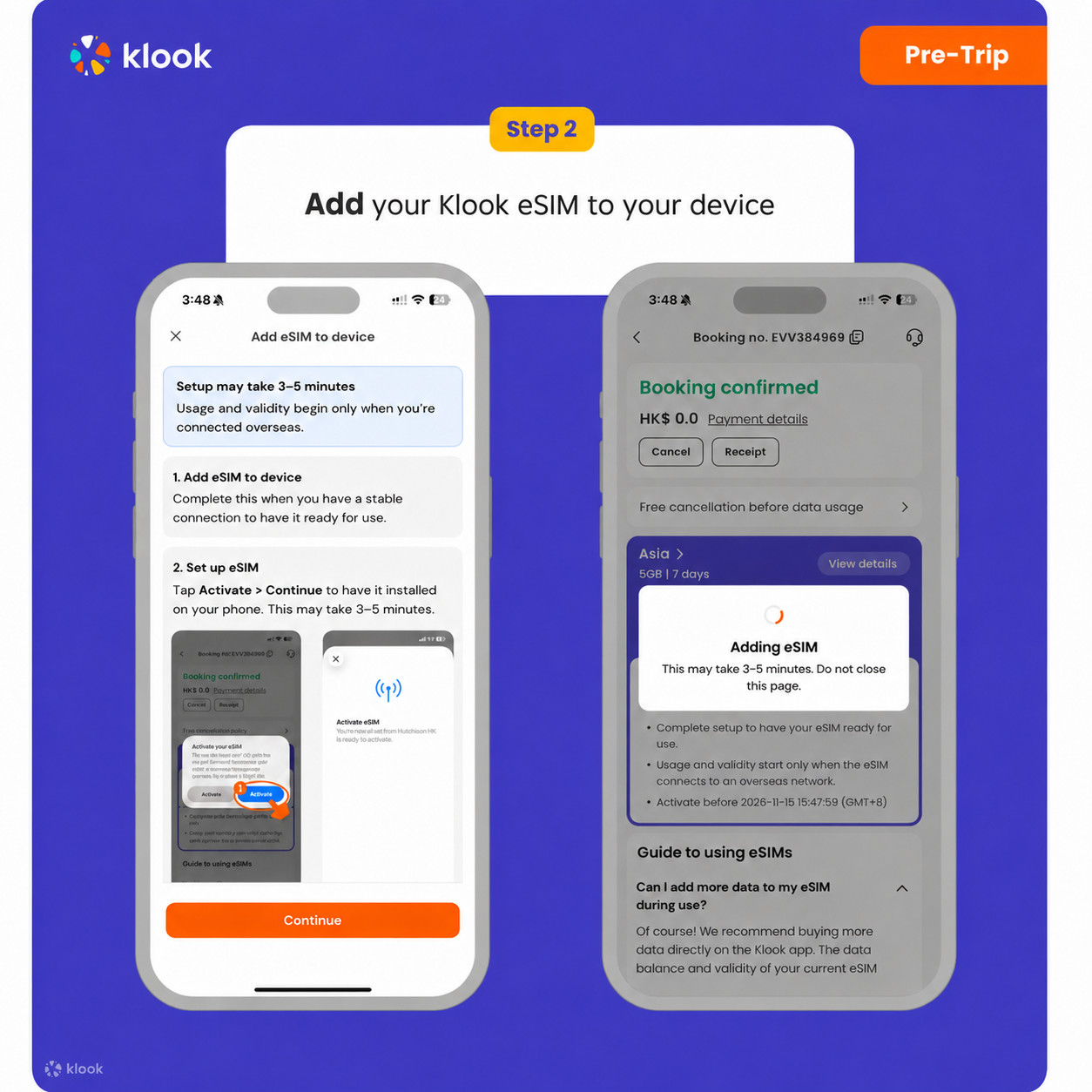
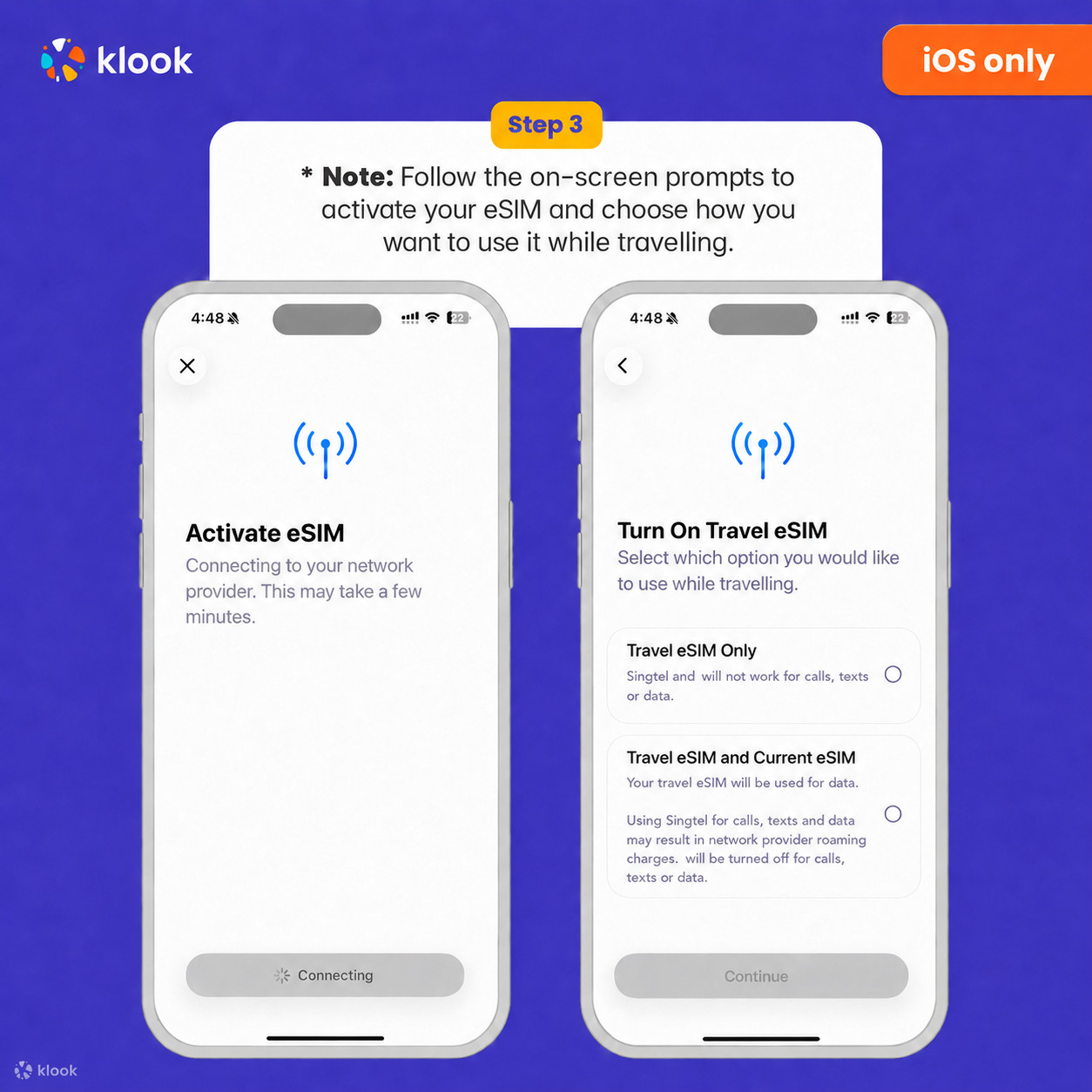
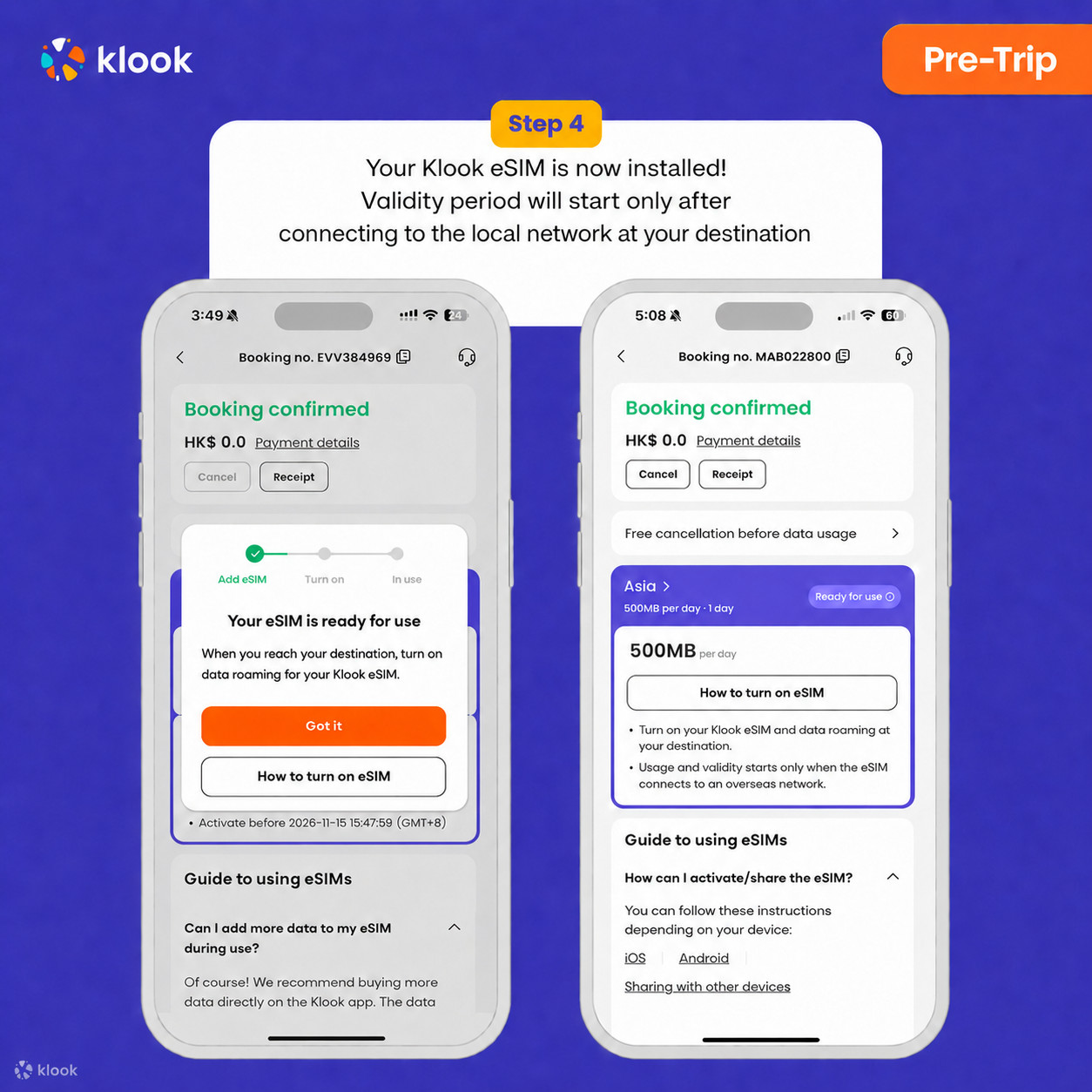
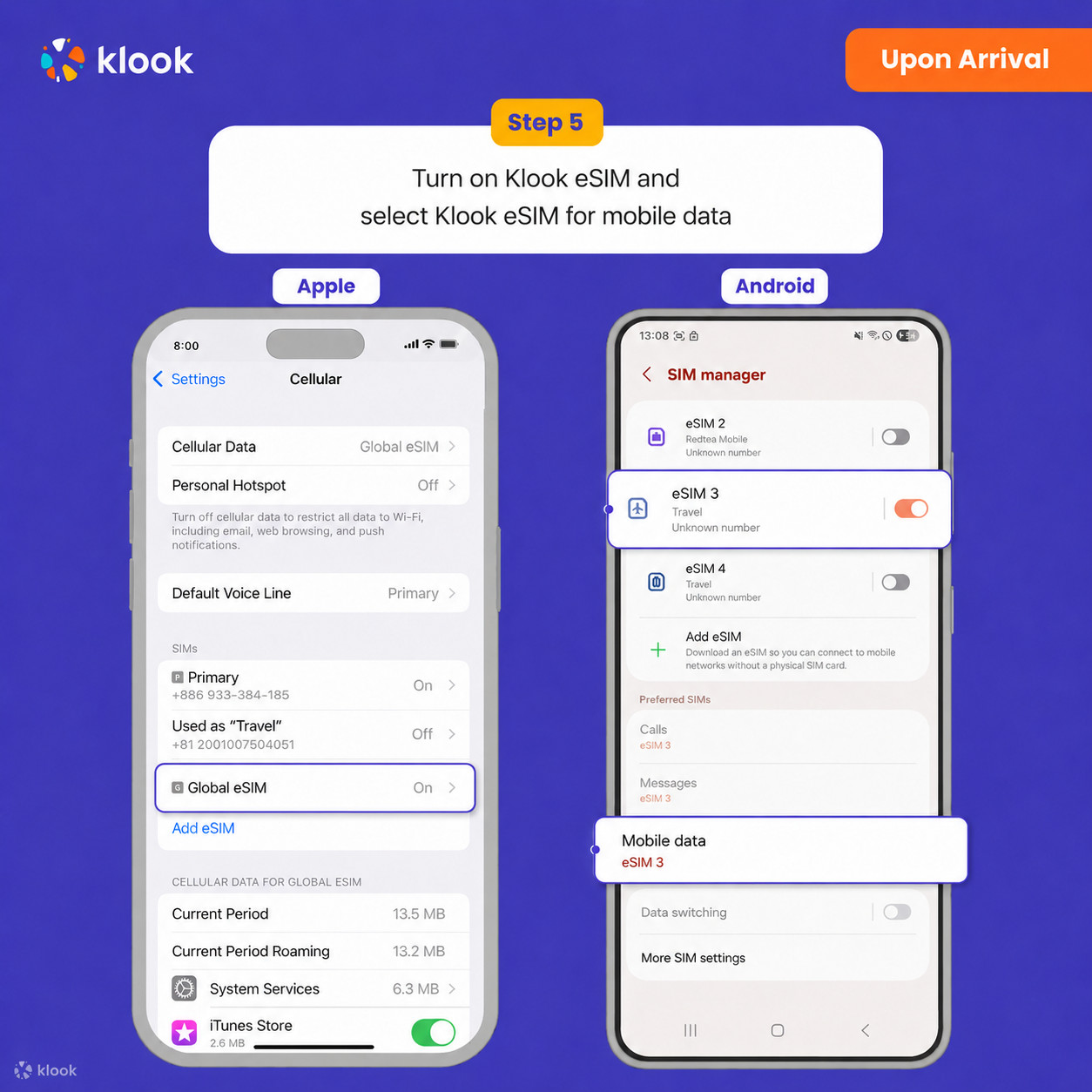
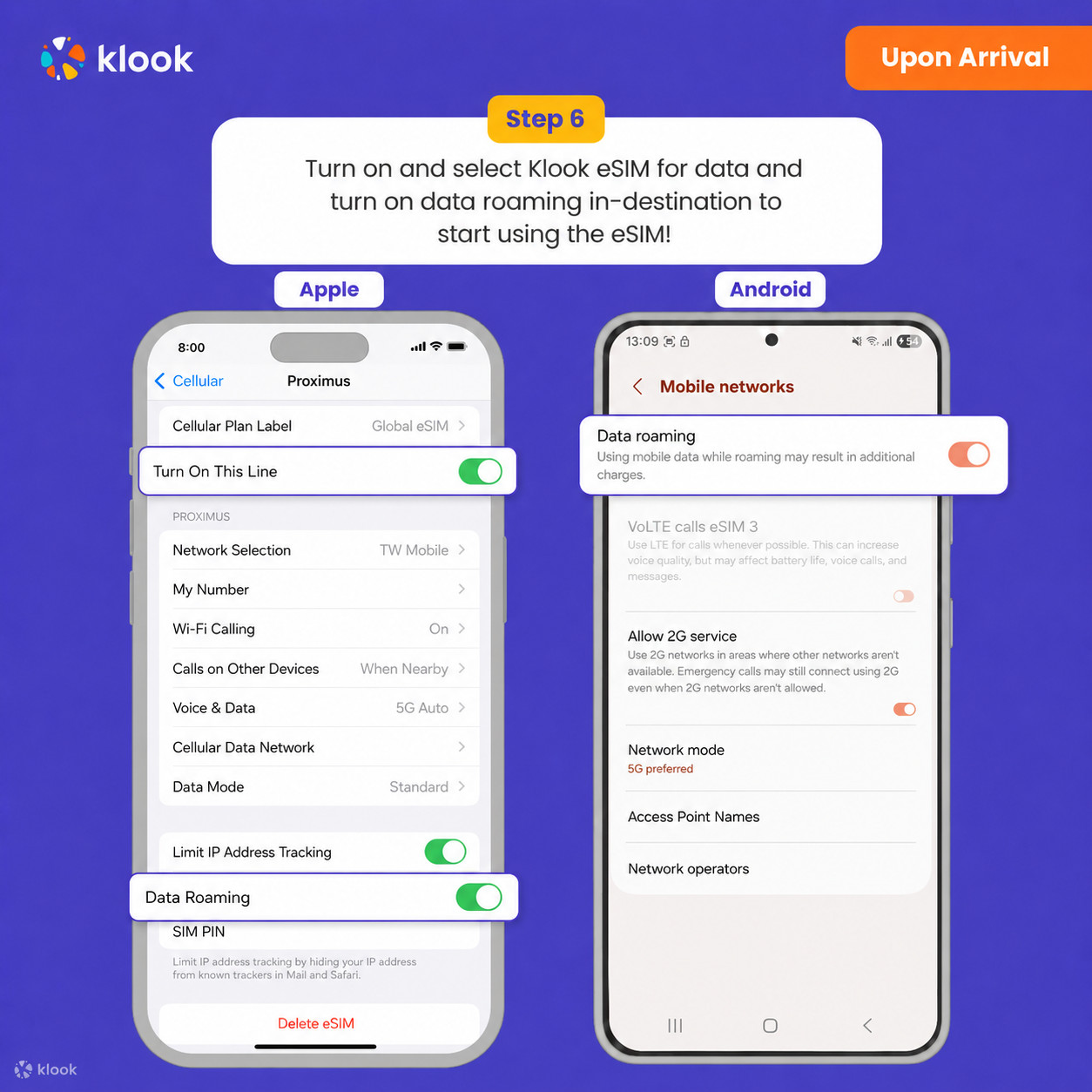
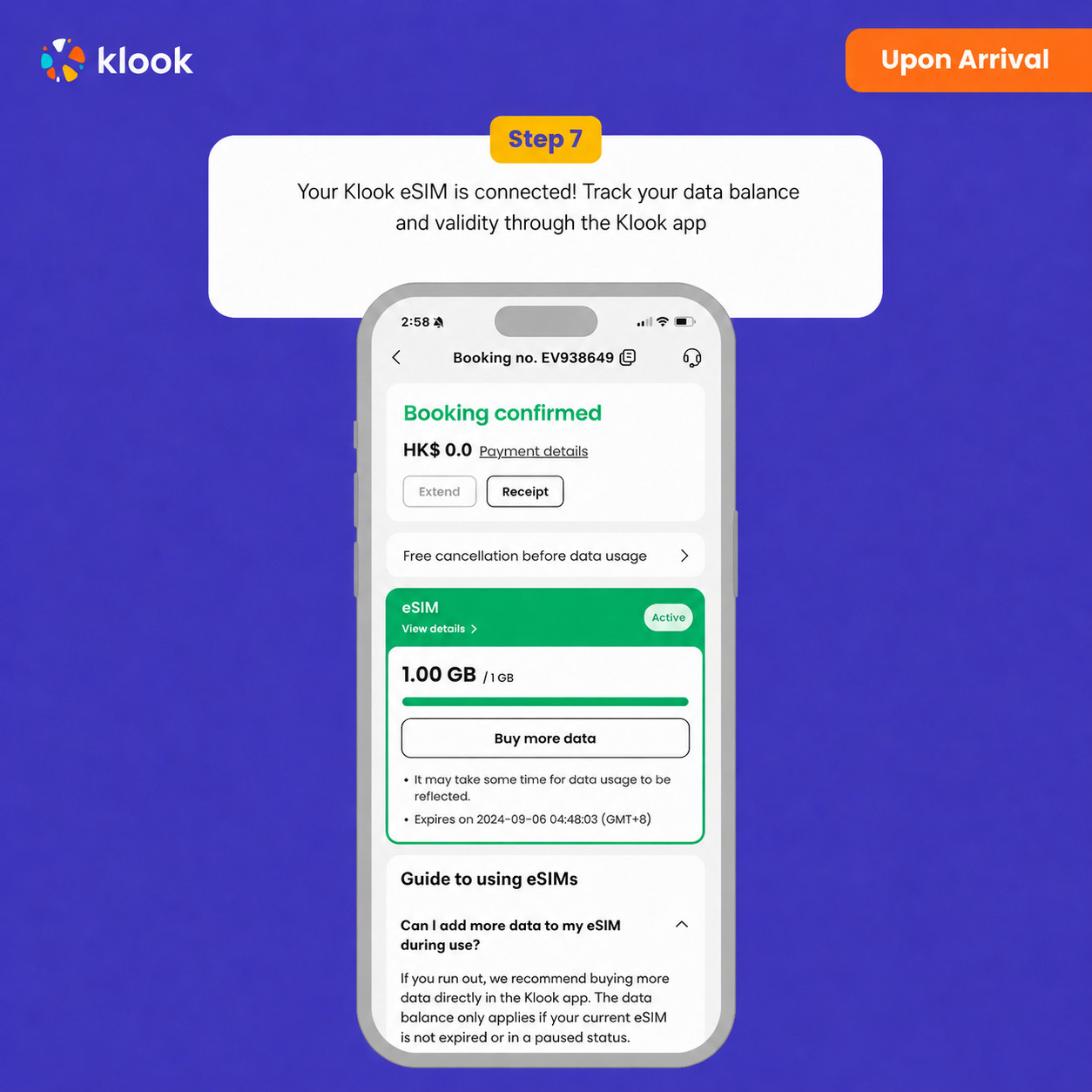
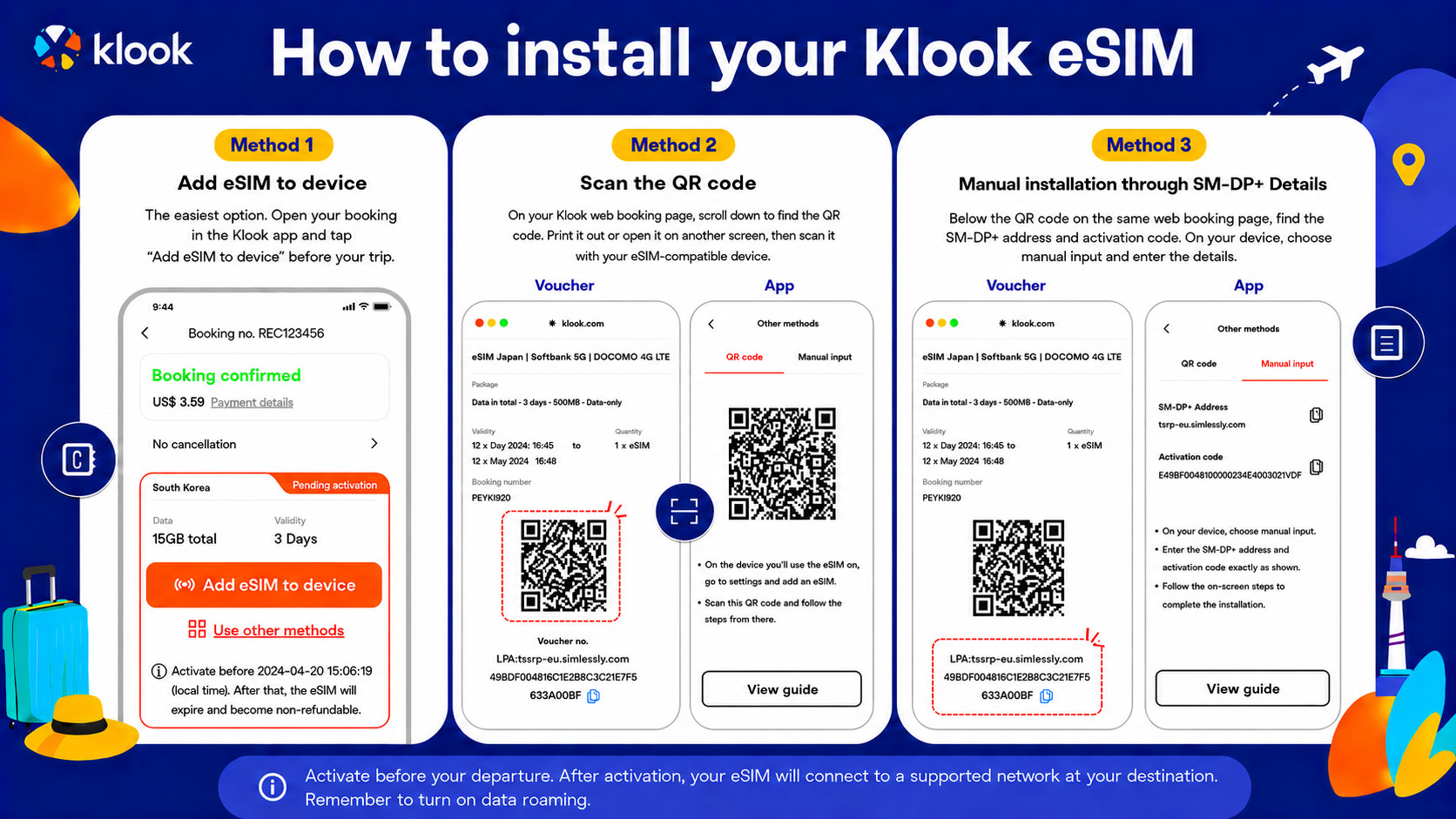
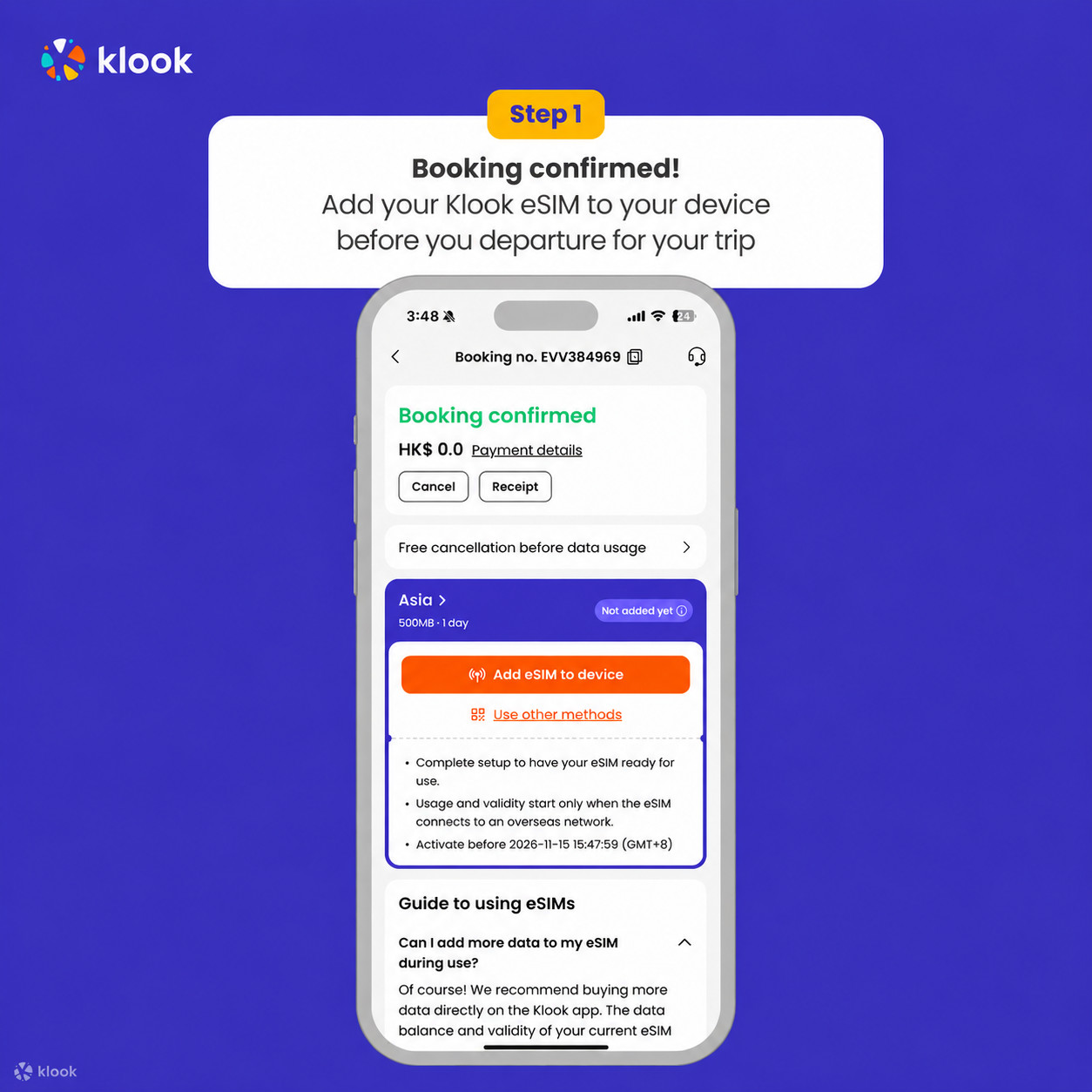
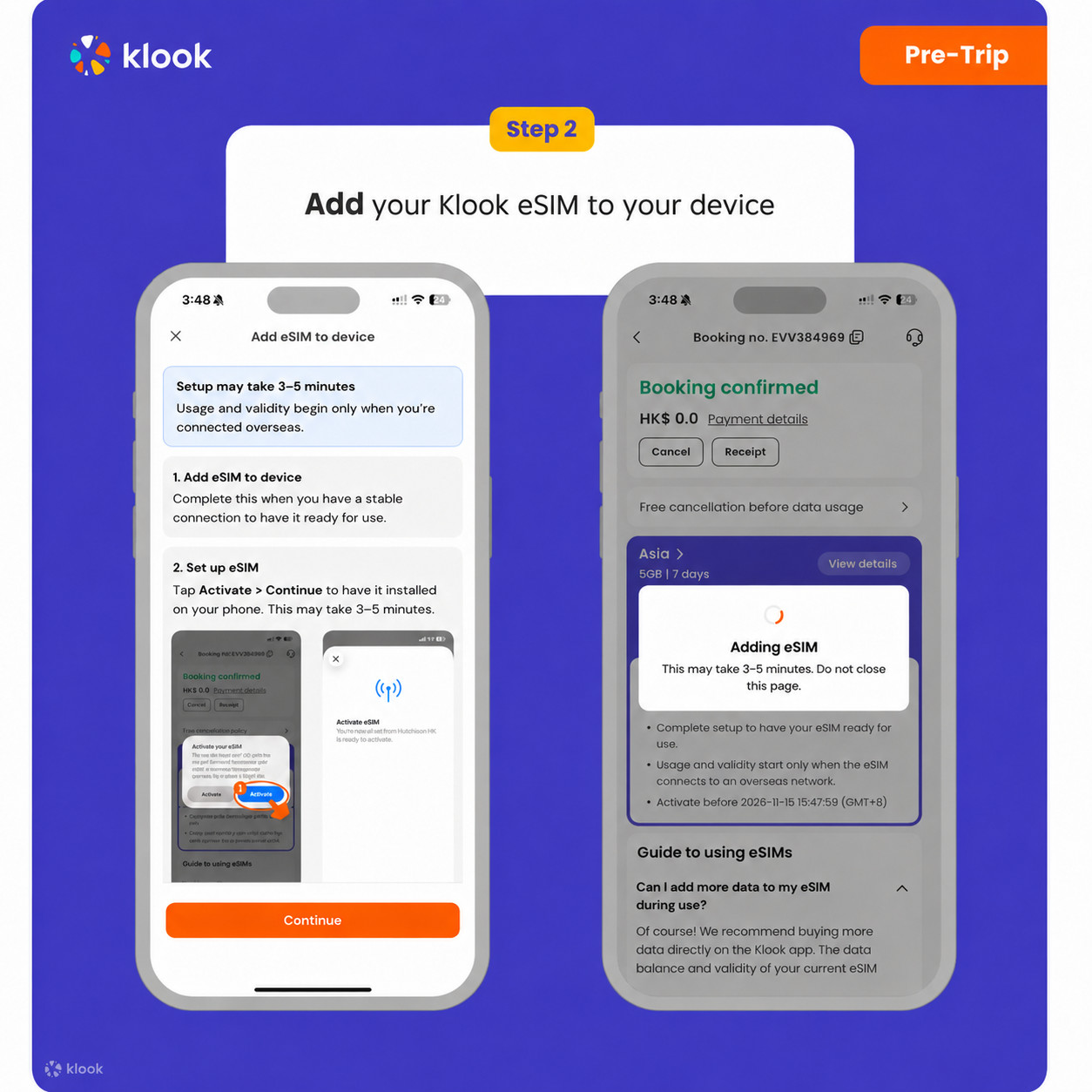
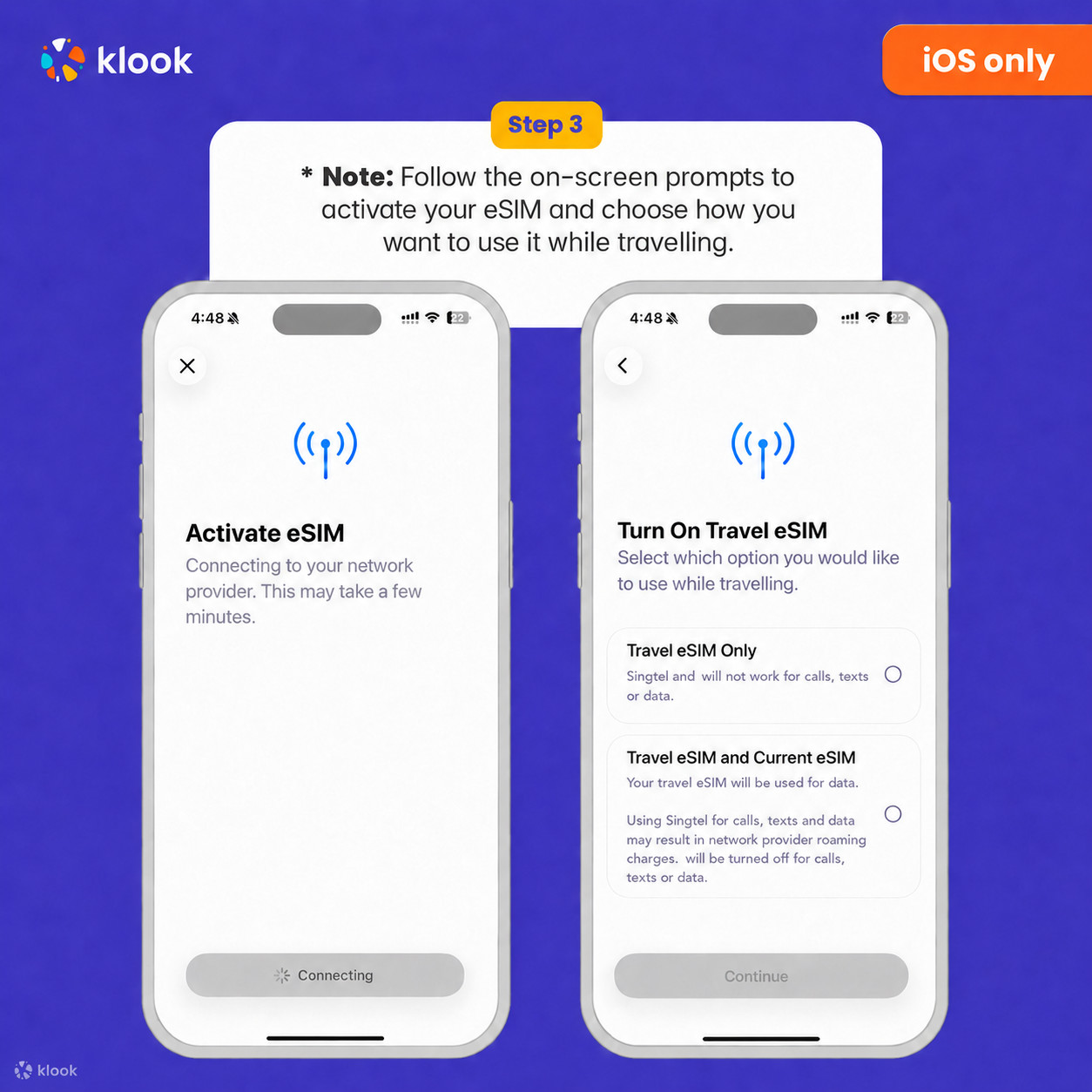
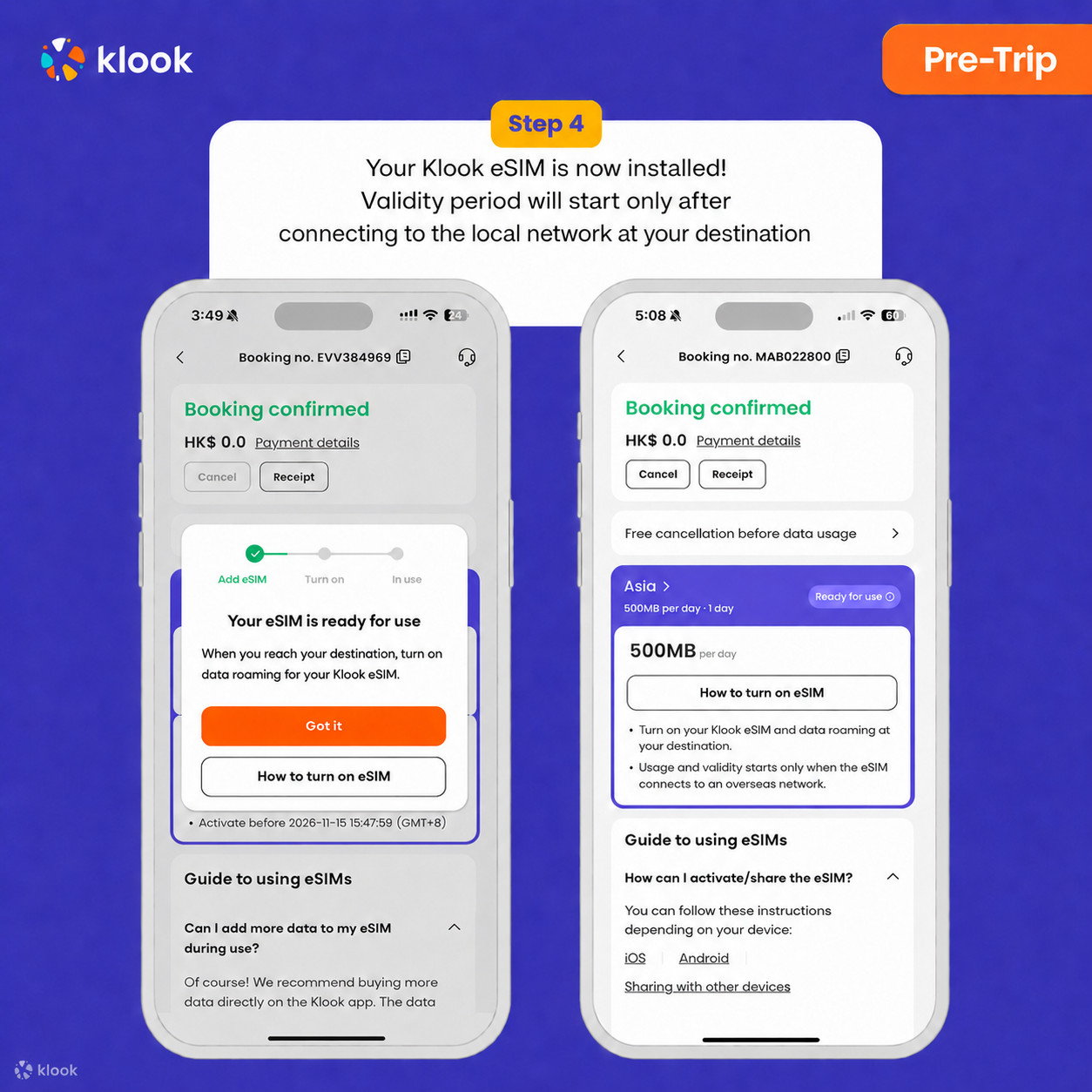
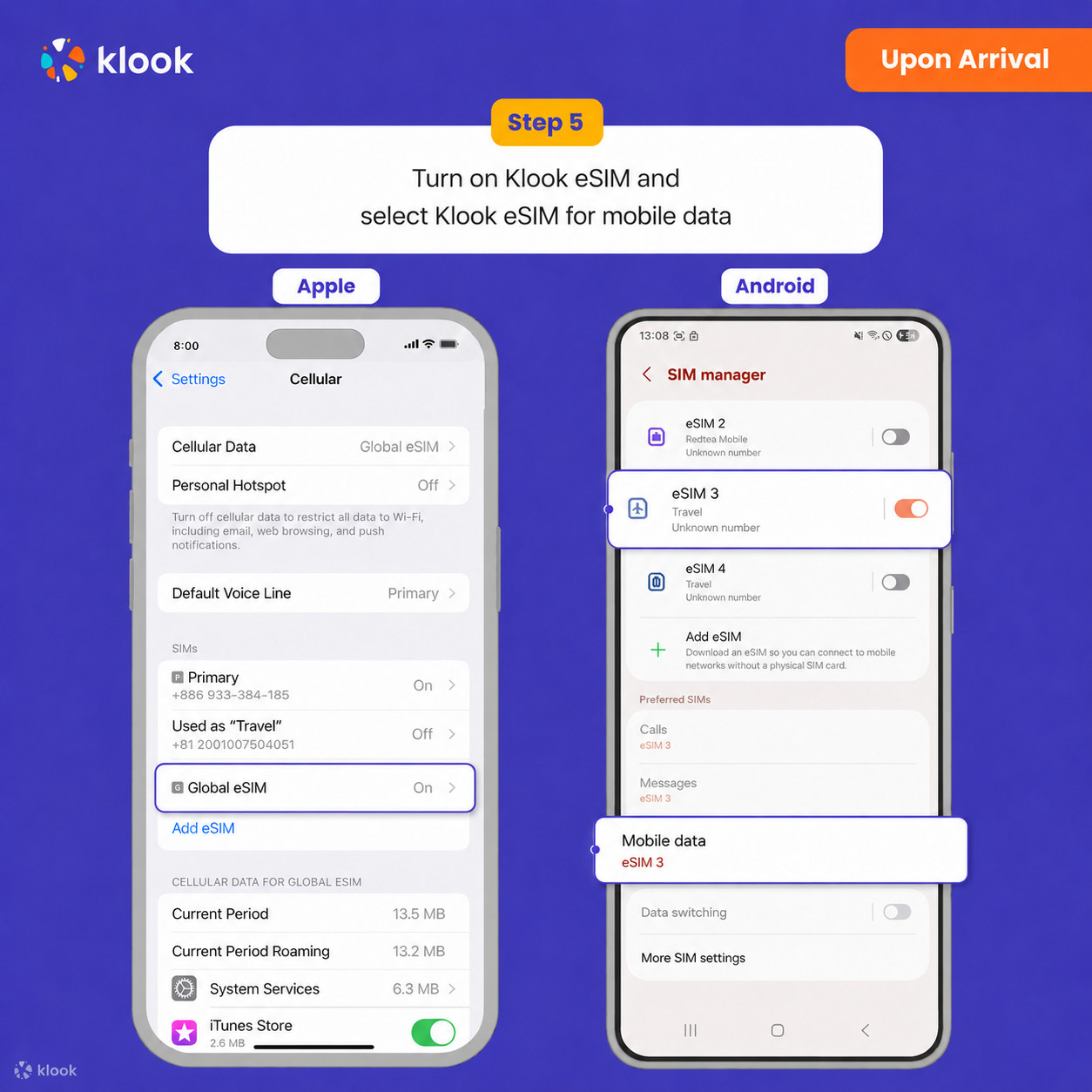
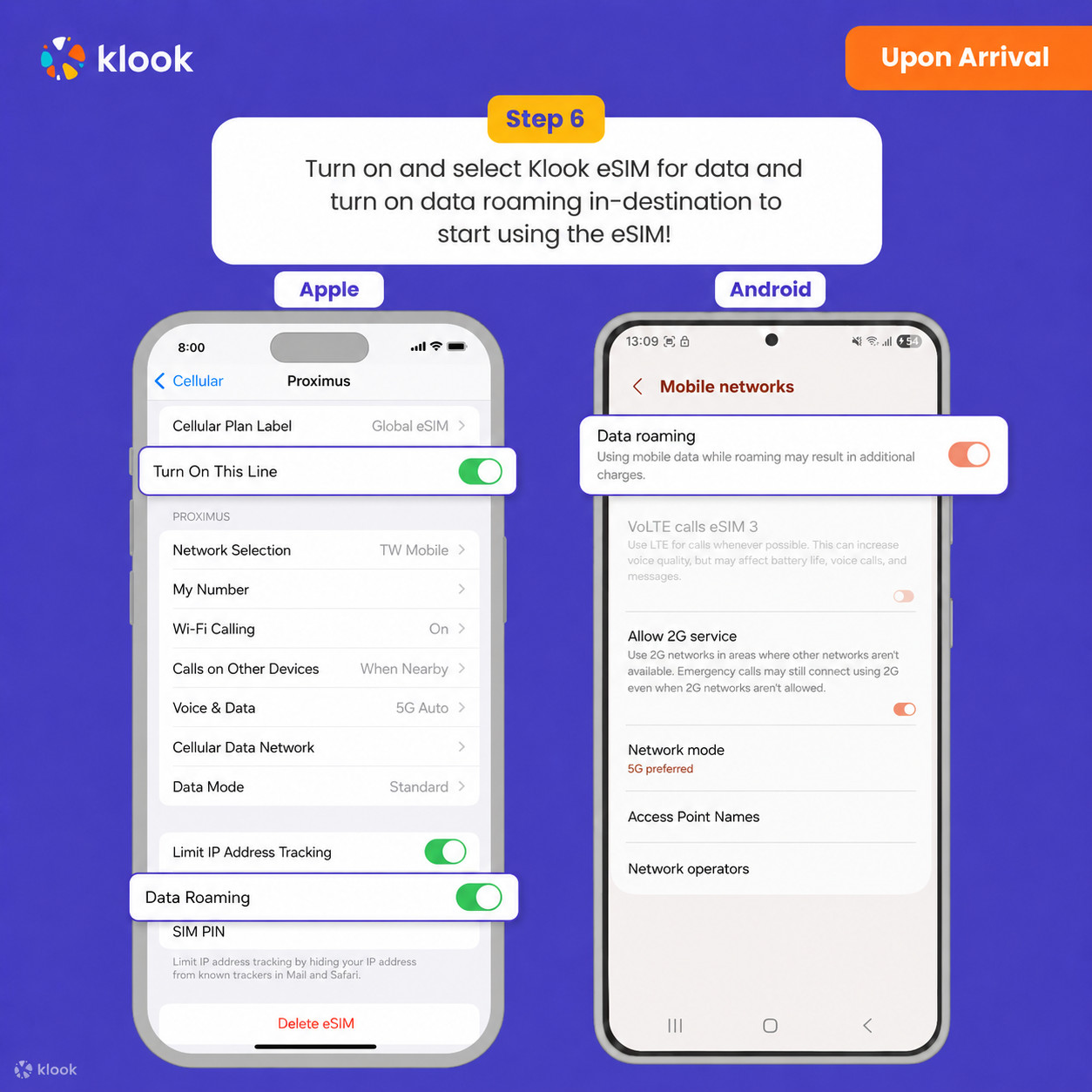
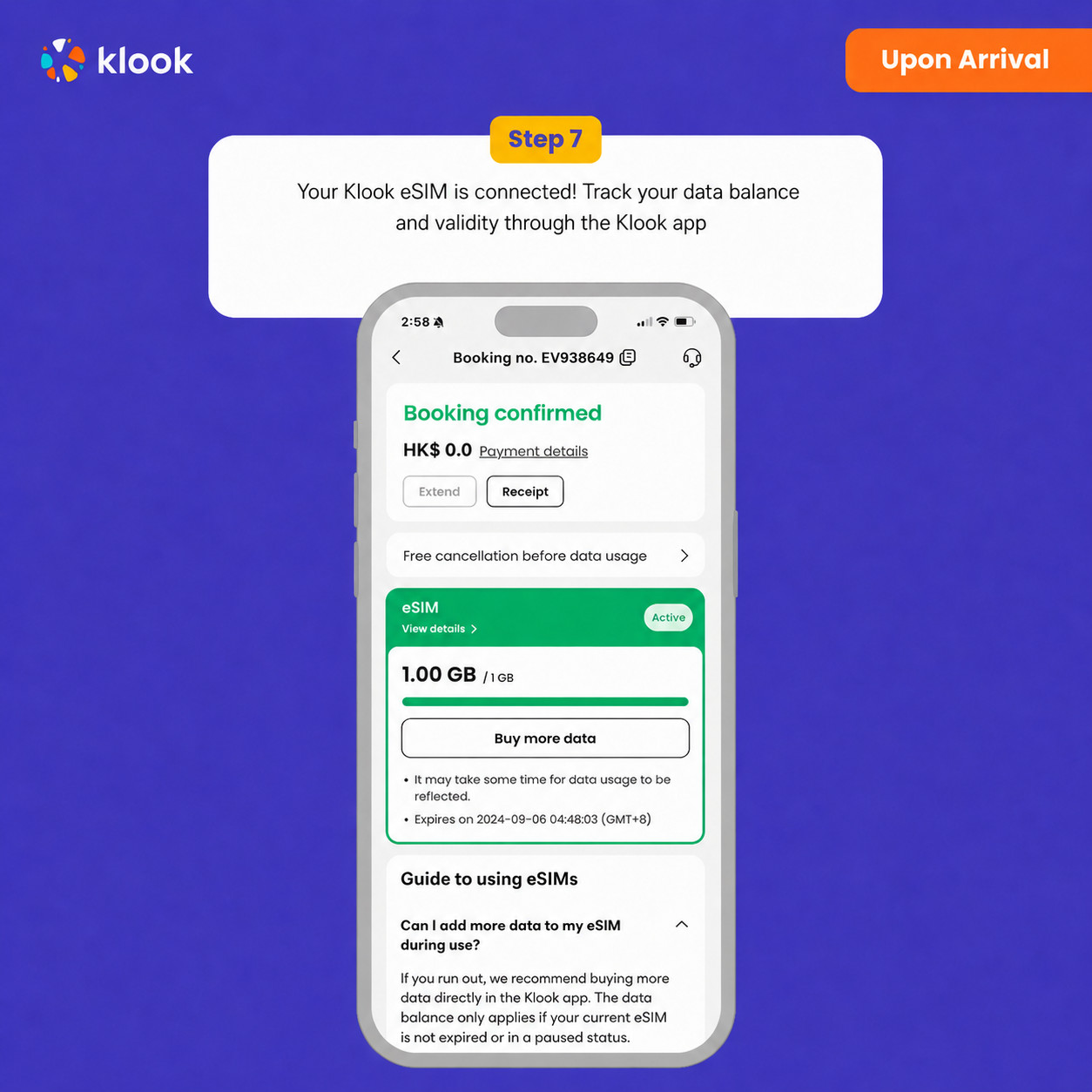
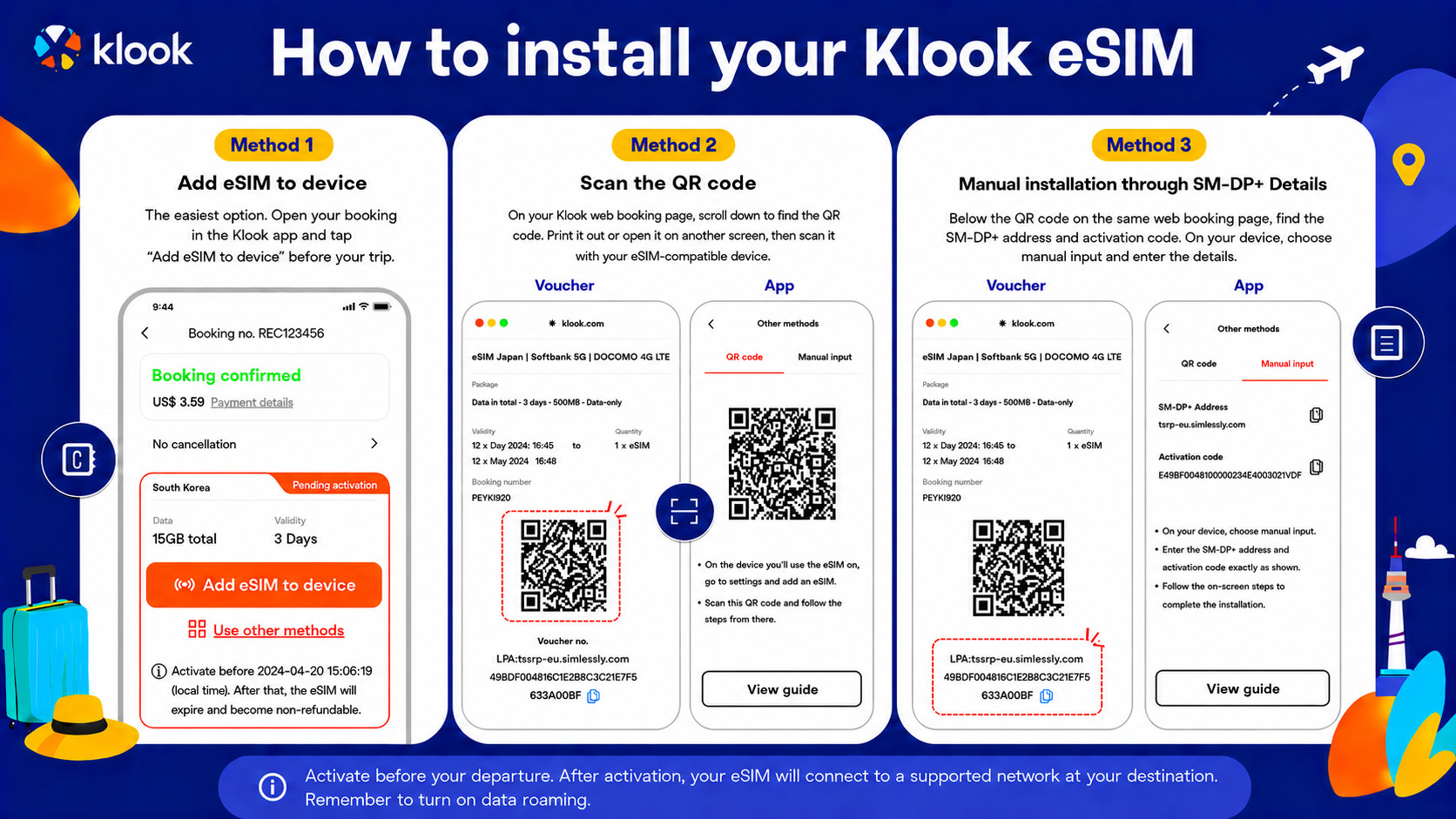
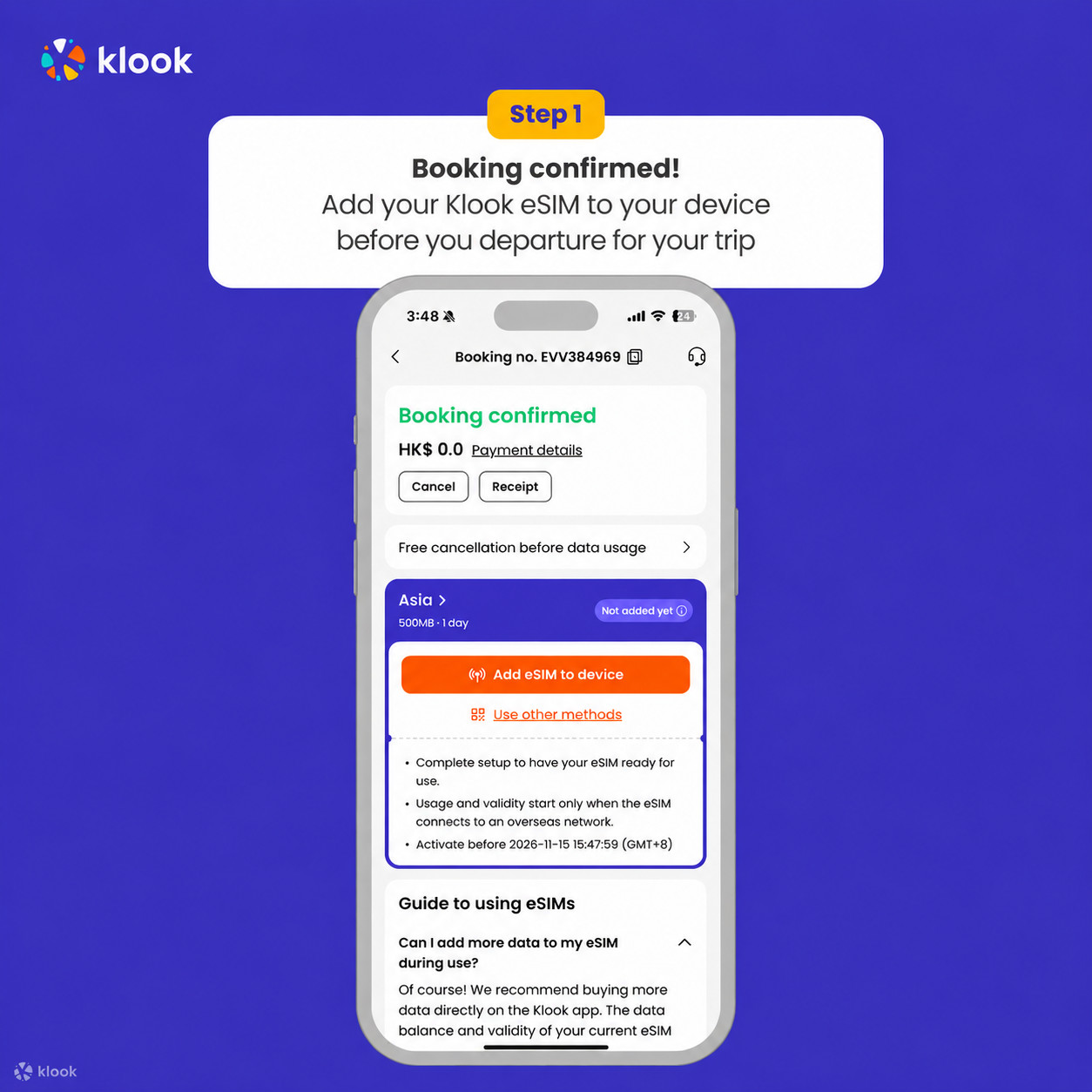
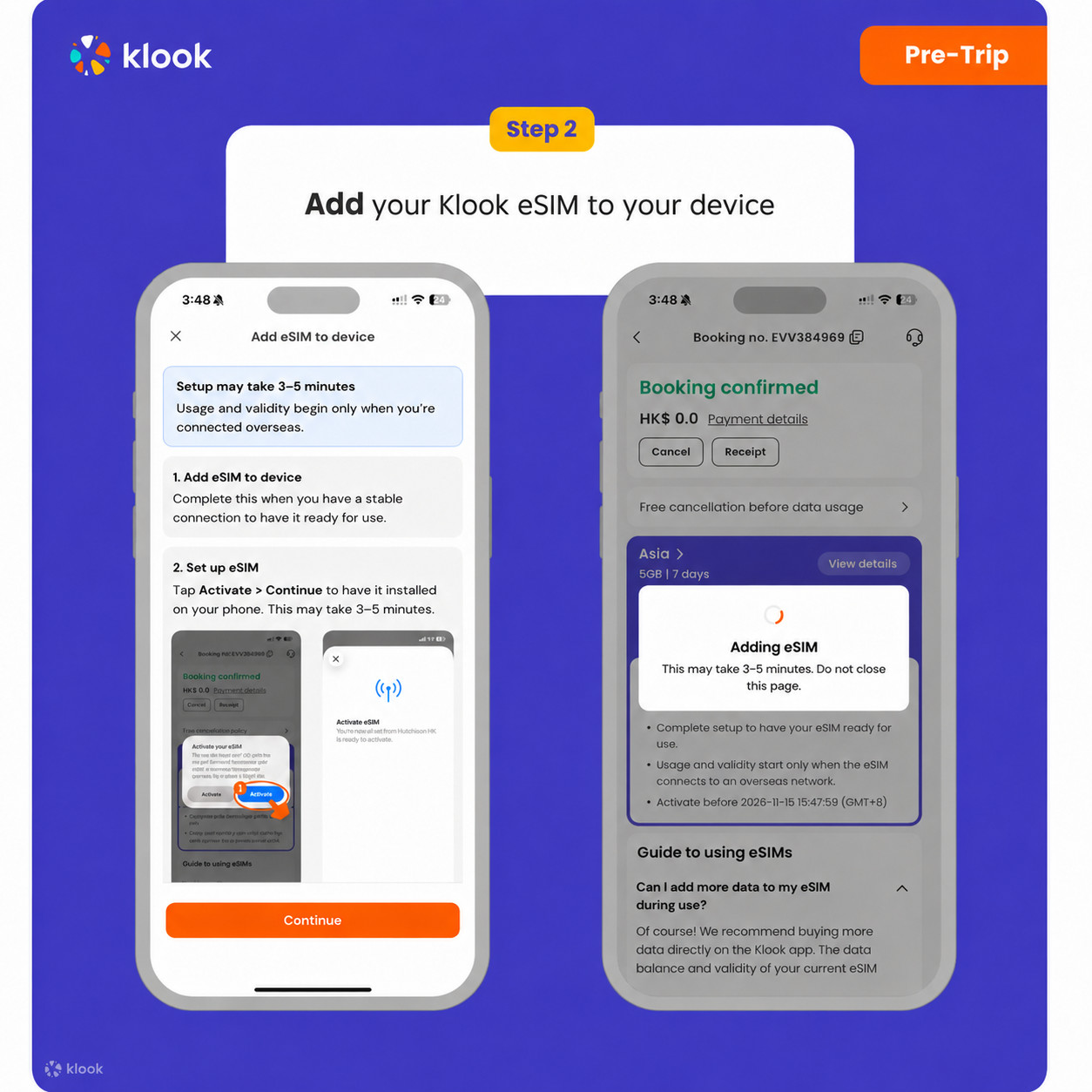
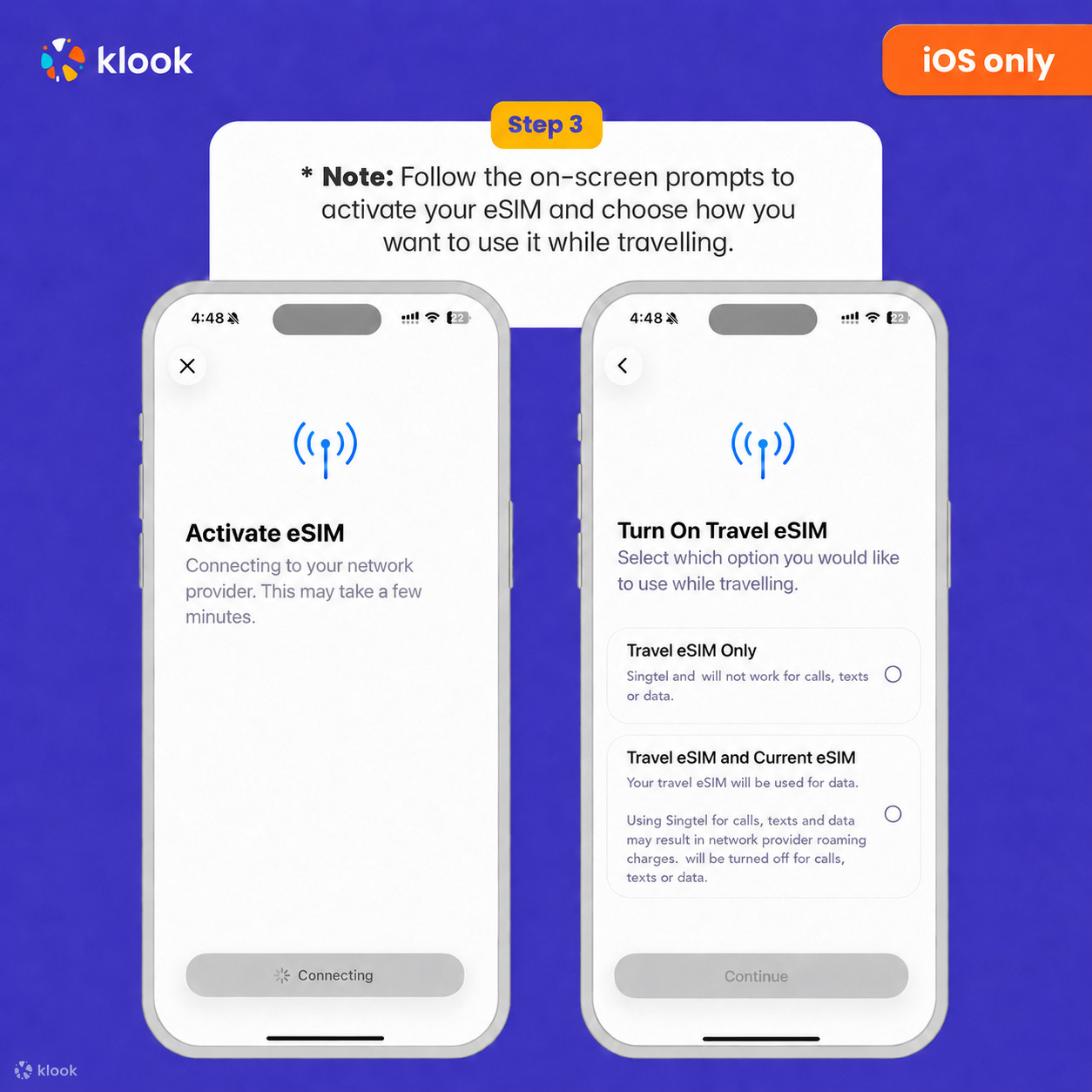
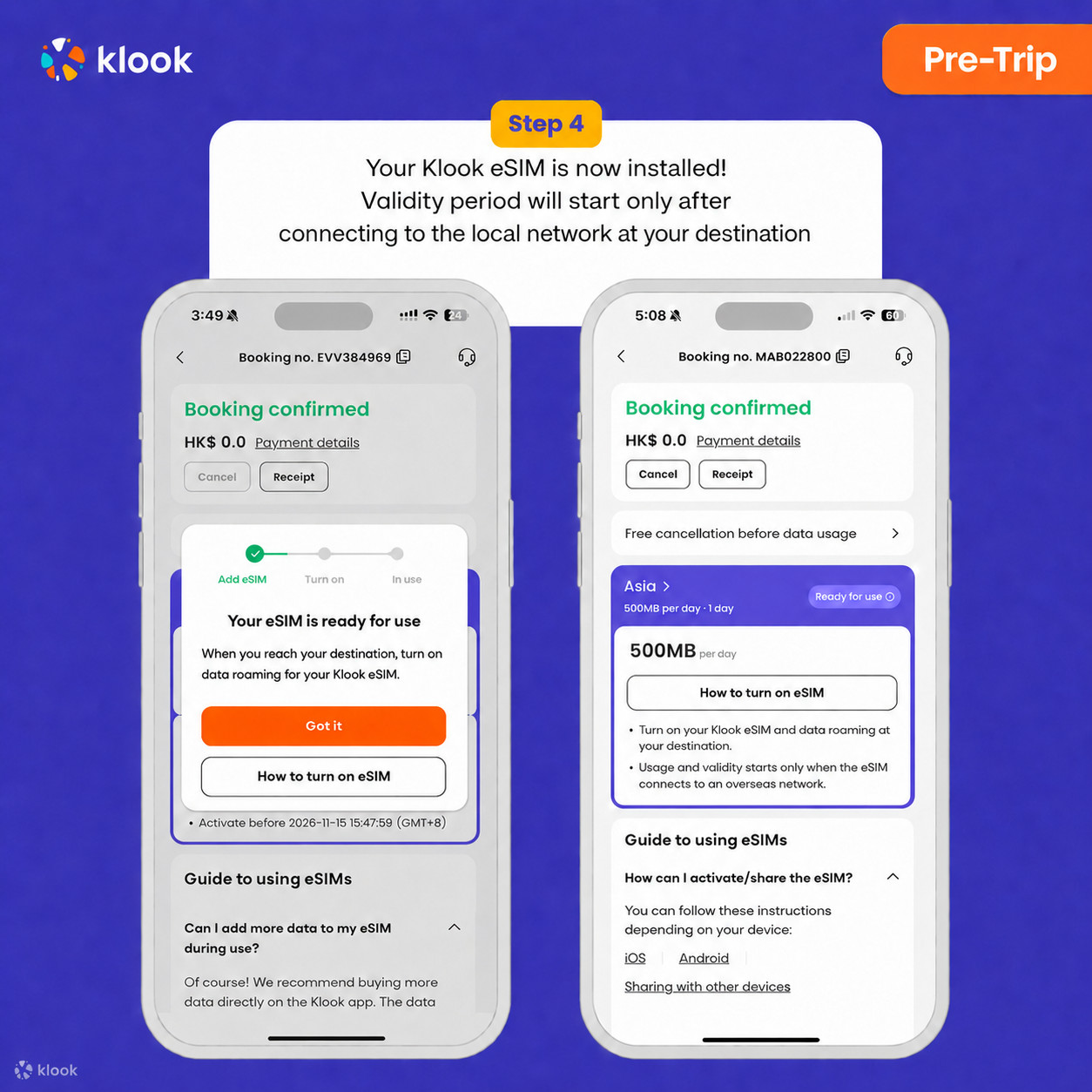
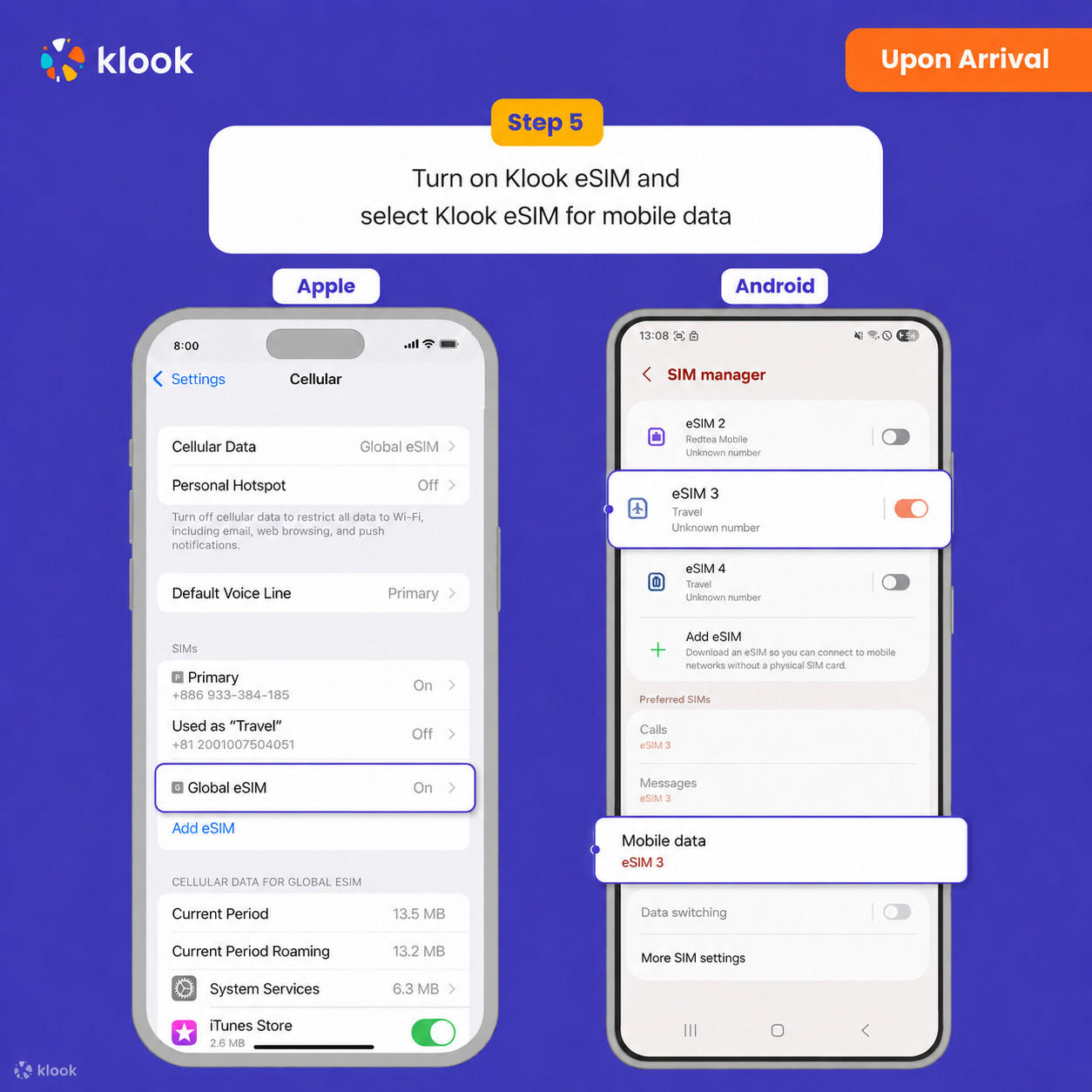
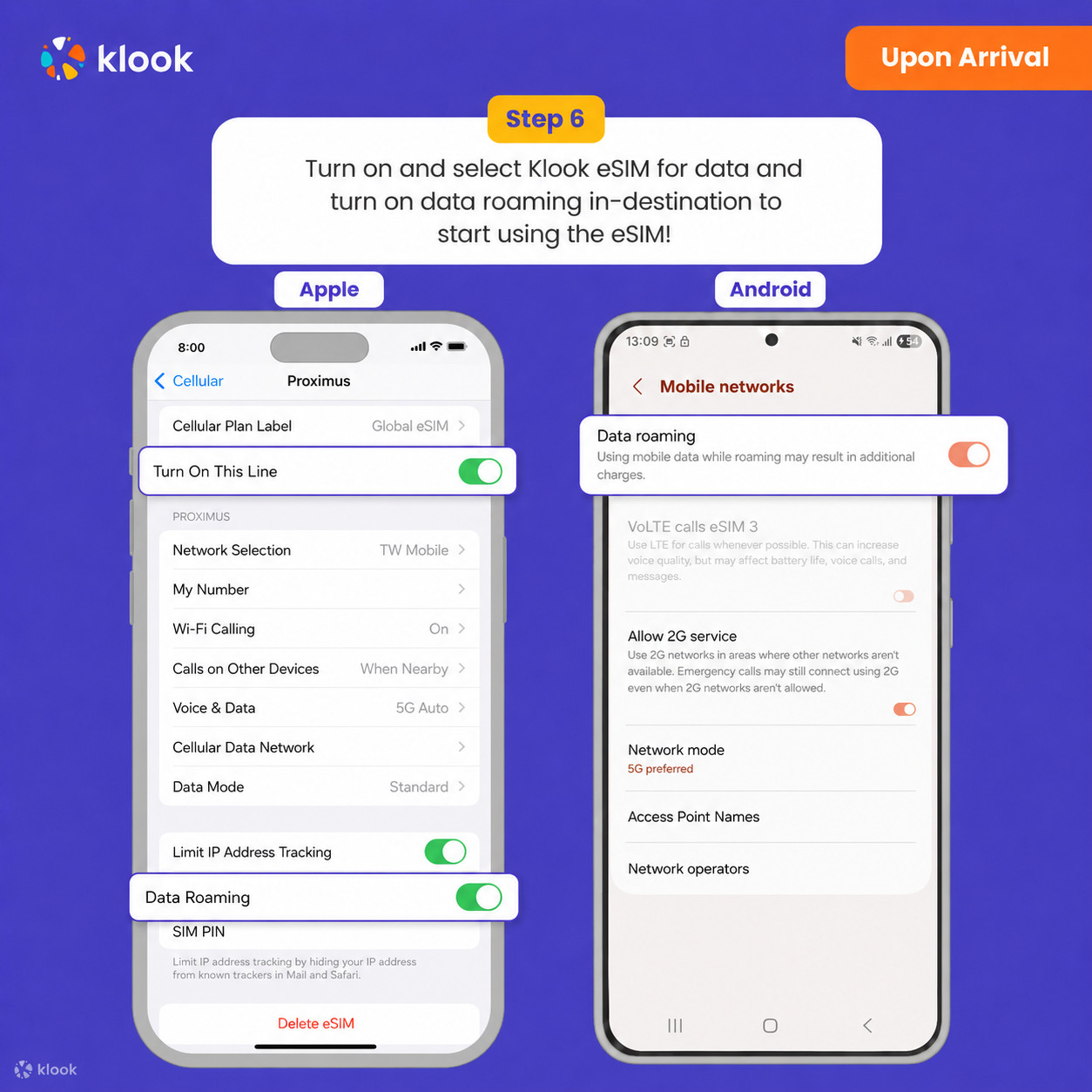
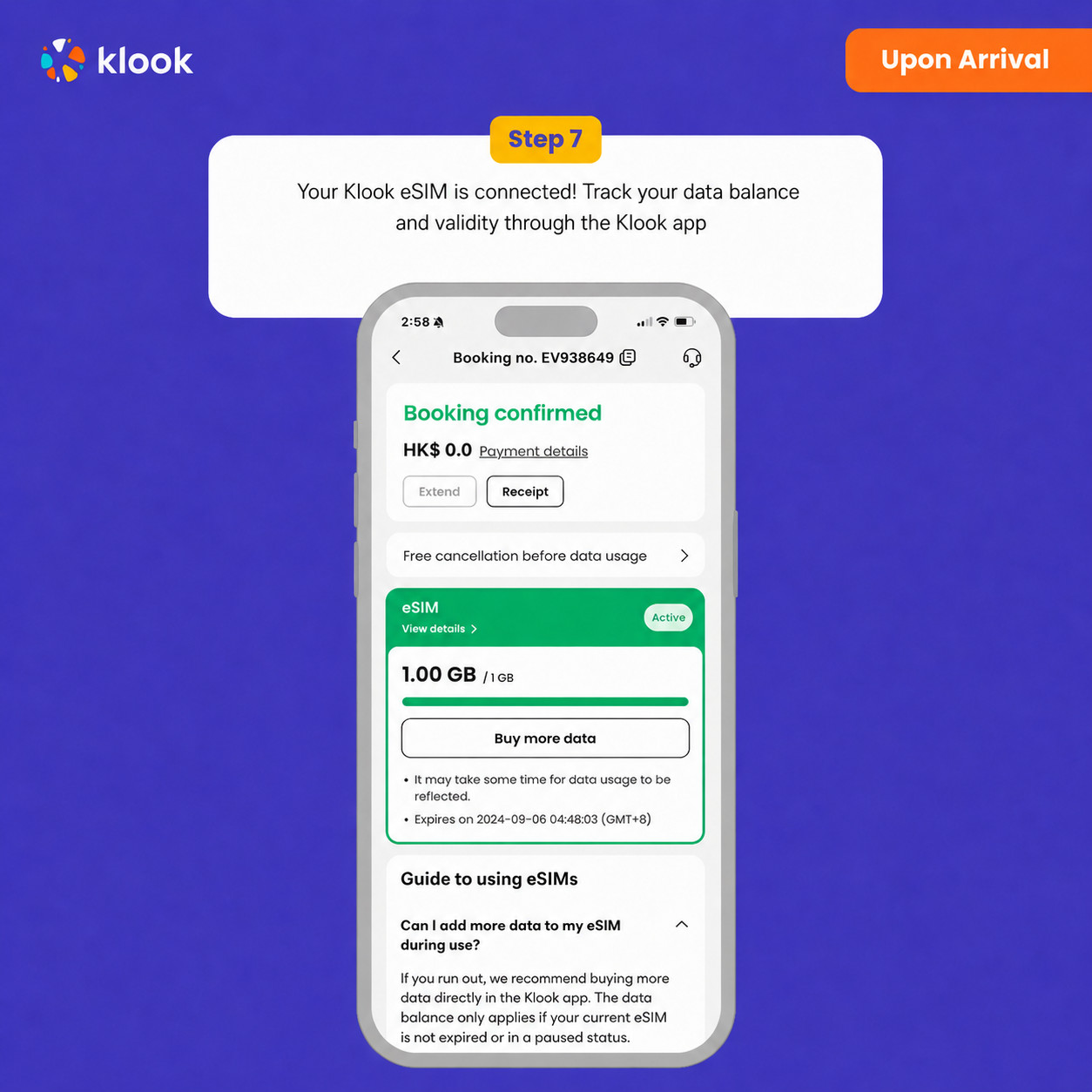
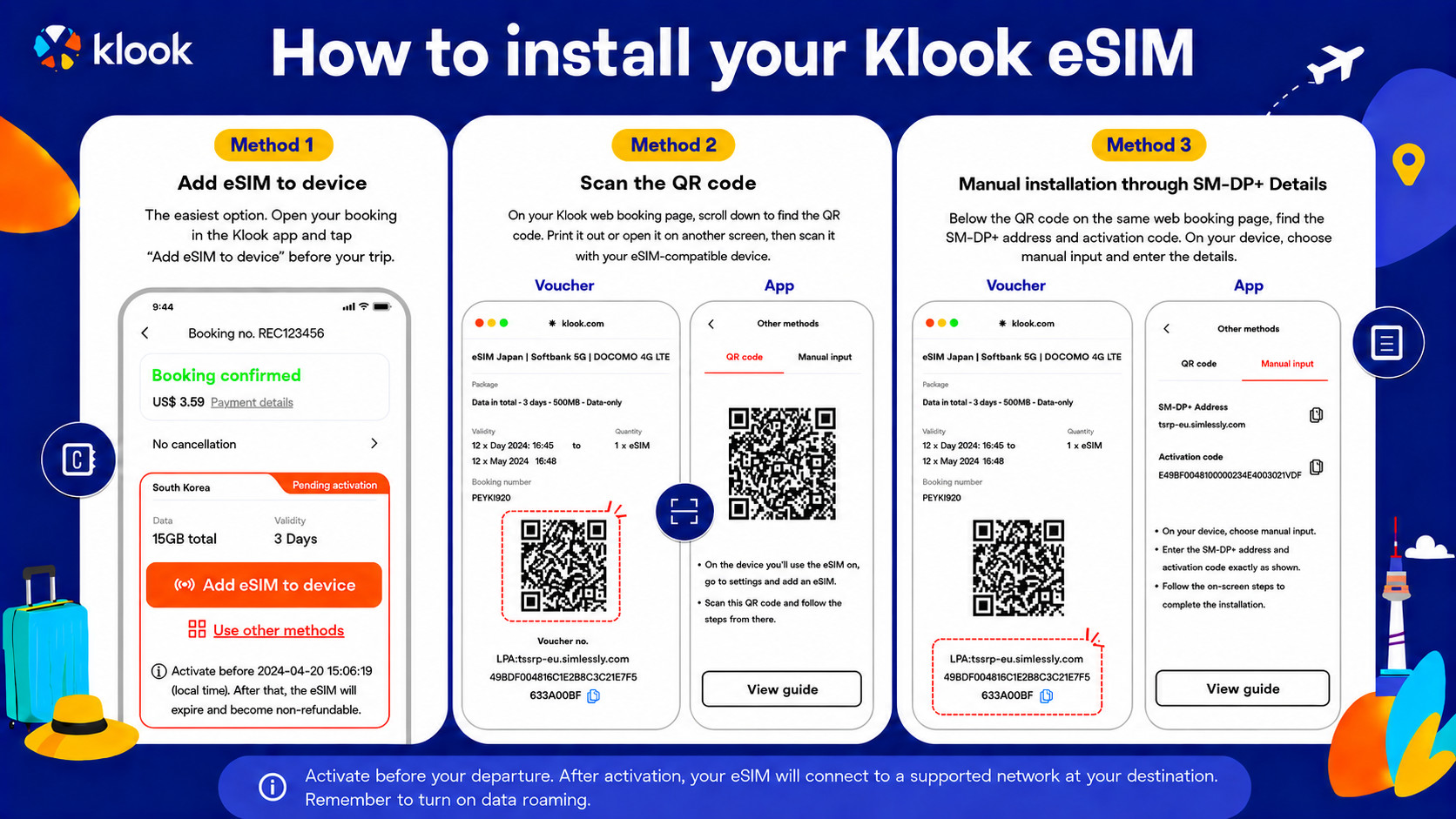
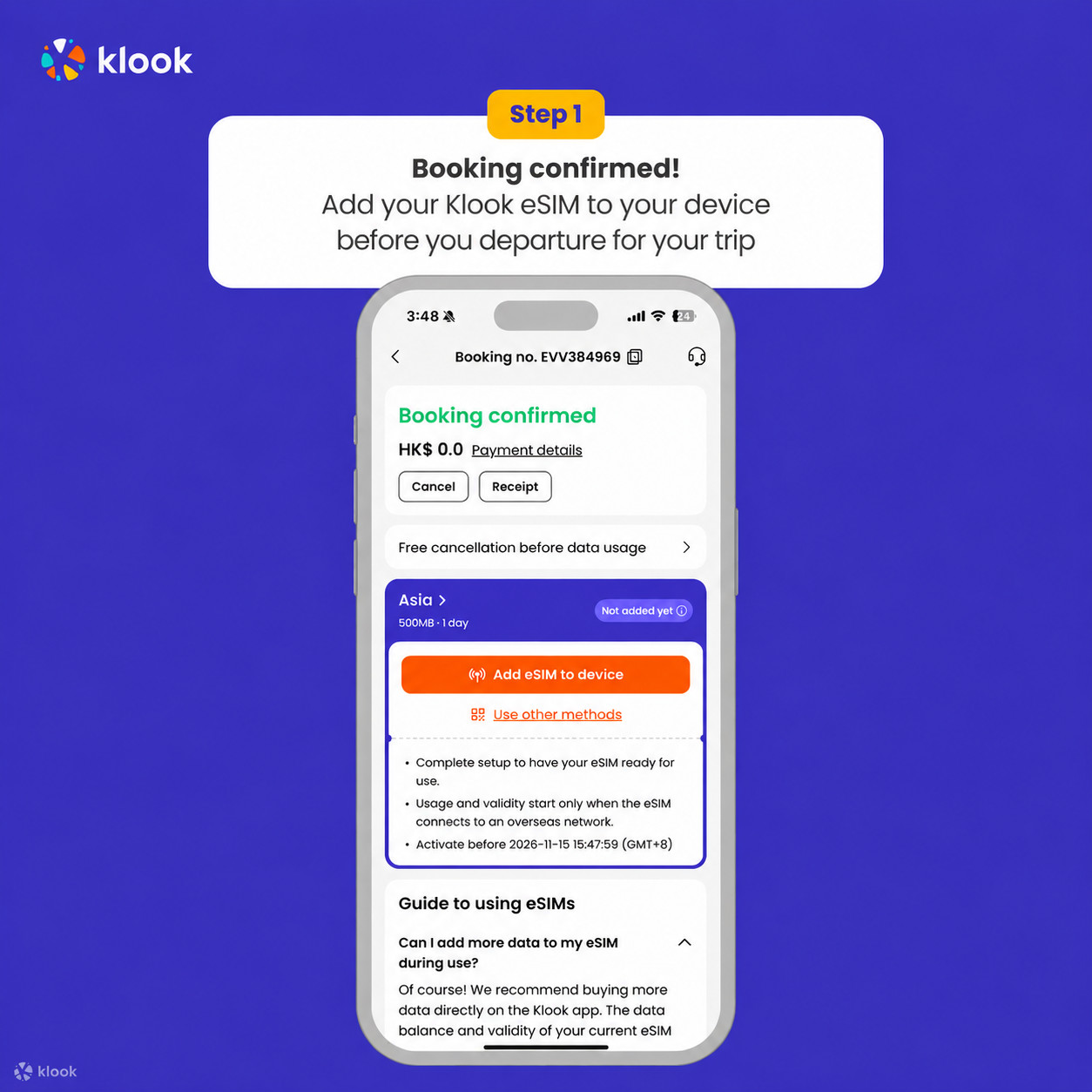
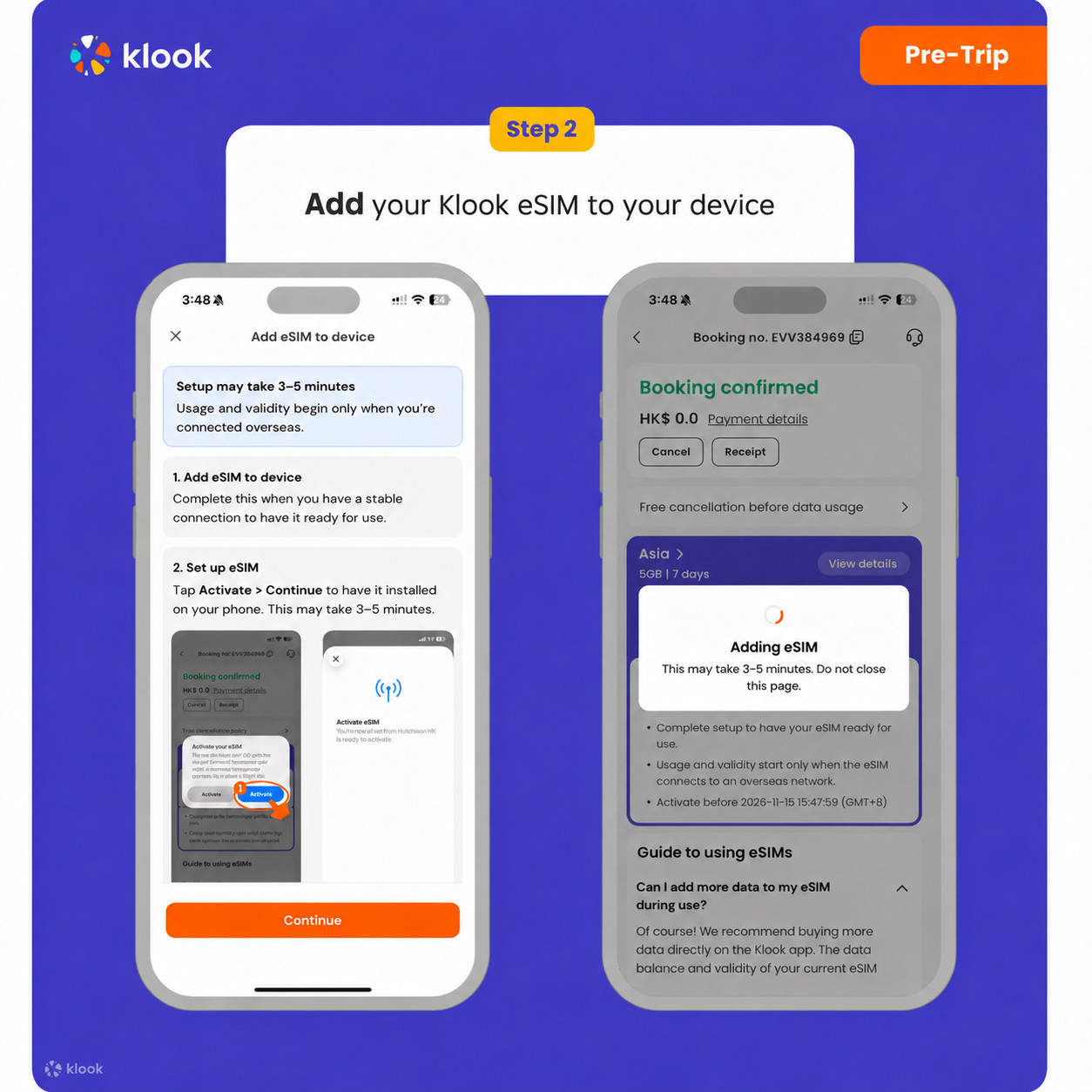
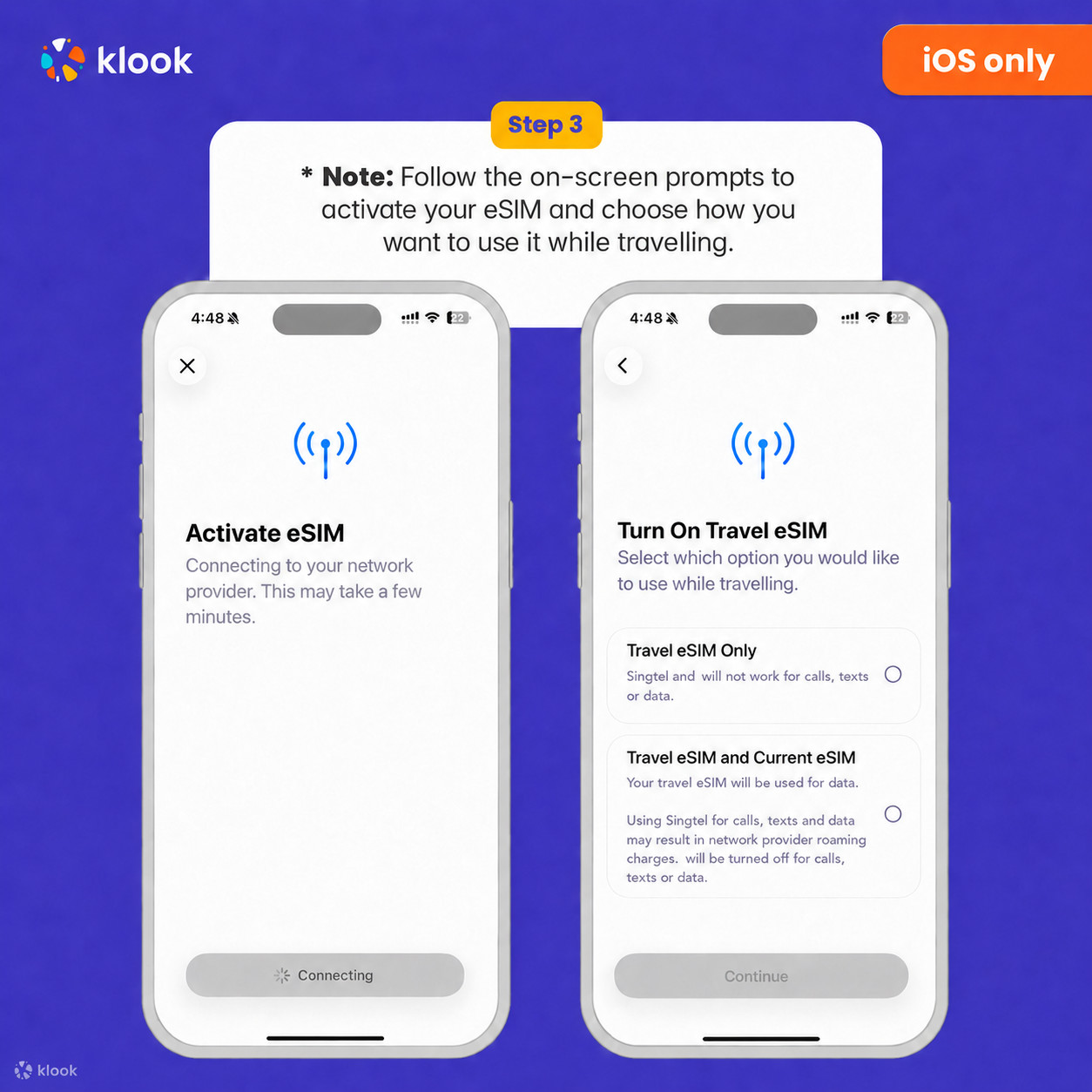
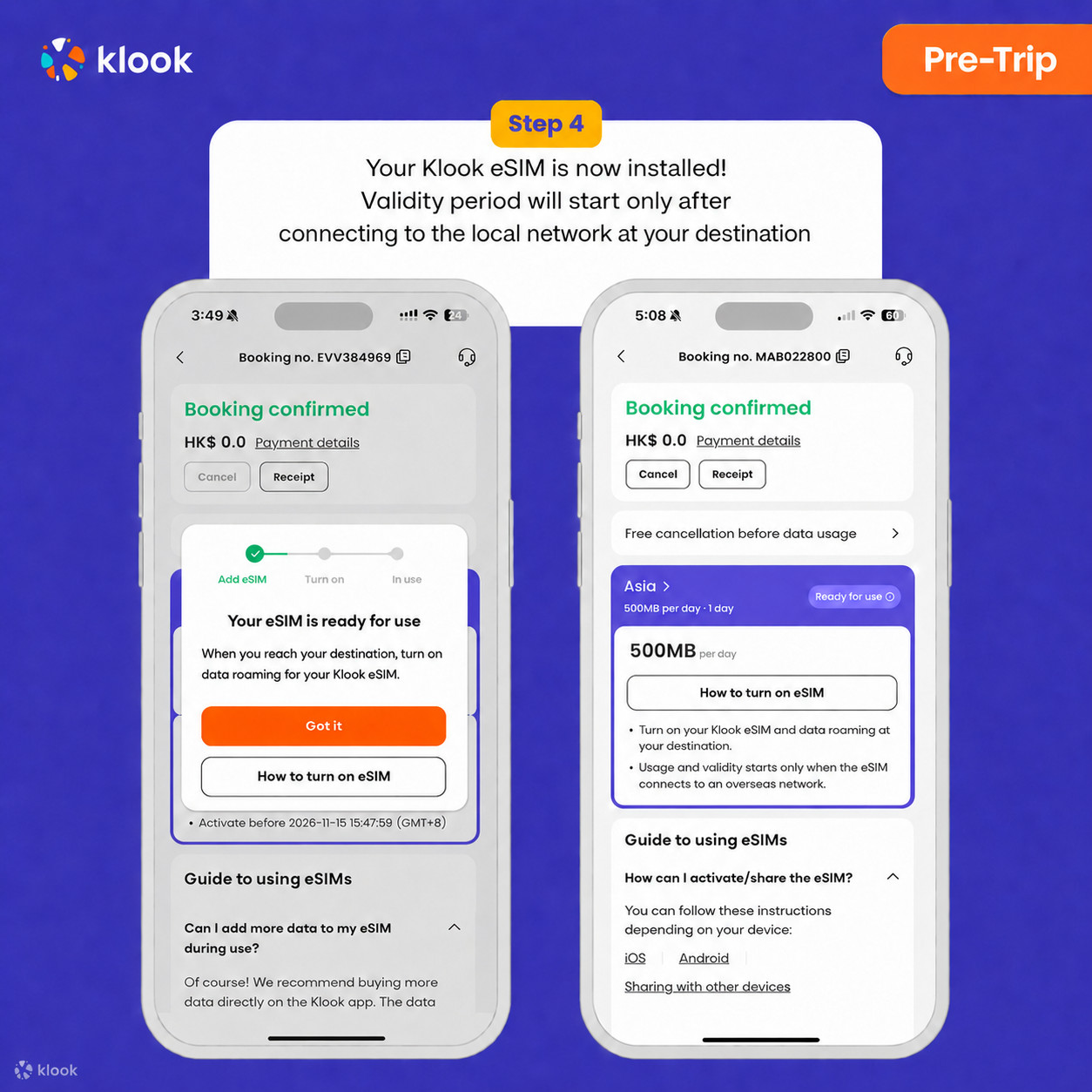
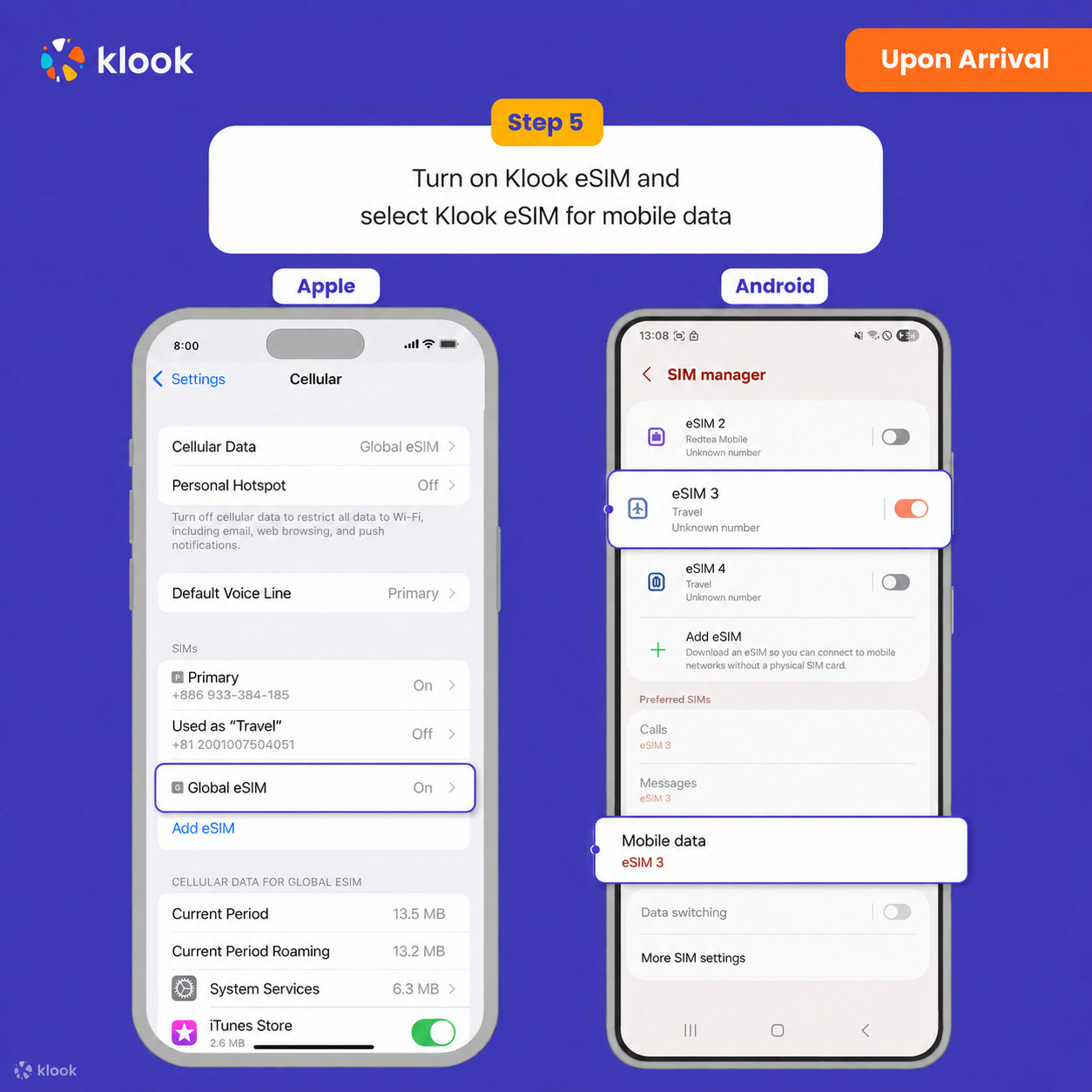
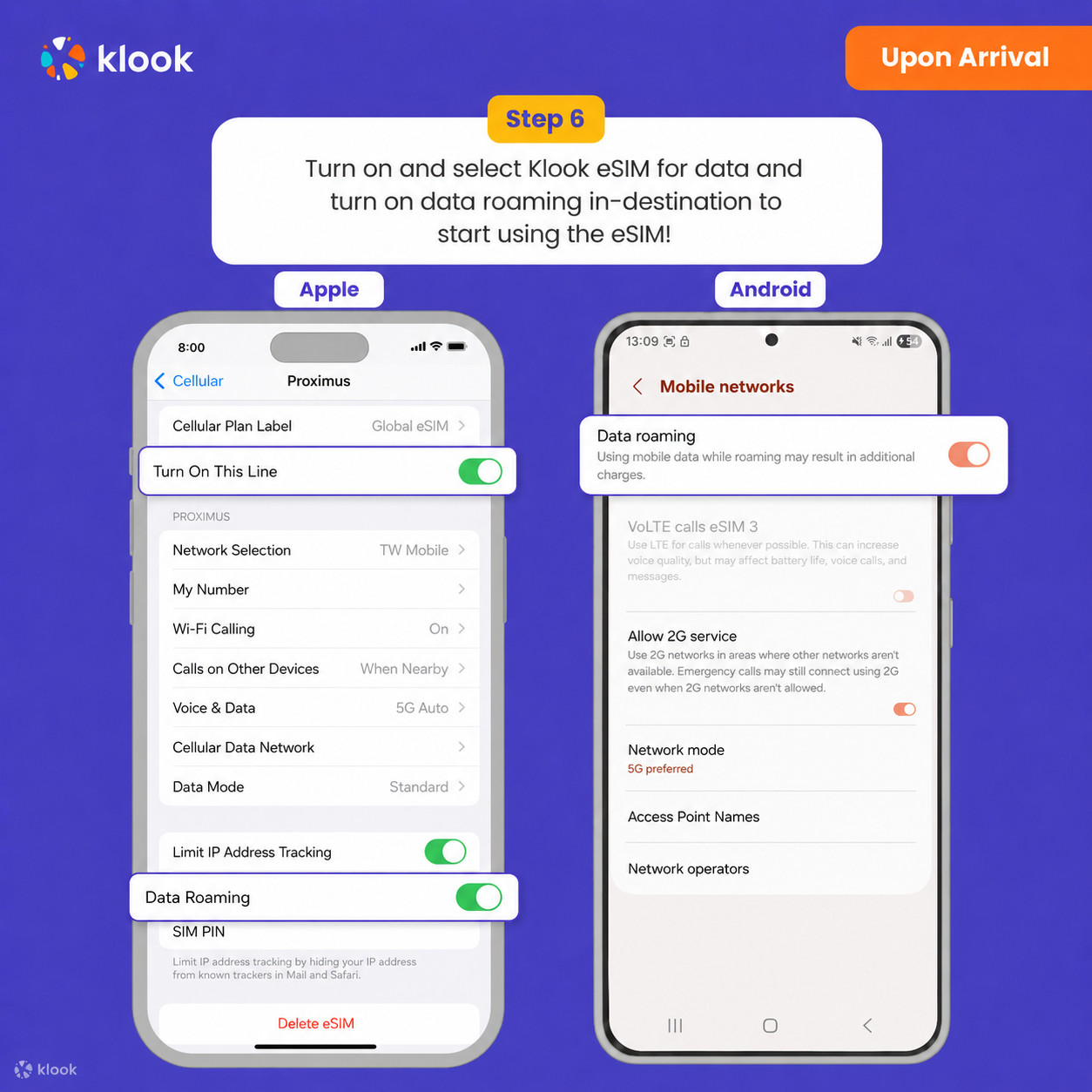
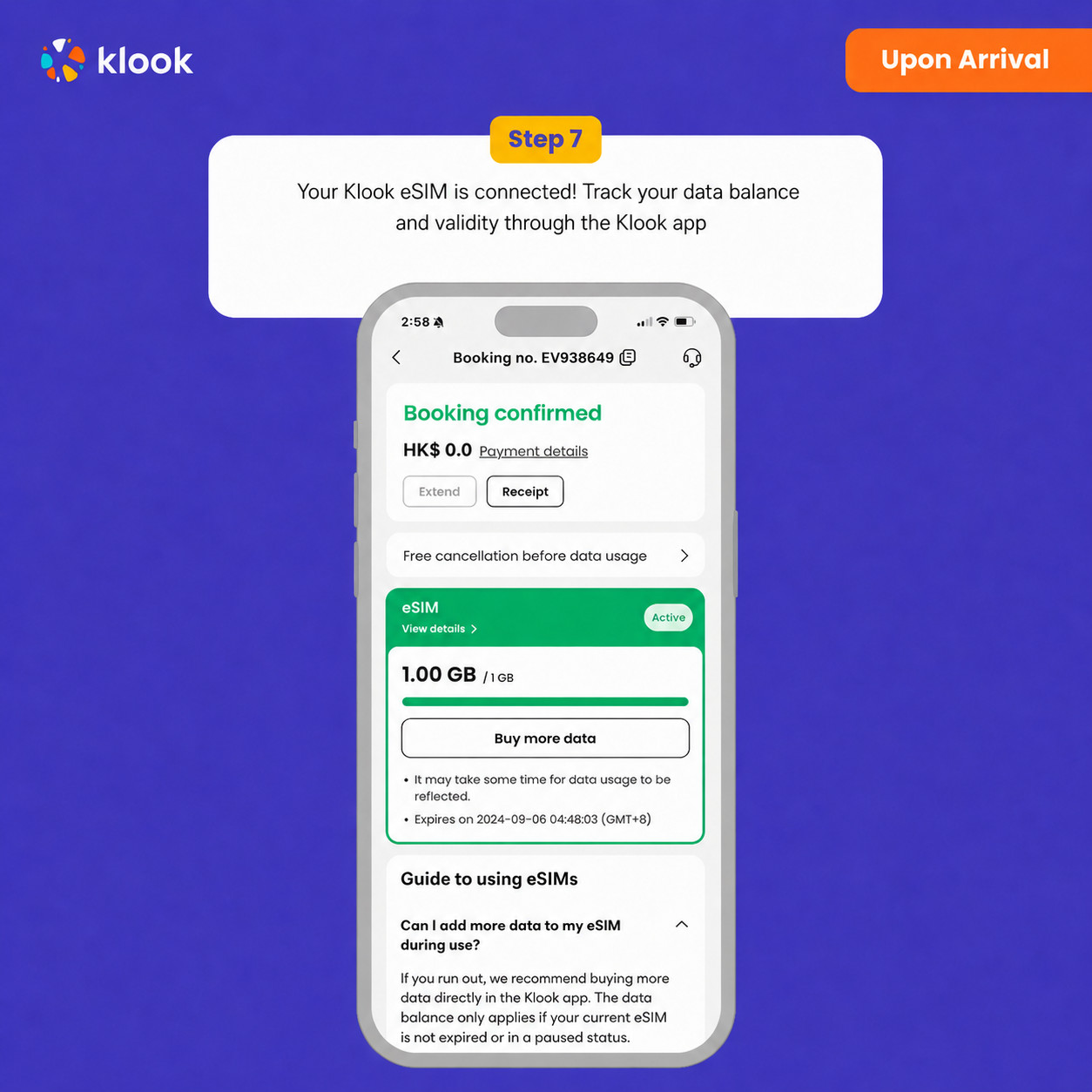
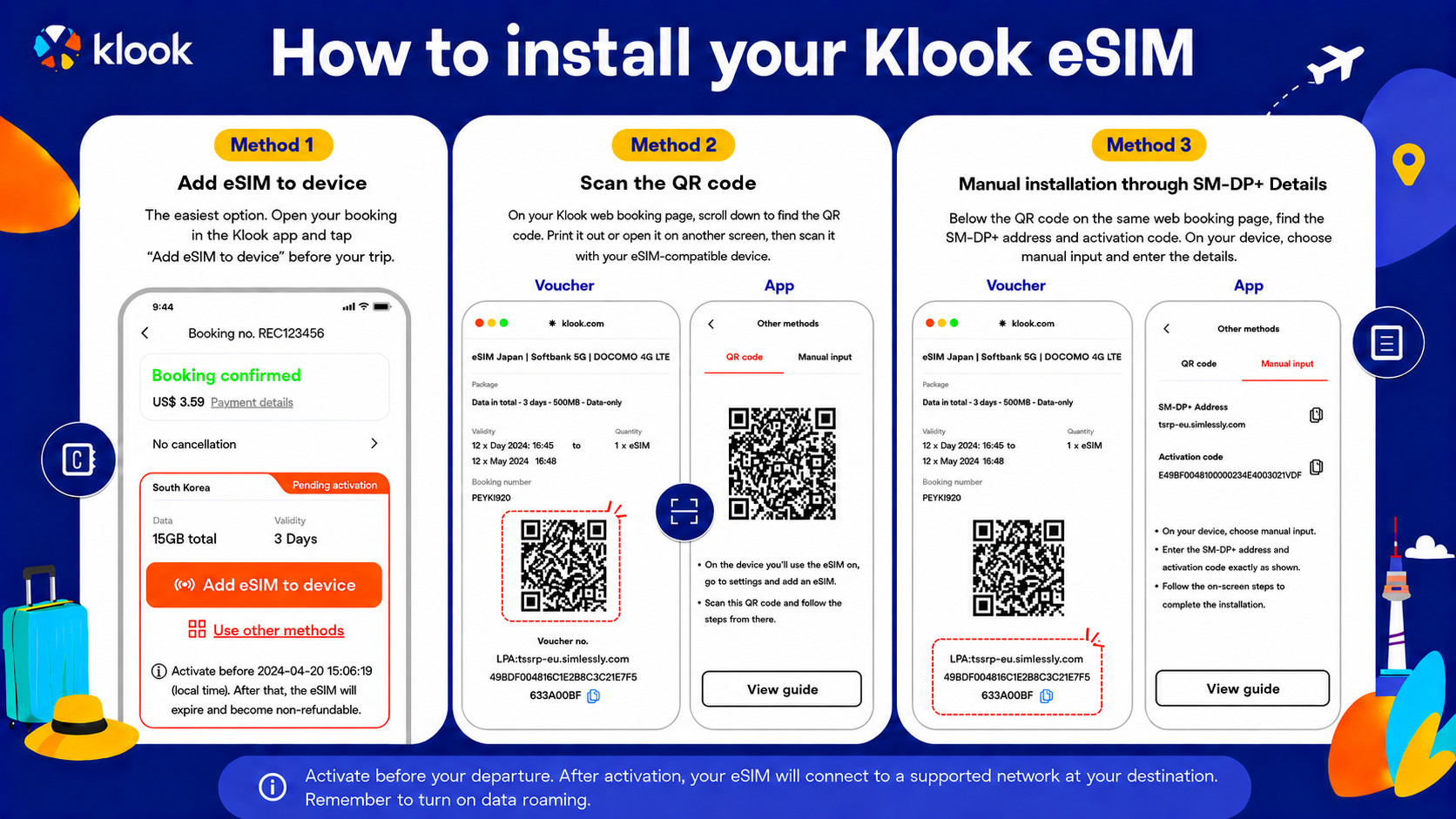
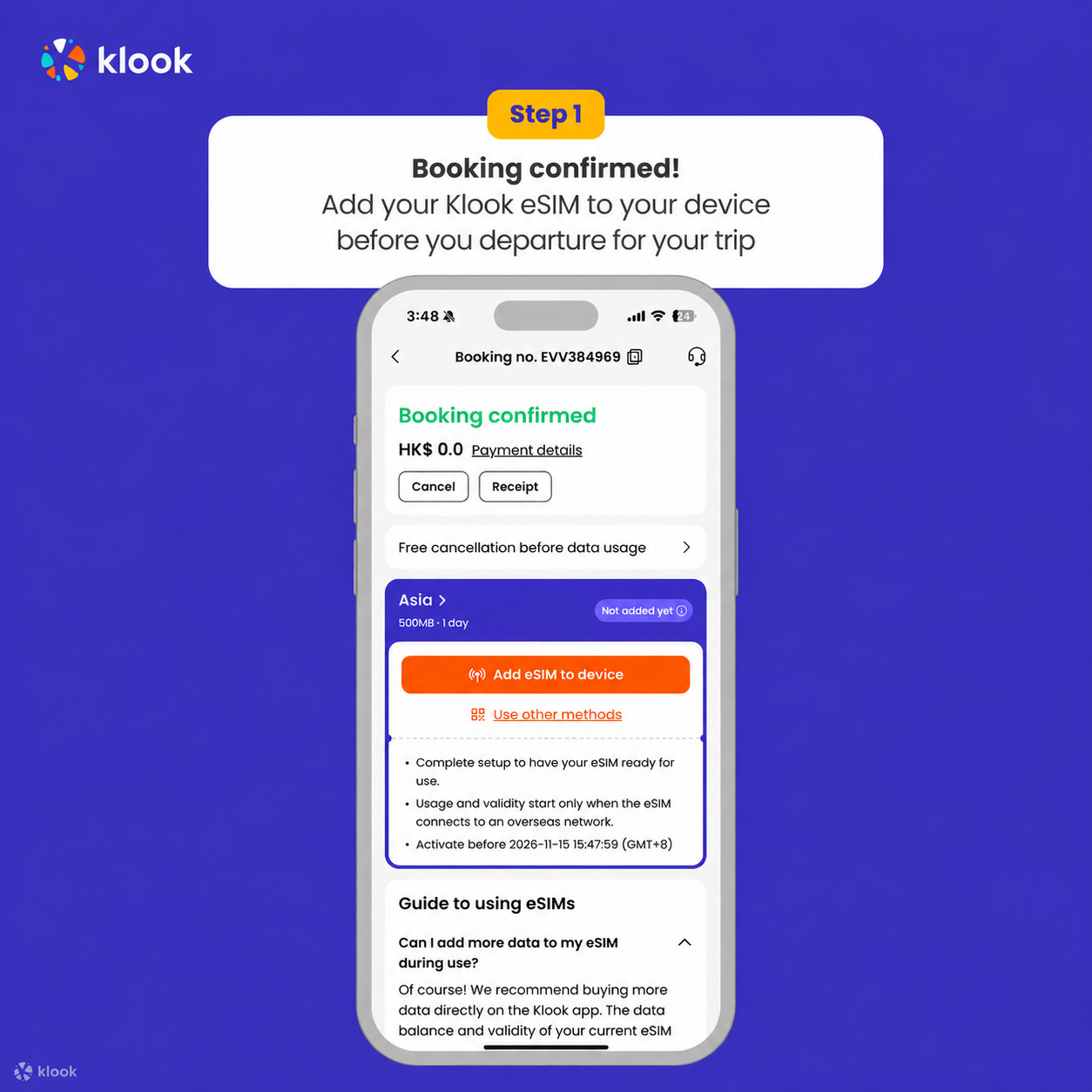
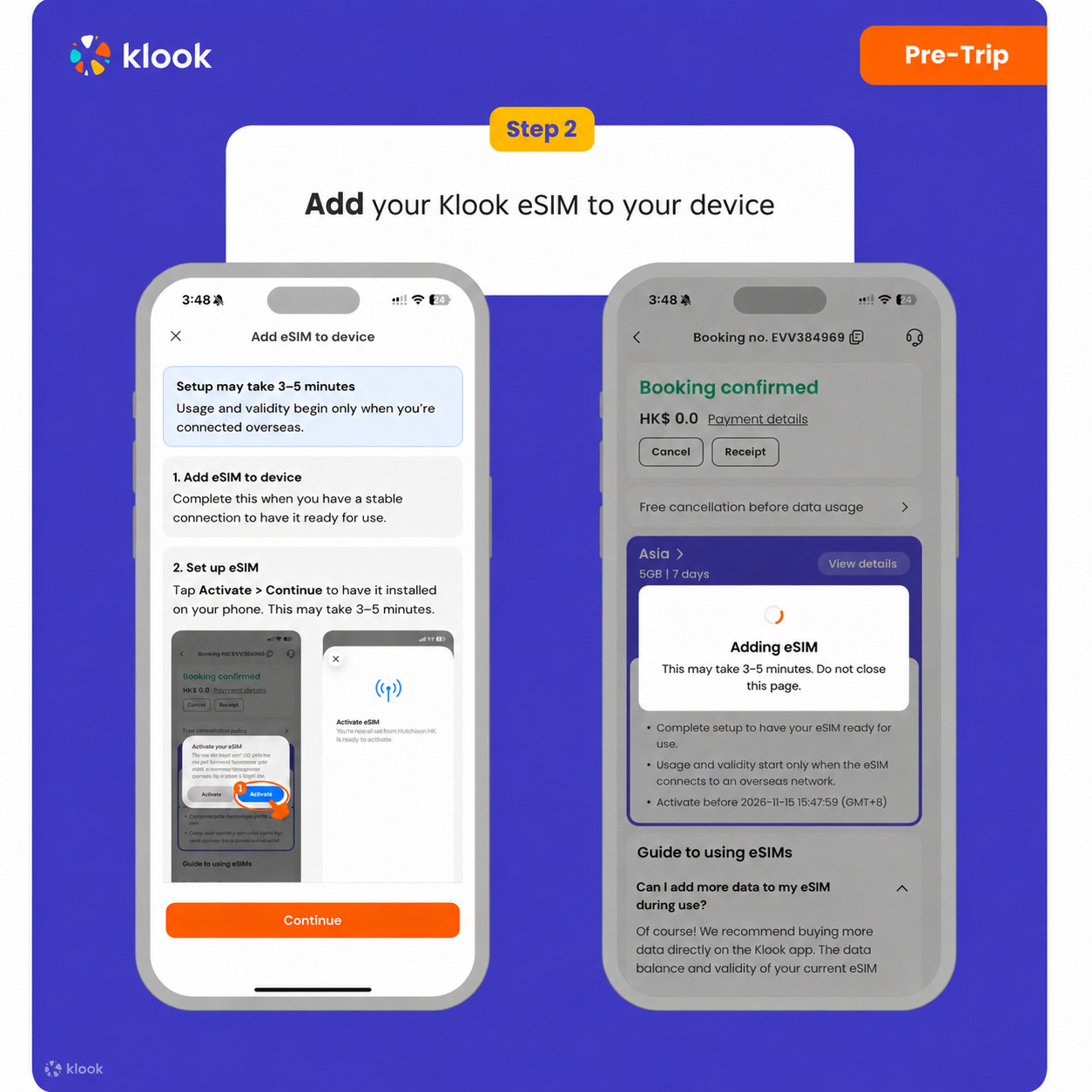
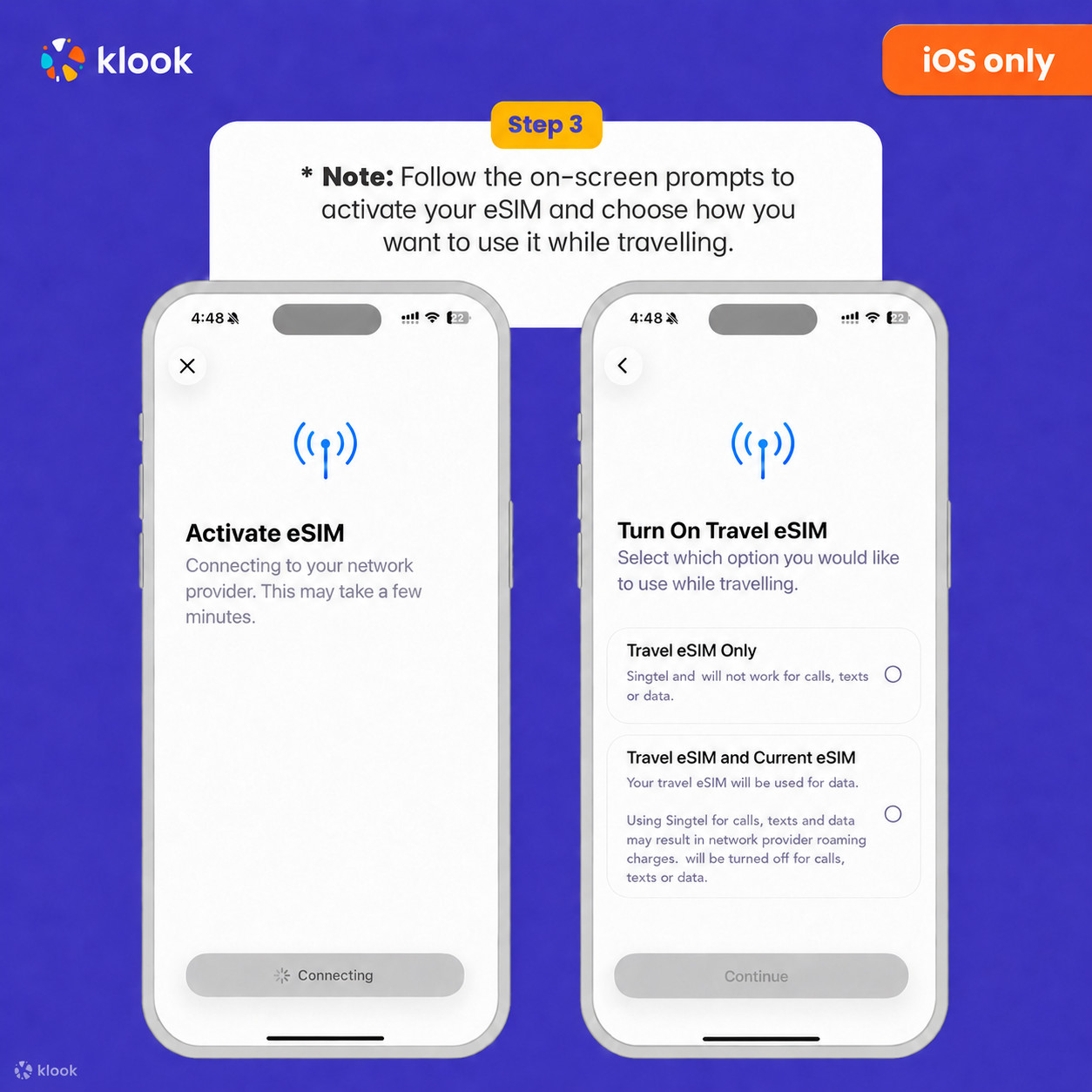
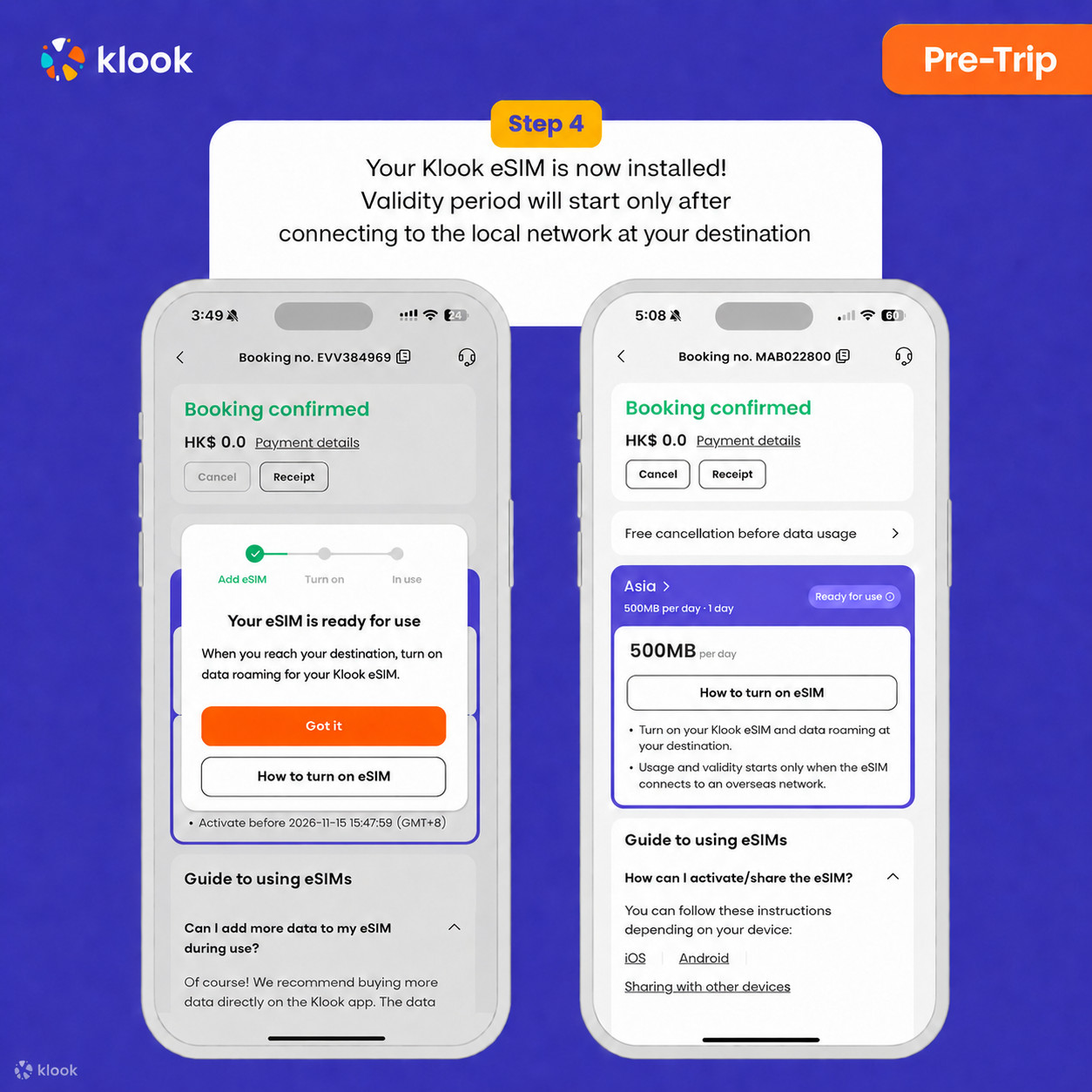
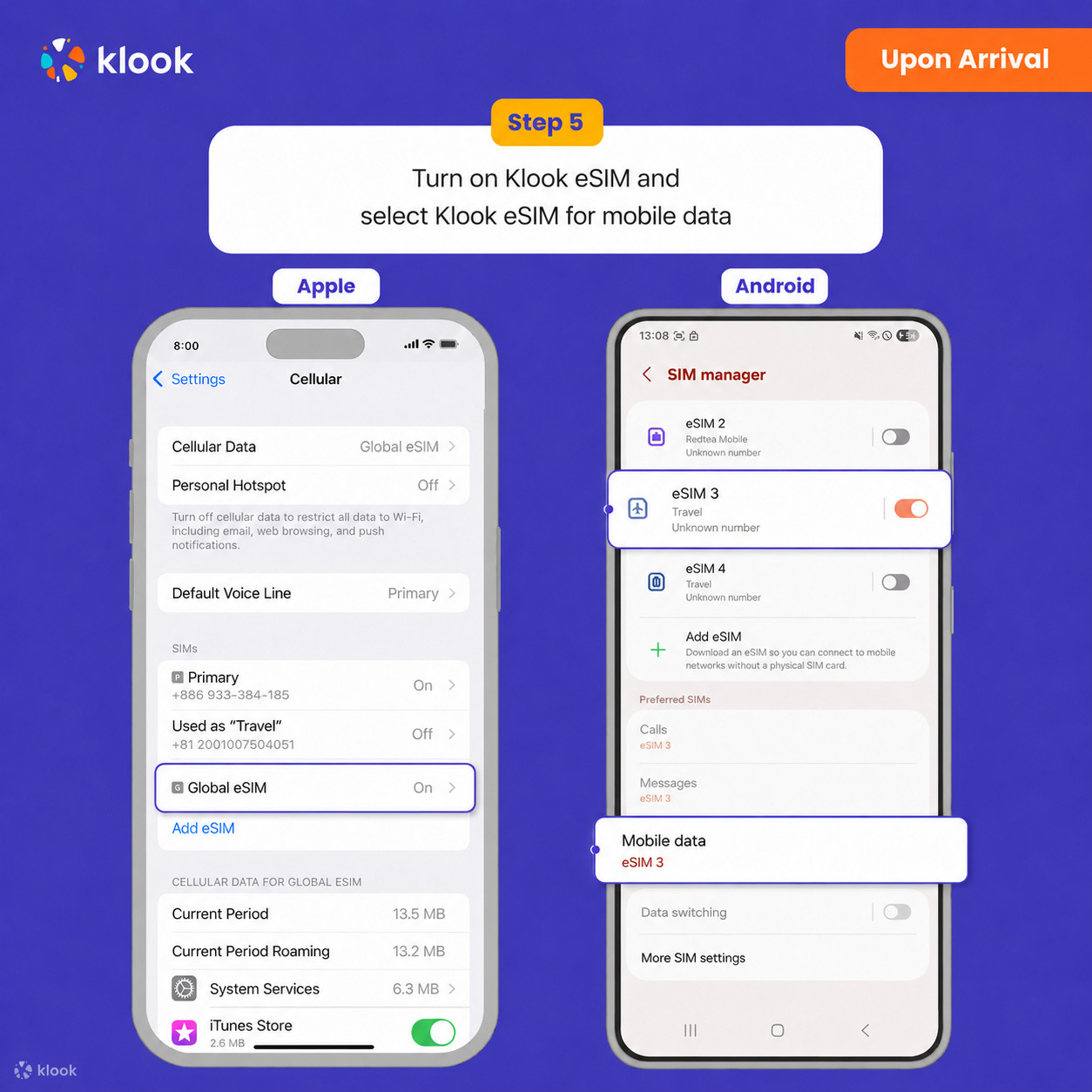
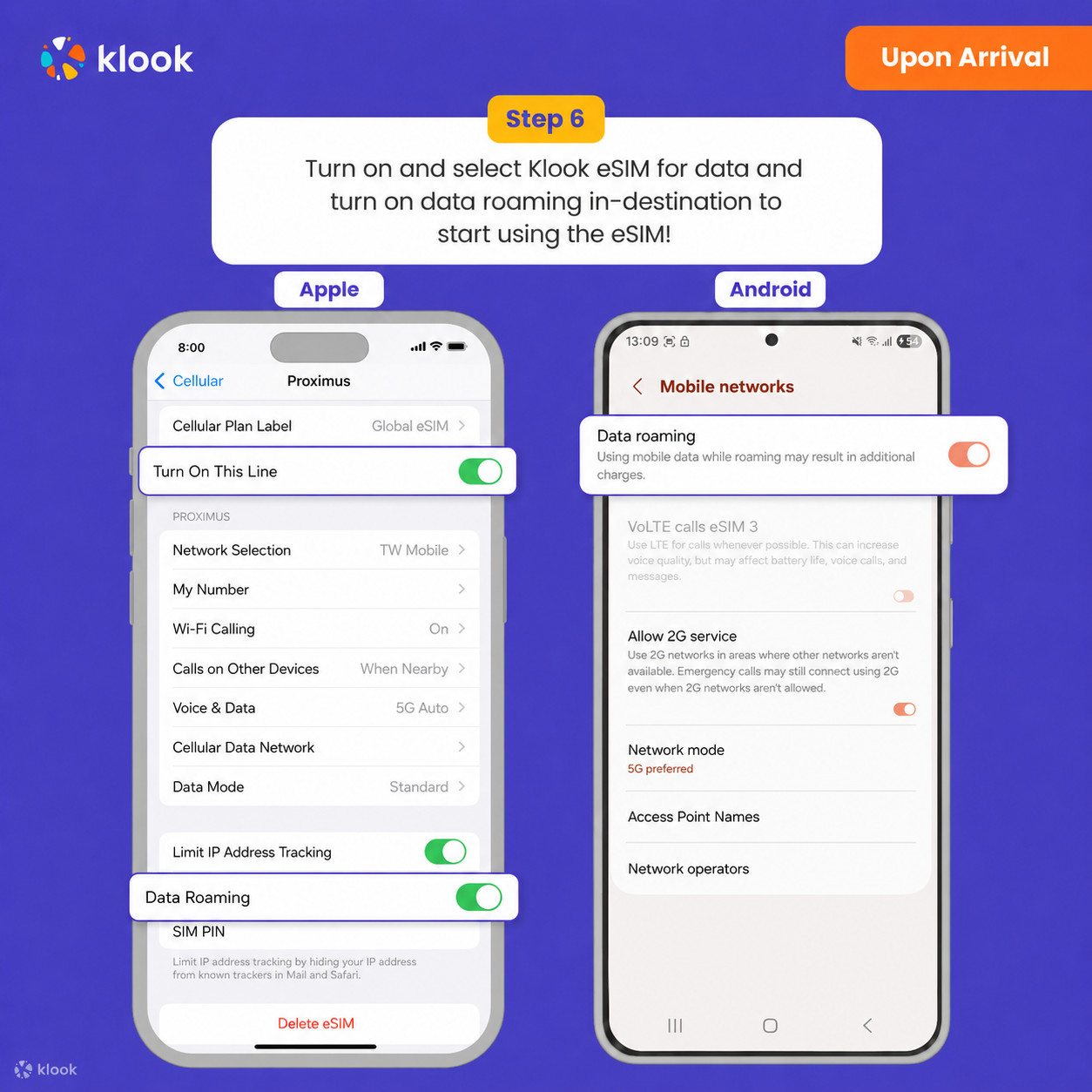
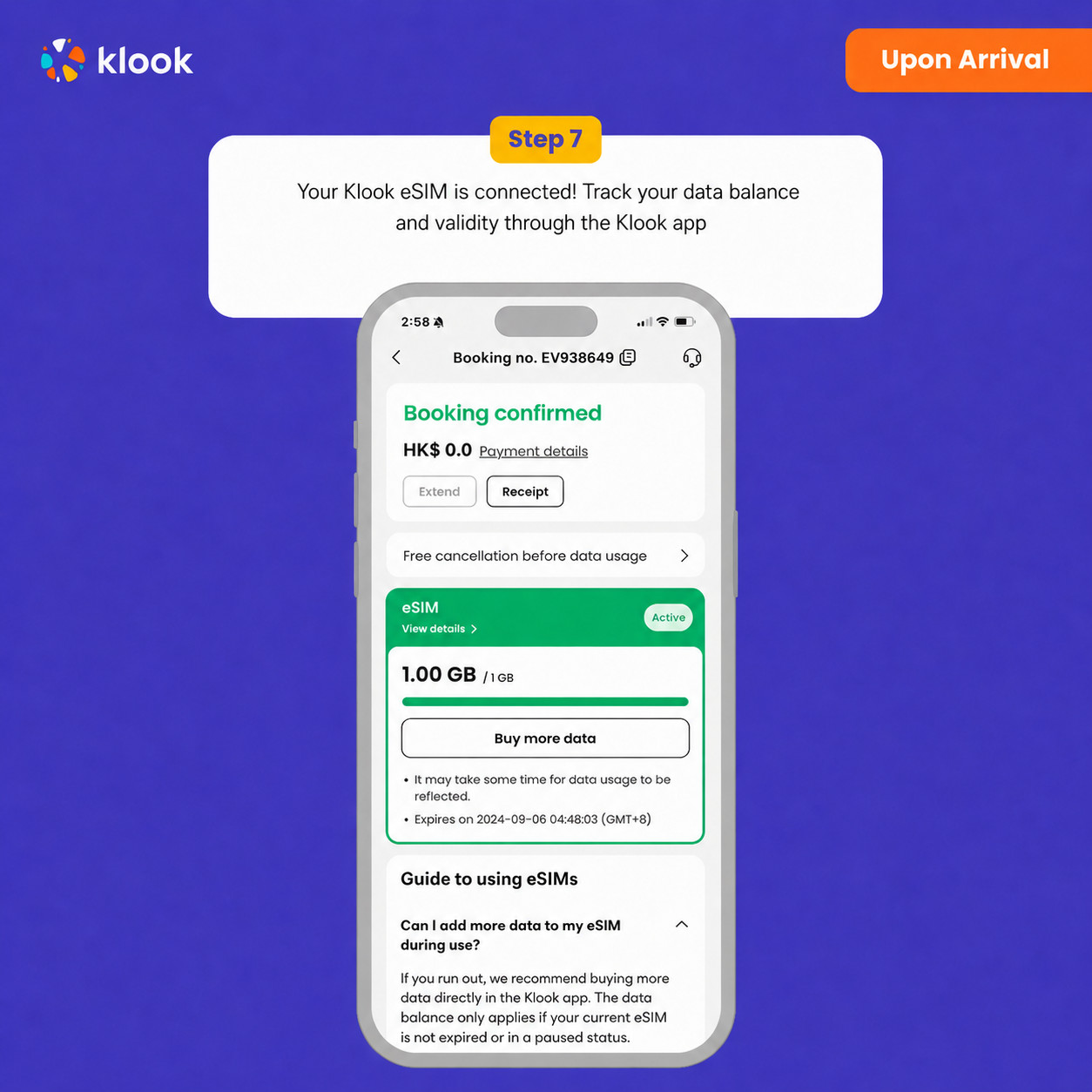
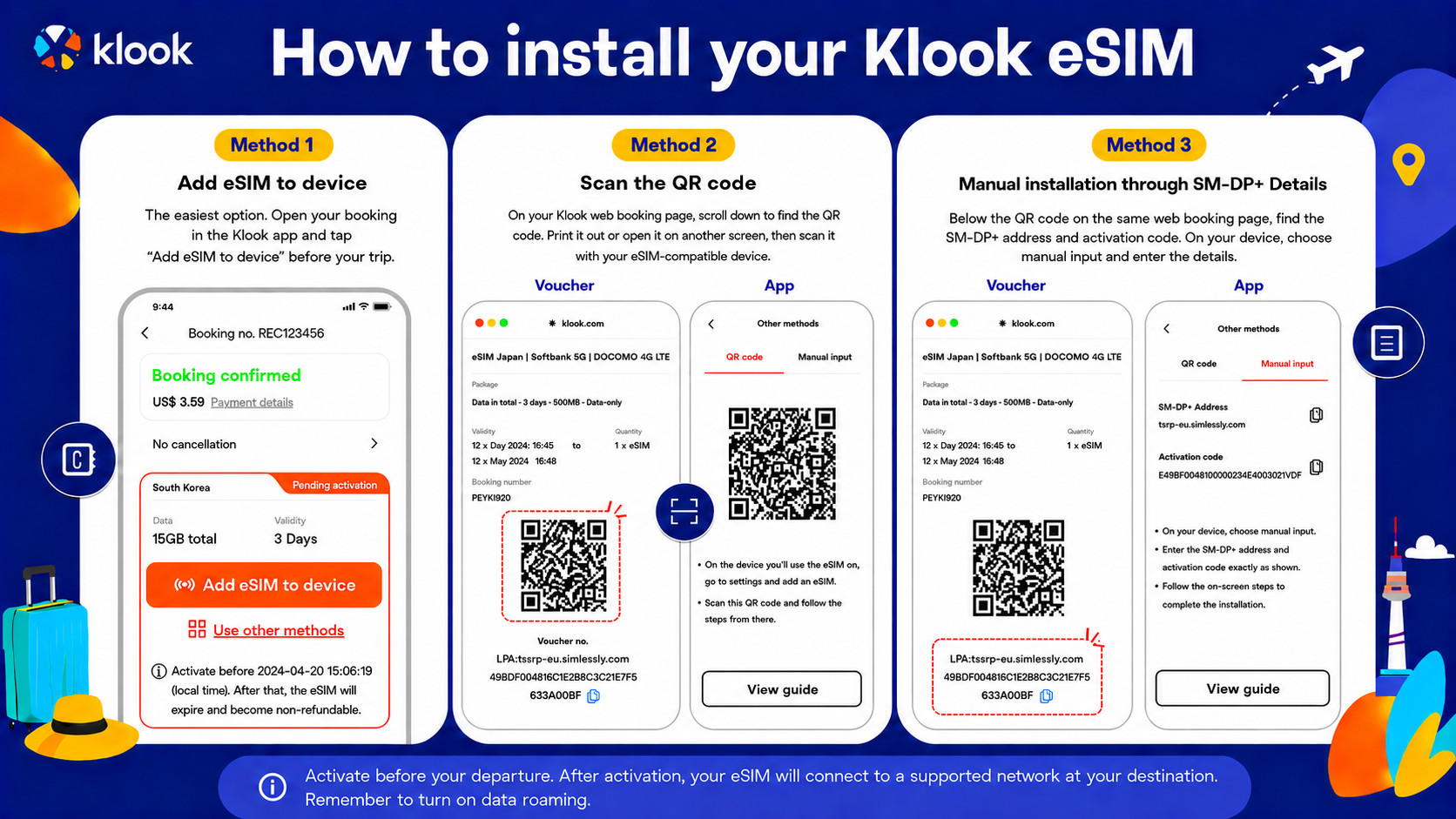
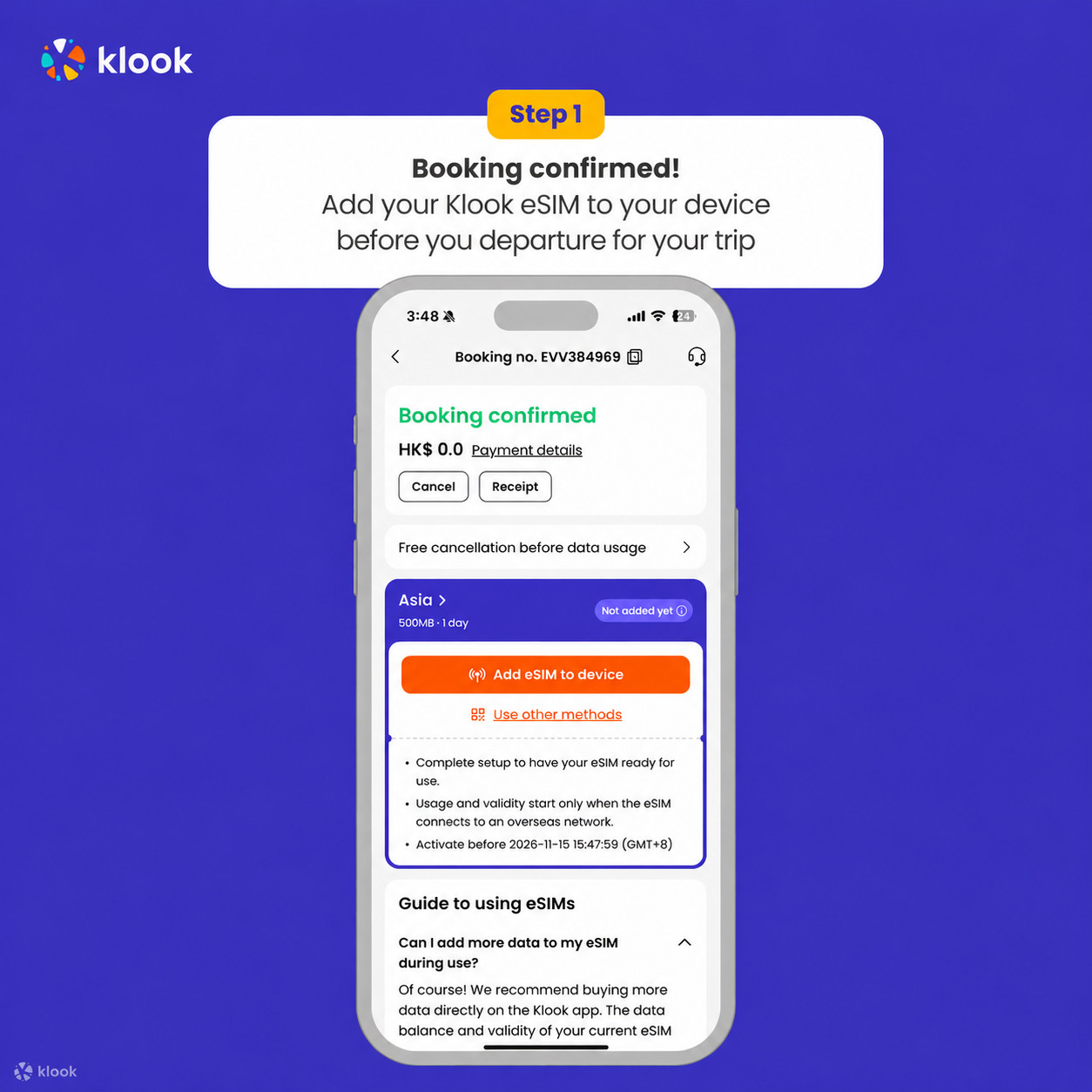
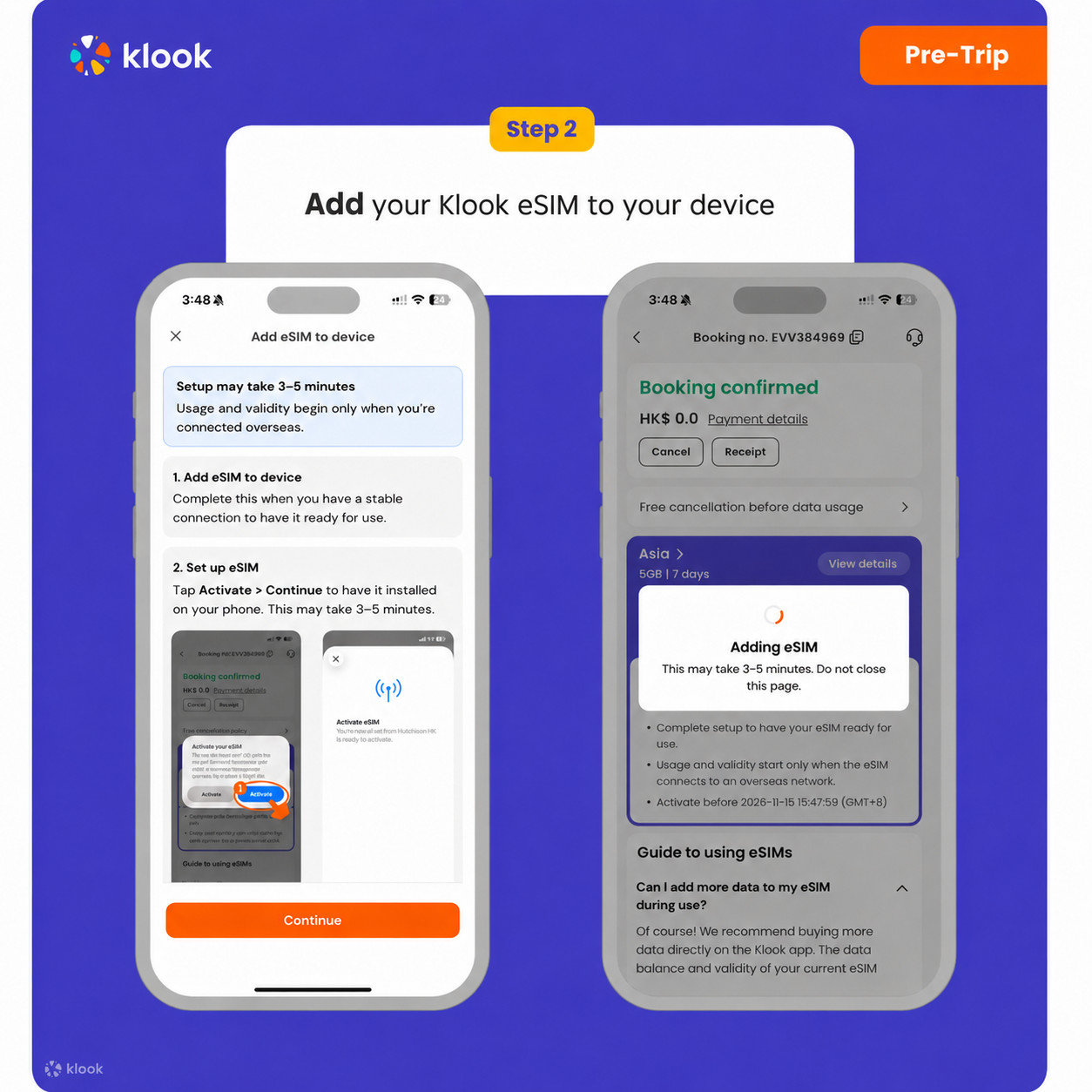
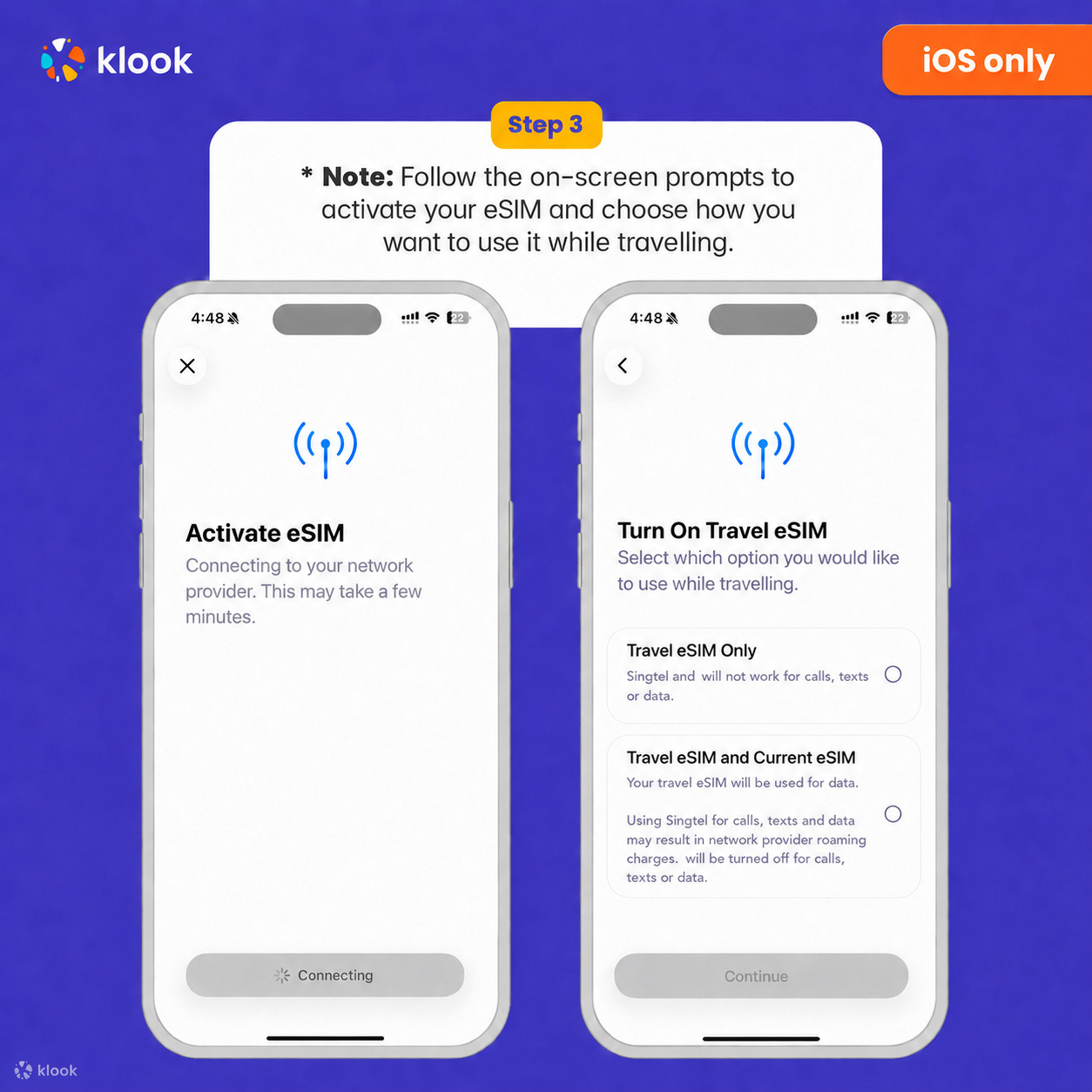
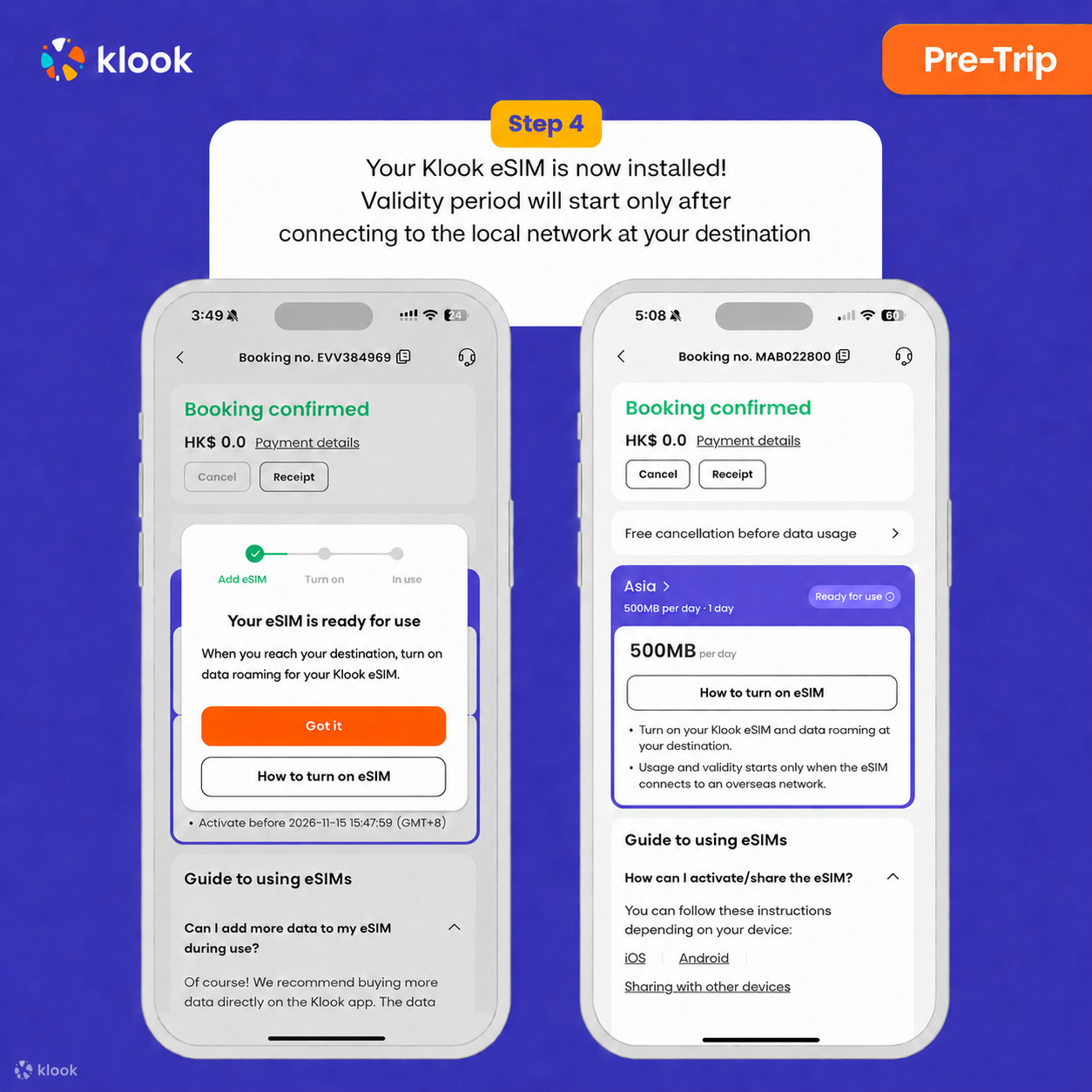
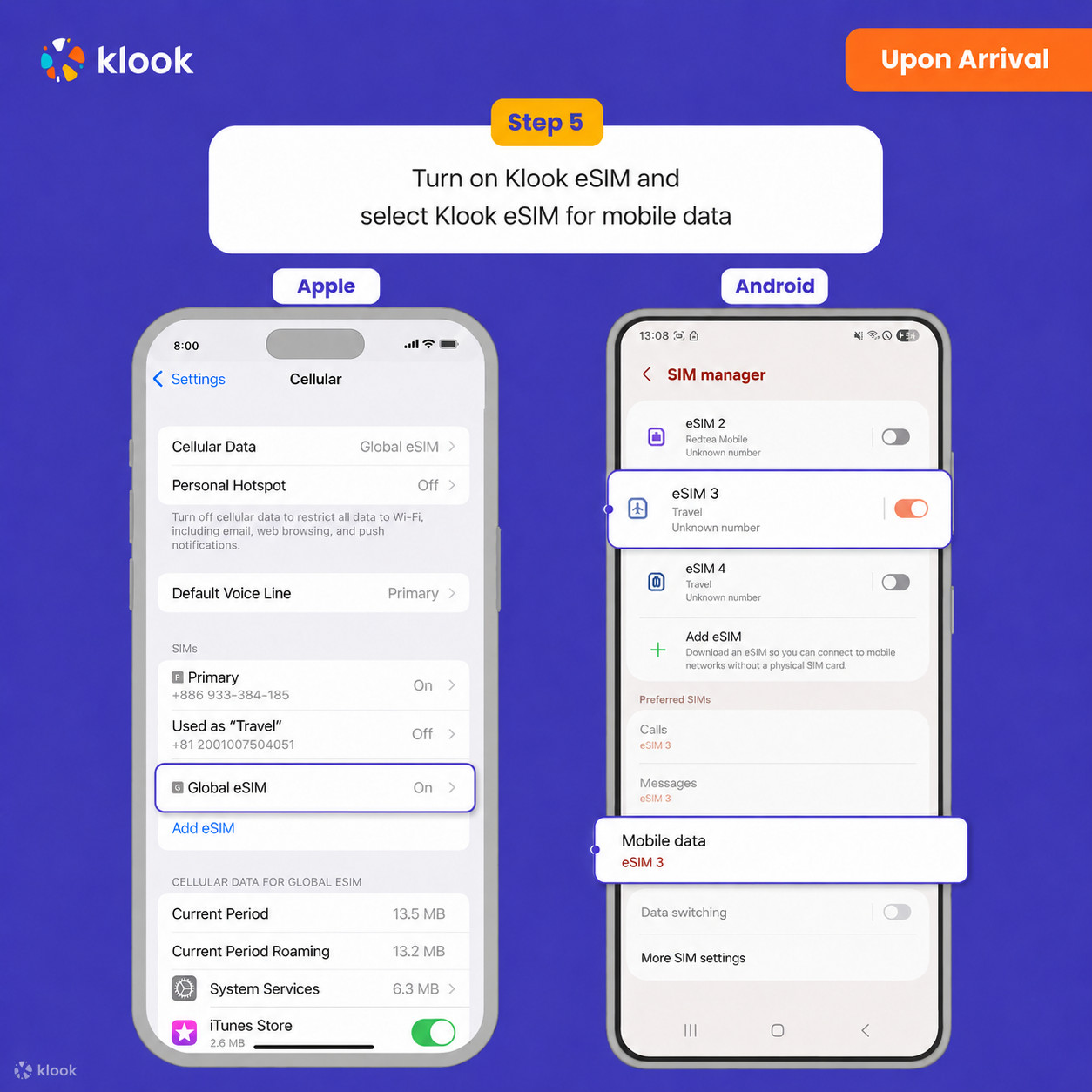
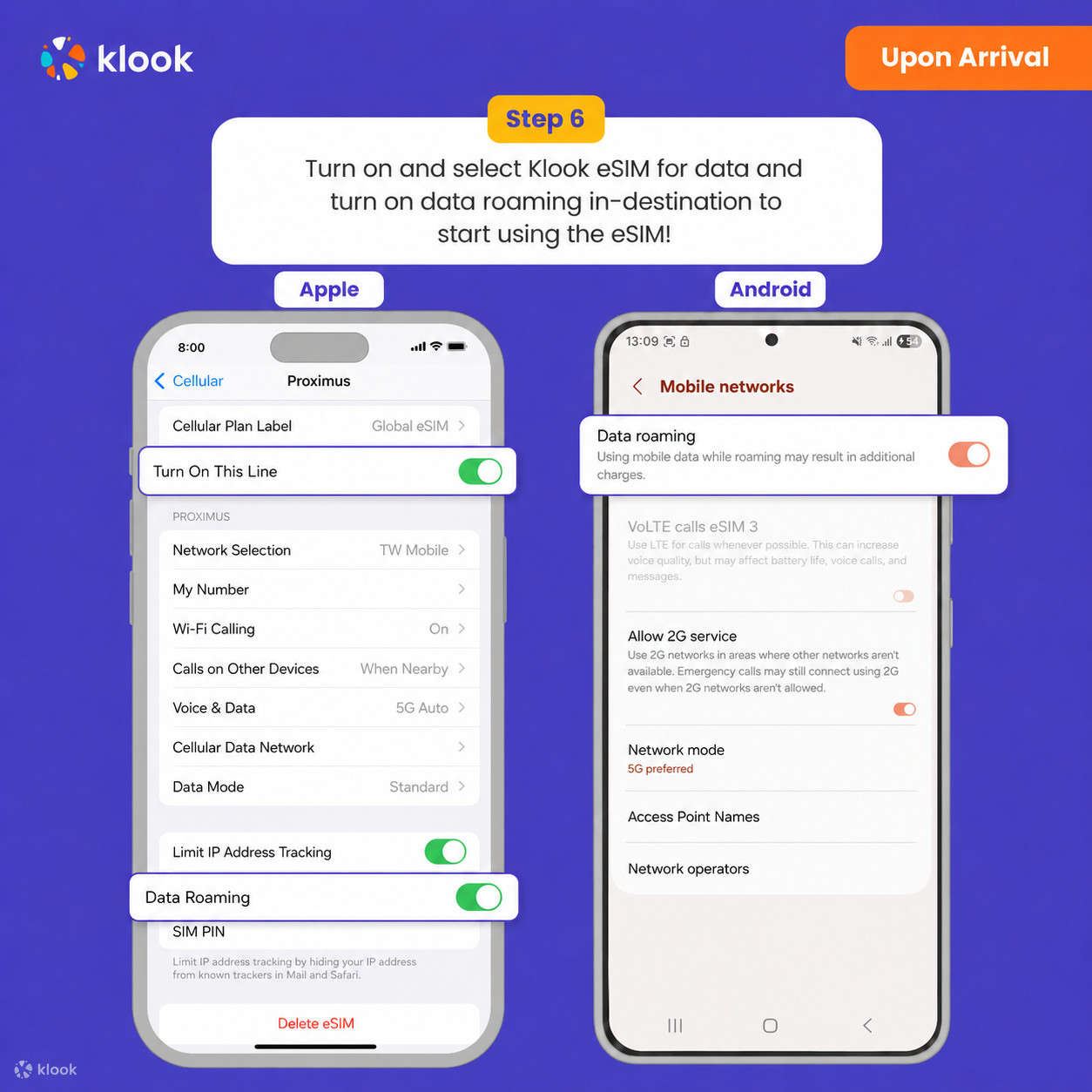
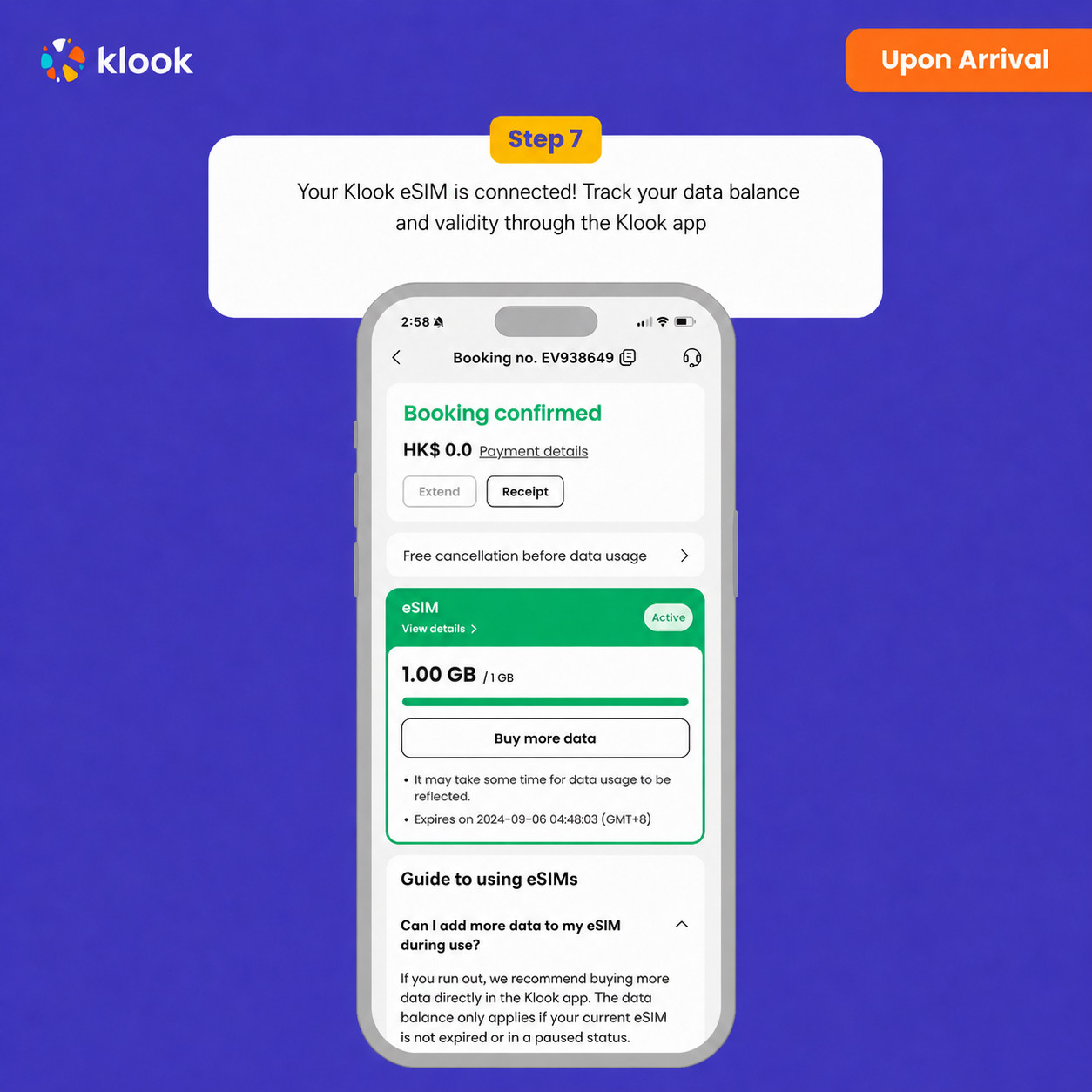
 Taomlar va ichimliklar turi