5G eSIM Canada | Rogers

Ottawa, Canada
4.9 (354 reviews)
Instant Confirmation
Mobile Voucher

Available Options

Data in total · 1 day · 500MB · Data only

eSIM
24 500 UZS
≈$2

Kindly follow the link below to proceed with your eSIM activation. Android version iOS version

  • Your eSIM plan will begin upon connection to the destination mobile network, according to the time connected. For example, if you activate your 3-day plan at 10:00, it will end 3 days later at 10:00.

  • Activate in Klook App (Update Klook APP to the latest version)

Activate in Klook App (Update Klook APP to the latest version)
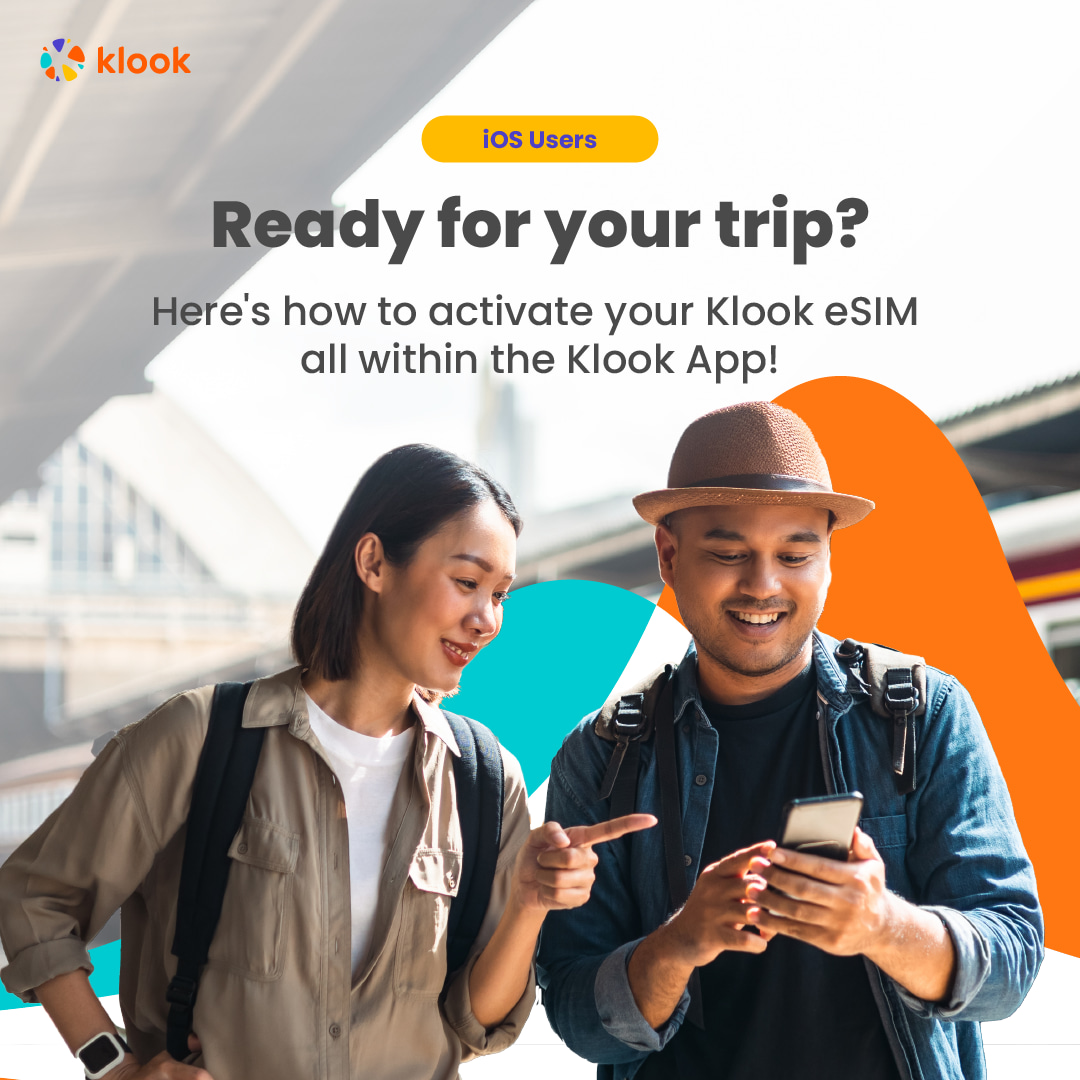
Activate in Klook App (Update Klook APP to the latest version)

  • Klook App: Account -Bookings-Click activate (You can also find the eSIM QR code in the voucher, Settings -Cellula- SIMs - Tap Add eSIM - scan QR code )
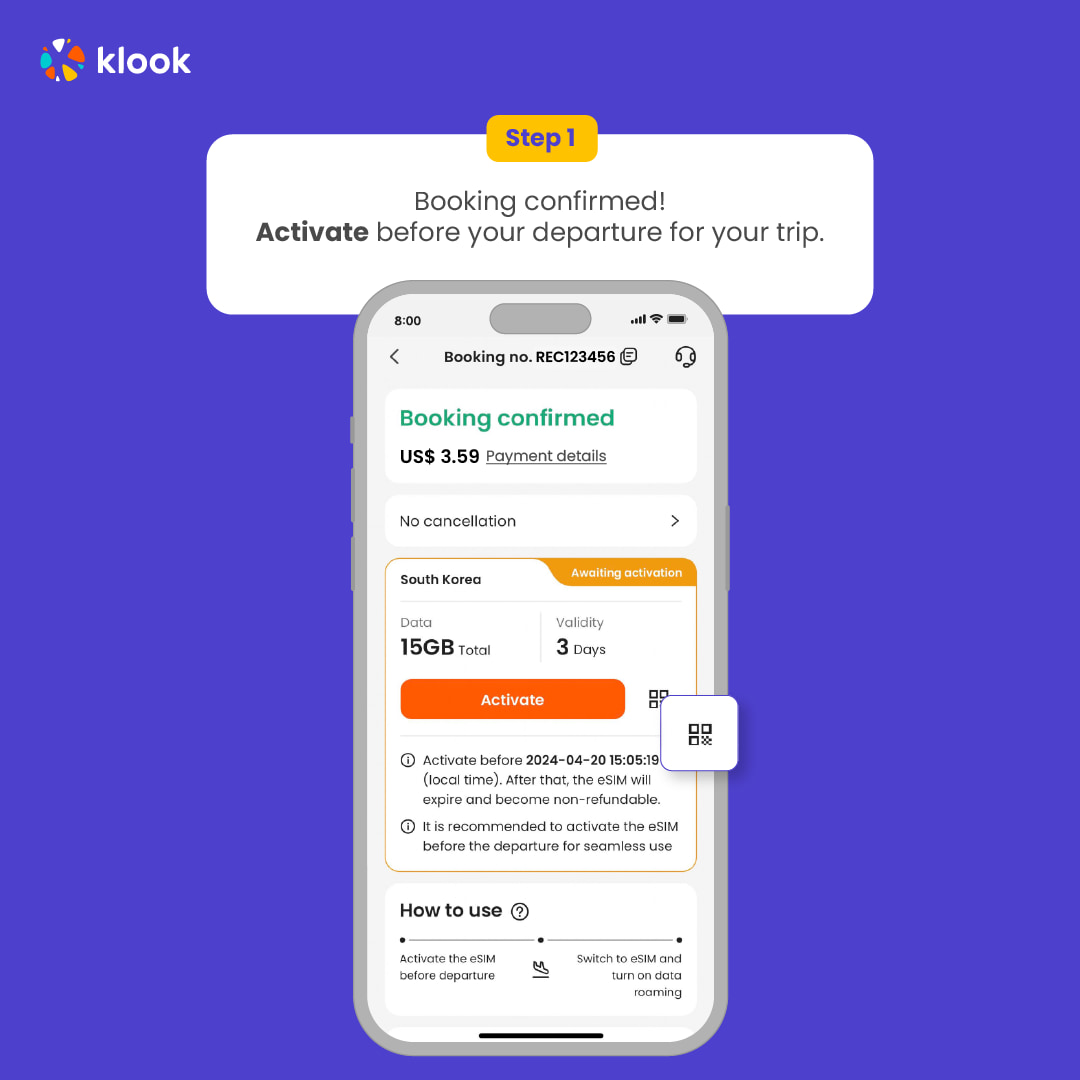
Klook App: Account -Bookings-Click activate (You can also find the eSIM QR code in the voucher, Settings -Cellula- SIMs - Tap Add eSIM - scan QR code )

Klook App: Account -Bookings-Click activate (You can also find the eSIM QR code in the voucher, Settings -Cellula- SIMs - Tap Add eSIM - scan QR code )

  • Read the reminder and start installing the eSIM (The time and data will not start counting.)

Read the reminder and start installing the eSIM (The time and data will not start counting.)
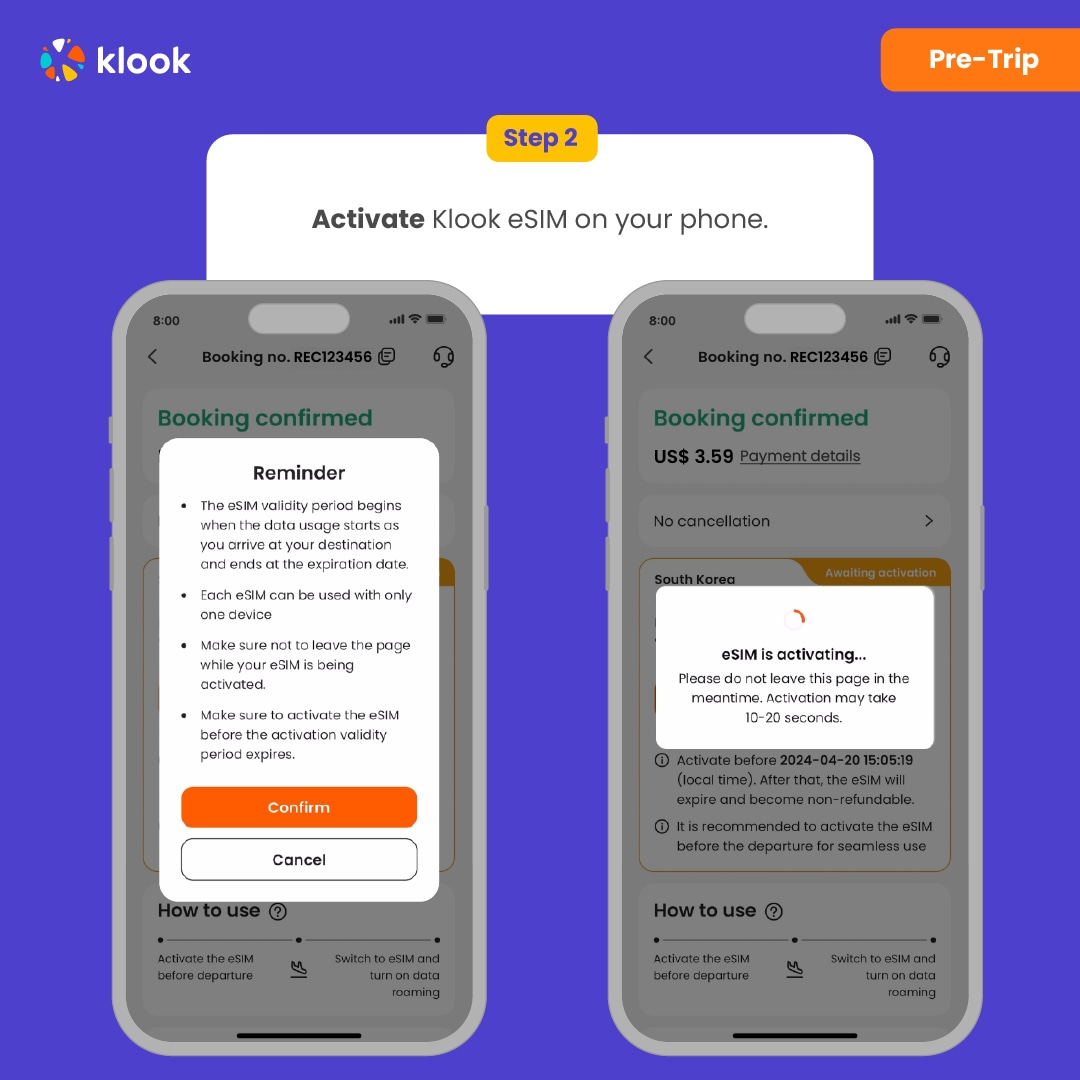
Read the reminder and start installing the eSIM (The time and data will not start counting.)

  • Suggest install under wifi connection and please do not leave the page (might take some time)

Suggest install under wifi connection and please do not leave the page (might take some time)
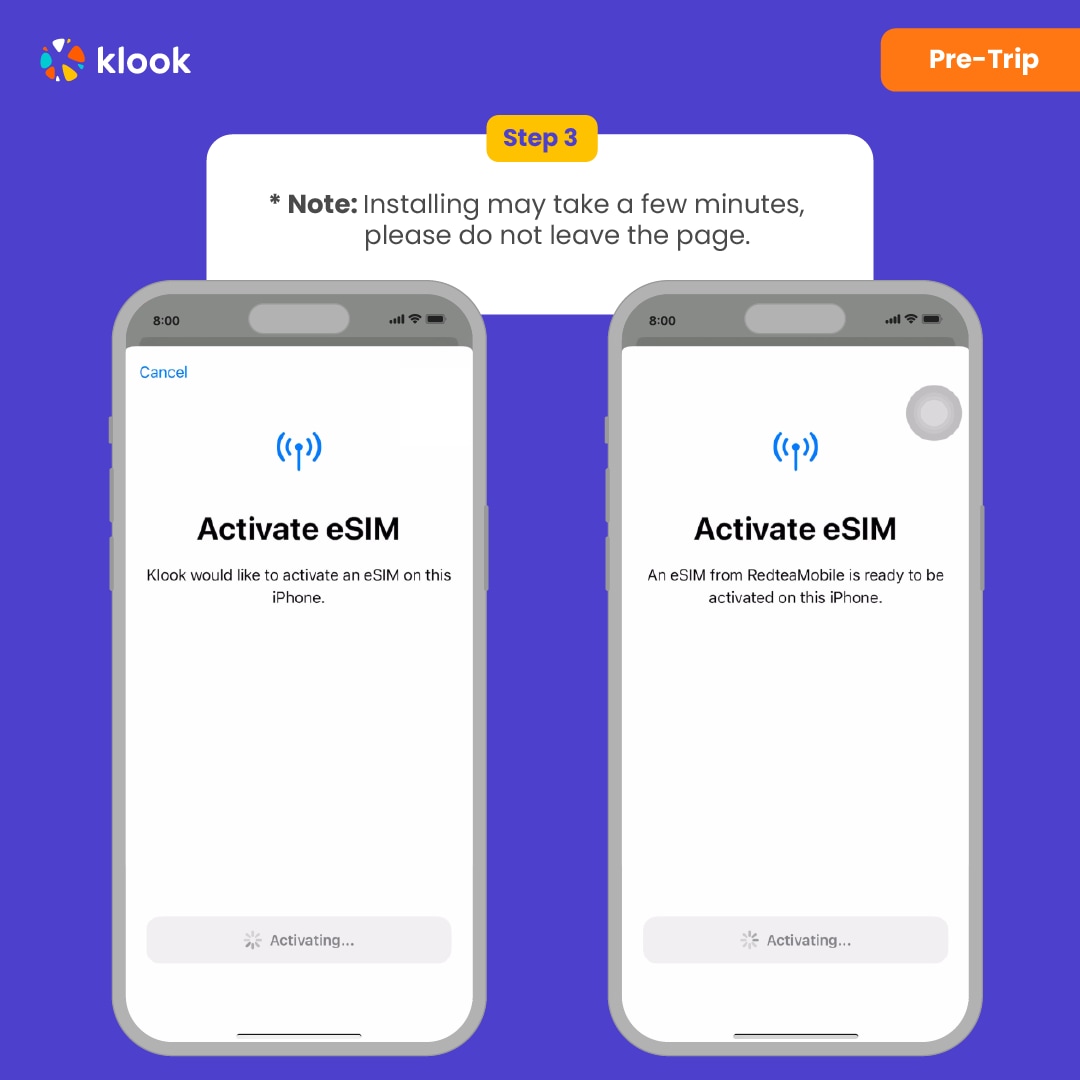
Suggest install under wifi connection and please do not leave the page (might take some time)

  • Please select "Primary" if you're not in your destination.

Please select "Primary" if you're not in your destination.
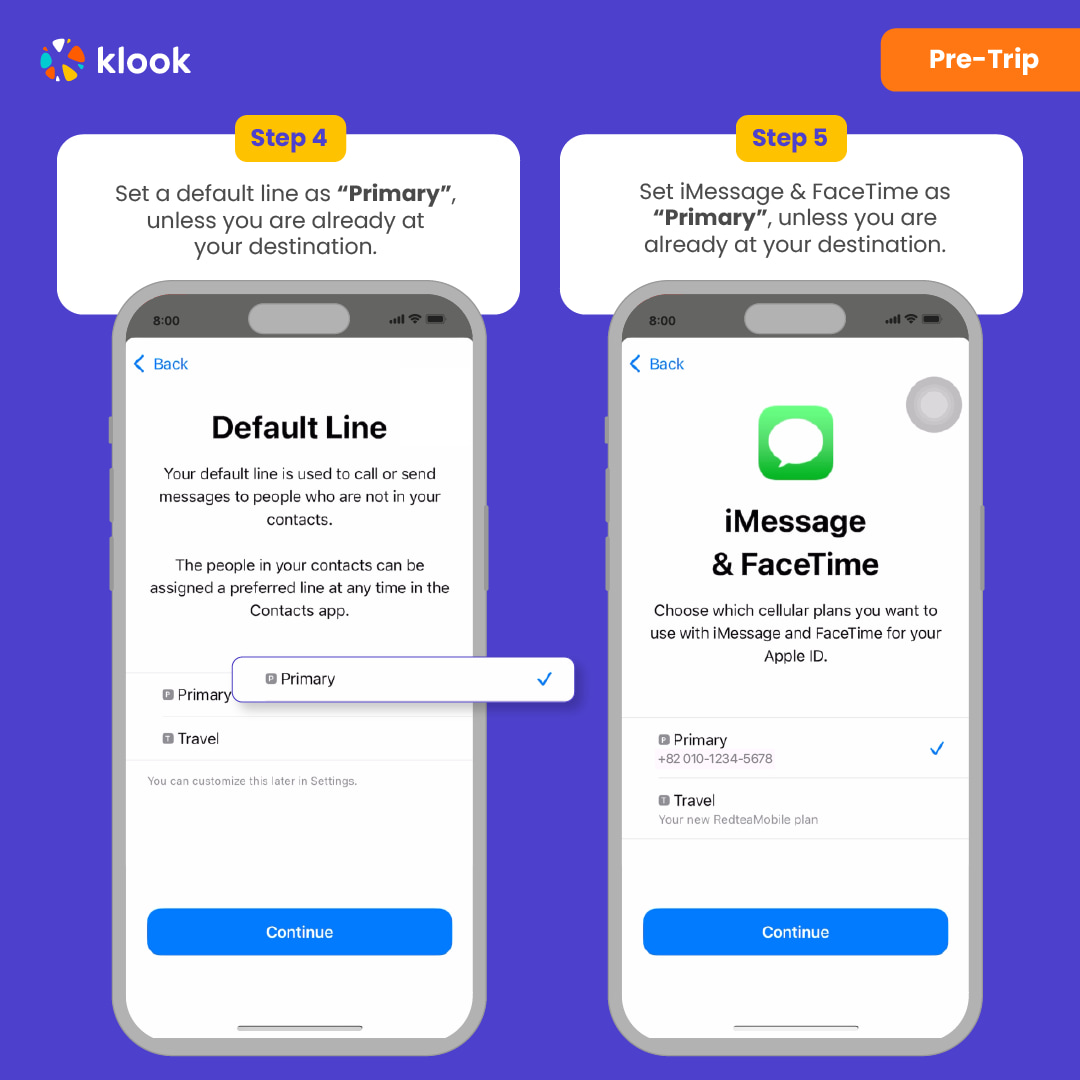
Please select "Primary" if you're not in your destination.

  • Turn off cellular switching and the eSIM is installed! (If you failed, can try again.)

Turn off cellular switching and the eSIM is installed! (If you failed, can try again.)
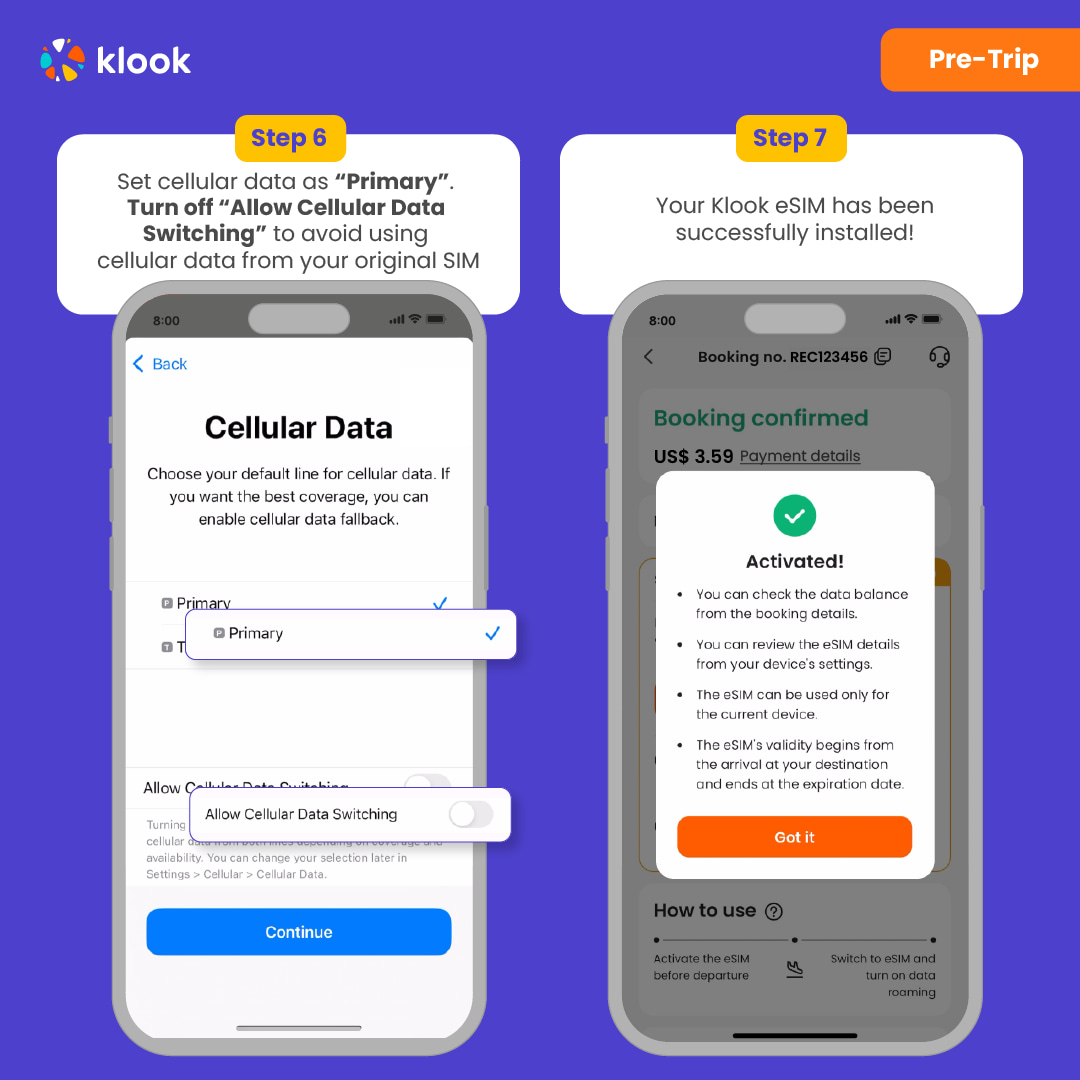
Turn off cellular switching and the eSIM is installed! (If you failed, can try again.)

  • After you arrive the destination: Turn on the eSIM line and turn on the data roaming.

After you arrive the destination: Turn on the eSIM line and turn on the data roaming.
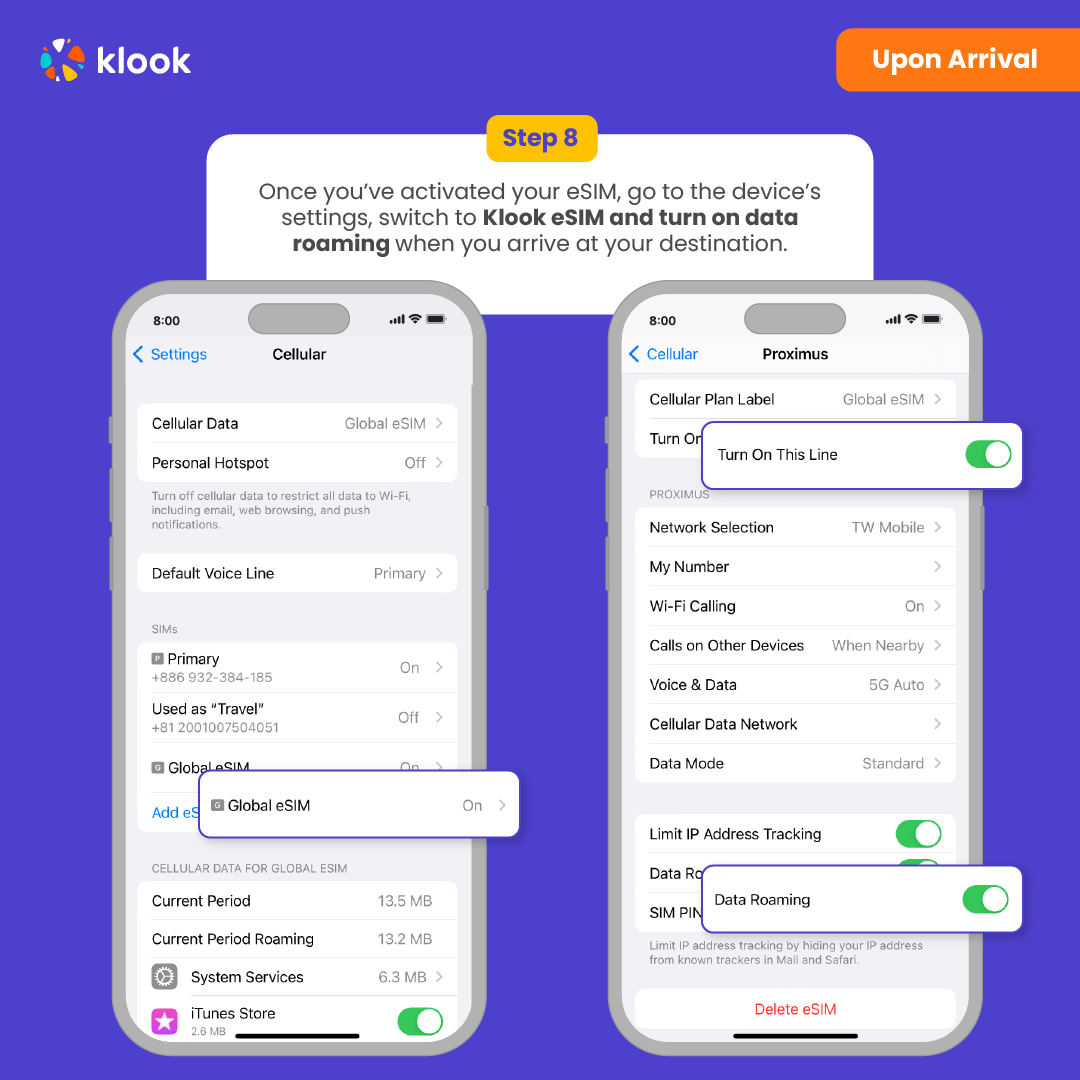
After you arrive the destination: Turn on the eSIM line and turn on the data roaming.

  • After you arrive the destination: Switch the cellular data to the eSIM card.

After you arrive the destination: Switch the cellular data to the eSIM card.
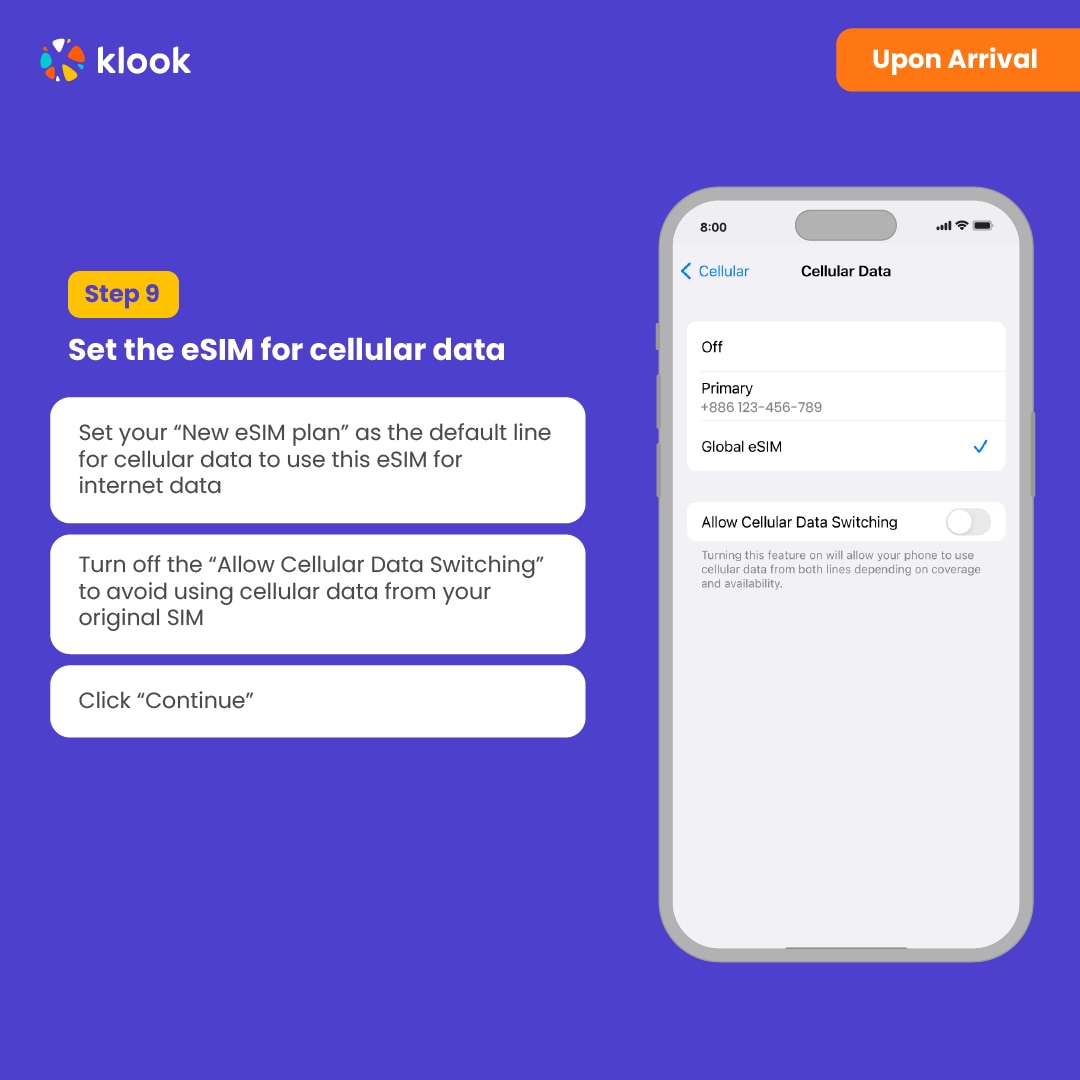
After you arrive the destination: Switch the cellular data to the eSIM card.

  • Check the eSIM status in your bookings in Klook APP (Reach out to us on the top right of the booking if you have any issues!)
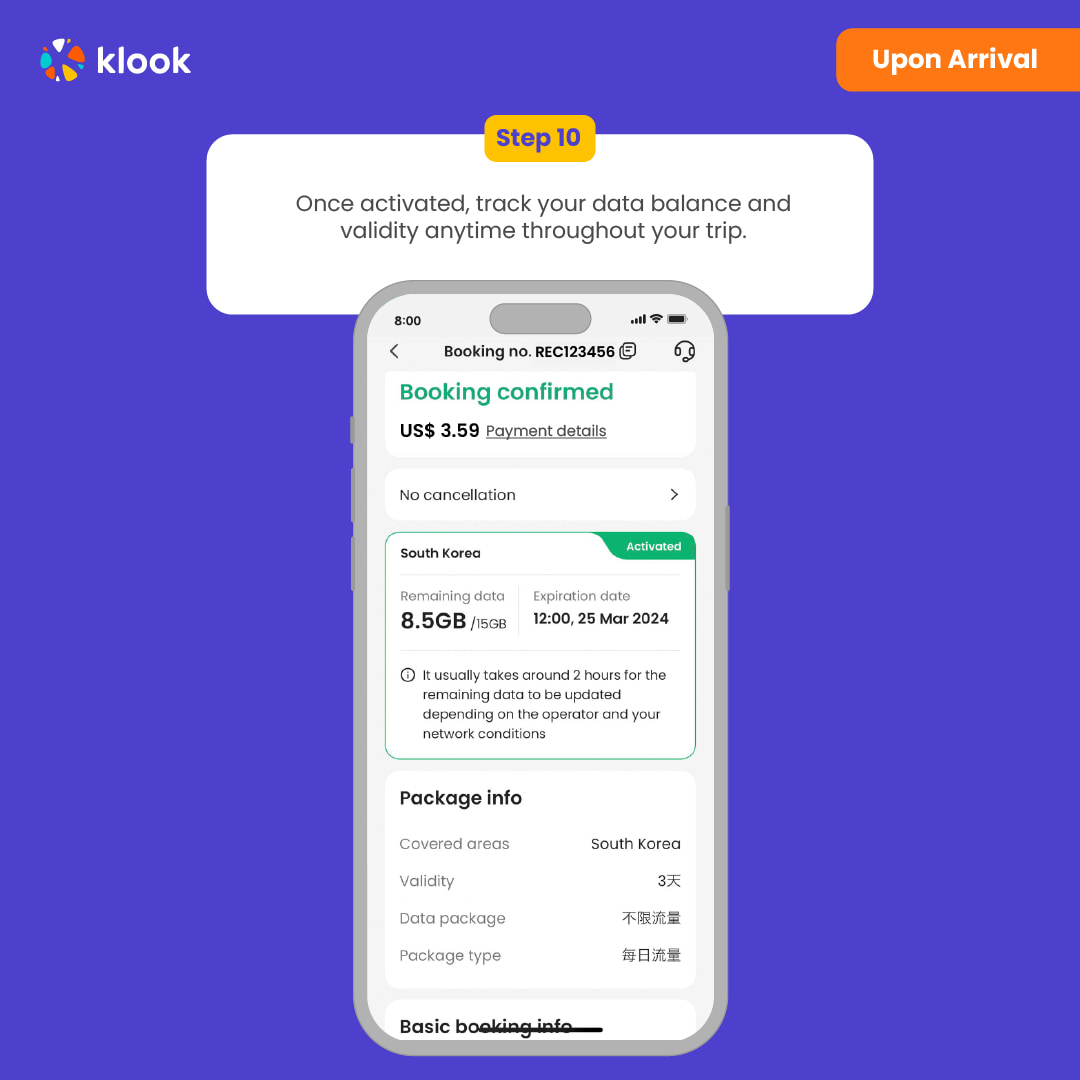

Check the eSIM status in your bookings in Klook APP (Reach out to us on the top right of the booking if you have any issues!)

Check the eSIM status in your bookings in Klook APP (Reach out to us on the top right of the booking if you have any issues!)

Confirmation policy

  • You'll get confirmation within minutes. If you don't see any confirmation, reach out to our customer support.

Select This Option

Data in total · 7 days · 3GB · Data only

eSIM
85 750 UZS
≈$7

Kindly follow the link below to proceed with your eSIM activation. Android version iOS version

  • Your eSIM plan will begin upon connection to the destination mobile network, according to the time connected. For example, if you activate your 3-day plan at 10:00, it will end 3 days later at 10:00.

  • Activate in Klook App (Update Klook APP to the latest version)

Activate in Klook App (Update Klook APP to the latest version)

Activate in Klook App (Update Klook APP to the latest version)

  • Klook App: Account -Bookings-Click activate (You can also find the eSIM QR code in the voucher, Settings -Cellula- SIMs - Tap Add eSIM - scan QR code )

Klook App: Account -Bookings-Click activate (You can also find the eSIM QR code in the voucher, Settings -Cellula- SIMs - Tap Add eSIM - scan QR code )

Klook App: Account -Bookings-Click activate (You can also find the eSIM QR code in the voucher, Settings -Cellula- SIMs - Tap Add eSIM - scan QR code )

  • Read the reminder and start installing the eSIM (The time and data will not start counting.)

Read the reminder and start installing the eSIM (The time and data will not start counting.)

Read the reminder and start installing the eSIM (The time and data will not start counting.)

  • Suggest install under wifi connection and please do not leave the page (might take some time)

Suggest install under wifi connection and please do not leave the page (might take some time)

Suggest install under wifi connection and please do not leave the page (might take some time)

  • Please select "Primary" if you're not in your destination.

Please select "Primary" if you're not in your destination.

Please select "Primary" if you're not in your destination.

  • Turn off cellular switching and the eSIM is installed! (If you failed, can try again.)

Turn off cellular switching and the eSIM is installed! (If you failed, can try again.)

Turn off cellular switching and the eSIM is installed! (If you failed, can try again.)

  • After you arrive the destination: Turn on the eSIM line and turn on the data roaming.

After you arrive the destination: Turn on the eSIM line and turn on the data roaming.

After you arrive the destination: Turn on the eSIM line and turn on the data roaming.

  • After you arrive the destination: Switch the cellular data to the eSIM card.

After you arrive the destination: Switch the cellular data to the eSIM card.

After you arrive the destination: Switch the cellular data to the eSIM card.

  • Check the eSIM status in your bookings in Klook APP (Reach out to us on the top right of the booking if you have any issues!)

Check the eSIM status in your bookings in Klook APP (Reach out to us on the top right of the booking if you have any issues!)
Check the eSIM status in your bookings in Klook APP (Reach out to us on the top right of the booking if you have any issues!)

Confirmation policy

  • You'll get confirmation within minutes. If you don't see any confirmation, reach out to our customer support.

Select This Option

Data in total · 30 days · 10GB · Data only

eSIM
269 500 UZS
≈$22

Kindly follow the link below to proceed with your eSIM activation. Android version iOS version

  • Your eSIM plan will begin upon connection to the destination mobile network, according to the time connected. For example, if you activate your 3-day plan at 10:00, it will end 3 days later at 10:00.

  • Activate in Klook App (Update Klook APP to the latest version)

Activate in Klook App (Update Klook APP to the latest version)

Activate in Klook App (Update Klook APP to the latest version)

  • Klook App: Account -Bookings-Click activate (You can also find the eSIM QR code in the voucher, Settings -Cellula- SIMs - Tap Add eSIM - scan QR code )

Klook App: Account -Bookings-Click activate (You can also find the eSIM QR code in the voucher, Settings -Cellula- SIMs - Tap Add eSIM - scan QR code )

Klook App: Account -Bookings-Click activate (You can also find the eSIM QR code in the voucher, Settings -Cellula- SIMs - Tap Add eSIM - scan QR code )

  • Read the reminder and start installing the eSIM (The time and data will not start counting.)

Read the reminder and start installing the eSIM (The time and data will not start counting.)

Read the reminder and start installing the eSIM (The time and data will not start counting.)

  • Suggest install under wifi connection and please do not leave the page (might take some time)

Suggest install under wifi connection and please do not leave the page (might take some time)

Suggest install under wifi connection and please do not leave the page (might take some time)

  • Please select "Primary" if you're not in your destination.

Please select "Primary" if you're not in your destination.

Please select "Primary" if you're not in your destination.

  • Turn off cellular switching and the eSIM is installed! (If you failed, can try again.)

Turn off cellular switching and the eSIM is installed! (If you failed, can try again.)

Turn off cellular switching and the eSIM is installed! (If you failed, can try again.)

  • After you arrive the destination: Turn on the eSIM line and turn on the data roaming.

After you arrive the destination: Turn on the eSIM line and turn on the data roaming.

After you arrive the destination: Turn on the eSIM line and turn on the data roaming.

  • After you arrive the destination: Switch the cellular data to the eSIM card.

After you arrive the destination: Switch the cellular data to the eSIM card.

After you arrive the destination: Switch the cellular data to the eSIM card.

  • Check the eSIM status in your bookings in Klook APP (Reach out to us on the top right of the booking if you have any issues!)

Check the eSIM status in your bookings in Klook APP (Reach out to us on the top right of the booking if you have any issues!)

Check the eSIM status in your bookings in Klook APP (Reach out to us on the top right of the booking if you have any issues!)

Confirmation policy

  • You'll get confirmation within minutes. If you don't see any confirmation, reach out to our customer support.

Select This Option

Data in total · 30 days · 20GB · Data only

eSIM
490 000 UZS
≈$40

Kindly follow the link below to proceed with your eSIM activation. Android version iOS version

  • Your eSIM plan will begin upon connection to the destination mobile network, according to the time connected. For example, if you activate your 3-day plan at 10:00, it will end 3 days later at 10:00.

Confirmation policy

  • You'll get confirmation within minutes. If you don't see any confirmation, reach out to our customer support.

Select This Option

Data per day · 5 days · 1GB · Data only

eSIM
98 000 UZS
≈$8

Kindly follow the link below to proceed with your eSIM activation. Android version iOS version

  • Your eSIM plan will begin upon connection to the destination mobile network, according to the time connected. For example, if you activate your 3-day plan at 10:00, it will end 3 days later at 10:00.

  • Activate in Klook App (Update Klook APP to the latest version)

Activate in Klook App (Update Klook APP to the latest version)

Activate in Klook App (Update Klook APP to the latest version)

  • Klook App: Account -Bookings-Click activate (You can also find the eSIM QR code in the voucher, Settings -Cellula- SIMs - Tap Add eSIM - scan QR code )

Klook App: Account -Bookings-Click activate (You can also find the eSIM QR code in the voucher, Settings -Cellula- SIMs - Tap Add eSIM - scan QR code )

Klook App: Account -Bookings-Click activate (You can also find the eSIM QR code in the voucher, Settings -Cellula- SIMs - Tap Add eSIM - scan QR code )

  • Read the reminder and start installing the eSIM (The time and data will not start counting.)

Read the reminder and start installing the eSIM (The time and data will not start counting.)

Read the reminder and start installing the eSIM (The time and data will not start counting.)

  • Suggest install under wifi connection and please do not leave the page (might take some time)

Suggest install under wifi connection and please do not leave the page (might take some time)

Suggest install under wifi connection and please do not leave the page (might take some time)

  • Please select "Primary" if you're not in your destination.

Please select "Primary" if you're not in your destination.

Please select "Primary" if you're not in your destination.

  • Turn off cellular switching and the eSIM is installed! (If you failed, can try again.)

Turn off cellular switching and the eSIM is installed! (If you failed, can try again.)

Turn off cellular switching and the eSIM is installed! (If you failed, can try again.)

  • After you arrive the destination: Turn on the eSIM line and turn on the data roaming.

After you arrive the destination: Turn on the eSIM line and turn on the data roaming.

After you arrive the destination: Turn on the eSIM line and turn on the data roaming.

  • After you arrive the destination: Switch the cellular data to the eSIM card.

After you arrive the destination: Switch the cellular data to the eSIM card.

After you arrive the destination: Switch the cellular data to the eSIM card.

  • Check the eSIM status in your bookings in Klook APP (Reach out to us on the top right of the booking if you have any issues!)

Check the eSIM status in your bookings in Klook APP (Reach out to us on the top right of the booking if you have any issues!)

Check the eSIM status in your bookings in Klook APP (Reach out to us on the top right of the booking if you have any issues!)

Confirmation policy

  • You'll get confirmation within minutes. If you don't see any confirmation, reach out to our customer support.

Select This Option

Data in total · 7 days · 1GB · Data only

eSIM
36 750 UZS
≈$3

Kindly follow the link below to proceed with your eSIM activation. Android version iOS version

  • Your eSIM plan will begin upon connection to the destination mobile network, according to the time connected. For example, if you activate your 3-day plan at 10:00, it will end 3 days later at 10:00.

  • Activate in Klook App (Update Klook APP to the latest version)

Activate in Klook App (Update Klook APP to the latest version)

Activate in Klook App (Update Klook APP to the latest version)

  • Klook App: Account -Bookings-Click activate (You can also find the eSIM QR code in the voucher, Settings -Cellula- SIMs - Tap Add eSIM - scan QR code )

Klook App: Account -Bookings-Click activate (You can also find the eSIM QR code in the voucher, Settings -Cellula- SIMs - Tap Add eSIM - scan QR code )

Klook App: Account -Bookings-Click activate (You can also find the eSIM QR code in the voucher, Settings -Cellula- SIMs - Tap Add eSIM - scan QR code )

  • Read the reminder and start installing the eSIM (The time and data will not start counting.)

Read the reminder and start installing the eSIM (The time and data will not start counting.)

Read the reminder and start installing the eSIM (The time and data will not start counting.)

  • Suggest install under wifi connection and please do not leave the page (might take some time)

Suggest install under wifi connection and please do not leave the page (might take some time)

Suggest install under wifi connection and please do not leave the page (might take some time)

  • Please select "Primary" if you're not in your destination.

Please select "Primary" if you're not in your destination.

Please select "Primary" if you're not in your destination.

  • Turn off cellular switching and the eSIM is installed! (If you failed, can try again.)

Turn off cellular switching and the eSIM is installed! (If you failed, can try again.)

Turn off cellular switching and the eSIM is installed! (If you failed, can try again.)

  • After you arrive the destination: Turn on the eSIM line and turn on the data roaming.

After you arrive the destination: Turn on the eSIM line and turn on the data roaming.

After you arrive the destination: Turn on the eSIM line and turn on the data roaming.

  • After you arrive the destination: Switch the cellular data to the eSIM card.

After you arrive the destination: Switch the cellular data to the eSIM card.

After you arrive the destination: Switch the cellular data to the eSIM card.

  • Check the eSIM status in your bookings in Klook APP (Reach out to us on the top right of the booking if you have any issues!)

Check the eSIM status in your bookings in Klook APP (Reach out to us on the top right of the booking if you have any issues!)

Check the eSIM status in your bookings in Klook APP (Reach out to us on the top right of the booking if you have any issues!)

Confirmation policy

  • You'll get confirmation within minutes. If you don't see any confirmation, reach out to our customer support.

Select This Option

Data per day · 7 days · 1GB · Data only

eSIM
134 750 UZS
≈$11

Kindly follow the link below to proceed with your eSIM activation. Android version iOS version

  • Your eSIM plan will begin upon connection to the destination mobile network, according to the time connected. For example, if you activate your 3-day plan at 10:00, it will end 3 days later at 10:00.

Confirmation policy

  • You'll get confirmation within minutes. If you don't see any confirmation, reach out to our customer support.

Select This Option

Data per day · 15 days · 1GB · Data only

eSIM
281 750 UZS
≈$23

Kindly follow the link below to proceed with your eSIM activation. Android version iOS version

  • Your eSIM plan will begin upon connection to the destination mobile network, according to the time connected. For example, if you activate your 3-day plan at 10:00, it will end 3 days later at 10:00.

  • Activate in Klook App (Update Klook APP to the latest version)

Activate in Klook App (Update Klook APP to the latest version)

Activate in Klook App (Update Klook APP to the latest version)

  • Klook App: Account -Bookings-Click activate (You can also find the eSIM QR code in the voucher, Settings -Cellula- SIMs - Tap Add eSIM - scan QR code )

Klook App: Account -Bookings-Click activate (You can also find the eSIM QR code in the voucher, Settings -Cellula- SIMs - Tap Add eSIM - scan QR code )

Klook App: Account -Bookings-Click activate (You can also find the eSIM QR code in the voucher, Settings -Cellula- SIMs - Tap Add eSIM - scan QR code )

  • Read the reminder and start installing the eSIM (The time and data will not start counting.)

Read the reminder and start installing the eSIM (The time and data will not start counting.)

Read the reminder and start installing the eSIM (The time and data will not start counting.)

  • Suggest install under wifi connection and please do not leave the page (might take some time)

Suggest install under wifi connection and please do not leave the page (might take some time)

Suggest install under wifi connection and please do not leave the page (might take some time)

  • Please select "Primary" if you're not in your destination.

Please select "Primary" if you're not in your destination.

Please select "Primary" if you're not in your destination.

  • Turn off cellular switching and the eSIM is installed! (If you failed, can try again.)

Turn off cellular switching and the eSIM is installed! (If you failed, can try again.)

Turn off cellular switching and the eSIM is installed! (If you failed, can try again.)

  • After you arrive the destination: Turn on the eSIM line and turn on the data roaming.

After you arrive the destination: Turn on the eSIM line and turn on the data roaming.

After you arrive the destination: Turn on the eSIM line and turn on the data roaming.

  • After you arrive the destination: Switch the cellular data to the eSIM card.

After you arrive the destination: Switch the cellular data to the eSIM card.

After you arrive the destination: Switch the cellular data to the eSIM card.

  • Check the eSIM status in your bookings in Klook APP (Reach out to us on the top right of the booking if you have any issues!)

Check the eSIM status in your bookings in Klook APP (Reach out to us on the top right of the booking if you have any issues!)

Check the eSIM status in your bookings in Klook APP (Reach out to us on the top right of the booking if you have any issues!)

Confirmation policy

  • You'll get confirmation within minutes. If you don't see any confirmation, reach out to our customer support.

Select This Option

Data in total · 30 days · 5GB · Data only

eSIM
147 000 UZS
≈$12

Confirmation policy

  • You'll get confirmation within minutes. If you don't see any confirmation, reach out to our customer support.

Kindly follow the link below to proceed with your eSIM activation. Android version iOS version

  • Your eSIM plan will begin upon connection to the destination mobile network, according to the time connected. For example, if you activate your 3-day plan at 10:00, it will end 3 days later at 10:00.

  • Activate in Klook App (Update Klook APP to the latest version)

Activate in Klook App (Update Klook APP to the latest version)

Activate in Klook App (Update Klook APP to the latest version)

  • Klook App: Account -Bookings-Click activate (You can also find the eSIM QR code in the voucher, Settings -Cellula- SIMs - Tap Add eSIM - scan QR code )

Klook App: Account -Bookings-Click activate (You can also find the eSIM QR code in the voucher, Settings -Cellula- SIMs - Tap Add eSIM - scan QR code )

Klook App: Account -Bookings-Click activate (You can also find the eSIM QR code in the voucher, Settings -Cellula- SIMs - Tap Add eSIM - scan QR code )

  • Read the reminder and start installing the eSIM (The time and data will not start counting.)

Read the reminder and start installing the eSIM (The time and data will not start counting.)

Read the reminder and start installing the eSIM (The time and data will not start counting.)

  • Suggest install under wifi connection and please do not leave the page (might take some time)

Suggest install under wifi connection and please do not leave the page (might take some time)

Suggest install under wifi connection and please do not leave the page (might take some time)

  • Please select "Primary" if you're not in your destination.

Please select "Primary" if you're not in your destination.

Please select "Primary" if you're not in your destination.

  • Turn off cellular switching and the eSIM is installed! (If you failed, can try again.)

Turn off cellular switching and the eSIM is installed! (If you failed, can try again.)

Turn off cellular switching and the eSIM is installed! (If you failed, can try again.)

  • After you arrive the destination: Turn on the eSIM line and turn on the data roaming.

After you arrive the destination: Turn on the eSIM line and turn on the data roaming.

After you arrive the destination: Turn on the eSIM line and turn on the data roaming.

  • After you arrive the destination: Switch the cellular data to the eSIM card.

After you arrive the destination: Switch the cellular data to the eSIM card.

After you arrive the destination: Switch the cellular data to the eSIM card.

  • Check the eSIM status in your bookings in Klook APP (Reach out to us on the top right of the booking if you have any issues!)

Check the eSIM status in your bookings in Klook APP (Reach out to us on the top right of the booking if you have any issues!)

Check the eSIM status in your bookings in Klook APP (Reach out to us on the top right of the booking if you have any issues!)

Select This Option
From
24 500 UZS per person
≈$2
Select Option & Book

Choose from available options above

Secure payment
Instant Confirmation

Similar Activities