


5G eSIM Саудовская Аравия | STC
Доступные варианты
Данные в день · 7 дней · Безлимит · Только данные
Политика подтверждения
- Вы получите подтверждение в течение нескольких минут. Если подтверждение не пришло, обратитесь в нашу службу поддержки.
- Your eSIM plan will begin upon connection to the destination mobile network, according to the time connected. For example, if you activate your 3-day plan at 10:00, it will end 3 days later at 10:00.
- Kindly follow the link below to proceed with your eSIM activation. Android version iOS version
- Activate in Klook App
Activate in Klook App (Update Klook APP to the latest version)
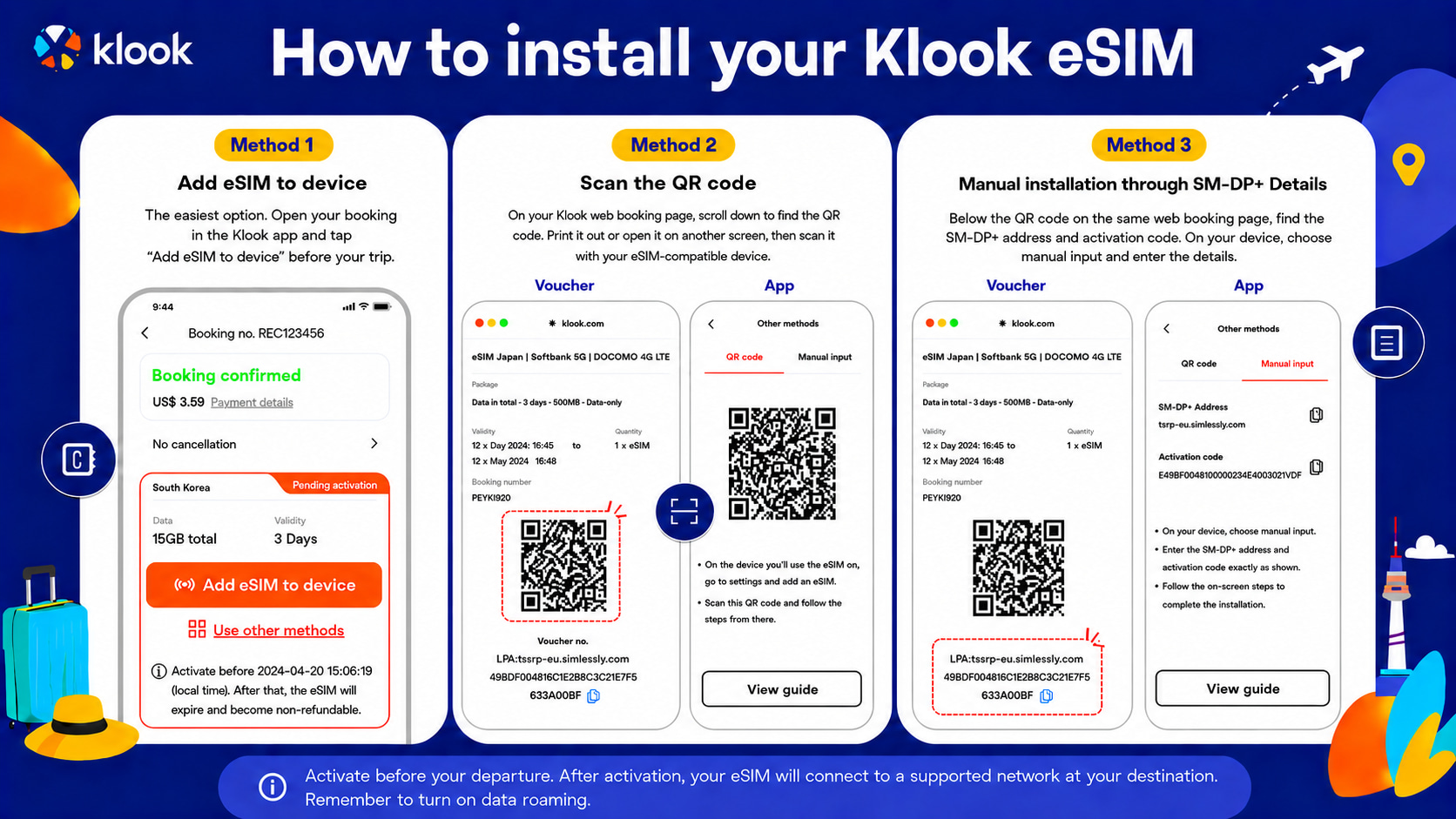
- Klook eSIM installation methods
Activate your eSIM via Klook in-app activation, scanning the QR code, or entering the SMDP+ details manually
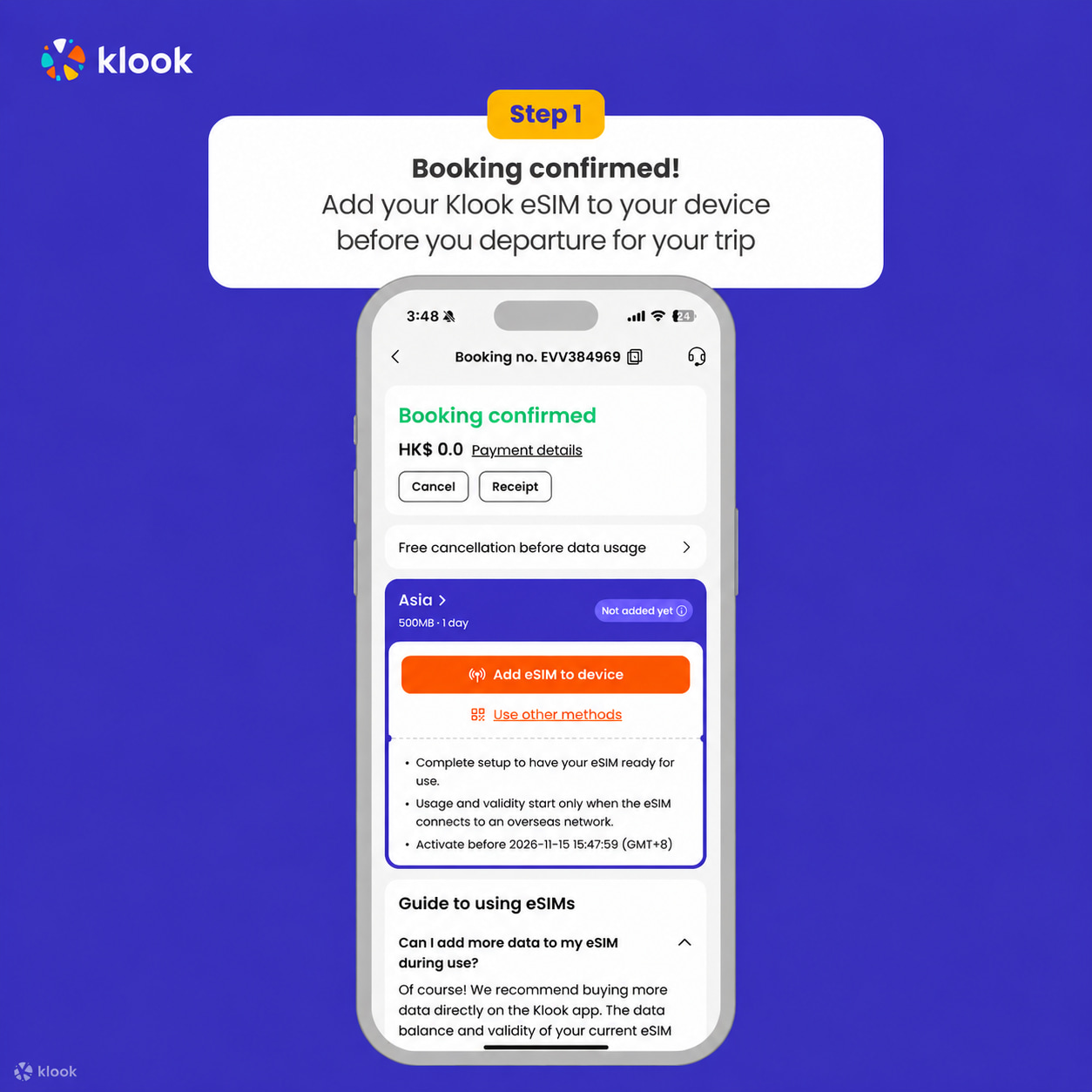
- Klook eSIM In-app activation
Activate your eSIM just by clicking Add eSIM to device on your booking. Don't worry, data and validity will only commence when you reach your destination
- Klook eSIM In-app activation
Installation of your eSIM will start automatically
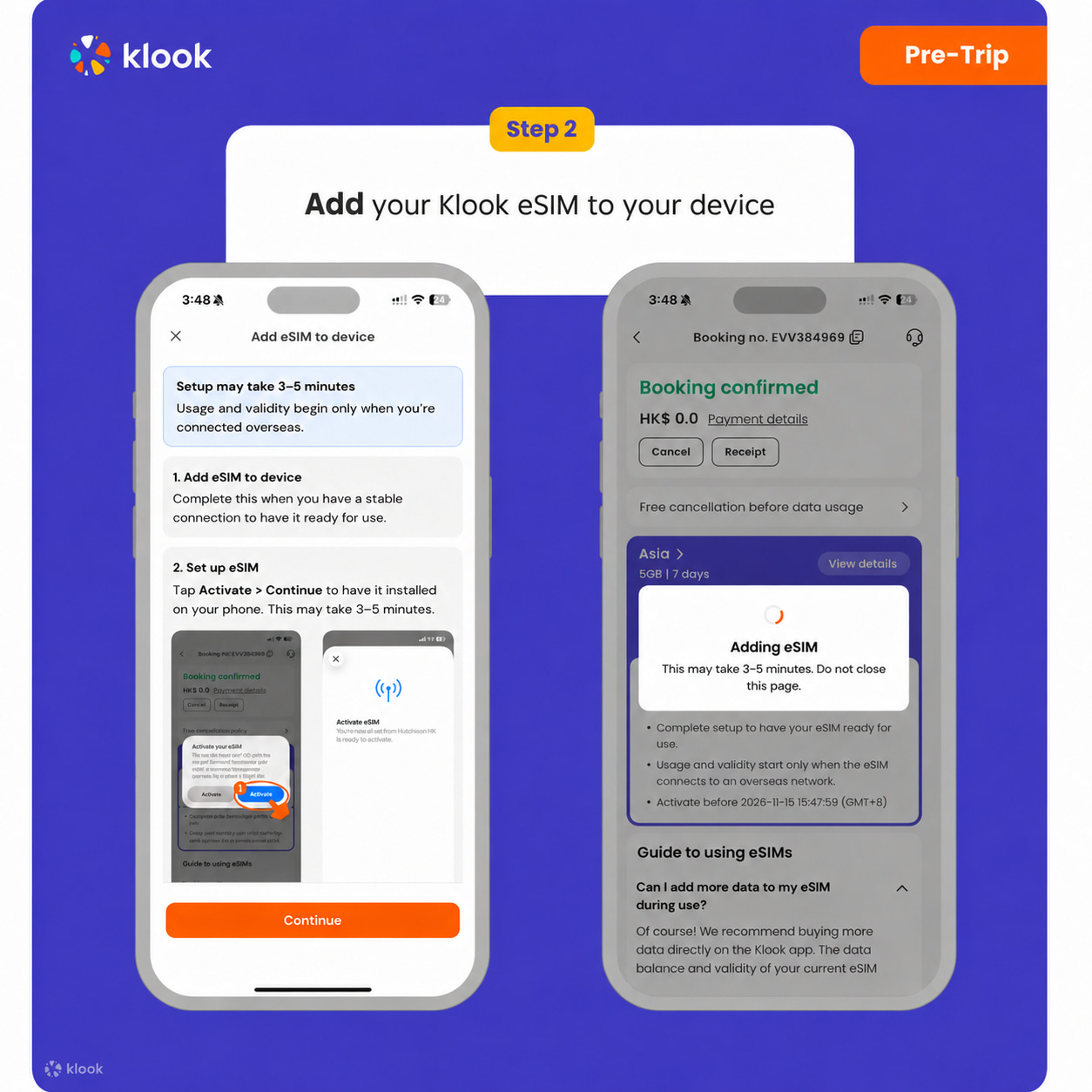
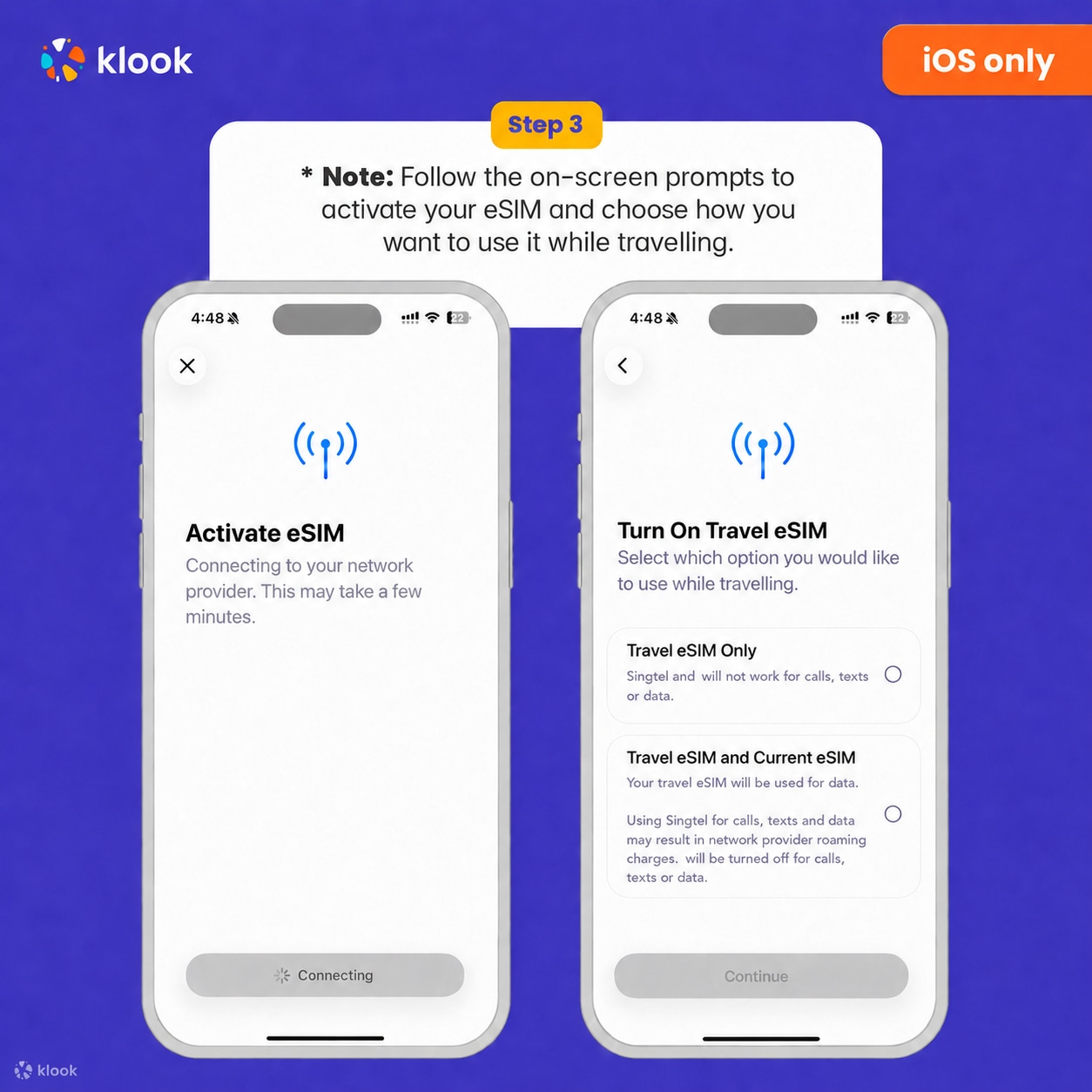
- Klook eSIM iOS installation
Set up your Klook eSIM for travel
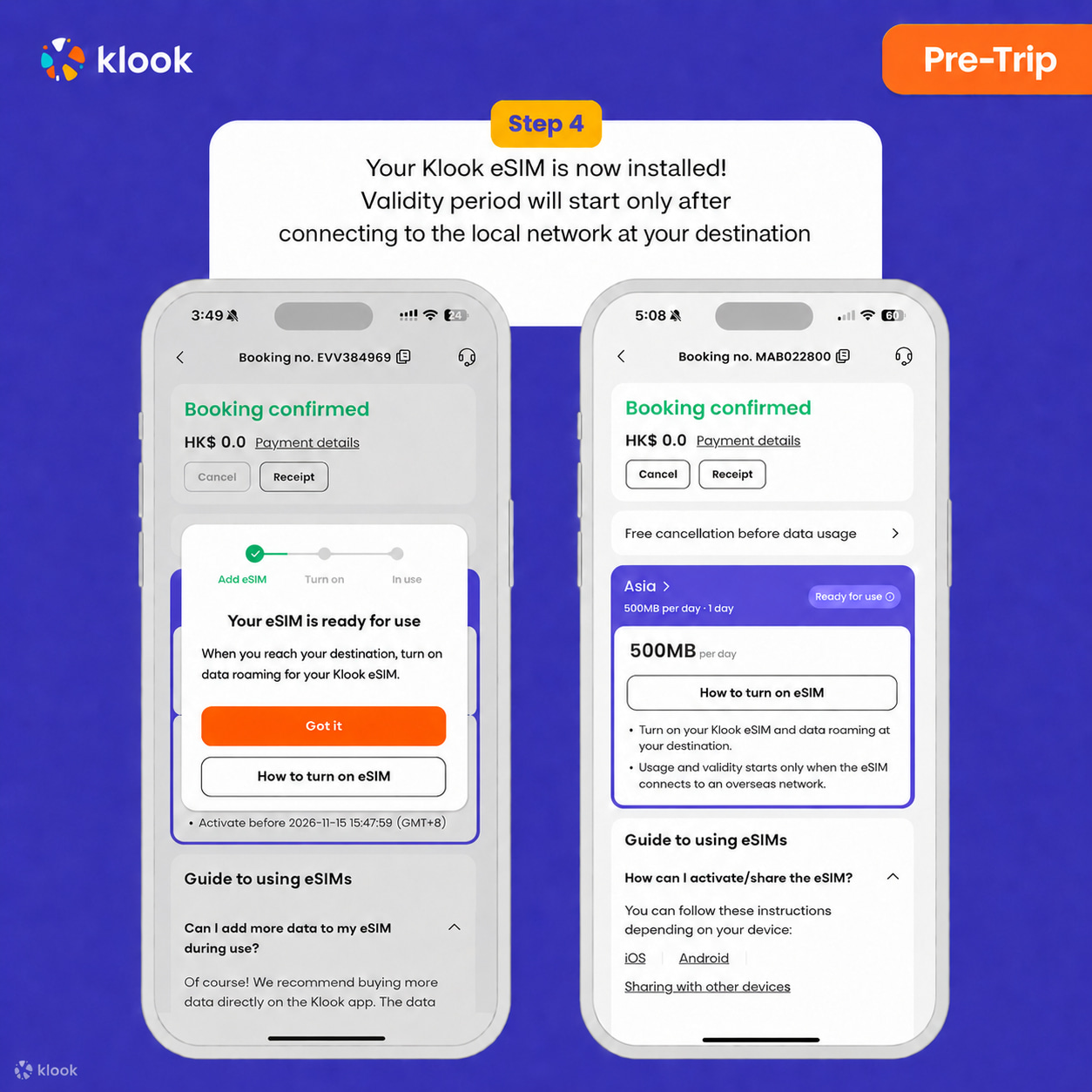
- Klook eSIM installed
Your Klook eSIM is now installed! Validity period will start only after connecting to the local network at your destination
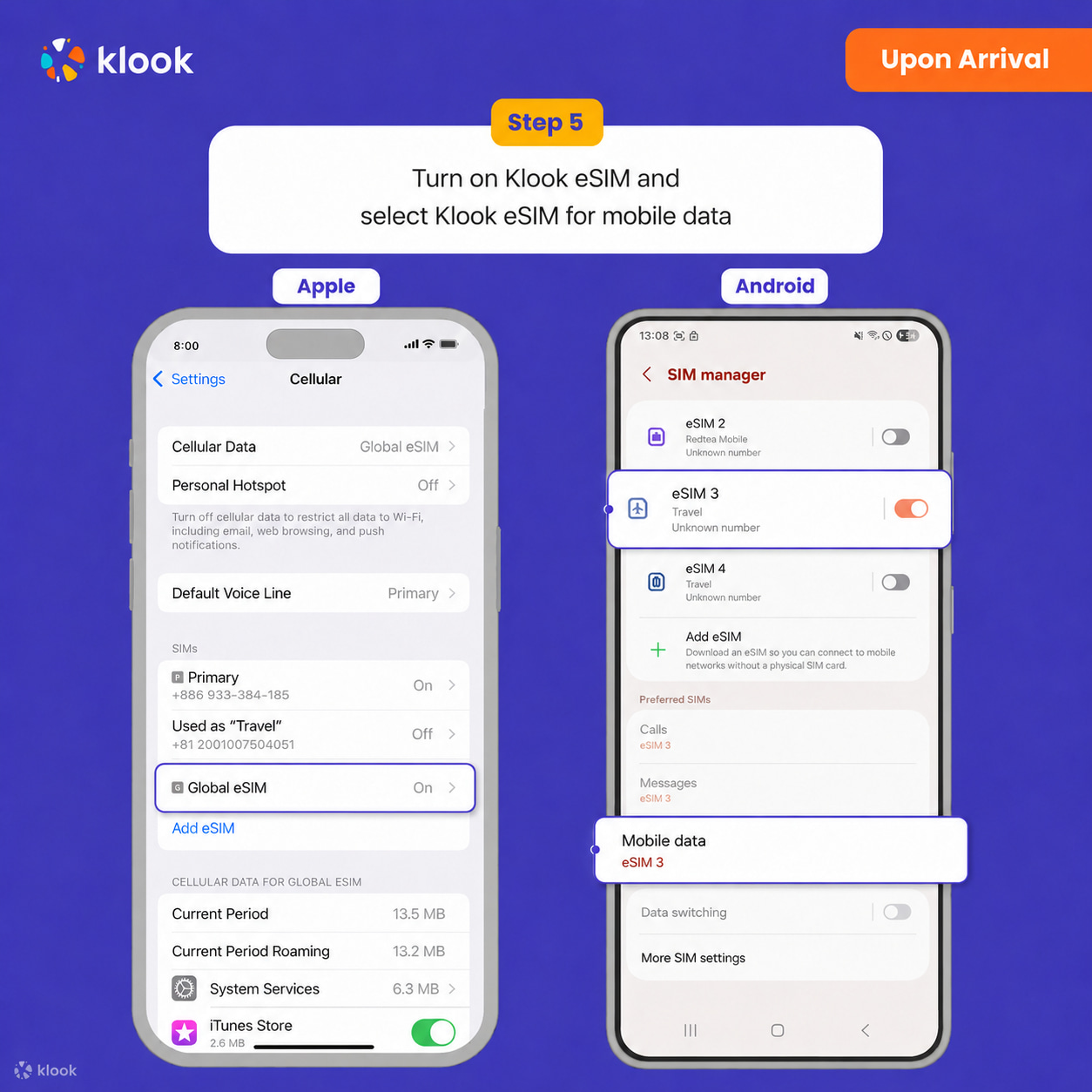
- Turn on Klook eSIM
Turn on Klook eSIM and select Klook eSIM for mobile data
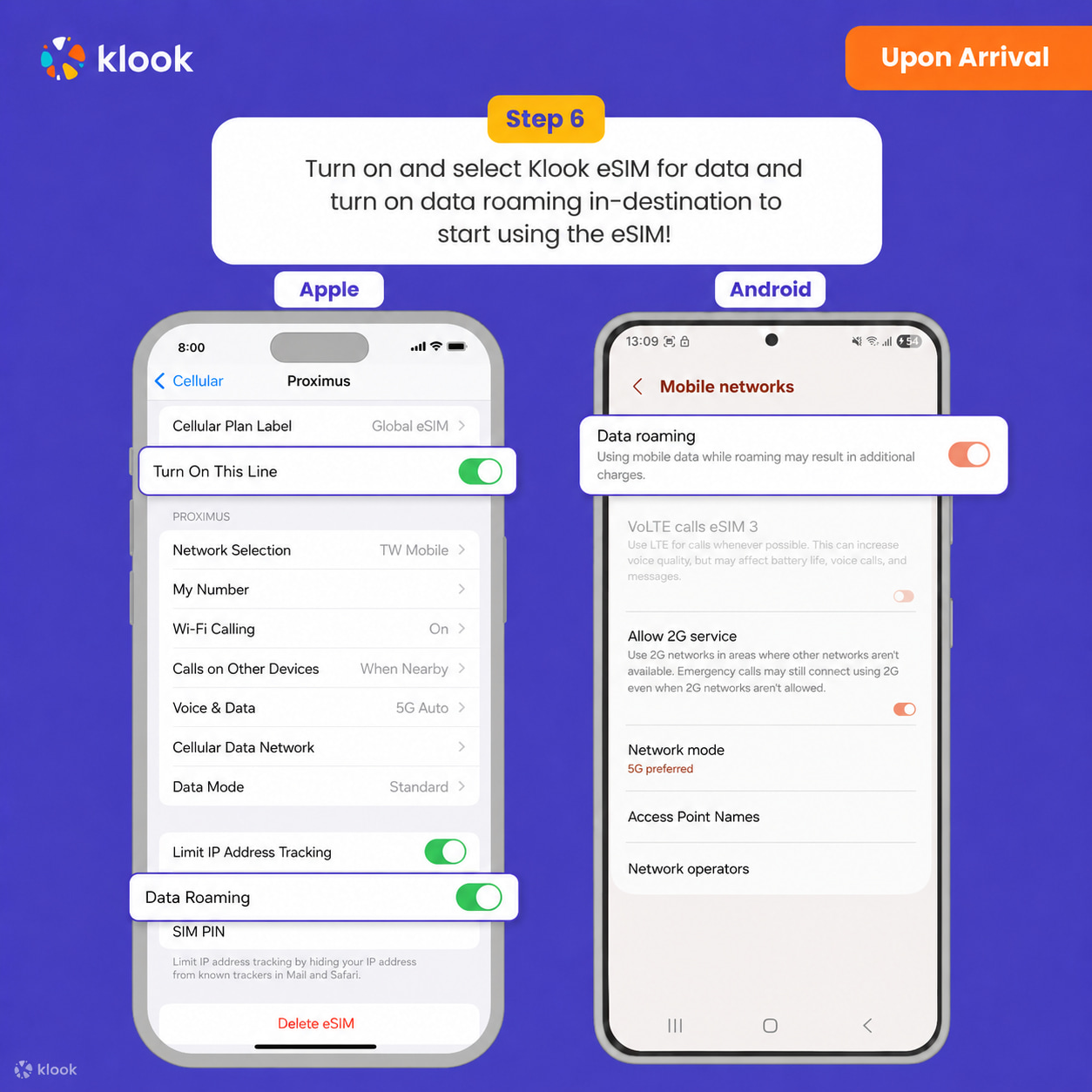
- Turn on Data roaming
Turn on and select Klook eSIM for data and turn on data roaming in-destination to start using the eSIM!
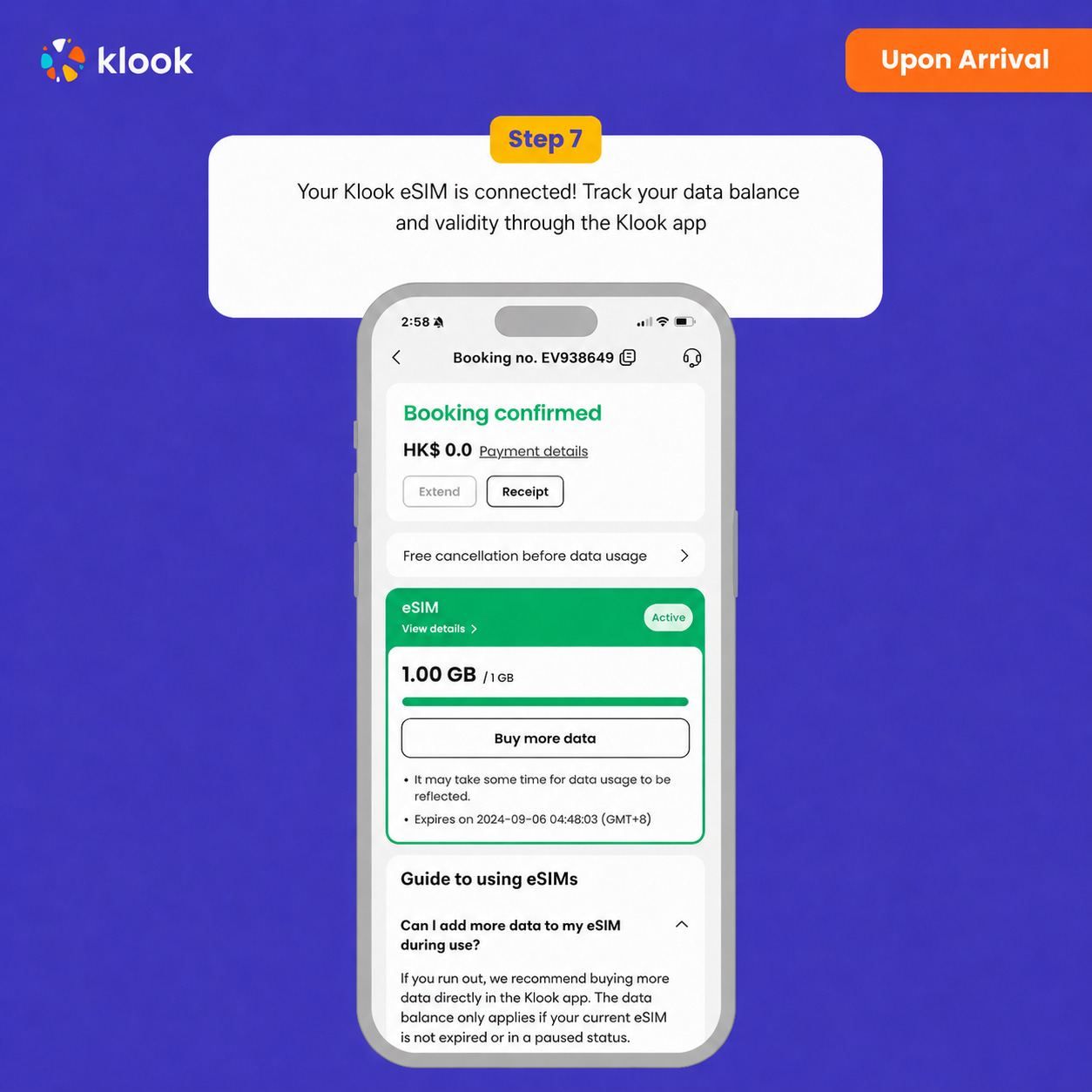
- Klook eSIM connected
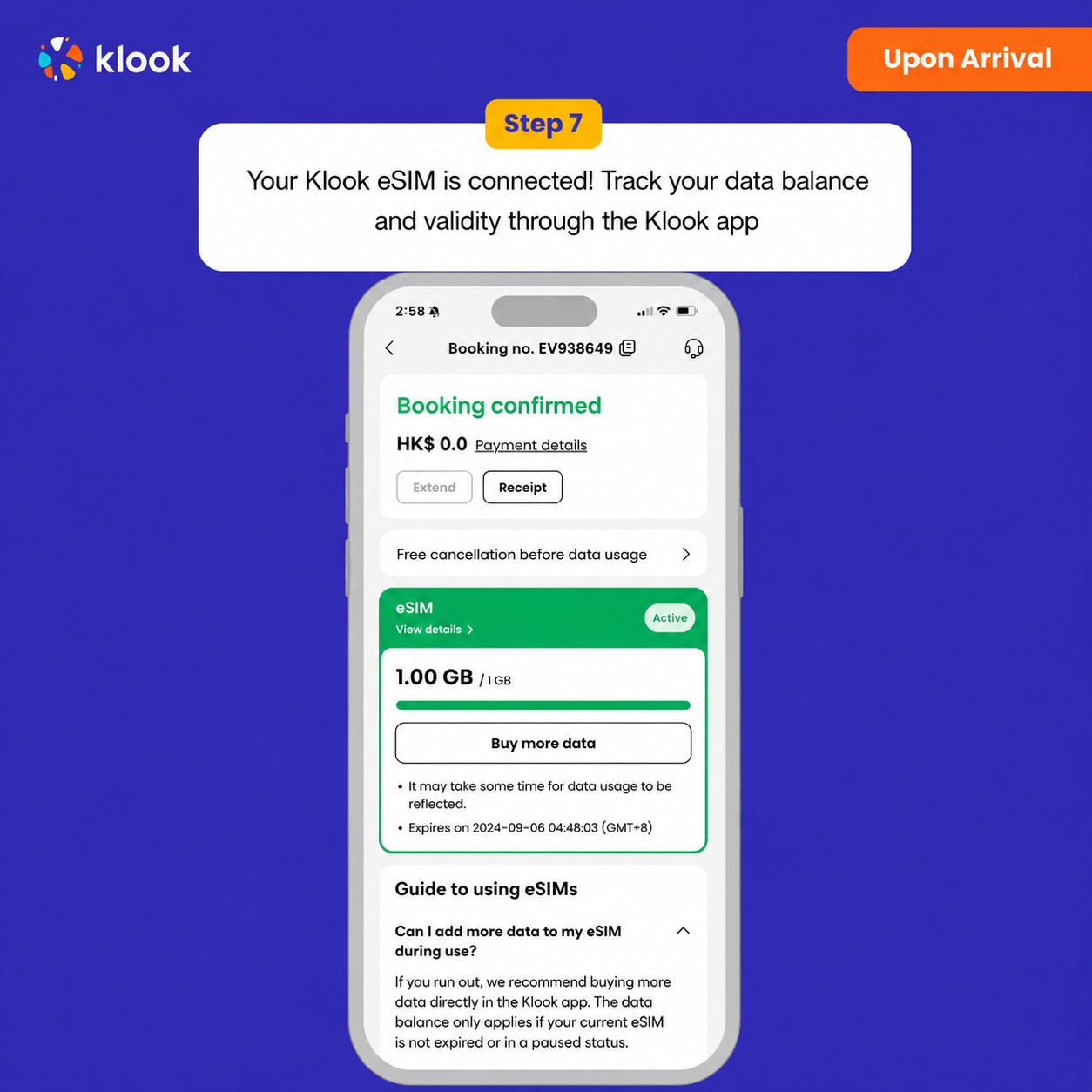
Your klook esim is connected! Track your data balance and validity through the Klook app
Всего данных · 7 дней · 20 ГБ · Только данные
-
Your eSIM plan will begin upon connection to the destination mobile network, according to the time connected. For example, if you activate your 3-day plan at 10:00, it will end 3 days later at 10:00.
-
Kindly follow the link below to proceed with your eSIM activation. Android version iOS version
- Activate in Klook App
Activate in Klook App (Update Klook APP to the latest version)
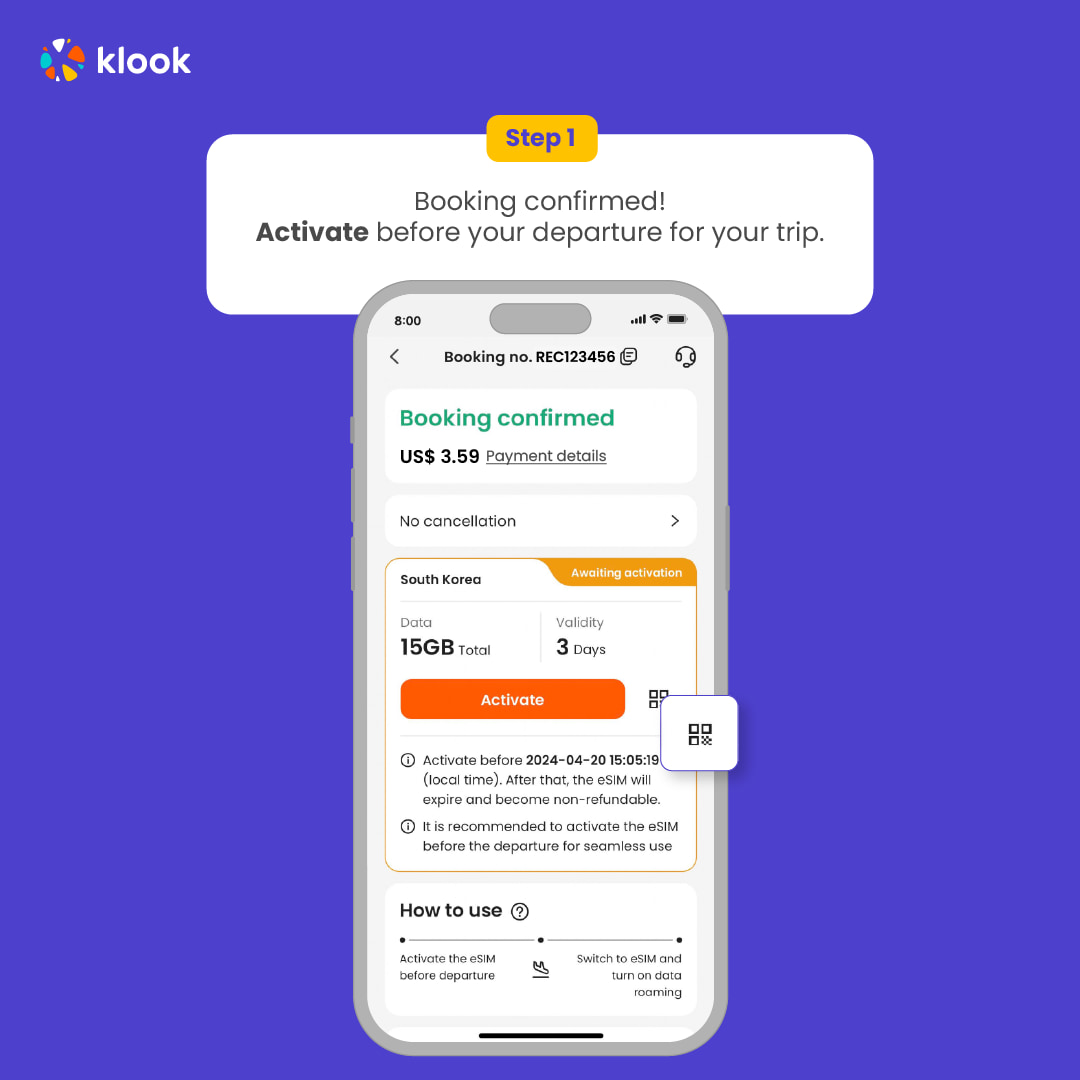
- Activate in Klook App
Klook App: Account -Bookings-Click activate (You can also find the eSIM QR code in the voucher, Settings -Cellula- SIMs - Tap Add eSIM - scan QR code )
- Reminder
Read the reminder and start installing the eSIM (The time and data will not start counting.)
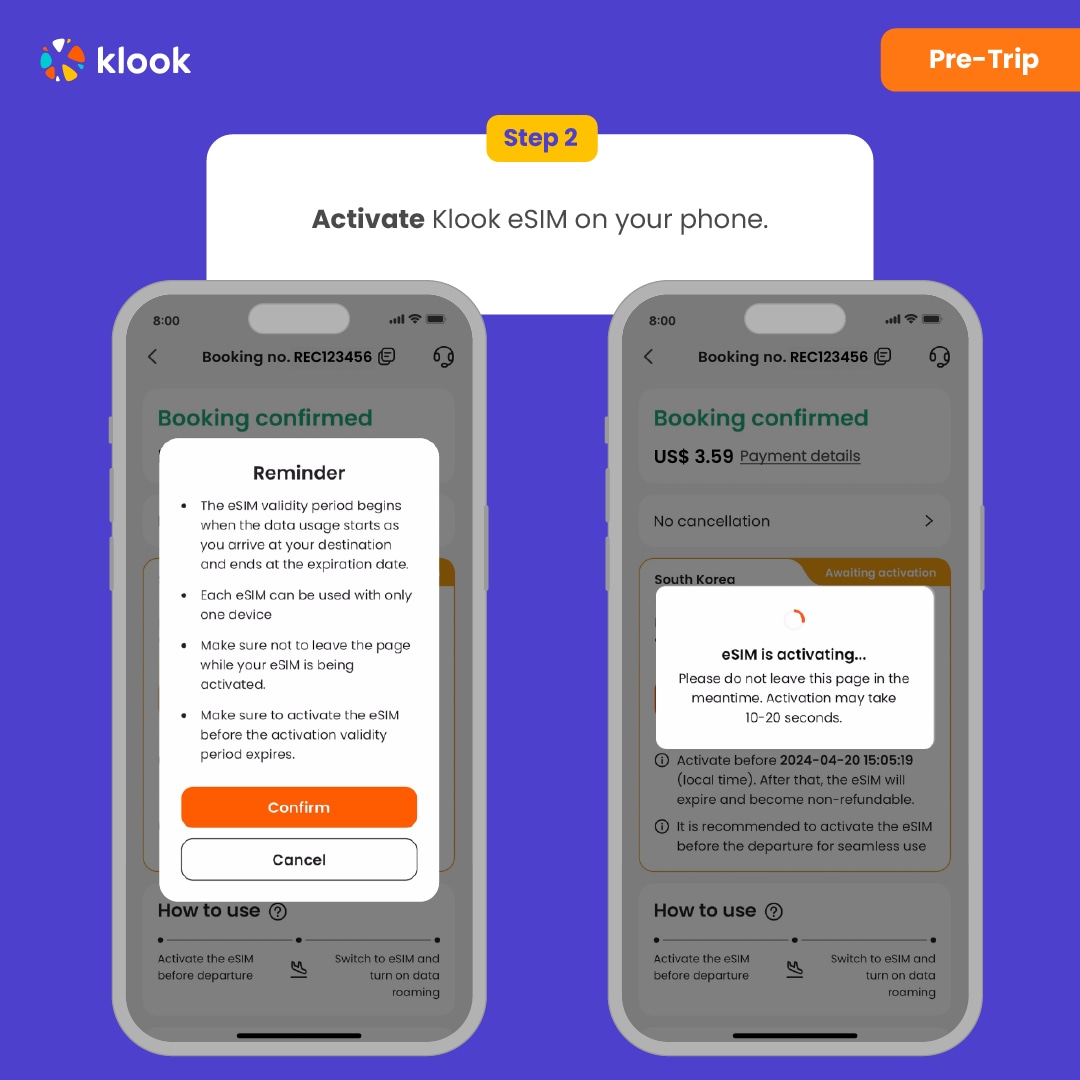
- Installation
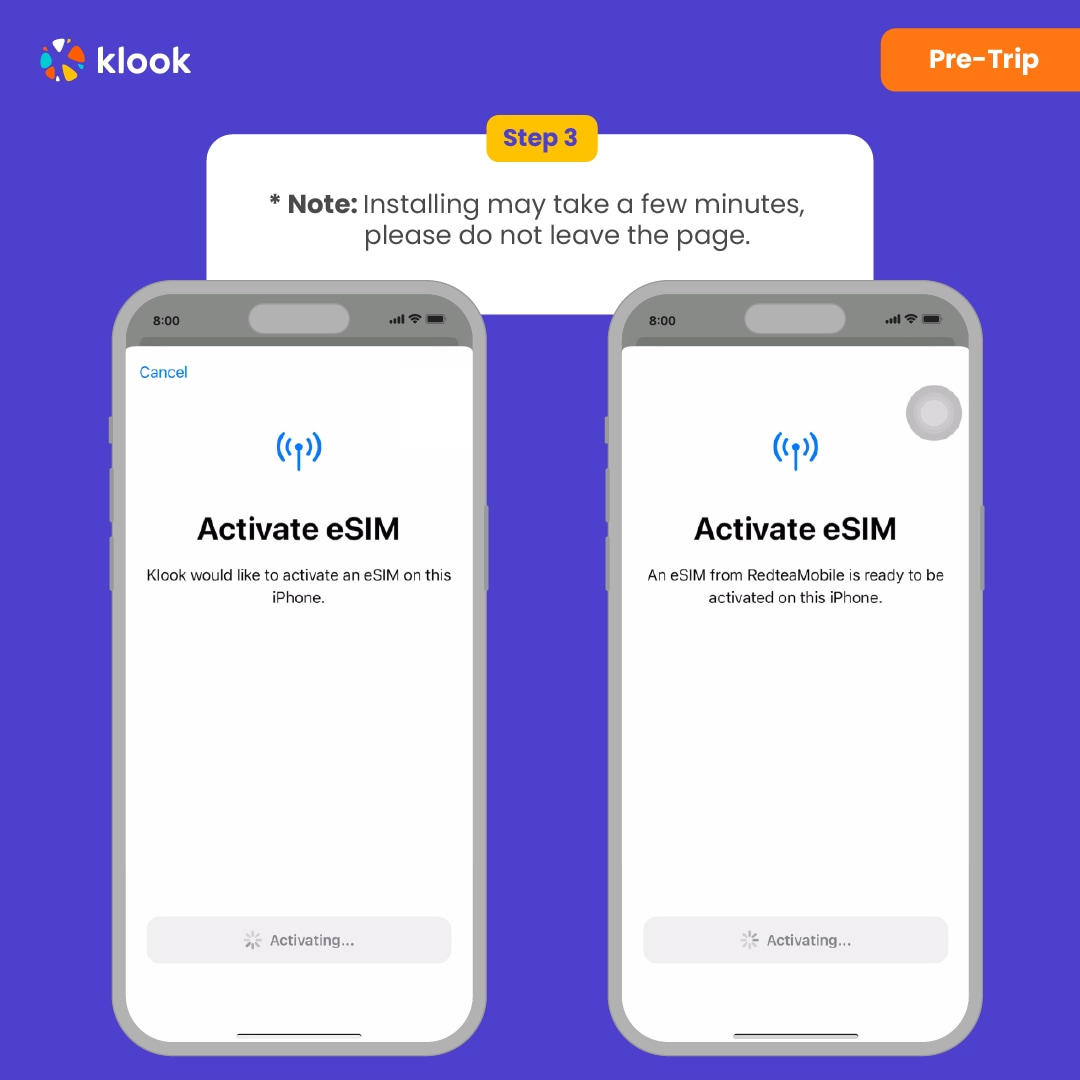
Suggest install under wifi connection and please do not leave the page (might take some time)
- Default settings
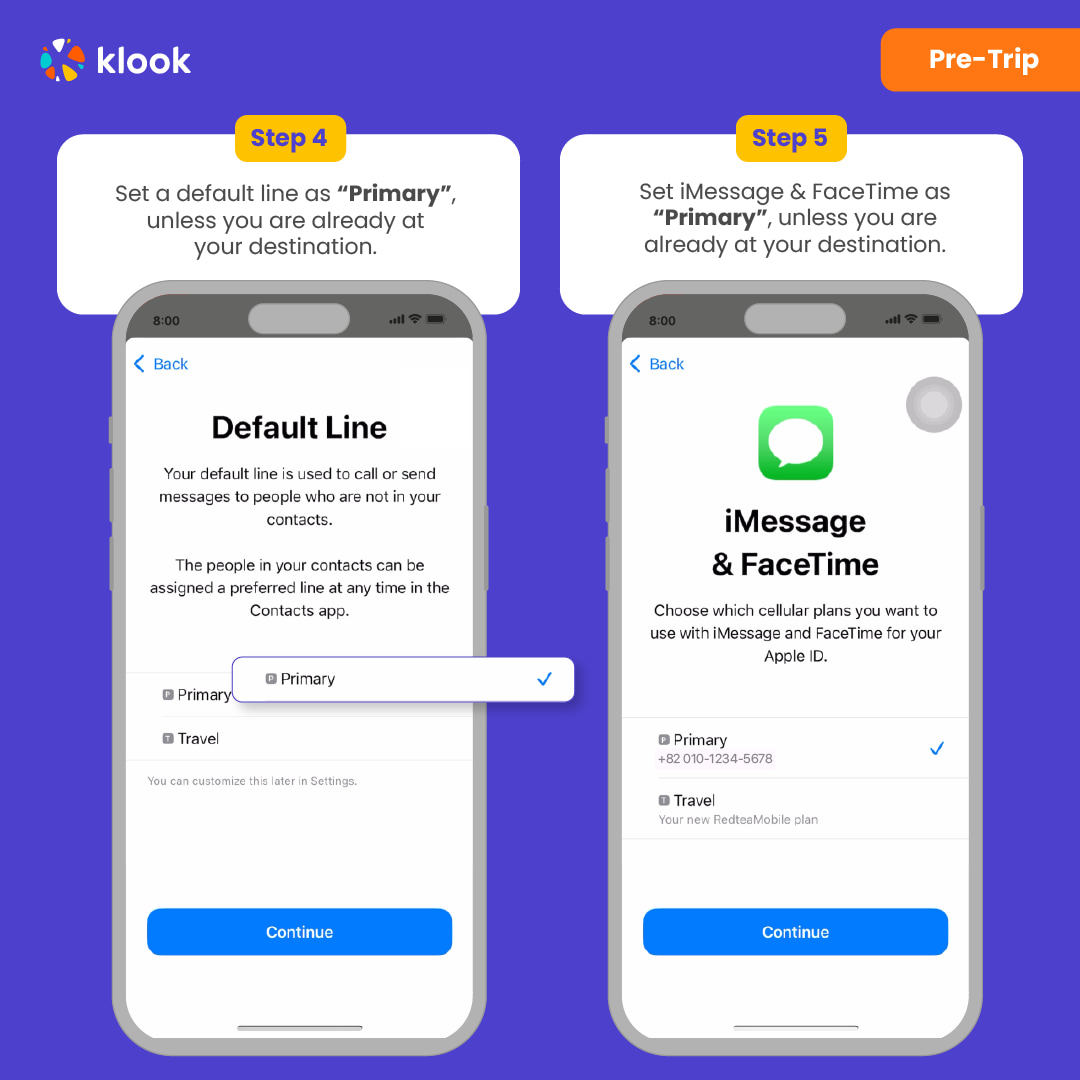
Please select "Primary" if you're not in your destination.
- Done installation
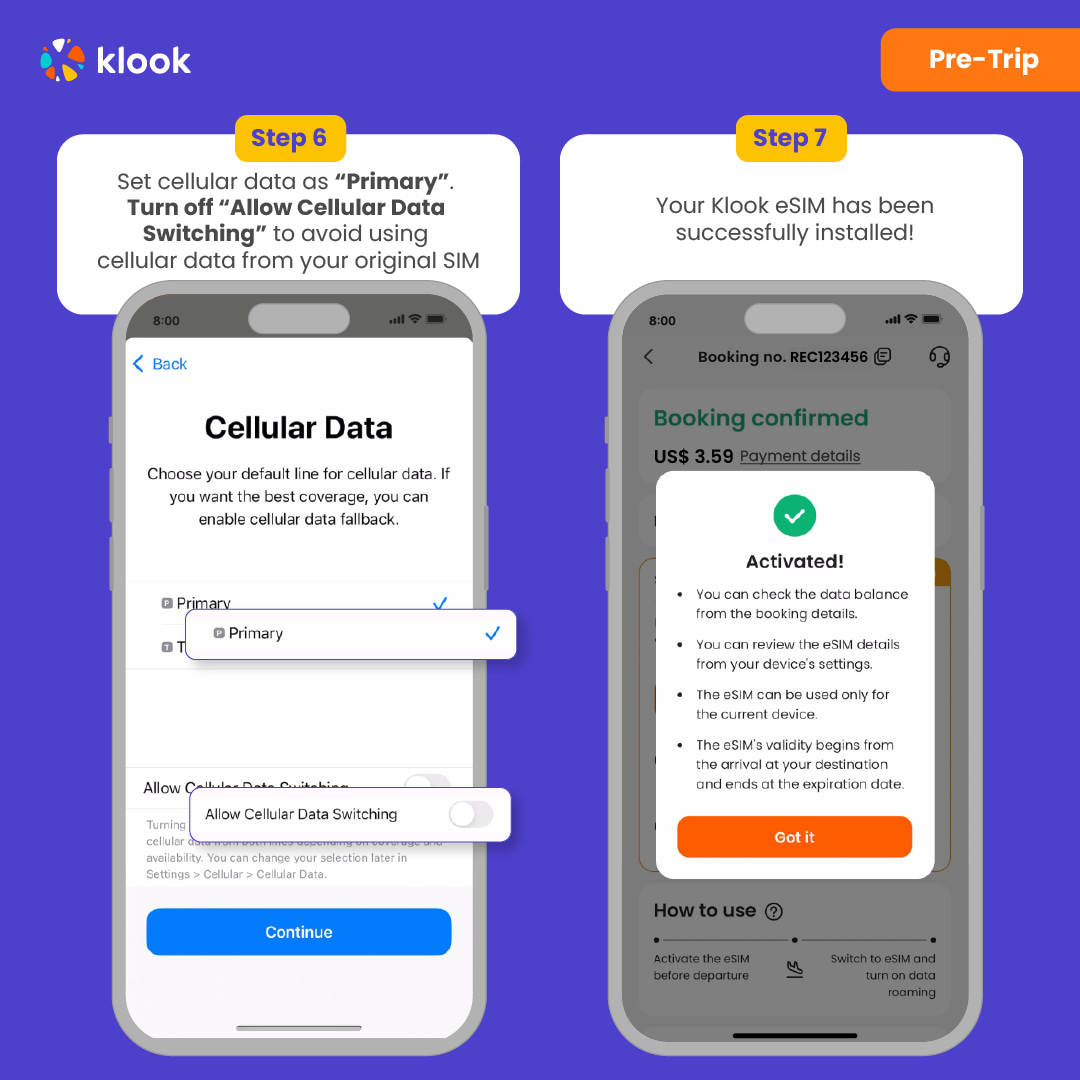
Turn off cellular switching and the eSIM is installed! (If you failed, can try again.)
- Turn on eSIM data roaming
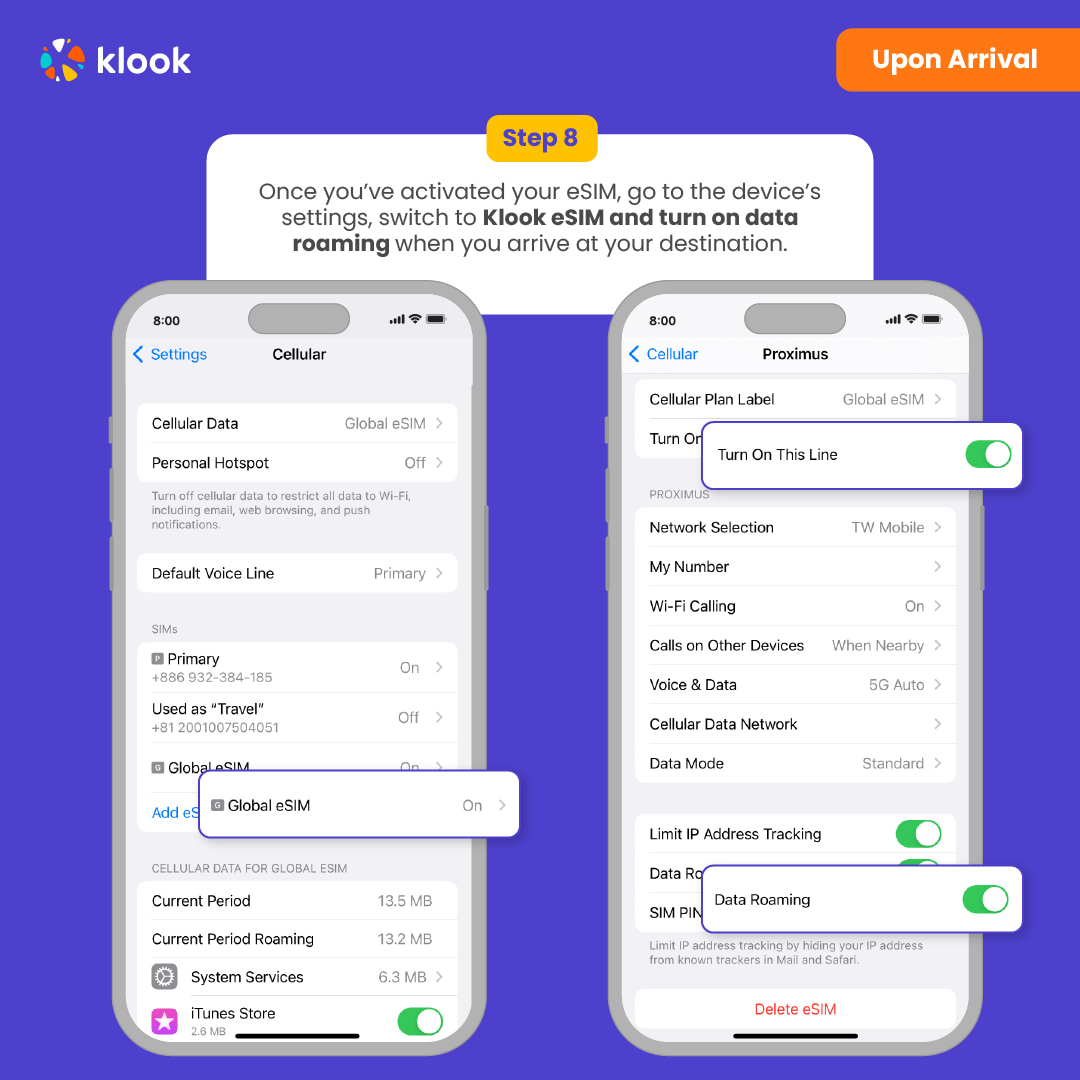
After you arrive the destination: Turn on the eSIM line and turn on the data roaming.
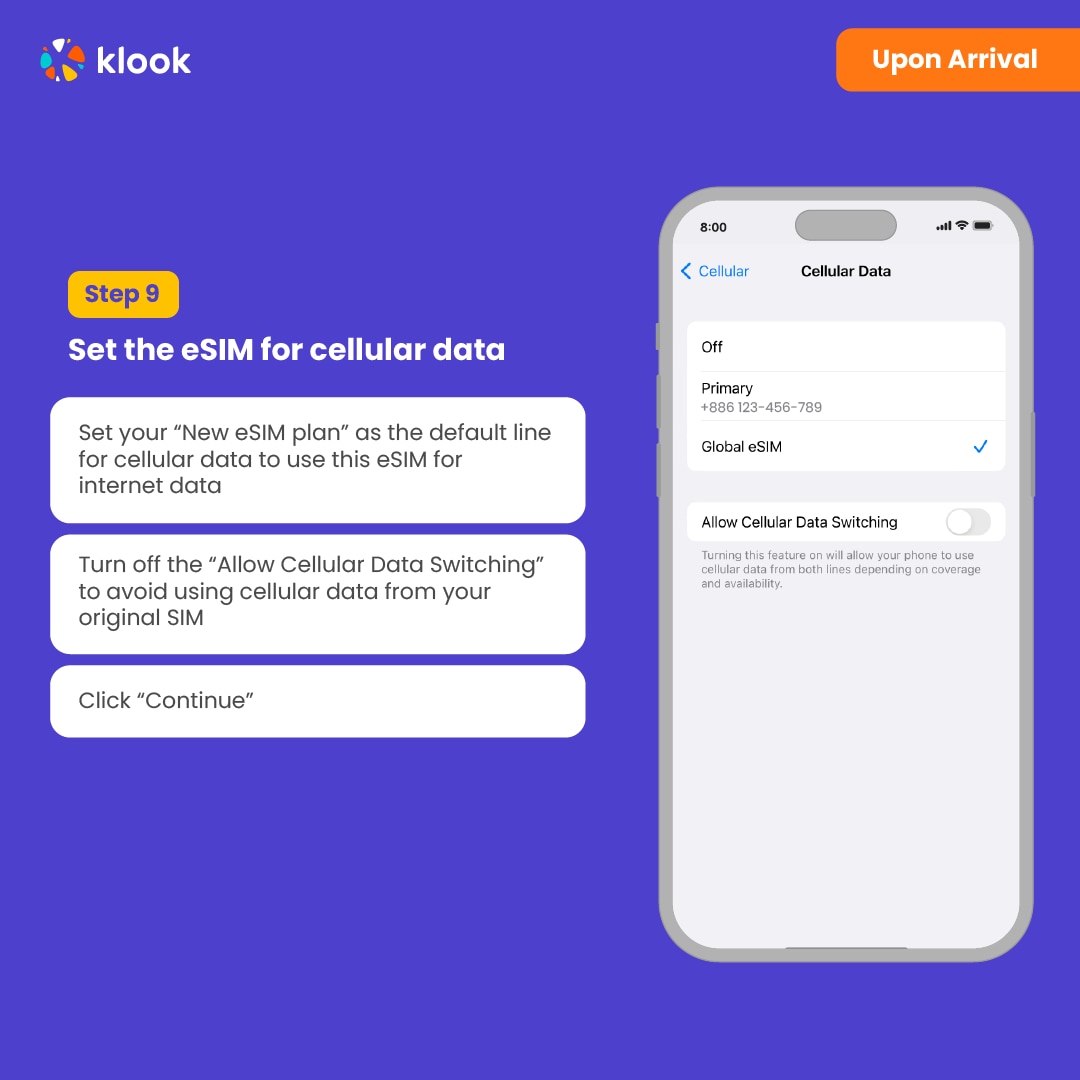
- Switch cellular data
After you arrive the destination: Switch the cellular data to the eSIM card.
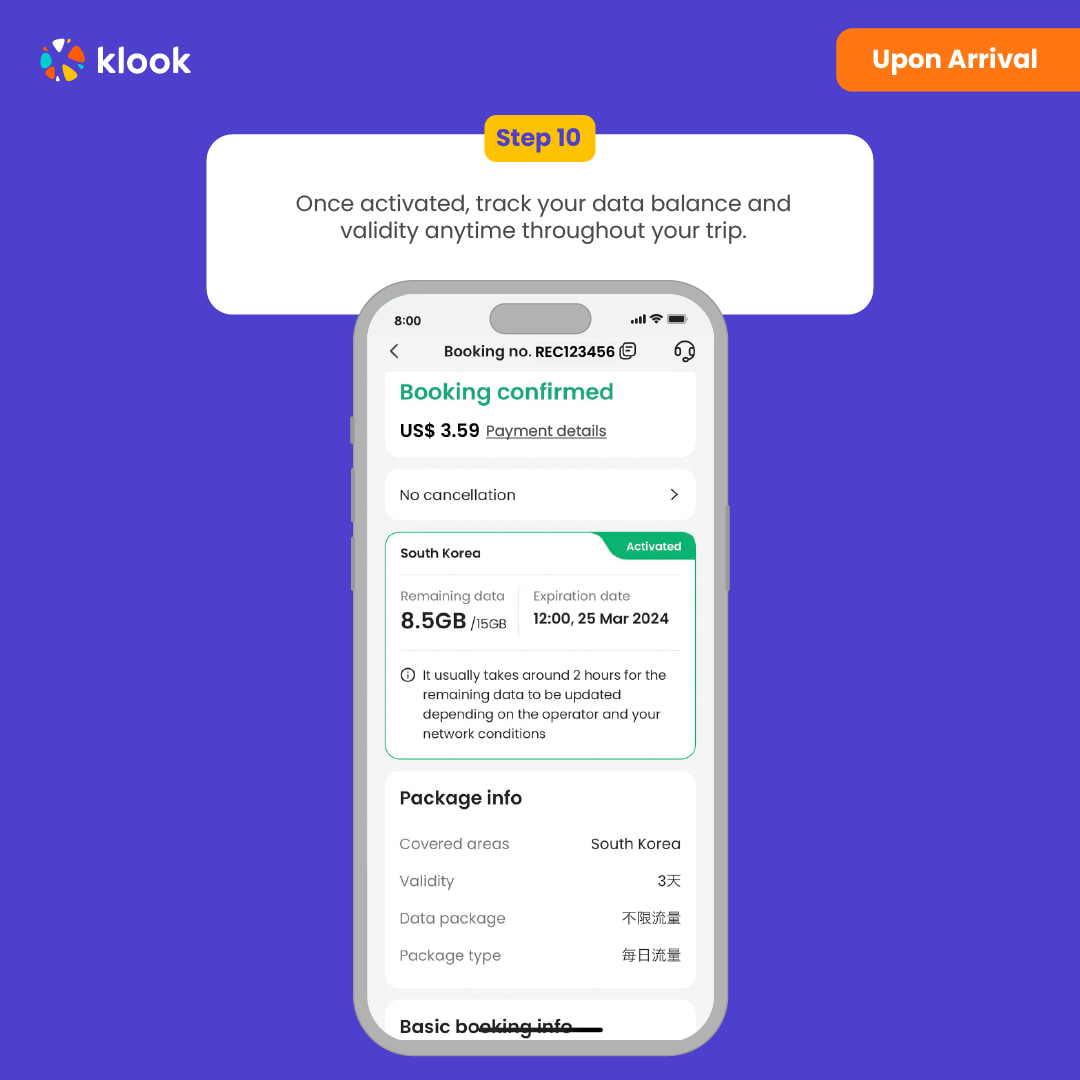
- Checking eSIM status
Check the eSIM status in your bookings in Klook APP (Reach out to us on the top right of the booking if you have any issues!)
Политика подтверждения
- Вы получите подтверждение в течение нескольких минут. Если подтверждение не пришло, обратитесь в нашу службу поддержки.
Всего данных · 7 дней · 10 ГБ · Только данные
-
Your eSIM plan will begin upon connection to the destination mobile network, according to the time connected. For example, if you activate your 3-day plan at 10:00, it will end 3 days later at 10:00.
-
Kindly follow the link below to proceed with your eSIM activation. Android version iOS version
- Activate in Klook App
Activate in Klook App (Update Klook APP to the latest version)
- Klook eSIM installation methods
Activate your eSIM via Klook in-app activation, scanning the QR code, or entering the SMDP+ details manually
- Klook eSIM In-app activation
Activate your eSIM just by clicking Add eSIM to device on your booking. Don't worry, data and validity will only commence when you reach your destination
- Klook eSIM In-app activation
Installation of your eSIM will start automatically
- Klook eSIM iOS installation
Set up your Klook eSIM for travel
- Klook eSIM installed
Your Klook eSIM is now installed! Validity period will start only after connecting to the local network at your destination
- Turn on Klook eSIM
Turn on Klook eSIM and select Klook eSIM for mobile data
- Turn on Data roaming
Turn on and select Klook eSIM for data and turn on data roaming in-destination to start using the eSIM!
- Klook eSIM connected
Your klook esim is connected! Track your data balance and validity through the Klook app
Политика подтверждения
- Вы получите подтверждение в течение нескольких минут. Если подтверждение не пришло, обратитесь в нашу службу поддержки.
Всего данных · 7 дней · 5 ГБ · Только данные
-
Your eSIM plan will begin upon connection to the destination mobile network, according to the time connected. For example, if you activate your 3-day plan at 10:00, it will end 3 days later at 10:00.
-
Kindly follow the link below to proceed with your eSIM activation. Android version iOS version
- Activate in Klook App
Activate in Klook App (Update Klook APP to the latest version)
- Klook eSIM installation methods
Activate your eSIM via Klook in-app activation, scanning the QR code, or entering the SMDP+ details manually
- Klook eSIM In-app activation
Activate your eSIM just by clicking Add eSIM to device on your booking. Don't worry, data and validity will only commence when you reach your destination
- Klook eSIM In-app activation
Installation of your eSIM will start automatically
- Klook eSIM iOS installation
Set up your Klook eSIM for travel
- Klook eSIM installed
Your Klook eSIM is now installed! Validity period will start only after connecting to the local network at your destination
- Turn on Klook eSIM
Turn on Klook eSIM and select Klook eSIM for mobile data
- Turn on Data roaming
Turn on and select Klook eSIM for data and turn on data roaming in-destination to start using the eSIM!
- Klook eSIM connected
Your klook esim is connected! Track your data balance and validity through the Klook app
Политика подтверждения
- Вы получите подтверждение в течение нескольких минут. Если подтверждение не пришло, обратитесь в нашу службу поддержки.
Всего данных · 7 дней · 3 ГБ · Только данные
Политика подтверждения
- Вы получите подтверждение в течение нескольких минут. Если подтверждение не пришло, обратитесь в нашу службу поддержки.
-
Your eSIM plan will begin upon connection to the destination mobile network, according to the time connected. For example, if you activate your 3-day plan at 10:00, it will end 3 days later at 10:00.
-
Kindly follow the link below to proceed with your eSIM activation. Android version iOS version
- Activate in Klook App
Activate in Klook App (Update Klook APP to the latest version)
- Klook eSIM installation methods
Activate your eSIM via Klook in-app activation, scanning the QR code, or entering the SMDP+ details manually
- Klook eSIM In-app activation
Activate your eSIM just by clicking Add eSIM to device on your booking. Don't worry, data and validity will only commence when you reach your destination
- Klook eSIM In-app activation
Installation of your eSIM will start automatically
- Klook eSIM iOS installation
Set up your Klook eSIM for travel
- Klook eSIM installed
Your Klook eSIM is now installed! Validity period will start only after connecting to the local network at your destination
- Turn on Klook eSIM
Turn on Klook eSIM and select Klook eSIM for mobile data
- Turn on Data roaming
Turn on and select Klook eSIM for data and turn on data roaming in-destination to start using the eSIM!
- Klook eSIM connected
Your klook esim is connected! Track your data balance and validity through the Klook app
Данные в день · 7 дней · 1 ГБ · Только данные
-
Your eSIM plan will begin upon connection to the destination mobile network, according to the time connected. For example, if you activate your 3-day plan at 10:00, it will end 3 days later at 10:00.
-
Kindly follow the link below to proceed with your eSIM activation. Android version iOS version
- Activate in Klook App
Activate in Klook App (Update Klook APP to the latest version)
- Klook eSIM installation methods
Activate your eSIM via Klook in-app activation, scanning the QR code, or entering the SMDP+ details manually
- Klook eSIM In-app activation
Activate your eSIM just by clicking Add eSIM to device on your booking. Don't worry, data and validity will only commence when you reach your destination
- Klook eSIM In-app activation
Installation of your eSIM will start automatically
- Klook eSIM iOS installation
Set up your Klook eSIM for travel
- Klook eSIM installed
Your Klook eSIM is now installed! Validity period will start only after connecting to the local network at your destination
- Turn on Klook eSIM
Turn on Klook eSIM and select Klook eSIM for mobile data
- Turn on Data roaming
Turn on and select Klook eSIM for data and turn on data roaming in-destination to start using the eSIM!
- Klook eSIM connected
Your klook esim is connected! Track your data balance and validity through the Klook app
Политика подтверждения
- Вы получите подтверждение в течение нескольких минут. Если подтверждение не пришло, обратитесь в нашу службу поддержки.
Данные в день · 30 дней · Безлимит · Только данные
-
Your eSIM plan will begin upon connection to the destination mobile network, according to the time connected. For example, if you activate your 3-day plan at 10:00, it will end 3 days later at 10:00.
-
Kindly follow the link below to proceed with your eSIM activation. Android version iOS version
- Activate in Klook App
Activate in Klook App (Update Klook APP to the latest version)
- Klook eSIM installation methods
Activate your eSIM via Klook in-app activation, scanning the QR code, or entering the SMDP+ details manually
- Klook eSIM In-app activation
Activate your eSIM just by clicking Add eSIM to device on your booking. Don't worry, data and validity will only commence when you reach your destination
- Klook eSIM In-app activation
Installation of your eSIM will start automatically
- Klook eSIM iOS installation
Set up your Klook eSIM for travel
- Klook eSIM installed
Your Klook eSIM is now installed! Validity period will start only after connecting to the local network at your destination
- Turn on Klook eSIM
Turn on Klook eSIM and select Klook eSIM for mobile data
- Turn on Data roaming
Turn on and select Klook eSIM for data and turn on data roaming in-destination to start using the eSIM!
- Klook eSIM connected
Your klook esim is connected! Track your data balance and validity through the Klook app
Политика подтверждения
- Вы получите подтверждение в течение нескольких минут. Если подтверждение не пришло, обратитесь в нашу службу поддержки.
Всего данных · 30 дней · 20 ГБ · Только данные
Политика подтверждения
- Вы получите подтверждение в течение нескольких минут. Если подтверждение не пришло, обратитесь в нашу службу поддержки.
-
Your eSIM plan will begin upon connection to the destination mobile network, according to the time connected. For example, if you activate your 3-day plan at 10:00, it will end 3 days later at 10:00.
-
Kindly follow the link below to proceed with your eSIM activation. Android version iOS version
- Activate in Klook App
Activate in Klook App (Update Klook APP to the latest version)
- Klook eSIM installation methods
Activate your eSIM via Klook in-app activation, scanning the QR code, or entering the SMDP+ details manually
- Klook eSIM In-app activation
Activate your eSIM just by clicking Add eSIM to device on your booking. Don't worry, data and validity will only commence when you reach your destination
- Klook eSIM In-app activation
Installation of your eSIM will start automatically
- Klook eSIM iOS installation
Set up your Klook eSIM for travel
- Klook eSIM installed
Your Klook eSIM is now installed! Validity period will start only after connecting to the local network at your destination
- Turn on Klook eSIM
Turn on Klook eSIM and select Klook eSIM for mobile data
- Turn on Data roaming
Turn on and select Klook eSIM for data and turn on data roaming in-destination to start using the eSIM!
- Klook eSIM connected
Your klook esim is connected! Track your data balance and validity through the Klook app
Всего данных · 30 дней · 10 ГБ · Только данные
Политика подтверждения
- Вы получите подтверждение в течение нескольких минут. Если подтверждение не пришло, обратитесь в нашу службу поддержки.
-
Your eSIM plan will begin upon connection to the destination mobile network, according to the time connected. For example, if you activate your 3-day plan at 10:00, it will end 3 days later at 10:00.
-
Kindly follow the link below to proceed with your eSIM activation. Android version iOS version
- Activate in Klook App
Activate in Klook App (Update Klook APP to the latest version)
- Klook eSIM installation methods
Activate your eSIM via Klook in-app activation, scanning the QR code, or entering the SMDP+ details manually
- Klook eSIM In-app activation
Activate your eSIM just by clicking Add eSIM to device on your booking. Don't worry, data and validity will only commence when you reach your destination
- Klook eSIM In-app activation
Installation of your eSIM will start automatically
- Klook eSIM iOS installation
Set up your Klook eSIM for travel
- Klook eSIM installed
Your Klook eSIM is now installed! Validity period will start only after connecting to the local network at your destination
- Turn on Klook eSIM
Turn on Klook eSIM and select Klook eSIM for mobile data
- Turn on Data roaming
Turn on and select Klook eSIM for data and turn on data roaming in-destination to start using the eSIM!
- Klook eSIM connected
Your klook esim is connected! Track your data balance and validity through the Klook app
Данные в день · 30 дней · 3 ГБ · Только данные
-
Your eSIM plan will begin upon connection to the destination mobile network, according to the time connected. For example, if you activate your 3-day plan at 10:00, it will end 3 days later at 10:00.
-
Kindly follow the link below to proceed with your eSIM activation. Android version iOS version
- Activate in Klook App
Activate in Klook App (Update Klook APP to the latest version)
- Klook eSIM installation methods
Activate your eSIM via Klook in-app activation, scanning the QR code, or entering the SMDP+ details manually
- Klook eSIM In-app activation
Activate your eSIM just by clicking Add eSIM to device on your booking. Don't worry, data and validity will only commence when you reach your destination
- Klook eSIM In-app activation
Installation of your eSIM will start automatically
- Klook eSIM iOS installation
Set up your Klook eSIM for travel
- Klook eSIM installed
Your Klook eSIM is now installed! Validity period will start only after connecting to the local network at your destination
- Turn on Klook eSIM
Turn on Klook eSIM and select Klook eSIM for mobile data
- Turn on Data roaming
Turn on and select Klook eSIM for data and turn on data roaming in-destination to start using the eSIM!
- Klook eSIM connected
Your klook esim is connected! Track your data balance and validity through the Klook app
Политика подтверждения
- Вы получите подтверждение в течение нескольких минут. Если подтверждение не пришло, обратитесь в нашу службу поддержки.
Данные в день · 30 дней · 1 ГБ · Только данные
Политика подтверждения
- Вы получите подтверждение в течение нескольких минут. Если подтверждение не пришло, обратитесь в нашу службу поддержки.
-
Your eSIM plan will begin upon connection to the destination mobile network, according to the time connected. For example, if you activate your 3-day plan at 10:00, it will end 3 days later at 10:00.
-
Kindly follow the link below to proceed with your eSIM activation. Android version iOS version
- Activate in Klook App
Activate in Klook App (Update Klook APP to the latest version)
- Klook eSIM installation methods
Activate your eSIM via Klook in-app activation, scanning the QR code, or entering the SMDP+ details manually
- Klook eSIM In-app activation
Activate your eSIM just by clicking Add eSIM to device on your booking. Don't worry, data and validity will only commence when you reach your destination
- Klook eSIM In-app activation
Installation of your eSIM will start automatically
- Klook eSIM iOS installation
Set up your Klook eSIM for travel
- Klook eSIM installed
Your Klook eSIM is now installed! Validity period will start only after connecting to the local network at your destination
- Turn on Klook eSIM
Turn on Klook eSIM and select Klook eSIM for mobile data
- Turn on Data roaming
Turn on and select Klook eSIM for data and turn on data roaming in-destination to start using the eSIM!
- Klook eSIM connected
Your klook esim is connected! Track your data balance and validity through the Klook app
Данные в день · 1 день · Безлимит · Только данные
Политика подтверждения
- Вы получите подтверждение в течение нескольких минут. Если подтверждение не пришло, обратитесь в нашу службу поддержки.
- Activate in Klook App
Activate in Klook App (Update Klook APP to the latest version)
- Klook eSIM installation methods
Activate your eSIM via Klook in-app activation, scanning the QR code, or entering the SMDP+ details manually
- Klook eSIM In-app activation
Activate your eSIM just by clicking Add eSIM to device on your booking. Don't worry, data and validity will only commence when you reach your destination
- Klook eSIM In-app activation
Installation of your eSIM will start automatically
- Klook eSIM iOS installation
Set up your Klook eSIM for travel
- Klook eSIM installed
Your Klook eSIM is now installed! Validity period will start only after connecting to the local network at your destination
- Turn on Klook eSIM
Turn on Klook eSIM and select Klook eSIM for mobile data
- Turn on Data roaming
Turn on and select Klook eSIM for data and turn on data roaming in-destination to start using the eSIM!
- Klook eSIM connected
Your klook esim is connected! Track your data balance and validity through the Klook app
-
Your eSIM plan will begin upon connection to the destination mobile network, according to the time connected. For example, if you activate your 3-day plan at 10:00, it will end 3 days later at 10:00.
-
Kindly follow the link below to proceed with your eSIM activation. Android version iOS version
Всего данных · 1 день · 1 ГБ · Только данные
-
Your eSIM plan will begin upon connection to the destination mobile network, according to the time connected. For example, if you activate your 3-day plan at 10:00, it will end 3 days later at 10:00.
-
Kindly follow the link below to proceed with your eSIM activation. Android version iOS version
- Activate in Klook App
Activate in Klook App (Update Klook APP to the latest version)
- Klook eSIM installation methods
Activate your eSIM via Klook in-app activation, scanning the QR code, or entering the SMDP+ details manually
- Klook eSIM In-app activation
Activate your eSIM just by clicking Add eSIM to device on your booking. Don't worry, data and validity will only commence when you reach your destination
- Klook eSIM In-app activation
Installation of your eSIM will start automatically
- Klook eSIM iOS installation
Set up your Klook eSIM for travel
- Klook eSIM installed
Your Klook eSIM is now installed! Validity period will start only after connecting to the local network at your destination
- Turn on Klook eSIM
Turn on Klook eSIM and select Klook eSIM for mobile data
- Turn on Data roaming
Turn on and select Klook eSIM for data and turn on data roaming in-destination to start using the eSIM!
- Klook eSIM connected
Your klook esim is connected! Track your data balance and validity through the Klook app
Политика подтверждения
- Вы получите подтверждение в течение нескольких минут. Если подтверждение не пришло, обратитесь в нашу службу поддержки.
Всего данных · 1 день · 500 МБ · Только данные
Политика подтверждения
- Вы получите подтверждение в течение нескольких минут. Если подтверждение не пришло, обратитесь в нашу службу поддержки.
-
Your eSIM plan will begin upon connection to the destination mobile network, according to the time connected. For example, if you activate your 3-day plan at 10:00, it will end 3 days later at 10:00.
-
Kindly follow the link below to proceed with your eSIM activation. Android version iOS version
- Activate in Klook App
Activate in Klook App (Update Klook APP to the latest version)
- Klook eSIM installation methods
Activate your eSIM via Klook in-app activation, scanning the QR code, or entering the SMDP+ details manually
- Klook eSIM In-app activation
Activate your eSIM just by clicking Add eSIM to device on your booking. Don't worry, data and validity will only commence when you reach your destination
- Klook eSIM In-app activation
Installation of your eSIM will start automatically
- Klook eSIM iOS installation
Set up your Klook eSIM for travel
- Klook eSIM installed
Your Klook eSIM is now installed! Validity period will start only after connecting to the local network at your destination
- Turn on Klook eSIM
Turn on Klook eSIM and select Klook eSIM for mobile data
- Turn on Data roaming
Turn on and select Klook eSIM for data and turn on data roaming in-destination to start using the eSIM!
- Klook eSIM connected
Your klook esim is connected! Track your data balance and validity through the Klook app
Данные в день · 3 дня · Безлимит · Только данные
Политика подтверждения
- Вы получите подтверждение в течение нескольких минут. Если подтверждение не пришло, обратитесь в нашу службу поддержки.
-
Your eSIM plan will begin upon connection to the destination mobile network, according to the time connected. For example, if you activate your 3-day plan at 10:00, it will end 3 days later at 10:00.
-
Kindly follow the link below to proceed with your eSIM activation. Android version iOS version
- Activate in Klook App
Activate in Klook App (Update Klook APP to the latest version)
- Klook eSIM installation methods
Activate your eSIM via Klook in-app activation, scanning the QR code, or entering the SMDP+ details manually
- Klook eSIM In-app activation
Activate your eSIM just by clicking Add eSIM to device on your booking. Don't worry, data and validity will only commence when you reach your destination
- Klook eSIM In-app activation
Installation of your eSIM will start automatically
- Klook eSIM iOS installation
Set up your Klook eSIM for travel
- Klook eSIM installed
Your Klook eSIM is now installed! Validity period will start only after connecting to the local network at your destination
- Turn on Klook eSIM
Turn on Klook eSIM and select Klook eSIM for mobile data
- Turn on Data roaming
Turn on and select Klook eSIM for data and turn on data roaming in-destination to start using the eSIM!
- Klook eSIM connected
Your klook esim is connected! Track your data balance and validity through the Klook app
Всего данных · 3 дня · 5 ГБ · Только данные
-
Your eSIM plan will begin upon connection to the destination mobile network, according to the time connected. For example, if you activate your 3-day plan at 10:00, it will end 3 days later at 10:00.
-
Kindly follow the link below to proceed with your eSIM activation. Android version iOS version
- Activate in Klook App
Activate in Klook App (Update Klook APP to the latest version)
- Klook eSIM installation methods
Activate your eSIM via Klook in-app activation, scanning the QR code, or entering the SMDP+ details manually
- Klook eSIM In-app activation
Activate your eSIM just by clicking Add eSIM to device on your booking. Don't worry, data and validity will only commence when you reach your destination
- Klook eSIM In-app activation
Installation of your eSIM will start automatically
- Klook eSIM iOS installation
Set up your Klook eSIM for travel
- Klook eSIM installed
Your Klook eSIM is now installed! Validity period will start only after connecting to the local network at your destination
- Turn on Klook eSIM
Turn on Klook eSIM and select Klook eSIM for mobile data
- Turn on Data roaming
Turn on and select Klook eSIM for data and turn on data roaming in-destination to start using the eSIM!
- Klook eSIM connected
Your klook esim is connected! Track your data balance and validity through the Klook app
Политика подтверждения
- Вы получите подтверждение в течение нескольких минут. Если подтверждение не пришло, обратитесь в нашу службу поддержки.
Данные в день · 3 дня · 3 ГБ · Только данные
-
Your eSIM plan will begin upon connection to the destination mobile network, according to the time connected. For example, if you activate your 3-day plan at 10:00, it will end 3 days later at 10:00.
-
Kindly follow the link below to proceed with your eSIM activation. Android version iOS version
- Activate in Klook App
Activate in Klook App (Update Klook APP to the latest version)
- Klook eSIM installation methods
Activate your eSIM via Klook in-app activation, scanning the QR code, or entering the SMDP+ details manually
- Klook eSIM In-app activation
Activate your eSIM just by clicking Add eSIM to device on your booking. Don't worry, data and validity will only commence when you reach your destination
- Klook eSIM In-app activation
Installation of your eSIM will start automatically
- Klook eSIM iOS installation
Set up your Klook eSIM for travel
- Klook eSIM installed
Your Klook eSIM is now installed! Validity period will start only after connecting to the local network at your destination
- Turn on Klook eSIM
Turn on Klook eSIM and select Klook eSIM for mobile data
- Turn on Data roaming
Turn on and select Klook eSIM for data and turn on data roaming in-destination to start using the eSIM!
- Klook eSIM connected
Your klook esim is connected! Track your data balance and validity through the Klook app
Политика подтверждения
- Вы получите подтверждение в течение нескольких минут. Если подтверждение не пришло, обратитесь в нашу службу поддержки.
Всего данных · 3 дня · 3 ГБ · Только данные
-
Your eSIM plan will begin upon connection to the destination mobile network, according to the time connected. For example, if you activate your 3-day plan at 10:00, it will end 3 days later at 10:00.
-
Kindly follow the link below to proceed with your eSIM activation. Android version iOS version
- Activate in Klook App
Activate in Klook App (Update Klook APP to the latest version)
- Klook eSIM installation methods
Activate your eSIM via Klook in-app activation, scanning the QR code, or entering the SMDP+ details manually
- Klook eSIM In-app activation
Activate your eSIM just by clicking Add eSIM to device on your booking. Don't worry, data and validity will only commence when you reach your destination
- Klook eSIM In-app activation
Installation of your eSIM will start automatically
- Klook eSIM iOS installation
Set up your Klook eSIM for travel
- Klook eSIM installed
Your Klook eSIM is now installed! Validity period will start only after connecting to the local network at your destination
- Turn on Klook eSIM
Turn on Klook eSIM and select Klook eSIM for mobile data
- Turn on Data roaming
Turn on and select Klook eSIM for data and turn on data roaming in-destination to start using the eSIM!
- Klook eSIM connected
Your klook esim is connected! Track your data balance and validity through the Klook app
Политика подтверждения
- Вы получите подтверждение в течение нескольких минут. Если подтверждение не пришло, обратитесь в нашу службу поддержки.
Данные в день · 3 дня · 1 ГБ · Только данные
Политика подтверждения
- Вы получите подтверждение в течение нескольких минут. Если подтверждение не пришло, обратитесь в нашу службу поддержки.
-
Your eSIM plan will begin upon connection to the destination mobile network, according to the time connected. For example, if you activate your 3-day plan at 10:00, it will end 3 days later at 10:00.
-
Kindly follow the link below to proceed with your eSIM activation. Android version iOS version
- Activate in Klook App
Activate in Klook App (Update Klook APP to the latest version)
- Klook eSIM installation methods
Activate your eSIM via Klook in-app activation, scanning the QR code, or entering the SMDP+ details manually
- Klook eSIM In-app activation
Activate your eSIM just by clicking Add eSIM to device on your booking. Don't worry, data and validity will only commence when you reach your destination
- Klook eSIM In-app activation
Installation of your eSIM will start automatically
- Klook eSIM iOS installation
Set up your Klook eSIM for travel
- Klook eSIM installed
Your Klook eSIM is now installed! Validity period will start only after connecting to the local network at your destination
- Turn on Klook eSIM
Turn on Klook eSIM and select Klook eSIM for mobile data
- Turn on Data roaming
Turn on and select Klook eSIM for data and turn on data roaming in-destination to start using the eSIM!
- Klook eSIM connected
Your klook esim is connected! Track your data balance and validity through the Klook app
Всего данных · 3 дня · 1 ГБ · Только данные
Политика подтверждения
- Вы получите подтверждение в течение нескольких минут. Если подтверждение не пришло, обратитесь в нашу службу поддержки.
-
Your eSIM plan will begin upon connection to the destination mobile network, according to the time connected. For example, if you activate your 3-day plan at 10:00, it will end 3 days later at 10:00.
-
Kindly follow the link below to proceed with your eSIM activation. Android version iOS version
- Activate in Klook App
Activate in Klook App (Update Klook APP to the latest version)
- Klook eSIM installation methods
Activate your eSIM via Klook in-app activation, scanning the QR code, or entering the SMDP+ details manually
- Klook eSIM In-app activation
Activate your eSIM just by clicking Add eSIM to device on your booking. Don't worry, data and validity will only commence when you reach your destination
- Klook eSIM In-app activation
Installation of your eSIM will start automatically
- Klook eSIM iOS installation
Set up your Klook eSIM for travel
- Klook eSIM installed
Your Klook eSIM is now installed! Validity period will start only after connecting to the local network at your destination
- Turn on Klook eSIM
Turn on Klook eSIM and select Klook eSIM for mobile data
- Turn on Data roaming
Turn on and select Klook eSIM for data and turn on data roaming in-destination to start using the eSIM!
- Klook eSIM connected
Your klook esim is connected! Track your data balance and validity through the Klook app
Данные в день · 5 дней · Безлимит · Только данные
-
Your eSIM plan will begin upon connection to the destination mobile network, according to the time connected. For example, if you activate your 3-day plan at 10:00, it will end 3 days later at 10:00.
-
Kindly follow the link below to proceed with your eSIM activation. Android version iOS version
- Activate in Klook App
Activate in Klook App (Update Klook APP to the latest version)
- Klook eSIM installation methods
Activate your eSIM via Klook in-app activation, scanning the QR code, or entering the SMDP+ details manually
- Klook eSIM In-app activation
Activate your eSIM just by clicking Add eSIM to device on your booking. Don't worry, data and validity will only commence when you reach your destination
- Klook eSIM In-app activation
Installation of your eSIM will start automatically
- Klook eSIM iOS installation
Set up your Klook eSIM for travel
- Klook eSIM installed
Your Klook eSIM is now installed! Validity period will start only after connecting to the local network at your destination
- Turn on Klook eSIM
Turn on Klook eSIM and select Klook eSIM for mobile data
- Turn on Data roaming
Turn on and select Klook eSIM for data and turn on data roaming in-destination to start using the eSIM!
- Klook eSIM connected
Your klook esim is connected! Track your data balance and validity through the Klook app
Политика подтверждения
- Вы получите подтверждение в течение нескольких минут. Если подтверждение не пришло, обратитесь в нашу службу поддержки.
Данные в день · 5 дней · 3 ГБ · Только данные
Политика подтверждения
- Вы получите подтверждение в течение нескольких минут. Если подтверждение не пришло, обратитесь в нашу службу поддержки.
-
Your eSIM plan will begin upon connection to the destination mobile network, according to the time connected. For example, if you activate your 3-day plan at 10:00, it will end 3 days later at 10:00.
-
Kindly follow the link below to proceed with your eSIM activation. Android version iOS version
- Activate in Klook App
Activate in Klook App (Update Klook APP to the latest version)
- Klook eSIM installation methods
Activate your eSIM via Klook in-app activation, scanning the QR code, or entering the SMDP+ details manually
- Klook eSIM In-app activation
Activate your eSIM just by clicking Add eSIM to device on your booking. Don't worry, data and validity will only commence when you reach your destination
- Klook eSIM In-app activation
Installation of your eSIM will start automatically
- Klook eSIM iOS installation
Set up your Klook eSIM for travel
- Klook eSIM installed
Your Klook eSIM is now installed! Validity period will start only after connecting to the local network at your destination
- Turn on Klook eSIM
Turn on Klook eSIM and select Klook eSIM for mobile data
- Turn on Data roaming
Turn on and select Klook eSIM for data and turn on data roaming in-destination to start using the eSIM!
- Klook eSIM connected
Your klook esim is connected! Track your data balance and validity through the Klook app
Данные в день · 5 дней · 1 ГБ · Только данные
Политика подтверждения
- Вы получите подтверждение в течение нескольких минут. Если подтверждение не пришло, обратитесь в нашу службу поддержки.
-
Your eSIM plan will begin upon connection to the destination mobile network, according to the time connected. For example, if you activate your 3-day plan at 10:00, it will end 3 days later at 10:00.
-
Kindly follow the link below to proceed with your eSIM activation. Android version iOS version
- Activate in Klook App
Activate in Klook App (Update Klook APP to the latest version)
- Klook eSIM installation methods
Activate your eSIM via Klook in-app activation, scanning the QR code, or entering the SMDP+ details manually
- Klook eSIM In-app activation
Activate your eSIM just by clicking Add eSIM to device on your booking. Don't worry, data and validity will only commence when you reach your destination
- Klook eSIM In-app activation
Installation of your eSIM will start automatically
- Klook eSIM iOS installation
Set up your Klook eSIM for travel
- Klook eSIM installed
Your Klook eSIM is now installed! Validity period will start only after connecting to the local network at your destination
- Turn on Klook eSIM
Turn on Klook eSIM and select Klook eSIM for mobile data
- Turn on Data roaming
Turn on and select Klook eSIM for data and turn on data roaming in-destination to start using the eSIM!
- Klook eSIM connected
Your klook esim is connected! Track your data balance and validity through the Klook app
Данные в день · 8 дней · 3 ГБ · Только данные
-
Your eSIM plan will begin upon connection to the destination mobile network, according to the time connected. For example, if you activate your 3-day plan at 10:00, it will end 3 days later at 10:00.
-
Kindly follow the link below to proceed with your eSIM activation. Android version iOS version
- Activate in Klook App
Activate in Klook App (Update Klook APP to the latest version)
- Klook eSIM installation methods
Activate your eSIM via Klook in-app activation, scanning the QR code, or entering the SMDP+ details manually
- Klook eSIM In-app activation
Activate your eSIM just by clicking Add eSIM to device on your booking. Don't worry, data and validity will only commence when you reach your destination
- Klook eSIM In-app activation
Installation of your eSIM will start automatically
- Klook eSIM iOS installation
Set up your Klook eSIM for travel
- Klook eSIM installed
Your Klook eSIM is now installed! Validity period will start only after connecting to the local network at your destination
- Turn on Klook eSIM
Turn on Klook eSIM and select Klook eSIM for mobile data
- Turn on Data roaming
Turn on and select Klook eSIM for data and turn on data roaming in-destination to start using the eSIM!
- Klook eSIM connected
Your klook esim is connected! Track your data balance and validity through the Klook app
Политика подтверждения
- Вы получите подтверждение в течение нескольких минут. Если подтверждение не пришло, обратитесь в нашу службу поддержки.
Данные в день · 8 дней · 1 ГБ · Только данные
-
Your eSIM plan will begin upon connection to the destination mobile network, according to the time connected. For example, if you activate your 3-day plan at 10:00, it will end 3 days later at 10:00.
-
Kindly follow the link below to proceed with your eSIM activation. Android version iOS version
- Activate in Klook App
Activate in Klook App (Update Klook APP to the latest version)
- Klook eSIM installation methods
Activate your eSIM via Klook in-app activation, scanning the QR code, or entering the SMDP+ details manually
- Klook eSIM In-app activation
Activate your eSIM just by clicking Add eSIM to device on your booking. Don't worry, data and validity will only commence when you reach your destination
- Klook eSIM In-app activation
Installation of your eSIM will start automatically
- Klook eSIM iOS installation
Set up your Klook eSIM for travel
- Klook eSIM installed
Your Klook eSIM is now installed! Validity period will start only after connecting to the local network at your destination
- Turn on Klook eSIM
Turn on Klook eSIM and select Klook eSIM for mobile data
- Turn on Data roaming
Turn on and select Klook eSIM for data and turn on data roaming in-destination to start using the eSIM!
- Klook eSIM connected
Your klook esim is connected! Track your data balance and validity through the Klook app
Политика подтверждения
- Вы получите подтверждение в течение нескольких минут. Если подтверждение не пришло, обратитесь в нашу службу поддержки.
Данные в день · 10 дней · Безлимит · Только данные
Политика подтверждения
- Вы получите подтверждение в течение нескольких минут. Если подтверждение не пришло, обратитесь в нашу службу поддержки.
-
Your eSIM plan will begin upon connection to the destination mobile network, according to the time connected. For example, if you activate your 3-day plan at 10:00, it will end 3 days later at 10:00.
-
Kindly follow the link below to proceed with your eSIM activation. Android version iOS version
- Activate in Klook App
Activate in Klook App (Update Klook APP to the latest version)
- Klook eSIM installation methods
Activate your eSIM via Klook in-app activation, scanning the QR code, or entering the SMDP+ details manually
- Klook eSIM In-app activation
Activate your eSIM just by clicking Add eSIM to device on your booking. Don't worry, data and validity will only commence when you reach your destination
- Klook eSIM In-app activation
Installation of your eSIM will start automatically
- Klook eSIM iOS installation
Set up your Klook eSIM for travel
- Klook eSIM installed
Your Klook eSIM is now installed! Validity period will start only after connecting to the local network at your destination
- Turn on Klook eSIM
Turn on Klook eSIM and select Klook eSIM for mobile data
- Turn on Data roaming
Turn on and select Klook eSIM for data and turn on data roaming in-destination to start using the eSIM!
- Klook eSIM connected
Your klook esim is connected! Track your data balance and validity through the Klook app
Данные в день · 10 дней · 3 ГБ · Только данные
Политика подтверждения
- Вы получите подтверждение в течение нескольких минут. Если подтверждение не пришло, обратитесь в нашу службу поддержки.
-
Your eSIM plan will begin upon connection to the destination mobile network, according to the time connected. For example, if you activate your 3-day plan at 10:00, it will end 3 days later at 10:00.
-
Kindly follow the link below to proceed with your eSIM activation. Android version iOS version
- Activate in Klook App
Activate in Klook App (Update Klook APP to the latest version)
- Klook eSIM installation methods
Activate your eSIM via Klook in-app activation, scanning the QR code, or entering the SMDP+ details manually
- Klook eSIM In-app activation
Activate your eSIM just by clicking Add eSIM to device on your booking. Don't worry, data and validity will only commence when you reach your destination
- Klook eSIM In-app activation
Installation of your eSIM will start automatically
- Klook eSIM iOS installation
Set up your Klook eSIM for travel
- Klook eSIM installed
Your Klook eSIM is now installed! Validity period will start only after connecting to the local network at your destination
- Turn on Klook eSIM
Turn on Klook eSIM and select Klook eSIM for mobile data
- Turn on Data roaming
Turn on and select Klook eSIM for data and turn on data roaming in-destination to start using the eSIM!
- Klook eSIM connected
Your klook esim is connected! Track your data balance and validity through the Klook app
Данные в день · 10 дней · 1 ГБ · Только данные
-
Your eSIM plan will begin upon connection to the destination mobile network, according to the time connected. For example, if you activate your 3-day plan at 10:00, it will end 3 days later at 10:00.
-
Kindly follow the link below to proceed with your eSIM activation. Android version iOS version
- Activate in Klook App
Activate in Klook App (Update Klook APP to the latest version)
- Klook eSIM installation methods
Activate your eSIM via Klook in-app activation, scanning the QR code, or entering the SMDP+ details manually
- Klook eSIM In-app activation
Activate your eSIM just by clicking Add eSIM to device on your booking. Don't worry, data and validity will only commence when you reach your destination
- Klook eSIM In-app activation
Installation of your eSIM will start automatically
- Klook eSIM iOS installation
Set up your Klook eSIM for travel
- Klook eSIM installed
Your Klook eSIM is now installed! Validity period will start only after connecting to the local network at your destination
- Turn on Klook eSIM
Turn on Klook eSIM and select Klook eSIM for mobile data
- Turn on Data roaming
Turn on and select Klook eSIM for data and turn on data roaming in-destination to start using the eSIM!
- Klook eSIM connected
Your klook esim is connected! Track your data balance and validity through the Klook app
Политика подтверждения
- Вы получите подтверждение в течение нескольких минут. Если подтверждение не пришло, обратитесь в нашу службу поддержки.
Данные в день · 15 дней · Безлимит · Только данные
-
Your eSIM plan will begin upon connection to the destination mobile network, according to the time connected. For example, if you activate your 3-day plan at 10:00, it will end 3 days later at 10:00.
-
Kindly follow the link below to proceed with your eSIM activation. Android version iOS version
- Activate in Klook App
Activate in Klook App (Update Klook APP to the latest version)
- Klook eSIM installation methods
Activate your eSIM via Klook in-app activation, scanning the QR code, or entering the SMDP+ details manually
- Klook eSIM In-app activation
Activate your eSIM just by clicking Add eSIM to device on your booking. Don't worry, data and validity will only commence when you reach your destination
- Klook eSIM In-app activation
Installation of your eSIM will start automatically
- Klook eSIM iOS installation
Set up your Klook eSIM for travel
- Klook eSIM installed
Your Klook eSIM is now installed! Validity period will start only after connecting to the local network at your destination
- Turn on Klook eSIM
Turn on Klook eSIM and select Klook eSIM for mobile data
- Turn on Data roaming
Turn on and select Klook eSIM for data and turn on data roaming in-destination to start using the eSIM!
- Klook eSIM connected
Your klook esim is connected! Track your data balance and validity through the Klook app
Политика подтверждения
- Вы получите подтверждение в течение нескольких минут. Если подтверждение не пришло, обратитесь в нашу службу поддержки.
Всего данных · 15 дней · 20 ГБ · Только данные
Политика подтверждения
- Вы получите подтверждение в течение нескольких минут. Если подтверждение не пришло, обратитесь в нашу службу поддержки.
-
Your eSIM plan will begin upon connection to the destination mobile network, according to the time connected. For example, if you activate your 3-day plan at 10:00, it will end 3 days later at 10:00.
-
Kindly follow the link below to proceed with your eSIM activation. Android version iOS version
- Activate in Klook App
Activate in Klook App (Update Klook APP to the latest version)
- Klook eSIM installation methods
Activate your eSIM via Klook in-app activation, scanning the QR code, or entering the SMDP+ details manually
- Klook eSIM In-app activation
Activate your eSIM just by clicking Add eSIM to device on your booking. Don't worry, data and validity will only commence when you reach your destination
- Klook eSIM In-app activation
Installation of your eSIM will start automatically
- Klook eSIM iOS installation
Set up your Klook eSIM for travel
- Klook eSIM installed
Your Klook eSIM is now installed! Validity period will start only after connecting to the local network at your destination
- Turn on Klook eSIM
Turn on Klook eSIM and select Klook eSIM for mobile data
- Turn on Data roaming
Turn on and select Klook eSIM for data and turn on data roaming in-destination to start using the eSIM!
- Klook eSIM connected
Your klook esim is connected! Track your data balance and validity through the Klook app
Всего данных · 15 дней · 10 ГБ · Только данные
Политика подтверждения
- Вы получите подтверждение в течение нескольких минут. Если подтверждение не пришло, обратитесь в нашу службу поддержки.
-
Your eSIM plan will begin upon connection to the destination mobile network, according to the time connected. For example, if you activate your 3-day plan at 10:00, it will end 3 days later at 10:00.
-
Kindly follow the link below to proceed with your eSIM activation. Android version iOS version
- Activate in Klook App
Activate in Klook App (Update Klook APP to the latest version)
- Klook eSIM installation methods
Activate your eSIM via Klook in-app activation, scanning the QR code, or entering the SMDP+ details manually
- Klook eSIM In-app activation
Activate your eSIM just by clicking Add eSIM to device on your booking. Don't worry, data and validity will only commence when you reach your destination
- Klook eSIM In-app activation
Installation of your eSIM will start automatically
- Klook eSIM iOS installation
Set up your Klook eSIM for travel
- Klook eSIM installed
Your Klook eSIM is now installed! Validity period will start only after connecting to the local network at your destination
- Turn on Klook eSIM
Turn on Klook eSIM and select Klook eSIM for mobile data
- Turn on Data roaming
Turn on and select Klook eSIM for data and turn on data roaming in-destination to start using the eSIM!
- Klook eSIM connected
Your klook esim is connected! Track your data balance and validity through the Klook app
Данные в день · 15 дней · 1 ГБ · Только данные
-
Your eSIM plan will begin upon connection to the destination mobile network, according to the time connected. For example, if you activate your 3-day plan at 10:00, it will end 3 days later at 10:00.
-
Kindly follow the link below to proceed with your eSIM activation. Android version iOS version
- Activate in Klook App
Activate in Klook App (Update Klook APP to the latest version)
- Klook eSIM installation methods
Activate your eSIM via Klook in-app activation, scanning the QR code, or entering the SMDP+ details manually
- Klook eSIM In-app activation
Activate your eSIM just by clicking Add eSIM to device on your booking. Don't worry, data and validity will only commence when you reach your destination
- Klook eSIM In-app activation
Installation of your eSIM will start automatically
- Klook eSIM iOS installation
Set up your Klook eSIM for travel
- Klook eSIM installed
Your Klook eSIM is now installed! Validity period will start only after connecting to the local network at your destination
- Turn on Klook eSIM
Turn on Klook eSIM and select Klook eSIM for mobile data
- Turn on Data roaming
Turn on and select Klook eSIM for data and turn on data roaming in-destination to start using the eSIM!
- Klook eSIM connected
Your klook esim is connected! Track your data balance and validity through the Klook app
Политика подтверждения
- Вы получите подтверждение в течение нескольких минут. Если подтверждение не пришло, обратитесь в нашу службу поддержки.
Данные в день · 2 дня · Безлимит · Только данные
Политика подтверждения
- Вы получите подтверждение в течение нескольких минут. Если подтверждение не пришло, обратитесь в нашу службу поддержки.
-
Your eSIM plan will begin upon connection to the destination mobile network, according to the time connected. For example, if you activate your 3-day plan at 10:00, it will end 3 days later at 10:00.
-
Kindly follow the link below to proceed with your eSIM activation. Android version iOS version
- Activate in Klook App
Activate in Klook App (Update Klook APP to the latest version)
- Klook eSIM installation methods
Activate your eSIM via Klook in-app activation, scanning the QR code, or entering the SMDP+ details manually
- Klook eSIM In-app activation
Activate your eSIM just by clicking Add eSIM to device on your booking. Don't worry, data and validity will only commence when you reach your destination
- Klook eSIM In-app activation
Installation of your eSIM will start automatically
- Klook eSIM iOS installation
Set up your Klook eSIM for travel
- Klook eSIM installed
Your Klook eSIM is now installed! Validity period will start only after connecting to the local network at your destination
- Turn on Klook eSIM
Turn on Klook eSIM and select Klook eSIM for mobile data
- Turn on Data roaming
Turn on and select Klook eSIM for data and turn on data roaming in-destination to start using the eSIM!
- Klook eSIM connected
Your klook esim is connected! Track your data balance and validity through the Klook app
Данные в день · 2 дня · 3 ГБ · Только данные
-
Your eSIM plan will begin upon connection to the destination mobile network, according to the time connected. For example, if you activate your 3-day plan at 10:00, it will end 3 days later at 10:00.
-
Kindly follow the link below to proceed with your eSIM activation. Android version iOS version
- Activate in Klook App
Activate in Klook App (Update Klook APP to the latest version)
- Klook eSIM installation methods
Activate your eSIM via Klook in-app activation, scanning the QR code, or entering the SMDP+ details manually
- Klook eSIM In-app activation
Activate your eSIM just by clicking Add eSIM to device on your booking. Don't worry, data and validity will only commence when you reach your destination
- Klook eSIM In-app activation
Installation of your eSIM will start automatically
- Klook eSIM iOS installation
Set up your Klook eSIM for travel
- Klook eSIM installed
Your Klook eSIM is now installed! Validity period will start only after connecting to the local network at your destination
- Turn on Klook eSIM
Turn on Klook eSIM and select Klook eSIM for mobile data
- Turn on Data roaming
Turn on and select Klook eSIM for data and turn on data roaming in-destination to start using the eSIM!
- Klook eSIM connected
Your klook esim is connected! Track your data balance and validity through the Klook app
Политика подтверждения
- Вы получите подтверждение в течение нескольких минут. Если подтверждение не пришло, обратитесь в нашу службу поддержки.
Всего данных · 30 дней · 50 ГБ · Только данные
-
Your eSIM plan will begin upon connection to the destination mobile network, according to the time connected. For example, if you activate your 3-day plan at 10:00, it will end 3 days later at 10:00.
-
Kindly follow the link below to proceed with your eSIM activation. Android version iOS version
- Activate in Klook App
Activate in Klook App (Update Klook APP to the latest version)
- Klook eSIM installation methods
Activate your eSIM via Klook in-app activation, scanning the QR code, or entering the SMDP+ details manually
- Klook eSIM In-app activation
Activate your eSIM just by clicking Add eSIM to device on your booking. Don't worry, data and validity will only commence when you reach your destination
- Klook eSIM In-app activation
Installation of your eSIM will start automatically
- Klook eSIM iOS installation
Set up your Klook eSIM for travel
- Klook eSIM installed
Your Klook eSIM is now installed! Validity period will start only after connecting to the local network at your destination
- Turn on Klook eSIM
Turn on Klook eSIM and select Klook eSIM for mobile data
- Turn on Data roaming
Turn on and select Klook eSIM for data and turn on data roaming in-destination to start using the eSIM!
- Klook eSIM connected
Your klook esim is connected! Track your data balance and validity through the Klook app
Политика подтверждения
- Вы получите подтверждение в течение нескольких минут. Если подтверждение не пришло, обратитесь в нашу службу поддержки.
Данные в день · 19 дней · 3 ГБ · Только данные
- Activate your Klook eSIM before travel
Activate your eSIM before travel
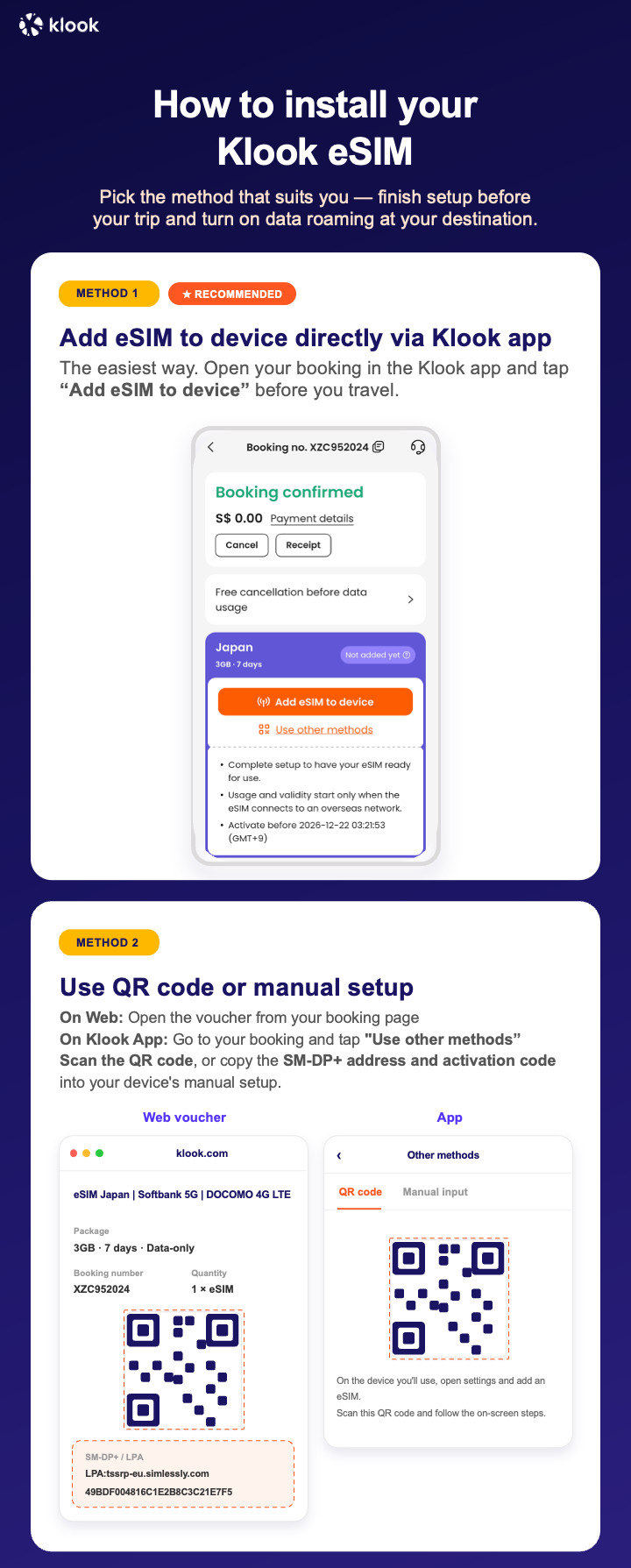
- Klook eSIM installation methods
Activate your eSIM via Klook in-app activation, scanning the QR code, or entering the SMDP+ details manually
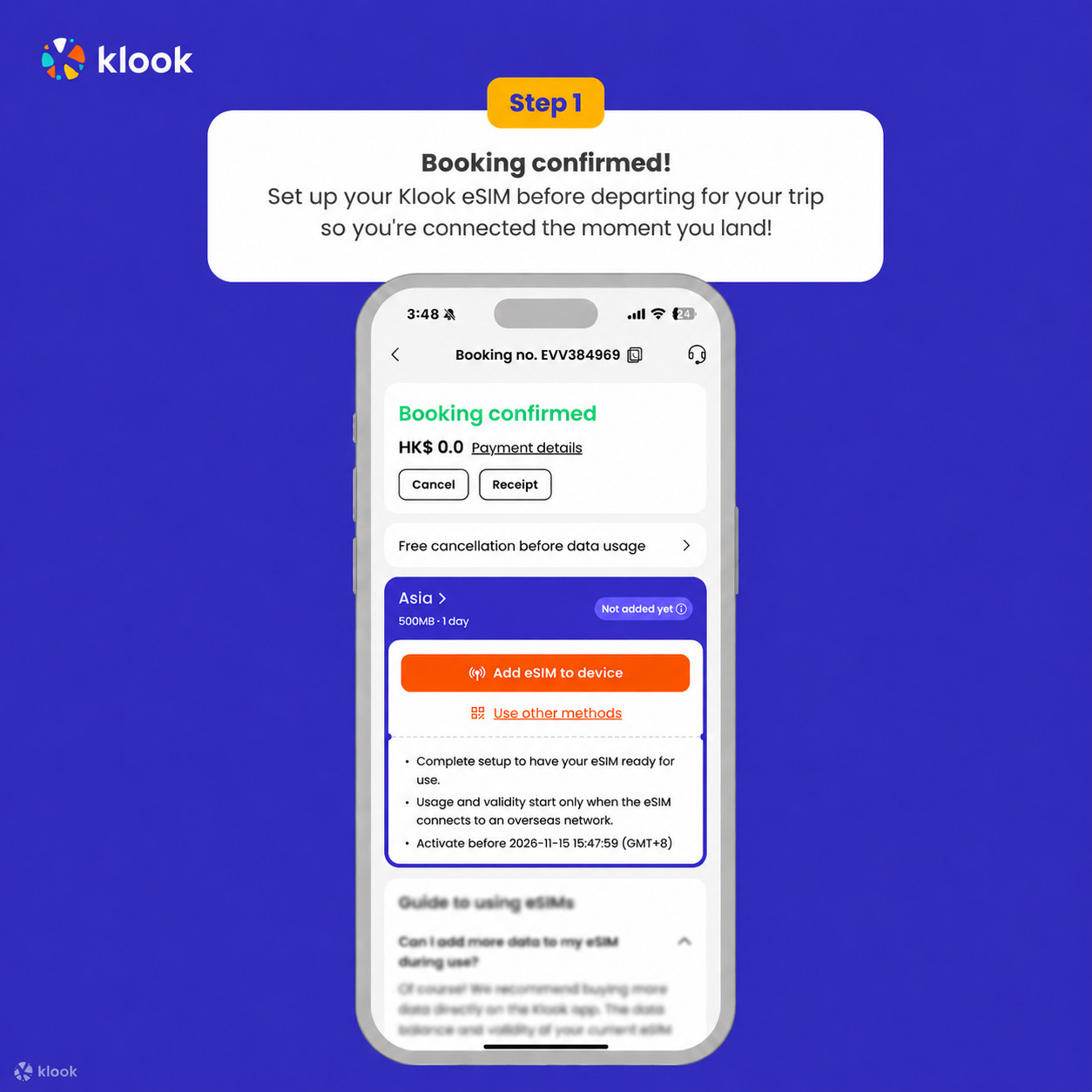
- Klook eSIM In-app activation
Click Add eSIM to device on your booking to start the installation. Don't worry, data and validity will only commence when you reach your destination
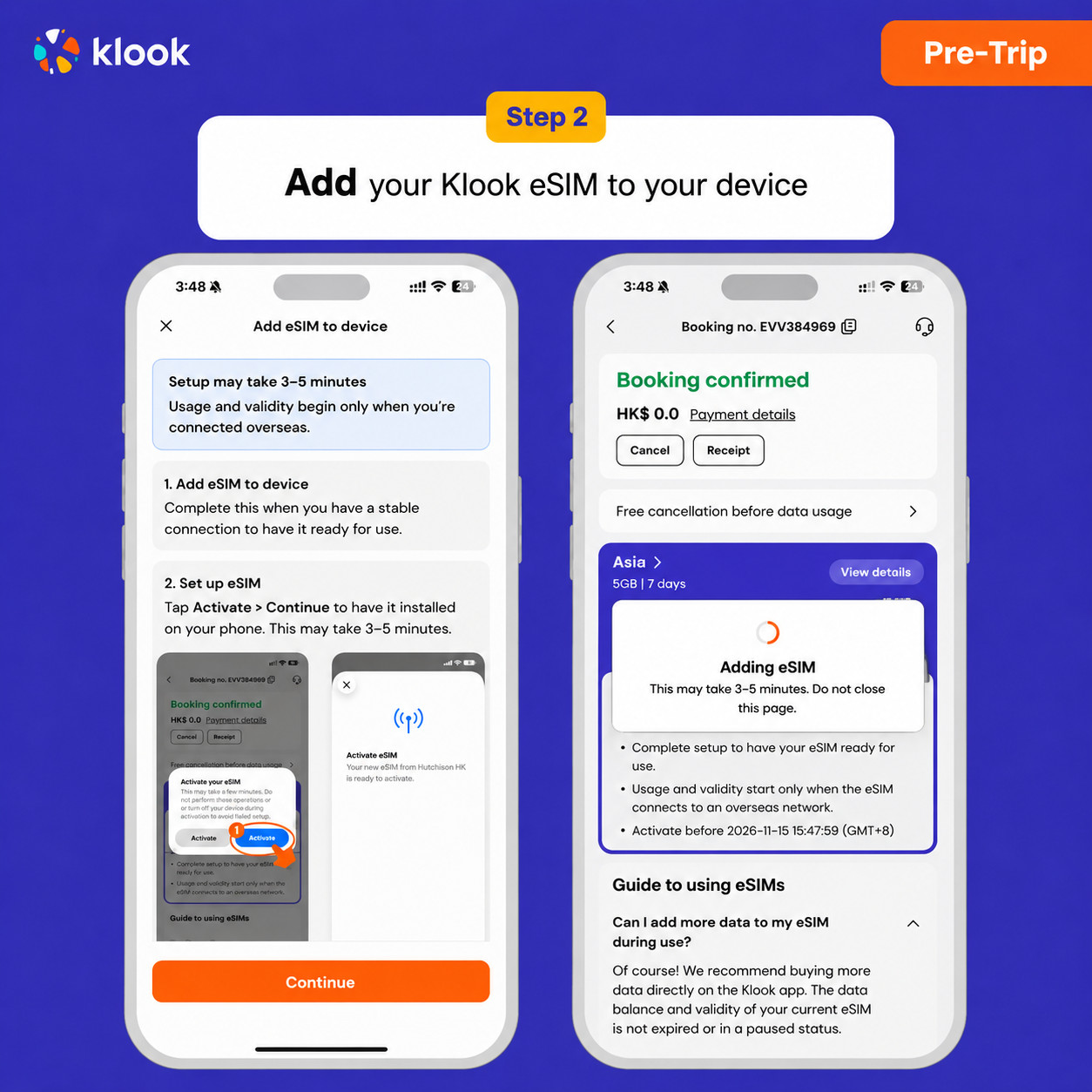
- Klook eSIM In-app activation
Installation of your eSIM will start automatically
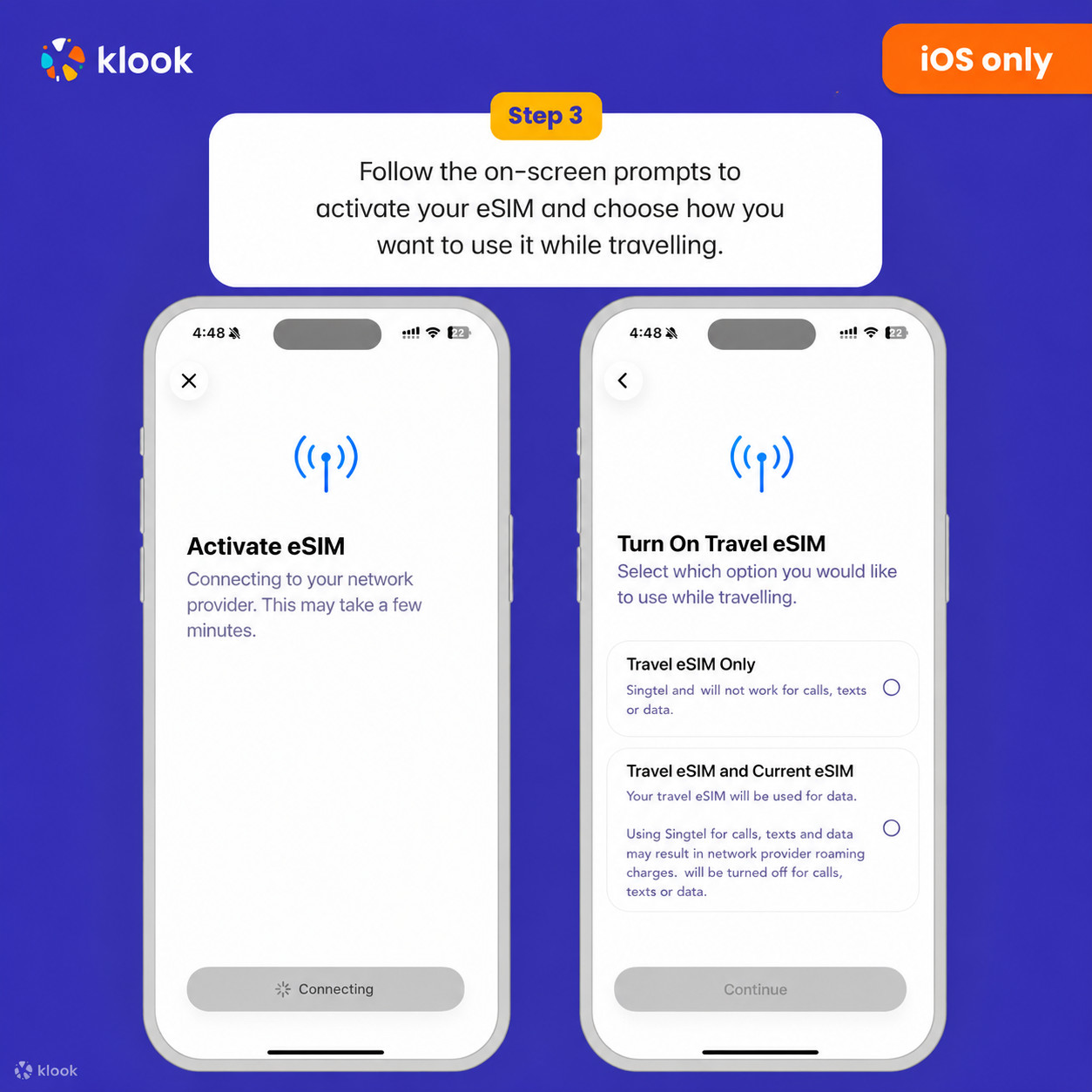
- Klook eSIM iOS installation
Set up your Klook eSIM for travel on iOS
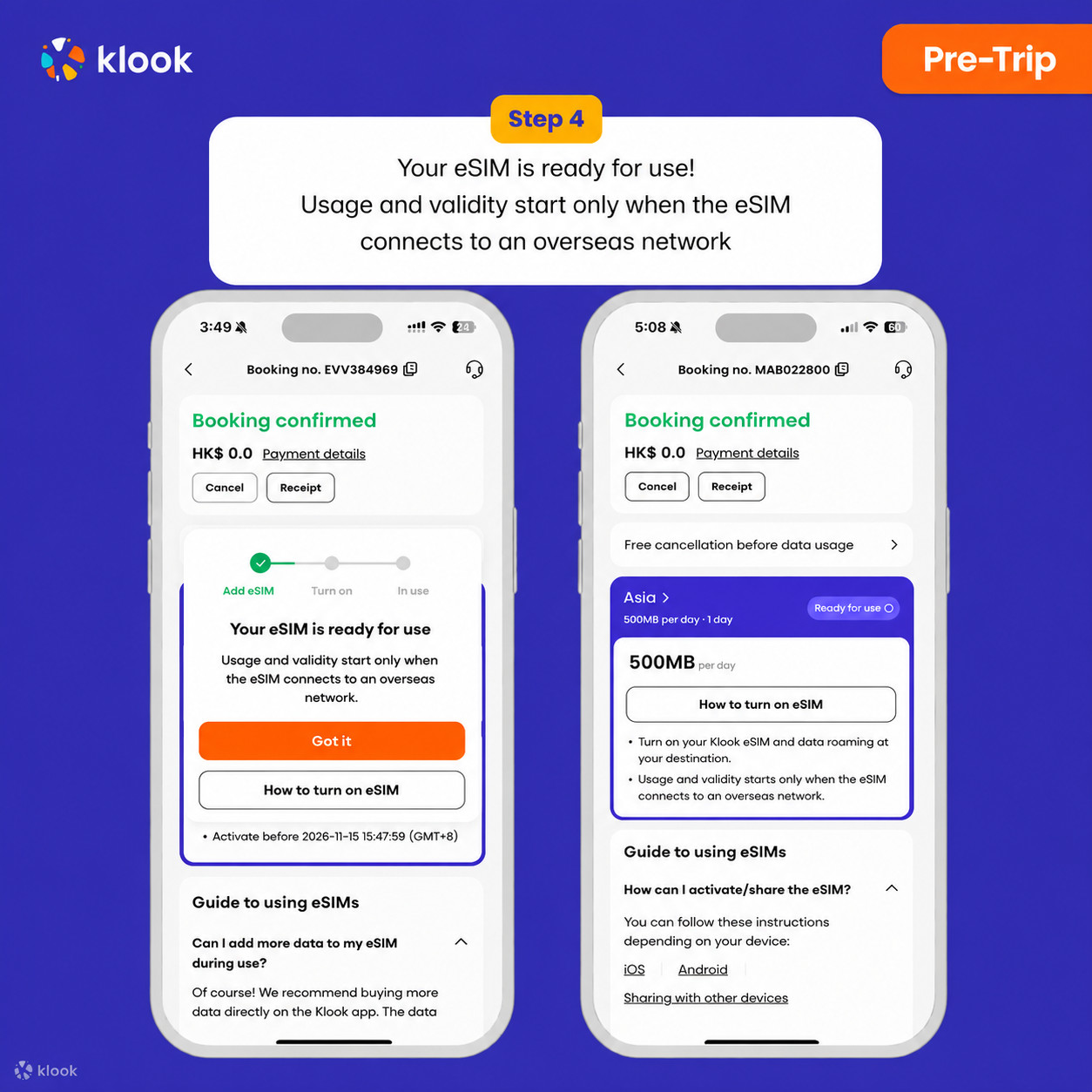
- Klook eSIM installed
Your eSIM is ready for use! Usage and validity start only when the eSIM connects to an overseas network
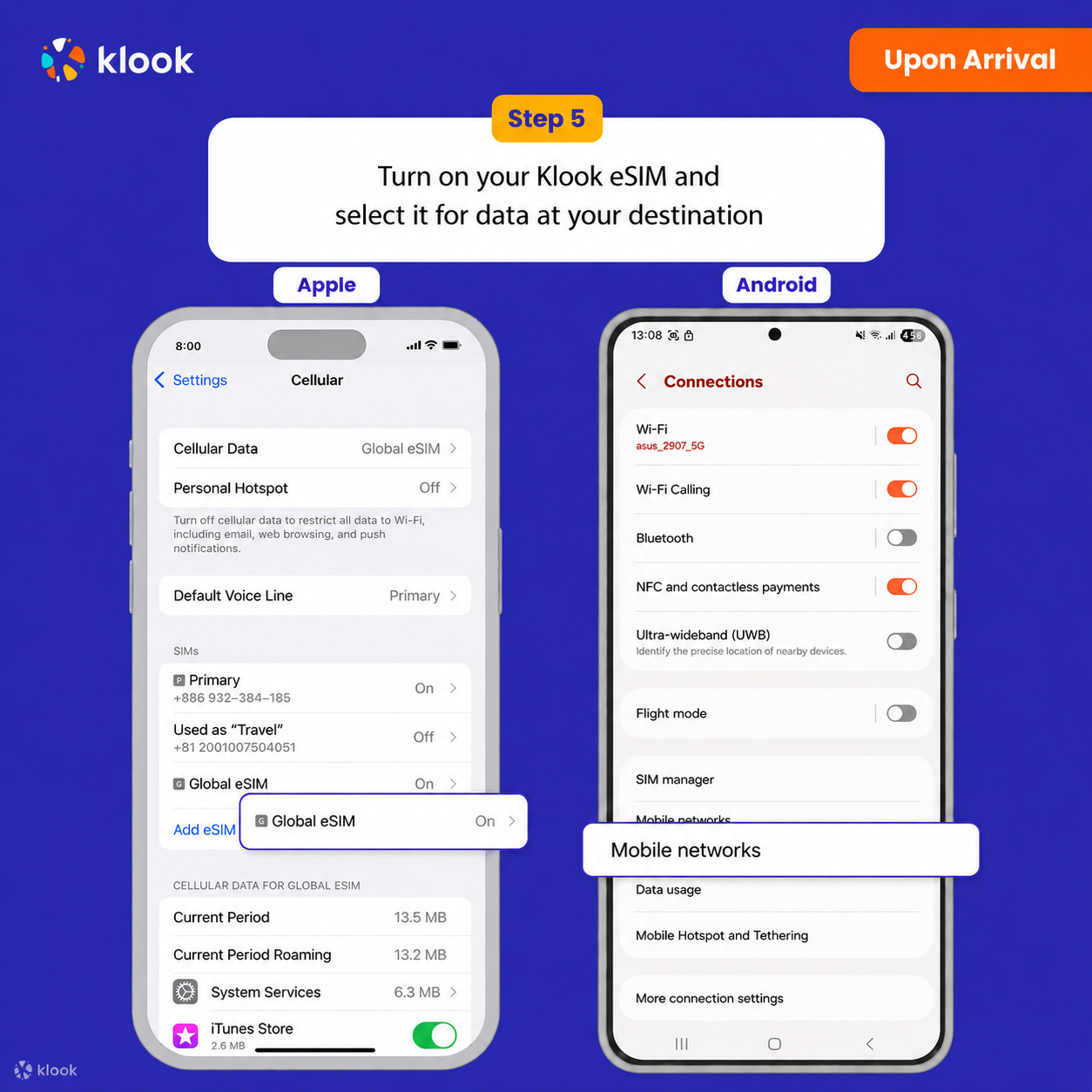
- Turn on Klook eSIM
Turn on Klook eSIM and select Klook eSIM for mobile data
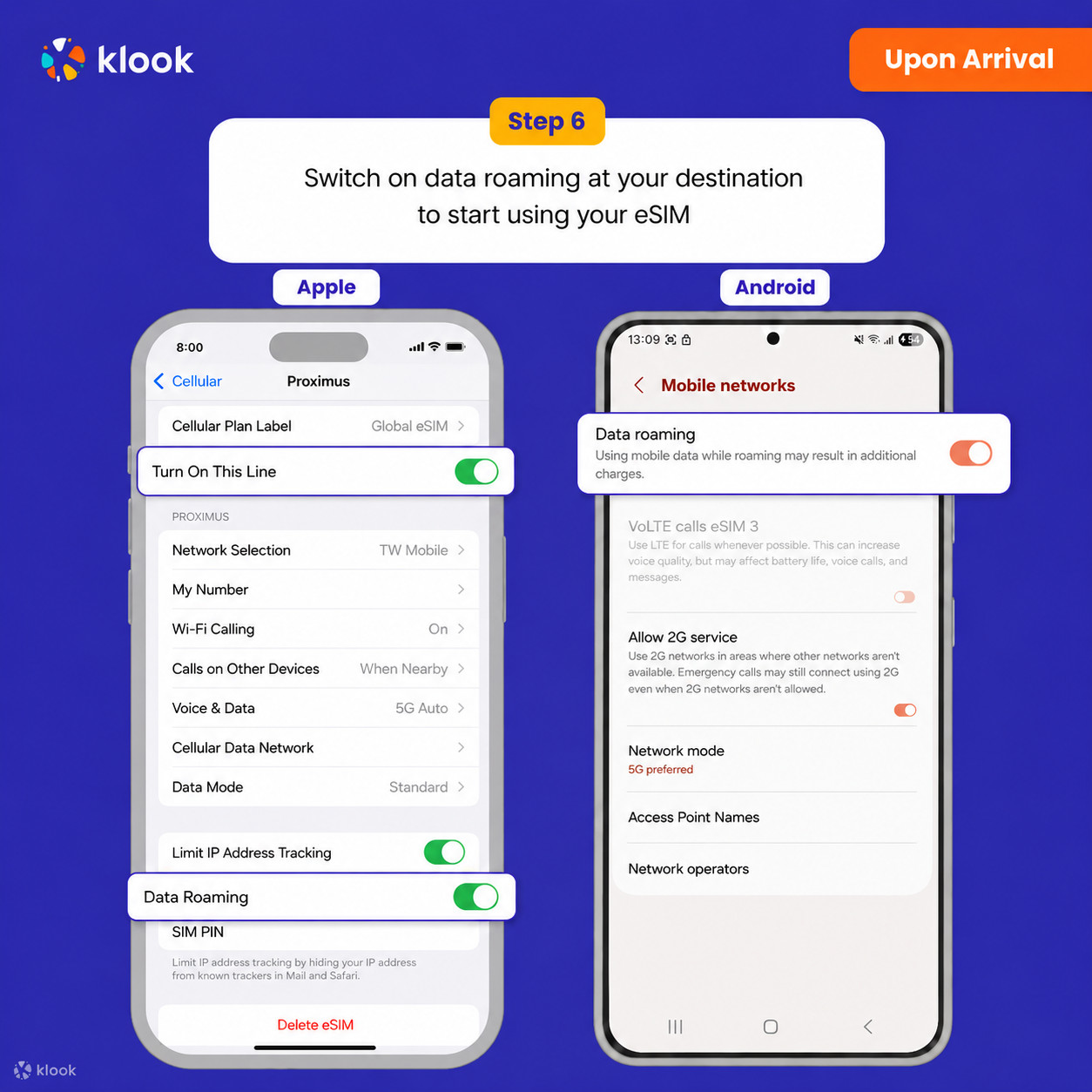
- Turn on Data roaming
Switch on data roaming at your destination to start using your eSIM
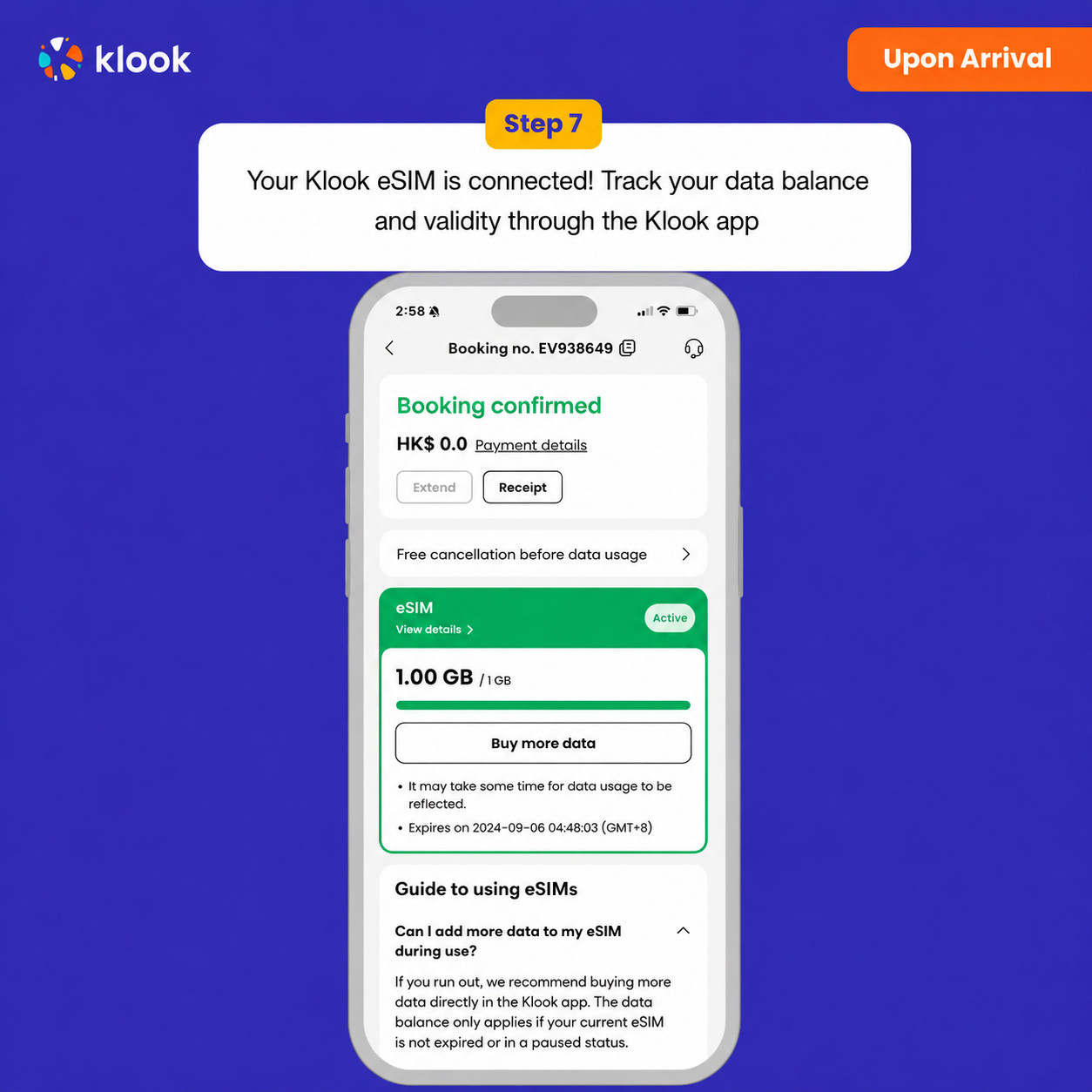
- Klook eSIM connected
Your klook esim is connected! Track your data balance and validity through the Klook app
Активируйте вашу eSIM Android / iOS
- Ваш тариф eSIM начнет действовать с момента подключения к мобильной сети назначения, согласно времени подключения. Например, если вы активируете тариф на 3 дня в 10:00, он закончится через 3 дня в 10:00.
Политика подтверждения
- Вы получите подтверждение в течение нескольких минут. Если подтверждение не пришло, обратитесь в нашу службу поддержки.
Всего данных · 25 дней · 50 ГБ · Только данные
Политика подтверждения
- Вы получите подтверждение в течение нескольких минут. Если подтверждение не пришло, обратитесь в нашу службу поддержки.
Активируйте вашу eSIM Android / iOS
- Ваш тариф eSIM начнет действовать с момента подключения к мобильной сети назначения, согласно времени подключения. Например, если вы активируете тариф на 3 дня в 10:00, он закончится через 3 дня в 10:00.
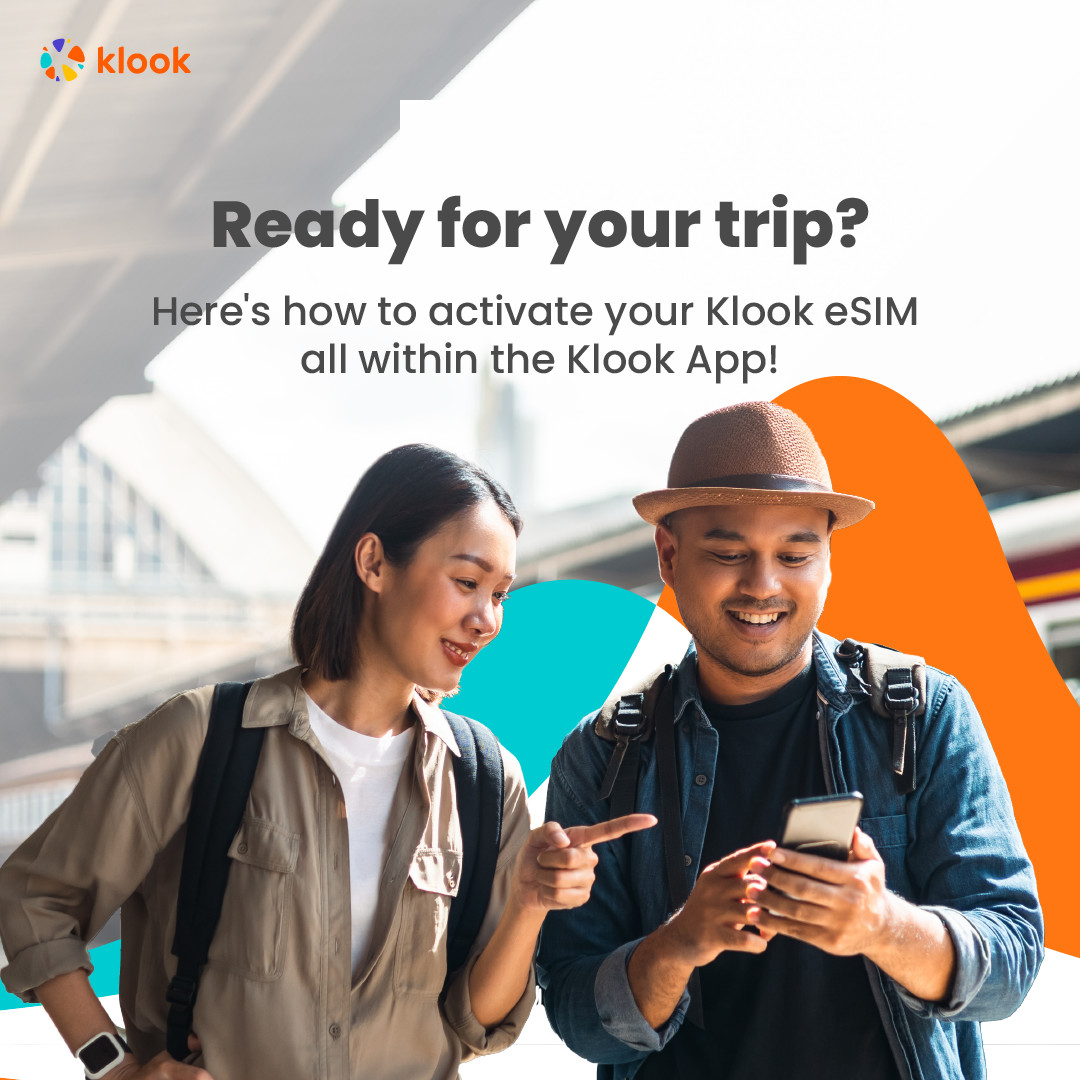
- Activate your Klook eSIM before travel
Activate your eSIM before travel
- Klook eSIM installation methods
Activate your eSIM via Klook in-app activation, scanning the QR code, or entering the SMDP+ details manually
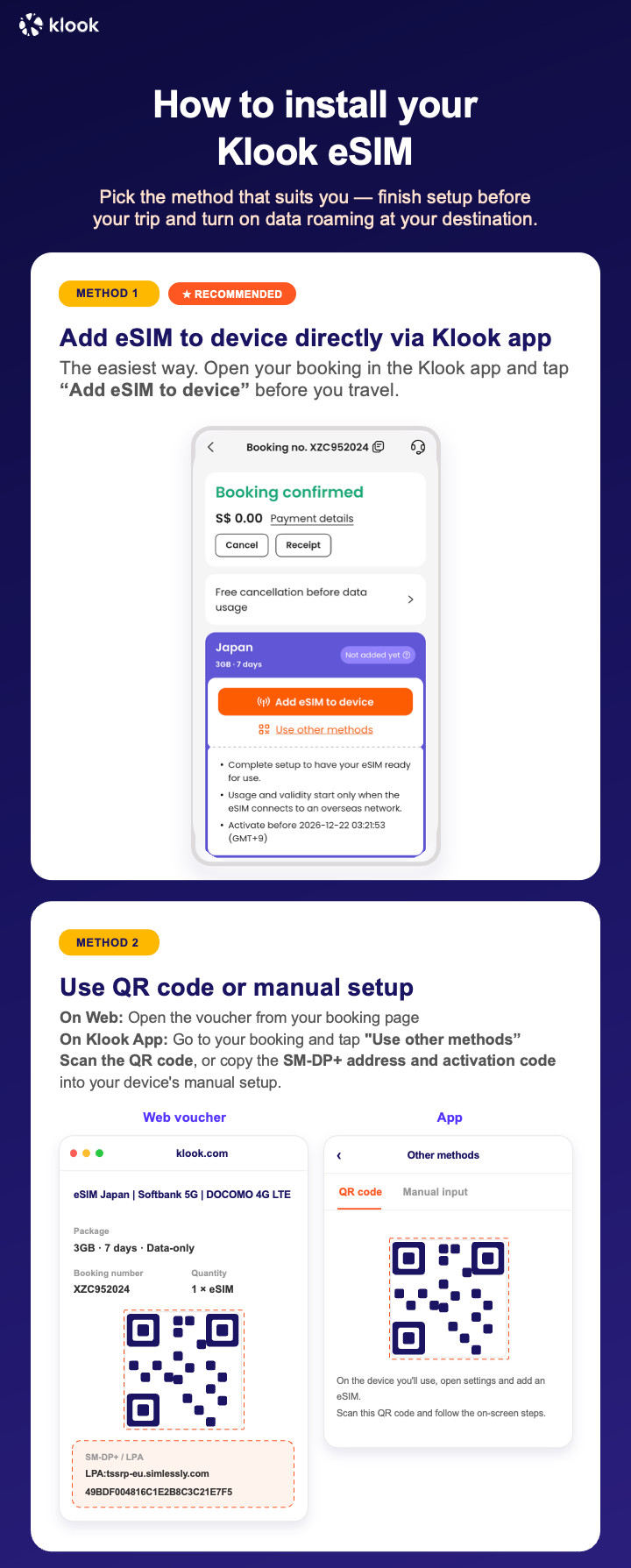
- Klook eSIM In-app activation
Click Add eSIM to device on your booking to start the installation. Don't worry, data and validity will only commence when you reach your destination
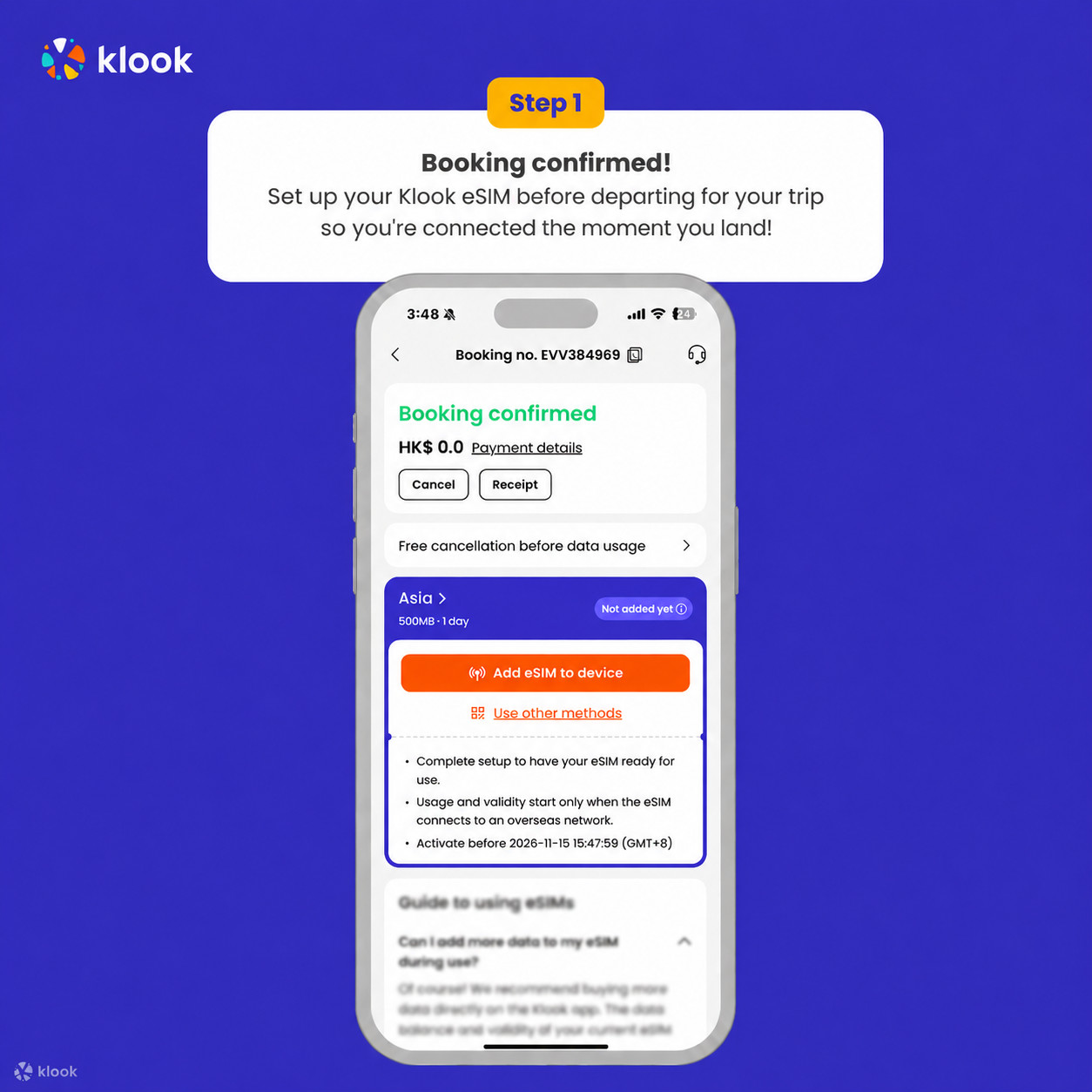
- Klook eSIM In-app activation
Installation of your eSIM will start automatically
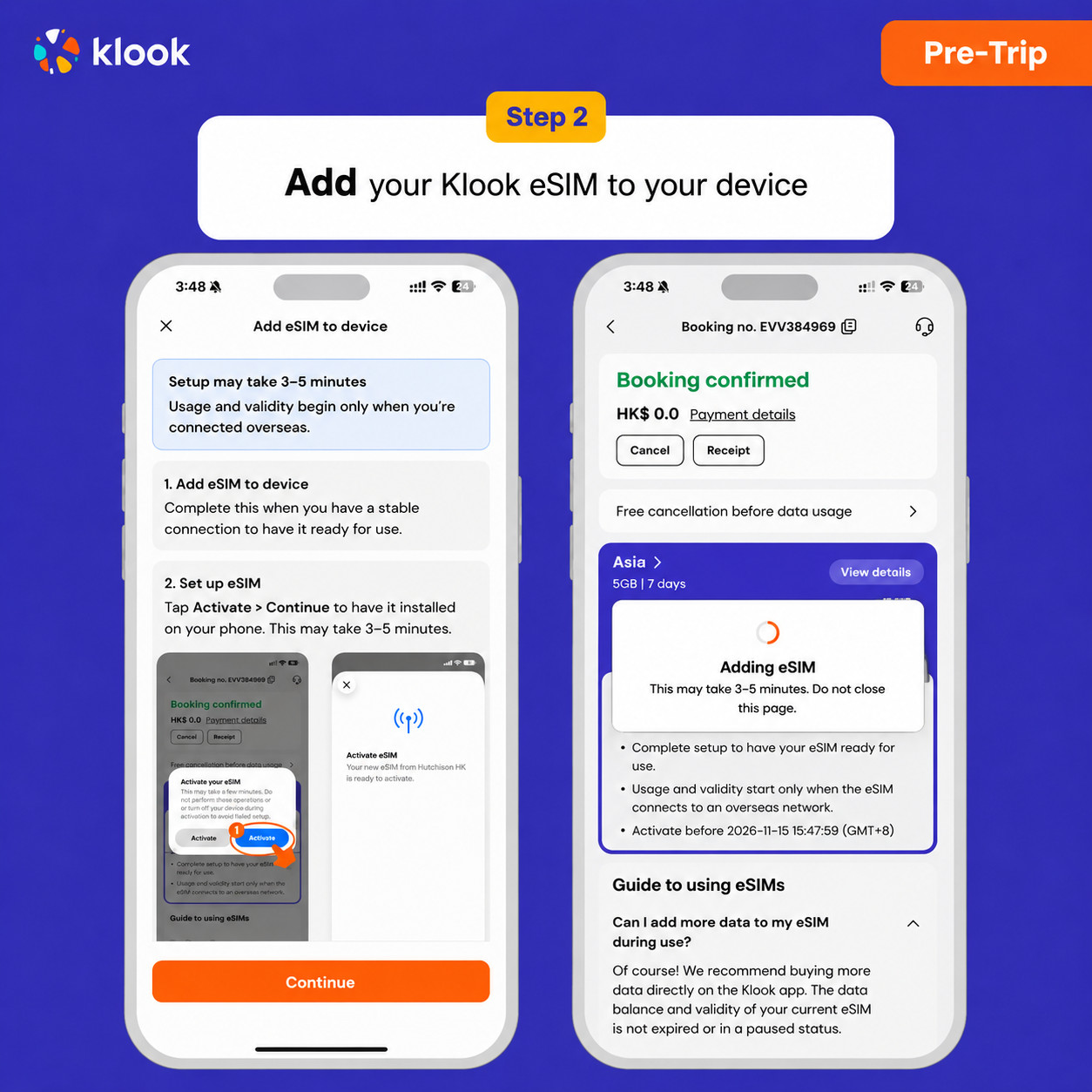
- Klook eSIM iOS installation
Set up your Klook eSIM for travel on iOS
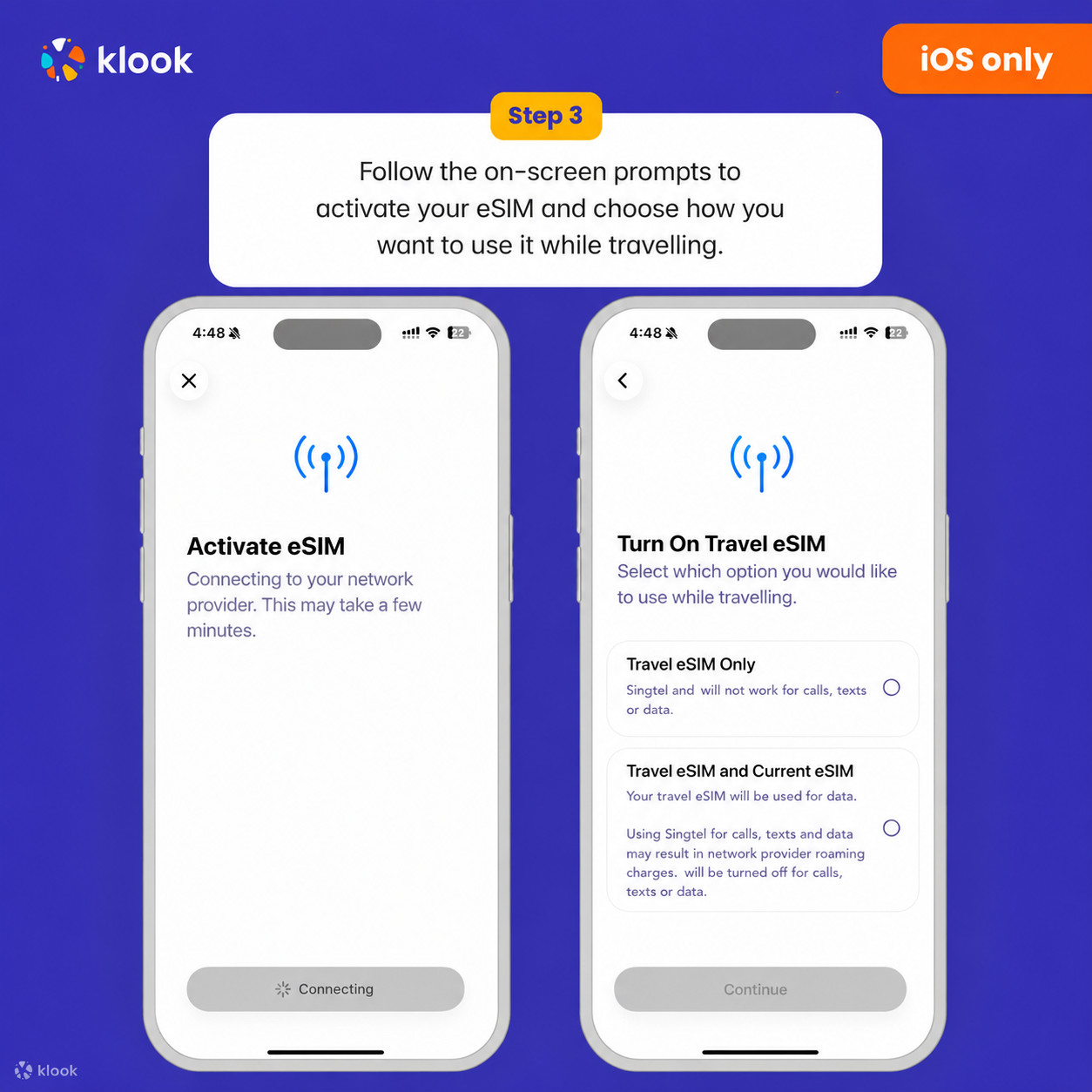
- Klook eSIM installed
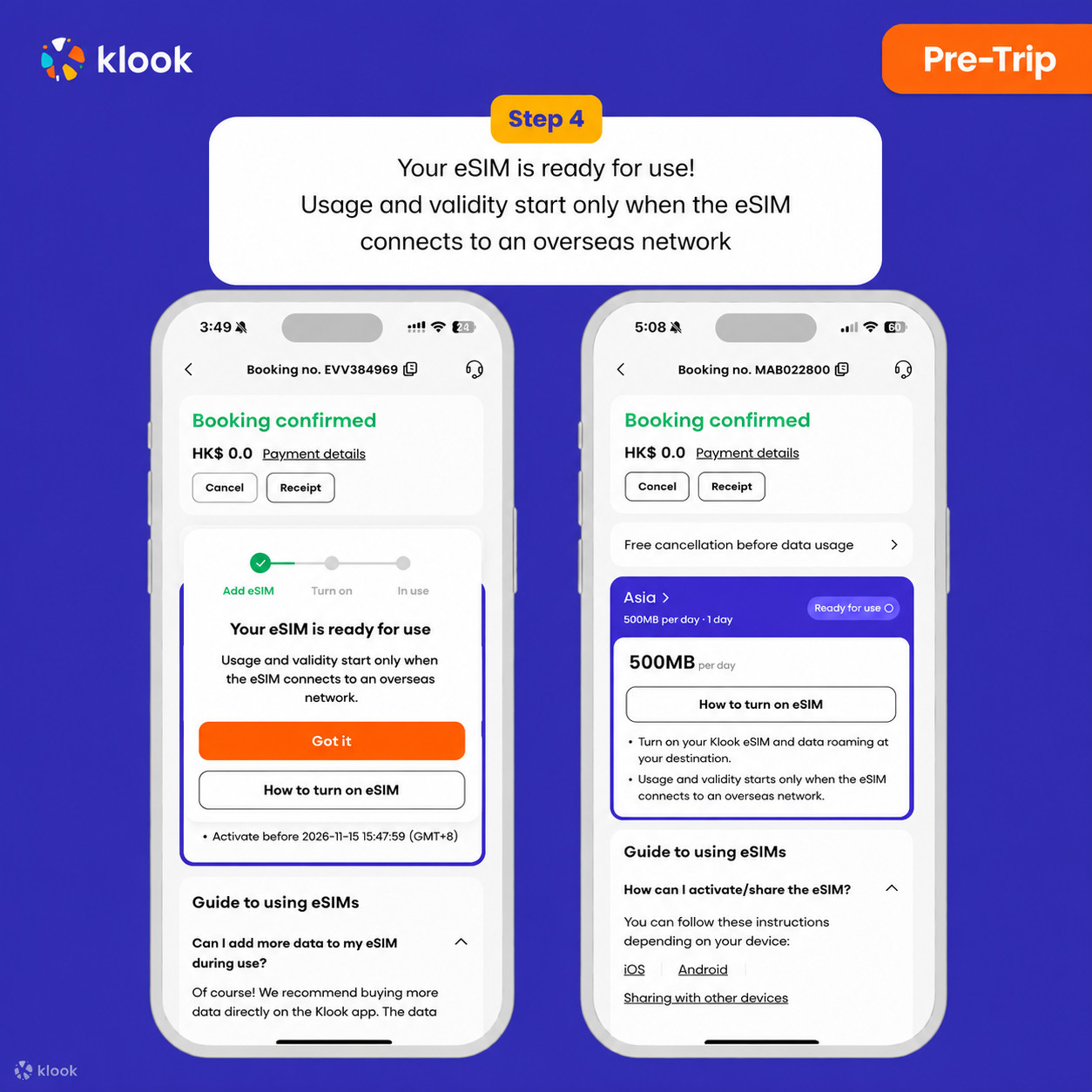
Your eSIM is ready for use! Usage and validity start only when the eSIM connects to an overseas network
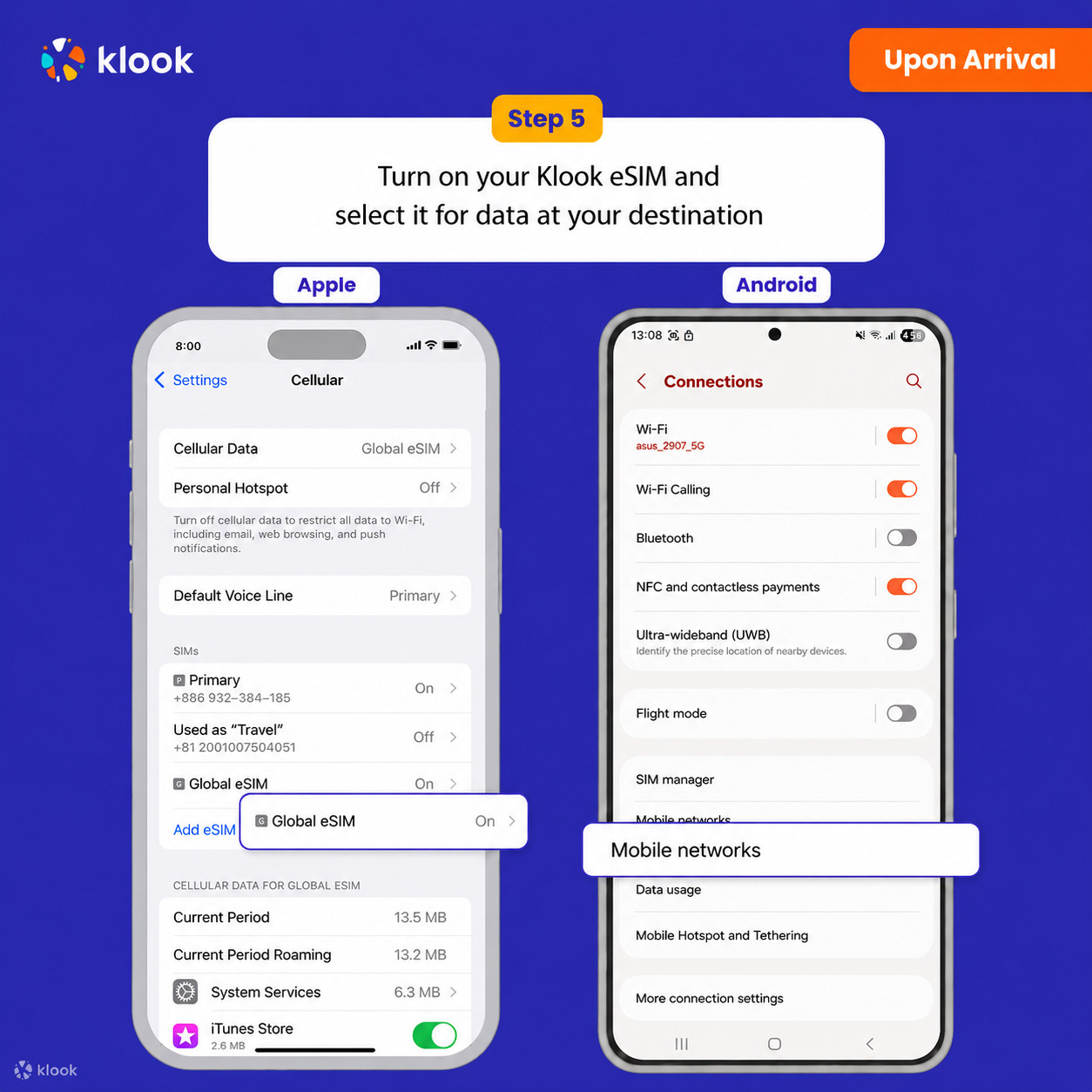
- Turn on Klook eSIM
Turn on Klook eSIM and select Klook eSIM for mobile data
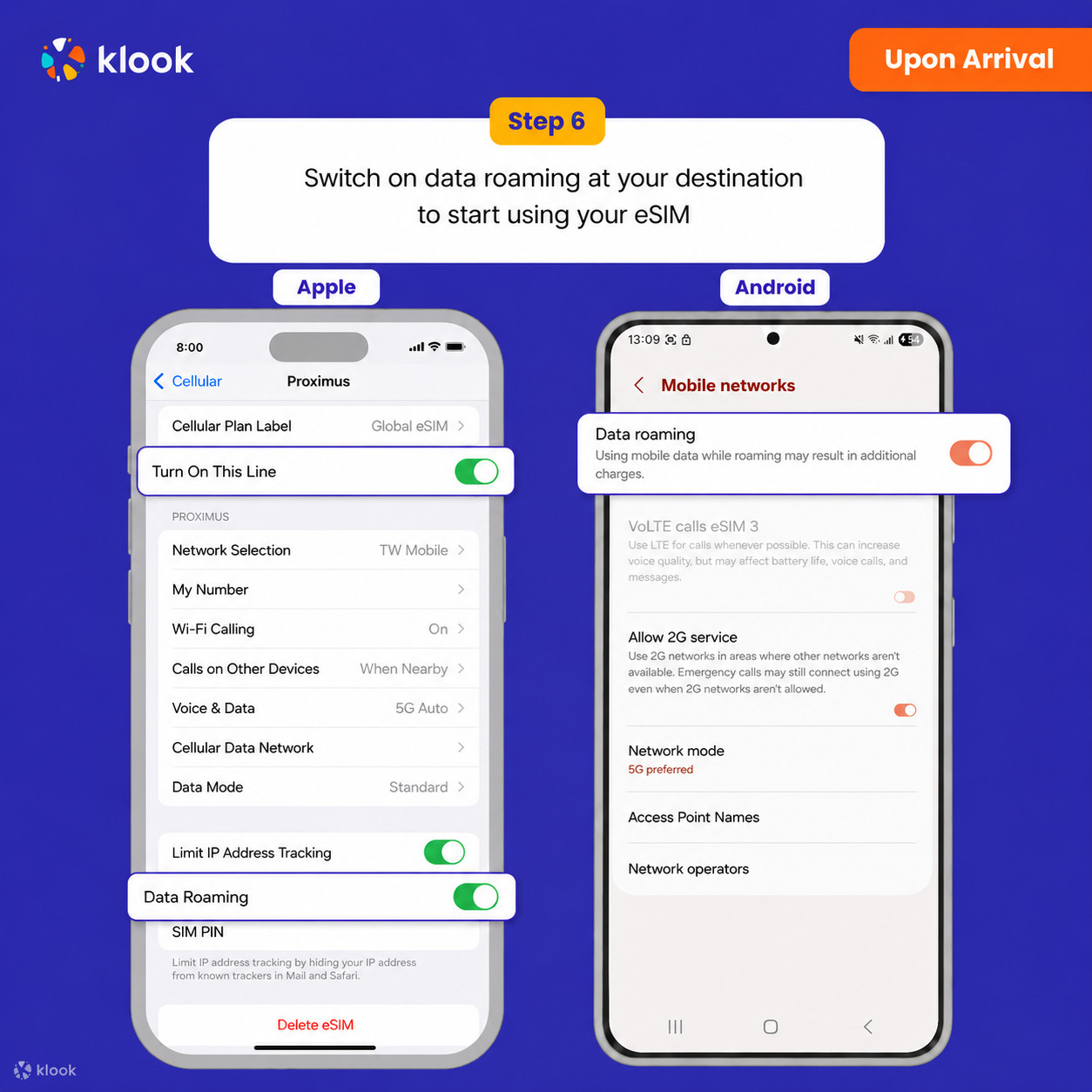
- Turn on Data roaming
Switch on data roaming at your destination to start using your eSIM
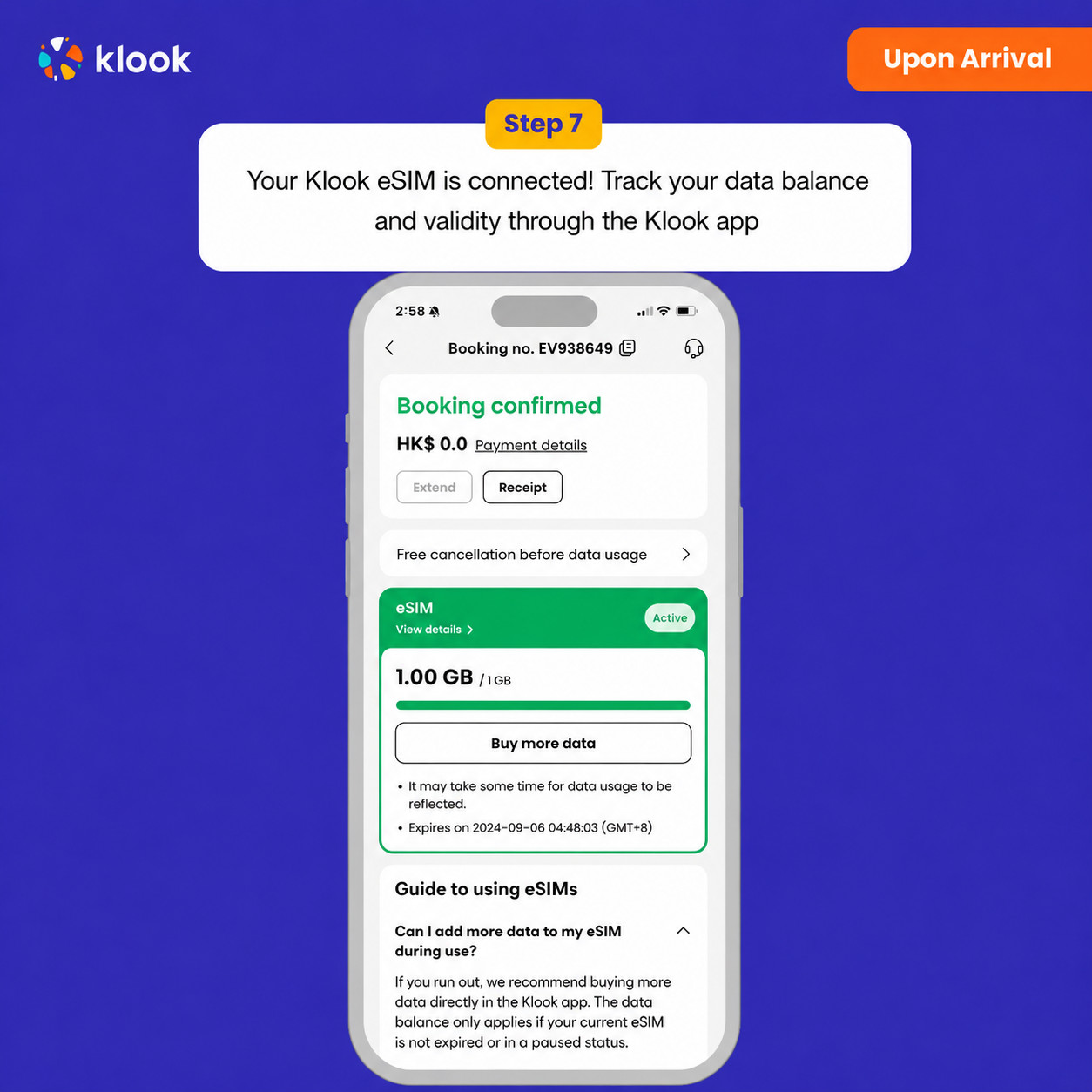
- Klook eSIM connected
Your klook esim is connected! Track your data balance and validity through the Klook app
Всего данных · 3 дня · 10 ГБ · Только данные
-
Your eSIM plan will begin upon connection to the destination mobile network, according to the time connected. For example, if you activate your 3-day plan at 10:00, it will end 3 days later at 10:00.
-
Kindly follow the link below to proceed with your eSIM activation. Android version iOS version
Всего данных · 3 дня · 500 МБ · Только данные
-
Your eSIM plan will begin upon connection to the destination mobile network, according to the time connected. For example, if you activate your 3-day plan at 10:00, it will end 3 days later at 10:00.
-
Kindly follow the link below to proceed with your eSIM activation. Android version iOS version
Всего данных · 5 дней · 10 ГБ · Только данные
-
Your eSIM plan will begin upon connection to the destination mobile network, according to the time connected. For example, if you activate your 3-day plan at 10:00, it will end 3 days later at 10:00.
-
Kindly follow the link below to proceed with your eSIM activation. Android version iOS version
Всего данных · 5 дней · 5 ГБ · Только данные
-
Your eSIM plan will begin upon connection to the destination mobile network, according to the time connected. For example, if you activate your 3-day plan at 10:00, it will end 3 days later at 10:00.
-
Kindly follow the link below to proceed with your eSIM activation. Android version iOS version
Всего данных · 5 дней · 3 ГБ · Только данные
-
Your eSIM plan will begin upon connection to the destination mobile network, according to the time connected. For example, if you activate your 3-day plan at 10:00, it will end 3 days later at 10:00.
-
Kindly follow the link below to proceed with your eSIM activation. Android version iOS version
Всего данных · 10 дней · 20 ГБ · Только данные
-
Your eSIM plan will begin upon connection to the destination mobile network, according to the time connected. For example, if you activate your 3-day plan at 10:00, it will end 3 days later at 10:00.
-
Kindly follow the link below to proceed with your eSIM activation. Android version iOS version
Всего данных · 10 дней · 10 ГБ · Только данные
-
Your eSIM plan will begin upon connection to the destination mobile network, according to the time connected. For example, if you activate your 3-day plan at 10:00, it will end 3 days later at 10:00.
-
Kindly follow the link below to proceed with your eSIM activation. Android version iOS version
Всего данных · 10 дней · 5 ГБ · Только данные
-
Your eSIM plan will begin upon connection to the destination mobile network, according to the time connected. For example, if you activate your 3-day plan at 10:00, it will end 3 days later at 10:00.
-
Kindly follow the link below to proceed with your eSIM activation. Android version iOS version
Данные в день · 4 дня · Безлимит · Только данные
- Activate your Klook eSIM before travel
Activate your eSIM before travel
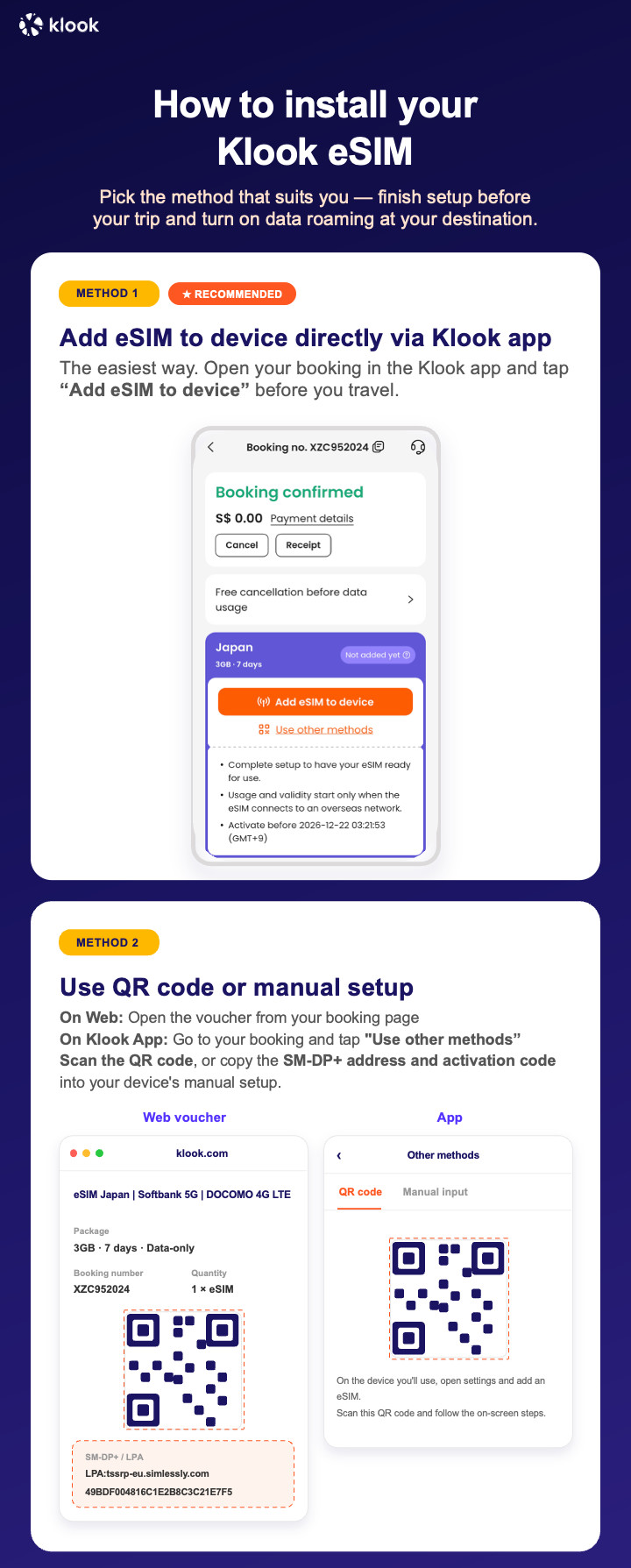
- Klook eSIM installation methods
Activate your eSIM via Klook in-app activation, scanning the QR code, or entering the SMDP+ details manually
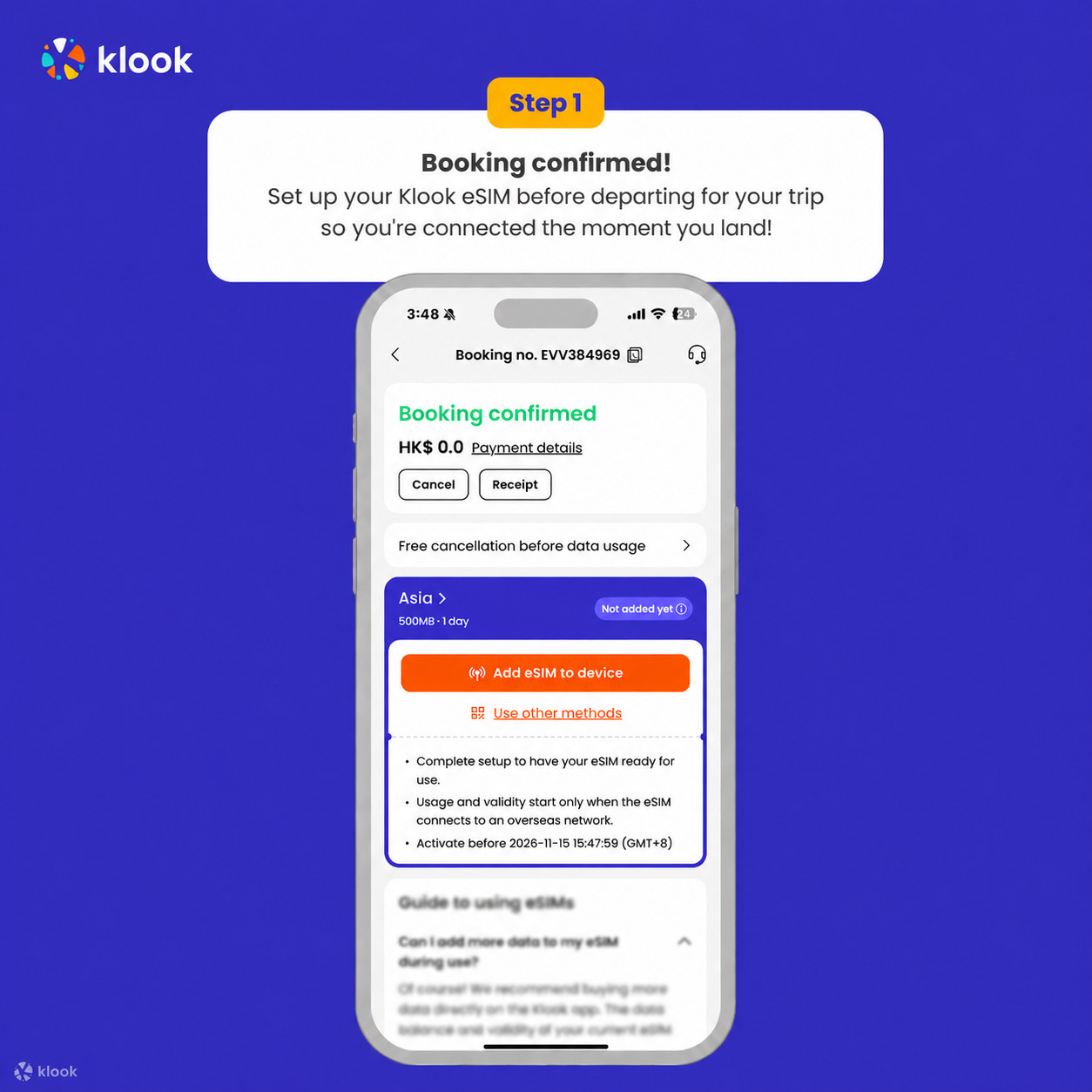
- Klook eSIM In-app activation
Click Add eSIM to device on your booking to start the installation. Don't worry, data and validity will only commence when you reach your destination
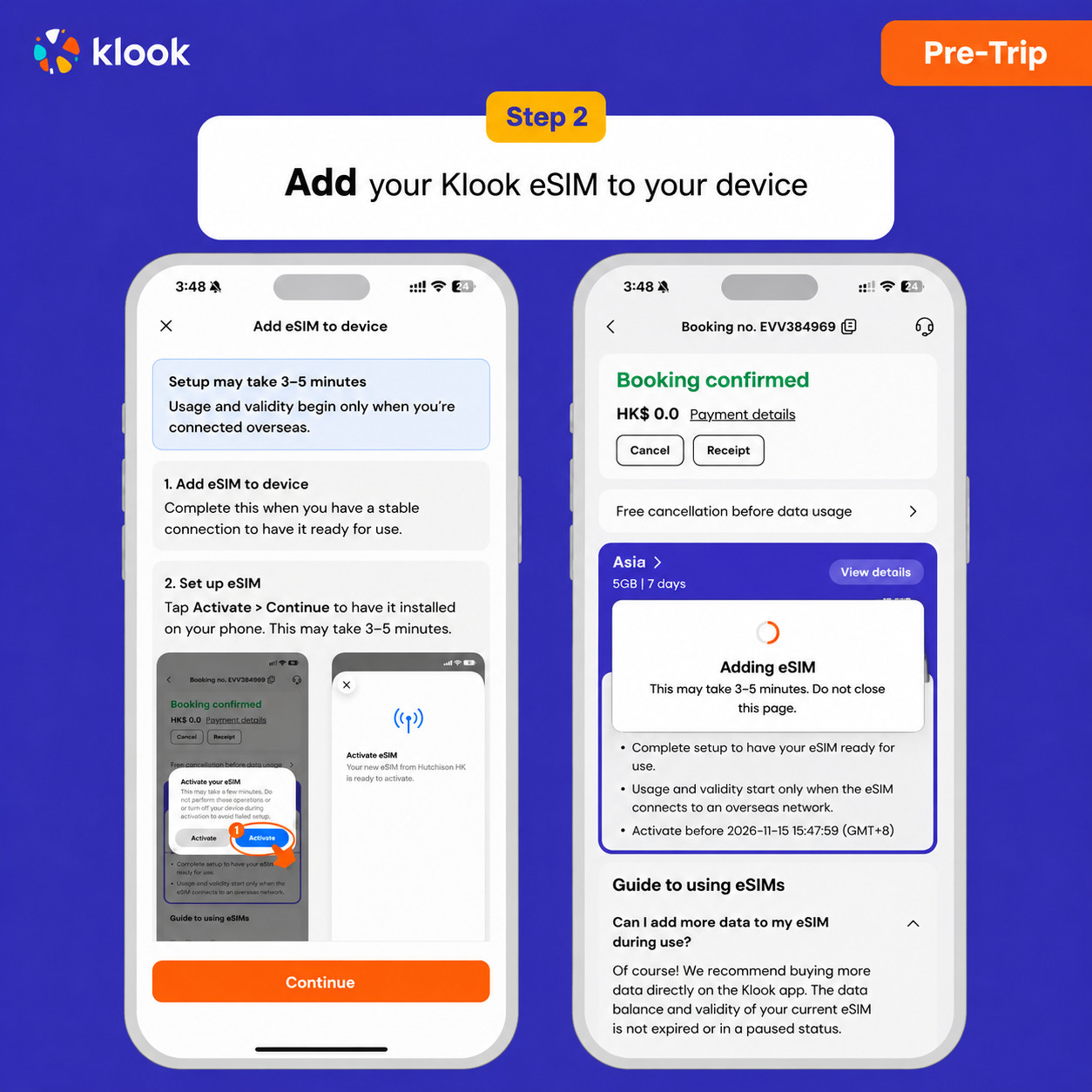
- Klook eSIM In-app activation
Installation of your eSIM will start automatically
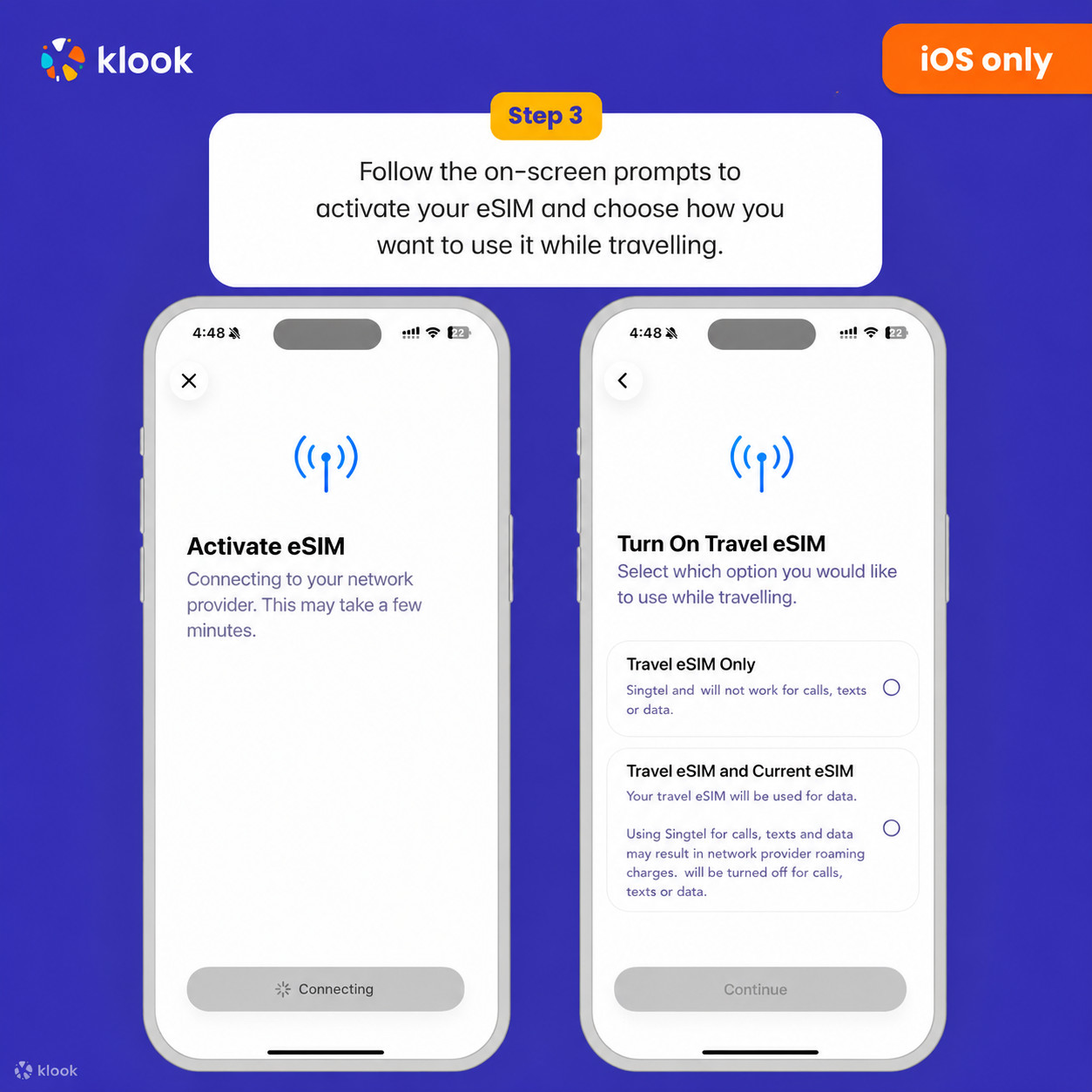
- Klook eSIM iOS installation
Set up your Klook eSIM for travel on iOS
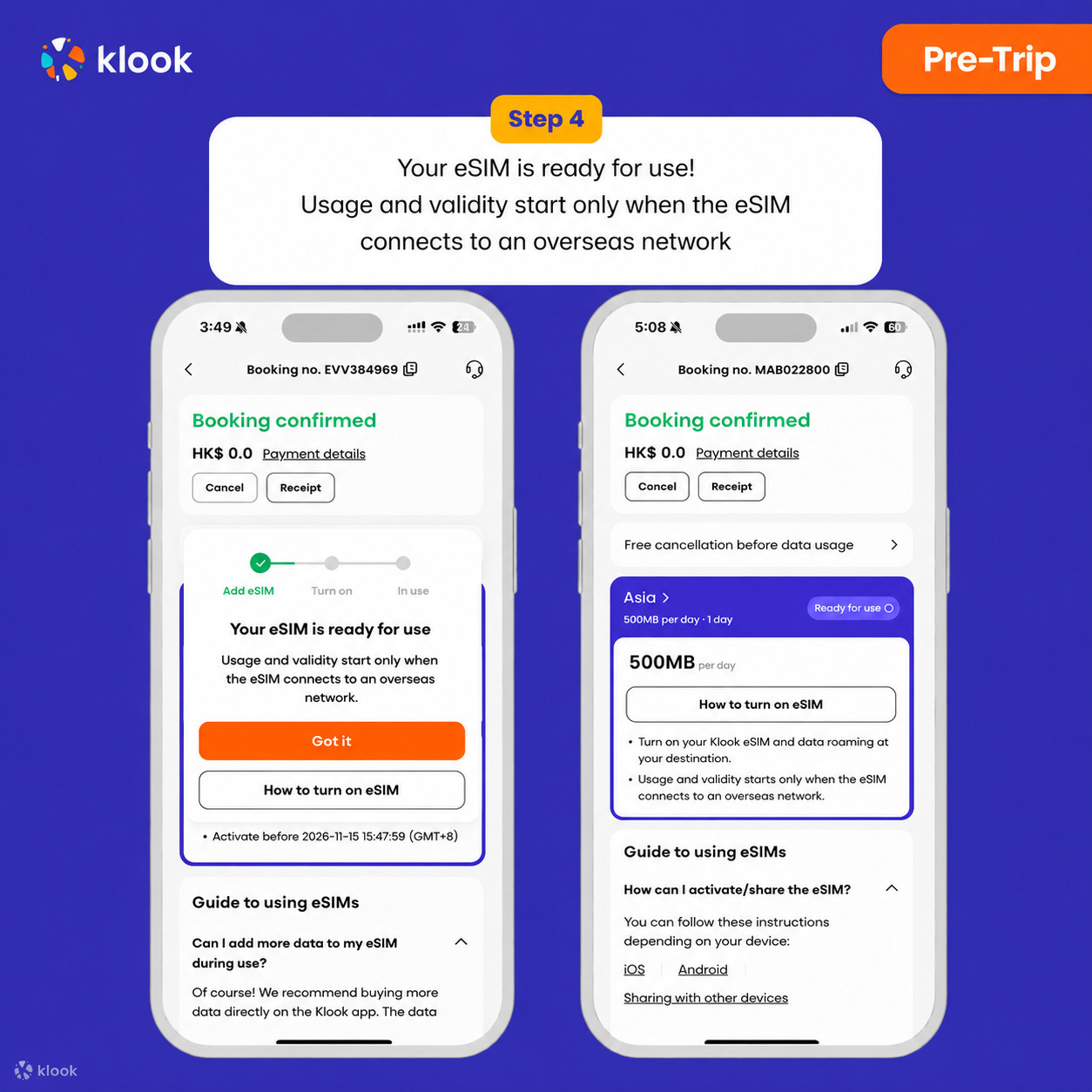
- Klook eSIM installed
Your eSIM is ready for use! Usage and validity start only when the eSIM connects to an overseas network
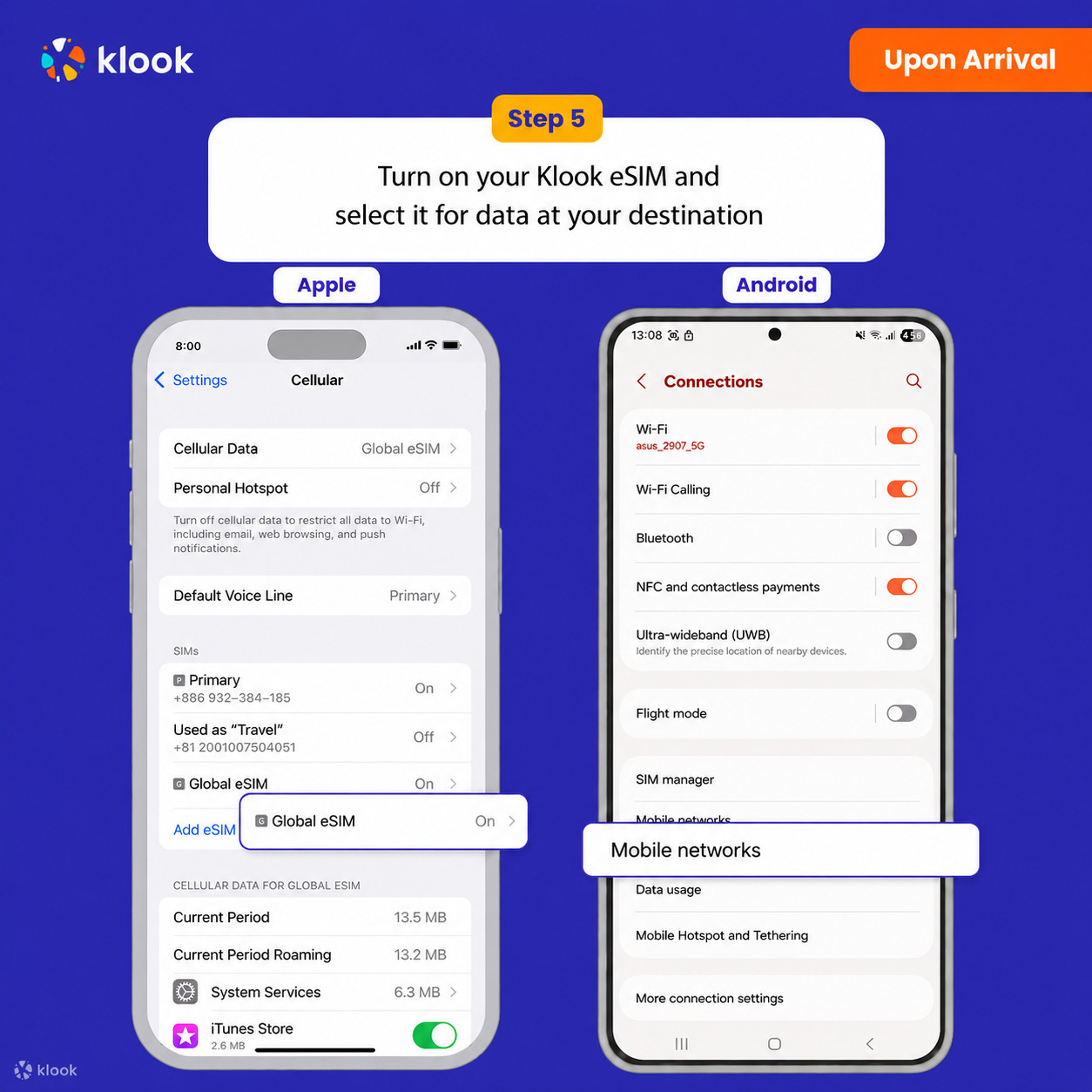
- Turn on Klook eSIM
Turn on Klook eSIM and select Klook eSIM for mobile data
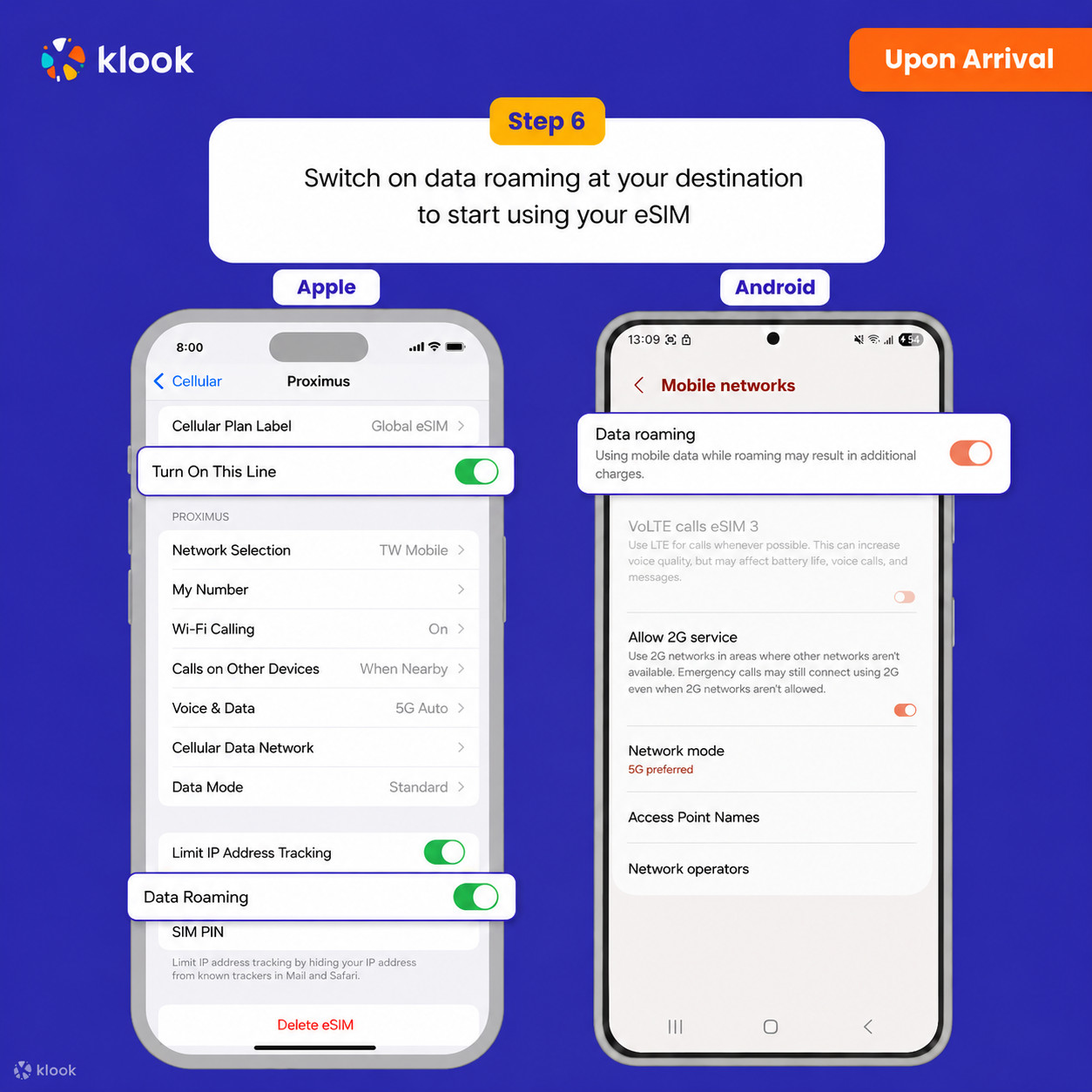
- Turn on Data roaming
Switch on data roaming at your destination to start using your eSIM
- Klook eSIM connected
Your klook esim is connected! Track your data balance and validity through the Klook app
Активируйте вашу eSIM Android / iOS
- Ваш тариф eSIM начнет действовать с момента подключения к мобильной сети назначения, согласно времени подключения. Например, если вы активируете тариф на 3 дня в 10:00, он закончится через 3 дня в 10:00.
Политика подтверждения
- Вы получите подтверждение в течение нескольких минут. Если подтверждение не пришло, обратитесь в нашу службу поддержки.
Данные в день · 7 дней · 3 ГБ · Только данные
Политика подтверждения
- Вы получите подтверждение в течение нескольких минут. Если подтверждение не пришло, обратитесь в нашу службу поддержки.
-
Your eSIM plan will begin upon connection to the destination mobile network, according to the time connected. For example, if you activate your 3-day plan at 10:00, it will end 3 days later at 10:00.
-
Kindly follow the link below to proceed with your eSIM activation. Android version iOS version
- Activate in Klook App
Activate in Klook App (Update Klook APP to the latest version)
- Klook eSIM installation methods
Activate your eSIM via Klook in-app activation, scanning the QR code, or entering the SMDP+ details manually
- Klook eSIM In-app activation
Activate your eSIM just by clicking Add eSIM to device on your booking. Don't worry, data and validity will only commence when you reach your destination
- Klook eSIM In-app activation
Installation of your eSIM will start automatically
- Klook eSIM iOS installation
Set up your Klook eSIM for travel
- Klook eSIM installed
Your Klook eSIM is now installed! Validity period will start only after connecting to the local network at your destination
- Turn on Klook eSIM
Turn on Klook eSIM and select Klook eSIM for mobile data
- Turn on Data roaming
Turn on and select Klook eSIM for data and turn on data roaming in-destination to start using the eSIM!
- Klook eSIM connected
Your klook esim is connected! Track your data balance and validity through the Klook app
Всего данных · 7 дней · 1 ГБ · Только данные
-
Your eSIM plan will begin upon connection to the destination mobile network, according to the time connected. For example, if you activate your 3-day plan at 10:00, it will end 3 days later at 10:00.
-
Kindly follow the link below to proceed with your eSIM activation. Android version iOS version
- Activate in Klook App
Activate in Klook App (Update Klook APP to the latest version)
- Klook eSIM installation methods
Activate your eSIM via Klook in-app activation, scanning the QR code, or entering the SMDP+ details manually
- Klook eSIM In-app activation
Activate your eSIM just by clicking Add eSIM to device on your booking. Don't worry, data and validity will only commence when you reach your destination
- Klook eSIM In-app activation
Installation of your eSIM will start automatically
- Klook eSIM iOS installation
Set up your Klook eSIM for travel
- Klook eSIM installed
Your Klook eSIM is now installed! Validity period will start only after connecting to the local network at your destination
- Turn on Klook eSIM
Turn on Klook eSIM and select Klook eSIM for mobile data
- Turn on Data roaming
Turn on and select Klook eSIM for data and turn on data roaming in-destination to start using the eSIM!
- Klook eSIM connected
Your klook esim is connected! Track your data balance and validity through the Klook app
Политика подтверждения
- Вы получите подтверждение в течение нескольких минут. Если подтверждение не пришло, обратитесь в нашу службу поддержки.
Всего данных · 30 дней · 5 ГБ · Только данные
-
Your eSIM plan will begin upon connection to the destination mobile network, according to the time connected. For example, if you activate your 3-day plan at 10:00, it will end 3 days later at 10:00.
-
Kindly follow the link below to proceed with your eSIM activation. Android version iOS version
- Activate in Klook App
Activate in Klook App (Update Klook APP to the latest version)
- Klook eSIM installation methods
Activate your eSIM via Klook in-app activation, scanning the QR code, or entering the SMDP+ details manually
- Klook eSIM In-app activation
Activate your eSIM just by clicking Add eSIM to device on your booking. Don't worry, data and validity will only commence when you reach your destination
- Klook eSIM In-app activation
Installation of your eSIM will start automatically
- Klook eSIM iOS installation
Set up your Klook eSIM for travel
- Klook eSIM installed
Your Klook eSIM is now installed! Validity period will start only after connecting to the local network at your destination
- Turn on Klook eSIM
Turn on Klook eSIM and select Klook eSIM for mobile data
- Turn on Data roaming
Turn on and select Klook eSIM for data and turn on data roaming in-destination to start using the eSIM!
- Klook eSIM connected
Your klook esim is connected! Track your data balance and validity through the Klook app
Политика подтверждения
- Вы получите подтверждение в течение нескольких минут. Если подтверждение не пришло, обратитесь в нашу службу поддержки.
Всего данных · 1 день · 3 ГБ · Только данные
-
Your eSIM plan will begin upon connection to the destination mobile network, according to the time connected. For example, if you activate your 3-day plan at 10:00, it will end 3 days later at 10:00.
-
Kindly follow the link below to proceed with your eSIM activation. Android version iOS version
- Activate in Klook App
Activate in Klook App (Update Klook APP to the latest version)
- Klook eSIM installation methods
Activate your eSIM via Klook in-app activation, scanning the QR code, or entering the SMDP+ details manually
- Klook eSIM In-app activation
Activate your eSIM just by clicking Add eSIM to device on your booking. Don't worry, data and validity will only commence when you reach your destination
- Klook eSIM In-app activation
Installation of your eSIM will start automatically
- Klook eSIM iOS installation
Set up your Klook eSIM for travel
- Klook eSIM installed
Your Klook eSIM is now installed! Validity period will start only after connecting to the local network at your destination
- Turn on Klook eSIM
Turn on Klook eSIM and select Klook eSIM for mobile data
- Turn on Data roaming
Turn on and select Klook eSIM for data and turn on data roaming in-destination to start using the eSIM!
- Klook eSIM connected
Your klook esim is connected! Track your data balance and validity through the Klook app
Политика подтверждения
- Вы получите подтверждение в течение нескольких минут. Если подтверждение не пришло, обратитесь в нашу службу поддержки.
Всего данных · 5 дней · 20 ГБ · Только данные
- Activate your Klook eSIM before travel
Activate your eSIM before travel
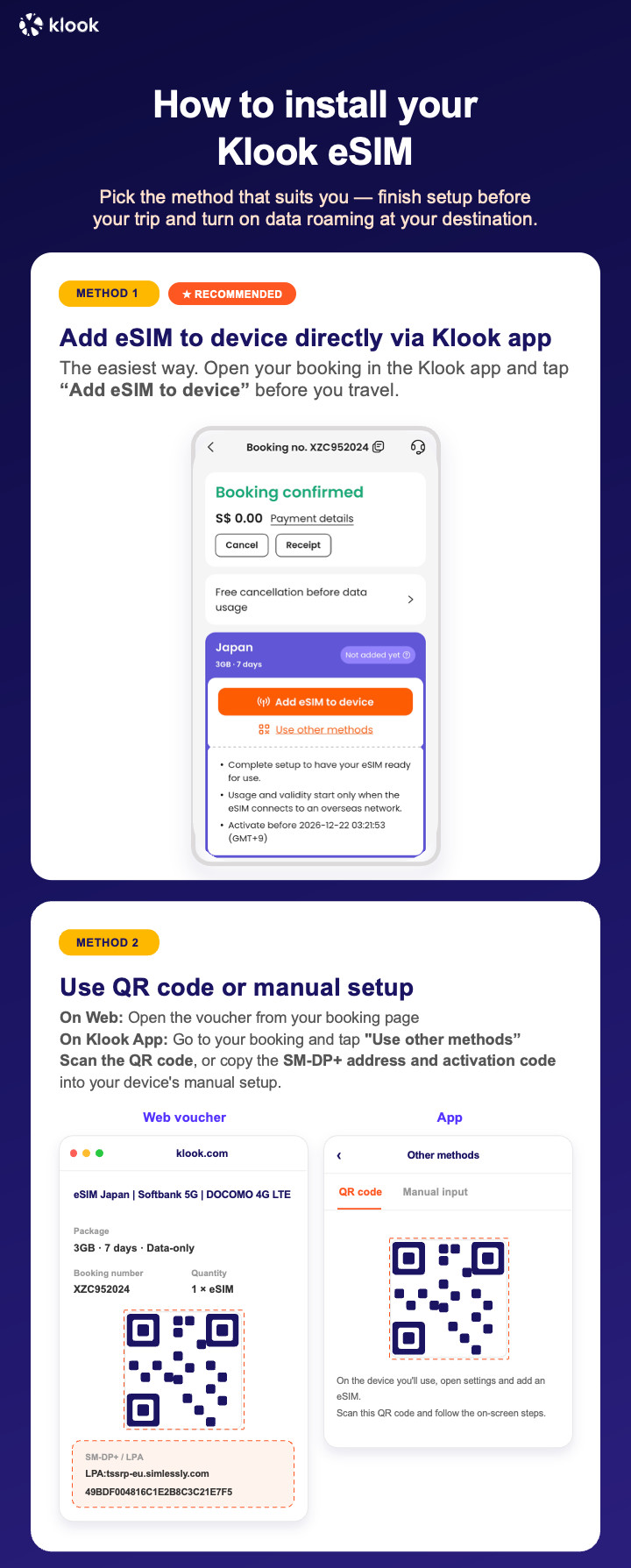
- Klook eSIM installation methods
Activate your eSIM via Klook in-app activation, scanning the QR code, or entering the SMDP+ details manually
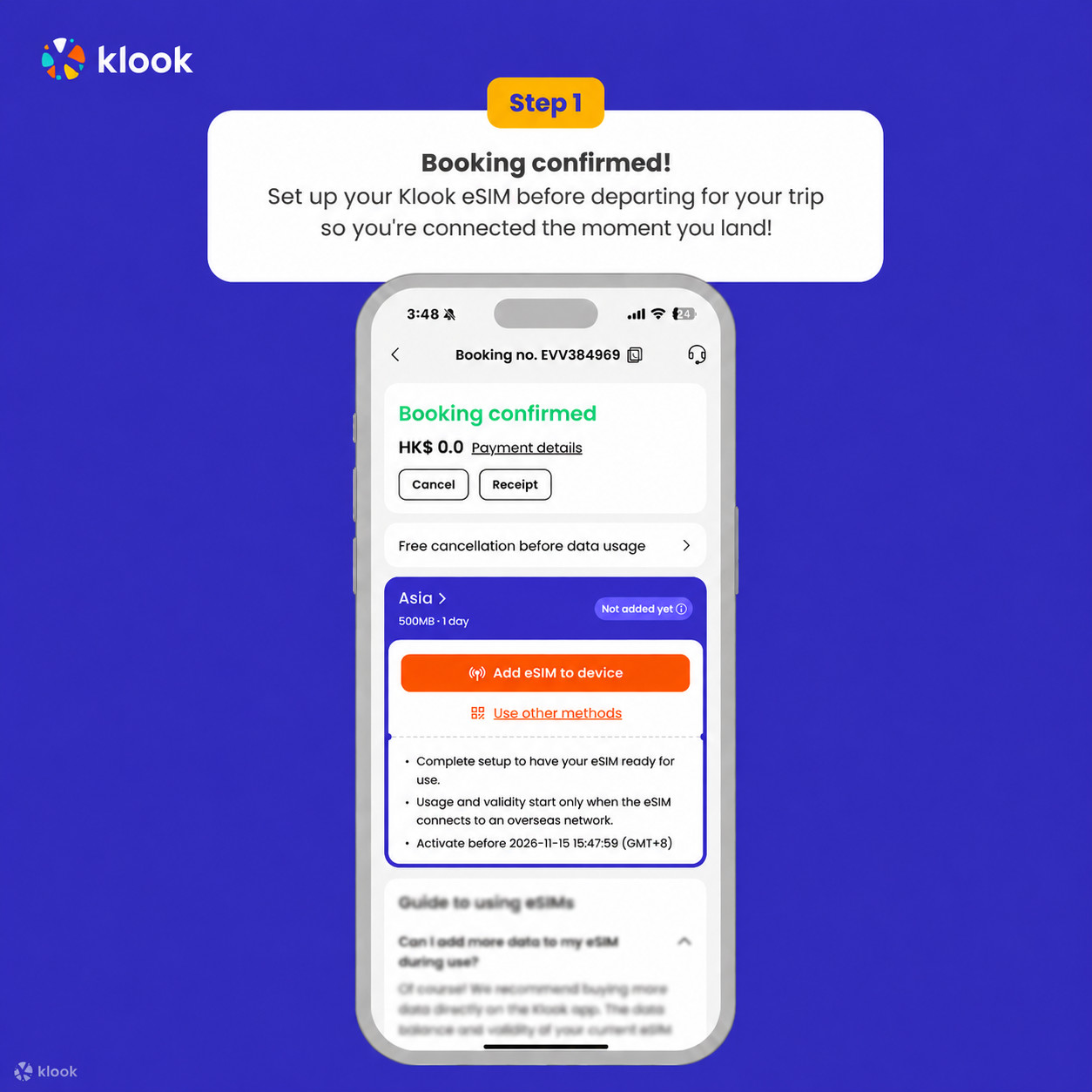
- Klook eSIM In-app activation
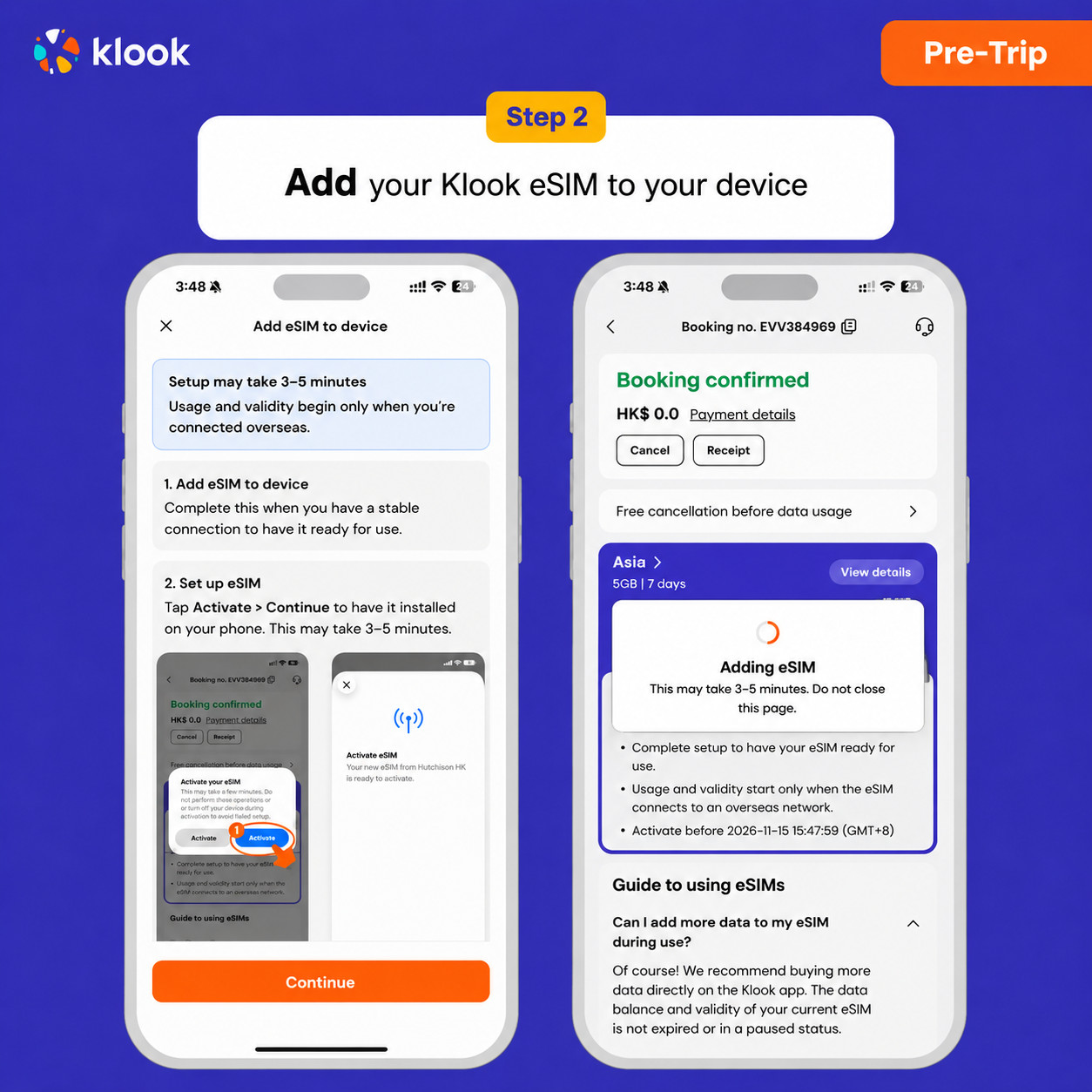
Click Add eSIM to device on your booking to start the installation. Don't worry, data and validity will only commence when you reach your destination
- Klook eSIM In-app activation
Installation of your eSIM will start automatically
- Klook eSIM iOS installation
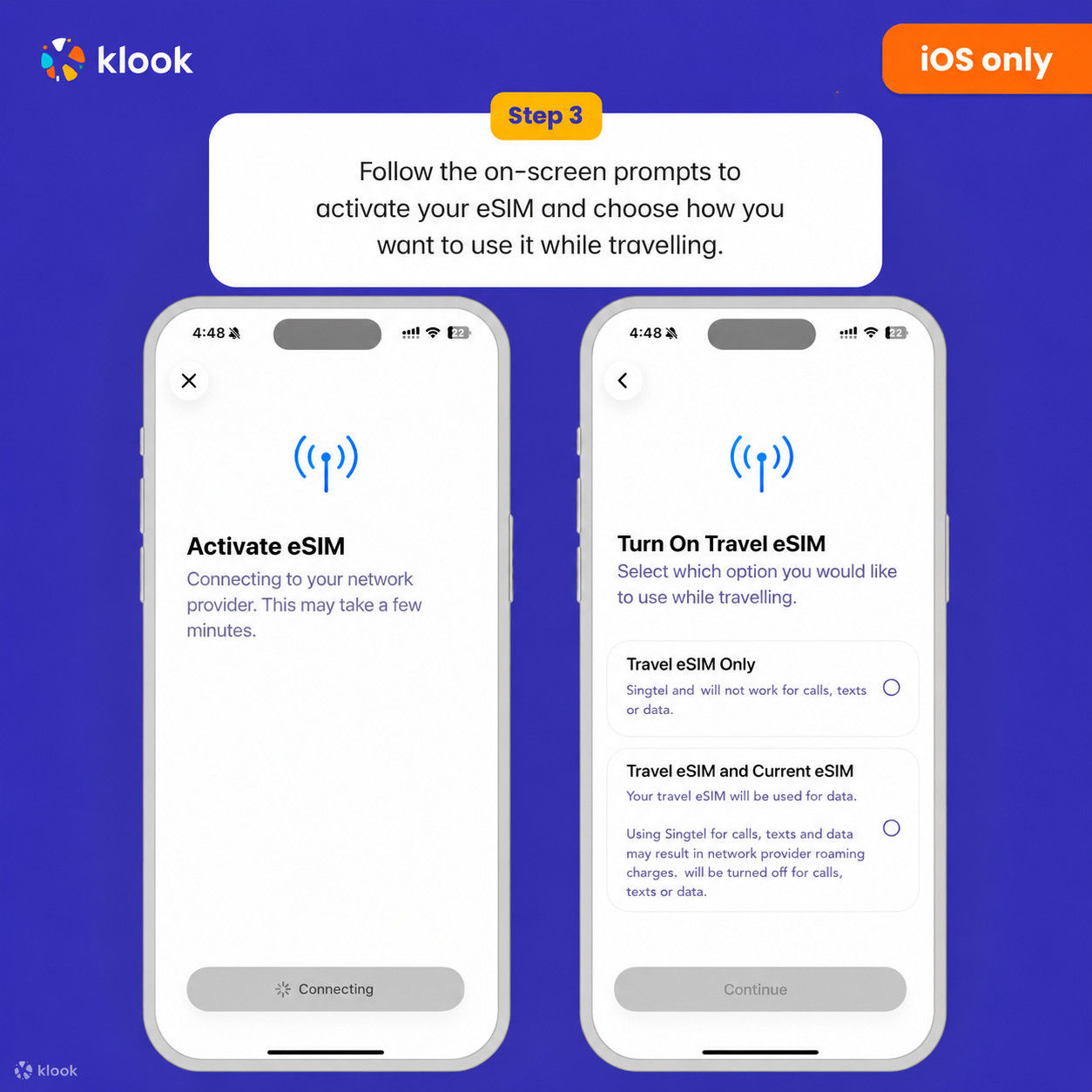
Set up your Klook eSIM for travel on iOS
- Klook eSIM installed
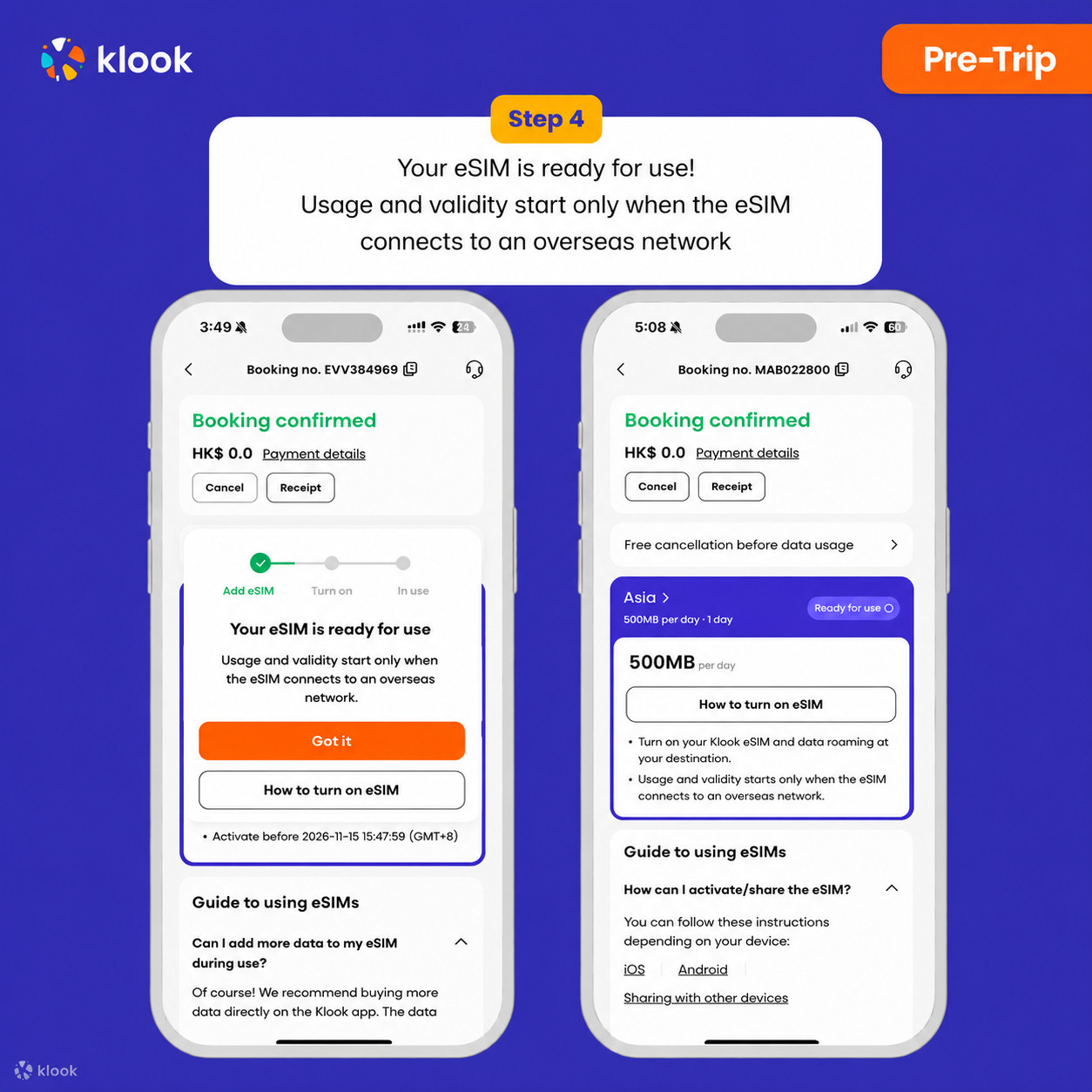
Your eSIM is ready for use! Usage and validity start only when the eSIM connects to an overseas network
- Turn on Klook eSIM
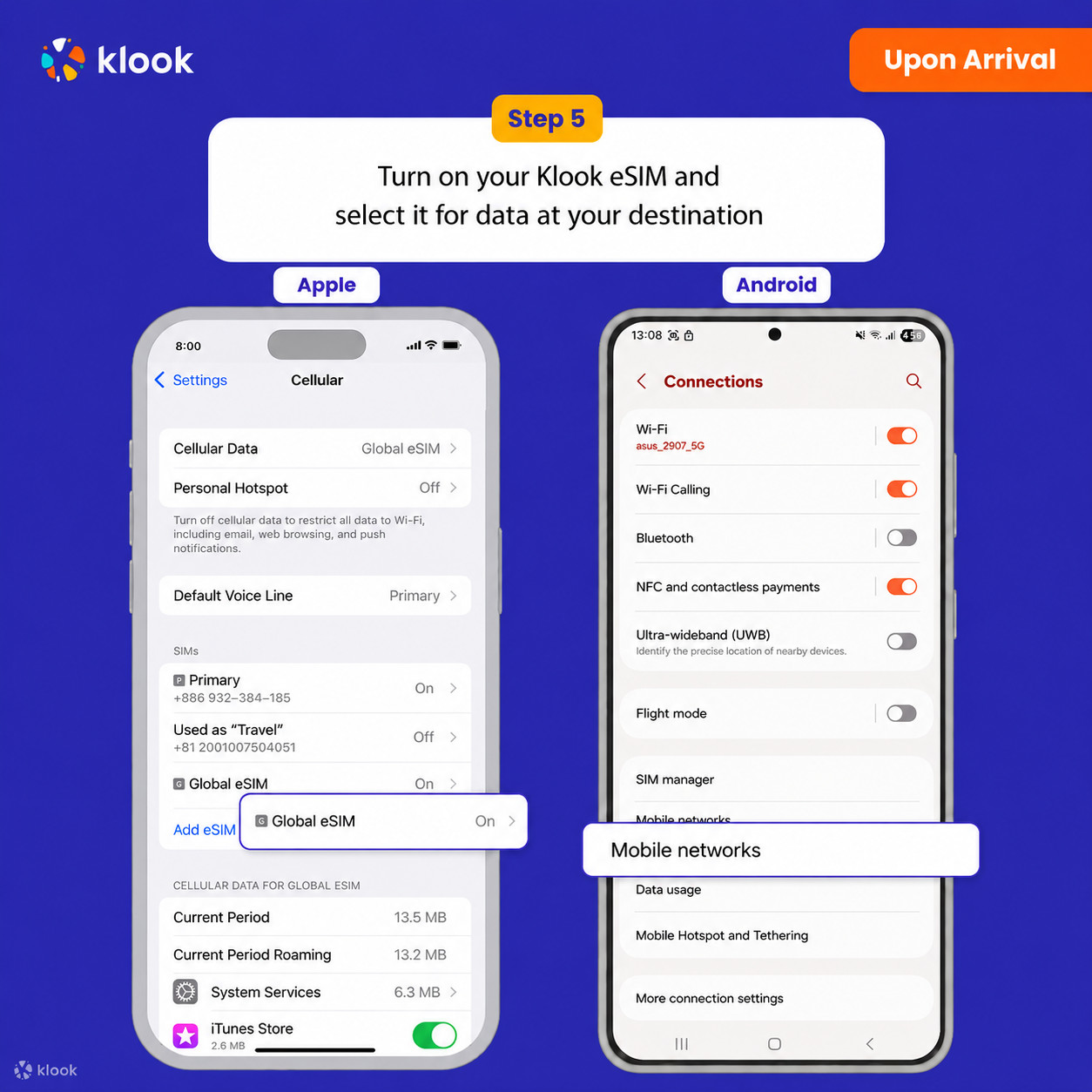
Turn on Klook eSIM and select Klook eSIM for mobile data
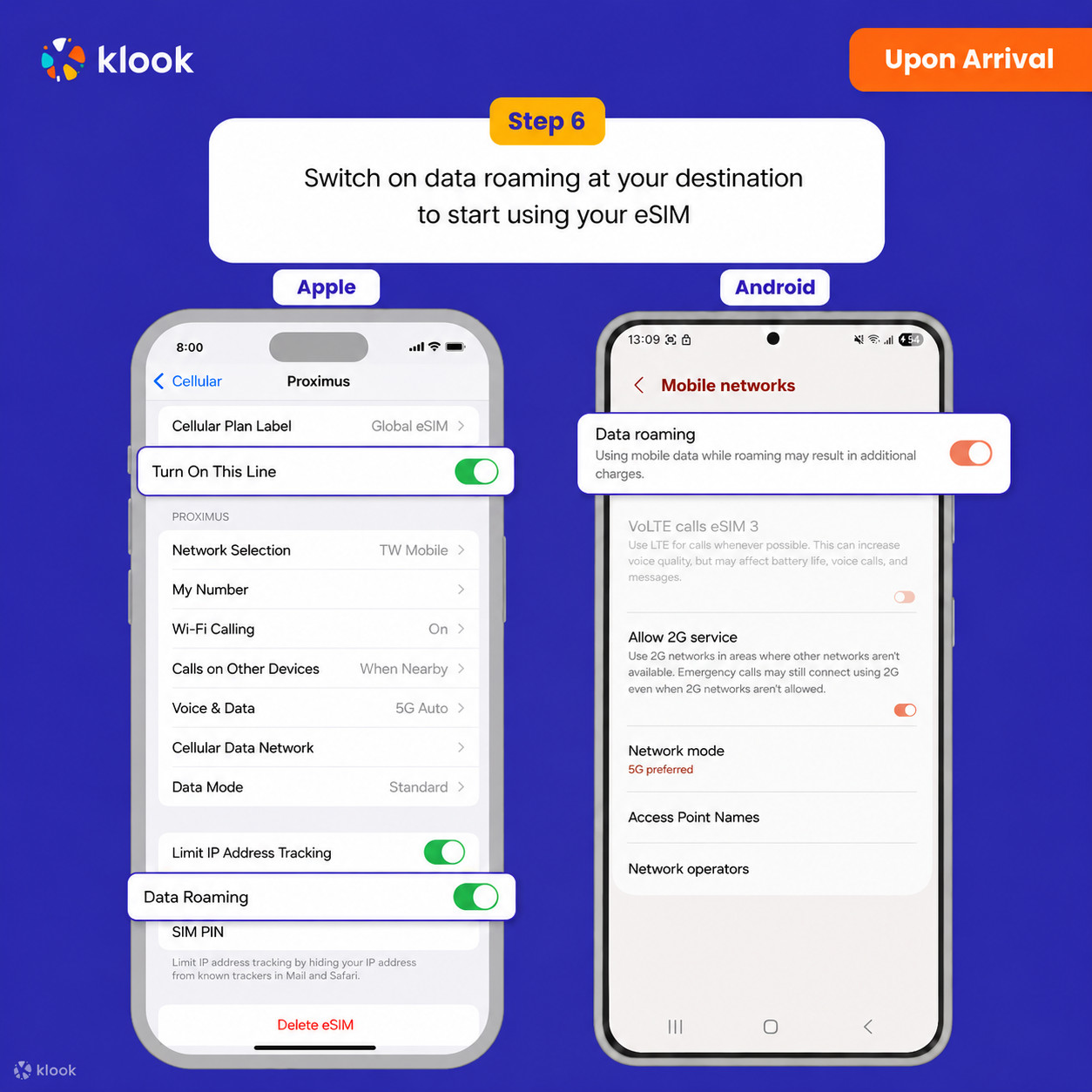
- Turn on Data roaming
Switch on data roaming at your destination to start using your eSIM
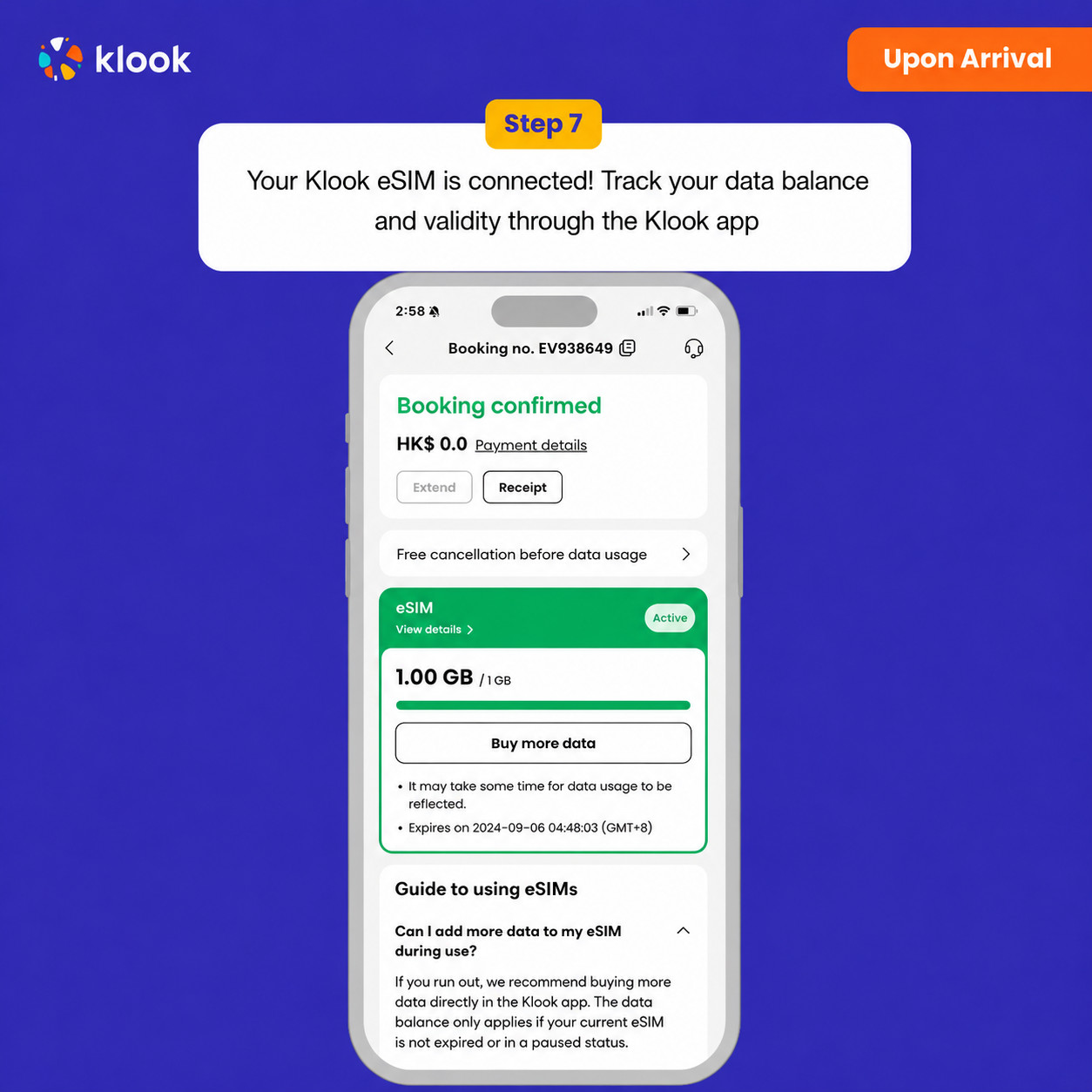
- Klook eSIM connected
Your klook esim is connected! Track your data balance and validity through the Klook app
Активируйте вашу eSIM Android / iOS
-
Ваш тариф eSIM начнет действовать с момента подключения к мобильной сети назначения, согласно времени подключения. Например, если вы активируете тариф на 3 дня в 10:00, он закончится через 3 дня в 10:00.
-
Пожалуйста, перейдите по ссылке ниже для активации вашей eSIM. Версия для Android Версия для iOS
Политика подтверждения
- Вы получите подтверждение в течение нескольких минут. Если подтверждение не пришло, обратитесь в нашу службу поддержки.
Данные в день · 8 дней · Безлимит · Только данные
-
Your eSIM plan will begin upon connection to the destination mobile network, according to the time connected. For example, if you activate your 3-day plan at 10:00, it will end 3 days later at 10:00.
-
Kindly follow the link below to proceed with your eSIM activation. Android version iOS version
- Activate in Klook App
Activate in Klook App (Update Klook APP to the latest version)
- Klook eSIM installation methods
Activate your eSIM via Klook in-app activation, scanning the QR code, or entering the SMDP+ details manually
- Klook eSIM In-app activation
Activate your eSIM just by clicking Add eSIM to device on your booking. Don't worry, data and validity will only commence when you reach your destination
- Klook eSIM In-app activation
Installation of your eSIM will start automatically
- Klook eSIM iOS installation
Set up your Klook eSIM for travel
- Klook eSIM installed
Your Klook eSIM is now installed! Validity period will start only after connecting to the local network at your destination
- Turn on Klook eSIM
Turn on Klook eSIM and select Klook eSIM for mobile data
- Turn on Data roaming
Turn on and select Klook eSIM for data and turn on data roaming in-destination to start using the eSIM!
- Klook eSIM connected
Your klook esim is connected! Track your data balance and validity through the Klook app
Политика подтверждения
- Вы получите подтверждение в течение нескольких минут. Если подтверждение не пришло, обратитесь в нашу службу поддержки.
Всего данных · 15 дней · 5 ГБ · Только данные
-
Your eSIM plan will begin upon connection to the destination mobile network, according to the time connected. For example, if you activate your 3-day plan at 10:00, it will end 3 days later at 10:00.
-
Kindly follow the link below to proceed with your eSIM activation. Android version iOS version
- Activate in Klook App
Activate in Klook App (Update Klook APP to the latest version)
- Klook eSIM installation methods
Activate your eSIM via Klook in-app activation, scanning the QR code, or entering the SMDP+ details manually
- Klook eSIM In-app activation
Activate your eSIM just by clicking Add eSIM to device on your booking. Don't worry, data and validity will only commence when you reach your destination
- Klook eSIM In-app activation
Installation of your eSIM will start automatically
- Klook eSIM iOS installation
Set up your Klook eSIM for travel
- Klook eSIM installed
Your Klook eSIM is now installed! Validity period will start only after connecting to the local network at your destination
- Turn on Klook eSIM
Turn on Klook eSIM and select Klook eSIM for mobile data
- Turn on Data roaming
Turn on and select Klook eSIM for data and turn on data roaming in-destination to start using the eSIM!
- Klook eSIM connected
Your klook esim is connected! Track your data balance and validity through the Klook app
Политика подтверждения
- Вы получите подтверждение в течение нескольких минут. Если подтверждение не пришло, обратитесь в нашу службу поддержки.
Данные в день · 15 дней · 3 ГБ · Только данные
-
Your eSIM plan will begin upon connection to the destination mobile network, according to the time connected. For example, if you activate your 3-day plan at 10:00, it will end 3 days later at 10:00.
-
Kindly follow the link below to proceed with your eSIM activation. Android version iOS version
- Activate in Klook App
Activate in Klook App (Update Klook APP to the latest version)
- Klook eSIM installation methods
Activate your eSIM via Klook in-app activation, scanning the QR code, or entering the SMDP+ details manually
- Klook eSIM In-app activation
Activate your eSIM just by clicking Add eSIM to device on your booking. Don't worry, data and validity will only commence when you reach your destination
- Klook eSIM In-app activation
Installation of your eSIM will start automatically
- Klook eSIM iOS installation
Set up your Klook eSIM for travel
- Klook eSIM installed
Your Klook eSIM is now installed! Validity period will start only after connecting to the local network at your destination
- Turn on Klook eSIM
Turn on Klook eSIM and select Klook eSIM for mobile data
- Turn on Data roaming
Turn on and select Klook eSIM for data and turn on data roaming in-destination to start using the eSIM!
- Klook eSIM connected
Your klook esim is connected! Track your data balance and validity through the Klook app
Политика подтверждения
- Вы получите подтверждение в течение нескольких минут. Если подтверждение не пришло, обратитесь в нашу службу поддержки.
Данные в день · 2 дня · 1 ГБ · Только данные
Политика подтверждения
- Вы получите подтверждение в течение нескольких минут. Если подтверждение не пришло, обратитесь в нашу службу поддержки.
-
Your eSIM plan will begin upon connection to the destination mobile network, according to the time connected. For example, if you activate your 3-day plan at 10:00, it will end 3 days later at 10:00.
-
Kindly follow the link below to proceed with your eSIM activation. Android version iOS version
- Activate in Klook App
Activate in Klook App (Update Klook APP to the latest version)
- Klook eSIM installation methods
Activate your eSIM via Klook in-app activation, scanning the QR code, or entering the SMDP+ details manually
- Klook eSIM In-app activation
Activate your eSIM just by clicking Add eSIM to device on your booking. Don't worry, data and validity will only commence when you reach your destination
- Klook eSIM In-app activation
Installation of your eSIM will start automatically
- Klook eSIM iOS installation
Set up your Klook eSIM for travel
- Klook eSIM installed
Your Klook eSIM is now installed! Validity period will start only after connecting to the local network at your destination
- Turn on Klook eSIM
Turn on Klook eSIM and select Klook eSIM for mobile data
- Turn on Data roaming
Turn on and select Klook eSIM for data and turn on data roaming in-destination to start using the eSIM!
- Klook eSIM connected
Your klook esim is connected! Track your data balance and validity through the Klook app
Всего данных · 1 день · 10 ГБ · Только данные
-
Your eSIM plan will begin upon connection to the destination mobile network, according to the time connected. For example, if you activate your 3-day plan at 10:00, it will end 3 days later at 10:00.
-
Kindly follow the link below to proceed with your eSIM activation. Android version iOS version
Всего данных · 1 день · 5 ГБ · Только данные
-
Your eSIM plan will begin upon connection to the destination mobile network, according to the time connected. For example, if you activate your 3-day plan at 10:00, it will end 3 days later at 10:00.
-
Kindly follow the link below to proceed with your eSIM activation. Android version iOS version
Данные в день · 1 день · 3 ГБ · Только данные
-
Your eSIM plan will begin upon connection to the destination mobile network, according to the time connected. For example, if you activate your 3-day plan at 10:00, it will end 3 days later at 10:00.
-
Kindly follow the link below to proceed with your eSIM activation. Android version iOS version
- Activate in Klook App
Activate in Klook App (Update Klook APP to the latest version)
- Activate in Klook App
Klook App: Account -Bookings-Click activate (You can also find the eSIM QR code in the voucher, Settings -Cellula- SIMs - Tap Add eSIM - scan QR code )
- Reminder
Read the reminder and start installing the eSIM (The time and data will not start counting.)
- Installation
Suggest install under wifi connection and please do not leave the page (might take some time)
- Default settings
Please select "Primary" if you're not in your destination.
- Done installation
Turn off cellular switching and the eSIM is installed! (If you failed, can try again.)
- Turn on eSIM data roaming
After you arrive the destination: Turn on the eSIM line and turn on the data roaming.
- Switch cellular data
After you arrive the destination: Switch the cellular data to the eSIM card.
- Checking eSIM status
Check the eSIM status in your bookings in Klook APP (Reach out to us on the top right of the booking if you have any issues!)
Политика подтверждения
- Вы получите подтверждение в течение нескольких минут. Если подтверждение не пришло, обратитесь в нашу службу поддержки.
Всего данных · 5 дней · 1 ГБ · Только данные
-
Your eSIM plan will begin upon connection to the destination mobile network, according to the time connected. For example, if you activate your 3-day plan at 10:00, it will end 3 days later at 10:00.
-
Kindly follow the link below to proceed with your eSIM activation. Android version iOS version
Всего данных · 10 дней · 3 ГБ · Только данные
-
Your eSIM plan will begin upon connection to the destination mobile network, according to the time connected. For example, if you activate your 3-day plan at 10:00, it will end 3 days later at 10:00.
-
Kindly follow the link below to proceed with your eSIM activation. Android version iOS version
Данные в день · 6 дней · Безлимит · Только данные
- Activate your Klook eSIM before travel
Activate your eSIM before travel
- Klook eSIM installation methods
Activate your eSIM via Klook in-app activation, scanning the QR code, or entering the SMDP+ details manually
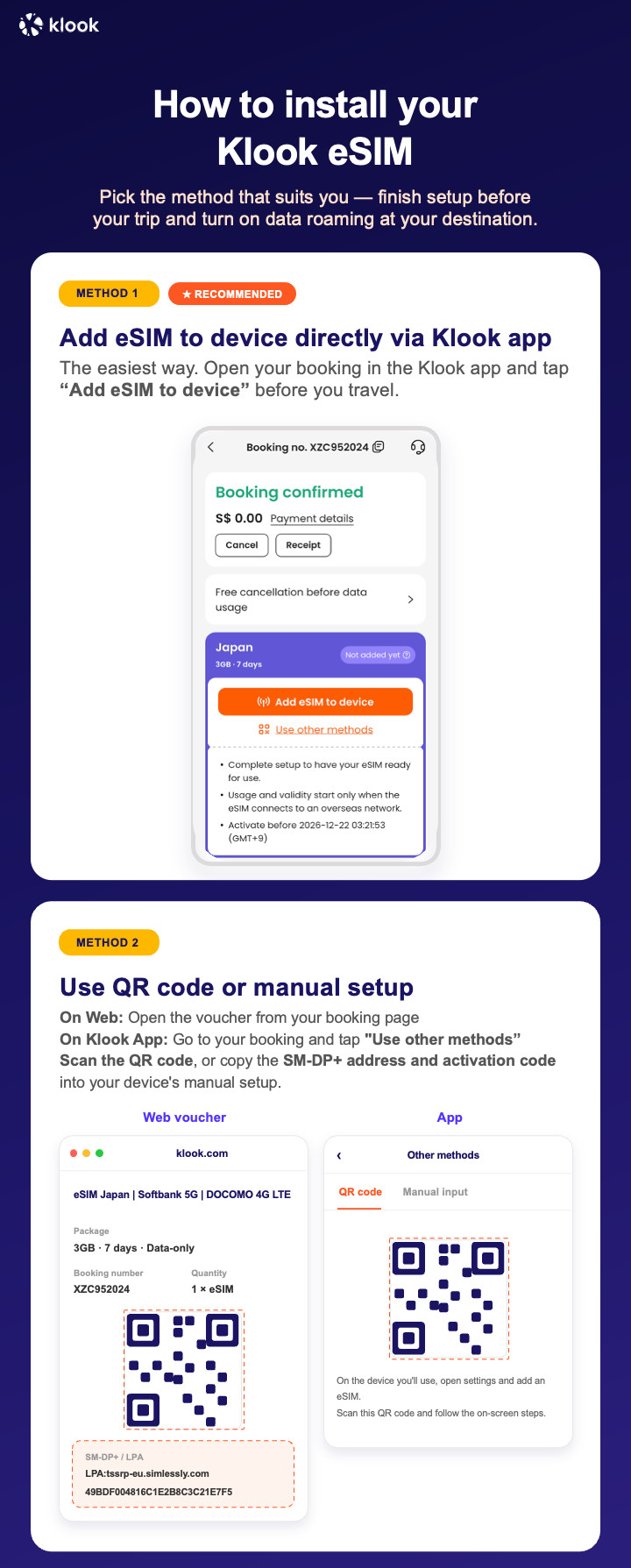
- Klook eSIM In-app activation
Click Add eSIM to device on your booking to start the installation. Don't worry, data and validity will only commence when you reach your destination
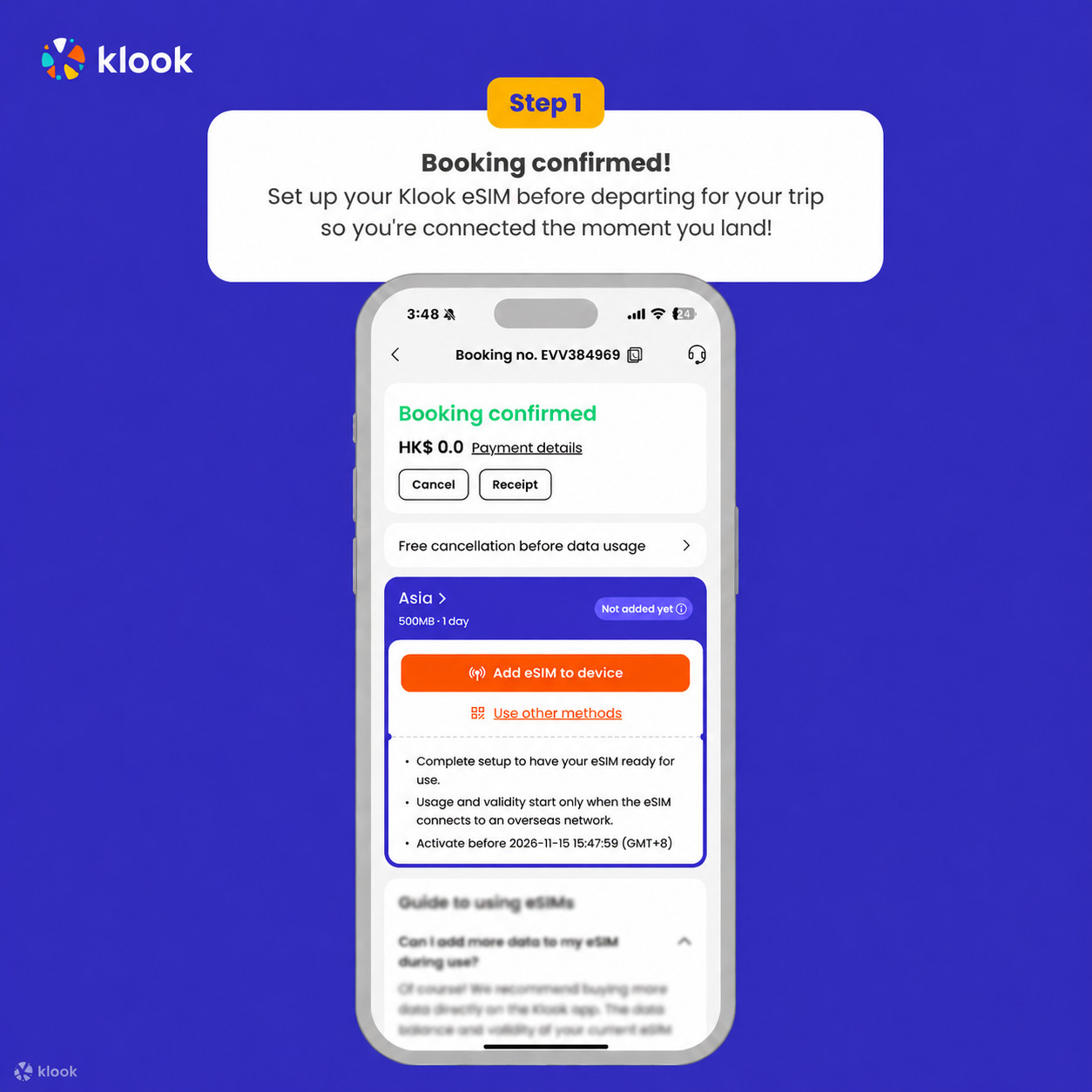
- Klook eSIM In-app activation
Installation of your eSIM will start automatically
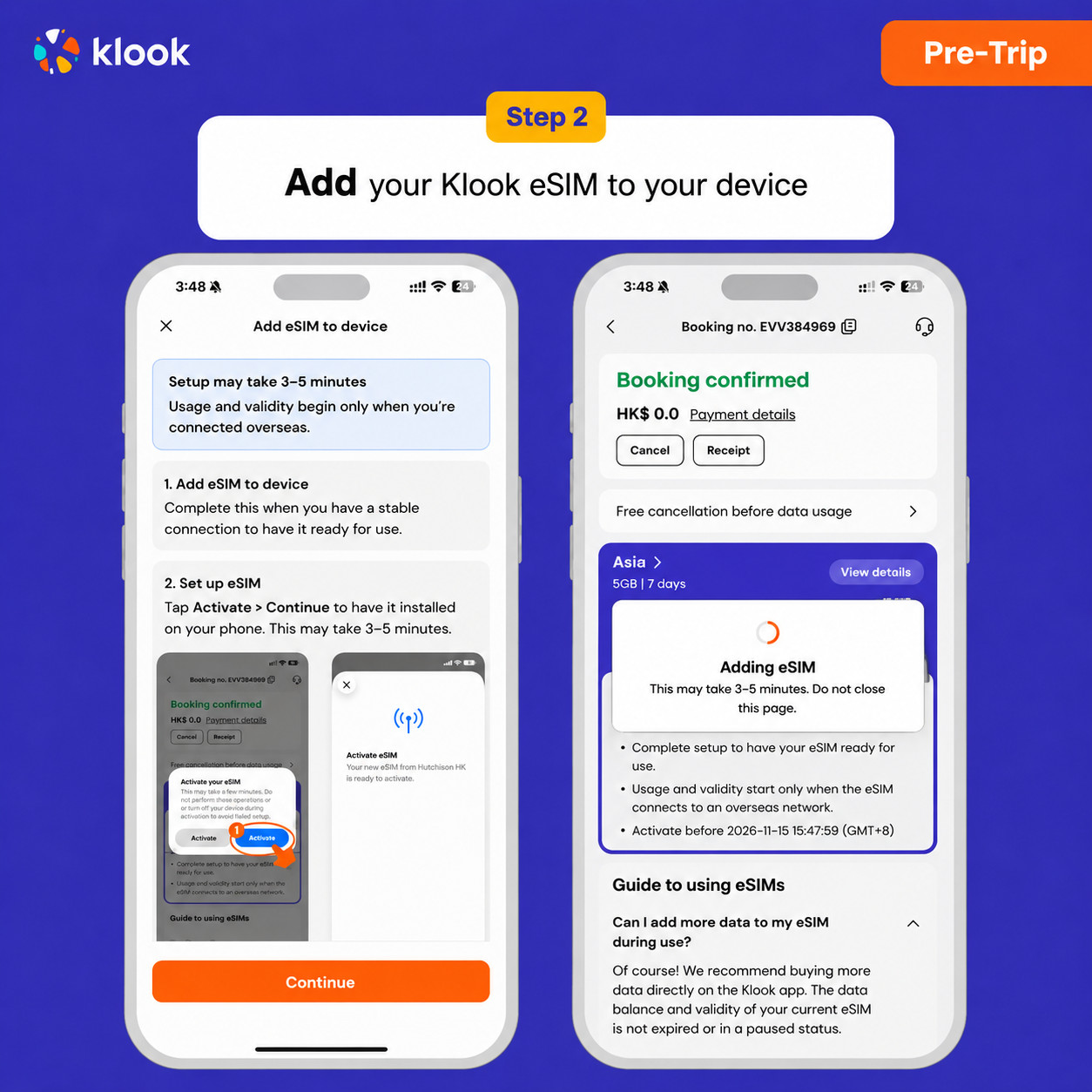
- Klook eSIM iOS installation
Set up your Klook eSIM for travel on iOS
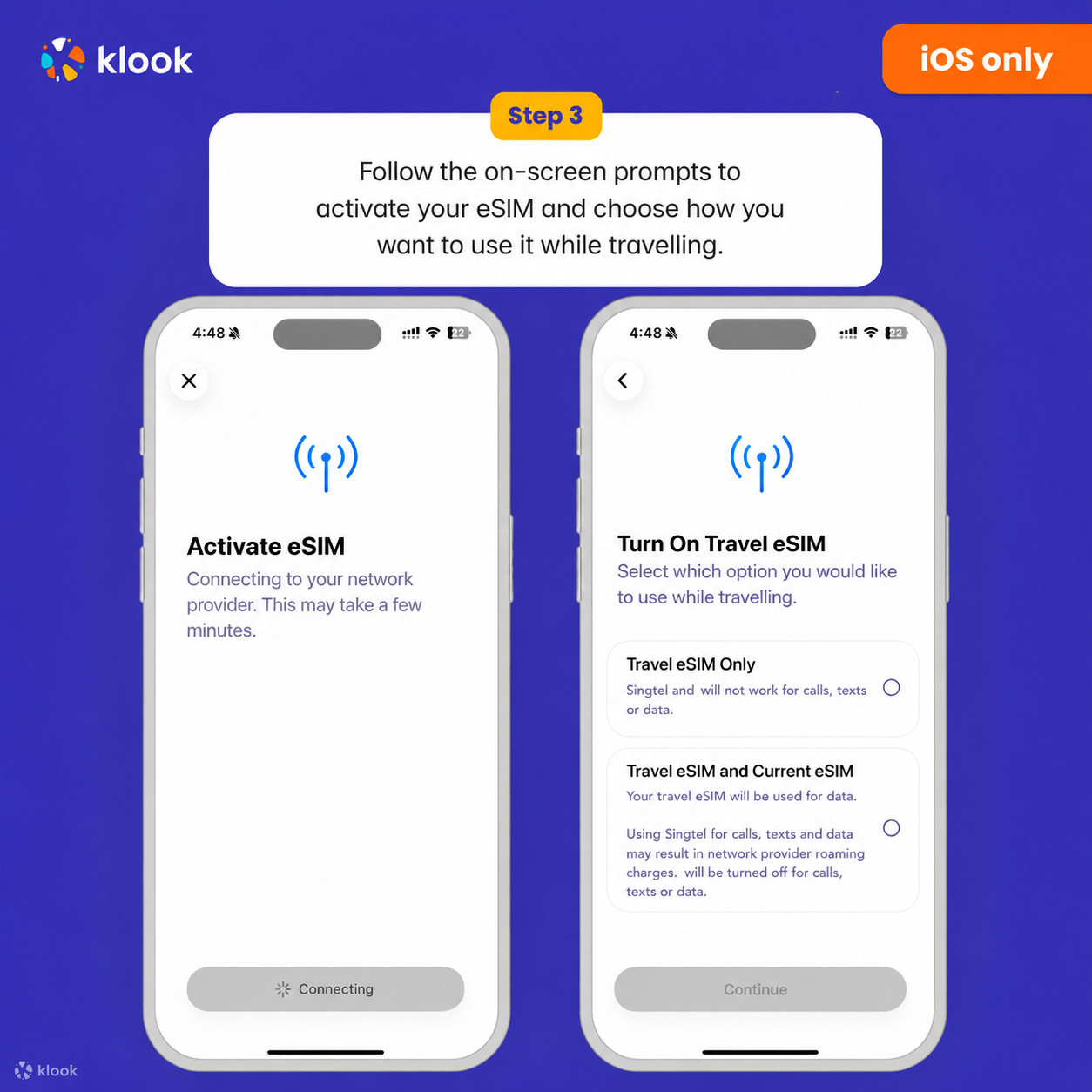
- Klook eSIM installed
Your eSIM is ready for use! Usage and validity start only when the eSIM connects to an overseas network
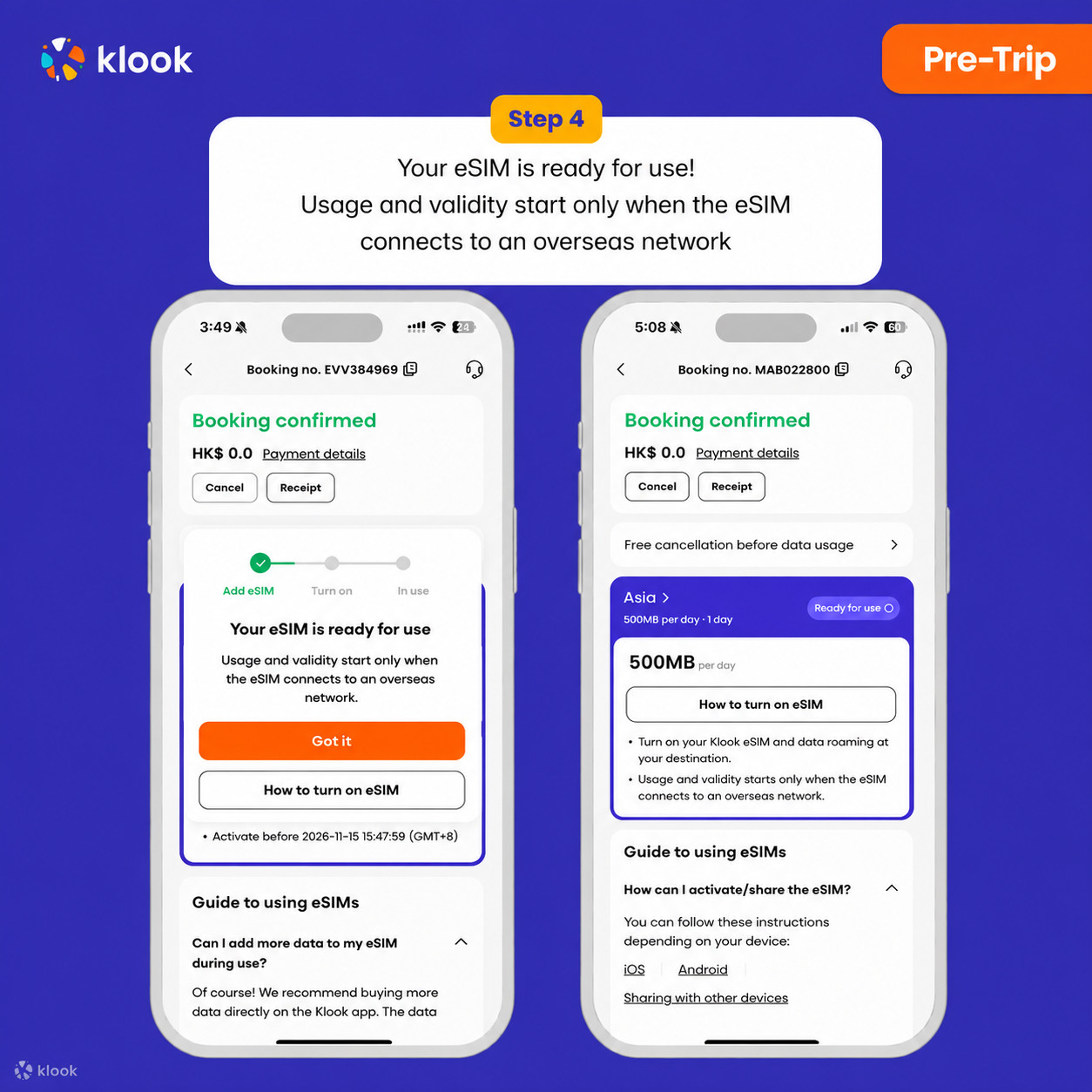
- Turn on Klook eSIM
Turn on Klook eSIM and select Klook eSIM for mobile data
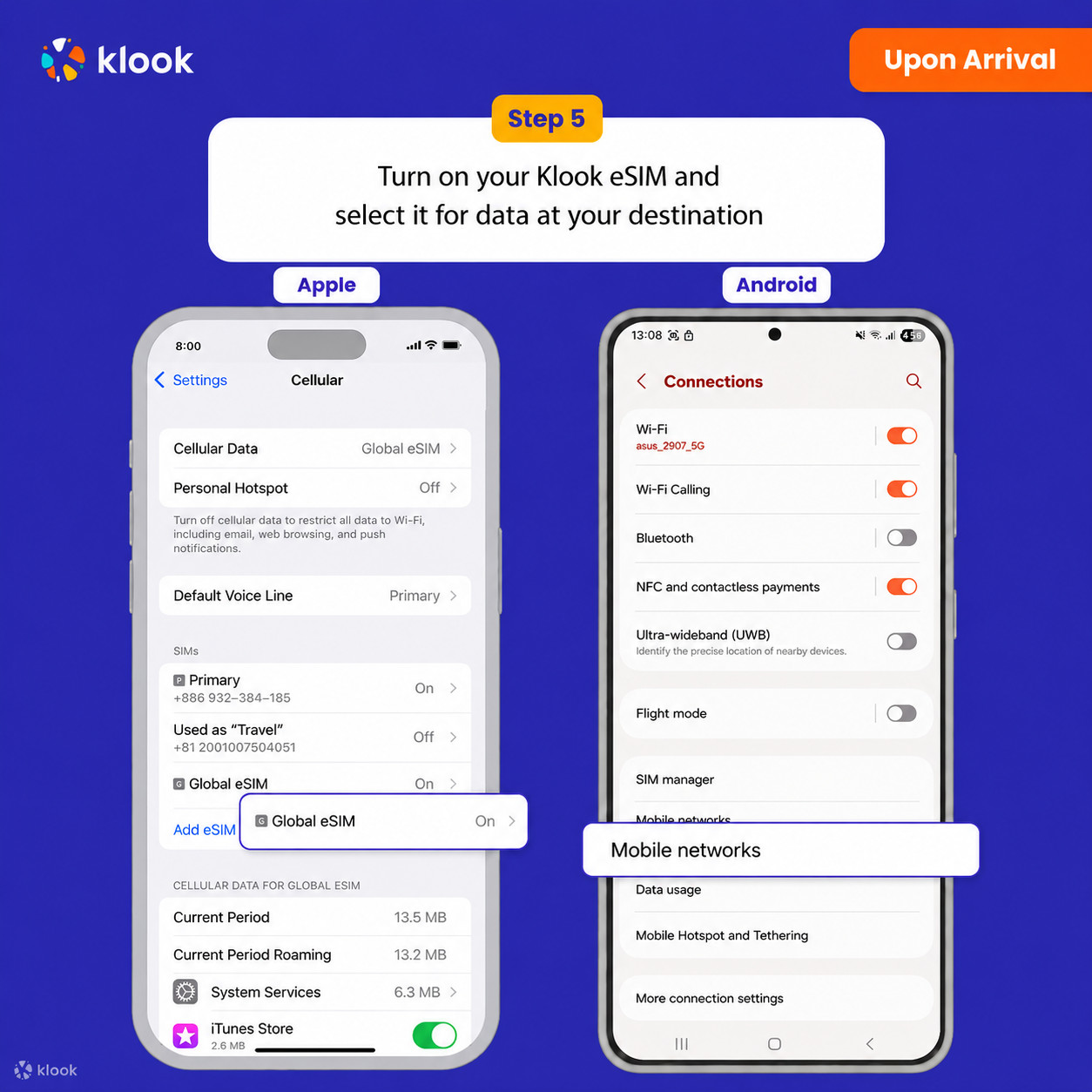
- Turn on Data roaming
Switch on data roaming at your destination to start using your eSIM
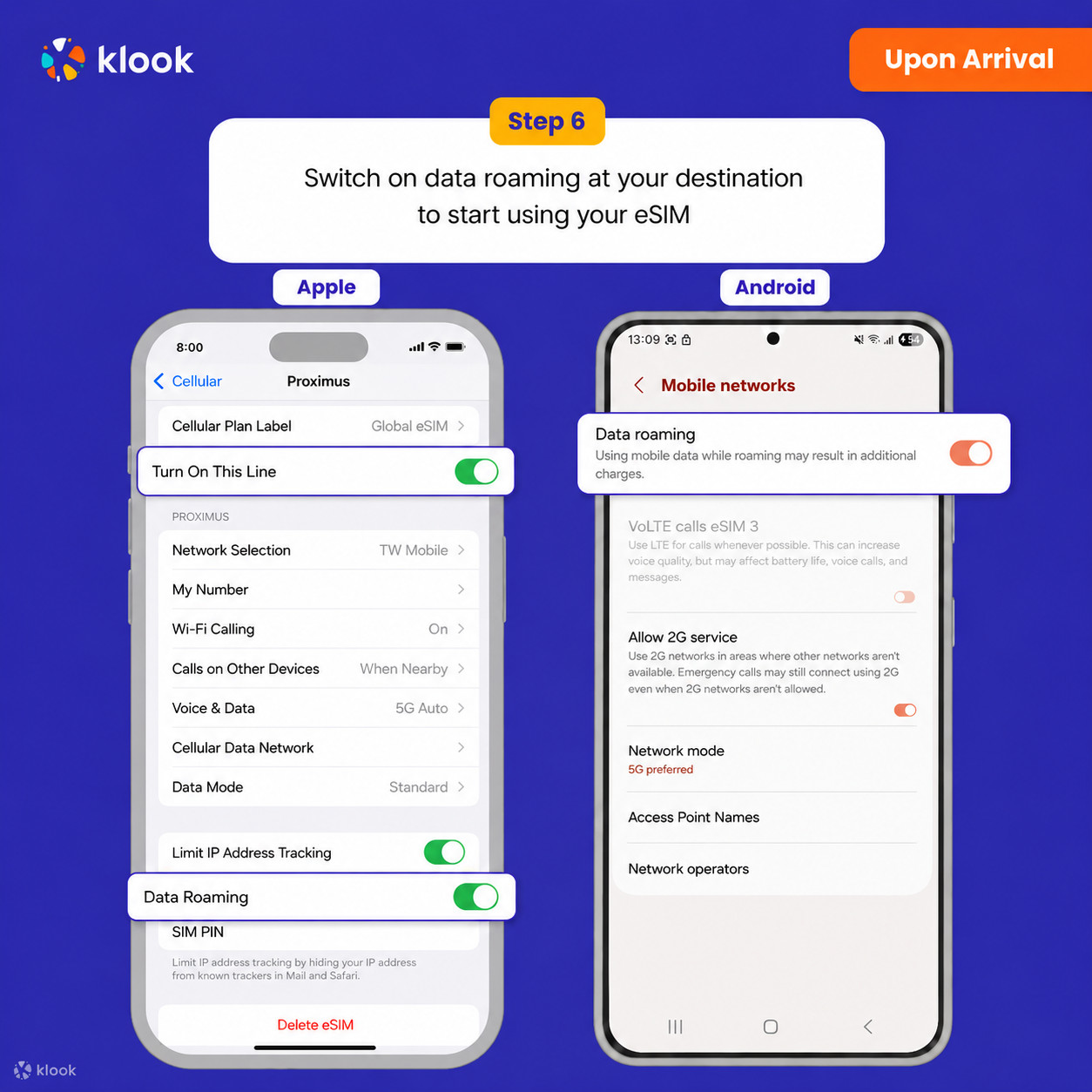
- Klook eSIM connected
Your klook esim is connected! Track your data balance and validity through the Klook app
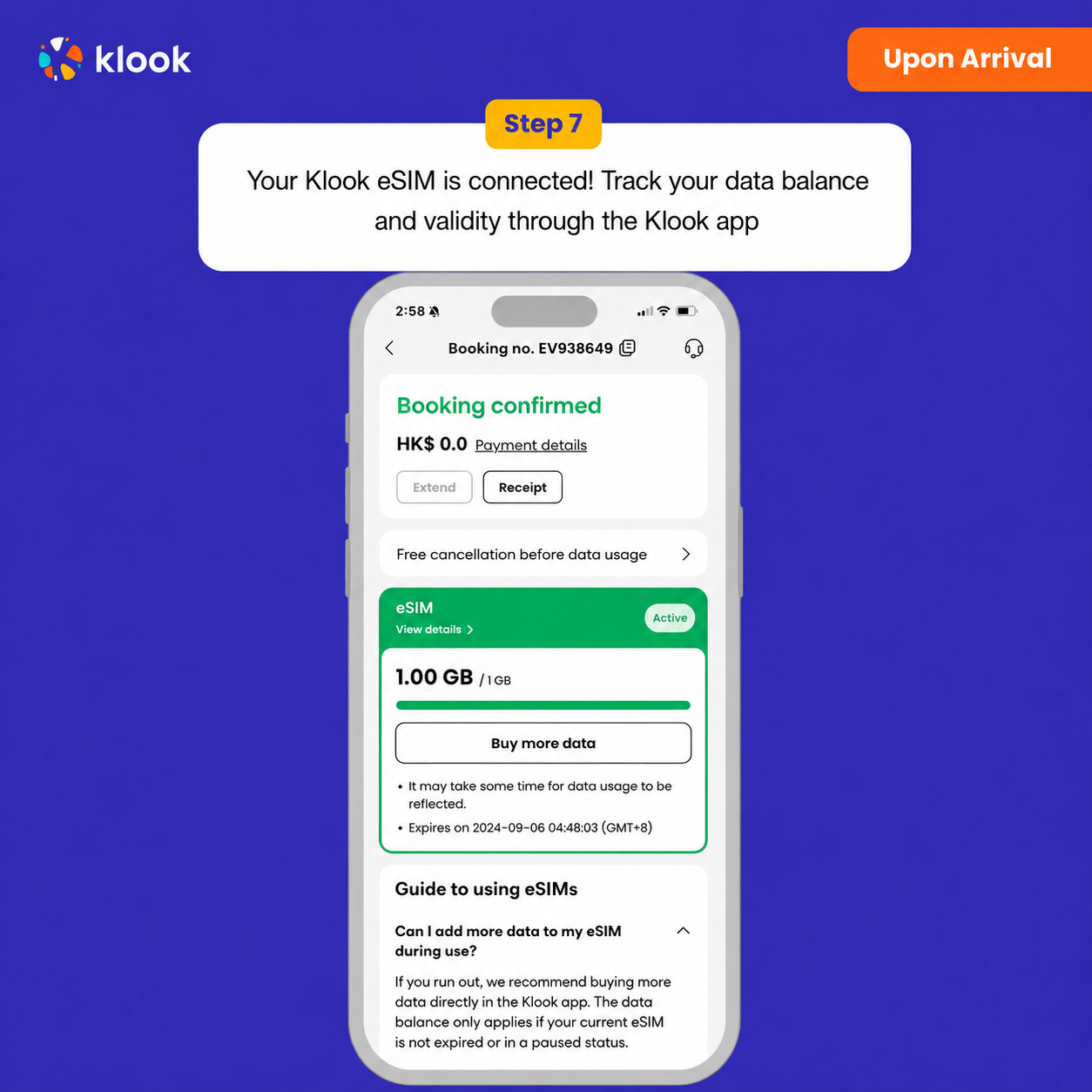
Активируйте вашу eSIM Android / iOS
- Ваш тариф eSIM начнет действовать с момента подключения к мобильной сети назначения, согласно времени подключения. Например, если вы активируете тариф на 3 дня в 10:00, он закончится через 3 дня в 10:00.
Политика подтверждения
- Вы получите подтверждение в течение нескольких минут. Если подтверждение не пришло, обратитесь в нашу службу поддержки.
Выберите вариант выше