Eurail German Rail Pass
Обзор
What is Eurail Germany Pass?
With Klook’s Germany Train Pass, passengers can take any high-speed train services or just regional trains that are operated under either Deutsche Bahn. When purchasing the pass, you have the option to either purchase a first-class ticket or a second-class ticket, as well as the option to select how many days you would like to purchase for. Purchase your Germany Rail Pass with Klook and receive your pass within 1 working day. With the Eurail pass for Germany, simply get your seat reservations by planning your journey using the Rail Planner app. Germany train tickets are affordable, and you can choose to either buy the local German train tickets or the Germany Rail Pass, depending on your planned journey and how much you are planning to travel.
Popular Routes for Germany Trains
Buy the Germany Eurail pass with Klook and enjoy unlimited rides across the country. The main train operators for Germany are Deutsche Bahn. Popular routes in Germany include Berlin to Munich, Munich to Hamburg, Berlin to Paris, and more.
What to do in Berlin
Berlin is the capital city of Germany and dates back to the 13th century. Berlin is known for its art scene, modern landmarks, as well as its rich history. Famous landmarks include the Brandenburg Gate, Reichstag Building, Berlin Cathedral, and remnants of the Berlin Wall. There are many museums and attractions to visit in Berlin, so for those who are interested in learning more about the history of Germany, you may consider Berlin to be a worthy place to visit.
What to do in Munich
Munich is the capital and the most populous city of the state of Bavaria. It is home to centuries-old buildings, as well as museums. The city has a rich culture & has a very long history. Perhaps one of the most famous events held in Munich is the Oktoberfest, a half-month-long festival where many people in the city gather and have drinks together while enjoying the ambiance. Famous landmarks in Munich include the beer hall Hofbräuhaus and the Neo-Gothic Neues Rathaus in the old town.
How to Activate the Eurail Germany Pass
All Eurail passes now are mobile passes so you do not have to redeem any paper pass. With that, here is a step-by-step guide on how to activate your Eurail Global Pass & Eurail One Country Pass on your mobile or computer.
Download the Eurail Rail Planner App 1.Add a new mobile pass 2.Create and connect a trip to this pass 3.Enter your ID number and start date (You can skip this step if you are not ready to travel)"
How to Reserve Trains by the Eurail Germany Pass
Here is a step-by-step guide on how to reserve seats once you've activated your Eurail Global Pass & Eurail One Country Pass.

Что ожидать
English / German
Enter with voucher
Open date ticket
- Explore all of Germany with one rail pass, valid for for up to 15 consecutive or non-consecutive days
- Get unlimited travel on Germany's trains, and additional coverage on several routes in Italy, Belgium, and Austria
- Make the most out of your German Rail Pass – enjoy other travel benefits like free transportation, and discounted accommodation and attraction tickets
- Looking for Europe trains? Book your train here with over 40 currencies and various payment methods!
Confirmation
- You'll get confirmation within minutes. If you don't see any confirmation, reach out to our customer support.
Booking guidelines
-
The name, country of residence, and passport numbers entered when booking must be an exact match to the passports used when boarding
-
We aim to issue the Mobile Pass within 24 hours from receiving your booking
Pass eligibility
-
Important: Infants and children must be included in the passenger headcount
-
Important: Indicate the total number of adults and children aged 0-11 when booking
-
Up to 2 children aged 0-11 travel free of charge for every adult with an Adult Pass (not applicable for the Senior Pass)
-
If more than 2 children are traveling with 1 adult, a separate Youth Pass must be purchased for each additional child
-
Only residents outside Europe, Turkey, and the Russian Federation can travel with a Germany Eurail Pass
-
To be considered as a resident of a country, you have to stay in that country for more than 6 months and must provide a proof of residence or citizenship while on the train
-
Proof of citizenship can be established by a passport. Proof of residence can be established by government issued residency documents, e.g. visa, residence card
-
If you have resided in country A for over 6 months, but is a passport-holder of country B, you can either fill in A as your country of residence at checkout and provide your passport and proof of residence while on the train, or fill in B as your country of residence at checkout and provide your passport while on the train
Additional information
-
Staff is available for guests requiring disability assistance
-
For more information on assistance for travelers with reduced mobility, please refer to Eurail Passenger Assistance & Mobility Services
-
Your pass is accepted on all trains operated by the national railway company, Deutsche Bahn (DB), and many private operators
-
Your German Rail Pass is also valid on some international trains: 1. Routes from Germany to the Austrian border: Munich - Salzburg / Kufstein / Innsbruck 2. Direct routes to Belgium: Cologne (Köln Hbf) - Brussels (Bruxelles-Midi), Cologne (Köln Hbf) - Liège (Liège-Guillemins) 3. Routes from Germany to and from the following Italian cities with DB-ÖBB EuroCity and Railjet trains: Bolzano/Bozen, Trento, Verona, Bologna, Venice 4. Routes from Germany to and from Switzerland Basel Bad Bf
Important: Activate your Eurail Pass in 3 easy steps before boarding your first train
Please select your departure date
Доступные варианты
Regular · First class · Flexible · 4 days in 1 month
Включено
- Flexible 4 Day(s) in 1 month(s)
- Access to both first and second class
- Travel discounts in Germany
- Discounts on ferries/hotels/museum tickets/selected attractions
- Unlimited train rides within Germany ([Route map](https://res.klook.com/image/upload/Eurail_Pass_route_map_uptvya.pdf))
Не включено
- Seat reservation fees
- Meals and beverages
Confirmation
- You'll get confirmation within minutes. If you don't see any confirmation, reach out to our customer support.
Usage validity
- The voucher is valid for 334 day(s) from the booking confirmation date. It expires at 23:59 on the last day
Voucher type
- You can use the Mobile Pass by downloading the Eurail Rail Planner app
- By buying this Eurail pass, you are accepting the Eurail Terms and Conditions
Redemption information
- An electronic voucher will be sent to your email instantly after booking confirmation
Activation Process
- You can actively use the Mobile Pass up to 11 months from the date of purchase by downloading the Eurail/Interrail Rail Planner app
- Step 1: Add your Pass by entering your Last Name & Pass Number sent by Klook
- Step 2: Connect a trip to your Pass by either creating a new trip or choosing a trip you’ve already created in the App
- Step 3: Activate your Pass by entering your Passport / ID Number and choosing your first travel day. Note that you can't board your first train unless your Pass has been activated, and you need to be online to activate your Pass
- Do take note that it is not necessary to activate your pass to make seat reservations
- Phones must be set as Gregorian calendar in order to activate the pass in Rail Planner App
- For more details on how to activate your passes, please refer to the Ultimate Guide to Eurail Pass
How to Deactivate Eurail Mobile Pass
- You can deactivate your Pass any time before the start of your chosen start date (00:00 CET on that day). On the Rail Planner App, go to My Pass, tap the three dots on the top right, and tap ‘Deactivate Pass’. You can then activate your Pass again when you’re ready to travel
How to Travel with the Eurail Mobile Pass
- Once the Eurail Mobile Pass gets activated, you may start your travel with the following easy steps
- Step 1: Plan your journey by searching for train times in the Eurail/Interrail Rail Planner app
- Step 2: Tap to save the preferred journey to your trip
- Step 3: Once you are ready to travel, tap to add your journey to your Pass
- Step 4: For ticket inspection, simply present your Mobile Pass by going to My Pass and tapping ‘Show ticket’. Note that every travel day in your Pass has a different ticket, and each ticket shows all the journeys you add to your Pass for that travel day
- Flexi Passes only: If the date of your journey is not a travel day yet, you'll need to use one of your travel days. You can see how many travel days you have left in My Trip and in My Pass, along with an overview of all your travel days
Group Travel
- In case you are traveling in a group and loading more than one Pass on your device, please note the following:
- For each Pass, you need to create a separate trip in the App
- If you've already created a trip, you can duplicate an existing trip to connect a copy of that trip to another Pass. Please name each trip differently to keep track of all your journeys
- For ticket inspection, you'll need to show a ticket for everyone traveling with a Pass. Simply choose another Pass from the list in My Pass, then tap 'Show ticket'
Seat Reservation Process
- Most German trains do not need reservations but reservations are required for IC Bus (bus services throughout Germany), TGV (French high-speed train), and ICE trains to or from Brussels and Liege
- Reservations can be made at Eurail.com website or Eurail/Interrail Rail Planner app. To view final prices and seat availability, you must be logged in and have a Pass
- Alternatively, reservations can also be made at local train stations or respective railway carriers websites
- There’s no need to activate the pass to make seat reservations
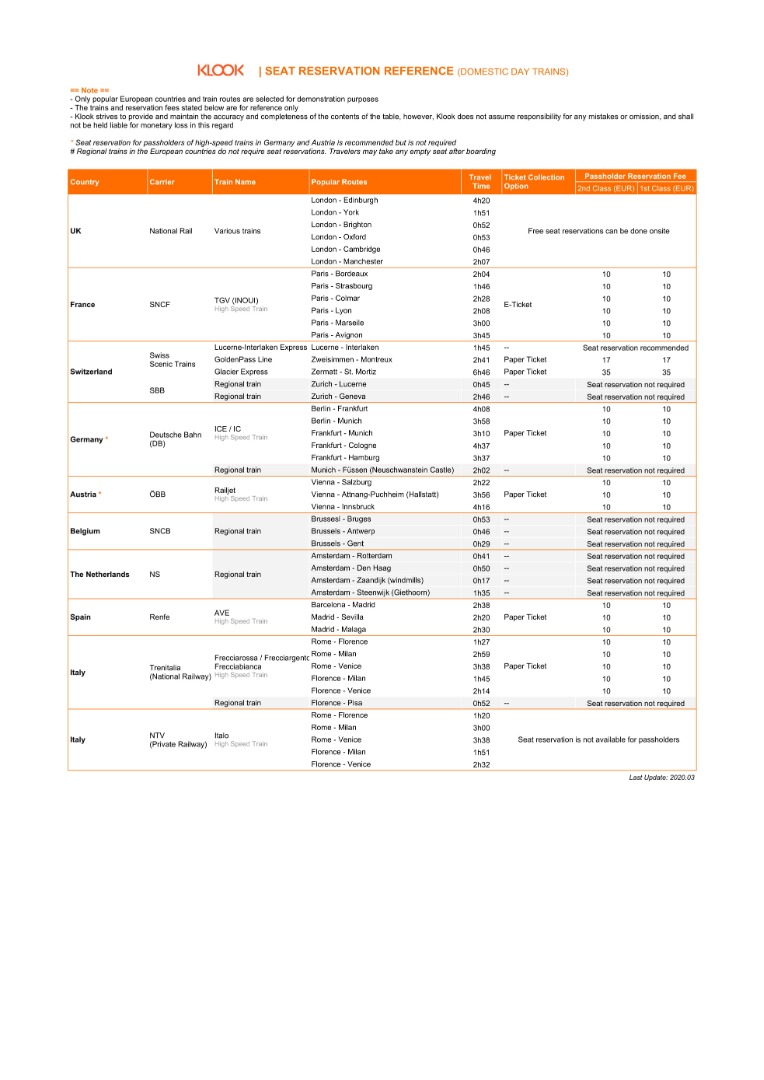
- Reservation Reference (Domestic Route)
Reservation Reference (Domestic Route)

Regular · First class · Flexible · 5 days in 1 month
Включено
- Flexible 5 Day(s) in 1 month(s)
- Access to both first and second class
- Travel discounts in Germany
- Discounts on ferries/hotels/museum tickets/selected attractions
- Unlimited train rides within Germany ([Route map](https://res.klook.com/image/upload/Eurail_Pass_route_map_uptvya.pdf))
Не включено
- Seat reservation fees
- Meals and beverages
Confirmation
- You'll get confirmation within minutes. If you don't see any confirmation, reach out to our customer support.
Usage validity
- The voucher is valid for 334 day(s) from the booking confirmation date. It expires at 23:59 on the last day
Voucher type
- You can use the Mobile Pass by downloading the Eurail Rail Planner app
- By buying this Eurail pass, you are accepting the Eurail Terms and Conditions
Redemption information
- An electronic voucher will be sent to your email instantly after booking confirmation
Activation Process
- You can actively use the Mobile Pass up to 11 months from the date of purchase by downloading the Eurail/Interrail Rail Planner app
- Step 1: Add your Pass by entering your Last Name & Pass Number sent by Klook
- Step 2: Connect a trip to your Pass by either creating a new trip or choosing a trip you’ve already created in the App
- Step 3: Activate your Pass by entering your Passport / ID Number and choosing your first travel day. Note that you can't board your first train unless your Pass has been activated, and you need to be online to activate your Pass
- Do take note that it is not necessary to activate your pass to make seat reservations
- Phones must be set as Gregorian calendar in order to activate the pass in Rail Planner App
- For more details on how to activate your passes, please refer to the Ultimate Guide to Eurail Pass
How to Deactivate Eurail Mobile Pass
- You can deactivate your Pass any time before the start of your chosen start date (00:00 CET on that day). On the Rail Planner App, go to My Pass, tap the three dots on the top right, and tap ‘Deactivate Pass’. You can then activate your Pass again when you’re ready to travel
How to Travel with the Eurail Mobile Pass
- Once the Eurail Mobile Pass gets activated, you may start your travel with the following easy steps
- Step 1: Plan your journey by searching for train times in the Eurail/Interrail Rail Planner app
- Step 2: Tap to save the preferred journey to your trip
- Step 3: Once you are ready to travel, tap to add your journey to your Pass
- Step 4: For ticket inspection, simply present your Mobile Pass by going to My Pass and tapping ‘Show ticket’. Note that every travel day in your Pass has a different ticket, and each ticket shows all the journeys you add to your Pass for that travel day
- Flexi Passes only: If the date of your journey is not a travel day yet, you'll need to use one of your travel days. You can see how many travel days you have left in My Trip and in My Pass, along with an overview of all your travel days
Group Travel
- In case you are traveling in a group and loading more than one Pass on your device, please note the following:
- For each Pass, you need to create a separate trip in the App
- If you've already created a trip, you can duplicate an existing trip to connect a copy of that trip to another Pass. Please name each trip differently to keep track of all your journeys
- For ticket inspection, you'll need to show a ticket for everyone traveling with a Pass. Simply choose another Pass from the list in My Pass, then tap 'Show ticket'
Seat Reservation Process
- Most German trains do not need reservations but reservations are required for IC Bus (bus services throughout Germany), TGV (French high-speed train), and ICE trains to or from Brussels and Liege
- Reservations can be made at Eurail.com website or Eurail/Interrail Rail Planner app. To view final prices and seat availability, you must be logged in and have a Pass
- Alternatively, reservations can also be made at local train stations or respective railway carriers websites
- There’s no need to activate the pass to make seat reservations
- Reservation Reference (Domestic Route)
Reservation Reference (Domestic Route)

Regular · First class · Flexible · 7 days in 1 month
Включено
- Flexible 7 Day(s) in 1 month(s)
- Access to both first and second class
- Travel discounts in Germany
- Discounts on ferries/hotels/museum tickets/selected attractions
- Unlimited train rides within Germany ([Route map](https://res.klook.com/image/upload/Eurail_Pass_route_map_uptvya.pdf))
Не включено
- Seat reservation fees
- Meals and beverages
Confirmation
- You'll get confirmation within minutes. If you don't see any confirmation, reach out to our customer support.
Usage validity
- The voucher is valid for 334 day(s) from the booking confirmation date. It expires at 23:59 on the last day
Voucher type
- You can use the Mobile Pass by downloading the Eurail Rail Planner app
- By buying this Eurail pass, you are accepting the Eurail Terms and Conditions
Redemption information
- An electronic voucher will be sent to your email instantly after booking confirmation
Activation Process
- You can actively use the Mobile Pass up to 11 months from the date of purchase by downloading the Eurail/Interrail Rail Planner app
- Step 1: Add your Pass by entering your Last Name & Pass Number sent by Klook
- Step 2: Connect a trip to your Pass by either creating a new trip or choosing a trip you’ve already created in the App
- Step 3: Activate your Pass by entering your Passport / ID Number and choosing your first travel day. Note that you can't board your first train unless your Pass has been activated, and you need to be online to activate your Pass
- Do take note that it is not necessary to activate your pass to make seat reservations
- Phones must be set as Gregorian calendar in order to activate the pass in Rail Planner App
- For more details on how to activate your passes, please refer to the Ultimate Guide to Eurail Pass
How to Deactivate Eurail Mobile Pass
- You can deactivate your Pass any time before the start of your chosen start date (00:00 CET on that day). On the Rail Planner App, go to My Pass, tap the three dots on the top right, and tap ‘Deactivate Pass’. You can then activate your Pass again when you’re ready to travel
How to Travel with the Eurail Mobile Pass
- Once the Eurail Mobile Pass gets activated, you may start your travel with the following easy steps
- Step 1: Plan your journey by searching for train times in the Eurail/Interrail Rail Planner app
- Step 2: Tap to save the preferred journey to your trip
- Step 3: Once you are ready to travel, tap to add your journey to your Pass
- Step 4: For ticket inspection, simply present your Mobile Pass by going to My Pass and tapping ‘Show ticket’. Note that every travel day in your Pass has a different ticket, and each ticket shows all the journeys you add to your Pass for that travel day
- Flexi Passes only: If the date of your journey is not a travel day yet, you'll need to use one of your travel days. You can see how many travel days you have left in My Trip and in My Pass, along with an overview of all your travel days
Group Travel
- In case you are traveling in a group and loading more than one Pass on your device, please note the following:
- For each Pass, you need to create a separate trip in the App
- If you've already created a trip, you can duplicate an existing trip to connect a copy of that trip to another Pass. Please name each trip differently to keep track of all your journeys
- For ticket inspection, you'll need to show a ticket for everyone traveling with a Pass. Simply choose another Pass from the list in My Pass, then tap 'Show ticket'
Seat Reservation Process
- Most German trains do not need reservations but reservations are required for IC Bus (bus services throughout Germany), TGV (French high-speed train), and ICE trains to or from Brussels and Liege
- Reservations can be made at Eurail.com website or Eurail/Interrail Rail Planner app. To view final prices and seat availability, you must be logged in and have a Pass
- Alternatively, reservations can also be made at local train stations or respective railway carriers websites
- There’s no need to activate the pass to make seat reservations
- Reservation Reference (Domestic Route)
Reservation Reference (Domestic Route)

Regular · First class · Flexible · 10 days in 1 month
Включено
- Flexible 10 Day(s) in 1 month(s)
- Access to both first and second class
- Travel discounts in Germany
- Discounts on ferries/hotels/museum tickets/selected attractions
- Unlimited train rides within Germany ([Route map](https://res.klook.com/image/upload/Eurail_Pass_route_map_uptvya.pdf))
Не включено
- Seat reservation fees
- Meals and beverages
Confirmation
- You'll get confirmation within minutes. If you don't see any confirmation, reach out to our customer support.
Seat Reservation Process
- Most German trains do not need reservations but reservations are required for IC Bus (bus services throughout Germany), TGV (French high-speed train), and ICE trains to or from Brussels and Liege
- Reservations can be made at Eurail.com website or Eurail/Interrail Rail Planner app. To view final prices and seat availability, you must be logged in and have a Pass
- Alternatively, reservations can also be made at local train stations or respective railway carriers websites
- There’s no need to activate the pass to make seat reservations
- Reservation Reference (Domestic Route)
Reservation Reference (Domestic Route)

Usage validity
- The voucher is valid for 334 day(s) from the booking confirmation date. It expires at 23:59 on the last day
Voucher type
- You can use the Mobile Pass by downloading the Eurail Rail Planner app
- By buying this Eurail pass, you are accepting the Eurail Terms and Conditions
Redemption information
- An electronic voucher will be sent to your email instantly after booking confirmation
Activation Process
- You can actively use the Mobile Pass up to 11 months from the date of purchase by downloading the Eurail/Interrail Rail Planner app
- Step 1: Add your Pass by entering your Last Name & Pass Number sent by Klook
- Step 2: Connect a trip to your Pass by either creating a new trip or choosing a trip you’ve already created in the App
- Step 3: Activate your Pass by entering your Passport / ID Number and choosing your first travel day. Note that you can't board your first train unless your Pass has been activated, and you need to be online to activate your Pass
- Do take note that it is not necessary to activate your pass to make seat reservations
- Phones must be set as Gregorian calendar in order to activate the pass in Rail Planner App
- For more details on how to activate your passes, please refer to the Ultimate Guide to Eurail Pass
How to Deactivate Eurail Mobile Pass
- You can deactivate your Pass any time before the start of your chosen start date (00:00 CET on that day). On the Rail Planner App, go to My Pass, tap the three dots on the top right, and tap ‘Deactivate Pass’. You can then activate your Pass again when you’re ready to travel
How to Travel with the Eurail Mobile Pass
- Once the Eurail Mobile Pass gets activated, you may start your travel with the following easy steps
- Step 1: Plan your journey by searching for train times in the Eurail/Interrail Rail Planner app
- Step 2: Tap to save the preferred journey to your trip
- Step 3: Once you are ready to travel, tap to add your journey to your Pass
- Step 4: For ticket inspection, simply present your Mobile Pass by going to My Pass and tapping ‘Show ticket’. Note that every travel day in your Pass has a different ticket, and each ticket shows all the journeys you add to your Pass for that travel day
- Flexi Passes only: If the date of your journey is not a travel day yet, you'll need to use one of your travel days. You can see how many travel days you have left in My Trip and in My Pass, along with an overview of all your travel days
Group Travel
- In case you are traveling in a group and loading more than one Pass on your device, please note the following:
- For each Pass, you need to create a separate trip in the App
- If you've already created a trip, you can duplicate an existing trip to connect a copy of that trip to another Pass. Please name each trip differently to keep track of all your journeys
- For ticket inspection, you'll need to show a ticket for everyone traveling with a Pass. Simply choose another Pass from the list in My Pass, then tap 'Show ticket'
Regular · First class · Flexible · 15 days in 1 month
Включено
- Flexible 15 Day(s) in 1 month(s)
- Access to both first and second class
- Travel discounts in Germany
- Discounts on ferries/hotels/museum tickets/selected attractions
- Unlimited train rides within Germany ([Route map](https://res.klook.com/image/upload/Eurail_Pass_route_map_uptvya.pdf))
Не включено
- Seat reservation fees
- Meals and beverages
Confirmation
- You'll get confirmation within minutes. If you don't see any confirmation, reach out to our customer support.
Usage validity
- The voucher is valid for 334 day(s) from the booking confirmation date. It expires at 23:59 on the last day
Voucher type
- You can use the Mobile Pass by downloading the Eurail Rail Planner app
- By buying this Eurail pass, you are accepting the Eurail Terms and Conditions
Redemption information
- An electronic voucher will be sent to your email instantly after booking confirmation
Activation Process
- You can actively use the Mobile Pass up to 11 months from the date of purchase by downloading the Eurail/Interrail Rail Planner app
- Step 1: Add your Pass by entering your Last Name & Pass Number sent by Klook
- Step 2: Connect a trip to your Pass by either creating a new trip or choosing a trip you’ve already created in the App
- Step 3: Activate your Pass by entering your Passport / ID Number and choosing your first travel day. Note that you can't board your first train unless your Pass has been activated, and you need to be online to activate your Pass
- Do take note that it is not necessary to activate your pass to make seat reservations
- Phones must be set as Gregorian calendar in order to activate the pass in Rail Planner App
- For more details on how to activate your passes, please refer to the Ultimate Guide to Eurail Pass
How to Deactivate Eurail Mobile Pass
- You can deactivate your Pass any time before the start of your chosen start date (00:00 CET on that day). On the Rail Planner App, go to My Pass, tap the three dots on the top right, and tap ‘Deactivate Pass’. You can then activate your Pass again when you’re ready to travel
How to Travel with the Eurail Mobile Pass
- Once the Eurail Mobile Pass gets activated, you may start your travel with the following easy steps
- Step 1: Plan your journey by searching for train times in the Eurail/Interrail Rail Planner app
- Step 2: Tap to save the preferred journey to your trip
- Step 3: Once you are ready to travel, tap to add your journey to your Pass
- Step 4: For ticket inspection, simply present your Mobile Pass by going to My Pass and tapping ‘Show ticket’. Note that every travel day in your Pass has a different ticket, and each ticket shows all the journeys you add to your Pass for that travel day
- Flexi Passes only: If the date of your journey is not a travel day yet, you'll need to use one of your travel days. You can see how many travel days you have left in My Trip and in My Pass, along with an overview of all your travel days
Group Travel
- In case you are traveling in a group and loading more than one Pass on your device, please note the following:
- For each Pass, you need to create a separate trip in the App
- If you've already created a trip, you can duplicate an existing trip to connect a copy of that trip to another Pass. Please name each trip differently to keep track of all your journeys
- For ticket inspection, you'll need to show a ticket for everyone traveling with a Pass. Simply choose another Pass from the list in My Pass, then tap 'Show ticket'
Seat Reservation Process
- Most German trains do not need reservations but reservations are required for IC Bus (bus services throughout Germany), TGV (French high-speed train), and ICE trains to or from Brussels and Liege
- Reservations can be made at Eurail.com website or Eurail/Interrail Rail Planner app. To view final prices and seat availability, you must be logged in and have a Pass
- Alternatively, reservations can also be made at local train stations or respective railway carriers websites
- There’s no need to activate the pass to make seat reservations
- Reservation Reference (Domestic Route)
Reservation Reference (Domestic Route)

Regular · Second Class · Flexible · 4 days in 1 month
Включено
- Flexible 4 Day(s) in 1 month(s)
- Access to second class only
- Travel discounts in Germany
- Discounts on ferries/hotels/museum tickets/selected attractions
- Unlimited train rides within Germany ([Route map](https://res.klook.com/image/upload/Eurail_Pass_route_map_uptvya.pdf))
Не включено
- Seat reservation fees
- Meals and beverages
Confirmation
- You'll get confirmation within minutes. If you don't see any confirmation, reach out to our customer support.
Usage validity
- The voucher is valid for 334 day(s) from the booking confirmation date. It expires at 23:59 on the last day
Voucher type
- You can use the Mobile Pass by downloading the Eurail Rail Planner app
- By buying this Eurail pass, you are accepting the Eurail Terms and Conditions
Redemption information
- An electronic voucher will be sent to your email instantly after booking confirmation
Activation Process
- You can actively use the Mobile Pass up to 11 months from the date of purchase by downloading the Eurail/Interrail Rail Planner app
- Step 1: Add your Pass by entering your Last Name & Pass Number sent by Klook
- Step 2: Connect a trip to your Pass by either creating a new trip or choosing a trip you’ve already created in the App
- Step 3: Activate your Pass by entering your Passport / ID Number and choosing your first travel day. Note that you can't board your first train unless your Pass has been activated, and you need to be online to activate your Pass
- Do take note that it is not necessary to activate your pass to make seat reservations
- Phones must be set as Gregorian calendar in order to activate the pass in Rail Planner App
- For more details on how to activate your passes, please refer to the Ultimate Guide to Eurail Pass
How to Deactivate Eurail Mobile Pass
- You can deactivate your Pass any time before the start of your chosen start date (00:00 CET on that day). On the Rail Planner App, go to My Pass, tap the three dots on the top right, and tap ‘Deactivate Pass’. You can then activate your Pass again when you’re ready to travel
How to Travel with the Eurail Mobile Pass
- Once the Eurail Mobile Pass gets activated, you may start your travel with the following easy steps
- Step 1: Plan your journey by searching for train times in the Eurail/Interrail Rail Planner app
- Step 2: Tap to save the preferred journey to your trip
- Step 3: Once you are ready to travel, tap to add your journey to your Pass
- Step 4: For ticket inspection, simply present your Mobile Pass by going to My Pass and tapping ‘Show ticket’. Note that every travel day in your Pass has a different ticket, and each ticket shows all the journeys you add to your Pass for that travel day
- Flexi Passes only: If the date of your journey is not a travel day yet, you'll need to use one of your travel days. You can see how many travel days you have left in My Trip and in My Pass, along with an overview of all your travel days
Group Travel
- In case you are traveling in a group and loading more than one Pass on your device, please note the following:
- For each Pass, you need to create a separate trip in the App
- If you've already created a trip, you can duplicate an existing trip to connect a copy of that trip to another Pass. Please name each trip differently to keep track of all your journeys
- For ticket inspection, you'll need to show a ticket for everyone traveling with a Pass. Simply choose another Pass from the list in My Pass, then tap 'Show ticket'
Seat Reservation Process
- Most German trains do not need reservations but reservations are required for IC Bus (bus services throughout Germany), TGV (French high-speed train), and ICE trains to or from Brussels and Liege
- Reservations can be made at Eurail.com website or Eurail/Interrail Rail Planner app. To view final prices and seat availability, you must be logged in and have a Pass
- Alternatively, reservations can also be made at local train stations or respective railway carriers websites
- There’s no need to activate the pass to make seat reservations
- Reservation Reference (Domestic Route)
Reservation Reference (Domestic Route)

Regular · Second Class · Flexible · 5 days in 1 month
Включено
- Flexible 5 Day(s) in 1 month(s)
- Access to second class only
- Travel discounts in Germany
- Discounts on ferries/hotels/museum tickets/selected attractions
- Unlimited train rides within Germany ([Route map](https://res.klook.com/image/upload/Eurail_Pass_route_map_uptvya.pdf))
Не включено
- Seat reservation fees
- Meals and beverages
Confirmation
- You'll get confirmation within minutes. If you don't see any confirmation, reach out to our customer support.
Usage validity
- The voucher is valid for 334 day(s) from the booking confirmation date. It expires at 23:59 on the last day
Voucher type
- You can use the Mobile Pass by downloading the Eurail Rail Planner app
- By buying this Eurail pass, you are accepting the Eurail Terms and Conditions
Redemption information
- An electronic voucher will be sent to your email instantly after booking confirmation
Activation Process
- You can actively use the Mobile Pass up to 11 months from the date of purchase by downloading the Eurail/Interrail Rail Planner app
- Step 1: Add your Pass by entering your Last Name & Pass Number sent by Klook
- Step 2: Connect a trip to your Pass by either creating a new trip or choosing a trip you’ve already created in the App
- Step 3: Activate your Pass by entering your Passport / ID Number and choosing your first travel day. Note that you can't board your first train unless your Pass has been activated, and you need to be online to activate your Pass
- Do take note that it is not necessary to activate your pass to make seat reservations
- Phones must be set as Gregorian calendar in order to activate the pass in Rail Planner App
- For more details on how to activate your passes, please refer to the Ultimate Guide to Eurail Pass
How to Deactivate Eurail Mobile Pass
- You can deactivate your Pass any time before the start of your chosen start date (00:00 CET on that day). On the Rail Planner App, go to My Pass, tap the three dots on the top right, and tap ‘Deactivate Pass’. You can then activate your Pass again when you’re ready to travel
How to Travel with the Eurail Mobile Pass
- Once the Eurail Mobile Pass gets activated, you may start your travel with the following easy steps
- Step 1: Plan your journey by searching for train times in the Eurail/Interrail Rail Planner app
- Step 2: Tap to save the preferred journey to your trip
- Step 3: Once you are ready to travel, tap to add your journey to your Pass
- Step 4: For ticket inspection, simply present your Mobile Pass by going to My Pass and tapping ‘Show ticket’. Note that every travel day in your Pass has a different ticket, and each ticket shows all the journeys you add to your Pass for that travel day
- Flexi Passes only: If the date of your journey is not a travel day yet, you'll need to use one of your travel days. You can see how many travel days you have left in My Trip and in My Pass, along with an overview of all your travel days
Group Travel
- In case you are traveling in a group and loading more than one Pass on your device, please note the following:
- For each Pass, you need to create a separate trip in the App
- If you've already created a trip, you can duplicate an existing trip to connect a copy of that trip to another Pass. Please name each trip differently to keep track of all your journeys
- For ticket inspection, you'll need to show a ticket for everyone traveling with a Pass. Simply choose another Pass from the list in My Pass, then tap 'Show ticket'
Seat Reservation Process
- Most German trains do not need reservations but reservations are required for IC Bus (bus services throughout Germany), TGV (French high-speed train), and ICE trains to or from Brussels and Liege
- Reservations can be made at Eurail.com website or Eurail/Interrail Rail Planner app. To view final prices and seat availability, you must be logged in and have a Pass
- Alternatively, reservations can also be made at local train stations or respective railway carriers websites
- There’s no need to activate the pass to make seat reservations
- Reservation Reference (Domestic Route)
Reservation Reference (Domestic Route)

Regular · Second Class · Flexible · 7 days in 1 month
Включено
- Flexible 7 Day(s) in 1 month(s)
- Access to second class only
- Travel discounts in Germany
- Discounts on ferries/hotels/museum tickets/selected attractions
- Unlimited train rides within Germany ([Route map](https://res.klook.com/image/upload/Eurail_Pass_route_map_uptvya.pdf))
Не включено
- Seat reservation fees
- Meals and beverages
Confirmation
- You'll get confirmation within minutes. If you don't see any confirmation, reach out to our customer support.
Usage validity
- The voucher is valid for 334 day(s) from the booking confirmation date. It expires at 23:59 on the last day
Voucher type
- You can use the Mobile Pass by downloading the Eurail Rail Planner app
- By buying this Eurail pass, you are accepting the Eurail Terms and Conditions
Redemption information
- An electronic voucher will be sent to your email instantly after booking confirmation
Activation Process
- You can actively use the Mobile Pass up to 11 months from the date of purchase by downloading the Eurail/Interrail Rail Planner app
- Step 1: Add your Pass by entering your Last Name & Pass Number sent by Klook
- Step 2: Connect a trip to your Pass by either creating a new trip or choosing a trip you’ve already created in the App
- Step 3: Activate your Pass by entering your Passport / ID Number and choosing your first travel day. Note that you can't board your first train unless your Pass has been activated, and you need to be online to activate your Pass
- Do take note that it is not necessary to activate your pass to make seat reservations
- Phones must be set as Gregorian calendar in order to activate the pass in Rail Planner App
- For more details on how to activate your passes, please refer to the Ultimate Guide to Eurail Pass
How to Deactivate Eurail Mobile Pass
- You can deactivate your Pass any time before the start of your chosen start date (00:00 CET on that day). On the Rail Planner App, go to My Pass, tap the three dots on the top right, and tap ‘Deactivate Pass’. You can then activate your Pass again when you’re ready to travel
How to Travel with the Eurail Mobile Pass
- Once the Eurail Mobile Pass gets activated, you may start your travel with the following easy steps
- Step 1: Plan your journey by searching for train times in the Eurail/Interrail Rail Planner app
- Step 2: Tap to save the preferred journey to your trip
- Step 3: Once you are ready to travel, tap to add your journey to your Pass
- Step 4: For ticket inspection, simply present your Mobile Pass by going to My Pass and tapping ‘Show ticket’. Note that every travel day in your Pass has a different ticket, and each ticket shows all the journeys you add to your Pass for that travel day
- Flexi Passes only: If the date of your journey is not a travel day yet, you'll need to use one of your travel days. You can see how many travel days you have left in My Trip and in My Pass, along with an overview of all your travel days
Group Travel
- In case you are traveling in a group and loading more than one Pass on your device, please note the following:
- For each Pass, you need to create a separate trip in the App
- If you've already created a trip, you can duplicate an existing trip to connect a copy of that trip to another Pass. Please name each trip differently to keep track of all your journeys
- For ticket inspection, you'll need to show a ticket for everyone traveling with a Pass. Simply choose another Pass from the list in My Pass, then tap 'Show ticket'
Seat Reservation Process
- Most German trains do not need reservations but reservations are required for IC Bus (bus services throughout Germany), TGV (French high-speed train), and ICE trains to or from Brussels and Liege
- Reservations can be made at Eurail.com website or Eurail/Interrail Rail Planner app. To view final prices and seat availability, you must be logged in and have a Pass
- Alternatively, reservations can also be made at local train stations or respective railway carriers websites
- There’s no need to activate the pass to make seat reservations
- Reservation Reference (Domestic Route)
Reservation Reference (Domestic Route)

Regular · Second Class · Flexible · 10 days in 1 month
Включено
- Flexible 10 Day(s) in 1 month(s)
- Access to second class only
- Travel discounts in Germany
- Discounts on ferries/hotels/museum tickets/selected attractions
- Unlimited train rides within Germany ([Route map](https://res.klook.com/image/upload/Eurail_Pass_route_map_uptvya.pdf))
Не включено
- Seat reservation fees
- Meals and beverages
Confirmation
- You'll get confirmation within minutes. If you don't see any confirmation, reach out to our customer support.
Usage validity
- The voucher is valid for 334 day(s) from the booking confirmation date. It expires at 23:59 on the last day
Voucher type
- You can use the Mobile Pass by downloading the Eurail Rail Planner app
- By buying this Eurail pass, you are accepting the Eurail Terms and Conditions
Redemption information
- An electronic voucher will be sent to your email instantly after booking confirmation
Activation Process
- You can actively use the Mobile Pass up to 11 months from the date of purchase by downloading the Eurail/Interrail Rail Planner app
- Step 1: Add your Pass by entering your Last Name & Pass Number sent by Klook
- Step 2: Connect a trip to your Pass by either creating a new trip or choosing a trip you’ve already created in the App
- Step 3: Activate your Pass by entering your Passport / ID Number and choosing your first travel day. Note that you can't board your first train unless your Pass has been activated, and you need to be online to activate your Pass
- Do take note that it is not necessary to activate your pass to make seat reservations
- Phones must be set as Gregorian calendar in order to activate the pass in Rail Planner App
- For more details on how to activate your passes, please refer to the Ultimate Guide to Eurail Pass
How to Deactivate Eurail Mobile Pass
- You can deactivate your Pass any time before the start of your chosen start date (00:00 CET on that day). On the Rail Planner App, go to My Pass, tap the three dots on the top right, and tap ‘Deactivate Pass’. You can then activate your Pass again when you’re ready to travel
How to Travel with the Eurail Mobile Pass
- Once the Eurail Mobile Pass gets activated, you may start your travel with the following easy steps
- Step 1: Plan your journey by searching for train times in the Eurail/Interrail Rail Planner app
- Step 2: Tap to save the preferred journey to your trip
- Step 3: Once you are ready to travel, tap to add your journey to your Pass
- Step 4: For ticket inspection, simply present your Mobile Pass by going to My Pass and tapping ‘Show ticket’. Note that every travel day in your Pass has a different ticket, and each ticket shows all the journeys you add to your Pass for that travel day
- Flexi Passes only: If the date of your journey is not a travel day yet, you'll need to use one of your travel days. You can see how many travel days you have left in My Trip and in My Pass, along with an overview of all your travel days
Group Travel
- In case you are traveling in a group and loading more than one Pass on your device, please note the following:
- For each Pass, you need to create a separate trip in the App
- If you've already created a trip, you can duplicate an existing trip to connect a copy of that trip to another Pass. Please name each trip differently to keep track of all your journeys
- For ticket inspection, you'll need to show a ticket for everyone traveling with a Pass. Simply choose another Pass from the list in My Pass, then tap 'Show ticket'
Seat Reservation Process
- Most German trains do not need reservations but reservations are required for IC Bus (bus services throughout Germany), TGV (French high-speed train), and ICE trains to or from Brussels and Liege
- Reservations can be made at Eurail.com website or Eurail/Interrail Rail Planner app. To view final prices and seat availability, you must be logged in and have a Pass
- Alternatively, reservations can also be made at local train stations or respective railway carriers websites
- There’s no need to activate the pass to make seat reservations
- Reservation Reference (Domestic Route)
Reservation Reference (Domestic Route)

Regular · Second Class · Flexible · 15 days in 1 month
Включено
- Flexible 15 Day(s) in 1 month(s)
- Access to second class only
- Travel discounts in Germany
- Discounts on ferries/hotels/museum tickets/selected attractions
- Unlimited train rides within Germany ([Route map](https://res.klook.com/image/upload/Eurail_Pass_route_map_uptvya.pdf))
Не включено
- Seat reservation fees
- Meals and beverages
Confirmation
- You'll get confirmation within minutes. If you don't see any confirmation, reach out to our customer support.
Usage validity
- The voucher is valid for 334 day(s) from the booking confirmation date. It expires at 23:59 on the last day
Voucher type
- You can use the Mobile Pass by downloading the Eurail Rail Planner app
- By buying this Eurail pass, you are accepting the Eurail Terms and Conditions
Redemption information
- An electronic voucher will be sent to your email instantly after booking confirmation
Activation Process
- You can actively use the Mobile Pass up to 11 months from the date of purchase by downloading the Eurail/Interrail Rail Planner app
- Step 1: Add your Pass by entering your Last Name & Pass Number sent by Klook
- Step 2: Connect a trip to your Pass by either creating a new trip or choosing a trip you’ve already created in the App
- Step 3: Activate your Pass by entering your Passport / ID Number and choosing your first travel day. Note that you can't board your first train unless your Pass has been activated, and you need to be online to activate your Pass
- Do take note that it is not necessary to activate your pass to make seat reservations
- Phones must be set as Gregorian calendar in order to activate the pass in Rail Planner App
- For more details on how to activate your passes, please refer to the Ultimate Guide to Eurail Pass
How to Deactivate Eurail Mobile Pass
- You can deactivate your Pass any time before the start of your chosen start date (00:00 CET on that day). On the Rail Planner App, go to My Pass, tap the three dots on the top right, and tap ‘Deactivate Pass’. You can then activate your Pass again when you’re ready to travel
How to Travel with the Eurail Mobile Pass
- Once the Eurail Mobile Pass gets activated, you may start your travel with the following easy steps
- Step 1: Plan your journey by searching for train times in the Eurail/Interrail Rail Planner app
- Step 2: Tap to save the preferred journey to your trip
- Step 3: Once you are ready to travel, tap to add your journey to your Pass
- Step 4: For ticket inspection, simply present your Mobile Pass by going to My Pass and tapping ‘Show ticket’. Note that every travel day in your Pass has a different ticket, and each ticket shows all the journeys you add to your Pass for that travel day
- Flexi Passes only: If the date of your journey is not a travel day yet, you'll need to use one of your travel days. You can see how many travel days you have left in My Trip and in My Pass, along with an overview of all your travel days
Group Travel
- In case you are traveling in a group and loading more than one Pass on your device, please note the following:
- For each Pass, you need to create a separate trip in the App
- If you've already created a trip, you can duplicate an existing trip to connect a copy of that trip to another Pass. Please name each trip differently to keep track of all your journeys
- For ticket inspection, you'll need to show a ticket for everyone traveling with a Pass. Simply choose another Pass from the list in My Pass, then tap 'Show ticket'
Seat Reservation Process
- Most German trains do not need reservations but reservations are required for IC Bus (bus services throughout Germany), TGV (French high-speed train), and ICE trains to or from Brussels and Liege
- Reservations can be made at Eurail.com website or Eurail/Interrail Rail Planner app. To view final prices and seat availability, you must be logged in and have a Pass
- Alternatively, reservations can also be made at local train stations or respective railway carriers websites
- There’s no need to activate the pass to make seat reservations
- Reservation Reference (Domestic Route)
Reservation Reference (Domestic Route)

Regular · First class · Flexible · 4 days in 1 month
Включено
- Flexible 4 Day(s) in 1 month(s)
- Access to both first and second class
- Travel discounts in Germany
- Discounts on ferries/hotels/museum tickets/selected attractions
- Unlimited train rides within Germany ([Route map](https://res.klook.com/image/upload/Eurail_Pass_route_map_uptvya.pdf))
Не включено
- Seat reservation fees
- Meals and beverages
Confirmation
- You'll get confirmation within minutes. If you don't see any confirmation, reach out to our customer support.
Usage validity
- The voucher is valid for 334 day(s) from the booking confirmation date. It expires at 23:59 on the last day
Voucher type
- You can use the Mobile Pass by downloading the Eurail Rail Planner app
- By buying this Eurail pass, you are accepting the Eurail Terms and Conditions
Redemption information
- An electronic voucher will be sent to your email instantly after booking confirmation
Activation Process
- You can actively use the Mobile Pass up to 11 months from the date of purchase by downloading the Eurail/Interrail Rail Planner app
- Step 1: Add your Pass by entering your Last Name & Pass Number sent by Klook
- Step 2: Connect a trip to your Pass by either creating a new trip or choosing a trip you’ve already created in the App
- Step 3: Activate your Pass by entering your Passport / ID Number and choosing your first travel day. Note that you can't board your first train unless your Pass has been activated, and you need to be online to activate your Pass
- Do take note that it is not necessary to activate your pass to make seat reservations
- Phones must be set as Gregorian calendar in order to activate the pass in Rail Planner App
- For more details on how to activate your passes, please refer to the Ultimate Guide to Eurail Pass
How to Deactivate Eurail Mobile Pass
- You can deactivate your Pass any time before the start of your chosen start date (00:00 CET on that day). On the Rail Planner App, go to My Pass, tap the three dots on the top right, and tap ‘Deactivate Pass’. You can then activate your Pass again when you’re ready to travel
How to Travel with the Eurail Mobile Pass
- Once the Eurail Mobile Pass gets activated, you may start your travel with the following easy steps
- Step 1: Plan your journey by searching for train times in the Eurail/Interrail Rail Planner app
- Step 2: Tap to save the preferred journey to your trip
- Step 3: Once you are ready to travel, tap to add your journey to your Pass
- Step 4: For ticket inspection, simply present your Mobile Pass by going to My Pass and tapping ‘Show ticket’. Note that every travel day in your Pass has a different ticket, and each ticket shows all the journeys you add to your Pass for that travel day
- Flexi Passes only: If the date of your journey is not a travel day yet, you'll need to use one of your travel days. You can see how many travel days you have left in My Trip and in My Pass, along with an overview of all your travel days
Group Travel
- In case you are traveling in a group and loading more than one Pass on your device, please note the following:
- For each Pass, you need to create a separate trip in the App
- If you've already created a trip, you can duplicate an existing trip to connect a copy of that trip to another Pass. Please name each trip differently to keep track of all your journeys
- For ticket inspection, you'll need to show a ticket for everyone traveling with a Pass. Simply choose another Pass from the list in My Pass, then tap 'Show ticket'
Seat Reservation Process
- Most German trains do not need reservations but reservations are required for IC Bus (bus services throughout Germany), TGV (French high-speed train), and ICE trains to or from Brussels and Liege
- Reservations can be made at Eurail.com website or Eurail/Interrail Rail Planner app. To view final prices and seat availability, you must be logged in and have a Pass
- Alternatively, reservations can also be made at local train stations or respective railway carriers websites
- There’s no need to activate the pass to make seat reservations
- Reservation Reference (Domestic Route)
Reservation Reference (Domestic Route)

Regular · First class · Flexible · 5 days in 1 month
Включено
- Flexible 5 Day(s) in 1 month(s)
- Access to both first and second class
- Travel discounts in Germany
- Discounts on ferries/hotels/museum tickets/selected attractions
- Unlimited train rides within Germany ([Route map](https://res.klook.com/image/upload/Eurail_Pass_route_map_uptvya.pdf))
Не включено
- Seat reservation fees
- Meals and beverages
Confirmation
- You'll get confirmation within minutes. If you don't see any confirmation, reach out to our customer support.
Usage validity
- The voucher is valid for 334 day(s) from the booking confirmation date. It expires at 23:59 on the last day
Voucher type
- You can use the Mobile Pass by downloading the Eurail Rail Planner app
- By buying this Eurail pass, you are accepting the Eurail Terms and Conditions
Redemption information
- An electronic voucher will be sent to your email instantly after booking confirmation
Activation Process
- You can actively use the Mobile Pass up to 11 months from the date of purchase by downloading the Eurail/Interrail Rail Planner app
- Step 1: Add your Pass by entering your Last Name & Pass Number sent by Klook
- Step 2: Connect a trip to your Pass by either creating a new trip or choosing a trip you’ve already created in the App
- Step 3: Activate your Pass by entering your Passport / ID Number and choosing your first travel day. Note that you can't board your first train unless your Pass has been activated, and you need to be online to activate your Pass
- Do take note that it is not necessary to activate your pass to make seat reservations
- Phones must be set as Gregorian calendar in order to activate the pass in Rail Planner App
- For more details on how to activate your passes, please refer to the Ultimate Guide to Eurail Pass
How to Deactivate Eurail Mobile Pass
- You can deactivate your Pass any time before the start of your chosen start date (00:00 CET on that day). On the Rail Planner App, go to My Pass, tap the three dots on the top right, and tap ‘Deactivate Pass’. You can then activate your Pass again when you’re ready to travel
How to Travel with the Eurail Mobile Pass
- Once the Eurail Mobile Pass gets activated, you may start your travel with the following easy steps
- Step 1: Plan your journey by searching for train times in the Eurail/Interrail Rail Planner app
- Step 2: Tap to save the preferred journey to your trip
- Step 3: Once you are ready to travel, tap to add your journey to your Pass
- Step 4: For ticket inspection, simply present your Mobile Pass by going to My Pass and tapping ‘Show ticket’. Note that every travel day in your Pass has a different ticket, and each ticket shows all the journeys you add to your Pass for that travel day
- Flexi Passes only: If the date of your journey is not a travel day yet, you'll need to use one of your travel days. You can see how many travel days you have left in My Trip and in My Pass, along with an overview of all your travel days
Group Travel
- In case you are traveling in a group and loading more than one Pass on your device, please note the following:
- For each Pass, you need to create a separate trip in the App
- If you've already created a trip, you can duplicate an existing trip to connect a copy of that trip to another Pass. Please name each trip differently to keep track of all your journeys
- For ticket inspection, you'll need to show a ticket for everyone traveling with a Pass. Simply choose another Pass from the list in My Pass, then tap 'Show ticket'
Seat Reservation Process
- Most German trains do not need reservations but reservations are required for IC Bus (bus services throughout Germany), TGV (French high-speed train), and ICE trains to or from Brussels and Liege
- Reservations can be made at Eurail.com website or Eurail/Interrail Rail Planner app. To view final prices and seat availability, you must be logged in and have a Pass
- Alternatively, reservations can also be made at local train stations or respective railway carriers websites
- There’s no need to activate the pass to make seat reservations
- Reservation Reference (Domestic Route)
Reservation Reference (Domestic Route)

Regular · First class · Flexible · 7 days in 1 month
Включено
- Flexible 7 Day(s) in 1 month(s)
- Access to both first and second class
- Travel discounts in Germany
- Discounts on ferries/hotels/museum tickets/selected attractions
- Unlimited train rides within Germany ([Route map](https://res.klook.com/image/upload/Eurail_Pass_route_map_uptvya.pdf))
Не включено
- Seat reservation fees
- Meals and beverages
Confirmation
- You'll get confirmation within minutes. If you don't see any confirmation, reach out to our customer support.
Usage validity
- The voucher is valid for 334 day(s) from the booking confirmation date. It expires at 23:59 on the last day
Voucher type
- You can use the Mobile Pass by downloading the Eurail Rail Planner app
- By buying this Eurail pass, you are accepting the Eurail Terms and Conditions
Redemption information
- An electronic voucher will be sent to your email instantly after booking confirmation
Activation Process
- You can actively use the Mobile Pass up to 11 months from the date of purchase by downloading the Eurail/Interrail Rail Planner app
- Step 1: Add your Pass by entering your Last Name & Pass Number sent by Klook
- Step 2: Connect a trip to your Pass by either creating a new trip or choosing a trip you’ve already created in the App
- Step 3: Activate your Pass by entering your Passport / ID Number and choosing your first travel day. Note that you can't board your first train unless your Pass has been activated, and you need to be online to activate your Pass
- Do take note that it is not necessary to activate your pass to make seat reservations
- Phones must be set as Gregorian calendar in order to activate the pass in Rail Planner App
- For more details on how to activate your passes, please refer to the Ultimate Guide to Eurail Pass
How to Deactivate Eurail Mobile Pass
- You can deactivate your Pass any time before the start of your chosen start date (00:00 CET on that day). On the Rail Planner App, go to My Pass, tap the three dots on the top right, and tap ‘Deactivate Pass’. You can then activate your Pass again when you’re ready to travel
How to Travel with the Eurail Mobile Pass
- Once the Eurail Mobile Pass gets activated, you may start your travel with the following easy steps
- Step 1: Plan your journey by searching for train times in the Eurail/Interrail Rail Planner app
- Step 2: Tap to save the preferred journey to your trip
- Step 3: Once you are ready to travel, tap to add your journey to your Pass
- Step 4: For ticket inspection, simply present your Mobile Pass by going to My Pass and tapping ‘Show ticket’. Note that every travel day in your Pass has a different ticket, and each ticket shows all the journeys you add to your Pass for that travel day
- Flexi Passes only: If the date of your journey is not a travel day yet, you'll need to use one of your travel days. You can see how many travel days you have left in My Trip and in My Pass, along with an overview of all your travel days
Group Travel
- In case you are traveling in a group and loading more than one Pass on your device, please note the following:
- For each Pass, you need to create a separate trip in the App
- If you've already created a trip, you can duplicate an existing trip to connect a copy of that trip to another Pass. Please name each trip differently to keep track of all your journeys
- For ticket inspection, you'll need to show a ticket for everyone traveling with a Pass. Simply choose another Pass from the list in My Pass, then tap 'Show ticket'
Seat Reservation Process
- Most German trains do not need reservations but reservations are required for IC Bus (bus services throughout Germany), TGV (French high-speed train), and ICE trains to or from Brussels and Liege
- Reservations can be made at Eurail.com website or Eurail/Interrail Rail Planner app. To view final prices and seat availability, you must be logged in and have a Pass
- Alternatively, reservations can also be made at local train stations or respective railway carriers websites
- There’s no need to activate the pass to make seat reservations
- Reservation Reference (Domestic Route)
Reservation Reference (Domestic Route)

Regular · First class · Flexible · 10 days in 1 month
Включено
- Flexible 10 Day(s) in 1 month(s)
- Access to both first and second class
- Travel discounts in Germany
- Discounts on ferries/hotels/museum tickets/selected attractions
- Unlimited train rides within Germany ([Route map](https://res.klook.com/image/upload/Eurail_Pass_route_map_uptvya.pdf))
Не включено
- Seat reservation fees
- Meals and beverages
Confirmation
- You'll get confirmation within minutes. If you don't see any confirmation, reach out to our customer support.
Usage validity
- The voucher is valid for 334 day(s) from the booking confirmation date. It expires at 23:59 on the last day
Voucher type
- You can use the Mobile Pass by downloading the Eurail Rail Planner app
- By buying this Eurail pass, you are accepting the Eurail Terms and Conditions
Redemption information
- An electronic voucher will be sent to your email instantly after booking confirmation
Activation Process
- You can actively use the Mobile Pass up to 11 months from the date of purchase by downloading the Eurail/Interrail Rail Planner app
- Step 1: Add your Pass by entering your Last Name & Pass Number sent by Klook
- Step 2: Connect a trip to your Pass by either creating a new trip or choosing a trip you’ve already created in the App
- Step 3: Activate your Pass by entering your Passport / ID Number and choosing your first travel day. Note that you can't board your first train unless your Pass has been activated, and you need to be online to activate your Pass
- Do take note that it is not necessary to activate your pass to make seat reservations
- Phones must be set as Gregorian calendar in order to activate the pass in Rail Planner App
- For more details on how to activate your passes, please refer to the Ultimate Guide to Eurail Pass
How to Deactivate Eurail Mobile Pass
- You can deactivate your Pass any time before the start of your chosen start date (00:00 CET on that day). On the Rail Planner App, go to My Pass, tap the three dots on the top right, and tap ‘Deactivate Pass’. You can then activate your Pass again when you’re ready to travel
How to Travel with the Eurail Mobile Pass
- Once the Eurail Mobile Pass gets activated, you may start your travel with the following easy steps
- Step 1: Plan your journey by searching for train times in the Eurail/Interrail Rail Planner app
- Step 2: Tap to save the preferred journey to your trip
- Step 3: Once you are ready to travel, tap to add your journey to your Pass
- Step 4: For ticket inspection, simply present your Mobile Pass by going to My Pass and tapping ‘Show ticket’. Note that every travel day in your Pass has a different ticket, and each ticket shows all the journeys you add to your Pass for that travel day
- Flexi Passes only: If the date of your journey is not a travel day yet, you'll need to use one of your travel days. You can see how many travel days you have left in My Trip and in My Pass, along with an overview of all your travel days
Group Travel
- In case you are traveling in a group and loading more than one Pass on your device, please note the following:
- For each Pass, you need to create a separate trip in the App
- If you've already created a trip, you can duplicate an existing trip to connect a copy of that trip to another Pass. Please name each trip differently to keep track of all your journeys
- For ticket inspection, you'll need to show a ticket for everyone traveling with a Pass. Simply choose another Pass from the list in My Pass, then tap 'Show ticket'
Seat Reservation Process
- Most German trains do not need reservations but reservations are required for IC Bus (bus services throughout Germany), TGV (French high-speed train), and ICE trains to or from Brussels and Liege
- Reservations can be made at Eurail.com website or Eurail/Interrail Rail Planner app. To view final prices and seat availability, you must be logged in and have a Pass
- Alternatively, reservations can also be made at local train stations or respective railway carriers websites
- There’s no need to activate the pass to make seat reservations
- Reservation Reference (Domestic Route)
Reservation Reference (Domestic Route)

Regular · First class · Flexible · 15 days in 1 month
Включено
- Flexible 15 Day(s) in 1 month(s)
- Access to both first and second class
- Travel discounts in Germany
- Discounts on ferries/hotels/museum tickets/selected attractions
- Unlimited train rides within Germany ([Route map](https://res.klook.com/image/upload/Eurail_Pass_route_map_uptvya.pdf))
Не включено
- Seat reservation fees
- Meals and beverages
Confirmation
- You'll get confirmation within minutes. If you don't see any confirmation, reach out to our customer support.
Usage validity
- The voucher is valid for 334 day(s) from the booking confirmation date. It expires at 23:59 on the last day
Voucher type
- You can use the Mobile Pass by downloading the Eurail Rail Planner app
- By buying this Eurail pass, you are accepting the Eurail Terms and Conditions
Redemption information
- An electronic voucher will be sent to your email instantly after booking confirmation
Activation Process
- You can actively use the Mobile Pass up to 11 months from the date of purchase by downloading the Eurail/Interrail Rail Planner app
- Step 1: Add your Pass by entering your Last Name & Pass Number sent by Klook
- Step 2: Connect a trip to your Pass by either creating a new trip or choosing a trip you’ve already created in the App
- Step 3: Activate your Pass by entering your Passport / ID Number and choosing your first travel day. Note that you can't board your first train unless your Pass has been activated, and you need to be online to activate your Pass
- Do take note that it is not necessary to activate your pass to make seat reservations
- Phones must be set as Gregorian calendar in order to activate the pass in Rail Planner App
- For more details on how to activate your passes, please refer to the Ultimate Guide to Eurail Pass
How to Deactivate Eurail Mobile Pass
- You can deactivate your Pass any time before the start of your chosen start date (00:00 CET on that day). On the Rail Planner App, go to My Pass, tap the three dots on the top right, and tap ‘Deactivate Pass’. You can then activate your Pass again when you’re ready to travel
How to Travel with the Eurail Mobile Pass
- Once the Eurail Mobile Pass gets activated, you may start your travel with the following easy steps
- Step 1: Plan your journey by searching for train times in the Eurail/Interrail Rail Planner app
- Step 2: Tap to save the preferred journey to your trip
- Step 3: Once you are ready to travel, tap to add your journey to your Pass
- Step 4: For ticket inspection, simply present your Mobile Pass by going to My Pass and tapping ‘Show ticket’. Note that every travel day in your Pass has a different ticket, and each ticket shows all the journeys you add to your Pass for that travel day
- Flexi Passes only: If the date of your journey is not a travel day yet, you'll need to use one of your travel days. You can see how many travel days you have left in My Trip and in My Pass, along with an overview of all your travel days
Group Travel
- In case you are traveling in a group and loading more than one Pass on your device, please note the following:
- For each Pass, you need to create a separate trip in the App
- If you've already created a trip, you can duplicate an existing trip to connect a copy of that trip to another Pass. Please name each trip differently to keep track of all your journeys
- For ticket inspection, you'll need to show a ticket for everyone traveling with a Pass. Simply choose another Pass from the list in My Pass, then tap 'Show ticket'
Seat Reservation Process
- Most German trains do not need reservations but reservations are required for IC Bus (bus services throughout Germany), TGV (French high-speed train), and ICE trains to or from Brussels and Liege
- Reservations can be made at Eurail.com website or Eurail/Interrail Rail Planner app. To view final prices and seat availability, you must be logged in and have a Pass
- Alternatively, reservations can also be made at local train stations or respective railway carriers websites
- There’s no need to activate the pass to make seat reservations
- Reservation Reference (Domestic Route)
Reservation Reference (Domestic Route)

Regular · Second Class · Flexible · 4 days in 1 month
Включено
- Flexible 4 Day(s) in 1 month(s)
- Access to second class only
- Travel discounts in Germany
- Discounts on ferries/hotels/museum tickets/selected attractions
- Unlimited train rides within Germany ([Route map](https://res.klook.com/image/upload/Eurail_Pass_route_map_uptvya.pdf))
Не включено
- Seat reservation fees
- Meals and beverages
Confirmation
- You'll get confirmation within minutes. If you don't see any confirmation, reach out to our customer support.
- Reservation Reference (Domestic Route)
Reservation Reference (Domestic Route)

Usage validity
- The voucher is valid for 334 day(s) from the booking confirmation date. It expires at 23:59 on the last day
Voucher type
- You can use the Mobile Pass by downloading the Eurail Rail Planner app
- By buying this Eurail pass, you are accepting the Eurail Terms and Conditions
Redemption information
- An electronic voucher will be sent to your email instantly after booking confirmation
Activation Process
- You can actively use the Mobile Pass up to 11 months from the date of purchase by downloading the Eurail/Interrail Rail Planner app
- Step 1: Add your Pass by entering your Last Name & Pass Number sent by Klook
- Step 2: Connect a trip to your Pass by either creating a new trip or choosing a trip you’ve already created in the App
- Step 3: Activate your Pass by entering your Passport / ID Number and choosing your first travel day. Note that you can't board your first train unless your Pass has been activated, and you need to be online to activate your Pass
- Do take note that it is not necessary to activate your pass to make seat reservations
- Phones must be set as Gregorian calendar in order to activate the pass in Rail Planner App
- For more details on how to activate your passes, please refer to the Ultimate Guide to Eurail Pass
How to Deactivate Eurail Mobile Pass
- You can deactivate your Pass any time before the start of your chosen start date (00:00 CET on that day). On the Rail Planner App, go to My Pass, tap the three dots on the top right, and tap ‘Deactivate Pass’. You can then activate your Pass again when you’re ready to travel
How to Travel with the Eurail Mobile Pass
- Once the Eurail Mobile Pass gets activated, you may start your travel with the following easy steps
- Step 1: Plan your journey by searching for train times in the Eurail/Interrail Rail Planner app
- Step 2: Tap to save the preferred journey to your trip
- Step 3: Once you are ready to travel, tap to add your journey to your Pass
- Step 4: For ticket inspection, simply present your Mobile Pass by going to My Pass and tapping ‘Show ticket’. Note that every travel day in your Pass has a different ticket, and each ticket shows all the journeys you add to your Pass for that travel day
- Flexi Passes only: If the date of your journey is not a travel day yet, you'll need to use one of your travel days. You can see how many travel days you have left in My Trip and in My Pass, along with an overview of all your travel days
Group Travel
- In case you are traveling in a group and loading more than one Pass on your device, please note the following:
- For each Pass, you need to create a separate trip in the App
- If you've already created a trip, you can duplicate an existing trip to connect a copy of that trip to another Pass. Please name each trip differently to keep track of all your journeys
- For ticket inspection, you'll need to show a ticket for everyone traveling with a Pass. Simply choose another Pass from the list in My Pass, then tap 'Show ticket'
Seat Reservation Process
- Most German trains do not need reservations but reservations are required for IC Bus (bus services throughout Germany), TGV (French high-speed train), and ICE trains to or from Brussels and Liege
- Reservations can be made at Eurail.com website or Eurail/Interrail Rail Planner app. To view final prices and seat availability, you must be logged in and have a Pass
- Alternatively, reservations can also be made at local train stations or respective railway carriers websites
- There’s no need to activate the pass to make seat reservations
Regular · Second Class · Flexible · 5 days in 1 month
Включено
- Flexible 5 Day(s) in 1 month(s)
- Access to second class only
- Travel discounts in Germany
- Discounts on ferries/hotels/museum tickets/selected attractions
- Unlimited train rides within Germany ([Route map](https://res.klook.com/image/upload/Eurail_Pass_route_map_uptvya.pdf))
Не включено
- Seat reservation fees
- Meals and beverages
Confirmation
- You'll get confirmation within minutes. If you don't see any confirmation, reach out to our customer support.
Usage validity
- The voucher is valid for 334 day(s) from the booking confirmation date. It expires at 23:59 on the last day
Voucher type
- You can use the Mobile Pass by downloading the Eurail Rail Planner app
- By buying this Eurail pass, you are accepting the Eurail Terms and Conditions
Redemption information
- An electronic voucher will be sent to your email instantly after booking confirmation
Activation Process
- You can actively use the Mobile Pass up to 11 months from the date of purchase by downloading the Eurail/Interrail Rail Planner app
- Step 1: Add your Pass by entering your Last Name & Pass Number sent by Klook
- Step 2: Connect a trip to your Pass by either creating a new trip or choosing a trip you’ve already created in the App
- Step 3: Activate your Pass by entering your Passport / ID Number and choosing your first travel day. Note that you can't board your first train unless your Pass has been activated, and you need to be online to activate your Pass
- Do take note that it is not necessary to activate your pass to make seat reservations
- Phones must be set as Gregorian calendar in order to activate the pass in Rail Planner App
- For more details on how to activate your passes, please refer to the Ultimate Guide to Eurail Pass
How to Deactivate Eurail Mobile Pass
- You can deactivate your Pass any time before the start of your chosen start date (00:00 CET on that day). On the Rail Planner App, go to My Pass, tap the three dots on the top right, and tap ‘Deactivate Pass’. You can then activate your Pass again when you’re ready to travel
How to Travel with the Eurail Mobile Pass
- Once the Eurail Mobile Pass gets activated, you may start your travel with the following easy steps
- Step 1: Plan your journey by searching for train times in the Eurail/Interrail Rail Planner app
- Step 2: Tap to save the preferred journey to your trip
- Step 3: Once you are ready to travel, tap to add your journey to your Pass
- Step 4: For ticket inspection, simply present your Mobile Pass by going to My Pass and tapping ‘Show ticket’. Note that every travel day in your Pass has a different ticket, and each ticket shows all the journeys you add to your Pass for that travel day
- Flexi Passes only: If the date of your journey is not a travel day yet, you'll need to use one of your travel days. You can see how many travel days you have left in My Trip and in My Pass, along with an overview of all your travel days
Group Travel
- In case you are traveling in a group and loading more than one Pass on your device, please note the following:
- For each Pass, you need to create a separate trip in the App
- If you've already created a trip, you can duplicate an existing trip to connect a copy of that trip to another Pass. Please name each trip differently to keep track of all your journeys
- For ticket inspection, you'll need to show a ticket for everyone traveling with a Pass. Simply choose another Pass from the list in My Pass, then tap 'Show ticket'
Seat Reservation Process
- Most German trains do not need reservations but reservations are required for IC Bus (bus services throughout Germany), TGV (French high-speed train), and ICE trains to or from Brussels and Liege
- Reservations can be made at Eurail.com website or Eurail/Interrail Rail Planner app. To view final prices and seat availability, you must be logged in and have a Pass
- Alternatively, reservations can also be made at local train stations or respective railway carriers websites
- There’s no need to activate the pass to make seat reservations
- Reservation Reference (Domestic Route)
Reservation Reference (Domestic Route)

Regular · Second Class · Flexible · 7 days in 1 month
Включено
- Flexible 7 Day(s) in 1 month(s)
- Access to second class only
- Travel discounts in Germany
- Discounts on ferries/hotels/museum tickets/selected attractions
- Unlimited train rides within Germany ([Route map](https://res.klook.com/image/upload/Eurail_Pass_route_map_uptvya.pdf))
Не включено
- Seat reservation fees
- Meals and beverages
Confirmation
- You'll get confirmation within minutes. If you don't see any confirmation, reach out to our customer support.
Usage validity
- The voucher is valid for 334 day(s) from the booking confirmation date. It expires at 23:59 on the last day
Voucher type
- You can use the Mobile Pass by downloading the Eurail Rail Planner app
- By buying this Eurail pass, you are accepting the Eurail Terms and Conditions
Redemption information
- An electronic voucher will be sent to your email instantly after booking confirmation
Activation Process
- You can actively use the Mobile Pass up to 11 months from the date of purchase by downloading the Eurail/Interrail Rail Planner app
- Step 1: Add your Pass by entering your Last Name & Pass Number sent by Klook
- Step 2: Connect a trip to your Pass by either creating a new trip or choosing a trip you’ve already created in the App
- Step 3: Activate your Pass by entering your Passport / ID Number and choosing your first travel day. Note that you can't board your first train unless your Pass has been activated, and you need to be online to activate your Pass
- Do take note that it is not necessary to activate your pass to make seat reservations
- Phones must be set as Gregorian calendar in order to activate the pass in Rail Planner App
- For more details on how to activate your passes, please refer to the Ultimate Guide to Eurail Pass
How to Deactivate Eurail Mobile Pass
- You can deactivate your Pass any time before the start of your chosen start date (00:00 CET on that day). On the Rail Planner App, go to My Pass, tap the three dots on the top right, and tap ‘Deactivate Pass’. You can then activate your Pass again when you’re ready to travel
How to Travel with the Eurail Mobile Pass
- Once the Eurail Mobile Pass gets activated, you may start your travel with the following easy steps
- Step 1: Plan your journey by searching for train times in the Eurail/Interrail Rail Planner app
- Step 2: Tap to save the preferred journey to your trip
- Step 3: Once you are ready to travel, tap to add your journey to your Pass
- Step 4: For ticket inspection, simply present your Mobile Pass by going to My Pass and tapping ‘Show ticket’. Note that every travel day in your Pass has a different ticket, and each ticket shows all the journeys you add to your Pass for that travel day
- Flexi Passes only: If the date of your journey is not a travel day yet, you'll need to use one of your travel days. You can see how many travel days you have left in My Trip and in My Pass, along with an overview of all your travel days
Group Travel
- In case you are traveling in a group and loading more than one Pass on your device, please note the following:
- For each Pass, you need to create a separate trip in the App
- If you've already created a trip, you can duplicate an existing trip to connect a copy of that trip to another Pass. Please name each trip differently to keep track of all your journeys
- For ticket inspection, you'll need to show a ticket for everyone traveling with a Pass. Simply choose another Pass from the list in My Pass, then tap 'Show ticket'
Seat Reservation Process
- Most German trains do not need reservations but reservations are required for IC Bus (bus services throughout Germany), TGV (French high-speed train), and ICE trains to or from Brussels and Liege
- Reservations can be made at Eurail.com website or Eurail/Interrail Rail Planner app. To view final prices and seat availability, you must be logged in and have a Pass
- Alternatively, reservations can also be made at local train stations or respective railway carriers websites
- There’s no need to activate the pass to make seat reservations
- Reservation Reference (Domestic Route)
Reservation Reference (Domestic Route)

Regular · Second Class · Flexible · 10 days in 1 month
Включено
- Flexible 10 Day(s) in 1 month(s)
- Access to second class only
- Travel discounts in Germany
- Discounts on ferries/hotels/museum tickets/selected attractions
- Unlimited train rides within Germany ([Route map](https://res.klook.com/image/upload/Eurail_Pass_route_map_uptvya.pdf))
Не включено
- Seat reservation fees
- Meals and beverages
Confirmation
- You'll get confirmation within minutes. If you don't see any confirmation, reach out to our customer support.
- Reservation Reference (Domestic Route)
Reservation Reference (Domestic Route)

Usage validity
- The voucher is valid for 334 day(s) from the booking confirmation date. It expires at 23:59 on the last day
Voucher type
- You can use the Mobile Pass by downloading the Eurail Rail Planner app
- By buying this Eurail pass, you are accepting the Eurail Terms and Conditions
Redemption information
- An electronic voucher will be sent to your email instantly after booking confirmation
Activation Process
- You can actively use the Mobile Pass up to 11 months from the date of purchase by downloading the Eurail/Interrail Rail Planner app
- Step 1: Add your Pass by entering your Last Name & Pass Number sent by Klook
- Step 2: Connect a trip to your Pass by either creating a new trip or choosing a trip you’ve already created in the App
- Step 3: Activate your Pass by entering your Passport / ID Number and choosing your first travel day. Note that you can't board your first train unless your Pass has been activated, and you need to be online to activate your Pass
- Do take note that it is not necessary to activate your pass to make seat reservations
- Phones must be set as Gregorian calendar in order to activate the pass in Rail Planner App
- For more details on how to activate your passes, please refer to the Ultimate Guide to Eurail Pass
How to Deactivate Eurail Mobile Pass
- You can deactivate your Pass any time before the start of your chosen start date (00:00 CET on that day). On the Rail Planner App, go to My Pass, tap the three dots on the top right, and tap ‘Deactivate Pass’. You can then activate your Pass again when you’re ready to travel
How to Travel with the Eurail Mobile Pass
- Once the Eurail Mobile Pass gets activated, you may start your travel with the following easy steps
- Step 1: Plan your journey by searching for train times in the Eurail/Interrail Rail Planner app
- Step 2: Tap to save the preferred journey to your trip
- Step 3: Once you are ready to travel, tap to add your journey to your Pass
- Step 4: For ticket inspection, simply present your Mobile Pass by going to My Pass and tapping ‘Show ticket’. Note that every travel day in your Pass has a different ticket, and each ticket shows all the journeys you add to your Pass for that travel day
- Flexi Passes only: If the date of your journey is not a travel day yet, you'll need to use one of your travel days. You can see how many travel days you have left in My Trip and in My Pass, along with an overview of all your travel days
Group Travel
- In case you are traveling in a group and loading more than one Pass on your device, please note the following:
- For each Pass, you need to create a separate trip in the App
- If you've already created a trip, you can duplicate an existing trip to connect a copy of that trip to another Pass. Please name each trip differently to keep track of all your journeys
- For ticket inspection, you'll need to show a ticket for everyone traveling with a Pass. Simply choose another Pass from the list in My Pass, then tap 'Show ticket'
Seat Reservation Process
- Most German trains do not need reservations but reservations are required for IC Bus (bus services throughout Germany), TGV (French high-speed train), and ICE trains to or from Brussels and Liege
- Reservations can be made at Eurail.com website or Eurail/Interrail Rail Planner app. To view final prices and seat availability, you must be logged in and have a Pass
- Alternatively, reservations can also be made at local train stations or respective railway carriers websites
- There’s no need to activate the pass to make seat reservations
Regular · Second Class · Flexible · 15 days in 1 month
Включено
- Flexible 15 Day(s) in 1 month(s)
- Access to second class only
- Travel discounts in Germany
- Discounts on ferries/hotels/museum tickets/selected attractions
- Unlimited train rides within Germany ([Route map](https://res.klook.com/image/upload/Eurail_Pass_route_map_uptvya.pdf))
Не включено
- Seat reservation fees
- Meals and beverages
Confirmation
- You'll get confirmation within minutes. If you don't see any confirmation, reach out to our customer support.
Usage validity
- The voucher is valid for 334 day(s) from the booking confirmation date. It expires at 23:59 on the last day
Voucher type
- You can use the Mobile Pass by downloading the Eurail Rail Planner app
- By buying this Eurail pass, you are accepting the Eurail Terms and Conditions
Redemption information
- An electronic voucher will be sent to your email instantly after booking confirmation
Activation Process
- You can actively use the Mobile Pass up to 11 months from the date of purchase by downloading the Eurail/Interrail Rail Planner app
- Step 1: Add your Pass by entering your Last Name & Pass Number sent by Klook
- Step 2: Connect a trip to your Pass by either creating a new trip or choosing a trip you’ve already created in the App
- Step 3: Activate your Pass by entering your Passport / ID Number and choosing your first travel day. Note that you can't board your first train unless your Pass has been activated, and you need to be online to activate your Pass
- Do take note that it is not necessary to activate your pass to make seat reservations
- Phones must be set as Gregorian calendar in order to activate the pass in Rail Planner App
- For more details on how to activate your passes, please refer to the Ultimate Guide to Eurail Pass
How to Deactivate Eurail Mobile Pass
- You can deactivate your Pass any time before the start of your chosen start date (00:00 CET on that day). On the Rail Planner App, go to My Pass, tap the three dots on the top right, and tap ‘Deactivate Pass’. You can then activate your Pass again when you’re ready to travel
How to Travel with the Eurail Mobile Pass
- Once the Eurail Mobile Pass gets activated, you may start your travel with the following easy steps
- Step 1: Plan your journey by searching for train times in the Eurail/Interrail Rail Planner app
- Step 2: Tap to save the preferred journey to your trip
- Step 3: Once you are ready to travel, tap to add your journey to your Pass
- Step 4: For ticket inspection, simply present your Mobile Pass by going to My Pass and tapping ‘Show ticket’. Note that every travel day in your Pass has a different ticket, and each ticket shows all the journeys you add to your Pass for that travel day
- Flexi Passes only: If the date of your journey is not a travel day yet, you'll need to use one of your travel days. You can see how many travel days you have left in My Trip and in My Pass, along with an overview of all your travel days
Group Travel
- In case you are traveling in a group and loading more than one Pass on your device, please note the following:
- For each Pass, you need to create a separate trip in the App
- If you've already created a trip, you can duplicate an existing trip to connect a copy of that trip to another Pass. Please name each trip differently to keep track of all your journeys
- For ticket inspection, you'll need to show a ticket for everyone traveling with a Pass. Simply choose another Pass from the list in My Pass, then tap 'Show ticket'
Seat Reservation Process
- Most German trains do not need reservations but reservations are required for IC Bus (bus services throughout Germany), TGV (French high-speed train), and ICE trains to or from Brussels and Liege
- Reservations can be made at Eurail.com website or Eurail/Interrail Rail Planner app. To view final prices and seat availability, you must be logged in and have a Pass
- Alternatively, reservations can also be made at local train stations or respective railway carriers websites
- There’s no need to activate the pass to make seat reservations
- Reservation Reference (Domestic Route)
Reservation Reference (Domestic Route)

Regular · First class · Flexible · 4 days in 1 month
Включено
- Flexible 4 Day(s) in 1 month(s)
- Access to both first and second class
- Travel discounts in Germany
- Discounts on ferries/hotels/museum tickets/selected attractions
- Unlimited train rides within Germany ([Route map](https://res.klook.com/image/upload/Eurail_Pass_route_map_uptvya.pdf))
Не включено
- Seat reservation fees
- Meals and beverages
Confirmation
- You'll get confirmation within minutes. If you don't see any confirmation, reach out to our customer support.
Usage validity
- The voucher is valid for 334 day(s) from the booking confirmation date. It expires at 23:59 on the last day
Voucher type
- You can use the Mobile Pass by downloading the Eurail Rail Planner app
- By buying this Eurail pass, you are accepting the Eurail Terms and Conditions
Redemption information
- An electronic voucher will be sent to your email instantly after booking confirmation
Activation Process
- You can actively use the Mobile Pass up to 11 months from the date of purchase by downloading the Eurail/Interrail Rail Planner app
- Step 1: Add your Pass by entering your Last Name & Pass Number sent by Klook
- Step 2: Connect a trip to your Pass by either creating a new trip or choosing a trip you’ve already created in the App
- Step 3: Activate your Pass by entering your Passport / ID Number and choosing your first travel day. Note that you can't board your first train unless your Pass has been activated, and you need to be online to activate your Pass
- Do take note that it is not necessary to activate your pass to make seat reservations
- Phones must be set as Gregorian calendar in order to activate the pass in Rail Planner App
- For more details on how to activate your passes, please refer to the Ultimate Guide to Eurail Pass
How to Deactivate Eurail Mobile Pass
- You can deactivate your Pass any time before the start of your chosen start date (00:00 CET on that day). On the Rail Planner App, go to My Pass, tap the three dots on the top right, and tap ‘Deactivate Pass’. You can then activate your Pass again when you’re ready to travel
How to Travel with the Eurail Mobile Pass
- Once the Eurail Mobile Pass gets activated, you may start your travel with the following easy steps
- Step 1: Plan your journey by searching for train times in the Eurail/Interrail Rail Planner app
- Step 2: Tap to save the preferred journey to your trip
- Step 3: Once you are ready to travel, tap to add your journey to your Pass
- Step 4: For ticket inspection, simply present your Mobile Pass by going to My Pass and tapping ‘Show ticket’. Note that every travel day in your Pass has a different ticket, and each ticket shows all the journeys you add to your Pass for that travel day
- Flexi Passes only: If the date of your journey is not a travel day yet, you'll need to use one of your travel days. You can see how many travel days you have left in My Trip and in My Pass, along with an overview of all your travel days
Group Travel
- In case you are traveling in a group and loading more than one Pass on your device, please note the following:
- For each Pass, you need to create a separate trip in the App
- If you've already created a trip, you can duplicate an existing trip to connect a copy of that trip to another Pass. Please name each trip differently to keep track of all your journeys
- For ticket inspection, you'll need to show a ticket for everyone traveling with a Pass. Simply choose another Pass from the list in My Pass, then tap 'Show ticket'
Seat Reservation Process
- Most German trains do not need reservations but reservations are required for IC Bus (bus services throughout Germany), TGV (French high-speed train), and ICE trains to or from Brussels and Liege
- Reservations can be made at Eurail.com website or Eurail/Interrail Rail Planner app. To view final prices and seat availability, you must be logged in and have a Pass
- Alternatively, reservations can also be made at local train stations or respective railway carriers websites
- There’s no need to activate the pass to make seat reservations
- Reservation Reference (Domestic Route)
Reservation Reference (Domestic Route)

Regular · First class · Flexible · 5 days in 1 month
Включено
- Flexible 5 Day(s) in 1 month(s)
- Access to both first and second class
- Travel discounts in Germany
- Discounts on ferries/hotels/museum tickets/selected attractions
- Unlimited train rides within Germany ([Route map](https://res.klook.com/image/upload/Eurail_Pass_route_map_uptvya.pdf))
Не включено
- Seat reservation fees
- Meals and beverages
Confirmation
- You'll get confirmation within minutes. If you don't see any confirmation, reach out to our customer support.
Usage validity
- The voucher is valid for 334 day(s) from the booking confirmation date. It expires at 23:59 on the last day
Voucher type
- You can use the Mobile Pass by downloading the Eurail Rail Planner app
- By buying this Eurail pass, you are accepting the Eurail Terms and Conditions
Redemption information
- An electronic voucher will be sent to your email instantly after booking confirmation
Activation Process
- You can actively use the Mobile Pass up to 11 months from the date of purchase by downloading the Eurail/Interrail Rail Planner app
- Step 1: Add your Pass by entering your Last Name & Pass Number sent by Klook
- Step 2: Connect a trip to your Pass by either creating a new trip or choosing a trip you’ve already created in the App
- Step 3: Activate your Pass by entering your Passport / ID Number and choosing your first travel day. Note that you can't board your first train unless your Pass has been activated, and you need to be online to activate your Pass
- Do take note that it is not necessary to activate your pass to make seat reservations
- Phones must be set as Gregorian calendar in order to activate the pass in Rail Planner App
- For more details on how to activate your passes, please refer to the Ultimate Guide to Eurail Pass
How to Deactivate Eurail Mobile Pass
- You can deactivate your Pass any time before the start of your chosen start date (00:00 CET on that day). On the Rail Planner App, go to My Pass, tap the three dots on the top right, and tap ‘Deactivate Pass’. You can then activate your Pass again when you’re ready to travel
How to Travel with the Eurail Mobile Pass
- Once the Eurail Mobile Pass gets activated, you may start your travel with the following easy steps
- Step 1: Plan your journey by searching for train times in the Eurail/Interrail Rail Planner app
- Step 2: Tap to save the preferred journey to your trip
- Step 3: Once you are ready to travel, tap to add your journey to your Pass
- Step 4: For ticket inspection, simply present your Mobile Pass by going to My Pass and tapping ‘Show ticket’. Note that every travel day in your Pass has a different ticket, and each ticket shows all the journeys you add to your Pass for that travel day
- Flexi Passes only: If the date of your journey is not a travel day yet, you'll need to use one of your travel days. You can see how many travel days you have left in My Trip and in My Pass, along with an overview of all your travel days
Group Travel
- In case you are traveling in a group and loading more than one Pass on your device, please note the following:
- For each Pass, you need to create a separate trip in the App
- If you've already created a trip, you can duplicate an existing trip to connect a copy of that trip to another Pass. Please name each trip differently to keep track of all your journeys
- For ticket inspection, you'll need to show a ticket for everyone traveling with a Pass. Simply choose another Pass from the list in My Pass, then tap 'Show ticket'
Seat Reservation Process
- Most German trains do not need reservations but reservations are required for IC Bus (bus services throughout Germany), TGV (French high-speed train), and ICE trains to or from Brussels and Liege
- Reservations can be made at Eurail.com website or Eurail/Interrail Rail Planner app. To view final prices and seat availability, you must be logged in and have a Pass
- Alternatively, reservations can also be made at local train stations or respective railway carriers websites
- There’s no need to activate the pass to make seat reservations
- Reservation Reference (Domestic Route)
Reservation Reference (Domestic Route)

Regular · First class · Flexible · 7 days in 1 month
Включено
- Flexible 7 Day(s) in 1 month(s)
- Access to both first and second class
- Travel discounts in Germany
- Discounts on ferries/hotels/museum tickets/selected attractions
- Unlimited train rides within Germany ([Route map](https://res.klook.com/image/upload/Eurail_Pass_route_map_uptvya.pdf))
Не включено
- Seat reservation fees
- Meals and beverages
Confirmation
- You'll get confirmation within minutes. If you don't see any confirmation, reach out to our customer support.
Usage validity
- The voucher is valid for 334 day(s) from the booking confirmation date. It expires at 23:59 on the last day
Voucher type
- You can use the Mobile Pass by downloading the Eurail Rail Planner app
- By buying this Eurail pass, you are accepting the Eurail Terms and Conditions
Redemption information
- An electronic voucher will be sent to your email instantly after booking confirmation
Activation Process
- You can actively use the Mobile Pass up to 11 months from the date of purchase by downloading the Eurail/Interrail Rail Planner app
- Step 1: Add your Pass by entering your Last Name & Pass Number sent by Klook
- Step 2: Connect a trip to your Pass by either creating a new trip or choosing a trip you’ve already created in the App
- Step 3: Activate your Pass by entering your Passport / ID Number and choosing your first travel day. Note that you can't board your first train unless your Pass has been activated, and you need to be online to activate your Pass
- Do take note that it is not necessary to activate your pass to make seat reservations
- Phones must be set as Gregorian calendar in order to activate the pass in Rail Planner App
- For more details on how to activate your passes, please refer to the Ultimate Guide to Eurail Pass
How to Deactivate Eurail Mobile Pass
- You can deactivate your Pass any time before the start of your chosen start date (00:00 CET on that day). On the Rail Planner App, go to My Pass, tap the three dots on the top right, and tap ‘Deactivate Pass’. You can then activate your Pass again when you’re ready to travel
How to Travel with the Eurail Mobile Pass
- Once the Eurail Mobile Pass gets activated, you may start your travel with the following easy steps
- Step 1: Plan your journey by searching for train times in the Eurail/Interrail Rail Planner app
- Step 2: Tap to save the preferred journey to your trip
- Step 3: Once you are ready to travel, tap to add your journey to your Pass
- Step 4: For ticket inspection, simply present your Mobile Pass by going to My Pass and tapping ‘Show ticket’. Note that every travel day in your Pass has a different ticket, and each ticket shows all the journeys you add to your Pass for that travel day
- Flexi Passes only: If the date of your journey is not a travel day yet, you'll need to use one of your travel days. You can see how many travel days you have left in My Trip and in My Pass, along with an overview of all your travel days
Group Travel
- In case you are traveling in a group and loading more than one Pass on your device, please note the following:
- For each Pass, you need to create a separate trip in the App
- If you've already created a trip, you can duplicate an existing trip to connect a copy of that trip to another Pass. Please name each trip differently to keep track of all your journeys
- For ticket inspection, you'll need to show a ticket for everyone traveling with a Pass. Simply choose another Pass from the list in My Pass, then tap 'Show ticket'
Seat Reservation Process
- Most German trains do not need reservations but reservations are required for IC Bus (bus services throughout Germany), TGV (French high-speed train), and ICE trains to or from Brussels and Liege
- Reservations can be made at Eurail.com website or Eurail/Interrail Rail Planner app. To view final prices and seat availability, you must be logged in and have a Pass
- Alternatively, reservations can also be made at local train stations or respective railway carriers websites
- There’s no need to activate the pass to make seat reservations
- Reservation Reference (Domestic Route)
Reservation Reference (Domestic Route)

Regular · First class · Flexible · 10 days in 1 month
Включено
- Flexible 10 Day(s) in 1 month(s)
- Access to both first and second class
- Travel discounts in Germany
- Discounts on ferries/hotels/museum tickets/selected attractions
- Unlimited train rides within Germany ([Route map](https://res.klook.com/image/upload/Eurail_Pass_route_map_uptvya.pdf))
Не включено
- Seat reservation fees
- Meals and beverages
Confirmation
- You'll get confirmation within minutes. If you don't see any confirmation, reach out to our customer support.
Voucher type
- You can use the Mobile Pass by downloading the Eurail Rail Planner app
- By buying this Eurail pass, you are accepting the Eurail Terms and Conditions
Redemption information
- An electronic voucher will be sent to your email instantly after booking confirmation
Activation Process
- You can actively use the Mobile Pass up to 11 months from the date of purchase by downloading the Eurail/Interrail Rail Planner app
- Step 1: Add your Pass by entering your Last Name & Pass Number sent by Klook
- Step 2: Connect a trip to your Pass by either creating a new trip or choosing a trip you’ve already created in the App
- Step 3: Activate your Pass by entering your Passport / ID Number and choosing your first travel day. Note that you can't board your first train unless your Pass has been activated, and you need to be online to activate your Pass
- Do take note that it is not necessary to activate your pass to make seat reservations
- Phones must be set as Gregorian calendar in order to activate the pass in Rail Planner App
- For more details on how to activate your passes, please refer to the Ultimate Guide to Eurail Pass
How to Deactivate Eurail Mobile Pass
- You can deactivate your Pass any time before the start of your chosen start date (00:00 CET on that day). On the Rail Planner App, go to My Pass, tap the three dots on the top right, and tap ‘Deactivate Pass’. You can then activate your Pass again when you’re ready to travel
How to Travel with the Eurail Mobile Pass
- Once the Eurail Mobile Pass gets activated, you may start your travel with the following easy steps
- Step 1: Plan your journey by searching for train times in the Eurail/Interrail Rail Planner app
- Step 2: Tap to save the preferred journey to your trip
- Step 3: Once you are ready to travel, tap to add your journey to your Pass
- Step 4: For ticket inspection, simply present your Mobile Pass by going to My Pass and tapping ‘Show ticket’. Note that every travel day in your Pass has a different ticket, and each ticket shows all the journeys you add to your Pass for that travel day
- Flexi Passes only: If the date of your journey is not a travel day yet, you'll need to use one of your travel days. You can see how many travel days you have left in My Trip and in My Pass, along with an overview of all your travel days
Group Travel
- In case you are traveling in a group and loading more than one Pass on your device, please note the following:
- For each Pass, you need to create a separate trip in the App
- If you've already created a trip, you can duplicate an existing trip to connect a copy of that trip to another Pass. Please name each trip differently to keep track of all your journeys
- For ticket inspection, you'll need to show a ticket for everyone traveling with a Pass. Simply choose another Pass from the list in My Pass, then tap 'Show ticket'
Seat Reservation Process
- Most German trains do not need reservations but reservations are required for IC Bus (bus services throughout Germany), TGV (French high-speed train), and ICE trains to or from Brussels and Liege
- Reservations can be made at Eurail.com website or Eurail/Interrail Rail Planner app. To view final prices and seat availability, you must be logged in and have a Pass
- Alternatively, reservations can also be made at local train stations or respective railway carriers websites
- There’s no need to activate the pass to make seat reservations
- Reservation Reference (Domestic Route)
Reservation Reference (Domestic Route)

Usage validity
- The voucher is valid for 334 day(s) from the booking confirmation date. It expires at 23:59 on the last day
Regular · First class · Flexible · 15 days in 1 month
Включено
- Flexible 15 Day(s) in 1 month(s)
- Access to both first and second class
- Travel discounts in Germany
- Discounts on ferries/hotels/museum tickets/selected attractions
- Unlimited train rides within Germany ([Route map](https://res.klook.com/image/upload/Eurail_Pass_route_map_uptvya.pdf))
Не включено
- Seat reservation fees
- Meals and beverages
Confirmation
- You'll get confirmation within minutes. If you don't see any confirmation, reach out to our customer support.
Usage validity
- The voucher is valid for 334 day(s) from the booking confirmation date. It expires at 23:59 on the last day
Voucher type
- You can use the Mobile Pass by downloading the Eurail Rail Planner app
- By buying this Eurail pass, you are accepting the Eurail Terms and Conditions
Redemption information
- An electronic voucher will be sent to your email instantly after booking confirmation
Activation Process
- You can actively use the Mobile Pass up to 11 months from the date of purchase by downloading the Eurail/Interrail Rail Planner app
- Step 1: Add your Pass by entering your Last Name & Pass Number sent by Klook
- Step 2: Connect a trip to your Pass by either creating a new trip or choosing a trip you’ve already created in the App
- Step 3: Activate your Pass by entering your Passport / ID Number and choosing your first travel day. Note that you can't board your first train unless your Pass has been activated, and you need to be online to activate your Pass
- Do take note that it is not necessary to activate your pass to make seat reservations
- Phones must be set as Gregorian calendar in order to activate the pass in Rail Planner App
- For more details on how to activate your passes, please refer to the Ultimate Guide to Eurail Pass
How to Deactivate Eurail Mobile Pass
- You can deactivate your Pass any time before the start of your chosen start date (00:00 CET on that day). On the Rail Planner App, go to My Pass, tap the three dots on the top right, and tap ‘Deactivate Pass’. You can then activate your Pass again when you’re ready to travel
How to Travel with the Eurail Mobile Pass
- Once the Eurail Mobile Pass gets activated, you may start your travel with the following easy steps
- Step 1: Plan your journey by searching for train times in the Eurail/Interrail Rail Planner app
- Step 2: Tap to save the preferred journey to your trip
- Step 3: Once you are ready to travel, tap to add your journey to your Pass
- Step 4: For ticket inspection, simply present your Mobile Pass by going to My Pass and tapping ‘Show ticket’. Note that every travel day in your Pass has a different ticket, and each ticket shows all the journeys you add to your Pass for that travel day
- Flexi Passes only: If the date of your journey is not a travel day yet, you'll need to use one of your travel days. You can see how many travel days you have left in My Trip and in My Pass, along with an overview of all your travel days
Group Travel
- In case you are traveling in a group and loading more than one Pass on your device, please note the following:
- For each Pass, you need to create a separate trip in the App
- If you've already created a trip, you can duplicate an existing trip to connect a copy of that trip to another Pass. Please name each trip differently to keep track of all your journeys
- For ticket inspection, you'll need to show a ticket for everyone traveling with a Pass. Simply choose another Pass from the list in My Pass, then tap 'Show ticket'
Seat Reservation Process
- Most German trains do not need reservations but reservations are required for IC Bus (bus services throughout Germany), TGV (French high-speed train), and ICE trains to or from Brussels and Liege
- Reservations can be made at Eurail.com website or Eurail/Interrail Rail Planner app. To view final prices and seat availability, you must be logged in and have a Pass
- Alternatively, reservations can also be made at local train stations or respective railway carriers websites
- There’s no need to activate the pass to make seat reservations
- Reservation Reference (Domestic Route)
Reservation Reference (Domestic Route)

Regular · Second Class · Flexible · 4 days in 1 month
Включено
- Flexible 4 Day(s) in 1 month(s)
- Access to second class only
- Travel discounts in Germany
- Discounts on ferries/hotels/museum tickets/selected attractions
- Unlimited train rides within Germany ([Route map](https://res.klook.com/image/upload/Eurail_Pass_route_map_uptvya.pdf))
Не включено
- Seat reservation fees
- Meals and beverages
Confirmation
- You'll get confirmation within minutes. If you don't see any confirmation, reach out to our customer support.
Usage validity
- The voucher is valid for 334 day(s) from the booking confirmation date. It expires at 23:59 on the last day
Voucher type
- You can use the Mobile Pass by downloading the Eurail Rail Planner app
- By buying this Eurail pass, you are accepting the Eurail Terms and Conditions
Redemption information
- An electronic voucher will be sent to your email instantly after booking confirmation
Activation Process
- You can actively use the Mobile Pass up to 11 months from the date of purchase by downloading the Eurail/Interrail Rail Planner app
- Step 1: Add your Pass by entering your Last Name & Pass Number sent by Klook
- Step 2: Connect a trip to your Pass by either creating a new trip or choosing a trip you’ve already created in the App
- Step 3: Activate your Pass by entering your Passport / ID Number and choosing your first travel day. Note that you can't board your first train unless your Pass has been activated, and you need to be online to activate your Pass
- Do take note that it is not necessary to activate your pass to make seat reservations
- Phones must be set as Gregorian calendar in order to activate the pass in Rail Planner App
- For more details on how to activate your passes, please refer to the Ultimate Guide to Eurail Pass
How to Deactivate Eurail Mobile Pass
- You can deactivate your Pass any time before the start of your chosen start date (00:00 CET on that day). On the Rail Planner App, go to My Pass, tap the three dots on the top right, and tap ‘Deactivate Pass’. You can then activate your Pass again when you’re ready to travel
How to Travel with the Eurail Mobile Pass
- Once the Eurail Mobile Pass gets activated, you may start your travel with the following easy steps
- Step 1: Plan your journey by searching for train times in the Eurail/Interrail Rail Planner app
- Step 2: Tap to save the preferred journey to your trip
- Step 3: Once you are ready to travel, tap to add your journey to your Pass
- Step 4: For ticket inspection, simply present your Mobile Pass by going to My Pass and tapping ‘Show ticket’. Note that every travel day in your Pass has a different ticket, and each ticket shows all the journeys you add to your Pass for that travel day
- Flexi Passes only: If the date of your journey is not a travel day yet, you'll need to use one of your travel days. You can see how many travel days you have left in My Trip and in My Pass, along with an overview of all your travel days
Group Travel
- In case you are traveling in a group and loading more than one Pass on your device, please note the following:
- For each Pass, you need to create a separate trip in the App
- If you've already created a trip, you can duplicate an existing trip to connect a copy of that trip to another Pass. Please name each trip differently to keep track of all your journeys
- For ticket inspection, you'll need to show a ticket for everyone traveling with a Pass. Simply choose another Pass from the list in My Pass, then tap 'Show ticket'
Seat Reservation Process
- Most German trains do not need reservations but reservations are required for IC Bus (bus services throughout Germany), TGV (French high-speed train), and ICE trains to or from Brussels and Liege
- Reservations can be made at Eurail.com website or Eurail/Interrail Rail Planner app. To view final prices and seat availability, you must be logged in and have a Pass
- Alternatively, reservations can also be made at local train stations or respective railway carriers websites
- There’s no need to activate the pass to make seat reservations
- Reservation Reference (Domestic Route)
Reservation Reference (Domestic Route)

Regular · Second Class · Flexible · 5 days in 1 month
Включено
- Flexible 5 Day(s) in 1 month(s)
- Access to second class only
- Travel discounts in Germany
- Discounts on ferries/hotels/museum tickets/selected attractions
- Unlimited train rides within Germany ([Route map](https://res.klook.com/image/upload/Eurail_Pass_route_map_uptvya.pdf))
Не включено
- Seat reservation fees
- Meals and beverages
Confirmation
- You'll get confirmation within minutes. If you don't see any confirmation, reach out to our customer support.
Usage validity
- The voucher is valid for 334 day(s) from the booking confirmation date. It expires at 23:59 on the last day
Voucher type
- You can use the Mobile Pass by downloading the Eurail Rail Planner app
- By buying this Eurail pass, you are accepting the Eurail Terms and Conditions
Redemption information
- An electronic voucher will be sent to your email instantly after booking confirmation
Activation Process
- You can actively use the Mobile Pass up to 11 months from the date of purchase by downloading the Eurail/Interrail Rail Planner app
- Step 1: Add your Pass by entering your Last Name & Pass Number sent by Klook
- Step 2: Connect a trip to your Pass by either creating a new trip or choosing a trip you’ve already created in the App
- Step 3: Activate your Pass by entering your Passport / ID Number and choosing your first travel day. Note that you can't board your first train unless your Pass has been activated, and you need to be online to activate your Pass
- Do take note that it is not necessary to activate your pass to make seat reservations
- Phones must be set as Gregorian calendar in order to activate the pass in Rail Planner App
- For more details on how to activate your passes, please refer to the Ultimate Guide to Eurail Pass
How to Deactivate Eurail Mobile Pass
- You can deactivate your Pass any time before the start of your chosen start date (00:00 CET on that day). On the Rail Planner App, go to My Pass, tap the three dots on the top right, and tap ‘Deactivate Pass’. You can then activate your Pass again when you’re ready to travel
How to Travel with the Eurail Mobile Pass
- Once the Eurail Mobile Pass gets activated, you may start your travel with the following easy steps
- Step 1: Plan your journey by searching for train times in the Eurail/Interrail Rail Planner app
- Step 2: Tap to save the preferred journey to your trip
- Step 3: Once you are ready to travel, tap to add your journey to your Pass
- Step 4: For ticket inspection, simply present your Mobile Pass by going to My Pass and tapping ‘Show ticket’. Note that every travel day in your Pass has a different ticket, and each ticket shows all the journeys you add to your Pass for that travel day
- Flexi Passes only: If the date of your journey is not a travel day yet, you'll need to use one of your travel days. You can see how many travel days you have left in My Trip and in My Pass, along with an overview of all your travel days
Group Travel
- In case you are traveling in a group and loading more than one Pass on your device, please note the following:
- For each Pass, you need to create a separate trip in the App
- If you've already created a trip, you can duplicate an existing trip to connect a copy of that trip to another Pass. Please name each trip differently to keep track of all your journeys
- For ticket inspection, you'll need to show a ticket for everyone traveling with a Pass. Simply choose another Pass from the list in My Pass, then tap 'Show ticket'
Seat Reservation Process
- Most German trains do not need reservations but reservations are required for IC Bus (bus services throughout Germany), TGV (French high-speed train), and ICE trains to or from Brussels and Liege
- Reservations can be made at Eurail.com website or Eurail/Interrail Rail Planner app. To view final prices and seat availability, you must be logged in and have a Pass
- Alternatively, reservations can also be made at local train stations or respective railway carriers websites
- There’s no need to activate the pass to make seat reservations
- Reservation Reference (Domestic Route)
Reservation Reference (Domestic Route)

Regular · Second Class · Flexible · 7 days in 1 month
Включено
- Flexible 7 Day(s) in 1 month(s)
- Access to second class only
- Travel discounts in Germany
- Discounts on ferries/hotels/museum tickets/selected attractions
- Unlimited train rides within Germany ([Route map](https://res.klook.com/image/upload/Eurail_Pass_route_map_uptvya.pdf))
Не включено
- Seat reservation fees
- Meals and beverages
Confirmation
- You'll get confirmation within minutes. If you don't see any confirmation, reach out to our customer support.
Seat Reservation Process
- Most German trains do not need reservations but reservations are required for IC Bus (bus services throughout Germany), TGV (French high-speed train), and ICE trains to or from Brussels and Liege
- Reservations can be made at Eurail.com website or Eurail/Interrail Rail Planner app. To view final prices and seat availability, you must be logged in and have a Pass
- Alternatively, reservations can also be made at local train stations or respective railway carriers websites
- There’s no need to activate the pass to make seat reservations
- Reservation Reference (Domestic Route)
Reservation Reference (Domestic Route)

Usage validity
- The voucher is valid for 334 day(s) from the booking confirmation date. It expires at 23:59 on the last day
Voucher type
- You can use the Mobile Pass by downloading the Eurail Rail Planner app
- By buying this Eurail pass, you are accepting the Eurail Terms and Conditions
Redemption information
- An electronic voucher will be sent to your email instantly after booking confirmation
Activation Process
- You can actively use the Mobile Pass up to 11 months from the date of purchase by downloading the Eurail/Interrail Rail Planner app
- Step 1: Add your Pass by entering your Last Name & Pass Number sent by Klook
- Step 2: Connect a trip to your Pass by either creating a new trip or choosing a trip you’ve already created in the App
- Step 3: Activate your Pass by entering your Passport / ID Number and choosing your first travel day. Note that you can't board your first train unless your Pass has been activated, and you need to be online to activate your Pass
- Do take note that it is not necessary to activate your pass to make seat reservations
- Phones must be set as Gregorian calendar in order to activate the pass in Rail Planner App
- For more details on how to activate your passes, please refer to the Ultimate Guide to Eurail Pass
How to Deactivate Eurail Mobile Pass
- You can deactivate your Pass any time before the start of your chosen start date (00:00 CET on that day). On the Rail Planner App, go to My Pass, tap the three dots on the top right, and tap ‘Deactivate Pass’. You can then activate your Pass again when you’re ready to travel
How to Travel with the Eurail Mobile Pass
- Once the Eurail Mobile Pass gets activated, you may start your travel with the following easy steps
- Step 1: Plan your journey by searching for train times in the Eurail/Interrail Rail Planner app
- Step 2: Tap to save the preferred journey to your trip
- Step 3: Once you are ready to travel, tap to add your journey to your Pass
- Step 4: For ticket inspection, simply present your Mobile Pass by going to My Pass and tapping ‘Show ticket’. Note that every travel day in your Pass has a different ticket, and each ticket shows all the journeys you add to your Pass for that travel day
- Flexi Passes only: If the date of your journey is not a travel day yet, you'll need to use one of your travel days. You can see how many travel days you have left in My Trip and in My Pass, along with an overview of all your travel days
Group Travel
- In case you are traveling in a group and loading more than one Pass on your device, please note the following:
- For each Pass, you need to create a separate trip in the App
- If you've already created a trip, you can duplicate an existing trip to connect a copy of that trip to another Pass. Please name each trip differently to keep track of all your journeys
- For ticket inspection, you'll need to show a ticket for everyone traveling with a Pass. Simply choose another Pass from the list in My Pass, then tap 'Show ticket'
Regular · Second Class · Flexible · 10 days in 1 month
Включено
- Flexible 10 Day(s) in 1 month(s)
- Access to second class only
- Travel discounts in Germany
- Discounts on ferries/hotels/museum tickets/selected attractions
- Unlimited train rides within Germany ([Route map](https://res.klook.com/image/upload/Eurail_Pass_route_map_uptvya.pdf))
Не включено
- Seat reservation fees
- Meals and beverages
Confirmation
- You'll get confirmation within minutes. If you don't see any confirmation, reach out to our customer support.
Usage validity
- The voucher is valid for 334 day(s) from the booking confirmation date. It expires at 23:59 on the last day
Voucher type
- You can use the Mobile Pass by downloading the Eurail Rail Planner app
- By buying this Eurail pass, you are accepting the Eurail Terms and Conditions
Redemption information
- An electronic voucher will be sent to your email instantly after booking confirmation
Activation Process
- You can actively use the Mobile Pass up to 11 months from the date of purchase by downloading the Eurail/Interrail Rail Planner app
- Step 1: Add your Pass by entering your Last Name & Pass Number sent by Klook
- Step 2: Connect a trip to your Pass by either creating a new trip or choosing a trip you’ve already created in the App
- Step 3: Activate your Pass by entering your Passport / ID Number and choosing your first travel day. Note that you can't board your first train unless your Pass has been activated, and you need to be online to activate your Pass
- Do take note that it is not necessary to activate your pass to make seat reservations
- Phones must be set as Gregorian calendar in order to activate the pass in Rail Planner App
- For more details on how to activate your passes, please refer to the Ultimate Guide to Eurail Pass
How to Deactivate Eurail Mobile Pass
- You can deactivate your Pass any time before the start of your chosen start date (00:00 CET on that day). On the Rail Planner App, go to My Pass, tap the three dots on the top right, and tap ‘Deactivate Pass’. You can then activate your Pass again when you’re ready to travel
How to Travel with the Eurail Mobile Pass
- Once the Eurail Mobile Pass gets activated, you may start your travel with the following easy steps
- Step 1: Plan your journey by searching for train times in the Eurail/Interrail Rail Planner app
- Step 2: Tap to save the preferred journey to your trip
- Step 3: Once you are ready to travel, tap to add your journey to your Pass
- Step 4: For ticket inspection, simply present your Mobile Pass by going to My Pass and tapping ‘Show ticket’. Note that every travel day in your Pass has a different ticket, and each ticket shows all the journeys you add to your Pass for that travel day
- Flexi Passes only: If the date of your journey is not a travel day yet, you'll need to use one of your travel days. You can see how many travel days you have left in My Trip and in My Pass, along with an overview of all your travel days
Group Travel
- In case you are traveling in a group and loading more than one Pass on your device, please note the following:
- For each Pass, you need to create a separate trip in the App
- If you've already created a trip, you can duplicate an existing trip to connect a copy of that trip to another Pass. Please name each trip differently to keep track of all your journeys
- For ticket inspection, you'll need to show a ticket for everyone traveling with a Pass. Simply choose another Pass from the list in My Pass, then tap 'Show ticket'
Seat Reservation Process
- Most German trains do not need reservations but reservations are required for IC Bus (bus services throughout Germany), TGV (French high-speed train), and ICE trains to or from Brussels and Liege
- Reservations can be made at Eurail.com website or Eurail/Interrail Rail Planner app. To view final prices and seat availability, you must be logged in and have a Pass
- Alternatively, reservations can also be made at local train stations or respective railway carriers websites
- There’s no need to activate the pass to make seat reservations
- Reservation Reference (Domestic Route)
Reservation Reference (Domestic Route)

Regular · Second Class · Flexible · 15 days in 1 month
Включено
- Flexible 15 Day(s) in 1 month(s)
- Access to second class only
- Travel discounts in Germany
- Discounts on ferries/hotels/museum tickets/selected attractions
- Unlimited train rides within Germany ([Route map](https://res.klook.com/image/upload/Eurail_Pass_route_map_uptvya.pdf))
Не включено
- Seat reservation fees
- Meals and beverages
Confirmation
- You'll get confirmation within minutes. If you don't see any confirmation, reach out to our customer support.
Activation Process
- You can actively use the Mobile Pass up to 11 months from the date of purchase by downloading the Eurail/Interrail Rail Planner app
- Step 1: Add your Pass by entering your Last Name & Pass Number sent by Klook
- Step 2: Connect a trip to your Pass by either creating a new trip or choosing a trip you’ve already created in the App
- Step 3: Activate your Pass by entering your Passport / ID Number and choosing your first travel day. Note that you can't board your first train unless your Pass has been activated, and you need to be online to activate your Pass
- Do take note that it is not necessary to activate your pass to make seat reservations
- Phones must be set as Gregorian calendar in order to activate the pass in Rail Planner App
- For more details on how to activate your passes, please refer to the Ultimate Guide to Eurail Pass
How to Deactivate Eurail Mobile Pass
- You can deactivate your Pass any time before the start of your chosen start date (00:00 CET on that day). On the Rail Planner App, go to My Pass, tap the three dots on the top right, and tap ‘Deactivate Pass’. You can then activate your Pass again when you’re ready to travel
How to Travel with the Eurail Mobile Pass
- Once the Eurail Mobile Pass gets activated, you may start your travel with the following easy steps
- Step 1: Plan your journey by searching for train times in the Eurail/Interrail Rail Planner app
- Step 2: Tap to save the preferred journey to your trip
- Step 3: Once you are ready to travel, tap to add your journey to your Pass
- Step 4: For ticket inspection, simply present your Mobile Pass by going to My Pass and tapping ‘Show ticket’. Note that every travel day in your Pass has a different ticket, and each ticket shows all the journeys you add to your Pass for that travel day
- Flexi Passes only: If the date of your journey is not a travel day yet, you'll need to use one of your travel days. You can see how many travel days you have left in My Trip and in My Pass, along with an overview of all your travel days
Group Travel
- In case you are traveling in a group and loading more than one Pass on your device, please note the following:
- For each Pass, you need to create a separate trip in the App
- If you've already created a trip, you can duplicate an existing trip to connect a copy of that trip to another Pass. Please name each trip differently to keep track of all your journeys
- For ticket inspection, you'll need to show a ticket for everyone traveling with a Pass. Simply choose another Pass from the list in My Pass, then tap 'Show ticket'
Seat Reservation Process
- Most German trains do not need reservations but reservations are required for IC Bus (bus services throughout Germany), TGV (French high-speed train), and ICE trains to or from Brussels and Liege
- Reservations can be made at Eurail.com website or Eurail/Interrail Rail Planner app. To view final prices and seat availability, you must be logged in and have a Pass
- Alternatively, reservations can also be made at local train stations or respective railway carriers websites
- There’s no need to activate the pass to make seat reservations
- Reservation Reference (Domestic Route)
Reservation Reference (Domestic Route)

Usage validity
- The voucher is valid for 334 day(s) from the booking confirmation date. It expires at 23:59 on the last day
Voucher type
- You can use the Mobile Pass by downloading the Eurail Rail Planner app
- By buying this Eurail pass, you are accepting the Eurail Terms and Conditions
Redemption information
- An electronic voucher will be sent to your email instantly after booking confirmation
Regular · First class · Flexible · 3 days in 1 month
Включено
- Flexible 3 Day(s) in 1 month(s)
- Access to both first and second class
- Travel discounts in Germany
- Discounts on ferries/hotels/museum tickets/selected attractions
- Unlimited train rides within Germany ([Route map](https://res.klook.com/image/upload/Eurail_Pass_route_map_uptvya.pdf))
Не включено
- Seat reservation fees
- Meals and beverages
Confirmation
- You'll get confirmation within minutes. If you don't see any confirmation, reach out to our customer support.
Usage validity
- The voucher is valid for 334 day(s) from the booking confirmation date. It expires at 23:59 on the last day
Voucher type
- You can use the Mobile Pass by downloading the Eurail Rail Planner app
- By buying this Eurail pass, you are accepting the Eurail Terms and Conditions
Redemption information
- An electronic voucher will be sent to your email instantly after booking confirmation
Activation Process
- You can actively use the Mobile Pass up to 11 months from the date of purchase by downloading the Eurail/Interrail Rail Planner app
- Step 1: Add your Pass by entering your Last Name & Pass Number sent by Klook
- Step 2: Connect a trip to your Pass by either creating a new trip or choosing a trip you’ve already created in the App
- Step 3: Activate your Pass by entering your Passport / ID Number and choosing your first travel day. Note that you can't board your first train unless your Pass has been activated, and you need to be online to activate your Pass
- Do take note that it is not necessary to activate your pass to make seat reservations
- Phones must be set as Gregorian calendar in order to activate the pass in Rail Planner App
- For more details on how to activate your passes, please refer to the Ultimate Guide to Eurail Pass
How to Deactivate Eurail Mobile Pass
- You can deactivate your Pass any time before the start of your chosen start date (00:00 CET on that day). On the Rail Planner App, go to My Pass, tap the three dots on the top right, and tap ‘Deactivate Pass’. You can then activate your Pass again when you’re ready to travel
How to Travel with the Eurail Mobile Pass
- Once the Eurail Mobile Pass gets activated, you may start your travel with the following easy steps
- Step 1: Plan your journey by searching for train times in the Eurail/Interrail Rail Planner app
- Step 2: Tap to save the preferred journey to your trip
- Step 3: Once you are ready to travel, tap to add your journey to your Pass
- Step 4: For ticket inspection, simply present your Mobile Pass by going to My Pass and tapping ‘Show ticket’. Note that every travel day in your Pass has a different ticket, and each ticket shows all the journeys you add to your Pass for that travel day
- Flexi Passes only: If the date of your journey is not a travel day yet, you'll need to use one of your travel days. You can see how many travel days you have left in My Trip and in My Pass, along with an overview of all your travel days
Group Travel
- In case you are traveling in a group and loading more than one Pass on your device, please note the following:
- For each Pass, you need to create a separate trip in the App
- If you've already created a trip, you can duplicate an existing trip to connect a copy of that trip to another Pass. Please name each trip differently to keep track of all your journeys
- For ticket inspection, you'll need to show a ticket for everyone traveling with a Pass. Simply choose another Pass from the list in My Pass, then tap 'Show ticket'
Seat Reservation Process
- Most German trains do not need reservations but reservations are required for IC Bus (bus services throughout Germany), TGV (French high-speed train), and ICE trains to or from Brussels and Liege
- Reservations can be made at Eurail.com website or Eurail/Interrail Rail Planner app. To view final prices and seat availability, you must be logged in and have a Pass
- Alternatively, reservations can also be made at local train stations or respective railway carriers websites
- There’s no need to activate the pass to make seat reservations
- Reservation Reference (Domestic Route)
Reservation Reference (Domestic Route)

Regular · Second Class · Flexible · 3 days in 1 month
Включено
- Flexible 3 Day(s) in 1 month(s)
- Access to second class only
- Travel discounts in Germany
- Discounts on ferries/hotels/museum tickets/selected attractions
- Unlimited train rides within Germany ([Route map](https://res.klook.com/image/upload/Eurail_Pass_route_map_uptvya.pdf))
Не включено
- Seat reservation fees
- Meals and beverages
Confirmation
- You'll get confirmation within minutes. If you don't see any confirmation, reach out to our customer support.
Usage validity
- The voucher is valid for 334 day(s) from the booking confirmation date. It expires at 23:59 on the last day
Voucher type
- You can use the Mobile Pass by downloading the Eurail Rail Planner app
- By buying this Eurail pass, you are accepting the Eurail Terms and Conditions
Redemption information
- An electronic voucher will be sent to your email instantly after booking confirmation
Activation Process
- You can actively use the Mobile Pass up to 11 months from the date of purchase by downloading the Eurail/Interrail Rail Planner app
- Step 1: Add your Pass by entering your Last Name & Pass Number sent by Klook
- Step 2: Connect a trip to your Pass by either creating a new trip or choosing a trip you’ve already created in the App
- Step 3: Activate your Pass by entering your Passport / ID Number and choosing your first travel day. Note that you can't board your first train unless your Pass has been activated, and you need to be online to activate your Pass
- Do take note that it is not necessary to activate your pass to make seat reservations
- Phones must be set as Gregorian calendar in order to activate the pass in Rail Planner App
- For more details on how to activate your passes, please refer to the Ultimate Guide to Eurail Pass
How to Deactivate Eurail Mobile Pass
- You can deactivate your Pass any time before the start of your chosen start date (00:00 CET on that day). On the Rail Planner App, go to My Pass, tap the three dots on the top right, and tap ‘Deactivate Pass’. You can then activate your Pass again when you’re ready to travel
How to Travel with the Eurail Mobile Pass
- Once the Eurail Mobile Pass gets activated, you may start your travel with the following easy steps
- Step 1: Plan your journey by searching for train times in the Eurail/Interrail Rail Planner app
- Step 2: Tap to save the preferred journey to your trip
- Step 3: Once you are ready to travel, tap to add your journey to your Pass
- Step 4: For ticket inspection, simply present your Mobile Pass by going to My Pass and tapping ‘Show ticket’. Note that every travel day in your Pass has a different ticket, and each ticket shows all the journeys you add to your Pass for that travel day
- Flexi Passes only: If the date of your journey is not a travel day yet, you'll need to use one of your travel days. You can see how many travel days you have left in My Trip and in My Pass, along with an overview of all your travel days
Group Travel
- In case you are traveling in a group and loading more than one Pass on your device, please note the following:
- For each Pass, you need to create a separate trip in the App
- If you've already created a trip, you can duplicate an existing trip to connect a copy of that trip to another Pass. Please name each trip differently to keep track of all your journeys
- For ticket inspection, you'll need to show a ticket for everyone traveling with a Pass. Simply choose another Pass from the list in My Pass, then tap 'Show ticket'
Seat Reservation Process
- Most German trains do not need reservations but reservations are required for IC Bus (bus services throughout Germany), TGV (French high-speed train), and ICE trains to or from Brussels and Liege
- Reservations can be made at Eurail.com website or Eurail/Interrail Rail Planner app. To view final prices and seat availability, you must be logged in and have a Pass
- Alternatively, reservations can also be made at local train stations or respective railway carriers websites
- There’s no need to activate the pass to make seat reservations
- Reservation Reference (Domestic Route)
Reservation Reference (Domestic Route)

Выберите вариант выше
Политика отмены
- Please note that there is no refund available on partially used, activated passes
- A 100% refund applies to non-activated regular passes within 1 year from the date of purchase
- Please deactivate the pass if you are requesting for a refund, you can deactivate your pass any time before the start of your chosen start date (00:00 CET on that day). On the Rail Planner App, go to My Pass, tap the three dots on the top right, and tap ‘Deactivate Pass’. You can then activate your Pass again when you’re ready to travel
- You'll get a full refund as long as you don't redeem your voucher
Похожие экскурсии
Japan Railway Pass
Japan Railway Pass